2026-06-13 New feature: select images for Soffid Authenticator
The new feature
The Soffid Authenticator app now has four different sets of images, and you can now select the set of images using the "soffid.push.images" parameter.
Bear in mind
Please note the following points:
-
A Soffid type Identity Provider must be set up, and the Soffid Authenticator (push option) must be added as the first or second factor.
-
Users are required to install the Soffid Authenticator on their phones.
The details of the parameter can be found on the Soffid parameters page, Soffid Autenticator section..
How to configure it?
The following components must be installed:
- Addon federation 4.0.36 (or higher)
Let's look at an example
Do you need a Soffid IdP.
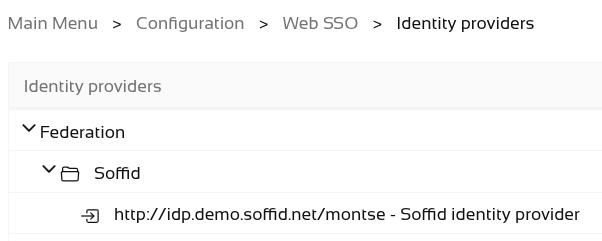
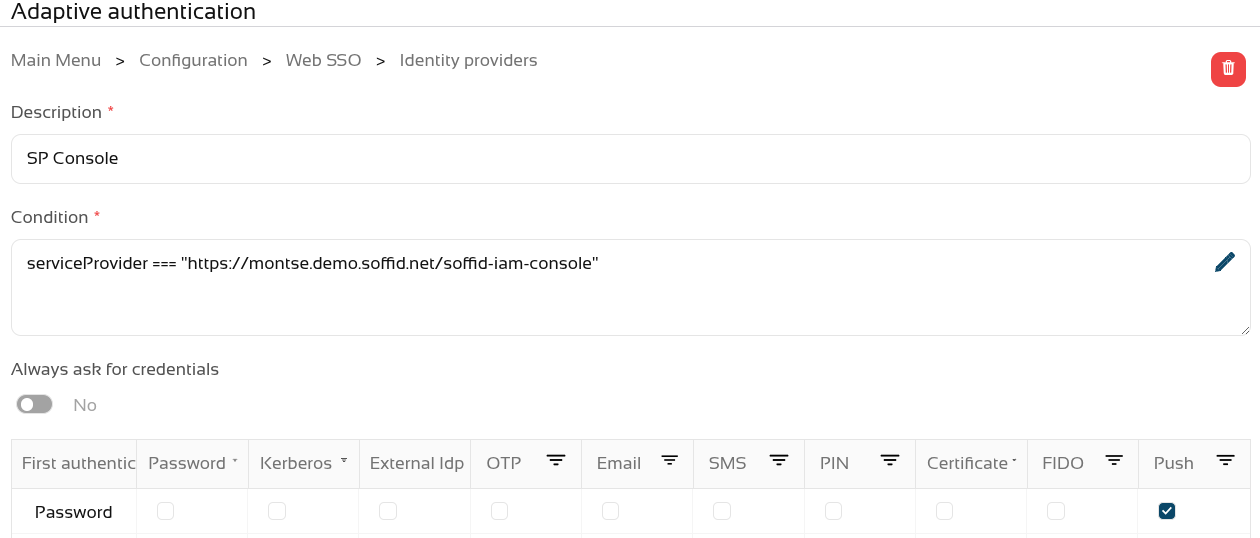
Add Soffid Authenticator as a first or second factor.
- Go to Soffid IdP.
- Go to Default authentication methods or Adaptive authentication (used this option in the example)
- Add the Soffid Authenticator (Push option) as first or second factor used this option in the example)
We can now use the parameter "soffid.push.images" to view the different sets of images.

Let’s take a look at the four examples of logins!
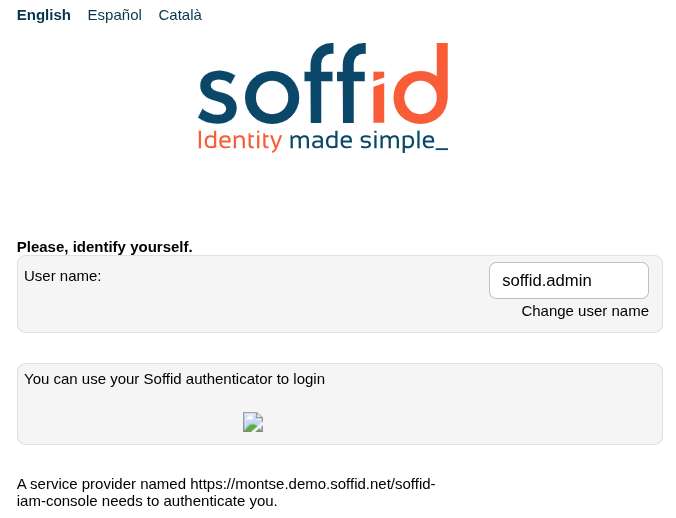
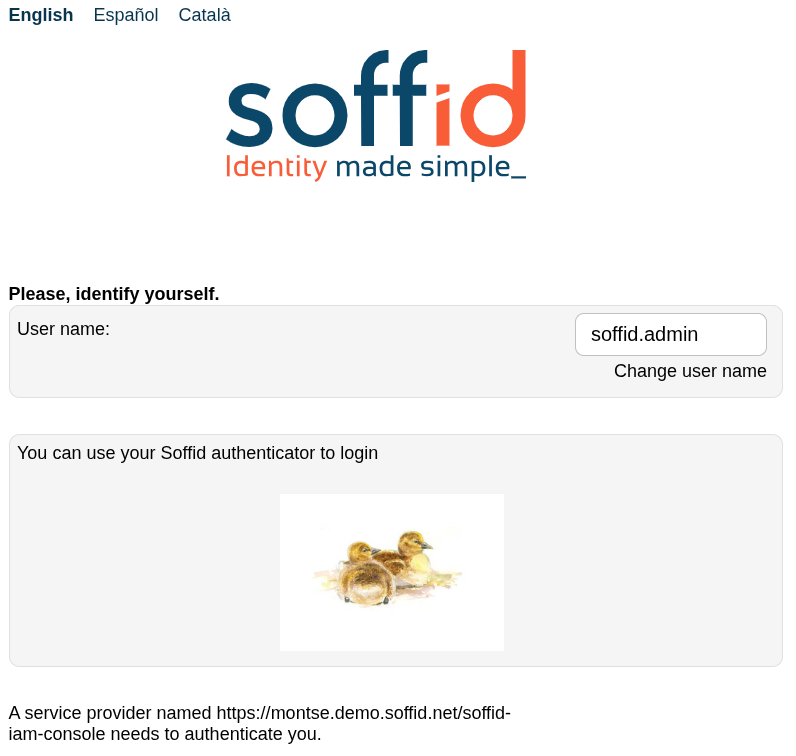
No soffid.push.images parameter or soffid.push.images=birds
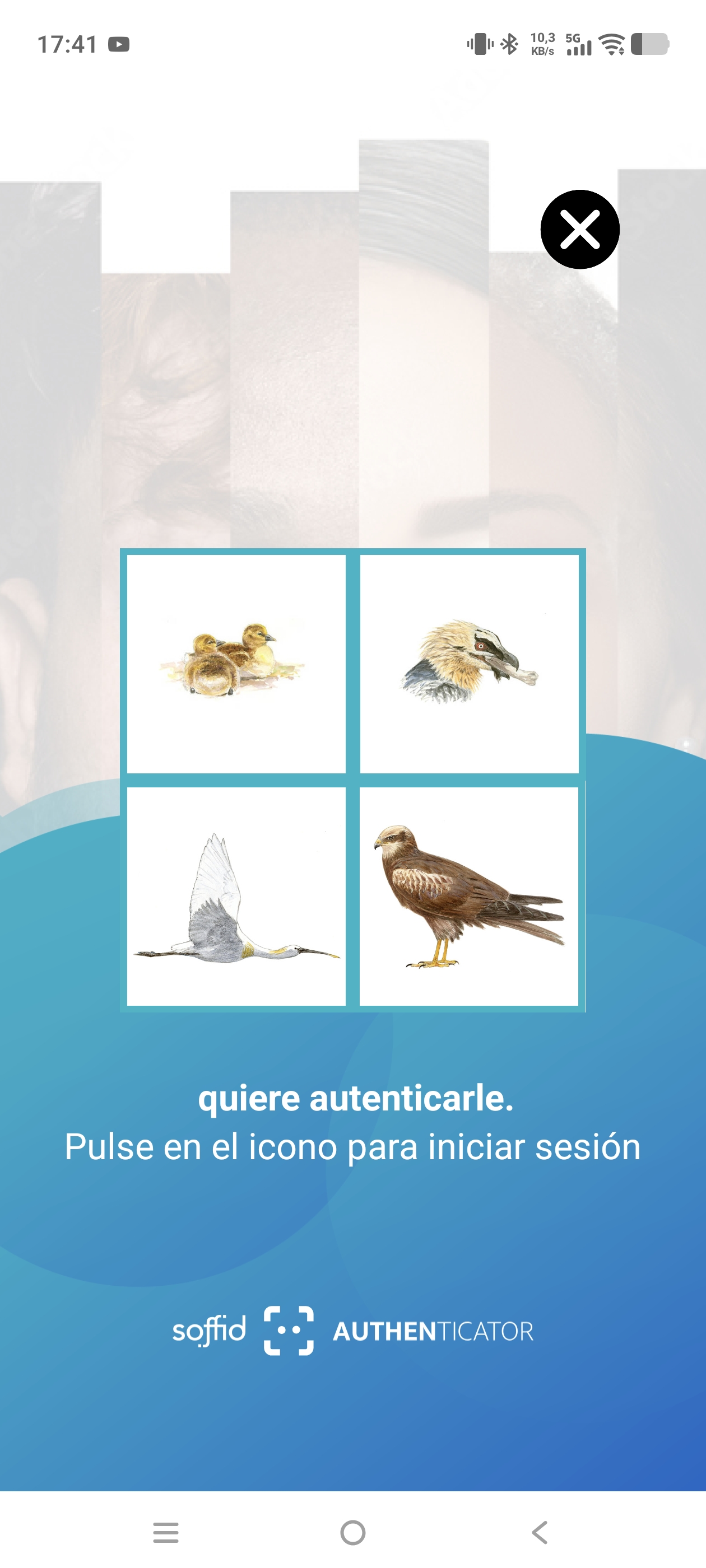
soffid.push.images=numbers
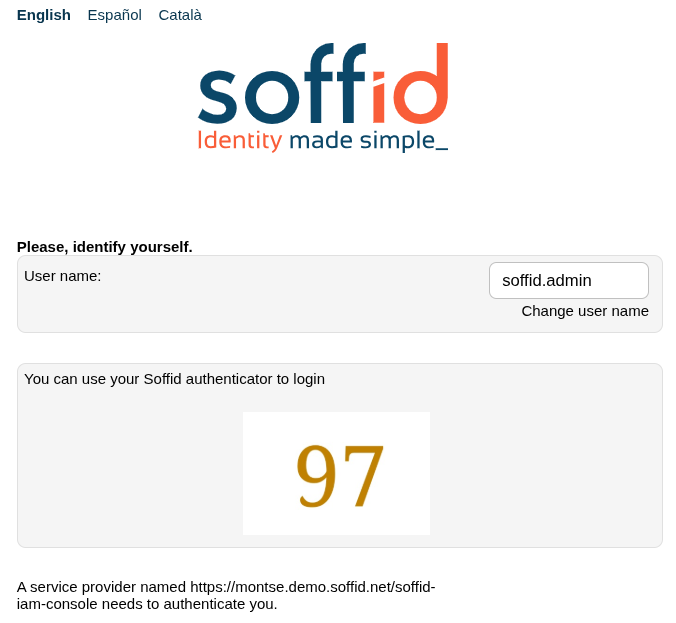
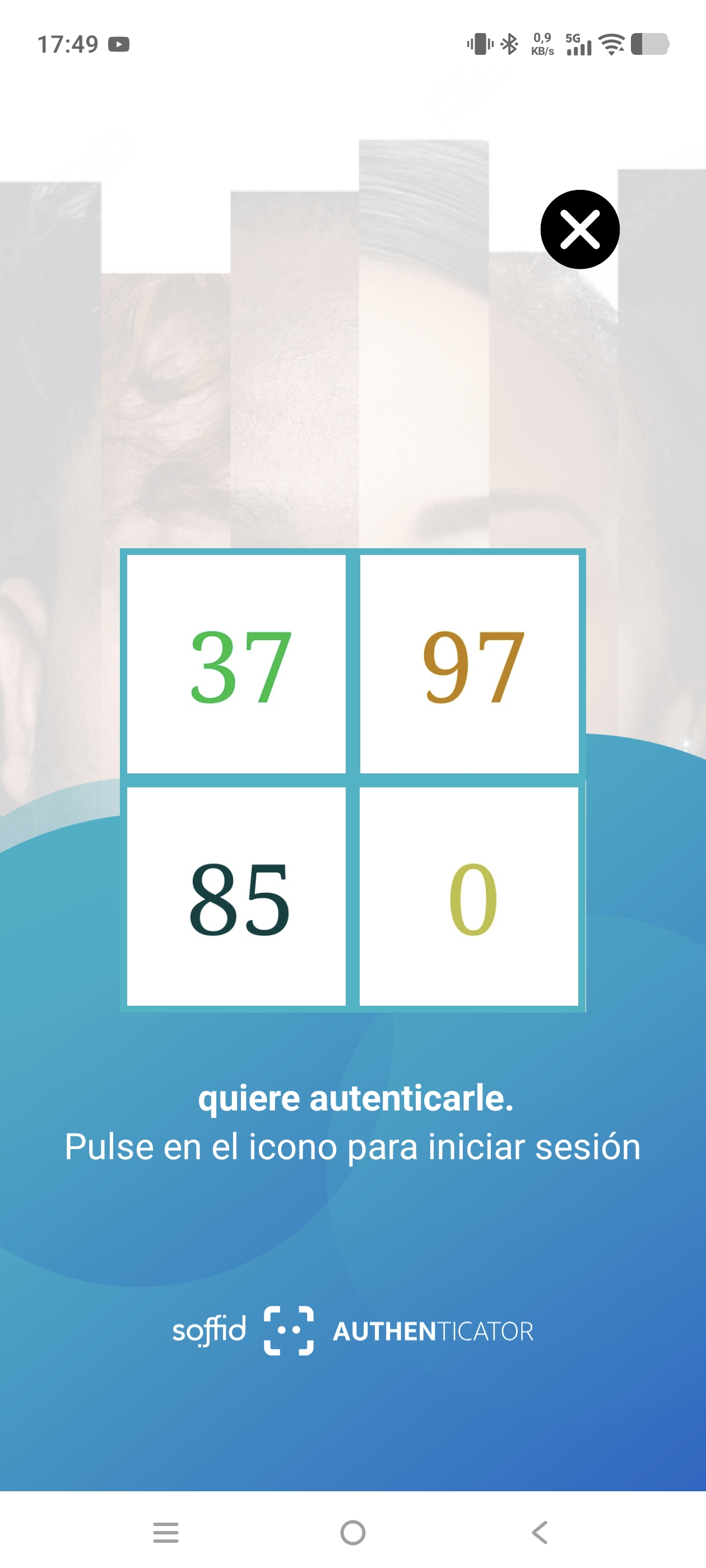
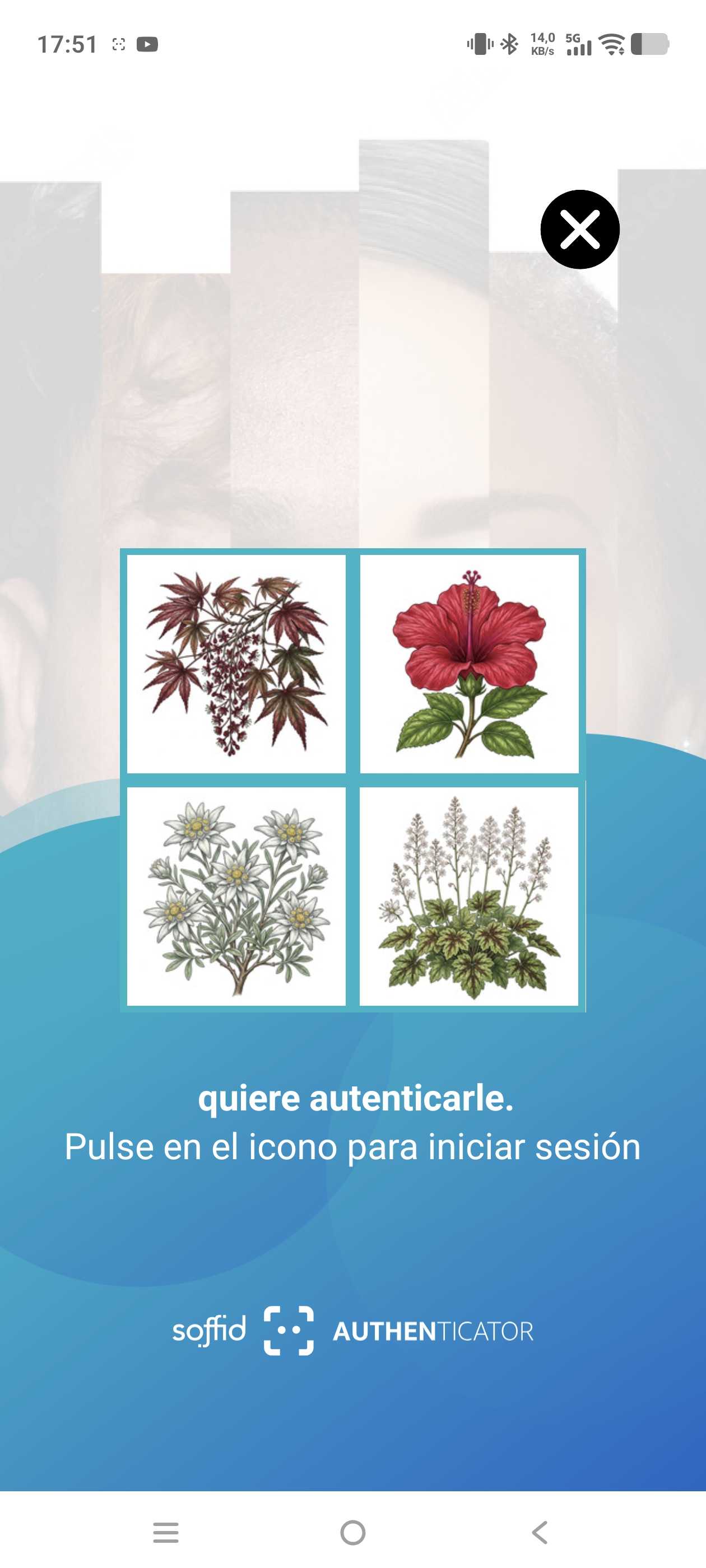
soffid.push.images=flowers
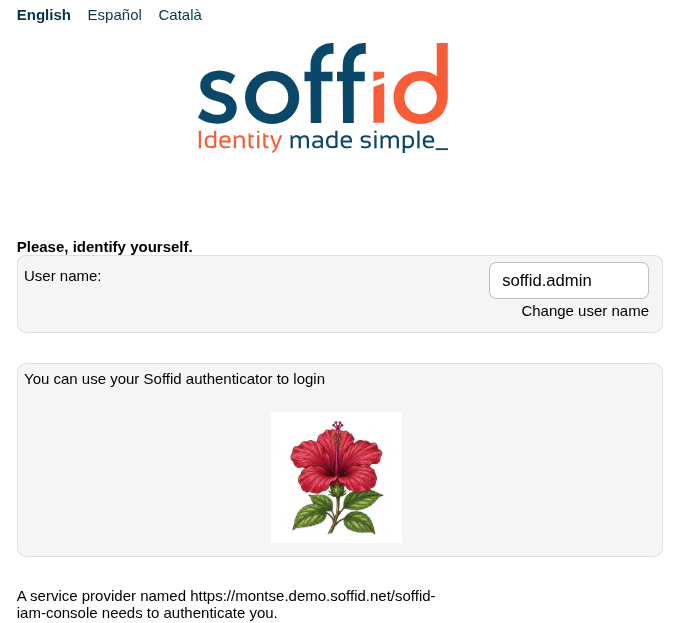
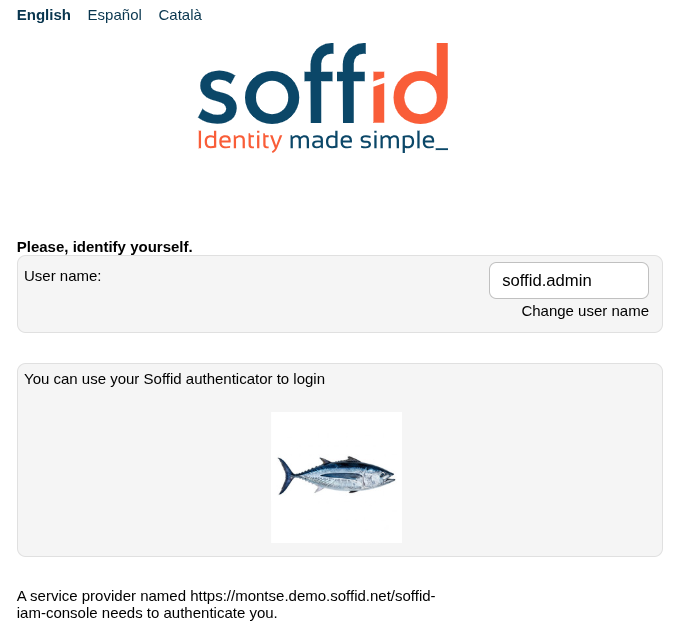
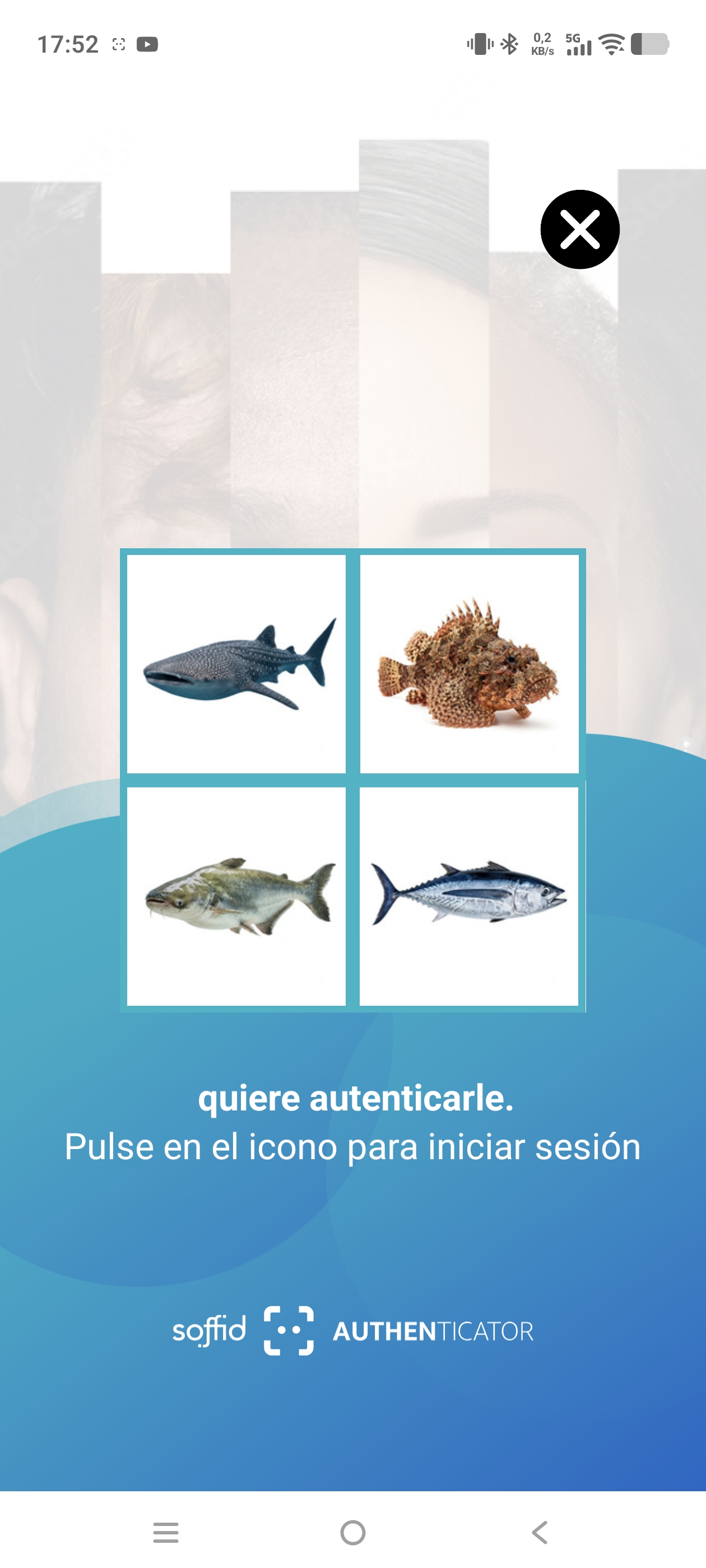
soffid.push.images=fishes
Please note that if you enter an incorrect value for the parameter, this error will appear.