
Connect Soffid syncserver to your on-premise network
Description
In order to manage your information system, a component named Sync Server must be installed along with Soffid Console. You must choose one platform as your Sync Server Soffid host and follow the instructions.
Once you have run the corresponding scripts, Soffid will detect the new Sync server. You could check the new Sync server on the Synchronization servers page.
Step-by-step
1. Platform
First, you must select the platform.
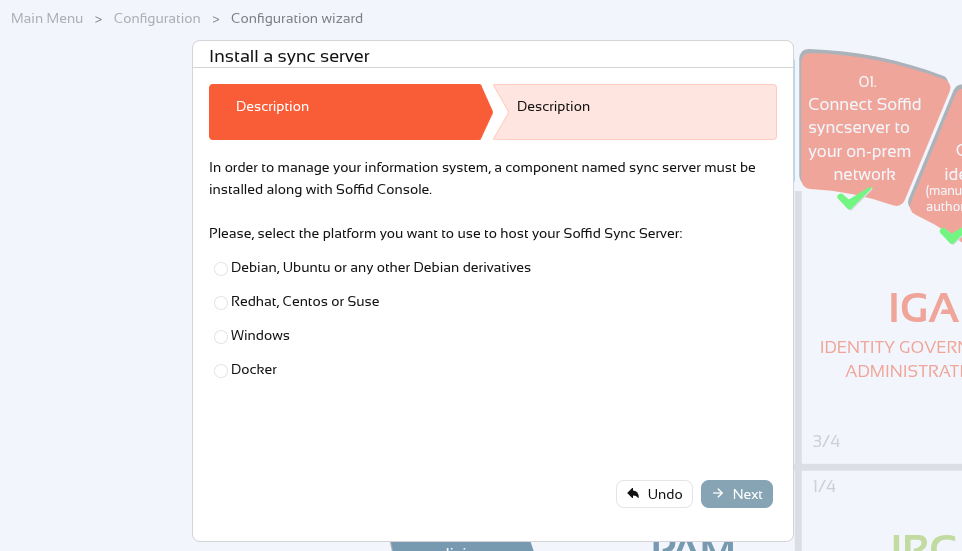
Please note that some values are generated based on the following parameters; please check them if you encounter any issues.
The hostname:port used in the following commands is generated to these rules: it uses the soffid.externalURL parameter, if this does not exit, it uses the AutoSSOURL parameter, if this does not exit, Soffid tries to generate the hostname:name.
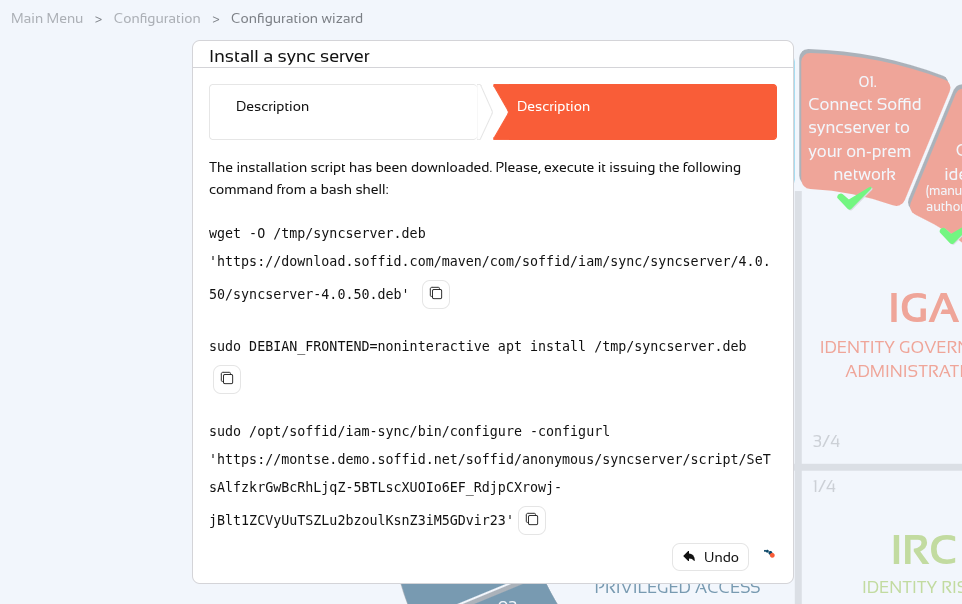
1.1 Debian, Ubuntu, or any other Debian derivatives
Follow the instructions.
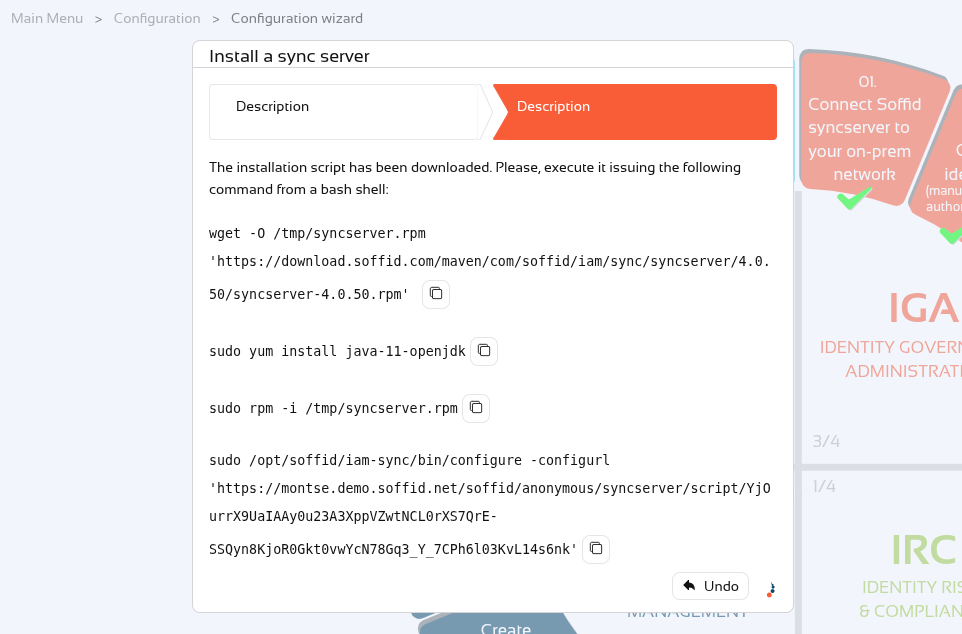
1.2 Redhat, Centos, or Suse
Follow the instructions.
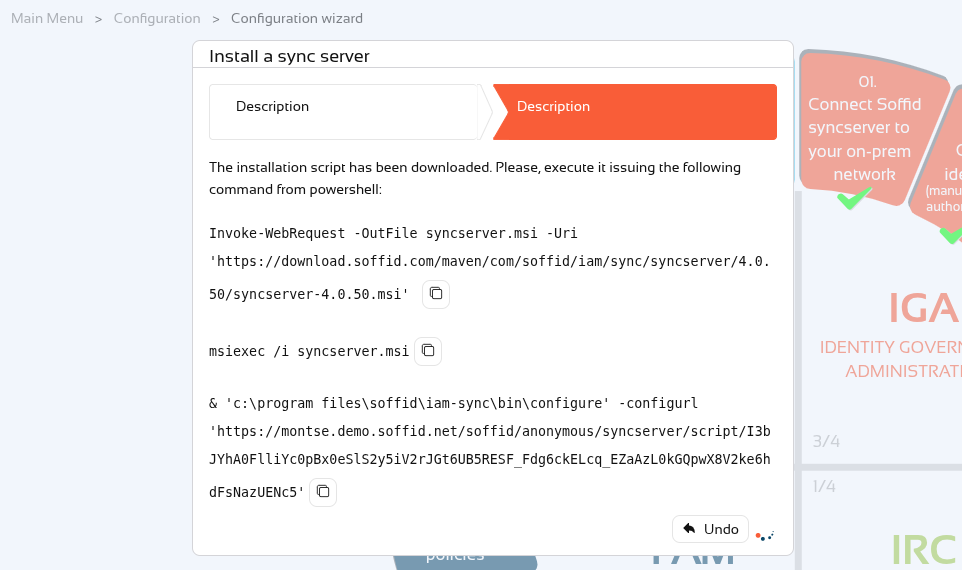
1.3 Windows
Follow the instructions.
1.4 Docker
Follow the instructions.
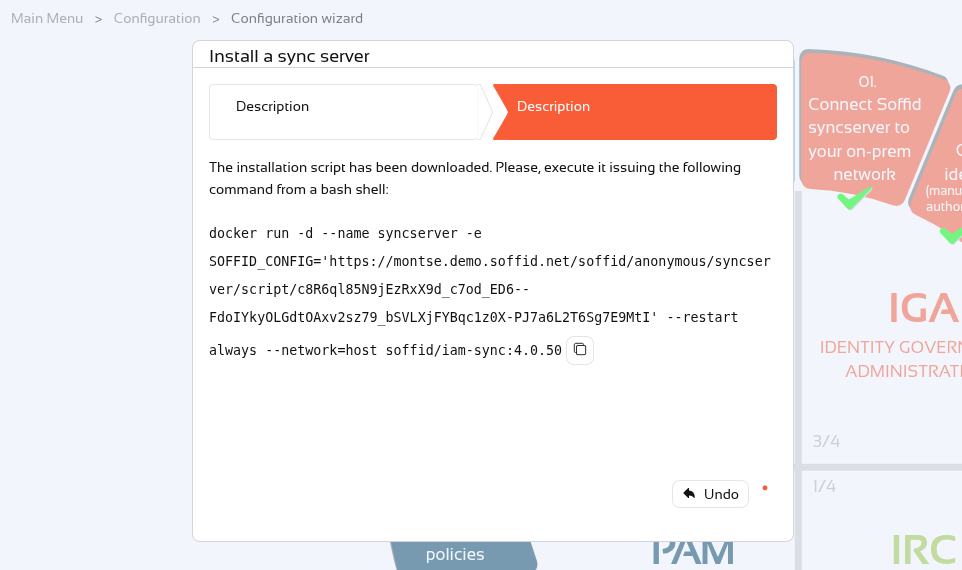
To upgrade the syncserver proxy version, follow the instructions at the following link: Upgrade syncserver proxy
1.4.2 Docker compose
We can also use the Docker URL in a docker compose file.
This is the template to use in your docker-compose.yaml file.
services:

  syncserver-proxy:
    image: soffid/iam-sync:4.0.50
    hostname: syncserver-proxy
    environment:
      SOFFID_CONFIG: 'DOCKER-URL-COPIED-FROM-WIZARD'
    networks:
      - network
    volumes:
      - syncserver-proxy-conf:/opt/soffid/iam-sync/conf

networks:

  network:
    name: network
    driver: bridge

volumes:

  syncserver-proxy-conf:
    name: syncserver-proxy-conf
To update the proxy version on the synchronisation server, simply update the syncserver version and redeploy the container.
Here is some further information on Docker Compose commands.
2. Confirmation
Finally, Soffid will detect that the Sync Server has been successfully installed and you can click the Finish button.
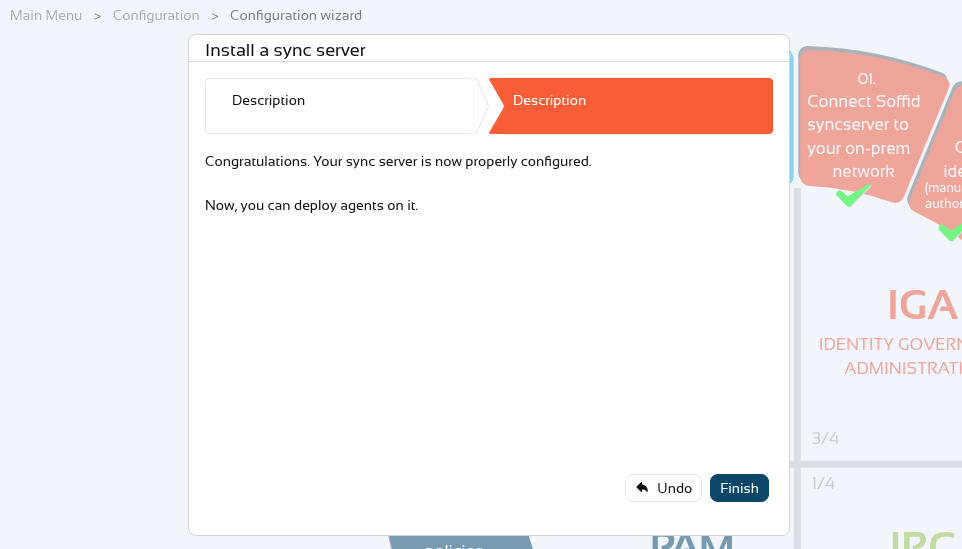
You could check the new Sync server on the Synchronization servers page and in the Sync server monitoring page.