How to upgrade ESSO?
Introduction
Once ESSO is installed, configured and operational, it is very likely that an update will be required at some point.
There are many reasons for updating:
- To keep up to date with the latest versions.
- To adapt to changes in the operating system.
- To resolve bugs or fixes.
- To adapt to new versions of Soffid.
- To include new features.
- How to upgrade ESSO in Linux?
How to upgrade ESSO in Linux?
Installation on Linux or Windows is very simple, you just need to run the new installer again.
This is explained in more detail below.
1. Download the new version of the installer, please go to the Soffid Enterprise downloads page in the Enterprise Single Sign On (ESSO seccion).
Please note that in Linux, the installer depends on the version of Linux.
2. Execute the installer of the new version.
sudo dpkg -i "the-name-of-your-file.deb"3. Now, for the system to apply the changes, you need to log out and then log in again.
4. To veify that you are using the correct version, you can check this information by clicking on the Soffid ESSO component icon in your browser, which will open a popup window displaying the version.
How to upgrade ESSO in Windows?
Installation on Linux or Windows is very simple, you just need to run the new installer again.
This is explained in more detail below.
1. Download the new version of the installer, please go to the Soffid Enterprise downloads page in the Enterprise Single Sign On (ESSO seccion).
2. Execute the installer of the new version.
Please note that administrator permissions are required to run the administrator.
Please follow these steps:
- Go to the directory where the downloaded file is located
- Double click to install
- In the first Windows pop-up, click on "More information" and then "Run anyway".
- In the next popup from the installer, follow the steps, click Next, Accept, Install, OK, Finish, Yes.
3. After the final "Yes", the system wil restart to apply the changes.
4. To veify that you are using the correct version, you can check this information by clicking on the Soffid ESSO component icon in your browser, which will open a popup window displaying the version.
Unable to select a soffid user after the update?
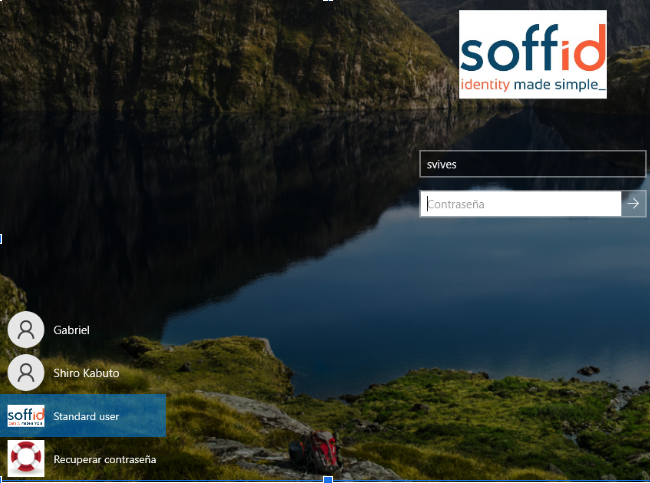
If, after updating, the option to use Soffid users does not appear, it is very likely that you have an old configuration.
Image
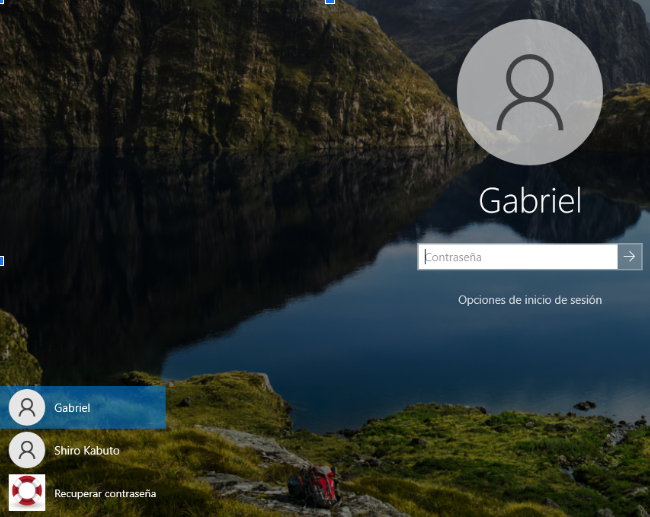
You will probably need to update the ESSO configuration so that it points to Soffid's idp instead of Syncserver.
For further information, please refer to the ESSO installation page.
Finally, this will be the correct option.
Image