
CSV connector in Soffid 4
Introduction
Description
The "CSV connector" of Soffid 4 includes the “Customisable CSV file” agent.
This agent is used to generate a CSV file as part of the Soffid synchronisation engine.
Managed System
This connector has been designed to interpret a CSV file as if it were an end system.
Prerequisites
Users who need to be created in the CSV file must have an account with that agent.
Please note the location where the file will be created; its configuration will depend on the operating system and the type of Soffid architecture/installation
Download and Install
This plugin is located in the Connectors section and its name is CVS plugin (Test plugin once is installed).
For more information about the installation process you can visit the Addons Getting started page.
Agent Configuration
The "Customisable CSV file" agent is used to synchronice, not for load authoritative o reconcile.
The only object that can be configured is the User object.
Basics tab
It has no custom parameters.
Attribute mapping tab
Use the option "Create default mapping" to create a first version of the mapping.
Adjust the properties and attributes to suit your needs.
Property section
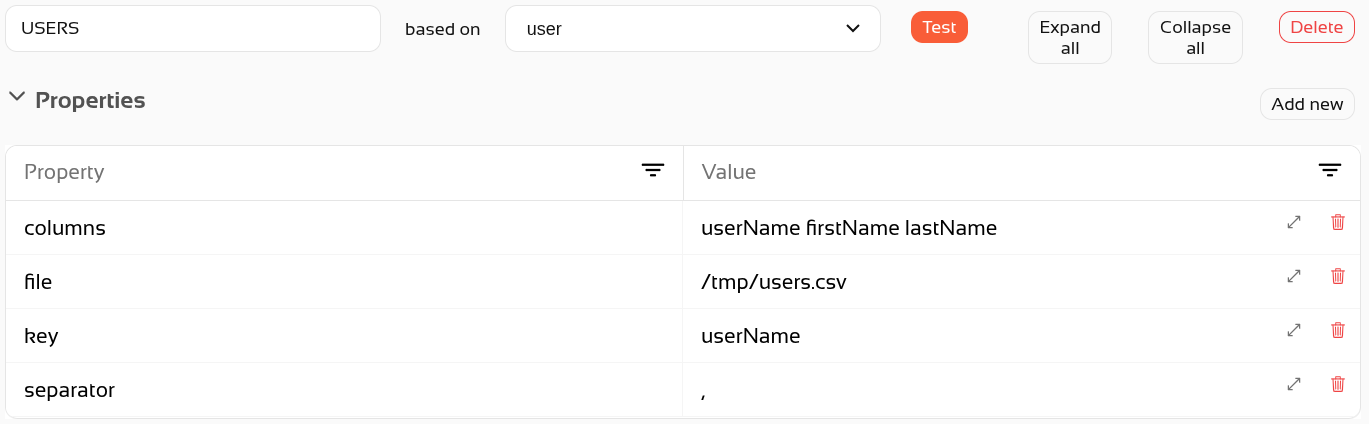
Here, you need to define some configuration parameters.
|
Property
|
Description
|
|---|---|
| file | Mandatory: Path where the file is placed in the directory system. |
| key | Mandatory: The field to be used as key. |
| columns | Mandatory: The names of the columns to be created in the file. They must be separated by a space. They correspond to the "system attributes". |
| separator |
Mandatory: The symbol used to separate attributes in the file. It can be anything other than a comma. |
Attributes section
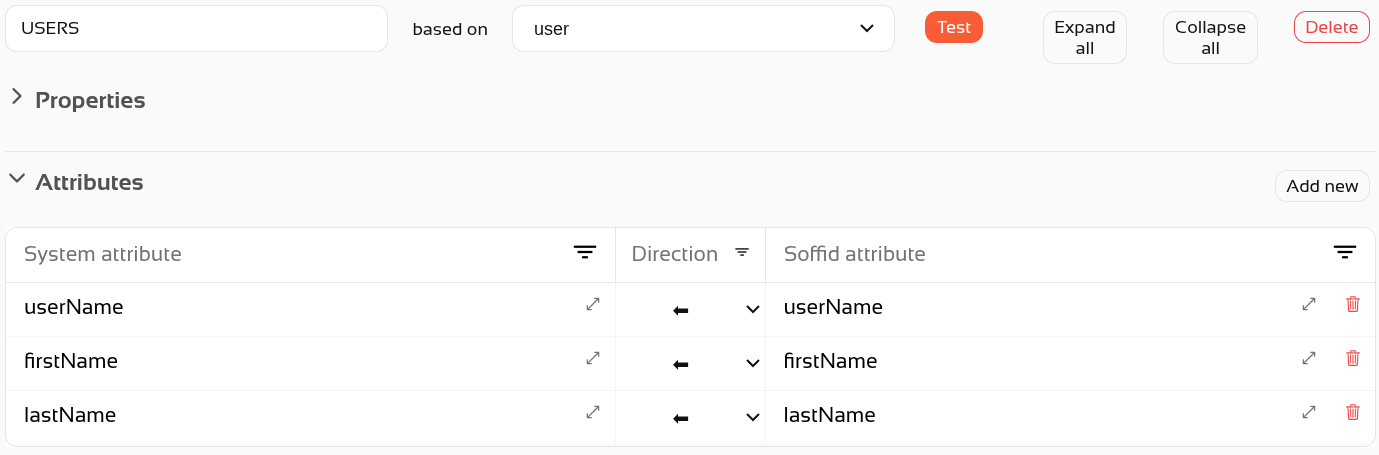
Mapping between CSV fields and Soffid objects.
Some tips:
- The system attributes will be the csv columns
- The direction will be to the left
- Check here the Soffid Objects (for agent mappings)
- You can use additional attributes like this: attribute{"CODE"}, you can check de CODE of the attribute in the Metadata page.
Incoming data tab
Nothing to do.
Massive actions tab
We can use the "CSV file: Provision all users on to managed systems." to sinchronise all users.

Account metadata tab
Nothing to do.
Operational
Monitoring
After the agent configuration you could check in the Sync server monitoring page if the agent is active.