Agents
Description
Soffid agents are the tool that allows the connection between Soffid and the target systems. To establish the connection with target systems, Soffid provides a large number of connectors that will be able to set up into the Soffid console.
You could see the complete list of Synchronization Server Connectors.
Soffid administrator has the chance to easily customize attribute mappings for some connectors addons, without having to code it using Java. Soffid provides a graphical interface to perform attribute mapping.
An agent will appear disabled when this agent won't have a server assigned. Bear in mind to select the “Disabled” flag on Server URL criteria when you will query if you want to search for disabled, but defined agents.
Soffid has an internal agent called soffid that does not need to be assigned to a sync server in order to function correctly.
Screen overview
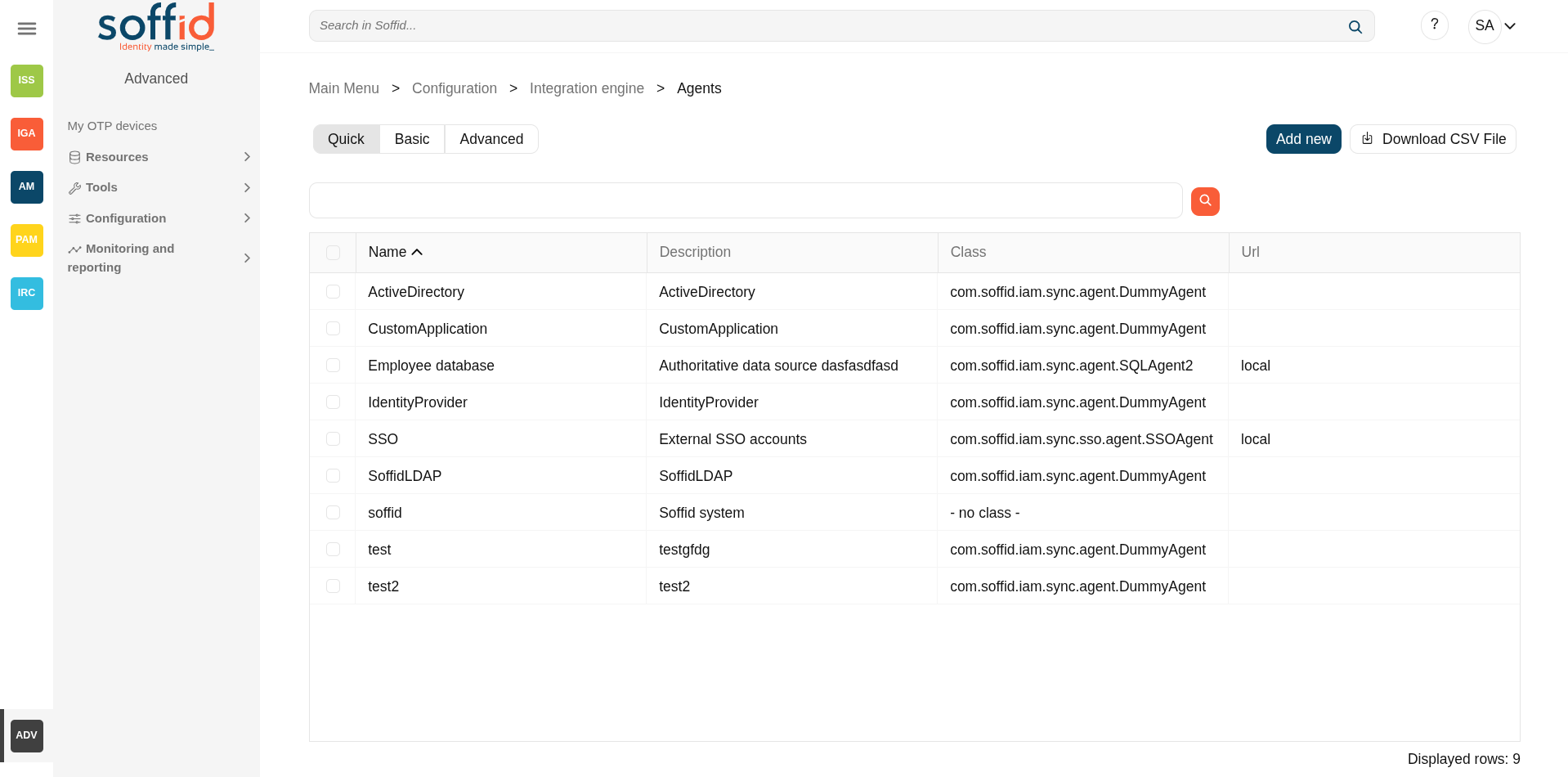
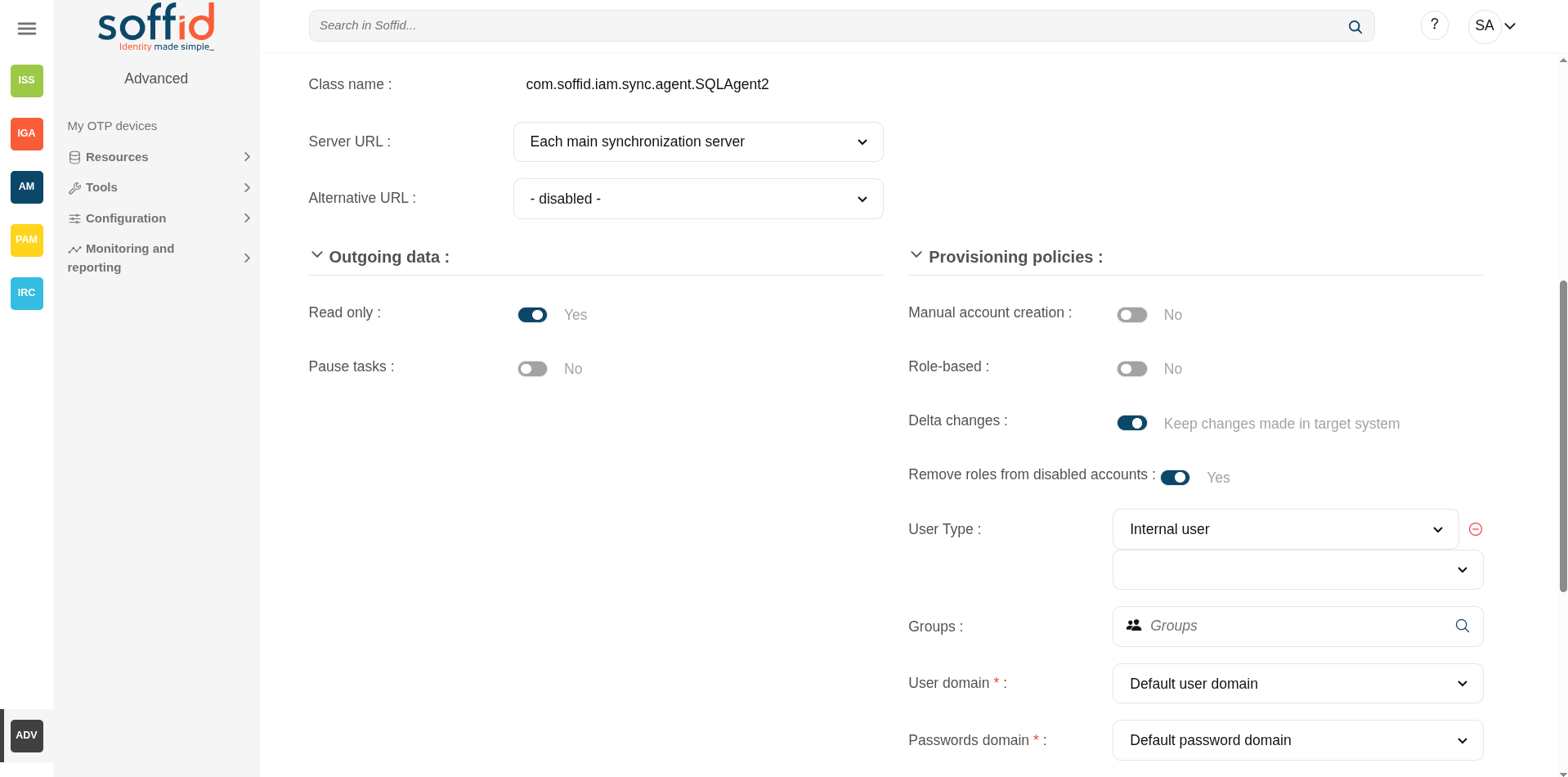
Related objects
- Synchronization servers : the syncservers availables in the platform, could be primary or proxy type.
- Smart engine settings : to configure the engine mode of the synchronization tasks
- User type : to be used in the provisioning policies
- Groups : to be used in the provisioning policies
- Account naming rules : to configure the user domain
- Password policies : to configure the password domain
Standard attributes
Basics tab
- Task engine mode: shows the current task engine configuration. For more information visit the Smart engine settings page.
- Name: agent's identifying name.
- Description: a brief description of the agent.
- Usage: identify whether the accounts created are to be used for IAM or PAM. The IAM and PAM tasks will be managed in separate queues.
- IAM: for standard provisioning
- PAM: for PAM provisioning
- The PAM accounts will be managed as a Shared thread internally.
- The PAM accounts will be shared accounts and never will be single user accounts.
- Type: Identify the connector type to use. Different implementations of the server plugins are included in the connectors installed into Soffid. Each type has a Java class bound, the name of the Java class implementing the connector is displayed next to the connector name.
- Class name : class name to identigy the agent type.
- Server URL: synchronization will be performed with the selected server. It is allowed to select two servers in cases high disponibility will be necessary. If you choose two servers, when one fails, the other will be used.
- If “Each main synchronization server” is selected, the agent will be run by every sync server.
- If "-disabled-" is selected, the agent will be disabled.
- If you select a single sync-server, the agent only will be run on that server.
- Alternative URL: segond syncserver to be used in case that the one in the server url will be not available.
- Shared Thread: if it is enabled, the same thread will be shared to several synchronization servers.
- Dedicated Thread: if "Shared thread" is disabled, it will be available the option to choose the number of threads to dedicate to the synchronization process.
- Task timeout (ms): add a timeout to the synchronization server tasks (query, insert, update, delete, update password, etc). If you add a timeout, when the connection gets this timeout, the synchronization server will stop the request and add it to the queue for a new retry later.
- Long task timeout (ms): add a timeout to the reconciliation server tasks (user, group, role, account, grants, etc). If you add a timeout, when the connection gets this timeout, the synchronization server will stop the request (no retry is added).
- Read-only: if it is checked (the selected option is Yes), no change will be applied to the managed system. Only read operations will be allowed.
- Paused task: if it is checked (the selected option is Yes), the system remains connected, but the tasks in the queue will be retained. It is very useful when conducting tests and ensuring that no tasks propagate, except the ones we are manually triggering (we pause, make the changes, and when everything is fine, we remove the pause). As a rule, you should pause when making configuration changes in production.
- Manual account creation:
- If you check NO, Soffid will create the new user accounts applying the defined policies.
- Check YES if you don't want Soffid to create automatically new accounts for the users.
- Role-based: when "Manual account creation" is not checked (option selected is No), it will show "Role-based". Check it if only users with any role on this agent should be created. When the identity or account loses its permissions, the account will be disabled. Uncheck to allow users with no role on it.
- Delta changes: to use delta changes in the synchronization, when it is enabled, Soffid perform a merge between the image of the target system and Soffid
- Remove roles from disabled accounts: when the agent detects a disabled account all the granted roles are removed in the target system
- User Type: when "Manual account creation" is not checked (option selected is No), it will show User Type. Only users of the selected types will be created. Any change made in this field involves all accounts to be recalculated. New ones will be added to the repository and managed systems. Some accounts will get disabled if the owner user no longer belongs to any authorized user type.
- Groups: when "Manual account creation" is not checked (option selected is No), it will show "Groups". Identify the business units that are allowed to have an account on this system.
- User domain: it is the rule used to determine how to generate account names. If the account name is the same as the user name (as is normally the case), the “Default user domain” should be used. The user domain values are defined on the Account naming rules page.
- Password domain: determines the password policies that will be used. If the "Default password domain" is selected, Soffid passwords will be shared with the managed systems. The user domain values are defined on the Password policies page.
When uploading authoritative data for identities from a managed system, firstly, users will be created in Soffid as indicated in the attribute mapping, and secondly, accounts will be created for the managed systems only if the agent option "Manual account creation" is not checked and only for User Types indicate.
Connector parameters
The custom attributes depend on the used plugin.
Here you will find all the information needed about the available Soffid connectors to integrate external managed systems.
- AWS Connector
- CSV Connector
- Google Apps Connector
- JSON REST Web Services Connector
- LDAP Connector
- Oracle Connector
- Oracle EBS Connector
- SAP Connector
- SCIM Connector
- Shell Connector
- SQL Connector
- Windows Connector
- Zarafa Connector
- SQL Server Connector
Integration flows tab
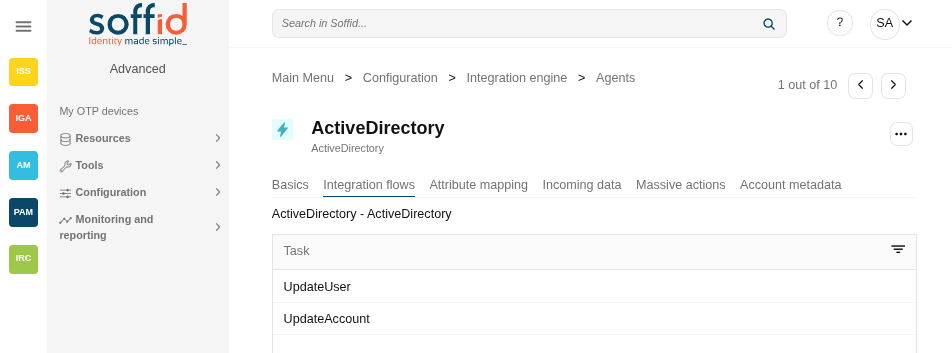
Some connector addons have associated integration workflows. On the Integration flows tab you can view the integration flows related to the agent.
Image
You also can view in detail the workflows.
Image
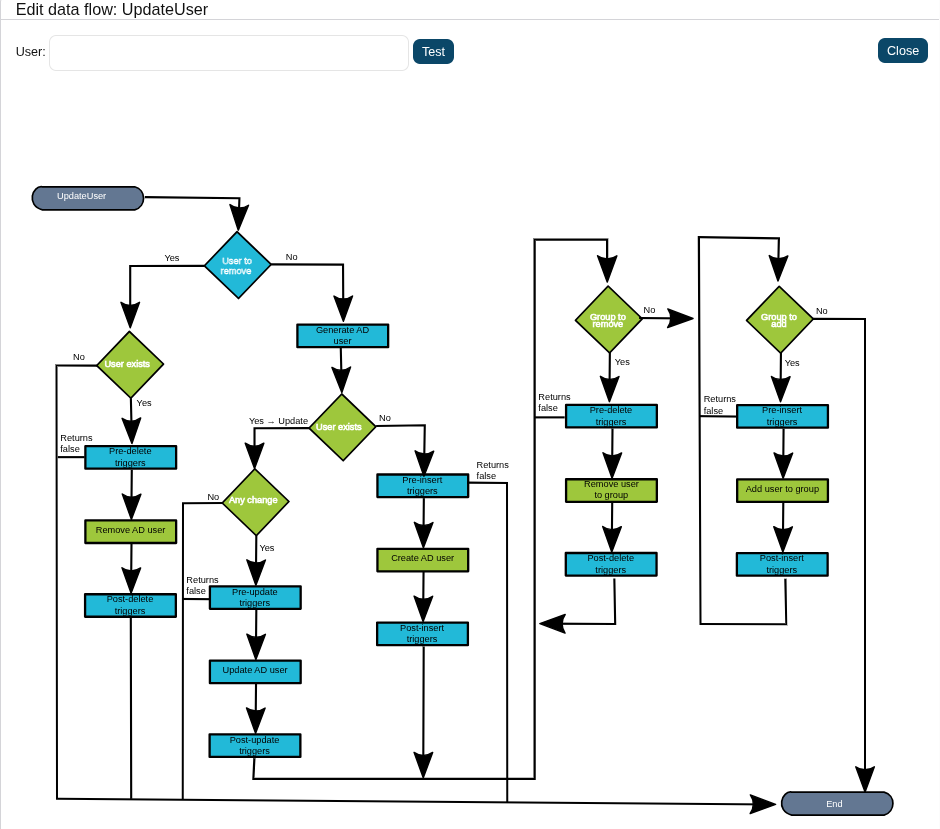
Is it posible to If you select any node or component, you will be able to view its configuration and even perform some tests.
Image
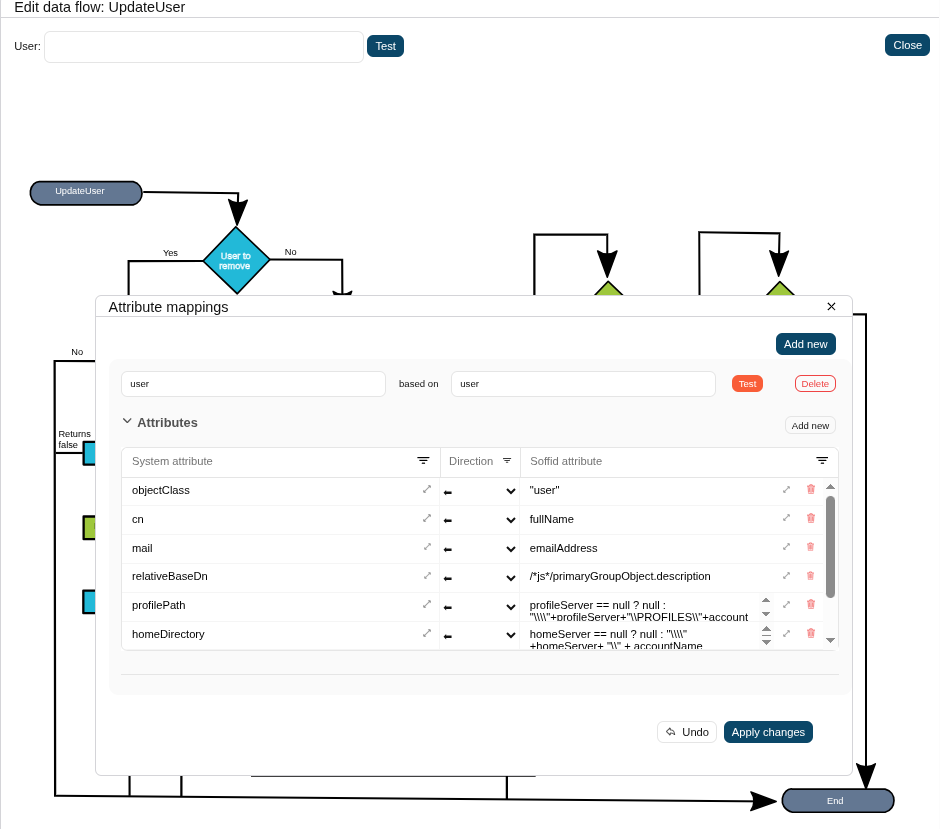
All the configurations shown on this screen are part of the configuration made on the ‘Attribute mappings’ screen. On this screen, they are filtered according to your needs, and you can also modify them.
Attribute mapping tab
The attribute mapping tab only appears when the agent allows such customization. Soffid administrators have the chance to easily customize attribute mappings without having to code them using Java. The administrator users can select system objects and the Soffid objects related, manage their attributes, and make either inbound and outbound attribute mappings.
There is an action that creates all the default mapping depending on the agent connector type. That option creates automatically system objects with their attributes and properties, you can select them by clicking on "three points" icon and then the Create default mapping option. Once created the default mapping, those can be customized as required.
Objects
On this screen, you must configure the objects to be retrieved or synchronised. The objects to be configured depend on each agent.
For each object, you must configure its properties, methods, attributes, or triggers. Their configuration also depends on each agent.
The list of possible objects is as follows, with the most important ones indicated in bold
- user
- account
- role
- grant
- group
- grantedRole
- allGrantedRoles
- grantedGroup
- allGrantedGroup
- authChange
- mailList
- custom
- host
- network
Properties
Some agents require to configure some custom attributes in their properties section.
These properties are specific for each type of connector. You could see all these properties by visiting each connector type page.
Methods
This option is only available on some types of connectors. It is used to define methods that can be called using the defined properties.
Attributes
Each object mapping defines an agent object name and one bound Soffid object type.
The left hand side attributes are managed system attributes, so they are agent dependent that is being configured. The right side attributes are Soffid attributes and must be selected from an existing list.
It is allowed to use script expressions in the source, but they can only be used in a one-way mapping.
System attributes
A configuration agent must define object types that can be created on it. Each object mapping defines an agent object name and needs bound Soffid object type.
At this column, the system's attribute name will be displayed.
When evaluating any expression, either the system or soffid attributes are available as script variables. Moreover, the following variables are available:
| Variable | Content |
|
serverService |
Server API that enables an easy object query [ Search the link "Public API Module" or "Data & Service model" ] |
|
serviceLocator |
Spring Singleton that gets access to any published service bean. Only available on the main syncserver |
|
remoteServiceLocator |
Singleton that gets access to any remotely published service bean. |
|
THIS |
HashMap that contains any soffid or system managed attribute. It can be used when the attribute name is not a valid java identifier. |
|
dispatcherService |
Service that allows the script to get or update information in the target system. |
Script Example 1

/*js*/
var name = new javax.naming.ldap.LdapName(distinguishedName);
var rdns = name.rdns;
var g = null;
var rn = null;
for (var i = rdns.length - 2; i > 0; i--) {
  if (rdns[i].type == "DC") break;
  if (g == null) {g = "", rn = ""}
  else {g = g + "/"; rn = "," + rn}
  g += rdns[i].value.toLowerCase();
  rn = rdns[i].type+"="+rdns[i].value;
}
var gi = serviceLocator.groupService.findGroupByGroupName(g);
if (gi == null) {
  var parent = ! rn.contains("/") ?
    "world":
   rn.substring(0, rn.lastIndexOf("/"));
  gi = new com.soffid.iam.api.Group();
  gi.name = g;
  gi.description = rn;
  gi.parentGroup = parent;
  serviceLocator.groupService.create(gi);
}
return g;
Directions
At the center column, an arrow will show the direction of the information flows.
When the information flows from the system (left) to Soffid (right), the left column name can be replaced by a script expression. This expression will be evaluated on the system object prior to uploading it to Soffid.
When the information flows from Soffid (right) to the managed system (left), the right column can contain a script expression that will be evaluated prior to provisioning the user.
Here are some examples:
| System attribute | Direction | Soffid attribute | Meaning |
|
cn |
<=> |
accountName |
The account name is the CN attribute of the LDAP |
|
departmentNumber |
<= |
|
Assigns the group description of the primary group to the departmentNumber attribute |
|
baseDN |
=> |
"ou="+primaryGroup+",dc=soffid,dc=org" |
Assigns the base dn of the user to the proper organization unit that is below dc=soffd,dc=org. |
Soffid attributes
The Soffid attributes that can be used can be found at the following links.
When evaluating any expression, either the system or soffid attributes are available as script variables. Moreover, the following variables are available:
| Variable | Content |
|
serverService |
Server API that enables an easy object query [ Search the link "Public API Module" or "Data & Service model" ] |
|
serviceLocator |
Spring Singleton that gets access to any published service bean. Only available on the main syncserver |
|
remoteServiceLocator |
Singleton that gets access to any remotely published service bean. |
|
THIS |
HashMap that contains any soffid or system managed attribute. It can be used when the attribute name is not a valid java identifier. |
|
dispatcherService |
Service that allows the script to get or update information in the target system. |
Script Example 1

firstName + " " + lastNameScript Example 2

attributes = serviceLocator.getUserService().findUserAttributes(userName);
return attributes.get("position");
Test
With the definition of an object, you can check the system attributes defined, in both the final system and in Soffid.
1. First of all, you need to click the Test button, then Soffid will display a text field and some buttons to perform new actions.
2. Secondly, the text field must be filled in with the appropriate data. It can be a user, an account, a group or another system object. It depends on the system object you are checking.
3. Then, you can choose the action to perform.
Text expression: allows you to test a system object. Soffid will display a new column with the data already mapped that will be sent during synchronisation to the final system. This data will only be displayed when the address is <= or <=>.
Synchronize now: this allows you to synchronize the data object to the target system. This action would be the same as that performed automatically by the task engine; in this case, the agent executes the entire process.
Fetch system raw data: brings the data of an object from a target system. The data is displayed in a pop-up window. The data retrieved may depend on the agent's programming or the configuration settings in the properties.
Fetch Soffid object: brings the data of a specific system object with processed data to update into Soffid. As with the previous option, it retrieves data from an object in an end system, but then applies the mappings configured in Soffid (with direction => or <=>), and finally displays the attributes and their exact values that would be saved in Soffid.
Triggers
It is allowed to define BeanShell or JavaScript scripts that will be triggered when data is loaded into the target system (outgoing triggers).
The trigger result will be a boolean value, true to continue or false to stop.
A configuration agent can configure triggers related to the operation to be performed. There are different trigger type, that determines the specific moment at which the script will be triggered.
Triggers can be used to validate or perform a specific action just before performing an operation or just after performing an operation on target objects.
To access Soffid data, you can use source{"attributeName"}, which recovers the value of the attributeName. That object will be Soffid format.
Also, you can use newObject{"attributeName"} to create the new value or oldObject{"attributeName"} to get the old value of the target system, those objects will be target system format.
The available triggers that can be configured are as follows:
| Trigger | |
|
preInsert |
It will be triggered just before the insert action. It will be used to validate or prevent the insert action, and also to prepare objects or actions when a new object will be inserted |
|
preUpdate |
It will be triggered just before the update action. It will be used to validate or prevent update an object. |
|
preDelete |
It will be triggered just before the delete action. It will be used to validate or prevent delete an object. |
|
postInsert |
It will be triggered just after the insert action. It will be used to trigger or prevent an action. |
|
postUpdate |
It will be triggered just after the update action. It will be used to trigger or prevent an action. |
|
postDelete |
It will be triggered just after the delete action. It will be used to trigger or prevent an action. |
|
preSetPassword |
It will be triggered just after the set password action. It will be used to trigger or prevent an action. |
|
postSetPassword |
It will be triggered just after the set password action. It will be used to trigger or prevent an action. |
Example 1
Get the attribute company option 1:
company = source{"attributes"}{"company"};Get the attribute company option 2
userName = source{"userName"};
attributes = serviceLocator.getUserService().findUserAttributes(userName);
company = attributes.get("company");
Example 2
role = serviceLocator.getAplicacioService ().findRoleByNameAndSystem ( "Domain Users", "AcitveDirectory");
rg = new java.util.HashMap();
rg.put ("grantedRoleId", role.getId ());

list = new java.util.LinkedList ();
list.add (rg);
newObject{"ownedRoles"} = list;

return newObject{"name"} != null
Example 3
if (oldObject.get("userPrincipalName") != null)   {
	newObject.remove("userPrincipalName");
    newObject.put("groupType", oldObject{"groupType"});
}
For more examples, you can visit the Incoming Triggers examples page.
Incoming data tab
On the Incoming data tab, it is allowed to set up a specific configuration for the agent and define BeanShell or JavaScript scripts that will be triggered when data is loaded into Soffid (incoming triggers).
Incoming data
- Trust passwords: check if you can trust it to propagate their passwords to Soffid. Trusted password agents differ from the non-trusted ones in:
-
Temporary passwords generated from the console only propagate to agents that have trusted passwords checked. In the other case, the agents only receive definitive passwords.
-
When a password has reached its expiry date, it will automatically be disabled on agents where the trusted password is not checked, so the user can no longer access it.
-
When the managed system detects a change in the user request password, the password will be propagated to Soffid only if the agent associated trusted password is checked.
-
- If you want to forward the authentication requests to trusted target systems, you must enable the Trust passwords option and the proper feature on the Authentication page.
- Authoritative identity source: check if the agent will be used as the source for users' information. It is usually checked for the first load of users into Soffid, and then it is unchecked, being Soffid that manages users. Optionally, you can select a custom workflow to process incoming changes.
- Full reconciliation: switch off to enable incremental load process and disable Soffid object removal.
- Propagate changes: switch off to prevent sync-server to create synchronization tasks after loading incoming changes.
Load triggers
To add a new trigger, it is mandatory first of all, to select a Soffid object on which the action will be performed. Then to select the trigger, that determines the moment at which the script will be triggered. Finally, define the script that will be executed.
The available objects are the following:
- User
- Account
- Group
- Role
- Granted role
Triggers can be used to validate or perform a specific action just before performing an operation or just after performing an operation into Soffid objects. The trigger result will be a boolean value, true to continue or false to stop.
In a Load Trigger, it is not possible to access to mapping definitions configured on the attribute mapping tab. It will be necessary to use newObject{"attributeName"} to get the new value, or oldObject{"attributeName"} to get the old value. Those objects will be in Soffid format.
For more info about the Soffid format, you can visit the Soffid Objects page.
| Trigger | |
|
preInsert |
It will be triggered just before the insert action. It will be used to validate or prevent the insert action. |
|
preUpdate |
It will be triggered just before the update action. It will be used to validate or prevent update an object. |
|
preDelete |
It will be triggered just before the delete action. It will be used to validate or prevent delete an object. |
|
postInsert |
It will be triggered just after the insert action. It will be used to trigger or prevent an action. |
|
postUpdate |
It will be triggered just after the update action. It will be used to trigger or prevent an action. |
|
postDelete |
It will be triggered just after the delete action. It will be used to trigger or prevent an action. |
Example 1
userName = newObject {"userName"};
system = "ActiveDirectory";

accounts = serviceLocator.getAccountService()
  .findAccountByJsonQuery("(system eq \"" + system + "\") AND name eq \"" + userName + "\" AND (type eq \"I\")");
.....
user = serviceLocator.getUserService().findUserByUserName(userName);
.......
Example 2
...........
if (isFound) {
  newObject{"id-indicator"} = "1";
} else {
  if (contFalse > 0) {
    newObject{"id-indicator"} = "0";
  } else if (contNull > 0) {
    newObject{"id-indicator"} =  null;
  }
}
For more examples, you can visit the Outgoing Triggers examples page.
Massive actions
Massive Actions refer to bulk or large-scale operations that can be performed across multiple identities, accounts, or resources managed by an agent within the Soffid platform. Agents in Soffid are components responsible for interacting with external systems (like directories, databases, or applications) to manage and synchronize identity-related data. Massive actions allow administrators to execute operations on a large number of items simultaneously, making it easier to manage and maintain the system efficiently.
Provisioning all users on to managed systems
One of the main features of identity and access management (IAM) is automated user provisioning. User provisioning is the process that ensures the users are created, with proper permissions, updated, disabled, or deleted on to managed systems.
All managed systems must have an agent configuration, which will determine the way to perform the provisioning.
Soffid shows information about the last time that the option was run and a report with the details. You can access the report by clicking the verification icon (✓).
Provisioning groups to agent
This proces process that ensures the groups are created, updated, disabled, or deleted on to managed systems.
Soffid shows information about the last time that the option was run and a report with the details. You can access the report by clicking the verification icon (✓).
Provisioning roles to agent
This proces process that ensures the roles are created, updated, disabled, or deleted on to managed systems.
Soffid shows information about the last time that the option was run and a report with the details. You can access the report by clicking the verification icon (✓).
Propagate groups to agent
This option allows pushing to the managed system all the defined groups in Soffid.
Soffid shows information about the last time that option was run and a report with the details. You can access the report by clicking the verification icon (✓).
Reconcile (load target system objects)
The main purpose of reconciling process is to provide a mechanism to ensure that all users are aligned on the specific roles and responsibilities. Reconcile process discovers new, changed, deleted, or orphaned accounts to determine user access privileges.
Not every system connector has the capabilities needed to execute the reconcile process.
When "Read only" property, in Basic parameters, is checked (selected value is Yes), the reconcile process only considers unmanaged accounts.
Soffid shows information about the last time that the option was run and a report with the details. You can access the report by clicking the verification icon (✓).
Generate target system potential impact
That option allows you to generate a report with all the potential changes that would be performed on the managed system with the current agent configuration
If that option was performed previously, Soffid will show information about the last time that the option was run and the report with the potential impact. You can access the report by clicking the verification icon (✓).
Load authoritative data for identities and groups
Identities use to live on authoritative identity sources and they do in Soffid as well. Each identity may have any number of accounts on each managed system.
That option performs the operations to load data of groups and data of identities from the managed system into Soffid, following the rules configured in the agent.
Soffid shows information about the last time that the option was run and a report with the details. You can access to the report by clicking the verification icon (✓).
Also, Soffid creates a parameter on the Soffid parameters page, with information about the version of the data. If you need to perform the load authoritative action, it will be mandatory to delete this parameter before perform the action.
Apply system policies
This task retrieves all agent accounts and checks that they have the correct status according to the rules configured in the agent itself.
Account metadata tab
Agents allow you to create additional data on the "Account metadata" tab, to customize the accounts created for that agent. This additional information will be loaded with the agent's information, or calculated as defined in the mappings. The additional data can be used in both mappings and triggers.
To get the Account Metadata value, or to put value, you need to use accountAttributes{"ATT_NAME"}
Basics attributes
- Code: short name used by scripts and connectors to access the underlying information. It is suggested to use short names without blanks or special characters to make it easier to use.
- Label: text displayed just beside the attribute value. It is advised to use short descriptions in order to keep the screen cleaner.
- Data type: The attributes can have different data types
- User hint: user hint displayed in the screens
- Description: description for the
Metadata attributes
- Required: If the attribute is required, it must have a value in order to save; otherwise, an error message will be displayed.
- Prevent duplicated values: mark this field as a unique key for the object type. There is no chance of two objects with the same attribute value. Soffid smart engine will avoid the creation of duplicated objects.
- Multiple values: some attributes can contain multiple values for the same object. For instance, an attribute containing the languages a user can speak can be multi-valued, as a user can speak multiple languages.
- Maximum number of rows to display: when an attribute is multivalued, the screen size can grow a lot. To prevent such a big form, the system will only display a maximum number of values, and a scroll bar will appear to browse through the attribute values.
- Size: primarily for string attributes, specify the maximum length in characters of the attribute value.
- Values: primarily for string attributes, you can specify the allowed values for the attribute. Then, the text box that the user has to fill in the data will be replaced by a drop-down list.
Dynamic attributes
- Visibility expression: write an optional BeanShell expression to check if the field should be displayed or not. The expression should return true or false. The following variables are exposed to the expression:
-
ownerObject: current object owning the attribute.
-
value: current attribute value.
-
requentContext: tip about the screen using the attribute.
-
inputField: the ZK input object (ZK Framework).
-
inputFields: a map to get access to any other ZK input object (ZK Framework).
-
serviceLocator: locator to use any Soffid engine microservice.
-
- Validation expression: write an optional BeanShell expression to check if the field value is acceptable or not. The expression should return true if the value is acceptable. If the expression returns false or any other object, a warning message will be displayed. When the expression returns a string value, the return value will be considered the warning message to present to the end-user. The following variables are exposed to the expression:
- ownerObject: current object owning the attribute
- value: current value to evaluate.
- requentContext: tip about the screen using the attribute
- inputField: the ZK input object (ZK Framework).
- inputFields: a map to get access to any other ZK input object (ZK Framework).
- serviceLocator: locator to use any Soffid engine microservice.
- onLoad trigger: write an optional BeanShell expression that will be executed just after preparing the user interface. The script can modify in any way the inputField object before it is displayed, but cannot modify other input fields.
The following variables are exposed to the expression:
-
- ownerObject: current object owning the attribute
- value: current value to evaluate.
- requentContext: tip about the screen using the attribute
- inputField: the ZK input object (ZK Framework).
- inputFields: a map to get access to any other ZK input object (ZK Framework).
- serviceLocator: locator to use any Soffid engine microservice.
-
- onChange trigger: write an optional BeanShell expression that will be executed just after the user has changed the object value. The script can modify in any way the inputField object or any other input fields.
The following variables are exposed to the expression:
-
-
- ownerObject: current object owning the attribute.
- value: current value to evaluate.
- requentContext: tip about the screen using the attribute.
- inputField: the ZK input object (ZK Framework).
- inputFields: a map to get access to any other ZK input object (ZK Framework).
- serviceLocator: locator to use any Soffid engine microservice.
-
-
Example 1
Into the attribute mappings save the value of account metadata:
varX <= accountAttributes{"att_name"}Example 2
Get the value from the attribute account metadata to use it into a trigger
strValue = source.get("attributes").get("att_name");
if (strValue != null) {
	.....
	.....
} else {
	.....
    .....
}
Actions
Agents query actions
|
"Query" |
Allows you to query roles through different search systems, Basic and Advanced. |
|
Add new |
Allows you to add a new agent to the system. To add a new role it will be mandatory to fill in the required fields |
|
Delete agent |
Allows you to remove one or more agents by selecting one or more records and next clicking this button. To perform that action, Soffid will ask you for confirmation, you could confirm or cancel the operation. |
|
Download CSV file |
Allows you to download a CSV file with the basic information of all agents. |
Agent detail actions
|
Apply changes (disk button) |
Allows you to create a new agent or update an existing agent. To save the data it will be mandatory to fill in the required fields |
|
Delete agent |
Allows you to delete the agent. To perform that action, Soffid will ask you for confirmation, you could confirm or cancel the operation. |
|
Import |
Allows you to upload an XML file with the attribute mapping data. This option deletes previous attribute mappings and creates new attribute mapping. |
|
Export |
Allows you to export an XML file with attribute mappings. |
|
Create default mapping |
Allows you to create automatically default mappings for the specific Type selected. |
|
Test |
Check if there is a connection to the target system. |
|
Preview changes |
When there are some changes to be applied (when the configuration agent is updated), you can check them with this option. If you click this button, Soffid will display a new window with the list of users to be updated. |
|
Apply now |
When the configuration agent is updated, this button will be displayed. If you click this option the update action will be performed. The progress bar will be displayed during the execution of the process. This action is performed asynchronously. |
| Expand all | Displays all the attributes of the different blocks. |
| Collapse all | Hide all attributes of the different blocks. |
| "Types of views" | Change the view type: Classic view, Modern view, Compact design. |
|
Undo |
Allows you to quit without applying any changes made. |
|
Apply changes |
Allows you to create a new agent or update an existing agent. To save the data it will be mandatory to fill in the required fields. After that the screen will display the agents list. |
Integration flows
|
Open flow |
Opens a window with the workflow. |
|
Test |
Allows you to test the workflow. |
Attribute mapping
|
Apply changes (disk button) |
Allows you to update the agent with the changes made on Attribute mappings. |
|
Add new (object) |
Allows you to add a new system object based on a Soffid object. Once you click the button, Soffid adds new fields to the form to add new attributes, methods, properties, and/or triggers depending on the agent type. It is mandatory to apply changes by clicking the diskette button to update the agent. |
|
Test |
Allows the test options buttons: text expression, synchronize now, fetch system raw data, fetch Soffid object |
| Expand all | Displays all the attributes of the different blocks. |
| Collapse all | Hide all attributes of the different blocks. |
|
Delete (object) |
Allows you to delete a system object. It is mandatory to apply changes by clicking the diskette button to update the agent. |
|
Test expression |
Allows you to test a system object. When you click that option, Soffid will show you new fields and operations to test the system attribute config. |
|
Synchronize now |
Allows you to synchronize a specific system object to the target system. |
|
Fetch system raw data |
Brings the data of a specific system object from a target system. |
|
Fetch Soffid object |
Brings the data of a specific system object with processed data to update into Soffid |
|
Add new (property) |
Allows you to add properties to a specific system object. Once you click the button, Soffid adds new fields to the form to add the property. It is mandatory to apply changes by clicking the diskette button to update the agent. |
|
Delete icon (property) |
Allows you to delete properties from a specific system object. It is mandatory to apply changes by clicking the diskette button to update the agent. |
|
Add new (system attribute) |
Allows you to add attribute mappings to a specific system object. Once you click the button, Soffid adds new fields to the form to add the attribute. It is mandatory to apply changes by clicking the diskette button to update the agent. |
|
Delete icon (system attribute) |
Allows you to delete attribute mappings of a specific system object. It is mandatory to apply changes by clicking the diskette button to update the agent. |
|
Add new (trigger) |
Allows you to add a trigger to a specific system object that will be executed when data is loaded into a target system. You need to click the button with the add symbol (+) located at the end of the row of Trigger. Once you click the button, Soffid adds new fields to the form to add the trigger. It is mandatory to apply changes by clicking the diskette button to update the agent. |
|
Delete icon (trigger) |
Allows you to delete a trigger of a specific system object. You need to click the button with the subtraction symbol (-) located at the end of the row Trigger which you want to delete. It is mandatory to apply changes by clicking the diskette button to update the agent. |
Incoming data
|
Apply changes (disk button) |
Allows you to update the Load trigger data with the changes made on the Load Trigger |
|
Add new (trigger) |
Allows you to add a trigger that will be executed when data is loaded into Soffid. Once you click the button, Soffid adds new fields to the form to add the trigger. Then you need to select the Object and the type of trigger and write the customized script. Finally, you need to apply changes to update the agent. |
|
Delete icon (trigger) |
Allows you to delete a trigger. It is mandatory to apply changes by clicking the diskette button to update the agent. |
Massive actions
|
Configuration icon |
Open the task into the Scheduled tasks page |
|
Start |
To start the task manually from this page, you can query the result here or in the Scheduled tasks page |
Account metadata
|
Apply changes (disk button) |
Allows you to update the agent with the changes made on metadata. |
|
Add new |
Allows you to add account metadata. Once you click the button, Soffid shows you an empty form to fill in with the new account metadata. Finally, you need to apply changes. |
|
Delete |
Allows you to delete one account metadata. First, you need to click on the account metadata which you want to delete. Then Soffid shows a form with the detailed account metadata. On the hamburger icon of that form, you can find the delete action. In this case, Soffid will not ask you for confirmation to delete. |
More information
Scripting
In the agent's configuration, it may be possible to use scripting to include logic in the attribute mappings and in the trigger scripts.
In the attribute mapping, if you use a script on one side, it will be mandatory to a single direction to the other side:
- System attribute <= script
- script => Soffid attribute
Below, an easy script to send a full name to the system:
system attribute <= return firstName + lastName;Below, a more complex script to create the main domain if it doesn't exist in Soffid:
String mailDomain = null;
if (email != void && email != null && email.contains("@")) {
    String[] mailTokens = email.split("@");
    mailDomain = mailTokens[1];
}
com.soffid.iam.service.MailListsService service = com.soffid.iam.ServiceLocator.instance().getMailListsService();
com.soffid.iam.api.MailDomain domain = service.findMailDomainByName(mailDomain);
if (domain==null) {
    domain = new com.soffid.iam.api.MailDomain();
    domain.setCode(mailDomain);
    domain.setDescription(mailDomain);
    domain.setObsolete(new Boolean(false));
    domain = service.create(domain);
}
return mailDomain;

=> mailDomain
You could find a set of sample scripts: Sample scripts
You could find a link with the SCIM Query Language used in some methods as findUserByJsonQuery("query"). You can visit the SCIM chapter.
Below you could find a set of custom utility classes: Utility classes
Password synchronization
The passwords a user has on an agent will be synchronized with any other "single user" account the user has on this agent. Shared accounts will never get their password synchronized.
Password in an agent will be also synchronized with any other account the user has on other agents that are sharing the same password domain.
The password change can be produced by an operator using the Soffid console, the user itself using the Soffid Self Service portal, or a timed automatic task. Furthermore, some managed systems can forward their password to Soffid in order to get them synchronized. In order to accept these password changes coming from managed systems, the trusted passwords box must be checked for the source agent.
Mind that this is the flow for normal user passwords. Temporary passwords generated by the Soffid console will only be sent to agents marked as trusted. Agents not checked as trusted will have a random new password instead. Later, when the user changes the password on Soffid or any trusted system, the new password will be notified to Soffid by the managed system, and every agent on the same password domain will actually get the new password.
Agents account management
The agent configuration sets the way accounts are created and disabled.
Whenever a user is modified, the following rules will be applied to check if the user should have or not an account on this agent:
- The user type is checked against valid user types.
- If there is a business unit or group bound to the agent, the user membership will be assessed.
- If the role based box is checked, the system will verify if the user has any role or entitlement assigned to this agent.
If the user does not apply for any of the conditions, every account the user has at this agent will be changed to Disabled status.
If the user verifies every one of the conditions, the user can have an account on this agent. Every account the user has at this agent will be changed to Enabled status.
Unless the "Manual account creation" is checked, if the user can have an account on this agent, but it has no one, the account creation method will be invoked. To create it, Soffid will search for the user domain bound to this agent and will follow its configuration. If the user domain is configured with a script, this script will be executed and the result value will be accepted as the new account name. Mind that if the script returns a null value, no account can be created.
If the returning value from the script clashes with an existing account, the existing account will remain unchanged, unless the existing account is marked as an unmanaged account. In such a case, the account will be changed from an unmanaged state to a single user.
Monitoring
After the agent configuration you could check on the Sync server monitoring page if the service is running in the Synchronization Server.
On the same screen you could check is the agent has pending tasks.
Authoritative task
If you are checked "Authorized identity source", an automatic task to load identities from the managed system to Soffid is available.
And you will something like "<AGENT_NAME>: Load authoritative data for identities and groups".
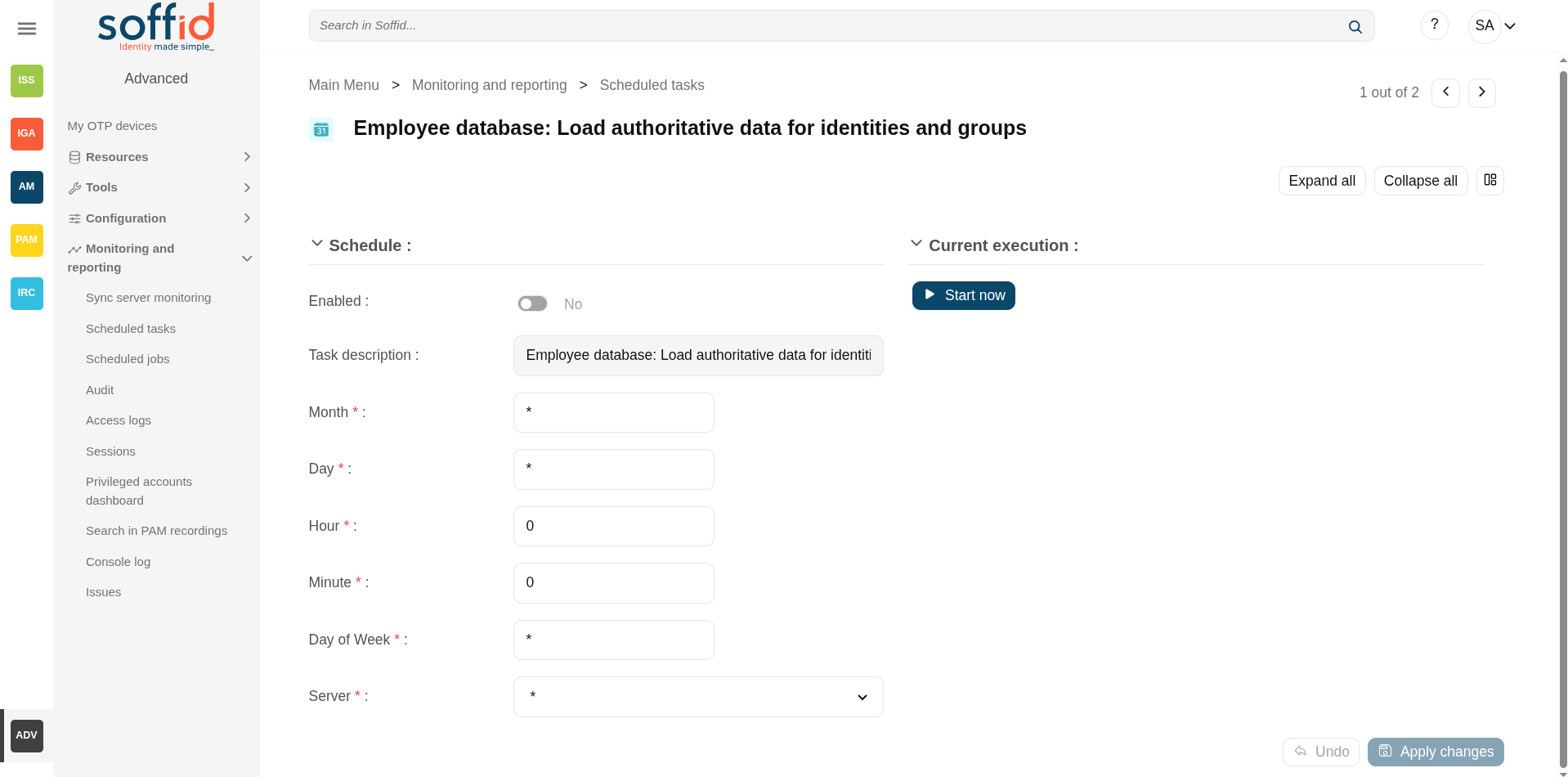
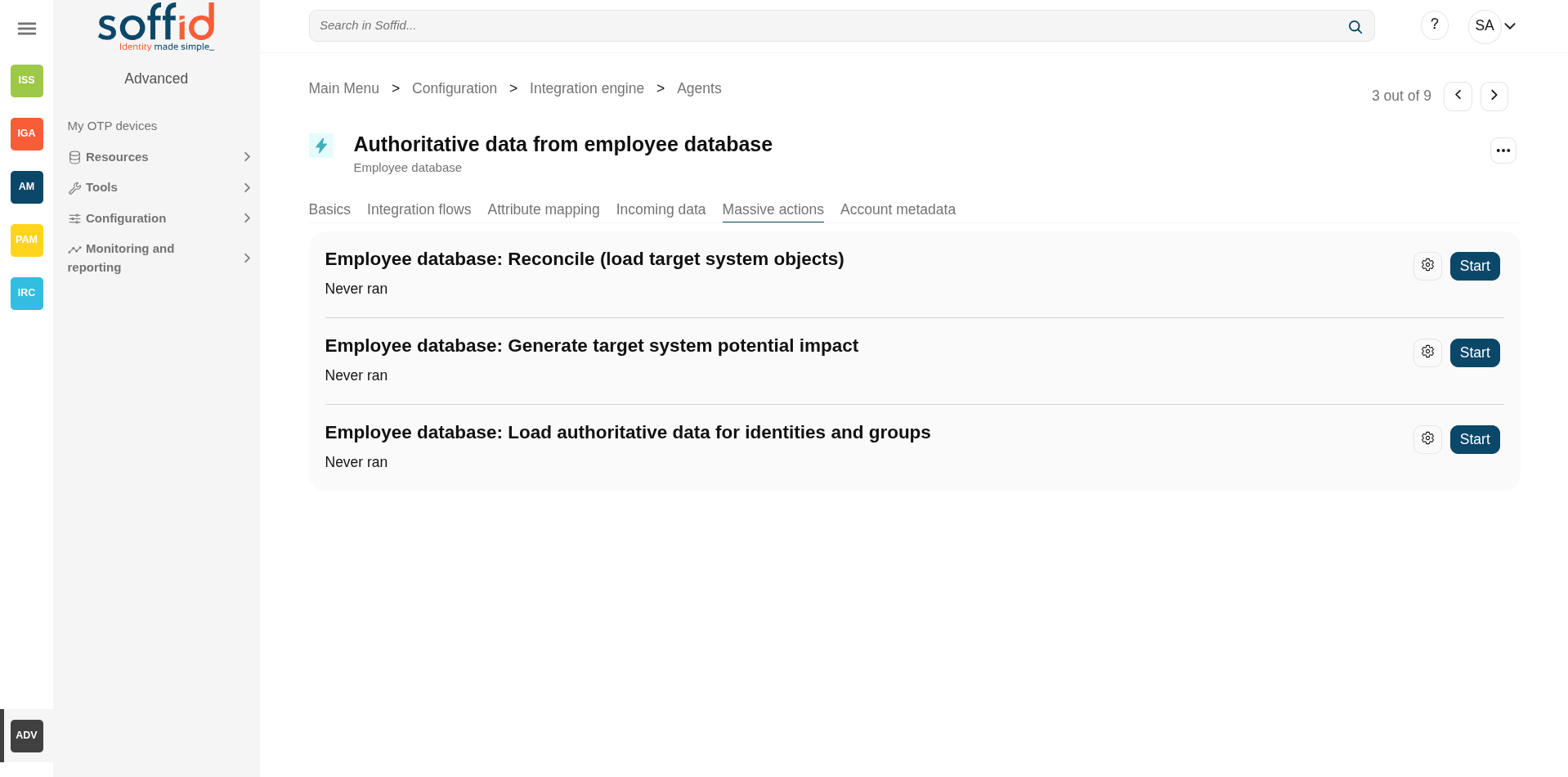
You can also run the Authoritative load from the Massive actions tab in the Agent
Reconcile task
If you are configured the "Attribute Mapping" tab with some of our objects: "user, account, role, group or grant", an automatic task to synchronize these objects from the managed system to Soffid is available.
And you will do something like "<AGENT_NAME>: Reconcile (load target system objects)".
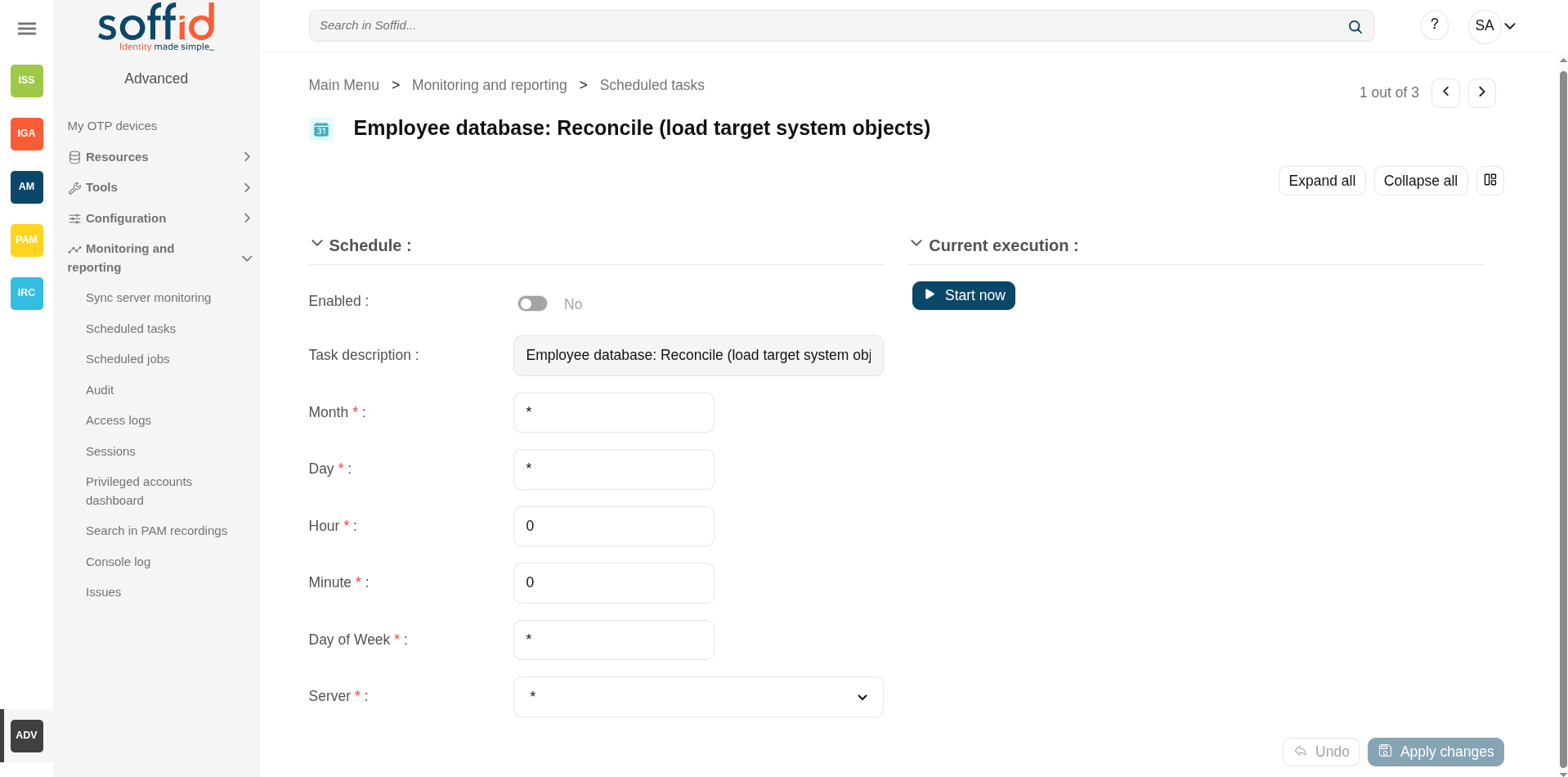
You can also run the Reconcile from the Massive actions tab in the Agent
Synchronization
Regarding the synchronization of the objects, there are two possible options:
- If the "Read Only" attribute is checked in the "Basics" tab (select Yes option), only the changes in the managed systems will be updated in Soffid. We recommend these options until the global configuration of Soffid will be tested.
- If the "Read Only" attribute is not checked in the "Basics" tab (select No option), all the changes in Soffid or the managed system will be updated in the other. Note that this synchronization must be configured in the "Basic" tab correctly.