2026-09-30 New feature: launcher clipboard update
The new feature
The use of the clipboard in the launcher has been drastically improved. It is now possible to copy and paste various formats in both directions: plain and rich text, as well as images and graphics
Bear in mind
Please note the following points:
-
This functionality is generic and applies to all sessions types.
-
Copy and paste works in both directions.
-
You can copy plain and rich text (UTF-8, STRING, text/plain, text/html).
-
You can copy images and graphics (PNG, BMP, JPG and JPEG).
How to configure it?
The following components must be installed:
- PAM launcher 1.4.91 (or higher)
- PAM store 1.4.91 (or higher)
- Session types in the last version (pasr images).
Let's look at an example
Example 1: copy text and html text from the PAM session
Start a windows connection with the launcher.
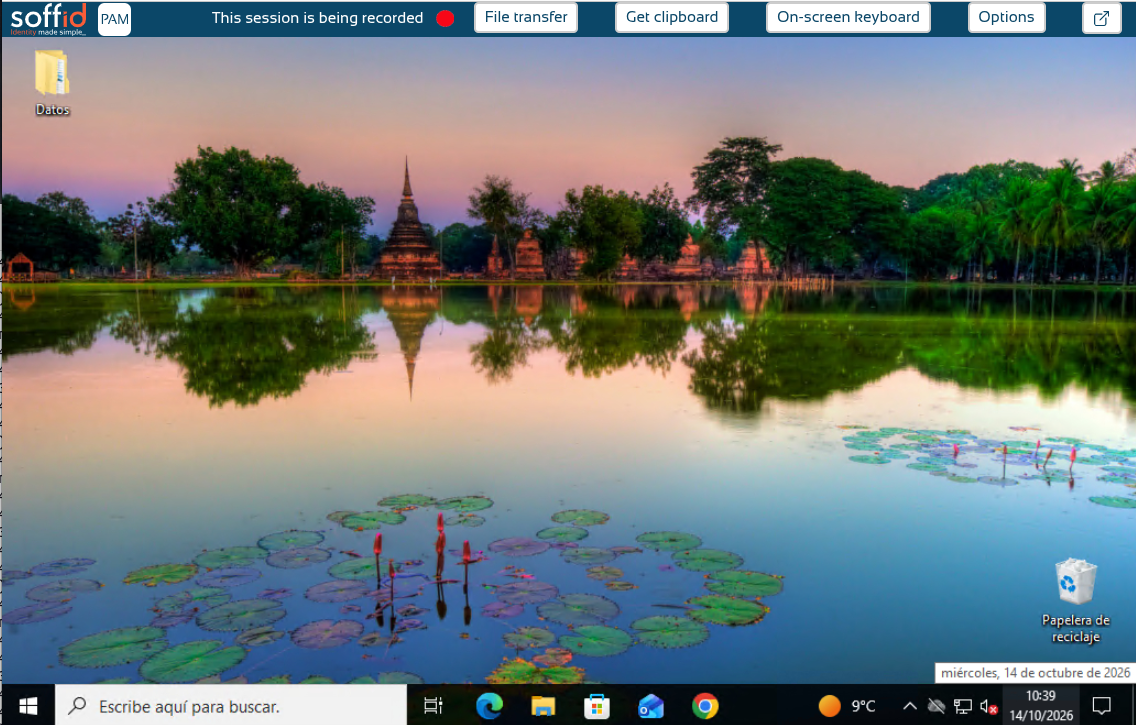
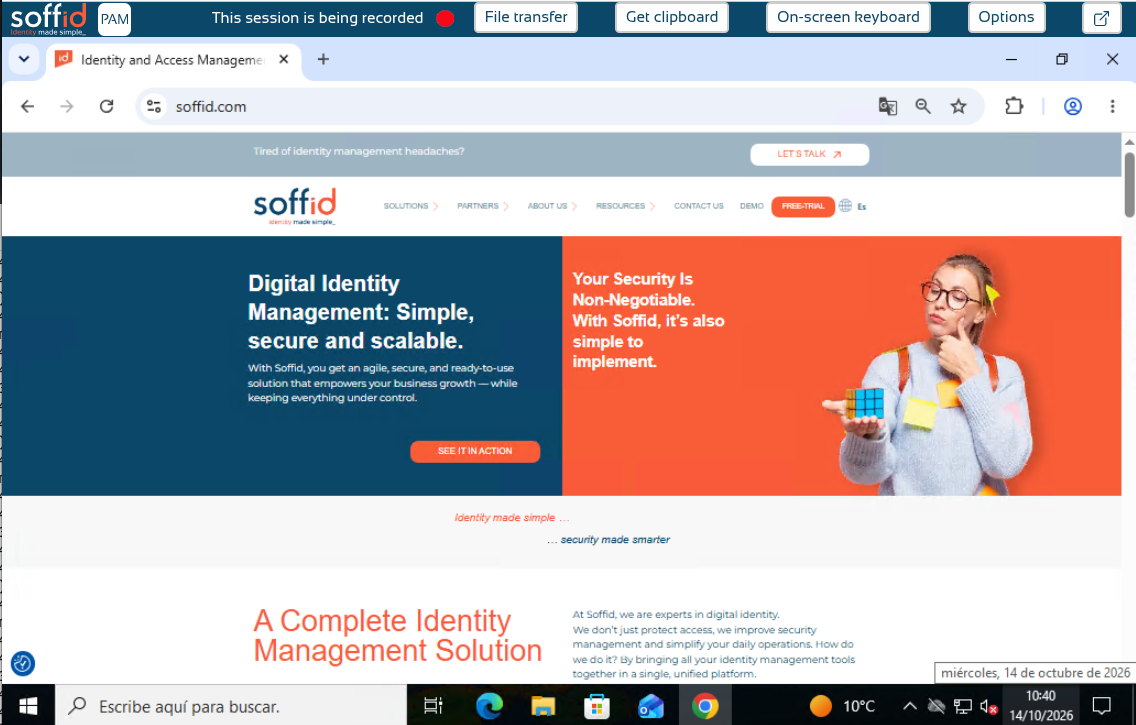
We open the Soffid.com web page.
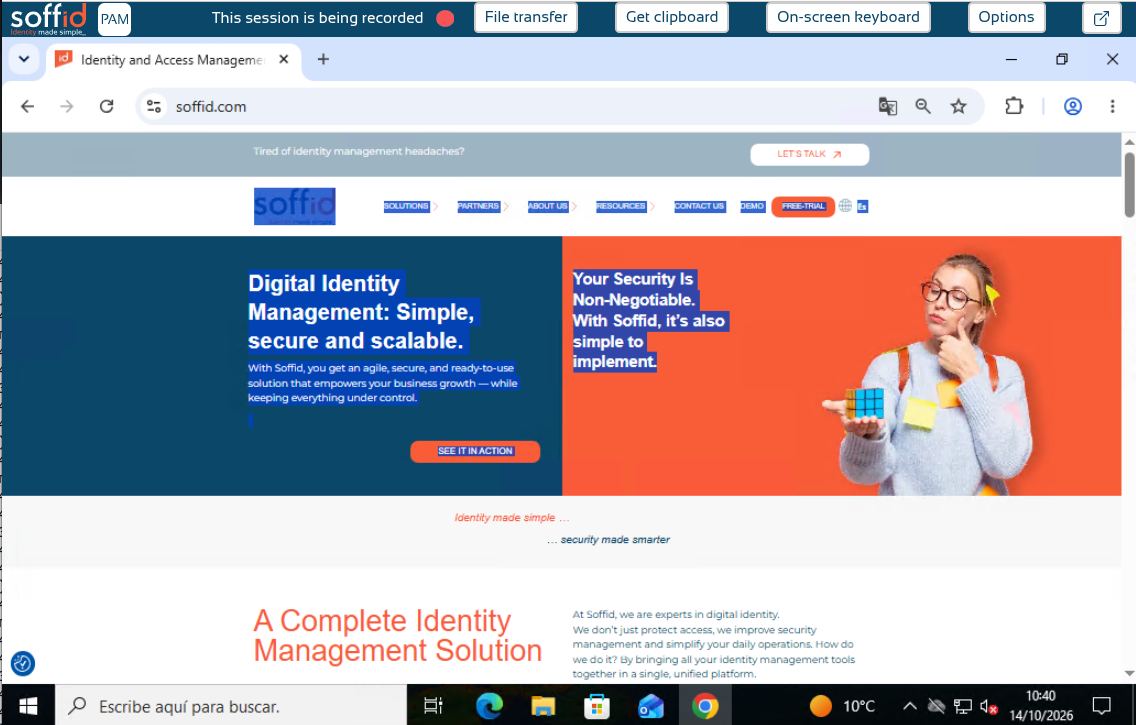
Now we can copy a text and click the Get clipboard button.
Paste it in a notepad as text.
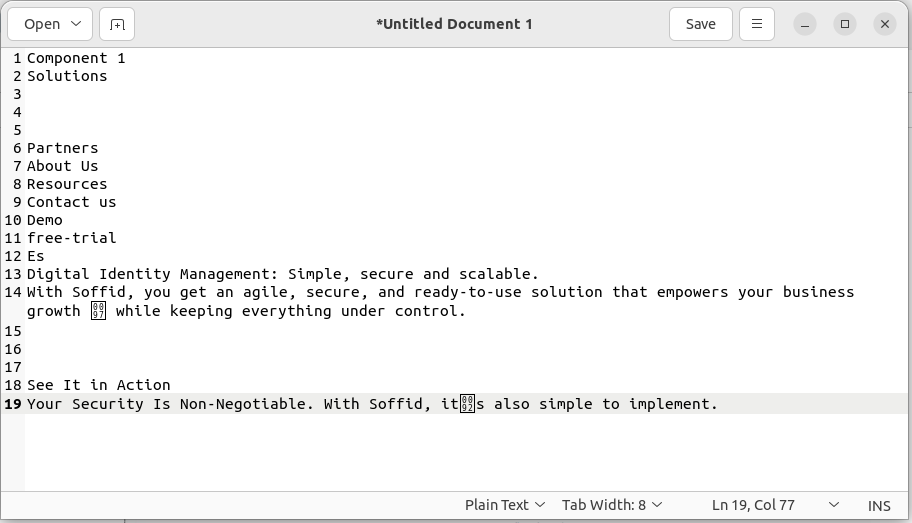
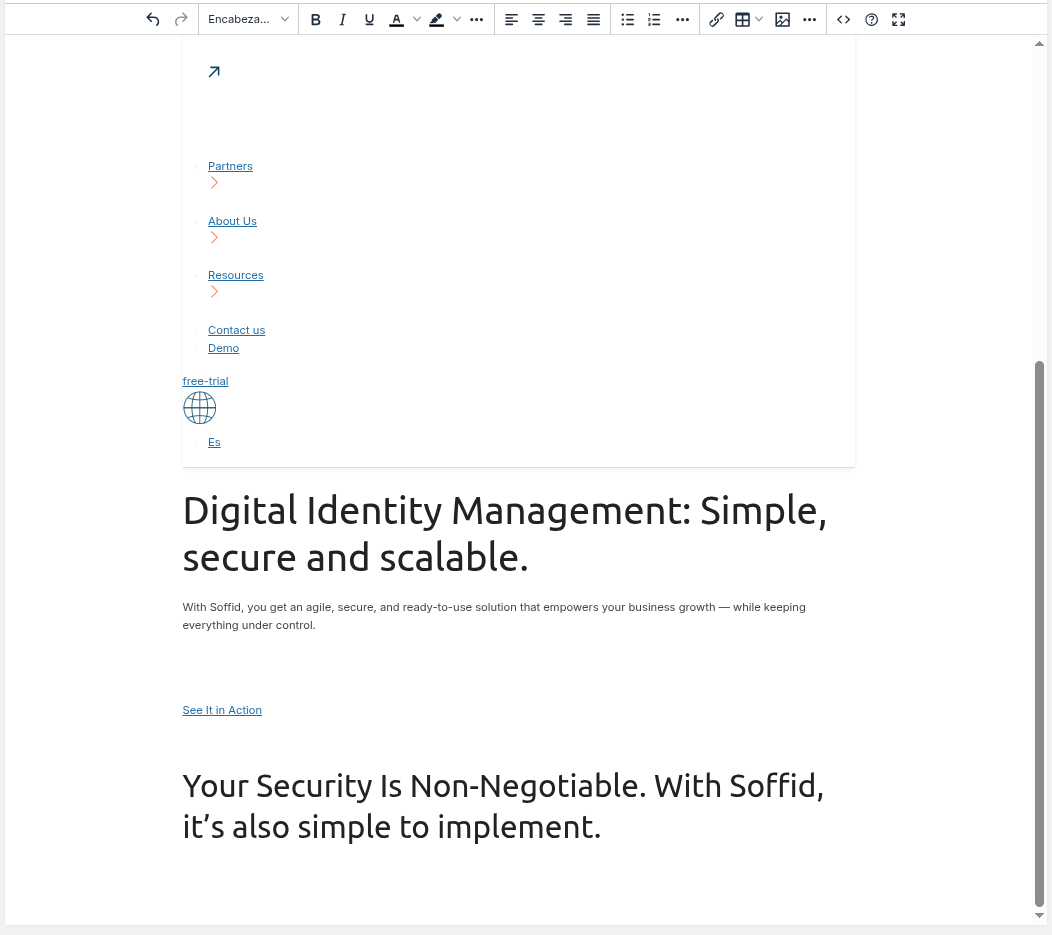
And finally we paste it in an html editor.
Example 2: copy text and html text to the PAM session
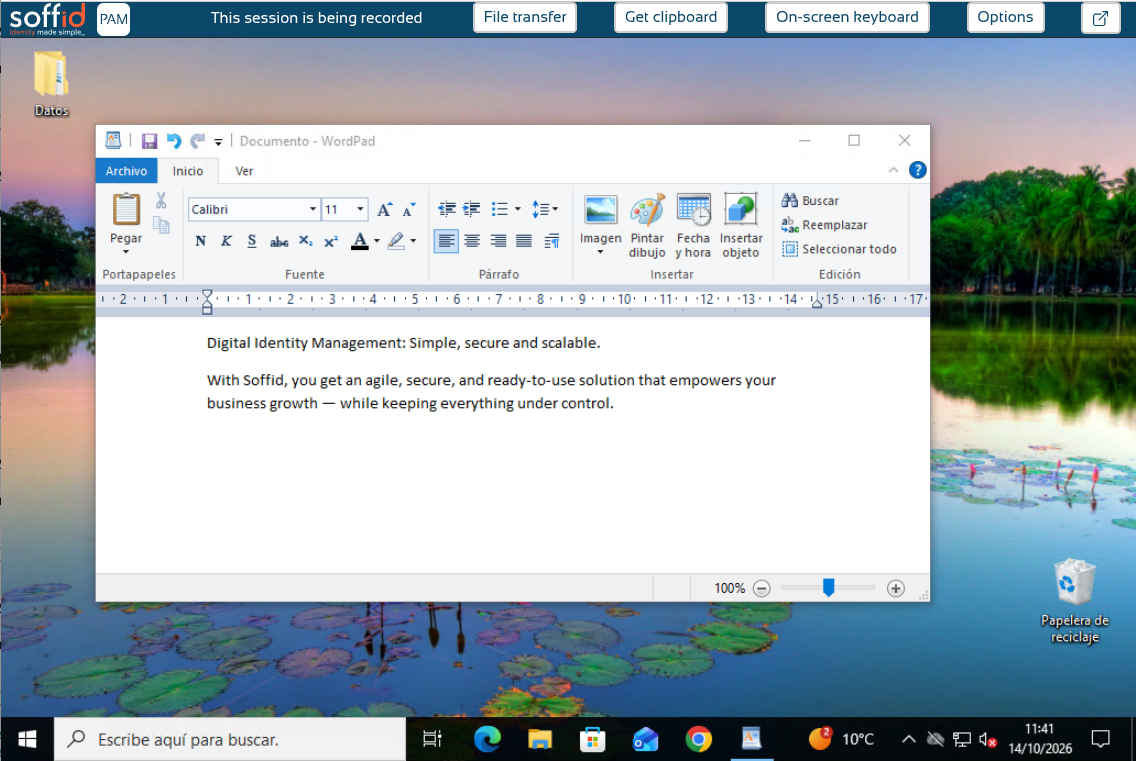
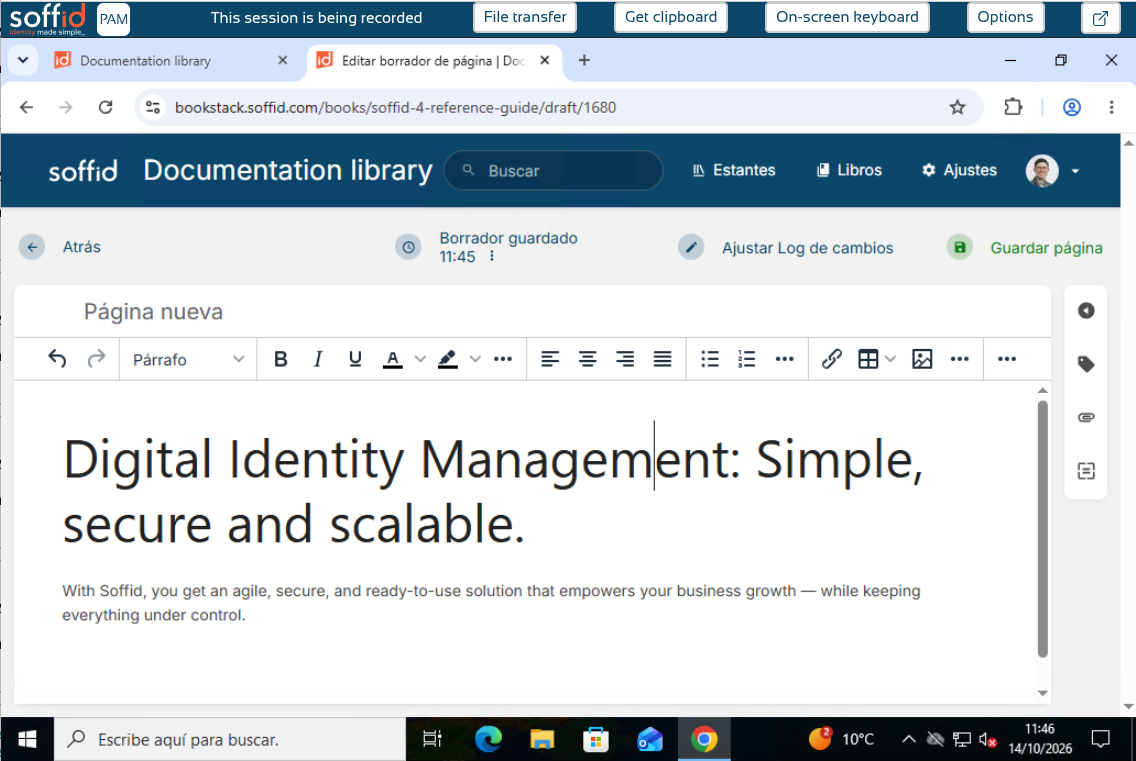
Copy a text or html on your computer.

Then paste it directly into the PAM session as text.
Or as html.
Example 3: copy an image from the PAM session
Start a windows connection with the launcher.
Copy an image.
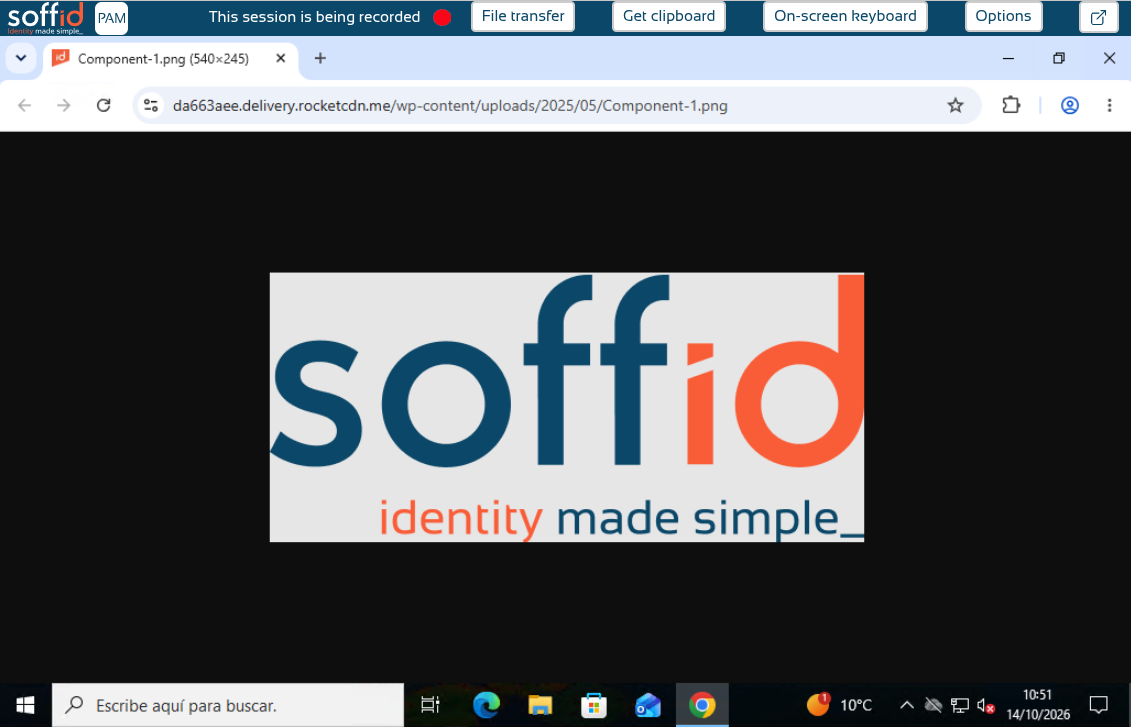
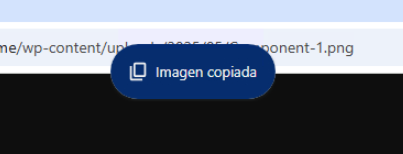
You can now see an information box indicating that the image is been copied.
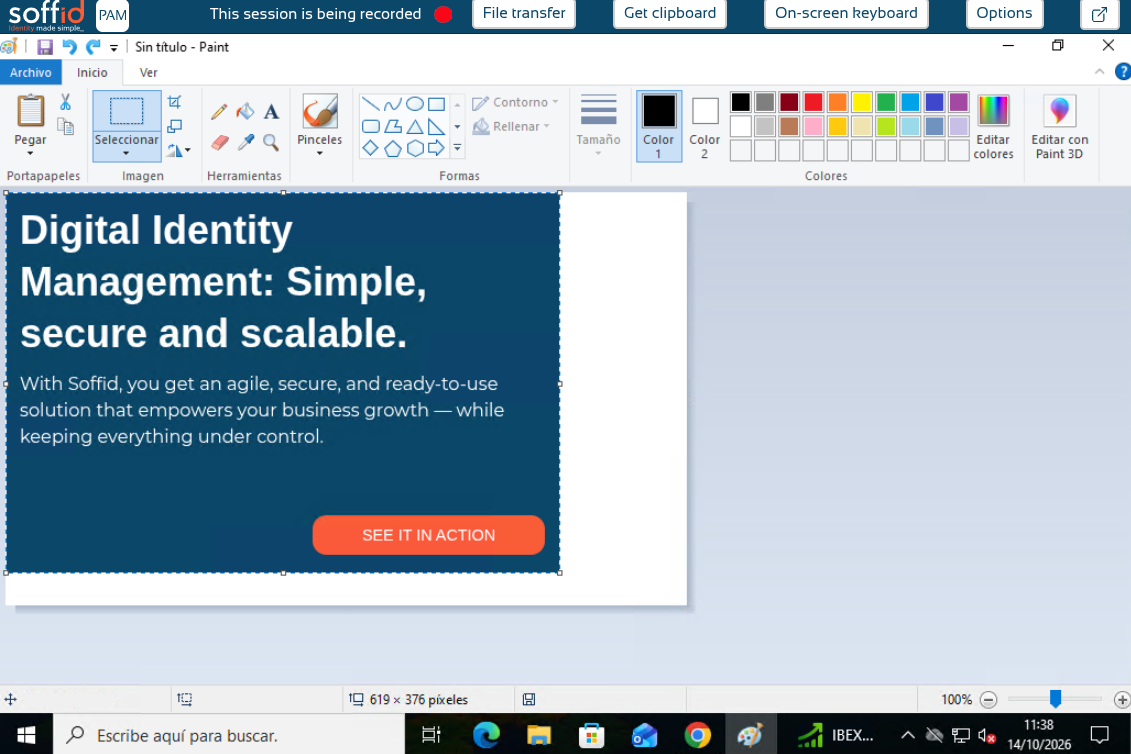
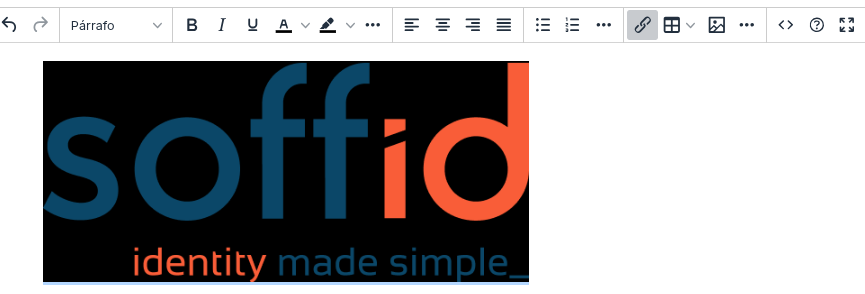
Now we can paste it in our editor.
Example 4: copy an image to the PAM session
Copy an image or take a screenshot on your computer.

Then paste it directly into the PAM session.