Monitoring and reporting
Monitoring and reporting
- Sync server monitoring
- Scheduled tasks
- Scheduled jobs
- Audit
- Access logs
- Sessions
- Privileged accounts dashboard
- Search in PAM recordings
- Console log
- Issues
- Reports (addon-reports)
- Configure dashboards > Dashboard editor (addon-reports)
- Configure dashboards > Chart editor (addon-reports)
- Configure dashboards > Dataset editor (addon-reports)
- Dashboards (addon-reports)
Sync server monitoring
Description
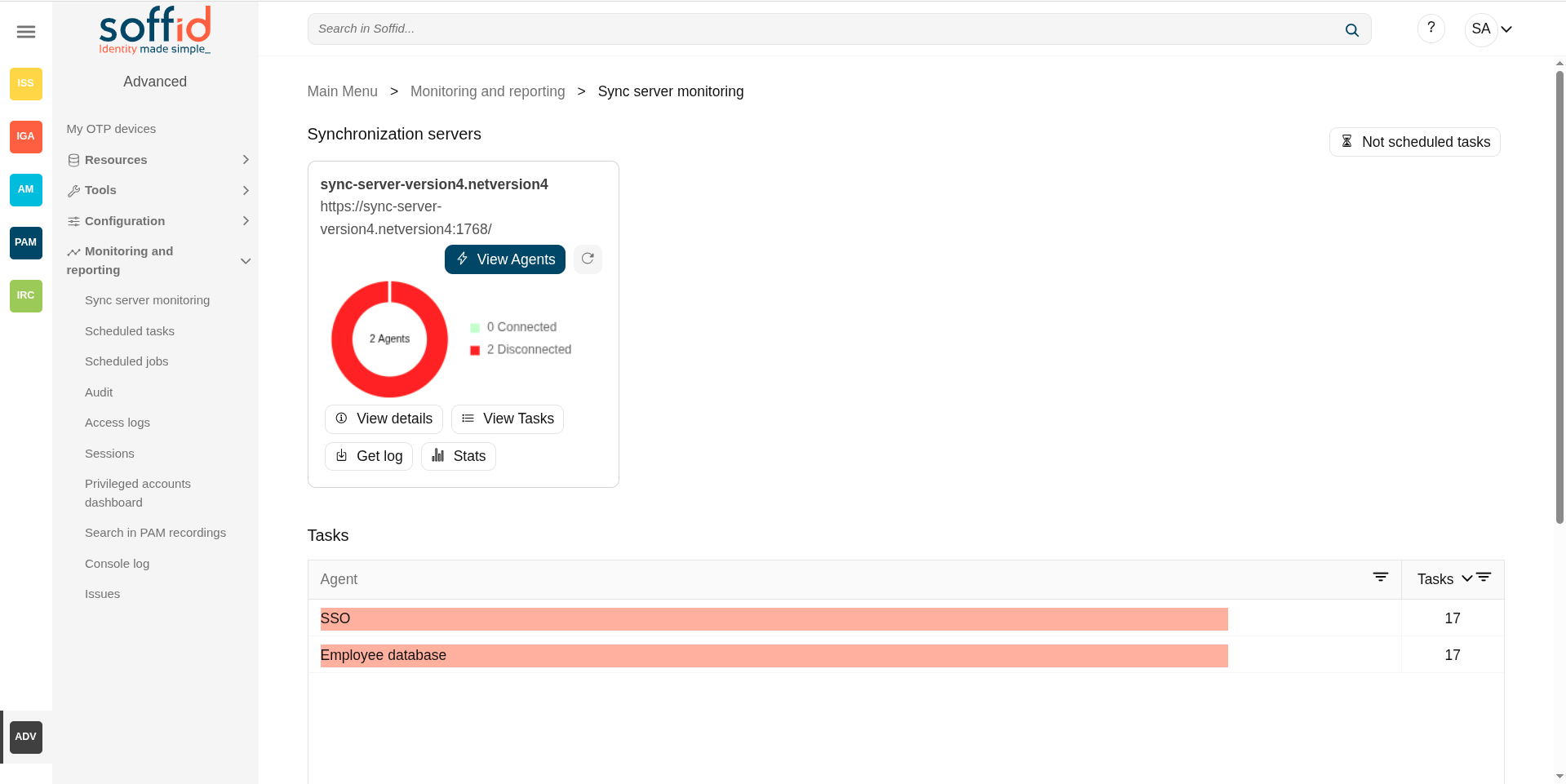
Soffid provides a monitoring functionality to consult all the information of the different agents and the status of each one of them and the amount of tasks assigned. Consequently, it allows diagnosing possible incidents in a quick and easy way.
This option allows you to manage all the options related to the tasks created according to the configuration of each of the agents.
Screen overview
Related objects
- Agents : where the agents that manage the end systems are configured
- Synchronization servers : where the registered syncservers are displayed
Standard attributes
Synchronization servers
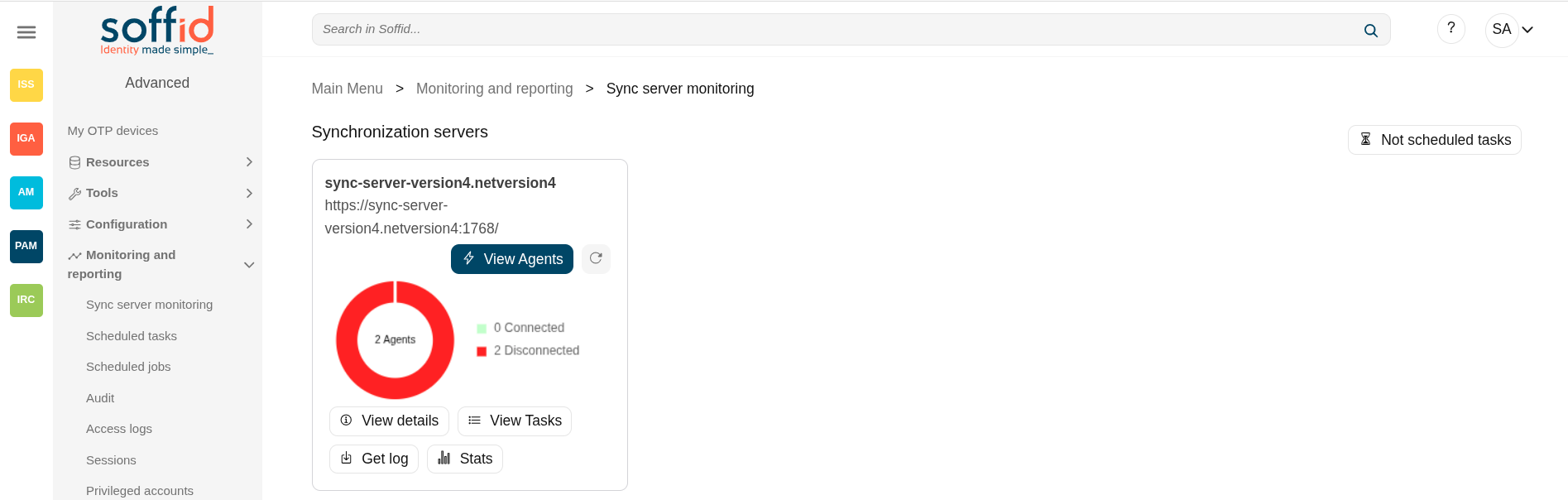
Shows a list with the URL of all the sync servers that you have configured and the options to perform for every sync server.
💻 Image
Sync server status
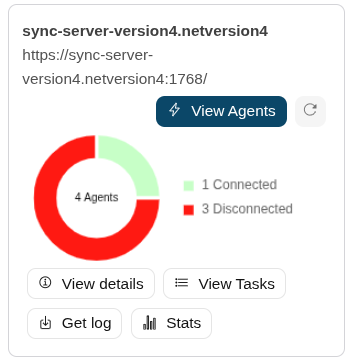
The graph of agent status shows the number of agents connected (green light) and the number of agents disconnected (red light).
Attributes:
- "Name": syncserver name in bold type
- URL : URL of the syncserver
- "Circle of agents": graph that visually indicates how many agents are enabled. The colours indicate which agents are active and which ones could not be started due to an error.
💻 Image
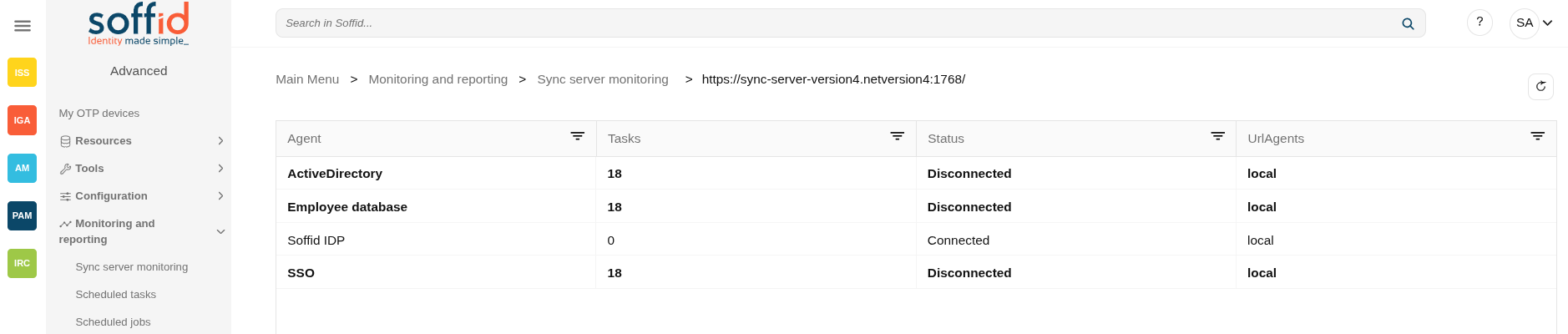
View agents
Allows you to access a new window with the information of every single agent. That page shows a list with the information about Agent, Number of the pending tasks, the Status, and the URL of the agent.
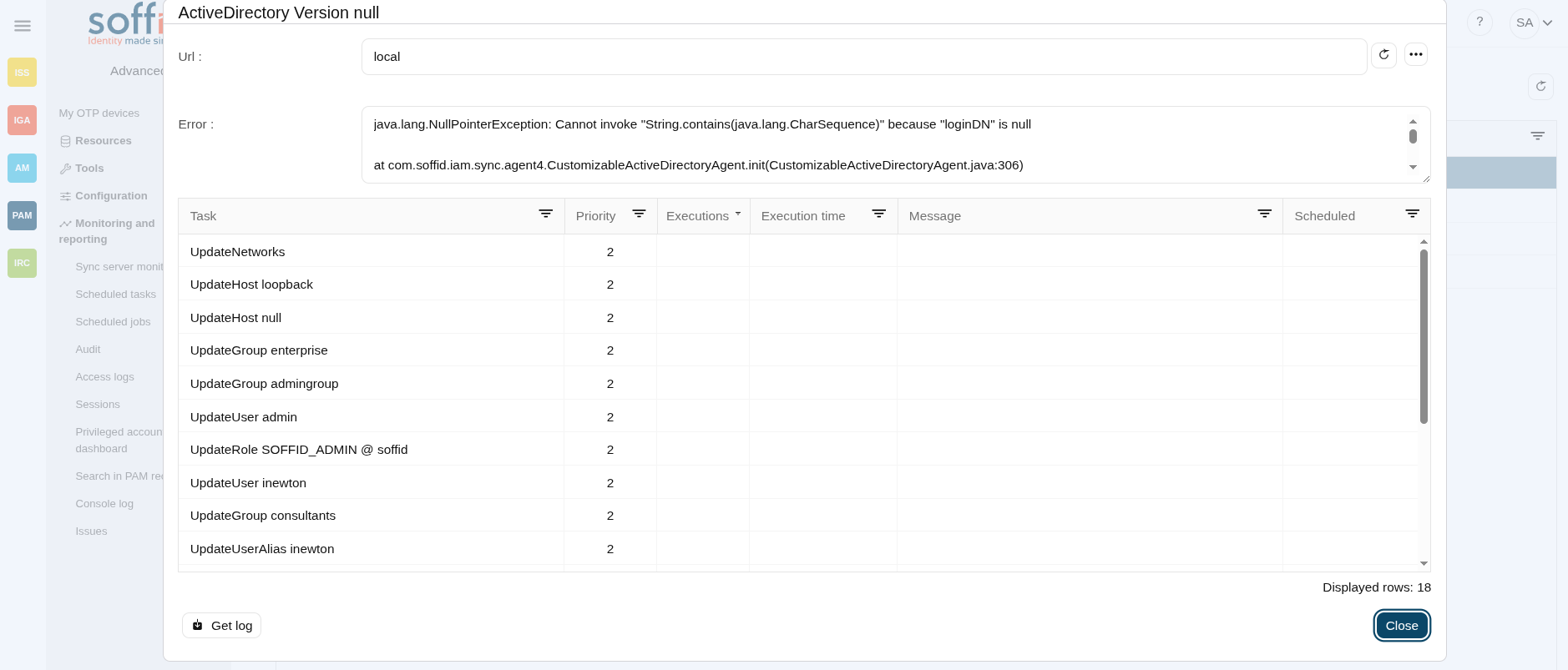
If you click one of the agents, Soffid will display all the pending tasks for that agent. If you click on one pending task, you can view the details of that task and you could perform the actions available for that depending on your permissions.
Agent list attributes:
- Agent: Name of the agent
- Tasks : Number of tasks not finished (peding, ongoing and tasks with error)
- Status: Connected or disconnected
- URL agent: local (internal syncsever synchronization) or the URL of the syncserver confgured
Task list attributes (also task attributes):
- URL agent: local (internal syncsever synchronization) or the URL of the syncserver confgured
- Error: message description when the agent has an error and it is disconnected
- Task: name of the task to be executed, there are many types, the most common being the following
- UpdateUser
- UpdateUserAlias
- UpdateUserPassword
- UpdateGroup
- UpdateRole
- UpdateHost
- UpdateNetworks
- Priority: priority of the task
- 1: high priority
- 2: low priority
- Executions: number of executions not finished due to any error
- Executions time: last execution
- Message: error message from the last execution
- Scheduled: next scheduled execution
💻 Image
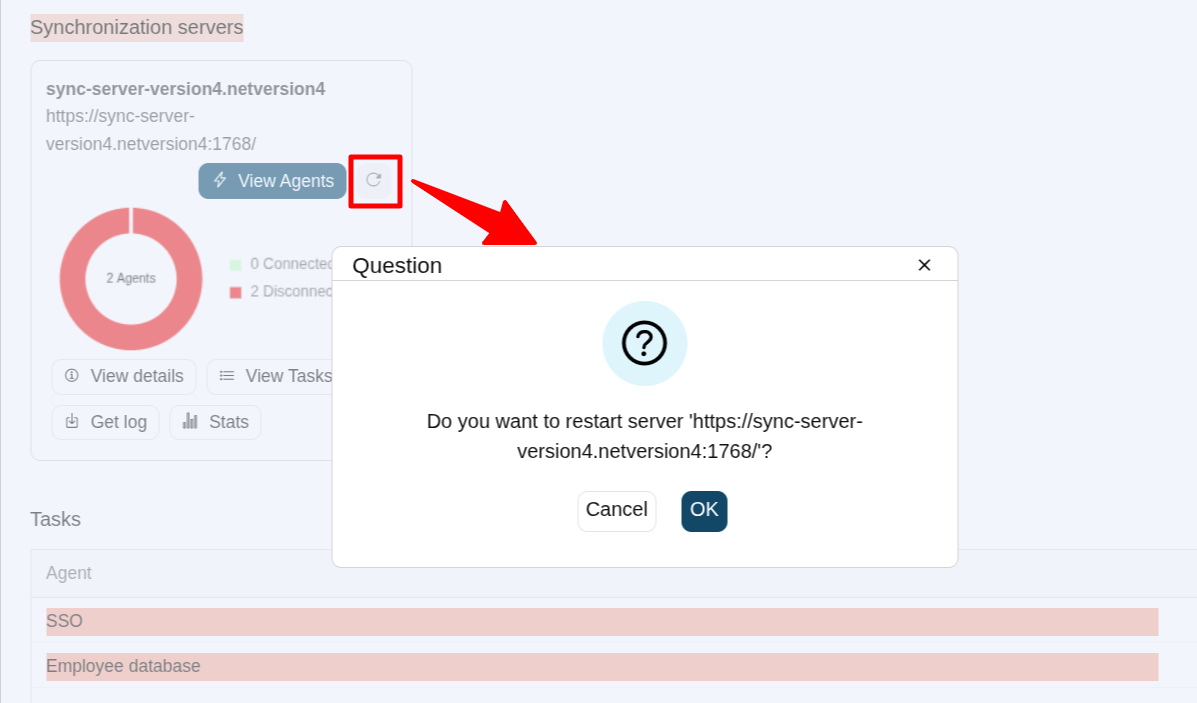
Restart server
Allows you to restart the synchronization server that hosts any agent. Soffis will ask for your confirmation before performing that action. If you confirm, the server will be restarted.
Image
View details
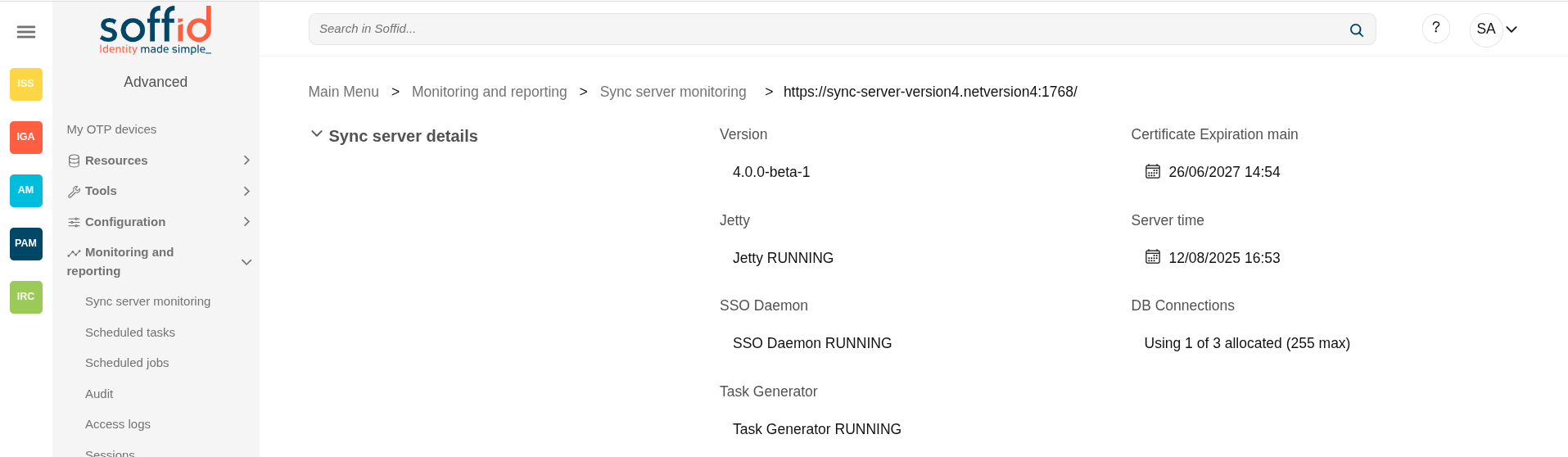
Display the details of the sync server. Here you can check the version of the sync server.
Attributes:
- Version: version of the syncserver
- Jetty: status of the jetty process
- SSO Daemon: status of the SSO daemon process
- Task Generator: status of the task generator process
- Certificate expiration: expiration date of the certificate
- Server time: time of the server
- DB Connections: number of the threads used to connect to the database
💻 Image
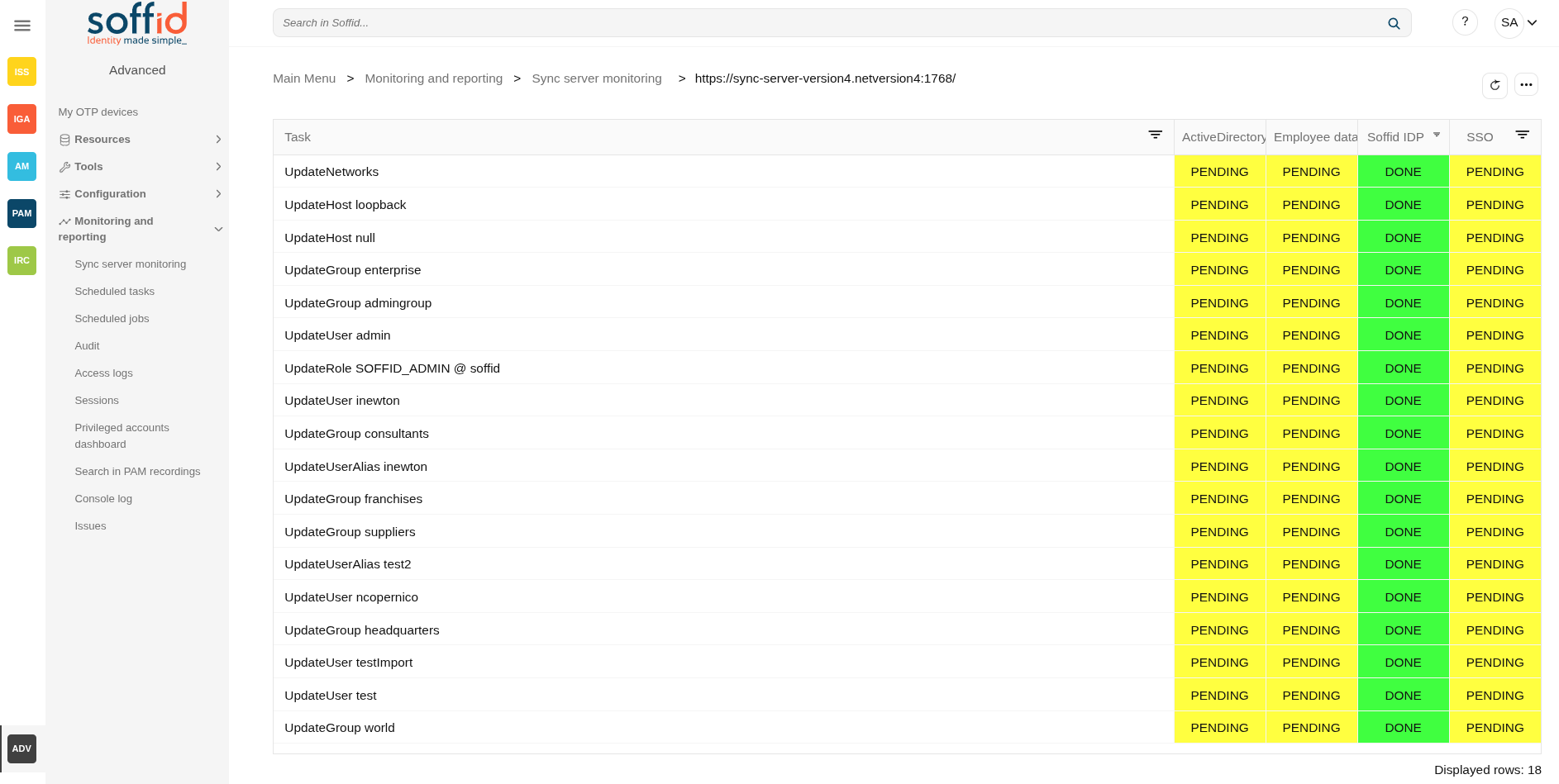
View tasks
Displays a matrix with all the agents configured (columns), all the tasks (rows), and the status of the task for each agent (cells). You can reload the matrix with the updated tasks.
The available status for a task are:
- DONE (green light).
- PENDING (yellow light).
- ERROR (red light).
If you click on one error task, Soffid will display the details of that task, the basic data, and the specific data about execution time, error message, sscheduled and log detail, and Soffid will allow you to perform the available actions. If you click on one pending task, you can perform the available actions.
List attributes:
- Task: name of the task to be executed, there are many types
- "List of agents" : there is column for each active agent
💻 Image
Get log
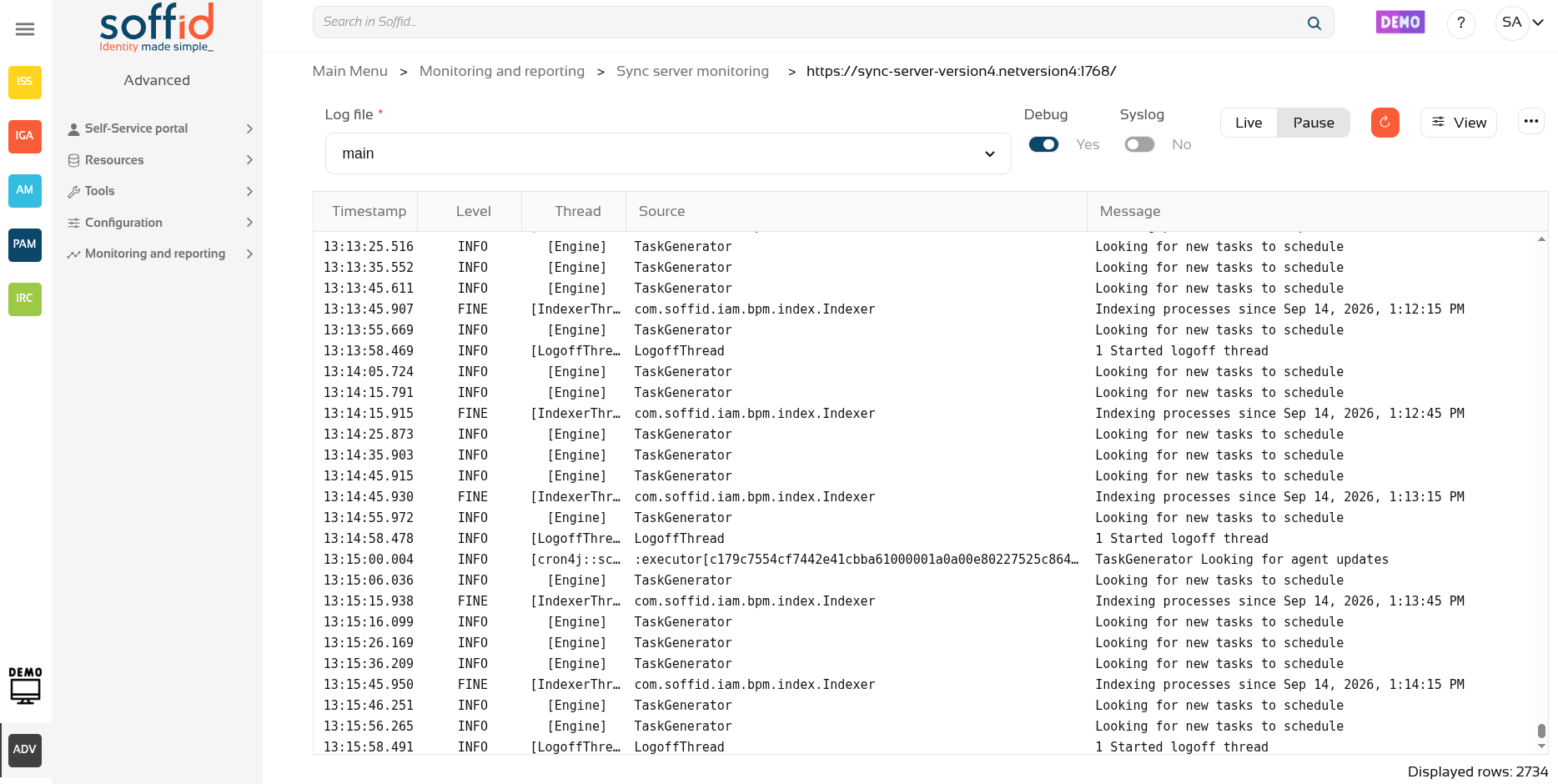
In version 4, Soffid allows users to review the logs of the sync server or each of the active agents.
In addition, debugging can be enabled/disabled for each log, and users can decide whether to view the log in real time or pause it.
Page attributes:
- Log file: name of the log to review, there are several posibilities
- main: generic log of the syncserver, agent logs now are not included
- master/agent/AGENTNAME: each agent has its own log to improve the data searches
- master/task/AGENTNAME: TASK: each task has its own log to improve the data searches
- Debug: [Yes/No] to enable or disable the debug
- Syslog: [Yes/No] to enable or disable the sending of this log to the syslog configured with the Soffid parameters.
- Live|pause: to enable to see the log in real time or not
- Refresh button: to refresh the log, this is useful if the log is paused
- View: to show and hide columns in the table.
- Download: download the log as plain text in the browser
Table attributes:
- Timestamp: Time of the log (the date is always the current date)
- Level: level of debug (DEBUG, INFO, WARNING, SEVERE)
- Message: the log
- Thread: name of the thread that has managed the log
- Source: name of the class that has generated the log
Image
Stats
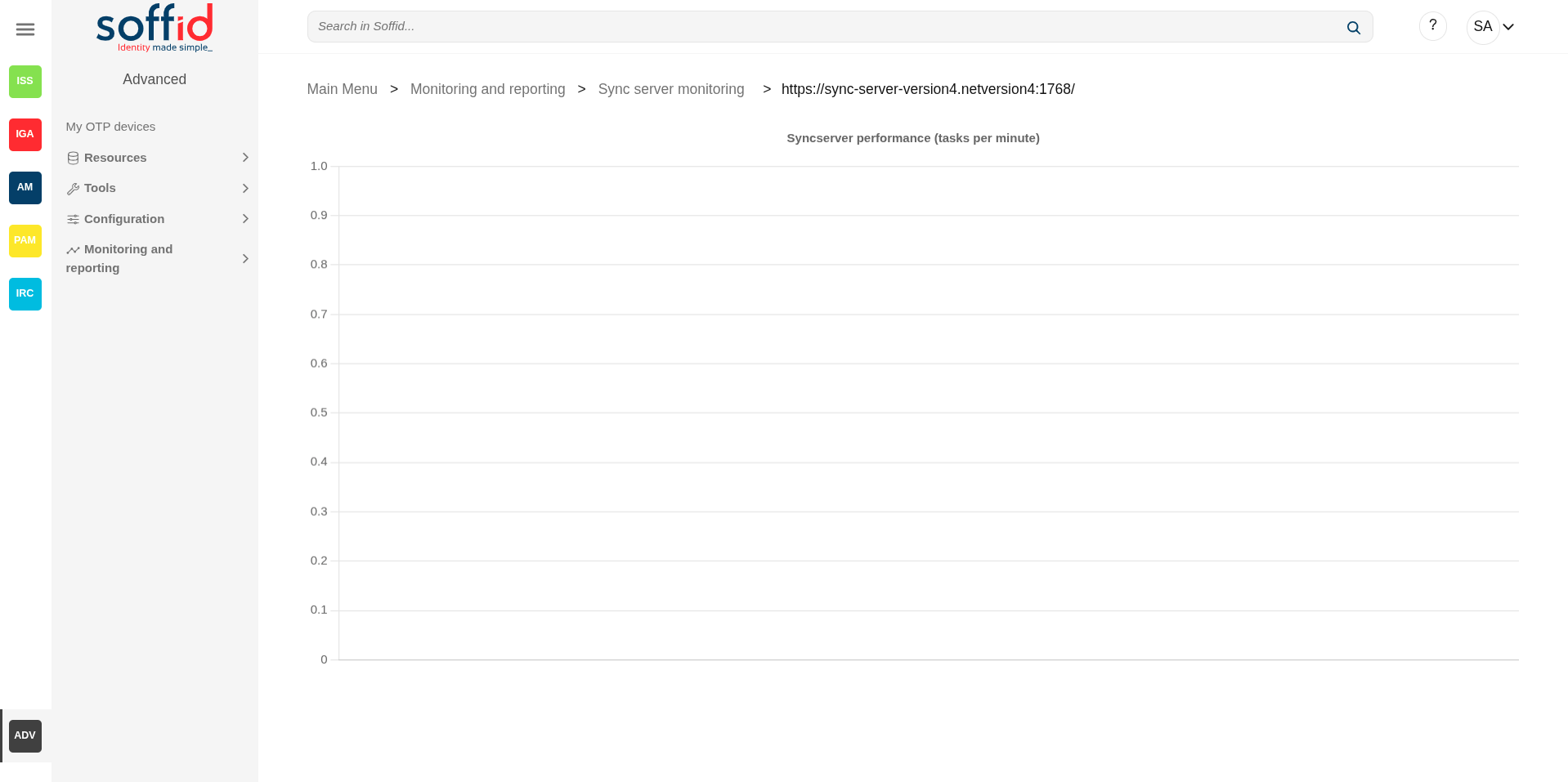
Displays the performance (tasks per minute) graph of the synchronization servers.
To use this functionality, you must first schedule the "Feed statistic tables" process on the Scheduled tasks screen.
💻 Image
Not scheduled tasks
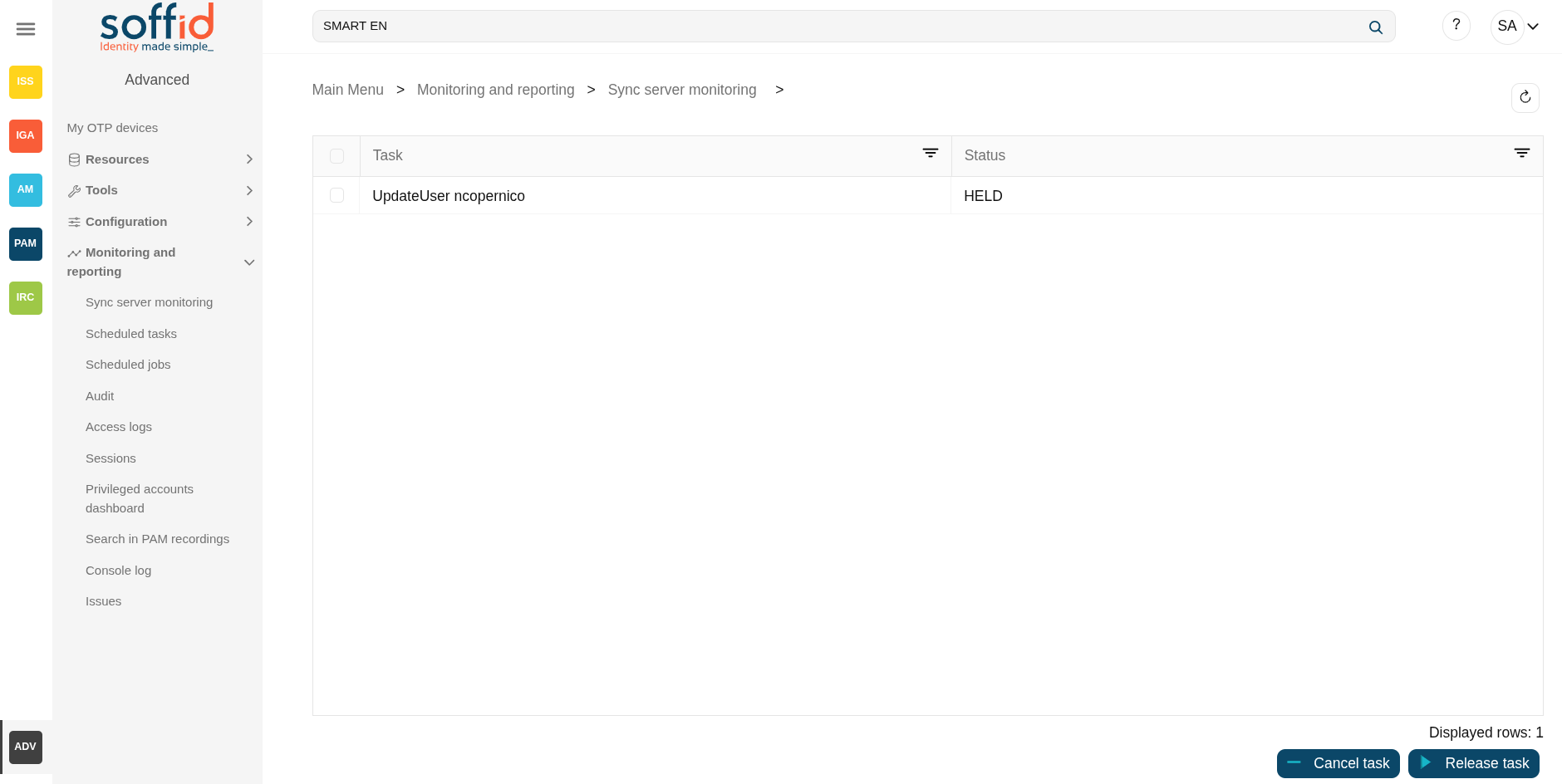
Displays a view with a list not scheduled tasks. At that view, you can cancel and release the held tasks
Attributes:
- Task: name of the task to be executed, there are many types
- Status: status of the task (at this point HELD)
💻 Image

Tasks
Tasks
Displays a graph with information about the tasks pending to be performed on the different systems.
Tasks by server
Displays a graph with information about the tasks for each server.
Page actions
| Not scheduled tasks | Displays a view with a list not scheduled tasks. At that view, you can cancel and release the held tasks |
Syncserver actions
| View agents |
Allows you to access a new window with the information of every single agent. That page shows a list with the information about Agent, Number of the pending tasks, the Status, and the URL of the agent. |
| Restart server | Allows you to restart the synchronization server. Soffis will ask for your confirmation before performing that action. |
| View details | Display the details of the sync server. |
| View tasks | Displays a matrix with all the agents configured, all the tasks, and the status of the task for each agent. You can reload the matrix with the updated tasks. |
| Get log | Allows you to display the log trace of the syncserver and agents |
| Stats | Displays the performance (tasks per minute) graph of the synchronization servers. |
Agents list actions
| Refresh (icon) |
Allow you to refresh the data of the table |
Tasks list actions
| Refresh (icon) |
Allow you to refresh the data of the table |
| Download CVS file | Allows you to download a CSV file with task list |
| Cancel task |
Allows you to cancel all the tasks. Soffid will ask for your confirmation, if you confirm, that task will be canceled. |
| Prioritize | Allows you to release all the tasks. Soffid will ask for your confirmation, if you confirm, that task will be executed. |
| Get log | Open the log page with the specific log of the agent |
| Close | Close the popup |
Task actions
| Refresh (icon) |
Allow you to refresh the data of the table |
| Cancel task |
Allows you to cancel a specific task. Soffid will ask for your confirmation, if you confirm, that task will be canceled. |
| Prioritize | Allows you to release a specific task. Soffid will ask for your confirmation, if you confirm, that task will be executed. |
| Close | Close the popup |
View tasks actions
| Refresh (icon) |
Allow you to refresh the data of the table |
Not scheduled tasks actions
| Refresh (icon) |
Allow you to refresh the data of the table |
| Cancel task |
Allows you to cancel a specific task. Soffid will ask for your confirmation, if you confirm, that task will be canceled. |
| Release task | Allows you to release a task so that it goes to the syncservers task synchronizer and can be executed. |
Scheduled tasks
Description
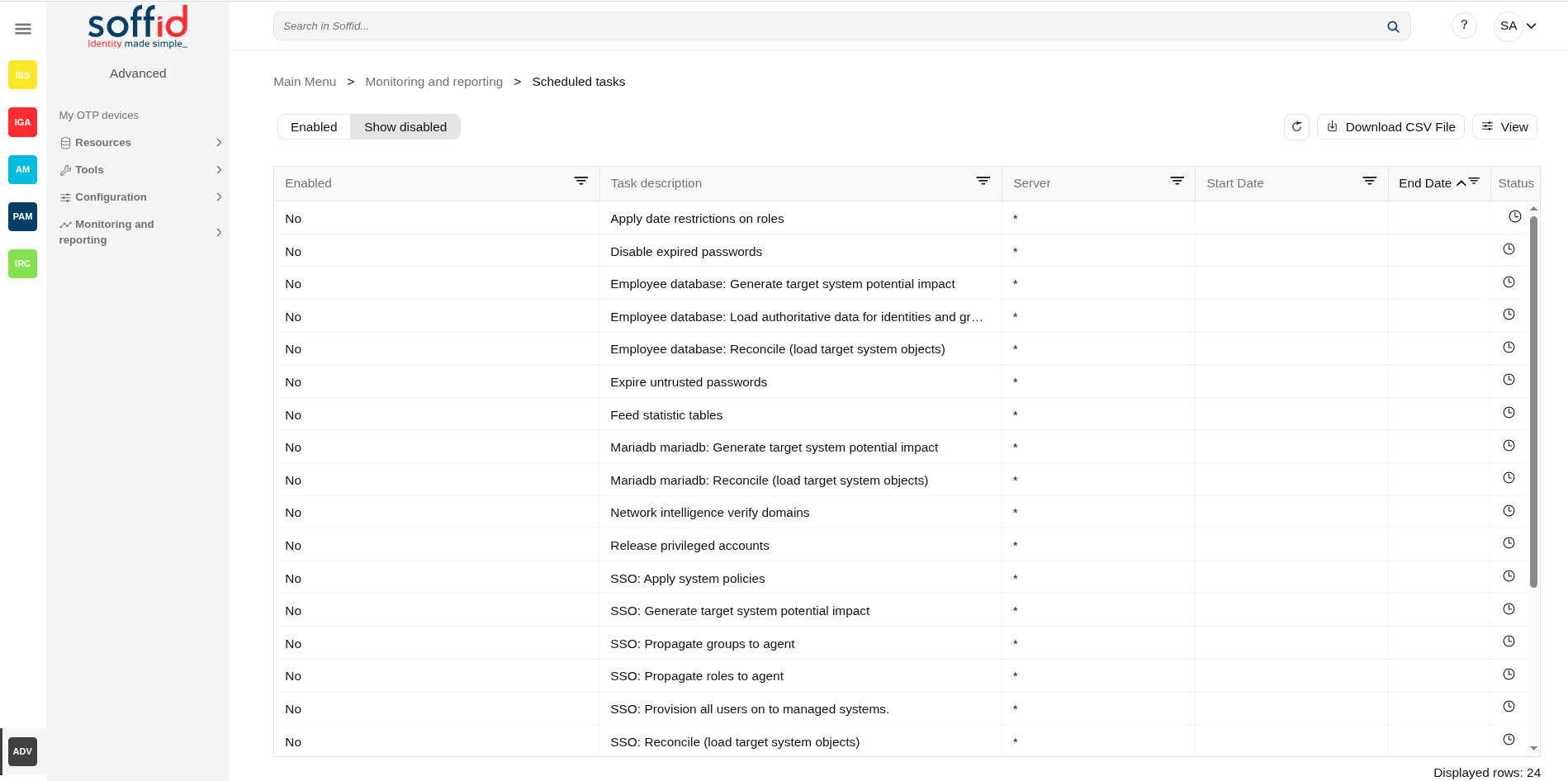
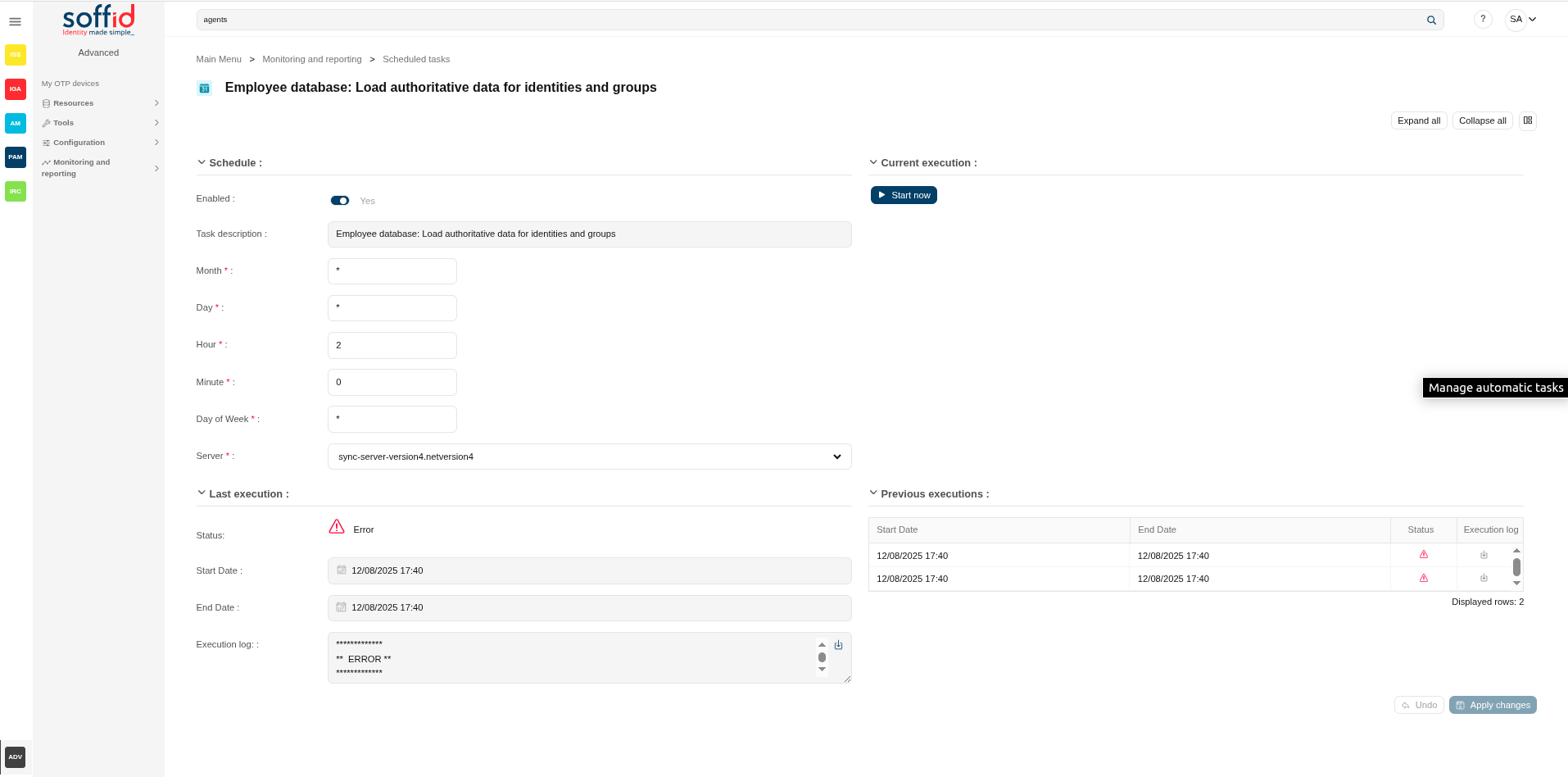
Scheduled tasks display all the automatic tasks defined on Soffid, the scheduling of each task, and information about the last executions. Also, allows administrator users to update the execution of that tasks using a cron pattern and init the execution.
By default, only scheduled tasks are displayed, which should be those configured to support the lifecycle of the tool's objects. Unscheduled tasks can be searched for to be executed manually or to configure their planning.
Screen overview
Related objects
- Agents : source of agent processes
- Sync server monitoring : to review the logs
- Users : there are some processes related to the user lifecycle
Standard attributes
Table attributes / task attributes (schedule)
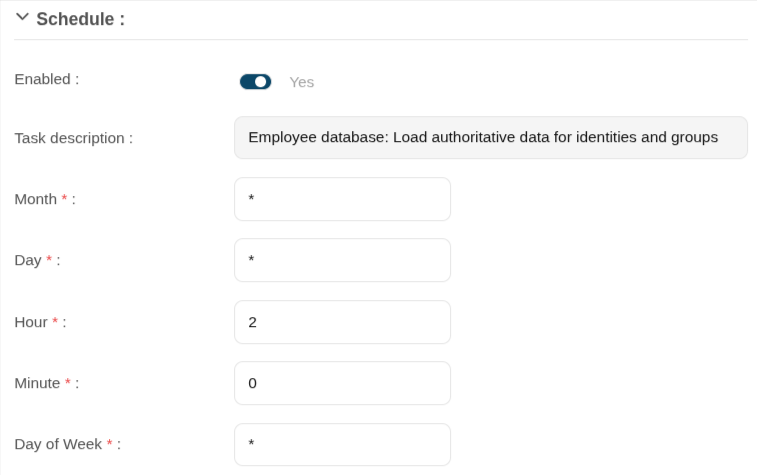
- Enabled: if it is selected (value is Yes), the task will be perform on scheduled defined.
- Task description: brief description of the task
- Server: where the agent is running.
- Start date: start date and time of the last execution.
- End date: end date and time of the last execution.
- Status: The available status for a task are:
- Done (green light): finished tasks.
- Pending (yellow light).
- Error (red light).
- Month: number of the month (1-12) when the task will be performed.
- Day: number of the day (1-31) when the task will be performed.
- Hour: hour (0-23) when the task will be performed.
- Minute: minute (0-59) when the task will be performed.
- Day of week: number of the day (0-6 where 0 means Sunday) of the week when the task will be performed.
For each value of month, day, hour, minute, or day of the week:
- * means any month, day, hour, minute, or day of week. e.g. */5 to schedule every five minutes.
- A single number specifies that unit value: 3
- Some comma separated numbers: 1,3,5,7
- A range of values: 1-5
Image
Current execution
- Start now: this allows you to launch the task execution.
Last execution
- Status: The available status for a task are:
- Done (green light): task finished.
- Pending (yellow light): task has been started but it has not finished yet.
- Error (red light): task could not be executed.
- Start date: start date and time of the last execution.
- End date: end date and time of the last execution.
- Execution log: log trace. Allows you to download the log file.
Previous executions
List with the information about the previous executions:
- Start date: start date and time of the execution.
- End date: end date and time of the last execution.
- Status: status of the execution.
- Execution log: log of the execution. Allows you to download the log file.
Actions
Table actions
|
Enabled / Show disabled |
Displays only enabled tasks, or also disabled ones |
| Refresh (icon) |
Allow you to refresh the data of the table |
|
Download CSV file |
Allows you to download a CSV file with the scheduled tasks. |
|
View |
Allows you to show and hide columns in the table. You can also set the order in which the columns will be displayed. |
Detail actions
| Expand all | Displays all the attributes of the different blocks. |
| Collapse all | Hide all attributes of the different blocks. |
| "Types of views" | Change the view type: Classic view, Modern view, Compact design. |
|
Start now |
Allows you to launch the task execution. |
|
Logs |
Allows you to download the log file. |
|
Undo |
Allows you to undo any changes made. |
|
Apply changes |
Allows you to save the data of scheduled tasks. To save the data it will be mandatory to fill in the required fields. |
Others
Tasks created by default
These tasks can be run manually when you need them or scheduled if necessary.
| Apply date restrictions on roles | If a role has an end date prior to the revision date, all grants of that role to Soffid users will be deleted. |
| Disable expired passwords | Disable all accounts whose password has expired. |
| Expire untrusted passwords | Disable all accounts whose password has expired. |
| Feed statistic tables | To retrieve the information needed for the dashboards on the syncserver monitoring screen |
| Network intelligence verify domains | To use this task, you must first activate the network intelligence service. This task generates email-breached security incidents, so you must activate it beforehand. The process queries email accounts and checks whether they appear in any security breaches. If so, an email-breached issue is created. |
| Release privileged accounts | This task analyses privileged accounts and if they have an assigned user but their assignment has an end date today, or does not have an end date, the user is unassigned. |
Tasks created from agents
By default, these tasks only appear if the agent is active (has a sync server selected).
| AGENT: Load authoritative data for identities and groups |
This task only appears when the agent has selected the option "Incoming data > Authoritative data source". This task retrieves information from the end system to update groups, custom objects, and users (identities) in Soffid. |
| AGENT: Reconcile (load target system objects) |
This task retrieves information from the end system to update roles, accounts, and grants is Soffid. |
| AGENT: Generate target system potential impact | This task is the same as reconciliation but does not make any changes in Soffid. In this case, a report is displayed showing the changes that would have been applied in Soffid. |
| AGENT: Apply system policies | This task retrieves all agent accounts and checks that they have the correct status according to the rules configured in the agent itself. |
| AGENT: Provision all users on to managed systems. | This task provisions all users with accounts in that system to the final system. The objective is to have the same data in the final system as in Soffid, and to overwrite any values that someone has changed outside of Soffid. |
| AGENT: Propagate groups to agent | This task provisions all groups to the final system. The objective is to have the same data in the final system as in Soffid, and to overwrite any values that someone has changed outside of Soffid. |
| AGENT: Propagate roles to agent | This task provisions all roles in that system to the final system. The objective is to have the same data in the final system as in Soffid, and to overwrite any values that someone has changed outside of Soffid. |
Tasks created from custom scripts
Please note that scripts can only be scheduled from the custom scripts screen.
| Run NAME OF THE CUSTOM SCRIPT script | Script created in the custom scripts page and marked as "Scheduled" |
Scheduled jobs
Description
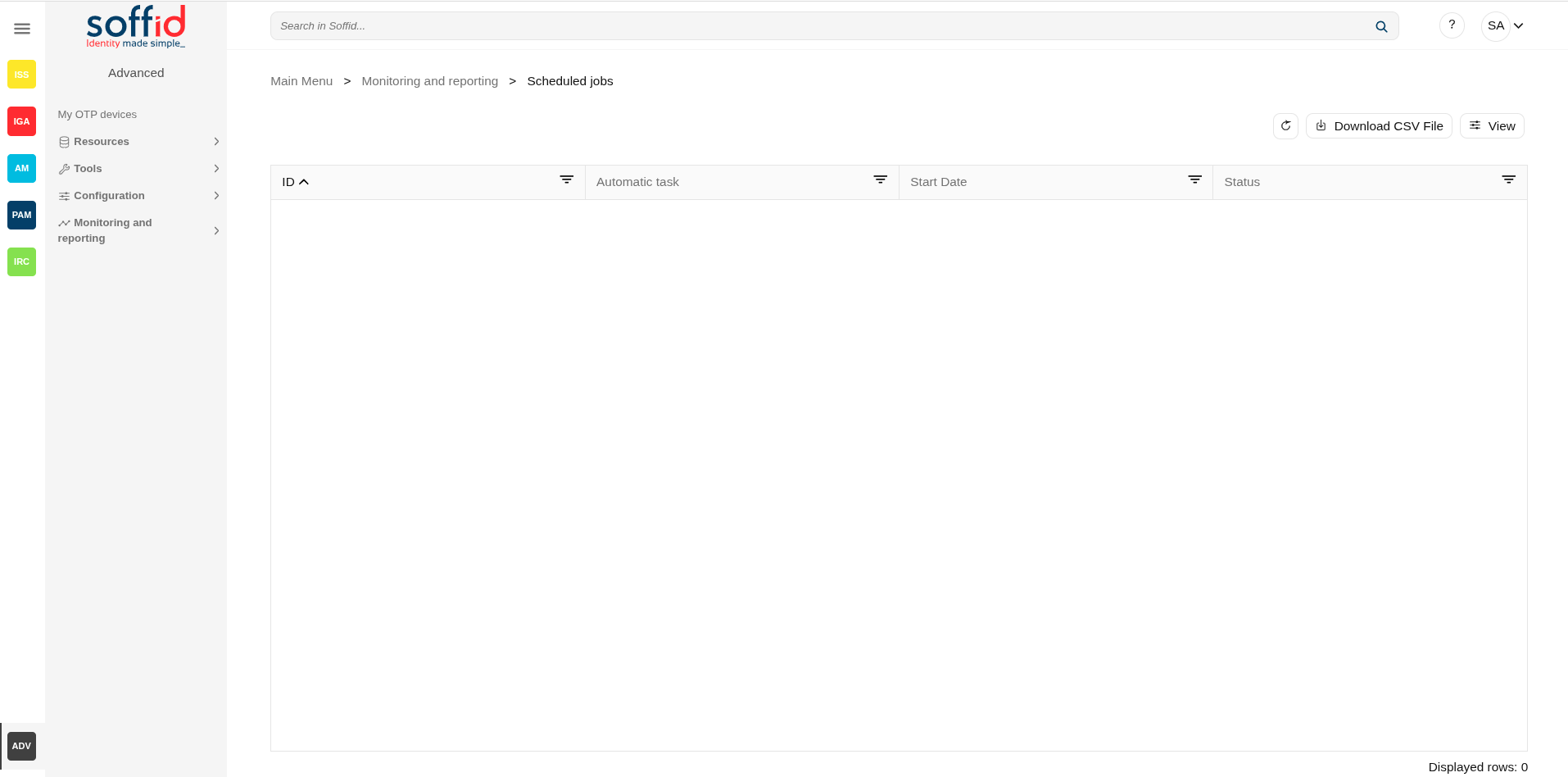
Schedule jobs display all the asynchronous tasks generated for the workflows engine. When a job is finished, it will disappear from that list.
Screen overview
Related objects
- Configure Workflow engine : where the workflow engine is configured
- Business process definition : where workflows are published
- BPM editor : where to create or modify workflows
-
My tasks : pending workflows where the user has to perform an action in order to continue their workflow.
-
My requests : The workflows that the user can initiate are listed here.
-
My requests > Query request status : to search for all processes started by oneself
-
Process Search : to search for all processes
- Metadata : to add attributes to display in the search tables
- Scheduled jobs : shows active workflows pending asynchronous tasks
Standard attributes
- ID: job identifier.
- Name: job name.
- Process: process identifier and description.
- Next rerun: date and time scheduled for next execution.
- Failed attempts: number of failed attempts.
- Status: status of the last execution
- Message: message of the last execution
Actions
Table actions
| Refresh (icon) | Allow you to refresh the data of the table. |
| Download CSV file | Allows you to download a CSV file with the scheduled tasks. |
|
View |
Allows you to show and hide columns in the table. You can also set the order in which the columns will be displayed. |
Detail actions
|
Resume |
Allows you to resume the task |
|
Hold |
Allows you to retain the task. |
|
Close |
Allows you to close the window without perform any action. |
Audit
Description
The audit trail page allows you to query for audit records for the different components of Soffid.
Each action done at the Soffid console and in the Syncserver will be reported.
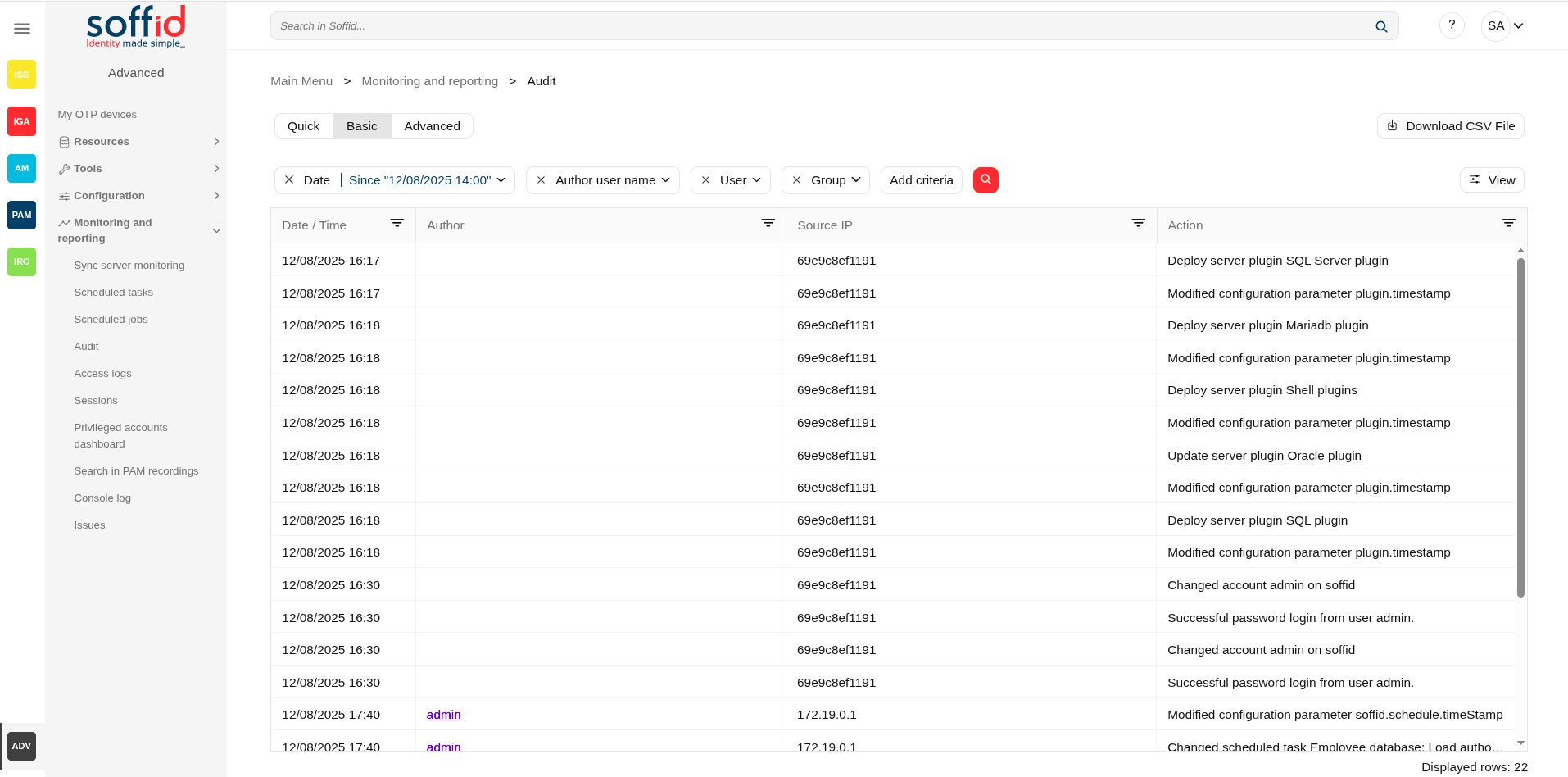
Almost all Soffid components are audited in some way, so we could reference all the pages in the documentation.
- Date/Time: date on which the action was performed.
- Author: user who launched the task. When the author is empty, the Syncserver launched this task.
- Source IP: IP or host where the action has been performed.
- Action: the task performed is specified.
- Purpose: is the name of the internal object (also the table of the database) which the action was performed.
- User: identity to which the action was performed.
- Information system: details on which information system the action was performed (if a role is involved in the action).
- Role: details the role with which the action was performed.
- Account: if the action has taken place on an account, it will be indicated on which one in this section.
- DB: name of the final system (agent)
- Group: group involved in the action
- Network: network involved in the action
- Machine: host involved in the action
- Printer: printer involved in the action
- Domain: domain of the role involved in the action
- Domain value: domain value of the domain of the role involved in the action
- Mail domain: mail domain involved in the action
- Mail list: mail list involved in the action
- Mail list belongs: mail list belongs involved in the action
- Parameter: parameter involved in the action
- File: flle involved in the action
- Authorization: authorization involved in the action
- Federation: federation involved in the action
- Users domain: users domain of the account involved in the action
- Passwords domain: password domain of the account involved in the action
- Jump servers group: jump servers group involved in the action
- PAM session id: PAM session id involved in the action
- Action code: action code of the action message involved in the action
Actions
| "Query buttons" | Allows you to query accounts through different search systems, Quick and Advanced. |
| "Table filter" | It allows you to filter a column in the table based on the results loaded in it. |
| Download CSV file | Allows you to download a csv file with the information of audit records. |
| View |
Allows you to add or remove columns to the table. It is also possible to change the order of the columns. |
Examples
Common querys
Here you have a list of common Advanced searches, you only have to copy, paste and search, e.g.
// User changes trace
calendar ge "2020-01-01T00:00:00.000+01:00" AND user co "admin"
// User actions trace
calendar ge "2020-01-01T00:00:00.000+01:00" AND author co "admin"
// Soffid accounts
calendar ge "2020-01-01T00:00:00.000+01:00" AND user co "admin" AND database co "soffid"
// Created accounts
calendar ge "2020-01-01T00:00:00.000+01:00" AND action co "C" AND object co "SC_ACCOUN"
// Removed objects
calendar ge "2020-01-01T00:00:00.000+01:00" AND action co "D" AND object co "SC_ACCOUN"Access logs
Description
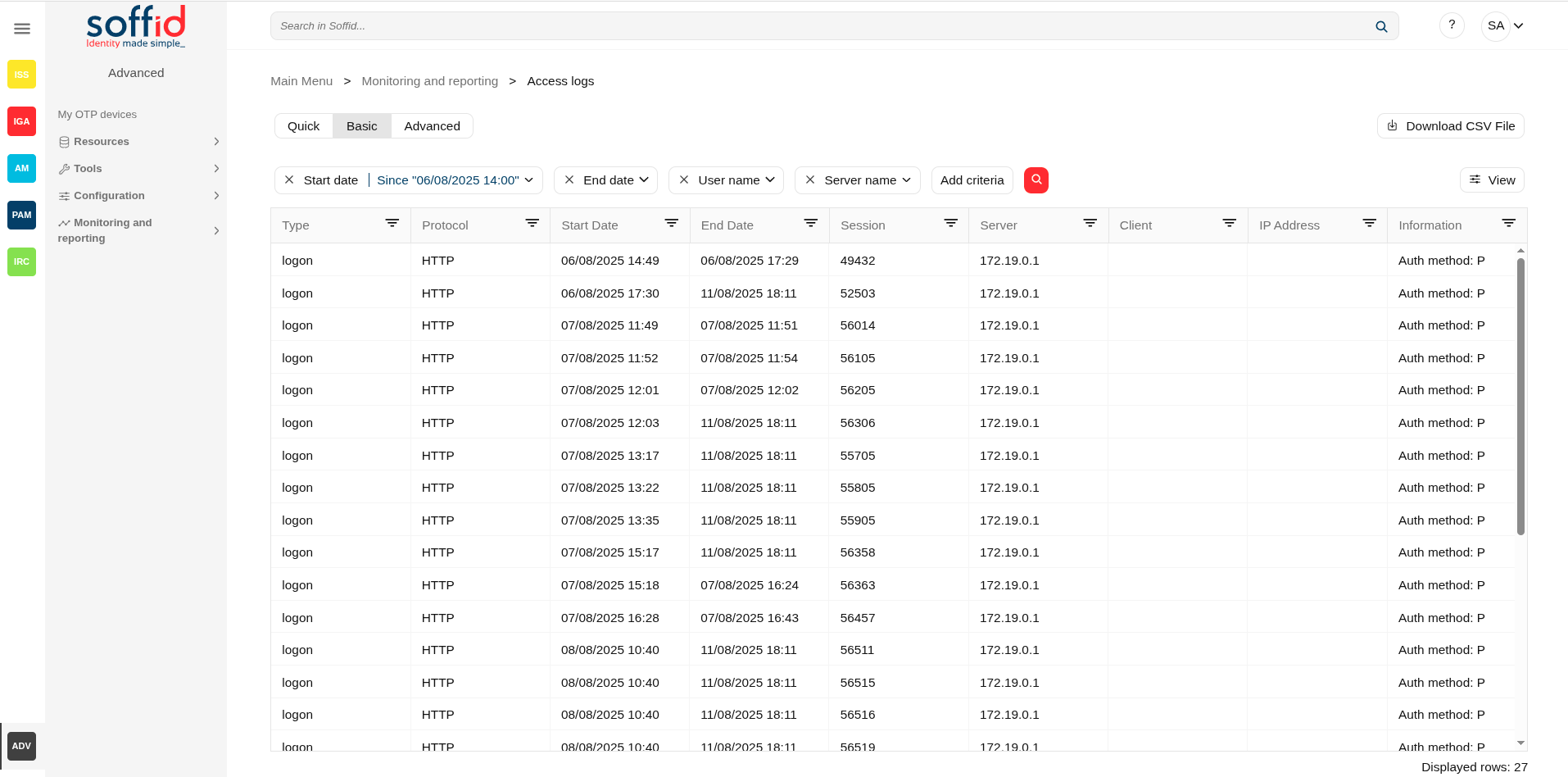
The access log page allows querying all the information about the opened sessions.
Note that any session that was active during the specified date will be shown, even when it started before of finished after that date.
- Sessions : session object
- Users : for the user and full name data
- Agents : agent object
- Jump server group : jump server configuration
- Type: access log type, values:
- logon
- Protocol: access protocolva, values:
- CONSOLE
- HTTP
- wsso
- esso
- PAM
- PAMRDP
- PAMSSH
- Start date: date and time when access started.
- End date: date and time when access ended.
- Session: session identifier.
- Server: server where the authentication has been applied
- Client: server where the user started the session
- IP Address: IP of the server where the user started the session
- Information: additional connection information.
- When the information is about the Authentication method, there are the following options:
- P: Password
- K: Kerberos
- E: Broker
- O: OTP
- M: Email
- S: SMS
- I: PIN
- C: Certificate
- F: Finger print
- Z: Push
- Account: account used to apply the login
- User: user who perform the access. The object is linked to the user screen.
- Full name: full name of the user who perform the access. The object is linked to the user screen.
- Agent: when the authentication is applied throught an agent.
- Jump server group: when the authentication is applied inside a jumpserver group.
- Target application: application where the authentication has been applied
- When the information is about the Authentication method, there are the following options:
Actions
| "Query buttons" | Allows you to query accounts through different search systems, Quick and Advanced. |
| "Table filter" | It allows you to filter a column in the table based on the results loaded in it. |
| Download CSV file | Allows you to download a csv file with the information of audit records. |
| View |
Allows you to add or remove columns to the table. It is also possible to change the order of the columns. |
Sessions
Description
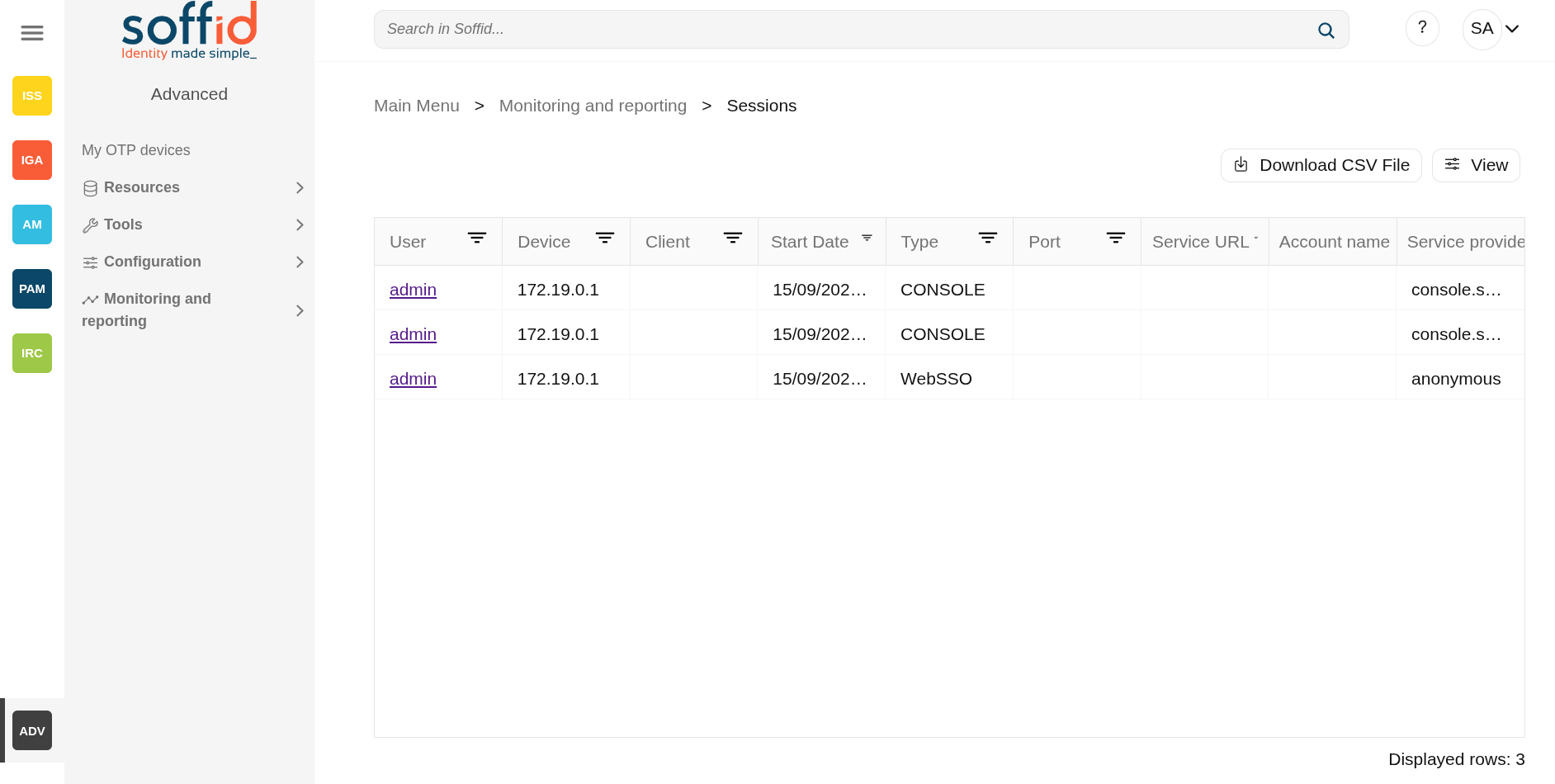
The sessions page displays the current open sessions made with the Console, ESSO, WSSO or PAM for which the user is the owner.
This functionality allows the owner users, with appropriate privileges, to open and view online a session opened by another user. It also allows them to interact if necessary.
When a session is finished it can be found on the access logs page.
Screen oveview
Related objects
- Access logs : to view open sessions and those that have already ended
- Users : for the user and full name data
- Agents : agent object
- Jump server group : jump server configuration
Standard attributes
- User: name of the user who opened the session.
- Device: IP from which the connection was executed.
- Client: server where the user started the session.
- Start Date: date and time when access started.
- Type:
- CONSOLE
- WebSSO
- ESSO
- PAM
- PAM RDP
- PAM SSH
- Port: port of the server where the user started the session.
- Service URL: connection URL
- Account name: user account name to connect
- Service provider: final application or service provider where the authentication has been applied
Actions
| Download CSV file | Allows you to download a csv file with the information of audit records. |
| View |
Allows you to add or remove columns to the table. It is also possible to change the order of the columns. |
Privileged accounts dashboard
Description
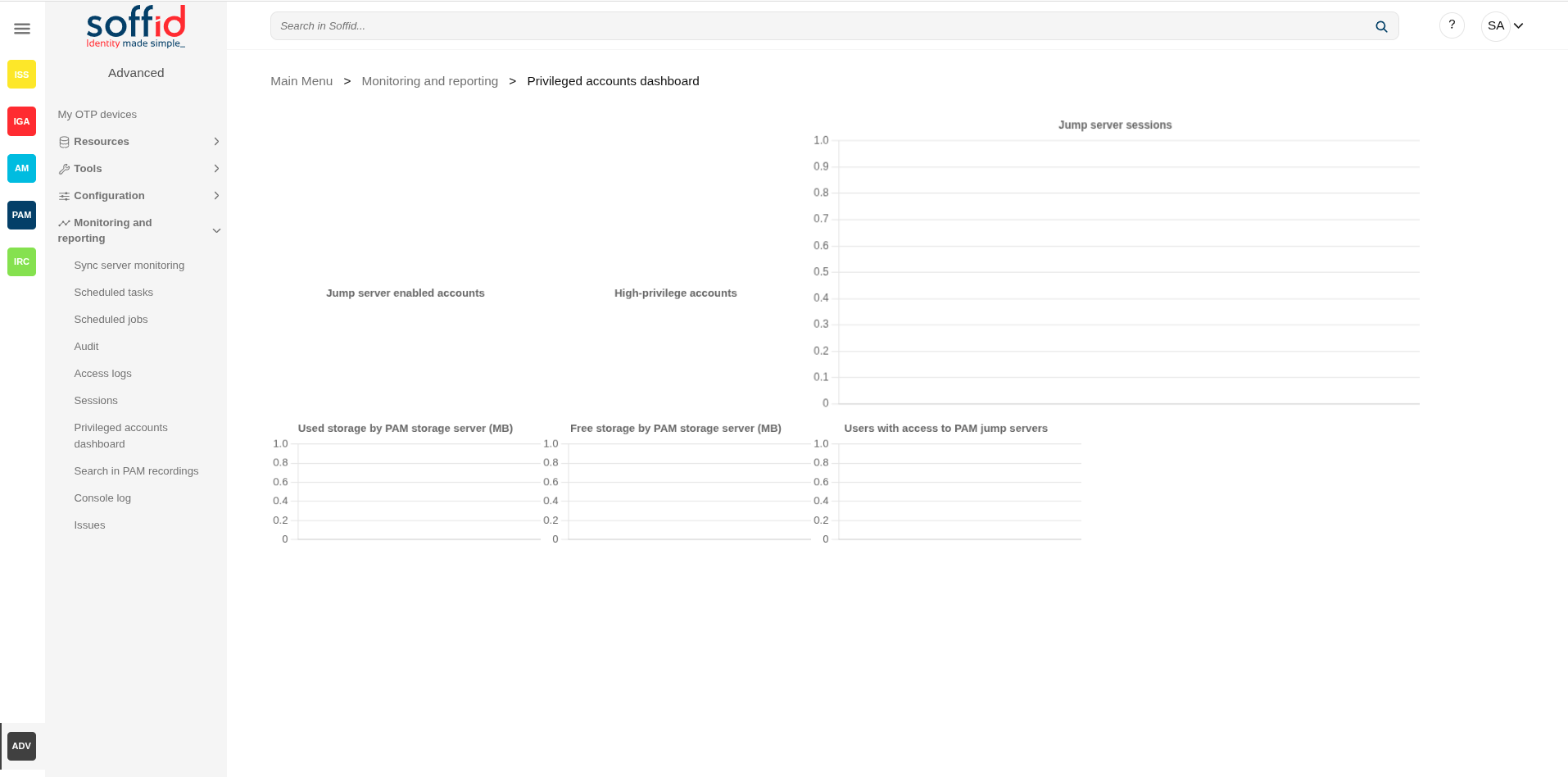
Soffid provides a monitoring functionality to consult all the information about the different jump servers installed and configured.
To activate this view you will need to enable the Feed statistic tables task on the Scheduled tasks page.
Screen overview
Related objects
- Accounts : for the high-privileged accounts
- Jump servers : for the jump servers configuration
Standard attributes
The displayed info is the following:
- Jump server enabled accounts
- High-privileged accounts
- Jump server sessions
- Used storage by PAM storage server (MB)
- Free storage by PAM storage server (MB)
- Users with access to PAM jump servers
Search in PAM recordings
Description
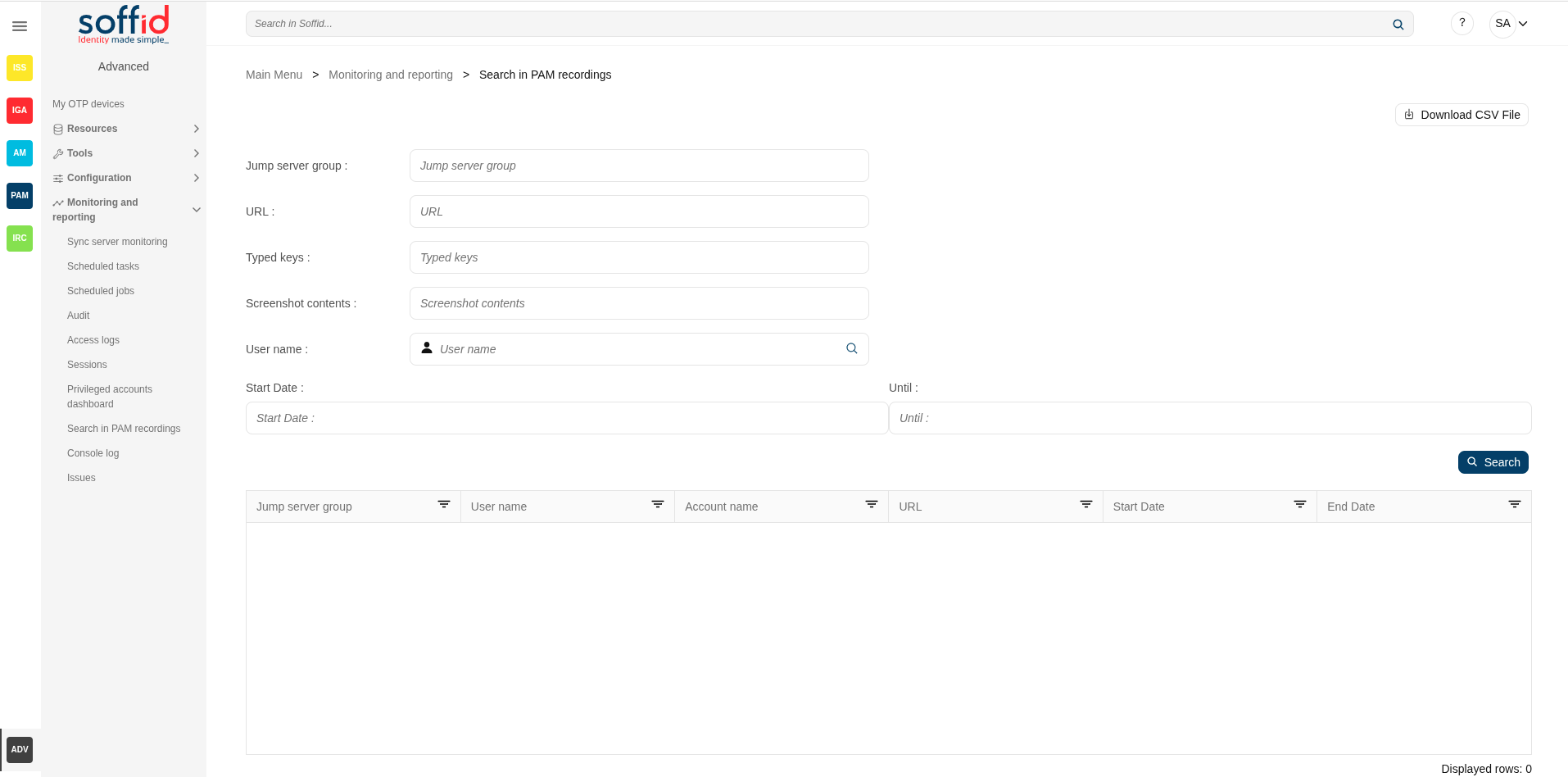
Soffid provides the functionality that allows searching for information about the PAM recording sessions.
First of all, to query the PAM recording, you could apply some filters to refine your search. Then, when you click the Search button, Soffid will show you all the recording sessions that comply with the criteria specified.
If you click on one record, Soffid will show you a new page with all the data about the session and the recorded video. If you query with a typed keys filter, a bookmark with the minute and second will show, and it will allow you to go directly to that point and view the action.
Screen overview
Related objects
- Network discovery : when the servers are discovered and created in Soffid
- Agents : each server will have its own agent
- Password vault : account published in PAM
- PAM policies : the PAM policies contains and configure the PAM rules
- PAM rules : PAM rules used in the PAM policies
- Search in PAM recordings : to search and watch recorded sessions
- Access logs : to search and watch recorded sessions
- Configure PAM session servers : where the PAM servers are configured
Standard attributes
Filter attributes
- Jum server group: used to connect to the system.
- URL: service URL.
- Typed keys: allows you to search in PAM recording.
- Other information:
- violation of rule
- Ctrl
- "[ctrl]+l"
- "[ctrl]+d"
- ...
- Other information:
- Screenshot contents by screen content
- User name: user who created the session.
- Start date: start date of the recording
- End date: end date of the recording
Table attributes
- Jump server group: used to connect to the system.
- User name: user who created the session.
- Account name: account name of the user used to access to the system.
- URL: service URL
- Start date: start date on which the results are filtered
- End date: final day on which the results are filtered
Actions
|
Download CSV file |
Allows you to download a CSV file with the PAM recording information. |
|
Search |
Allows you to query the PAM recording by applying some filters. |
|
View recording |
Allows you to view the recording. You need to click on the record of the PAM recording that you want to view, then Soffid will show you a new page with all the information about the session and the recording video. |
Console log
Description
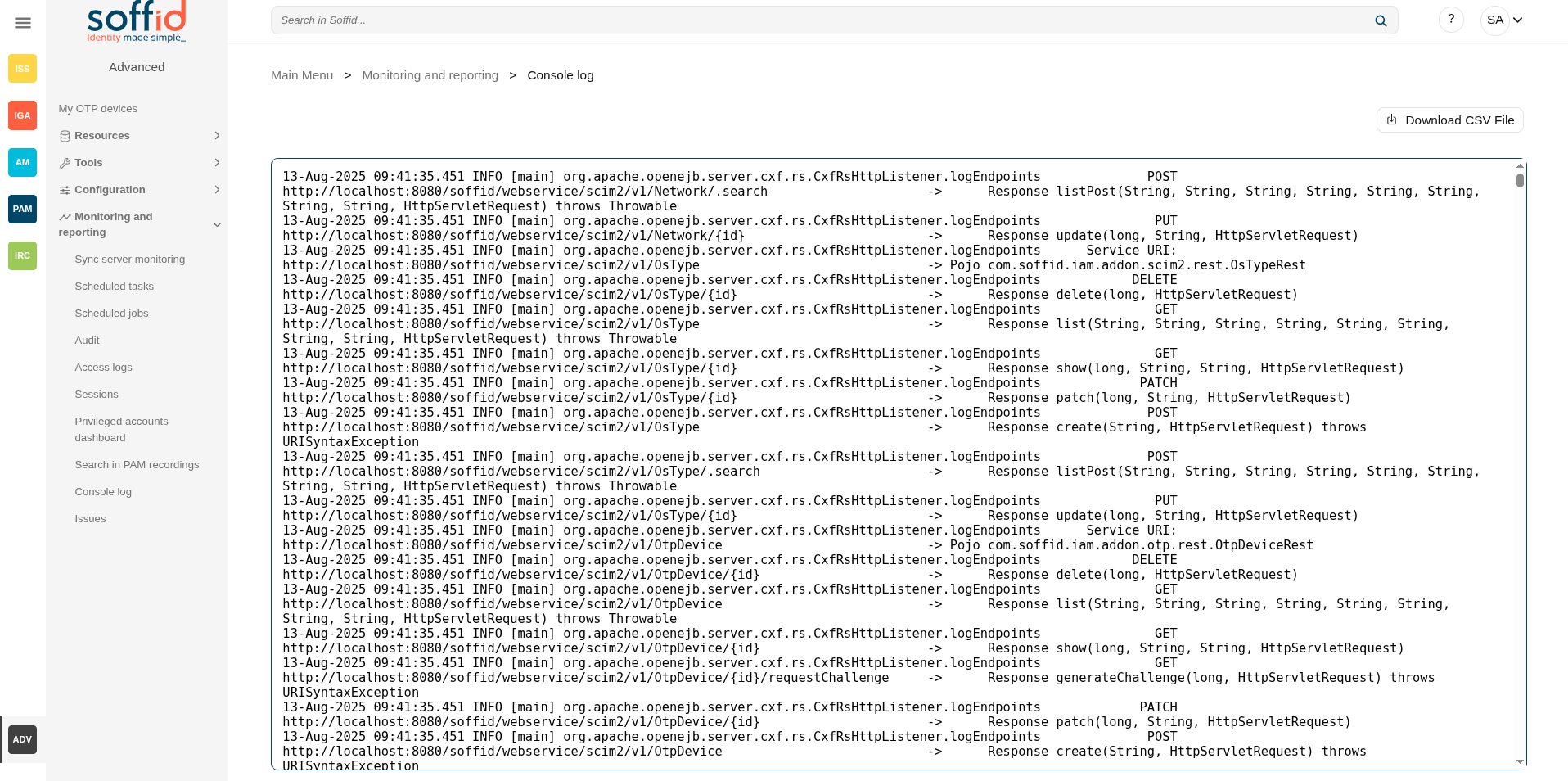
The Console log screen displays an extract of the console logs for the current day.
The log file is located in the Console directory, but in docker or kubernetes installations it is faster to perform initial queries on this screen.
If you have more than one console in your environment, each console only displays its own logs.
The log rotates every day and only logs from the same day can be viewed. To view previous days, access the system folder (/opt/soffid/iam-console-4/logs/).
2026-05-31 New feature: hidden stack tracers
Screen overview
Related objects
- Sync server monitoring : to view the syncserver logs
- Audit : to view the audit information of the Soffid objects
Actions
| Download CSV file | Allows you to download the log file . |
Issues
Definition
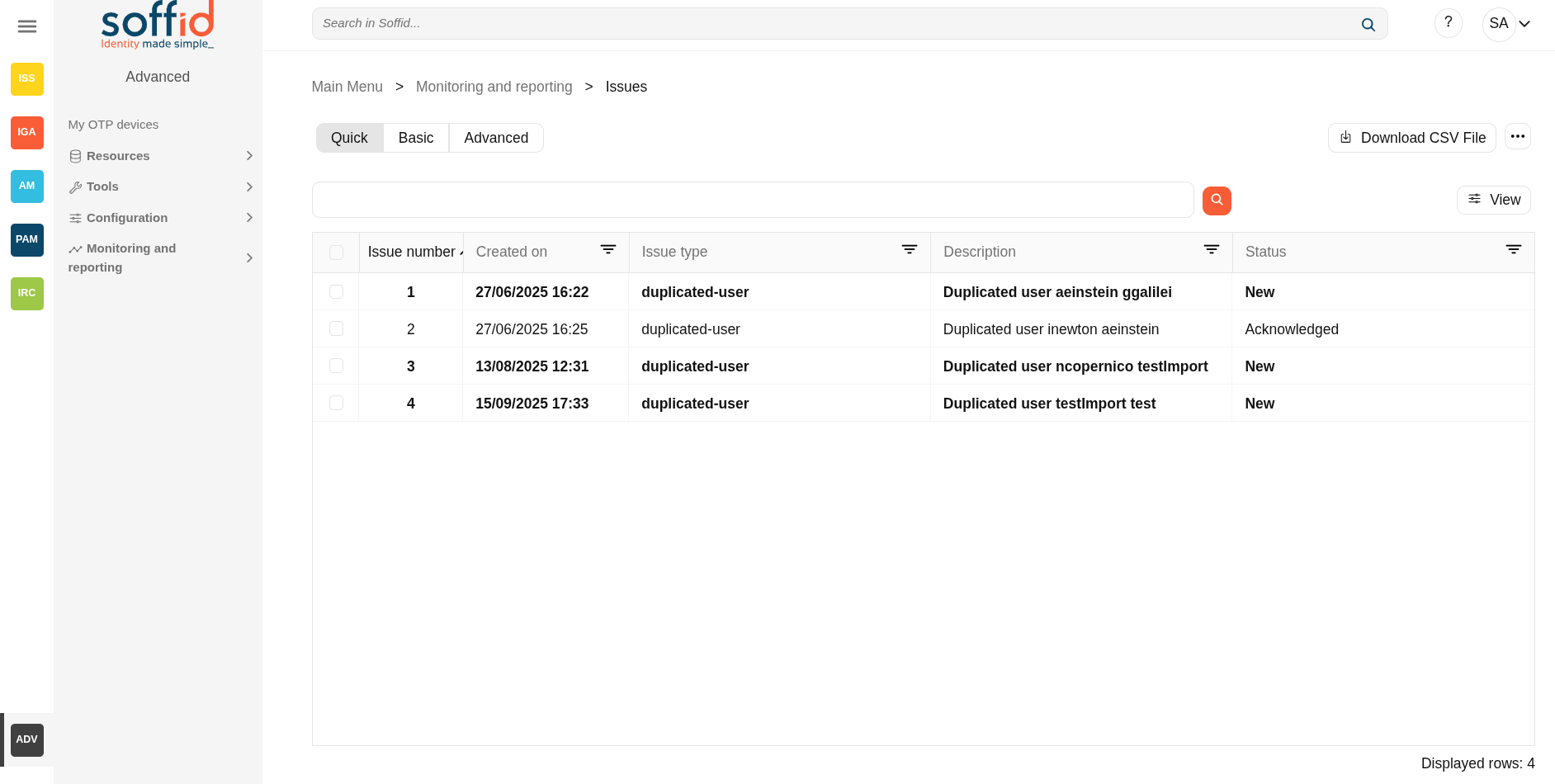
The Issues screen provides a tool to manage all issues and allows you to perform the operations available for each type of task. The actions to be performed will depend on each kind of task.
Screen overview
Related objects
- Issue policies : where the issues are configured
- Issues : list all issues
- My issues : issues started by a user or the user has pending an acction
- Pages related to the different issues:
Standard attributes
Header:
- Issue number: an incremental number to identify the issue.
- Requester: owner of this issue.
- Issue type: issue type defined by Soffid.
- Description: a brief description of the issue.
- Times: number of times the issue has been repeated.
- Status: possible task status. There are three available statuses:
- New
- Acknowledged
- Solved
Details
- Account: account affected by the issue
- Actor: owner of this issue.
- Users: users involved in the issue.
- Created on: date of creation.
- Aknowledged on: date on which it was marked as acknowledged
- Solved on: date on which it was marked as solved
Actions.
- Actions log: each of the actions that have been carried out on the issue
- Modified on: date of last modification.
- Modified by: last user that modified the issue.
Other attributes depending on the issue type.
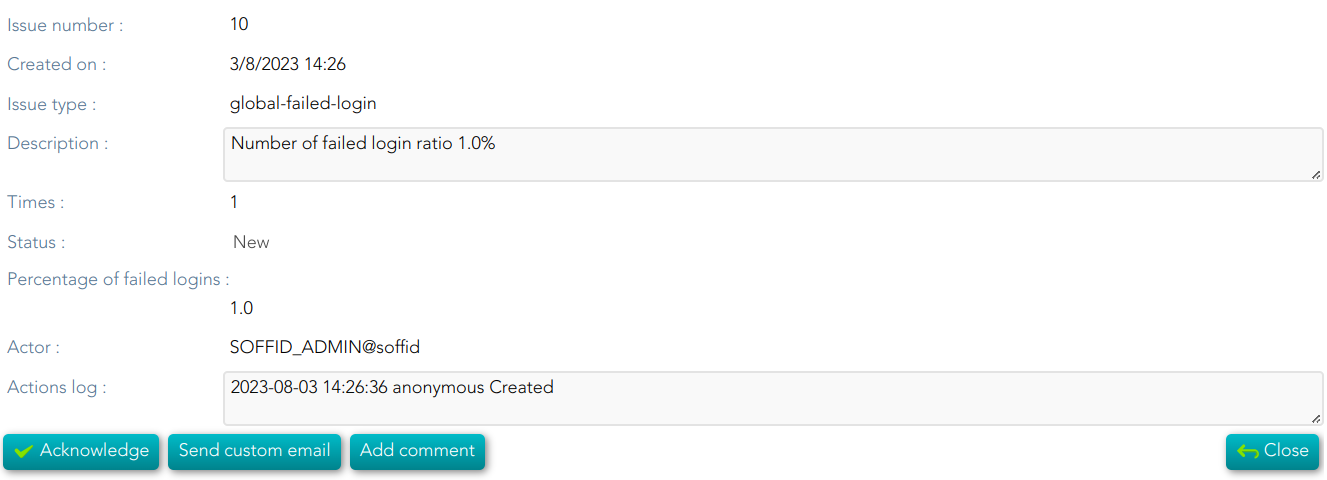
- Percentage of failed login
- Human confidence metric
- System
- OTP divice
- Exception
- Risk
- Role grant
- PAM Rule
- jobName
- Country
- loginName
- Hosts
- Breached email
- Data breach
- Breah description
- Created by
Actions
Table actions
| "Query buttons" | Allows you to query accounts through different search systems, Quick and Advanced. |
| "Table filter" | It allows you to filter a column in the table based on the results loaded in it. |
| Download CSV file | Allows you to download a CSV file with the issues data. |
| Bulk actions |
When selecting multiple issues, this option allows you to perform one of the following actions:
|
| View |
Allows you to add or remove columns to the table. It is also possible to change the order of the columns. |
Detail actions
| Expand all | Displays all the attributes of the different blocks. |
| Collapse all | Hide all attributes of the different blocks. |
| "Types of views" | Change the view type: Classic view, Modern view, Compact design. |
| Close | Allows you to quit without applying any changes. |
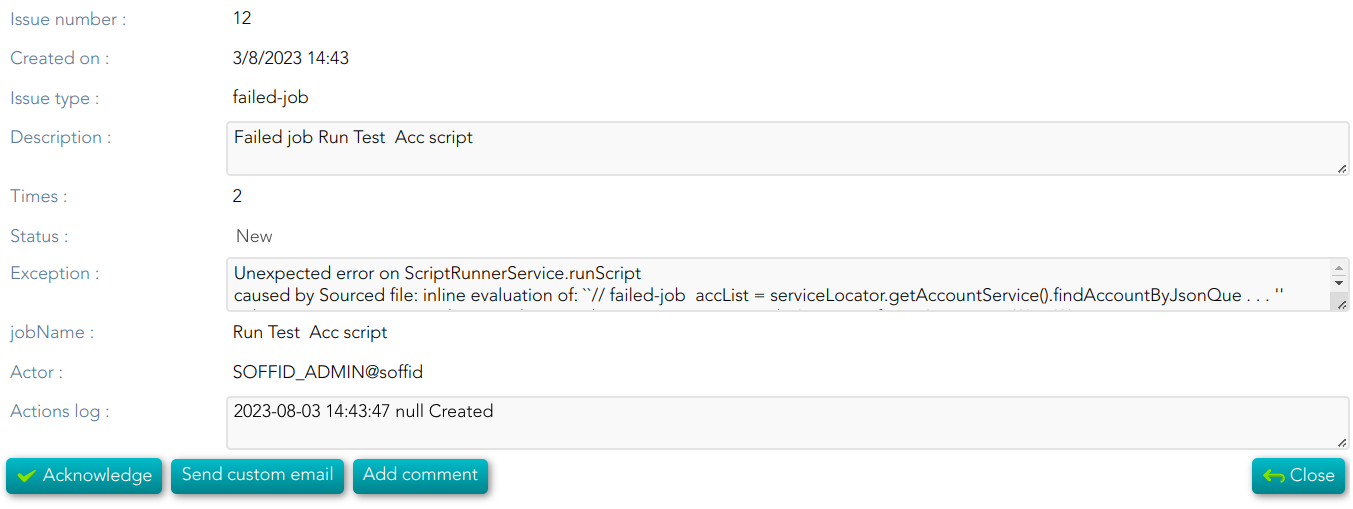
| Acknowledge |
Allows you to check as acknowledged. |
| Solve issue |
Allows you to mark as solved the issue. |
| Send custom email | Allows you to send a custom email to one recipient. |
| Add comments | Allows you to append a new comment to the Action logs. |
account-created
💻 Image
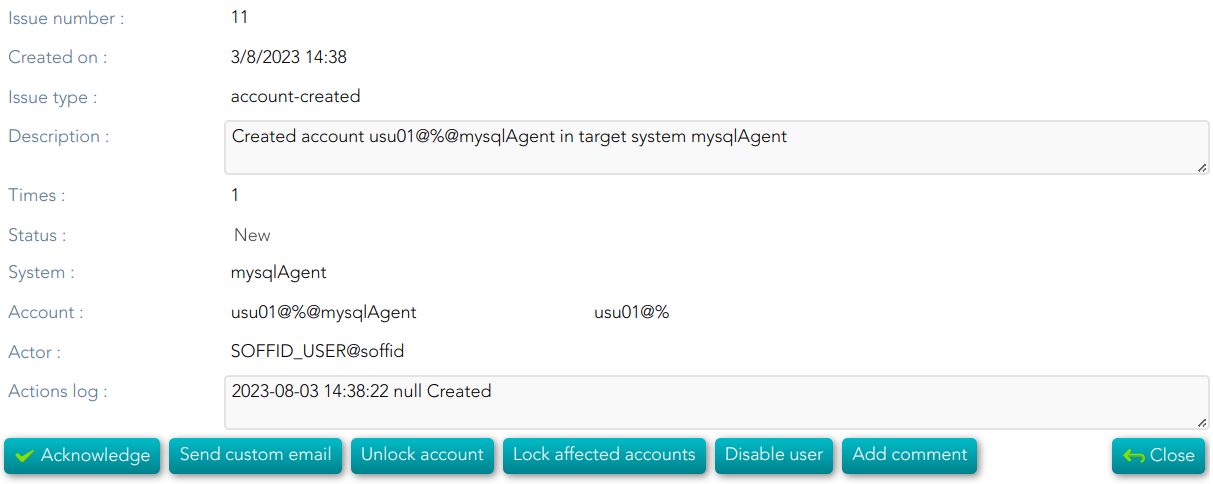
| Unlock account | If you click this option, Soffil will unlock the account. |
|
Look affected accounts |
If you click this option, Soffil will lock affected accounts. |
|
Disable user |
If you click this option, Soffid will disable the user. |
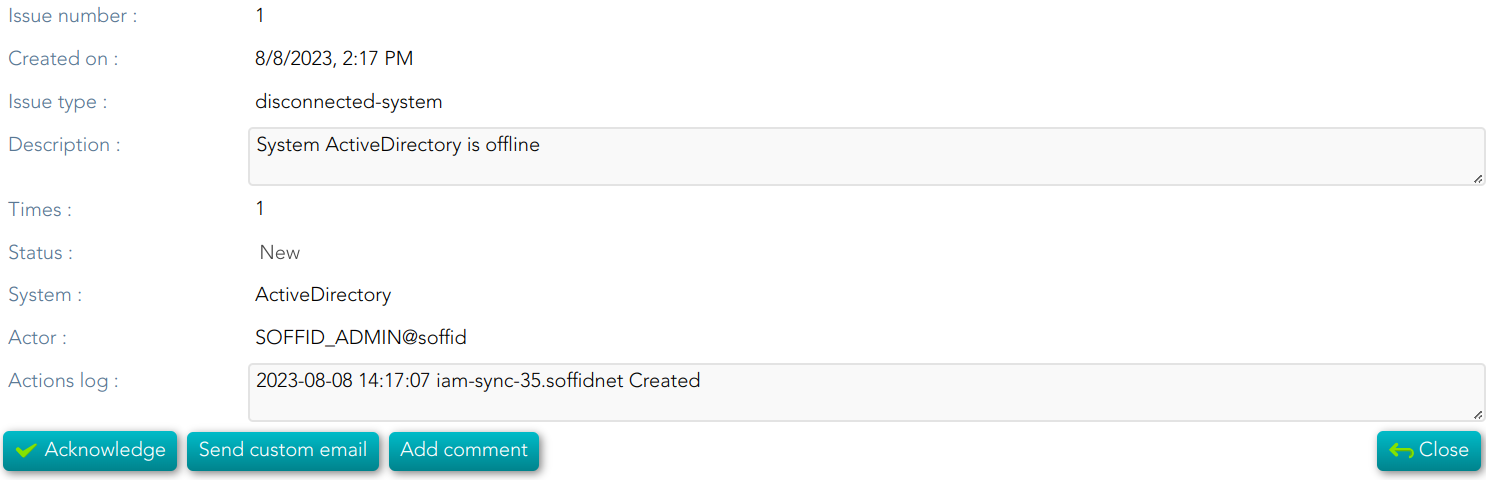
disconnected-system
💻 Image
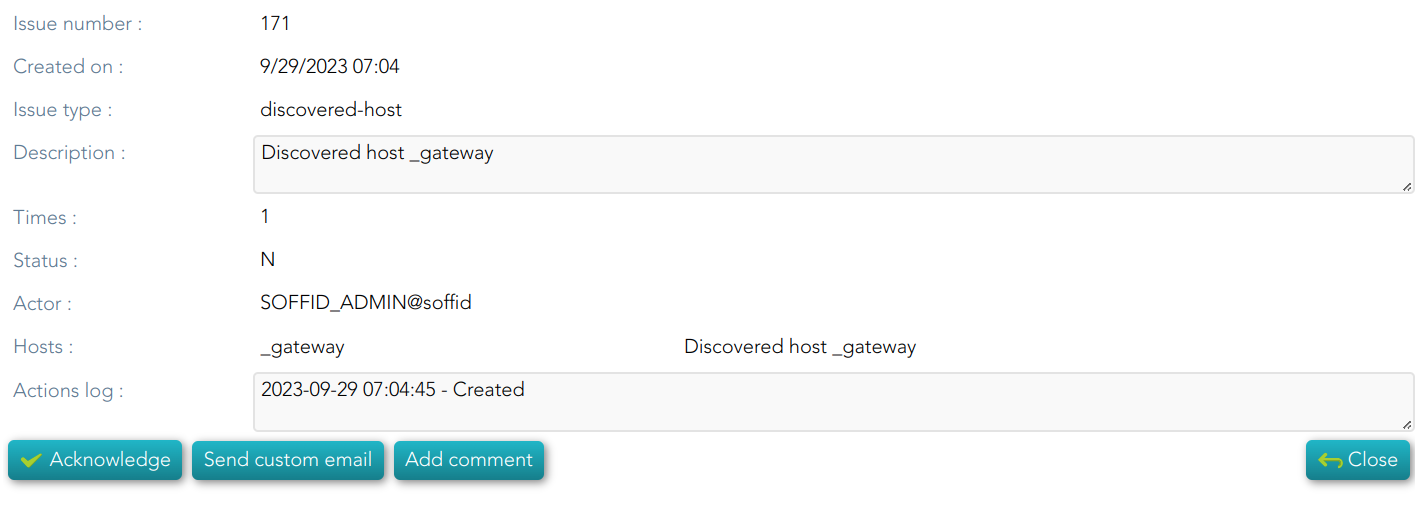
discovered-host
💻 Image
discovered-system
💻 Image
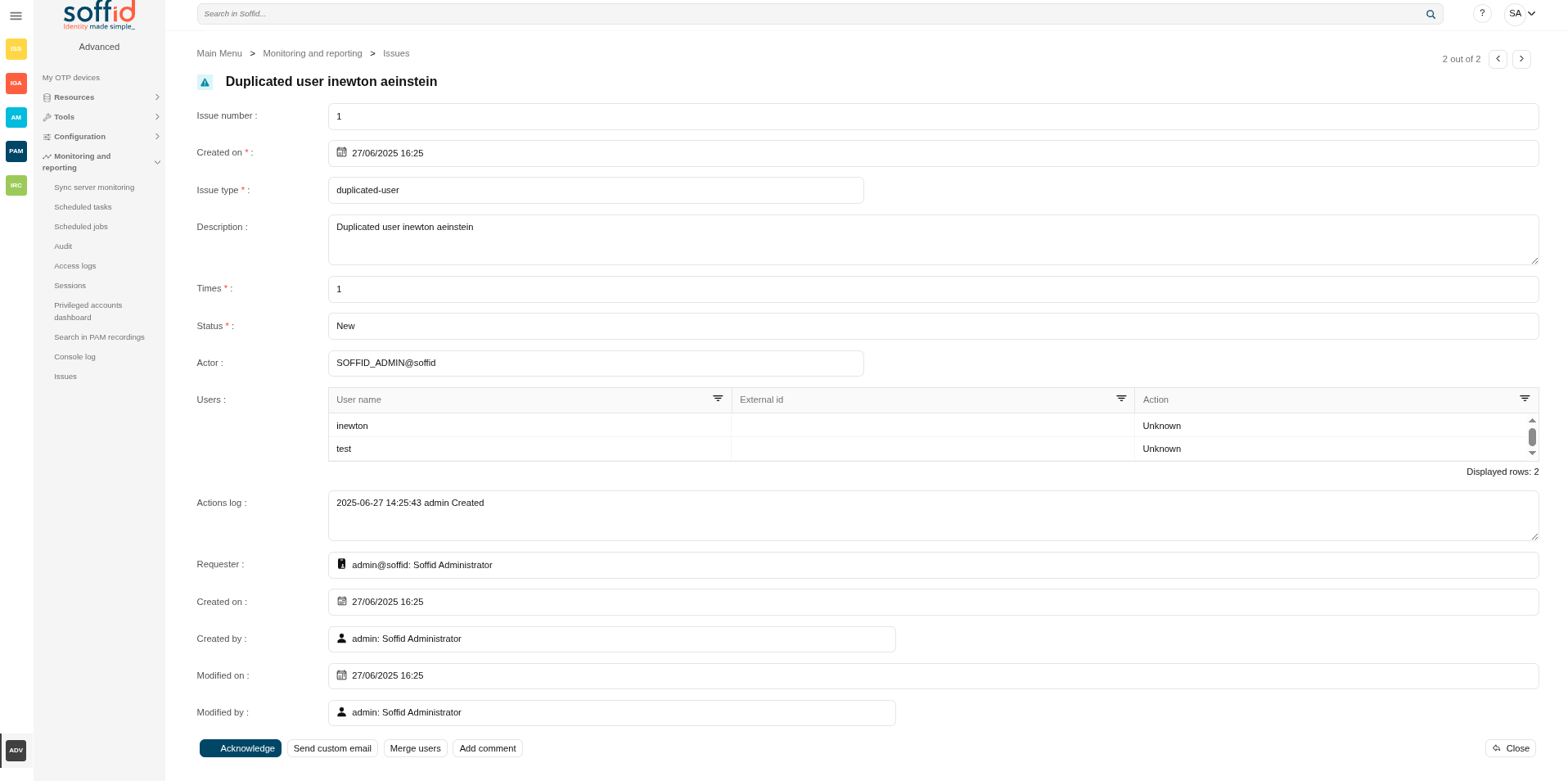
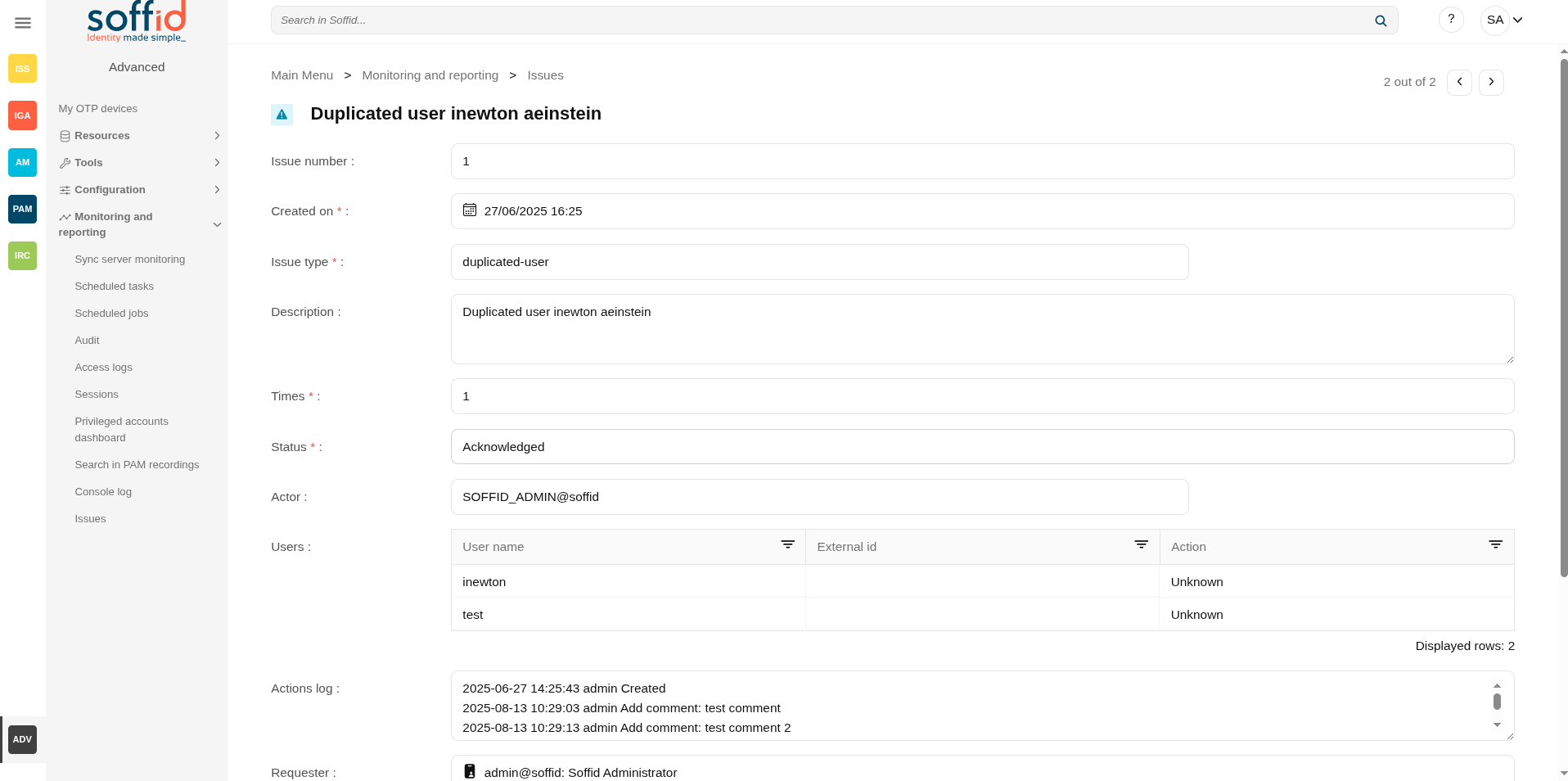
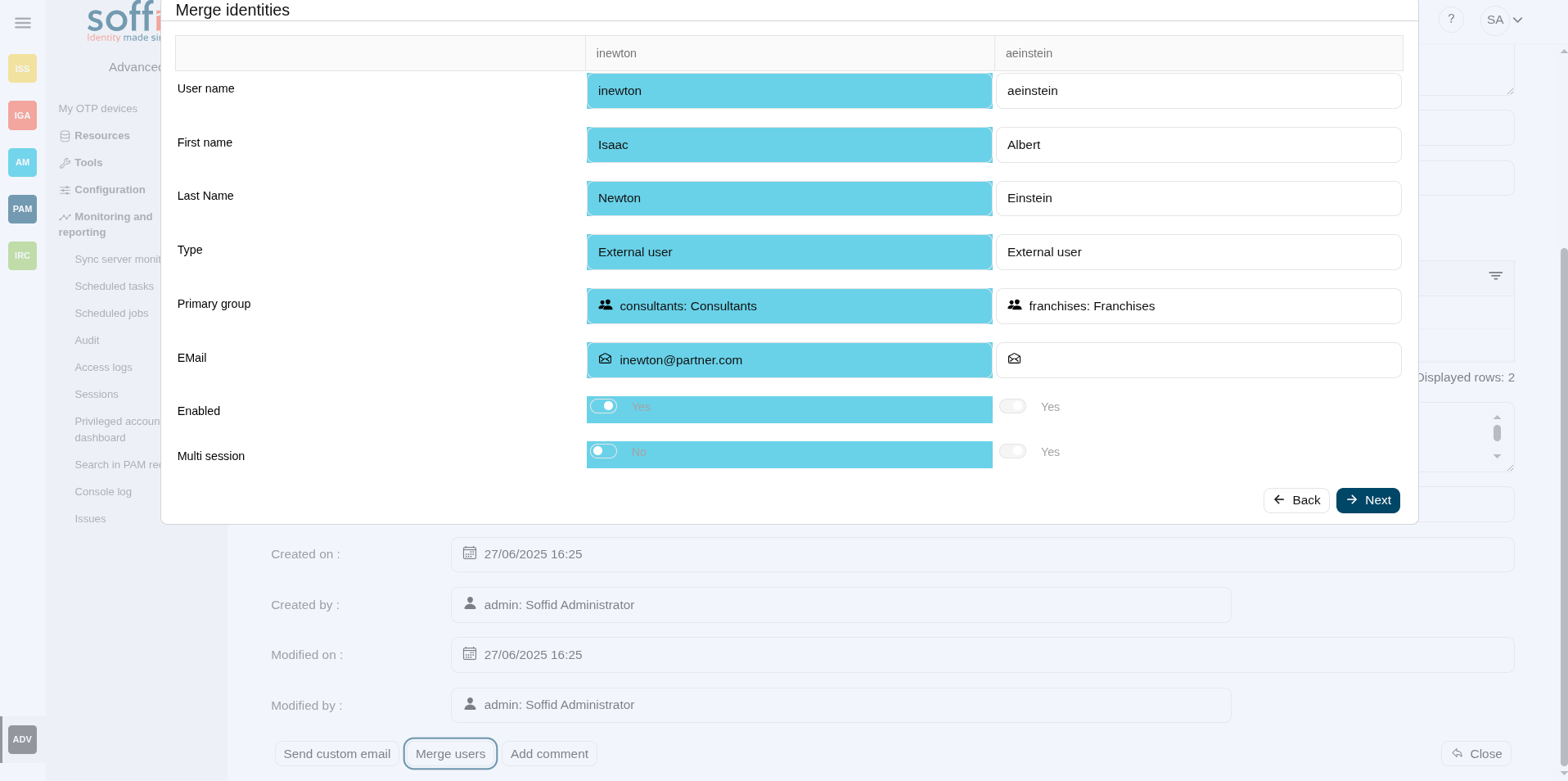
duplicated-user
💻 Image
|
Acknowledge |
To confirm that the issue is being handled |
|
Send custom email |
To send a custom mail |
|
Merge users |
If you click this option, Soffid will allow you to merge the identities by selecting the data of each of them. 💻 Image
|
|
Add comment |
To add a comment in the Actions log |
failed-job
💻 Image
enabled-account-on-disabled-user
💻 Image
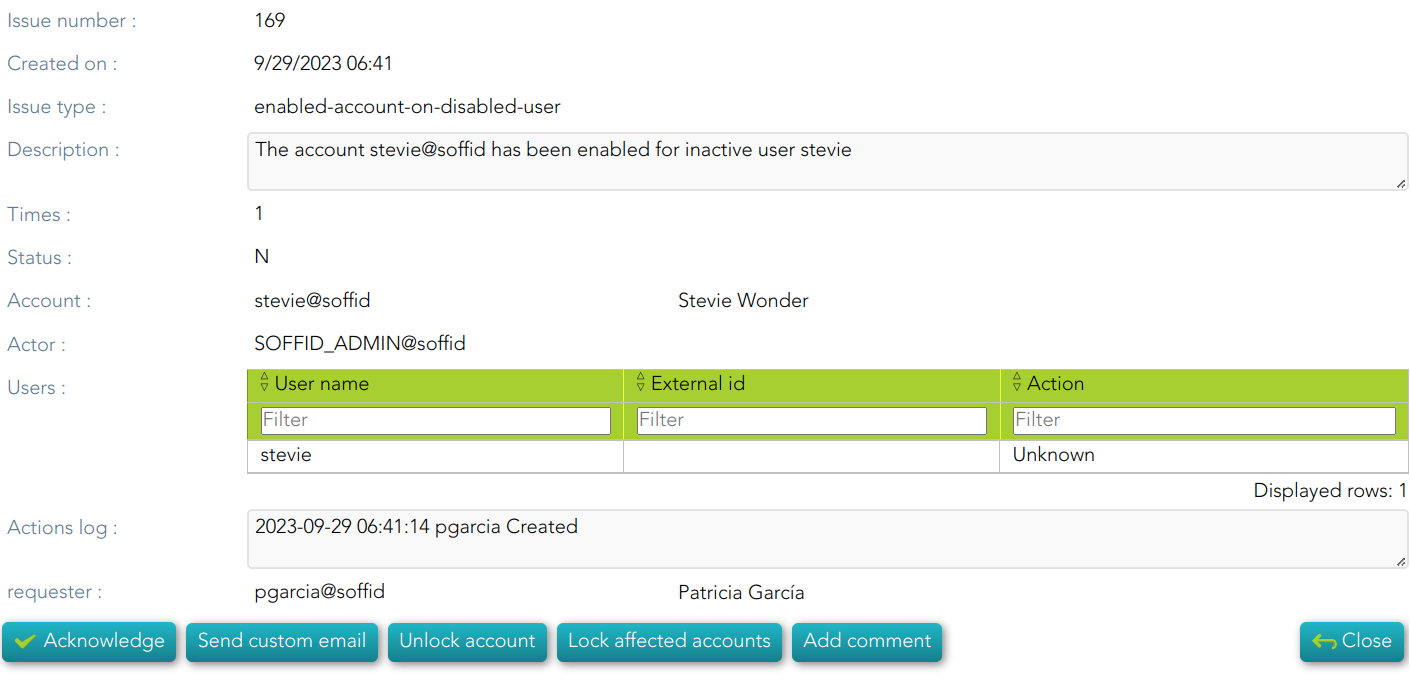
| Unlock account | If you click this option, Soffil will unlock the account. |
|
Look affected accounts |
If you click this option, Soffil will lock affected accounts. |
global-failed-login
💻 Image
integration-errors
💻 Image
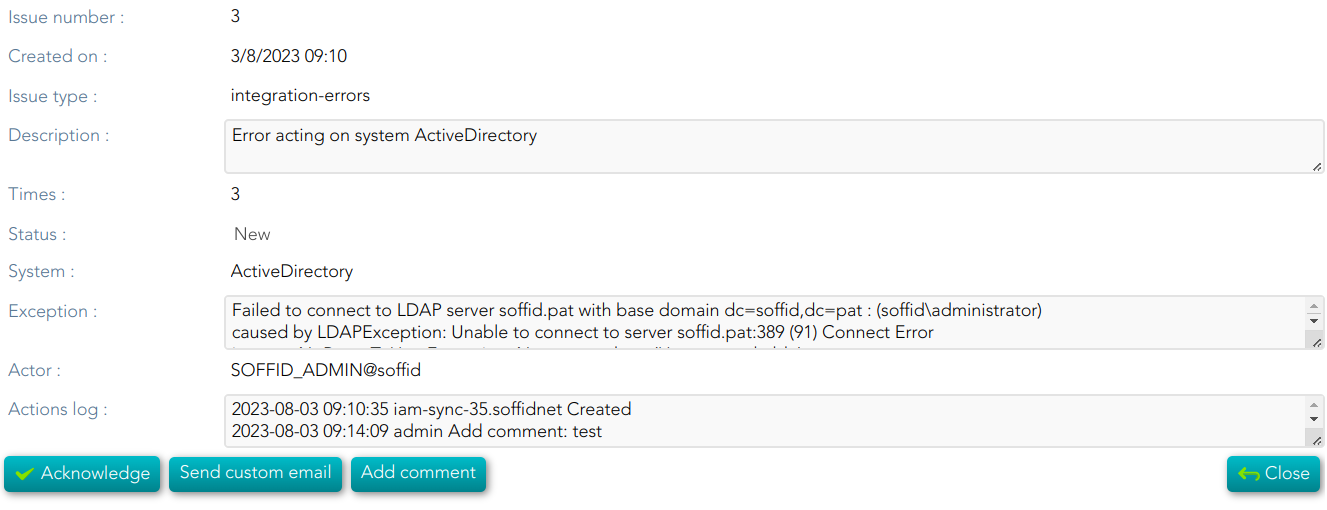
locked-account
💻 Image
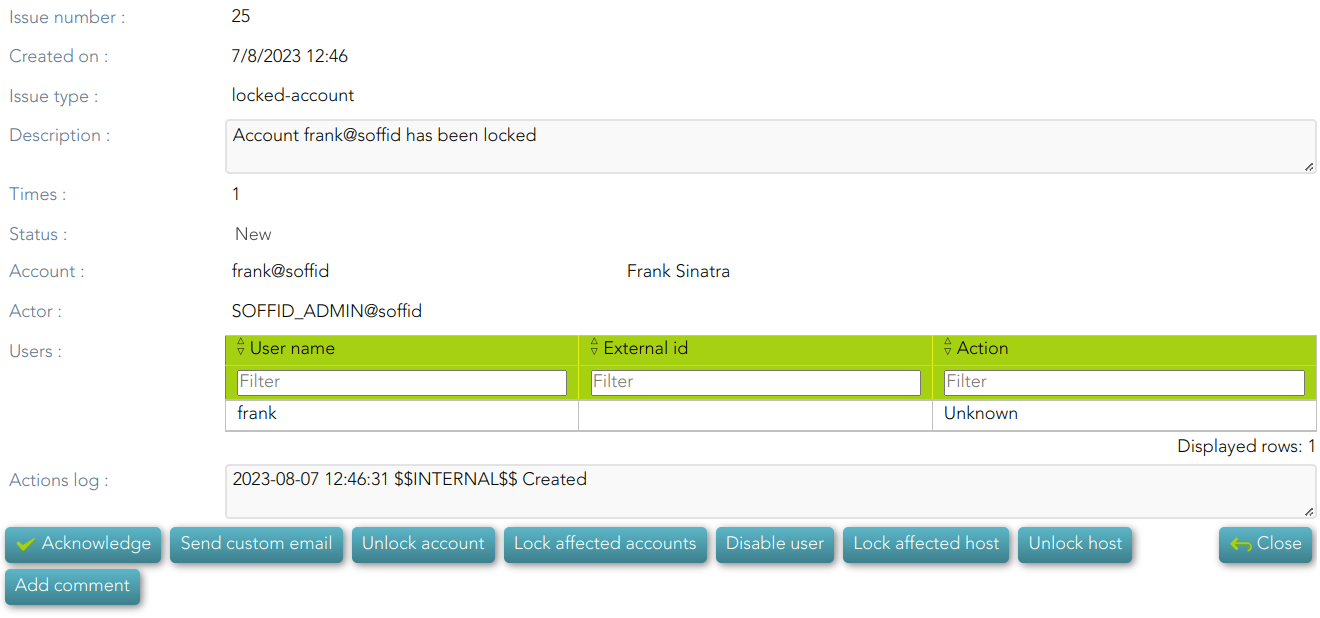
| Unlock account | If you click this option, Soffil will unlock the account. |
|
Look affected accounts |
If you click this option, Soffil will lock affected accounts. |
|
Disable user |
If you click this option, Soffid will disable the user. |
|
Lock affected host |
If you click this option, Soffid will lock the affected host. |
|
Unlock host |
If you click this option, Soffid will unlock the host. |
login-different-country
💻 Image
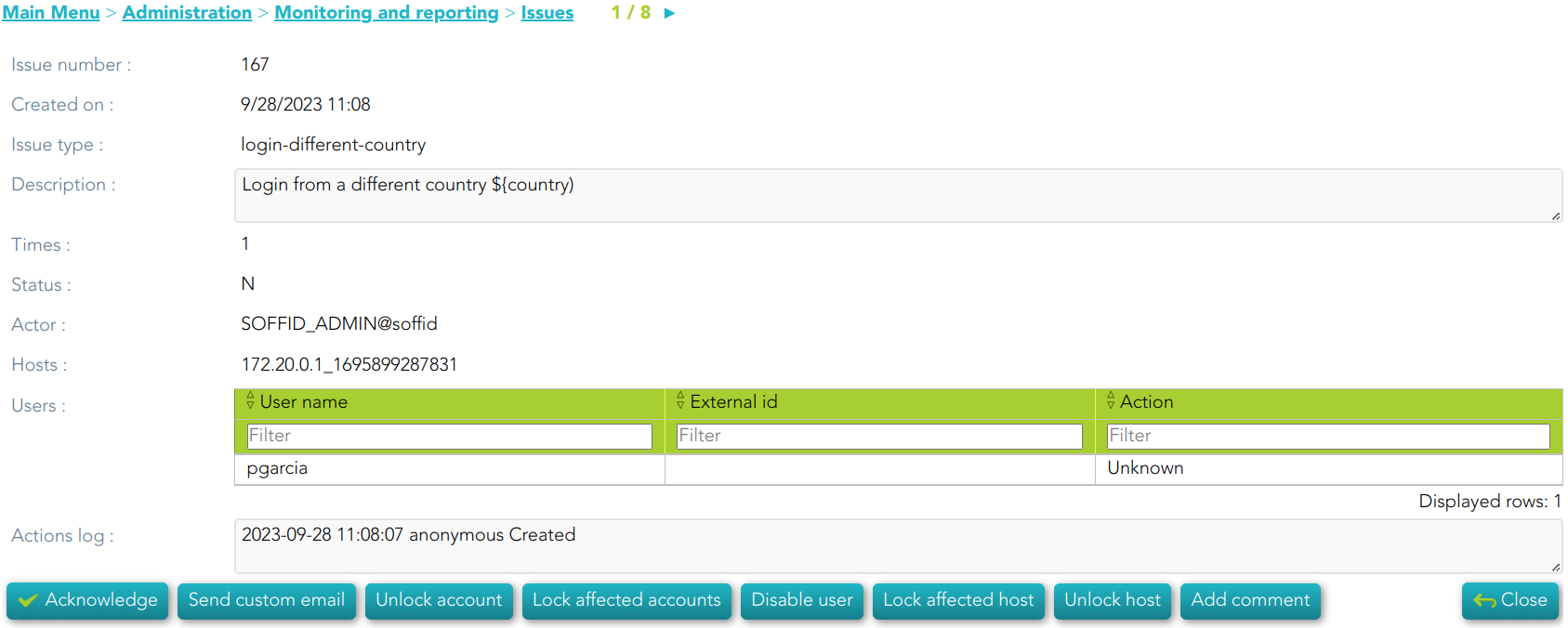
| Unlock account | If you click this option, Soffil will unlock the account. |
|
Look affected accounts |
If you click this option, Soffil will lock affected accounts. |
|
Disable user |
If you click this option, Soffid will disable the user. |
|
Lock affected host |
If you click this option, Soffid will lock the affected host. |
|
Unlock host |
If you click this option, Soffid will unlock the host. |
login-from-new-device
💻 Image
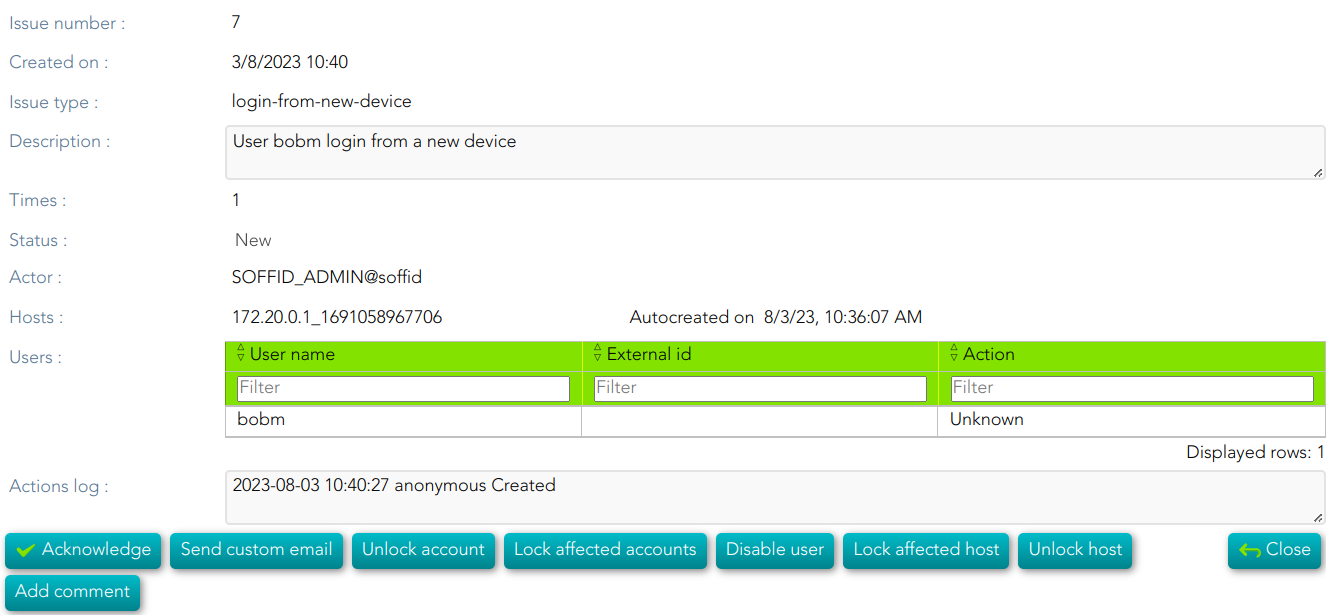
| Unlock account | If you click this option, Soffil will unlock the account. |
|
Look affected accounts |
If you click this option, Soffil will lock affected accounts. |
|
Disable user |
If you click this option, Soffid will disable the user. |
|
Lock affected host |
If you click this option, Soffid will lock the affected host. |
|
Unlock host |
If you click this option, Soffid will unlock the host. |
login-not-recognized
💻 Image
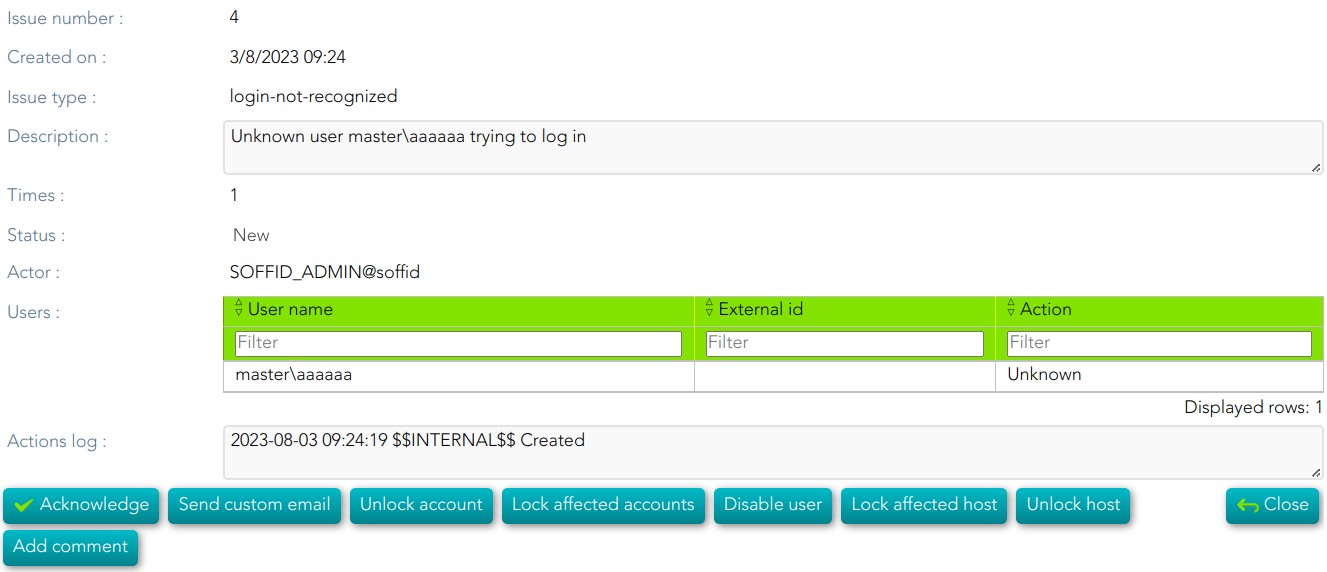
| Unlock account | If you click this option, Soffil will unlock the account. |
|
Look affected accounts |
If you click this option, Soffil will lock affected accounts. |
|
Disable user |
If you click this option, Soffid will disable the user. |
|
Lock affected host |
If you click this option, Soffid will lock the affected host. |
|
Unlock host |
If you click this option, Soffid will unlock the host. |
otp-failures
💻 Image
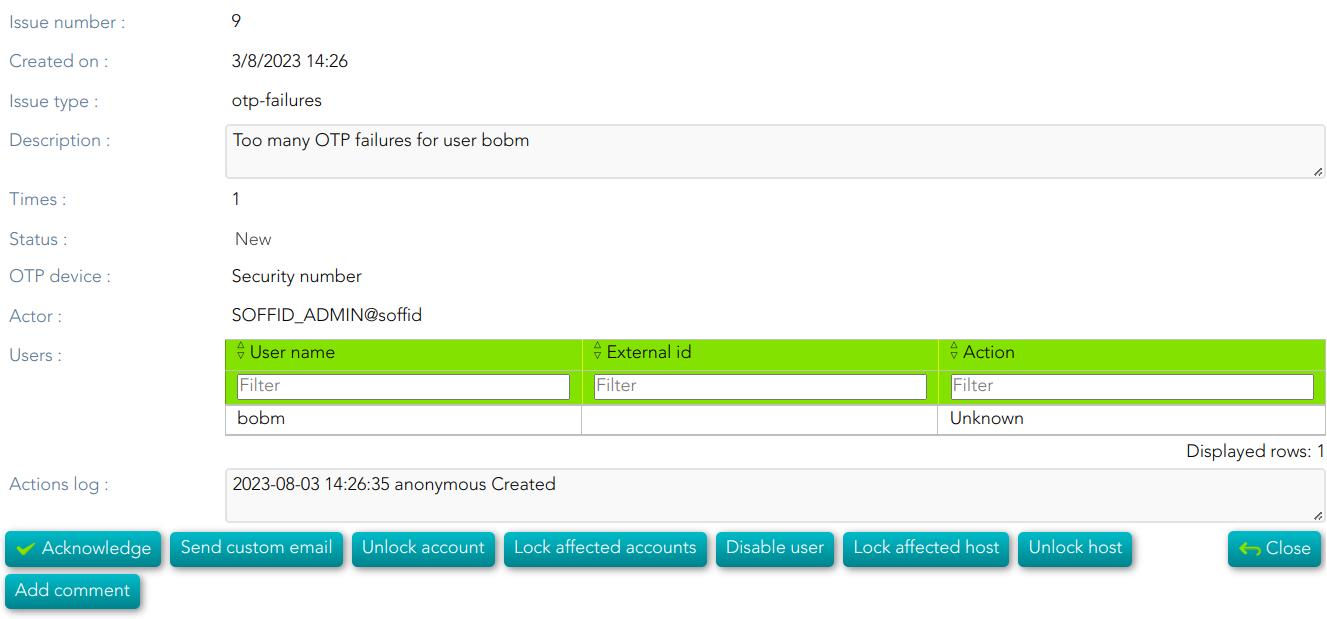
| Unlock account | If you click this option, Soffil will unlock the account. |
|
Look affected accounts |
If you click this option, Soffil will lock affected accounts. |
|
Disable user |
If you click this option, Soffid will disable the user. |
|
Lock affected host |
If you click this option, Soffid will lock the affected host. |
|
Unlock host |
If you click this option, Soffid will unlock the host. |
pam-violation
💻 Image
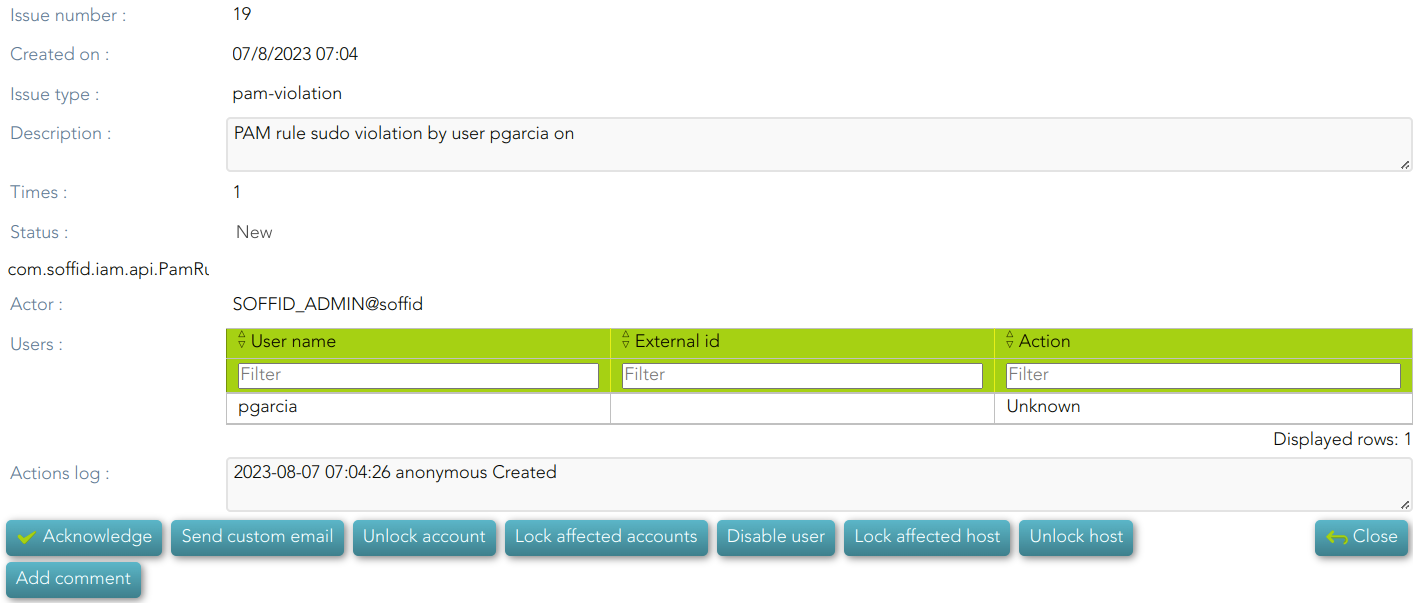
| Unlock account | If you click this option, Soffil will unlock the account. |
|
Look affected accounts |
If you click this option, Soffil will lock affected accounts. |
|
Disable user |
If you click this option, Soffid will disable the user. |
|
Lock affected host |
If you click this option, Soffid will lock the affected host. |
|
Unlock host |
If you click this option, Soffid will unlock the host. |
password-changed
💻 Image
permissions-granted
💻 Image
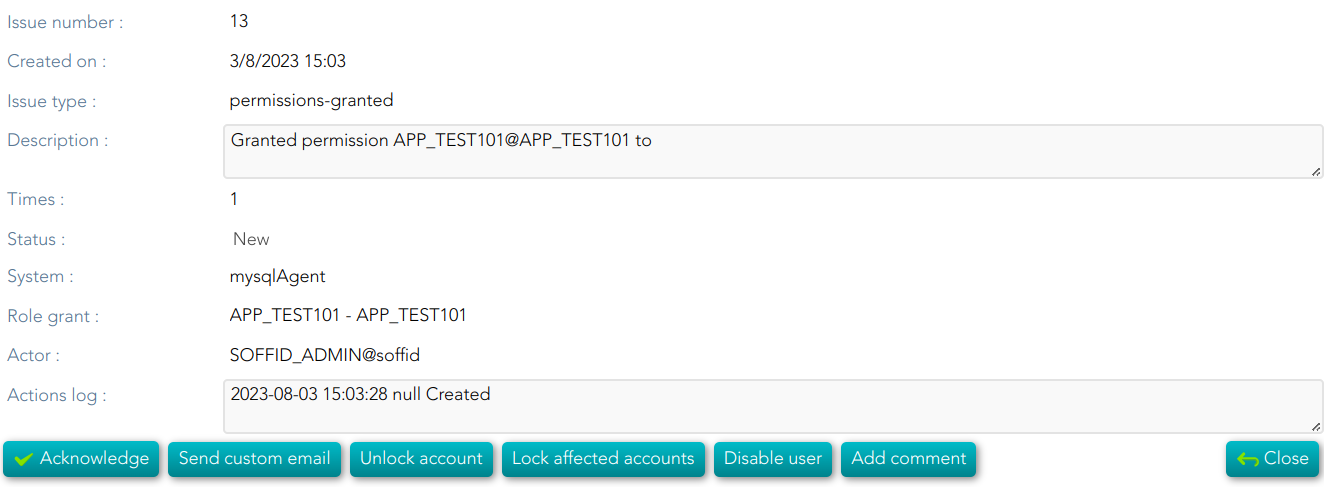
| Unlock account | If you click this option, Soffil will unlock the account. |
|
Look affected accounts |
If you click this option, Soffil will lock affected accounts. |
|
Disable user |
If you click this option, Soffid will disable the user. |
risk-increase
💻 Image
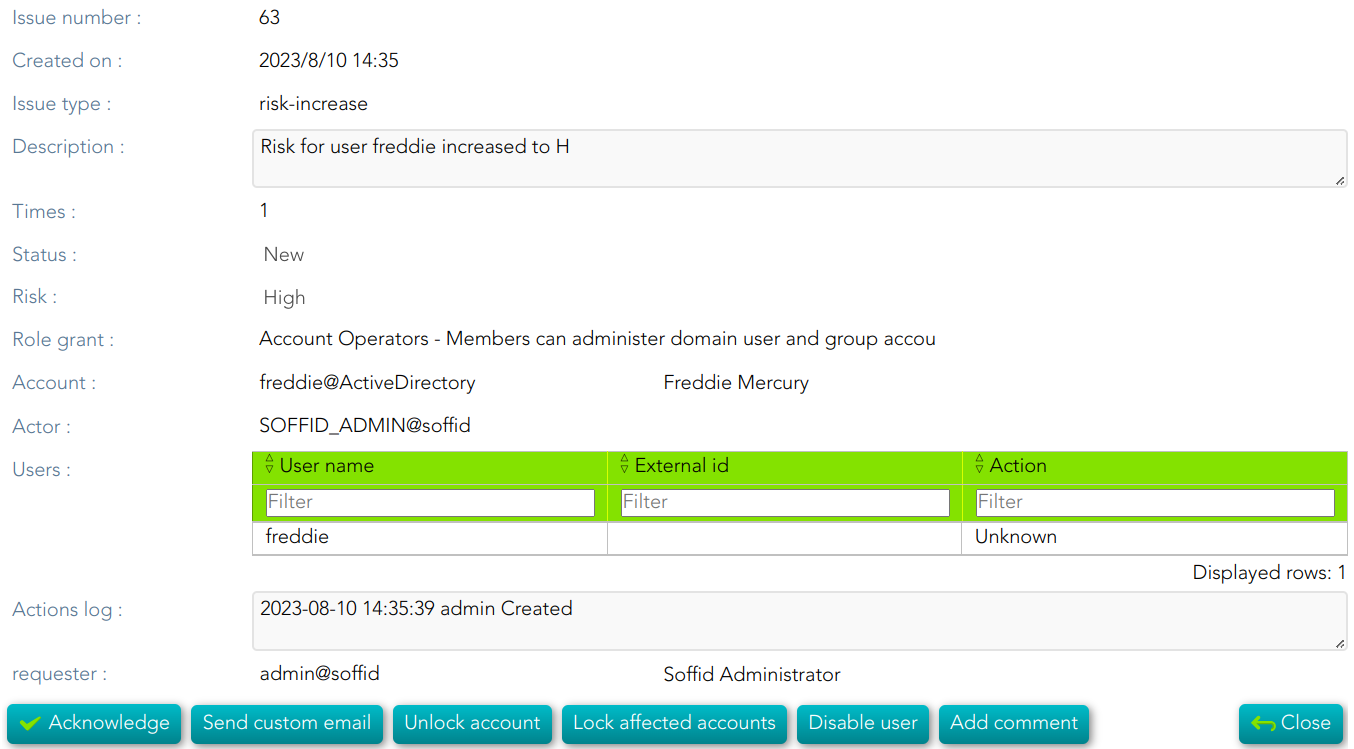
| Unlock account | If you click this option, Soffil will unlock the account. |
|
Look affected accounts |
If you click this option, Soffil will lock affected accounts. |
|
Disable user |
If you click this option, Soffid will disable the user. |
robot-login
💻 Image
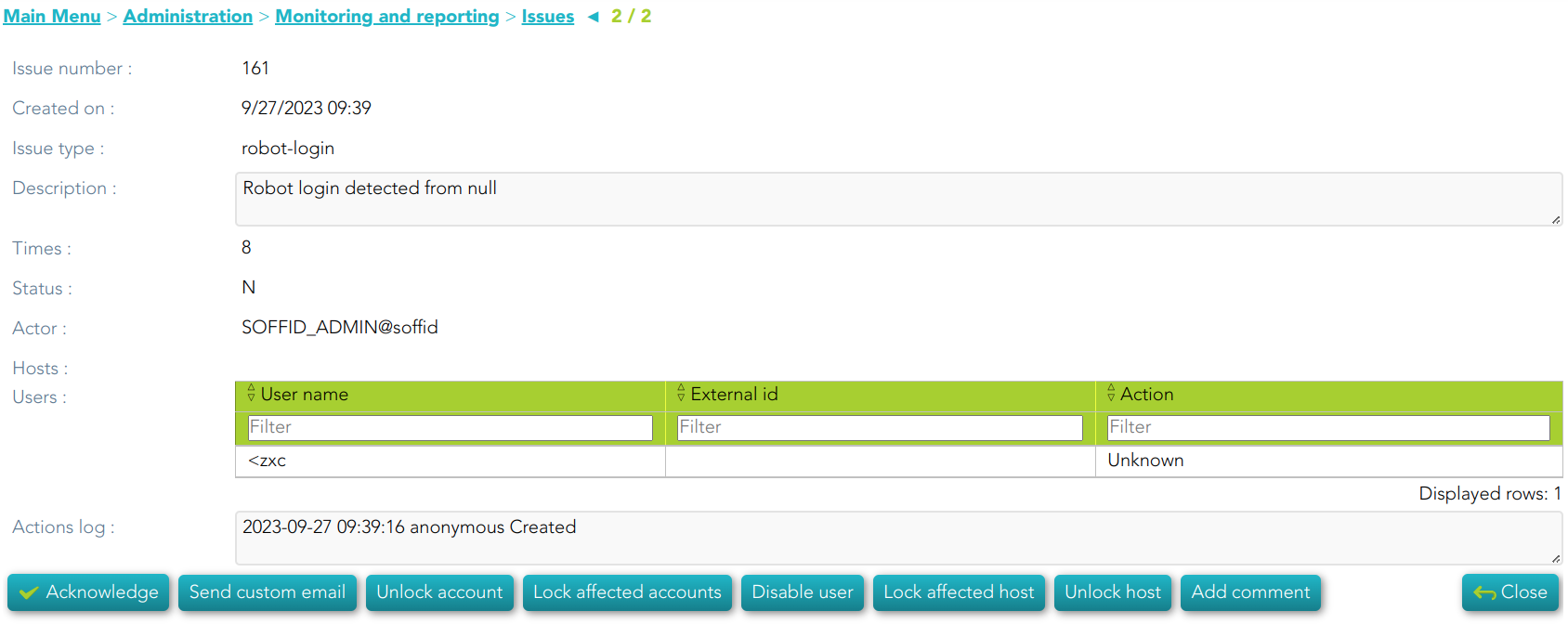
| Unlock account | If you click this option, Soffil will unlock the account. |
|
Look affected accounts |
If you click this option, Soffil will lock affected accounts. |
|
Disable user |
If you click this option, Soffid will disable the user. |
|
Lock affected host |
If you click this option, Soffid will lock the affected host. |
|
Unlock host |
If you click this option, Soffid will unlock the host. |
security-exception
💻 Image
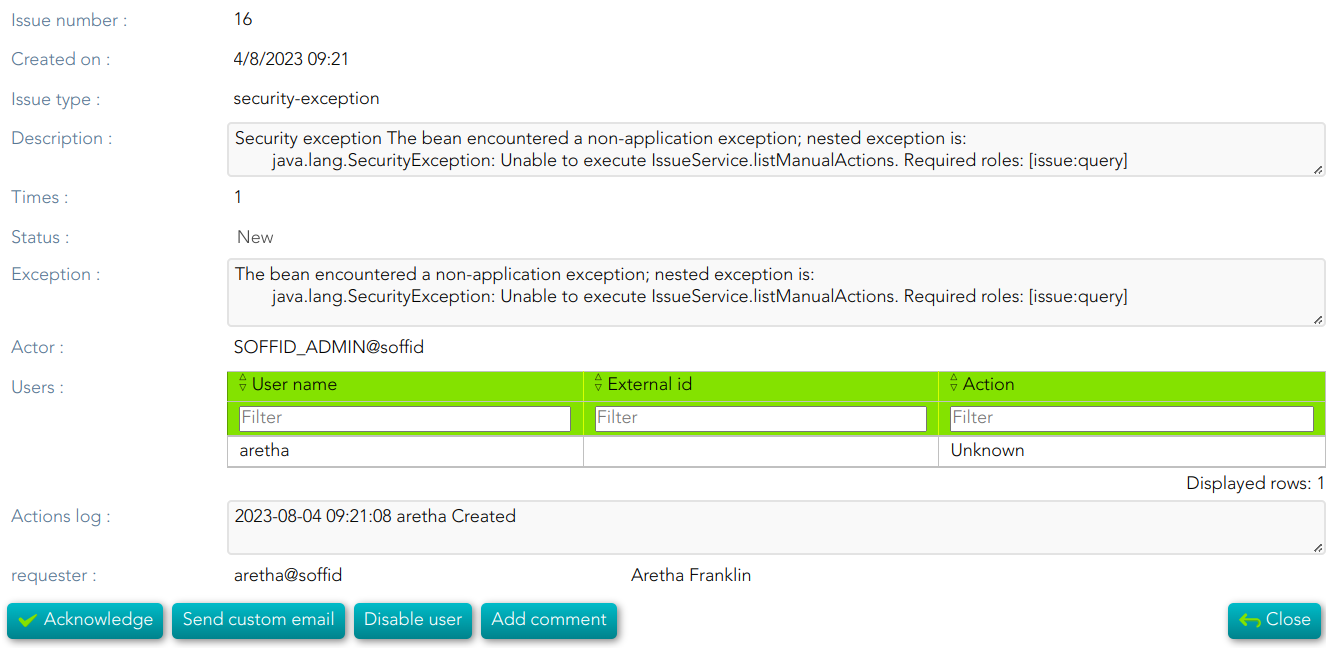
|
Disable user |
If you click this option, Soffid will disable the user. |
Reports (addon-reports)
Description
The Reports page allows you to run the reports defined in the system. Reports can be executed immediately or scheduled for later.
Soffid comes with a set of predefined reports by default, but you can modify them and add new reports as needed for your organisation.
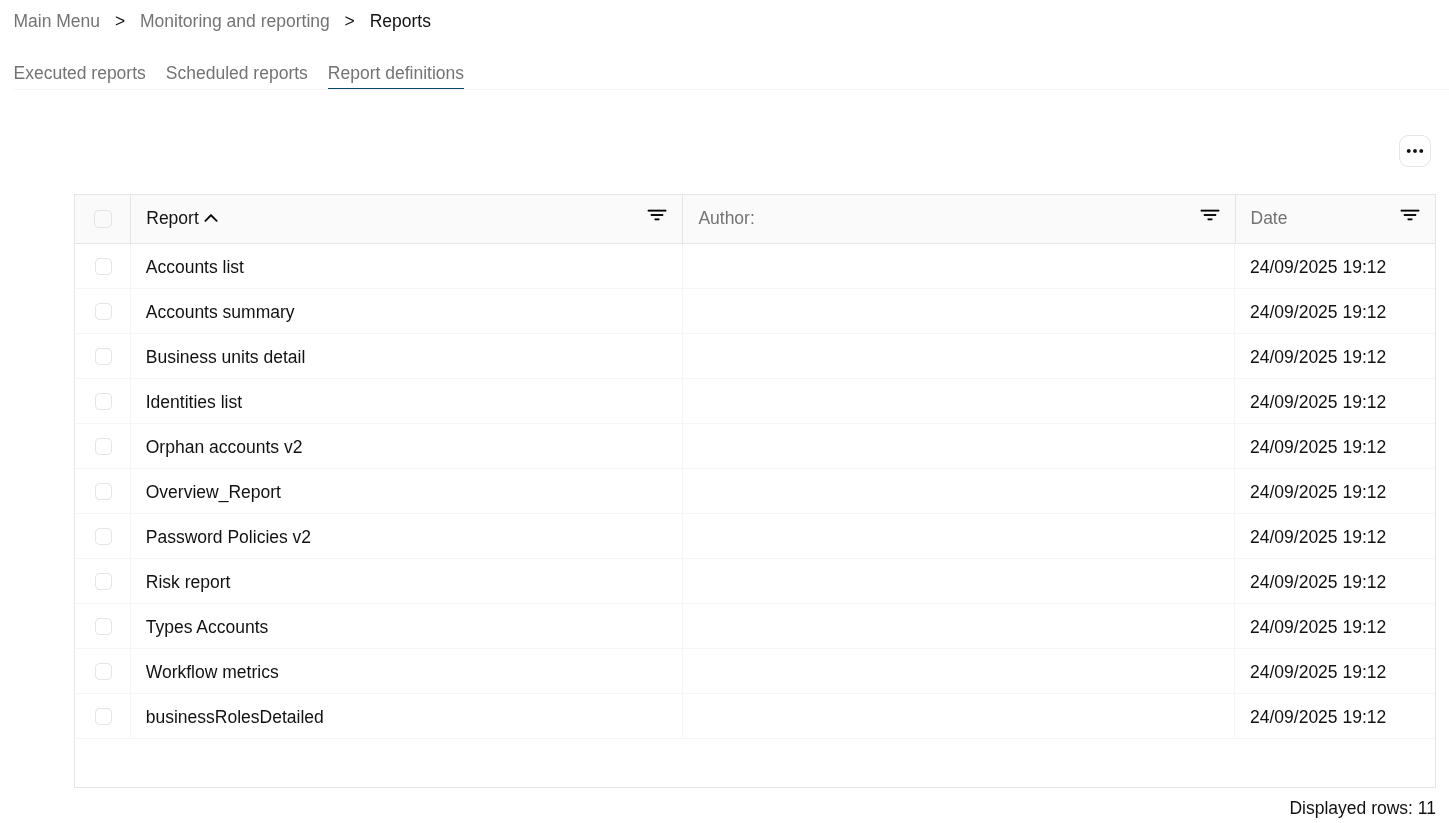
List of default reports
- Accounts list
- Accounts summary
- Business units detail
- Identities list
- Orphan accounts v2
- Overview_Report
- Password Policies v2
- Risk report
- Types Accounts
- Workflow metrics
- businessRolesDetailed
Explanation of the tabs
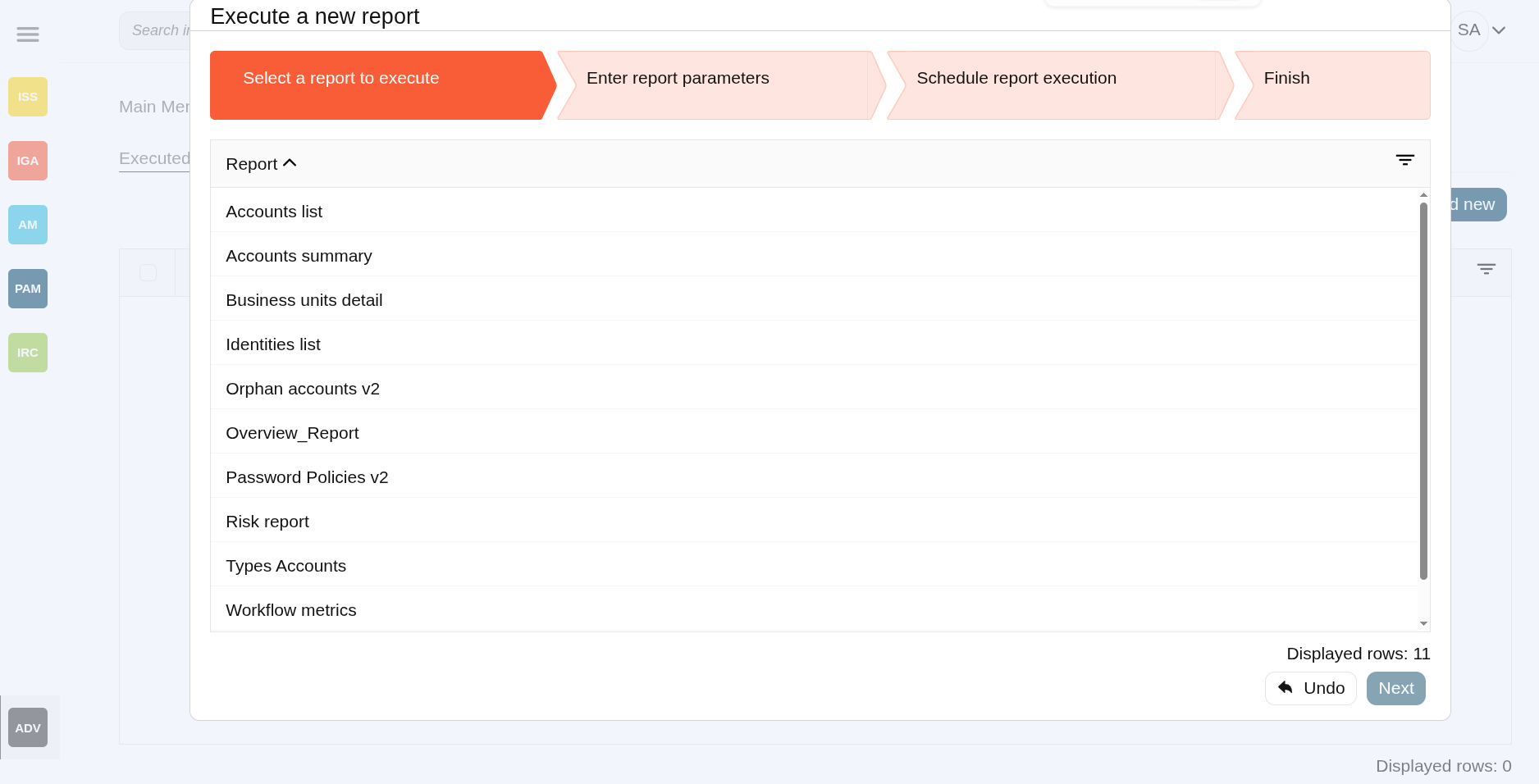
- Executed reports : where reports are manually started, executed or scheduled, also you can query the last executions.
Image
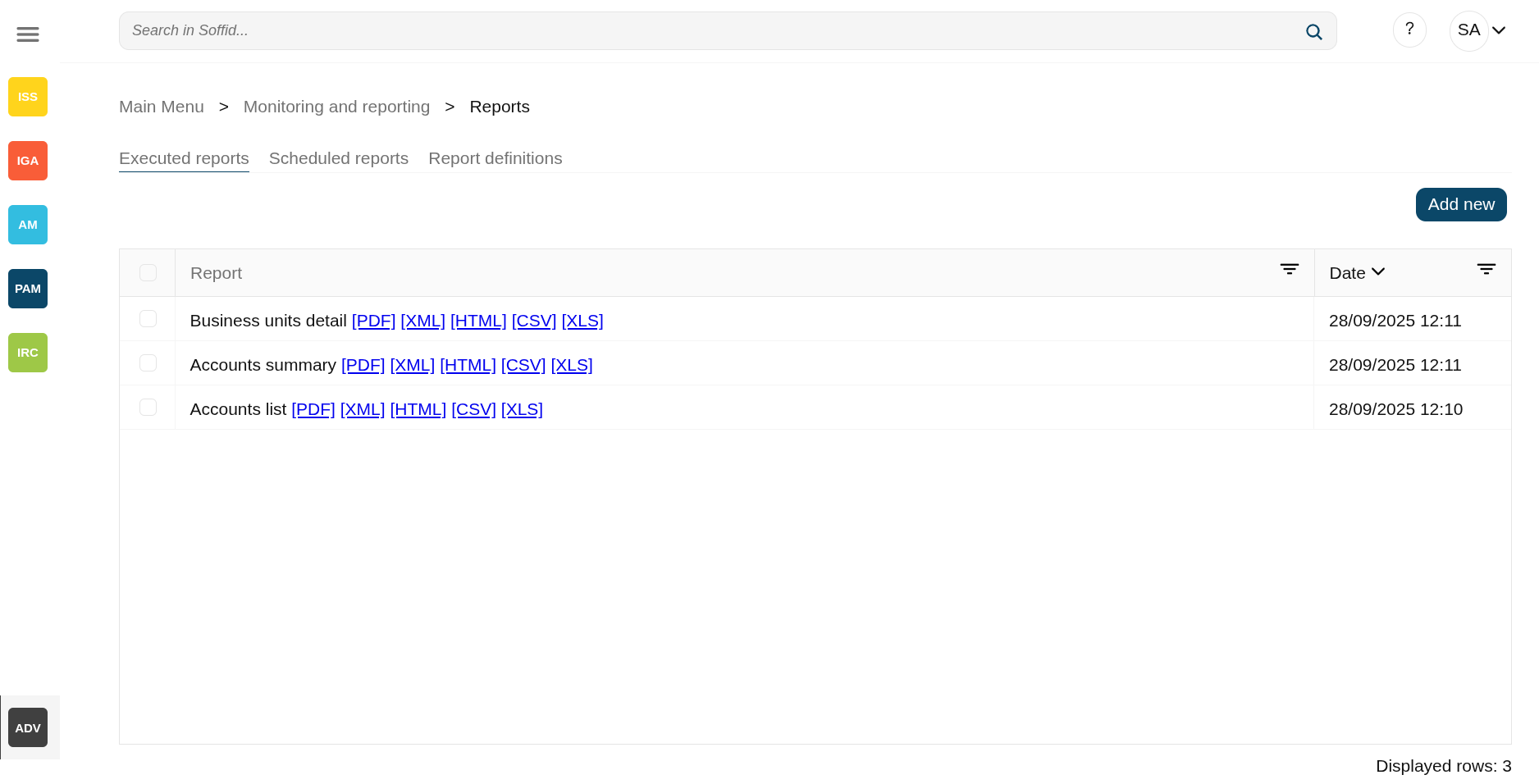
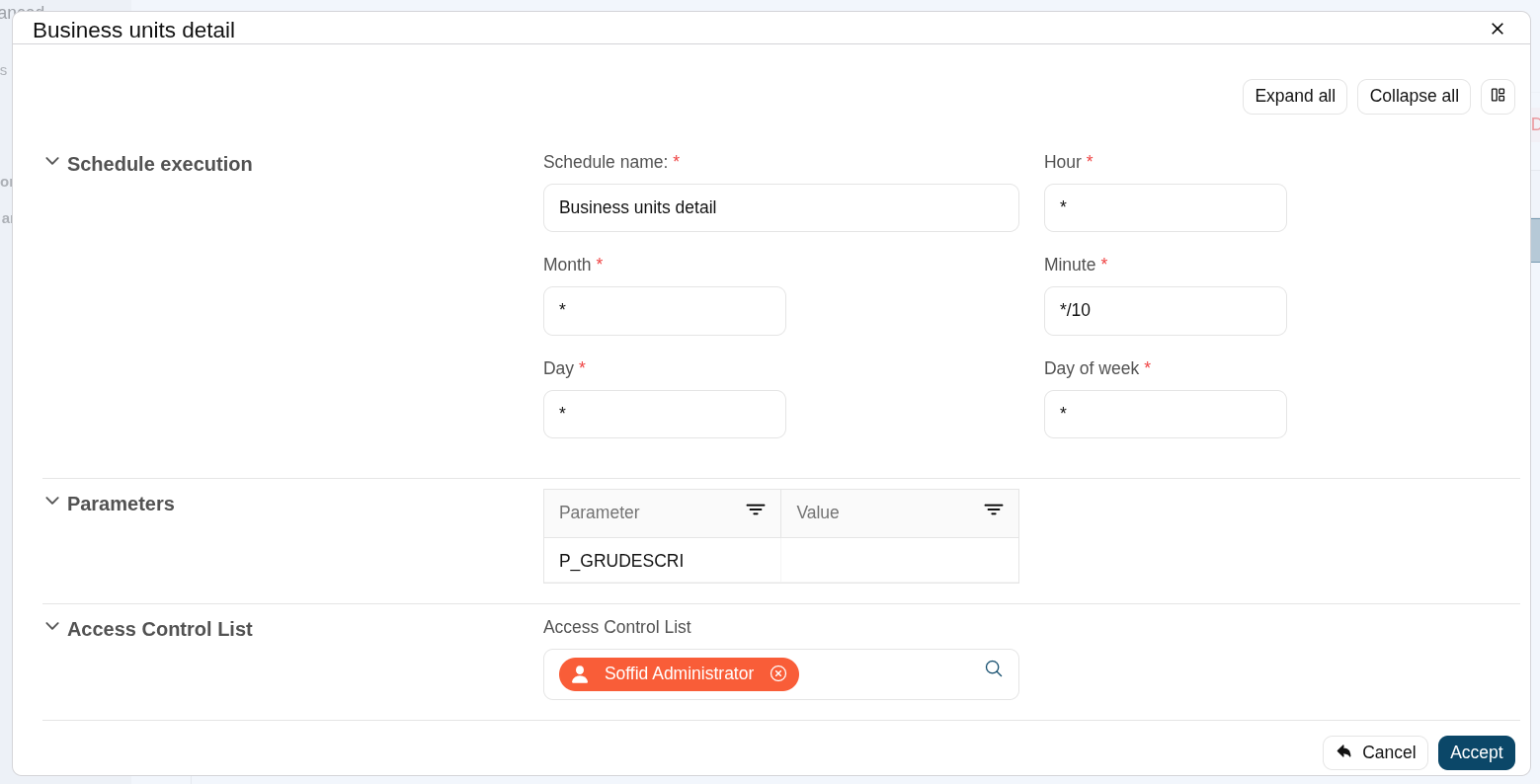
- Scheduled reports : wheresheduled reports are listed.
Image

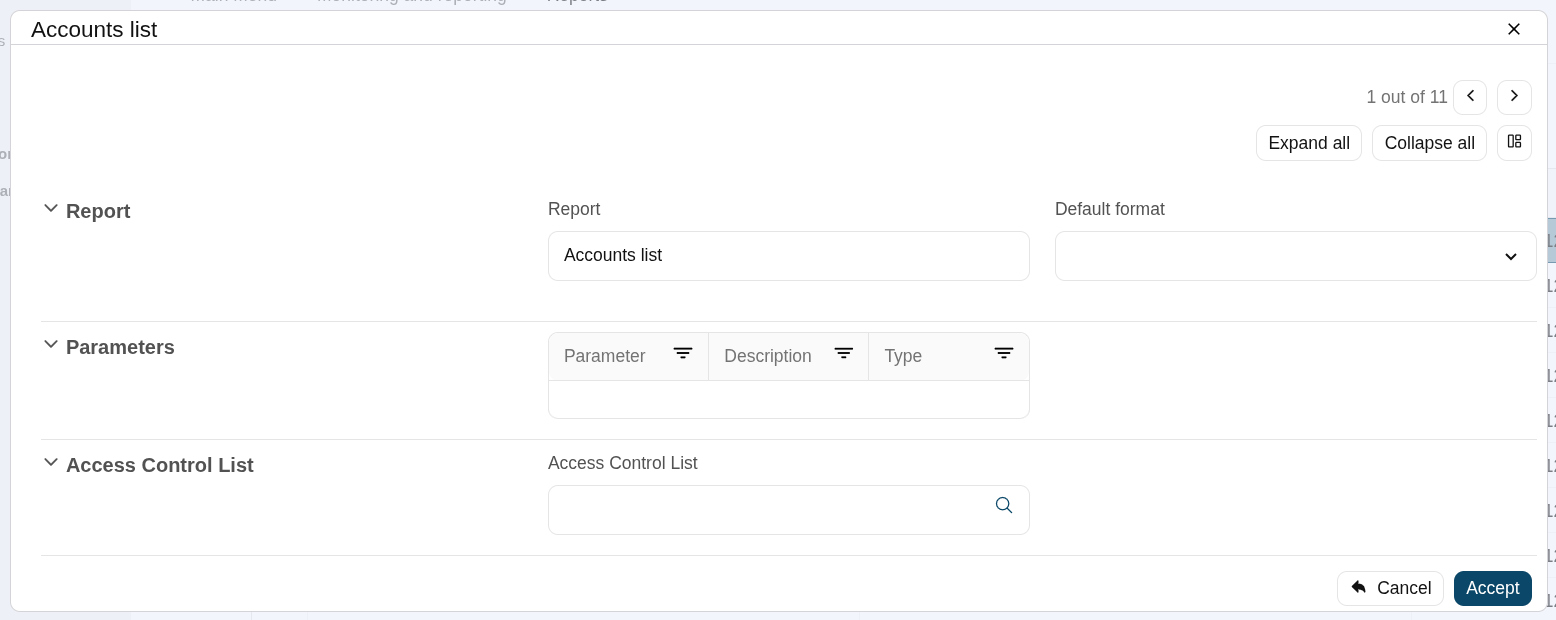
- Report definitions : where you can update the configuration of a report, upload a new definition version or upload a new report.
Image
Screen overview
Related objects
- Reports : where jasper reports are managed
- Dashboard editor : to create and manage dashboards
- Chart editor : to manage charts to be used in the dashboard editor
- Dataset editor : to manage datasets to be used in the chart editor
- Dashboards : where the dashboards created in the dashboard editor are displayed
Standard attributes
- Report: report.
- Date: date of execution of the report.
Actions
Executed reports
Table actions
| Add new | Allows you to start a new report execution |
| Delete report | Allows you to delete all reports selected with the checkbox in the first column |
| [PDF] [XML] [HTML] [CSV] [XLS] | By clicking on one of these options, you can download the file in the format you have selected. |
Popup actions
|
Undo |
Allows you to cancel the execution |
|
Next |
Allows you to continue to the next step |
|
"Execute now" |
Allows you to execute the reports at the moment |
|
"Schedule execution" |
Allows you to schedule the execution of the report |
|
Finish |
Finish the execution process popup |
Scheduled reports
Table actions
| Add new | Allows you to start a new report execution |
| Delete report | Allows you to delete all reports selected with the checkbox in the first column |
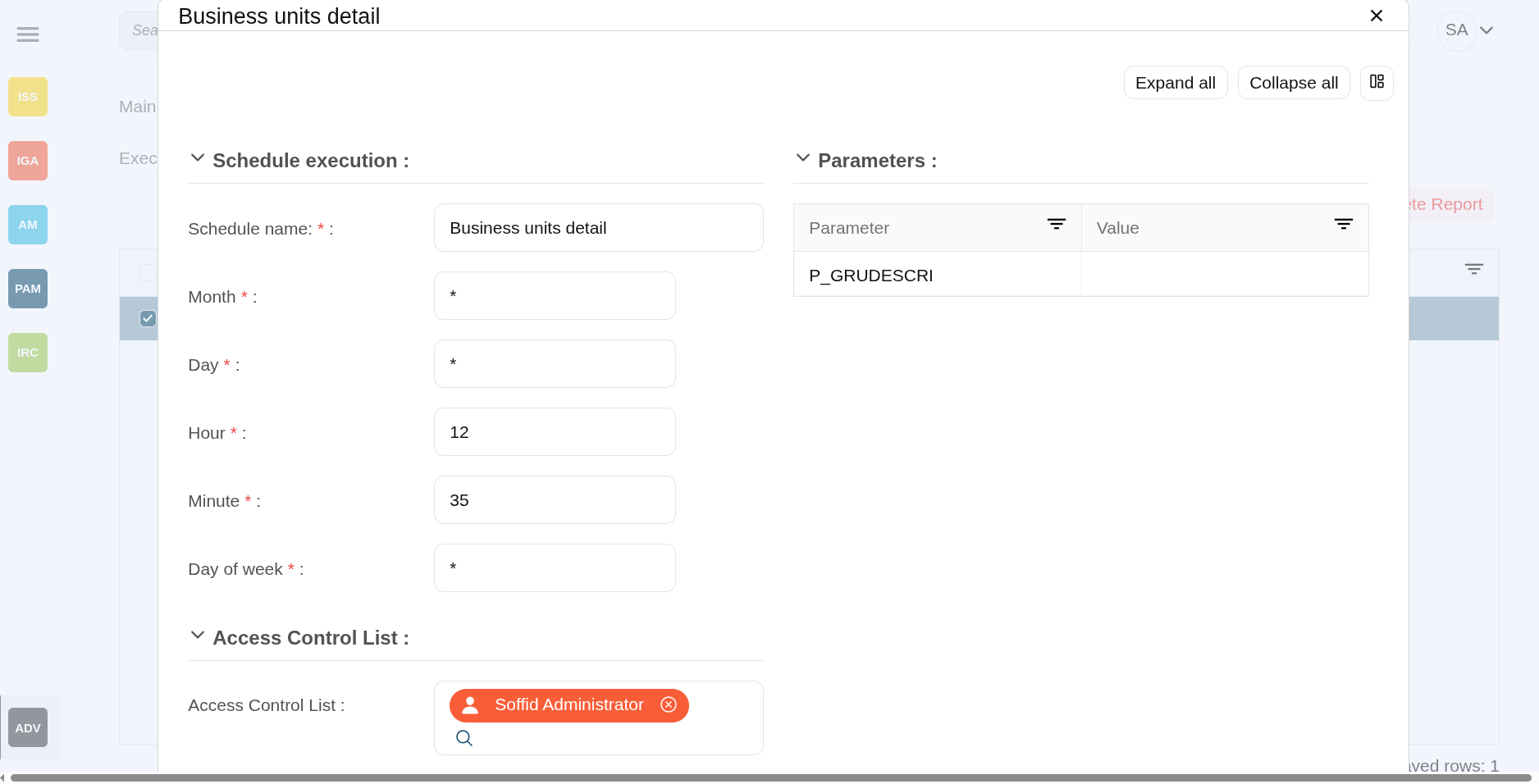
| "Edit scheduled report" |
When you select a report, a pop-up window will open with the planning information so that you can view or modify it.
The "Schedule execution" section is the same as that used in the Scheduled tasks screen.
With the "Access control list", you can specify which users can view this report.
Image
|
Popup actions
|
Undo |
Allows you to cancel the execution |
|
Next |
Allows you to continue to the next step |
|
"Execute now" |
Allows you to execute the reports at the moment |
|
"Schedule execution" |
Allows you to schedule the execution of the report |
|
Finish |
Finish the execution process popup |
Report definitions
Table actions
| Download iReport component |
Allows you to download the ireport-addon.jar.
That add-on will be customized and added to the iReport designer to design your owns reports. You can visit the How to start Reporting in Soffid page. |
| Upload |
Allows you to upload a designed report with iReport tool. You can upload defautl jasper files or customized jasper files as well.
First of all, you need to click the Upload option by clicking in the "Three points" icon. Then Soffid will display a window to pick up the new report (a .jasper file). |
| "Edit report definition" |
When you select a report, a pop-up window will open with the report definition so that you can view or modify it. |
You can download the iReport designer from sourceforge.
Configure dashboards > Dashboard editor (addon-reports)
Description
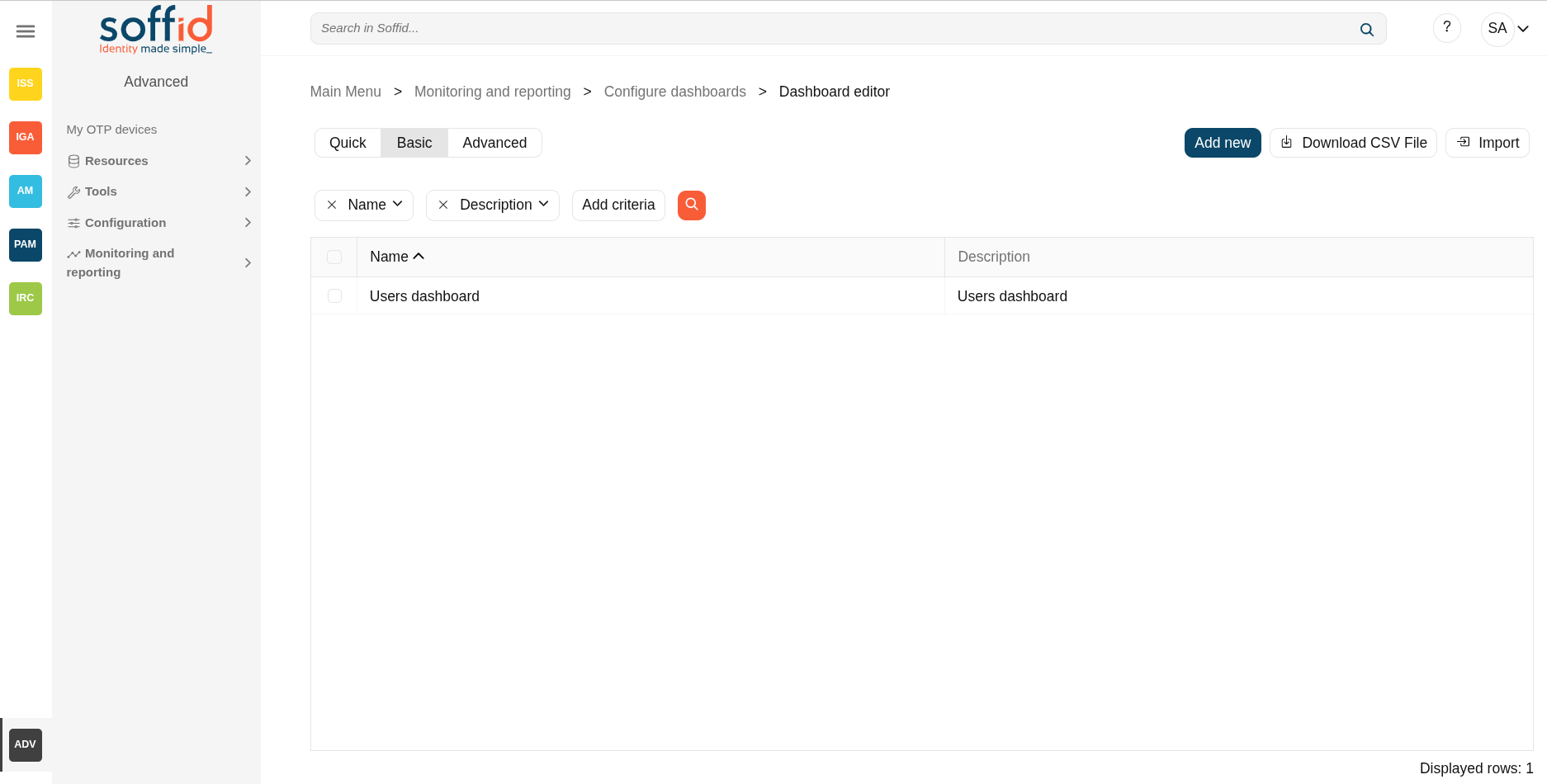
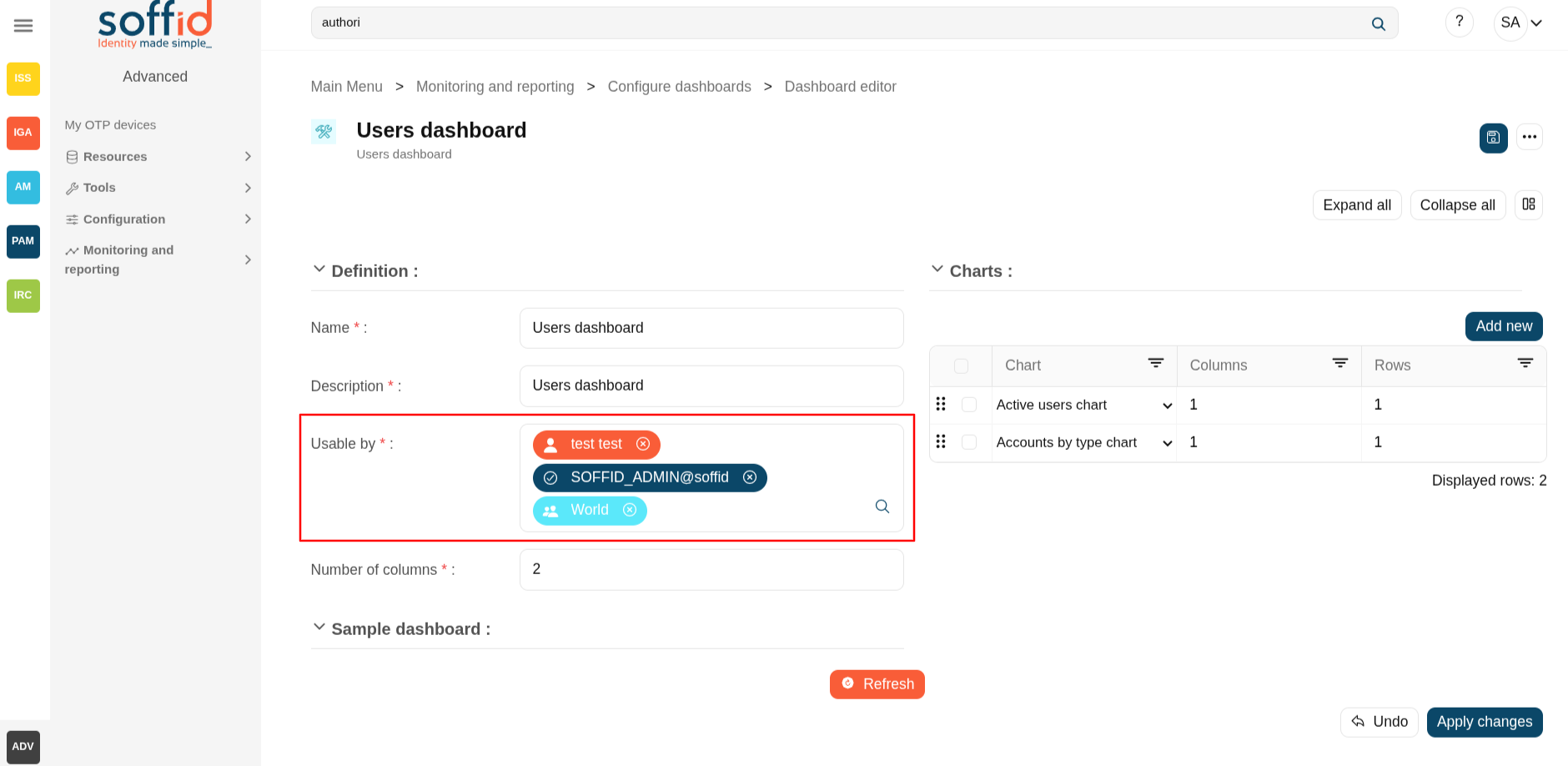
On this dashboard editor screen, you can create dashboards for different users/roles/groups that will contain the charts we have available.
You can create as many dashboards as you need. Each dashboard will have a different access list. For example, you can create one dashboard for administrator users, another for managers, and another for end users.
Screen overview
Related objects
- Dashboard editor : to create and manage dashboards
- Chart editor : to manage charts to be used in the dashboard editor
- Dataset editor : to manage datasets to be used in the chart editor
- Dashboards : where the dashboards created in the dashboard editor are displayed
Standard attributes
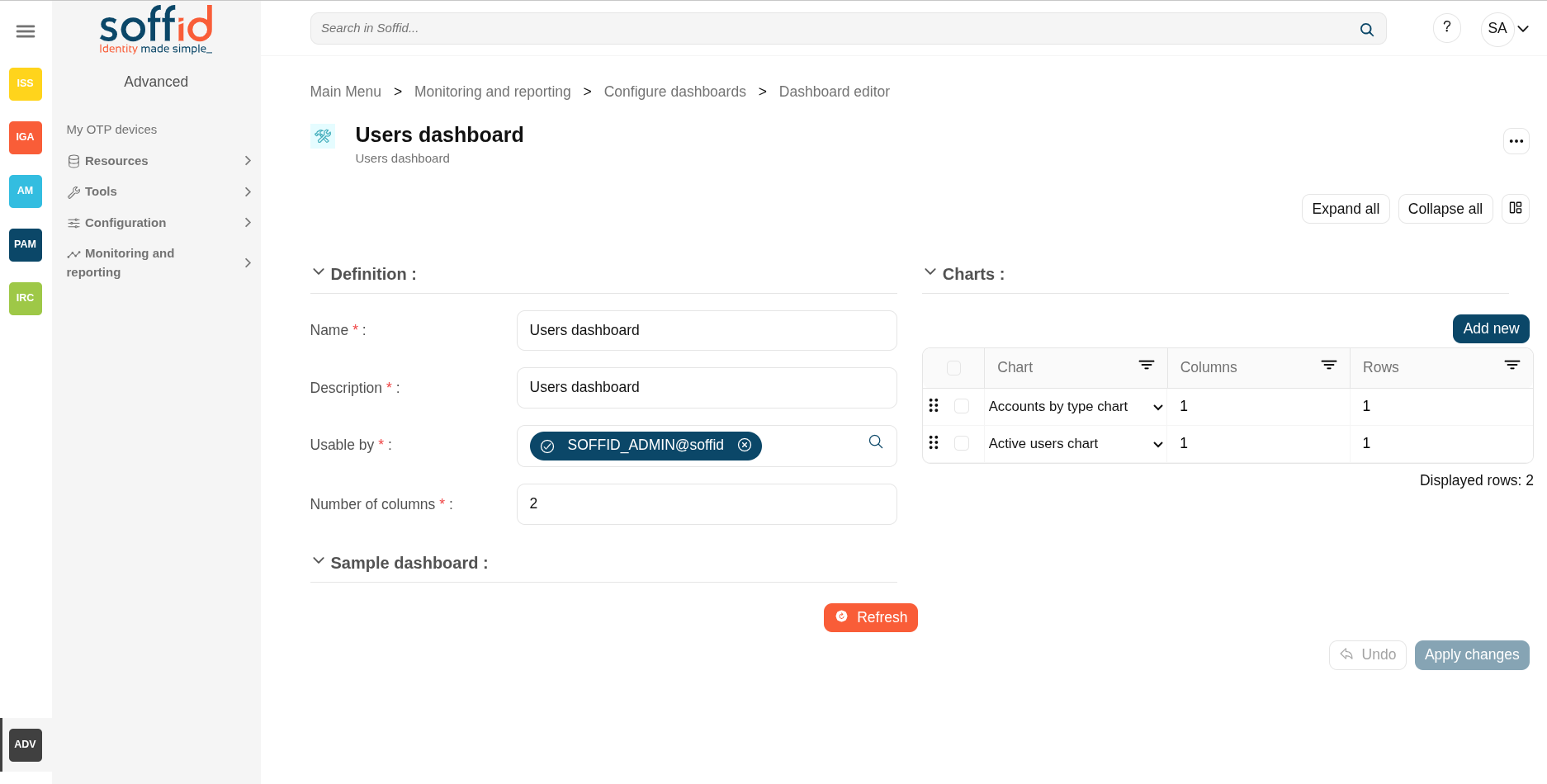
Definition:
- Name: name of the dashboard
- Description: description of the dashboard
- Usable by: who will be able to view the dashboard, can be selected users, roles and groups.

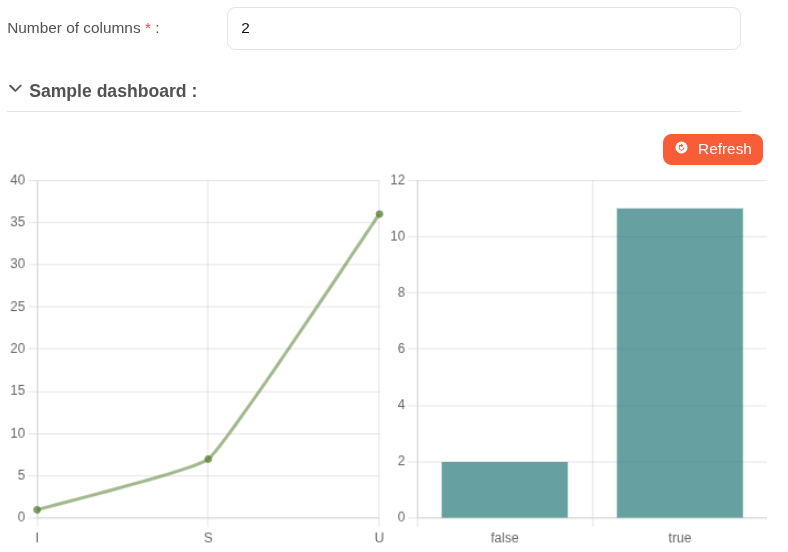
- Number of columns: number of columns to display in the dashboard page, 1 is the whole page, 2 are two columns


Charts:
- Chars: chart to be displayed
- Columns: columns needed to be displayed
- Rows: rows needed to be displayed
How to configure columns
| Chart | Number of columns (dashboard) | Columns (chart) | Rows (chart) |
| One single chart | 1 | 1 | 1 |
| Two charts square | 2 | 1/1 | 1/1 |
| Two rectangular charts one above the other | 2 | 2/2 | 1/1 |
| A double chart with two small ones on its right | 3 | 2/1/1 | 2/1/1 |
Actions
Table actions
| Add new | Allows you to create a new dashboard. |
| Delete | Allows you to delete all dashboards selected with the checkbox in the first column. |
| Download CSV file | Allows you to download a CSV file with the dashboard data. |
Dataset actions
| Apply changes (disk icon) | Allows you to save the updates of the dashboard. |
| Delete | Allows you to delete the dashboard |
| Expand all | Displays all the attributes of the different blocks. |
| Collapse all | Hide all attributes of the different blocks. |
| "Types of views" | Change the view type: Classic view, Modern view, Compact design. |
| Refresh | Allows you to display the selected charts. |
| Delete | Allows you to delete all charts selected with the checkbox in the first column. |
| Add new | Allows you to add a new chart to the chart. |
| Undo | Allows you to quit without applying any changes. |
| Apply changes | Allows you to save the updates of the group. |
Configure dashboards > Chart editor (addon-reports)
Description
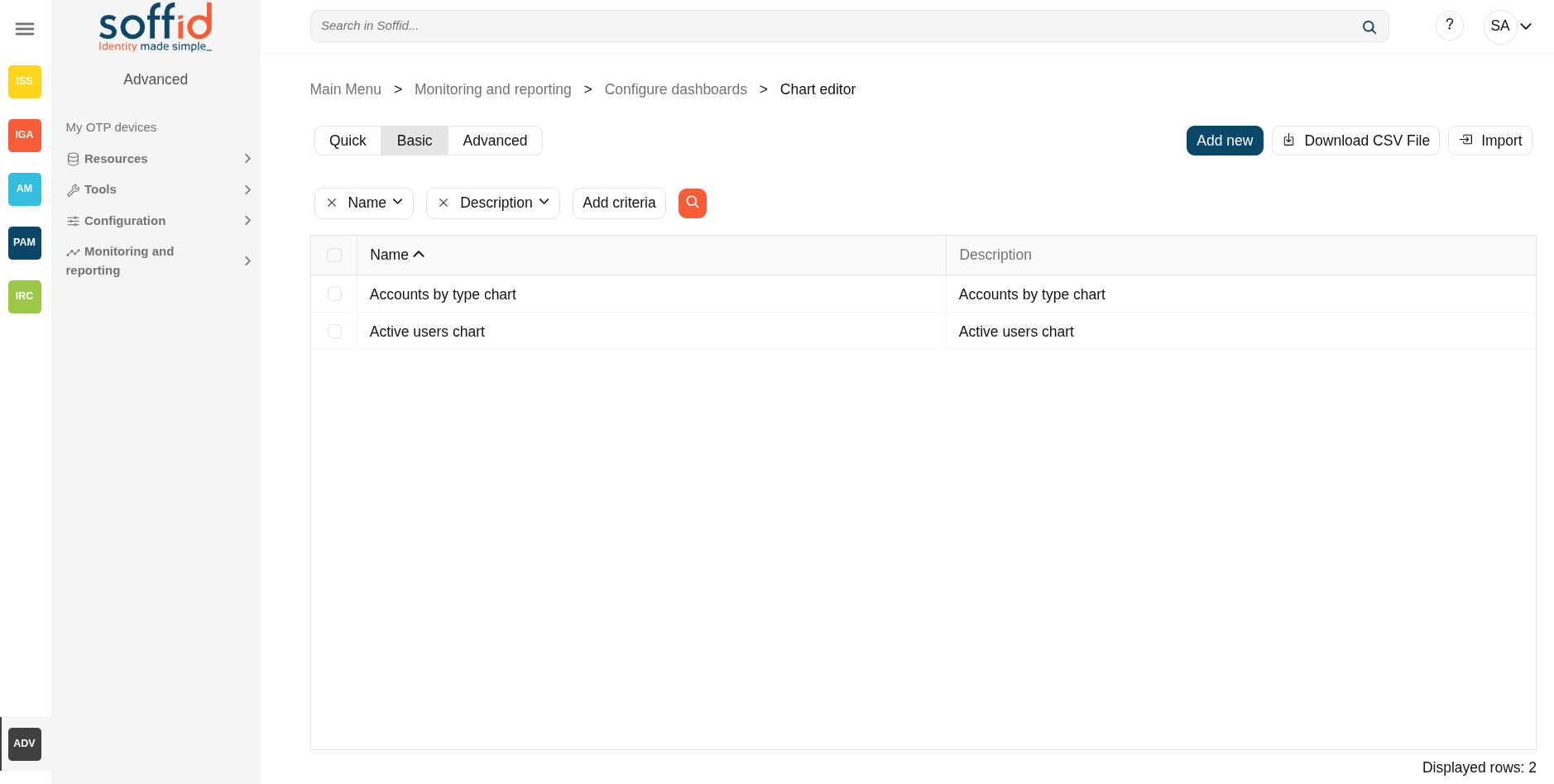
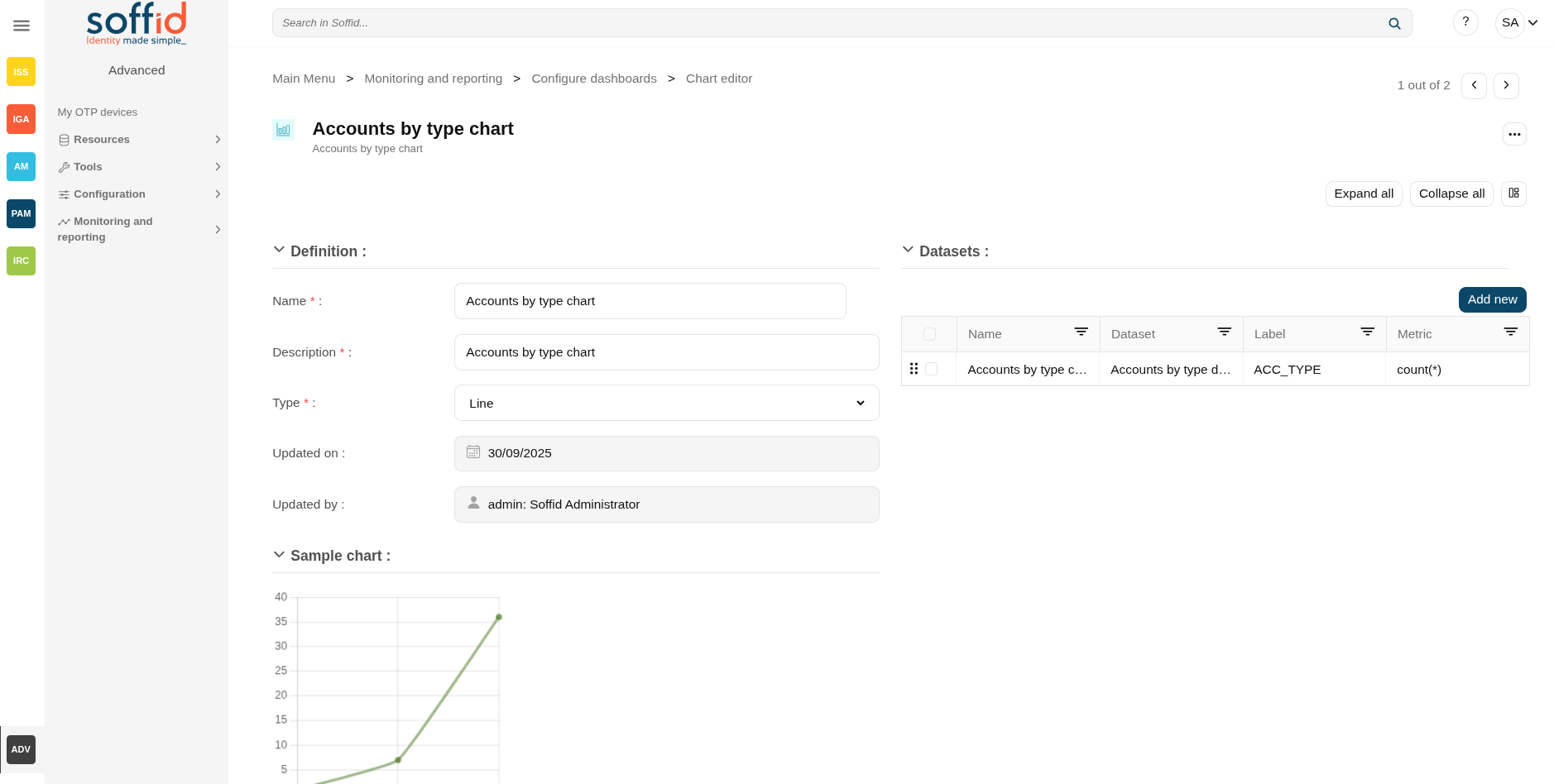
On this Chart editor screen, you can create charts from the datasets created on the Datasets edtior screen.
This chats will be used in the Dashboard editor screen.
Screen overview
Related objects
- Dashboard editor : to create and manage dashboards
- Chart editor : to manage charts to be used in the dashboard editor
- Dataset editor : to manage datasets to be used in the chart editor
- Dashboards : where the dashboards created in the dashboard editor are displayed
Standard attributes
- Name: name of the chart
- Description: description of the chart
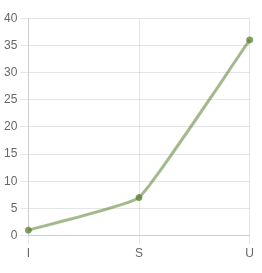
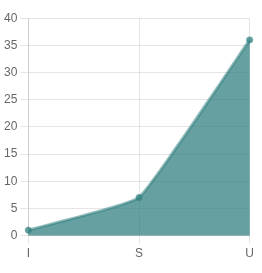
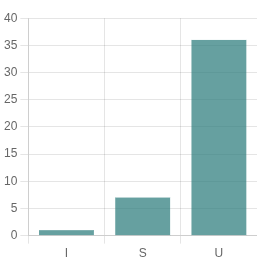
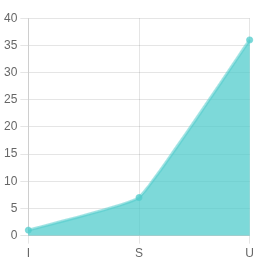
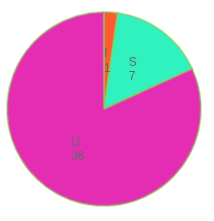
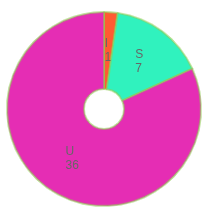
- Type: type of the chart
- Line

- Stacked area

- Bar

- Area

- Pie

- Doughnut

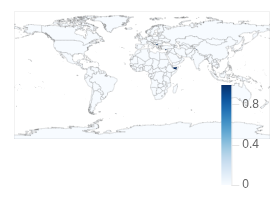
- World map

- Custom : to configure it
- Line
- Definition (only when type custom is selected): to configure a custom dashboard
- SQL sentence: SQL sentence to retrieve the dataset from the Soffid database
- Refresh interval in seconds: refresh interval in seconds to refresh the database
- Updated on: date of the last update
- Updated by: user or the last update
Actions
Table actions
| Add new | Allows you to create a new chart. |
| Delete | Allows you to delete all charts selected with the checkbox in the first column. |
| Download CSV file | Allows you to download a CSV file with the chart data. |
Dataset actions
| Apply changes (disk icon) | Allows you to save the updates of the chart. |
| Delete | Allows you to delete the chart |
| Expand all | Displays all the attributes of the different blocks. |
| Collapse all | Hide all attributes of the different blocks. |
| "Types of views" | Change the view type: Classic view, Modern view, Compact design. |
| Delete | Allows you to delete all datasets selected with the checkbox in the first column. |
| Add new | Allows you to add a new dataset to the chart. |
| Undo | Allows you to quit without applying any changes. |
| Apply changes | Allows you to save the updates of the group. |
Configure dashboards > Dataset editor (addon-reports)
Description
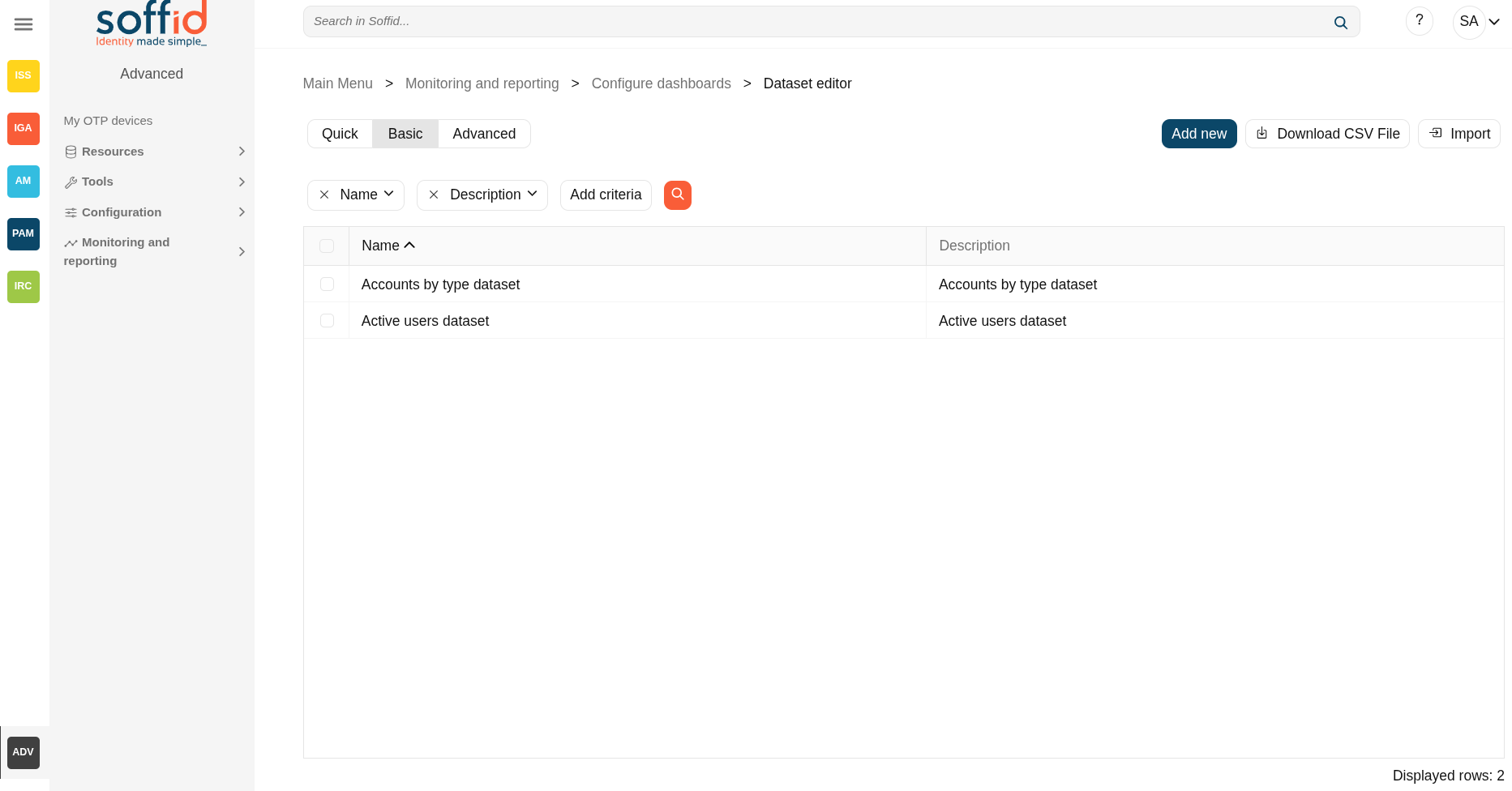
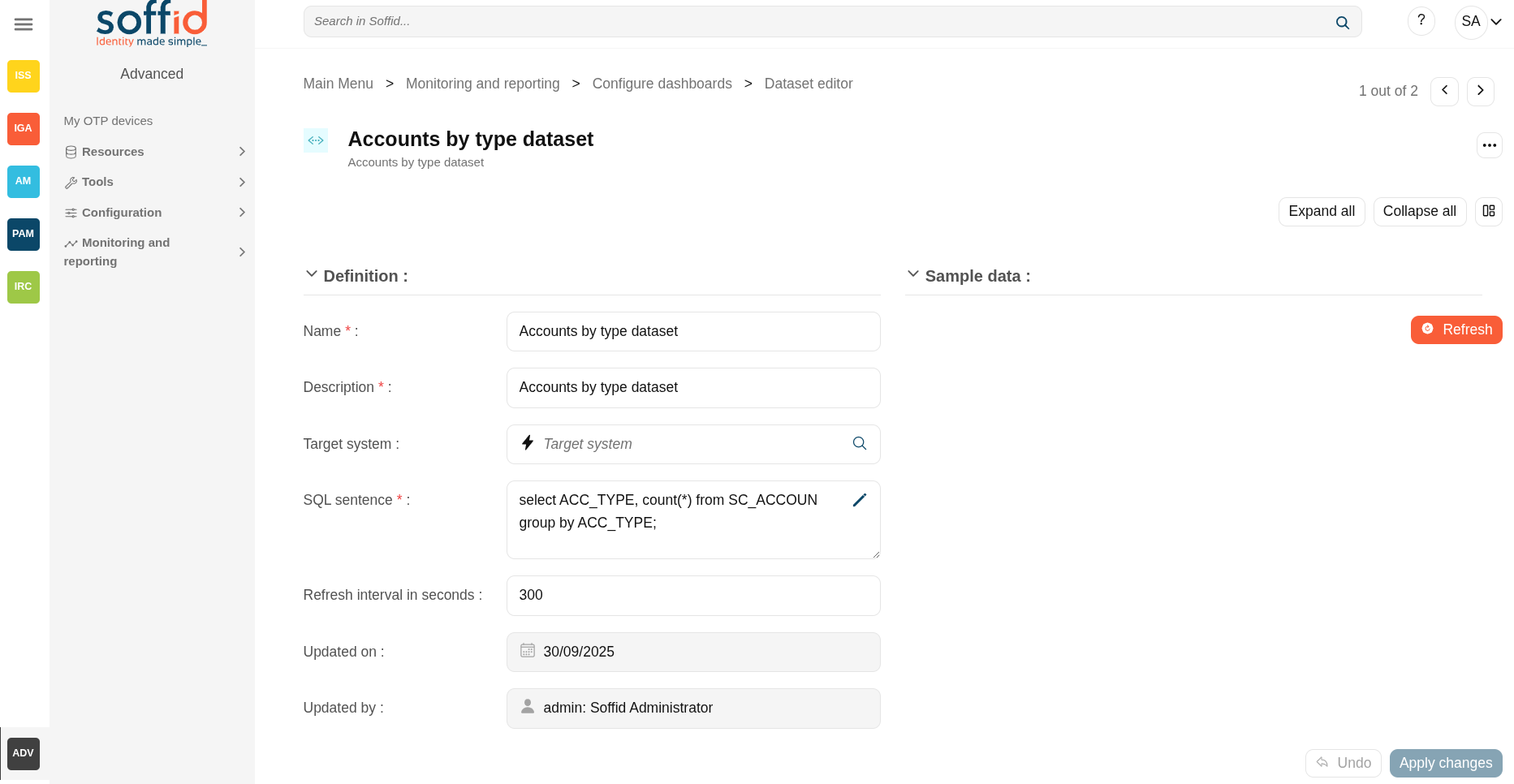
The datasets used to generate the charts, which in turn generate the dashboards, will be registered on the "Dataset editor" screen.
SQL queries will be used directly on the Soffid database to retrieve the data sets. If you wish to consult the structure of the Soffid database, you can consult the internal Soffid API (Entities section).
Screen overview
Related objects
- Dashboard editor : to create and manage dashboards
- Chart editor : to manage charts to be used in the dashboard editor
- Dataset editor : to manage datasets to be used in the chart editor
- Dashboards : where the dashboards created in the dashboard editor are displayed
Standard attributes
- Name: name of the dataset
- Description: description of the dataset
- Target system: use this field when the SQL query needs to be executed from an agent
- SQL sentence: SQL sentence to retrieve the dataset from the Soffid database
- Refresh interval in seconds: refresh interval in seconds to refresh the database
- Updated on: date of the last update
- Updated by: user or the last update
Actions
Table actions
| Add new | Allows you to create a new dataset. |
| Delete | Allows you to delete all datasets selected with the checkbox in the first column. |
| Download CSV file | Allows you to download a CSV file with the dataset data. |
Dataset actions
| Apply changes (disk icon) | Allows you to save the updates of the dataset. |
| Delete | Allows you to delete the dataset. |
| Expand all | Displays all the attributes of the different blocks. |
| Collapse all | Hide all attributes of the different blocks. |
| "Types of views" | Change the view type: Classic view, Modern view, Compact design. |
| Refresh | Allows you to display a table with the result of the SQL sentence. |
| Undo | Allows you to quit without applying any changes. |
| Apply changes | Allows you to save the updates of the group. |
Dashboards (addon-reports)
Description
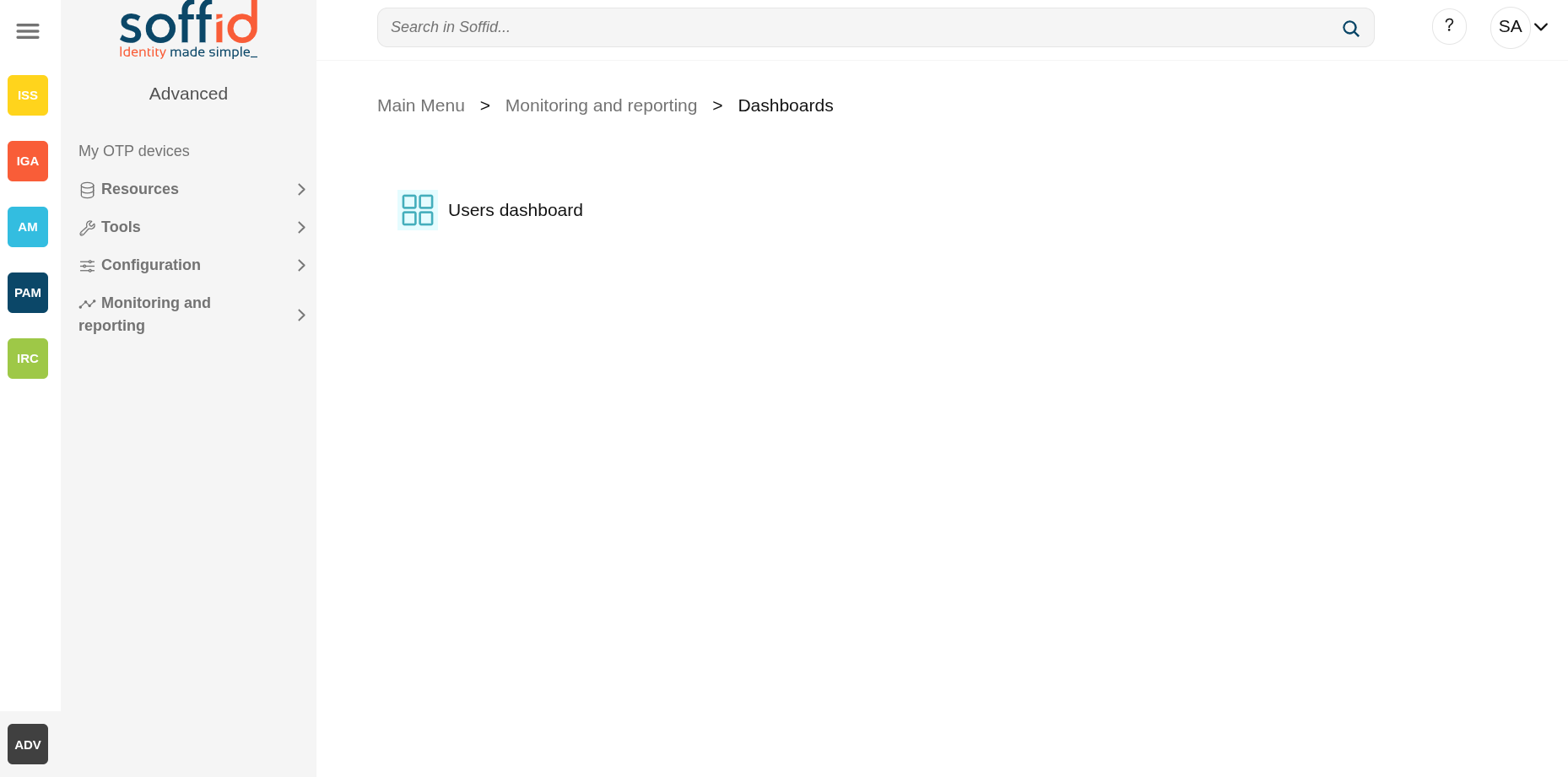
The Dashboards screen displays as many options as there are dashboards created. When you select one, the dashboard will be displayed on a new screen.
If you want to modify a dashboard, you must go to the edit pages for the Dataset editor, Chart editor, and Dashboard editor.
Screen overview
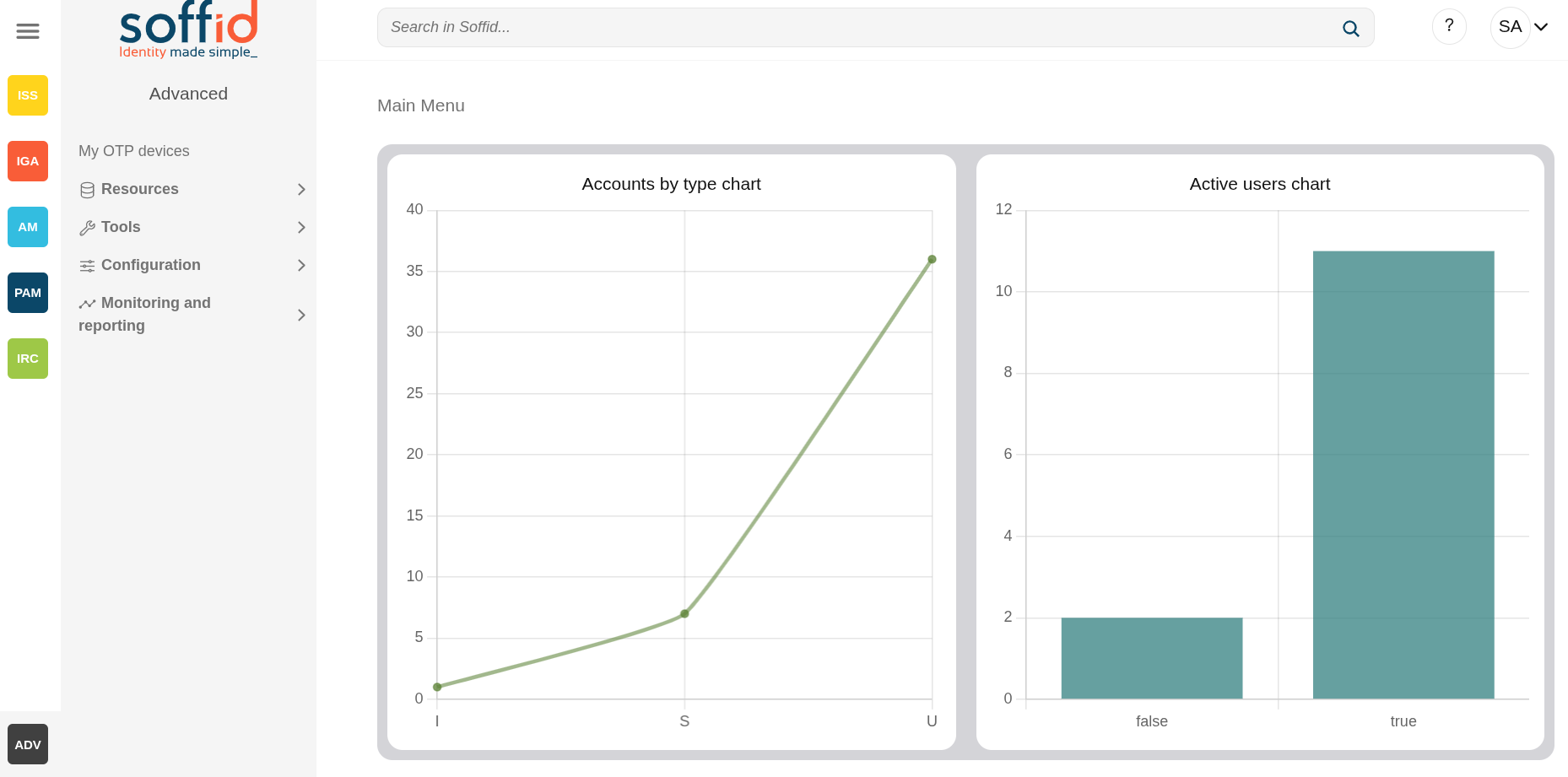
Related objects
- Dashboard editor : to create and manage dashboards
- Chart editor : to manage charts to be used in the dashboard editor
- Dataset editor : to manage datasets to be used in the chart editor
- Dashboards : where the dashboards created in the dashboard editor are displayed
Others
Permissions
Please note that dashboards will only be displayed to users if they have permission to view them.
In the Dashboard editor page, the user must be included in the "Usable by" field, as a user, a granted role or a primary/secondary group.
Dashboard editor
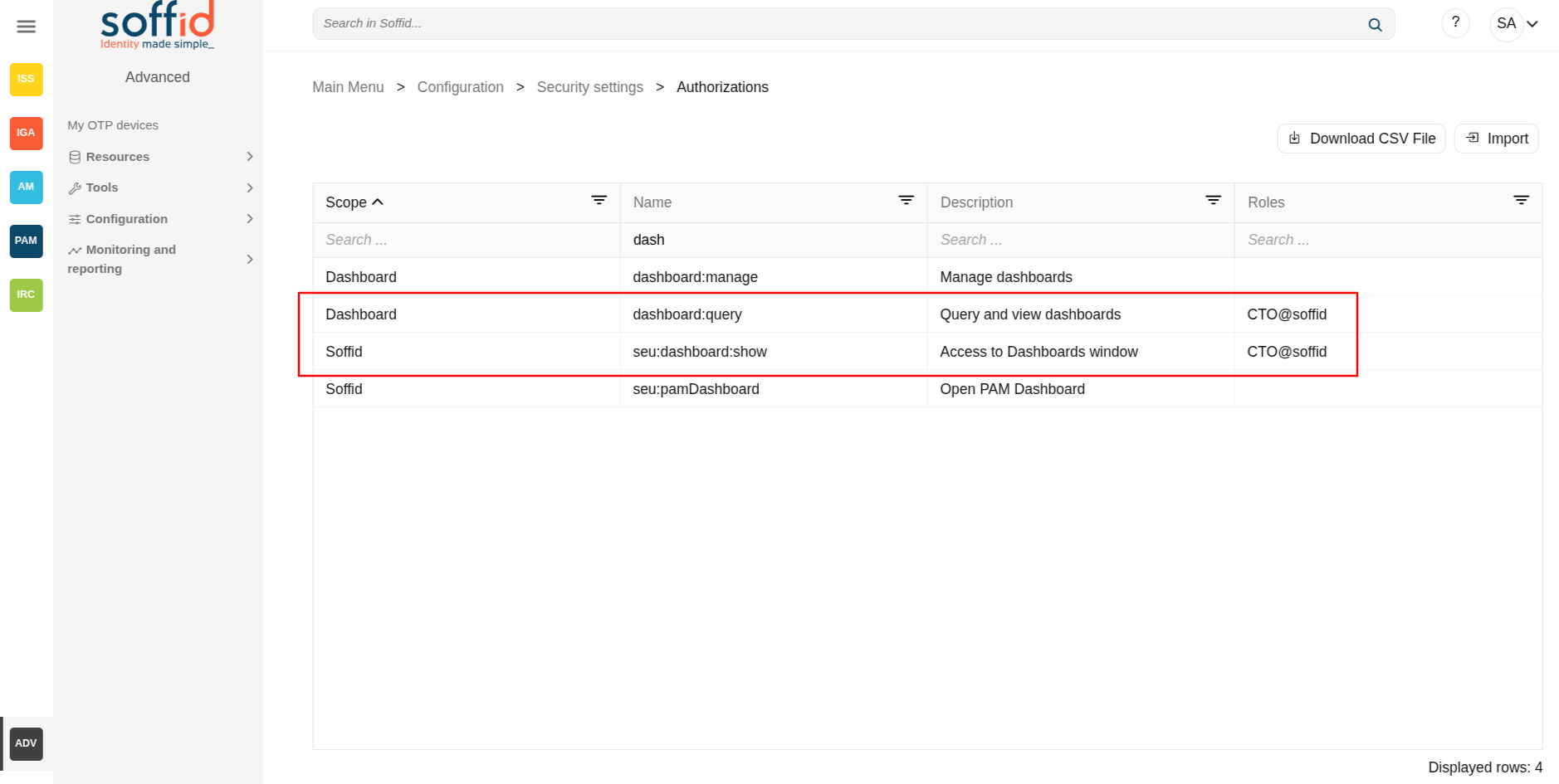
- seu:dashboard:show : to display the option in the menu
- dashboard:query : to display the dashboard itselt
Authorizations