Configuration > Web SSO (addon federation)
Configuration > Web SSO (addon federation)
- Attribute definition (addon federation)
- Attribute sharing policies (addon federation)
- Identity providers (addon federation)
- Service Providers (addon federation)
- Shared signals & events members (addon federation)
Attribute definition (addon federation)
Description
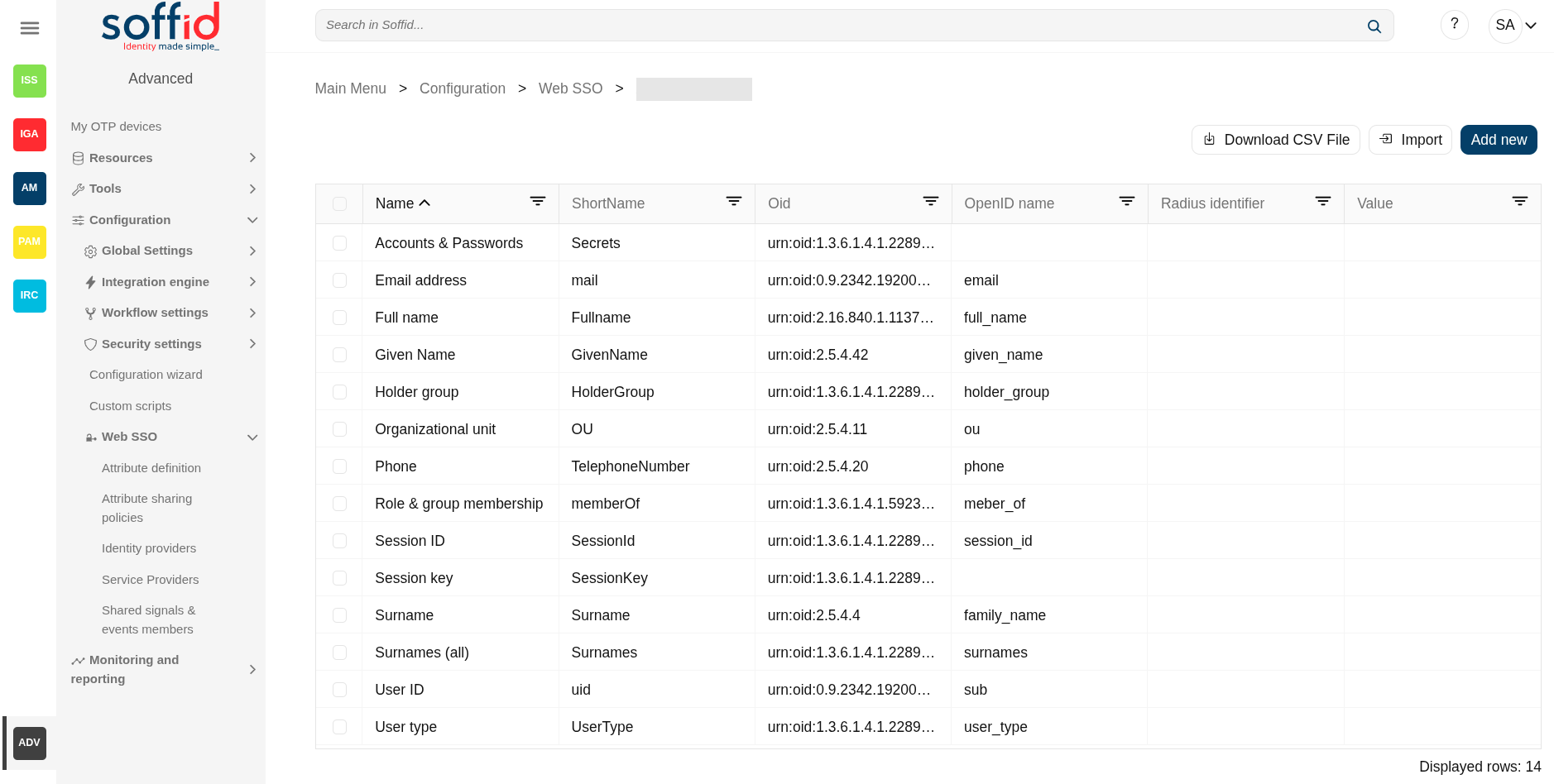
The attribute definition page displays all the auto-generated user attributes. Those attributes will be the attributes to deliver from the identity providers to the service providers depending on the defined rules.
Soffid has a default implementation for common attributes like FullName or uid, but you can modify it by creating a custom script.
Please note that this screen is available in the federation addon.
Screen overview
Related objects
- Attribute definition : where the list of possible attributes to be returned in the IdP response is defined
- Attribute sharing policies : where policies are defined with the attributes to be sent according to the authenticated service provider
- Identity providers : configuration of the identity providers
- Service providers : configuration of the service providers
- Metadata : where user attributes are defined
Standard attributes
- Name: a descriptive name.
- ShortName: short name to be used by SAML 2 service providers (without blanks).
- Oid: OID to be used by SAML 1 and SAML 2 service providers.
- OpenID name: OpenID name to be used by OAuth and OpenID connect service provider.
- Radius identifier: Radius ID name.
- Value: an attribute value. Allows you to define a script to determine the value of the attribute.
Actions
Table actions
| Download CSV file | Allows you to download a csv file with the data included in the table. |
|
Import |
Allows you to upload a CSV file with the attribute list to add or update them. First, you need to pick up a CSV file, that CSV has to contain a specific configuration. Then you need to check the content to be loaded, it is allowed to choose if you want or not to load a specific attribute. And finally, you need to select the mappings for each column of the CSV file to import the data correctly and to click the Import button. |
|
Add new |
Allows you to add a new attribute. To add a new attribute it will be mandatory to fill in the required fields. |
|
Delete attribute |
Allows you to delete one or more attributes by selecting one or more records and next clicking this button. To perform that action, Soffid will ask you for confirmation, you could confirm or cancel the operation. |
Detail actions
|
Apply changes (disk button) |
Allows you to save the data of a new attribute or to update the data of a specific attribute. To save the data it will be mandatory to fill in the required fields. |
|
Delete parameter |
Allows you to delete a specific Soffid parameter. To delete a parameter you can click on the "three points" icon and then click the delete parameter button. Soffid will ask you for confirmation to perform that action, you could confirm or cancel the operation. |
|
Undo |
Allows you to quit without applying any changes. |
|
Apply changes |
Allows you to save the data of a new attribute or to update the data of a specific attribute. Once you apply changes, the plugin details page will be closed. |
Examples
Scripts
Soffid IdP has a default implementation for common attributes like FullName or uid, but you can modify it by creating a custom script. You can use the custom script to define the value of an attribute.
Examples to define the value of an attribute.
Example 1
Return full name in upper case:
return fullName.toUpperCase();Example 2
Send one value if an attribute is blank. Otherwise, its value:
return
    attributes{"company"} == null ||
    attributes{"company"}.isEmpty() ?
        "Soffid" :
        attributes{"company"}
Example 3
Use serverService to fech the OU attribute of the account owned by the user in the Active Directory (AD) system:
for (account: serverService.getUserAccounts(id, "ad")) {
    return account{"attributes"}{"ou"};
}
return null;
Example 4
Return the secondary groups of the user.
var groups = serviceLocator.getGroupService().findUsersGroupByUserName(userName);
var list = "";
for (var i=0; i<groups.size(); i++) {
  group = groups.get(i);
  if (list.length()>1)
    list = list+",";
  list = list+group.group;
}
return list;
Example 5
Retrive custom attributes of a holdergroup
if (holderGroup!=null) {
  ug = serviceLocator.getGroupService().findUserGroupByUserNameAndGroupName(userName, holderGroup);
  if (ug!=null && ug.attributes!=null && ug.attributes{"customAttribute"}!=null)
    return ug.attributes{"customAttribute"};
}
return null;
Attribute sharing policies (addon federation)
Description
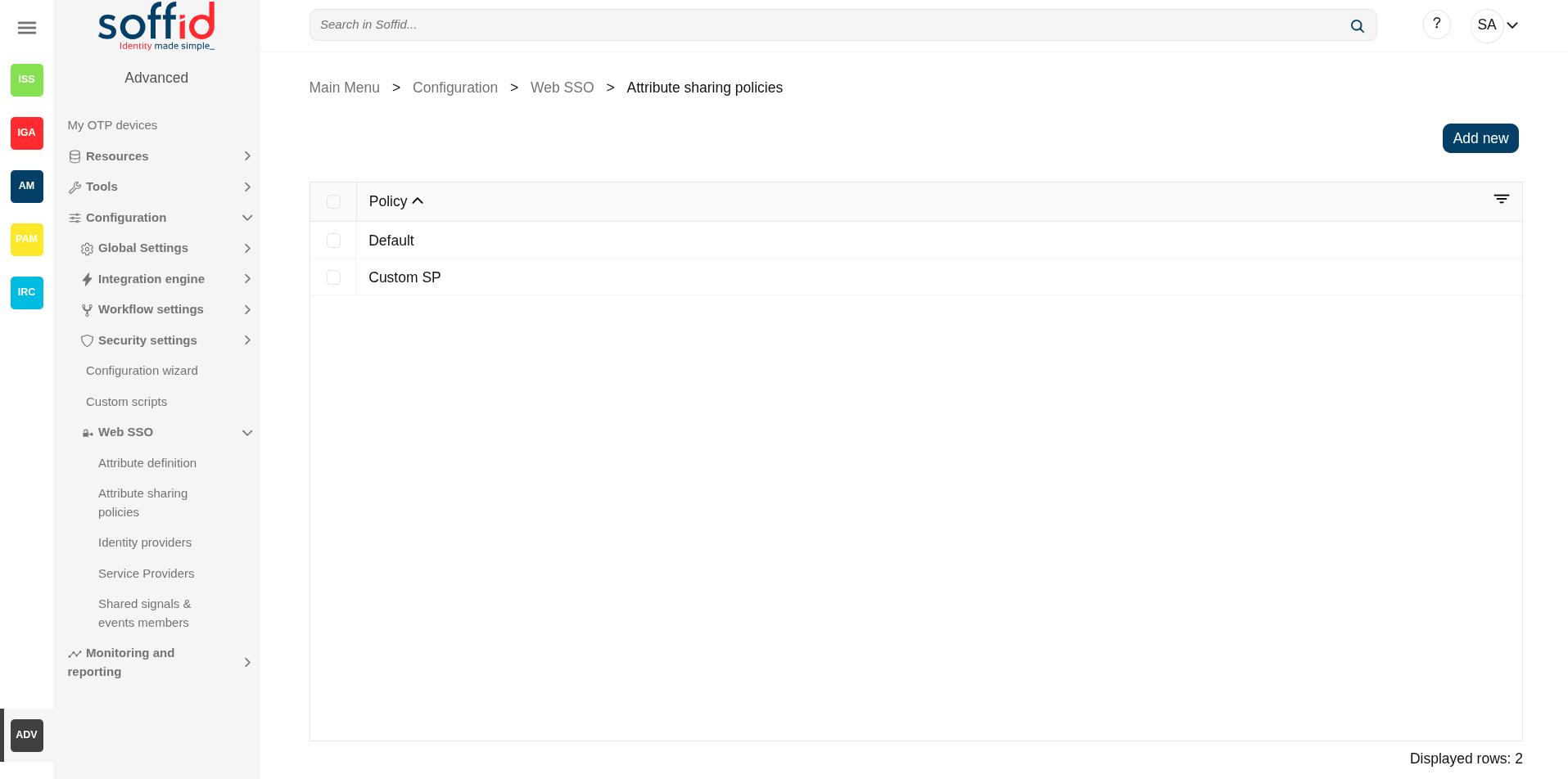
Soffid allows you to define security rules as policies that apply to any attribute that should be delivered from identity providers to service providers.
Please note that at least one policy must be created to return attributes to service providers. If there is no policy, or none is met, no attributes will be sent.
When logging in with a service provider, all policies are validated and more than one may be applied. In this case, the sum of all attributes contained in those policies will be returned.
Please note that this screen is available in the federation addon.
Screen overview
Related objects
- Attribute definition : where the list of possible attributes to be returned in the IdP response is defined
- Attribute sharing policies : where policies are defined with the attributes to be sent according to the authenticated service provider
- Identity providers : configuration of the identity providers
- Service providers : configuration of the service providers
- Metadata : where user attributes are defined
Standard attributes
Table attributes
- Policy: policy name.
Policy attributes
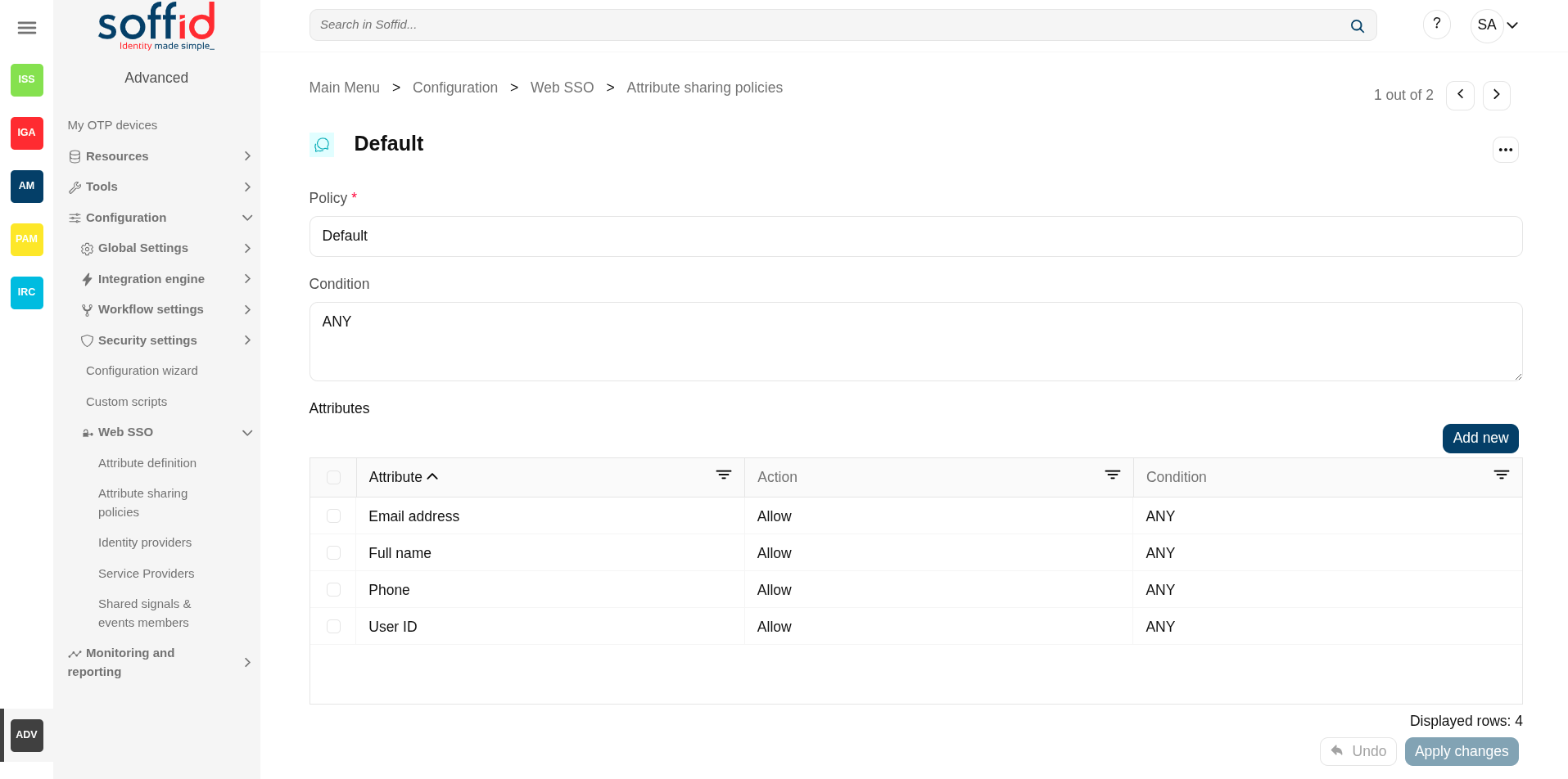
- Policy: policy name.
- Condition (policy): a boolean expression that will be evaluated first. If this expression evaluates to false, the rule is completely ignored. It is used to evaluate to which applies the policy.
- Attributes: allows you to add attributes with the proper condition for each one.
- Attribute: allows you to select an attribute from the attribute list. Those attributes are defined at the Attribute definition page.
- Allow: if selected value is Yes, the attribute will be shared when the condition was true. If selected value is No, the attribute will no be shared.
- Condition (shared attributes): a boolean expression to be evaluated. Allows you to customize a condition to evaluated and decide if the attribute should or not be delivered
Condition attributes
It is a boolean expression to be evaluated. The condition will be evaluatuated when the Allow value was yes. You can use the conditions to configure the conditions policy and to configure the shared attributes.
Type: the boolean operator are the follow:
- Not: yes or not
- Type: the boolean operator are the follow
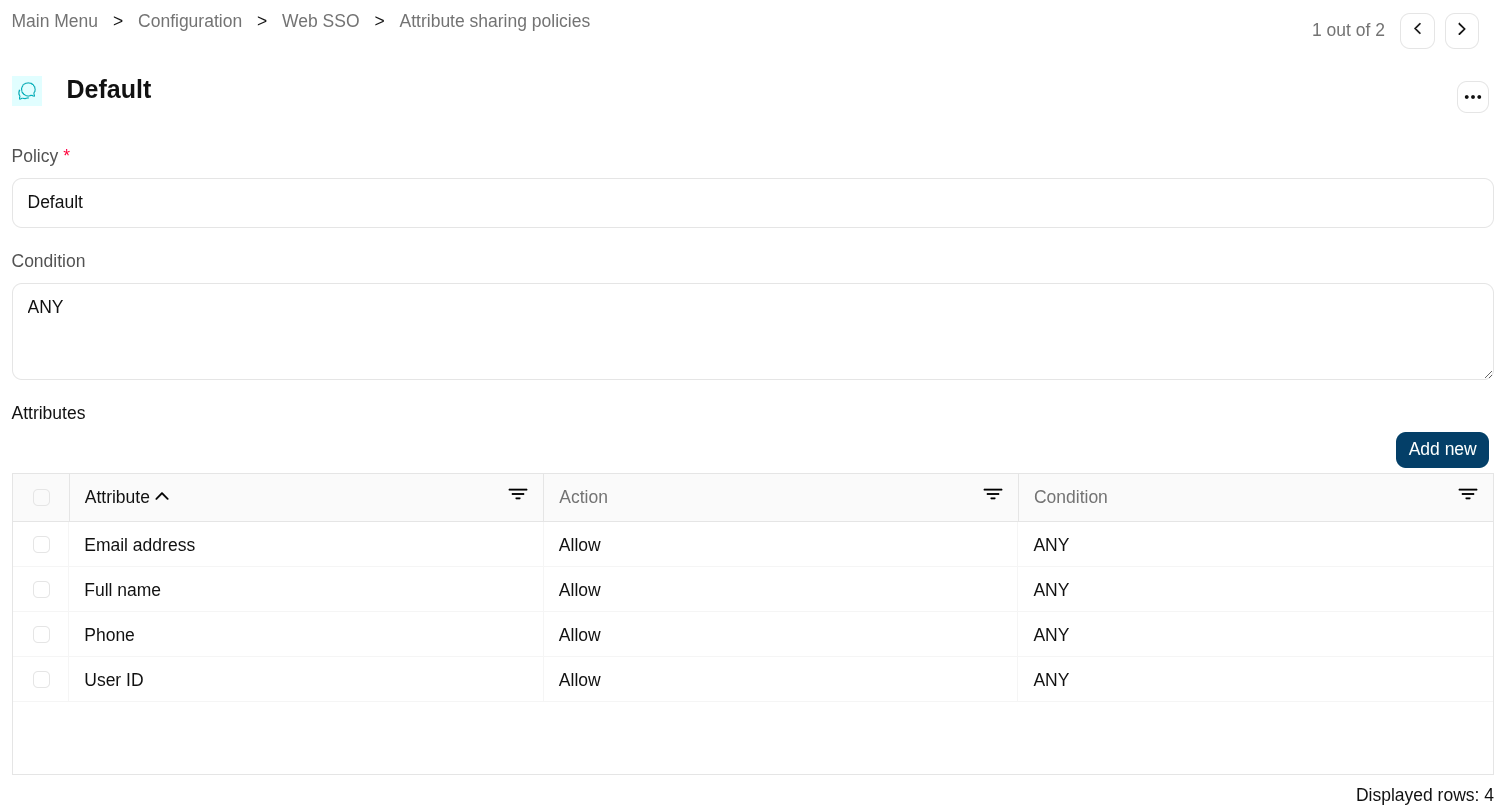
- ANY: the result will always be true.
- OR: the result will be true if any of its subexpressions are true
- AND: the result will be true if all of its subexpressions are true.
- Attribute requester: the result will be true if the service provider public id equals the specified value. Optionally, the ignore case checkbox will ignore upper and lower case differences.
- Attribute Issuer: the result will be true if the identity provider public id equals the specified value. Optionally, the ignore case checkbox will ignore upper and lower case differences.
- PrincipalName: the result will be true if the principal name equals the specified value. Optionally, the ignore case checkbox will ignore upper and lower case differences. Mind that some service providers want to use the email address as PrincipalName. Some others use the account name or X.509 subject name.
- Authentication Method: the result will be true if the used authentication method equals the specified value. Optionally, the ignore case checkbox will ignore upper and lower case differences. Some useful values are:
- When using SAML, it contains the standard SAML identifier corresponding to the used authentication method. When multifactor authentication is used, it contains the strongest one:
- urn:oasis:names:tc:SAML:2.0:ac:classes:PasswordProtectedTransport password authentication (using SSL)
- urn:oasis:names:tc:SAML:2.0:ac:classes:PreviousSession already authenticated using previous session
- urn:oasis:names:tc:SAML:2.0:ac:classes:X509 user has a X.509 certificate
- urn:oasis:names:tc:SAML:2.0:ac:classes:TLSClient X.509's public key has been verified using TLS protocol
- urn:oasis:names:tc:SAML:2.0:ac:classes:TimeSyncToken time synchronized token.
- urn:oasis:names:tc:SAML:2.0:ac:classes:unspecified unspecified protocol. This tag is used when Soffid IDP relies on third party identity providers that don't give information about the authentication method used, such as oAuth or OpenId.
-
When using OpenID connect, the value can be any of:
-
P: Password
-
PO: Password + OneTimePassword
-
PC: Password + Certificate
-
PE: Password + External identity provider
-
K: Kerberos token
-
KO: Kerberos token + OneTimePassword
-
KC: Kerberos token + Certificate
-
KE: Kerberos token + External identity provider
-
E: External identity providers
-
EO: External identity provider + One time password
-
EC: External identity provider + Certificate
-
O: One time password
-
OC: One time password + Certificate
-
C: Certificate
-
- When using SAML, it contains the standard SAML identifier corresponding to the used authentication method. When multifactor authentication is used, it contains the strongest one:
- Attribute value: the result will be true if the related attribute has a specific value.
- Attribute requester (regex): the result will be true if the service provider public id matches the specified regular expression.
- Attribute issuer (regex): the result will be true if the identity provider public id matches the specified regular expression.
- Principal name (regex): the result will be true if the principal name matches the specified regular expression. Mind that some service providers want to use the email address as PrincipalName. Some others use the account name or X.509 subject name.
- Authentication method (regex): the result will be true if the used authentication method matches the specified regular expression.
- Attribute value (regex): the result will be true if the related attribute has a specific value.
- Attribute requester in entity group: the result will be true if the service provider belongs to the specified group.
- Attribute issuer in entity group: the result will be true if the identity provider belongs to the specified group.
- Attribute issuer nameID format: the result will be true if the identity provider supports a specified identifier format.
- Issuer entity attribute: the result will be true if the identity provider metadata contains a specified attribute name and value.
- Issuer entity attribute (regex): the result will be true if the identity provider metadata contains an attribute name and value that matches the specified regular expression.
- Requester entity attribute:the result will be true if the service provider metadata contains a specified attribute name and value.
- Requester entity attribute (regex):the result will be true if the service provider metadata contains an attribute name and value that matches the specified regular expression.
- Attribute requester nameID format: the result will be true if the service provider supports a specified identifier format.
Actions
Table actions
| Add new |
Allows you to add a new policy in the system. To add a new it is necessary to fill in the required fields. |
| Delete policy |
Allows you to remove one or more policies by selecting one or more records and next clicking this button. To perform that action, Soffid will ask you for confirmation, you could confirm or cancel the operation. |
Policy actions
| Delete policy | Allows you to save the data of a new Attribute sharing policy or to update the data of a specific Attribute sharing policy. To save the data it will be mandatory to fill in the required fields. |
| Add new | Allows you to add a new shared attribute in the policy. To add a new it is necessary to fill in the required fields. |
| Delete attribute | Allows you to remove one or more shared attribute by selecting one or more records and next clicking this button. To perform that action, Soffid will ask you for confirmation, you could confirm or cancel the operation. |
| Undo | Allows you to quit without applying any changes made. |
| Apply changes | Allows you to save the data of a new Metada object or to update the data of a specific Metadata object. To save the data it will be mandatory to fill in the required fields. |
Attributes actions
| Close | Allows you to close the popup window. Please note that the changes have not been saved, you must click Apply changes button. |
Examples
Examples for defining conditions in an attribute sharing policy.
Example 1
Return a list of attributes for any trusted service provider.
Example 2
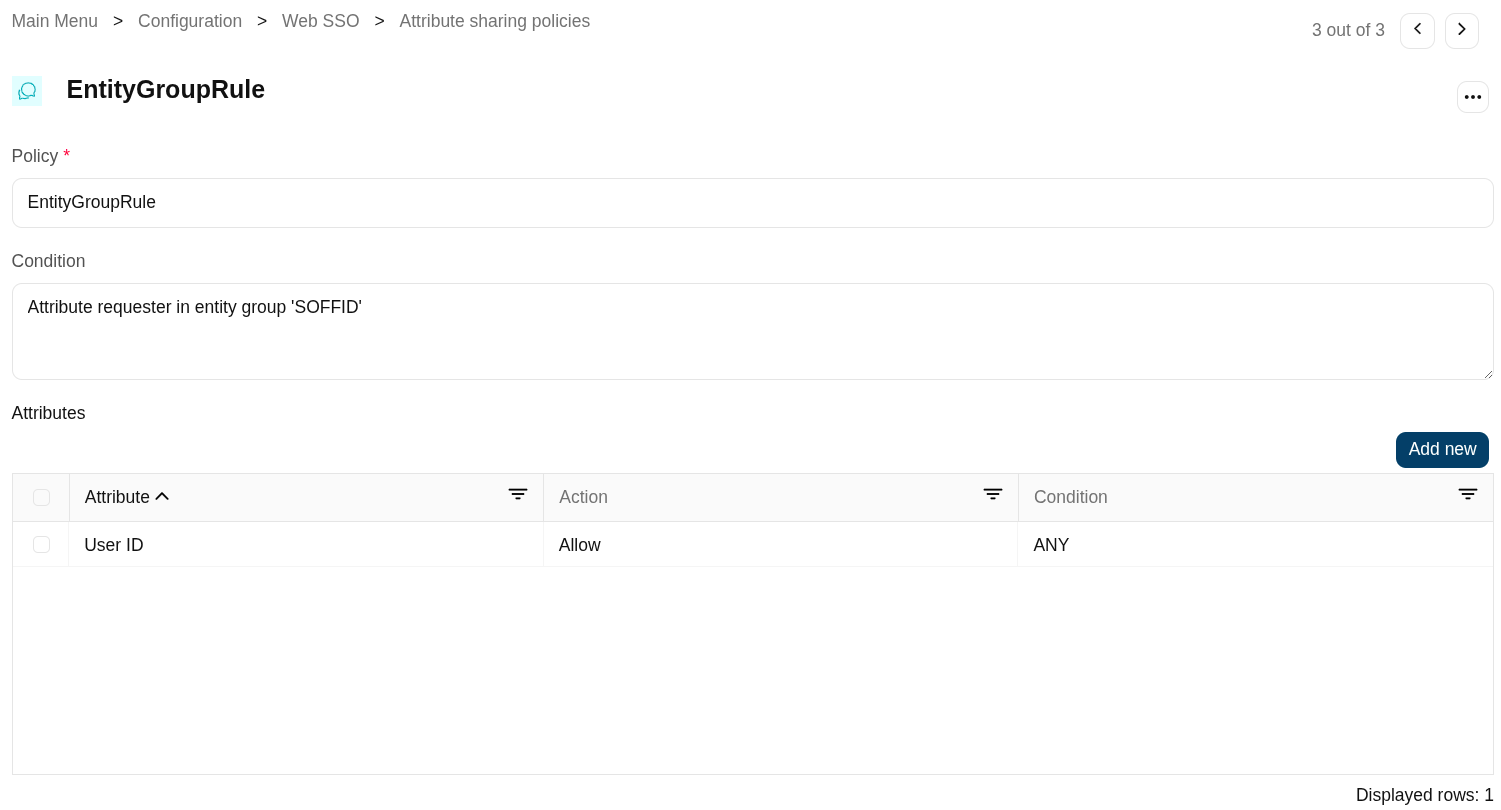
Rule that applies to all the service providers belonging to the "SOFFID" entity group.
Example 3
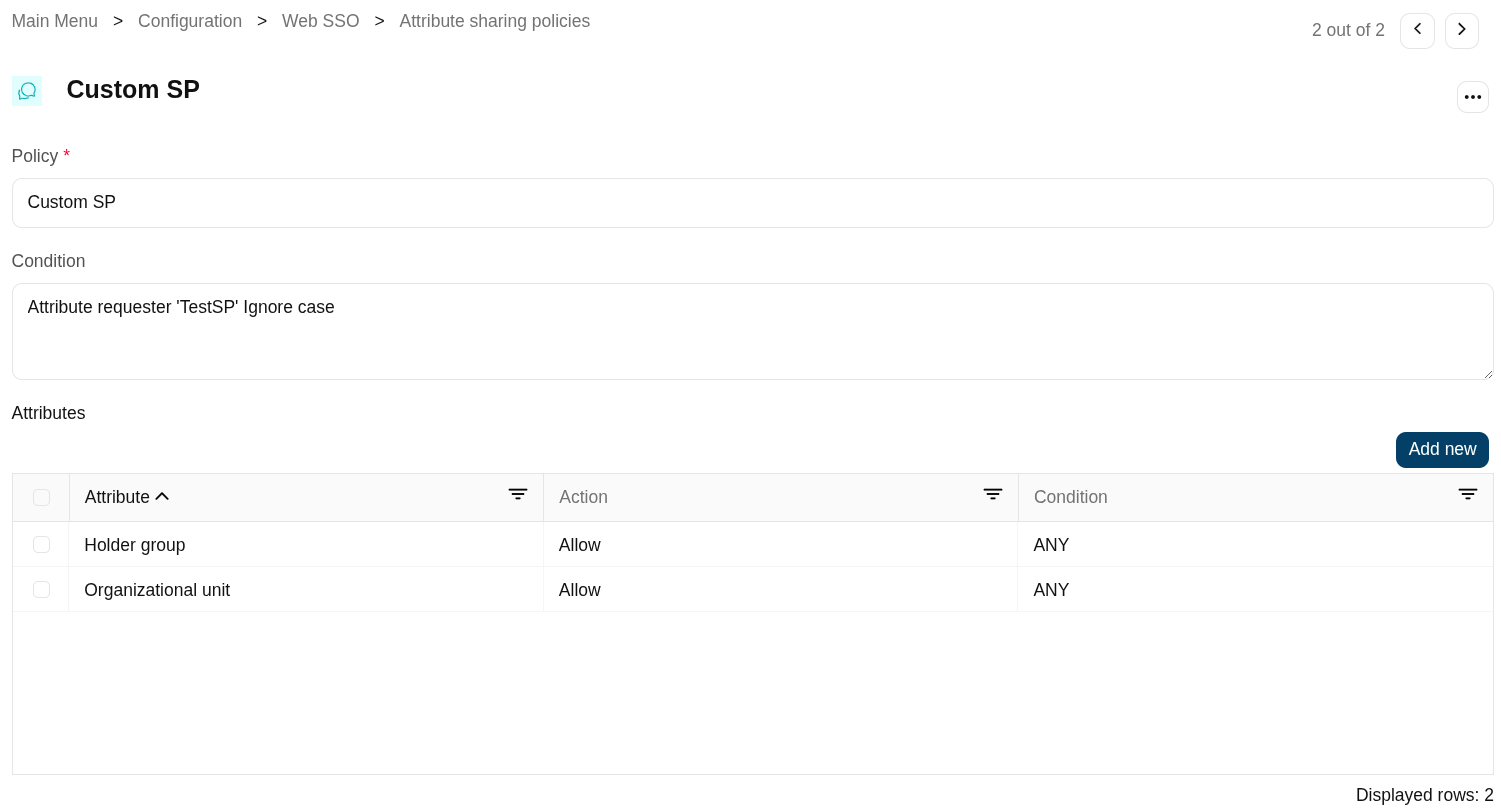
Rule that only applies to the service provider ‘TestSP’.
Identity providers (addon federation)
Description
This screen allows you to define the most important components of a federation, which are none other than the identity providers. An identity provider is responsible for performing the appropriate authentication for each service provider and user type according to their accounts, permissions, authorisations, and attributes.
The main supported standard is SAML. SAML allows to completely detach the identification process from web applications, known as Service Providers. With SAML, identification is performed by specialized servers known as Identity Providers. Additionaly, some other, less secure, but some times convenient protocols like OAuth (Open Authorization) and OpenID-Connect protocols are supported. Elder protocols like Openid (do not confuse with OpenID-Connect) are deprecated and no longer supported.
Remember that after validating the user's login, the identity provider will send a set of attributes to the service provider that will have been previously defined in Soffid in the attribute definition page and shared attribute policy screens.
You can visit the Introduction page to find more information about the federation.
Please note that this screen is available in the federation addon.
Entity group
An entity group is just like a folder that allows you to manage different kinds of federation members. One of the most common ways to group federation members is by trust level.
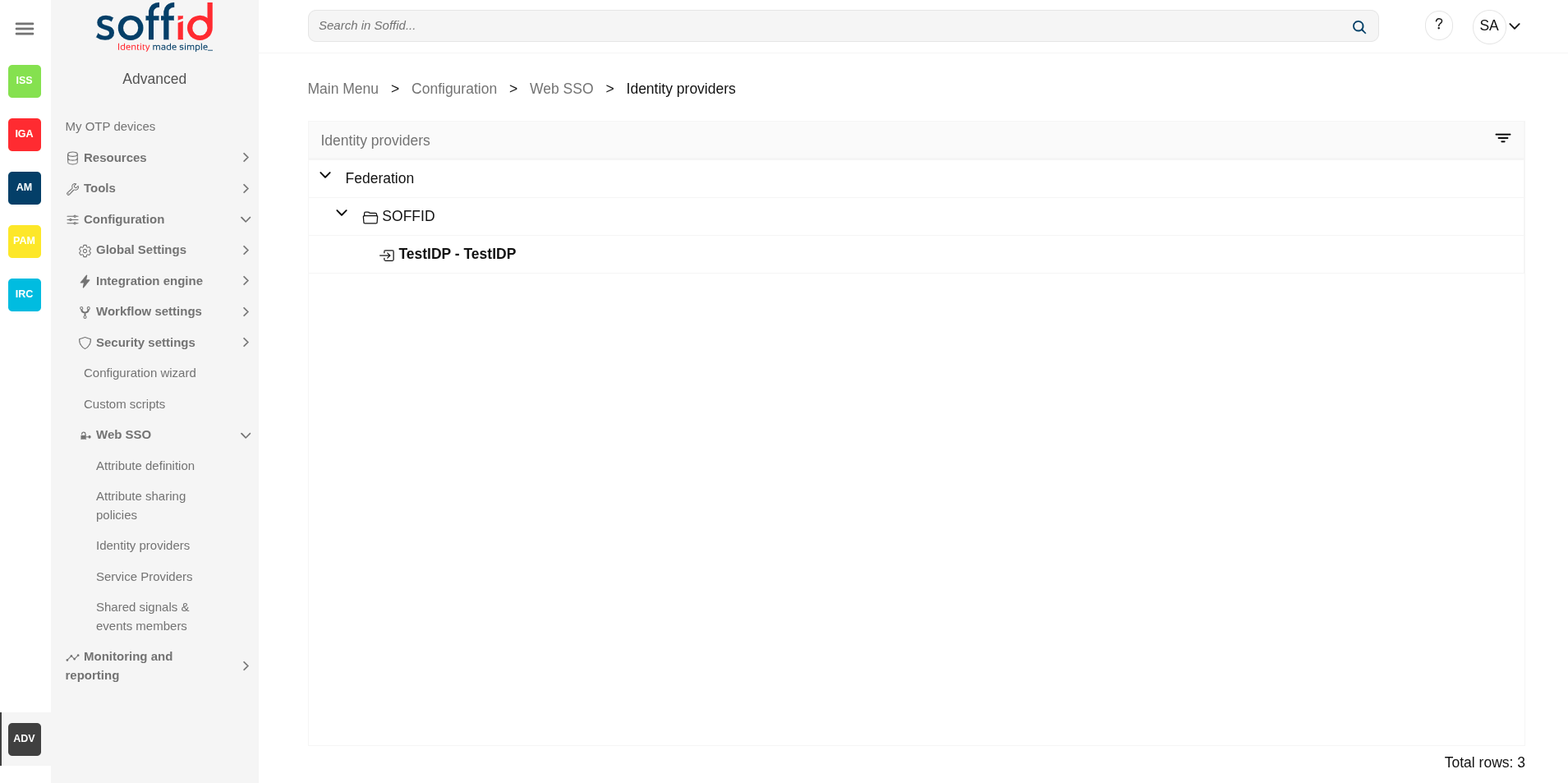
When you create an entity group, identity provider records will be displayed.
Entity groups can be created on this screen or on the service provider screen, and they will be displayed on both screens.
Identity provider
An identity provider (abbreviated IdP or IDP) is a system entity that creates, maintains, and manages identity information for principals and also provides authentication services to relying applications within a federation or distributed network.
An Identity Provider is responsible for identifying users. Also, it is responsible for giving service providers information regarding the identified user.
Soffid allows you to configure different identity providers, you can choose the best option for you by selecting the IdP type:
- Soffid IdP: identifies the identity provider implemented by Soffid. Soffid IdP implements both OpenID-Connect and SAML.
- External SAML IdP: is used to identify providers not implemented by Soffid. For instance, it could be an ADFS (Active Directory Federation Services) or Shibboleth identity provider.
- OpenID-Connect: is used for third-party identity providers, like ADFS.
- Facebook: if you select that option, oAuth2 will be used to identify Facebook users. You will need to register Soffid as a Facebook application to use it.
- Google: if you select that option OpenID-Connect will be used to identify Google users. You will need to register Soffid as a Google application to use it.
- LinkedIn: if you select that option, oAuth2 will be used to identify LinkedIn users. You will need to register Soffid as a LinkedIn application to use it.
To create an identity provider, it is advisable to install a dedicated sync server. It can be configured as a proxy sync server as it does not need direct access to the Soffid database. Instead, it will connect to the main sync server to get users and federation information.
For more information about how to configure a dedicated sync server, you can visit the Install Sync server page.
Virtual identity provider
A single identity provider usually offers different profiles or service levels to diffeferent service provider. To be able to define this behavior, any Identity Provider can be split into many virtual identity providers. Those identity providers will be served by the same actual identity provider, but they will have different profile configurations.
When creating a new virtual identity provider, you will need to specify the service providers for which you will be responsible.
Screen overview
Related objects
- Attribute definition : where the list of possible attributes to be returned in the IdP response is defined
- Attribute sharing policies : where policies are defined with the attributes to be sent according to the authenticated service provider
- Identity providers : configuration of the identity providers
- Service providers : configuration of the service providers
- Metadata : where user attributes are defined
Standard attributes
Entity group
- Entity Group: name of the group.
- Providers: display the identity providers under the entigy group
Identity provider
Soffid IdP
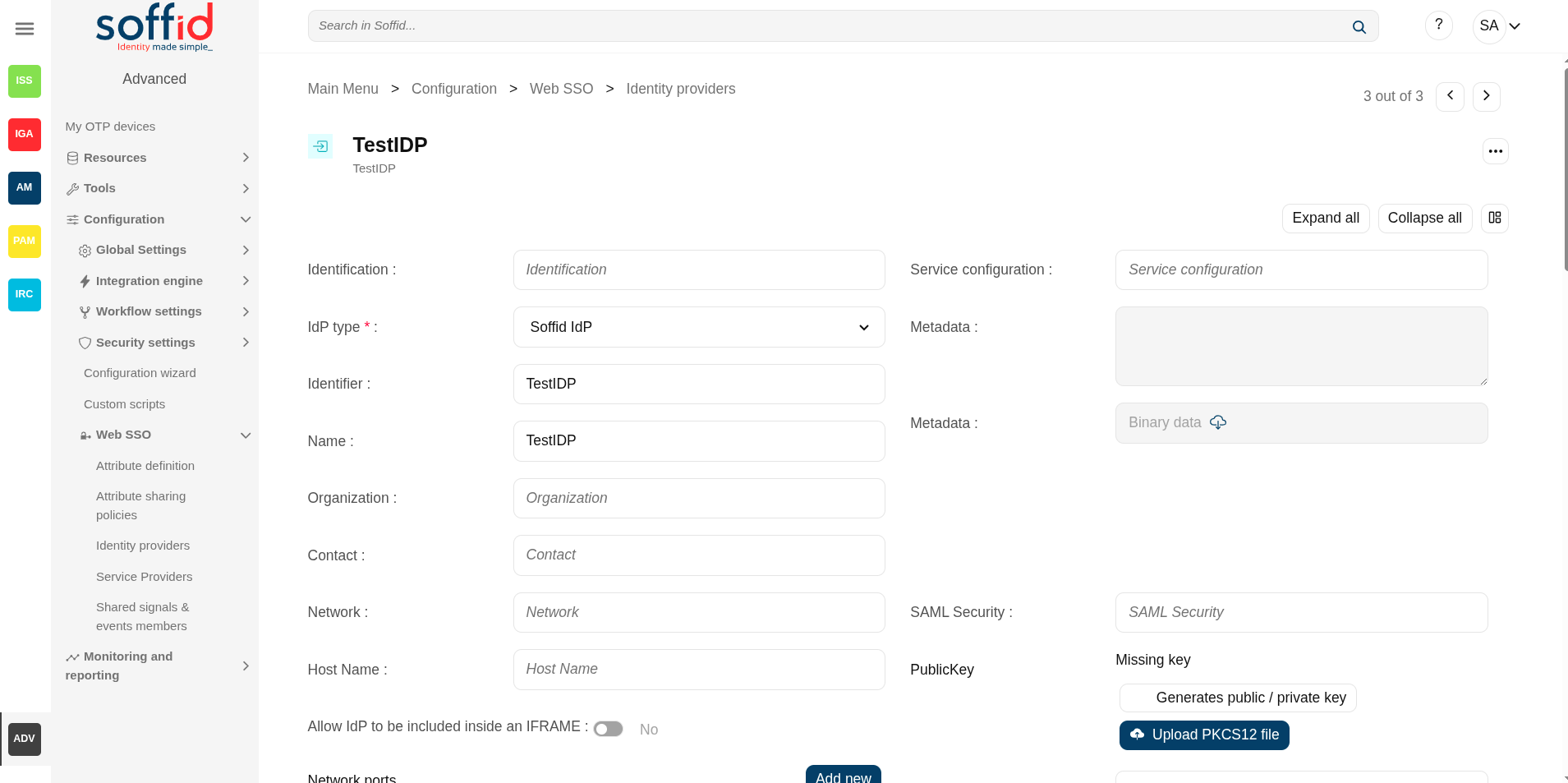
Identification
- Idp type: Soffid Idp (this one has to be selected)
- Identifier: unique name to identify the identity provider. The name has to be the same as the Public ID of the Soffid Identity Provider agent.
- Name: friendly user name.
- Organization: company name of the external IdP.
- Contact: email address of the external IdP.
It will be mandatory to create an Agent (Soffid Identity Provider) linking the idP with the identifier attribute.
Service Configuration
- Metadata: the Metadata for an Identity Provider defines how this Identity Provider delivers its service:
- Which security algorithms does it support.
- The public portion of it's signing and encrypting keys.
- The SAML protocols do it support.
- The URL of each SAML protocol endpoint.
- Contact information.
- Metadata (file): from this field, you can directly download a file with the metadata.
The Metadata is the information that any application needs to use the IdP. That is an XML file that contains the public encryption keys and the services provided
Leave it blank as Soffid IdP will fulfill it for you.
The metadata will be created when the network data and SAML Security data are specified. Restarting the sync server will be necessary to fill in the Metadata.
Network
- Host name: public hostname that will be used by users and service providers. The full qualified name should be used.
- Allow IdP to be included inside an IFRAME: Soffid allows you to configure the Identity Provider to be incluided within a IFRAME. If this option is updated, the Sync Server must be restarted.
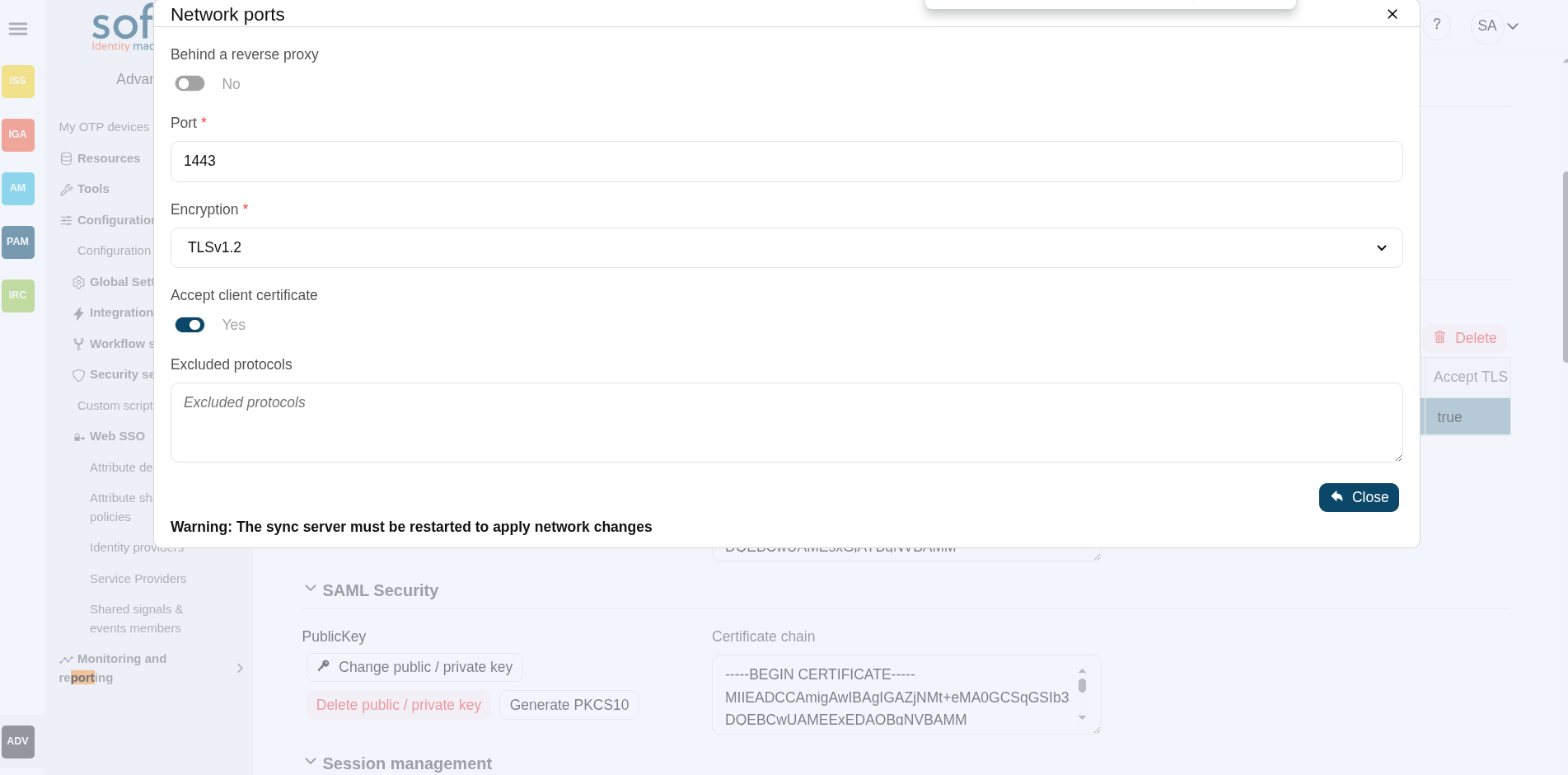
- Network ports:
- Behind a reverse proxy: enable this option when the idp is behind a reverse proxy.
- Reverse proxy port number: (displayed when reverse proxy enabled) port where the reverse proxy is listening.
- Reverse proxy incoming address: (displayed when reverse proxy enabled) IP addresses allowed to make calls to the reverse proxy.
- Port: TCP port number used by the identity provider. By default, TLS will be used (default 1443).
- Encryption: encryption type is only allowed behind a reverse proxy.
- TLSv1.2
- TLSv1.3
- No encryption
- Support PROXY protocol v2: (displayed when reverse proxy enabled) protocol between the reverse proxy and the Identity Provider.
- Accept client certificate: to accept always the client certificate.
- Certificate header: (displayed when reverse proxy enabled) certificate data header.
- Excluded protocols: encryption protocols to be excluded.
💻 Image
- TLS PublicKey: there are three available options
- Leave in blank and Soffid IdP will generate a self-signed certificate.
- Clicking on the Generates public/private key button, a new private key pair will be generated. Once the private key pair is generated, you could generate a certificate request file, also known as PKCS#10 or CSR file. The certificate authority will be able to create a certificate for you using this certificate request. Once you have created the public/private key, you could run other new functions:
- Change public/private key: allows you to change the public/private key generated previously.
- Delete public/private key: allows you to delete the public/private key generated previously.
- Generate PKCS10: generates a PKCS10 file (Certification request standard).
- Clicking on the Upload PKCS12 file button it will be able to upload a PKCS#12 file. That file must contain the private and public keys and the server certificate as well. Mind that PKCS#12 file use to be protected by a PIN.
- TLS Certificate chain: text certificate chain created with one of the previous options.
Server certificate management: there are two options for certificate management. You can visit the Server certificate management page for more information.
SAML Security
- PublicKey:
- Clicking on the Generates public / private key button, a new private key pair will be generated. Once the private key pair is generated, you could generate a certificate request file, also known as PKC#10 or CSR file. The certificate authority will be able to create a certificate for you using this certificate request. Once you have created the public/private key, you could run other new functions:
- Change public/private key: allows you to change the public/private key generated previously.
- Delete public/private key: allows you to delete the public/private key generated previously.
- Generate PKCS10: generates a PKCS10 file (Certification request standard).
- Clicking on the Upload PKCS12 file button it will be able to upload a PKCS#12 file. That file must to contain the private an public keys and the server certificate as well. Mind that PKCS#12 file use to be protected by a PIN.
- Clicking on the Generates public / private key button, a new private key pair will be generated. Once the private key pair is generated, you could generate a certificate request file, also known as PKC#10 or CSR file. The certificate authority will be able to create a certificate for you using this certificate request. Once you have created the public/private key, you could run other new functions:
- Certificate chain: text certificate chain created with one of the previous options.
Session management
- Session timeout (secs): time in seconds that will take the session. If the user has been authenticated, and later is requested to authenticate again, the user will be authenticated without any intervention as long as the timeout has not been elapsed.
- oAuth Session timeout (secs): time in seconds that will take the oAuth session. The oAuth has its own life cycle, regardless the session timeout.
- Maximum session duration (secs) : maximum time during which session can be renewed
- SSO Cookie name: name of the cookie that will keep the session id, you can change the name. This SSO cookie is not really needed, as the identity provider will store a session cookie to track the SSO session. This SSO cookie is needed in two circumstances:
- When the identity provider is restarted, the session cookie is lost. This SSO Cookie allows the identity provider to restart the lost session.
- When you have more than one identity provider instance, this cookie allows all the identity providers to handle the session as if only was one identity provider. The SSO cookie can be allocated by any identity provider, and it will be accepted by any other one.
- SSO Cookie domain: is needed when you have more than one identity provider instance and they are using different host names. If all the identity providers are serving the same virtual host name, the SSO Cookie domain will be needed.
Authentication
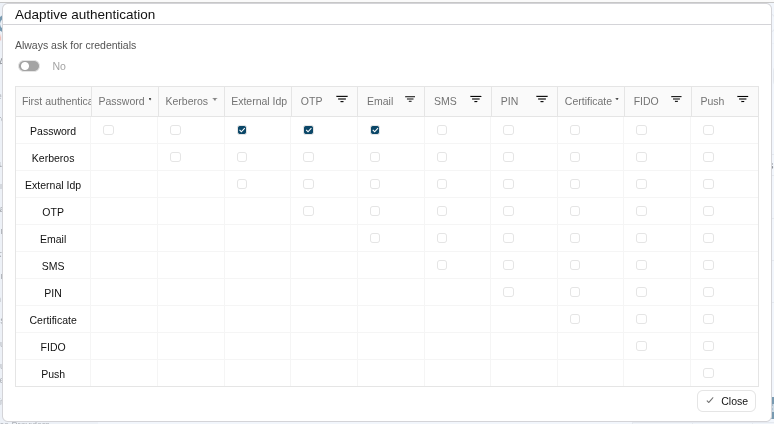
- Default authentication methods: the button open a popup.
- Always ask for credentials: if checked (the selected value is Yes), the IdP will always request credentials from users who meet the condition defined in this rule.
- "Matrix of authentication methods": matrix to define the authentication methods that will be required to successfully authenticate the user. Each row indicates the first authentication method, and each column indicates the second factor to use.
- Password
- Kerberos
- External IdP
- OTP
- SMS
- PIN
- Certificate
- FIDO
- Push
Image
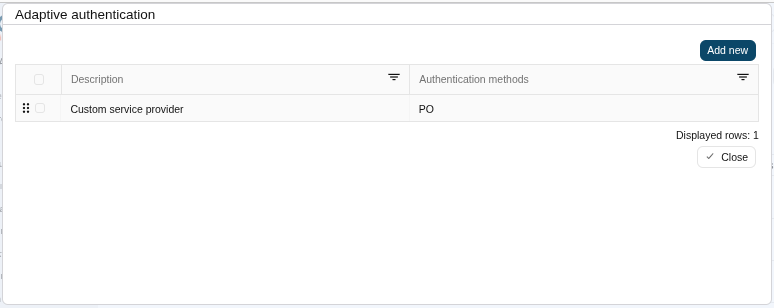
- Adaptive authentication: the button open a popup.
- "Table of adaptive authentication"
- Description: description of the adaptive authentication.
- Authentication methods: displays the authentication methods seleccted.
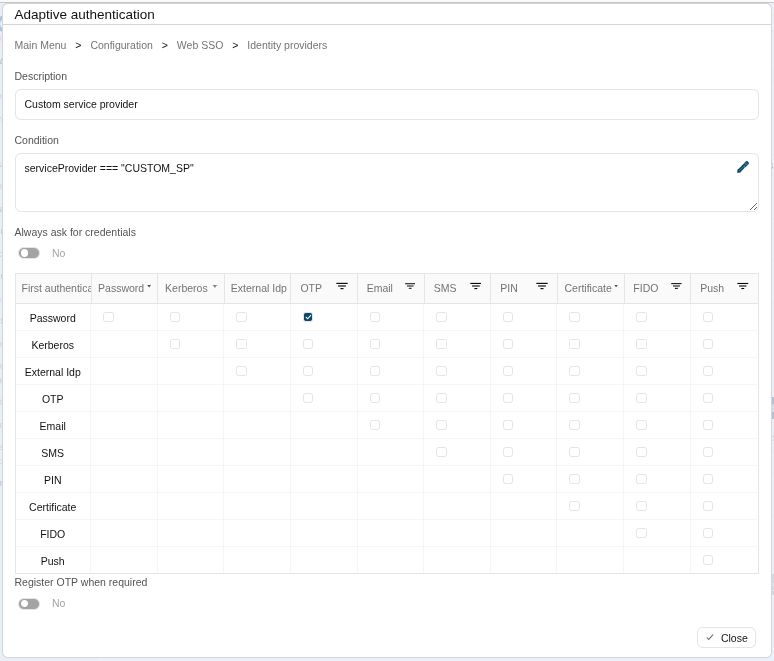
- "Adaptive authentication popup": that option allows you to add an additional authentication matrix which will be run when the condition defined was complied with. That is the way to change the authentication method depending on the environment.
- Description: rule description to identify it.
- Condition: script to enable that rule. The result of the rule must be true or false. There are some available vars to create the condition. You can visit the Condition for Adaptive authentication page for more information and some examples.
- Always ask for credentials: if checked (the selected value is Yes), the IdP will always request credentials from users who meet the condition defined in this rule.
- Matrix: to define the authentication methods that will be required to successfully authenticate the user. Each row indicates the first authentication method, and each column indicates the second factor to use.
- "Table of adaptive authentication"
Image
- Kerberos domain: allows you to pick up a file to configure the Kerberos authentication method. For more information, you can visit the How to enable Kerberos authentication page.
- Script to check posture: to login in with the service providers the device of the user must comply specific operating system requirements. Use this script to apply your business logic. Check this new feature.
Advanced Authentication
- Allow user to recover password: if it is checked (selected value is Yes), and the password recovery addon is installed, the user will be allowed to execute the password recovery mechanism.
- Register OTP when required: if it is checked (selected value is Yes), Soffid will allow to register the new OTP to the user during the login process.
- Allow user to self-register: if it is checked (selected value is Yes), the user will be allowed to register itself. This option sends an email to the user to verify the email address is correct, and then lets the user to enter a new password.
- Registration process: workflow selected to create the new identity.
- User Type: (displayed when Allow users to self-service enabled) identifies the password policy that is to be applied. More information on this link User Type.
- Primary Group: (displayed when Allow users to self-service enabled)select which organization unit this user belongs to.
- Register identities identified by external IdPs: allows Soffid IdP to automatically register a new identity when a user authenticates with a third-party IdP, and this identity does not exist yet in Soffid database. Furthermore, at the third party IdP configuration page, one can tune how this identity is going to be created.
- Store last user name in browser: allows the browser to save the last user name when Yes is selected.
- Enable reCaptcha v3 service: (*) helps to keep save your website. You can enable it by selecting the Yes option. When you select the Yes option, you must fill in the following fields:
- Captcha site key: this key is used to invoke the reCAPTCHA service
- Captcha site secret: the secret key to communicate your web site with reCAPTCHA service. This secret key authorizes the communication.
- Captcha threshold (1 for highest confidence, 0 for low confidence):
Profiles
A profile is a protocol or subset of protocols implemented by the Identity Provider. There are some accepted protocols, those allows a custom config dependent on the selected profile.
You can visit the Profiles chapter for more information about each one.
Look and feel
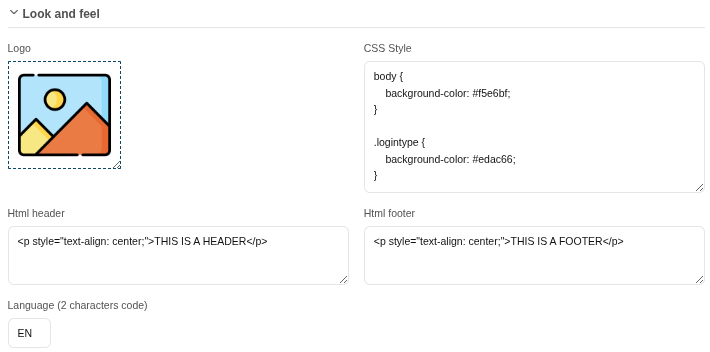
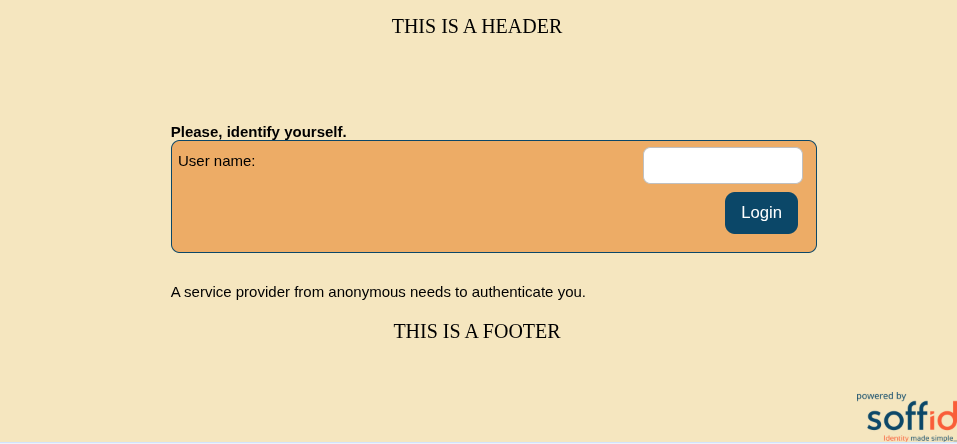
Soffid allows you to personalize your login page by adding some style elements, as well as header and footer elements.
- Logo: this logo will be displayed for users in Windows desktop.
- CSS Style: allows you to add a CSS style for your login page.
- Html header: allows you to add an Html header.
- Html footer: allows you to add an Html footer.
- Language (2 characters code): language used by default in the first access
Restarting the syncserver will be necessary to apply the look and feel changes.
Image
External SAML IdP
Identification
- Idp type: External SAML IdP (this one has to be selected)
- Identifier: unique name to identify the identity provider.
- Name: friendly user name.
- Organization: company name of the external IdP.
- Contact: email address of the external IdP.
Service Configuration
- Metadata: the Metadata for an Identity Provider defines how this Identity Provider delivers its service:
- Which security algorithms does it support.
- The public portion of it's signing and encrypting keys.
- The SAML protocols does it support.
- The URL of each SAML protocol endpoint.
- Contact information.
- Metadata (file): from this field, you can directly download a file with the metadata.
The Metadata is the information that any application need to use the IdP. That is an XML file that contains the public encryption keys and the services provided
Login Rules
- User regular expression: regular expression to detect users of this identity provider.
-
Condition to enable this identity provider: Script used to determine whether the IdP should appear in the user’s list of options. See its new feature.
- Login hint script: script to help to login. Return the text to help.
- Identity provisioning script: script to bind or register a new identity. Return the user name of the owner identity for the authenticated account.
SAML Security
- PublicKey:
- Clicking on the Generates public / private key button, a new private key pair will be generated. Once the private key pair is generated, you could generate a certificate request file, also known as PKC#10 or CSR file. The certificate authority will be able to create a certificate for you using this certificate request. Once you have created the public/private key, you could run other new functions:
- Change public/private key: allows you to change the public/private key generated previously.
- Delete public/private key: allows you to delete the public/private key generated previously.
- Generate PKCS10: generates a PKCS10 file (Certification request standard).
- Clicking on the Upload PKCS12 file button it will be able to upload a PKCS#12 file. That file must to contain the private an public keys and the server certificate as well. Mind that PKCS#12 file use to be protected by a PIN.
- Clicking on the Generates public / private key button, a new private key pair will be generated. Once the private key pair is generated, you could generate a certificate request file, also known as PKC#10 or CSR file. The certificate authority will be able to create a certificate for you using this certificate request. Once you have created the public/private key, you could run other new functions:
- Certificate chain: text certificate chain created with one of the previous options.
OpenID-Connect
Identification
- Idp type: OpenID Connect (this one has to be selected)
- Identifier: unique name to identify the identity provider.
- Name: friendly user name.
- Organization: company name of the external IdP.
- Contact: email address of the external IdP.
Service Configuration
- Metadata: there are some required parameters:
{
    "authorization_endpoint": "https://server/oauth2/auth",
    "token_endpoint": "https://server/oauth2/token",
    "userinfo_endpoint": "https://server/oauth2/userinfo",
    "scopes_supported": [ "openid","email","profile"]
}- oAuth key: is the identificator token generated by the oAuth server.
- oAuth secret: is the secret generated by the oAuth server.
The Metadata is the information that any application need to use the IdP. That is an XML file that contains the public encryption keys and the services provided.
Login rules
- User regular expression: regular expression to detect users of this identity provider.
- Condition to enable this identity provider: Script used to determine whether the IdP should appear in the user’s list of options. See its new feature.
- Login hint script: script to help to login. Return the text to help.
- Identity provisioning script: script to bind or register a new identity. Return the user name of the owner identity for the authenticated account.
|
Identification
- Idp type: Facebook (this one has to be selected)
- Identifier: unique name to identify the identity provider.
- Name: friendly user name.
- Organization: company name of the external IdP.
- Contact: email address of the external IdP.
Service Configuration
- Click here to obtain a client id and client secret: allows you to get the oAuth key and secret.
- oAuth key: is the identificator token generated by the oAuth server.
- oAuth secret: is the secret generated by the oAuth server.
Login rules
- User regular expression: regular expression to detect users of this identity provider.
- Condition to enable this identity provider: Script used to determine whether the IdP should appear in the user’s list of options. See its new feature.
- Login hint script: script to help to login. Return the text to help.
- Identity provisioning script: script to bind or register a new identity. Return the user name of the owner identity for the authenticated account.
Identification
- Idp type: Google (this one has to be selected).
- Identifier: unique name to identify the identity provider. Soffid will fulfill wint the Google URL.
- Name: friendly user name.
- Organization: company name of the external IdP.
- Contact: email address of the external IdP.
Service Configuration
- Click here to obtain a client id and client secret: allows you to get the oAuth key and secret.
- oAuth key: is the identificator token generated by the oAuth server.
- oAuth secret: is the secret generated by the oAuth server.
Login rules
- User regular expression: regular expression to detect users of this identity provider.
- Condition to enable this identity provider: Script used to determine whether the IdP should appear in the user’s list of options. See its new feature.
- Login hint script: script to help to login. Return the text to help.
- Identity provisioning script: script to bind or register a new identity. Return the user name of the owner identity for the authenticated account.
Identification
- Idp type: Linkedin (this one has to be selected)
- Identifier: unique name to identify the identity provider. Soffid will fulfill wint the Linkedin URL.
- Name: friendly user name.
- Organization: company name of the external IdP.
- Contact: email address of the external IdP.
Service Configuration
- Click here to obtain a client id and client secret: allows you to get the oAuth key and secret.
- oAuth key: is the identificator token generated by the oAuth server.
- oAuth secret: is the secret generated by the oAuth server.
Login rules
- User regular expression: regular expression to detect users of this identity provider.
- Condition to enable this identity provider: Script used to determine whether the IdP should appear in the user’s list of options. See its new feature.
- Login hint script: script to help to login. Return the text to help.
- Identity provisioning script: script to bind or register a new identity. Return the user name of the owner identity for the authenticated account.
Virtual identity provider
Identification
- Identifier: unique name to identify the identity provider.
- Name: user friendly name to identify the identity provider.
- Organization: company name of the external IdP.
- Contact: email address of the external IdP.
Service configuration
- Metadata: the Metadata for an Identity Provider defines how this Identity Provider delivers its service:
- Which security algorithms does it support.
- The public portion of it's signing and encrypting keys.
- The SAML protocols does it support.
- The URL of each SAML protocol endpoint.
- Contact information.
- Metadata (file): from this field, you can directly download a file with the metadata.
Leave it blank as Soffid IdP will fulfill it for you.
SAML Security
- Public key:
- Generate public/private key:
- Delete public/private key: allows you to delete the public/private key generated previously.
- Generate PKCS10: generates a PKCS10 file (Certification request standard)
- Upload PKCS12 file: allows you to upload a PKCS#12 file. That file must contain the private and public kesus and the server certificate as weel. Mind that PKCS#12 file use to be protected by a PIN.
- Generate public/private key:
- Certificate chain: text certificate chain created with one of the previous options.
Authentication
- Default authentication methods: the button open a popup.
- Always ask for credentials: if checked (the selected value is Yes), the IdP will always request credentials from users who meet the condition defined in this rule.
- "Matrix of authentication methods": matrix to define the authentication methods that will be required to successfully authenticate the user. Each row indicates the first authentication method, and each column indicates the second factor to use.
- Password
- Kerberos
- External IdP
- OTP
- SMS
- PIN
- Certificate
- FIDO
- Push
Image
- Adaptive authentication: the button open a popup.
- "Table of adaptive authentication"
- Description: description of the adaptive authentication.
- Authentication methods: displays the authentication methods seleccted.
- "Adaptive authentication popup": that option allows you to add an additional authentication matrix which will be run when the condition defined was complied with. That is the way to change the authentication method depending on the environment.
- Description: rule description to identify it.
- Condition: script to enable that rule. The result of the rule must be true or false. There are some available vars to create the condition. You can visit the Condition for Adaptive authentication page for more information and some examples.
- Always ask for credentials: if checked (the selected value is Yes), the IdP will always request credentials from users who meet the condition defined in this rule.
- Matrix: to define the authentication methods that will be required to successfully authenticate the user. Each row indicates the first authentication method, and each column indicates the second factor to use.
- "Table of adaptive authentication"
Image
- Kerberos domain: allows you to pick up a file to configure the Kerberos authentication method. For more information, you can visit the How to enable Kerberos authentication page.
Advanced Authentication
- Allow user to recover password: if it is checked (selected value is Yes), and the password recovery addon is installed, the user will be allowed to execute the password recovery mechanism.
- Register OTP when required: if it is checked (selected value is Yes), Soffid will allow to register the new OTP to the user during the login process.
- Allow user to self-register: if it is checked (selected value is Yes), the user will be allowed to register itself. This option sends an email to the user to verify the email address is correct, and then lets the user to enter a new password.
- Registration process: workflow selected to create the new identity.
- User Type: (displayed when Allow users to self-service enabled) identifies the password policy that is to be applied. More information on this link User Type.
- Primary Group: (displayed when Allow users to self-service enabled)select which organization unit this user belongs to.
- Register identities identified by external IdPs: allows Soffid IdP to automatically register a new identity when a user authenticates with a third-party IdP, and this identity does not exist yet in Soffid database. Furthermore, at the third party IdP configuration page, one can tune how this identity is going to be created.
- Store last user name in browser: allows the browser to save the last user name when Yes is selected.
- Enable reCaptcha v3 service: (*) helps to keep save your website. You can enable it by selecting the Yes option. When you select the Yes option, you must fill in the following fields:
- Captcha site key: this key is used to invoke the reCAPTCHA service
- Captcha site secret: the secret key to communicate your web site with reCAPTCHA service. This secret key authorizes the communication.
- Captcha threshold (1 for highest confidence, 0 for low confidence):
Profiles
A profile is a protocol implemented by the Identity Provider. There are some accepted protocols, those allows a custom config dependent on the selected profile
- OpenIDProfile
- SAML1ArtifactResolutionProfile
- SAML1AttributeQueryProfile
- SAML2ArtifactResolutionProfile
- SAML2AttributeQueryProfile
- SAML2ECPProfile
- SAML2SSOProfile
You can visit the Profiles chapter for more information about each one.
Service Providers
It will be necessary to bind any service provider to the virtual identity provider. When no such bind exists for a service provider, the actual identity provider profile configuration applies.
- Name: name of the service provider
Actions
Federation tree
|
Add group |
Allows you to create a new entity group. You can choose that option by clicking on the "Add group" button in the tree, then Soffid will display a new window with the fields to fullfil. To add a new entity group it will be mandatory to fill in the required fields and save or apply changes. |
|
Add identity provider |
Allows you to add a new identity Provider. You must click the "Add identity provider" button, under the proper entity group, then Soffid will display a new window with the data to fulfill for the new identity provider. To add a new identity provider it will be mandatory to fill in the required fields and save or apply changes. |
|
Add virtual identity provider |
Allows you to add a virtual identity provider. You must click the "Add virtual identity provider" button, under the proper identity provider, which has to be a Soffid IdP, then Soffid will display a new window with the data to fulfill for the new virtual identity provider. To add a new virtual identity provider it will be mandatory to fill in the required fields and save or apply changes. |
Entity group detail
|
Apply changes (disk button) |
Allows you to save the data of a new entity group or to update the data of a specific entity group. To save the data it will be mandatory to fill in the required fields. |
|
Delete |
Allows you to remove the entity group. You can find this option in the "three points" menu by clicking on the "Delete" button. To perform that action, Soffid will ask you for confirmation, you could confirm or cancel the operation. |
|
Undo |
Allows you to quit without applying any changes. |
|
Apply changes |
Allows you to save the data of a new entity group or to update the data of a specific entity group. Once you apply changes, the plugin details page will be closed. |
Identity provider detail
| Save
|
Allows you to save the data of a new identity provider or to update the data of a specific identity provider. To save the data it will be mandatory to fill in the required fields. |
|
Delete identity provider |
Allows you to delete the identity provider. To delete an identity provider you can click on the "three points" icon and then click the delete button. Soffid will ask you for confirmation to perform that action, you could confirm or cancel the operation. |
|
Undo |
Allows you to quit without applying any changes made. |
|
Apply changes |
Allows you to save the data of a new identity provider or to update the data of a specific identity provider and quit. To save the data it will be mandatory to fill in the required fields. |
Virtual identity provider detail
| Save |
Allows you to save the data of a new virtual identity provider or to update the data of a specific virtual identity provider. To save the data it will be mandatory to fill in the required fields. |
|
Delete identity provider |
Allows you to delete the virtual identity provider. To delete a virtual identity provider you can click on the "three points" icon and then click the delete button. Soffid will ask you for confirmation to perform that action, you could confirm or cancel the operation. |
|
Undo |
Allows you to quit without applying any changes made. |
|
Apply changes |
Allows you to save the data of a new virtual identity provider or to update the data of a specific virtual identity provider and quit. To save the data it will be mandatory to fill in the required fields. |
Examples
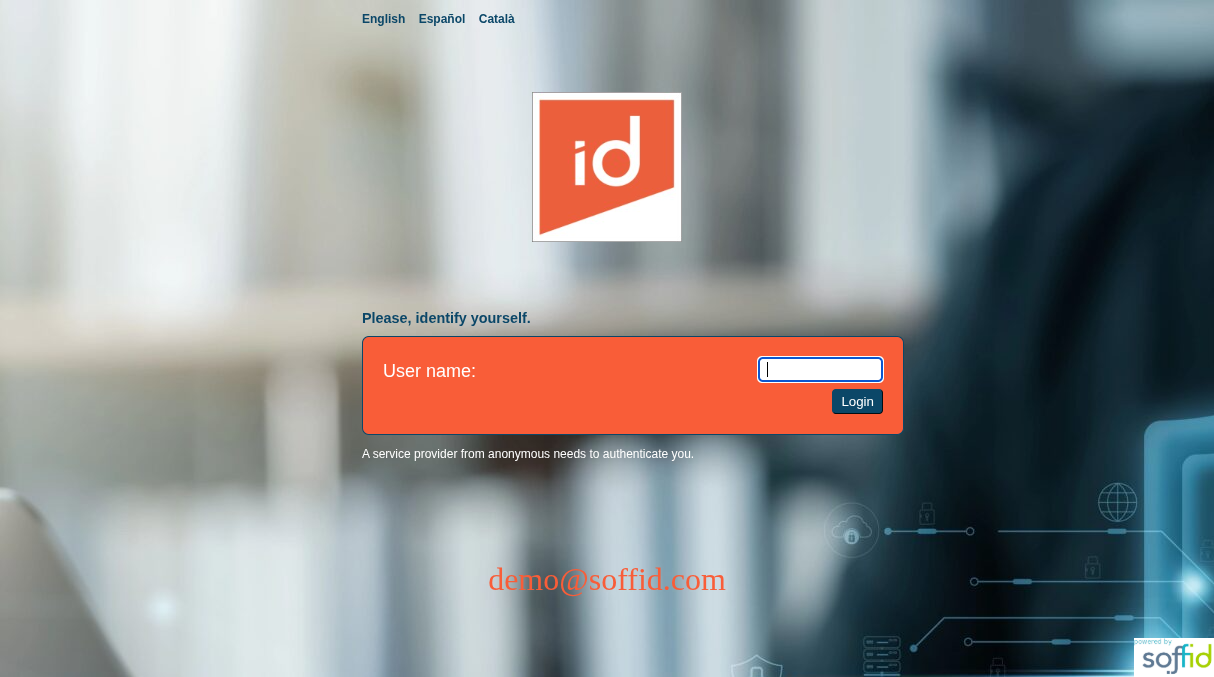
Look and feel customisation
In this example, we are going to use all styles except the header, so we can take advantage of the language change and use the manually uploaded logo.
This is the result.
This is the configuration.
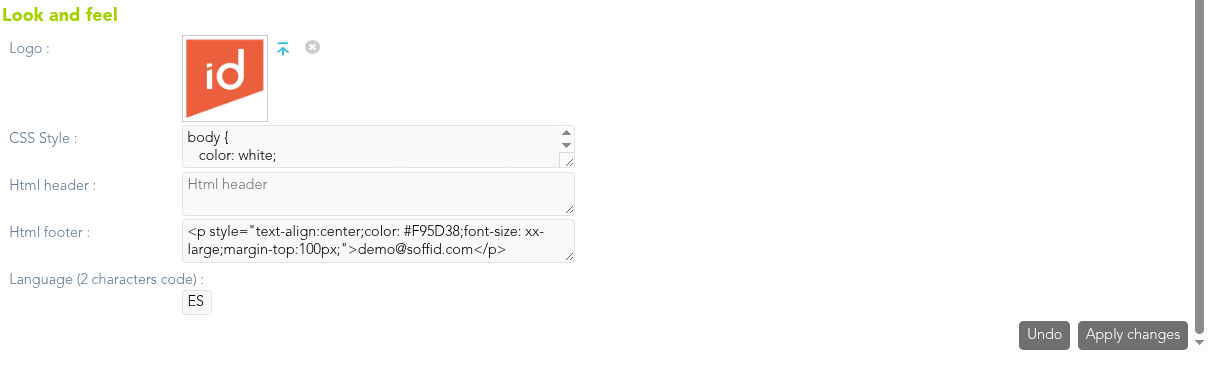
CSS Style:
body {
   color: white;
   background-image: url("https://www.soffid.com/wp-content/uploads/2025/05/Depositphotos_795124038_XL-1-scaled.jpg");
}

#language a {
   text-decoration: none;
   font-weight: bold;
   color: #0B4768;
}

p.biglogo img{
   margin-top: 50px;
   width: 150px;
}

p.header {
   color: #0B4768;
   padding-bottom: 10px;
   font-size: larger;
}

.logintype {
   background-color: #F95D38;
   border: 1px solid #0B4768;
   color: white;
   font-size: large;
   padding: 20px;
}

.nologintype {
   color: #0B4768;
   font-size: large;
   padding: 20px;
}

input {
   padding: 4px 8px 4px 8px;
   border-radius: 4px;
   border-color: #0B4768;
   border-width: 1px;
   cursor: pointer;
}

input[type=submit] {
   background-color: #0B4768;
   color: white;
}<p style="text-align:center;color: #F95D38;font-size: xx-large;margin-top:100px;">demo@soffid.com</p>If you use the header, the language change options disappear and the logo is not displayed either. You can add the logo yourself using HTML/CSS.
<div style="text-align: center;margin-top: 50px;">
  <img src="https://media.licdn.com/dms/image/v2/D4D0BAQEQlaVONhPqHw/company-logo_200_200/B4DZeJJh1kH4AI-/0/1750352666329/soffid_logo?e=2147483647&v=beta&t=yCxIGdOteGHza9p2s1jLNogbO0YKpDS-bHzzHMuQwok" style="display: block; margin: 0 auto; width: 150px;">
</div>
How to add or update the IDP’s SSL certificate
When we have an IDP with a specific hostname, it will almost always be necessary to add the SSL certificate so that the browser accepts it correctly.
To add it for the first time or update it, follow the steps below.
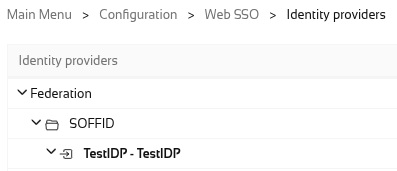
Go to the "Identity providers" page.
Select your "Soffid IdP" type identity provider.
Now go to the "‘Network" group, specifically the "TLS PublicKey" attribute.
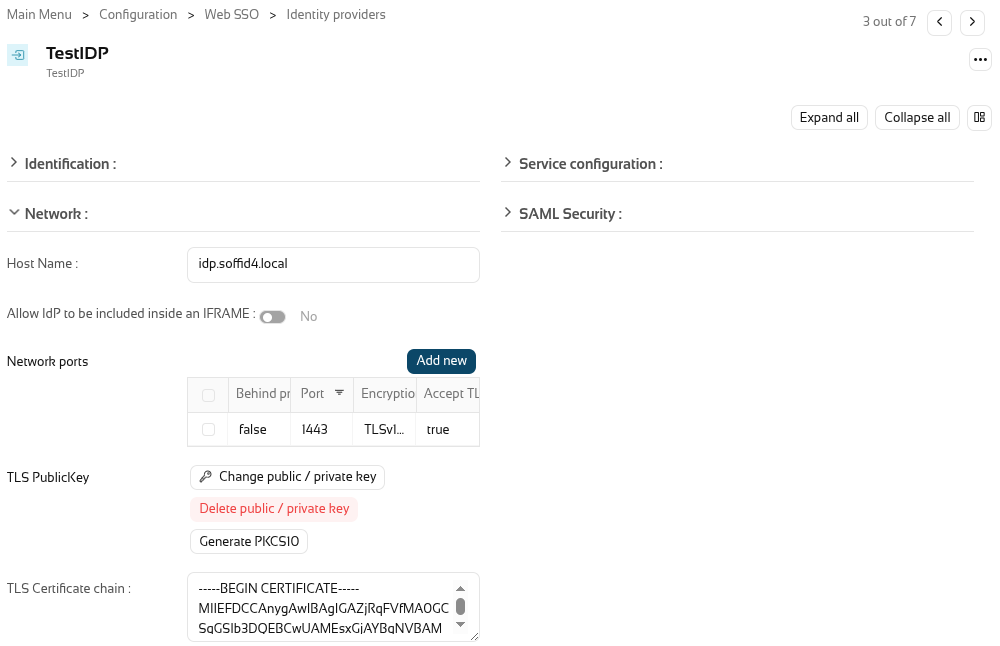
If this is an update, you must first click the ‘Delete public / private key’ button to delete the current certificate.

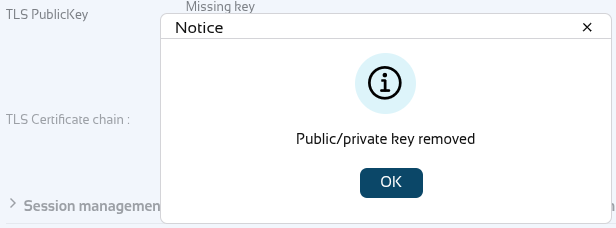
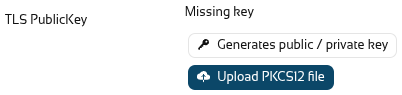
We can now upload a PKCS12 file, but PKCS8 files are also accepted.
Click the “Upload PKCS12 file” button.
Select the file using the “Pick a file” button.
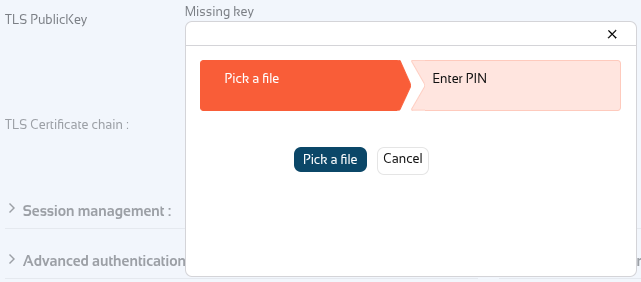
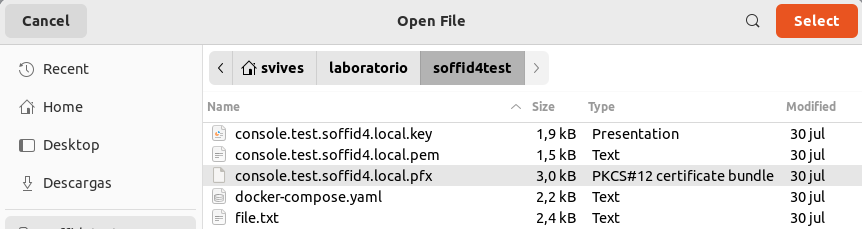
Select your file; it will normally be a *.pfx.
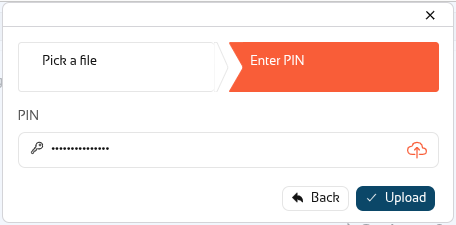
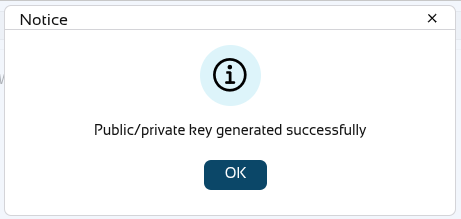
You now need to enter the PIN to open the file and retrieve the public and private keys.
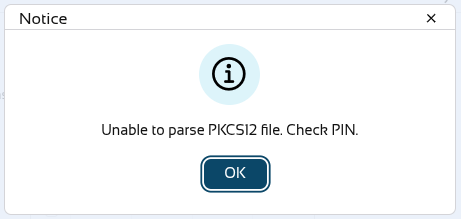
When it fails.
When it works.
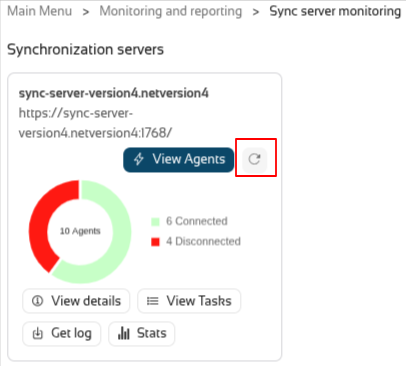
Once the file has been uploaded, you will need to restart the syncserver on which the identity provider is configured.
Click the restart button, wait for the system to restart, and the certificate will then be applied.
Service Providers (addon federation)
Description
This screen allows you to define the applications that will belong to the federation. These applications are named service providers and must be configured correctly to delegate the user authentication to the identity provider that is responsible for them by configuration.
The main supported standard is SAML. SAML allows to completely detach the identification process from web applications, known as Service Providers. With SAML, identification is performed by specialized servers known as Identity Providers. Additionaly, some other, less secure, but some times convenient protocols like OAuth (Open Authorization) and OpenID-Connect protocols are supported. Elder protocols like Openid (do not confuse with OpenID-Connect) are deprecated and no longer supported.
Remember that after validating the user's login, the identity provider will send a set of attributes to the service provider that will have been previously defined in Soffid in the attribute definition page and shared attribute policy screens.
You can visit the Introduction page to find more information about the federation.
Please note that this screen is available in the federation addon.
Screen overview
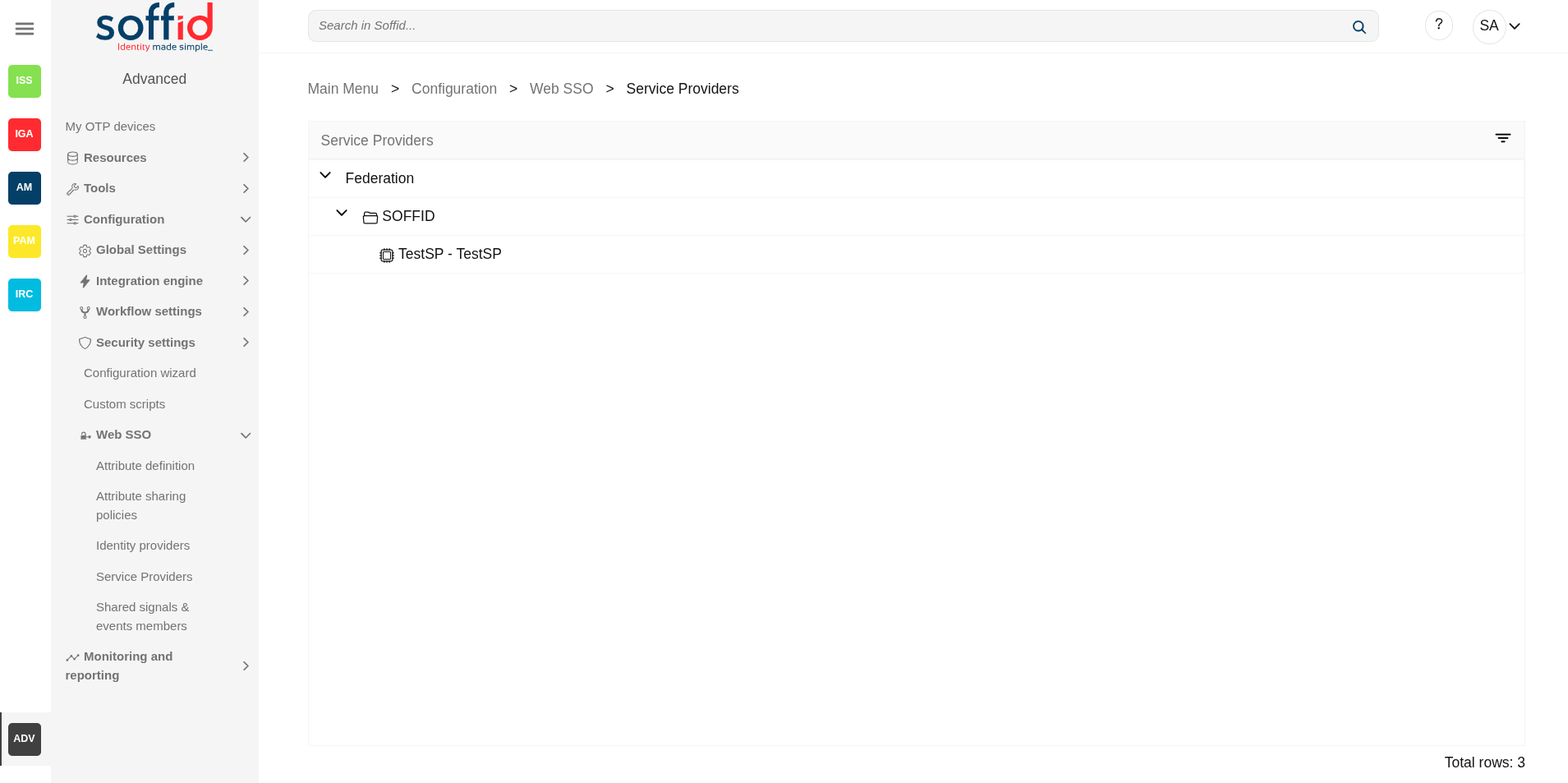
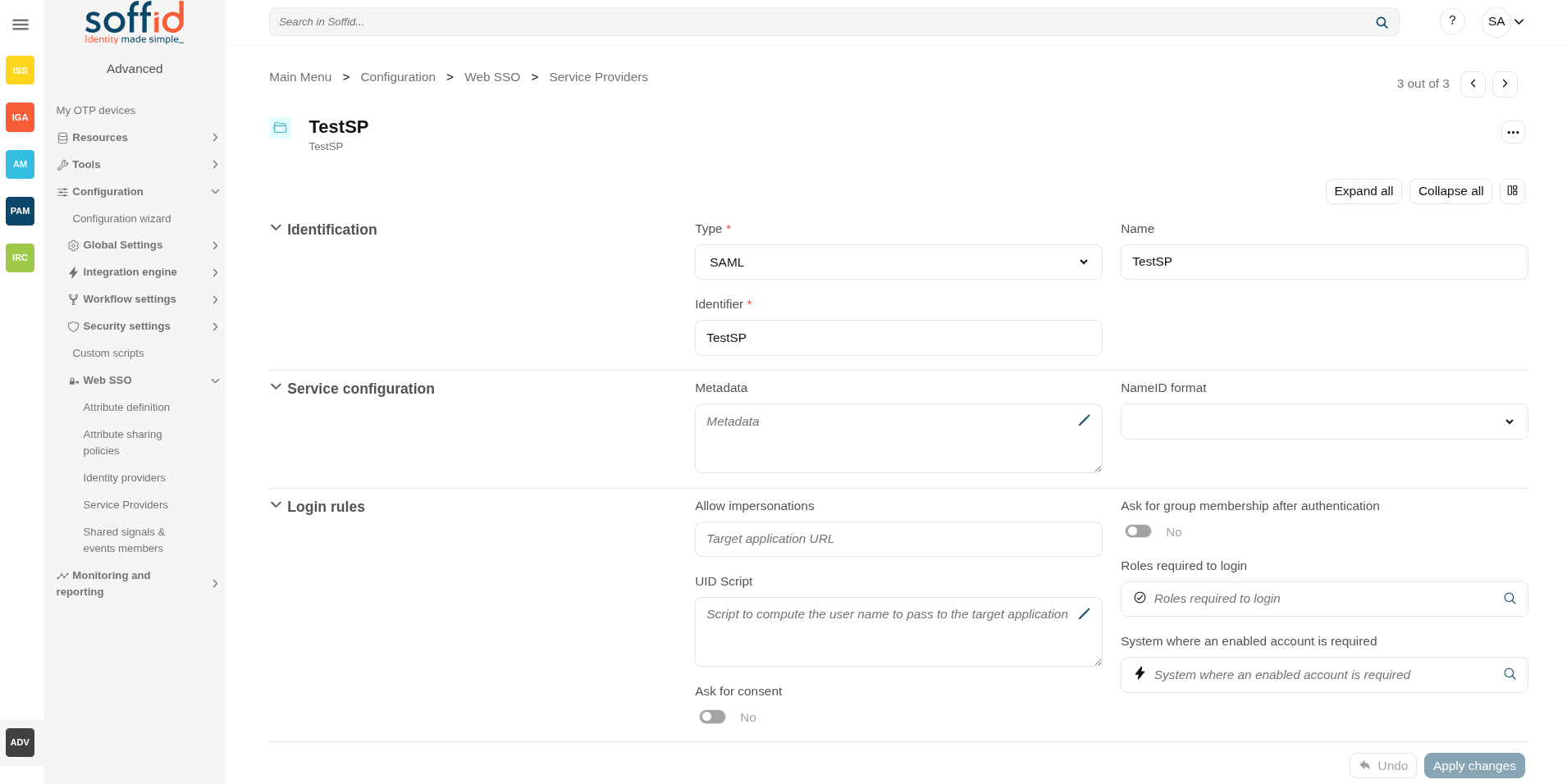
Related objects
- Attribute definition : where the list of possible attributes to be returned in the IdP response is defined
- Attribute sharing policies : where policies are defined with the attributes to be sent according to the authenticated service provider
- Identity providers : configuration of the identity providers
- Service providers : configuration of the service providers
- Metadata : where user attributes are defined
Standard attributes
SAML
Identification
- Type: SAML (this option must be selected)
- Identifier: public name of the service provider. It must be unique
- Name: friendly user name or brief description.
Service configuration
- Metadata: you must provide the identity provider metadata. You can either copy it from the Soffid Identity Provider page, or instruct the service provider to download the federation metadata by itself.
- NameID format:
- Persistent
- Unspecified
- Transient
To publish the federation members' metadata, the main sync server exports the member's metadata at the path /SAML/metadata.xml. Thus, if your sync server is listening at soffid1.your.domain, you can get the whole federation metadata document from:
https://soffid1.your.domain:760/SAML/metadata.xml
After some seconds, up to five minutes, every federation member will notice any change.
Login rules
- Allow impersonations: Soffid allows a service provider to connect to another service provider in a controlled manner. Here you can write the target application URL.
- UID Script: script to compute the user name to pass to the target application
- Level of assurance: to check with the level of assurance reveived from others identity providers. Values: Undefined, Low, Substantial, High
- Ask for consent: enable a new screen for the user to consent to their data being shared in the service provider login.
- Check device posture: to login in with the service providers the device of the user must comply specific operating system requirements. Check this new feature.
- Ask for group membership after authentication: enables a new screen for selecting the user's holder group after authentication. To learn how to configure it, check the holder groups configuration book.
- Script to filter out group memberships: visible only when the attribute "Ask for group membership after authentication" is enabled. You can use a script to filter the groups you need. Check the new feature. The following attributes can be used in this script:
- user: user of the session
- accountName: accountName used to login the session
- serviceProvider: serviceProvider of the session
- authenticationMethod: authentication method used to login the user in the session
- Roles required to login: roles that the user must have to be able to connect to the system
- System where an enabled account is required: System where it will be necessary for the user to have an account in order to log in.
You can visit the Openid-connect to SAML interoperability page for more detailed information.
SAML API client
Identification
- Type: SAML API client (this option must be selected)
- Identifier: public name of the service provider. It must be unique
- Name: friendly user name or brief description.
- Organization: company name of the external IdP.
- Contact: email address of the external IdP.
Service configuration
- Metadata
- NameID format:
- Persistent
- Unspecified
- Transient
Leave it blank as Soffid IdP will fulfill it for you.
The metadata will be created when the network data and SAML Security data.
Login rules
- Allow impersonations: Soffid allows a service provider to connect to another service provider in a controlled manner. Here you can write the target application URL.
- UID Script: script to compute the user name to pass to the target application
- Level of assurance: to check with the level of assurance reveived from others identity providers. Values: Undefined, Low, Substantial, High
- Ask for consent: enable a new screen for the user to consent to their data being shared in the service provider login.
- Check device posture: to login in with the service providers the device of the user must comply specific operating system requirements. Check this new feature.
- Ask for group membership after authentication: enables a new screen for selecting the user's holder group after authentication. To learn how to configure it, check the holder groups configuration book.
- Script to filter out group memberships: visible only when the attribute "Ask for group membership after authentication" is enabled. You can use a script to filter the groups you need. Check the new feature.
- Roles required to login: roles that the user must have to be able to connect to the system
- System where an enabled account is required: System where it will be necessary for the user to have an account in order to log in.
You can visit the Openid-connect to SAML interoperability page for more detailed information.
Network
- Host name: public application host name that wants to be a service provider. A fully qualified name should be used.
- Standard port: public application port number.
- Disable SSL: check it, selected value Yes, if you want to use plain TCP connections. In another case, it will be needed to comply with additional fields:
- Assertion path: URL to receive the response.
SAML Security
- PublicKey:
- Clicking on the Generates public / private key button, a new private key pair will be generated. Once the private key pair is generated, you could generate a certificate request file, also known as PKC#10 or CSR file. The certificate authority will be able to create a certificate for you using this certificate request. Once you have created the public/private key, you could run other new functions:
- Change public/private key: this allows you to change the public/private key generated previously.
- Delete public/private key: this allows you to delete the public/private key generated previously.
- Generate PKCS10: generates a PKCS10 file (Certification request standard).
- Clicking on the Upload PKCS12 file button it will be able to upload a PKCS#12 file. That file must contain the private and public keys and the server certificate as well. Mind that PKCS#12 file use to be protected by a PIN.
- Clicking on the Generates public / private key button, a new private key pair will be generated. Once the private key pair is generated, you could generate a certificate request file, also known as PKC#10 or CSR file. The certificate authority will be able to create a certificate for you using this certificate request. Once you have created the public/private key, you could run other new functions:
- Certificate chain: text certificate chain created with one of the previous options.
OpenID Connect
Identification
- Type: OpenID Connect (this option must be selected)
- Identifier: public name of the service provider. It must be unique.
- Name: friendly user name or brief description.
Login rules
- Allow impersonations: Soffid allows a service provider to connect to another service provider in a controlled manner. Here you can write the target application URL.
- UID Script: script to compute the user name to pass to the target application
- Level of assurance: to check with the level of assurance reveived from others identity providers. Values: Undefined, Low, Substantial, High
- Ask for consent: enable a new screen for the user to consent to their data being shared in the service provider login.
- Check device posture: to login in with the service providers the device of the user must comply specific operating system requirements. Check this new feature.
- Ask for group membership after authentication: enables a new screen for selecting the user's holder group after authentication. To learn how to configure it, check the holder groups configuration book.
- Script to filter out group memberships: visible only when the attribute "Ask for group membership after authentication" is enabled. You can use a script to filter the groups you need. Check the new feature.
- Roles required to login: roles that the user must have to be able to connect to the system
- System where an enabled account is required: System where it will be necessary for the user to have an account in order to log in.
You can visit the Openid-connect to SAML interoperability page for more detailed information.
OpenID authorization flow
-
Implicit: application server redirects the end user to the IdP, that in turn, returns the oAuth token along with the OpenID token.
- Authorization code: application server redirects the user to the IdP, which in turn, returns an authorization code that can be used to retrieve the token and the OpenID token from the token endpoint.
- User's password: the server access directly to the token endpoint, sending the username and password, to retrieve the oAuth and OpenID token. This mechanism is highly insecure, as allows unauthenticated clients to impersonate end users
- User's password + Client credential: it is a secure version of the previous one, requiring the client to use its client secret.
- Client id: the identifier used by the application server.
- Client secret: password used by the application server. It is used in the Authorization code flow as well as “User’s password + Client credentials” flow.
- Sector identifier URI: sector identifier URI
- Response URL: set the URL to return the control after authenticating a user.
- RP-Initiated logout response URL's
- Front-channel logout endpoint
- Back-channel logout endpoint
- oAuth Session timeout (secs): time in seconds that will take the oAuth session. The oAuth has its own life cycle, regardless of the session timeout.
- Allowed scopes: you can define a scope list with the proper scopes that users will need to interact with the final system.
- openid: default scope.
- custom scopes: you can add the custom scopes that can be requested by the service provider.
- *: the scope * means that any scope requested by the service provider will be granted.
OpenID Dynamic Register
Identification
- Type: OpenID Dynamic Register (this option must be selected)
- Identifier: public name of the service provider. It must be unique
- Name: friendly user name or brief description.
Login rules
- UID Script: script to compute the user name to pass to the target application
- Level of assurance: to check with the level of assurance reveived from others identity providers. Values: Undefined, Low, Substantial, High
- Ask for consent: enable a new screen for the user to consent to their data being shared in the service provider login.
- Check device posture: to login in with the service providers the device of the user must comply specific operating system requirements. Check this new feature.
- Ask for group membership after authentication: enables a new screen for selecting the user's holder group after authentication. To learn how to configure it, check the holder groups configuration book.
- Script to filter out group memberships: visible only when the attribute "Ask for group membership after authentication" is enabled. You can use a script to filter the groups you need. Check the new feature.
- Roles required to login: roles that the user must have to be able to connect to the system
- System where an enabled account is required: System where it will be necessary for the user to have an account in order to log in.
OpenID authorization flow
-
Implicit: application server redirects the end user to the IdP, that in turn, returns the oAuth token along with the OpenID token.
- Authorization code: application server redirects the user to the IdP, which in turn, returns an authorization code that can be used to retrieve the token and the OpenID token from the token endpoint.
- User's password: the server access directly to the token endpoint, sending the username and password, to retrieve the oAuth and OpenID token. This mechanism is highly insecure, as allows unauthenticated clients to impersonate end users
- User's password + Client credential: it is a secure version of the previous one, requiring the client to use its client secret.
- Sector identifier URI
- Allowed scopes: you can define a scope list with the proper scopes that users will need to interact with the final system.
- openid: default scope.
- custom scopes: you can add the custom scopes that can be requested by the service provider.
- *: the scope * means that any scope requested by the service provider will be granted.
Registration token
- Token: unique identifier
- Valid until: maximum validity date
- Allowed servers: maximum number of servers that can be registered
Radius client
Identification
- Type: Radius client (this option must be selected)
- Identifier: public name of the service provider. It must be unique.
- Name: friendly user name or brief description.
Login rules
- Level of assurance: to check with the level of assurance reveived from others identity providers. Values: Undefined, Low, Substantial, High
- Check device posture: to login in with the service providers the device of the user must comply specific operating system requirements. Check this new feature.
- Roles required to login: roles that the user must have to be able to connect to the system
- System where an enabled account is required: System where it will be necessary for the user to have an account in order to log in.
Radius configuration
- Source IPs: origin IP or origin IP range.
- Radius secret: password.
- Client certificate: client certificate.
- Free radius agent: enable this option when Soffid allows anonymous users to access from different locations.
CAS client
Identification
- Type: CAS client (this option must be selected)
- Identifier: public name of the service provider. It must be unique.
- Name: friendly user name or brief description.
Login rules
- Allow impersonations: Soffid allows a service provider to connect to another service provider in a controlled manner. Here you can write the target application URL.
- UID Script: script to compute the user name to pass to the target application
- Level of assurance: to check with the level of assurance reveived from others identity providers. Values: Undefined, Low, Substantial, High
- Ask for consent: enable a new screen for the user to consent to their data being shared in the service provider login.
- Check device posture: to login in with the service providers the device of the user must comply specific operating system requirements. Check this new feature.
- Ask for group membership after authentication: enables a new screen for selecting the user's holder group after authentication. To learn how to configure it, check the holder groups configuration book.
- Script to filter out group memberships: visible only when the attribute "Ask for group membership after authentication" is enabled. You can use a script to filter the groups you need. Check the new feature.
- Roles required to login: roles that the user must have to be able to connect to the system
- System where an enabled account is required: System where it will be necessary for the user to have an account in order to log in.
CAS configuration
- Response URL: set the URL to return the control after authenticating a user.
- Logout response URL: set the URL to return the control after logout a user.
Tacacs+
Identification
- Type: Tacacs+ (this option must be selected)
- Identifier: public name of the service provider. It must be unique.
- Name: friendly user name or brief description.
Login rules
- Level of assurance: to check with the level of assurance reveived from others identity providers. Values: Undefined, Low, Substantial, High
- Check device posture: to login in with the service providers the device of the user must comply specific operating system requirements. Check this new feature.
- Roles required to login: roles that the user must have to be able to connect to the system
- System where an enabled account is required: System where it will be necessary for the user to have an account in order to log in.
Tacacs+ configuration
- Source IPs: origin IP or origin IP range.
- Tacacs+ secret: password.
- Authorization rules: allows you to add additional authorization rules to elevate privileges. Available context variables:
- user: remote user name
- priv_level: privilege level
- remote_address: remote address
- port: port
- optionalArguments: modifiable map of optional attributes.
- mandatoryArguments: modifiable map of mandatory attributes.
- return true if the action is authorized.
WS-Federation
Identification
- Type: WSW-Federation (this option must be selected)
- Identifier: public name of the service provider. It must be unique.
- Name: friendly user name or brief description.
Login rules
- Allow impersonations: Soffid allows a service provider to connect to another service provider in a controlled manner. Here you can write the target application URL.
- UID Script: script to compute the user name to pass to the target application
- Level of assurance: to check with the level of assurance reveived from others identity providers. Values: Undefined, Low, Substantial, High
- Ask for consent: enable a new screen for the user to consent to their data being shared in the service provider login.
- Check device posture: to login in with the service providers the device of the user must comply specific operating system requirements. Check this new feature.
- Ask for group membership after authentication: enables a new screen for selecting the user's holder group after authentication. To learn how to configure it, check the holder groups configuration book.
- Script to filter out group memberships: visible only when the attribute "Ask for group membership after authentication" is enabled. You can use a script to filter the groups you need. Check the new feature.
- Roles required to login: roles that the user must have to be able to connect to the system
- System where an enabled account is required: System where it will be necessary for the user to have an account in order to log in.
WS-Federation
- Response URL: set the URL to return the control after authenticating a user.
Actions
Federation tree
|
Add group |
Allows you to create a new entity group. You can choose that option by clicking on the "Add group" button in the tree, then Soffid will display a new window with the fields to fullfil. To add a new entity group it will be mandatory to fill in the required fields and save or apply changes. |
|
Add service provider |
Allows you to add a new service provider. You must click the "Add service provider" button, under the proper Entity Group and "Identity Provider" label, then Soffid will display a new window with the data to fulfill for new service Provider. To add a new service provider it will be mandatory to fill in the required fields and save or apply changes. |
Entity group detail
|
Apply changes (disk button) |
Allows you to save the data of a new entity group or to update the data of a specific entity group. To save the data it will be mandatory to fill in the required fields. |
|
Delete |
Allows you to remove the entity group. You can find this option in the "three points" menu by clicking on the "Delete" button. To perform that action, Soffid will ask you for confirmation, you could confirm or cancel the operation. |
|
Undo |
Allows you to quit without applying any changes. |
|
Apply changes |
Allows you to save the data of a new entity group or to update the data of a specific entity group. Once you apply changes, the plugin details page will be closed. |
Service provider detail
| Save |
Allows you to save the data of a new service provider or to update the data of a specific service provider. To save the data it will be mandatory to fill in the required fields. |
|
Delete service provider |
Allows you to delete the service provider. To delete a service provider you can click on the "three points" icon and then click the delete button. Soffid will ask you for confirmation to perform that action, you could confirm or cancel the operation. |
|
Undo |
Allows you to quit without applying any changes made. |
|
Apply changes |
Allows you to save the data of a new service provider or to update the data of a specific service provider and quit. To save the data it will be mandatory to fill in the required fields. |
Shared signals & events members (addon federation)
Description
For more information, please refer to our section on the Shared signals framework.
Please note that this screen is available in the federation addon.
Screen overview
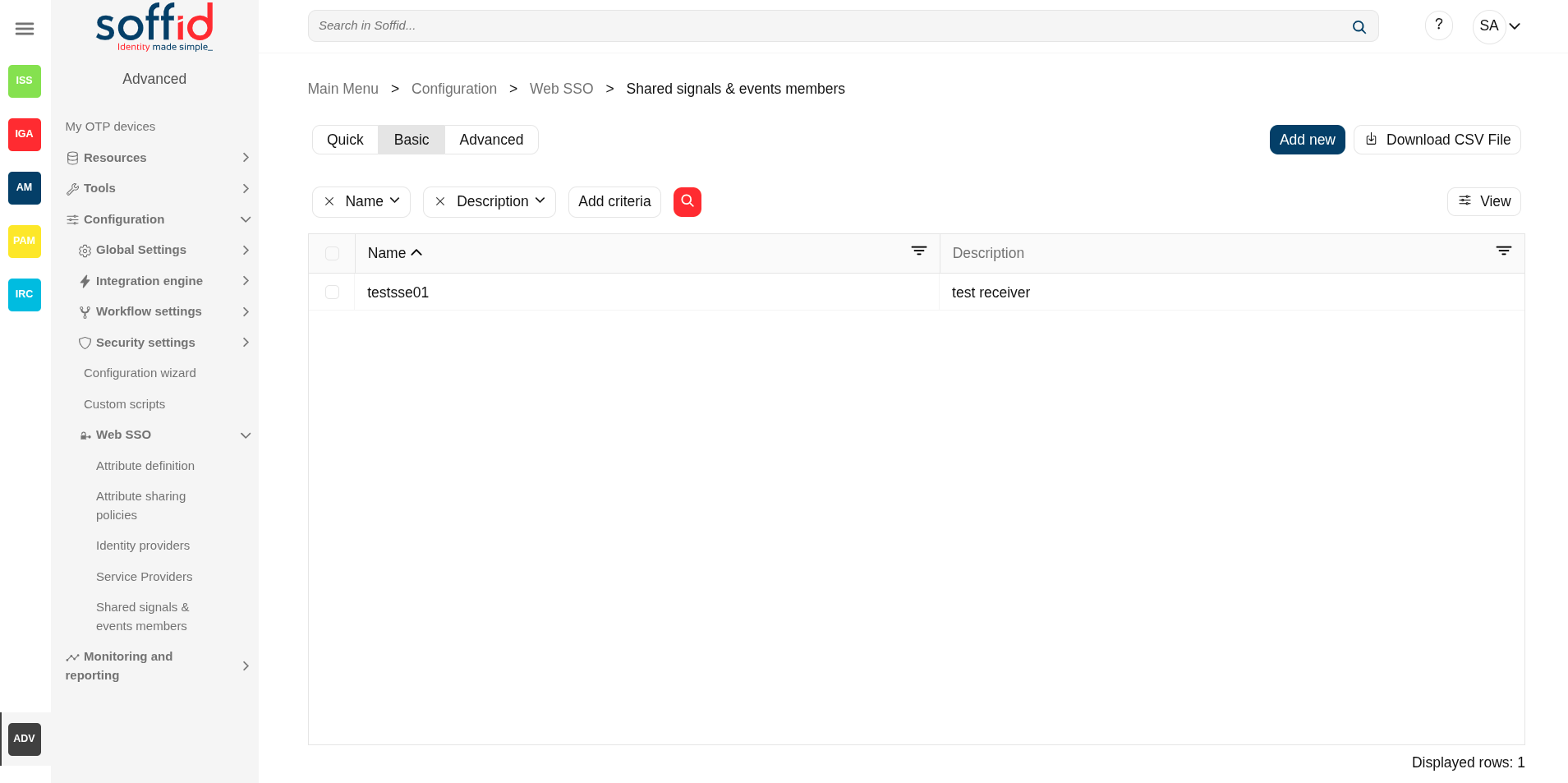
Related objects
- Identity providers : available identity providers
- Service providers : available service providers
- Metadata : where user attributes are defined
- Users : user's data
- Agents : systems to be observed
Standard attributes
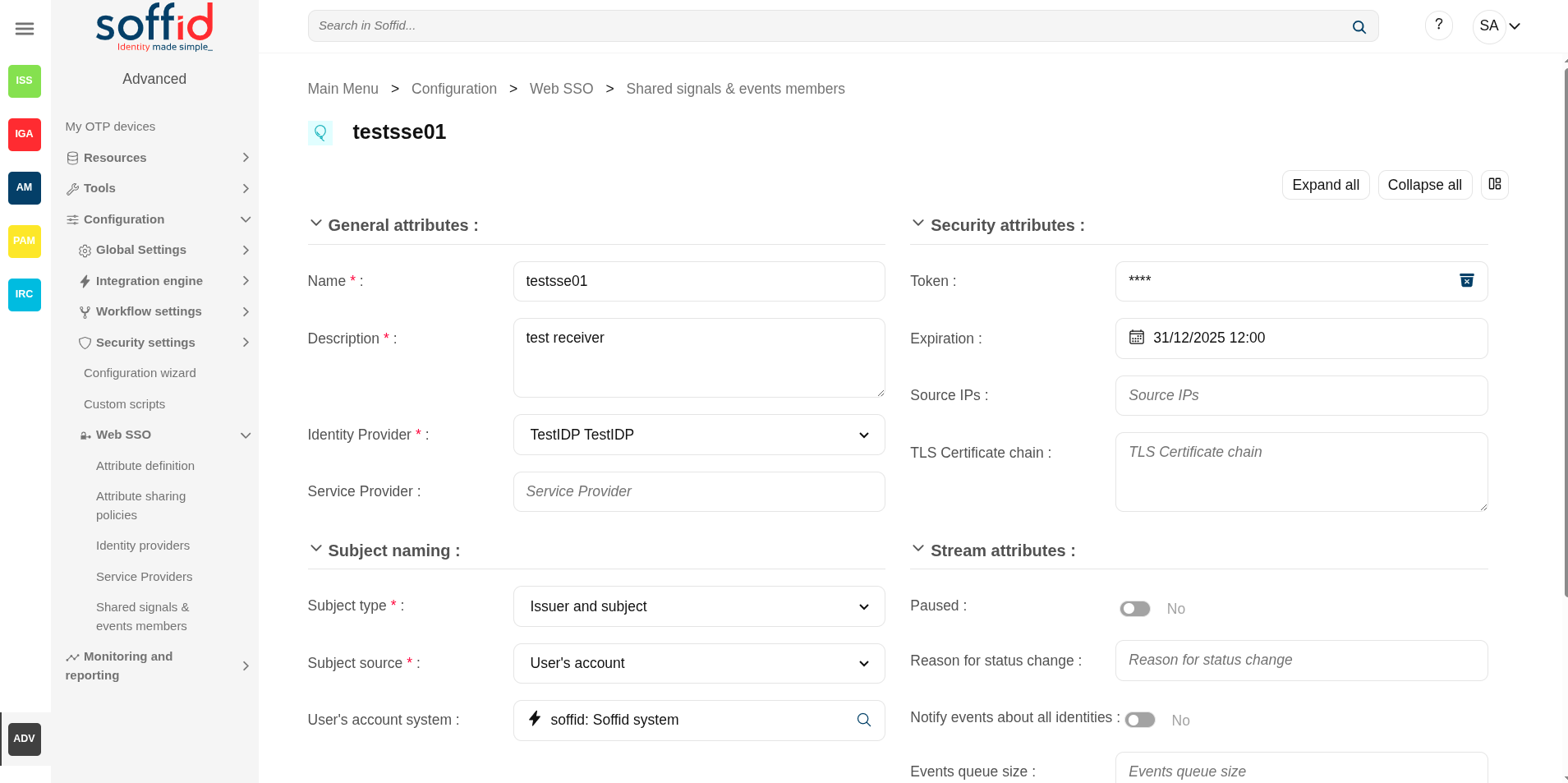
General attributes
- Name: application name.
- Description: a brief description of the application.
- Identity Provider: the IdP on which it depends.
- Service Provider: (optional) applies only to the token change event.
Security attributes
- Token: allows to you to generate a new bearer token. This token will be used in all the requests you make.
- Expiration: expiration date for this token.
- Source IPs: to enable source IPs to use this service.
- TLS certificate chain: to add a certificate chain if comucation requires it
Subject naming
- Subject type: format of the attributes.
- Accounts: accounts
- Email address: email address
- Issuer and subject: issuer and subject
- Opaque: opaque
- Phone number: phone number
- Descentralized identifier: descentralized identifier
- Subject source: where we are going to take the attributes from.
- User's account: if you select this option, then you must select the system.
- oAuth attribute: if you select this option, then you must select the attribute.
- Expression: if you select this option, then you must write a script to calculate the subject.
- Subject expression: script to compute the subject name to pass to the event subscriber
- Subject oAuth attribute: list of all attributes with a value in the "OpenID name" field on the "Attribute definition" screen
- User's account system: systems to be observed
Stream attributes
- Paused: if you choose the Yes option, the events will be registered but not yet sent.
- Reason for status change: reason for status change
- Notify events about all identities: if you select the Yes option, the events of all identities will be sent.
- Events queue size: maximum queue size. To limit and contain the number of events.
- URL: (read-only) push URL if configured.
- Stream attributes: (read-only) delivery mechanism.
- Events: (read-only) event list.
Actions
Table actions
|
Add new |
Allows you to add a new shared signals framework members object in the system. To add a new one it is necessary to fill in the required fields. |
| Delete shared signals & events members | Allows you to delete one or more shared signals framework members object by selecting one or more records and next clicking this button. To perform that action, Soffid will ask you for confirmation, you could confirm or cancel the operation. |
|
Download CSV file |
Allows you to download a CSV file with the basic information of all shared signals & events members. |
|
View |
Allows you to show and hide columns in the table. You can also set the order in which the columns will be displayed. |
Detail actions
|
Apply changes (disk button) |
Allows you to save the data of a new shared signals framework members object or to update the data of a specific shared signals framework members object. To save the data it will be mandatory to fill in the required fields. |
|
Delete |
|
| Collapse all | Hide all attributes of the different blocks. |
| "Types of views" | Change the view type: Classic view, Modern view, Compact design. |
|
Undo |
Allows you to quit without applying any changes. |
|
Apply changes |
Allows you to save the data of a new shared signals framework members object or to update the data of a specific shared signals framework members object. Once you apply changes, the plugin details page will be closed. |