
Full PAM installation using Docker Compose
Introduction
This tutorial will describes all the steps required to install and configure a basic PAM environment for a local, demo or small production environment.
Prerequisites
- We have a Linux machine; Ubuntu 24 has been used for this tutorial.
- Docker and the Docker Compose plugin are already installed.
- The database, Console and Syncserver have already been installed.
- The Linux administrator user has sudo privileges.
Step 1: prepare certificates
1.1 Introduction
This tutorial will use self-signed certificates generated for a lab environment.
If you have your own certificates, follow the steps depending on the file type.
For this tutorial, we will be using the following hostnames: store.soffid4.local and launcher.soffid4.local
Go to the current Soffid 4 directory where the docker-compose.yaml is located.
cd /home/user/lab/soffid4/Add the hostnames in your hosts file.
sudo vim /etc/hosts127.0.0.1 store.soffid4.local
127.0.0.1 launcher.soffid4.local1.2 Generate .key files
When you run the command, you will be prompted for a password. In this tutorial, we will always use the value 12345678; please replace this with the password of your choice (minimum 8 characters)
sudo openssl genrsa -aes256 -out store.soffid4.local.key
sudo openssl genrsa -aes256 -out launcher.soffid4.local.key
1.3 Generate .pem files
When you run the command, the prompt will ask for the CN (Common Name) attribute; use the values from our domains: store.soffid4.local or launcher.soffid4.local
sudo openssl req -x509 -days 1000 -new -key store.soffid4.local.key -out store.soffid4.local.pem
sudo openssl req -x509 -days 1000 -new -key launcher.soffid4.local.key -out launcher.soffid4.local.pem
1.3 Generate .pfx files
sudo openssl pkcs12 -export -in store.soffid4.local.pem -inkey store.soffid4.local.key -out store.soffid4.local.pfx
sudo openssl pkcs12 -export -in launcher.soffid4.local.pem -inkey launcher.soffid4.local.key -out launcher.soffid4.local.pfx
1.4 Generate .jks files
sudo keytool -v -importkeystore -srckeystore store.soffid4.local.pfx -srcstoretype PKCS12 -destkeystore store.soffid4.local.jks -deststoretype JKS -destkeypass 12345678 -srcstorepass 12345678 -deststorepass 12345678
sudo keytool -v -importkeystore -srckeystore launcher.soffid4.local.pfx -srcstoretype PKCS12 -destkeystore launcher.soffid4.local.jks -deststoretype JKS -destkeypass 12345678 -srcstorepass 12345678 -deststorepass 12345678
Step 2: store configuration
2.1 Add the store in the yaml file
Edit your docker-compose.yaml.
sudo vim docker-compose.yamlAdd the store service in your docker-compose.yaml.
For this tutorial, ports 8090 and 8091 have been opened.
services:
  store:
    image: soffid/pam-store:1.4.88
    environment:
      JAVA_KEYSTORE: /opt/soffid/tomee/certificates/store.soffid4.local.jks
      KEYSTORE_PASS: 12345678
    ports:
      - "8090:8080"
      - "8091:8443"
    networks:
      - network
    volumes:
      - store-trustedcerts:/opt/soffid/tomee/trustedcerts
      - store-certificates:/opt/soffid/tomee/certificates
      - store-data:/opt/soffid/tomee/data

volumes:
  store-trustedcerts:
    name: soffid4-pam-store-trustedcerts
  store-certificates:
    name: soffid4-pam-store-certificates
  store-data:
    name: soffid4-pam-store-data
Regenerate the docker containers.
sudo docker compose up -d2.2 Create users
The console and the launcher will need users to connect to the store.
We have to run a script in the store container to create the user. This script has two parameters, the user name, and the role. The role opcions are "console" or "launcher".
Create the user-console.
docker compose exec store /opt/soffid/tomee/bin/add-user.sh user-console consoleWhen the user is created, its password is generated and displayed in the script’s output; please copy and save it for use in the next steps.
/bin/bash: warning: setlocale: LC_ALL: cannot change locale (en_US.UTF-8)
Password: cccccc/Qul9NFIqQnDU73gYccccVHThyew7Qt8Hqpf0rEzVq1Ft7azccccccc
Create the user-launcher.
docker compose exec store /opt/soffid/tomee/bin/add-user.sh user-launcher launcher/bin/bash: warning: setlocale: LC_ALL: cannot change locale (en_US.UTF-8)
Password: asdadadasdads/Qul9NFIqQnDU73gYccccVHThyew7Qt8Hqpf0rEzVq1Ft7aadadadasd2.3 Add the certificate
Copy the jks certificate into the container.
docker compose cp store.soffid4.local.jks store:/opt/soffid/tomee/certificatesRestart the store.
docker compose restart store2.4 Monitoring the store
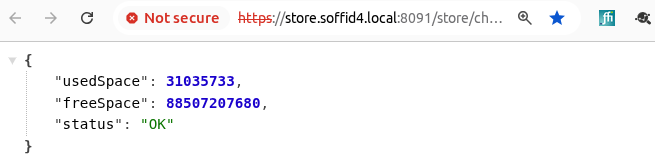
If the store has started successfully, we will be able to access the store’s monitoring page.
https://store.soffid4.local:8091/store/check
You must use the user-console username to log in.
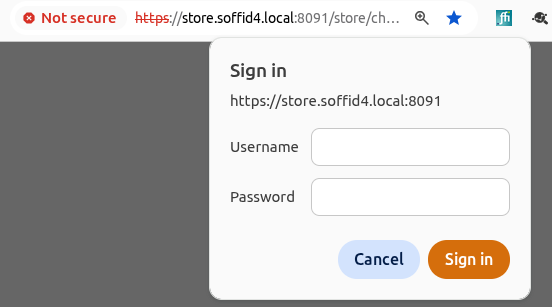
This is result.
If something has gone wrong, you need to check the log.
sudo docker compose logs storeStep 3: launcher configuration
3.1 Add the launcher in the yaml file
Edit your docker-compose.yaml.
sudo vim docker-compose.yamlAdd the launcher service in your docker-compose.yaml.
For this tutorial, ports 8092 and 8093 have been opened.
services:
  launcher:
    image: soffid/pam-launcher:1.4.88
    environment:
      JAVA_KEYSTORE: /opt/soffid/tomee/certificates/launcher.soffid4.local.jks
      KEYSTORE_PASS: 12345678
      STORE_SERVER: http://store:8080
      STORE_USER: user-launcher
      STORE_PASSWORD: asdadadasdads/Qul9NFIqQnDU73gYccccVHThyew7Qt8Hqpf0rEzVq1Ft7aadadadasd
    ports:
      - "8092:8080"
      - "8093:8443"
    networks:
      - network
    volumes:
      - launcher-trustedcerts:/opt/soffid/tomee/trustedcerts
      - launcher-certificates:/opt/soffid/tomee/certificates
      - launcher-data:/opt/soffid/tomee/launcher
      - /var/run/docker.sock:/var/run/docker.sock

volumes:
  launcher-trustedcerts:
    name: soffid4-pam-launcher-trustedcerts
  launcher-certificates:
    name: soffid4-pam-launcher-certificates
  launcher-data:
    name: soffid4-pam-launcher-data
Regenerate the docker containers.
sudo docker compose up -d3.2 Add the certificate
Copy the jks certificate into the container.
docker compose cp launcher.soffid4.local.jks launcher:/opt/soffid/tomee/certificatesRestart the launcher.
docker compose restart launcher3.3 Monitoring the launcher
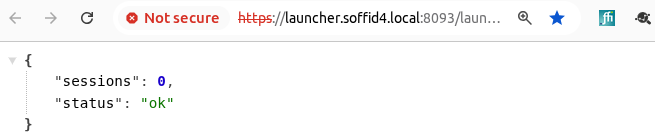
If the launcher has started successfully, we will be able to access the store’s monitoring page.
https://launcher.soffid4.local:8093/launch/status
This is result.
If something has gone wrong, you need to check the log.
sudo docker compose logs launcherStep 4: register certificates
4.1 In the Console
Add the PAM hostnames in the console service.
Check the IP of the docker environtment, in this tutorial 192.168.122.1.
sudo vim docker-compose.yaml

    extra_hosts:
      - store.soffid4.local:192.168.122.1
      - launcher.soffid4.local:192.168.122.1

docker compose up -d
Created the PAM certificates for the Console.
docker compose exec -it console bash
cd /opt/soffid/iam-console-4/trustedcerts
openssl s_client -connect store.soffid4.local:8091 < /dev/null | sed -ne '/-BEGIN CERTIFICATE-/,/-END CERTIFICATE-/p' > store.soffid4.local.crt
openssl s_client -connect launcher.soffid4.local:8093 < /dev/null | sed -ne '/-BEGIN CERTIFICATE-/,/-END CERTIFICATE-/p' > launcher.soffid4.local.crt
exit
docker compose restart console
4.2 Add a store certificate to the sync server
Add the PAM hostnames in the syncserver service.
sudo vim docker-compose.yaml

    extra_hosts:
      - store.soffid4.local:192.168.122.1

docker compose up -d
Add a store certificate to the sync server
docker compose exec -it syncserver bash
cd /opt/soffid/iam-sync/conf
openssl s_client -connect store.soffid4.local:8091 < /dev/null | sed -ne '/-BEGIN CERTIFICATE-/,/-END CERTIFICATE-/p' > store.soffid4.local.crt
keytool -import -file store.soffid4.local.crt -keystore cacerts -alias store.soffid4.local
password: changeit
exit
docker compose restart syncserver
4.3 Add the store/syncserver certificate to the launcher
Add hostnames in the launcher service.
sudo vim docker-compose.yaml

    extra_hosts:
      - store.soffid4.local:192.168.122.1

docker compose up -d
Add the store/syncserver certificate to the launcher.
docker compose exec -it pam-launcher bash
cd /opt/soffid/tomee/trustedcerts
openssl s_client -connect store.soffid4.local:8091 < /dev/null | sed -ne '/-BEGIN CERTIFICATE-/,/-END CERTIFICATE-/p' > store.soffid4.local.crt
openssl s_client -connect sync-server-version4.network:1768 < /dev/null | sed -ne '/-BEGIN CERTIFICATE-/,/-END CERTIFICATE-/p' > sync-server-version4.network.crt
exit
docker compose restart pam-launcher