Soffid 4 apply license
Apply license
When accessing the Soffid Console for the first time, you will need to apply a licence that the Soffid team will have created for you beforehand.
Step 1. Log in to your Console
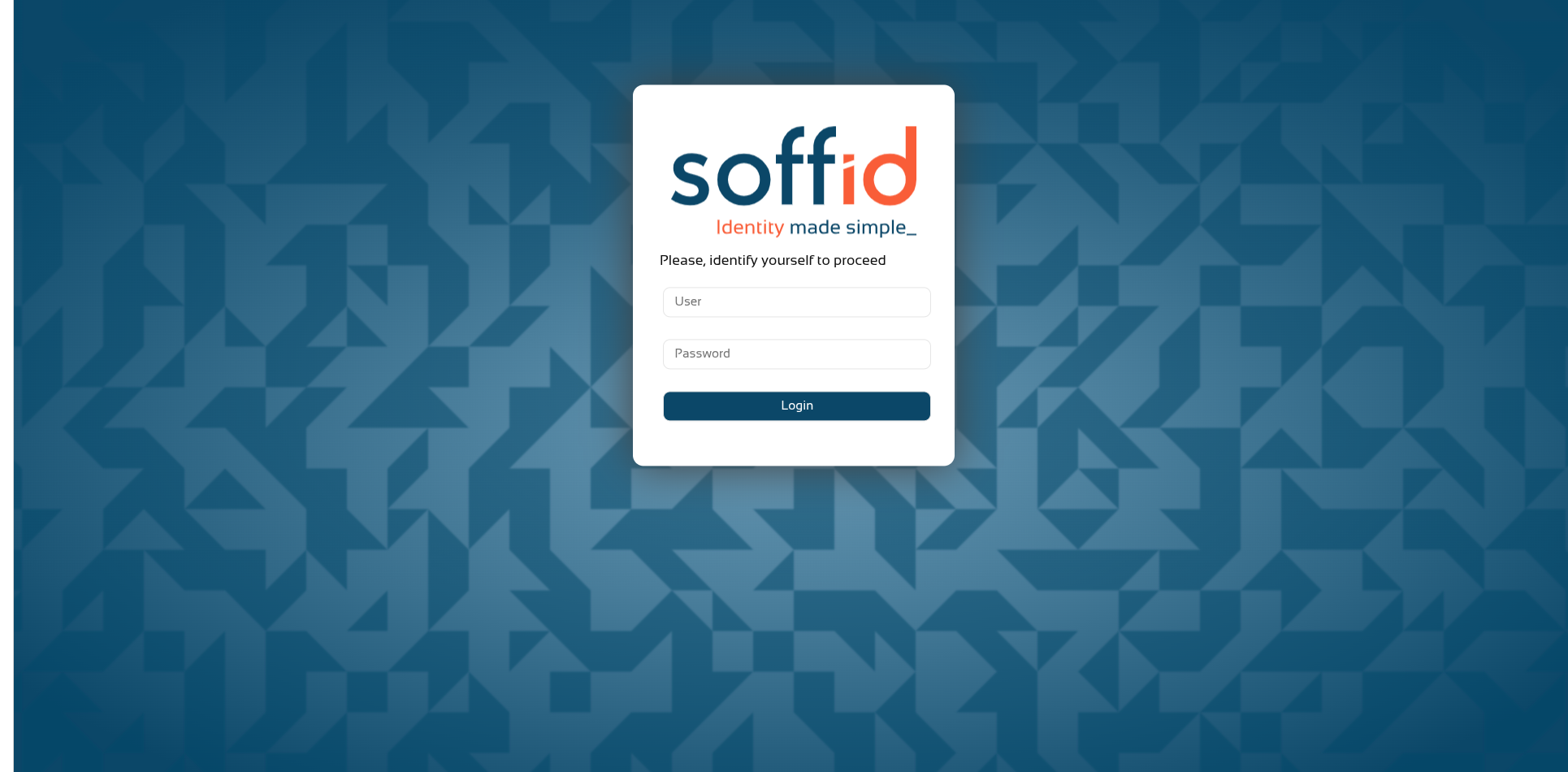
Log in to the Soffid Console with your Soffid administrator account ("admin" is the default user account).
Step 2. Log in to Soffid online
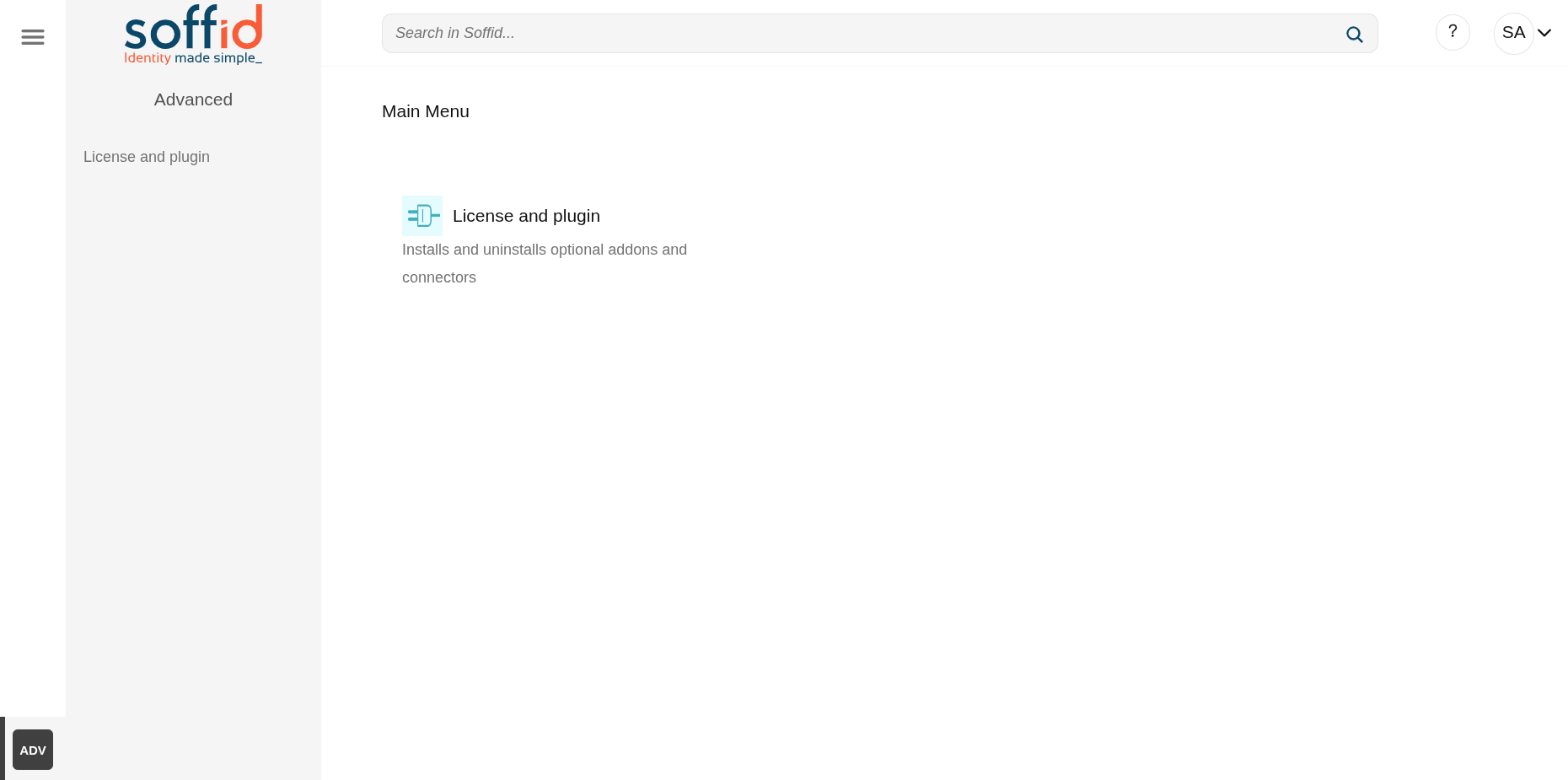
Go to the "License and plugin" page (the only accessible page).
You will not have an active license: "There is no valid license".
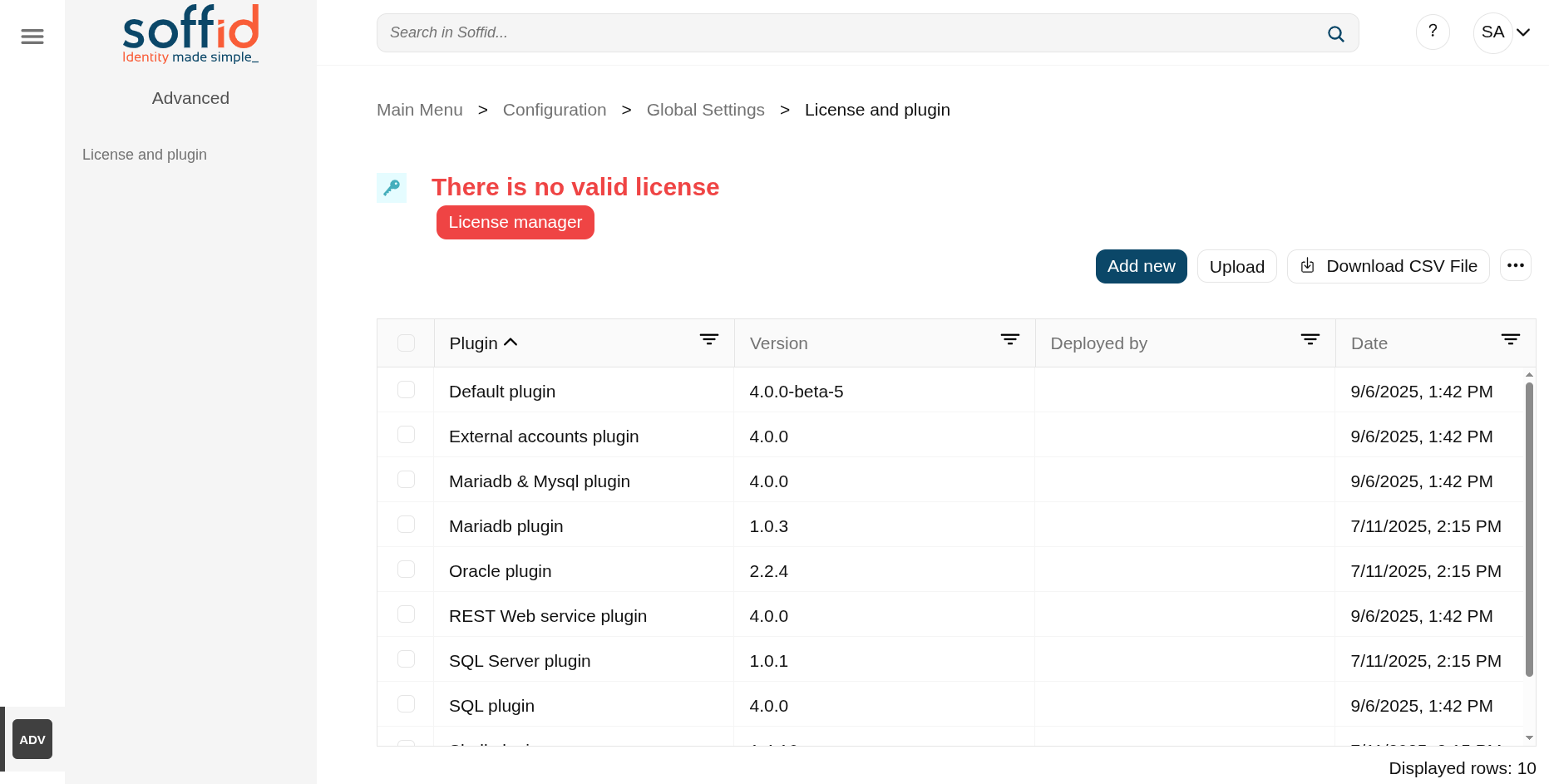
Click on the "License manager" button and log in using the Soffid account provided by Soffid, which has the required permissions (a second factor is required).
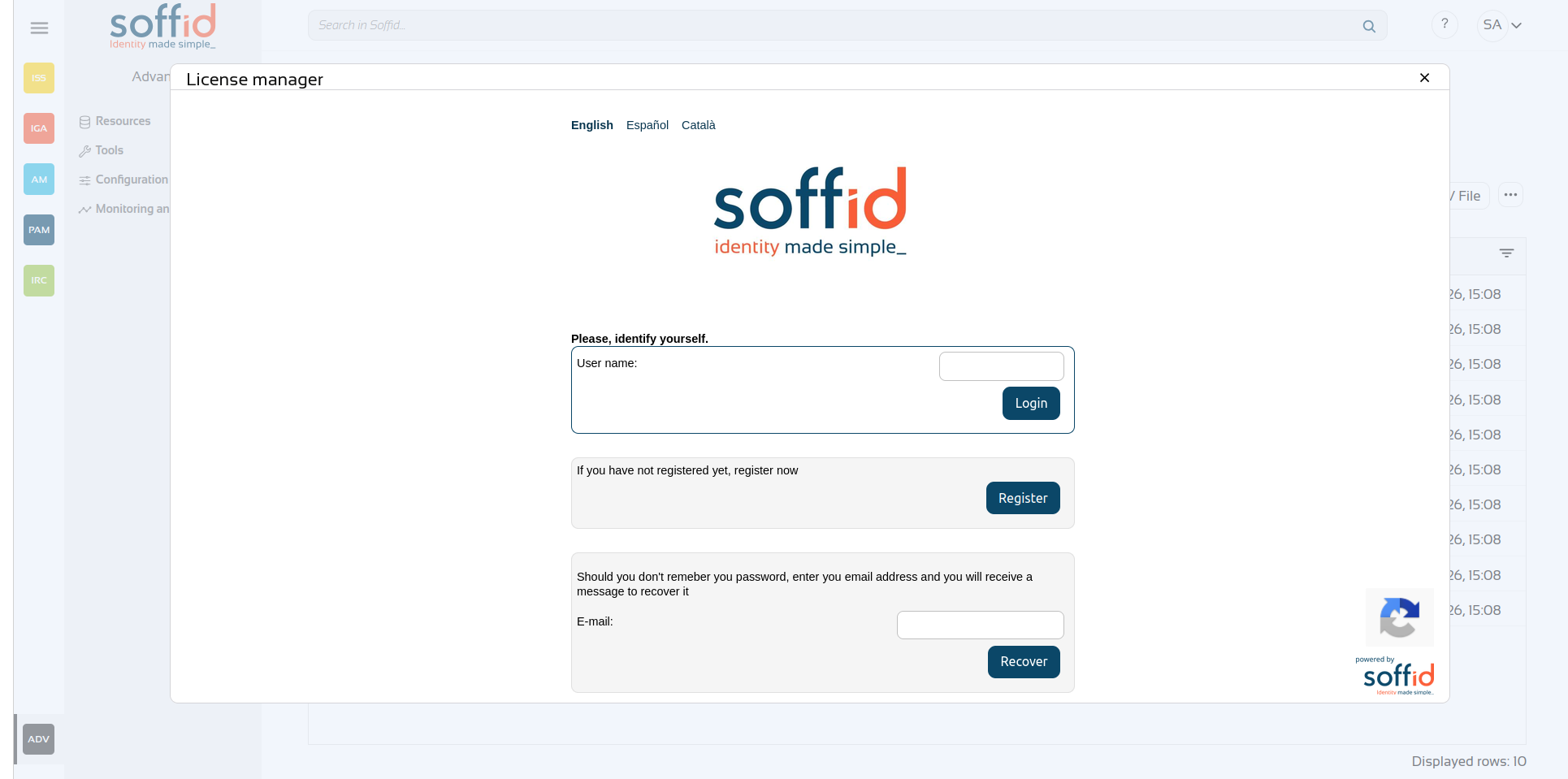
Step 3. Apply license
Once your pending license is displayed, select it.
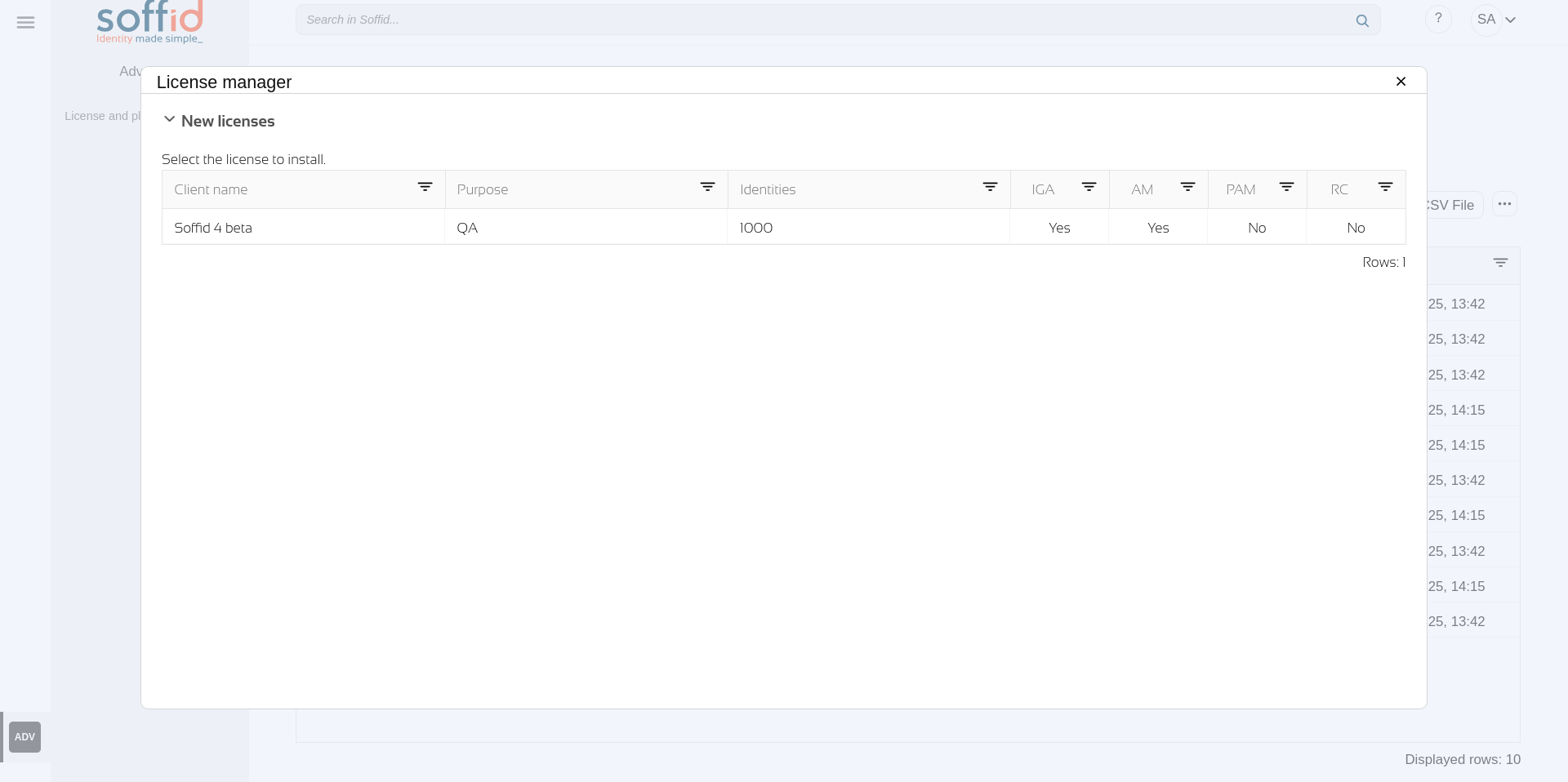
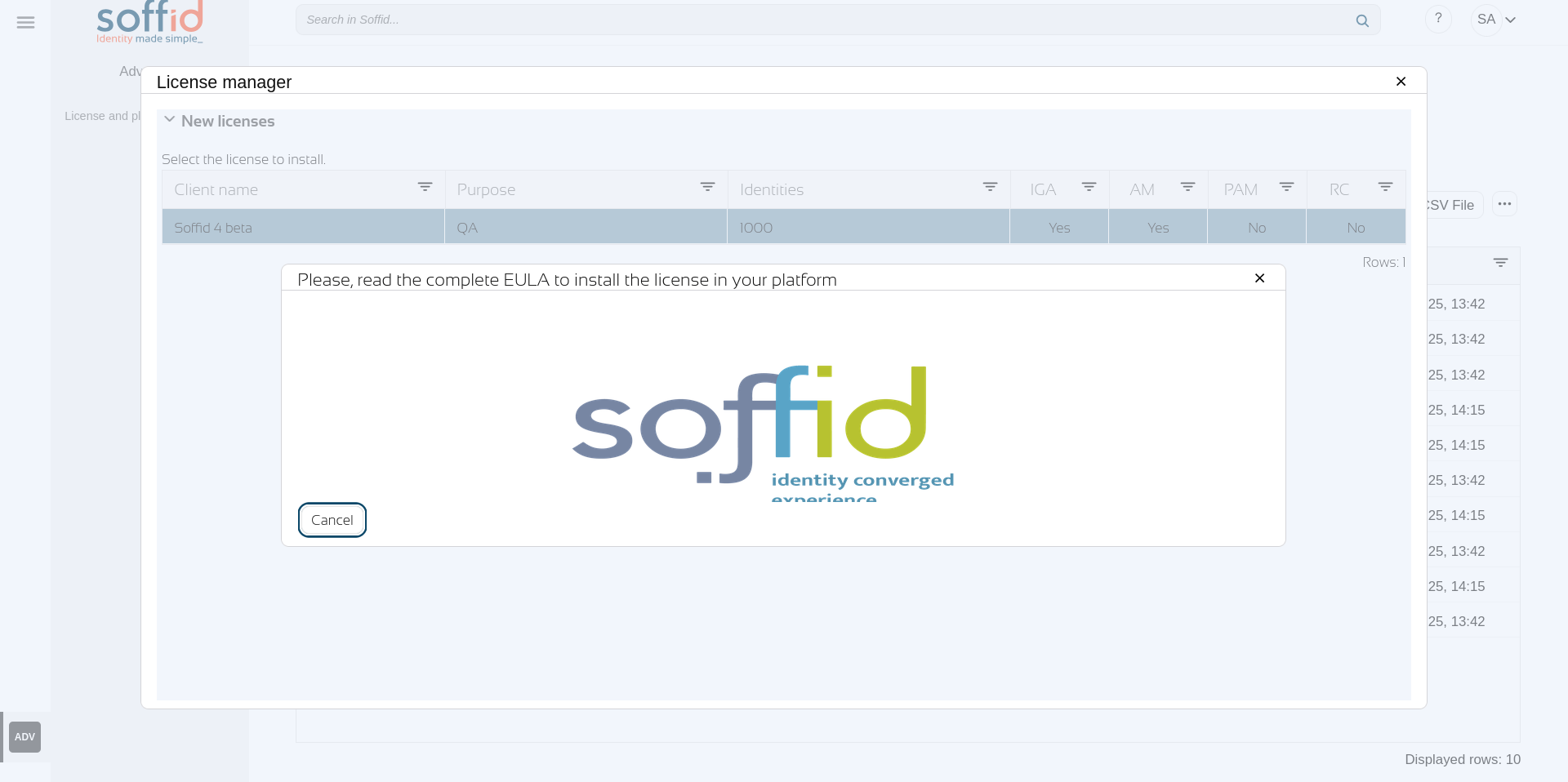
Accept the conditions.
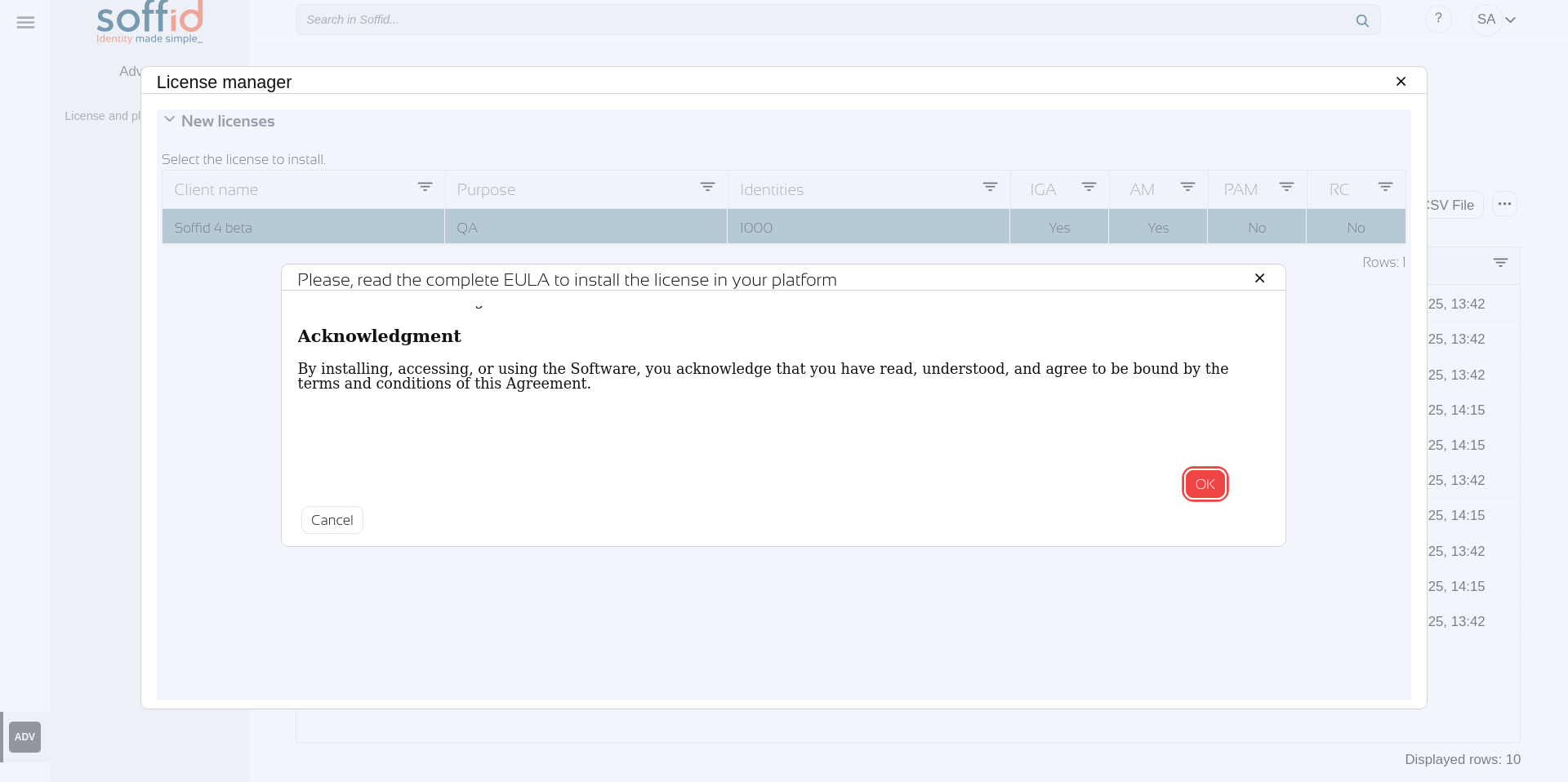
Scroll down and click on the "Ok" button.
If the "Access other apps and services on this device" popup appears, click on the "Allow" button.
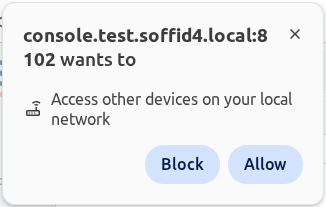
To activate the licence permanently, click the "Close" button.
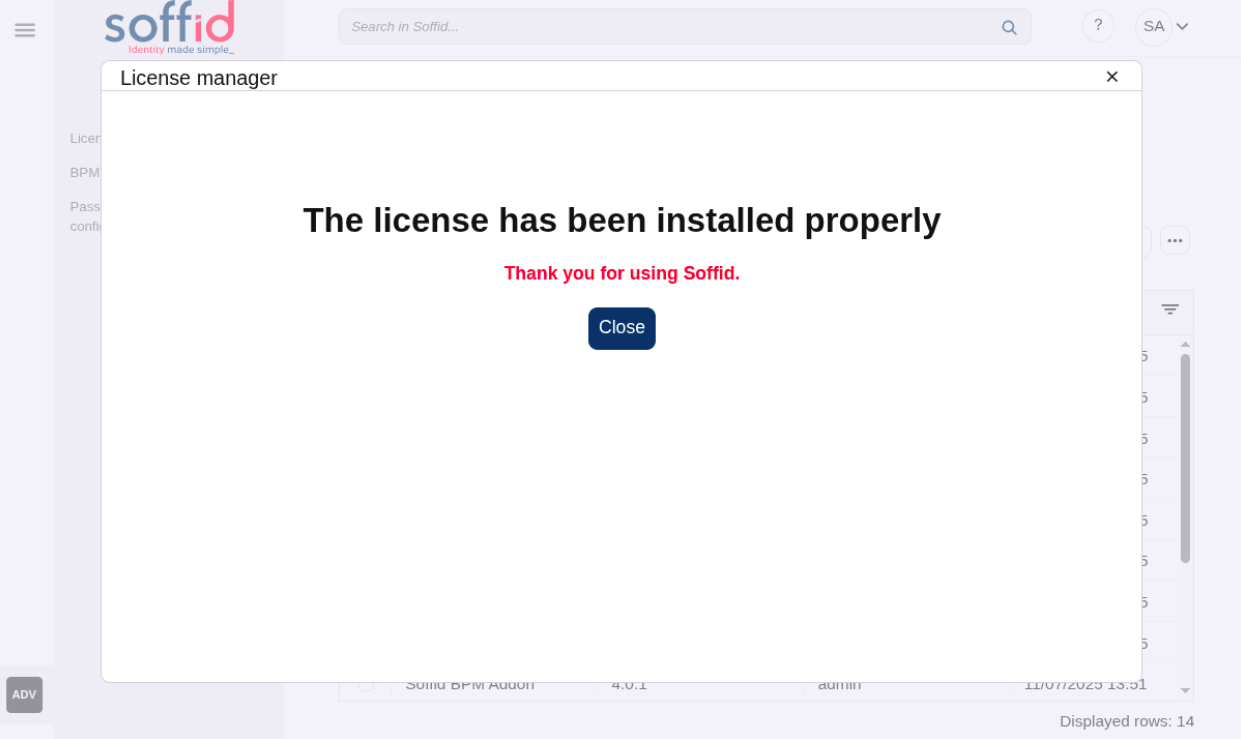
Step 4. Welcome to Soffid 4!
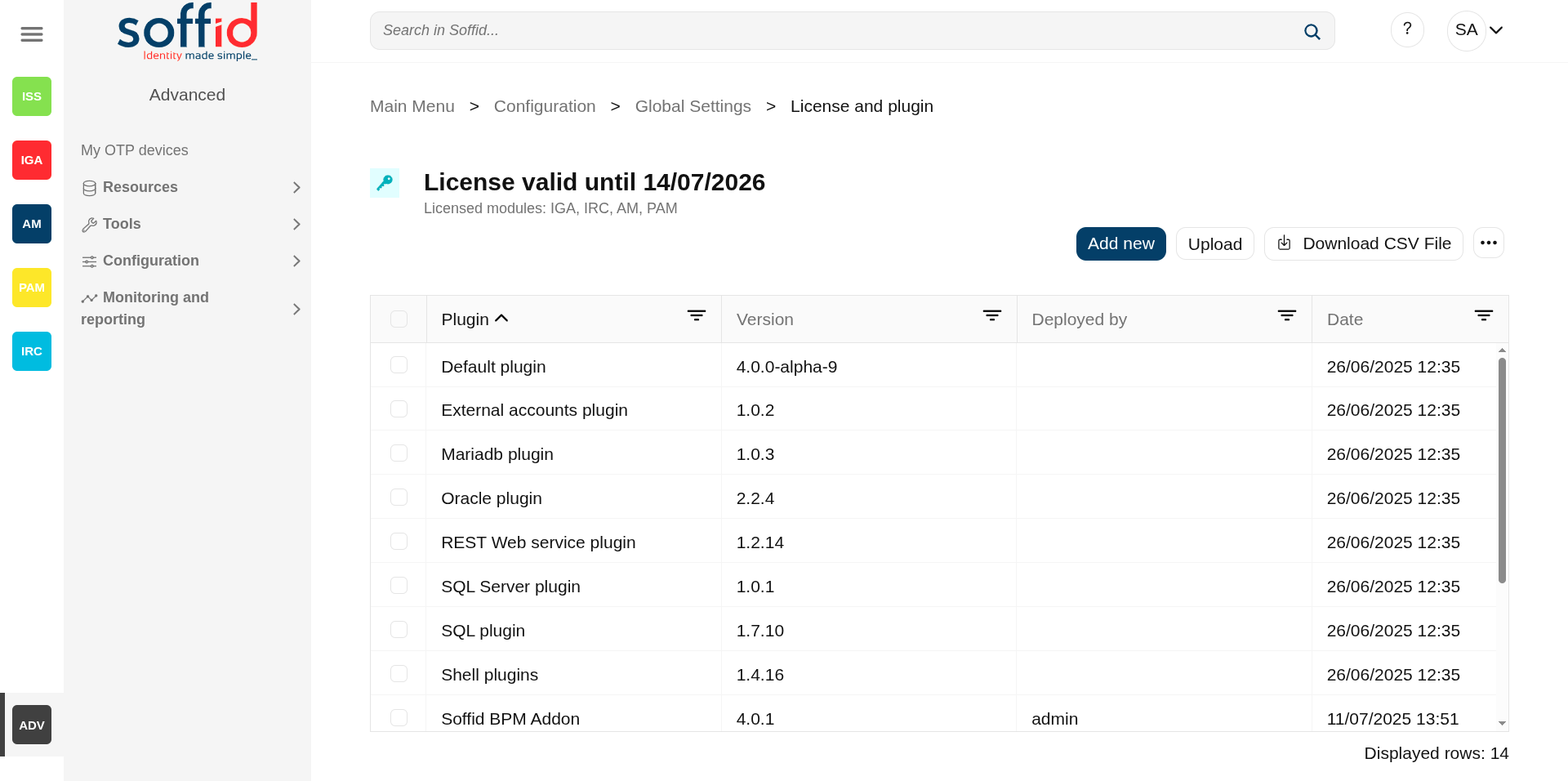
You will finally have an active license and you will now be able to access all your Soffid’s features.
On the left side, you will see the modules you have contracted to; in this example, they are all shown: ISS, IGA, AM, PAM and IRC.