
ESSO Installation Windows (+3.5.0-enterprise)
Introduction
Soffid ESSO is a full Enterprise Single Sign on solution.
Here you can find the details about the ESSO +3.5.0-enterprise installation.
Supported platforms
Soffid ESSO supports Windows XP or later workstations.
Windows installation
Interactive installation
To install Soffid ESSO, you must follow these steps:
1. Download the latest available installer version from: Soffid Download Manager.
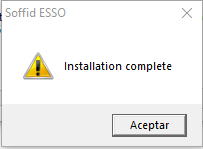
2. Install as administrator. Once the interactive installation has finished, a message window will notice you:
3. Finally, the system will prompt you to configure Soffid ESSO. This prompt will not be shown on updates or silent installations.
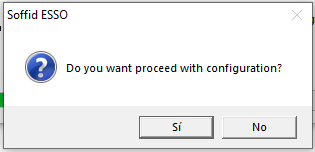
3.1. If you click No, the process finish without configuration
3.2. If you click Yes, you must configure the ESSO server URL and obtain its digital certificate.
- In Soffid 2, the URL was the syncserver URL.
- In Soffid 3, the URL could be the syncserver URL or the IdP URL, depending on Soffid version and features used.
- In Soffid 4, the URL must be the IdP URL.
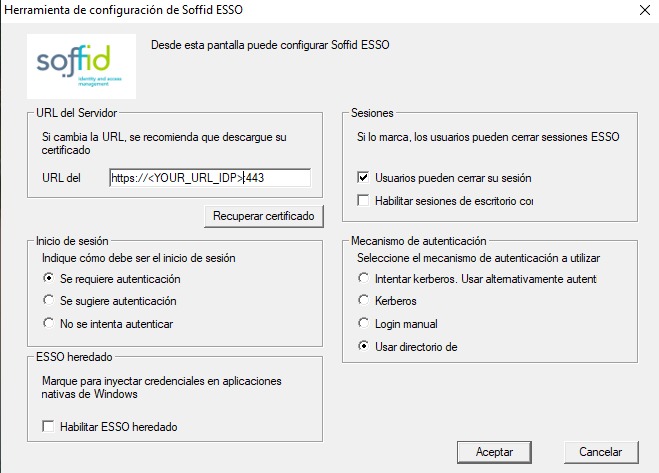
4. After configuring the system, it's required to reboot the computer.
For more information, you can visit the Windows user acces page and the Windows Administrator access page.
About ESSO configuring
- ESSO Server URL
- Server URL
- In Soffid 2, the URL was the syncserver URL.
- In Soffid 3, the URL could be the syncserver URL or the IdP URL, depending on Soffid version and features used.
- In Soffid 4, the URL must be the IdP URL
- Retrieve certificate: click this button to confirm that the URL is correct and its certificate is retrieved.
- Server URL
- Login on startup
Authentication requiredRequired: the user must authenticate using the selected login type.Authentication recommendedRecommended: the user can log in using the selected login type or using a local user account.No attempt to authenticateManual: the user must log in with a local account.
- Legacy ESSO
inherited- Enable legacy ESSO: injects credentials into native Windows applications
- Sessions
- Users can
logcloseoutsession: allows users to log out of the ESSO session - Enable desktop sessions: users will not be able to log in until their Soffid details have been 100 per cent verified.
- Enable shared desktop sessions: It allows users to use their shared accounts.
- Users can
- Login type
- Try
KerberosKerberos,orfall back to manuallogin: first try authenticating with Kerberos, then with a manual login. - Kerberos login: the user must authenticate using their Kerberos ticket. This requires special configuration in Soffid. This opction will reuse the Windows credential acquired by the operating system. If they belong to a managed Active Directory, the user won't need to enter any user name or password to access Soffid.
- Manual login: the user must enter a valid user name and password in order to access Soffid.
UseSoffid directory: users must use their Soffid IdP account to log in.
- Try
Silent installation
In order to do a silent installation you can execute the installer from command line with the following parameters:
-q or /q: Quiet installation
-server [url] or /server [url]: to configure the ESSO server URL.
-
-
-
- In Soffid 2, the URL was the syncserver URL.
- In Soffid 3, the URL could be the syncserver URL or the IdP URL, depending on Soffid version and features used.
- In Soffid 4, the URL must be the IdP URL.
-
-
-force or /force: force the installation even if a restart is pending. Not recommended.
-nogina or /nogina: do not modify previos GINA. In this version, this parameter only applies in first installation.
-nopm : to avoid installing Password Manager
-forceStartupLogin [true|false]: Enforces or skips Soffid login before displaying the user desktop
-loginType: Specify login type to use:
kerberos: to perform windows SSO
manual: to enter user name and password
both: try kerberos, fallback to manual in case of failure
soffid: use the Soffid credential provider
To assist in massive deployment scenarios, smart update swich can be set to prevent Soffid to reinstall componenents when the installer version matches the already installed one. This switch does not affect to new installations.
-smartupdate or /smartupdate: Smart update installation
Install EXE Package
EXE Installation is also available for enterprise customers.
Example:
C:\> MazingerInstaller-3.5.3-enterprise.exe -q -server https://idp.your-soffid.com:443 -force -nogina -smartupdate -nopmInstall MSI Package
MSI Installation is also available for enterprise customers.
To customaize configuration parameters, the PARAM variable can be used.
Example:
C:\> msiexec /i soffidesso.msi PARAM="-q -server https://idp.your-soffid.com:443 -force -nogina -smartupdate -nopm"Installation problems can be reviewed in the installer log: C:\Windows\SysWOW64\mazinger-install.log
Install MSI Package with parameters
From version 3.5.52 of the ESSO component onwards, it is possible to configure parameters in the installation command.
The command syntax is as follows:
msiexec /i “msi_name” + PARAM="... /cfg PARAM VALUE /cfg PARAM VALUE /cfg PARAM VALUE ..." /quietAn example:
msiexec /i "MazingerInstaller-3.5.52-enterprise-msi.msi" PARAM="-q -server https://yourCompany.idp.prod.soffid.net -nogina -smartupdate -nopm -forceStartupLogin false /cfg SSOcredentialprovider true /cfg ManualStartupLogin true /cfg legacyESSO true" /quietThe parameters included as /cfg can be any of the Registry configuration entries of the next point.
Configure the ESSO Profile
1. Then you need to configure the ESSO profile in your Identity Provider
💻 Image
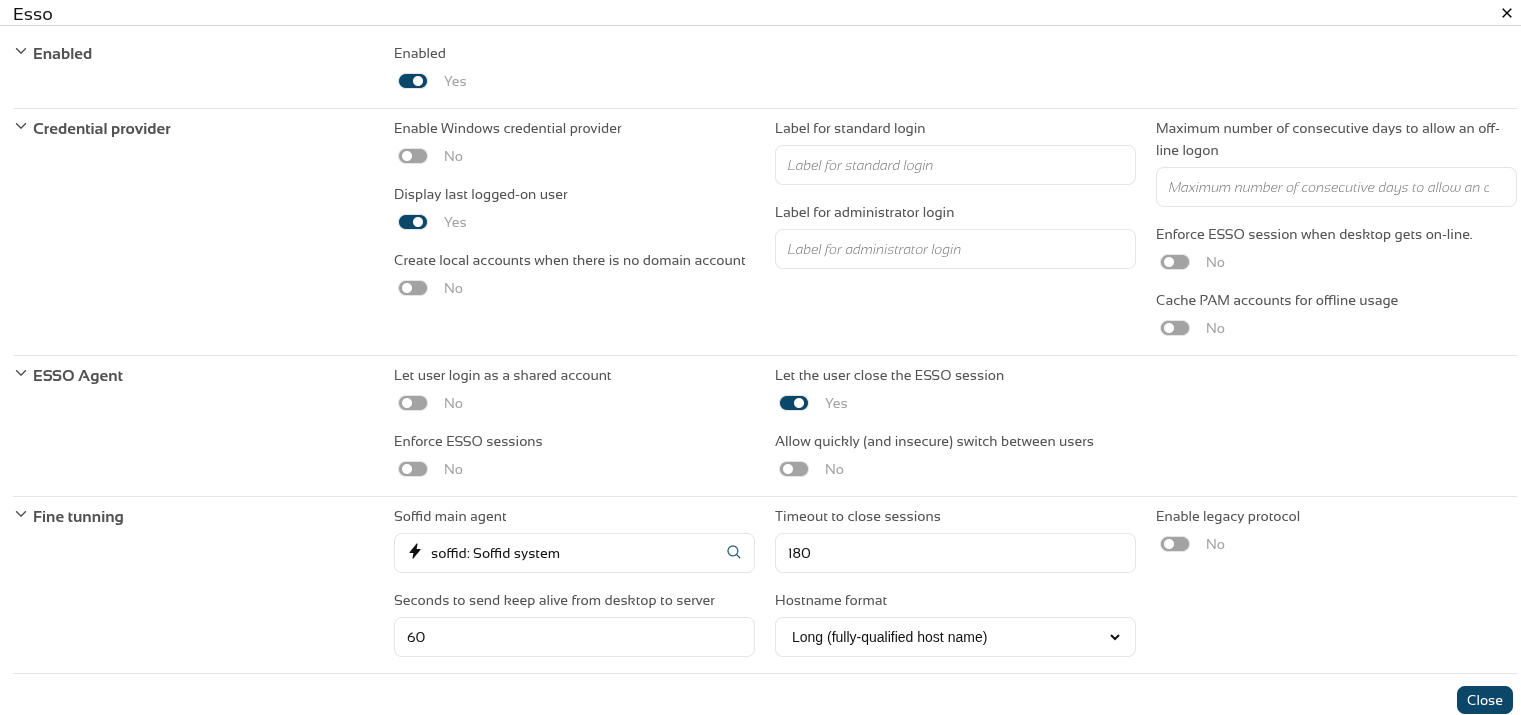
For more information you can visit the following page: https://bookstack.soffid.com/books/federation/page/esso
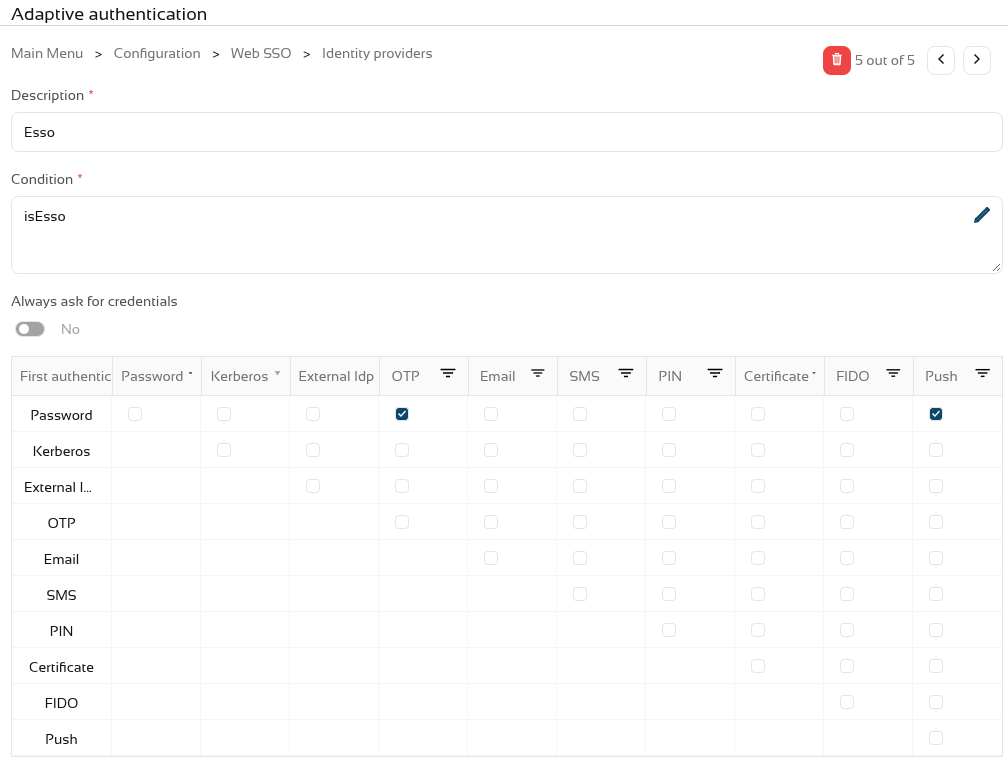
2. And finally, you can configure the Adaptive authentication rules
💻 Image
Registry configuration entries
The system stores all its settings in the registry branch HKEY_LOCAL_MACHINE\SOFTWARE\Soffid\esso.
The values used are as follows:
|
Entry |
Default Value |
Description |
|
LogonEntry |
Logon |
After identifying the user, Soffid ESSO will look at the defined application tree for an application with this key, in order to execute it. |
|
OfflineEntry |
Offline |
If synchronization servers are not reachable, an alternative script will be execute. This entry contains the key of the application entry point to execute in such a case. |
|
LocalCardSupport |
2 |
Indicate whether to ask for coordinates card at logon time or not. Four values are allowed. 1 – Coordinates card is required 2 – Coordinates card is required if and only if the user is the owner of one card. 3 – Coordinates card is required if the user is connecting from a not registered device. 4 – Never ask for coordinates card. |
|
RemoteCardSupport |
1 |
Indicate whether to ask for coordinates card when performing a remote logon. Four values are allowed. 1 – Coordinates card is required 2 – Coordinates card is required if and only if the user is the owner of one card. 3 – Coordinates card is required if the user is connecting from a not registered remote device. 4 – Never ask for coordinates card. |
|
LocalOfflineAllowed |
1 |
Specifies whether is it permitted to use the workstation when no Soffid synchronization servers are reachable. 1 – It's permitted. 0 – It's forbidden. |
|
RemoteOfflineAllowed |
0 |
Specifies whether it is permitted to open a terminal server connection against this host when no Soffid synchronization servers are reachable. 1 – It's permitted. 0 – It's forbidden. |
|
CertificateFile |
root.cer |
Specifies the name of the file containing the Certificate Authority certificate used by the synchronization server (X509 DER format) |
|
SSOServer |
stsmlin3.caib.es, sticlin2.caib.es |
Comma-separated list of synchronization server names |
|
seycon.https.port |
760 |
TCP/IP port used for connecting to SEYCON |
|
debuglevel |
|
Indicates the level of detail of the log: 0 = not recorded anything 1 = Basic Information 2 = Detailed Information |
|
ginalogFile |
|
Name of the file which records the actions taken by GINA. Do not enable it unless needed. |
|
ShiroHostName |
|
Do not modify: It contains the name that the host had when it was registered at Soffid server. |
|
startDisabled |
false |
When it contains the value “true”, Soffid ESSO will be started in disabled (or pause) state. Thus, it will not inject any user name or password on user applications. |
|
MazingerVersion |
|
It contains the version number of Soffid ESSO. |
|
sayaka.domain |
|
It contains the Active Directory name the workstations belongs to. |
|
sayaka.pkcs11% |
(reserved) |
Each crypto card used by the user will have a corresponding entry indicating the name of the PKCS#11 DLL that can handle it. Do not modify. |
|
ManualStartupLogin |
false |
If it contains the value "false", when you start up your computer, a pop-up window appears offering to log you directly into Soffid. |
|
SSOcredentialprovider |
true |
When it contains the value “true”, Soffid ESSO allow to elevate privileges. |
|
legacyESSO |
true |
When it contains the value “true”, it allows Soffid ESSO to inject the credentials in native Windows applications. |
Startup process
{{@1306}}
Enforcing browser addons
{{@1307}}