
Permissions management
Description
The Permissions Management Process type is used to define processes used to grant or remove permissions to an identity.
You can use the default template Permissions management included on Soffid BPM Editor and customize it with your business needs. Also, you can import a .pardef file with the process definition.
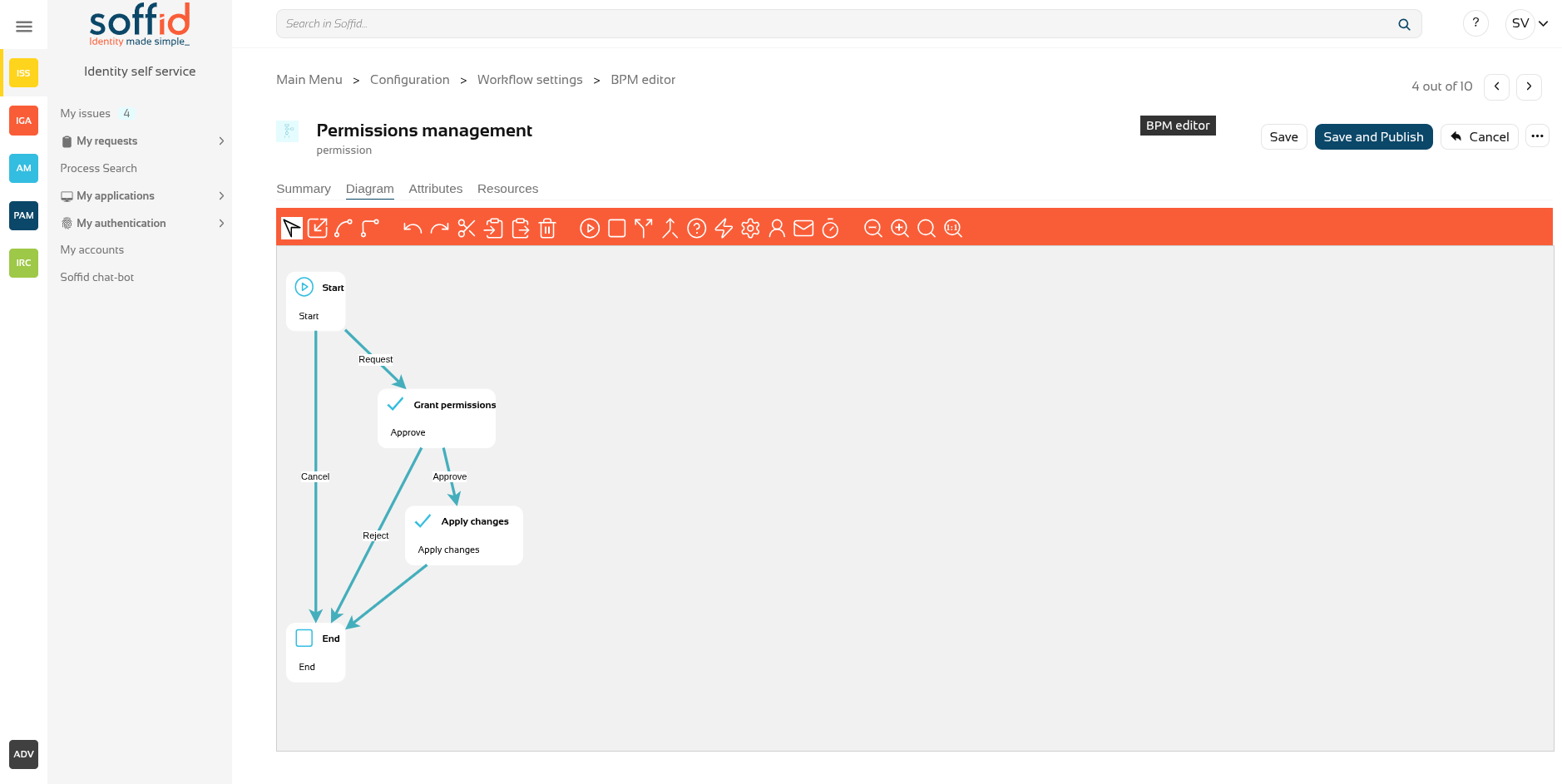
That process is defined by default with 4 steps, but you can add new, delete and update steps to customize your business process.
- Start
- Grant approval
- Apply changes
- End
We will use two concepts to explain that process, identity, and end-user. Identity will be the identity or user that will be created, updated, or deleted in Soffid Console. The end-user will be the Soffid user who requests processes using the self-service portal.
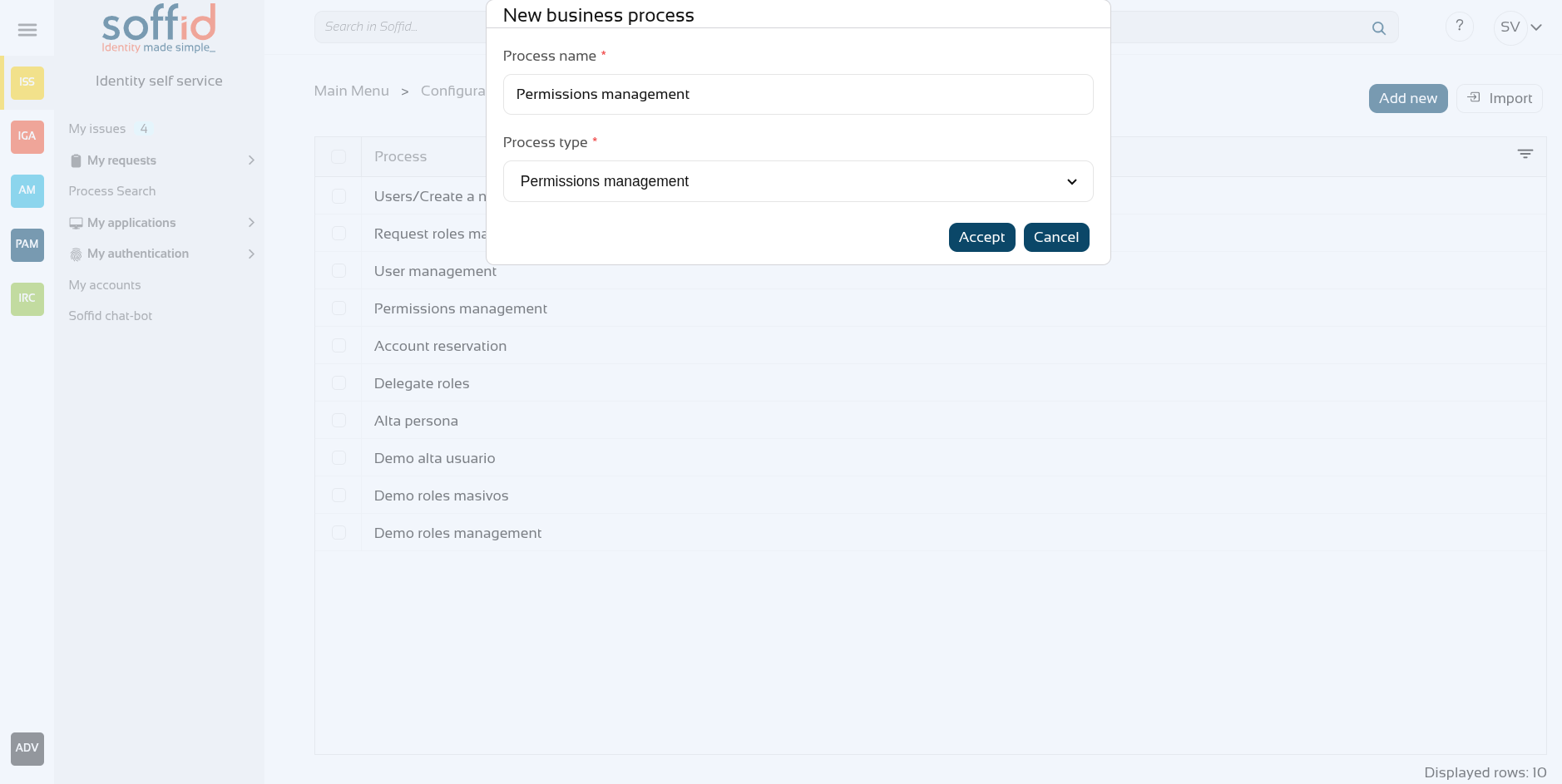
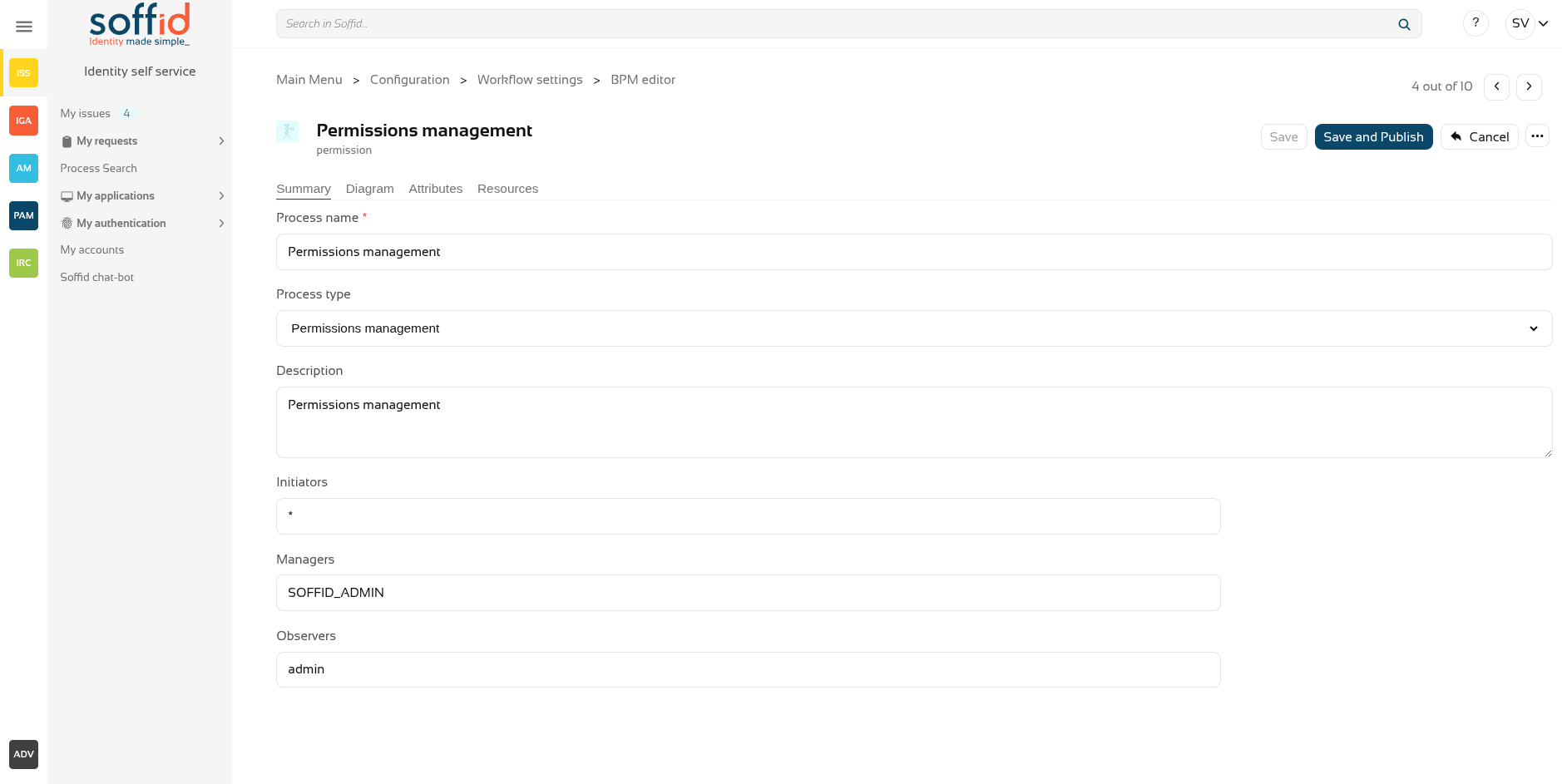
Process editor
- Process name: identifier name of the workflow. This name will be used to label the workflow for the end-user.
- Process type: to use this BPM editor you need to select Use management.
- Description: a brief description of the workflow. When an end-user starts a workflow, this text will be displayed in the Actions log tab.
- Initiators: here you could configure the roles or the identities that could start a new workflow from the Console and Selfservice. E.g. "admin" identity, "SOFFID_ADMIN" role, both separated by comma ',' as "admin, SOFFID_ADMIN" or if you want to publish the workflow to everyone, you can use the text "tothom" or the character '*'. The users who are initiators will be able to request that process from their self-service portal.
- Managers: here you could configure the roles or the identities that could perform tasks in the workflow as approve permissions or cancel the workflow.
- Observers: here you could configure the roles or the identities that could open the workflows in read-only mode.
Process steps
To view the detail of each available step, you can visit the Permissions management steps chapter.
Process steps > Start > views
This process allows for two different types of views. You can configure the one that best suits your workflow in the Start node, in the ‘Permission request screen type’ attribute.
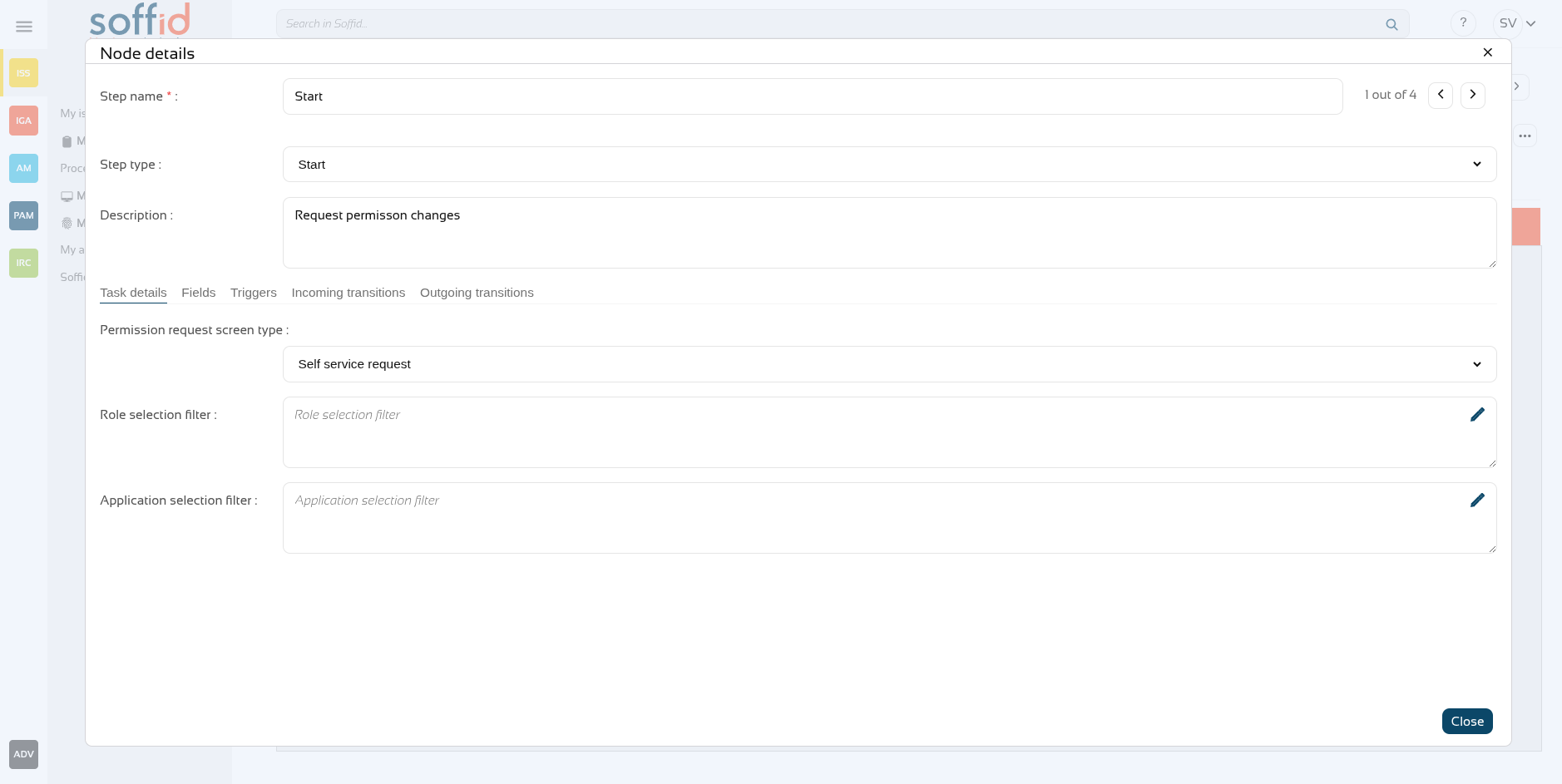
The "Self-service request" option allows you to easily select a large number of roles as if you were filling a shopping basket. This view can be more useful when registering a user or changing their profile.
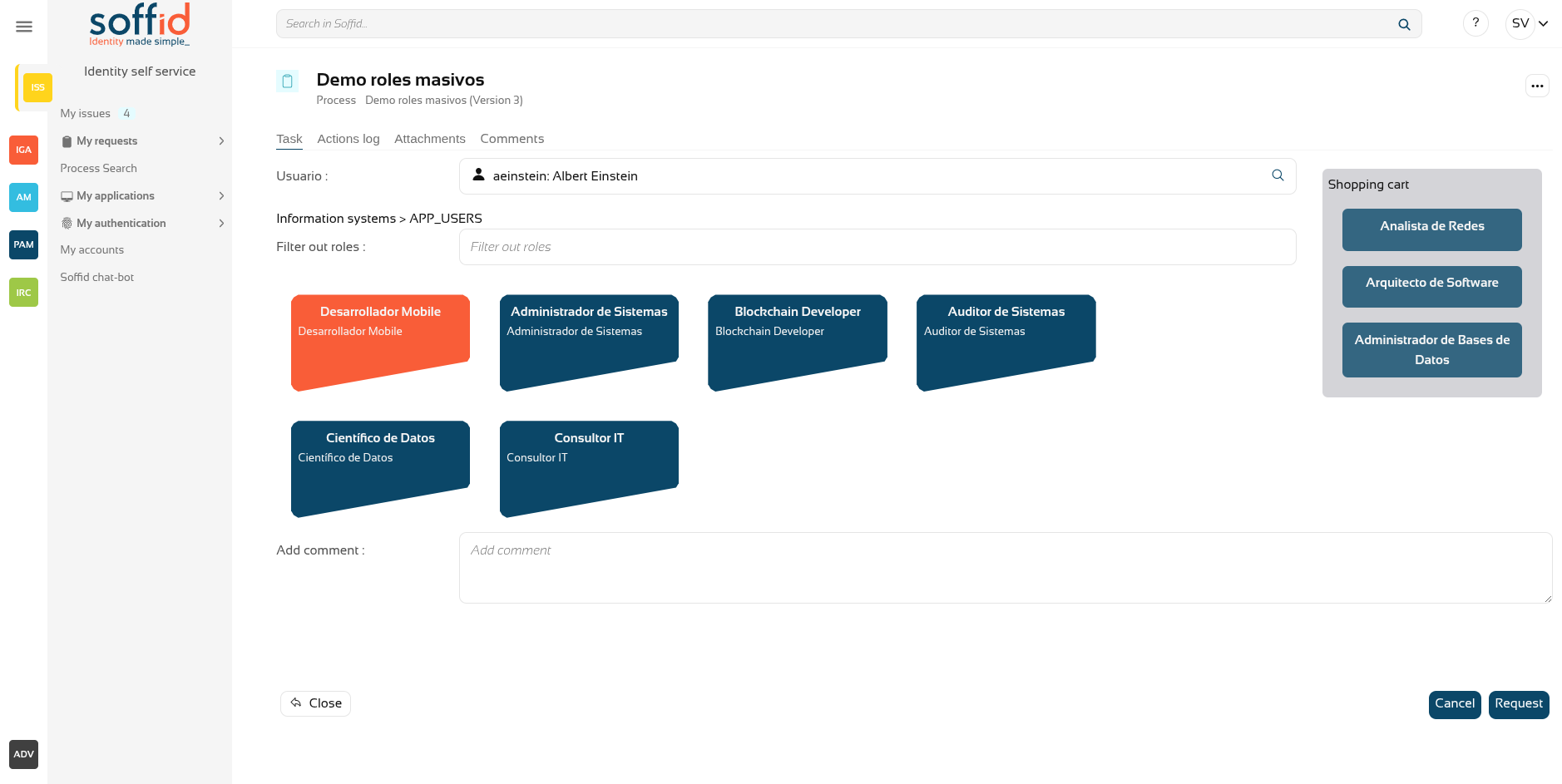
The "List of permissions" option shows you a user's roles and allows you to revoke them one by one, or add new roles one by one. This view may be more useful for maintaining users who only require minor changes.
Attributes
You could add new custom attributes in the Attributes tab. The defined attributes will be used in the Steps tab to be mapped with the Soffid data.
There are customized templates depending on the Process Type selected, for the Process management type there is one attribute defined:
- grants: allows you to select an information system and assign or revoke permissions.
You can customize attributes to adapt the workflow to your business process. You can add new attributes, and update or delete the default attributes. For each new attribute, you need to indicate, at least, the code, the label, and the data type.
Resources
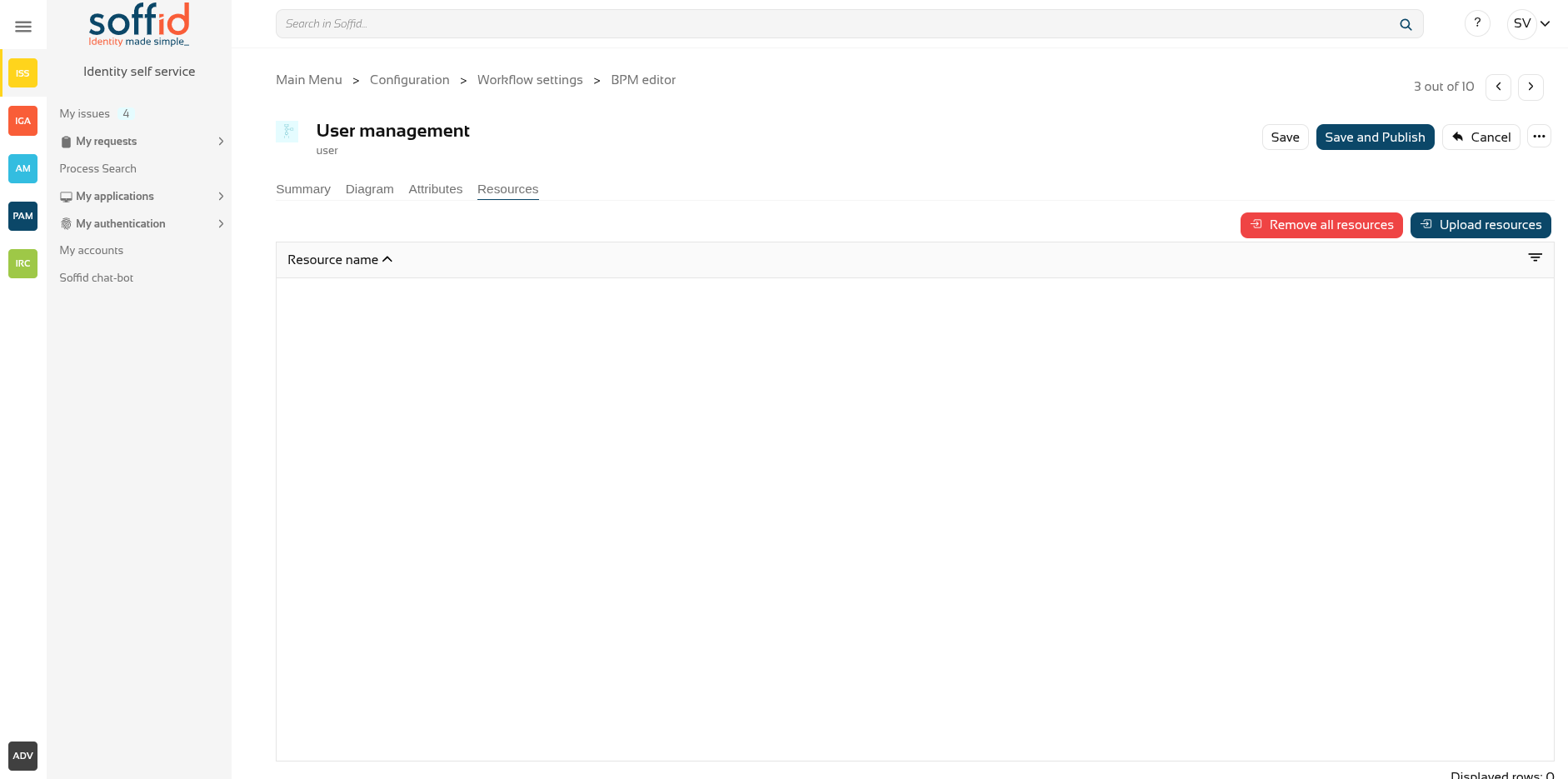
If your workflow requires the use of extra libraries with their own classes and methods, you can upload a jar file so that Soffid can load it and it can be used from the scripts.
Actions
Process actions
|
Save |
Allows you to save all changes included in the workflow. That workflow can be a new or an updated workflow. |
|
Save and Publish |
Allows you to save the changes performed in the workflow setup and also publish the workflow to be used in Soffid. After this action, the last version of the workflow will be available for the end-user (with the proper permissions) in the Soffid Console and Self-service portal. |
|
Cancel |
Allows you to quit the process editor without saving changes. Soffid will ask you for confirmation to exit without saving updates |
|
Export process |
Allows you to export this workflow to a file in .partdef format. This file can be useful as a backup or for migration to another environment. |
Attribute actions
|
Add attribute |
Allows you to add a new attribute. When you click the button "Add attribute" Soffid will show the fields to fill in for the new attribute. It is mandatory to fill in the code to save the process. The attribute updates will save when you click the button "Save" or "Save and Publish". If you cancel, the updates will not save. |
|
Delete attribute |
Allows you to delete a defined attribute. To delete an attribute you need to click the button with the subtraction symbol (-) located next to the label field. The attribute updates will save when you click the button "Save" or "Save and Publish". If you cancel, the updates will not save. |