How to use vim
Installation
Example of installation on Ubuntu.
apt-get update
apt-get install vim
Open a file
If your user does not have sufficient permissions, you will need to prefix the command with `sudo`.
sudo vim file.txtModes in vim
Once you’re in Vim, you’ll be in normal mode, which allows you to view and search through the file.
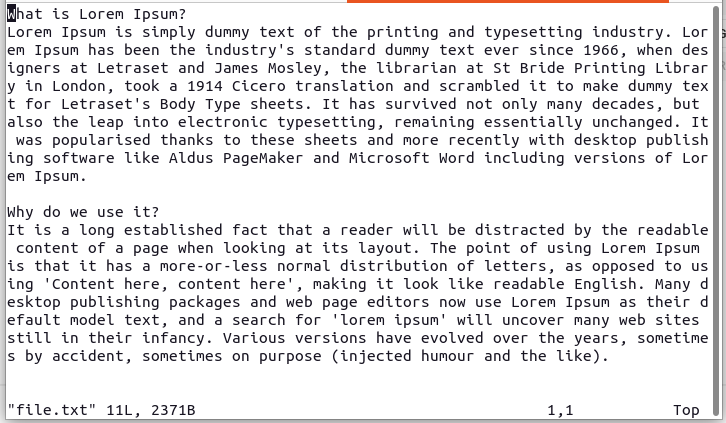
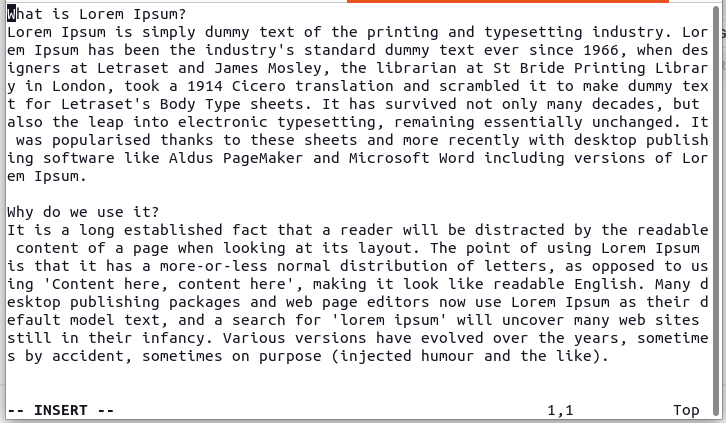
To edit the file, you need to be in insert mode.
- Use the 'i' key, to enable it.
- Use the Escape key to exit.
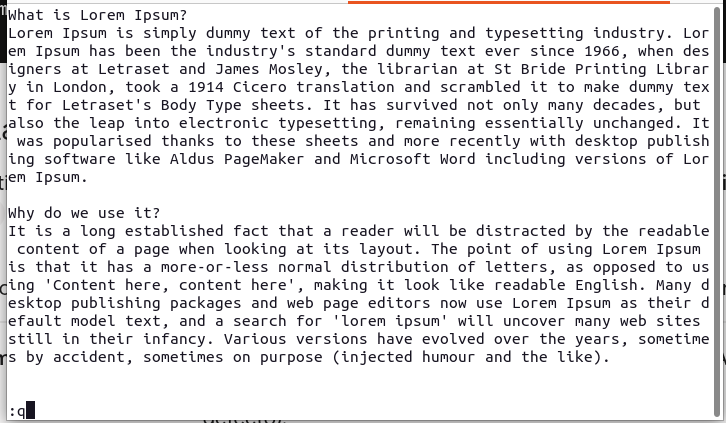
Finally, to use commands, there is command mode, which is activated by pressing the Escape key.
- Use the ':' key, to enable it.
- Use the Enter key to apply it.
Commands
From normal mode (press Esc just in case), press ':' key to move to the bottom of the screen and use one of these commands, followed by Enter.
| Command | Action |
| :w | Save (write) without exiting. |
| :q | Exit (quit). Vim will not let you exit if there are unsaved changes. |
| :wq | Save and exit. |
| :q! | Forcefully exit without saving changes. |
Navigation
From normal mode.
| Command | Action |
| arrow left or h | Left |
| arrow down or j | Down |
| arrow up or k | Up |
| arrow right or l | Right |
Quick edit
From normal mode.
| Command | Action |
| x | Deletes the character under the cursor (like the Delete key). |
| dd | Remove and cut the full line |
| u | Undo |
| ctrl + r | Redo |