A **one time password (OTP)** is a password that is valid for only one login session or transaction, on a computer system or other digital device.
The most important advantage addressed by OTPs is that, in contrast to static passwords, they are not vulnerable to replay attacks
OTP is use as **second-factor authentication (2FA)**. The 2FA is an extra layer of protection used to ensure the security of online accounts beyond just a username and password ## Soffid Implementations Soffid provides different OTP implementations. Users with the proper permissions could configure the OTP services on Soffid Console, they could configure one or more OTP implementations. Once the OTP is configured, the end-users could config their owns OTP devices.You can visit [My OTP devices page](https://bookstack.soffid.com/books/soffid-3-reference-guide/page/my-otp-devices "My OTP devices") for more information.
### Email An email with the OTP will be send to the end-user. Then, the end-user will write the received code into Soffid to verify the token. ### SMS An SMS message will be send to the end-user to use it for authentication. Then, the end-user will write the received code into Soffid to verify the token. Test messaging is a commns technology used for delivery OTPs. That is a secure authorisation method to send a numeric code to a mobile number. ### Time based HMAC Token The end-user must scan a QR code with an OTP application (Free Otp+, Google Authenticator and Microsoft Authenticator are the most used). Then, the end-user will write the received code into Soffid to verify the token. ### Event based HMAC Token The end-user must scan a QR code with an OTP application (Free Otp+, Google Authenticator and Microsoft Authenticator are the most used). Then, the end-user will write the received code into Soffid to verify the token. ### Security PIN The end-user can configure a security PIN into Soffid. Soffid will ask for a specific number of digits from the PIN to verify the access. When Soffid ask for a number of digits, the user would write these numbers to confirm. --- [*https://en.wikipedia.org/wiki/One-time\_password*](https://en.wikipedia.org/wiki/One-time_password) # How to install OTP addon in Soffid ## Installation ### Download Please download the Soffid OTP add-on. You can download it at the following link [http://www.soffid.com/download/enterprise/](http://www.soffid.com/download/enterprise/) if you have Soffid user with authorization, or in the following [http://download.soffid.com/download/](http://download.soffid.com/download/) by registering. ### Upload Once the OTP add-on is downloaded, please log in to IAM Console.You need to be an administrator user of the Soffid console or a user with permissions to upload addons.
It is recommended to upload the addons to master, this is the way to maintain updated all, master and tenants if there are.
In the Soffid console, please go to: "Main Menu > Administration > Configure Soffid > Global Settings > Plugins" and upload the addon file, for more information visit the [Addons Getting started](https://bookstack.soffid.com/books/addons-getting-started/page/getting-started "Addons installation") page Finally, when the addon is installed, it will be required to restart the Soffid Console. # How to use OTP in Soffid ## Introduction Soffid allows administrator users to config the access authentication with OTP as the second-factor authentication (2FA). This is the way to add a extra layer of protection used to ensure the security of online accounts beyond just a username and password. The administrator user could config the proper OTP implementations that wants to use.To know how to config the diffent options you can visit the [OTP settings page.](https://bookstack.soffid.com/books/two-factor-authentication-2fa-VsJ/page/otp-settings)
There are three points where OTP can be used in Soffid 1. [Login Federation](#bkmrk-authentication%C2%A0) 2. [Access to pages](#bkmrk-authentication%C2%A0-0) 3. [XACML Rules](#bkmrk-xacml) 4. [Password Recovery](#bkmrk-password-recovery) ## Federation When you are configuring Soffid as Identity Provider, on the Authentication section you could config the OTP as a second authentication factor (2FA).You can visit the [How to deploy the identity & service provider step by step page](https://bookstack.soffid.com/books/federation/page/how-to-deploy-the-identity-service-provider) for more detailed information
### Example First of all, configure the OTP as a second factor authentication at the Identity & service providers page `Main Menu > Administration > Configuration > Web SSO > Identity & Service providers` [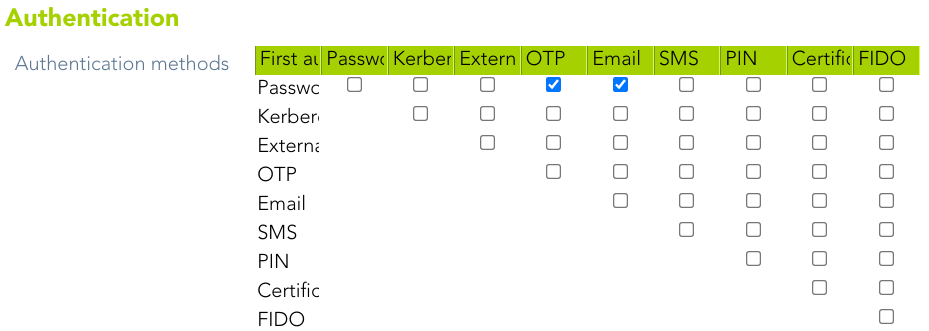](https://bookstack.soffid.com/uploads/images/gallery/2022-01/image-1643376367536.png) Then, when users login, they must write their credentials[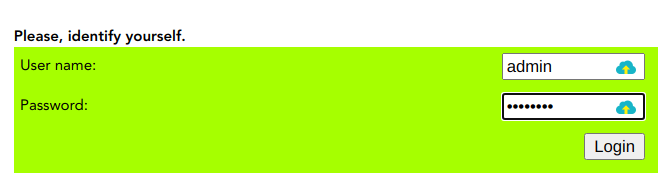](https://bookstack.soffid.com/uploads/images/gallery/2022-01/image-1643614241346.png) If the credentials written are ok, finally Soffid will ask for the 2FA [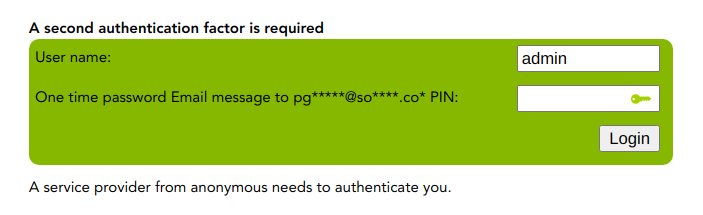](https://bookstack.soffid.com/uploads/images/gallery/2022-01/image-1643376347362.png) ## Authentication Regarding to the access to pages, you will be able to config the specific Soffid console pages that will require OTP authentication. In addition, you will be able to config if the second-factor authentication will be required to all the users or only to users with enabled token.You can visit the [Authentication page](https://bookstack.soffid.com/books/soffid-3-reference-guide/page/authentication "Authentication") for more information
### Example The following is an example of how for a given configuration, a user can access certain pages, or how a second authentication factor is required for the user. #### Second factor authentication configuration Soffid will require the PIN to access to the specified pages to users with a enabled token `Main Menu > Administration > Configuration > Security settings > Authentication` [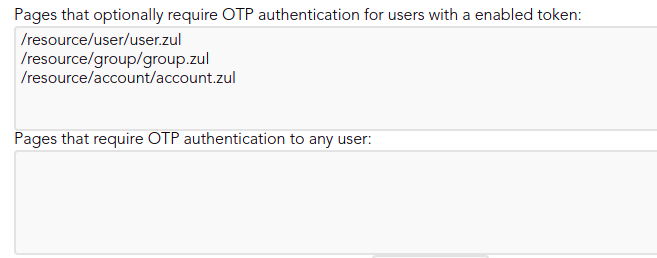](https://bookstack.soffid.com/uploads/images/gallery/2021-12/image-1639997201805.png) #### User access ## XACML OTP can also be used at **XACML Policy Management**. This policies allow adding more complex and restricted rules to the authorizations.You can visit the [XACML book](https://bookstack.soffid.com/books/xacml) for more information.
### Example A 2FA is required to launch the connection to some servers. Administrator user can configure the XACML policies. `Main Menu > Administration > Configuration > Security settings > XACML Policy Management` [](https://bookstack.soffid.com/uploads/images/gallery/2022-02/image-1643901144825.png) When dilbert launch the connection, Soffid will ask for the 2FA [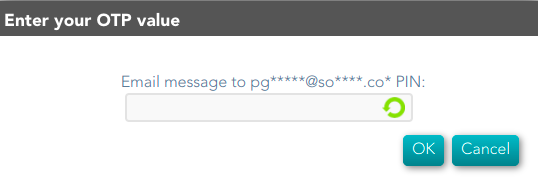](https://bookstack.soffid.com/uploads/images/gallery/2022-02/image-1643901062838.png) ## Password Recovery OTP can be use by end-user to recover the password.You can visit the [Password Recovery book](https://bookstack.soffid.com/books/password-recovery) for more information.
### Example A end-user wants to recover his password. Soffid allows to recover by clicking on the recover password option: [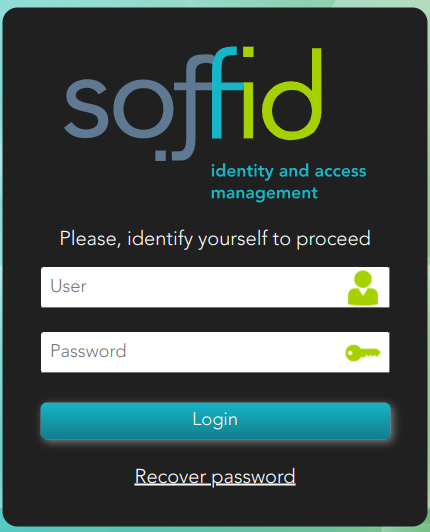](https://bookstack.soffid.com/uploads/images/gallery/2022-03/image-1646815422309.png) Then, the end-user must identify himself: [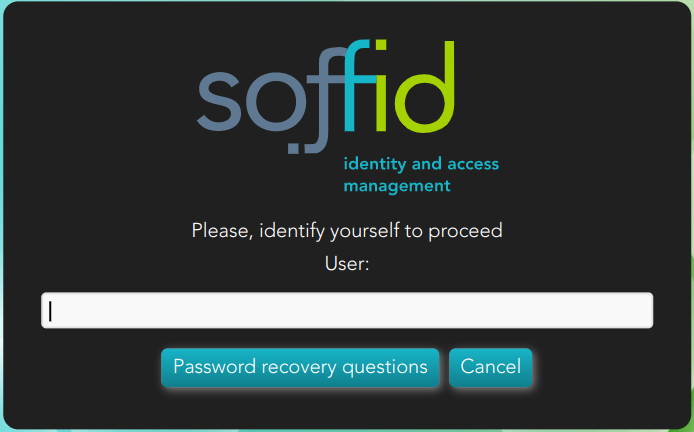](https://bookstack.soffid.com/uploads/images/gallery/2022-03/image-1646815286342.png) And Soffid requires to enter the PIN [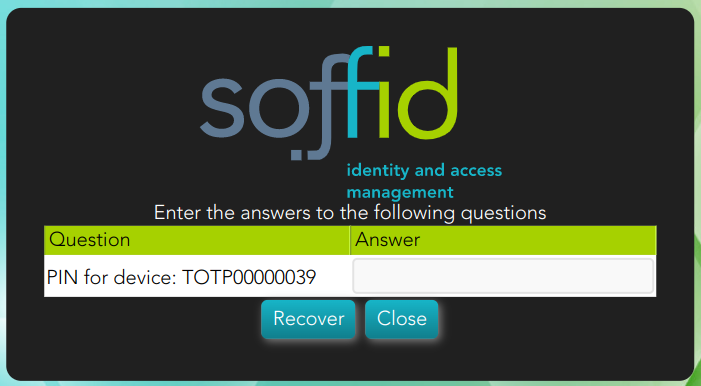](https://bookstack.soffid.com/uploads/images/gallery/2022-03/image-1646813762060.png) If the end-user has not configured the OTP devices, a error message will be display. [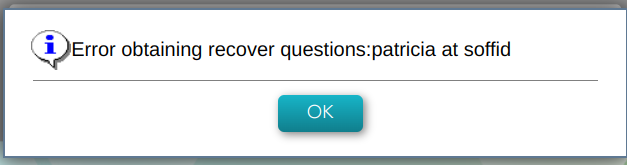](https://bookstack.soffid.com/uploads/images/gallery/2022-03/image-1646815538898.png) # OTP Management # OTP settings ## Definition The OTP settings allow the administrator users to configure the available OPT options. Soffid provides four different OTP implementations. `Main Menu > Administration > Configuration > Security settings > OTP settings` ## Screen overview [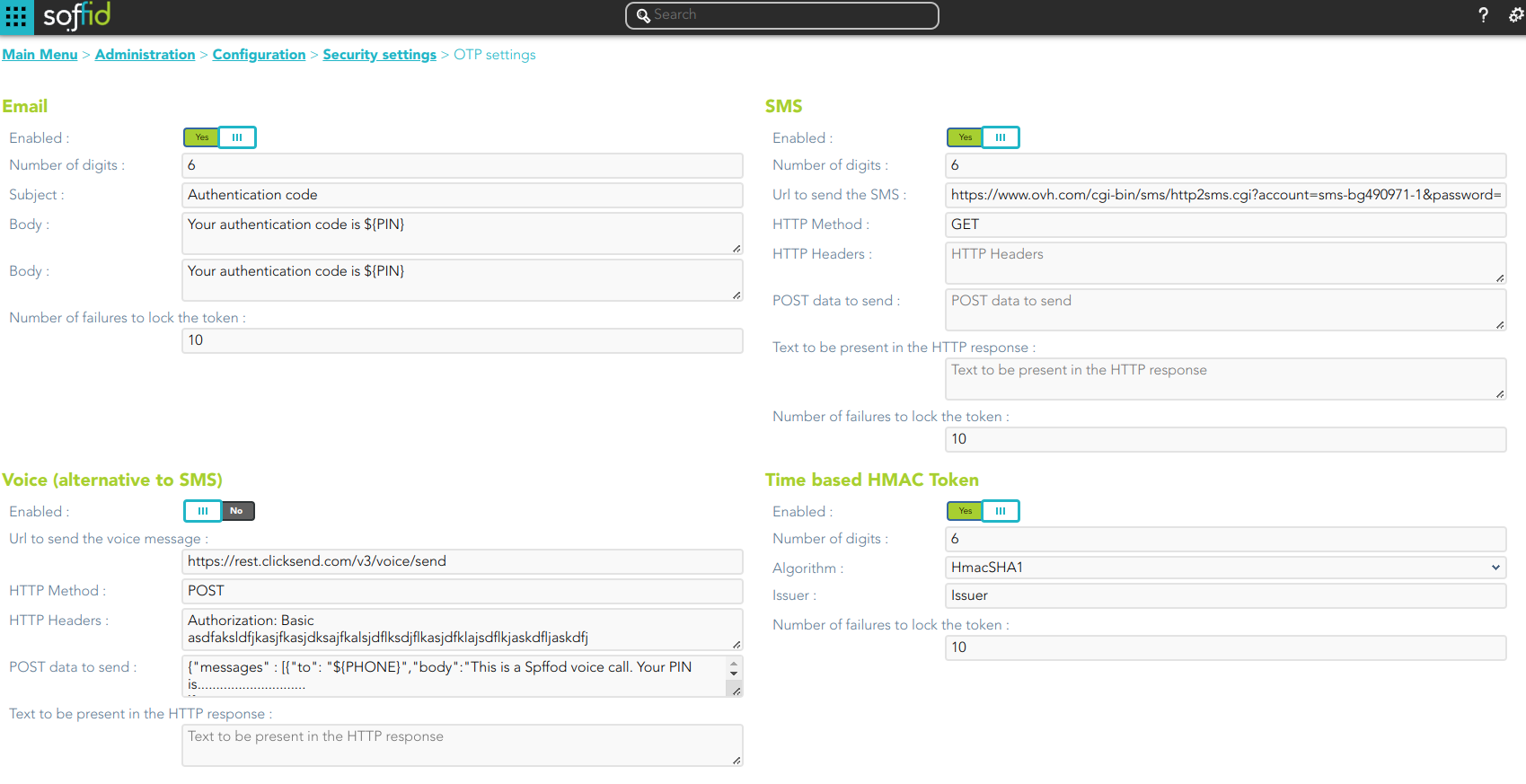](https://bookstack.soffid.com/uploads/images/gallery/2023-11/image-1698996143859.png) [](https://bookstack.soffid.com/uploads/images/gallery/2023-11/image-1698996183374.png) ## Standard attributes ### Email - **Enabled**: allows you to enable or disable the OTP implementation. - **Number of digits**: number of digits of the PIN code that will be generated. - **Subject** - **Body** - **Number of failures to lock the token**To send an email, will be mandatory to fill in the value of the **mail.from** parameter. You can visit the [mail server parameters](https://bookstack.soffid.com/link/86#bkmrk-mail-server).
### SMS - **Enabled**: allows you to enable or disable the OTP implementation. - **Number of digits**: number of digits of the PIN code that will be generated. - **URL to send the SMS**: enter the URL of your SMS provider rest service ``` https://www.xxxxxxx.com/cgi-bin/sms/http2sms.cgi?account=sms-bg490971-1&password=XXXXXXt&login=user&from=SOFFID&to=${PHONE}&message=This is your access PIN: ${PIN}&noStop&contentType=application/json&class=0 ``` - **HTTP Method**: enter POST or GET depending on your provider documentation - **HTTP Header**: optionally, you can add any HTTY header, including Basic or Bearer authentication tokens. The header must include the header name and header value. For instance: `Authorization: Basic dXNlcjpwYXNzd29yZA==` - **POST data to send** Enter the body of the HTTP request - **Text to be present in the HTTP response**: Soffid will check the response from your SMS Provider contains this text ``` "status":100 ``` - **Number of failures to lock the token** The URL and POST data to be sent, the administrator can use some tags that will be replaced by some target user attributes: - ${PHONE}: The target phone number - ${PIN}: The one-time password to be entered by the user - ${userAttribute}: Any of the standard or custom user attributes, like ${fullName} or ${userName} ### Voice (alternative to SMS) - **Enabled**: allows you to enable or disable the OTP implementation. - **URL to send the SMS**: enter the URL of your voice call provider rest service - **HTTP Method**: enter POST or GET depending on your provider's documentation - **HTTP Header**: optionally, you can add any HTTY header, including Basic or Bearer authentication tokens. The header must include the header name and header value. For instance: ``` Authorization: Basic xxxxxxxxxxxxxxOUVCRS1DMzE0LTI3MzAtQkY0Qy05RDgwRTMyQUQ4OUY= Content-Type: application/json Accept: application/json ``` - **POST data to send** Enter the body of the HTTP request. ``` Text to be present in the HTTP response: Soffid will check the response from your SMS Provider contains this text ``` The POST data to be sent, the administrator can use some tags that will be replaced by some target user attributes: - - ${PHONE}: The target phone number - ${PIN}: The one-time password to be entered by the user - **Number of failures to lock the token** ### Time based HMAC Token - **Enabled**: allows you to enable or disable the OTP implementation. - **Number of digits**: number of digits of the PIN code that will be generated. - **Algorithm**: allows you to select an HMAC algorithm. - **Issuer** - **Number of failures to lock the token** ### Event based HMAC Token - **Enabled**: allows you to enable or disable the OTP implementation. - **Number of digits**: number of digits of the PIN code that will be generated. - **Algorithm**: allows you to select an HMAC algorithm. - **Issuer** - **Number of failures to lock the token** ### Security PIN - **Enabled**: allows you to enable or disable the Security PIN implementation. - **Minimum PIN length**: minimum number of digits that the PIN has to have. - **Number of digits from the PIN to ask**: number of digits that Soffil will ask to verify the identity. - **Number of failures to lock the token** ## Actions| **Confirm changes** | Allows you to save the updates and quit the page. |
| **Add** | Allows you to add a new OTP devices. To add a new OTP devices you need clic the add button (+), the Soffid will display a new wizard to config the OTP devices. Fist of all you need select the OTP device Type and then Apply changes. |
| **Delete** | Allows you to delete one or more OTP devices for a specific user. To delete OTP devices first select the devices, then click on the subtract button (-), then Soffid will ask you to confirm or cancel the operation. |
| **Change Status** | Allows you to change the OTP device status. First of all you need click the proper OTP device, then change the status and finally close the window. |