# OTP Management
# OTP settings
## Definition
The OTP settings allow the administrator users to configure the available OPT options. Soffid provides four different OTP implementations.
`Main Menu > Administration > Configuration > Security settings > OTP settings`
## Screen overview
[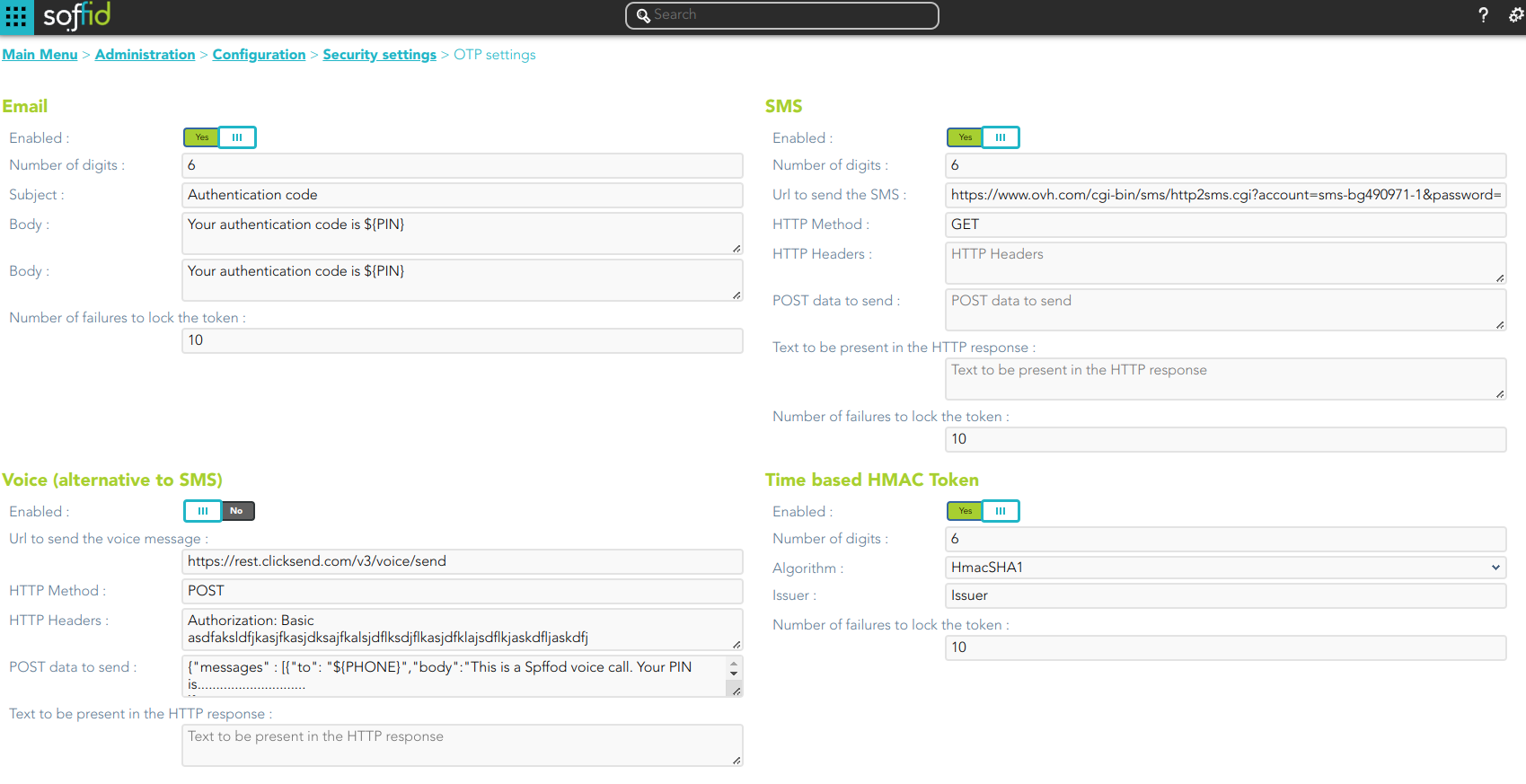](https://bookstack.soffid.com/uploads/images/gallery/2023-11/image-1698996143859.png)
[](https://bookstack.soffid.com/uploads/images/gallery/2023-11/image-1698996183374.png)
## Standard attributes
### Email
- **Enabled**: allows you to enable or disable the OTP implementation.
- **Number of digits**: number of digits of the PIN code that will be generated.
- **Subject**
- **Body**
- **Number of failures to lock the token**
To send an email, will be mandatory to fill in the value of the **mail.from** parameter. You can visit the [mail server parameters](https://bookstack.soffid.com/link/86#bkmrk-mail-server).
### SMS
- **Enabled**: allows you to enable or disable the OTP implementation.
- **Number of digits**: number of digits of the PIN code that will be generated.
- **URL to send the SMS**: enter the URL of your SMS provider rest service
```
https://www.xxxxxxx.com/cgi-bin/sms/http2sms.cgi?account=sms-bg490971-1&password=XXXXXXt&login=user&from=SOFFID&to=${PHONE}&message=This is your access PIN: ${PIN}&noStop&contentType=application/json&class=0
```
- **HTTP Method**: enter POST or GET depending on your provider documentation
- **HTTP Header**: optionally, you can add any HTTY header, including Basic or Bearer authentication tokens. The header must include the header name and header value. For instance:
`Authorization: Basic dXNlcjpwYXNzd29yZA==`
- **POST data to send** Enter the body of the HTTP request
- **Text to be present in the HTTP response**: Soffid will check the response from your SMS Provider contains this text
```
"status":100
```
- **Number of failures to lock the token**
The URL and POST data to be sent, the administrator can use some tags that will be replaced by some target user attributes:
- ${PHONE}: The target phone number
- ${PIN}: The one-time password to be entered by the user
- ${userAttribute}: Any of the standard or custom user attributes, like ${fullName} or ${userName}
### Voice (alternative to SMS)
- **Enabled**: allows you to enable or disable the OTP implementation.
- **URL to send the SMS**: enter the URL of your voice call provider rest service
- **HTTP Method**: enter POST or GET depending on your provider's documentation
- **HTTP Header**: optionally, you can add any HTTY header, including Basic or Bearer authentication tokens. The header must include the header name and header value. For instance:
```
Authorization: Basic xxxxxxxxxxxxxxOUVCRS1DMzE0LTI3MzAtQkY0Qy05RDgwRTMyQUQ4OUY=
Content-Type: application/json
Accept: application/json
```
- **POST data to send** Enter the body of the HTTP request. ```
Text to be present in the HTTP response: Soffid will check the response from your SMS Provider contains this text
```
The POST data to be sent, the administrator can use some tags that will be replaced by some target user attributes:
- - ${PHONE}: The target phone number
- ${PIN}: The one-time password to be entered by the user
- **Number of failures to lock the token**
### Time based HMAC Token
- **Enabled**: allows you to enable or disable the OTP implementation.
- **Number of digits**: number of digits of the PIN code that will be generated.
- **Algorithm**: allows you to select an HMAC algorithm.
- **Issuer**
- **Number of failures to lock the token**
### Event based HMAC Token
- **Enabled**: allows you to enable or disable the OTP implementation.
- **Number of digits**: number of digits of the PIN code that will be generated.
- **Algorithm**: allows you to select an HMAC algorithm.
- **Issuer**
- **Number of failures to lock the token**
### Security PIN
- **Enabled**: allows you to enable or disable the Security PIN implementation.
- **Minimum PIN length**: minimum number of digits that the PIN has to have.
- **Number of digits from the PIN to ask**: number of digits that Soffil will ask to verify the identity.
- **Number of failures to lock the token**
## Actions
| **Confirm changes** | Allows you to save the updates and quit the page.
|
# Users OTP devices
## Description
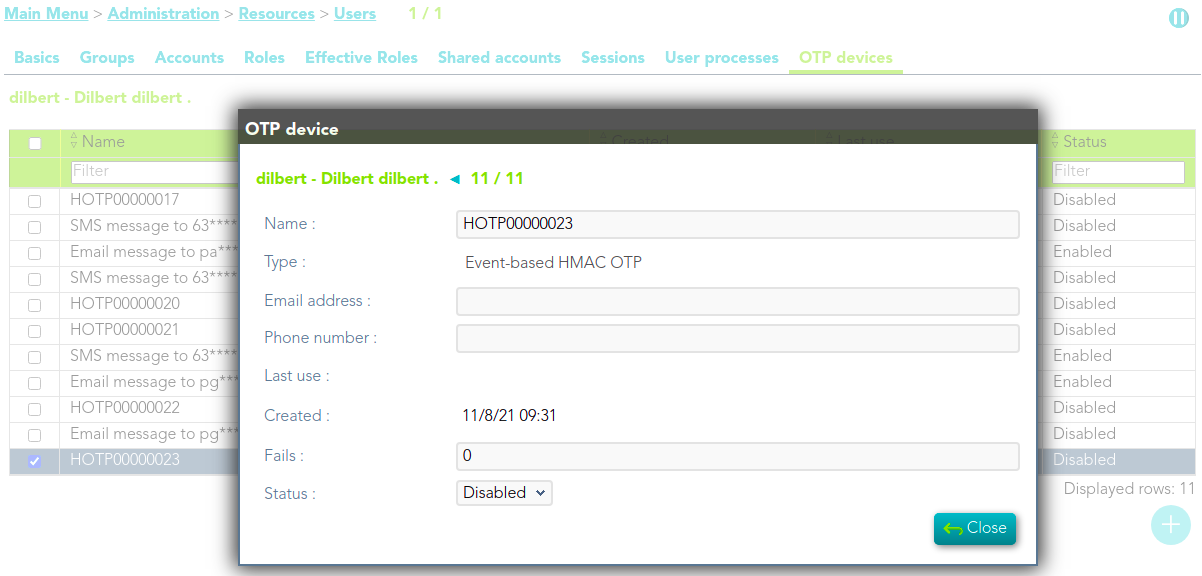
Soffid allows you to manage the OTP devices for each user. That option will be availavle on the User window. You need to query the user on the Users window, click the proper user and go to the OTP devices Tab, here you could manage the OTP devices for that user.
## Screen overview
## Standard attributes
- **Name**: authomatic name assigned to the OTP device.
- **Type**: selected type
- **Email address**
- **Phone number**
- **Last use**
- **Created**
- **Fails**: fails number when the OTP device was created.
- **Status**:
- Created
- Enabled
- Locked
- Disabled
## Actions
| **Add**
| Allows you to add a new OTP devices. To add a new OTP devices you need clic the add button (+), the Soffid will display a new wizard to config the OTP devices. Fist of all you need select the OTP device Type and then Apply changes.
|
| **Delete**
| Allows you to delete one or more OTP devices for a specific user. To delete OTP devices first select the devices, then click on the subtract button (-), then Soffid will ask you to confirm or cancel the operation.
|
| **Change Status**
| Allows you to change the OTP device status. First of all you need click the proper OTP device, then change the status and finally close the window.
|