# How to use Soffid Authenticator?
## Steps to use Soffid Authenticator
1. First of all, open the web or legacy application in your browser.
2. Second, click the login option.
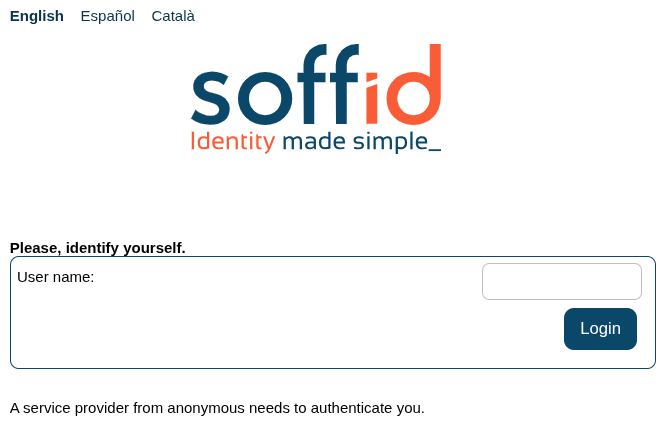
3. Then, Soffid Identity Provider will display the page to authenticate.
[](https://bookstack.soffid.com/uploads/images/gallery/2025-09/6vcgSsTfU7eQseTi-image.png)
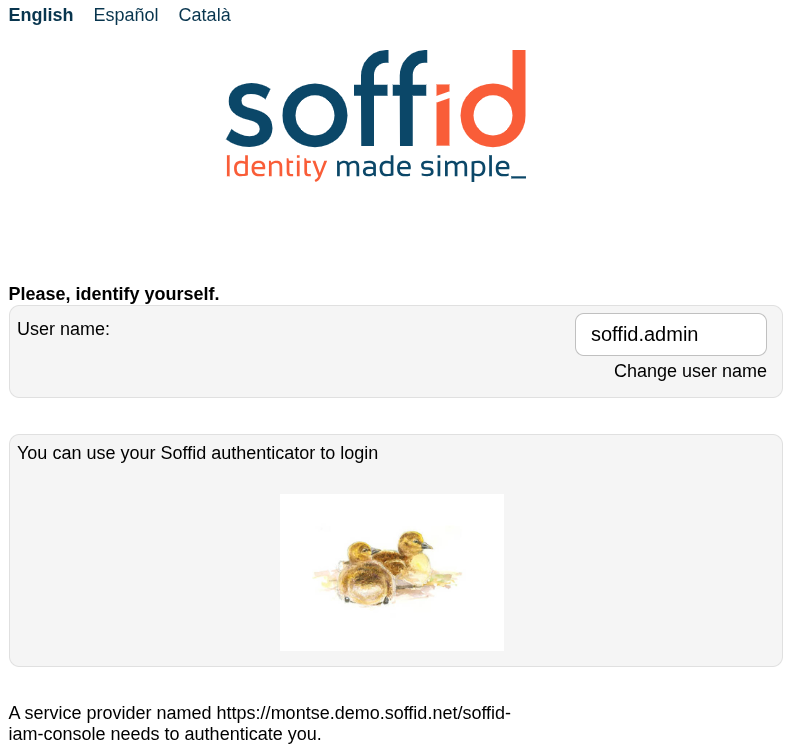
4. Type your user name and click the login button. Then, the available authentication option will be displayed
[](https://bookstack.soffid.com/uploads/images/gallery/2026-07/yUdcSTb03pTUnIMF-image.png)
5. Open your Soffid Authenticator app on your device.
[](https://bookstack.soffid.com/uploads/images/gallery/2023-11/image-1699281710957.png)
6. The application will display four options and you have to choose the proper bird. When you click the icon, a push authentication for login is sent to the Soffid Identity Provider.
[](https://bookstack.soffid.com/uploads/images/gallery/2026-07/TK4LkrgPtxWXCWdm-screenshot-20260717-174126.jpg)