# How to configure Soffid Authenticator?
## Steps to configure Soffid Authenticator
To obtain SSO and MFA for any web or legacy application, you need to configure your Soffid Authenticator App.
1. First of all, you need to login into your Soffid Console and browse [My certificates and FIDO tokens](https://bookstack.soffid.com/books/soffid-4-reference-guide/page/my-authentication-my-certificates-and-fido-tokens-addon-federation "My authentication > My certificates and FIDO tokens") page.
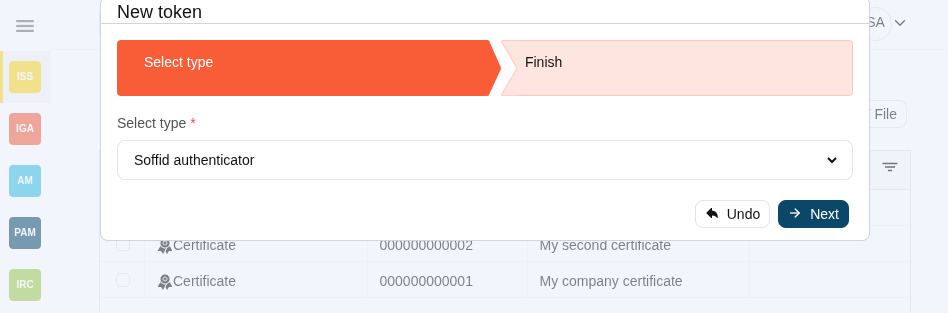
2. Second, you must add a new token. You need to click the Add button (+) and select Soffid Authenticator
[](https://bookstack.soffid.com/uploads/images/gallery/2025-09/zk47B8GnbsE9Qcdh-image.png)
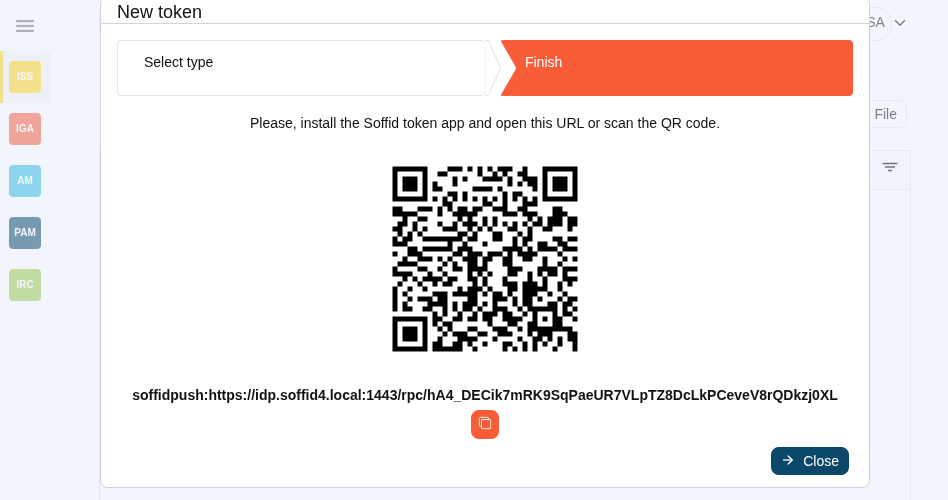
3. Then, you must scan the QR with your device using the Soffid Authenticator App.
[](https://bookstack.soffid.com/uploads/images/gallery/2025-09/oFnjj05IMnDCLArb-image.png)
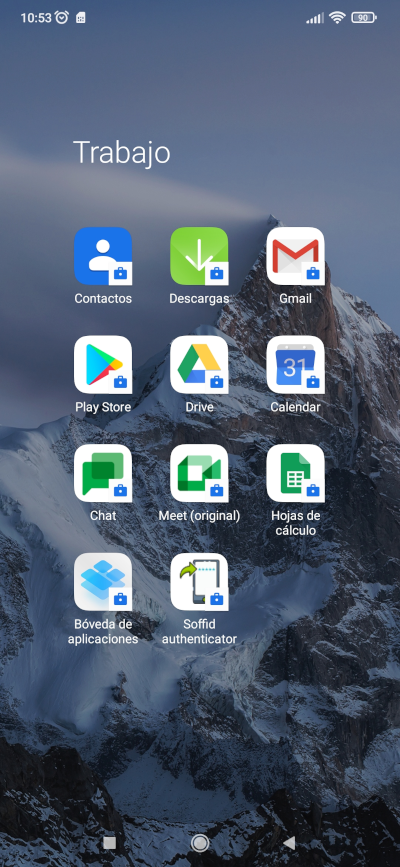
4. To scan this QR code, you must open the Soffid Authentication App on your device
[](https://bookstack.soffid.com/uploads/images/gallery/2023-07/image-1688463962329.png)
5. Then,
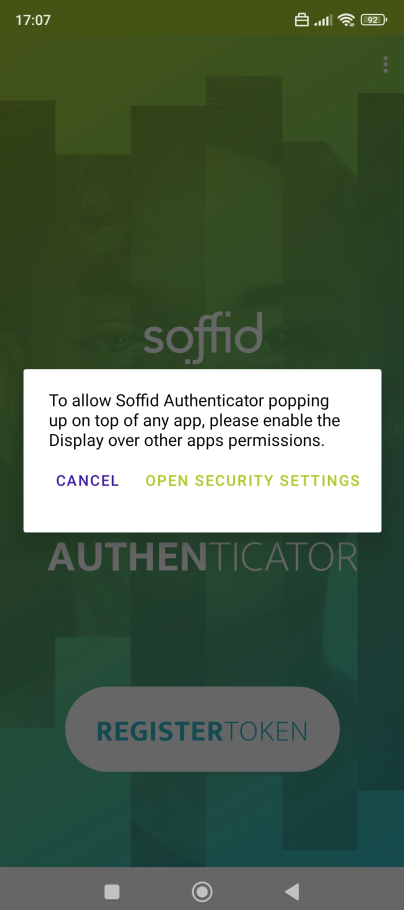
5.1. The first time you open the application, Soffid will ask you about displaying this app over other apps configuration
[](https://bookstack.soffid.com/uploads/images/gallery/2023-11/image-1699287464329.png)
5.1.1. If you select to open security settings, then you must select the authenticator app, and check the Display over other apps option.
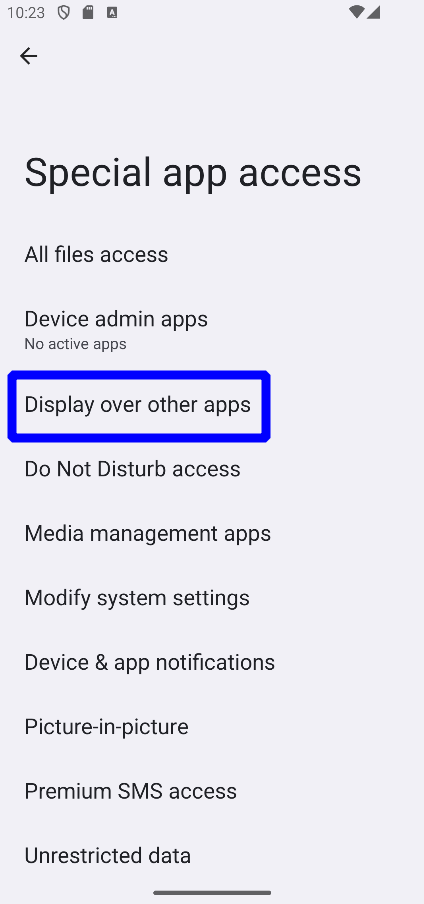
a. Select the Special app access opton
[](https://bookstack.soffid.com/uploads/images/gallery/2023-11/image-1699352564465.png)
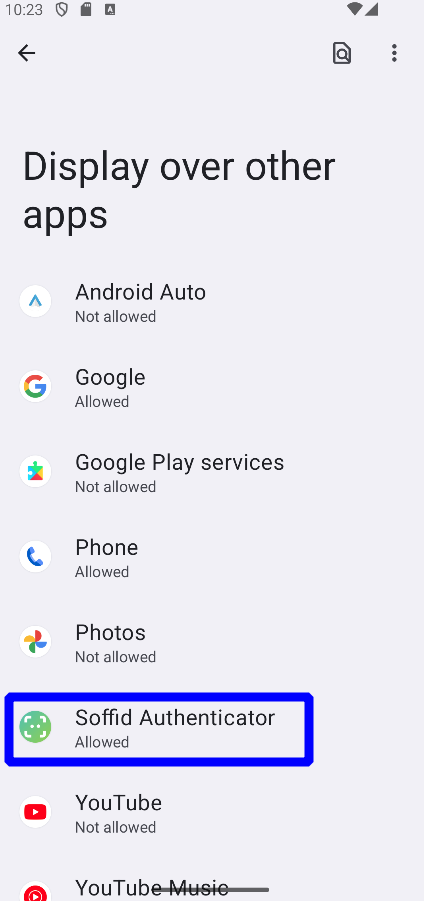
b. Select the Soffid Authenticator app.
[](https://bookstack.soffid.com/uploads/images/gallery/2023-11/image-1699352600582.png)
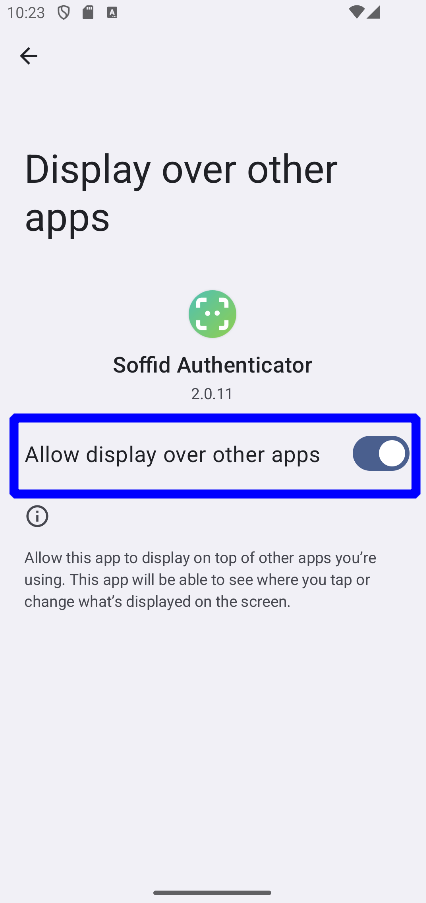
c. Check the Allow display over other apps option
[](https://bookstack.soffid.com/uploads/images/gallery/2023-11/image-1699352632222.png)
5.1.2. If you cancel, the next time you use the app, a notification will be sent to your mobile when an action will be required in the application
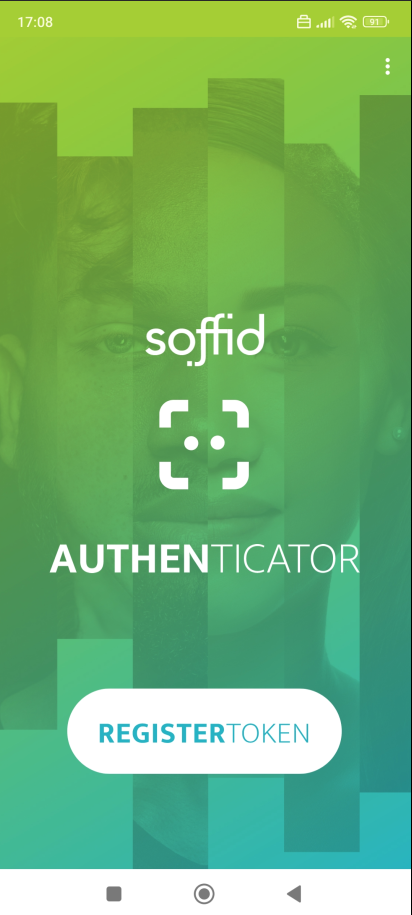
5.2. Finally, you must select the Register token option, and register your token
[](https://bookstack.soffid.com/uploads/images/gallery/2023-11/image-1699287765232.png)
6. Finally, you need to scan the code, and the new token will be registered into Soffid Console.
[](https://bookstack.soffid.com/uploads/images/gallery/2023-07/image-1688469177048.png)
Your Soffid Authenticator is ready to use it.