Reports (addon-reports)
Description
The Reports page allows you to run the reports defined in the system. Reports can be executed immediately or scheduled for later.
Soffid comes with a set of predefined reports by default, but you can modify them and add new reports as needed for your organisation.
List of default reports
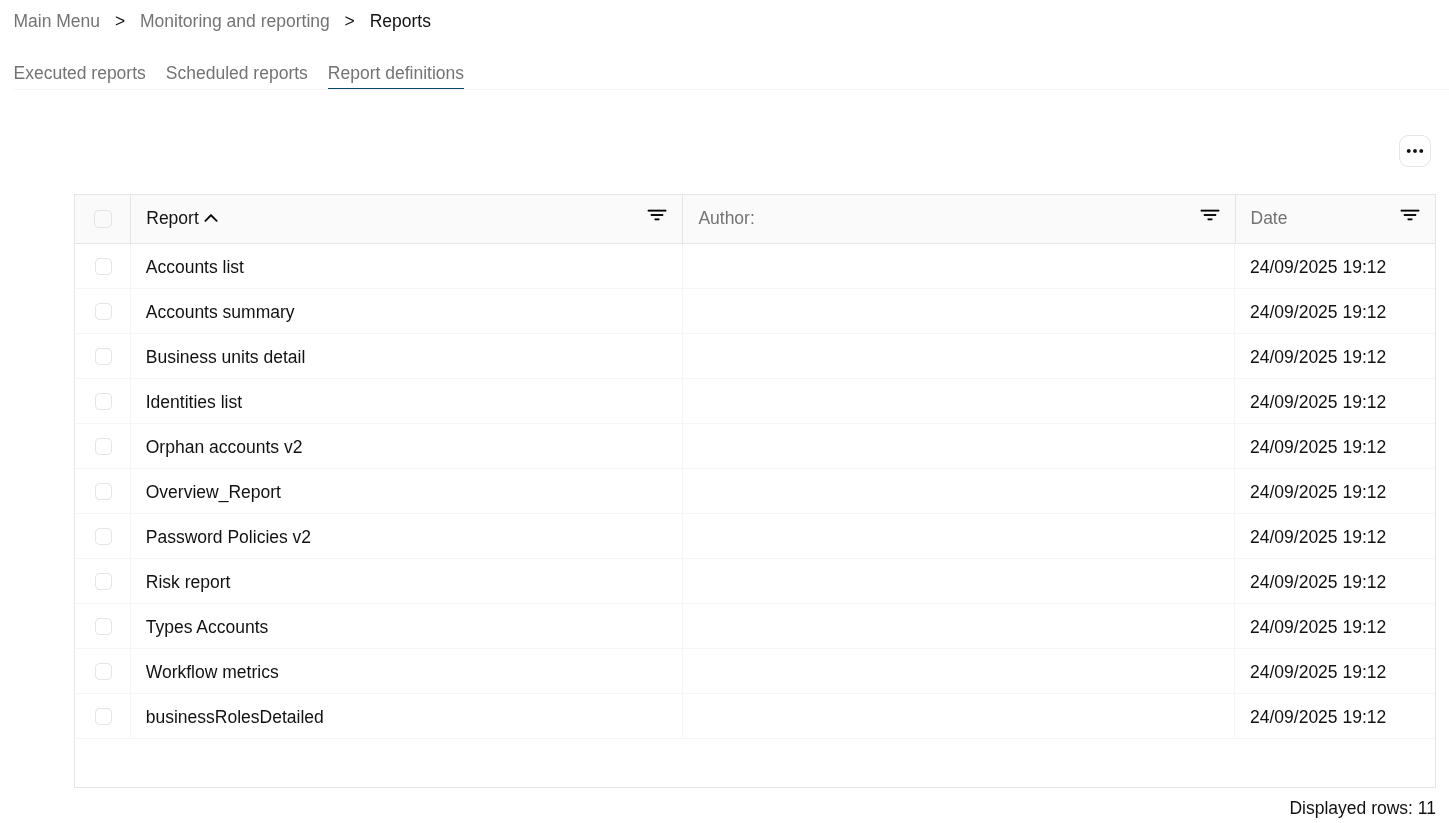
- Accounts list
- Accounts summary
- Business units detail
- Identities list
- Orphan accounts v2
- Overview_Report
- Password Policies v2
- Risk report
- Types Accounts
- Workflow metrics
- businessRolesDetailed
Explanation of the tabs
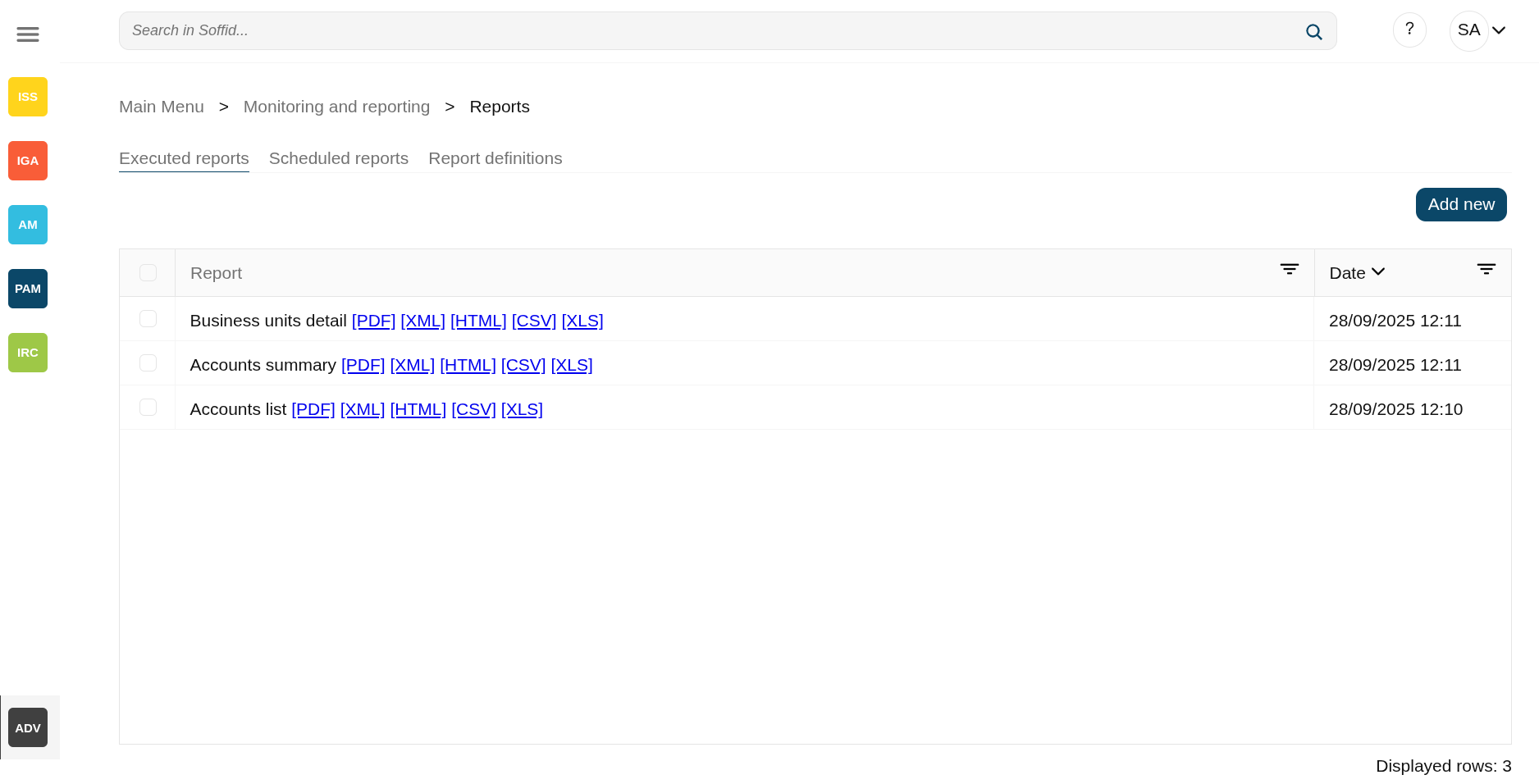
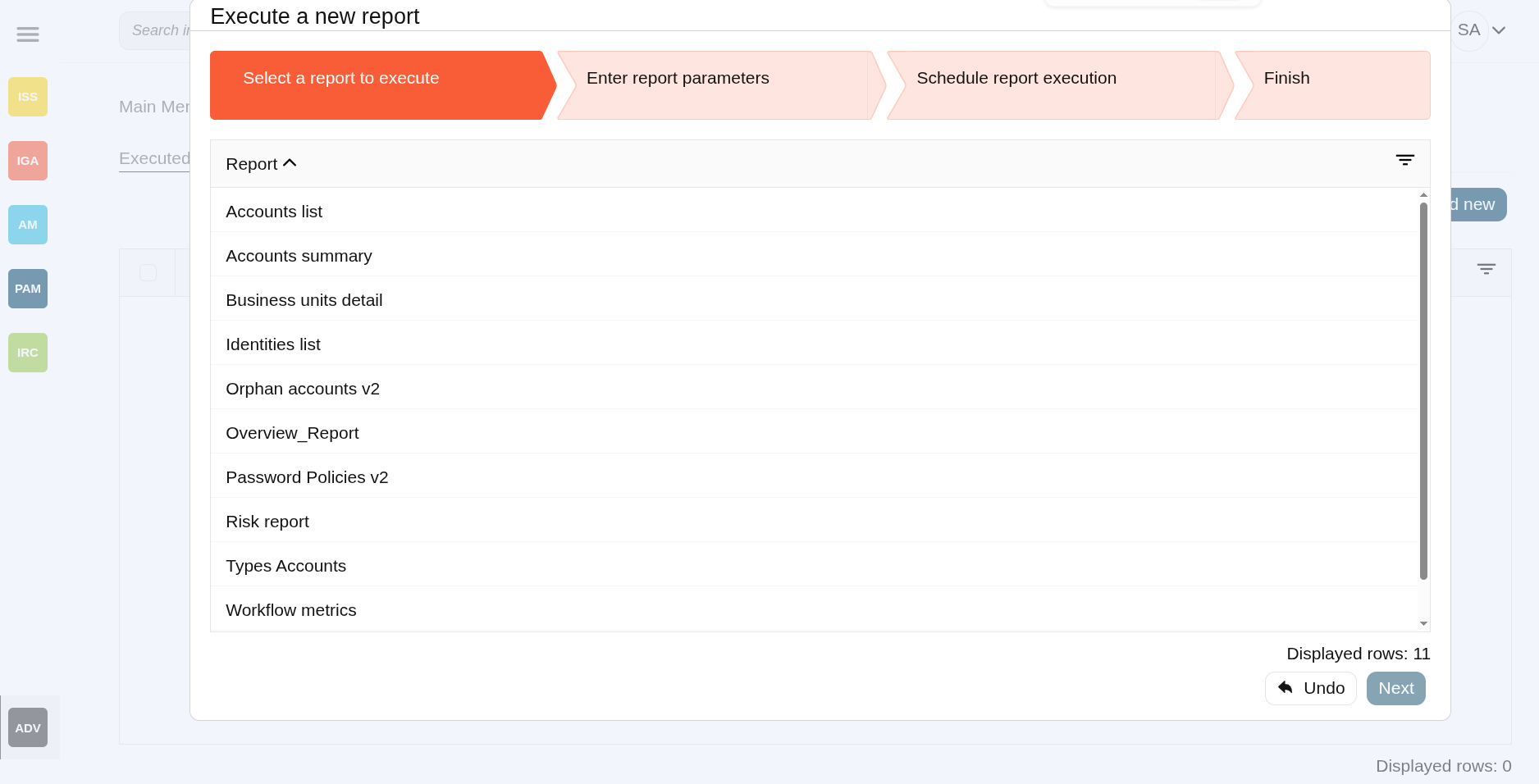
- Executed reports : where reports are manually started, executed or scheduled, also you can query the last executions.
Image
- Scheduled reports : wheresheduled reports are listed.
Image

- Report definitions : where you can update the configuration of a report, upload a new definition version or upload a new report.
Image
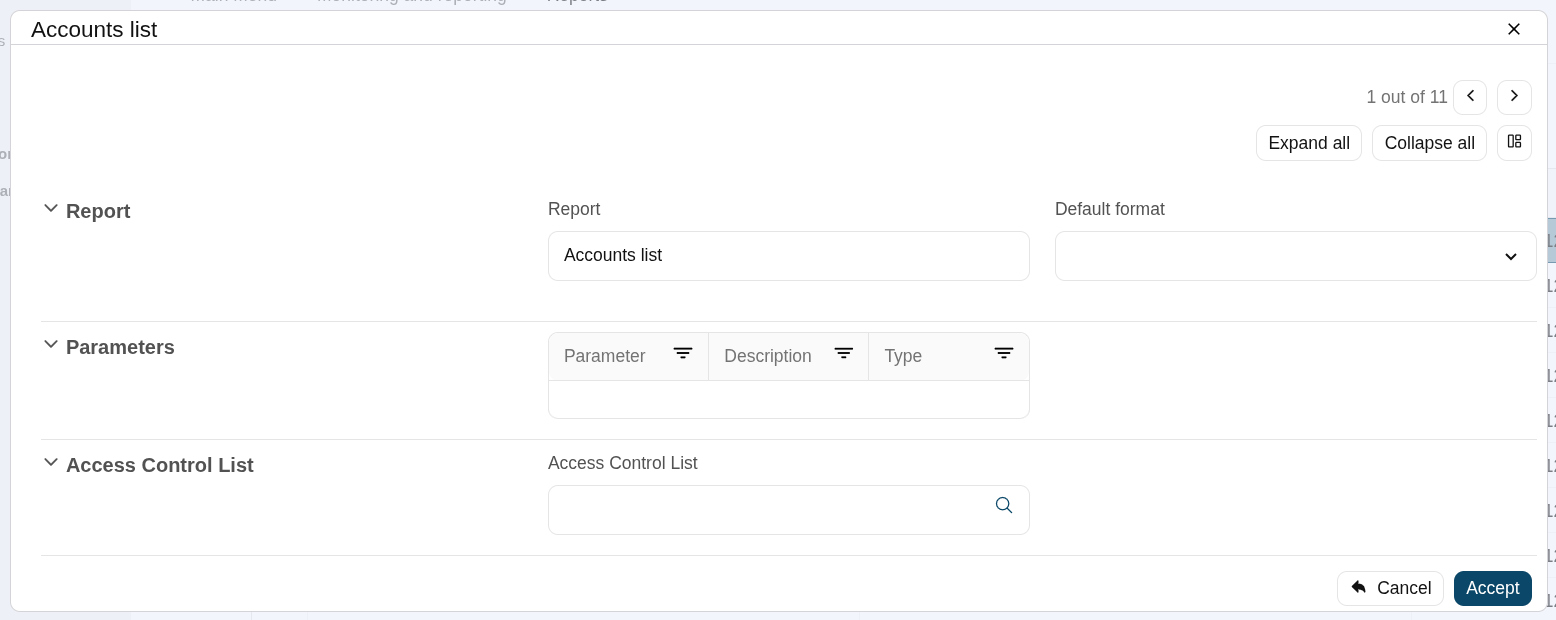
Screen overview
Related objects
- Reports : where jasper reports are managed
- Dashboard editor : to create and manage dashboards
- Chart editor : to manage charts to be used in the dashboard editor
- Dataset editor : to manage datasets to be used in the chart editor
- Dashboards : where the dashboards created in the dashboard editor are displayed
Standard attributes
- Report: report.
- Date: date of execution of the report.
Actions
Executed reports
Table actions
| Add new | Allows you to start a new report execution |
| Delete report | Allows you to delete all reports selected with the checkbox in the first column |
| [PDF] [XML] [HTML] [CSV] [XLS] | By clicking on one of these options, you can download the file in the format you have selected. |
Popup actions
|
Undo |
Allows you to cancel the execution |
|
Next |
Allows you to continue to the next step |
|
"Execute now" |
Allows you to execute the reports at the moment |
|
"Schedule execution" |
Allows you to schedule the execution of the report |
|
Finish |
Finish the execution process popup |
Scheduled reports
Table actions
| Add new | Allows you to start a new report execution |
| Delete report | Allows you to delete all reports selected with the checkbox in the first column |
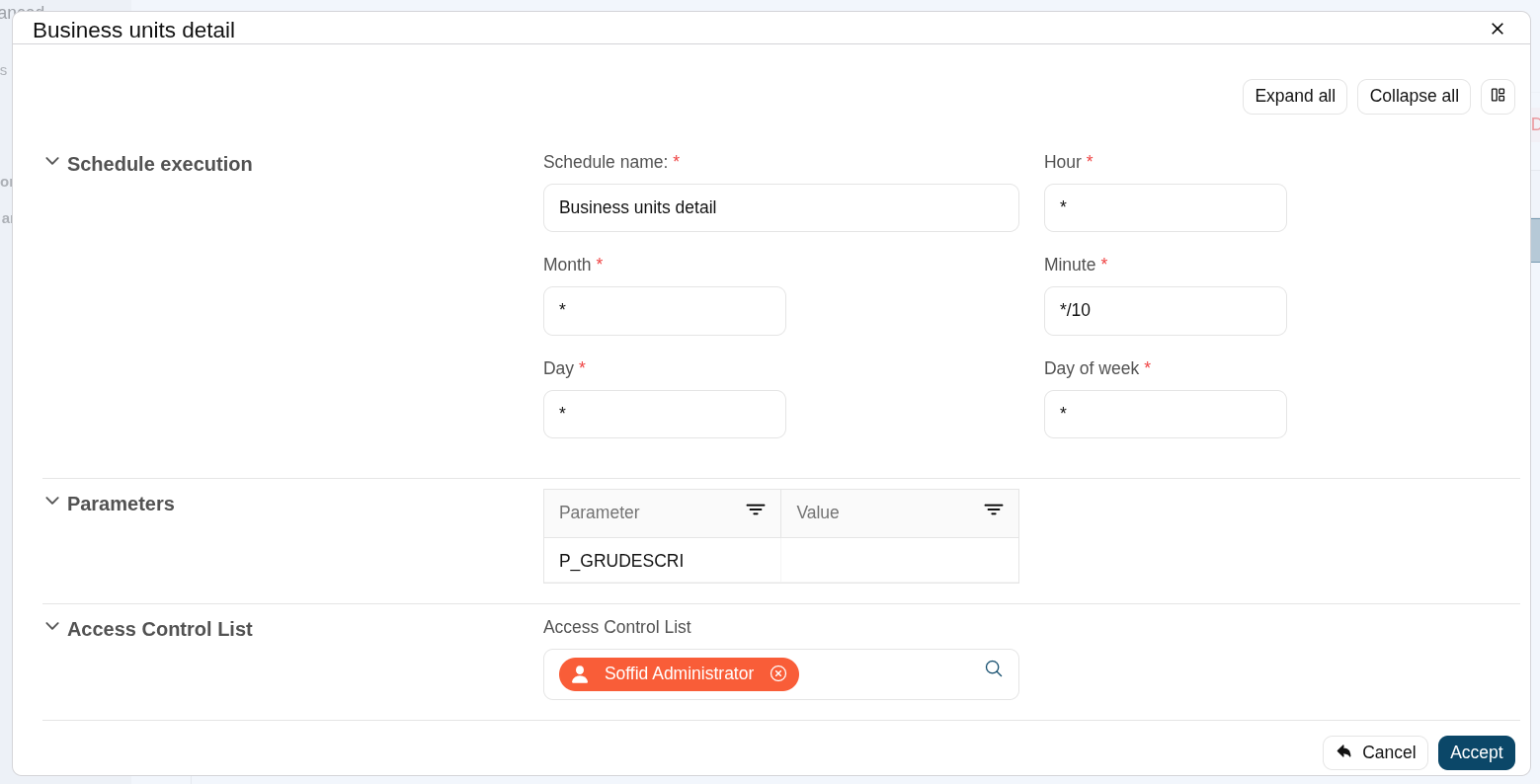
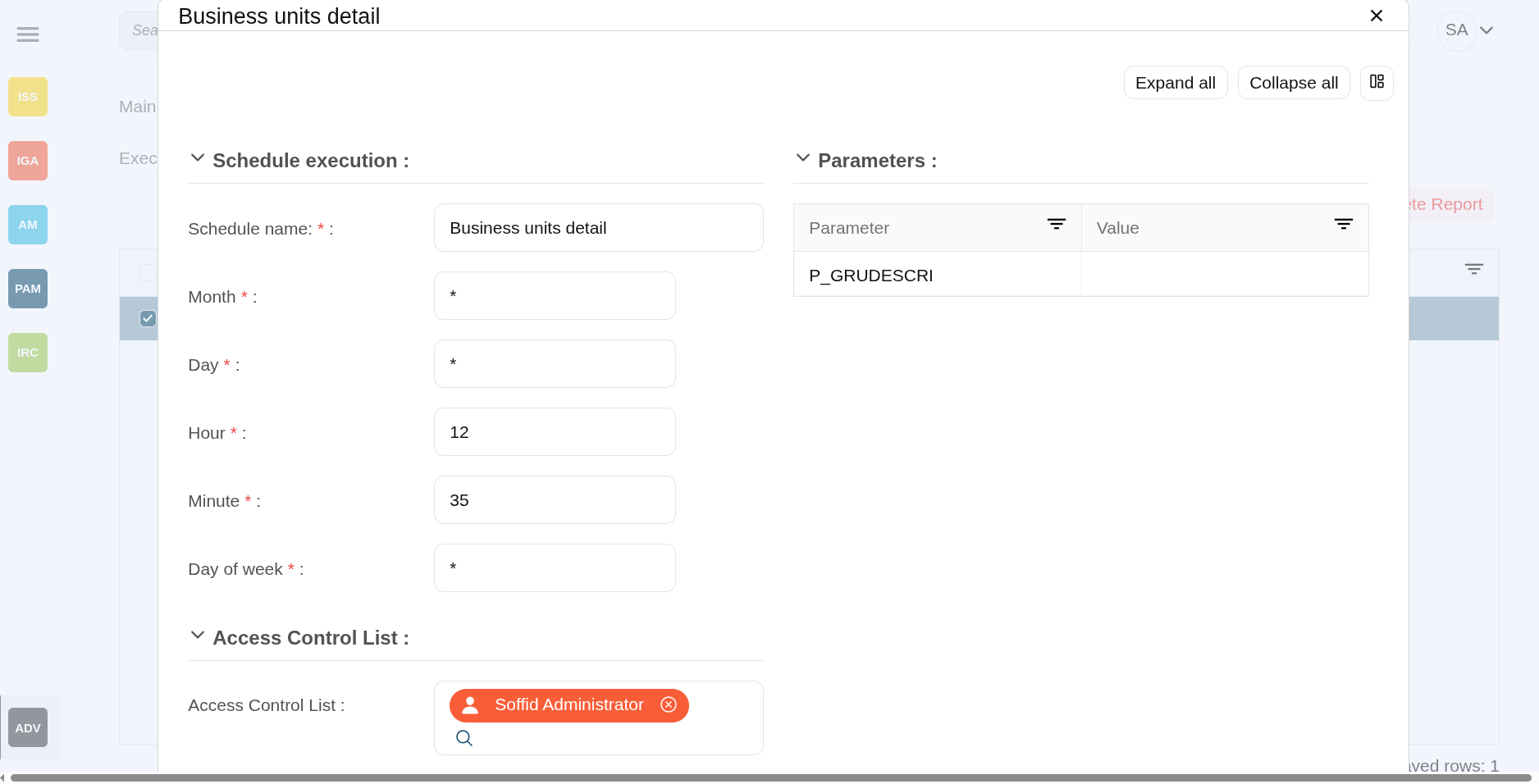
| "Edit scheduled report" |
When you select a report, a pop-up window will open with the planning information so that you can view or modify it.
The "Schedule execution" section is the same as that used in the Scheduled tasks screen.
With the "Access control list", you can specify which users can view this report.
Image
|
Popup actions
|
Undo |
Allows you to cancel the execution |
|
Next |
Allows you to continue to the next step |
|
"Execute now" |
Allows you to execute the reports at the moment |
|
"Schedule execution" |
Allows you to schedule the execution of the report |
|
Finish |
Finish the execution process popup |
Report definitions
Table actions
| Download iReport component |
Allows you to download the ireport-addon.jar.
That add-on will be customized and added to the iReport designer to design your owns reports. You can visit the How to start Reporting in Soffid page. |
| Upload |
Allows you to upload a designed report with iReport tool. You can upload defautl jasper files or customized jasper files as well.
First of all, you need to click the Upload option by clicking in the "Three points" icon. Then Soffid will display a window to pick up the new report (a .jasper file). |
| "Edit report definition" |
When you select a report, a pop-up window will open with the report definition so that you can view or modify it. |
You can download the iReport designer from sourceforge.