Password recovery configuration (addon recovery)
Description
Soffid provides you the functionality that allows to the users recover their passwords.
To do this, the administrator user, or a user with the proper roles/authorizations, must first config the password recovery settings.
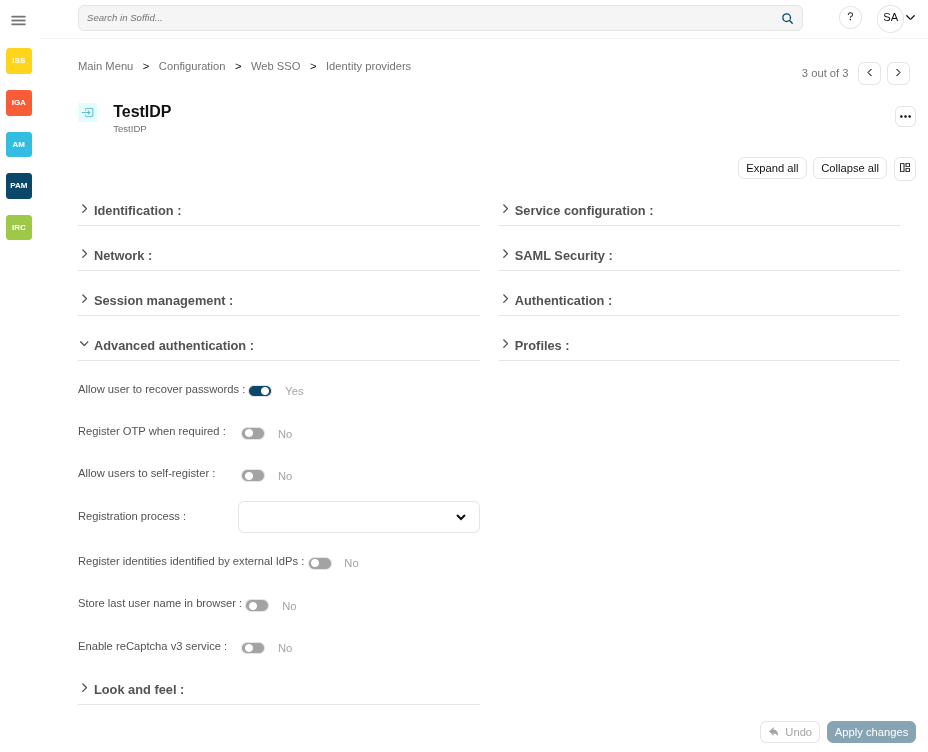
This setting can be used in the Console login and in the Federation login if enabled in the Identity Provider.
There are several sending method configuration options, use the one that best suits your organization.
Screen Overview
Related objects
- Soffid parameters : must provide a mail server to use mails
- Identity providers : to enable this opcion in federation
Standard attributes
Password recovery questions tab
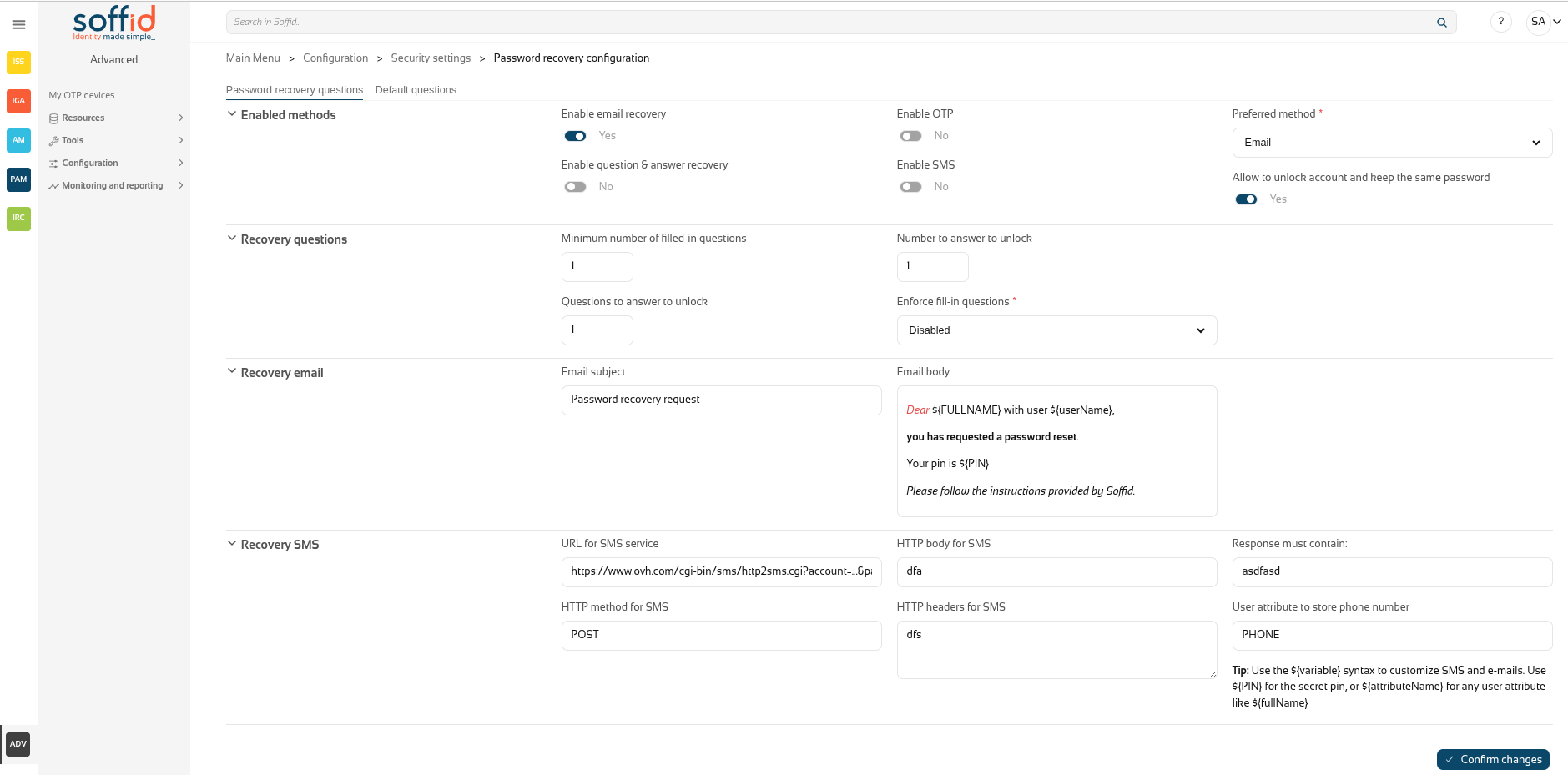
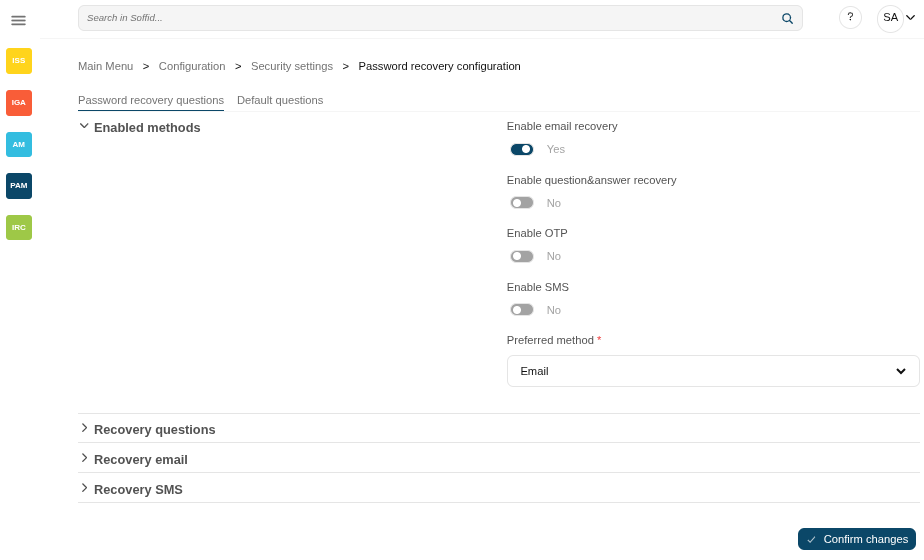
Enabled methods
- Enable email recovery: if Yes is selected, it will allow password recovery through an e-mail sent to an authorized mailbox.
- Enable question&answer recovery: if Yes is selected, a question and control response will be requested.
- Enable OTP: if Yes is selected, an OTP will be required to recover the password. That OTP depends on the OTP settings configured into the Soffid Console and the OTP devices configured for the end-user.
- Enable SMS: if Yes is selected, an SMS will be send to recover the password.
- Preferred method: in case you select two or more previous options, this drop-drown will allow you to priorize one option over the others.
- Questions
- SMS
- OTP
- Allow to unlock account and keep the same password: Allows the user to unlock his account using the last stored password.
Recovery questions
- Minimum number of filled-in questions: indicates the minimum number of user questions that must be have answered in the end-user's profile to can use this recover password method.
- Questions to answer to unlock: indicates the number of questions that must be formulated to the end-user to reset his password.
- Numer to answer to unlock: indicates the number of answers that must be answered by the end-user to reset his password.
- Enforce fill-in questions: allow on each access Soffid to check if the questions are answered. In case the questions have not been not answered, Soffid will display a window with the questions to answer or to config to the end-user depending on that value.
- Disabled: allows you to disable that functionality.
- Required: if this option is selected, the system will check if the user questions are answered correctly.
If the user have not a required number of questions defined or he have not answered all his questions, the system will show the retrieve password questions page. - Optional: when this option is selected, the system will check the user questions but it will not show the retrieve password questions page if the user questions does not meet the configuration parameters.
Recovery email
- Email subject: the text of the subject sent in the email, you can use variables
- Email body: the text of the body sent in the email, this could be HTML stylel, you can use variables
Tip: Use the ${variable} syntax to customize SMS and e-mails. Use ${PIN} for the secret pin, or ${attributeName} for any user attributes like ${fullName}.
Recovery SMS
- URL for SMS service: URL for SMS service
- HTTP method for SMS: HTTP method for SMS, for example GET
- HTTP body for SMS: the text of the boy sent in the SMS, you can use variables
- HTTP headers for SMS: headers used in the HTTP request
- Response must contain: a text in the response to confirm the successful sending
- User attribute to store phone number: user object attribute defined on the Metadata page to save the phone number.
Tip: Use the ${variable} syntax to customize SMS and e-mails. Use ${PIN} for the secret pin, or ${attributeName} for any user attributes like ${fullName}.
Default questions tab
This Default questions tab is where you enter the questions that the end user will have to answer in order to recover their password.
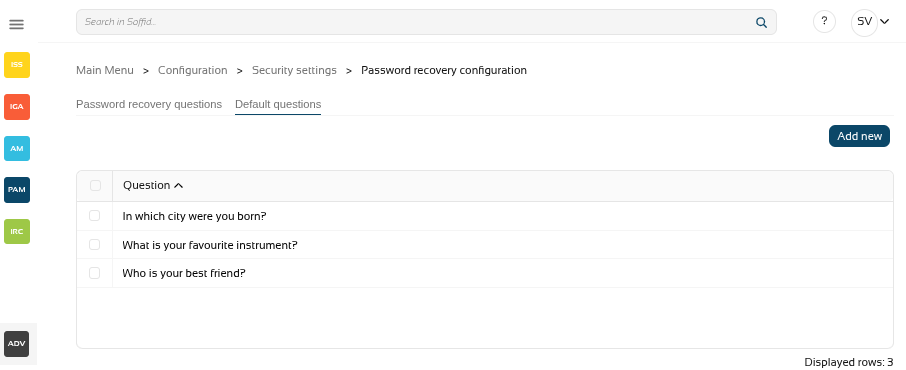
Table:
- Question: questions for the end user
Actions:
|
Add new |
Add a new row to the table to allow the administrator to write the question. |
|
Delete |
After selecting one or more questions, the "Delete" will be displayed and you could delete the question/s. |
For more information on how to activate and configure the question and answer feature, please review the page How to configure questions?
Actions
Password recovery questions tab
|
Confirm changes |
Allows you to save the data of password recovery configuration. To save the data it will be mandatory to fill in the required fields. |
Default questions tab
|
Add new |
Allows you to add a new question to the questions list |
Others
Login in console
First, activate one of the available methods, in this case email.
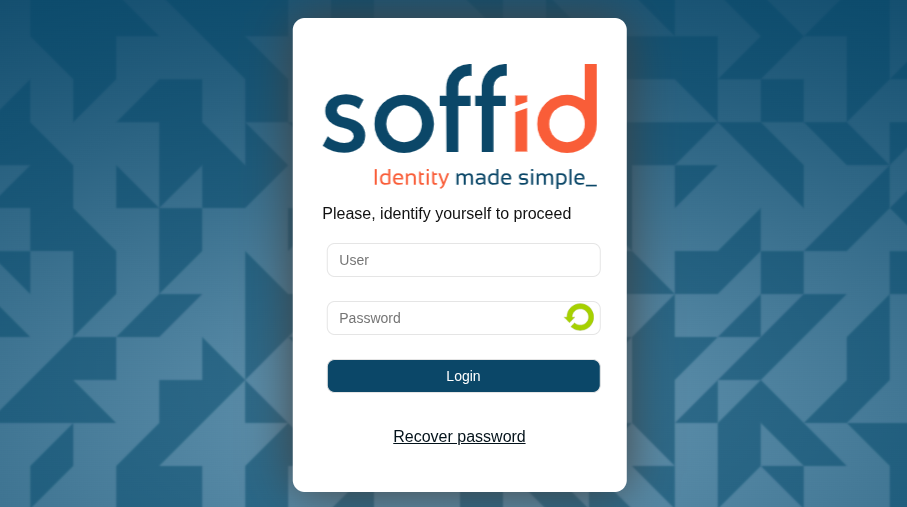
Sedond, when you log in to the console, you will see the option ‘Recover password’.
Image
Login in federation
First, enable "Allow user to recover password" in the "Advanced authentication" section.
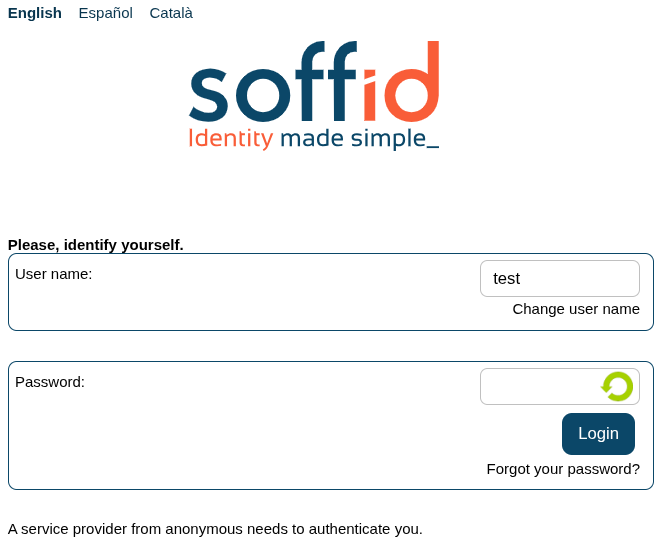
Second, when you log in to the federation, after entering the user, you will see the option "Forgot your password?".
Image