Metadata
Description
The Metadata functionality allows expanding the Soffid objects, their attributes, and their data types. Also, it allows expanding custom objects.
By default, there is a list of built-in objects, but it is possible to create new custom objects and add new custom attributes to each of them.
It is usual to add custom attributes in the User built-in object to hold additional information.
Each attribute has a data type, it may be a basic type as a String (simple text), integer value, date, or something more complex as a reference to a custom object, or a popup to select a manager. In this way, one can build relationships between objects.
Built-in objects
The built-in objects are the objects that are part of the Soffid core. It can not be removed, but more custom attributes can be added.
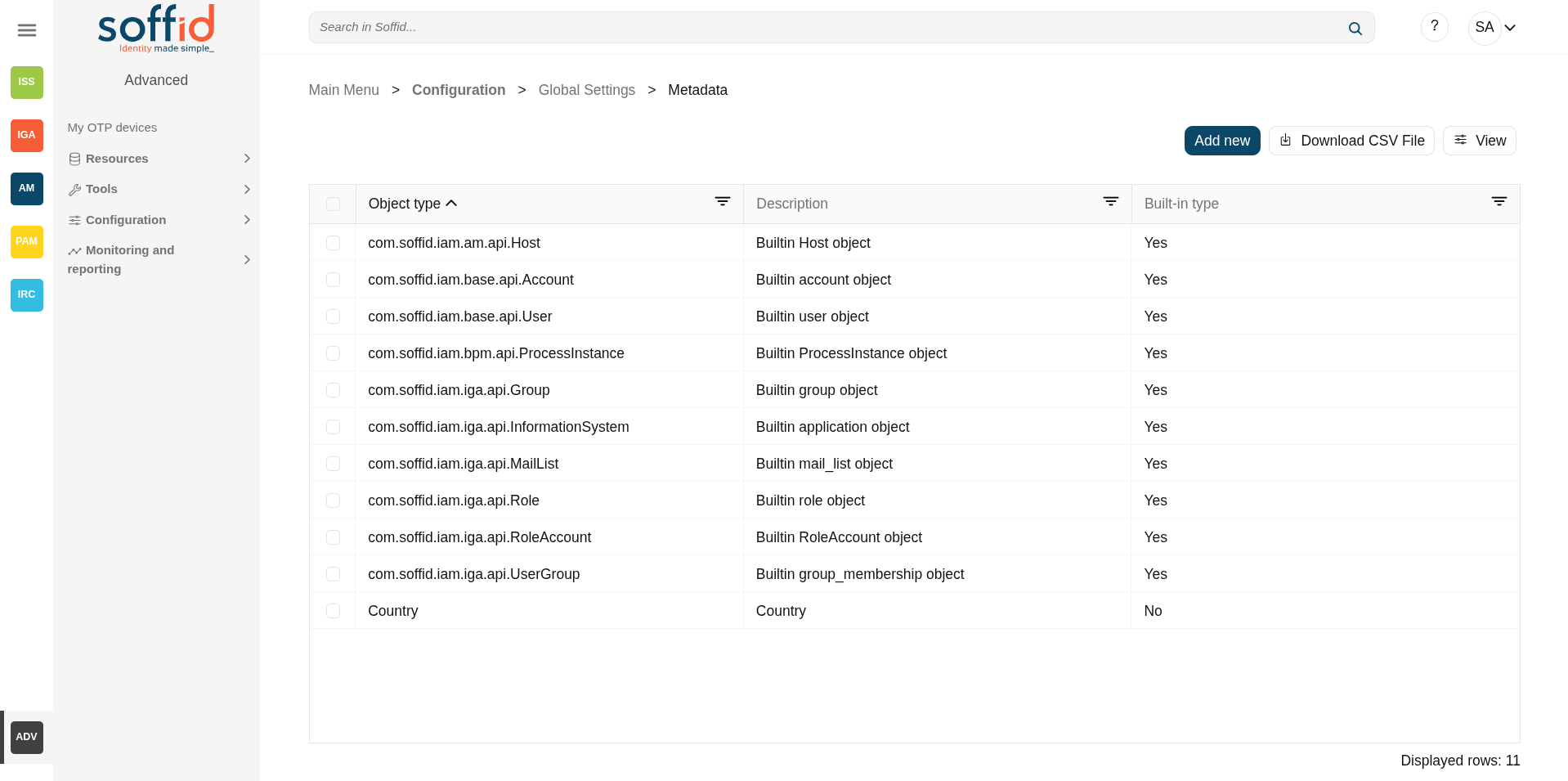
The following objects are Soffid well-known objects that can be customized by means of this screen. All of them are tagged as Built-in objects.
- Account
- Group
- Host
- InformationSystem
- MailList
- ProcessInstance
- Role
- RoleAccount
- User
- UserGroup
Custom objects
The custom objects are the objects created by the administrator to extend the Soffid underlying data model. All of them are marked as Built-in type No.
Each custom object type created by the administrator is displayed at the custom objects menu options.
Screen overview
Related objects
- Account : account object
- Group : group object
- Host : host object
- InformationSystem : informationSystem object
- MailList: mailList object
- ProcessInstance : workflows:
-
My tasks : pending workflows where the user has to perform an action in order to continue their workflow.
-
My requests : the workflows that the user can initiate are listed here.
-
My requests > Query request status : to search for all processes started by oneself.
-
Process Search : to search for all processes.
-
- Role : role object
- RoleAccount : this is the grant, the relation between user and role
- User : user object
- UserGroup : seconday group relation in user page
Standard attributes
Table attributes
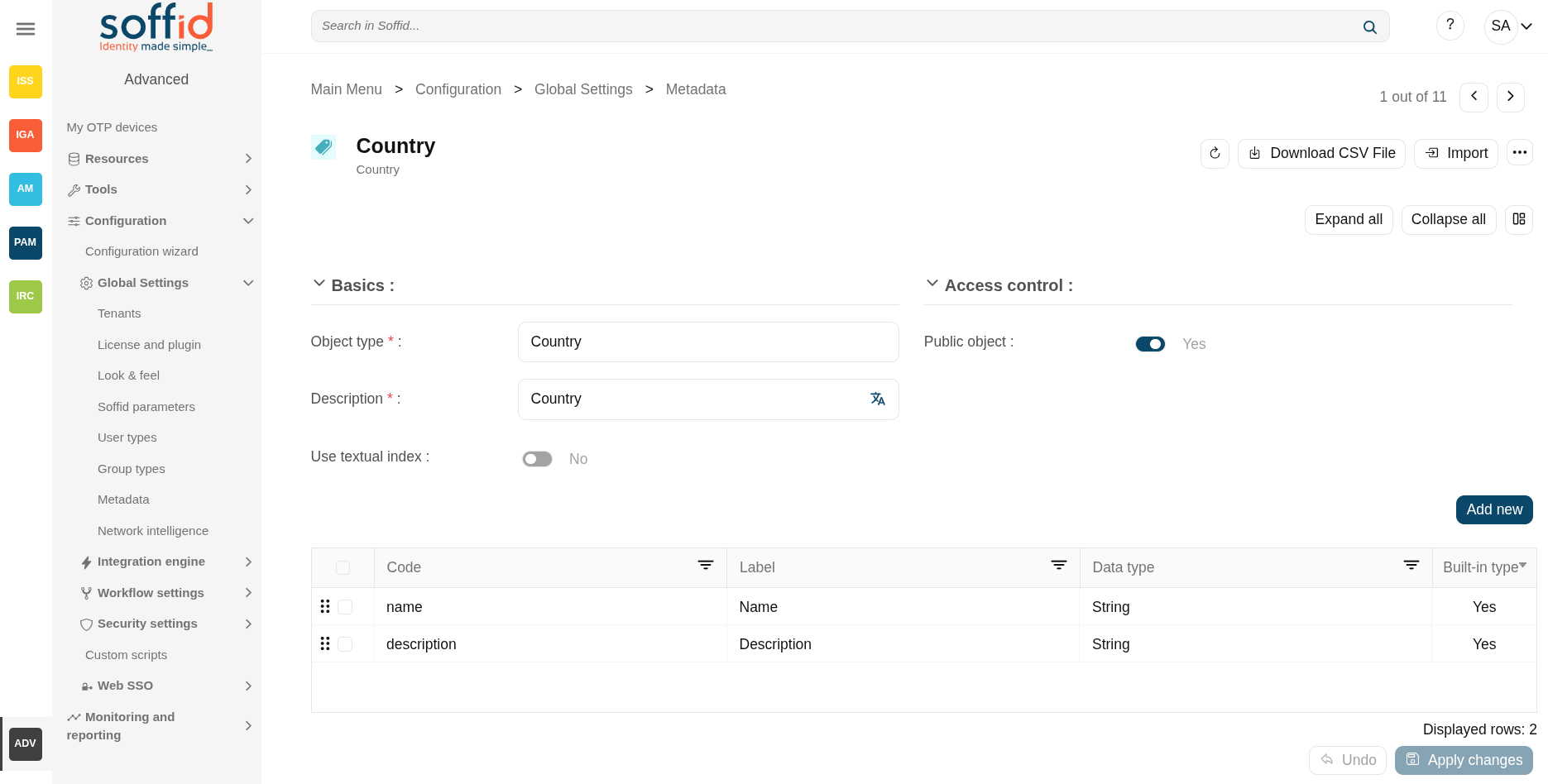
- Name: name of the custom object. This field is mandatory.
- Description: a brief description of the custom object. This field is mandatory.
- Built-in type: yes when is a native object, no when it is a created custom object
- Write access: allows you to select the proper roles with permissions to write. This field is only displayed when the Public object value is No
- Read access: allows you to select the proper roles with permissions to read. This field is only displayed when the Public object value is No
- Public object: if you select the Yes option, the object will be visible to all the users with the proper permissions. If you select the No option, you must indicate what roles can Read and what roles can Write this object.
- Use textual index: allows you to check the Yes option if you want to use the Textual index for searching data in this object.
Object attributes
- Object type: code/name to identify a built-in type or a custom object.
- Description: a brief description of the object.
- Use textual index: allows you to select the Yes option if you want to use the Textual index for searching data in this object.
- Public object: only for custom objects. If you select the Yes option, the object will be visible to all the users with the proper permissions (role with authorization). If you select the No option, you must indicate what roles can Read and what roles can Write this object.
For more information, you can visit the Textual index page.
Attribute attributes
- Code: short name used by scripts and connectors to access the underlying information. It is suggested to use short names without blanks or special characters to make it easier to use.
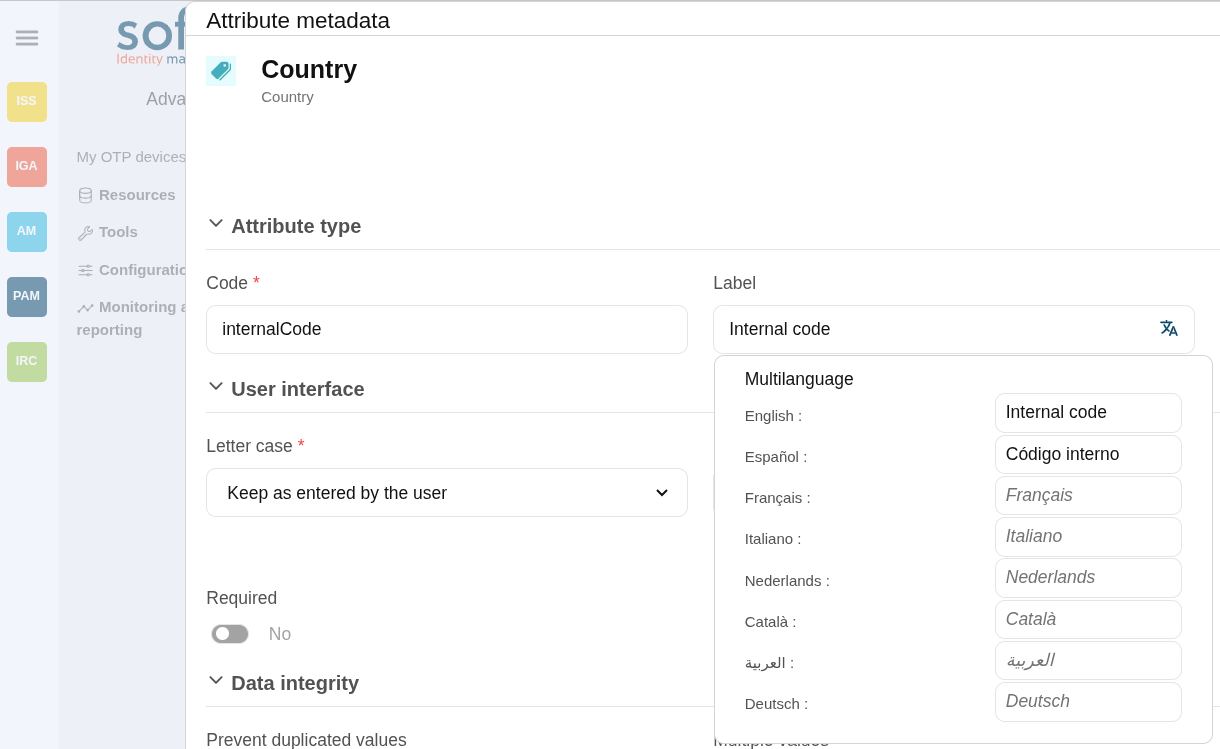
- Label: text displayed just beside the attribute value. It is advised to use short descriptions in order to keep the screen cleaner.
In Soffid 4, labels are now multilanguage. Once you have saved a new attribute, you can modify it by clicking on the language icon.
Image
- Data type: The attributes can have different data types
- Basics
-
- String: a text
- Number: a number
- Password: a text that will be stored encrypted in the database. This field will never be displayed to the end user.
- Binary: raw information, probably images or documents.
- Boolean: true/fasle, it is displayed as a switch button
- Photo: an image that is displayed as a small image.
- Date: a date with a calendar popup.
- Date and time: a date and time with a calendar popup.
- E-mail: a text with email format. the mail domain must exist in Soffid to be saved.
- HTML: rich text.
- Separator: a separator is a label to group attributes according to some criteria
- SSO HTML input: used primarily for the web SSO engine includes an input field and a value.
- Attachment: files starored as files
-
- Soffid objects
-
- Account
- User
- Group
- Group type
- Role
- Information System
- Host
- Network
- User Type
- Mail domain
- Mail list
- Operating system
- Printer
- Target system (agent)
-
- Custom objects: any other custom object created by the administrator.
- Basics
- Letter case: different options for modifying the text once it has been entered
- Keep as entered by the user
- Upper case letters
- Lower case letters
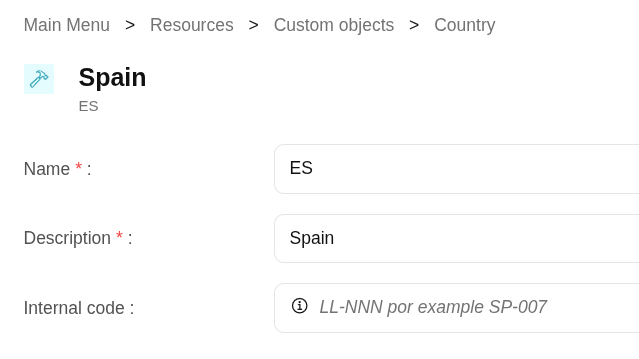
- User hint: Text used to indicate to the user how the text should be entered.
Image
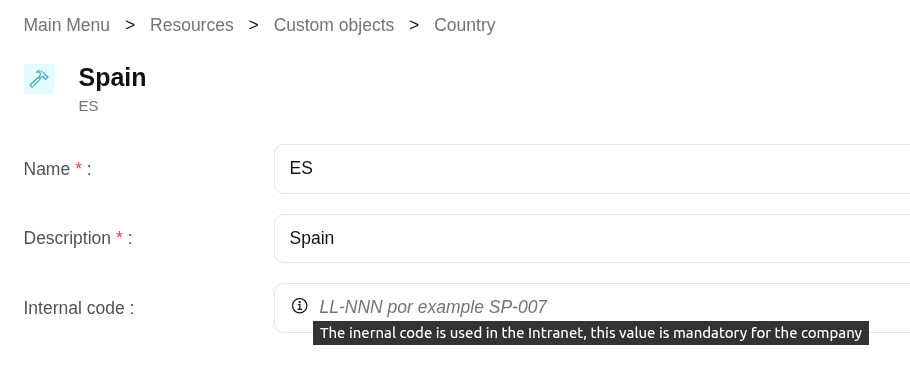
- Description: text field to write a brief description of the attribute. In Soffid
In Soffid 4, you can now see it in the attribute by hovering over the round information icon.
Image
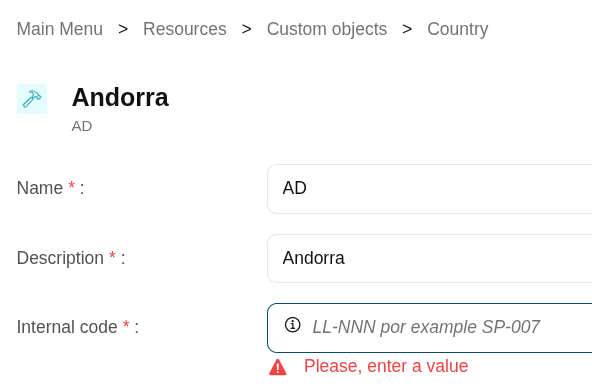
- Required: enabling this box will enforce the user to enter a value for this attribute at any object. Set no to allow objects without value. If you try to save without a value, an error message is displayed.
Image
- Include in quick search: the system will find any object that contains all the words included in the text search at any of the most relevant attributes. For instance, a quick search of "John Joe" will find users named "Joe Johnson" or "Johnathan Joel" as the first and last marked to be included in the quick search. If you enable the quick search for any new attribute, the same query will find a user named "Joe Williams" whose new attribute value is "John".
- Prevent duplicated values: mark this field as a unique key for the object type. There is no chance of two objects with the same attribute value. Soffid smart engine will avoid the creation of duplicated objects.
- Multiple values: some attributes can contain multiple values for the same object. For instance, an attribute containing the languages a user can speak can be multi-valued, as a user can speak multiple languages.
- Maximum number of rows to display: when an attribute is multivalued, the screen size can grow a lot. To prevent such a big form, the system will only display a maximum number of values, and a scroll bar will appear to browse through the attribute values.
- Size: primarily for string attributes, specify the maximum length in characters of the attribute value.
- Values: primarily, for attributes of data type String, you can specify the allowed values for the attribute. Then, the text box to the data type String is replaced by a drop-down list. Also, you can define a "code:label" for the value, the "code" is used internally and the "label" is displayed in the drop-down list, e.g. "ESP:Spain".
- Administrator visibility: sets the maximum visibility level for administrators. If the visibility level is set to read-only, the administrator will not be allowed to modify it. If the visibility is set to hidden, the administrator will not be able to query it. A user is considered as administrator when has the role SOFFID_ADMIN.
This field is only used in the user object built-in attributes.
- Operator visibility: sets the maximum visibility level for operators. If the visibility level is set to read-only, the operator will not be allowed to modify it. If the visibility is set to hidden, the operator will not be able to query it. A user is considered as an operator when has permission to open the users management page but lacks the role SOFFID_ADMIN.
This field is only used in the user object built-in attributes.
- User visibility: sets the maximum visibility level for end-users. If the visibility level is set to read-only, the user will not be allowed to modify it. If the visibility is set to hidden, the user will not be able to query it. Mind that even an administrator is considered to be a user rather than an administrator or operator when accessing their own identity.
This field is only used in the user object built-in attributes.
- Visibility expression: write an optional BeanShell expression to check if the field should be displayed or not. The expression should return true or false. The following variables are exposed to the expression:
-
ownerObject: current object owning the attribute.
-
value: current attribute value.
-
requestContext: tip about the screen using the attribute.
-
inputField: the ZK input object (ZK Framework).
-
inputFields: a map to get access to any other ZK input object (ZK Framework).
-
serviceLocator: locator to use any Soffid engine microservice.
-
// Sample to enable company name attribute only when the user is of type E (external)
return "E".equals(object{"userType"});- Validation expression: write an optional BeanShell expression to check if the field value is acceptable or not. The expression should return true if the value is acceptable. If the expression returns false or any other object, a warning message will be displayed. When the expression returns a string value, the return value will be considered the warning message to present to the end-user.
The following variables are exposed to the expression:
- ownerObject: current object owning the attribute
- value: current value to evaluate.
- requestContext: tip about the screen using the attribute
- inputField: the ZK input object (ZK Framework).
- inputFields: a map to get access to any other ZK input object (ZK Framework).
- serviceLocator: locator to use any Soffid engine microservice.
// Sample for checking birthDate is greater than 18 years old
c = java.util.Calendar.getInstance();
c.add(-18, c.YEAR);
if (birthDate == null || birthDate.before(c.getTime()) return true;
else return "Birth date should be before "+ new java.text.SimpleDateFormat().format(c.getTime());
- onLoad trigger: write an optional BeanShell expression that will be executed just after preparing the user interface. The script can modify in any way the inputField object before it is displayed, but cannot modify other input fields.
The following variables are exposed to the expression:
- ownerObject: current object owning the attribute
- value: current value to evaluate.
- requestContext: tip about the screen using the attribute
- inputField: the ZK input object (ZK Framework).
- inputFields: a map to get access to any other ZK input object (ZK Framework).
- serviceLocator: locator to use any Soffid engine microservice.
// Sample to set contract number attribute to read only if the attribute company is empty
// Place as an on-load trigger in the contract number field
if (ownerObject.attributes.get("company") == null || ownerObject.attributes.get("company").trim().isEmpty())
  inputField.setReadonly(true);
else
inputField.setReadonly(false);- onChange trigger: write an optional BeanShell expression that will be executed just after the user has changed the object value. The script can modify in any way the inputField object or any other input fields.
The following variables are exposed to the expression:
- ownerObject: current object owning the attribute.
- value: current value to evaluate.
- requestContext: tip about the screen using the attribute.
- inputField: the ZK input object (ZK Framework).
- inputFields: a map to get access to any other ZK input object (ZK Framework).
- serviceLocator: locator to use any Soffid engine microservice.
// Sample trigger to set contract number attribute to read only when the company attribute gets empty
// Place as an on-change trigger in the contract field
contractField = inputFields.get("contractNumber");
if (value == null || value.trim().isEmpty())
  contractField.setReadonly(true);
else
  contractField.setReadonly(false);
contractField.invalidate(); // Redraw contract number field
......
inputFields.get("contractNumber").getValue();- You can add a SCIM expression: exclusive for Soffid objects (users, groups, roles...). Write an optional SCIM query using the SCIM standard to filter valid results for a specific field.
You can access to SCIM Chapter for more information
Actions
Table actions
|
Add new |
Allows you to add a new custom object in the system. To add a new custom object it is necessary to fill in the required fields. By default, it will have two mandatory attributes, name and description. |
|
Delete metadata |
Allows you to remove one or more custom objects by selecting one or more records and next clicking this button. To perform that action, Soffid will ask you for confirmation, you could confirm or cancel the operation. |
|
Download CSV file |
Allows you to download a CSV file with the basic information of all metadata. |
|
View |
Allows you to show and hide columns in the table. You can also set the order in which the columns will be displayed. |
Metadata detail
|
Refresh |
Allows you to refresh all the metadata information. |
|
Download CSV file |
Allows you to download a CSV file with the basic information of the metadata object. |
|
Import |
Allows you to upload a CSV file with the attribute metadata to add or update attribute metadata to Soffid. First, you need to pick up a CSV file, that CSV has to contain a specific configuration. Then you need to check the content to be loaded, it is allowed to choose if you want or not to load a specific attribute. And finally, you need to select the mappings for each column of the CSV file to import the data correctly and click the Import button. |
|
Delete metadata |
Allows you to delete the metadata object. To delete a metadata you can click on the "three points" icon and then click the delete metadata button. Soffid will ask you for confirmation to perform that action, you could confirm or cancel the operation. |
|
Set to default |
Only for built-in objects. Allows you to set the factory setting. Sometimes, usually after an upgrade, it is advisable to reset the built-in attributes of a built-in object. In that case, the properties of the attribute will be changed to the factory setting ones. |
| Expand all | Displays all the attributes of the different blocks. |
| Collapse all | Hide all attributes of the different blocks. |
| "Types of views" | Change the view type: Classic view, Modern view, Compact design. |
|
Add new |
Allows you to add a new attribute metadata. |
| Delete | Allows you to remove one or more attributes by selecting one or more records and next clicking this button. To perform that action, Soffid will ask you for confirmation, you could confirm or cancel the operation. |
|
Undo |
Allows you to quit without applying any changes made. |
|
Apply changes |
Allows you to save the data of a new metadata object or to update the data of a specific metadata object. To save the data it will be mandatory to fill in the required fields. |
Metadata attributes detail
|
Delete |
Allows you to delete the metadata object. Soffid will ask you for confirmation to perform that action, you could confirm or cancel the operation. |
| Expand all | Displays all the attributes of the different blocks. |
| Collapse all | Hide all attributes of the different blocks. |
| "Types of views" | Change the view type: Classic view, Modern view, Compact design. |
|
Undo |
Allows you to quit without applying any changes made. |
|
Apply changes |
Allows you to save the data of a new metadata object or to update the data of a specific metadata object. To save the data it will be mandatory to fill in the required fields. |