Hosts
Description
The host screen lets the administrator manage a static IP address assigned to any host. Dynamic IP addresses are automatically managed by Soffid ESSO.
From the PAM module, when configuring the network discoverer, Soffid will register the machines found on this page. The same will happen in the SSO module when users access the system for the first time.
Screen overview
Related objects
- Hosts : host of the system each one in a network.
- Detected browsers : detected browners in a network.
- Printers : configured printers in a network.
- Soffid parameters : you can specify a parameter to be applied only in a network.
- Network discovery : to discover the máquinas and systems in the configured networks.
Standard attributes
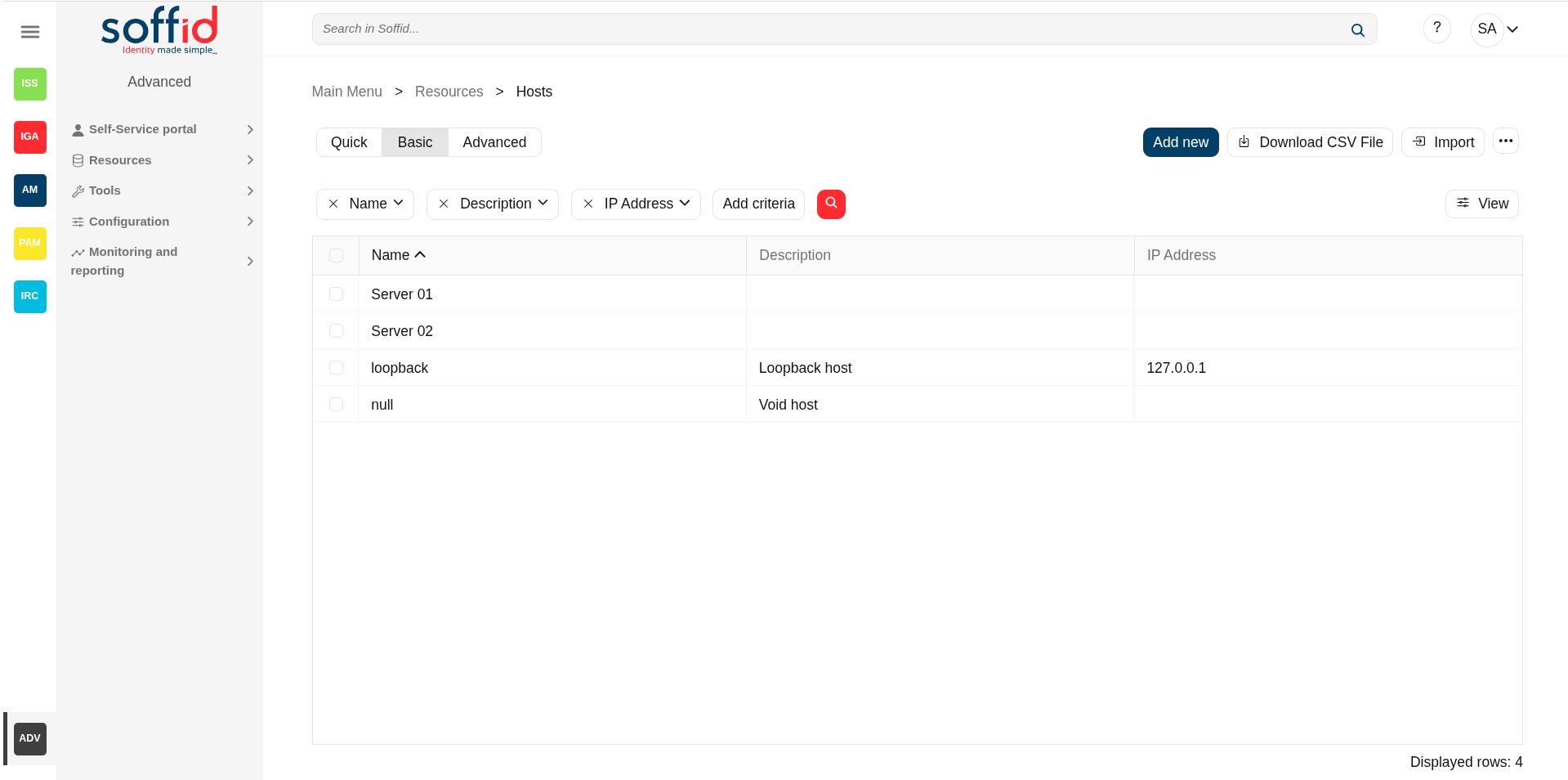
Hosts table
- Name: host name.
- Description: location, owner and whatever other information you want.
- IP Address: host IP
- Network: to which it belongs
- DHCP server parameters: used by the DHCP agent in order to generate DHCP configuration files.
- Operating system: used by the Active Directory agent in order to know if this host must be have an Active Directory host account. Using this functionality, no operator needs to be authorized to add or remove hosts on Active Directory. Soffid will do it for them. More and more, whenever this hosts is left off its IP address, the host account will be removed from Active Directory. This behavior can, of course, be customized.
- Mail server: if enabled (selected value is Yes), the user will be able to create mailboxes in the host.
- Shared folders server: if enabled (selected value is Yes), the user will be able to create shared folders in the host.
- MAC Address: used by the DHCP agent in order to generate DHCP configuration files.
- Alias: This field is used to identify the possible IP addresses that may be associated with a single hostname. In complex and segmented environments, it is common for the same machine identifier to be used across multiple networks, whether for service replication, geographic redundancy, or the deployment of parallel test and production environments. This field enables such configurations by linking a hostname to multiple IP addresses, each corresponding to a different network where that hostname is resolvable and operational. As such, the alias acts as an abstraction mechanism that simplifies host identity management in multi-network or multi-site contexts, allowing a single logical identifier (machine name) to be present and active across several network domains, each with its respective IP addressing. The use of the alias field is particularly relevant in distributed architectures, hybrid infrastructures (on-premises and cloud), and high-availability environments, where logical name uniqueness does not imply a single physical address, but rather a flexible, context-dependent association with multiple IP representations of the same functional entity.
- Shared printer server: if enabled (selected value is Yes), the user will be able to create a printer queues in the host.
- Dynamic IP
- Serial number
- Last connection
- Created on
- Locked
- Device type
- Internet browser
- CPU type
- Created on
- Created by
- Updated on
- Updated by
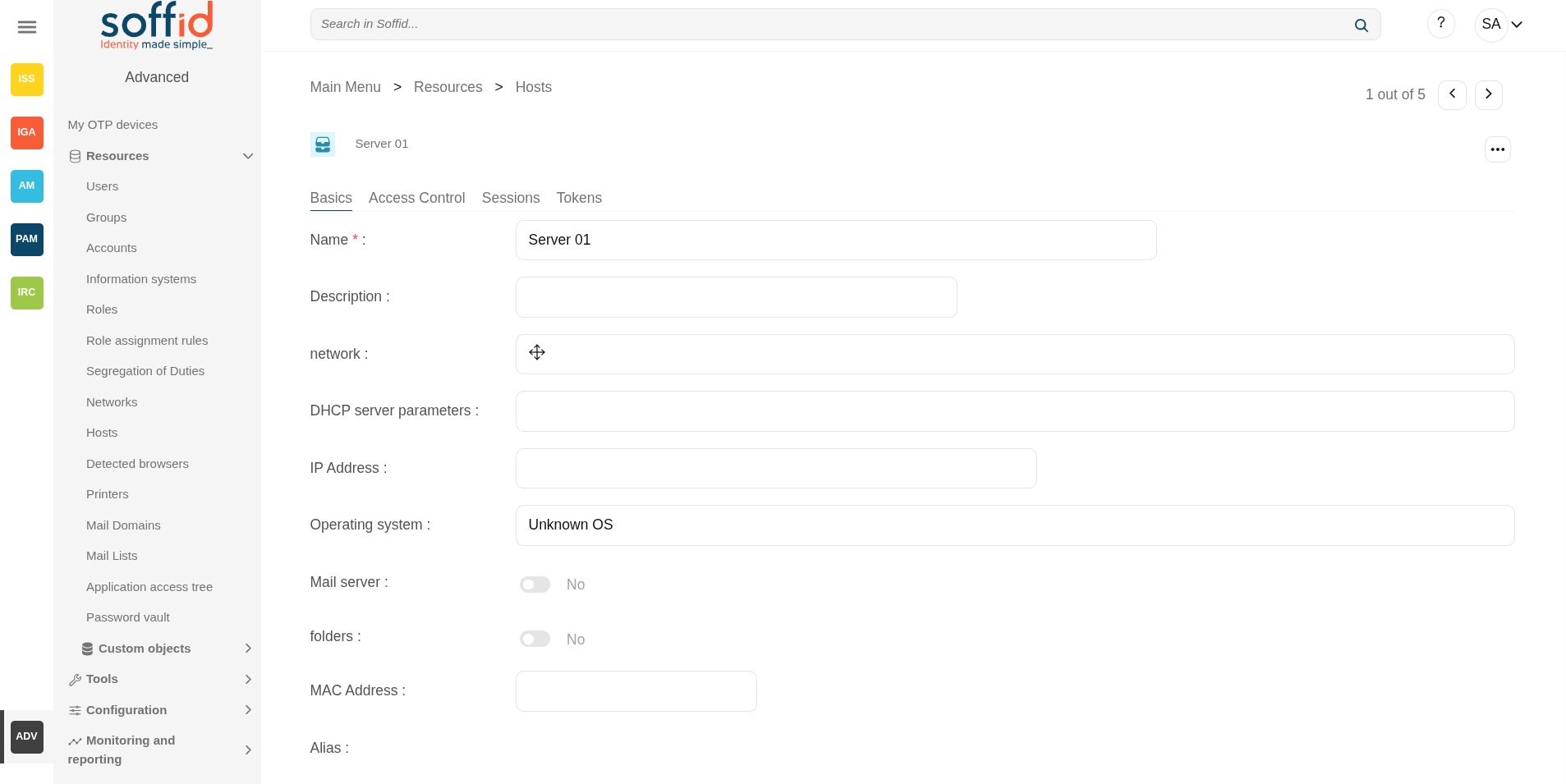
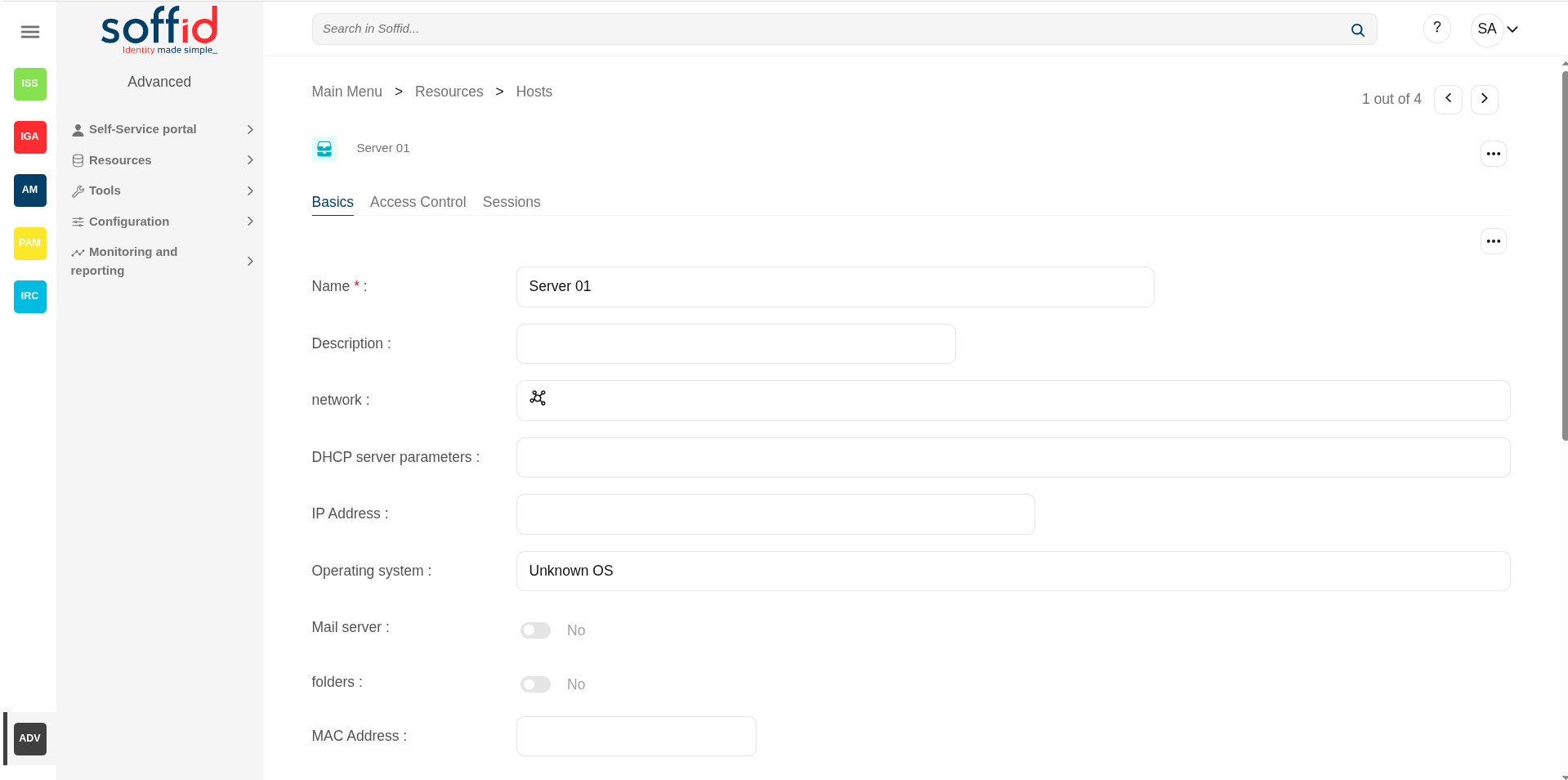
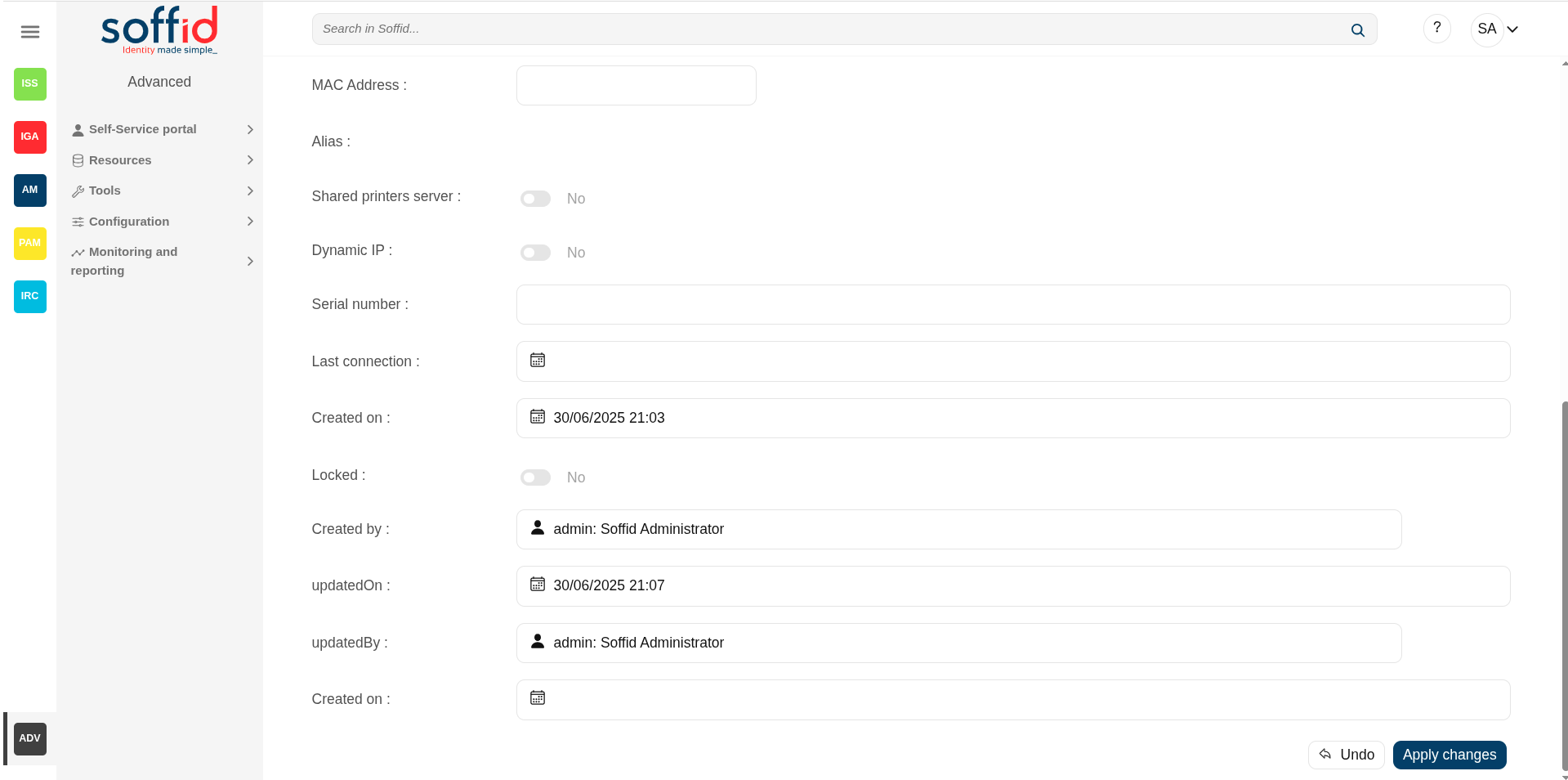
Host details > basics tab
The same attributes than the hosts table.
Image
Host detail > access control
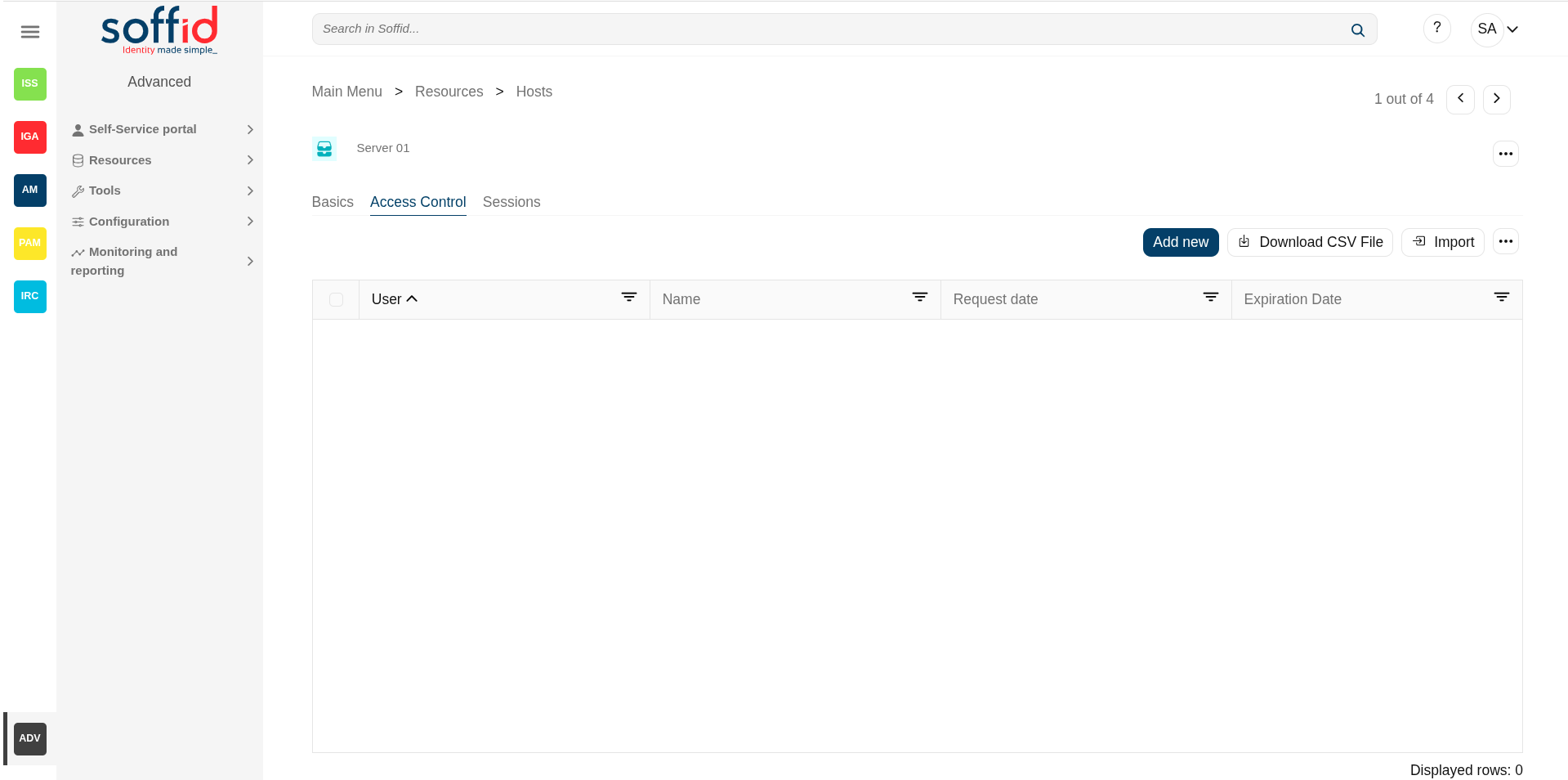
In the access control tab, you can delegate host management to certain users.
This feature requires the Soffid ESSO.
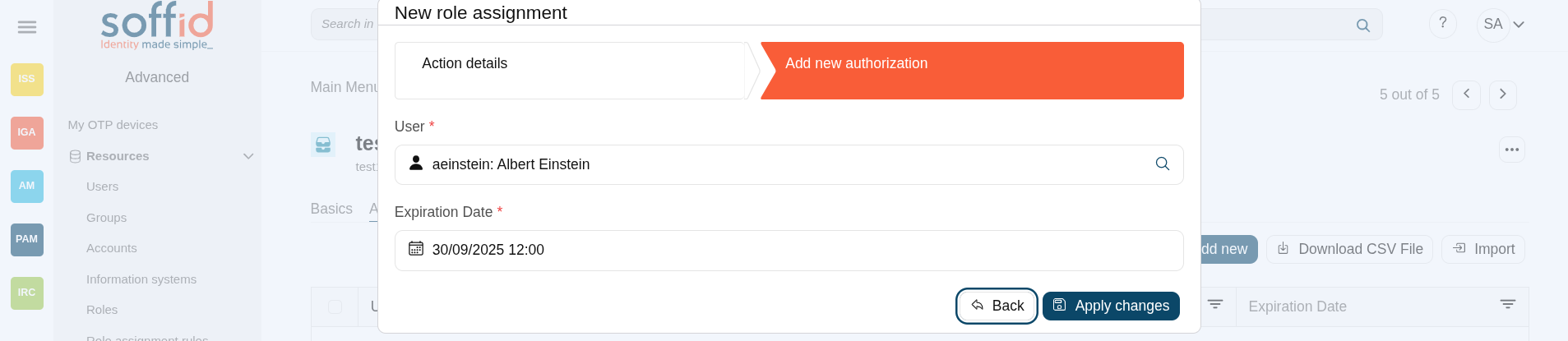
If you add a user authorization, you will allow the user to execute any task as a local administrator on this server or workstation. ESSO must be installed in the target host. To add a user authorization you can click the Add new button, then select the user and expiration date, and finally apply changes.
It is also allowed to delete one or more user authorizations, you can do it from the entitlement details or by selecting one or more records from the list and clicking the Delete button.
Additionally, you can download a CSV file with the access control data and you can also upload a CSV file to add user authorizations, and modify or delete user authorizations.
You also can view the administrator password.
Attributes:
- User : user with the access.
- Name : full name of the user.
- Request date : date of the row creation.
- Expiration date : expiration date until the user has access.
Image
Sessions
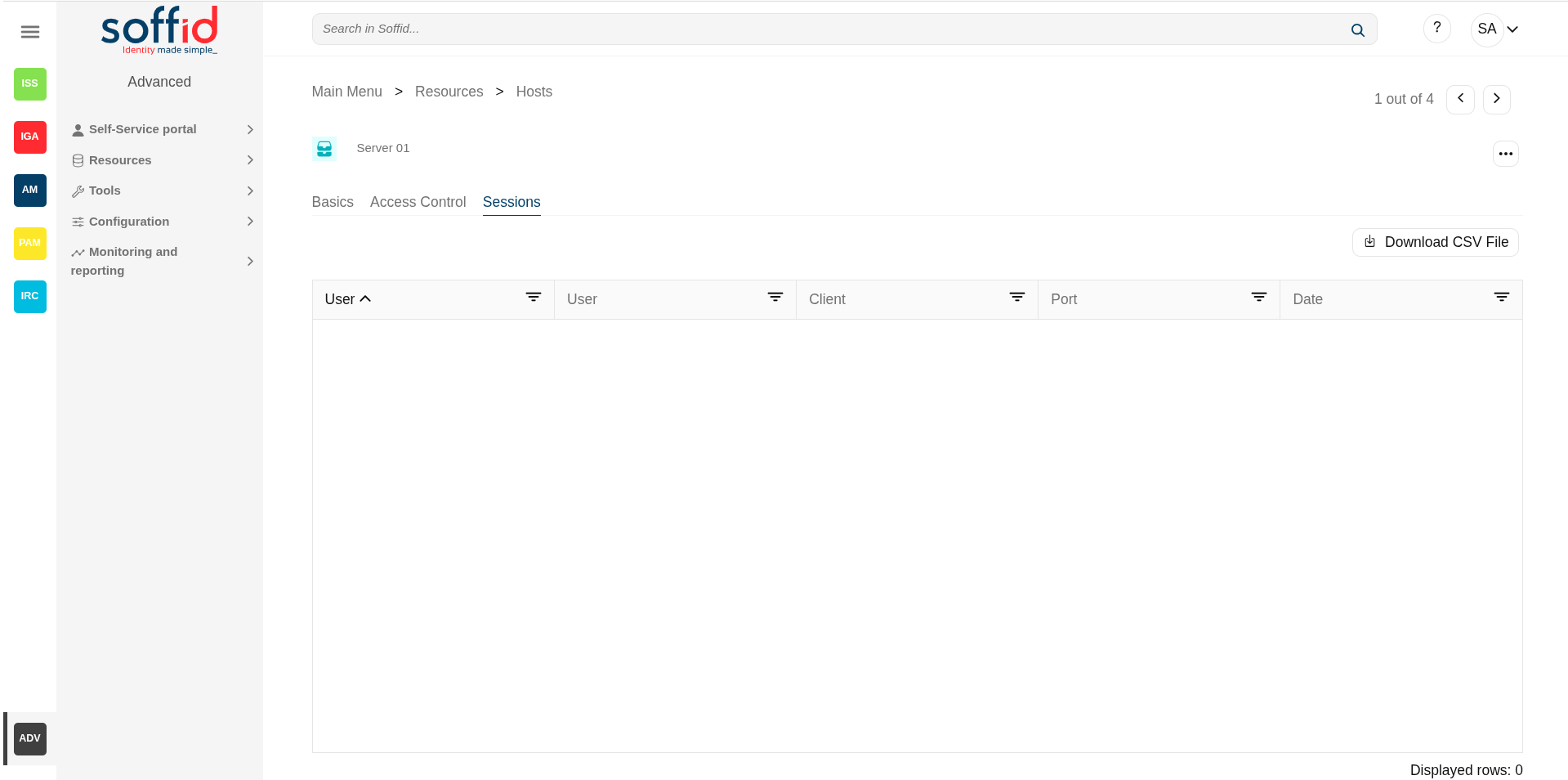
On the sessions tab, you can view the information about the last connection of a user to this host. Shows data about the user, server, client, port used and date of connection.
You can download a CSV file with the user sessions data.
Attributes:
- User : user with the access.
- Name : full name of the user.
- Client :
- Port :
- Date : date when the session has been started..
- Type :
Image
Host detail > tokens
To do.
Actions
Host table
|
"Query" |
Allows you to query host through different search systems, Quick, Basic and Advanced. |
|
Add new |
Allows you to create a new host. You can choose that option on the hamburger menu or by clicking the add button (+). To add a new host it will be mandatory to fill in the required fields |
|
Delete host |
Allows you to remove one or more hosts by selecting one or more records and next clicking this button. To perform that action, Soffid will ask you for confirmation, you could confirm or cancel the operation. |
|
Download CSV file |
Allows you to download a csv file with the hosts information. |
|
Import |
Allows you to upload a CSV file with the host list to add or update hosts to Soffid. First, you need to pick up a CSV file, that CSV has to contain a specific configuration. Then you need to check the content to be loaded, it is allowed to choose if you want or not to load a specific attribute. And finally, you need to select the mappings for each column of the CSV file to import the data correctly and click the Import button. |
|
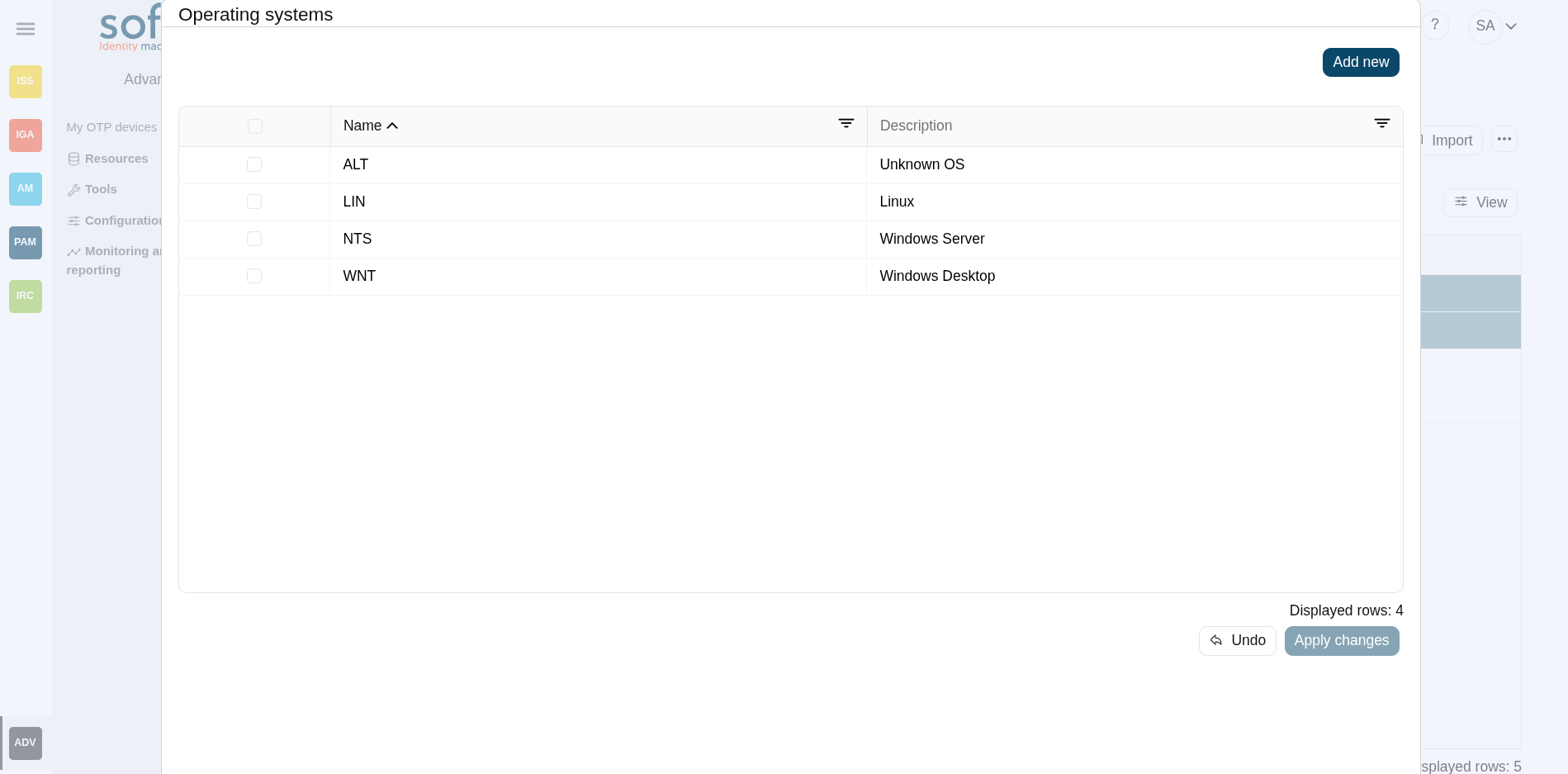
Operating systems |
This option allows you to manage the Operating Systems. You can add new, update, or delete OS. Undo and Apply changes to confirm it. Image
|
|
View |
Allows you to show and hide columns in the table. You can also set the order in which the columns will be displayed. |
Host detail > basics tab
|
Apply changes |
Allows you to save the data of a new host or to update the data of a specific host. To save the data it will be mandatory to fill in the required fields. |
|
Delete |
Allows you to delete the host. Soffid will ask you for confirmation to perform that action, you could confirm or cancel the operation. |
|
Assign free IP Address |
Allows you to assign a free IP address. It is necessary to select the network first. |
|
View password |
Will show the administrator password if it is available. This utility is linked to the PAM module along with the password rotation functionality. |
|
Undo |
Allows you to quit without applying any changes. |
Host detail > access control tab
|
Add new |
Allows you to create a new access control. First, you will select the user and the expiration date of that authorization. Finally you need to apply changes. |
|
Delete |
Allows you to remove one or more access controls by selecting one or more records and next clicking this button. To delete one access control, you can click the access control, and then Soffid will show a form with the details. Then you can click the delete button (trash icon). To perform that action, Soffid will ask you for confirmation, you could confirm or cancel the operation. |
|
Download CSV file |
Allows you to download a csv file with the access control information |
|
Import |
Allows you to upload a CSV file with the access control list to add or update access controls to Soffid. First, you need to pick up a CSV file, that CSV has to contain a specific configuration. Then you need to check the content to be loaded, it is allowed to choose if you want or not to load a specific attribute. And finally, you need to select the mappings for each column of the CSV file to import the data correctly and to click the Import button. |
Host detail > sessions
|
Download CSV file |
Allows you to download a csv file with the sessions information |
Host detail > tokens
To do.