A new feature has been introduced in the Soffid Identity Provider that **limits the number of requests** a user can make to an **OpenID Connect service provider**. The new attribute is name "**Max login per user and minute**".
A new **issue** "**issue-login-limit**" has also been created to manage this new configuration.
### Bear in mind Please note the following points: - The limit only applies to OpenID service providers using "User’s password", "User’s password + Client credentials" or "Client credentials" authentication. - The limit applies globally to all service providers using these authentication types. - The limit is for a user, each user can reach or not the limit. - For each request, the system checks whether the limit has been exceeded in the last minute; if the total number of requests exceeds the configured number, an error is returned. - The system re-evaluates whether the limit has been reached with each request. - For example, if the limit is 30 request, and 31 requests are made in 1 second, the 31st request would return an error; and for the next 59 seconds – as 31 requests plus any new ones would still be counted within the last minute – errors would continue to be returned. If, on average, one request were made every 2 seconds, the limit would never be triggered. About the platform: - All the previous requisites are for a non Soffid Cloud solution. - In the Soffid Cloud the number of request is configured for a Soffid administrator, the field is not visible for the tenantFor more information you can check the [OpenIdProfile](https://bookstack.soffid.com/books/federation/page/openidprofile "OpenIdProfile") page, or the [Defining profiles](https://bookstack.soffid.com/books/federation-guide/page/defining-profiles#bkmrk-%C2%A0-1 "Defining profiles") page
About the issue: - The issue must be enabled and configured to suit your requirements.For more information you can check the [Issue policies](https://bookstack.soffid.com/books/soffid-4-reference-guide/page/issue-policies "Issue policies") page
### How to configure it? The following **components** must be installed: - Console 4.0.67 (or higher) - Addon federation 4.0.37 (or higher) ### Let's look at an example #### Step 1: configure the limit Let’s go to our Soffid identity provider. Go to Main Menu > Configuration > Web SSO > **Identity providers**. Select your **Soffid IDP**. And go the **Profiles** group and select the **OpenIdProfile**. [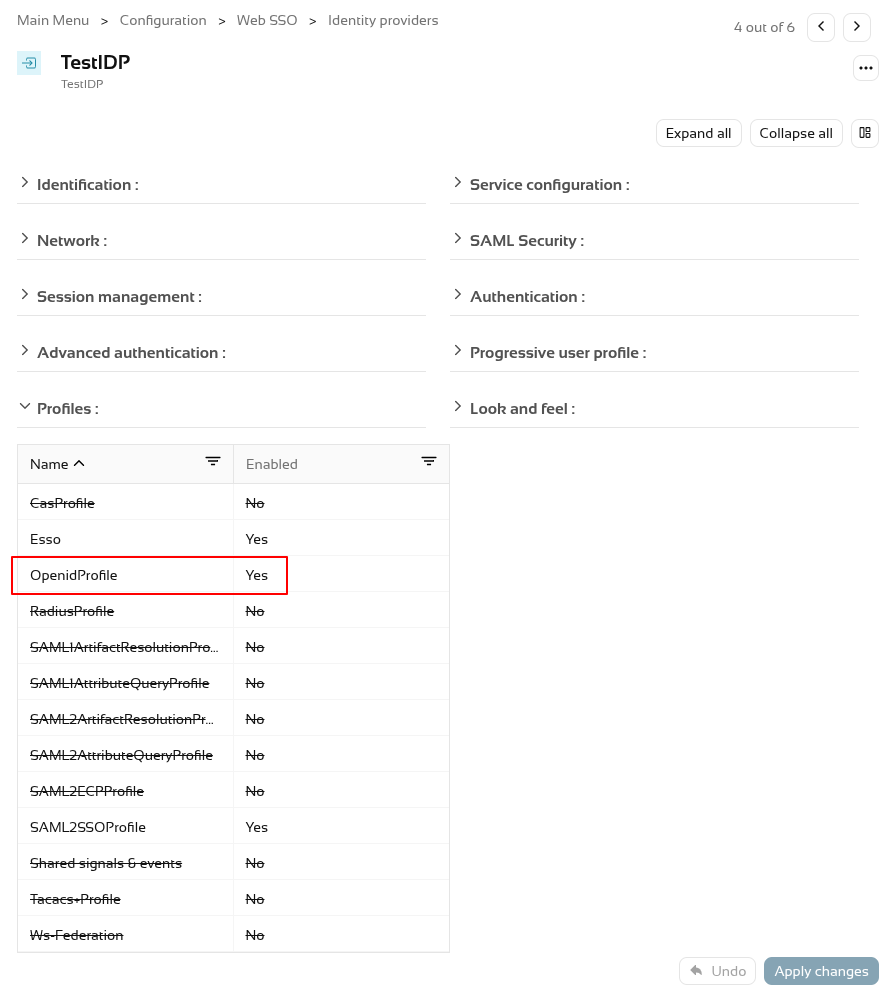](https://bookstack.soffid.com/uploads/images/gallery/2026-07/1jSHKcty45gi9gTx-image.png) To activate the attribute "**Max login per user and minute**" add a number, por example 30, 60, etc. [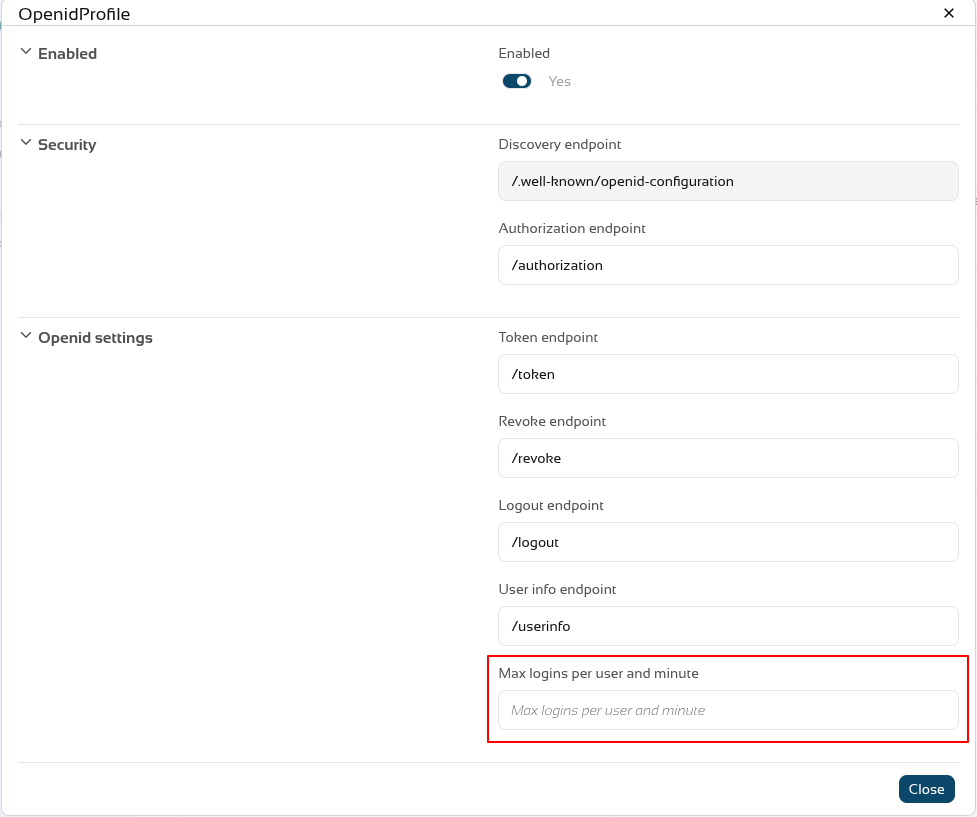](https://bookstack.soffid.com/uploads/images/gallery/2026-07/AXxeAFOLnYpAoCfD-image.png) To validate this functionality, we need to authenticate as a **service provider**. First, let’s check that the service provider has configured the **authentication types** that the limit validates. [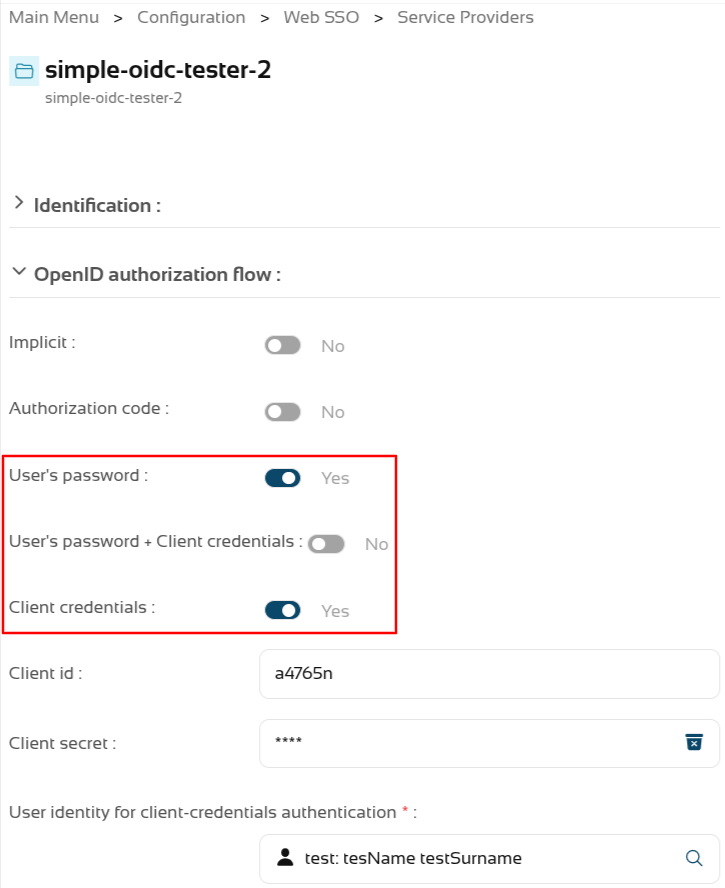](https://bookstack.soffid.com/uploads/images/gallery/2026-08/bIZrM1taJTpvaxzm-image.png) We’re going to test it using a testing tool; we can see that it **responds correctly** when the limit is not reached. [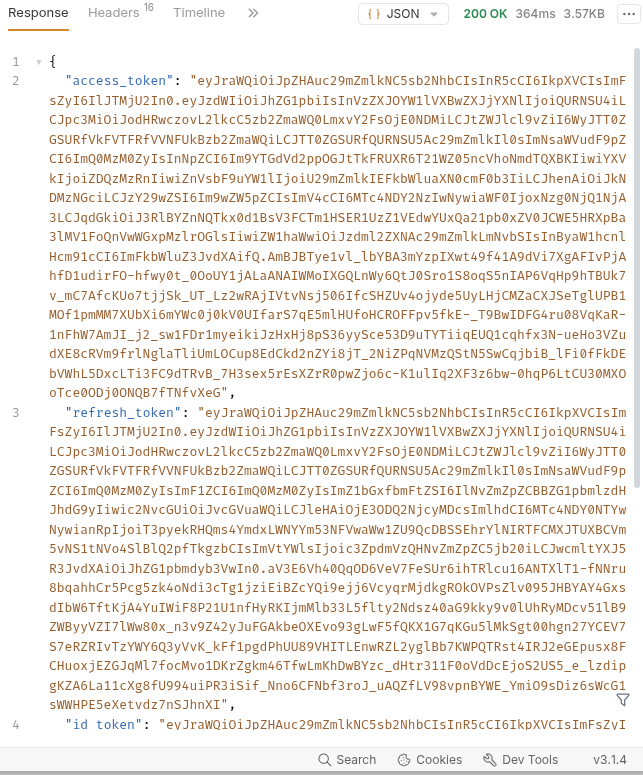](https://bookstack.soffid.com/uploads/images/gallery/2026-07/LrLi5nA4Ffm03Seh-image.png) But when it reaches its limit, it returns a **HTTP code 400** with the message "**Login limit reached**". [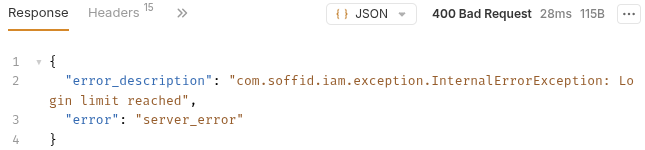](https://bookstack.soffid.com/uploads/images/gallery/2026-07/blL2sqlsGIlxfzSn-image.png) ``` 400 Bad Request { "error_description": "com.soffid.iam.exception.InternalErrorException: Login limit reached", "error": "server_error" } ``` #### Step 2: configure the issue First, we need to open the new issue. > Configuration > Security settings > **Issue policies**. Select the **user-login-limit**. [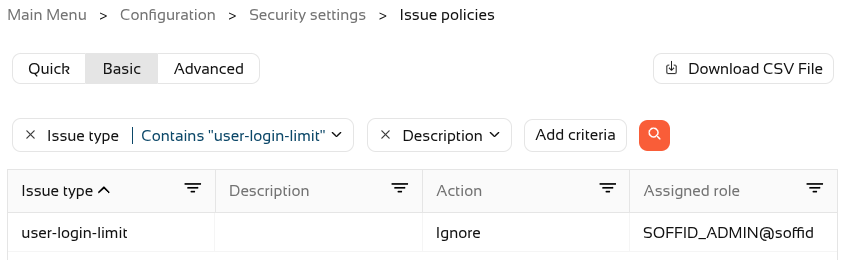](https://bookstack.soffid.com/uploads/images/gallery/2026-07/D02Cws9frWFsJBja-image.png) To activate the issue, we will need to assign an **action** type (Record or Manage). [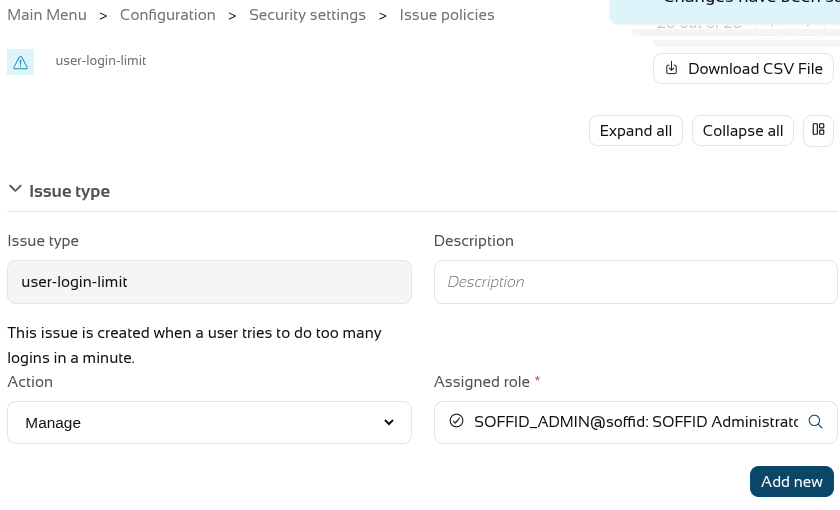](https://bookstack.soffid.com/uploads/images/gallery/2026-07/g12xFfRUG4fHo0ah-image.png) Now **create** one or more **actions** using the "**Add new**" button; in our case, a personalised email will be sent. [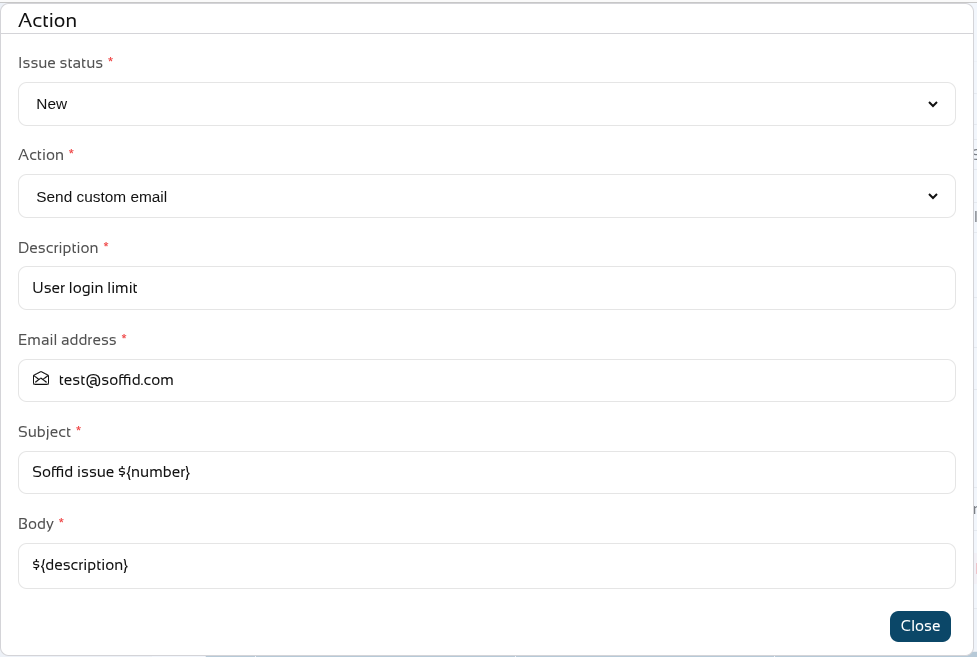](https://bookstack.soffid.com/uploads/images/gallery/2026-07/b7xdCVkAssgqTAE9-image.png) On leaving, we can see that the issue has been **Managed**. [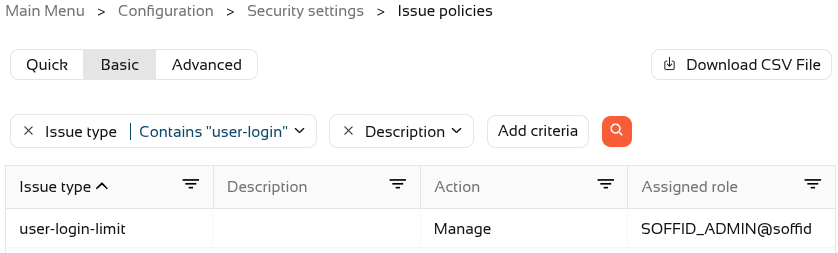](https://bookstack.soffid.com/uploads/images/gallery/2026-07/KubQvBIjyTFs63KM-image.png) If we push the limit, a new issue will now also be created in Soffid. Main Menu > Monitoring and reporting > **Issues** (or Main Menu > Self-Service portal > **My issues**) [](https://bookstack.soffid.com/uploads/images/gallery/2026-07/FTGVGv9xaVEMUtHE-image.png) And here is an example of the **email** that was sent [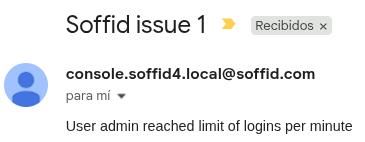](https://bookstack.soffid.com/uploads/images/gallery/2026-07/guxCpsPJFxKZYbHf-image.png)