# Soffid 4 reference guide
# 🔎 Overview
## Introduction
The Soffid 4 reference guide wants to present all the functionality contained in version 4 of the Soffid Console, explaining the functionality of all the screens and the functionality of each of them.
The documentation is organized as the options menu of Soffid Console, to try to facilitate access and comprehension of the information.
For each screen we try to define the following attributes:
- **Description**: a brief description of the screen functionality.
- **Screen overview**: an overview of the functionality.
- **Related objects**: list of the related objects and a link to view the object documentation.
- **Custom attributes**: attributes of the screen and the associated functionality.
- **Actions**: operations that the users could perform on the page.
- **Others**: furhter information, examples, about some functionalities, errors explained, etc
# Identity self service
Identity self service
# Introduction to Identity self service
## What is identity self service?
Soffid Console provides the identity self service, where the **end-users** can consult or change their credentials, request new permissions or access to applications, manage their profile, or launch applications. All from a single point of entry.
Another purpose of the identity self service is to reduce the workload of the **IT department**, as well as improve the overall security of the IT system.
Soffid allows administrator users to configure access to the different options depending on the end-users roles defined to use Soffid. In this way, end-users will be able to access the identity self service Portal to manage their own requirements always depending on the defined business processes.
## Screen overview
[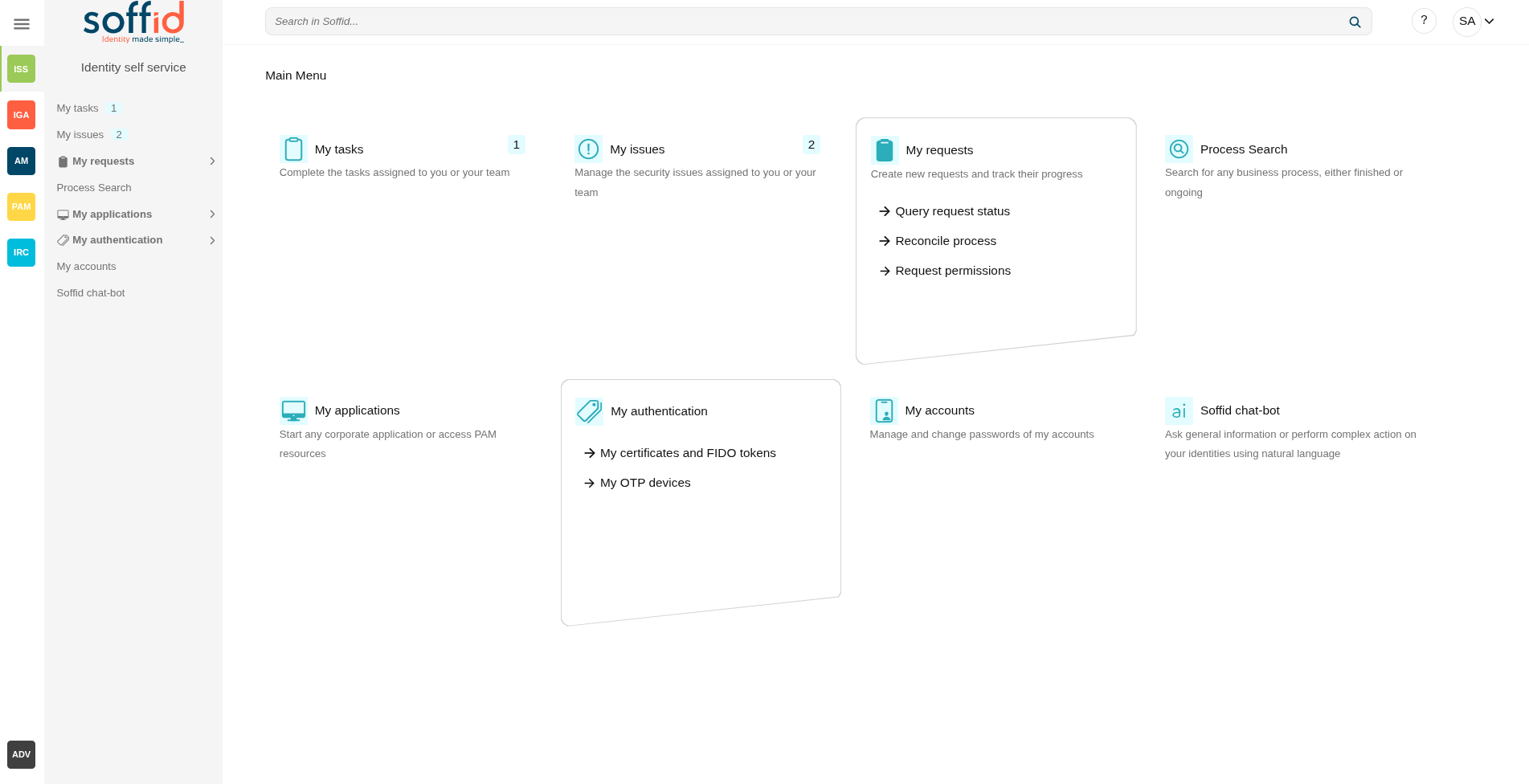](https://bookstack.soffid.com/uploads/images/gallery/2025-08/FtXvHSrBgzQeKqW9-image.png)
## Brief description of each option
### My tasks
My tasks display all the tasks in which the user is involved, like a supervisor, manager, o person how has to approve or deny that task.
For more information, vist [My Task](https://bookstack.soffid.com/books/soffid-4-reference-guide/page/my-tasks "My tasks") page.
### My issues
My issues display all the issues that the user will be able to check, and this option allows the user to manage this issues.
For more information, visit [My Issues](https://bookstack.soffid.com/books/soffid-4-reference-guide/page/my-issues "My requests") page.
### My requests
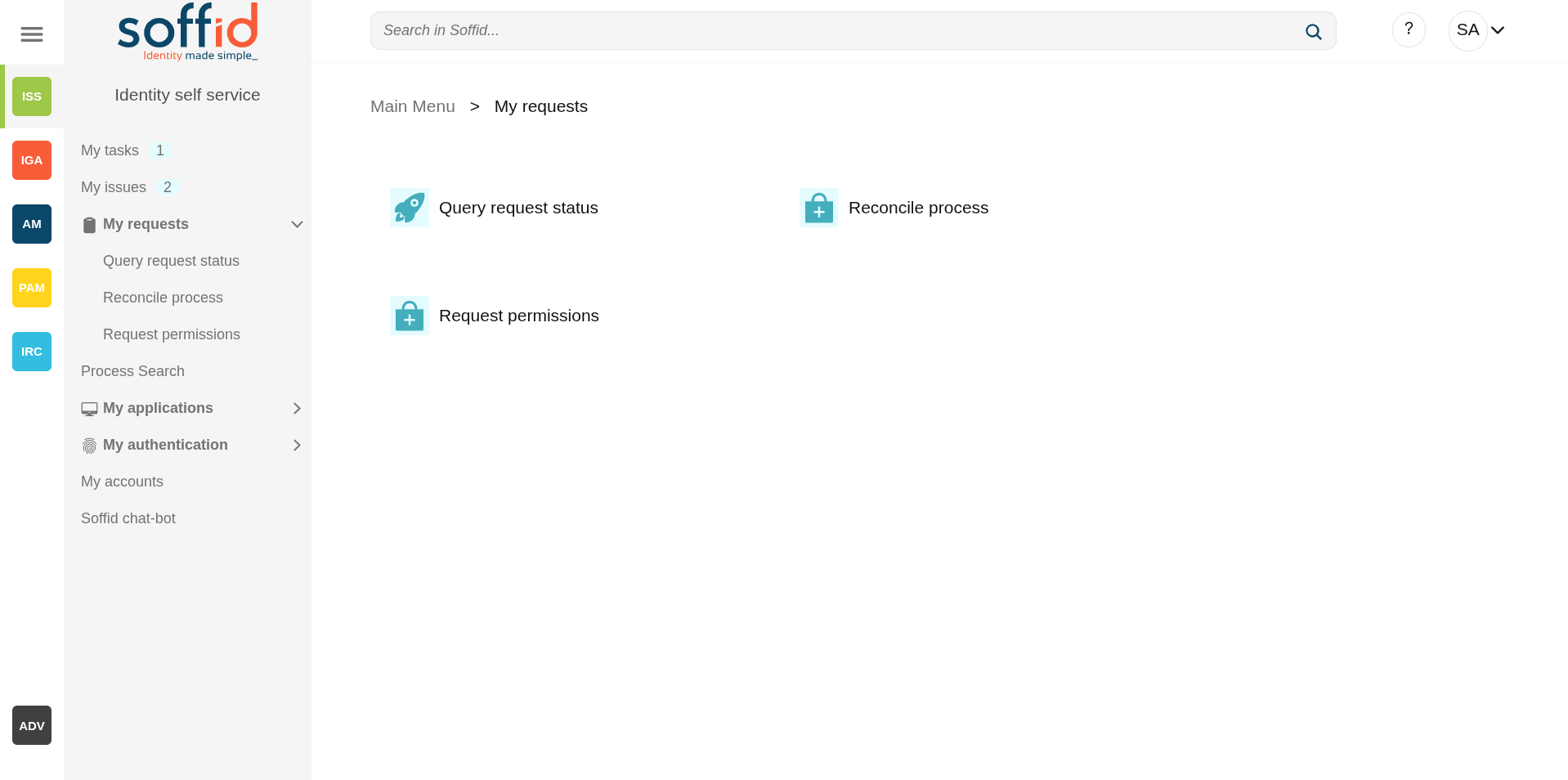
My requests display all the processes or workflows that the user will be able to run.
And also the included page Query request status displays all the processes that the user has initiated and allows the user to consult all the information about the workflow.
For more information, vist [My Request](https://bookstack.soffid.com/books/soffid-4-reference-guide/page/my-requests "My requests") page.
### Process search
That functionality allows to users search for processes initiated or requested by themselves. Here the users will be able to consult all the information related to the processes and their status and if there are any pending tasks to be completed. If there are pending tasks, the user will be able to browse the task and manage it.
Administrator users will be able to consult all the information about all the processes which have been executed by any user.
For more information, visit the [Process search](https://bookstack.soffid.com/books/soffid-4-reference-guide/page/process-search "Process Search") page.
### My applications
My applications display all the **corporate applications** and **third-party applications** as well to which the user has permission to connect. Those applications have to be configured into Soffid Console
The **password vault folder** will be displayed as well. In this folder, the users will be able to find the shared accounts on the Soffid vault folder and will be able to save their personal accounts.
For more information, vist [My Applications](https://bookstack.soffid.com/books/soffid-4-reference-guide/page/my-applications "My applications") page.
### My authentication
#### My OTP devices
My OTP devices display all the OTP devices configured by the user and allow to the user config new ones.
For more information, vist [My OTP devices](https://bookstack.soffid.com/books/soffid-4-reference-guide/page/my-authentication-my-otp-devices-addon-otp "My OTP devices") page.
#### My certificates and FIDO tokens
My certificates and FIDO token display all the configured certificates and allow to the user config new ones.
For more information, visit [My certificates and FIDO tokens](https://bookstack.soffid.com/books/soffid-4-reference-guide/page/my-authentication-my-certificates-and-fido-tokens-addon-federation "My certificates and FIDO tokens") page.
### My accounts
My Accounts display all the personal user accounts registered into Soffid Console and with which the user will log into the target system.
In this section, if a user has permissions, they can view or change their password.
For more information, visit [My Accounts](https://bookstack.soffid.com/books/soffid-4-reference-guide/page/my-accounts "My accounts") page.
### Soffid chat-box (new functionality)
The new Chat-box Soffid functionality is our AI and relies on Soffid's expertise to provide documentation or apply changes directly in the system, feel free to ask your questions.
For more information, visit [Soffid chat-box](https://bookstack.soffid.com/books/soffid-4-reference-guide/page/soffid-chat-bot "Soffid chat-box") page.
# My tasks
## Description
Displays the tasks in which the user is involved like a supervisor, manager, or person responsible for approving or rejecting those tasks.
My tasks provides information about the process, the task, the start and due date and the asigned user. By clicking a record, it will be shown de task details and to perform actions will be allowed.
Manual tasks are assigned to named users, groups or roles. Whatever strategy is followed, each one of the assigned users will see the task at their tasks page.
You can differentiate tasks by their highlighted style:
- **Highlighted bold**: when the task is pending for the user to take ownership.
- **Highlighted blue**: task close to completion date
- **Highlighted red**: task after the completion date
- **Normal**: started task
The purpose of My tasks as a part of **Identity seft service** is to reduce the workload of IT department, as well as improve overall security of IT system. Soffid console is concerned about task delegation and workflow management.
## Screen overview
[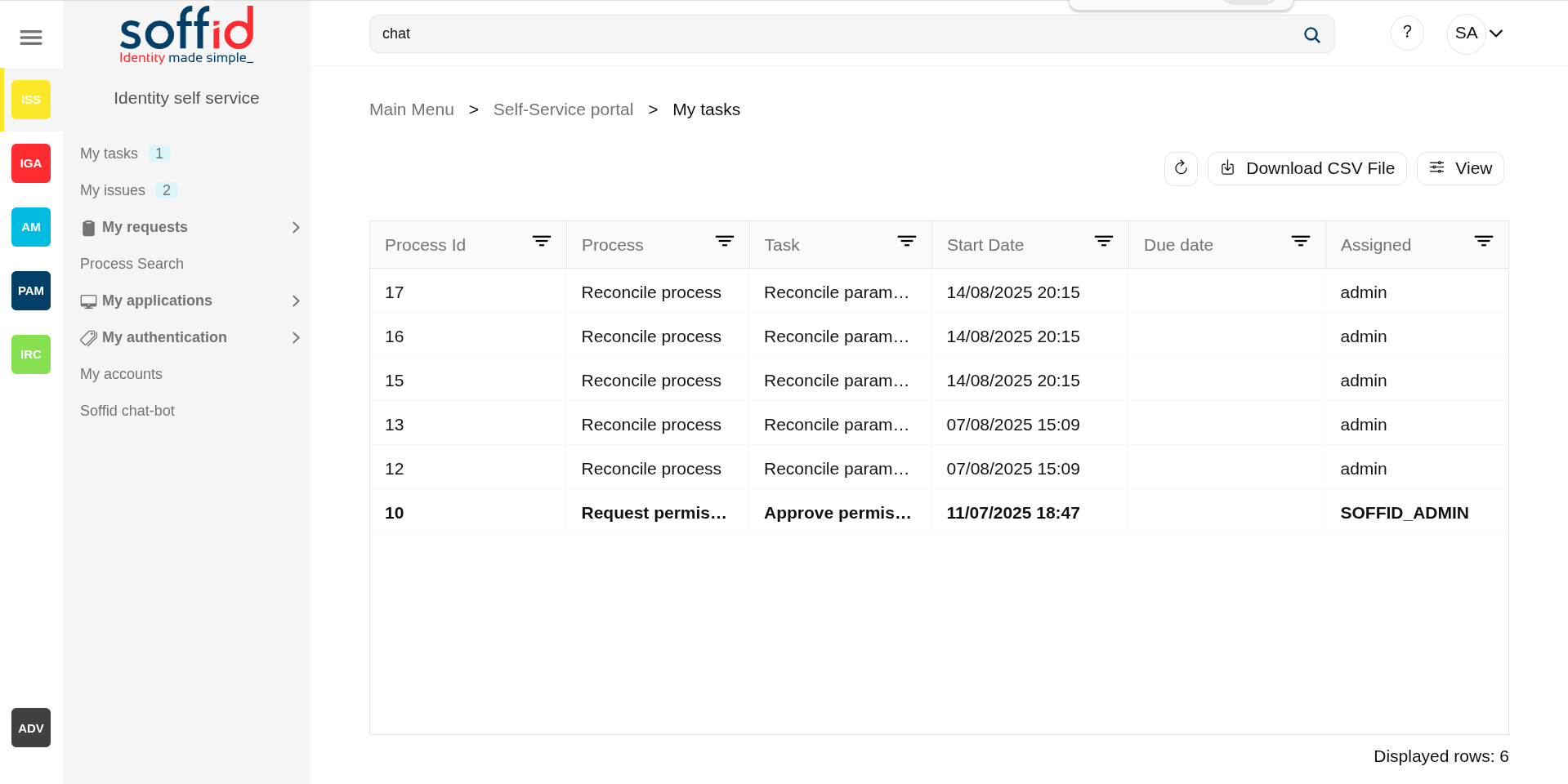](https://bookstack.soffid.com/uploads/images/gallery/2025-08/YfkDazof5r7NzItw-image.png)
[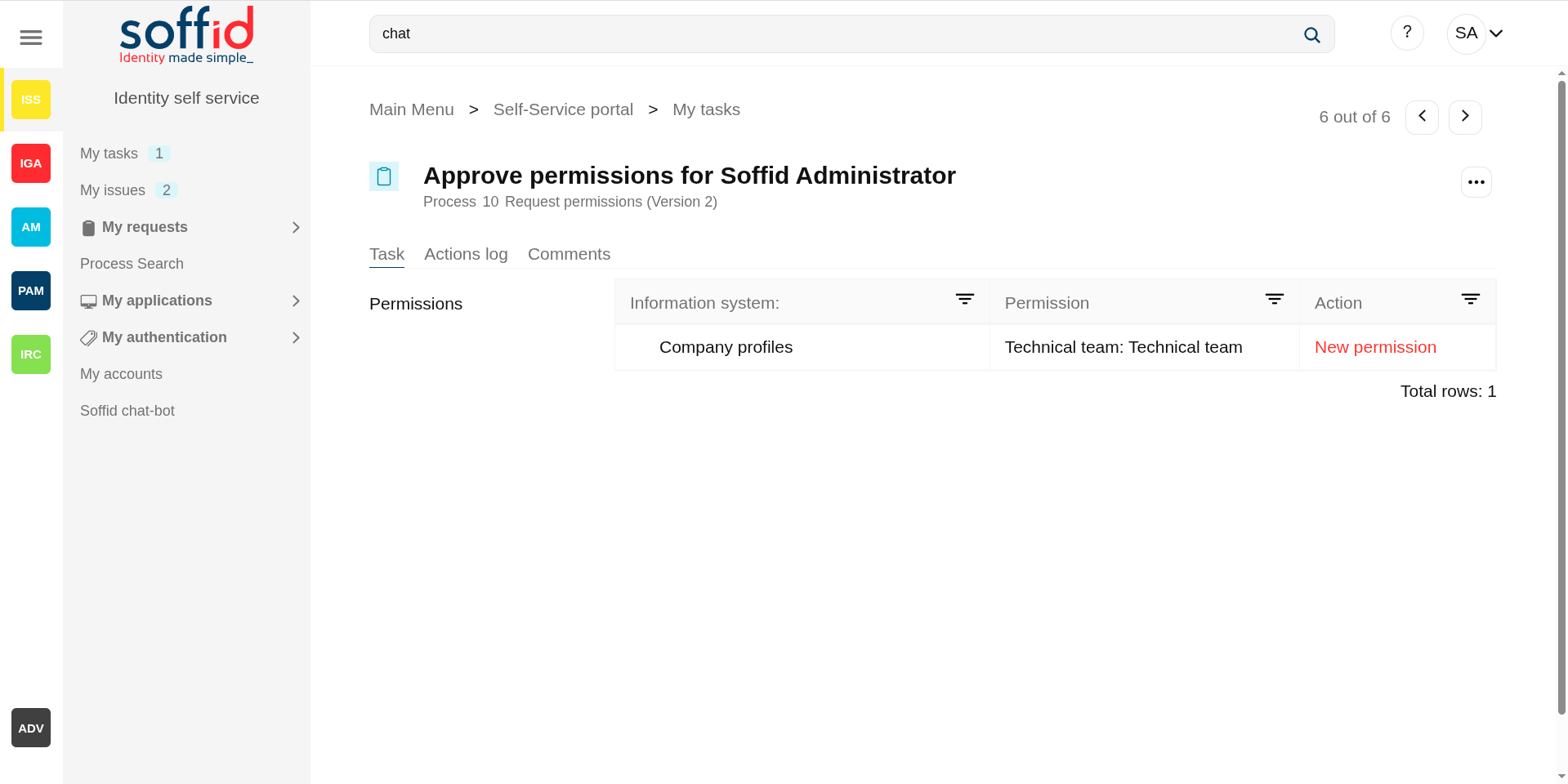](https://bookstack.soffid.com/uploads/images/gallery/2025-08/pSX5yv2EvCbYY193-image.png)
## Related objects
- [Configure Workflow engine](https://bookstack.soffid.com/books/soffid-4-reference-guide/page/configure-workflow-engine) : where the workflow engine is configured.
- [Business process definition](https://bookstack.soffid.com/books/soffid-4-reference-guide/page/business-process-definition) : where workflows are published.
- [BPM editor](https://bookstack.soffid.com/books/soffid-4-reference-guide/page/bpm-editor-addon-bpm) : where to create or modify workflows.
- [My tasks](https://bookstack.soffid.com/books/soffid-4-reference-guide/page/my-tasks) : pending workflows where the user has to perform an action in order to continue their workflow.
- [My requests](https://bookstack.soffid.com/books/soffid-4-reference-guide/page/my-requests) : the workflows that the user can initiate are listed here.
- [My requests > Query request status](https://bookstack.soffid.com/books/soffid-4-reference-guide/page/my-requests-query-request-status) : to search for all processes started by oneself.
- [Process Search](https://bookstack.soffid.com/books/soffid-4-reference-guide/page/process-search) : to search for all processes.
- [Metadata](https://bookstack.soffid.com/books/soffid-4-reference-guide/page/metadata) : to add attributes to display in the search tables.
- [Scheduled jobs](https://bookstack.soffid.com/books/soffid-4-reference-guide/page/scheduled-jobs) : shows active workflows pending asynchronous tasks.
## Standard attributes
### Table
- **Process id**: unique process identifier in the system that stars from zero and increases by one.
- **Process**: process name (this is the name of the workflow).
- **Task**: name of the task in which the process is running.
- **Start date**: date and time when the process was started.
- **Due date**: date and time when the process will finish.
- **Assigned**: user who has been assigned the task.
### Detail
Below you can see the workflow information, which has several tabs.
#### Task tab
Displays information about the work performed in this task. This information varies for each workflow but is almost always structured as a form.
Image
[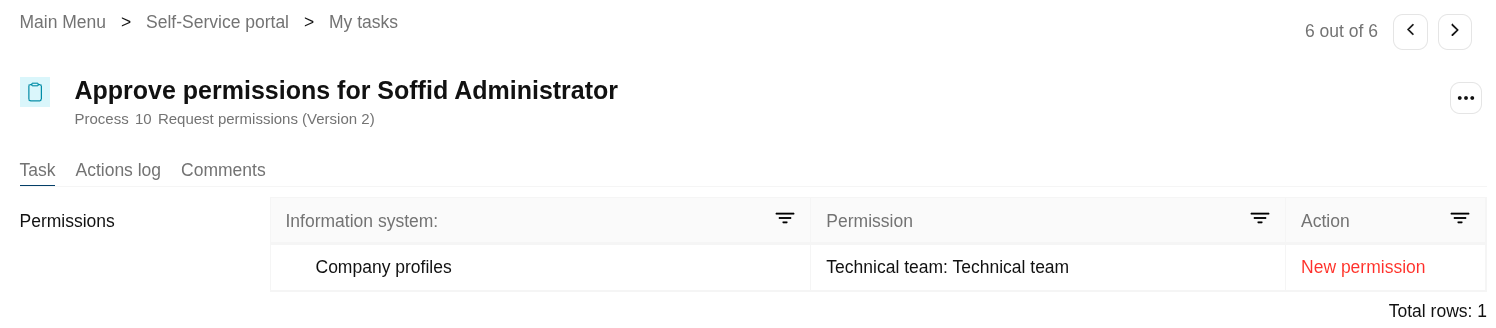](https://bookstack.soffid.com/uploads/images/gallery/2025-08/bLHlw12dyz19F5PZ-image.png)
#### Action logs tab
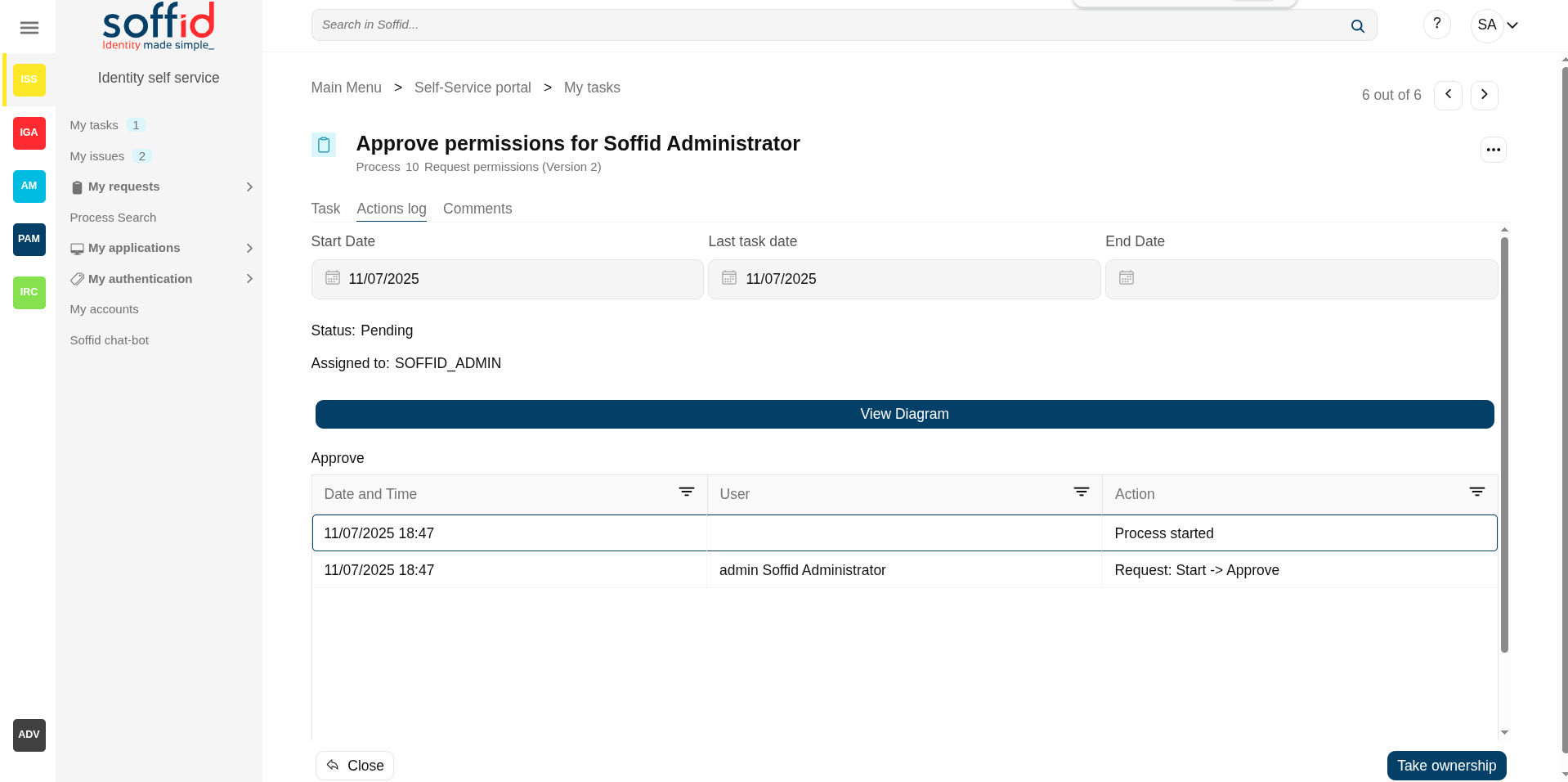
The action logs tab shows basic information about the process and a list with the summary of all the successive phases through which the task has passed.
- **Start date**: date and time the task starts
- **Last task date**: date of last task update.
- **End date**: date and time the process ends.
- **Status**: shows the point of the task (pending, on going or End/Completed)
- **Approve pending permissions:** Summary of all the successive phases through which the task has passed, providing information on the start date and time of the phase, the user assigned, and the action that was done.
Image
[](https://bookstack.soffid.com/uploads/images/gallery/2025-08/IXolykj0PuG9BhUO-image.png)
#### Attachments tab
This option only appears if it has been enabled in the workflow settings. This screen lists the documents attached to the task.
Allows you to download those documents and to verify any digital signature attached to them. Some tasks even allow the user to upload documents.
#### Comments tab
Displays the comments list added during the business process execution. Displays the comments list added during the task execution providing information about the user who wrote the comment, the date and time of that writing, and the comment that was writed.
## Actions
#### Table
**Refresh**
This action refresh the task table with the last current data.
**Download CSV file**
This action allows you to download a csv file with the list of all tasks.
**View**
Allows you to add or remove columns to the table.
It is also possible to change the order of the columns.
**"Open task"**
By clicking on a record, the task detail will be shown.
#### Detail
**Close**
Allows you to closes the task window, you can add new comments and those will be saved.
**Take ownership**
Enables the user to self-assign the task to authorize or deny it.
**Schedule**
Allows you to schedule the task execution.
**Delegate**
Allows you to to reassign the task to another user, who will must approve or deny it.
**Approve**
Allows you to authorize the task. When you authorize a task all defined operations for this task will be performed.
**Reject**
Allows you to deny the task. When you deny a task none defined operations for this task will be performed.
# My issues
## Description
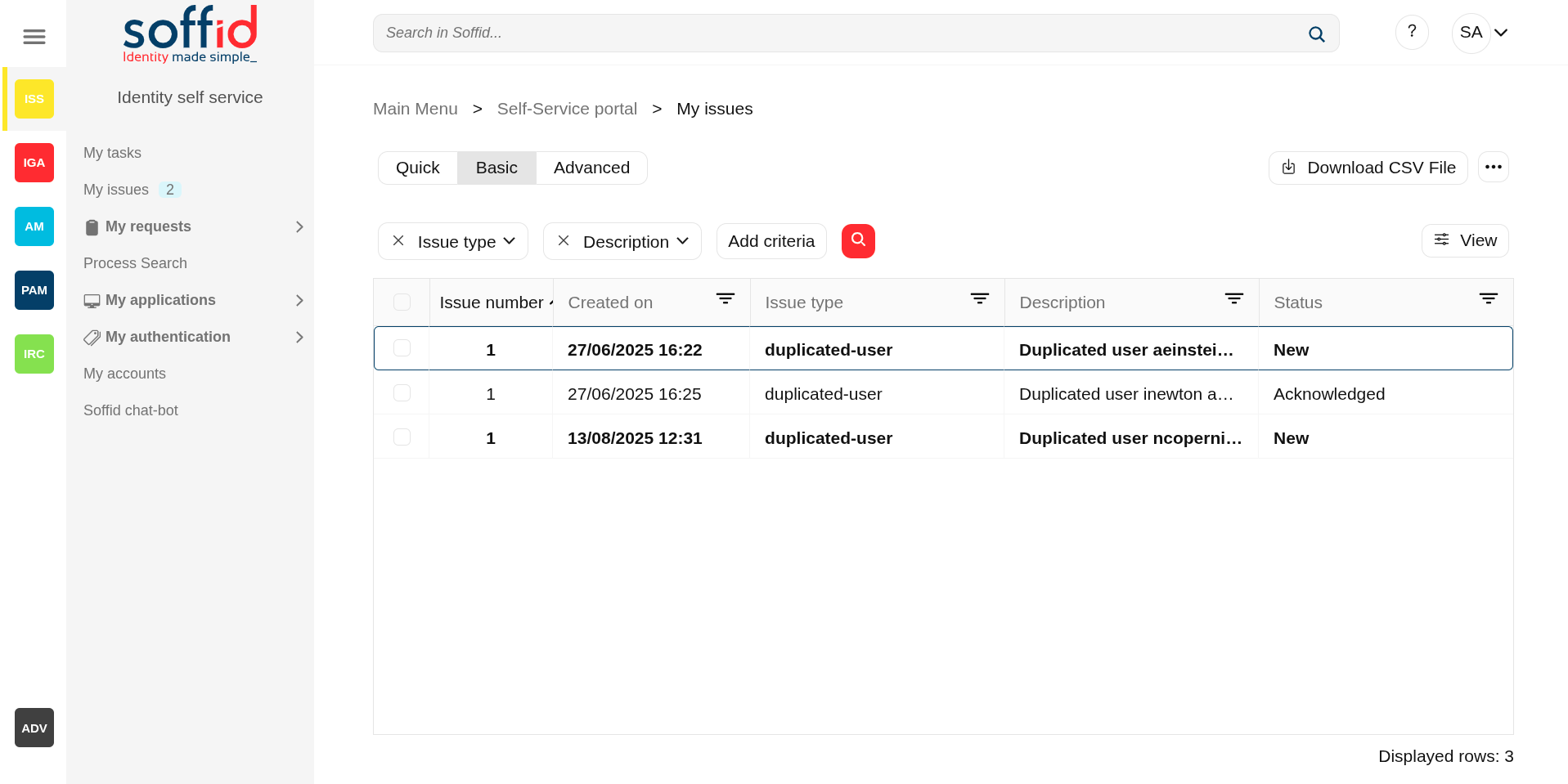
Soffid provides a tool to manage all issues and allows you to perform the operations available for each type of task. The actions to be performed will depend on each kind of task.
The incidents that appear on this screen are those that the user has initiated or those for which the user has yet to take action in order to continue with their progress.
## Screen overview
[](https://bookstack.soffid.com/uploads/images/gallery/2025-08/ovAxSOTLelxQYdmY-image.png)
## Related objects
- [Issue policies](https://bookstack.soffid.com/books/soffid-4-reference-guide/page/issue-policies "Issue policies") : where the issues are configured
- [Issues](https://bookstack.soffid.com/books/soffid-4-reference-guide/page/issues "Issues") : list all issues
- [My issues](https://bookstack.soffid.com/books/soffid-4-reference-guide/page/my-issues "My issues") : issues started by a user or the user has pending an acction
- Pages related to the different issues:
- [User](https://bookstack.soffid.com/books/soffid-4-reference-guide/page/users "Users")
- [Accounts](https://bookstack.soffid.com/books/soffid-4-reference-guide/page/accounts "Accounts")
- [Network intelligence](https://bookstack.soffid.com/books/soffid-4-reference-guide/page/network-intelligence "Network intelligence")
- [Agents](https://bookstack.soffid.com/books/soffid-4-reference-guide/page/agents "Agents")
- [Sync server monitoring](https://bookstack.soffid.com/books/soffid-4-reference-guide/page/sync-server-monitoring "Sync server monitoring")
- [Hosts](https://bookstack.soffid.com/books/soffid-4-reference-guide/page/hosts "Hosts")
- [Scheduled jobs](https://bookstack.soffid.com/books/soffid-4-reference-guide/page/scheduled-jobs "Scheduled jobs")
- [My OTP devices](https://bookstack.soffid.com/books/soffid-4-reference-guide/page/my-authentication-my-otp-devices-addon-otp "My authentication > My OTP devices")
- [PAM rules](https://bookstack.soffid.com/books/soffid-4-reference-guide/page/pam-rules "PAM rules")
- [Roles](https://bookstack.soffid.com/books/soffid-4-reference-guide/page/roles "Roles")
- [Segregation of duties](https://bookstack.soffid.com/books/soffid-4-reference-guide/page/segregation-of-duties "Segregation of Duties")
## Standard attributes
- **Issue type**: issue list defined by Soffid.
- **Description**: a brief description of the issue.
- **Status**: possible task status. There are three available statuses:
- **New**
- Acknowledged
- Solved
- **Created on**: date of creation
## Standard attributes
- **Issue number**: an incremental number to identify the issue.
- **Created on**: date of creation.
- **Issue type**: issue list defined by Soffid.
- **Description**: a brief description of the issue.
- **Status**: possible task status. There are three available statuses:
- **New**
- Acknowledged
- Solved
- **Times**: number of times the issue has been repeated.
- **Aknowledged on**
- **Solved on**
- **Percentage of failed login**
- **Human confidence metric**
- **System**
- **OTP divice**
- **Exception**: Error occurred
- **Risk**
- **Role grant**
- **PAM Rule**
- **jobName**
- **Country**
- **Account**
- **Actor**: owner of this issue.
- **loginName**
- **Hosts**
- **Users**
- **Actions log**: each of the actions that have been carried out on the issue
- **Requester**
- **Breached email**
- **Data breach**
- **Breah description**
- **Created by**
- **Modified on**
- **Modified by**
{{@1153}}
# My requests
## Description
Soffid provides a complete workflow engine that allows you to incorporate business processes or define new business processes as needed. End-users with the appropriate permissions will be able to request these processes. You can visit [Self service portal examples page](https://bookstack.soffid.com/books/bpm-editor/page/self-service-portal-examples "Self service portal examples") for more information.
My request screen allows to users:
- On the one hand, in the [Query request status](#bkmrk-query-request-status-0 "Query request status") screen the user can consult the processes they have executed and view the process details and status.
- On the other hand, they will be able to execute the processes for which they have been assigned the proper permissions. For example "Reconcile process" or "Request permissions", see the "Screen overview".
More information about process and workflows on [BPM Editor Book](https://bookstack.soffid.com/books/bpm-editor "BPM Editor")
## Screen overview
[](https://bookstack.soffid.com/uploads/images/gallery/2025-08/q8agVWbtFf491hQN-image.png)
## Related objects
- [Configure Workflow engine](https://bookstack.soffid.com/books/soffid-4-reference-guide/page/configure-workflow-engine) : where the workflow engine is configured
- [Business process definition](https://bookstack.soffid.com/books/soffid-4-reference-guide/page/business-process-definition) : where workflows are published
- [BPM editor](https://bookstack.soffid.com/books/soffid-4-reference-guide/page/bpm-editor-addon-bpm) : where to create or modify workflows
- [My tasks](https://bookstack.soffid.com/books/soffid-4-reference-guide/page/my-tasks) : pending workflows where the user has to perform an action in order to continue their workflow.
- [My requests](https://bookstack.soffid.com/books/soffid-4-reference-guide/page/my-requests) : The workflows that the user can initiate are listed here.
- [My requests > Query request status](https://bookstack.soffid.com/books/soffid-4-reference-guide/page/my-requests-query-request-status) : to search for all processes started by oneself
- [Process Search](https://bookstack.soffid.com/books/soffid-4-reference-guide/page/process-search) : to search for all processes
- [Metadata](https://bookstack.soffid.com/books/soffid-4-reference-guide/page/metadata) : to add attributes to display in the search tables
- [Scheduled jobs](https://bookstack.soffid.com/books/soffid-4-reference-guide/page/scheduled-jobs) : shows active workflows pending asynchronous tasks
# My requests > Query request status
## Description
Displays a table with all the processes initiated by the end-user. The end-user can consult processes detail and perform actions depending on the user permissions. You can visit [Self service portal examples page](https://bookstack.soffid.com/books/bpm-editor/page/self-service-portal-examples "Self service portal examples") for more information.
## Screen overview
[](https://bookstack.soffid.com/uploads/images/gallery/2025-08/GNhSX5heo9O6uNyW-image.png)
[](https://bookstack.soffid.com/uploads/images/gallery/2025-08/oE9N6xUbWyahFnqT-image.png)
## Related objects
- [Configure Workflow engine](https://bookstack.soffid.com/books/soffid-4-reference-guide/page/configure-workflow-engine) : where the workflow engine is configured
- [Business process definition](https://bookstack.soffid.com/books/soffid-4-reference-guide/page/business-process-definition) : where workflows are published
- [BPM editor](https://bookstack.soffid.com/books/soffid-4-reference-guide/page/bpm-editor-addon-bpm) : where to create or modify workflows
- [My tasks](https://bookstack.soffid.com/books/soffid-4-reference-guide/page/my-tasks) : pending workflows where the user has to perform an action in order to continue their workflow.
- [My requests](https://bookstack.soffid.com/books/soffid-4-reference-guide/page/my-requests) : The workflows that the user can initiate are listed here.
- [My requests > Query request status](https://bookstack.soffid.com/books/soffid-4-reference-guide/page/my-requests-query-request-status) : to search for all processes started by oneself
- [Process Search](https://bookstack.soffid.com/books/soffid-4-reference-guide/page/process-search) : to search for all processes
- [Metadata](https://bookstack.soffid.com/books/soffid-4-reference-guide/page/metadata) : to add attributes to display in the search tables
- [Scheduled jobs](https://bookstack.soffid.com/books/soffid-4-reference-guide/page/scheduled-jobs) : shows active workflows pending asynchronous tasks
## Standard attributes
- **Identifier:** unique process identifier in the system (starts at 1 and increases).
- **Description**: generic process name
- **Start**: date and time the process starts
- **End**: date and time the process ends. A process without end date it is a process in progress
- **Current task**: displays the point in progress on the defined process diagram. Depend on the process status, you could perform some operations or others.
- **Initiator**: the soffid user who started the workflow (this attribute must be added beforehand in the Metadata screen and selected in View)
- **Created on**
- **Created by**
- **Updated on**
- **Updated by**
### Actions
The operations to be performed depend on the user permission and the business processes defined with the workflow engine.
You can find documentation about the business processes on [BPM Editor Book.](https://bookstack.soffid.com/books/bpm-editor "BPM Editor")
#### Table
**Refresh**
Allows you to refresh the processes list with updated data.
**Download CSV file**
Allows you to download a CSV file with all the information from the list of processes contained in the table.
**View**
Allows you to add or remove columns to the table.
It is also possible to change the order of the columns.
#### Process
The actions to perform to each process, depend on the business process definition and the user permissions.
You can find more information about the most commons process actions if you go to [Process detail actions](https://bookstack.soffid.com/books/soffid-4-reference-guide/page/process-search#bkmrk-%C2%A0-3)
# Process search
## Description
A process is a series of actions, connected by transitions. An action could be either an automatic action or a manual task. A process is what we commonly refer to as a workflow in Soffid.
Soffid console is concerned about task delegation and workflow management. Any user is able to create new processes or any user can be assigned as an actor for a task belonging to a process.
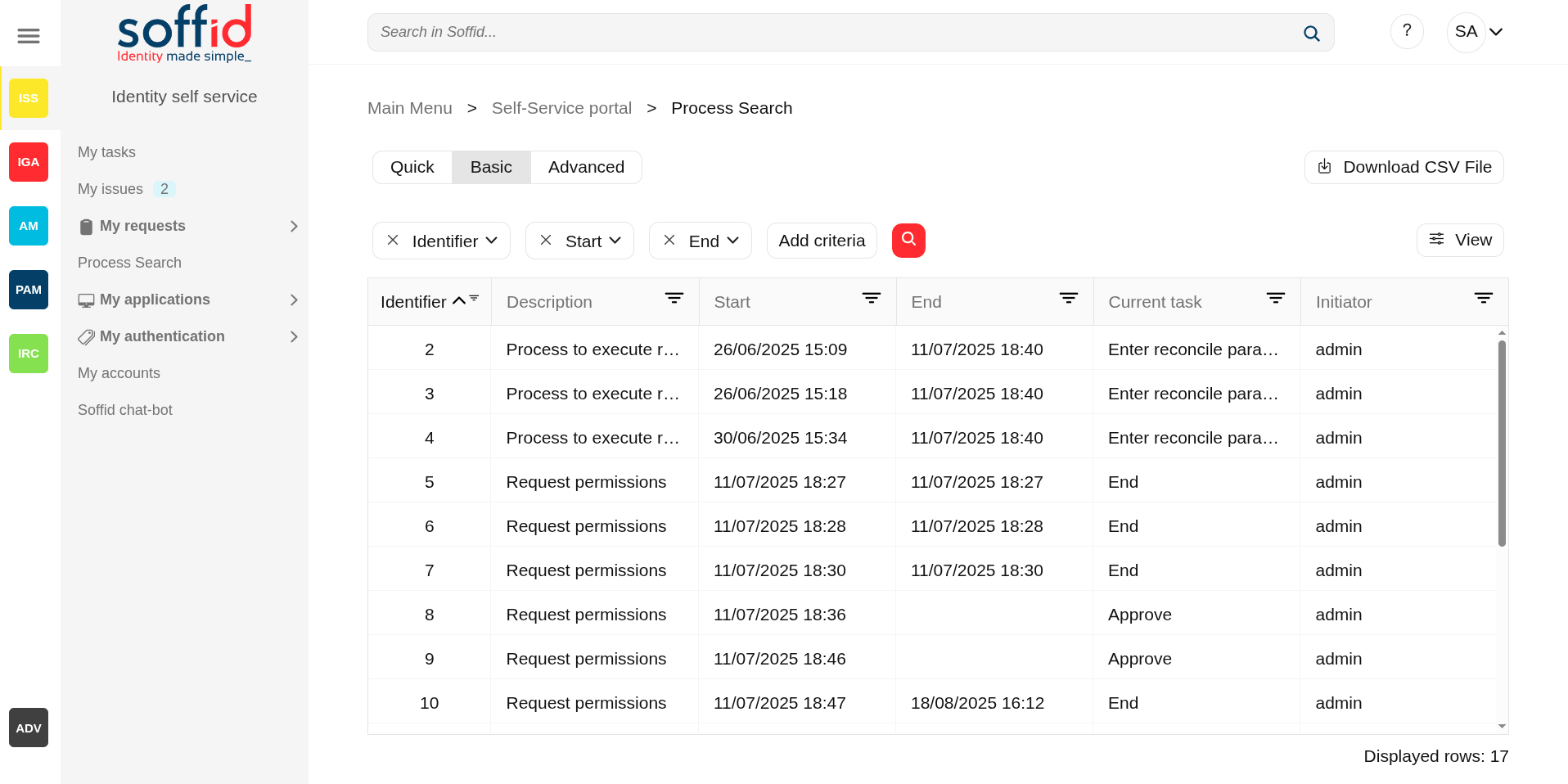
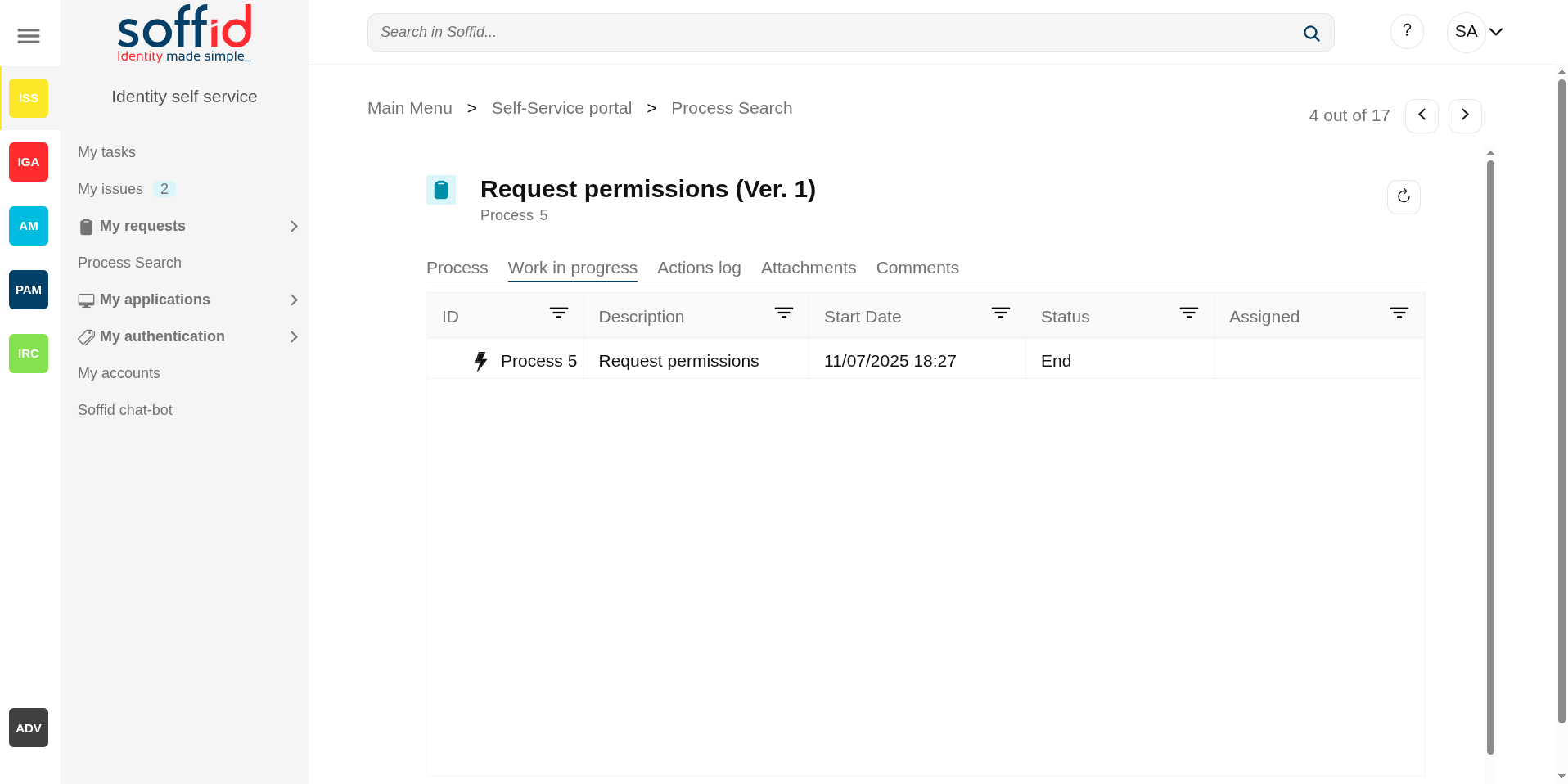
Process Search page allows users to search process by different criteria, to view the process details and to perform the proper actions depending on the user roles.
In order to view a task, a security constraint must be accomplished. The user must have granted the observer or administrator role on the specific project version or has been assigned as a potential actor of it at some time.
## Screen overview
[](https://bookstack.soffid.com/uploads/images/gallery/2025-08/aovG5pB5xULwk1z4-image.png)
[](https://bookstack.soffid.com/uploads/images/gallery/2025-08/tlB03yPn8oRi3wdo-image.png)
## Related objects
- [Configure Workflow engine](https://bookstack.soffid.com/books/soffid-4-reference-guide/page/configure-workflow-engine) : where the workflow engine is configured
- [Business process definition](https://bookstack.soffid.com/books/soffid-4-reference-guide/page/business-process-definition) : where workflows are published
- [BPM editor](https://bookstack.soffid.com/books/soffid-4-reference-guide/page/bpm-editor-addon-bpm) : where to create or modify workflows
- [My tasks](https://bookstack.soffid.com/books/soffid-4-reference-guide/page/my-tasks) : pending workflows where the user has to perform an action in order to continue their workflow.
- [My requests](https://bookstack.soffid.com/books/soffid-4-reference-guide/page/my-requests) : The workflows that the user can initiate are listed here.
- [My requests > Query request status](https://bookstack.soffid.com/books/soffid-4-reference-guide/page/my-requests-query-request-status) : to search for all processes started by oneself
- [Process Search](https://bookstack.soffid.com/books/soffid-4-reference-guide/page/process-search) : to search for all processes
- [Metadata](https://bookstack.soffid.com/books/soffid-4-reference-guide/page/metadata) : to add attributes to display in the search tables
- [Scheduled jobs](https://bookstack.soffid.com/books/soffid-4-reference-guide/page/scheduled-jobs) : shows active workflows pending asynchronous tasks
## Standard attributes
### Table
The search and the view table can be performed by setting certain parameters, which are as follows:
- **Search text**: search by a certain text, as user name or application, etc (only for Quick search)..
- **Identifier**: all the processes have an assigned an identifier.
- **Start**: allows you to establish a date range when the process was started.
- **End** of the process. These filters will be available if you check the Include completed option.
- **Current task**: task in which the workflow is being executed.
- **Initiator**: user who has started the workflow.
### Process
Each process has commons attributes and specific attributes depending on the business process definition.
You can find documentation about the business processes on [BPM Editor Book](https://bookstack.soffid.com/books/bpm-editor "BPM Editor")
#### Commons process attributes
- **Name**: shows process name and the versión of the addon you are using.
- **Process**: each proces has an unique identifier
#### Other process information
- **Specific process attributes**: these attributes depend on the process definition.
- **Work in progress**: details the specific point in which the process and associated tasks are. You can find information about the process ID, the job description for each one of them, the start date and time, and the current status. The users with the proper roles could view the task details, browse and perform actions by clicking on it.
- **Actions log:** summary of all the successive phases through which the process has passed, providing information on the start date and time of the phase, the user (task manager) assigned, and the action that was done.Also when it is defined, the diagram of the workflow is diplayed.
- **Attachments**: in some cases, for example in massive user upload processes using a CSV file, files are attached to the process so that it can be executed. These files can be consulted, by downloading or opening them directly, from this page. Additionally, if needed, it is possible to see the certificates used by the process owner.
- **Comments**: displays the comments added by the user who initializes or performs actions on the process.
## Actions
#### Table
Actions to be performed on the process list:
**Search (quick, basic, advanced)**
Allows you to query the processes with the indicated parameters.
**Download CSV file**
Allows you to download a CSV file with the list of processes. You can open the hamburger icon and Download CSV File.
**View
Allows you to add or remove columns to the table.
It is also possible to change the order of the columns.
**"Open task"**
By clicking on a record, the task detail will be shown.
#### Detail
Each process has a specific action defined on the business process definition.
You can find documentation about the business processes on [BPM Editor Book](https://bookstack.soffid.com/books/bpm-editor "BPM Editor")
The most commons actions are below:
**Close**
Allows you to close the process detail page and return to the previous page.
**Reload**
Allows you to reload all process data with the updated data.
**Take ownership**
Allows you to take the ownership to approve o deny the process.
**Approve**
Allows you to approve the process and perform the actions defined for that process.
**Deny**
Allows you to reject the process.
#### Work in progress actions
**Edit task**
Allows you to edit a task by clicking on the record. When you click the task, you will browse to the task detail and it will be allowed to perform actions defined to users with the proper permissions.
#### Attachments
**Download**
Allows you to download the available attached files.
# My applications
## Description
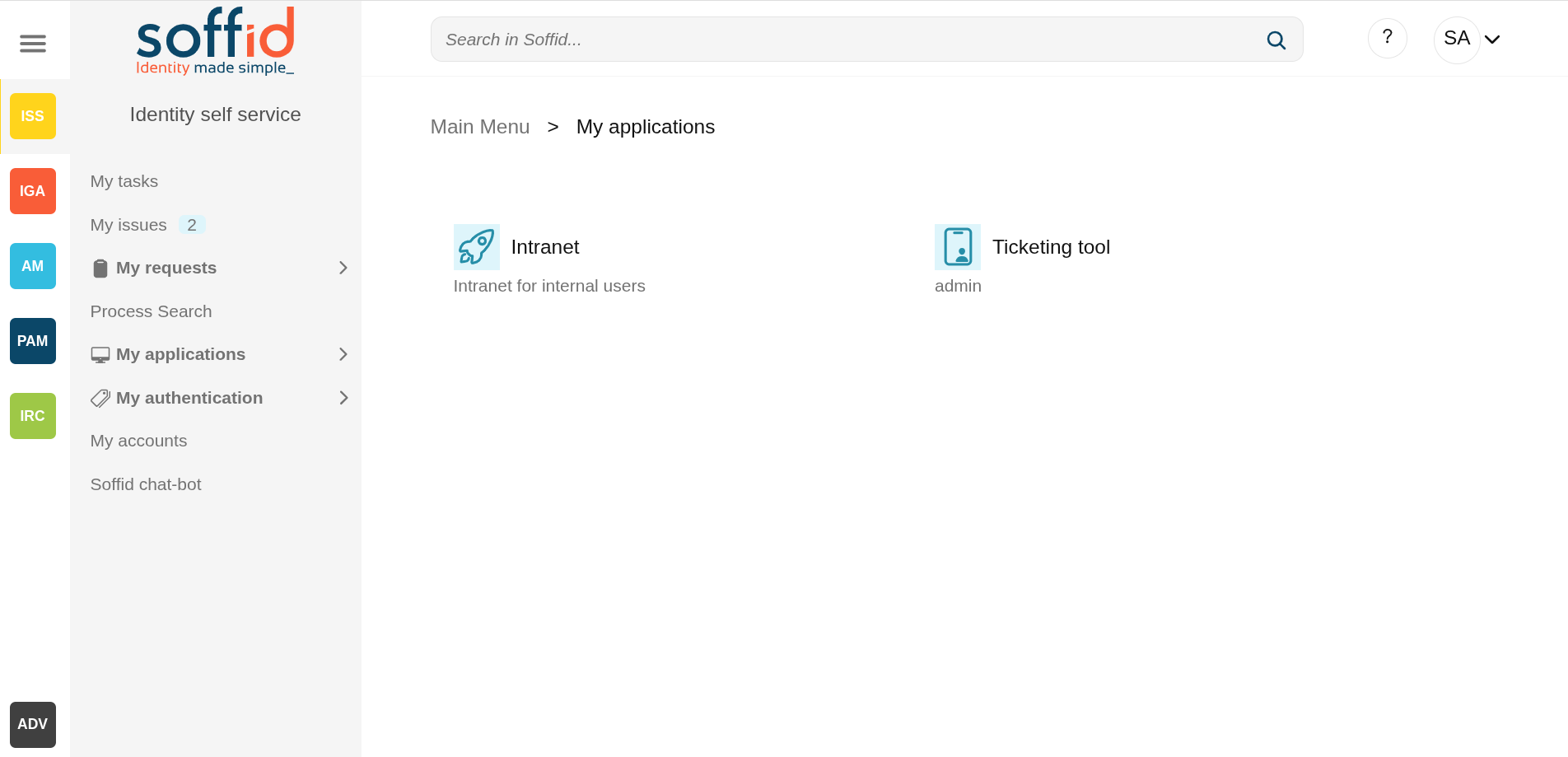
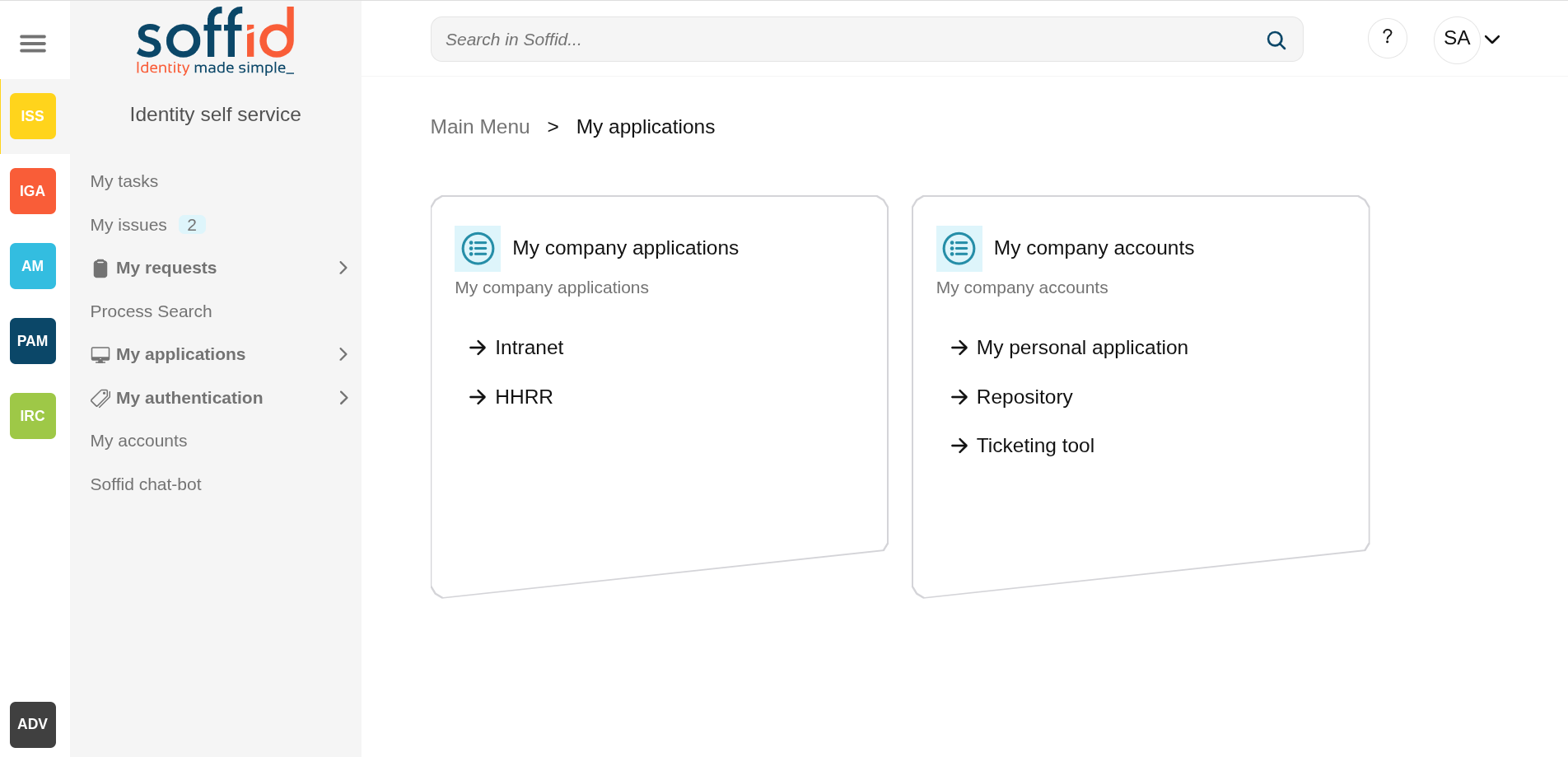
My application is a part of the Identity self-service that allows end-users to start **corporate applications** and **third party applications**. Also, the end-user can view and use the **shared accounts** available for the user defined on the Password vault.
### Applications
That option shows to each user, all the corporate and third party applications to which the user can connect and the applications with public access. These applications have to be configured on the Application Access Tree option by an administrator user.
### Password vault
My Applications option shows the **PasswordVault** folder. On the vault folder you can find two kind of folders, one a **personal folder** and other a **shared folder**.
Inside the personal folder, you can create your own accounts, those accounts will not be shared with any other user. The shared folders could be used or managed by the owner/manager/SSO users.
## Screen overview
[](https://bookstack.soffid.com/uploads/images/gallery/2025-08/gFKrZPupwu5uxBaj-image.png)
[](https://bookstack.soffid.com/uploads/images/gallery/2025-08/EUV98SU4QaLlF8dI-image.png)
## Related objects
- [Application access tree](https://bookstack.soffid.com/books/soffid-4-reference-guide/page/application-access-tree "Application access tree"). to configure the applications
- [Password vault](https://bookstack.soffid.com/books/soffid-4-reference-guide/page/password-vault "Password vault"). : to configure the shared accounts.
## Actions
**"Folder selection"**
When you select a folder, its contents will be displayed on a new page.
**"Application selecction"**
When you select an application, a new page will open with access to the application depending on its type.
If only access is visible but it is not configured, nothing will happen.
If there is a configuration but you do not have access, you will be notified on screen.
# My authentication
## Description
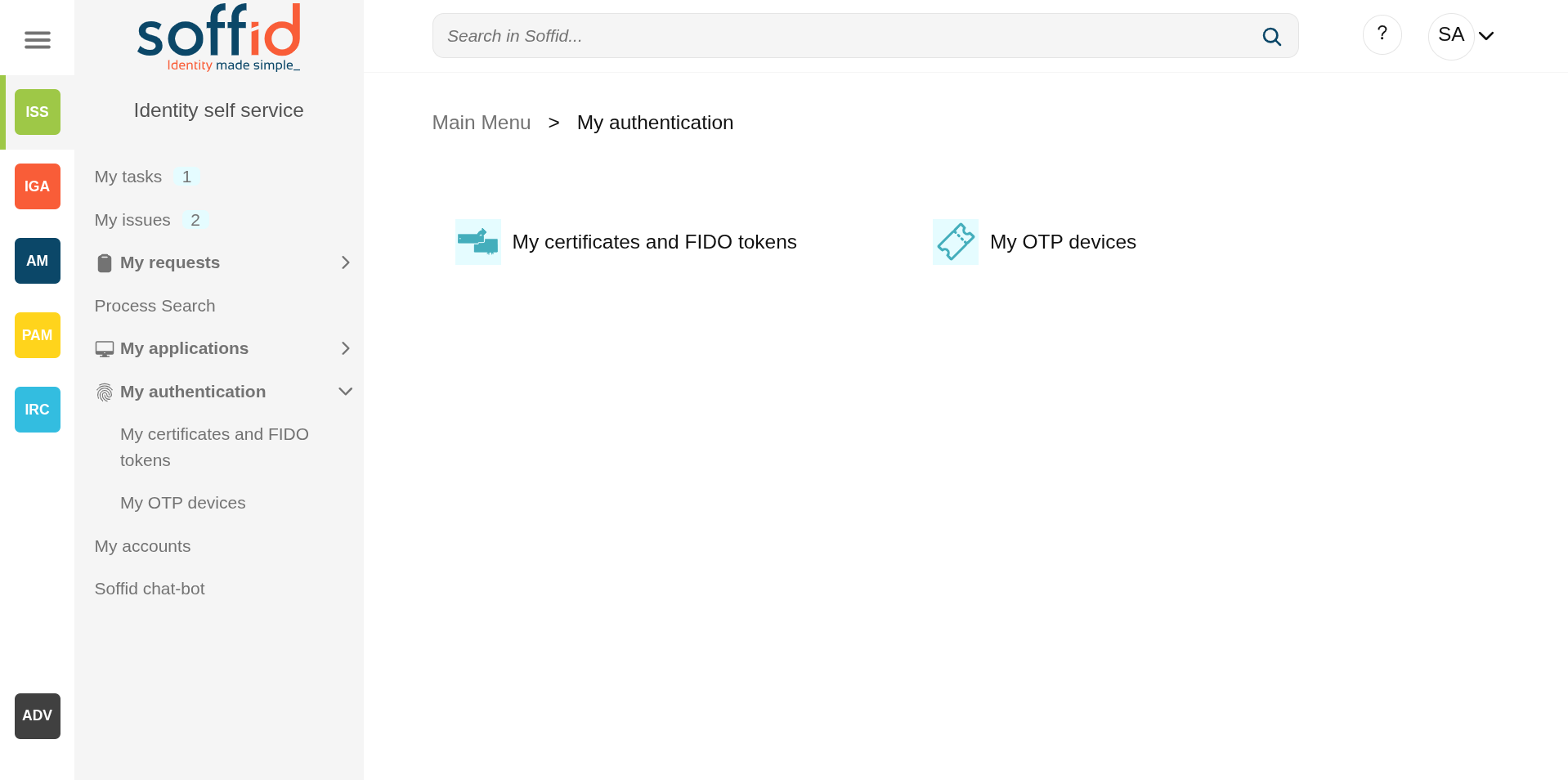
This screen groups together the different options available to users when authenticating, especially as a second factor in an MFA login.
## Screen overview
[](https://bookstack.soffid.com/uploads/images/gallery/2025-08/ZHjQ0oj3Yn7JKai7-image.png)
## Related objects
- [My authentication > My certificates and FIDO tokens](https://bookstack.soffid.com/books/soffid-4-reference-guide/page/my-authentication-my-certificates-and-fido-tokens-addon-federation)
- [My authentication > My OTP devices](https://bookstack.soffid.com/books/soffid-4-reference-guide/page/my-authentication-my-otp-devices-addon-otp)
- [OTP settings](https://bookstack.soffid.com/books/soffid-4-reference-guide/page/otp-settings-addon-otp)
# My authentication > My OTP devices (addon otp)
## Description
My OTP devices are part of a Soffid Self-service portal that allows end-users to access their OTP devices configured.
That option display to each user, all their OTP devices and also allows you to manage those and add new OTP devices.
Soffid Administrator user can configure the available OTP types. For more information, you can visit [the OTP settings page](https://bookstack.soffid.com/books/soffid-4-reference-guide/page/otp-settings-addon-otp).
This option will only be available if the OTP addon is installed in the Soffid console. Visit the [Two factor authentication book](https://bookstack.soffid.com/books/two-factor-authentication-2fa-VsJ "Two factor authentication (2FA)") for more information
## Screen overview
[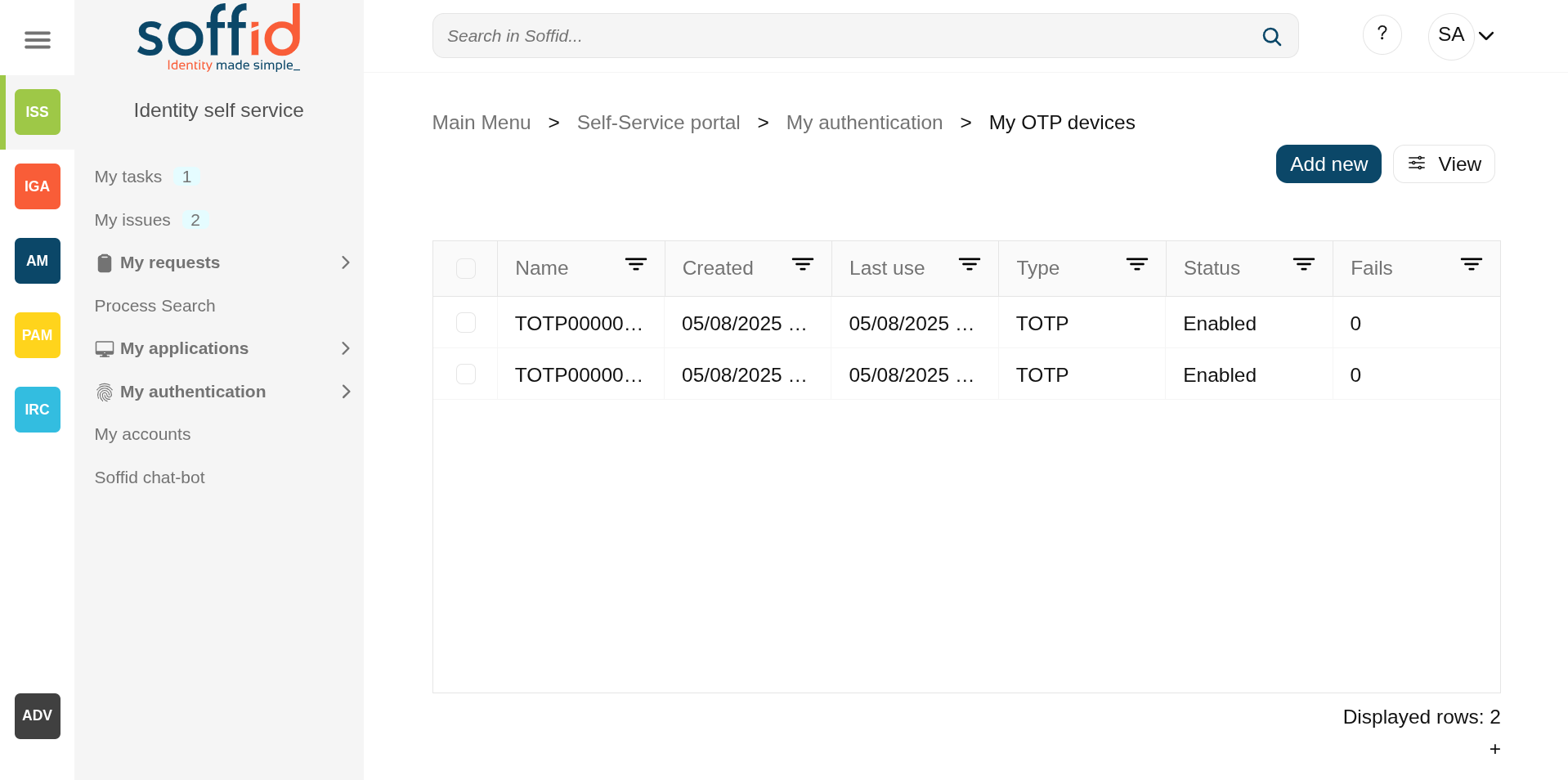](https://bookstack.soffid.com/uploads/images/gallery/2025-08/0I0CBDHVm3eYbhiR-image.png)
## Related objects
- [My authentication > My certificates and FIDO tokens](https://bookstack.soffid.com/books/soffid-4-reference-guide/page/my-authentication-my-certificates-and-fido-tokens-addon-federation)
- [OTP settings](https://bookstack.soffid.com/books/soffid-4-reference-guide/page/otp-settings-addon-otp)
## Standard attributes
- **Name**: automatic name assigned to the OTP device
- **Created**: created date and time.
- **Last use**: last used date and time.
- **Type**: the type of the OTP device:
- TOTP (Time based HMAC Token)
- HOTP (Event based HMAC Token)
- EMAIL
- SMS
- PIN (Security PIN)
- **Status**: status of the OTP device:
- Created
- Enabled
- Locked
- Disabled
- **Fails**: failed attempts collected when logging in with the OTP device value
- **Created by**
- **Created on**
- **Modified by**
- **Modified on**
## Actions
**Add new**
Allows you to add a new OTP device. To add new OTP devices you need to click the "Add new" button, then Soffid will display a new wizard to config the OTP devices. First of all, you need to select the OTP device Type, once the type is selected, you need to fill in the required fields, which depend on the Type selected. If you select an Event-based or Time-based HMAC Token, you will need to scan the QR code and write the PIN. Finally, you must Apply changes.
Images
[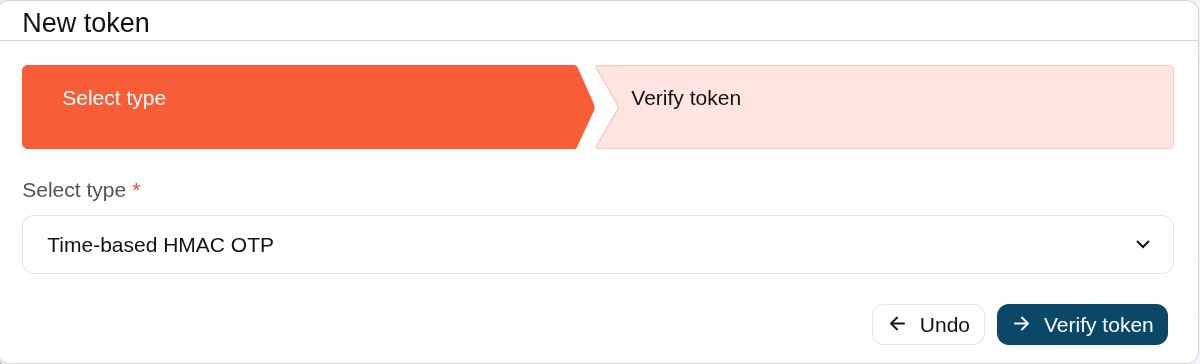](https://bookstack.soffid.com/uploads/images/gallery/2025-08/kqcIFWPw1BlTxZDB-image.png)
[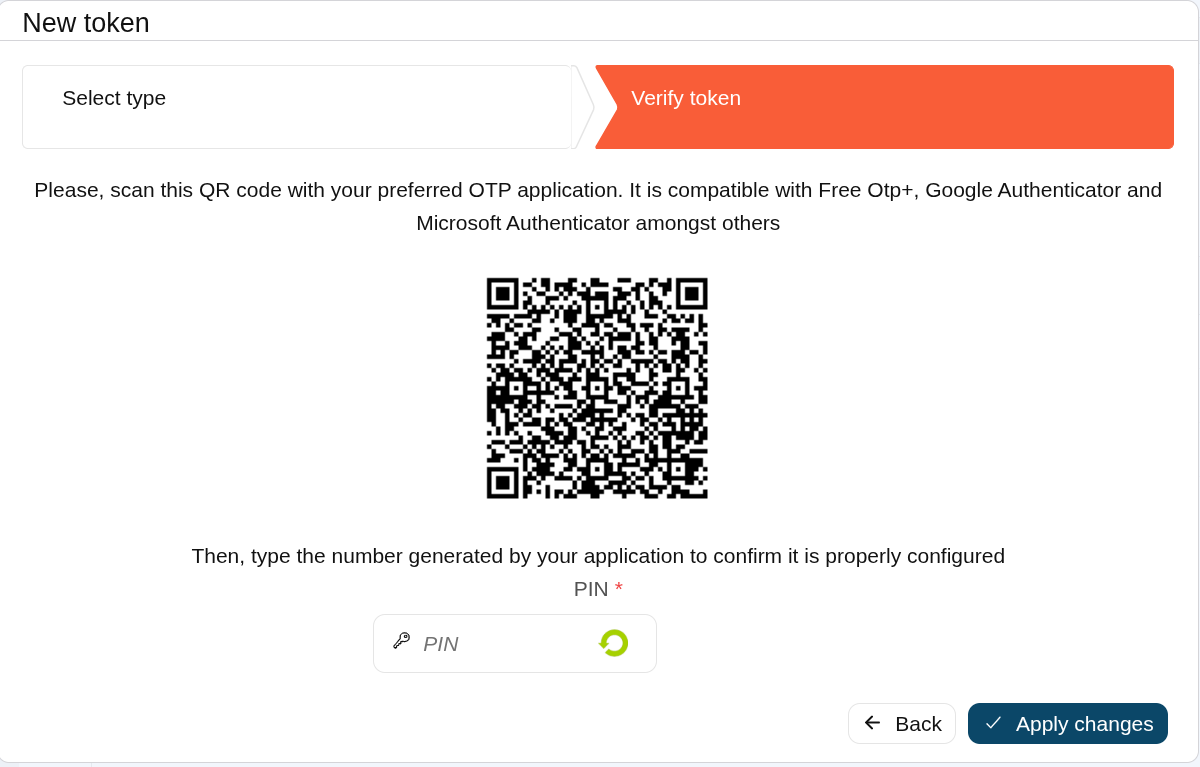](https://bookstack.soffid.com/uploads/images/gallery/2025-08/xHvayEKbLQrAqxpD-image.png)
**Delete OTP device**
Allows you to delete one or more OTP devices.
To delete OTP devices first select the devices, then click on the Delete, then Soffid will ask you to confirm or cancel the operation.
**View**
Allows you to add or remove columns to the table.
It is also possible to change the order of the columns.
# My authentication > My certificates and FIDO tokens (addon federation)
## Description
My certificates and FIDO tokens are part of the Identity self service that allows end-users to access their OTP devices configured.
This option shows each user all their configured OTP devices, which can be certificates, FIDO tokens, and Soffid authenticators. It also allows you to add new devices or delete existing ones.
### Certificates
You can use these \*.p12 certificates to add them to your favourite browser and use them as a second factor of authentication.
### FIDO tokens
If you or your organisation has FIDO devices, I can register them with Soffid and use them as a second factor of authentication.
### Soffid authenticator
Soffid has made the Soffid authenticator app available on the Play Store and the App Store, which will allow you to easily and simply perform two-factor authentication from your mobile device.
## Screen overview
[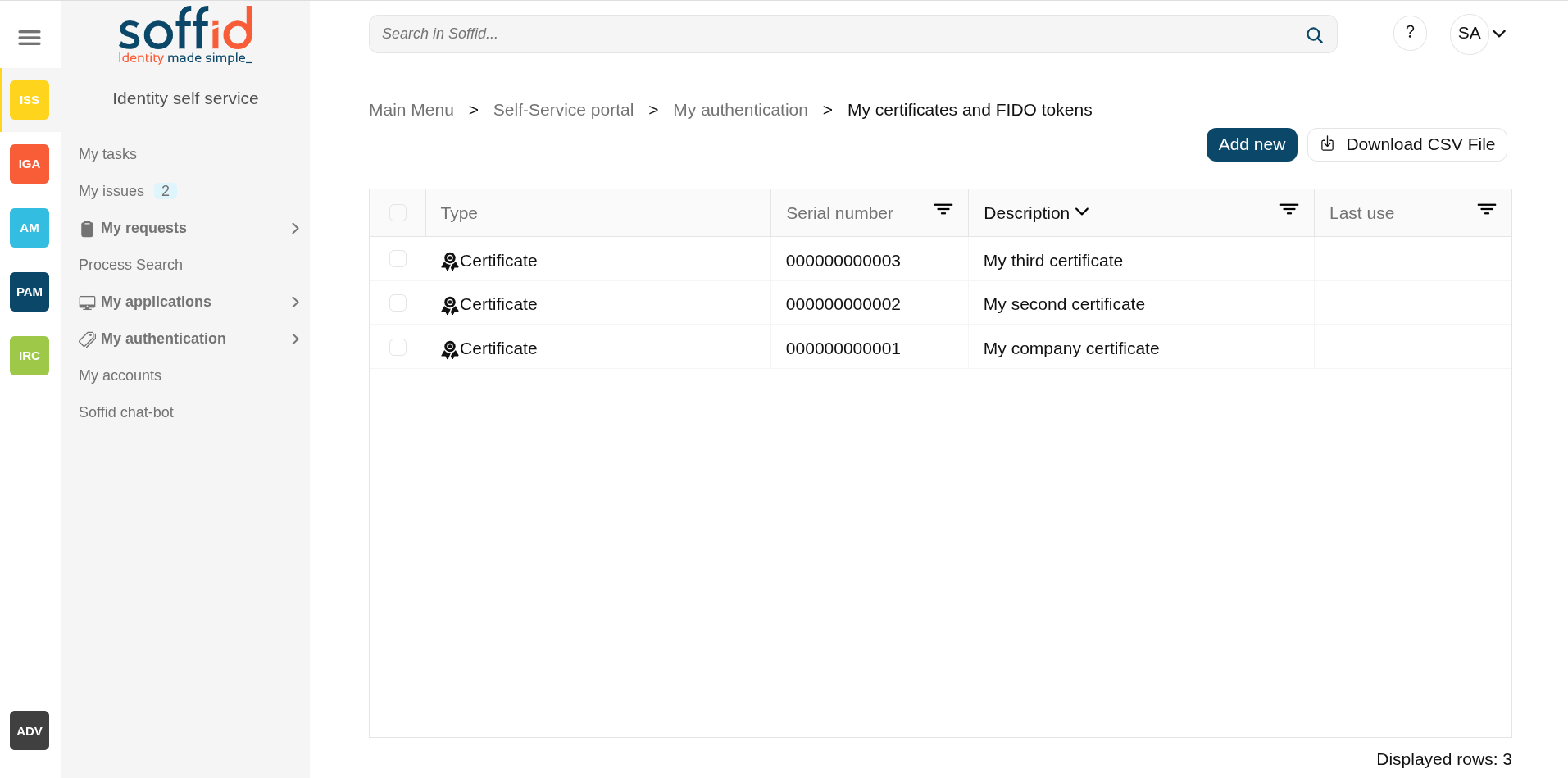](https://bookstack.soffid.com/uploads/images/gallery/2025-08/DOPsnrHvR3Lvnglr-image.png)
## Related objects
- [Identity providers](https://bookstack.soffid.com/books/soffid-4-reference-guide/page/identity-providers-addon-federation "Identity providers") : to create a Soffid IDP
- [Soffid authenticator](https://bookstack.soffid.com/books/soffid-authenticator-app) : more information about this option
## Standard attributes
- **Type** : there are two available options:
- Certificate.
- FIDO token.
- Soffid Authenticator.
- **Serial number** : internal Soffid id
- **Description** : the description of the OTP device
- **Last use** : date of the last use of this OTP device
## Actions
### Table
**Add new**
Allows you to add new object: Certificate, FIDO token or Soffid authenticator.
Soffid will display a new wizard to configure each type of object.
First of all, you need to select the Type, once the type is selected, you need to follow the required steps which depend on the Type selected.
**Delete token**
Allows you to delete one or more objects.
To delete them first you must select one or more objects, then click on the "Delete" button, then Soffid will ask you to confirm or cancel the operation.
**Download CSV file**
Allows you to download a CSV file with all the information about the objects.
### Add new
#### Adding a new certificate
Select the "Certificate" type.
[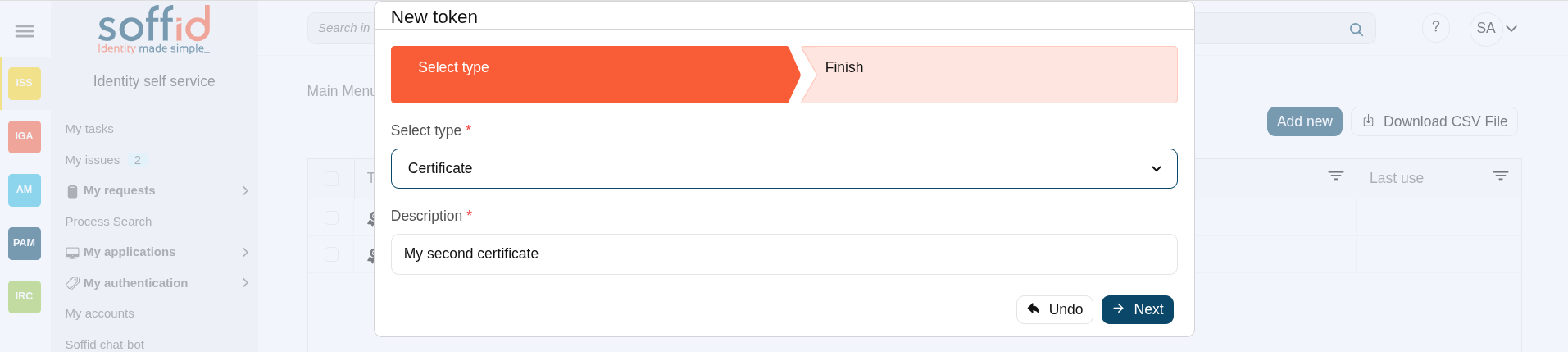](https://bookstack.soffid.com/uploads/images/gallery/2025-08/N9KAXOkhRrGoevuA-image.png)
Save the \*.p12 file in a secure location.
Finish with the "Close" button.
[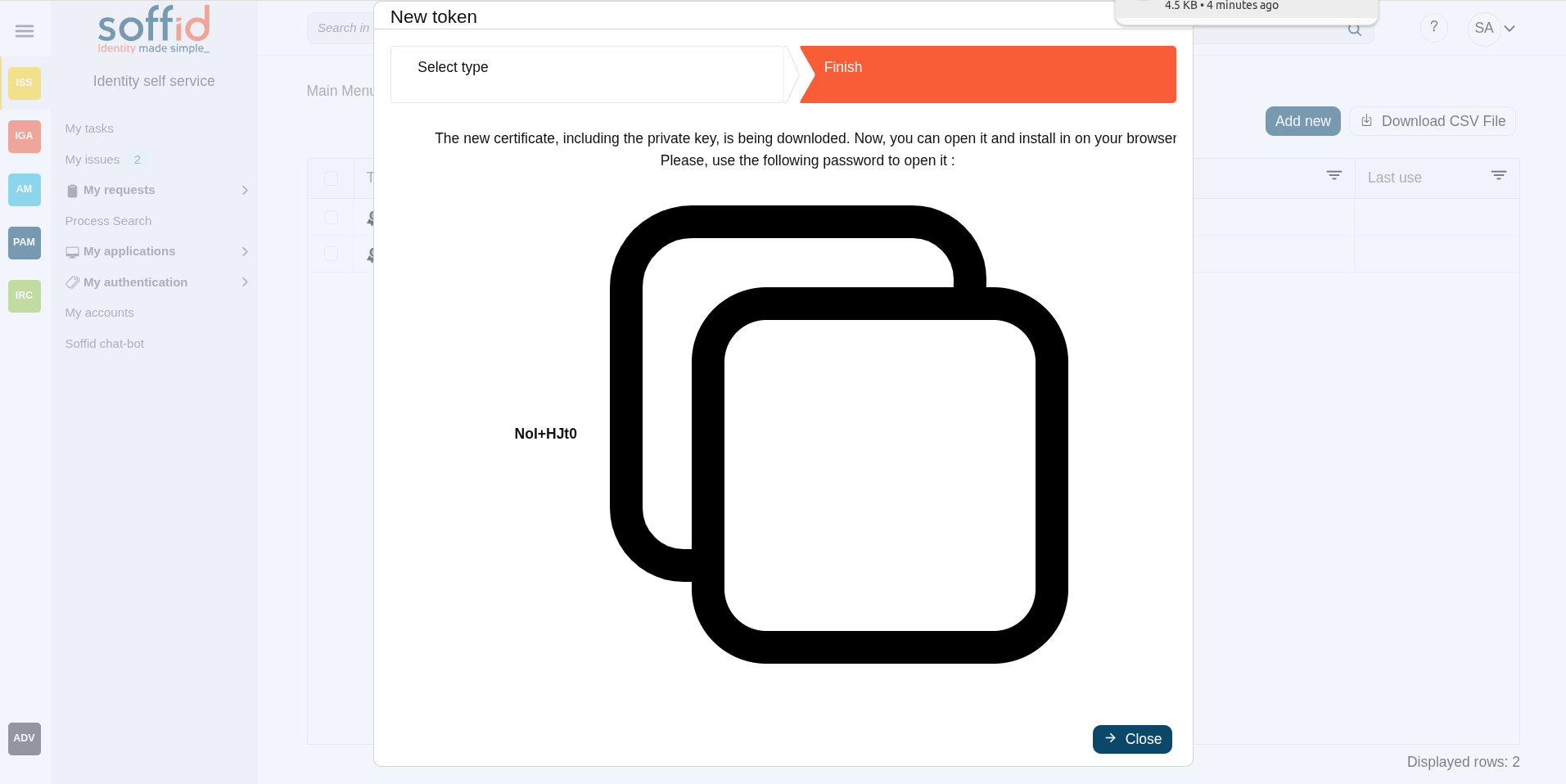](https://bookstack.soffid.com/uploads/images/gallery/2025-08/MJlvJKh3ouV76Q19-image.png)
#### Adding a new FIDO token
Select the "FIDO token" type.
[](https://bookstack.soffid.com/uploads/images/gallery/2025-08/EdXHDXz9wQdNL41R-image.png)
#### Adding a Soffid authenticator
Select the "Soffid authenticator" type.
[](https://bookstack.soffid.com/uploads/images/gallery/2025-08/Av17frb9Tj3U8l9o-image.png)
## Others
### IDP for FIDO and authenticator
To add a FIDO token or a Soffid authenticator, you must have a Soffid IDP configured.
[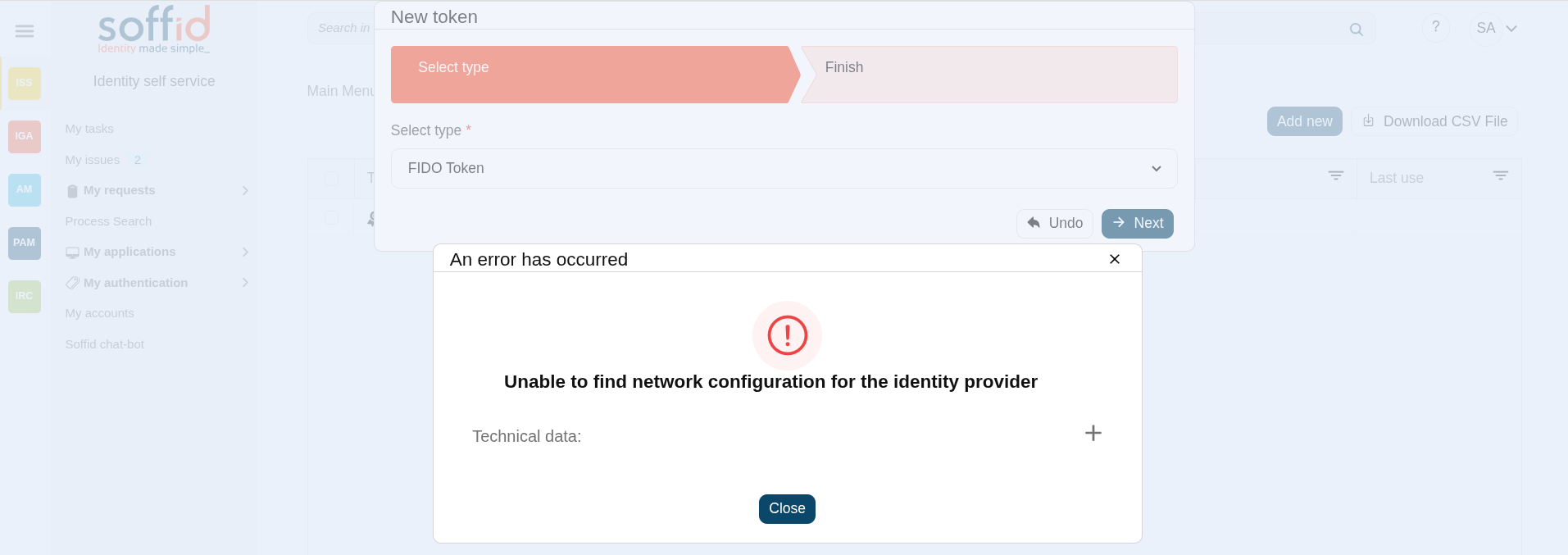](https://bookstack.soffid.com/uploads/images/gallery/2025-08/9ahI66O28grGlmbm-image.png)
# My accounts
## Description
My Account is a part of the Identity self service that allows end-users to access and manage their personal accounts.
That option displays all personal accounts for each user and allows you to set and/or view the password for each account if they have been enabled by configuration.
The accounts that are displayed are those belonging to Soffid's own systems. For external systems, only accounts belonging to active systems are displayed. If an external system (agent in Soffid) is disabled, the account will not be displayed on this page.
Disabled accounts are displayed, but it is not allowed to set or view the password.
## Screen overview
[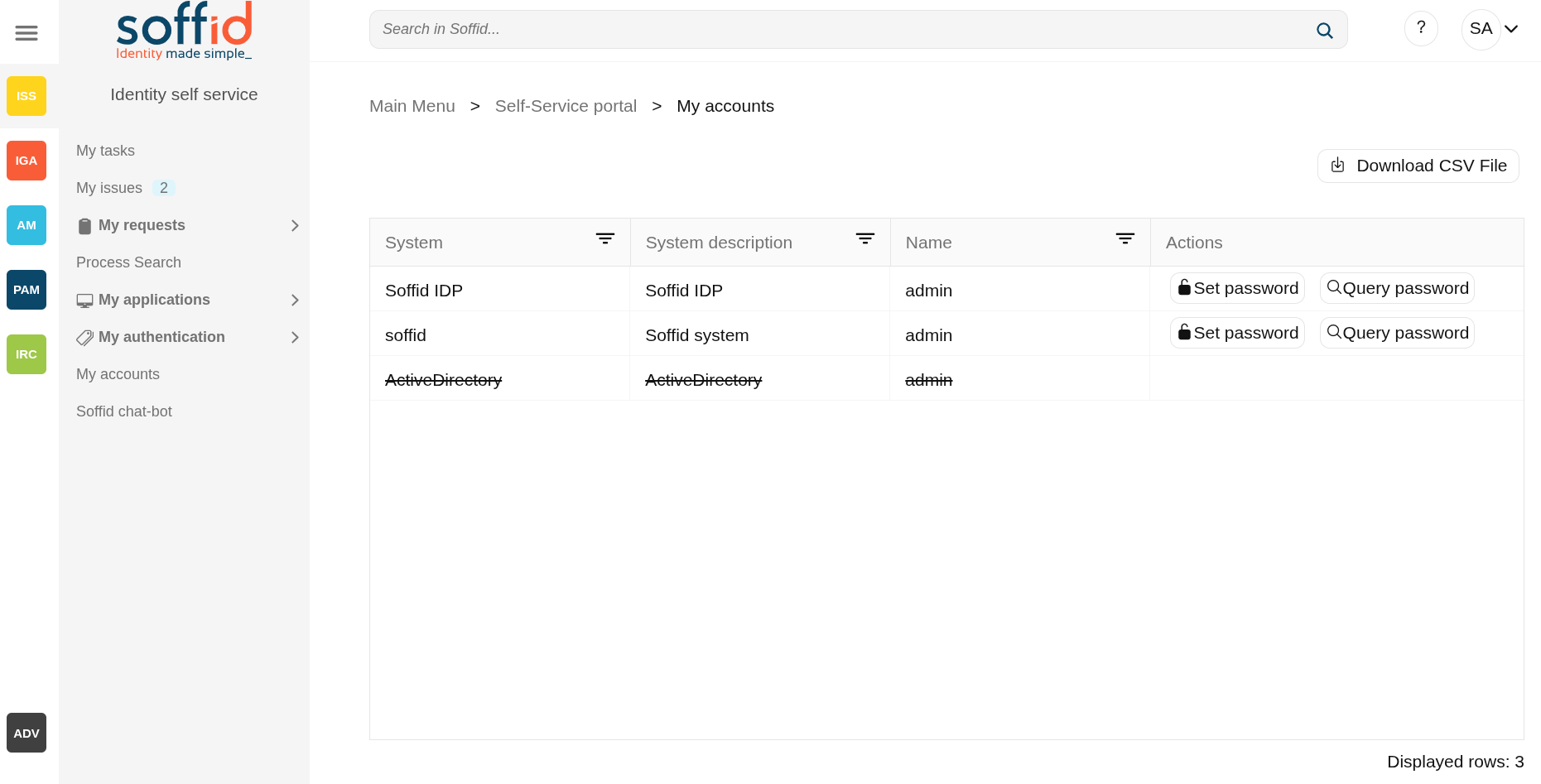](https://bookstack.soffid.com/uploads/images/gallery/2025-08/73AfhhCqUe3cXFIb-image.png)
## Related objects
- [Agents](https://bookstack.soffid.com/books/soffid-4-reference-guide/page/agents "Agents") : where the target systems are configured
- [Password policy](https://bookstack.soffid.com/books/soffid-4-reference-guide/page/password-policies "Password policies") : where the set password and query password are enabled by configuration, and also there are configured the password plicies when you set a new password.
- [Users](https://bookstack.soffid.com/books/soffid-4-reference-guide/page/users "Users") : to view the accounts of a user
- [Accounts](https://bookstack.soffid.com/books/soffid-4-reference-guide/page/accounts "Accounts") : to list the accounts of a user
## Standard attributes
- **System**: target system for which this account has been created (agent in Soffid).
- **System description**: a brief description of the target system.
- **Name**: user account name.
- **Actions**: available actions.
- **Set password**: to set a new password for the target system.
- **Query password**: to view the current password assigned to the target system in Soffid.
## Actions
**Download CSV file**
Allows you to download a CSV file with all the information about your accounts.
**Set password**
Allows you to set a new password for this account. This change will be applied to different target systems.
The new password must comply with the defined password policies.
**Query password**
Allows you to query and copy the password and the user name.
# Soffid chat-bot
## Description
This new feature included in Soffid 4 allows you to interact with our AI to request information, or better yet, ask it to apply changes directly in the Console.
The power offered by this new tool is limitless. Our imagination, combined with training in Soffid's documentation and internal structure, enables us to accomplish many tasks.
This feature is not enabled by default, you must activate a token in order to use it. This feature has been reconfigured; please check out the following new feature.
[2026-07-08 New feature: geolocation service available by default](https://bookstack.soffid.com/books/soffid-4-reference-guide/page/2026-07-08-new-feature-geolocation-service-available-by-default "2026-07-08 New feature: geolocation service available by default")
## Screen overview
[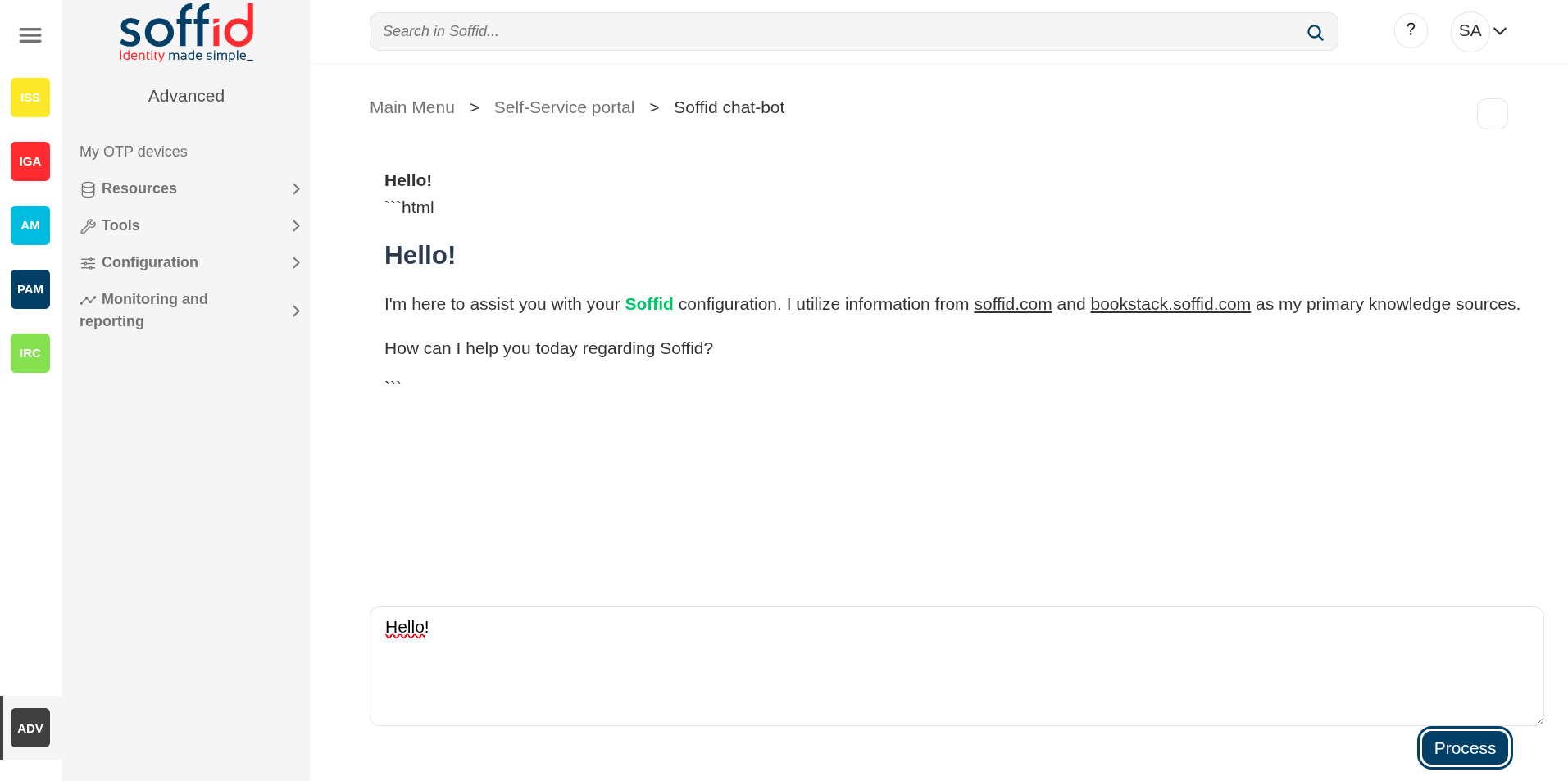](https://bookstack.soffid.com/uploads/images/gallery/2025-08/H4QOkf0gpQPjXbuu-image.png)
[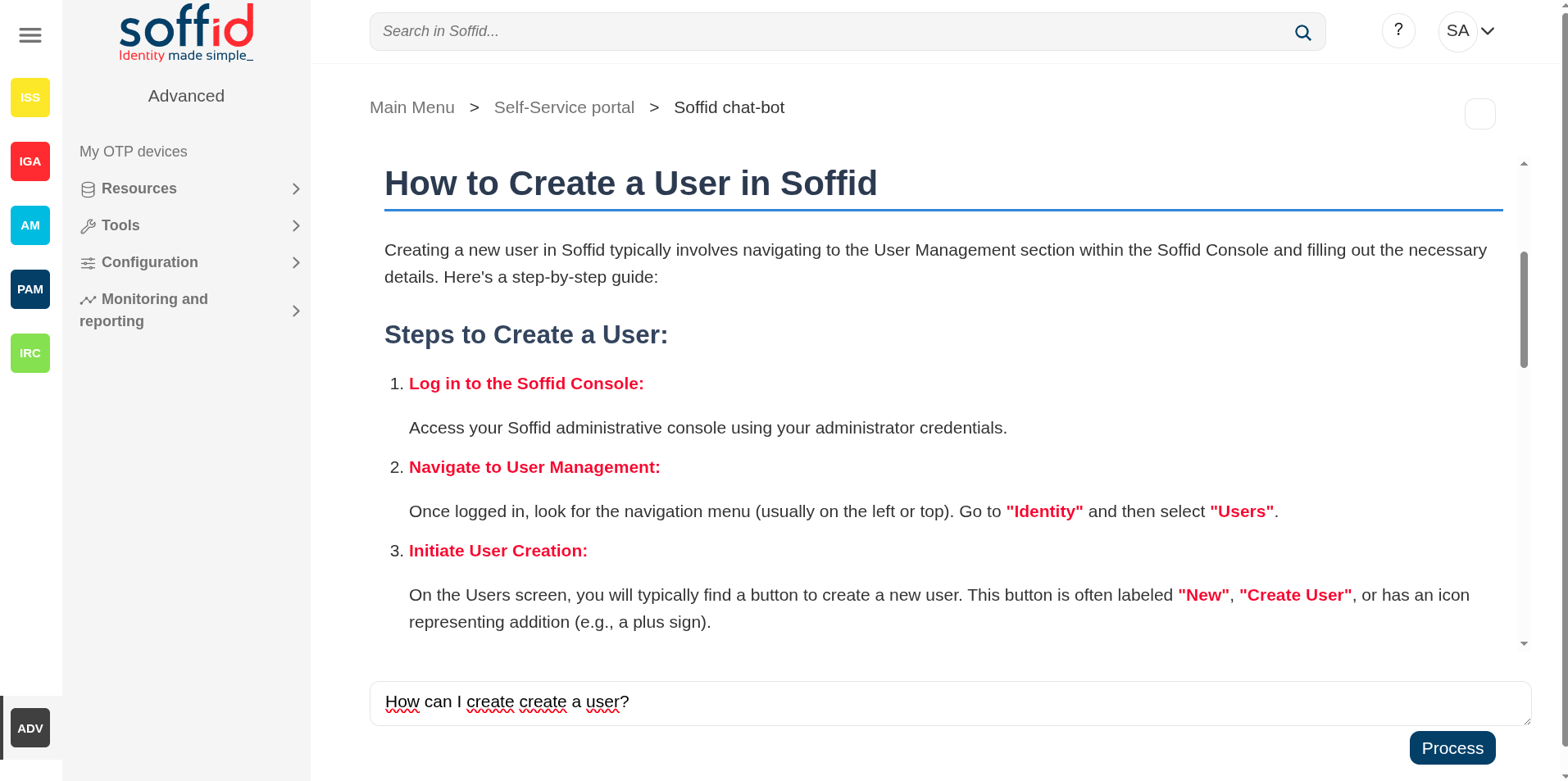](https://bookstack.soffid.com/uploads/images/gallery/2025-08/FtcBApVAHsKzv9wP-image.png)
## Related objects
- [Network Intelligence](https://bookstack.soffid.com/books/soffid-4-reference-guide/page/network-intelligence "Network intelligence") : to configure the token to use this feature
- [Soffid chat-bot](https://bookstack.soffid.com/books/soffid-4-reference-guide/page/soffid-chat-bot "Soffid chat-bot") : to chat with our IA
- [Custom scripts](https://bookstack.soffid.com/books/soffid-4-reference-guide/page/custom-scripts-addon-admin "Custom scripts (addon admin)") : to use the IA
All pages with scripts can use the IA to help you with the scripting
## Standard attributes
- **Chat box** : Type your query or request for our AI in the chat box.
## Actions
**Process**
Send the request to our AI for processing.
## Others
### Access without a token
When attempting to use this feature without having previously enabled it, the console displays the error: **No token configured. Please configure it on the network intelligence page**.
For more information go to [Network intelligence page](https://bookstack.soffid.com/books/soffid-4-reference-guide/page/network-intelligence "Network intelligence").
[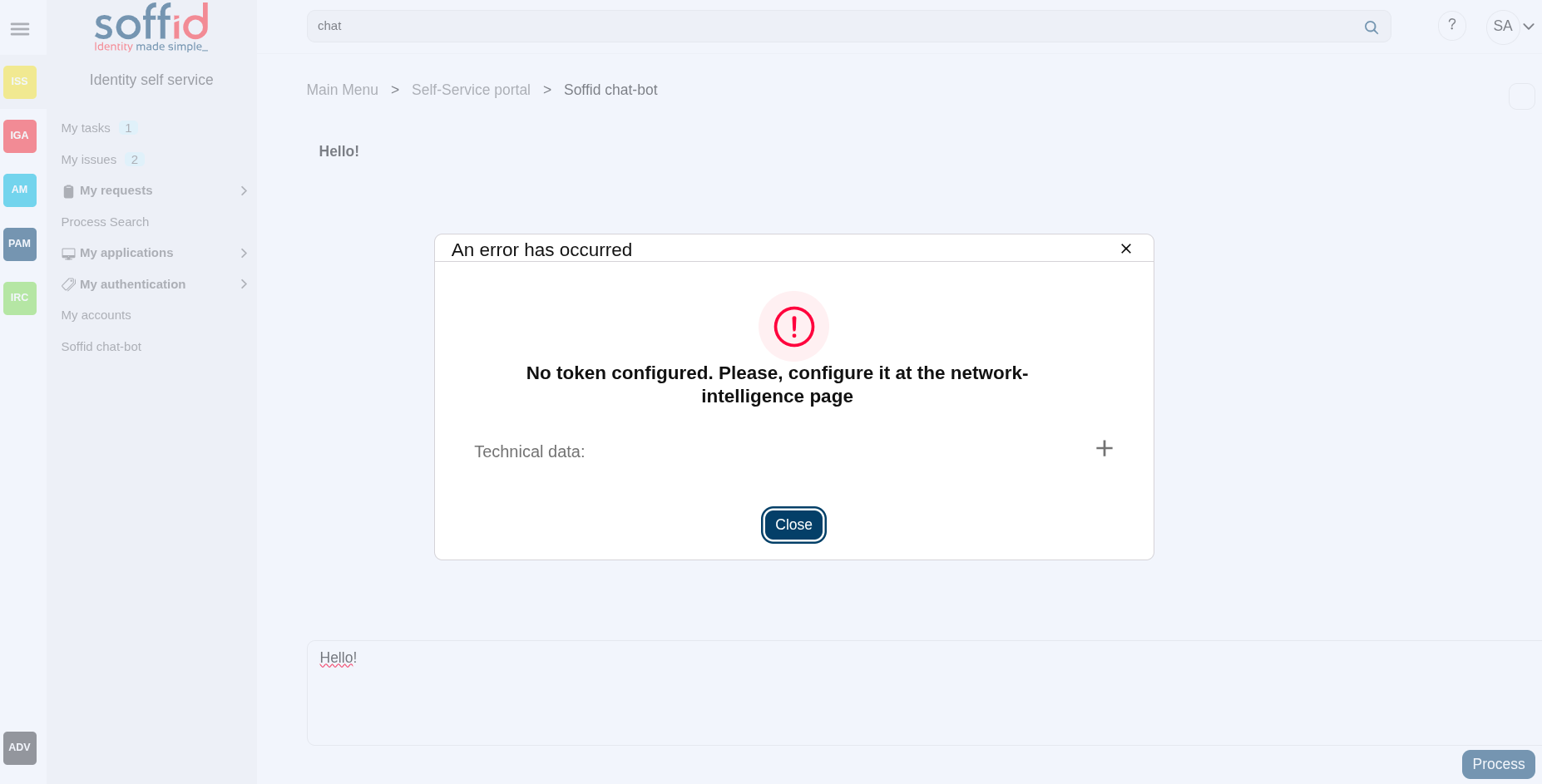](https://bookstack.soffid.com/uploads/images/gallery/2025-08/i5qlByMLHktBKR5E-image.png)
# Resources
Resources
# Users
## Description
The user is the core object of the system. In Soffid, a user means an **identity** (usually a person). Every user can have a number of accounts spread on different information systems.
In traditional system management, one can assign roles and permissions to accounts. Then, the administrator uses to grant the account to one single user. In Soffid you can have a global view of permissions assigned to any user. Being the user and the main management object, you have a more clear perspective in terms of operation, security, and end-user engagement.
It is important to know that dependency rules can be established between systems, so a user with a role or permission in one system will automatically be assigned a role or permission in another system, according to the system policies.
The administrator can also identify the potential users of shared or system management accounts. These accounts are managed in a slightly different way. See the [Accounts](https://bookstack.soffid.com/books/soffid-4-reference-guide/page/accounts "Accounts") and [Password Vault](https://bookstack.soffid.com/books/soffid-4-reference-guide/page/password-vault "Password vault") pages for more information.
Sometimes is possible to find that there is any user with duplicated user data. To solve that problem, Soffid provides the merge functionality. That allows you to combine two user records, selecting the proper data to fix that situation.
## Screen overview
[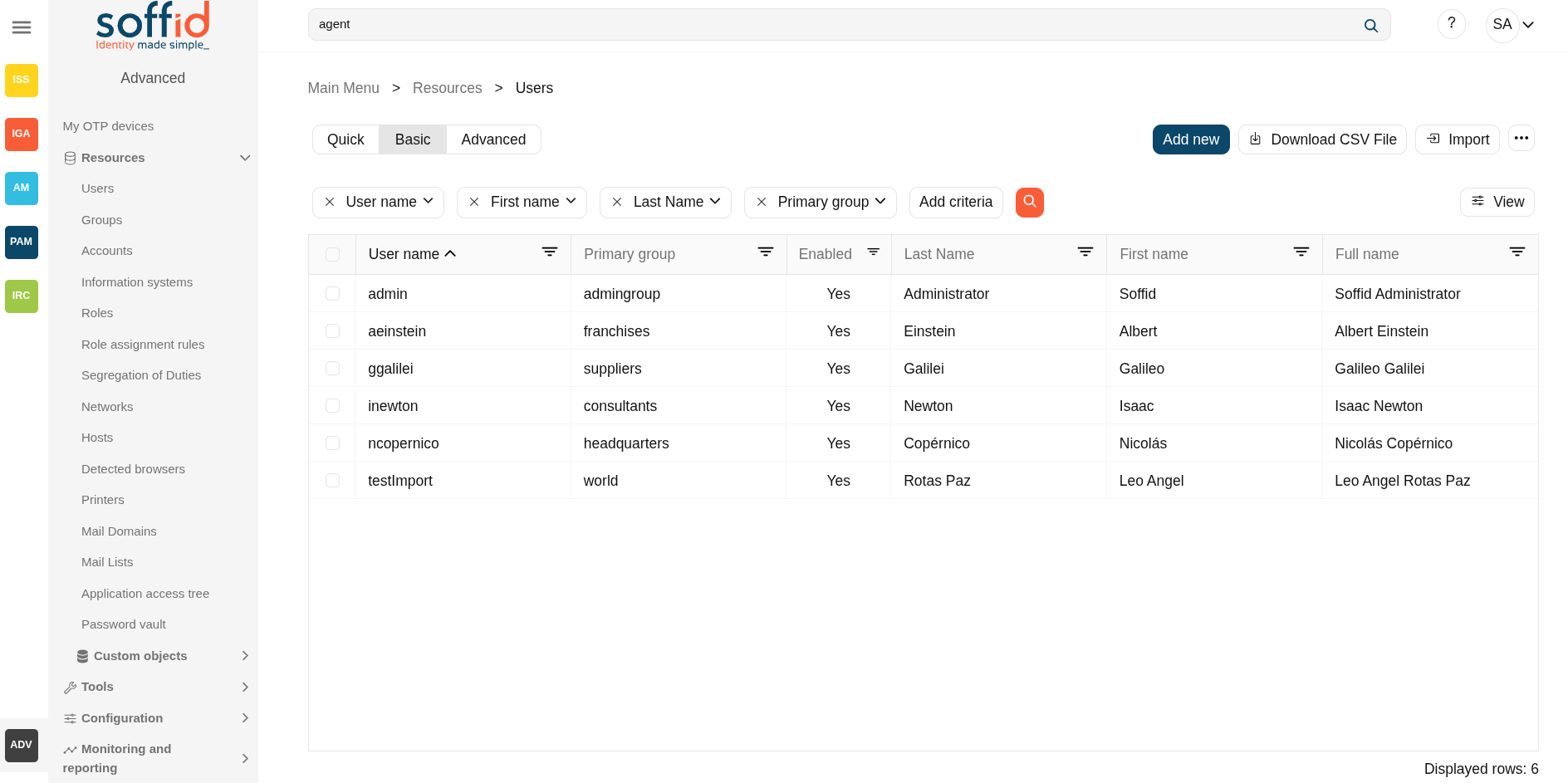](https://bookstack.soffid.com/uploads/images/gallery/2025-08/za3g2bAywAx3vgj8-image.png)
[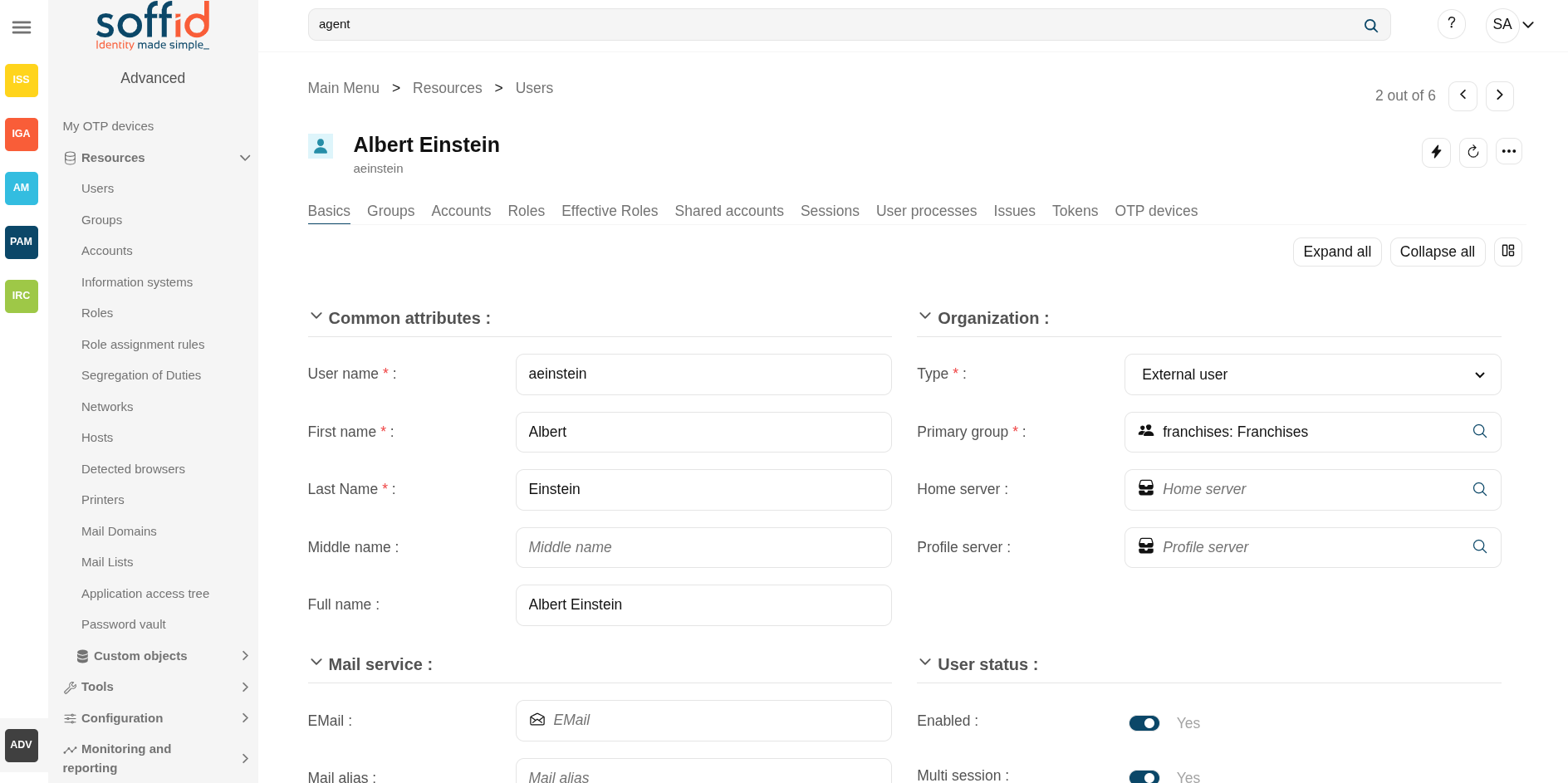](https://bookstack.soffid.com/uploads/images/gallery/2025-08/WsBgf9MXcfRMKOAd-image.png)
## Related objects
- [User types](https://bookstack.soffid.com/books/soffid-4-reference-guide/page/user-types "User types") : users types of the users
- [Groups](https://bookstack.soffid.com/books/soffid-4-reference-guide/page/groups "Groups") : primary group and secondary groups of the users
- [Hosts](https://bookstack.soffid.com/books/soffid-4-reference-guide/page/hosts "Hosts") : home server and profile server of a user
- [Mail domain](https://bookstack.soffid.com/books/soffid-4-reference-guide/page/mail-domains "Mail Domains") : mail domain of the user's mails
- [Metadata](https://bookstack.soffid.com/books/soffid-4-reference-guide/page/metadata "Metadata") : to add more attributes to a user
- [Accounts](https://bookstack.soffid.com/books/soffid-4-reference-guide/page/accounts) : to review the single user accounts or the shared accounts of a user
- [Roles](https://bookstack.soffid.com/books/soffid-4-reference-guide/page/roles "Roles") : roles granted to a user
- [Information systems](https://bookstack.soffid.com/books/soffid-4-reference-guide/page/information-systems "Information systems") : roles granted to a user throught the information systems
- [Sessions](https://bookstack.soffid.com/books/soffid-4-reference-guide/page/sessions "Sessions") : sessions opened by the user
- [Process search](https://bookstack.soffid.com/books/soffid-4-reference-guide/page/process-search "Process Search") : user processes related to the user
- [Issues](https://bookstack.soffid.com/books/soffid-4-reference-guide/page/issues "Issues") : issues related to the user
- [My certificates and FIDO tokens](https://bookstack.soffid.com/books/soffid-4-reference-guide/page/my-authentication-my-certificates-and-fido-tokens-addon-federation "My authentication > My certificates and FIDO tokens") : tokens of a user
- [My OTP devices](https://bookstack.soffid.com/books/soffid-4-reference-guide/page/my-authentication-my-otp-devices-addon-otp "My authentication > My OTP devices") : OTP devices of a user
- [OTP settings](https://bookstack.soffid.com/books/soffid-4-reference-guide/page/otp-settings-addon-otp "OTP settings") : where administrators can enable differentes OTP typs
- [Audit](https://bookstack.soffid.com/books/soffid-4-reference-guide/page/audit "Audit") : to review the audit logs to the user
- [Access logs](https://bookstack.soffid.com/books/soffid-4-reference-guide/page/access-logs "Access logs") : to check the acces logs of a user
- [Sync server monitoring](https://bookstack.soffid.com/books/soffid-4-reference-guide/page/sync-server-monitoring "Sync server monitoring") : to check the pending tasks of a user
## Standard attributes
#### Basics
On the basic user tab, you can view all the user attributes.
If you need to add **additional attributes**, you can go to the **Metadata** page, select the **User** object, and add the attributes.
- Common attributes:
- **User name**: short name to identify the user. It uses can be either a name abbreviation, an employee Id, or a system. generated number.
- **First name:** name of the user.
- **Last name:** first surname.
- **Middle name:** used like a second surname.
- **Full name:** firstName + lastName + middleName.
- Organization:
- **Type**: identifies the password policy that is to be applied.
- **Primary group**: select which organization unit this user belongs to.
- **Home server**: select which server will host its user folder. It is linked to the Home Drive attribute on Active Directory.
- **Profile server**: select which server will host its user profile. It is linked to Roaming UserProfile on Active Directory.
- Mail service:
- **EMail**: this will be the mail address that will appear on outgoing emails from this user.
- **Mail alias**: In this box, there will be a comma-separated list of mail addresses that will be forwarded to this user mailbox. It will you one to one aliases and one to many distribution lists.
- **Mail server**: select which server will host its user mail.
- User status:
- **Enable**: uncheck in order to prevent this user from logging into any system.
- **Multi session**: uncheck to prevent this user from using more than one device at a time. If the user logs into the system when another session is active, the single sign-on agent will manage it in order to close the first session before opening a new one. This checkbox is only effective when using Soffid ESSO
- **Comments.**
- Audit information:
- **Created by**: user who created it.
- **Created on**: when this one was created.
- **Modified by**: responsible for the user's last change.
- **Modified last on**: date of last user modification.
Image
[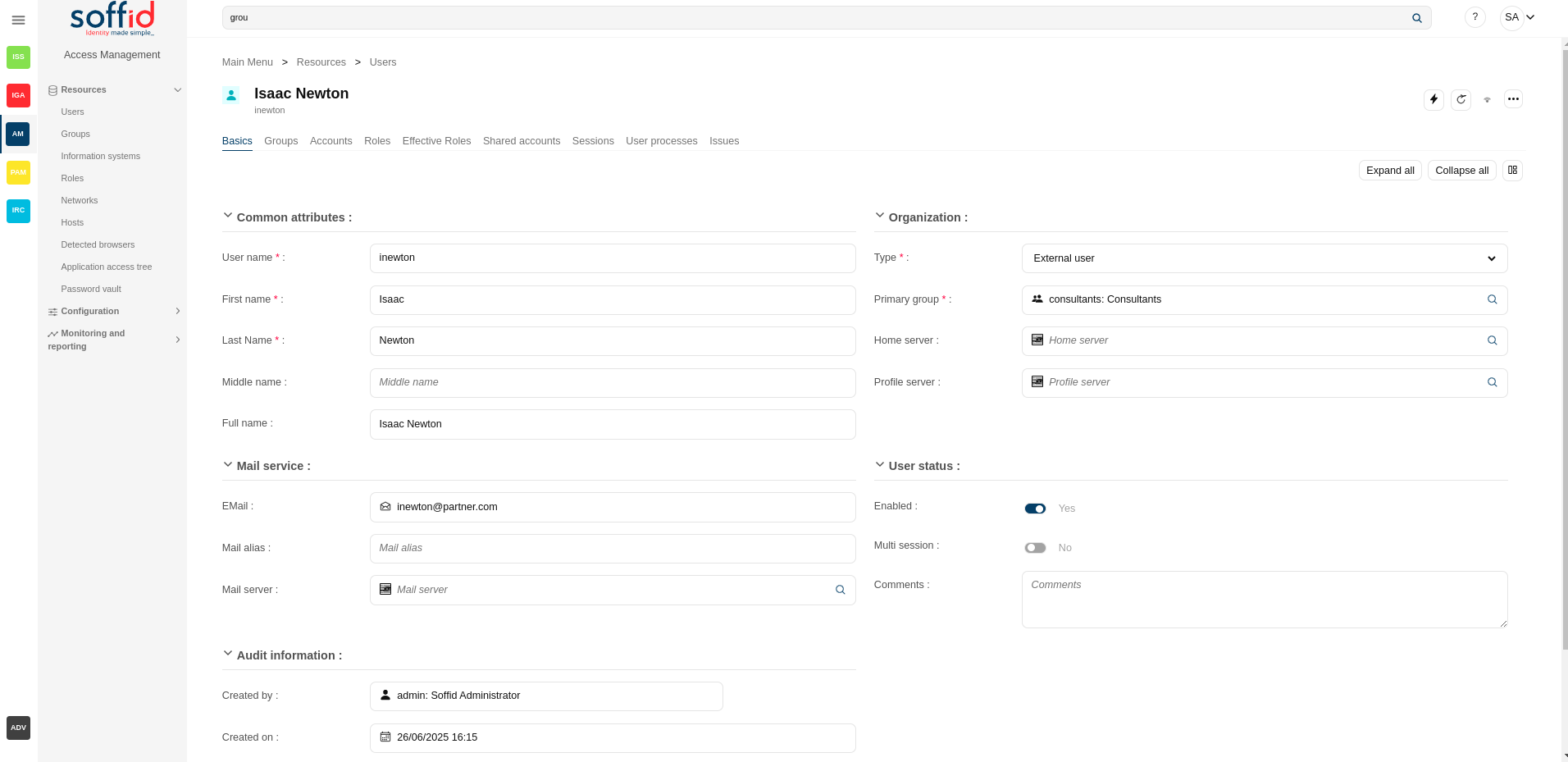](https://bookstack.soffid.com/uploads/images/gallery/2025-06/mmyRrwPF2cZbHHCM-image.png)
#### Groups
Your company is organized into different business units, departments, or workgroups. In Soffid, they all are named as groups.
Some systems, like Active Directory, use groups to control or restrict resource access. A Soffid Group is more like an Active Directory OU.
On the group tab, you can manage all the groups that the user belongs to. Be in mind that all users have to belong to a Primary Group defined on the Basic user attributes.
By clicking on a record, Soffid shows group membership details. It is possible to change the group, and the start date and add comments.
It is also possible to assign a new membership by clicking the "**Add new**" button, and revoking the group membership from the group details with the "**Delete**" button, or by selecting one or more records from the list and clicking the "**Delete secondary group**".
If you need to add **additional attributes**, you can go to the **Metadata** page, select the **UserGroup** object, and add the attributes.
An account is a way a user is presented on a target system. On the accounts tab, you can view the accounts that belong to the user that is currently displayed, grouped by [password domains](https://bookstack.soffid.com/books/soffid-4-reference-guide/page/password-policies#bkmrk-password-domain "Password domains").
About **visibility**:
- The account can be displayed in **black** or **gray** color.
- The gray color is used to indicate that the account is unmanaged, that is because the agent is disconnected or because the agent is in Read-Only Mode.
- The strikethrough accounts are all those whose status is not considered active.
Soffid **smart engine** could automatically create, disable or remove user accounts depending on the system policies.
Also, you can manually add a new account for a specific system with the **Add new** button. On clicking on an account you can **rename** or **edit** an existing one, **delete** it or **change its password**. You can also see when the password was last set and its expected expiration date. Mind that you cannot change a single account password, as long as any password belongs to a password domain, so each password belonging to the same user and password domain will be changed at a time. When you apply user changes, automatically they will be forwarded to target systems.
Mind that Soffid smart engine can revert some of your changes if those changes are violating any system policy.
Each change made at the Soffid console is asynchronously replicated into the managed system. At the accounts tab, the administrator can check when each account was updated last. When the Soffid console notices there the replication process is failing, an **exclamation icon** will appear next to the account name.
When the settings for a managed system exclude a user to be replicated, no account will be created for him. In case the user was replicated and due to user attributes changes it should be excluded, its account will be disabled and it will appear with line-through style.
At the **agent configuration** screen, the administrator can configure when to create or enable user accounts depending on the user type or the group the user belongs to. When the settings for a managed system exclude a user, no account will be created for him. In case the account exists and due to user attributes changes it should be excluded, its account will be disabled and it will appear with line-through style.
Regarding automatic account creation, it's important to know that if a user needs an account with a name, based on the **user domain** configuration, and that such an account already exists as a shared or single user account, this account won't be created or assigned. Nevertheless, if such account already exists as an unmanaged account, this existing account will be assigned to the user along with their role grants.
By clicking on a record Soffid displays more accurate information about the account. It will be allowed to rename the account, change it, change the account status or delete the account (logic delete). Also, Soffid allows you to query the properties if the account on the target system. Finally, Soffid will display custom attributes defined for the specific agent on the agent "Account metadata" tab, you can visit the [Agents](https://bookstack.soffid.com/books/soffid-4-reference-guide/page/agents#bkmrk-account-metadata) page for more information.
On the accounts tab, you can check the failed login attempts and if the account has been blocked, it is displayed until how long it has been blocked.
💻 Image
[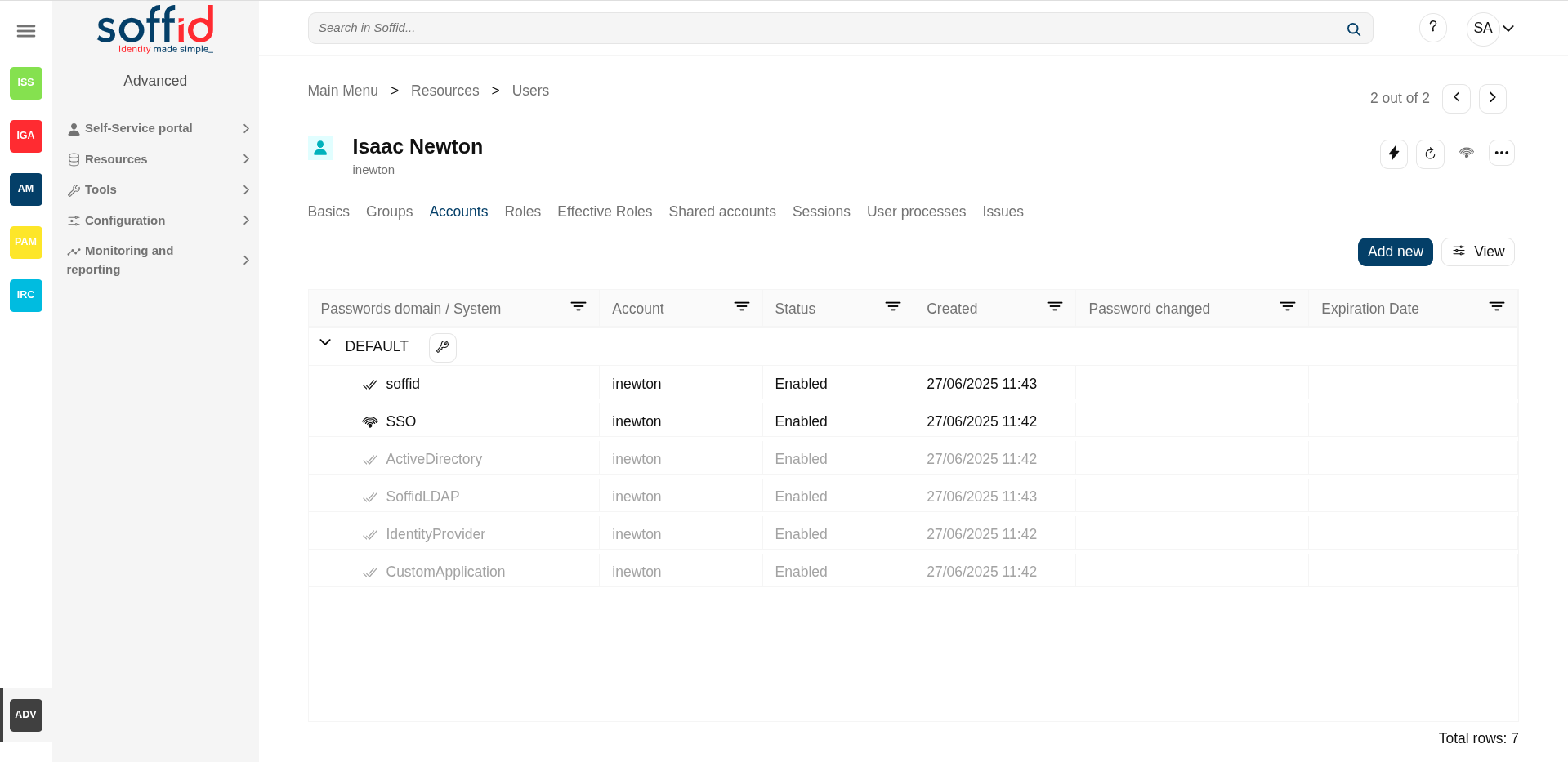](https://bookstack.soffid.com/uploads/images/gallery/2025-06/bKfkOrpwwB1ioZwv-image.png)
#### Roles
A role is a collection of permissions that can be granted to a user. With these permissions, the user will access to another system and perform some operations.
On the roles tab, you can **assign** or **revoke** roles to any user. Each role needs an account to be applied to. So, if a user has no account on a system and a role on that system is granted, a new account will be created on this system. In case a user has more than one account on a system, you should indicate which of the suitable accounts will be granted the role.
More and more, when the role should be scoped, the operator must select the right **scope** for the role. The scope and its allowed values are defined on the information systems page.
By clicking on a record Soffid shows more information about the role, this information can not be updated. On this screen, you can browse through the different roles.
It is also possible to revoke the role to the user from the entitlement details or by selecting one or more records from the list and clicking the button with the subtraction symbol.
The roles list shows a column to display when there are risks with the roles assigned to the user. If you click on a record, Soffid will show the entitlement details including the SoD rules with the detail of the risk.
For more information about **SoD** visit the [Segregation of Duties](https://bookstack.soffid.com/books/soffid-4-reference-guide/page/segregation-of-duties "Segregation of Duties")
Additionally, you can download a CSV file with the user's role information, or upload a CSV file to assign or revoke roles to the user.
Image
[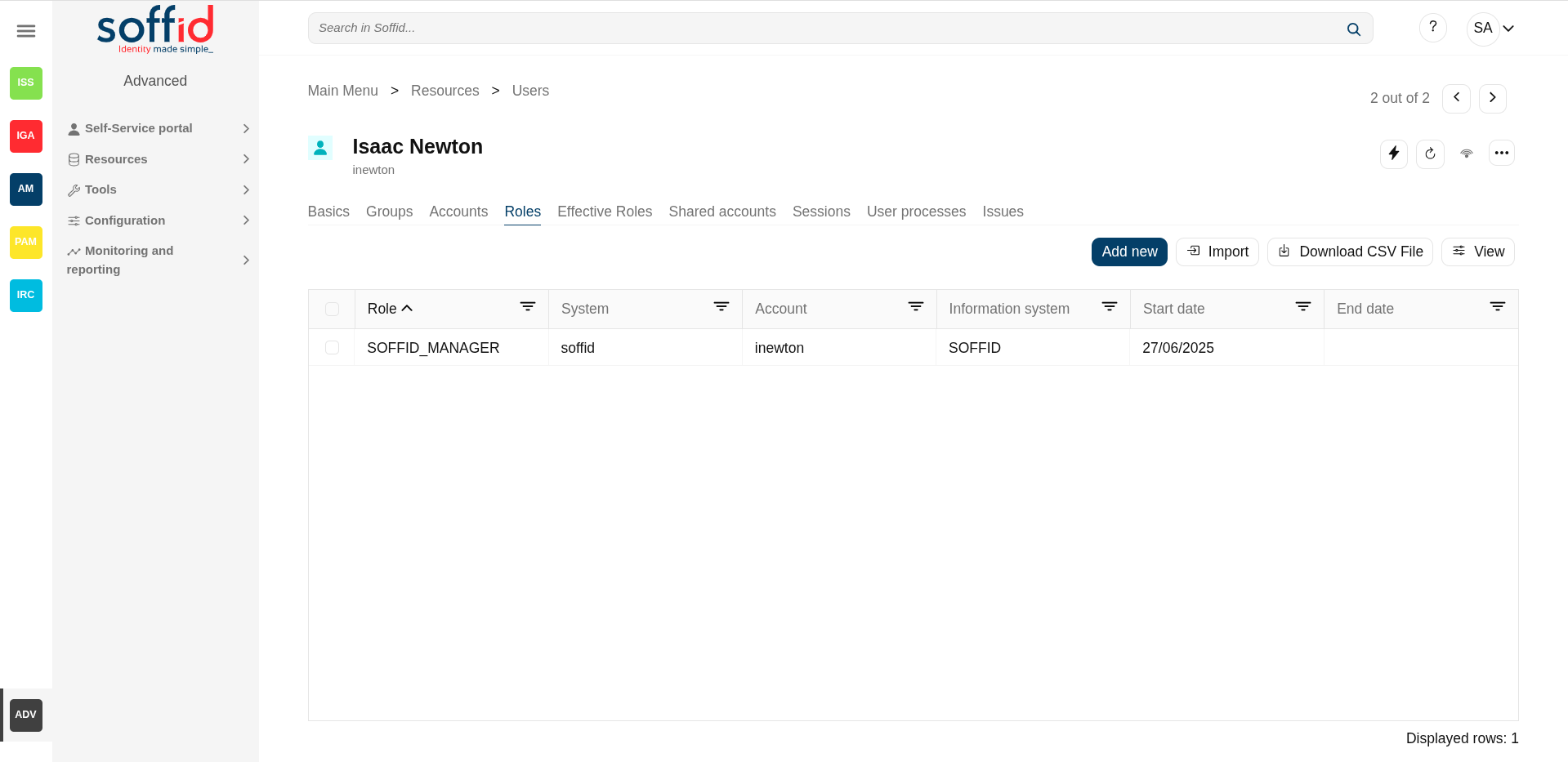](https://bookstack.soffid.com/uploads/images/gallery/2025-06/fEnOvJ3DrKItau2A-image.png)
#### Effective Roles
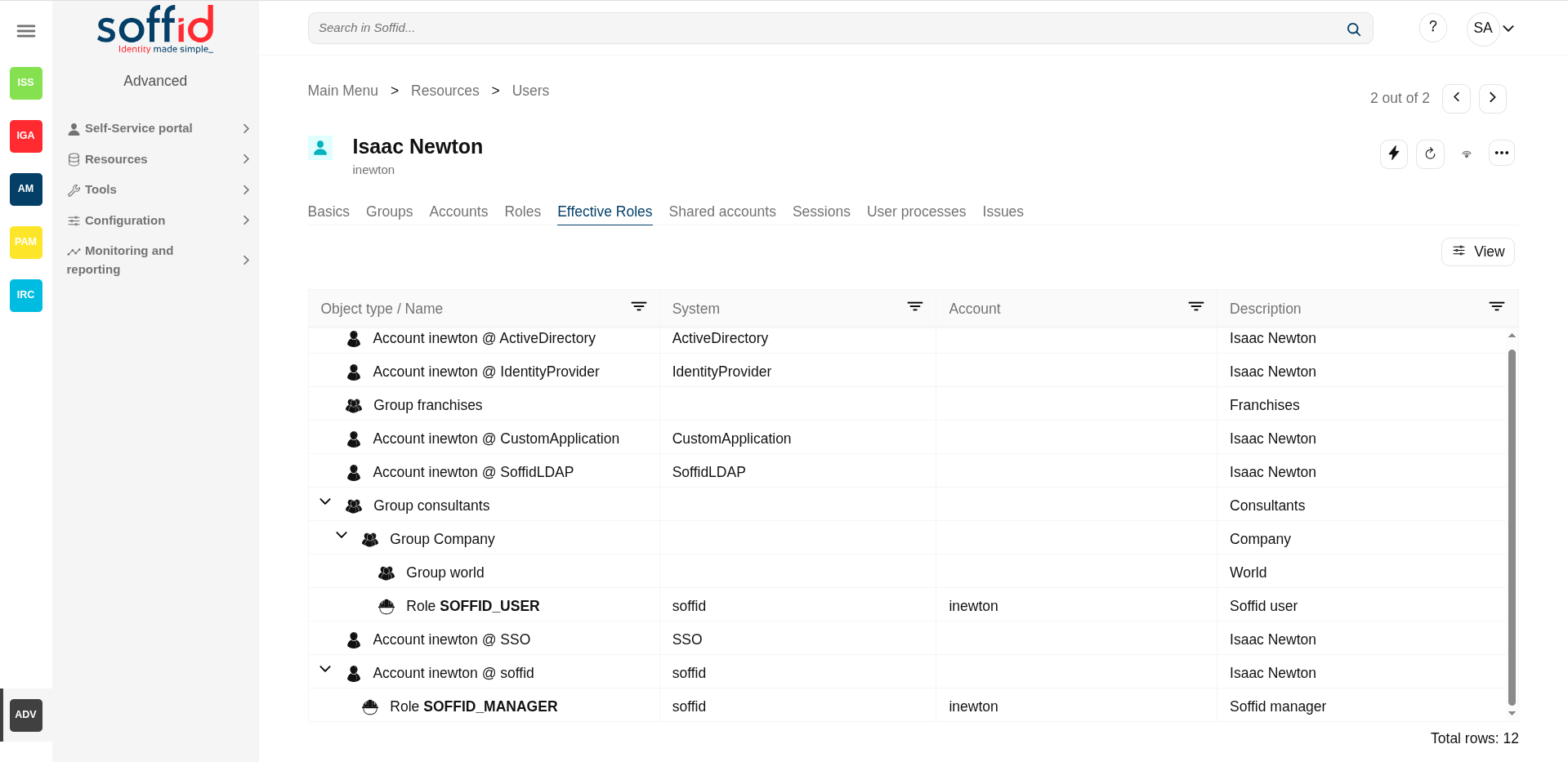
Hierarchy of permissions assigned to or inherited.
This page details the effective roles of the selected user. Effective roles are all roles assigned to a user either directly or indirectly.
- **By direct assignment of the role**: when you assign a role to a user, you are assigning to the user all the permissions defined for that role.
- **By belonging to a role**: A role can have inherited roles. Roles assigned to a user through another role cannot be revoked. To remove them, you must revoke the parent role or remove this role from the inheritance configuration.
- **By belonging to a group**: when you add a user to a group, the user will have all the roles assigned to the group
- **By rules defined in the system**: when a rule is satisfied for a user, the system assigns the roles defined in the rule to the user.
Image
[](https://bookstack.soffid.com/uploads/images/gallery/2025-06/HhWyR7UarEgtKyJM-image.png)
#### Shared accounts
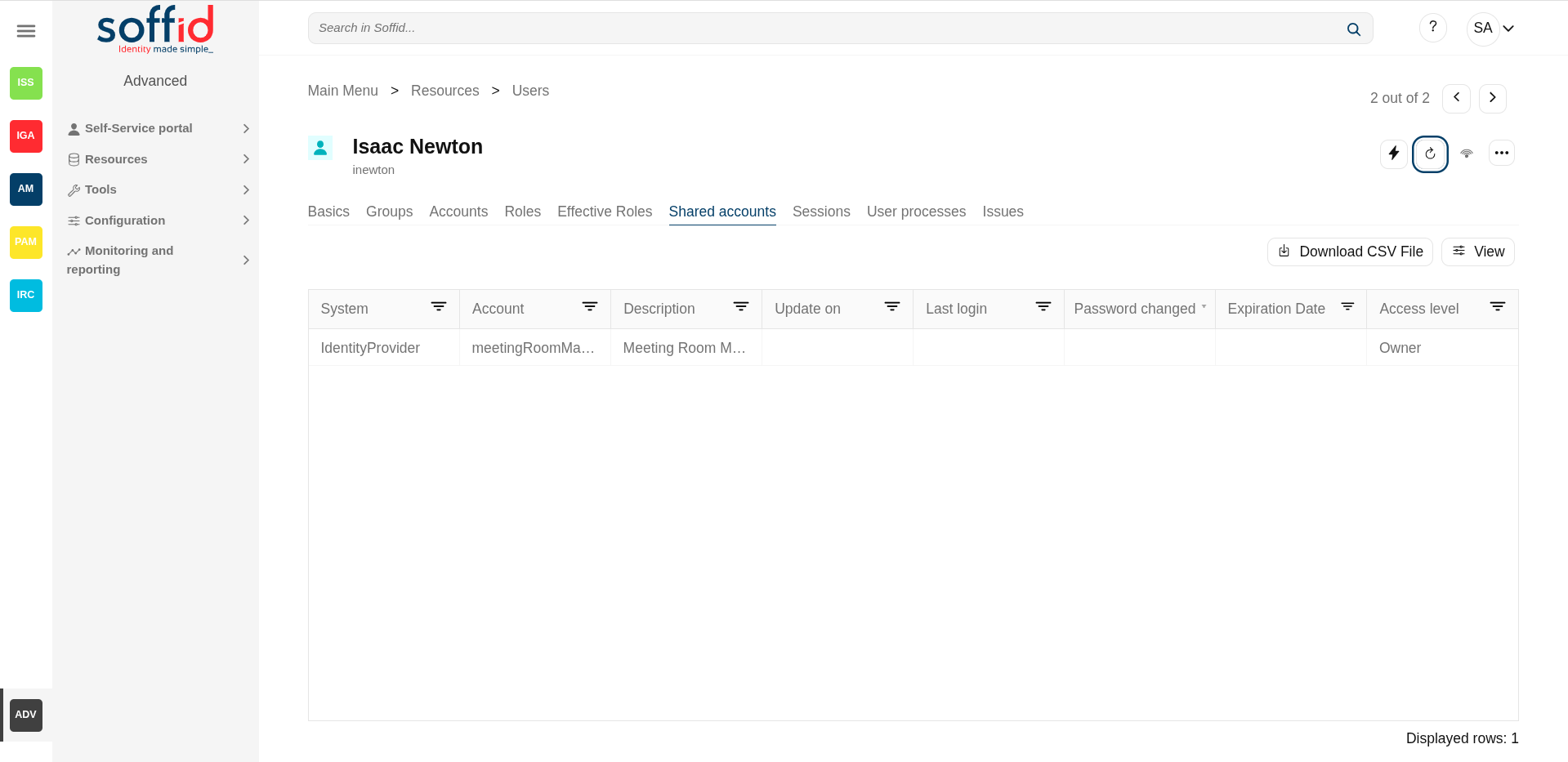
Accounts that can be used by several users, those accounts can be privileged or shared.
On the shared account tab, you can see all shared user accounts. You can view information about the system, the account, the date of update, when was the last login, when the password was changed, and the expiration date.
By clicking on a record, you can browse the share account details page.
Image
[](https://bookstack.soffid.com/uploads/images/gallery/2025-06/xHRHN3DFGGL076mr-image.png)
#### Sessions
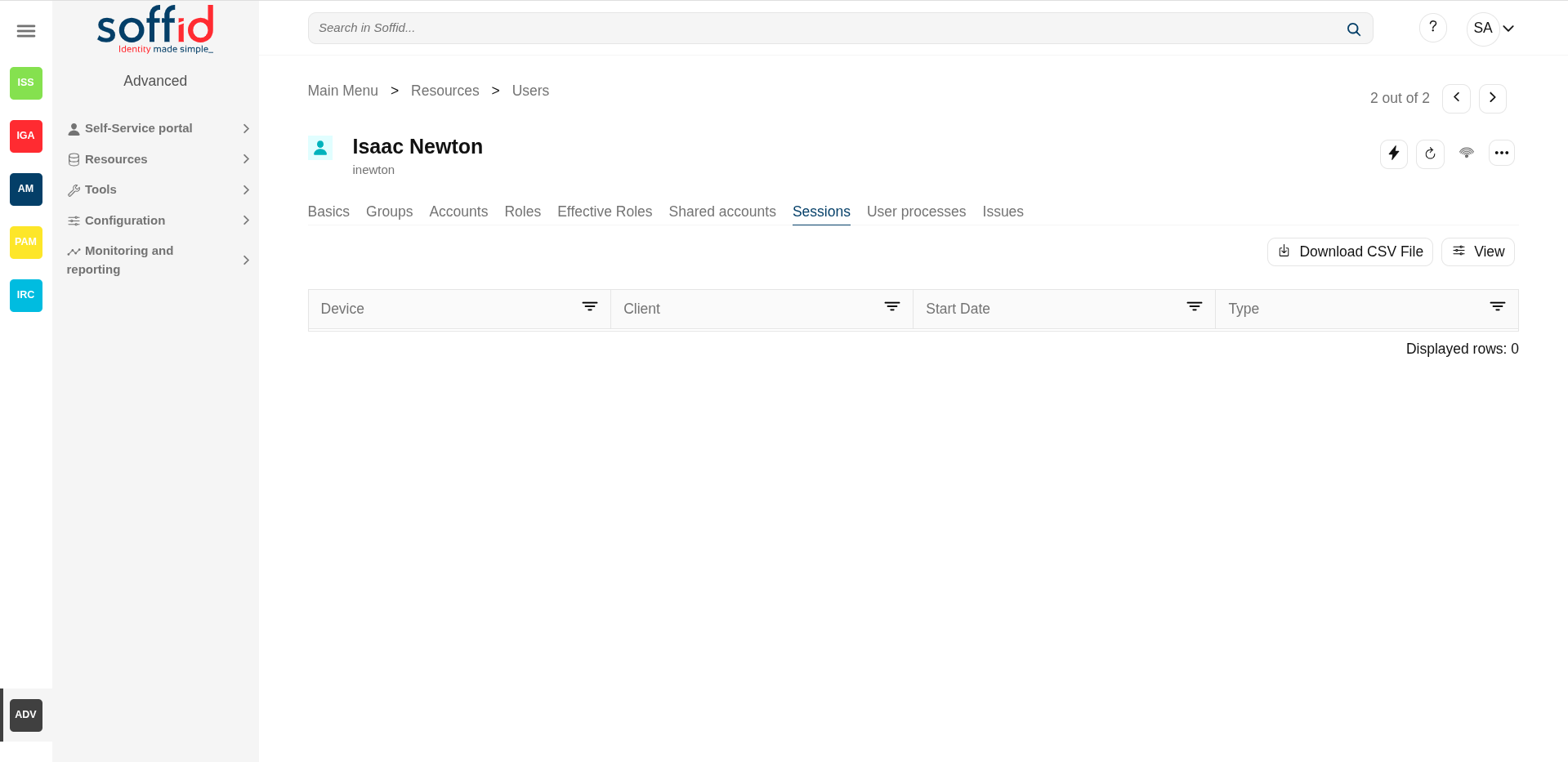
On the sessions tab, you can view sessions opened by the user.
Here will be displayed any open **ESSO session**, showing the host that has created the session and the host where the user is connected from, if applicable. The port number is the TCP/IP port number the ESSO session manager is listening to. It is used by the synchronization server to check for session validity.
##### ESSO Integration
Multi-session attribute: ESSO will prevent any user from having more than one session at a time unless it has the multisession attribute checked.
If ESSO detects the user trying to log in has an active session, it will do the following job:
- The previous session will be noticed of such a duplicate session.
- The new session will have the choice to:
- Give up and not log in.
- Wait until the previous session is closed.
- Force the previous session to log out. If the user selects to close the remote session, the remote user will still have the chance to accept or reject such action.
No user with an active flag unchecked will be allowed to log in or use any system managed through ESSO.
Image
[](https://bookstack.soffid.com/uploads/images/gallery/2025-06/GUgVl5zeIjo6hRRQ-image.png)
#### User Processes
In the user processes tab you can view the business processes in which the user has been managed.
It shows information about the process, the status process and when it was initiated and ended.
Mind that this page does not displays the business processes where the user has acted.
In the Issues tab, Soffid displays all the issues in which the user is involved.
If you click one issue, Soffid will display the issue detail and will allow you to perform any available operation if you have the proper permissions to do that.
For more information, you can visit the [Issues](https://bookstack.soffid.com/books/soffid-4-reference-guide/page/issues "Issues") page.
In the Tokens tab, you can manage the user tokens.
You can add or delete the users' tokens. Currently, the available options are **Certificate**, the **FIDO token** and the **Soffid authenticator**.
##### Certificate
If you select the certificate option, you only need to register the certificate **description**. Then Soffid will read the existing certificates registered into Soffid, at the [Digital certificates](https://bookstack.soffid.com/books/soffid-4-reference-guide/page/digital-certificates-addon-federation "Digital certificates") page, and finally, Soffid will give you a p12 file and a password to install the certificate in the browser.
If there are no registered certificates, Soffid will not allow you to add new certificate tokens for any user.
##### FIDO token
If you select the FIDO token option, you need to full fill in the following data:
- **Identity provider**: You need to select one Identity provider from the available list.
- **Registration method**: Soffid offers three different registration methods. To use one of them you will need to insert and touch the FIDO key to create a new token.
- **Register now**: Soffid allows you to register a new FIDO key related to a specific user. Once you select this option, you need to register the FIDO key, and Soffid automatically will register the key related to the user.
- **Generate secure link**: Soffid generates a secure link related to a specific user to register. You can follow the link and then register the FIDO key. Once you register the FIDO key, you can close this page. You only need to register the FIDO key and this page will close automatically.
- **Generate insecure link**: Soffidl will generate an insecure link, this link is not related to any user. Then you need to browse to the insecure link and type the user name, and then the password. Finally, you need to register the FIDO key. Once you register the FIDO key, you can close this page.
You can use the Generate secure or insecure link option to send it to users to complete the registration process.
When you register a FIDO token, this will be displayed on the proper user "My certificates and FIDO tokens" page and it will be available for this user.
##### Soffid authenticator
If you select Soffid authenticator option, you will need to install the Soffid token app and then open the URL or scan the QR code with this app.
#### Backups (addon backup)
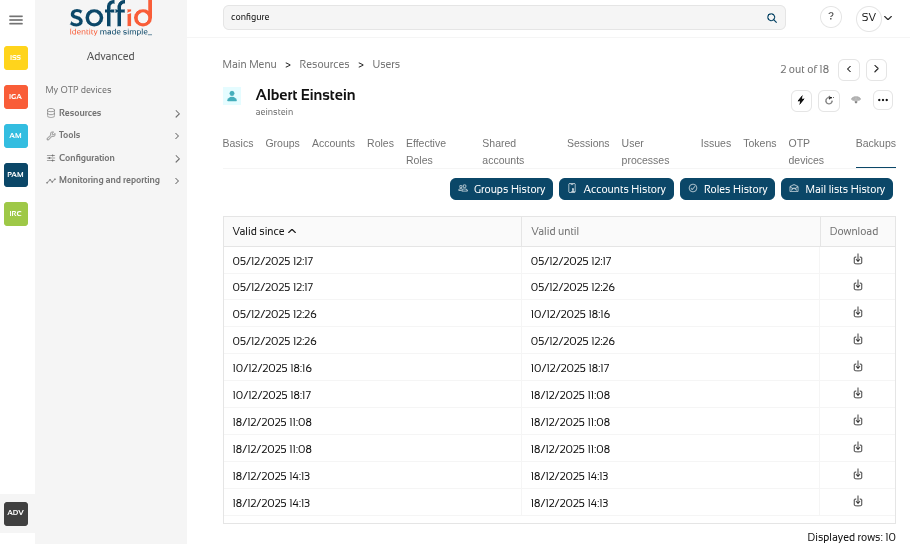
The backup functionality is available when the backup addon is loaded in the Soffid Console. By clicking on the Backups tab, Soffid will display all the snapshots available for the user, and you could restore what you need.
Image
[](https://bookstack.soffid.com/uploads/images/gallery/2025-12/C6Bo1aSREv8Zm2O3-image.png)
You can also check other available snapshots by clicking on the hamburger icon and a specific option. Those are the options:
##### Groups History
You can check all the group history changes for a specific user, and decide if you want to restore an earlier versión.
Image
[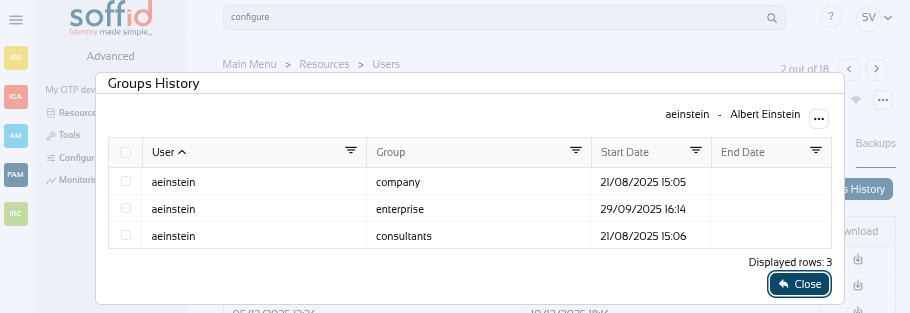](https://bookstack.soffid.com/uploads/images/gallery/2025-12/07CpfNBqhXaDT0kN-image.png)
##### Accounts History
You can check all the account history changes for a specific user, and decide if you want to restore an earlier versión.
Image
[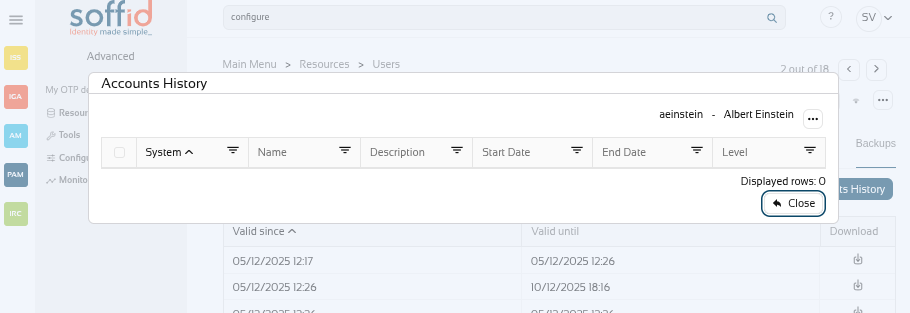](https://bookstack.soffid.com/uploads/images/gallery/2025-12/xzBvlp4MqsaVeLBe-image.png)
##### Roles history
You can check all the role history changes for a specific user, and decide if you want to restore an earlier versión.
Image
[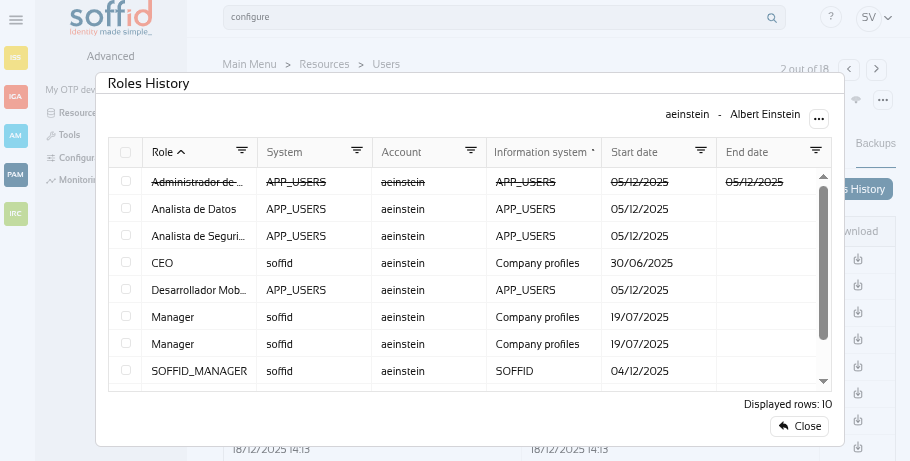](https://bookstack.soffid.com/uploads/images/gallery/2025-12/nYdxXb8sXpDuZuot-image.png)
##### Mail list history
You can check all the mail list history changes for a specific user, and decide if you want to restore an earlier version.
Image
[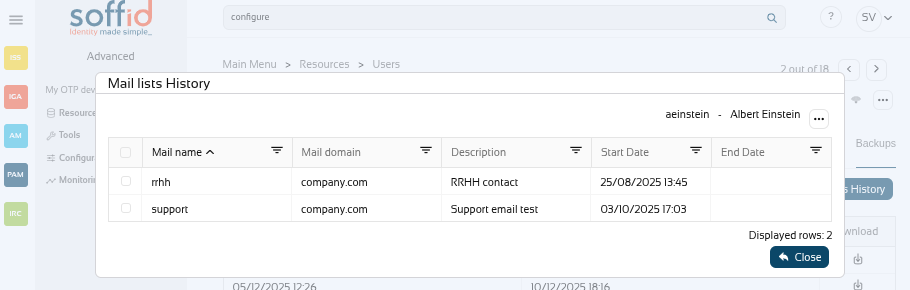](https://bookstack.soffid.com/uploads/images/gallery/2025-12/VKzT28zhT4sjEhEJ-image.png)
##### Download CSV file
Allows you to download a CSV file with the data of all backups.
#### OTP devices (addon otp)
In the OTP devices tab, Soffid displays all the OTP devices configured by this user. For each OTP device, Soffid displays the info about the name, the created date, the last time used, and the status. Soffid allows you to manage all the OTP devices for each user.
By clicking on a record, Soffid shows OTP device details, including the failed number. It is also possible to change the status.
This option will only be available if the OTP addon is installed in the Soffid console.
#### Pending tasks
When a user has pending tasks, an icon will be appearing at the right corner. If the status of pending tasks is "Error", the icon will be a highlight alert icon, if the status is "Pending", the icon will be a wifi icon.
That window displays the most relevant task data, the task name, the agent that manages the task, the status task, and the schedule to will be executed, ... That pending task information is only available in consultation mode.
## Actions
### Users query actions
**"Query"**
Allows you to query users through different search systems, [Quick, Basic and Advanced](https://bookstack.soffid.com/books/soffid-3-reference-guide/page/search-types "Search Types").
**Add new**
Allows you to add a new user in the system. To add a new user it will be mandatory to fill in the required fields
**Delete**
Allows you to remove one or more users by selecting one or more records and next clicking the button with the subtraction symbol (-).To perform that action, Soffid will ask you for confirmation, you could confirm or cancel the operation.
**Download CSV file**
Allows you to download a CSV file with the basic information of all users.
**Import**
Allows you to upload a CSV file with the user list to add or update users to Soffid. First, you need to pick up a CSV file, that CSV has to contain a specific configuration. Then you need to check the content to be loaded, it is allowed to choose if you want or not to load a specific attribute. And finally, you need to select the mappings for each column of the CSV file to import the data correctly and click the Import button.
**Bulk actions**
Allows massive operations to be performed on all system users. With that operation, updates can be made to any of the user's parameters. First of all, you must select the records that you want to update, once you have selected them, you must choose the bulk action on the hamburger icon. For more information visit the [Bulk action page.](https://bookstack.soffid.com/books/soffid-3-reference-guide/page/bulk-actions "Bulk actions")
**Merge**
Allows you to merge two or more identities when you identify that is necessary.
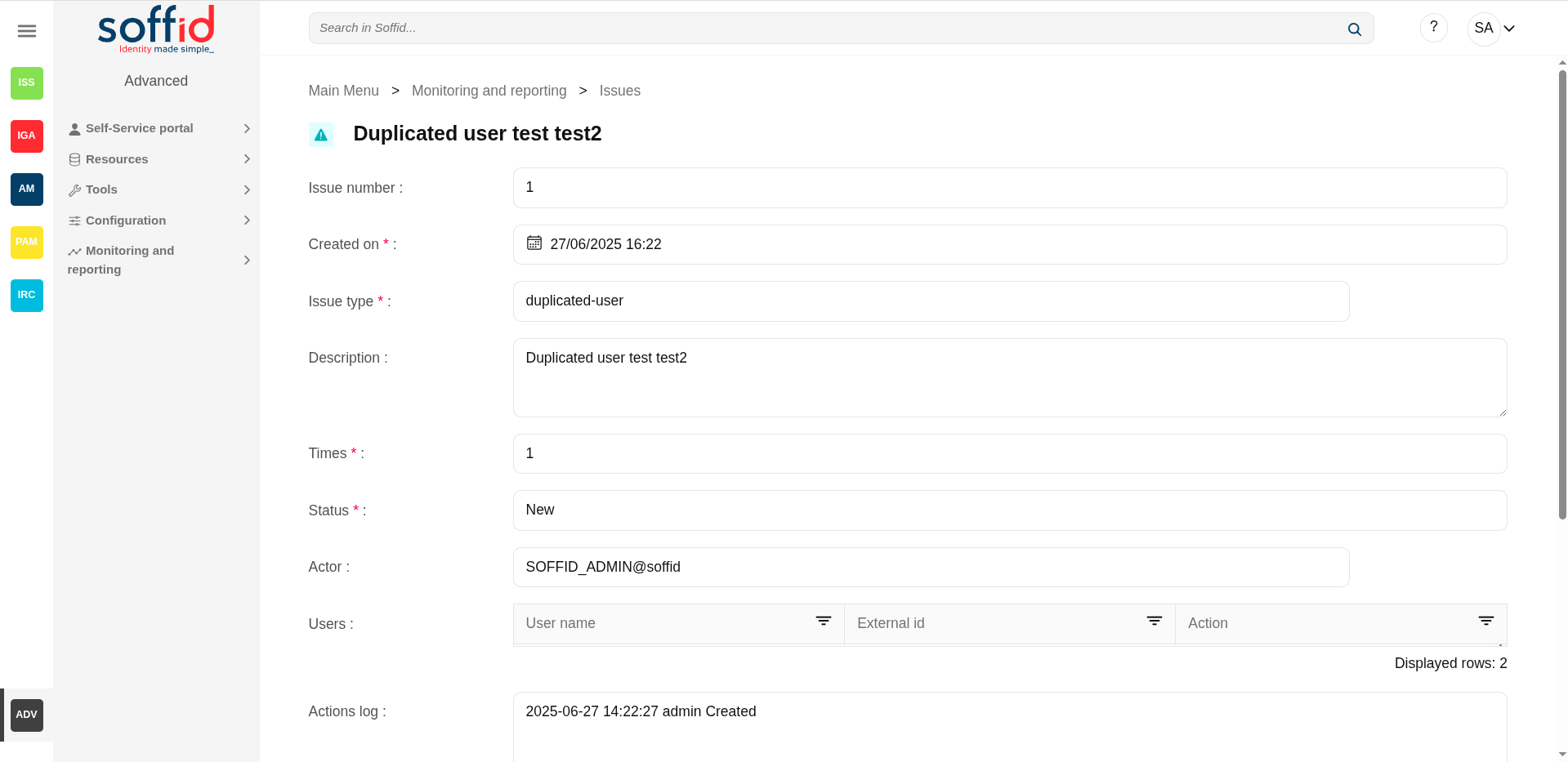
First of all, you must select the identities to merge. Second, you need to click the hamburger icon and select the merge action. Then Soffid will display a window where you can choose if you want to merge right now, if you want to create an issue, or if you want to quit without applying any changes.
💻 Image
[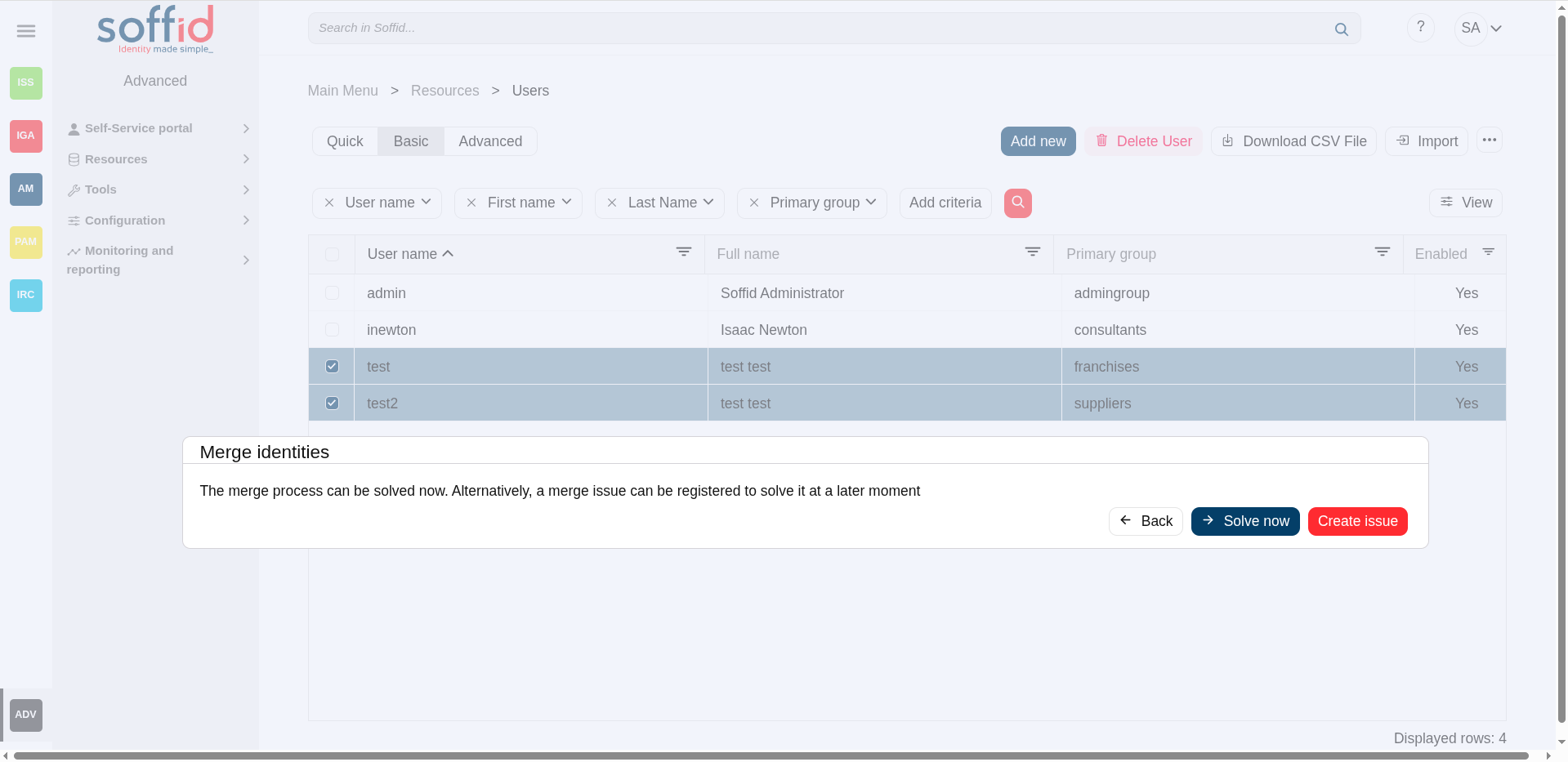](https://bookstack.soffid.com/uploads/images/gallery/2025-06/amFTK63MK0lHtzPV-image.png)
- If you select **Solve now**, Soffid will display a new window where you can choose the correct value for each standard and custom parameter. Finally, you need to apply changes to save the updates, or back to cancel that action.
💻 Image
[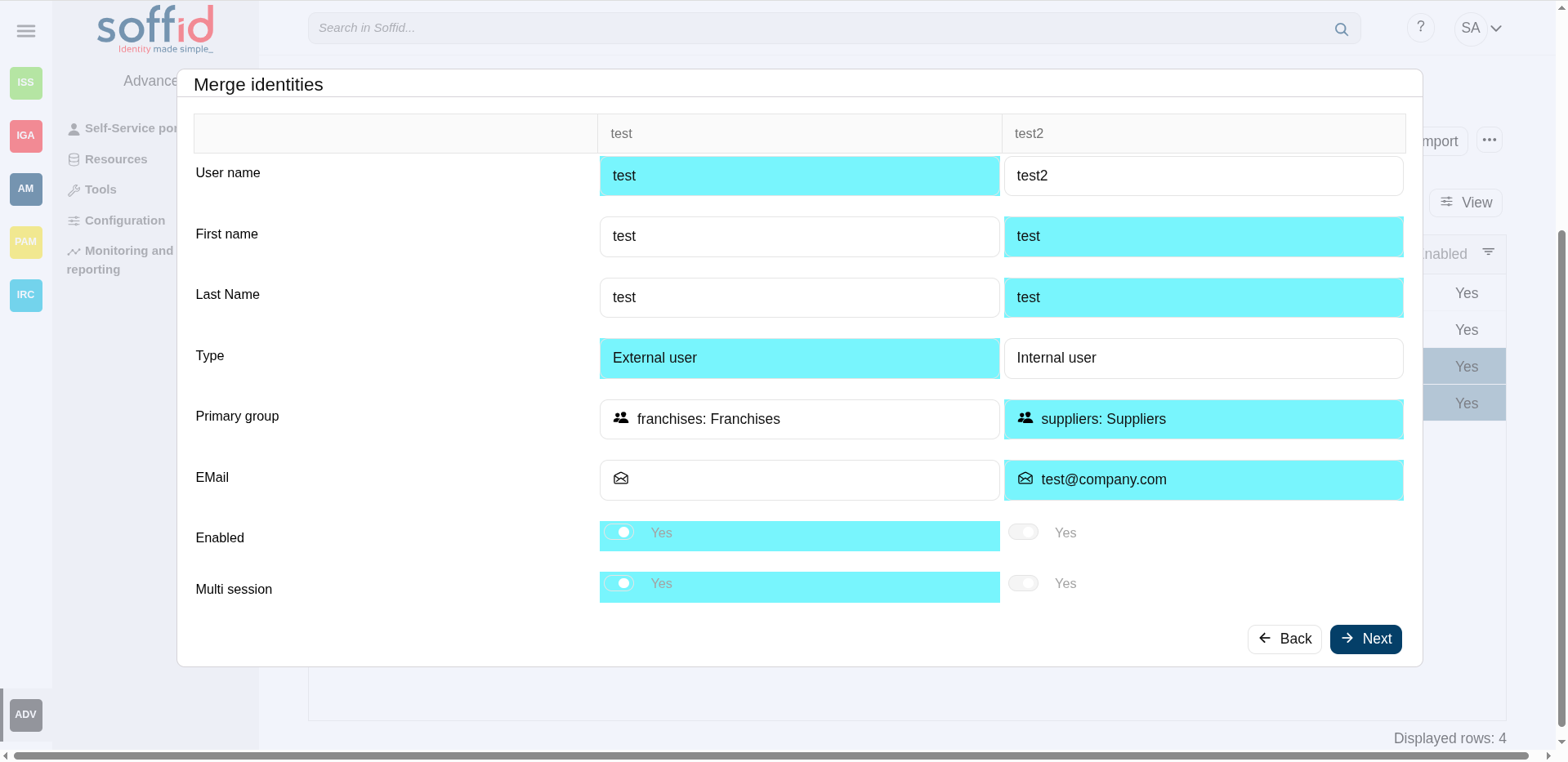](https://bookstack.soffid.com/uploads/images/gallery/2025-06/E1nsUWb41KedBMtE-image.png)
- If you select **Create** **issue**, Soffid will create an issue that you could check[ the issues page](https://bookstack.soffid.com/books/soffid-3-reference-guide/page/issues) for more information.
💻 Image
[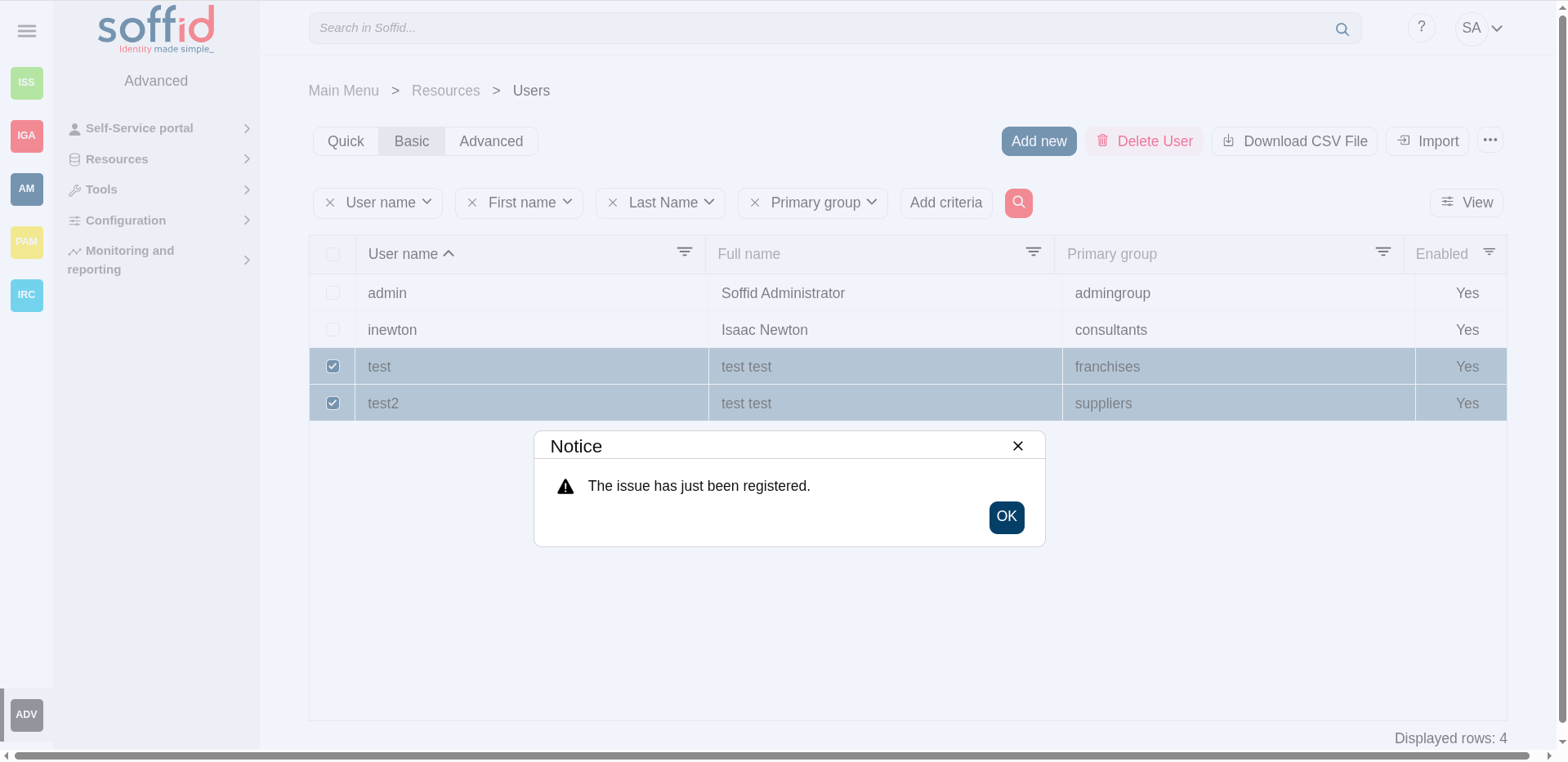](https://bookstack.soffid.com/uploads/images/gallery/2025-06/fBHEGiVnOU1CROMz-image.png)
[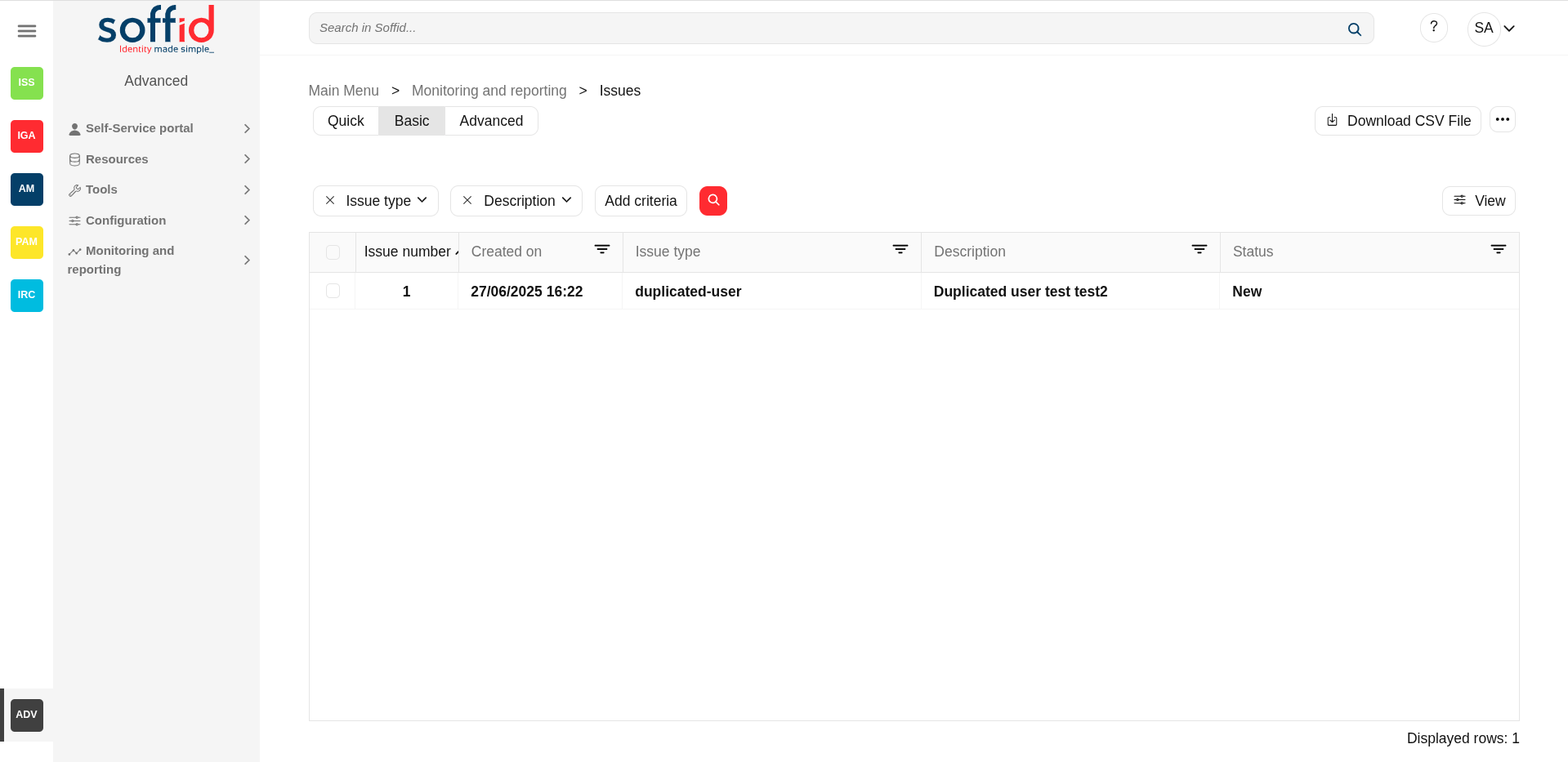](https://bookstack.soffid.com/uploads/images/gallery/2025-06/66w9HjxqnOWe5O9b-image.png)
[](https://bookstack.soffid.com/uploads/images/gallery/2025-06/ZHtExzAoy9puv5o9-image.png)
**View**
Allows you to show and hide columns in the table.
You can also set the order in which the columns will be displayed.
### User detail actions
**Synchronize to target systems**
Allows you to propagate the user changes to the repository systems configured. It is only necessary when the task engine mode is configured as Manual, but you can also do it when the engine is in automatic mode. Visit the [smart engine setting](https://bookstack.soffid.com/books/soffid-4-reference-guide/page/smart-engine-settings "Smart engine settings") page for more information.
**Refresh**
Allows you to refresh all the user information.
**Apply changes**
Allows you to save the data of a new user or to update the data of a specific user. To save the data it will be mandatory to fill in the required fields.
When you apply changes, automatically they will be forwarded to target systems.
**Delete user**
Allows you to remove a specific user. You can choose that option on the hamburger icon.
To perform that action, Soffid will ask you for confirmation, you could confirm or cancel the operation.
**Printers**
List the printers of the user
**Audit**
Browse to the [Audit](https://bookstack.soffid.com/books/soffid-3-reference-guide/page/audit "Audit") page and display all the detailed actions performed over the user. It is allowed to filter the information displayed and also to download a CSV file with the audit information.
**Access logs**
Browse to the [Logs](https://bookstack.soffid.com/books/soffid-3-reference-guide/page/access-logs "Access logs") page and display all the detailed logs about the user actions. It is allowed to filter the information displayed and also to download a CSV file with the logs information.
**Expand all**
Displays all the attributes of the different blocks.
**Collapse all**
Hide all attributes of the different blocks.
**"Types of views"**
Change the view type: Classic view, Modern view, Compact design.
**Undo**
Allows you to quit without applying any changes.
#### Groups actions
##### Group query actions
**Add new**
Allows you to add a new group membership. Select a group the user will belong to it. Next, you need to define, if it is necessary the membership properties. And finally, you need to apply changes.
**Delete secondary group**
Allows you to delete group membership. To perform that action, Soffid will ask you for confirmation, you could confirm or cancel the operation.
**View**
Allows you to show and hide columns in the table.
You can also set the order in which the columns will be displayed.
##### Group detail actions
**Delete**
Allows you to delete a group membership. To perform that action, Soffid will ask you for confirmation, you could confirm or cancel the operation.
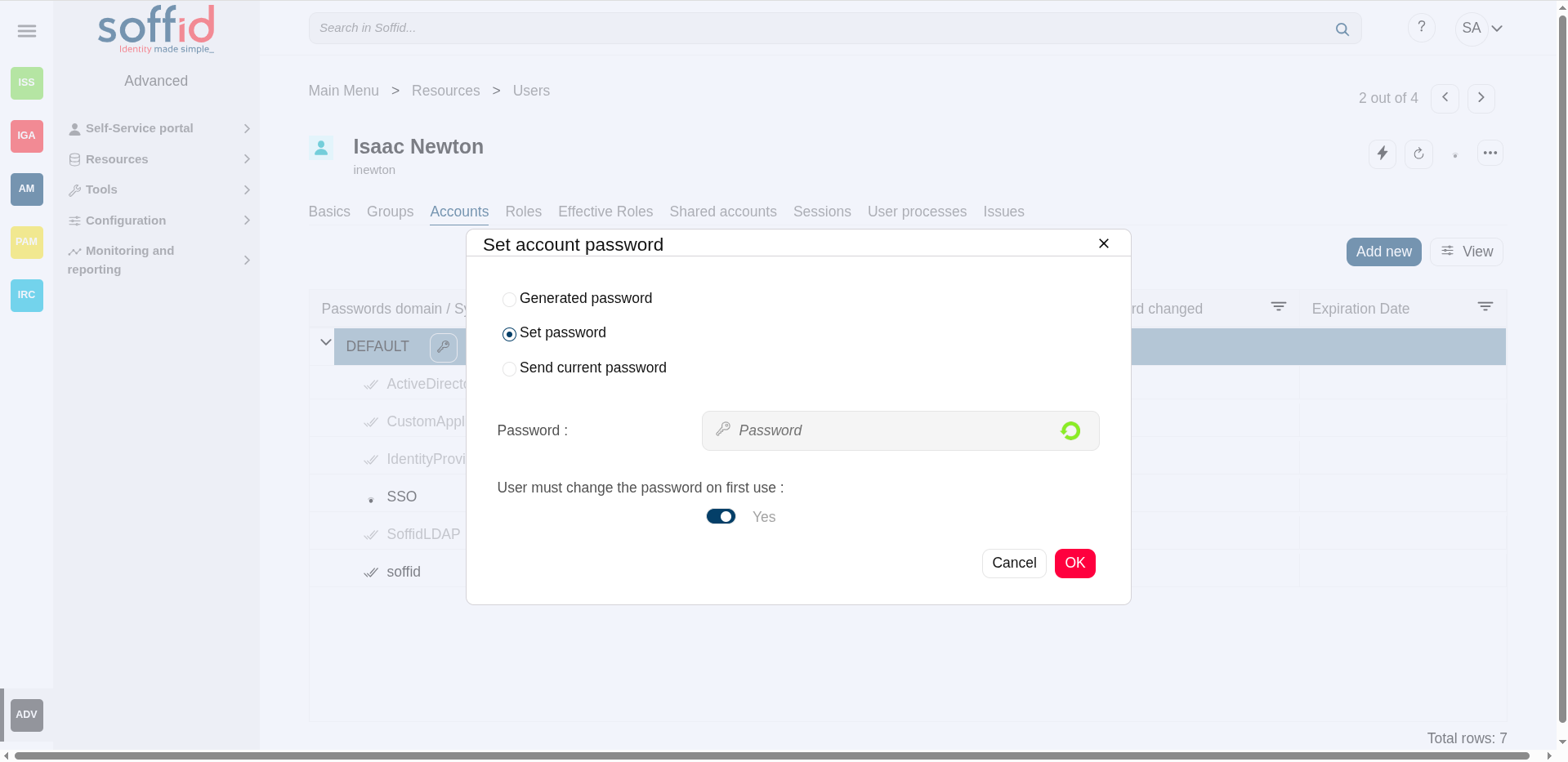
Allows you to change the password for the accounts of a password domain.
- Generated password: the password is generated automatically by soffid.
- Set Password: admin user can set the password and check the option that requires the end-user must change the password on first use.
- Send current password: soffid sends the current password to the target systems.
💻 Image
[](https://bookstack.soffid.com/uploads/images/gallery/2025-06/GULJeLS9qzVVmipk-image.png)
It will be mandatory the password complies with the [Password policies](https://bookstack.soffid.com/books/soffid-4-reference-guide/page/password-policies "Password policies") defined for the domain.
**Add new**
Allows you to add a new account for a user and a specific target system.
First of all, you need to select the target system, then Soffid will show the target system name and the account name. The account name could be updated, but always with an account name which no be already in use on the target system. Then you need to choose the account status and finally, you can set the system properties. That properties depend on the target system and do not be mandatory.
**View**
Allows you to show and hide columns in the table.
You can also set the order in which the columns will be displayed.
##### Accounts detail actions
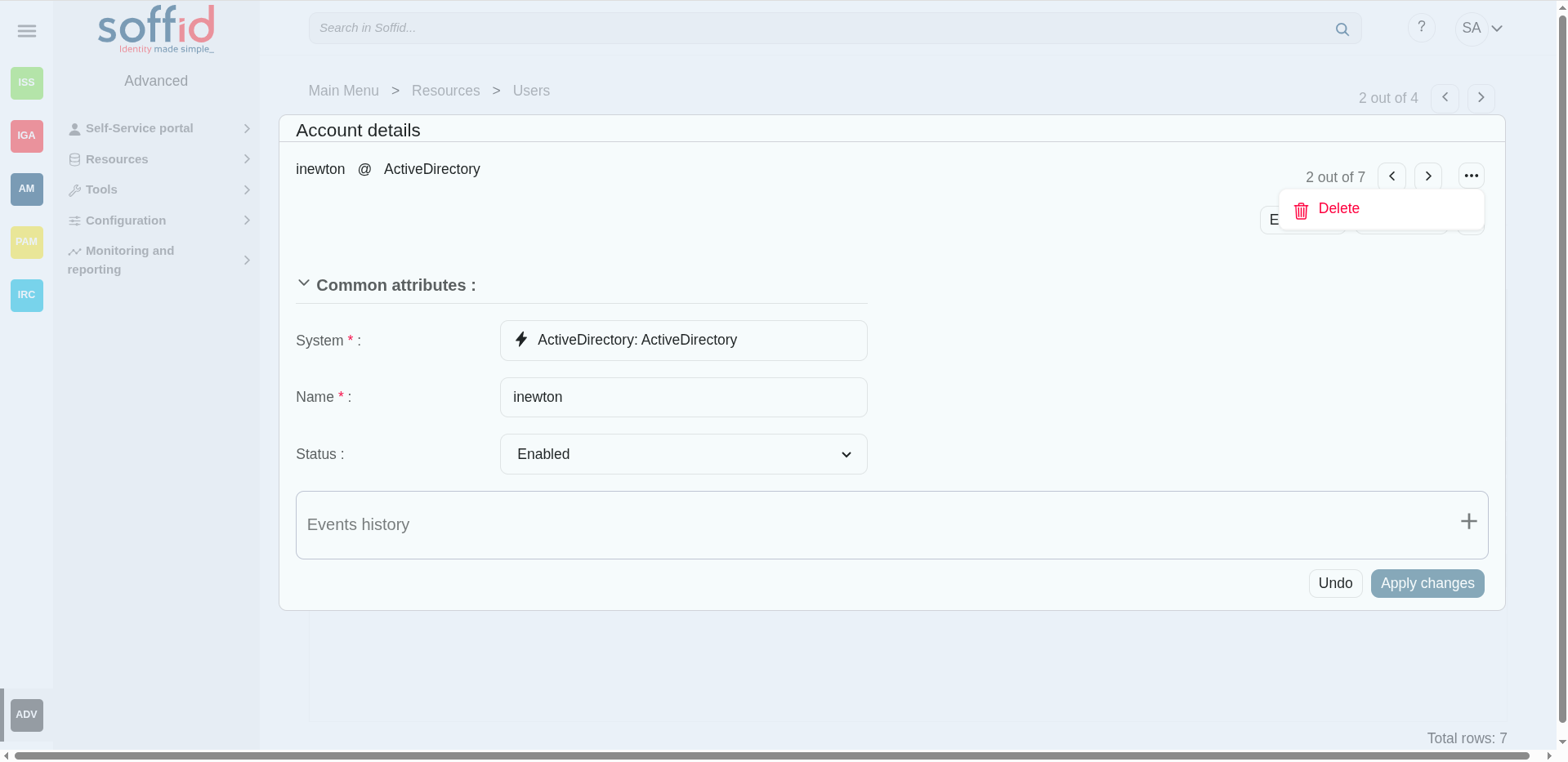
**Delete**
Once you are in the rename account modal, by clicking on the hamburger icon, you could choose the delete option. This option will delete the account selected.
💻 Image
[](https://bookstack.soffid.com/uploads/images/gallery/2025-06/hpdpUCN1TKZclJJr-image.png)
**Show actual account properties**
Once you are in the rename account modal, by clicking on the hamburger icon, you could select this option. When you click this option, Soffid will display a modal with all the info about this account in the target system.
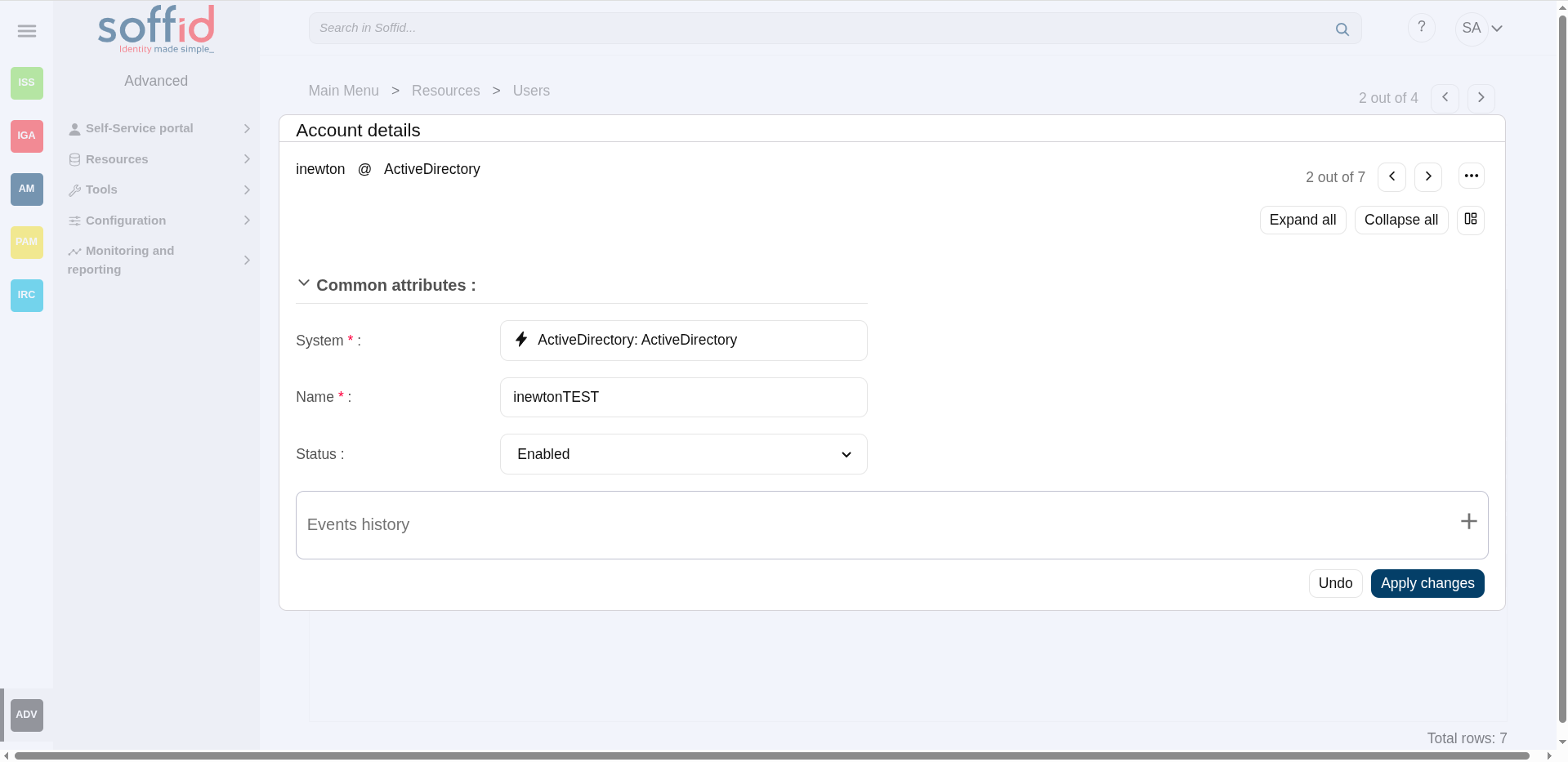
**Apply changes**
Allows you to save the updates of the account. You can change the name and status of the account. Also you can check the events history.
💻 Image
[](https://bookstack.soffid.com/uploads/images/gallery/2025-06/Jx1CIpdNKFV6naEP-image.png)
**Undo**
Allows you to quit without applying any changes.
#### Roles actions
##### Roles query actions
**Add new**
Allows you to assign a new role to the user. Select a role from the role list. If it is necessary, the next step will be to set the scope. Then you need to check and fill in the membership properties. And finally, apply changes.
**Delete role**
Allows you to revoke one by one or to revoke some roles at the same time.
To revoke some roles at the same time, you need to select the roles, and then click the button with the subtraction symbol (-).
To revoke one role, you can click the role, and then Soffid will show a form with the details. Then you can click the delete button (trash icon).
Soffid will ask you for confirmation to perform that action, you could confirm or cancel the operation.
**Import**
Allows you to upload a CSV file with the role list to assign permission.
First, you need to pick up a CSV file, that CSV has to contain a specific configuration. Then you need to check the content to be loaded, it is allowed to choose if you want or not to load a specific attribute. And finally, you need to select the mappings for each column of the CSV file to import the data correctly and click the Import button.
**Download CSV file**
Allows you to download a CSV file with all the information about user roles.
**View**
Allows you to show and hide columns in the table.
You can also set the order in which the columns will be displayed.
##### Role detail action
**Delete role**
Allows you to revoke a role. Click the delete button (trash icon).
Soffid will ask you for confirmation to perform that action, you could confirm or cancel the operation.
#### Shared accounts
**Download CSV file**
Allows you to download a CSV file with all the information about user shared accounts.
**View**
Allows you to show and hide columns in the table.
You can also set the order in which the columns will be displayed.
#### Sessions actions
**Download CSV file**
Allows you to download a CSV file with all the information about sessions.
**View**
Allows you to show and hide columns in the table.
You can also set the order in which the columns will be displayed.
#### User processes actions
**Download CSV file**
Allows you to download a CSV file with all the information about the user processes.
**View**
Allows you to show and hide columns in the table.
You can also set the order in which the columns will be displayed.
#### Issues actions
**Download CSV file**
Allows you to download a CSV file with all the information about the user issues.
**View**
Allows you to show and hide columns in the table.
You can also set the order in which the columns will be displayed.
#### Tokens actions
**Add new**
Allows you to add a new token. To add a new token device you need to click the add button (+), then Soffid will display a wizard to config the token. First of all, you need select the token Type and then Apply changes.
**Delete token**
Allows you to delete one or more token for a specific user. To delete token first select the token, then click on the subtract button (-), then Soffid will ask you to confirm or cancel the operation.
#### OTP devices actions
**Add new**
Allows you to add a new OTP device. To add a new OTP device you need to click the add button (+), then Soffid will display a wizard to config the OTP device. First of all, you need select the OTP device Type and then Apply changes.
**Delete OTP device**
Allows you to delete one or more OTP devices for a specific user. To delete OTP devices first select the devices, then click on the subtract button (-), then Soffid will ask you to confirm or cancel the operation.
**Download CSV file**
Allows you to download a CSV file with all the information about the user OTP devices.
**View**
Allows you to show and hide columns in the table.
You can also set the order in which the columns will be displayed.
# Groups
## Description
Groups are a convenient way to apply policies to a collection of users. Groups allow administrator users to specify permission for multiple users in a quick and easy way. Groups are managed in a hierarchical way. A user can belong to a group, and that user will be assigned the roles of this group and all the roles that this group inherits from its parent.
Companies are organized in different ways as business units, departments, or workgroups. In Soffid, they all are named as groups.
Some systems, like Active Directory, use groups to control or restrict access to resources. A Soffid Group is more similar to an Active Directory organisational unit (ou) than to the group itself.
## Screen overview
[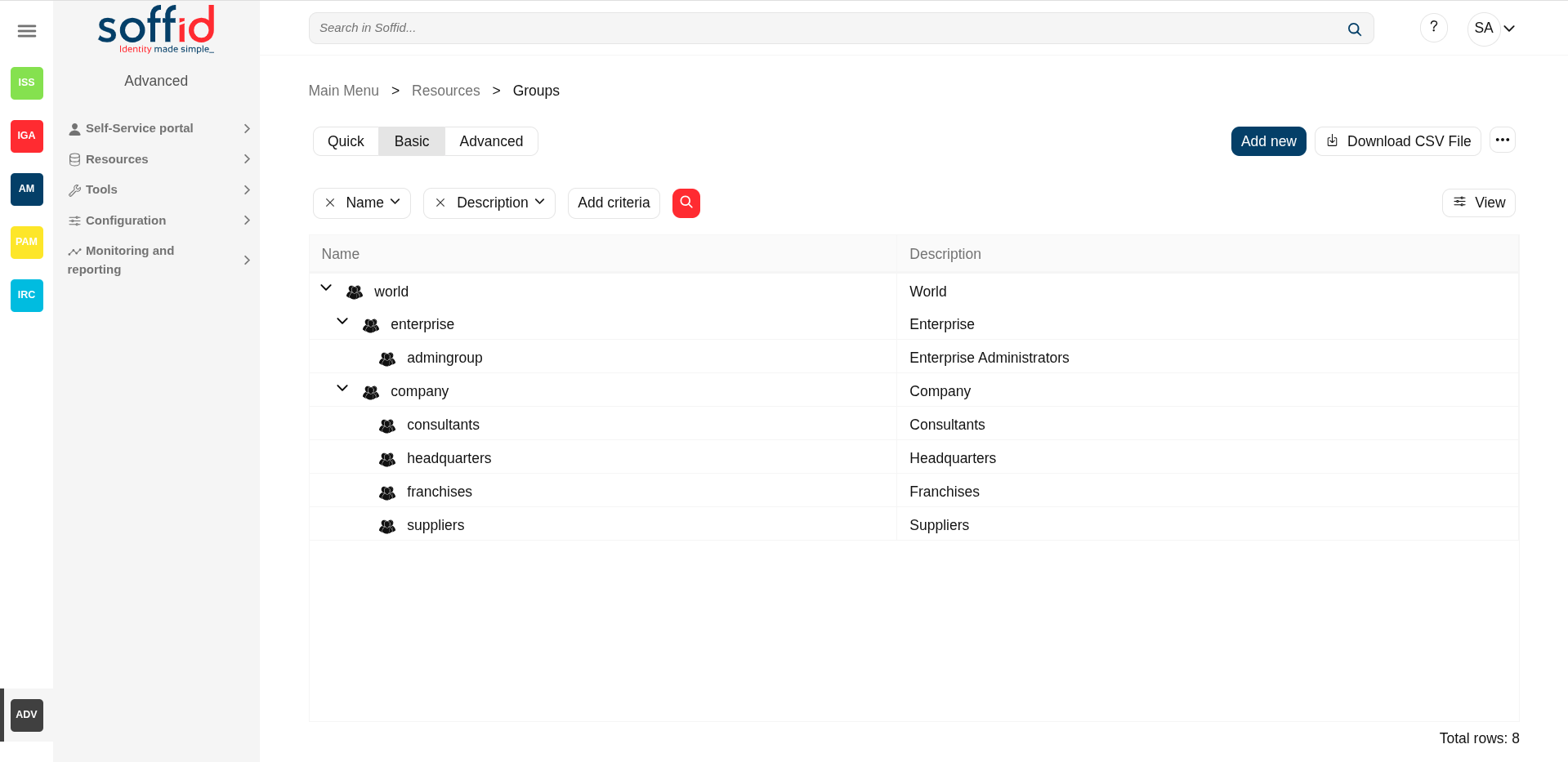](https://bookstack.soffid.com/uploads/images/gallery/2025-06/rO7USqtAGZaA7w2G-image.png)
[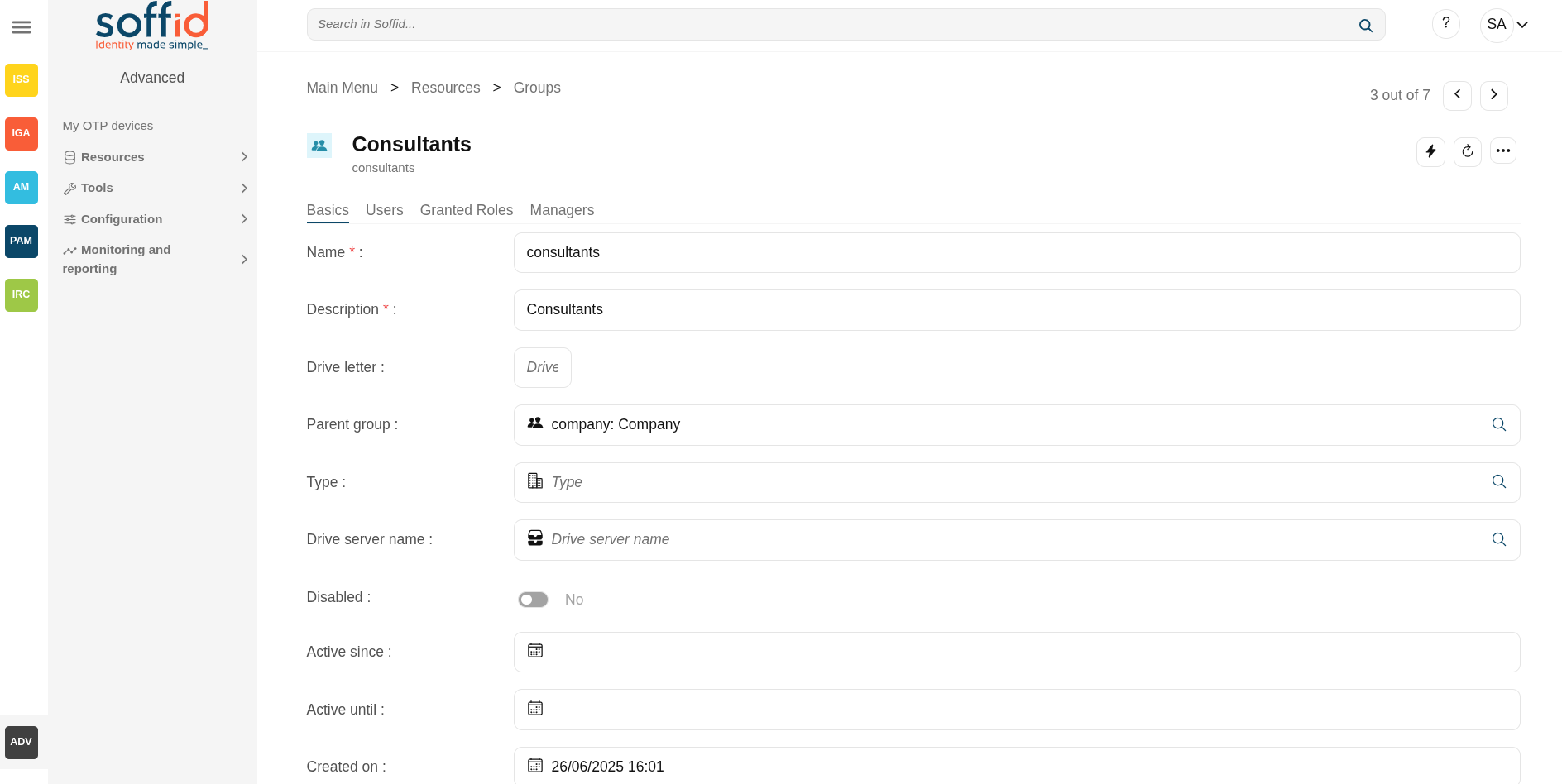](https://bookstack.soffid.com/uploads/images/gallery/2025-08/jhrxnYzTc0JyFYgP-image.png)
## Related objects
- [Group types](https://bookstack.soffid.com/books/soffid-4-reference-guide/page/group-types "Group types") : a group can be a group type.
- [Hosts](https://bookstack.soffid.com/books/soffid-4-reference-guide/page/hosts "Hosts") : a group can have a drive server.
- [Users](https://bookstack.soffid.com/books/soffid-4-reference-guide/page/users "Users") : users belong a one or more groups
- [Roles](https://bookstack.soffid.com/books/soffid-4-reference-guide/page/roles "Roles") : a group can have granted roles
- [Authorizations](https://bookstack.soffid.com/books/soffid-4-reference-guide/page/authorizations "Authorizations") : related to a manager
## Standard attributes
#### Group table
Group attributes that you can select in the table:
- **Name**: short name to identify the group. The group name must be unique.
- **Description**: a brief description of the group.
- **Drive letter**: if specified, a shared folder for this user will be created. This shared folder can be mounted on ESSO hosts by using a startup script.
- **Parent group**: name of the parent within the hierarchy. Only the root group doesn't have value. Be in mind the groups have a tree structure.
- **Type**: a group can be categorized by organizational unit types. You have more information about [Group Type](https://bookstack.soffid.com/books/soffid-3-reference-guide/page/group-type "Group Type") page.
- **Drive server name**: the server where the shared folders can be located.
- **Disabled**: allows you to enable and to disable the group. When a group is disabled, the group's role hierarchy is no longer available to the group's users.
- Active since
- Active until
- Created on
- Created by
- Update on
- Updated by
#### Basic tab
On the basic group tab, you can view all the group attributes. It is allowed to add new groups, and update or delete existing groups.
The group attributes are the same than in the group table description.
💻 Image
[](https://bookstack.soffid.com/uploads/images/gallery/2025-06/9LRNuVcDsDrwFV2h-image.png)
#### Users tab
Administrator users can manage the users who belong to the group. These users will have assigned all the permissions granted to that group and permissions inherited from its parent.
On the user's tab, you can **add new** users to the group, you must select the user to add, and select the membership properties.
It is also allowed to delete one or more users from a specific group, you can do it from the group membership details or by selecting one or more records from the list and clicking the **delete user** button.
Additionally, you can **download a CSV file** with the user's information and you can also **upload a CSV file** to add new users or update existing users.
The attributes are same than in the user page:
- **User** : userName
- Full name
- Group type
- Created on
- Created by
- Updated on
- Updated by
- Common attributes
- User name
- First name
- Last name
- Middle name
- Organiztion
- Type
- Primary group
- Home server
- Profile server
- Mail service
- Email
- Mail alias
- Mail server
- User status
- Enabled
- Multi session
- Comments
- Audit information
- Created by
- Created on
- Modified by
- Modified last on
💻 Image
[](https://bookstack.soffid.com/uploads/images/gallery/2025-06/dDwtZt0pOUZnIX40-image.png)
#### Granted roles tab
Administrator users can manage the permissions to a group, this is the way to establish an access policy to a collection of users. The users who belong to a group will inherit all the permissions granted of that group.
On the granted roles tab, you can assign or revoke roles to the group. To assign a new role, you must click the button **add new**, then select the role, in some cases specify the scope, and finally set membership properties. To revoke role, you can do it from the group membership detail or by selecting one or more records from the list and clicking the **delete role** button.
Additionally, you can **download a CSV file** with the granted roles information and you can also **upload a CSV file** to assign roles, modify or delete assigning roles.
The attributes:
- Role
- Domain
- System
- Information system
- Description
💻 Image
[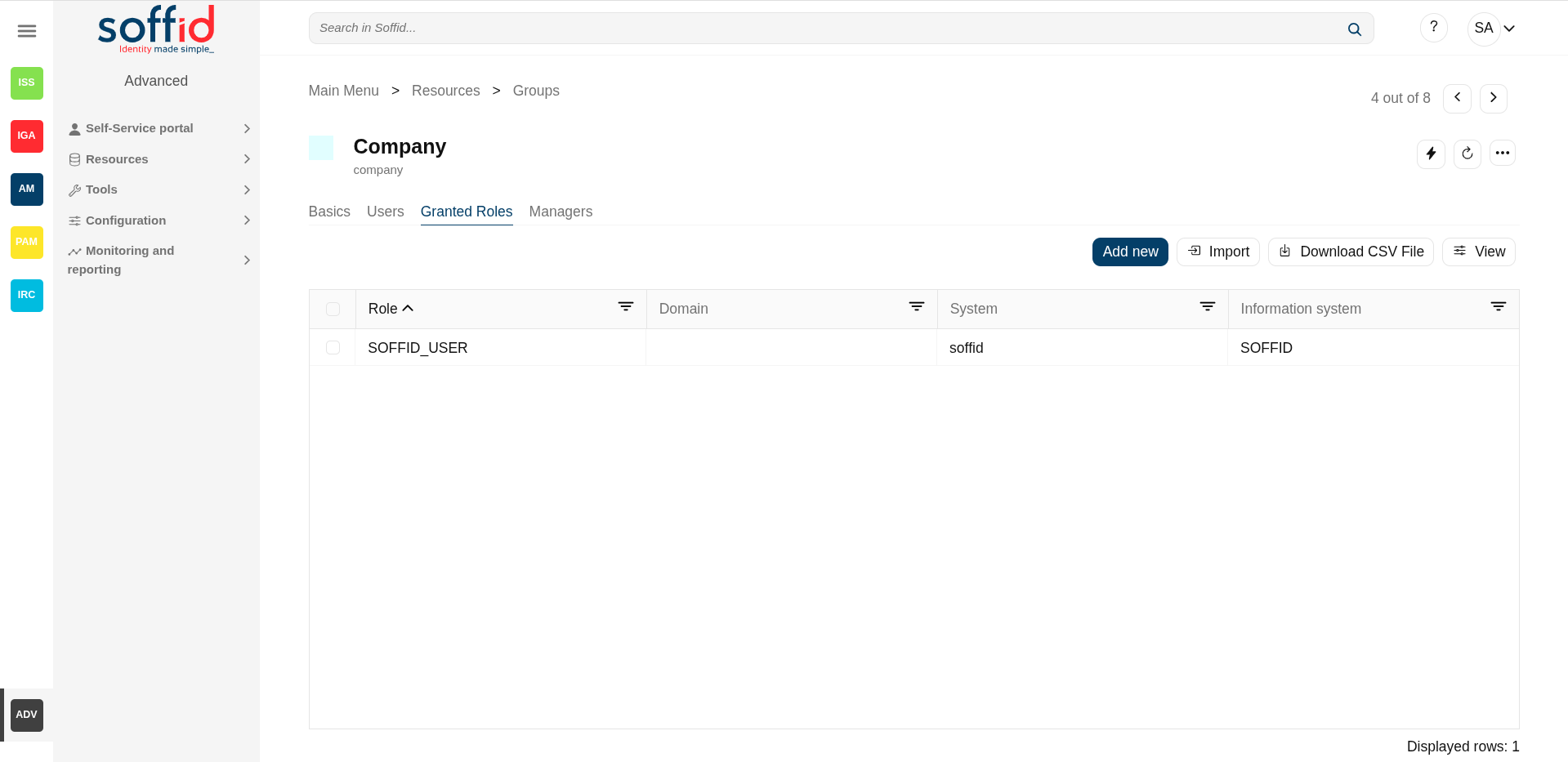](https://bookstack.soffid.com/uploads/images/gallery/2025-06/ZaRjuEXaablZMRuv-image.png)
#### Managers tab
On the tab Managers, Soffid displays the Roles with Domain equals to Group and the proper authorization.
Here you can grant the role to one or more users. You can also assign the role to users on the Roles page or on the Users page. Users who have been assigned this role will be displayed in the Managers tab.
Be in mind, to query the information about the roles and users on the managers tab, it will be mandatory to give authorization to query users or groups, you must add the role to the authorization (user:query or group:query).
The attributes:
- **Role / managers** : role with domain type groups and assigned to this group
- **Description** : description on the role
💻 Image
[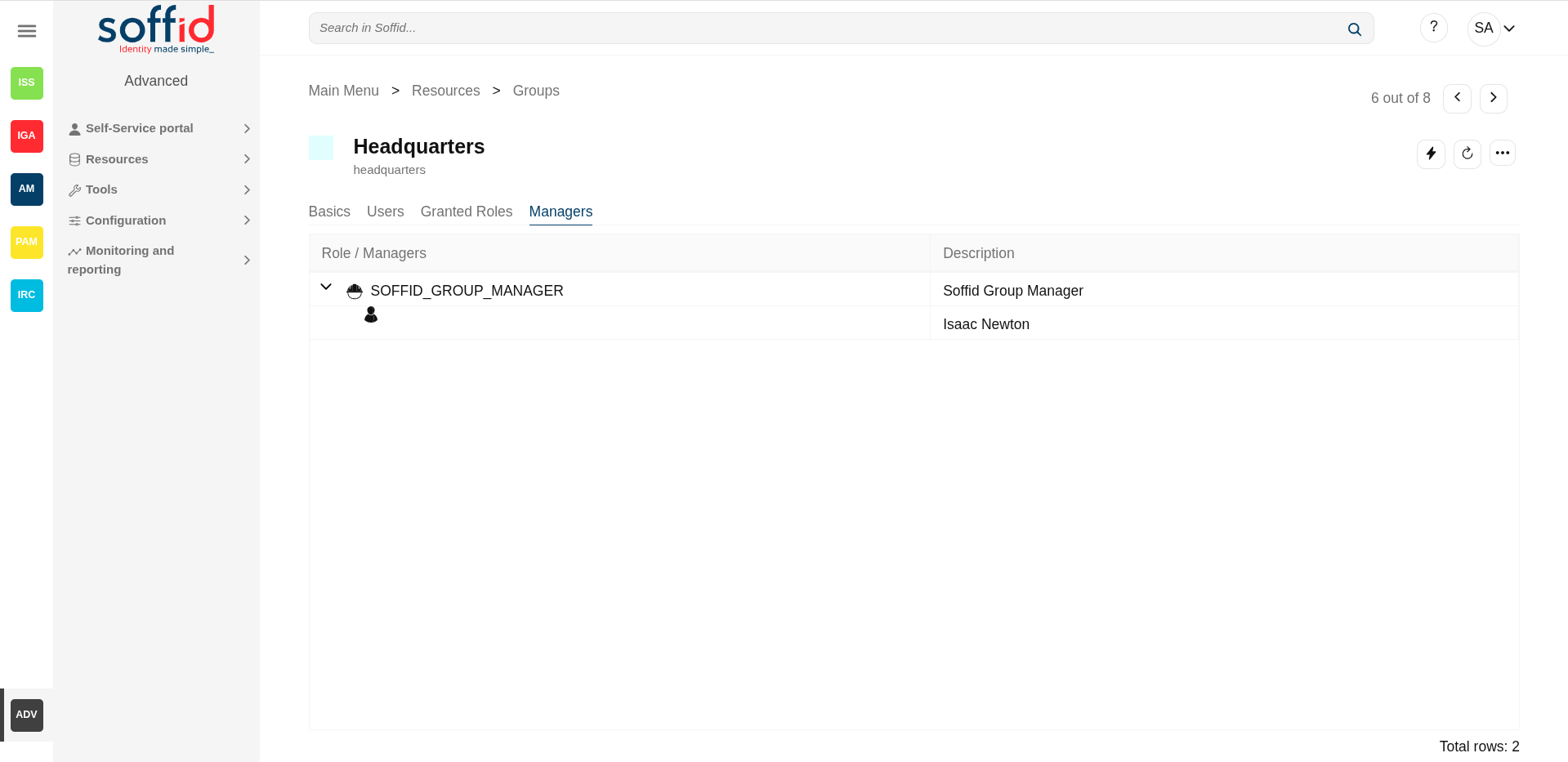](https://bookstack.soffid.com/uploads/images/gallery/2025-06/bIpJGuzGslQ8tUBj-image.png)
\*\* Role
[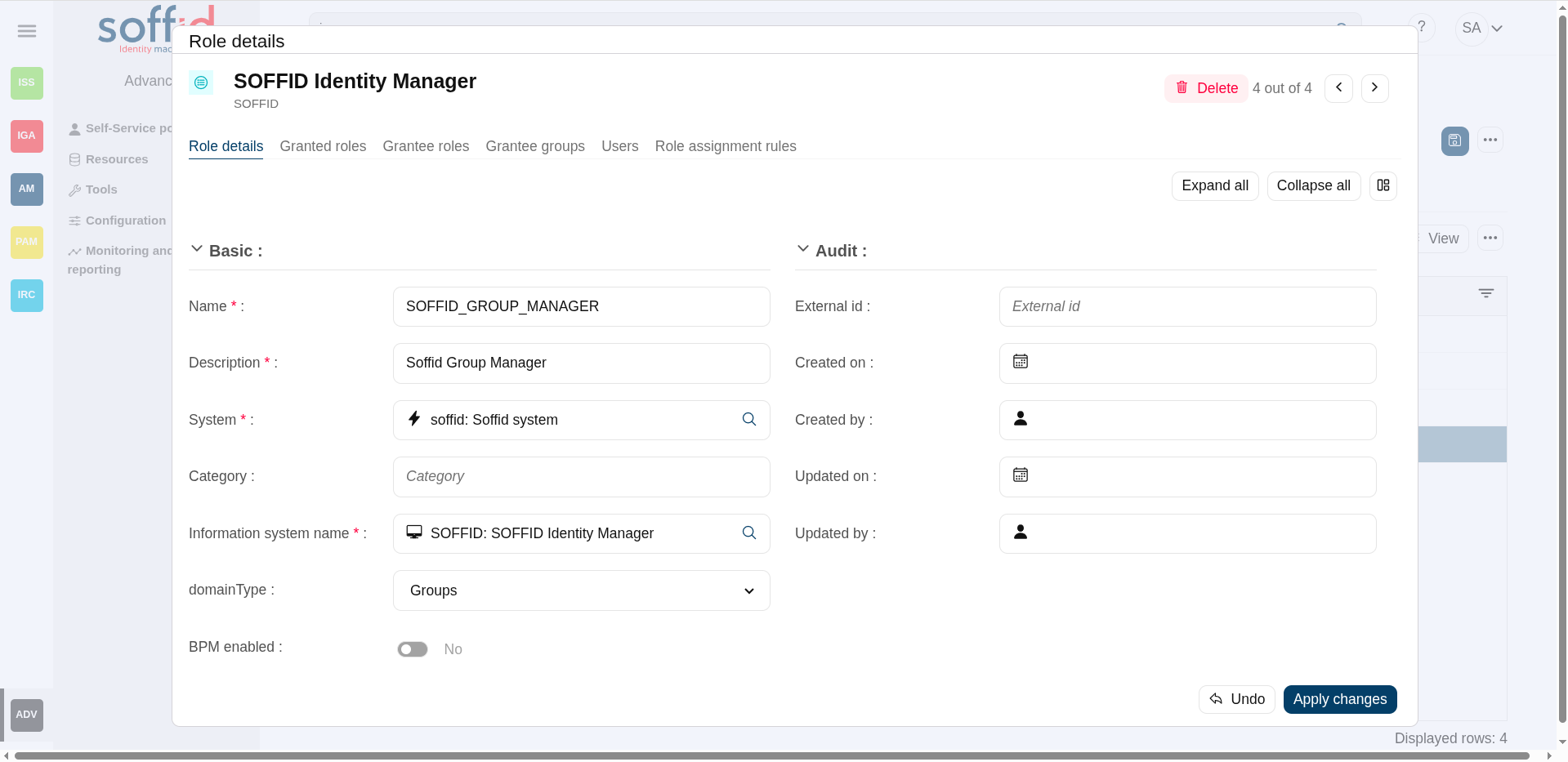](https://bookstack.soffid.com/uploads/images/gallery/2025-06/9Uo1c1HqHGmRM3l2-image.png)
\*\* Authorization
[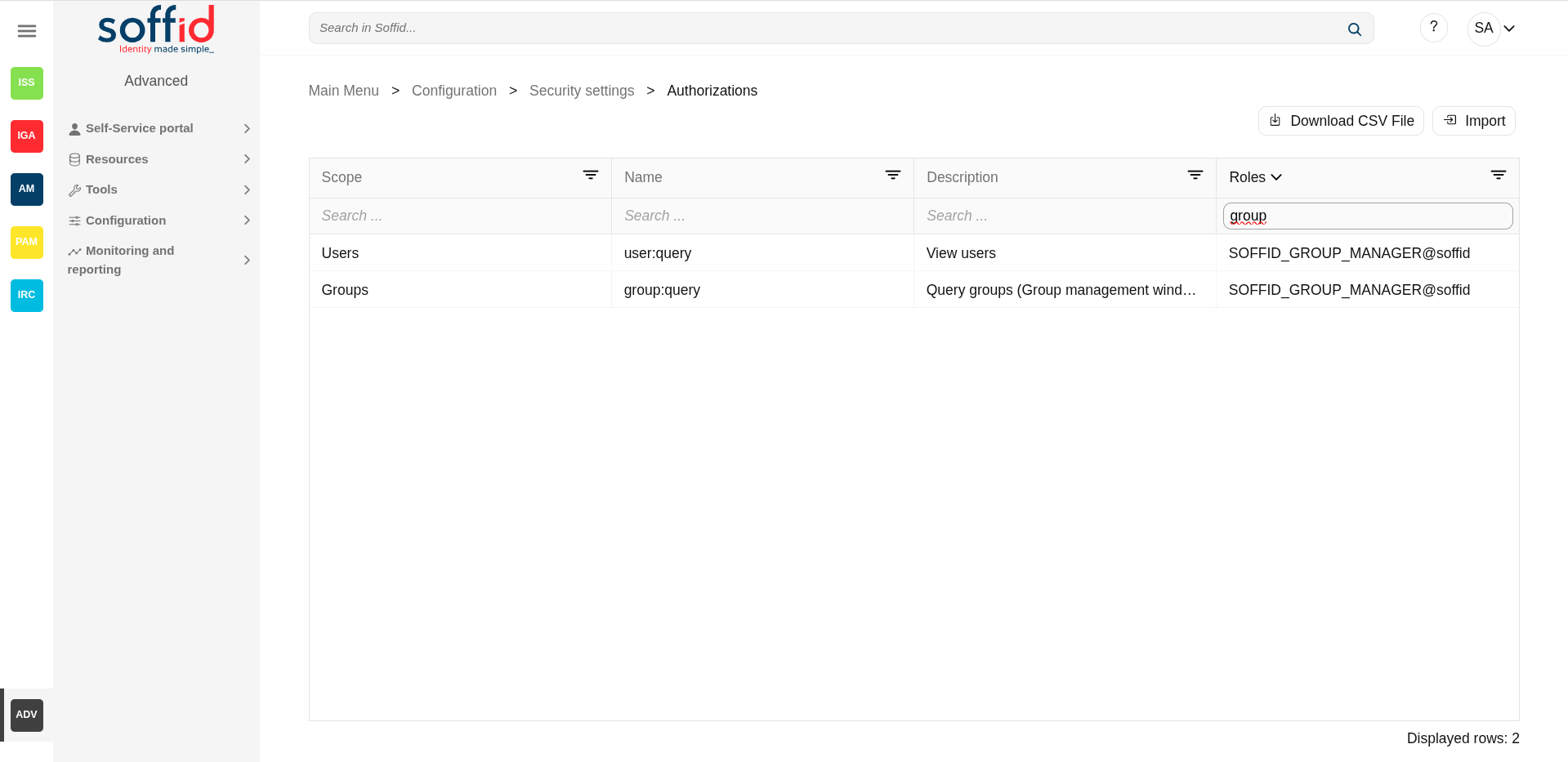](https://bookstack.soffid.com/uploads/images/gallery/2025-06/AHDjlc7JRPowBeBA-image.png)
## Actions
#### Group query actions
**"Query"**
Allows you to query groups through different search systems, [Quick, Basic and Advanced](https://bookstack.soffid.com/books/soffid-3-reference-guide/page/search-types "Search Types").
**Add new**
Allows you to add a new group in the system as a root element.
It can be more than one root element.
To add a new group it will be mandatory to fill in the required fields
**Download CSV file**
Allows you to download a csv file with the basic information of all groups.
**Import**
Allows you to upload a CSV file with the group list to add or update groups to Soffid.
First, you need to pick up a CSV file, that CSV has to contain a specific configuration. Then you need to check the content to be loaded, it is allowed to choose if you want or not to load a specific attribute. And finally, you need to select the mappings for each column of the CSV file to import the data correctly and to click the Import button.
**View**
Allows you to show and hide columns in the table.
You can also set the order in which the columns will be displayed.
**Historical view**
This is part of the addong backup.
Allows you to check all the group's historical data.
Soffid will display a new modal window to manage the historical view.
**Add child group**
Allows you to add a child to a specific group. You can choose that option below the father group.
To add a child it is necessary to fill in the required fields
#### Historical view (addon backup)
**Switch to current view**
Allows you to come back to the current data view.
**Apply changes**
Once you have pickup the proper date at the date component, you can apply changes and Soffid will display all the group data at the selected date time.
Then you can browse the Groups tree and check the information
**Undo**
Allows you to quit without applying any changes.
#### Group detail actions
**Synchronize to a target systems**
Allows you to propagate the group changes to the repository systems configured. It is only necessary when the task engine mode is configured as Manual, but you can also do it when the engine is in automatic mode. Visit the [smart engine setting](https://bookstack.soffid.com/books/soffid-4-reference-guide/page/smart-engine-settings "Smart engine settings") page for more information.
**Refresh**
Allows you to refresh all the group information.
**Apply changes**
Allows you to save the data of a new group or to update the data of a specific group. To save the data it will be mandatory to fill in the required fields
**Delete group**
Allows you to remove a specific group. To perform that action, Soffid will ask you for confirmation, you could confirm or cancel the operation.
**Undo**
Allows you to quit without applying any changes.
##### Users
**Add or remove columns
Allows you to show and hide columns in the table.
**Add new**
Allows you to add new user to a group.
Fist of all, you need to select the user. Then you need to set the system properties. And finally you need to apply changes.
**Delete user**
Allows you to delete one by one or to delete some users at the same time from a group .
To delete some users at the same time, you need to select the users, and then click the button with the subtraction symbol (-).
To delete one user, you can click the user, and then Soffid will display a form with the details. Then you can click the delete button (trash icon).
Soffid will ask you for confirmation to perform that action, you could confirm or cancel the operation.
**Download CSV file**
Allows you to download a CSV file with all the information about users.
**View**
Allows you to show and hide columns in the table.
You can also set the order in which the columns will be displayed.
##### Granted roles
**Add new**
Allows you to assign a role to the group. You can choose that option on the hamburger menu or click the add button (+).
Then you need to select a role from the role list. If it is necessary, the next step will be to set the scope. Then you need to check and fill in the membership properties. And finally, apply changes.
**Delete role**
Allows you to revoke one by one or to revoke some roles at the same time.
To revoke some roles at the same time, you need to select the roles, and then click the button with the subtraction symbol (-).
To revoke one role, you can click the role, and then Soffid will show a form with the details. Then you can click the delete button (trash icon).
Soffid will ask you for confirmation to perform that action, you could confirm or cancel the operation.
**Download CSV file**
Allows you to download a CSV file with all the information about roles assigned to the group.
**View**
Allows you to show and hide columns in the table.
You can also set the order in which the columns will be displayed.
##### Managers
**Grant <ROLE\_NAME> role
Allows you to grant the role, <ROLE\_NAME>, to one or more users. You need to click on the "Grant <ROLE\_NAME> role", under the role you want to grant. Then, Soffid will display a modal window that allows you to search for the users. Here you are able to write the user name and select it to grant the role.
Finally, you need to accept by clicking on the "Accept" button.
If you click on the "Cancel" button, no changes will be applied.
# Accounts
## Description
An account is the way an user is presented on a target system. There can be user accounts as well as system-purpose accounts.
An account belongs to a system and that account can have specific permissions assigned to it. An account must have defined the account type, that is if the account is a single user, privileged, shared, or unmanaged.
The password policy is also mandatory to create an account. That password policy determines the conditions that the password must meet.
It is allowed to set a password for an account, which can be a generated password by the system, or a password set by the administrator user. That password must comply with the password policies defined. When the account is unmanaged, if the password change, it will not be sent to the target system.
The account can be displayed in **black** or **gray** color. The gray color is used to indicate that the account is unmanaged, that is because the agent is disconnected or because the agent is in Read-Only Mode.
## Screen overview
[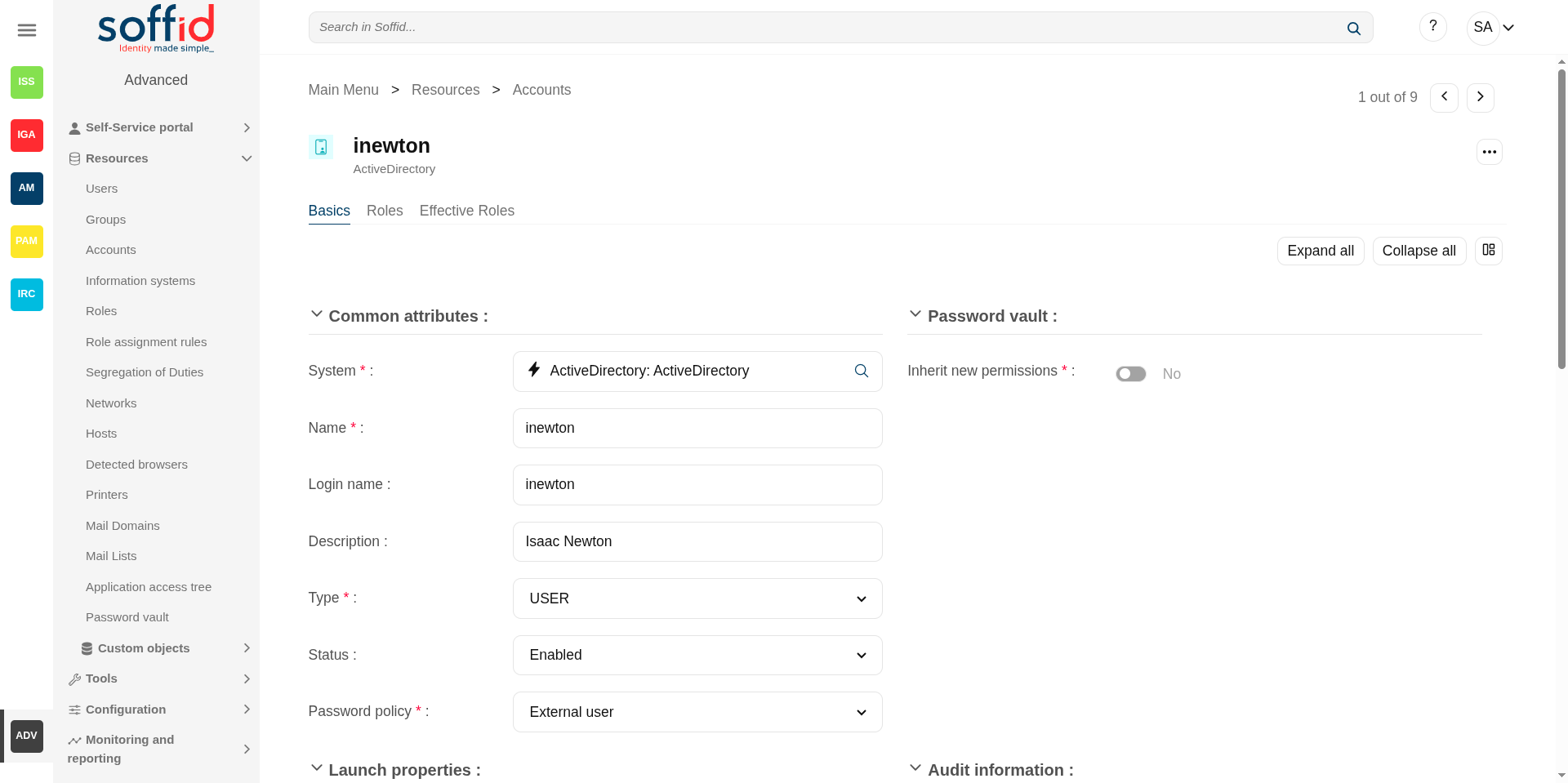](https://bookstack.soffid.com/uploads/images/gallery/2025-06/aVVdKF52aXtumCMG-image.png)
[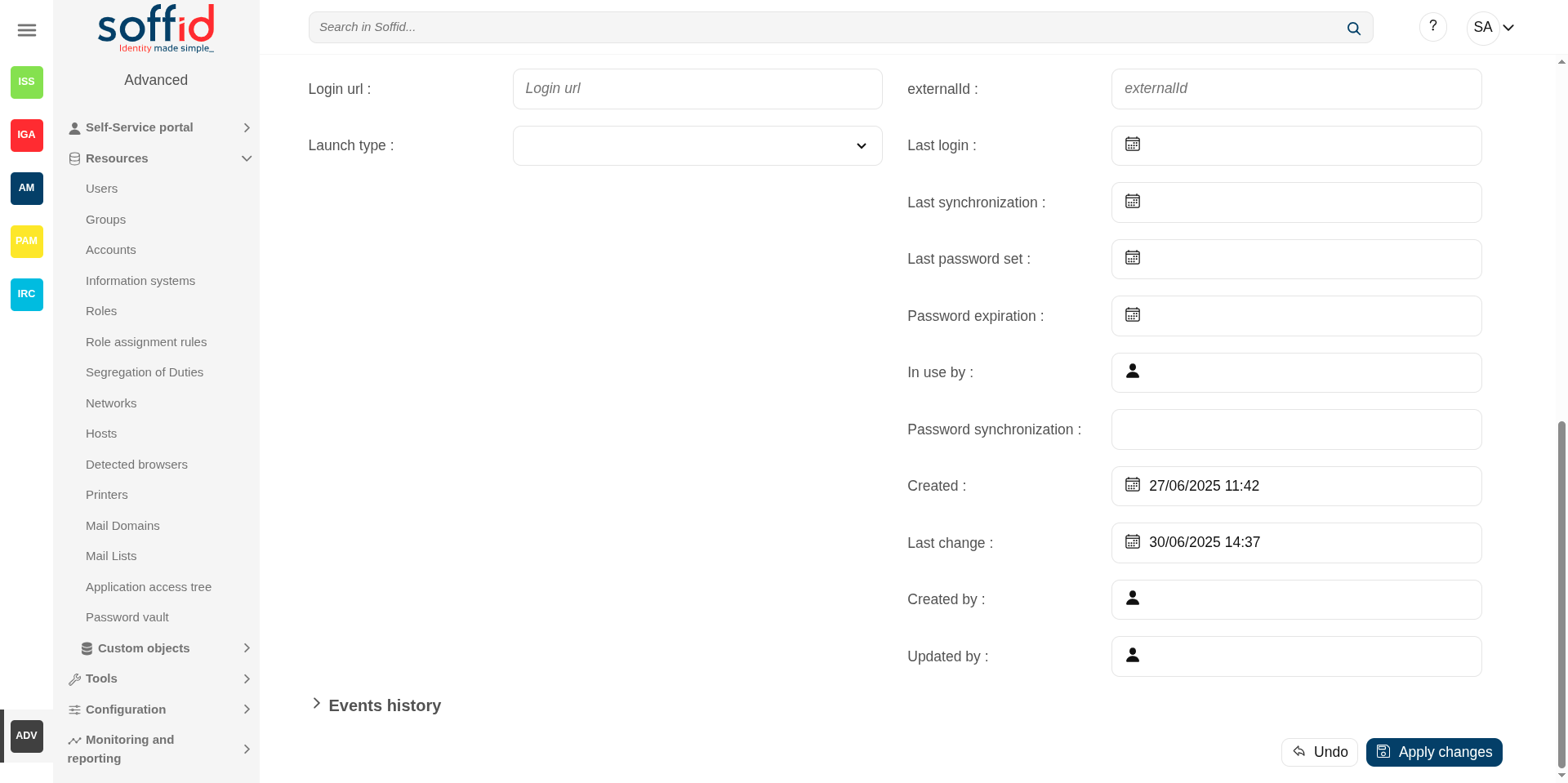](https://bookstack.soffid.com/uploads/images/gallery/2025-06/FhHnSVf3M9dCzWAK-image.png)
## Related objects
- [Users](https://bookstack.soffid.com/books/soffid-4-reference-guide/page/users "Users") : owner users to the accounts
- [Agents](https://bookstack.soffid.com/books/soffid-4-reference-guide/page/agents "Agents") : the target system in which that account is used (AD, Exchange, etc).
- [User type](https://bookstack.soffid.com/books/soffid-4-reference-guide/page/user-types "User types") : user type of the onwer user or another one selected in the other account types
- [Password policies](https://bookstack.soffid.com/books/soffid-4-reference-guide/page/password-policies "Password policies") : password policy of the onwer user or another one selected in the other account types
- [Roles](https://bookstack.soffid.com/books/soffid-4-reference-guide/page/roles "Roles") : the permissions that this account has associated with the system in which it is used. They can be assigned or revoked by users with administrator privileges.
- [Information systems](https://bookstack.soffid.com/books/soffid-4-reference-guide/page/information-systems "Information systems") : where the roles are gathered
- [Password vault](https://bookstack.soffid.com/books/soffid-4-reference-guide/page/password-vault "Password vault") : password vault information
## Standard attributes
#### Basic
On the basic account tab, you can view all the account attributes. It is allowed to add new accounts, update or delete existing accounts and other options.
##### Commons attributes
- **System**: target system to which the account will be connected. When SSO is the system selected, the account name is assigned by Soffid, that is because SSO is a multi-system connector and can be many accounts with the same login name.
- **Name**: name used to identify the account.
- **Login name**: login name used in PAM navigations
- **Description**: plain text with information about the account.
- **Type**: there are four kinds of accounts:
- **Single user**: these are accounts with a single use owner; we also refer to them as linked accounts. As these accounts are linked to a user, they are part of the user’s lifecycle; when the user is modified, the account can also be updated and synchronised, and if the user is desabled, so too is the account. We can also view these accounts on the users page, under the accounts tab; all of them are single user accounts.
- **Shared**: these are accounts that may be associated with no users or with multiple users. Unlike single user accounts, these are not part of a user’s lifecycle and are not linked to them. They have an access control list to prevent unauthorised use. These accounts may also be referred to as service accounts and may have their own roles assigned to them. These accounts have their own password; even if they are associated with a user, password management is handled separately.
- **Privileged**: these are typically administrator accounts, specific to a particular system and with no associated users by default. Users who need to use these accounts can do it via the Identity Self-Service module; when they log in with this account, a specific password is set, and when the session ends, it is randomised to prevent unauthorised use. Consequently, a privileged account is usually used by only one user at a time. These accounts are usually associated with the PAM module and may require additional steps, such as requesting access via a workflow or adding an authentication factor
- **Unmanaged**: these are accounts that Soffid does not manage; if changes are made to them, these changes are not synchronised with the end system. Although they can be created manually, these accounts are usually created in Soffid when performing a reconciliation with an end system. This status exists as a preliminary step before deciding what to do with them: either link them to users and convert them to single user accounts, or change them to shared or privileged accounts. Unmanaged accounts in Soffid that exist in an end system represent a potential risk; they must be monitored or permanently deleted.
- **Status**:
- **Enabled**: the account can be used by the user. Soffid engine will disable it when the user does not match the access requirement policy.
- **Manually enabled**: the account can be used by the user. Soffid engine will keep it enabled, even when the user does not match the access requirement policy.
- **Locked**: the account is locked when a user tries to access with a fail password too many times (5 times). The account will be enabled in a specific period of time (5 minutes).
- **Disabled**: the account cannot be used by the user. Soffid engine will enable it when the user does matches the access requirement policy.
- **Manually enabled**: the account cannot be used by the user. Soffid engine will keep it disabled, even when the user matches the access requirement policy.
- **Removed**: the account no longer exists in the target system, but its image is kept in Soffid for audit purposes.
- **Archived**: same status as "Removed" but useful if you need to differentiate it for a business process
- **Credential type**: this field will be available when the system is filled with the SSO option.
- **Password**: this is the default value. This option will allow you to set the account password.
- **SSH key**: this option will allow you to add a SSH key. This SSH key could be an existing key or a generated new key.
- **Kubernetes key**: this option will allow you to enter a Yaml descriptor to configure the access.
- **Password policy**: the policy applied to this account. It is mandatory select a password policy. You can see more information on the [User Type](https://bookstack.soffid.com/books/soffid-3-reference-guide/page/user-type "User Type") and [Password policies](https://bookstack.soffid.com/books/soffid-3-reference-guide/page/password-policies "Password policies") pages.
💻 Image
[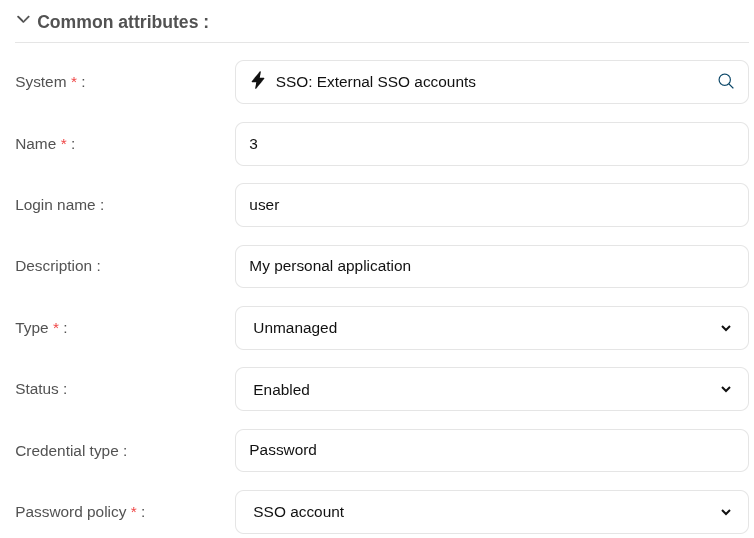](https://bookstack.soffid.com/uploads/images/gallery/2025-09/alZCC22ZExoUPHS0-image.png)
##### Owners, Managers, and SSO users
Specify the list of users authorized to use this account. For accounts of type "single user", only one user can be specified. Other accounts can have more than one user. The users that can use this account can be specified either directly, by entering the user name, or indirectly, by entering a group or role name. At the latest, any user having that group or role will automatically be entitled to use this account.There are three access levels for each account and user:
- **Owner**: can use it, modify the access control list, and set or query the password sing self-service portal or single sign-on engine.
- **Manager**: can use it, and set or query the password (using self-service portal), depending on the password policy restriction.
- **SSO User**: can use it by means of the SSO or PAM engines. They cannot change their password, not even through single sign on engine.💻 Image
[](https://bookstack.soffid.com/uploads/images/gallery/2025-06/zchyH1XdKVLEr6ku-image.png)
[](https://bookstack.soffid.com/uploads/images/gallery/2025-06/qkecgeU5dKJjjRz6-image.png)
[](https://bookstack.soffid.com/uploads/images/gallery/2025-06/UpIbSGyb1JcTPTv6-image.png)
##### Password synchronization
- **Server type**: type of the server.
- Linux
- Windows
- Database
- **Server name**: descriptive name of the server
- **SSH Public key**: SSH key for linux servers
💻 Image
[](https://bookstack.soffid.com/uploads/images/gallery/2025-09/fmJdfWcBO3URLg9W-image.png)
##### Password vault
- **Vault folder**: personal or shared folder, depending on the account type, in which account data are stored.
- **Inherit new permissions**: determines if the account will inherit the permissions granted to the folder that contains it.
💻 Image
[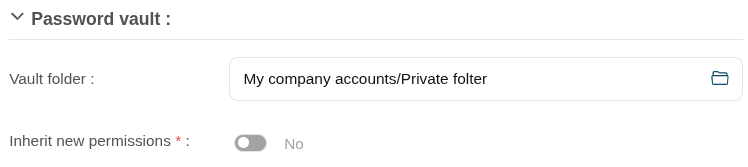](https://bookstack.soffid.com/uploads/images/gallery/2025-09/YRAvaIvPMAC8Jr4k-image.png)
##### Launch properties
Defines the properties to connect to the target system.
- **Login URL**: URL to connect. You can add the port when you need it
- **Launch type**: connection type.
- **Simple**
- **WebSSO**
- **PAM Jump server**: it is mandatory to select the Jump server group.
💻 Image
[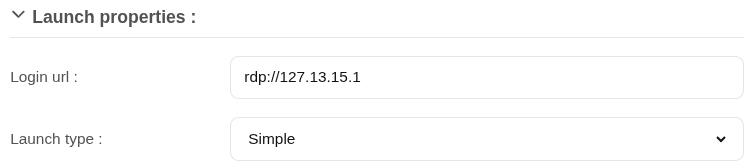](https://bookstack.soffid.com/uploads/images/gallery/2025-09/wppaRufeAdPT8EJB-image.png)
##### Audit information
- **ExternalId**: new attribute in Soffid 4 to keep a record of the unique identifier of the object in the final system (useful for synchronisation and renaming).
- **Last login**: last registered access.
- **Last synchronization**: last registered synchronization.
- **Last password set**: date of last password change.
- **Password expiration**: password expiry date.
- **In use by**: account owner
- **Password synchronization**: password synchronization date.
- **Created**: account creation date.
- **Last change**: last modified.
- **Created by**: user who created the account
- **Updated by**: last user who updated the account
Image
[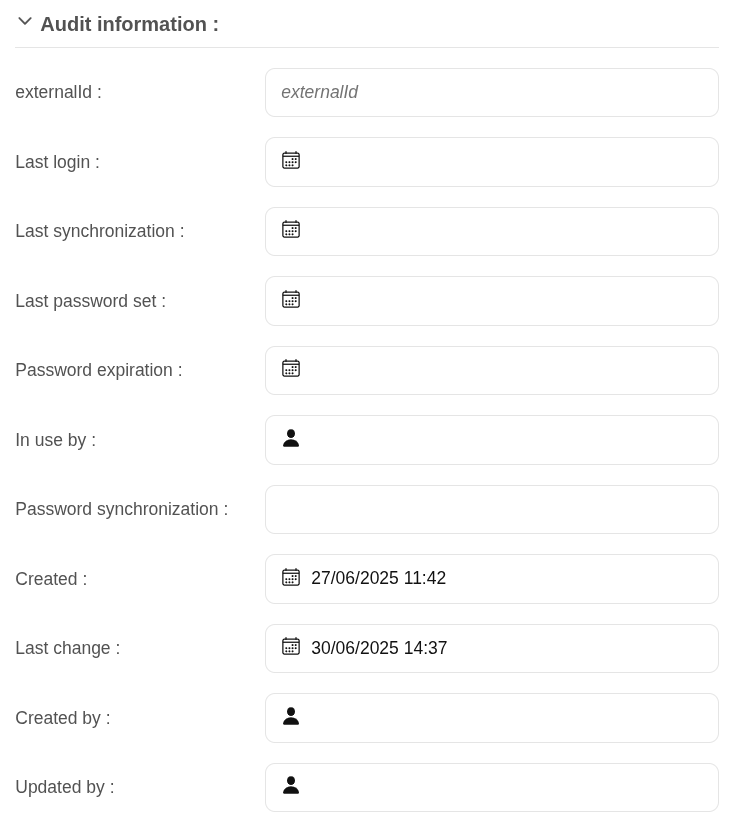](https://bookstack.soffid.com/uploads/images/gallery/2025-06/lTQoZjcdERdZdoCY-image.png)
##### System properties
- **From data**: to add parameters
- **Type:** possible values:
- Windows
- Linux
- Database
- **SSH Private key**: private key that establishes trust to be able to access the system without requiring a password.
- **SSH Public key**: public key that establishes trust to be able to access the system without requiring a password.
- **Password synchronization**: possible values:
- Valid
- Expired
- Invalid
##### Events history
List of events on this account
💻 Image
[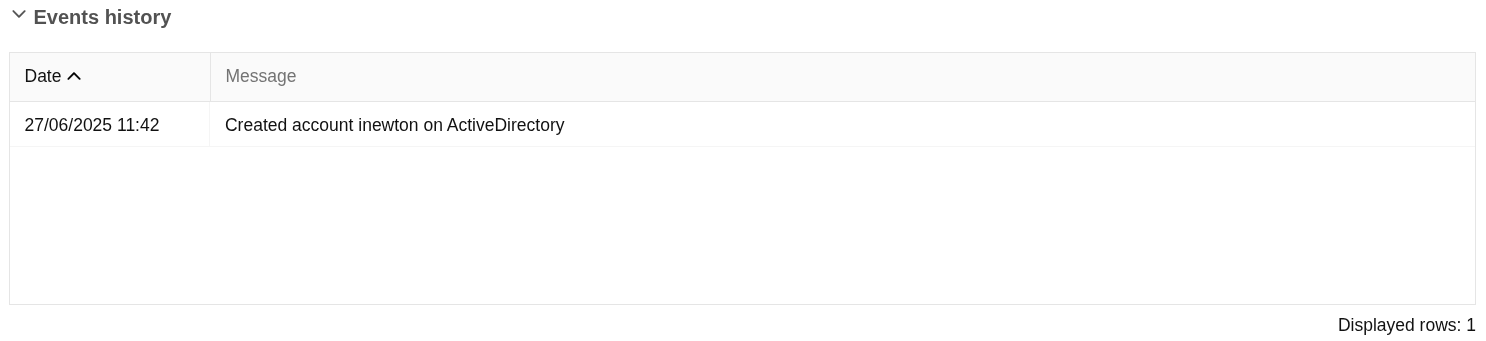](https://bookstack.soffid.com/uploads/images/gallery/2025-06/5Q0bw4opY6tIfeWq-image.png)
##### Services
List of services on this account. The account type must be shared to view those services. All these services appear after agent reconciliation.
💻 ImageSoffid allows you to manage the existing services, you can add, update or remove services as well. This makes sense in the case of Linux machines.
💻 Image#### Roles
The roles are a collection of permissions that can be granted.
On the roles tab, you can view the roles assigned to the account, it is shown information about the role name, description, application or start (and, if proceed, end) date of the role assignment.
You can also **assign roles** to the account, you can click the "Add new" button, select the role that you want to assign, depending on the role you must fill the scope, and finally set memberships properties.
It is also possible to **revoke roles** to the account from the entitlement details or by selecting one or more records from the list and clicking the "Delete role" button.
By clicking on a record, it is shown the detail role assignment information.
Additionally, you can **download a CSV file** with the roles information and you can also **upload a CSV file** to assign or revoke roles.
The attributes:
- **Role**: name used to identify the role.
- **Description**: detailed role description.
- **Information system**: asset or application, from a functional point of view, on which the permissions are granted or revoked.
- **Start date**: at this date, Soffid will connect to the system and will assign the role. If there is no approval start, it will be assigned at the moment.
- **End date**: at this date, Soffid will connect to the system and will revoke the role.
- **Risk**: risk related with SoD rules
- **Category**: category value of the role
- **Domain value**: you can set a limitation of the role scope by selecting the domain. Initially, there are two domains defined, Groups and Information Systems. Soffid allows you to add more domains.
- **Domain description**: domian description
💻 Image
[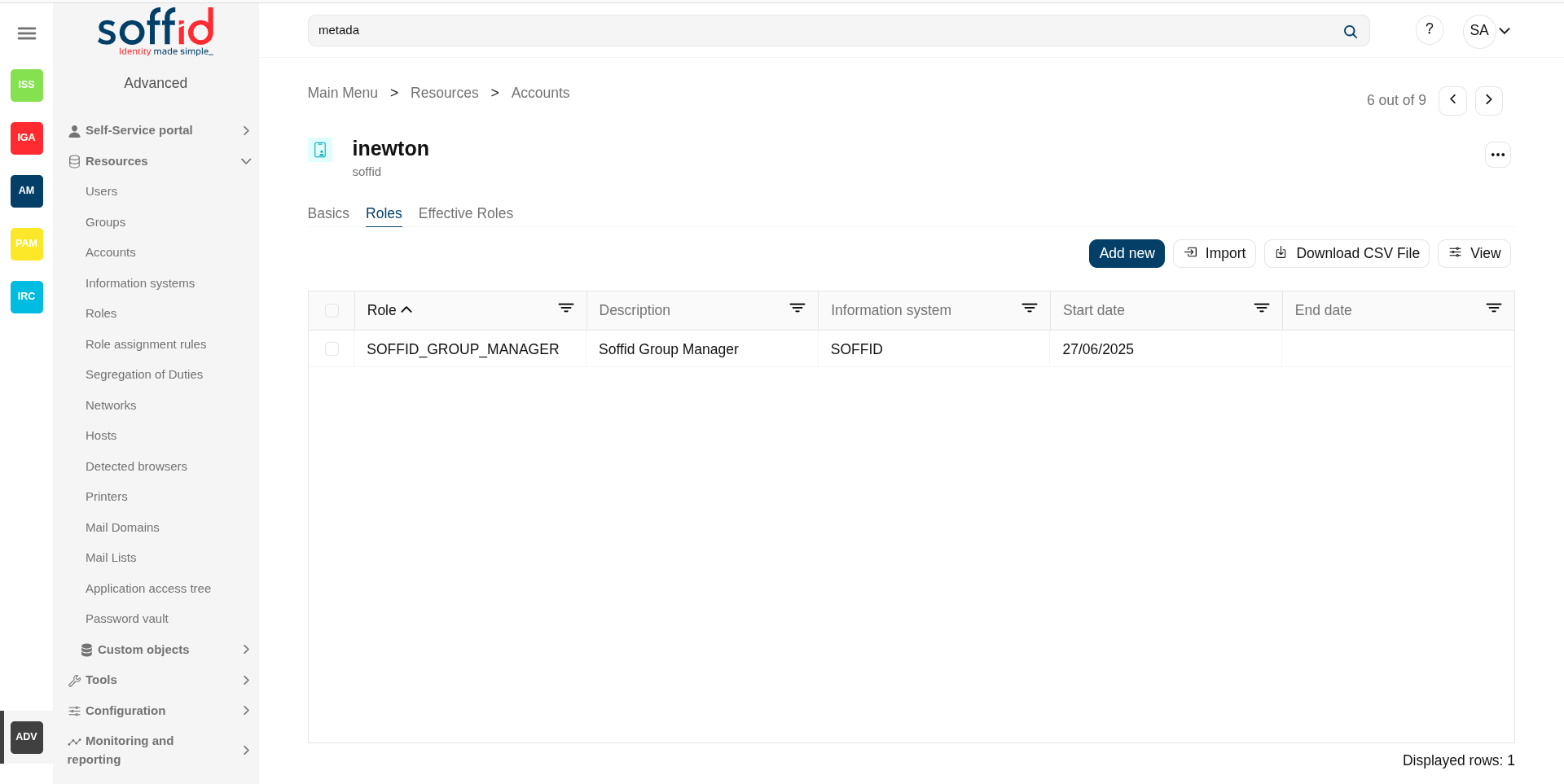](https://bookstack.soffid.com/uploads/images/gallery/2025-06/yDleuZdEiq9gg3uI-image.png)
#### Effective roles
Hierarchy of permissions assigned to or inherited.
This screen details the effective roles for the selected account.
- By direct assignment of the role: when you assign a role to an account, you are assigning to the account all the permissions defined for that role.
- By belonging to a group: when you add a user to a group, the user will have all the roles assigned to the group.
- By rules defined in the system: when a rule is satisfied for a user, the system assigns the roles defined in the rule to the user.
The attributes:
- **Object type / name**: object type owner of the role / name used to identify the role.
- **System**: target system owner of the role.
- **Description**: detailed role description.
💻 Image
[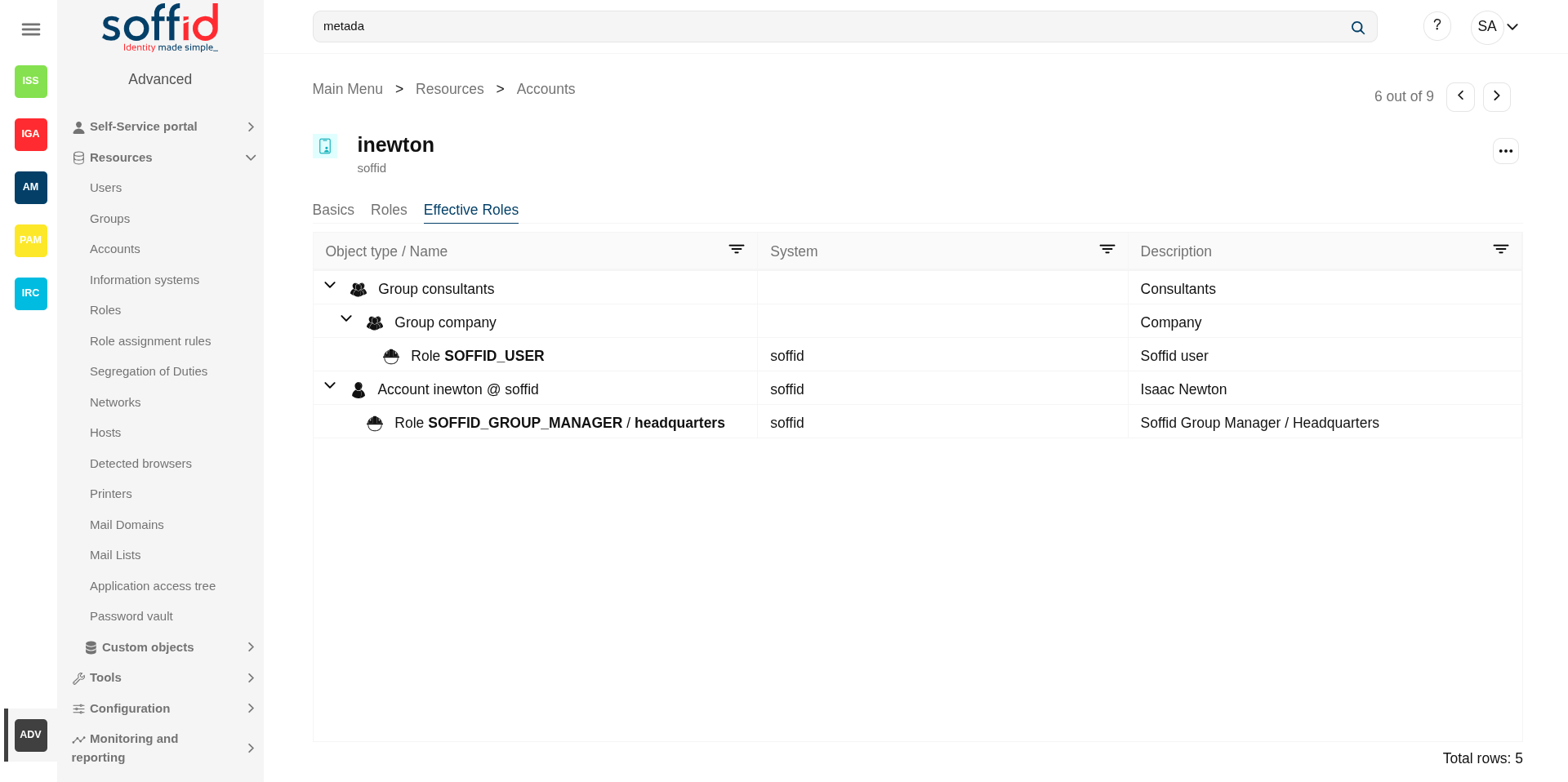](https://bookstack.soffid.com/uploads/images/gallery/2025-06/9o75mA8rzAfacjaW-image.png)
## Actions
#### Account query actions
**"Query buttons"**
Allows you to query accounts through different search systems, [Quick, Basic and Advanced](https://bookstack.soffid.com/books/soffid-3-reference-guide/page/search-types "Search Types").
**"Table filter"**
It allows you to filter a column in the table based on the results loaded in it.
**Add new**
Allows you to add a new account in the system. To add a new account it will be mandatory to fill in the required fields
**Delete**
Allows you to remove one or more accounts by selecting one or more records and next clicking this button. To perform that action, Soffid will ask you for confirmation, you could confirm or cancel the operation.
**Download CSV file**
Allows you to download a CSV file with the basic information of all accounts.
**Bulk actions**
Allows massive operations to be performed on all system accounts. With that operation, updates can be made to any of the account's parameters. First of all, you must select the records that you want to update, once you have selected them, you must choose the bulk action on the hamburger icon. For more information visit the [Bulk action page.](https://bookstack.soffid.com/books/soffid-3-reference-guide/page/bulk-actions "Bulk actions")
**View**
Allows you to add or remove columns to the table.
It is also possible to change the order of the columns.
#### Account detail actions
**Apply changes (dick button)**
Allows you to save the data of a new account or to update the data of a specific account. To save the data it will be mandatory to fill in the required fields
**Delete**
Allow you to remove the account. You can choose that option on the hamburger icon
To perform that action, Soffid will ask you for confirmation, you could confirm or cancel the operation.
**Undo**
Allows you to quit without applying any changes.
**Set password**
This option depends on the credential type selected.
**Password**:
- Allows you to set a new password to the account or a SSH key.
- The password can be generated automatically, or you can set the password.
- It will be mandatory the password complies with the [Password policies](https://bookstack.soffid.com/books/soffid-3-reference-guide/page/password-policies "Password policies") defined for the domain.
- If an account is unmanaged, the password will not be sent to the target system.
💻 Image
[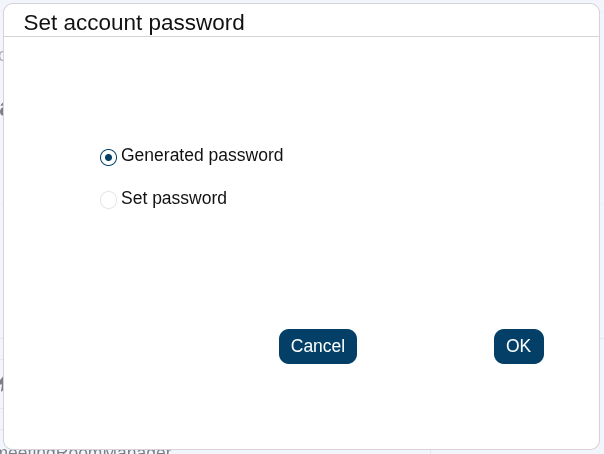](https://bookstack.soffid.com/uploads/images/gallery/2025-06/HQ0wGnDraMT0NCbl-image.png)
**SSH key**:
- Allows you to generate a new key or enter an existing key.
**Kubernetes key**:
- Allows you to add a YAML descriptor
**Show actual account properties**
Display the account attributes at the target system. To perform that action, Soffid needs to connect with the target system and get the account attributes that will be shown.
**Expand all**
Displays all the attributes of the different blocks.
**Collapse all**
Hide all attributes of the different blocks.
**"Types of views"**
Change the view type: Classic view, Modern view, Compact design.
##### Roles
**Add new**
Allows you to assign a new role to the account.
Then you need to select a role from the role list. If it is necessary, the next step will be to set the scope. Then you need to check and fill in the membership properties. And finally, apply changes.
**Delete**
Allows you to revoke one by one or to revoke some roles at the same time.
To revoke some roles at the same time, you need to select the roles, and then clicking this button.
To revoke one role, you can click the role, and then Soffid will show a form with the details. Then you can click the delete button (trash icon).
Soffid will ask you for confirmation to perform that action, you could confirm or cancel the operation.
**Import**
Allows you to upload a CSV file with the role list to assign permission.
First, you need to pick up a CSV file, that CSV has to contain a specific configuration. Then you need to check the content to be loaded, it is allowed to choose if you want or not load a specific attribute. And finally, you need to select the mappings for each column of the CSV file to import the data correctly and to click the Import button.
**Download CSV file**
Allows you to download a CSV file with all the information about account roles.
**View**
Allows you to add or remove columns to the table.
It is also possible to change the order of the columns.
# Information systems
## Description
Information systems are the systems that Soffid will protect granting and revoking roles. Each role and entry point is bound to an information system.
The information system can be created hierarchically. These information systems are managed in a tree structure.
Soffid allows you to categorize the information systems to facilitate the management, the available categories are Application, Container and Business. That categories are for information purposes only.
The permission can be granted by using workflows. You can access to [Workflows](https://bookstack.soffid.com/books/addons/chapter/workflow-settings-bpm-editor "Workflow settings - BPM Editor") page for more information.
## Screen overview
[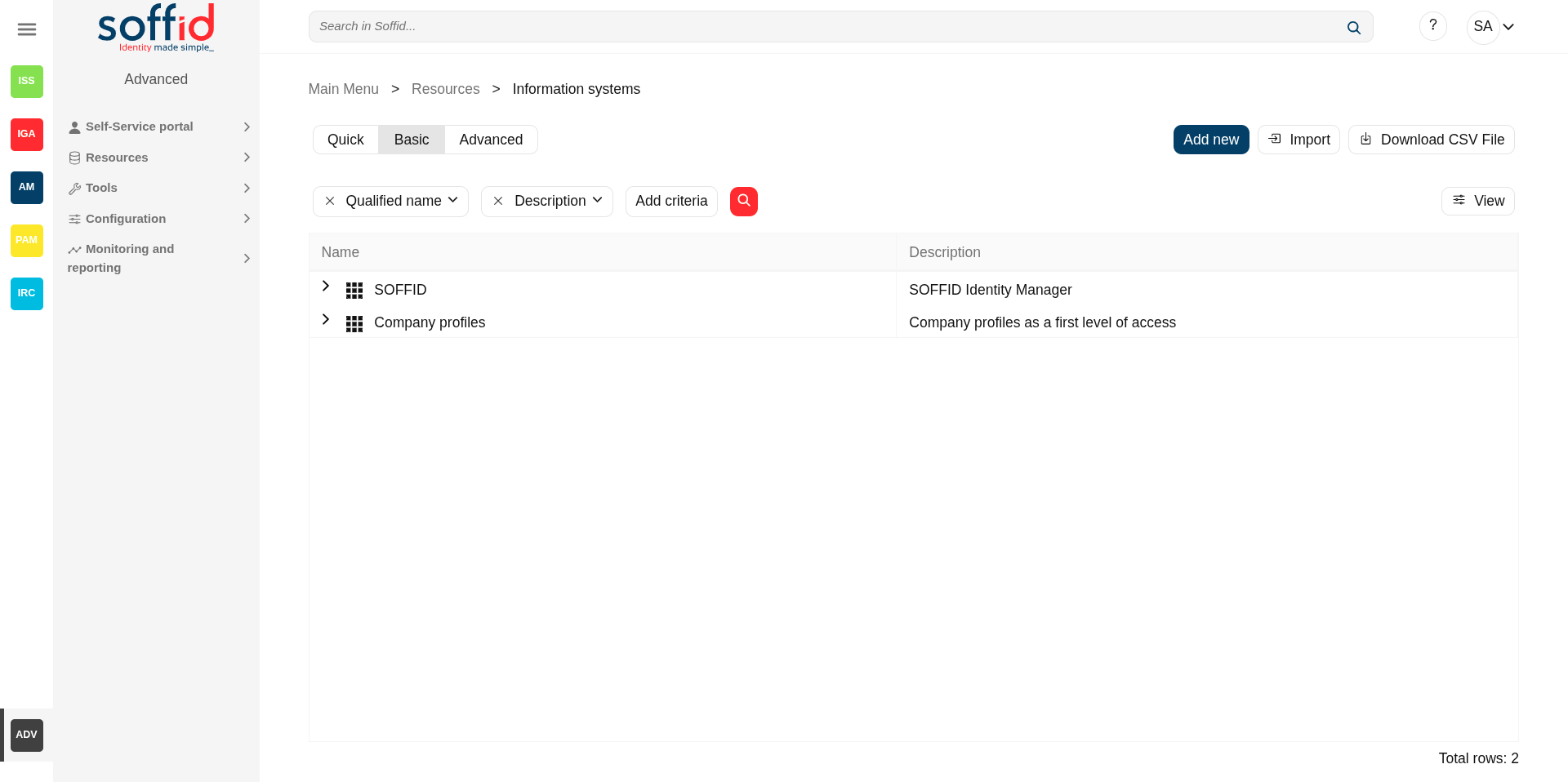](https://bookstack.soffid.com/uploads/images/gallery/2025-06/69QS9eT03FUEp6Jh-image.png)
## Related objects
- [Users](https://bookstack.soffid.com/books/soffid-4-reference-guide/page/users "Users") : users belong a one or more groups
- [Roles](https://bookstack.soffid.com/books/soffid-4-reference-guide/page/roles "Roles") : roles granted to a user
- [BPM editor](https://bookstack.soffid.com/books/soffid-4-reference-guide/page/bpm-editor-addon-bpm "BPM editor (addon bpm)") : roles and information system need to be BPM enabled to be menaged on worlkflows
## Standard attributes
#### Basics
- **Type**: information system category.
- **Parent**: parent within the hierarchy.
- **Name**: short name to identify the information system.
- **Qualified name**: short name to identify the information system.
- **Description**: detailed description information system.
- **Source**: documentation.
- **Owner**: is the information owner, and has the capability to appoint security manager.
- **Soruces**: documentation.
- **Binaries**: documentation.
- **Database**: documentation.
- **BPM enable**: if enabled, permissions can be granted by using workflows.
- **Notification emails**: this list will be notified on a daily about grants and revokes performed.
- **Approval process**: allows you to select a Permissions management process. This process will be initiated when a role, in this information system, is assigned or revoked to a user. It is an advanced function for workflows. You can see an[ example of the Approval process](#bkmrk-approval-process-exa).
- **Role definition process**: allows you to select a Role definition process. This process will be initiated when the definition of a role, in the information system, is updated. It is an advanced function for workflows. You can see an [example of the Role definition process](#bkmrk-role-definition-proc).
- **Single role**: if checked, the roles of this application are mutually exclusive: if a user has the role X and want to assign him the role Y, X will be removed to give him Y.
- **Created on**: creation date
- **Created by**: user who created the object
- **Updated on**: last updated date
- **Updated by**: last user who update the update
Image
[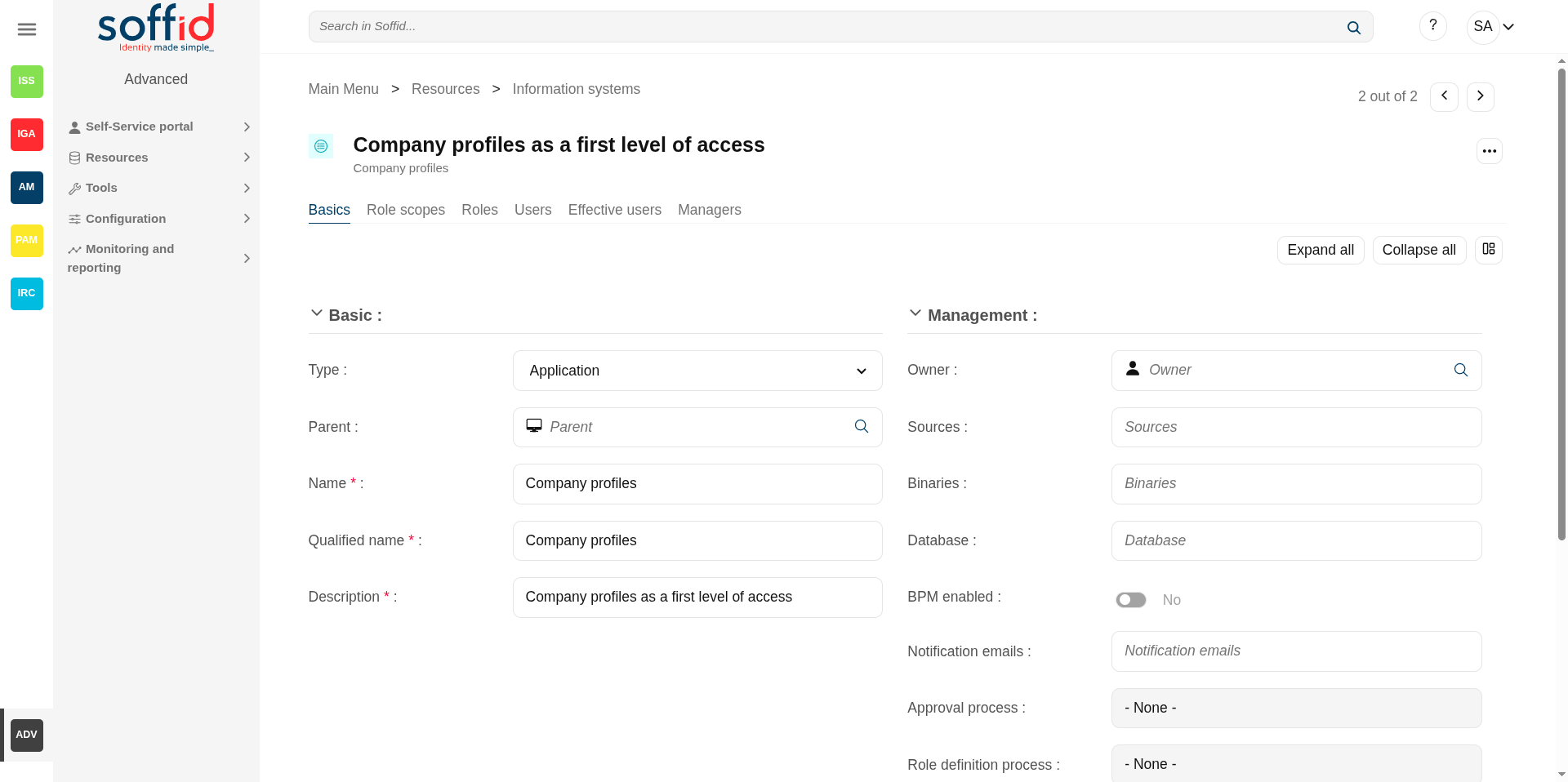](https://bookstack.soffid.com/uploads/images/gallery/2025-06/TTdR7aJ8KBG4e3E3-image.png)
[](https://bookstack.soffid.com/uploads/images/gallery/2025-06/UkH2xn8WjnQpeOVb-image.png)
#### Role scopes
Role scope or domains are properties that can be assigned to some entitlements, limiting the scope of that entitlement. This can be used to limit, for instance, the maximum amount allowed for a money transfer, or the commercial zones to manage.
On this tab, you can add new domains, you must click the button with the add symbol and fill the information about the new domain. You can also delete a domain or update the domain information.
Other operations allowed are to **download a CSV file** with the domain data and toOther operations allowed are to download a CSV file with the domain data and to upload a CSV file to add new domains, or update existed domains to add new domains, or update existing domains
Attributes:
- **Domain / Value**: name of the domain
- **Description: descripton** ot the domain
💻 Image
[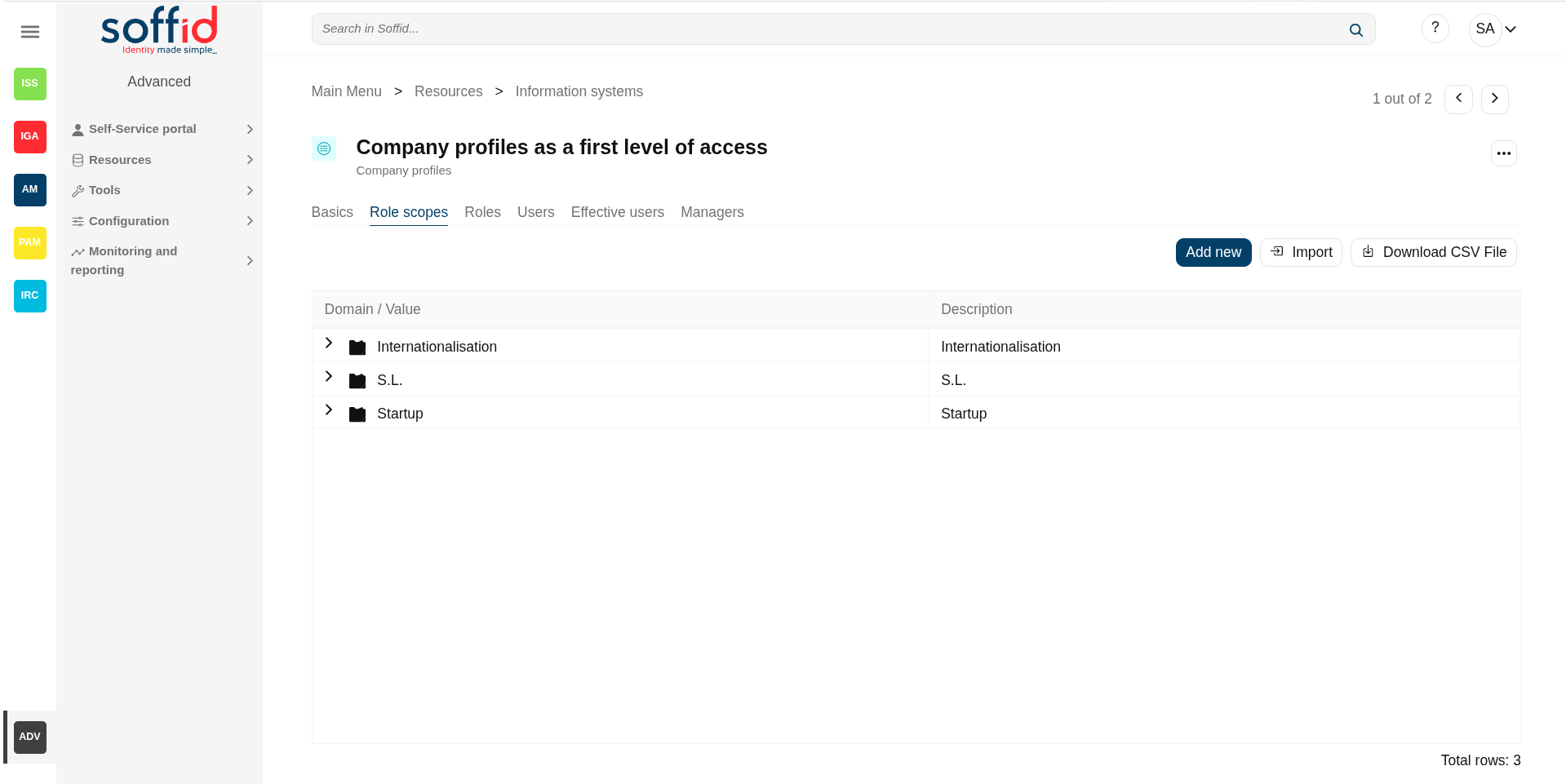](https://bookstack.soffid.com/uploads/images/gallery/2025-06/uIgs1vyi4HQtnaCN-image.png)
#### Roles
A role is a collection of permissions that determine what operations a user or a group of users can perform on that information system.
On the roles tab is allowed to create, update and delete roles. The effective privileges bound to each role are managed from each application.
To add a **new role** you must click the button with the "Add new" button and fill all the role data.
You can **update** a specific role by clicking on the right record, making and applying changes.
It is also possible to **delete roles** from the role details or by selecting one or more records from the list and clicking the "Delete" button.
Additionally you can **download a CSV file** with the roles information and you can also **upload a CSV file** to add new roles, or modify existing roles.
Attributes:
- **Name**: name used to identify the role.
- **Description**: detailed role description.
- **System**: agent of the target system owner of the role
- **Category**: category value of the role
- **Information system**: asset or application, from a functional point of view, on which the permissions are granted or revoked.
- **Domain type**: domian type of the role
- **BPM enabled**: when enabled the role can be managed on the workflows
- **ExternalId**: new attribute in Soffid 4 to keep a record of the unique identifier of the object in the final system (useful for synchronisation and renaming).
- **Approval start**: at this date, Soffid will connect to the system and will assign the role. If there is no approval start, it will be assigned at the moment.
- **Approval end**: at this date, Soffid will connect to the system and will revoke the role.
- **Risk**: risk related with SoD rules
- **Created on**: text
- **Created by**: text
- **Updated on**: text
- **Updated by**: text
💻 Image
[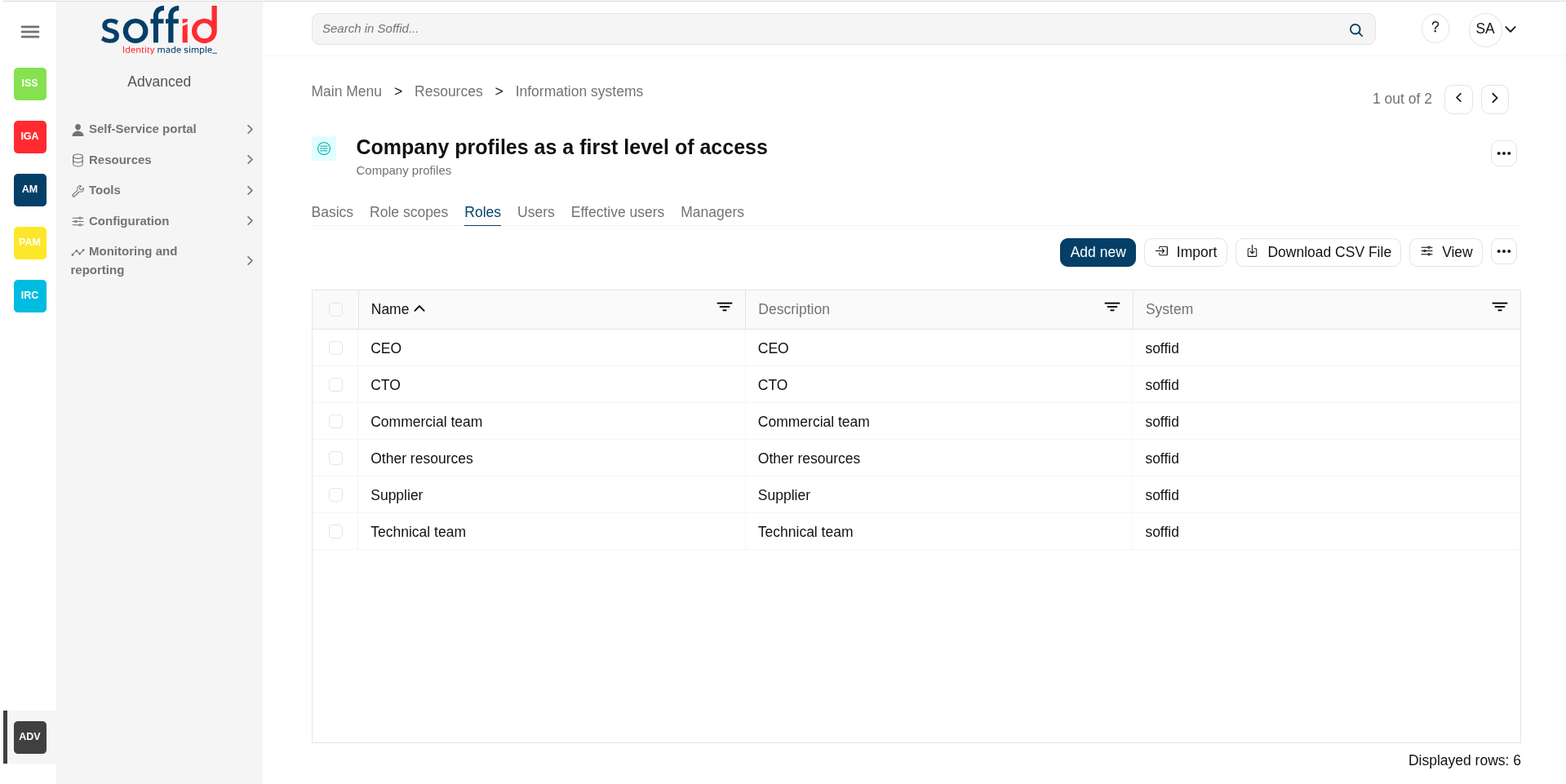](https://bookstack.soffid.com/uploads/images/gallery/2025-06/Utu1IB8DJ2fVaSJ4-image.png)
#### Users
On the user's tab, Soffid displays all the user with granted roles for this information system.
It is allowed to download a CSV file with all the user data.
Attributes:
- **Name**: name of the account where the role is granted
- **Full name**: full name of the user owner of the account
- **Group**: primary group of the user
- **Role**: name used to identify the role.
- **System**: agent of the target system owner of the role
- **Domain**: domian type of the role
- **Recertification**: date of the last recertification
💻 Image
[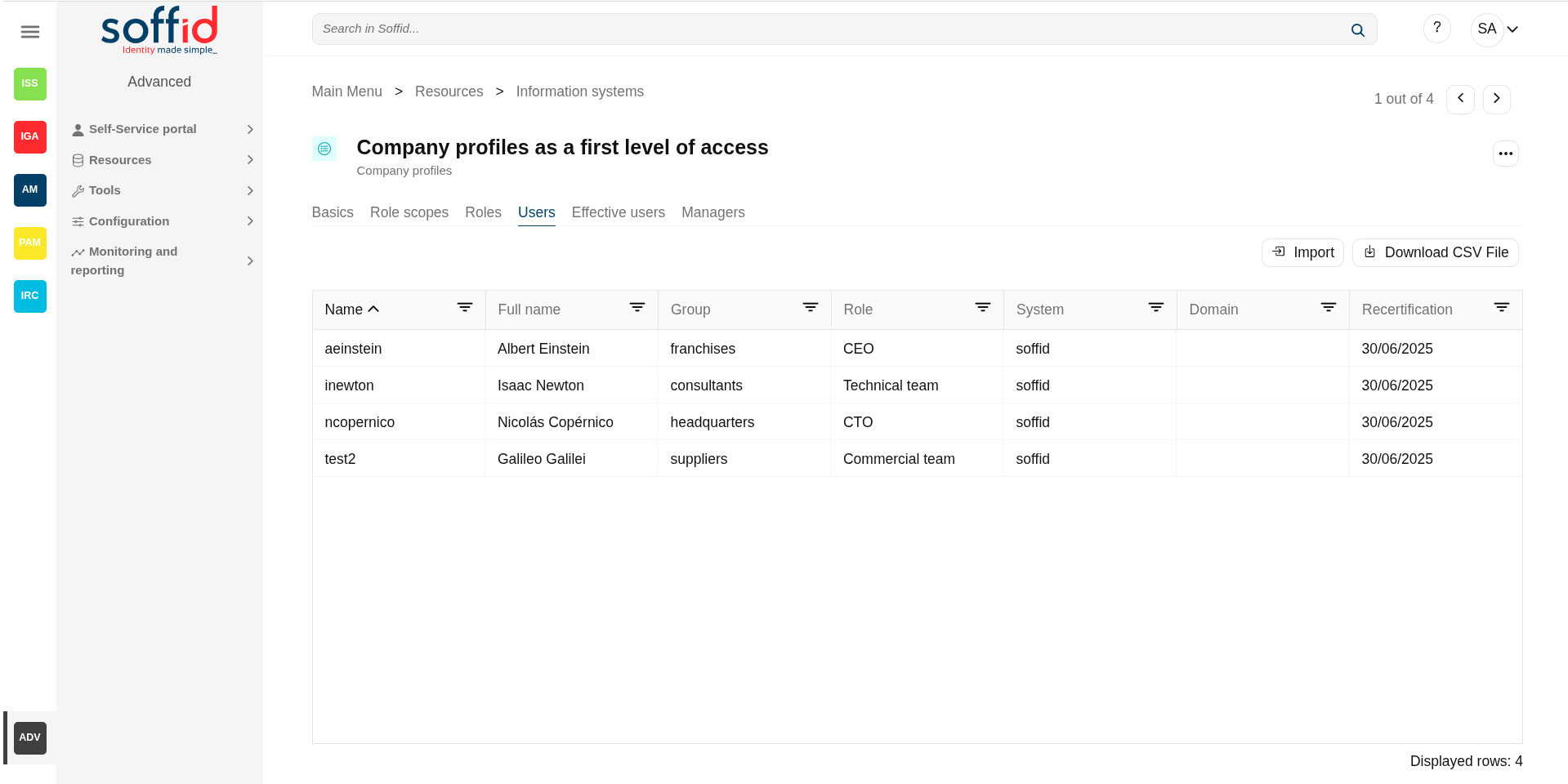](https://bookstack.soffid.com/uploads/images/gallery/2025-06/ikmZ1eGswlso5wrW-image.png)
#### Effective users
Hierarchy of permissions assigned to or inherited from an account. If you visit [the accounts page](https://bookstack.soffid.com/link/44#bkmrk-roles), you could see the roles on the Roles tab from a specific account.
Attributes:
- **Name**: name of the account where the role is granted
- **Full name**: full name of the user owner of the account
- **Group**: primary group of the user
- **Role**: name used to identify the role.
- **System**: agent of the target system owner of the role
- **Domain**: domian type of the role
- **Recertification**: date of the last recertification
💻 Image
[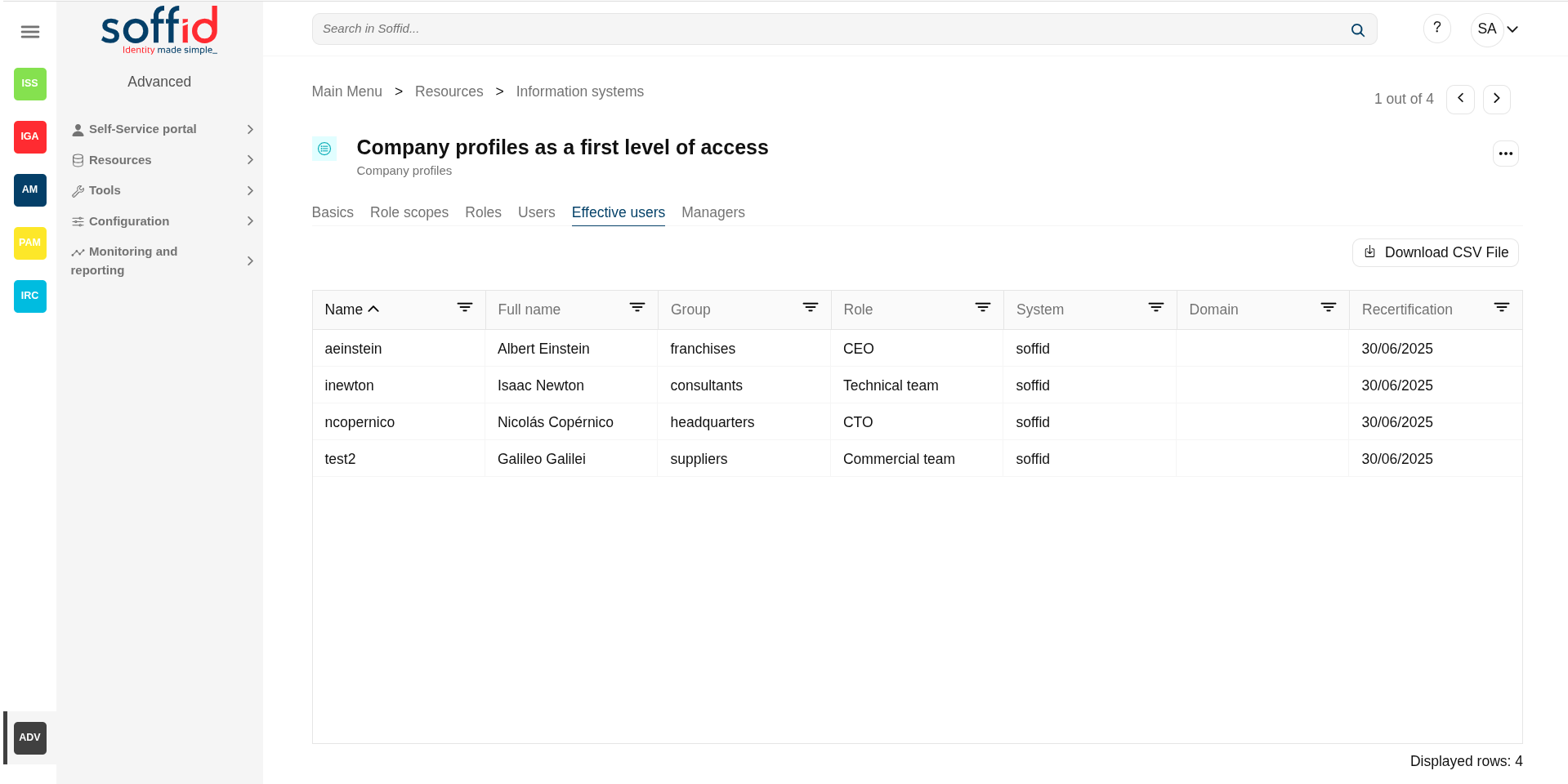](https://bookstack.soffid.com/uploads/images/gallery/2025-06/ZcGPnFlbM2WRuhPZ-image.png)
#### Managers
On the tab Managers, Soffid displays the Roles with Domain equals to Information System and the proper authorization.
Here you can grant the role to one or more users. You can also assign the role to users on the Roles page or on the Users page. Users who have been assigned this role will be displayed in the Managers tab.
Be in mind, to query the information about the roles and users on the managers tab, it will be mandatory to give authorization to query applications, you must add the role to the authorization (application:query).
Attributes:
- **Role / Managers**: name of the role / managers with the role and domain granted
- **Description**: description of the role / full name of the user
💻 Image
[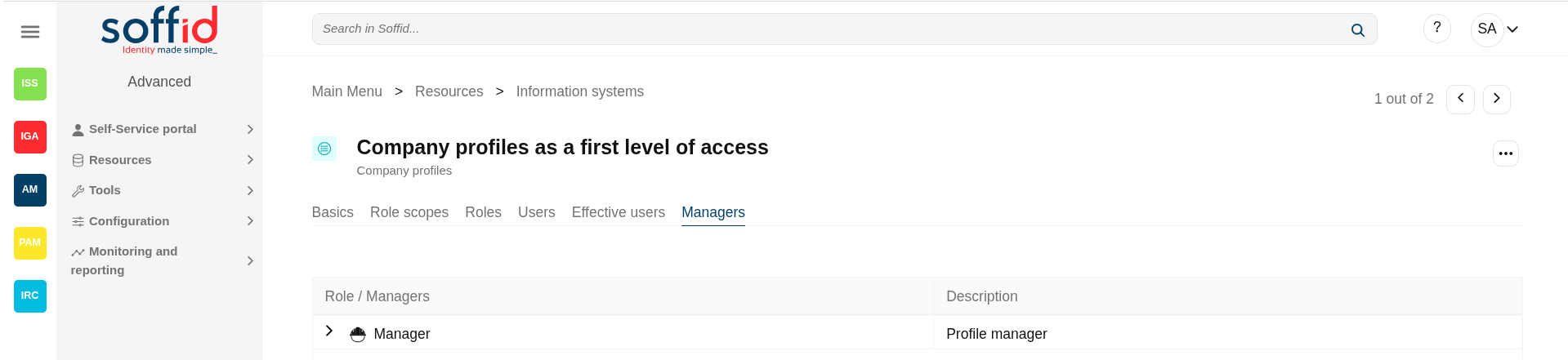](https://bookstack.soffid.com/uploads/images/gallery/2025-06/d5eFhWh4PlSSj2k4-image.png)
\*\* Role
[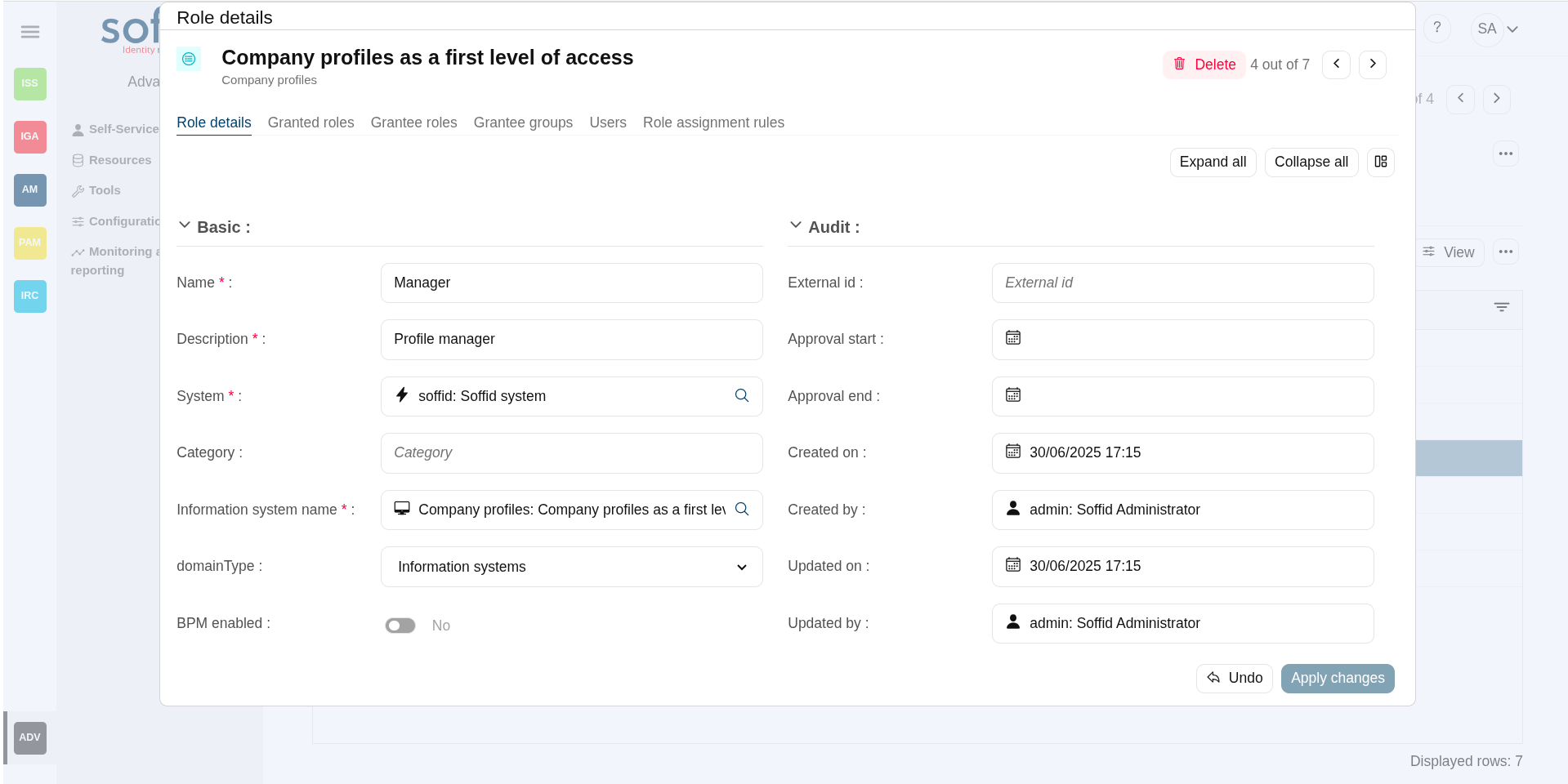](https://bookstack.soffid.com/uploads/images/gallery/2025-06/glO4ALMDU2SGTE5a-image.png)
\*\* Authorization
[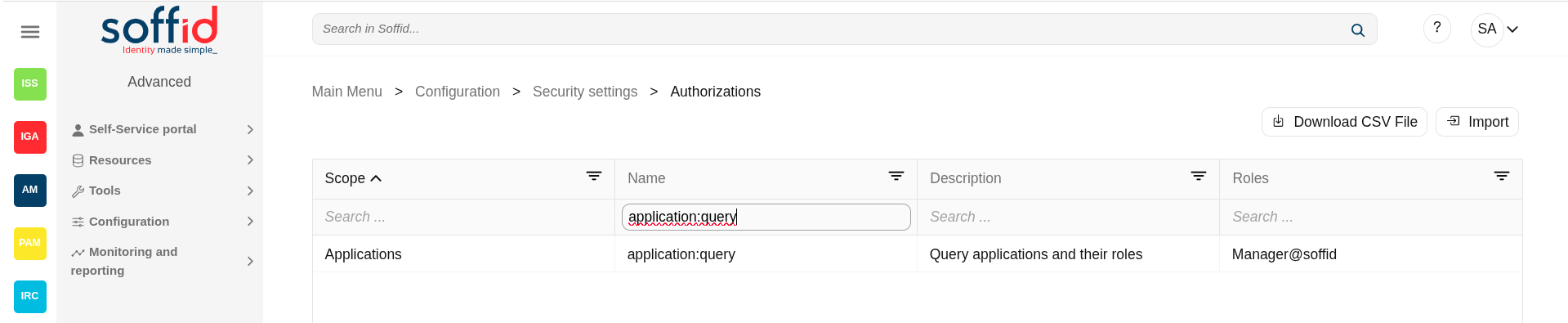](https://bookstack.soffid.com/uploads/images/gallery/2025-06/Rj51yDt7kpLlFwY6-image.png)
## Actions
#### Information system table actions
**"Query buttons"**
Allows to query groups through different search systems, [Quick, Basic and Advanced](https://bookstack.soffid.com/books/soffid-3-reference-guide/page/search-types "Search Types").
**"Table filter"**
It allows you to filter a column in the table based on the results loaded in it.
**Add new**
Allows to create a new information system.
To add a new information system it will be mandatory to fill in the required fields
**Import**
Allows you to upload a CSV file with the information system list to add or update information systems to Soffid.
First, you need to pick up a CSV file, that CSV has to contain a specific configuration. Then you need to check the content to be loaded, it is allowed to choose if you want or not load a specific attribute. And finally, you need to select the mappings for each column of the CSV file to import the data correctly and to click the Import button.
**Download CSV file**
Allows to download a csv file with the basic information of all information systems.
**Add child information system (+)**
Allows to add a child to a specific information system. You can choose that option below the father information system.
To add a child it is necessary to fill in the required fields
#### Information system detail actions
**Apply changes (disk button)**
Allows you to save the data of a new information system or to update the data of a specific information system. To save the data it will be mandatory to fill in the required fields
**Delete system**
Allows you to remove a specific information system. To perform that action, Soffid will ask you for confirmation, you could confirm or cancel the operation.
**Expand all**
Displays all the attributes of the different blocks.
**Collapse all**
Hide all attributes of the different blocks.
**"Types of views"**
Change the view type: Classic view, Modern view, Compact design.
**Undo**
Allows you to quit without applying any changes.
**Apply changes**
Allows you to save the data of a new information system or to update the data of a specific information system. To save the data it will be mandatory to fill in the required fields
##### Role scopes actions
**Add new**
Allows you to add a new domain to limit the scope. You can choose that option on the hamburger menu or clicking the add button (+).
To add a new domain it will be mandatory to fill in the required fields
**Import**
Allows you to upload a CSV file with the domain list to add or update domains to Soffid.
First, you need to pick up a CSV file, that CSV has to contain a specific configuration. Then you need to check the content to be loaded, it is allowed to choose if you want or not to load a specific attribute. And finally, you need to select the mappings for each column of the CSV file to import the data correctly and to click the Import button.
**Download CSV file**
Allows you to download a CSV file with all the information about domains.
**Add domain value (+)**
Allows you to add a domain value to a domain type (second node of the tree)
##### Roles actions
**Add new**
Allows you to create a new role for that information system. You can choose that option on the hamburger menu or clicking the add button (+).
To add a new role it will be mandatory to fill in the required fields
**Delete**
Allows you to delete one by one or to delete some roles at the same time from an information system .
To delete some roles at the same time, you need to select the roles, and then click the button with the subtraction symbol (-).
To delete one role, you can click the users, and then Soffid will show a form with the details. Then you can click the delete button (trash icon).
Soffid will ask you for confirmation to perform that action, you could confirm or cancel the operation.
**Import**
Allows you to upload a CSV file with the roles list to add to the information system.
First, you need to pick up a CSV file, that CSV has to contain a specific configuration. Then you need to check the content to be loaded, it is allowed to choose if you want or not to load a specific attribute. And finally, you need to select the mappings for each column of the CSV file to import the data correctly and to click the Import button.
**Download CSV file**
Allows to download a csv file with the basic role data
**View**
Allows you to add or remove columns to the table.
It is also possible to change the order of the columns.
**Bulk actions**
Allows massive operations to be performed on all roles selected. First of all, you must select the records that you want to update, once you have selected them, you must choose the bulk action on the "three points" icon. For more information visit the [Bulk action page.](https://bookstack.soffid.com/books/soffid-3-reference-guide/page/bulk-actions "Bulk actions")
In addition for each role you can perform the specific operations defined on the [Role page](https://bookstack.soffid.com/books/soffid-3-reference-guide/page/roles)
##### Users actions
**Import**
Allows you to upload a CSV file with the users list to add to the roles to be granted.
First, you need to pick up a CSV file, that CSV has to contain a specific configuration. Then you need to check the content to be loaded, it is allowed to choose if you want or not to load a specific attribute. And finally, you need to select the mappings for each column of the CSV file to import the data correctly and to click the Import button.
**Download CSV file**
Allows to download a CSV file with all the information about users.
##### EffecdtUsers actions
**Download CSV file**
Allows to download a CSV file with all the information about users.
## Example
#### Approval process Example
1\. Assign a role a to a User: this role belong to an information system with an Approval process configured.
💻 Image
Information system definition
[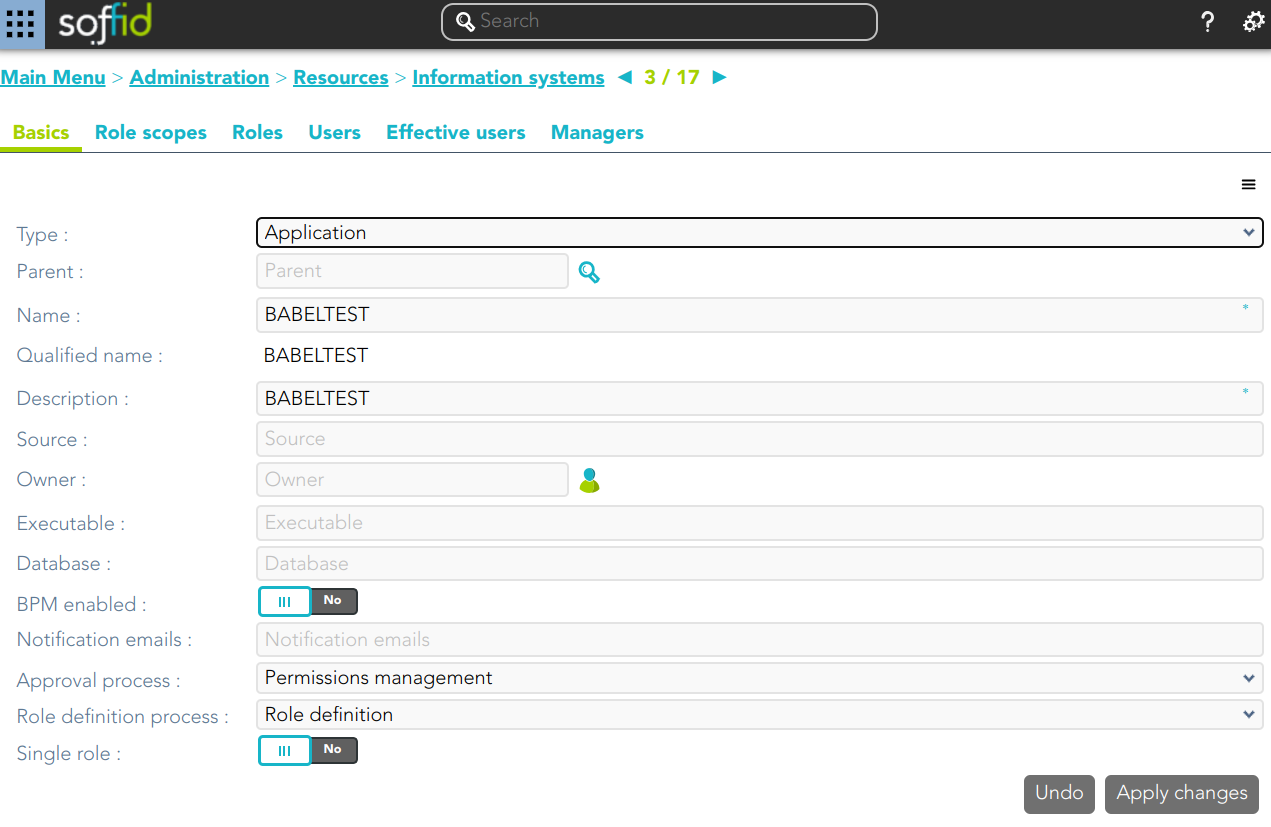](https://bookstack.soffid.com/uploads/images/gallery/2024-11/p1FVPiboknE30TQz-image.png)
💻 Image
Assign a role a to an user
[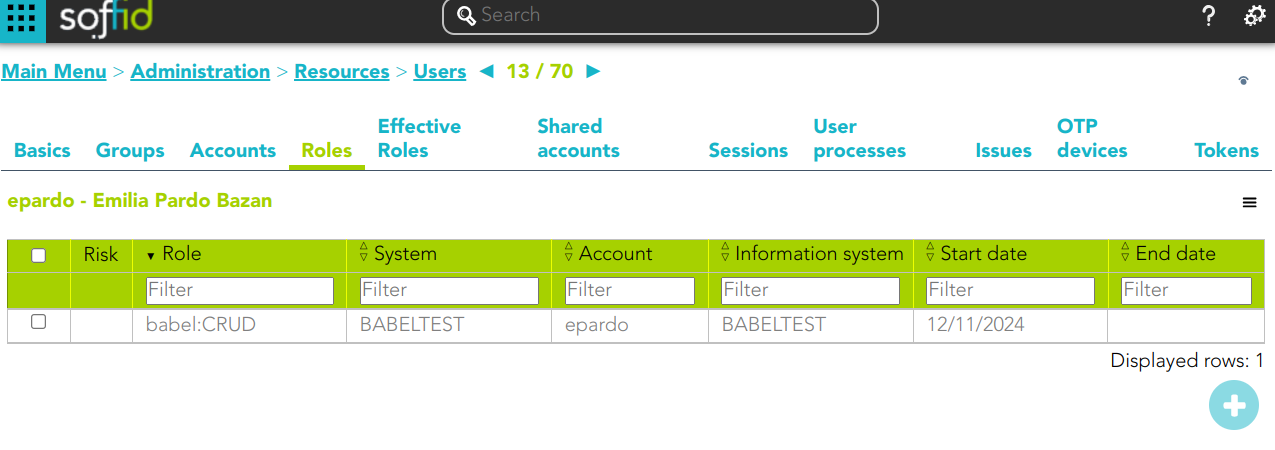](https://bookstack.soffid.com/uploads/images/gallery/2024-11/5IQmz7mZnYaibX8t-image.png)
2\. A task to approve o reject is created
💻 Image
[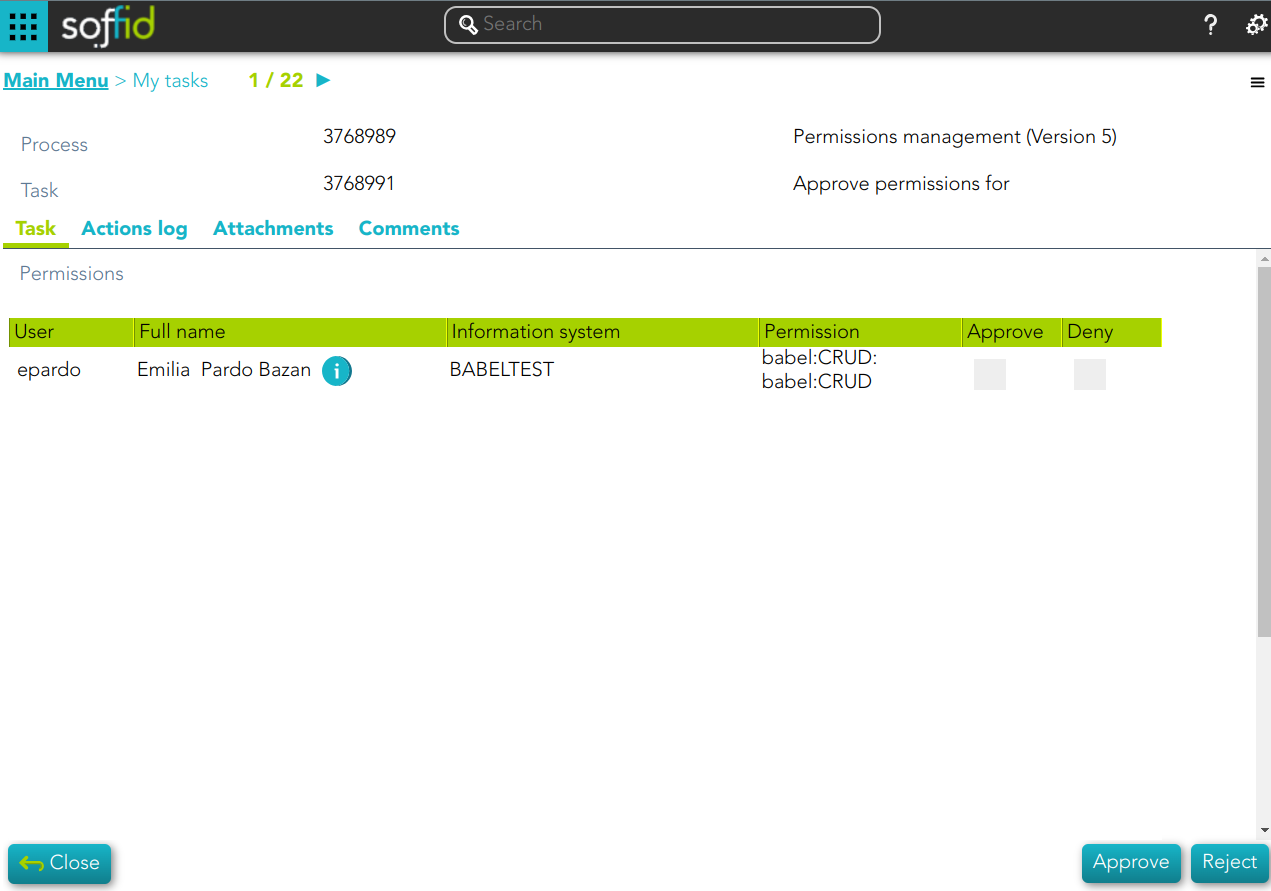](https://bookstack.soffid.com/uploads/images/gallery/2024-11/mW3EOTBOjMYn9Kme-image.png)
#### Role definition process example
1\. Update a role definition.This role belong to an information system with an Approval process configured.
💻 Image
Assign a role a to an user
[](https://bookstack.soffid.com/uploads/images/gallery/2024-11/5IQmz7mZnYaibX8t-image.png)
💻 Image
[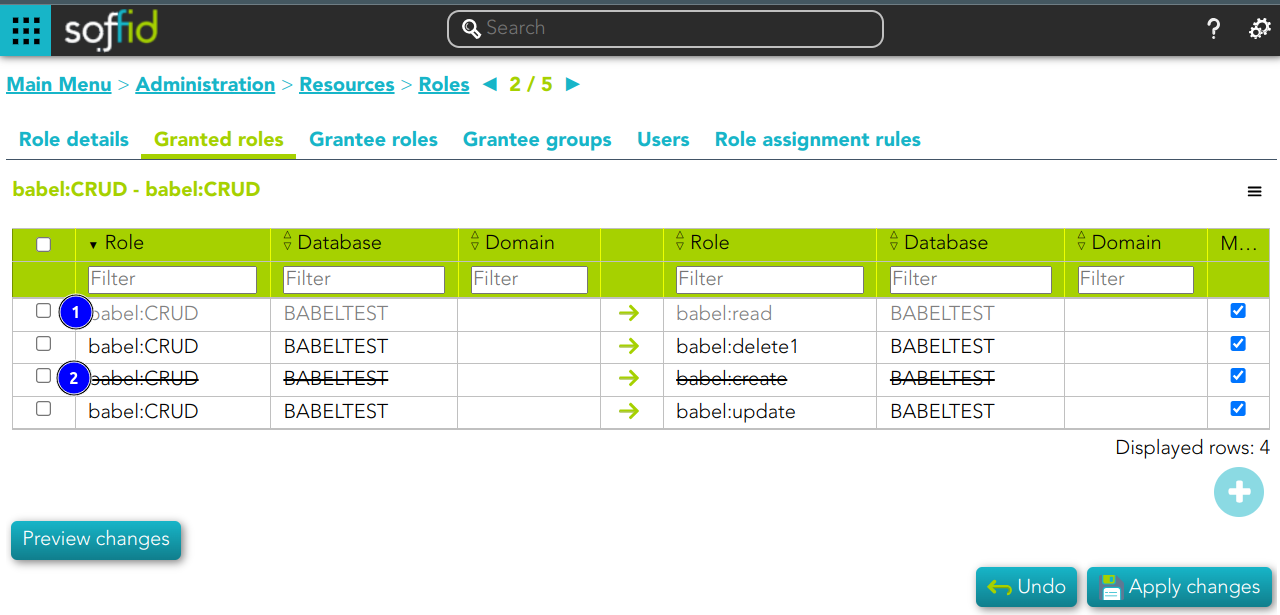](https://bookstack.soffid.com/uploads/images/gallery/2024-11/NZ3ER7moLBrrzOM7-image.png)
1\) This assignation is pending to approve
2\) This deletion is pending to approve
2\. A task to approve o reject is created
Image
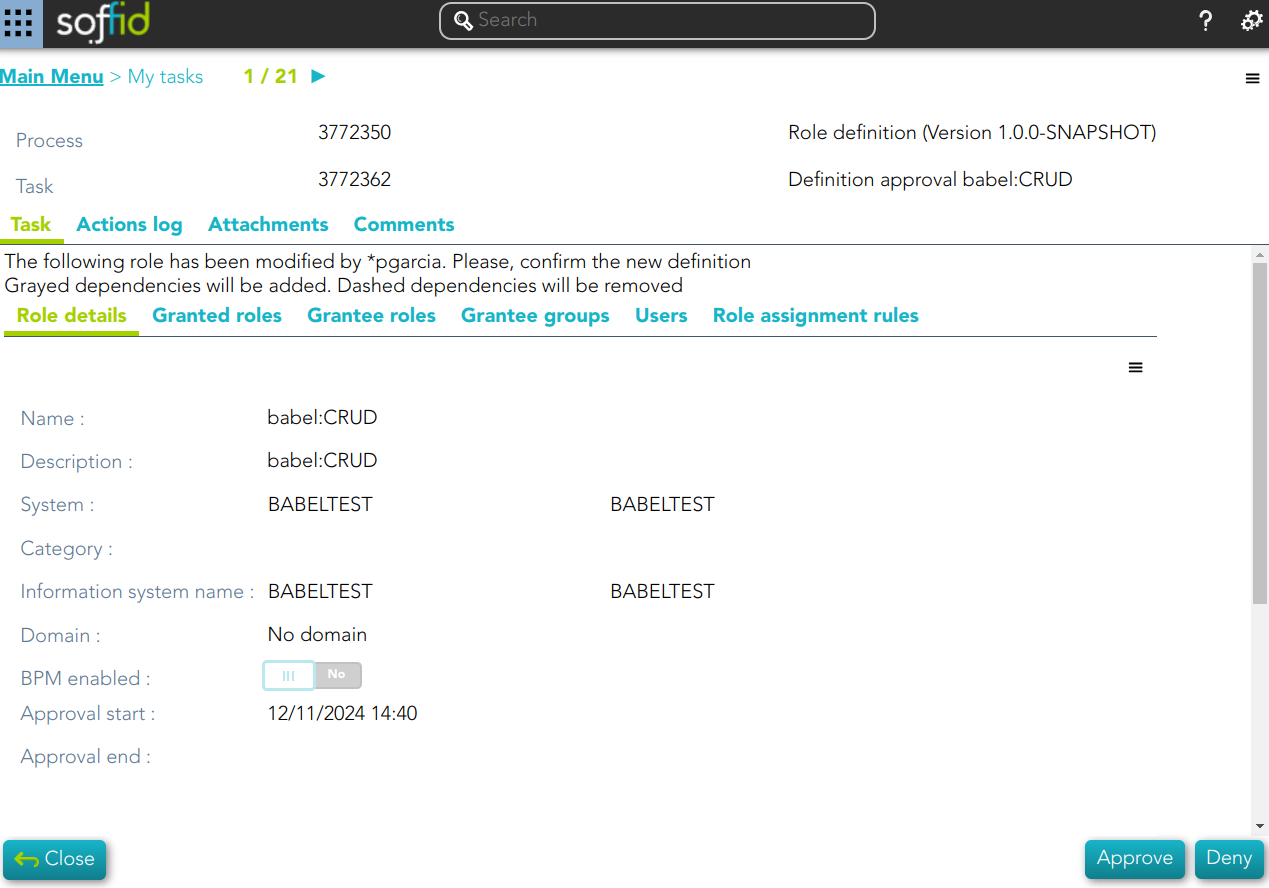
# Roles
## Description
Soffid allows you to create roles to specify permissions that can be assigned to a user, a group, or an account. These permissions determine what operations are allowed on a resource. You can use roles to delegate access to users, applications, or services. The main goal is to achieve optimal security administration.
Roles can be defined at different levels:
- Organizational permissions.
- Application permissions.
- Low-level permissions.
When needed, generic roles can be created. When such a role is granted to any user, it is converted into a specific role by specifying an organization unit, information system, or a specific value. So, for instance, a generic emergency coordinator role can be created. The master emergency coordinator will have this role granted for the whole organization, while a remote office emergency coordinator will have this role granted for his single unit.
Note that a role can belong to an information system with a defined role definition process.
## Screen overview
[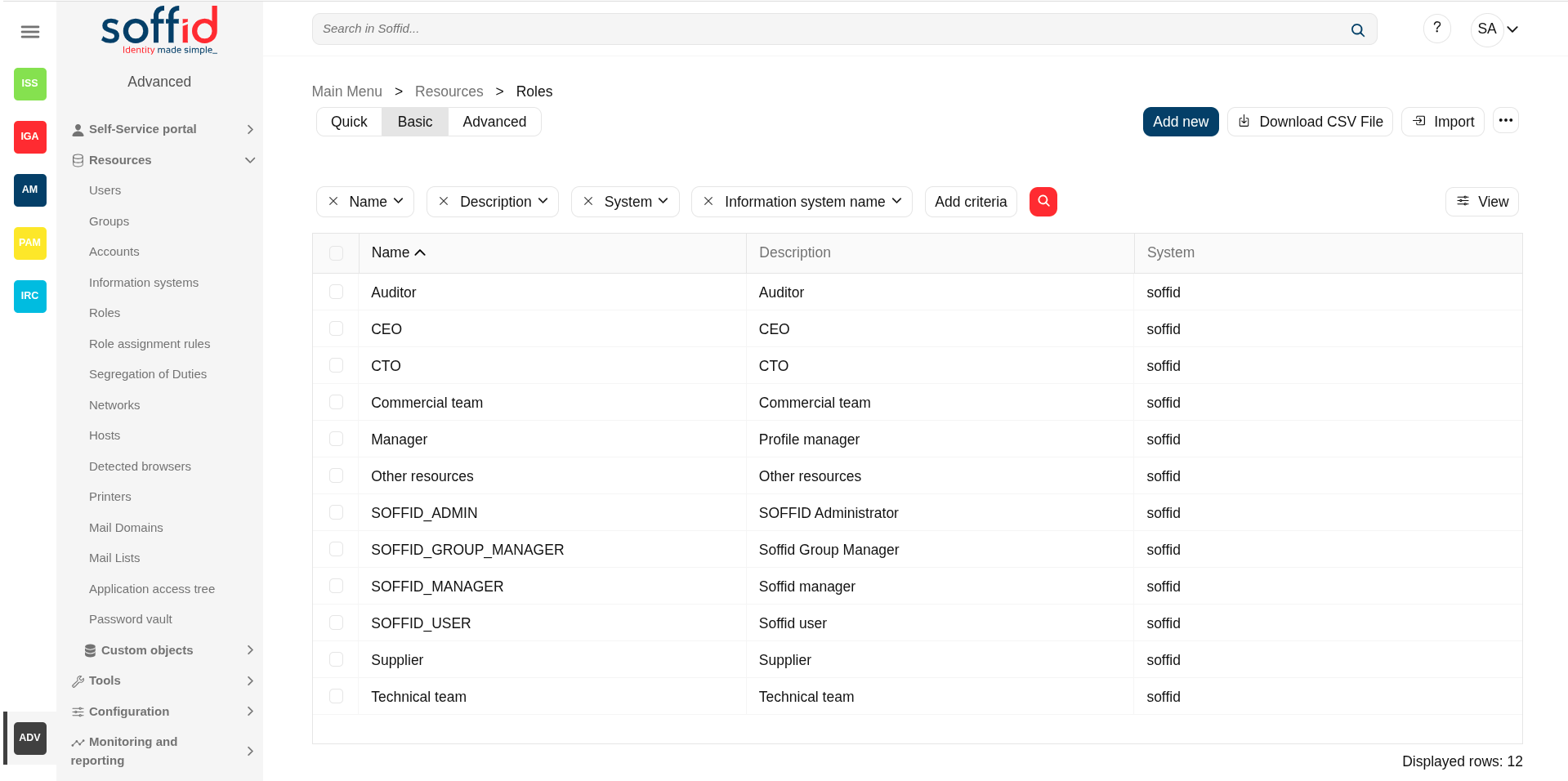](https://bookstack.soffid.com/uploads/images/gallery/2025-06/gCoTb2cCHewm6dxc-image.png)
[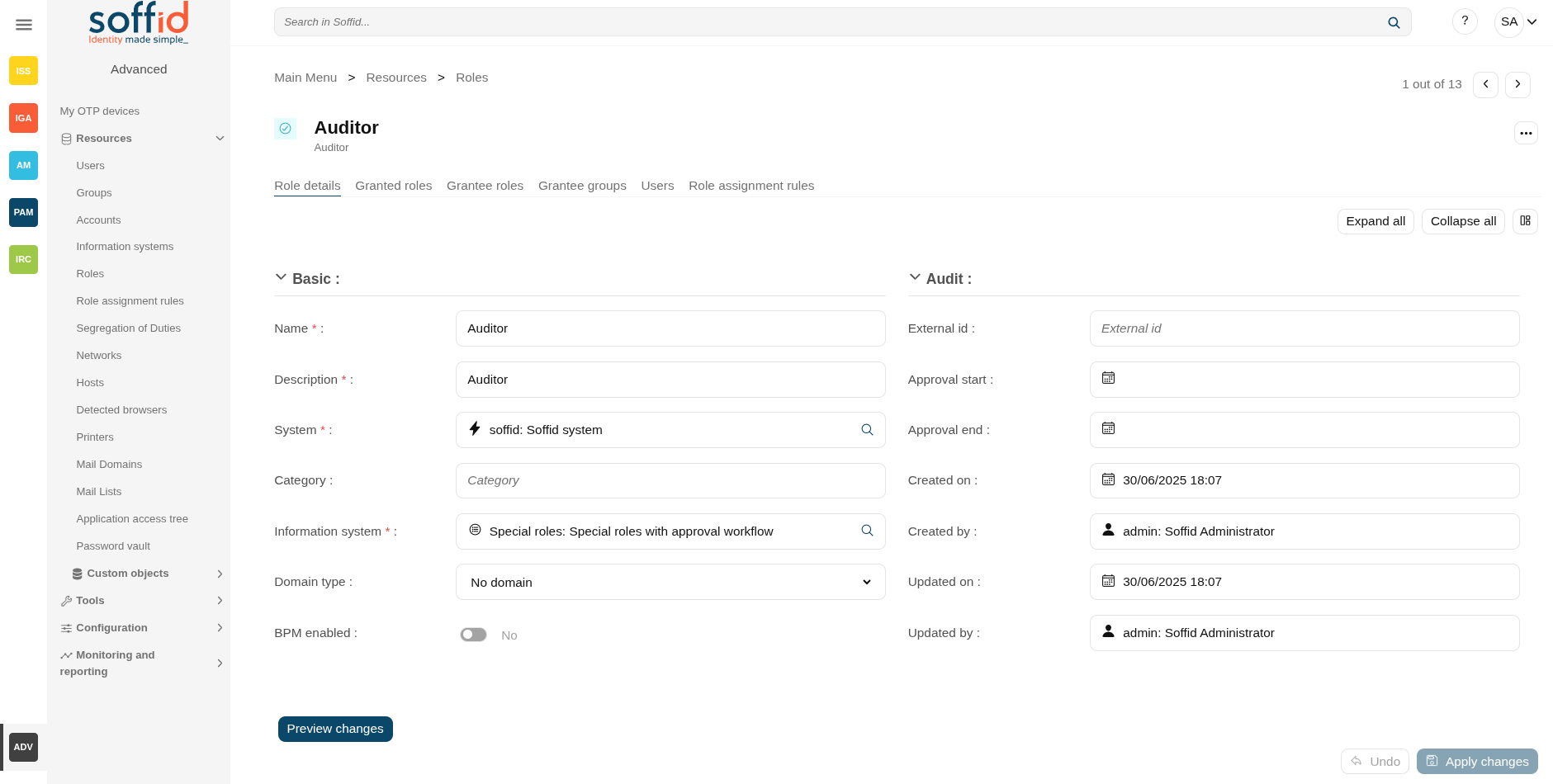](https://bookstack.soffid.com/uploads/images/gallery/2025-09/lVzOHCvYAYvW3fDZ-image.png)
## Related objects
- [Users](https://bookstack.soffid.com/books/soffid-4-reference-guide/page/users "Users") : owner users of the accounts
- [Accounts](https://bookstack.soffid.com/books/soffid-4-reference-guide/page/accounts "Accounts") : a role is granted to a user throght an account
- [Agents](https://bookstack.soffid.com/books/soffid-4-reference-guide/page/agents "Agents") : the target system owner of the role
- [Roles](https://bookstack.soffid.com/books/soffid-4-reference-guide/page/roles "Roles") : a role can be inherited from another role
- [Groups](https://bookstack.soffid.com/books/soffid-4-reference-guide/page/groups "Groups") : a role can be inherited from a group
- [Role assignment rules](https://bookstack.soffid.com/books/soffid-4-reference-guide/page/role-assignment-rules "Role assignment rules") : a role can be inherited from a rule
- [Information systems](https://bookstack.soffid.com/books/soffid-4-reference-guide/page/information-systems "Information systems") : where the roles are gathered
- [BPM editor](https://bookstack.soffid.com/books/soffid-4-reference-guide/page/bpm-editor-addon-bpm "BPM editor (addon bpm)") : roles and information system need to be BPM enabled to be menaged on worlkflows
- [Scheduled tasks](https://bookstack.soffid.com/books/soffid-4-reference-guide/page/scheduled-tasks "Scheduled tasks") : the roles can managed from the reconcile process
## Standard attributes
### Role detail
- **Name**: name used to identify the role
- **Description**: detailed role description.
- **System**: information storage system from a technical point of view (active directory, database, CSV, ...).
- **Category**: this attribute can be used as a label to define the type of group, its use, or any other distinction you consider useful.
- **Information system**: asset or application, from a functional point of view, on which the permissions are granted or revoked.
- **Domain type**: you can set a limitation of the role scope by selecting the domain. Initially, there are two domains defined, Groups and Information Systems. Soffid allows you to add more domains. (\*1) (\*2)
- **BPM enabled**: if you check this option (value selected is Yes) this role will be available in the Permissions management workflows.
- **External id**: new attribute in Soffid 4 to keep a record of the unique identifier of the object in the final system (useful for synchronisation and renaming).
- **Approval start**: at this date, Soffid will connect to the system and will assign the role. If there is no approval start, it will be assigned at the moment.
- **Apploval end**: at this date, Soffid will connect to the system and will revoke the role.
- **Created**: account creation date.
- **Last change**: last modified.
- **Created by**: user who created the account
- **Updated by**: last user who updated the account
Domain example (\*1)
First, you can define the scope for one specific Role, for instance, you define role manager in Soffid System, with the scope Groups:
[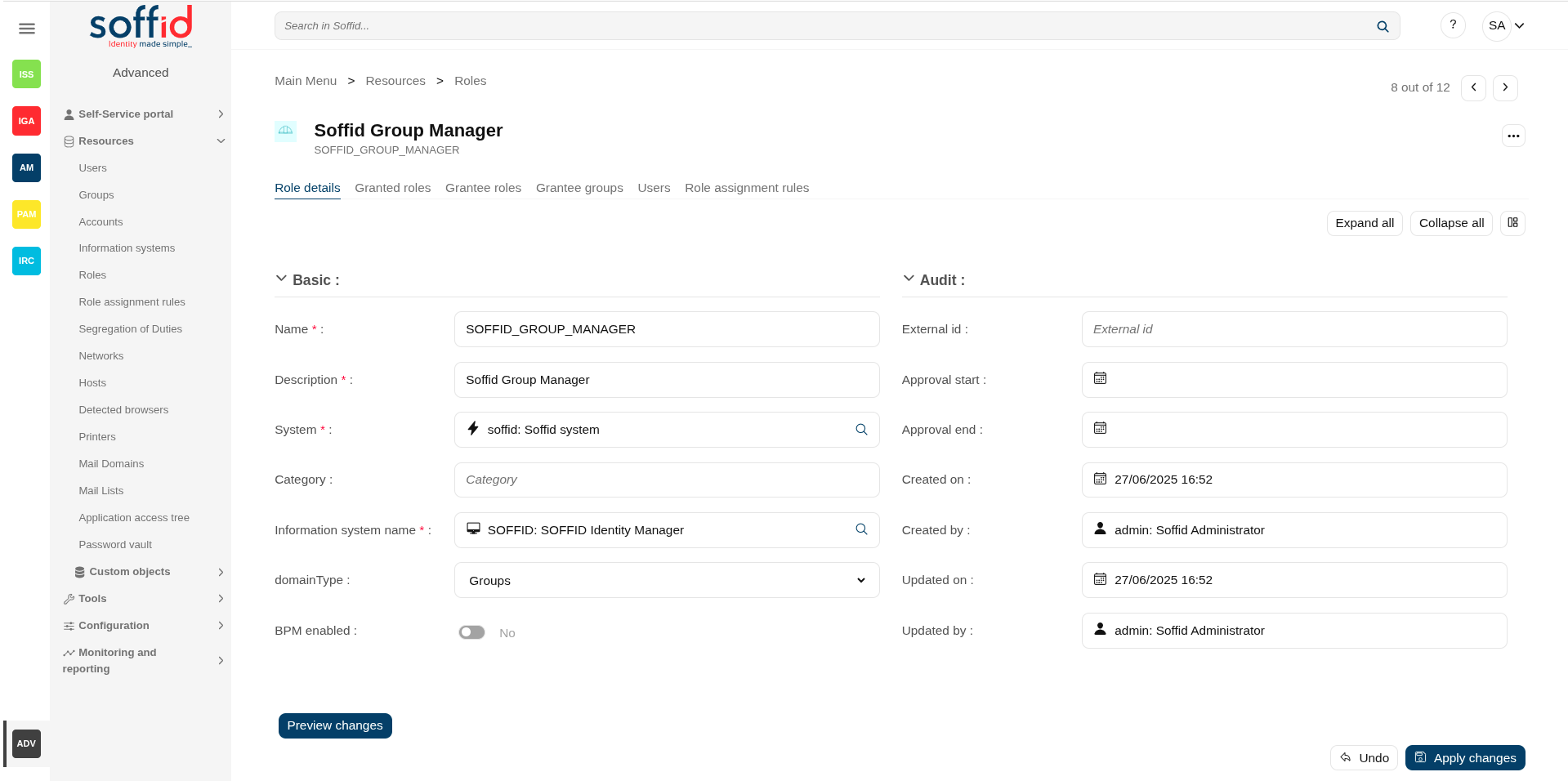](https://bookstack.soffid.com/uploads/images/gallery/2025-06/mE5NAnjaGsiGxz6w-image.png)
Then, you can assign this role to one or more users. To do this you must indicate the scope (can be one or more scoped):
[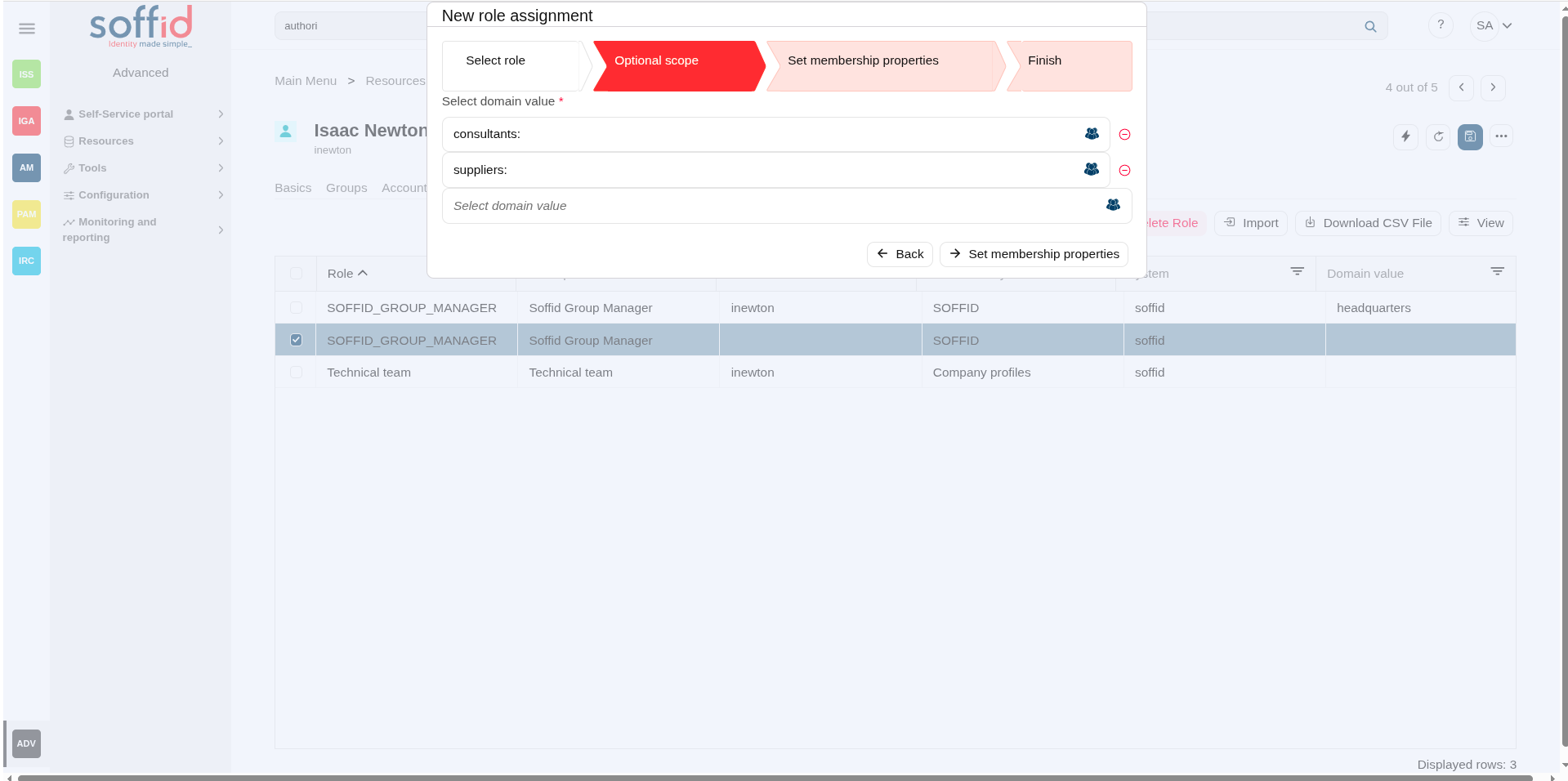](https://bookstack.soffid.com/uploads/images/gallery/2025-06/zXsdXZJ3USvSZowi-image.png)
So the user will have the role in the scopes indicated:
[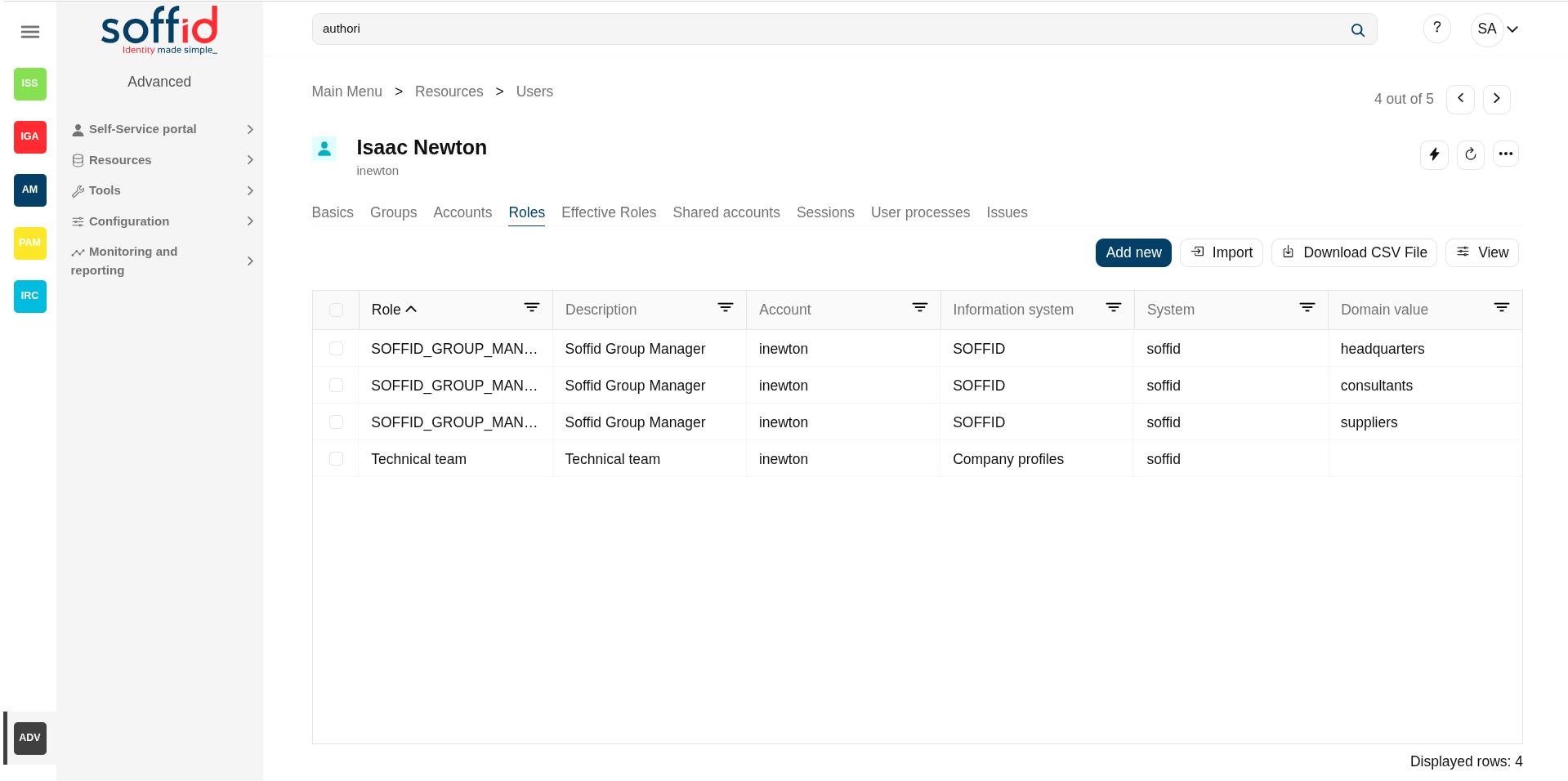](https://bookstack.soffid.com/uploads/images/gallery/2025-06/CqQouGnJSuYDGtlh-image.png)
If you try to assign the role without domain, this error will be displayed:
[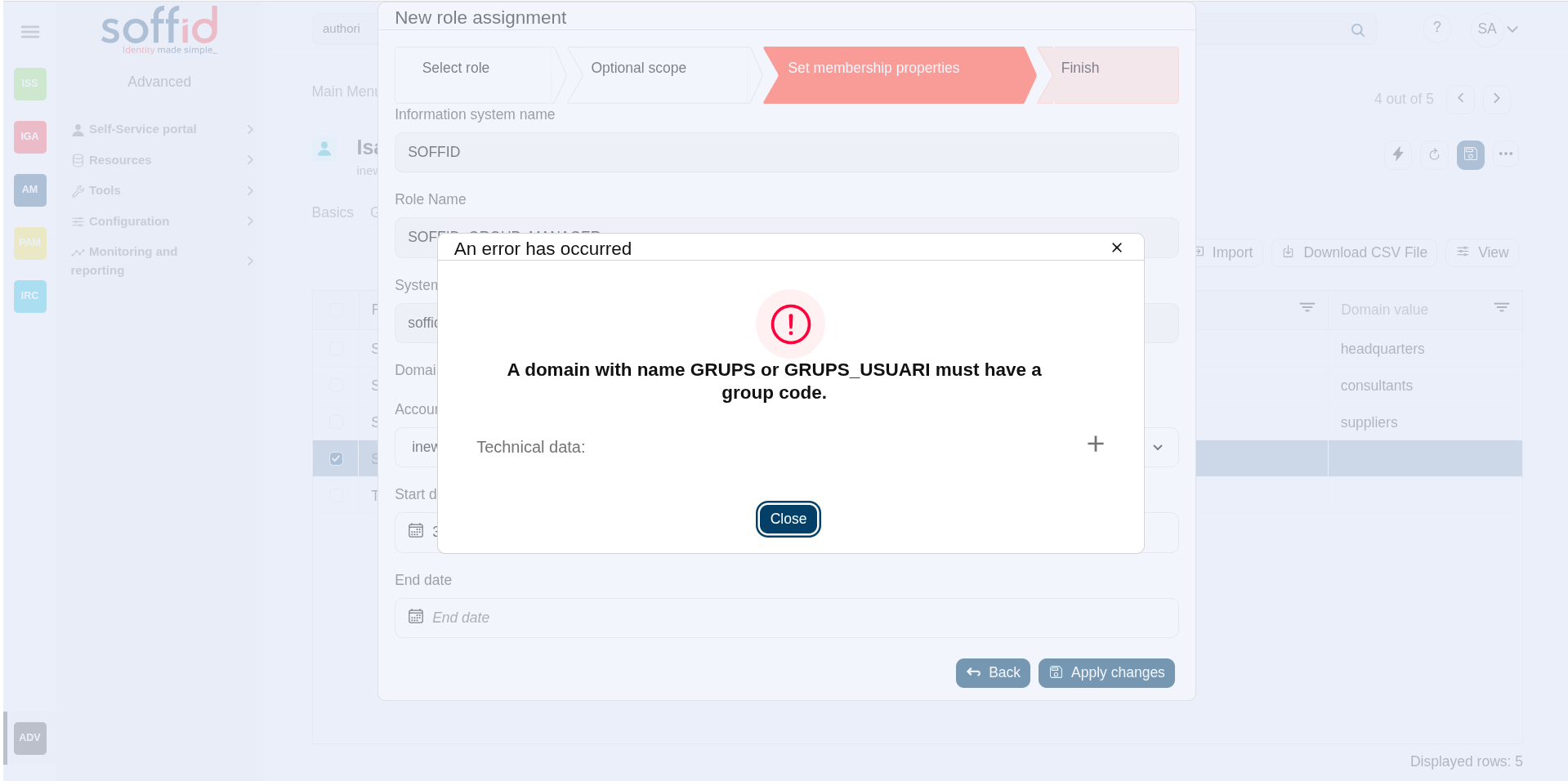](https://bookstack.soffid.com/uploads/images/gallery/2025-06/IXJSBgUOo1m5mYwM-image.png)
Domain example (\*2)
You can define the scope for one specific Role, for instance, you define role manager in Soffid System, with the scope Information Systems:
[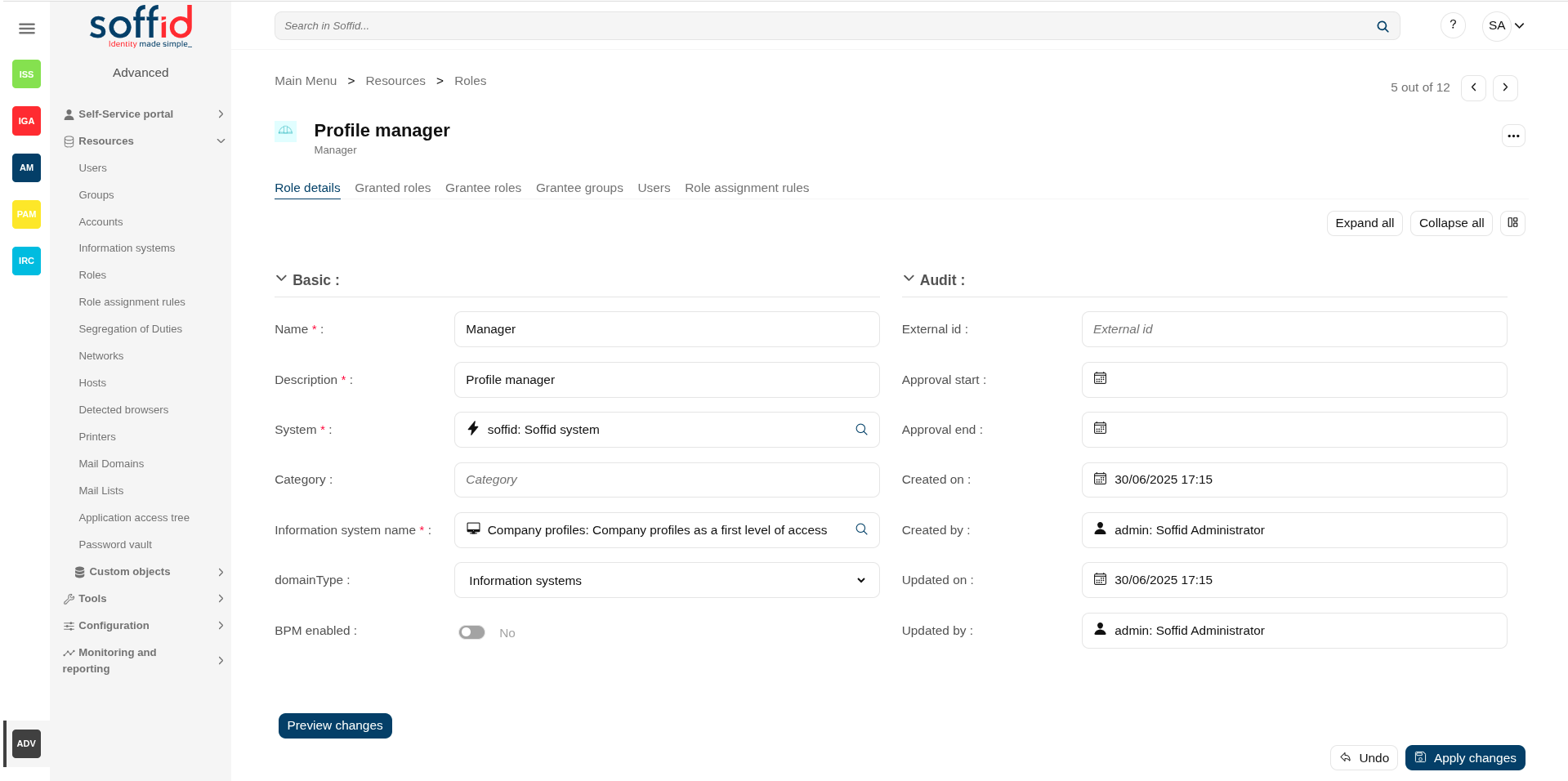](https://bookstack.soffid.com/uploads/images/gallery/2025-06/DdCeuRY0JHU7XN4F-image.png)
Then, you can assign this role to one or more users.
[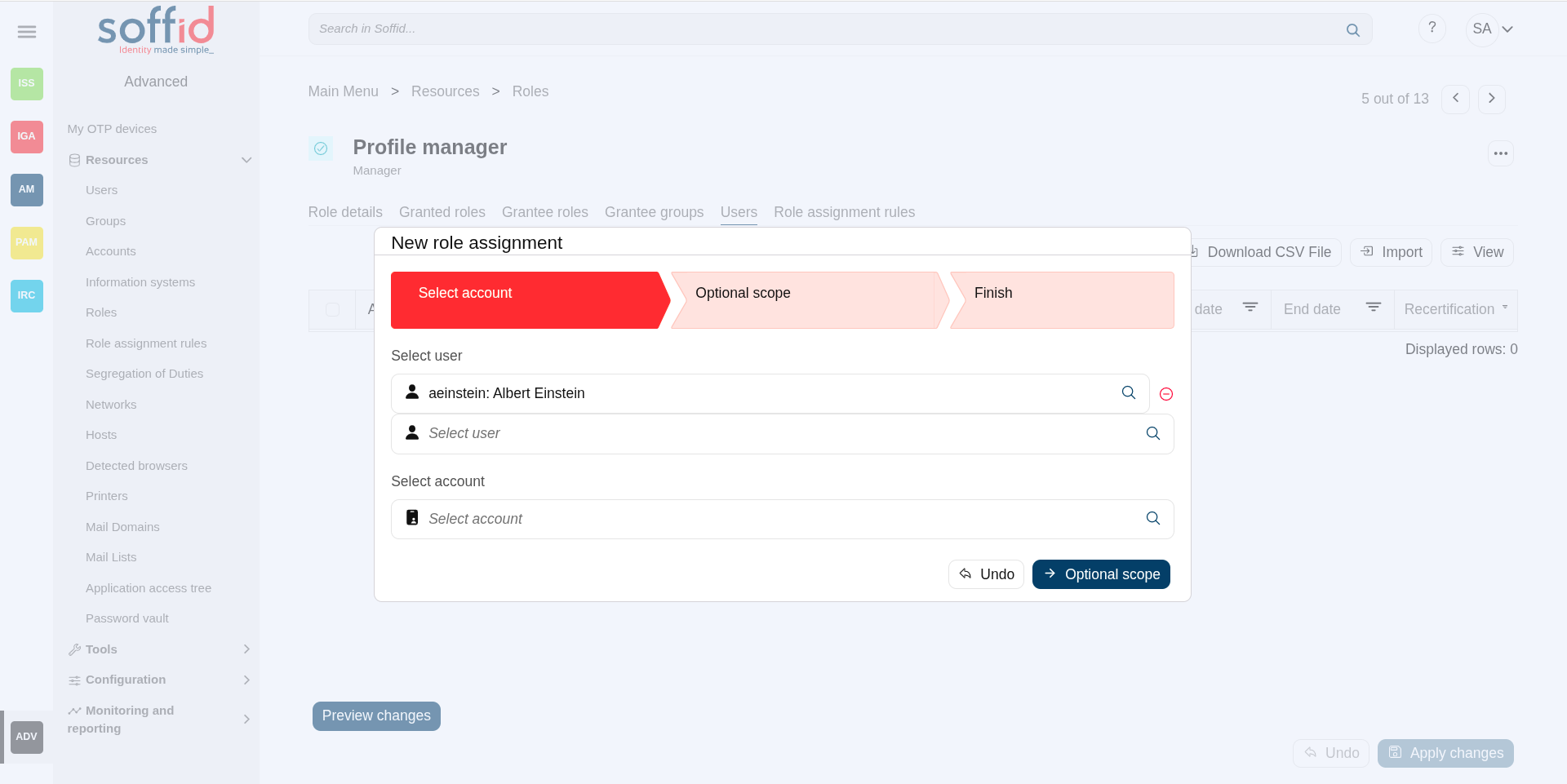](https://bookstack.soffid.com/uploads/images/gallery/2025-07/YVApfNH9OH4IsXEq-image.png)
To do this you must indicate the scope (can be one or more scoped):
[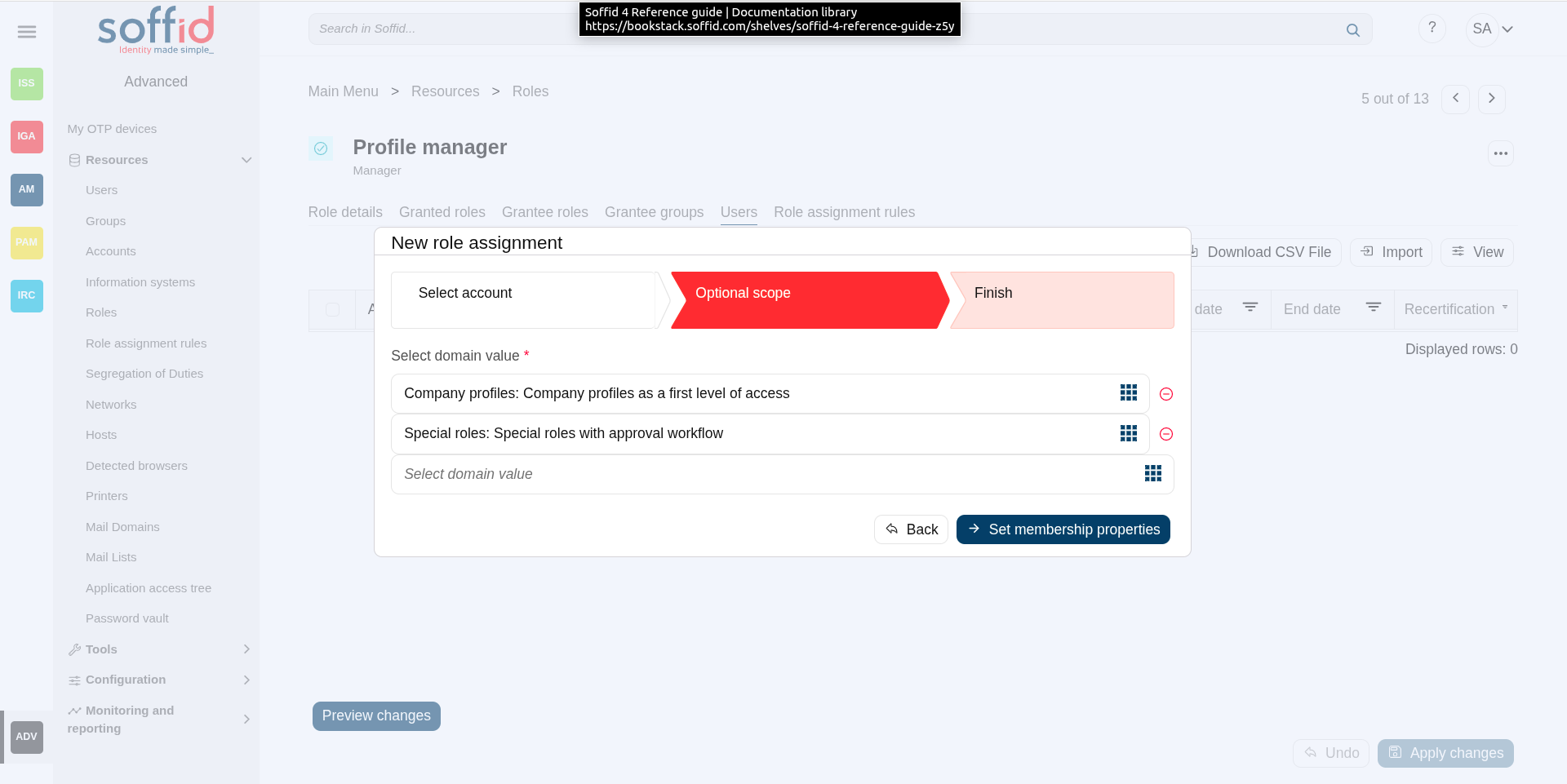](https://bookstack.soffid.com/uploads/images/gallery/2025-07/C4J4kU7w3sYDgYct-image.png)
[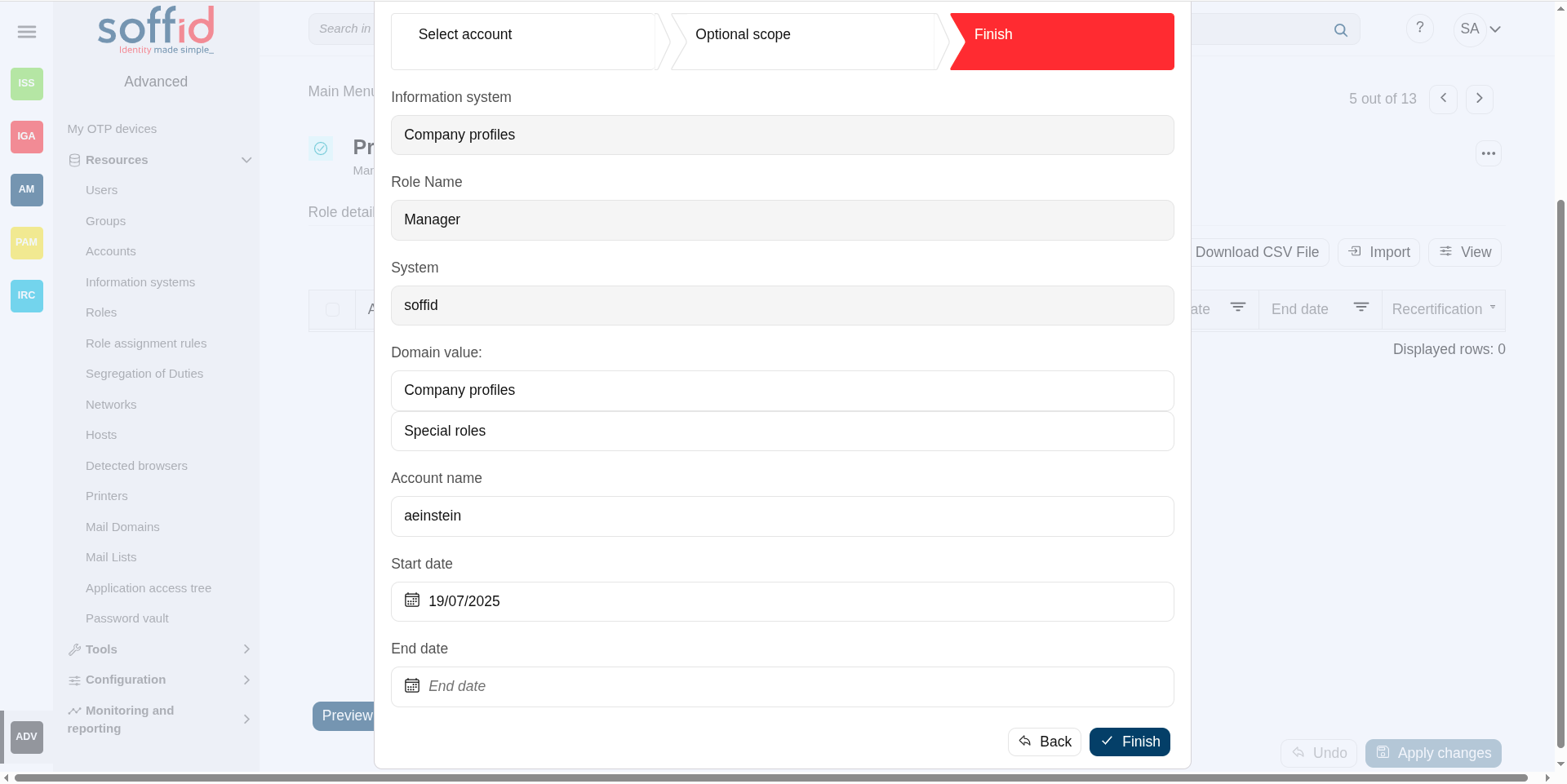](https://bookstack.soffid.com/uploads/images/gallery/2025-07/YSSua75qqWs5Iko9-image.png)
So the user will have the role in the scopes indicated:
[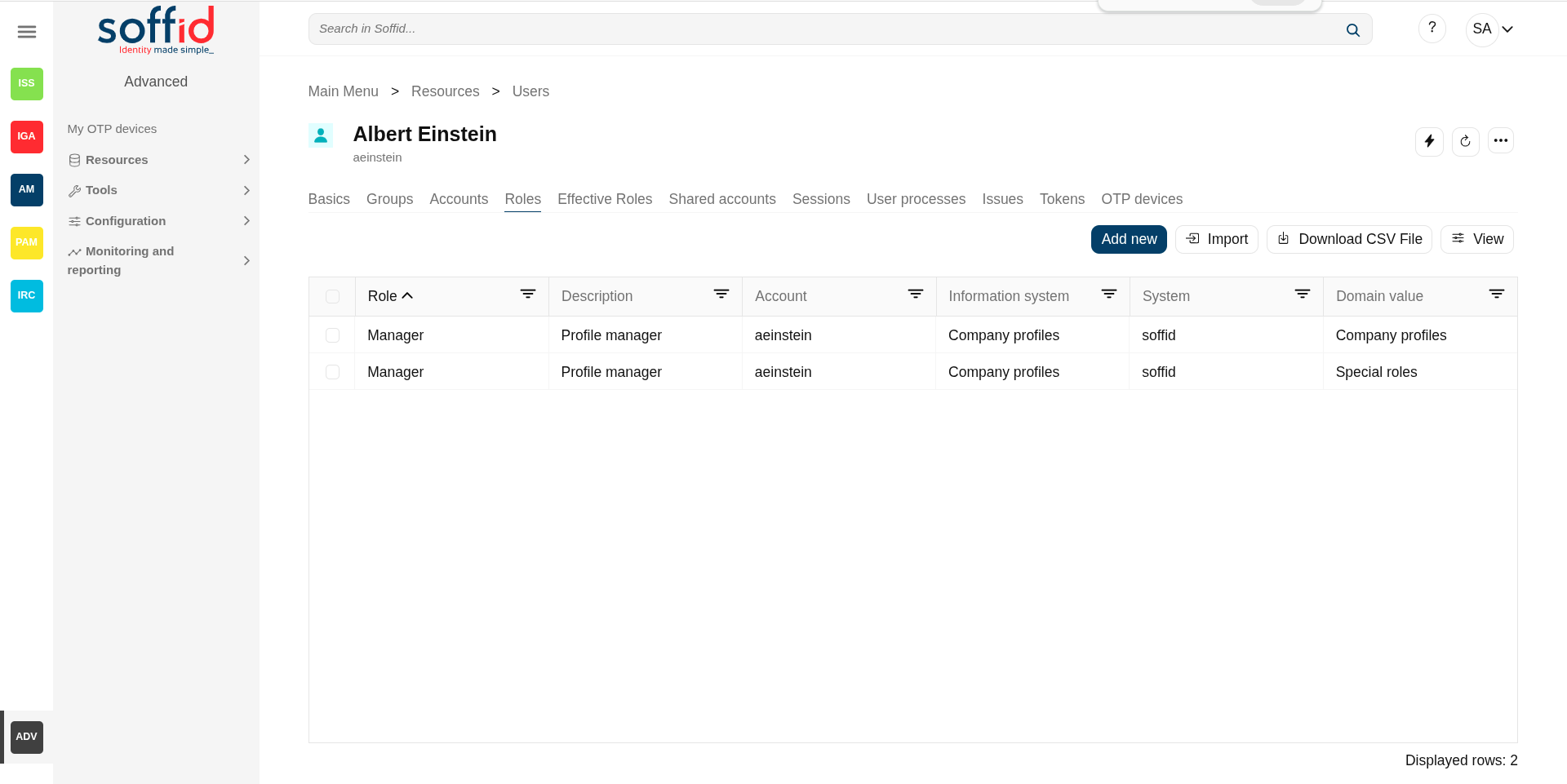](https://bookstack.soffid.com/uploads/images/gallery/2025-07/DNO6ikyd8syYgfn3-image.png)
If you try to assign the role without domain, this error will be displayed:
[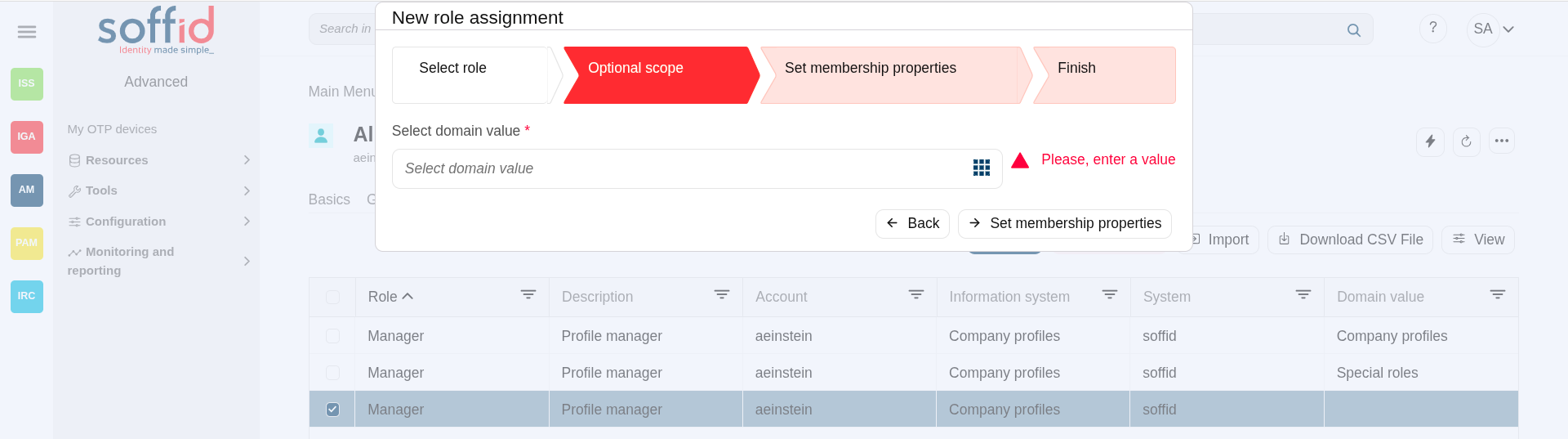](https://bookstack.soffid.com/uploads/images/gallery/2025-07/uaJ2q70L517HOph0-image.png)
### Granted roles
On the granted roles tab, you can assign the privileges of this role to another role in another system.
- **Role**: (parent) name used to identify the role.
- **Database**: (parent) agent of the target system owner of the role
- **Domain**: (parent) domian type of the role
- **Role**: (child) name used to identify the role.
- **Database**:(child) agent of the target system owner of the role
- **Domain**:(child) domian type of the role
- **Mandatory**: the roles with this flag checked will be displayed in the user's effective roles tab
##### Assign privileges
To assign privileges you should click the button with the "Add new" button, then select the target role, the domain values when necessary, and click the finish button. At this point the record will be added to the list.
Now you can check or uncheck the mandatory field.
- **Mandatory**: the roles with this flag checked will be displayed in the user's effective roles tab.
- **No Mandatory**: roles with this flag unchecked will be displayed in the user's roles tab and can be managed. It is not automatically assigned to users who already had the parent role.
And finally, you should click the Apply changes button to save the changes. With this operation, all the permissions of this will be assigned to the target role.
💻 Image
[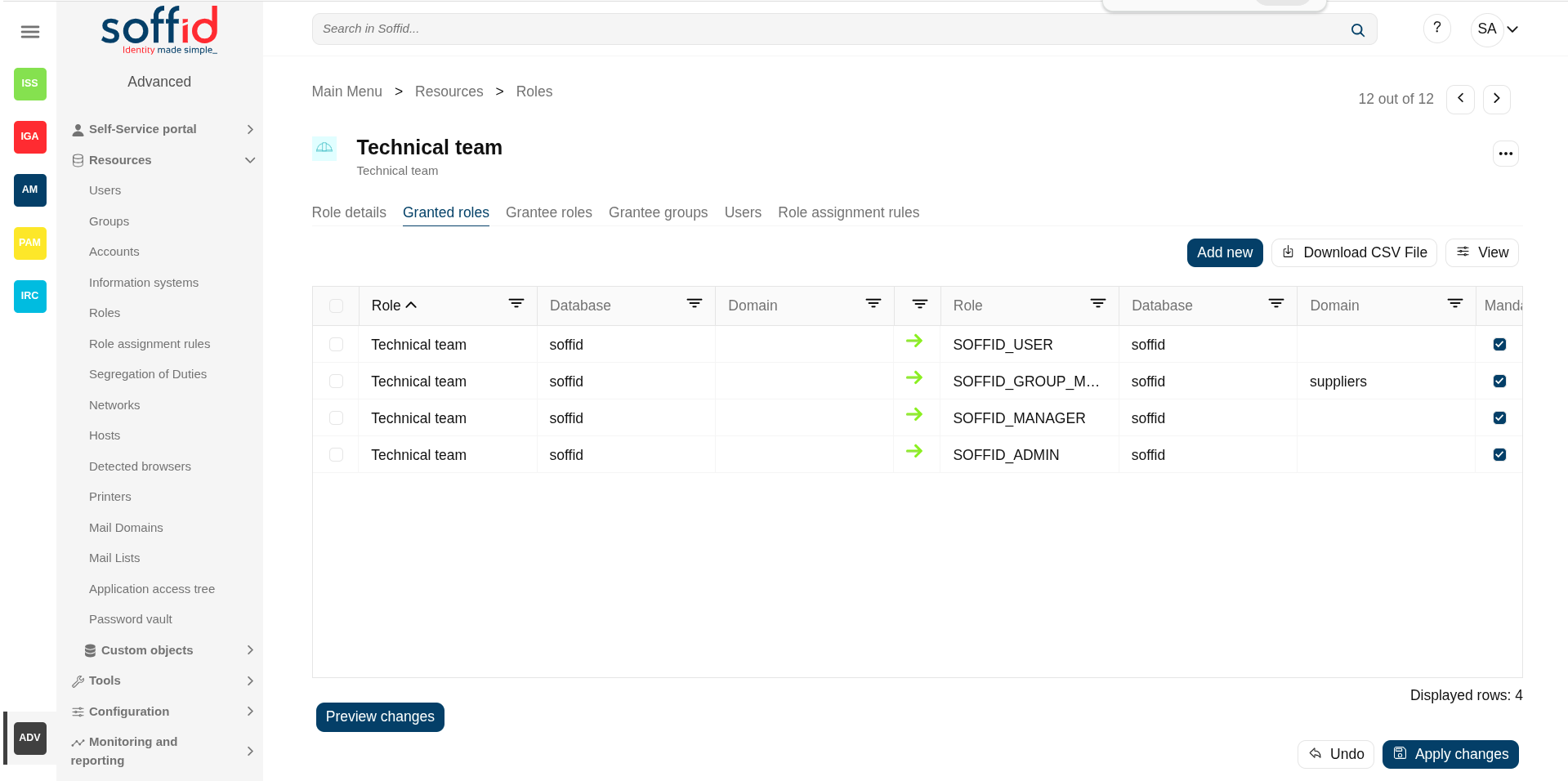](https://bookstack.soffid.com/uploads/images/gallery/2025-06/OOV4qUr1B0GAWaLy-image.png)
💻 Image
This role belong to an Information System with a defined Role definition process.
1. This assignation is pending to approve
2. This deletion is pending to approve
[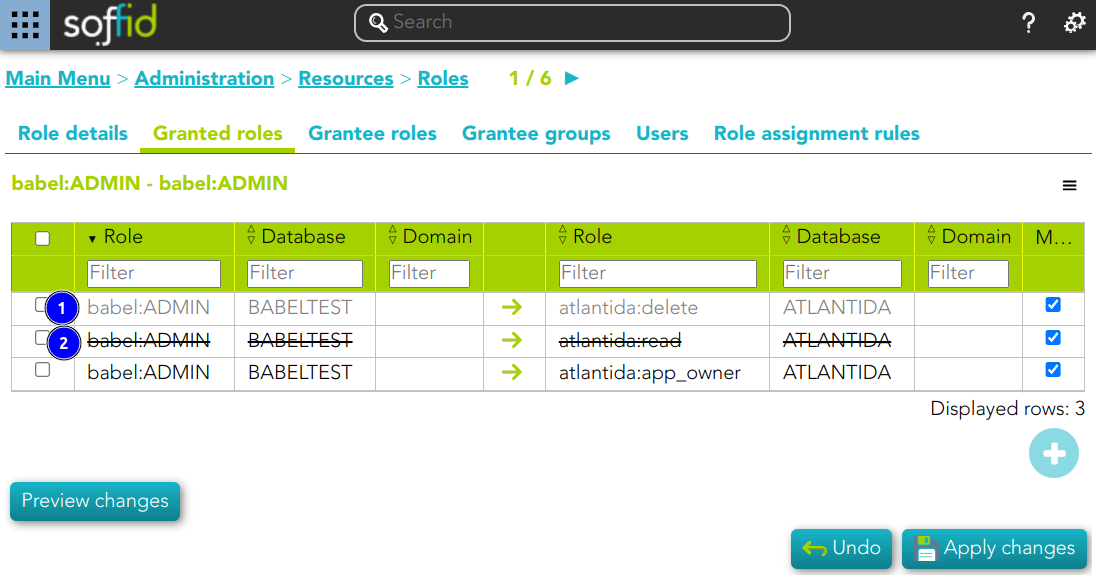](https://bookstack.soffid.com/uploads/images/gallery/2024-11/njKplwywaLoKdnMJ-image.png)
##### Revoke permissions
If you want to revoke permissions, you must select one or more records from the list and click the "Delete granted role" button and then click the "Apply changes" button to save the changes.
💻 Image
[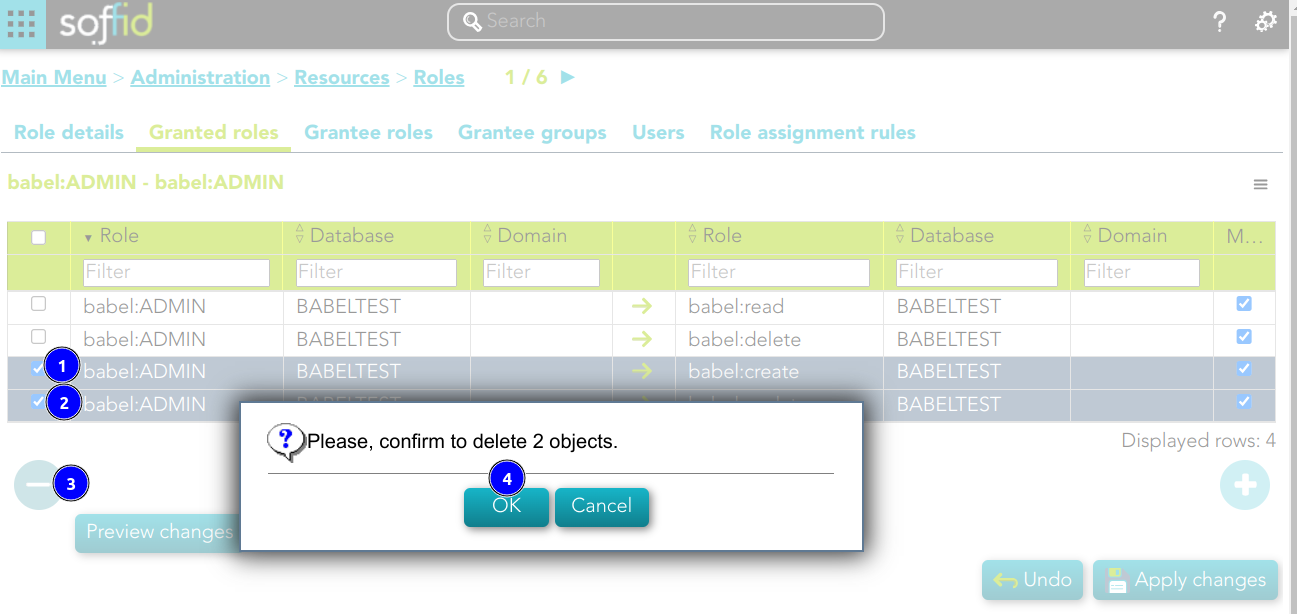](https://bookstack.soffid.com/uploads/images/gallery/2024-11/5Zz2aZfrcnG9Vw8a-image.png)
##### Preview changes
In addition, you can check the preview changes, it display information about the action, the user or account, and the role or domain, and you can apply them.
💻 Image
[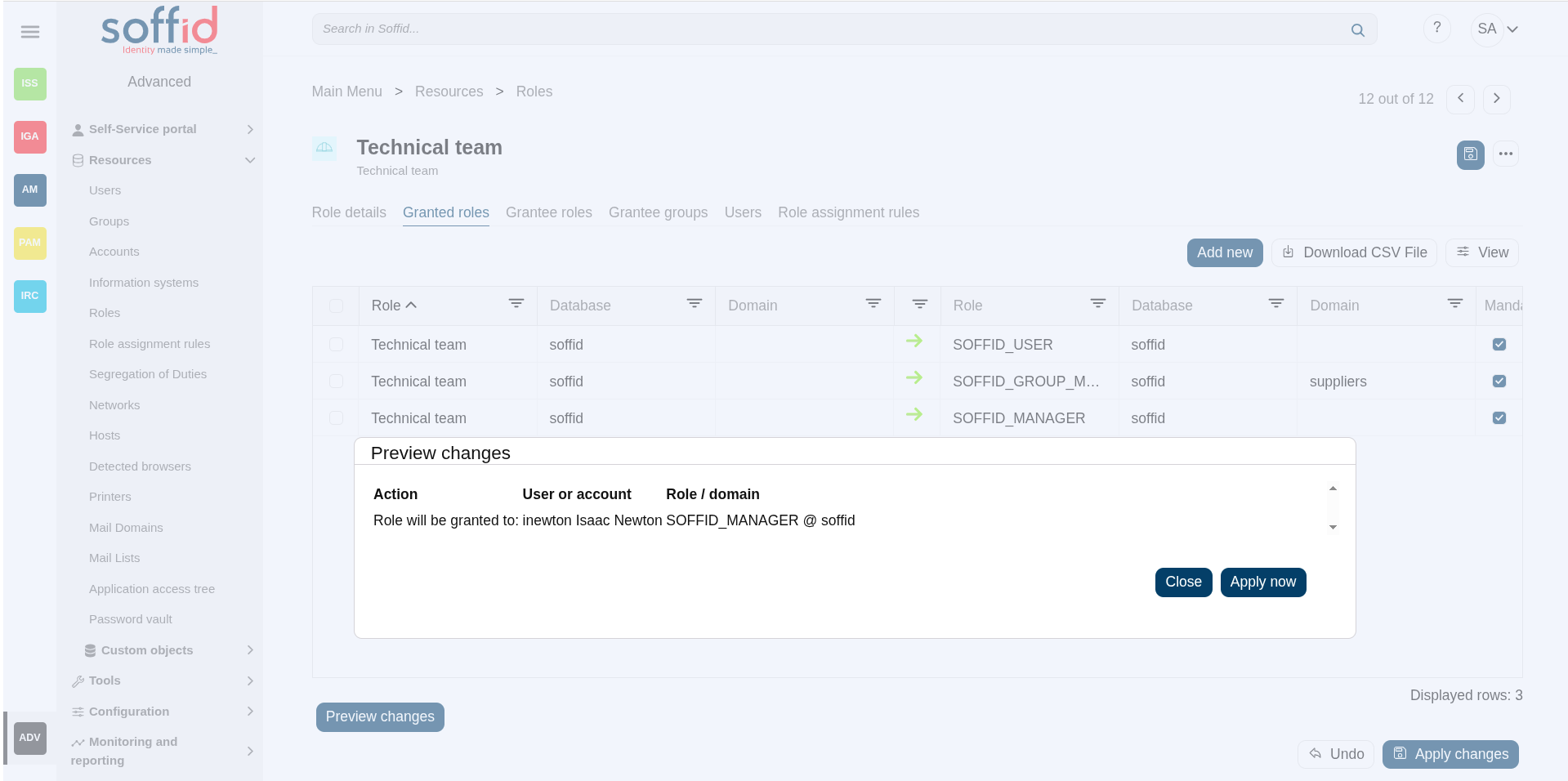](https://bookstack.soffid.com/uploads/images/gallery/2025-06/Q9fBwdErAZqCM2Gr-image.png)
### Grantee roles
On the grantee roles tab, you can assign the privileges of a role of any other system to this role.
- **Role**: (parent) name used to identify the role.
- **Database**: (parent) agent of the target system owner of the role
- **Domain**: (parent) domian type of the role
- **Role**: (child) name used to identify the role.
- **Database**:(child) agent of the target system owner of the role
- **Domain**:(child) domian type of the role
- **Mandatory**: the roles with this flag checked will be displayed in the user's effective roles tab
##### Assign privileges
To assign privileges you should click the button with the add (+) symbol, then select the source role, the domain values when necessary, and click the finish button. At this point the record will be added to the list.
Now you can check or uncheck the mandatory field.
- **Mandatory**: the roles with this flag checked will be displayed in the user's effective roles tab.
- **No Mandatory**: roles with this flag unchecked will be displayed in the user's roles tab and can be managed. It is not automatically assigned to users who already had the parent role.
And finally, you should click the Apply changes button to save the changes. With this operation, all the permissions of this will be assigned to the target role.
Image
[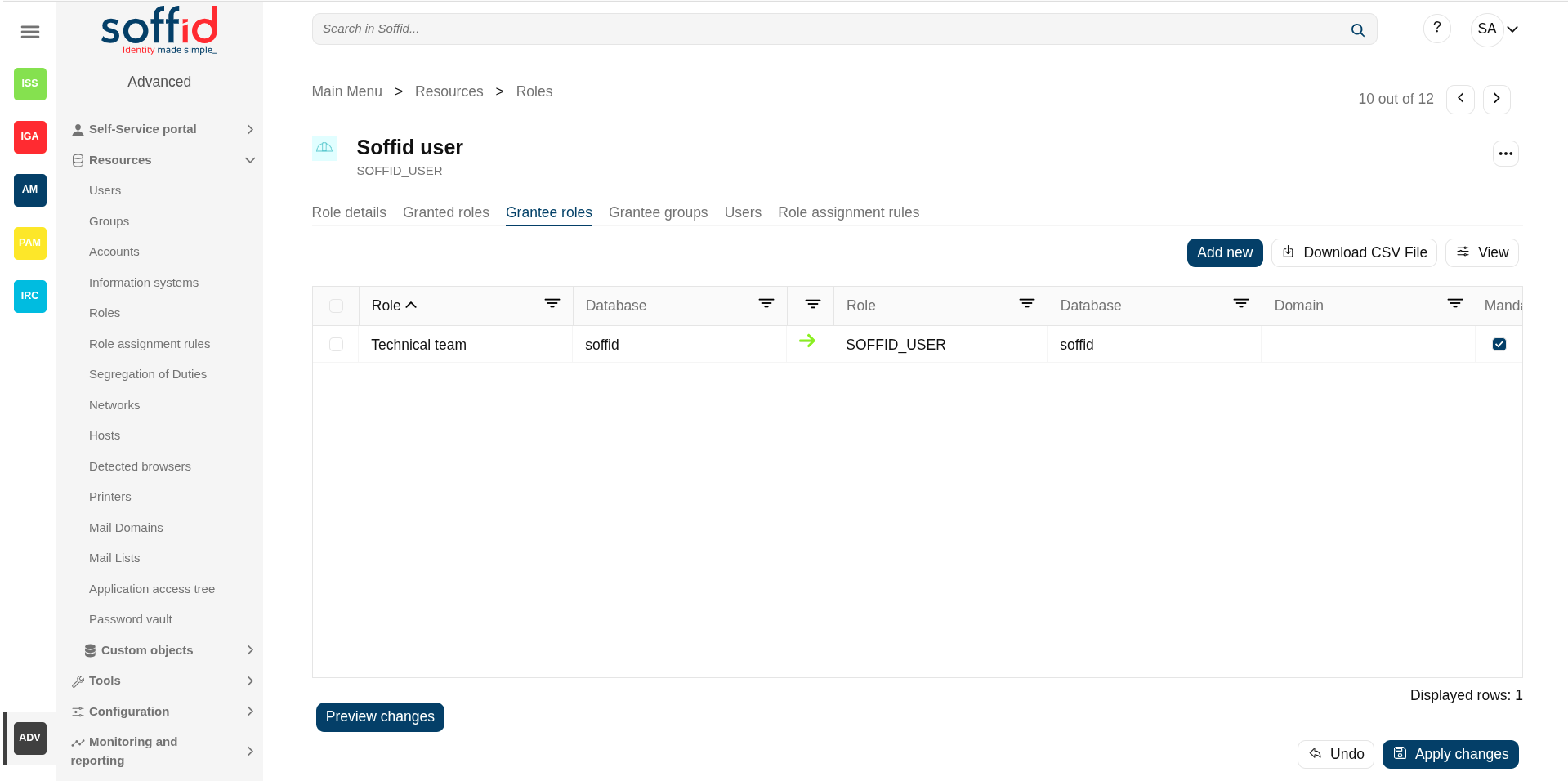](https://bookstack.soffid.com/uploads/images/gallery/2025-06/VwqN9NmEjMqj6d5O-image.png)
💻 Image
This role belong to an Information System with a defined Role definition process.
1. This assignation is pending to approve
2. This deletion is pending to approve
[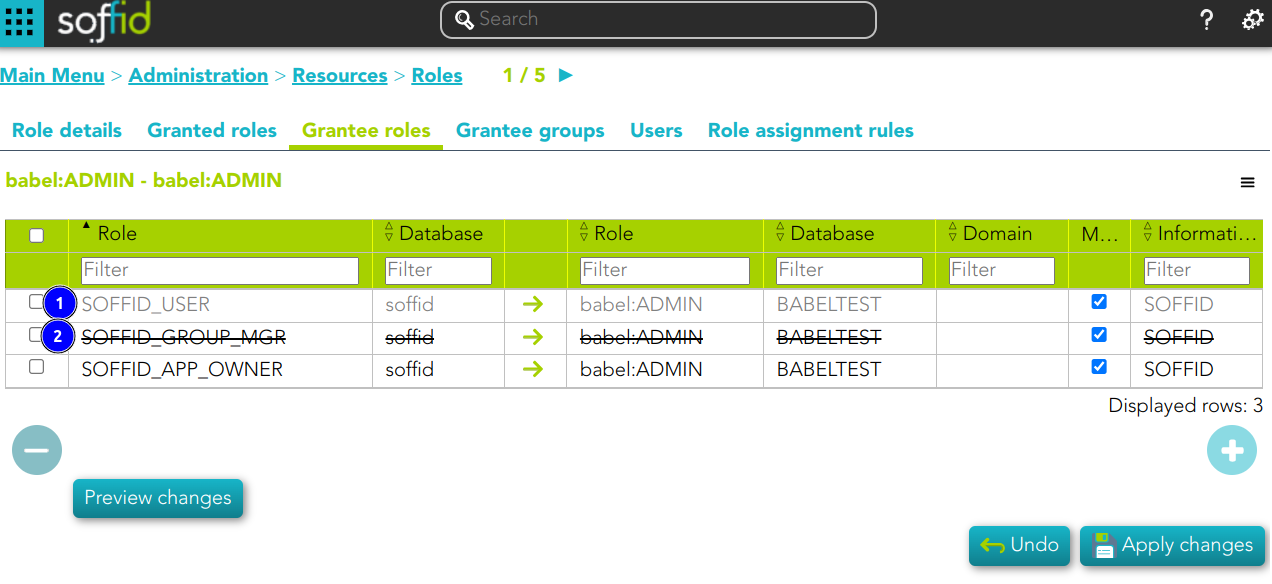](https://bookstack.soffid.com/uploads/images/gallery/2024-11/ASmbOWkYuaXsvoBc-image.png)
##### Revoke permissions
If you want to revoke permissions, you must select one or more records from the list and click the button with the subtraction symbol (-) click the Apply changes button to save the changes.
##### Preview changes
In addition, you can check the preview changes, it display information about the action, the user or account, and the role or domain, and you can apply them.
### Grantee groups
On the grantee groups tab, you can assign the privileges from a specific group to this role, or revoke the privileges.
- **Group**: (parent) name of the group.
- **Role**: (child) name used to identify the role.
- **Database**:(child) agent of the target system owner of the role
- **Domain**:(child) domian type of the role
- **Mandatory**: the roles with this flag checked will be displayed in the user's effective roles tab
##### Assign privileges
To assign privileges you must click the button with the "Add new" button, then select the group, finish, and apply changes. Thus, the roles indicated, in the corresponding system, will be assigned to all users belonging to this group.
Now you can check or uncheck the mandatory field.
- **Mandatory**: the roles with this flag checked will be displayed in the user's effective roles tab.
- **No Mandatory**: roles with this flag unchecked will be displayed in the user's roles tab and can be managed. It is not automatically assigned to users who already had the parent role.
And finally, you should click the "Apply changes" button to save the changes. With this operation, all the permissions of this will be assigned to the target role.
💻 Image
[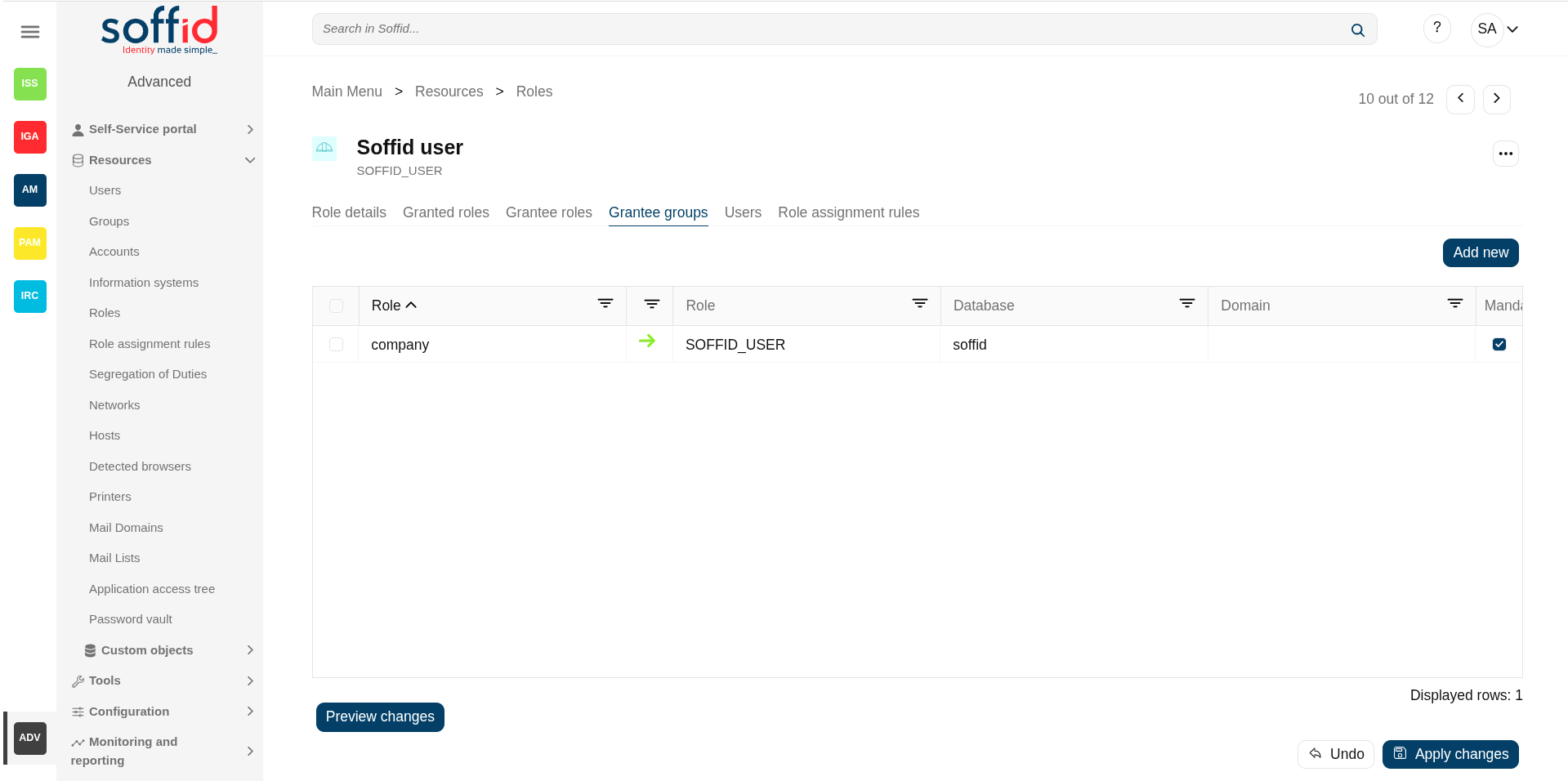](https://bookstack.soffid.com/uploads/images/gallery/2025-06/X37C8Lgae65LpWQe-image.png)
##### Revoke permissions
If you want to revoke permissions, you must select one or more records from the list and click the "Delete granted role" button and click the "Apply changes" button to save the changes.
##### Preview changes
In addition, you can check the preview changes, it display information about the action, the user or account, and the role or domain, and you can apply them.
### Users
On the users tab, you can assign or revoke roles. To **assign a role** you must click the button with the "Add new" and choose one or more users, fill the scope when it is mandatory, and set membership properties. Each role needs an account to be applied to, so, if a user has no account on a system and a role on that system is granted, a new account will be created on this system. In case a user has more than one account on a system, you should indicate which of the suitable accounts will be granted the role.
It is also possible to **revoke roles** to the user from the entitlement details or by selecting one or more records from the list and clicking the "Delete user" button.
The users with the role assigned by rules will be displayed with different colors. Soffid does not allow to revoke roles, on that page, that were assigned by rules.
Additionally, you can **download a CSV file** with the basic users data.
Attributes:
- **Account**: account owner of the role
- **Description**: description of the account (usually the user full name).
- **Start date**: at this date, Soffid will connect to the system and will assign the role. If there is no approval start, it will be assigned at the moment.
- **End date**: at this date, Soffid will connect to the system and will revoke the role.
- **Domain value**: domain value of the granted role
- **Domain description**: domain type of the granted role
- **Risk**: risk related with SoD rules
- **Category**: this attribute can be used as a label to define the type of group, its use, or any other distinction you consider useful.
- **Recertification**: date of the last recertification
- **Holder group**: holder group of the granted role
💻 Image
[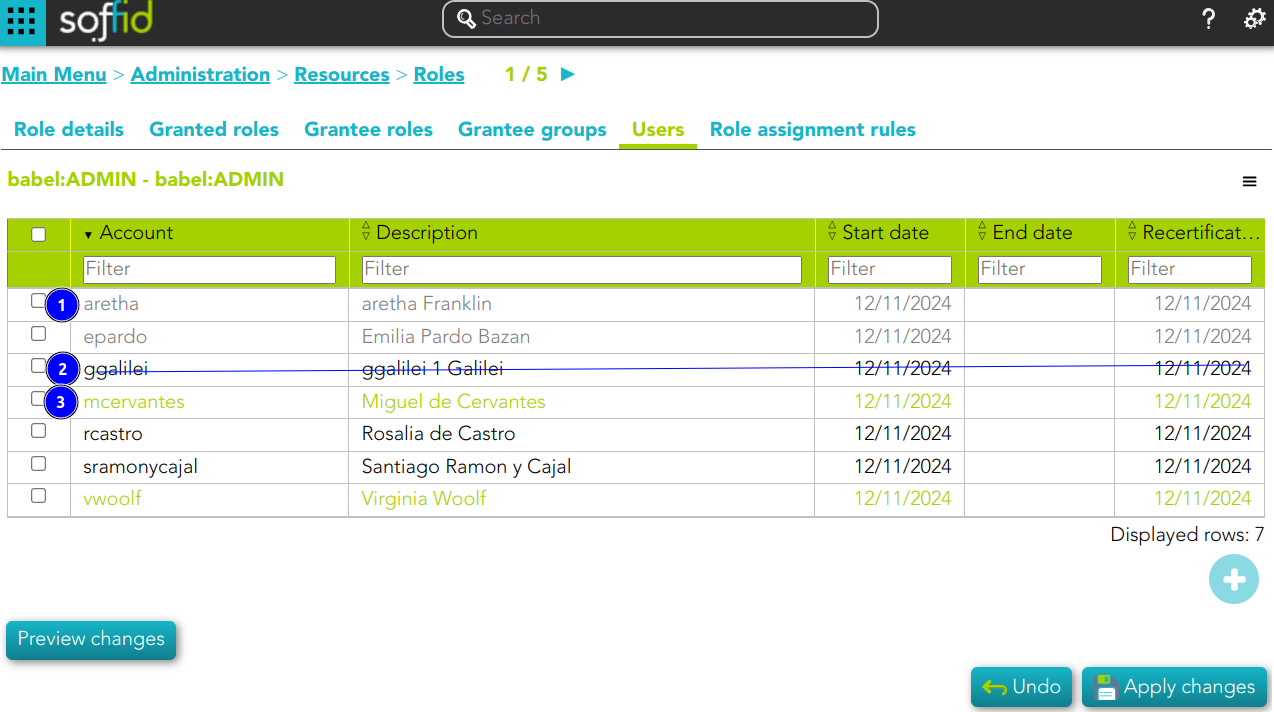](https://bookstack.soffid.com/uploads/images/gallery/2024-11/K1SZAwwIpAGUaPmT-image.png)
1\) This assignation is pending to approve
2\) This deletion is pending to approve
3\) This assignation is by an assignment rule
### Role assignment rules
You can consult the Role assignment rules related to this role.
- **Name**: name of the role assignment rule
- **Description**: decription of the role assignment rule
💻 Image
[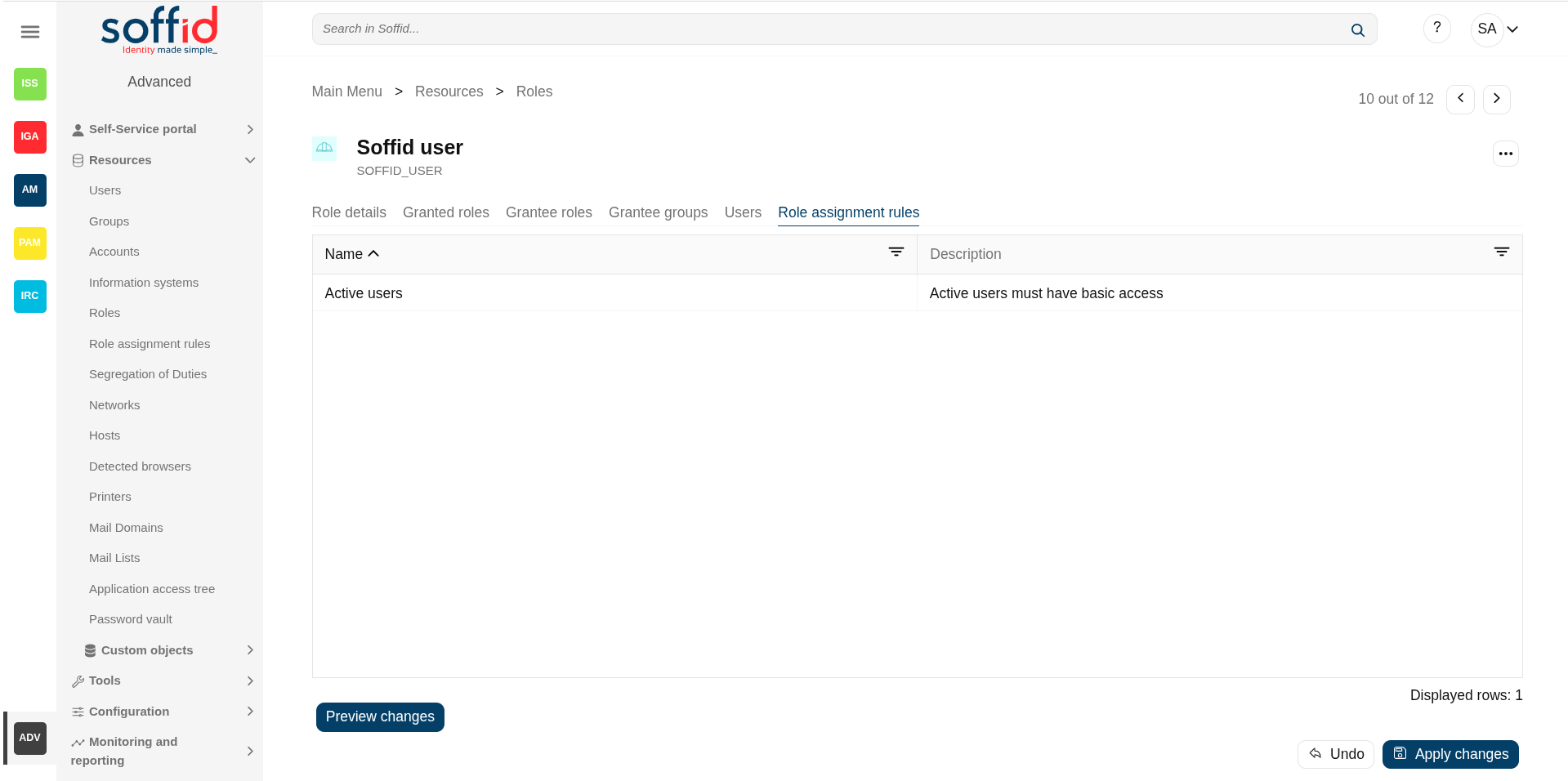](https://bookstack.soffid.com/uploads/images/gallery/2025-06/giN368mm8lind7xa-image.png)
For more information, you can visit the [Role assignment rules](https://bookstack.soffid.com/books/soffid-4-reference-guide/page/role-assignment-rules "Role assignment rules") page.
## Actions
#### Roles table
**"Query buttons"**
Allows you to query roles through different search systems, [Quick, Basic and Advanced](https://bookstack.soffid.com/books/soffid-3-reference-guide/page/search-types "Search Types").
**"Table filter"**
It allows you to filter a column in the table based on the results loaded in it.
**Add new**
Allows you to add a new role in the system.
To add a new role it will be mandatory to fill in the required fields
**Delete role**
Allows you to remove one or more roles by selecting one or more records and next clicking this button.
To perform that action, Soffid will ask you for confirmation, you could confirm or cancel the operation.
**Download CSV file**
Allows you to download a csv file with the basic roles data.
**Import**
Allows you to upload a CSV file with the role list to add or update roles to Soffid.
First, you need to pick up a CSV file, that CSV has to contain a specific configuration. Then you need to check the content to be loaded, it is allowed to choose if you want or not to load a specific attribute. And finally, you need to select the mappings for each column of the CSV file to import the data correctly and to click the Import button.
**Bulk actions**
Allows massive operations to be performed on all system roles. With that operation, updates can be made to any of the role's parameters. First of all, you must select the records that you want to update, once you have selected them, you must choose the bulk action on the hamburger icon. For more information visit the [Bulk action page.](https://bookstack.soffid.com/books/soffid-3-reference-guide/page/bulk-actions "Bulk actions")
#### Role details
**Apply changes (disk button)**
Allows you to apply the pending changes.
**Delete role**
Allows you to delete a role. You can choose that option on the hamburger icon.
To perform that action, Soffid will ask you for confirmation, you could confirm or cancel the operation.
**Expand all**
Displays all the attributes of the different blocks.
**Collapse all**
Hide all attributes of the different blocks.
**"Types of views"**
Change the view type: Classic view, Modern view, Compact design.
**Preview changes**
Shows the pending changes on users or accounts. Soffid displays the information about the user or accounts, the action and de Role. You can choose if you want to apply the changes, or close the previer changes window.
**Undo**
Allows you to quit without applying any changes.
**Apply changes**
Allows you to apply the pending changes.
##### Granted roles
**Add new**
Allows you to add a new granted role. To add a granted role, first you need to click the "Add new" button. Second, you need to write or search for a role. Once you have selected the role, if it is necessary, the next step will be to set the scope. Then, you need to finish the process. And finally, you need to apply changes.
**Delete granted role**
Allows you to delete one or more granted roles.
To delete you need to select the records and then click this button.
To perform that action, Soffid will ask you for confirmation, you could confirm or cancel the operation.
And finally, you need to apply changes.
**Download CSV file**
Allows you to download a CSV file with the granted roles.
**View**
Allows you to add or remove columns to the table.
It is also possible to change the order of the columns.
**Preview changes**
Shows the pending changes on users or accounts. Soffid displays the information about the user or accounts, the action and de Role. You can choose if you want to apply the changes, or close the previer changes window.
**Undo**
Allows you to quit without applying any changes.
**Apply changes**
Allows you to apply the pending changes.
##### Grantee roles
**Add new**
Allows you to add a new grantee role. To add a grantee role, first you need to click the "Add new" button. Second, you need to write or search for a role. Once you have selected the role, if it is necessary, the next step will be to set the source scope and the scope. Then, you need to finish the process. And finally, you need to apply changes.
**Delete granted role**
Allows you to delete one or more grantee roles.
To delete you need to select the records and then click this button.
To perform that action, Soffid will ask you for confirmation, you could confirm or cancel the operation.
And finally, you need to apply changes.
**Download CSV file**
Allows you to download a CSV file with the grantee roles.
**View**
Allows you to add or remove columns to the table.
It is also possible to change the order of the columns.
**Preview changes**
Shows the pending changes on users or accounts. Soffid displays the information about the user or accounts, the action and de Role. You can choose if you want to apply the changes, or close the previer changes window.
**Undo**
Allows you to quit without applying any changes.
**Apply changes**
Allows you to apply the pending changes.
##### Grantee groups
**Add new**
Allows you to add a new grantee group. To add a grantee group, first you need to click the "Add new" button. Second, you need to write or search for a group. Once you have selected the group, if it is necessary, the next step will be to set the scope. Then, you need to finish the process. And finally, you need to apply changes.
**Delete grantee group**
Allows you to delete one or more grantee groups.
To delete you need to select the records and then click this button.
To perform that action, Soffid will ask you for confirmation, you could confirm or cancel the operation.
And finally, you need to apply changes.
**Preview changes**
Shows the pending changes on users or accounts. Soffid displays the information about the user or accounts, the action and de Role. You can choose if you want to apply the changes, or close the previer changes window.
**Undo**
Allows you to quit without applying any changes.
**Apply changes**
Allows you to apply the pending changes.
##### Users
**Add new**
Allows you to add users or accounts to assign the role. To add users or accounts, fist of all, you need to click the "Add new" button. Second, you need to search the users and/or accounts and select the users and/or accounts you want to add. Once you have selected the users and/or accounts, if it is necessary, the next step will be to set the scope. Then you need to fill in the membership properties and finish the process. Finally, you need to apply changes.
**Delete user**
Allows you to delete one or more users and/or accounts, that is, Soffid will revoke the role.
To delete one, you can select the record and click this button.
To delete more at the same time, you need to select the records and then click this button.
To perform that action, Soffid will ask you for confirmation, you could confirm or cancel the operation.
And finally, you need to apply changes.
**Download CSV file**
Allows you to download a CSV file with all the information about users.
**Import**
Allows you to upload a CSV file with the user list to assign permission.
First, you need to pick up a CSV file, that CSV has to contain a specific configuration. Then you need to check the content to be loaded, it is allowed to choose if you want or not load a specific attribute. And finally, you need to select the mappings for each column of the CSV file to import the data correctly and to click the Import button.
**View**
Allows you to add or remove columns to the table.
It is also possible to change the order of the columns.
**Preview changes**
Shows the pending changes on users or accounts. Soffid displays the information about the user or accounts, the action and de Role. You can choose if you want to apply the changes, or close the previer changes window.
**Undo**
Allows you to quit without applying any changes.
**Apply changes**
Allows you to apply the pending changes.
# Role assignment rules
## Description
Soffid console provides an option that allows you to customize policies to assign or revoke roles automatically to specific users. To assign or revoke roles, the users must comply with the defined requirements.
This option allows you to **Preview changes** before to **Apply new** the changes, to verify that the actions to be performed are the correct ones.
To **Apply now** the role assignment rule, it is mandatory to have previously saved any changes made in the customization of the role assignment rule using the **Apply changes** button.
The rule evaluation is performed asynchronously.
When a user is updated, no matter from where, Soffid will launch the role assignment rules defined. If the rule is correct, the roles will be assigned; otherwise, they will be revoked.
## Screen overview
[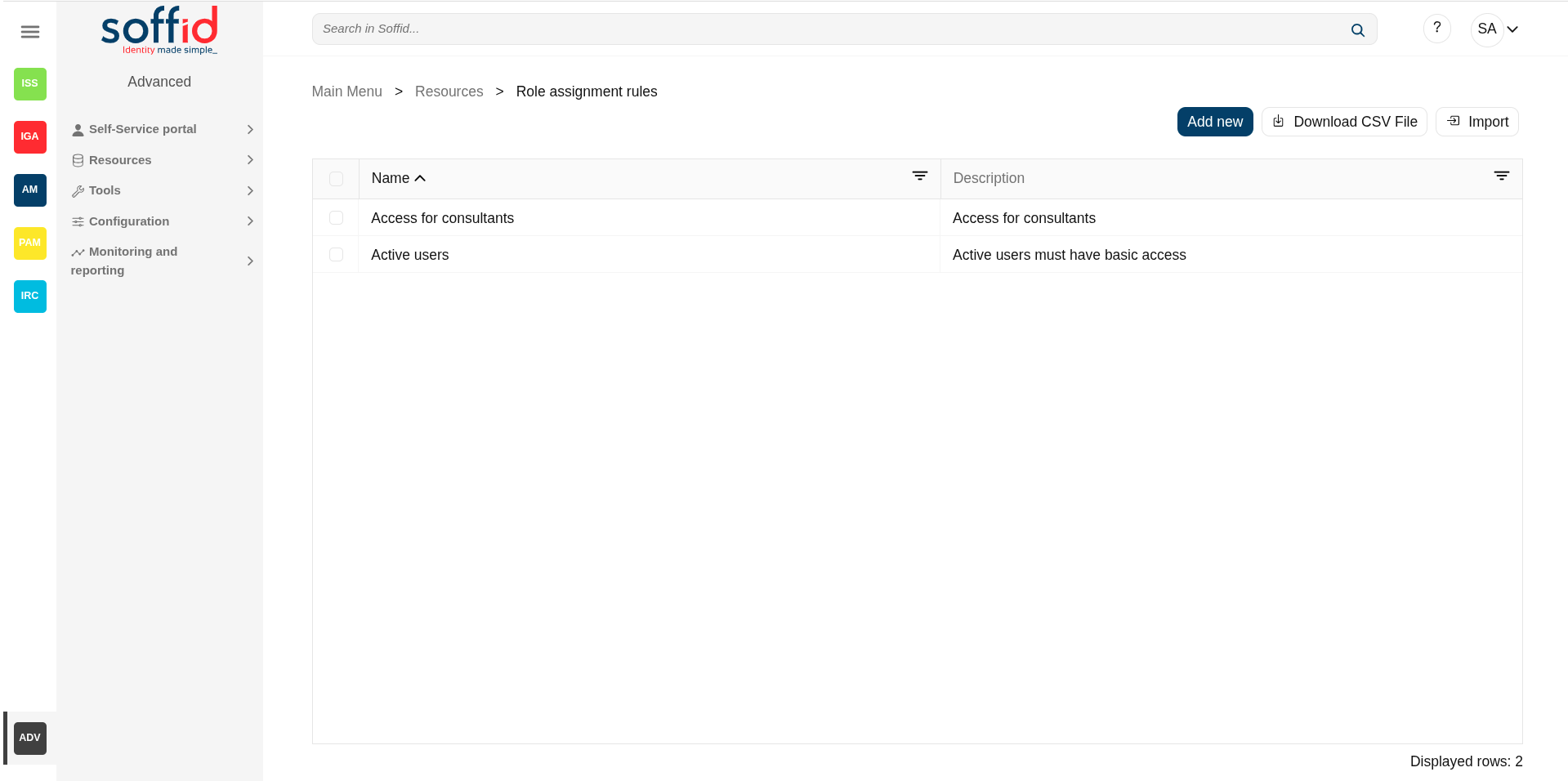](https://bookstack.soffid.com/uploads/images/gallery/2025-06/B7bU2U5GcBIYSYOb-image.png)
[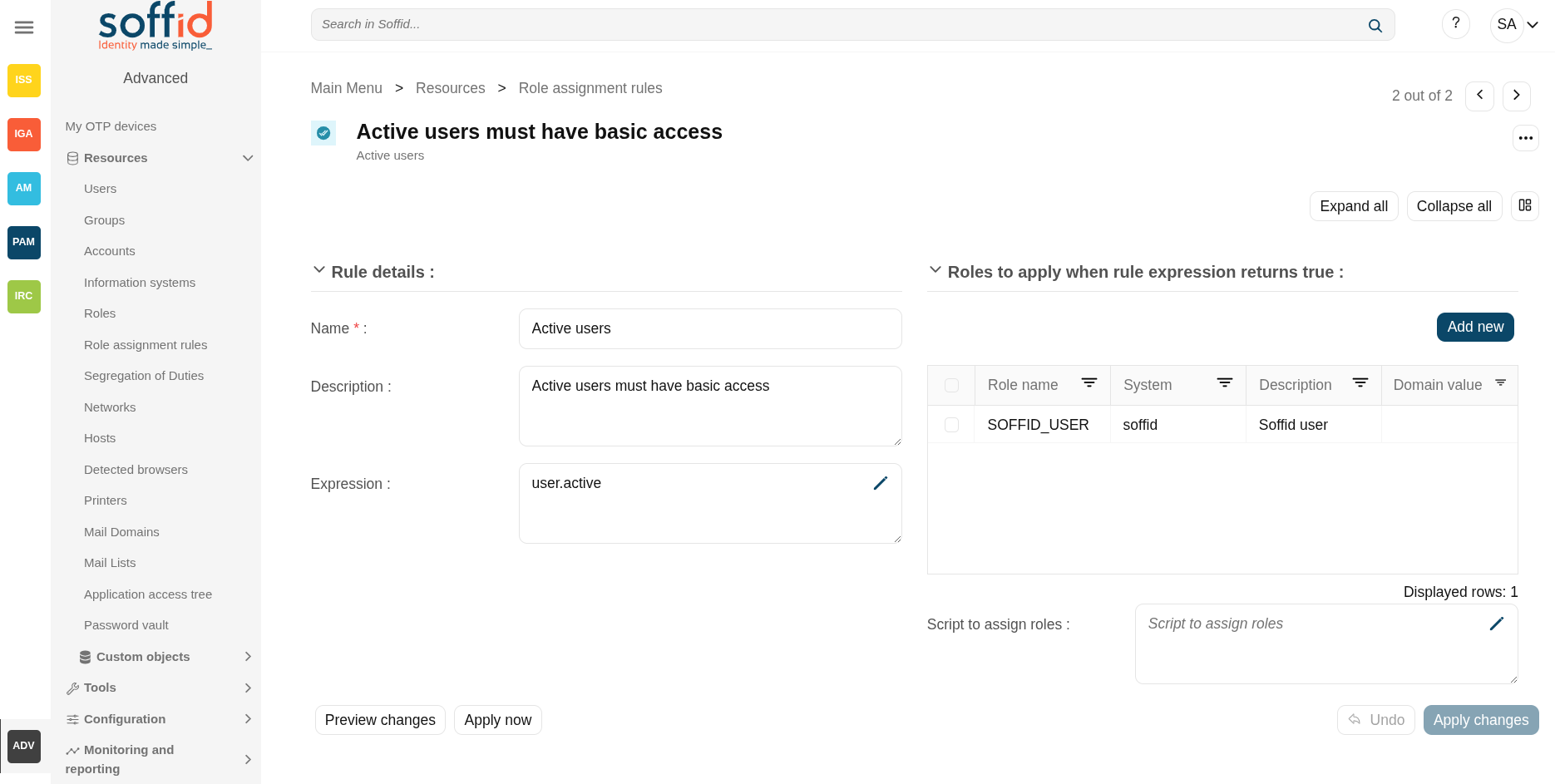](https://bookstack.soffid.com/uploads/images/gallery/2025-08/CbfAhWkTksdtGjGT-image.png)
## Related objects
- [Users](https://bookstack.soffid.com/books/soffid-4-reference-guide/page/users "Users") : where the rule is executed after the changes.
- [Roles](https://bookstack.soffid.com/books/soffid-4-reference-guide/page/roles "Roles") : roles to be granted or revoved.
## Standard attributes
### Rules table
- **Name**: name of the rule.
- **Description**: brief description of the rule.
### Rule details
- Rule details
- **Name**: name of the rule.
- **Description**: brief description of the rule.
- **Expression**: the script of the rule. When returns true, the roles will be granted, when returns false the roles are revoked.
Image
[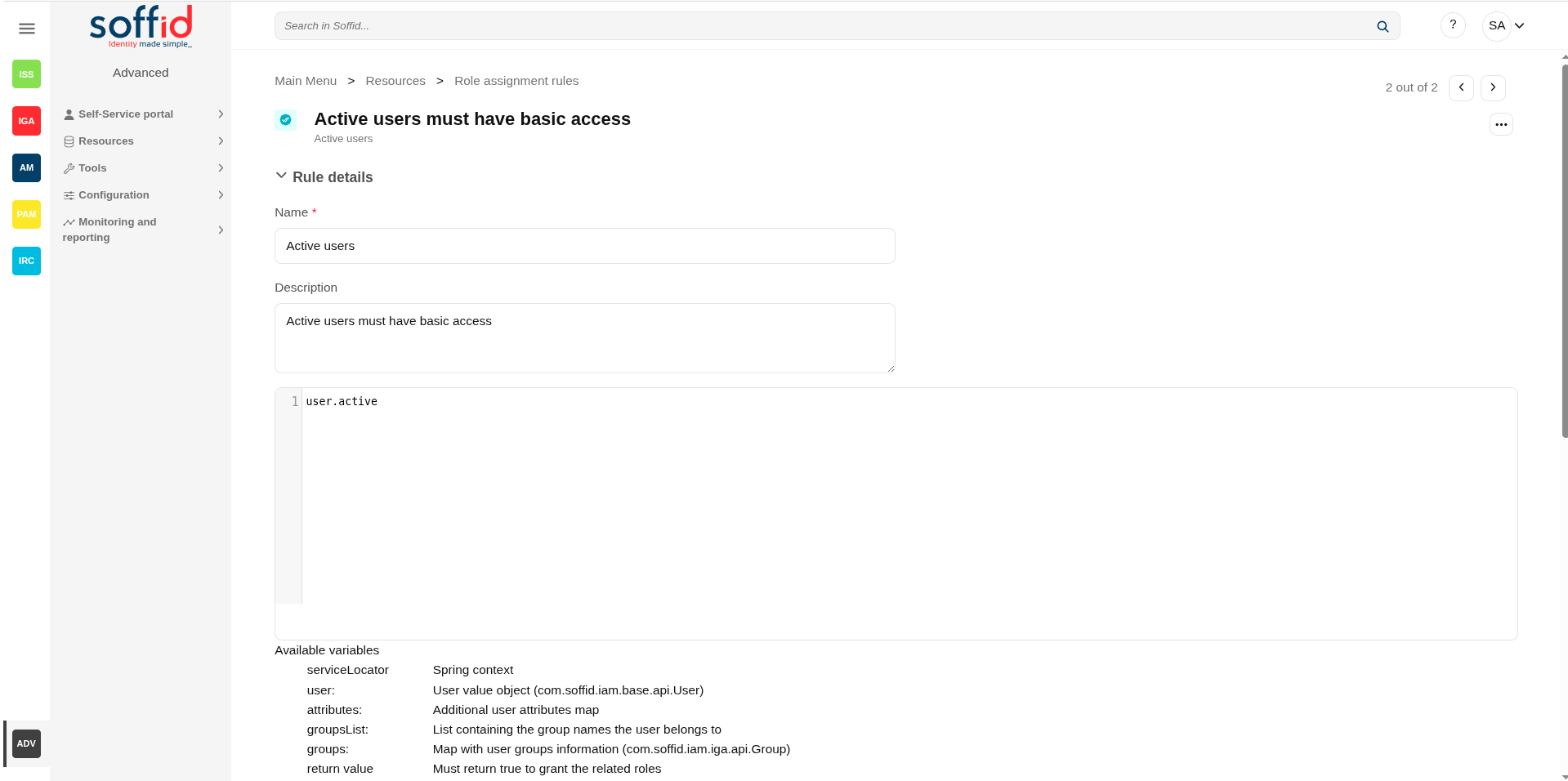](https://bookstack.soffid.com/uploads/images/gallery/2025-06/UPpwX7v3vCIUaJ4D-image.png)
- Roles to apply when rule expression returns true
- **"Roles list"**: roles to apply when rule expression returns true.
- **Script to assign roles**: allows you to customize the rules to apply roles. That roles will be added to the role list. The roles result will be a Role list, or RoleAccount list, or String list.
Image
[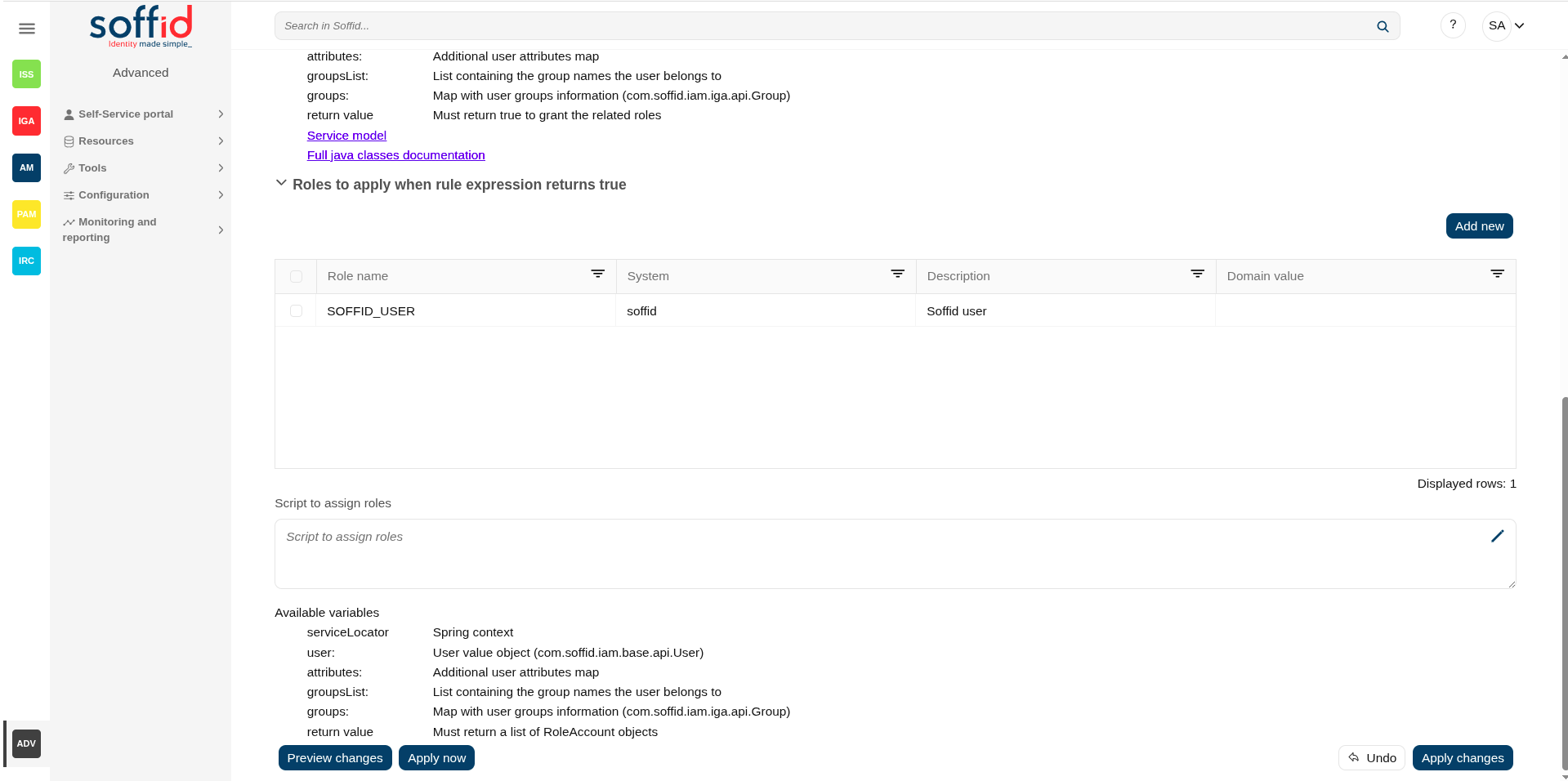](https://bookstack.soffid.com/uploads/images/gallery/2025-06/akVm8S0PrIaFm5a1-image.png)
- Others
- **Rule progress**: displays the time remaining to finish applying the rule. Only display while the changes are being applied.
## Actions
#### Rules table
**Add new**
Allows you to add a new role assignment rule in the system. To add a new role assignment rule it will be mandatory to fill in the required fields.
**Delete rule**
Allows you to remove one or more role assignment rule by selecting one or more records and next clicking this button. To perform this action, Soffid will ask you for confirmation, you could confirm or cancel the operation.
**Download CSV file**
Allows you to download a CSV file with the basic information of all role assignment rule.
#### Rule details
**Apply changes**
Allows you to save the changes made on the rule specification, or to save a new rule.
**Delete**
Allows you to remove the role assignment rule. To perform this action, Soffid will ask you for confirmation, you could confirm or cancel the operation.
**Expand all**
Displays all the attributes of the different blocks.
**Collapse all**
Hide all attributes of the different blocks.
**"Types of views"**
Change the view type: Classic view, Modern view, Compact design.
**Undo**
Allows you to undo any changes made on the rule, except the roles added or deleted to the role list.
**Add new (roles list)**
Allows you to add a role to be applied with the rule.
**Delete (roles list)**
Allows you to delete a role that will no longer be managed by the rule.
**Preview changes**
Displays a list with the changes that would be applied with that rule definition.
**Apply now**
Allows you to launch the role assignment rule process. When users comply with the rule specification, their roles will be updated.
## Examples
### Scripts
The roles will only be applied to active users.
```javascript
return user.active;
```
The roles will only be applied to users who are assigned to the primary group ‘Writers’.
```javascript
return "Writers".equals(user.getPrimaryGroup());
```
The roles will only apply to users who have the ‘employee’ attribute with the values 1001, 1002, or 2001.
```javascript
return "1001".equals(user.attributes.get("employee")) ||
"1002".equals(user.attributes.get("employee")) ||
"2001".equals(user.attributes.get("employee"));
```
# Segregation of Duties
## Description
The segregation of duties (SoD) is a fundamental element of internal controls, defined to prevent error and fraud. Segregation of duties ensure that at least two individuals are responsible for the separate parts of any task.
For each user, the roles tab displays the list of roles assigned to the user and the possible risks. If you click on a role record, Soffid will show the entitlement details including the SoD rules with the detail of the risk.
## Screen overview
[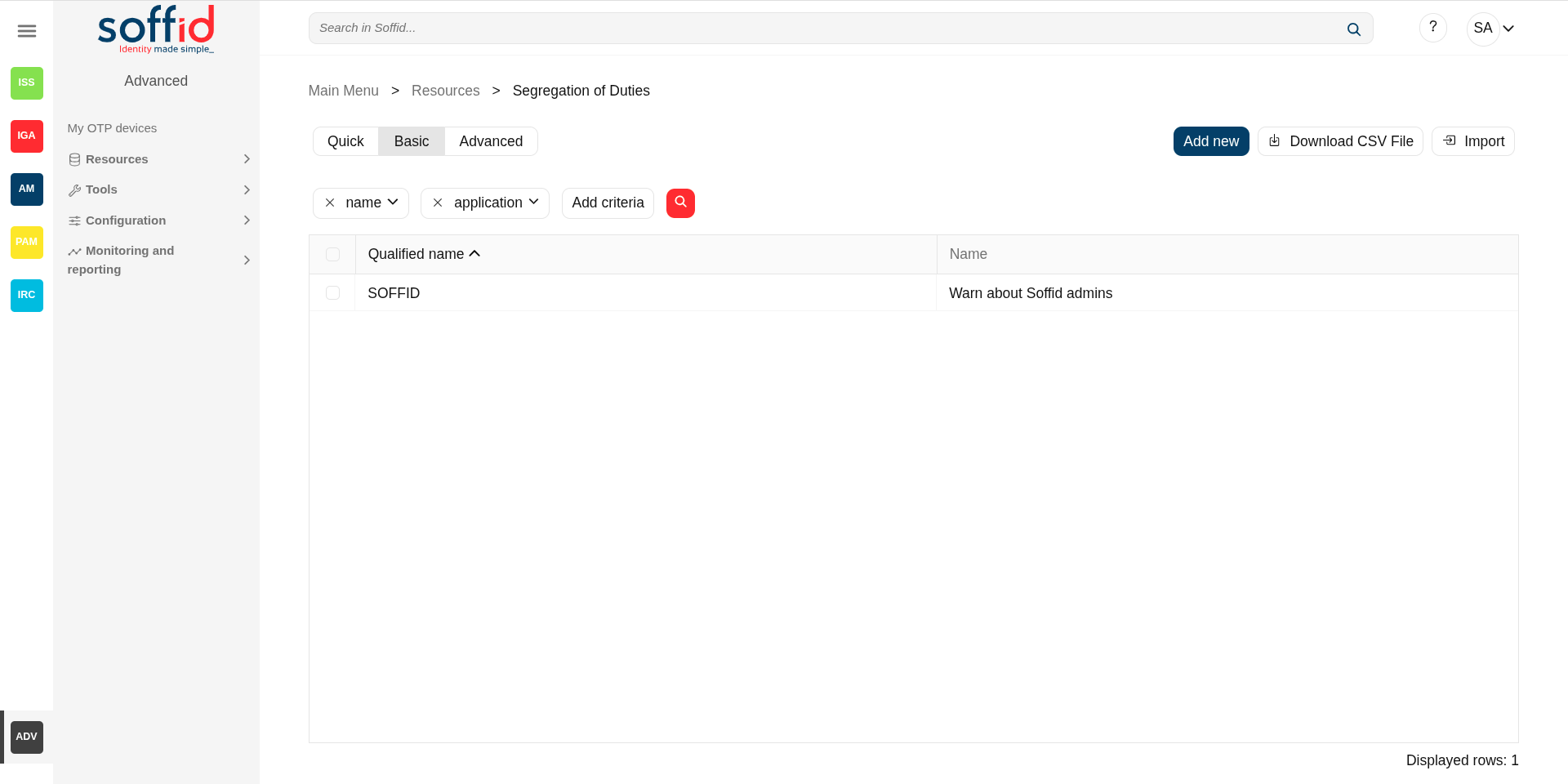](https://bookstack.soffid.com/uploads/images/gallery/2025-08/0d5wAmH1OKB396qB-image.png)
[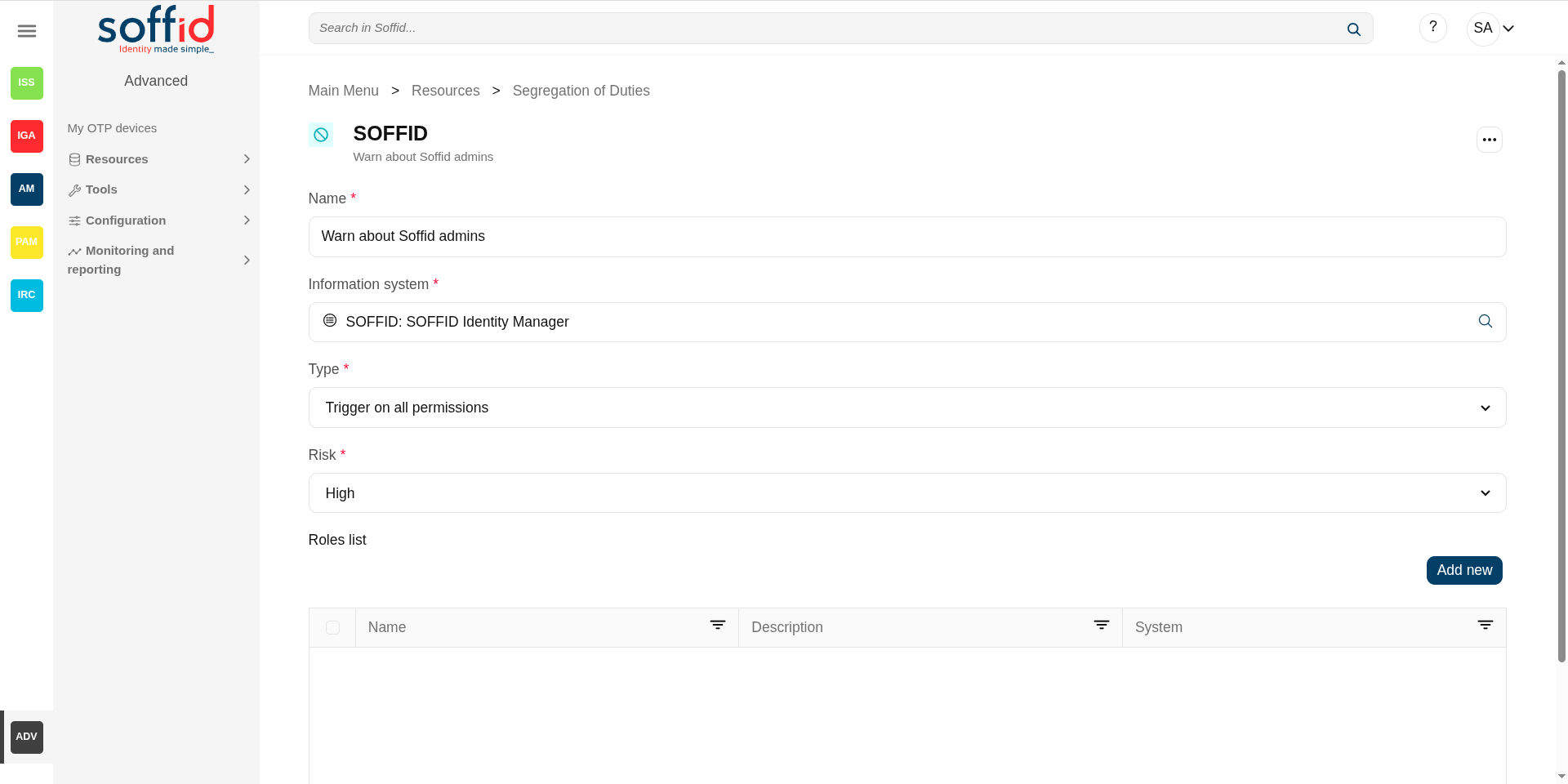](https://bookstack.soffid.com/uploads/images/gallery/2025-08/fupxuqLG6wkvcNoY-image.png)
## Related objects
- [Information systems](https://bookstack.soffid.com/books/soffid-4-reference-guide/page/information-systems "Information systems") : information systems and roles where the SoD rule is applied
- [Roles](https://bookstack.soffid.com/books/soffid-4-reference-guide/page/roles "Roles") : roles granted to a user
- [Users](https://bookstack.soffid.com/books/soffid-4-reference-guide/page/users "Users") : where you can check if a granted role has a comment related to the SoD.
## Standard attributes
### SoD table
- **Qualified name**: asset or application, from a functional point of view, on which the permissions are granted or revoked.
- **Name**: name of the segregation of duties.
### SoD detail
- **Name**: name of the segregation separation of duties.
- **Information system**: asset or application, from a functional point of view, on which the permissions are granted or revoked.
- **Type**: type of segregation.
- **Trigger on all permissions**: no user can be assigned the roles added to the role list.
- **Trigger on some permissions**: if you select that option, you have to fill in the number of roles that can not match. Soffid will not allow you to assign to a user more than the number indicated of the roles added to the role list.
- **Query permissions matrix**: Soffid displays a matrix that allows you to select the risk between pairs of roles, those roles are the roles added to the role list.
- **Risk**: level of risk:
- **Low**: allows the user to have all roles, but a small warning is displayed on the user screen when viewing the role details.
- **High**: allows the user to have all roles, but a big warning is displayed on the user screen when viewing the role details.
- **Forbidden**: it is not allowed that one user to have assigned the roles defined on the role list.
- **None**: there is no risk.
- **Role List**: list of roles to keep in mind on the segregation of duties.
- **Name**: name of the role
- **Description**: description of the role
- **System**: target system owner of the role
## Actions
### SoD table
**"Query"**
Allows you to query Segregation of Duties through different search systems, [Basic and Advanced](https://bookstack.soffid.com/books/soffid-3-reference-guide/page/search-types "Search Types").
**Add new**
Allows you to add a new segregation of duties in the system.
To add a new segregation of duties it will be mandatory to fill in the required fields
**Delete segregation of duties**
Allows you to remove one or more segregation of duties by selecting one or more records and next clicking this button.
To perform that action, Soffid will ask you for confirmation, you could confirm or cancel the operation.
**Download CSV file**
Allows you to download a CSV file with the basic segregation of duties data.
**Import**
Allows you to import a CSV file with the list of segrefation of duties to be created or updated.
### SoD detail
**Apply changes**
Allows you to save the data of the segregation of duties. To save the data it will be mandatory to fill in the required fields
**Delete segregation of duties**
Allows you to delete the segregation of duties. Soffid will ask you for confirmation, you could confirm or cancel the operation.
**Undo**
Allows you to quit without applying any changes.
**Add new (role list)**
Allows you to add a new role to the role list. Soffid will show a form to search and select one or more roles. Finally, you need to click the apply changes button and the roles will be added to the role list.
**Delete (role list)**
Allows you to delete one or more roles from the role list. You can select one or more roles and then click this button. The roles will be deleted from the role list without Soffid asking for confirmation.
**Preview changes**
Allows you to quickly see which users are affected by this role segregation rule.
## Others
### SoD granting a role
When a role that is included in a SoD rule is granted, it will be indicated in the SoD rules field.
Image
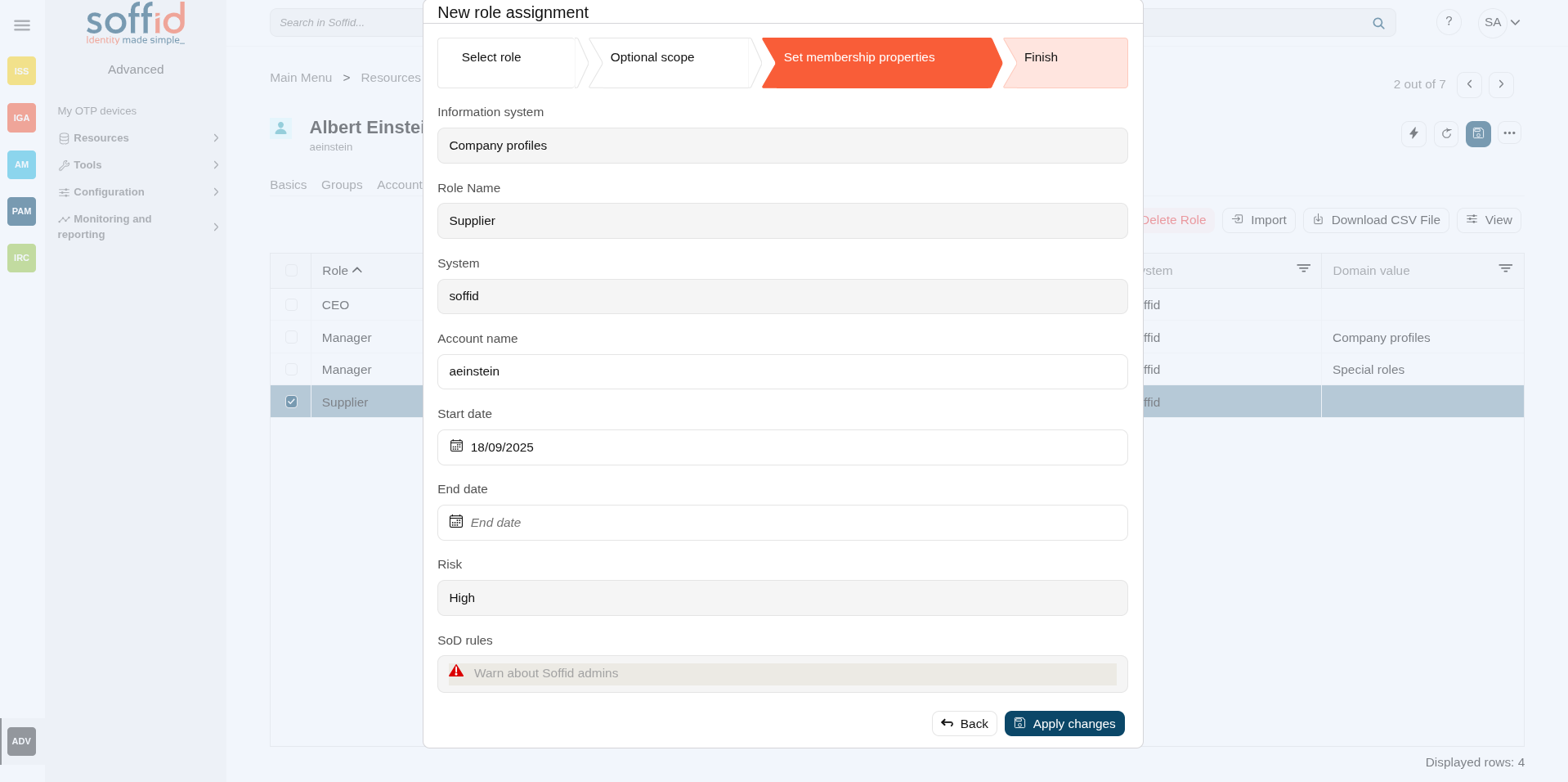
# Networks
## Description
Operators can define the subnets that compose the internal network, in order to manage the IP address space. The main goal is to manage a limited resource as the IP address is.
Soffid supports both static and dynamic IP assignments. Anyway, static IP management does not exclude the use of DHCP o BOOTP protocols in order to get them.
## Screen overview
[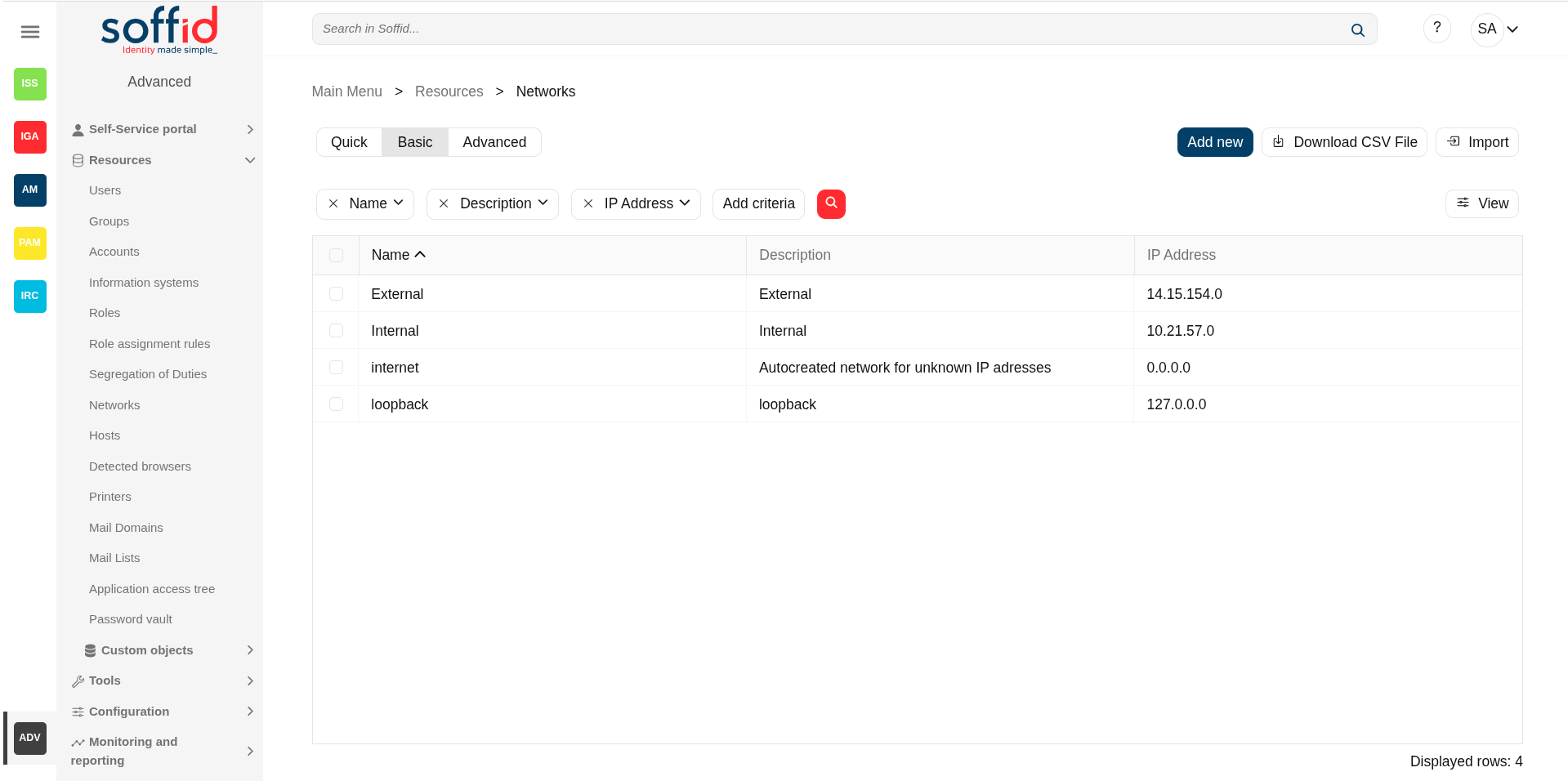](https://bookstack.soffid.com/uploads/images/gallery/2025-06/LNGRpuflKeulG6O4-image.png)
[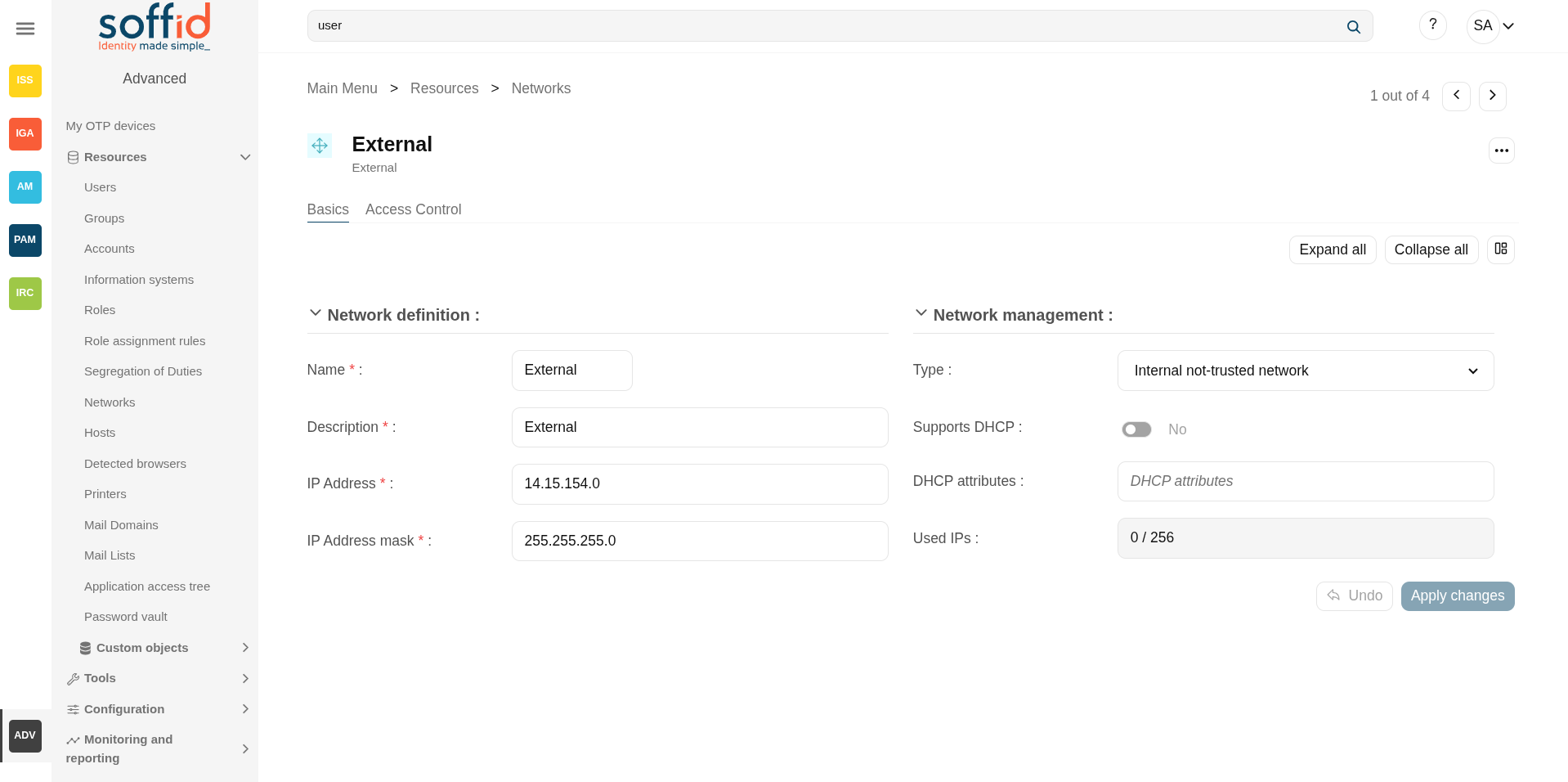](https://bookstack.soffid.com/uploads/images/gallery/2025-09/Cf8IgEcvmFt3yxiV-image.png)
## Related objects
- [Hosts](https://bookstack.soffid.com/books/soffid-4-reference-guide/page/hosts "Hosts") : host of the system each one in a network.
- [Detected browsers](https://bookstack.soffid.com/books/soffid-4-reference-guide/page/detected-browsers "Detected browsers") : detected browners in a network.
- [Printers](https://bookstack.soffid.com/books/soffid-4-reference-guide/page/printers "Printers") : configured printers in a network.
- [Soffid parameters](https://bookstack.soffid.com/books/soffid-4-reference-guide/page/soffid-parameters "Soffid parameters") : you can specify a parameter to be applied only in a network.
## Standard attributes
### Networks table
- **Name**: short name that identifies the network.
- **Description**: network description.
- **IP Address**: IP range of this network.
- **IP Address mask**: IP mask of this network.
- **Internal network**: activate this check box to indicate if this network is fully managed or not. What fully managed means changes in each organization. It used to mean corporate office versus branch office. It affects mainly to access the menu tree. Application entry points have different scripts or URLs for internal and external networks.
- **Support DHCP**: if enabled (selected value is Yes), hosts belonging to this network will be automatically registered.
- **DHCP attributes**: allows to enter additional parameters that the DHCP server will use to assemble DHCP response. Usually, it will have a gw=0.1.2.34 like parameter. It is only needed when a DCHP connector is configured.
### Networks detail > basics tab
On the network group tab, you can view all the network attributes. It is allowed to add new networks, update or delete existing networks.
The attributes are the same than the networks table plus the next one.
- **Used IPs**: IP addresses used. This data is auto calculated
Image
[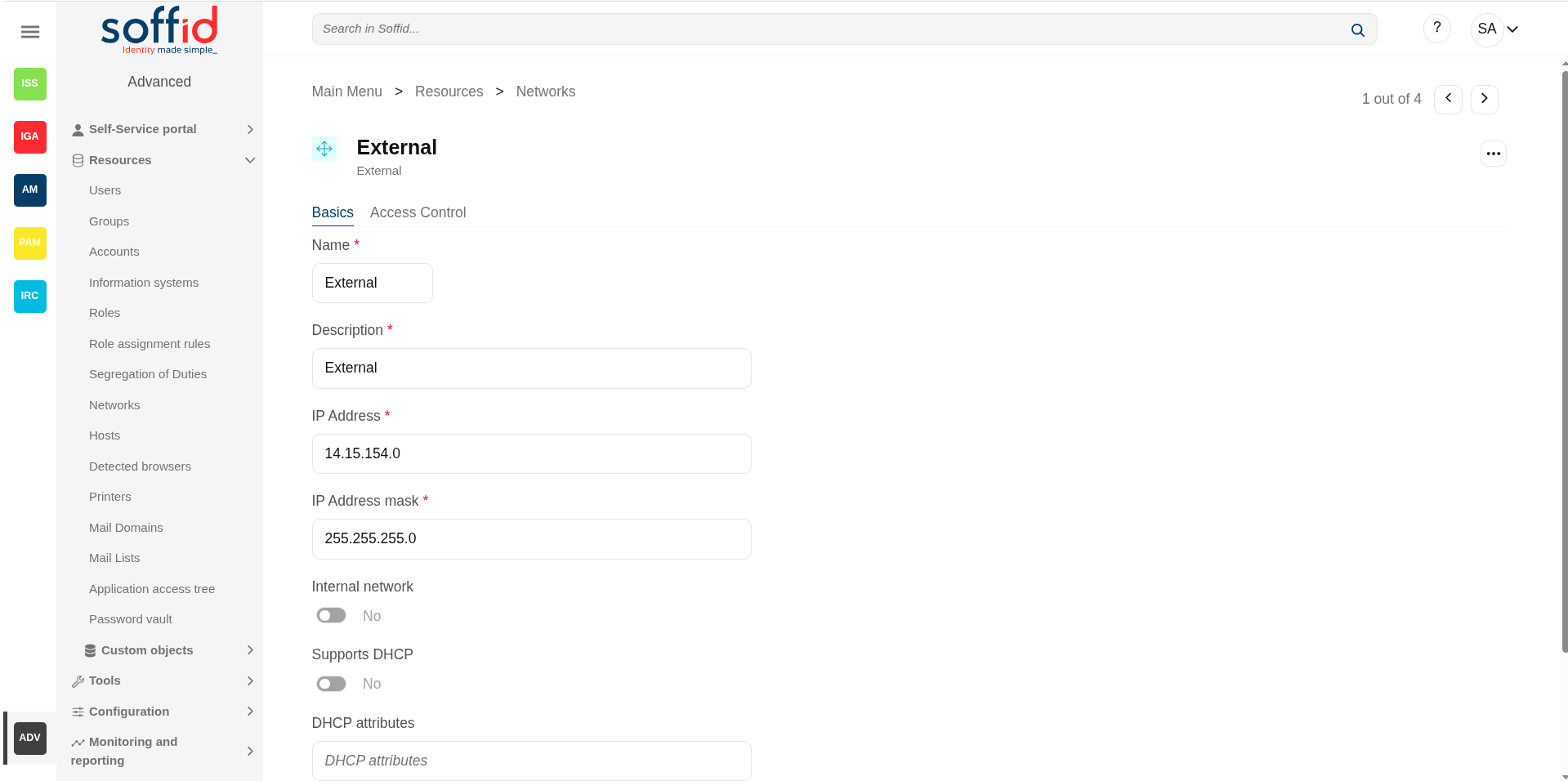](https://bookstack.soffid.com/uploads/images/gallery/2025-06/0sSAfqXgUrcEmEz5-image.png)
### Network detail > access control tab
In order to delegate the management of IP addresses in this network range, the Access Control List allows to select which users, groups or roles will be allowed to manage it.
- **Restrict ESSO login**: allows to restrict the access to the workstations of this network, otherwise, any Soffid users can log in.
Each Access Control List Entry has the following attributes:
- **Level**: four levels are defined:
- **Without access**: denies everything.
- **Query**: allows to know about hosts on this network.
- **Support**: allows to know about hosts on this network, and allows to manage the workstations on it. This option is fully tied to Single Sign On module.
- **Administration**: allows to create, modify or remove hosts on this network.
- Login.
- **Mask**: specifies a pattern that will be check against the host name in order to apply this authorization level.
- **Identity**: specifies a user, group or role name.
- **Description.**
To add a new access control you can click the **Add new** button, you have to select the grantee type (user, group or role), then you have to choose an user, group or role depending on the grantee selected, and finally set the acces level and the mask and apply the changes.
If you want to delete access controls, you must select one or more records from the list and clicking the **Delete** button.
Image
[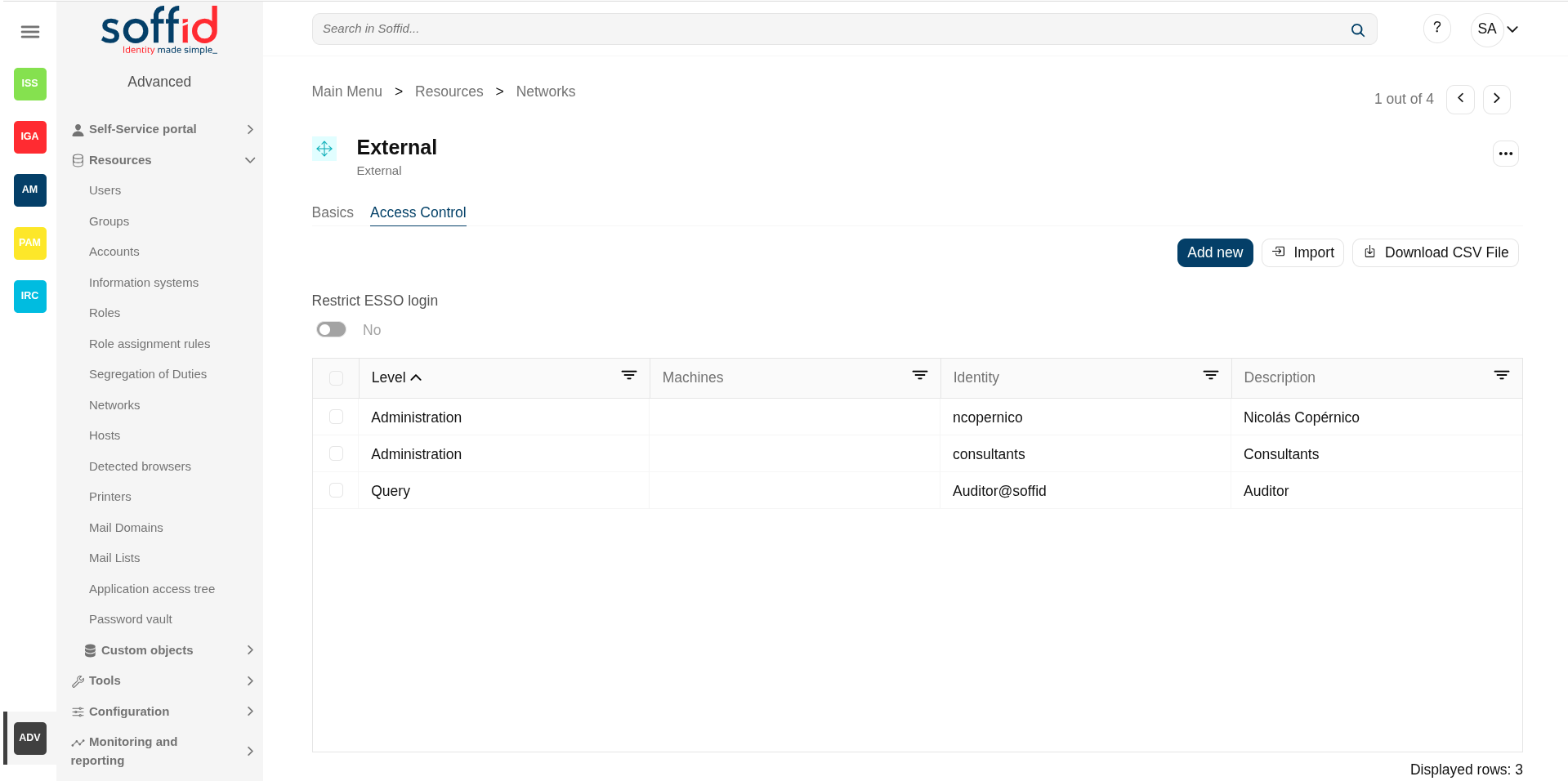](https://bookstack.soffid.com/uploads/images/gallery/2025-06/SP2mXNkU6cK3IJOU-image.png)
[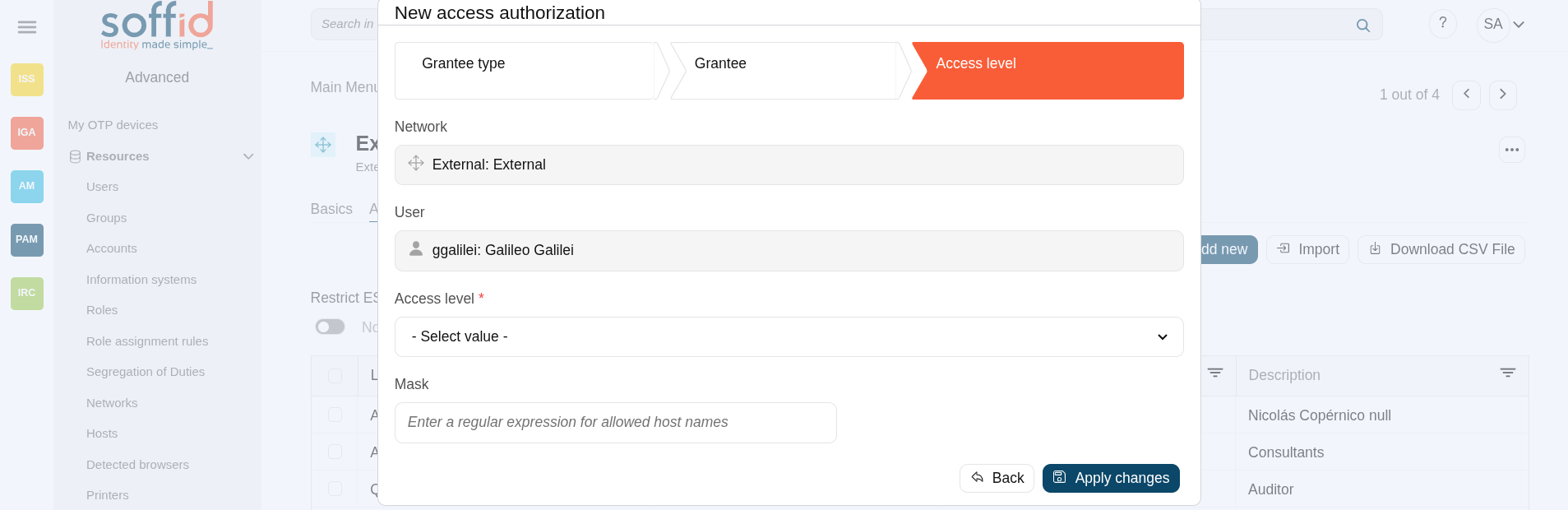](https://bookstack.soffid.com/uploads/images/gallery/2025-08/qettIRoCfsyju0x8-image.png)
## Actions
#### Networks table
**"Query"**
Allows you to query networks through different search systems, [Quick, Basic and Advanced](https://bookstack.soffid.com/books/soffid-3-reference-guide/page/search-types "Search Types").
**Add new**
Allows you to create a new network. To add a new network it will be mandatory to fill in the required fields
**Delete network**
Allows you to remove one or more networks by selecting one or more records and next clicking this button. To perform that action, Soffid will ask you for confirmation, you could confirm or cancel the operation.
**Download CSV file**
Allows you to download a csv file with the networks information.
**Import**
Allows you to upload a CSV file with the network list to add or update networks to Soffid.
First, you need to pick up a CSV file, that CSV has to contain a specific configuration. Then you need to check the content to be loaded, it is allowed to choose if you want or not to load a specific attribute. And finally, you need to select the mappings for each column of the CSV file to import the data correctly and to click the Import button.
**View**
Allows you to show and hide columns in the table.
You can also set the order in which the columns will be displayed.
#### Network detail > basics tab
**Apply changes**
Allows you to save the data of a new network or to update the data of a specific network. To save the data it will be mandatory to fill in the required fields
**Delete network**
Allows you to remove the network by selecting one or more records and next clicking this button. To perform that action, Soffid will ask you for confirmation, you could confirm or cancel the operation.
**Undo**
Allows you to quit without applying any changes.
#### Network detail > access control tab
**Apply changes**
Allows you to save the data of the network access log. To save the data it will be mandatory to fill in the required fields
**Add new**
Allows you to create a new access control. First, you will select the Grantee type, which could be a role, a user or a group. Second, you will select the Grantee, it will depend on the Grantee type selected. Then, you will fill in the access level. And finally you will apply changes.
**Delete**
Allows you to remove one or more access controls by selecting one or more records and next clicking this button. To perform that action, Soffid will ask you for confirmation, you could confirm or cancel the operation.
**Import**
Allows you to upload a CSV file with the access control list to add or update access controls to Soffid.
First, you need to pick up a CSV file, that CSV has to contain a specific configuration. Then you need to check the content to be loaded, it is allowed to choose if you want or not to load a specific attribute. And finally, you need to select the mappings for each column of the CSV file to import the data correctly and to click the Import button.
**Download CSV file**
Allows you to download a csv file with the basic access controls data.
# Hosts
## Description
The host screen lets the administrator manage a static IP address assigned to any host. Dynamic IP addresses are automatically managed by Soffid ESSO.
From the PAM module, when configuring the network discoverer, Soffid will register the machines found on this page. The same will happen in the SSO module when users access the system for the first time.
## Screen overview
[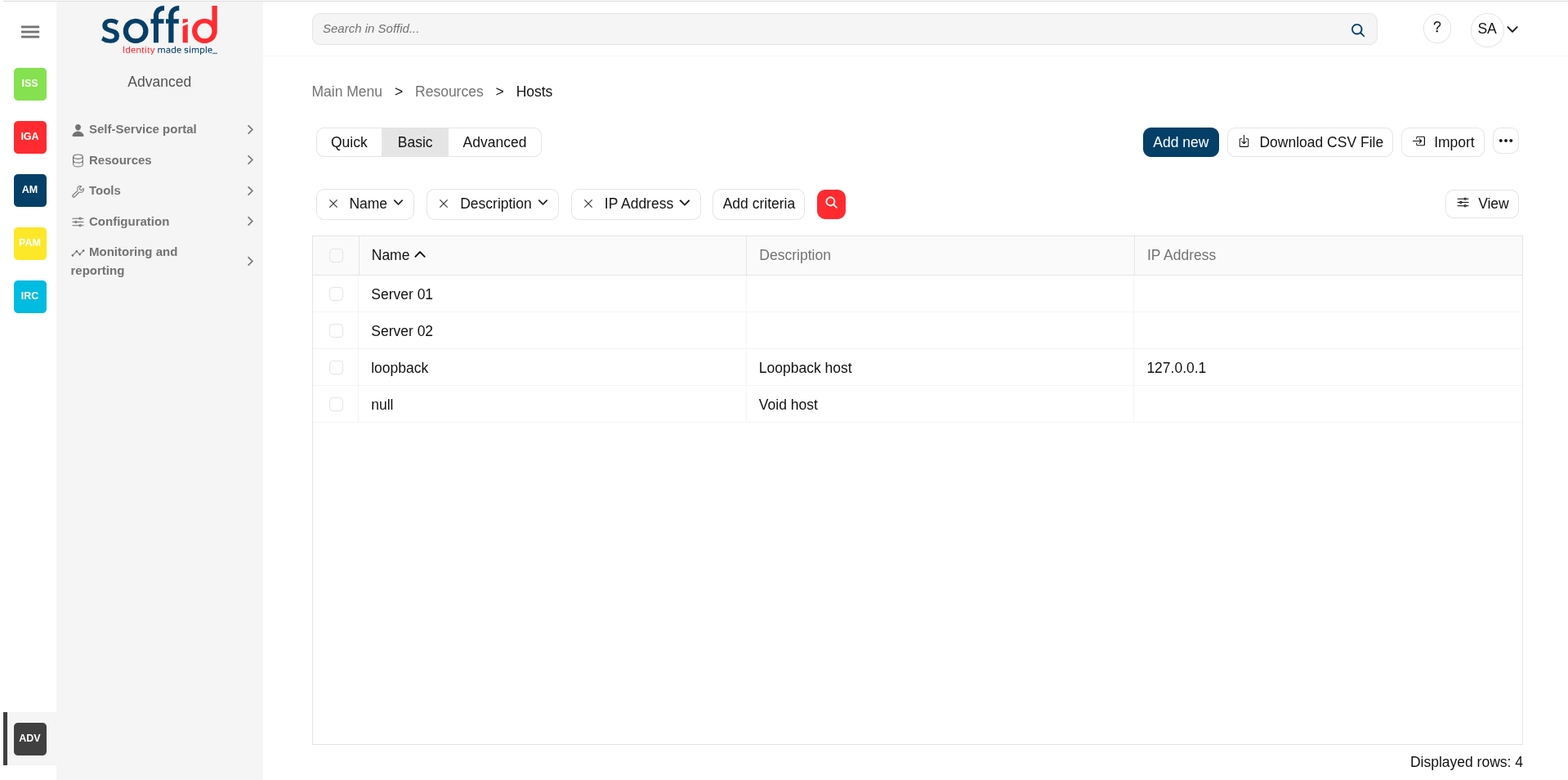](https://bookstack.soffid.com/uploads/images/gallery/2025-06/r2YAJ3pb34CLZi2n-image.png)
[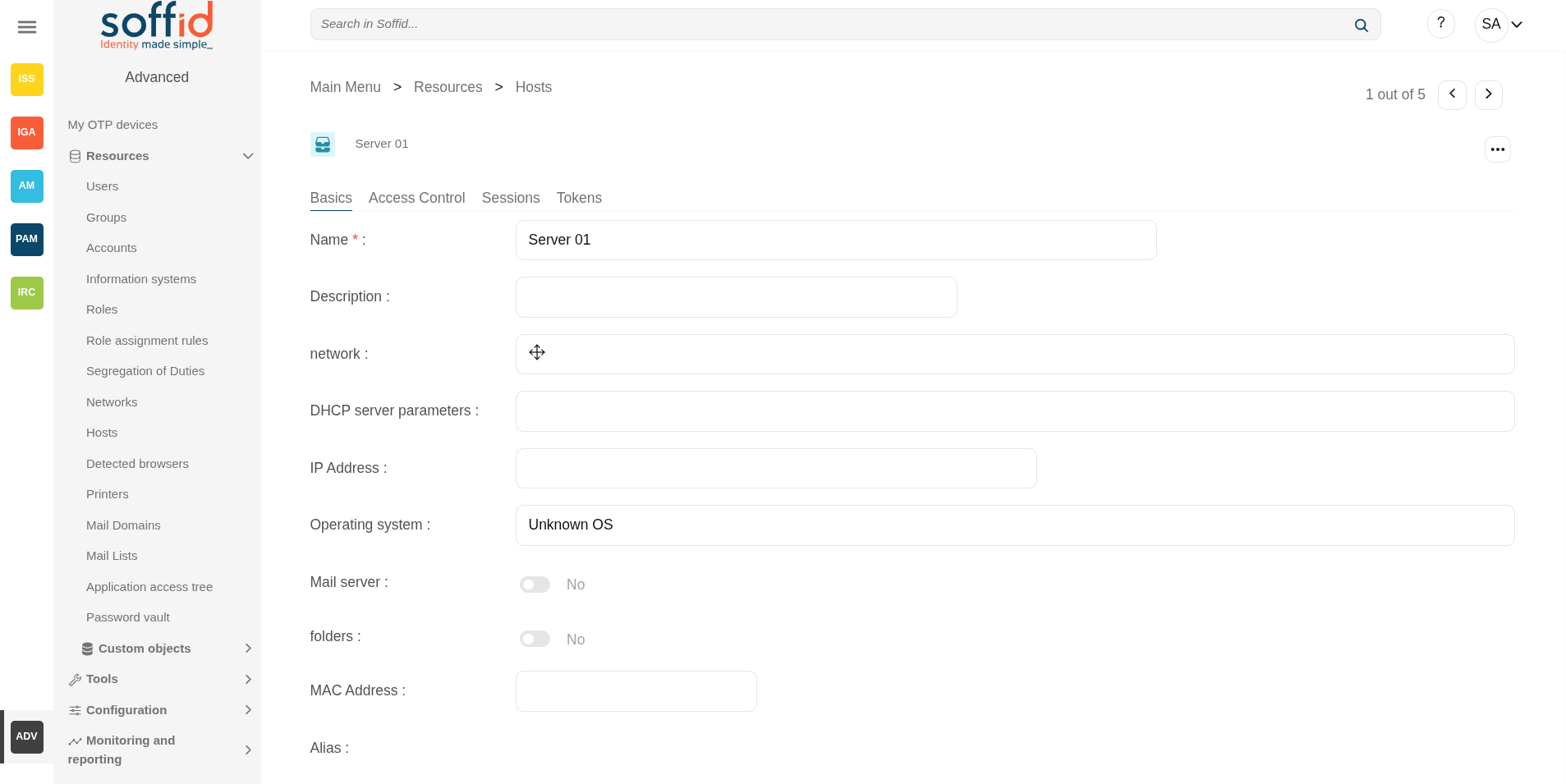](https://bookstack.soffid.com/uploads/images/gallery/2025-08/cb7aMManmCSZyQae-image.png)
## Related objects
- [Hosts](https://bookstack.soffid.com/books/soffid-4-reference-guide/page/hosts "Hosts") : host of the system each one in a network.
- [Detected browsers](https://bookstack.soffid.com/books/soffid-4-reference-guide/page/detected-browsers "Detected browsers") : detected browners in a network.
- [Printers](https://bookstack.soffid.com/books/soffid-4-reference-guide/page/printers "Printers") : configured printers in a network.
- [Soffid parameters](https://bookstack.soffid.com/books/soffid-4-reference-guide/page/soffid-parameters "Soffid parameters") : you can specify a parameter to be applied only in a network.
- [Network discovery](https://bookstack.soffid.com/books/soffid-4-reference-guide/page/network-discovery "Network discovery") : to discover the máquinas and systems in the configured networks.
Standard attributes
### Hosts table
- **Name**: host name.
- **Description**: location, owner and whatever other information you want.
- **IP Address**: host IP
- **Network**: to which it belongs
- **DHCP server parameters**: used by the DHCP agent in order to generate DHCP configuration files.
- **Operating system**: used by the Active Directory agent in order to know if this host must be have an Active Directory host account. Using this functionality, no operator needs to be authorized to add or remove hosts on Active Directory. Soffid will do it for them. More and more, whenever this hosts is left off its IP address, the host account will be removed from Active Directory. This behavior can, of course, be customized.
- **Mail server:** if enabled (selected value is Yes), the user will be able to create mailboxes in the host.
- **Shared folders server**: if enabled (selected value is Yes), the user will be able to create shared folders in the host.
- **MAC Address**: used by the DHCP agent in order to generate DHCP configuration files.
- **Alias**: This field is used to identify the possible IP addresses that may be associated with a single hostname. In complex and segmented environments, it is common for the same machine identifier to be used across multiple networks, whether for service replication, geographic redundancy, or the deployment of parallel test and production environments. This field enables such configurations by linking a hostname to multiple IP addresses, each corresponding to a different network where that hostname is resolvable and operational. As such, the alias acts as an abstraction mechanism that simplifies host identity management in multi-network or multi-site contexts, allowing a single logical identifier (machine name) to be present and active across several network domains, each with its respective IP addressing. The use of the alias field is particularly relevant in distributed architectures, hybrid infrastructures (on-premises and cloud), and high-availability environments, where logical name uniqueness does not imply a single physical address, but rather a flexible, context-dependent association with multiple IP representations of the same functional entity.
- **Shared printer server**: if enabled (selected value is Yes), the user will be able to create a printer queues in the host.
- **Dynamic IP**
- **Serial number**
- **Last connection**
- **Created on**
- **Locked**
- **Device type**
- **Internet browser**
- **CPU type**
- **Created on**
- **Created by**
- **Updated on**
- **Updated by**
### Host details > basics tab
The same attributes than the hosts table.
Image
[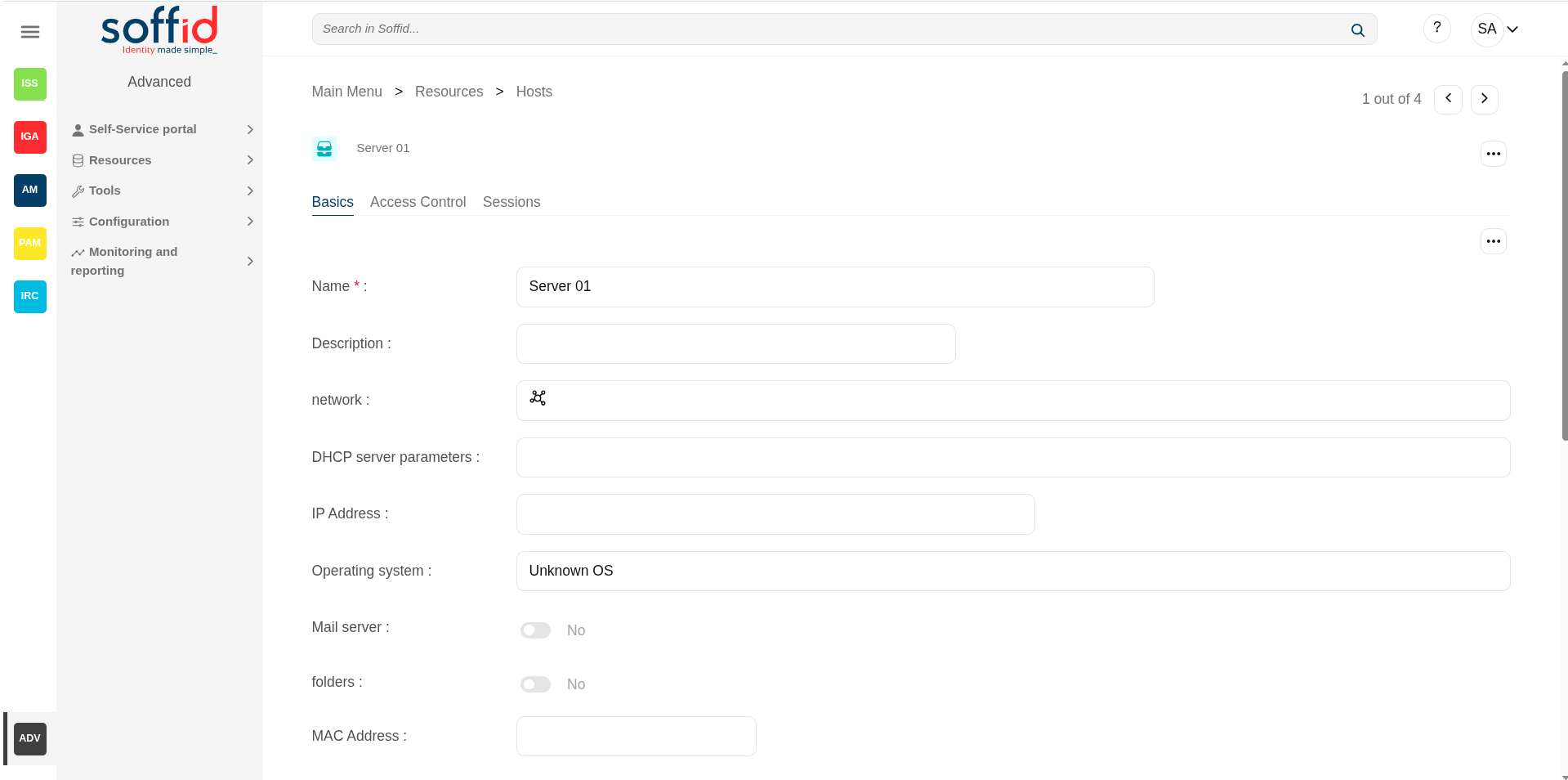](https://bookstack.soffid.com/uploads/images/gallery/2025-06/dCwrnulo1yBblYdK-image.png)
[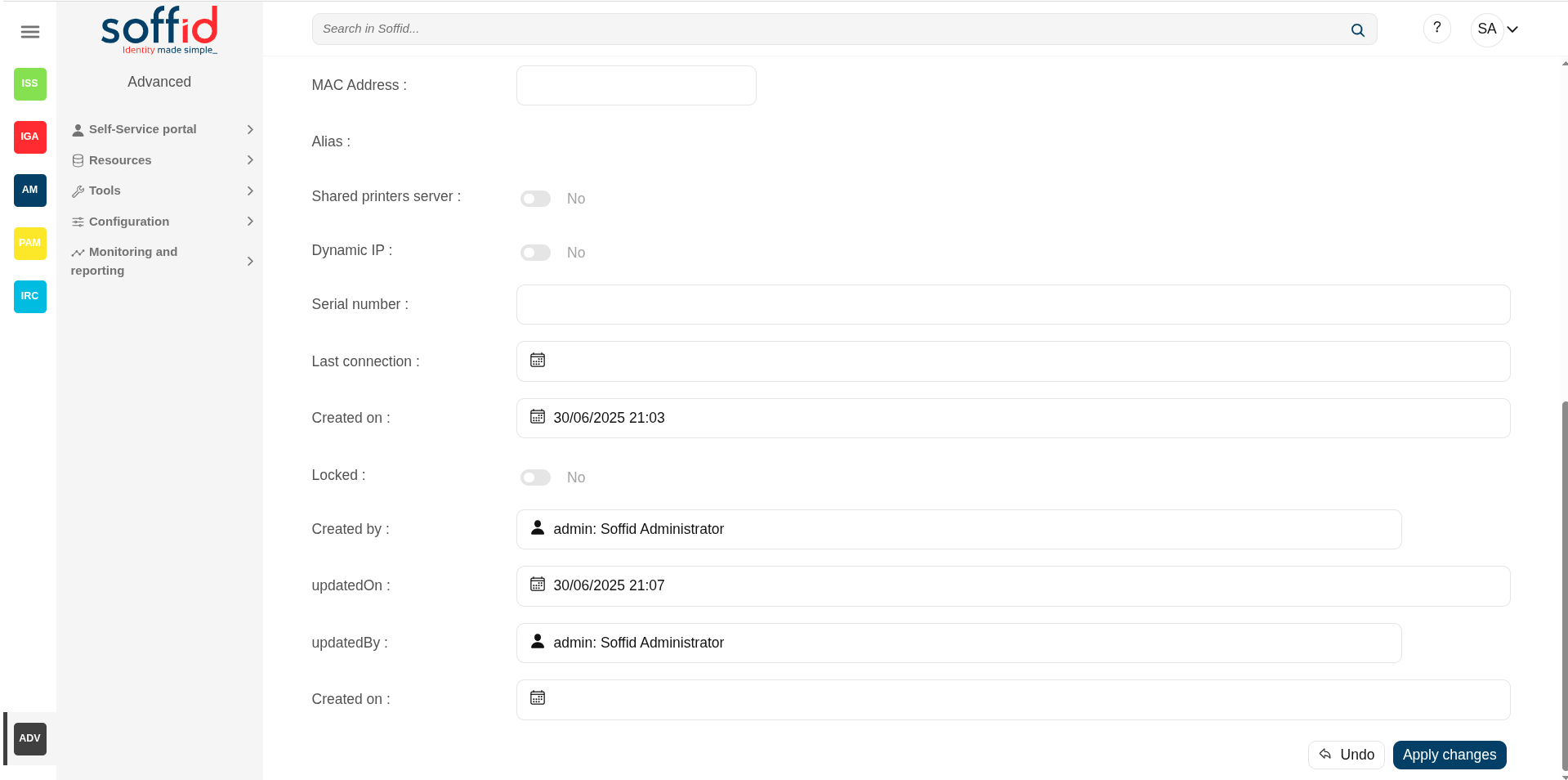](https://bookstack.soffid.com/uploads/images/gallery/2025-06/JVYbbDo51N2FeGqD-image.png)
### Host detail > access control
In the access control tab, you can delegate host management to certain users.
This feature requires the Soffid ESSO.
If you add a user authorization, you will allow the user to execute any task as a local administrator on this server or workstation. ESSO must be installed in the target host. To add a user authorization you can click the **Add new** button, then select the user and expiration date, and finally apply changes.
It is also allowed to delete one or more user authorizations, you can do it from the entitlement details or by selecting one or more records from the list and clicking the **Delete** button.
Additionally, you can **download a CSV file** with the access control data and you can also upload a CSV file to add user authorizations, and modify or delete user authorizations.
You also can view the administrator password.
Attributes:
- **User** : user with the access.
- **Name** : full name of the user.
- **Request date** : date of the row creation.
- **Expiration date** : expiration date until the user has access.
Image
[](https://bookstack.soffid.com/uploads/images/gallery/2025-06/jOHkVYFaLn6k8oaN-image.png)
[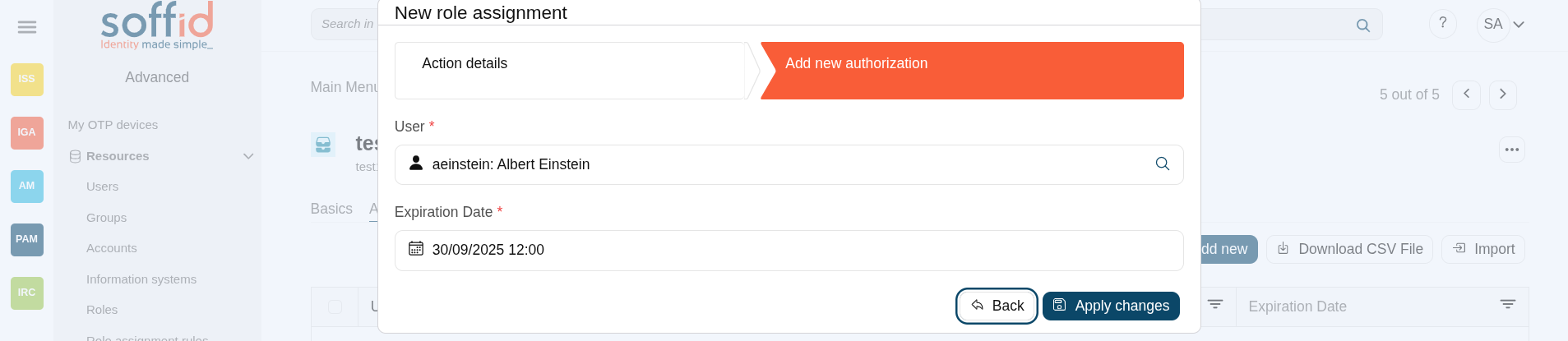](https://bookstack.soffid.com/uploads/images/gallery/2025-08/HS44S7XlXmnXHfgY-image.png)
### Sessions
On the sessions tab, you can view the information about the last connection of a user to this host. Shows data about the user, server, client, port used and date of connection.
You can download a CSV file with the user sessions data.
Attributes:
- **User** : user with the access.
- **Name** : full name of the user.
- **Client** :
- **Port** :
- **Date** : date when the session has been started..
- **Type** :
Image
[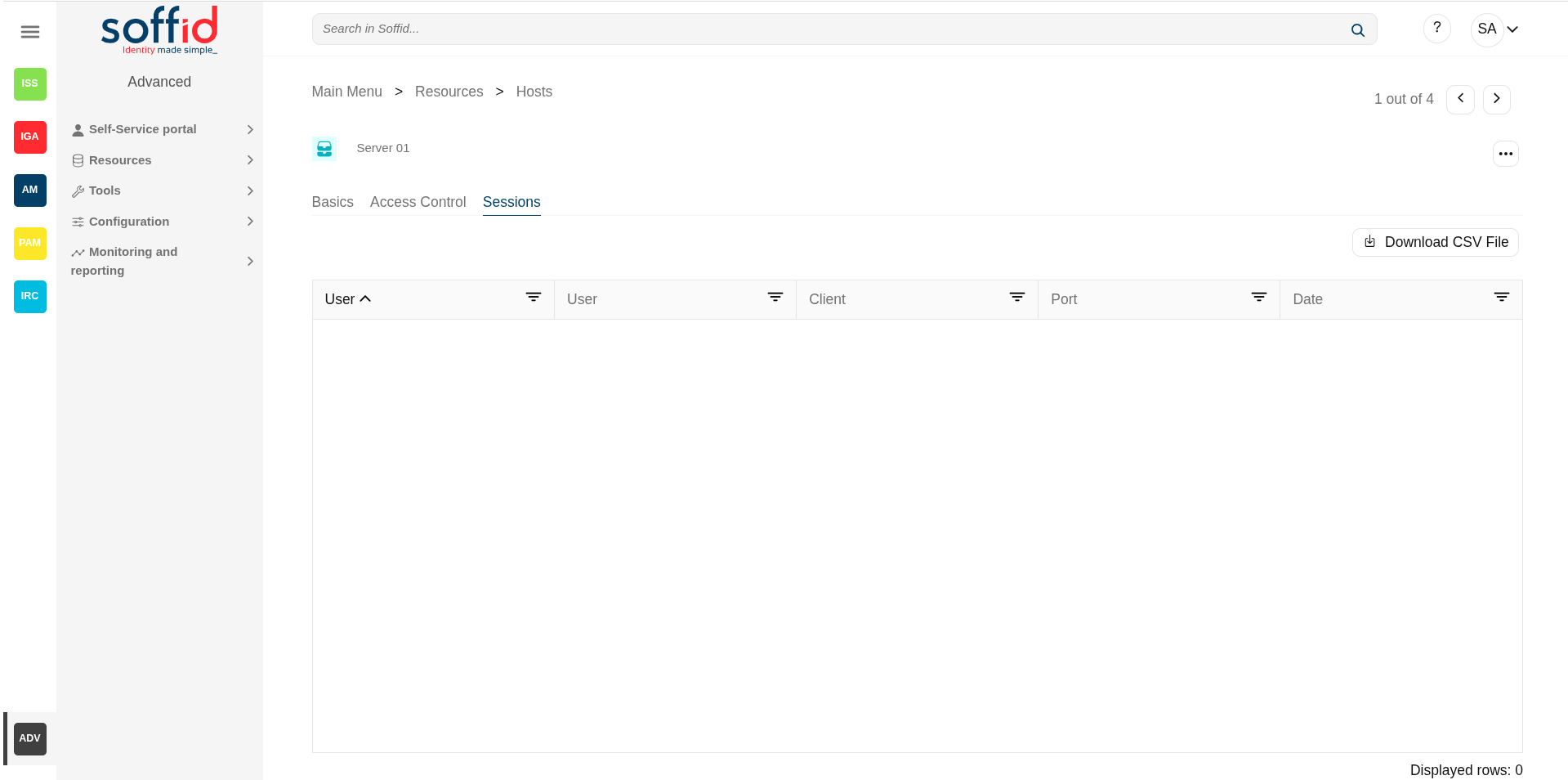](https://bookstack.soffid.com/uploads/images/gallery/2025-06/ISklaJcZxdyTDTGq-image.png)
### Host detail > tokens
To do.
## Actions
### Host table
**"Query"**
Allows you to query host through different search systems, [Quick, Basic and Advanced](https://bookstack.soffid.com/books/soffid-3-reference-guide/page/search-types "Search Types").
**Add new**
Allows you to create a new host. You can choose that option on the hamburger menu or by clicking the add button (+).
To add a new host it will be mandatory to fill in the required fields
**Delete host**
Allows you to remove one or more hosts by selecting one or more records and next clicking this button. To perform that action, Soffid will ask you for confirmation, you could confirm or cancel the operation.
**Download CSV file**
Allows you to download a csv file with the hosts information.
**Import**
Allows you to upload a CSV file with the host list to add or update hosts to Soffid.
First, you need to pick up a CSV file, that CSV has to contain a specific configuration. Then you need to check the content to be loaded, it is allowed to choose if you want or not to load a specific attribute. And finally, you need to select the mappings for each column of the CSV file to import the data correctly and click the Import button.
**Operating systems**
This option allows you to manage the Operating Systems. You can add new, update, or delete OS. Undo and Apply changes to confirm it.
Image
[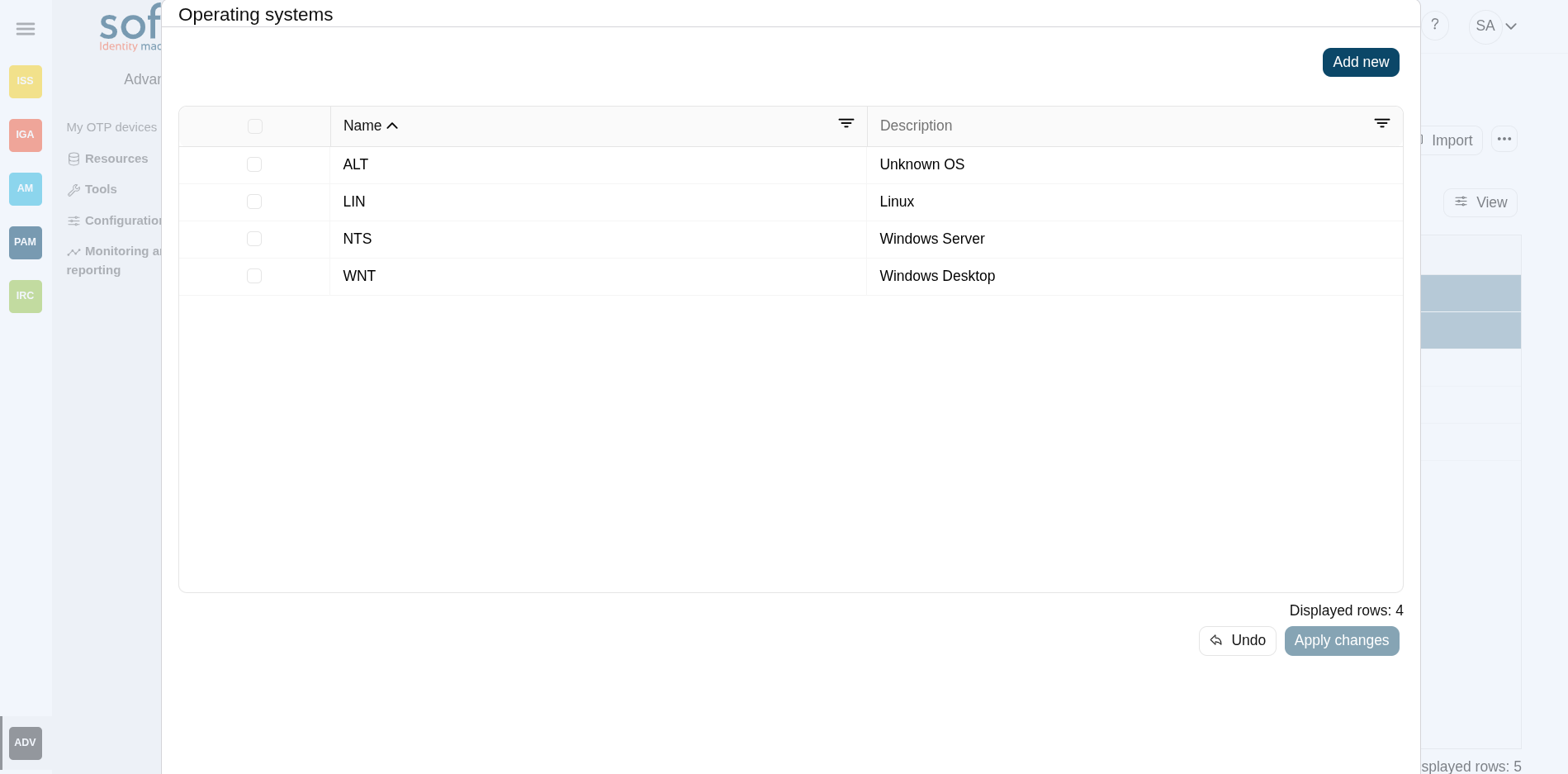](https://bookstack.soffid.com/uploads/images/gallery/2025-08/LyJFRvVIqypLidgY-image.png)
**View**
Allows you to show and hide columns in the table.
You can also set the order in which the columns will be displayed.
### Host detail > basics tab
**Apply changes**
Allows you to save the data of a new host or to update the data of a specific host. To save the data it will be mandatory to fill in the required fields.
**Delete**
Allows you to delete the host. Soffid will ask you for confirmation to perform that action, you could confirm or cancel the operation.
**Assign free IP Address**
Allows you to assign a free IP address. It is necessary to select the network first.
**View password**
Will show the administrator password if it is available. This utility is linked to the PAM module along with the password rotation functionality.
**Undo**
Allows you to quit without applying any changes.
### Host detail > access control tab
**Add new**
Allows you to create a new access control. First, you will select the user and the expiration date of that authorization. Finally you need to apply changes.
**Delete**
Allows you to remove one or more access controls by selecting one or more records and next clicking this button. To delete one access control, you can click the access control, and then Soffid will show a form with the details. Then you can click the delete button (trash icon). To perform that action, Soffid will ask you for confirmation, you could confirm or cancel the operation.
**Download CSV file**
Allows you to download a csv file with the access control information
**Import**
Allows you to upload a CSV file with the access control list to add or update access controls to Soffid.
First, you need to pick up a CSV file, that CSV has to contain a specific configuration. Then you need to check the content to be loaded, it is allowed to choose if you want or not to load a specific attribute. And finally, you need to select the mappings for each column of the CSV file to import the data correctly and to click the Import button.
### Host detail > sessions
**Download CSV file**
Allows you to download a csv file with the sessions information
The Browsers Detected screen allows the administrator to view the browsers and versions being used by SSO users.
## Screen overview
[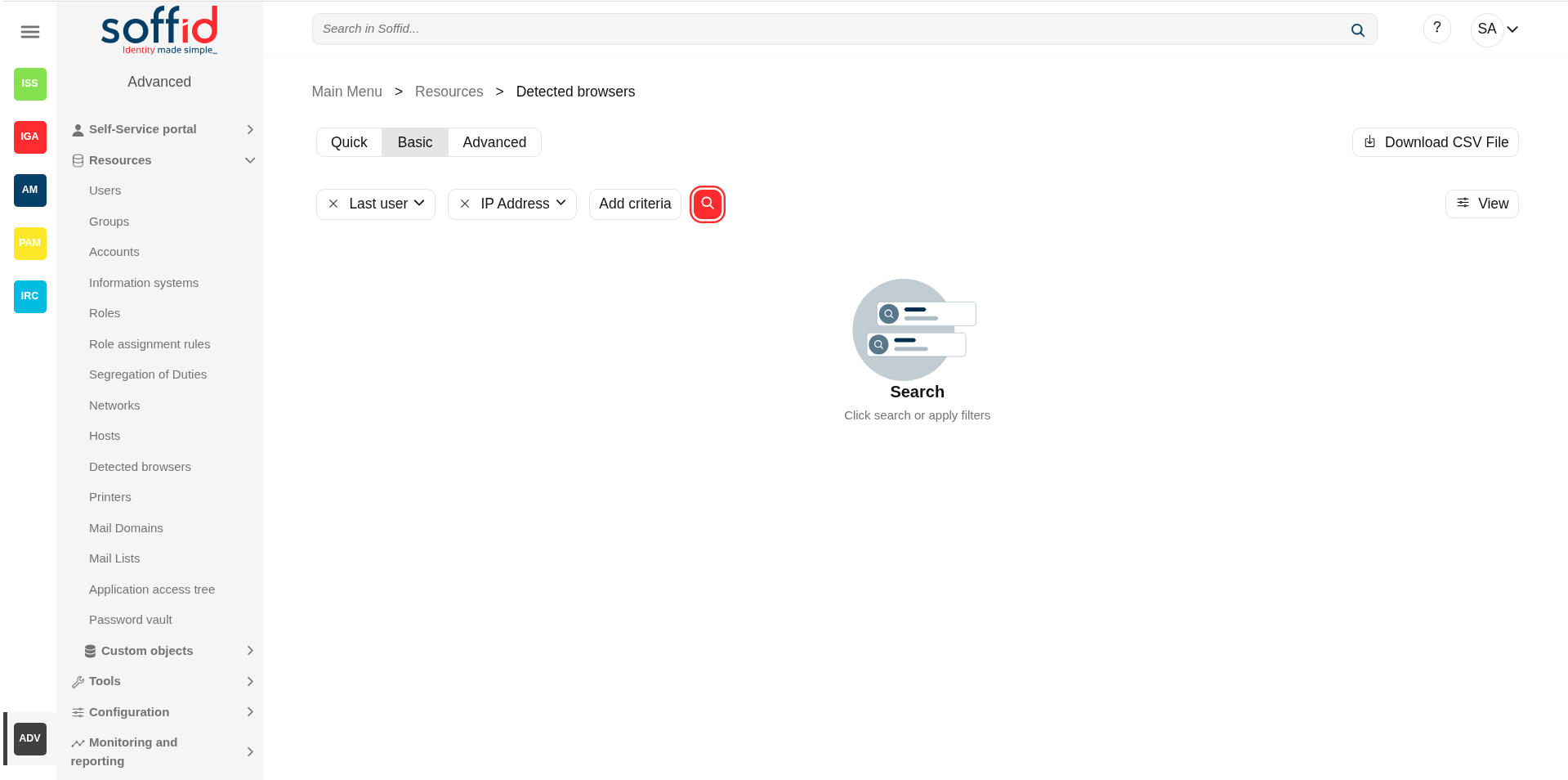](https://bookstack.soffid.com/uploads/images/gallery/2025-06/B2CvQi7CYIEotTFB-image.png)
## Related objects
- [Hosts](https://bookstack.soffid.com/books/soffid-4-reference-guide/page/hosts "Hosts") : host of the system each one in a network.
- [Detected browsers](https://bookstack.soffid.com/books/soffid-4-reference-guide/page/detected-browsers "Detected browsers") : detected browners in a network.
- [Printers](https://bookstack.soffid.com/books/soffid-4-reference-guide/page/printers "Printers") : configured printers in a network.
- [Soffid parameters](https://bookstack.soffid.com/books/soffid-4-reference-guide/page/soffid-parameters "Soffid parameters") : you can specify a parameter to be applied only in a network.
- [Network discovery](https://bookstack.soffid.com/books/soffid-4-reference-guide/page/network-discovery "Network discovery") : to discover the máquinas and systems in the configured networks.
## Standard attributes
### Browsers table
- **Operating system**: used by the Active Directory agent in order to know if this host must be have an Active Directory host account. Using this functionality, no operator needs to be authorized to add or remove hosts on Active Directory. Soffid will do it for them. More and more, whenever this hosts is left off its IP address, the host account will be removed from Active Directory. This behavior can, of course, be customized.
- **Browser name**: browser name detected.
- **IP Address**: host IP.
- **Last user**: last user connected.
- **Host name**: host name.
- **Serial number**
- **Device type**
- **CPU**
- **Last connection**
- **Locked**
- **Created on**
- **Created by**
- **Updated on**
- **Updated by**
## Actions
### Browsers table
**"Query"**
Allows you to query detected browsers through different search systems, [Quick, Basic and Advanced](https://bookstack.soffid.com/books/soffid-3-reference-guide/page/search-types "Search Types").
**Download CSV file**
Allows you to download a csv file with the hosts information.
**View**
Allows you to show and hide columns in the table.
You can also set the order in which the columns will be displayed.
# Printers
## Description
Soffid lets administrator users manage system printers. A printer must always be attached to a host. A network attached printer is composed of a host (network print server) and a printer (printer queue).
Printers can be assigned to specific users or to user groups. The effective assignment can be done on session startup by using a Single Sign On client script. To do that, it is necessary to add a script on a Login entry point with type x-mazinger-script.
## Screen overview
[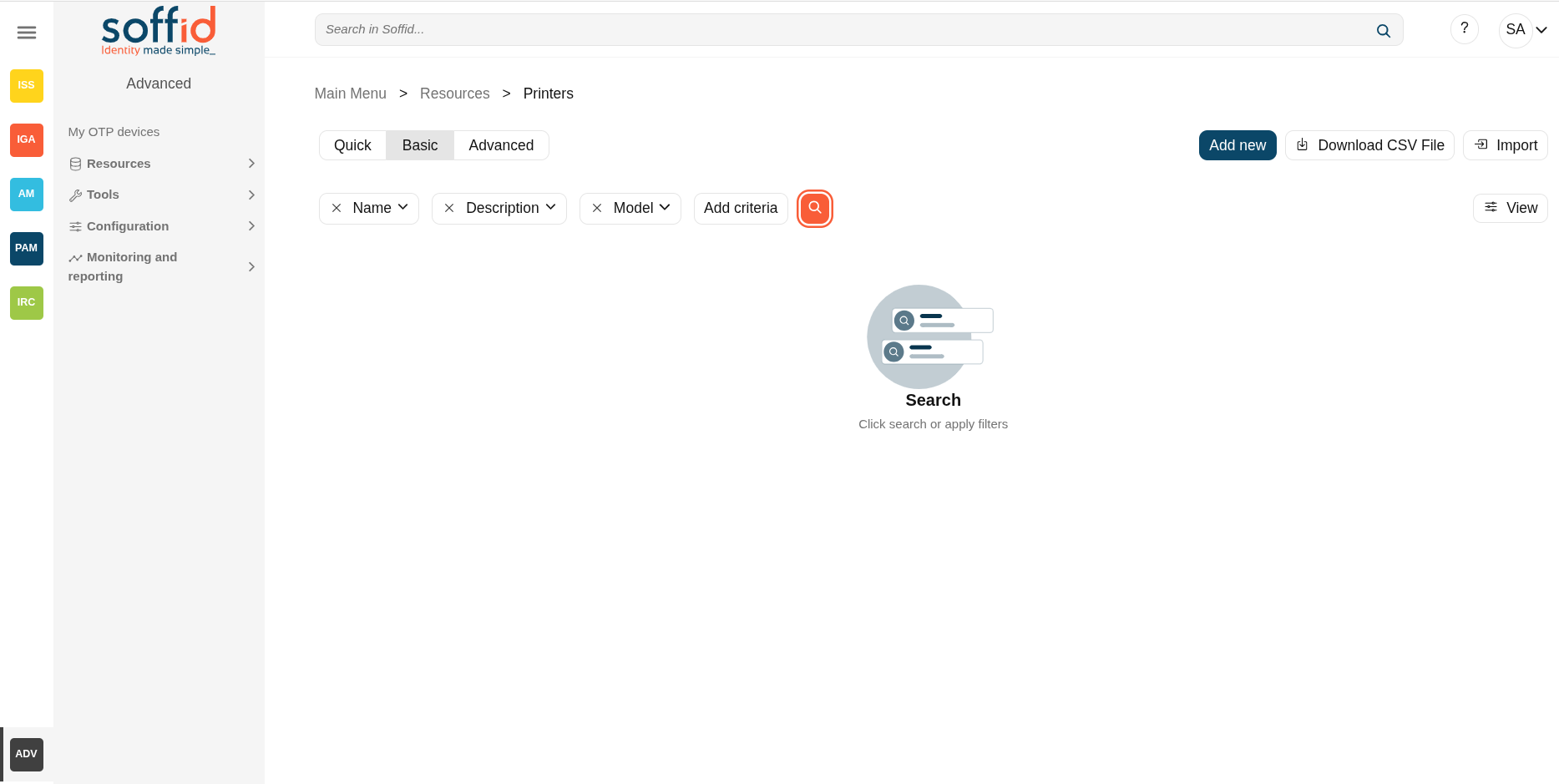](https://bookstack.soffid.com/uploads/images/gallery/2025-08/u0SZrB5ckc5ACjDH-image.png)
## Related objects
- [Hosts](https://bookstack.soffid.com/books/soffid-4-reference-guide/page/hosts "Hosts") : host of the system the requires to have "Shared printers server"=yes.
- [Detected browsers](https://bookstack.soffid.com/books/soffid-4-reference-guide/page/detected-browsers "Detected browsers") : detected browners in a network.
- [Printers](https://bookstack.soffid.com/books/soffid-4-reference-guide/page/printers "Printers") : configured printers in a network.
- [Soffid parameters](https://bookstack.soffid.com/books/soffid-4-reference-guide/page/soffid-parameters "Soffid parameters") : you can specify a parameter to be applied only in a network.
- [Network discovery](https://bookstack.soffid.com/books/soffid-4-reference-guide/page/network-discovery "Network discovery") : to discover the machines and systems in the configured networks.
## Standard attributes
- **Name:** identifier name of the printer.
- **Description**: additional printer information.
- **Printing server**: where the printer is hosted.
- **Model:** printer model.
- **Restricted**: if checked, only users and groups of users assigned can be access to that, in another case any user could access to that printer.
- **Users**: assignment of printer queues to users.
- **Groups**: assignment of printer queues to groups
## Actions
### Printers table
**"Query"**
Allows you to query printers through different search systems, [Quick, Basic and Advanced](https://bookstack.soffid.com/books/soffid-3-reference-guide/page/search-types "Search Types").
**Add new**
Allows you to create a new printer. To add a new printer it will be mandatory to fill in the required fields
**Delete printer**
Allows you to remove one or more printers by selecting one or more records and next clicking this button. To perform that action, Soffid will ask you for confirmation, you could confirm or cancel the operation.
**Download CSV file**
Allows you to download a csv file with the basic information of all printers.
**Import**
Allows you to upload a CSV file with the printer list to add or update printers to Soffid.
First, you need to pick up a CSV file, that CSV has to contain a specific configuration. Then you need to check the content to be loaded, it is allowed to choose if you want or not to load a specific attribute. And finally, you need to select the mappings for each column of the CSV file to import the data correctly and to click the Import button.
**View**
Allows you to show and hide columns in the table.
You can also set the order in which the columns will be displayed.
### Printer detail
**Add new**
Allows you to create a new printer. To add a new printer it will be mandatory to fill in the required fields and apply changes.
**Delete**
Allows you to remove one printer. To perform that action, Soffid will ask you for confirmation, you could confirm or cancel the operation.
**Undo**
Allows you to quit without applying any changes.
# Mail Domains
## Description
The mail domains identify each single mail domain that is going to be managed and used in Soffid.
Mail domains are validated when you enter an email in the attributes of type email.
You cannot use mail domains that have not been previously registered.
If a mail domain is marked as obsolete, it won't be assigned to a user anymore.
## Screen overview
[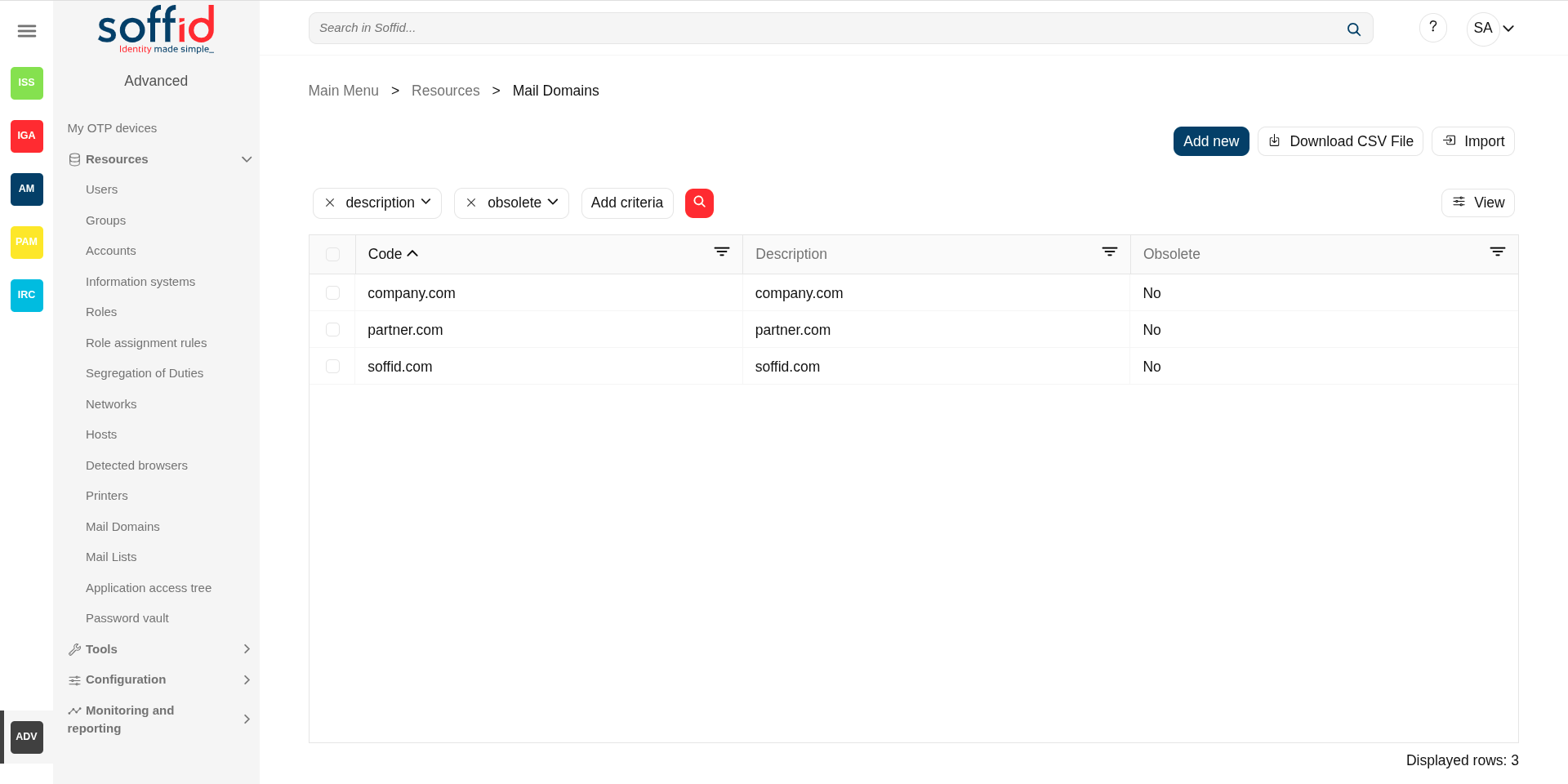](https://bookstack.soffid.com/uploads/images/gallery/2025-08/fV4w7cokmWf3H5C6-image.png)
[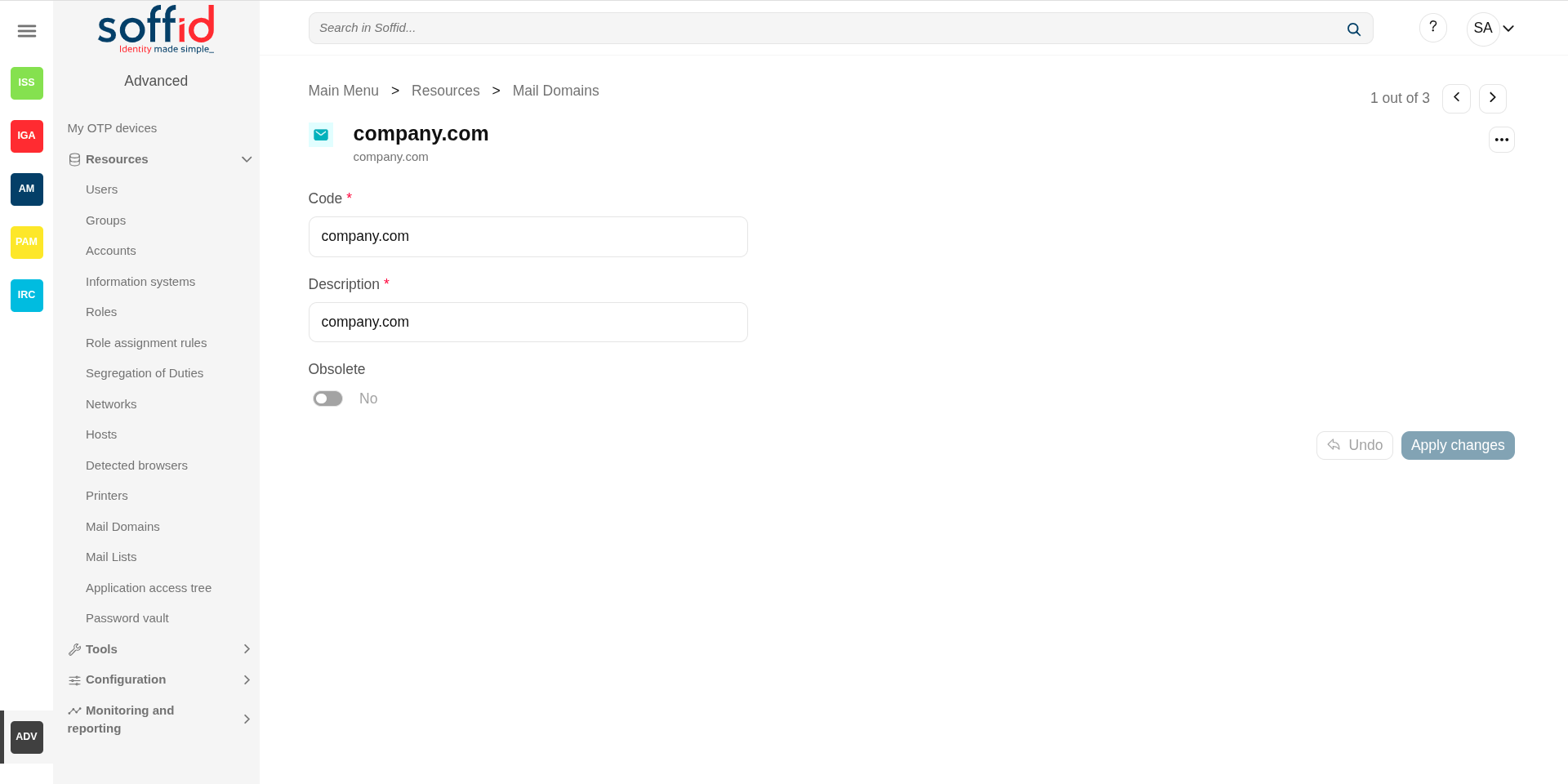](https://bookstack.soffid.com/uploads/images/gallery/2025-08/MvxscXxp4hnSXORS-image.png)
## Related objects
- [Users](https://bookstack.soffid.com/books/soffid-4-reference-guide/page/users "Users") : email type attributes
- [Mail lists](https://bookstack.soffid.com/books/soffid-4-reference-guide/page/mail-lists "Mail Lists") : email type attributes
## Standard attributes
- **Code**: domain, it will be as in email address is written.
- **Description**: a brief description about domain name usage.
- **Obsolete**: enabled to indicate that the domain will not be used and therefore should not be assigned.
## Actions
#### Mail domains table
**Add new**
Allows you to create a new mail domain.
To add a new mail domain it will be mandatory to fill in the required fields
**Delete mail domain**
Allows you to remove one or more mail domains by selecting one or more records and next clicking this button.
To perform that action, Soffid will ask you for confirmation, you could confirm or cancel the operation.
**Download CSV file**
Allows you to download a CSV file with the mail domains information.
**Import**
Allows you to upload a CSV file with the mail domain list to add or update mail domains to Soffid.
First, you need to pick up a CSV file, that CSV has to contain a specific configuration. Then you need to check the content to be loaded, it is allowed to choose if you want or not to load a specific attribute. And finally, you need to select the mappings for each column of the CSV file to import the data correctly and to click the Import button.
**View**
Allows you to add or remove columns to the table.
It is also possible to change the order of the columns.
#### Mail domain detail
**Delete mail domain**
Allows you to delete the mail domain.
To delete a mail domain can click on the three points icon and then click the delete button (trash icon).
Soffid will ask you for confirmation to perform that action, you could confirm or cancel the operation.
**Undo**
Allows you to undo the changes made.
**Apply changes**
Allows you to save the data of a new mail domain or to update the data of a specific mail domain. To save the data it will be mandatory to fill in the required fields.
# Mail Lists
## Description
The mail lists identify addresses that are going to be delivered to one or more users, just as distribution mail lists do.
## Screen overview
[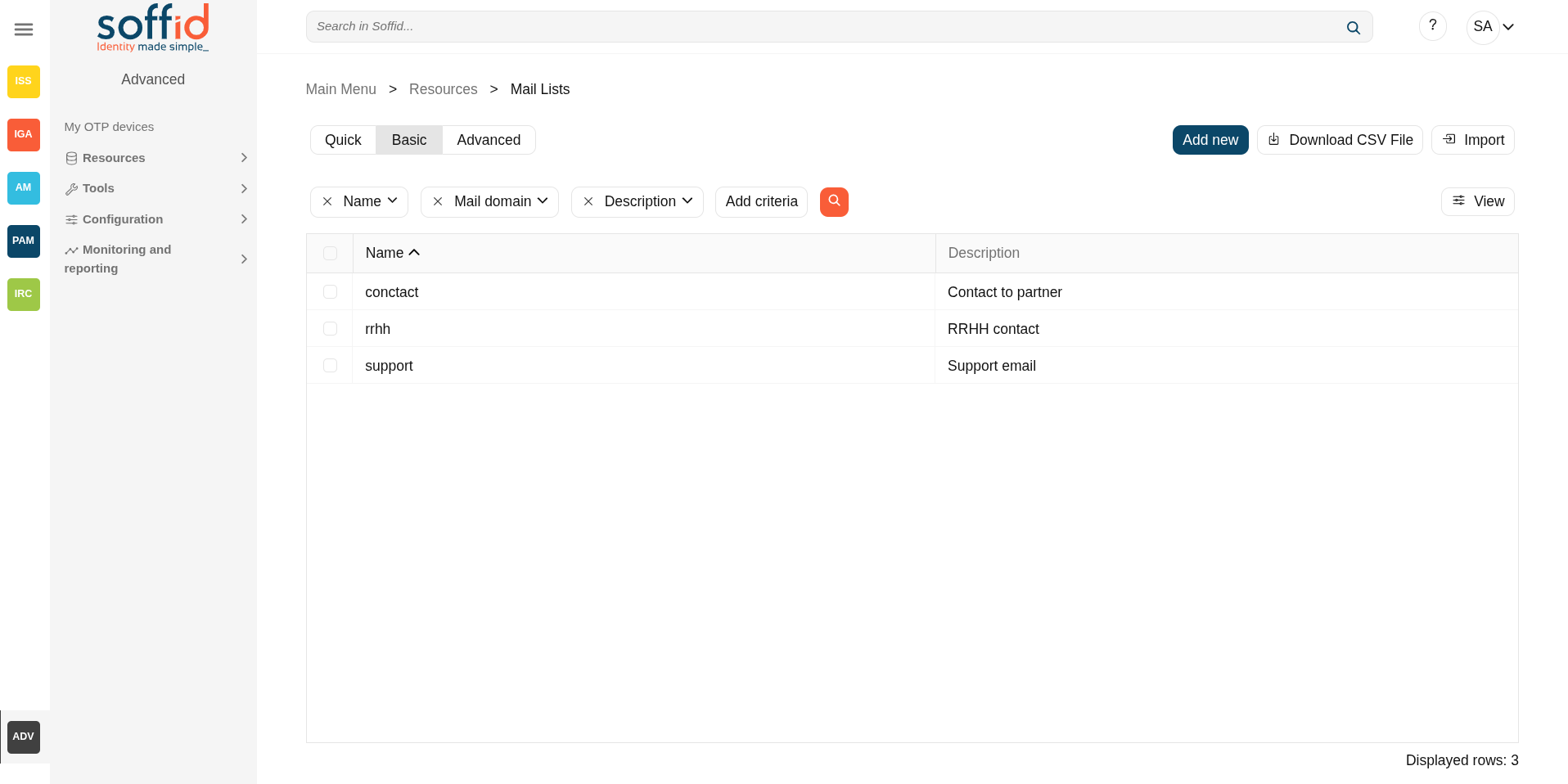](https://bookstack.soffid.com/uploads/images/gallery/2025-08/2EnIzFzLWWPF7H2X-image.png)
[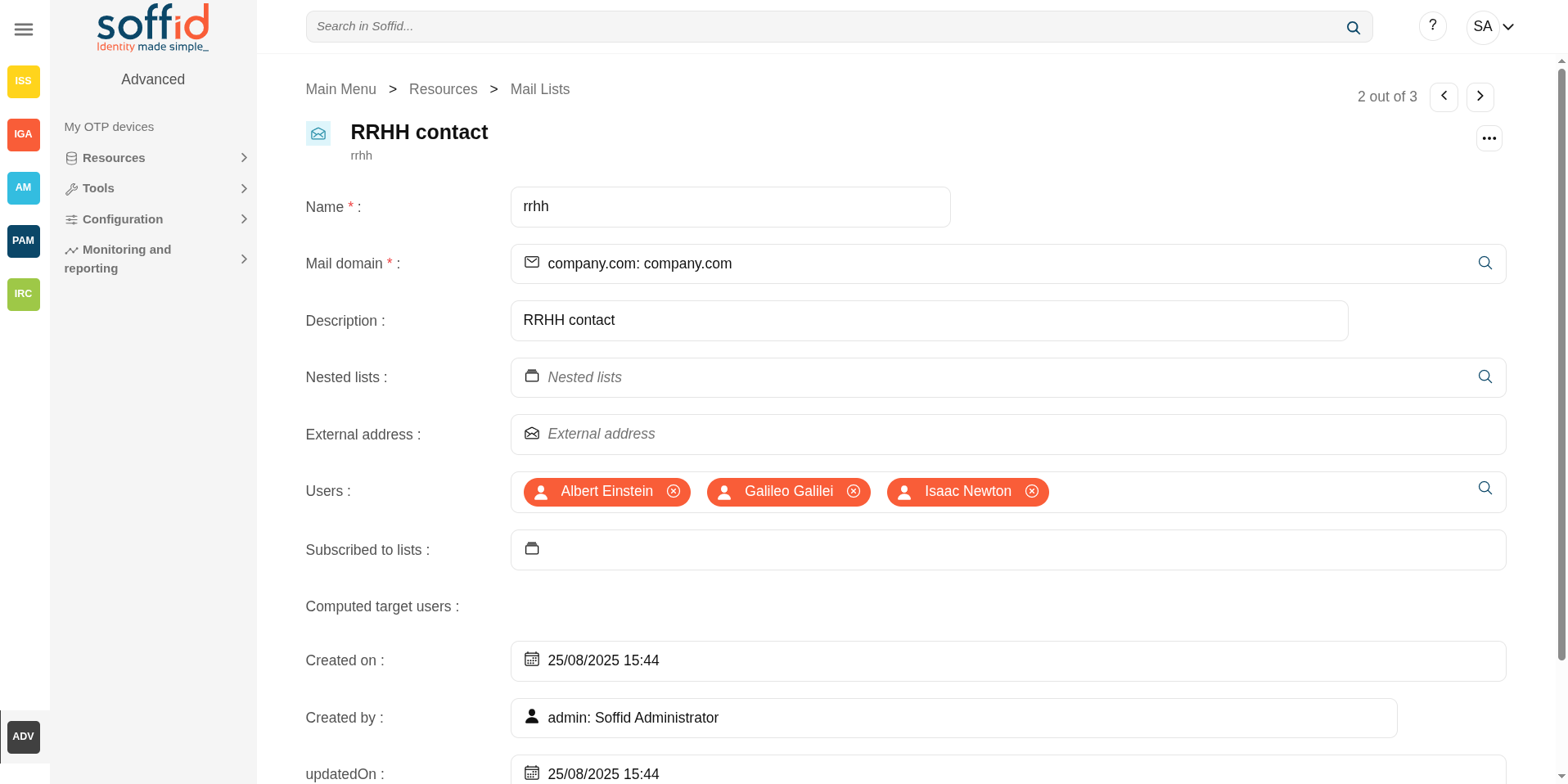](https://bookstack.soffid.com/uploads/images/gallery/2025-08/57HR5fsZelqxvrRi-image.png)
## Related objects
- [Mail domain](https://bookstack.soffid.com/books/soffid-4-reference-guide/page/mail-domains "Mail domain") : mail domain of the list
- [Mail lists](https://bookstack.soffid.com/books/soffid-4-reference-guide/page/mail-lists "Mail Lists") : nested lists
- [Users](https://bookstack.soffid.com/books/soffid-4-reference-guide/page/users "Users") : assigned users
## Standard attributes
- **Name:** identifier name of the mail list.
- **Mail domain**: an existing domain in the system. It is a predictive field that facilitates the search.
- **Description**: a brief description of the mail list.
- **Nested lists**: nested mail lists.
- **External address**: other mail addresses not managed by Soffid that will be on the mail list.
- **Roles**: the users who have been assigned those roles, will be on the mail list.
- **Groups**: the users who belong to that groups, will be on the mail list.
- **Users**: users who will be on the mail list.
- **Subscribed to lists**: subscribed to lists.
- **Computed target users**: breakdown list of users that are on the mailing list.
- **Created on**
- **Created by**
- **Updated on**
- **Updated by**
## Actions
#### Mail List query
**"Query"**
Allows you to query mail list through different search systems, [Quick, Basic and Advanced](https://bookstack.soffid.com/books/soffid-3-reference-guide/page/search-types "Search Types").
**Add new**
Allows you to create a new mail list.
To add a new mail list it will be mandatory to fill in the required fields
**Delete mail list**
Allows you to remove one or more mail domains by selecting one or more records and next clicking the button with the subtraction symbol (-).
To perform that action, Soffid will ask you for confirmation, you could confirm or cancel the operation.
**Download CSV file**
Allows you to download a csv file with the mail domains information.
**Import**
Allows you to upload a CSV file with the "mail list" list to add or update mail lists to Soffid.
First, you need to pick up a CSV file, that CSV has to contain a specific configuration. Then you need to check the content to be loaded, it is allowed to choose if you want or not to load a specific attribute. And finally, you need to select the mappings for each column of the CSV file to import the data correctly and to click the Import button.
**View**
Allows you to add or remove columns to the table.
It is also possible to change the order of the columns.
#### Mail List detail
**Apply changes**
Allows you to save the data of a new mail list or to update the data of a specific mail list. To save the data it will be mandatory to fill in the required fields.
**Delete mail list**
Allows you to delete the mail list.
To delete a mail list can click on the three points icon and then click the delete button (trash icon).
Soffid will ask you for confirmation to perform that action, you could confirm or cancel the operation.
**Undo**
Allows you to quit without applying any changes.
# Application access tree
## Description
The **entry points** could be to connect to information systems defined on Soffid, or to connect to other applications. These applications can be Web applications or Native applications. Each information systems can have one or more application entry points.
The entry points are managed in a tree structure, that allows creating new menus and new application access.
Each member of the tree can be tied to a list of users, account groups, or roles. Also, you can choose if the application menu entry will be visible or not by unauthorized users.
After logging on to a managed workstation, the system will apply such restrictions and will update the Windows or Linux start menu.
Each application entry point will have different execution methods for fully managed workstations, loosely managed workstations, or external devices. Each of them can be a web browser URL or a javascript piece.
Each application entry point can have a single sign on rule. Those roles are fully explained in the ESSO reference guide. For more information, you can visit the [ESSO chapter.](https://bookstack.soffid.com/books/esso "ESSO")
The defined entry points allow to final users open applications from the self service portal. For more information can visit [My applications](https://bookstack.soffid.com/books/soffid-4-reference-guide/page/my-applications "My applications") page.
## Screen overview
[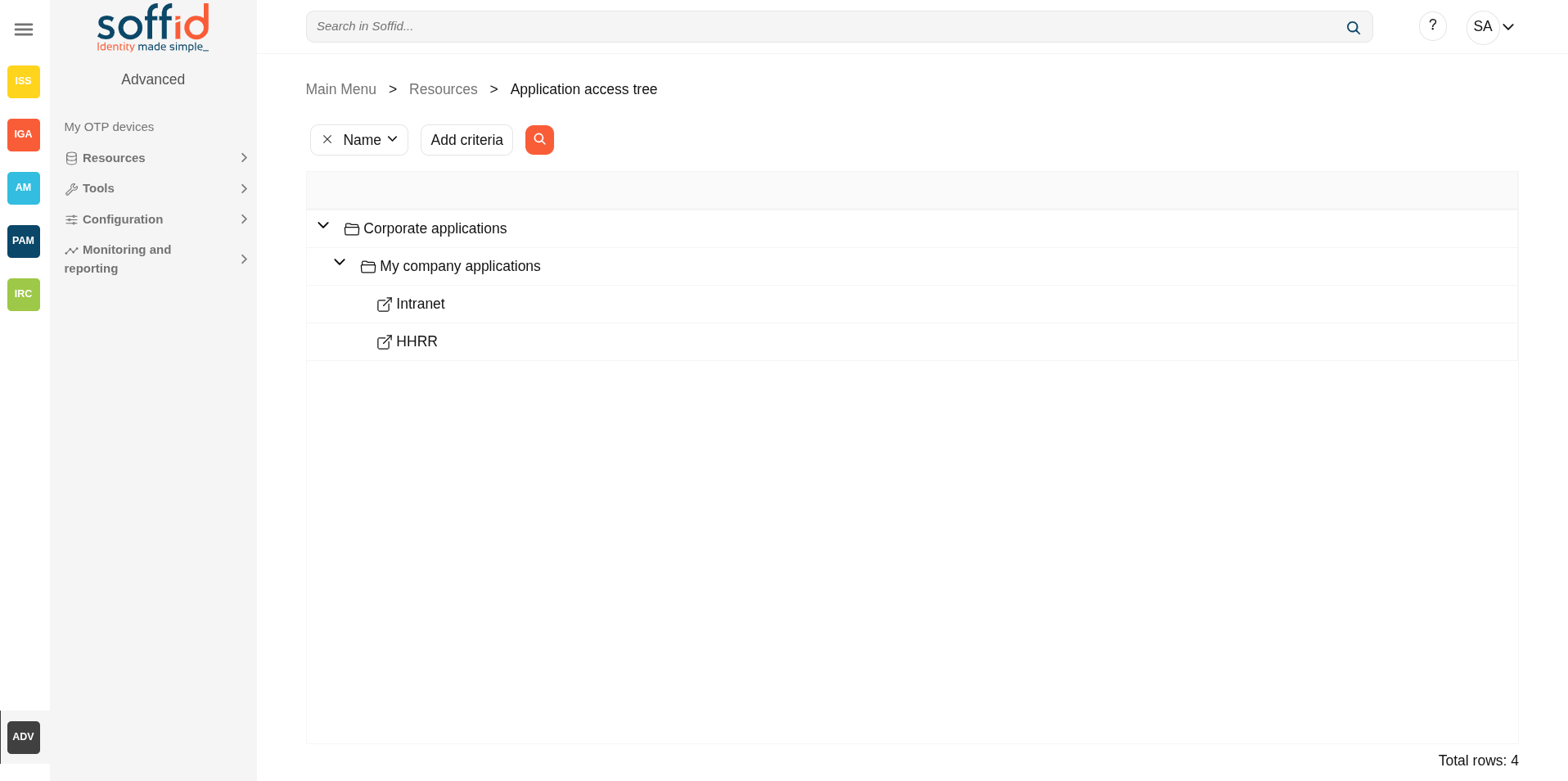](https://bookstack.soffid.com/uploads/images/gallery/2025-08/bxDHg1bdS1VBRWbM-image.png)
[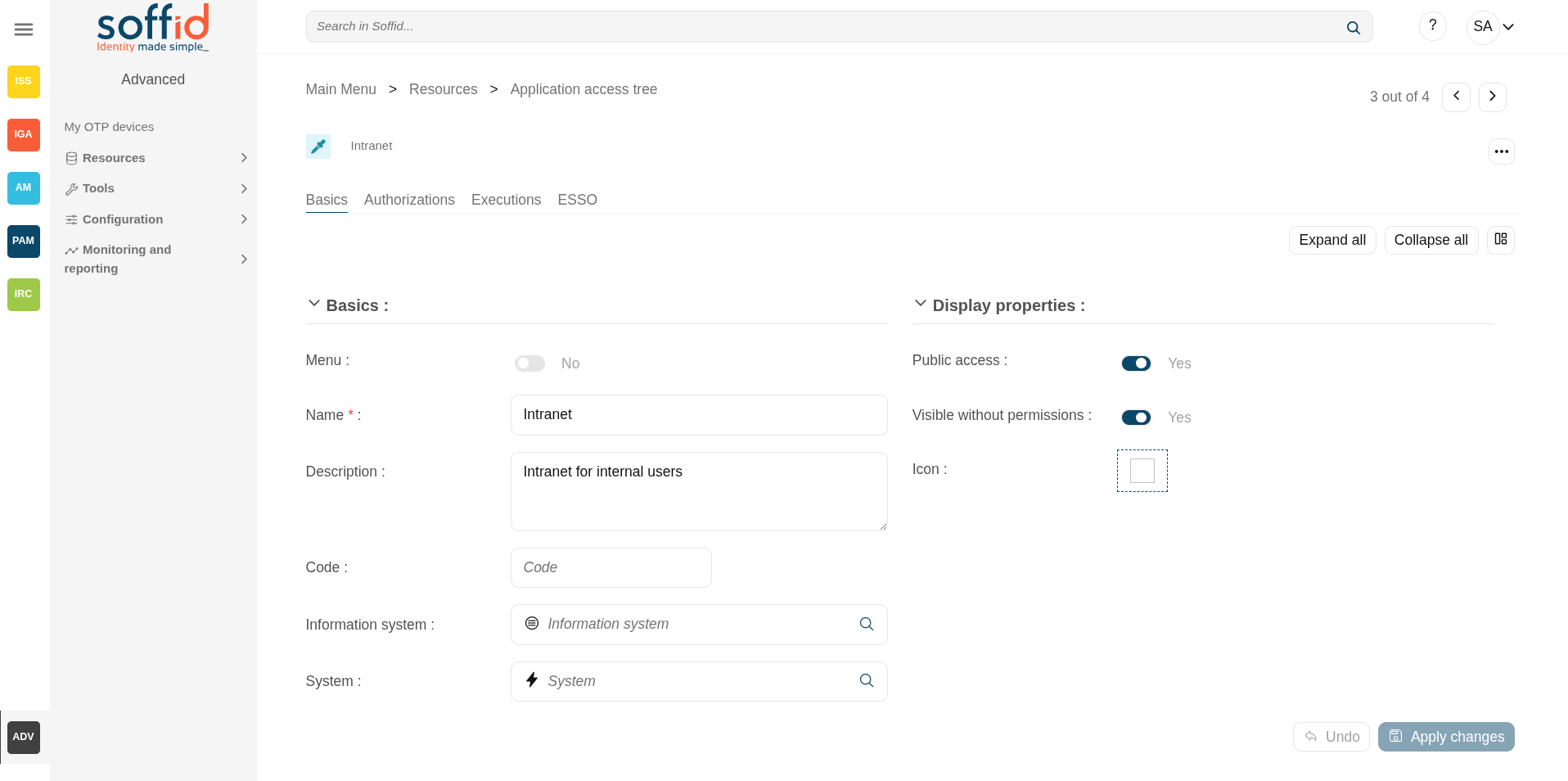](https://bookstack.soffid.com/uploads/images/gallery/2025-08/K28dD14PvbjlvwhE-image.png)
## Related objects
- [Information systems](https://bookstack.soffid.com/books/soffid-4-reference-guide/page/information-systems "Information systems") : information system configured
- [Agents](https://bookstack.soffid.com/books/soffid-4-reference-guide/page/agents "Agents") : systems configured
- [Users](https://bookstack.soffid.com/books/soffid-4-reference-guide/page/users "Users") : authorizations
- [Groups](https://bookstack.soffid.com/books/soffid-4-reference-guide/page/groups "Groups") : authorizations
- [Roles](https://bookstack.soffid.com/books/soffid-4-reference-guide/page/roles "Roles") : authorizations
- [Accounts](https://bookstack.soffid.com/books/soffid-4-reference-guide/page/accounts) : authorizations
- [My applications](https://bookstack.soffid.com/books/soffid-4-reference-guide/page/my-applications "My applications") : where the applications are published for the end users
- [Networks](https://bookstack.soffid.com/books/soffid-4-reference-guide/page/networks "Networks") : executions
## Standard attributes
#### Table
- Name of the item. It can be a folder or an application. It's a tree view.
#### Basics tab
- **Menu**: (yes|no) when the menu is Yes, this application will be like a folder to contain and organize other applications.
- **Name**: application identifier name.
- **Description**: description of the application.
- **Code**: code of the application.
- **Information system**: asset or application, from a functional point of view, on which the permissions are granted or revoked.
- **System (only for application items)**: information storage system from a technical point of view (active directory, database, CSV, ...). These systems are the agents configured on Soffid.
- **Menu type (only for folder type)**: List / Icons / Tree. Differents view of the folder in the My applications page.
- **Public access**: when it is Yes, this application will be displayed as public at the self-service portal of all users.
- **Visible without permissions**: when it is Yes, this application will be displayed at the self-service portal, but only users with permissions will be allowed to connect.
- **Icon**: folder or application identification icon, you can see the new icon in the My application page.
#### Authorizations tab
Allows you to grant access permissions to **users**, **groups**, **roles**, or **accounts**.
To give authorization it is necessary, first of all, to select the grantee type, then to choose the user, group, role, or account, and finally choose the access level. The access level allows two options:
- **Manage**: allows to update the entry point.
- **Execute**:
- When the entry point has selected the option public access to NO, only users with the assigned access level as execute could execute that entry point.
- When the entry point has selected the option public access to YES, all users can execute that entry point.
Image
[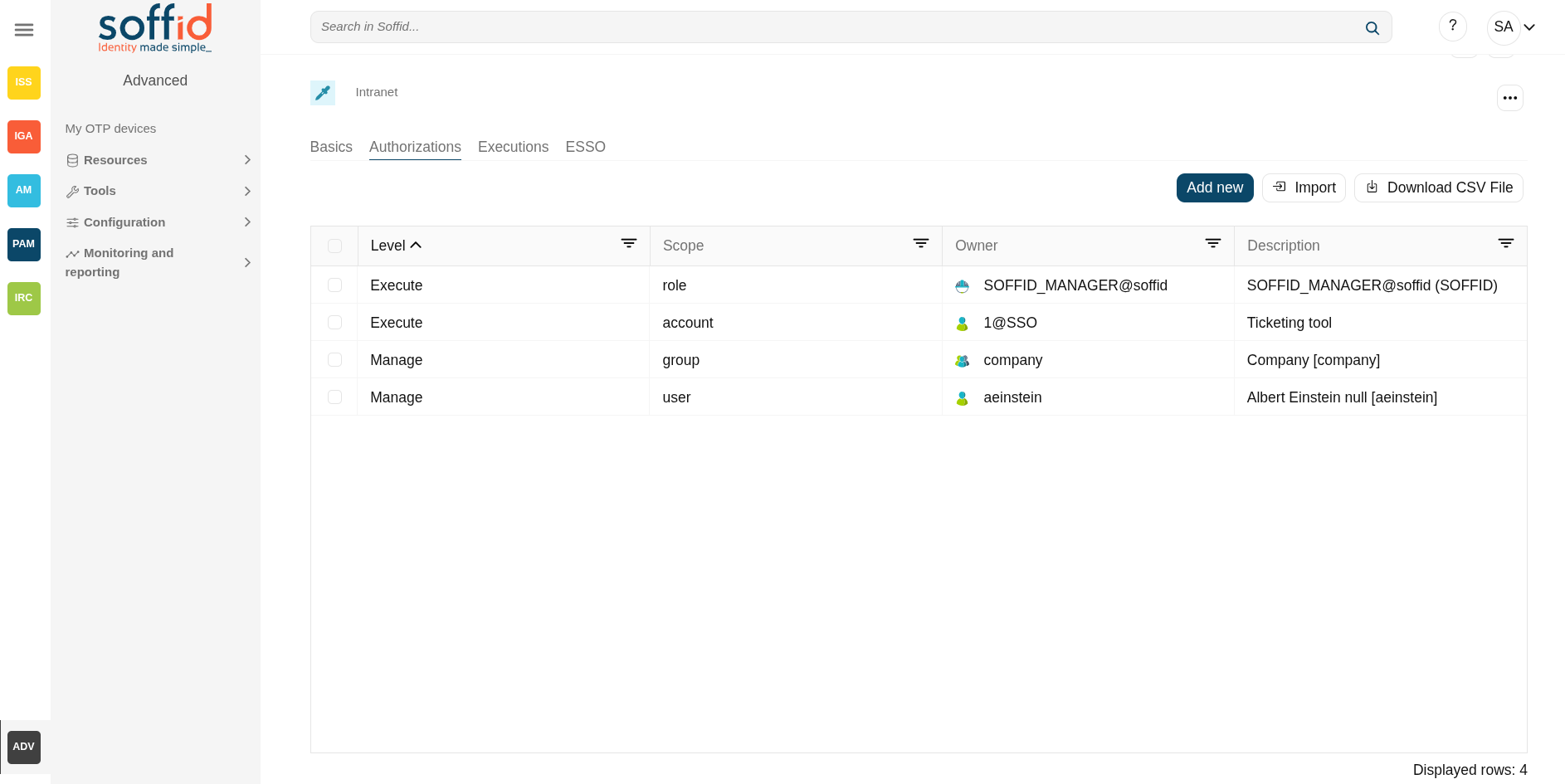](https://bookstack.soffid.com/uploads/images/gallery/2025-08/SCgKr0ycuv0UFerR-image.png)
#### Executions tab
Allows Administrator users to configure the entry point access. It is only available to entry points with the option Menu not selected.
There are three options to configure the executions. Administrator users can configure one or more:
- **Running from Intranet**: if you select the Yes option, Soffid will check if the host that is trying to run this entry is located in a network flagged as internal, if so, Soffid will allow to run the entry.
- **Running from Extranet**: if you select the Yes option, Soffid will check if the host that is trying to run this entry is located in a network NOT flagged as internal, if so, Soffid will allow to run the entry.
- **Running on the Internet**: if you select the Yes option, Soffid will check if the host that is trying to run this entry is located in an unknown network, if so, Soffid will allow to run the entry.
For each execution option it is possible to configure the following parameters:
- **Enabled**: if the option is available to configure.
- **Type**: access connection type.
- **Content**:
- **text/html**: a URL to access to the application. [](https://bookstack.soffid.com/uploads/images/gallery/2025-08/QjLkvOCKMWCkdvwj-image.png)
- **x-application/x-mazinger-script:** scripts that will be executed on ESSO clients [](https://bookstack.soffid.com/uploads/images/gallery/2025-08/rFFyUPNTwoMBkIqC-image.png)
- **Recorded session:** configuration to use PAM service. [](https://bookstack.soffid.com/uploads/images/gallery/2025-08/CAzzwzXodoEoSJ8B-image.png)
- **Web Single Sign On:** a URL to access the application with SSO. [](https://bookstack.soffid.com/uploads/images/gallery/2025-08/SSO3TXBj2JmJbWW1-image.png)
#### ESSO
Allows you to customize a script to define a pattern to detect when an application is used and how to inject the credentials.
For more information, you can visit the [ESSO chapter.](https://bookstack.soffid.com/books/esso "ESSO")
## Actions
### Table
**"Query"**
Allows to query the entry points through different search systems, [Quick, Basic and Advanced](https://bookstack.soffid.com/books/soffid-3-reference-guide/page/search-types "Search Types").
**Create new entry**
Allows you to add a new entry point.
To create a new entry point you can click the Create new entry button, then Soffid will display a new window to fill in the entry point data.
To add a new entry point it will be mandatory to fill in the required fields.
### Basics tab
**Apply changes**
Allows you to save the data of a new entry point or to update the data of a specific entry point. To save the data it will be mandatory to fill in the required fields.
**Delete**
Allows you to delete the entry point.
To delete an entry point, you can click the hamburger icon and then click the delete button (trash icon). Soffid will ask you for confirmation to perform that action, you could confirm or cancel the operation.
**Expand all**
Displays all the attributes of the different blocks.
**Collapse all**
Hide all attributes of the different blocks.
**"Types of views"**
Change the view type: Classic view, Modern view, Compact design.
**Undo**
Allows you to quit without applying any changes made.
### Authorizations tab
**Add new**
Allows you to add a new authorization.
💻 Image
[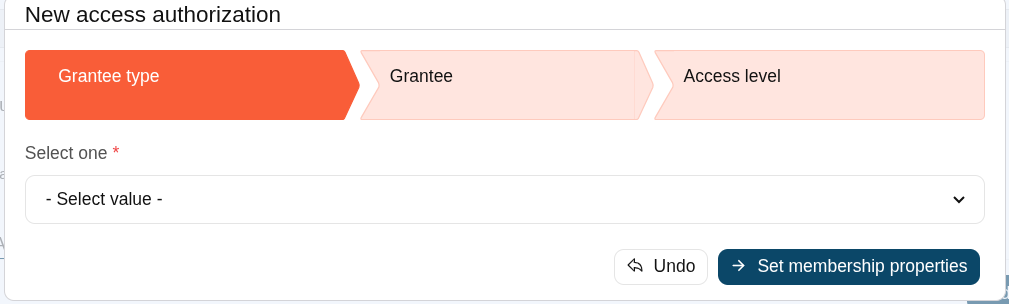](https://bookstack.soffid.com/uploads/images/gallery/2025-08/1e1ugSDRdsnnfvIJ-image.png)
First, you will select the Grantee type, which could be a role, a user, an account, or a group. Second, you will select the Grantee, it will depend on the Grantee type selected. Then, you will fill in the access level. And finally, you will apply changes.
**Delete**
Allows you to remove one or more authorizations by selecting one or more records and next clicking this button.
To perform that action, Soffid will ask you for confirmation, you could confirm or cancel the operation.
**Import**
Allows you to upload a CSV file with the authorization list to add or update them to Soffid.
First, you need to pick up a CSV file, that CSV has to contain a specific configuration. Then you need to check the content to be loaded, it is allowed to choose if you want or not to load a specific attribute. And finally, you need to select the mappings for each column of the CSV file to import the data correctly and to click the Import button.
**Download CSV file**
Allows you to download a CSV file with the authorizations.
### Executions tab
**Apply Changes**
Allows you to save the execution configuration.
**Test**
Check if the settings for a specific type are correct.
### ESSO tab
**Validate**
Allows you to validate and save the script.
# Password vault
## Description
Soffid provides a protected storage, to save and manage accounts for multiple applications, that is the Password vault. Here you can save the accounts and passwords to access to critical systems and to your applications as well. Password vault allows you to handle the access control list to these accounts. Sometimes these accounts can be used by a specific user or a set of users.
The accounts are organized in folders depending on the permissión, and the criticality level, .... These accounts can be system accounts or user accounts.
The Password vault exposes a subset of accounts to some users. These accounts are available through the Self-services portal. You can visit [My applications](https://bookstack.soffid.com/books/soffid-4-reference-guide/page/my-applications "My applications") page for more information.
When a privileged account is being config, it will be able to assign a workflow or approval process to request in order to use that account. For more information visit the link [How to apply policies](#bkmrk-how-to-apply-policie).
Users can be authorized to manage their own personal accounts, **sso:manageAccounts.** For more info visit the [Authorizations](https://bookstack.soffid.com/books/soffid-4-reference-guide/page/authorizations "Authorizations") page.
### Folders
In the password vault, two kinds of folders are used: **personal folders** and **shared folders**, which depend on the Owners configuration you define.
On one hand, each user has their own personal folder. Inside this folder, the user can create accounts. That account will not be shared with any other user.
On the other hand, the shared folders could be used or managed by the owner/manager/SSO users.
### Accounts
Soffid allows you to create new accounts on a specific folder on the password vault page, to add a new account will be mandatory to fill in some attributes, like System, name, and login name. You can consult the existing accounts related to a folder. For each account, you can update or delete the account, view and set a password.
Also, you can create accounts on the [Account](https://bookstack.soffid.com/books/soffid-4-reference-guide/page/accounts "Accounts") page and assign the appropriate vault folder.
Soffid allows administrator users to configure a workflow to request permissions when a user try to change the password of a privileged account in the password vault. That process can be defined with the BPM Editor as an Account reservation type. For more information you can visit the [BPM Editor book](https://bookstack.soffid.com/books/bpm-editor "BPM Editor").
## Screen overview
[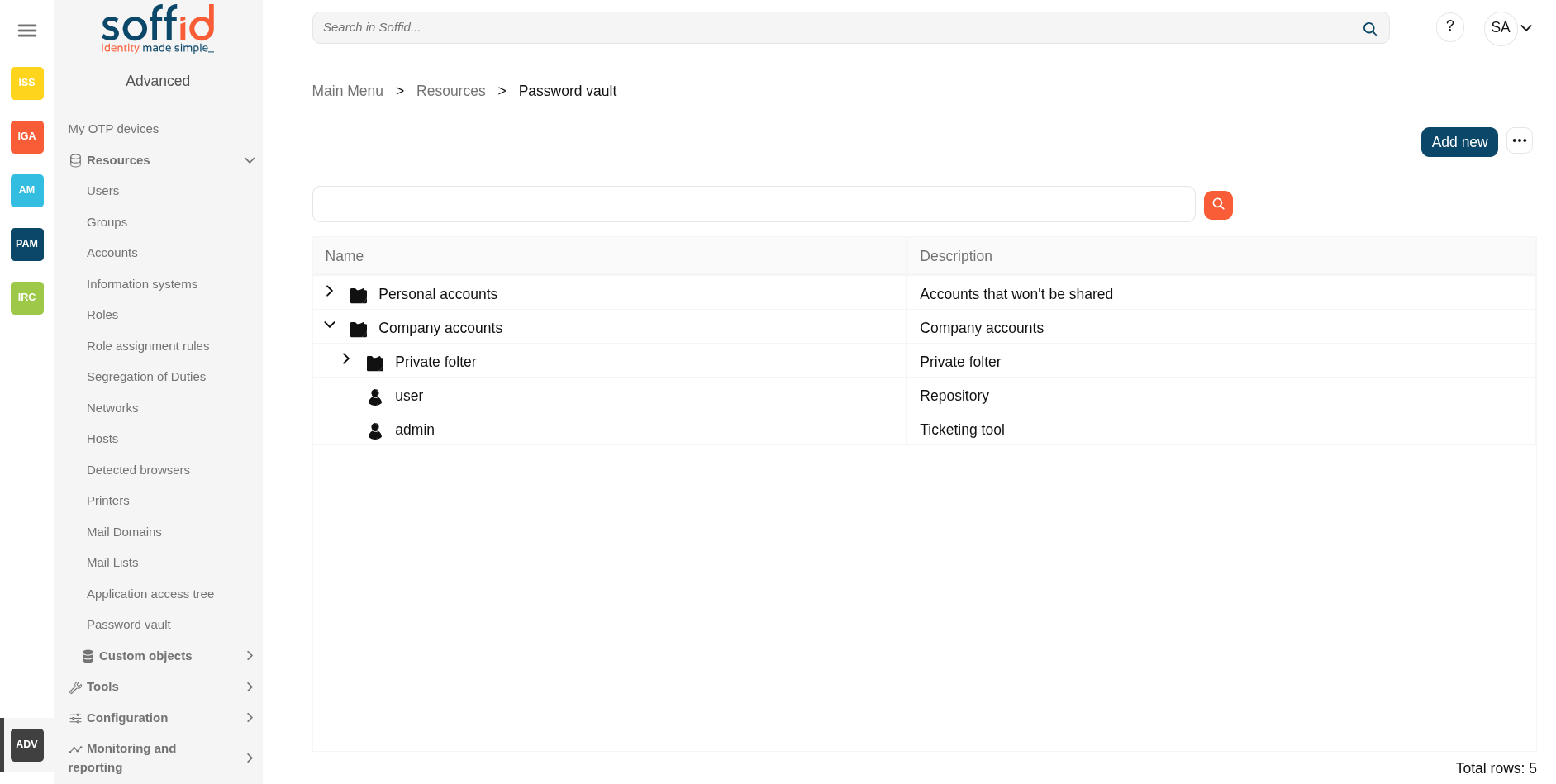](https://bookstack.soffid.com/uploads/images/gallery/2025-09/FiqxxWHT7x303BPk-image.png)
[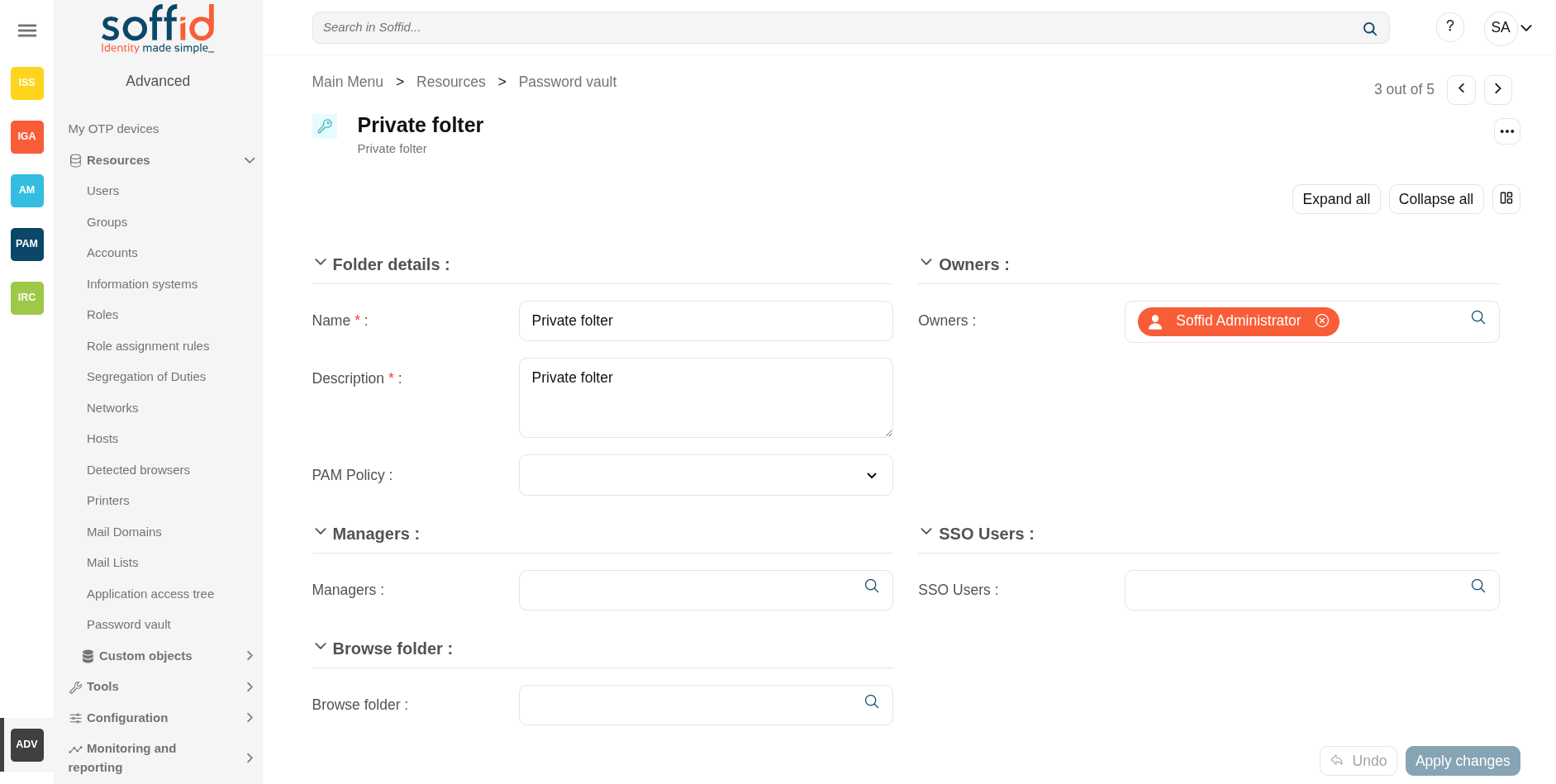](https://bookstack.soffid.com/uploads/images/gallery/2025-09/IttbTssYH0aclwq9-image.png)
[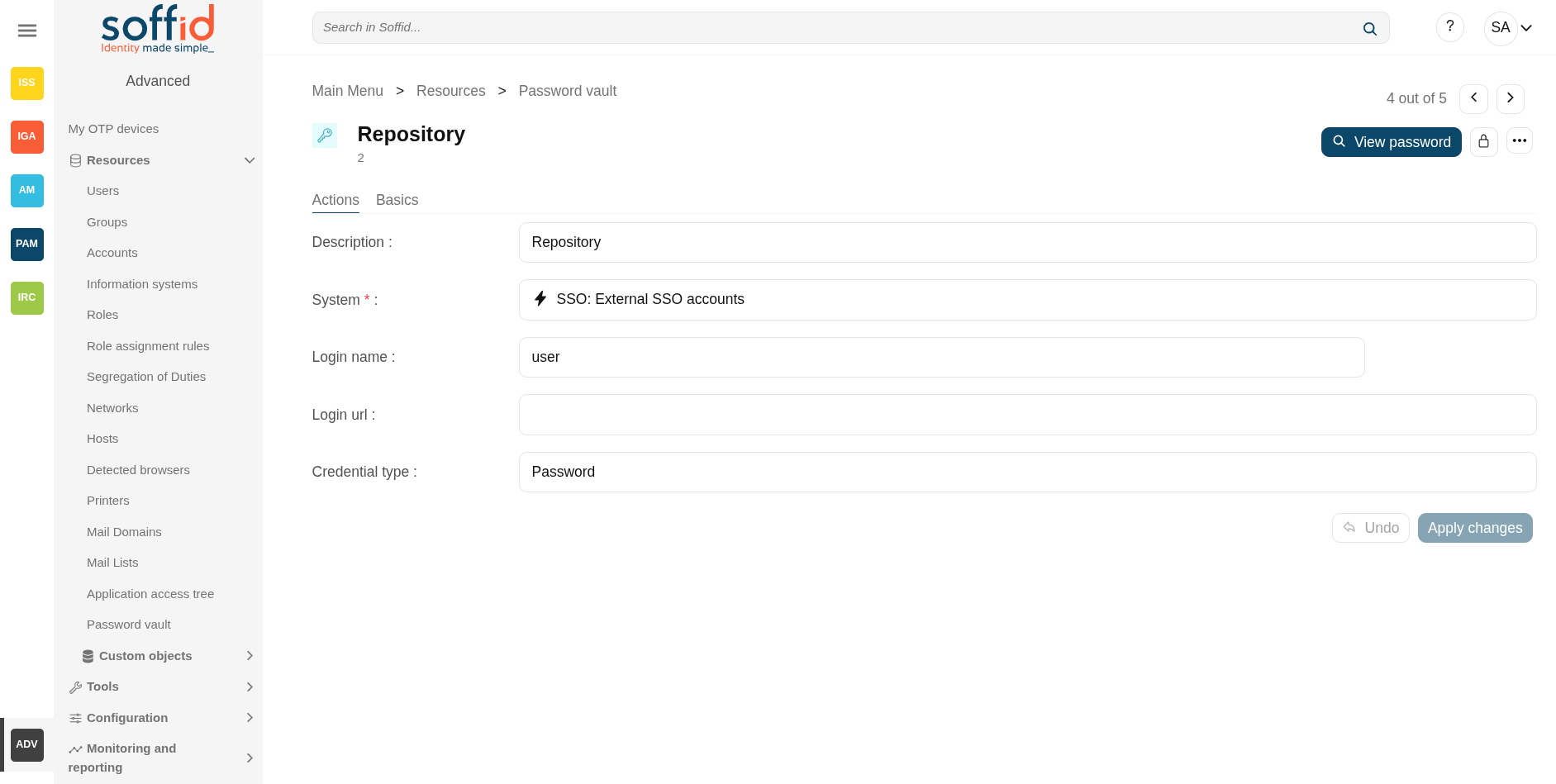](https://bookstack.soffid.com/uploads/images/gallery/2025-09/x5AutVcCtzF1isMj-image.png)
## Related objects
- [Users](https://bookstack.soffid.com/books/soffid-4-reference-guide/page/users "Users") : owner users, managers or sso users of the the account
- [Roles](https://bookstack.soffid.com/books/soffid-4-reference-guide/page/roles "Roles") : owner users, managers or sso users of the the account
- [Groups](https://bookstack.soffid.com/books/soffid-4-reference-guide/page/groups "Groups") : owner users, managers or sso users of the the account
- [Accounts](https://bookstack.soffid.com/books/soffid-4-reference-guide/page/accounts "Accounts") : information related to the accounts
- [Agents](https://bookstack.soffid.com/books/soffid-4-reference-guide/page/agents "Agents") : the target system in which that account is used (AD, Exchange, etc).
- [Password policies](https://bookstack.soffid.com/books/soffid-4-reference-guide/page/password-policies "Password policies") : password policy of the onwer user or another one selected in the other account types
- [Information systems](https://bookstack.soffid.com/books/soffid-4-reference-guide/page/information-systems "Information systems") : where the roles are gathered
-
[Network discovery](https://bookstack.soffid.com/books/soffid-4-reference-guide/page/network-discovery) : services discovered fot he account
## Standard attributes
### Folder attributes
- **Name**: folder name which will be displayed in My Applications.
- **Description**: folder description.
- **PAM policy**: when using PAM system, you could choose the policy that will comply with for each folder. When you define a policy for a folder, that policy will apply to all accounts hanging from this folder. For more information you can visit the [Configure PAM page](https://bookstack.soffid.com/books/pam/page/configure-pam "Configure PAM").
- **Owners**: list of users, groups or roles who will be the folder owners.
- **Managers**: list of users, groups or roles who can manage the folder. Those users can view the password depending on the password policy.
- **SSO users**: list of users, groups or roles whose can use the account of that folder.
- **Browse folder**: list of users, groups or roles who can browse the folder, but can not perform any action.
### Accounts attributes
#### Actions Tab
This tab shows the read-only attributes of the user account:
- **Description**: a brief description.
- **System**: target system to which the account will be connected.
- **Login name**: login name to connect to the target system.
- **Login URL**: URL to connect.
- **Credential type**: password
- **In use by**: user name who is using that account.
Also, this tab allows you to "Launch" the connection to the target system, view the password, set the password to launch the connection, and unlock the use of that account. All those options depend on the account definition and user privileges.
Image#### Basics Tab
This tab displais all the account attributes and allows you to update the account configuration.
Visit the [Account](https://bookstack.soffid.com/books/soffid-4-reference-guide/page/accounts#bkmrk-basic-0 "Accounts") page to view more information about the standard attributes of an account.
## Actions
#### Folders query actions
**"Query buttons"**
Allows you to query folders through, only [Quick search](https://bookstack.soffid.com/link/57#bkmrk-quick--%3E-%26%26todo%26%26%C2%A0no) is available.
**Add new**
Allows you to create a new folder.
To add a new folder it will be mandatory to fill in the required fields.
A folder needs to have, at less, an owner to manage it.
**Add vault to password manager**
This option is configured in Soffid's Password Manager. For more information, please refer to the [Password Manager](https://bookstack.soffid.com/books/password-manager-getting-started "Password Manager Getting started") guide.
Once this option is selected, the browser will ask you to confirm the installation of the extension. Select Add to Chrome (or other browser). Confirm the installation with "Add extension". Remember pin the extension.
Image
[](https://bookstack.soffid.com/uploads/images/gallery/2025-09/brGpxsajk56jaZpi-image.png)
[](https://bookstack.soffid.com/uploads/images/gallery/2025-09/KUutzwszYzJo8878-image.png)
[](https://bookstack.soffid.com/uploads/images/gallery/2025-09/AJwbG3wCurop2Ux9-image.png)
[](https://bookstack.soffid.com/uploads/images/gallery/2025-09/Ch1n0N0rutrW7k4y-image.png)
**Create new folder (+)**
When you hover over a folder, the (...) button will appear, showing you this option.
Once selected, you can create a subfolder of the selected folder.
**Create new account (+)**
When you hover over a folder, the (...) button will appear, showing you this option.
Once selected, you can create a child account within the selected folder.
#### Folder actions
**Apply changes (disk button)**
Allows you to save a new folder or update an existing folder. To save the data it will be mandatory to fill in the required fields. Be in mind that is important to indicate who are the owners of the folder.
**Delete**
Allows you to delete a folder if you have the right permissions. To delete a folder you can click on the hamburger icon and then click the delete button (trash icon). Soffid will ask you for confirmation to perform that action, you could confirm or cancel the operation.
**Expand all**
Displays all the attributes of the different blocks.
**Collapse all**
Hide all attributes of the different blocks.
**"Types of views"**
Change the view type: Classic view, Modern view, Compact design.
**Undo**
Allows you to quit without saving any change made.
#### Account actions
**View password**
It allows you to view the account password, if this feature is enabled in the password policies.
**Set password**
This option depends on the credential type selected.
**Password**:
- Allows you to set a new password to the account or a SSH key.
- The password can be generated automatically, or you can set the password.
- It will be mandatory the password complies with the [Password policies](https://bookstack.soffid.com/books/soffid-3-reference-guide/page/password-policies "Password policies") defined for the domain.
- If an account is unmanaged, the password will not be sent to the target system.
💻 Image
[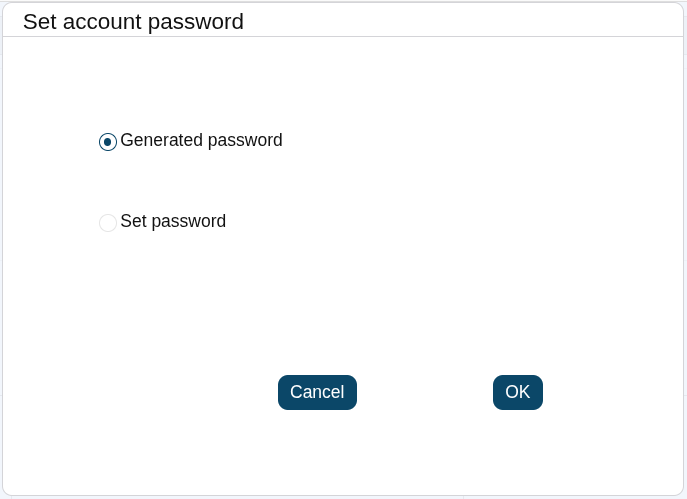](https://bookstack.soffid.com/uploads/images/gallery/2025-08/hIQw1wR9en96z67o-image.png)
**SSH key**:
- Allows you to generate a new key or enter an existing key.
💻 Image
[](https://bookstack.soffid.com/uploads/images/gallery/2025-08/qqFJHGK25A5v5CaP-image.png)
**Kubernetes key**:
- Allows you to add a YAML descriptor
💻 Image
[](https://bookstack.soffid.com/uploads/images/gallery/2025-08/xfK2YmB0Ln43iVee-image.png)
**Apply changes (disk button)**
Allows you to save a new account. To save the data it will be mandatory to fill in the required fields. Be in mind that is important to indicate who are the owners of the folder. If the account exists on the system, you can assign the vault folder to the account window.
**Delete**
Allows you to delete an account from a folder if you have the right permissions. To delete a host you can click on the hamburger icon and then click the delete button (trash icon). Soffid will ask you for confirmation to perform that action, you could confirm or cancel the operation.
**Expand all**
Displays all the attributes of the different blocks.
**Collapse all**
Hide all attributes of the different blocks.
**"Types of views"**
Change the view type: Classic view, Modern view, Compact design.
**Undo**
Allows you to quit without saving any change made.
**Apply changes**
Allows you to save a new account. To save the data it will be mandatory to fill in the required fields. Be in mind that is important to indicate who are the owners of the folder. If the account exists on the system, you can assign the vault folder to the account window.
## Example
### How to apply policies
Soffid allows you to define policies and rules to apply to a specific folder or a set of folders. To do that is needed to install the XACML addon and configure the proper policies and rules.
Also, you can config a workflow or approval process to request in order to use accounts saved on a folder.
It is mandatory to enable the Password Vault PEP and populate the information about the XACML policy set and the version which applies.
##### XACML PEP config
It is mandatory to enable the Password Vault PEP and populate the information about the XACML policy set and the version which applies.
Password Vault:
[](https://bookstack.soffid.com/uploads/images/gallery/2021-08/image-1627909636077.png)
XACML PEP config:
[](https://bookstack.soffid.com/uploads/images/gallery/2021-08/image-1627903193056.png)
##### XACML Policy Management
You need to configure the access to the folder "VaultFolder", that folder can contain other folders and accounts. It will be mandatory to config the access list, who are the owners, managers, and so on. You need to know if you need to config the control access list by accounts, by folders, or both.
[](https://bookstack.soffid.com/uploads/images/gallery/2021-08/image-1627904759237.png)
For instance, the policies you need to implement are the following:
1\. Only users between 6:00 and 18:00 could use the accounts inside the "demoFolder".
[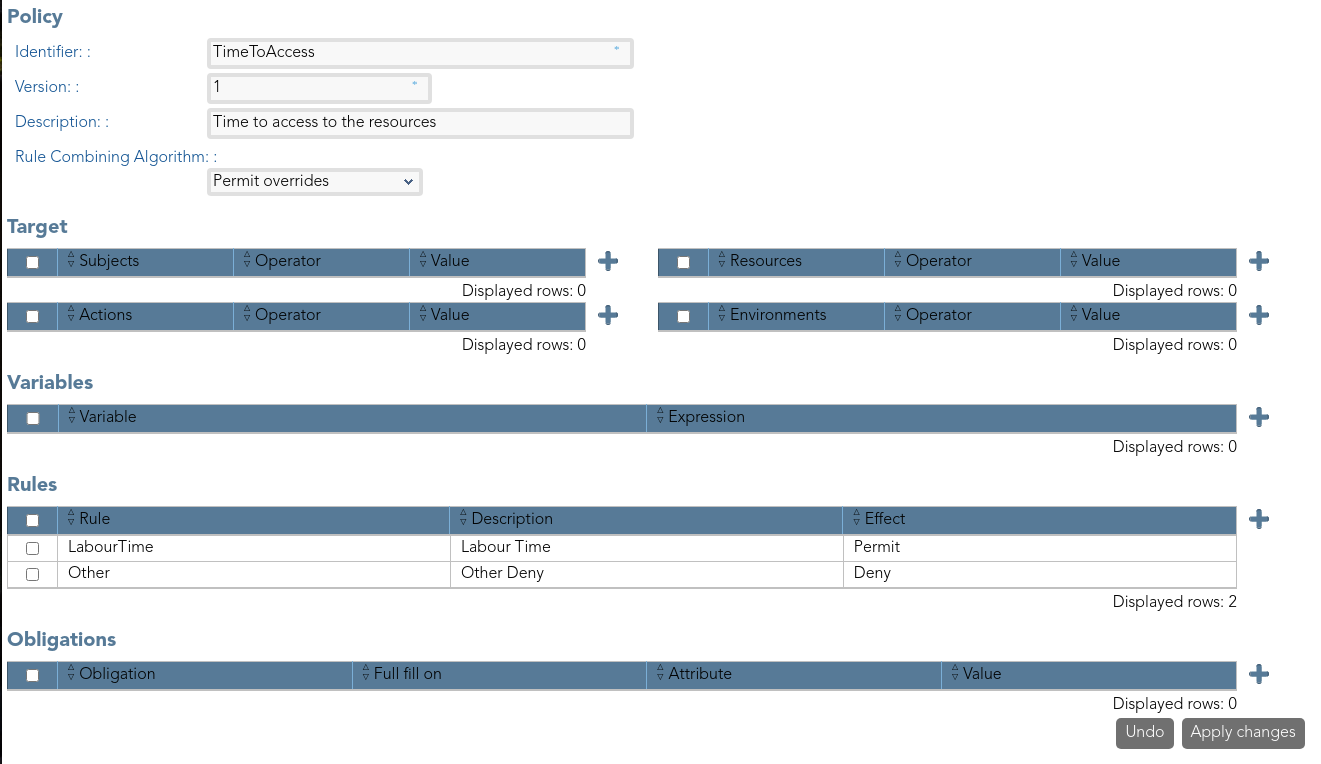](https://bookstack.soffid.com/uploads/images/gallery/2021-08/image-1627909569093.png)
[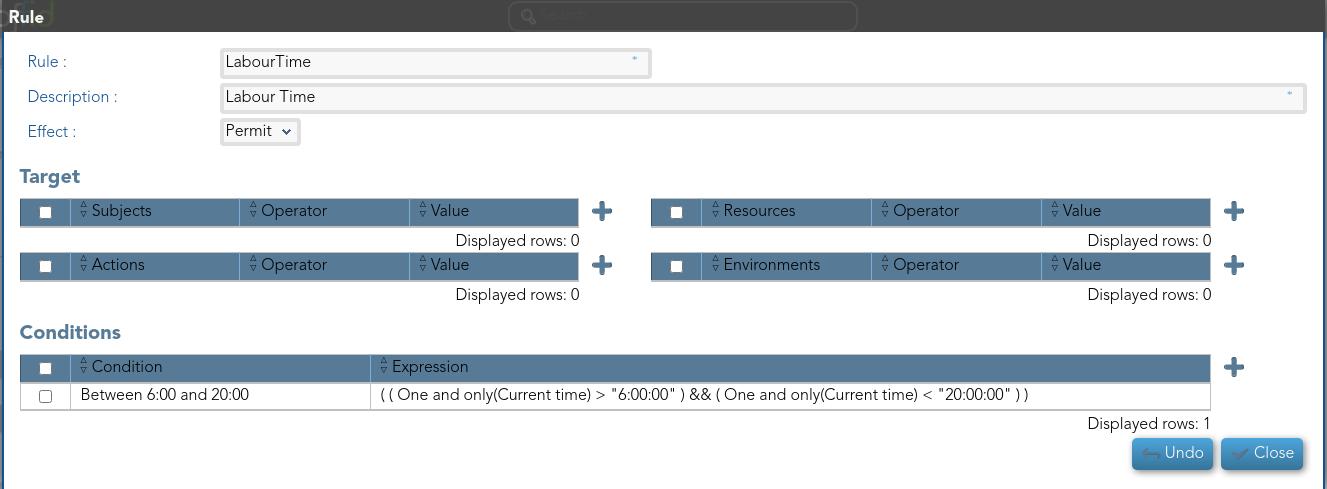](https://bookstack.soffid.com/uploads/images/gallery/2021-08/image-1627909585789.png)
2.- User "bob" never could use the accounts of demoFolder.
[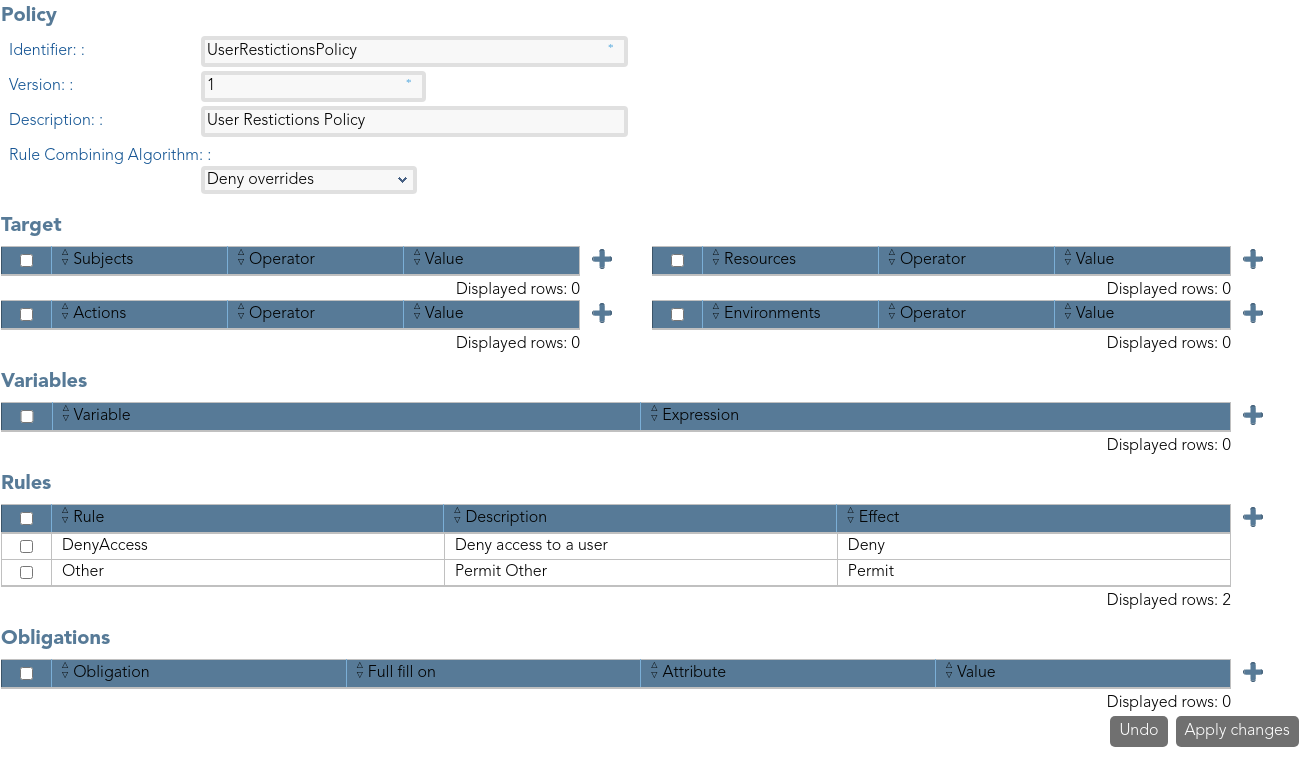](https://bookstack.soffid.com/uploads/images/gallery/2021-08/image-1627909447400.png)
[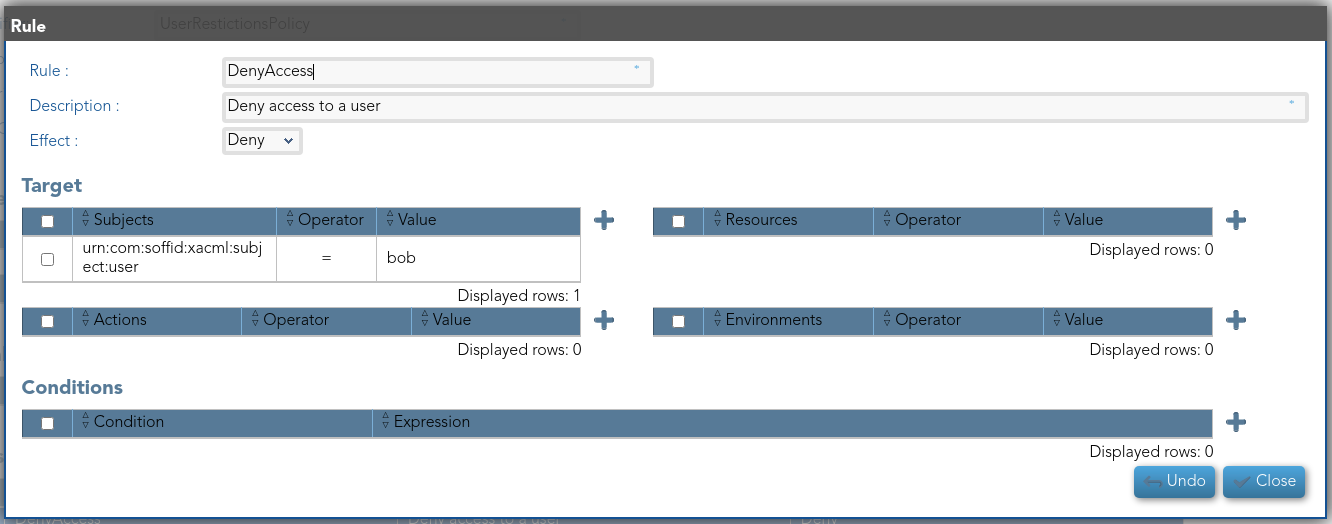](https://bookstack.soffid.com/uploads/images/gallery/2021-08/image-1627909485850.png)
3\. Users with result permits, need the authorization to use the accounts.
You need to config the workflow that will be called, to config you need to include the bpm obligation on the policy. Also, you can include a message to the user, or other obligations.
[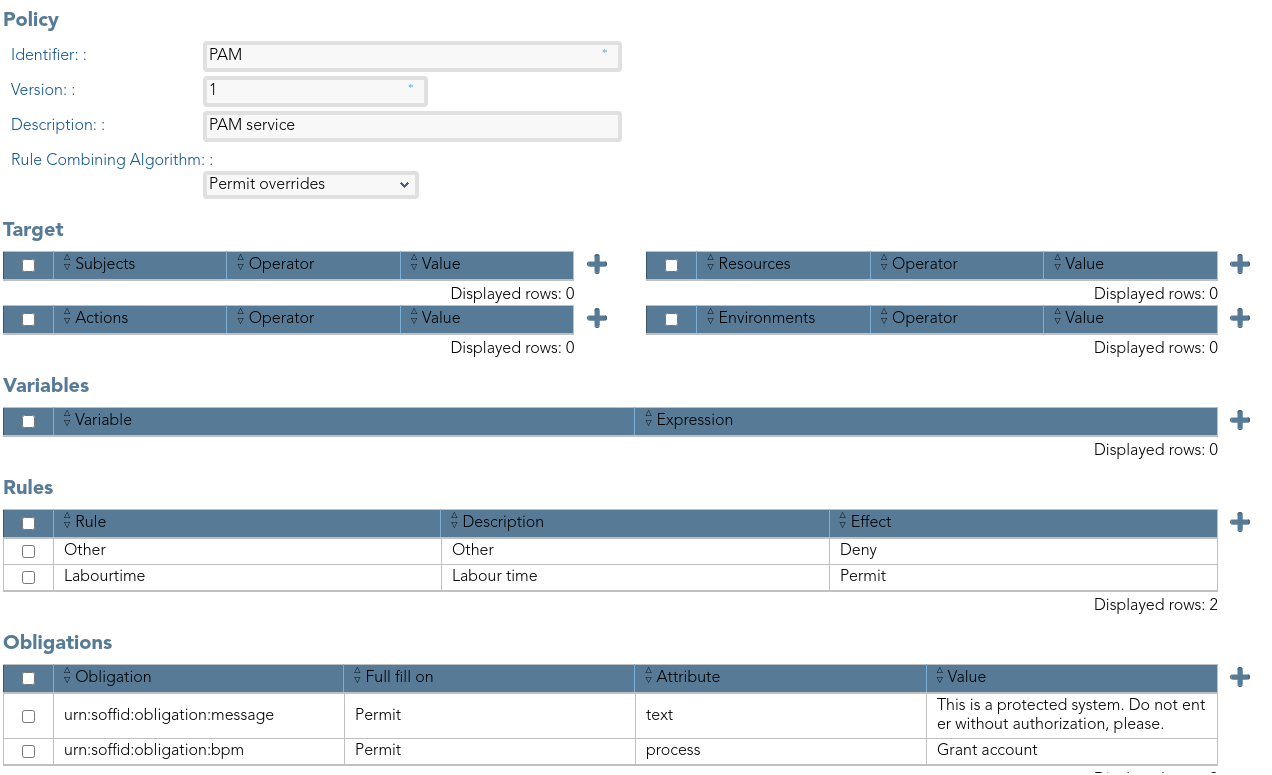](https://bookstack.soffid.com/uploads/images/gallery/2021-08/image-1627909874242.png)
Visit the [XACML Book](https://bookstack.soffid.com/books/xacml "XACML") for more information.
Visit the [BPM Editor Book](https://bookstack.soffid.com/books/bpm-editor "BPM Editor") for more information.
# Custom objects
## Description
The custom objects are the objects created by the administrator to extend the Soffid underlying data model. This allows you to store additional information that is not natively supported by Soffid.
This option allows administrator users to provide objects with content.
For more information about how to create a new Custom object you can visit the [Metadata page](https://bookstack.soffid.com/books/soffid-3-reference-guide/page/metadata "Metadata").
## Screen overview
[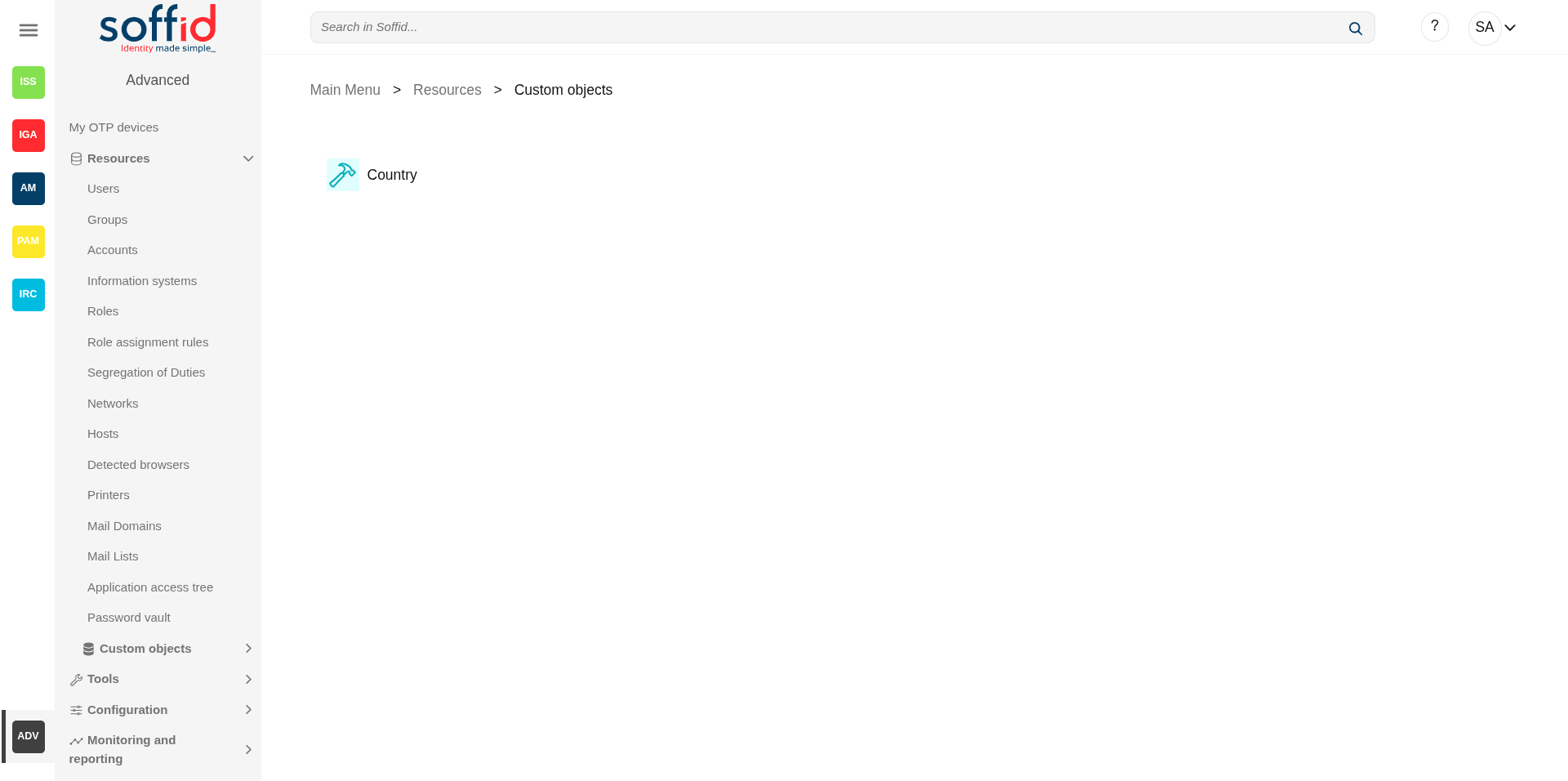](https://bookstack.soffid.com/uploads/images/gallery/2025-08/3DwncQOOTLAvt6SO-image.png)
[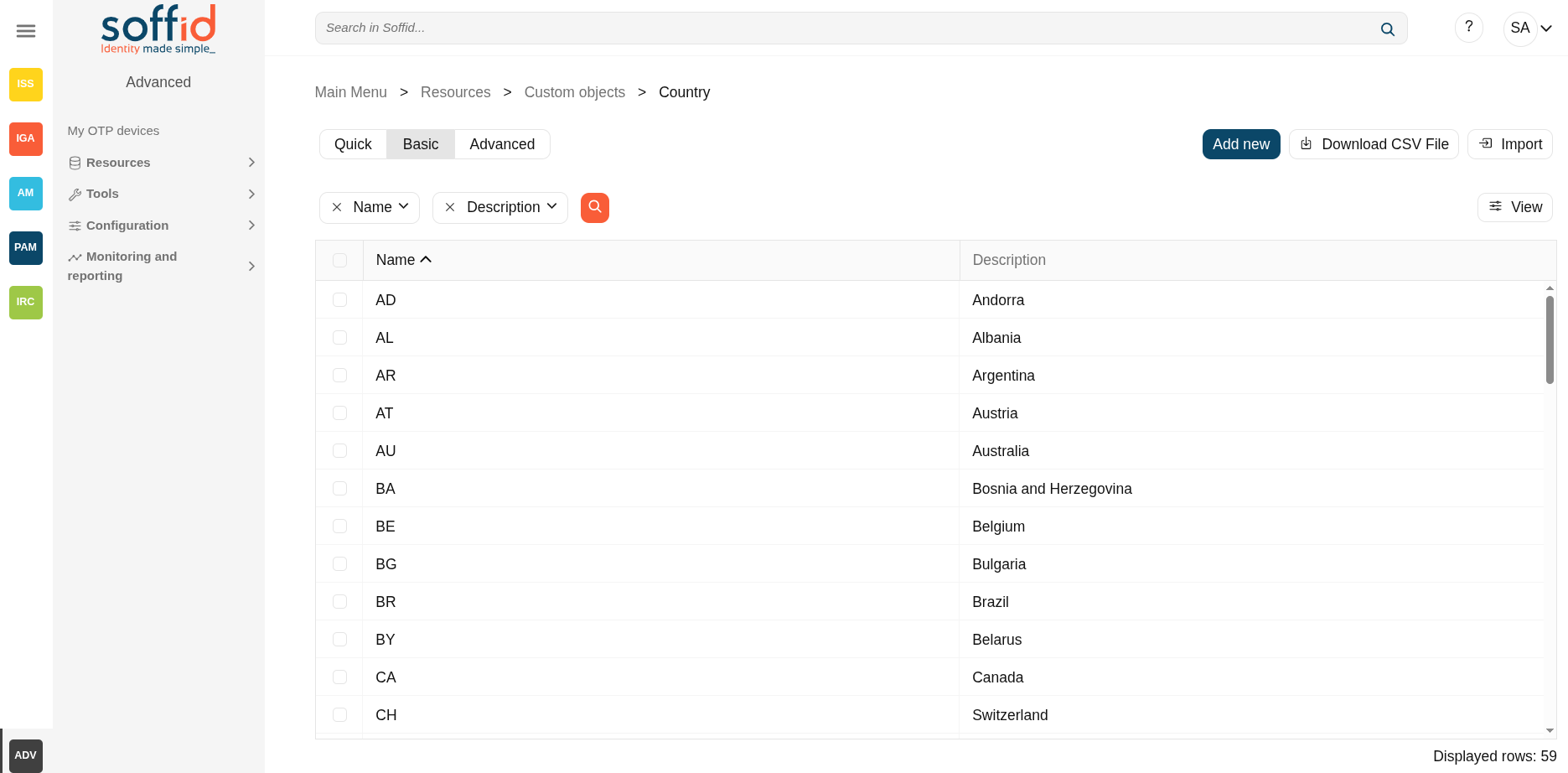](https://bookstack.soffid.com/uploads/images/gallery/2025-08/DyNaRc7aSGG2dCwj-image.png)
[](https://bookstack.soffid.com/uploads/images/gallery/2025-08/LI6qFpvdAIQDjOSO-image.png)
In the metadata page:
[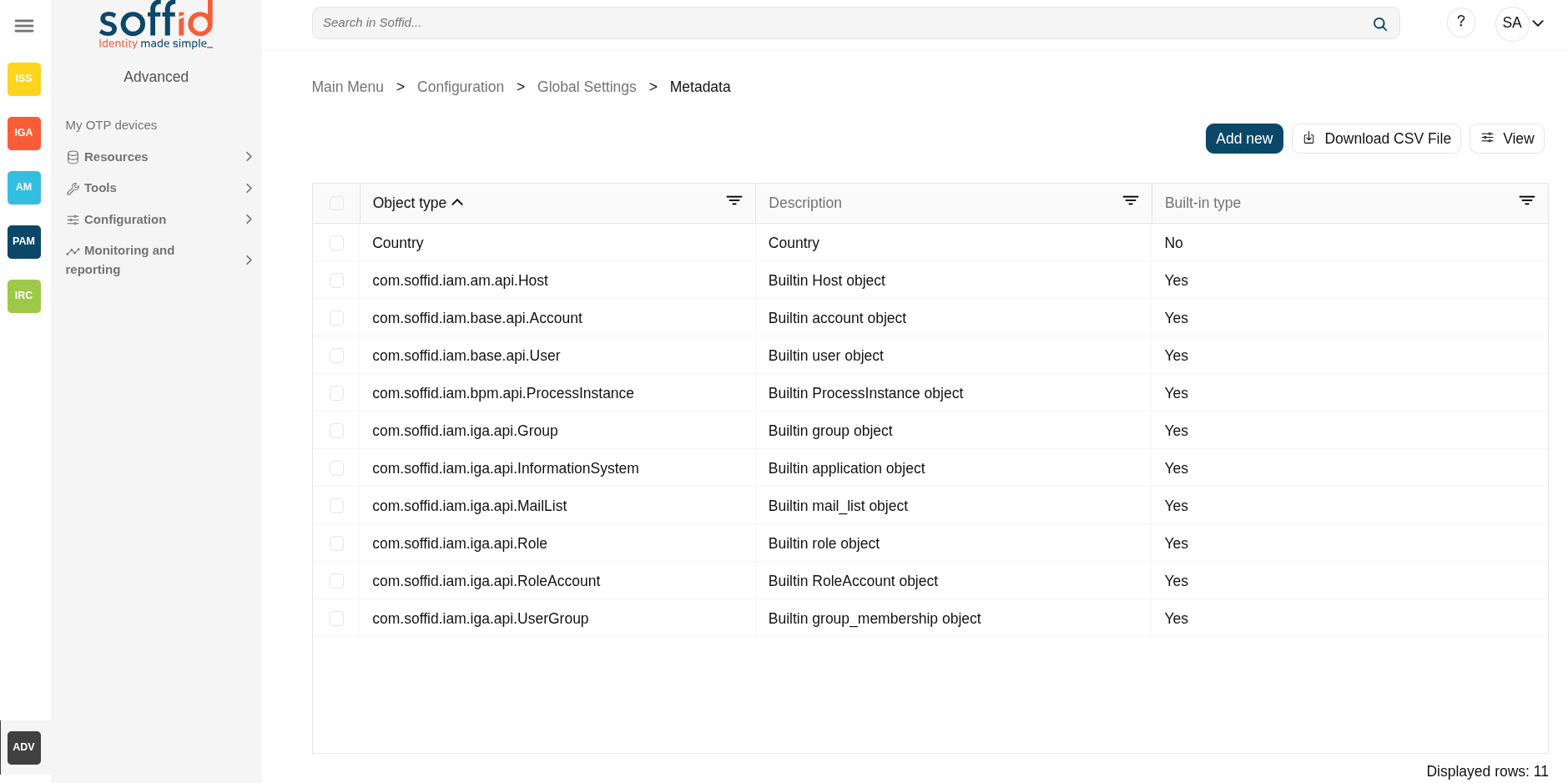](https://bookstack.soffid.com/uploads/images/gallery/2025-08/O0q2fjZnJlvo5rv4-image.png)
[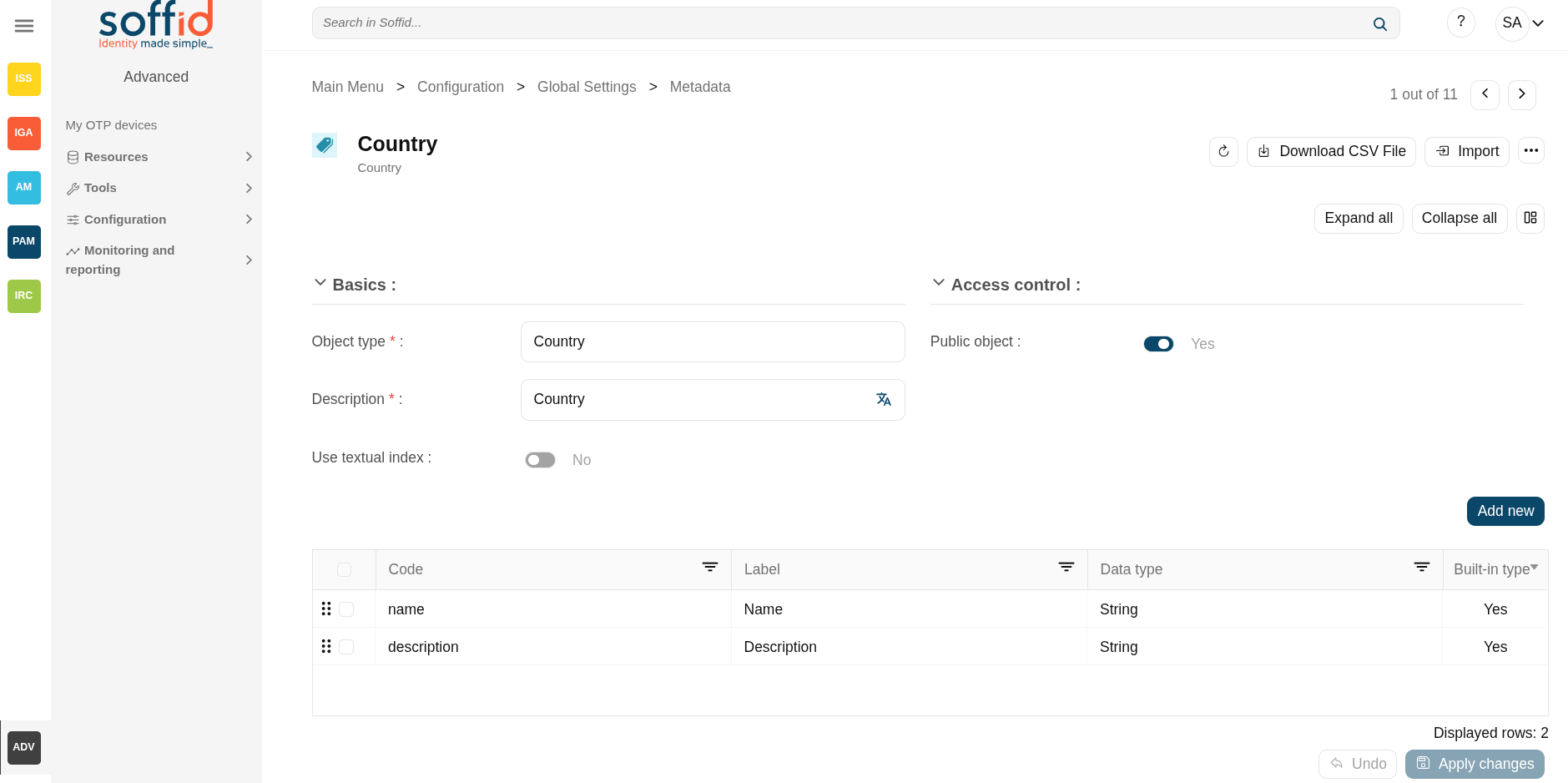](https://bookstack.soffid.com/uploads/images/gallery/2025-08/Ud2E4rQBQRhnre10-image.png)
## Related objects
- [Metadata](https://bookstack.soffid.com/books/soffid-4-reference-guide/page/metadata "Metadata") : where the custom object is configured
## Standard attributes
Attributes by default:
- **Name**: identification name.
- **Description**: brief description.
Every single custom object could have specified attributes defined by the administrator users when they create the object type in the Metadata page.
## Actions
#### Custom object query
**"Query"**
Allows you to query custom object through different search systems, [Quick, Basic and Advanced](https://bookstack.soffid.com/books/soffid-3-reference-guide/page/search-types "Search Types").
**Add new**
Allows you to create a new custom object. You can choose that option on the hamburger menu or clicking the add button (+).
To add a new custom object it will be mandatory to fill in the required fields
**Delete custom object**
Allows you to remove one or more custom objects by selecting one or more records and next clicking the button with the subtraction symbol (-).
To perform that action, Soffid will ask you for confirmation, you could confirm or cancel the operation.
**Download CSV file**
Allows you to download a csv file with the custom objects information.
**Import**
Allows you to upload a CSV file with the custom object list to add or update custom objects to Soffid.
First, you need to pick up a CSV file, that CSV has to contain a specific configuration. Then you need to check the content to be loaded, it is allowed to choose if you want or not to load a specific attribute. And finally, you need to select the mappings for each column of the CSV file to import the data correctly and to click the Import button.
**View**
Allows you to add or remove columns to the table.
It is also possible to change the order of the columns.
#### Custom object detail
**Apply changes**
Allows you to save the data of a new custom object or to update the data of a specific custom object. To save the data it will be mandatory to fill in the required fields
**Delete custom object**
Allows you to remove a custom object. You can choose that option on the trash icon.
To perform that action, Soffid will ask you for confirmation, you could confirm or cancel the operation.
**Undo**
Allows you to undo any changes made
## Examples
### How to use custom objects in the scripts
Example 1: Retrieve the list of the records of the custom object Country.
```javascript
lCusObj = serviceLocator.getCustomObjectService().findCustomObjectNames("Country");
```
Example 2: Retrieve a custom object value by name of the custom object Country.
```javascript
cusObj = serviceLocator.getCustomObjectService().findCustomObjectByTypeAndName("Country","ES");
```
Example 3: List the values of the custom object Country that the name starts with "A".
```javascript
lCusObj = serviceLocator.getCustomObjectService().findCustomObjectByJsonQuery("Country", "name sw " + "\"A\"");
for (var i=0; i
[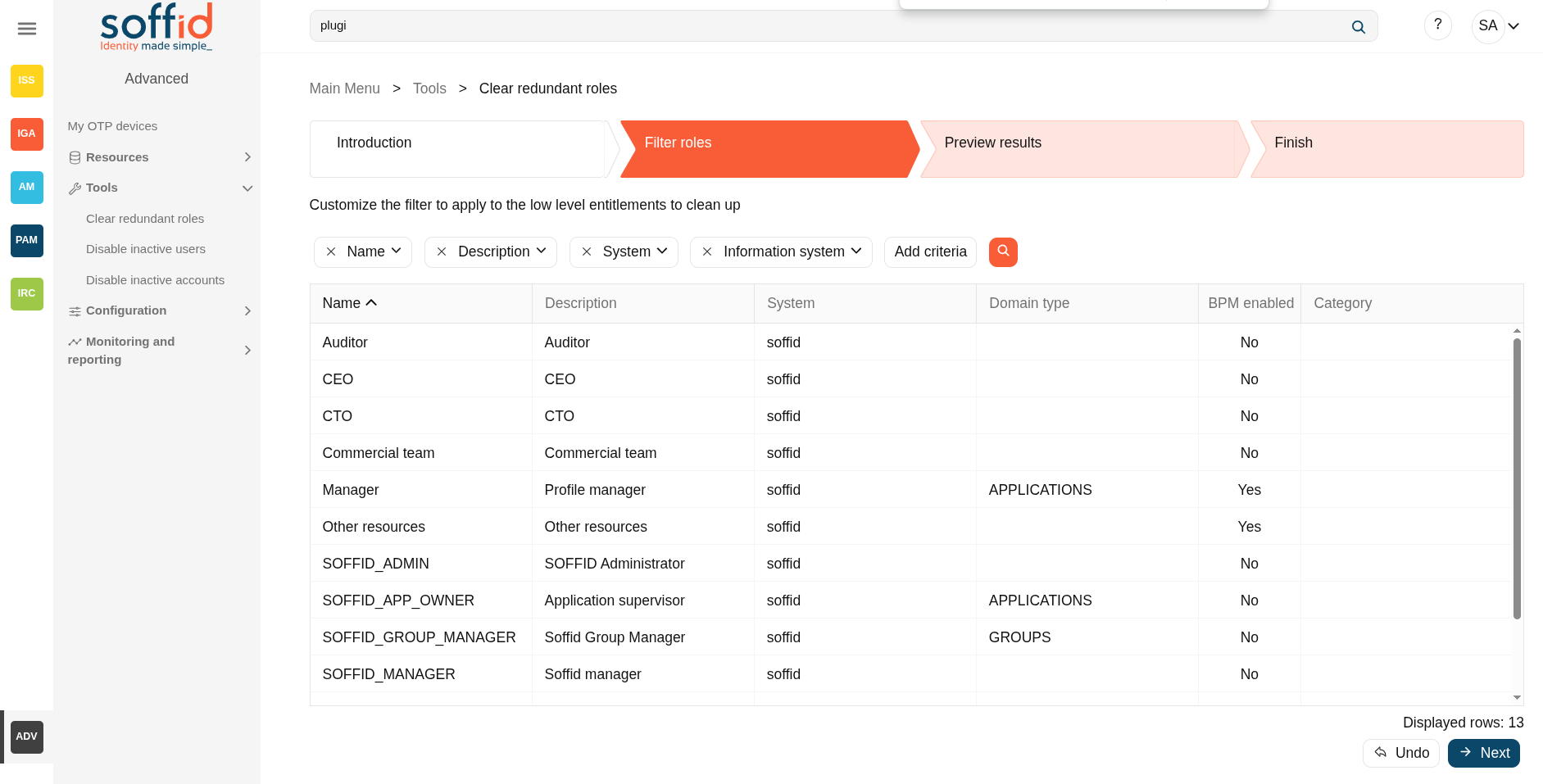](https://bookstack.soffid.com/uploads/images/gallery/2025-09/S7iMdohGjbiwKITa-image.png)
## Related objects
- [Users](https://bookstack.soffid.com/books/soffid-4-reference-guide/page/users "Users") : users have effective roles from roles, grups or rules
- [Roles](https://bookstack.soffid.com/books/soffid-4-reference-guide/page/roles "Roles") : roles granted to a user
## Actions
#### Introduction
A brief description of this process.
**Next**
Allows you to browse to the Filter roles step.
#### Filter roles
Allows you to filter a subset of roles to apply the process.
**Undo**
Allows you to return to the previous step without applying any changes.
**Next**
Once you search for the proper Roles, you can click the Next button to browse to the Preview result step.
#### Preview result
Displays a list with the subset filtered of roles.
**Undo**
Allows you to return to the previous step without applying any changes.
**Next**
Allows you to run the Clear redundant roles process to the subset of roles & accounts there are in the list.
#### Finish
The changes has been executed.
# Disable inactive users
## Description
Probably there are some users that do not need access to any information system. Using this tool you will be able to identify them and act upon them.
The process is a two step process:
1. Filter out the universe of users to analyze.
2. Select the actions to perform on these users.
The available actions are the following:
- Send an email.
- Disable the user.
- Remove accounts from the target system.
It's usual to initially use this tool for only a subset of your users.
For instance, you can send a message when the password is reaching the expiration date, disable the user when no login has been made in the last 90 days or completely remove its accounts when the identity has been disabled for 30 days.
## Screen overview
[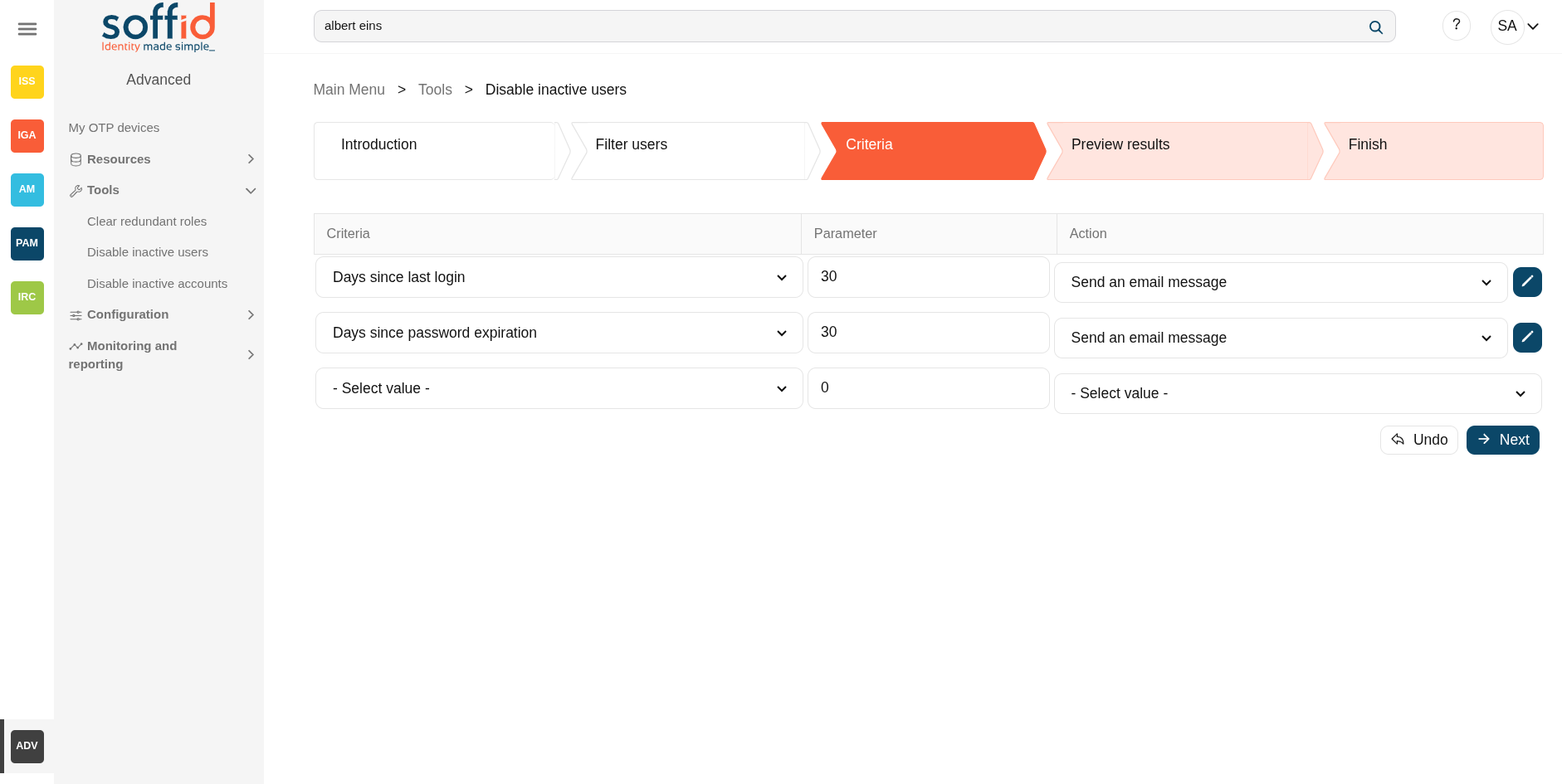](https://bookstack.soffid.com/uploads/images/gallery/2025-09/miyWkQUk19LdKvoo-image.png)
## Related objects
- [Users](https://bookstack.soffid.com/books/soffid-4-reference-guide/page/users "Users") : users have effective roles from roles, grups or rules
- [Roles](https://bookstack.soffid.com/books/soffid-4-reference-guide/page/roles "Roles") : roles granted to a user
## Actions
#### Introduction
A brief description of this process.
**Next**
Allows you to browse to the Filter roles step.
#### Filter users
Allows you to filter a subset of users to apply the process.
**Undo**
Allows you to return to the previous step without applying any changes.
**Next**
Once you search for the proper Users, you can click the Next button to browse to the Criteria result step.
#### Criteria
The criteria to triggers the action can be:
- Days since last login
- Days since password expiration
Allows you to establish the action to perform on these users.
- Send an email message
- Disable the user
- Remove accounts from target system
**Undo**
Allows you to return to the previous step without applying any changes.
**Next**
Once you search for the proper Users, you can click the Next button to browse to the Criteria result step.
#### Preview result
Displays a list with the subset filtered of users and the action to apply.
**Undo**
Allows you to return to the previous step without applying any changes.
**Next**
Allows you to run the process to the subset of users there are in the list.
#### Finish
The changes has been executed.
# Disable inactive accounts
## Description
Probably there are some accounts that are no longer used. Using this tool you will be able to identify them and act upon them.
The process is a two step process:
1. Filter out the universe of accounts to analyze.
2. Select the actions to perform on that accounts.
The available actions are the following:
- Send an email.
- Disable the user.
- Remove accounts from the target system.
It's usual to initially use this tool for only a subset of your accounts.
For instance, you can send a message when the password is reaching the expiration date, disable the account when no login has been made in the last 90 days or completely remove it when the account has been disabled for 30 days
## Screen overview
[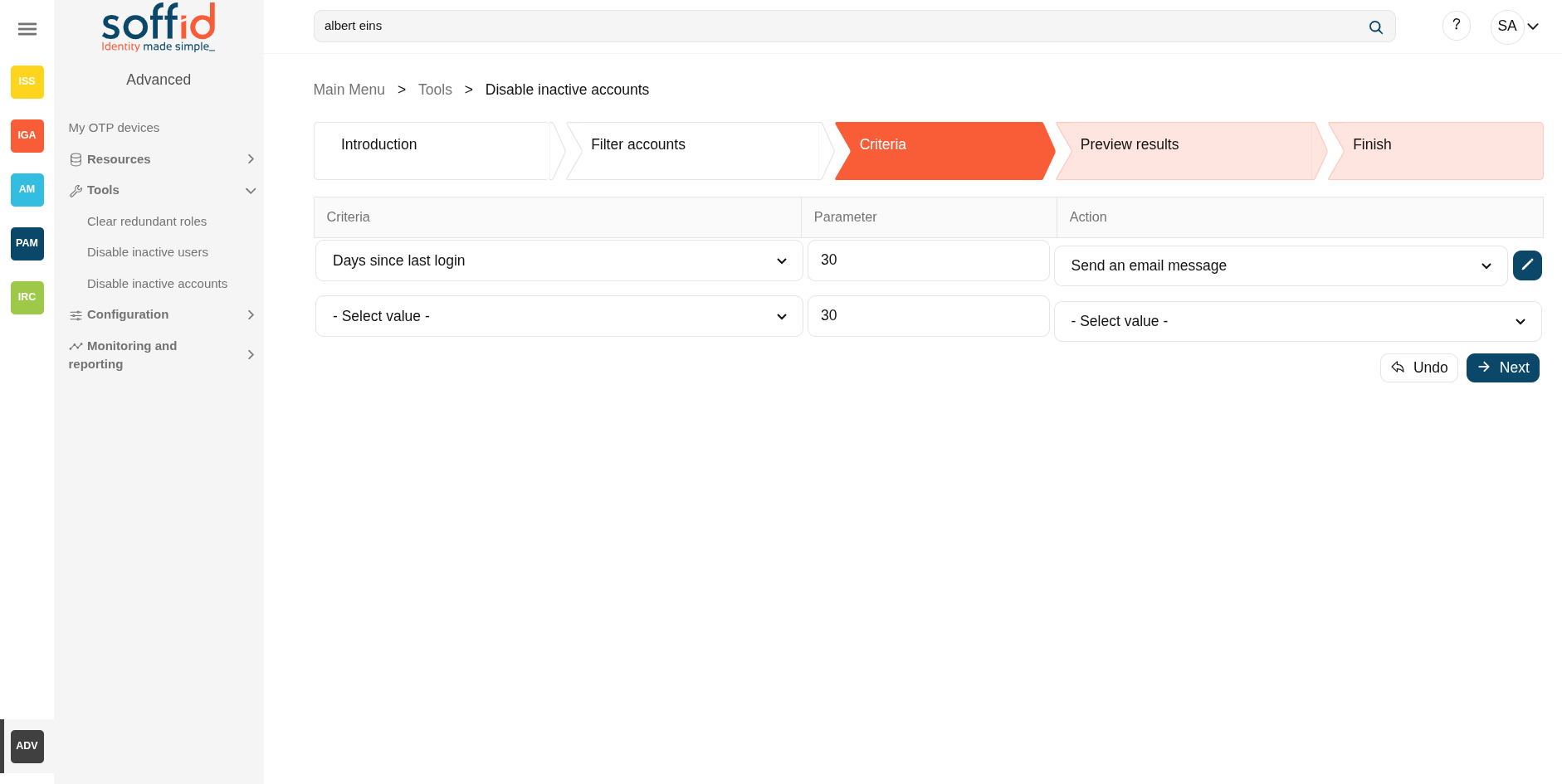](https://bookstack.soffid.com/uploads/images/gallery/2025-09/kmJokNyZkvrtnGXn-image.png)
## Related objects
- [Users](https://bookstack.soffid.com/books/soffid-4-reference-guide/page/users "Users") : users have effective roles from roles, grups or rules
- [Roles](https://bookstack.soffid.com/books/soffid-4-reference-guide/page/roles "Roles") : roles granted to a user
## Actions
#### Introduction
A brief description of this process.
**Next**
Allows you to browse to the Filter roles step.
#### Filter accounts
Allows you to filter a subset of accounts to apply the process
**Undo**
Allows you to return to the previous step without applying any changes.
**Next**
Once you search for the proper Accounts, you can click the Next button to browse to the Criteria result step.
#### Criteria
The criteria to triggers the action can be:
- Days since last login
- Days since password expiration
Allows you to establish the action to perform on these users.
- Send an email message
- Disable the user
- Remove accounts from target system
**Undo**
Allows you to return to the previous step without applying any changes.
**Next**
Once you search for the proper Accounts, you can click the Next button to browse to the Criteria result step.
#### Preview result
Displays a list with the subset filtered of accounts.
**Undo**
Allows you to return to the previous step without applying any changes.
**Next**
Allows you to run the process to the subset of accounts there are in the list.
#### Finish
The changes has been executed.
# Configuration > Global Settings
Configuration > Global Settings
# Tenants
## Definition
Soffid is multi tenant. This means that one can configure many differente tenants to manage disjoints groups of identities and applications.
Each Soffid object, including applications, systems, roles, users, and accounts are bound to a single tenant.
Of course, there is a special tenant named master. Master tenant administrators can jump to any other tenant with administration privileges.
Soffid recommends connecting directly to the specific tenant to configure it correctly. You have more information about this topic in the [Tenant access section](#bkmrk-tenant-access).
## Screen overview
[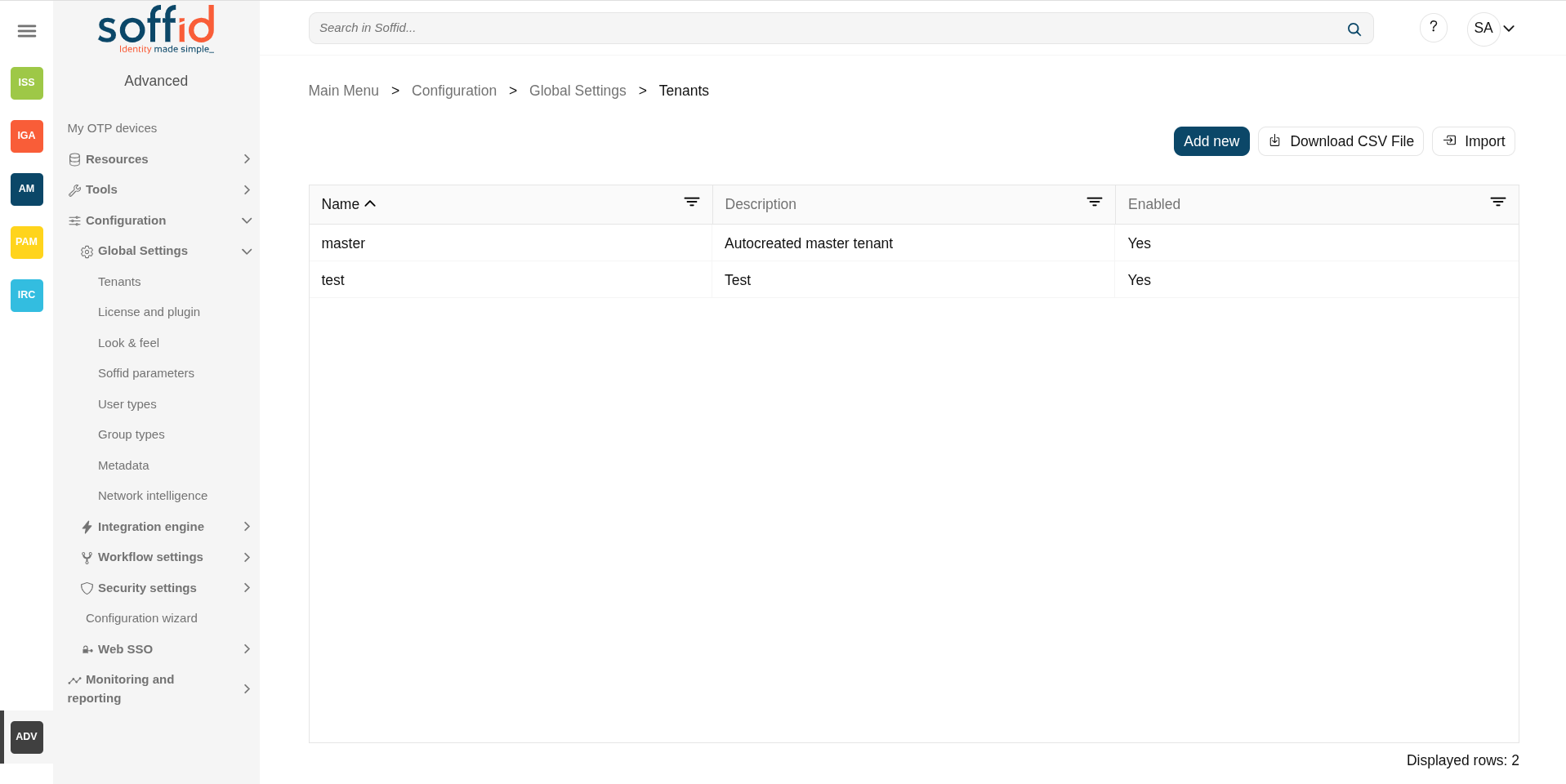](https://bookstack.soffid.com/uploads/images/gallery/2025-08/QNQQzUiJrDbDXJLT-image.png)
[](https://bookstack.soffid.com/uploads/images/gallery/2025-08/yKHxbpdgC1gdi1md-image.png)
## Related objects
- [Authorizations](https://bookstack.soffid.com/books/soffid-4-reference-guide/page/authorizations "Authorizations"): to exclude authorizations in the tenants
- [Synchronization servers](https://bookstack.soffid.com/books/soffid-4-reference-guide/page/synchronization-servers "Synchronization servers"): syncservers availbles to manage the tenant
## Standard attributes
- **Name:** Set a short name for the tenant.
- **Description:** Enter a long description for the tenant
- **Enabled:** Usually set to yes. If it's set to NO, no user will be able to log in to that tenant, and no provisioning or automated task will be ran on that tenant.
- **Disabled permissions:** By default, tenant administrator permissions are restricted, so they are not able to bypass tenant borders and access to other tenant information. To achive this, the following permissions are disabled by default, but some others can be added:
- Open the tenants management page
- Use the tenant micro-service
- Manage sync servers
- **Assigned servers**: By default, the new tenant will not be able to use any sync server unless it is authorized to. So, one can create a sync server for a specific tenant that cannot be used by any other tenant.
## Actions
### Table actions
**Add new**
Allows you to create a new Tenant.
**Download CSV file**
Allows you to download a CSV file with the tenant information displayed in the table.
### Tenant actions
**Apply changes**
Allows you to save the data of a new tenant or to update the data of a specific tenant. To save the data it will be mandatory to fill in the required fields.
**Export**
The process will generate a compressed file with all the information contained in the Tenant. It includes even the connectors configurations, mappings and global settings.
**Delete Tenant**
Allows you to delete the tenant. To perform that action, Soffid will ask you for confirmation, you could confirm or cancel the operation. Remember that this action will delete all data from the tentant. We recommend saving a backup using the Export option beforehand.
**Login**
If you have permission to log into a different tenant, you can use this option to access to it. This option is not intended for normal usage, but for administrative purposes
**Import**
The user can upload the previously exported tenant. The process will restore all the information contained in the Tenant, including connectors configurations, mappings and global settings.If the Tenant already exists, the process will not replace it. A new tenant will be created with a new name. If you want to replace the existing tenant, remove it before uploading the tenant export file.
**Undo**
Allows you to quit without applying any changes.
## Others
### Tenant access
#### Option 1: direct access to the tenant
When users are connecting to Soffid console, the master tenant is displayed by default. In order to directly connect to any tenant, a DNS entry with the tenant name must be added to your DNS server.
For instance, if you have deployed a Soffid console with the DNS name **console.soffid4.local**, the DNS name **test.console.soffid4.local** will be used to access to the **test** tenant.
[](https://bookstack.soffid.com/uploads/images/gallery/2025-08/7D8RvF87VYIscfuj-image.png)
Note that you must configure the **hostName** Soffid parameter in the master with your DNS name
[](https://bookstack.soffid.com/uploads/images/gallery/2025-08/CsraLloxKyBJlQZa-image.png)
[](https://bookstack.soffid.com/uploads/images/gallery/2025-09/jv6Vc5AklgitDrYt-image.png)
#### Option 2: access through the master
You can also configure the login page using the **soffid.auth.showTenant** Soffid parameter. If the parameter value is true, Soffid will display a new box in the login page to write the tenant name to login.
[](https://bookstack.soffid.com/uploads/images/gallery/2025-08/f9aJxvaL8ykzeh4F-image.png)
[](https://bookstack.soffid.com/uploads/images/gallery/2025-09/dOeog4AvrMsxFxak-image.png)
###
# License and plugin
## Definition
### License
Soffid 4 requires a valid licence to enable its features.
The licence token must be provided by Soffid and will enable the modules you have contracted for the duration of the contract. A new licence token will be provided upon each renewal.
### Plugin
Soffid provides you additional functionality that allows installing addons and server plugins. There are two main types of addons: **system connectors** and **console addons**.
You can download existing addons and plugins developed by Soffid by visiting [http://download.soffid.com/download](http://download.soffid.com/download) or [http://download.soffid.com/download/enterprise](http://download.soffid.com/download/enterprise) if you have a Soffid user with authorization.
In Soffid version 4, a marketplace has been implemented that allows you to upload or update add-ons or connectors directly from the Console.
An addon or plugin, must be upload into a **Master** tenant, the other tenant will inherit these installed addons and plugins.
Addons and plugins can be developed using [Addon Development Guide.](https://bookstack.soffid.com/books/addon-development-getting-started "Addon development Getting started")
#### System connectors
Also referred as plugins, there are little pieces of software able to manage identities on some type of systems. They can be generic plugins (SQL or LDAP plugins) or custom specific plugins.
The system connector is configured when the administrator creates an agent. An agent can be viewed as a configured instance of a plugin.
In order to upgrade existing (running) plugins, the synchronization server that hosts this plugin must be restarted from the system monitoring screen.
A connector can contain one or more types of agents, and you can create as many agents (of the same type or not) as you want to connect to Soffid.
#### Console addons
Add important features to Soffid console. A console addon can contain common classes, data models, transactional services, web services, and web interfaces.
In order to apply addon changes, the console must be restarted. It can be restarted from this page by clicking on the restart console button.
Some add-ons, such as Federation, also require restarting the synchronisation servers.
From this page, you will be able to upload and upgrade server plugins, as well and enable or disable them.
## Screen overview
[](https://bookstack.soffid.com/uploads/images/gallery/2025-08/9s7jWg5dES5xW3Sb-image.png)
[](https://bookstack.soffid.com/uploads/images/gallery/2025-08/e6xOcxWEnzcmWMBU-image.png)
## Related objects
- [Tenants](https://bookstack.soffid.com/books/soffid-4-reference-guide/page/tenants): the plugins are managed in the master tenant.
- [Agents](https://bookstack.soffid.com/books/soffid-4-reference-guide/page/agents "Agents"): used to configure a system connector, agents are located inside the connector plugins.
## Standard attributes
### Table attributes
- **Plugin**: identified name of the plugin or addon deployed.
- **Version**: version of the plugin or addon.
- **Deployed by**: user that deployed the addon or plugin.
- **Date**: date and time of the deployment.
When a plugin is disabled, it is displayed as strikethrough.
### Plugin attributes
- **Name:** identified name of the plugin or addon deployed.
- **Version**: name + version.
- **Enabled**: if enabled is Yes, the plugin or addon will be available to use it.
- **Components**: component list that make up the plugin or addon.
## Actions
#### Table actions
**Add new**
Soffid 4 allows you to install and update plugins through the new Addons marketplace feature.
To access the marketplace, you must have a valid token to use Soffid and have configured the Console via https.
Allows you to upload and install a new plugin or addon. You must pick a file, that file has to be a valid add-on or plugin. Once the file is selected, it will be uploaded automatically. Then, you must restart the Sync server or Console depending on the uploaded plugin. Soffid will tell you which one to restart once the plugin has loaded.
**Delete plugin**
Allows you to delete one or more plugins or addons, you must select one or more records from the list and click this button. To perform that action, Soffid will ask you for confirmation, you could confirm or cancel the operation.
**Download CSV file**
Allows you to download a CSV file with all the information about plugins.
**Restart Console**
Allows you to restart the console to apply addon changes. That operation will be mandatory when you load an addon.
**License manager**
To activate the features of Soffid 4, you must apply a token with the Soffid licence you have purchased.
Local testing or developer environments also require a token. The ‘Licence manager’ option lists valid tokens, old tokens, and tokens pending acceptance and use.
Allows you to update the plugin. Only the "Enabled" attribute can be modified.
**Delete plugin**
Allows you to delete and desinstall a specific plugin. To delete a plugin, you can click on the "three point" icon and then click the delete plugin button. Soffid will ask you for confirmation to perform that action, you could confirm or cancel the operation.
**Undo**
Allows you to undo any changes.
**Apply changes**
Allows you to update the plugin. Only the "Enabled" attribute can be modified. Once you apply changes, the plugin details page will be closed.
## Others
### First access to Soffid
Once Soffid is installed and you access the console with the admin user, the only option enabled will be this screen.
Image
[](https://bookstack.soffid.com/uploads/images/gallery/2025-09/k0EYbLbHq54gFzbL-image.png)
You should now access it and click "Licence manager" button to search for and accept the token that has been provided to you, but for this step to be possible, you must first configure the console in https. This step is explained in the Soffid 4 installation manual.
Once we have the console in https and have enabled the licence token, you will be able to access the contracted modules and this will be indicated in the page title.
Image
[](https://bookstack.soffid.com/uploads/images/gallery/2025-09/KDABpExiBGXU0M4E-image.png)
[](https://bookstack.soffid.com/uploads/images/gallery/2026-07/u8bm6udsj3BhmUpU-image.png)
[](https://bookstack.soffid.com/uploads/images/gallery/2025-09/BXrGJ220X6nhVRDl-image.png)
[](https://bookstack.soffid.com/uploads/images/gallery/2025-09/LJujj4T5Nq7fT00R-image.png)
[](https://bookstack.soffid.com/uploads/images/gallery/2025-09/UsZip7OqGfm7LfCH-image.png)
[](https://bookstack.soffid.com/uploads/images/gallery/2025-09/Zk58fniHXTScXs1l-image.png)
[](https://bookstack.soffid.com/uploads/images/gallery/2025-09/1bYVCJTLNNo9hiXB-image.png)
### Access without token
When you access the ‘Licence manager’ and there are no tokens available, you must contact Soffid.
Please remember that the username used must be the one for the Soffid platform. It will be the same one that allows you to access our support portal or the downloads page.
Image
[](https://bookstack.soffid.com/uploads/images/gallery/2025-09/KDABpExiBGXU0M4E-image.png)
[](https://bookstack.soffid.com/uploads/images/gallery/2026-07/u8bm6udsj3BhmUpU-image.png)
[](https://bookstack.soffid.com/uploads/images/gallery/2025-09/tBGFCAmB2gS7zBjC-image.png)
# Look & feel
## Definition
Soffid's Look & feel page allows you to adjust the Console styles to your organization.
In this configuration page, the customization of two sections is allowed:
- Images:
- You can change the image of the logo that appears on the login page.
- You can change the image of the logo that appears in the left bar.
- You can change the image of the logo that appears in the top bar.
- Colors:
- You can change the colors of the Soffid components and text.
Changes made on this page affect the entire Console.
Some changes may require updating the browser several times because some items are in the browser's cache.
## Screen overview
[](https://bookstack.soffid.com/uploads/images/gallery/2025-09/0jP7ciJeVvSs1Djl-image.png)
## Standard attributes
Images
**Login image**
Logo used on the login and logout screens. Image in png or jpg format.
**Left bar image**
This image will appear in the menu on the left. Image in png or jpg format.
**Top bar image**
This image will appear in the menu on the top bar. Image in png or jpg format.
Allows you to pick a file to load. The file must have a specific configuration
For the page
**Reset values**
Allows you to return to the default Soffid values.
**Confirm changes**
Allows you to apply the changes made.
## Examples
### Top icon, left bar, icons page, and colors
[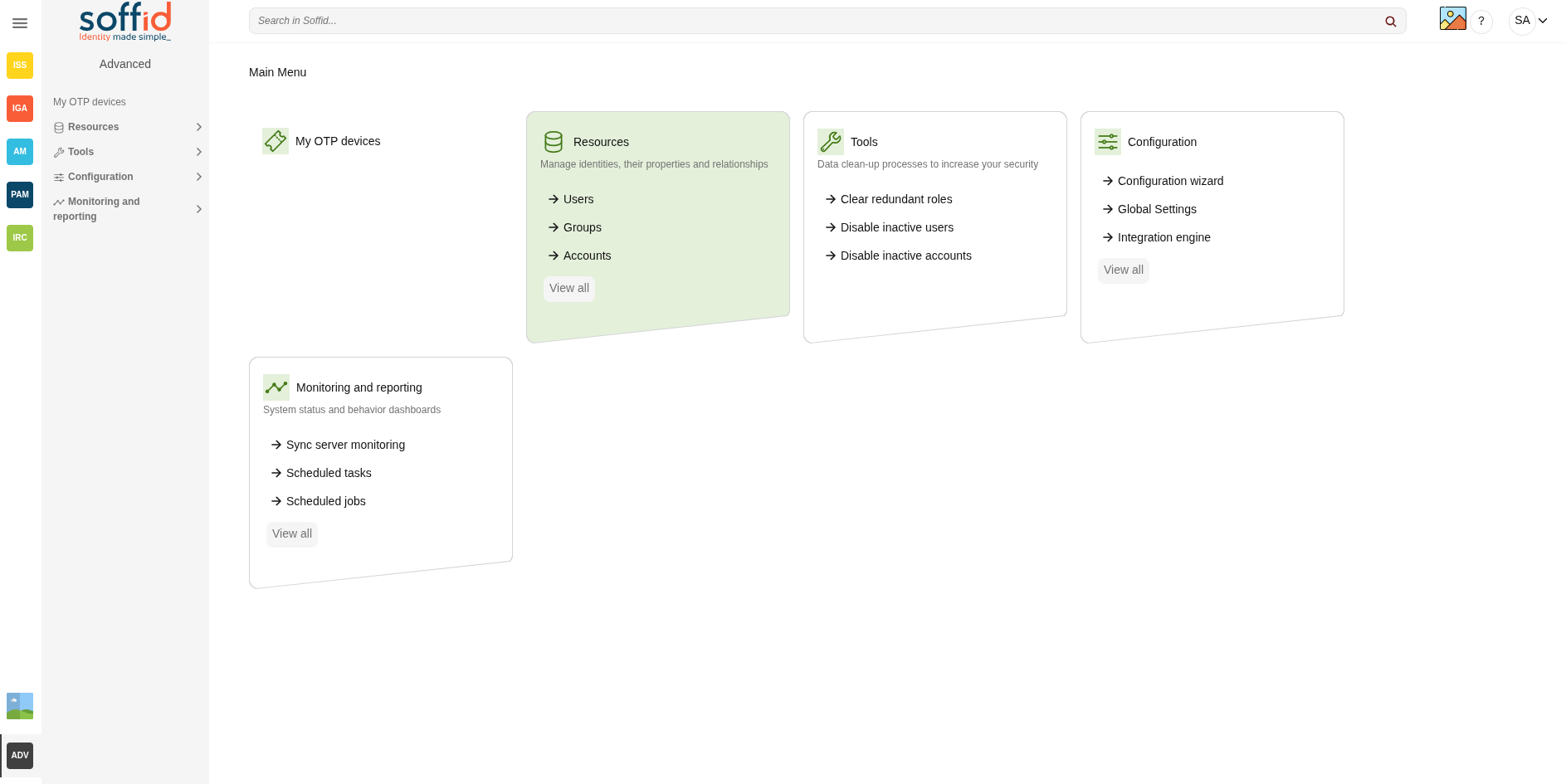](https://bookstack.soffid.com/uploads/images/gallery/2025-09/ZfLFyo49aBwWhBVO-image.png)
### Login page with logo and colors
[](https://bookstack.soffid.com/uploads/images/gallery/2025-09/6WsyGdPUeSBDHPdI-image.png)
# Soffid parameters
## Definition
Soffid allows you to customize the configuration of some attributes of the Console, Syncserver, connectors and add-ons.
There are several types of parameters.
- Informative parameters, such as the versions of internal components of Soffid.
- Parameters used as attributes in Soffid screens, such as the values of the look & feel fields.
- There are also parameters that can be modified, such as some configuration data for the synchronization server.
- There are new attributes that can be included to expand the functionality of Soffid, such as mail server data.
If you want to know the Soffid console version check the **component.iam-core.version** parameter.
## Screen overview
[](https://bookstack.soffid.com/uploads/images/gallery/2025-08/Ph3J9GdsPzTWShu0-image.png)
[](https://bookstack.soffid.com/uploads/images/gallery/2025-08/dDoPDeNnwawdncNX-image.png)
## Standard attributes
- **Parameter**: code/name used to identify the parameter.
- **Value**: parameter value.
- **Network** (optional): network to which this parameter would be assigned.
- **Description** (optional): a brief description of the parameter.
## Actions
### Table actions
**Add new**
Allows you to add a new Soffid parameter. To add a new parameter it will be mandatory to fill in the required fields.
**Delete parameter**
Allows you to delete one or more Soffid parameters by selecting one or more records and next clicking this button. To perform that action, Soffid will ask you for confirmation, you could confirm or cancel the operation.
**Download CSV file**
Allows you to download a csv file with the basic information of all Soffid parameters.
**Import**
Allows you to upload a CSV file with the parameter list to add, update or delete parameters to Soffid.
First, you need to pick up a CSV file, that CSV has to contain a specific configuration. Then you need to check the content to be loaded, it is allowed to choose if you want or not to load a specific attribute. And finally, you need to select the mappings for each column of the CSV file to import the data correctly and to click the Import button.
To delete a parameter, the values of the parameter have to be empty
```
"Parameter","Network","Value","Description"
"addon.backup.test","","",""
```
### Detail actions
**Apply changes (disk button)**
Allows you to save the data of a new parameter or to update the data of a specific parameter. To save the data it will be mandatory to fill in the required fields.
**Delete parameter**
Allows you to delete a specific Soffid parameter. To delete a parameter you can click on the "three points" icon and then click the delete parameter button.
Soffid will ask you for confirmation to perform that action, you could confirm or cancel the operation.
**Undo**
Allows you to quit without applying any changes.
**Apply changes**
Allows you to save the data of a new parameter or to update the data of a specific parameter. Once you apply changes, the plugin details page will be closed.
## List of parameters sorted by functionality
### Console
**Parameter**
**Description**
soffid.auth.system
Select the managed system where the account name will be searched on the user login. Defaults to soffid.
soffid.auth.trustedLogin
Set to true to enable the Soffid console to validate passwords on trusted systems. Setting it to false, the password will be validated against internal tables only.
soffid.delegation.disable
Set to true to prevent users to delegate permissions from self service page.
soffid.entitlement.group.holder
Set to **optional** enables the operator to set a group as the group holder for any entitlement assignment.
Set to **always** enforce that any entitlement assignment must be bound to a holder group.
Set to **none** to disable this feature.
This parameter affects to [role holder](https://bookstack.soffid.com/link/62#bkmrk-%C2%A0-1)
soffid.language
Enforce user interface language.
soffid.language.default
Default user interface language (en).
soffid.network.internet
Sets the name for a generic subnet that will hold any host not included on any listed network.
soffid.proxy.trustedIps
Set the IP address of any reverse proxy in front of Soffid servers.
When an incoming request is made from any of these trusted IP addresses, the X-Forwarded-for header is taken as the real source IP of the request. In any other case, the X-Forwarded-for header is ignored.
This parameter can take a list of IP addresses, separated by commas, like the following ones:
- 127.0.0.1
- 192.168.120.1, 192.168.120.2
To allow a range of network IPS, one can use the wildcard(\*) symbol, as in the following example:
- 127.0.0.1, 192.168.120.\*
Starting with Soffid console 3.3.0, the network-address/bits notation is allowed, as in the following example:
- 127.0.0.1, 192.168.120.128/25
soffid.propagate.timeout
Timeout in seconds to retry the password validation needed to propagate a managed system notified password change (requires syncserver 1.5.4).
soffid.server.sharedThreads
Number of shared dispatcher threads per synchronization servers (by default 1)
soffid.task.limit
The maximum number of tasks allowed per transaction. If a simple or complex transaction generates more tasks than specified, these tasks will be kept on hold. Administrators can release them through the monitoring page. (version 2.0+)
soffid.ui.docPath
The path where to store report and workflow documents.
soffid.ui.docServer
URL where is the server to store the files.
soffid.ui.docStrategy
Class responsible for managing report and workflow documents.
soffid.ui.docTempPath
The path where to store temporary files
soffid.ui.docUsername
Username of the doc server.
soffid.ui.docUserPassword
The password of the doc server.
soffid.ui.maxrows
The maximum number of rows to display in searches. The default value is 200 but you can change it.
soffid.ui.timeout
Max time (in milliseconds) a query can take to complete (version 2.0 +).
soffid.ui.wildcarts
Setting the auto value enables the user interface to add wildcards on user queries. Setting it to off disables this feature.
soffid.externalURL
External URL to access to Soffid console.
soffid.kerberos.agent
The name of the Windows server agent so that any incoming Kerberos packets will be authenticated against that domain.
soffid.pam.search.recordings.timeout
Timeout reached in the query, use the parameter to specify a longer timeout in milliseconds. By default, if you don't config this parameter is 60000 milliseconds.
(version 3.5.18+)
soffid.nameformat
Parameter to configure how to display the users full name. Where:
- %1$s is the first name.
- %2$s is the middle name.
- %3$s is the last name
For instance:
```
%2$s %3$s, %1$s
```
soffid.issue.next
Allows you to initialize the parameter to indicate what will be the ID of the next issue.
1 will be the default value.
soffid.upload.maxsize
Allows you to set a maximum value in bytes for uploading files to Soffid.
If this parameter is not configured, the value will be 100000000 bytes (100Mb).
### Syncserver
**Parameter**
**Description**
SSOServer
This parameter indicates which server acts on the workstations that run SSO. This parameter can have different values for any subnet. So you can define ESSO servers allowed for any subnet.
seycon.https.port
Port where synchronization server connects to. This parameter is used by ESSO clients to connect to synchronization servers.
seycon.server.list
Shows where Syncserver and SyncServer backup is installed. When installing the first server synchronization, this parameter is automatically updated. If you want to install a synchronization server backup you must update this parameter manually. Note that proxy synchronization servers are not on this list. See the [Soffid installation guide.](https://bookstack.soffid.com/books/installation/page/getting-started "Getting started")
soffid.sync.engine.threads
This parameter allows you to configure the number of threads available to run the tasks. If you do not fill this parameter, Soffid will run 1 thread for every 50 systems, but never more than twice the number of CPUs of the server. The value of the parameter must be equal or greater than 1. (Available in Sync Server version 3.5.15+)
### Mail server
**Parameter**
**Description**
mail.host
Host to send electronic mail messages.
mail.from
Recipient address that will be set as the email sender.
mail.transport.protocol
Set to SMTPS to get secure mail. Default value "SMTP" to use plain SMTP protocol.
mail.auth
Set to true if your mail server requires user authentication.
mail.user
Set your email user name if your mail server requires user authentication.
mail.password
Set your email password if your mail server requires user authentication.
mail.port
25 by default, with this parameter a new port can be set.
mail.smtp.sasl.enable
Set to true to enable SASL.
### SIEM and syslog
**Parameter**
**Description**
soffid.syslog.server
Hostname or IP address of the server that hosts the SIEM.
The SIEM will receive the audit information via the syslog protocol.
You can specify a particular port using the format SERVER:PORT.
The default UDP/TCP port is 514.
The default SSL port is 6514.
soffid.syslog.protocol
By default, “udp” is used; the options “tcp” and “ssl” (in lower case) are also available.
The protocol used for communication.
### Job notifications
**Parameter**
**Description**
soffid.scheduler.error.notify
Users to notify when a scheduled task fails.
soffid.bpm.error.notify
Users to notify when a BPM task fails.
soffid.bpm.error.retry
Set to true to always retry any failed BPM task.
### Syncserver provisioning
**Parameter**
**Description**
soffid.server.register
Set to ***direct*** value to bypass standard workflow needed for a syncserver to join the syncservers security network. Otherwise, the standard approval workflow will be required(Since syncserver 2.6.0). You also can set it to ***no-direct***
### Addon federation
**Parameter**
**Description**
addon.federation.essoidp
Set the Identity Provider identifier to indicate that this will be the authentication provider.
For more information, you can visit [the How to add to ESSO a second factor of authentication page](https://bookstack.soffid.com/books/esso/page/how-to-add-to-esso-a-second-factor-of-authentication).
### Identity Self Service and emails
**Parameter**
**Description**
AutoSSOURL
This parameter is used to retrieve the URL that the end user of Identiry Self Service will see.
It is used in various Soffid modules:
\- When the soffid.externalURL parameter has not been specified
\- In the reports add-on for emails
### Soffid Autenticator
**Parameter**
**Description**
soffid.push.images
If you are using the [Soffid Authenticator](https://bookstack.soffid.com/books/soffid-authenticator-app "Soffid Authenticator App"), you can select one of the following sets of images.
- birds (option by default)
- numbers
- flowers
- fishes
## Exclude menu options
To exclude default menu options for all users of the Soffid console, the following steps can be followed
1. To exclude some menu options from your Soffid console, you must edit the **system.properties** file of this console. You can find this file in the following path: **/opt/soffid/iam-console-3/conf/**
2. Add the **soffid.menu.hidden** parameter to the **system.properties** file. The value of this parameter can be the menu options name that you can find in the [console.yaml](https://bookstack.soffid.com/attachments/63) file.
[](https://bookstack.soffid.com/uploads/images/gallery/2023-05/image-1685525691139.png)
3. Restart the Soffid console.
# User types
## Description
User type is the way to categorize users and allows configuring different password policies. Those policies can be more or less restrictive depending on the user's risk. For instance, internal users (automatically created) are different from external ones.
Therefore, this field is very useful for the following cases:
- Sort or list the users on the user's page or in the reports
- Apply different password policies
- Apply restrictions on the synchronization of Soffid to the target systems
- Ease configuration in automatic rules or custom scripts
Be in mind that a user always must belong to a User Type.
## Screen overview
[](https://bookstack.soffid.com/uploads/images/gallery/2025-08/c5xqBfF4ioeslLUk-image.png)
[](https://bookstack.soffid.com/uploads/images/gallery/2025-08/DAlKgP3WMBFpq4l7-image.png)
## Related objects
- [Users](https://bookstack.soffid.com/books/adv/page/users): each user must be assigned a user type.
- [Accounts](https://bookstack.soffid.com/books/adv/page/accounts "Accounts"): the shared or privileged accounts also require having selected a user type to associate it with a password policy
- [Agents](https://bookstack.soffid.com/books/adv/page/agents): for agents not based on "Manual account creation", you must select the user types that can be synchronised.
## Standard attributes
- **Short name**: internal code used to identify the user type.
- **Description**: brief description of the user type.
- **Managed**: (yes|no) if not managed, users belonging to this category will not be propagated to final systems. You must use it when you are developing a PoC.
## Actions
#### User type table
**Add new**
Allows you to create a new User type. To add a new User type it will be mandatory to fill in the required fields
**Delete user type**
Allows you to remove one or more User type by selecting one or more records and next clicking this button. To perform that action, Soffid will ask you for confirmation, you could confirm or cancel the operation.
**Download CSV file**
Allows you to download a csv file with the basic information of all user types.
**Import**
Allows you to upload a CSV file with the User type list to add or update User types to Soffid.
First, you need to pick up a CSV file, that CSV has to contain a specific configuration. Then you need to check the content to be loaded, it is allowed to choose if you want or not to load a specific attribute. And finally, you need to select the mappings for each column of the CSV file to import the data correctly and to click the Import button.
**View**
Allows you to show and hide columns in the table.
You can also set the order in which the columns will be displayed.
#### User type detail
**Apply changes (disk button)**
Allows you to save the data of a new User type or to update the data of a specific User type. To save the data it will be mandatory to fill in the required fields.
**Delete**
Allows you to delete the User type. To delete a host you can click on the hamburger icon and then click the delete button (trash icon).
Soffid will ask you for confirmation to perform that action, you could confirm or cancel the operation.
**Undo**
Allows you to undo any changes made.
**Apply changes (disk button)**
Allows you to save the data of a new User type or to update the data of a specific User type. To save the data it will be mandatory to fill in the required fields. Once you apply changes, the details page will be closed.
# Group types
## Description
Companies are organized in different business units, departments or workgroups. In Soffid, they all are named as groups. These group can be categorized by a **group type**.
Group types can be used in the definition of Holder Groups. Some roles can be assigned to a user only through a group enabled for it. When a user no longer belongs to a group, it is not allow assign that role to the user.
A user always belongs to a user type, but groups do not necessarily have to belong a group type.
## Screen overview
[](https://bookstack.soffid.com/uploads/images/gallery/2025-08/CiJ2XuI0mcSa8MkN-image.png)
[](https://bookstack.soffid.com/uploads/images/gallery/2025-08/wgpJMT2619eTp7IA-image.png)
## Related objects
1. [Groups](https://bookstack.soffid.com/books/soffid-4-reference-guide/page/groups): the group type is an attribute of groups.
2. [Users](https://bookstack.soffid.com/books/soffid-4-reference-guide/page/users): users belong to a group or secondary group.
3. [Metadata](https://bookstack.soffid.com/books/soffid-4-reference-guide/page/metadata): to add atrributes for the holder group relation in the com.soffid.iam.iga.api.UserGroup object.
## Standard attributes
- **Name**: name (or code) of the organizational unit.
- **Description**: description of the organizational unit.
- **Role holder**: (yes|no), when this attribute is active (yes), all the groups of this type of organizational unit could be assigned to a user as a domain of a role.
## Actions
#### Group type table
**Add new**
Allows you to create a new Group type. To add a new Group type it will be mandatory to fill in the required fields
**Delete group type**
Allows you to remove one or more Group types by selecting one or more records and next clicking this button. To perform that action, Soffid will ask you for confirmation, you could confirm or cancel the operation.
**Download CSV file**
Allows you to download a csv file with the basic information of all groups types.
**Import**
Allows you to upload a CSV file with the Group type list to add or update Group types to Soffid. First, you need to pick up a CSV file, that CSV has to contain a specific configuration. Then you need to check the content to be loaded, it is allowed to choose if you want or not to load a specific attribute. And finally, you need to select the mappings for each column of the CSV file to import the data correctly and to click the Import button.
#### Group type detail
**Apply changes (disk button)**
Allows you to save the data of a new Group type or to update the data of a specific Group type. To save the data it will be mandatory to fill in the required fields.
**Delete group type**
Allows you to delete the Group type. To delete a host you can click on the "three potins" icon and then click the delete group type button. Soffid will ask you for confirmation to perform that action, you could confirm or cancel the operation.
**Undo**
Allows you to undo any changes made.
**Apply changes**
Allows you to save the data of a new Group type or to update the data of a specific Group type. To save the data it will be mandatory to fill in the required fields. Once you apply changes, the details page will be closed.
## About role holder (and holder group)
In some organizations is necessary to assign roles that affect only a part of the structure, for instance, a department, a division or a country. A **Holder Group** can be defined as a collection of entities (referred to as "holders") that share similar characteristics, roles, permissions, or access requirements. The concept of a Holder Group simplifies the management of identities by enabling administrators to apply policies, assign roles, and manage permissions at the group level rather than individually.
The role holder is the role that requires to be assigned to a group, and the holder group is the group that can be assigned role permission.
To configure correctly this functionality you have to apply the next steps:
1. Create at least one organizational unit (Group Type) with the role holder attribute active (yes).
2. Assign groups to the organizational unit (with the attribute type of the group).
3. Also, you can include new custom attributes to this membership relation, go to Metadata page and select the GroupUser to add these attributes.
4. In the soffid parameters page, create a new parameter named **soffid.entitlement.group.holder**. It can have one of these three values:
1. Set to **optional** enables the operator to set a group as the group holder for any entitlement assignment.
2. Set to **always** to enforce that any entitlement assignment must be bound to a holder group.
3. Set to **none** to disable this feature
Now you can start to apply this configuration to the users:
- In the Users page, select a user.
- In the Groups tab, add a new group.
- In the Roles tab, add a new role and select the holder group in the optional scope.
- If the holder group column is hidden, you can add with the option Add or remove columns.
# Metadata
## Description
The Metadata functionality allows expanding the Soffid objects, their attributes, and their data types. Also, it allows expanding custom objects.
By default, there is a list of **built-in objects**, but it is possible to create new **custom objects** and add new **custom attributes** to each of them.
It is usual to add custom attributes in the User built-in object to hold additional information.
Each attribute has a **data type**, it may be a basic type as a String (simple text), integer value, date, or something more complex as a reference to a custom object, or a popup to select a manager. In this way, one can build relationships between objects.
### Built-in objects
The **built-in objects** are the objects that are part of the Soffid core. It can not be removed, but more custom attributes can be added.
The following objects are Soffid well-known objects that can be customized by means of this screen. All of them are tagged as **Built-in objects**.
- Account
- Group
- Host
- InformationSystem
- MailList
- ProcessInstance
- Role
- RoleAccount
- User
- UserGroup
### Custom objects
The **custom objects** are the objects created by the administrator to extend the Soffid underlying data model. All of them are marked as **Built-in type** **No**.
Each custom object type created by the administrator is displayed at the custom objects menu options.
## Screen overview
[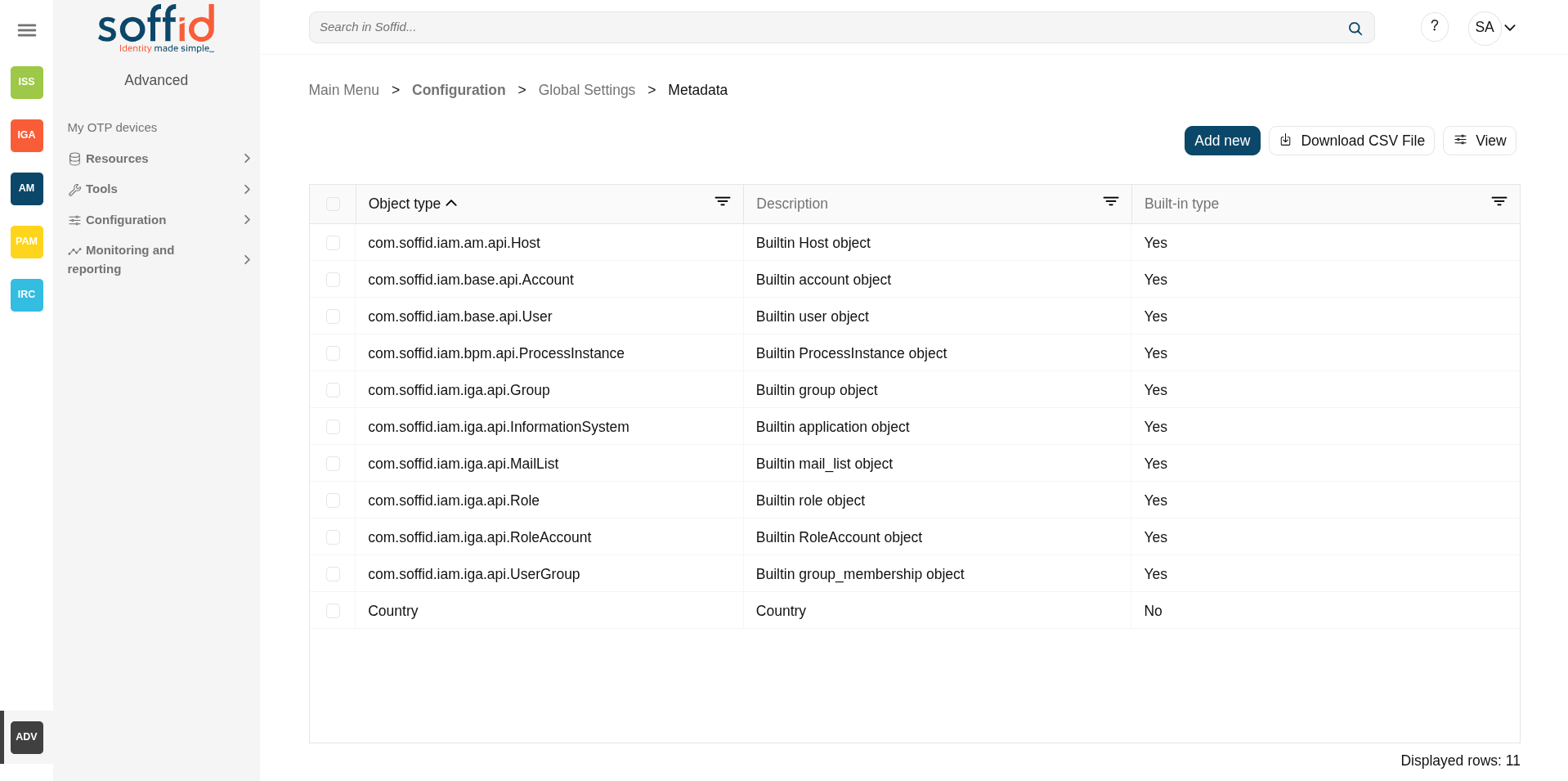](https://bookstack.soffid.com/uploads/images/gallery/2025-08/i1NebwtoYPtkmCoN-image.png)
[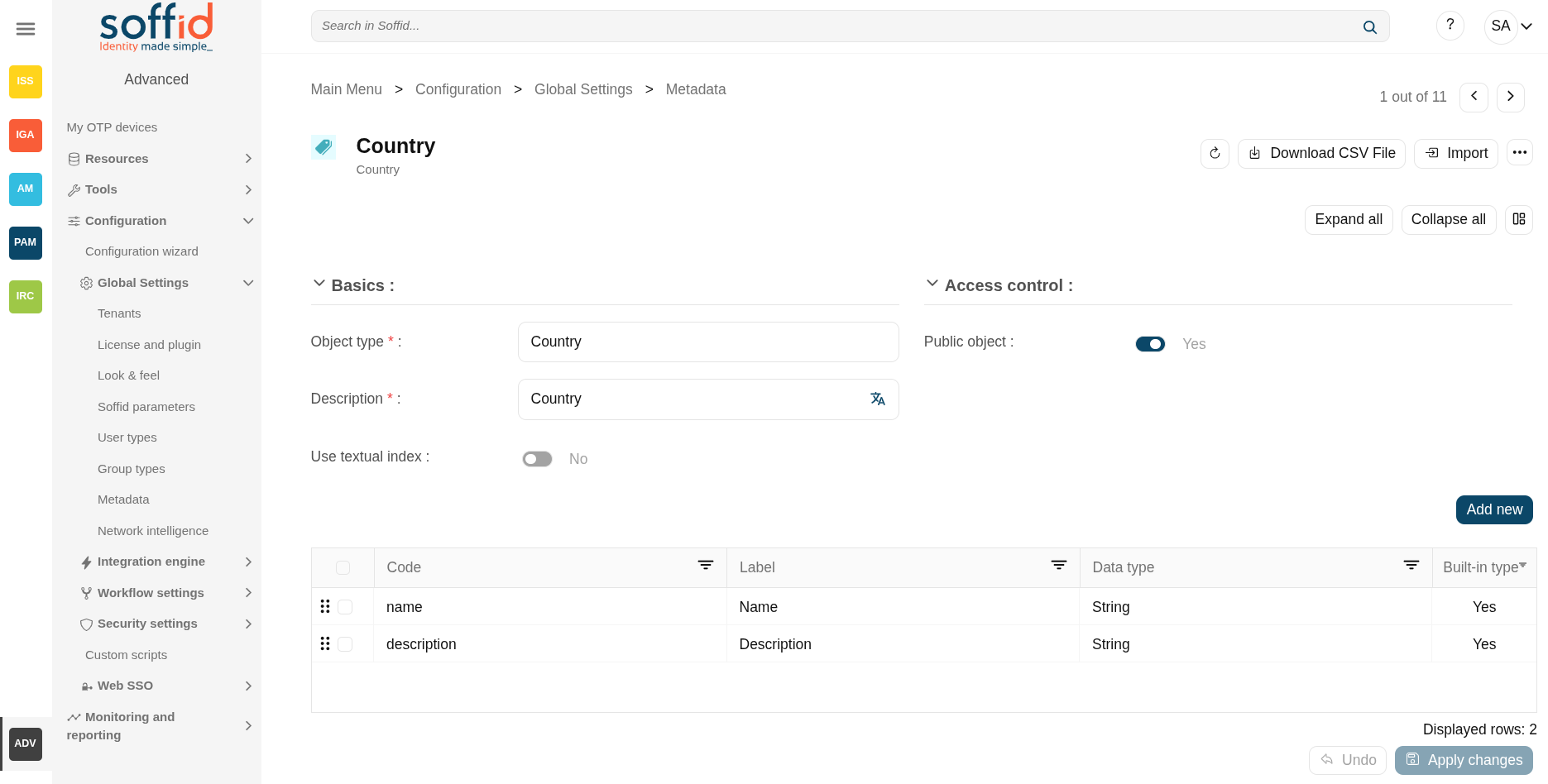](https://bookstack.soffid.com/uploads/images/gallery/2025-09/0BQiLPoiftsCbGE1-image.png)
## Related objects
- [Account](https://bookstack.soffid.com/books/soffid-4-reference-guide/page/accounts "Accounts") : account object
- [Group](https://bookstack.soffid.com/books/soffid-4-reference-guide/page/groups "Groups") : group object
- [Host](https://bookstack.soffid.com/books/soffid-4-reference-guide/page/hosts "Hosts") : host object
- [InformationSystem](https://bookstack.soffid.com/books/soffid-4-reference-guide/page/information-systems "InformationSystem") : informationSystem object
- [MailList](https://bookstack.soffid.com/books/soffid-4-reference-guide/page/mail-lists "MailList"): mailList object
- ProcessInstance : workflows:
- [My tasks](https://bookstack.soffid.com/books/soffid-4-reference-guide/page/my-tasks) : pending workflows where the user has to perform an action in order to continue their workflow.
- [My requests](https://bookstack.soffid.com/books/soffid-4-reference-guide/page/my-requests) : the workflows that the user can initiate are listed here.
- [My requests > Query request status](https://bookstack.soffid.com/books/soffid-4-reference-guide/page/my-requests-query-request-status) : to search for all processes started by oneself.
- [Process Search](https://bookstack.soffid.com/books/soffid-4-reference-guide/page/process-search) : to search for all processes.
- [Role](https://bookstack.soffid.com/books/soffid-4-reference-guide/page/roles "Role") : role object
- RoleAccount : this is the grant, the relation between [user](https://bookstack.soffid.com/books/soffid-4-reference-guide/page/users "user") and [role](https://bookstack.soffid.com/books/soffid-4-reference-guide/page/roles "role")
- [User](https://bookstack.soffid.com/books/soffid-4-reference-guide/page/users "User") : user object
- UserGroup : seconday [group](https://bookstack.soffid.com/books/soffid-4-reference-guide/page/groups "groups") relation in [user](https://bookstack.soffid.com/books/soffid-4-reference-guide/page/users "user") page
## Standard attributes
### Table attributes
- **Name:** name of the custom object. This field is mandatory.
- **Description**: a brief description of the custom object. This field is mandatory.
- **Built-in type**: yes when is a native object, no when it is a created custom object
- **Write access**: allows you to select the proper roles with permissions to write. This field is only displayed when the Public object value is No
- **Read access**: allows you to select the proper roles with permissions to read. This field is only displayed when the Public object value is No
- **Public object**: if you select the Yes option, the object will be visible to all the users with the proper permissions. If you select the No option, you must indicate what roles can Read and what roles can Write this object.
- **Use textual index**: allows you to check the Yes option if you want to use the Textual index for searching data in this object.
### Object attributes
- **Object type**: code/name to identify a built-in type or a custom object.
- **Description**: a brief description of the object.
- **Use textual index**: allows you to select the Yes option if you want to use the Textual index for searching data in this object.
- **Public object**: only for custom objects. If you select the Yes option, the object will be visible to all the users with the proper permissions (role with authorization). If you select the No option, you must indicate what roles can Read and what roles can Write this object.
For more information, you can visit [the Textual index page.](https://bookstack.soffid.com/books/soffid-3-reference-guide/chapter/textual-index)
### Attribute attributes
- **Code**: short name used by scripts and connectors to access the underlying information. It is suggested to use short names without blanks or special characters to make it easier to use.
- **Label**: text displayed just beside the attribute value. It is advised to use short descriptions in order to keep the screen cleaner.
In Soffid 4, labels are now multilanguage. Once you have saved a new attribute, you can modify it by clicking on the language icon.
Image
[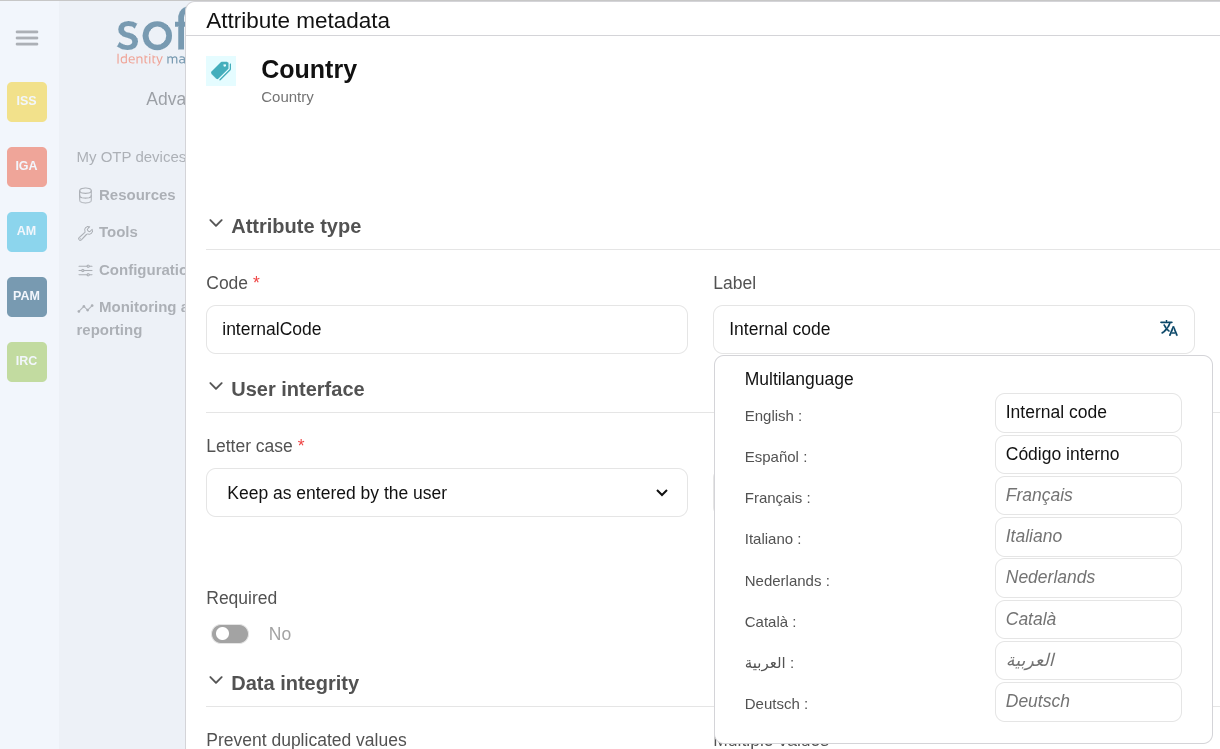](https://bookstack.soffid.com/uploads/images/gallery/2025-09/rJM2UsqNd4VEYkGo-image.png)
- **Data type**: The attributes can have different data types
- Basics
- - String: a text
- Number: a number
- Password: a text that will be stored encrypted in the database. This field will never be displayed to the end user.
- Binary: raw information, probably images or documents.
- Boolean: true/fasle, it is displayed as a switch button
- Photo: an image that is displayed as a small image.
- Date: a date with a calendar popup.
- Date and time: a date and time with a calendar popup.
- E-mail: a text with email format. the mail domain must exist in Soffid to be saved.
- HTML: rich text.
- Separator: a separator is a label to group attributes according to some criteria
- SSO HTML input: used primarily for the web SSO engine includes an input field and a value.
- Attachment: files starored as files
- Soffid objects
- - Account
- User
- Group
- Group type
- Role
- Information System
- Host
- Network
- User Type
- Mail domain
- Mail list
- Operating system
- Printer
- Target system (agent)
- Custom objects: any other custom object created by the administrator.
- **Letter case**: different options for modifying the text once it has been entered
- Keep as entered by the user
- Upper case letters
- Lower case letters
- **User hint**: Text used to indicate to the user how the text should be entered.
Image
[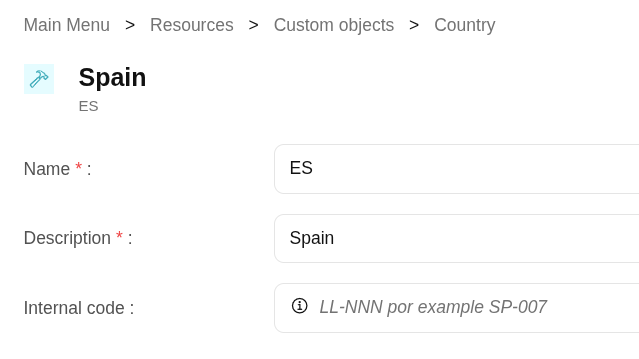](https://bookstack.soffid.com/uploads/images/gallery/2025-09/Jt8NqfW9YqfusVUQ-image.png)
- **Description**: text field to write a brief description of the attribute. In Soffid
In Soffid 4, you can now see it in the attribute by hovering over the round information icon.
Image
[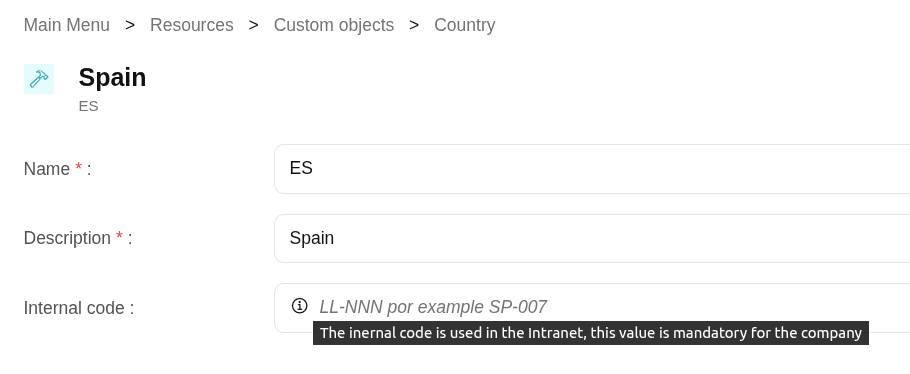](https://bookstack.soffid.com/uploads/images/gallery/2025-09/P6LrEGTbtZ3SFWAn-image.png)
- **Required**: enabling this box will enforce the user to enter a value for this attribute at any object. Set no to allow objects without value. If you try to save without a value, an error message is displayed.
Image
[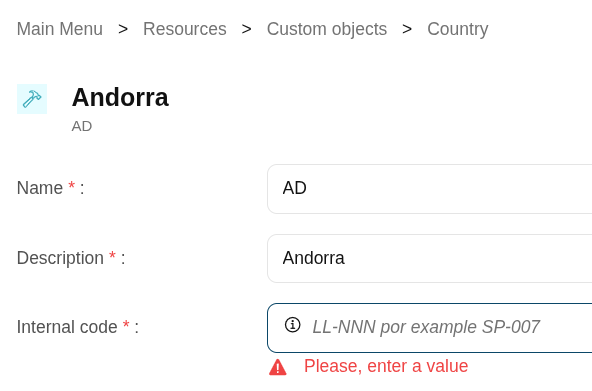](https://bookstack.soffid.com/uploads/images/gallery/2025-09/HnVyPii1Zs2kZZ4Z-image.png)
- **Include in quick search**: the system will find any object that contains all the words included in the text search at any of the most relevant attributes. For instance, a quick search of "John Joe" will find users named "Joe Johnson" or "Johnathan Joel" as the first and last marked to be included in the quick search. If you enable the quick search for any new attribute, the same query will find a user named "Joe Williams" whose new attribute value is "John".
- **Prevent duplicated values**: mark this field as a unique key for the object type. There is no chance of two objects with the same attribute value. Soffid smart engine will avoid the creation of duplicated objects.
- **Multiple values**: some attributes can contain multiple values for the same object. For instance, an attribute containing the languages a user can speak can be multi-valued, as a user can speak multiple languages.
- **Maximum number of rows to display**: when an attribute is multivalued, the screen size can grow a lot. To prevent such a big form, the system will only display a maximum number of values, and a scroll bar will appear to browse through the attribute values.
- **Size**: primarily for string attributes, specify the maximum length in characters of the attribute value.
- **Values**: primarily, for attributes of data type String, you can specify the allowed values for the attribute. Then, the text box to the data type String is replaced by a drop-down list. Also, you can define a "code:label" for the value, the "code" is used internally and the "label" is displayed in the drop-down list, e.g. "ESP:Spain".
- **Administrator visibility**: sets the maximum visibility level for administrators. If the visibility level is set to read-only, the administrator will not be allowed to modify it. If the visibility is set to hidden, the administrator will not be able to query it. A user is considered as administrator when has the role SOFFID\_ADMIN.This field is only used in the user object built-in attributes.
- **Operator visibility**: sets the maximum visibility level for operators. If the visibility level is set to read-only, the operator will not be allowed to modify it. If the visibility is set to hidden, the operator will not be able to query it. A user is considered as an operator when has permission to open the users management page but lacks the role SOFFID\_ADMIN.This field is only used in the user object built-in attributes.
- **User visibility**: sets the maximum visibility level for end-users. If the visibility level is set to read-only, the user will not be allowed to modify it. If the visibility is set to hidden, the user will not be able to query it. Mind that even an administrator is considered to be a user rather than an administrator or operator when accessing their own identity.This field is only used in the user object built-in attributes.
- **Visibility expression**: write an optional BeanShell expression to check if the field should be displayed or not. The expression should return true or false. The following variables are exposed to the expression:
- ownerObject: current object owning the attribute.
- value: current attribute value.
- requestContext: tip about the screen using the attribute.
- inputField: the ZK input object (ZK Framework).
- inputFields: a map to get access to any other ZK input object (ZK Framework).
- serviceLocator: locator to use any Soffid engine microservice.
```Shell
// Sample to enable company name attribute only when the user is of type E (external)
return "E".equals(object{"userType"});
```
- **Validation expression**: write an optional BeanShell expression to check if the field value is acceptable or not. The expression should return true if the value is acceptable. If the expression returns false or any other object, a warning message will be displayed. When the expression returns a string value, the return value will be considered the warning message to present to the end-user. The following variables are exposed to the expression:
- ownerObject: current object owning the attribute
- value: current value to evaluate.
- requestContext: tip about the screen using the attribute
- inputField: the ZK input object (ZK Framework).
- inputFields: a map to get access to any other ZK input object (ZK Framework).
- serviceLocator: locator to use any Soffid engine microservice.
```shell
// Sample for checking birthDate is greater than 18 years old
c = java.util.Calendar.getInstance();
c.add(-18, c.YEAR);
if (birthDate == null || birthDate.before(c.getTime()) return true;
else return "Birth date should be before "+ new java.text.SimpleDateFormat().format(c.getTime());
```
- **onLoad trigger**: write an optional BeanShell expression that will be executed just after preparing the user interface. The script can modify in any way the inputField object before it is displayed, but cannot modify other input fields. The following variables are exposed to the expression:
- ownerObject: current object owning the attribute
- value: current value to evaluate.
- requestContext: tip about the screen using the attribute
- inputField: the ZK input object (ZK Framework).
- inputFields: a map to get access to any other ZK input object (ZK Framework).
- serviceLocator: locator to use any Soffid engine microservice.
```shell
// Sample to set contract number attribute to read only if the attribute company is empty
// Place as an on-load trigger in the contract number field
if (ownerObject.attributes.get("company") == null || ownerObject.attributes.get("company").trim().isEmpty())
inputField.setReadonly(true);
else
inputField.setReadonly(false);
```
- **onChange trigger**: write an optional BeanShell expression that will be executed just after the user has changed the object value. The script can modify in any way the inputField object or any other input fields. The following variables are exposed to the expression:
- ownerObject: current object owning the attribute.
- value: current value to evaluate.
- requestContext: tip about the screen using the attribute.
- inputField: the ZK input object (ZK Framework).
- inputFields: a map to get access to any other ZK input object (ZK Framework).
- serviceLocator: locator to use any Soffid engine microservice.
```shell
// Sample trigger to set contract number attribute to read only when the company attribute gets empty
// Place as an on-change trigger in the contract field
contractField = inputFields.get("contractNumber");
if (value == null || value.trim().isEmpty())
contractField.setReadonly(true);
else
contractField.setReadonly(false);
contractField.invalidate(); // Redraw contract number field
```
```shell
......
inputFields.get("contractNumber").getValue();
```
- **You can add a SCIM expression**: exclusive for Soffid objects (users, groups, roles...). Write an optional SCIM query using the SCIM standard to filter valid results for a specific field.
You can access to [SCIM Chapter](https://bookstack.soffid.com/books/soffid-3-reference-guide/chapter/scim "SCIM") for more information
## Actions
#### Table actions
**Add new**
Allows you to add a new custom object in the system. To add a new custom object it is necessary to fill in the required fields. By default, it will have two mandatory attributes, name and description.
**Delete metadata**
Allows you to remove one or more custom objects by selecting one or more records and next clicking this button. To perform that action, Soffid will ask you for confirmation, you could confirm or cancel the operation.
**Download CSV file**
Allows you to download a CSV file with the basic information of all metadata.
**View**
Allows you to show and hide columns in the table.
You can also set the order in which the columns will be displayed.
#### Metadata detail
**Refresh**
Allows you to refresh all the metadata information.
**Download CSV file**
Allows you to download a CSV file with the basic information of the metadata object.
**Import**
Allows you to upload a CSV file with the attribute metadata to add or update attribute metadata to Soffid.
First, you need to pick up a CSV file, that CSV has to contain a specific configuration. Then you need to check the content to be loaded, it is allowed to choose if you want or not to load a specific attribute. And finally, you need to select the mappings for each column of the CSV file to import the data correctly and click the Import button.
**Delete metadata**
Allows you to delete the metadata object. To delete a metadata you can click on the "three points" icon and then click the delete metadata button.
Soffid will ask you for confirmation to perform that action, you could confirm or cancel the operation.
**Set to default**
Only for built-in objects. Allows you to set the factory setting. Sometimes, usually after an upgrade, it is advisable to reset the built-in attributes of a built-in object. In that case, the properties of the attribute will be changed to the factory setting ones.
**Expand all**
Displays all the attributes of the different blocks.
**Collapse all**
Hide all attributes of the different blocks.
**"Types of views"**
Change the view type: Classic view, Modern view, Compact design.
**Add new**
Allows you to add a new attribute metadata.
**Delete**
Allows you to remove one or more attributes by selecting one or more records and next clicking this button. To perform that action, Soffid will ask you for confirmation, you could confirm or cancel the operation.
**Undo**
Allows you to quit without applying any changes made.
**Apply changes**
Allows you to save the data of a new metadata object or to update the data of a specific metadata object. To save the data it will be mandatory to fill in the required fields.
#### Metadata attributes detail
**Delete**
Allows you to delete the metadata object. Soffid will ask you for confirmation to perform that action, you could confirm or cancel the operation.
**Expand all**
Displays all the attributes of the different blocks.
**Collapse all**
Hide all attributes of the different blocks.
**"Types of views"**
Change the view type: Classic view, Modern view, Compact design.
**Undo**
Allows you to quit without applying any changes made.
**Apply changes**
Allows you to save the data of a new metadata object or to update the data of a specific metadata object. To save the data it will be mandatory to fill in the required fields.
# Network intelligence
## Description
This page has been **removed** in version **4.0.64** of the **Console**.
[2026-07-08 New feature: geolocation service available by default](https://bookstack.soffid.com/books/soffid-4-reference-guide/page/2026-07-08-new-feature-geolocation-service-available-by-default "2026-07-08 New feature: geolocation service available by default")
### Network intelliegence
On the one hand, we have **Network intelligence**, which enables the possibility of validating that accounts and passwords have not been compromised in the end systems with which Soffid is integrated.
Once this feature is activated, you will be able to use two new functionalities: on the one hand, more detailed **geolocation** information about the IP address used to access Soffid, and on the other hand, **external validation of your account and password** to confirm that this data has not been compromised in any previously published security breach.
To activate password validation, you must enable it in the password policies.
- Check breached password
Four new issues will also appear that can be configured:
- breached-account-password
- breached-email
- breached-password
- expired-breached-password
A new process has been created to plan for the validation of email domains.
-
Network intelligence verify domains
And algo
### AI in Soffid
On the other hand, we have the **Chat-bot**, which enables our AI to be consulted both on its specific screen and in all components that allow scripts to be written.
Once this feature is activated, you will be able to access the **chat box** page to consult information about Soffid. You will also be able to use the **AI assistant** that appears in all script-type fields.
The token used can be obtained by you yourself by accessing the Gemini page for this purpose, see the [Request a token for the AI](https://bookstack.soffid.com/books/soffid-4-reference-guide/page/network-intelligence#bkmrk-request-a-token-for- "Request a token for the AI") point.
## Screen overview
[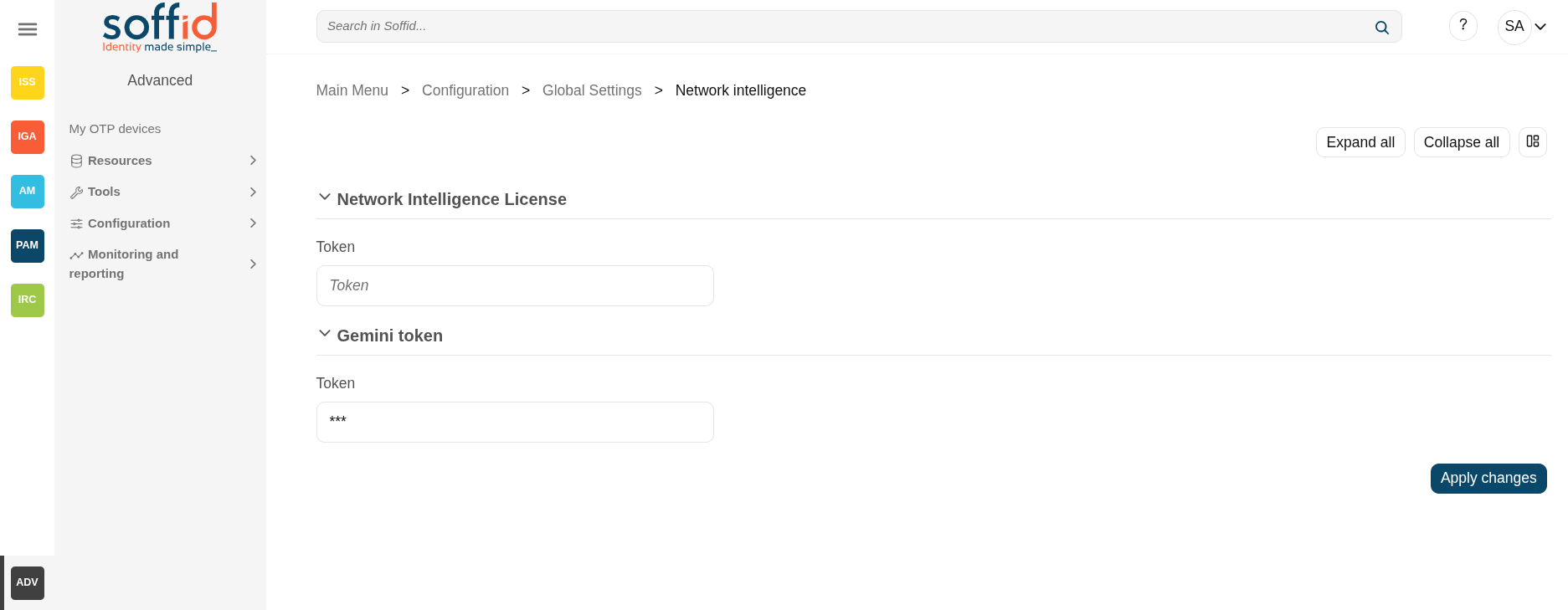](https://bookstack.soffid.com/uploads/images/gallery/2025-09/wnikLSI1yUlNCHq1-image.png)
## Related objects
- **Network intelligence**
- [Password policies](https://bookstack.soffid.com/books/soffid-4-reference-guide/page/password-policies "Password policies") : to enable the validation accounts
- [Issue policies](https://bookstack.soffid.com/books/soffid-4-reference-guide/page/issue-policies "Issue policies") : for the new issues type
- [Scheduled tasks](https://bookstack.soffid.com/books/soffid-4-reference-guide/page/scheduled-tasks "Scheduled tasks") : a new process can be scheduled to check the current accounts and systems
- [Users](https://bookstack.soffid.com/books/soffid-4-reference-guide/page/users "Users") : when changing a password.
- [Accounts](https://bookstack.soffid.com/books/soffid-4-reference-guide/page/accounts "Accounts") : when changing a password.
- **Chat-bot**
- [Soffid chat-bot](https://bookstack.soffid.com/books/soffid-4-reference-guide/page/soffid-chat-bot "Soffid chat-bot") : to chat with our AI.
- [Custom scripts](https://bookstack.soffid.com/books/soffid-4-reference-guide/page/custom-scripts-addon-admin) : to use the AI.
- All pages with script can use the AI to help you with the scripting:
- [Agents](https://bookstack.soffid.com/books/soffid-4-reference-guide/page/agents "Agents") : properties, mappings and triggers.
- [Account naming rules](https://bookstack.soffid.com/books/soffid-4-reference-guide/page/account-naming-rules "Account naming rules") : Create account condition and script.
- [Role assignment rules](https://bookstack.soffid.com/books/soffid-4-reference-guide/page/role-assignment-rules "Role assignment rules") : Expression.
- [Password policies](https://bookstack.soffid.com/books/soffid-4-reference-guide/page/password-policies "Password policies") : Password validation script.
- [PAM policies](https://bookstack.soffid.com/books/soffid-4-reference-guide/page/pam-policies "PAM policies") : Expression.
- [BPM editor](https://bookstack.soffid.com/books/soffid-4-reference-guide/page/bpm-editor-addon-bpm "BPM editor (addon bpm)") : Scritps.
- [Attribute definition](https://bookstack.soffid.com/books/soffid-4-reference-guide/page/attribute-definition-addon-federation "Attribute definition") : Value.
- [Metadata](https://bookstack.soffid.com/books/soffid-4-reference-guide/page/metadata "Metadata") : attribute value scripts
## Standard attributes
- **Network Intelligence License**
- **Token** : token that enables this functionality. This token is provided by Soffid if your licence includes it.
- **Gemini token**
- **Token** : token that enables this functionality. You can generate this token yourself; we will explain how to do so later on.
## Actions
**Expand all**
Displays all the attributes of the different blocks.
**Collapse all**
Hide all attributes of the different blocks.
**"Types of views"**
Change the view type: Classic view, Modern view, Compact design.
**Apply changes**
Save the tokens in case they are valid.
## Others
### Token not allowed
The token for network intelligence is only saved if it is valid.
[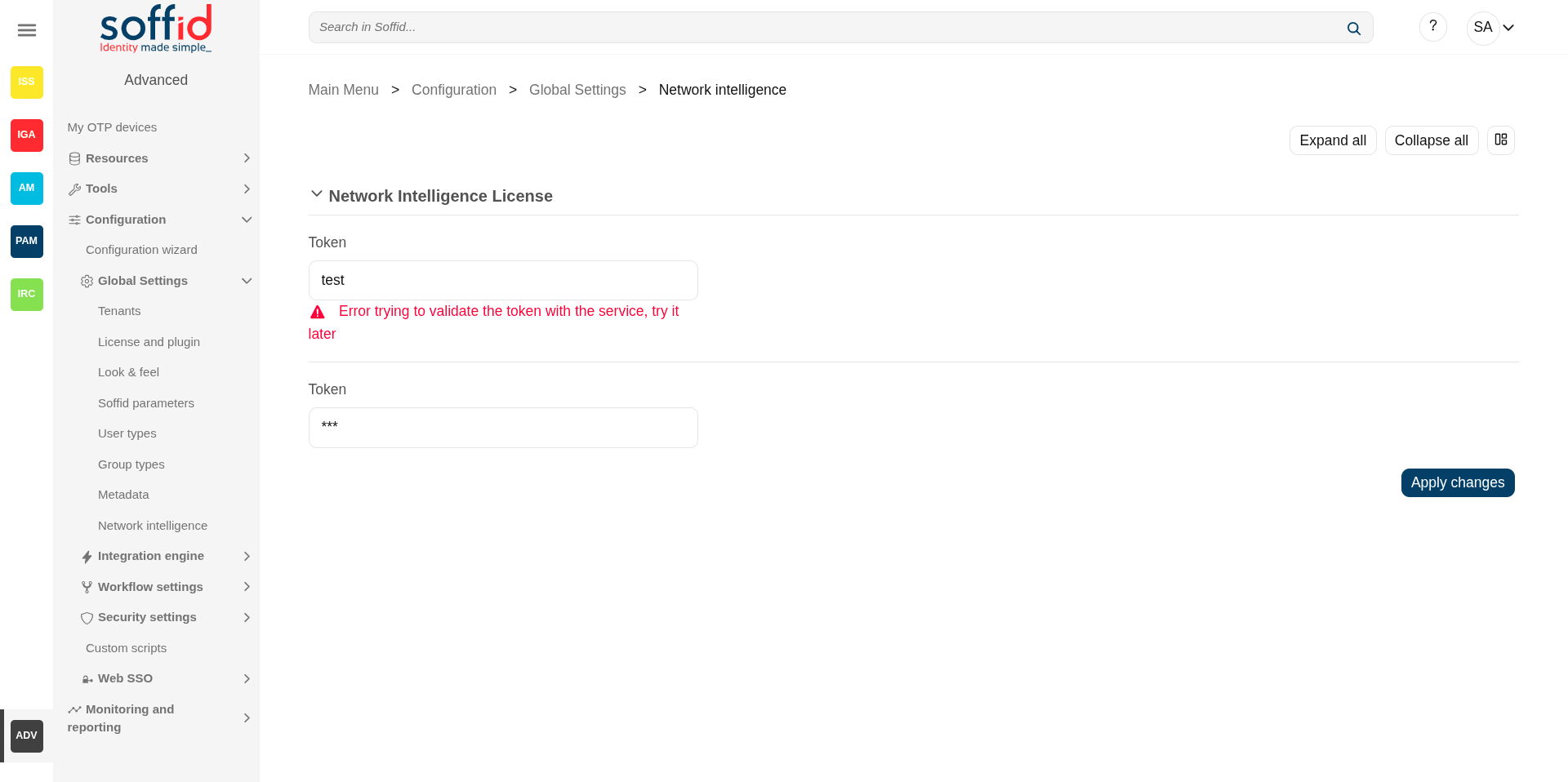](https://bookstack.soffid.com/uploads/images/gallery/2025-08/nY5pFA0EIyGE13LJ-image.png)
### Access without a token
When attempting to use this feature without having previously enabled it, the console displays the error: **No token configured. Please configure it on the network intelligence page**.
[](https://bookstack.soffid.com/uploads/images/gallery/2025-08/i5qlByMLHktBKR5E-image.png)
[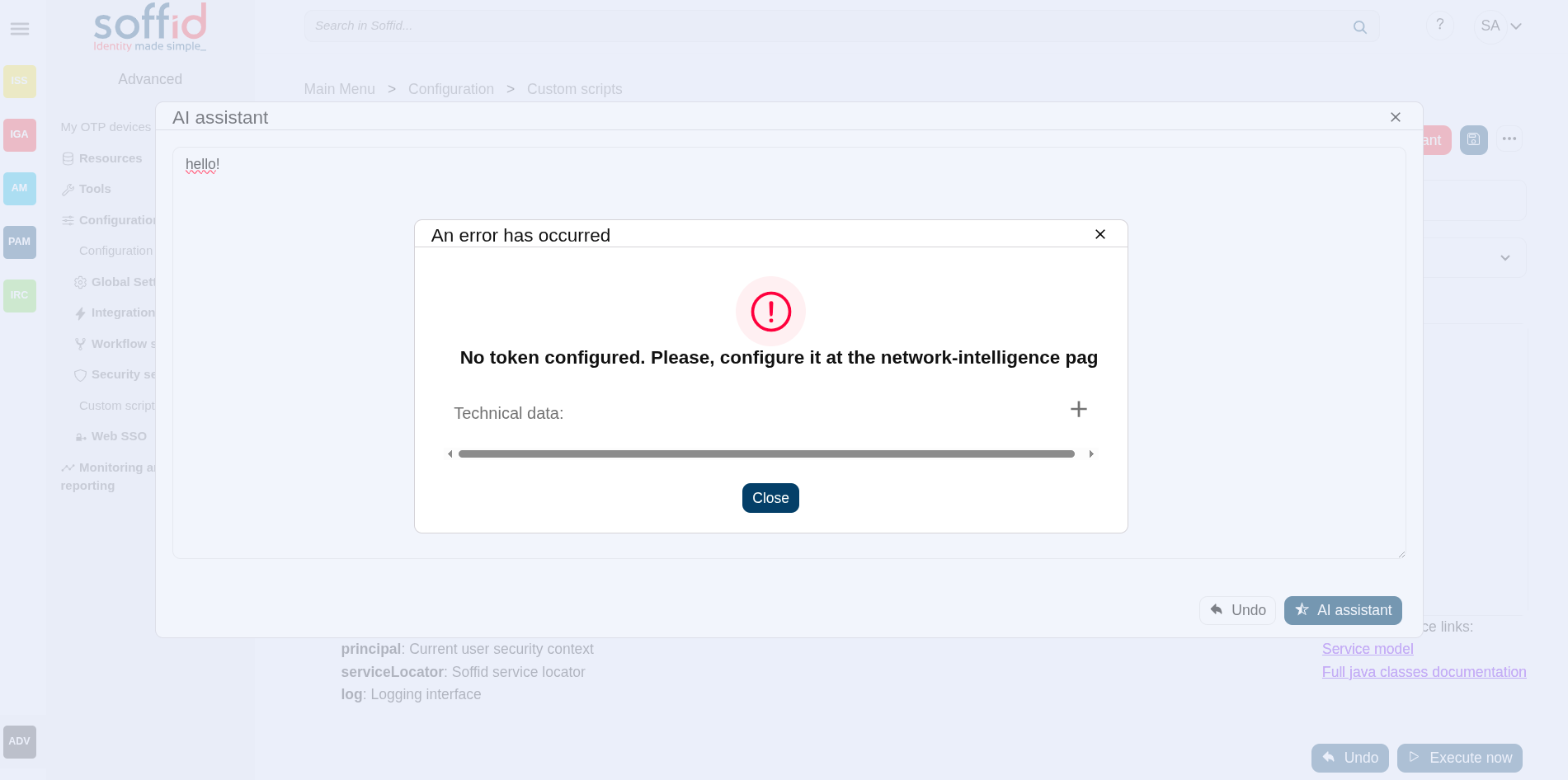](https://bookstack.soffid.com/uploads/images/gallery/2025-08/JMmT8PwQ8GbyzlmU-image.png)
### Request a token for the AI
To use our AI functionality, you must request a token from the Gemini service. Here's how to do it.
Go to the next page: [https://ai.google.dev/gemini-api/docs/api-key](https://ai.google.dev/gemini-api/docs/api-key)
Go to "Google AI Studio".
Login with a Google account.
[](https://bookstack.soffid.com/uploads/images/gallery/2025-08/Je6TR4GCIJI8xxEw-image.png)
Select "Get API key".
[](https://bookstack.soffid.com/uploads/images/gallery/2025-08/ERIvoXJ5jjhHDsKP-image.png)
"Accept".
[](https://bookstack.soffid.com/uploads/images/gallery/2025-08/4lQ7aH2biIBy2W9m-image.png)
Click on "Create API key" button.
[](https://bookstack.soffid.com/uploads/images/gallery/2025-08/ZJ8ZmKZWt0rBdsI3-image.png)
Wait a few seconds.
[](https://bookstack.soffid.com/uploads/images/gallery/2025-08/SbLn2zrvpSF1gjmL-image.png)
You finally have your key to be used on Soffid.
[](https://bookstack.soffid.com/uploads/images/gallery/2025-08/KL8gvjtU7yoTbsNj-image.png)
# User backup configure & restore (backup addon)
## Description
On the **User backup configure & restore page**, you could search, check and restore the user's snapshots.
Also on this screen, you can also configure the frequency and number of backups to be performed.
## Screen overview
[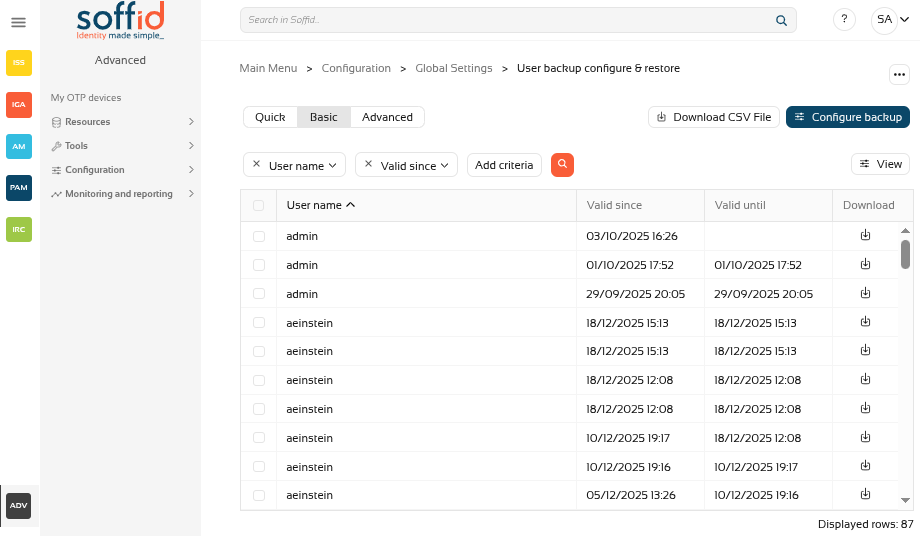](https://bookstack.soffid.com/uploads/images/gallery/2025-12/p2GaFi2Z8k9colt2-image.png)
## Related objects
- [Users](https://bookstack.soffid.com/books/adv/page/users): new Backups tab in the Users page, user object has backups
- [Groups](https://bookstack.soffid.com/books/soffid-4-reference-guide/page/groups "Groups"): user assignments to groups have backup
- [Accounts](https://bookstack.soffid.com/books/soffid-4-reference-guide/page/accounts "Accounts"): user's accounts have backup
- [Roles](https://bookstack.soffid.com/books/soffid-4-reference-guide/page/roles "Roles"): user's roles (grants) have backup
- [Mail lists](https://bookstack.soffid.com/books/soffid-4-reference-guide/page/mail-lists "Mail Lists"): user's mail lists have backup
## Standard attributes
- **User Name**: userName of a user
- **Valid since**: date and time when this backup started
- **Valid until**: if it is not the last backup, date and time when this backup finished
- **Download**: XML file with the user snapshot info.
## Actions
#### Table actions
**Query**
Allows you to query users through different search systems, [Basic and Advanced](https://bookstack.soffid.com/books/soffid-4-reference-guide/page/search-types "Search Types").
**Restore**
Allows you to restore one or more user's snapshots.
First of all, you need select one or more snapshots.
Second, you need to click the "Restore" button.
Then Soffid will run the restore process.
Image
[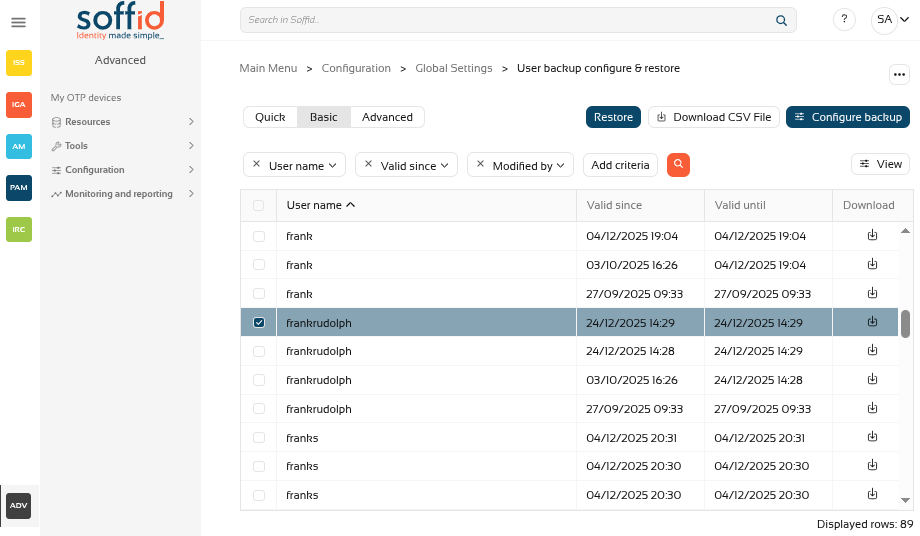](https://bookstack.soffid.com/uploads/images/gallery/2025-12/ZkbLRnc7wkbrP4jM-image.png)
[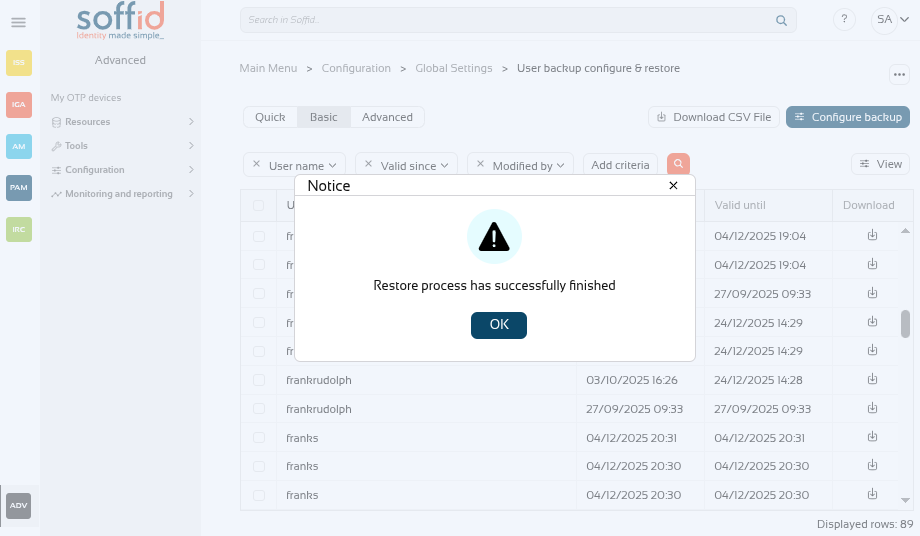](https://bookstack.soffid.com/uploads/images/gallery/2025-12/NqLZL1YP83jdfjJn-image.png)
**Download CSV File**
Allows you to download a CSV file with the basic information of all backups, with the same columns as displayed in the table.
**Configure backup**
Allows you to configure the backup parameters.
**View**
Allows you to show and hide columns in the table.
You can also set the order in which the columns will be displayed.
**Download**
Allows you to download an XML file with the user. You only need to click on the download icon of one of the records and save the file on your computer.
#### Configure backup button
With the "Configure backup" button, you can configure the frequency and number of backups. These are the available parameters:
- **Minimum delay between backups**: if the value is 1, when a backup is created, the system will not create a new backup until 1 day later, even if there has been more than one change during that period.
-
**Number of backups to keep alive**: if the value is 10, when 10 backups are reached, the oldest backup will be deleted when the next one is created.
-
**Enable entitlements history**: enable the history of roles assigned to users.
Image
[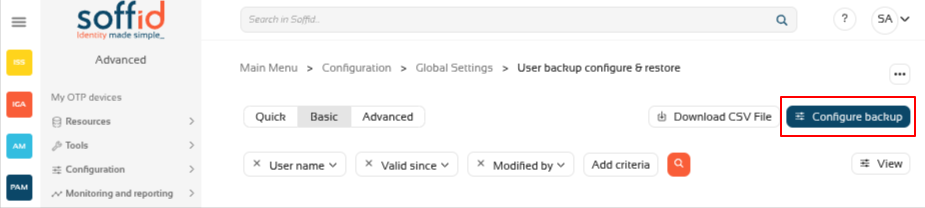](https://bookstack.soffid.com/uploads/images/gallery/2025-12/iGSB9seMdLvf60x0-image.png)
[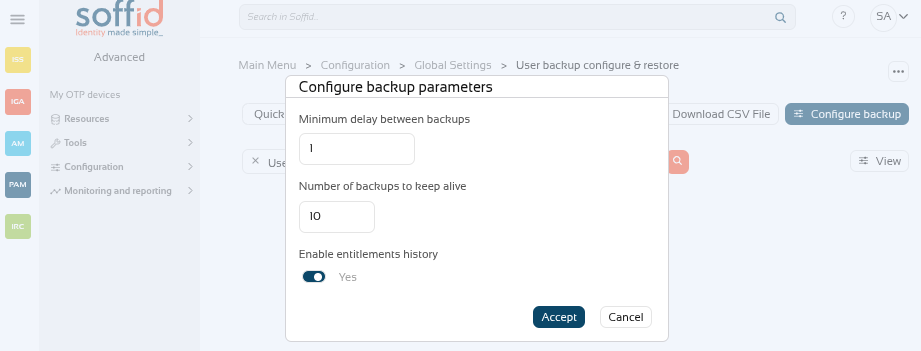](https://bookstack.soffid.com/uploads/images/gallery/2025-12/8tWdt1UczBxprb6P-image.png)
## Others
#### Backup tab on user's page
On the users screen, when you select a user, this addon enables the **Backups tab**.
Image
[](https://bookstack.soffid.com/uploads/images/gallery/2025-12/GTTAgRzgcrwNMTny-image.png)
This tab displays the **user's backups**.
Image
[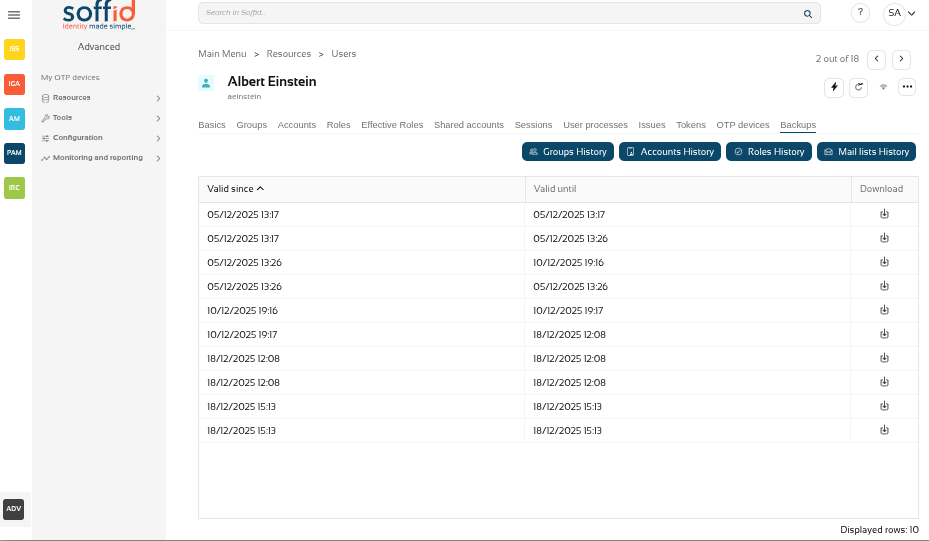](https://bookstack.soffid.com/uploads/images/gallery/2025-12/yBLghnWKr7kceH2Q-image.png)
There are also several **buttons** with the rest of the items that can have backup.
Image
[](https://bookstack.soffid.com/uploads/images/gallery/2025-12/Cj1WEp9hnf5LVHn8-image.png)
These are the buttons:
- **Groups History**: user assignments to groups have backup
- **Accounts History**: user's accounts have backup
- **Roles History**: user's roles (grants) have backup
- **Mail lists History**: user's mail lists have backup
Image
[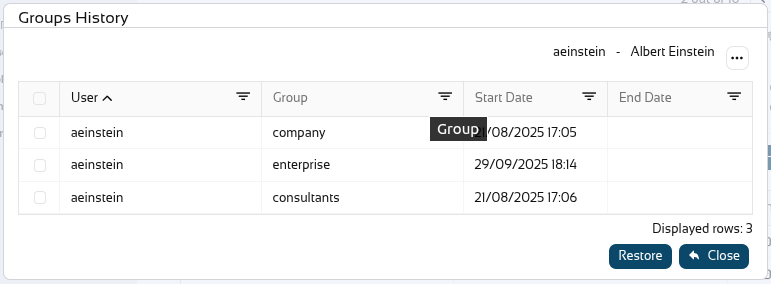](https://bookstack.soffid.com/uploads/images/gallery/2025-12/iwumbrGuDGmb8x0I-image.png)
[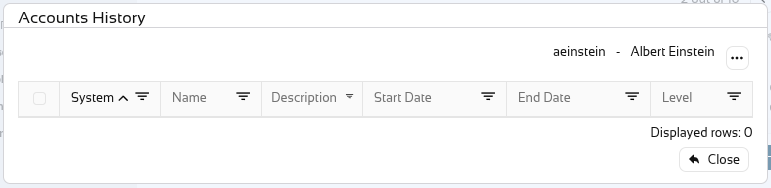](https://bookstack.soffid.com/uploads/images/gallery/2025-12/CSUo0aFdpBlodoJs-image.png)
[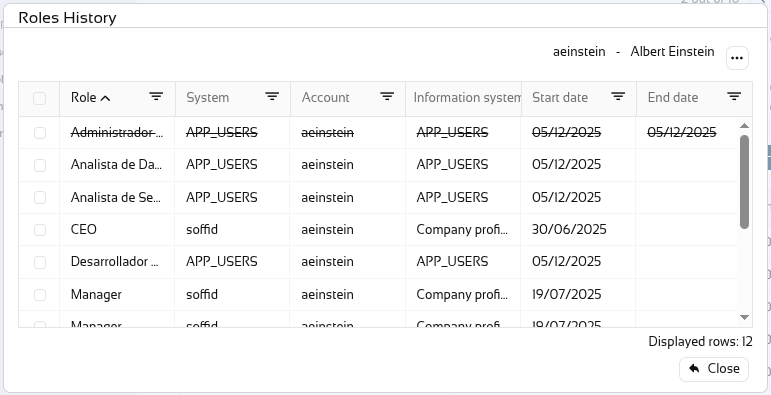](https://bookstack.soffid.com/uploads/images/gallery/2025-12/blAsYnbIuKcd4h18-image.png)
[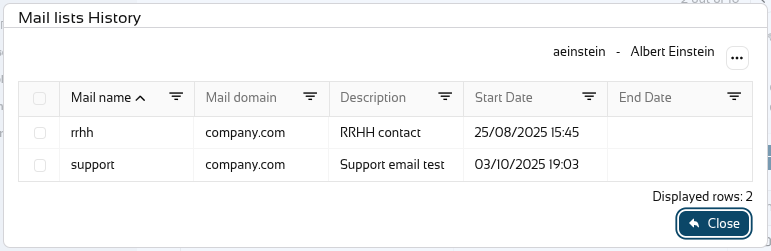](https://bookstack.soffid.com/uploads/images/gallery/2025-12/Ui4y96dvOaSuBQ0U-image.png)
In any of the four options, when selecting an old record, the ‘**Restore**’ button will appear and this object can be restored to the user.
Image
[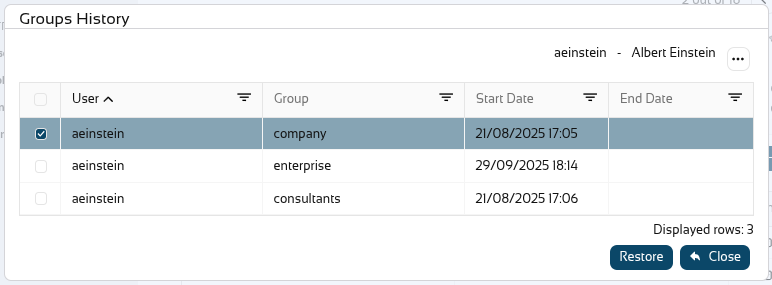](https://bookstack.soffid.com/uploads/images/gallery/2025-12/2sxT0ez2wGNPXlb6-image.png)
# Export settings and objects (admin addon)
## Description
Soffid has the functionality that allows you to **export configuration**, Soffid objects, and objects from target systems in a ZIP file.
Every object or configuration will be downloaded into the ZIP in a binary file. This ZIP file could be imported into another Soffid tenant to be used.
For more information, you can visit the [Import settings and objects](https://bookstack.soffid.com/books/soffid-4-reference-guide/page/import-settings-and-objects-admin-addon "Import settings and objects (admin addon)") page.
Once you open the **Export settings and objects**, you must select the configuration, objects, and target system objects you want to export. Then you only need to click the **Generate export file** button to download the ZIP that will contain all the previous information selected.
It is not allowed to export the basic configuration and configuration parameters of an agent for security reasons. You must create them manually and make sure you put the same names as in the source system if you are going to import accounts.
Displays all the attributes of the different blocks.
**Collapse all**
Hide all attributes of the different blocks.
**"Types of views"**
Change the view type: Classic view, Modern view, Compact design.
**Generate export file**
By clicking this button, Soffid will generate a ZIP file with the objects and configuration that you have selected and will download it to your computer.
## Others
#### Exporting and importing
You can **export all the components** you are using in your Soffid implementation, so you can use them as a backup in case something happens, or to generate a new test environment.
Once the zip file has been generated, you can import it on the [Import settings and objects](https://bookstack.soffid.com/books/soffid-4-reference-guide/page/import-settings-and-objects-admin-addon "Import settings and objects (admin addon)") page, but do not worry about the exported objects. On the import screen itself, once the zip file has been uploaded, the screen will allow you to choose the objects you want to update in your Soffid instance.
# Import settings and objects (admin addon)
## Description
Soffid has the functionality that allows you to **import configuration**, Soffid objects, and objects from target systems from a ZIP file.
This ZIP file must be generated by the export action from another Soffid tenant.
For more information, you can visit the [Export settings and objects](https://bookstack.soffid.com/books/soffid-4-reference-guide/page/export-settings-and-objects-admin-addon "Export settings and objects (admin addon)") page.
Once you **pick the file to import**, Soffid will display all the objects and configurations that you can load. You must select the proper objects and settings to import or enable the Load everything option. And finally, you must click the Proceed buttons to launch the import process. Once the process is finished, Soffid will display the result and allows you to download the log file.
It is not allowed to import the basic configuration and configuration parameters of an agent for security reasons. You must create them manually and make sure you put the same names as in the source system if you are going to import accounts.
Enable it if you want to load all the backup, disable it if you want to select the object to import
**Remove objects not present in the export file**
Remove the Soffid objects not present in the export file, enable it if you want the exact image of the source system, disable it if you want to keep the object that only exist in this Soffid instance
**Back**
Go back to "Pick a file"
**Proceed**
Allows you to start the import process.
#### Results page
**Restart**
Go back to the configuration page
**Download log**
Allows you to download a log with the details of the importation
This page gathers several mechanisms related to soffid's smart engine.
Administrator users will be able to configure the engine mechanism for synchronisation tasks; a task limit to prevent unsupervised mass changes; and the language of the scripts.
## Screen overview
[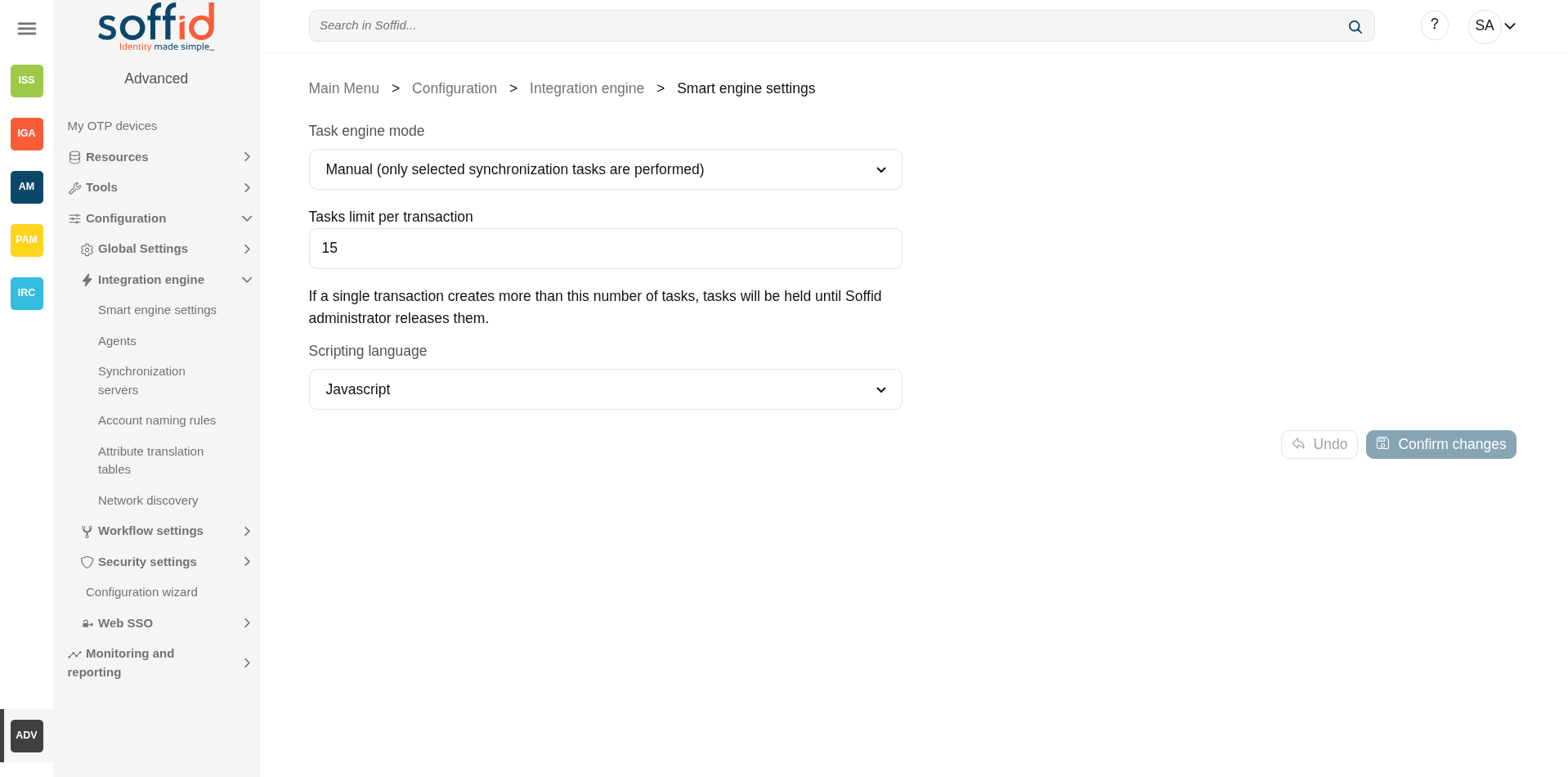](https://bookstack.soffid.com/uploads/images/gallery/2025-08/k2z6ZuD9Mv1ZYGLO-image.png)
## Related objects
- [Agents](https://bookstack.soffid.com/books/soffid-4-reference-guide/page/agents "Agents") : to test the synchronization of an object
- [Syncserver monitoring](https://bookstack.soffid.com/books/soffid-4-reference-guide/page/sync-server-monitoring "Sync server monitoring") : to check if a task is on hold
- [Users](https://bookstack.soffid.com/books/soffid-4-reference-guide/page/users "Users") : to propagate changes manually
- [Custom scripts](https://bookstack.soffid.com/books/soffid-4-reference-guide/page/custom-scripts-addon-admin "Custom scripts (addon admin)") : affected by the language script
- All pages with script type attributes.
## Standard attributes
1. **Task engine mode**: allows you to select the synchronization mode. There are three available options:
- **Read only**: it is the option by default in the Soffid installation. No task is synchronized to external systems.
- **Manual**: only selected synchronization tasks are performed. You could synchronize manually a user, check the "Propagates the changes" action on the Users page. Or also synchronize a whole target system, check the Agents page.
- **Automatic**: each change is automatically send to target systems.
2. **Tasks limit per transaction**: if a single transaction creates more than this number of tasks, tasks will be held until Soffid administrator releases them. The administrator could check them in the "Sync server monitoring" page, "Not scheduled tasks" button.
3. **Scripting language**: Soffid allows you to create scripts and you can choose the scripting language:
- Beanshell
- Javascript (by default)
- Autodetected
Soffid offers a set of sample scripts. You can find examples visiting [the Sample scripts page](https://bookstack.soffid.com/books/administration-scripting/page/custom-scripts-samples).
Additionally, in the initial configuration of the container, we can configure the SOFFID\_TRUSTED\_SCRIPTS environment variable to allow the use of insecure classes. You can find this information visiting [the Installing IAM Console page](https://bookstack.soffid.com/link/27#bkmrk-4.-installation).
## Actions
**Confirm changes**
Allows you to update the engine settings.
**Undo**
Allows you to cancel the changes made and not confirmed.
## Tips
### Task engine mode
Use the task engine mode for these scenarios:
**Read Only**: use this option after the Soffid installation until you have at least one target system configured to test the synchronization.
**Manual**: use this option for testing environments, or at the beginning of a live release.
**Automatic**: use this option for live environments, or also for the testing environments when the platform is mature.
Tasks limit per transaction:
Use a high task limit when you are comfortable with the configured processes of Soffid, for instance, 1000 or 10000 depending on the number of accounts of these external systems.
# Agents
## Description
Soffid agents are the tool that allows the connection between Soffid and the target systems. To establish the connection with target systems, Soffid provides a large number of connectors that will be able to set up into the Soffid console.
You could see the complete list of [Synchronization Server Connectors](https://bookstack.soffid.com/books/connectors "Connectors").
Soffid administrator has the chance to easily customize attribute mappings for some connectors addons, without having to code it using Java. Soffid provides a graphical interface to perform attribute mapping.
An agent will appear disabled when this agent won't have a server assigned. Bear in mind to select the “Disabled” flag on Server URL criteria when you will query if you want to search for disabled, but defined agents.
Soffid has an internal agent called **soffid** that does not need to be assigned to a sync server in order to function correctly.
## Screen overview
[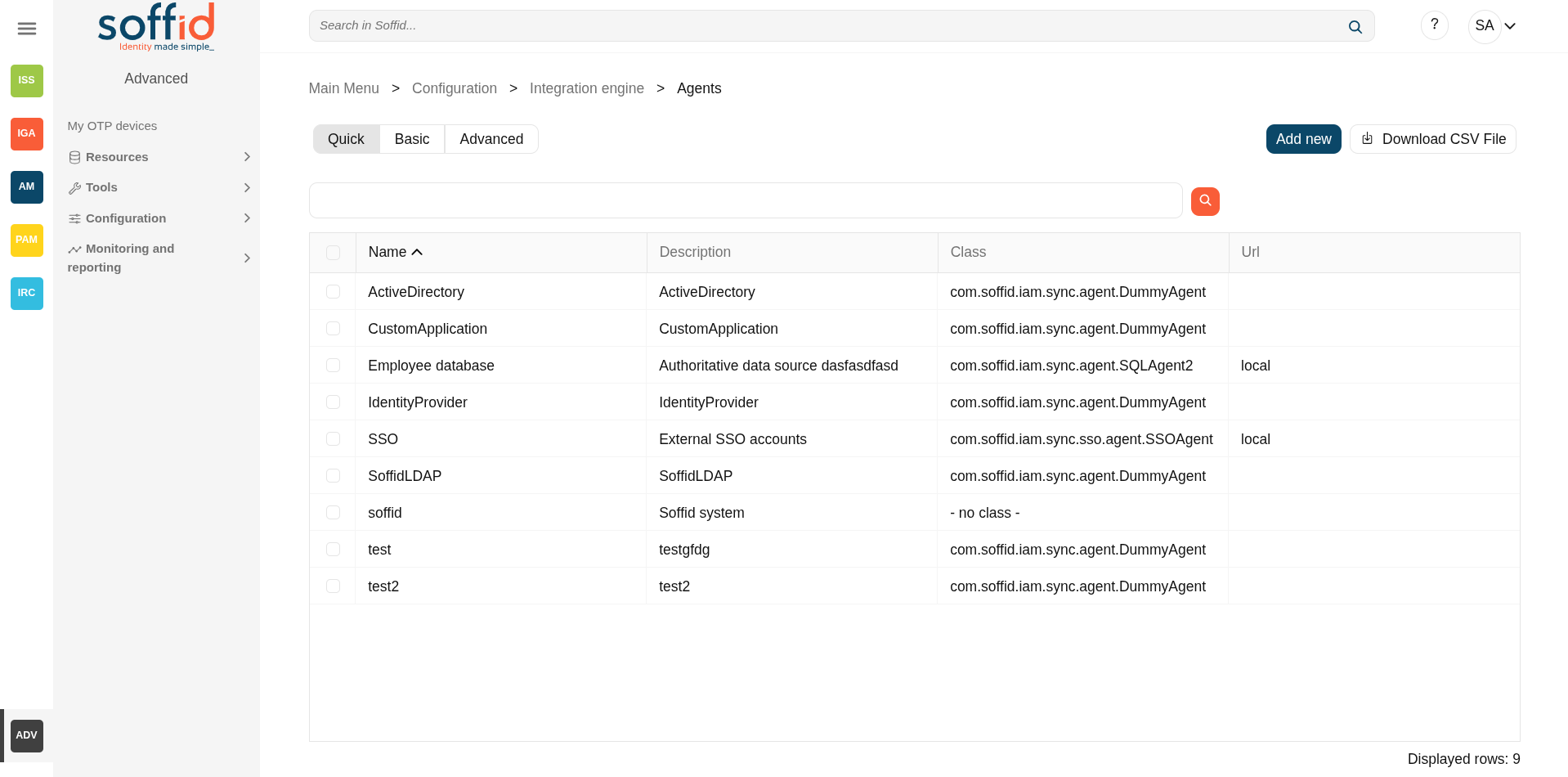](https://bookstack.soffid.com/uploads/images/gallery/2025-08/EYpnNDPPfPcjI3K6-image.png)
[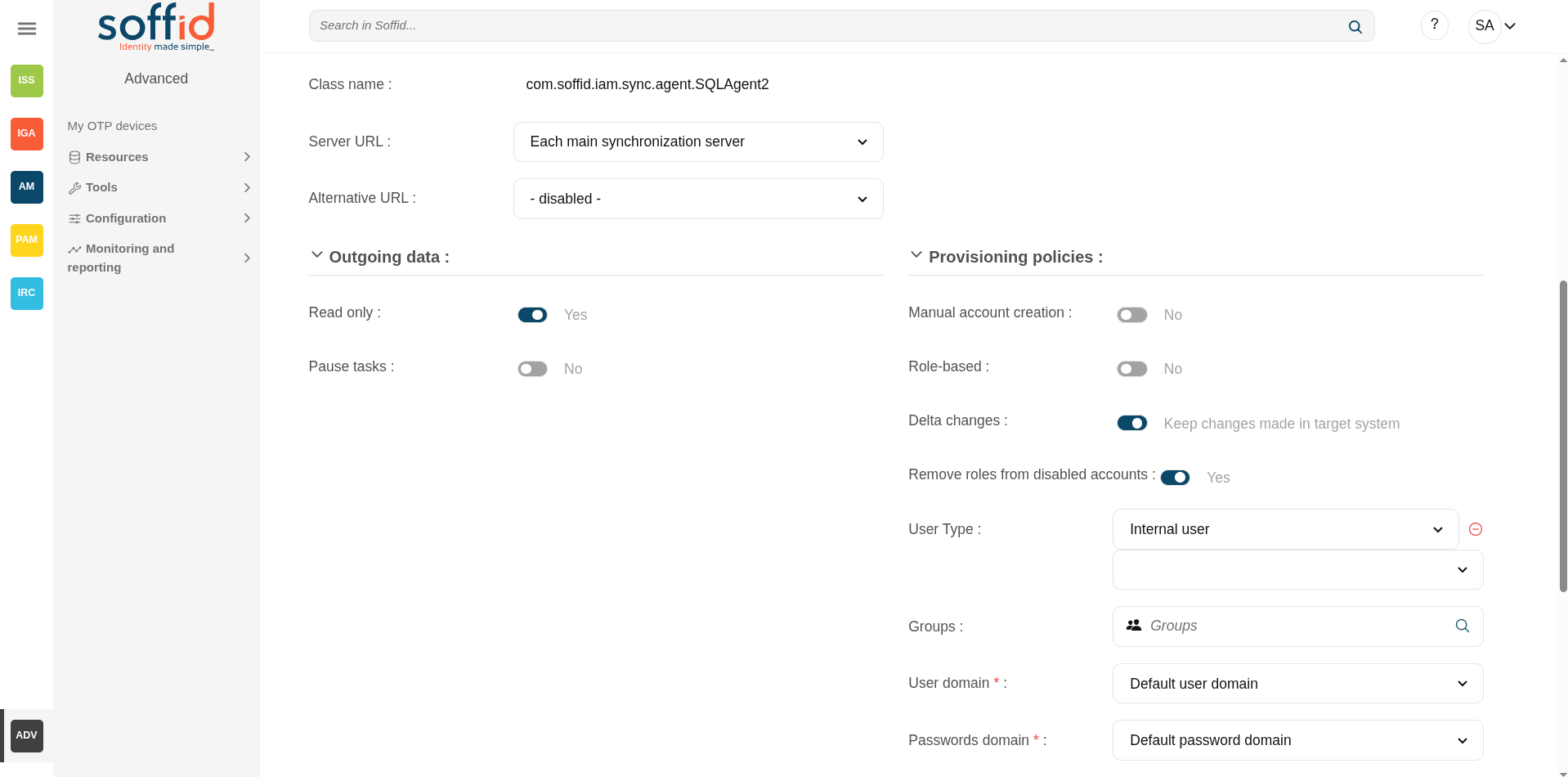](https://bookstack.soffid.com/uploads/images/gallery/2025-08/4MtnCNbXuRqM0meO-image.png)
## Related objects
- [Synchronization servers](https://bookstack.soffid.com/books/soffid-4-reference-guide/page/synchronization-servers "Synchronization servers") : the syncservers availables in the platform, could be primary or proxy type.
- [Smart engine settings](https://bookstack.soffid.com/books/soffid-4-reference-guide/page/smart-engine-settings "Smart engine settings") : to configure the engine mode of the synchronization tasks
- [User type](https://bookstack.soffid.com/books/soffid-4-reference-guide/page/user-types "User types") : to be used in the provisioning policies
- [Groups](https://bookstack.soffid.com/books/soffid-4-reference-guide/page/groups "Groups") : to be used in the provisioning policies
- [Account naming rules](https://bookstack.soffid.com/books/soffid-4-reference-guide/page/account-naming-rules "Account naming rules") : to configure the user domain
- [Password policies](https://bookstack.soffid.com/books/soffid-4-reference-guide/page/password-policies "Password policies") : to configure the password domain
## Standard attributes
### Basics tab
- **Task engine mode**: shows the current task engine configuration. For more information visit the [Smart engine settings](https://bookstack.soffid.com/books/soffid-4-reference-guide/page/smart-engine-settings "Smart engine settings") page.
- **Name:** agent's identifying name.
- **Description**: a brief description of the agent.
- **Usage**: identify whether the accounts created are to be used for IAM or PAM. The IAM and PAM tasks will be managed in separate queues.
- IAM: for standard provisioning
- PAM: for PAM provisioning
- The PAM accounts will be managed as a Shared thread internally.
- The PAM accounts will be shared accounts and never will be single user accounts.
- **Type**: Identify the connector type to use. Different implementations of the server plugins are included in the connectors installed into Soffid. Each type has a Java class bound, the name of the Java class implementing the connector is displayed next to the connector name.
- **Class name** : class name to identigy the agent type.
- **Server URL**: synchronization will be performed with the selected server. It is allowed to select two servers in cases high disponibility will be necessary. If you choose two servers, when one fails, the other will be used.
- If “*Each main synchronization server*” is selected, the agent will be run by every sync server.
- If *"-disabled-"* is selected, the agent will be disabled.
- If you select a single sync-server, the agent only will be run on that server.
- **Alternative** URL: segond syncserver to be used in case that the one in the server url will be not available.
- **Shared Thread**: if it is enabled, the same thread will be shared to several synchronization servers.
- **Dedicated Thread**: if "Shared thread" is disabled, it will be available the option to choose the number of threads to dedicate to the synchronization process.
- **Task timeout (ms)**: add a timeout to the synchronization server tasks (query, insert, update, delete, update password, etc). If you add a timeout, when the connection gets this timeout, the synchronization server will stop the request and add it to the queue for a new retry later.
- **Long task timeout (ms)**: add a timeout to the reconciliation server tasks (user, group, role, account, grants, etc). If you add a timeout, when the connection gets this timeout, the synchronization server will stop the request (no retry is added).
- **Read-only**: if it is checked (the selected option is Yes), no change will be applied to the managed system. Only read operations will be allowed.
- **Paused task**: if it is checked (the selected option is Yes), the system remains connected, but the tasks in the queue will be retained. It is very useful when conducting tests and ensuring that no tasks propagate, except the ones we are manually triggering (we pause, make the changes, and when everything is fine, we remove the pause). As a rule, you should pause when making configuration changes in production.
- **Manual account creation**:
- If you check NO, Soffid will create the new user accounts applying the defined policies.
- Check YES if you don't want Soffid to create automatically new accounts for the users.
- **Role-based**: when "Manual account creation" is not checked (option selected is No), it will show "Role-based". Check it if only users with any role on this agent should be created. When the identity or account loses its permissions, the account will be disabled. Uncheck to allow users with no role on it.
- **Delta changes:** to use delta changes in the synchronization, when it is enabled, Soffid perform a merge between the image of the target system and Soffid
- **Remove roles from disabled accounts**: when the agent detects a disabled account all the granted roles are removed in the target system
- **User Type**: when "Manual account creation" is not checked (option selected is No), it will show User Type. Only users of the selected types will be created. Any change made in this field involves all accounts to be recalculated. New ones will be added to the repository and managed systems. Some accounts will get disabled if the owner user no longer belongs to any authorized user type.
- **Groups**: when "Manual account creation" is not checked (option selected is No), it will show "Groups". Identify the business units that are allowed to have an account on this system.
- **User domain**: it is the rule used to determine how to generate account names. If the account name is the same as the user name (as is normally the case), the “Default user domain” should be used. The user domain values are defined on the [Account naming rules](https://bookstack.soffid.com/books/soffid-4-reference-guide/page/account-naming-rules "Account naming rules") page.
- **Password domain**: determines the password policies that will be used. If the "Default password domain" is selected, Soffid passwords will be shared with the managed systems. The user domain values are defined on the [Password policies](https://bookstack.soffid.com/books/soffid-4-reference-guide/page/password-policies "Password policies") page.
When uploading authoritative data for identities from a managed system, firstly, users will be created in Soffid as indicated in the attribute mapping, and secondly, accounts will be created for the managed systems only if the agent option "Manual account creation" is not checked and only for User Types indicate.
#### Connector parameters
The custom attributes depend on the used plugin.
Here you will find all the information needed about the available Soffid connectors to integrate external managed systems.
1. [AWS Connector](https://bookstack.soffid.com/books/soffid-3-reference-guide/page/aws-connector "AWS Connector")
2. [CSV Connector](https://bookstack.soffid.com/books/soffid-3-reference-guide/page/csv-connector "CSV Connector")
3. [Google Apps Connector](https://bookstack.soffid.com/books/soffid-3-reference-guide/page/google-apps-connector "Google Apps Connector")
4. [JSON REST Web Services Connector](https://bookstack.soffid.com/books/connectors/chapter/json-rest-web-services-connector "JSON REST Web Services Connector")
5. [LDAP Connector](https://bookstack.soffid.com/books/soffid-3-reference-guide/page/ldap-connector "LDAP Connector")
6. [Oracle Connector](https://bookstack.soffid.com/books/soffid-3-reference-guide/page/oracle-connector "Oracle Connector")
7. [Oracle EBS Connector](https://bookstack.soffid.com/books/soffid-3-reference-guide/page/oracle-ebs-connector "Oracle EBS Connector")
8. [SAP Connector](https://bookstack.soffid.com/books/soffid-3-reference-guide/page/sap-connector "SAP Connector")
9. [SCIM Connector](https://bookstack.soffid.com/books/soffid-3-reference-guide/page/scim-connector "SCIM Connector")
10. [Shell Connector](https://bookstack.soffid.com/books/soffid-3-reference-guide/page/shell-connector "Shell Connector")
11. [SQL Connector](https://bookstack.soffid.com/books/soffid-3-reference-guide/page/sql-connector "SQL Connector")
12. [Windows Connector](https://bookstack.soffid.com/books/soffid-3-reference-guide/page/windows-connector "Windows Connector")
13. [Zarafa Connector](https://bookstack.soffid.com/books/soffid-3-reference-guide/page/zarafa-connector "Zarafa Connector")
14. [SQL Server Connector](https://bookstack.soffid.com/books/connectors/page/sql-server-connector)
### Integration flows tab
Some connector addons have associated integration workflows. On the Integration flows tab you can view the integration flows related to the agent.
Image
[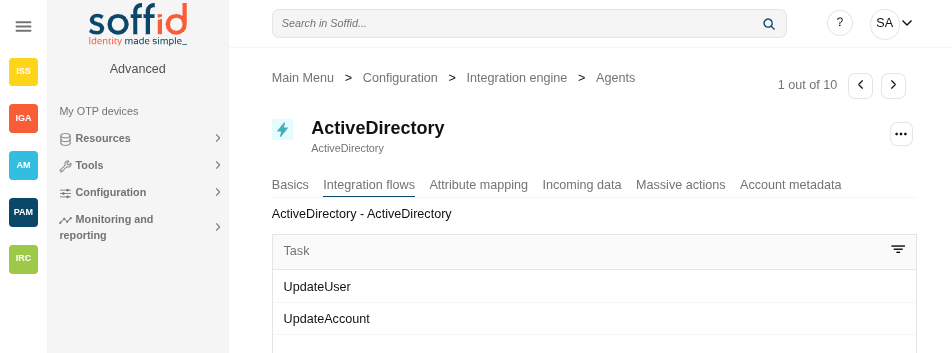](https://bookstack.soffid.com/uploads/images/gallery/2025-09/PmUuZfrc1rvOZ04D-image.png)
You also can view in detail the workflows.
Image
[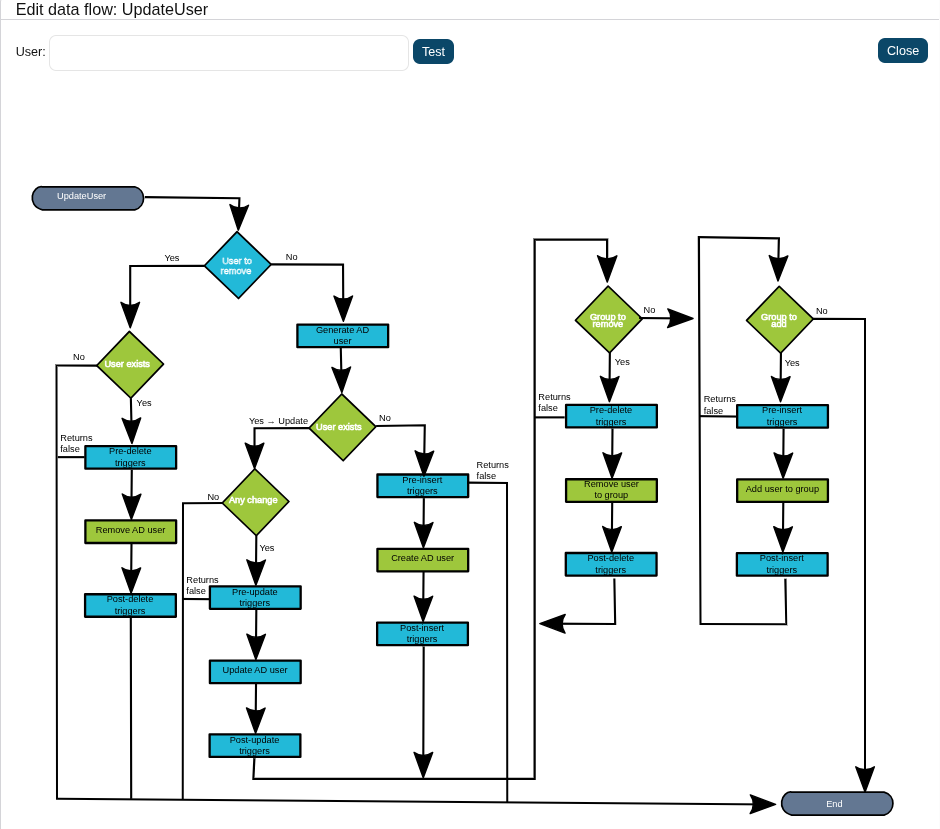](https://bookstack.soffid.com/uploads/images/gallery/2025-09/lfQaieZdauwVE9Nb-image.png)
Is it posible to If you select any node or component, you will be able to view its configuration and even perform some tests.
Image
[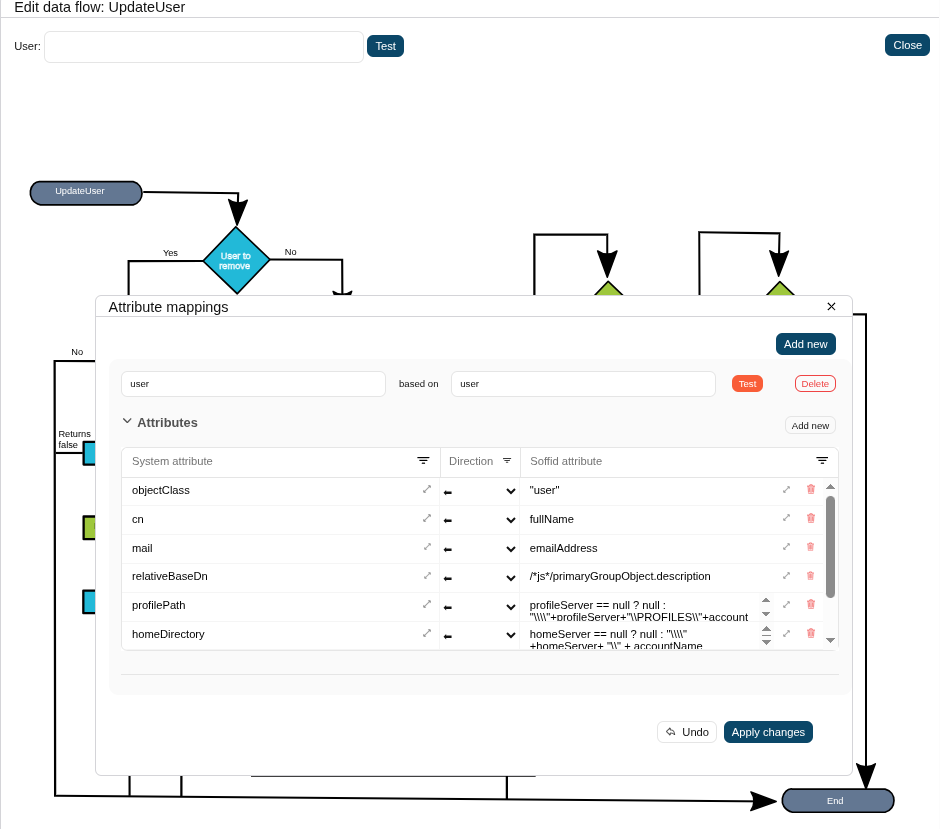](https://bookstack.soffid.com/uploads/images/gallery/2025-09/UBdcizfnRlnHlLyP-image.png)
All the configurations shown on this screen are part of the configuration made on the ‘Attribute mappings’ screen. On this screen, they are filtered according to your needs, and you can also modify them.
### Attribute mapping tab
The attribute mapping tab only appears when the agent allows such customization. Soffid administrators have the chance to easily customize attribute mappings without having to code them using Java. The administrator users can select system objects and the Soffid objects related, manage their attributes, and make either inbound and outbound attribute mappings.
There is an action that creates all the default mapping depending on the agent connector type. That option creates automatically system objects with their attributes and properties, you can select them by clicking on "three points" icon and then the **Create default mapping** option. Once created the default mapping, those can be customized as required.
#### Objects
On this screen, you must configure the objects to be retrieved or synchronised. The objects to be configured depend on each agent.
For each object, you must configure its properties, methods, attributes, or triggers. Their configuration also depends on each agent.
The list of possible objects is as follows, with the most important ones indicated in bold
- **user**
- **account**
- **role**
- **grant**
- **group**
- grantedRole
- allGrantedRoles
- grantedGroup
- allGrantedGroup
- authChange
- mailList
- custom
- host
- network
#### Properties
Some agents require to configure some custom attributes in their properties section.
These properties are specific for each type of connector. You could see all these properties by visiting each connector type page.
#### Methods
This option is only available on some types of connectors. It is used to define methods that can be called using the defined properties.
#### Attributes
Each object mapping defines an agent object name and one bound Soffid object type.
The left hand side attributes are managed system attributes, so they are agent dependent that is being configured. The right side attributes are Soffid attributes and must be selected from an existing list.
It is allowed to use script expressions in the source, but they can only be used in a one-way mapping.
##### System attributes
A configuration agent must define object types that can be created on it. Each object mapping defines an agent object name and needs bound Soffid object type.
At this column, the system's attribute name will be displayed.
When evaluating any expression, either the system or soffid attributes are available as script variables. Moreover, the following variables are available:
**Variable**
**Content**
serverService
Server API that enables an easy object query \[ Search the link "Public API Module" or "Data & Service model" \]
serviceLocator
Spring Singleton that gets access to any published service bean. Only available on the main syncserver
remoteServiceLocator
Singleton that gets access to any remotely published service bean.
THIS
HashMap that contains any soffid or system managed attribute. It can be used when the attribute name is not a valid java identifier.
dispatcherService
Service that allows the script to get or update information in the target system.
Script Example 1
[](https://bookstack.soffid.com/uploads/images/gallery/2025-09/KlAZiphuuPDINASs-image.png)
```javascript
/*js*/
var name = new javax.naming.ldap.LdapName(distinguishedName);
var rdns = name.rdns;
var g = null;
var rn = null;
for (var i = rdns.length - 2; i > 0; i--) {
if (rdns[i].type == "DC") break;
if (g == null) {g = "", rn = ""}
else {g = g + "/"; rn = "," + rn}
g += rdns[i].value.toLowerCase();
rn = rdns[i].type+"="+rdns[i].value;
}
var gi = serviceLocator.groupService.findGroupByGroupName(g);
if (gi == null) {
var parent = ! rn.contains("/") ?
"world":
rn.substring(0, rn.lastIndexOf("/"));
gi = new com.soffid.iam.api.Group();
gi.name = g;
gi.description = rn;
gi.parentGroup = parent;
serviceLocator.groupService.create(gi);
}
return g;
```
##### Directions
At the center column, an arrow will show the direction of the information flows.
When the information flows from the system (left) to Soffid (right), the left column name can be replaced by a script expression. This expression will be evaluated on the system object prior to uploading it to Soffid.
When the information flows from Soffid (right) to the managed system (left), the right column can contain a script expression that will be evaluated prior to provisioning the user.
Here are some examples:
**System attribute**
**Direction**
**Soffid attribute**
**Meaning**
cn
<=>
accountName
The account name is the CN attribute of the LDAP
departmentNumber
<=
```javascript
for (group: secondaryGroups) {
if (group.get("name").equals(primaryGroup)) {
return group.get("description");
}
}
return null;
```
Assigns the group description of the primary group to the departmentNumber attribute
baseDN
=>
"ou="+primaryGroup+",dc=soffid,dc=org"
Assigns the base dn of the user to the proper organization unit that is below dc=soffd,dc=org.
##### Soffid attributes
The Soffid attributes that can be used can be found at the following links.
- [User Object](https://bookstack.soffid.com/link/75#bkmrk-user-object)
- [Account Object](https://bookstack.soffid.com/link/75#bkmrk-account-object)
- [Group Object](https://bookstack.soffid.com/link/75#bkmrk-group-object)
- [Role Object](https://bookstack.soffid.com/link/75#bkmrk-role-object)
- [Grant Object](https://bookstack.soffid.com/link/75#bkmrk-grant-object)
- [Maillist Object](https://bookstack.soffid.com/link/75#bkmrk-maillist-object)
- [Membership Object](https://bookstack.soffid.com/link/75#bkmrk-membership-object)
When evaluating any expression, either the system or soffid attributes are available as script variables. Moreover, the following variables are available:
**Variable**
**Content**
serverService
Server API that enables an easy object query \[ Search the link "Public API Module" or "Data & Service model" \]
serviceLocator
Spring Singleton that gets access to any published service bean. Only available on the main syncserver
remoteServiceLocator
Singleton that gets access to any remotely published service bean.
THIS
HashMap that contains any soffid or system managed attribute. It can be used when the attribute name is not a valid java identifier.
dispatcherService
Service that allows the script to get or update information in the target system.
Script Example 1
[](https://bookstack.soffid.com/uploads/images/gallery/2025-09/sfakqshKNIluSggL-image.png)
```javascript
firstName + " " + lastName
```
Script Example 2
[](https://bookstack.soffid.com/uploads/images/gallery/2025-09/PgjXqYnuEGyJz3ib-image.png)
```javascript
attributes = serviceLocator.getUserService().findUserAttributes(userName);
return attributes.get("position");
```
##### Test
With the definition of an object, you can check the system attributes defined, in both the final system and in Soffid.
1. First of all, you need to click the Test button, then Soffid will display a text field and some buttons to perform new actions.
2. Secondly, the text field must be filled in with the appropriate data. It can be a user, an account, a group or another system object. It depends on the system object you are checking.
3. Then, you can choose the action to perform.
**Text expression**: allows you to test a system object. Soffid will display a new column with the data already mapped that will be sent during synchronisation to the final system. This data will only be displayed when the address is <= or <=>.
**Synchronize now**: this allows you to synchronize the data object to the target system. This action would be the same as that performed automatically by the task engine; in this case, the agent executes the entire process.
**Fetch system raw data**: brings the data of an object from a target system. The data is displayed in a pop-up window. The data retrieved may depend on the agent's programming or the configuration settings in the properties.
**Fetch Soffid object**: brings the data of a specific system object with processed data to update into Soffid. As with the previous option, it retrieves data from an object in an end system, but then applies the mappings configured in Soffid (with direction => or <=>), and finally displays the attributes and their exact values that would be saved in Soffid.
#### Triggers
It is allowed to define BeanShell or JavaScript scripts that will be triggered when data is loaded into the target system (**outgoing triggers**).
**The trigger result will be a boolean value**, true to continue or false to stop.
A configuration agent can configure triggers related to the operation to be performed. There are different trigger type, that determines the specific moment at which the script will be triggered.
Triggers can be used to validate or perform a specific action just before performing an operation or just after performing an operation on target objects.
To access Soffid data, you can use **source{"attributeName"}**, which recovers the value of the attributeName. That object will be Soffid format.
Also, you can use **newObject{"attributeName"}** to create the new value or **oldObject{"attributeName"}** to get the old value of the target system, those objects will be target system format.
The available triggers that can be configured are as follows:
**Trigger**
preInsert
It will be triggered just before the insert action. It will be used to validate or prevent the insert action, and also to prepare objects or actions when a new object will be inserted
preUpdate
It will be triggered just before the update action. It will be used to validate or prevent update an object.
preDelete
It will be triggered just before the delete action. It will be used to validate or prevent delete an object.
postInsert
It will be triggered just after the insert action. It will be used to trigger or prevent an action.
postUpdate
It will be triggered just after the update action. It will be used to trigger or prevent an action.
postDelete
It will be triggered just after the delete action. It will be used to trigger or prevent an action.
preSetPassword
It will be triggered just after the set password action. It will be used to trigger or prevent an action.
postSetPassword
It will be triggered just after the set password action. It will be used to trigger or prevent an action.
##### Example 1
Get the attribute company option 1:
```Java
company = source{"attributes"}{"company"};
```
Get the attribute company option 2
```Java
userName = source{"userName"};
attributes = serviceLocator.getUserService().findUserAttributes(userName);
company = attributes.get("company");
```
##### Example 2
```Java
role = serviceLocator.getAplicacioService ().findRoleByNameAndSystem ( "Domain Users", "AcitveDirectory");
rg = new java.util.HashMap();
rg.put ("grantedRoleId", role.getId ());
list = new java.util.LinkedList ();
list.add (rg);
newObject{"ownedRoles"} = list;
return newObject{"name"} != null
```
##### Example 3
```Java
if (oldObject.get("userPrincipalName") != null) {
newObject.remove("userPrincipalName");
newObject.put("groupType", oldObject{"groupType"});
}
```
For more examples, you can visit the [Incoming Triggers examples page](https://bookstack.soffid.com/books/connectors/page/incoming-triggers-examples).
### Incoming data tab
On the Incoming data tab, it is allowed to set up a specific configuration for the agent and define BeanShell or JavaScript scripts that will be triggered when data is loaded into Soffid (**incoming triggers**).
#### Incoming data
- **Trust passwords**: check if you can trust it to propagate their passwords to Soffid. Trusted password agents differ from the non-trusted ones in:
- Temporary passwords generated from the console only propagate to agents that have trusted passwords checked. In the other case, the agents only receive definitive passwords.
- When a password has reached its expiry date, it will automatically be disabled on agents where the trusted password is not checked, so the user can no longer access it.
- When the managed system detects a change in the user request password, the password will be propagated to Soffid only if the agent associated trusted password is checked.
- If you want to forward the authentication requests to trusted target systems, you must enable the Trust passwords option and the proper feature on the [Authentication page](https://bookstack.soffid.com/books/soffid-3-reference-guide/page/authentication "Authentication").
- **Authoritative identity source**: check if the agent will be used as the source for users' information. It is usually checked for the first load of users into Soffid, and then it is unchecked, being Soffid that manages users. Optionally, you can select a custom workflow to process incoming changes.
- **Full reconciliation**: switch off to enable incremental load process and disable Soffid object removal.
- **Propagate changes**: switch off to prevent sync-server to create synchronization tasks after loading incoming changes.
#### Load triggers
To add a new trigger, it is mandatory first of all, to select a Soffid object on which the action will be performed. Then to select the trigger, that determines the moment at which the script will be triggered. Finally, define the script that will be executed.
The available objects are the following:
- User
- Account
- Group
- Role
- Granted role
Triggers can be used to validate or perform a specific action just before performing an operation or just after performing an operation into Soffid objects. **The trigger result will be a boolean valu**e, true to continue or false to stop.
In a Load Trigger, it is not possible to access to mapping definitions configured on the attribute mapping tab. It will be necessary to use **newObject{"attributeName"}** to get the new value, or **oldObject{"attributeName"}** to get the old value. Those objects will be in Soffid format.
For more info about the Soffid format, you can visit the [Soffid Objects](https://bookstack.soffid.com/books/soffid-4-reference-guide/page/soffid-objects-for-agent-mappings "Soffid Objects (for agent mappings)") page.
**Trigger**
preInsert
It will be triggered just before the insert action. It will be used to validate or prevent the insert action.
preUpdate
It will be triggered just before the update action. It will be used to validate or prevent update an object.
preDelete
It will be triggered just before the delete action. It will be used to validate or prevent delete an object.
postInsert
It will be triggered just after the insert action. It will be used to trigger or prevent an action.
postUpdate
It will be triggered just after the update action. It will be used to trigger or prevent an action.
postDelete
It will be triggered just after the delete action. It will be used to trigger or prevent an action.
##### Example 1
```Java
userName = newObject {"userName"};
system = "ActiveDirectory";
accounts = serviceLocator.getAccountService()
.findAccountByJsonQuery("(system eq \"" + system + "\") AND name eq \"" + userName + "\" AND (type eq \"I\")");
.....
user = serviceLocator.getUserService().findUserByUserName(userName);
.......
```
##### Example 2
```Java
...........
if (isFound) {
newObject{"id-indicator"} = "1";
} else {
if (contFalse > 0) {
newObject{"id-indicator"} = "0";
} else if (contNull > 0) {
newObject{"id-indicator"} = null;
}
}
```
For more examples, you can visit the [Outgoing Triggers examples page](https://bookstack.soffid.com/books/connectors/page/incoming-triggers-examples).
### Massive actions
Massive Actions refer to bulk or large-scale operations that can be performed across multiple identities, accounts, or resources managed by an agent within the Soffid platform. Agents in Soffid are components responsible for interacting with external systems (like directories, databases, or applications) to manage and synchronize identity-related data. Massive actions allow administrators to execute operations on a large number of items simultaneously, making it easier to manage and maintain the system efficiently.
#### Provisioning all users on to managed systems
One of the main features of identity and access management (IAM) is automated user provisioning. User provisioning is the process that ensures the users are created, with proper permissions, updated, disabled, or deleted on to managed systems.
All managed systems must have an agent configuration, which will determine the way to perform the provisioning.
Soffid shows information about the last time that the option was run and a report with the details. You can access the report by clicking the verification icon (✓).
#### Provisioning groups to agent
This proces process that ensures the groups are created, updated, disabled, or deleted on to managed systems.
Soffid shows information about the last time that the option was run and a report with the details. You can access the report by clicking the verification icon (✓).
#### Provisioning roles to agent
This proces process that ensures the roles are created, updated, disabled, or deleted on to managed systems.
Soffid shows information about the last time that the option was run and a report with the details. You can access the report by clicking the verification icon (✓).
#### Propagate groups to agent
This option allows pushing to the managed system all the defined groups in Soffid.
Soffid shows information about the last time that option was run and a report with the details. You can access the report by clicking the verification icon (✓).
#### Reconcile (load target system objects)
The main purpose of reconciling process is to provide a mechanism to ensure that all users are aligned on the specific roles and responsibilities. Reconcile process discovers new, changed, deleted, or orphaned accounts to determine user access privileges.
Not every system connector has the capabilities needed to execute the reconcile process.
When "Read only" property, in Basic parameters, is checked (selected value is Yes), the reconcile process only considers unmanaged accounts.
Soffid shows information about the last time that the option was run and a report with the details. You can access the report by clicking the verification icon (✓).
#### Generate target system potential impact
That option allows you to generate a report with all the potential changes that would be performed on the managed system with the current agent configuration
If that option was performed previously, Soffid will show information about the last time that the option was run and the report with the potential impact. You can access the report by clicking the verification icon (✓).
#### Load authoritative data for identities and groups
Identities use to live on authoritative identity sources and they do in Soffid as well. Each identity may have any number of accounts on each managed system.
When "Authoritative identity source" is checked (option selected is Yes) Soffid will show the option that allows the load authoritative data for identities and groups.
That option performs the operations to **load data of groups and data of identities** from the managed system into Soffid, following the rules configured in the agent.
Soffid shows information about the last time that the option was run and a report with the details. You can access to the report by clicking the verification icon (✓).
Also, Soffid creates a parameter on the [Soffid parameters](https://bookstack.soffid.com/books/soffid-3-reference-guide/page/soffid-parameters "Soffid parameters") page, with information about the version of the data. If you need to perform the load authoritative action, it will be mandatory to delete this parameter before perform the action.
#### Apply system policies
This task retrieves all agent accounts and checks that they have the correct status according to the rules configured in the agent itself.
### Account metadata tab
Agents allow you to create additional data on the "Account metadata" tab, to customize the accounts created for that agent. This additional information will be loaded with the agent's information, or calculated as defined in the mappings. The additional data can be used in both mappings and triggers.
To get the Account Metadata value, or to put value, you need to use **accountAttributes{"ATT\_NAME"}**
#### Basics attributes
- **Code**: short name used by scripts and connectors to access the underlying information. It is suggested to use short names without blanks or special characters to make it easier to use.
- **Label**: text displayed just beside the attribute value. It is advised to use short descriptions in order to keep the screen cleaner.
- **Data type**: The attributes can have different data types
- **User hint**: user hint displayed in the screens
- **Description**: description for the
#### Metadata attributes
- **Required**: If the attribute is required, it must have a value in order to save; otherwise, an error message will be displayed.
- **Prevent duplicated values**: mark this field as a unique key for the object type. There is no chance of two objects with the same attribute value. Soffid smart engine will avoid the creation of duplicated objects.
- **Multiple values**: some attributes can contain multiple values for the same object. For instance, an attribute containing the languages a user can speak can be multi-valued, as a user can speak multiple languages.
- **Maximum number of rows to display**: when an attribute is multivalued, the screen size can grow a lot. To prevent such a big form, the system will only display a maximum number of values, and a scroll bar will appear to browse through the attribute values.
- **Size**: primarily for string attributes, specify the maximum length in characters of the attribute value.
- **Values**: primarily for string attributes, you can specify the allowed values for the attribute. Then, the text box that the user has to fill in the data will be replaced by a drop-down list.
#### Dynamic attributes
- **Visibility expression**: write an optional BeanShell expression to check if the field should be displayed or not. The expression should return true or false. The following variables are exposed to the expression:
- ownerObject: current object owning the attribute.
- value: current attribute value.
- requentContext: tip about the screen using the attribute.
- inputField: the ZK input object (ZK Framework).
- inputFields: a map to get access to any other ZK input object (ZK Framework).
- serviceLocator: locator to use any Soffid engine microservice.
- **Validation expression**: write an optional BeanShell expression to check if the field value is acceptable or not. The expression should return true if the value is acceptable. If the expression returns false or any other object, a warning message will be displayed. When the expression returns a string value, the return value will be considered the warning message to present to the end-user. The following variables are exposed to the expression:
- ownerObject: current object owning the attribute
- value: current value to evaluate.
- requentContext: tip about the screen using the attribute
- inputField: the ZK input object (ZK Framework).
- inputFields: a map to get access to any other ZK input object (ZK Framework).
- serviceLocator: locator to use any Soffid engine microservice.
- **onLoad trigger**: write an optional BeanShell expression that will be executed just after preparing the user interface. The script can modify in any way the inputField object before it is displayed, but cannot modify other input fields. The following variables are exposed to the expression:
- - ownerObject: current object owning the attribute
- value: current value to evaluate.
- requentContext: tip about the screen using the attribute
- inputField: the ZK input object (ZK Framework).
- inputFields: a map to get access to any other ZK input object (ZK Framework).
- serviceLocator: locator to use any Soffid engine microservice.
- **onChange trigger**: write an optional BeanShell expression that will be executed just after the user has changed the object value. The script can modify in any way the inputField object or any other input fields. The following variables are exposed to the expression:
- - - ownerObject: current object owning the attribute.
- value: current value to evaluate.
- requentContext: tip about the screen using the attribute.
- inputField: the ZK input object (ZK Framework).
- inputFields: a map to get access to any other ZK input object (ZK Framework).
- serviceLocator: locator to use any Soffid engine microservice.
##### Example 1
Into the attribute mappings save the value of account metadata:
```
varX <= accountAttributes{"att_name"}
```
##### Example 2
Get the value from the attribute account metadata to use it into a trigger
```Java
strValue = source.get("attributes").get("att_name");
if (strValue != null) {
.....
.....
} else {
.....
.....
}
```
## Actions
#### Agents query actions
**"Query"**
Allows you to query roles through different search systems, [Basic and Advanced](https://bookstack.soffid.com/books/soffid-3-reference-guide/page/search-types "Search Types").
**Add new**
Allows you to add a new agent to the system.
To add a new role it will be mandatory to fill in the required fields
**Delete agent**
Allows you to remove one or more agents by selecting one or more records and next clicking this button.
To perform that action, Soffid will ask you for confirmation, you could confirm or cancel the operation.
**Download CSV file**
Allows you to download a CSV file with the basic information of all agents.
#### Agent detail actions
**Apply changes (disk button)**
Allows you to create a new agent or update an existing agent. To save the data it will be mandatory to fill in the required fields
**Delete agent**
Allows you to delete the agent.
To perform that action, Soffid will ask you for confirmation, you could confirm or cancel the operation.
**Import**
Allows you to upload an XML file with the attribute mapping data. This option deletes previous attribute mappings and creates new attribute mapping.
**Export**
Allows you to export an XML file with attribute mappings.
**Create default mapping**
Allows you to create automatically default mappings for the specific Type selected.
**Test**
Check if there is a connection to the target system.
**Preview changes**
When there are some changes to be applied (when the configuration agent is updated), you can check them with this option. If you click this button, Soffid will display a new window with the list of users to be updated.
**Apply now**
When the configuration agent is updated, this button will be displayed. If you click this option the update action will be performed. The progress bar will be displayed during the execution of the process.
This action is performed asynchronously.
**Expand all**
Displays all the attributes of the different blocks.
**Collapse all**
Hide all attributes of the different blocks.
**"Types of views"**
Change the view type: Classic view, Modern view, Compact design.
**Undo**
Allows you to quit without applying any changes made.
**Apply changes**
Allows you to create a new agent or update an existing agent. To save the data it will be mandatory to fill in the required fields. After that the screen will display the agents list.
##### Integration flows
**Open flow**
Opens a window with the workflow.
**Test**
Allows you to test the workflow.
##### Attribute mapping
**Apply changes (disk button)**
Allows you to update the agent with the changes made on Attribute mappings.
**Add new (object)**
Allows you to add a new system object based on a Soffid object. Once you click the button, Soffid adds new fields to the form to add new attributes, methods, properties, and/or triggers depending on the agent type.
It is mandatory to apply changes by clicking the diskette button to update the agent.
**Test**
Allows the test options buttons: text expression, synchronize now, fetch system raw data, fetch Soffid object
**Expand all**
Displays all the attributes of the different blocks.
**Collapse all**
Hide all attributes of the different blocks.
**Delete (object)**
Allows you to delete a system object.
It is mandatory to apply changes by clicking the diskette button to update the agent.
**Test expression**
Allows you to test a system object. When you click that option, Soffid will show you new fields and operations to test the system attribute config.
**Synchronize now**
Allows you to synchronize a specific system object to the target system.
**Fetch system raw data**
Brings the data of a specific system object from a target system.
**Fetch Soffid object**
Brings the data of a specific system object with processed data to update into Soffid
**Add new (property)**
Allows you to add properties to a specific system object. Once you click the button, Soffid adds new fields to the form to add the property.
It is mandatory to apply changes by clicking the diskette button to update the agent.
**Delete icon (property)**
Allows you to delete properties from a specific system object.
It is mandatory to apply changes by clicking the diskette button to update the agent.
**Add new (system attribute)**
Allows you to add attribute mappings to a specific system object. Once you click the button, Soffid adds new fields to the form to add the attribute.
It is mandatory to apply changes by clicking the diskette button to update the agent.
**Delete icon (system attribute)**
Allows you to delete attribute mappings of a specific system object.
It is mandatory to apply changes by clicking the diskette button to update the agent.
**Add new (trigger)**
Allows you to add a trigger to a specific system object that will be executed when data is loaded into a target system. You need to click the button with the add symbol (+) located at the end of the row of Trigger. Once you click the button, Soffid adds new fields to the form to add the trigger.
It is mandatory to apply changes by clicking the diskette button to update the agent.
**Delete icon (trigger)**
Allows you to delete a trigger of a specific system object. You need to click the button with the subtraction symbol (-) located at the end of the row Trigger which you want to delete.
It is mandatory to apply changes by clicking the diskette button to update the agent.
##### Incoming data
**Apply changes (disk button)**
Allows you to update the Load trigger data with the changes made on the Load Trigger
**Add new (trigger)**
Allows you to add a trigger that will be executed when data is loaded into Soffid. Once you click the button, Soffid adds new fields to the form to add the trigger. Then you need to select the Object and the type of trigger and write the customized script.
Finally, you need to apply changes to update the agent.
**Delete icon (trigger)**
Allows you to delete a trigger.
It is mandatory to apply changes by clicking the diskette button to update the agent.
##### Massive actions
**Configuration icon**
Open the task into the Scheduled tasks page
**Start**
To start the task manually from this page, you can query the result here or in the Scheduled tasks page
##### Account metadata
**Apply changes (disk button)**
Allows you to update the agent with the changes made on metadata.
**Add new**
Allows you to add account metadata. Once you click the button, Soffid shows you an empty form to fill in with the new account metadata.
Finally, you need to apply changes.
**Delete**
Allows you to delete one account metadata. First, you need to click on the account metadata which you want to delete. Then Soffid shows a form with the detailed account metadata. On the hamburger icon of that form, you can find the delete action.
In this case, Soffid will not ask you for confirmation to delete.
## More information
### Scripting
In the agent's configuration, it may be possible to use scripting to include logic in the attribute mappings and in the trigger scripts.
In the attribute mapping, if you use a script on one side, it will be mandatory to a single direction to the other side:
- System attribute <= script
- script => Soffid attribute
Below, an easy script to send a full name to the system:
```shell
system attribute <= return firstName + lastName;
```
Below, a more complex script to create the main domain if it doesn't exist in Soffid:
```shell
String mailDomain = null;
if (email != void && email != null && email.contains("@")) {
String[] mailTokens = email.split("@");
mailDomain = mailTokens[1];
}
com.soffid.iam.service.MailListsService service = com.soffid.iam.ServiceLocator.instance().getMailListsService();
com.soffid.iam.api.MailDomain domain = service.findMailDomainByName(mailDomain);
if (domain==null) {
domain = new com.soffid.iam.api.MailDomain();
domain.setCode(mailDomain);
domain.setDescription(mailDomain);
domain.setObsolete(new Boolean(false));
domain = service.create(domain);
}
return mailDomain;
=> mailDomain
```
You could find a set of sample scripts: [Sample scripts](https://bookstack.soffid.com/books/soffid-4-reference-guide/page/sample-scripts "Sample scripts")
You could find a link with the SCIM Query Language used in some methods as findUserByJsonQuery("query"). You can visit the [SCIM chapter](https://bookstack.soffid.com/books/scim "SCIM").
Below you could find a set of custom utility classes: [Utility classes](https://bookstack.soffid.com/books/soffid-4-reference-guide/page/utility-classes "Utility classes")
### Password synchronization
The passwords a user has on an agent will be synchronized with any other "single user" account the user has on this agent. Shared accounts will never get their password synchronized.
Password in an agent will be also synchronized with any other account the user has on other agents that are sharing the same password domain.
The password change can be produced by an operator using the Soffid console, the user itself using the Soffid Self Service portal, or a timed automatic task. Furthermore, some managed systems can forward their password to Soffid in order to get them synchronized. In order to accept these password changes coming from managed systems, the trusted passwords box must be checked for the source agent.
Mind that this is the flow for normal user passwords. Temporary passwords generated by the Soffid console will only be sent to agents marked as trusted. Agents not checked as trusted will have a random new password instead. Later, when the user changes the password on Soffid or any trusted system, the new password will be notified to Soffid by the managed system, and every agent on the same password domain will actually get the new password.
### Agents account management
The agent configuration sets the way accounts are created and disabled.
Whenever a user is modified, the following rules will be applied to check if the user should have or not an account on this agent:
1. The user type is checked against valid user types.
2. If there is a business unit or group bound to the agent, the user membership will be assessed.
3. If the role based box is checked, the system will verify if the user has any role or entitlement assigned to this agent.
If the user does not apply for any of the conditions, every account the user has at this agent will be changed to Disabled status.
If the user verifies every one of the conditions, the user can have an account on this agent. Every account the user has at this agent will be changed to Enabled status.
Unless the "Manual account creation" is checked, if the user can have an account on this agent, but it has no one, the account creation method will be invoked. To create it, Soffid will search for the user domain bound to this agent and will follow its configuration. If the user domain is configured with a script, this script will be executed and the result value will be accepted as the new account name. Mind that if the script returns a null value, no account can be created.
If the returning value from the script clashes with an existing account, the existing account will remain unchanged, unless the existing account is marked as an unmanaged account. In such a case, the account will be changed from an unmanaged state to a single user.
### Monitoring
After the agent configuration you could check on the [Sync server monitoring](https://bookstack.soffid.com/books/soffid-4-reference-guide/page/sync-server-monitoring "Sync server monitoring") page if the service is running in the Synchronization Server.
On the same screen you could check is the agent has pending tasks.
### Authoritative task
If you are checked "Authorized identity source", an automatic task to load identities from the managed system to Soffid is available.
And you will something like "<AGENT\_NAME>: Load authoritative data for identities and groups".
[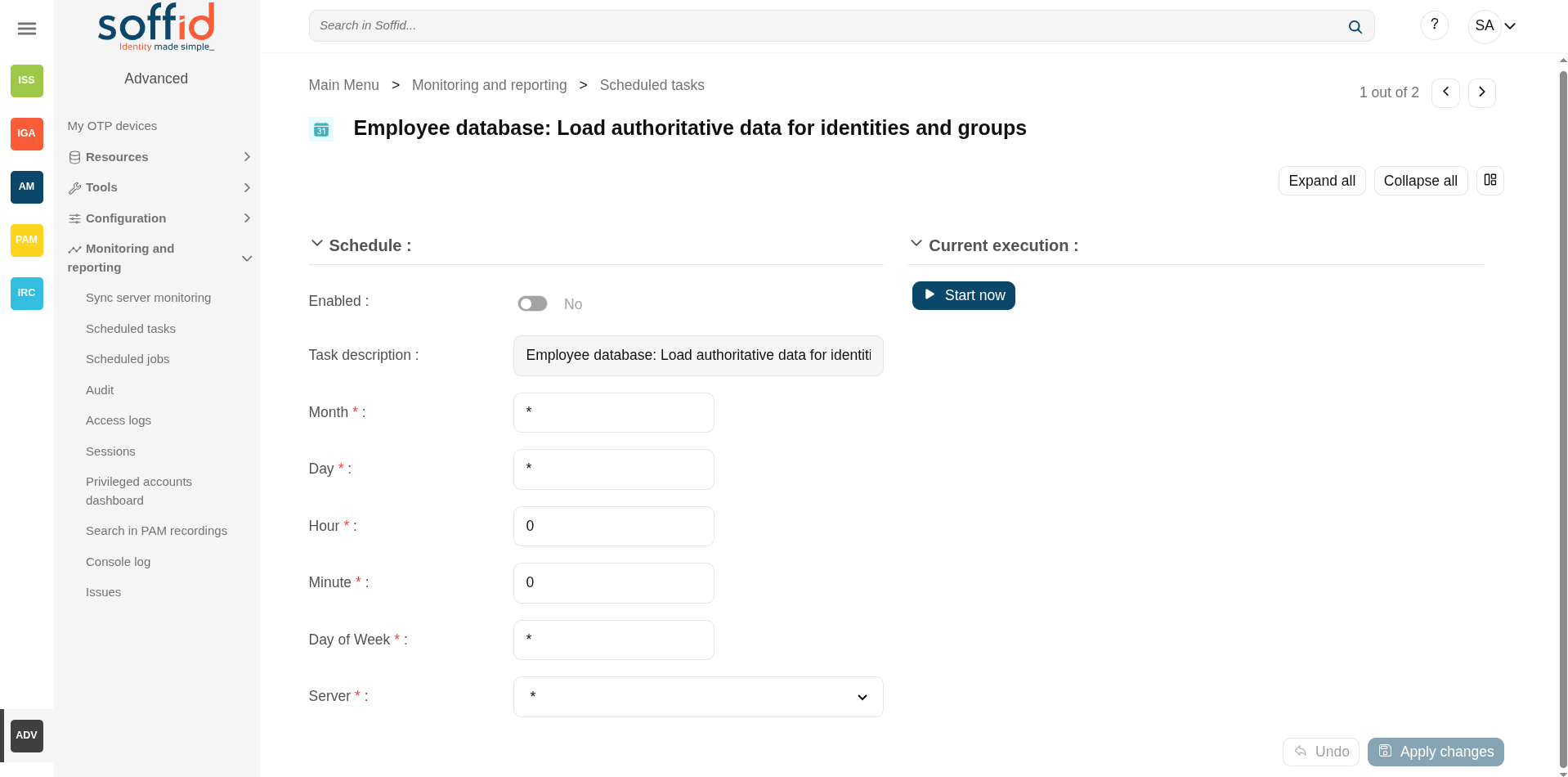](https://bookstack.soffid.com/uploads/images/gallery/2025-08/6qX3VsDAvBBQLcz8-image.png)
You can also run the Authoritative load from the Massive actions tab in the Agent
[](https://bookstack.soffid.com/uploads/images/gallery/2025-08/PNa3qFJDfYim7Fb5-image.png)
### Reconcile task
If you are configured the "Attribute Mapping" tab with some of our objects: "user, account, role, group or grant", an automatic task to synchronize these objects from the managed system to Soffid is available.
And you will do something like "<AGENT\_NAME>: Reconcile (load target system objects)".
[](https://bookstack.soffid.com/uploads/images/gallery/2025-08/vlMaJBcxZuT3cmtI-image.png)
You can also run the Reconcile from the Massive actions tab in the Agent
[](https://bookstack.soffid.com/uploads/images/gallery/2025-08/PNa3qFJDfYim7Fb5-image.png)
### Synchronization
Regarding the synchronization of the objects, there are two possible options:
- If the "Read Only" attribute is checked in the "Basics" tab (select Yes option), only the changes in the managed systems will be updated in Soffid. We recommend these options until the global configuration of Soffid will be tested.
- If the "Read Only" attribute is not checked in the "Basics" tab (select No option), all the changes in Soffid or the managed system will be updated in the other. Note that this synchronization must be configured in the "Basic" tab correctly.
# Synchronization servers
## Description
Sync server is the engine responsible for connecting Soffid with data sources or managed systems.
Soffid allows you to configure different synchronization servers. These synchronization servers are **installed and configurated using command line tool.**
More information about how to install sync server on [the Installation chapter](https://bookstack.soffid.com/books/installation). Here you can find information on how to install a sync server in different environments.
There are several types of synchronisation servers, each with its own specific function within the Soffid architecture. You can see them in the [Standard attributes](https://bookstack.soffid.com/books/soffid-4-reference-guide/page/synchronization-servers#bkmrk-standard-attributes "Standard attributes") section.
### About tasks and systems
Whenever an action is performed on any Soffid object, a synchronization task is created in Soffid database.
Initially, most of the tasks should be forwarded to every managed system connector. The specific system connector will be responsible for applying (or ignoring) the task to the managed system.
The normal synchronization server flow for a task is as follows:
1. Engine timely reads pending tasks table (SC\_TASQUE). To avoid two sync servers to process the same task, the column TAS\_SERVER is updated to reflect the actual server that is processing it.
**2. **Engine manage tasks priorities and updates the task queue. Engine keeps track of one task queue for each managed system connector.
Soffid allows you to configure the parameter **soffid.sync.engine.threads** with the number of threads available to run the tasks.
For more information about this parameter you can visit the [Soffid Parameters](https://bookstack.soffid.com/books/soffid-4-reference-guide/page/soffid-parameters "Soffid parameters") page.
3. Engine has created some execution threads to forward each task to the specific connector class. During this process, dispatcher can decide to reject (mark as done) the task without forwarding it.
**4. **The specific connector class gets additional information about the task from core services.
5. Task is removed from database when every dispatcher has done it.
This architecture and its optimized engine allow Soffid to achieve great performance.
## Screen overview
[](https://bookstack.soffid.com/uploads/images/gallery/2025-08/NEHyznDWu3sO9eom-image.png)
[](https://bookstack.soffid.com/uploads/images/gallery/2025-08/n9SeikumYutRTBhV-image.png)
## Related objects
- [Agents](https://bookstack.soffid.com/books/soffid-4-reference-guide/page/agents "Agents") : all agentes are executed on one or more synchronisation servers
- [Tenants](https://bookstack.soffid.com/books/soffid-4-reference-guide/page/tenants): the plugins are managed in the master tenant.
- [Sync server monitoring](https://bookstack.soffid.com/books/soffid-4-reference-guide/page/sync-server-monitoring "Sync server monitoring") : where the synchronisation servers are monitored
## Standard attributes
- **Name**: name of the synchronization server (It is the name specified in the configuration; it cannot be changed by the user interface).
- **URL**: URL of the synchronization server (https://{name}:{port}/).
- **Type**: there are different kinds of synchronization servers:
- **Synchronization server**: or also known as the principal sync server. That server connects to the main database and allocates the task to the different agents. If more than one is configured, they balance the workload and assign synchronisation tasks themselves.
- **Synchronization agent proxy**: uses a push mechanism. The main Synchronization server will send the tasks to the synchronization agent proxy when it detects tasks for the proxy. That server does not connect to the main database.
- **Remote synchronization server**: uses a pull mechanism. That server is asking for its tasks, when it asks and the Synchronization server has a task for the remote, the Synchronization server will send that tasks. That server does not connect to the main database.
- **Synchronization agent gateway**: this server is the broker between the main synchronization server and the remote servers.
- **Java options**: additional parameters to pass to JVM (Java Virtual Machine). Some useful parameters:
- For a high capacity server are: `-Xmx1024M`
- For debugging communication: -Djavax.net.debug=ssl
- To enable sync server to use old TLS version in client connections (from sync server to a managed system) add `-Djdk.tls.client.protocols=TLSv1,TLSv1.1` (Be in mind TLSv1.2 will be the default version, but some old applications can use TLSv1)
- To enable sync server to use old TLS version for incoming connections (from a server or desktop to the sync server) add `-Dsoffid.tls.protocols=TLSv1.1,TLSv1,TLSv1.2,TLSv1.3 -Dsoffid.tls.excludedCiphers="^.*_(MD5)$" `Mind that the system security can be compromised by using deprecated TLS protocols
- To define how long Java keeps the DNS (domain name resolution) responses in cache you can add the paramameters `-Dsun.net.inetaddr.ttl=1` or the newest `-Dsun.net.inetaddr.ttl=1 ` "time-to-live" (TTL).
If you change the Java Options of an existing Syncserver, you will need to restart the Syncserver. You can visit the [Sync server monitoring](https://bookstack.soffid.com/books/soffid-4-reference-guide/page/sync-server-monitoring "Sync server monitoring") page for more information about how to restat the Syncserver.
## Actions
#### Table actions
**Download CSV file**
Allows you to download a CSV file with the information of all synchronization servers.
#### Synchronization server detail
**Apply changes (disk button)**
Allows you to save the synchronization server data.
**Delete synchronization server**
To delete a sync server you can click on the "three points" icon and then click the delete synchronization server button. Soffid will ask you for confirmation to perform that action, you could confirm or cancel the operation.
**Undo**
Allows you to undo any changes made.
**Apply changes**
Allows you to save the synchronization server data. Once you apply changes, the details page will be closed.
# Account naming rules
## Definition
Account naming rules define how to generate account names for target systems. The normal case is the account name will be the same as the user name, in other cases, here you could define the customized account name rules.
When you are configuring an agent, you have to indicate the user domain which will be used to create new accounts, that user domain refers to the Account naming rules defined on the Soffid console.
## Screen overview
[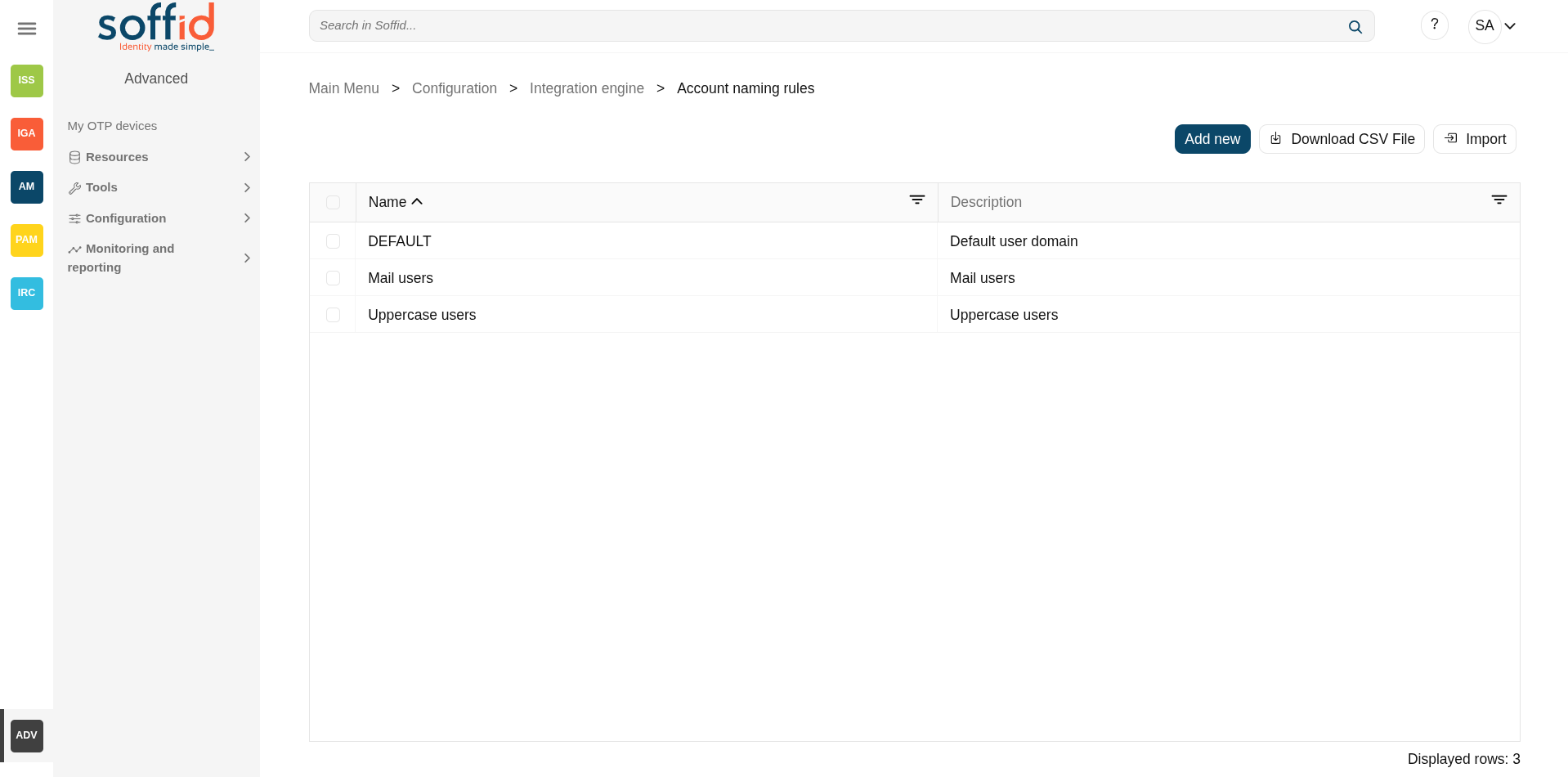](https://bookstack.soffid.com/uploads/images/gallery/2025-08/EVkYrPncTpwflLqS-image.png)
[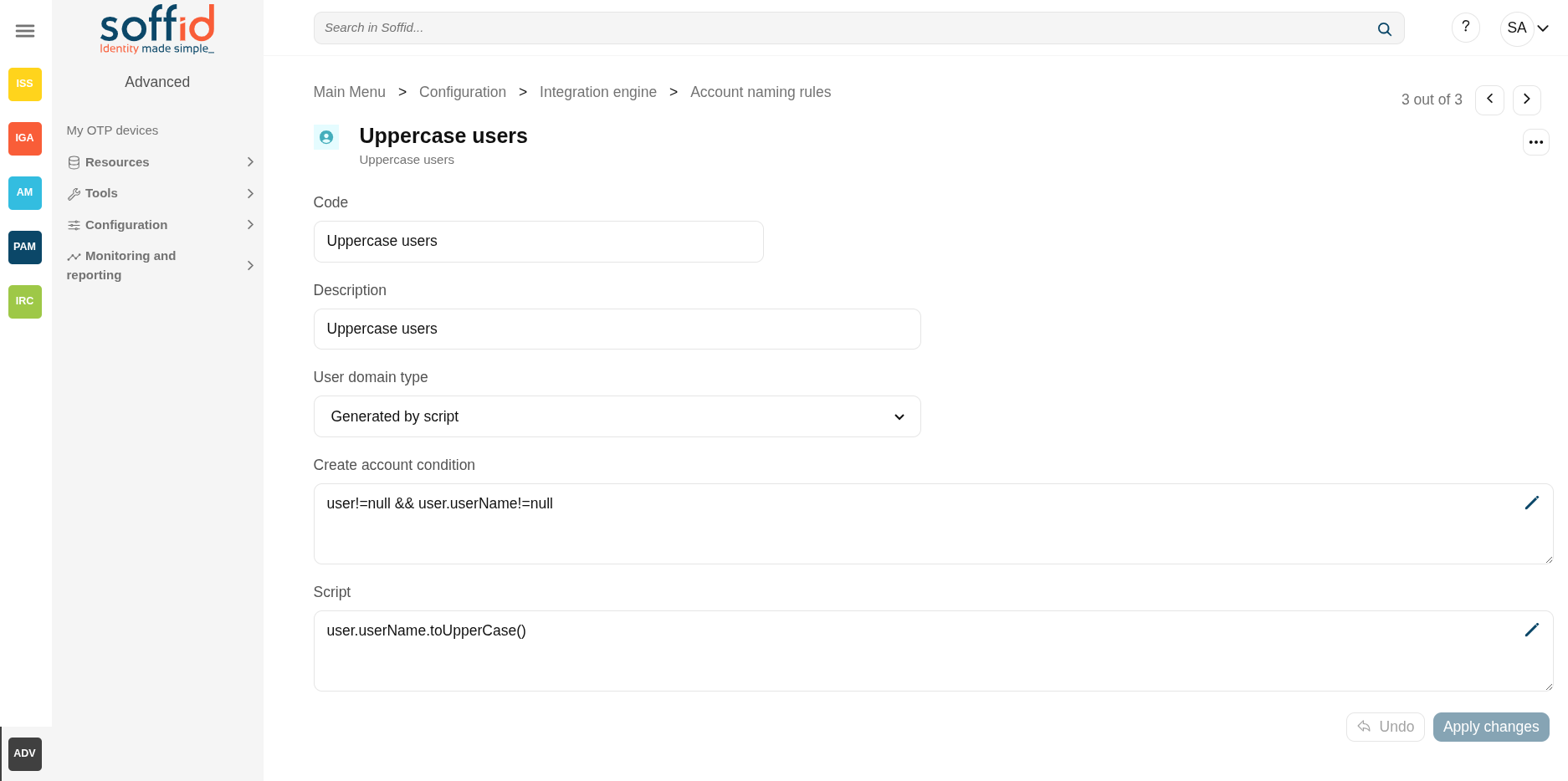](https://bookstack.soffid.com/uploads/images/gallery/2025-09/XYN4xD8tGOpC7bzt-image.png)
## Related objects
- [Agents](https://bookstack.soffid.com/books/soffid-4-reference-guide/page/agents): the account naming rule is selected for each of the agents.
- [Accounts](https://bookstack.soffid.com/books/soffid-4-reference-guide/page/accounts): when creating an account, if no account name is specified, the system uses the naming rule to generate an account name.
- [Users](https://bookstack.soffid.com/books/soffid-4-reference-guide/page/users "Users"): when we add an account, the naming rules indicate the generated name (which can be modified during the process).
## Standard attributes
- **Code**: code used to identify the account naming rule.
- **Description**: a brief description of the rule. That value will be displayed to select the user domain on the agent's setup.
- **User domain type**: use to define the kind of
- Same as user name: use the main user name.
- Assigned manually: the user will assign the account name.
- Generated by script: allows you to configure the script condition and script creation of account naming.
- **Create account condition**: defines the conditions to enable or prevent the creation of the account. It is only available when the "Generated by script" option is selected in the "User domain type".
- **Script**: computes the name to assign to the user account. If the script returns null, the account is not going to be created. It is only available when the "Generated by script" option is selected in the "User domain type".
## Actions
#### Table actions
**Add new**
Allows you to add a new account naming rule in the system. To add a new account naming rule it is necessary to fill in the required fields.
**Delete user domain**
Allows you to remove one or more account naming rules by selecting one or more records on the list.
**Download CSV file**
Allows you to download a CSV file with all the information about account naming rules.
**Import**
Allows you to upload a CSV file with the account naming rules configuration to add new rules to the system.
First, you need to pick up a CSV file, that CSV has to contain a specific configuration. Then you need to check the contents. And finally, you need to select the mappings for each column of the CSV file to import the data correctly and click the Import button.
#### Account naming rules detail
**Apply changes (disk button)**
Allows you to save the account naming rule data.
**Delete synchronization server**
To delete a account naming rule you can click on the "three points" icon and then click the delete user domain button. Soffid will ask you for confirmation to perform that action, you could confirm or cancel the operation.
**Undo**
Allows you to undo any changes made.
**Apply changes**
Allows you to save the account naming rule data. Once you apply changes, the details page will be closed.
## Others
### Addins a new account
Create a new account naming rule.
[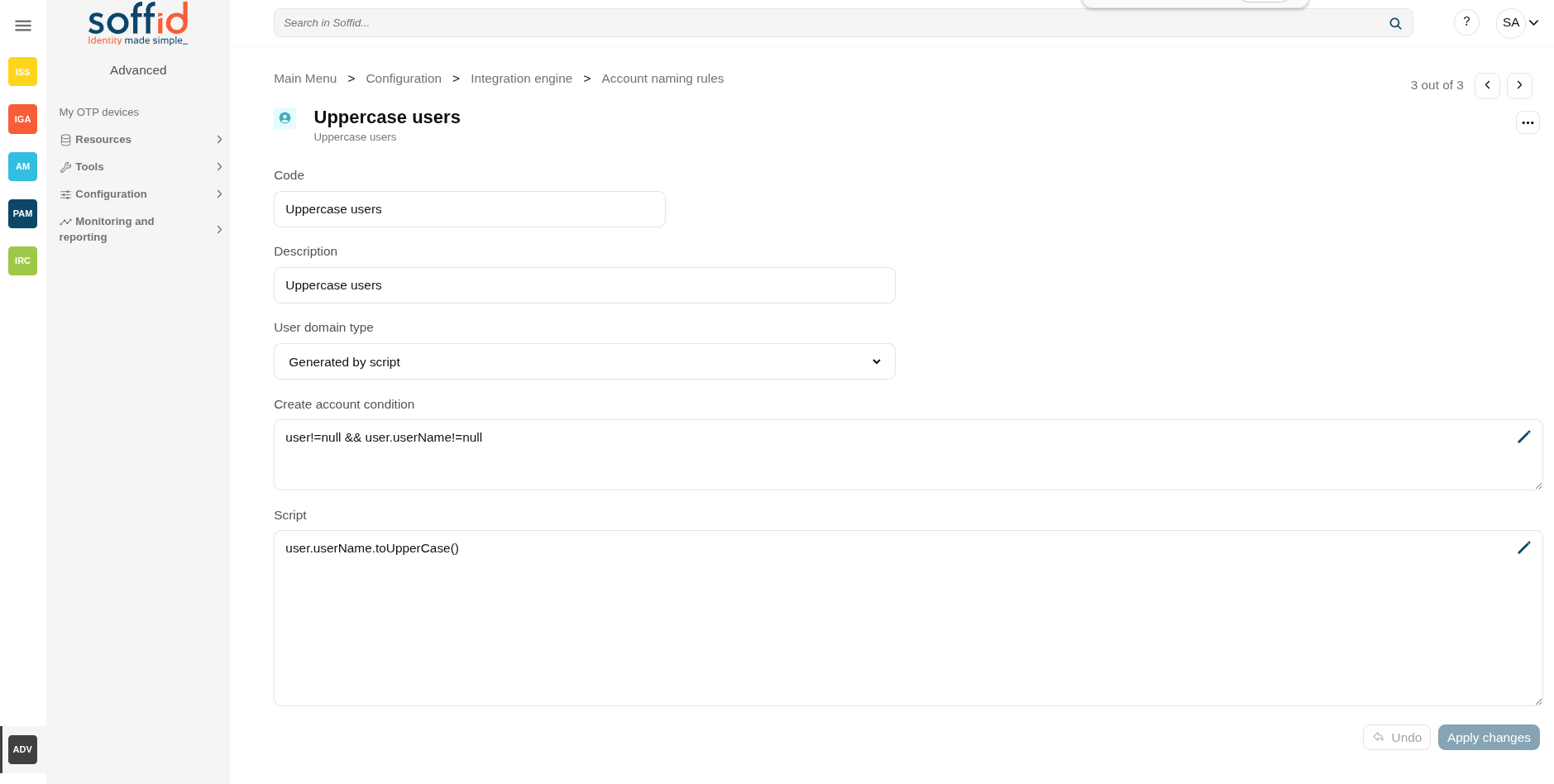](https://bookstack.soffid.com/uploads/images/gallery/2025-09/RyskbxMsnW6NTYOf-image.png)
Configure it in an agent.
[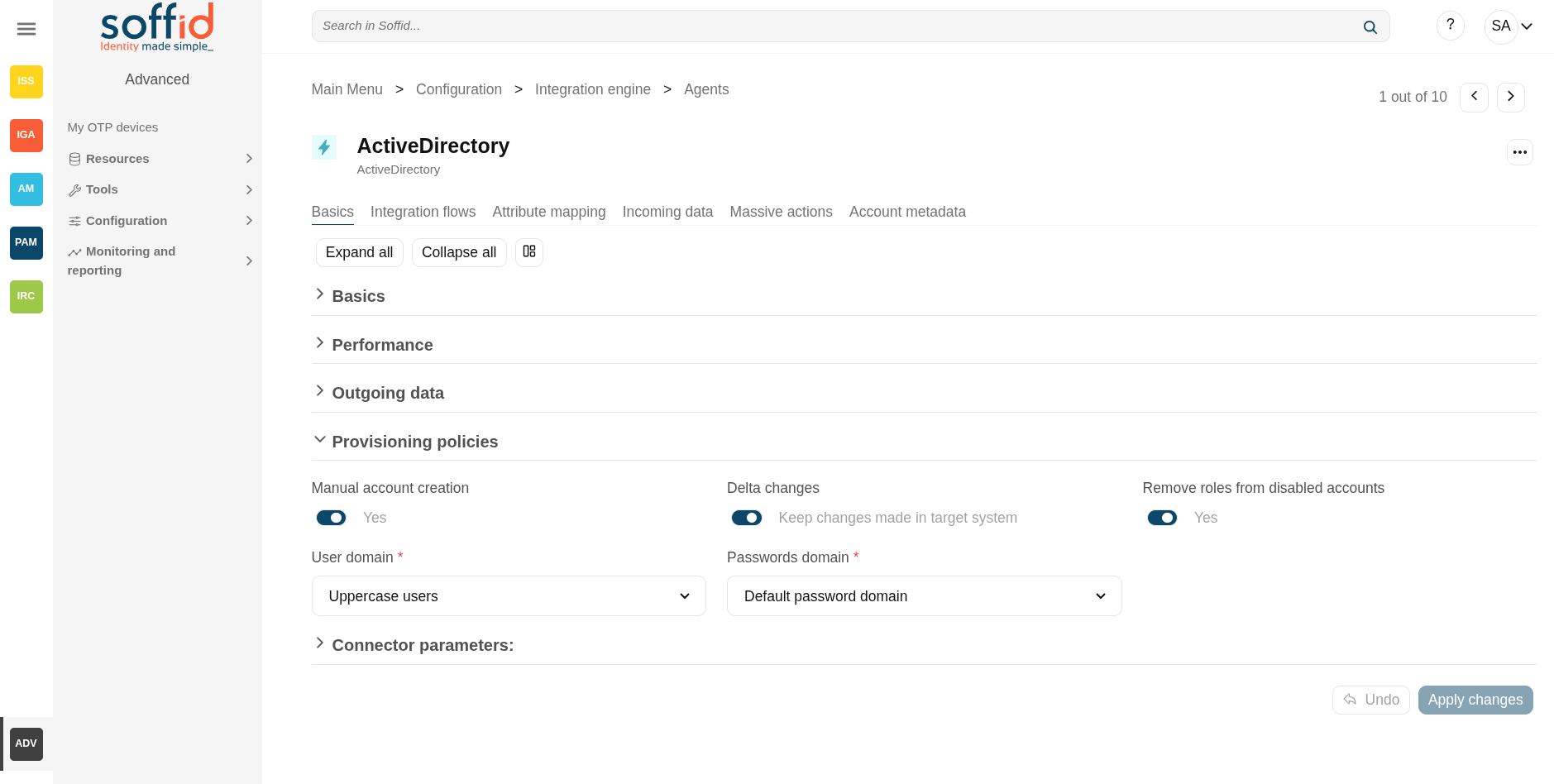](https://bookstack.soffid.com/uploads/images/gallery/2025-09/5UQfcC24O0RlXqFm-image.png)
In a user, add a new account for that agent.
[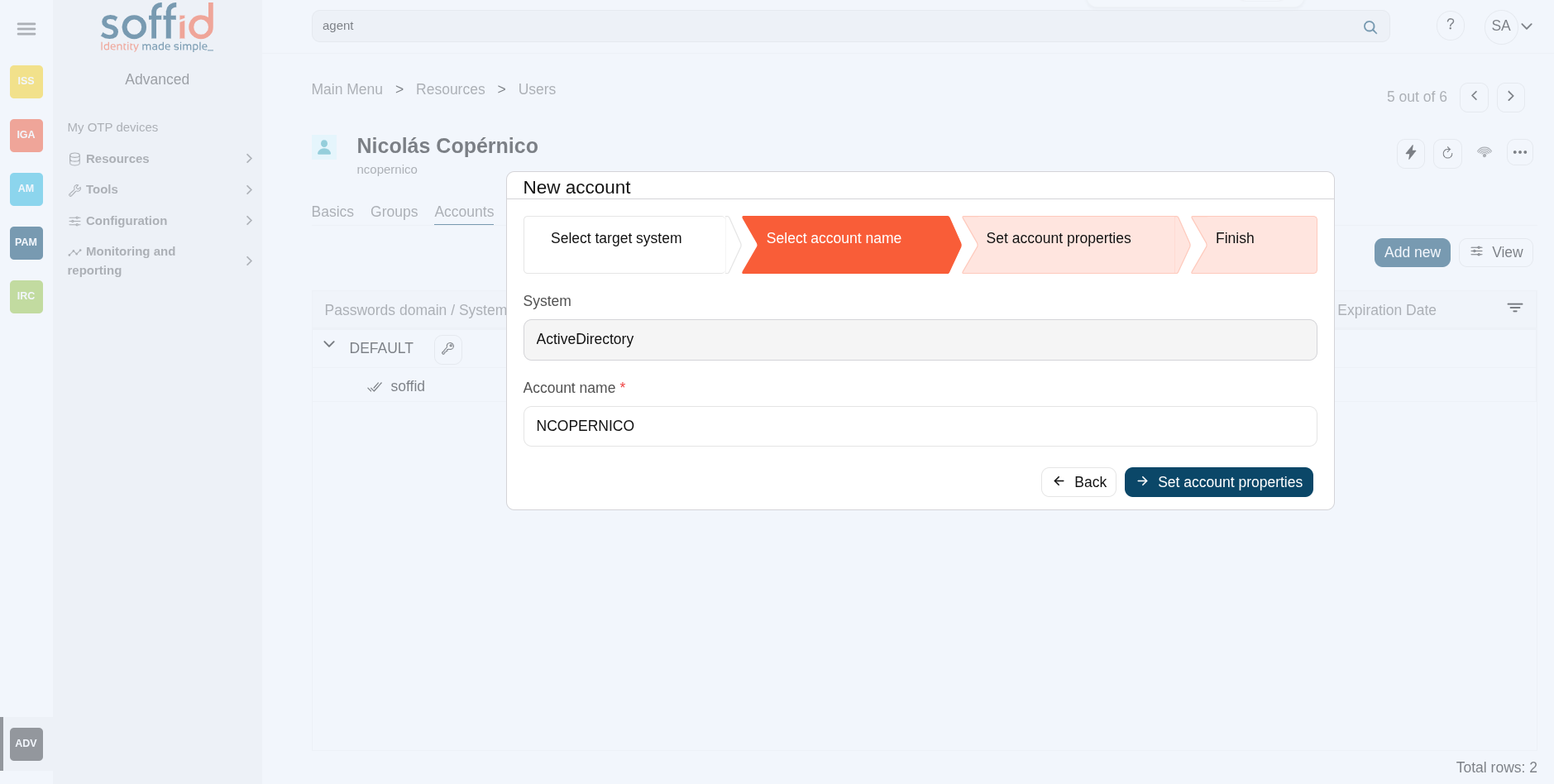](https://bookstack.soffid.com/uploads/images/gallery/2025-09/Wzpa9mYpuJjaNT2e-image.png)
### Script examples
#### Condition
Only users with mail address in soffid.com can have an account:
```JavaScript
"soffid.com".equals(user.mailDomain)
```
When the account name depends on other attribute
```JavaScript
attributes.get("userCode")!=null && !attributes.get("userCode").isEmpty()
```
#### Script
Uses the email address as the account name
```JavaScript
user.shortName+"@"+user.mailDomain
```
Username in uppercase
```JavaScript
user.userName.toUpperCase()
```
When the account name depends on other attribute (check that it has a value in the condition)
```JavaScript
attributes.get("userCode")
```
# Attribute translation tables
## Definition
Soffid provides an easy to use mechanism to translate references or external codes into internal codes. For example, the HHRR application could be using a diferent coding scheme for business units.
To deal with this data mismatch, users can extend the data model, or can either use translation tables. This screen allows the user to create and maintain such tables. This tables can also be downloaded or uploaded as CSV files, enable the import of data contained into spreadsheets.
Usage of translation table is bound, but not restricted to, attribute translation expressions, by using trigger scripts, through the use of serverService interface.
Before using the **attribute translation tables**, bear in mind that Soffid offers **attribute expansion** for some objects, or directly allows the creation of new **custom objects** with their own attribute definitions. Analyse which solution best suits your needs. Consult the [metadata](https://bookstack.soffid.com/books/soffid-4-reference-guide/page/metadata "Metadata") screen.
## Screen overview
[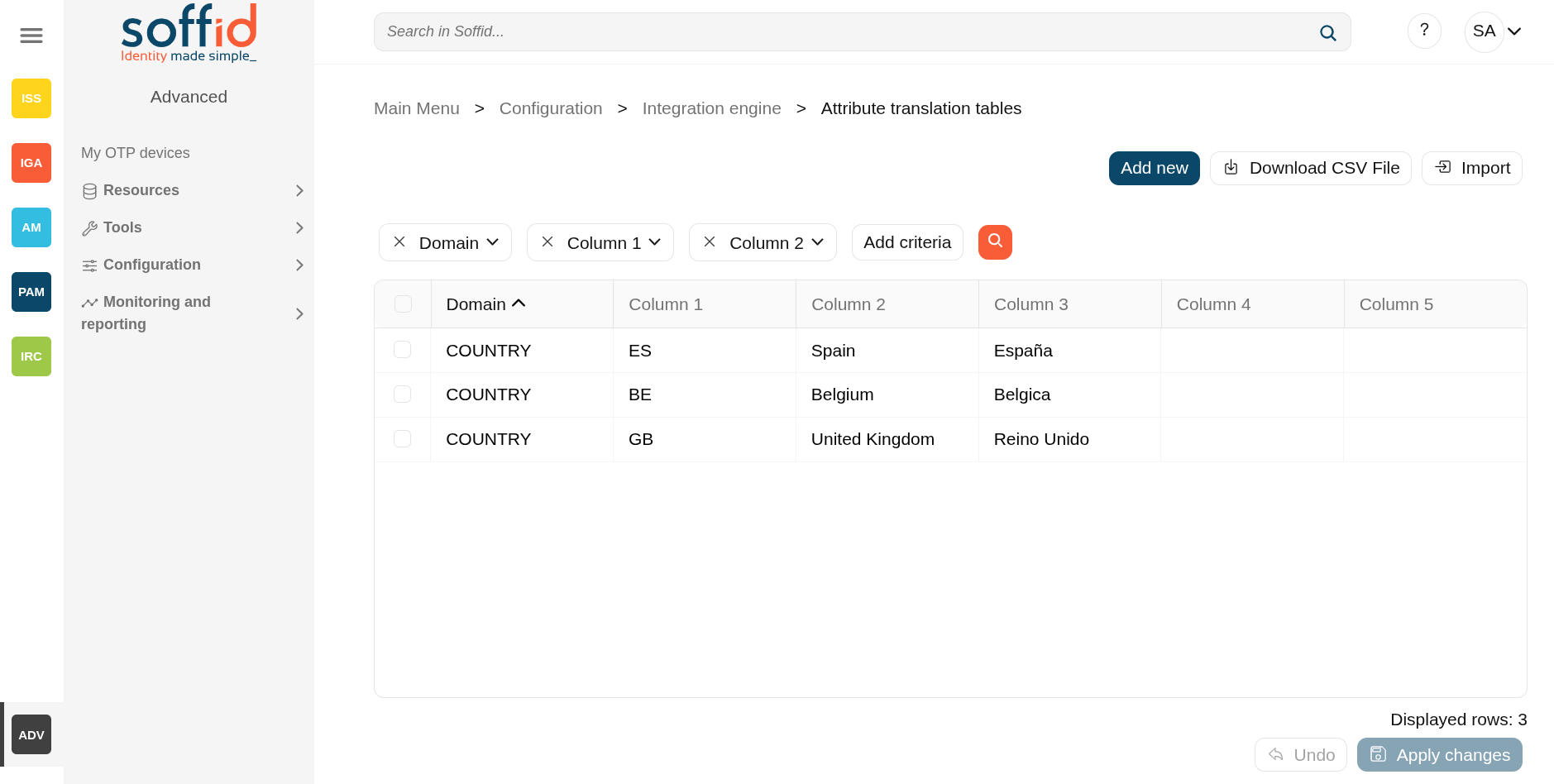](https://bookstack.soffid.com/uploads/images/gallery/2025-09/uGoV1126jG8vbp7B-image.png)
## Related objects
- [Metadata](https://bookstack.soffid.com/books/soffid-4-reference-guide/page/metadata "Metadata") : custom objects are an alternative for storing and updating data
- [Custom scripts](https://bookstack.soffid.com/books/soffid-4-reference-guide/page/custom-scripts-addon-admin "Custom scripts (addon admin)") : page to test or use the attribute translation tables
## Standard attributes
- **Domain**: the domain column represents the translation table name.
- **Column 1**: value
- **Column 2**: value
- **Column 3**: value
- **Column 4**: value
- **Column 5**: value
Column 1 to 5 meaning is user defined. Usage of translation table is bound, but not restricted to, attribute translation expressions, through the use of serverService interface.
## Actions
**"Query search"**
Allows to query groups through different search systems, [Quick, Basic and Advanced](https://bookstack.soffid.com/books/soffid-3-reference-guide/page/search-types "Search Types").
**Add new**
Allows you to add a new attribute translation table. That option adds a new row on the table to fill in the data. It will be mandatory to apply changes to save the data.
**Delete translation**
Allows you to remove one or more translations by selecting one or more records and next clicking this button. To perform that action, Soffid will ask you for confirmation, you could confirm or cancel the operation.
**Download CSV file**
Allows you to download a CSV file with the information of all attribute translation tables.
**Import**
Allows you to upload a CSV file with the attribute translation table data to add to the system.
First, you need to pick up a CSV file, that CSV has to contain a specific configuration. Then you need to check the contents. And finally, you need to select the mappings for each column of the CSV file to import the data correctly and to click the Import button.
**Undo**
Allows you to undo any changes made.
**Apply changes**
Allows you to save new attribute translation tables or to save updated attribute translation tables.
## Examples
##### Example 1
```javascript
lCentros = serviceLocator.getAttributeTranslationService().findByColumn1("CENTROS", "Madrid");
if (lCentros != null) {
for (var i = 0; i < lCentros.length; i++) {
if (lCentros[i] != null) {
out.println("** Centro - " + lCentros[i].column1 + " - " + lCentros[i].column2 + " - "
+ lCentros[i].column3 + " - " + lCentros[i].column4);
}
}
}
```
##### Example 2
```javascript
lServer = serviceLocator.getAttributeTranslationService().findByExample("SERVER_COPIAS", null, null);
if (lServer != null) {
out.println("** SERVER_COPIAS - " + lServer);
}
```
##### Example 3
```javascript
// Rename translation tables
void rename(String currentDomain, String newDomain) {
lat = serviceLocator.getAttributeTranslationService().findByExample(currentDomain, null, null);
for (at : lat) {
at.domain = newDomain;
serviceLocator.getAttributeTranslationService().update(at);
out.println("Renamed: "+at.domain+", "+at.column1+", "+at.column2+", "+at.column3);
}
}
rename("COUNTRY", "COUNTRY_COMPANY");
rename("TEST", "TEST_COMMAND");
```
##### Example 4
```javascript
lt = serviceLocator.getAttributeTranslationService().findByExample("COUNTRY", null, null);
for (var i=0; iWhen the Network discovery process is finished, it is **recommended to launch the Reconciliation process of the agents** created by the process to detect the **Account protected services.** To know how to run the Renconciliation process you can visit [the Agents page](https://bookstack.soffid.com/books/soffid-3-reference-guide/page/agents).
Once the machines and accounts, both user and system, have been discovered, the critical accounts must be located in the password vault. You can visit the [Password vault page](https://bookstack.soffid.com/books/soffid-3-reference-guide/page/password-vault "Password vault") for more information.
### How Network discovery works?
The **Network Discovery** is the tool in charge to scan the network to discover the hosts of the network. For each host discovered, the **Nmap** utility gets the info about the ports and the protocols used. Also, that process gets the IP Address and the operating system. All the recover information will be saved on Soffid database. The discovery proxy server works as a proxy to connect to the target systems.
When the discovery manager discovers a host, it gets the host information and then, through discovery proxy server, it attempts to connect to the host using the accounts defined on the accounts to probe list.
- If it can not connect to the host, it will attempt with the next host discovered.
- If it gets to connect to the host, then it will create automatically a Soffid agent with the proper attributes and connector parameters, also with the necessary account metadata.
Then, the reconciliation process of the created agent, will be launched and it will try to recover the information about the accounts defined on the host. Also, it will try to recover the information about the account protected services. The recover information will be saved on Soffid database.
## Screen overview
## Standard attributes
### Network attributes
#### Basic
Those attributes are readOnly, you can update them on the [Networks page](https://bookstack.soffid.com/books/soffid-3-reference-guide/page/networks "Networks").
- **Name**: network name.
- **Description**: a brief description.
- **IP Address**: IP range of this network.
- **IP address mask**: IP mask of this network.
- **IP ranges to analyze**: allows you to set the range of IPs to scan
💻 Image
[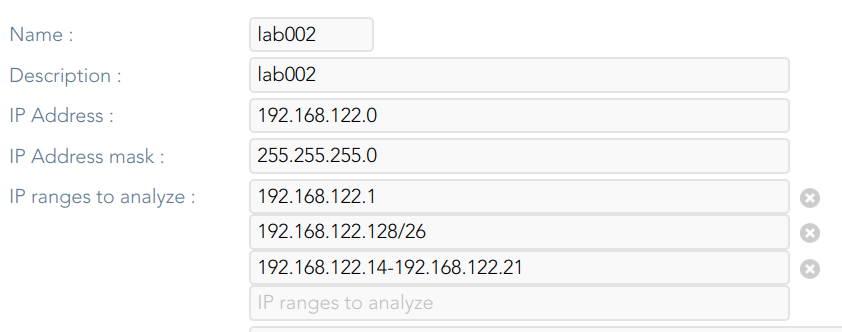](https://bookstack.soffid.com/uploads/images/gallery/2024-01/image-1705573373643.png)
#### Server
- **Server**: list of available sync servers.
#### Accounts to probe
- **Accounts to probe:** list of potential administrators accounts to connect to the hosts. You can register a new account or use an existing account.
- **Register new account**: you need to define the login name and the password of the new account.
- Login name
- Password
- SSH key
💻 Image
[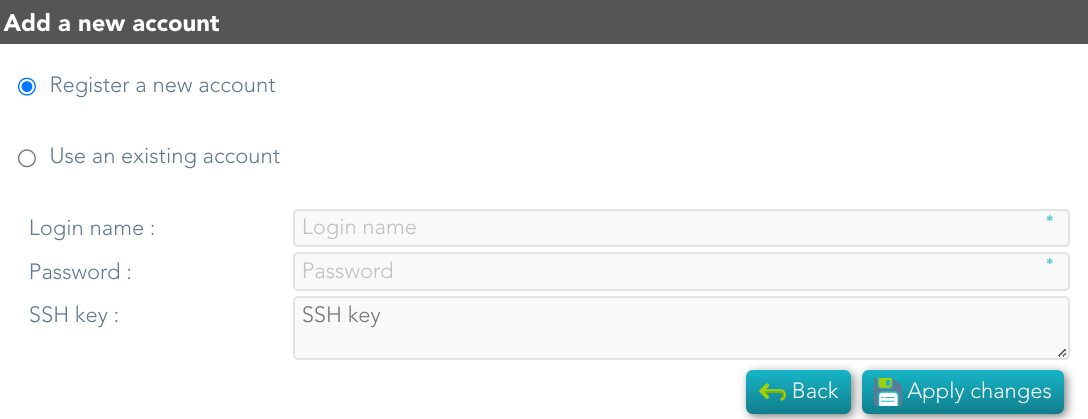](https://bookstack.soffid.com/uploads/images/gallery/2024-06/image-1717596387528.png)
- **Use an existing account**: you need to select an existing account on the system.
💻 Image
[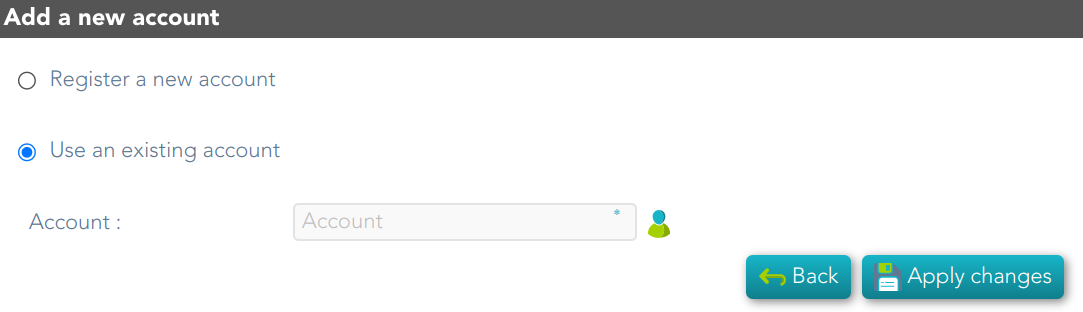](https://bookstack.soffid.com/uploads/images/gallery/2024-06/image-1717596556925.png)
When you register a new account, that will be created as an unmanaged account.
#### Schedule
- **Enabled**: if it is selected (value is Yes), a task will be created and performed on schedule defined.
- **Task description**: a brief description of the task
- **Month**: number of the month (1-12) when the task will be performed.
- **Day**: number of the day (1-31) when the task will be performed.
- **Hour**: hour (0-23) when the task will be performed.
- **Minute**: minute (0-59) when the task will be performed.
- **Day of week**: number of the day (0-6 where 0 means Sunday) of the week when the task will be performed.
- **Server**: you must select the sync server where the agent will be run.
For each value of month, day, hour, minute, or day of the week:
- \* means any month, day, hour, minute, or day of the week. e.g. \*/5 to schedule every five minutes.
- A single number specifies that unit value: 3
- Some comma separated numbers: 1,3,5,7
- A range of values: 1-5
#### Current execution
- **Start now**: this allows you to launch the task execution.
#### Last execution
- **Status**: The available status for a task is:
- Done (green light): task finished.
- Pending (yellow light): the task has been started but it has not finished yet.
- Error (red light): task could not be executed.
- **Start date**: start date and time of the last execution.
- **End date**: end date and time of the last execution.
- **Execution log**: log trace. Allows you to download the log file.
#### Previous executions
List the information about the previous executions:
- **Start date**: start date and time of the execution.
- **Status**: status of the execution.
- **Execution**: log of the execution. Allows you to download the log file.
### Machine attributes
By clicking the machine record, you can check the following information:
- **Name**
- **IP Address**
- **Description**
- **Operating system**
- **Port /Protocol List**:
- Port
- Description
💻 Image
[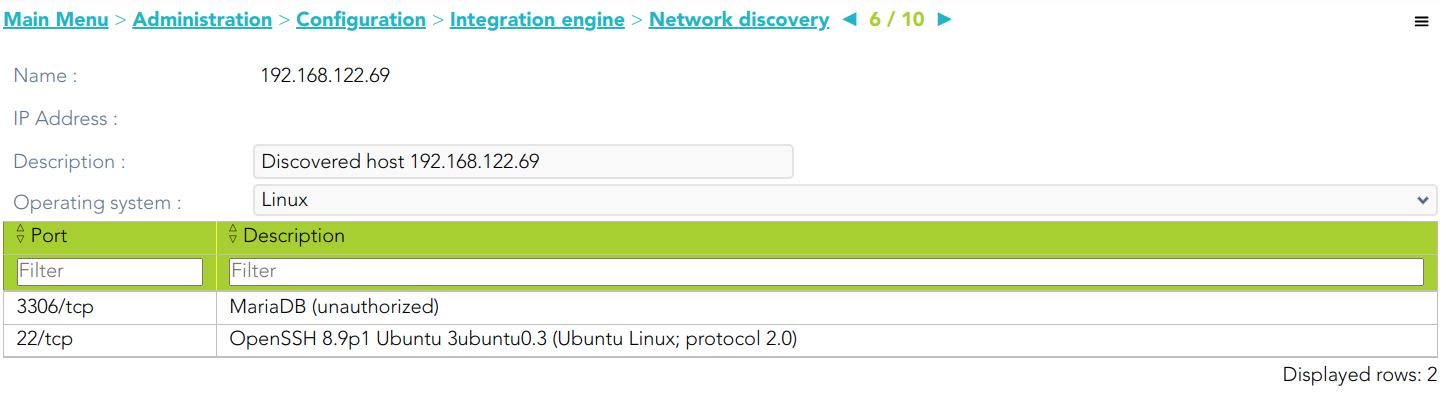](https://bookstack.soffid.com/uploads/images/gallery/2024-01/image-1705661256378.png)
#### Machine details
If you display the contents of a machine from which the information has been obtained, you could check and manage information about:
- Protected services per account
- Account repositories
- Entry points
It may be necessary to perform the **Reconciliation process of the proper agent** in order to obtain the information from the Account protected services
Allows you to create a new agent.
You must select the System type and the login name and password. When the agent is created, if the connection is successful, the reconciliation process will be executed.
💻 Image
[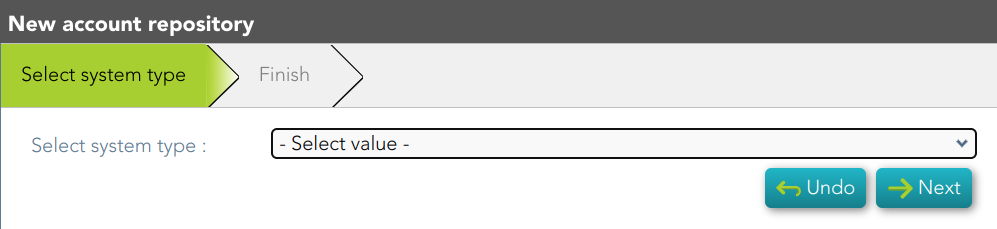](https://bookstack.soffid.com/uploads/images/gallery/2023-12/image-1701426264500.png)
**Agent definition**
Allows you to browse to the agent definition.
**Accounts**
Allows you to browse the accounts page and the accounts, which belong to this system, will be displayed
**Add new entry point**
Allows you to create a new entry point.
You must select the Entry point type and the pale to locate it. Once the entry point is created, you can connect to the target system. Bear in mind, that if you need to create an account to connect, when you set the password to this account, the system (agent) must be in No ReadOnly mode.
💻 Image
[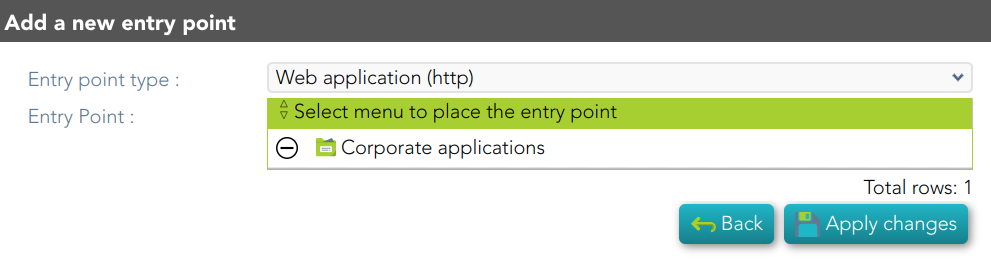](https://bookstack.soffid.com/uploads/images/gallery/2023-12/image-1701426470540.png)
**Entry point definition**
Allows you to browse to the entry point definition.
#### Network discovery detail
**Apply changes**
Allows you to save the data of network detail. To save the data it will be mandatory to fill in the required fields.
**Undo**
Allows you to undo any changes made.
##### Accounts to probe
**Add**
Allows you to add a new administrator potential account to connect to the machines of the network. To add a new account, first of all, you need to click the add button (+) and close the accounts to probe list. Then you will need to choose if you want to add an existing account or register a new account.
save the data of a new network or update the data of a specific network. To save the data it will be mandatory to fill in the required fields
**Delete**
Allows you to delete one or more accounts of the accounts to probe. You need to select one or more records and next click the button with the subtraction symbol (-).
#### Schedule
**Start now**
Allows you to launch the task execution.
#### Previous execution
**Logs**
Allows you to download the log files of previous executions.
#### Machine
**Delete**
Allows you to delete the machine and the PAM connectors for the device. Soffid will display a message to confirm the deletion process.
This page groups together several features related to the workflow engine.
### Document manager
Soffid can use any **document repository** to store documents generated by workflows, reporting addon, or any other addon.
The document repository can be either a local directory or a remote one accessed using FTP, SMB, HTTP protocols. Depending on the protocol selected, additional parameters may be needed.
### Text index
Soffid console maintains a **textual index** that allows searching for currently active or finished processes using full text search.
The textual index for searches can be updated from this page. The textual index is not stored in the database but filesystem. From this page, you can set the directory where this textual index will be stored.
Because it is stored in non-transactional storage, it can get occasionally corrupted. In such a case, by pressing the "Rebuild Index" button, the index will be rebuilt from scratch.
### Task scheduler
When we are working with workflows, there are parts of the process that need to be managed in the background, and this requires a process that runs regularly. This process executes logic nodes or timers configured to run at a specific time.
## Screen overview
[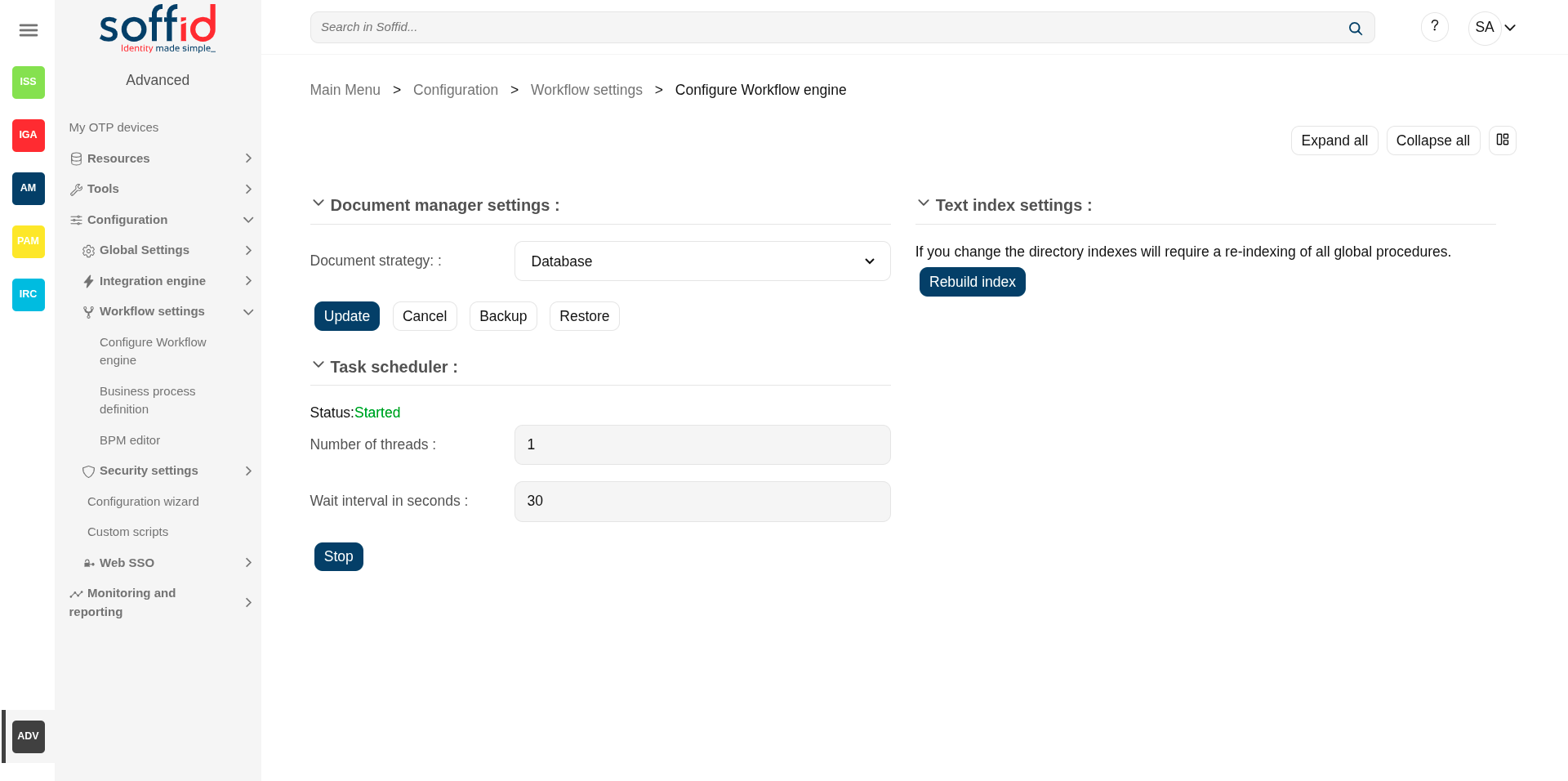](https://bookstack.soffid.com/uploads/images/gallery/2025-08/EieGfmqmiHnF6PtX-image.png)
## Related objects
- [Configure Workflow engine](https://bookstack.soffid.com/books/soffid-4-reference-guide/page/configure-workflow-engine) : where the workflow engine is configured
- [Business process definition](https://bookstack.soffid.com/books/soffid-4-reference-guide/page/business-process-definition) : where workflows are published
- [BPM editor](https://bookstack.soffid.com/books/soffid-4-reference-guide/page/bpm-editor) : where to create or modify workflows
- [My tasks](https://bookstack.soffid.com/books/soffid-4-reference-guide/page/my-tasks) : pending workflows where the user has to perform an action in order to continue their workflow.
- [My requests](https://bookstack.soffid.com/books/soffid-4-reference-guide/page/my-requests) : The workflows that the user can initiate are listed here.
- [My requests > Query request status](https://bookstack.soffid.com/books/soffid-4-reference-guide/page/my-requests-query-request-status) : to search for all processes started by oneself
- [Process Search](https://bookstack.soffid.com/books/soffid-4-reference-guide/page/process-search) : to search for all processes
- [Metadata](https://bookstack.soffid.com/books/soffid-4-reference-guide/page/metadata) : to add attributes to display in the search tables
- [Scheduled jobs](https://bookstack.soffid.com/books/soffid-4-reference-guide/page/scheduled-jobs) : shows active workflows pending asynchronous tasks
## Standard attributes
- **Document strategy**: these are the possible configurations
- Database: (by default) stored in Soffid's own database
- Local:
- Temporary local file path:
- CIFS: specific implementation of SMB. Its attributes:
- Server: domain of the server
- File path: file path of the server
- Temporary local file path: folder inside the Soffid home directory
- User name: user
- Password: password
- FTP:
- Server: domain of the server
- File path: file path of the server
- Temporary local file path: folder inside the Soffid home directory
- User name: user
- Password: password
-
- HTTP:
- Server: URL of the service
- Temporary local file path: folder inside the Soffid home directory
- User name: user
- Password: password
- **Text index settings**: If you change the directory indexes will require a re-indexing of all global procedures.
- **Task scheduler**: attributes in query mode:
Status: Started / Stoped
- - Number of threads: 1 by default
- Wait interval in seconds: every few seconds the process checks whether it has any pending tasks
## Actions
#### View actions
**Expand all**
Displays all the attributes of the different blocks.
**Collapse all**
Hide all attributes of the different blocks.
**"Types of views"**
Change the view type: Classic view, Modern view, Compact design.
### Document manager actions
**Update**
Allows you to save the changes.
**Cancel**
Allows you to undo any changes made.
**Backup**
Allows you to download a zip file containing all the files.
**Restore**
Allows you to upload a zip file to restore all the files.
### Text index actions
**Rebuild index**
Regenerate from scratch the text index on which workflows are searched, as well as the attributes that have this type of search configured.
Please note that depending on the volume of data on your system, this process may take quite some time.
### Task scheduler actions
**Stop / Start**
Stop to shut down the service, start to restart it
# Business process definition
## Description
Soffid includes a **BMP (Business Process Management)** in its Smart Engine to provide useful workflows integrated with the processes and the policies of the Soffid core.
In order to add extra functionality to the console, you can upload different business processes (a.k.a. Workflows) that can be found in the Soffid download area and enable or disable existing ones. The existing process definition can be updated by uploading a new version.
If a workflow is **disabled**, processes initiated and pending can be finalized, but no longer that workflow could be started.
Please note that the workflows managed by this page will be provided by Soffid or generated from an external tool. Soffid has a **bpm add-on** that allows you to create, update, and publish these workflows directly from its **editor**.
## Screen overview
[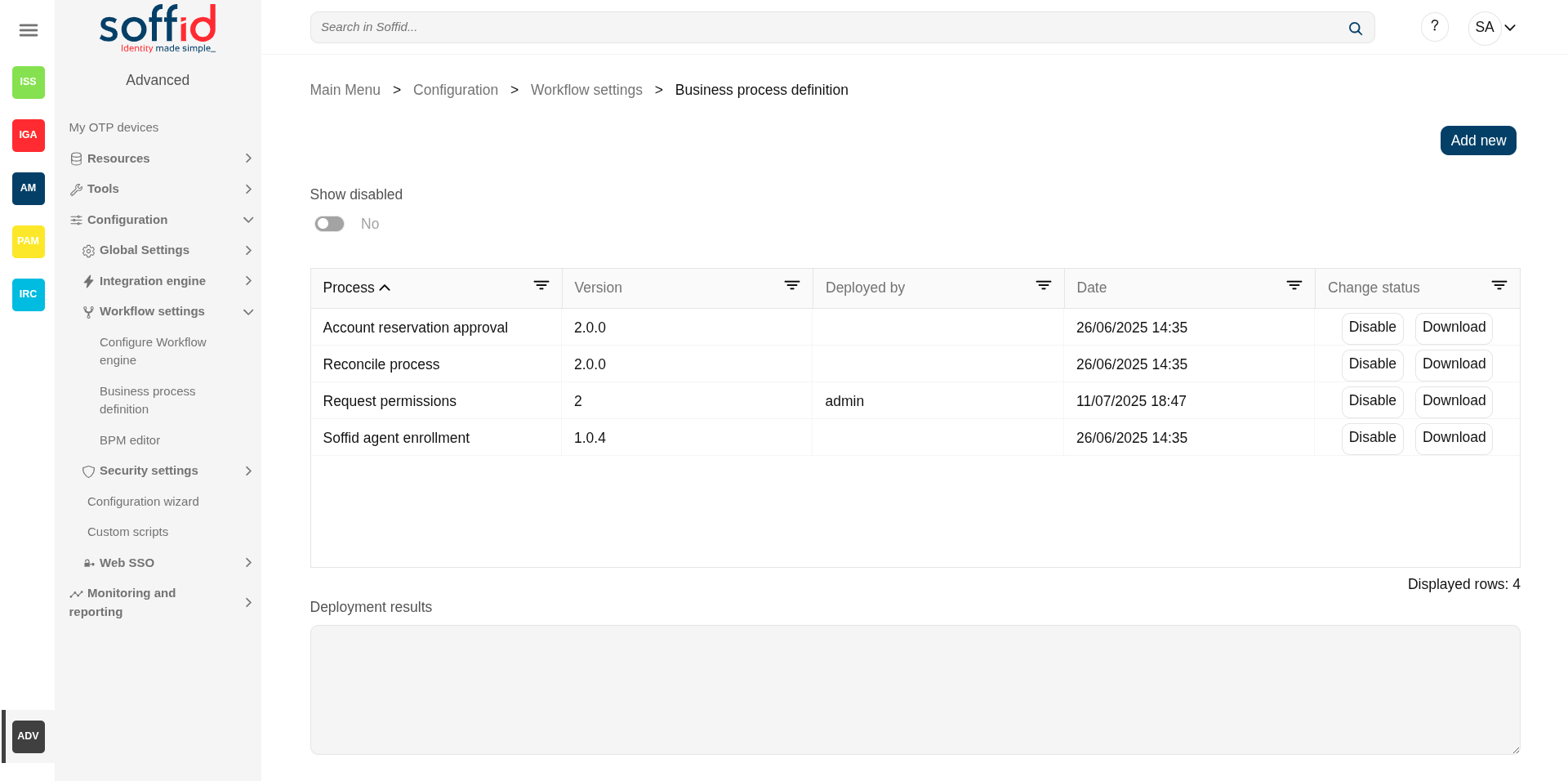](https://bookstack.soffid.com/uploads/images/gallery/2025-08/LVvQZkA4yex99AiS-image.png)
## Related objects
- [Configure Workflow engine](https://bookstack.soffid.com/books/soffid-4-reference-guide/page/configure-workflow-engine) : where the workflow engine is configured
- [Business process definition](https://bookstack.soffid.com/books/soffid-4-reference-guide/page/business-process-definition) : where workflows are published
- [BPM editor](https://bookstack.soffid.com/books/soffid-4-reference-guide/page/bpm-editor-addon-bpm) : where to create or modify workflows
- [My tasks](https://bookstack.soffid.com/books/soffid-4-reference-guide/page/my-tasks) : pending workflows where the user has to perform an action in order to continue their workflow.
- [My requests](https://bookstack.soffid.com/books/soffid-4-reference-guide/page/my-requests) : The workflows that the user can initiate are listed here.
- [My requests > Query request status](https://bookstack.soffid.com/books/soffid-4-reference-guide/page/my-requests-query-request-status) : to search for all processes started by oneself
- [Process Search](https://bookstack.soffid.com/books/soffid-4-reference-guide/page/process-search) : to search for all processes
- [Metadata](https://bookstack.soffid.com/books/soffid-4-reference-guide/page/metadata) : to add attributes to display in the search tables
- [Scheduled jobs](https://bookstack.soffid.com/books/soffid-4-reference-guide/page/scheduled-jobs) : shows active workflows pending asynchronous tasks
## Standard attributes
- **Process**: name of the process.
- **Version**: version of the process.
- **Deployed by**: user who performed the last workflow upload.
- **Date**: date and time of the last workflow upload.
- **Change status**: allows you to change the workflow to enable or disable according to the needs.
- **Deployment results**: displays the log information when a workflow is upload.
## Actions
**Show disabled**
No by default, If you select Yes, all workflows will be displayed, both enable and disable.
**Add new**
Allows you to pick a defined process and upload it for deploying it in Soffid.
Then Soffid will upload and deploy the process.
This option allows to add new workflows or update existing workflows.
You can upload a process defined with the BPM Editor and previously exported (.pardef) or a process defined by code (.par)
**Enable / disable**
Allows you to enable or disable a workflow.
When a workflows is enabled all users with proper permission could launch the process.
When a workflow is disabled no user could start a new instance of this process.
**Download**
Allows you to download the workflow.
Workflows generated with the bpm add-on must be exported from there.
# BPM editor (addon bpm)
## Description
BPM is a technology that allows modeling, implementing, and executing processes automatically to enhance efficiency and productivity in support of enterprise goals.
Soffid includes a BMP (Business Process Management) in its Smart Engine to provide useful workflows integrated with the processes and the policies.
The **BPM Editor Addon** allows you to create, configure and publish business processes very easily for the Soffid administrators.
The BPM Editor addon provides some templates to create new workflows, these templates depend on the process type selected when you are adding a new business process. Nowadays there are the following templates available:
- User management
- Permissions management
- Account reservation
- Permissions request
- Delegate roles
You can find additional information by visiting [Process types chapter](https://bookstack.soffid.com/books/bpm-editor/chapter/process-types "Process types").
Once a workflow is published with the proper configuration, the users with the correct permissions could start, approve or observe the workflow from the "My Request" option. You can find more información on [My Requests](https://bookstack.soffid.com/books/soffid-4-reference-guide/page/my-requests "My requests") page.
When a workflow is deleted in the BPM editor, that workflow continues to be available to be executed. If you do not want that a workflow will be executed, you must disable that process on the "Business process definition" page. If you disable a workflow, processes initiated and pending can be finalized, but no longer than workflow could be started.
A workflow could be updated with a new version. Processes started with the previous version, will be performed with the previous definition (previous version). And the processes those start with the new version will be performed with the new version.
We will use two concepts to explain the process: identity, and end-user. **Identity** will be the identity or user that will be created, updated, or deleted in Soffid Console. The **end-user** is referred to an user of Soffid that will request processes using the self-service portal.
## Screen overview
[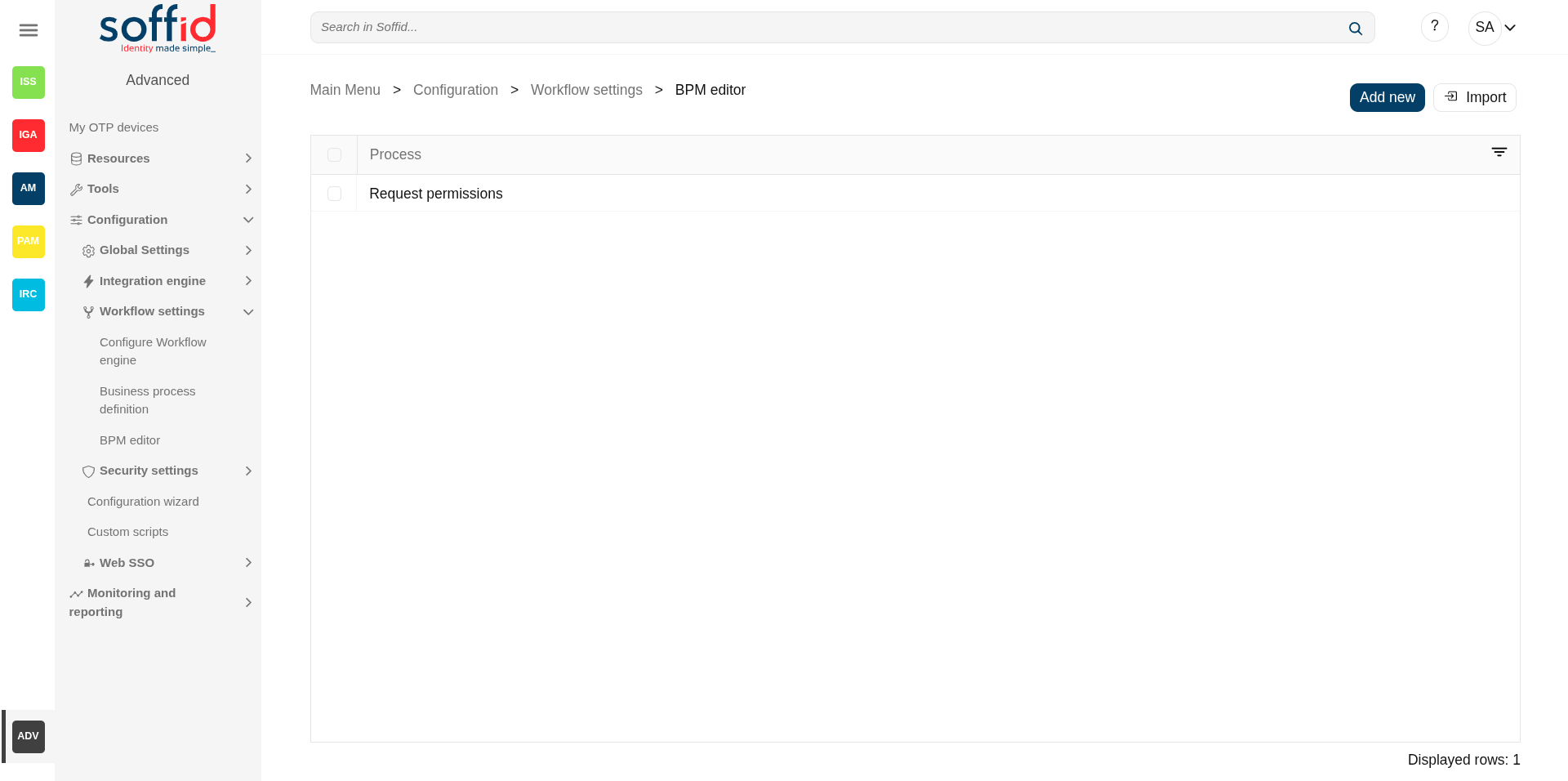](https://bookstack.soffid.com/uploads/images/gallery/2025-08/dr9i43MnFBSF4mq0-image.png)
[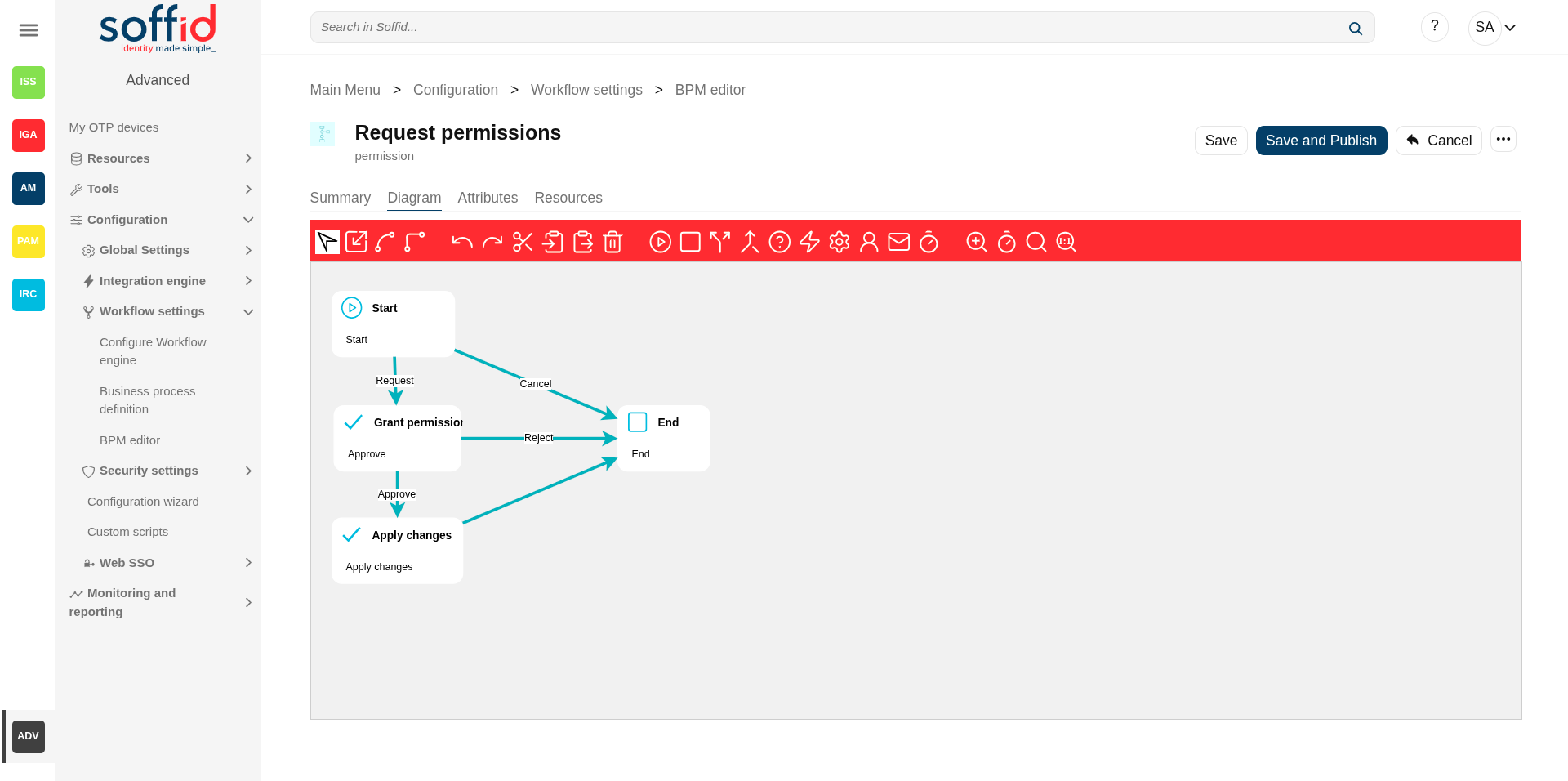](https://bookstack.soffid.com/uploads/images/gallery/2025-08/hXJnalqTOijNu6vZ-image.png)
## Related objects
1. [Configure Workflow engine](https://bookstack.soffid.com/books/soffid-4-reference-guide/page/configure-workflow-engine) : where the workflow engine is configured
2. [Business process definition](https://bookstack.soffid.com/books/soffid-4-reference-guide/page/business-process-definition) : where workflows are published
3. [BPM editor](https://bookstack.soffid.com/books/soffid-4-reference-guide/page/bpm-editor) : where to create or modify workflows
4. [My tasks](https://bookstack.soffid.com/books/soffid-4-reference-guide/page/my-tasks) : pending workflows where the user has to perform an action in order to continue their workflow.
5. [My requests](https://bookstack.soffid.com/books/soffid-4-reference-guide/page/my-requests) : The workflows that the user can initiate are listed here.
6. [My requests > Query request status](https://bookstack.soffid.com/books/soffid-4-reference-guide/page/my-requests-query-request-status) : to search for all processes started by oneself
7. [Process Search](https://bookstack.soffid.com/books/soffid-4-reference-guide/page/process-search) : to search for all processes
8. [Metadata](https://bookstack.soffid.com/books/soffid-4-reference-guide/page/metadata) : to add attributes to display in the search tables
9. [Scheduled jobs](https://bookstack.soffid.com/books/soffid-4-reference-guide/page/scheduled-jobs) : shows active workflows pending asynchronous tasks
## Standard attributes
### Processes list
The list of the processes already created or imported.
- **Process**: identifier name of the workflow
### Summary tab
That area of the form displays the general information about the business workflow and the main operations to perform. The actions to perform are defined by flowing that link [Process editor actions](#bkmrk-new-bpm%C2%A0)
- **Process name**: identifier name of the workflow. This name will be used to label the workflow for the end-user. BPM editor allows you to manage the process into folders, you can type the folder name following by "/" .
Image
Configuration: folder/name
[](https://bookstack.soffid.com/uploads/images/gallery/2025-09/XswyMUc7cpHFZAiQ-image.png)
My request with the Users folder
[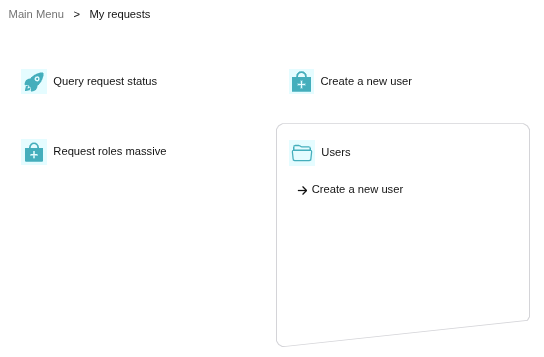](https://bookstack.soffid.com/uploads/images/gallery/2025-09/9ExlXYNpXhU7nDwS-image.png)
Users folder with the workflow
[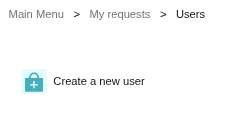](https://bookstack.soffid.com/uploads/images/gallery/2025-09/8LybHuYWFW6CA832-image.png)
- **Process type**: allows categorizing the process. There are three different types of processes, each one with its own template.
- Use management: used to create and update identities and their attributes.
- Permissions management: used to create, update and remove permissions and account to identities.
- Permissions request: used to request permissions.
- Account reservation: to use privileges account. In this case, initiators must be -nobody-, that is nobody can start the process directly.
- Delegate roles: used to delegate permissions to other user.
- **Description**: a brief description of the workflow. When an end-user starts a workflow, this text will be displayed in the Actions log tab.
- **Initiators**: here you could configure the roles or the identities that could start a new workflow from the Console and Selfservice. E.g. "admin" identity, "SOFFID\_ADMIN" role, both separated by comma ',' as "admin,SOFFID\_ADMIN" or if you want to publish the workflow to everyone, you can use the text "tothom" or the character '\*' . When you are configuring an Account reservation process, that value must be -nobody-, that is nobody can start the process directly.
- **Managers**: here you could configure the roles or the identities that could perform tasks in the workflow as approve permissions or cancel the workflow.
- **Observers**: here you could configure the roles or the identities that could open the workflows in read-only mode.
### Diagram tab
This tab displays the workflow diagram. The editor allows you to perform many actions as edit a node, edit a transition, add nodes and transitions, or redistribute the diagram.
#### Steps
There are some available step types to define the properties and behavior of the process. Depending on the selected type, there are common properties to all types and specific properties for each one of them.
The workflows have default steps defined, those steps can be deleted or updated, and other steps can be added. Each step has detail to set up its properties and its behavior. The default steps are below:
**Start**
This step is used to define the beginning of the workflow.
💻 Image
[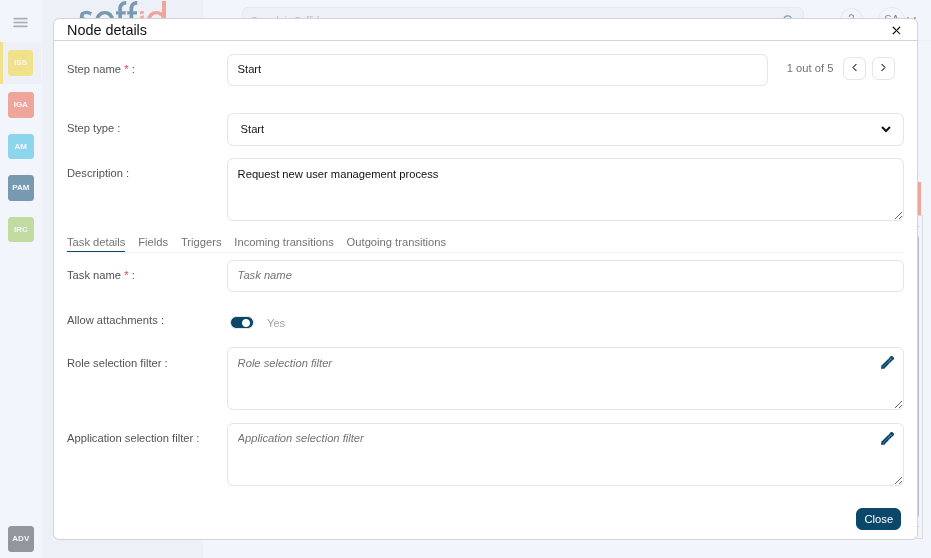](https://bookstack.soffid.com/uploads/images/gallery/2025-09/LY0C5PBs7AxiReQC-image.png)
**Screen**
This step is used to define a form that must be filled in by the end-user.
💻 Image
[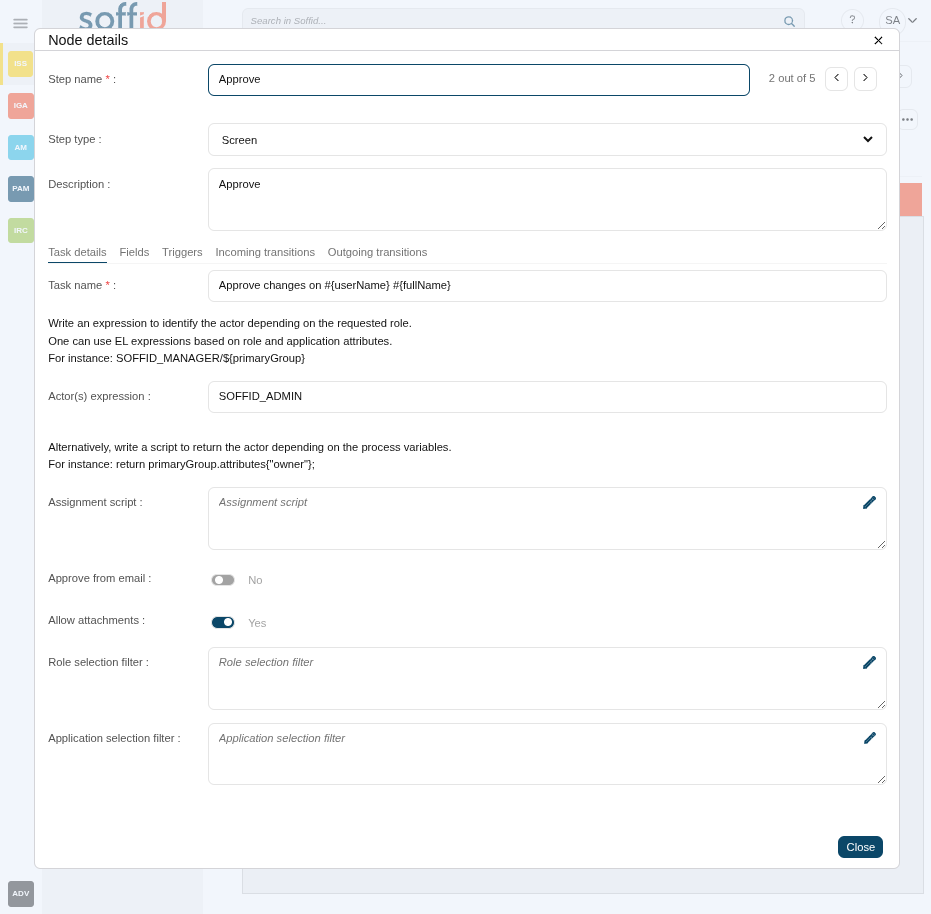](https://bookstack.soffid.com/uploads/images/gallery/2025-09/xhJKcQOPLj6ioc0y-image.png)
**Apply changes**
This step is used to show the manager a form with the changes that must be approved.
💻 Image
[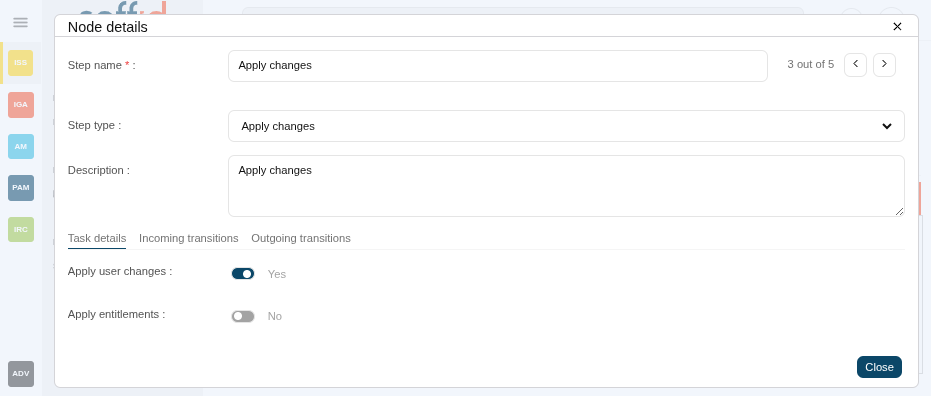](https://bookstack.soffid.com/uploads/images/gallery/2025-09/KMBXYL2IB13UrSsP-image.png)
**End**
This step is used to define the finish of the workflow.
💻 Image
[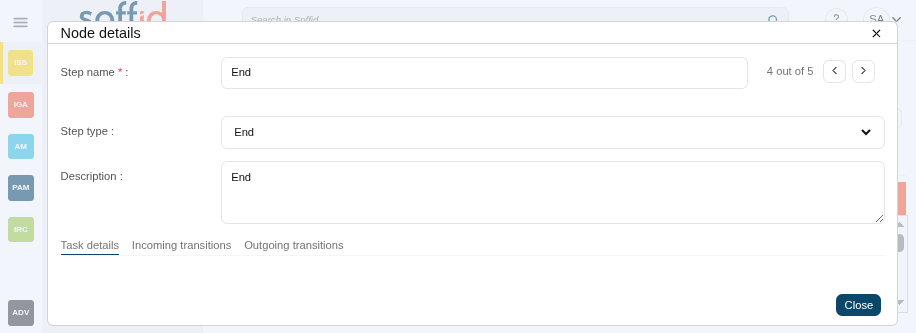](https://bookstack.soffid.com/uploads/images/gallery/2025-09/tztt499sY0TA0xH0-image.png)
Other available steps to custom your business process:
**Detect duplicated user**
This step is used to detect duplicated users.
💻 Image
[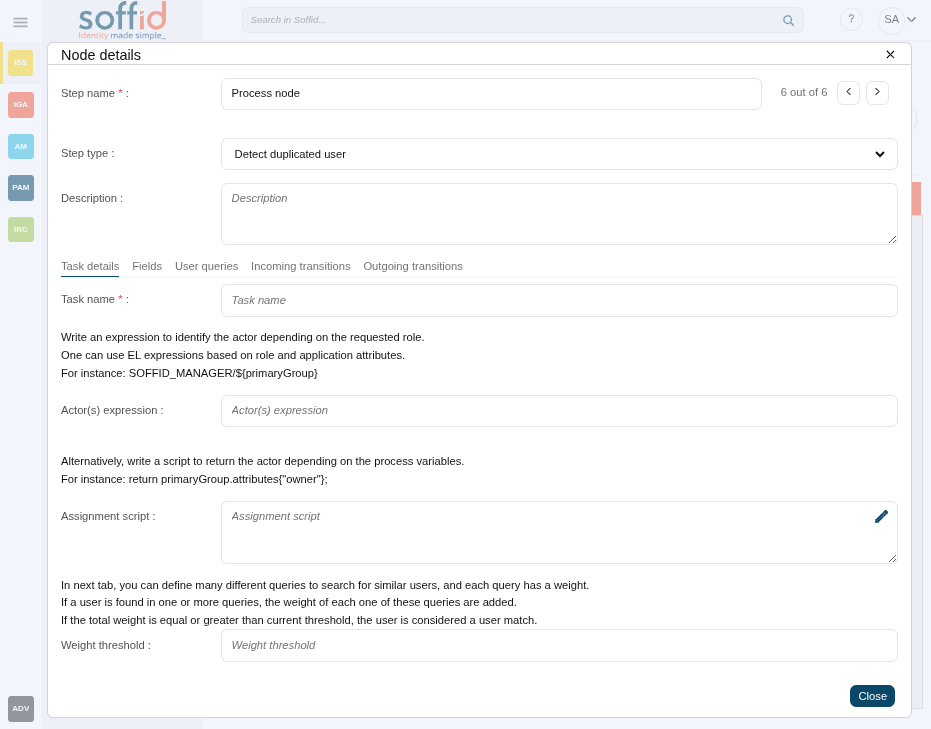](https://bookstack.soffid.com/uploads/images/gallery/2025-09/sORFCr9GqqWIpVgj-image.png)
**Grant approval**
This step is used to show the manager a form with the changes that must be approved.
💻 Image
[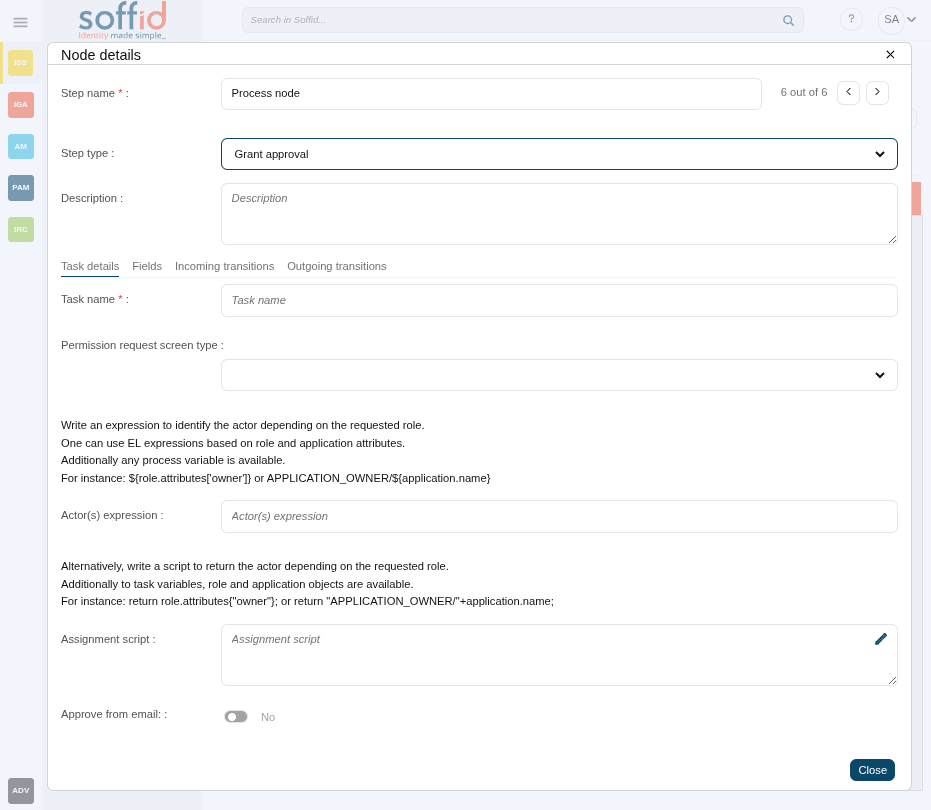](https://bookstack.soffid.com/uploads/images/gallery/2025-09/GYyPvRmqAg38vbb7-image.png)
**Script action**
This step allows you to define a script to be executed at this point. This process can be configured as asynchronous.
💻 Image
[](https://bookstack.soffid.com/uploads/images/gallery/2025-09/llFlECSJDIYJPJyu-image.png)
**Mail**
This step is used to configure sending mail.
💻 Image
[](https://bookstack.soffid.com/uploads/images/gallery/2025-09/jlgKQpBAJIv2I4zN-image.png)
**Fork**
The process is splited into two or more paths that are run in parallel, allowing multiple activities to run simultaneously.
💻 Image
[](https://bookstack.soffid.com/uploads/images/gallery/2025-09/aENeh58lBrdl8dEp-image.png)
**Join**
Two or more parallel sequence flow paths are combined into one sequence Flow path.
💻 Image
[](https://bookstack.soffid.com/uploads/images/gallery/2025-09/LrbTyagpDBGN0dQ8-image.png)
**Decision**
This step allows you to define a script to decide which will be the next step. You must configure the next step by typing the transition name as part of the return command (e.g. return "transitionName").
💻 Image
[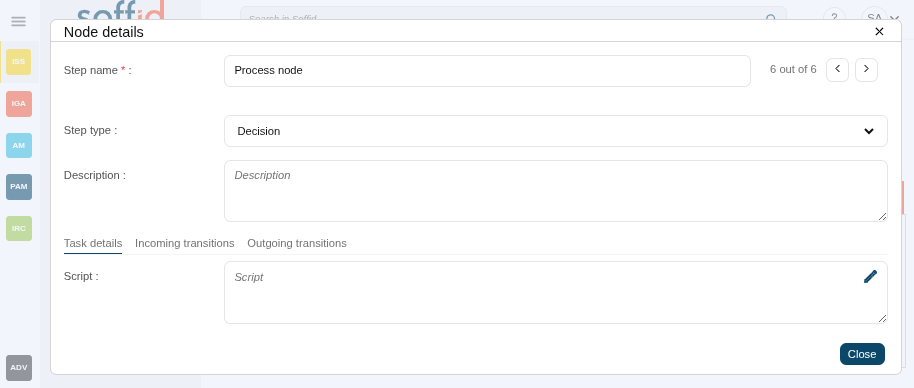](https://bookstack.soffid.com/uploads/images/gallery/2025-09/21KT84gKjARmejWb-image.png)
**Timer**
This option can be an independent node or as a part of an existing node. This allows you to determine the time to run the action. For Time to trigger field, the availabe options are hours, minutes, seconds, days, or a date #{fecha}
💻 Image
[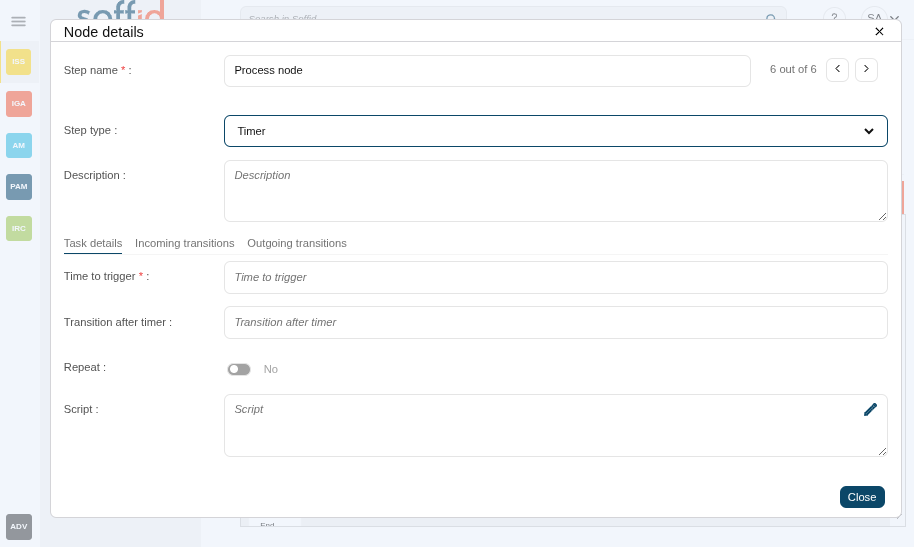](https://bookstack.soffid.com/uploads/images/gallery/2025-09/ybEGxgre8Py2UOc0-image.png)
**System call**
This step allows you to set up a call to a specific system.
You can find more information about the [Invoker for Shell connector ](https://bookstack.soffid.com/books/connectors/page/invoker-interface)and the [Invoker for Active directory](https://bookstack.soffid.com/books/connectors/page/invoker-interface-for-active-directory) connector.
💻 Image
[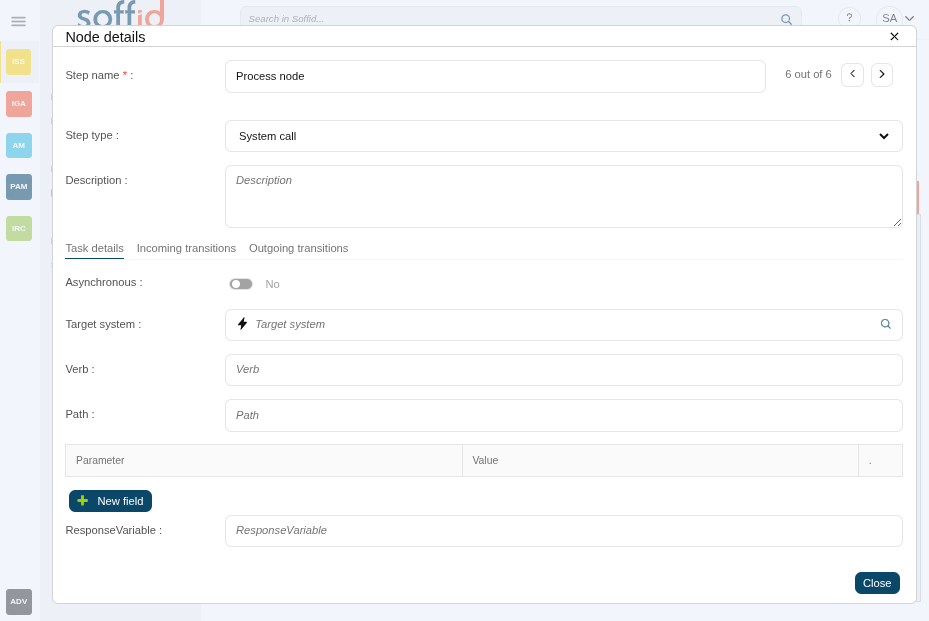](https://bookstack.soffid.com/uploads/images/gallery/2025-09/5rkIalXsgTPybgjb-image.png)
#### Step details
All steps have some detailed data:
- **Step name**: identifier name of the step.
- **Step type**: step to be configured.
- **Description**: a brief description of the step.
#### Step tabs
All steps have some tabs for more detailed configuration, the tabs depend on the step type:
- **Task details**: tab with more custom attributes that depend on the step type
- **Fields**: objects attributes to be managed in the workflow form
- **Triggers**: scripts to be executed depending the trigger selected
- **User querys**: user querys
- **Incoming transitions**: tab to manage the incomming transitions and algo manage actions
- **Outgoing transitions**: tab to manage the outcoming transitions and algo manage actions
### Attributes tab
The Attributes tab is allowed for creating custom attributes to be used to configure the workflow. The defined attributes will be used in the Steps tab to be mapped with the Soffid data.
There are customized templates depending on the Process Type selected, those give you default attributes that you can customize.
- **Code**: code is used internally as an identifier by the system. Try to create a short one without spaces and with uppercase to separate words.
- **Label**: label displayed on the web page. This may be a name or a short description.
- **Data type**: data type of the value of the metadata attribute. The data type includes:
- Basic data types as String or Boolean.
- Extended data types as Photo or E-mail.
- Default Soffid objects as User or Group.
- Your own custom objects are created in Soffid.
- **Multiple values**: (Optional) If this flag is enabled, the metadata may contain more than one value.
- **Size**: (Optional) Set the maximum length of the value.
- **Values**: (Optional) Allows creating a set of values to provide to the user as a list.
💻 Image
[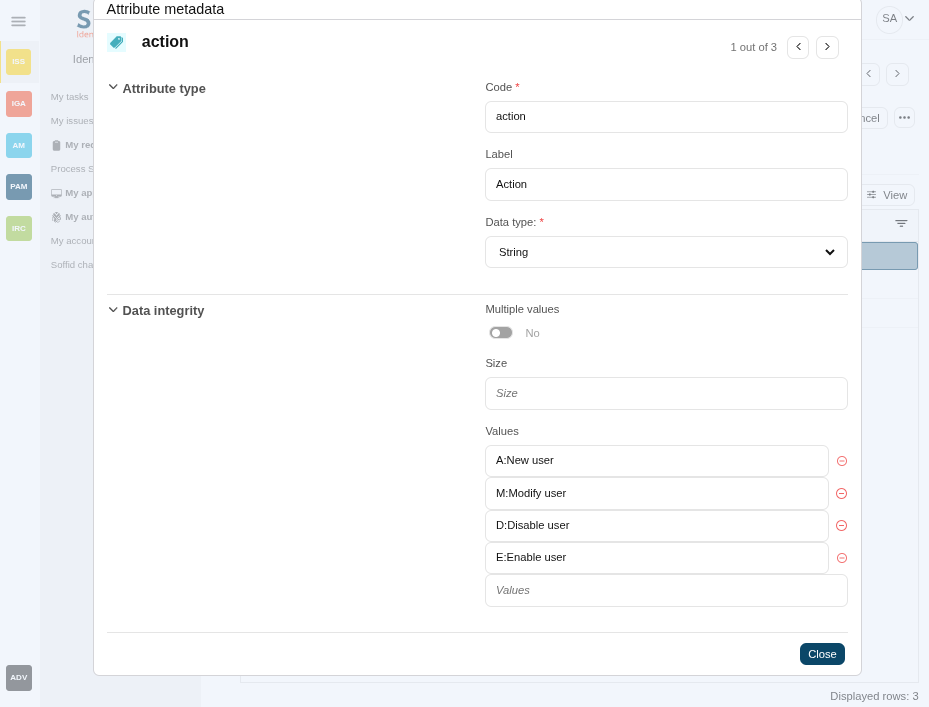](https://bookstack.soffid.com/uploads/images/gallery/2025-09/lhkieuyC9hYhjyxr-image.png)
## Actions
#### Process list actions
**Add new**
Allows you to add a new workflow to Soffid. You need to set a name and select the process type and accept. Then Soffid opens the Process editor, which allows you to configure the process. And finally, save the process configuration, or save and publish. If you cancel that operation, Soffid will not save the process definition.
💻 Image
[](https://bookstack.soffid.com/uploads/images/gallery/2025-09/MX5vXMfMbx0Lr2hp-image.png)
**Import**
Allows you to import a workflow from a .pardef file. That functionality is very useful for next scenarios:
- To restore a workflow from a backup (a workflow previously exported).
- To deploy a workflow from one environment to another (for instance from Test to Live).
- To start a new workflow from a template.
Click the button, pick up a .pardef file, and save the process or save and publish. Soffid will ask you for confirmation, If you confirm, finally, Soffid will import the process definition. If you cancel that operation, Soffid will not upload and save the process definition.
Note that with this option you only can load workflows defined by the BPM editor.
**"Edit process"**
Allows you to edit a workflow to update it by clicking the process row. Then you can update the process definition and save, or save and publish the updates.
**Delete process definition**
Allows you to delete a workflow. Select a process row to enable the delete button. When a process is deleted, that process continues to be available to be executed. If you want that process is not available, you must disable that process on the [Business process definition](https://bookstack.soffid.com/books/soffid-4-reference-guide/page/business-process-definition "Business process definition") page.
#### Summary tab actions
The action that can be performed in the process are detailed below
**Save**
Allows you to save all changes included in the workflow. That workflow can be a new or an updated workflow.
**Save and Publish**
Allows you to save the changes performed in the workflow setup and also publish the workflow to be used in Soffid.
After this action, the last version of the workflow will be available for the end-user (with the proper permissions) in the Soffid Console and Self-service portal on the [My requests](https://bookstack.soffid.com/books/soffid-4-reference-guide/page/my-requests "My requests") page.
This latest version has been saved internally on the [Business process definition](https://bookstack.soffid.com/books/soffid-4-reference-guide/page/business-process-definition "Business process definition") screen.
**Cancel**
Allows you to quit the process editor without saving changes. Soffid will ask you for confirmation to exit without saving updates
**Export process**
Allows you to export a workflow to a **.pardef** file. You can choose that option clicking the "three points" icon. Automatically Soffid will download a .pardef file with the process definition.
##### Diagram tab actions
**"Transition icons"**
Allws you to add or update transitions.
- Select
- Pan
- Connect
- Connect
Image
[](https://bookstack.soffid.com/uploads/images/gallery/2025-09/gnZ1OJhgHbqoqoLi-image.png)
**"Edit icons"**
Allows you to delete an existing step. To delete a step you must click "trash" icon, the last of the edit icons.
- Undo
- Redo
- Cut
- Copy
- Paste
- Delete
💻 Image
[](https://bookstack.soffid.com/uploads/images/gallery/2025-09/pn46BtqVRtIVYWab-image.png)
**"Step icons"**
Allows you to add a new step to the workflow by selecting the action from the tool bar. When a new step is added, it will be mandatory to configure it.
- Start state
- End state
- Fork
- Join
- Decision
- System
- Node
- Task
- Mail
- Timer
💻 Image
[](https://bookstack.soffid.com/uploads/images/gallery/2025-09/5O575rMhsiYyzPj7-image.png)
**"Size icons"**
Allows you to change the size view of the diagram.
- Zoom out
- Zoom in
- Fit
- Actual size
Image
[](https://bookstack.soffid.com/uploads/images/gallery/2025-09/CQX0IGVtzYwdlz71-image.png)
Allows you to add a new attribute on the Attribute tab. You need to click the "New field" button and Soffid will show a new row to fill in. For each new field you may define:
- **Label**: allows you to give a name to that field. That label will be shown on the process form to final users.
- **Name**: allows you to select an identity attribute or specific attribute defined for that process. That will be the field type (e.g. selector, input field, date field...)
- **ReadOnly**: allows you to determine if this field could be updated.
- **Required**: allows to enable an attribute as a mandatory
- **Validation**: this allows you to add a custom script with validation rules.
- **Visibility**: this allows you to add a custom script to determine the visibility of that field.
- **SCIM Filter**: allows you to define a SCIM filter to get the data (e.g. userType eq "E")
💻 Image
[](https://bookstack.soffid.com/uploads/images/gallery/2024-06/image-1718003457780.png)
**Delete**
Allows you to delete a field. To delete a field you must click on the subtract icon (-) that is at the end of the same line.
**Order (icon)**
Allows you to sort the fields using drag and drop.
**Validation (icon)**
Allows you to add a new customized script with validation rules
**Visibility (icon)**
Allows you to add a new customized script to determine the visibility of that field.
**SCIM query **(icon)****
Allows you to define a SCIM filter to get the data
##### Triggers
**Add new**
Allows you to add a new trigger to perform actions.
💻 Image
[](https://bookstack.soffid.com/uploads/images/gallery/2025-09/I05COuMMx39VPe8i-image.png)
**Delete**
Allows you to delete a trigger.
**Action (icon)**
Allows you to add a new customized script.
##### Incoming transition
**New transition**
Allows you to add a new incoming transition. You need to click the "New transitions" button, then Soffid will show a new row to fill in. For each new incoming transition you may define:
- From: this allows you to select where the workflow comes from.
- Incoming transition: brief name to identify the transition.
- To: current step.
- Action: allows creating a custom script to perform specific actions.
💻 Image
[](https://bookstack.soffid.com/uploads/images/gallery/2024-06/image-1718007544596.png)
**Delete transition**
Allows you to delete an incoming transition. To delete an incoming transition you must click on the subtract icon (-) that is at the end of the same line.
**Action**
Allows you to add a new customized script by clicking the pencil icon.
##### Outgoing transition
**New transition**
Allows you to add a new outgoing transition.
💻 Image
[](https://bookstack.soffid.com/uploads/images/gallery/2024-06/image-1718007569420.png)
**Delete transition**
Allows you to delete an outgoing transition. To delete an outgoing transition you must click on the subtract icon (-) that is at the end of the same line.
**Action**
Allows you to add a new customized script by clicking the pencil icon.
##### Attributes tab actions
**Add new**
Allows you to add a new attribute to use to configure the step.
**View**
Allows you to show and hide columns in the table.
You can also set the order in which the columns will be displayed.
**Delete**
Allows you to delete an attribute. To enable the delete button you must select one attribute.
**Add value**
Allows you to add a new value to the attribute.
**Delete value**
Allows you to delete a value. To delete a value you must click on the subtract icon (-) that is at the end of the same line.
##### Resources tab actions
**Upload resources**
Allows you to add files in a zip file as externals resources to be used in the scripts
Soffid console provides a granular access control system. That granular control system allows the administrator user to assign granular permissions to roles. Be in mind that some permissions may inherit some other permissions.
You cannot assign permissions directly to users. Instead, permissions are assigned to roles and roles are assign to users, either directly or through grant inheritance.
The roles may be created into Soffid application system, but could also be included in any other application system.
Permissions are grouped into permission scopes. Most scopes are Soffid object types, but there are one special scope named Soffid, that applies to Soffid console web pages.
Addons can create their own authorizations that automatically will appear at this screen. When a new addon has been installed and applied, the first thing to do use to be assign permissions for this new addon. In fact, administrators won't be able to manage the addon unless the log out and log in to get the newly created permissions.
The permissions given to roles and the roles given to users are cached by Soffid. In order to reapply permissions, the user should close its session and log-in again
## Screen overview
[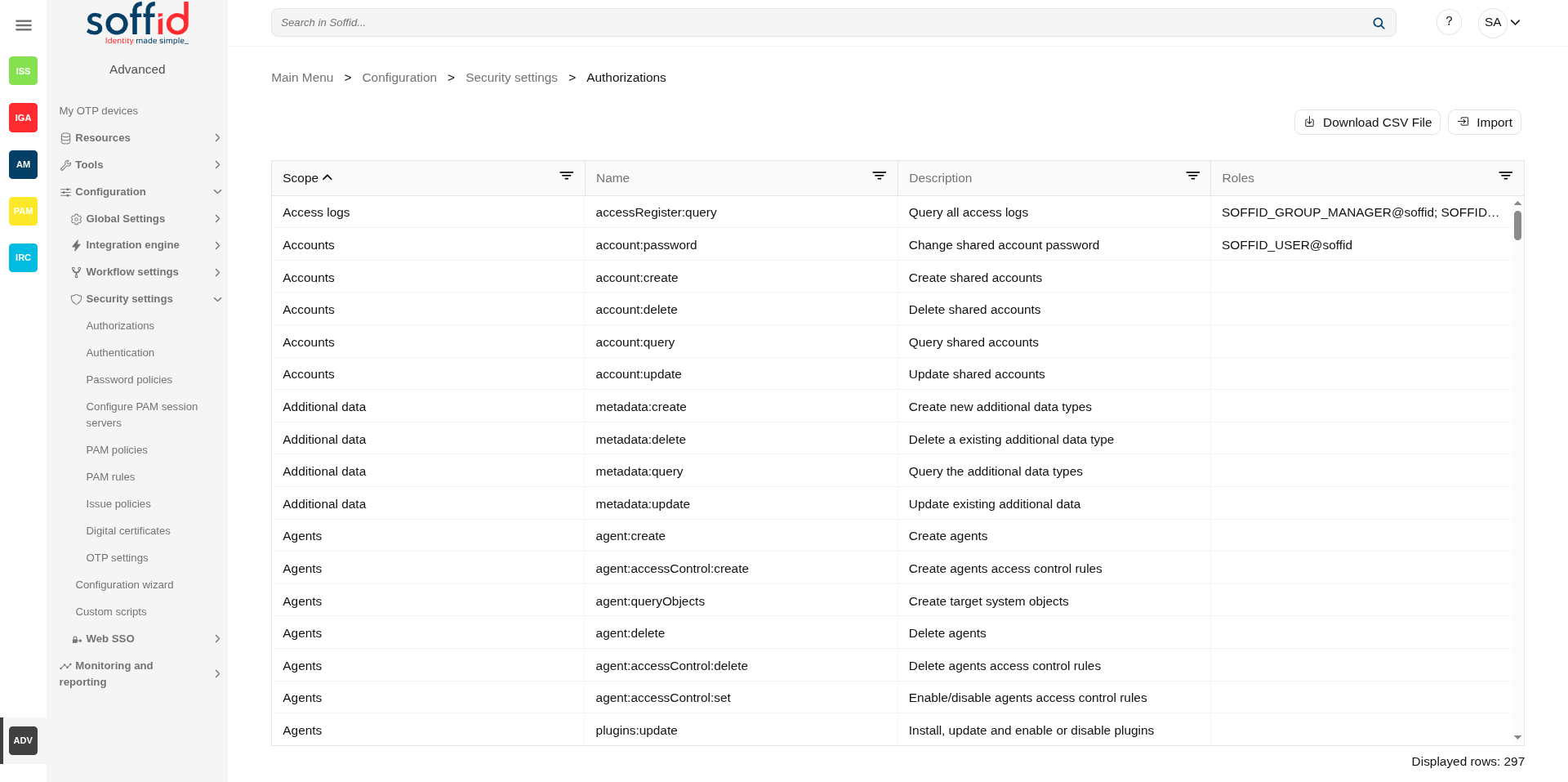](https://bookstack.soffid.com/uploads/images/gallery/2025-08/NgIfZQcxksAvHStB-image.png)
[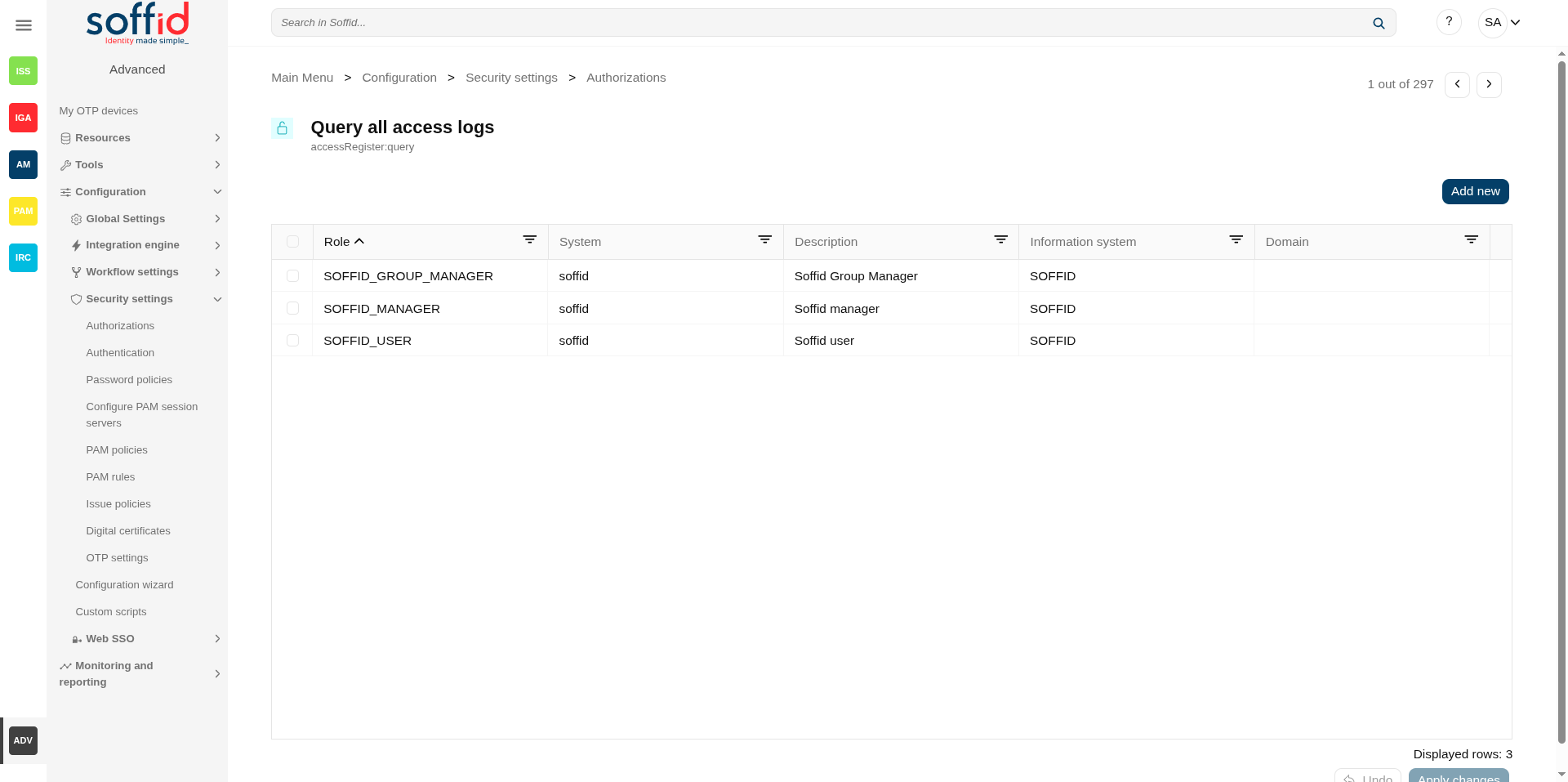](https://bookstack.soffid.com/uploads/images/gallery/2025-08/X6Hmeav6c4kmmiG2-image.png)
## Related objects
- [Users](https://bookstack.soffid.com/books/soffid-4-reference-guide/page/users): authorisations are given to users through the roles that have been granted to them.
- [Roles](https://bookstack.soffid.com/books/soffid-4-reference-guide/page/roles "Roles") : authorisations are granted to roles
- [Information systems](https://bookstack.soffid.com/books/soffid-4-reference-guide/page/information-systems "Information systems") : roles are gathered into information systems
## Standard attributes
### Table attributes
- **Scope**: scope of application.
- **Name**: name of the granular permission.
- **Description**: brief description of the granular permission.
- **Roles**: role list assigned to that granular permission.
### Authorization attributes
- **Role**: role name.
- **System**: target system name.
- **Description**: role description.
- **Information system**: asset or application, from a functional point of view.
- **Domain**: the role is limited to that scope.
## Actions
### Table actions
**Download CSV file**
Allows you to download a CSV file with the authorization data.
**Import**
Allows you to upload a CSV file with the authorization data to add or to update the granular control system. If they exist, the values of the CSV file will prevail.
First, you need to pick up a CSV file, that CSV has to contain a specific configuration. Then you need to check the contents. And finally, you need to select the mappings for each column of the CSV file to import the data correctly and to click the Import button.
### Authorization actions
**Add new**
Allows you to add a new role to the authorization.
First, you need to search a role writing the role name on the field, and Soffid will show the values related. Second, you can select one or more roles and accept.
And finally, you need to apply changes to save the roles added. If you cancel that action, no role will be assigned.
**Delete**
Allows you to delete one or more roles from an authorization.
To delete one role, you need to click the subtraction symbol (-), located at the end of the row, of the role which you want to delete and then apply changes.
To delete more than one role, you can select the roles which you want to delete and there click the subtraction symbol (-) and then apply changes.
It is mandatory apply changes to save the roles deleted.
Soffid will ask you for confirmation to perform that action, you could confirm or cancel the operation.
**Undo**
Allows you to quit without applying any changes.
**Apply changes**
Allows you to update the changes made on the authorization.
### Select role actions
**Undo**
Allows you to quit without applying any changes.
**Apply now**
Allows you to add the role or roles to the authorization.
## Others
### Most common authorizations
**Page**
**Code/s**
**Role**
Password vault
sso:manageAccounts
agent:query
metadata:query
SOFFID\_PAM\_ADMIN
Password vault, modify Owners, Managers and SSO Users.
### Examples
#### End user for identity self service.
A Soffid role is created for this functionality.
[](https://bookstack.soffid.com/uploads/images/gallery/2025-09/MtL73vbAaDSm6l7y-image.png)
This role is assigned to the authorisations we require.
[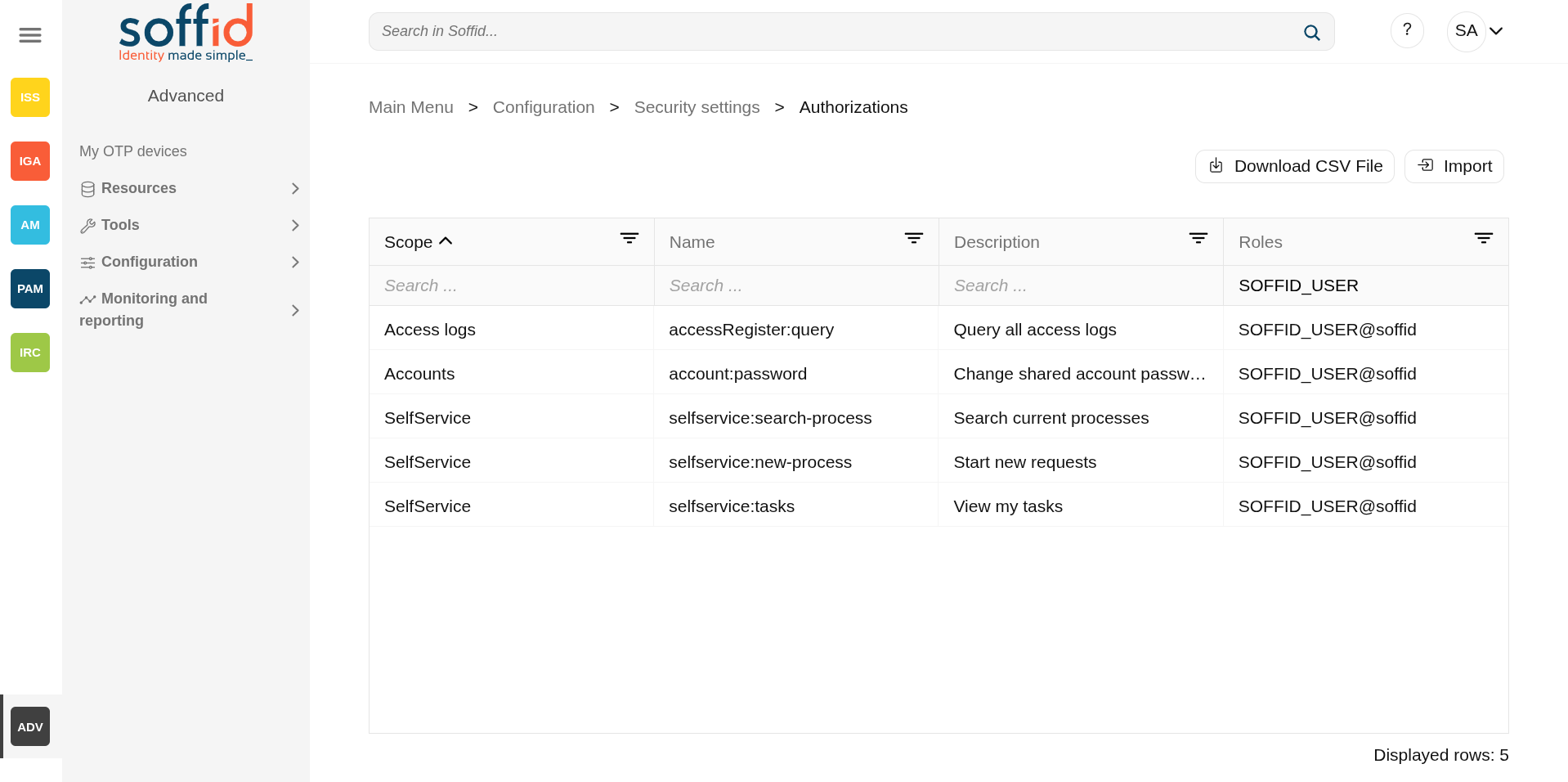](https://bookstack.soffid.com/uploads/images/gallery/2025-09/n3o5YHG5lMFzBR1Q-image.png)
The role is assigned to a user.
[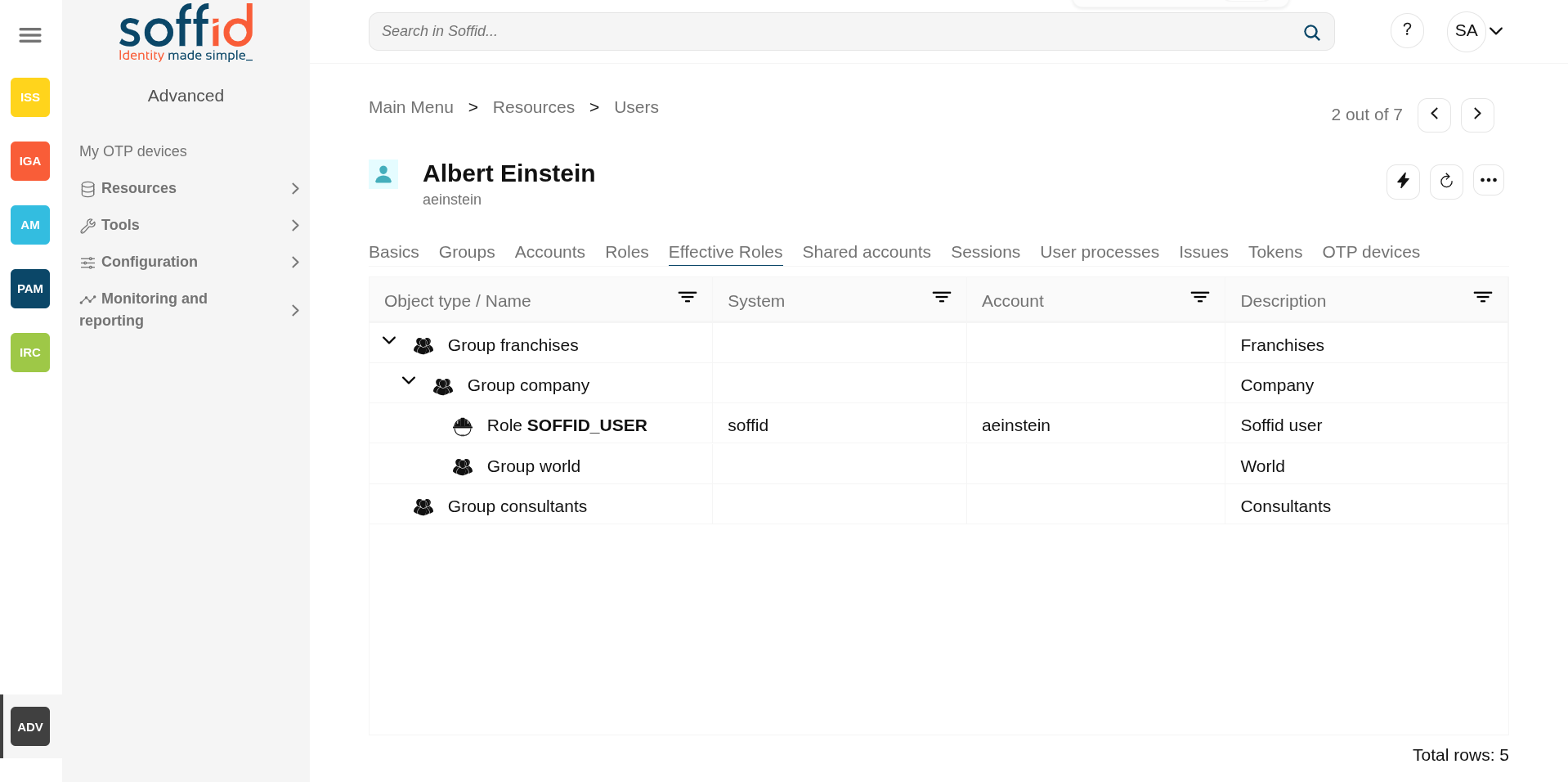](https://bookstack.soffid.com/uploads/images/gallery/2025-09/peIAfaMPEJdd6Xnz-image.png)
The user will only be able to access the pages and actions permitted by their authorisations.
[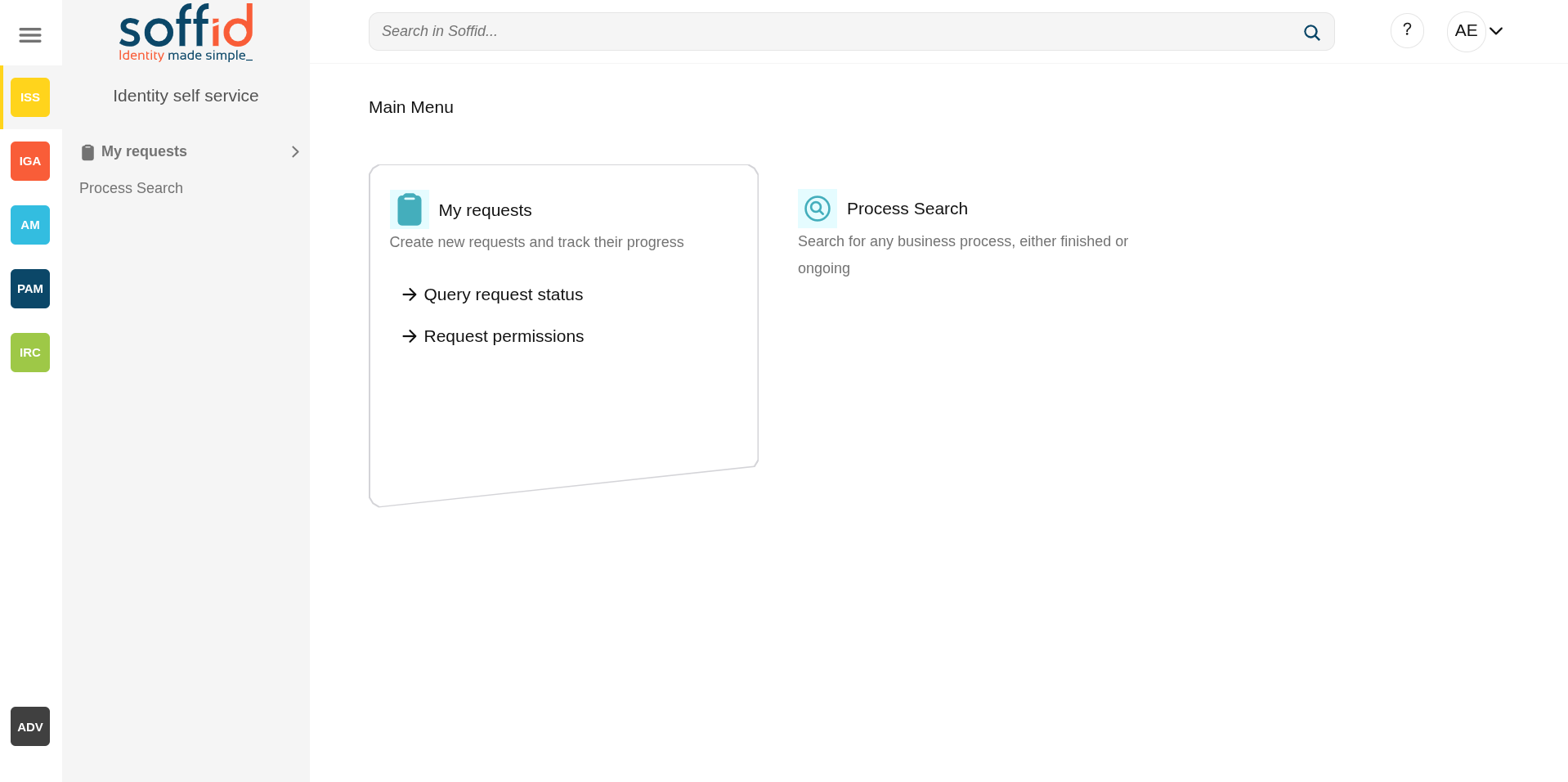](https://bookstack.soffid.com/uploads/images/gallery/2025-09/rkPMAIPyL5vTavMZ-image.png)
# Authentication
## Definition
This page gathers different types of settings that may affect user authentication in the Soffid Console.
Soffid could use different kinds of external authentication sources. These mechanisms could be selectively enabled or disabled.
## Screen overview
[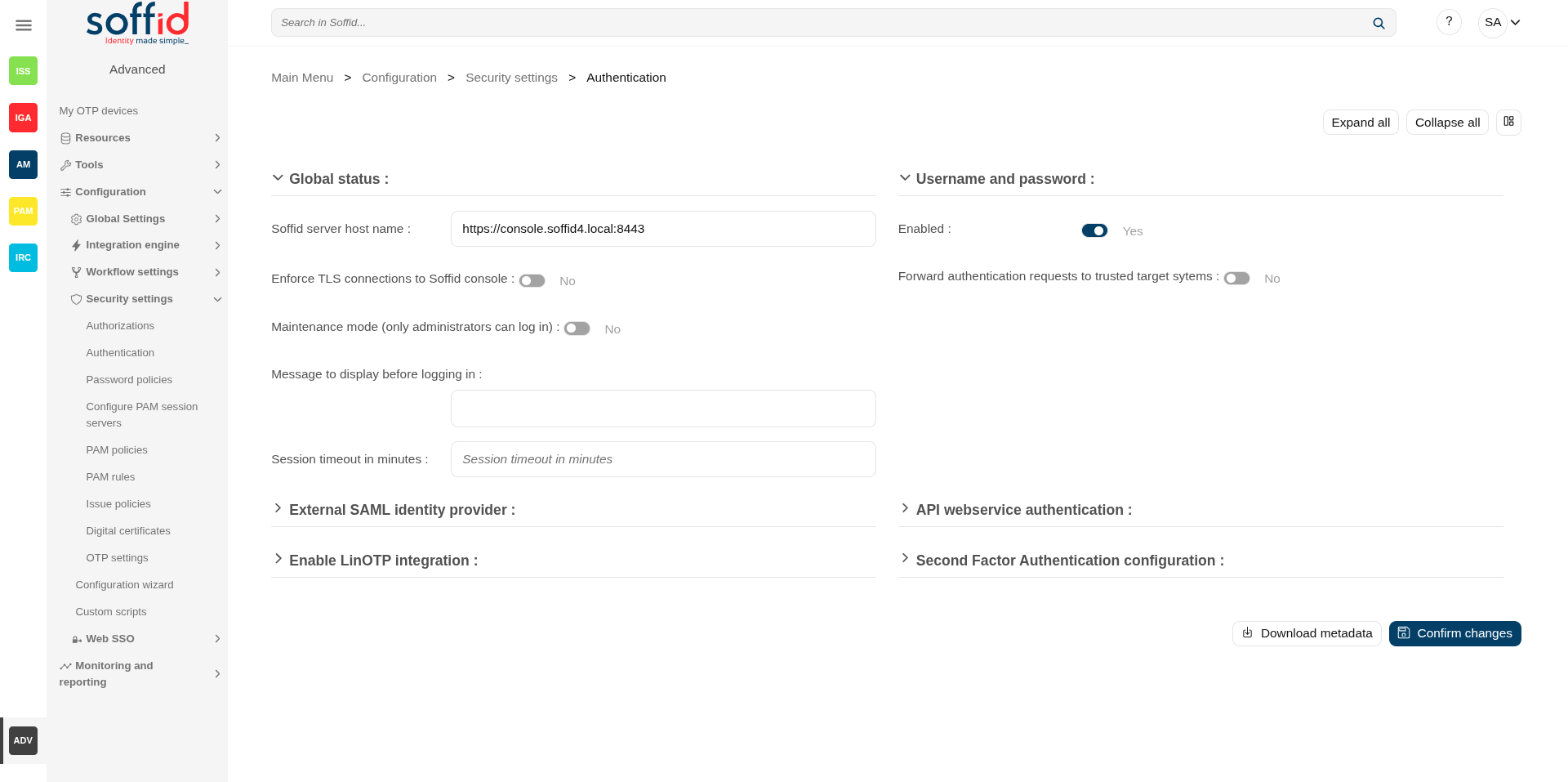](https://bookstack.soffid.com/uploads/images/gallery/2025-08/x3kMasXuUHzC6n08-image.png)
[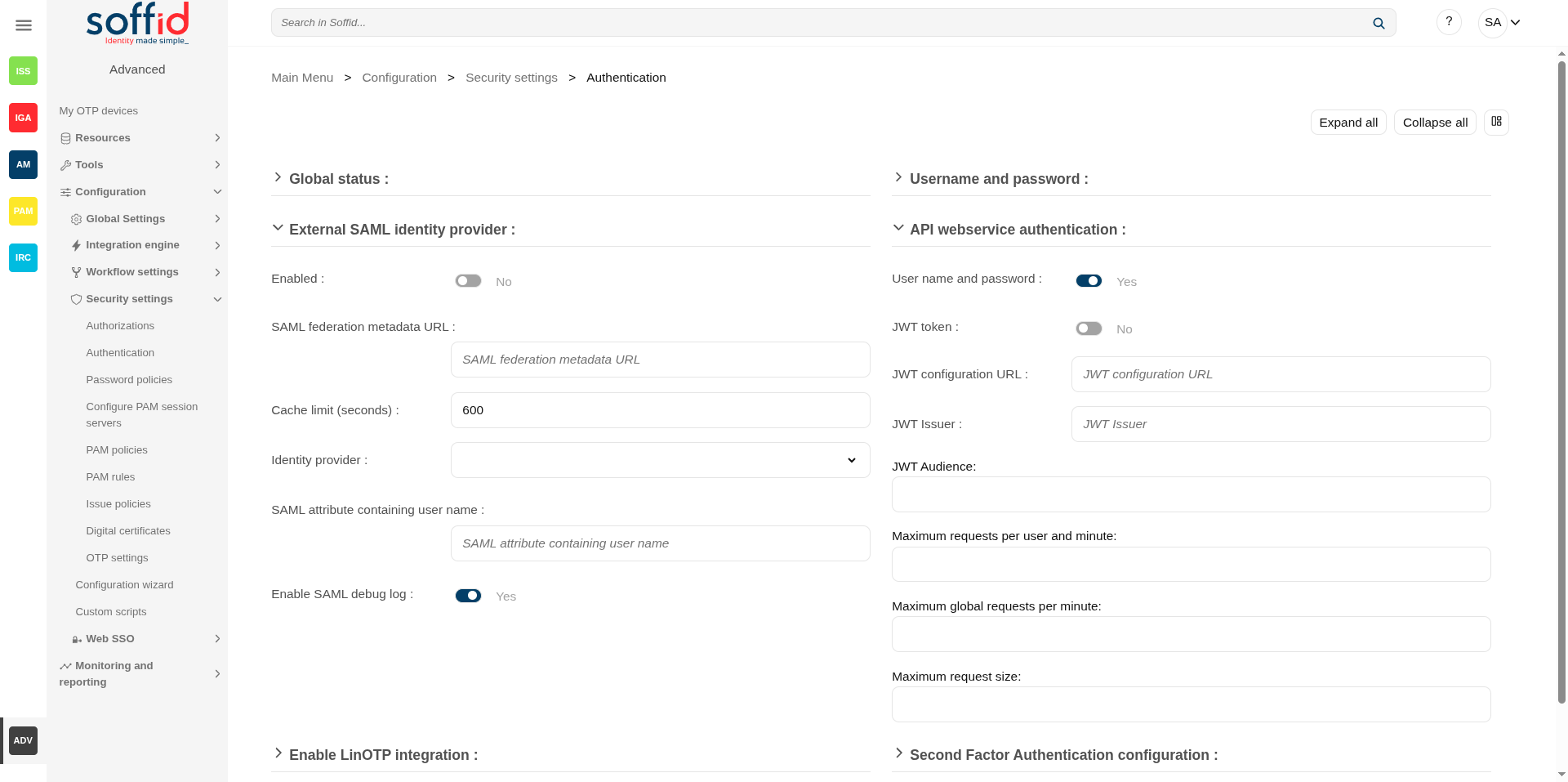](https://bookstack.soffid.com/uploads/images/gallery/2025-08/PJvXtCKSnrinOlBA-image.png)
[](https://bookstack.soffid.com/uploads/images/gallery/2025-08/0re3qHMwmlZVyyle-image.png)
## Related objects
- [Users](https://bookstack.soffid.com/books/soffid-4-reference-guide/page/users "Users") : users must have a enabled Soffid account.
- [Identity provider](https://bookstack.soffid.com/books/soffid-4-reference-guide/page/identity-providers-addon-federation "Identity providers") : users could log in with the Soffid idp or another external idp.
- [Console log](https://bookstack.soffid.com/books/soffid-4-reference-guide/page/console-log "Console log") : to check the console logs
- [Account naming rules](https://bookstack.soffid.com/books/soffid-4-reference-guide/page/account-naming-rules "Account naming rules") : to configure the LinOTP service
## Standard attributes
### Global status
- **Soffid server host name**: URL generated in the installation configuration.
- **Enforce TLS connections to Soffid console:** If you check this option, it will be is mandatory to restart the Soffid Console.
Once you check the **Enforce TLS connections to Soffid Console** option, there are no easy way to come back. You should use this option only en Production environments.
- **Maintenance mode (only administrators can log in)**: if this option is checked (value is Yes), only the administrators could connect to Soffid Console.
💻 Image
[](https://bookstack.soffid.com/uploads/images/gallery/2025-08/a7lxaU2RjOafCr9o-image.png)
- **Message to display before logging in**: administrators can configure a banner that will be displayed before the user logging in. This banner will display security advice.
💻 Image
[](https://bookstack.soffid.com/uploads/images/gallery/2025-08/QeJb6oGzMX5fdCJh-image.png)
- **Session timeout in minutes**: time in minutes it takes for the console to display the message indicating that the session is being closed. If nothing is indicated, the session does not expire.
💻 Image
[](https://bookstack.soffid.com/uploads/images/gallery/2025-08/5BFrjHtxI26bV8Ds-image.png)
### Username and password
- **Enabled**: the only attribute enabled by default in the installation of Soffid. It is the internal username and password authentication mechanism. Therefore, the authentication is made with the username and password of the soffid account.
- **Forward authentication requests to trusted target systems**: to use external username and password sources. Therefore, the authentication is made with the username and password of an account of an external system.
This authentication is applies only to agents that have checked "Trust password" in the agent. For more information about agents please visit the [Agents](https://bookstack.soffid.com/books/soffid-4-reference-guide/page/agents "Agents") page.
If the password entered by the user does not match with the Soffid account (if the attribute "Enabled" is checked), the Soffid core will issue a "ValidatePassword" task for each trusted target system (with checked "Trust password"). If any of the trusted target systems accepts the password, it will be hashed and stored in Soffid tables and login will be accepted.
Be aware that this password change in Soffid will affect all systems that share the same password domain (defined in the password policies).
### External SAML identity provider
It should be noted this feature does not depend on the federation addon. That is a feature included by default in the Soffid smart engine to allow you to include in the authentication flow a mechanism to use a third-party SAML system.
Soffid's own identity provider can also be used.
- **Enable**: check it (select value Yes) to use an external SAML Identity Provider.
- **Soffid Server host name**: the URL that will be used by external IdP. This URL will be resolved by end user's browser in order to send the SAML assertion.
- **SAML federation metadata URL**: the URL where federation information can be found. If the Soffid console can fetch federation metadata, the Identity provider drop-down will be filled in with any identity provider found in the federation metadata URL.
- **Cache limit (seconds)**: how often the federation information will be refreshed. By default, 10 minutes will be taken.
- **Identity provider**: Identity Provider to use for authentication.
- **Enable SAML debug log**: it displays more trace in the Console log files
Finally, download the Soffid Console and load it into your SAML Identity Provider federation.
If SAML Identity Provider is enabled, as well as username and password, the user will have the chance to select the preferred authentication method. Otherwise, if only SAML is enabled, the user will be automatically redirected to SAML Identity Provider.
💻 Image
[](https://bookstack.soffid.com/uploads/images/gallery/2025-08/q8F32ceFWvDbVgga-image.png)
💻 Office 365 as External SAML identity provider
{{@1315}}
### API webservice authentication
Soffid allows you to configure the way to verify the identity of a user or system accesing to the Soffid Web Service, to ensure that only authorized entities can interact with the service.
This webservice is included in the addon SCIM, it must be installed previously.
- **User name and password**: allows you to use user and password to access to the Soffid Web Service.
- **JWT token**: allows you to use JWT token to access to the Soffid Web Service.
- **JWT configuration URL**: URL where the jwks.json are available to download.
- **JWT issuer**: identifies the principal that issued the JWT.
- **JWT audience**: identifies the recipients that the JWT is intended for.
- **Maximum requests per user and minute**: maximum requests per user and minute.
- **Maximum global requests per minute**: maximum global requests per minute.
- **Maximum request size**: maximum request size.
Bear in mind that the Identity Provider needs to have enabled the OpenID profile.
Also, the Identity Provider cert must be in the Console cacerts.
### Enable LinOTP integration
Soffid allows you to use an external OTP, LinOTP in this case. If you decide to use LinOTP, Soffid could be configured to request the user to authenticate using a second factor authentication to perform certain actions. In another case, you can use the Soffid OTP.
- **Enabled:** check it (select value Yes) to use an external SAML Identity Provider.
- **LinOTP server URL**: URL of your LINOTP service.
- **LinOTP admin username:** username of the admin account used by Soffid.
- **LinOTP admin password**: password of the admin account used by Soffid.
- **LinOTP users domain**: the user's domain for LinOTP authentication. The selected user domain will guess the LinOTP username for any Soffid identity. It is extremely important when LinOTP users do not match Soffid usernames. Please visit the [Account naming rules](https://bookstack.soffid.com/books/soffid-4-reference-guide/page/account-naming-rules "Account naming rules") page for more information
If you want to configure the **Soffid OTP** you could visit [Two factor authentication (2FA)](https://bookstack.soffid.com/books/two-factor-authentication-2fa-VsJ "Two factor authentication (2FA)") chapter.
### Second Factor Authentication configuration
- **Pages that optionally require OTP authentication for users with an enabled token**: (Optional) If a URL optionally requires OTP authentication, and the user does not have any OTP token, access will be granted. Otherwise, if the user has an OTP token, the OTP value will be required, and no access will be allowed until the user provides the right token value.
- You can include the list of pages to include the two factors only for the users with the token.
💻 Example
Request only the OTP for these pages:
[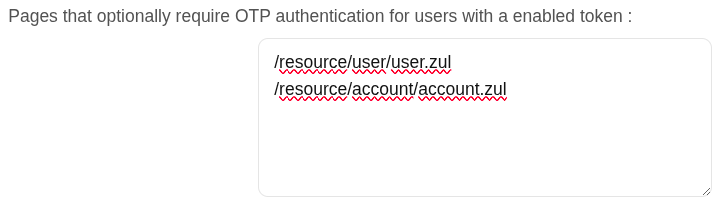](https://bookstack.soffid.com/uploads/images/gallery/2025-08/T8jFMvjhBpqwfY8v-image.png)
- - You can add a regular expression to determine the list of pages to always include the second factor to the users with the token
💻 Example
Request OTP for all pages except those containing menu.zul or otp.zul:
[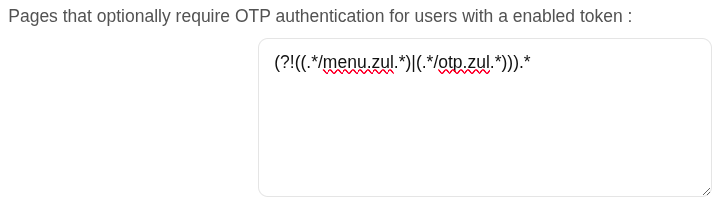](https://bookstack.soffid.com/uploads/images/gallery/2025-08/eh08E4TsKBZ1SrZC-image.png)
- **Pages that require OTP authentication to any user**: (Mandatory) You should include the list of pages to always include the second factor to the users with the token. Therefore, if a URL strictly requires OTP authentication, users with no token won't be allowed to use them.
💻 Example
[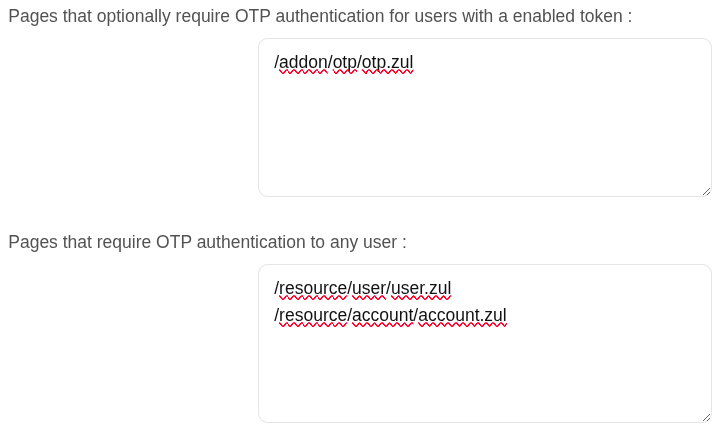](https://bookstack.soffid.com/uploads/images/gallery/2025-08/YpVwazmE7MBejMa6-image.png)
- **Second factor authentication period**: number of seconds after that, a new OTP value will be required.
In both configurations, if OTP is required by the user, a popup requesting the token value is raised to write the OTP value.
## Actions
**Expand all**
Displays all the attributes of the different blocks.
**Collapse all**
Hide all attributes of the different blocks.
**"Types of views"**
Change the view type: Classic view, Modern view, Compact design.
**Download metada**
Allows you to download an XML file with metadata to load it into your SAML Identity Provider federation when you use an External SAML identity provider
**Confirm changes**
Allows you to save the changes made in the Authentication setup.
# Password policies
## Definition
On this page, you can configure the password policies that will be applied when assigning a new password, always depending on the password domain selected by that system and the type of user selected.
Therefore, the two main components of this page are password management and password policies.
### Password domain
Is a logical way of grouping managed systems that are sharing the same password for each account.
If the administrator chooses to have the same password for every system, only one password domain should exist. If the administrator chooses to assign a different password for each system, then a password domain should be created for each managed system.
### Password policies
Password policies allow you to define custom rules that passwords must comply with to enhance system security.
For each **password domain**, Soffid allows you to create different password policies related to **user type**. It is only possible to define a single password policy for one password domain and one user type.
There are two kinds of password policies.
- The first one is for user selected passwords. That is the default behavior.
- The second one is system generated passwords. These policies are useful for shared accounts when using Enterprise Single Sign-on.
A password policy will also define how often the password needs to be changed and how many days are allowed to change it.
Regarding password complexity, you can specify the minimum and the maximum number of lowercase letters, uppercase letters, numbers, and symbols, as well as password length.
The administrator users can define a regular expression that must match each password. This can be used, for instance, to ensure that the first password is not numeric.
It is allowed to create a list of forbidden words that cannot be used as passwords.
## Screen overview
[](https://bookstack.soffid.com/uploads/images/gallery/2025-08/yKK4J6i4UIbrXu8z-image.png)
[](https://bookstack.soffid.com/uploads/images/gallery/2025-08/6bsy1y8RrhcTuF4G-image.png)
[](https://bookstack.soffid.com/uploads/images/gallery/2025-08/HT87nWEHi0YY6CjF-image.png)
[](https://bookstack.soffid.com/uploads/images/gallery/2025-08/XoVFUIeBFksVEXbe-image.png)
## Related objects
- [User type](https://bookstack.soffid.com/books/soffid-4-reference-guide/page/user-types "User types") : can be a user type for password policy and password domain
- [Agents](https://bookstack.soffid.com/books/soffid-4-reference-guide/page/agents "Agents") : where the password domain is selected
- [Users](https://bookstack.soffid.com/books/soffid-4-reference-guide/page/users "Users") : where a new password can be set
- [Accounts](https://bookstack.soffid.com/books/soffid-4-reference-guide/page/accounts "Accounts") : where a new password can be set
- [My accounts](https://bookstack.soffid.com/books/soffid-4-reference-guide/page/my-accounts "My accounts") : where a new password can be set or to query the password already set
- [Network intelligence](https://bookstack.soffid.com/books/soffid-4-reference-guide/page/network-intelligence "Network intelligence") : to enable the "Check breached password" a valid token must be applied
## Standard attributes
#### Password domain attributes
- **Code**: password domain identifier code.
- **Description**: a brief description of the password domain.
#### Password policies attributes
- **Password domain**: the password policy belongs to that password domain.
- **User type**: specific user type for which the password policy is created.
- **Description**: a brief description of the password policy.
- **Password type**: the king of policies password:
- Entered by the user: that is the default behavior.
- Automatically generated: these policies are useful for shared accounts when using Enterprise Single Sign-on.
- **Change allowed**: if it is checked, the user could change automatically generated passwords.
- **Query allowed**: if is checked, the user can view the current password.
- **Valid period (days)**: the change of the password will be asked in that number of days. That option is available when you select the "Entered by the user" option.
- **Minimum days for next change**: number of days during which you are not permitted to change your password again
- **Grace period (days)**: additional days allowed to the valid period, for changing the password. That option is available when you select the "Entered by the user" option.
- **Renewal Time**: added number of days to change the password. That option is available when you select the "Automatically generated" option.
- **Length (min & max)**: added the number of days to change the password.
- **Uppercase letters (min & max)**: min and max number of uppercase letters that be included on the password.
- **Lowercase letters (min & max)**: min and max number of lowercase letters that be included on the password.
- **Numbers (min & max)**: min and max number of numbers that be included on the password.
- **Symbols (min & max)**: min and max number of symbols that are included on the password.
- **Regular expression**: the password must comply with that regular expression.
- **Complexity**: Similar operation to the same option in Active Directory. It is mandatory to use three different types of characters (uppercase, lowercase, numbers, and symbols), it is not allowed to use the user code, name, or surname.
- **Password validation script**: script to validate additional password conditions. The result must be true or false.
- **Condition description**: description of the validation script. This condition will be displayed in the Password policy field when the user try to change the password from My Profile.
- **Passwords remembered**: the number of passwords the system will remember.
- **Forbidden words**: list of forbidden words that may not be used to create a password if they are selected. It will be case insensitive. For instance, there will be no distinction between "Soffid", "SOFFID", or "soffid".
- **Lock after failures**: the number of login attempts before blocking an account.
- **Unlock after seconds**: the number of seconds an account is blocked.
- **Check breached password**: If you have a valid token in the network intelligence, Soffid will verify that the password is valid and that there have been no security breaches.
## Actions
#### Table actions
**Add new**
Allows you to create a new **password domain**. To add a new password domain it will be mandatory to fill in the required fields
**Add password policy**
Allows you to create a new **password policy** on a specific password domain. Below the father password domain, you can find the button \[+\] to perform that action. To add a new password policy it will be mandatory to fill in the required fields.
#### Password domain detail actions
**Apply changes (dick button)**
Allows you to save a new password domain or to update the password domain changes. To save the data it will be mandatory to fill in the required fields.
**Delete**
Allows you to delete a password domain. To delete a password domain you can click on the "three points" icon and then click the delete button.
Soffid will ask you for confirmation to perform that action, you could confirm or cancel the operation.
**Undo**
Allows you to quit without applying any changes.
#### Password policies detail actions
**Apply changes (dick button)**
Allows you to create a new password policy or to update password policy changes. To save the data it will be mandatory to fill in the required fields.
**Delete**
Allows you to delete a password policy. To delete a password policy you can click on the "three points" icon and then click the delete button.
Soffid will ask you for confirmation to perform that action, you could confirm or cancel the operation.
Soffid provides the functionality that allows you to configure the Jump servers.
To configure that functionality is mandatory to install PAM following the instructions of the [PAM installation page](https://bookstack.soffid.com/books/pam/page/pam-installation "PAM installation").
A Jump server is the control point that forces users to log into that system first, then, they could traverse to other servers without having to log in again. The purpose of a jump server is to be the only gateway for access to your infrastructure reducing the size of any potential attack surface.
For correct configuration, you must first create a PAM server group and then publish the store service and any available jump servers within it.
## Screen overview
[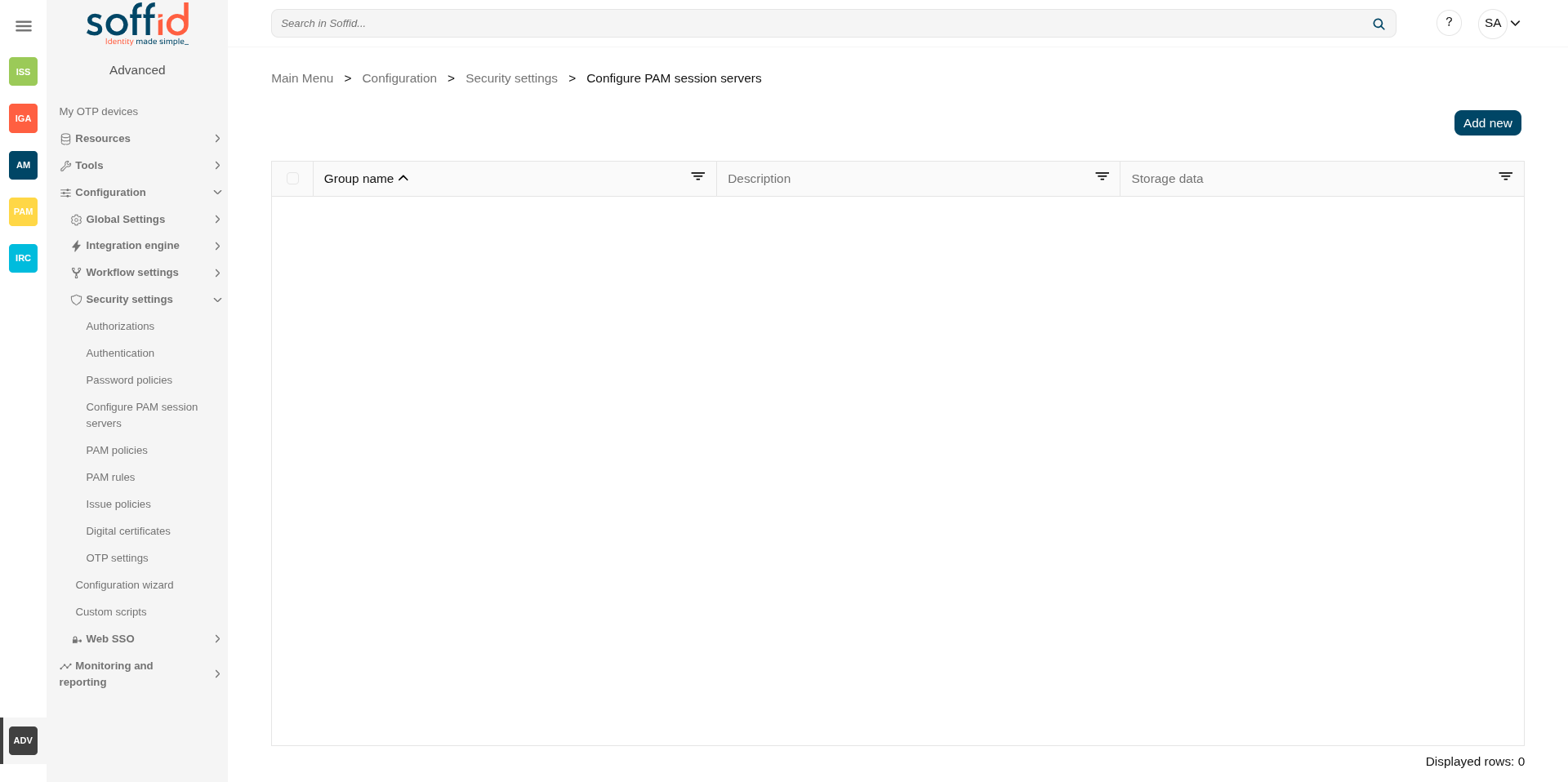](https://bookstack.soffid.com/uploads/images/gallery/2025-08/4rxyxHC3wkJOSmJg-image.png)
[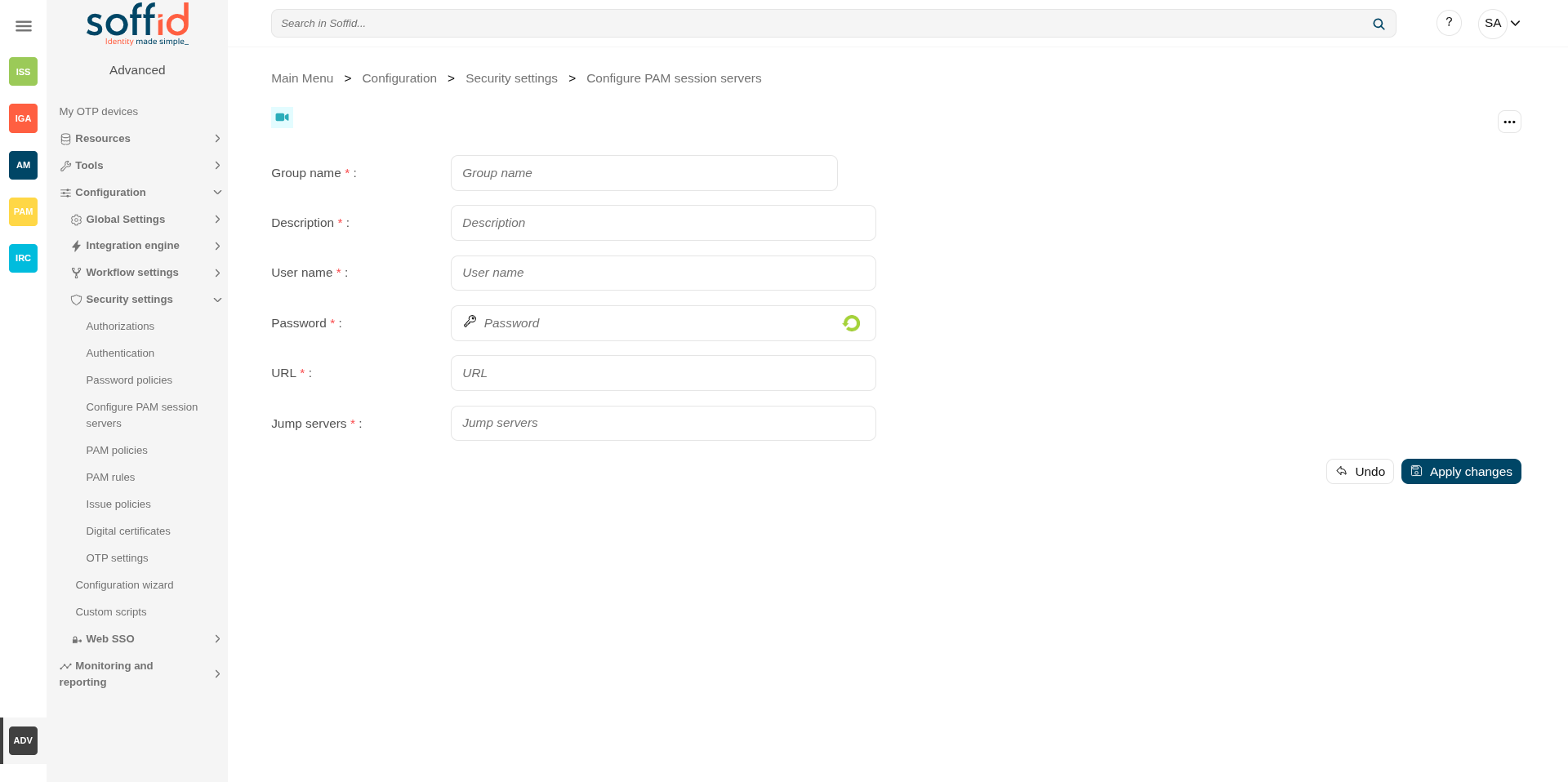](https://bookstack.soffid.com/uploads/images/gallery/2025-08/5JUwpMiyorrtr9GM-image.png)
## Related objects
- [Network discovery](https://bookstack.soffid.com/books/soffid-4-reference-guide/page/network-discovery) : when the servers are discovered and created in Soffid
- [Agents](https://bookstack.soffid.com/books/soffid-4-reference-guide/page/agents) : each server will have its own agent
- [Password vault](https://bookstack.soffid.com/books/soffid-4-reference-guide/page/password-vault) : account published in PAM
- [PAM policies](https://bookstack.soffid.com/PAM%20rules%20:%20PAM%20rules%20used%20in%20the%20PAM%20policies%20Issue%20policies%20:%20%C2%A0to%20configure%20the%20pam-violation%20issue%20policy) : the PAM policies contains and configure the PAM rules
- [PAM rules](https://bookstack.soffid.com/books/soffid-4-reference-guide/page/pam-rules) : PAM rules used in the PAM policies
- [Search in PAM recordings](https://bookstack.soffid.com/books/soffid-4-reference-guide/page/search-in-pam-recordings "Search in PAM recordings") : to search and watch recorded sessions
- [Access logs](https://bookstack.soffid.com/books/soffid-4-reference-guide/page/access-logs "Access logs") : to search and watch recorded sessions
- [Configure PAM session servers](https://bookstack.soffid.com/books/soffid-4-reference-guide/page/configure-pam-session-servers "Configure PAM session servers") : where the PAM servers are configured
## Standard attributes
### Table attributes
- **Group name**: name to identify the configuration.
- **Description**: a brief description.
- **Storage data**: URL of the storage service.
### Details atributes
- **Group name**: name to identify the configuration.
- **Description**: a brief description.
- **User name**: user name given at installation of PAM.
- **Password**: password given at installation of PAM.
- **URL**: URL of the storage service.
- **Jump servers**: list of URL jump servers.
## Actions
### Table actions
**Add new**
Allows you to add a new configuration PAM server group.
You must fill in all the attributes to save a new configuration.
### Detail actions
**Apply changes (disk button)**
Allows you to create a new configuration PAM or to update an existing one.
You must fill in all the attributes to save a new configuration.
**Delete PAM server group**
Allows you to delete the PAM server group.
To perform that action, Soffid will ask you for confirmation, you could confirm or cancel the operation.
**Undo**
Allows you to quit without applying any changes made.
**Apply changes**
Allows you to create a new configuration PAM or to update an existing one. To save the data it will be mandatory to fill in the required fields.
# PAM policies
## Definition
Privileged Access Management (PAM) policies are a set of guidelines and controls that dictate how privileged access is granted, managed, and audited within an organization.
Soffid allows you to define policies, those policies can be made up of several **rules**. For each rule, you could select the action to perform when Soffid detects that rule is accomplished.
To use those policies you need to define how policies will be used by each folder in the password vault. For more information, you can visit the [Password Vault page](https://bookstack.soffid.com/books/soffid-3-reference-guide/page/password-vault "Password vault").
## Screen overview
[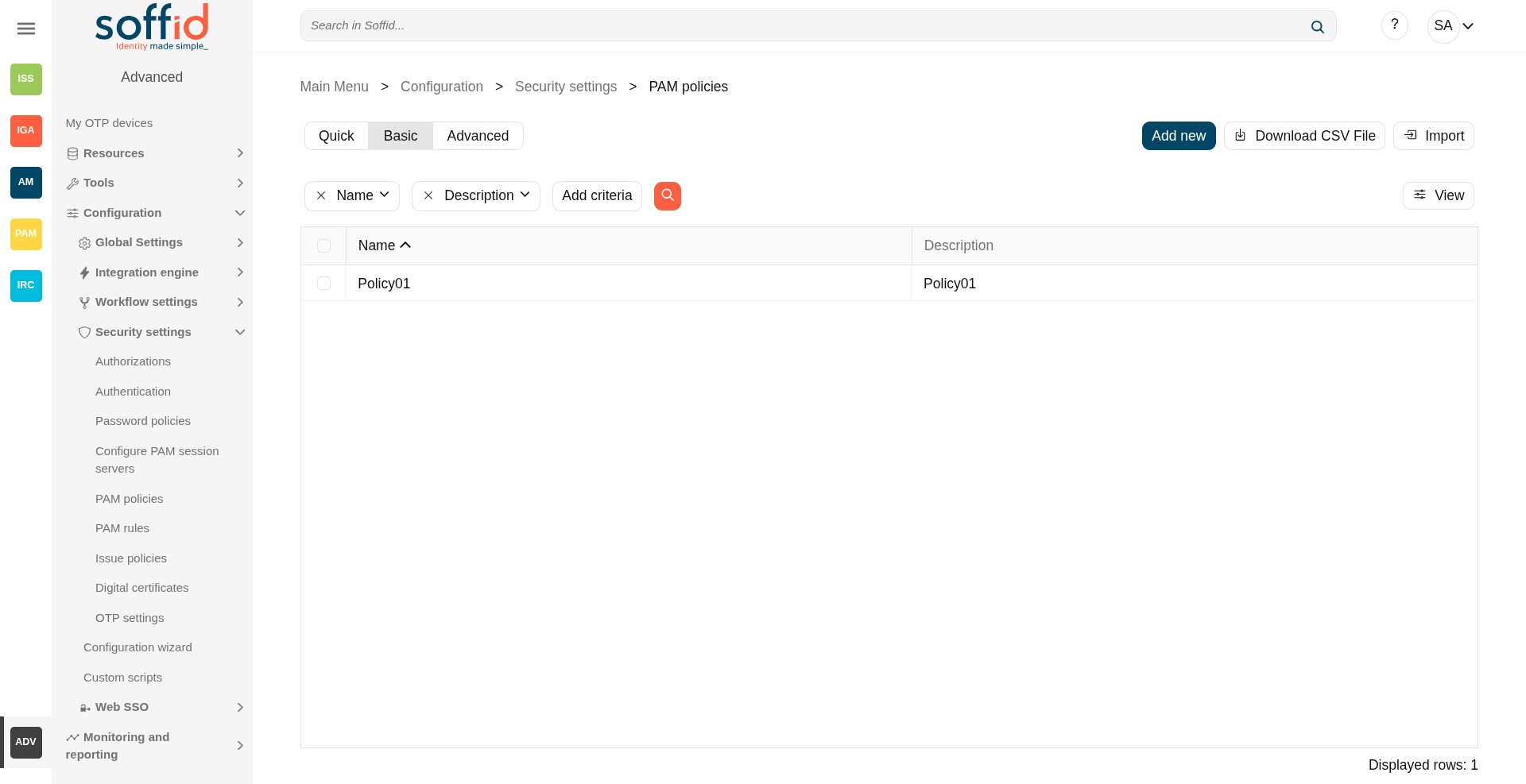](https://bookstack.soffid.com/uploads/images/gallery/2025-08/jSSDDUWqBXGPHXNN-image.png)
[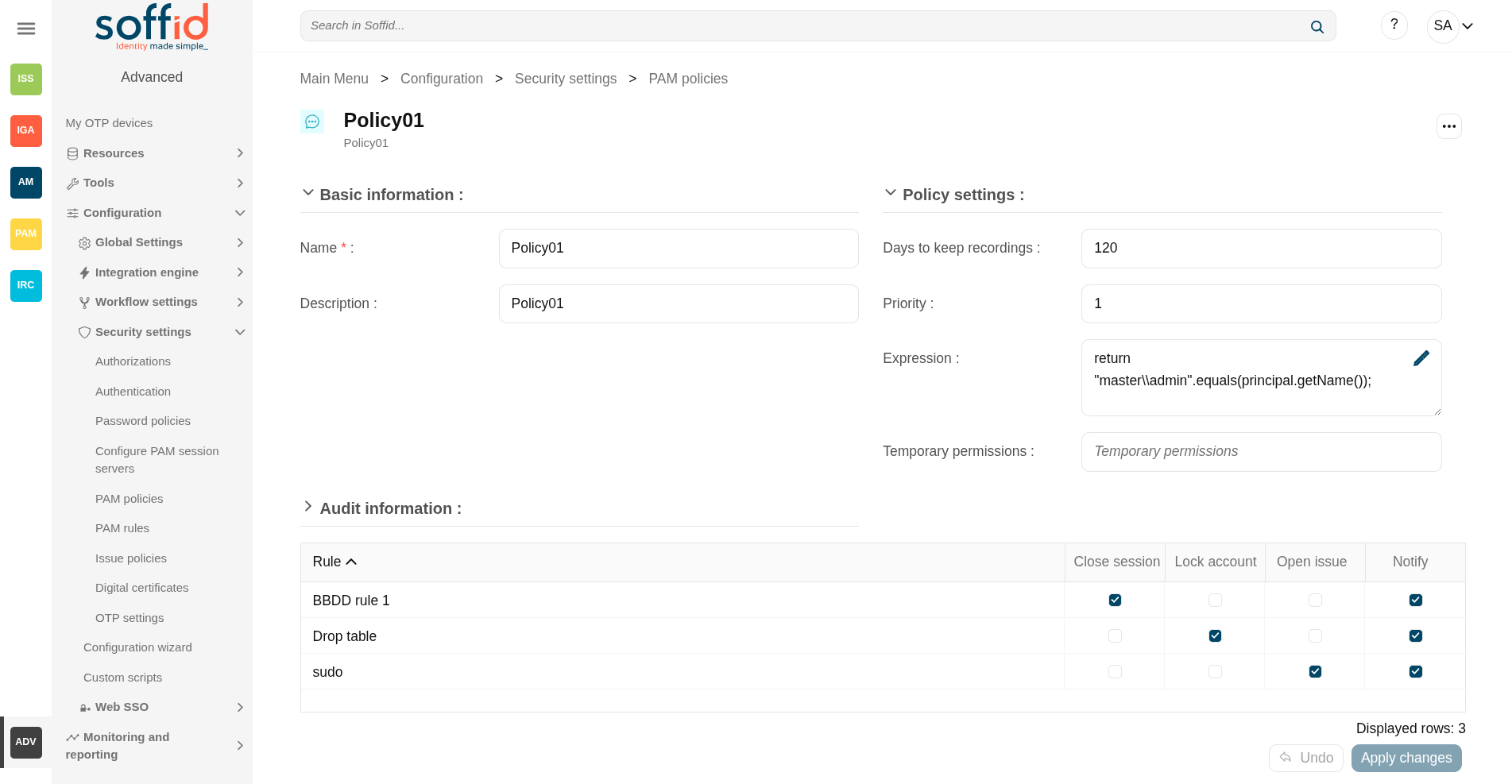](https://bookstack.soffid.com/uploads/images/gallery/2025-08/8mdb2B4EESqXRzbC-image.png)
## Related objects
- [PAM policies](https://bookstack.soffid.com/PAM%20rules%20:%20PAM%20rules%20used%20in%20the%20PAM%20policies%20Issue%20policies%20:%20%C2%A0to%20configure%20the%20pam-violation%20issue%20policy) : the PAM policies contains and configure the PAM rules
- [PAM rules](https://bookstack.soffid.com/books/soffid-4-reference-guide/page/pam-rules) : PAM rules used in the PAM policies
- [Password vault](https://bookstack.soffid.com/books/soffid-4-reference-guide/page/password-vault) : to configure PAM policies in vault folders.
- [Issue policies](https://bookstack.soffid.com/books/soffid-4-reference-guide/page/issue-policies) : to configure the pam-violation issue policy
## Standard attributes
### Table attributes
- **Name**: name to identify the policy.
- **Description**: a brief description of the policy.
- **Priority**: priority between the different PAM policies configured. This field must have a value for the policy to be applied.
- **Modified by**: user who modified that rule.
- **Modified on**: the date and time of the update.
### Policy attributes
- **Name**: name to identify the policy.
- **Description**: a brief description of the policy.
- **Days to keep recordings**: number of days that recordings will be kept.
- **Priority**: allows you to set the priority between the different PAM policies configured. When there are several policies, the policy to be applied is evaluated according to priority and expression. This field must have a value for the policy to be applied.
- **Expression**: this expression is evaluated to determine the priority of the policy to be applied. When there are several policies, the policy to be applied is evaluated according to priority and expression.
- **Temporary permissions**: these permissions will be assigned to the user's account on the target system. The permissions will be maintained for the duration of the session. Once the session is over, the permissions will be revoked. The account must be a managed account.
- **Modified by**: user who modified that rule.
- **Modified on**: the date and time of the update.
When you save the standard attributes of a PAM policy and edit the policy again, the rule list will be shown. Here you can customize the policy depending on the existing rules.
### Rules attributes
Show a list of the PAM rules defined. You can check/uncheck the available options. You can choose zero, one, or several:
- **Rule**: name of the rule
- **Close session**: when the rule is met, Soffid will close the session.
- **Lock account**: when the rule is met, Soffid will lock the account.
- **Open issue**: when the rule is met, Soffid will open a new issue (\*).
- **Notify**: when the rule is met, Soffid will send a notification about the action.
💻 Image
[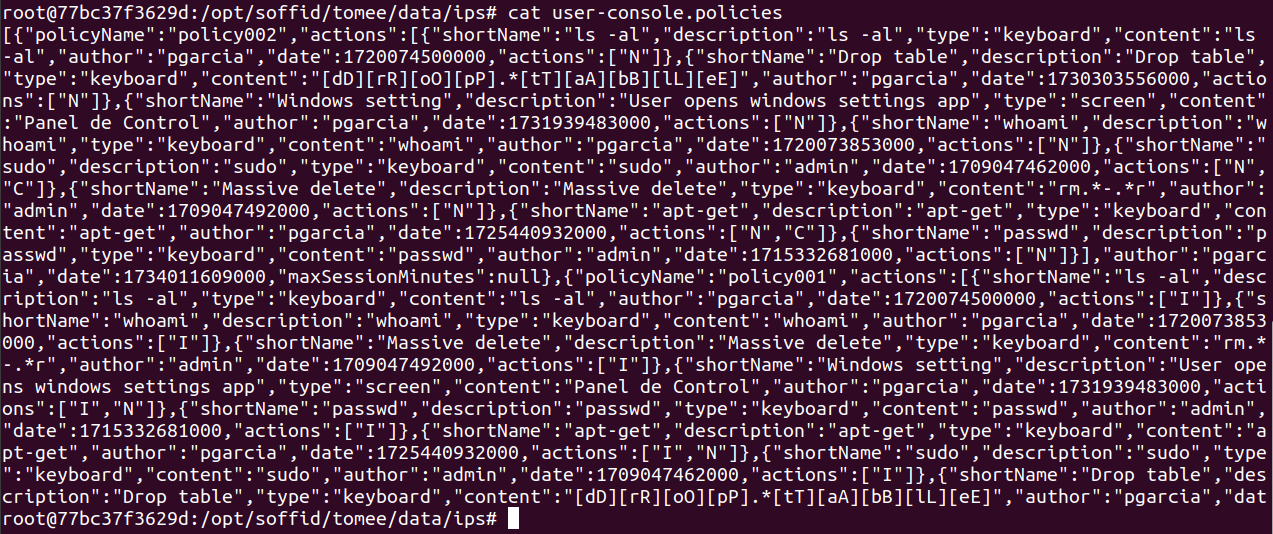](https://bookstack.soffid.com/uploads/images/gallery/2024-12/f1QHy1gL2PyzDklH-image.png)
## Actions
#### Table actions
**"Query search"**
Allows you to query PAM policies through different search systems, [Quick, Basic and Advanced](https://bookstack.soffid.com/books/soffid-3-reference-guide/page/search-types "Search Types").
**Add new**
Allows you to create a new PAM policy.
To add a new PAM policy it will be mandatory to fill in the required fields.
**Delete PAM policy**
Allows you to remove one or more PAM policies by selecting one or more records and next clicking this button.
To perform that action, Soffid will ask you for confirmation, you could confirm or cancel the operation.
**Download CSV file**
Allows you to download a CSV file with the PAM policies information.
**Import**
Allows you to upload a CSV file with the PAM policies list to add or update PAM policies to Soffid.
First, you need to pick up a CSV file, that CSV has to contain a specific configuration. Then you need to check the content to be loaded, it is allowed to choose if you want or not to load a specific attribute. Finally, you need to select the mappings for each column of the CSV file to import the data correctly and click the Import button.
**View**
Allows you to show and hide columns in the table.
You can also set the order in which the columns will be displayed.
#### Policy actions
**Apply changes (dick button)**
Allows you to create a new configuration PAM policy or to update an existing one.
To save the data it will be mandatory to fill in the required fields.
**Delete**
Allows you to delete a PAM policy. To delete a PAM policy you can click on the "three points" icon and then click the delete button.
To perform that action, Soffid will ask you for confirmation, you could confirm or cancel the operation.
**Undo**
Allows you to quit without applying any changes made.
**Apply changes**
Allows you to create a new configuration PAM policy or to update an existing one.
To save the data it will be mandatory to fill in the required fields.
Once the change has been applied, you will return to the main screen.
## Others
### Sample expression
Apply policy based on **account name** and **connection URL**
Soffid allows you to define rules to detect commands executed on a server. When a user launches a command defined on a rule, Soffid will detect it.
To use those rules you need to define the PAM policies. For more information, you can visit the [PAM policies](https://bookstack.soffid.com/books/soffid-4-reference-guide/page/pam-policies "PAM policies") page.
## Screen overview
[](https://bookstack.soffid.com/uploads/images/gallery/2025-08/EDMnTB5C7cDV6qON-image.png)
##### Screen example
[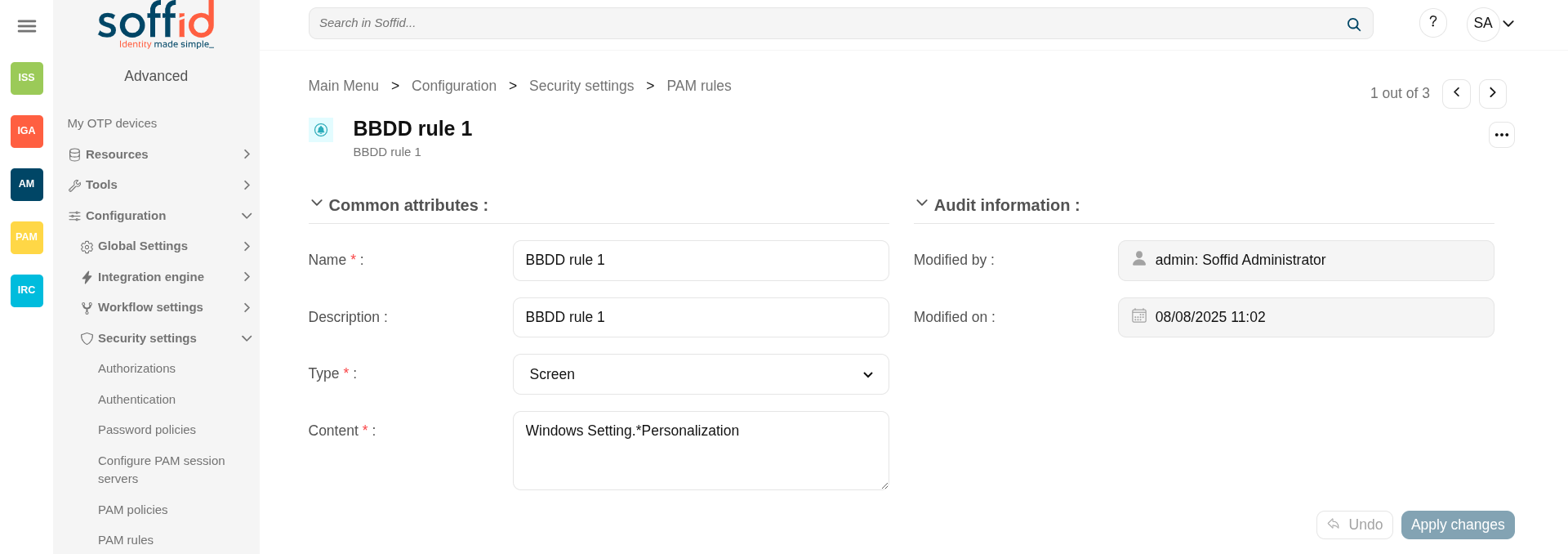](https://bookstack.soffid.com/uploads/images/gallery/2025-08/QwBaXOzcS4aTl1nn-image.png)
##### Keyboard example
[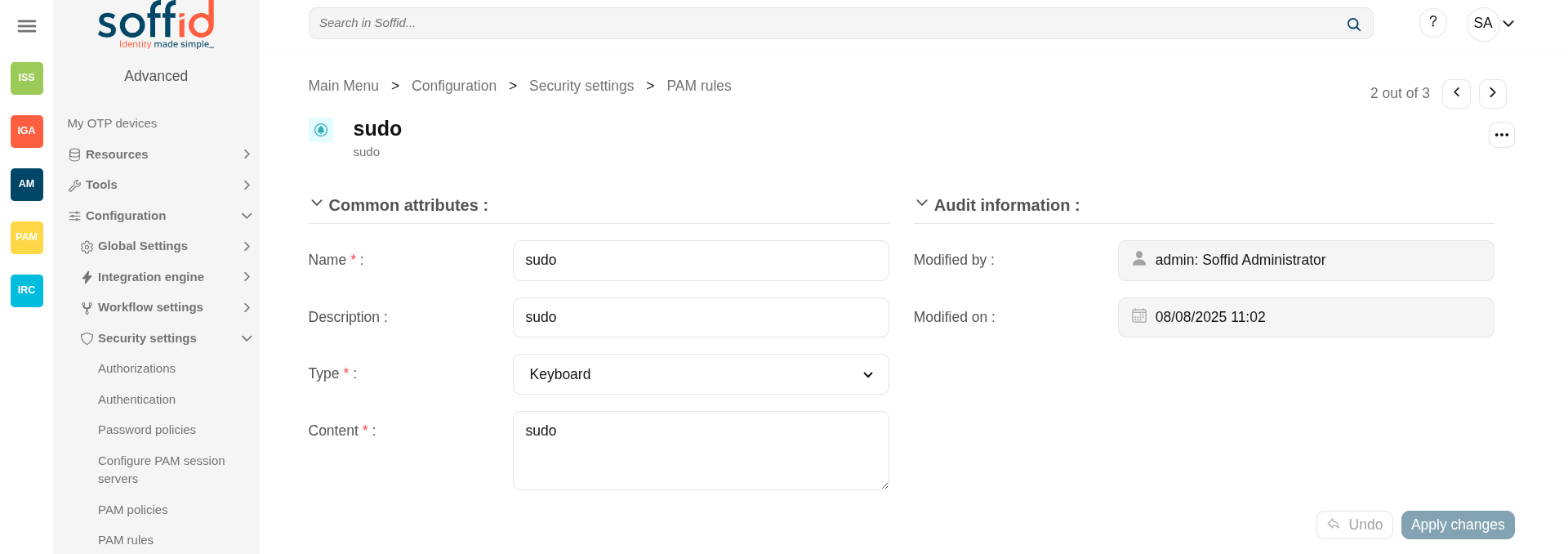](https://bookstack.soffid.com/uploads/images/gallery/2025-08/yObsOVNAuoxUI37R-image.png)
##### Keyboard example
[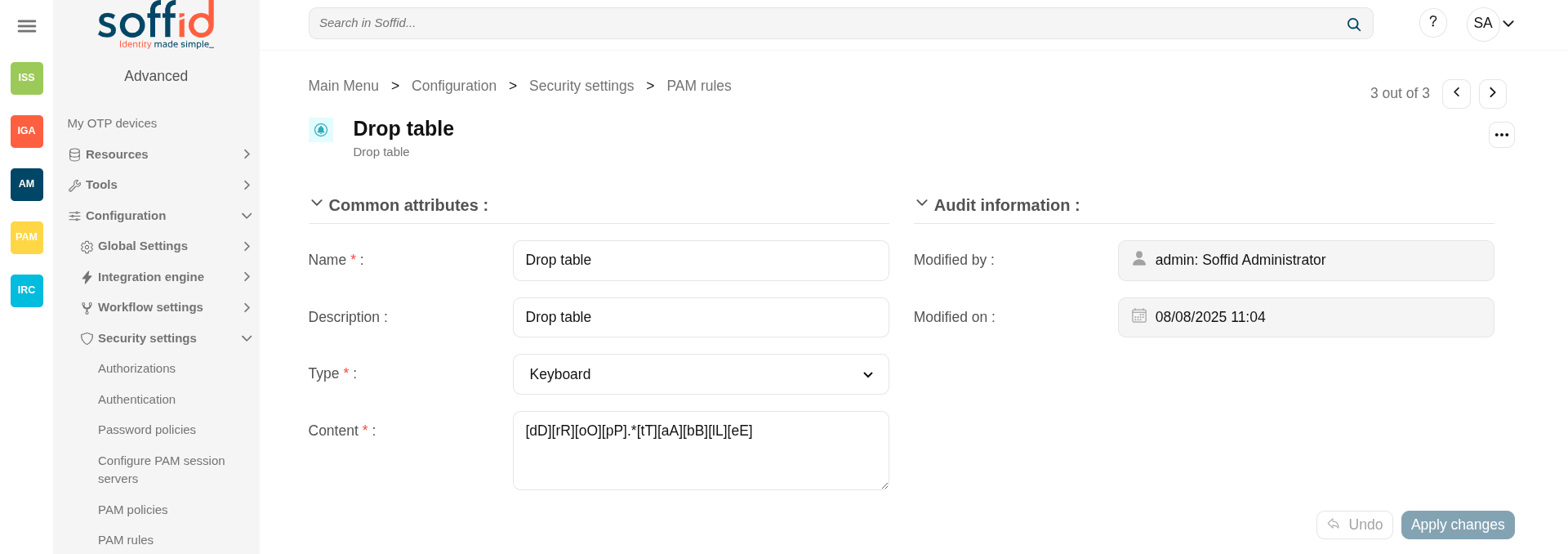](https://bookstack.soffid.com/uploads/images/gallery/2025-08/MwPegCywdR5JS2na-image.png)
## Related objects
- [PAM policies](https://bookstack.soffid.com/PAM%20rules%20:%20PAM%20rules%20used%20in%20the%20PAM%20policies%20Issue%20policies%20:%20%C2%A0to%20configure%20the%20pam-violation%20issue%20policy) : the PAM policies contains and configure the PAM rules
- [PAM rules](https://bookstack.soffid.com/books/soffid-4-reference-guide/page/pam-rules) : PAM rules used in the PAM policies
- [Password vault](https://bookstack.soffid.com/books/soffid-4-reference-guide/page/password-vault) : to configure PAM policies in vault folders.
- [Issue policies](https://bookstack.soffid.com/books/soffid-4-reference-guide/page/issue-policies) : to configure the pam-violation issue policy
## Standard attributes
### Table attributes & rule attributes
- **Name**: name to identify the rule.
- **Description**: a brief description of the rule.
- **Type**: rule type.
- **Keyboard**: Indicate the command typed in the terminal that you want to control.
- **Screen**: Indicate the text displayed in the screen that you want to control.
- **Content**: the content of the rule that Soffid will detect. Be in mind, that Soffid will consider blanks, returns, and all characters you type.
- For keyboard type, text that the user cannot enter.
- For screen type, text that must be found anywhere on the screen.
- **Modified by**: user who modified that rule.
- **Modified on**: the date and time of the update.
## Actions
#### Table actions
**"Query search"**
Allows you to query PAM rules through different search systems, [Quick, Basic and Advanced](https://bookstack.soffid.com/books/soffid-3-reference-guide/page/search-types "Search Types").
**Add new**
Allows you to create a new PAM rule. You can choose that option on the hamburger menu or click the add button (+).
To add a new PAM rule it will be mandatory to fill in the required fields.
**Delete PAM rule**
Allows you to remove one or more PAM rules by selecting one or more records and next clicking this button.
To perform that action, Soffid will ask you for confirmation, you could confirm or cancel the operation.
**Download CSV file**
Allows you to download a CSV file with the PAM rules information.
**Import**
Allows you to upload a CSV file with the PAM rules list to add or update PAM rules to Soffid.
First, you need to pick up a CSV file, that CSV has to contain a specific configuration. Then you need to check the content to be loaded, it is allowed to choose if you want or not to load a specific attribute. And finally, you need to select the mappings for each column of the CSV file to import the data correctly and click the Import button.
**View**
Allows you to show and hide columns in the table.
You can also set the order in which the columns will be displayed.
#### Rule actions
**Apply changes (disk button)**
Allows you to create a new configuration PAM rule or to update an existing one.
To save the data it will be mandatory to fill in the required fields.
**Delete**
Allows you to delete a PAM rule. To delete a PAM rule you can click on the "three points" icon and then click the delete button. To perform that action, Soffid will ask you for confirmation, you could confirm or cancel the operation.
**Undo**
Allows you to quit without applying any changes made.
**Apply changes**
Allows you to create a new configuration PAM rule or to update an existing one.
To save the data it will be mandatory to fill in the required fields.
Once the change has been applied, you will return to the main screen.
# Issue policies
## Definition
Soffid has defined automatic events by default. For each of these events, it is possible to define the tasks to be performed and configure them.
Once the necessary issues have been configured, there are other screens for viewing and managing them.
### Issue types
Below is a list of the issue types available in Soffid.
**Issue Type**
**Description**
account-created
This issue is created when the Sync Server detects when a new account is created. This may occur after the Reconciliation process has been executed.
breached-account-password
This issue is created when a password change for an account has been rejected because the password has been detected as breached. Be aware you must have enabled the "Network intelligence" feature with a valid token.
breached-email
This issue is created when the "Network intelligence verify domains" process is launched and it is detected that a user's email has been breached. An issue is created for each system in which that email is found. Be aware that to enable the process, you must have enabled the "Network intelligence" feature with a valid token.
breached-password
This issue is created when a password change for a user has been rejected because the password has been detected as breached. Be aware you must have enabled the "Network intelligence" feature with a valid token.
disconnected-system
This issue is created when the Sync Server detects that some target system is offline.
discovered-host
This issue is created when the Sync Server detects a new host in the network. This only occurs after the Network Discovery process has been executed.
discovered-system
This issue is created when the Sync Server detects a new system in a host. This only occurs after the Network Discovery process has been executed.
duplicated-user
This issue is created the system detects that there are duplicate users, or when the task is generated manually from the user management.
enabled-account-on-disabled-user
This issue is created when an enabled account is detected on a disabled user. This may occur after the reconciliation process has been executed.
expired-breached-password
During login, when everything has gone well, the system also checks whether a password has been compromised.
This is checked asynchronously, allowing the user to log in to Soffid without affecting performance.
If the password has been compromised, the password and account are marked as expired and an issue is created.
The next time the user logs in, they will be asked to create a new password.
failed-job
This issue is created when the system detects job failures. This may occur by running any scheduled task.
global-failed-login
This issue is created when the number of session start failures exceeds the threshold of 0.8.
integration-errors
This issue is created when the Sync Server detects an integration error between Soffid and an end system. You can check the task in the Monitoring & Reporting.
locked-account
This issue is created when an account has been blocked for exceeding the maximum number of login attempts. You can configure the property *Lock after failures* in the Password policies settings. Even if it is temporarily locked, the incident will be generated.
login-different-country
This issue is created when Soffid detects a new login from a different country. It only works with the Identity Provider and it is necessary to have the geolocation database updated.
login-from-new-device
This issue is created when Soffid detects a new login from a new device. It only works with the Identity Provider.
login-not-recognized
This issue is created when Soffid detects a login not recognized (disabled user or user does not exist) in the Soffid Console or in Soffid as an Identity Provider.
otp-failures
This issue is created when an OTP is blocked for exceeding the number of attempts. Currently blocked with 10 unsuccessful attempts.
pam-violation
This issue is created when any of the rules of the PAM are violated. You can define the PAM rules and the PAM policies. Be in mind, that you must check the "Open issue" option in the PAM policies you wish to control.
password-changed
This issue is created when a Password change is detected. These changes come from the end system (Active Directory or Soffid OpenLDAP) and Soffid has been notified. The issue is not created if it is the operator or a script that changes the password in Soffid.
permissions-granted
This issue is created when it is detected that permissions have been given to a user on the end system. This may occur after the reconciliation process has been executed.
risk-increase
This issue is created when it is detected the risk level of a user is increased. You can configure the risks in the Segregation of Duties option.
robot-login
This issue is created when it is detected is detected that someone who has not passed the CAPTCHA is trying to log in to the Identity Provider.
security-exception
This issue is created when unauthorized access to the console via WebService or admin console occurs.
## Screen overview
[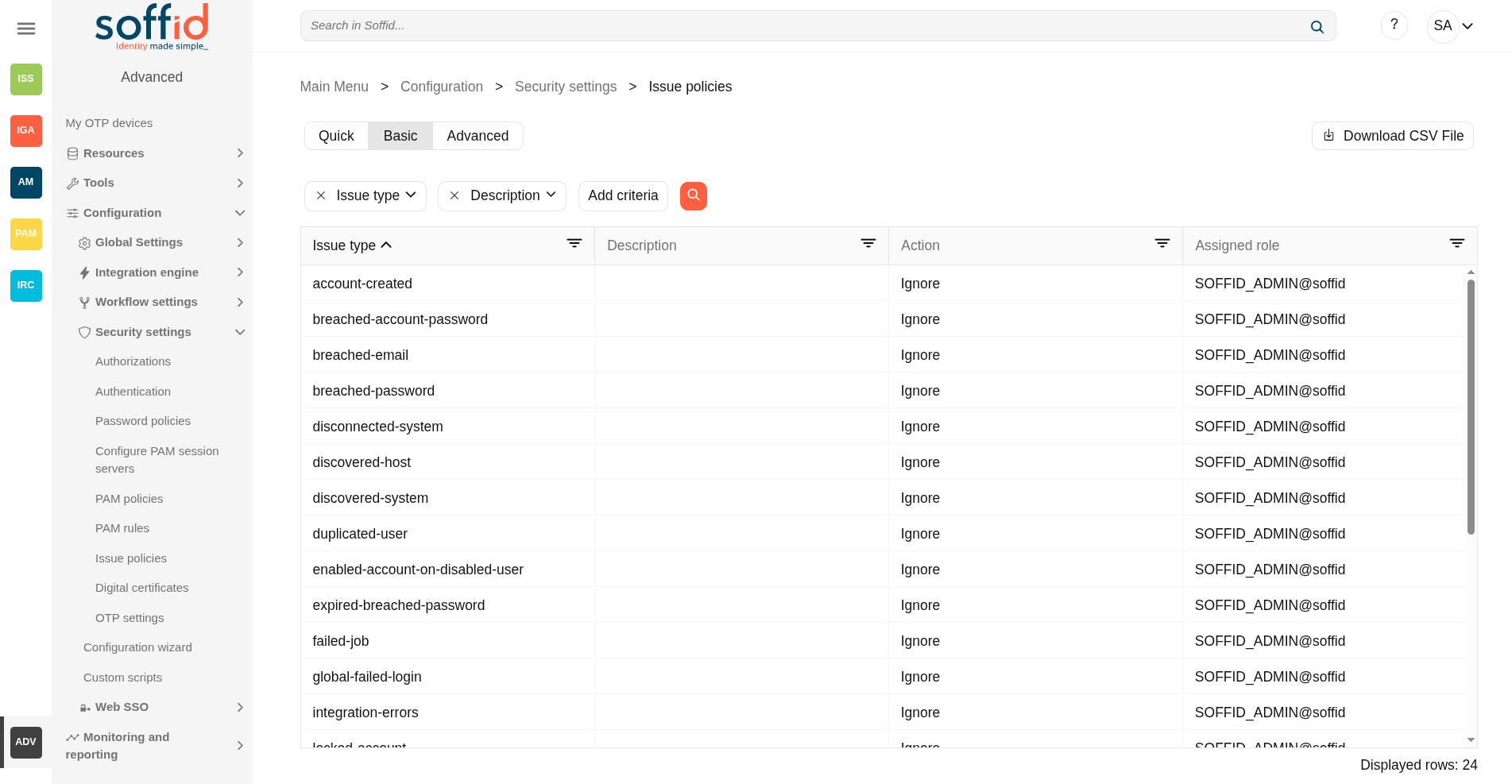](https://bookstack.soffid.com/uploads/images/gallery/2025-08/QiQUrHns2bm5dnDY-image.png)
[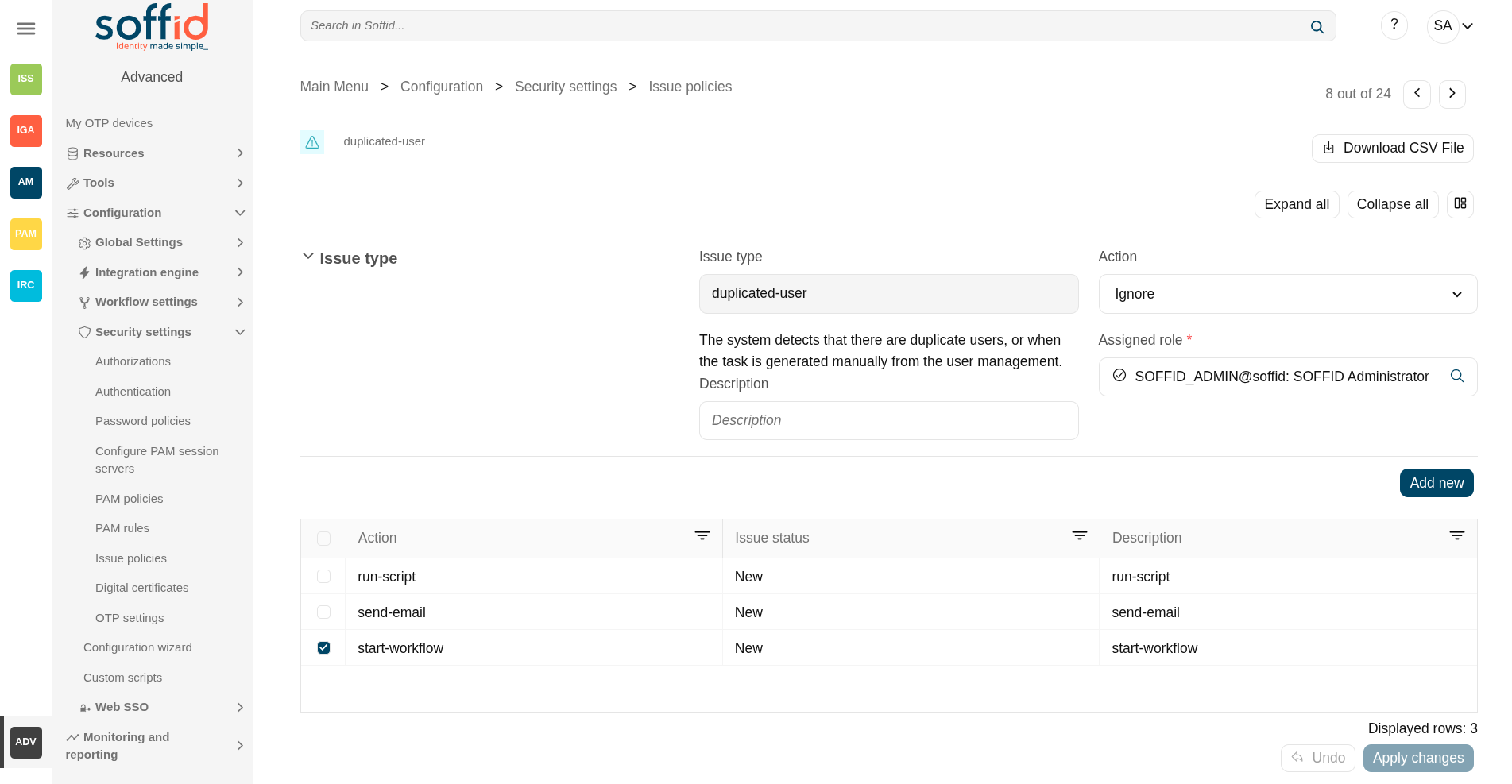](https://bookstack.soffid.com/uploads/images/gallery/2025-08/fRRMVdP3G1mjOKut-image.png)
## Related Objects
- [Issue policies](https://bookstack.soffid.com/books/soffid-4-reference-guide/page/issue-policies "Issue policies") : where the issues are configured
- [Issues](https://bookstack.soffid.com/books/soffid-4-reference-guide/page/issues "Issues") : list all issues
- [My issues](https://bookstack.soffid.com/books/soffid-4-reference-guide/page/my-issues "My issues") : issues started by a user or the user has pending an acction
- Pages related to the different issues:
- [User](https://bookstack.soffid.com/books/soffid-4-reference-guide/page/users "Users")
- [Accounts](https://bookstack.soffid.com/books/soffid-4-reference-guide/page/accounts "Accounts")
- [Network intelligence](https://bookstack.soffid.com/books/soffid-4-reference-guide/page/network-intelligence "Network intelligence")
- [Agents](https://bookstack.soffid.com/books/soffid-4-reference-guide/page/agents "Agents")
- [Sync server monitoring](https://bookstack.soffid.com/books/soffid-4-reference-guide/page/sync-server-monitoring "Sync server monitoring")
- [Hosts](https://bookstack.soffid.com/books/soffid-4-reference-guide/page/hosts "Hosts")
- [Scheduled jobs](https://bookstack.soffid.com/books/soffid-4-reference-guide/page/scheduled-jobs "Scheduled jobs")
- [My OTP devices](https://bookstack.soffid.com/books/soffid-4-reference-guide/page/my-authentication-my-otp-devices-addon-otp "My authentication > My OTP devices")
- [PAM rules](https://bookstack.soffid.com/books/soffid-4-reference-guide/page/pam-rules "PAM rules")
- [Roles](https://bookstack.soffid.com/books/soffid-4-reference-guide/page/roles "Roles")
- [Segregation of duties](https://bookstack.soffid.com/books/soffid-4-reference-guide/page/segregation-of-duties "Segregation of Duties")
## Standard attributes
- **Issue type**: by default, some issues type are defined in Soffid Console.
- **Description**: a brief description of the issue.
- **Action**:
- **Ignore**: the action will be ignored, and no additional actions will be run.
- **Record**: the action will be recorded and an issue with the status Acknowledged will be created. The actions configured for the Acknowledged status will be run.
- **Manage**: a new issue will be created in the New status and the action configured for this status will be run.
- **Assigned role**: the role who will be the owner of the created issues.
- **Actions list**: list of actions to be taken when this issue occurs. You can choose one or more actions from the list and configure them:
- **Issue status**: it is used to determine the point when the action will be launched.
- New.
- Acknowledged.
- Solved.
- Solved - Not a duplicate.
- **Actions**:
- **Notify affected user**: this allows you to configure an email that will be sent to the affected users.
- **Send custom email:** this allows you to configure a custom email that will be sent to specific users.
- **Run script**: allows you to type a script that will be performed
- **Look affected accounts**: allows you to configure an email that will be sent to the owner user.
- **Look affected host**.
- **Notify issue owner by email**.
- **Acknowledge**.
- **Start new process**.: allows you to configure the workflow that will be run.
- **Description**: a brief description of the action you are defining.
Note that it will be necessary to restart the Sync Server when changing the action of an issue.
## Actions
#### Table actions
**"Query search"**
Allows you to query issue types through different search systems, [Quick, Basic and Advanced](https://bookstack.soffid.com/books/soffid-3-reference-guide/page/search-types "Search Types").
**Download CSV file**
Allows you to download a CSV file with the issue policies data.
#### Issue actions
**Apply changes (dick button)**
Allows you save a issue policy.
To save the data it will be mandatory to fill in the required fields.
**Download CSV file**
Allows you to download a CSV file with the issue policies data.
**Expand all**
Displays all the attributes of the different blocks.
**Collapse all**
Hide all attributes of the different blocks.
**"Types of views"**
Change the view type: Classic view, Modern view, Compact design.
**Add new**
Allows you to add a new action to the issue policy. You can choose the action from the action list. Depending on the selected action, you must fill in different information.
Once the information will be filled in, you need to close the window and Apply the changes.
**Delete**
Allows you to delete one or more actions from the actions list.
**Undo**
Allows you to quit without applying any changes.
**Apply changes**
Allows you to update the changes made to the issue policy.
# Digital certificates (addon federation)
## Definition
Soffid includes Digital certificate functionality as a security enhancement. You could add new Digital certificates, internal or external.
If you select the external certificate, you could add a valid certificate to Soffid; If you select the internal certificate, Soffidl will generate a valid certificate.
## Screen overview
[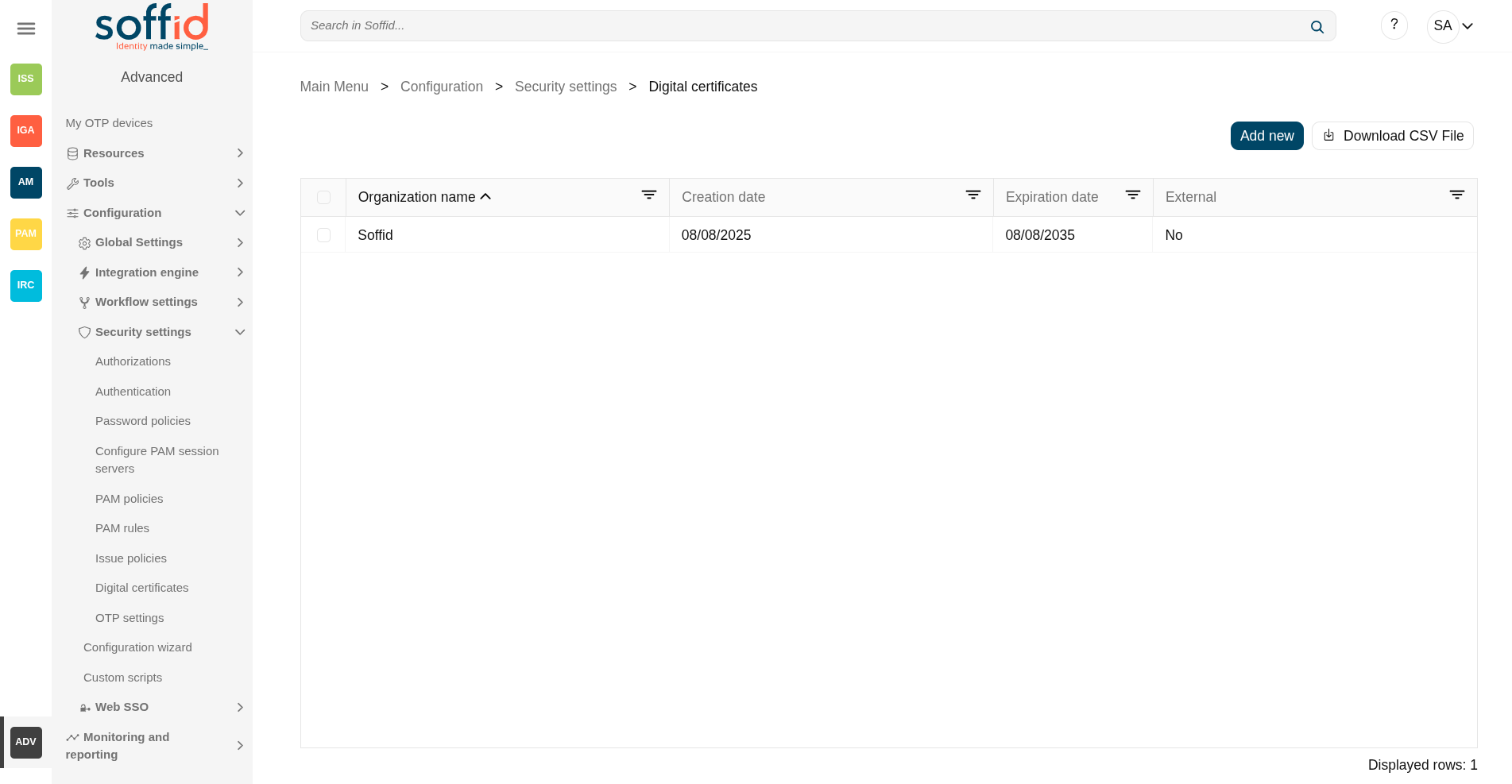](https://bookstack.soffid.com/uploads/images/gallery/2025-08/HjR3L43dGkycqpH3-image.png)
[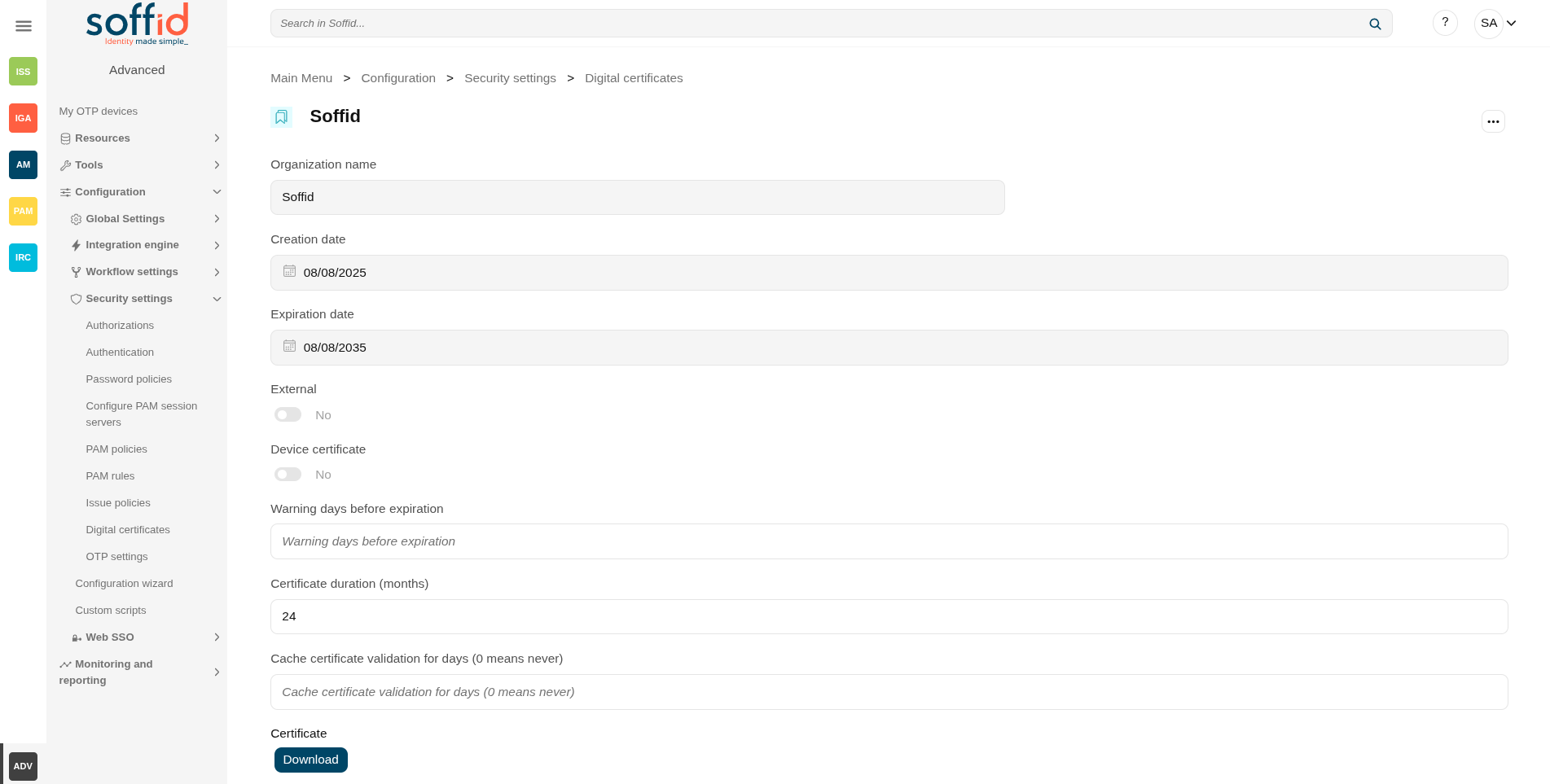](https://bookstack.soffid.com/uploads/images/gallery/2025-08/o9CFZbG38mYWi9qC-image.png)
## Related objects
- [Identity providers](https://bookstack.soffid.com/books/soffid-4-reference-guide/page/identity-providers-addon-federation "Identity providers"): certificates can be used as two-factor authentication
## Standard attributes
#### Internal
- **Organization name**: organization name
- **Expiration date**: referring to the root certificate.
- **Device certificate**: Indicates if the certificate is for a device
- **Certificate duration (months)**: Referring to users' certificates.
Image
[](https://bookstack.soffid.com/uploads/images/gallery/2025-08/YU14ZB4UqfPZiWjl-image.png)
[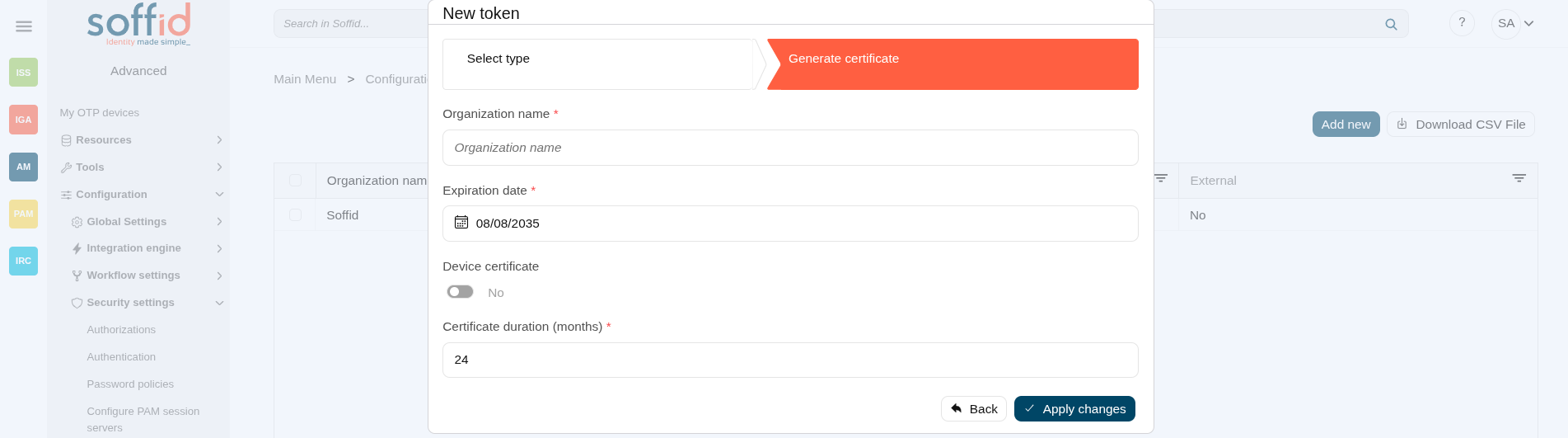](https://bookstack.soffid.com/uploads/images/gallery/2025-08/91tSvjj3cKP7DKb0-image.png)
#### External
- **Certificate:** root of the certification authority (pem file).
- **Organization name**: organization name (retrieved from the certificate).
- **Device certificate**: indicates if the certificate is for a device.
- **Script to guess the certificate owner**: script to compute the user name. Can use the certificate and subject variables. Should return a valid user name.
Image
[](https://bookstack.soffid.com/uploads/images/gallery/2025-08/L3OEOqAoQ9MNYbsv-image.png)
[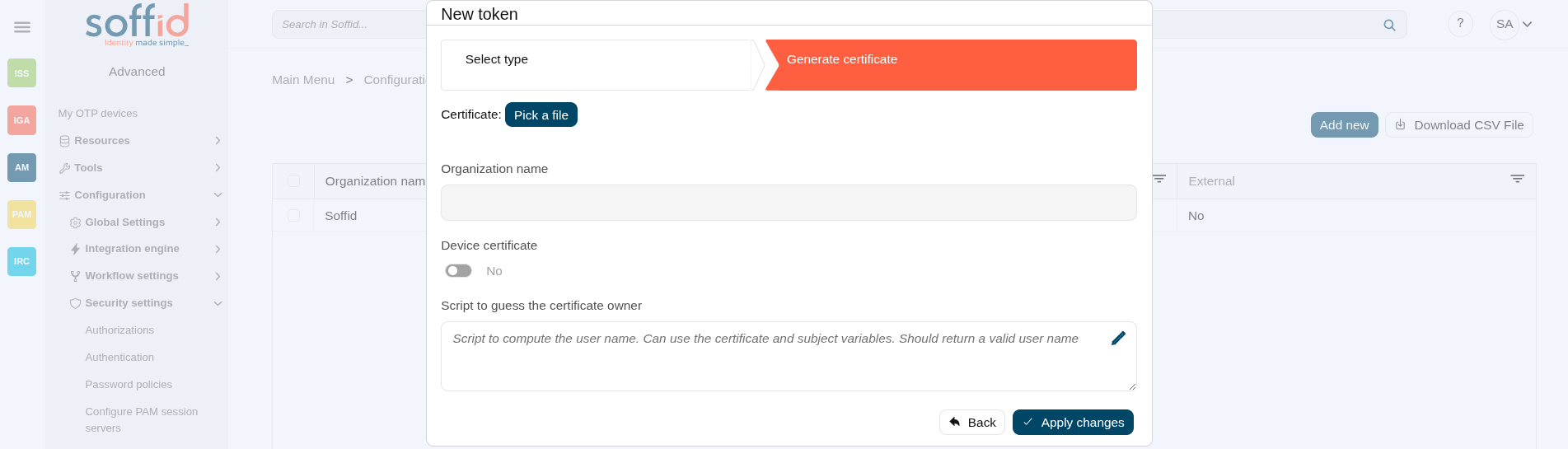](https://bookstack.soffid.com/uploads/images/gallery/2025-08/mhaP0jwG3AfaqZLB-image.png)
## Actions
#### Table actions
**Add new**
Allows you to add a new certificate.
To add a new certificate it will be mandatory to fill in the required fields.
**Delete**
Allows you to remove one or more certificates by selecting one or more records and next clicking this button.
To perform that action, Soffid will ask you for confirmation, you could confirm or cancel the operation.
**Download CSV file**
Allows you to download a CSV file with the digital certificates data.
#### New token
**Undo**
Allows you to quit without applying any changes.
**Next**
Allows you to browse the wizard to create a new certificate.
**Back**
Go to theprevious step.
**Apply changes**
Allows you to save the data of a new certificate or to update the data of a specific certificate. To save the data it will be mandatory to fill in the required fields
# OTP settings (addon otp)
## Definition
The OTP settings allow the administrator users to configure the available OTP options. Soffid provides six different OTP implementations.
This page is available if you have previously installed the Soffid **OTP add-on**.
Configure these options as a second authentication factor in the Soffid **identity provider**. Remember that this functionality is found in the **federation add-on**.
## Screen overview
[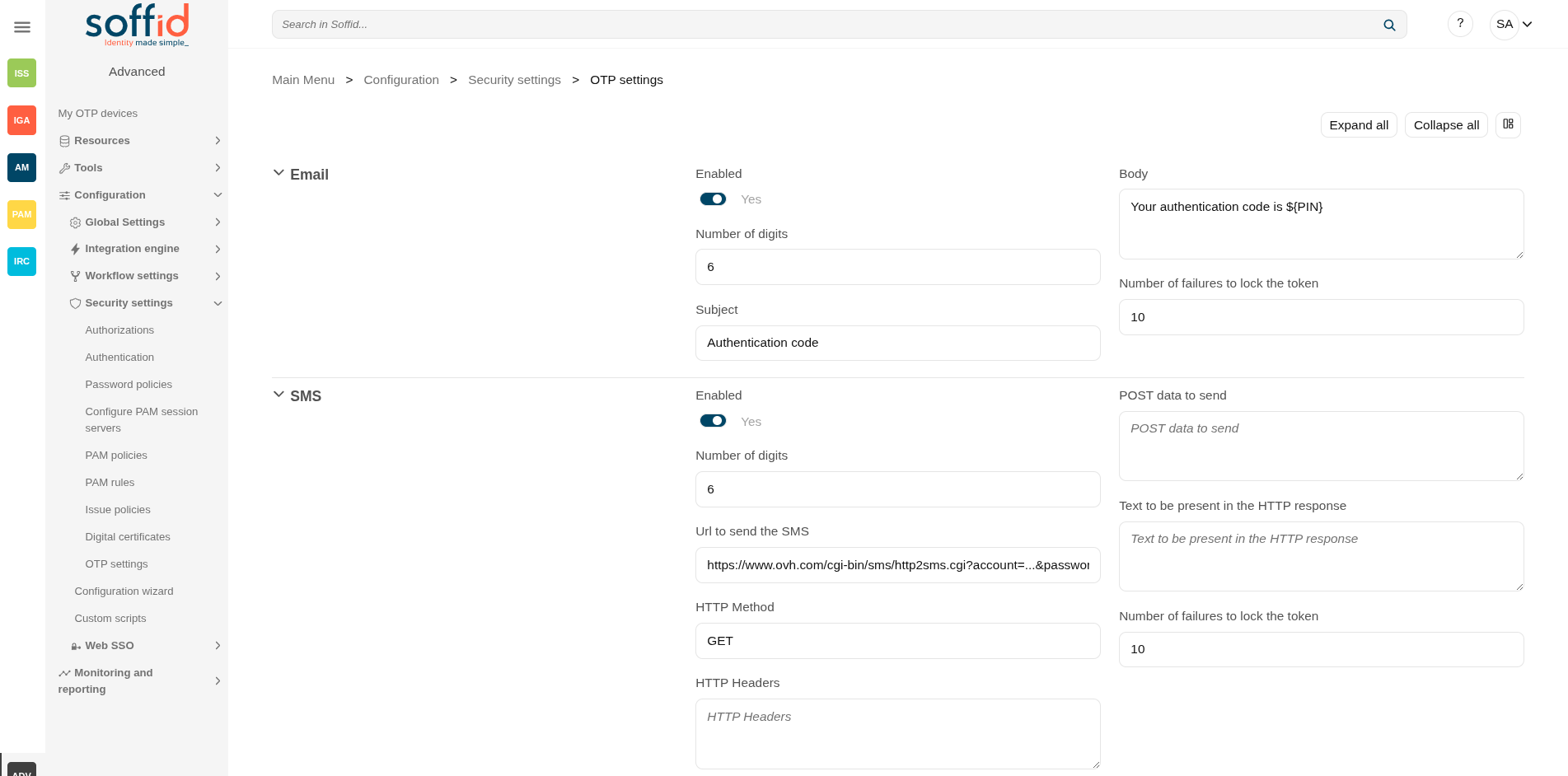](https://bookstack.soffid.com/uploads/images/gallery/2025-08/lpuZpAB1wNhKQKuY-image.png)
[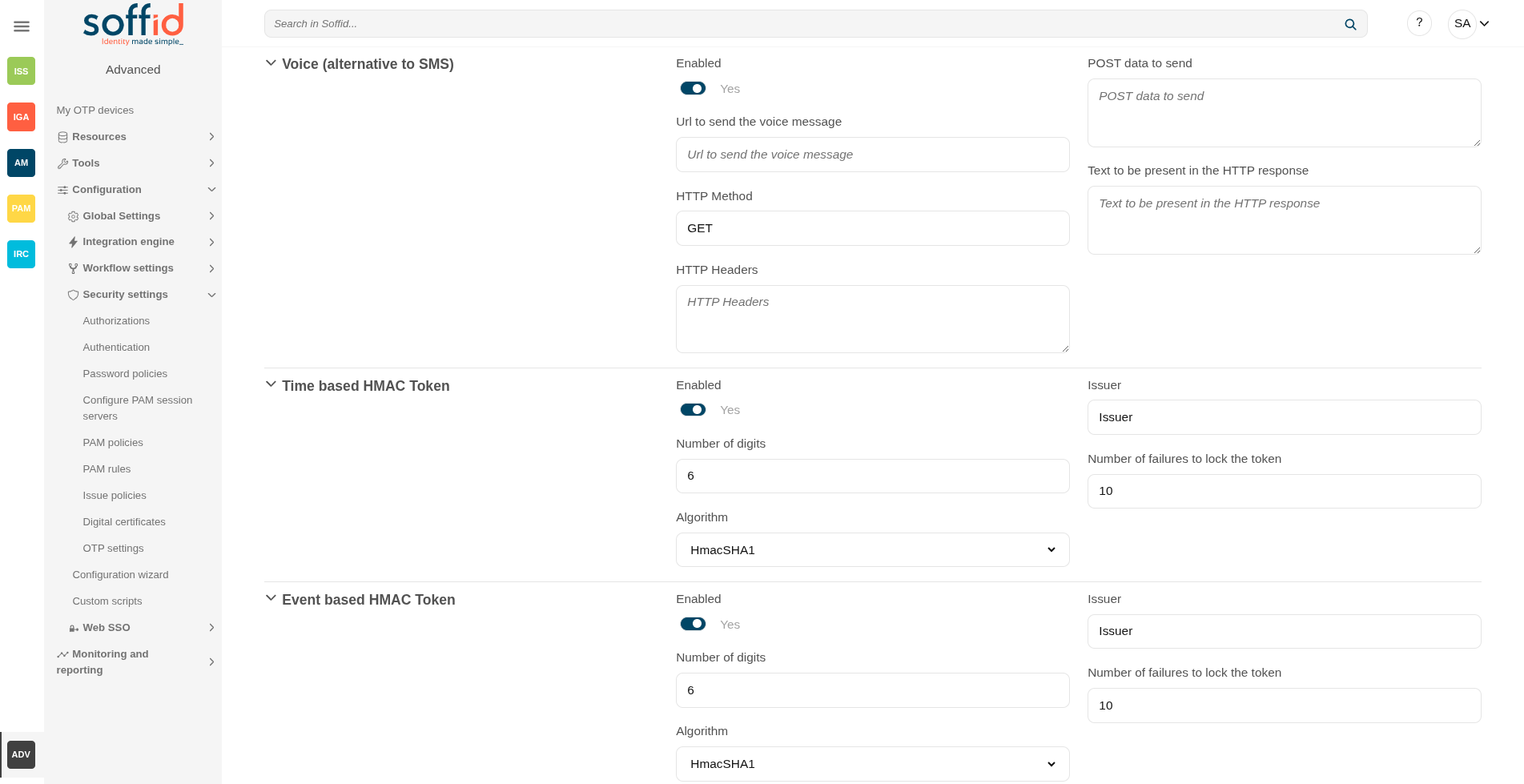](https://bookstack.soffid.com/uploads/images/gallery/2025-08/W7vD52qU9ExxF1Ox-image.png)
[](https://bookstack.soffid.com/uploads/images/gallery/2025-08/x9pIfly0qf21xXSI-image.png)
## Related objects
- [My certificates and FIDO tokens](https://bookstack.soffid.com/books/soffid-4-reference-guide/page/my-authentication-my-certificates-and-fido-tokens-addon-federation) : to autoconfigure certificates and FIDO tokens
- [My OTP devices](https://bookstack.soffid.com/books/soffid-4-reference-guide/page/my-authentication-my-otp-devices-addon-otp) : to autoconfigure certificates and FIDO tokens
- [Authentication](https://bookstack.soffid.com/books/soffid-4-reference-guide/page/authentication) : OTP settings for Console
- [Identity providers](https://bookstack.soffid.com/books/soffid-4-reference-guide/page/identity-providers-addon-federation "Identity providers") : to enable OTP options as second factors of authentication
## Standard attributes
### Email
- **Enabled**: allows you to enable or disable a PIN sent by the Email implementation.
- **Number of digits**: number of digits of the PIN code that will be generated.
- **Subject**: subject of the email
- **Body**: body of the email
- **Number of failures to lock the token**: upon reaching the configured number of failures, the token will no longer be usable.
To **send an email**, you must register a **mail server**. To this purpose, Soffid has a set of **parameters** that you can find on the [Soffid parameters](https://bookstack.soffid.com/books/soffid-4-reference-guide/page/soffid-parameters "Soffid parameters") page.
### SMS
- **Enabled**: allows you to enable or disable a PIN sent by the SMS implementation.
- **Number of digits**: number of digits of the PIN code that will be generated.
- **URL to send the SMS**: enter the URL of your SMS provider rest service
```
https://www.xxxxxxx.com/cgi-bin/sms/http2sms.cgi?account=sms-bg490971-1&password=XXXXXXt&login=user&from=SOFFID&to=${PHONE}&message=This is your access PIN: ${PIN}&noStop&contentType=application/json&class=0
```
- **HTTP Method**: enter POST or GET depending on your provider documentation
- **HTTP Header**: optionally, you can add any HTTY header, including Basic or Bearer authentication tokens. The header must include the header name and header value. For instance:
`Authorization: Basic dXNlcjpwYXNzd29yZA==`
- **POST data to send** Enter the body of the HTTP request
- **Text to be present in the HTTP response**: Soffid will check the response from your SMS Provider contains this text
```
"status":100
```
- **Number of failures to lock the token**: upon reaching the configured number of failures, the token will no longer be usable.
The URL and POST data to be sent, the administrator can use some tags that will be replaced by some target user attributes:
- ${PHONE}: The target phone number
- ${PIN}: The one-time password to be entered by the user
- ${userAttribute}: Any of the standard or custom user attributes, like ${fullName} or ${userName}
Soffid does not offer any SMS services, this service must be provided by the customer.
### Voice (alternative to SMS)
- **Enabled**: allows you to enable or disable a PIN sent by the voice implementation.
- **URL to send the SMS**: enter the URL of your voice call provider rest service
- **HTTP Method**: enter POST or GET depending on your provider's documentation
- **HTTP Header**: optionally, you can add any HTTY header, including Basic or Bearer authentication tokens. The header must include the header name and header value. For instance:
```
Authorization: Basic xxxxxxxxxxxxxxOUVCRS1DMzE0LTI3MzAtQkY0Qy05RDgwRTMyQUQ4OUY=
Content-Type: application/json
Accept: application/json
```
- **POST data to send** Enter the body of the HTTP request.
```
Text to be present in the HTTP response: Soffid will check the response from your SMS Provider contains this text
```
- **Text to be present in the HTTP response**: Soffid will check the response from your SMS Provider contains this text
```
"status":100
```
The POST data to be sent, the administrator can use some tags that will be replaced by some target user attributes:
- - ${PHONE}: The target phone number
- ${PIN}: The one-time password to be entered by the user
Soffid does not offer any voice service, this service must be provided by the customer.
### Time based HMAC Token
- **Enabled**: allows you to enable or disable an OTP Time based HMAC Token implementation.
- **Number of digits**: number of digits of the PIN code that will be generated.
- **Algorithm**: allows you to select an HMAC algorithm.
- **Issuer**: name of the issuer of the PIN.
- **Number of failures to lock the token**
An additional application is required to load the OTP generation settings. You may use any of the following: Google Authenticator, Microsoft Authenticator, FreeOTP Authenticator.
### Event based HMAC Token
- **Enabled**: allows you to enable or disable an OTP Event based HMAC Token implementation.
- **Number of digits**: number of digits of the PIN code that will be generated.
- **Algorithm**: allows you to select an HMAC algorithm.
- **Issuer**: name of the issuer of the PIN.
- **Number of failures to lock the token**: upon reaching the configured number of failures, the token will no longer be usable.
An additional application is required to load the OTP generation settings. You may use any of the following: Google Authenticator, Microsoft Authenticator, FreeOTP Authenticator.
### Security PIN
- **Enabled**: allows you to enable or disable the Security PIN implementation.
- **Minimum PIN length**: minimum number of digits that the PIN has to have.
- **Number of digits from the PIN to ask**: number of digits that Soffil will ask to verify the identity.
- **Number of failures to lock the token**: upon reaching the configured number of failures, the token will no longer be usable.
## Actions
**Expand all**
Displays all the attributes of the different blocks.
**Collapse all**
Hide all attributes of the different blocks.
**"Types of views"**
Change the view type: Classic view, Modern view, Compact design.
Soffid provides you the functionality that allows to the users recover their passwords.
To do this, the administrator user, or a user with the proper roles/authorizations, must first config the password recovery settings.
This setting can be used in the Console login and in the Federation login if enabled in the Identity Provider.
There are several sending method configuration options, use the one that best suits your organization.
## Screen Overview
[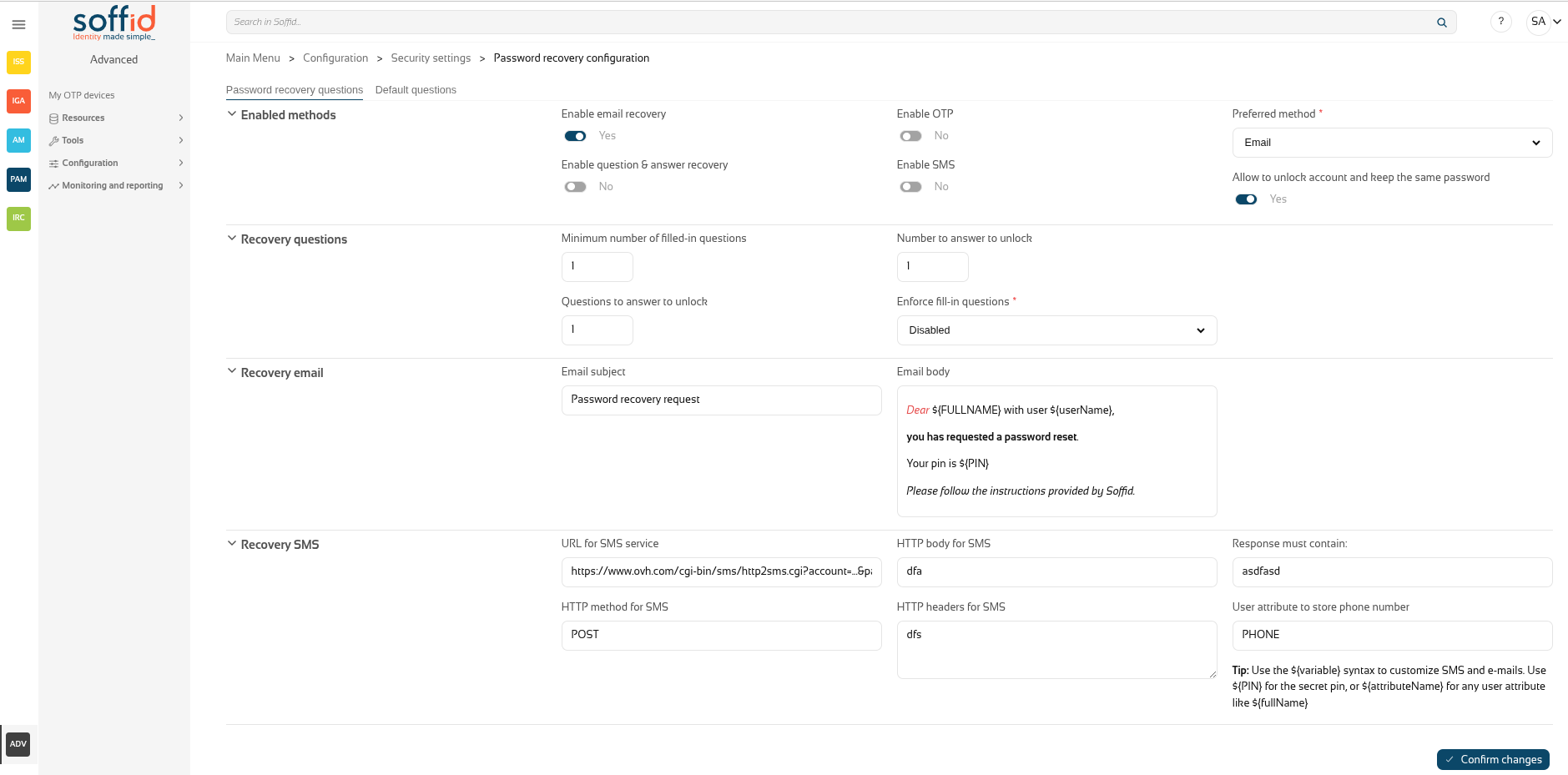](https://bookstack.soffid.com/uploads/images/gallery/2026-01/AolcX8wn5YLhA60W-image.png)
## Related objects
- [Soffid parameters](https://bookstack.soffid.com/books/soffid-4-reference-guide/page/soffid-parameters "Soffid parameters") : must provide a mail server to use mails
- [Identity providers](https://bookstack.soffid.com/books/soffid-4-reference-guide/page/identity-providers-addon-federation "Identity providers (addon federation)") : to enable this opcion in federation
## Standard attributes
### Password recovery questions tab
#### Enabled methods
- **Enable email recovery**: if Yes is selected, it will allow password recovery through an e-mail sent to an authorized mailbox.
- **Enable question&answer recovery**: if Yes is selected, a question and control response will be requested.
- **Enable OTP**: if Yes is selected, an OTP will be required to recover the password. That OTP depends on the OTP settings configured into the Soffid Console and the OTP devices configured for the end-user.
- **Enable SMS**: if Yes is selected, an SMS will be send to recover the password.
- **Preferred method**: in case you select two or more previous options, this drop-drown will allow you to priorize one option over the others.
- Email
- Questions
- SMS
- OTP
- **Allow to unlock account and keep the same password**: Allows the user to unlock his account using the last stored password.
#### Recovery questions
- **Minimum number of filled-in questions**: indicates the minimum number of user questions that must be have answered in the end-user's profile to can use this recover password method.
- **Questions to answer to unlock**: indicates the number of questions that must be formulated to the end-user to reset his password.
- **Numer to answer to unlock**: indicates the number of answers that must be answered by the end-user to reset his password.
- **Enforce fill-in questions:** allow on each access Soffid to check if the questions are answered. In case the questions have not been not answered, Soffid will display a window with the questions to answer or to config to the end-user depending on that value.
- Disabled: allows you to disable that functionality.
- Required: if this option is selected, the system will check if the user questions are answered correctly.
If the user have not a required number of questions defined or he have not answered all his questions, the system will show the retrieve password questions page.
- Optional: when this option is selected, the system will check the user questions but it will not show the retrieve password questions page if the user questions does not meet the configuration parameters.
#### Recovery email
- **Email subject**: the text of the subject sent in the email, you can use variables
- **Email body**: the text of the body sent in the email, this could be HTML stylel, you can use variables
**Tip**: Use the **${variable}** syntax to customize SMS and e-mails. Use ${PIN} for the secret pin, or ${attributeName} for any user attributes like ${fullName}.
#### Recovery SMS
- **URL for SMS service**: URL for SMS service
- **HTTP method for SMS**: HTTP method for SMS, for example GET
- **HTTP body for SMS**: the text of the boy sent in the SMS, you can use variables
- **HTTP headers for SMS**: headers used in the HTTP request
- **Response must contain**: a text in the response to confirm the successful sending
- **User attribute to store phone number:** user object attribute defined on the Metadata page to save the phone number.
**Tip**: Use the **${variable}** syntax to customize SMS and e-mails. Use ${PIN} for the secret pin, or ${attributeName} for any user attributes like ${fullName}.
### Default questions tab
This **Default questions** tab is where you enter the questions that the end user will have to answer in order to recover their password.
[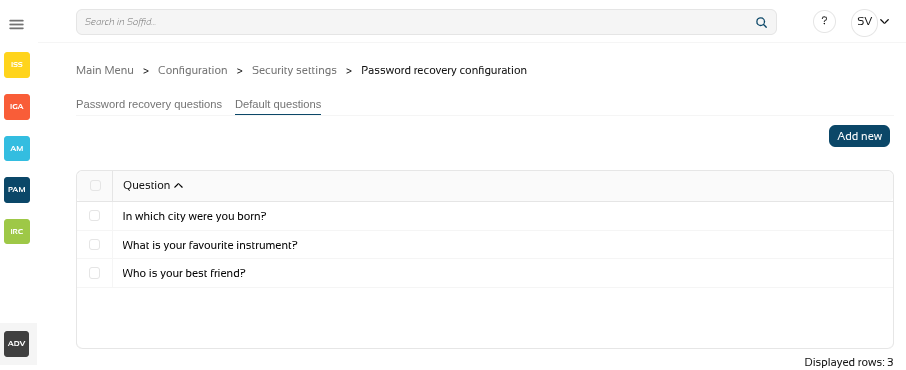](https://bookstack.soffid.com/uploads/images/gallery/2025-12/FnRaxZTNjRzctCH2-image.png)
Table:
- **Question**: questions for the end user
Actions:
**Add new**
Add a new row to the table to allow the administrator to write the question.
**Delete**
After selecting one or more questions, the "Delete" will be displayed and you could delete the question/s.
For more information on how to activate and configure the question and answer feature, please review the page [How to configure questions](https://bookstack.soffid.com/books/password-recovery/page/how-to-configure-questions "How to configure questions?")?
## Actions
Password recovery questions tab
**Confirm changes**
Allows you to save the data of password recovery configuration. To save the data it will be mandatory to fill in the required fields.
Default questions tab
**Add new**
Allows you to add a new question to the questions list
## Others
### Login in console
First, activate one of the available methods, in this case email.
Sedond, when you log in to the console, you will see the option ‘Recover password’.
Image
[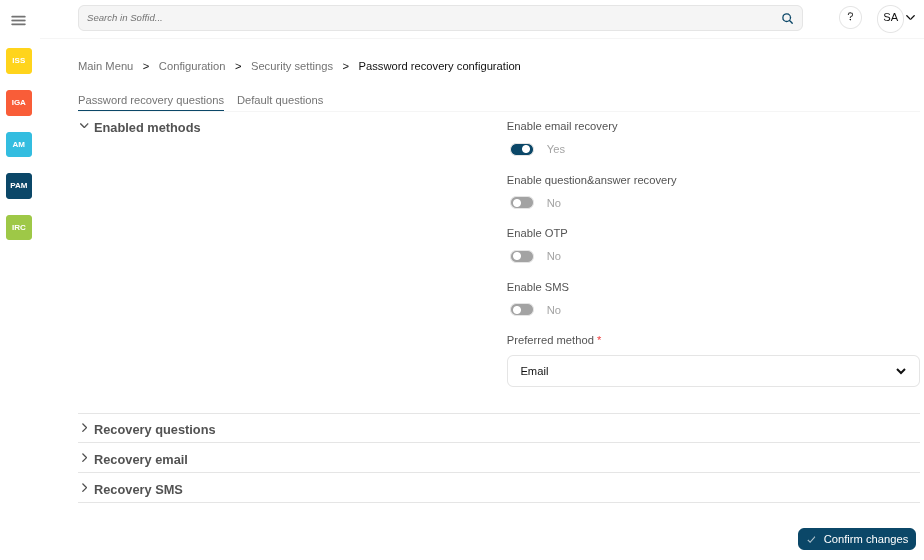](https://bookstack.soffid.com/uploads/images/gallery/2025-09/yhZtYRik6222yIfQ-image.png)
[](https://bookstack.soffid.com/uploads/images/gallery/2025-09/E1csD5Z3KDF8f4qx-image.png)
### Login in federation
First, enable "Allow user to recover password" in the "Advanced authentication" section.
Second, when you log in to the federation, after entering the user, you will see the option "Forgot your password?".
Image
[](https://bookstack.soffid.com/uploads/images/gallery/2025-09/J4K4Fh2PEyzYijDy-image.png)
[](https://bookstack.soffid.com/uploads/images/gallery/2025-09/yBmQvzpskv3L6F55-image.png)
# Configuration
Configuration
# Configuration wizard
For more information, you can visit the [Configuration wizard book](https://bookstack.soffid.com/books/configuration-wizard)
{{@721}}
For more information, you can visit the [Configuration wizard book](https://bookstack.soffid.com/books/configuration-wizard)
# Custom scripts (addon admin)
## Description
The Custom Scrips page provides the capacity to launch custom scripts to perform any functionality or process that the Soffid API has available.
Remember that you can consult the Soffid API at the following linkS: [Soffid 4 public API](https://download.soffid.com/doc/console/latest/iam-common/apidocs/allclasses.html) and [Data & Service model](https://download.soffid.com/doc/console/latest/uml/).
[2026-07-08 New feature: geolocation service available by default](https://bookstack.soffid.com/books/soffid-4-reference-guide/page/2026-07-08-new-feature-geolocation-service-available-by-default "2026-07-08 New feature: geolocation service available by default")
## Screen overview
[](https://bookstack.soffid.com/uploads/images/gallery/2025-08/3eNcxAzDtGiWOVN0-image.png)
[](https://bookstack.soffid.com/uploads/images/gallery/2025-08/3UQA39BnBhzxsSeo-image.png)
## Related objects
- [Console log](https://bookstack.soffid.com/books/soffid-4-reference-guide/page/console-log "Console log") : for more details in case an error has been returned if the script type is "On demand".
- [Syncserver monitoring](https://bookstack.soffid.com/books/soffid-4-reference-guide/page/sync-server-monitoring "Sync server monitoring") : for more details in case an error has been returned if the script type is "Shceduled.
- [Scheduled tasks](https://bookstack.soffid.com/books/soffid-4-reference-guide/page/scheduled-tasks "Scheduled tasks") : to manage and execute custom script when the type is "Scheduled".
- [Users](https://bookstack.soffid.com/books/soffid-4-reference-guide/page/users "Users") :
- After a user change, the "On user change" is executed.
- After a grant permission, the "On grant permission" is executed.
- After a revoke permission, the "On revoke permission" is executed.
## Standard attributes
- **Name** : name of the custom script.
- **Type** : type of the custom sccript.
- **Scheduled** : the script is executed in a Sync server and can be scheduled as a task to manage it from the Scheduled tasks page.
- **On demand** : the script is executed in the Console.
- **On user change** : the script is executed after any user change (except for granting and revoking roles).
- **On grant permission** : the script is executed after a grant permission.
- **On revoke permission** : the script is executed after a revoke permission.
## Actions
### Table actions
**Add new**
Allows you to add a new custom script.
To add a new custom script it will be mandatory to fill in the required fields.
**Delete script**
Allows you to remove one or more custom scripts by selecting one or more records and next clicking the button.
To perform that action, Soffid will ask you for confirmation, you could confirm or cancel the operation.
**Download CSV file**
Allows you to download a csv file with the data included in the table.
### Detail action
**AI assistant**
Ask our AI for help to generate scripts more quickly and efficiently.
**Delete script**
Allows you to remove the custom script.
To perform that action, Soffid will ask you for confirmation, you could confirm or cancel the operation.
**Undo**
Allows you to quit without applying any changes.
**Execute now**
Run the script.
If it is of the ‘On demand’ type, it runs immediately in the Console.
If it is of the ‘Scheduled’ type, it must be run from the ‘Scheduled tasks’ screen.
## Others
### Soffid APIs
Below you could find a list of helpful links related to the building of custom scripts.
Pubic API for of the classes of Soffid: https://download.soffid.com/doc/console/latest/iam-common/apidocs/allclasses.html
API for the internal classes of Soffid: [https://download.soffid.com/doc/console/latest/uml/](https://download.soffid.com/doc/console/latest/uml/)
# Configuration > Web SSO (addon federation)
Configuration > Web SSO (addon federation)
# Attribute definition (addon federation)
## Description
The attribute definition page displays all the **auto-generated user attributes**. Those attributes will be the attributes to deliver from the identity providers to the service providers depending on the defined rules.
Soffid has a default implementation for common attributes like FullName or uid, but you can modify it by creating a custom script.
Please note that this screen is available in the federation addon.
## Screen overview
[](https://bookstack.soffid.com/uploads/images/gallery/2025-08/abpJHUudVdSiVQsE-image.png)
## Related objects
- [Attribute definition](https://bookstack.soffid.com/books/soffid-4-reference-guide/page/attribute-definition-addon-federation "Attribute definition (addon federation)") : where the list of possible attributes to be returned in the IdP response is defined
- [Attribute sharing policies](https://bookstack.soffid.com/books/soffid-4-reference-guide/page/attribute-sharing-policies-addon-federation "Attribute sharing policies (addon federation)") : where policies are defined with the attributes to be sent according to the authenticated service provider
- [Identity providers](https://bookstack.soffid.com/books/soffid-4-reference-guide/page/identity-providers-addon-federation "Identity providers (addon federation)") : configuration of the identity providers
- [Service providers](https://bookstack.soffid.com/books/soffid-4-reference-guide/page/service-providers-addon-federation "Service Providers (addon federation)") : configuration of the service providers
- [Metadata](https://bookstack.soffid.com/books/soffid-4-reference-guide/page/metadata "Metadata") : where user attributes are defined
## Standard attributes
- **Name**: a descriptive name.
- **ShortName**: short name to be used by SAML 2 service providers (without blanks).
- **Oid**: OID to be used by SAML 1 and SAML 2 service providers.
- **OpenID name**: OpenID name to be used by OAuth and OpenID connect service provider.
- **Radius identifier**: Radius ID name.
- **Value**: an attribute value. Allows you to define a script to determine the value of the attribute.
## Actions
### Table actions
**Download CSV file**
Allows you to download a csv file with the data included in the table.
**Import**
Allows you to upload a CSV file with the attribute list to add or update them.
First, you need to pick up a CSV file, that CSV has to contain a specific configuration. Then you need to check the content to be loaded, it is allowed to choose if you want or not to load a specific attribute. And finally, you need to select the mappings for each column of the CSV file to import the data correctly and to click the Import button.
**Add new**
Allows you to add a new attribute. To add a new attribute it will be mandatory to fill in the required fields.
**Delete attribute**
Allows you to delete one or more attributes by selecting one or more records and next clicking this button. To perform that action, Soffid will ask you for confirmation, you could confirm or cancel the operation.
### Detail actions
**Apply changes (disk button)**
Allows you to save the data of a new attribute or to update the data of a specific attribute. To save the data it will be mandatory to fill in the required fields.
**Delete parameter**
Allows you to delete a specific Soffid parameter. To delete a parameter you can click on the "three points" icon and then click the delete parameter button.
Soffid will ask you for confirmation to perform that action, you could confirm or cancel the operation.
**Undo**
Allows you to quit without applying any changes.
**Apply changes**
Allows you to save the data of a new attribute or to update the data of a specific attribute. Once you apply changes, the plugin details page will be closed.
## Examples
### Scripts
Soffid IdP has a default implementation for common attributes like FullName or uid, but you can modify it by creating a custom script. You can use the custom script to define the value of an attribute.
Examples to define the value of an attribute.
#### Example 1
Return full name in upper case:
```Java
return fullName.toUpperCase();
```
#### Example 2
Send one value if an attribute is blank. Otherwise, its value:
```Java
return
attributes{"company"} == null ||
attributes{"company"}.isEmpty() ?
"Soffid" :
attributes{"company"}
```
#### Example 3
Use serverService to fech the OU attribute of the account owned by the user in the Active Directory (AD) system:
```JSON
for (account: serverService.getUserAccounts(id, "ad")) {
return account{"attributes"}{"ou"};
}
return null;
```
#### Example 4
Return the secondary groups of the user.
```
var groups = serviceLocator.getGroupService().findUsersGroupByUserName(userName);
var list = "";
for (var i=0; i1)
list = list+",";
list = list+group.group;
}
return list;
```
#### Example 5
Retrive custom attributes of a holdergroup
```
if (holderGroup!=null) {
ug = serviceLocator.getGroupService().findUserGroupByUserNameAndGroupName(userName, holderGroup);
if (ug!=null && ug.attributes!=null && ug.attributes{"customAttribute"}!=null)
return ug.attributes{"customAttribute"};
}
return null;
```
# Attribute sharing policies (addon federation)
## Description
Soffid allows you to define security rules as policies that apply to any attribute that should be delivered from identity providers to service providers.
Please note that at least one policy must be created to return attributes to service providers. If there is no policy, or none is met, no attributes will be sent.
When logging in with a service provider, all policies are validated and more than one may be applied. In this case, the sum of all attributes contained in those policies will be returned.
Please note that this screen is available in the federation addon.
## Screen overview
[](https://bookstack.soffid.com/uploads/images/gallery/2025-08/lMAXjpb96QyfomjF-image.png)
[](https://bookstack.soffid.com/uploads/images/gallery/2025-08/60EidhC858rWxk4M-image.png)
## Related objects
- [Attribute definition](https://bookstack.soffid.com/books/soffid-4-reference-guide/page/attribute-definition-addon-federation "Attribute definition (addon federation)") : where the list of possible attributes to be returned in the IdP response is defined
- [Attribute sharing policies](https://bookstack.soffid.com/books/soffid-4-reference-guide/page/attribute-sharing-policies-addon-federation "Attribute sharing policies (addon federation)") : where policies are defined with the attributes to be sent according to the authenticated service provider
- [Identity providers](https://bookstack.soffid.com/books/soffid-4-reference-guide/page/identity-providers-addon-federation "Identity providers (addon federation)") : configuration of the identity providers
- [Service providers](https://bookstack.soffid.com/books/soffid-4-reference-guide/page/service-providers-addon-federation "Service Providers (addon federation)") : configuration of the service providers
- [Metadata](https://bookstack.soffid.com/books/soffid-4-reference-guide/page/metadata "Metadata") : where user attributes are defined
## Standard attributes
### Table attributes
- **Policy**: policy name.
### Policy attributes
- **Policy**: policy name.
- **Condition** (policy): a boolean expression that will be evaluated first. If this expression evaluates to false, the rule is completely ignored. It is used to evaluate to which applies the policy.
- **Attributes**: allows you to add attributes with the proper condition for each one.
- **Attribute**: allows you to select an attribute from the attribute list. Those attributes are defined at the Attribute definition page.
- **Allow**: if selected value is Yes, the attribute will be shared when the condition was true. If selected value is No, the attribute will no be shared.
- **Condition** (shared attributes): a boolean expression to be evaluated. Allows you to customize a condition to evaluated and decide if the attribute should or not be delivered
### Condition attributes
It is a boolean expression to be evaluated. The condition will be evaluatuated when the Allow value was yes. You can use the conditions to configure the **conditions policy** and to configure the **shared attributes**.
Type: the boolean operator are the follow:
- **Not**: yes or not
- **Type**: the boolean operator are the follow
- **ANY**: the result will always be true.
- **OR**: the result will be true if any of its subexpressions are true
- **AND**: the result will be true if all of its subexpressions are true.
- **Attribute requester**: the result will be true if the service provider public id equals the specified value. Optionally, the ignore case checkbox will ignore upper and lower case differences.
- **Attribute Issuer**: the result will be true if the identity provider public id equals the specified value. Optionally, the ignore case checkbox will ignore upper and lower case differences.
- **PrincipalName**: the result will be true if the principal name equals the specified value. Optionally, the ignore case checkbox will ignore upper and lower case differences. Mind that some service providers want to use the email address as PrincipalName. Some others use the account name or X.509 subject name.
- **Authentication Method**: the result will be true if the used authentication method equals the specified value. Optionally, the ignore case checkbox will ignore upper and lower case differences. Some useful values are:
- When using SAML, it contains the standard SAML identifier corresponding to the used authentication method. When multifactor authentication is used, it contains the strongest one:
- **urn:oasis:names:tc:SAML:2.0:ac:classes:PasswordProtectedTransport** password authentication (using SSL)
- **urn:oasis:names:tc:SAML:2.0:ac:classes:PreviousSession** already authenticated using previous session
- **urn:oasis:names:tc:SAML:2.0:ac:classes:X509** user has a X.509 certificate
- **urn:oasis:names:tc:SAML:2.0:ac:classes:TLSClient** X.509's public key has been verified using TLS protocol
- **urn:oasis:names:tc:SAML:2.0:ac:classes:TimeSyncToken** time synchronized token.
- **urn:oasis:names:tc:SAML:2.0:ac:classes:unspecified** unspecified protocol. This tag is used when Soffid IDP relies on third party identity providers that don't give information about the authentication method used, such as oAuth or OpenId.
- When using OpenID connect, the value can be any of:
- **P**: Password
- **PO**: Password + OneTimePassword
- **PC**: Password + Certificate
- **PE**: Password + External identity provider
- **K**: Kerberos token
- **KO**: Kerberos token + OneTimePassword
- **KC**: Kerberos token + Certificate
- **KE**: Kerberos token + External identity provider
- **E**: External identity providers
- **EO**: External identity provider + One time password
- **EC**: External identity provider + Certificate
- **O**: One time password
- **OC**: One time password + Certificate
- **C**: Certificate
- **Attribute value**: the result will be true if the related attribute has a specific value.
- **Attribute requester (regex)**: the result will be true if the service provider public id matches the specified regular expression.
- **Attribute issuer (regex)**: the result will be true if the identity provider public id matches the specified regular expression.
- **Principal name (regex)**: the result will be true if the principal name matches the specified regular expression. Mind that some service providers want to use the email address as PrincipalName. Some others use the account name or X.509 subject name.
- **Authentication method (regex)**: the result will be true if the used authentication method matches the specified regular expression.
- **Attribute value (regex)**: the result will be true if the related attribute has a specific value.
- **Attribute requester in entity group**: the result will be true if the service provider belongs to the specified group.
- **Attribute issuer in entity group**: the result will be true if the identity provider belongs to the specified group.
- **Attribute issuer nameID format**: the result will be true if the identity provider supports a specified identifier format.
- **Issuer entity attribute**: the result will be true if the identity provider metadata contains a specified attribute name and value.
- **Issuer entity attribute (regex)**: the result will be true if the identity provider metadata contains an attribute name and value that matches the specified regular expression.
- **Requester entity attribute**:the result will be true if the service provider metadata contains a specified attribute name and value.
- **Requester entity attribute (regex)**:the result will be true if the service provider metadata contains an attribute name and value that matches the specified regular expression.
- **Attribute requester nameID format**: the result will be true if the service provider supports a specified identifier format.
## Actions
### Table actions
**Add new**
Allows you to add a new policy in the system. To add a new it is necessary to fill in the required fields.
**Delete policy**
Allows you to remove one or more policies by selecting one or more records and next clicking this button. To perform that action, Soffid will ask you for confirmation, you could confirm or cancel the operation.
### Policy actions
**Delete policy**
Allows you to save the data of a new Attribute sharing policy or to update the data of a specific Attribute sharing policy. To save the data it will be mandatory to fill in the required fields.
**Add new**
Allows you to add a new shared attribute in the policy. To add a new it is necessary to fill in the required fields.
**Delete attribute**
Allows you to remove one or more shared attribute by selecting one or more records and next clicking this button. To perform that action, Soffid will ask you for confirmation, you could confirm or cancel the operation.
**Undo**
Allows you to quit without applying any changes made.
**Apply changes**
Allows you to save the data of a new Metada object or to update the data of a specific Metadata object. To save the data it will be mandatory to fill in the required fields.
### Attributes actions
**Close**
Allows you to close the popup window. Please note that the changes have not been saved, you must click Apply changes button.
## Examples
Examples for defining conditions in an attribute sharing policy.
### Example 1
Return a list of attributes for any trusted service provider.
[](https://bookstack.soffid.com/uploads/images/gallery/2025-08/PVukQaMjCydPGyJw-image.png)
### Example 2
Rule that applies to all the service providers belonging to the "SOFFID" entity group.
[](https://bookstack.soffid.com/uploads/images/gallery/2025-08/DGOgJ0VM2pVWtWIq-image.png)
### Example 3
Rule that only applies to the service provider ‘TestSP’.
[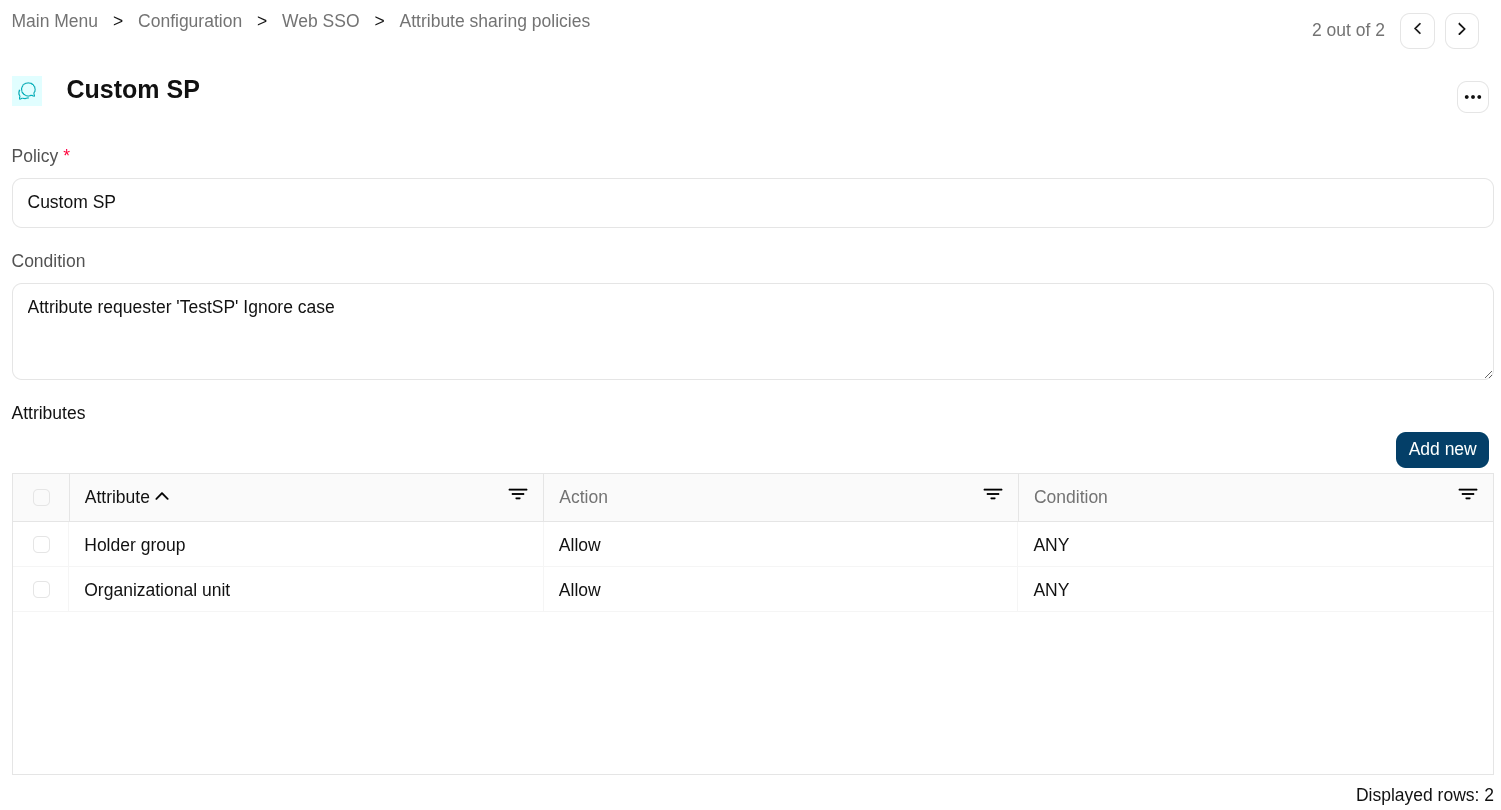](https://bookstack.soffid.com/uploads/images/gallery/2025-08/EwGOacAI90gP3gAZ-image.png)
# Identity providers (addon federation)
## Description
This screen allows you to define the most important components of a federation, which are none other than the identity providers. An identity provider is responsible for performing the appropriate authentication for each service provider and user type according to their accounts, permissions, authorisations, and attributes.
The main supported standard is [SAML](http://en.wikipedia.org/wiki/SAML_2.0). SAML allows to completely detach the identification process from web applications, known as Service Providers. With SAML, identification is performed by specialized servers known as Identity Providers. Additionaly, some other, less secure, but some times convenient protocols like [OAuth](https://en.wikipedia.org/wiki/OAuth) (Open Authorization) and [OpenID-Connect](https://en.wikipedia.org/wiki/OpenID_Connect) protocols are supported. Elder protocols like Openid (do not confuse with OpenID-Connect) are deprecated and no longer supported.
Remember that after validating the user's login, the identity provider will send a set of attributes to the service provider that will have been previously defined in Soffid in the **attribute definition** page and **shared attribute policy** screens.
You can visit the Introduction page to find more information about the [federation](https://bookstack.soffid.com/books/federation "Federation").
Please note that this screen is available in the federation addon.
### Entity group
An entity group is just like a folder that allows you to manage different kinds of federation members. One of the most common ways to group federation members is by trust level.
When you create an entity group, identity provider records will be displayed.
Entity groups can be created on this screen or on the service provider screen, and they will be displayed on both screens.
### Identity provider
An identity provider (abbreviated IdP or IDP) is a system entity that creates, maintains, and manages identity information for principals and also provides authentication services to relying applications within a federation or distributed network.
An Identity Provider is responsible for identifying users. Also, it is responsible for giving service providers information regarding the identified user.
Soffid allows you to configure different identity providers, you can choose the best option for you by selecting the IdP type:
- [**Soffid IdP**:](https://bookstack.soffid.com/books/federation/page/identity-provider#bkmrk-soffid-idp) identifies the identity provider implemented by Soffid. Soffid IdP implements both OpenID-Connect and SAML.
- [**External SAML IdP**](https://bookstack.soffid.com/books/federation/page/identity-provider#bkmrk-external-saml-idp): is used to identify providers not implemented by Soffid. For instance, it could be an ADFS (Active Directory Federation Services) or Shibboleth identity provider.
- [**OpenID-Connect**](https://bookstack.soffid.com/books/federation/page/identity-provider#bkmrk-openid-connect): is used for third-party identity providers, like ADFS.
- [**Facebook**](https://bookstack.soffid.com/books/federation/page/identity-provider#bkmrk-facebook): if you select that option, oAuth2 will be used to identify Facebook users. You will need to register Soffid as a Facebook application to use it.
- [**Google**](https://bookstack.soffid.com/books/federation/page/identity-provider#bkmrk-google): if you select that option OpenID-Connect will be used to identify Google users. You will need to register Soffid as a Google application to use it.
- [**LinkedIn**](https://bookstack.soffid.com/books/federation/page/identity-provider#bkmrk-linkedin): if you select that option, oAuth2 will be used to identify LinkedIn users. You will need to register Soffid as a LinkedIn application to use it.
To create an identity provider, it is advisable to install a dedicated sync server. It can be configured as a proxy sync server as it does not need direct access to the Soffid database. Instead, it will connect to the main sync server to get users and federation information.
For more information about how to configure a dedicated sync server, you can visit the [Install Sync server page](https://bookstack.soffid.com/link/31#bkmrk-next-servers-configu).
### Virtual identity provider
A single identity provider usually offers different profiles or service levels to diffeferent service provider. To be able to define this behavior, any Identity Provider can be split into many virtual identity providers. Those identity providers will be served by the same actual identity provider, but they will have different profile configurations.
When creating a new virtual identity provider, you will need to specify the service providers for which you will be responsible.
## Screen overview
[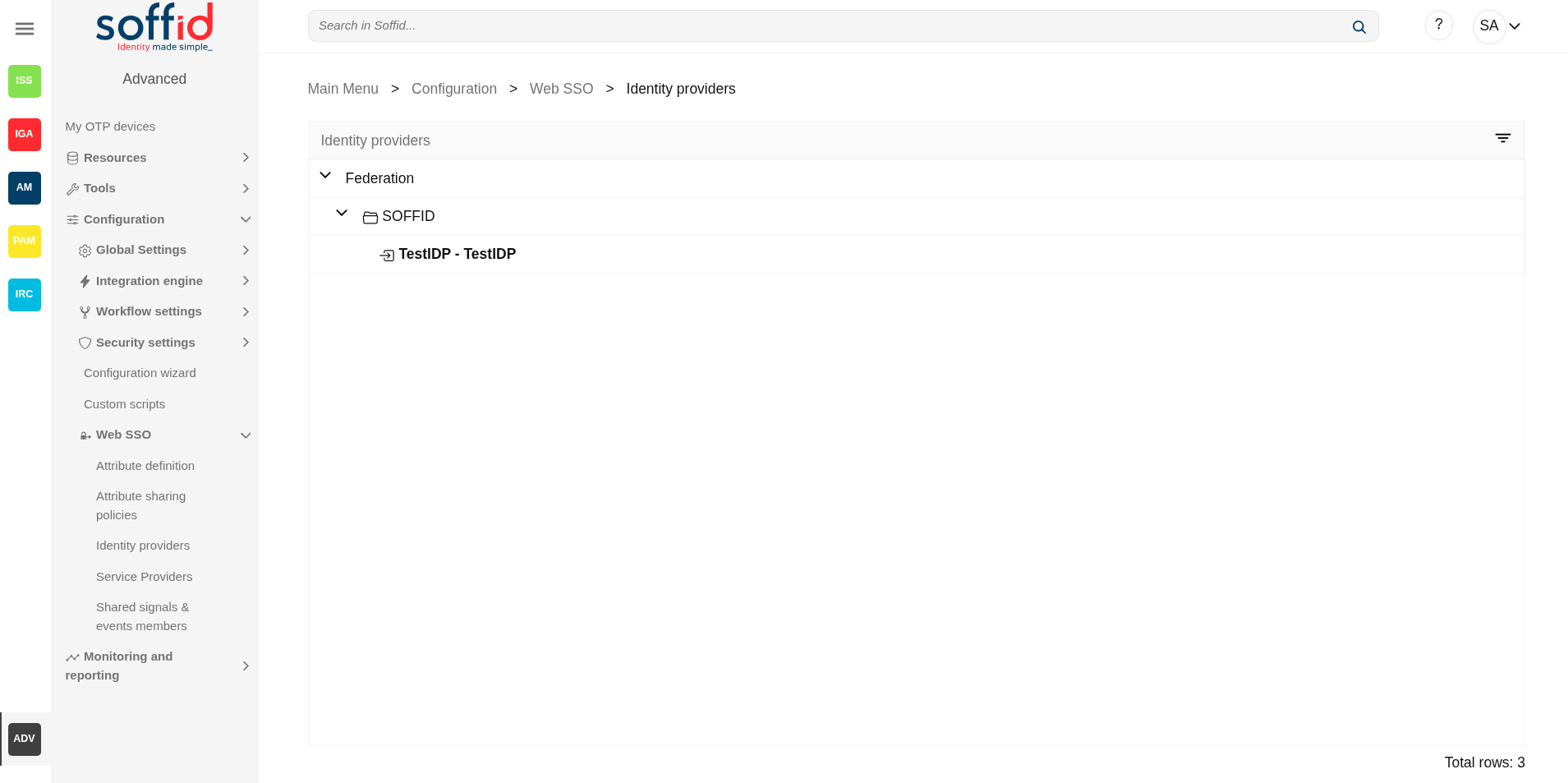](https://bookstack.soffid.com/uploads/images/gallery/2025-08/l4Se14bQXP347xS4-image.png)
[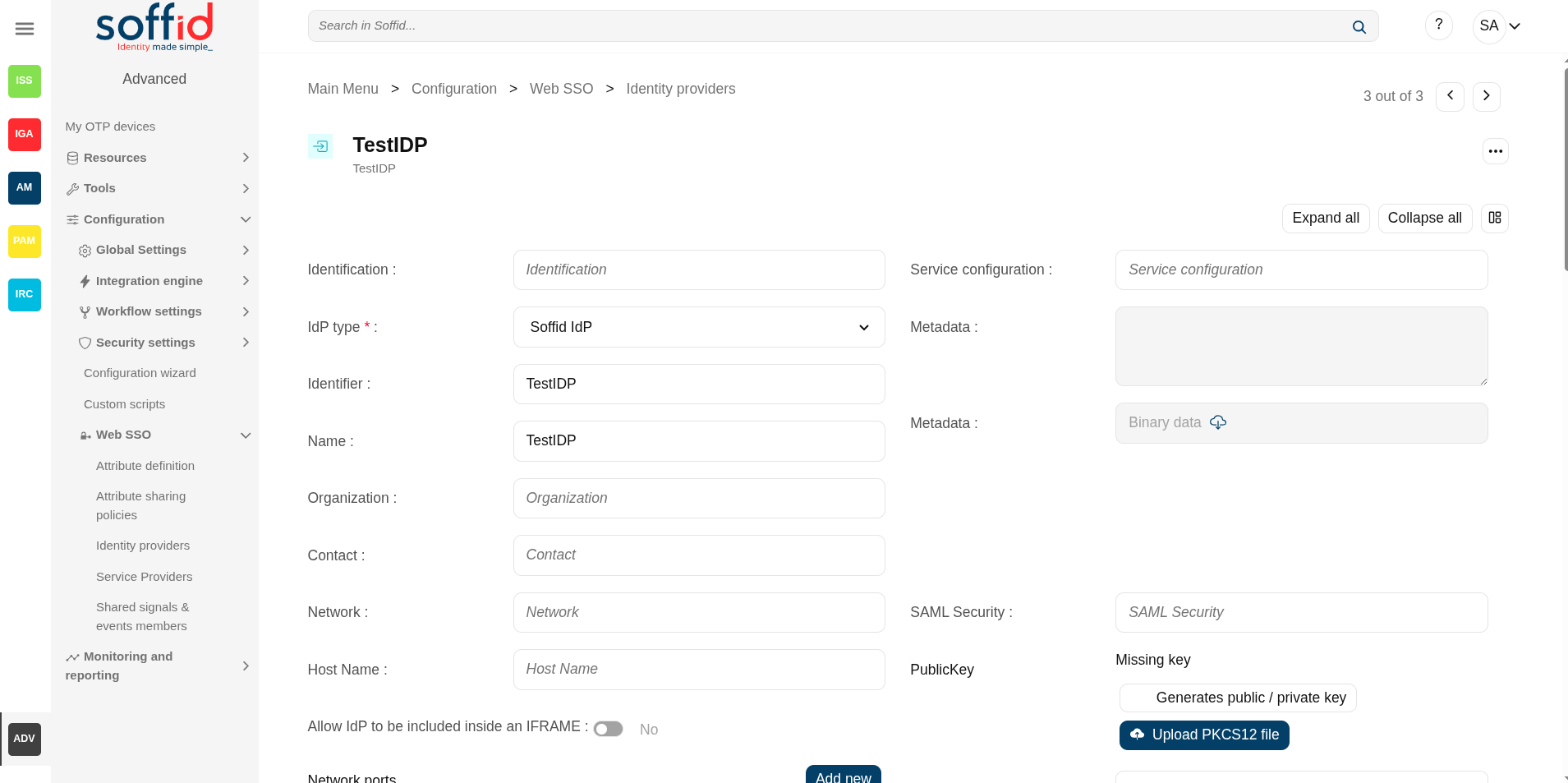](https://bookstack.soffid.com/uploads/images/gallery/2025-08/eJM39csYjpSQGZwb-image.png)
## Related objects
- [Attribute definition](https://bookstack.soffid.com/books/soffid-4-reference-guide/page/attribute-definition-addon-federation "Attribute definition (addon federation)") : where the list of possible attributes to be returned in the IdP response is defined
- [Attribute sharing policies](https://bookstack.soffid.com/books/soffid-4-reference-guide/page/attribute-sharing-policies-addon-federation "Attribute sharing policies (addon federation)") : where policies are defined with the attributes to be sent according to the authenticated service provider
- [Identity providers](https://bookstack.soffid.com/books/soffid-4-reference-guide/page/identity-providers-addon-federation "Identity providers (addon federation)") : configuration of the identity providers
- [Service providers](https://bookstack.soffid.com/books/soffid-4-reference-guide/page/service-providers-addon-federation "Service Providers (addon federation)") : configuration of the service providers
- [Metadata](https://bookstack.soffid.com/books/soffid-4-reference-guide/page/metadata "Metadata") : where user attributes are defined
## Standard attributes
### Entity group
- **Entity Group**: name of the group.
- **Providers**: display the identity providers under the entigy group
### Identity provider
#### Soffid IdP
##### Identification
- **Idp type**: Soffid Idp (this one has to be selected)
- **Identifier**: unique name to identify the identity provider. The name has to be the same as the Public ID of the Soffid Identity Provider agent.
- **Name**: friendly user name.
- **Organization**: company name of the external IdP.
- **Contact**: email address of the external IdP.
It will be mandatory to create an Agent (Soffid Identity Provider) linking the idP with the identifier attribute.
##### Service Configuration
- **Metadata**: the Metadata for an Identity Provider defines how this Identity Provider delivers its service:
- Which security algorithms does it support.
- The public portion of it's signing and encrypting keys.
- The SAML protocols do it support.
- The URL of each SAML protocol endpoint.
- Contact information.
- **Metadata (file)**: from this field, you can directly download a file with the metadata.
The Metadata is the information that any application needs to use the IdP. That is an XML file that contains the public encryption keys and the services provided
Leave it blank as Soffid IdP will fulfill it for you.
The metadata will be created when the network data and SAML Security data are specified. Restarting the sync server will be necessary to fill in the Metadata.
##### Network
- **Host name**: public hostname that will be used by users and service providers. The full qualified name should be used.
- **Allow IdP to be included inside an IFRAME**: Soffid allows you to configure the Identity Provider to be incluided within a IFRAME. If this option is updated, the Sync Server must be restarted.
- **Network ports**:
- **Behind a reverse proxy**: enable this option when the idp is behind a reverse proxy.
- **Reverse proxy port number**: (displayed when reverse proxy enabled) port where the reverse proxy is listening.
- **Reverse proxy incoming address**: (displayed when reverse proxy enabled) IP addresses allowed to make calls to the reverse proxy.
- **Port**: TCP port number used by the identity provider. By default, TLS will be used (default 1443).
- **Encryption**: encryption type is only allowed behind a reverse proxy.
- TLSv1.2
- TLSv1.3
- No encryption
- **Support PROXY protocol v2**: (displayed when reverse proxy enabled) protocol between the reverse proxy and the Identity Provider.
- **Accept client certificate**: to accept always the client certificate.
- **Certificate header**: (displayed when reverse proxy enabled) certificate data header.
- **Excluded protocols**: encryption protocols to be excluded.
💻 Image
[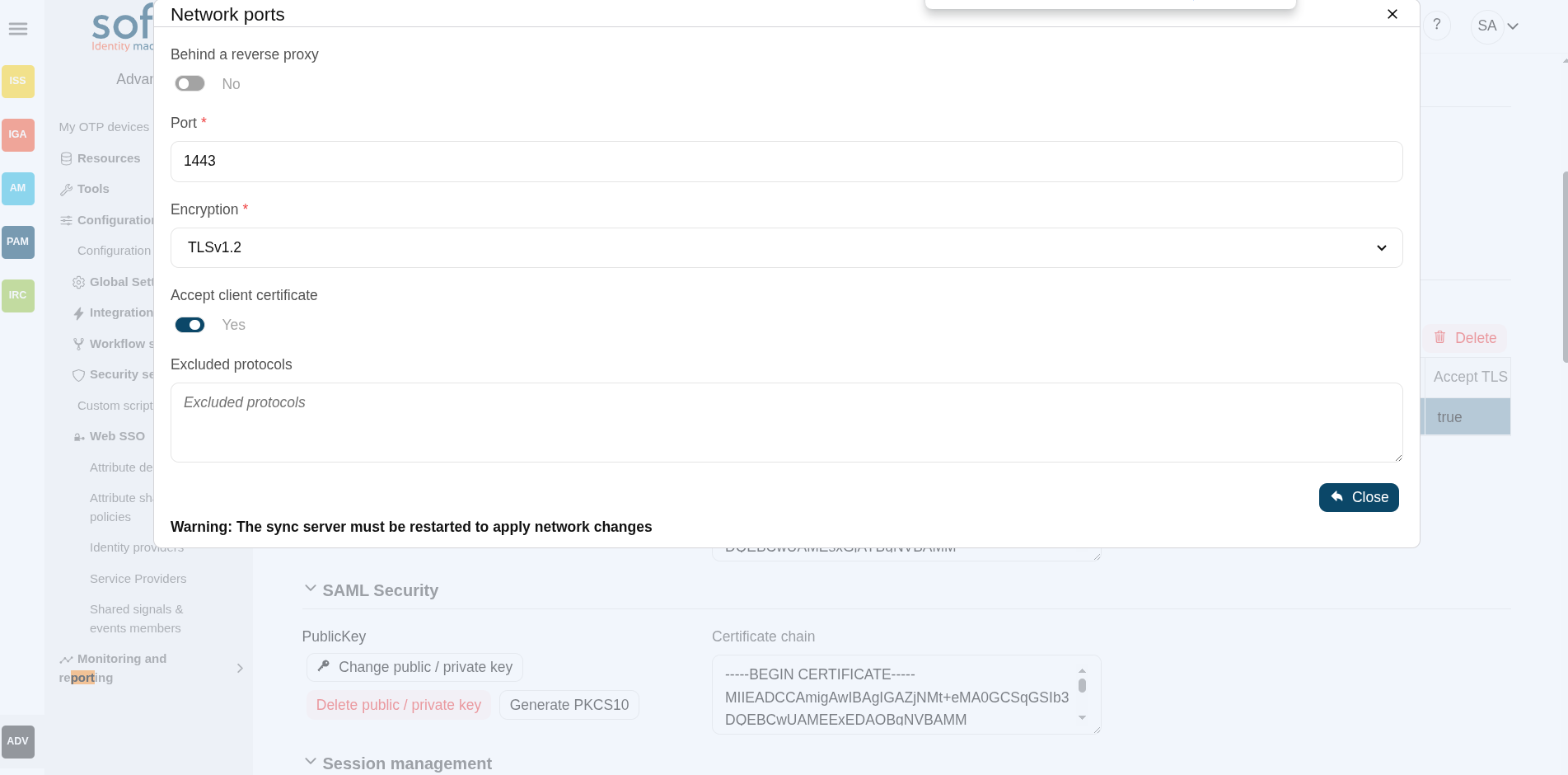](https://bookstack.soffid.com/uploads/images/gallery/2025-09/sqE84DcchQaNTeLV-image.png)
- **TLS PublicKey**: there are three available options
- **Leave in blank** and Soffid IdP will generate a self-signed certificate.
- Clicking on the **Generates public/private key** button, a new private key pair will be generated. Once the private key pair is generated, you could generate a certificate request file, also known as PKCS#10 or CSR file. The certificate authority will be able to create a certificate for you using this certificate request. Once you have created the public/private key, you could run other new functions:
- **Change public/private key**: allows you to change the public/private key generated previously.
- **Delete public/private key**: allows you to delete the public/private key generated previously.
- **Generate PKCS10**: generates a PKCS10 file (Certification request standard).
- Clicking on the **Upload PKCS12 file** button it will be able to upload a PKCS#12 file. That file must contain the private and public keys and the server certificate as well. Mind that PKCS#12 file use to be protected by a PIN.
- **TLS Certificate chain**: text certificate chain created with one of the previous options.
**Server certificate management:** there are two options for certificate management. You can visit the [Server certificate management page](https://bookstack.soffid.com/books/federation/page/server-certificate-management "Server certificate management") for more information.
##### SAML Security
- **PublicKey**:
- Clicking on the **Generates public / private key** button, a new private key pair will be generated. Once the private key pair is generated, you could generate a certificate request file, also known as PKC#10 or CSR file. The certificate authority will be able to create a certificate for you using this certificate request. Once you have created the public/private key, you could run other new functions:
- **Change public/private key**: allows you to change the public/private key generated previously.
- **Delete public/private key**: allows you to delete the public/private key generated previously.
- **Generate PKCS10**: generates a PKCS10 file (Certification request standard).
- Clicking on the **Upload PKCS12 file** button it will be able to upload a PKCS#12 file. That file must to contain the private an public keys and the server certificate as well. Mind that PKCS#12 file use to be protected by a PIN.
- **Certificate chain**: text certificate chain created with one of the previous options.
##### Session management
- **Session timeout (secs)**: time in seconds that will take the session. If the user has been authenticated, and later is requested to authenticate again, the user will be authenticated without any intervention as long as the timeout has not been elapsed.
- **oAuth Session timeout (secs)**: time in seconds that will take the oAuth session. The oAuth has its own life cycle, regardless the session timeout.
- **Maximum session duration (secs) :** maximum time during which session can be renewed
- **SSO Cookie name**: name of the cookie that will keep the session id, you can change the name. This SSO cookie is not really needed, as the identity provider will store a session cookie to track the SSO session. This SSO cookie is needed in two circumstances:
- When the identity provider is restarted, the session cookie is lost. This SSO Cookie allows the identity provider to restart the lost session.
- When you have more than one identity provider instance, this cookie allows all the identity providers to handle the session as if only was one identity provider. The SSO cookie can be allocated by any identity provider, and it will be accepted by any other one.
- **SSO Cookie domain**: is needed when you have more than one identity provider instance and they are using different host names. If all the identity providers are serving the same virtual host name, the SSO Cookie domain will be needed.
##### Authentication
- **Default authentication methods**: the button open a popup.
- **Always ask for credentials**: if checked (the selected value is Yes), the IdP will always request credentials from users who meet the condition defined in this rule.
- **"Matrix of authentication methods"**: matrix to define the authentication methods that will be required to successfully authenticate the user. Each row indicates the first authentication method, and each column indicates the second factor to use.
- Password
- Kerberos
- External IdP
- OTP
- Email
- SMS
- PIN
- Certificate
- FIDO
- Push
Image
[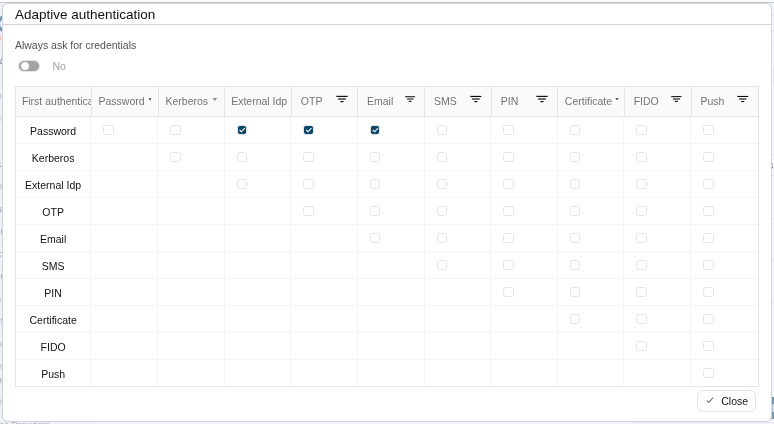](https://bookstack.soffid.com/uploads/images/gallery/2025-09/tR2vgG9ZdzkyPHQh-image.png)
- **Adaptive authentication**: the button open a popup.
- **"Table of adaptive authentication"**
- **Description**: description of the adaptive authentication.
- **Authentication methods**: displays the authentication methods seleccted.
- **"Adaptive authentication popup"**: that option allows you to add an additional authentication matrix which will be run when the condition defined was complied with. That is the way to change the authentication method depending on the environment.
- **Description**: rule description to identify it.
- **Condition**: script to enable that rule. The result of the rule must be true or false. There are some available vars to create the condition. You can visit the [Condition for Adaptive authentication page](https://bookstack.soffid.com/books/federation/page/condition-for-adaptive-authentication "Condition for Adaptive authentication") for more information and some examples.
- **Always ask for credentials**: if checked (the selected value is Yes), the IdP will always request credentials from users who meet the condition defined in this rule.
- **Matrix**: to define the authentication methods that will be required to successfully authenticate the user. Each row indicates the first authentication method, and each column indicates the second factor to use.
Image
[](https://bookstack.soffid.com/uploads/images/gallery/2025-09/Q1H1flYAVRgospFn-image.png)
[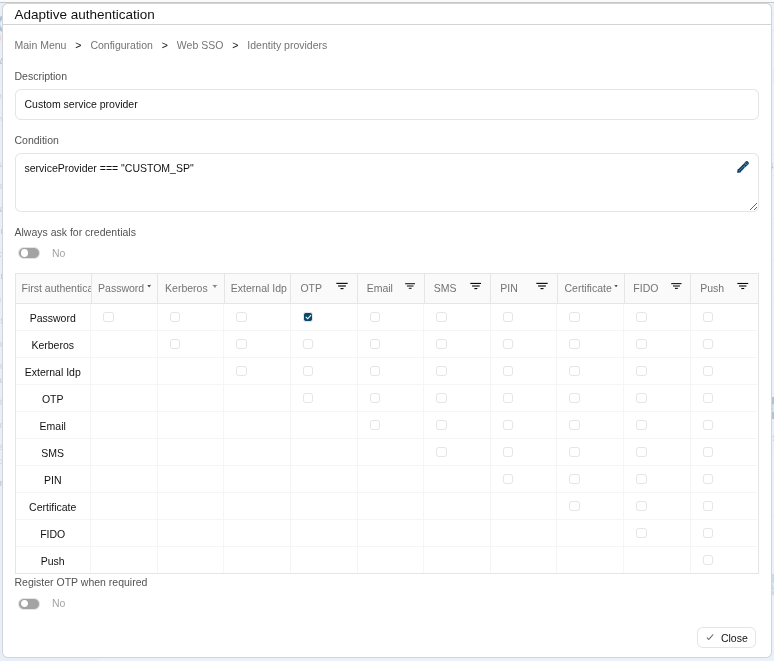](https://bookstack.soffid.com/uploads/images/gallery/2025-09/MiyOoQLP8MSzexvk-image.png)
- **Kerberos domain**: allows you to pick up a file to configure the Kerberos authentication method. For more information, you can visit the [How to enable Kerberos authentication page](https://bookstack.soffid.com/books/federation/page/how-to-enable-kerberos-authentication "How to enable kerberos authentication").
- **Script to check posture**: to login in with the service providers the device of the user must comply specific operating system requirements. Use this script to apply your business logic. Check this [new feature](https://bookstack.soffid.com/books/soffid-4-reference-guide/page/2026-06-13-new-feature-device-posture "2026-06-13 New feature: device posture").
##### Advanced Authentication
- **Allow user to recover password**: if it is checked (selected value is Yes), and the password recovery addon is installed, the user will be allowed to execute the password recovery mechanism.
- **Register OTP when required:** if it is checked (selected value is Yes), Soffid will allow to register the new OTP to the user during the login process.
- **Allow user to self-register**: if it is checked (selected value is Yes), the user will be allowed to register itself. This option sends an email to the user to verify the email address is correct, and then lets the user to enter a new password.
- **Registration process:** workflow selected to create the new identity.
- **User Type**: (displayed when Allow users to self-service enabled) identifies the password policy that is to be applied. More information on this link [User Type.](https://bookstack.soffid.com/books/soffid-3-reference-guide/page/user-type "User Type")
- **Primary Group**: (displayed when Allow users to self-service enabled)select which organization unit this user belongs to.
- **Register identities identified by external IdPs**: allows Soffid IdP to automatically register a new identity when a user authenticates with a third-party IdP, and this identity does not exist yet in Soffid database. Furthermore, at the third party IdP configuration page, one can tune how this identity is going to be created.
- **Store last user name in browser**: allows the browser to save the last user name when Yes is selected.
- **Enable reCaptcha v3 service**: *(\*)* helps to keep save your website. You can enable it by selecting the Yes option. When you select the Yes option, you must fill in the following fields:
- **Captcha site key**: this key is used to invoke the reCAPTCHA service
- **Captcha site secret**: the secret key to communicate your web site with reCAPTCHA service. This secret key authorizes the communication.
- **Captcha threshold (1 for highest confidence, 0 for low confidence)**:
##### Profiles
A profile is a protocol or subset of protocols implemented by the Identity Provider. There are some accepted protocols, those allows a custom config dependent on the selected profile.
You can visit the [Profiles chapter](https://bookstack.soffid.com/books/federation/chapter/profiles) for more information about each one.
##### Look and feel
Soffid allows you to personalize your login page by adding some style elements, as well as header and footer elements.
- **Logo**: this logo will be displayed for users in Windows desktop.
- **CSS Style**: allows you to add a CSS style for your login page.
- **Html header**: allows you to add an Html header.
- **Html footer**: allows you to add an Html footer.
- **Language (2 characters code)**: language used by default in the first access
Restarting the syncserver will be necessary to apply the look and feel changes.
Image
[](https://bookstack.soffid.com/uploads/images/gallery/2025-09/PiaEiHKILKXEPksx-image.png)
[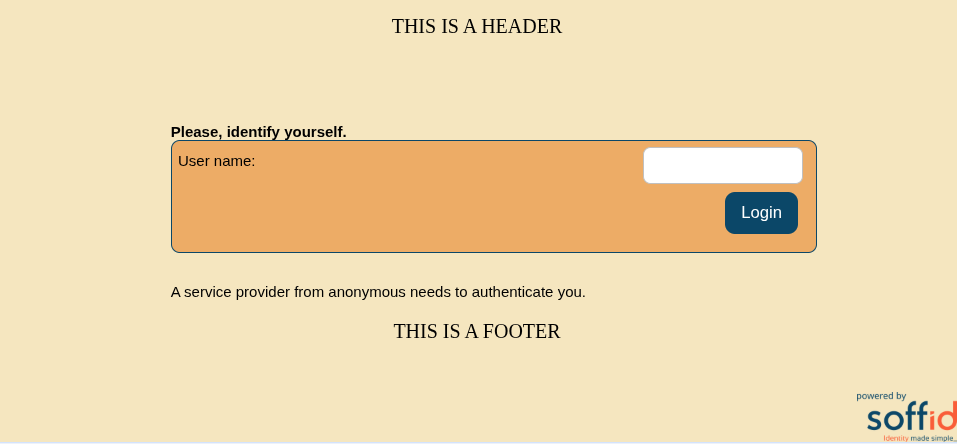](https://bookstack.soffid.com/uploads/images/gallery/2025-09/3DZvj9DRJclZX2mt-image.png)
#### External SAML IdP
##### Identification
- **Idp type**: External SAML IdP (this one has to be selected)
- **Identifier**: unique name to identify the identity provider.
- **Name**: friendly user name.
- **Organization**: company name of the external IdP.
- **Contact**: email address of the external IdP.
##### Service Configuration
- **Metadata**: the Metadata for an Identity Provider defines how this Identity Provider delivers its service:
- Which security algorithms does it support.
- The public portion of it's signing and encrypting keys.
- The SAML protocols does it support.
- The URL of each SAML protocol endpoint.
- Contact information.
- **Metadata (file)**: from this field, you can directly download a file with the metadata.
The Metadata is the information that any application need to use the IdP. That is an XML file that contains the public encryption keys and the services provided
##### Login Rules
- **User regular expression**: regular expression to detect users of this identity provider.
-
**Condition to enable this identity provider**: Script used to determine whether the IdP should appear in the user’s list of options. See its [new feature](https://bookstack.soffid.com/books/soffid-4-reference-guide/page/2026-09-30-new-feature-select-external-idp-using-script "2026-09-30 New feature: select external IdP using script").
- **Login hint script**: script to help to login. Return the text to help.
- **Identity provisioning script**: script to bind or register a new identity. Return the user name of the owner identity for the authenticated account.
##### SAML Security
- **PublicKey**:
- Clicking on the **Generates public / private key** button, a new private key pair will be generated. Once the private key pair is generated, you could generate a certificate request file, also known as PKC#10 or CSR file. The certificate authority will be able to create a certificate for you using this certificate request. Once you have created the public/private key, you could run other new functions:
- **Change public/private key**: allows you to change the public/private key generated previously.
- **Delete public/private key**: allows you to delete the public/private key generated previously.
- **Generate PKCS10**: generates a PKCS10 file (Certification request standard).
- Clicking on the **Upload PKCS12 file** button it will be able to upload a PKCS#12 file. That file must to contain the private an public keys and the server certificate as well. Mind that PKCS#12 file use to be protected by a PIN.
- **Certificate chain**: text certificate chain created with one of the previous options.
#### OpenID-Connect
##### Identification
- **Idp type**: OpenID Connect (this one has to be selected)
- **Identifier**: unique name to identify the identity provider.
- **Name**: friendly user name.
- **Organization**: company name of the external IdP.
- **Contact**: email address of the external IdP.
##### Service Configuration
- **Metadata**: there are some required parameters:
- **authorization\_endpoint**: contains the oAuth endpoint to forward the user to get the authorization token.
- **token\_endpoint**: contains the oAuth endpoint to get the access token, based on the authorization token got at previous step.
- **userinfo\_endpoint**: if remote IdP is OpenID-connect compliant, the token endpoint should have sent an access token along a JWT OpenID token containing user claims. If this is not the case, Soffid will use this user\_info endpoint to fetch user claims. This mechanism is needed for oAuth2 servers.
- **scopes\_sopported**: The list of scopes specified here will be used at first step, when redirecting the user to the authorization endpoint.
```
{
"authorization_endpoint": "https://server/oauth2/auth",
"token_endpoint": "https://server/oauth2/token",
"userinfo_endpoint": "https://server/oauth2/userinfo",
"scopes_supported": [ "openid","email","profile"]
}
```
- **oAuth key**: is the identificator token generated by the oAuth server.
- **oAuth secret**: is the secret generated by the oAuth server.
The Metadata is the information that any application need to use the IdP. That is an XML file that contains the public encryption keys and the services provided.
##### Login rules
- **User regular expression**: regular expression to detect users of this identity provider.
- **Condition to enable this identity provider**: Script used to determine whether the IdP should appear in the user’s list of options. See its [new feature](https://bookstack.soffid.com/books/soffid-4-reference-guide/page/2026-09-30-new-feature-select-external-idp-using-script "2026-09-30 New feature: select external IdP using script").
- **Login hint script**: script to help to login. Return the text to help.
- **Identity provisioning script**: script to bind or register a new identity. Return the user name of the owner identity for the authenticated account.
#### Facebook
##### Identification
- **Idp type**: Facebook (this one has to be selected)
- **Identifier**: unique name to identify the identity provider.
- **Name**: friendly user name.
- **Organization**: company name of the external IdP.
- **Contact**: email address of the external IdP.
##### Service Configuration
- **Click here to obtain a client id and client secret**: allows you to get the oAuth key and secret.
- **oAuth key**: is the identificator token generated by the oAuth server.
- **oAuth secret**: is the secret generated by the oAuth server.
##### Login rules
- **User regular expression**: regular expression to detect users of this identity provider.
- **Condition to enable this identity provider**: Script used to determine whether the IdP should appear in the user’s list of options. See its [new feature](https://bookstack.soffid.com/books/soffid-4-reference-guide/page/2026-09-30-new-feature-select-external-idp-using-script "2026-09-30 New feature: select external IdP using script").
- **Login hint script**: script to help to login. Return the text to help.
- **Identity provisioning script**: script to bind or register a new identity. Return the user name of the owner identity for the authenticated account.
#### Google
##### Identification
- **Idp type**: Google (this one has to be selected).
- **Identifier**: unique name to identify the identity provider. Soffid will fulfill wint the Google URL.
- **Name**: friendly user name.
- **Organization**: company name of the external IdP.
- **Contact**: email address of the external IdP.
##### Service Configuration
- **Click here to obtain a client id and client secret**: allows you to get the oAuth key and secret.
- **oAuth key**: is the identificator token generated by the oAuth server.
- **oAuth secret**: is the secret generated by the oAuth server.
##### Login rules
- **User regular expression**: regular expression to detect users of this identity provider.
- **Condition to enable this identity provider**: Script used to determine whether the IdP should appear in the user’s list of options. See its [new feature](https://bookstack.soffid.com/books/soffid-4-reference-guide/page/2026-09-30-new-feature-select-external-idp-using-script "2026-09-30 New feature: select external IdP using script").
- **Login hint script**: script to help to login. Return the text to help.
- **Identity provisioning script**: script to bind or register a new identity. Return the user name of the owner identity for the authenticated account.
#### Linkedin
##### Identification
- **Idp type**: Linkedin (this one has to be selected)
- **Identifier**: unique name to identify the identity provider. Soffid will fulfill wint the Linkedin URL.
- **Name**: friendly user name.
- **Organization**: company name of the external IdP.
- **Contact**: email address of the external IdP.
##### Service Configuration
- **Click here to obtain a client id and client secret**: allows you to get the oAuth key and secret.
- **oAuth key**: is the identificator token generated by the oAuth server.
- **oAuth secret**: is the secret generated by the oAuth server.
##### Login rules
- **User regular expression**: regular expression to detect users of this identity provider.
- **Condition to enable this identity provider**: Script used to determine whether the IdP should appear in the user’s list of options. See its [new feature](https://bookstack.soffid.com/books/soffid-4-reference-guide/page/2026-09-30-new-feature-select-external-idp-using-script "2026-09-30 New feature: select external IdP using script").
- **Login hint script**: script to help to login. Return the text to help.
- **Identity provisioning script**: script to bind or register a new identity. Return the user name of the owner identity for the authenticated account.
### Virtual identity provider
#### Identification
- **Identifier**: unique name to identify the identity provider.
- **Name**: user friendly name to identify the identity provider.
- **Organization**: company name of the external IdP.
- **Contact**: email address of the external IdP.
#### Service configuration
- **Metadata**: the Metadata for an Identity Provider defines how this Identity Provider delivers its service:
- Which security algorithms does it support.
- The public portion of it's signing and encrypting keys.
- The SAML protocols does it support.
- The URL of each SAML protocol endpoint.
- Contact information.
- **Metadata (file)**: from this field, you can directly download a file with the metadata.
Leave it blank as Soffid IdP will fulfill it for you.
#### SAML Security
- **Public key**:
- **Generate public/private key**:
- **Delete public/private key**: allows you to delete the public/private key generated previously.
- **Generate PKCS10**: generates a PKCS10 file (Certification request standard)
- **Upload PKCS12 file**: allows you to upload a PKCS#12 file. That file must contain the private and public kesus and the server certificate as weel. Mind that PKCS#12 file use to be protected by a PIN.
- **Certificate chain**: text certificate chain created with one of the previous options.
##### Authentication
- **Default authentication methods**: the button open a popup.
- **Always ask for credentials**: if checked (the selected value is Yes), the IdP will always request credentials from users who meet the condition defined in this rule.
- **"Matrix of authentication methods"**: matrix to define the authentication methods that will be required to successfully authenticate the user. Each row indicates the first authentication method, and each column indicates the second factor to use.
- Password
- Kerberos
- External IdP
- OTP
- Email
- SMS
- PIN
- Certificate
- FIDO
- Push
Image
[](https://bookstack.soffid.com/uploads/images/gallery/2025-09/tR2vgG9ZdzkyPHQh-image.png)
- **Adaptive authentication**: the button open a popup.
- **"Table of adaptive authentication"**
- **Description**: description of the adaptive authentication.
- **Authentication methods**: displays the authentication methods seleccted.
- **"Adaptive authentication popup"**: that option allows you to add an additional authentication matrix which will be run when the condition defined was complied with. That is the way to change the authentication method depending on the environment.
- **Description**: rule description to identify it.
- **Condition**: script to enable that rule. The result of the rule must be true or false. There are some available vars to create the condition. You can visit the [Condition for Adaptive authentication page](https://bookstack.soffid.com/books/federation/page/condition-for-adaptive-authentication "Condition for Adaptive authentication") for more information and some examples.
- **Always ask for credentials**: if checked (the selected value is Yes), the IdP will always request credentials from users who meet the condition defined in this rule.
- **Matrix**: to define the authentication methods that will be required to successfully authenticate the user. Each row indicates the first authentication method, and each column indicates the second factor to use.
Image
[](https://bookstack.soffid.com/uploads/images/gallery/2025-09/Q1H1flYAVRgospFn-image.png)
[](https://bookstack.soffid.com/uploads/images/gallery/2025-09/MiyOoQLP8MSzexvk-image.png)
- **Kerberos domain**: allows you to pick up a file to configure the Kerberos authentication method. For more information, you can visit the [How to enable Kerberos authentication page](https://bookstack.soffid.com/books/federation/page/how-to-enable-kerberos-authentication "How to enable kerberos authentication").
##### Advanced Authentication
- **Allow user to recover password**: if it is checked (selected value is Yes), and the password recovery addon is installed, the user will be allowed to execute the password recovery mechanism.
- **Register OTP when required:** if it is checked (selected value is Yes), Soffid will allow to register the new OTP to the user during the login process.
- **Allow user to self-register**: if it is checked (selected value is Yes), the user will be allowed to register itself. This option sends an email to the user to verify the email address is correct, and then lets the user to enter a new password.
- **Registration process:** workflow selected to create the new identity.
- **User Type**: (displayed when Allow users to self-service enabled) identifies the password policy that is to be applied. More information on this link [User Type.](https://bookstack.soffid.com/books/soffid-3-reference-guide/page/user-type "User Type")
- **Primary Group**: (displayed when Allow users to self-service enabled)select which organization unit this user belongs to.
- **Register identities identified by external IdPs**: allows Soffid IdP to automatically register a new identity when a user authenticates with a third-party IdP, and this identity does not exist yet in Soffid database. Furthermore, at the third party IdP configuration page, one can tune how this identity is going to be created.
- **Store last user name in browser**: allows the browser to save the last user name when Yes is selected.
- **Enable reCaptcha v3 service**: *(\*)* helps to keep save your website. You can enable it by selecting the Yes option. When you select the Yes option, you must fill in the following fields:
- **Captcha site key**: this key is used to invoke the reCAPTCHA service
- **Captcha site secret**: the secret key to communicate your web site with reCAPTCHA service. This secret key authorizes the communication.
- **Captcha threshold (1 for highest confidence, 0 for low confidence)**:
#### Profiles
A profile is a protocol implemented by the Identity Provider. There are some accepted protocols, those allows a custom config dependent on the selected profile
- OpenIDProfile
- SAML1ArtifactResolutionProfile
- SAML1AttributeQueryProfile
- SAML2ArtifactResolutionProfile
- SAML2AttributeQueryProfile
- SAML2ECPProfile
- SAML2SSOProfile
You can visit the [Profiles chapter](https://bookstack.soffid.com/books/federation/chapter/profiles) for more information about each one.
#### Service Providers
It will be necessary to bind any service provider to the virtual identity provider. When no such bind exists for a service provider, the actual identity provider profile configuration applies.
- **Name**: name of the service provider
## Actions
### Federation tree
**Add group**
Allows you to create a new entity group. You can choose that option by clicking on the "Add group" button in the tree, then Soffid will display a new window with the fields to fullfil. To add a new entity group it will be mandatory to fill in the required fields and save or apply changes.
**Add identity provider**
Allows you to add a new identity Provider. You must click the "Add identity provider" button, under the proper entity group, then Soffid will display a new window with the data to fulfill for the new identity provider. To add a new identity provider it will be mandatory to fill in the required fields and save or apply changes.
**Add virtual identity provider**
Allows you to add a virtual identity provider. You must click the "Add virtual identity provider" button, under the proper identity provider, which has to be a Soffid IdP, then Soffid will display a new window with the data to fulfill for the new virtual identity provider. To add a new virtual identity provider it will be mandatory to fill in the required fields and save or apply changes.
### Entity group detail
**Apply changes (disk button)**
Allows you to save the data of a new entity group or to update the data of a specific entity group. To save the data it will be mandatory to fill in the required fields.
**Delete**
Allows you to remove the entity group. You can find this option in the "three points" menu by clicking on the "Delete" button. To perform that action, Soffid will ask you for confirmation, you could confirm or cancel the operation.
**Undo**
Allows you to quit without applying any changes.
**Apply changes**
Allows you to save the data of a new entity group or to update the data of a specific entity group. Once you apply changes, the plugin details page will be closed.
### Identity provider detail
**Save**
Allows you to save the data of a new identity provider or to update the data of a specific identity provider. To save the data it will be mandatory to fill in the required fields.
**Delete identity provider**
Allows you to delete the identity provider. To delete an identity provider you can click on the "three points" icon and then click the delete button. Soffid will ask you for confirmation to perform that action, you could confirm or cancel the operation.
**Undo**
Allows you to quit without applying any changes made.
**Apply changes**
Allows you to save the data of a new identity provider or to update the data of a specific identity provider and quit. To save the data it will be mandatory to fill in the required fields.
### Virtual identity provider detail
**Save**
Allows you to save the data of a new virtual identity provider or to update the data of a specific virtual identity provider. To save the data it will be mandatory to fill in the required fields.
**Delete identity provider**
Allows you to delete the virtual identity provider. To delete a virtual identity provider you can click on the "three points" icon and then click the delete button. Soffid will ask you for confirmation to perform that action, you could confirm or cancel the operation.
**Undo**
Allows you to quit without applying any changes made.
**Apply changes**
Allows you to save the data of a new virtual identity provider or to update the data of a specific virtual identity provider and quit. To save the data it will be mandatory to fill in the required fields.
## Examples
### Look and feel customisation
In this example, we are going to use all styles except the header, so we can take advantage of the language change and use the manually uploaded logo.
This is the result.
[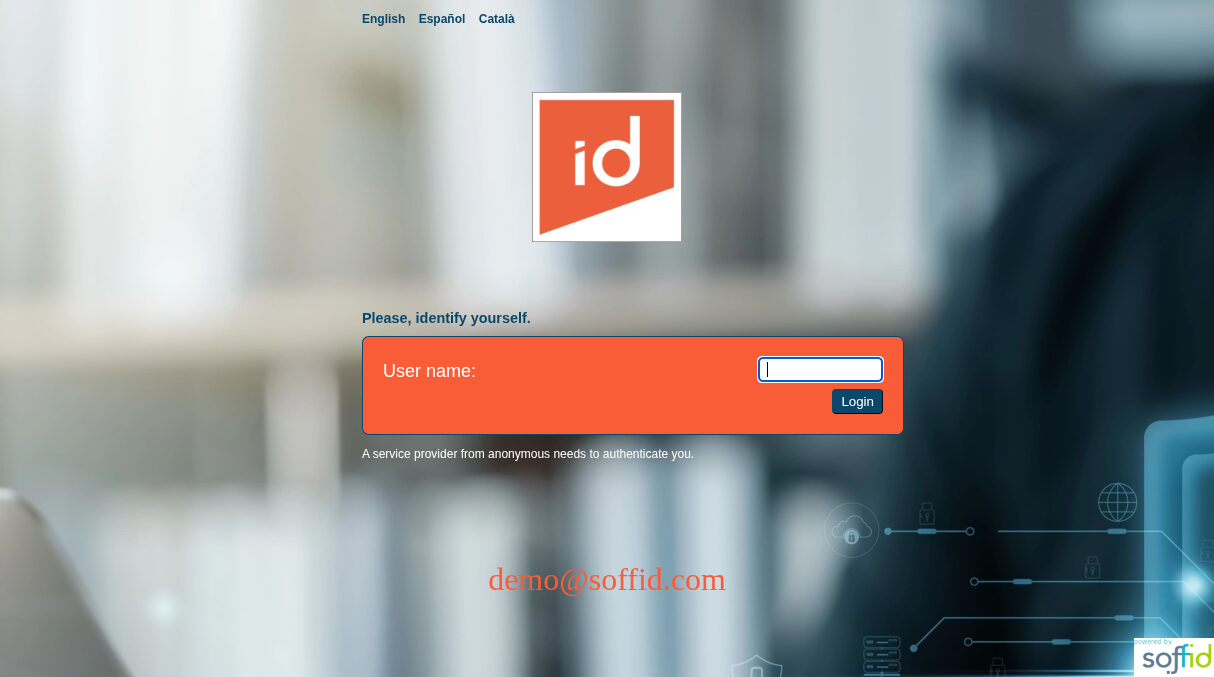](https://bookstack.soffid.com/uploads/images/gallery/2025-12/08rtjm8pBiTEgMYy-image.png)
This is the configuration.
[](https://bookstack.soffid.com/uploads/images/gallery/2025-12/86iQqqb9RcxfG39x-image.png)
CSS Style:
```
body {
color: white;
background-image: url("https://www.soffid.com/wp-content/uploads/2025/05/Depositphotos_795124038_XL-1-scaled.jpg");
}
#language a {
text-decoration: none;
font-weight: bold;
color: #0B4768;
}
p.biglogo img{
margin-top: 50px;
width: 150px;
}
p.header {
color: #0B4768;
padding-bottom: 10px;
font-size: larger;
}
.logintype {
background-color: #F95D38;
border: 1px solid #0B4768;
color: white;
font-size: large;
padding: 20px;
}
.nologintype {
color: #0B4768;
font-size: large;
padding: 20px;
}
input {
padding: 4px 8px 4px 8px;
border-radius: 4px;
border-color: #0B4768;
border-width: 1px;
cursor: pointer;
}
input[type=submit] {
background-color: #0B4768;
color: white;
}
```
Html footer:
```
demo@soffid.com
```
If you use the header, the language change options disappear and the logo is not displayed either. You can add the logo yourself using HTML/CSS.
```
```
### How to add or update the IDP’s SSL certificate
When we have an **IDP** with a specific **hostname**, it will almost always be necessary to add the SSL **certificate** so that the browser accepts it correctly.
To add it for the first time or update it, follow the steps below.
Go to the "Identity providers" page.
Select your "Soffid IdP" type identity provider.
[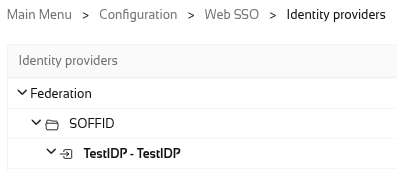](https://bookstack.soffid.com/uploads/images/gallery/2026-08/8gGR9BoUrD4F9hoU-image.png)
Now go to the "‘Network" group, specifically the "TLS PublicKey" attribute.
[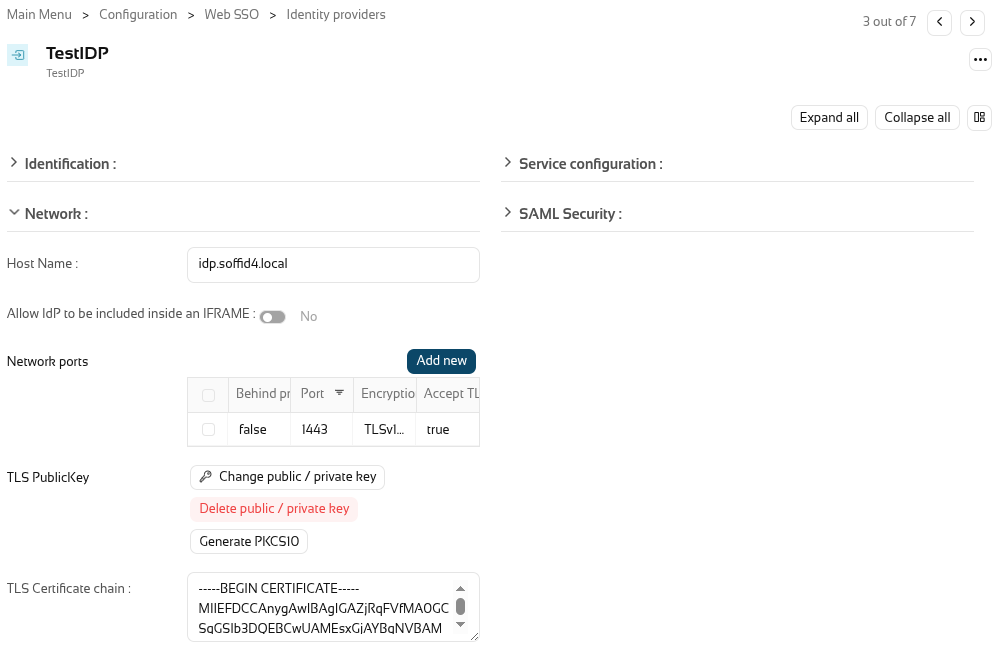](https://bookstack.soffid.com/uploads/images/gallery/2026-08/UtllcPNw48HVnsZx-image.png)
If this is an update, you must first click the ‘Delete public / private key’ button to delete the current certificate.
[](https://bookstack.soffid.com/uploads/images/gallery/2026-08/TYqklvu4zWlWImaB-image.png)
[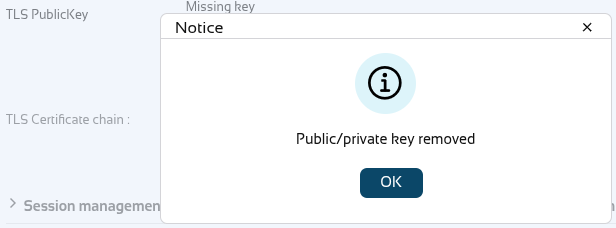](https://bookstack.soffid.com/uploads/images/gallery/2026-08/S5cpMrABZXHLCqlQ-image.png)
We can now upload a PKCS12 file, but PKCS8 files are also accepted.
Click the “Upload PKCS12 file” button.
[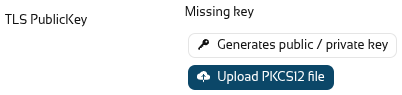](https://bookstack.soffid.com/uploads/images/gallery/2026-08/1jsSwEaYDoXuabUi-image.png)
Select the file using the “Pick a file” button.
[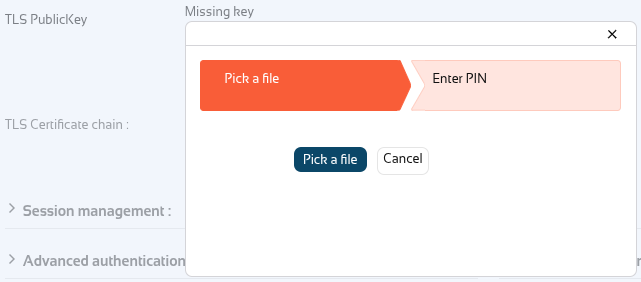](https://bookstack.soffid.com/uploads/images/gallery/2026-08/HsrT1uBgiG0XJFX8-image.png)
Select your file; it will normally be a \*.pfx.
[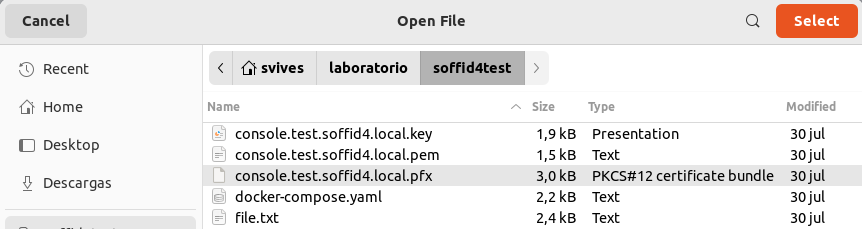](https://bookstack.soffid.com/uploads/images/gallery/2026-08/0fj3kG8aObfKwtXa-image.png)
You now need to enter the PIN to open the file and retrieve the public and private keys.
[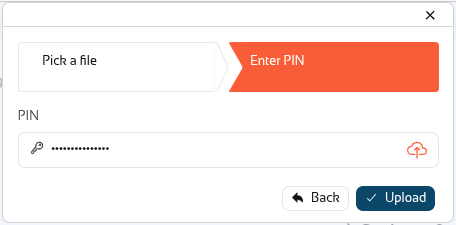](https://bookstack.soffid.com/uploads/images/gallery/2026-08/Xdfs2GpmVw51u9YH-image.png)
When it fails.
[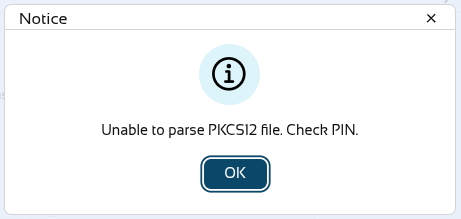](https://bookstack.soffid.com/uploads/images/gallery/2026-08/LGpIcosUnddeG2v2-image.png)
When it works.
[](https://bookstack.soffid.com/uploads/images/gallery/2026-08/BUrCNPhRbekr9N6L-image.png)
Once the file has been uploaded, you will need to **restart** the **syncserver** on which the **identity provider** is **configured**.
Click the **restart button**, wait for the system to restart, and the **certificate will then be applied**.
[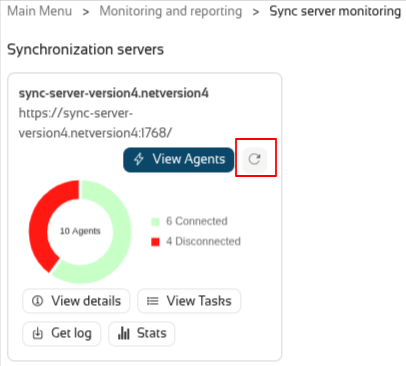](https://bookstack.soffid.com/uploads/images/gallery/2026-08/uDzYA1njHZFIq5Sr-image.png)
# Service Providers (addon federation)
## Description
This screen allows you to define the applications that will belong to the federation. These applications are named service providers and must be configured correctly to delegate the user authentication to the identity provider that is responsible for them by configuration.
The main supported standard is [SAML](http://en.wikipedia.org/wiki/SAML_2.0). SAML allows to completely detach the identification process from web applications, known as Service Providers. With SAML, identification is performed by specialized servers known as Identity Providers. Additionaly, some other, less secure, but some times convenient protocols like [OAuth](https://en.wikipedia.org/wiki/OAuth) (Open Authorization) and [OpenID-Connect](https://en.wikipedia.org/wiki/OpenID_Connect) protocols are supported. Elder protocols like Openid (do not confuse with OpenID-Connect) are deprecated and no longer supported.
Remember that after validating the user's login, the identity provider will send a set of attributes to the service provider that will have been previously defined in Soffid in the **attribute definition** page and **shared attribute policy** screens.
You can visit the Introduction page to find more information about the [federation](https://bookstack.soffid.com/books/federation "Federation").
Please note that this screen is available in the federation addon.
## Screen overview
[](https://bookstack.soffid.com/uploads/images/gallery/2025-08/nLeGwm9lrHuGMaut-image.png)
[](https://bookstack.soffid.com/uploads/images/gallery/2025-09/yC9RhrZe4BmGbQIL-image.png)
## Related objects
- [Attribute definition](https://bookstack.soffid.com/books/soffid-4-reference-guide/page/attribute-definition-addon-federation "Attribute definition (addon federation)") : where the list of possible attributes to be returned in the IdP response is defined
- [Attribute sharing policies](https://bookstack.soffid.com/books/soffid-4-reference-guide/page/attribute-sharing-policies-addon-federation "Attribute sharing policies (addon federation)") : where policies are defined with the attributes to be sent according to the authenticated service provider
- [Identity providers](https://bookstack.soffid.com/books/soffid-4-reference-guide/page/identity-providers-addon-federation "Identity providers (addon federation)") : configuration of the identity providers
- [Service providers](https://bookstack.soffid.com/books/soffid-4-reference-guide/page/service-providers-addon-federation "Service Providers (addon federation)") : configuration of the service providers
- [Metadata](https://bookstack.soffid.com/books/soffid-4-reference-guide/page/metadata "Metadata") : where user attributes are defined
## Standard attributes
### SAML
#### Identification
- **Type**: SAML (this option must be selected)
- **Identifier**: public name of the service provider. It must be unique
- **Name**: friendly user name or brief description.
#### Service configuration
- **Metadata**: you must provide the identity provider metadata. You can either copy it from the Soffid Identity Provider page, or instruct the service provider to download the federation metadata by itself.
- **NameID format**:
- Persistent
- Email
- Unspecified
- Transient
To publish the federation members' metadata, the main sync server exports the member's metadata at the path **/SAML/metadata.xml**. Thus, if your sync server is listening at **soffid1.your.domain**, you can get the whole federation metadata document from:
After some seconds, up to five minutes, every federation member will notice any change.
#### Login rules
- **Allow impersonations**: Soffid allows a service provider to connect to another service provider in a controlled manner. Here you can write the target application URL.
- **UID Script**: script to compute the user name to pass to the target application
- **Level of assurance**: to check with the level of assurance reveived from others identity providers. Values: Undefined, Low, Substantial, High
- **Ask for consent**: enable a new screen for the user to consent to their data being shared in the service provider login.
- **Check device posture**: to login in with the service providers the device of the user must comply specific operating system requirements. Check this [new feature](https://bookstack.soffid.com/books/soffid-4-reference-guide/page/2026-06-13-new-feature-device-posture "2026-06-13 New feature: device posture").
- **Ask for group membership after authentication:** enables a new screen for selecting the user's holder group after authentication. To learn how to configure it, check the [holder groups](https://bookstack.soffid.com/books/federation/chapter/holder-group-login "Holder groups") configuration book.
- **Script to filter out group memberships**: visible only when the attribute "Ask for group membership after authentication" is enabled. You can use a script to filter the groups you need. Check the [new feature](https://bookstack.soffid.com/books/soffid-4-reference-guide/page/2026-05-19-new-feature-filter-holder-groups-at-the-idp-login "2026-05-19 New feature: filter holder groups at the IdP login"). The following attributes can be used in this script:
- user: user of the session
- accountName: accountName used to login the session
- serviceProvider: serviceProvider of the session
- authenticationMethod: authentication method used to login the user in the session
- **Roles required to login**: roles that the user must have to be able to connect to the system
- **System where an enabled account is required**: System where it will be necessary for the user to have an account in order to log in.
You can visit the [Openid-connect to SAML interoperability page](https://bookstack.soffid.com/books/federation/page/openid-connect-to-saml-interoperability "Openid-connect to SAML interoperability") for more detailed information.
### SAML API client
#### Identification
- **Type**: SAML API client (this option must be selected)
- **Identifier**: public name of the service provider. It must be unique
- **Name**: friendly user name or brief description.
- **Organization**: company name of the external IdP.
- **Contact**: email address of the external IdP.
#### Service configuration
- **Metadata**
- **NameID format**:
- Persistent
- Email
- Unspecified
- Transient
Leave it blank as Soffid IdP will fulfill it for you.
The metadata will be created when the network data and SAML Security data.
#### Login rules
- **Allow impersonations**: Soffid allows a service provider to connect to another service provider in a controlled manner. Here you can write the target application URL.
- **UID Script**: script to compute the user name to pass to the target application
- **Level of assurance**: to check with the level of assurance reveived from others identity providers. Values: Undefined, Low, Substantial, High
- **Ask for consent**: enable a new screen for the user to consent to their data being shared in the service provider login.
- **Check device posture**: to login in with the service providers the device of the user must comply specific operating system requirements. Check this [new feature](https://bookstack.soffid.com/books/soffid-4-reference-guide/page/2026-06-13-new-feature-device-posture "2026-06-13 New feature: device posture").
- **Ask for group membership after authentication:** enables a new screen for selecting the user's holder group after authentication. To learn how to configure it, check the [holder groups](https://bookstack.soffid.com/books/federation/chapter/holder-group-login "Holder groups") configuration book.
- **Script to filter out group memberships**: visible only when the attribute "Ask for group membership after authentication" is enabled. You can use a script to filter the groups you need. Check the [new feature](https://bookstack.soffid.com/books/soffid-4-reference-guide/page/2026-05-19-new-feature-filter-holder-groups-at-the-idp-login "2026-05-19 New feature: filter holder groups at the IdP login").
- **Roles required to login**: roles that the user must have to be able to connect to the system
- **System where an enabled account is required**: System where it will be necessary for the user to have an account in order to log in.
You can visit the [Openid-connect to SAML interoperability page](https://bookstack.soffid.com/books/federation/page/openid-connect-to-saml-interoperability "Openid-connect to SAML interoperability") for more detailed information.
#### Network
- **Host name**: public application host name that wants to be a service provider. A fully qualified name should be used.
- **Standard port**: public application port number.
- **Disable SSL**: check it, selected value Yes, if you want to use plain TCP connections. In another case, it will be needed to comply with additional fields:
- **Assertion path**: URL to receive the response.
#### SAML Security
- **PublicKey**:
- Clicking on the **Generates public / private key** button, a new private key pair will be generated. Once the private key pair is generated, you could generate a certificate request file, also known as PKC#10 or CSR file. The certificate authority will be able to create a certificate for you using this certificate request. Once you have created the public/private key, you could run other new functions:
- **Change public/private key**: this allows you to change the public/private key generated previously.
- **Delete public/private key**: this allows you to delete the public/private key generated previously.
- **Generate PKCS10**: generates a PKCS10 file (Certification request standard).
- Clicking on the **Upload PKCS12 file** button it will be able to upload a PKCS#12 file. That file must contain the private and public keys and the server certificate as well. Mind that PKCS#12 file use to be protected by a PIN.
- **Certificate chain**: text certificate chain created with one of the previous options.
### OpenID Connect
#### Identification
- **Type**: OpenID Connect (this option must be selected)
- **Identifier**: public name of the service provider. It must be unique.
- **Name**: friendly user name or brief description.
#### Login rules
- **Allow impersonations**: Soffid allows a service provider to connect to another service provider in a controlled manner. Here you can write the target application URL.
- **UID Script**: script to compute the user name to pass to the target application
- **Level of assurance**: to check with the level of assurance reveived from others identity providers. Values: Undefined, Low, Substantial, High
- **Ask for consent**: enable a new screen for the user to consent to their data being shared in the service provider login.
- **Check device posture**: to login in with the service providers the device of the user must comply specific operating system requirements. Check this [new feature](https://bookstack.soffid.com/books/soffid-4-reference-guide/page/2026-06-13-new-feature-device-posture "2026-06-13 New feature: device posture").
- **Ask for group membership after authentication:** enables a new screen for selecting the user's holder group after authentication. To learn how to configure it, check the [holder groups](https://bookstack.soffid.com/books/federation/chapter/holder-group-login "Holder groups") configuration book.
- **Script to filter out group memberships**: visible only when the attribute "Ask for group membership after authentication" is enabled. You can use a script to filter the groups you need. Check the [new feature](https://bookstack.soffid.com/books/soffid-4-reference-guide/page/2026-05-19-new-feature-filter-holder-groups-at-the-idp-login "2026-05-19 New feature: filter holder groups at the IdP login").
- **Roles required to login**: roles that the user must have to be able to connect to the system
- **System where an enabled account is required**: System where it will be necessary for the user to have an account in order to log in.
You can visit the [Openid-connect to SAML interoperability page](https://bookstack.soffid.com/books/federation/page/openid-connect-to-saml-interoperability "Openid-connect to SAML interoperability") for more detailed information.
#### OpenID authorization flow
- **Implicit**: application server redirects the end user to the IdP, that in turn, returns the oAuth token along with the OpenID token.
- **Authorization code**: application server redirects the user to the IdP, which in turn, returns an authorization code that can be used to retrieve the token and the OpenID token from the token endpoint.
- **User's password**: the server access directly to the token endpoint, sending the username and password, to retrieve the oAuth and OpenID token. This mechanism is highly insecure, as allows unauthenticated clients to impersonate end users
- **User's password + Client credential**: it is a secure version of the previous one, requiring the client to use its client secret.
- **Client id**: the identifier used by the application server.
- **Client secret**: password used by the application server. It is used in the Authorization code flow as well as “User’s password + Client credentials” flow.
- **Sector identifier URI**: sector identifier URI
- **Response URL**: set the URL to return the control after authenticating a user.
- **RP-Initiated logout response URL's**
- **Front-channel logout endpoint**
- **Back-channel logout endpoint**
- **oAuth Session timeout (secs)**: time in seconds that will take the oAuth session. The oAuth has its own life cycle, regardless of the session timeout.
- **Allowed scopes**: you can define a scope list with the proper scopes that users will need to interact with the final system.
- **openid**: default scope.
- **custom scopes**: you can add the custom scopes that can be requested by the service provider.
- **\***: the scope \* means that any scope requested by the service provider will be granted.
### OpenID Dynamic Register
#### Identification
- **Type**: OpenID Dynamic Register (this option must be selected)
- **Identifier**: public name of the service provider. It must be unique
- **Name**: friendly user name or brief description.
#### Login rules
- **UID Script**: script to compute the user name to pass to the target application
- **Level of assurance**: to check with the level of assurance reveived from others identity providers. Values: Undefined, Low, Substantial, High
- **Ask for consent**: enable a new screen for the user to consent to their data being shared in the service provider login.
- **Check device posture**: to login in with the service providers the device of the user must comply specific operating system requirements. Check this [new feature](https://bookstack.soffid.com/books/soffid-4-reference-guide/page/2026-06-13-new-feature-device-posture "2026-06-13 New feature: device posture").
- **Ask for group membership after authentication:** enables a new screen for selecting the user's holder group after authentication. To learn how to configure it, check the [holder groups](https://bookstack.soffid.com/books/federation/chapter/holder-group-login "Holder groups") configuration book.
- **Script to filter out group memberships**: visible only when the attribute "Ask for group membership after authentication" is enabled. You can use a script to filter the groups you need. Check the [new feature](https://bookstack.soffid.com/books/soffid-4-reference-guide/page/2026-05-19-new-feature-filter-holder-groups-at-the-idp-login "2026-05-19 New feature: filter holder groups at the IdP login").
- **Roles required to login**: roles that the user must have to be able to connect to the system
- **System where an enabled account is required**: System where it will be necessary for the user to have an account in order to log in.
#### OpenID authorization flow
- **Implicit**: application server redirects the end user to the IdP, that in turn, returns the oAuth token along with the OpenID token.
- **Authorization code**: application server redirects the user to the IdP, which in turn, returns an authorization code that can be used to retrieve the token and the OpenID token from the token endpoint.
- **User's password**: the server access directly to the token endpoint, sending the username and password, to retrieve the oAuth and OpenID token. This mechanism is highly insecure, as allows unauthenticated clients to impersonate end users
- **User's password + Client credential**: it is a secure version of the previous one, requiring the client to use its client secret.
- **Sector identifier URI**
- **Allowed scopes**: you can define a scope list with the proper scopes that users will need to interact with the final system.
- **openid**: default scope.
- **custom scopes**: you can add the custom scopes that can be requested by the service provider.
- **\***: the scope \* means that any scope requested by the service provider will be granted.
#### Registration token
- **Token**: unique identifier
- **Valid until**: maximum validity date
- **Allowed servers**: maximum number of servers that can be registered
### Radius client
#### Identification
- **Type**: Radius client (this option must be selected)
- **Identifier**: public name of the service provider. It must be unique.
- **Name**: friendly user name or brief description.
#### Login rules
- **Level of assurance**: to check with the level of assurance reveived from others identity providers. Values: Undefined, Low, Substantial, High
- **Check device posture**: to login in with the service providers the device of the user must comply specific operating system requirements. Check this [new feature](https://bookstack.soffid.com/books/soffid-4-reference-guide/page/2026-06-13-new-feature-device-posture "2026-06-13 New feature: device posture").
- **Roles required to login**: roles that the user must have to be able to connect to the system
- **System where an enabled account is required**: System where it will be necessary for the user to have an account in order to log in.
#### Radius configuration
- **Source IPs**: origin IP or origin IP range.
- **Radius secret**: password.
- **Client certificate**: client certificate.
- **Free radius agent**: enable this option when Soffid allows anonymous users to access from different locations.
### CAS client
#### Identification
- **Type**: CAS client (this option must be selected)
- **Identifier**: public name of the service provider. It must be unique.
- **Name**: friendly user name or brief description.
#### Login rules
- **Allow impersonations**: Soffid allows a service provider to connect to another service provider in a controlled manner. Here you can write the target application URL.
- **UID Script**: script to compute the user name to pass to the target application
- **Level of assurance**: to check with the level of assurance reveived from others identity providers. Values: Undefined, Low, Substantial, High
- **Ask for consent**: enable a new screen for the user to consent to their data being shared in the service provider login.
- **Check device posture**: to login in with the service providers the device of the user must comply specific operating system requirements. Check this [new feature](https://bookstack.soffid.com/books/soffid-4-reference-guide/page/2026-06-13-new-feature-device-posture "2026-06-13 New feature: device posture").
- **Ask for group membership after authentication:** enables a new screen for selecting the user's holder group after authentication. To learn how to configure it, check the [holder groups](https://bookstack.soffid.com/books/federation/chapter/holder-group-login "Holder groups") configuration book.
- **Script to filter out group memberships**: visible only when the attribute "Ask for group membership after authentication" is enabled. You can use a script to filter the groups you need. Check the [new feature](https://bookstack.soffid.com/books/soffid-4-reference-guide/page/2026-05-19-new-feature-filter-holder-groups-at-the-idp-login "2026-05-19 New feature: filter holder groups at the IdP login").
- **Roles required to login**: roles that the user must have to be able to connect to the system
- **System where an enabled account is required**: System where it will be necessary for the user to have an account in order to log in.
#### CAS configuration
- **Response URL**: set the URL to return the control after authenticating a user.
- **Logout response URL**: set the URL to return the control after logout a user.
### Tacacs+
#### Identification
- **Type**: Tacacs+ (this option must be selected)
- **Identifier**: public name of the service provider. It must be unique.
- **Name**: friendly user name or brief description.
#### Login rules
- **Level of assurance**: to check with the level of assurance reveived from others identity providers. Values: Undefined, Low, Substantial, High
- **Check device posture**: to login in with the service providers the device of the user must comply specific operating system requirements. Check this [new feature](https://bookstack.soffid.com/books/soffid-4-reference-guide/page/2026-06-13-new-feature-device-posture "2026-06-13 New feature: device posture").
- **Roles required to login**: roles that the user must have to be able to connect to the system
- **System where an enabled account is required**: System where it will be necessary for the user to have an account in order to log in.
#### Tacacs+ configuration
- **Source IPs**: origin IP or origin IP range.
- **Tacacs+ secret**: password.
- **Authorization rules**: allows you to add additional authorization rules to elevate privileges. Available context variables:
- **user**: remote user name
- **priv\_level**: privilege level
- **remote\_address**: remote address
- **port**: port
- **optionalArguments**: modifiable map of optional attributes.
- **mandatoryArguments**: modifiable map of mandatory attributes.
- **return** true if the action is authorized.
### WS-Federation
#### Identification
- **Type**: WSW-Federation (this option must be selected)
- **Identifier**: public name of the service provider. It must be unique.
- **Name**: friendly user name or brief description.
#### Login rules
- **Allow impersonations**: Soffid allows a service provider to connect to another service provider in a controlled manner. Here you can write the target application URL.
- **UID Script**: script to compute the user name to pass to the target application
- **Level of assurance**: to check with the level of assurance reveived from others identity providers. Values: Undefined, Low, Substantial, High
- **Ask for consent**: enable a new screen for the user to consent to their data being shared in the service provider login.
- **Check device posture**: to login in with the service providers the device of the user must comply specific operating system requirements. Check this [new feature](https://bookstack.soffid.com/books/soffid-4-reference-guide/page/2026-06-13-new-feature-device-posture "2026-06-13 New feature: device posture").
- **Ask for group membership after authentication:** enables a new screen for selecting the user's holder group after authentication. To learn how to configure it, check the [holder groups](https://bookstack.soffid.com/books/federation/chapter/holder-group-login "Holder groups") configuration book.
- **Script to filter out group memberships**: visible only when the attribute "Ask for group membership after authentication" is enabled. You can use a script to filter the groups you need. Check the [new feature](https://bookstack.soffid.com/books/soffid-4-reference-guide/page/2026-05-19-new-feature-filter-holder-groups-at-the-idp-login "2026-05-19 New feature: filter holder groups at the IdP login").
- **Roles required to login**: roles that the user must have to be able to connect to the system
- **System where an enabled account is required**: System where it will be necessary for the user to have an account in order to log in.
#### WS-Federation
- **Response URL**: set the URL to return the control after authenticating a user.
## Actions
### Federation tree
**Add group**
Allows you to create a new entity group. You can choose that option by clicking on the "Add group" button in the tree, then Soffid will display a new window with the fields to fullfil. To add a new entity group it will be mandatory to fill in the required fields and save or apply changes.
**Add service provider**
Allows you to add a new service provider. You must click the "Add service provider" button, under the proper Entity Group and "Identity Provider" label, then Soffid will display a new window with the data to fulfill for new service Provider. To add a new service provider it will be mandatory to fill in the required fields and save or apply changes.
### Entity group detail
**Apply changes (disk button)**
Allows you to save the data of a new entity group or to update the data of a specific entity group. To save the data it will be mandatory to fill in the required fields.
**Delete**
Allows you to remove the entity group. You can find this option in the "three points" menu by clicking on the "Delete" button. To perform that action, Soffid will ask you for confirmation, you could confirm or cancel the operation.
**Undo**
Allows you to quit without applying any changes.
**Apply changes**
Allows you to save the data of a new entity group or to update the data of a specific entity group. Once you apply changes, the plugin details page will be closed.
### Service provider detail
**Save**
Allows you to save the data of a new service provider or to update the data of a specific service provider. To save the data it will be mandatory to fill in the required fields.
**Delete service provider**
Allows you to delete the service provider. To delete a service provider you can click on the "three points" icon and then click the delete button. Soffid will ask you for confirmation to perform that action, you could confirm or cancel the operation.
**Undo**
Allows you to quit without applying any changes made.
**Apply changes**
Allows you to save the data of a new service provider or to update the data of a specific service provider and quit. To save the data it will be mandatory to fill in the required fields.
# Shared signals & events members (addon federation)
## Description
Shared signals framework is a standard that enables the communication between applications. Soffid allows you to register applications that can subscribe to this service.
For more information, please refer to our section on the [Shared signals framework](https://bookstack.soffid.com/books/federation-guide/chapter/shared-signals-framework).
Please note that this screen is available in the federation addon.
## Screen overview
[](https://bookstack.soffid.com/uploads/images/gallery/2025-08/ji955gL6DVbep8HH-image.png)
[](https://bookstack.soffid.com/uploads/images/gallery/2025-08/c9LQ3OW1kE6gUivh-image.png)
## Related objects
- [Identity providers](https://bookstack.soffid.com/books/soffid-4-reference-guide/page/identity-providers-addon-federation "Identity providers (addon federation)") : available identity providers
- [Service providers](https://bookstack.soffid.com/books/soffid-4-reference-guide/page/service-providers-addon-federation "Service Providers (addon federation)") : available service providers
- [Metadata](https://bookstack.soffid.com/books/soffid-4-reference-guide/page/metadata "Metadata") : where user attributes are defined
- [Users](https://bookstack.soffid.com/books/soffid-4-reference-guide/page/users "Users") : user's data
- [Agents](https://bookstack.soffid.com/books/soffid-4-reference-guide/page/agents "Agents") : systems to be observed
## Standard attributes
#### General attributes
- **Name**: application name.
- **Description**: a brief description of the application.
- **Identity Provider**: the IdP on which it depends.
- **Service Provider**: (optional) applies only to the token change event.
#### Security attributes
- **Token**: allows to you to generate a new bearer token. This token will be used in all the requests you make.
- **Expiration**: expiration date for this token.
- **Source IPs**: to enable source IPs to use this service.
- **TLS certificate chain**: to add a certificate chain if comucation requires it
#### Subject naming
- **Subject type**: format of the attributes.
- Accounts: accounts
- Email address: email address
- Issuer and subject: issuer and subject
- Opaque: opaque
- Phone number: phone number
- Descentralized identifier: descentralized identifier
- **Subject source**: where we are going to take the attributes from.
- User's account: if you select this option, then you must select the system.
- oAuth attribute: if you select this option, then you must select the attribute.
- Expression: if you select this option, then you must write a script to calculate the subject.
- **Subject expression**: script to compute the subject name to pass to the event subscriber
- **Subject oAuth attribute**: list of all attributes with a value in the "OpenID name" field on the "Attribute definition" screen
- **User's account system**: systems to be observed
#### Stream attributes
- **Paused**: if you choose the Yes option, the events will be registered but not yet sent.
- **Reason for status change**: reason for status change
- **Notify events about all identities**: if you select the Yes option, the events of all identities will be sent.
- **Events queue size**: maximum queue size. To limit and contain the number of events.
- **URL**: (read-only) push URL if configured.
- **Stream attributes**: (read-only) delivery mechanism.
- **Events**: (read-only) event list.
## Actions
#### Table actions
**Add new**
Allows you to add a new shared signals framework members object in the system. To add a new one it is necessary to fill in the required fields.
**Delete shared signals & events members**
Allows you to delete one or more shared signals framework members object by selecting one or more records and next clicking this button. To perform that action, Soffid will ask you for confirmation, you could confirm or cancel the operation.
**Download CSV file**
Allows you to download a CSV file with the basic information of all shared signals & events members.
**View**
Allows you to show and hide columns in the table.
You can also set the order in which the columns will be displayed.
#### Detail actions
**Apply changes (disk button)**
Allows you to save the data of a new shared signals framework members object or to update the data of a specific shared signals framework members object. To save the data it will be mandatory to fill in the required fields.
**Delete**
**Collapse all**
Hide all attributes of the different blocks.
**"Types of views"**
Change the view type: Classic view, Modern view, Compact design.
**Undo**
Allows you to quit without applying any changes.
**Apply changes**
Allows you to save the data of a new shared signals framework members object or to update the data of a specific shared signals framework members object. Once you apply changes, the plugin details page will be closed.
# Monitoring and reporting
Monitoring and reporting
# Sync server monitoring
## Description
Soffid provides a monitoring functionality to consult all the information of the different agents and the status of each one of them and the amount of tasks assigned. Consequently, it allows diagnosing possible incidents in a quick and easy way.
This option allows you to manage all the options related to the tasks created according to the configuration of each of the agents.
## Screen overview
[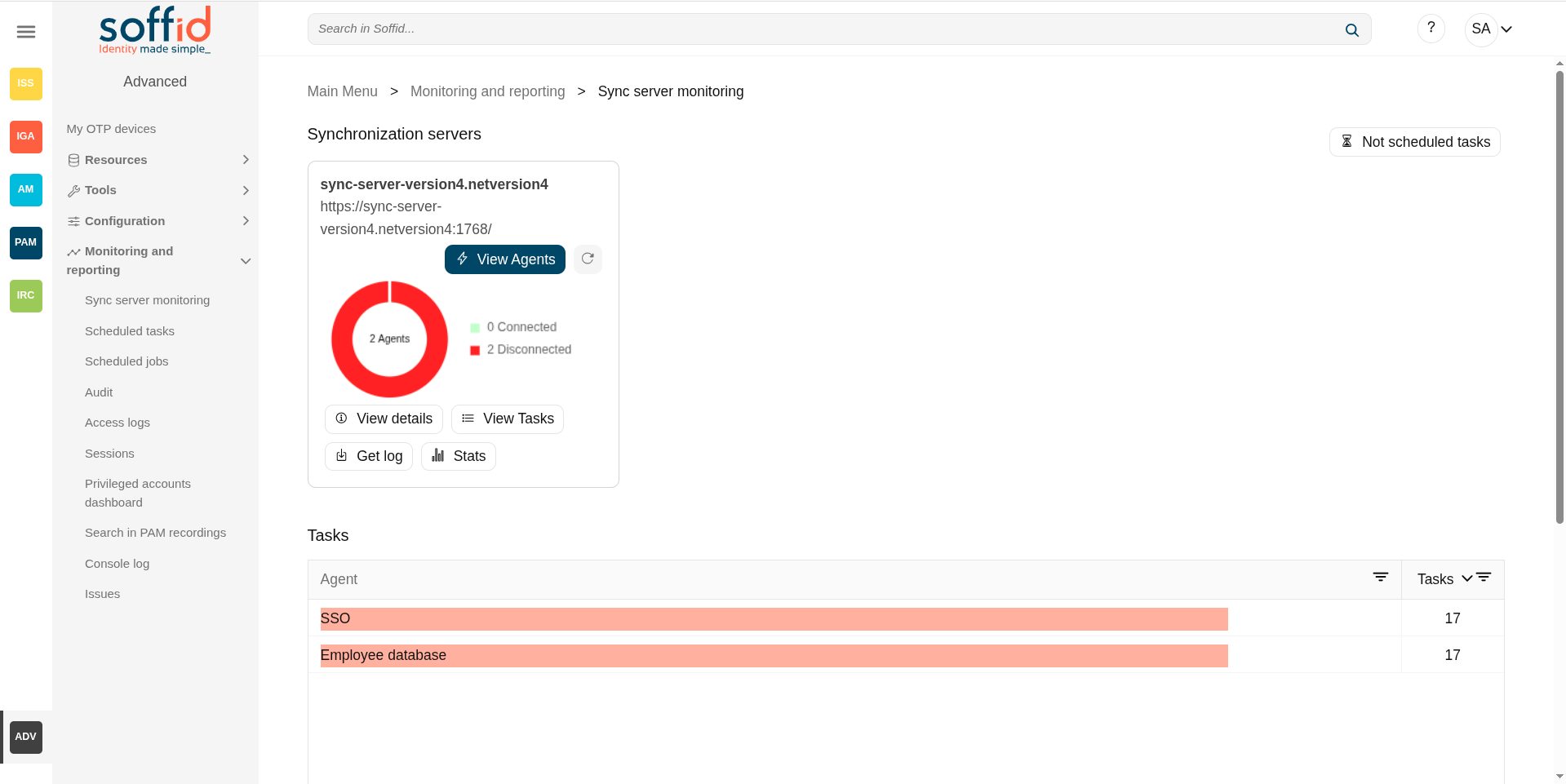](https://bookstack.soffid.com/uploads/images/gallery/2025-08/VQSzNOgiCZ4XsD4d-image.png)
## Related objects
- [Agents](https://bookstack.soffid.com/books/soffid-4-reference-guide/page/agents "Agents") : where the agents that manage the end systems are configured
- [Synchronization servers](https://bookstack.soffid.com/books/soffid-4-reference-guide/page/synchronization-servers "Synchronization servers") : where the registered syncservers are displayed
## Standard attributes
### Synchronization servers
Shows a list with the URL of all the sync servers that you have configured and the options to perform for every sync server.
💻 Image
[](https://bookstack.soffid.com/uploads/images/gallery/2025-08/SCpOAg5gGwRufqzc-image.png)
#### Sync server status
The graph of agent status shows the number of agents connected (green light) and the number of agents disconnected (red light).
Attributes:
- **"Name**": syncserver name in bold type
- **URL** : URL of the syncserver
- **"Circle of agents"**: graph that visually indicates how many agents are enabled. The colours indicate which agents are active and which ones could not be started due to an error.
💻 Image
[](https://bookstack.soffid.com/uploads/images/gallery/2025-09/AowLbdKbnkuupdJn-image.png)
#### View agents
Allows you to access a new window with the information of every single agent. That page shows a list with the information about Agent, Number of the pending tasks, the Status, and the URL of the agent.
If you click one of the agents, Soffid will display all the pending tasks for that agent. If you click on one pending task, you can view the details of that task and you could perform the actions available for that depending on your permissions.
Agent list attributes:
- **Agent**: Name of the agent
- **Tasks** : Number of tasks not finished (peding, ongoing and tasks with error)
- **Status**: Connected or disconnected
- **URL agent**: local (internal syncsever synchronization) or the URL of the syncserver confgured
Task list attributes (also task attributes):
- **URL agent**: local (internal syncsever synchronization) or the URL of the syncserver confgured
- **Error**: message description when the agent has an error and it is disconnected
- **Task**: name of the task to be executed, there are many types, the most common being the following
- UpdateUser
- UpdateUserAlias
- UpdateUserPassword
- UpdateGroup
- UpdateRole
- UpdateHost
- UpdateNetworks
- **Priority**: priority of the task
- 1: high priority
- 2: low priority
- **Executions**: number of executions not finished due to any error
- **Executions time**: last execution
- **Message**: error message from the last execution
- **Scheduled**: next scheduled execution
💻 Image
[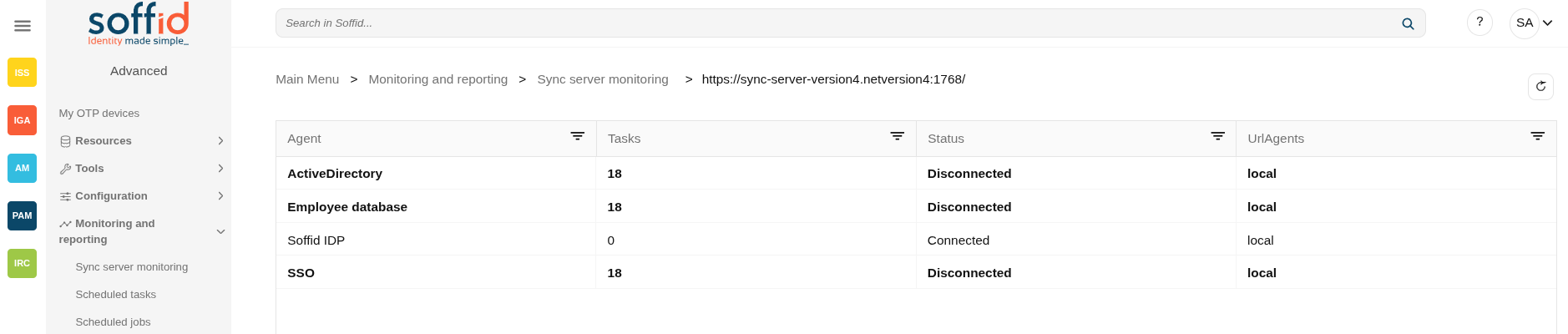](https://bookstack.soffid.com/uploads/images/gallery/2025-09/4DW6D9vyEqvLz0w4-image.png)
[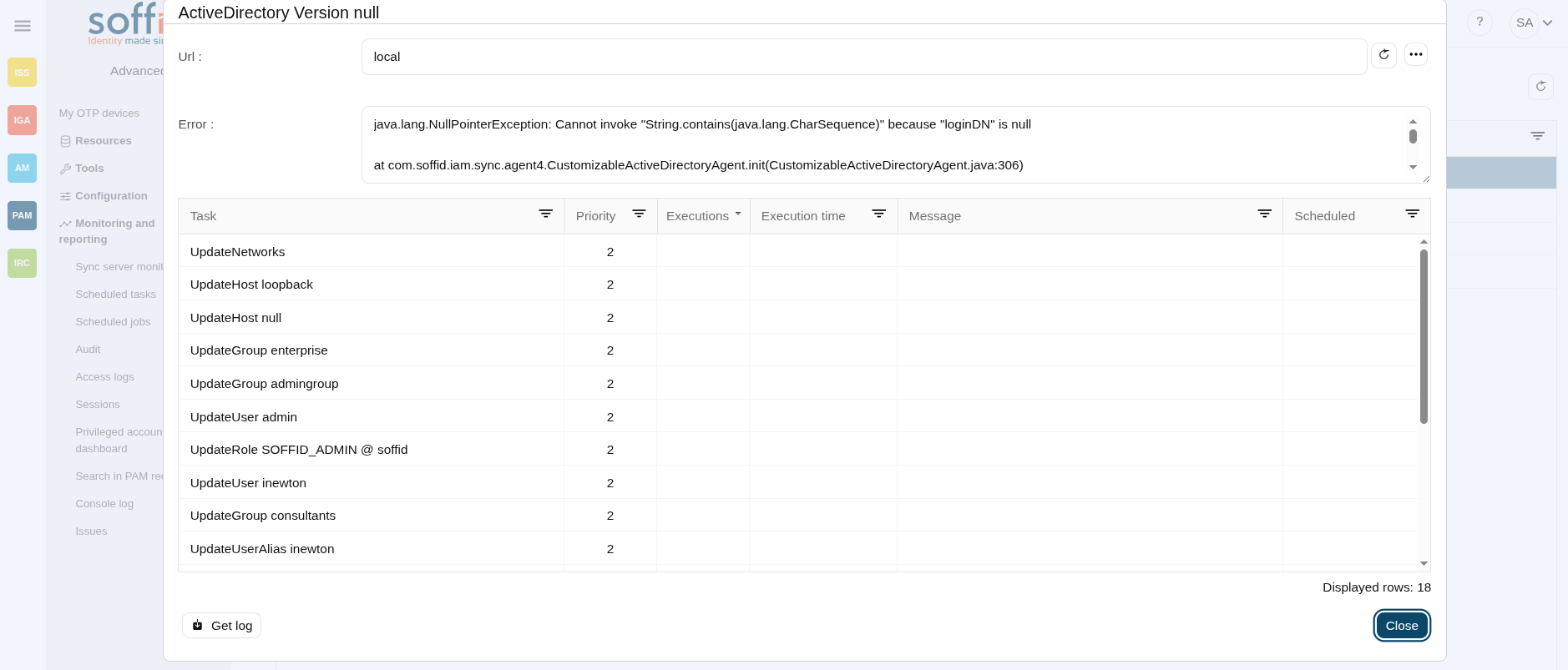](https://bookstack.soffid.com/uploads/images/gallery/2025-09/fomPYJ3lgNlMmvwC-image.png)
#### Restart server
Allows you to restart the synchronization server that hosts any agent. Soffis will ask for your confirmation before performing that action. If you confirm, the server will be restarted.
Image
[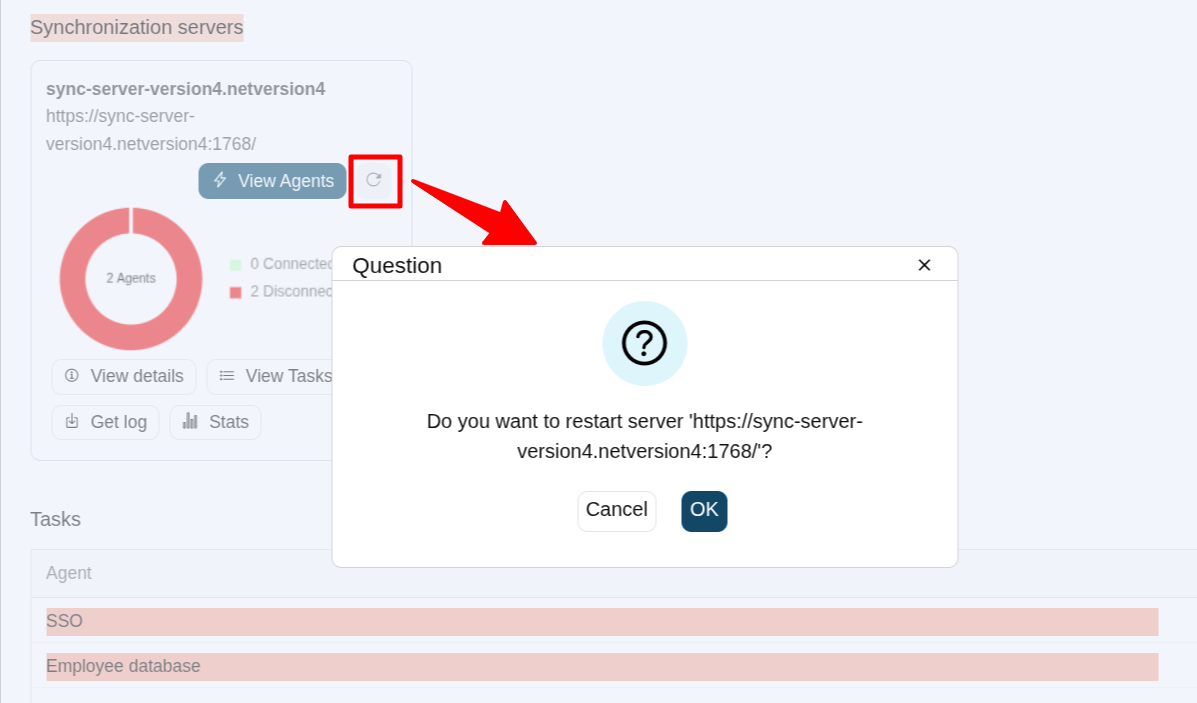](https://bookstack.soffid.com/uploads/images/gallery/2025-08/nU7XOy0lqkTJBfP9-image.png)
#### View details
Display the details of the sync server. Here you can check the version of the sync server.
Attributes:
- **Version**: version of the syncserver
- **Jetty**: status of the jetty process
- **SSO Daemon**: status of the SSO daemon process
- **Task Generator**: status of the task generator process
- **Certificate expiration**: expiration date of the certificate
- **Server time**: time of the server
- **DB Connections**: number of the threads used to connect to the database
💻 Image
[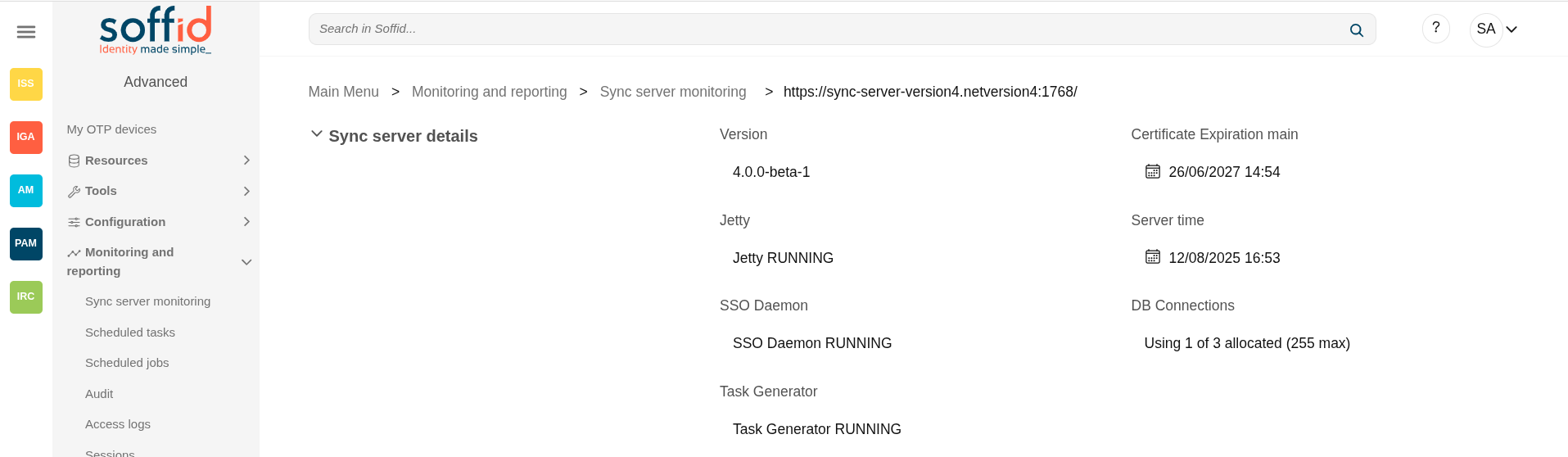](https://bookstack.soffid.com/uploads/images/gallery/2025-08/i8PD4R6LSH03nygP-image.png)
#### View tasks
Displays a matrix with all the agents configured (columns), all the tasks (rows), and the status of the task for each agent (cells). You can reload the matrix with the updated tasks.
The available status for a task are:
- DONE (green light).
- PENDING (yellow light).
- ERROR (red light).
If you click on one error task, Soffid will display the details of that task, the basic data, and the specific data about execution time, error message, sscheduled and log detail, and Soffid will allow you to perform the available actions. If you click on one pending task, you can perform the available actions.
List attributes:
- **Task**: name of the task to be executed, there are many types
- **"List of agents"** : there is column for each active agent
💻 Image
[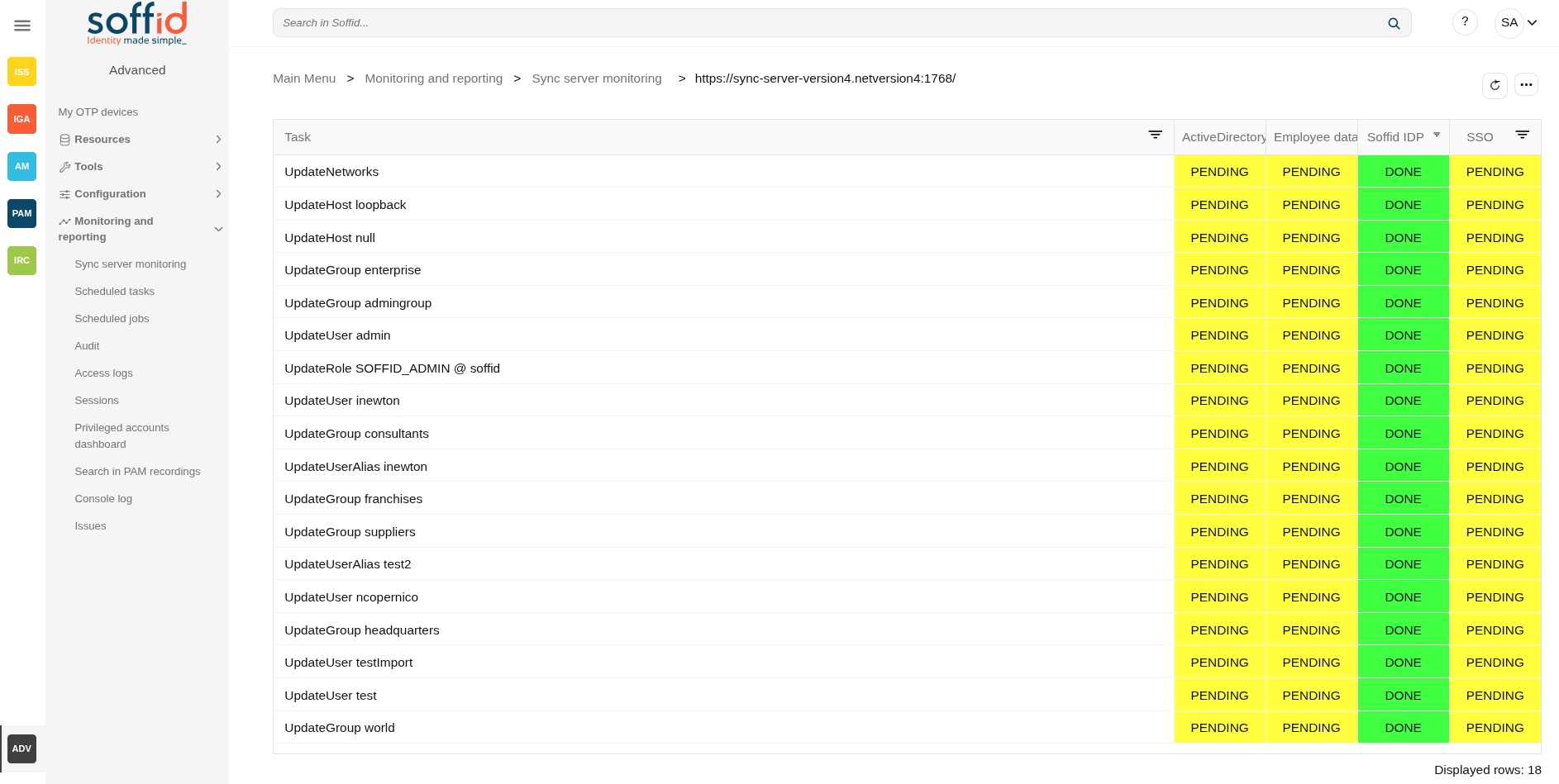](https://bookstack.soffid.com/uploads/images/gallery/2025-09/Ln1CxQ7LnTpkrw9o-image.png)
#### Get log
In version 4, Soffid allows users to review the logs of the sync server or each of the active agents.
In addition, debugging can be enabled/disabled for each log, and users can decide whether to view the log in real time or pause it.
Page attributes:
- **Log file**: name of the log to review, there are several posibilities
- main: generic log of the syncserver, agent logs now are not included
- master/agent/AGENTNAME: each agent has its own log to improve the data searches
- master/task/AGENTNAME: TASK: each task has its own log to improve the data searches
- **Debug**: \[Yes/No\] to enable or disable the debug
- **Syslog**: \[Yes/No\] to enable or disable the sending of this log to the syslog configured with the [Soffid parameters](https://bookstack.soffid.com/books/soffid-4-reference-guide/page/soffid-parameters#bkmrk-siem-and-syslog).
- **Live|pause**: to enable to see the log in real time or not
- **Refresh button**: to refresh the log, this is useful if the log is paused
- **View**: to show and hide columns in the table.
Three point menu.
- **Download**: download the log as plain text in the browser
Table attributes:
- **Timestamp**: Time of the log (the date is always the current date)
- **Level**: level of debug (DEBUG, INFO, WARNING, SEVERE)
- **Message**: the log
- **Thread**: name of the thread that has managed the log
- **Source**: name of the class that has generated the log
Image
[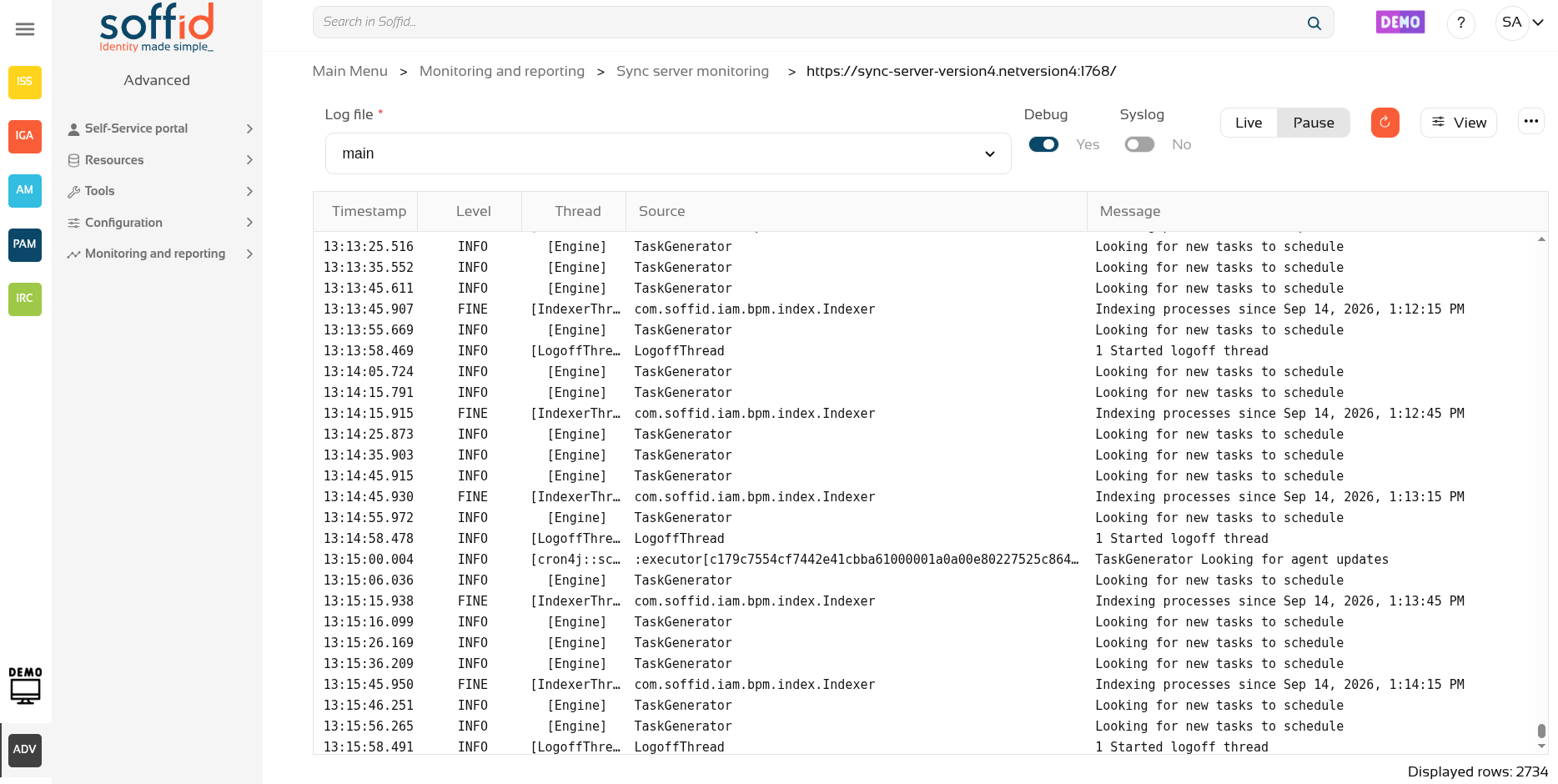](https://bookstack.soffid.com/uploads/images/gallery/2026-09/iz9EdWy25nOA88RQ-image.png)
#### Stats
Displays the performance (tasks per minute) graph of the synchronization servers.
To use this functionality, you must first schedule the "**Feed statistic tables**" process on the [Scheduled tasks](https://bookstack.soffid.com/books/soffid-4-reference-guide/page/scheduled-tasks "Scheduled tasks") screen.
💻 Image
[](https://bookstack.soffid.com/uploads/images/gallery/2025-08/rR6SADm8WoJfvks6-image.png)
### Not scheduled tasks
Displays a view with a list not scheduled tasks. At that view, you can cancel and release the held tasks
Attributes:
- **Task**: name of the task to be executed, there are many types
- **Status**: status of the task (at this point HELD)
💻 Image
[](https://bookstack.soffid.com/uploads/images/gallery/2025-08/HUX6fkXD2LvFJCn6-image.png)
[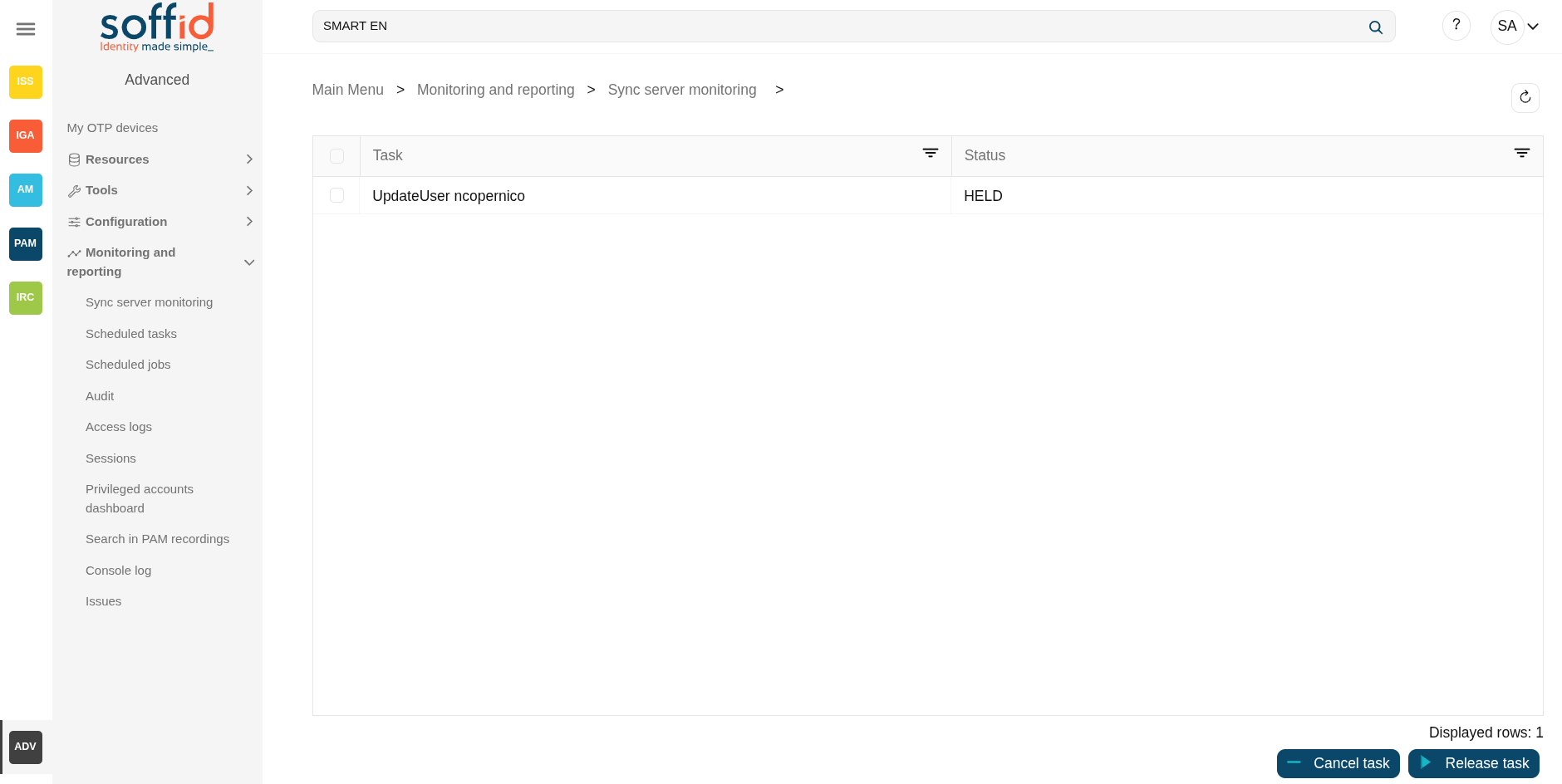](https://bookstack.soffid.com/uploads/images/gallery/2025-09/CDae43CcvewwVsll-image.png)
### Tasks
#### Tasks
Displays a graph with information about the tasks pending to be performed on the different systems.
#### Tasks by server
Displays a graph with information about the tasks for each server.
Actions
#### Page actions
**Not scheduled tasks**
Displays a view with a list not scheduled tasks. At that view, you can cancel and release the held tasks
#### Syncserver actions
**View agents**
Allows you to access a new window with the information of every single agent. That page shows a list with the information about Agent, Number of the pending tasks, the Status, and the URL of the agent.
**Restart server**
Allows you to restart the synchronization server. Soffis will ask for your confirmation before performing that action.
**View details**
Display the details of the sync server.
**View tasks**
Displays a matrix with all the agents configured, all the tasks, and the status of the task for each agent. You can reload the matrix with the updated tasks.
**Get log**
Allows you to display the log trace of the syncserver and agents
**Stats**
Displays the performance (tasks per minute) graph of the synchronization servers.
#### Agents list actions
**Refresh (icon)**
Allow you to refresh the data of the table
#### Tasks list actions
**Refresh (icon)**
Allow you to refresh the data of the table
**Download CVS file**
Allows you to download a CSV file with task list
**Cancel task**
Allows you to cancel all the tasks. Soffid will ask for your confirmation, if you confirm, that task will be canceled.
**Prioritize**
Allows you to release all the tasks. Soffid will ask for your confirmation, if you confirm, that task will be executed.
**Get log**
Open the log page with the specific log of the agent
**Close**
Close the popup
#### Task actions
**Refresh (icon)**
Allow you to refresh the data of the table
**Cancel task**
Allows you to cancel a specific task. Soffid will ask for your confirmation, if you confirm, that task will be canceled.
**Prioritize**
Allows you to release a specific task. Soffid will ask for your confirmation, if you confirm, that task will be executed.
**Close**
Close the popup
#### View tasks actions
**Refresh (icon)**
Allow you to refresh the data of the table
#### Not scheduled tasks actions
**Refresh (icon)**
Allow you to refresh the data of the table
**Cancel task**
Allows you to cancel a specific task. Soffid will ask for your confirmation, if you confirm, that task will be canceled.
**Release task**
Allows you to release a task so that it goes to the syncservers task synchronizer and can be executed.
# Scheduled tasks
## Description
Scheduled tasks display all the automatic tasks defined on Soffid, the scheduling of each task, and information about the last executions. Also, allows administrator users to update the execution of that tasks using a cron pattern and init the execution.
By default, only scheduled tasks are displayed, which should be those configured to support the lifecycle of the tool's objects. Unscheduled tasks can be searched for to be executed manually or to configure their planning.
## Screen overview
[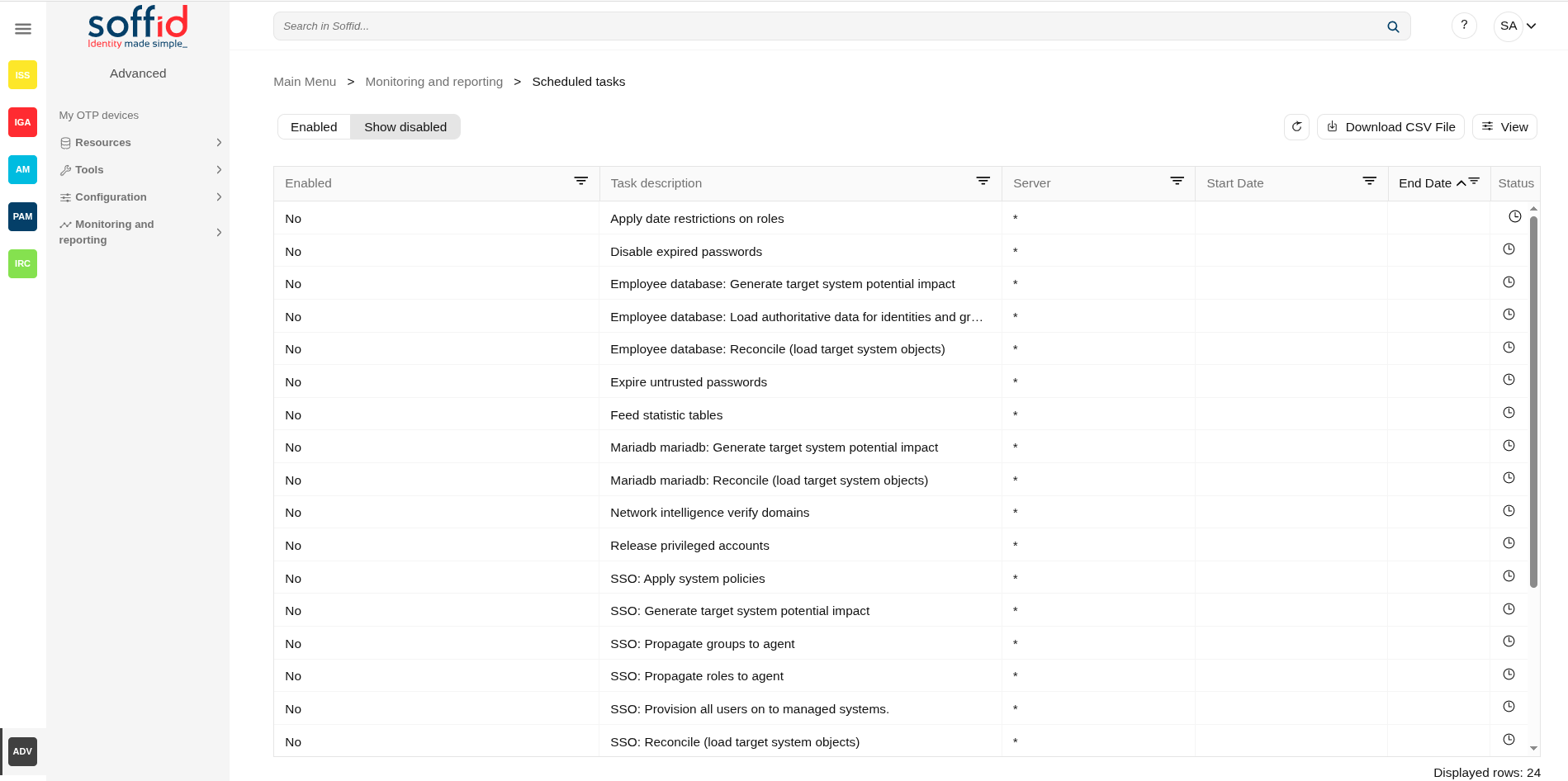](https://bookstack.soffid.com/uploads/images/gallery/2025-08/HgxryZDZxtsBVuGD-image.png)
[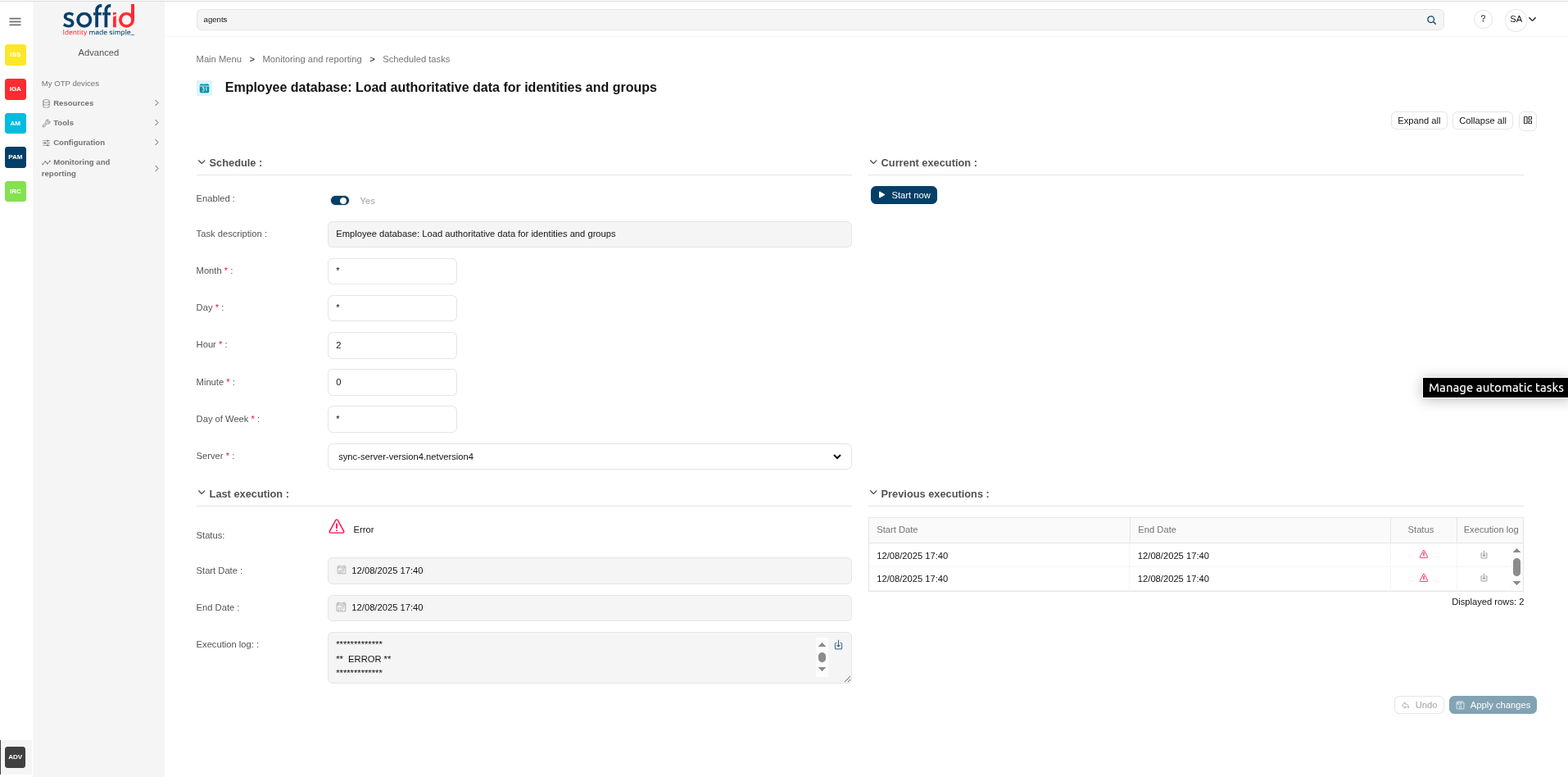](https://bookstack.soffid.com/uploads/images/gallery/2025-08/tclF2gVwVYtxINcg-image.png)
## Related objects
- [Agents](https://bookstack.soffid.com/books/soffid-4-reference-guide/page/agents) : source of agent processes
- [Sync server monitoring](https://bookstack.soffid.com/books/soffid-4-reference-guide/page/sync-server-monitoring) : to review the logs
- [Users](https://bookstack.soffid.com/books/soffid-4-reference-guide/page/users "Users") : there are some processes related to the user lifecycle
## Standard attributes
#### Table attributes / task attributes (schedule)
- **Enabled**: if it is selected (value is Yes), the task will be perform on scheduled defined.
- **Task description**: brief description of the task
- **Server**: where the agent is running.
- **Start date**: start date and time of the last execution.
- **End date**: end date and time of the last execution.
- **Status**: The available status for a task are:
- Done (green light): finished tasks.
- Pending (yellow light).
- Error (red light).
- **Month**: number of the month (1-12) when the task will be performed.
- **Day**: number of the day (1-31) when the task will be performed.
- **Hour**: hour (0-23) when the task will be performed.
- **Minute**: minute (0-59) when the task will be performed.
- **Day of week**: number of the day (0-6 where 0 means Sunday) of the week when the task will be performed.
For each value of month, day, hour, minute, or day of the week:
- \* means any month, day, hour, minute, or day of week. e.g. \*/5 to schedule every five minutes.
- A single number specifies that unit value: 3
- Some comma separated numbers: 1,3,5,7
- A range of values: 1-5
Image
[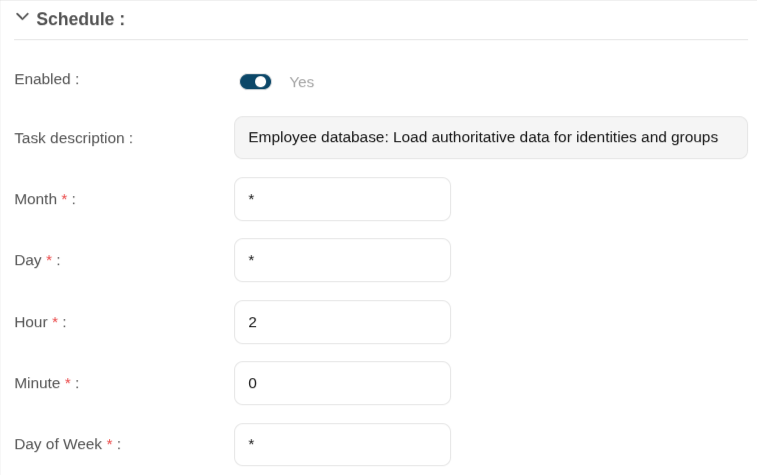](https://bookstack.soffid.com/uploads/images/gallery/2025-08/MTW1yVgPaGrjovJm-image.png)
#### Current execution
- **Start now**: this allows you to launch the task execution.
#### Last execution
- **Status**: The available status for a task are:
- Done (green light): task finished.
- Pending (yellow light): task has been started but it has not finished yet.
- Error (red light): task could not be executed.
- **Start date**: start date and time of the last execution.
- **End date**: end date and time of the last execution.
- **Execution log**: log trace. Allows you to download the log file.
#### Previous executions
List with the information about the previous executions:
- **Start date**: start date and time of the execution.
- **End date**: end date and time of the last execution.
- **Status**: status of the execution.
- **Execution log**: log of the execution. Allows you to download the log file.
## Actions
#### Table actions
**Enabled / Show disabled**
Displays only enabled tasks, or also disabled ones
**Refresh (icon)**
Allow you to refresh the data of the table
**Download CSV file**
Allows you to download a CSV file with the scheduled tasks.
**View**
Allows you to show and hide columns in the table.
You can also set the order in which the columns will be displayed.
#### Detail actions
**Expand all**
Displays all the attributes of the different blocks.
**Collapse all**
Hide all attributes of the different blocks.
**"Types of views"**
Change the view type: Classic view, Modern view, Compact design.
**Start now**
Allows you to launch the task execution.
**Logs**
Allows you to download the log file.
**Undo**
Allows you to undo any changes made.
**Apply changes**
Allows you to save the data of scheduled tasks. To save the data it will be mandatory to fill in the required fields.
## Others
#### Tasks created by default
These tasks can be run manually when you need them or scheduled if necessary.
**Apply date restrictions on roles**
If a role has an end date prior to the revision date, all grants of that role to Soffid users will be deleted.
**Disable expired passwords**
Disable all accounts whose password has expired.
**Expire untrusted passwords**
Disable all accounts whose password has expired.
**Feed statistic tables**
To retrieve the information needed for the dashboards on the syncserver monitoring screen
**Network intelligence verify domains**
To use this task, you must first activate the [network intelligence](https://bookstack.soffid.com/books/soffid-4-reference-guide/page/network-intelligence "Network intelligence") service.
This task generates **email-breached** security incidents, so you must activate it beforehand.
The process queries email accounts and checks whether they appear in any security breaches. If so, an email-breached issue is created.
**Release privileged accounts**
This task analyses privileged accounts and if they have an assigned user but their assignment has an end date today, or does not have an end date, the user is unassigned.
#### Tasks created from agents
By default, these tasks only appear if the **agent** is **active** (has a sync server selected).
**AGENT: Load authoritative data for identities and groups**
This task only appears when the agent has selected the option "Incoming data > Authoritative data source".
This task retrieves information from the end system to update groups, custom objects, and users (identities) in Soffid.
**AGENT: Reconcile (load target system objects)**
This task retrieves information from the end system to update roles, accounts, and grants is Soffid.
**AGENT: Generate target system potential impact**
This task is the same as reconciliation but does not make any changes in Soffid. In this case, a report is displayed showing the changes that would have been applied in Soffid.
**AGENT: Apply system policies**
This task retrieves all agent accounts and checks that they have the correct status according to the rules configured in the agent itself.
**AGENT: Provision all users on to managed systems.**
This task provisions all users with accounts in that system to the final system. The objective is to have the same data in the final system as in Soffid, and to overwrite any values that someone has changed outside of Soffid.
**AGENT: Propagate groups to agent**
This task provisions all groups to the final system. The objective is to have the same data in the final system as in Soffid, and to overwrite any values that someone has changed outside of Soffid.
**AGENT: Propagate roles to agent**
This task provisions all roles in that system to the final system. The objective is to have the same data in the final system as in Soffid, and to overwrite any values that someone has changed outside of Soffid.
#### Tasks created from custom scripts
Please note that scripts can only be scheduled from the custom scripts screen.
**Run NAME OF THE CUSTOM SCRIPT script**
Script created in the custom scripts page and marked as "Scheduled"
# Scheduled jobs
## Description
Schedule jobs display all the asynchronous tasks generated for the workflows engine. When a job is finished, it will disappear from that list.
## Screen overview
[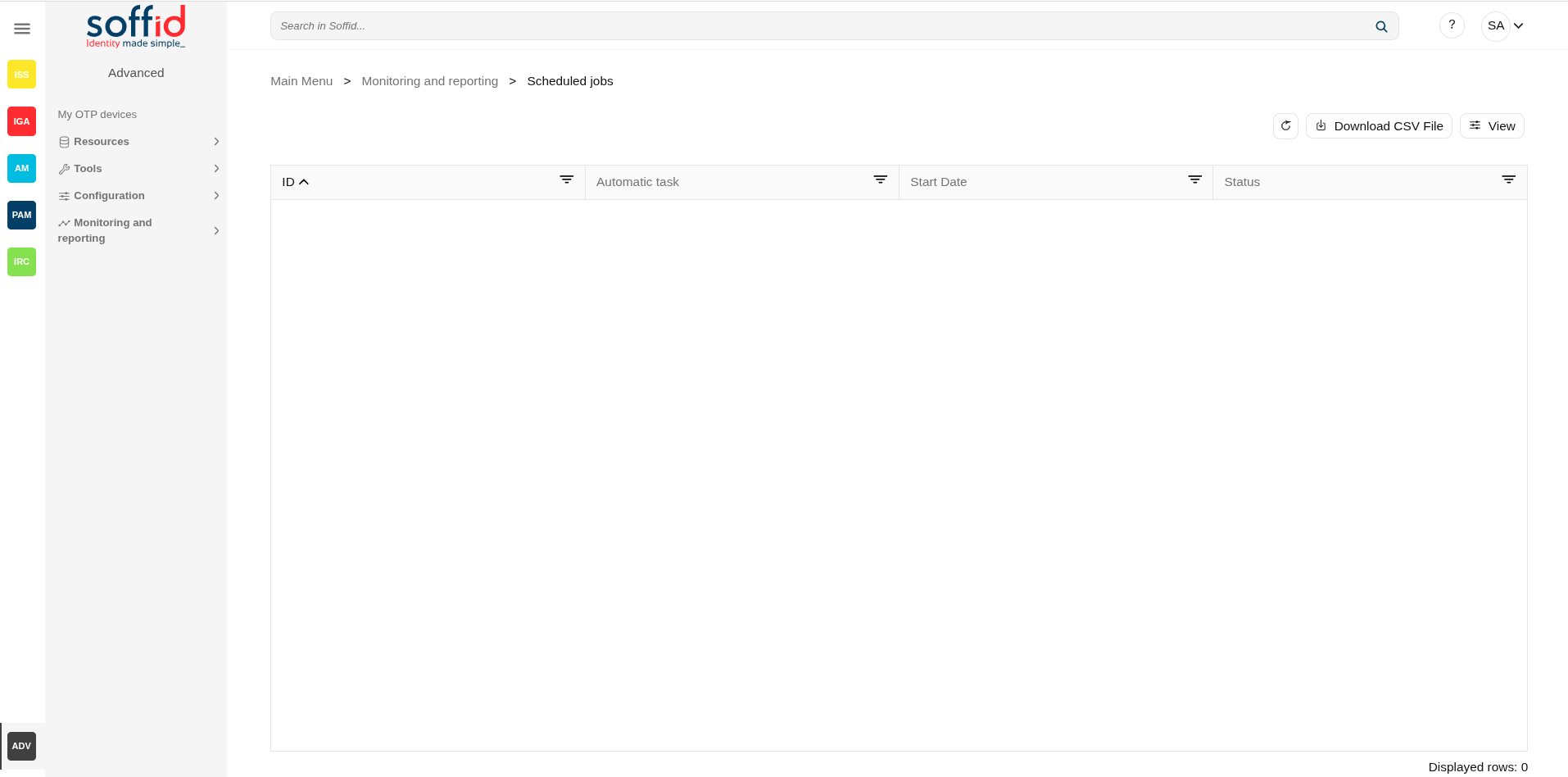](https://bookstack.soffid.com/uploads/images/gallery/2025-08/Lj1jgNwsLBOMp5MK-image.png)
## Related objects
- [Configure Workflow engine](https://bookstack.soffid.com/books/soffid-4-reference-guide/page/configure-workflow-engine) : where the workflow engine is configured
- [Business process definition](https://bookstack.soffid.com/books/soffid-4-reference-guide/page/business-process-definition) : where workflows are published
- [BPM editor](https://bookstack.soffid.com/books/soffid-4-reference-guide/page/bpm-editor-addon-bpm) : where to create or modify workflows
- [My tasks](https://bookstack.soffid.com/books/soffid-4-reference-guide/page/my-tasks) : pending workflows where the user has to perform an action in order to continue their workflow.
- [My requests](https://bookstack.soffid.com/books/soffid-4-reference-guide/page/my-requests) : The workflows that the user can initiate are listed here.
- [My requests > Query request status](https://bookstack.soffid.com/books/soffid-4-reference-guide/page/my-requests-query-request-status) : to search for all processes started by oneself
- [Process Search](https://bookstack.soffid.com/books/soffid-4-reference-guide/page/process-search) : to search for all processes
- [Metadata](https://bookstack.soffid.com/books/soffid-4-reference-guide/page/metadata) : to add attributes to display in the search tables
- [Scheduled jobs](https://bookstack.soffid.com/books/soffid-4-reference-guide/page/scheduled-jobs) : shows active workflows pending asynchronous tasks
## Standard attributes
- **ID**: job identifier.
- **Name**: job name.
- **Process**: process identifier and description.
- **Next rerun**: date and time scheduled for next execution.
- **Failed attempts**: number of failed attempts.
- **Status**: status of the last execution
- **Message**: message of the last execution
Actions
#### Table actions
**Refresh (icon)**
Allow you to refresh the data of the table.
**Download CSV file**
Allows you to download a CSV file with the scheduled tasks.
**View**
Allows you to show and hide columns in the table.
You can also set the order in which the columns will be displayed.
#### Detail actions
**Resume**
Allows you to resume the task
**Hold**
Allows you to retain the task.
**Close**
Allows you to close the window without perform any action.
# Audit
## Description
The audit trail page allows you to query for audit records for the different components of Soffid.
Each action done at the Soffid console and in the Syncserver will be reported.
Almost all Soffid components are audited in some way, so we could reference all the pages in the documentation.
Standard attributes
- **Date/Time**: date on which the action was performed.
- **Author**: user who launched the task. When the author is empty, the Syncserver launched this task.
- **Source IP**: IP or host where the action has been performed.
- **Action**: the task performed is specified.
- **Purpose**: is the name of the internal object (also the table of the database) which the action was performed.
- **User**: identity to which the action was performed.
- **Information system:** details on which information system the action was performed (if a role is involved in the action).
- **Role**: details the role with which the action was performed.
- **Account**: if the action has taken place on an account, it will be indicated on which one in this section.
- **DB**: name of the final system (agent)
- **Group**: group involved in the action
- **Network**: network involved in the action
- **Machine**: host involved in the action
- **Printer**: printer involved in the action
- **Domain**: domain of the role involved in the action
- **Domain value**: domain value of the domain of the role involved in the action
- **Mail domain**: mail domain involved in the action
- **Mail list**: mail list involved in the action
- **Mail list belongs**: mail list belongs involved in the action
- **Parameter**: parameter involved in the action
- **File**: flle involved in the action
- **Authorization**: authorization involved in the action
- **Federation**: federation involved in the action
- **Users domain**: users domain of the account involved in the action
- **Passwords domain**: password domain of the account involved in the action
- **Jump servers group**: jump servers group involved in the action
- **PAM session id**: PAM session id involved in the action
- **Action code**: action code of the action message involved in the action
## Actions
**"Query buttons"**
Allows you to query accounts through different search systems, [Quick and Advanced](https://bookstack.soffid.com/books/soffid-3-reference-guide/page/search-types "Search Types").
**"Table filter"**
It allows you to filter a column in the table based on the results loaded in it.
**Download CSV file**
Allows you to download a csv file with the information of audit records.
**View**
Allows you to add or remove columns to the table.
It is also possible to change the order of the columns.
## Examples
### Common querys
Here you have a list of common **Advanced** searches, you only have to copy, paste and search, e.g.
```
// User changes trace
calendar ge "2020-01-01T00:00:00.000+01:00" AND user co "admin"
// User actions trace
calendar ge "2020-01-01T00:00:00.000+01:00" AND author co "admin"
// Soffid accounts
calendar ge "2020-01-01T00:00:00.000+01:00" AND user co "admin" AND database co "soffid"
// Created accounts
calendar ge "2020-01-01T00:00:00.000+01:00" AND action co "C" AND object co "SC_ACCOUN"
// Removed objects
calendar ge "2020-01-01T00:00:00.000+01:00" AND action co "D" AND object co "SC_ACCOUN"
```
# Access logs
## Description
The access log page allows querying all the information about the opened sessions.
Note that any session that was active during the specified date will be shown, even when it started before of finished after that date.
- [Sessions](https://bookstack.soffid.com/books/soffid-4-reference-guide/page/sessions) : session object
- [Users](https://bookstack.soffid.com/books/soffid-4-reference-guide/page/users) : for the user and full name data
- [Agents](https://bookstack.soffid.com/books/soffid-4-reference-guide/page/agents) : agent object
- [Jump server group](https://bookstack.soffid.com/books/soffid-4-reference-guide/page/configure-pam-session-servers) : jump server configuration
Standard attributes
- **Type**: access log type, values:
- logon
- **Protocol**: access protocolva, values:
- CONSOLE
- HTTP
- wsso
- esso
- PAM
- PAMRDP
- PAMSSH
- **Start date**: date and time when access started.
- **End date**: date and time when access ended.
- **Session**: session identifier.
- **Server**: server where the authentication has been applied
- **Client**: server where the user started the session
- **IP Address**: IP of the server where the user started the session
- **Information**: additional connection information.
- When the information is about the Authentication method, there are the following options:
- **P**: Password
- **K**: Kerberos
- **E**: Broker
- **O**: OTP
- **M**: Email
- **S**: SMS
- **I**: PIN
- **C**: Certificate
- **F**: Finger print
- **Z**: Push
- **Account**: account used to apply the login
- **User**: user who perform the access. The object is linked to the user screen.
- **Full name**: full name of the user who perform the access. The object is linked to the user screen.
- **Agent**: when the authentication is applied throught an agent.
- **Jump server group**: when the authentication is applied inside a jumpserver group.
- **Target application**: application where the authentication has been applied
## Actions
**"Query buttons"**
Allows you to query accounts through different search systems, [Quick and Advanced](https://bookstack.soffid.com/books/soffid-3-reference-guide/page/search-types "Search Types").
**"Table filter"**
It allows you to filter a column in the table based on the results loaded in it.
**Download CSV file**
Allows you to download a csv file with the information of audit records.
**View**
Allows you to add or remove columns to the table.
It is also possible to change the order of the columns.
# Sessions
## Description
The sessions page displays the current open sessions made with the Console, ESSO, WSSO or PAM for which the user is the owner.
This functionality allows the owner users, with appropriate privileges, to open and view online a session opened by another user. It also allows them to interact if necessary.
When a session is finished it can be found on the [access logs](https://bookstack.soffid.com/books/soffid-4-reference-guide/page/access-logs "Access logs") page.
## Screen oveview
[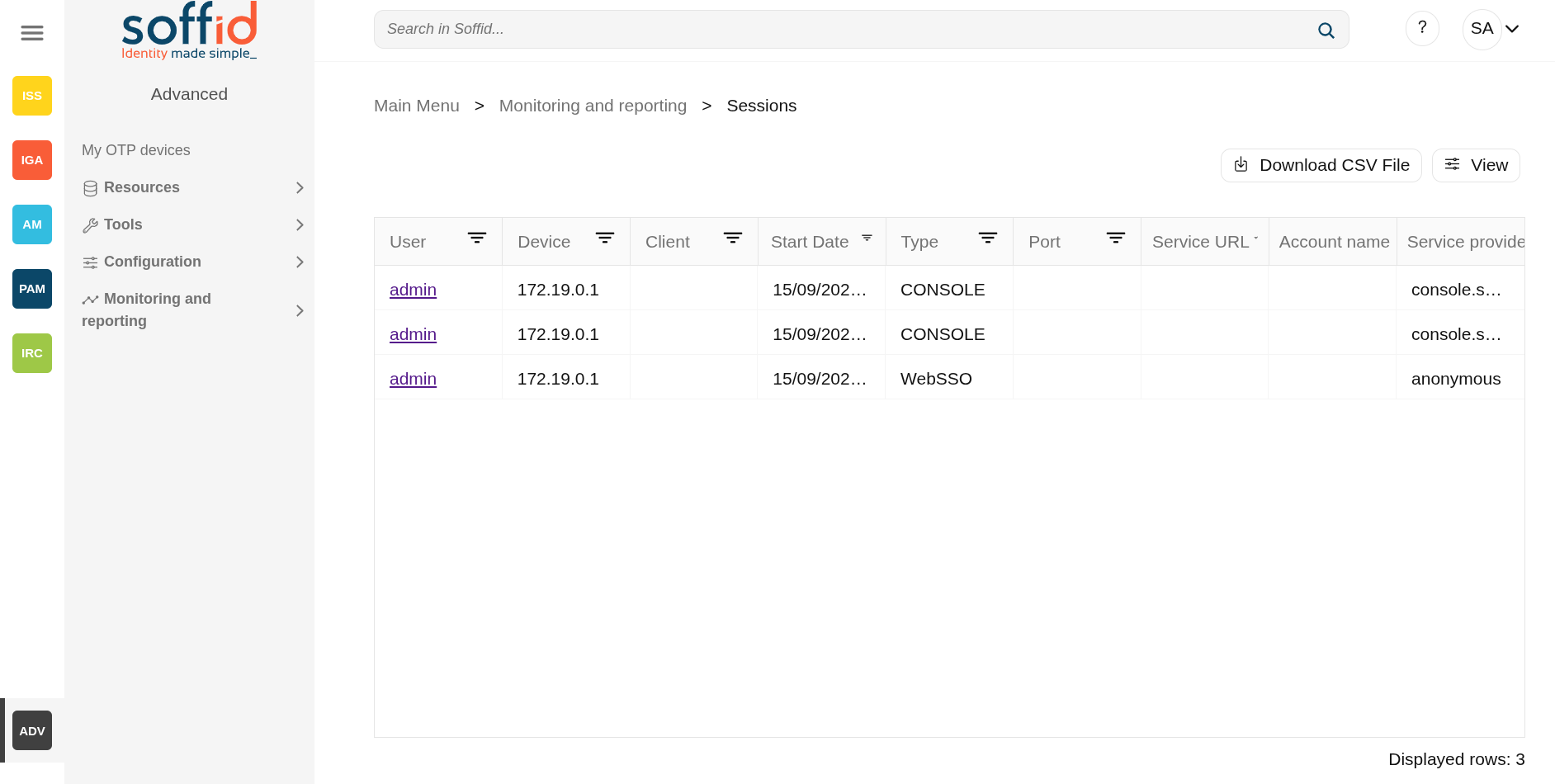](https://bookstack.soffid.com/uploads/images/gallery/2025-09/nyXP7RTOMNlgpopv-image.png)
## Related objects
- [Access logs](https://bookstack.soffid.com/books/soffid-4-reference-guide/page/access-logs) : to view open sessions and those that have already ended
- [Users](https://bookstack.soffid.com/books/soffid-4-reference-guide/page/users) : for the user and full name data
- [Agents](https://bookstack.soffid.com/books/soffid-4-reference-guide/page/agents) : agent object
- [Jump server group](https://bookstack.soffid.com/books/soffid-4-reference-guide/page/configure-pam-session-servers) : jump server configuration
## Standard attributes
- **User**: name of the user who opened the session.
- **Device:** IP from which the connection was executed.
- **Client**: server where the user started the session.
- **Start Date**: date and time when access started.
- **Type**:
- CONSOLE
- WebSSO
- ESSO
- PAM
- PAM RDP
- PAM SSH
- **Port**: port of the server where the user started the session.
- **Service URL:** connection URL
- **Account name**: user account name to connect
- **Service provider**: final application or service provider where the authentication has been applied
## Actions
**Download CSV file**
Allows you to download a csv file with the information of audit records.
**View**
Allows you to add or remove columns to the table.
It is also possible to change the order of the columns.
# Privileged accounts dashboard
## Description
Soffid provides a monitoring functionality to consult all the information about the different jump servers installed and configured.
To activate this view you will need to enable the **Feed statistic tables** task on the [Scheduled tasks](https://bookstack.soffid.com/books/soffid-4-reference-guide/page/scheduled-tasks "Scheduled tasks") page.
## Screen overview
[](https://bookstack.soffid.com/uploads/images/gallery/2025-08/u1sGLSMUd7Aym1cu-image.png)
## Related objects
- [Accounts](https://bookstack.soffid.com/books/soffid-4-reference-guide/page/accounts) : for the high-privileged accounts
- [Jump servers](https://bookstack.soffid.com/books/soffid-4-reference-guide/page/configure-pam-session-servers) : for the jump servers configuration
## Standard attributes
The displayed info is the following:
- Jump server enabled accounts
- High-privileged accounts
- Jump server sessions
- Used storage by PAM storage server (MB)
- Free storage by PAM storage server (MB)
- Users with access to PAM jump servers
# Search in PAM recordings
## Description
Soffid provides the functionality that allows searching for information about the PAM recording sessions.
First of all, to query the PAM recording, you could apply some filters to refine your search. Then, when you click the Search button, Soffid will show you all the recording sessions that comply with the criteria specified.
If you click on one record, Soffid will show you a new page with all the data about the session and the recorded video. If you query with a typed keys filter, a bookmark with the minute and second will show, and it will allow you to go directly to that point and view the action.
## Screen overview
[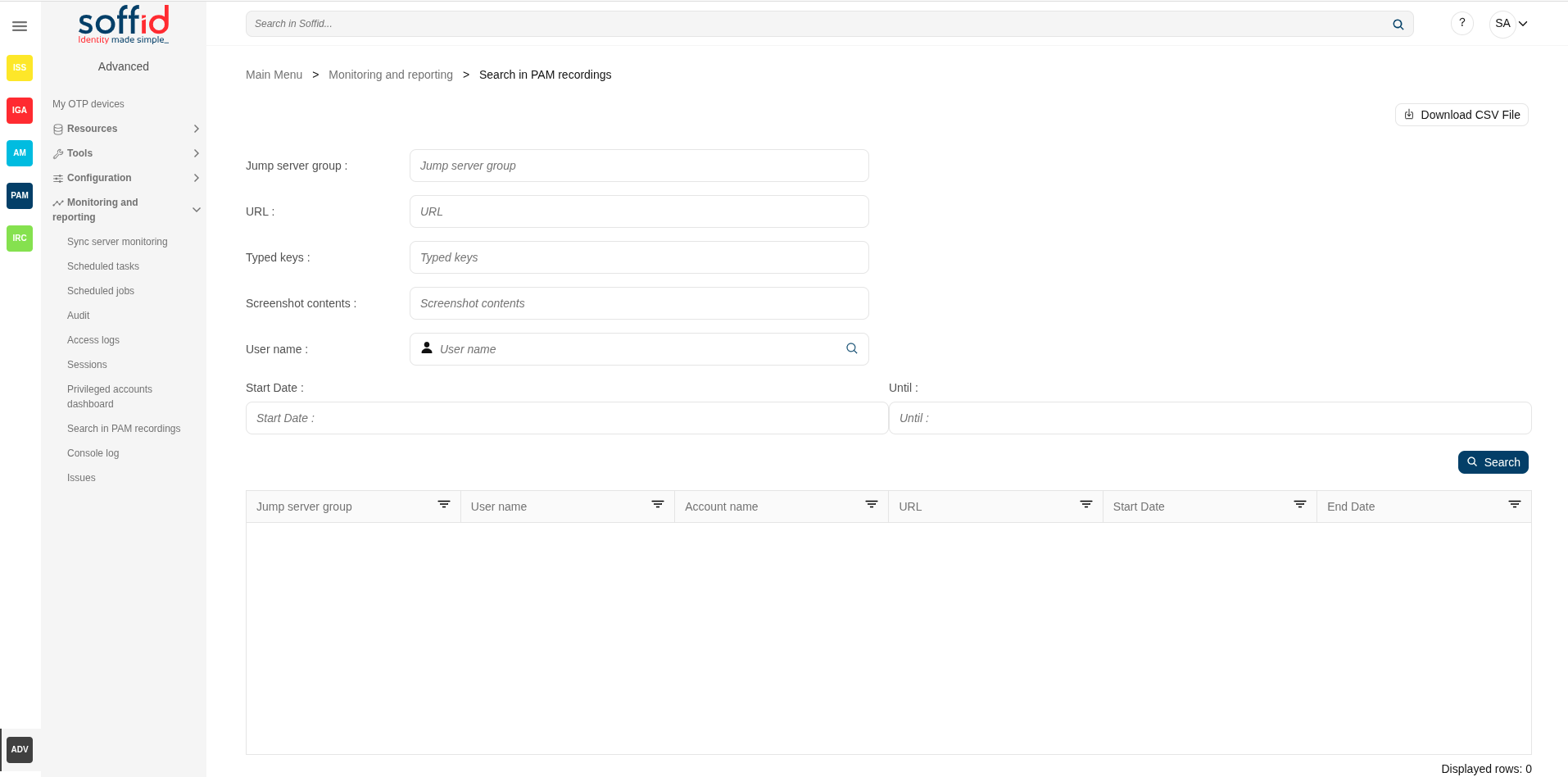](https://bookstack.soffid.com/uploads/images/gallery/2025-08/FEw6POJMEIgEurxx-image.png)
## Related objects
- [Network discovery](https://bookstack.soffid.com/books/soffid-4-reference-guide/page/network-discovery) : when the servers are discovered and created in Soffid
- [Agents](https://bookstack.soffid.com/books/soffid-4-reference-guide/page/agents) : each server will have its own agent
- [Password vault](https://bookstack.soffid.com/books/soffid-4-reference-guide/page/password-vault) : account published in PAM
- [PAM policies](https://bookstack.soffid.com/PAM%20rules%20:%20PAM%20rules%20used%20in%20the%20PAM%20policies%20Issue%20policies%20:%20%C2%A0to%20configure%20the%20pam-violation%20issue%20policy) : the PAM policies contains and configure the PAM rules
- [PAM rules](https://bookstack.soffid.com/books/soffid-4-reference-guide/page/pam-rules) : PAM rules used in the PAM policies
- [Search in PAM recordings](https://bookstack.soffid.com/books/soffid-4-reference-guide/page/search-in-pam-recordings "Search in PAM recordings") : to search and watch recorded sessions
- [Access logs](https://bookstack.soffid.com/books/soffid-4-reference-guide/page/access-logs "Access logs") : to search and watch recorded sessions
- [Configure PAM session servers](https://bookstack.soffid.com/books/soffid-4-reference-guide/page/configure-pam-session-servers "Configure PAM session servers") : where the PAM servers are configured
## Standard attributes
#### Filter attributes
- **Jum server group**: used to connect to the system.
- **URL:** service URL.
- **Typed keys:** allows you to search in PAM recording.
- Other information:
- violation of rule
- Ctrl
- "\[ctrl\]+l"
- "\[ctrl\]+d"
- ...
- **Screenshot contents** by screen content
- **User name**: user who created the session.
- **Start date**: start date of the recording
- **End date**: end date of the recording
#### Table attributes
- **Jump server group**: used to connect to the system.
- **User name:** user who created the session.
- **Account name**: account name of the user used to access to the system.
- **URL:** service URL
- **Start date**: start date on which the results are filtered
- **End date**: final day on which the results are filtered
## Actions
**Download CSV file**
Allows you to download a CSV file with the PAM recording information.
**Search**
Allows you to query the PAM recording by applying some filters.
**View recording**
Allows you to view the recording. You need to click on the record of the PAM recording that you want to view, then Soffid will show you a new page with all the information about the session and the recording video.
# Console log
## Description
The Console log screen displays an extract of the console logs for the current day.
The log file is located in the Console directory, but in docker or kubernetes installations it is faster to perform initial queries on this screen.
If you have more than one console in your environment, each console only displays its own logs.
The log rotates every day and only logs from the same day can be viewed. To view previous days, access the system folder (/opt/soffid/iam-console-4/logs/).
[2026-05-31 New feature: hidden stack tracers](https://bookstack.soffid.com/books/soffid-4-reference-guide/page/2026-05-31-new-feature-hidden-stack-tracers "2026-05-31 New feature: hidden stack tracers")
## Screen overview
[](https://bookstack.soffid.com/uploads/images/gallery/2025-08/qoa5YHiGGH9Kwf8J-image.png)
## Related objects
- [Sync server monitoring](https://bookstack.soffid.com/books/soffid-4-reference-guide/page/sync-server-monitoring) : to view the syncserver logs
- [Audit](https://bookstack.soffid.com/books/soffid-4-reference-guide/page/audit) : to view the audit information of the Soffid objects
## Actions
Download CSV file
Allows you to download the log file .
# Issues
## Definition
The Issues screen provides a tool to manage all issues and allows you to perform the operations available for each type of task. The actions to be performed will depend on each kind of task.
## Screen overview
[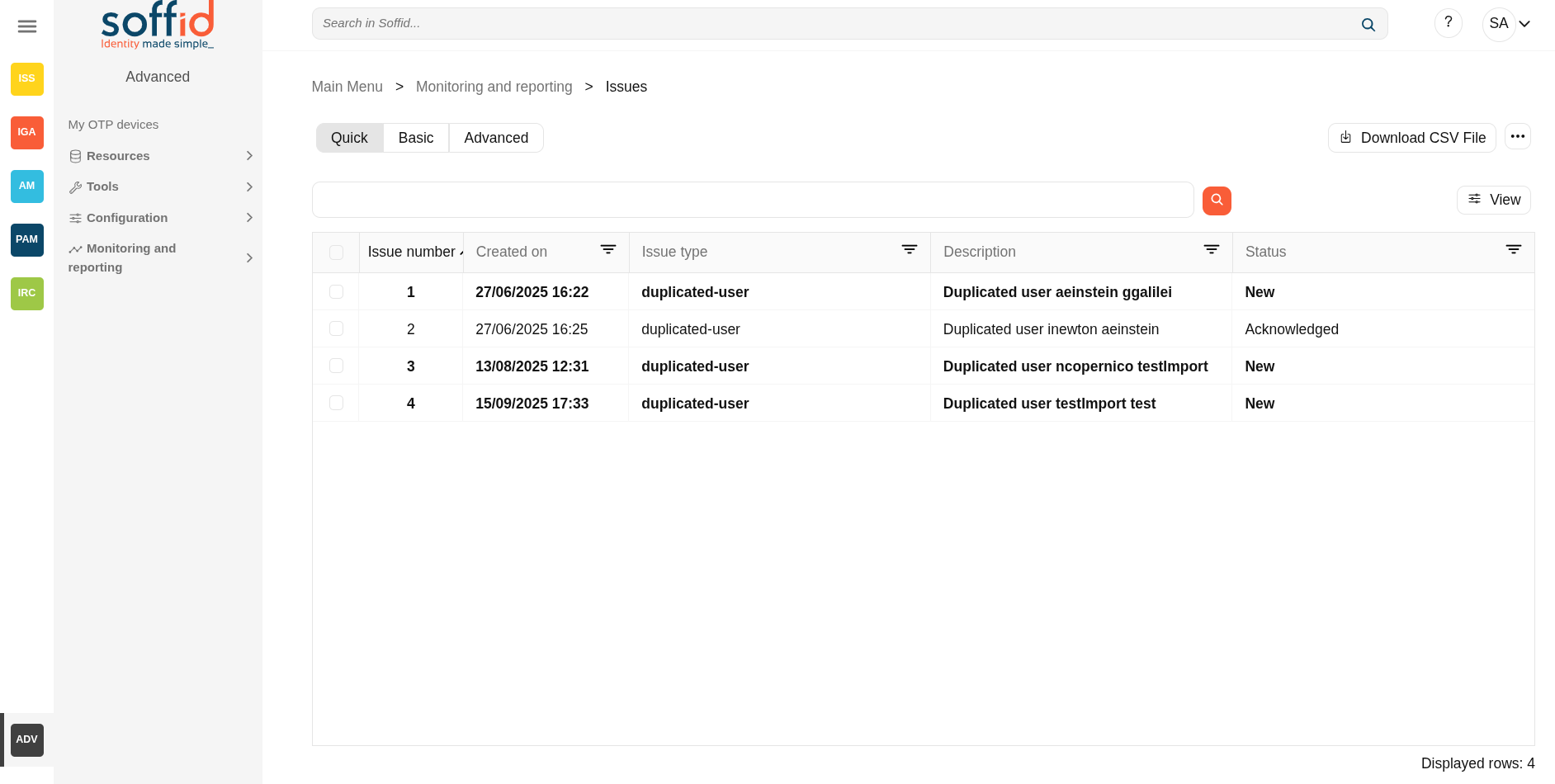](https://bookstack.soffid.com/uploads/images/gallery/2025-09/v69WlFvilkrpcfnF-image.png)
[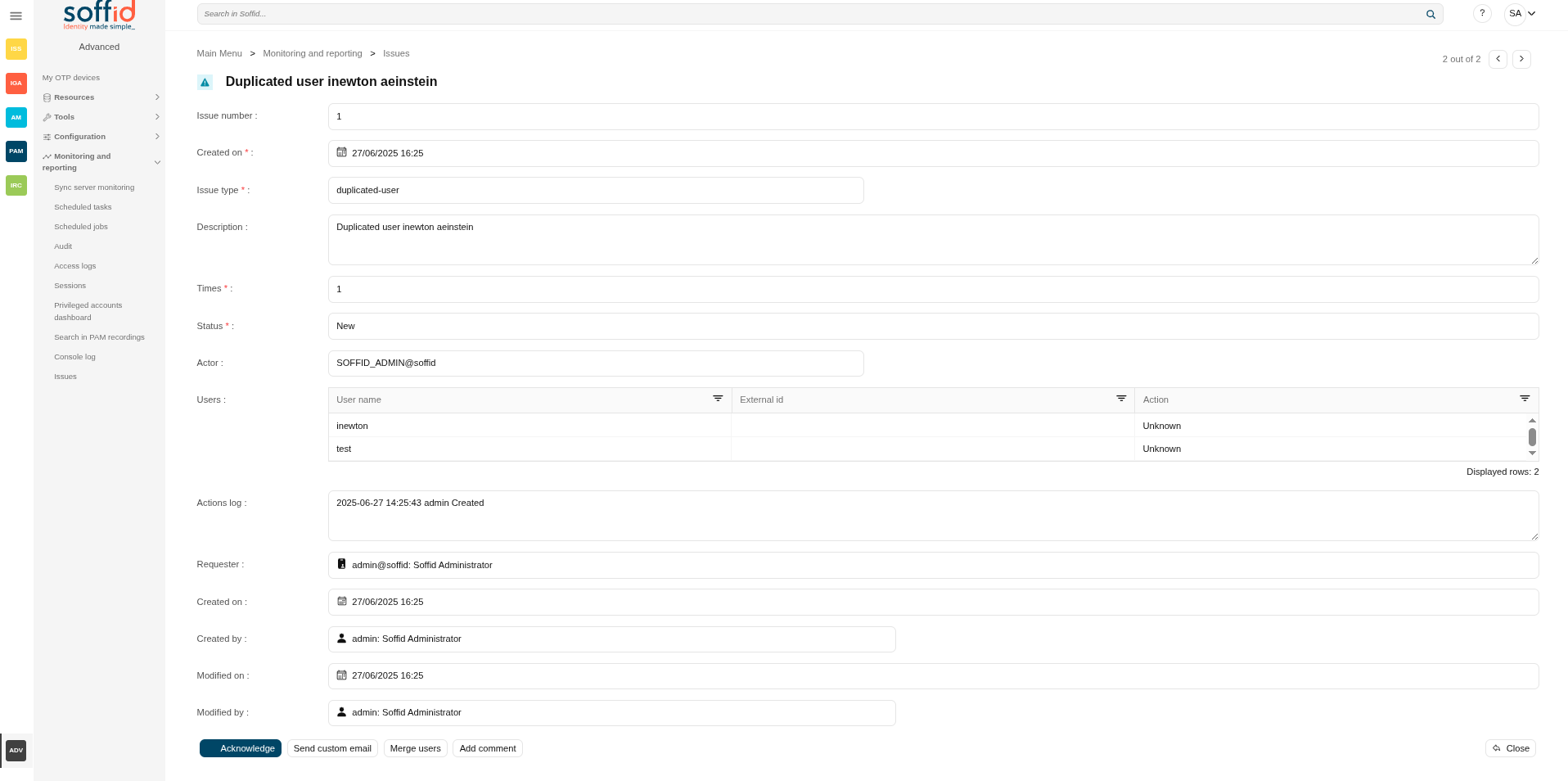](https://bookstack.soffid.com/uploads/images/gallery/2025-08/C0qfxBWz3V7j4gpf-image.png)
## Related objects
1. [Issue policies](https://bookstack.soffid.com/books/soffid-4-reference-guide/page/issue-policies "Issue policies") : where the issues are configured
2. [Issues](https://bookstack.soffid.com/books/soffid-4-reference-guide/page/issues "Issues") : list all issues
3. [My issues](https://bookstack.soffid.com/books/soffid-4-reference-guide/page/my-issues "My issues") : issues started by a user or the user has pending an acction
4. Pages related to the different issues:
1. [User](https://bookstack.soffid.com/books/soffid-4-reference-guide/page/users "Users")
2. [Accounts](https://bookstack.soffid.com/books/soffid-4-reference-guide/page/accounts "Accounts")
3. [Network intelligence](https://bookstack.soffid.com/books/soffid-4-reference-guide/page/network-intelligence "Network intelligence")
4. [Agents](https://bookstack.soffid.com/books/soffid-4-reference-guide/page/agents "Agents")
5. [Sync server monitoring](https://bookstack.soffid.com/books/soffid-4-reference-guide/page/sync-server-monitoring "Sync server monitoring")
6. [Hosts](https://bookstack.soffid.com/books/soffid-4-reference-guide/page/hosts "Hosts")
7. [Scheduled jobs](https://bookstack.soffid.com/books/soffid-4-reference-guide/page/scheduled-jobs "Scheduled jobs")
8. [My OTP devices](https://bookstack.soffid.com/books/soffid-4-reference-guide/page/my-authentication-my-otp-devices-addon-otp "My authentication > My OTP devices")
9. [PAM rules](https://bookstack.soffid.com/books/soffid-4-reference-guide/page/pam-rules "PAM rules")
10. [Roles](https://bookstack.soffid.com/books/soffid-4-reference-guide/page/roles "Roles")
11. [Segregation of duties](https://bookstack.soffid.com/books/soffid-4-reference-guide/page/segregation-of-duties "Segregation of Duties")
## Standard attributes
Header:
- **Issue number**: an incremental number to identify the issue.
- **Requester**: owner of this issue.
- **Issue type**: issue type defined by Soffid.
- **Description**: a brief description of the issue.
- **Times**: number of times the issue has been repeated.
- **Status**: possible task status. There are three available statuses:
- **New**
- Acknowledged
- Solved
Details
- **Account**: account affected by the issue
- **Actor**: owner of this issue.
- **Users**: users involved in the issue.
- **Created on**: date of creation.
- **Aknowledged on**: date on which it was marked as acknowledged
- **Solved on**: date on which it was marked as solved
Actions.
- **Actions log**: each of the actions that have been carried out on the issue
- **Modified on**: date of last modification.
- **Modified by**: last user that modified the issue.
Other attributes depending on the issue type.
- **Percentage of failed login**
- **Human confidence metric**
- **System**
- **OTP divice**
- **Exception**
- **Risk**
- **Role grant**
- **PAM Rule**
- **jobName**
- **Country**
- **loginName**
- **Hosts**
- **Breached email**
- **Data breach**
- **Breah description**
- **Created by**
## Actions
#### Table actions
**"Query buttons"**
Allows you to query accounts through different search systems, [Quick and Advanced](https://bookstack.soffid.com/books/soffid-3-reference-guide/page/search-types "Search Types").
**"Table filter"**
It allows you to filter a column in the table based on the results loaded in it.
**Download CSV file**
Allows you to download a CSV file with the issues data.
**Bulk actions**
When selecting multiple issues, this option allows you to perform one of the following actions:
- Send custom email
- Add comment
- Acknowledge
- Solve issue
**View**
Allows you to add or remove columns to the table.
It is also possible to change the order of the columns.
#### Detail actions
**Expand all**
Displays all the attributes of the different blocks.
**Collapse all**
Hide all attributes of the different blocks.
**"Types of views"**
Change the view type: Classic view, Modern view, Compact design.
**Close**
Allows you to quit without applying any changes.
**Acknowledge**
Allows you to check as acknowledged.
**Solve issue**
Allows you to mark as solved the issue.
**Send custom email**
Allows you to send a custom email to one recipient.
**Add comments**
Allows you to append a new comment to the Action logs.
If you click this option, Soffid will allow you to merge the identities by selecting the data of each of them.
💻 Image
[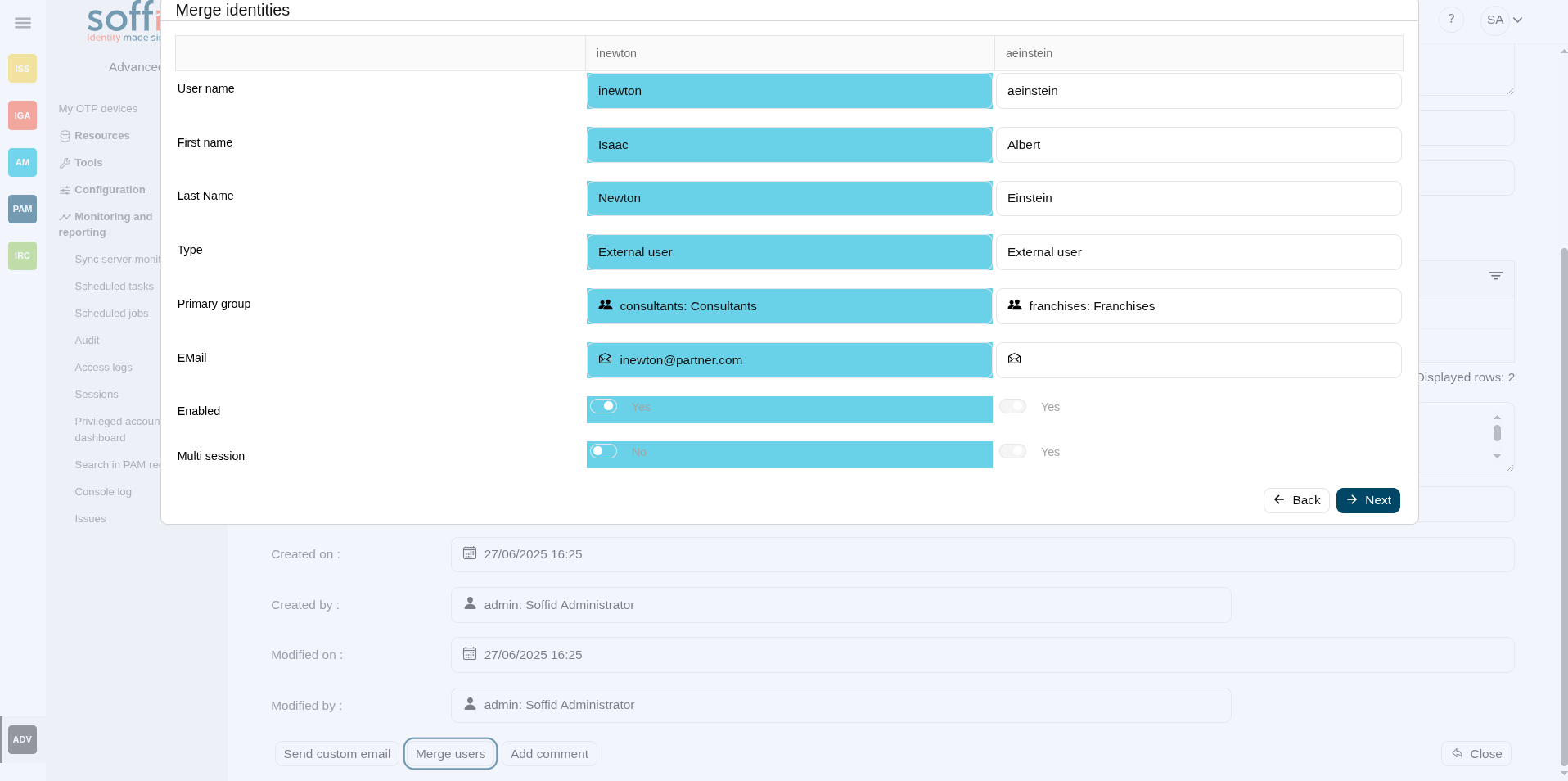](https://bookstack.soffid.com/uploads/images/gallery/2025-08/SjIpaG09NcLvFW2a-image.png)
If you click this option, Soffid will disable the user.
# Reports (addon-reports)
## Description
The **Reports** page allows you to run the reports defined in the system. Reports can be executed immediately or scheduled for later.
Soffid comes with a set of **predefined reports by default**, but you can modify them and add new reports as needed for your organisation.
### List of default reports
- Accounts list
- Accounts summary
- Business units detail
- Identities list
- Orphan accounts v2
- Overview\_Report
- Password Policies v2
- Risk report
- Types Accounts
- Workflow metrics
- businessRolesDetailed
### Explanation of the tabs
- **Executed reports** : where reports are manually started, executed or scheduled, also you can query the last executions.
Image
[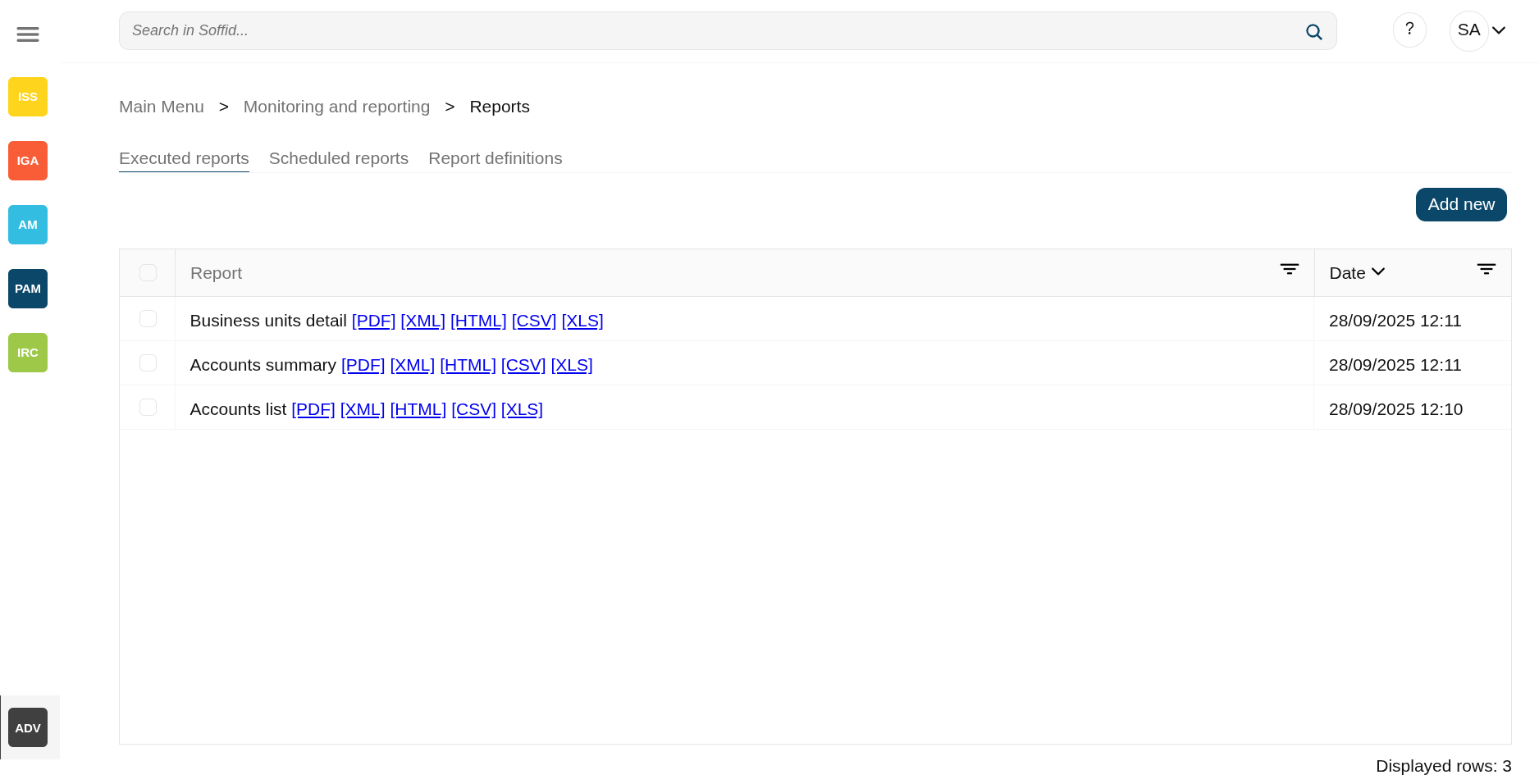](https://bookstack.soffid.com/uploads/images/gallery/2025-09/iq1lUczX6PrE7N2V-image.png)
[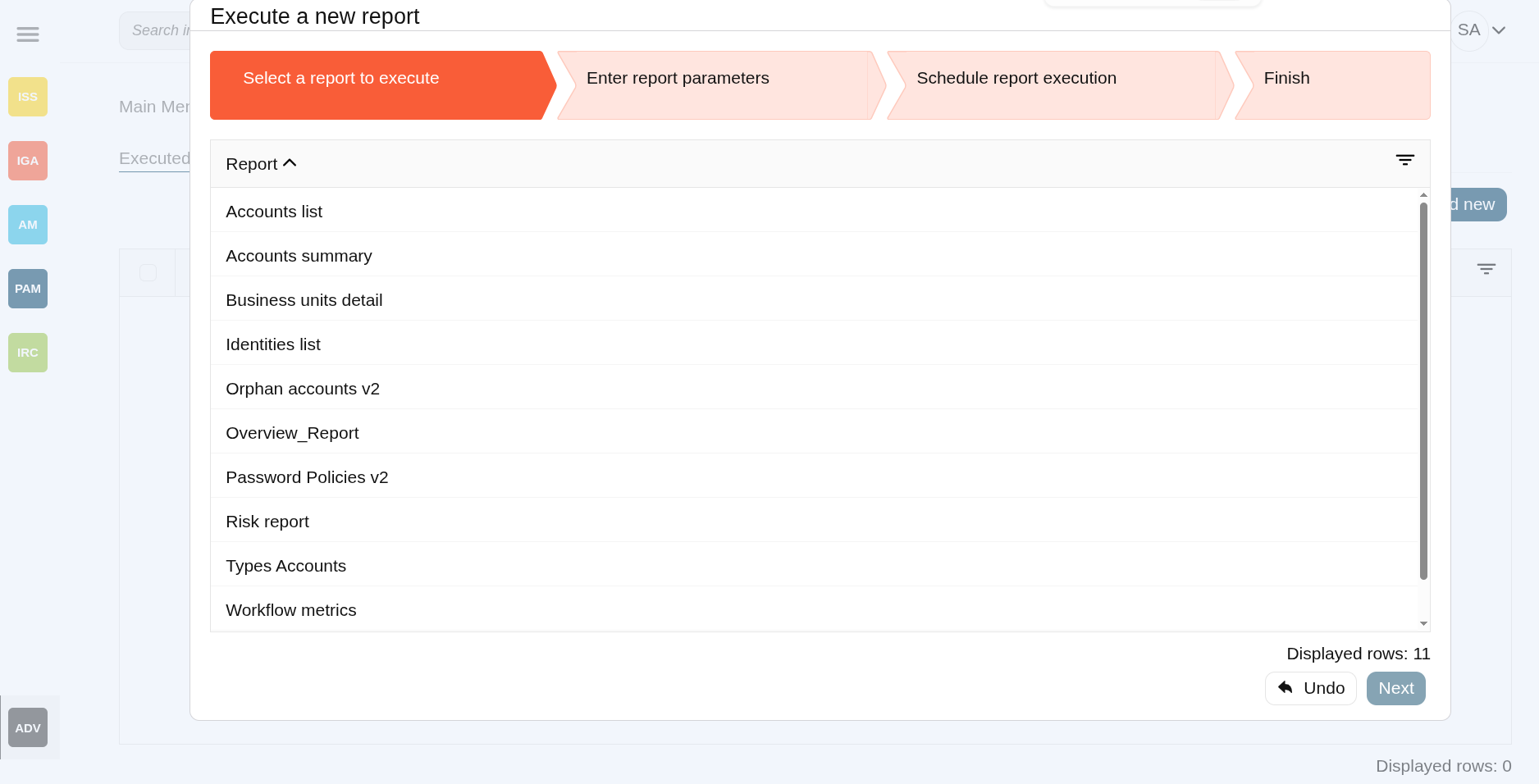](https://bookstack.soffid.com/uploads/images/gallery/2025-09/ZHbsL50INZVeDksg-image.png)
- **Scheduled reports** : wheresheduled reports are listed.
Image
[](https://bookstack.soffid.com/uploads/images/gallery/2025-09/Gi7Nbc2e1ud66Jfk-image.png)
[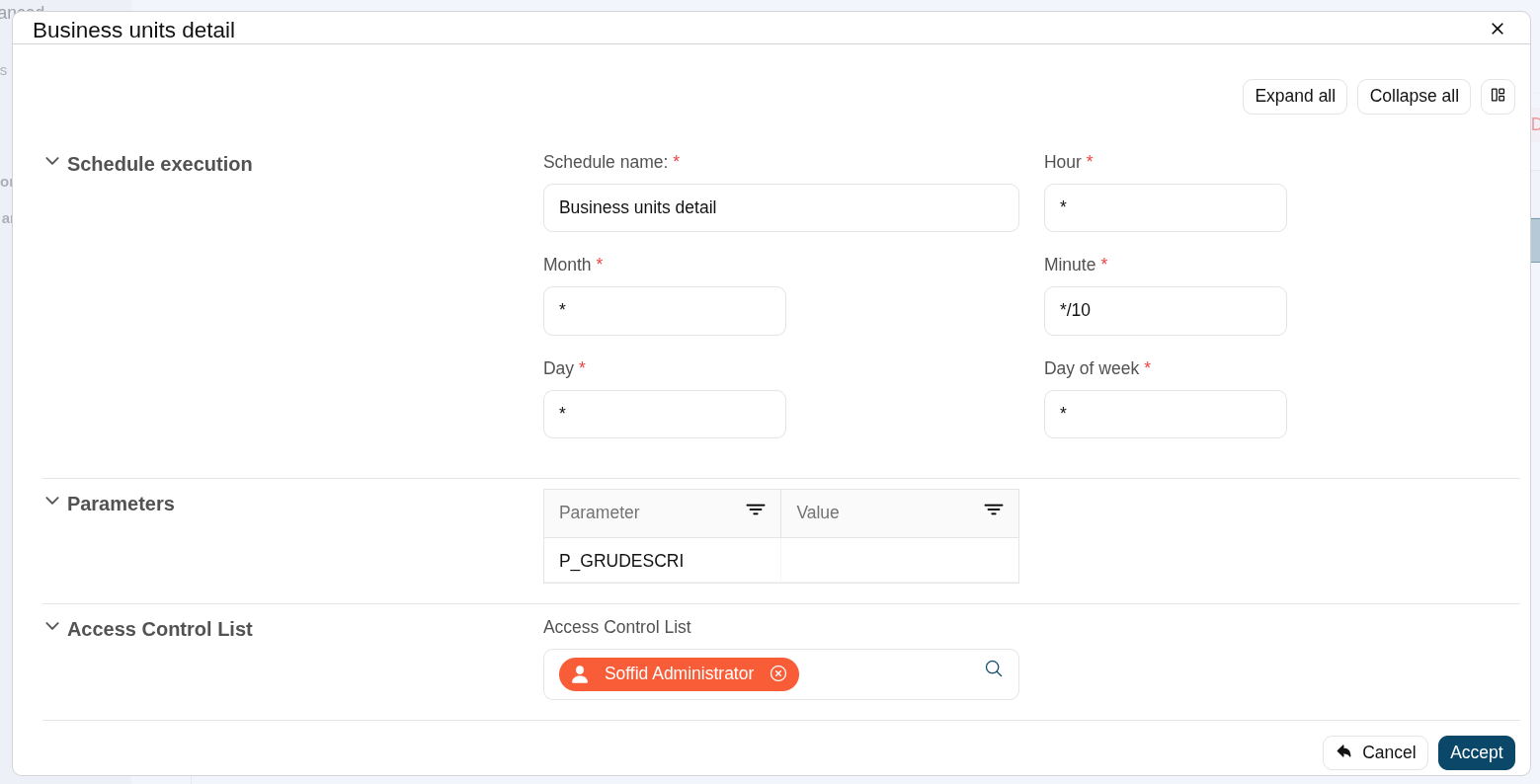](https://bookstack.soffid.com/uploads/images/gallery/2025-09/MvO8hvtMmjGCTiU7-image.png)
- **Report definitions** : where you can update the configuration of a report, upload a new definition version or upload a new report.
Image
[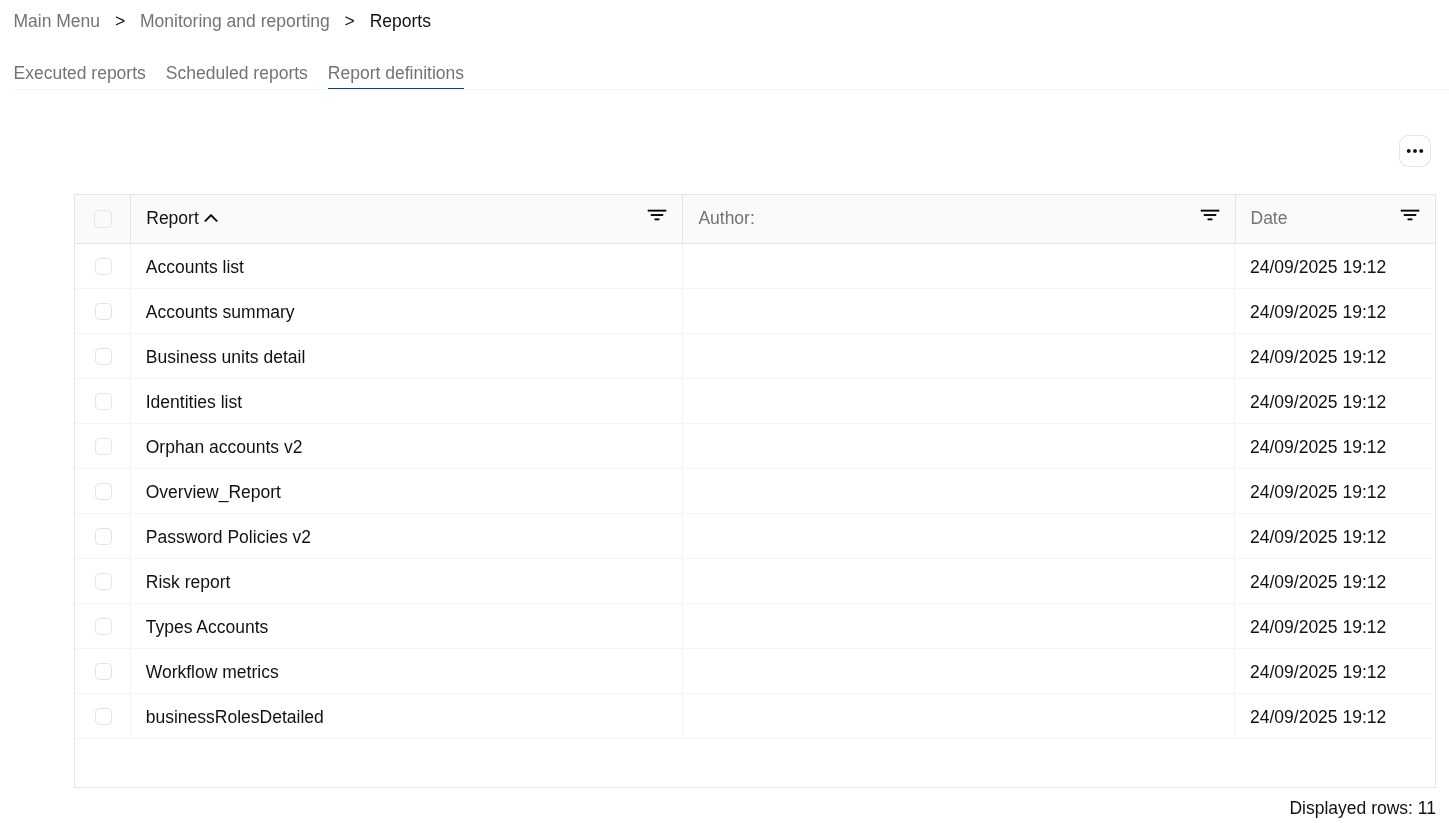](https://bookstack.soffid.com/uploads/images/gallery/2025-09/A4fjuzcf6898oTQ7-image.png)
[](https://bookstack.soffid.com/uploads/images/gallery/2025-09/XV2k1ZuuEnR5z6lz-image.png)
## Screen overview
[](https://bookstack.soffid.com/uploads/images/gallery/2025-09/iq1lUczX6PrE7N2V-image.png)
[](https://bookstack.soffid.com/uploads/images/gallery/2025-09/ZHbsL50INZVeDksg-image.png)
## Related objects
- [Reports](https://bookstack.soffid.com/books/soffid-4-reference-guide/page/reports-addon-reports "Reports (addon-reports)") : where jasper reports are managed
- [Dashboard editor](https://bookstack.soffid.com/books/soffid-4-reference-guide/page/configure-dashboards-dashboard-editor-addon-reports "Configure dashboards > Dashboard editor (addon-reports)") : to create and manage dashboards
- [Chart editor](https://bookstack.soffid.com/books/soffid-4-reference-guide/page/configure-dashboards-chart-editor-addon-reports "Configure dashboards > Chart editor (addon-reports)") : to manage charts to be used in the dashboard editor
- [Dataset editor](https://bookstack.soffid.com/books/soffid-4-reference-guide/page/configure-dashboards-dataset-editor-addon-reports "Configure dashboards > Dataset editor (addon-reports)") : to manage datasets to be used in the chart editor
- [Dashboards](https://bookstack.soffid.com/books/soffid-4-reference-guide/page/dashboards-addon-reports "Dashboards (addon-reports)") : where the dashboards created in the dashboard editor are displayed
## Standard attributes
- **Report**: report.
- **Date**: date of execution of the report.
## Actions
### Executed reports
#### Table actions
**Add new**
Allows you to start a new report execution
**Delete report**
Allows you to delete all reports selected with the checkbox in the first column
**\[PDF\] \[XML\] \[HTML\] \[CSV\] \[XLS\]**
By clicking on one of these options, you can download the file in the format you have selected.
#### Popup actions
**Undo**
Allows you to cancel the execution
**Next**
Allows you to continue to the next step
**"Execute now"**
Allows you to execute the reports at the moment
**"Schedule execution"**
Allows you to schedule the execution of the report
**Finish**
Finish the execution process popup
### Scheduled reports
#### Table actions
**Add new**
Allows you to start a new report execution
**Delete report**
Allows you to delete all reports selected with the checkbox in the first column
**"Edit scheduled report"**
When you select a report, a pop-up window will open with the planning information so that you can view or modify it.
The "Schedule execution" section is the same as that used in the [Scheduled tasks](https://bookstack.soffid.com/books/soffid-4-reference-guide/page/scheduled-tasks "Scheduled tasks") screen.
With the "Access control list", you can specify which users can view this report.
Image
[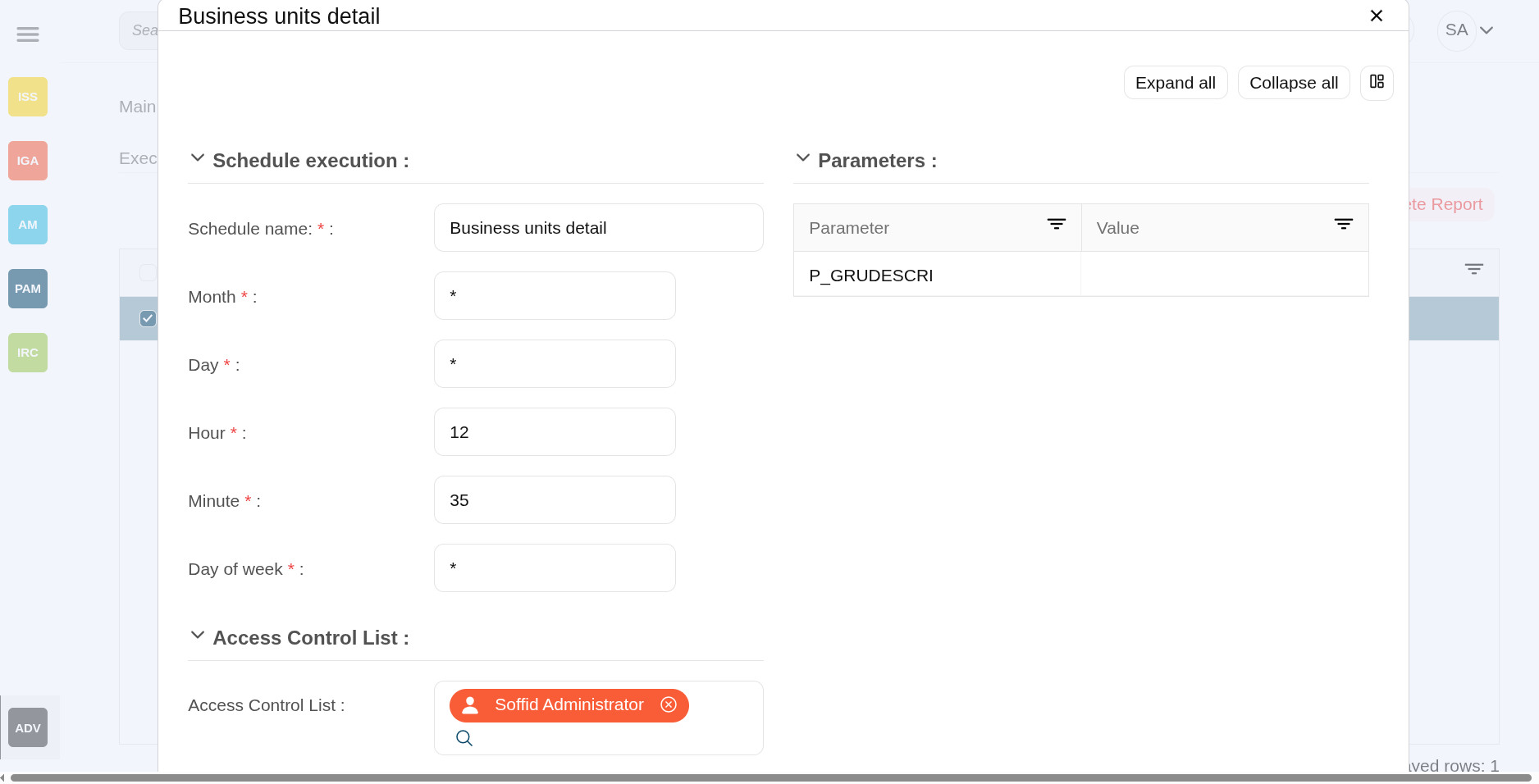](https://bookstack.soffid.com/uploads/images/gallery/2025-09/UxCXpkqHVy1oNWxk-image.png)
#### Popup actions
**Undo**
Allows you to cancel the execution
**Next**
Allows you to continue to the next step
**"Execute now"**
Allows you to execute the reports at the moment
**"Schedule execution"**
Allows you to schedule the execution of the report
**Finish**
Finish the execution process popup
### Report definitions
#### Table actions
**Download iReport component**
Allows you to download the ireport-addon.jar.
That add-on will be customized and added to the iReport designer to design your owns reports. You can visit the [How to start Reporting in Soffid page](https://bookstack.soffid.com/link/466#bkmrk-1.5.-once-you-have-s).
**Upload**
Allows you to upload a designed report with iReport tool. You can upload defautl jasper files or customized jasper files as well.
First of all, you need to click the Upload option by clicking in the "Three points" icon. Then Soffid will display a window to pick up the new report (a .jasper file).
**"Edit report definition"**
When you select a report, a pop-up window will open with the report definition so that you can view or modify it.
You can download the **iReport** designer from [sourceforge](http://sourceforge.net/projects/ireport/files/iReport/).
On this **dashboard editor** screen, you can create dashboards for different users/roles/groups that will contain the charts we have available.
You can create as many dashboards as you need. Each dashboard will have a different access list. For example, you can create one dashboard for administrator users, another for managers, and another for end users.
## Screen overview
[](https://bookstack.soffid.com/uploads/images/gallery/2025-09/U2A59xxhJbXBK4bb-image.png)
[](https://bookstack.soffid.com/uploads/images/gallery/2025-09/rjoSJZhQqNAPv398-image.png)
## Related objects
- [Dashboard editor](https://bookstack.soffid.com/books/soffid-4-reference-guide/page/configure-dashboards-dashboard-editor-addon-reports "Configure dashboards > Dashboard editor (addon-reports)") : to create and manage dashboards
- [Chart editor](https://bookstack.soffid.com/books/soffid-4-reference-guide/page/configure-dashboards-chart-editor-addon-reports "Configure dashboards > Chart editor (addon-reports)") : to manage charts to be used in the dashboard editor
- [Dataset editor](https://bookstack.soffid.com/books/soffid-4-reference-guide/page/configure-dashboards-dataset-editor-addon-reports "Configure dashboards > Dataset editor (addon-reports)") : to manage datasets to be used in the chart editor
- [Dashboards](https://bookstack.soffid.com/books/soffid-4-reference-guide/page/dashboards-addon-reports "Dashboards (addon-reports)") : where the dashboards created in the dashboard editor are displayed
## Standard attributes
Definition:
- **Name**: name of the dashboard
- **Description**: description of the dashboard
- **Usable by**: who will be able to view the dashboard, can be selected users, roles and groups. [](https://bookstack.soffid.com/uploads/images/gallery/2025-09/jLvXETvkT9hDoHom-image.png)
- **Number of columns**: number of columns to display in the dashboard page, 1 is the whole page, 2 are two columns [](https://bookstack.soffid.com/uploads/images/gallery/2025-09/JzDOzpjBYgnqqG15-image.png)
Charts:
- **Chars**: chart to be displayed
- **Columns**: columns needed to be displayed
- **Rows**: rows needed to be displayed
### How to configure columns
**Chart**
**Number of columns (dashboard)**
**Columns (chart)**
**Rows (chart)**
One single chart
1
1
1
Two charts square
2
1/1
1/1
Two rectangular charts one above the other
2
2/2
1/1
A double chart with two small ones on its right
3
2/1/1
2/1/1
## Actions
#### Table actions
**Add new**
Allows you to create a new dashboard.
**Delete**
Allows you to delete all dashboards selected with the checkbox in the first column.
**Download CSV file**
Allows you to download a CSV file with the dashboard data.
#### Dataset actions
**Apply changes (disk icon)**
Allows you to save the updates of the dashboard.
**Delete**
Allows you to delete the dashboard
**Expand all**
Displays all the attributes of the different blocks.
**Collapse all**
Hide all attributes of the different blocks.
**"Types of views"**
Change the view type: Classic view, Modern view, Compact design.
**Refresh**
Allows you to display the selected charts.
**Delete**
Allows you to delete all charts selected with the checkbox in the first column.
On this **Chart editor** screen, you can create charts from the datasets created on the Datasets edtior screen.
This chats will be used in the Dashboard editor screen.
## Screen overview
[](https://bookstack.soffid.com/uploads/images/gallery/2025-09/ytyzaKN33evVPSKs-image.png)
[](https://bookstack.soffid.com/uploads/images/gallery/2025-09/QlhWJKPpS7XqMWfU-image.png)
## Related objects
- [Dashboard editor](https://bookstack.soffid.com/books/soffid-4-reference-guide/page/configure-dashboards-dashboard-editor-addon-reports "Configure dashboards > Dashboard editor (addon-reports)") : to create and manage dashboards
- [Chart editor](https://bookstack.soffid.com/books/soffid-4-reference-guide/page/configure-dashboards-chart-editor-addon-reports "Configure dashboards > Chart editor (addon-reports)") : to manage charts to be used in the dashboard editor
- [Dataset editor](https://bookstack.soffid.com/books/soffid-4-reference-guide/page/configure-dashboards-dataset-editor-addon-reports "Configure dashboards > Dataset editor (addon-reports)") : to manage datasets to be used in the chart editor
- [Dashboards](https://bookstack.soffid.com/books/soffid-4-reference-guide/page/dashboards-addon-reports "Dashboards (addon-reports)") : where the dashboards created in the dashboard editor are displayed
## Standard attributes
- **Name**: name of the chart
- **Description**: description of the chart
- **Type**: type of the chart
- Line [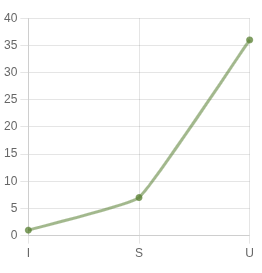](https://bookstack.soffid.com/uploads/images/gallery/2025-09/Nv2mTkDLRWmCot3G-image.png)
- Stacked area [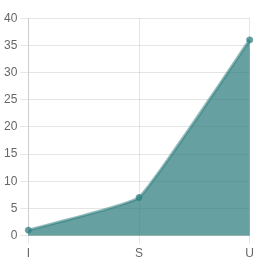](https://bookstack.soffid.com/uploads/images/gallery/2025-09/zrvHk1FxV6zj7hBv-image.png)
- Bar [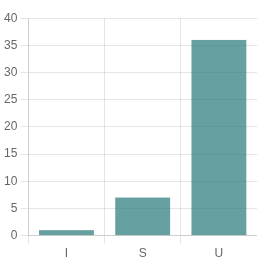](https://bookstack.soffid.com/uploads/images/gallery/2025-09/fa9L0d5IZhvtj0dF-image.png)
- Area [](https://bookstack.soffid.com/uploads/images/gallery/2025-09/R3000L6059kgf8wz-image.png)
- Pie [](https://bookstack.soffid.com/uploads/images/gallery/2025-09/ANQgMBf64ZjpzJrR-image.png)
- Doughnut [](https://bookstack.soffid.com/uploads/images/gallery/2025-09/Qa0MmiQxhEmLcmOi-image.png)
- World map [](https://bookstack.soffid.com/uploads/images/gallery/2025-09/tPk5oWiMSxNKj70x-image.png)
- Custom : to configure it
- **Definition** (only when type custom is selected): to configure a custom dashboard
- **SQL sentence**: SQL sentence to retrieve the dataset from the Soffid database
- **Refresh interval in seconds**: refresh interval in seconds to refresh the database
- **Updated on**: date of the last update
- **Updated by**: user or the last update
## Actions
#### Table actions
**Add new**
Allows you to create a new chart.
**Delete**
Allows you to delete all charts selected with the checkbox in the first column.
**Download CSV file**
Allows you to download a CSV file with the chart data.
#### Dataset actions
**Apply changes (disk icon)**
Allows you to save the updates of the chart.
**Delete**
Allows you to delete the chart
**Expand all**
Displays all the attributes of the different blocks.
**Collapse all**
Hide all attributes of the different blocks.
**"Types of views"**
Change the view type: Classic view, Modern view, Compact design.
**Delete**
Allows you to delete all datasets selected with the checkbox in the first column.
The datasets used to generate the charts, which in turn generate the dashboards, will be registered on the "**Dataset editor**" screen.
**SQL queries** will be used directly on the Soffid database to retrieve the data sets. If you wish to consult the structure of the Soffid database, you can consult the [internal Soffid API (Entities section)](https://download.soffid.com/doc/console/latest/uml/ "internal Soffid API").
## Screen overview
[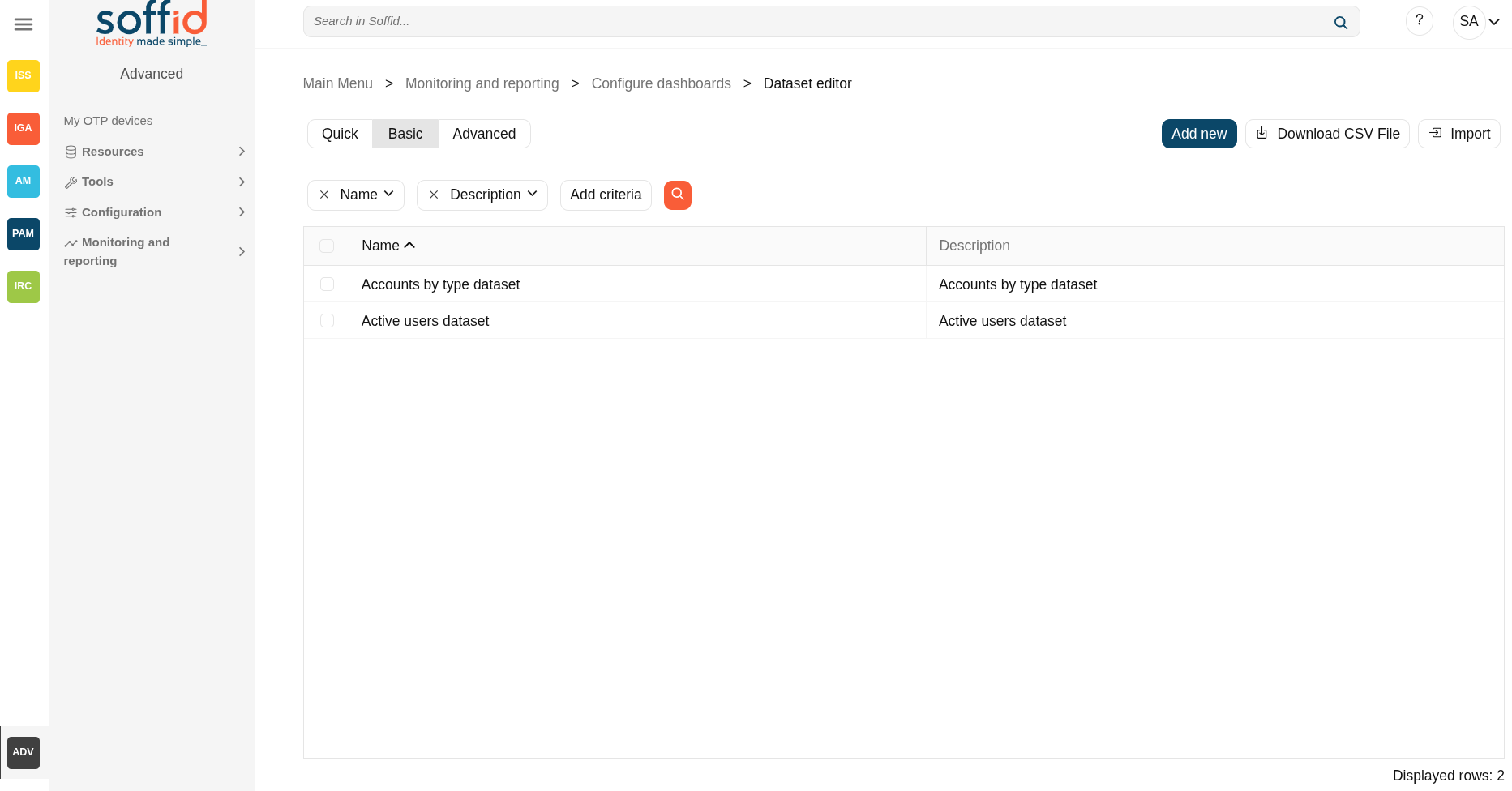](https://bookstack.soffid.com/uploads/images/gallery/2025-09/ZiTlGPxu4vbLQRol-image.png)
[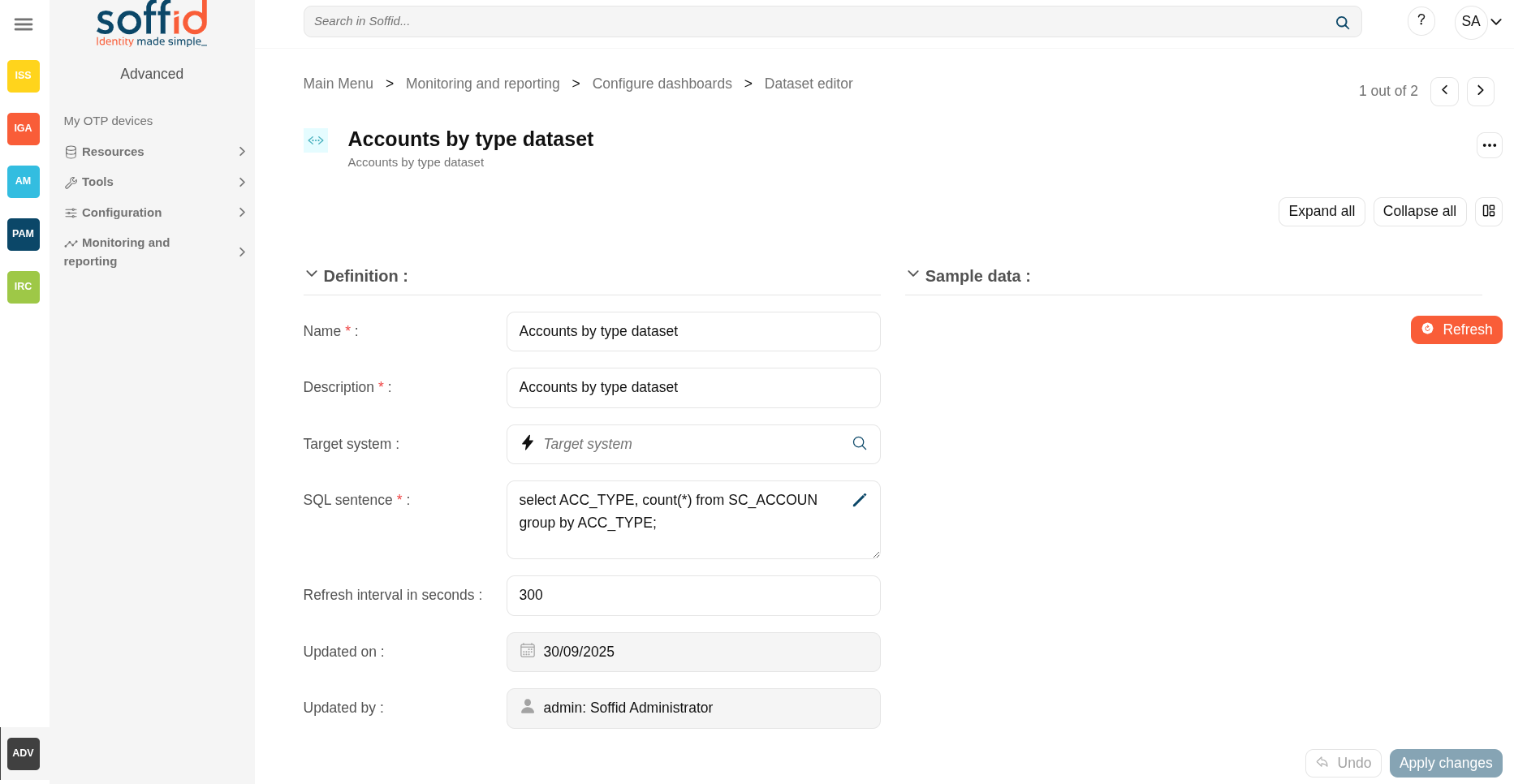](https://bookstack.soffid.com/uploads/images/gallery/2025-09/SIYojkNRw9Hp1jub-image.png)
## Related objects
- [Dashboard editor](https://bookstack.soffid.com/books/soffid-4-reference-guide/page/configure-dashboards-dashboard-editor-addon-reports "Configure dashboards > Dashboard editor (addon-reports)") : to create and manage dashboards
- [Chart editor](https://bookstack.soffid.com/books/soffid-4-reference-guide/page/configure-dashboards-chart-editor-addon-reports "Configure dashboards > Chart editor (addon-reports)") : to manage charts to be used in the dashboard editor
- [Dataset editor](https://bookstack.soffid.com/books/soffid-4-reference-guide/page/configure-dashboards-dataset-editor-addon-reports "Configure dashboards > Dataset editor (addon-reports)") : to manage datasets to be used in the chart editor
- [Dashboards](https://bookstack.soffid.com/books/soffid-4-reference-guide/page/dashboards-addon-reports "Dashboards (addon-reports)") : where the dashboards created in the dashboard editor are displayed
## Standard attributes
- **Name**: name of the dataset
- **Description**: description of the dataset
- **Target system**: use this field when the SQL query needs to be executed from an agent
- **SQL sentence**: SQL sentence to retrieve the dataset from the Soffid database
- **Refresh interval in seconds**: refresh interval in seconds to refresh the database
- **Updated on**: date of the last update
- **Updated by**: user or the last update
## Actions
#### Table actions
**Add new**
Allows you to create a new dataset.
**Delete**
Allows you to delete all datasets selected with the checkbox in the first column.
**Download CSV file**
Allows you to download a CSV file with the dataset data.
#### Dataset actions
**Apply changes (disk icon)**
Allows you to save the updates of the dataset.
**Delete**
Allows you to delete the dataset.
**Expand all**
Displays all the attributes of the different blocks.
**Collapse all**
Hide all attributes of the different blocks.
**"Types of views"**
Change the view type: Classic view, Modern view, Compact design.
**Refresh**
Allows you to display a table with the result of the SQL sentence.
**Undo**
Allows you to quit without applying any changes.
**Apply changes**
Allows you to save the updates of the group.
# Dashboards (addon-reports)
## Description
The **Dashboards** screen displays as many options as there are dashboards created. When you select one, the dashboard will be displayed on a new screen.
If you want to modify a dashboard, you must go to the edit pages for the [Dataset editor](https://bookstack.soffid.com/books/soffid-4-reference-guide/page/configure-dashboards-dataset-editor-addon-reports "Configure dashboards > Dataset editor (addon-reports)"), [Chart editor](https://bookstack.soffid.com/books/soffid-4-reference-guide/page/configure-dashboards-chart-editor-addon-reports "Configure dashboards > Chart editor (addon-reports)"), and [Dashboard editor](https://bookstack.soffid.com/books/soffid-4-reference-guide/page/configure-dashboards-dashboard-editor-addon-reports "Configure dashboards > Dashboard editor (addon-reports)").
## Screen overview
[](https://bookstack.soffid.com/uploads/images/gallery/2025-10/vw02biCtgUdVl1jS-image.png)
[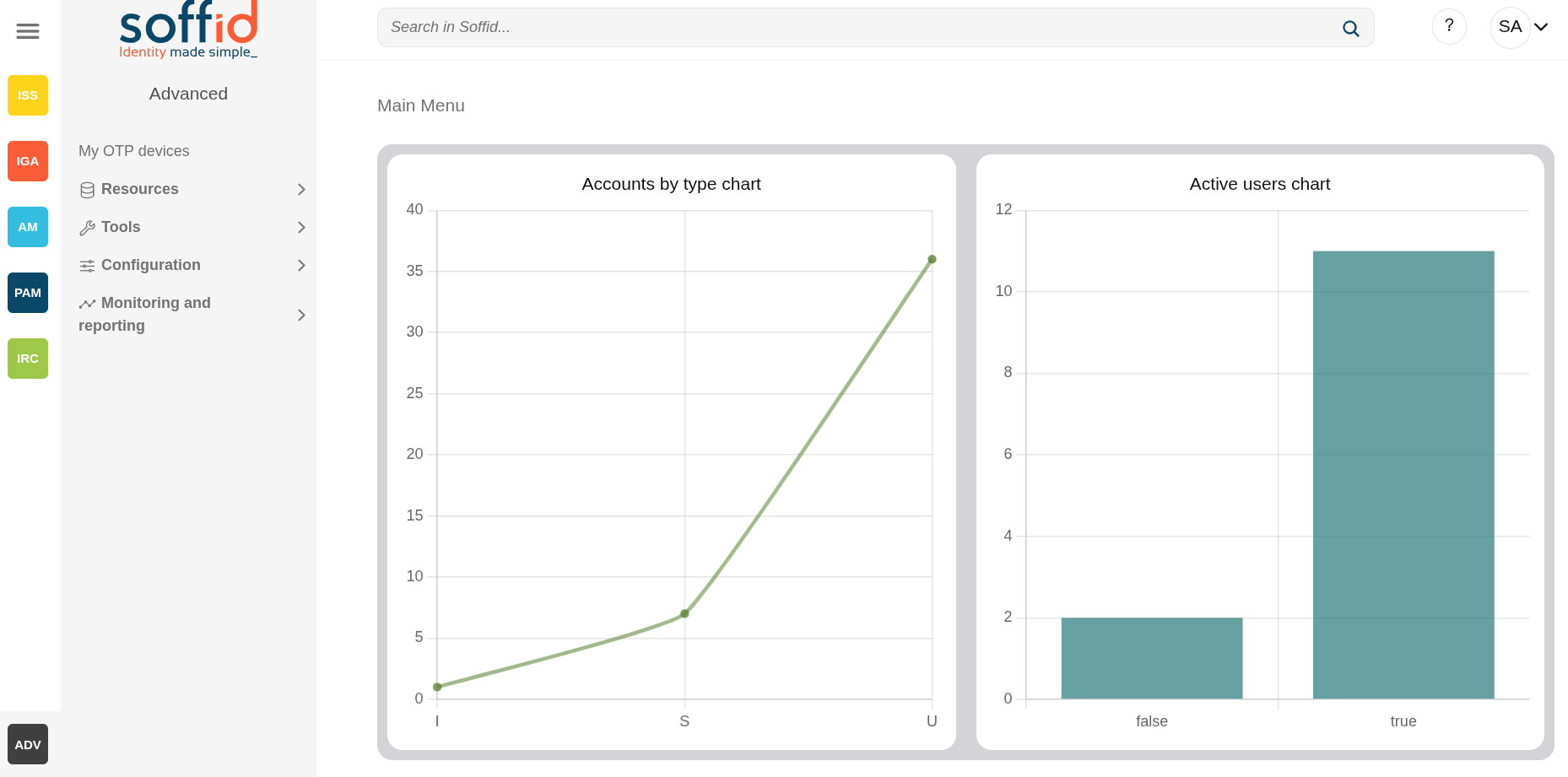](https://bookstack.soffid.com/uploads/images/gallery/2025-10/bcFykYIAaD40Zvkj-image.png)
## Related objects
- [Dashboard editor](https://bookstack.soffid.com/books/soffid-4-reference-guide/page/configure-dashboards-dashboard-editor-addon-reports "Configure dashboards > Dashboard editor (addon-reports)") : to create and manage dashboards
- [Chart editor](https://bookstack.soffid.com/books/soffid-4-reference-guide/page/configure-dashboards-chart-editor-addon-reports "Configure dashboards > Chart editor (addon-reports)") : to manage charts to be used in the dashboard editor
- [Dataset editor](https://bookstack.soffid.com/books/soffid-4-reference-guide/page/configure-dashboards-dataset-editor-addon-reports "Configure dashboards > Dataset editor (addon-reports)") : to manage datasets to be used in the chart editor
- [Dashboards](https://bookstack.soffid.com/books/soffid-4-reference-guide/page/dashboards-addon-reports "Dashboards (addon-reports)") : where the dashboards created in the dashboard editor are displayed
## Others
### Permissions
Please note that dashboards will only be displayed to users if they have permission to view them.
In the [Dashboard editor](https://bookstack.soffid.com/books/soffid-4-reference-guide/page/configure-dashboards-dashboard-editor-addon-reports "Configure dashboards > Dashboard editor (addon-reports)") page, the user must be included in the "Usable by" field, as a user, a granted role or a primary/secondary group.
Dashboard editor
[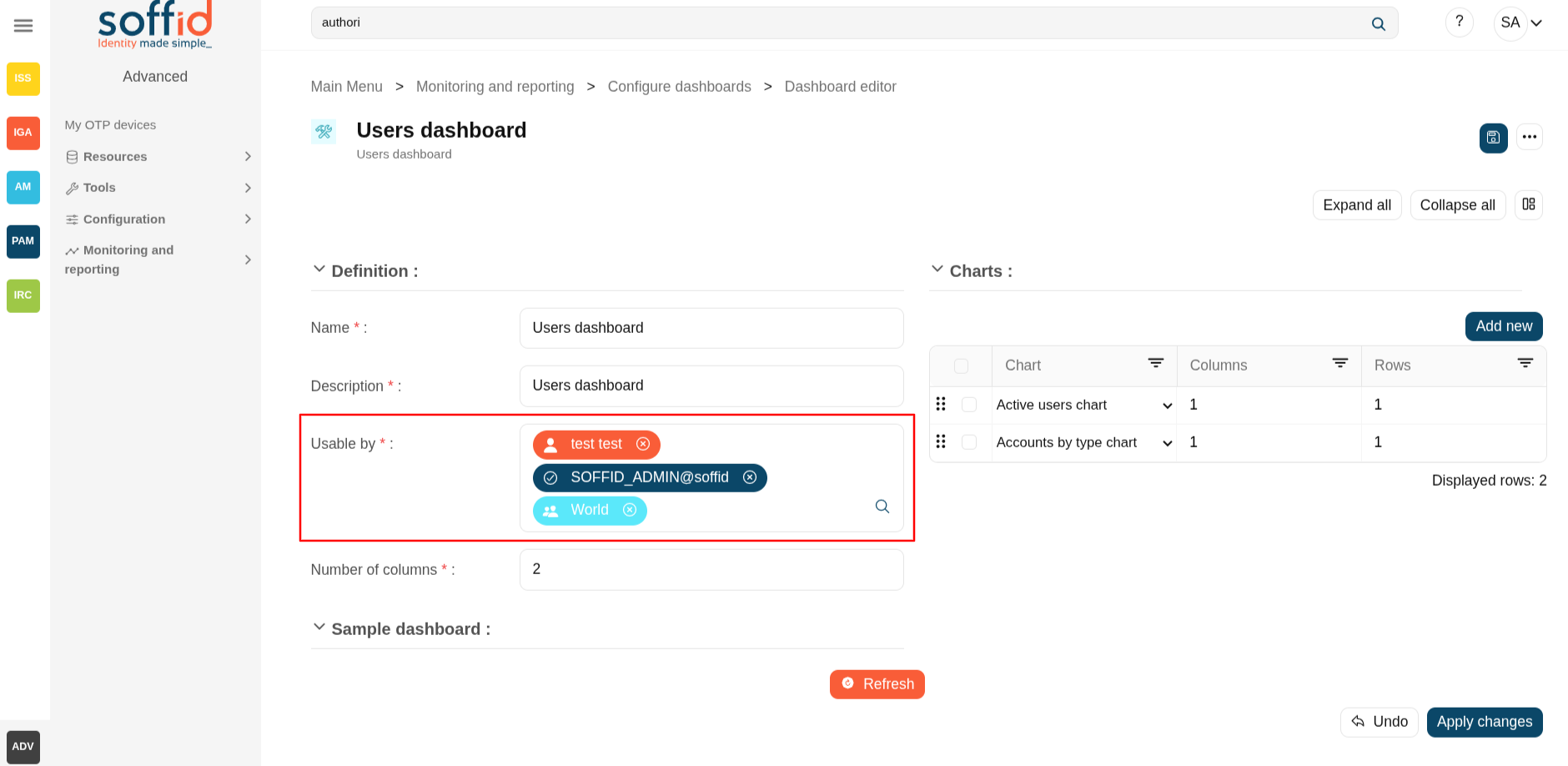](https://bookstack.soffid.com/uploads/images/gallery/2025-10/3wsqAOmsjV6Enqkj-image.png)
In the [Authorizations](https://bookstack.soffid.com/books/soffid-4-reference-guide/page/authorizations "Authorizations") page, the users needs to be granted to a role with the next authorizations:
- seu:dashboard:show : to display the option in the menu
- dashboard:query : to display the dashboard itselt
Authorizations
[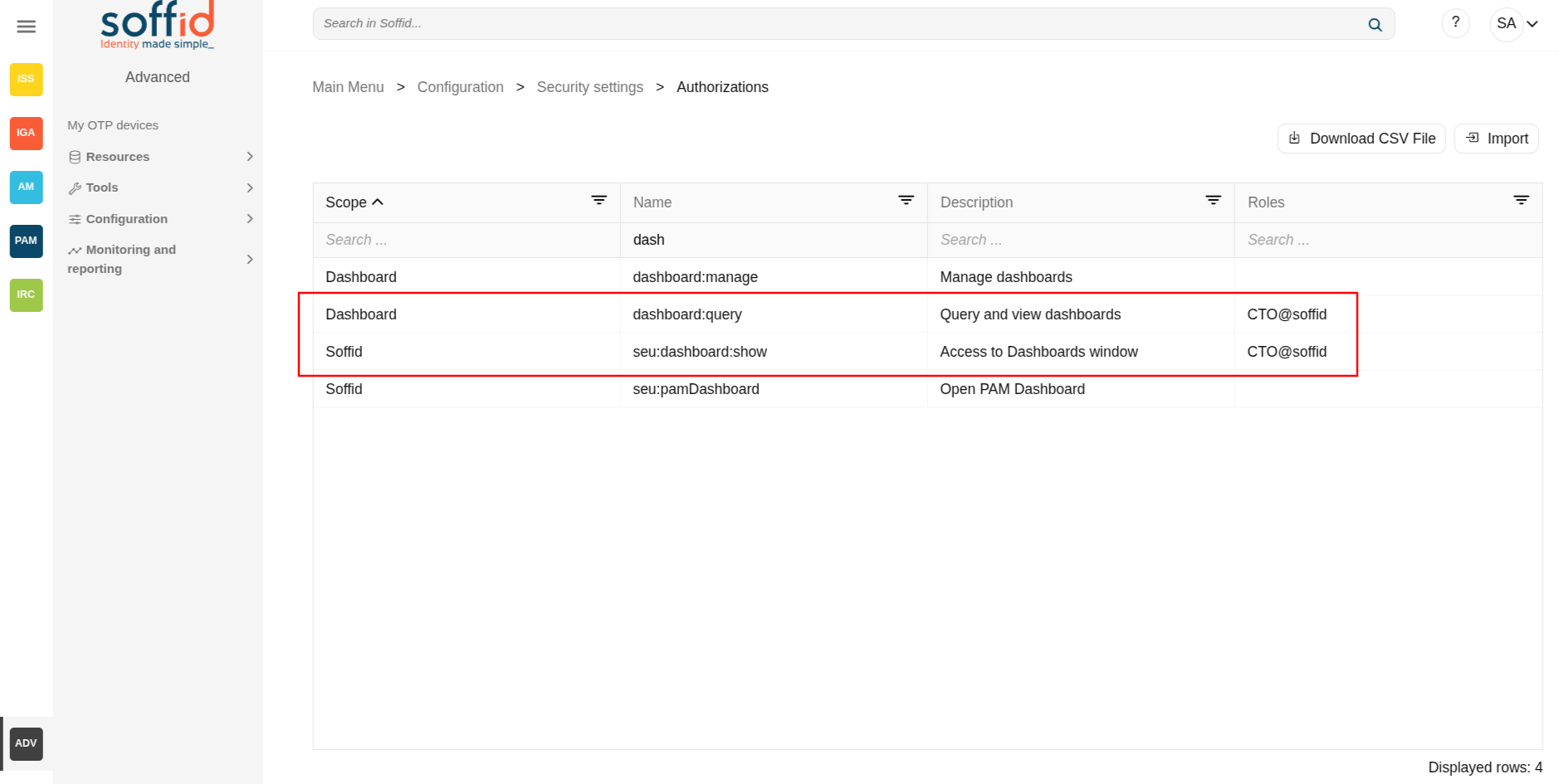](https://bookstack.soffid.com/uploads/images/gallery/2025-10/tNkJFNTtk9nrYOIo-image.png)
# Further information
Further information
# My Profile
## Description
My Profile is a part of a the Identity self service that allows to end users config their own profile, update the user info and preferences, change their password, and recover questions.
To view My Profile, you must select the My Profile option that will be displayed when you click on the drop-down menu at the top right. Then Soffid displays a new window that will allow end users to configure their profiles.
## Screen overview
[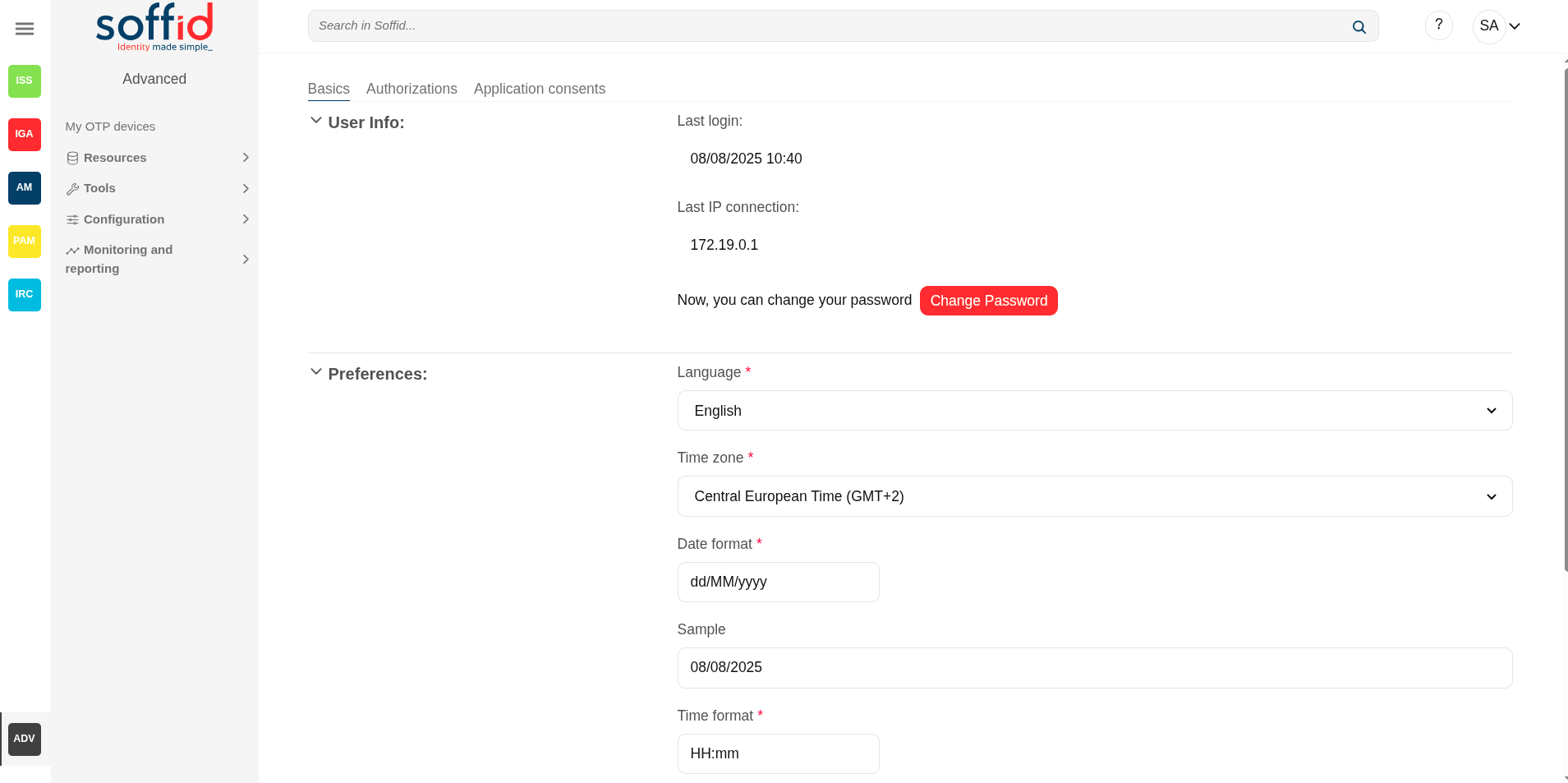](https://bookstack.soffid.com/uploads/images/gallery/2025-08/kRngWG9pwjs1QpgC-image.png)
[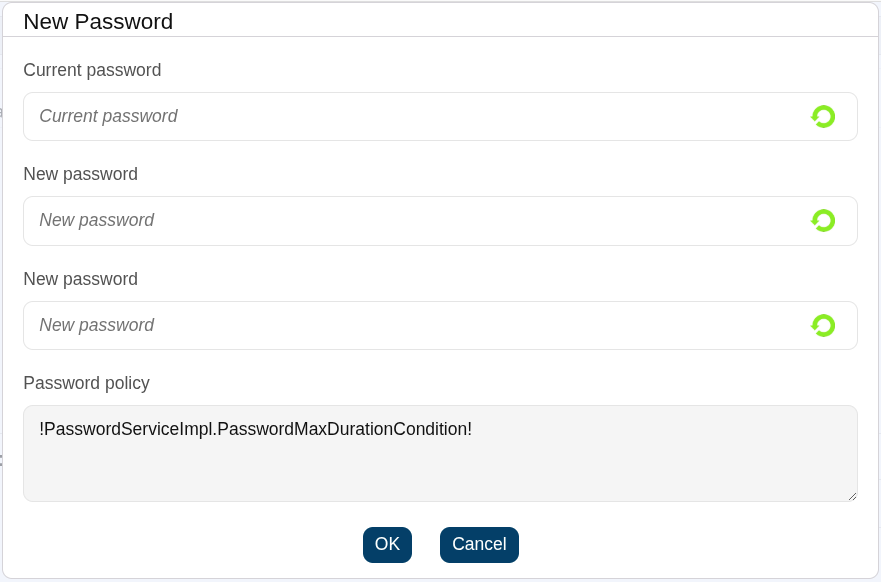](https://bookstack.soffid.com/uploads/images/gallery/2025-08/0a25o4n9Jgl7X5Kc-image.png)
## Related objects
- [Users](https://bookstack.soffid.com/books/soffid-4-reference-guide/page/users "Users") : to display the roles granted to a user
- [Roles](https://bookstack.soffid.com/books/soffid-4-reference-guide/page/roles "Roles") : to display the roles
- [Information systems](https://bookstack.soffid.com/books/soffid-4-reference-guide/page/information-systems "Information systems") : to display the roles throught the information systems
- [Authorizations](https://bookstack.soffid.com/books/soffid-4-reference-guide/page/authorizations "Authorizations") : to review the authorizations and manage the roles assigned
## Standard attributes
### Basic
#### User Info
- **Last login:** date and time of the user's last login.
- **Last IP connection:** IP of the user's last login.
- **Change password**: allows end-users to change their password.
- **Password recovery questions**: (only when addon retrieve passwords is configured) allows end-users to config their own questions to recover their passwords.
For more info about password recovery, you can visit the [Password recovery questions page](https://bookstack.soffid.com/books/password-recovery/page/password-recovery-questions "Password recovery questions").
#### Preferences
- **Language:** allows end-users to select their preferred language.
- **Time zone:** allows end-users to select their time zone.
- **Date format:** allows end-users to select the format date.
- **Sample:** displays how the date will be displayed in Soffid Console
- **Time format:** allows end-users to select the format time
- **Sample:** displays how the time will be displayed in Soffid Console
- **Enable desktop notifications in this browser**: enable desktop notifications in this browser
- **Display**: Light (backgroud in white), dark (background in dark)
### Authorizations
Display a list with the user authorizations.
- **Role**: role granted
- **Authorization \[domain value\]**: authrization description
- **ITS Scope**: authorization scope
- **Domain value**: domain where the role granted is assigned (\* when there is no domain)
### Application consents
Displays a list of all the user's consents given, and the user can see all of them. Users can remove the consent at any time as well.
When the user connects to a new application, the IdP will indicate which data will be shared with this application. That information is defined in the Attribute sharing policies page of the Federation.
For more info about password recovery, you can visit the [Attribute sharing policies page.](https://bookstack.soffid.com/books/federation/page/attribute-sharing-policies "Attribute sharing policies")
## Actions
**Change pasword**
Allows the user to change their current password.
The pop-up will display the restrictions applied according to your password policy.
You must enter your current password. If you cannot remember it, it is best to use the password recovery option when logging in to the Console. This option is included in the password recovery add-on.
**Undo**
Allows you to undo any changes made.
**Apply changes**
Allows you to save the data. Once you apply changes, the details page will be closed.
# Soffid Objects (for agent mappings)
---
You can consult the list of Soffid attributes:
1. [User Object](https://bookstack.soffid.com/link/75#bkmrk-user-object)
2. [Account Object](https://bookstack.soffid.com/link/75#bkmrk-account-object)
3. [Group Object](https://bookstack.soffid.com/link/75#bkmrk-group-object)
4. [Role Object](https://bookstack.soffid.com/link/75#bkmrk-role-object)
5. [Grant Object](https://bookstack.soffid.com/link/75#bkmrk-grant-object)
6. [Maillist Object](https://bookstack.soffid.com/link/75#bkmrk-maillist-object)
7. [Membership Object](https://bookstack.soffid.com/link/75#bkmrk-membership-object)
8. [dispatcherService](#bkmrk-dispatcherservice)
9. [Authoritative change object](#bkmrk-%C2%A0-4)
---
## User object
A user objects are maps that hold the information belonging to a single user account.
**Attribute**
**Type**
**Description**
id
Long
user id
accountId
Long
account id
accountName
String
account name
system
String
managed system (agent) name
accountDescription
String
account description
active
Boolean
true if user is active
accountDisabled
Boolean
true if account is diabled
mailAlias
String
blank separated mails
userName
String
user name
primaryGroup
String
user's primary group name
comments
String
user's comments
createdOn
Date
user creation date
modifiedOn
Date
user last modification date
mailDomain
Date
user mail domain ( email right side of @)
fullName
String
user full name
shortName
String
user mail name (email left side of @)
firstName
String
user first name
lastName
String
user last name
lastName2
String
user second last name (when applicable)
mailServer
String
mail server host name
homeServer
String
home drive server host name
profileServer
String
roaming profile server host name
phone
String
user's phone number
userType
String
user type
createdBy
String
user name creator of this user
modifiedBy
String
user name modifier of this user
secondaryGroups
List<Map<String,Object>>
list of [groups](#bkmrk-group-object) the user belongs to, including primary group
The attributes of the inner map are described later
attributes
Map<String,String>
additional user attributes
grantedRoles
List<Map<String,Object>>
list of [grants](#bkmrk-grant-object) directly granted to the user
allGrantedRoles
List<Map<String,Object>>
list of [grants](#bkmrk-grant-object) directly on indirectly granted to the user
granted
List<String>
list of role names and group names directly granted to the user
allGranted
List<String>
list of role names and group names directly or indirectly granted to the user
## Account object
An account object holds the information belonging to an account.
**Attribute**
**Type**
**Description**
accountDescription
String
account description
accountDisabled
Boolean
true if account is diabled
accountId
Long
account id
accountName
String
account name
allGranted
List<String>
list of role names directly or indirectly granted to the user
allGrantedRoles
List<Map<String,Object>>
list of [grants](#bkmrk-grant-object) directly on indirectly granted to the user
attributes
Map<String,String>
additional account attributes
granted
List<String>
list of role names directly granted to the user
grantedRoles
List<Map<String,Object>>
list of [grants](#bkmrk-grant-object) directly granted to the user
lastLogin
Calendar
lastLogin
lastPasswordUpdate
Calendar
lastPasswordUpdate
lastUpdate
Calendar
lastUpdate
passwordExpiration
Calendar
passwordExpiration
passwordPolicy
String
password policy
system
String
managed system (agent) name
type
AccountType
"U"=user, "S"=shared, "P"=privileged, "I=ignored
## Group object
An group object holds the information belonging to a group.
**Attribute**
**Type**
**Description**
groupId
Long
group id
name
String
group name
description
String
group description
parent
String
parent group name
server
String
home server host name
disabled
boolean
true if the group is disabled
accountingGroup
String
group accounting information
type
String
group type
driveLetter
String
home server letter to connect to
users
List<Map<String,Object>>
list of [users](#bkmrk-user-object) belonging to this group
userNames
List<String>
list of user names belonging to this group
allUsers
List<Map<String,Object>>
list of [users](#bkmrk-user-object) directly or indirectly belonging to this group
allUserNames
List<String>
list of user names either directly or indirectly grantee of this role
grantedRoles
List<Map<String,Object>>
list of [roles](#bkmrk-role-object) granted to this group
grantedRoleNames
List<String>
list of role names granted to this group
## Role object
An role object holds the information belonging to a role.
**Attribute**
**Type**
**Description**
roleId
Long
role id
system
String
managed system (agent) name
name
String
role name
application
String
application system name
category
String
role category
passwordProtected
boolean
true if role should be password protected (where applicable)
description
String
Role description
wfmanaged
boolean
true if role should be displayed in self service requests
domain
String
custom domain for this role: Use com.soffid.iam.api.DomainType constants or configured custom domain
ownedRoles
List<Map<String,Object>>
list of[ roles granted](#bkmrk-grant-object) to this one
ownerRoles
List<Map<String,Object>>
list of [roles grantee](#bkmrk-grant-object) of this one
ownerGroups
List<Map<String,Object>>
list of [groups](#bkmrk-group-object) grantee of this role
grantedAccountNames
List<String>
list of account names directly grantee of this role
grantedAccounts
List<Map<String,Object>>
list of [users](#bkmrk-user-object) directly grantee of this role
allGrantedAccountNames
List<String>
list of account names either directly or indirectly grantee of this role
allGrantedAccounts
List<Map<String,Object>>
list of [users](#bkmrk-user-object) either directly or indirectly grantee of this role
attributes
Map<String,Object>
role's custom attributes
## Grant object
### Grant, grantedRole & allGrantedRoles
The objects grant, grantedRole and allGrantedRoles are used to assing roles to accounts and roles.
**Attribute**
**Type**
**Description**
domainValue
String
grant value (if any)
grantedRole
String
granted role name
grantedRoleId
Long
granted role id
grantedRoleObject
[role object](#bkmrk-role-object)
granted role
grantedRoleSystem
String
granted role managed system (agent) name
id
Long
grant id
ownerAccount
String
grantee account name
ownerAccountObject
[account object](#bkmrk-account-object)
grantee account
ownerGroup
String
grantee group name
ownerRoleId
String
grantee role id
ownerRoleName
String
grantee role name
ownerSystem
String
grantee account or role managed system name
ownerUser
String
grantee user name
#### Examples
##### Grant
Example to map a grant object (assign a role to an account):
**System attribute**
**Direction**
**Soffid attribute**
role\_name
=>
grantedRole
account\_name
=>
ownerAccount
##### GrantedRole
Example to map a grantedRole object (assign a role as a child of another role):
**System attribute**
**Direction**
**Soffid attribute**
role\_name
=>
grantedRole
parent\_role\_name
=>
ownerRoleName
##### AllGrantedRoles
Example to map a allGrantedRoles object in a holderGroup (assign a role to an account in a specific group):
**System attribute**
**Direction**
**Soffid attribute**
role\_name
=>
grantedRole
parent\_role\_name
=>
ownerRoleName
group\_code
=>
domainValue
group\_code
=>
holderGroup
userName
=>
ownerUser
## Maillist object
**Attribute**
**Type**
**Description**
id
Long
internal mail list id
name
String
mail list name ( the initial part, before the @ sign)
domain
String
mail list domain ( the remaining part after the @ sign)
system
String
managed system (agent) name
description
String
mail list description
users
String array
user names that are bound to this mail list
groups
String array
group names thta are subscribed to this mai list
roles
String array
role names that grant access to this mail list
lists
String array
Nested mail lists
explodedUsers
String array
Names of the users that should be subscribed to this mail list, including the users that should be subscribed due to group or role membership
explodedUserAddresses
String array
Mail addresses of any exploded User
## Membership object
A membership object contains the user account information as well as the group the user belongs to.
**Attribute**
**Type**
**Description**
userName
String
User name
user
Map<String,Object>
[user object](#bkmrk-user-object)
groupName
String
Group name
group
Map<String,Object>
[group object](#bkmrk-group-object)
attributes
Map<String,Object>
Membership custom attributes
## dispatcherService
dispatcherService is an object available from agents' attribute translation rules.
This object contains four methods:
Uses attribute translation tables to transform a soffid object to a target system object.
Mind to fill-in objectType property to use the proper object mapping
Uses attribute translation tables to transform a target system object to a Soffid object.
Mind to fill-in objectType property to use the proper object mapping
Uses the exampleObject to perform a query by example on the target system. If the object exists on the target system, it is returned.
Mind to fill-in objectType property with the desired system object type
invoke
String verb
String action
Map parameters
List of Map
This method allows arbitrary executions on the target system, but it semantics can change depending on the connector used.
For instance, it can be used to perform a GET on the target system in REST connector, can issue an LDAP query on ActiveDirectory connector, can execute a SELECT sentence on a SQL connector, or can execute an operating system command in Shell connector.
The results are returned as a list of objects (map).
#### Examples
##### Snippet to query the sys\_id attribute for a grant owner
```Java
System.out.println("Searching id for "+ownerRoleName);
com.soffid.iam.sync.intf.ExtensibleObject eo = new com.soffid.iam.sync.intf.ExtensibleObject();
eo.setObjectType("ROLE");
eo{"name"} = ownerRoleName;
eo = dispatcherService.search(eo);
System.out.println("FOUND "+eo{"sys_id"});
return eo{"sys_id"};
```
##### Snippet that performs a REST query to get group to role assignments in ServiceNow
```Java
list = dispatcherService.invoke ("GET",
"https://arxusdev.service-now.com/api/now/table/sys_group_has_role?sysparm_exclude_reference_link=true&sysparm_display_value=all&sysparm_fields=role%2Cgroup&sysparm_query=group="+sys_id,
null).
get(0).get("result")
r = new java.util.LinkedList();
for ( d: list)
{
grant = new java.util.HashMap();
grant{"grantedRole"} = d.get("role").get("display_value");
grant{"grantedRoleSystem"} = "ServiceNow";
grant{"ownerRoleName"} = name;
grant{"ownerSystem"} = "ServiceNow";
r.add (grant);
}
return r;
```
##### Snippet of invoke usage on a relational database
```Java
// Table ITREPRT
role = source{"granted"}.size() == 0 ? "" : source{"granted"}.get(0);
System.out.println ("************** ROLE "+role);
args = new java.util.HashMap();
args.put("user", source{"accountName"}.toUpperCase());
if (role.equals ("Receptores PR") || role.equals("Jefes_Personal")) {
r = dispatcherService.invoke("select", "* from ITREPRT where IDUSER=:user", args);
if (r.size() == 0) {
dispatcherService.invoke("insert", "into ITREPRT(IDUSER,NOMECO) values (:user, 1)", args);
}
} else {
dispatcherService.invoke("delete", "from ITREPRT where IDUSER=:user", args);
}
// TABLE MRGEUCT
cc = source{"attributes"}{"dominio"};
if ( source{"userType"} .equals ("T")) {
cc = source{"userName"}.substring(1);
}
while (cc != null && cc.startsWith("0")) cc = cc.substring(1);
System.out.println ("************** COST CENTER "+cc);
if (cc != null && ! cc.trim().isEmpty())
{
args = new java.util.HashMap();
args.put("user", source{"accountName"}.toUpperCase());
args.put("cc", cc);
r = dispatcherService.invoke("SELECT", "* from MRGEUCT where IDUSER=:user and MOARPR=:cc", args);
if (r.size() == 0) {
dispatcherService.invoke("INSERT", "into MRGEUCT(MOARPR,CENTRA, IDUSER, NOTIFI ) "+
"values ('II', :cc, :user, 'S')", args);
dispatcherService.invoke("INSERT", "into MRGEUCT(MOARPR,CENTRA, IDUSER, NOTIFI ) "+
"values ('BM', :cc, :user, 'S')", args);
dispatcherService.invoke("DELETE", "FROM MRGEUCT WHERE CENTRA!=:cc AND IDUSER=:user", args);
}
}
return true;
```
##### Snippet of invoke usage on a Active Directory I
```javascript
hashMap = new java.util.HashMap();
list = serviceLocator.getDispatcherService().invoke("AD soffid.pat",
"select",
"(&(objectClass=user))",
hashMap);
out.println("** list.size -- " + list.size());
```
##### Snippet of invoke usage on a Active Directory II
```javascript
ACC = source{"accountName"};
la = dispatcherService.invoke("AD soffid.pat", "(&(objectClass=user)(sAMAccountName=userName))", new java.util.HashMap());
```
## Authoritative change object
A user objects are maps that hold the information belonging to a single user account
**Attribute**
**Type**
**Description**
id
Long
user id
accountId
Long
account id
accountName
String
account name
system
String
managed system (agent) name
accountDescription
String
account description
active
Boolean
true if user is active
accountDisabled
Boolean
true if account is diabled
mailAlias
String
blank separated mails
userName
String
user name
primaryGroup
String
user's primary group name
comments
String
user's comments
createdOn
Date
user creation date
modifiedOn
Date
user last modification date
mailDomain
Date
user mail domain ( email right side of @)
fullName
String
user full name
shortName
String
user mail name (email left side of @)
firstName
String
user first name
lastName
String
user last name
lastName2
String
user second last name (when applicable)
mailServer
String
mail server host name
homeServer
String
home drive server host name
profileServer
String
roaming profile server host name
phone
String
user's phone number
userType
String
user type
createdBy
String
user name creator of this user
modifiedBy
String
user name modifier of this user
secondaryGroups
List<Map<String,Object>>
list of [groups](https://confluence.soffid.com/display/SOF/group+object) the user belongs to, including primary group
The attributes of the inner map are described in the link
secondariGroups2
List<Map<String,Object>>
list of user [memberships](https://confluence.soffid.com/display/SOF/membership+object), excluding primary group
The attributes of the inner map are described link
attributes
Map<String,String>
additional user attributes
grantedRoles
List<Map<String,Object>>
list of [grants](https://confluence.soffid.com/display/SOF/grant+object) directly granted to the user
allGrantedRoles
List<Map<String,Object>>
list of [grants](https://confluence.soffid.com/display/SOF/grant+object) directly on indirectly granted to the user
granted
List<String>
list of role names and group names directly granted to the user
allGranted
List<String>
list of role names and group names directly or indirectly granted to the user
# Sample scripts
## Introduction
Note that Soffid supports different scripting languages, you can configure it in the [Smart engine settings](https://bookstack.soffid.com/books/soffid-4-reference-guide/page/smart-engine-settings "Smart engine settings") screen. **Soffid 4** configures the smart engine with **Javascript** scripting language as the default.
Additionally, in the initial configuration of the container, we can configure the SOFFID\_TRUSTED\_SCRIPTS environment variable to allow the use of insecure classes. You can find this information visiting [the Installing IAM Console page](https://bookstack.soffid.com/link/27#bkmrk-4.-installation).
## Custom scripts page
The following **examples** of custom scripts can be run directly on the [Custom script](https://bookstack.soffid.com/books/soffid-4-reference-guide/page/custom-scripts-addon-admin "Custom scripts (addon admin)") page.
These scripts can also be used in any other Soffid script component.
The scripts have been generated for the **Javascript engine**.
### Identity scripts
#### Recover a user for userName
```Java
var u = serviceLocator.getUserService().findUserByUserName("admin");
out.print("User: " + u.firstName);
```
#### Print some attributes
```Java
var u = serviceLocator.getUserService().findUserByUserName("test");
out.println("UserName: " + u.userName);
out.println("Name: " + u.firstName);
out.println("LastName: " + u.lastName);
```
#### Print by user the email
```Java
var u = serviceLocator.getUserService().findUserByUserName("test");
out.print("Email: " + u.shortName + "@" + u.mailDomain);
```
#### Print by user some additional data
```Java
llistaDadesUsuari = serviceLocator.getUserService().findUserDataByUserName("test");
for (var i=0; i 0) {
out.println("Users whose username contains 'a':");
for (var i = 0; i < users.size(); i++) {
var user = users.get(i);
out.println(user.userName);
}
} else {
out.println("No users found with 'a' in their username.");
}
```
#### Create a new identity
```Java
var newUser = new com.soffid.iam.base.api.User();
newUser.userName = "jkepler";
newUser.firstName = "Johannes";
newUser.lastName = "Kepler";
newUser.userType = "I";
newUser.primaryGroup = "world";
newUser.active = true;
serviceLocator.getUserService().create(newUser);
out.println("Created "+newUser.userName);
```
#### Update an identity
```Java
var u = serviceLocator.getUserService().findUserByUserName("jkepler");
u.userType = "E";
u = serviceLocator.getUserService().update(u);
out.println("Updated "+u.userName);
```
#### Delete an identity
```Java
var u = serviceLocator.getUserService().findUserByUserName("jkepler");
if (u!=null) {
serviceLocator.getUserService().delete(u);
out.println("Deleted "+u.userName);
} else {
out.println("User not found");
}
```
### Account scripts
#### Recover accounts of users in Soffid 3
```Java
la = serviceLocator.getAccountService().findAccountByJsonQuery("users.user.userName eq \"02\" ");
for(a:la) {
out.println("Cuenta: " + a.name);
out.println("ID: " + a.id);
out.println("System: " + a.system + "\n");
}
```
#### Recover accounts of users in Soffid 4 with AI with pagination
```Java
/** search all account whose owner's userName contains the letter 'd' and print the name of the account and the system by the screen
**/
var query = new com.soffid.zkdb.api.Query();
query.filter = "users.user.userName co \"a\"";
query.pageSize = 2;
query.startIndex = 0;
var pagedResult;
do {
pagedResult = serviceLocator.getAccountService().findAccounts(query);
var accounts = pagedResult.resources;
for (var i = 0; i < accounts.size(); i++) {
var account = accounts.get(i);
out.println("Account: " + account.name + ", System: " + account.system);
}
query.startIndex += query.pageSize;
} while (query.startIndex < pagedResult.totalResults);
```
#### Remove attribute values of a metadata in Soffid 3
```Java
public void removeUnAttributeValues(String attribute, String system) {
la = serviceLocator.getAccountService().findAccountByJsonQuery("system eq \""+system+"\"");
for (a : la) {
laa = serviceLocator.getAccountService().getAccountAttributes(a);
for (aa : laa) {
if (aa.attribute.equals(attribute)) {
if (aa.value!=null) {
out.print("accountName: "+accountName+", attribute.value: "+aa.value);
serviceLocator.getAccountService().removeAccountAttribute(aa);
out.println(" ---> removed");
}
}
}
}
}
removeUnAttributeValues("manager","AD");
```
#### Remove attribute values of a metadata in Soffid 4
```javascript
function removeUnAttributeValues(attribute, system) {
var query = new com.soffid.zkdb.api.Query();
query.filter = "system eq \"" + system + "\"";
var pagedResult = serviceLocator.getAccountService().findAccounts(query);
var la = pagedResult.getResources();
for (var i = 0; i < la.size(); i++) {
var a = la.get(i);
var laa = serviceLocator.getAccountService().getAccountAttributes(a);
for (var j = 0; j < laa.size(); j++) {
var aa = laa.get(j);
if (aa.attribute == attribute) {
if (aa.value != null) {
out.print("accountName: " + a.name + ", attribute.value: " + aa.value);
serviceLocator.getAccountService().removeAccountAttribute(aa);
out.println(" ---> removed");
}
}
}
}
}
removeUnAttributeValues("manager", "AD");
```
### Role scripts
#### Recover roles of a user
```Java
user = serviceLocator.getUserService().findUserByUserName("Ivan");
out.println("Usuari: " + user.userName + "\n");
rolsUser = serviceLocator.getUserService().findUserRolesHierachyByUserName(user.userName);
for(listrRolsUser:rolsUser){
out.println("Nombre: " + listrRolsUser.name);
out.println("Descripcion: " + listrRolsUser.description);
out.println();
}
```
#### Print the associated roles for each account
```Java
var queryUsuaris = new com.soffid.zkdb.api.Query();
queryUsuaris.filter = "userName eq \"david.gomez\"";
var pagedUsuaris = serviceLocator.getUserService().findUsers(queryUsuaris);
var llistaUsuaris = pagedUsuaris.getResources();
for (var i = 0; i < llistaUsuaris.size(); i++) {
var usuari = llistaUsuaris.get(i);
var queryComptes = new com.soffid.zkdb.api.Query();
queryComptes.filter = "users.user.userName eq \"" + usuari.userName + "\"";
var pagedComptes = serviceLocator.getAccountService().findAccounts(queryComptes);
var llisstacuentas = pagedComptes.getResources();
for (var j = 0; j < llisstacuentas.size(); j++) {
var cuenta = llisstacuentas.get(j);
out.print(" Cuenta : " + cuenta.name);
var llistaRole = serviceLocator.getApplicationService().findRoleAccountByAccount(cuenta.id);
for (var k = 0; k < llistaRole.size(); k++) {
var role = llistaRole.get(k);
out.print(" Role: " + role.roleName + "\n");
}
}
}
```
#### Print for an account the roles and applications for each of them
```Java
var queryUsuaris = new com.soffid.zkdb.api.Query();
queryUsuaris.filter = "userName eq \"david.gomez\"";
var pagedUsuaris = serviceLocator.getUserService().findUsers(queryUsuaris);
var llistaUsuaris = pagedUsuaris.getResources();
for (var i = 0; i < llistaUsuaris.size(); i++) {
var usuari = llistaUsuaris.get(i);
var queryComptes = new com.soffid.zkdb.api.Query();
queryComptes.filter = "users.user.userName eq \"" + usuari.userName + "\"";
var pagedComptes = serviceLocator.getAccountService().findAccounts(queryComptes);
var llisstacuentas = pagedComptes.getResources();
for (var j = 0; j < llisstacuentas.size(); j++) {
var cuenta = llisstacuentas.get(j);
out.print(" Cuenta : " + cuenta.name);
out.println(" ID: " + cuenta.id);
var llistaRole = serviceLocator.getApplicationService().findRoleAccountByAccount(cuenta.id);
for (var k = 0; k < llistaRole.size(); k++) {
var role = llistaRole.get(k);
out.print(" Role: " + role.roleName + "\n");
out.println(" Aplicacion: " + role.informationSystemName);
}
}
}
```
#### Print the roles associated with each account
```Java
var query = new com.soffid.zkdb.api.Query();
query.filter = "";
var paged = serviceLocator.getUserService().findUsers(query);
var usuCuenta = paged.getResources();
for (var i = 0; i < usuCuenta.size(); i++) {
var listaUsuCuenta = usuCuenta.get(i);
out.println("Usuario: " + listaUsuCuenta.userName);
out.println("Nombre: " + listaUsuCuenta.firstName);
var rolsUser = serviceLocator.getUserService().findUserRolesHierachyByUserName(listaUsuCuenta.userName);
for (var j = 0; j < rolsUser.size(); j++) {
var listaRolsUser = rolsUser.get(j);
out.println("Nombre del Rol: " + listaRolsUser.name);
out.println("Descripcion: " + listaRolsUser.description);
out.println();
}
}
```
#### Create a new role
```Java
try {
var newRol = new com.soffid.iam.iga.api.Role();
newRol.name = "Rol_New_Script";
newRol.description = "Rol Script";
newRol.informationSystemName = "SOFFID";
newRol.system = "soffid";
serviceLocator.getApplicationService().create(newRol);
out.println("Created: " + newRol.name);
} catch(e) {
out.println("Error: " + e);
}
```
#### Update a role
```Java
var query = new com.soffid.zkdb.api.Query();
query.filter = "name eq \"Rol editado por script\" and informationSystemName eq \"APPLICATION01\"";
var pagedResult = serviceLocator.getApplicationService().findRoles(query);
var editRole = pagedResult.getResources();
for (var i = 0; i < editRole.size(); i++) {
var role = editRole.get(i);
out.println(role.name);
role.name = "ROL01";
try {
role = serviceLocator.getApplicationService().update(role);
out.println(role.name);
} catch(e) {
out.println("Error: " + e.message);
out.println("Stack: " + e.stack);
}
}
```
#### Delete a role
```Java
try {
var editRole = serviceLocator.getApplicationService().findRoleById(16576);
serviceLocator.getApplicationService().delete(editRole);
} catch(e) {
out.println("Error: " + e.message);
}
```
#### List the roles of an application
```Java
var query = new com.soffid.zkdb.api.Query();
query.filter = "informationSystemName eq \"SOFFID\"";
var pagedResult = serviceLocator.getApplicationService().findRoles(query);
var list = pagedResult.getResources();
for (var i = 0; i < list.size(); i++) {
var role = list.get(i);
out.println(role.name);
}
```
### Mail scripts
#### Send a simple email
```Java
serviceLocator.getMailService().sendTextMail("user@domian.com", "Test", "Hello world!");
out.println("Mail sent!");
```
#### Send emails with attached files
```JavaScript
import javax.mail.BodyPart;
import javax.mail.internet.MimeBodyPart;
import javax.activation.DataHandler;
import javax.activation.FileDataSource;
import java.util.ArrayList;
path = "/tmp/";
name = "file.txt";
BodyPart att = new MimeBodyPart();
att.setDataHandler(new DataHandler(new FileDataSource(path+name)));
att.setFileName(name);
to = "aretha@soffid.com";
cc = "etaylor@soffid.com";
subject = "This is an email with attachment ";
body = "In this email you can see an attachment.";
mimeBodyParts = new ArrayList();
mimeBodyParts.add(att);
serviceLocator.getMailService().sendHtmlMail(to, subject, body, mimeBodyParts);
serviceLocator.getMailService().sendHtmlMail(to, cc, subject, body, mimeBodyParts);
serviceLocator.getMailService().sendTextMailToActors(new String[]{"aretha"}, subject, body, mimeBodyParts);
serviceLocator.getMailService().sendTextMailToActors(new String[]{"aretha"}, cc, subject, body, mimeBodyParts);
out.println("Mails sent!");
```
### Event Sample scripts
#### On grant permission
Update a user attribute when assigning a specific permission
```shell
if (grant.roleName.equals("RS002")) {
user = serviceLocator.getUserService().findUserByUserName(grant.user);
if (user != null) {
attributes = serviceLocator.getUserService().findUserAttributes(user.userName);
if (attributes == null) {
attributes = new HashMap();
}
attributes.put("language", "Spanish");
serviceLocator.getUserService().updateUserAttributes(user.userName, attributes);
}
}
```
#### On user change
Run a Python script when the user has assigned an specific role
```javascript
if (user != null) {
roleGrantList = serviceLocator.getApplicationService().findEffectiveRoleGrantByUser(user.id);
for(roleGrant:roleGrantList){
if (roleGrant.roleName.equals("SOFFID_TEST")) {
// RUN SCRIPT
String command = "python3 /opt/soffid/iam-console-3/conf/exampleScript.py > /opt/soffid/iam-console-3/conf/resultscript01.txt";
Process process = Runtime.getRuntime().exec(command);
user.comments = "ADD comments";
user = serviceLocator.getUserService().update(user);
}
}
}
```
### Agent scripts
#### User full name
```Java
return firstName + lastName;
```
#### Create mainDomain if it doesn't exit
```Java
var mailDomain = "exampledomain";
if (mailDomain != null && mailDomain.contains("@")) {
var mailTokens = email.split("@");
mailDomain = mailTokens[1];
}
var service = serviceLocator.getMailListsService();
var domain = service.findMailDomainByName(mailDomain);
if (domain == null) {
domain = new com.soffid.iam.iga.api.MailDomain(); // ← iga.api
domain.setCode(mailDomain);
domain.setDescription(mailDomain);
domain.setObsolete(new java.lang.Boolean(false));
domain = service.create(domain);
}
return mailDomain;
```
#### Recover active agents
```Java
var llistaAgents = serviceLocator.getDispatcherService().findAllActiveDispatchers();
for (var i = 0; i < llistaAgents.size(); i++) {
var agent = llistaAgents.get(i);
out.println("Nom: " + agent.name);
out.println("Class Name: " + agent.className + "\n");
}
```
#### Show by a user the agents that have associates
```Java
var queryUsuaris = new com.soffid.zkdb.api.Query();
queryUsuaris.filter = "userName eq \"admin\"";
var pagedUsuaris = serviceLocator.getUserService().findUsers(queryUsuaris);
var llistaUsuaris = pagedUsuaris.getResources();
for (var i = 0; i < llistaUsuaris.size(); i++) {
var usuari = llistaUsuaris.get(i);
out.println("Usuario: " + usuari.userName);
var queryComptes = new com.soffid.zkdb.api.Query();
queryComptes.filter = "users.user.userName eq \"" + usuari.userName + "\"";
var pagedComptes = serviceLocator.getAccountService().findAccounts(queryComptes);
var llisstacuentas = pagedComptes.getResources();
for (var j = 0; j < llisstacuentas.size(); j++) {
var cuenta = llisstacuentas.get(j);
out.print(" Cuenta : " + cuenta.name);
out.println(" ID: " + cuenta.id);
var llistaRole = serviceLocator.getApplicationService().findRoleAccountByAccount(cuenta.id);
for (var k = 0; k < llistaRole.size(); k++) {
var role = llistaRole.get(k);
out.print(" Role: " + role.roleName + "\n");
out.println(" Aplicacion: " + role.informationSystemName);
out.println(" Agente: " + role.system);
}
}
}
```
# Utility classes
## Crypt
Crypt allows to encrypt text with different algorithms and verify the resulting hash.
To use this class: `com.soffid.iam.crypt.Crypt`
All methods are static:
```Java
hash(String algorithm, String text) -> String
pBKDF2Sha256(String text, String utf8Salt, int iterations) -> String
pBKDF2Sha256(String text, byte []salt, int iterations) -> String
pBKDF2Sha1(String text, String utf8Salt, int iterations) -> String
pBKDF2Sha1(String text, byte []salt, int iterations) -> String
genSaltBytes() -> byte[] // 8 bytes
genSaltBytes(int size) -> byte[]
genSalt() -> String // 8 bytes
genSalt(int size) -> String
verify(String algorithm, String text, String hash) -> boolean
```
The algorithms allowed are:
- bcrypt
- pBKDF2Sha256
- pBKDF2Sha1 (or pBKDF2)
- Base64 (used by default is the algorithm is not in the previous list)
One example:
```Java
String myText = "abcd";
String myAlgorithm = "bcrypt";
String myHash = com.soffid.iam.crypt.Crypt.hash(myAlgorithm, myText);
boolean isVerified = com.soffid.iam.crypt.Crypt.verify(myAlgorithm, myText, myHash);
if (isVerified) {
return myHash;
} else {
return null;
}
```
## CalendarConverter
CalendarConverter allows to covert Calendar into String.
To use this class: `com.soffid.iam.json.CalendarConverter`
The methods (non static):
```Java
toString(Calendar instance) -> String
fromString(final String text) -> Calendar
```
One example:
```Java
out.println(new com.soffid.iam.json.CalendarConverter().toString(date));
```
# Beanshell vs Javascript
## Description
Soffid 4 configures the smart engine with **Javascript** scripting language as the default. See [Smart engine settings](https://bookstack.soffid.com/books/soffid-4-reference-guide/page/smart-engine-settings "Smart engine settings").
Previously, the default engine was Beanshell, and many scripts will need to be adapted.
This page lists these differences.
## Related objects
- [Smart engine settings](https://bookstack.soffid.com/books/soffid-4-reference-guide/page/smart-engine-settings "Smart engine settings") : where the engine is configured.
- Where we can use scripts:
- [Agents](https://bookstack.soffid.com/books/soffid-4-reference-guide/page/agents "Agents") : properties, mappings and triggers
- [Custom scripts](https://bookstack.soffid.com/books/soffid-4-reference-guide/page/sample-scripts "Sample scripts") : all the scripts
- [Account naming rules](https://bookstack.soffid.com/books/soffid-4-reference-guide/page/account-naming-rules "Account naming rules") : script to validate and set name
- [Role assignment rules](https://bookstack.soffid.com/books/soffid-4-reference-guide/page/role-assignment-rules "Role assignment rules") : script to validate
- [BPM editor](https://bookstack.soffid.com/books/soffid-4-reference-guide/page/bpm-editor-addon-bpm "BPM editor (addon bpm)") : visualization, triggers, transitions
- [Password policies](https://bookstack.soffid.com/books/soffid-4-reference-guide/page/password-policies "Password policies") : optional script
## Table of differences
**Topic**
**Beanshell**
**Javascript**
variable
s = "text";
// The use of var should be mandatory,
//but it almost always works without using it.
var s = "text";
or
s = "text";
function
public void doSomething(String system) {
...
}
doSomething("APP\_USERS");
function doSomething(system) {
...
}
doSomething("APP\_USERS");
for
for (user : listOfUsers) {
...
}
for (var i=0; i<listOgUsers.size(); i++) {
...
}
equals
user == null
user === null
equals
userName.equals("myName")
userName === "myName"
java class
es.caib.seycon.ng.comu.AccountType
Java.type("es.caib.seycon.ng.comu.AccountType")
// We can also generate objects without Java.type
query = new com.soffid.zkdb.api.Query();
or
Query = Java.type("com.soffid.zkdb.api.Query");
query = new Query();
catch / printStackTrace
} catch(Exception e) {
e.printStackTrace(out);
}
} catch(e) {
out.println(e.message);
}
e.printStackTrace(out)
out.println(e.message) + out.println(e.stack)
## Search in Soffid 4
In Soffid 4 the findObjectByJsonQuery method no longers exits, it has been replaced by findObjects with or without pagination.
List users
```
q = new com.soffid.zkdb.api.Query();
pr = serviceLocator.getUserService().findUsers(q);
lu = pr.getResources();
for (i=0; i1. Open a [https://portal.azure.com](https://portal.azure.com)
2. Open **Microsoft Entra ID** and then select **Enterprise applications** option
[](https://bookstack.soffid.com/uploads/images/gallery/2024-10/WP18dhnYbR5sissf-image.png)
[](https://bookstack.soffid.com/uploads/images/gallery/2024-10/ftXynvrNNSko2rqR-image.png)
3. Select **All applications** and click **New Application**
[](https://bookstack.soffid.com/uploads/images/gallery/2024-10/yyrrWOSNAdSagMvk-image.png)
4. Select Create your own application
[](https://bookstack.soffid.com/uploads/images/gallery/2024-10/iiJbB8yPOkNYRsqu-image.png)
5. Type the name of your app and select the "Integrate any other application you don't find in the gallery (Non-gallery)" option
[](https://bookstack.soffid.com/uploads/images/gallery/2024-10/QhkBvx4Q45jUmT05-image.png)
6. Click on **Set up single sign on**
[](https://bookstack.soffid.com/uploads/images/gallery/2024-10/e1skoCZPf4zZjV82-image.png)
7. Click the **SAML** option
[](https://bookstack.soffid.com/uploads/images/gallery/2024-10/r5MkyeviYSsOOWc4-image.png)
8. Enter the **Basic SAML Configuration** and Save:
- **Identifier**: https://<YOUR-SERVER>/soffid-iam-console
- **Reply URL**: https://<YOUR-SERVER>/soffid/saml/log/post
- **Sign on URL**: https://<YOUR-SERVER>/soffid/
- **Logout URL**: https://<YOUR-SERVER>/soffid/saml/slo/post
[](https://bookstack.soffid.com/uploads/images/gallery/2024-10/i7MpGYZxvPsuxic9-image.png)
[](https://bookstack.soffid.com/uploads/images/gallery/2024-10/UOno0UL4YCZYlwk7-image.png)
9. Configure **Attributes & Claims** and change the attributes and claims to send the mailnickname as the user identifier (nameid)
[](https://bookstack.soffid.com/uploads/images/gallery/2024-10/R7CiZlxc1glst8R5-image.png)
[](https://bookstack.soffid.com/uploads/images/gallery/2024-10/PGVAYF1lyqHFdQzb-image.png)
10. Copy the App Federation Metadata Url
[](https://bookstack.soffid.com/uploads/images/gallery/2024-10/gCTtECJIn6LVAtTA-image.png)
11. Configure the **External SAML identity Provider** in the Soffid Console Authentication page
[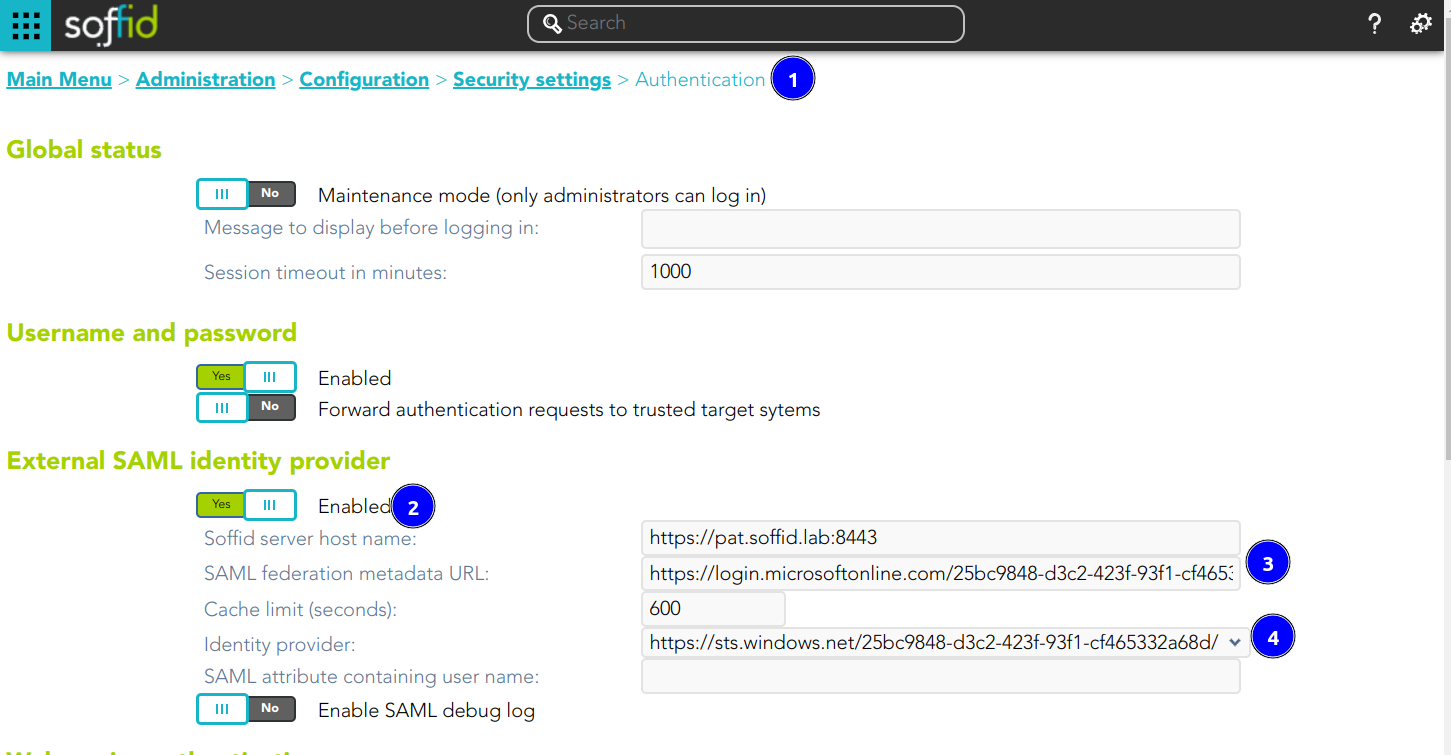](https://bookstack.soffid.com/uploads/images/gallery/2024-10/9RM5fLEWNrbGQAMi-image.png)
12. Optional, **enable any user to login**
[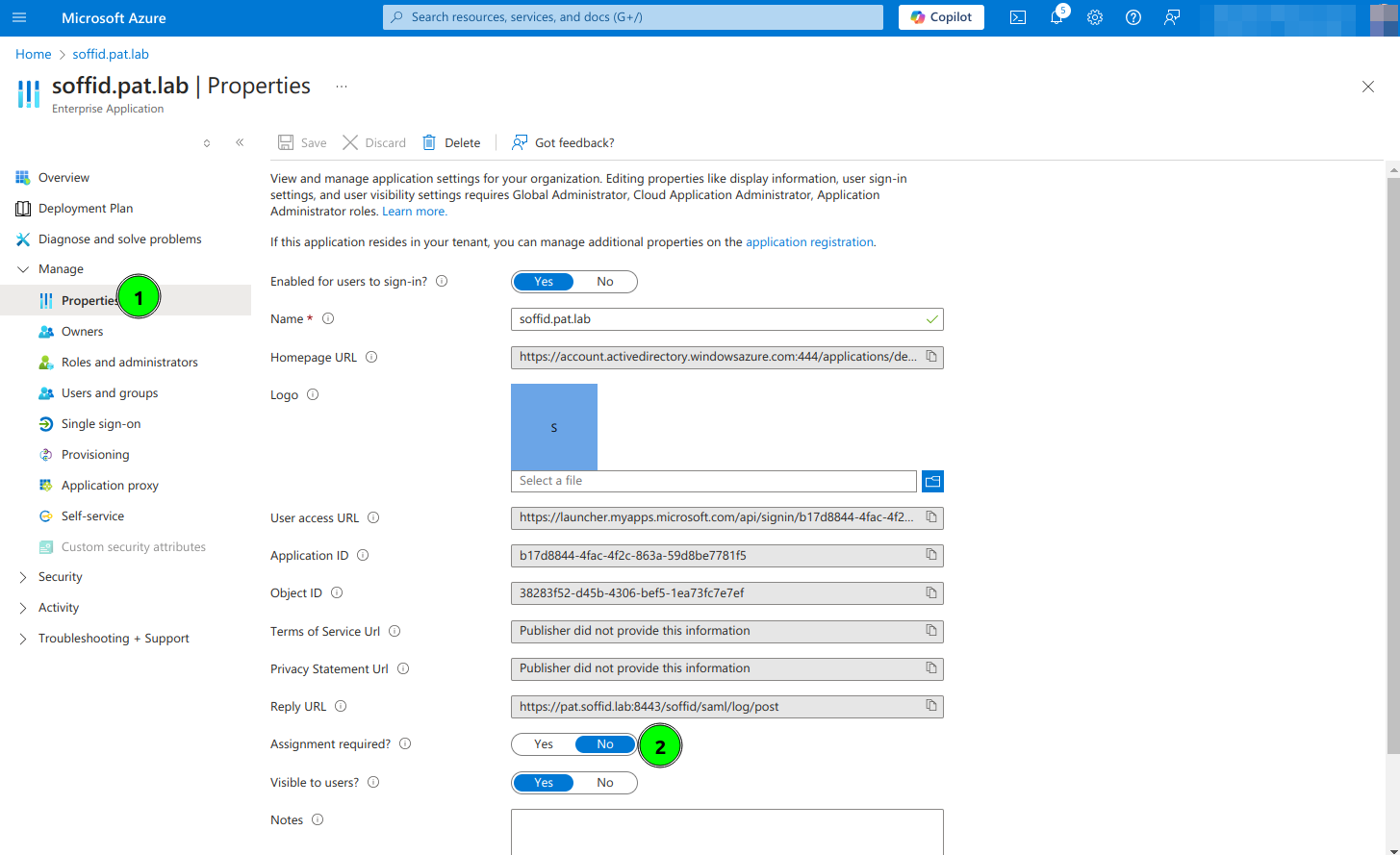](https://bookstack.soffid.com/uploads/images/gallery/2024-10/1SLfqFQMZAWcPJKc-image.png)
# UI common actions
UI common actions
# Search types
## Description
Throughout the Soffid you will be able to perform searches on the different objects that make up the application.
You will be able to search in the system by applying different ways of searching.
[](https://bookstack.soffid.com/uploads/images/gallery/2025-09/kflX9SfCP48bdYRY-image.png)
### Quick
This option allows a quick search by fields that have been defined in the application metadata. You can find the metadata configuration on the [Metadata](https://bookstack.soffid.com/books/soffid-4-reference-guide/page/metadata "Metadata") page.
Attribute metadata configuration
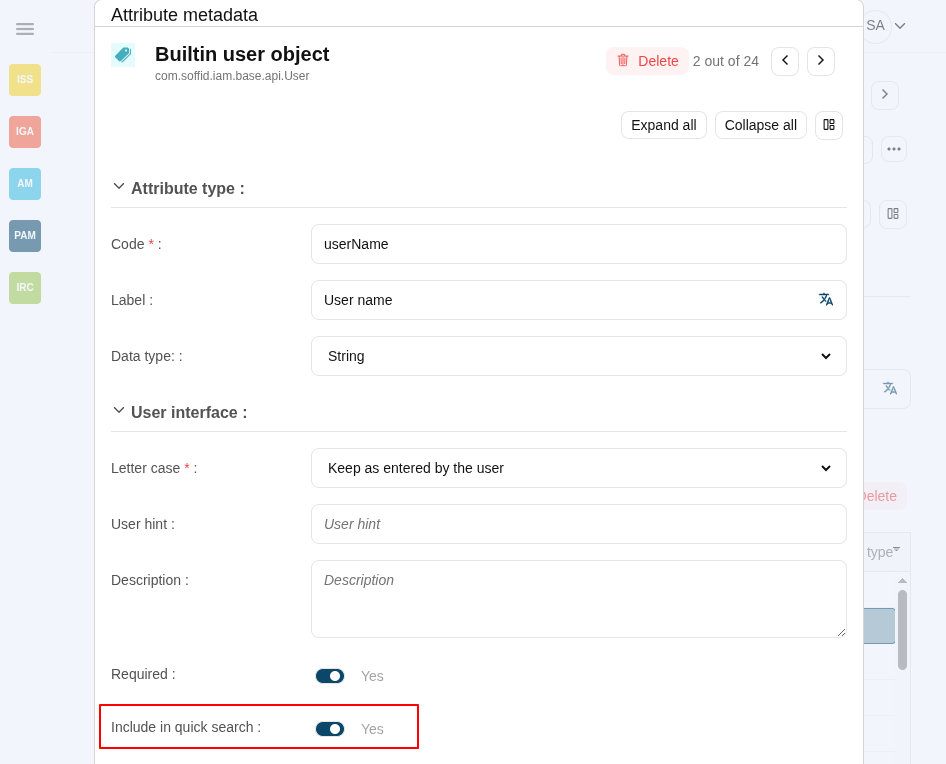
You only have to type in the field provided for this purpose and press enter or click on the magnifying glass icon, then Soffid will display the list with the objects that complain the criteria typed.
You can include some characters as "," "." and "/" as word separators in the search text. Check textual index page for more information.
Examples
[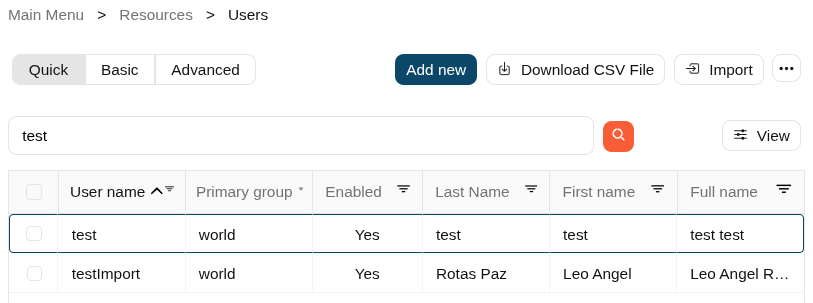](https://bookstack.soffid.com/uploads/images/gallery/2025-09/y9aMcaE34Eua5fMc-image.png)
[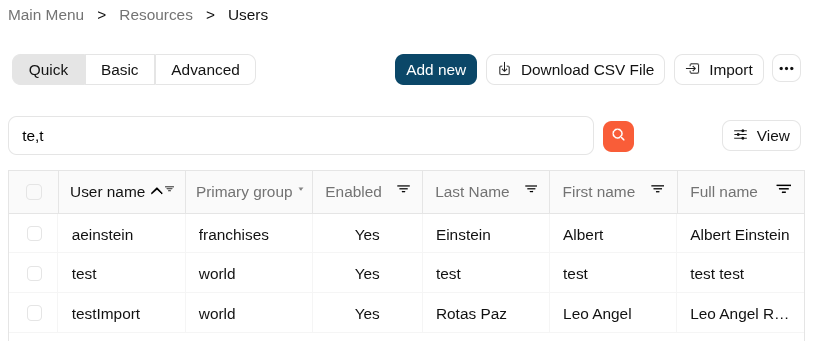](https://bookstack.soffid.com/uploads/images/gallery/2025-09/qacUEAbSyk4Xmnml-image.png)
Basic
This is the default option. It provides some default search criteria and other criteria can be added from the add criteria option. These criteria will depend on the entity or object on which the search is being performed.
Remember, each criteria will be added to the previous ones. Each search criteria will have different search forms depending on the type of data in the particular field. For instance, a text field provides four different options to search, "Contains", "Start with", "Ends with" and "Equals", a date field provides the date "Since" and date "Until".
Search criterias
Text
[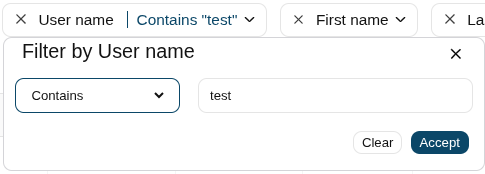](https://bookstack.soffid.com/uploads/images/gallery/2025-09/HoZwWfpxG6Y6lviT-image.png)
Date
[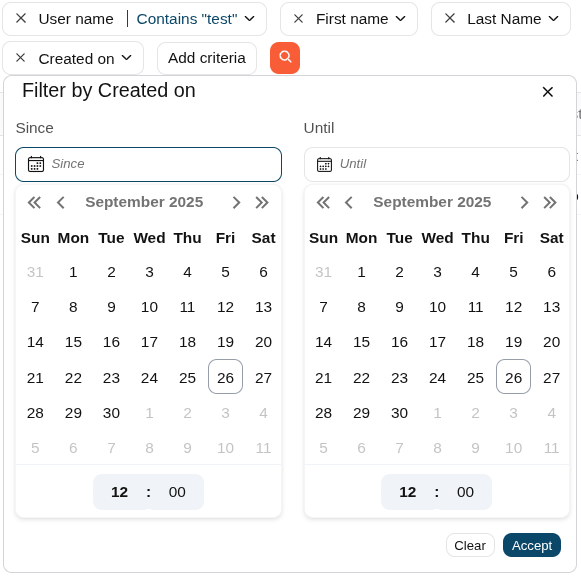](https://bookstack.soffid.com/uploads/images/gallery/2025-09/chTHXyiKPxW6I2Mf-image.png)
Boolean
[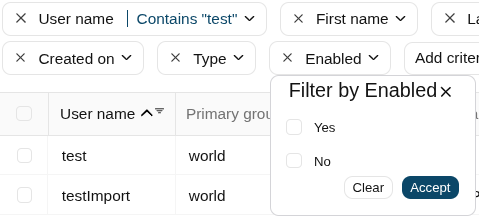](https://bookstack.soffid.com/uploads/images/gallery/2025-09/vGpjvqRTBBHrLBuc-image.png)
List
[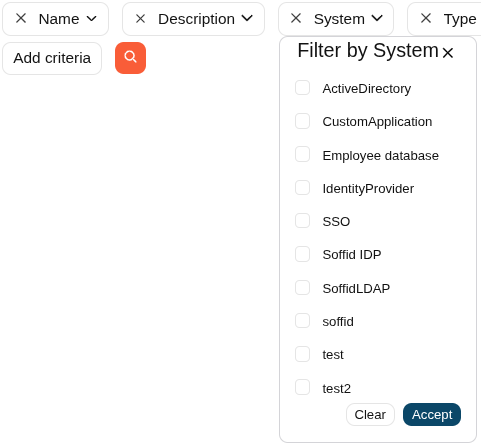](https://bookstack.soffid.com/uploads/images/gallery/2025-09/iawwQwEoyAuIYMjm-image.png)
Soffid allows you to and criteria by clicking on the "Add criteria" button, then Soffid will display a list with all the criteria available and allows you to select to add a new one. To delete criteria you only have to click on the "Equis" icon (x) on the left side of the criteria, then automatically Soffid will remove the criteria and run the search without the removed criteria.
The criteria depend on the object list where you are working, so for instance the criteria are not the same for the user's list and the group's list.
Example
[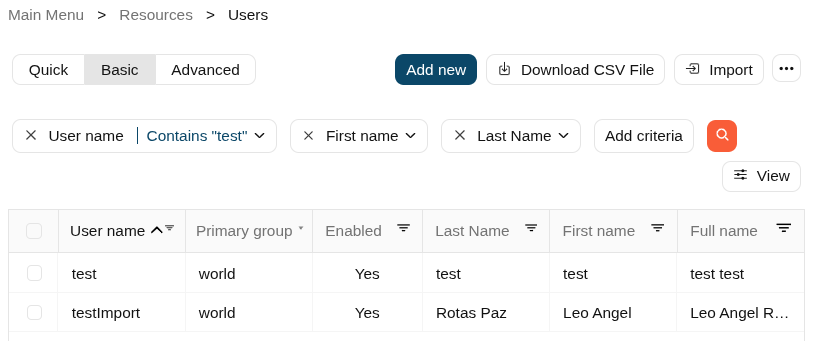](https://bookstack.soffid.com/uploads/images/gallery/2025-09/kgJ78VFj9CwTELOK-image.png)
If you want to clear a value of the criteria, select the criteria anb click the "Clear" button.
Clear button
[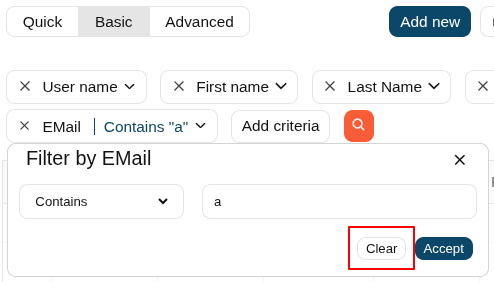](https://bookstack.soffid.com/uploads/images/gallery/2025-09/Vtex0k1NbRv0JxdW-image.png)
### Advanced
This option allows an advanced search system using the [SCIM query syntax](https://bookstack.soffid.com/books/scim/page/scim-query-syntax "SCIM Query syntax"). You can type the query to search the info using the SCIM standard.
You can access to [SCIM Book](https://bookstack.soffid.com/books/scim "SCIM Book") for more information
Examples
[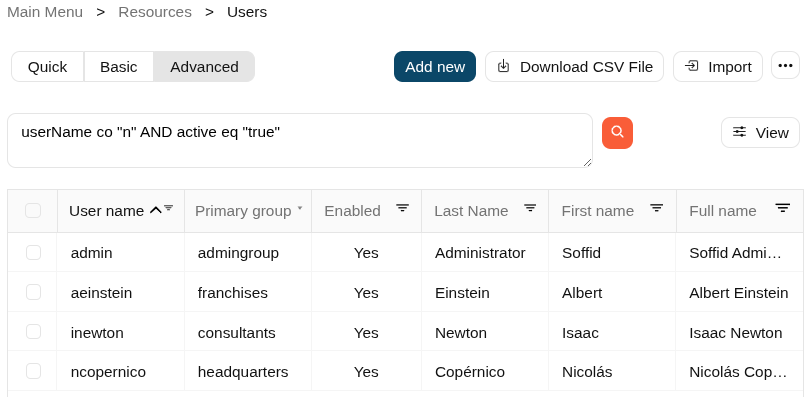](https://bookstack.soffid.com/uploads/images/gallery/2025-09/wvufDmrdMdz4hhs2-image.png)
####
[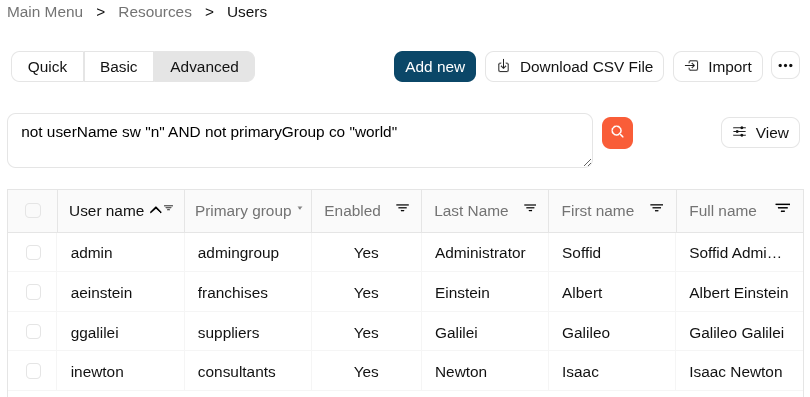](https://bookstack.soffid.com/uploads/images/gallery/2025-09/jGgaIWeDBKo32sNd-image.png)
[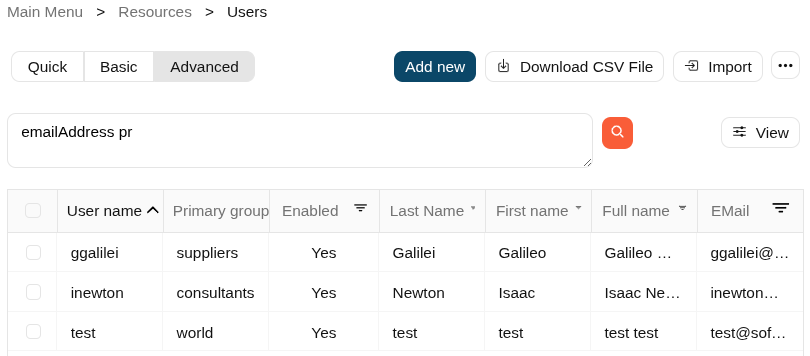](https://bookstack.soffid.com/uploads/images/gallery/2025-09/ZqU41fO3z89tZHMO-image.png)
# Column selector
## Description
Throughout the Soffid Console, we can find a large number of list-type components. These lists are used to display the corresponding objects data in each case, for instance users, accounts, etc.
The "**View**" component allows you to **add** or **remove** columns, but also allows you to **sort** by the name of the columns to display them in the list. Be in mind, the columns are the attributes of an object (an user, or an account...).
It is easy to use, once you click on the "View" button, Soffid will display a popup with the available columns for the object, then add, remove or drag and drop them in the order you want and click outside the popup, Soffid will refresh the list with the attributes with the changes that you defined.
[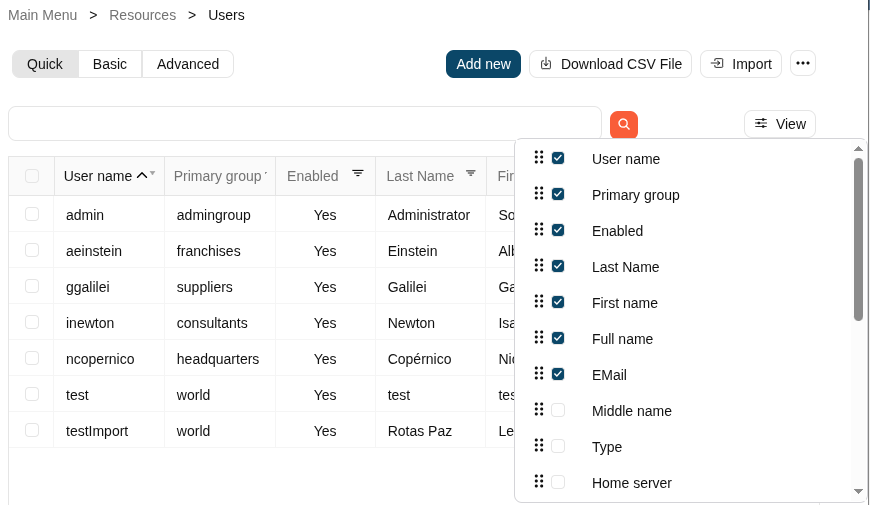](https://bookstack.soffid.com/uploads/images/gallery/2025-09/SQC2Q40IN6ClkS3K-image.png)
# Download CSV file & Import
## Description
On many pages of the Console, you may see the option "Download CSV file", and on a few pages, you may see the "import" button.
[](https://bookstack.soffid.com/uploads/images/gallery/2025-09/JtwrJZshCKzXgbzD-image.png)
## Download CSV file
Soffid allows you to download all data objects displayed in tables in a CSV file with the "**Download CSV file**".
If you require additional attributes, add them first using the "**View**" option.
This CSV file can be very useful for the "**Import**" option, as you can edit its values or add new rows.
## Import
Soffid allows you to upload a CSV file with the data list to **add**, **update** or **delete** information to the data table. The operations that can be performed with the data import depend on the table on which the process is being performed.
To "**Import**" data from a CSV file, first of all it will be to pick the file to import. Once the file has been selected, the data will be displayed to check contents. If the content is correct, then it is allowed to set up the mappings for each CSV file column, "Don't load" option is available. Finally it is allowed to perform the import process.
When the import process finishes, Soffid will show a message with the result of the process execution.
Example
[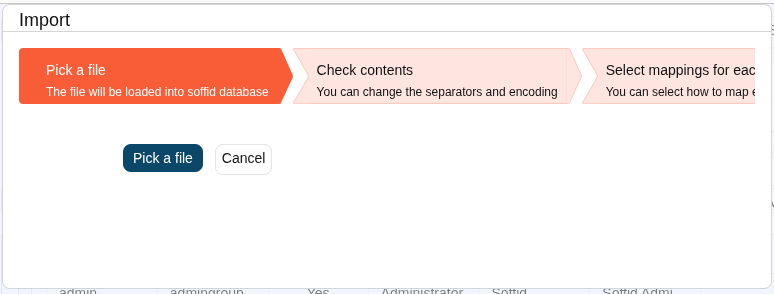](https://bookstack.soffid.com/uploads/images/gallery/2025-09/42TJw6AcBRhPGHUO-image.png)
[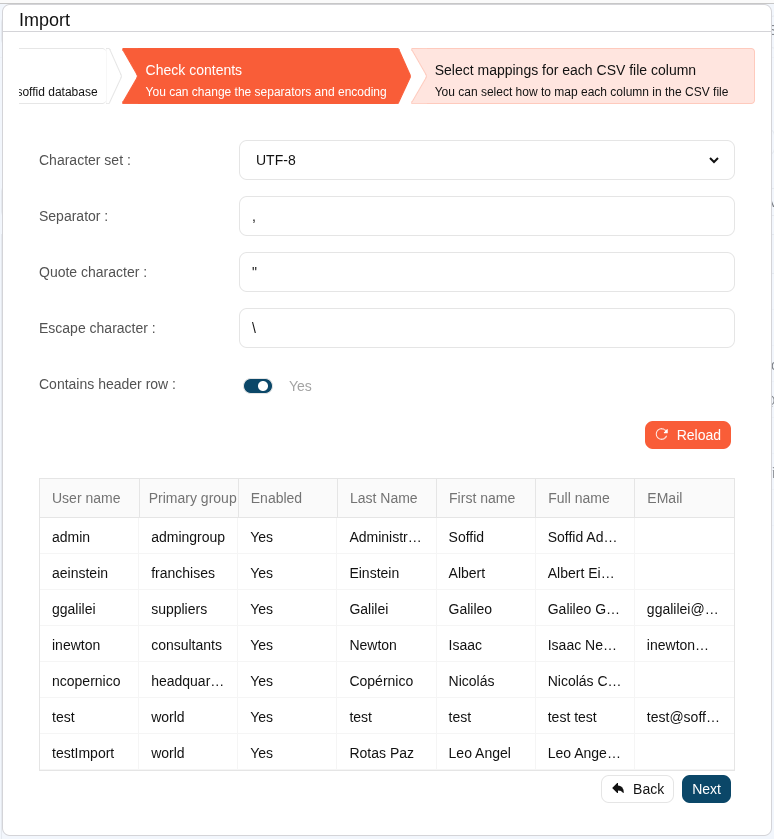](https://bookstack.soffid.com/uploads/images/gallery/2025-09/YUb016btRNqxarqY-image.png)
[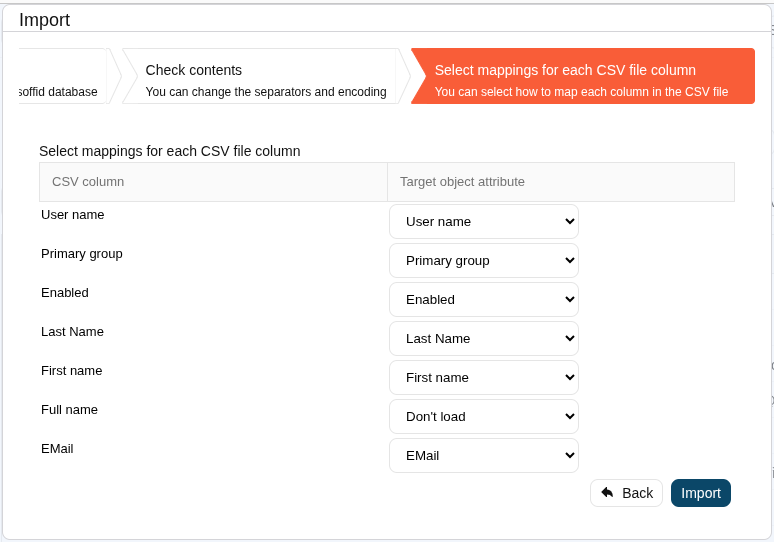](https://bookstack.soffid.com/uploads/images/gallery/2025-09/1zVWt4H082pcLCPE-image.png)
[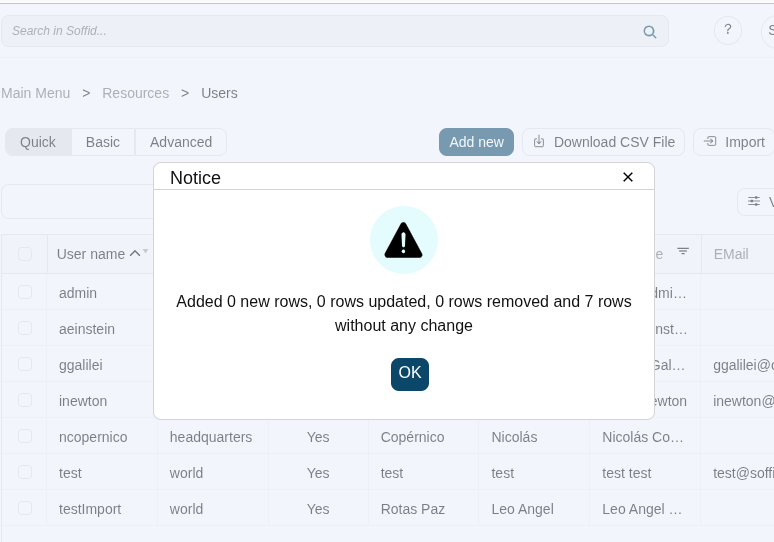](https://bookstack.soffid.com/uploads/images/gallery/2025-09/yua6lLJykGZCqFpD-image.png)
# Bulk actions
## Description
Allows massive operations to be performed on the selected records. With that operation, updates can be made to any of the object parameters.
You can access this option through the "three points" icon from a few of the Soffid pages, like users list or accounts list.
1. First of all, you need to **select the records** that you want to update from the list, once you have selected them, you must choose the **bulk action** button on the **three poins** icon.
2. Then Soffid display a popup where you can select one by one the attributes that will be updated.
The fist dropdown list displays the attributes of the object, for instance, the user attributes.
The second dropdown list displays the operation to be performed on the selected attribute. The operation can be **change the value** or **clear the value**, and if it is neccesary the new value.
The type of the third field will depend on the attribute type selected previously.
Image
[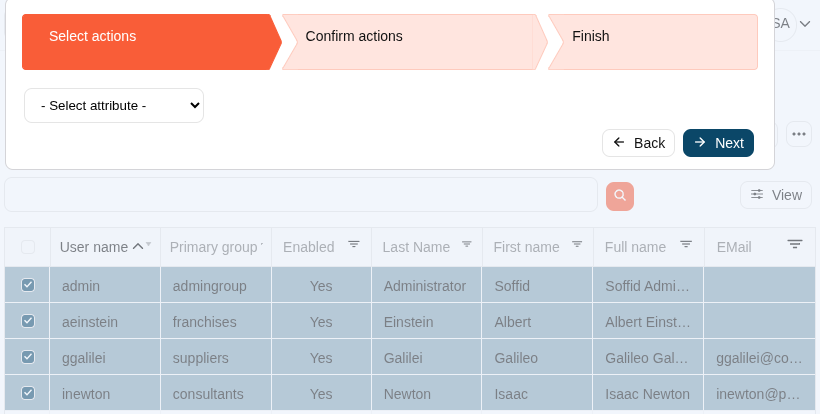](https://bookstack.soffid.com/uploads/images/gallery/2025-09/qTkuu1o63xbje2mJ-image.png)
[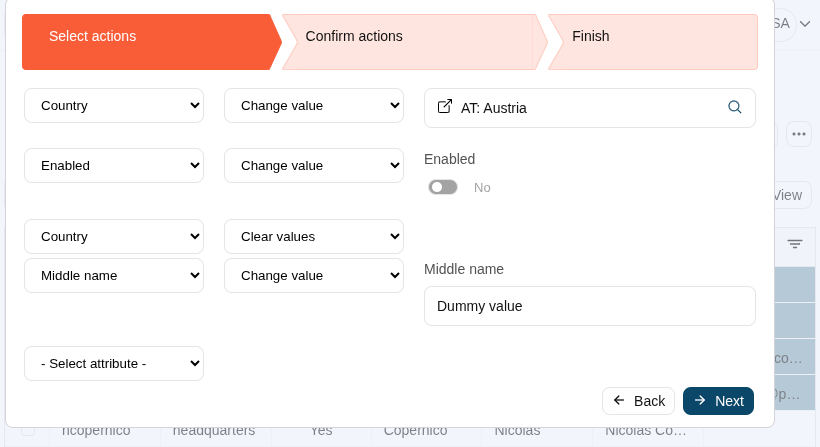](https://bookstack.soffid.com/uploads/images/gallery/2025-09/eJppx8qQcZtnx3Zk-image.png)
3. Soffid shows a confirmation message with the number of records that will be updated. Finally, you can choose apply or come back. If you apply the changes, the attributes of the seleccted records will be updated
💻 Image
[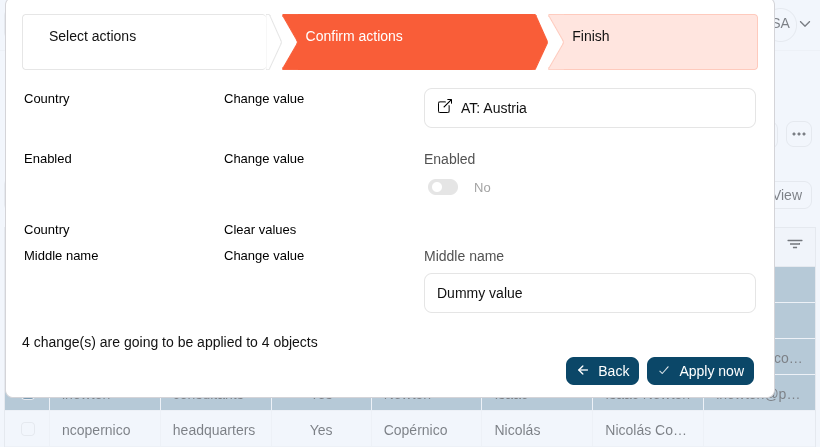](https://bookstack.soffid.com/uploads/images/gallery/2025-09/0S0vPhUAebwODauN-image.png)
# Textual index
Textual index
# Textual index
## Introduction
A textual index is a data structure used in database systems to facilitate efficient search and retrieval of text-based information. It is designed to handle large volumes of textual data and provide quick access to relevant documents or records based on specified search criteria.
When a search query is performed on a database with a textual index, the index is queried to identify relevant documents or records that match the search terms. The index provides information about the location and relevance of the documents, which enables the database system to retrieve and present the results in a timely manner.
Textual indexes play a crucial role in enabling efficient search and retrieval of textual information in databases, making them an essential component in applications that handle large volumes of textual data, such as search engines, content management systems, and document repositories.
Soffid incorporates a textual index using [the Apache Lucene library](https://lucene.apache.org/).
## Index configuration
Soffid allows you to configure the objects you want to use in the textual index. To do this, you must select the proper object from the metadata page and enable the option "Use textual index". Once you enable this option, the textual index will be applied to the attributes of this object that have been included in the quick search.
Notice, from the user interface, it is not interpreted as a Lucene expression.
#### Example
1. Enable the "**Use textual index**" on the User object and save the changes.
Image
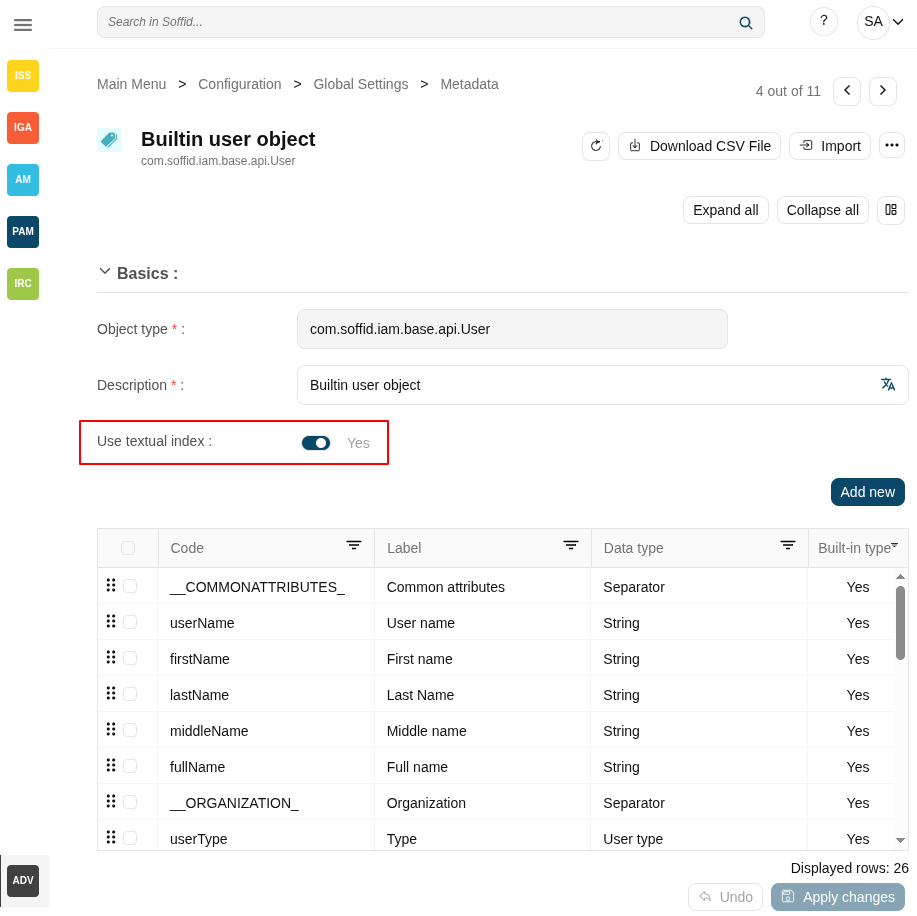
2. Check the attributes if the opction "**Included in the quick search**" is enabled.
Image
[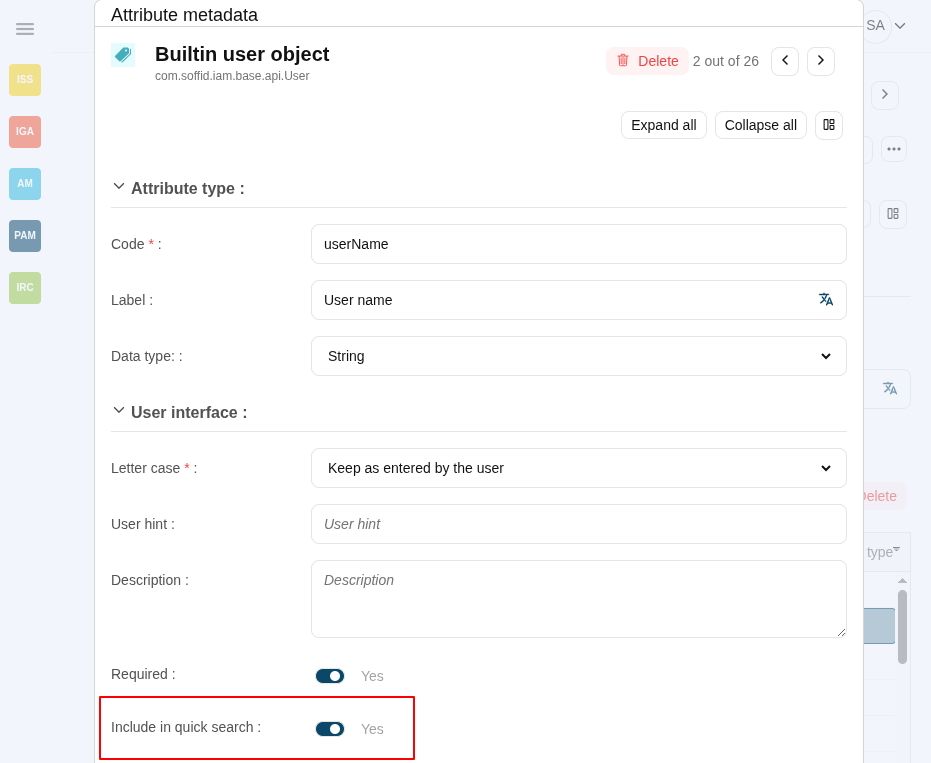](https://bookstack.soffid.com/uploads/images/gallery/2025-09/7f9WLeDKv8ISVJr5-image.png)
## How does the user interface search work?
Once you have configured the textual index for a specific object, Soffid will apply it when you use Quick Search on this object.
#### Example 1
1. If you search for users using the text *"frankin"*, then Soffid will display all the users whose userName, firstName, lastName, or middleName match, to some degree, with the typed text following the textual index rules.
Image
[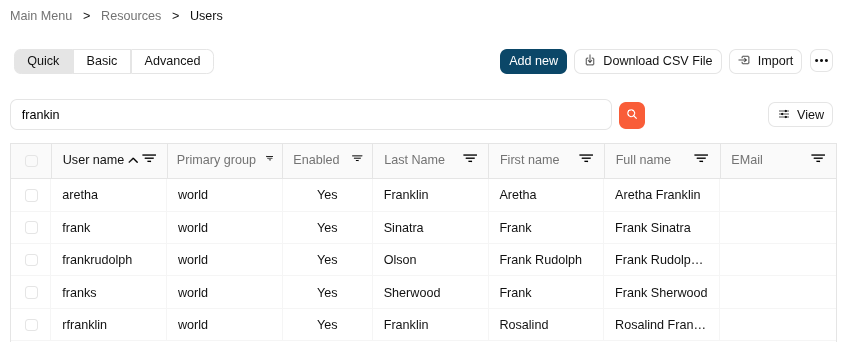](https://bookstack.soffid.com/uploads/images/gallery/2025-09/DCSVvJZsWfniROqS-image.png)
2. If you include the attribute manager in the quick search:
Image
[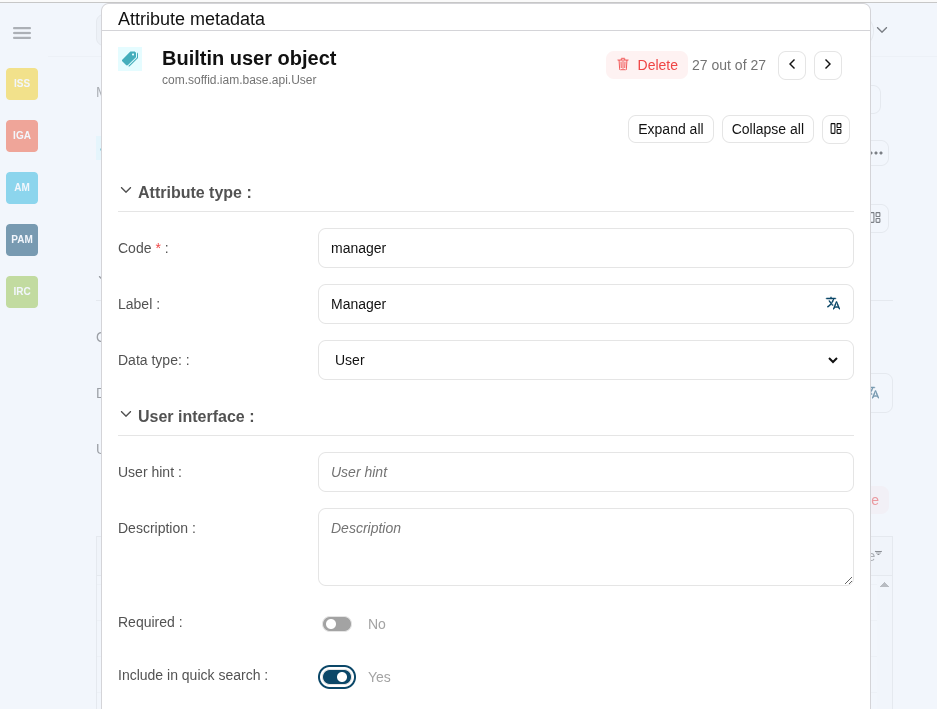](https://bookstack.soffid.com/uploads/images/gallery/2025-09/6Hg5JIHqTZxA1PnD-image.png)
3. And search for *"frankin",* then Soffid will display all the users whose userName, firstName, lastName, middleName, or manager match with the typed text following the textual index rules.
Image
[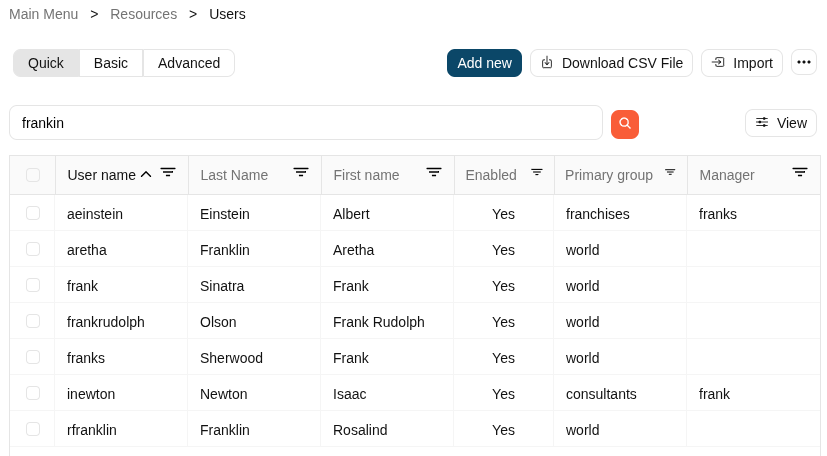](https://bookstack.soffid.com/uploads/images/gallery/2025-09/SH4iAUPJoDR6XGco-image.png)
#### Example 2
1. If you search for users using the text "manager:frank" Soffid will display all users whose manager matches the text "frank".
Image
[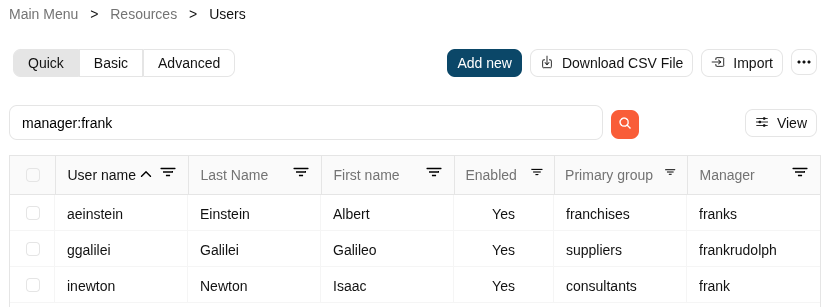](https://bookstack.soffid.com/uploads/images/gallery/2025-09/O6fXLT5herAFPbmR-image.png)
Notice the difference by searching "manager:frank?":
Image
[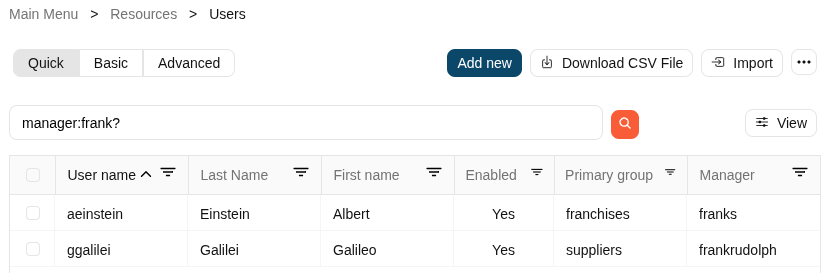](https://bookstack.soffid.com/uploads/images/gallery/2025-09/U9gMqok38CferAoA-image.png)
And by searching "manager:frank\*":
Image
[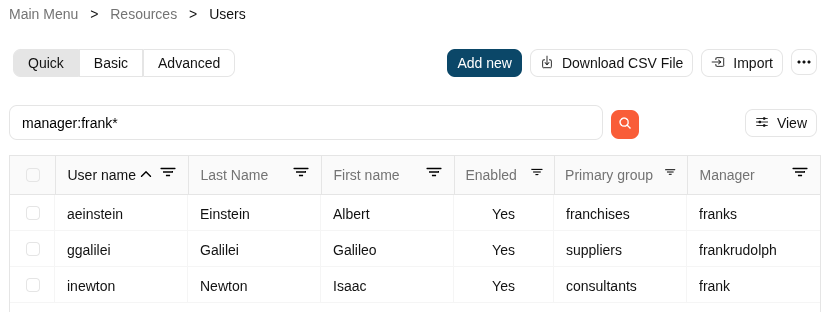](https://bookstack.soffid.com/uploads/images/gallery/2025-09/otqcGqgI8cCi9wMM-image.png)
And also by searching "manager:fr\*"
Image
[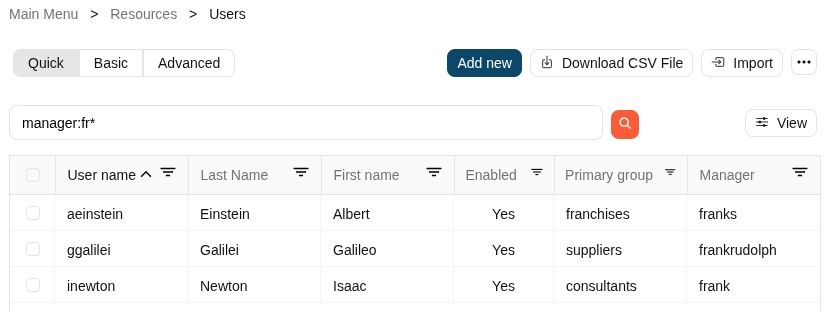](https://bookstack.soffid.com/uploads/images/gallery/2025-09/nVdp77kHbibJKUkc-image.png)
#### Example 3
1. If you search for users using the text "userName:frank\*" Soffid will display all users whose user name matches the text "frank" followed by any other text.
Image
[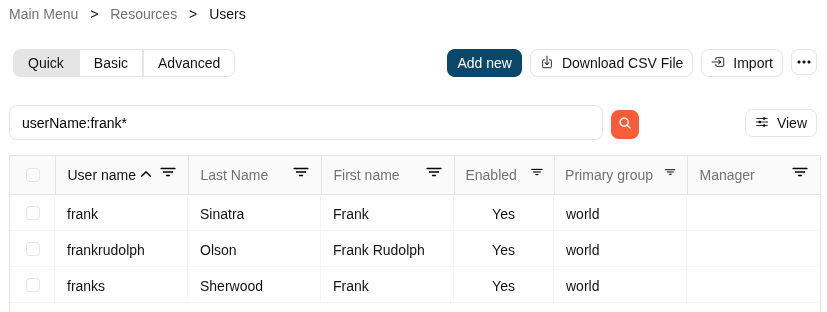](https://bookstack.soffid.com/uploads/images/gallery/2025-09/hJBDIKON1MRkw0pa-image.png)
Notice the difference by searching the text "userName:frank?":
Image
[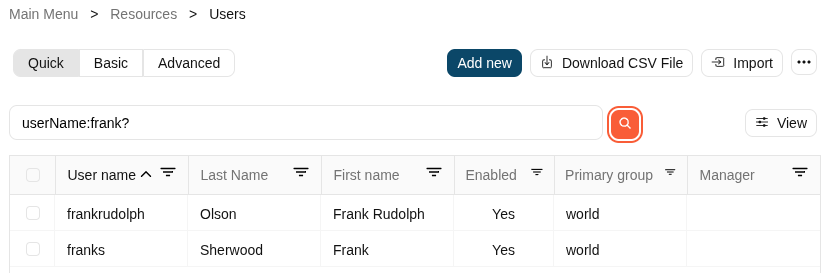](https://bookstack.soffid.com/uploads/images/gallery/2025-09/qHzfnmhYOXEWqlJX-image.png)
#### Example 4
1. If you search for users using the text "frank" plus the wildcard "?", Soffid will display all users whose userName, firstName, lastName, middleName, or manager match the typed text as long as it has variation in the characters where the wildcard has been used.
Image
[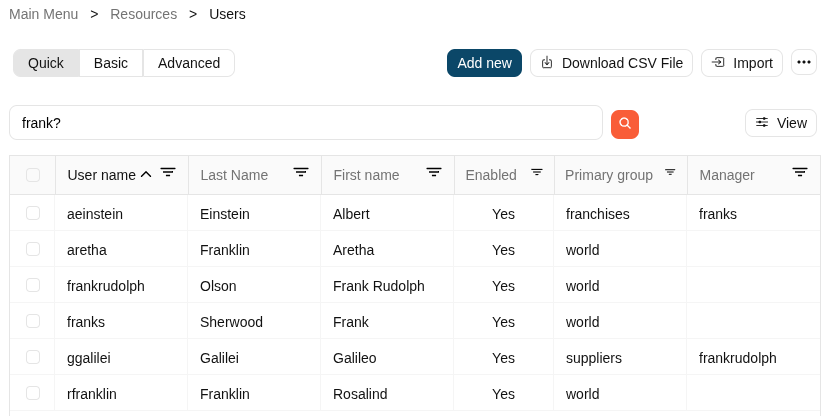](https://bookstack.soffid.com/uploads/images/gallery/2025-09/zbZxYv13YtjJy0FX-image.png)
Notice the difference by searching "fran?"
Image
[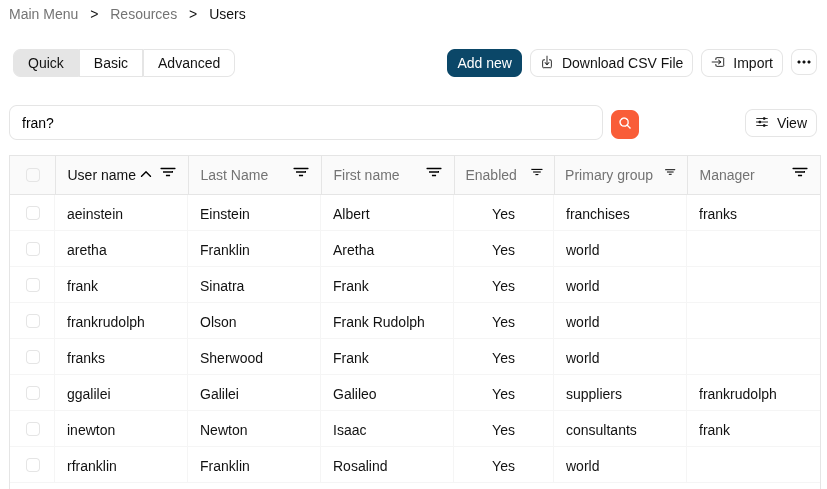](https://bookstack.soffid.com/uploads/images/gallery/2025-09/wNRyGSiRFdEREfLg-image.png)
## How does the SCIM interface search work?
1. First of all, you must install the SCIM addon in Soffid.
For more information, you can visit [the How to install SCIM in Soffid? page](https://bookstack.soffid.com/books/scim/page/how-to-install-scim-in-soffid).
2. Then, you can use any REST client to test and consume our SCIM REST web service.
For more information, you can visit [the Testing tool page](https://bookstack.soffid.com/books/scim/page/testing-tool).
3. Finally, you can start to use the SCIM interface search by using Lucene syntaxis
### Lucene syntaxis
Please browse the standard specifications in this link: [Siebel](https://bookstack.soffid.com/books/directv/page/siebel "Siebel")
#### Term Modifiers
Lucene supports modifying query terms to provide a wide range of search options. Here are the most common ones:
**Wildcard Searches**
To perform a single character wildcard search use the "?" symbol.
To perform a multiple character wildcard search use the "\*" symbol.
**Regular Expression Searches**
Lucene supports regular expression searches matching a pattern between forward slashes "/"
**Fuzzy Searches**
To do a fuzzy search use the tilde, "~", symbol at the end of a Single word Term
Soffid Console <= 3.4 version
~0.8: stricter search
~0.1: more lax search
Soffid Console > 3.4 version
An additional (optional) parameter can specify the maximum number of edits allowed. The value is between 0 and 2.
**Range Searches**
Range Queries allow one to match documents whose field(s) values are between the lower and upper bound specified by the Range Query
**Boosting a Term**
To boost a term use the caret, "^", symbol with a boost factor (a number) at the end of the term you are searching. The higher the boost factor, the more relevant the term will be.
#### Boolean Operators
**OR**
The OR operator links two terms and finds a matching document if either of the terms exist in a document. This is equivalent to a union using sets
**AND**
The AND operator matches documents where both terms exist anywhere in the text of a single document. This is equivalent to an intersection using sets.
**+**
The "+" or required operator requires that the term after the "+" symbol exist somewhere in a the field of a single document.
**NOT**
The NOT operator excludes documents that contain the term after NOT. This is equivalent to a difference using sets.
**-**
The "-" or prohibit operator excludes documents that contain the term after the "-" symbol.
#### Escaping Special Characters
Lucene supports escaping special characters that are part of the query syntax.
The current list of special characters are + - && || ! ( ) { } \[ \] ^ " ~ \* ? : \\ /
#### Examples
##### Example 1
1. Use the wildcard search
1.1. \*
**Request**
```
GET http:///webservice/scim2/v1/User?textFilter=fran*
```
**Response 200 OK**
```JSON
{
"schemas": [
"urn:ietf:params:scim:api:messages:2.0:ListResponse"
],
"totalResults": 4,
"startIndex": 1,
"Resources": [
{
"lastName": "Franklin",
"createdByUser": "ActiveDirectory",
"fullName": "Rosalind Franklin",
"active": true,
"userName": "rfranklin",
"mailAlias": "",
"firstName": "Rosalind",
"createdDate": "2023-08-08 14:26:14",
"multiSession": true,
"meta": {
"location": "http://soffid.35x.lab:8089/soffid/webservice/scim2/v1/User/2862",
"links": {
"roleAccounts": "http://soffid.35x.lab:8089/soffid/webservice/scim2/v1/RoleAccount?filter=userCode+eq+'rfranklin'+and+enabled+eq+true",
"groupUsers": "http://soffid.35x.lab:8089/soffid/webservice/scim2/v1/GroupUser?filter=user+eq+'rfranklin'+and+disabled+eq+false",
"accounts": "http://soffid.35x.lab:8089/soffid/webservice/scim2/v1/Account?filter=type+eq+U+and+users.user.userName+eq+'rfranklin'",
"issues": "http://soffid.35x.lab:8089/soffid/webservice/scim2/v1/Issue?filter=user.userName+eq+'rfranklin'",
"effectiveGrants": "http://soffid.35x.lab:8089/soffid/webservice/scim2/v1/User/2862/effectiveGrants"
},
"resourceType": "User"
},
"modifiedByUser": "ActiveDirectory",
"schemas": [
"urn:soffid:com.soffid.iam.api.User"
],
"modifiedDate": "2023-08-08 14:26:14",
"attributes": {},
"id": 2862,
"userType": "I",
"primaryGroupDescription": "scientist",
"primaryGroup": "scientist"
},
{
"lastName": "Franklin",
"createdByUser": "ActiveDirectory",
"fullName": "Aretha Franklin",
"active": true,
"userName": "aretha",
"mailAlias": "",
"firstName": "Aretha",
"createdDate": "2023-09-06 13:12:54",
"multiSession": true,
"meta": {
"location": "http://soffid.35x.lab:8089/soffid/webservice/scim2/v1/User/276397",
"links": {
"roleAccounts": "http://soffid.35x.lab:8089/soffid/webservice/scim2/v1/RoleAccount?filter=userCode+eq+'aretha'+and+enabled+eq+true",
"groupUsers": "http://soffid.35x.lab:8089/soffid/webservice/scim2/v1/GroupUser?filter=user+eq+'aretha'+and+disabled+eq+false",
"accounts": "http://soffid.35x.lab:8089/soffid/webservice/scim2/v1/Account?filter=type+eq+U+and+users.user.userName+eq+'aretha'",
"issues": "http://soffid.35x.lab:8089/soffid/webservice/scim2/v1/Issue?filter=user.userName+eq+'aretha'",
"effectiveGrants": "http://soffid.35x.lab:8089/soffid/webservice/scim2/v1/User/276397/effectiveGrants"
},
"resourceType": "User"
},
"modifiedByUser": "ActiveDirectory",
"schemas": [
"urn:soffid:com.soffid.iam.api.User"
],
"modifiedDate": "2023-09-06 13:12:54",
"attributes": {},
"id": 276397,
"userType": "I",
"primaryGroupDescription": "World",
"primaryGroup": "world"
},
{
"lastName": "Sinatra",
"createdByUser": "ActiveDirectory",
"fullName": "Frank Sinatra",
"active": true,
"userName": "frank",
"mailAlias": "",
"firstName": "Frank",
"createdDate": "2023-09-06 13:12:54",
"multiSession": true,
"meta": {
"location": "http://soffid.35x.lab:8089/soffid/webservice/scim2/v1/User/276435",
"links": {
"roleAccounts": "http://soffid.35x.lab:8089/soffid/webservice/scim2/v1/RoleAccount?filter=userCode+eq+'frank'+and+enabled+eq+true",
"groupUsers": "http://soffid.35x.lab:8089/soffid/webservice/scim2/v1/GroupUser?filter=user+eq+'frank'+and+disabled+eq+false",
"accounts": "http://soffid.35x.lab:8089/soffid/webservice/scim2/v1/Account?filter=type+eq+U+and+users.user.userName+eq+'frank'",
"issues": "http://soffid.35x.lab:8089/soffid/webservice/scim2/v1/Issue?filter=user.userName+eq+'frank'",
"effectiveGrants": "http://soffid.35x.lab:8089/soffid/webservice/scim2/v1/User/276435/effectiveGrants"
},
"resourceType": "User"
},
"modifiedByUser": "ActiveDirectory",
"schemas": [
"urn:soffid:com.soffid.iam.api.User"
],
"modifiedDate": "2023-09-06 13:12:55",
"attributes": {},
"id": 276435,
"userType": "I",
"primaryGroupDescription": "Music",
"primaryGroup": "Music"
},
{
"lastName": "Sherwood",
"createdByUser": "pgarcia",
"fullName": "Frank Sherwood",
"active": true,
"userName": "franks",
"mailAlias": "",
"firstName": "Frank",
"createdDate": "2023-10-05 15:32:40",
"multiSession": false,
"meta": {
"location": "http://soffid.35x.lab:8089/soffid/webservice/scim2/v1/User/432644",
"links": {
"roleAccounts": "http://soffid.35x.lab:8089/soffid/webservice/scim2/v1/RoleAccount?filter=userCode+eq+'franks'+and+enabled+eq+true",
"groupUsers": "http://soffid.35x.lab:8089/soffid/webservice/scim2/v1/GroupUser?filter=user+eq+'franks'+and+disabled+eq+false",
"accounts": "http://soffid.35x.lab:8089/soffid/webservice/scim2/v1/Account?filter=type+eq+U+and+users.user.userName+eq+'franks'",
"issues": "http://soffid.35x.lab:8089/soffid/webservice/scim2/v1/Issue?filter=user.userName+eq+'franks'",
"effectiveGrants": "http://soffid.35x.lab:8089/soffid/webservice/scim2/v1/User/432644/effectiveGrants"
},
"resourceType": "User"
},
"modifiedByUser": "pgarcia",
"schemas": [
"urn:soffid:com.soffid.iam.api.User"
],
"modifiedDate": "2023-10-05 15:32:40",
"attributes": {},
"id": 432644,
"userType": "I",
"primaryGroupDescription": "scientist",
"primaryGroup": "scientist"
}
]
}
```
1.2. ?
**Request**
```
http:///webservice/scim2/v1/User?textFilter=fran?
```
**Response 200 OK**
```JSON
{
"schemas": [
"urn:ietf:params:scim:api:messages:2.0:ListResponse"
],
"totalResults": 2,
"startIndex": 1,
"Resources": [
{
"lastName": "Sinatra",
"createdByUser": "ActiveDirectory",
"fullName": "Frank Sinatra",
"active": true,
"userName": "frank",
"mailAlias": "",
"firstName": "Frank",
"createdDate": "2023-09-06 13:12:54",
"multiSession": true,
"meta": {
"location": "http://soffid.35x.lab:8089/soffid/webservice/scim2/v1/User/276435",
"links": {
"roleAccounts": "http://soffid.35x.lab:8089/soffid/webservice/scim2/v1/RoleAccount?filter=userCode+eq+'frank'+and+enabled+eq+true",
"groupUsers": "http://soffid.35x.lab:8089/soffid/webservice/scim2/v1/GroupUser?filter=user+eq+'frank'+and+disabled+eq+false",
"accounts": "http://soffid.35x.lab:8089/soffid/webservice/scim2/v1/Account?filter=type+eq+U+and+users.user.userName+eq+'frank'",
"issues": "http://soffid.35x.lab:8089/soffid/webservice/scim2/v1/Issue?filter=user.userName+eq+'frank'",
"effectiveGrants": "http://soffid.35x.lab:8089/soffid/webservice/scim2/v1/User/276435/effectiveGrants"
},
"resourceType": "User"
},
"modifiedByUser": "ActiveDirectory",
"schemas": [
"urn:soffid:com.soffid.iam.api.User"
],
"modifiedDate": "2023-09-06 13:12:55",
"attributes": {},
"id": 276435,
"userType": "I",
"primaryGroupDescription": "Music",
"primaryGroup": "Music"
},
{
"lastName": "Sherwood",
"createdByUser": "pgarcia",
"fullName": "Frank Sherwood",
"active": true,
"userName": "franks",
"mailAlias": "",
"firstName": "Frank",
"createdDate": "2023-10-05 15:32:40",
"multiSession": false,
"meta": {
"location": "http://soffid.35x.lab:8089/soffid/webservice/scim2/v1/User/432644",
"links": {
"roleAccounts": "http://soffid.35x.lab:8089/soffid/webservice/scim2/v1/RoleAccount?filter=userCode+eq+'franks'+and+enabled+eq+true",
"groupUsers": "http://soffid.35x.lab:8089/soffid/webservice/scim2/v1/GroupUser?filter=user+eq+'franks'+and+disabled+eq+false",
"accounts": "http://soffid.35x.lab:8089/soffid/webservice/scim2/v1/Account?filter=type+eq+U+and+users.user.userName+eq+'franks'",
"issues": "http://soffid.35x.lab:8089/soffid/webservice/scim2/v1/Issue?filter=user.userName+eq+'franks'",
"effectiveGrants": "http://soffid.35x.lab:8089/soffid/webservice/scim2/v1/User/432644/effectiveGrants"
},
"resourceType": "User"
},
"modifiedByUser": "pgarcia",
"schemas": [
"urn:soffid:com.soffid.iam.api.User"
],
"modifiedDate": "2023-10-05 15:32:40",
"attributes": {},
"id": 432644,
"userType": "I",
"primaryGroupDescription": "scientist",
"primaryGroup": "scientist"
}
]
}
```
##### Example 2
1. Use the wildcard search in a specific attribute
**Request**
```
GET http://soffid.35x.lab:8089/soffid/webservice/scim2/v1/User?textFilter=userName:frank
```
**Response 200 OK**
```JSON
{
"schemas": [
"urn:ietf:params:scim:api:messages:2.0:ListResponse"
],
"totalResults": 1,
"startIndex": 1,
"Resources": [
{
"lastName": "Sinatra",
"profileServer": "Void host",
"createdByUser": "admin",
"fullName": "Frankaaa Sinatra",
"active": true,
"userName": "frank",
"mailAlias": "",
"mailServer": "Void host",
"firstName": "Frankaaa",
"emailAddress": "pgarcia@soffid.com",
"mailDomain": "soffid.com",
"createdDate": "2023-06-02 07:41:47",
"multiSession": false,
"meta": {
"location": "http://soffid.35x.lab:8089/soffid/webservice/scim2/v1/User/3910",
"links": {
"roleAccounts": "http://soffid.35x.lab:8089/soffid/webservice/scim2/v1/RoleAccount?filter=userCode+eq+'frank'+and+enabled+eq+true",
"groupUsers": "http://soffid.35x.lab:8089/soffid/webservice/scim2/v1/GroupUser?filter=user+eq+'frank'+and+disabled+eq+false",
"accounts": "http://soffid.35x.lab:8089/soffid/webservice/scim2/v1/Account?filter=type+eq+U+and+users.user.userName+eq+'frank'",
"effectiveGrants": "http://soffid.35x.lab:8089/soffid/webservice/scim2/v1/User/3910/effectiveGrants"
},
"resourceType": "User"
},
"modifiedByUser": "admin",
"schemas": [
"urn:soffid:com.soffid.iam.api.User"
],
"modifiedDate": "2023-06-02 07:41:47",
"attributes": {
"picture": "/9j/4AAQSkZJRgABAQAAAQABAAD/2wCEAAoHCBYWFRgVFRYYGRgaGhkYGhgaGBoYGhoYHBkaGhgZGhgcIS4lHB4rIRgYJjgmKy8xNTU1GiQ7QDs0Py40NTEBDAwMBgYGEAYGEDEdFh0xMTExMTExMTExMTExMTExMTExMTExMTExMTExMTExMTExMTExMTExMTExMTExMTExMf/AABEIAKgBKwMBIgACEQEDEQH/xAAcAAABBQEBAQAAAAAAAAAAAAADAQIEBQYABwj/xABFEAACAQIDBAcECAQFAgcBAAABAgADEQQSIQUxQVEGEyJhcYGRMkKhsQcjUnKSwdHwFGKCoiQzY7LhU3NDZIOTo8LxFf/EABQBAQAAAAAAAAAAAAAAAAAAAAD/xAAUEQEAAAAAAAAAAAAAAAAAAAAA/9oADAMBAAIRAxEAPwDeqIVZwEcBAQQiCIBHqIDgItogjwICWiqIto4CAqiZn6ScNnwDn7DI/wAcp/3TUKJX9JcNnwldOdNj5qMw+UD5zcQYh6qG+gPpGrQblAdThBHUsK3MfEw4wR5n5QG4dtd8t8JU3DT0/wCZBpYVRvI9ZMpqg97ytxgTi44n8zz3D9+k4G+4ee79iR/4pF3C/iY2rtIAakD0gT6WHOlz4/v97oZEpL7RzHu5/nM/U2wg3Fm+Eh1NsN7oA+MDWfxir7Kj975FxO0re04Xuvb+0a+kyVTaDtvc+ANh6CANQwNFW2wg3ZnP4R6nX4SFV2y59kKv9x9Tp8JUXMab3gS62MZvaYnxOnpI7Vo0oeAJiVKLAXINoCl41njAJzixsdPnAUNEZpY7H2FiMSbUabMOLnsoPFzp6XM9G6O/R/SpEPiCKrjULb6tT906ue86d0DLdEuhz4krVqhkob+IaoOSclP2vTmPWqNFUUIihVUBVUCwAG4AQw3RpEBhEYVhjGkQAOsCZJYQbLAjO0ZeFqLBQNAqwgSKphFgMCRwSEAhVWAFUsCToBqSdwHEmUmI6YYJCQapJH2Uc/G0r/pH2y1FEpLcBwSx5gaBfz9J4/isWzHfaB61ivpKwqexTrP32RB8Wv8ACU2J+lVrkU8MgHAvULf2qo+c8xZol4G1xn0kY5/ZdKY/00F/V80pMX0jxNX/ADMTVYHeM5VfwrYfCUmaITAmCoI7r5BzTrmBYDFGDav3yJaKtNjwgGOJPjGHFNFXCkyTR2cDqxPgIEA12PExERmPZBPgCZd0cIgOiE+MtKeznb2QQDwtv/esDLjBPxGXx/SOTB8zfwm2w/Rose1eXOH6PUltm3wMBhtiM5si+usu8N0KdvaNvKwm/wAFhUQjIl7d36y1COfcC+JEDzE9Csu8mFodF1G+3pN9XRuQ+cjFLDUQMvh+j6BtRbyhdq7DTJu56j9JatvvFxL9gg3/AHxgeYYjZ6qWPLlu8ZsuhfRzDPSGIemHcsw7faUZTYWTdfxvKNkzswtcA30F766D4fGekbCw4TD01At2Qbd51J8TeBNRQAABYDcBuHlHho2dAfeJmgyY0mATNGs0YzRmeA8tBu0VngWeAjtBZo4vB5oGlQwimAVo4PAkq0KryIHjg8CJ0k2DSxtLq6hZWGqOp7SHjpuIPEGeN9IuhWKwpLMhqU+FRAWFv5l3p56d89yDxy1IHzNEn0BtTozg8QSalBMx3ul0bzKWv5zM4z6L8M2tOtVp9zZXHyB+MDyOJPRqv0VVPcxKH71Nl+TGQNofRzWoI9Z61Iog1Az5iScqgXHMiBjUp3498lrhlG+DanlPwlmaV0Q/y/L/APIEXIL6CEWnynDfJ2BVScpNoDMNgGYiwB85ZJsuotiU08QZabMwigg38949RNKmFDLrYwMxgKS3CurKeFx++c02GwAt2XBHDSSKOFKqLi45b/Cd1AGqi3h+kB38Jbe/oJJpBFGm+N0y8z6RmGIBvx5wDde5PZB8bWkoI1u03kJyMOJnVsQAL6Ad/OAKpSHf6yvxNhuvFq7U1IW1++RhXz3vpADm3yJjn7DW0IBsYdjyOm6QsShyt90/KBUbOw/YVt9xmJ14k6fAes3+DZcqoHViqqDYi+gHDhMLhELhETQMoGhsQNM5PLfaW+MxaU6iJTUllIuw9lRbUM3EnlA1BE6DLxM8B5Ea0b1k7NAY4g4UxpEATGBYw7iDKwAxmWHIEbpAv1hAIJYQGA4R4jBHKYBBFiAziYCGKI0mKIDxKHp4p/gnt9unfwzj87S+WVnSxL4Kv3Jn/Awb8oHi+LpAtpwCmTqVH6pL8j/uMFTp7yfD0AEnYpciIOBRfjrAqkoXa1o9sMyG/wCWnpCqLax+P2oEAAAzHXUcOEBuG2w9M3yg25f8S2wnTNcwDIV4XHw0mTxWIe/bsugPAWvz7+6Ds9sxW4G/mLgEEjkQQbwPYdnbdpOtlYa+nfLBmVhpuni2G2nk5ibjox0jD9g+1A09OoBmEitj0Q9owi4RzrKDaxdWsqFiONtLwJe1Nt1stqKgXF8zfvTjKHE9o3r4nX71hfmBI2JNUkK1xfQKDqSeQ4eJg2Z8Ndy6U7OEuEzszWubs29R690C1wGKw6nLnDHd2jL1KiMNDfvvYD0kKjgKuJpO2alXZGKulSmACAAVNNxYrcHiN8yiYoo/1QqBNzI3a6sg20f3l+UDb1TcaayG99YLDVibZuUk110vAhbBpXJHHMU8r3NvIXlxWpAOVAFrgj9+szmA26uHxLoVuxF8xPshgCQB4W9Zf5y75h7639bpf+4QLmn7I8B8opESLAQRSZxEYRAW84xVE5lgBYxpjmSMcQBuYO8c0HaBqFEdaIojhA60UCdaKIC3nTohMDoojLxYBVMbjsP1lGpT+2jp+JSBOWSKZgeB1Kp0Oul7jkbk/vwlli6oegjjgSvkDp8CI/pbs/qcXWp7lc51+6/at4A3HlImFX6t6ZG7tr8j+UAlLCO40F4zEbH7S52sx0vb2eXjNL0VIZATb/n9/KWu19kBxmXQj98IGOTYFU5lennDEMHVwpzDQWO+1uGnHnNbsvolSSiyOLs5zWXUILAKoYgXsANe+Q8Hh6yEAG/jrL6i1S3bbTugYXaXQ1kVnDLZbm2rE6nyGhHpM9sZiuJS2mtp6ltrFKtJgd1tTPLqFT65SN94HsuGfsAnu+Ufhgt75QfLjIuz+1RvxtHYapAj4/C02a5WxBBvoDod17eMqcZsNajEq+W9iylQwJGgOp0PfNTXoh1uN8rv4fnp++cBcFhkw6ZFYm9yxvqzHS5t4W8pG/gUe5YAchbcJMTBrvzEwopiBUrg8h/4lZtB7dkbyQB56TQ4phaZjFDNUQd9/Td8bQI229jI9RKiXznsuP5V7Kn0EvcEgzKo1ChU89Xb/avrCVqJVLKbE72tckHSwHG5Mk7OweRdd9txNyL6knmx4+AECTOvHGNIgcTEvEvHgQODTs04iNJgKRBOsfnjWeBHcRto52gs8DUARwjVMdA4CLEvEJgLmiXnRsB0VYwQloDhDI0AIRTAxP0o7PNqWJUaLenUI4Am6E+eYeYmDw9UBh37/Oe5VqSujI6hkYZWU6gg8JgdrdBEo5qwxGSiNSGQu4/lQgjOeAvr4wM1sXH9VVKndfT4zd0cfmE80xrIxFSncKb2DEFhY21K6E7t3OXuwto7lJ8PlA2Ard3nO6y5sYGlVBj0S8Cg6Z4oCnkHEzE7Io56qjvvL/ppibsEXgLmM6G4G5LnU7v1gej7Jp2pnw/f78JGXeRLHZOnZ5iQ8ahDHxgHwb8L/v8AZkhwDvEqkdl13jjJlDFBhA51I3QLsRvk1jIWJ4wKjG4nWU+GrMa6sqlramys1hY6kKCQOEtMYmhJ/fKO6LJ2qrfcF/xE/lAs8Iju2dxlA0VbWPiV90b9DrrraTTFtOgDjSsIREgCyx6xWEEzQFcwbGNZ4wtAdeNaNBjjAG8FDNBWgaVIVYNBCCAtowwgEaywEnRLR0DgI4CII4QHARwWcsKggKizyb6SuknWv1CEdWhsbnss/E2Gr24DcOPdrun3SL+HpGjTI611Nze2SnuJJ4E7v+bTxqtUN81wt9c7DtH7icB+7wJWz3GQ7rF2IsLC4VLi3C418pJw1TIwPCQcC+dKiBizLaqtxY2HZf4FT5Q9B8ynmNfKBv8AAV8wUjWWO0topRpFjvI0HMzObBq2S54CUO2tqmq1+A3DugQ8XiC7Mx1JMteiWOCVCjGwOovzmezzkuzALcnhaB7LhMcpbRh6ynx/SJDV6tFeq17HIhZVPe268pNh7EZSHrs1j7oNvWbzB00RQEUKOAAAgOw1AhbuLE7xy7ryn2jQek3WJdk3uo3gfaHdLt60jjFKDraBFwe0VdbqZ1epbUyi21hjSb+IoeyT9YnAX94Dh3jvklMVnTN3XgLjDmU21PLvgMBtE4cMhpliTc62bcBfLa5XvGmshPisis53LZv7h+svMLthHUHQ8bwOo9JUb3G13ZSGv929s3leSqe26De/bhqDv46jSGQYeotmRCDvuo1MhbU6NKwLJdWt97dqAQfbHc3kRAnjF0yLiolueYTqeJRjZXRjyDAn0BmAqsyOUcEMBmsLtdQdXS+rqOK+2ttcwgXRDe9gGs5INldRufMpF1ud+4ccu6B6SwgnWYXCbfq4dsrl3UvlyN1aJTW1xZyBw58LTZbO2lTrpnpsDb2gGBKnkcpIgPYRhEKyxloAwJ0JlnZYAmg80M6wVoGlURyiDVo9WgEUzmiRYDZ1o4LHBYAwIRRHBI9afpA5Fld0g22mFplmILkHIv8A9jyUSDtXpfQpBshFRl35TdR4kanyE8l25t56zl3bUm4JF2HIIl7IOV9YAdtY96jmo7asbl21uearvbkCQAOHOVYJOqIW/nqaj46R5ze0EAv79Q3Y9/a/SMrFTrUqM55LrbuudPSBKwGOenVR3emQDZl7PsEWYaC24mWO1MAcPUsuqPc025rxUnmNPKxmeDJuWmW8ST8BN30bdMVhuoqqQUsNfaAt2HUnlqPLvgR9m1s1F1XeFOg4ixmeqLlAvLV6L4StkfVT7LcGXn+o4SHj6gZrj0gRKKK28i3jNVsJcOhzM6X7yJjqyEbxLXZWyKdXXPc8V9lh+vH1gennFUKlO6upAtexBt6RKG0aIATrVuObCZzBdEcPa+errycDcByGssE6MYNd6FiL+3UbXfwB8IFliNoU1FzUQD74/WQ6rmqv1Op0IY6KdeHP5QB2bhUYFKNPNwsoNvM6k+Mt6LhBfjAr8ArglKo9rnuInbSpBFsDpu/WO2lWLLpvGt5SYmpUqsiXsSQo8WNh5m8CJjaud0QA5ew5W2joHAbXkCJXdSp60K/VFKpSmST1be2VVrjsaL7V7a6jjLPpIow2ITLotHEVKZ/7bpTqW/C7yp2jh7L1V7t1qlydNVZqRPhYo3/qXgEo4qrTdHd2K0zldCMrI/DOOIPBhoZ6XsnaiuoN73nmW0axavinDG1IBRfVWBdaZpsOKntaeYtJOysU9FkKezUynIWGZMwzDxUjc3rY7w3nSHYi10upKPcMjrvVx7LDv+YnntXOjMjjqyHGew0pVW0TEU/9J9zLuveeobLrFls2t5lOm2FAIrBc2VWWon/Uot/mKOZA7Y+6YGXF7dWUANygQ3KrUHabDk7zTcdpD7p3RNlY16Lq9JaRQDsgkU6zpftIdbOym6kHiNN8FVXQqXuAEps/NG7WExPipshPIyLinS4esjFHZg6Icpp11stS3DWwax/KB6xhMStRFqJqrC4594I4EboRhMj0Hx62egHzrq9Jjo2XQOjD7amxP3r8Zq2eAhMS8S8SBzmBzwjiDtA0Aj1M4COtAVWhVMCBCKIBRHARiiRNq7XTDrdu05BKotyzd9hqB3wD7R2hToJnqNbkPeY8gPz3Cefbb6Q1MV2EJCfYp1aYc/eBBznuB8oLaWJq1nNR1qDk3ULUVV5atoB4CQEqVGPZGGxAPuZFV/JLIw8rwKDGk7hUL2YDIyZKwN9ymx1vyPlK50ZfdWn3sbufz+E021aYrLlCZKo0FOr7R5CnVNmBvuV9OR4SrOAFuxg3J+1UZiPSyiBRsyX1Lufwj8zHpm9ykB3kFj6tJGIp1UOuSn3Bk09CZFc39qrfuAY/OwgPdXPtOq92YD4LJmwdonD1lfrMynsuNTdTvI7xv8u+Vl6Y4OfML+s4svBP7mMD1fauAXE0SgIv7dN+Aa2mv2Tx9eE87VGRzTcFWU5WB3gzRdCtsAr/AA7XBXVNd68VvzHyPdLHpPsXrl62mPrUH/uKPdP8w4engFDiMASugvpKhsM6nshr915ouju0Vaytv3WPxmjQICCANf3+/CBisM2ONsgqW3bv1Es8NsrHsczs4B3gkCbZKigX+EmJXUiBQbP2a6bxr6n1lg1Mrv3yfUrASqx+LAHfuA4k8LCBWba2itJc7nTlxJ5DmZA6C4tsTjKebgxcjkEBK/HLKfpc5Y6nQbhy5zQ/Q3hO3WrHgqovmczH4CAP6SFHW4pbah8NVH9aGkf9qiE2bsF6/wBY3YLomZSAe2qKGPgSin+kS8x2CTEYypiASUKU0A91shJzeFybeF5Z136pVYaWdAfBjl+ZEDzTpXQqUi6OEyuVLMihCxW5UtbedTIH8cGxKuoIRVRFB3gKoFj33BM3PTvCipTzDhr+v5TzzDUi7qote/tW1sPnA9d2HUBUGQemastPrE1ZCHA+0FN3XzXMPOSdh0cqAdwndKCwoO6i7IpcDmV7VvO0Dzg0kVsl70xZM3PC4jWm39Dnfwgu0wdH9tlI3X/xOGNhod5en63hCiEZfcQ5Cf8AyuJ7VNv6HIgqrsCKje2pV3H+rQcUq/4kZWgM2btIJUTEU1C9pespjQB7WLIPsuuYW4G3dPUetDAMpupAIPMEXE8uxRp1M9RRlKXSqqjUoHHV107xZcwm56J4o1MMoNsyMyG27TVSO4gi0C2Dzs84rGEQH5oy8WMtA0itHgwSiFUQHrDoINU4zGdIek3WXo4c3QGzuC/a5gdWpIXzF/DeFztjpMlO6Uu2/wBoK7IvgUUhjMJjHaqxLujltSr1alIn8YRYF6ii1+qB/mOLuPMyRQqZtFBb/s1s/wD8Fa5bwgREwrUzmFDEp/NScOO7ULb4yQtRa182WsRvV16rEabyrrcOd+hJPdEZFQK9xlL5M6B8PURt5zpqmnd6wjJUc5Hb/E02z0yQt6iWuAHHtEAZhqQdYA8QV6tTmaphnOVs4+sovpoDztqOBA3XlXicJTRnTE1atwQaZUB1dCLhrsRv/MS4p4hAGqZPqqnYxFIb0YnR0HAX1XkbjlB1kdCEV1z01vSqEArUwzm7C5BtYdsb9zCBncSuEX2RWfvZkXX+mV75T7FEkcNWf8psHbEnQYnDaaAhqY9Oxf4SsxeHrn28ZT8qxPwUAQKEdYNyZf6Lf7o1jV4sB/Uo+XhCYvCoNTXVj3Bm+N5DyJ9o+SwDU69VHV1cZlII7SnX9P1nqGx9pJWpo67yO0L+y3vCeTOE4FvSXHRnaYo1At+w5AJ3Wf3Tv47vTlA1u2+jpZzXw1g+903BjxZTuDcxuO/TjQrtipSbI6spG9WFj6H5zbUsRcSPjXUizqGHJgGHxgRMN0ipMmrWPIx9Hb6D3x6yH/8AzqbGwo0/wLNBszohhaq2enlb7SGx9LW9RArK/SBdynOeAGvryjMCjM2dzdzcADco7uZ75dYno3h6JP1yIBpeoMgNt4DAENbQHdaRa+TIWoulWxCk03R+0QSq2U3zEA2HceUCsw1Km1Zmex6u1g1rDjmN+QmgwLtUzCklkIKs9ygdTvAG8i3Ezz7Z2MV8Qrkgrmtl4HS4J5ier7LqLYeEBlNcgHYJUb8upHlxHhrIfSHFKcJWdWBC0y6nvWzD4iX7rxEwfTqkiISzMqVDcqpsrOpv6nTTja8Cg2p0g69FppfddzyEi7FT64abpV0WBHYBuxsANSeQ75othbJc1O2xVtDlWxIHedwgegbLY2F5Kx9MMpHAjXzkbD0coGpPiZIfVbwPLsVhVpv1TaJrh3v/ANGsSabX5JUVvK0hKC5AbewGcfz64asfU03mk6V0Q532zjqSeRftU2Pg6IP6zM2WLHNuNTK/eDUU0qg7stVEPnAFg665ErFRmpDqcQm7rKT9gP4i+U94Uy96A1slSpSvcG4/qT2GH3lLfglFtHDhLOvsYijUvbXtg3YfiVJJ2VieorLWJy5KjUqwIJ3lijEDXUZlvwtxgemMIwiSaRV1V0IZWAII1BB3WIiMkCPaDtJBgvOBoEWFd1RS7sFUbyTYTp0DC9Iekj1wUpgrR5nKvWcLl3ITL/KA/eAZQI/86eeKcHw7ChR6Tp0Agruuod7aC9PGo1rm2qtra54+sI6Z2am7KtVWVqfWU6ahxbRS677k6Xup011iToBqdRsz5UIc/wCdhXvapzemTx423jeMwjKioEUhyaOb6up/4mHqb8j21tfXTxHI9OgdUZyzOFXrkU9fT9yvSPtOoGhuLE27mG6MWmjotLP2HzNh6jWBR/foudwBNvPKdxnToFfhKN1KnCO7U2NNyr1PbXmoBANiDbviVqCa5sFWHi9QfNPGLOgVmKRPdwr373qH4BRKmop4Ubd1nPznToAWY/YH4W/WNKnflsNxGtjOnQNv0Y2pnQKx7SaG/EcD+veJpKeEaoQBOnQNJs3YoWxI1/f6SZtnGU8Jh3rsAci3VLhc77kQHvNok6B5JT2saH+ISun8TUqVC6OjMtMPmcvncZb3IAABOp7xM2+LZ83ZA7CltWIZlv23Gt3OY2JtlvpaLOgDw+Is2lgBusLcbi/E8tZ6p0a2mHRTfXd5zp0DV0sRKjpdsX+ModWrhGDBwxGYXAIsRcEXvvE6dAotl9HqeDQsVNSqB7ZsLE7gg90X85Z7D2aEGdtXY3J8Yk6BdVGAtIuKJtp8506BjNvIztkU+32A2mj5WZCP60UTO583aC2LXcDgpqA51/pr0x+KLOgBwo6xBTJ0FSoi62s1VCafkXQjzkps9UU61NVZ3BpVUYLlNSmAwJDGxLIN3MGdOgazoNtEWfDFSjKSwpNe6X9oITqUvrY6i54Wmqczp0ATiAnToH//2Q=="
},
"id": 3910,
"userType": "I",
"homeServer": "Void host",
"shortName": "pgarcia",
"primaryGroupDescription": "Music",
"primaryGroup": "Music"
}
]
}
```
##### Example 3
1. Use the Fuzzy Searches
**Request**
```
GET http://soffid.35x.lab:8089/soffid/webservice/scim2/v1/User?textFilter=fran~
```
**Response 200 OK**
```JSON
{
"schemas": [
"urn:ietf:params:scim:api:messages:2.0:ListResponse"
],
"totalResults": 2,
"startIndex": 1,
"Resources": [
{
"lastName": "Sinatra",
"createdByUser": "ActiveDirectory",
"fullName": "Frank Sinatra",
"active": true,
"userName": "frank",
"mailAlias": "",
"firstName": "Frank",
"createdDate": "2023-09-06 13:12:54",
"multiSession": true,
"meta": {
"location": "http://soffid.35x.lab:8089/soffid/webservice/scim2/v1/User/276435",
"links": {
"roleAccounts": "http://soffid.35x.lab:8089/soffid/webservice/scim2/v1/RoleAccount?filter=userCode+eq+'frank'+and+enabled+eq+true",
"groupUsers": "http://soffid.35x.lab:8089/soffid/webservice/scim2/v1/GroupUser?filter=user+eq+'frank'+and+disabled+eq+false",
"accounts": "http://soffid.35x.lab:8089/soffid/webservice/scim2/v1/Account?filter=type+eq+U+and+users.user.userName+eq+'frank'",
"issues": "http://soffid.35x.lab:8089/soffid/webservice/scim2/v1/Issue?filter=user.userName+eq+'frank'",
"effectiveGrants": "http://soffid.35x.lab:8089/soffid/webservice/scim2/v1/User/276435/effectiveGrants"
},
"resourceType": "User"
},
"modifiedByUser": "ActiveDirectory",
"schemas": [
"urn:soffid:com.soffid.iam.api.User"
],
"modifiedDate": "2023-09-06 13:12:55",
"attributes": {},
"id": 276435,
"userType": "I",
"primaryGroupDescription": "Music",
"primaryGroup": "Music"
},
{
"lastName": "Sherwood",
"createdByUser": "pgarcia",
"fullName": "Frank Sherwood",
"active": true,
"userName": "franks",
"mailAlias": "",
"firstName": "Frank",
"createdDate": "2023-10-05 15:32:40",
"multiSession": false,
"meta": {
"location": "http://soffid.35x.lab:8089/soffid/webservice/scim2/v1/User/432644",
"links": {
"roleAccounts": "http://soffid.35x.lab:8089/soffid/webservice/scim2/v1/RoleAccount?filter=userCode+eq+'franks'+and+enabled+eq+true",
"groupUsers": "http://soffid.35x.lab:8089/soffid/webservice/scim2/v1/GroupUser?filter=user+eq+'franks'+and+disabled+eq+false",
"accounts": "http://soffid.35x.lab:8089/soffid/webservice/scim2/v1/Account?filter=type+eq+U+and+users.user.userName+eq+'franks'",
"issues": "http://soffid.35x.lab:8089/soffid/webservice/scim2/v1/Issue?filter=user.userName+eq+'franks'",
"effectiveGrants": "http://soffid.35x.lab:8089/soffid/webservice/scim2/v1/User/432644/effectiveGrants"
},
"resourceType": "User"
},
"modifiedByUser": "pgarcia",
"schemas": [
"urn:soffid:com.soffid.iam.api.User"
],
"modifiedDate": "2023-10-05 15:32:40",
"attributes": {},
"id": 432644,
"userType": "I",
"primaryGroupDescription": "scientist",
"primaryGroup": "scientist"
}
]
}
```
2. Use the Fuzzy Searches: specify the maximum number of edits allowed
**Request**
```
GET http://soffid.35x.lab:8089/soffid/webservice/scim2/v1/User?textFilter=frankl~2
```
**Response 200 OK**
```JSON
{
"schemas": [
"urn:ietf:params:scim:api:messages:2.0:ListResponse"
],
"totalResults": 4,
"startIndex": 1,
"Resources": [
{
"lastName": "Franklin",
"createdByUser": "ActiveDirectory",
"fullName": "Rosalind Franklin",
"active": true,
"userName": "rfranklin",
"mailAlias": "",
"firstName": "Rosalind",
"createdDate": "2023-08-08 14:26:14",
"multiSession": true,
"meta": {
"location": "http://soffid.35x.lab:8089/soffid/webservice/scim2/v1/User/2862",
"links": {
"roleAccounts": "http://soffid.35x.lab:8089/soffid/webservice/scim2/v1/RoleAccount?filter=userCode+eq+'rfranklin'+and+enabled+eq+true",
"groupUsers": "http://soffid.35x.lab:8089/soffid/webservice/scim2/v1/GroupUser?filter=user+eq+'rfranklin'+and+disabled+eq+false",
"accounts": "http://soffid.35x.lab:8089/soffid/webservice/scim2/v1/Account?filter=type+eq+U+and+users.user.userName+eq+'rfranklin'",
"issues": "http://soffid.35x.lab:8089/soffid/webservice/scim2/v1/Issue?filter=user.userName+eq+'rfranklin'",
"effectiveGrants": "http://soffid.35x.lab:8089/soffid/webservice/scim2/v1/User/2862/effectiveGrants"
},
"resourceType": "User"
},
"modifiedByUser": "ActiveDirectory",
"schemas": [
"urn:soffid:com.soffid.iam.api.User"
],
"modifiedDate": "2023-08-08 14:26:14",
"attributes": {},
"id": 2862,
"userType": "I",
"primaryGroupDescription": "scientist",
"primaryGroup": "scientist"
},
{
"lastName": "Franklin",
"createdByUser": "ActiveDirectory",
"fullName": "Aretha Franklin",
"active": true,
"userName": "aretha",
"mailAlias": "",
"firstName": "Aretha",
"createdDate": "2023-09-06 13:12:54",
"multiSession": true,
"meta": {
"location": "http://soffid.35x.lab:8089/soffid/webservice/scim2/v1/User/276397",
"links": {
"roleAccounts": "http://soffid.35x.lab:8089/soffid/webservice/scim2/v1/RoleAccount?filter=userCode+eq+'aretha'+and+enabled+eq+true",
"groupUsers": "http://soffid.35x.lab:8089/soffid/webservice/scim2/v1/GroupUser?filter=user+eq+'aretha'+and+disabled+eq+false",
"accounts": "http://soffid.35x.lab:8089/soffid/webservice/scim2/v1/Account?filter=type+eq+U+and+users.user.userName+eq+'aretha'",
"issues": "http://soffid.35x.lab:8089/soffid/webservice/scim2/v1/Issue?filter=user.userName+eq+'aretha'",
"effectiveGrants": "http://soffid.35x.lab:8089/soffid/webservice/scim2/v1/User/276397/effectiveGrants"
},
"resourceType": "User"
},
"modifiedByUser": "ActiveDirectory",
"schemas": [
"urn:soffid:com.soffid.iam.api.User"
],
"modifiedDate": "2023-09-06 13:12:54",
"attributes": {},
"id": 276397,
"userType": "I",
"primaryGroupDescription": "World",
"primaryGroup": "world"
},
{
"lastName": "Sinatra",
"createdByUser": "ActiveDirectory",
"fullName": "Frank Sinatra",
"active": true,
"userName": "frank",
"mailAlias": "",
"firstName": "Frank",
"createdDate": "2023-09-06 13:12:54",
"multiSession": true,
"meta": {
"location": "http://soffid.35x.lab:8089/soffid/webservice/scim2/v1/User/276435",
"links": {
"roleAccounts": "http://soffid.35x.lab:8089/soffid/webservice/scim2/v1/RoleAccount?filter=userCode+eq+'frank'+and+enabled+eq+true",
"groupUsers": "http://soffid.35x.lab:8089/soffid/webservice/scim2/v1/GroupUser?filter=user+eq+'frank'+and+disabled+eq+false",
"accounts": "http://soffid.35x.lab:8089/soffid/webservice/scim2/v1/Account?filter=type+eq+U+and+users.user.userName+eq+'frank'",
"issues": "http://soffid.35x.lab:8089/soffid/webservice/scim2/v1/Issue?filter=user.userName+eq+'frank'",
"effectiveGrants": "http://soffid.35x.lab:8089/soffid/webservice/scim2/v1/User/276435/effectiveGrants"
},
"resourceType": "User"
},
"modifiedByUser": "ActiveDirectory",
"schemas": [
"urn:soffid:com.soffid.iam.api.User"
],
"modifiedDate": "2023-09-06 13:12:55",
"attributes": {},
"id": 276435,
"userType": "I",
"primaryGroupDescription": "Music",
"primaryGroup": "Music"
},
{
"lastName": "Sherwood",
"createdByUser": "pgarcia",
"fullName": "Frank Sherwood",
"active": true,
"userName": "franks",
"mailAlias": "",
"firstName": "Frank",
"createdDate": "2023-10-05 15:32:40",
"multiSession": false,
"meta": {
"location": "http://soffid.35x.lab:8089/soffid/webservice/scim2/v1/User/432644",
"links": {
"roleAccounts": "http://soffid.35x.lab:8089/soffid/webservice/scim2/v1/RoleAccount?filter=userCode+eq+'franks'+and+enabled+eq+true",
"groupUsers": "http://soffid.35x.lab:8089/soffid/webservice/scim2/v1/GroupUser?filter=user+eq+'franks'+and+disabled+eq+false",
"accounts": "http://soffid.35x.lab:8089/soffid/webservice/scim2/v1/Account?filter=type+eq+U+and+users.user.userName+eq+'franks'",
"issues": "http://soffid.35x.lab:8089/soffid/webservice/scim2/v1/Issue?filter=user.userName+eq+'franks'",
"effectiveGrants": "http://soffid.35x.lab:8089/soffid/webservice/scim2/v1/User/432644/effectiveGrants"
},
"resourceType": "User"
},
"modifiedByUser": "pgarcia",
"schemas": [
"urn:soffid:com.soffid.iam.api.User"
],
"modifiedDate": "2023-10-05 15:32:40",
"attributes": {},
"id": 432644,
"userType": "I",
"primaryGroupDescription": "scientist",
"primaryGroup": "scientist"
}
]
}
```
##### Example 4
1. Use the boolean operator AND
**Request**
```
GET http://soffid.35x.lab:8089/soffid/webservice/scim2/v1/User?textFilter=fran~ AND Sinatra
```
**Response 200 OK**
```JSON
{
"schemas": [
"urn:ietf:params:scim:api:messages:2.0:ListResponse"
],
"totalResults": 1,
"startIndex": 1,
"Resources": [
{
"lastName": "Sinatra",
"profileServer": "Void host",
"createdByUser": "admin",
"fullName": "Frankaaa Sinatra",
"active": true,
"userName": "frank",
"mailAlias": "",
"mailServer": "Void host",
"firstName": "Frankaaa",
"emailAddress": "pgarcia@soffid.com",
"mailDomain": "soffid.com",
"createdDate": "2023-06-02 07:41:47",
"multiSession": false,
"meta": {
"location": "http://soffid.35x.lab:8089/soffid/webservice/scim2/v1/User/3910",
"links": {
"roleAccounts": "http://soffid.35x.lab:8089/soffid/webservice/scim2/v1/RoleAccount?filter=userCode+eq+'frank'+and+enabled+eq+true",
"groupUsers": "http://soffid.35x.lab:8089/soffid/webservice/scim2/v1/GroupUser?filter=user+eq+'frank'+and+disabled+eq+false",
"accounts": "http://soffid.35x.lab:8089/soffid/webservice/scim2/v1/Account?filter=type+eq+U+and+users.user.userName+eq+'frank'",
"effectiveGrants": "http://soffid.35x.lab:8089/soffid/webservice/scim2/v1/User/3910/effectiveGrants"
},
"resourceType": "User"
},
"modifiedByUser": "admin",
"schemas": [
"urn:soffid:com.soffid.iam.api.User"
],
"modifiedDate": "2023-06-02 07:41:47",
"attributes": {
"picture": "/9j/4AAQSkZJRgABAQAAAQABAAD/2wCEAAoHCBYWFRgVFRYYGRgaGhkYGhgaGBoYGhoYHBkaGhgZGhgcIS4lHB4rIRgYJjgmKy8xNTU1GiQ7QDs0Py40NTEBDAwMBgYGEAYGEDEdFh0xMTExMTExMTExMTExMTExMTExMTExMTExMTExMTExMTExMTExMTExMTExMTExMTExMf/AABEIAKgBKwMBIgACEQEDEQH/xAAcAAABBQEBAQAAAAAAAAAAAAADAQIEBQYABwj/xABFEAACAQIDBAcECAQFAgcBAAABAgADEQQSIQUxQVEGEyJhcYGRMkKhsQcjUnKSwdHwFGKCoiQzY7LhU3NDZIOTo8LxFf/EABQBAQAAAAAAAAAAAAAAAAAAAAD/xAAUEQEAAAAAAAAAAAAAAAAAAAAA/9oADAMBAAIRAxEAPwDeqIVZwEcBAQQiCIBHqIDgItogjwICWiqIto4CAqiZn6ScNnwDn7DI/wAcp/3TUKJX9JcNnwldOdNj5qMw+UD5zcQYh6qG+gPpGrQblAdThBHUsK3MfEw4wR5n5QG4dtd8t8JU3DT0/wCZBpYVRvI9ZMpqg97ytxgTi44n8zz3D9+k4G+4ee79iR/4pF3C/iY2rtIAakD0gT6WHOlz4/v97oZEpL7RzHu5/nM/U2wg3Fm+Eh1NsN7oA+MDWfxir7Kj975FxO0re04Xuvb+0a+kyVTaDtvc+ANh6CANQwNFW2wg3ZnP4R6nX4SFV2y59kKv9x9Tp8JUXMab3gS62MZvaYnxOnpI7Vo0oeAJiVKLAXINoCl41njAJzixsdPnAUNEZpY7H2FiMSbUabMOLnsoPFzp6XM9G6O/R/SpEPiCKrjULb6tT906ue86d0DLdEuhz4krVqhkob+IaoOSclP2vTmPWqNFUUIihVUBVUCwAG4AQw3RpEBhEYVhjGkQAOsCZJYQbLAjO0ZeFqLBQNAqwgSKphFgMCRwSEAhVWAFUsCToBqSdwHEmUmI6YYJCQapJH2Uc/G0r/pH2y1FEpLcBwSx5gaBfz9J4/isWzHfaB61ivpKwqexTrP32RB8Wv8ACU2J+lVrkU8MgHAvULf2qo+c8xZol4G1xn0kY5/ZdKY/00F/V80pMX0jxNX/ADMTVYHeM5VfwrYfCUmaITAmCoI7r5BzTrmBYDFGDav3yJaKtNjwgGOJPjGHFNFXCkyTR2cDqxPgIEA12PExERmPZBPgCZd0cIgOiE+MtKeznb2QQDwtv/esDLjBPxGXx/SOTB8zfwm2w/Rose1eXOH6PUltm3wMBhtiM5si+usu8N0KdvaNvKwm/wAFhUQjIl7d36y1COfcC+JEDzE9Csu8mFodF1G+3pN9XRuQ+cjFLDUQMvh+j6BtRbyhdq7DTJu56j9JatvvFxL9gg3/AHxgeYYjZ6qWPLlu8ZsuhfRzDPSGIemHcsw7faUZTYWTdfxvKNkzswtcA30F766D4fGekbCw4TD01At2Qbd51J8TeBNRQAABYDcBuHlHho2dAfeJmgyY0mATNGs0YzRmeA8tBu0VngWeAjtBZo4vB5oGlQwimAVo4PAkq0KryIHjg8CJ0k2DSxtLq6hZWGqOp7SHjpuIPEGeN9IuhWKwpLMhqU+FRAWFv5l3p56d89yDxy1IHzNEn0BtTozg8QSalBMx3ul0bzKWv5zM4z6L8M2tOtVp9zZXHyB+MDyOJPRqv0VVPcxKH71Nl+TGQNofRzWoI9Z61Iog1Az5iScqgXHMiBjUp3498lrhlG+DanlPwlmaV0Q/y/L/APIEXIL6CEWnynDfJ2BVScpNoDMNgGYiwB85ZJsuotiU08QZabMwigg38949RNKmFDLrYwMxgKS3CurKeFx++c02GwAt2XBHDSSKOFKqLi45b/Cd1AGqi3h+kB38Jbe/oJJpBFGm+N0y8z6RmGIBvx5wDde5PZB8bWkoI1u03kJyMOJnVsQAL6Ad/OAKpSHf6yvxNhuvFq7U1IW1++RhXz3vpADm3yJjn7DW0IBsYdjyOm6QsShyt90/KBUbOw/YVt9xmJ14k6fAes3+DZcqoHViqqDYi+gHDhMLhELhETQMoGhsQNM5PLfaW+MxaU6iJTUllIuw9lRbUM3EnlA1BE6DLxM8B5Ea0b1k7NAY4g4UxpEATGBYw7iDKwAxmWHIEbpAv1hAIJYQGA4R4jBHKYBBFiAziYCGKI0mKIDxKHp4p/gnt9unfwzj87S+WVnSxL4Kv3Jn/Awb8oHi+LpAtpwCmTqVH6pL8j/uMFTp7yfD0AEnYpciIOBRfjrAqkoXa1o9sMyG/wCWnpCqLax+P2oEAAAzHXUcOEBuG2w9M3yg25f8S2wnTNcwDIV4XHw0mTxWIe/bsugPAWvz7+6Ds9sxW4G/mLgEEjkQQbwPYdnbdpOtlYa+nfLBmVhpuni2G2nk5ibjox0jD9g+1A09OoBmEitj0Q9owi4RzrKDaxdWsqFiONtLwJe1Nt1stqKgXF8zfvTjKHE9o3r4nX71hfmBI2JNUkK1xfQKDqSeQ4eJg2Z8Ndy6U7OEuEzszWubs29R690C1wGKw6nLnDHd2jL1KiMNDfvvYD0kKjgKuJpO2alXZGKulSmACAAVNNxYrcHiN8yiYoo/1QqBNzI3a6sg20f3l+UDb1TcaayG99YLDVibZuUk110vAhbBpXJHHMU8r3NvIXlxWpAOVAFrgj9+szmA26uHxLoVuxF8xPshgCQB4W9Zf5y75h7639bpf+4QLmn7I8B8opESLAQRSZxEYRAW84xVE5lgBYxpjmSMcQBuYO8c0HaBqFEdaIojhA60UCdaKIC3nTohMDoojLxYBVMbjsP1lGpT+2jp+JSBOWSKZgeB1Kp0Oul7jkbk/vwlli6oegjjgSvkDp8CI/pbs/qcXWp7lc51+6/at4A3HlImFX6t6ZG7tr8j+UAlLCO40F4zEbH7S52sx0vb2eXjNL0VIZATb/n9/KWu19kBxmXQj98IGOTYFU5lennDEMHVwpzDQWO+1uGnHnNbsvolSSiyOLs5zWXUILAKoYgXsANe+Q8Hh6yEAG/jrL6i1S3bbTugYXaXQ1kVnDLZbm2rE6nyGhHpM9sZiuJS2mtp6ltrFKtJgd1tTPLqFT65SN94HsuGfsAnu+Ufhgt75QfLjIuz+1RvxtHYapAj4/C02a5WxBBvoDod17eMqcZsNajEq+W9iylQwJGgOp0PfNTXoh1uN8rv4fnp++cBcFhkw6ZFYm9yxvqzHS5t4W8pG/gUe5YAchbcJMTBrvzEwopiBUrg8h/4lZtB7dkbyQB56TQ4phaZjFDNUQd9/Td8bQI229jI9RKiXznsuP5V7Kn0EvcEgzKo1ChU89Xb/avrCVqJVLKbE72tckHSwHG5Mk7OweRdd9txNyL6knmx4+AECTOvHGNIgcTEvEvHgQODTs04iNJgKRBOsfnjWeBHcRto52gs8DUARwjVMdA4CLEvEJgLmiXnRsB0VYwQloDhDI0AIRTAxP0o7PNqWJUaLenUI4Am6E+eYeYmDw9UBh37/Oe5VqSujI6hkYZWU6gg8JgdrdBEo5qwxGSiNSGQu4/lQgjOeAvr4wM1sXH9VVKndfT4zd0cfmE80xrIxFSncKb2DEFhY21K6E7t3OXuwto7lJ8PlA2Ard3nO6y5sYGlVBj0S8Cg6Z4oCnkHEzE7Io56qjvvL/ppibsEXgLmM6G4G5LnU7v1gej7Jp2pnw/f78JGXeRLHZOnZ5iQ8ahDHxgHwb8L/v8AZkhwDvEqkdl13jjJlDFBhA51I3QLsRvk1jIWJ4wKjG4nWU+GrMa6sqlramys1hY6kKCQOEtMYmhJ/fKO6LJ2qrfcF/xE/lAs8Iju2dxlA0VbWPiV90b9DrrraTTFtOgDjSsIREgCyx6xWEEzQFcwbGNZ4wtAdeNaNBjjAG8FDNBWgaVIVYNBCCAtowwgEaywEnRLR0DgI4CII4QHARwWcsKggKizyb6SuknWv1CEdWhsbnss/E2Gr24DcOPdrun3SL+HpGjTI611Nze2SnuJJ4E7v+bTxqtUN81wt9c7DtH7icB+7wJWz3GQ7rF2IsLC4VLi3C418pJw1TIwPCQcC+dKiBizLaqtxY2HZf4FT5Q9B8ynmNfKBv8AAV8wUjWWO0topRpFjvI0HMzObBq2S54CUO2tqmq1+A3DugQ8XiC7Mx1JMteiWOCVCjGwOovzmezzkuzALcnhaB7LhMcpbRh6ynx/SJDV6tFeq17HIhZVPe268pNh7EZSHrs1j7oNvWbzB00RQEUKOAAAgOw1AhbuLE7xy7ryn2jQek3WJdk3uo3gfaHdLt60jjFKDraBFwe0VdbqZ1epbUyi21hjSb+IoeyT9YnAX94Dh3jvklMVnTN3XgLjDmU21PLvgMBtE4cMhpliTc62bcBfLa5XvGmshPisis53LZv7h+svMLthHUHQ8bwOo9JUb3G13ZSGv929s3leSqe26De/bhqDv46jSGQYeotmRCDvuo1MhbU6NKwLJdWt97dqAQfbHc3kRAnjF0yLiolueYTqeJRjZXRjyDAn0BmAqsyOUcEMBmsLtdQdXS+rqOK+2ttcwgXRDe9gGs5INldRufMpF1ud+4ccu6B6SwgnWYXCbfq4dsrl3UvlyN1aJTW1xZyBw58LTZbO2lTrpnpsDb2gGBKnkcpIgPYRhEKyxloAwJ0JlnZYAmg80M6wVoGlURyiDVo9WgEUzmiRYDZ1o4LHBYAwIRRHBI9afpA5Fld0g22mFplmILkHIv8A9jyUSDtXpfQpBshFRl35TdR4kanyE8l25t56zl3bUm4JF2HIIl7IOV9YAdtY96jmo7asbl21uearvbkCQAOHOVYJOqIW/nqaj46R5ze0EAv79Q3Y9/a/SMrFTrUqM55LrbuudPSBKwGOenVR3emQDZl7PsEWYaC24mWO1MAcPUsuqPc025rxUnmNPKxmeDJuWmW8ST8BN30bdMVhuoqqQUsNfaAt2HUnlqPLvgR9m1s1F1XeFOg4ixmeqLlAvLV6L4StkfVT7LcGXn+o4SHj6gZrj0gRKKK28i3jNVsJcOhzM6X7yJjqyEbxLXZWyKdXXPc8V9lh+vH1gennFUKlO6upAtexBt6RKG0aIATrVuObCZzBdEcPa+errycDcByGssE6MYNd6FiL+3UbXfwB8IFliNoU1FzUQD74/WQ6rmqv1Op0IY6KdeHP5QB2bhUYFKNPNwsoNvM6k+Mt6LhBfjAr8ArglKo9rnuInbSpBFsDpu/WO2lWLLpvGt5SYmpUqsiXsSQo8WNh5m8CJjaud0QA5ew5W2joHAbXkCJXdSp60K/VFKpSmST1be2VVrjsaL7V7a6jjLPpIow2ITLotHEVKZ/7bpTqW/C7yp2jh7L1V7t1qlydNVZqRPhYo3/qXgEo4qrTdHd2K0zldCMrI/DOOIPBhoZ6XsnaiuoN73nmW0axavinDG1IBRfVWBdaZpsOKntaeYtJOysU9FkKezUynIWGZMwzDxUjc3rY7w3nSHYi10upKPcMjrvVx7LDv+YnntXOjMjjqyHGew0pVW0TEU/9J9zLuveeobLrFls2t5lOm2FAIrBc2VWWon/Uot/mKOZA7Y+6YGXF7dWUANygQ3KrUHabDk7zTcdpD7p3RNlY16Lq9JaRQDsgkU6zpftIdbOym6kHiNN8FVXQqXuAEps/NG7WExPipshPIyLinS4esjFHZg6Icpp11stS3DWwax/KB6xhMStRFqJqrC4594I4EboRhMj0Hx62egHzrq9Jjo2XQOjD7amxP3r8Zq2eAhMS8S8SBzmBzwjiDtA0Aj1M4COtAVWhVMCBCKIBRHARiiRNq7XTDrdu05BKotyzd9hqB3wD7R2hToJnqNbkPeY8gPz3Cefbb6Q1MV2EJCfYp1aYc/eBBznuB8oLaWJq1nNR1qDk3ULUVV5atoB4CQEqVGPZGGxAPuZFV/JLIw8rwKDGk7hUL2YDIyZKwN9ymx1vyPlK50ZfdWn3sbufz+E021aYrLlCZKo0FOr7R5CnVNmBvuV9OR4SrOAFuxg3J+1UZiPSyiBRsyX1Lufwj8zHpm9ykB3kFj6tJGIp1UOuSn3Bk09CZFc39qrfuAY/OwgPdXPtOq92YD4LJmwdonD1lfrMynsuNTdTvI7xv8u+Vl6Y4OfML+s4svBP7mMD1fauAXE0SgIv7dN+Aa2mv2Tx9eE87VGRzTcFWU5WB3gzRdCtsAr/AA7XBXVNd68VvzHyPdLHpPsXrl62mPrUH/uKPdP8w4engFDiMASugvpKhsM6nshr915ouju0Vaytv3WPxmjQICCANf3+/CBisM2ONsgqW3bv1Es8NsrHsczs4B3gkCbZKigX+EmJXUiBQbP2a6bxr6n1lg1Mrv3yfUrASqx+LAHfuA4k8LCBWba2itJc7nTlxJ5DmZA6C4tsTjKebgxcjkEBK/HLKfpc5Y6nQbhy5zQ/Q3hO3WrHgqovmczH4CAP6SFHW4pbah8NVH9aGkf9qiE2bsF6/wBY3YLomZSAe2qKGPgSin+kS8x2CTEYypiASUKU0A91shJzeFybeF5Z136pVYaWdAfBjl+ZEDzTpXQqUi6OEyuVLMihCxW5UtbedTIH8cGxKuoIRVRFB3gKoFj33BM3PTvCipTzDhr+v5TzzDUi7qote/tW1sPnA9d2HUBUGQemastPrE1ZCHA+0FN3XzXMPOSdh0cqAdwndKCwoO6i7IpcDmV7VvO0Dzg0kVsl70xZM3PC4jWm39Dnfwgu0wdH9tlI3X/xOGNhod5en63hCiEZfcQ5Cf8AyuJ7VNv6HIgqrsCKje2pV3H+rQcUq/4kZWgM2btIJUTEU1C9pespjQB7WLIPsuuYW4G3dPUetDAMpupAIPMEXE8uxRp1M9RRlKXSqqjUoHHV107xZcwm56J4o1MMoNsyMyG27TVSO4gi0C2Dzs84rGEQH5oy8WMtA0itHgwSiFUQHrDoINU4zGdIek3WXo4c3QGzuC/a5gdWpIXzF/DeFztjpMlO6Uu2/wBoK7IvgUUhjMJjHaqxLujltSr1alIn8YRYF6ii1+qB/mOLuPMyRQqZtFBb/s1s/wD8Fa5bwgREwrUzmFDEp/NScOO7ULb4yQtRa182WsRvV16rEabyrrcOd+hJPdEZFQK9xlL5M6B8PURt5zpqmnd6wjJUc5Hb/E02z0yQt6iWuAHHtEAZhqQdYA8QV6tTmaphnOVs4+sovpoDztqOBA3XlXicJTRnTE1atwQaZUB1dCLhrsRv/MS4p4hAGqZPqqnYxFIb0YnR0HAX1XkbjlB1kdCEV1z01vSqEArUwzm7C5BtYdsb9zCBncSuEX2RWfvZkXX+mV75T7FEkcNWf8psHbEnQYnDaaAhqY9Oxf4SsxeHrn28ZT8qxPwUAQKEdYNyZf6Lf7o1jV4sB/Uo+XhCYvCoNTXVj3Bm+N5DyJ9o+SwDU69VHV1cZlII7SnX9P1nqGx9pJWpo67yO0L+y3vCeTOE4FvSXHRnaYo1At+w5AJ3Wf3Tv47vTlA1u2+jpZzXw1g+903BjxZTuDcxuO/TjQrtipSbI6spG9WFj6H5zbUsRcSPjXUizqGHJgGHxgRMN0ipMmrWPIx9Hb6D3x6yH/8AzqbGwo0/wLNBszohhaq2enlb7SGx9LW9RArK/SBdynOeAGvryjMCjM2dzdzcADco7uZ75dYno3h6JP1yIBpeoMgNt4DAENbQHdaRa+TIWoulWxCk03R+0QSq2U3zEA2HceUCsw1Km1Zmex6u1g1rDjmN+QmgwLtUzCklkIKs9ygdTvAG8i3Ezz7Z2MV8Qrkgrmtl4HS4J5ier7LqLYeEBlNcgHYJUb8upHlxHhrIfSHFKcJWdWBC0y6nvWzD4iX7rxEwfTqkiISzMqVDcqpsrOpv6nTTja8Cg2p0g69FppfddzyEi7FT64abpV0WBHYBuxsANSeQ75othbJc1O2xVtDlWxIHedwgegbLY2F5Kx9MMpHAjXzkbD0coGpPiZIfVbwPLsVhVpv1TaJrh3v/ANGsSabX5JUVvK0hKC5AbewGcfz64asfU03mk6V0Q532zjqSeRftU2Pg6IP6zM2WLHNuNTK/eDUU0qg7stVEPnAFg665ErFRmpDqcQm7rKT9gP4i+U94Uy96A1slSpSvcG4/qT2GH3lLfglFtHDhLOvsYijUvbXtg3YfiVJJ2VieorLWJy5KjUqwIJ3lijEDXUZlvwtxgemMIwiSaRV1V0IZWAII1BB3WIiMkCPaDtJBgvOBoEWFd1RS7sFUbyTYTp0DC9Iekj1wUpgrR5nKvWcLl3ITL/KA/eAZQI/86eeKcHw7ChR6Tp0Agruuod7aC9PGo1rm2qtra54+sI6Z2am7KtVWVqfWU6ahxbRS677k6Xup011iToBqdRsz5UIc/wCdhXvapzemTx423jeMwjKioEUhyaOb6up/4mHqb8j21tfXTxHI9OgdUZyzOFXrkU9fT9yvSPtOoGhuLE27mG6MWmjotLP2HzNh6jWBR/foudwBNvPKdxnToFfhKN1KnCO7U2NNyr1PbXmoBANiDbviVqCa5sFWHi9QfNPGLOgVmKRPdwr373qH4BRKmop4Ubd1nPznToAWY/YH4W/WNKnflsNxGtjOnQNv0Y2pnQKx7SaG/EcD+veJpKeEaoQBOnQNJs3YoWxI1/f6SZtnGU8Jh3rsAci3VLhc77kQHvNok6B5JT2saH+ISun8TUqVC6OjMtMPmcvncZb3IAABOp7xM2+LZ83ZA7CltWIZlv23Gt3OY2JtlvpaLOgDw+Is2lgBusLcbi/E8tZ6p0a2mHRTfXd5zp0DV0sRKjpdsX+ModWrhGDBwxGYXAIsRcEXvvE6dAotl9HqeDQsVNSqB7ZsLE7gg90X85Z7D2aEGdtXY3J8Yk6BdVGAtIuKJtp8506BjNvIztkU+32A2mj5WZCP60UTO583aC2LXcDgpqA51/pr0x+KLOgBwo6xBTJ0FSoi62s1VCafkXQjzkps9UU61NVZ3BpVUYLlNSmAwJDGxLIN3MGdOgazoNtEWfDFSjKSwpNe6X9oITqUvrY6i54Wmqczp0ATiAnToH//2Q=="
},
"id": 3910,
"userType": "I",
"homeServer": "Void host",
"shortName": "pgarcia",
"primaryGroupDescription": "Music",
"primaryGroup": "Music"
}
]
}
```
2. Use the boolean operator +
**Request**
```
GET http://soffid.35x.lab:8089/soffid/webservice/scim2/v1/User?textFilter=fran~ +bacall
```
**Response 200 OK**
```JSON
{
"schemas": [
"urn:ietf:params:scim:api:messages:2.0:ListResponse"
],
"totalResults": 3,
"startIndex": 1,
"Resources": [
{
"lastName": "Bacall",
"createdByUser": "ActiveDirectory",
"fullName": "Lauren Bacall",
"active": true,
"userName": "lbacall",
"mailAlias": "",
"firstName": "Lauren",
"createdDate": "2023-08-08 14:26:14",
"multiSession": true,
"meta": {
"location": "http://soffid.35x.lab:8089/soffid/webservice/scim2/v1/User/2844",
"links": {
"roleAccounts": "http://soffid.35x.lab:8089/soffid/webservice/scim2/v1/RoleAccount?filter=userCode+eq+'lbacall'+and+enabled+eq+true",
"groupUsers": "http://soffid.35x.lab:8089/soffid/webservice/scim2/v1/GroupUser?filter=user+eq+'lbacall'+and+disabled+eq+false",
"accounts": "http://soffid.35x.lab:8089/soffid/webservice/scim2/v1/Account?filter=type+eq+U+and+users.user.userName+eq+'lbacall'",
"issues": "http://soffid.35x.lab:8089/soffid/webservice/scim2/v1/Issue?filter=user.userName+eq+'lbacall'",
"effectiveGrants": "http://soffid.35x.lab:8089/soffid/webservice/scim2/v1/User/2844/effectiveGrants"
},
"resourceType": "User"
},
"modifiedByUser": "pgarcia",
"schemas": [
"urn:soffid:com.soffid.iam.api.User"
],
"modifiedDate": "2023-08-22 17:34:07",
"attributes": {},
"id": 2844,
"userType": "I",
"primaryGroupDescription": "Music",
"primaryGroup": "Music"
},
{
"lastName": "Sinatra",
"createdByUser": "ActiveDirectory",
"fullName": "Frank Sinatra",
"active": true,
"userName": "frank",
"mailAlias": "",
"firstName": "Frank",
"createdDate": "2023-09-06 13:12:54",
"multiSession": true,
"meta": {
"location": "http://soffid.35x.lab:8089/soffid/webservice/scim2/v1/User/276435",
"links": {
"roleAccounts": "http://soffid.35x.lab:8089/soffid/webservice/scim2/v1/RoleAccount?filter=userCode+eq+'frank'+and+enabled+eq+true",
"groupUsers": "http://soffid.35x.lab:8089/soffid/webservice/scim2/v1/GroupUser?filter=user+eq+'frank'+and+disabled+eq+false",
"accounts": "http://soffid.35x.lab:8089/soffid/webservice/scim2/v1/Account?filter=type+eq+U+and+users.user.userName+eq+'frank'",
"issues": "http://soffid.35x.lab:8089/soffid/webservice/scim2/v1/Issue?filter=user.userName+eq+'frank'",
"effectiveGrants": "http://soffid.35x.lab:8089/soffid/webservice/scim2/v1/User/276435/effectiveGrants"
},
"resourceType": "User"
},
"modifiedByUser": "ActiveDirectory",
"schemas": [
"urn:soffid:com.soffid.iam.api.User"
],
"modifiedDate": "2023-09-06 13:12:55",
"attributes": {},
"id": 276435,
"userType": "I",
"primaryGroupDescription": "Music",
"primaryGroup": "Music"
},
{
"lastName": "Sherwood",
"createdByUser": "pgarcia",
"fullName": "Frank Sherwood",
"active": true,
"userName": "franks",
"mailAlias": "",
"firstName": "Frank",
"createdDate": "2023-10-05 15:32:40",
"multiSession": false,
"meta": {
"location": "http://soffid.35x.lab:8089/soffid/webservice/scim2/v1/User/432644",
"links": {
"roleAccounts": "http://soffid.35x.lab:8089/soffid/webservice/scim2/v1/RoleAccount?filter=userCode+eq+'franks'+and+enabled+eq+true",
"groupUsers": "http://soffid.35x.lab:8089/soffid/webservice/scim2/v1/GroupUser?filter=user+eq+'franks'+and+disabled+eq+false",
"accounts": "http://soffid.35x.lab:8089/soffid/webservice/scim2/v1/Account?filter=type+eq+U+and+users.user.userName+eq+'franks'",
"issues": "http://soffid.35x.lab:8089/soffid/webservice/scim2/v1/Issue?filter=user.userName+eq+'franks'",
"effectiveGrants": "http://soffid.35x.lab:8089/soffid/webservice/scim2/v1/User/432644/effectiveGrants"
},
"resourceType": "User"
},
"modifiedByUser": "pgarcia",
"schemas": [
"urn:soffid:com.soffid.iam.api.User"
],
"modifiedDate": "2023-10-05 15:32:40",
"attributes": {},
"id": 432644,
"userType": "I",
"primaryGroupDescription": "scientist",
"primaryGroup": "scientist"
}
]
}
```
3. Use the boolean operator -
**Request**
```
GET http://soffid.35x.lab:8089/soffid/webservice/scim2/v1/User?textFilter=fran~ -Sherwood
```
**Response 200 OK**
```JSON
{
"schemas": [
"urn:ietf:params:scim:api:messages:2.0:ListResponse"
],
"totalResults": 1,
"startIndex": 1,
"Resources": [
{
"lastName": "Sinatra",
"createdByUser": "ActiveDirectory",
"fullName": "Frank Sinatra",
"active": true,
"userName": "frank",
"mailAlias": "",
"firstName": "Frank",
"createdDate": "2023-09-06 13:12:54",
"multiSession": true,
"meta": {
"location": "http://soffid.35x.lab:8089/soffid/webservice/scim2/v1/User/276435",
"links": {
"roleAccounts": "http://soffid.35x.lab:8089/soffid/webservice/scim2/v1/RoleAccount?filter=userCode+eq+'frank'+and+enabled+eq+true",
"groupUsers": "http://soffid.35x.lab:8089/soffid/webservice/scim2/v1/GroupUser?filter=user+eq+'frank'+and+disabled+eq+false",
"accounts": "http://soffid.35x.lab:8089/soffid/webservice/scim2/v1/Account?filter=type+eq+U+and+users.user.userName+eq+'frank'",
"issues": "http://soffid.35x.lab:8089/soffid/webservice/scim2/v1/Issue?filter=user.userName+eq+'frank'",
"effectiveGrants": "http://soffid.35x.lab:8089/soffid/webservice/scim2/v1/User/276435/effectiveGrants"
},
"resourceType": "User"
},
"modifiedByUser": "ActiveDirectory",
"schemas": [
"urn:soffid:com.soffid.iam.api.User"
],
"modifiedDate": "2023-09-06 13:12:55",
"attributes": {},
"id": 276435,
"userType": "I",
"primaryGroupDescription": "Music",
"primaryGroup": "Music"
}
]
}
```
##### Example 5
1. U
**Request**
```
GET
http://soffid.35x.lab:8089/soffid/webservice/scim2/v1/User?textFilter=(firstName:aretha OR firstName:Rosalind)
AND lastName:Franklin AND birthDate:1979-01-01
```
**Response 200 OK**
```JSON
{
"schemas": [
"urn:ietf:params:scim:api:messages:2.0:ListResponse"
],
"totalResults": 2,
"startIndex": 1,
"Resources": [
{
"lastName": "Franklin",
"createdByUser": "ActiveDirectory",
"fullName": "Aretha Franklin",
"active": true,
"userName": "aretha",
"mailAlias": "",
"firstName": "Aretha",
"createdDate": "2023-09-06 13:12:54",
"multiSession": true,
"meta": {
"location": "http://soffid.35x.lab:8089/soffid/webservice/scim2/v1/User/276397",
"links": {
"roleAccounts": "http://soffid.35x.lab:8089/soffid/webservice/scim2/v1/RoleAccount?filter=userCode+eq+'aretha'+and+enabled+eq+true",
"groupUsers": "http://soffid.35x.lab:8089/soffid/webservice/scim2/v1/GroupUser?filter=user+eq+'aretha'+and+disabled+eq+false",
"accounts": "http://soffid.35x.lab:8089/soffid/webservice/scim2/v1/Account?filter=type+eq+U+and+users.user.userName+eq+'aretha'",
"issues": "http://soffid.35x.lab:8089/soffid/webservice/scim2/v1/Issue?filter=user.userName+eq+'aretha'",
"effectiveGrants": "http://soffid.35x.lab:8089/soffid/webservice/scim2/v1/User/276397/effectiveGrants"
},
"resourceType": "User"
},
"modifiedByUser": "pgarcia",
"schemas": [
"urn:soffid:com.soffid.iam.api.User"
],
"modifiedDate": "2023-10-05 16:02:40",
"attributes": {
"birthDate": "1979-01-01 00:00:00"
},
"id": 276397,
"userType": "I",
"primaryGroupDescription": "World",
"primaryGroup": "world"
},
{
"lastName": "Franklin",
"createdByUser": "ActiveDirectory",
"fullName": "Rosalind Franklin",
"active": true,
"userName": "rfranklin",
"mailAlias": "",
"firstName": "Rosalind",
"createdDate": "2023-08-08 14:26:14",
"multiSession": true,
"meta": {
"location": "http://soffid.35x.lab:8089/soffid/webservice/scim2/v1/User/2862",
"links": {
"roleAccounts": "http://soffid.35x.lab:8089/soffid/webservice/scim2/v1/RoleAccount?filter=userCode+eq+'rfranklin'+and+enabled+eq+true",
"groupUsers": "http://soffid.35x.lab:8089/soffid/webservice/scim2/v1/GroupUser?filter=user+eq+'rfranklin'+and+disabled+eq+false",
"accounts": "http://soffid.35x.lab:8089/soffid/webservice/scim2/v1/Account?filter=type+eq+U+and+users.user.userName+eq+'rfranklin'",
"issues": "http://soffid.35x.lab:8089/soffid/webservice/scim2/v1/Issue?filter=user.userName+eq+'rfranklin'",
"effectiveGrants": "http://soffid.35x.lab:8089/soffid/webservice/scim2/v1/User/2862/effectiveGrants"
},
"resourceType": "User"
},
"modifiedByUser": "pgarcia",
"schemas": [
"urn:soffid:com.soffid.iam.api.User"
],
"modifiedDate": "2023-10-05 16:03:02",
"attributes": {
"birthDate": "1979-01-01 00:00:00"
},
"id": 2862,
"userType": "I",
"primaryGroupDescription": "scientist",
"primaryGroup": "scientist"
}
]
}
```
# Operation
## Operation
The Lucene index information is stored in files arranged in a folder structure. This folder structure is replicated in every Soffid Console and every Sync Server and also is saved in the database.
In case an instance (Docker, Kubernetes, or stand-alone) detects an inconsistency, the information will be overwritten with the database data.
When you update an object, marked as the textual index, a task will be created. The **soffid agent** will execute this task and the Sync Server will update the database tables related to the textual index.
### Folder structure
The folder structure is the following:
- **../index/<TENANT>/<SOFFID\_OBJECT>**
#### Example
1. Here you are the folder structure for the Soffid Console
Images
[](https://bookstack.soffid.com/uploads/images/gallery/2025-09/V99V3x7SZfHH0tWQ-image.png)
[](https://bookstack.soffid.com/uploads/images/gallery/2025-09/KUg3i3rHuqevvmHi-image.png)
2. And the folder structure for the Soffid Syncserver
Images
[](https://bookstack.soffid.com/uploads/images/gallery/2025-09/cw0uAKRipfAKn18q-image.png)
[](https://bookstack.soffid.com/uploads/images/gallery/2025-09/TqAw1QuFqzMHrbaq-image.png)
### Database
The database tables involved:
- **SC\_LUINPA**
- **SC\_LUNIND**
#### Example
1. The database structure
Images
[](https://bookstack.soffid.com/uploads/images/gallery/2025-09/FFeDLkUMGd1JoM7Z-image.png)
[](https://bookstack.soffid.com/uploads/images/gallery/2025-09/J3OYxNsfnfnwxQKK-image.png)
### soffid agent
You can check the soffid agent status by visiting the [Sync Server monitoring](https://bookstack.soffid.com/books/soffid-4-reference-guide/page/sync-server-monitoring "Sync server monitoring") page.
#### Example
1. A soffid agent pending task.
Image
[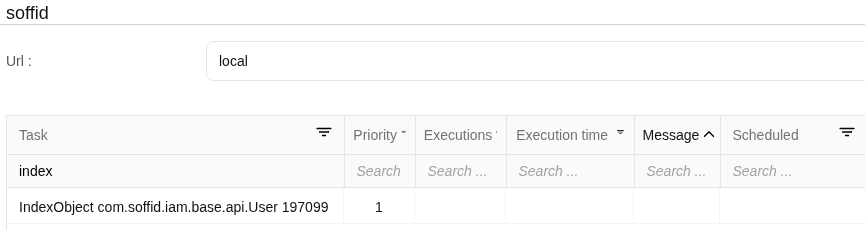](https://bookstack.soffid.com/uploads/images/gallery/2025-09/zeavhGNOH4ciwIPA-image.png)
### Step-by-step
#### Example 1
1. You update one user's data and save the changes.
Image
[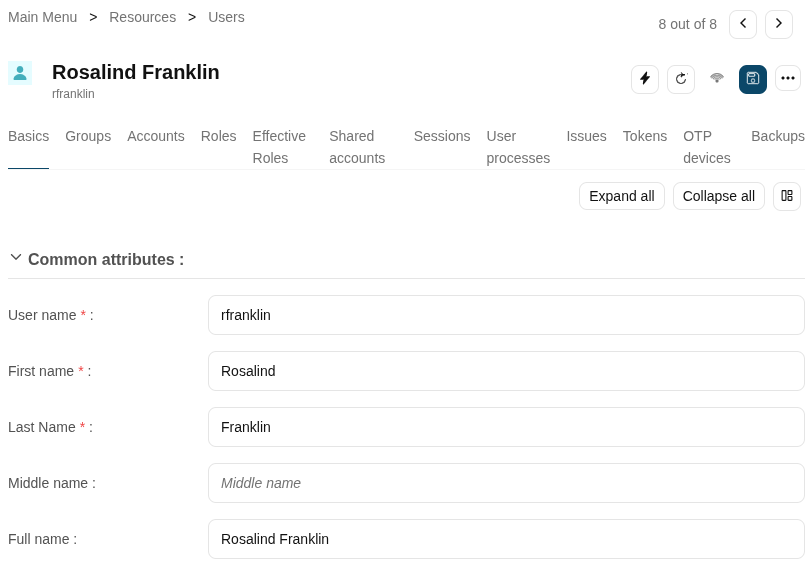](https://bookstack.soffid.com/uploads/images/gallery/2025-09/oNumAjA06SXlINfe-image.png)
2. New tasks are created and executed.
Image
[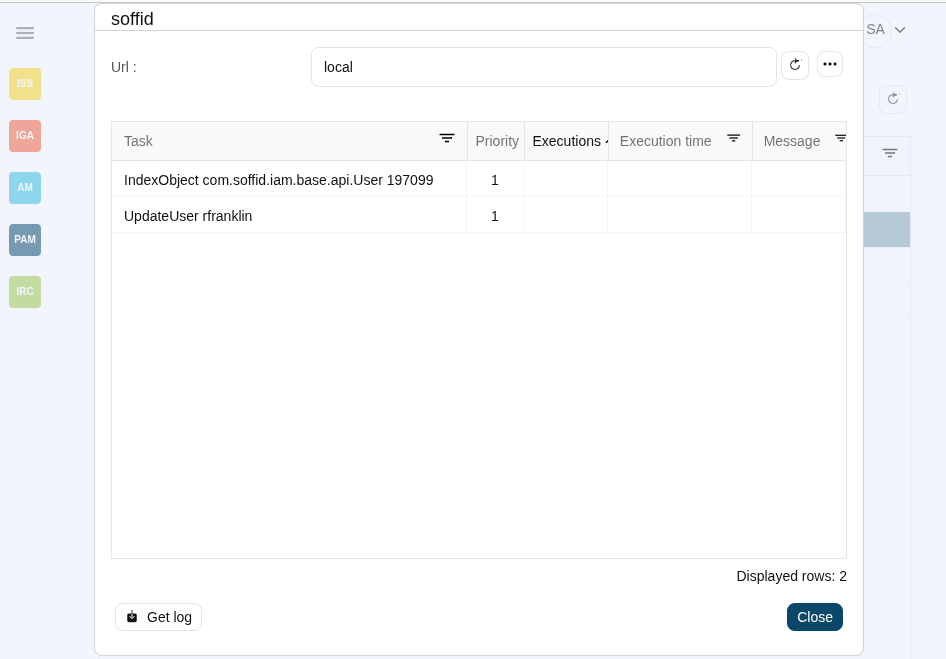](https://bookstack.soffid.com/uploads/images/gallery/2025-09/KZMNIfAashIKfXVo-image.png)
3. Then Sync Server indexes the updated text and places the index file.
Image

4. Then Sync Server and updates the database table SC\_LUNIND by upgrading the LIP\_TIMSTA field of the User object or by creating a new record if it did not previously exist.
Image

5. When the following search will be performed, the very first thing to do is check the database file. If it is necessary update the file system and finally perform the search.
#### Example 2
1. The task engine mode is Read only
Image
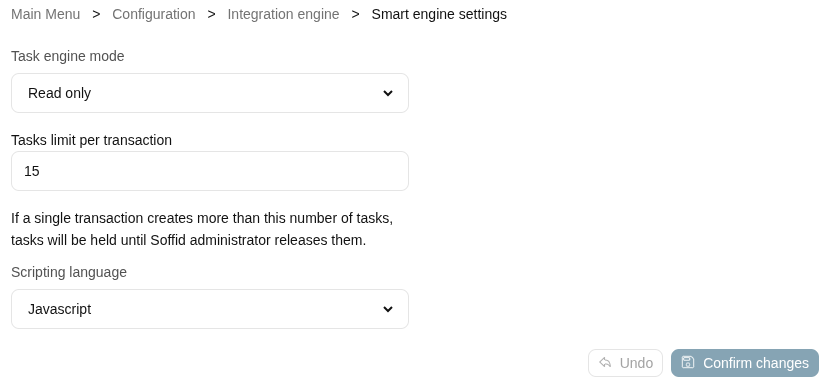
2. You update one user's data and save the changes.
Image

3. A new task is created and executed
Image

4. Then Sync Server indexes the updated text and places the index file.
5. Then Sync Server and updates the database table SC\_LUNIND by upgrading the LIP\_TIMSTA field of the User object or by creating a new record if it did not previously exist.
6. When the following search will be performed, the very first thing to do is check the database file. If it is necessary update the file system and finally perform the search.
# Lucene - Query parser syntax
## Overview
Although Lucene provides the ability to create your own queries through its API, it also provides a rich query language through the Query Parser, a lexer which interprets a string into a Lucene Query using JavaCC.
Generally, the query parser syntax may change from release to release. This page describes the syntax as of the current release. If you are using a different version of Lucene, please consult the copy of docs/queryparsersyntax.html that was distributed with the version you are using.
Before choosing to use the provided Query Parser, please consider the following:
1. If you are programmatically generating a query string and then parsing it with the query parser then you should seriously consider building your queries directly with the query API. In other words, the query parser is designed for human-entered text, not for program-generated text.
2. Untokenized fields are best added directly to queries, and not through the query parser. If a field's values are generated programmatically by the application, then so should query clauses for this field. An analyzer, which the query parser uses, is designed to convert human-entered text to terms. Program-generated values, like dates, keywords, etc., should be consistently program-generated.
3. In a query form, fields which are general text should use the query parser. All others, such as date ranges, keywords, etc. are better added directly through the query API. A field with a limit set of values, that can be specified with a pull-down menu should not be added to a query string which is subsequently parsed, but rather added as a TermQuery clause.
[https://lucene.apache.org/core/9\_6\_0/queryparser/org/apache/lucene/queryparser/classic/package-summary.html#Overview](https://lucene.apache.org/core/9_6_0/queryparser/org/apache/lucene/queryparser/classic/package-summary.html#Overview)
## Terms
A query is broken up into terms and operators. There are two types of terms: Single Terms and Phrases.
A Single Term is a single word such as "test" or "hello".
A Phrase is a group of words surrounded by double quotes such as "hello dolly".
Multiple terms can be combined together with Boolean operators to form a more complex query (see below).
Note: The analyzer used to create the index will be used on the terms and phrases in the query string. So it is important to choose an analyzer that will not interfere with the terms used in the query string.
## Fields
Lucene supports fielded data. When performing a search you can either specify a field, or use the default field. The field names and default field is implementation specific.
You can search any field by typing the field name followed by a colon ":" and then the term you are looking for.
As an example, let's assume a Lucene index contains two fields, title and text and text is the default field. If you want to find the document entitled "The Right Way" which contains the text "don't go this way", you can enter:
```
title:"The Right Way" AND text:go
```
or
```
title:"The Right Way" AND go
```
Since text is the default field, the field indicator is not required.
Note: The field is only valid for the term that it directly precedes, so the query
```
title:The Right Way
```
Will only find "The" in the title field. It will find "Right" and "Way" in the default field (in this case the text field).
## Term Modifiers
Lucene supports modifying query terms to provide a wide range of searching options.
### Wildcard Searches
Lucene supports single and multiple character wildcard searches within single terms (not within phrase queries).
To perform a single character wildcard search use the "?" symbol.
To perform a multiple character wildcard search use the "\*" symbol.
The single character wildcard search looks for terms that match that with the single character replaced. For example, to search for "text" or "test" you can use the search:
```
te?t
```
Multiple character wildcard searches looks for 0 or more characters. For example, to search for test, tests or tester, you can use the search:
```
test*
```
You can also use the wildcard searches in the middle of a term.
```
te*t
```
Note: You cannot use a \* or ? symbol as the first character of a search.
### Regular Expression Searches
Lucene supports regular expression searches matching a pattern between forward slashes "/". The syntax may change across releases, but the current supported syntax is documented in the [`RegExp`](https://lucene.apache.org/core/9_6_0/core/org/apache/lucene/util/automaton/RegExp.html?is-external=true "class or interface in org.apache.lucene.util.automaton") class. For example to find documents containing "moat" or "boat":
```
/[mb]oat/
```
### Fuzzy Searches
Lucene supports fuzzy searches based on Damerau-Levenshtein Distance. To do a fuzzy search use the tilde, "~", symbol at the end of a Single word Term. For example to search for a term similar in spelling to "roam" use the fuzzy search:
```
roam~
```
This search will find terms like foam and roams.
An additional (optional) parameter can specify the maximum number of edits allowed. The value is between 0 and 2, For example:
```
roam~1
```
The default that is used if the parameter is not given is 2 edit distances.
Previously, a floating point value was allowed here. This syntax is considered deprecated and will be removed in Lucene 5.0.
### Proximity Searches
Lucene supports finding words are a within a specific distance away. To do a proximity search use the tilde, "~", symbol at the end of a Phrase. For example to search for a "apache" and "jakarta" within 10 words of each other in a document use the search:
```
"jakarta apache"~10
```
### Range Searches
Range Queries allow one to match documents whose field(s) values are between the lower and upper bound specified by the Range Query. Range Queries can be inclusive or exclusive of the upper and lower bounds. Sorting is done lexicographically.
```
mod_date:[20020101 TO 20030101]
```
This will find documents whose mod\_date fields have values between 20020101 and 20030101, inclusive. Note that Range Queries are not reserved for date fields. You could also use range queries with non-date fields:
```
title:{Aida TO Carmen}
```
This will find all documents whose titles are between Aida and Carmen, but not including Aida and Carmen.
Inclusive range queries are denoted by square brackets. Exclusive range queries are denoted by curly brackets.
### Boosting a Term
Lucene provides the relevance level of matching documents based on the terms found. To boost a term use the caret, "^", symbol with a boost factor (a number) at the end of the term you are searching. The higher the boost factor, the more relevant the term will be.
Boosting allows you to control the relevance of a document by boosting its term. For example, if you are searching for
```
jakarta apache
```
and you want the term "jakarta" to be more relevant boost it using the ^ symbol along with the boost factor next to the term. You would type:
```
jakarta^4 apache
```
This will make documents with the term jakarta appear more relevant. You can also boost Phrase Terms as in the example:
```
"jakarta apache"^4 "Apache Lucene"
```
By default, the boost factor is 1. Although the boost factor must be positive, it can be less than 1 (e.g. 0.2)
## Boolean Operators
Boolean operators allow terms to be combined through logic operators. Lucene supports AND, "+", OR, NOT and "-" as Boolean operators(Note: Boolean operators must be ALL CAPS).
### OR
The OR operator is the default conjunction operator. This means that if there is no Boolean operator between two terms, the OR operator is used. The OR operator links two terms and finds a matching document if either of the terms exist in a document. This is equivalent to a union using sets. The symbol || can be used in place of the word OR.
To search for documents that contain either "jakarta apache" or just "jakarta" use the query:
```
"jakarta apache" jakarta
```
or
```
"jakarta apache" OR jakarta
```
### AND
The AND operator matches documents where both terms exist anywhere in the text of a single document. This is equivalent to an intersection using sets. The symbol && can be used in place of the word AND.
To search for documents that contain "jakarta apache" and "Apache Lucene" use the query:
```
"jakarta apache" AND "Apache Lucene"
```
### +
The "+" or required operator requires that the term after the "+" symbol exist somewhere in a the field of a single document.
To search for documents that must contain "jakarta" and may contain "lucene" use the query:
```
+jakarta lucene
```
### NOT
The NOT operator excludes documents that contain the term after NOT. This is equivalent to a difference using sets. The symbol ! can be used in place of the word NOT.
To search for documents that contain "jakarta apache" but not "Apache Lucene" use the query:
```
"jakarta apache" NOT "Apache Lucene"
```
Note: The NOT operator cannot be used with just one term. For example, the following search will return no results:
```
NOT "jakarta apache"
```
### -
The "-" or prohibit operator excludes documents that contain the term after the "-" symbol.
To search for documents that contain "jakarta apache" but not "Apache Lucene" use the query:
```
"jakarta apache" -"Apache Lucene"
```
## Grouping
Lucene supports using parentheses to group clauses to form sub queries. This can be very useful if you want to control the boolean logic for a query.
To search for either "jakarta" or "apache" and "website" use the query:
```
(jakarta OR apache) AND website
```
This eliminates any confusion and makes sure you that website must exist and either term jakarta or apache may exist.
## Field Grouping
Lucene supports using parentheses to group multiple clauses to a single field.
To search for a title that contains both the word "return" and the phrase "pink panther" use the query:
```
title:(+return +"pink panther")
```
## Escaping Special Characters
Lucene supports escaping special characters that are part of the query syntax. The current list special characters are
\+ - && || ! ( ) { } \[ \] ^ " ~ \* ? : \\ /
To escape these character use the \\ before the character. For example to search for (1+1):2 use the query:
```
\(1\+1\)\:2
```
## Java classes
Interface Summary
Interface
Description
[QueryParserConstants](https://lucene.apache.org/core/9_6_0/queryparser/org/apache/lucene/queryparser/classic/QueryParserConstants.html "interface in org.apache.lucene.queryparser.classic")
Token literal values and constants.
Class Summary
Class
Description
[MultiFieldQueryParser](https://lucene.apache.org/core/9_6_0/queryparser/org/apache/lucene/queryparser/classic/MultiFieldQueryParser.html "class in org.apache.lucene.queryparser.classic")
A QueryParser which constructs queries to search multiple fields.
[QueryParser](https://lucene.apache.org/core/9_6_0/queryparser/org/apache/lucene/queryparser/classic/QueryParser.html "class in org.apache.lucene.queryparser.classic")
This class is generated by JavaCC.
[QueryParserBase](https://lucene.apache.org/core/9_6_0/queryparser/org/apache/lucene/queryparser/classic/QueryParserBase.html "class in org.apache.lucene.queryparser.classic")
This class is overridden by QueryParser in QueryParser.jj and acts to separate the majority of the Java code from the .jj grammar file.
[QueryParserTokenManager](https://lucene.apache.org/core/9_6_0/queryparser/org/apache/lucene/queryparser/classic/QueryParserTokenManager.html "class in org.apache.lucene.queryparser.classic")
Token Manager.
[Token](https://lucene.apache.org/core/9_6_0/queryparser/org/apache/lucene/queryparser/classic/Token.html "class in org.apache.lucene.queryparser.classic")
Describes the input token stream.
Enum Summary
Enum
Description
[QueryParser.Operator](https://lucene.apache.org/core/9_6_0/queryparser/org/apache/lucene/queryparser/classic/QueryParser.Operator.html "enum in org.apache.lucene.queryparser.classic")
The default operator for parsing queries.
Exception Summary
Exception
Description
[ParseException](https://lucene.apache.org/core/9_6_0/queryparser/org/apache/lucene/queryparser/classic/ParseException.html "class in org.apache.lucene.queryparser.classic")
This exception is thrown when parse errors are encountered.
Error Summary
Error
Description
[TokenMgrError](https://lucene.apache.org/core/9_6_0/queryparser/org/apache/lucene/queryparser/classic/TokenMgrError.html "class in org.apache.lucene.queryparser.classic")
Token Manager Error.
# Soffid 4 new releases
# 2025 december
## 2025-12-31
- **REST connector 4.0.3**
- Get rid of Wink
- **Windows connector 6.0.8**
- Update LDAP classes
- Fix configuration page
- Fixes for version 4
- Use released pwshell
- Fix initial configuration
## 2025-12-24
- **Recertification addon 4.0.3**
- Fix query error
- **Reports addon 4.0.6**
- Add anonymous URL for charts
- Update webservices addon
- Add widgets
- **Breakglass addon 2.0.0**
- Upgrade for version 4
## 2025-12-17
- **Consola 4.0.11**
- Apply policy task is displayed for systems with automatic account creation
- Add prometheus agent
- **Syncserver 4.0.13**
- Handle tasks created in version 3
- **Admin addon 4.0.3**
- Improve scheduled task UI
- Add new AI use cases
- Fix export/import
- Use gemini-2.5-pro for chatting
- Update dependencies
- Add missing dependency
- **Addon bpm 4.0.6**
- Fix null pointer when there is no grant
# 2026 january
## 2026-01-07
- **Console 4.0.19**
- Improve AI interface
- Fix food sometimes does not appear
- Improve startup performance
- Fix multiline messages
- Fix SSO Agent name
- Improve boot performance
- Fix welcome switch
- Generate documentation
- Fix multiline messages
- Fix SSO Agent name
- Improve boot performance
- Fix welcome switch
- Fix plugin parser
- Fix compilation errors
- Fix AI Frame
- Fix upgrade to version 3
- Add missing dependency between services
- Mobile CSSs
- Fix custom object search
- Make agent transition easier
- Add to switch to generate documentation on demand
- Nullify URL when URL is blank
- Fix monitoring remote server status
- Change PWA Name
- Fix counter generator in multi-tenant setup
- Ignore yauaa log
- Change sync server icons
- Upgrade zkdb
- Remove unneeded log
- Improve log performance
- Reload data when the configuration log has changed
- Exclude deleted accounts from effective roles calculation #625
- Improve log reader reponsiveness
- Keep history of user-accounts #Soffid/addons/backup/12
- Fix. Restart sync server from plugins page #624
- Do not override log object #623
- Fix agents query by name #622
- Remove tasks when removing an agent #621
- Enable network intelligence on any product #618
- **Syncserver 4.0.16**
- Fix reconcile engine for new accounts
- Update console version
- Fix wrong dao lookup
- Add debug information
- Remove Yauaa logging
- **Federation addon 4.0.13**
- Fix CSS attributes #52
- Apply form class
- Fix CSS style in idp
- Fix legacy ESSO startup
- Fix invocation to old handler #50
- Change button to regenerate dynamic open id server key #49
- Fix scopes list #47
- **Admin addon 4.0.4**
- New tests
- Fix import process #5
- Fix page arrangement
- Add timestamp to script log
- Fix metadata exporter never ends
- **Backup addon 4.0.4**
- Fix primary groups are always dashed #11
- **Breakglass addon 2.0.1**
- Fix tests
- **Google Apps Connector 4.0.0**
- Upgrade to version 4
- **Windows Connector 6.0.9**
- Add possword policy
- Fix account inital reconciliation
- **Kebernetes Connector 1.0.1**
- Initial version
- Fix UI page
## 2026-01-14
- **Console 4.0.20**
- Fix button to remove acconts in discovery page #599
- Add crud handler for entry points
- Fix: frame is not hidden when embedded frame is recreated #600
- Fix account system cannot be null #597
- Fix method to remove accounts from vault
- Fix method to move accounts accross folders
- Do not display removed accounts in password vault
- Upgrade zkdb
- Method to undelete accounts #Soffid/addons/backup/17
- Do not fail when the user cannot remove accounts
- Fix deleted user accounts are returned as valid user accounts #629
- Fix progress labels with values less than 0
- Fix ACL field fails when the user cannot query users or groups
- **Recover password addon 4.0.6**
- Reorder fields
- Fix messages #20
## 2026-01-21
- **Console 4.0.22**
- Method to temporary grant/revoke usage of entry points
- Do not cache configuration page
- Do not display menu when no option is visible #644
- Allow roles to be granted more than once, with different holder groups #642
- Upgrade zkdb
- Add account history object
- Fix. Change query type in application entry points page #637
- Fix stack overflow #628
- Remove tasks when removing an agent
- Glitch in password policies page #617
- Fix glitch in password policies UI #616
- Hide id of user type #615
- Upgrade zkdb to fix #610
- Hide threads field #604
- Fix shell plugin #603
- Fix monitor progress pct value
- Do not commit automatically after changing the server name #596
- Raise toasts
- Enable BPM for PAM licenses #595
- Use standard view for pam session servers #594
- **Syncserver 4.0.17**
- Remove annoying log
- Register cancelled tasks
- Add exception message to log file
- **Shell connector 4.0.1**
- Fix removal of grants
## 2026-01-28
- **Console 4.0.23**
- Allow access to local network in embedded iframe
# 2026 february
## 2026-02-04
- **Console 4.0.29**
- Fix tasks are not properly loaded #650
- Fix application link does not work
- Set generated password non-editable
- Fix entry point is set as "null"
- Fix reservation without entry point
- Display diagram in a popup window Soffid/addons/bpm#26
- Fix button size inside trees #591
- Fix password policies page #590
- Fix toast position #589
- Fix separator labels #588
- Fix method to reset remote servers
- Upgrade zkdb
- Upgrade zkdb-api
- Initialize virtual attributes in sync server
- Fix zoom button in property editor
- Sort object mappings #655
- Add sleep method
- Add index by user attribute value
- Enlarge previous executions table #587
- Fixed counter generation #580
- Remove old WF to reconcile accounts #579
- Upgrade plugins #576
- Fix style of screen to change password #573
- setTimeout function
- Fix error during datadiv initialization #571
- Upgrade rest plugin
- Upgrade zkdb #569
- Hude agent tabs until the agent iss created #568
- Fix method to disable accounts #547
- Change messages source
- Fix button to remove rols #530
- Fix field type in account metadata window
- Javascript methods: setTimeout and sleep
- Improve columns selector
- **Syncserver 4.0.23**
- Use service locator in remote proxies
- Upgrade zkdb version
- Fix null pointer in pre-update-password trigger
- Update console version
- Enable debugging for com.soffid classes
- Add log manager for proxy agents
- Improve method to remove accounts
- Hide ProxyConnectionFactory logs
- Improve loader process
- Fix reconciliation without system name
- Improve loader performance
- Added debug information
- Fix console sessions are dropped due to delays
- **REST plugin 4.0.4**
- Fix login encoding
- Use load or select methods
- **SQL server plugin 4.0.1**
- Version number was missing
- **PAM (only in Docker Hub) 1.4.82**
- Do not remove static-data directory
## 2026-02-11
- **Console 4.0.33**
- Fix group message #392
- Make error message more helpful
- Default port for syslog+ssl is 6514
- Include script stack trace
- Add webservice classes classifier
- Add offline button in sync server monitoring
- Fix page to query account's password
- Fix method to propagate changes
- Improve monitoring page
- Enable remove button in single-selection tables
- Remove method to compute policies when synchronizing objects
- Change installer icon
- Fix upgrade of domain values to version 4
- **Syncserver 4.0.25**
- Fix authoritative loader engine
- Fix tasks to synchronize objects
- Improve mechanism to monitor tasks queue
- Upgrade console version
- Change version number to 4 in application link
- Do not throw exception when the group is not allowed
- **Federation addon 4.0.14**
- Fix for the automatic deletion process of oauth tokens
- Fix duplicated attribute
- Fix class-loading problem when invoked from the identity provider
- Use new "wait" icon #57
- Change style of cancel button #56
- Fix selector color #55
- Fix host tokens tab #Soffid/console/632
- Add option to remove authentication methods #611
- Fix initialization
- Fix progressive profile method
- Update OTP addon version #536
- Place CAS Settings in a separated section
- Remove legacy method to register hosts
- Hack for MFA authentication on Azure
- New keytab parser
- **SCIM addon 4.0.3**
- Fix class not found: UserType
- **XACML addon 4.0.6**
- Fix legacy icons #6
- Properly expose entrypoint in XACML rules
## 2026-02-18
- **Console 4.0.37**
- Fix magnifier icon in password vault
- Improve method to guess account bound to a service
- Fix account lookup
- **Syncserver 4.0.27**
- Change JVM parameters for Java 17
- Discard service 113/tcp ident
- Ignore hosts without significant services
- **Reports addon 4.0.7**
- Change label in remove button #10
- Remove import button #8
- Remove import button #7
- Fix label for removal button #6
- Fix wrong message after removing report schedule #5
- Fix tab to upload reports #4
## 2026-02-24
- **Console 4.0.38**
- Fix open source publication process
- **Syncserver 4.0.28**
- Fix null pointer changing service account password
- Always one shared thread
- Improve logs
- Fix reconcile without external ids
- Remove unneeded log
- Change attribute name from lastPasswordUpdate to lastPasswordSet
- Do not CXF spring integration
- **Federation addon 4.0.15**
- Fix null pointer
- Adapt porting of changes from version-3
- Fix porting
- Add option to set custom audiences
- SSO Behaviour
- Add audience field
- **Backup addon 4.0.5**
- Hide user backup id in queries #6
- Change buttons style
- Remove quick search mode
- Remove button to select columns #4
- Remove duplicated buttons #3
- Fix excessive inheritance
- **PAM (only in Docker Hub) 1.4.84**
- SSH Server with user provided passwords
- Improve logs
- Update browser image
- Fix compilation errors
- Additional log
# 2026 march
## 2026-03-04
- **Console 4.0.39**
- Fix compatibility issue with HTML fields
- Allow accounts to have the same name as a deleted one
- Properly unwrap javascript dates
- **Syncserver 4.0.30**
- Fix method to retrieve account object
- Fix interface is defined more than once
- Improve exception detail
- Upgrade version of iam-core
- Fixes to convert localdate into Calendar or Date
## 2026-03-11
- **Console 4.0.42**
- Improve migration process
- Debug mail sessions #Soffid/cloud/federation-cloud/10
- Add method to fetch AD domains
- **Syncserver 4.0.31**
- Upgrade console dependency
- Fix dumping log in stdout
- **Federation addon 4.0.18**
- Refresh configuration when needed
- **Recover password addon 4.0.7**
- Fix fill-in window style #17
- Fix error checking for null datataype #11
- Fix message generation #10
- Fix button message #9
- **Admin addon 4.0.5**
- Fix dependency versions #8
- Use the right interpreter
- **BPM addon 4.0.7**
- Fix display of risks
- Show BPM editor with PAM license
- Menu handler in account reservation workflow
- Fix editor display
- Use correct colors for diagram #26
- Fix reorder fields #24
- Add button to remove attributes from attribute window
- **LDAP connector 4.0.1**
- Multiple bug fixes
- **SAP connector 4.0.1**
- Fix checkbox to manage roles
- Remove eclipse file
- Fix account reconciliation
- **Windows connector 6.0.11**
- Fix method to rename objects
- Fix simple windows agent
- Use server method to retrieve active directories
- Update CI/CD method
## 2026-03-18
- **Console 4.0.46**
- Improve migration process
- Debug mail sessions
- Add method to fetch AD domains
- Change method to publish
- Do not fail when a file does not exist
- Ignore host not found
- Fix error when host does not exist in PAM URL
- Remove account attributes (migration issue)
- Improve scheduled tasks form
- Fix SQL syntax error
- Migration issue. Set default dispatcher type
- **Federation addon 4.0.19**
- Fix double quote
- Same challenge for each push authenticator
- Accept gateway parameter for CAS login
## 2026-03-25
- **Console 4.0.47**
- Fix renaming a role with the same name as a deleted one
- Fix upgrade to version 4
- Improve exception message including javascript stack trace
- Add password policy metadata for IA generation
- Improve SEQUENCE generator. Add a primary key to the table
- **Federation addon 4.0.20**
- Verify signatures
- x-forwarded-for does not contain commas
- Propagates loa from third party idp
- **Windows plugin 6.0.12**
- Fixes a "Connection timeout" problem when trying to fetch accounts list
- **PAM (only in Docker Hub) 1.4.86**
- Upgrade chrome version
- Add gke image
- Kiosk mode for http and https
- Accept pke keys in base64
- Always apply ips policies
- Remove duplicated /
- Avoid null pointer
# 2026 april
## 2026-04-22
- **Console 4.0.53**
- Fix error creating mappings
- Prevent null pointer
- Fix method to find deleted roles
- Fix popup window with system raw attributes
- Allow meatadata types page in AM license
- Update LDAP & Windows plugin
- Cleanup latest link
- Fix infinite loop starting a discovery task
- Prevent deadlock when changing an account password on the sync server
- feat: Add global SAML logout option
- Improve remote action log
- Fix role deletion
- Add entry point metadata
- Publish issue service
- Add missing class
- Make last execution label more clear
- Allow port in syslog server parameter
- Option to not to store user credentials
- Fix when the server is a standby server
- Send syslog message size
- Display error message when connecting to a sync server
- Option to not to store user credentials
- Allow manual launcher when passwords are not stored
- Fix merge errors
- Improve launching accounts without well-known password
- Improve log file selector
- Fix link creation for documentation
- Fix link creation
- Fix syncserver is marked as offline
- Optimize creation of the search dictionary
- **Syncserver 4.0.34**
- Debug in BaseAgent
- Update jaxb implementation
- fix: Pipelines are not fully loaded
- Change deployment URL
- Publish syncserver on docker hub
- Fix error processing duplicated OoB task
- Force method to intialize trusted certificates from source
- Log certificate failures
- Upgrade console
- Ignore stand-by servers in servers list
- Decode username in remote request
- Add jsoncpp dependency for role mining
- Fix error in passwordless agents
- Fix transaction to change service passwords
- Method to ignore standby servers
- **Federation addon 4.0.23**
- fix: refresh token expiration date can ben null
- feat: Options to customize user registration process
- Fix null pointer
- New method to register users
- feat: Registration process can be the initial step of a progressive profile
- feat: support the response\_mode=form\_post
- feat: Ability to configure refresh token timeout
- Usage of expiration token timeout
- Method to fetch all esso settings at onec
- Fix null pointer
- Update expires attribute in refresh token
- Fixes fields without datatype
- Fix generation of refresh token expiration claim
- **Role mining addon 4.0.1**
- Fix Null pointer
- Application is not required
- Update war plugin
- New performance engine
- Adapt CI/CD
- Update repositories
- Remove duplicated entry in pom.xml
- User C++ image
- **SCIM addon 4.0.4**
- Fix patch of account object
- **LDAP plugin 4.0.4**
- Multiple bug fixes
- Fix login
- Method to configure the LDAPS security level
- **PAM (only in Docker Hub) 1.4.88**
- New image for http session in mode kiosk and not-kiosk
- Option to open a wireguard tunnel
- feat: option to maximize screen
- fix: Click up windows key after losing focus
- Fix keypad subtract key
- Fix transfer of file with UTF-8 characters in its name
- Fix session is closed after ten seconds
# 2026 may
Welcome everyone.
We are pleased to inform you that Soffid **new releases** are now available and we have updated our [download page](https://download.soffid.com/download/enterprise/) with new versions of the Soffid components.
Please note that in **Soffid 4**, you will only find the **Console** and **Syncserver** on our enterprise [download page](https://download.soffid.com/download/enterprise/). Starting with this version 4, **Addons** and **Connectors** must be downloaded directly from the internal **marketplace** on the [Licence and plugins](https://bookstack.soffid.com/books/soffid-4-reference-guide/page/license-and-plugin) page. For more information, please consult our [online documentation](https://bookstack.soffid.com/books/soffid-4-reference-guide).
Below is the list of the components and changes made since the previous version was published.
Soffid 4
---
Console 4.0.58 (from 54)
 Searches were not working on the custom object pages, nor via the SCIM web service.
 The database update service from version 3 to version 4 was not working for the SQL Server database.
 The database update service from version 3 to version 4 failed when an agent did not have the Usage attribute defined.
 When the Console was configured as the service provider for Soffid’s identity provider, it generated unused SAML paths in the metadata.xml file.
 One of the indexes in the account table had an incorrect name (it was not being applied).
 Some indexes in the database were not being created because their names exceeded the permitted length.
 **Users of the SCIM web service must now have the new “webservice:user” authorisation.** [**New feature** ](https://bookstack.soffid.com/books/soffid-4-reference-guide/page/2026-05-31-new-feature-new-authorization-for-the-scim-webservice)
 An error that had already been handled in the code, indicating that a host searched for by IP address could not be found, has been ignored in the log.
 Users who do not have the SOFFID\_ADMIN role will no longer see the details of errors in the Console; instead, an identifier will be displayed so that administrators can look it up in the log. [ **New feature** ](https://bookstack.soffid.com/books/soffid-4-reference-guide/page/2026-05-31-new-feature-hidden-stack-tracers)
 The SCIM web service was displaying folders to which the SCIM user did not have access.
 New headers have been added to improve the security of web requests.
 The console log has been shortened when the syncserver is not active.
Syncserver 4.0.35 (from 34)
 New feature to clear the account password when the account is disabled and set the last password when the account is enabled again. [ **New feature** ](https://bookstack.soffid.com/books/soffid-4-reference-guide/page/2026-05-08-new-feature-set-password-when-enabling-an-account)
Federation addon 4.0.29 (from 24)
 New feature to set a custom list of holder groups for each service provider. [ **New feature** ](https://bookstack.soffid.com/books/soffid-4-reference-guide/page/2026-05-19-new-feature-filter-holder-groups-at-the-idp-login)
 When a user attempted to log in via ESSO and the login failed, if the “esso-failed-login” issue type was enabled, the issue would not be created and would not be logged.
 **In the Identity Provider configuration, in the attribute “TLS PublicKey”, the “Upload PKCS12 file” button did not move forward to the PIN step.**
 The PAM session would not start if the account belonged to the identity provider
 Hide certain OIDC attributes in an OpenID POST response, as they were not part of the standard.
 When a user was created in Soffid via self-provisioning by the Identity Provider, an error was thrown if the user had no additional attributes.
 When a user connected to the Identity Provider via ESSO, if the machine had an IP address that could not be resolved by the DNS resolver, an error occurred.
 For users who use ESSO and permission elevation, shared accounts are now cached on the Windows machine to speed up access and prevent service disruption when there is no internet connection.
 The Kerberos login has been modified because it sometimes fails.
 The service providers' impersonation functionality failed because a library update was missing.
 New headers have been added to improve the security of web requests.
LDAP plugin 4.0.5 (from 4)
 A maximum number of results has been added (it is a very high value).
REST plugin 4.0.6 (from 4)
 The “Simple token” authentication option has been migrated to Soffid 4
 New libraries have been added to properly support non-standard HTTP methods such as PATCH.
SAP plugin 4.0.2 (from 1)
 Changes to support to set the domain password when enabling an account. [ **New feature** ](https://bookstack.soffid.com/books/soffid-4-reference-guide/page/2026-05-08-new-feature-set-password-when-enabling-an-account)
Shell plugin 4.0.2 (from 1)
 The “Test” button in the “Attribute mappings” for this agent did not work in Soffid 4
 Deleting files caused an infinite loop in Soffid 4, resulting in an error
 On the Exchange agent's “Basics” page, the “Exchange version” attribute had a syntax error, and an error message was displayed when attempting to save.
Windows plugin 6.0.14 (from 12)
 During Kerberos authentication, the Active Directory agent could not find the account, even though it existed.
 When Active Directory had child domains, the agent could not find the accounts.
 The process for connecting to Active Directory via HTTP has been updated because it was sometimes causing errors.
CSV plugin 4.0.0 (new)
 Migration to Soffid 4 of the agent “Customizable CSV file”. [ **New feature** ](https://bookstack.soffid.com/books/soffid-4-reference-guide/page/2026-05-21-new-feature-csv-connector-in-soffid-4)
PAM (only in Docker Hub) 1.4.90 (from 88)
 The handling of clicks in HTTP browsing has been improved.
 Web sessions now operate using the TZ (GMT) time zone.
 The launch of Google Chrome-style HTTP sessions was failing because variables containing hyphens were not being handled correctly.
 **During a PAM session, if the network connection was lost, the PAM session would terminate; the reconnection method has been improved to minimise this behaviour.**
 The rendering engine has been switched to XWindows because it produces more reliable results and offers better performance.
 Security fix: the ORC pattern used for screen text reading did not have sufficiently restrictive permissions.
 When a PAM session was started in kiosk mode, some environments such as AKS did not allow the use of internal sandboxes; now, their use is automatically configured depending on whether or not they are permitted.
 In RDP-type PAM sessions, if a connection cannot be established, it will retry by forcing TLS authentication.
 In PAM sessions, if you switched applications very quickly after using the ‘Get clipboard’ option, an error would occur or an incorrect value would be retrieved.
Soffid 3
---
Console 3.6.74 (from 73)
 **Security error: permission elevation in Windows connections allowed more permissions to be granted than the user actually had.**
 Allow quick searches using file type attributes (searches are activated in the metadata page) or within the workflow searches.
Syncserver 3.6.47 (from 46)
 Error when attempting to configure a sync server that was already configured.
 When renaming a user account that was disabled, this change was not being synchronised.
 The service exposed for the ESSO module has been modified to sort devices by their identifier.
Federation addon 3.6.90 (from 89)
 When an external identity provider returned the “Level of authorisation” attribute, the attribute calculator did not record the correct value in Soffid.
BPM addon 3.2.5 (from 4)
 Some texts have been translated.
LDAP plugin 2.8.6 (from 5)
 The pagination configured in the LDAP agent’s “Query page size” attribute was not being applied.
Thank you very much for your time, and see you next month!
Best regards,
**The Soffid Team**
This email was sent to [<< Test Email Address >>](mailto:<<%20Test%20Email%20Address%20>>)
[*why did I get this?*](https://soffid.us7.list-manage.com/about?u=3fc95bb190043cb38061ba071&id=fa7c2cc329&e=[UNIQID]&c=a78cf7b72b) [unsubscribe from this list](https://soffid.us7.list-manage.com/unsubscribe?u=3fc95bb190043cb38061ba071&id=fa7c2cc329&t=b&e=[UNIQID]&c=a78cf7b72b) [update subscription preferences](https://soffid.us7.list-manage.com/profile?u=3fc95bb190043cb38061ba071&id=fa7c2cc329&e=[UNIQID]&c=a78cf7b72b)
SOFFID · Carretera De Valldemossa Km 7 · PALMA DE MALLORCA, Illes Balears 07010 · Spain
Welcome everyone.
We are pleased to inform you that Soffid **new releases** are now available and we have updated our [download page](https://download.soffid.com/download/enterprise/) with new versions of the Soffid components.
Please note that in **Soffid 4**, you will only find the **Console** and **Syncserver** on our enterprise [download page](https://download.soffid.com/download/enterprise/). Starting with this version 4, **Addons** and **Connectors** must be downloaded directly from the internal **marketplace** on the [Licence and plugins](https://bookstack.soffid.com/books/soffid-4-reference-guide/page/license-and-plugin) page. For more information, please consult our [online documentation](https://bookstack.soffid.com/books/soffid-4-reference-guide).
Below is the list of the components and changes made since the previous version was published.
Soffid 4
---
Console 4.0.64 (from 58)
 Pagination has been added to the “Issues” page.
 The new feature introduced last month has been updated so that users with the SOFFID\_ADMIN role can view the full error trace. [ **New feature** ](https://bookstack.soffid.com/books/soffid-4-reference-guide/page/2026-05-31-new-feature-hidden-stack-tracers)
 The performance of the “My applications” page has been improved, as in some cases it took too long to calculate the elements to be displayed. A new cache has been added to improve the user experience.
 When a generic error occurred, it was not recorded in the log.
 The performance of the search bar at the top has been improved, as in some cases it took too long to determine which items should be displayed.
 We now have new options for sending logs to SIEM platforms. [ **New feature** ](https://bookstack.soffid.com/books/soffid-4-reference-guide/page/2026-06-02-new-feature-syslog-with-new-protocols)
 On “My Applications” page, if a user had access to an application via his user (no role or group), the application would not appear.
 The pages from the “Identity self service” module (“My requests”, “My applications”, etc.) have been added to the Soffid search feature.
 There was an error when generating the Soffid menu for some users, depending on their licence settings and associated products.
 The Soffid notification engine (blue pop-ups in the top right-hand corner) has been adjusted from 10 to 30 seconds.
 From now on, the geolocation service and the use of AI in scripts will be enabled by default if the AM or IRC modules have been activated. Consequently, the “Network Intelligence” page has been removed.. [ **New feature** ](https://bookstack.soffid.com/books/soffid-4-reference-guide/page/2026-07-08-new-feature-geolocation-service-available-by-default)
 On the “Detected browsers” page, the “Locked” and “Removed” attributes are now optional.
 On the “My account” page, the styles of the “Set password” and “Query password” pop-ups have been updated.
 On the “Users” page, the attributes were not displaying correctly in read-only mode.
Syncserver 4.0.39 (from 35)
 During the initialisation of an agent, the logs were being written to another log file.
 On the “Syncserver monitoring” page, the “Agents task” list did not display the details or errors for the tasks.
 The check to verify whether a role existed in a target system was not always carried out on a case-insensitive basis.
 Updating the Kerberos settings would sometimes result in data being overwritten.
Federation addon 4.0.36 (from 29)
 In the Soffid wizard, the AM option for provisioning OTPs was failing.
 Some old IDP sessions were not being deleted; the deletion process has been modified so that they can now be removed.
 New parameter for selecting the Soffid Authenticator dataset. [ **New feature** ](https://bookstack.soffid.com/books/soffid-4-reference-guide/page/2026-06-13-new-feature-select-images-for-soffid-authenticator)
 New set of flower images for the Soffid Authenticator
 New set of fish images for the Soffid Authenticator
 Skip authentication error when the SAML SP asks for specific auth method
 Some errors have been resolved where a service provider had no Level of Assurance selected.
 Attributes of “transient id” type were not being sent correctly, even though this option was selected in the service provider.
 Refresh tokens were not being generated correctly.
 If the Kerberos token did not validate correctly, the browser used to display a 500 error; now it is ignored and the browser asks for a username and password.
 Add HTTP-Redirect as a valid response method for SAML Logout
 Bypass MFA authentication in MicrosoftOnline.
SAP plugin 4.0.3 (from 2)
 Do not unlock disabled accounts after setting the password
 Allows caching of shared account passwords, to allow privilege escalation when identity provider is offline.
 Due to a Windows Explorer issue that arose in June, menu generation has been disabled.
Soffid 3
---
Console 3.6.75 (from 74)
 When creating an entry point, the ACLs from the parent folder are now inherited. [ **New feature** ](https://bookstack.soffid.com/books/soffid-3-reference-guide/page/2026-06-12-new-feature-inheriting-authorisations-in-new-applications)
Syncserver 3.6.49 (from 47)
 Run logoff process in standby servers to improve the syncserver performance.
 When renaming a deactivated account in Soffid, the synchronisation task was not generated correctly.
Federation addon 3.6.92 (from 90)
 The holder group can now be used in the service providers’ UID selection script. [ **New feature** ](https://bookstack.soffid.com/books/soffid-3-reference-guide/page/2026-06-12-new-feature-use-holder-group-in-uid-script)
 On CAS type service providers, the script for specifying the UID value was not working.
 When logging in via the IDP, if the user’s progressive profile was requested and a workflow had been configured, the workflow was not running correctly.
Windows plugin 5.4.32 (from 31)
 When the login account was not in the format “domain/account” an internal error occurred.
 In the Kerberos login, the domain name identification has been improved so that it can be identified regardless of whether it contains upper-case letters, lower-case letters or accents.
 When creating a new user in Active Directory with a temporary password, sometimes, depending on the speed of the sub-tasks, a temporary password could be set as permanent.
Thank you very much for your time, and see you next month!
Best regards,
**The Soffid Team**
This email was sent to [<< Test Email Address >>](mailto:<<%20Test%20Email%20Address%20>>)
[*why did I get this?*](https://soffid.us7.list-manage.com/about?u=3fc95bb190043cb38061ba071&id=fa7c2cc329&e=[UNIQID]&c=16e66f750c) [unsubscribe from this list](https://soffid.us7.list-manage.com/unsubscribe?u=3fc95bb190043cb38061ba071&id=fa7c2cc329&t=b&e=[UNIQID]&c=16e66f750c) [update subscription preferences](https://soffid.us7.list-manage.com/profile?u=3fc95bb190043cb38061ba071&id=fa7c2cc329&e=[UNIQID]&c=16e66f750c)
SOFFID · Carretera De Valldemossa Km 7 · PALMA DE MALLORCA, Illes Balears 07010 · Spain
Welcome everyone.
We are pleased to inform you that Soffid **new releases** are now available and we have updated our [download page](https://us.list-manage.com/k8CNaKG1sAC?e=c985e8229d&c2id=4f538c156a0d9d97a2958575f2de6c2b) with new versions of the Soffid components.
Please note that in **Soffid 4**, you will only find the **Console** and **Syncserver** on our enterprise [download page](https://us.list-manage.com/qF1VEe8mpH6?e=c985e8229d&c2id=4f538c156a0d9d97a2958575f2de6c2b). Starting with this version 4, **Addons** and **Connectors** must be downloaded directly from the internal **marketplace** on the [Licence and plugins](https://us.list-manage.com/WYpQSdYZPdy?e=c985e8229d&c2id=4f538c156a0d9d97a2958575f2de6c2b) page. For more information, please consult our [online documentation](https://us.list-manage.com/18s0dLC9hcC?e=c985e8229d&c2id=4f538c156a0d9d97a2958575f2de6c2b).
Below is the list of the components and changes made since the previous version was published.
Soffid 4
---
Console 4.0.67 (from 64)
 A new generic property “removeDisabledObjects” has been created which can be used in all agents, on the “user” and “accounts” objects. By default, its value is “false”; you only need to create it if it requires the “true” value. [ **New feature** ](https://us.list-manage.com/1BaIhADGeyw?e=c985e8229d&c2id=4f538c156a0d9d97a2958575f2de6c2b)
 A new issue “user-login-limit” has been created to manage situations where an OpenID service provider exceeds the threshold for requests per minute. [ **New feature** ](https://us.list-manage.com/5mnIXwnYU0N?e=c985e8229d&c2id=4f538c156a0d9d97a2958575f2de6c2b)
 In some versions, when installing Soffid for the first time, the initial popup was failing
 On the “Issues” page, all issues were being generated with the number ‘1’; the counter now works correctly.
 Sometimes the GeoIP service would return the “nan” value and cause unhandled errors
 The “View Tasks” option on the “Sync server monitoring” page was having performance issues, and the data displayed was incorrect
 A new parameter “SOFFID\_DISABLE\_GEOIP” has been added for use in the Docker Console configuration in environments where there is no internet connection or where this service is not required. [ **Bookstack** ](https://us.list-manage.com/35bAxafRdOp?e=c985e8229d&c2id=4f538c156a0d9d97a2958575f2de6c2b)
 Security fix: users of Windows systems with the ESSO component were able to open applications with administrator permissions even if they did not have them
 New methods have been added to the Soffid API to change a password with a specific expiration date. [ **Soffid API** ](https://us.list-manage.com/9DSnufd9vfv?e=c985e8229d&c2id=4f538c156a0d9d97a2958575f2de6c2b)
 On the “Password policy” page, if the same “Forbidden words” was entered twice, an error would occur when changing the password
 From this version onwards, the “Mail domains” page will be accessible with the AM and PAM licences (previously it was only available in IGA)
Federation addon 4.0.37 (from 36)
 A new “Device posture” feature has been added to allow SSO to be used only if devices comply with policies regarding antivirus software, the latest updates and other settings. [ **New feature** ](https://us.list-manage.com/Zc0m5GeZH03?e=c985e8229d&c2id=4f538c156a0d9d97a2958575f2de6c2b)
 It is no longer possible to change the look and feel of virtual identity providers.
 New limit to prevent OpenID service providers from exceeding a threshold for requests per minute. [ **New feature** ](https://us.list-manage.com/xZRe2BZt31p?e=c985e8229d&c2id=4f538c156a0d9d97a2958575f2de6c2b)
Admin addon 4.0.6 (from 5)
 Update this addon to use of AI in scripts by default if the AM or IRC modules have been activated. [ **New feature** ](https://us.list-manage.com/iVwdtXXtFaZ?e=c985e8229d&c2id=4f538c156a0d9d97a2958575f2de6c2b)
 Improve script generation by adding more detail to the generated script
 The script size limit has been increased from 40,000 to 256,000 characters.
LDAP plugin 4.0.6 (from 5)
 Prevent an error when retrieving an entryUUID with only whitespace characters
REST plugin 4.0.7 (from 6)
 The “Token” authentication type was not working correctly.
SAP plugin 4.0.4 (from 3)
 If you disable an SAP account in Soffid, it will also be disabled in SAP
Shell plugin 4.0.3 (from 2)
 When selecting a Shell agent and attempting to save, an error was displayed because there was an internal error with the password field
Windows plugin 6.0.15 (from 14)
 The “Generate flat groups” option, when checked, was not working.
 The property “searchQuery” has been added in Soffid 4. [ **Bookstack** ](https://us.list-manage.com/LFoUcRScbfv?e=c985e8229d&c2id=4f538c156a0d9d97a2958575f2de6c2b)
 The property “createDisabledAccounts” has been added in Soffid 4
 The property “key” has been removed from Soffid 4, the agent use the “SAMAccountName” always as a key
 The “Device posture” feature has been included in this version. [ **New feature** ](https://us.list-manage.com/Gkz6A7w9XwH?e=c985e8229d&c2id=4f538c156a0d9d97a2958575f2de6c2b)
Soffid 3
---
Federation addon 3.6.93 (from 92)
 The performance of requests made by sync servers to their internal connection pool has been improved
Thank you very much for your time, and see you next month!
Best regards,
**The Soffid Team**
This email was sent to
[*why did I get this?*](https://soffid.us7.list-manage.com/about?u=3fc95bb190043cb38061ba071&id=fa7c2cc329&e=c985e8229d&c=be79cab7bd) [unsubscribe from this list](https://soffid.us7.list-manage.com/unsubscribe?u=3fc95bb190043cb38061ba071&id=fa7c2cc329&t=b&e=c985e8229d&c=be79cab7bd) [update subscription preferences](https://soffid.us7.list-manage.com/profile?u=3fc95bb190043cb38061ba071&id=fa7c2cc329&e=c985e8229d&c=be79cab7bd)
SOFFID · Carretera De Valldemossa Km 7 · PALMA DE MALLORCA, Illes Balears 07010 · Spain
Welcome everyone.
We are pleased to inform you that Soffid **new releases** are now available and we have updated our [download page](https://us.list-manage.com/k9xNrdnuzHG?e=c985e8229d&c2id=4f538c156a0d9d97a2958575f2de6c2b) with new versions of the Soffid components.
Please note that in **Soffid 4**, you will only find the **Console** and **Syncserver** on our enterprise [download page](https://us.list-manage.com/16IIWGKY_5l?e=c985e8229d&c2id=4f538c156a0d9d97a2958575f2de6c2b). Starting with this version 4, **Addons** and **Connectors** must be downloaded directly from the internal **marketplace** on the [Licence and plugins](https://us.list-manage.com/s5yJFmG6big?e=c985e8229d&c2id=4f538c156a0d9d97a2958575f2de6c2b) page. For more information, please consult our [online documentation](https://us.list-manage.com/kDci3yFMYat?e=c985e8229d&c2id=4f538c156a0d9d97a2958575f2de6c2b).
Below is the list of the components and changes made since the previous version was published.
Soffid 4
---
Console 4.0.72 (from 67)
 In the network discovery process, the search for service accounts has been improved to enable the detection of accounts with different naming conventions
 On the “Sync server monitoring” page, a new option has been added to send each of the logs to the syslog that has been configured. [ **Bookstack** ](https://us.list-manage.com/XsCff1HbDyf?e=c985e8229d&c2id=4f538c156a0d9d97a2958575f2de6c2b)
 On the “Password vault” page, there was an error when configuring the access permissions (owners, managers and sso users) for the folders
 Now, in some agents, when accounts are retrieved from the target system, the externalId attribute will be updated
 On the “Search in PAM recordings” page, the process for downloading video recordings has been improved.
 The mechanism for retrieving Soffid parameters (Soffid parameter page) for proxy syncservers has been changed, as they were not being refreshed until the system was restarted. Now, if a parameter value is changed, that value will be available for the next request.
 In the attribute mapping properties on the “Agents” page, all the ticked boxes were displayed even if they were not actually ticked.
 On the “Sync server monitoring” page, a new option has been added to download a full log. [ **Bookstack** ](https://us.list-manage.com/IvFUOd9i8CI?e=c985e8229d&c2id=4f538c156a0d9d97a2958575f2de6c2b)
 A loading indicator has been added to the “Search in PAM recordings” page while the browser downloads the videos.
 The method for checking the “user:group:delete” authorisation has been fixed, this authorisation allows you to remove a group from a user.
 The performance of the search box in the top bar has been improved.
 When a reconcile process detects that a new account already exists in Soffid with the same externalId, an error will now be returned.
 When a reconcile process detects that a new role already exists in Soffid with the same externalId, an error will now be returned.
 On the “Issue policies” page, the quick search was not working.
 On the “Search PAM recordings” page, depending on the screen resolution, some videos used to be cropped; they will now be scaled so that they are displayed 100% within the page.
 Until now, the “externalId” field was for internal use only and was not displayed; it can now be viewed on the accounts screen.
Syncserver 4.0.43 (from 39)
 Shared accounts used by agents to obtain the agent’s password will now always be forced to remain active.
 In environments where there were multiple instances of the same syncserver, when one instance was restarted, it would detect the processes running on other instances as an error and display the message “Server restarted during execution”, but the process would continue to run correctly on its own syncserver instance
 When an agent was deactivated, its tasks were deleted, and this process could take quite a long time; it now runs asynchronously, allowing agents to be deactivated and reactivated quickly.
 Agents will now use domain passwords of the “Password vault” on Windows Server agents.
 In environments where there were several instances of the same synchronisation server, these had different URLs and caused performance issues; now they will all have the same URL.
 Improve method to set domain password in agents
 On the “Sync server monitoring” page, a new option has been added to send each of the logs to the syslog that has been configured. [ **Bookstack** ](https://us.list-manage.com/pLveCuYO5cw?e=c985e8229d&c2id=4f538c156a0d9d97a2958575f2de6c2b)
 The update of the externalId attribute has been added to reconciliations, for both roles and accounts.
Federation addon 4.0.40 (from 37)
 Communication between the sync servers has been improved because communication from one sync server to another sometimes took a long time.
 When connection bursts are detected via ESSO, an issue of the type “esso-failed-login” will be created.
 On the “Attribute definition” page, the last modified date was not being updated when an attribute was updated or deleted.
 In a Virtual Identity provider, when configuring a workflow for user registration or progressive profiling, it was not starting correctly.
 The performance of the configuration update for virtual identity providers has been improved.
 On the “Service providers” page, when configuring the “Script to filter out group membership”, you can now use the “serviceProvider”, the “authenticationMethod” and the “accountName” attributes. [ **New feature** ](https://us.list-manage.com/1BPH2gvlQos?e=c985e8229d&c2id=4f538c156a0d9d97a2958575f2de6c2b)
 From now on, you will be able to use a colon character in an agent’s name.
 In some cases, the system was not correctly recording whether the login required a password or a password plus an OTP.
 In some cases, when using adaptive authentication, the system incorrectly requested an OTP when it should only have requested a password.
 When an IDP was running across multiple instances, the process of purging expired sessions would delete sessions that were actually active on the other instance.
 CPU usage has improved following changes to the IDP settings.
GoogleApps plugin 4.0.1 (from 0)
 We have updated our Google permissions to adapt to their changes.
 We have updated the actions we carry out on Google to adapt to its changes.
 The agent has been modified to store the password in a shared account published in the password vault.
SQL plugin 4.0.2 (from 1)
 Drivers have been added to the connector to enable us to connect to an AS400 system.
 When a query was executed using the “invoke” function, null values were not being detected correctly.
Windows plugin 6.0.16 (from 15)
 The “Active Directory only password” agent has been migrated from version 3 to version 4.
 When the property “key” contained a space, an error was generated.
 The “createDisabledAccounts” property has been duplicated; it has now been normalised.
 It is now possible to configure the ESSO properties using /cfg variablename. [ **Bookstack** ](https://us.list-manage.com/13Q8gTRjeG_?e=c985e8229d&c2id=4f538c156a0d9d97a2958575f2de6c2b)
 Modify the device posture checking to detect more than one antivirus.
 When using pam desktop, when elevating privileges, the Soffid options will now appear first instead of the Windows options.
Soffid 3
---
Console 3.6.76 (from 75)
 Global SAML logout has been enabled; a service provider can now completely log the user out of the federation.
 When logging out of the Soffid Console, a button has been enabled to completely close the federation session.
Federation addon 3.6.94 (from 93)
 When using a proxy to retrieve the source IP address via the X-Forwarded-for header, in some cases it returned an extra comma along with the IP address.
Oracle plugin 2.2.6.17 (from 14)
 Role profile management has been added (table DBA\_PROFILES).
 A transaction carried out during logon has been modified, as it sometimes failed.
Thank you very much for your time, and see you next month!
Best regards,
**The Soffid Team**
Welcome everyone.
We are pleased to inform you that Soffid **new releases** are now available and we have updated our [download page](https://download.soffid.com/download/enterprise/) with new versions of the Soffid components.
Please note that in **Soffid 4**, you will only find the **Console** and **Syncserver** on our enterprise [download page](https://download.soffid.com/download/enterprise/). Starting with this version 4, **Addons** and **Connectors** must be downloaded directly from the internal **marketplace** on the [Licence and plugins](https://bookstack.soffid.com/books/soffid-4-reference-guide/page/license-and-plugin) page. For more information, please consult our [online documentation](https://bookstack.soffid.com/books/soffid-4-reference-guide).
Below is the list of the components and changes made since the previous version was published.
Soffid 4
---
Console 4.0.75 (from 72)
 On the Information systems page, it was not possible to delete an information system when there were roles marked as deleted.
 A new method has been added to suggest roles that can be assigned to a user. [ **New feature** ](https://bookstack.soffid.com/books/soffid-4-reference-guide/page/2026-09-31-new-feature-role-suggestions)
 In the network discovery process, the detection of service accounts now also supports
 When setting up a new application via the Soffid wizard, it wasn’t asking for a username and password, so I couldn’t complete the process.
 Using the delta changes feature, when retrieving an account, its previous status was not being fetched correctly.
 It sometimes displayed an error when checking whether a password was synchronised, even though no such password existed.
 On the PAM session recording page, the styling of the video container has been improved.
 On the agents page, a generic method has been added to identify the Boolean columns in the tables, in order to enable data filtering.
 On the Roles page (and in the Information systems page), it was not possible to delete a role if it contained any outstanding notifications.
 The authorisations for users accessing the Soffid web service were not being refreshed; there is now a cache that is updated regularly.
Syncserver 4.0.48 (from 43)
 When it was running on IdP across more than one instance, communication issues would sometimes arise.
 The deltas generated during synchronisation and reconciliation were not being saved in the database.
 Do not search AD accounts in another AD.
 The synchronisation of temporary permissions was failing, both when adding and removing them.
 To avoid overloading the remote sync servers with too many Java threads, the number has been limited to a maximum of 100 concurrent threads.
 Several nullPointerExceptions that did not add any value to the log have been removed.
 Audit information has been added when granting temporary permissions from a PAM policy
 When an attempt to update a role failed, if it had inherited roles, those roles were updated, leaving the role inconsistent.
 To improve communication with remote sync servers, response timeouts have been added for requests.
Federation addon 4.0.41 (from 40)
 During user authentication, display an error message in the log file when the idp is not trusted.
 A button has been added to the attribute policies page to simulate the attributes generated for a user and a service provider. [ **New feature** ](https://bookstack.soffid.com/books/soffid-4-reference-guide/page/2026-09-31-new-feature-simulate-idp-attributes)
 Captcha feature has been added to the self-registration page.
 If there are several external identity providers, a script has been added to the external identity providers to determine whether they are valid for authentication. [ **New feature** ](https://bookstack.soffid.com/books/soffid-4-reference-guide/page/2026-09-31-new-feature-select-external-idp-using-script)
 The UID generated by Soffid via the SP script was not being sent to some legacy CAS web services.
Admin addon 4.0.6.1 (from 4.0.6)
 The Soffid metrics service has been modified so that it analyses active threads every 10 seconds, rather than waiting for them to finish. [ **New feature** ](https://bookstack.soffid.com/books/soffid-4-reference-guide/page/2026-09-31-new-feature-soffid-metrics-update)
BPM addon 4.0.10 (from 7)
 A new method has been added to suggest roles that can be assigned to a user. [ **New feature** ](https://bookstack.soffid.com/books/soffid-4-reference-guide/page/2026-09-31-new-feature-role-suggestions)
 Delegation to another user was not working properly, depending on the user's permissions.
 When editing a workflow: an annoying error pop-up has been fixed when the XML diagram is still empty.
 The process for revoking delegation did not work in multi-tenant environments.
Mining addon 4.0.2 (from 1)
 A new method has been added to suggest roles that can be assigned to a user. [ **New feature** ](https://bookstack.soffid.com/books/soffid-4-reference-guide/page/2026-09-31-new-feature-role-suggestions)
LDAP plugin 4.0.8 (from 6)
 An error in the log that appeared when starting the LDAP agent when no authentication method had yet been selected has been rectified.
 The externalId attribute was not being saved in Soffid.
REST plugin 4.0.8 (from 7)
 In requests with a token, the “Content-Type” header was not being sent correctly.
Shell plugin 4.0.6 (from 3)
 On Red Hat Linux systems, permissions were not being removed correctly.
 Some linux scripts were failing when a parameter had no value.
 On Red Hat Linux systems, the temporary assignment of permissions was not working correctly.
Windows plugin 6.0.20 (from 16)
 When creating and assigning a password to a new user, if the password-change task is completed more quickly, the user is now created first and then updated by the other task.
 When trying to delete a Soffid group that was no longer in the AD, an error message appeared, but no action was required.
 From now on, disabled scheduled tasks in Windows will be ignored.
 Improvements to the logs.
 The Ubuntu Resolute 26.x version has been added.
 The “Incorrect password” event has been added to the Windows event viewer.
 Further debugging information has been added to the ESSO Windows service.
 Once an account has been used to elevate permissions via the PAM Desktop feature, the system will automatically suggest the same user on the next login.
 The version for Ubuntu Xenial 16.x has been removed; from this version onwards, it is no longer available.
PAM (only in Docker Hub) 1.4.91 (from 90)
 The Chrome addon has been updated.
 Chrome logs are now saved to a file.
 Some logs were not being updated correctly.
 Accounts without a URL were causing an error.
 The socket errors appearing in the log have been ignored.
 The Chrome certificates have been updated.
 Performance has been improved when downloading and decoding video from a session.
 The use of the clipboard in the launcher has been drastically improved. It is now possible to copy and paste various formats in both directions: plain and rich text, as well as images and graphics. [ **New feature** ](https://bookstack.soffid.com/books/soffid-4-reference-guide/page/2026-09-30-new-feature-launcher-clipboard-update)
Soffid 3
---
Console 3.6.77 (from 76)
 The removal of a user group was not being validated with the correct authorisation.
 The authorisations for users accessing the Soffid web service were not being refreshed; there is now a cache that is updated regularly.
 On the Roles page (and in the Information systems page), it was not possible to delete a role if it contained any outstanding notifications.
Federation addon 3.6.96 (from 94)
 The “Hide root page” attribute has been added to the IdP to prevent the authentication page from being displayed. [ **New feature** ](https://bookstack.soffid.com/books/soffid-3-reference-guide/page/2026-09-30-new-feature-hide-root-page)
 The LOA was being activated even though the status was “UNDEFINED”.
 Secret store will accept secrets without account and system.
Oracle plugin 2.2.7 (from 2.2.6.17)
 The access management trigger contained a formatting error and was not generated correctly.
OS400 plugin 2.2.9 (from 8)
 Occasionally, when the agent lost its connection, it was unable to reconnect.
Thank you very much for your time, and see you next month!
Best regards,
**The Soffid Team**
# New features
# 2026-05-08 New feature: set password when enabling an account
### The new feature
Now, when an account is **disabled**, its **password** is **deleted**. Afterwards, if the user changes his password, the disabled account will still have no password. If the disabled account is **enabled**, the agent of the account will **set** the password of the **password domain** to the account and send it to the target system.
### Bear in mind
Please note the following points:
- The user's **password domain** will have **value** once at least one password has been assigned.
- The account must be a **single-user account**; these are the ones that can be viewed in a user’s accounts tab.
### How to configure it?
The following **components** must be installed:
- Console 4.0.57 (or higher)
- Syncserver 4.0.35 (or higher)
- SAP plugin 4.0.2 (or higher)
### Let's look at an example
Let’s look at an example, here we have the user "**ethan\_miller**" to whom we are going to assign the password "**Dummy01.**".
[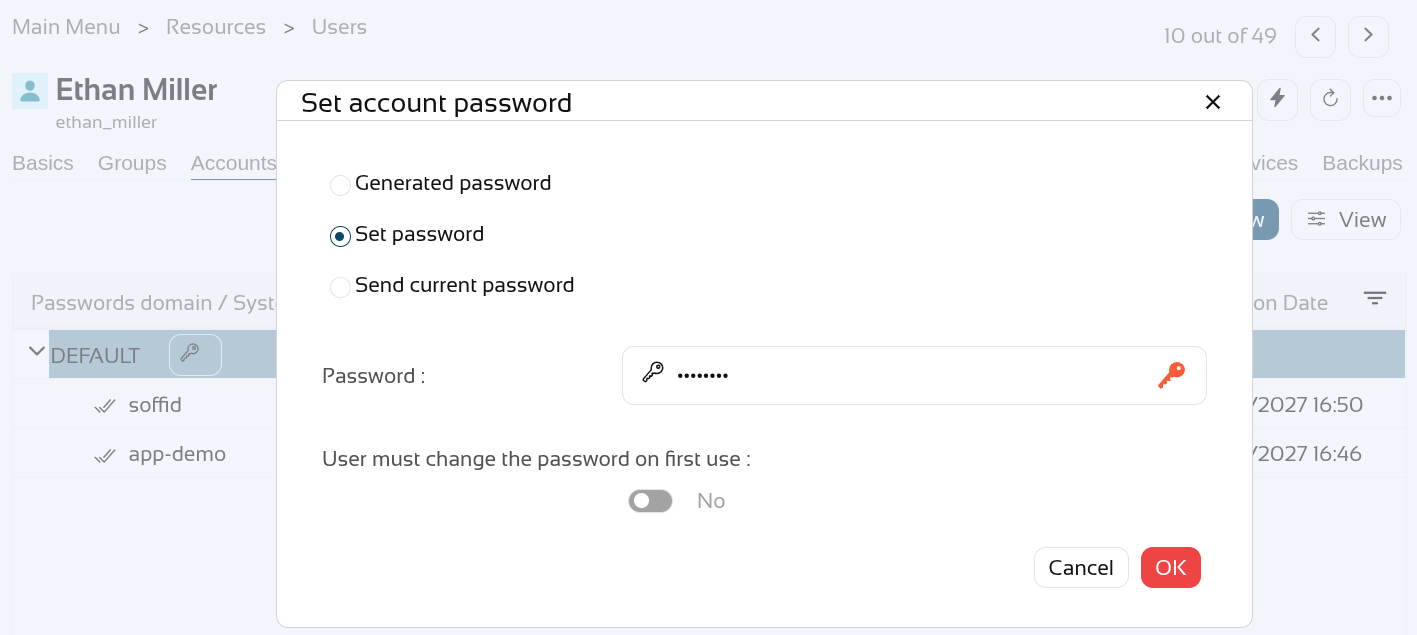](https://bookstack.soffid.com/uploads/images/gallery/2026-06/8KacmI0v1LGoDJfV-image.png)
You can check your password on the "**My accounts**" page, click on the "**View password**" of the "**app-demo**" account.
[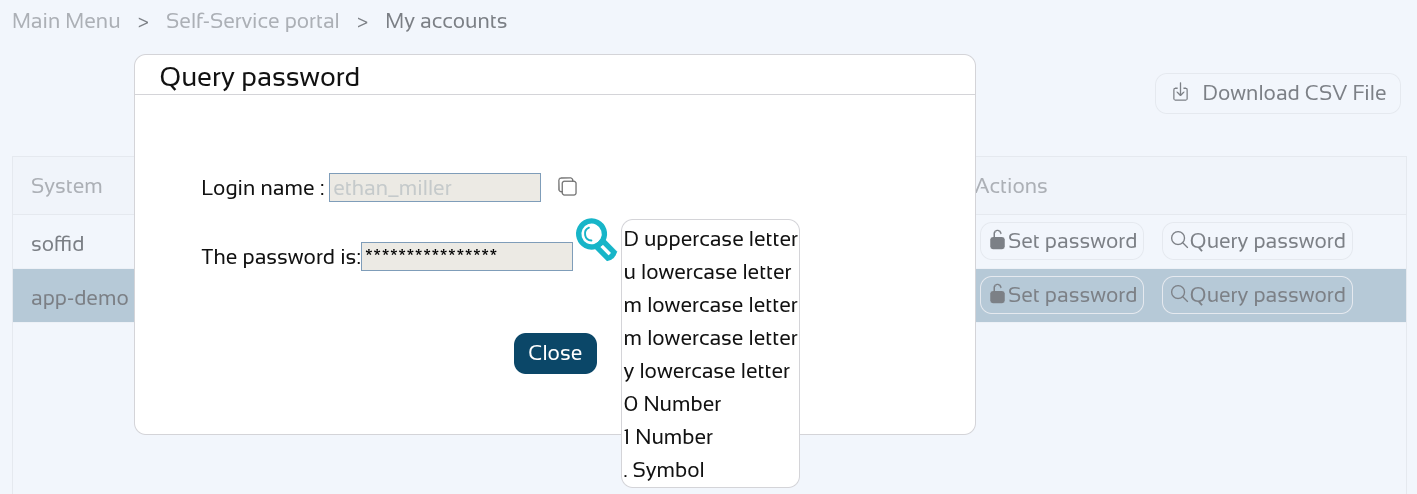](https://bookstack.soffid.com/uploads/images/gallery/2026-06/xcUYNTHc1zmEcTHX-image.png)
Now let's **disable** the "app-demo" account.
[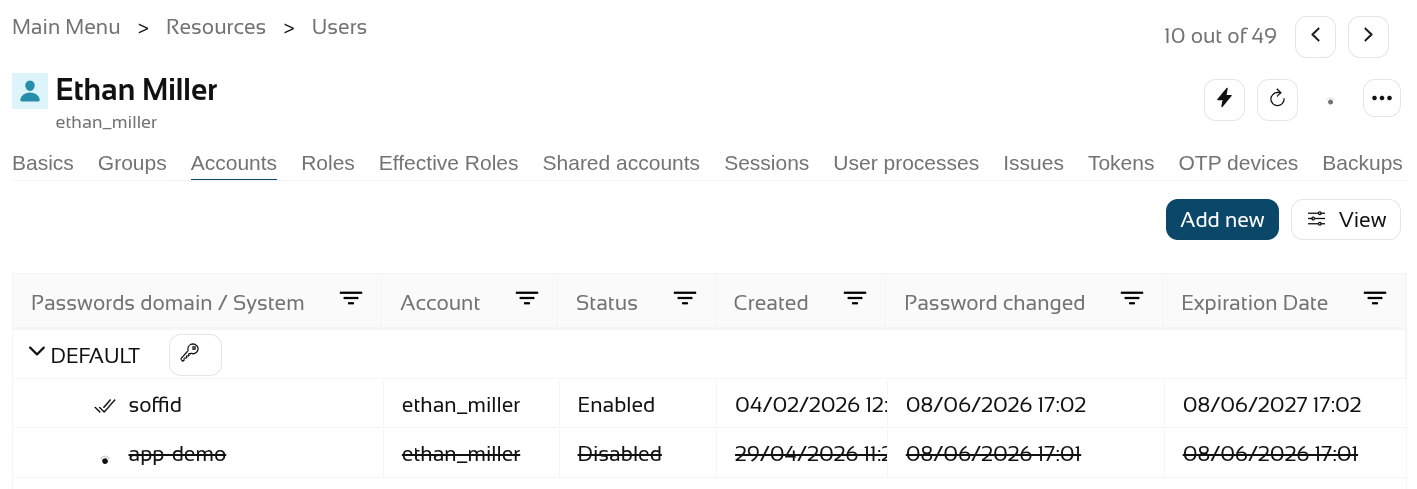](https://bookstack.soffid.com/uploads/images/gallery/2026-06/6t1qrUFAOBlmIeqP-image.png)
Check the password again, it must be empty.
[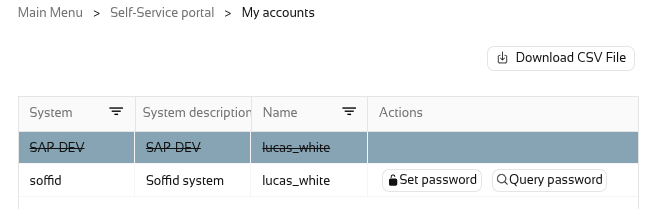](https://bookstack.soffid.com/uploads/images/gallery/2026-05/BeGQeZT3Rla7fpaH-image.png)
We are going to assign a new password "**Dummy02.**".
[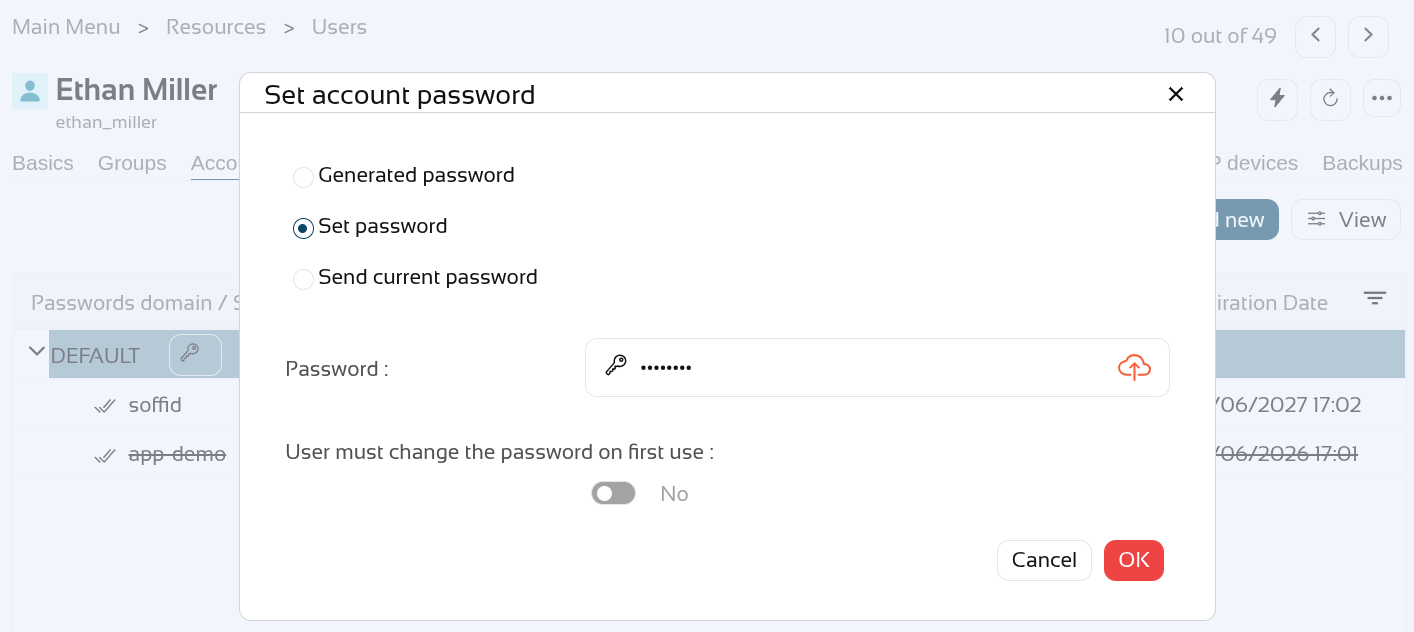](https://bookstack.soffid.com/uploads/images/gallery/2026-06/18lgUFrATVmk75jn-image.png)
The other account has the new password.
[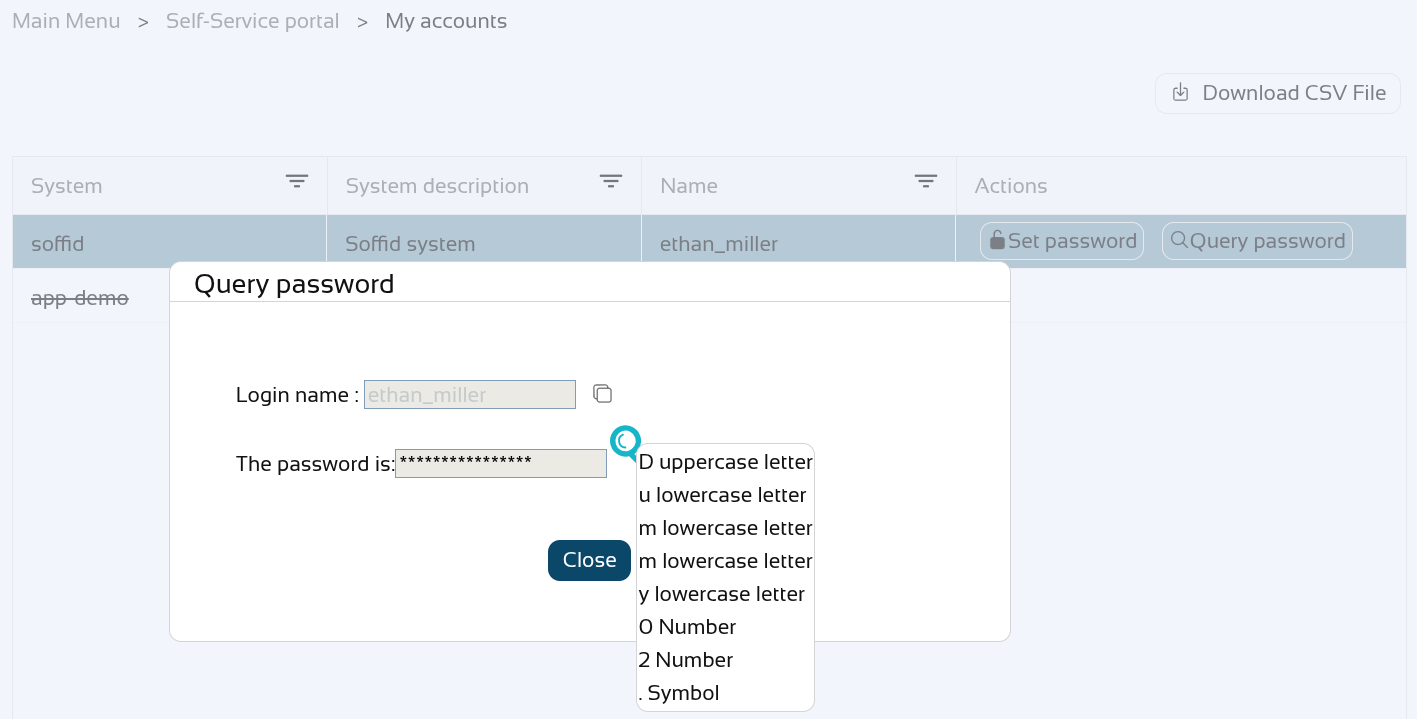](https://bookstack.soffid.com/uploads/images/gallery/2026-06/gT7ORlraCtVORk9z-image.png)
**Enable** the "app-demo" account.
[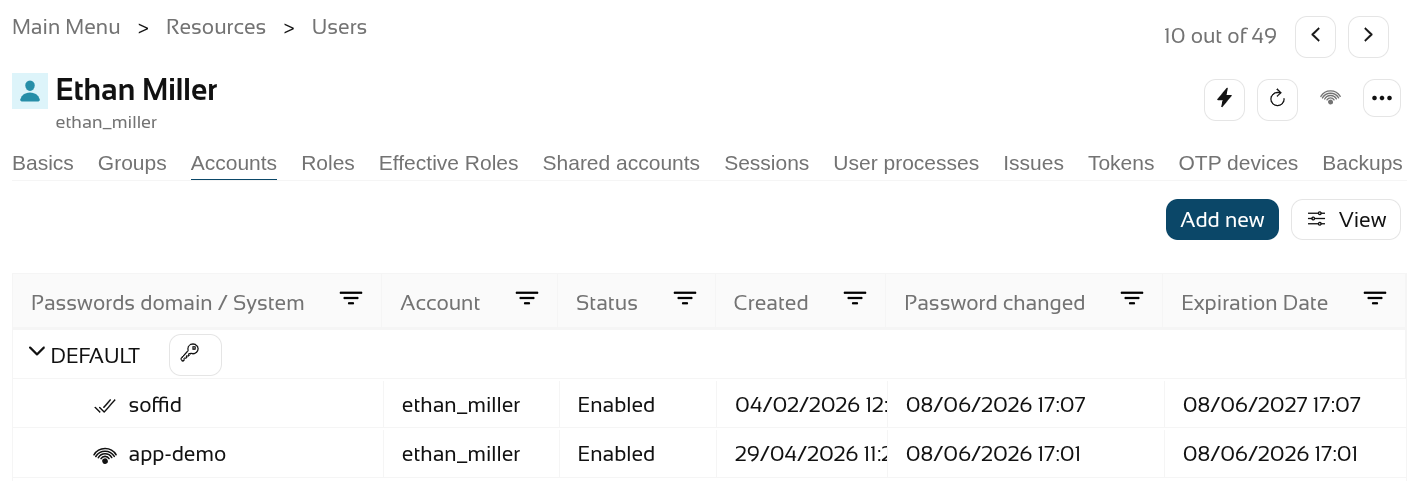](https://bookstack.soffid.com/uploads/images/gallery/2026-06/ZA3P6gdNmBQCncYV-image.png)
Check the account with the new password.
[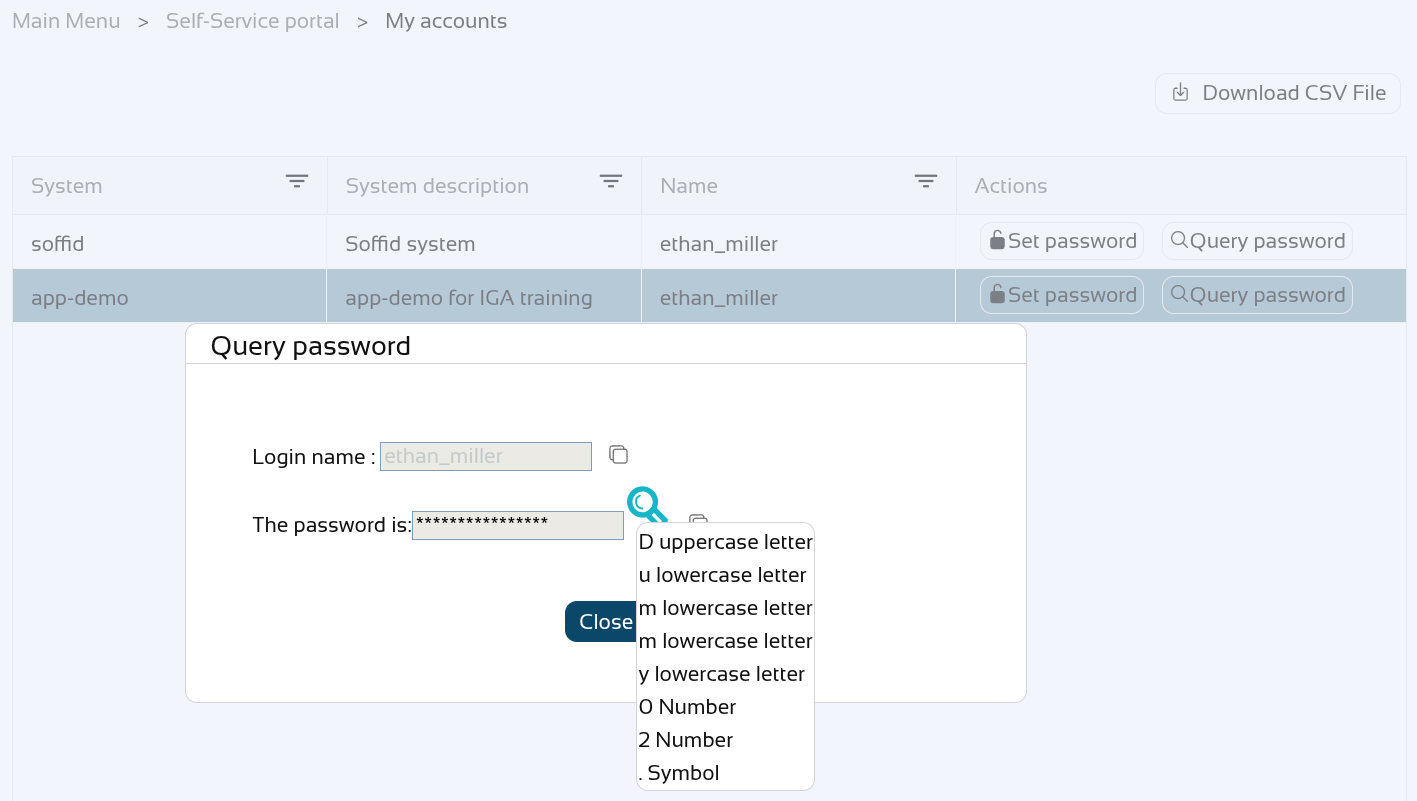](https://bookstack.soffid.com/uploads/images/gallery/2026-06/FR3F7F3Qdx8kpCs6-image.png)
# Página nueva
# 2026-05-19 New feature: filter holder groups at the IdP login
### The new feature
From now on, the **service providers** who have selected the “**Ask for group membership after authentication**” option will be able to filter which of these should be selectable with the attribute "**Script to filter out group memberships**".
### Bear in mind
Please note the following points:
- The **holder groups** **must be** correctly **configured** in Soffid.
- If there is only **one** possible **holder group**, it is **selected automatically** and is not displayed to the user.
### How to configure it?
The following **components** must be installed:
- Addon federation 4.0.25 (or higher)
In a later release, further attributes have been added to the script:
- Addon federation 4.0.40 (or higher)
The [Service Providers](https://bookstack.soffid.com/books/soffid-4-reference-guide/page/service-providers-addon-federation#bkmrk-login-rules) reference page lists the attributes that can be used.
### Let's look at an example
Let’s look at an example, here we have the user "**user4**" who has already set up the **holder groups**.
[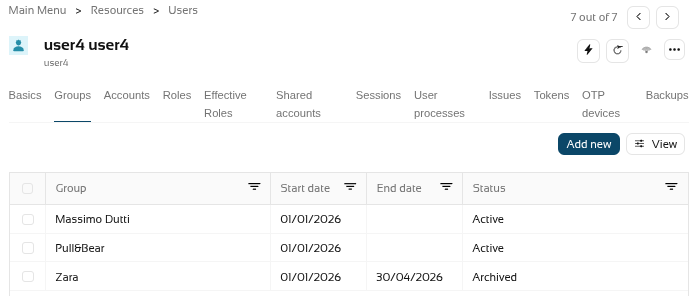](https://bookstack.soffid.com/uploads/images/gallery/2026-05/JpAKXBOb9tYRKvLA-image.png)
We had a **service provider** that was already selected the option "**Ask for group membership after authentication**".
[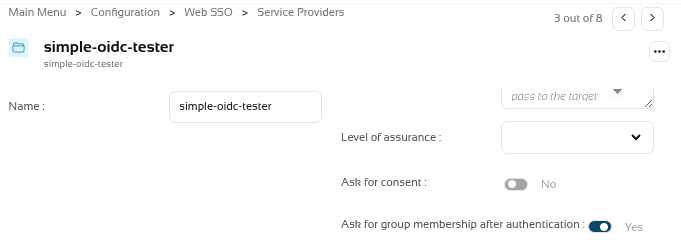](https://bookstack.soffid.com/uploads/images/gallery/2026-05/kP8QV9hPqFVt8sdA-image.png)
The holder groups have several **custom attributes** (startDate, endDate and status).
[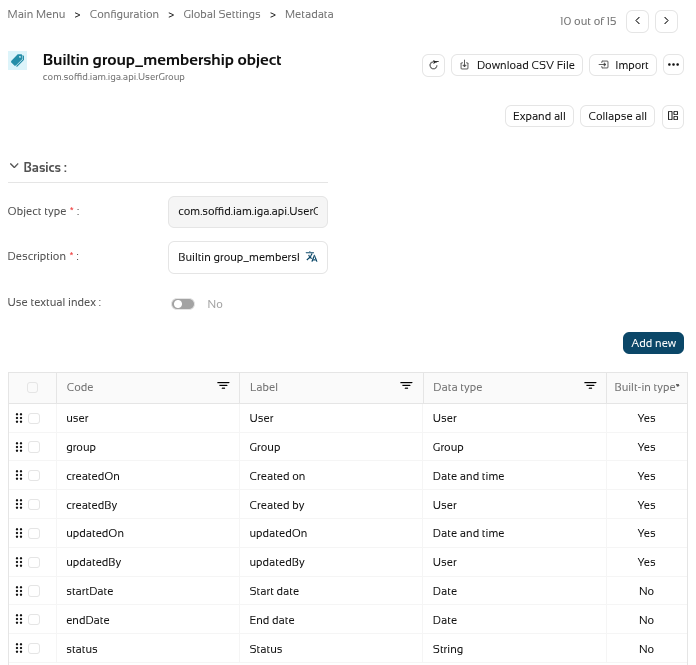](https://bookstack.soffid.com/uploads/images/gallery/2026-05/jSgdoRMeh0qAllS1-image.png)
We now want to **filter** the **holder groups** with the attibute **status** with the **Active** value.
[](https://bookstack.soffid.com/uploads/images/gallery/2026-05/YqrDoi5j8iFQ3WLV-image.png)
So we're going to create a script in the "**Script to filter out group memberships**" of the service provider.
[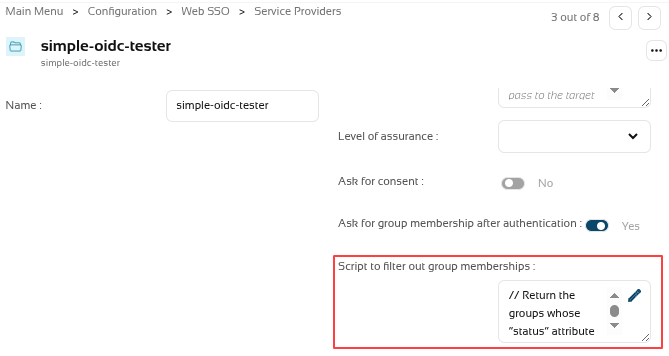](https://bookstack.soffid.com/uploads/images/gallery/2026-05/9PjFDOz2srel64TD-image.png)
This is the script.
```
// Return the groups whose “status” attribute has the value "Active"
//
l = new java.util.ArrayList();
lug = serviceLocator.getGroupService().findUsersGroupByUserName(user.userName);
for (i=0; iPlease note that if the **script fails** or is **not configured correctly**, the holder groups page will **not be displayed**.
Now, to test it, we’ll log in to the application (the service provider), and these are the IdP’s login pages
[](https://bookstack.soffid.com/uploads/images/gallery/2026-05/ljIO7Xg3gF9ZXiLx-image.png)
[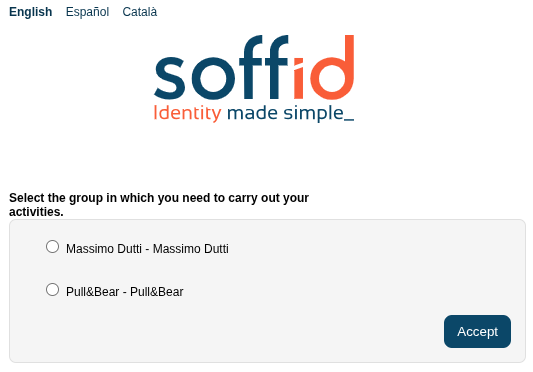](https://bookstack.soffid.com/uploads/images/gallery/2026-05/ZZ0FVGgc0tVBYgrq-image.png)
### About the attributes we can use
Here is a brief example of a script that we can use to return a specific group based on the additional data.
```bash
externalWithPermissions = false;
if (accountName.contains(".") && "Extranet".equals(serviceProvider) && "PO".equals(authenticationMethod)) {
externalWithPermissions = true;
}
l = new java.util.ArrayList();
lug = serviceLocator.getGroupService().findUsersGroupByUserName(user.userName);
for (i=0; iThe first version of the "**CSV connector**" has been released in Soffid 4. This connector only includes the “**Customisable CSV file**” agent. In this version, this agent is used to **generate a CSV file** as part of the Soffid synchronisation engine.
### Bear in mind
Please note the following points:
- The "Customisable CSV file" agent is used to **synchronice**, not for load authoritative o reconcile.
- **Users** who need to be created in the CSV file must **have** an **account** with that **agent**.
- Please note the **location** where the file will be created; its configuration will depend on the **operating system** and the type of Soffid **architecture/installation**
### How to configure it?
The following **components** must be installed:
- CSV plugin 4.0.0 (or higher)
### Let's look at an example
Step 1: install the **CSV plugin** from the marketplace (Add new button) in the [License and plugin](https://bookstack.soffid.com/books/soffid-4-reference-guide/page/license-and-plugin "License and plugin") page. The name of the connector is "Test plugin".
[](https://bookstack.soffid.com/uploads/images/gallery/2026-06/2oB9SLFndZ0lcQaW-image.png)
[](https://bookstack.soffid.com/uploads/images/gallery/2026-06/dhespCDZJ3dOM1sl-image.png)
Step 2: **create** an **agent** of the "Customisable CSV file" type.
[](https://bookstack.soffid.com/uploads/images/gallery/2026-06/APaiPdzP2khgdjXu-image.png)
Step 3: **configure** the agent with the **mappins** you need (in the "Attribute mapping" tab).
For further information on how to configure this agent, please refer to the [CSV connector in Soffid 4](https://bookstack.soffid.com/books/connectors/page/csv-connector-in-soffid-4 "CSV connector in Soffid 4") page.
[](https://bookstack.soffid.com/uploads/images/gallery/2026-06/wGHA94XZpt2v0SM4-image.png)
Step 4. Create **CSV accounts** for users.
[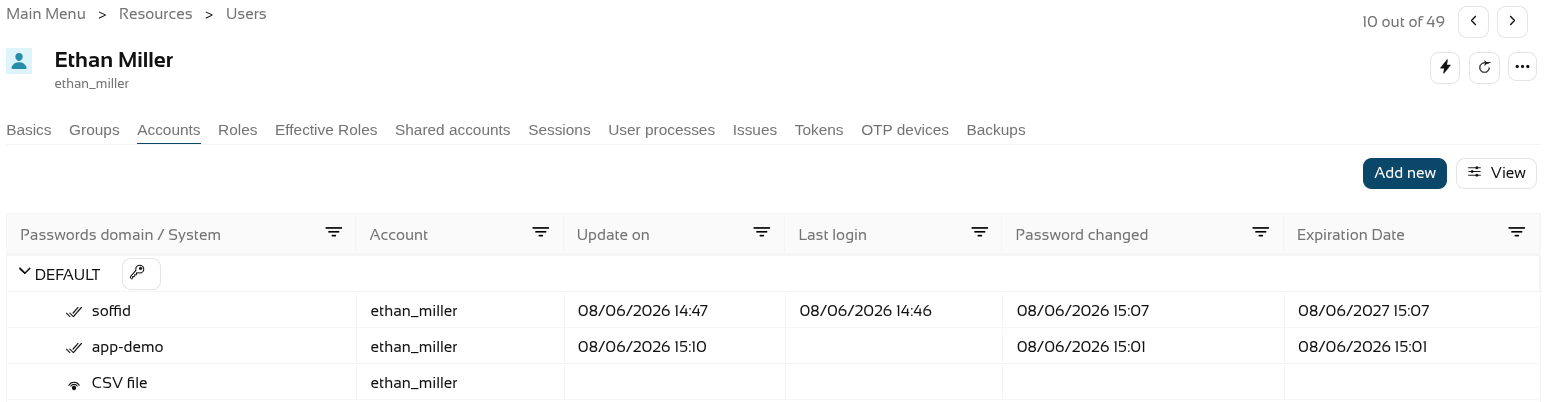](https://bookstack.soffid.com/uploads/images/gallery/2026-06/5D2TnLjvWXwEAvSc-image.png)
Step 5. The **accounts** created will have synchronised automatically as the **engine** is set to automatic and the **agent** is in write mode, and it is active in the **monitoring**.
The accounts.
[](https://bookstack.soffid.com/uploads/images/gallery/2026-06/HZ82yAznNziSLr0g-image.png)
The engine.
[](https://bookstack.soffid.com/uploads/images/gallery/2026-06/yqx43Nf2PizJgw15-image.png)
The agent.
[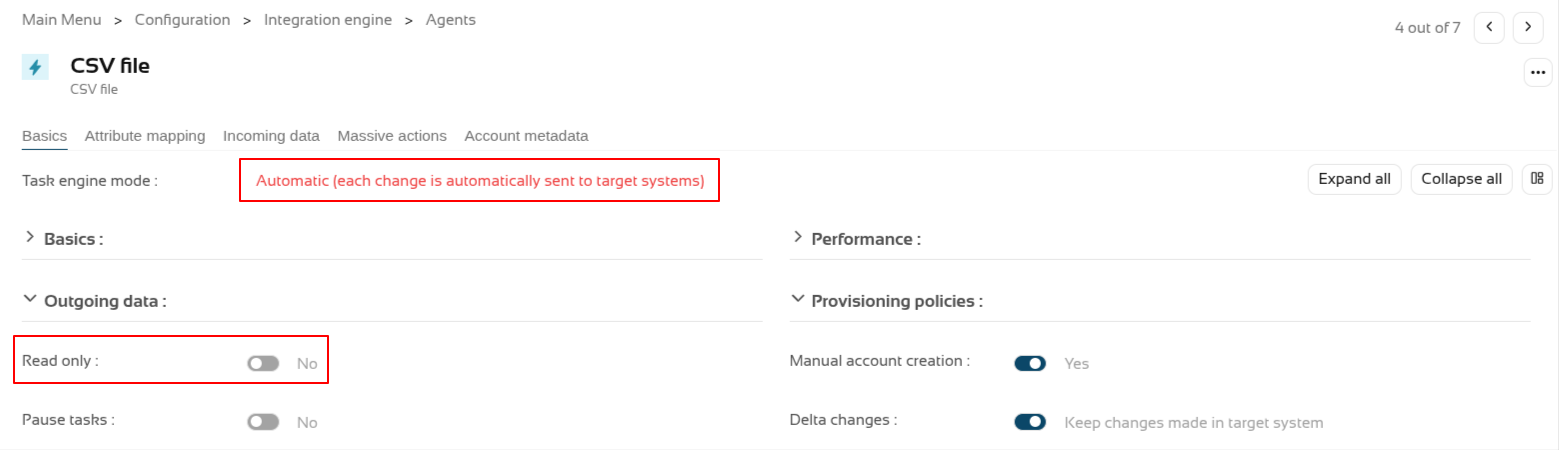](https://bookstack.soffid.com/uploads/images/gallery/2026-06/2FWWp81w2FGprT3F-image.png)
And the monitoring.
[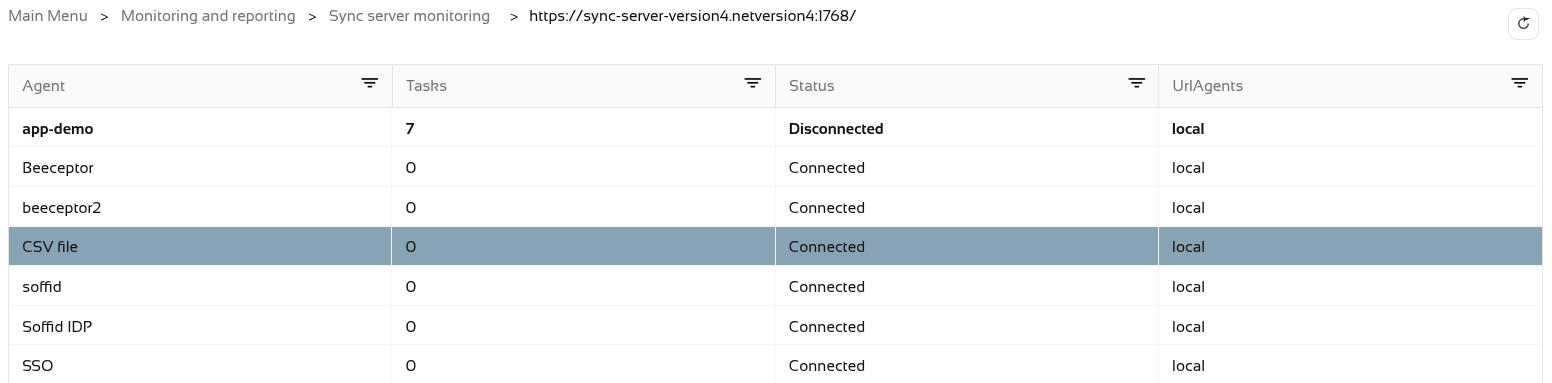](https://bookstack.soffid.com/uploads/images/gallery/2026-06/gMGGVd6cwWGO37Be-image.png)
Step 6. Now let’s **check** the CSV file. It was configured in the "/tmp/users.csv" path of the container.
[](https://bookstack.soffid.com/uploads/images/gallery/2026-06/HPjZQHTHOTP0y1wY-image.png)
# 2026-05-31 New feature: new authorization for the SCIM webservice
### The new feature
From now on, all **users** used to access the **SCIM webservice** will **require** the new "**webservice:user**" authorisation.
### Bear in mind
Please note the following points:
- Users with the **SOFFID\_ADMIN** role **already have** this authorisation inherited by inheritance.
- After updating Soffid, you will need to grant this authorisation to users who are not administrators and who are already using the SCIM web service.
### How to configure it?
The following **components** must be installed:
- Console 4.0.58 (or higher)
### Let's look at an example
For this example, we will be using the Bruno application; for further information, please see this page [Testing ](https://bookstack.soffid.com/books/scim/page/testing-tool "Testing Tool")[Tool](https://bookstack.soffid.com/books/scim/page/testing-tool "Testing Tool").
First, let’s check that the "**Test**" user we were using in the SCIM web service no longer has access, see the "**401 Unauthorized**" error.
[](https://bookstack.soffid.com/uploads/images/gallery/2026-06/YOxbb2qt0WTvXENH-image.png)
On the **Roles page**, we are going to create a new role, "**SOFFID\_SCIM**", and then assign the new authorisation to it.
[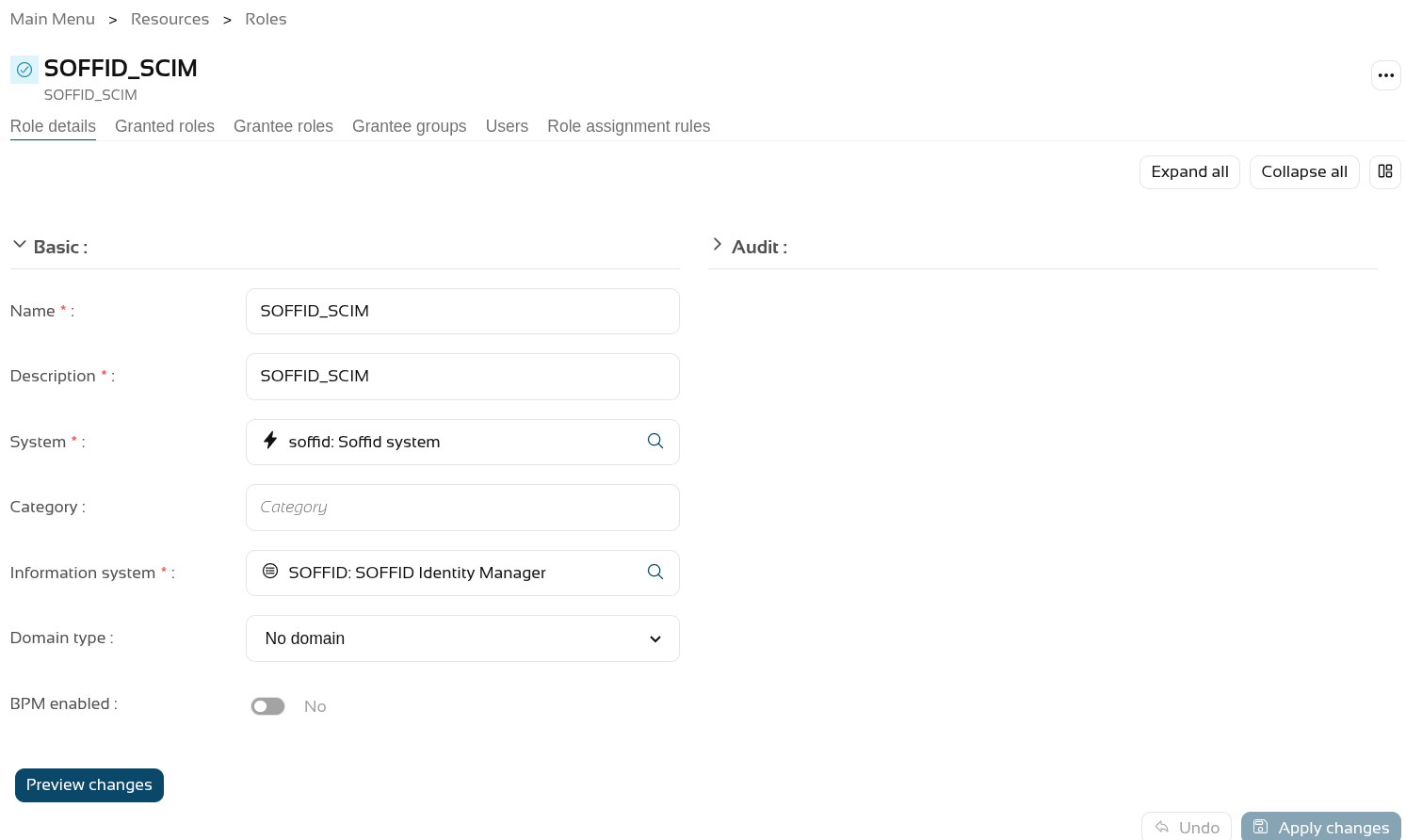](https://bookstack.soffid.com/uploads/images/gallery/2026-06/7PvJwwbnBMztwL3i-image.png)
On the **Authorisations page**, we assign the new authorisation "**webservice:user**" to it.
[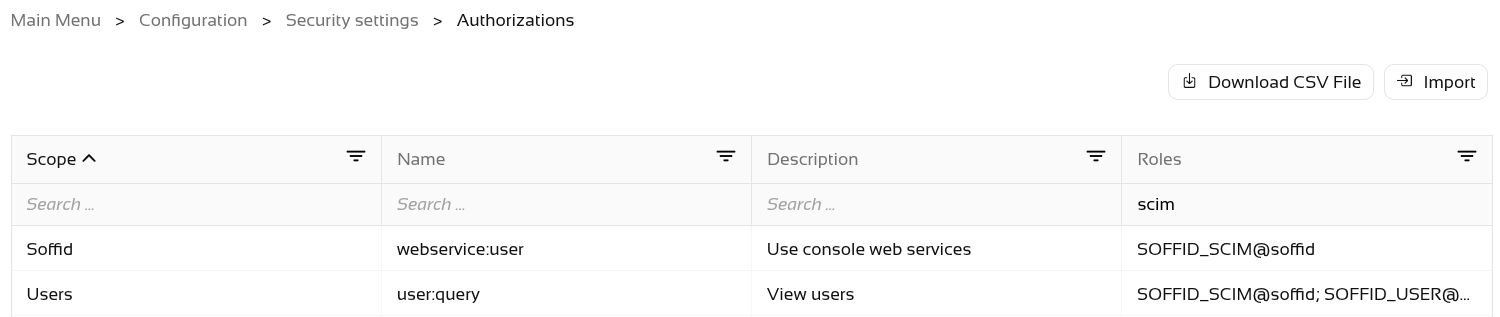](https://bookstack.soffid.com/uploads/images/gallery/2026-06/aKeNA4AKyeJsXCtY-image.png)
The final step is to **grant** the **SOFFID\_SCIM** role to the **user**.
[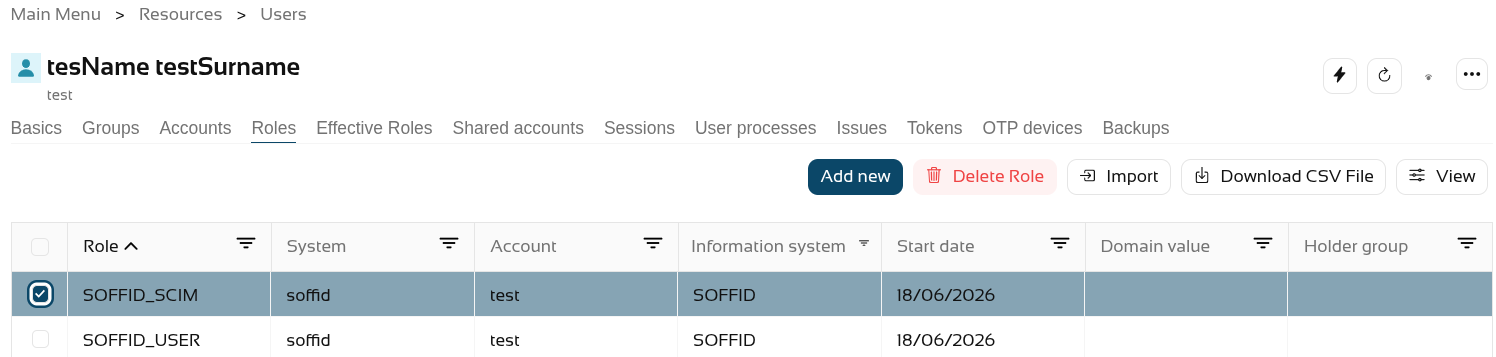](https://bookstack.soffid.com/uploads/images/gallery/2026-06/7Yegz9EcBDB6t9PU-image.png)
Now, when we query the web service, it returns results.
[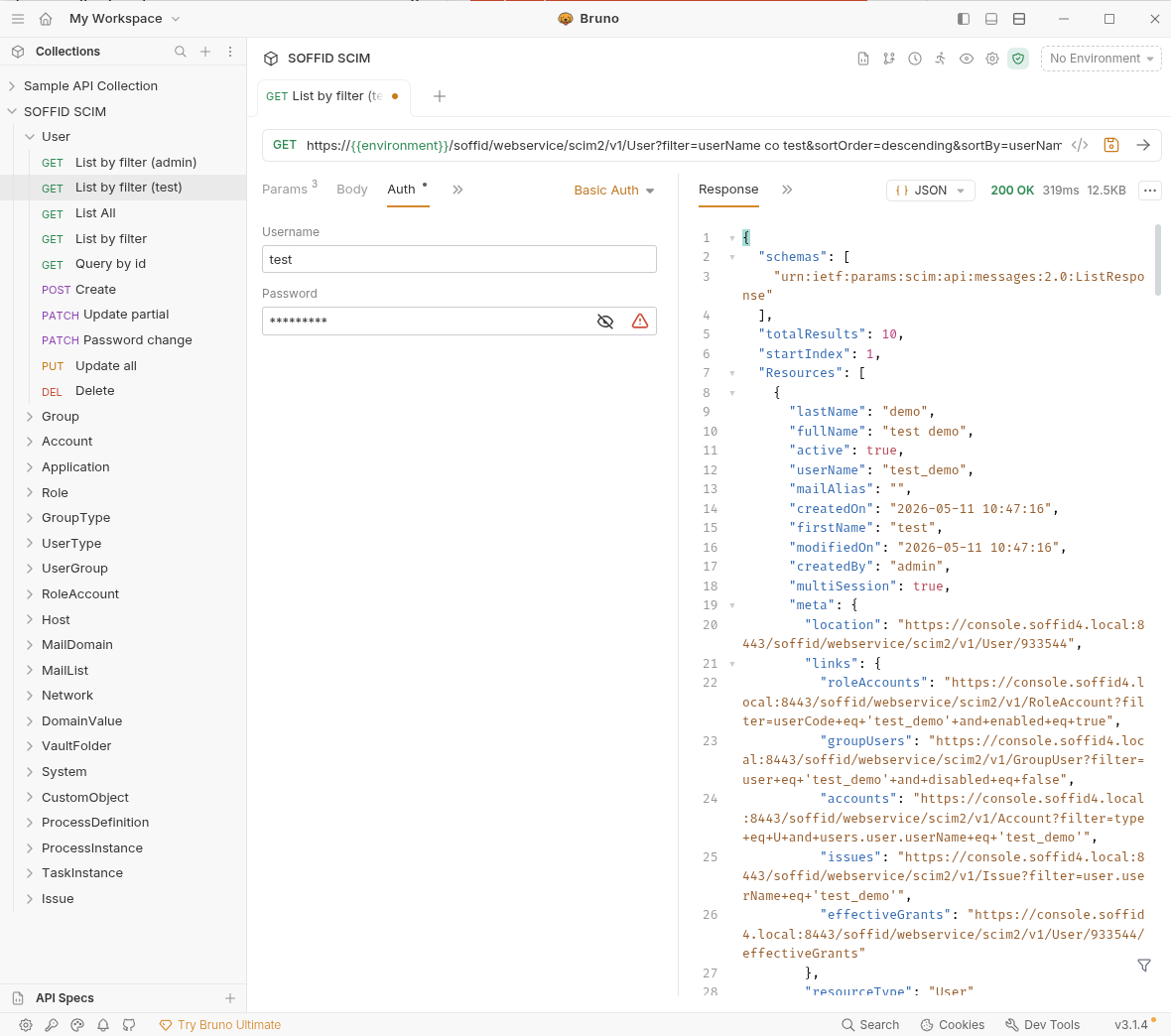](https://bookstack.soffid.com/uploads/images/gallery/2026-06/shHwcMrzgAyCMKh3-image.png)
# 2026-05-31 New feature: hidden stack tracers
### The new feature
**Users** who do not have the SOFFID\_ADMIN role will **no** longer **see** the details of **errors** in the **Console**; instead, an **identifier** will be displayed so that **administrators can look it up in the** [Console log](https://bookstack.soffid.com/books/soffid-4-reference-guide/page/console-log "Console log").
### Bear in mind
Please note the following points:
- Users with the **SOFFID\_ADMIN** role will be able to **view the error log**.
- End **users** will see an **identifier** which they must share with the administrator.
### How to configure it?
The following **components** must be installed:
- Console 4.0.58 (or higher) -> recommended Console 4.0.62 (or higher)
### Let's look at an example
Let’s follow these steps.
- Open the **Console**.
- Next, go to the **Identity Self Service** module.
- Select the **Process Search** page.
- In the search bar, select the **Advanced** option.
- Type in **any text**, for example "Test".
- Then click on the **magnifying glass** to search.
- In the pop-up window displaying the error, **click on the "+" icon** to the right of the text "‘Technical data".
- You can now see the **identifier**.
[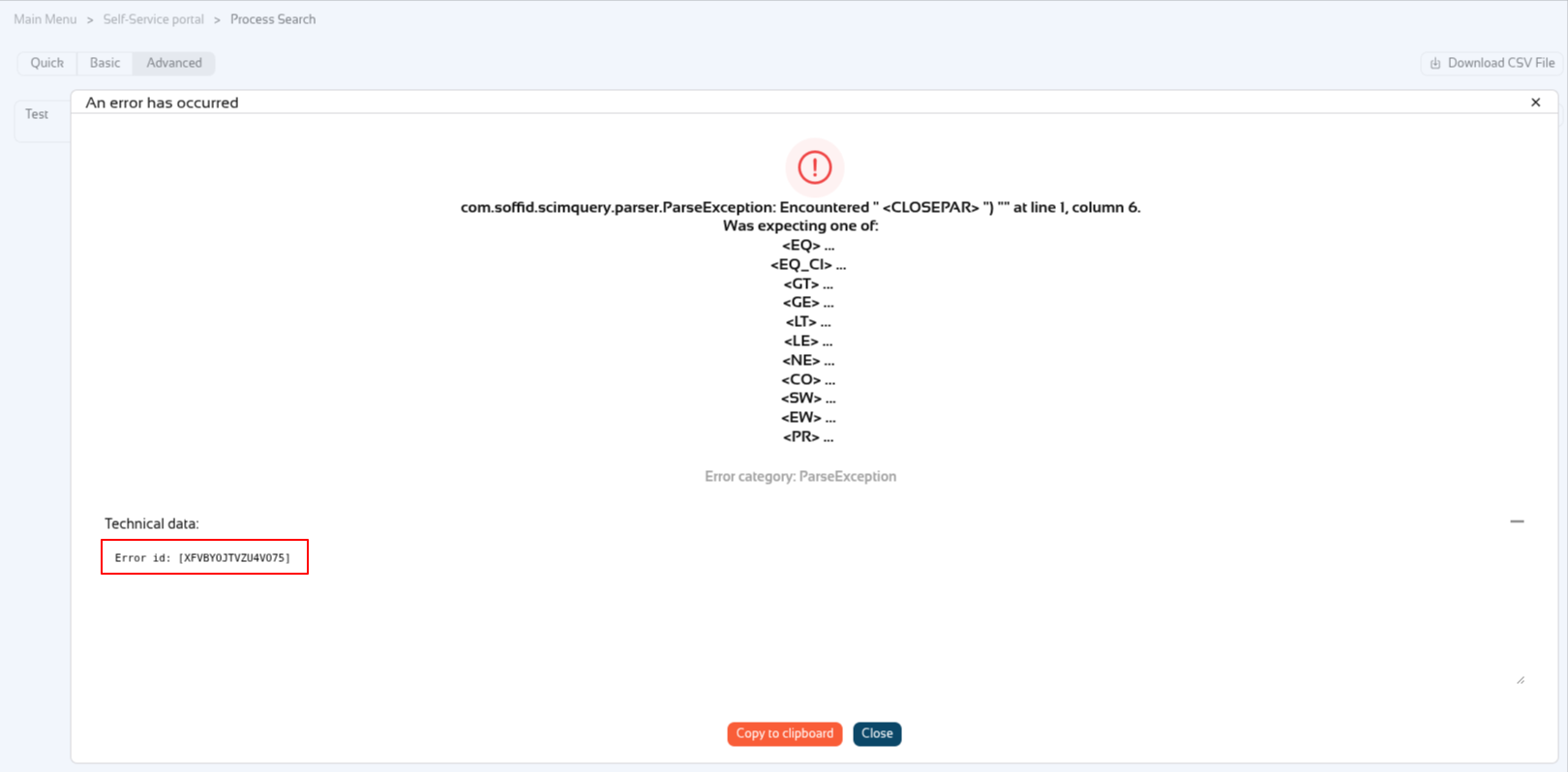](https://bookstack.soffid.com/uploads/images/gallery/2026-06/MLyGC2KBhY6TpZYJ-image.png)
Now the user has to share the id with the Soffid administrator, in this exemple XFVBYOJTVZU4VO75.
Soffid administrators can **look up** the **id** in the "**Console log**" page.
[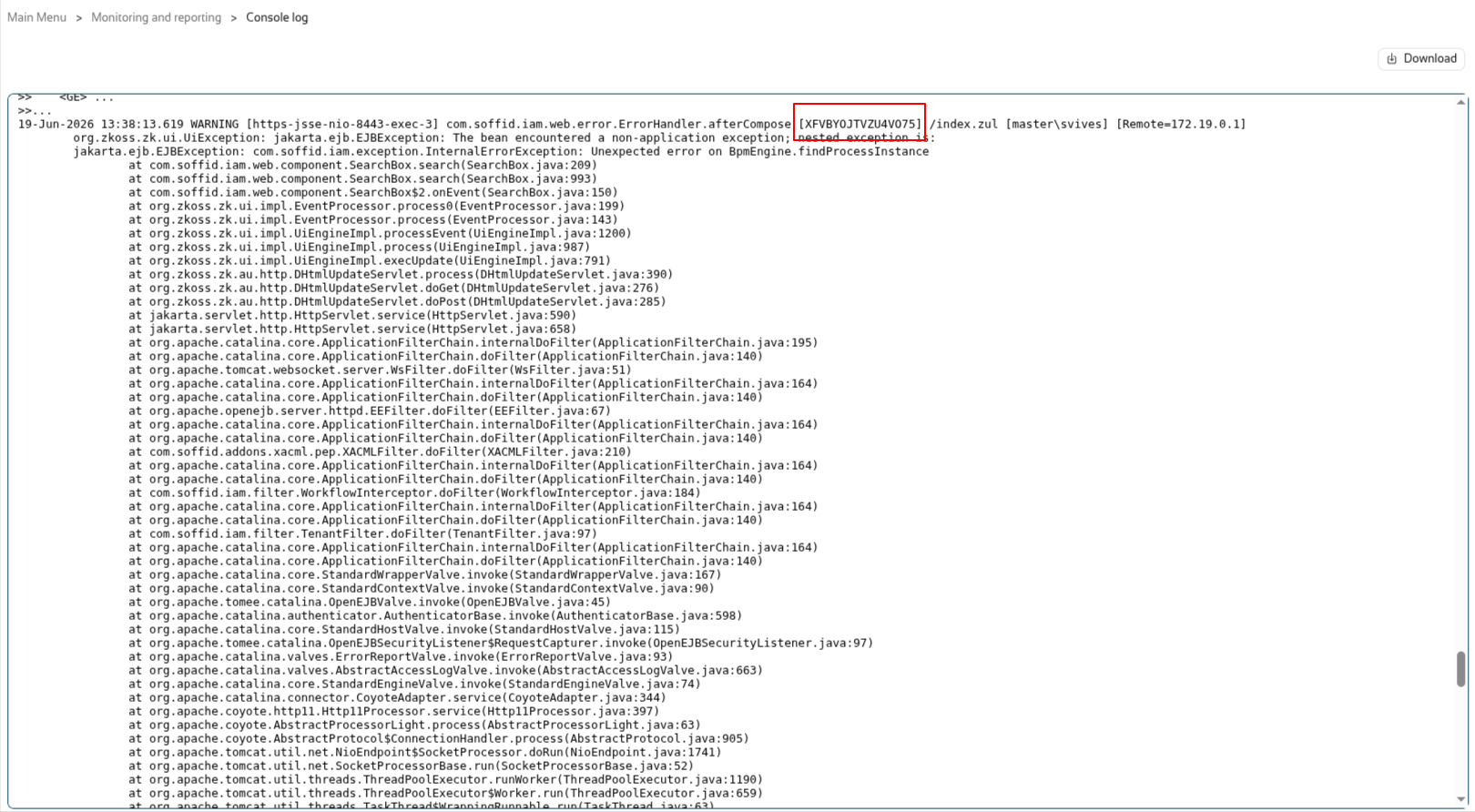](https://bookstack.soffid.com/uploads/images/gallery/2026-06/Ohnd3Hf8uSjU7dSj-image.png)
# 2026-06-02 New feature: syslog with new protocols
### The new feature
Until now, when we enabled the sending of logs via syslog to a SIEM tool, the only **protocol** available was **UDP** on port 514; now, **TCP** and **SSL** protocols have been added, and we also allow you to **configure** the **port** instead of using the default settings.
### Bear in mind
Please note the following points:
- Customers who have **already configured** syslog will continue to **use it as before**.
- Configuration is done through **parameters**; you can check them on the [Soffid Parameters](https://bookstack.soffid.com/books/soffid-4-reference-guide/page/soffid-parameters#bkmrk-siem-and-syslog "Soffid parameters") page.
- Once you have **created/modified/removed** the **parameters**, there is **no need to restart**.
### How to configure it?
The following **components** must be installed:
- Console 4.0.62 (or higher)
### Let's look at an example
Let’s follow these steps.
- Open the **Console**.
- Next, go to the **Soffid parameters** page.
- Create the next parameters:
[](https://bookstack.soffid.com/uploads/images/gallery/2026-07/JMVrIwkkMfUuNJyw-image.png)
# 2026-07-08 New feature: geolocation service available by default
### The new feature
From now on, the **geolocation service** and the **use of AI service** will be **enabled by default** if the AM or IRC modules have been activated. Consequently, the [Network Intelligence](https://bookstack.soffid.com/books/soffid-4-reference-guide/page/network-intelligence "Network intelligence") page has been removed
### Bear in mind
Please note the following points:
- This **feature** is only **enabled** if the licence includes the **AM** or **IRC** **module**.
- The **geolocation service** requires that the service be available on a **public internet machine**.
- The **AI service** is available on the [Soffid chat-bot](https://bookstack.soffid.com/books/soffid-4-reference-guide/page/soffid-chat-bot "Soffid chat-bot") page and in all script-type attributes that may appear on any page in the Console.
### How to configure it?
The following **components** must be installed:
- Console 4.0.64 (or higher)
- Syncserver 4.0.39 (or higher)
- Addon federation 4.0.36 (or higher)
Following this change, there have been further updates
- Addon admin 4.0.6 (or higher) --> to use the AI assistant correctly
- Console 4.0.67 (or higher) --> to use the variable SOFFID\_DISABLE\_GEOIP to disable this service
### Let's look at an example
First of all, the Network Intelligence screen no longer exists.
[](https://bookstack.soffid.com/uploads/images/gallery/2026-07/6FKNvOy7UQGxZXYg-image.png)
We have the necessary modules in our Soffid system.
[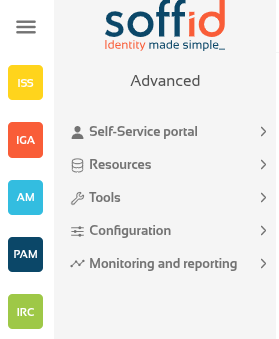](https://bookstack.soffid.com/uploads/images/gallery/2026-07/mF3KomSjMEKrkEIW-image.png)
First, let’s ask the [Soffid chat-bot](https://bookstack.soffid.com/books/soffid-4-reference-guide/page/soffid-chat-bot "Soffid chat-bot").
[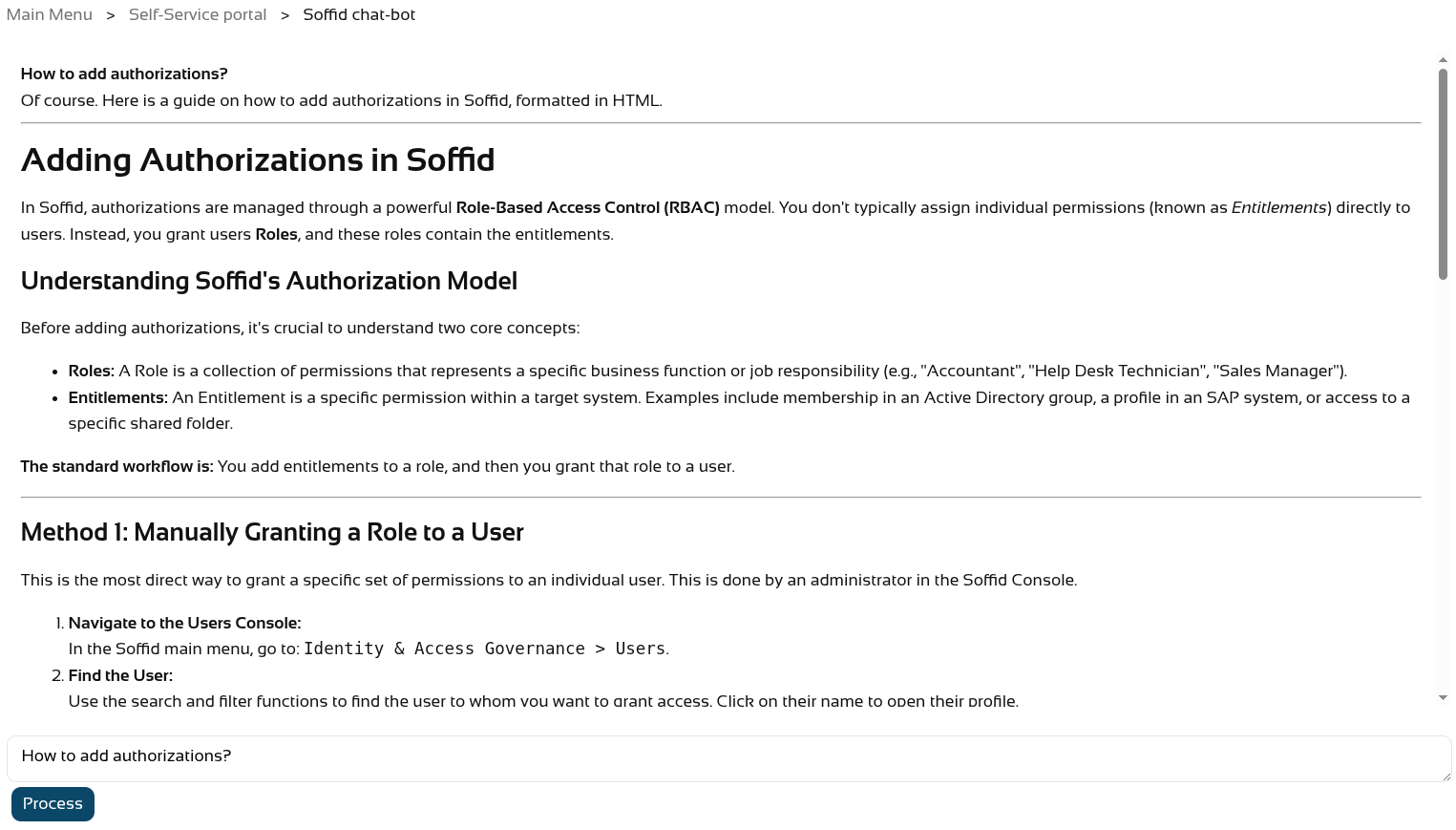](https://bookstack.soffid.com/uploads/images/gallery/2026-07/iaYutsZXlB78mh5c-image.png)
And also create a new script on the [Custom scripts](https://bookstack.soffid.com/books/soffid-4-reference-guide/page/custom-scripts-addon-admin "Custom scripts (addon admin)") page.
[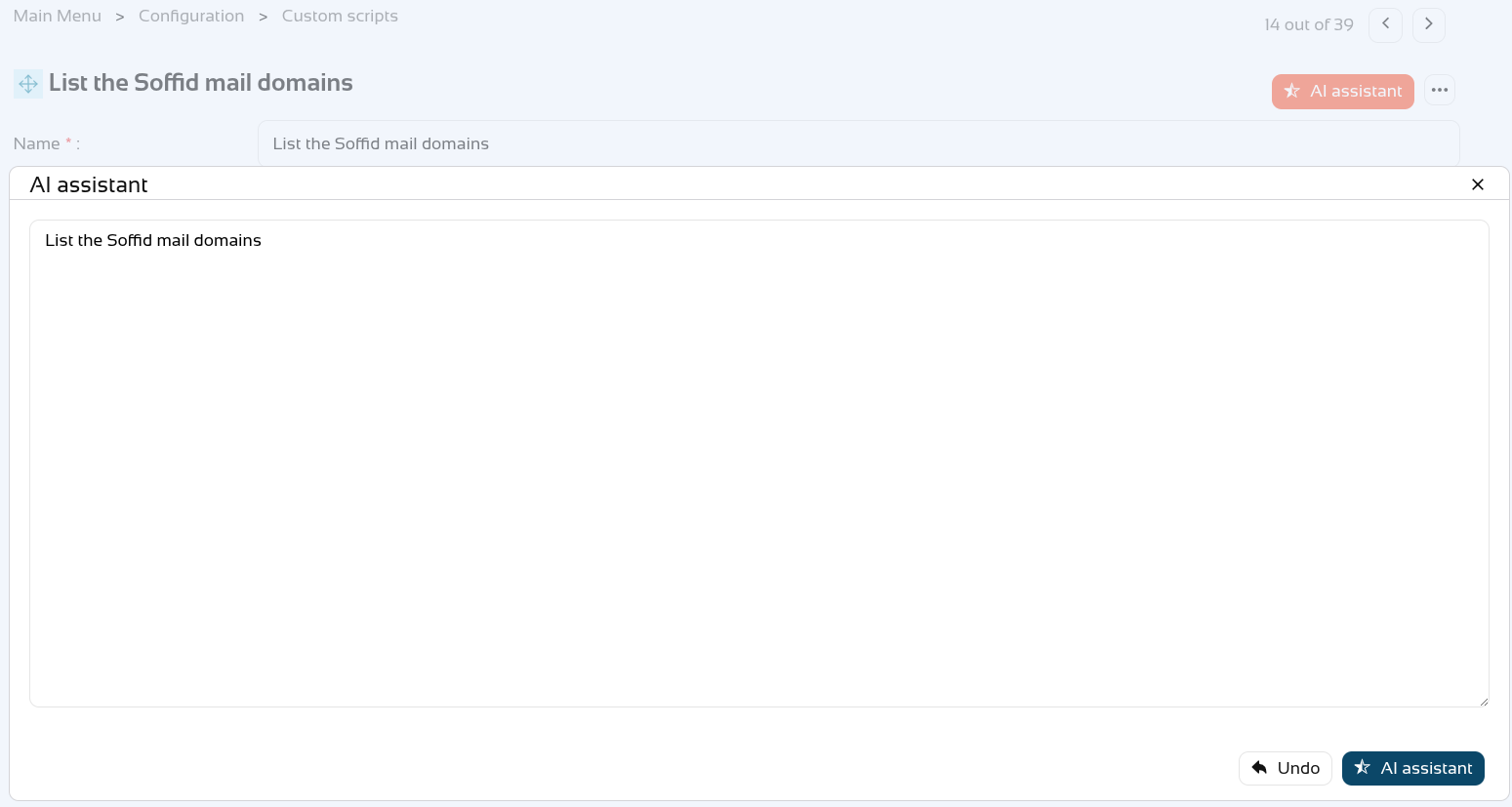](https://bookstack.soffid.com/uploads/images/gallery/2026-07/3oFrwj8sblTFG0VZ-image.png)
[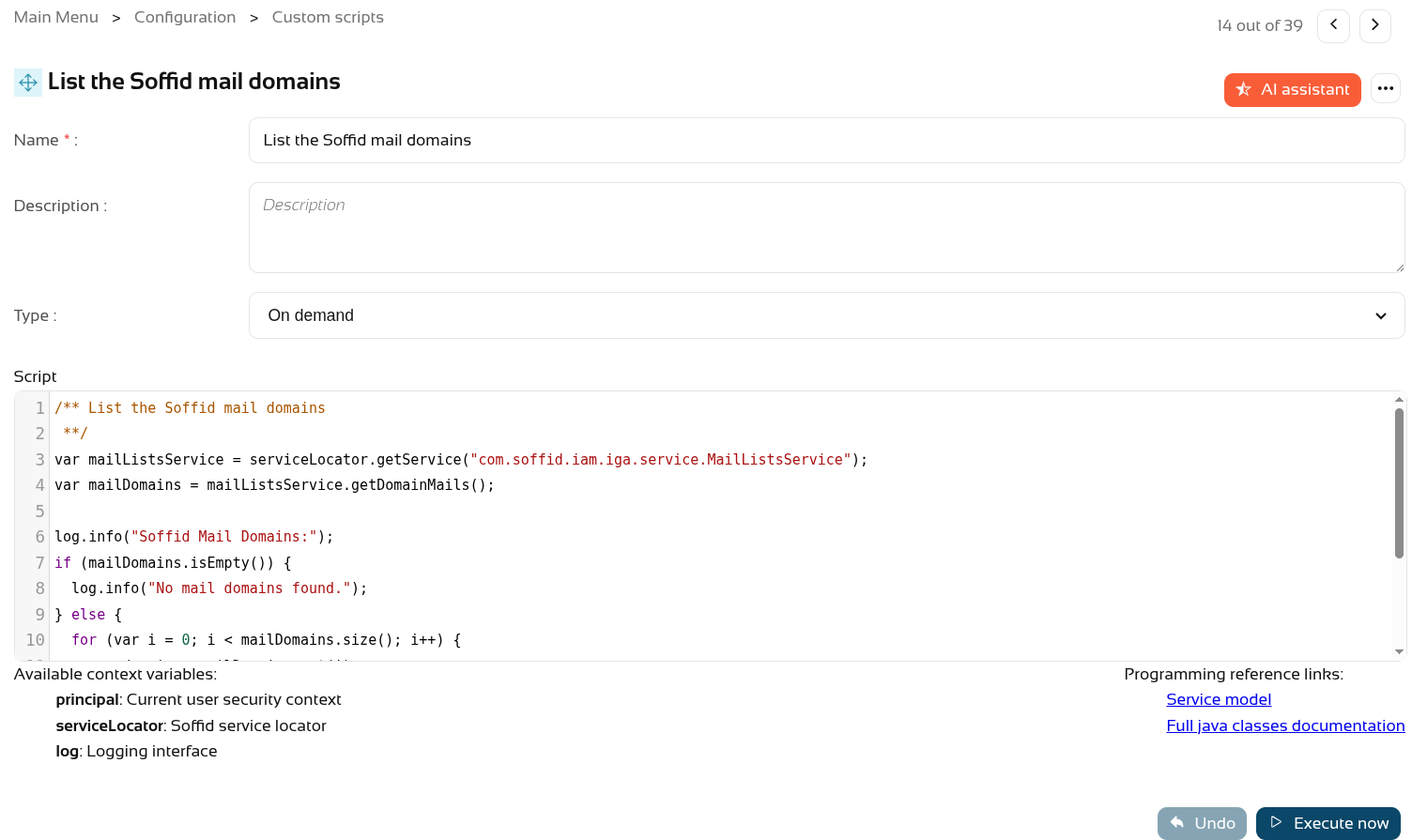](https://bookstack.soffid.com/uploads/images/gallery/2026-07/e5U29IAojsSdVFdh-image.png)
Regarding **geolocation**, if Soffid is installed in a public location, you can check new accesses via the **Access logs** page.
- Go to **Access logs** page (in **Monitoring and reporting** folder).
- Use the **magnifying glass** button to search.
- **Sort** the list by **Start Date** in descending order.
- Click the **View** button
- Add the **Country Code** attribute.
- The country should then appear in the most **recent accesses**.
[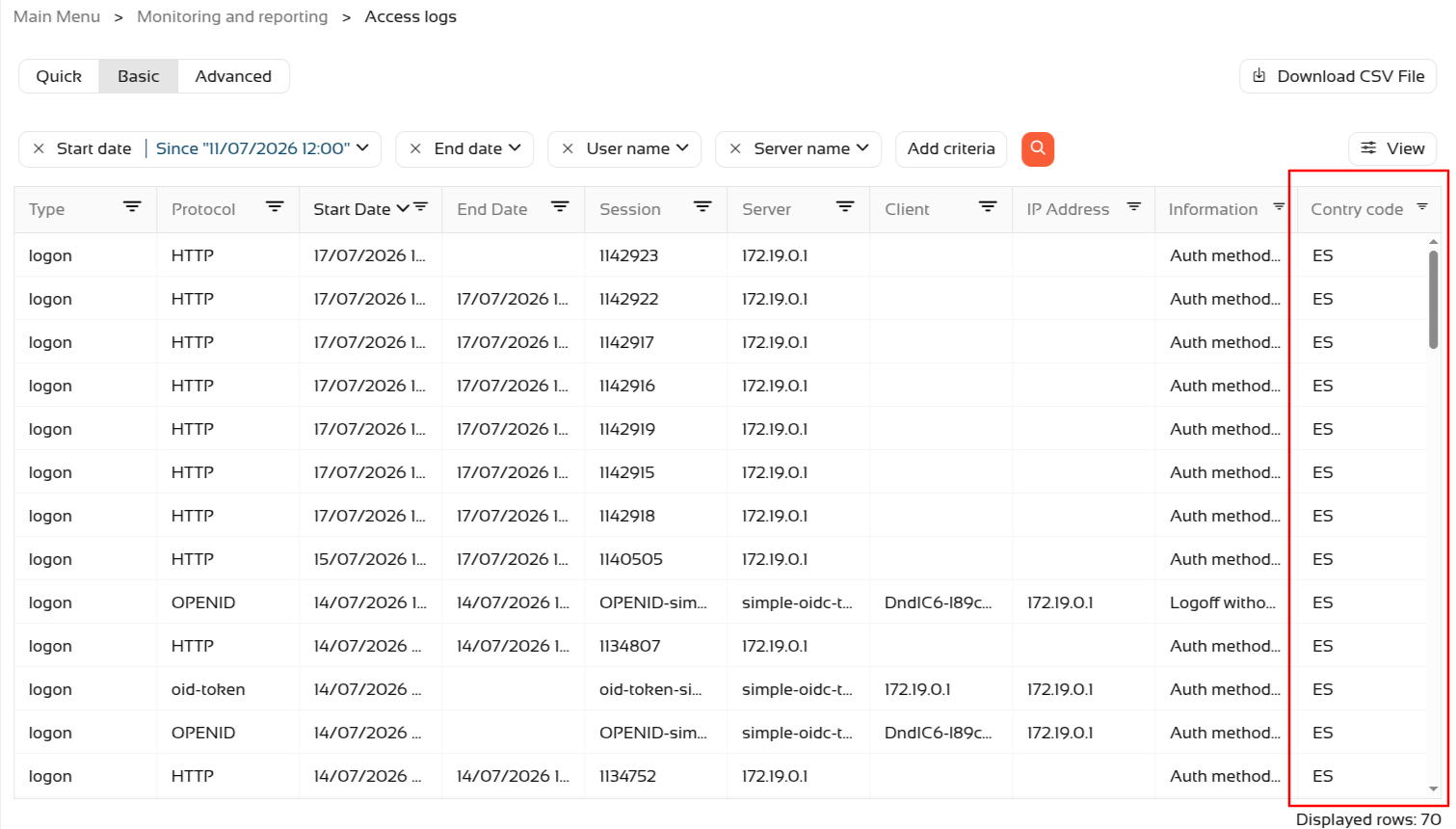](https://bookstack.soffid.com/uploads/images/gallery/2026-07/1UU5IMk0RG45AogK-image.png)
# 2026-07-08 New feature: new property removeDisabledObjects
### The new feature
A new generic **property** “**removeDisabledObjects**” has been created which can be used in all agents, on the “**user**” and “**accounts**” objects. By default, its value is “false”.
### Bear in mind
Please note the following points:
- From this version onwards, the property will always be **used internally**; if it is **not defined**, it will take the **default value** of "false".
- This property can be **used for** synchronising **users** and **accounts**.
For more informatio you can check the [Windows Connector](https://bookstack.soffid.com/books/connectors/page/windows-connector#bkmrk-propertiesWindows%20Connector "Windows Connector") page.
### How to configure it?
The following **components** must be installed:
- Console 4.0.67 (or higher)
- Syncserver 4.0.39 (or higher)
### Let's look at an example
We have a **disabled account** on Soffid.
[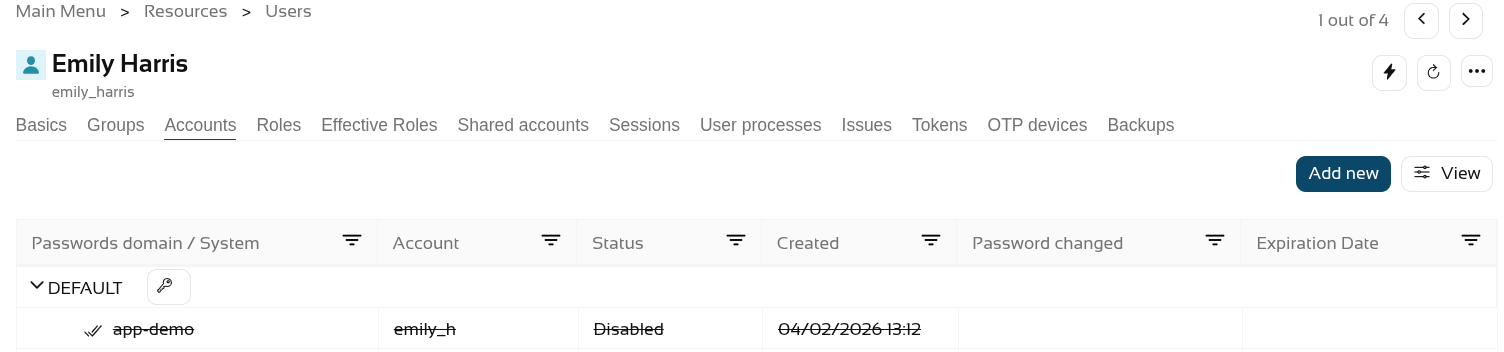](https://bookstack.soffid.com/uploads/images/gallery/2026-07/CBPcE6xLZBaYjMXi-image.png)
The **account exists** as inactive in the final system
[](https://bookstack.soffid.com/uploads/images/gallery/2026-08/NhUiSuttuuZUduBr-image.png)
We set the **removeDisableObject** property
[](https://bookstack.soffid.com/uploads/images/gallery/2026-08/proae7Yt7pB2ZMkz-image.png)
We **synchronise** the **changes** with the final system.
[](https://bookstack.soffid.com/uploads/images/gallery/2026-07/VMxYiXojbINP0ays-image.png)
Finally, the account has been **deleted** from the final system.
[](https://bookstack.soffid.com/uploads/images/gallery/2026-08/PHZ2bmepMBsUq7FE-image.png)
# 2026-06-13 New feature: device posture
### The new feature
The new "**Device posture**" feature allows Soffid administrators to decide whether some **service providers** must **comply** specific **operating system requirements**.
### Bear in mind
Please note the following points:
- The "**Check device posture**" option must be **enabled** on the **service providers** in order for it to be evaluated.
- The "**Script to check posture**" for evaluating the **operating system rules** must be added to the **identity provider**.
- If you need a **specific rule** for **different service providers**, you will need to create a **virtual identity provider**, add the specific rules there, and select the service providers that must comply with them.
In scripts, you can use [ESSO Scripting Language](https://bookstack.soffid.com/books/esso/page/esso-scripting-language "ESSO Scripting Language"), for instance the [SystemInfo object](https://bookstack.soffid.com/books/esso/page/3-systeminfo-object "SystemInfo object")
### How to configure it?
The following **components** must be installed:
- Addon federation 4.0.37 (or higher)
- ESSO 3.5.50-enterprise (or higher)
### Let's look at an example
As a prerequisite, you must have a **Soffid identity provider** set up.
[](https://bookstack.soffid.com/uploads/images/gallery/2026-08/CMWpYs3aIMuNWds2-image.png)
In the Authentication section, you need to fill in the "**Script to check posture**" field.
[](https://bookstack.soffid.com/uploads/images/gallery/2026-08/Tnt920tq6m55LZ60-image.png)
We’re going to use the following **script** as an example.
```
debug("************");
var result = null;
v = SystemInfo.os;
d = SystemInfo.domainName;
debug("In "+v+" / "+d);
if (v == 'Windows')
result = true;
else
throw "You can only start a session from Windows";
return result;
```
You now need to enable the "**Check device posture**" field in the **service providers**.
[](https://bookstack.soffid.com/uploads/images/gallery/2026-08/IVq8arU47Ej9NhwB-image.png)
We can now **log in** to this **service provider**, which in this case is the Soffid console.
[](https://bookstack.soffid.com/uploads/images/gallery/2026-08/T7HvWc0x9lnCBEId-image.png)
[](https://bookstack.soffid.com/uploads/images/gallery/2026-08/P3J04QZsUHdInCk5-image.png)
And now, following authentication, the **device posture** will be evaluated.
[](https://bookstack.soffid.com/uploads/images/gallery/2026-08/PGiUalseVtSquy8A-image.png)
You browser may ask you **permissions**.
[](https://bookstack.soffid.com/uploads/images/gallery/2026-08/Ta5cu8ezPiY9s30u-image.png)
If the validation is **successful**, you will be redirected to the **service provider**.
[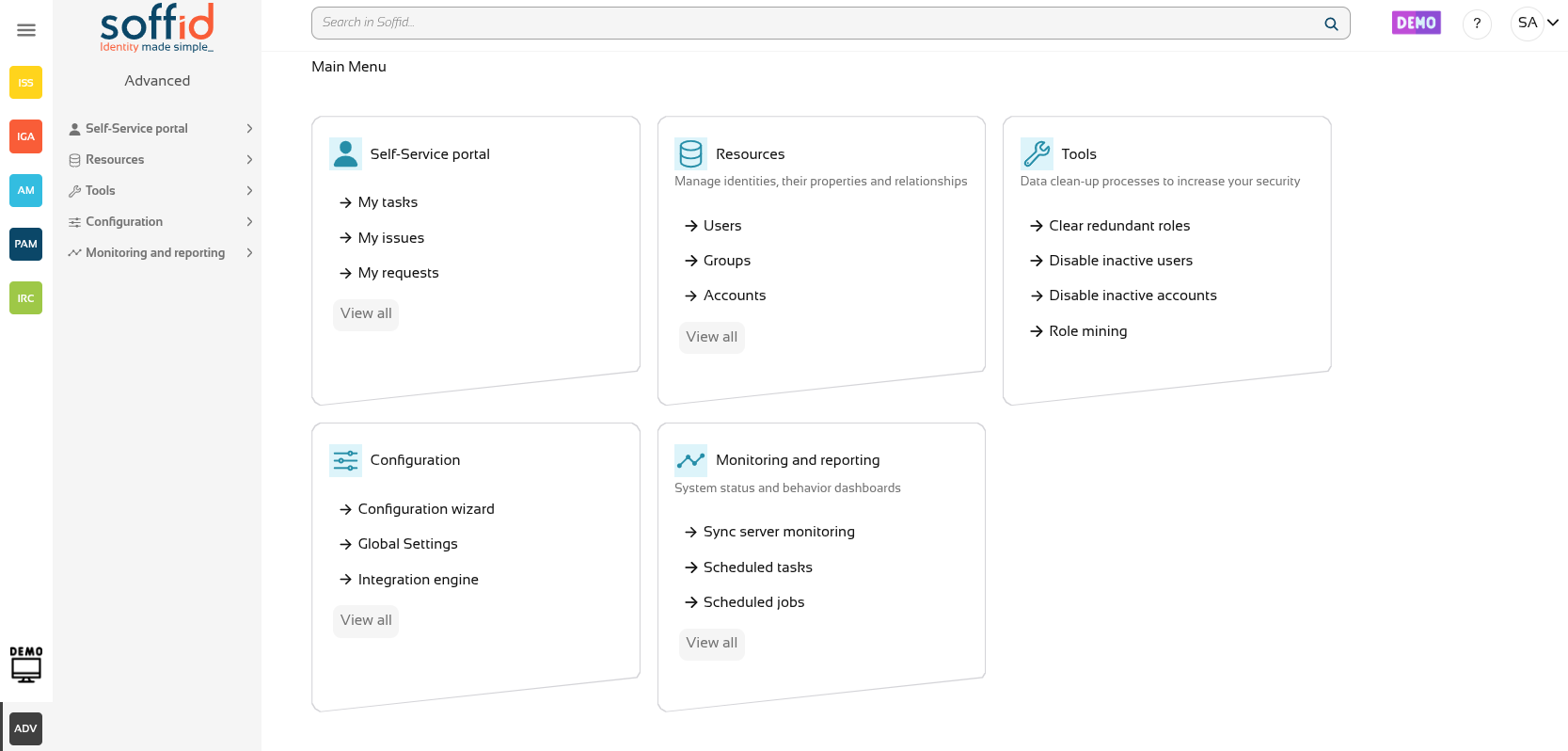](https://bookstack.soffid.com/uploads/images/gallery/2026-08/CcGCljAybSB75Kw9-image.png)
If the **validation fails**, the **error** specified in the validation **script** will be displayed.
[](https://bookstack.soffid.com/uploads/images/gallery/2026-08/keqJ7rGY1fC4Ayt6-image.png)
# 2026-06-13 New feature: select images for Soffid Authenticator
### The new feature
The [Soffid Authenticator](https://bookstack.soffid.com/books/soffid-authenticator-app "Soffid Authenticator App") app now has four different **sets of images**, and you can now select the set of images using the "**soffid.push.images**" parameter.
### Bear in mind
Please note the following points:
- A **Soffid** type **Identity Provider** must be set up, and the **Soffid Authenticator** (push option) must be added as the **first** or **second** **factor**.
- Users are required to install the **Soffid Authenticator** on their **phones**.
The **details of the parameter** can be found on the [Soffid parameters](https://bookstack.soffid.com/books/soffid-4-reference-guide/page/soffid-parameters#bkmrk-soffid-autenticator "Soffid parameters") page, Soffid Autenticator section..
### How to configure it?
The following **components** must be installed:
- Addon federation 4.0.36 (or higher)
### Let's look at an example
Do you need a Soffid IdP.
[](https://bookstack.soffid.com/uploads/images/gallery/2026-07/2roBeWD1VQLaePTe-image.png)
Add Soffid Authenticator as a first or second factor.
- Go to **Soffid IdP**.
- Go to **Default authentication methods** or **Adaptive authentication** (used this option in the example)
- Add the Soffid Authenticator (**Push** option) as **first** or **second factor** used this option in the example)
[](https://bookstack.soffid.com/uploads/images/gallery/2026-07/entDRGiRRu5ucabP-image.png)
We can now use the **parameter** "**soffid.push.images**" to view the different sets of images.
[](https://bookstack.soffid.com/uploads/images/gallery/2026-07/D7dHUw9ufn6Ju0fr-image.png)
Let’s take a look at the four examples of logins!
No soffid.push.images parameter or soffid.push.images=**birds**
[](https://bookstack.soffid.com/uploads/images/gallery/2026-07/9tx0ZPCU1jNzlLz0-image.png)[](https://bookstack.soffid.com/uploads/images/gallery/2026-07/dNEONzTcEfvl4qww-screenshot-20260717-174126.jpg)
soffid.push.images=**numbers**
[](https://bookstack.soffid.com/uploads/images/gallery/2026-07/3tVKxCUAWkXoBi42-image.png)[](https://bookstack.soffid.com/uploads/images/gallery/2026-07/5JD8qCnr5DuZNjv2-screenshot-20260717-174954.jpg)
soffid.push.images=**flowers**
[](https://bookstack.soffid.com/uploads/images/gallery/2026-07/IaqaNXt9FS8BQzkS-image.png)[](https://bookstack.soffid.com/uploads/images/gallery/2026-07/Ouq5fUgRuhLCxqPy-screenshot-20260717-175156.jpg)
soffid.push.images=**fishes**
[](https://bookstack.soffid.com/uploads/images/gallery/2026-07/itKpUTyGBdmcENMH-image.png)[](https://bookstack.soffid.com/uploads/images/gallery/2026-07/ocCRWmM6r2ZmSETq-screenshot-20260717-175237.jpg)
Please note that if you enter an incorrect value for the parameter, this **error** will appear.
[](https://bookstack.soffid.com/uploads/images/gallery/2026-07/USiBH7lKWTiWTt48-image.png)
# 2026-07-20 New feature: configure maximum openid logins
### The new feature
A new feature has been introduced in the Soffid Identity Provider that **limits the number of requests** a user can make to an **OpenID Connect service provider**. The new attribute is name "**Max login per user and minute**".
A new **issue** "**issue-login-limit**" has also been created to manage this new configuration.
### Bear in mind
Please note the following points:
- The limit only applies to OpenID service providers using "User’s password", "User’s password + Client credentials" or "Client credentials" authentication.
- The limit applies globally to all service providers using these authentication types.
- The limit is for a user, each user can reach or not the limit.
- For each request, the system checks whether the limit has been exceeded in the last minute; if the total number of requests exceeds the configured number, an error is returned.
- The system re-evaluates whether the limit has been reached with each request.
- For example, if the limit is 30 request, and 31 requests are made in 1 second, the 31st request would return an error; and for the next 59 seconds – as 31 requests plus any new ones would still be counted within the last minute – errors would continue to be returned. If, on average, one request were made every 2 seconds, the limit would never be triggered.
About the platform:
- All the previous requisites are for a non Soffid Cloud solution.
- In the Soffid Cloud the number of request is configured for a Soffid administrator, the field is not visible for the tenant
For more information you can check the [OpenIdProfile](https://bookstack.soffid.com/books/federation/page/openidprofile "OpenIdProfile") page, or the [Defining profiles](https://bookstack.soffid.com/books/federation-guide/page/defining-profiles#bkmrk-%C2%A0-1 "Defining profiles") page
About the issue:
- The issue must be enabled and configured to suit your requirements.
For more information you can check the [Issue policies](https://bookstack.soffid.com/books/soffid-4-reference-guide/page/issue-policies "Issue policies") page
### How to configure it?
The following **components** must be installed:
- Console 4.0.67 (or higher)
- Addon federation 4.0.37 (or higher)
### Let's look at an example
#### Step 1: configure the limit
Let’s go to our Soffid identity provider.
Go to Main Menu > Configuration > Web SSO > **Identity providers**.
Select your **Soffid IDP**.
And go the **Profiles** group and select the **OpenIdProfile**.
[](https://bookstack.soffid.com/uploads/images/gallery/2026-07/1jSHKcty45gi9gTx-image.png)
To activate the attribute "**Max login per user and minute**" add a number, por example 30, 60, etc.
[](https://bookstack.soffid.com/uploads/images/gallery/2026-07/AXxeAFOLnYpAoCfD-image.png)
To validate this functionality, we need to authenticate as a **service provider**.
First, let’s check that the service provider has configured the **authentication types** that the limit validates.
[](https://bookstack.soffid.com/uploads/images/gallery/2026-08/bIZrM1taJTpvaxzm-image.png)
We’re going to test it using a testing tool; we can see that it **responds correctly** when the limit is not reached.
[](https://bookstack.soffid.com/uploads/images/gallery/2026-07/LrLi5nA4Ffm03Seh-image.png)
But when it reaches its limit, it returns a **HTTP code 400** with the message "**Login limit reached**".
[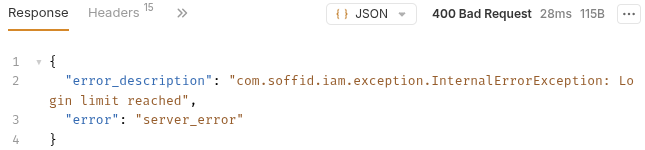](https://bookstack.soffid.com/uploads/images/gallery/2026-07/blL2sqlsGIlxfzSn-image.png)
```
400 Bad Request
{
"error_description": "com.soffid.iam.exception.InternalErrorException: Login limit reached",
"error": "server_error"
}
```
#### Step 2: configure the issue
First, we need to open the new issue.
Main Menu > Configuration > Security settings > **Issue policies**.
Select the **user-login-limit**.
[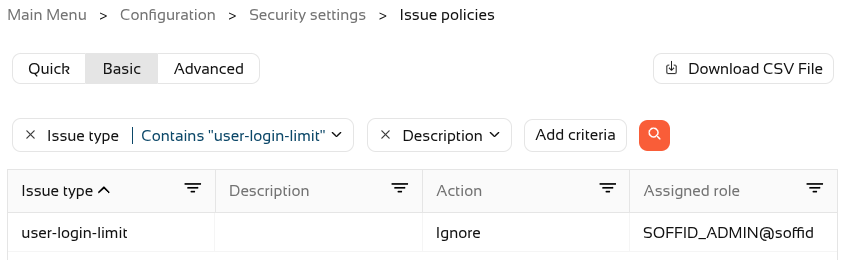](https://bookstack.soffid.com/uploads/images/gallery/2026-07/D02Cws9frWFsJBja-image.png)
To activate the issue, we will need to assign an **action** type (Record or Manage).
[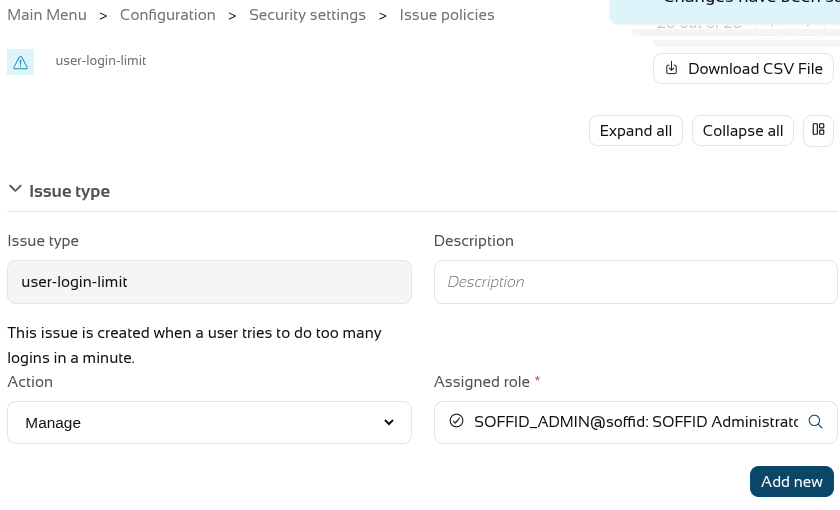](https://bookstack.soffid.com/uploads/images/gallery/2026-07/g12xFfRUG4fHo0ah-image.png)
Now **create** one or more **actions** using the "**Add new**" button; in our case, a personalised email will be sent.
[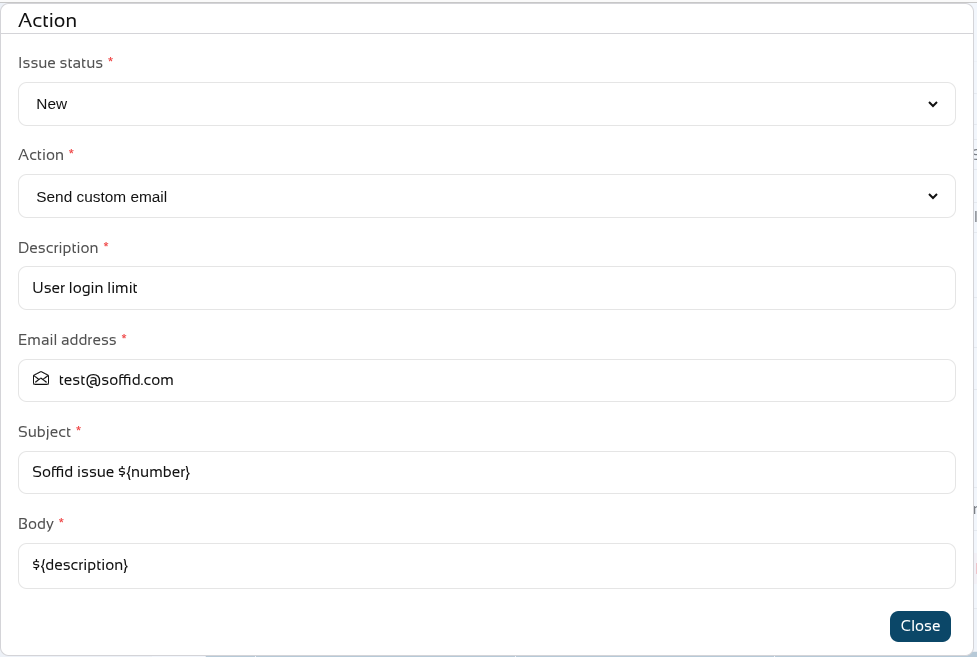](https://bookstack.soffid.com/uploads/images/gallery/2026-07/b7xdCVkAssgqTAE9-image.png)
On leaving, we can see that the issue has been **Managed**.
[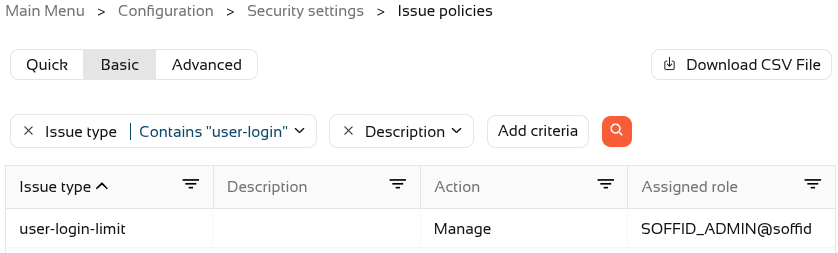](https://bookstack.soffid.com/uploads/images/gallery/2026-07/KubQvBIjyTFs63KM-image.png)
If we push the limit, a new issue will now also be created in Soffid.
Main Menu > Monitoring and reporting > **Issues** (or Main Menu > Self-Service portal > **My issues**)
[](https://bookstack.soffid.com/uploads/images/gallery/2026-07/FTGVGv9xaVEMUtHE-image.png)
And here is an example of the **email** that was sent
[](https://bookstack.soffid.com/uploads/images/gallery/2026-07/guxCpsPJFxKZYbHf-image.png)
# 2026-09-30 New feature: role suggestions
### The new feature
A new method has been added to **suggest roles** that can be assigned to a user.
With this feature, on some Soffid pages, when you want to **assign a role to a user**, the **system will suggest the most likely roles**.
### Bear in mind
Please note the following points:
- This feature must be **enabled** and **configured** before it can be used.
- The **configuration** page is in the **mining** addon.
- Some **addons** may use this feature.
### How to configure it?
The following **components** must be installed:
- Console 4.0.75 (or higher)
- Mining addon 4.0.2 (or higher)
And optionally some addons:
- BPM addon 4.0.10 (or higher)
### Let's look at an example
#### Step 1: activation
To enable this feature, you need to **upgrade** the **console** and the **mining** **addon**.
A **syncserver** **restart** is also required after the upgrade.
We can now find the "**Role assignment suggestions**" page in the "**Tools**" menu.
[](https://bookstack.soffid.com/uploads/images/gallery/2026-10/lXNMe9uXe7w7xZvZ-image.png)
And we have to enable this feature.
[](https://bookstack.soffid.com/uploads/images/gallery/2026-10/uDa5nfJyDfJOCOPg-image.png)
#### Step 2: configuration
To configure this functionality, we need to **decide** which **user** **attributes** the system should analyse, for which **types of users**, and select a **sync server**.
[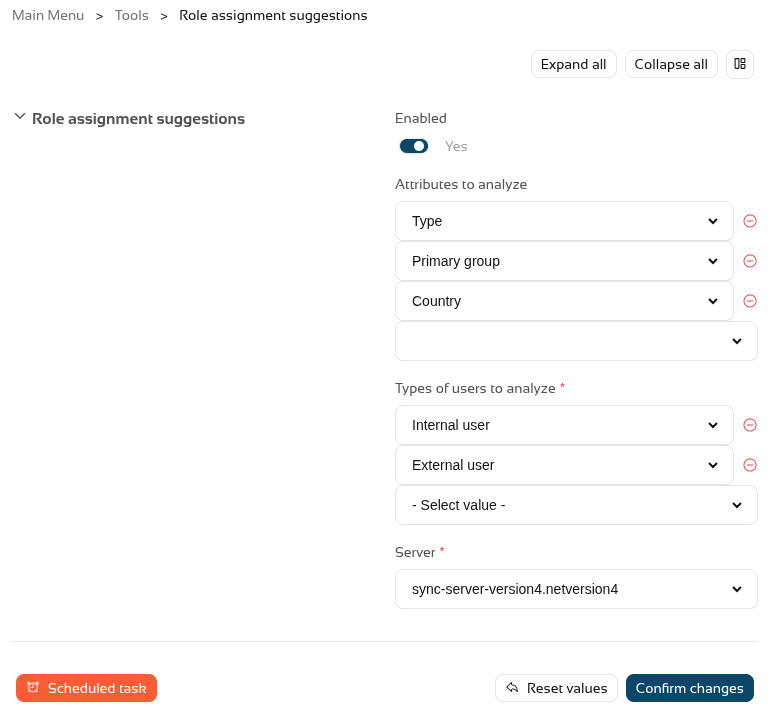](https://bookstack.soffid.com/uploads/images/gallery/2026-10/DSRzjaCBHGDUoqLH-image.png)
Once this step has been configured, we need to **run** or **schedule** the **task** so that Soffid generates an internal **matrix** containing all the **possibilities**.
Once the process has been run for the first time, this **feature** is **ready** for **use**.
#### Step 3: usage
To make use of the **role** **suggestions**, we can go to the **Users** **page**, select a user and go to the **roles tab**.
[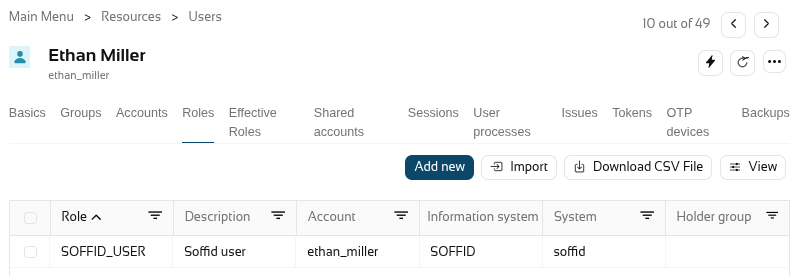](https://bookstack.soffid.com/uploads/images/gallery/2026-10/1DmkLgoxldX4gn3f-image.png)
When you click on "**Add new**" to add a new role, Soffid will show you the **suggested roles** that, based on the settings from the previous step, are the most likely to apply to this user.
[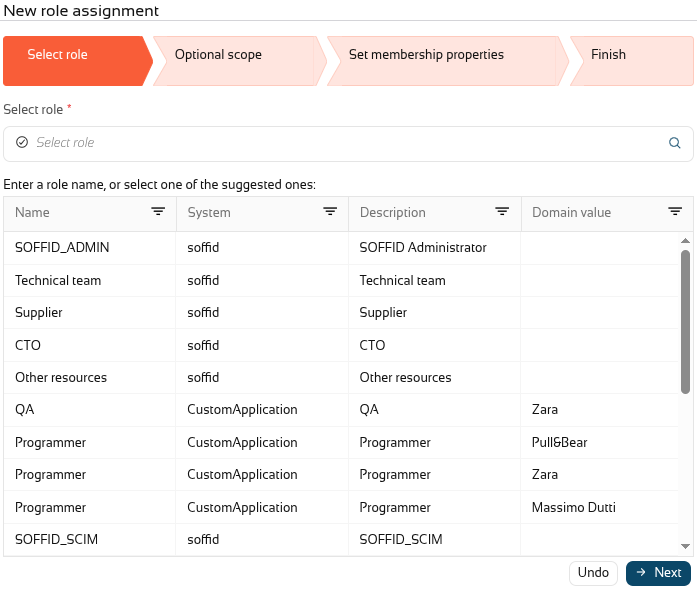](https://bookstack.soffid.com/uploads/images/gallery/2026-10/JHQud1wCJi07jLRG-image.png)
#### Step 4: BPM addon
When you **upgrade** the **BPM addon**, you will be able to use suggestions in the **permission request workflows**.
If you already have a workflow, go to the **BPM editor** page.
In this case, we will open the "Request roles massive".
[](https://bookstack.soffid.com/uploads/images/gallery/2026-10/SYTLmSNAY0RoHouA-image.png)
In the diagram select the "**Start**" **node**.
[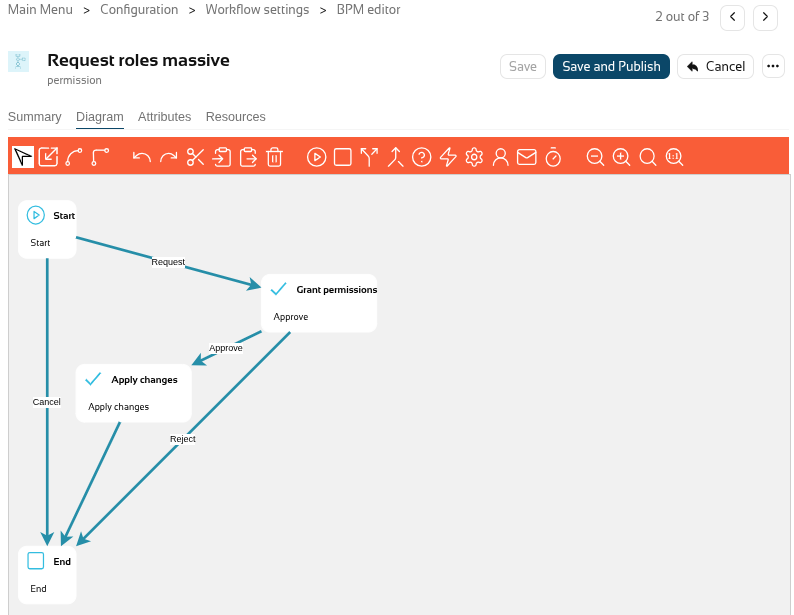](https://bookstack.soffid.com/uploads/images/gallery/2026-10/fxjFjsxBKHU3MmHF-image.png)
And **enable** "**Suggest new roles**".
[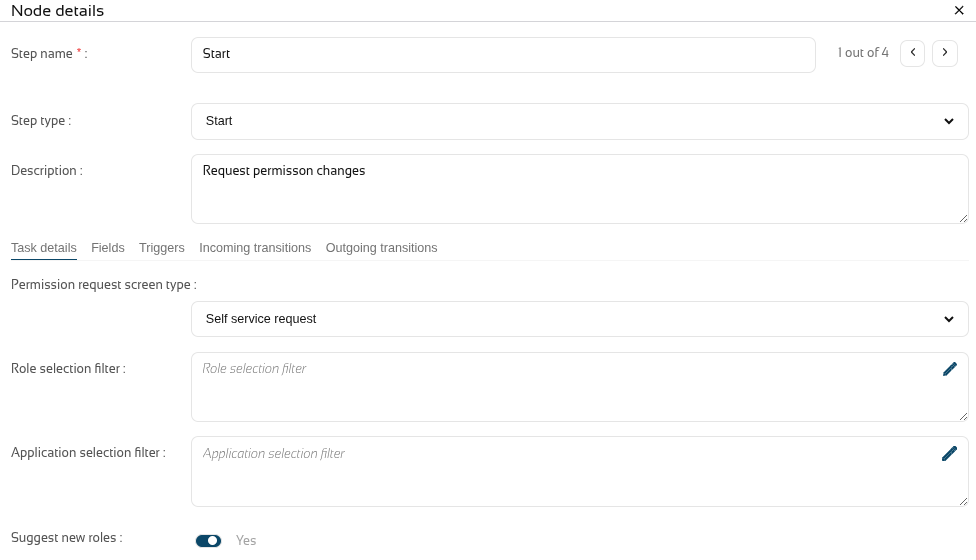](https://bookstack.soffid.com/uploads/images/gallery/2026-10/E8XR2ZXFrOKUzb9k-image.png)
**Close** the popup and click on the "**Save and publish**" button.
Finally, we can now go to the **ISS** **module** and, now "**My requests**", select the "**Request roles masive**" workflow, and the **suggested roles** will then be displayed under "**Filter out roles**".
[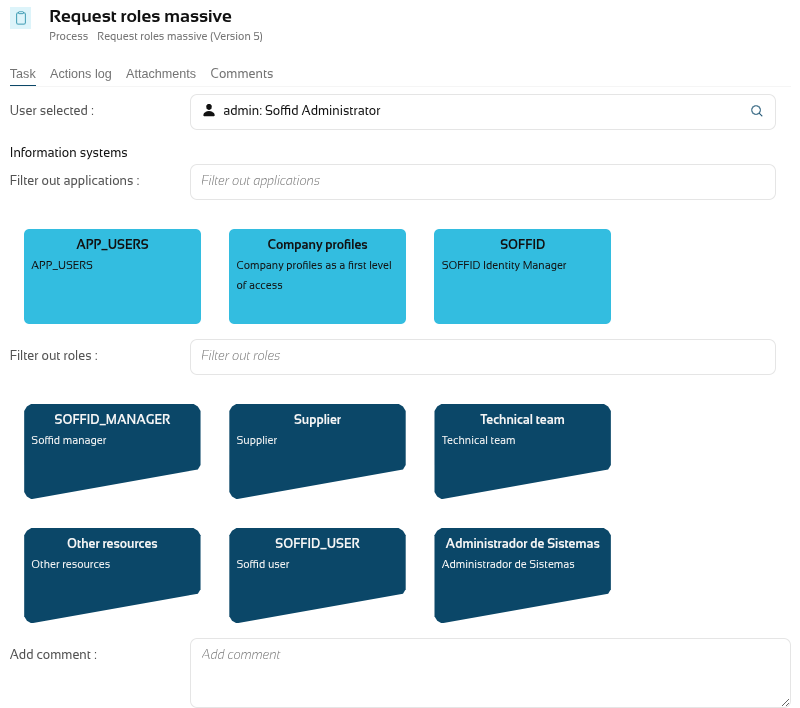](https://bookstack.soffid.com/uploads/images/gallery/2026-10/P4y1Sctf8ydo9J0v-image.png)
# 2026-09-30 New feature: simulate IdP attributes
### The new feature
A button has been added to the "Attribute sharing policies" page to **simulate** the **attributes** generated for a **user** and a **service provider**.
### Bear in mind
Please note the following points:
- The user must have an **active** Soffid **IdP account**.
### How to configure it?
The following **components** must be installed:
- Federation addon 4.0.41 (or higher)
### Let's look at an example
Let’s go to the "**Attribute sharing policies**" page, in the top right-hand corner, you’ll see the new "**Simulate**" button.
[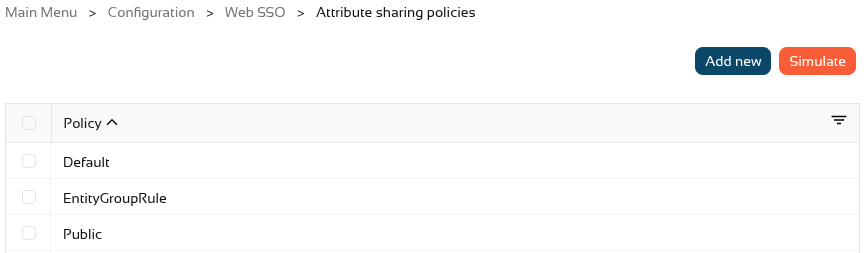](https://bookstack.soffid.com/uploads/images/gallery/2026-10/OzNHR8FNWaObC7Mh-image.png)
In the popup, select a **user** and a **service provider** and click on Simulate.
[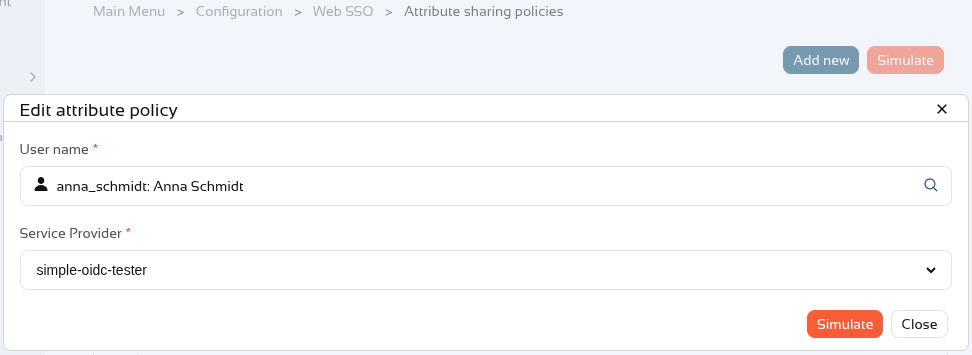](https://bookstack.soffid.com/uploads/images/gallery/2026-10/Q9wJpgJXfsWT5nbI-image.png)
We can now see the **attributes** that would be **sent** to the **service provider** for this user.
[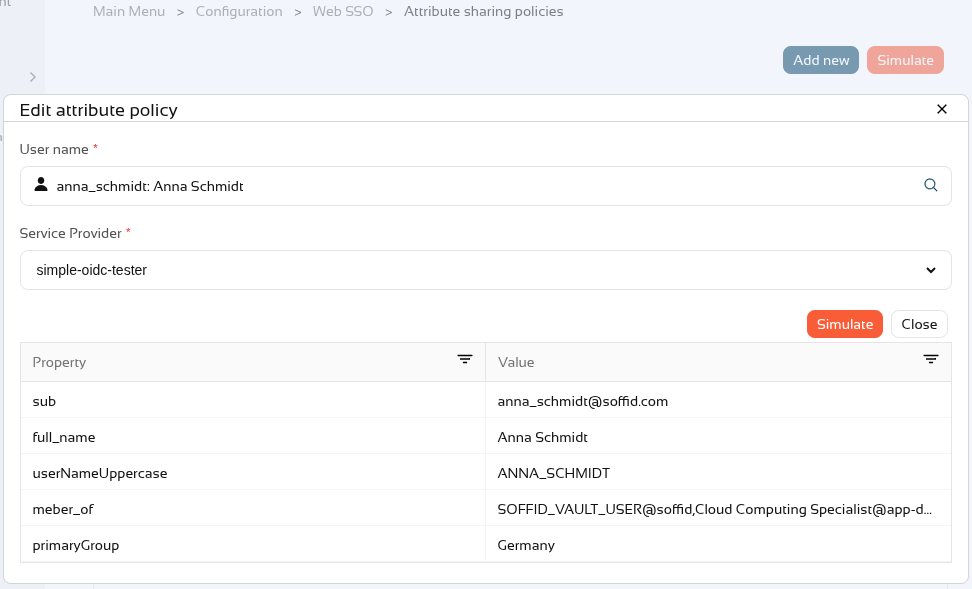](https://bookstack.soffid.com/uploads/images/gallery/2026-10/5pjig9Igos61LUeu-image.png)
If the user does **not** have an **account** or their account is **inactive**, this error will appear.
[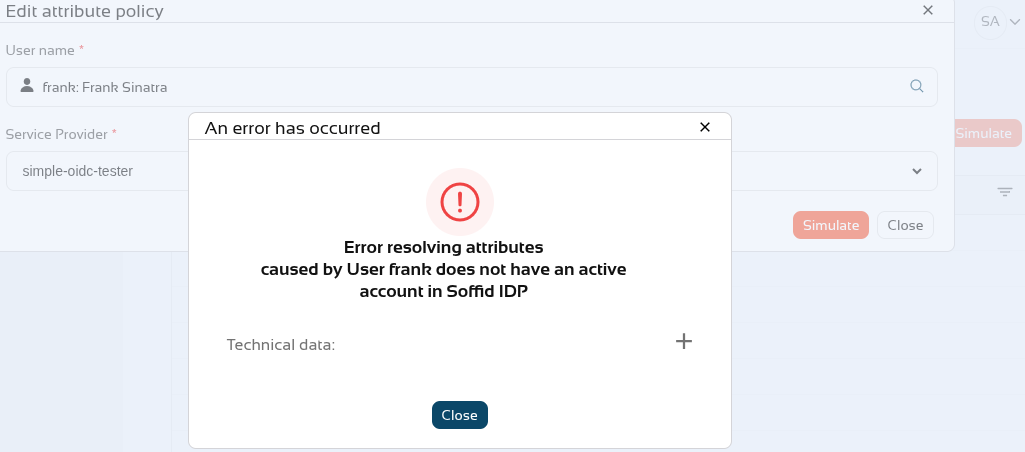](https://bookstack.soffid.com/uploads/images/gallery/2026-10/BsS5pYa7TQLh9raP-image.png)
# 2026-09-30 New feature: select external IdP using script
### The new feature
If there are **several external identity providers**, a **script** has been added to the external identity providers to **determine** whether they are **valid** for authentication.
### Bear in mind
Please note the following points:
- If the **script** is **empty**, this logic is **ignored**.
- Only when the script returns "**false**" will this **identity provider** **not** be **displayed** in the list of options on the login screen.
### How to configure it?
The following **components** must be installed:
- Federation addon 4.0.41 (or higher)
### Let's look at an example
First of all, we have **several external IdPs**.
[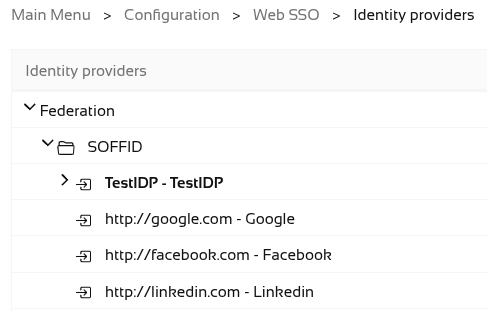](https://bookstack.soffid.com/uploads/images/gallery/2026-10/sF4ozn1KHSmv02dx-image.png)
We can now see in Soffid IdP that authentication for **internal users** uses **external providers**.
[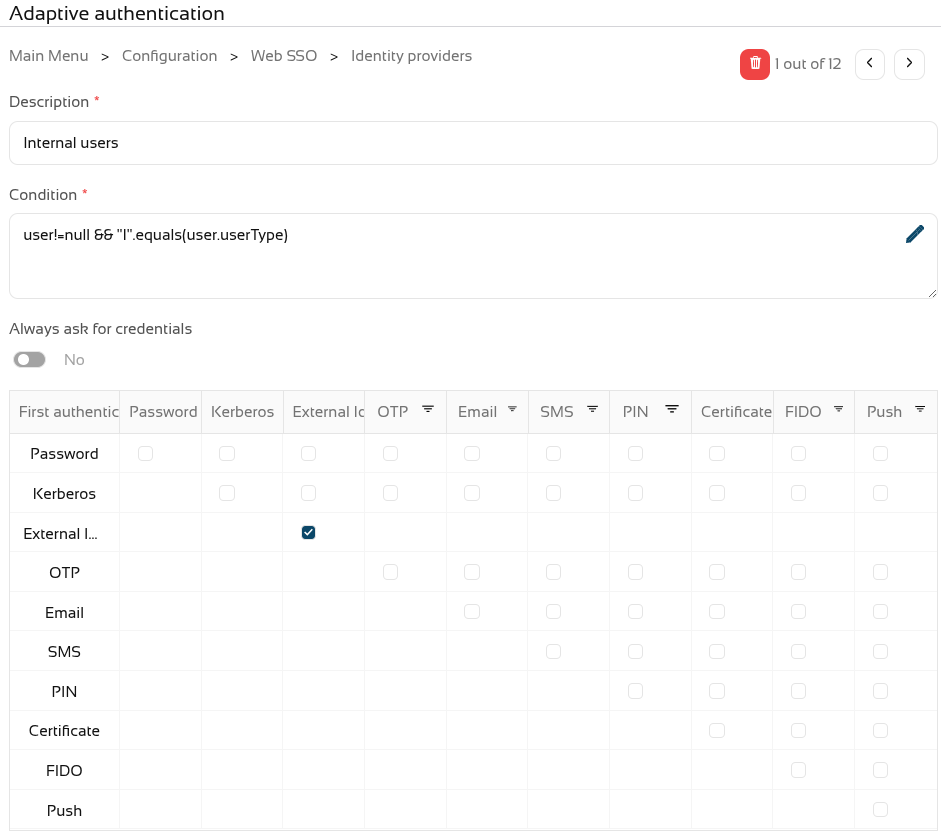](https://bookstack.soffid.com/uploads/images/gallery/2026-10/Em8d1voWxX8xWpiQ-image.png)
When we try to log in, a list of **all** the **options** appears.
[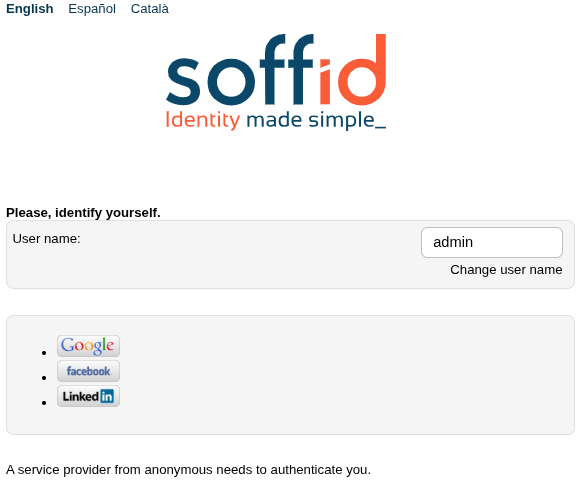](https://bookstack.soffid.com/uploads/images/gallery/2026-10/5YYk1qzqx1n12S1w-image.png)
We have now decided that **one of the external IdPs is not valid for internal users**.
[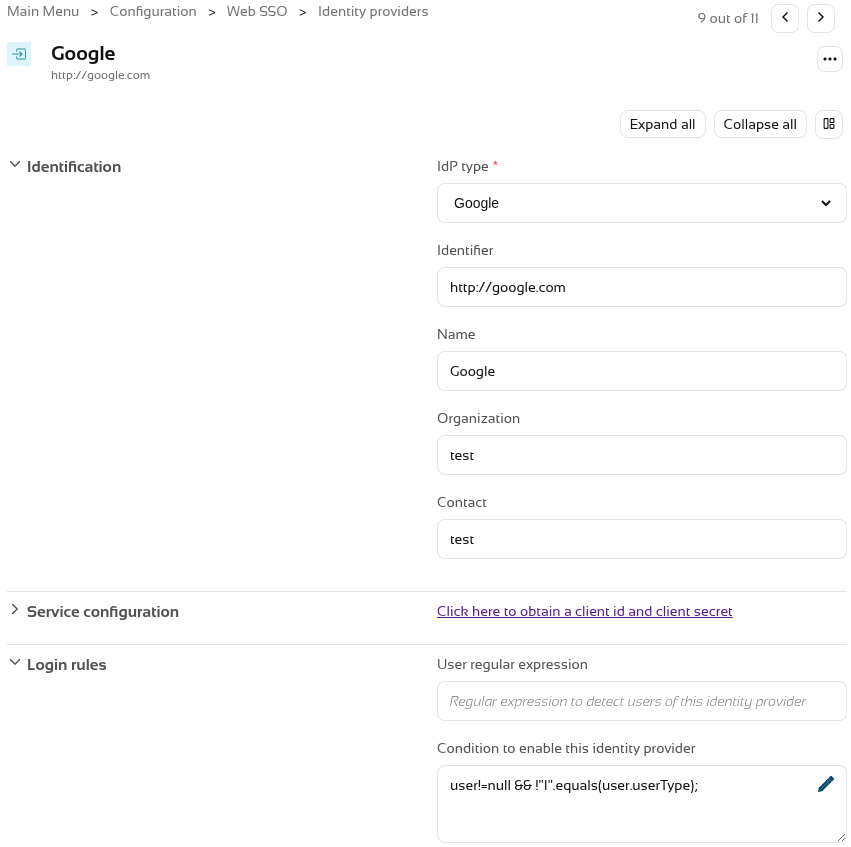](https://bookstack.soffid.com/uploads/images/gallery/2026-10/PrDgMwsneQ7YYm8B-image.png)
Now, when accessing an SP, it will **no longer appear** in the list.
[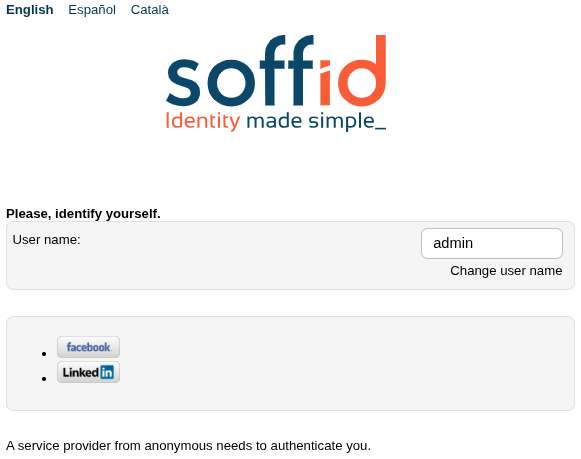](https://bookstack.soffid.com/uploads/images/gallery/2026-10/yrn4aMi03HdmgjLU-image.png)
# 2026-09-30 New feature: Soffid metrics update
### The new feature
The **Soffid metrics service** has been modified so that it analyses active threads every 10 seconds, rather than waiting for them to finish.
### Bear in mind
Please note the following points:
- This service is **disabled by default**.
- This service generates **a lot of log data**; you should only **enable it when necessary**.
### How to configure it?
The following **components** must be installed:
- Admin addon 4.0.6.1 (or higher)
### Let's look at an example
First, you need to **enable** the service.
You must add two **system variables** in the Console and/or Syncserver.
These are the system variables:
```
soffid.metrics.service.enable=true
soffid.metrics.service.min=60000 (number in miliseconds)
```
This is an example for the Console with docker compose
[](https://bookstack.soffid.com/uploads/images/gallery/2026-10/Deuu2FnEeSnPwgSz-image.png)
The instances need to be **redeployed**.
We can now see the **statistics** for active processes in the **log**.
# 2026-09-30 New feature: launcher clipboard update
### The new feature
The use of the **clipboard** in the **launcher** has been **drastically** **improved**. It is now possible to copy and paste various formats in both directions: plain and rich text, as well as images and graphics
### Bear in mind
Please note the following points:
- This functionality is **generic** and applies to all **sessions types**.
- **Copy** and **paste** works in **both directions**.
- You can copy plain and rich text (UTF-8, STRING, text/plain, text/html).
- You can copy images and graphics (PNG, BMP, JPG and JPEG).
### How to configure it?
The following **components** must be installed:
- PAM launcher 1.4.91 (or higher)
- PAM store 1.4.91 (or higher)
- Session types in the last version (pasr images).
### Let's look at an example
#### Example 1: copy text and html text from the PAM session
Start a **windows** connection with the launcher.
[](https://bookstack.soffid.com/uploads/images/gallery/2026-10/BcwiCrP23nGSvDXy-image.png)
We open the **Soffid.com** web page.
[](https://bookstack.soffid.com/uploads/images/gallery/2026-10/ZxUa6t3Jij7hTY6R-image.png)
Now we can **copy** a **text** and click the **Get clipboard** button.
[](https://bookstack.soffid.com/uploads/images/gallery/2026-10/Xw9fEBNeqX4pPe5o-image.png)
**Paste** it in a **notepad** as text.
[](https://bookstack.soffid.com/uploads/images/gallery/2026-10/zYSMwd2BiCDYJShW-image.png)
And finally we **paste** it in an **html editor**.
[](https://bookstack.soffid.com/uploads/images/gallery/2026-10/n8peFE1j0DXHjf3J-image.png)
#### Example 2: copy text and html text to the PAM session
**Copy** a **text** or **html** on your computer.
[](https://bookstack.soffid.com/uploads/images/gallery/2026-10/8wpO0FV2y3osiEbY-image.png)
Then **paste** it **directly** into the PAM session as text.
[](https://bookstack.soffid.com/uploads/images/gallery/2026-10/4cOBj0NwxybD08XO-image.png)
Or as html.
[](https://bookstack.soffid.com/uploads/images/gallery/2026-10/EGxgLsdCAlSP4u09-image.png)
#### Example 3: copy an image from the PAM session
Start a **windows** connection with the launcher.
[](https://bookstack.soffid.com/uploads/images/gallery/2026-10/BcwiCrP23nGSvDXy-image.png)
Copy an **image**.
[](https://bookstack.soffid.com/uploads/images/gallery/2026-10/lON5XCn8WUZxK322-image.png)
Now we can **paste** it in our **editor**.
[](https://bookstack.soffid.com/uploads/images/gallery/2026-10/v4Fu7AYNSovEVrbN-image.png)
#### Example 4: copy an image to the PAM session
**Copy** an **image** or take a **screenshot** on your computer.
[](https://bookstack.soffid.com/uploads/images/gallery/2026-10/ompa1hOm6ADIexWF-image.png)
Then **paste** it **directly** into the PAM session.
[](https://bookstack.soffid.com/uploads/images/gallery/2026-10/QPJy68kxBbXIbqT1-image.png)
