UI common actions
UI common actions
Search types
Description
Throughout the Soffid you will be able to perform searches on the different objects that make up the application.
You will be able to search in the system by applying different ways of searching.

Quick
This option allows a quick search by fields that have been defined in the application metadata. You can find the metadata configuration on the Metadata page.
Attribute metadata configuration

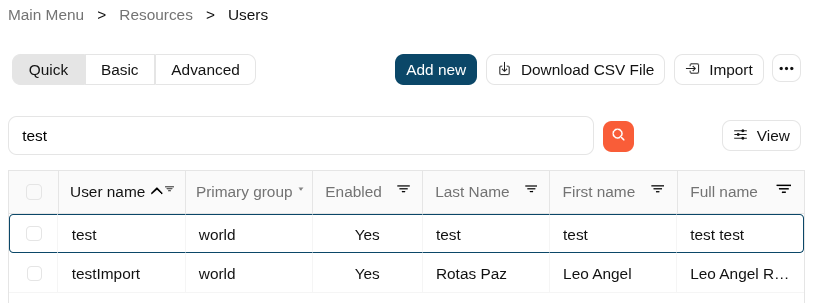
You only have to type in the field provided for this purpose and press enter or click on the magnifying glass icon, then Soffid will display the list with the objects that complain the criteria typed.
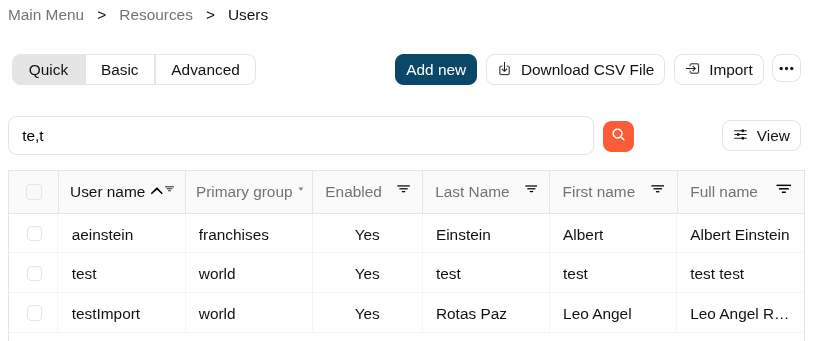
You can include some characters as "," "." and "/" as word separators in the search text. Check textual index page for more information.
Examples
Basic
This is the default option. It provides some default search criteria and other criteria can be added from the add criteria option. These criteria will depend on the entity or object on which the search is being performed.
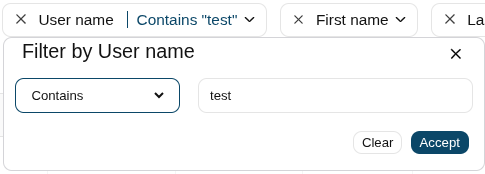
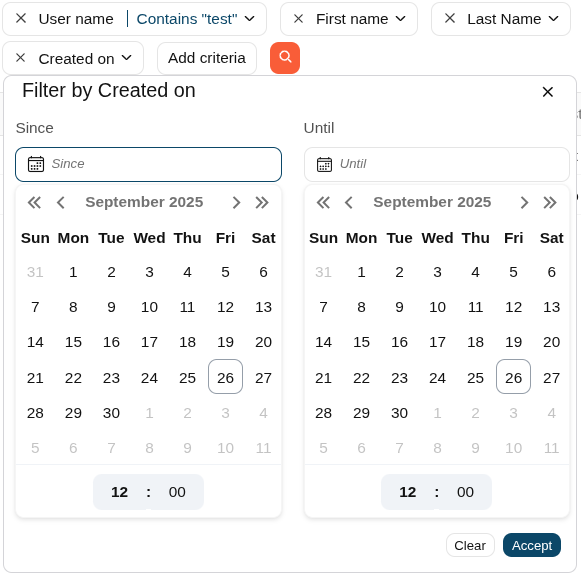
Remember, each criteria will be added to the previous ones. Each search criteria will have different search forms depending on the type of data in the particular field. For instance, a text field provides four different options to search, "Contains", "Start with", "Ends with" and "Equals", a date field provides the date "Since" and date "Until".
Search criterias
Text
Date
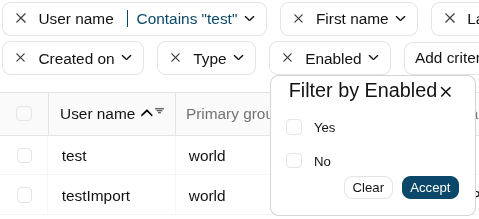
Boolean
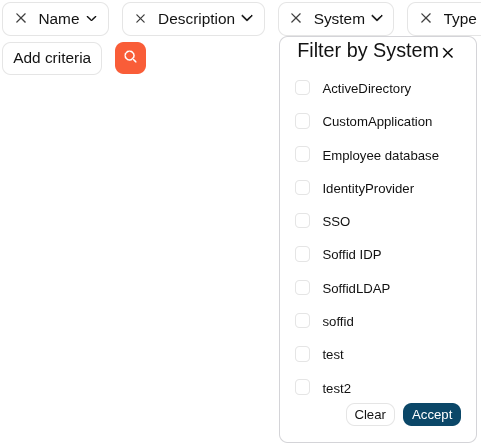
List
Soffid allows you to and criteria by clicking on the "Add criteria" button, then Soffid will display a list with all the criteria available and allows you to select to add a new one. To delete criteria you only have to click on the "Equis" icon (x) on the left side of the criteria, then automatically Soffid will remove the criteria and run the search without the removed criteria.
The criteria depend on the object list where you are working, so for instance the criteria are not the same for the user's list and the group's list.
Example
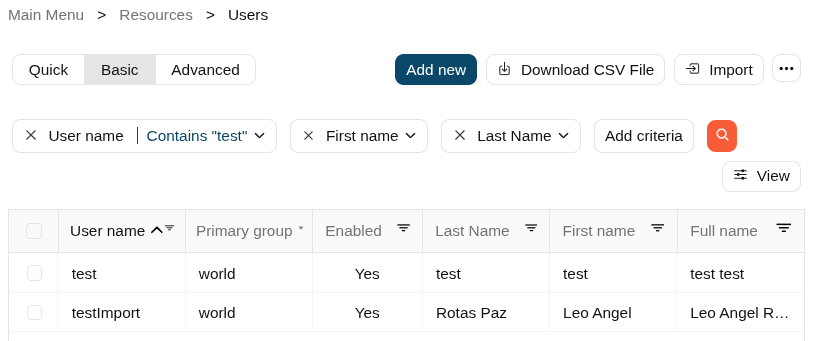
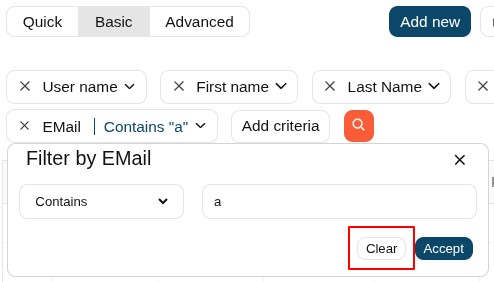
If you want to clear a value of the criteria, select the criteria anb click the "Clear" button.
Clear button
Advanced
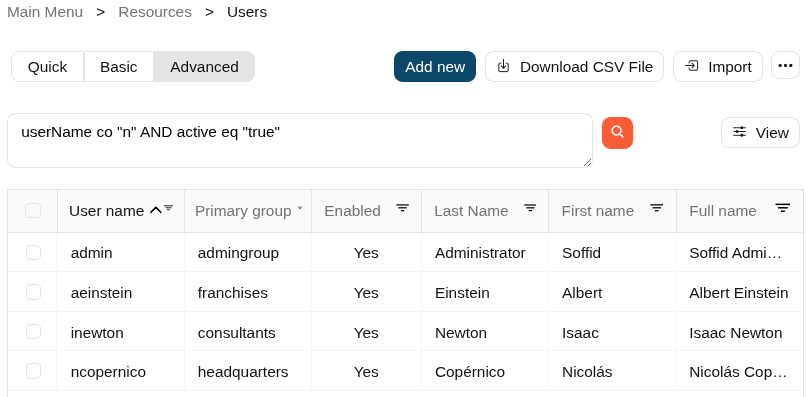
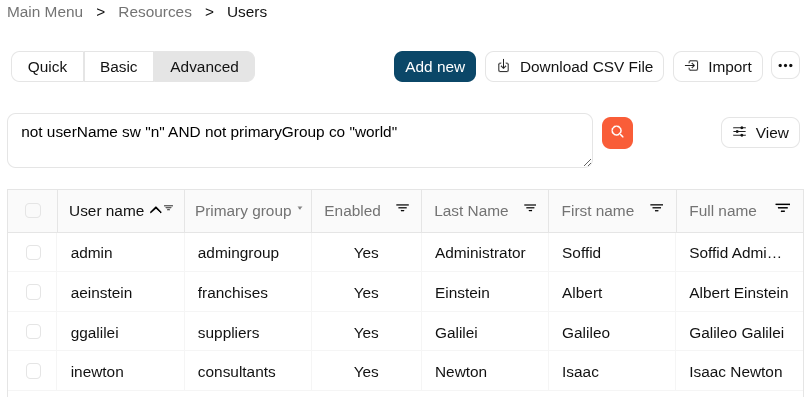
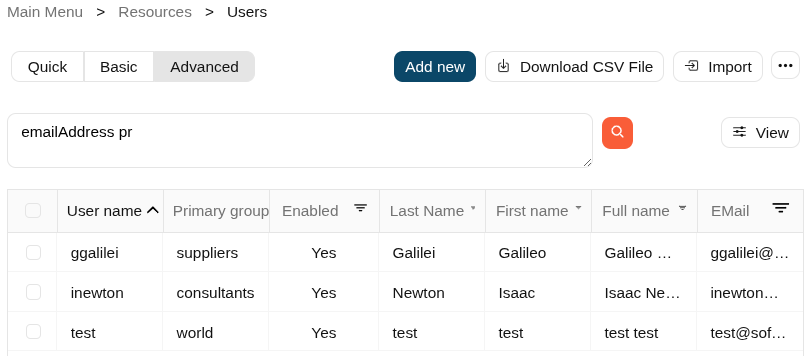
This option allows an advanced search system using the SCIM query syntax. You can type the query to search the info using the SCIM standard.
You can access to SCIM Book for more information
Examples
Column selector
Description
Throughout the Soffid Console, we can find a large number of list-type components. These lists are used to display the corresponding objects data in each case, for instance users, accounts, etc.
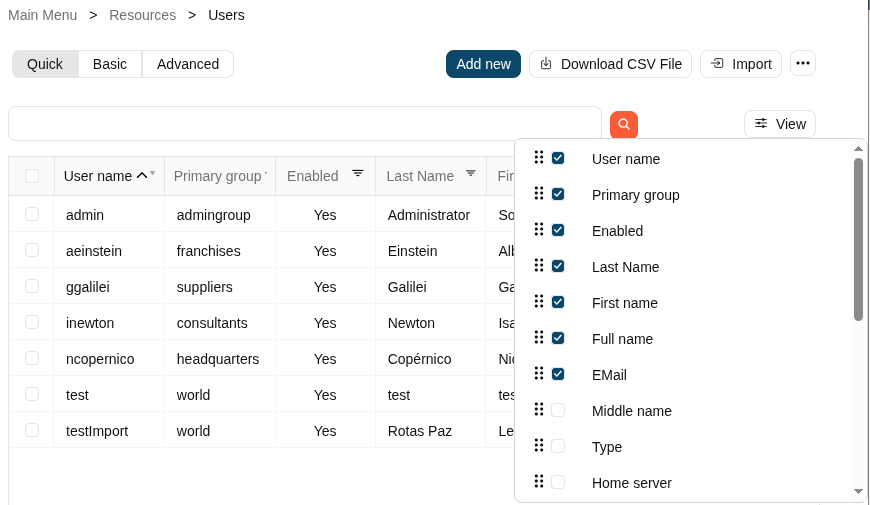
The "View" component allows you to add or remove columns, but also allows you to sort by the name of the columns to display them in the list. Be in mind, the columns are the attributes of an object (an user, or an account...).
It is easy to use, once you click on the "View" button, Soffid will display a popup with the available columns for the object, then add, remove or drag and drop them in the order you want and click outside the popup, Soffid will refresh the list with the attributes with the changes that you defined.
Download CSV file & Import
Description
On many pages of the Console, you may see the option "Download CSV file", and on a few pages, you may see the "import" button.

Download CSV file
Soffid allows you to download all data objects displayed in tables in a CSV file with the "Download CSV file".
If you require additional attributes, add them first using the "View" option.
This CSV file can be very useful for the "Import" option, as you can edit its values or add new rows.
Import
Soffid allows you to upload a CSV file with the data list to add, update or delete information to the data table. The operations that can be performed with the data import depend on the table on which the process is being performed.
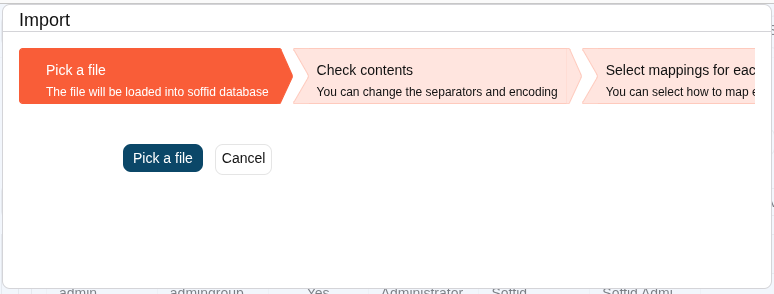
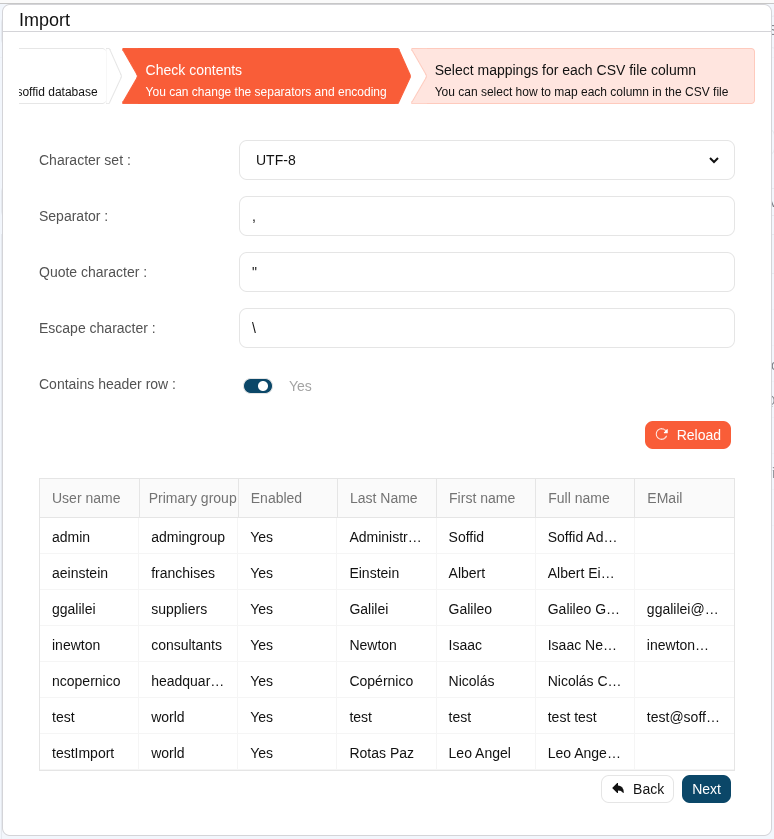
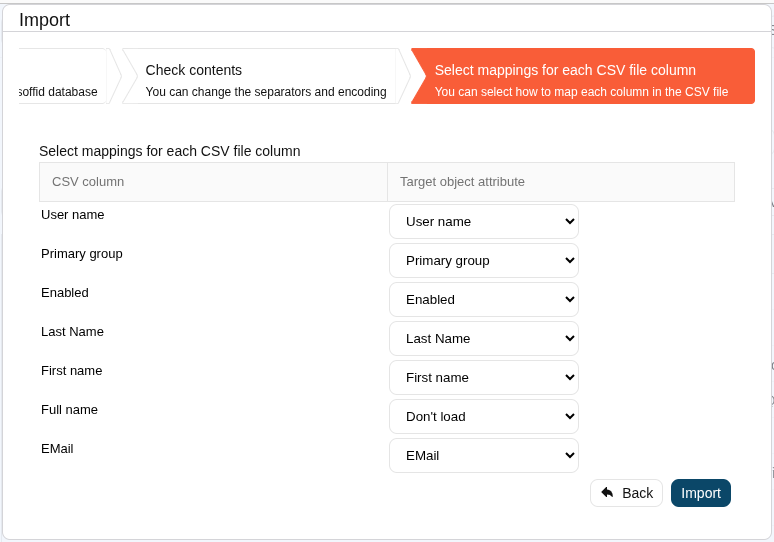
To "Import" data from a CSV file, first of all it will be to pick the file to import. Once the file has been selected, the data will be displayed to check contents. If the content is correct, then it is allowed to set up the mappings for each CSV file column, "Don't load" option is available. Finally it is allowed to perform the import process.
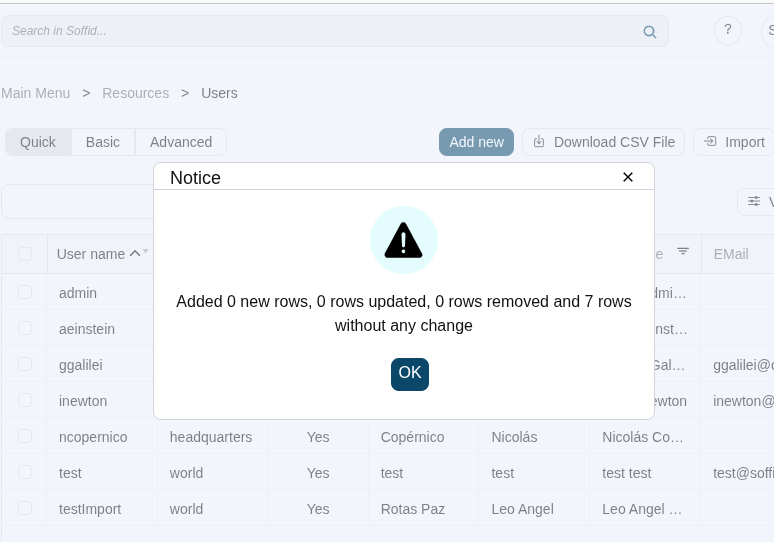
When the import process finishes, Soffid will show a message with the result of the process execution.
Example
Bulk actions
Description
Allows massive operations to be performed on the selected records. With that operation, updates can be made to any of the object parameters.
You can access this option through the "three points" icon from a few of the Soffid pages, like users list or accounts list.
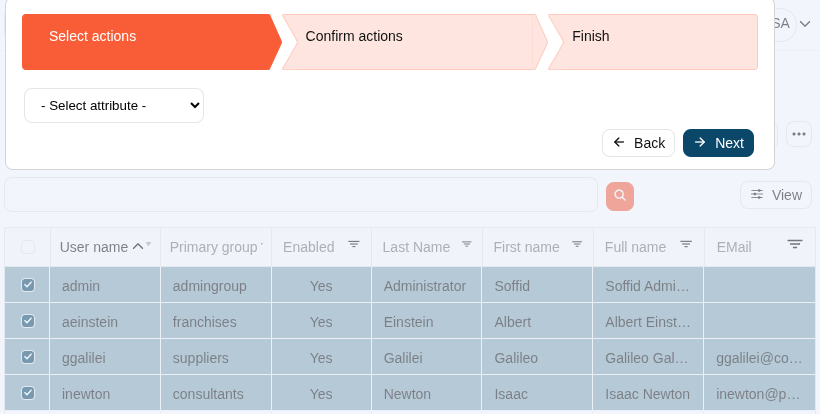
1. First of all, you need to select the records that you want to update from the list, once you have selected them, you must choose the bulk action button on the three poins icon.
2. Then Soffid display a popup where you can select one by one the attributes that will be updated.
The fist dropdown list displays the attributes of the object, for instance, the user attributes.
The second dropdown list displays the operation to be performed on the selected attribute. The operation can be change the value or clear the value, and if it is neccesary the new value.
The type of the third field will depend on the attribute type selected previously.
Image
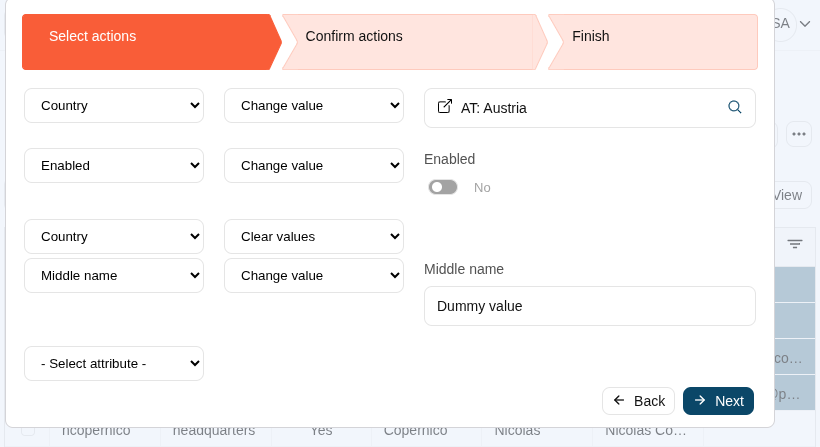
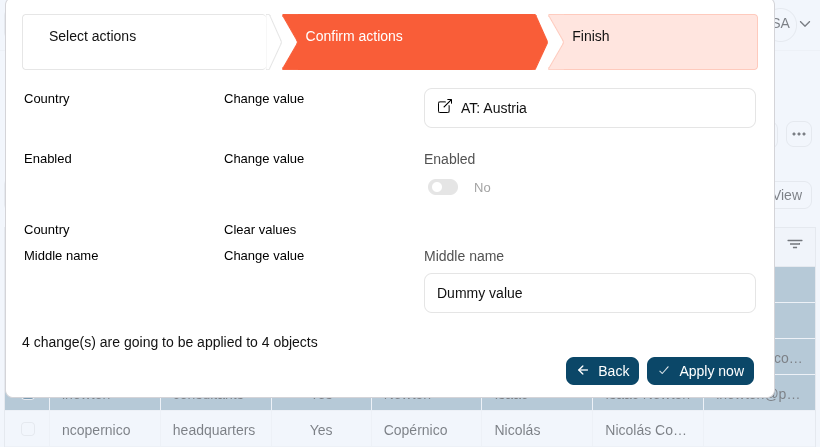
3. Soffid shows a confirmation message with the number of records that will be updated. Finally, you can choose apply or come back. If you apply the changes, the attributes of the seleccted records will be updated
💻 Image