Tools
Tools
Clear redundant roles
Description
A high level profile can contain or grant application permissions. On the other side, application permissions can contain or grant low level permissions. All of them are referred generally as roles.
Some users could have been granted both high level profiles and application permissions or low level permissions.
In that case, low level roles can be removed from Soffid database, as they are inherited through role inheritance rules.
This tool identifies any low level roles granted to users at the same time that its owner high level role, and removes them.
Screen overview
Related objects
Actions
Introduction
A brief description of this process.
|
Next |
Allows you to browse to the Filter roles step. |
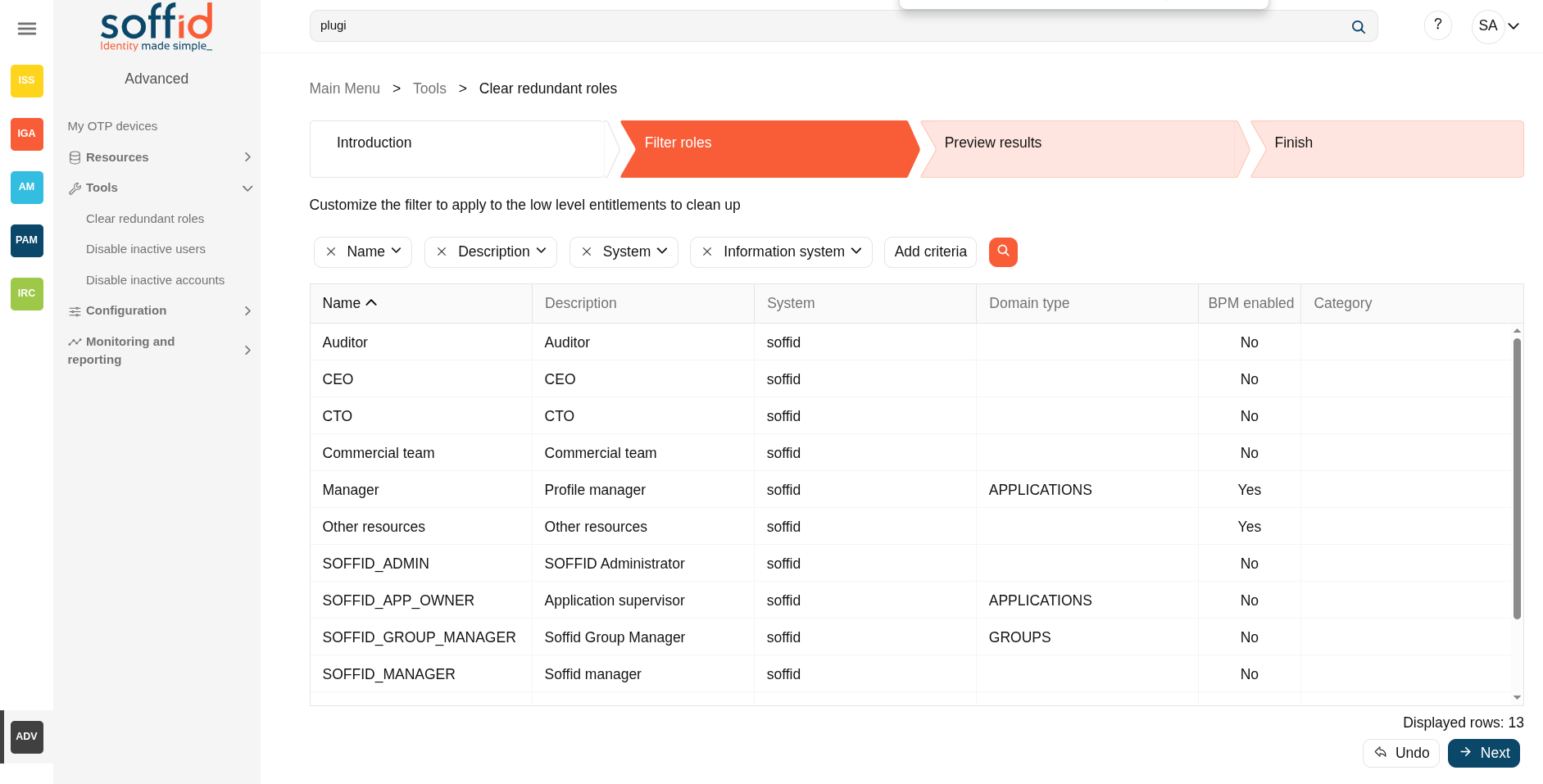
Filter roles
Allows you to filter a subset of roles to apply the process.
|
Undo |
Allows you to return to the previous step without applying any changes. |
|
Next |
Once you search for the proper Roles, you can click the Next button to browse to the Preview result step. |
Preview result
Displays a list with the subset filtered of roles.
|
Undo |
Allows you to return to the previous step without applying any changes. |
|
Next |
Allows you to run the Clear redundant roles process to the subset of roles & accounts there are in the list. |
Finish
The changes has been executed.
Disable inactive users
Description
Probably there are some users that do not need access to any information system. Using this tool you will be able to identify them and act upon them.
The process is a two step process:
- Filter out the universe of users to analyze.
- Select the actions to perform on these users.
The available actions are the following:
- Send an email.
- Disable the user.
- Remove accounts from the target system.
It's usual to initially use this tool for only a subset of your users.
For instance, you can send a message when the password is reaching the expiration date, disable the user when no login has been made in the last 90 days or completely remove its accounts when the identity has been disabled for 30 days.
Screen overview
Related objects
Actions
Introduction
A brief description of this process.
|
Next |
Allows you to browse to the Filter roles step. |
Filter users
Allows you to filter a subset of users to apply the process.
|
Undo |
Allows you to return to the previous step without applying any changes. |
|
Next |
Once you search for the proper Users, you can click the Next button to browse to the Criteria result step. |
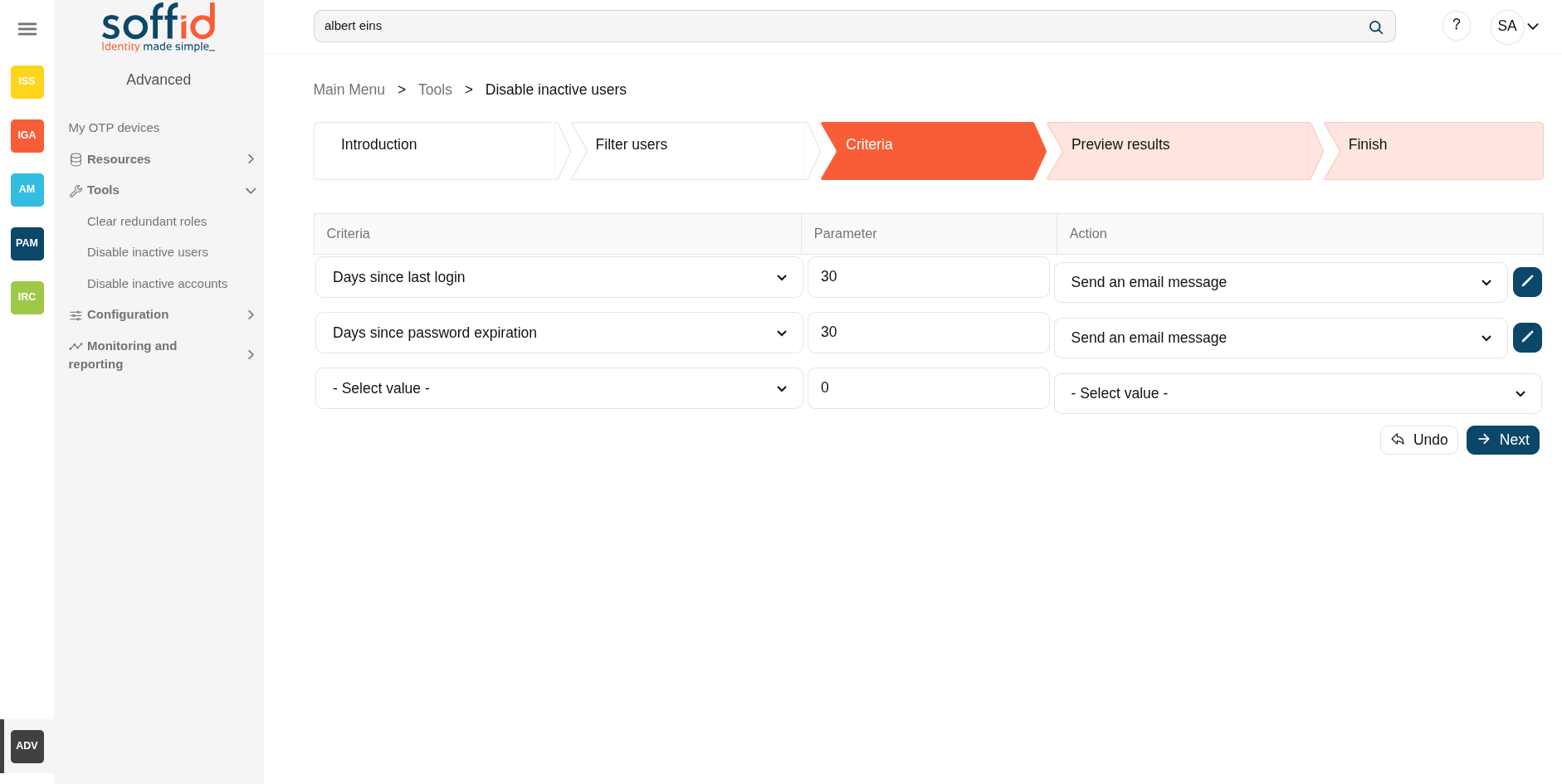
Criteria
The criteria to triggers the action can be:
- Days since last login
- Days since password expiration
Allows you to establish the action to perform on these users.
- Send an email message
- Disable the user
- Remove accounts from target system
|
Undo |
Allows you to return to the previous step without applying any changes. |
|
Next |
Once you search for the proper Users, you can click the Next button to browse to the Criteria result step. |
Preview result
Displays a list with the subset filtered of users and the action to apply.
|
Undo |
Allows you to return to the previous step without applying any changes. |
|
Next |
Allows you to run the process to the subset of users there are in the list. |
Finish
The changes has been executed.
Disable inactive accounts
Description
Probably there are some accounts that are no longer used. Using this tool you will be able to identify them and act upon them.
The process is a two step process:
- Filter out the universe of accounts to analyze.
- Select the actions to perform on that accounts.
The available actions are the following:
- Send an email.
- Disable the user.
- Remove accounts from the target system.
It's usual to initially use this tool for only a subset of your accounts.
For instance, you can send a message when the password is reaching the expiration date, disable the account when no login has been made in the last 90 days or completely remove it when the account has been disabled for 30 days
Screen overview
Related objects
Actions
Introduction
A brief description of this process.
|
Next |
Allows you to browse to the Filter roles step. |
Filter accounts
Allows you to filter a subset of accounts to apply the process
|
Undo |
Allows you to return to the previous step without applying any changes. |
|
Next |
Once you search for the proper Accounts, you can click the Next button to browse to the Criteria result step. |
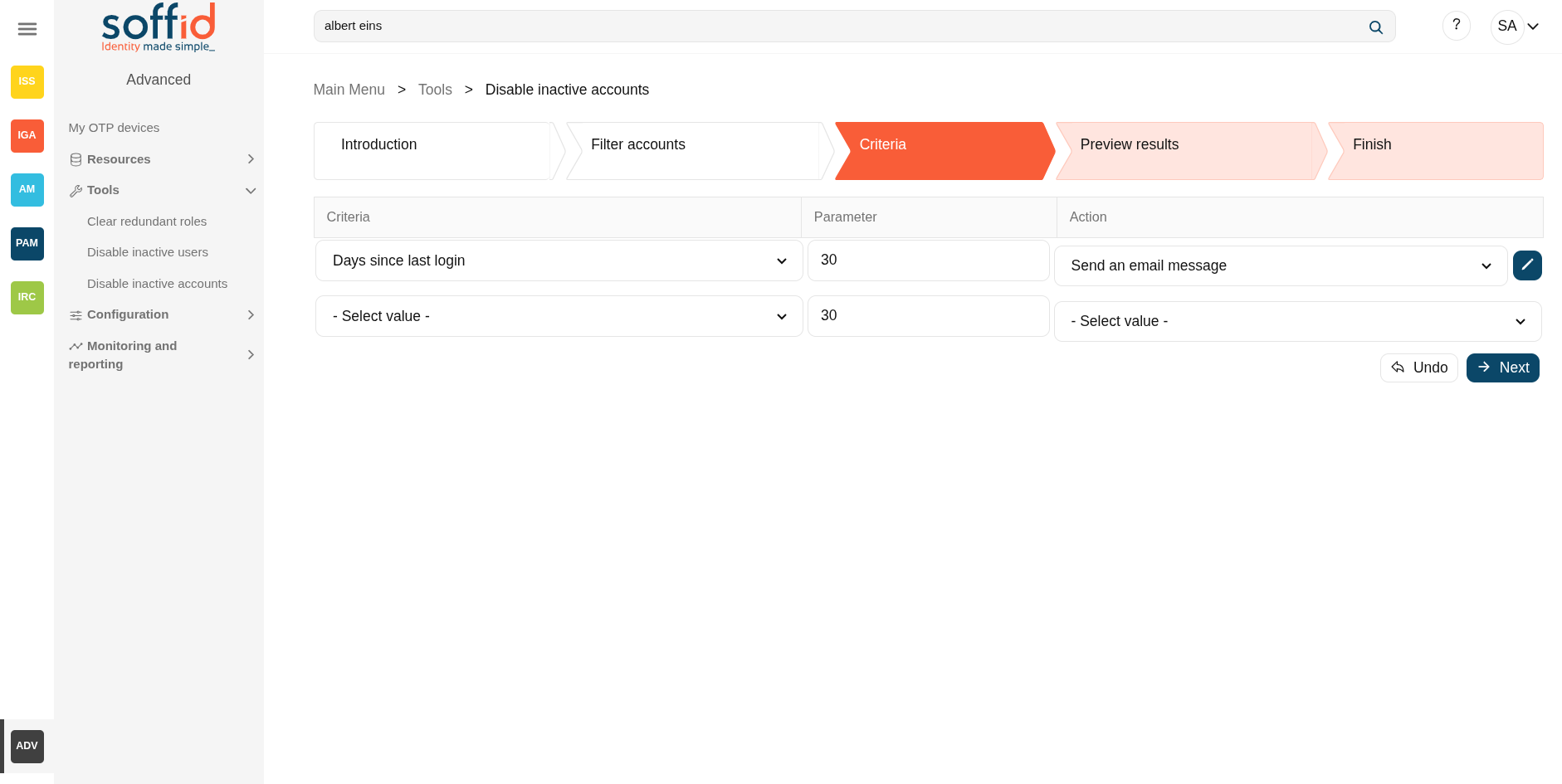
Criteria
The criteria to triggers the action can be:
- Days since last login
- Days since password expiration
Allows you to establish the action to perform on these users.
- Send an email message
- Disable the user
- Remove accounts from target system
|
Undo |
Allows you to return to the previous step without applying any changes. |
|
Next |
Once you search for the proper Accounts, you can click the Next button to browse to the Criteria result step. |
Preview result
Displays a list with the subset filtered of accounts.
|
Undo |
Allows you to return to the previous step without applying any changes. |
|
Next |
Allows you to run the process to the subset of accounts there are in the list. |
Finish
The changes has been executed.