Resources
Resources
- Users
- Groups
- Accounts
- Information systems
- Roles
- Role assignment rules
- Segregation of Duties
- Networks
- Hosts
- Detected browsers
- Printers
- Mail Domains
- Mail Lists
- Application access tree
- Password vault
- Custom objects
Users
Description
The user is the core object of the system. In Soffid, a user means an identity (usually a person). Every user can have a number of accounts spread on different information systems.
In traditional system management, one can assign roles and permissions to accounts. Then, the administrator uses to grant the account to one single user. In Soffid you can have a global view of permissions assigned to any user. Being the user and the main management object, you have a more clear perspective in terms of operation, security, and end-user engagement.
It is important to know that dependency rules can be established between systems, so a user with a role or permission in one system will automatically be assigned a role or permission in another system, according to the system policies.
The administrator can also identify the potential users of shared or system management accounts. These accounts are managed in a slightly different way. See the Accounts and Password Vault pages for more information.
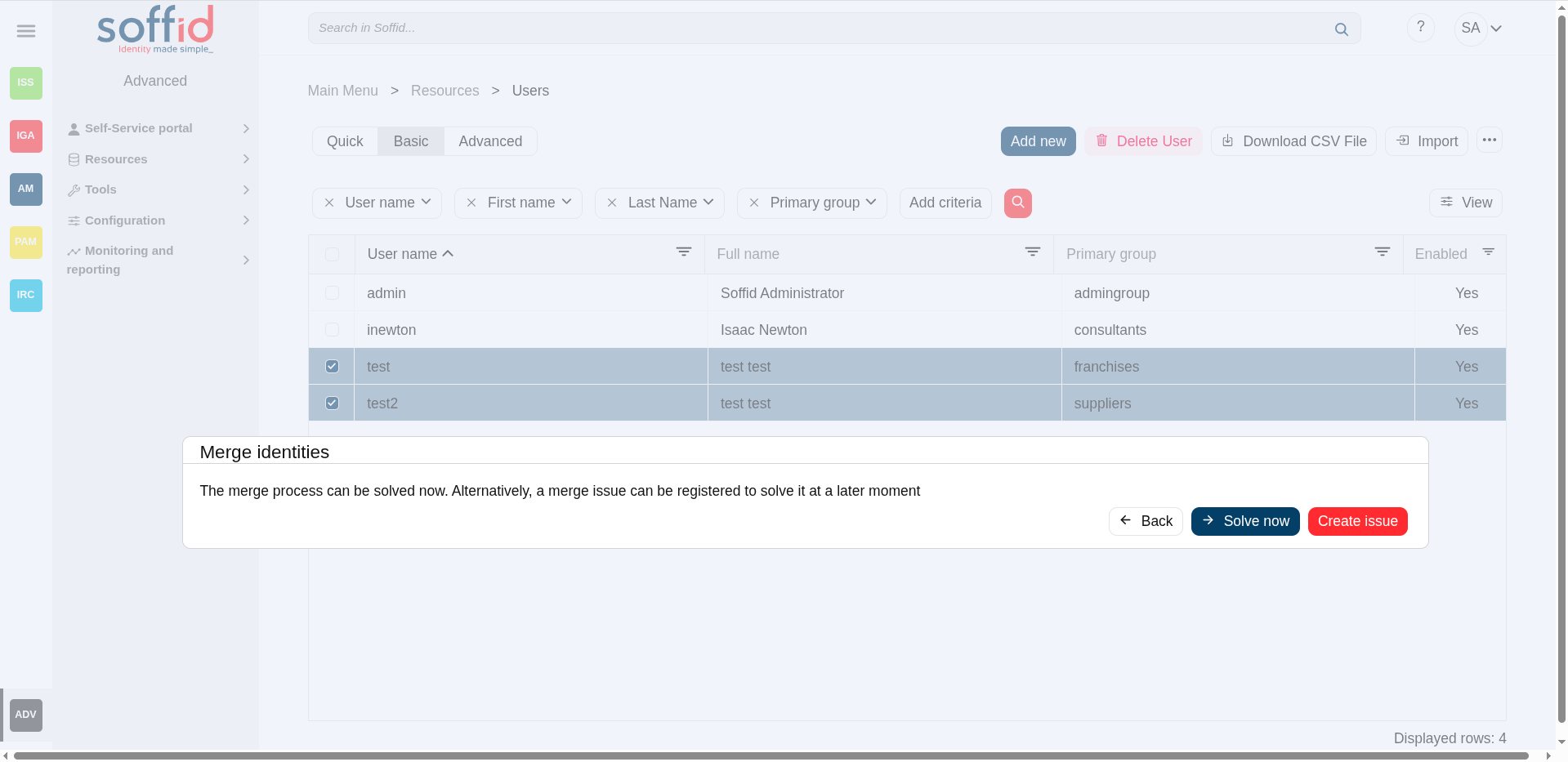
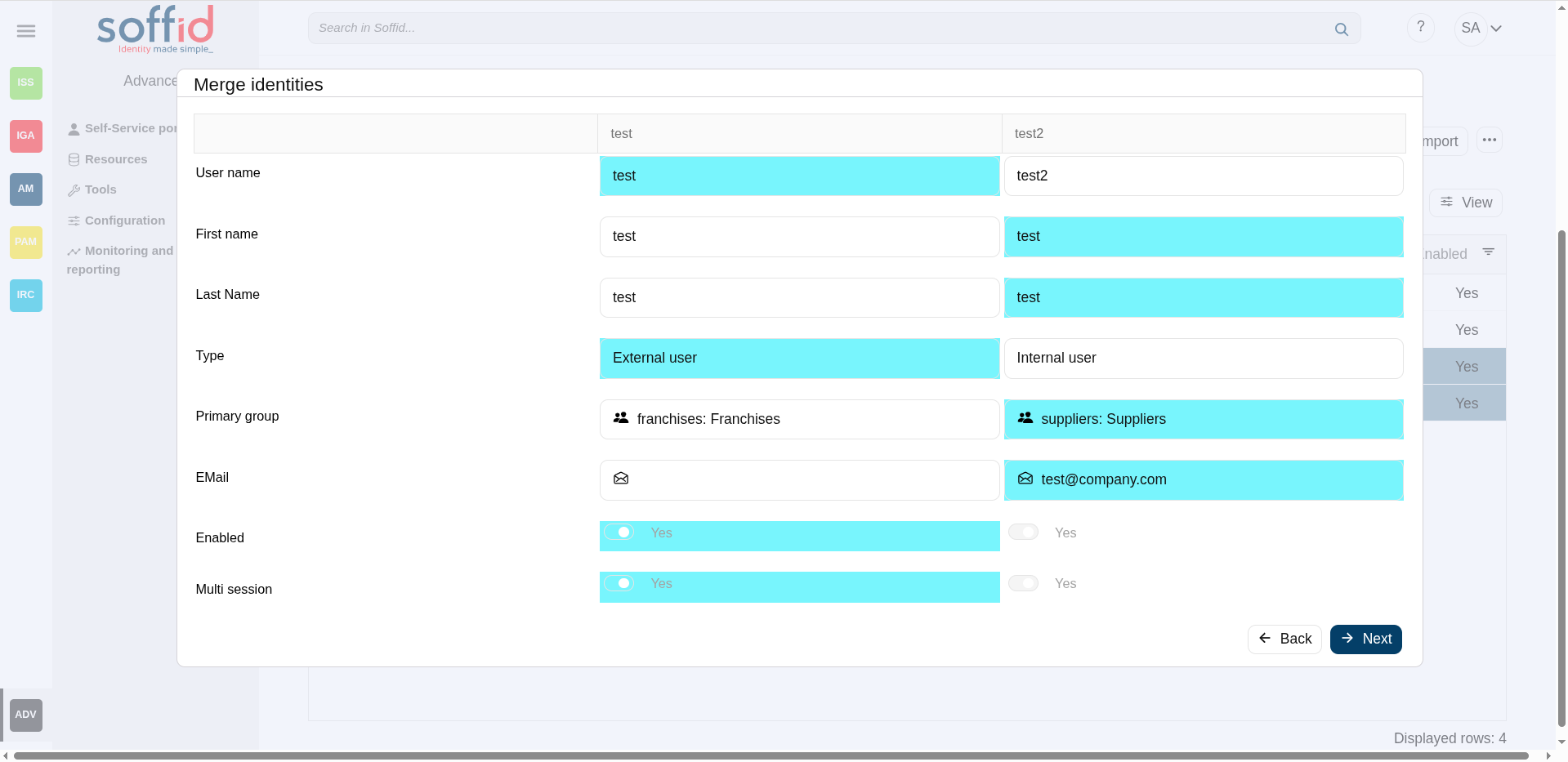
Sometimes is possible to find that there is any user with duplicated user data. To solve that problem, Soffid provides the merge functionality. That allows you to combine two user records, selecting the proper data to fix that situation.
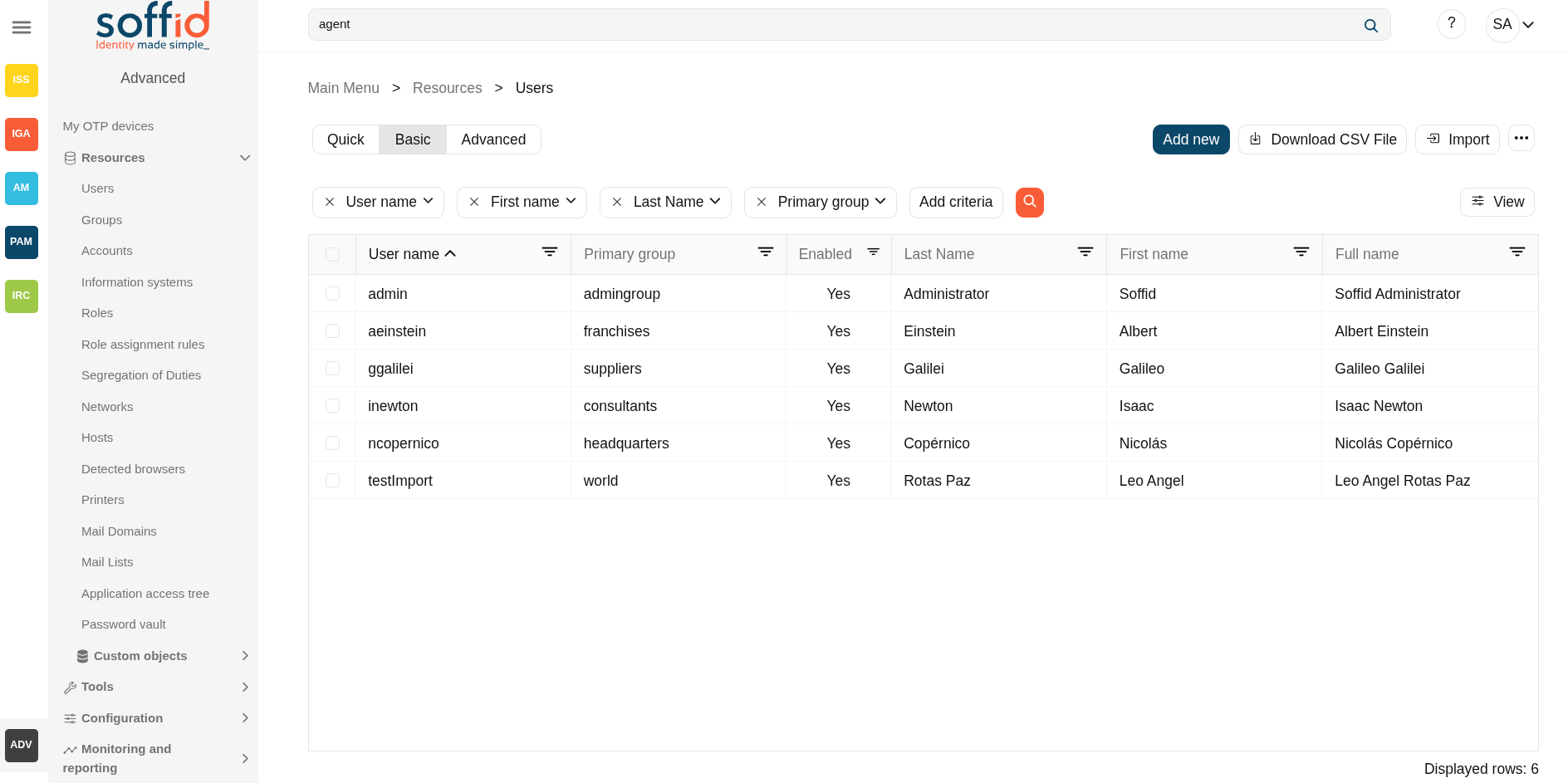
Screen overview
Related objects
- User types : users types of the users
- Groups : primary group and secondary groups of the users
- Hosts : home server and profile server of a user
- Mail domain : mail domain of the user's mails
- Metadata : to add more attributes to a user
- Accounts : to review the single user accounts or the shared accounts of a user
- Roles : roles granted to a user
- Information systems : roles granted to a user throught the information systems
- Sessions : sessions opened by the user
- Process search : user processes related to the user
- Issues : issues related to the user
- My certificates and FIDO tokens : tokens of a user
- My OTP devices : OTP devices of a user
- OTP settings : where administrators can enable differentes OTP typs
- Audit : to review the audit logs to the user
- Access logs : to check the acces logs of a user
- Sync server monitoring : to check the pending tasks of a user
Standard attributes
Basics
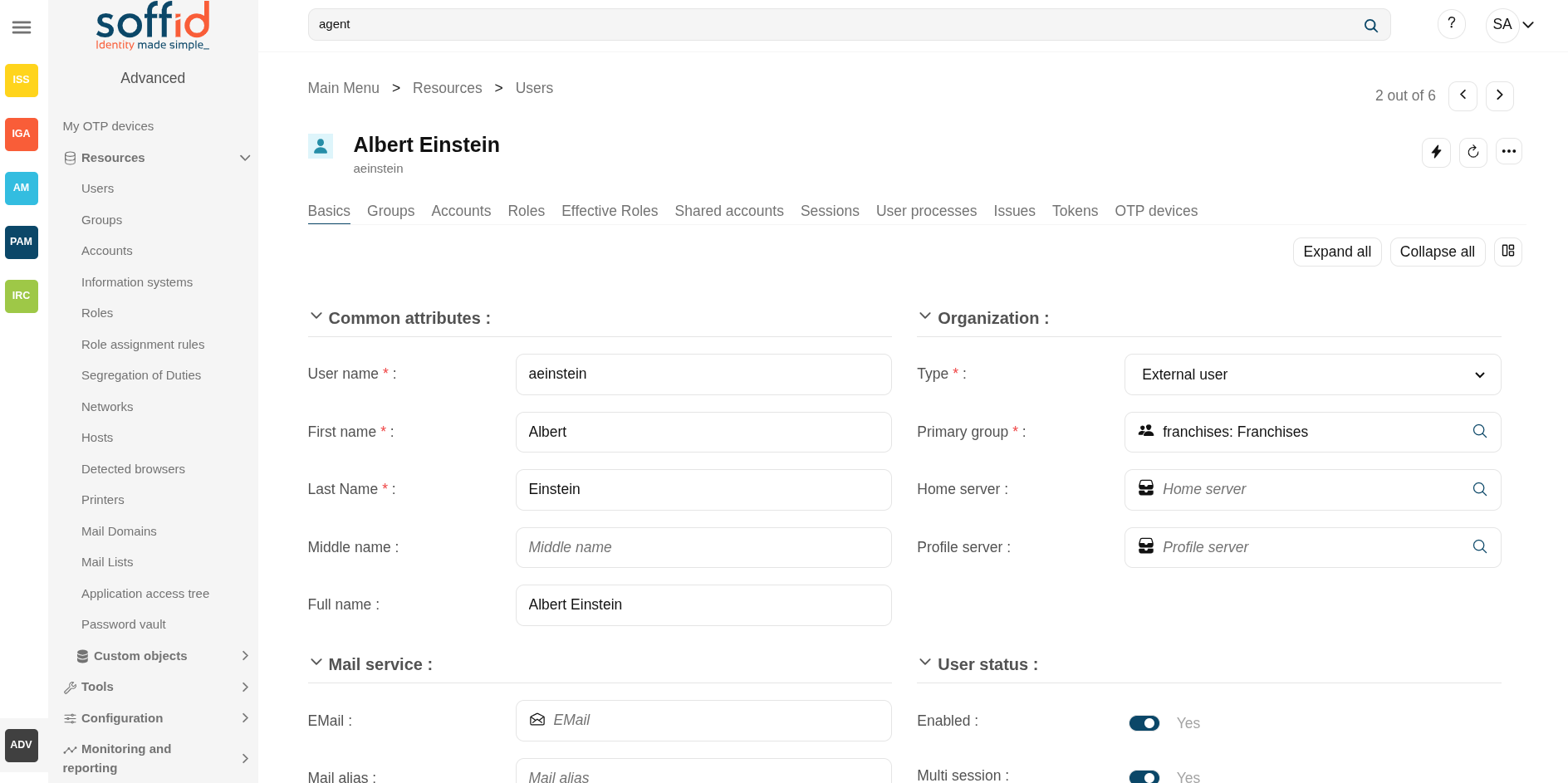
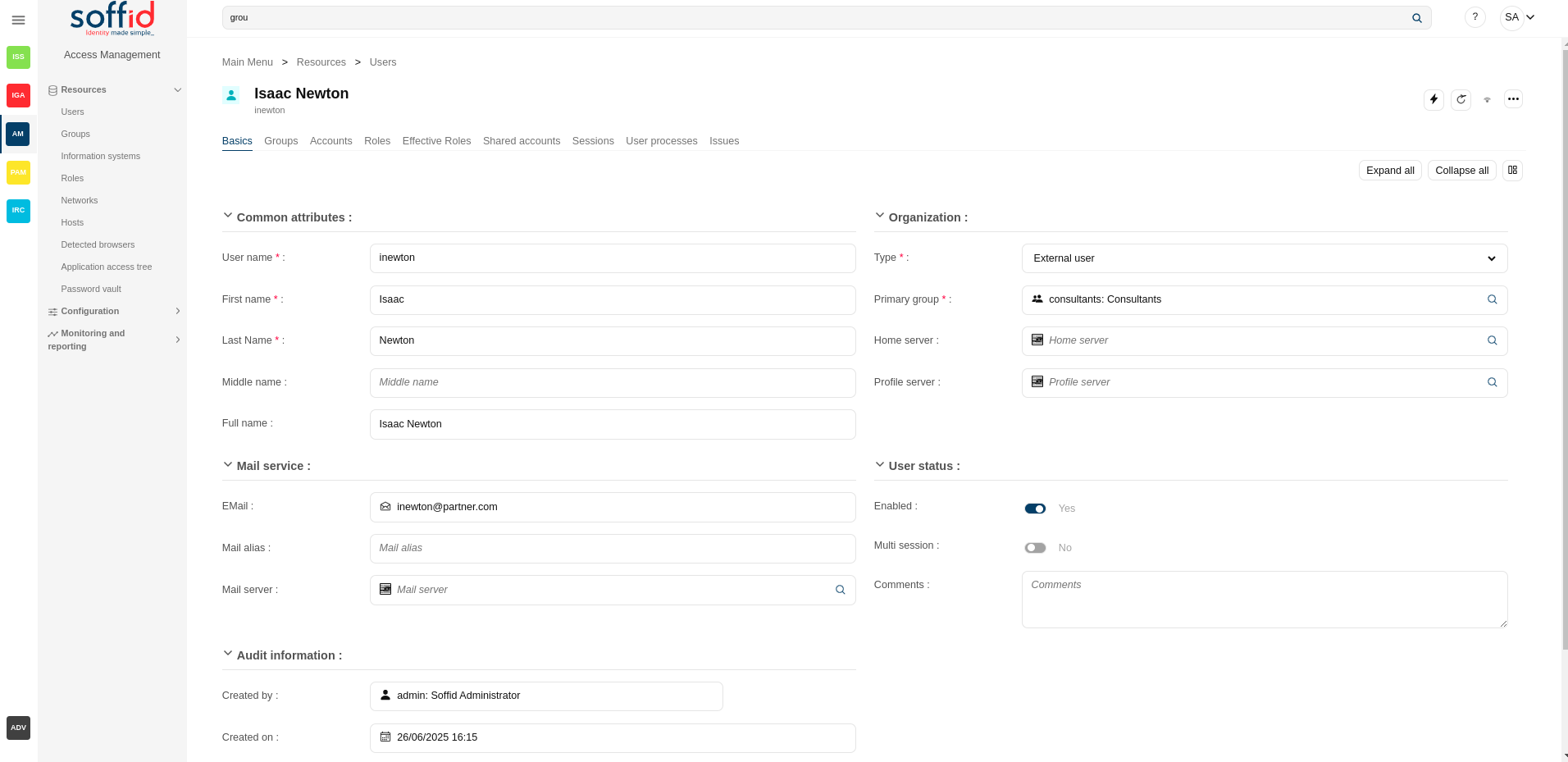
On the basic user tab, you can view all the user attributes.
If you need to add additional attributes, you can go to the Metadata page, select the User object, and add the attributes.
- Common attributes:
- User name: short name to identify the user. It uses can be either a name abbreviation, an employee Id, or a system. generated number.
- First name: name of the user.
- Last name: first surname.
- Middle name: used like a second surname.
- Full name: firstName + lastName + middleName.
- Organization:
- Type: identifies the password policy that is to be applied.
- Primary group: select which organization unit this user belongs to.
- Home server: select which server will host its user folder. It is linked to the Home Drive attribute on Active Directory.
- Profile server: select which server will host its user profile. It is linked to Roaming UserProfile on Active Directory.
- Mail service:
- EMail: this will be the mail address that will appear on outgoing emails from this user.
- Mail alias: In this box, there will be a comma-separated list of mail addresses that will be forwarded to this user mailbox. It will you one to one aliases and one to many distribution lists.
- Mail server: select which server will host its user mail.
- User status:
- Enable: uncheck in order to prevent this user from logging into any system.
- Multi session: uncheck to prevent this user from using more than one device at a time. If the user logs into the system when another session is active, the single sign-on agent will manage it in order to close the first session before opening a new one. This checkbox is only effective when using Soffid ESSO
- Comments.
- Audit information:
- Created by: user who created it.
- Created on: when this one was created.
- Modified by: responsible for the user's last change.
- Modified last on: date of last user modification.
Image
Groups
Your company is organized into different business units, departments, or workgroups. In Soffid, they all are named as groups.
Some systems, like Active Directory, use groups to control or restrict resource access. A Soffid Group is more like an Active Directory OU.
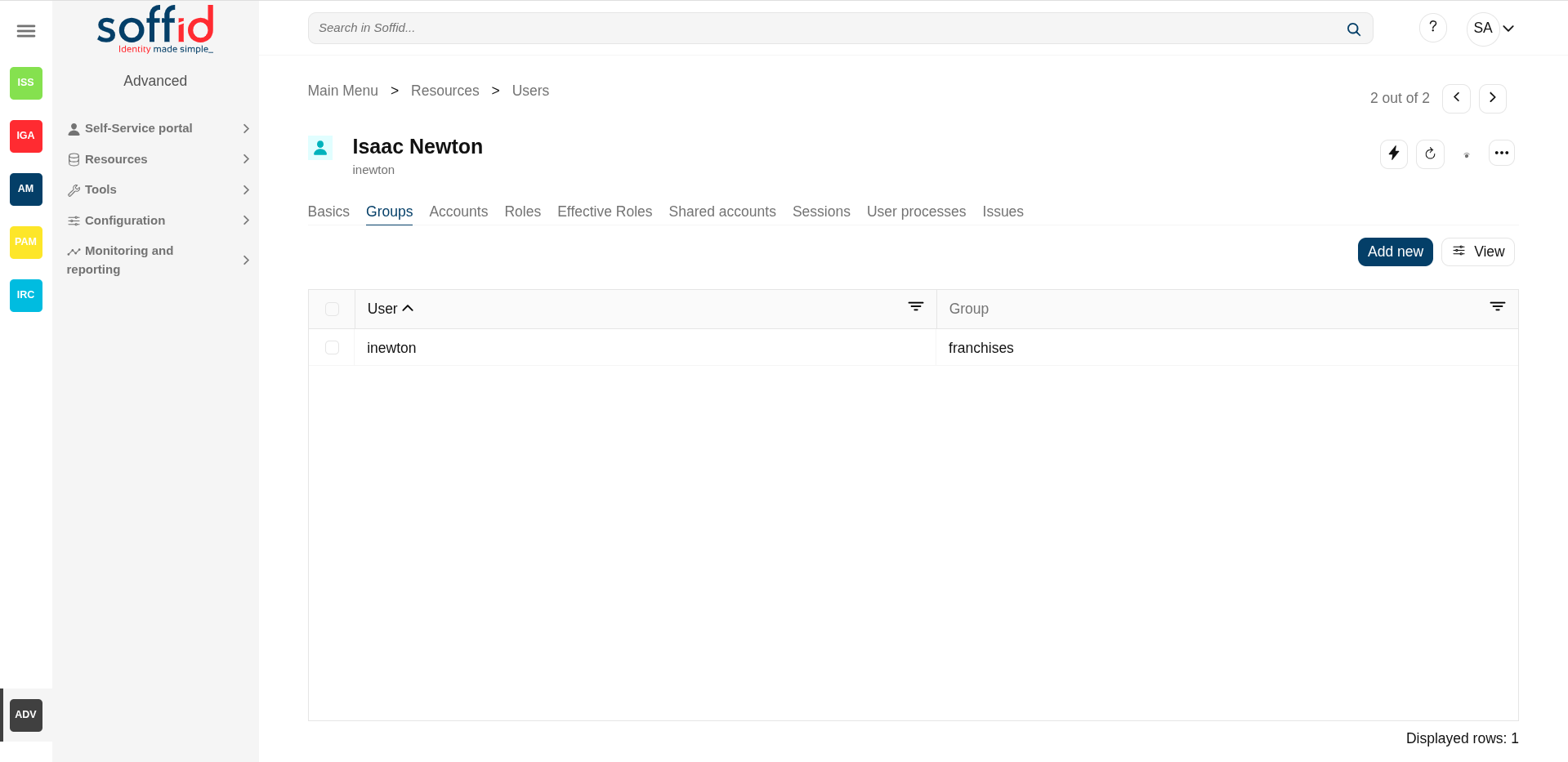
On the group tab, you can manage all the groups that the user belongs to. Be in mind that all users have to belong to a Primary Group defined on the Basic user attributes.
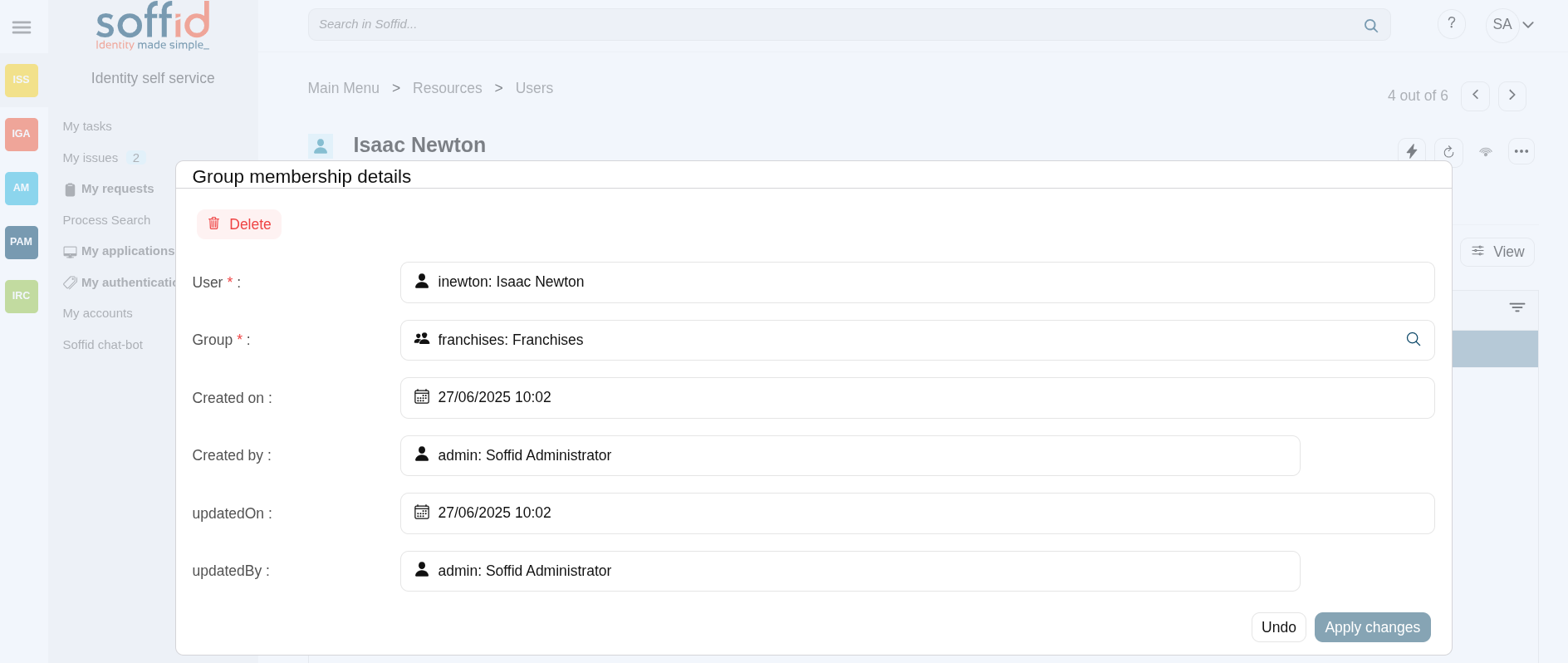
By clicking on a record, Soffid shows group membership details. It is possible to change the group, and the start date and add comments.
It is also possible to assign a new membership by clicking the "Add new" button, and revoking the group membership from the group details with the "Delete" button, or by selecting one or more records from the list and clicking the "Delete secondary group".
If you need to add additional attributes, you can go to the Metadata page, select the UserGroup object, and add the attributes.
Image
Accounts
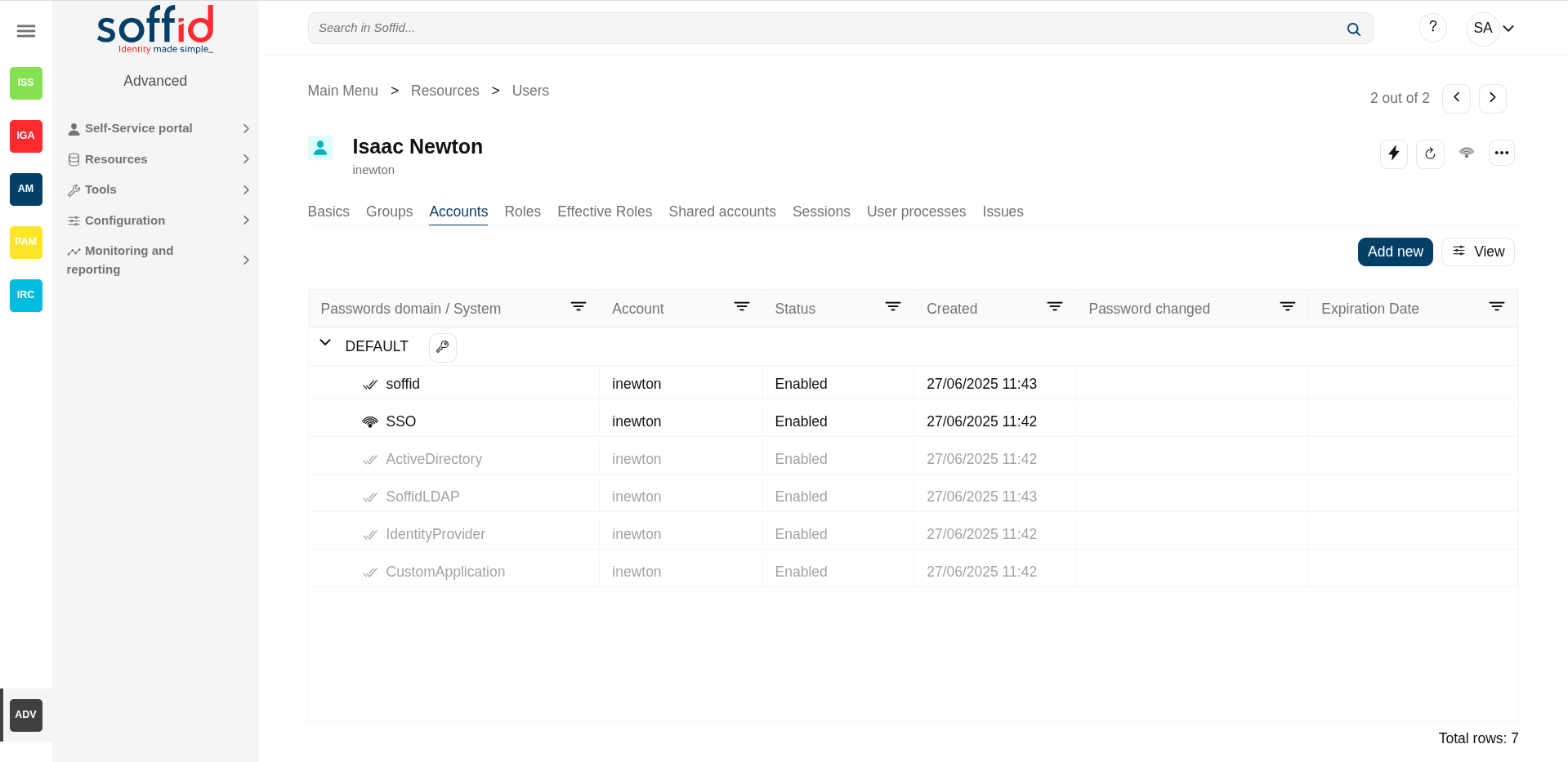
An account is a way a user is presented on a target system. On the accounts tab, you can view the accounts that belong to the user that is currently displayed, grouped by password domains.
About visibility:
- The account can be displayed in black or gray color.
- The gray color is used to indicate that the account is unmanaged, that is because the agent is disconnected or because the agent is in Read-Only Mode.
- The
strikethroughaccounts are all those whose status is not considered active.
Soffid smart engine could automatically create, disable or remove user accounts depending on the system policies.
Also, you can manually add a new account for a specific system with the Add new button. On clicking on an account you can rename or edit an existing one, delete it or change its password. You can also see when the password was last set and its expected expiration date. Mind that you cannot change a single account password, as long as any password belongs to a password domain, so each password belonging to the same user and password domain will be changed at a time. When you apply user changes, automatically they will be forwarded to target systems.
Mind that Soffid smart engine can revert some of your changes if those changes are violating any system policy.
Each change made at the Soffid console is asynchronously replicated into the managed system. At the accounts tab, the administrator can check when each account was updated last. When the Soffid console notices there the replication process is failing, an exclamation icon will appear next to the account name.
When the settings for a managed system exclude a user to be replicated, no account will be created for him. In case the user was replicated and due to user attributes changes it should be excluded, its account will be disabled and it will appear with line-through style.
At the agent configuration screen, the administrator can configure when to create or enable user accounts depending on the user type or the group the user belongs to. When the settings for a managed system exclude a user, no account will be created for him. In case the account exists and due to user attributes changes it should be excluded, its account will be disabled and it will appear with line-through style.
Regarding automatic account creation, it's important to know that if a user needs an account with a name, based on the user domain configuration, and that such an account already exists as a shared or single user account, this account won't be created or assigned. Nevertheless, if such account already exists as an unmanaged account, this existing account will be assigned to the user along with their role grants.
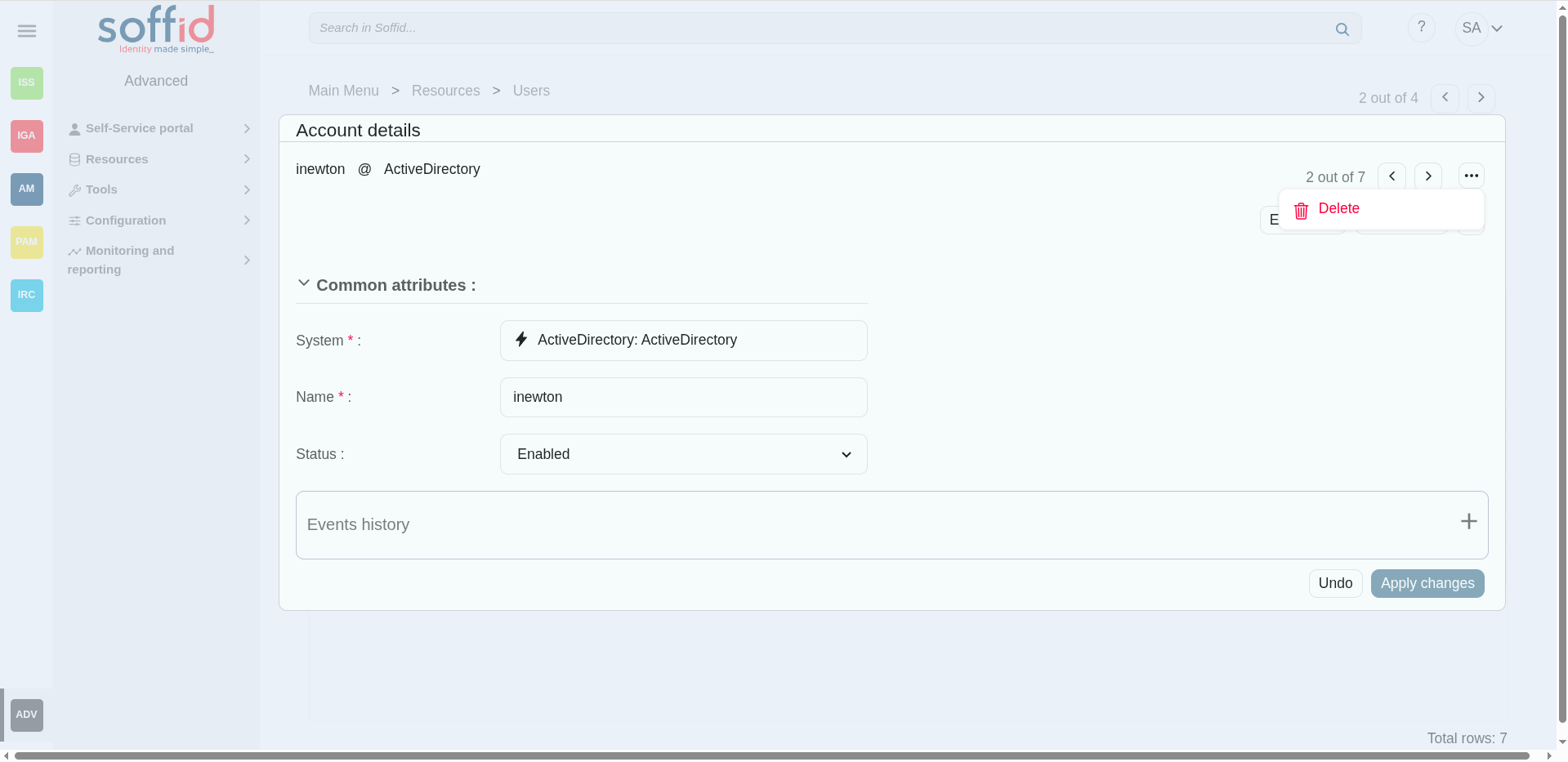
By clicking on a record Soffid displays more accurate information about the account. It will be allowed to rename the account, change it, change the account status or delete the account (logic delete). Also, Soffid allows you to query the properties if the account on the target system. Finally, Soffid will display custom attributes defined for the specific agent on the agent "Account metadata" tab, you can visit the Agents page for more information.
On the accounts tab, you can check the failed login attempts and if the account has been blocked, it is displayed until how long it has been blocked.
💻 Image
Roles
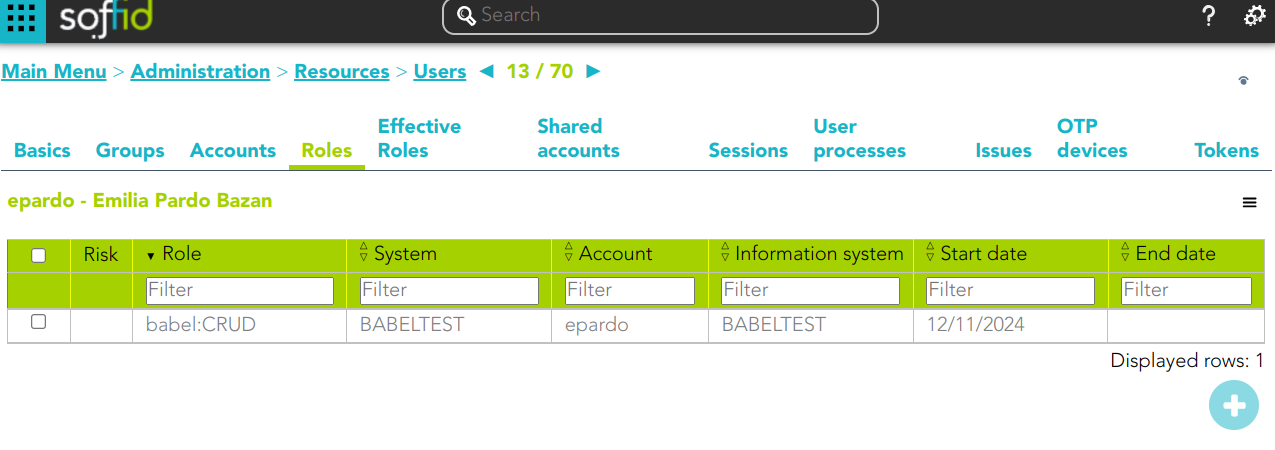
A role is a collection of permissions that can be granted to a user. With these permissions, the user will access to another system and perform some operations.
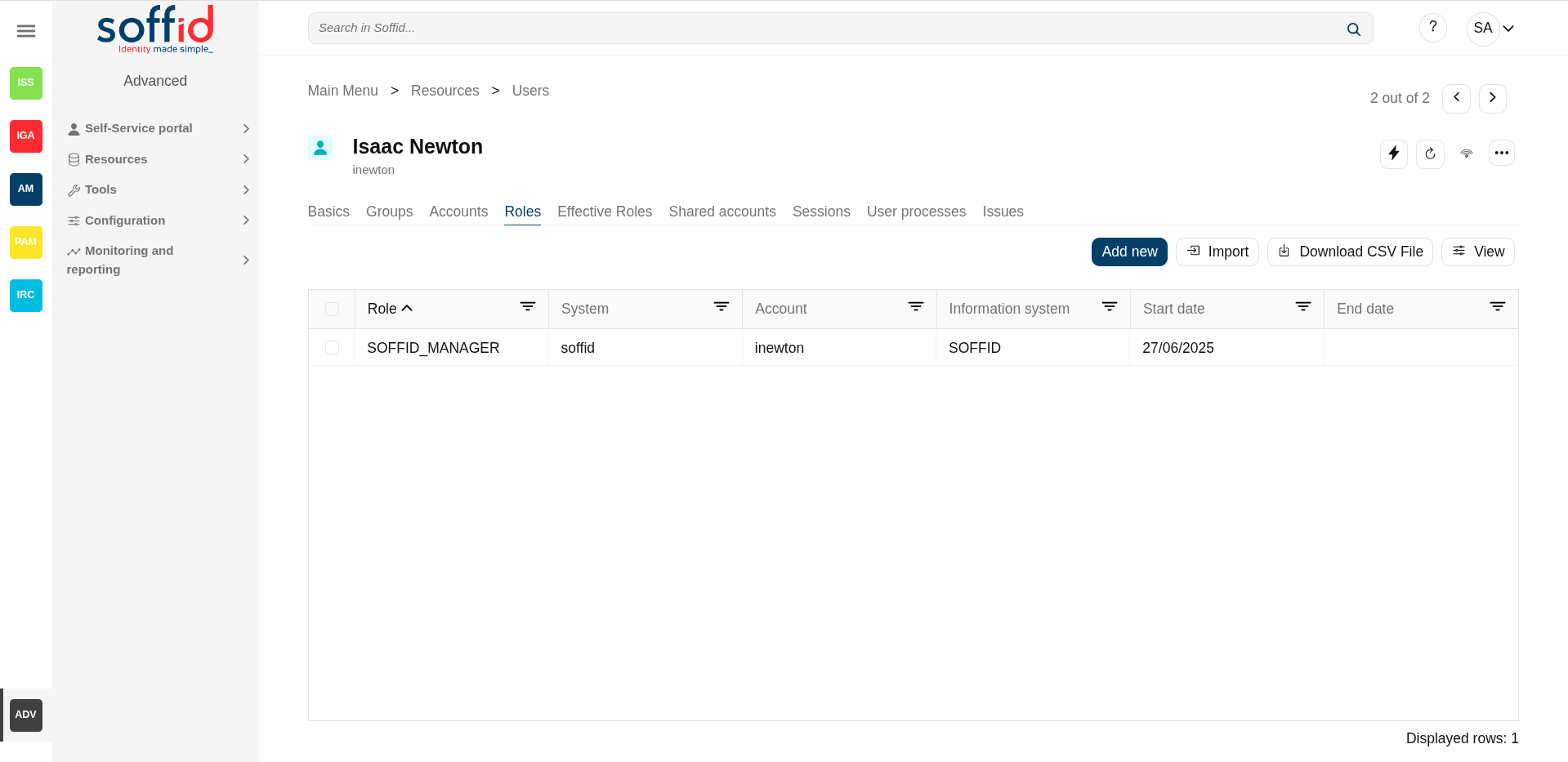
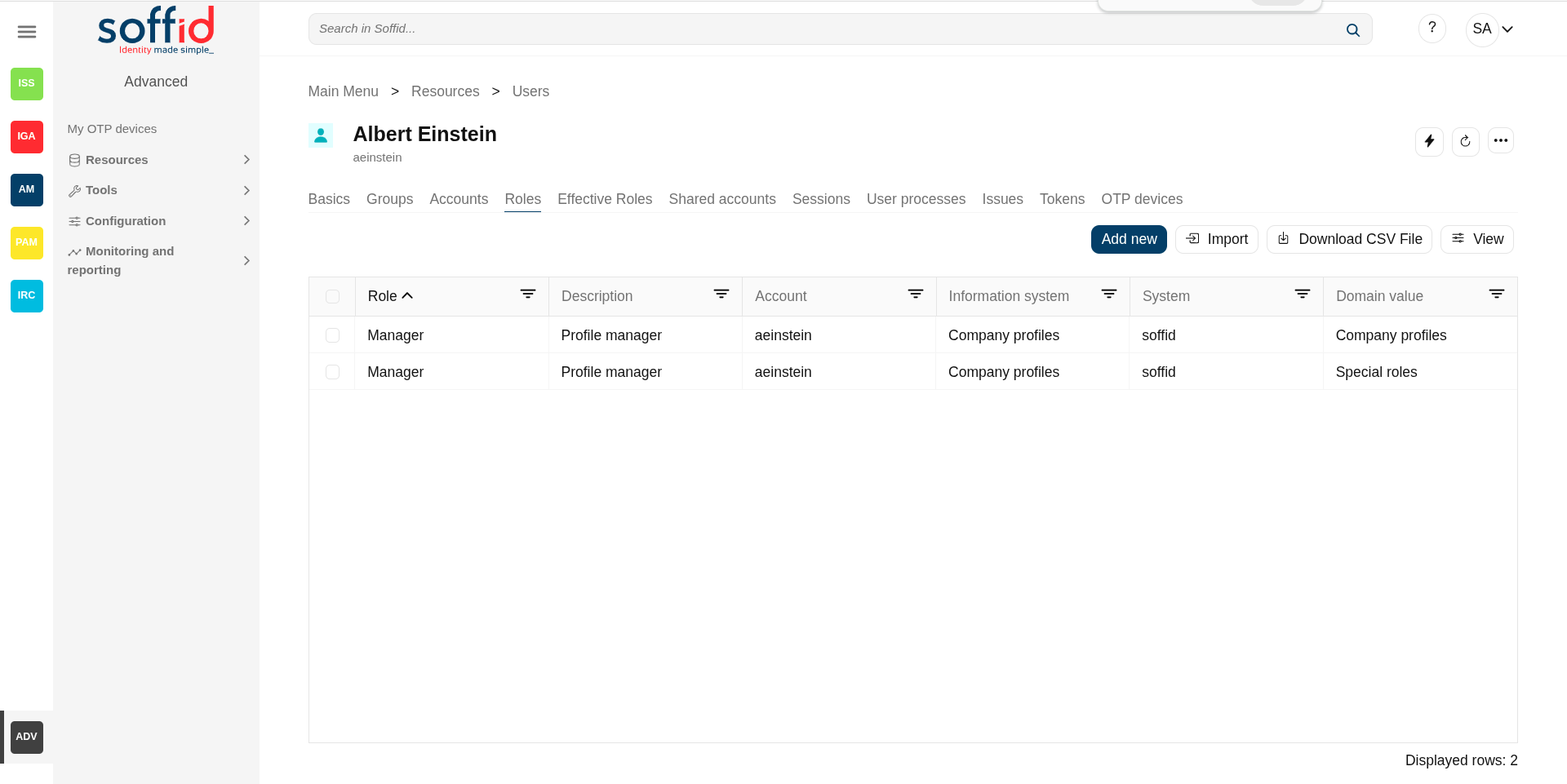
On the roles tab, you can assign or revoke roles to any user. Each role needs an account to be applied to. So, if a user has no account on a system and a role on that system is granted, a new account will be created on this system. In case a user has more than one account on a system, you should indicate which of the suitable accounts will be granted the role.
More and more, when the role should be scoped, the operator must select the right scope for the role. The scope and its allowed values are defined on the information systems page.
By clicking on a record Soffid shows more information about the role, this information can not be updated. On this screen, you can browse through the different roles.
It is also possible to revoke the role to the user from the entitlement details or by selecting one or more records from the list and clicking the button with the subtraction symbol.
The roles list shows a column to display when there are risks with the roles assigned to the user. If you click on a record, Soffid will show the entitlement details including the SoD rules with the detail of the risk.
For more information about SoD visit the Segregation of Duties
Additionally, you can download a CSV file with the user's role information, or upload a CSV file to assign or revoke roles to the user.
Image
Effective Roles
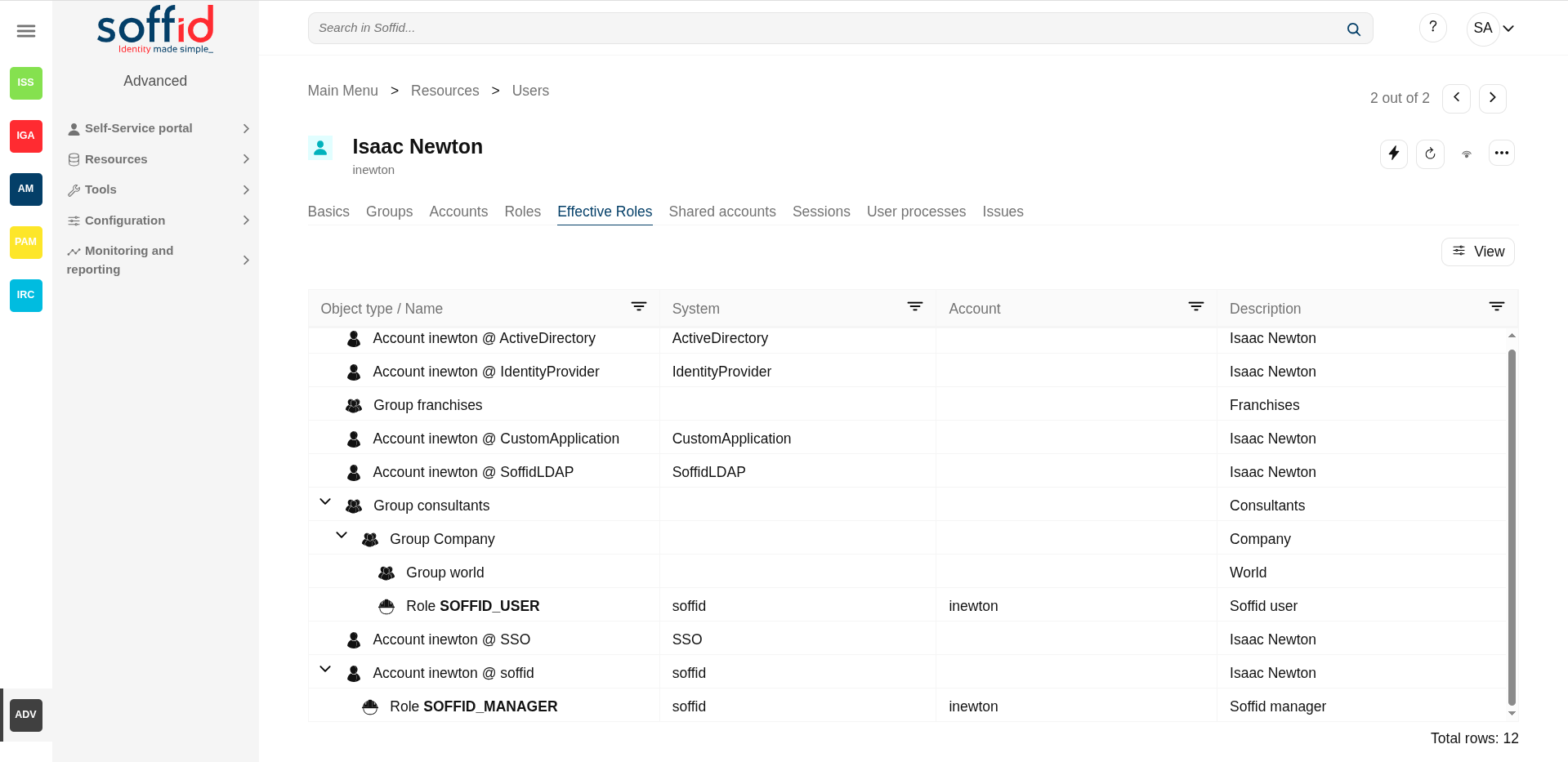
Hierarchy of permissions assigned to or inherited.
This page details the effective roles of the selected user. Effective roles are all roles assigned to a user either directly or indirectly.
- By direct assignment of the role: when you assign a role to a user, you are assigning to the user all the permissions defined for that role.
- By belonging to a role: A role can have inherited roles. Roles assigned to a user through another role cannot be revoked. To remove them, you must revoke the parent role or remove this role from the inheritance configuration.
- By belonging to a group: when you add a user to a group, the user will have all the roles assigned to the group
- By rules defined in the system: when a rule is satisfied for a user, the system assigns the roles defined in the rule to the user.
Image
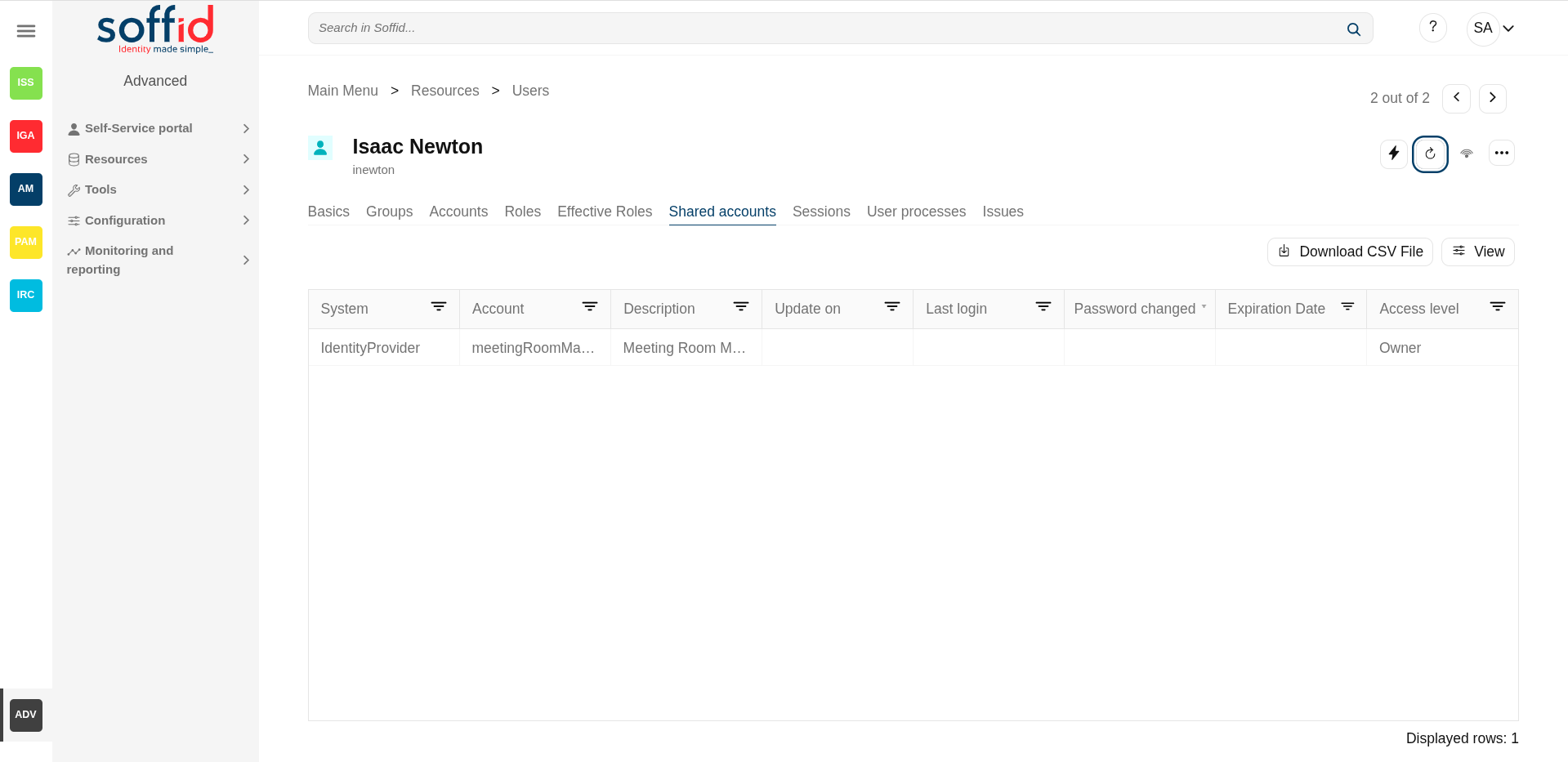
Shared accounts
Accounts that can be used by several users, those accounts can be privileged or shared.
By clicking on a record, you can browse the share account details page.
Image
Sessions
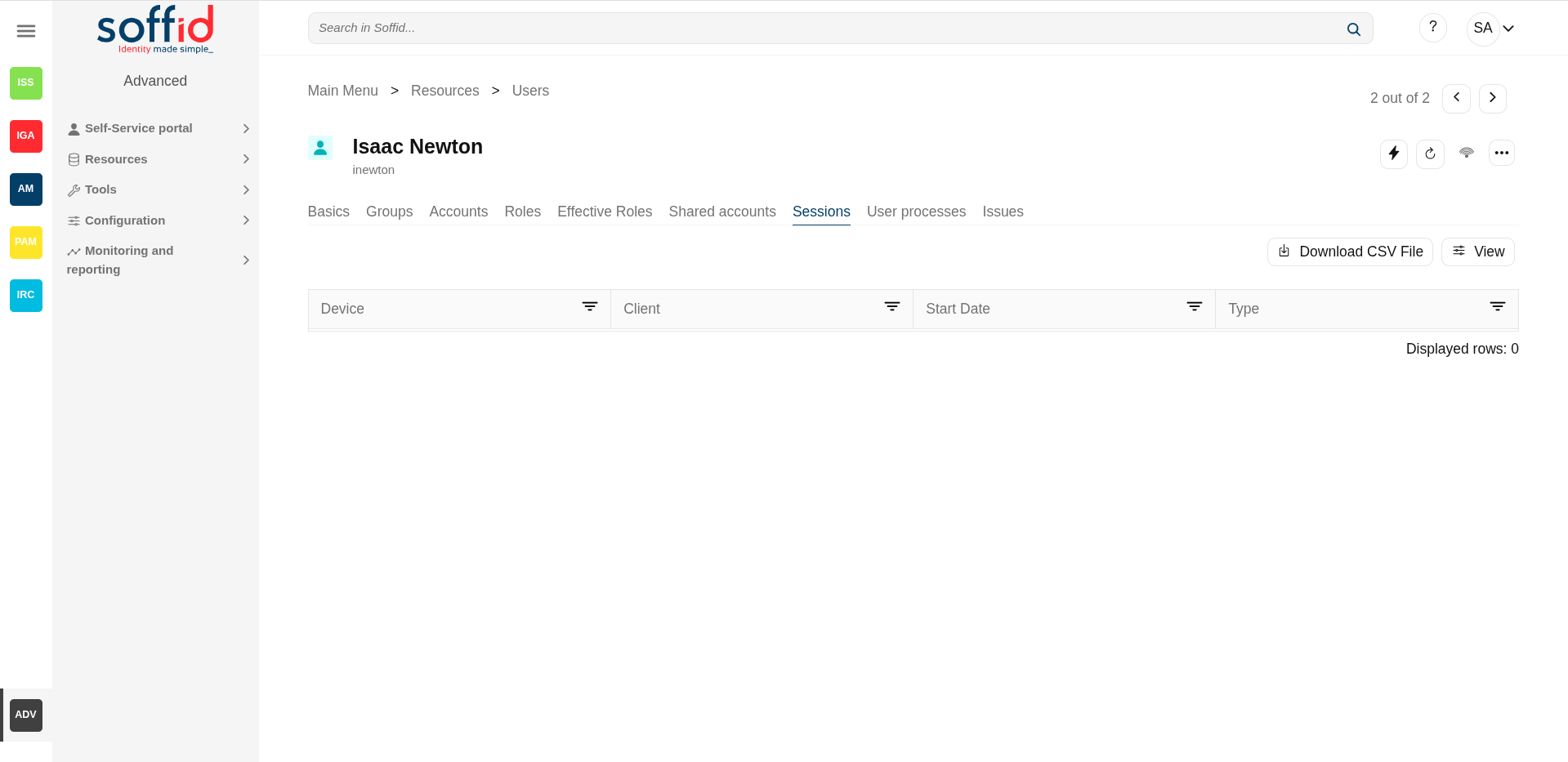
On the sessions tab, you can view sessions opened by the user.
Here will be displayed any open ESSO session, showing the host that has created the session and the host where the user is connected from, if applicable. The port number is the TCP/IP port number the ESSO session manager is listening to. It is used by the synchronization server to check for session validity.
ESSO Integration
Multi-session attribute: ESSO will prevent any user from having more than one session at a time unless it has the multisession attribute checked.
If ESSO detects the user trying to log in has an active session, it will do the following job:
- The previous session will be noticed of such a duplicate session.
- The new session will have the choice to:
-
Give up and not log in.
-
Wait until the previous session is closed.
-
Force the previous session to log out. If the user selects to close the remote session, the remote user will still have the chance to accept or reject such action.
-
No user with an active flag unchecked will be allowed to log in or use any system managed through ESSO.
Image
User Processes
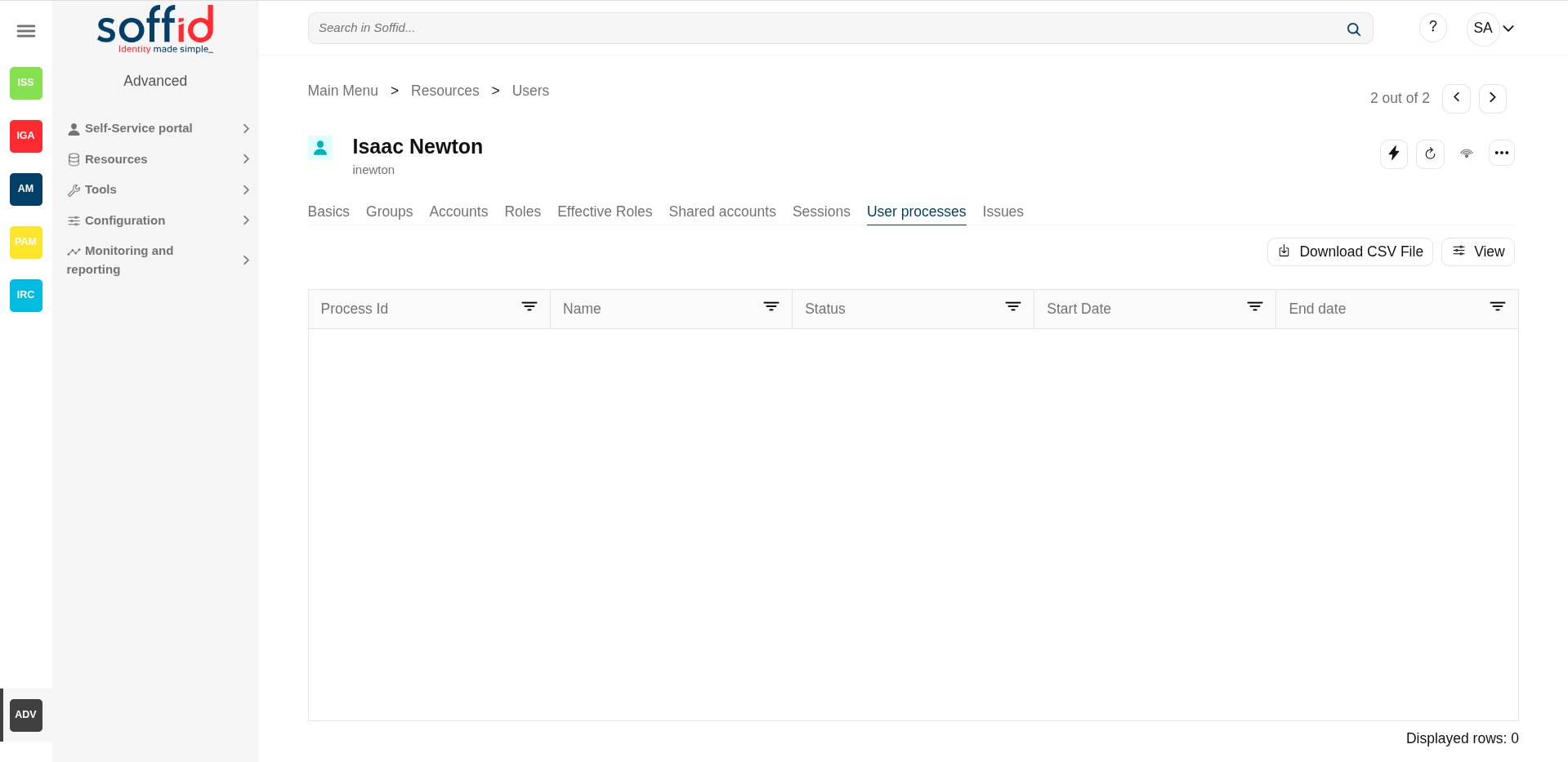
In the user processes tab you can view the business processes in which the user has been managed.
It shows information about the process, the status process and when it was initiated and ended.
Mind that this page does not displays the business processes where the user has acted.
Image
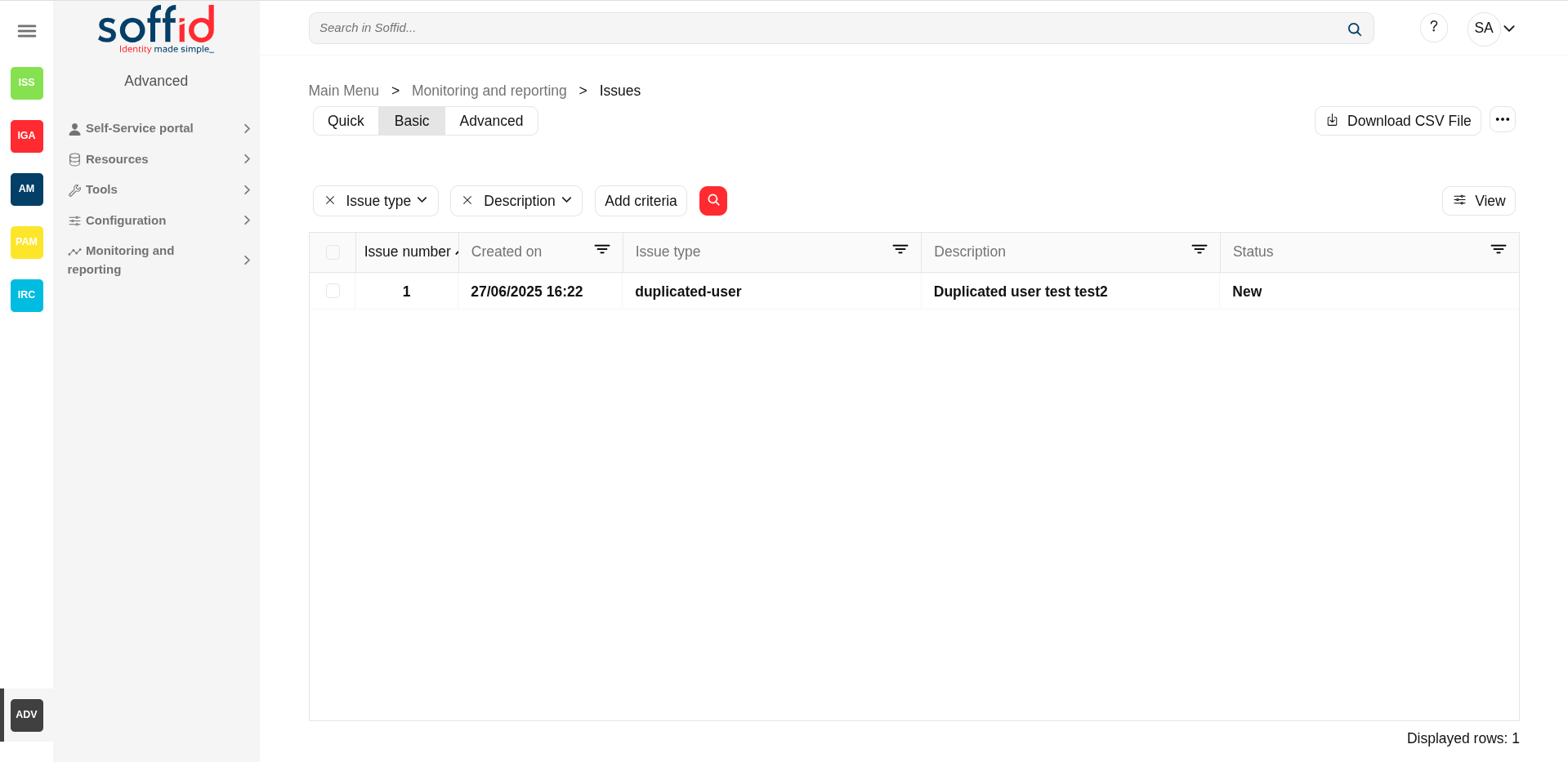
Issues
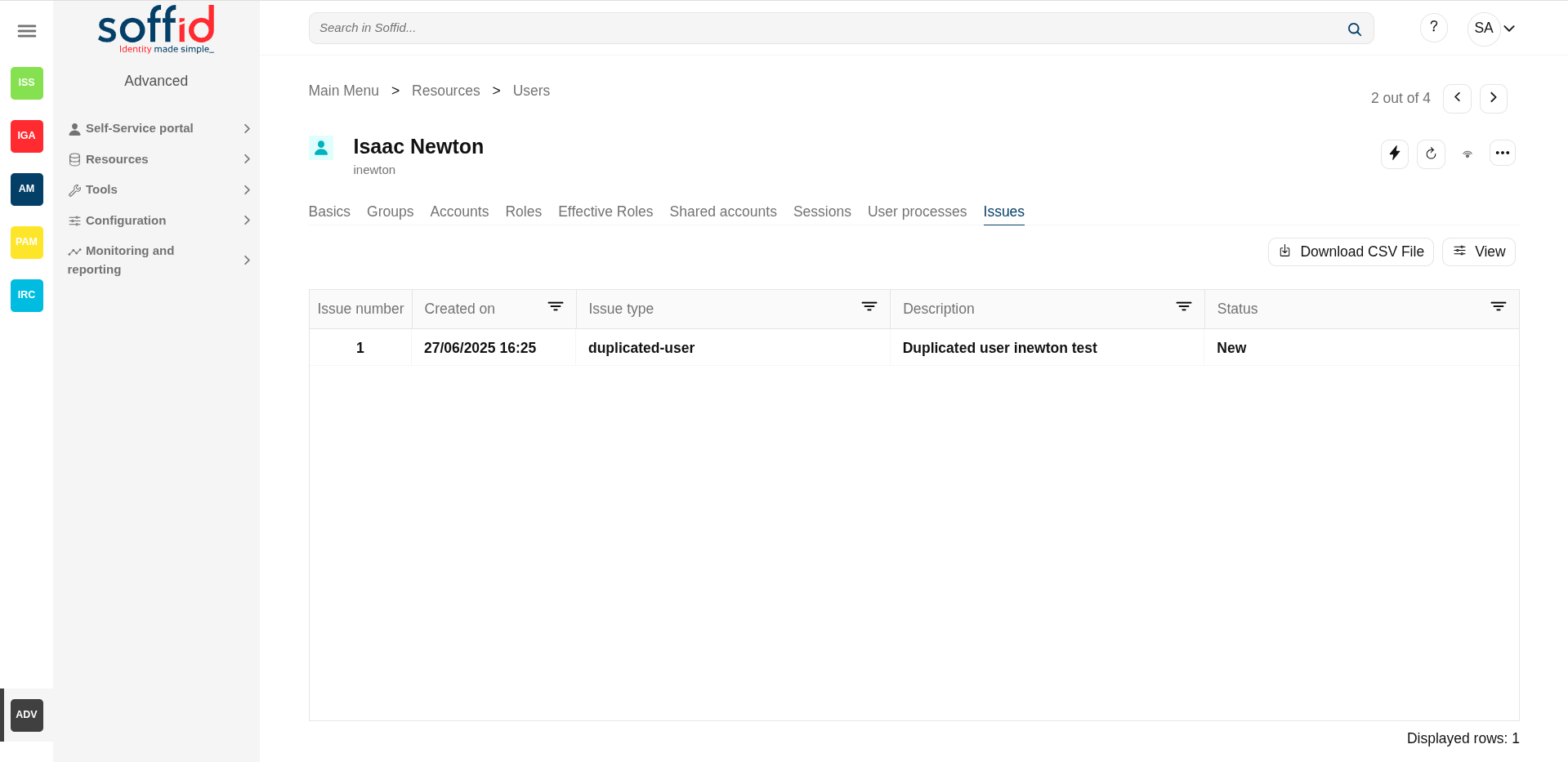
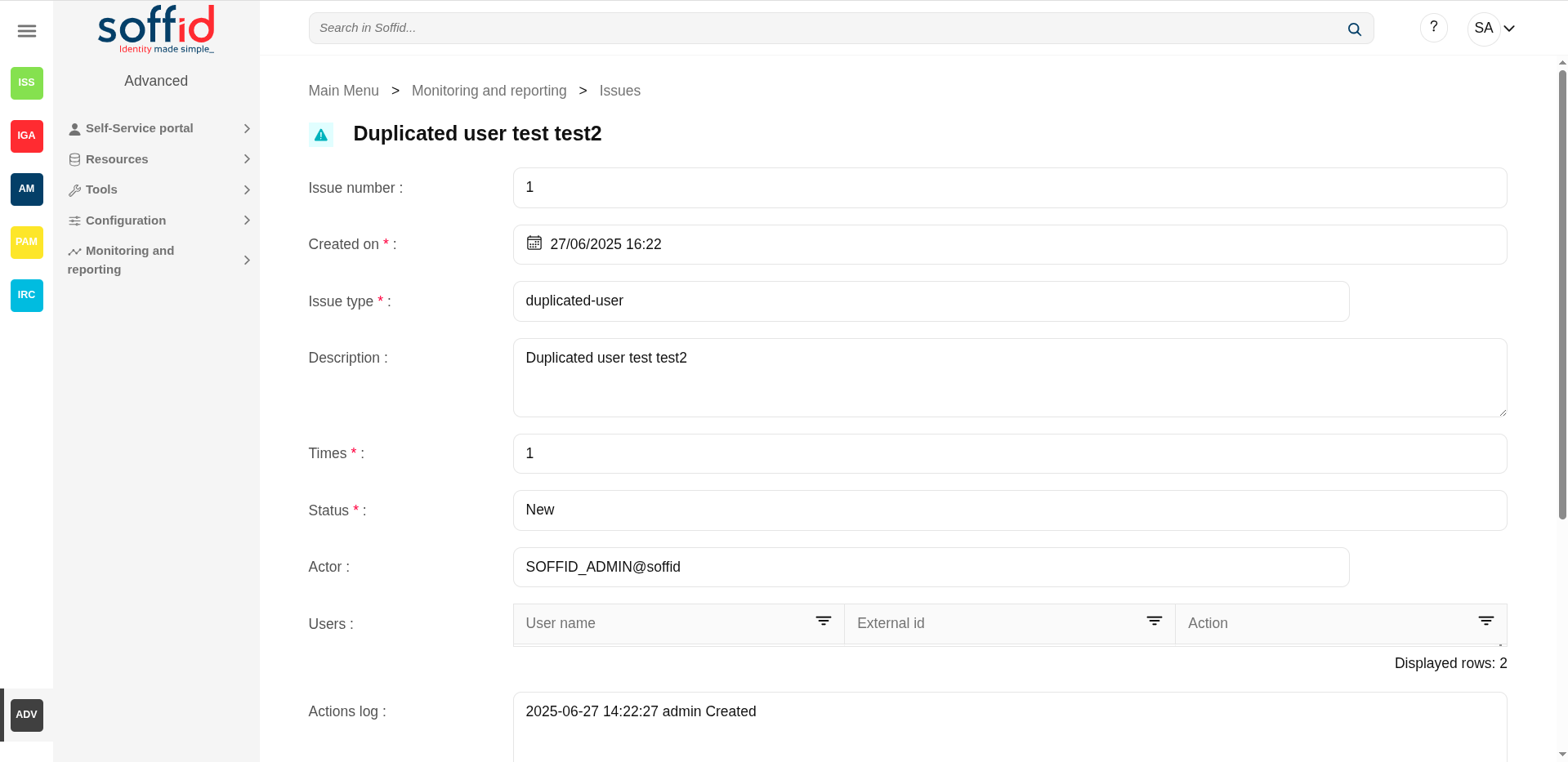
In the Issues tab, Soffid displays all the issues in which the user is involved.
If you click one issue, Soffid will display the issue detail and will allow you to perform any available operation if you have the proper permissions to do that.
For more information, you can visit the Issues page.
Image
Tokens
In the Tokens tab, you can manage the user tokens.
You can add or delete the users' tokens. Currently, the available options are Certificate, the FIDO token and the Soffid authenticator.
Certificate
If you select the certificate option, you only need to register the certificate description. Then Soffid will read the existing certificates registered into Soffid, at the Digital certificates page, and finally, Soffid will give you a p12 file and a password to install the certificate in the browser.
If there are no registered certificates, Soffid will not allow you to add new certificate tokens for any user.
FIDO token
If you select the FIDO token option, you need to full fill in the following data:
- Identity provider: You need to select one Identity provider from the available list.
- Registration method: Soffid offers three different registration methods. To use one of them you will need to insert and touch the FIDO key to create a new token.
- Register now: Soffid allows you to register a new FIDO key related to a specific user. Once you select this option, you need to register the FIDO key, and Soffid automatically will register the key related to the user.
- Generate secure link: Soffid generates a secure link related to a specific user to register. You can follow the link and then register the FIDO key. Once you register the FIDO key, you can close this page. You only need to register the FIDO key and this page will close automatically.
- Generate insecure link: Soffidl will generate an insecure link, this link is not related to any user. Then you need to browse to the insecure link and type the user name, and then the password. Finally, you need to register the FIDO key. Once you register the FIDO key, you can close this page.
You can use the Generate secure or insecure link option to send it to users to complete the registration process.
When you register a FIDO token, this will be displayed on the proper user "My certificates and FIDO tokens" page and it will be available for this user.
Soffid authenticator
If you select Soffid authenticator option, you will need to install the Soffid token app and then open the URL or scan the QR code with this app.
Backups (addon backup)
The backup functionality is available when the backup addon is loaded in the Soffid Console. By clicking on the Backups tab, Soffid will display all the snapshots available for the user, and you could restore what you need.
Image
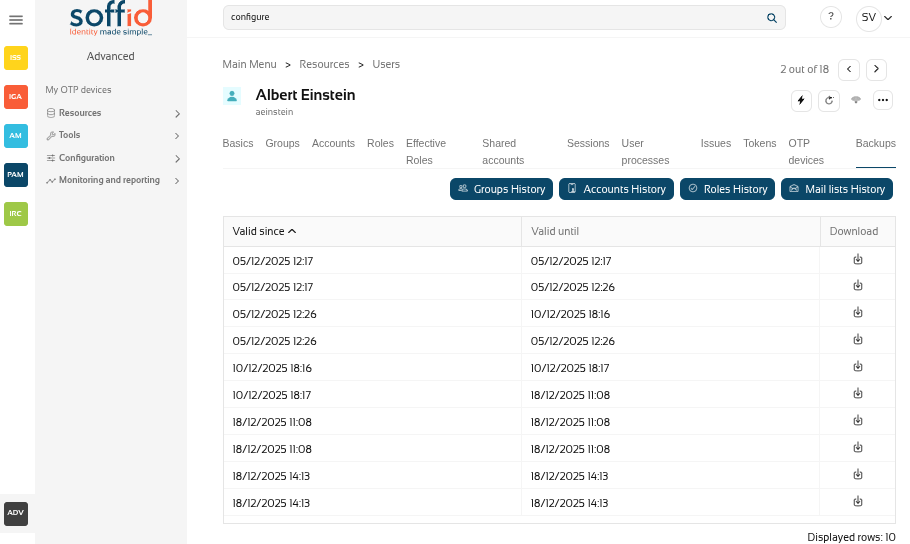
You can also check other available snapshots by clicking on the hamburger icon and a specific option. Those are the options:
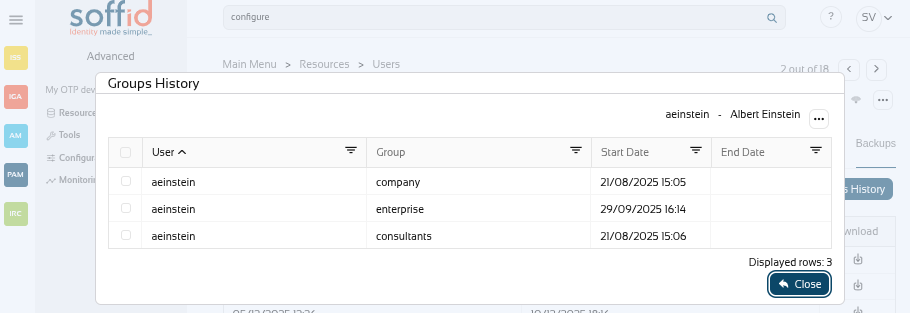
Groups History
You can check all the group history changes for a specific user, and decide if you want to restore an earlier versión.
Image
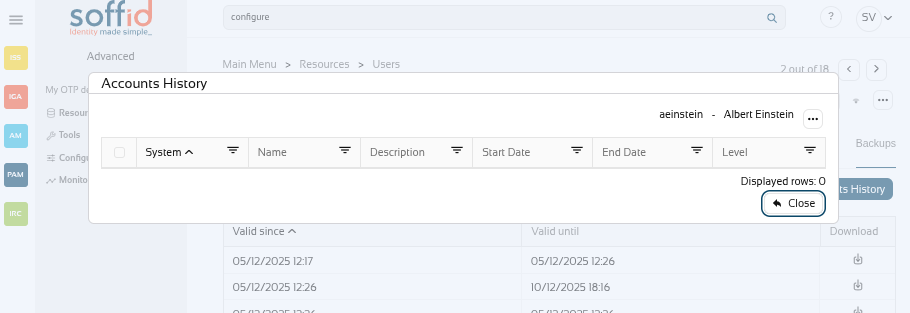
Accounts History
You can check all the account history changes for a specific user, and decide if you want to restore an earlier versión.
Image
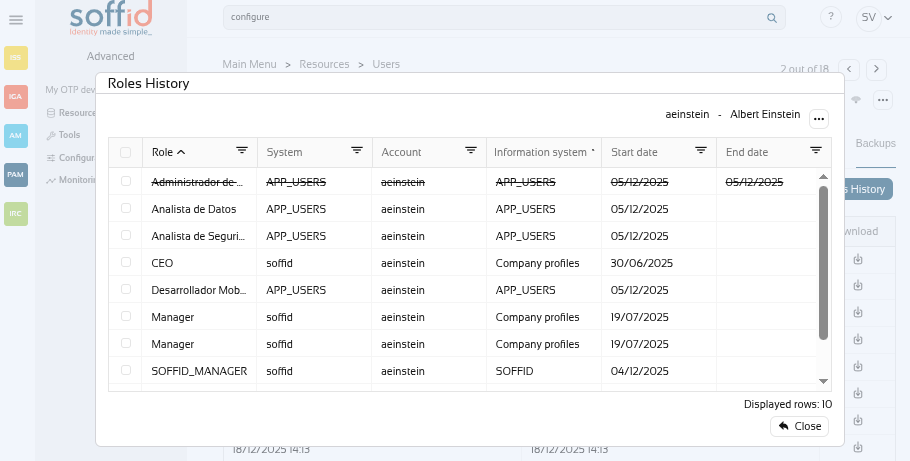
Roles history
You can check all the role history changes for a specific user, and decide if you want to restore an earlier versión.
Image
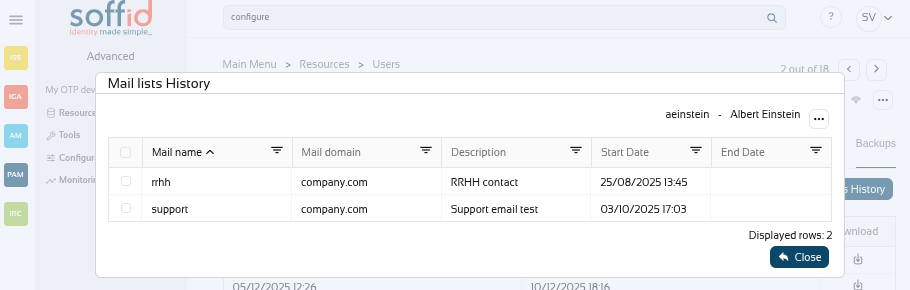
Mail list history
You can check all the mail list history changes for a specific user, and decide if you want to restore an earlier version.
Image
Download CSV file
Allows you to download a CSV file with the data of all backups.
OTP devices (addon otp)
In the OTP devices tab, Soffid displays all the OTP devices configured by this user. For each OTP device, Soffid displays the info about the name, the created date, the last time used, and the status. Soffid allows you to manage all the OTP devices for each user.
By clicking on a record, Soffid shows OTP device details, including the failed number. It is also possible to change the status.
This option will only be available if the OTP addon is installed in the Soffid console.
Pending tasks
When a user has pending tasks, an icon will be appearing at the right corner. If the status of pending tasks is "Error", the icon will be a highlight alert icon, if the status is "Pending", the icon will be a wifi icon.
That window displays the most relevant task data, the task name, the agent that manages the task, the status task, and the schedule to will be executed, ... That pending task information is only available in consultation mode.
Actions
Users query actions
|
"Query" |
Allows you to query users through different search systems, Quick, Basic and Advanced. |
|
Add new |
Allows you to add a new user in the system. To add a new user it will be mandatory to fill in the required fields |
|
Delete |
Allows you to remove one or more users by selecting one or more records and next clicking the button with the subtraction symbol (-).To perform that action, Soffid will ask you for confirmation, you could confirm or cancel the operation. |
|
Download CSV file |
Allows you to download a CSV file with the basic information of all users. |
|
Import |
Allows you to upload a CSV file with the user list to add or update users to Soffid. First, you need to pick up a CSV file, that CSV has to contain a specific configuration. Then you need to check the content to be loaded, it is allowed to choose if you want or not to load a specific attribute. And finally, you need to select the mappings for each column of the CSV file to import the data correctly and click the Import button. |
|
Bulk actions |
Allows massive operations to be performed on all system users. With that operation, updates can be made to any of the user's parameters. First of all, you must select the records that you want to update, once you have selected them, you must choose the bulk action on the hamburger icon. For more information visit the Bulk action page. |
|
Merge |
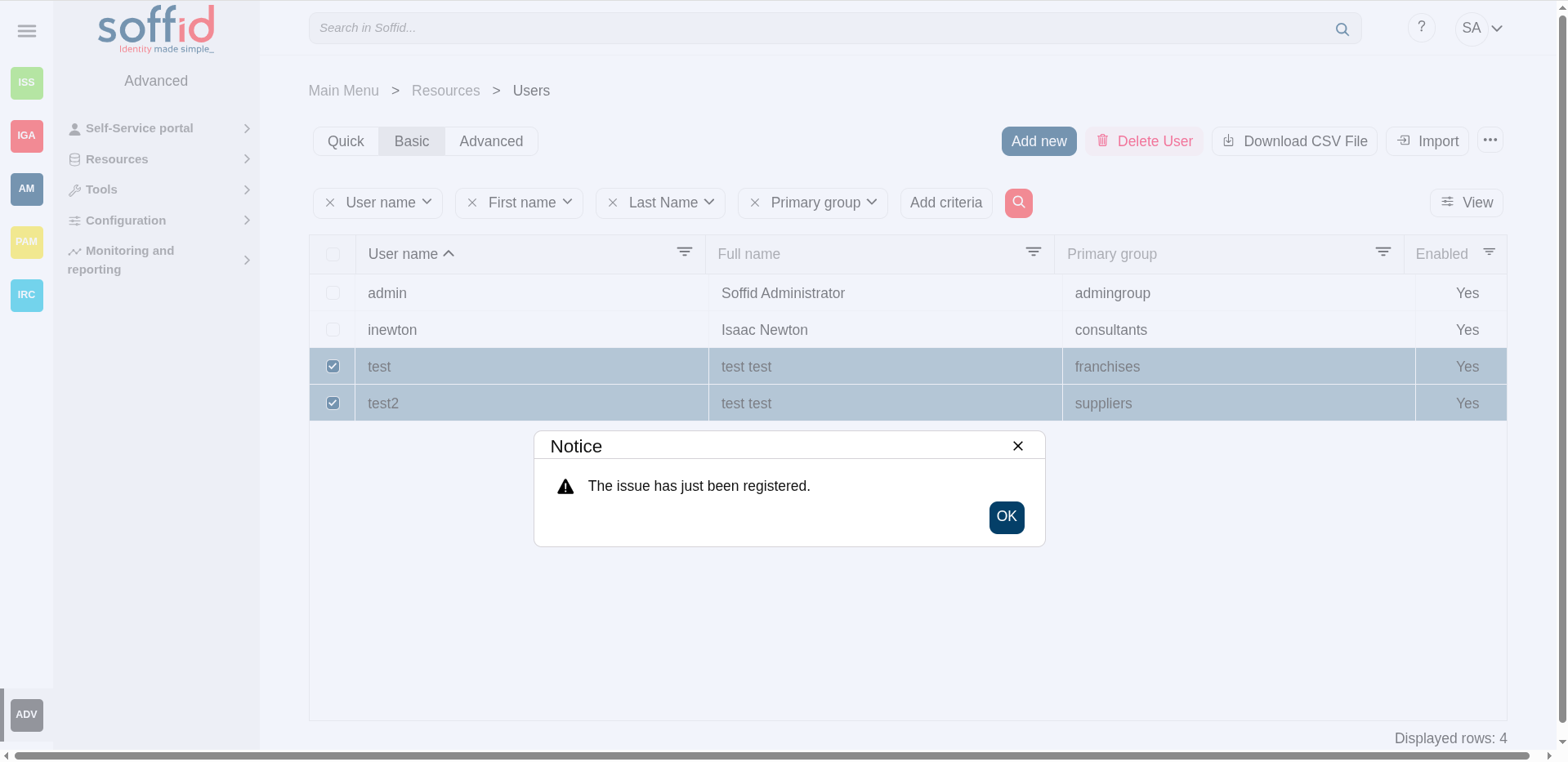
Allows you to merge two or more identities when you identify that is necessary. First of all, you must select the identities to merge. Second, you need to click the hamburger icon and select the merge action. Then Soffid will display a window where you can choose if you want to merge right now, if you want to create an issue, or if you want to quit without applying any changes. 💻 Image
💻 Image
💻 Image
|
|
View |
Allows you to show and hide columns in the table. You can also set the order in which the columns will be displayed. |
User detail actions
| Synchronize to target systems | Allows you to propagate the user changes to the repository systems configured. It is only necessary when the task engine mode is configured as Manual, but you can also do it when the engine is in automatic mode. Visit the smart engine setting page for more information. |
| Refresh | Allows you to refresh all the user information. |
| Apply changes |
Allows you to save the data of a new user or to update the data of a specific user. To save the data it will be mandatory to fill in the required fields. When you apply changes, automatically they will be forwarded to target systems. |
| Delete user |
Allows you to remove a specific user. You can choose that option on the hamburger icon. To perform that action, Soffid will ask you for confirmation, you could confirm or cancel the operation. |
| Printers | List the printers of the user |
| Audit | Browse to the Audit page and display all the detailed actions performed over the user. It is allowed to filter the information displayed and also to download a CSV file with the audit information. |
| Access logs | Browse to the Logs page and display all the detailed logs about the user actions. It is allowed to filter the information displayed and also to download a CSV file with the logs information. |
| Expand all | Displays all the attributes of the different blocks. |
| Collapse all | Hide all attributes of the different blocks. |
| "Types of views" | Change the view type: Classic view, Modern view, Compact design. |
| Undo | Allows you to quit without applying any changes. |
Groups actions
Group query actions
|
Add new |
Allows you to add a new group membership. Select a group the user will belong to it. Next, you need to define, if it is necessary the membership properties. And finally, you need to apply changes. |
|
Delete secondary group |
Allows you to delete group membership. To perform that action, Soffid will ask you for confirmation, you could confirm or cancel the operation. |
|
View |
Allows you to show and hide columns in the table. You can also set the order in which the columns will be displayed. |
Group detail actions
| Delete | Allows you to delete a group membership. To perform that action, Soffid will ask you for confirmation, you could confirm or cancel the operation. |
| Undo | Allows you to quit without applying any changes. |
| Apply changes | Allows you to save the updates of the group. |
Accounts actions
Accounts query actions
|
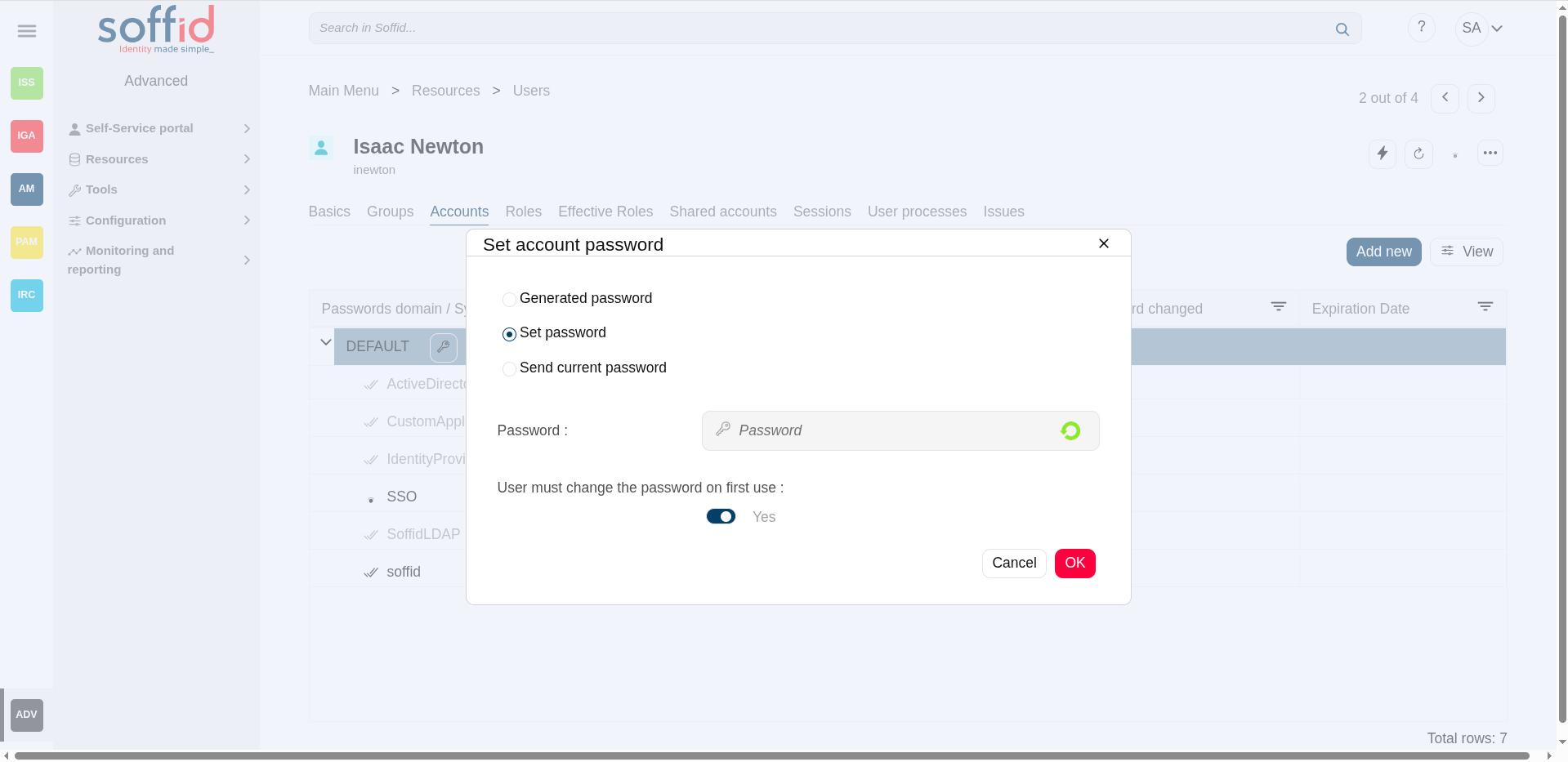
Change password |
Allows you to change the password for the accounts of a password domain.
💻 Image
It will be mandatory the password complies with the Password policies defined for the domain. |
|
Add new |
Allows you to add a new account for a user and a specific target system. First of all, you need to select the target system, then Soffid will show the target system name and the account name. The account name could be updated, but always with an account name which no be already in use on the target system. Then you need to choose the account status and finally, you can set the system properties. That properties depend on the target system and do not be mandatory. |
|
View |
Allows you to show and hide columns in the table. You can also set the order in which the columns will be displayed. |
Accounts detail actions
|
Delete |
Once you are in the rename account modal, by clicking on the hamburger icon, you could choose the delete option. This option will delete the account selected. 💻 Image
|
|
Show actual account properties |
Once you are in the rename account modal, by clicking on the hamburger icon, you could select this option. When you click this option, Soffid will display a modal with all the info about this account in the target system. |
|
Apply changes |
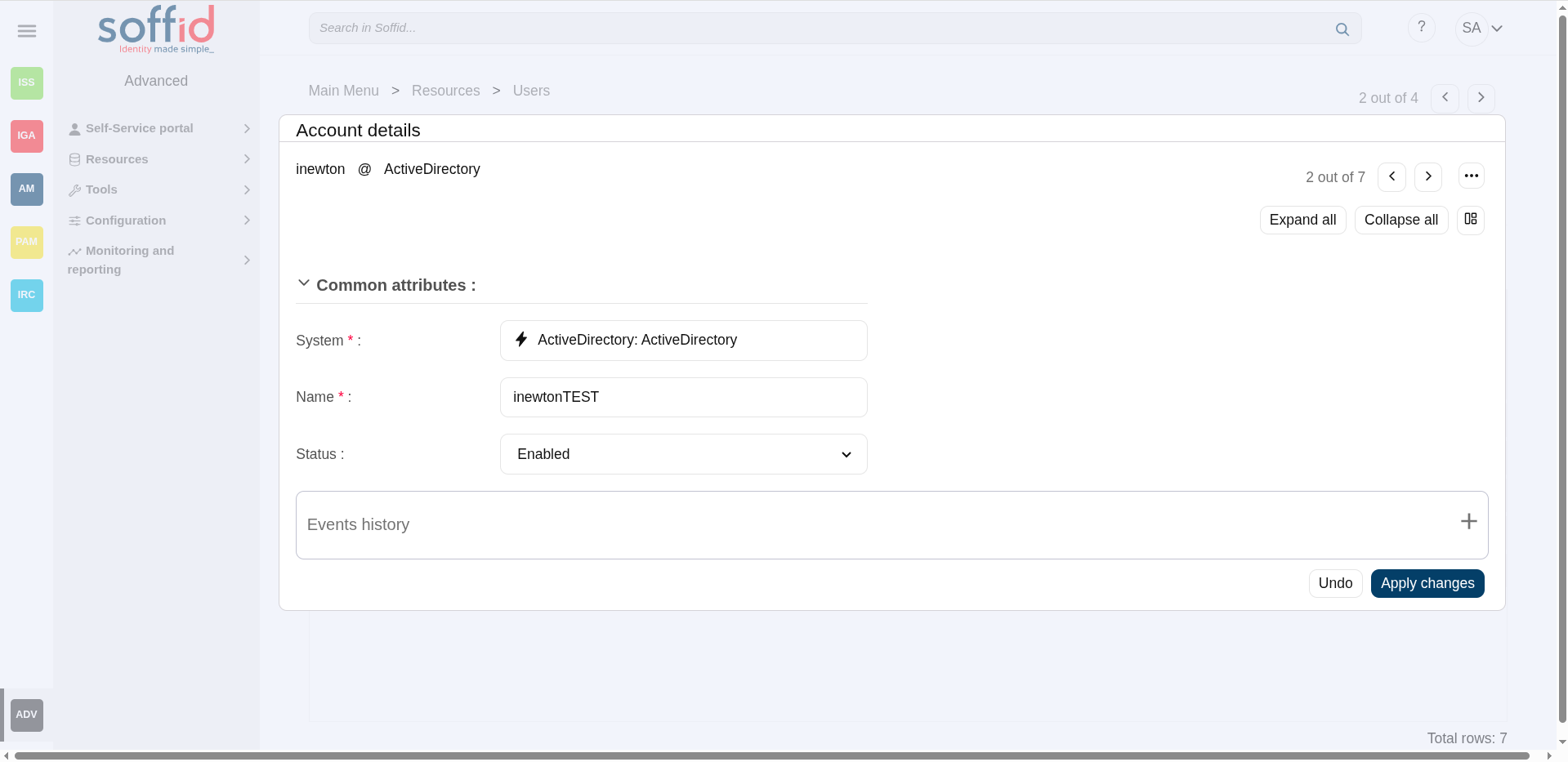
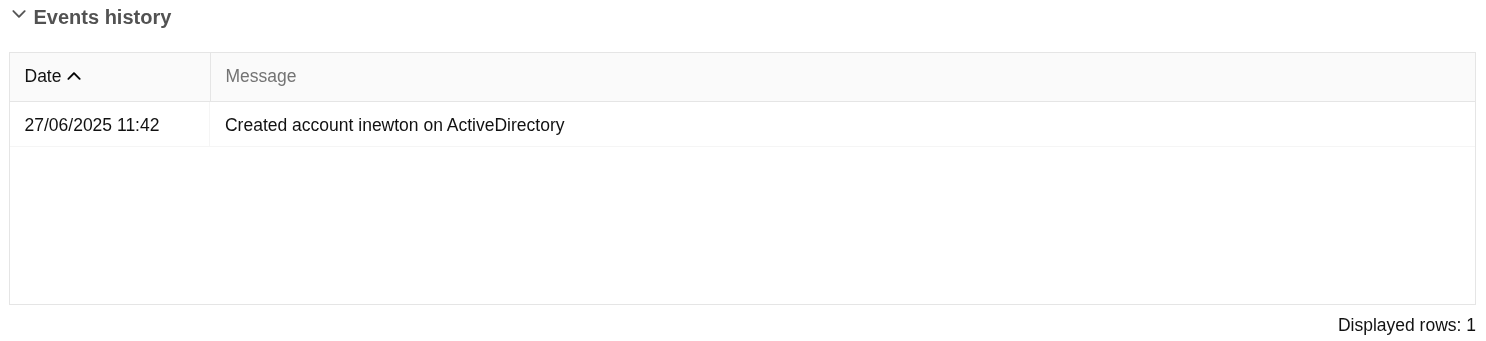
Allows you to save the updates of the account. You can change the name and status of the account. Also you can check the events history. 💻 Image
|
|
Undo |
Allows you to quit without applying any changes. |
Roles actions
Roles query actions
|
Add new |
Allows you to assign a new role to the user. Select a role from the role list. If it is necessary, the next step will be to set the scope. Then you need to check and fill in the membership properties. And finally, apply changes. |
|
Delete role |
Allows you to revoke one by one or to revoke some roles at the same time. To revoke some roles at the same time, you need to select the roles, and then click the button with the subtraction symbol (-). To revoke one role, you can click the role, and then Soffid will show a form with the details. Then you can click the delete button (trash icon). Soffid will ask you for confirmation to perform that action, you could confirm or cancel the operation. |
|
Import |
Allows you to upload a CSV file with the role list to assign permission. First, you need to pick up a CSV file, that CSV has to contain a specific configuration. Then you need to check the content to be loaded, it is allowed to choose if you want or not to load a specific attribute. And finally, you need to select the mappings for each column of the CSV file to import the data correctly and click the Import button. |
|
Download CSV file |
Allows you to download a CSV file with all the information about user roles. |
|
View |
Allows you to show and hide columns in the table. You can also set the order in which the columns will be displayed. |
Role detail action
|
Delete role |
Allows you to revoke a role. Click the delete button (trash icon). Soffid will ask you for confirmation to perform that action, you could confirm or cancel the operation. |
Shared accounts
|
Download CSV file |
Allows you to download a CSV file with all the information about user shared accounts. |
|
View |
Allows you to show and hide columns in the table. You can also set the order in which the columns will be displayed. |
Sessions actions
|
Download CSV file |
Allows you to download a CSV file with all the information about sessions. |
|
View |
Allows you to show and hide columns in the table. You can also set the order in which the columns will be displayed. |
User processes actions
|
Download CSV file |
Allows you to download a CSV file with all the information about the user processes. |
|
View |
Allows you to show and hide columns in the table. You can also set the order in which the columns will be displayed. |
Issues actions
|
Download CSV file |
Allows you to download a CSV file with all the information about the user issues. |
|
View |
Allows you to show and hide columns in the table. You can also set the order in which the columns will be displayed. |
Tokens actions
|
Add new |
Allows you to add a new token. To add a new token device you need to click the add button (+), then Soffid will display a wizard to config the token. First of all, you need select the token Type and then Apply changes. |
|
Delete token |
Allows you to delete one or more token for a specific user. To delete token first select the token, then click on the subtract button (-), then Soffid will ask you to confirm or cancel the operation. |
OTP devices actions
|
Add new |
Allows you to add a new OTP device. To add a new OTP device you need to click the add button (+), then Soffid will display a wizard to config the OTP device. First of all, you need select the OTP device Type and then Apply changes. |
|
Delete OTP device |
Allows you to delete one or more OTP devices for a specific user. To delete OTP devices first select the devices, then click on the subtract button (-), then Soffid will ask you to confirm or cancel the operation. |
|
Download CSV file |
Allows you to download a CSV file with all the information about the user OTP devices. |
|
View |
Allows you to show and hide columns in the table. You can also set the order in which the columns will be displayed. |
Groups
Description
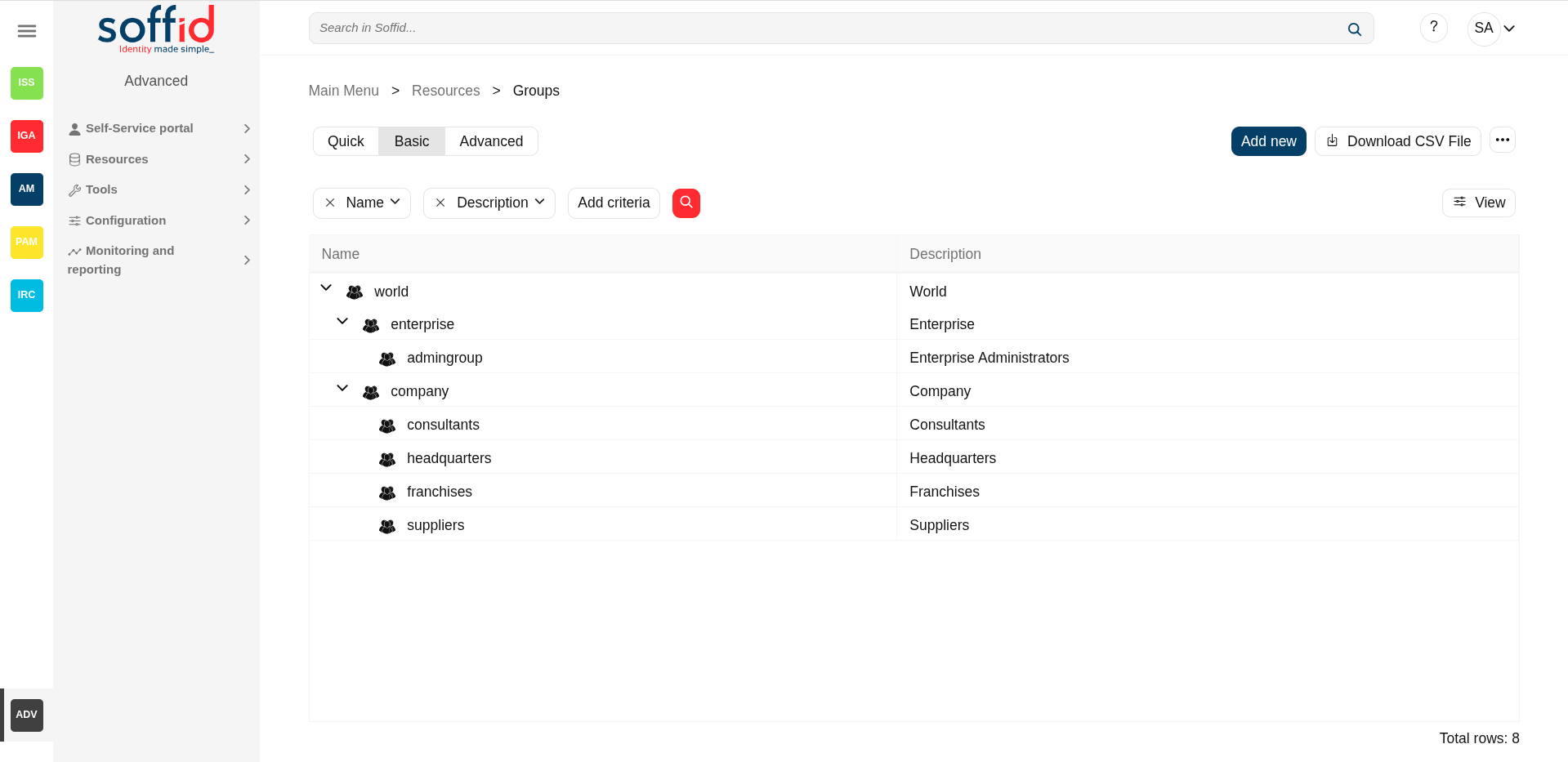
Groups are a convenient way to apply policies to a collection of users. Groups allow administrator users to specify permission for multiple users in a quick and easy way. Groups are managed in a hierarchical way. A user can belong to a group, and that user will be assigned the roles of this group and all the roles that this group inherits from its parent.
Companies are organized in different ways as business units, departments, or workgroups. In Soffid, they all are named as groups.
Some systems, like Active Directory, use groups to control or restrict access to resources. A Soffid Group is more similar to an Active Directory organisational unit (ou) than to the group itself.
Screen overview
Related objects
- Group types : a group can be a group type.
- Hosts : a group can have a drive server.
- Users : users belong a one or more groups
- Roles : a group can have granted roles
- Authorizations : related to a manager
Standard attributes
Group table
Group attributes that you can select in the table:
- Name: short name to identify the group. The group name must be unique.
- Description: a brief description of the group.
- Drive letter: if specified, a shared folder for this user will be created. This shared folder can be mounted on ESSO hosts by using a startup script.
- Parent group: name of the parent within the hierarchy. Only the root group doesn't have value. Be in mind the groups have a tree structure.
- Type: a group can be categorized by organizational unit types. You have more information about Group Type page.
- Drive server name: the server where the shared folders can be located.
- Disabled: allows you to enable and to disable the group. When a group is disabled, the group's role hierarchy is no longer available to the group's users.
- Active since
- Active until
- Created on
- Created by
- Update on
- Updated by
Basic tab
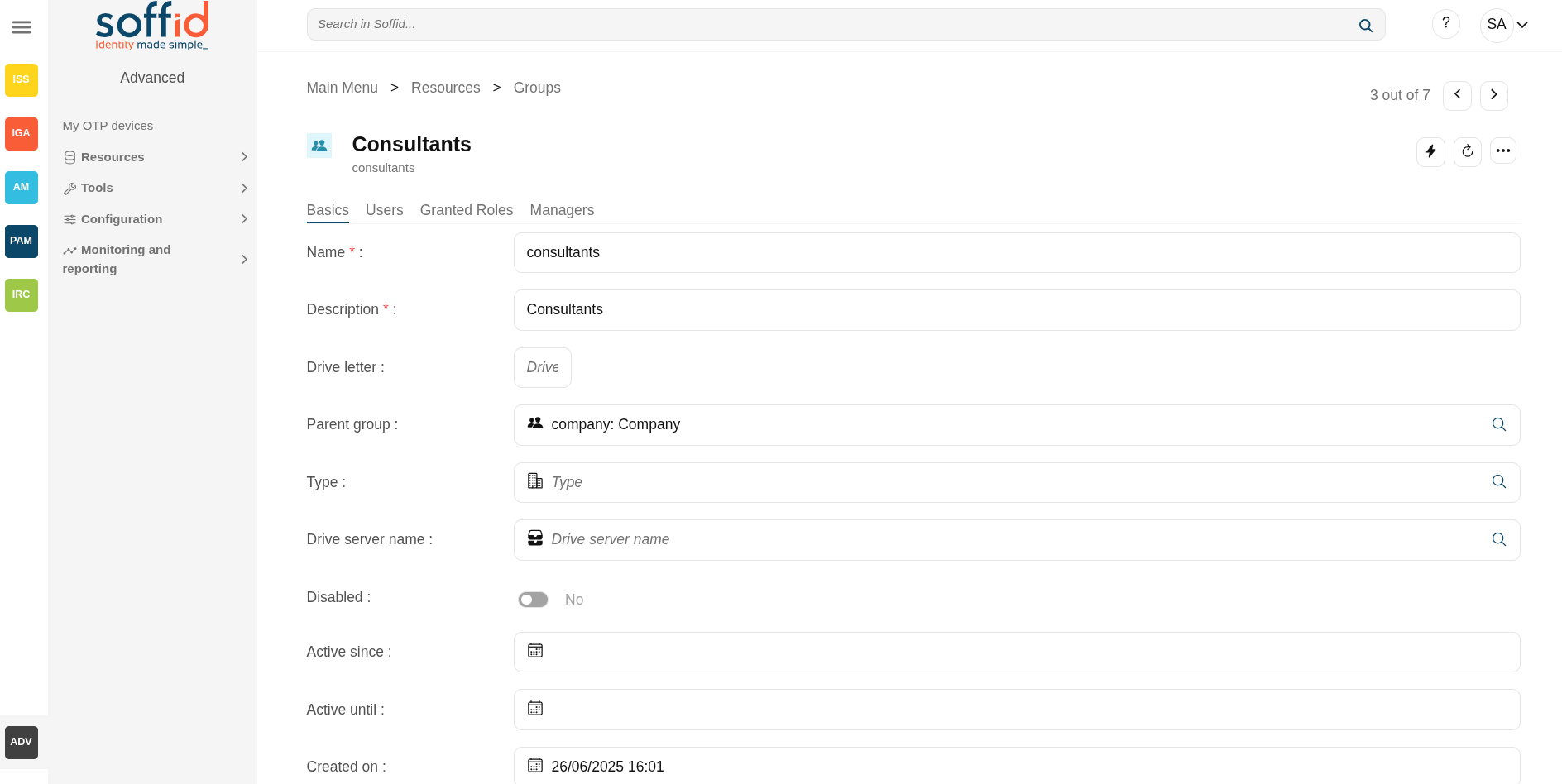
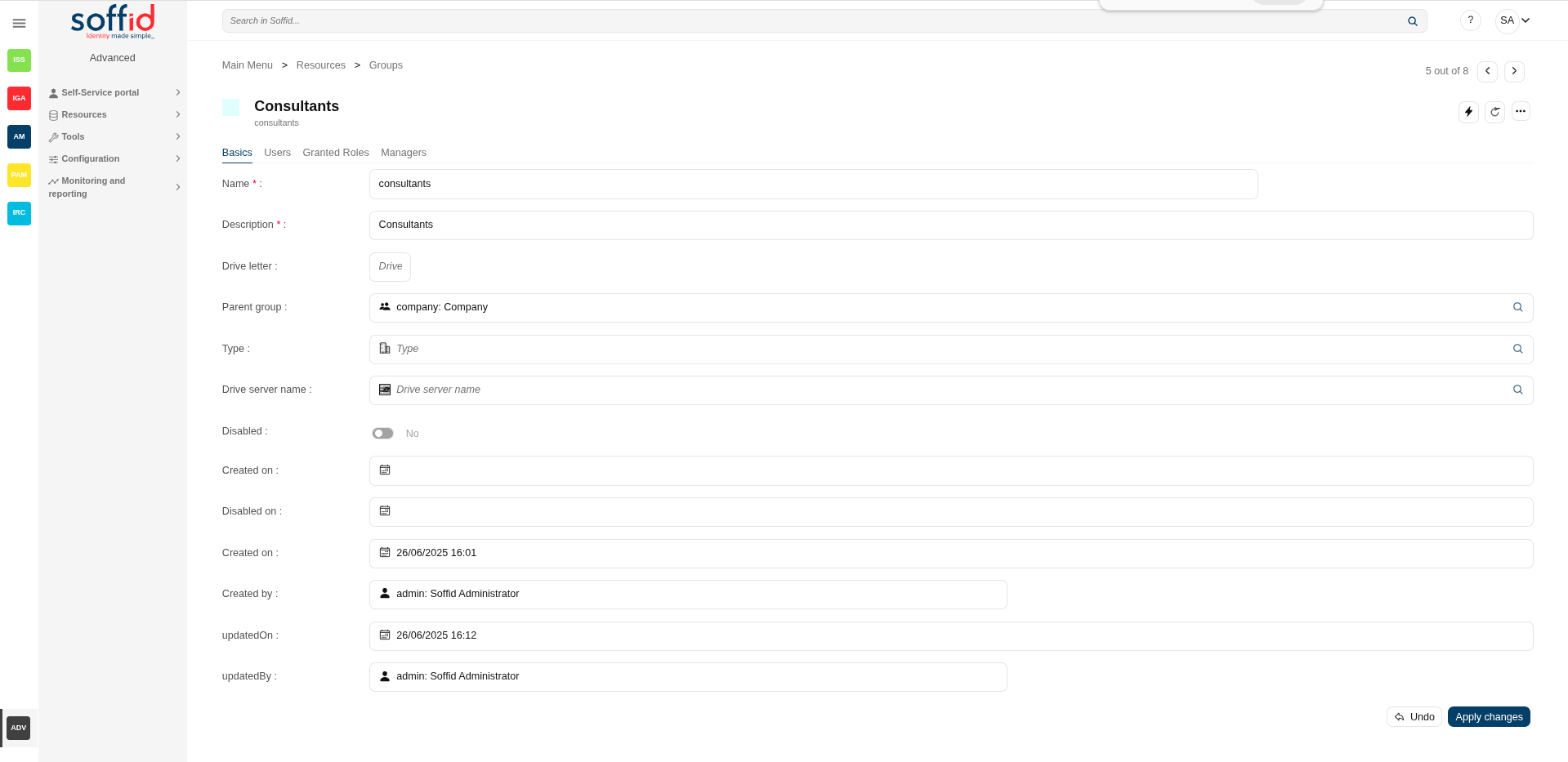
On the basic group tab, you can view all the group attributes. It is allowed to add new groups, and update or delete existing groups.
The group attributes are the same than in the group table description.
💻 Image
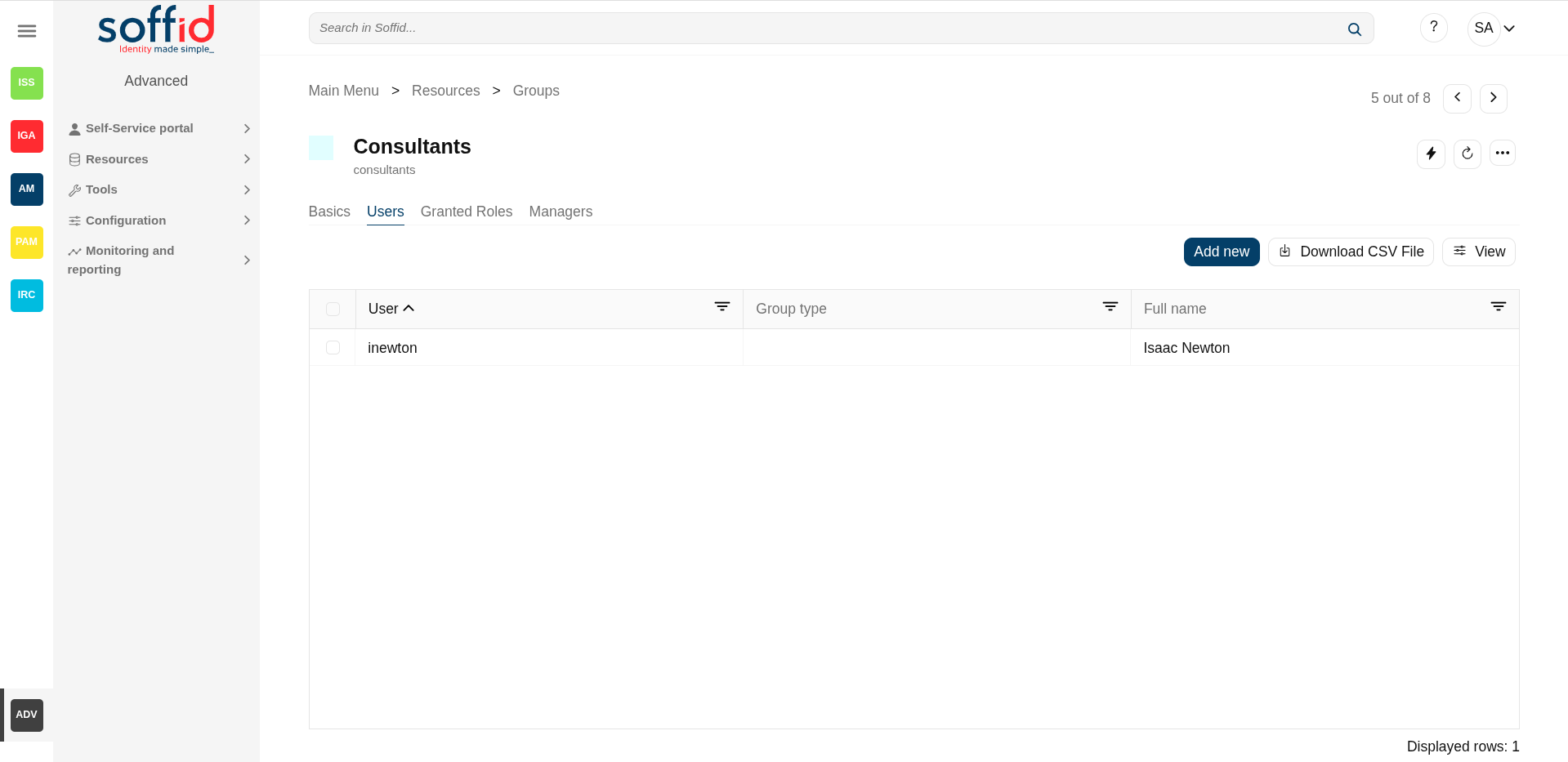
Users tab
Administrator users can manage the users who belong to the group. These users will have assigned all the permissions granted to that group and permissions inherited from its parent.
On the user's tab, you can add new users to the group, you must select the user to add, and select the membership properties.
It is also allowed to delete one or more users from a specific group, you can do it from the group membership details or by selecting one or more records from the list and clicking the delete user button.
Additionally, you can download a CSV file with the user's information and you can also upload a CSV file to add new users or update existing users.
The attributes are same than in the user page:
- User : userName
- Full name
- Group type
- Created on
- Created by
- Updated on
- Updated by
- Common attributes
- User name
- First name
- Last name
- Middle name
- Organiztion
- Type
- Primary group
- Home server
- Profile server
- Mail service
- Mail alias
- Mail server
- User status
- Enabled
- Multi session
- Comments
- Audit information
- Created by
- Created on
- Modified by
- Modified last on
💻 Image
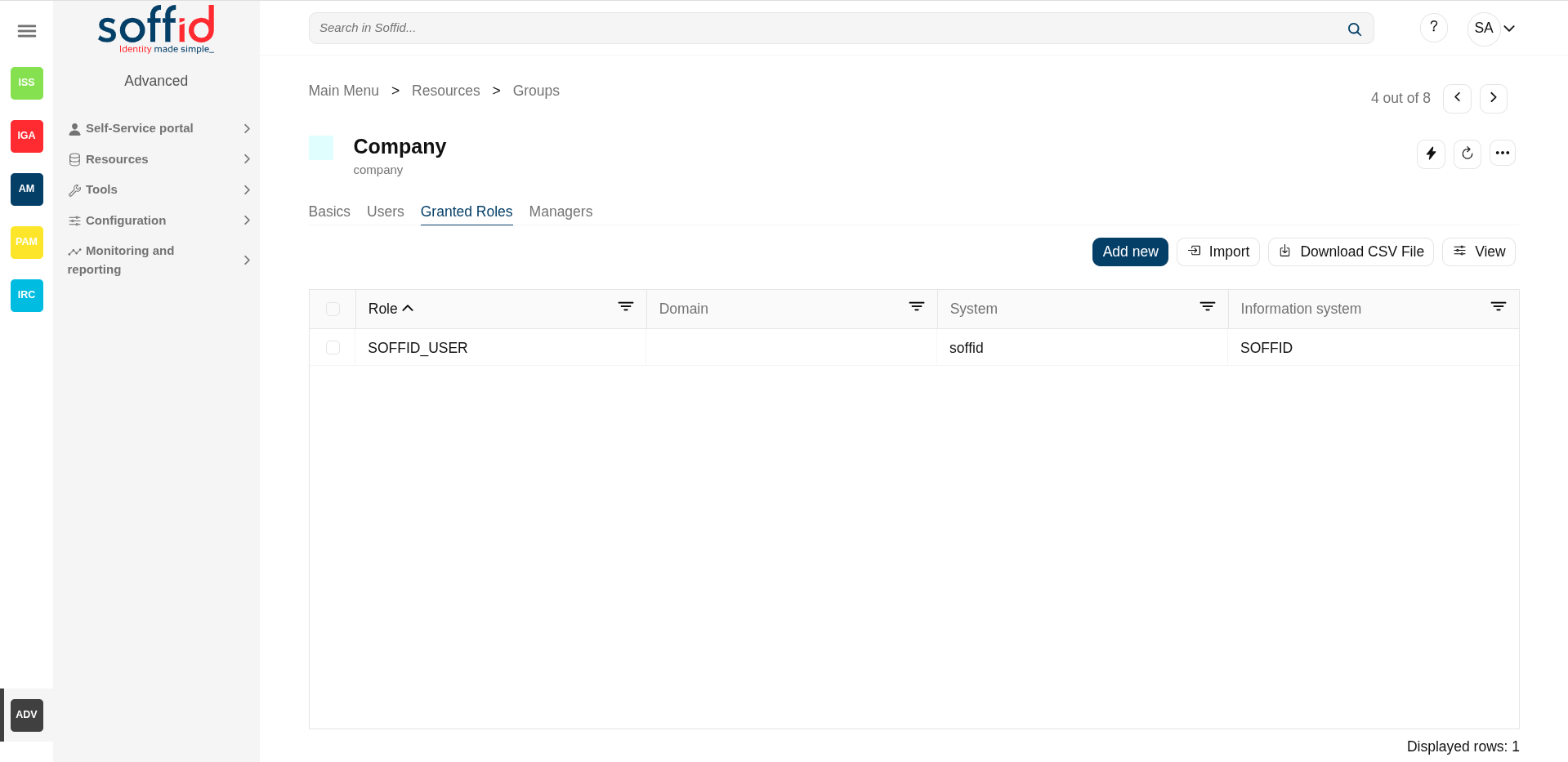
Granted roles tab
Administrator users can manage the permissions to a group, this is the way to establish an access policy to a collection of users. The users who belong to a group will inherit all the permissions granted of that group.
On the granted roles tab, you can assign or revoke roles to the group. To assign a new role, you must click the button add new, then select the role, in some cases specify the scope, and finally set membership properties. To revoke role, you can do it from the group membership detail or by selecting one or more records from the list and clicking the delete role button.
Additionally, you can download a CSV file with the granted roles information and you can also upload a CSV file to assign roles, modify or delete assigning roles.
The attributes:
- Role
- Domain
- System
- Information system
- Description
💻 Image
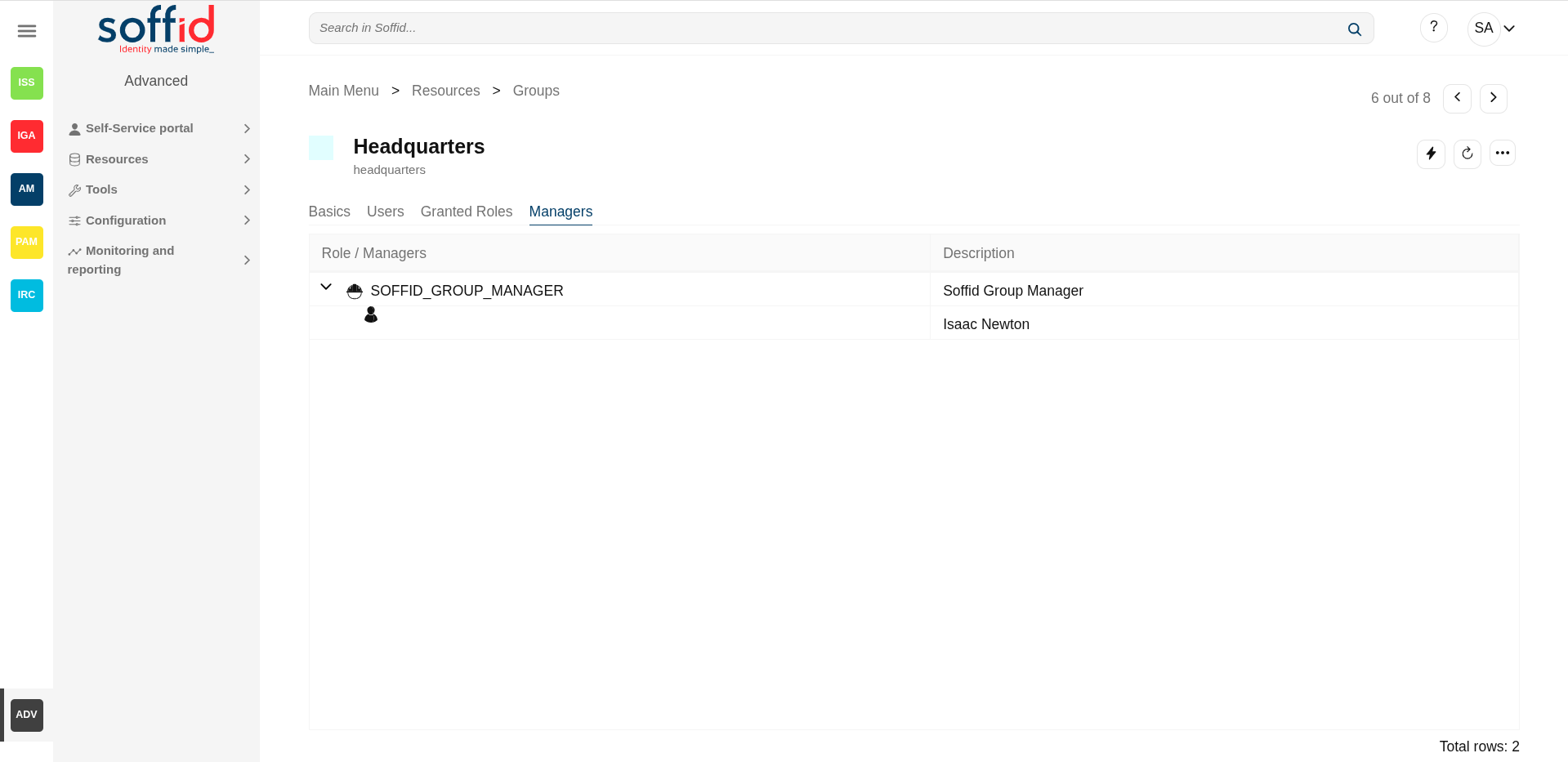
Managers tab
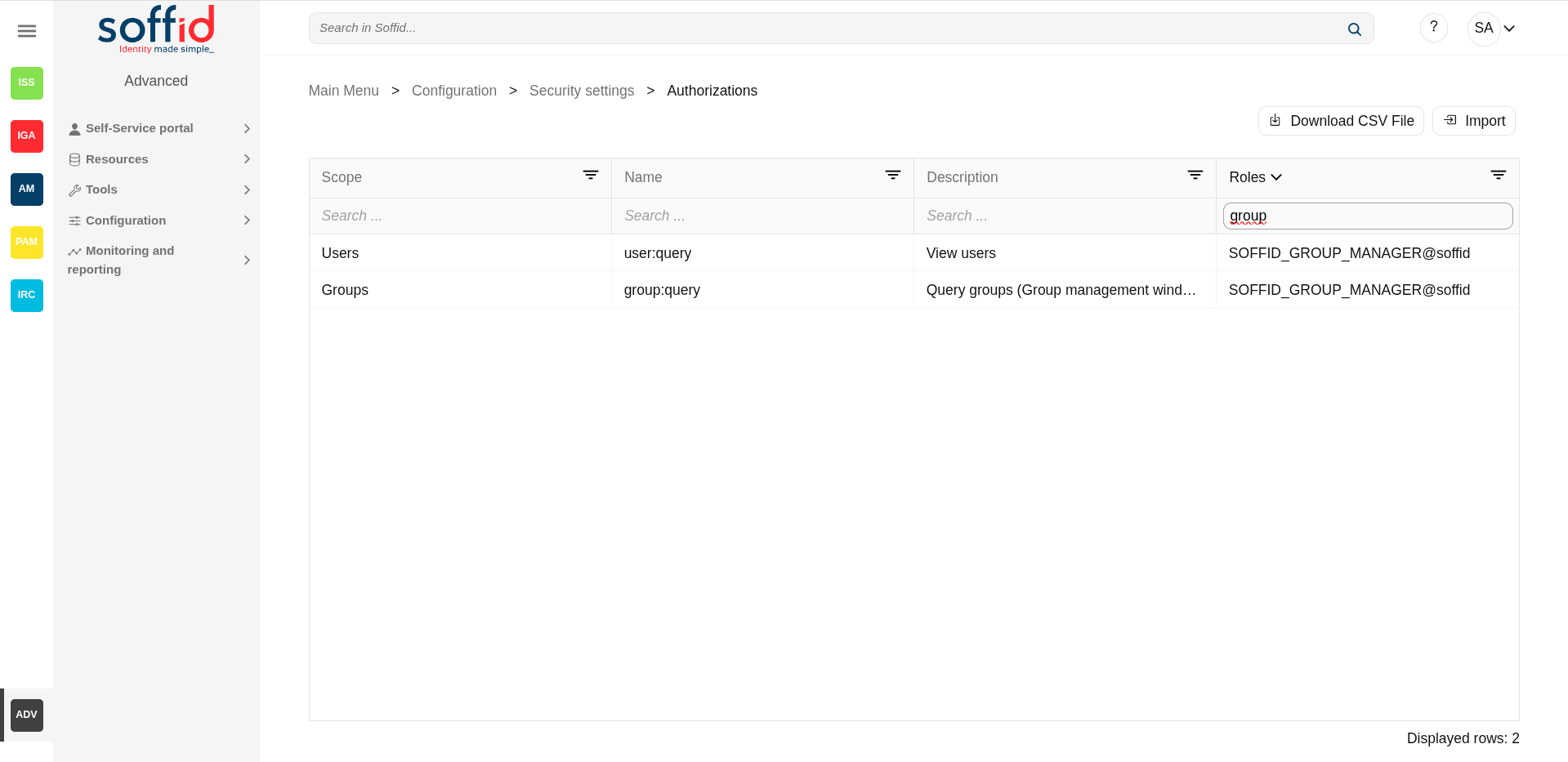
On the tab Managers, Soffid displays the Roles with Domain equals to Group and the proper authorization.
Here you can grant the role to one or more users. You can also assign the role to users on the Roles page or on the Users page. Users who have been assigned this role will be displayed in the Managers tab.
Be in mind, to query the information about the roles and users on the managers tab, it will be mandatory to give authorization to query users or groups, you must add the role to the authorization (user:query or group:query).
The attributes:
- Role / managers : role with domain type groups and assigned to this group
- Description : description on the role
💻 Image
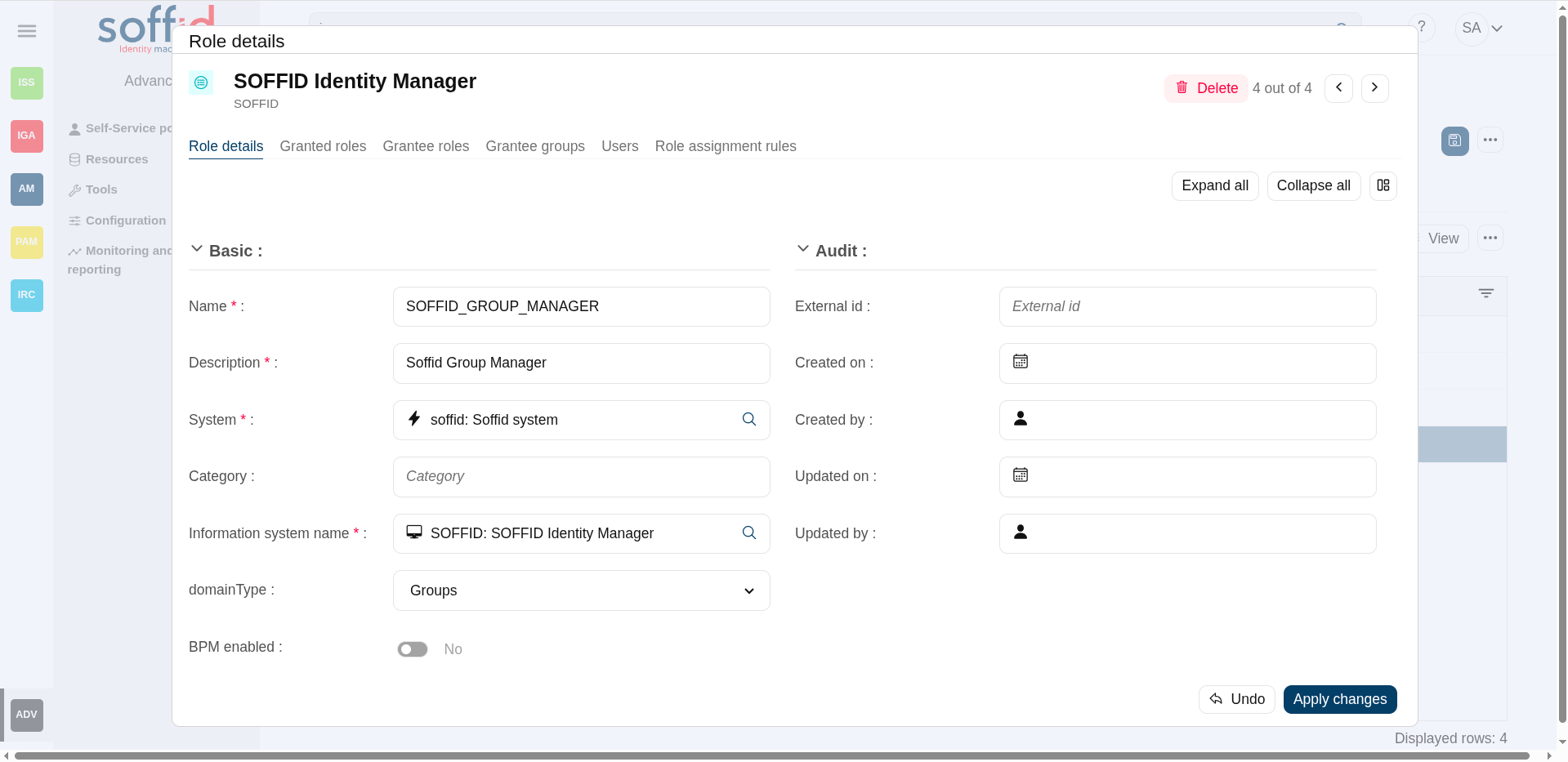
** Role
** Authorization
Actions
Group query actions
|
"Query" |
Allows you to query groups through different search systems, Quick, Basic and Advanced. |
|
Add new |
Allows you to add a new group in the system as a root element. It can be more than one root element. To add a new group it will be mandatory to fill in the required fields |
|
Download CSV file |
Allows you to download a csv file with the basic information of all groups. |
|
Import |
Allows you to upload a CSV file with the group list to add or update groups to Soffid. First, you need to pick up a CSV file, that CSV has to contain a specific configuration. Then you need to check the content to be loaded, it is allowed to choose if you want or not to load a specific attribute. And finally, you need to select the mappings for each column of the CSV file to import the data correctly and to click the Import button. |
|
View |
Allows you to show and hide columns in the table. You can also set the order in which the columns will be displayed. |
|
Historical view |
This is part of the addong backup. Allows you to check all the group's historical data. Soffid will display a new modal window to manage the historical view. |
|
Add child group |
Allows you to add a child to a specific group. You can choose that option below the father group. To add a child it is necessary to fill in the required fields |
Historical view (addon backup)
|
Switch to current view |
Allows you to come back to the current data view. |
|
Apply changes |
Once you have pickup the proper date at the date component, you can apply changes and Soffid will display all the group data at the selected date time. Then you can browse the Groups tree and check the information |
|
Undo |
Allows you to quit without applying any changes. |
Group detail actions
|
Synchronize to a target systems |
Allows you to propagate the group changes to the repository systems configured. It is only necessary when the task engine mode is configured as Manual, but you can also do it when the engine is in automatic mode. Visit the smart engine setting page for more information. |
|
Refresh |
Allows you to refresh all the group information. |
|
Apply changes |
Allows you to save the data of a new group or to update the data of a specific group. To save the data it will be mandatory to fill in the required fields |
|
Delete group |
Allows you to remove a specific group. To perform that action, Soffid will ask you for confirmation, you could confirm or cancel the operation. |
|
Undo |
Allows you to quit without applying any changes. |
Users
|
Add or remove columns |
Allows you to show and hide columns in the table. |
|
Add new |
Allows you to add new user to a group. Fist of all, you need to select the user. Then you need to set the system properties. And finally you need to apply changes. |
|
Delete user |
Allows you to delete one by one or to delete some users at the same time from a group . To delete some users at the same time, you need to select the users, and then click the button with the subtraction symbol (-). To delete one user, you can click the user, and then Soffid will display a form with the details. Then you can click the delete button (trash icon). Soffid will ask you for confirmation to perform that action, you could confirm or cancel the operation. |
|
Download CSV file |
Allows you to download a CSV file with all the information about users. |
|
View |
Allows you to show and hide columns in the table. You can also set the order in which the columns will be displayed. |
Granted roles
|
Add new |
Allows you to assign a role to the group. You can choose that option on the hamburger menu or click the add button (+). Then you need to select a role from the role list. If it is necessary, the next step will be to set the scope. Then you need to check and fill in the membership properties. And finally, apply changes. |
|
Delete role |
Allows you to revoke one by one or to revoke some roles at the same time. To revoke some roles at the same time, you need to select the roles, and then click the button with the subtraction symbol (-). To revoke one role, you can click the role, and then Soffid will show a form with the details. Then you can click the delete button (trash icon). Soffid will ask you for confirmation to perform that action, you could confirm or cancel the operation. |
|
Download CSV file |
Allows you to download a CSV file with all the information about roles assigned to the group. |
|
View |
Allows you to show and hide columns in the table. You can also set the order in which the columns will be displayed. |
Managers
|
Grant <ROLE_NAME> role |
Allows you to grant the role, <ROLE_NAME>, to one or more users. You need to click on the "Grant <ROLE_NAME> role", under the role you want to grant. Then, Soffid will display a modal window that allows you to search for the users. Here you are able to write the user name and select it to grant the role. Finally, you need to accept by clicking on the "Accept" button. If you click on the "Cancel" button, no changes will be applied. |
Accounts
Description
An account is the way an user is presented on a target system. There can be user accounts as well as system-purpose accounts.
An account belongs to a system and that account can have specific permissions assigned to it. An account must have defined the account type, that is if the account is a single user, privileged, shared, or unmanaged.
The password policy is also mandatory to create an account. That password policy determines the conditions that the password must meet.
It is allowed to set a password for an account, which can be a generated password by the system, or a password set by the administrator user. That password must comply with the password policies defined. When the account is unmanaged, if the password change, it will not be sent to the target system.
The account can be displayed in black or gray color. The gray color is used to indicate that the account is unmanaged, that is because the agent is disconnected or because the agent is in Read-Only Mode.
Screen overview
Related objects
- Users : owner users to the accounts
- Agents : the target system in which that account is used (AD, Exchange, etc).
- User type : user type of the onwer user or another one selected in the other account types
- Password policies : password policy of the onwer user or another one selected in the other account types
- Roles : the permissions that this account has associated with the system in which it is used. They can be assigned or revoked by users with administrator privileges.
- Information systems : where the roles are gathered
- Password vault : password vault information
Standard attributes
Basic
On the basic account tab, you can view all the account attributes. It is allowed to add new accounts, update or delete existing accounts and other options.
Commons attributes
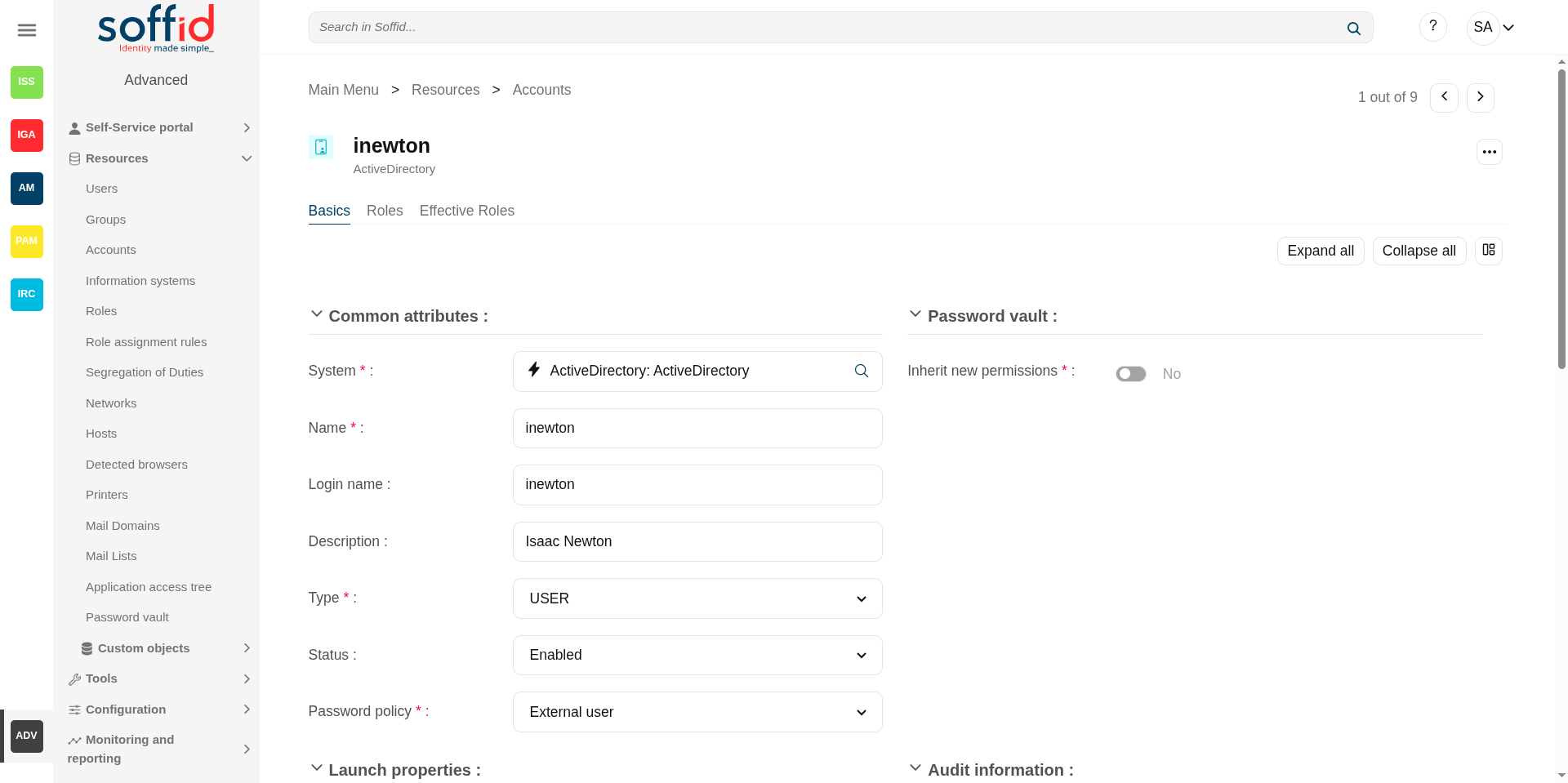
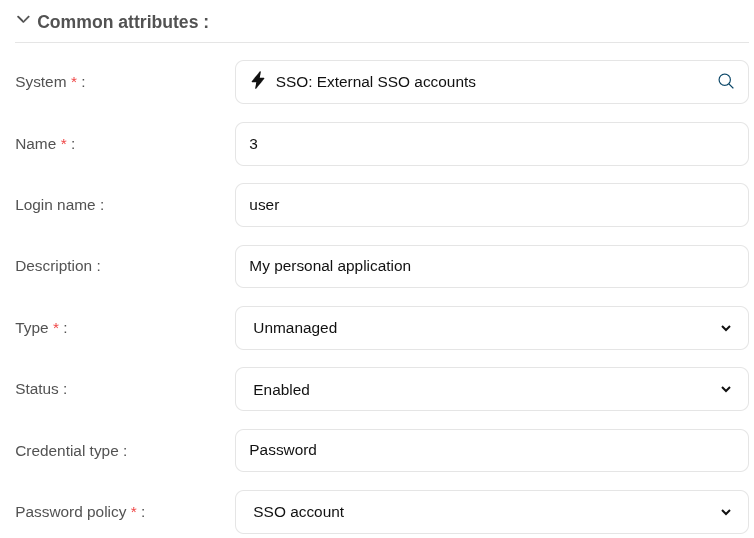
- System: target system to which the account will be connected. When SSO is the system selected, the account name is assigned by Soffid, that is because SSO is a multi-system connector and can be many accounts with the same login name.
- Name: name used to identify the account.
- Login name: login name used in PAM navigations
- Description: plain text with information about the account.
- Type: there are four kinds of accounts:
-
Single user: these are accounts with a single use owner; we also refer to them as linked accounts. As these accounts are linked to a user, they are part of the user’s lifecycle; when the user is modified, the account can also be updated and synchronised, and if the user is desabled, so too is the account. We can also view these accounts on the users page, under the accounts tab; all of them are single user accounts.
-
Shared: these are accounts that may be associated with no users or with multiple users. Unlike single user accounts, these are not part of a user’s lifecycle and are not linked to them. They have an access control list to prevent unauthorised use. These accounts may also be referred to as service accounts and may have their own roles assigned to them. These accounts have their own password; even if they are associated with a user, password management is handled separately.
- Privileged: these are typically administrator accounts, specific to a particular system and with no associated users by default. Users who need to use these accounts can do it via the Identity Self-Service module; when they log in with this account, a specific password is set, and when the session ends, it is randomised to prevent unauthorised use. Consequently, a privileged account is usually used by only one user at a time. These accounts are usually associated with the PAM module and may require additional steps, such as requesting access via a workflow or adding an authentication factor
- Unmanaged: these are accounts that Soffid does not manage; if changes are made to them, these changes are not synchronised with the end system. Although they can be created manually, these accounts are usually created in Soffid when performing a reconciliation with an end system. This status exists as a preliminary step before deciding what to do with them: either link them to users and convert them to single user accounts, or change them to shared or privileged accounts. Unmanaged accounts in Soffid that exist in an end system represent a potential risk; they must be monitored or permanently deleted.
-
- Status:
- Enabled: the account can be used by the user. Soffid engine will disable it when the user does not match the access requirement policy.
- Manually enabled: the account can be used by the user. Soffid engine will keep it enabled, even when the user does not match the access requirement policy.
- Locked: the account is locked when a user tries to access with a fail password too many times (5 times). The account will be enabled in a specific period of time (5 minutes).
- Disabled: the account cannot be used by the user. Soffid engine will enable it when the user does matches the access requirement policy.
- Manually enabled: the account cannot be used by the user. Soffid engine will keep it disabled, even when the user matches the access requirement policy.
- Removed: the account no longer exists in the target system, but its image is kept in Soffid for audit purposes.
- Archived: same status as "Removed" but useful if you need to differentiate it for a business process
- Credential type: this field will be available when the system is filled with the SSO option.
- Password: this is the default value. This option will allow you to set the account password.
- SSH key: this option will allow you to add a SSH key. This SSH key could be an existing key or a generated new key.
- Kubernetes key: this option will allow you to enter a Yaml descriptor to configure the access.
- Password policy: the policy applied to this account. It is mandatory select a password policy. You can see more information on the User Type and Password policies pages.
💻 Image
Owners, Managers, and SSO users
Specify the list of users authorized to use this account. For accounts of type "single user", only one user can be specified. Other accounts can have more than one user. The users that can use this account can be specified either directly, by entering the user name, or indirectly, by entering a group or role name. At the latest, any user having that group or role will automatically be entitled to use this account.
There are three access levels for each account and user:
- Owner: can use it, modify the access control list, and set or query the password sing self-service portal or single sign-on engine.
- Manager: can use it, and set or query the password (using self-service portal), depending on the password policy restriction.
- SSO User: can use it by means of the SSO or PAM engines. They cannot change their password, not even through single sign on engine.
💻 Image



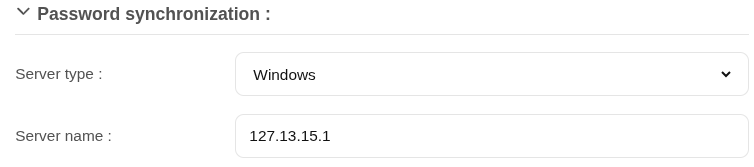
Password synchronization
- Server type: type of the server.
- Linux
- Windows
- Database
- Server name: descriptive name of the server
- SSH Public key: SSH key for linux servers
💻 Image
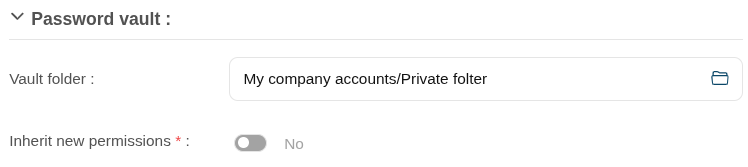
Password vault
- Vault folder: personal or shared folder, depending on the account type, in which account data are stored.
- Inherit new permissions: determines if the account will inherit the permissions granted to the folder that contains it.
💻 Image
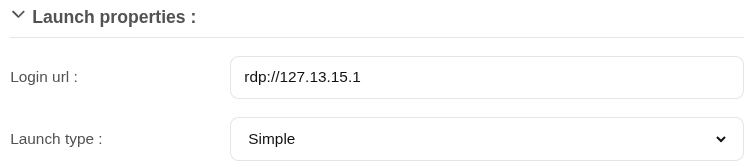
Launch properties
Defines the properties to connect to the target system.
- Login URL: URL to connect. You can add the port when you need it
- Launch type: connection type.
- Simple
- WebSSO
- PAM Jump server: it is mandatory to select the Jump server group.
💻 Image
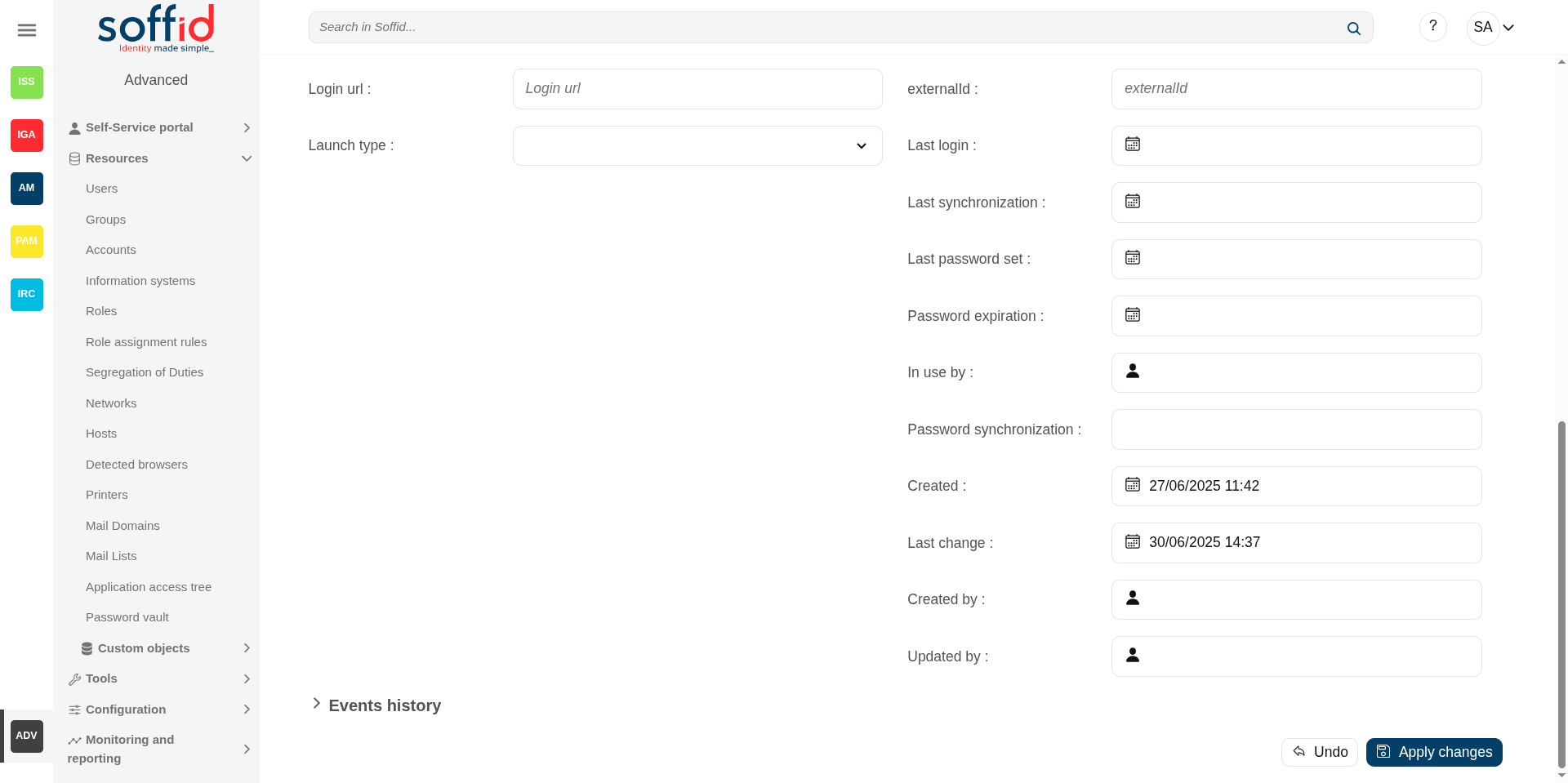
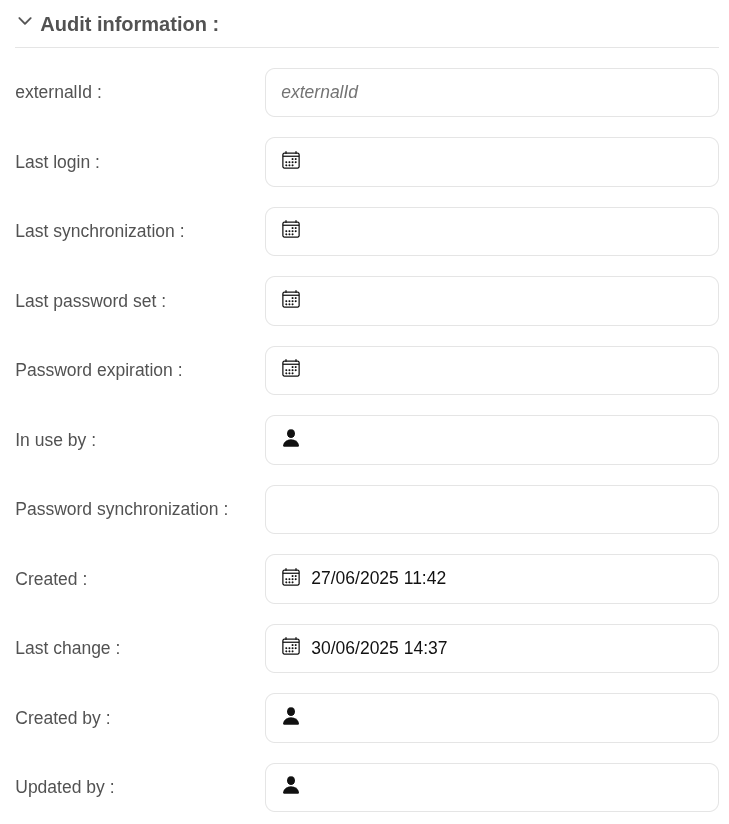
Audit information
- ExternalId: new attribute in Soffid 4 to keep a record of the unique identifier of the object in the final system (useful for synchronisation and renaming).
- Last login: last registered access.
- Last synchronization: last registered synchronization.
- Last password set: date of last password change.
- Password expiration: password expiry date.
- In use by: account owner
- Password synchronization: password synchronization date.
- Created: account creation date.
- Last change: last modified.
- Created by: user who created the account
- Updated by: last user who updated the account
Image
System properties
- From data: to add parameters
- Type: possible values:
- Windows
- Linux
- Database
- SSH Private key: private key that establishes trust to be able to access the system without requiring a password.
- SSH Public key: public key that establishes trust to be able to access the system without requiring a password.
- Password synchronization: possible values:
- Valid
- Expired
- Invalid
Events history
List of events on this account
💻 Image
Services
List of services on this account. The account type must be shared to view those services. All these services appear after agent reconciliation.
💻 Image
Soffid allows you to manage the existing services, you can add, update or remove services as well. This makes sense in the case of Linux machines.
💻 Image
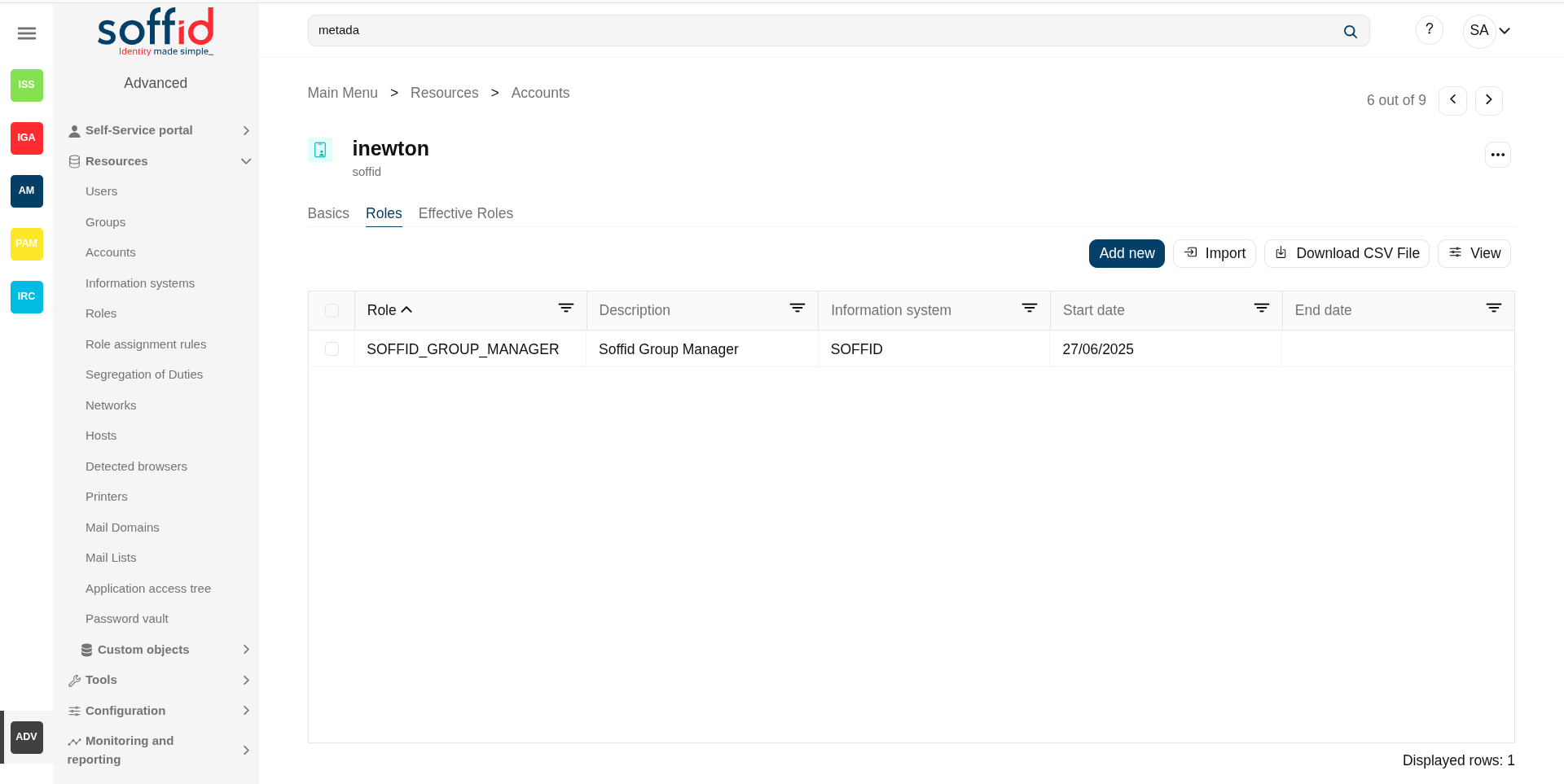
Roles
The roles are a collection of permissions that can be granted.
On the roles tab, you can view the roles assigned to the account, it is shown information about the role name, description, application or start (and, if proceed, end) date of the role assignment.
You can also assign roles to the account, you can click the "Add new" button, select the role that you want to assign, depending on the role you must fill the scope, and finally set memberships properties.
It is also possible to revoke roles to the account from the entitlement details or by selecting one or more records from the list and clicking the "Delete role" button.
By clicking on a record, it is shown the detail role assignment information.
Additionally, you can download a CSV file with the roles information and you can also upload a CSV file to assign or revoke roles.
The attributes:
- Role: name used to identify the role.
- Description: detailed role description.
- Information system: asset or application, from a functional point of view, on which the permissions are granted or revoked.
- Start date: at this date, Soffid will connect to the system and will assign the role. If there is no approval start, it will be assigned at the moment.
- End date: at this date, Soffid will connect to the system and will revoke the role.
- Risk: risk related with SoD rules
- Category: category value of the role
- Domain value: you can set a limitation of the role scope by selecting the domain. Initially, there are two domains defined, Groups and Information Systems. Soffid allows you to add more domains.
- Domain description: domian description
💻 Image
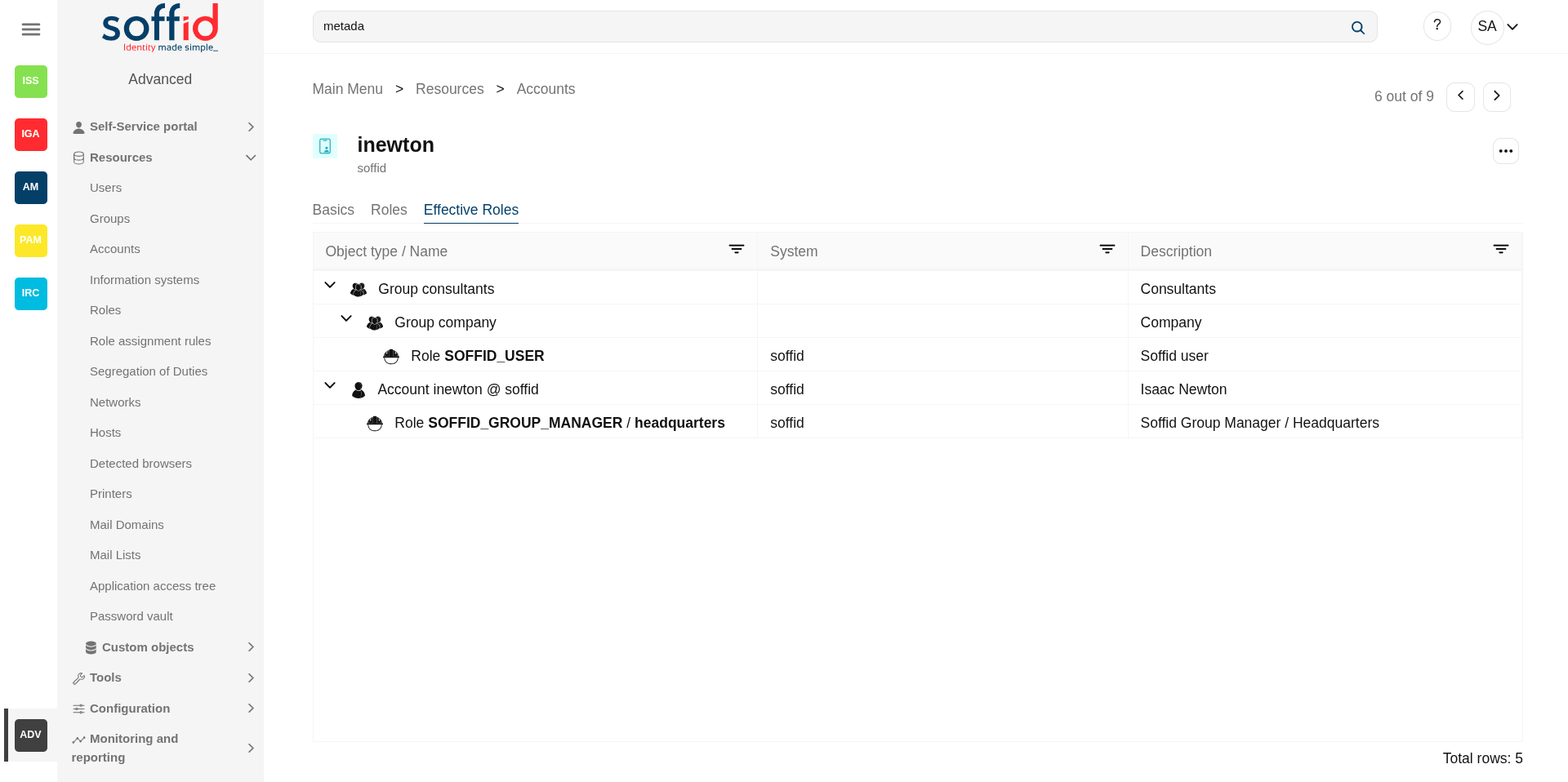
Effective roles
Hierarchy of permissions assigned to or inherited.
This screen details the effective roles for the selected account.
- By direct assignment of the role: when you assign a role to an account, you are assigning to the account all the permissions defined for that role.
- By belonging to a group: when you add a user to a group, the user will have all the roles assigned to the group.
- By rules defined in the system: when a rule is satisfied for a user, the system assigns the roles defined in the rule to the user.
The attributes:
- Object type / name: object type owner of the role / name used to identify the role.
- System: target system owner of the role.
- Description: detailed role description.
💻 Image
Actions
Account query actions
|
"Query buttons" |
Allows you to query accounts through different search systems, Quick, Basic and Advanced. |
| "Table filter" | It allows you to filter a column in the table based on the results loaded in it. |
|
Add new |
Allows you to add a new account in the system. To add a new account it will be mandatory to fill in the required fields |
|
Delete |
Allows you to remove one or more accounts by selecting one or more records and next clicking this button. To perform that action, Soffid will ask you for confirmation, you could confirm or cancel the operation. |
|
Download CSV file |
Allows you to download a CSV file with the basic information of all accounts. |
|
Bulk actions |
Allows massive operations to be performed on all system accounts. With that operation, updates can be made to any of the account's parameters. First of all, you must select the records that you want to update, once you have selected them, you must choose the bulk action on the hamburger icon. For more information visit the Bulk action page. |
| View |
Allows you to add or remove columns to the table. It is also possible to change the order of the columns. |
Account detail actions
| Apply changes (dick button) |
Allows you to save the data of a new account or to update the data of a specific account. To save the data it will be mandatory to fill in the required fields |
|
Delete |
Allow you to remove the account. You can choose that option on the hamburger icon To perform that action, Soffid will ask you for confirmation, you could confirm or cancel the operation. |
|
Undo |
Allows you to quit without applying any changes. |
|
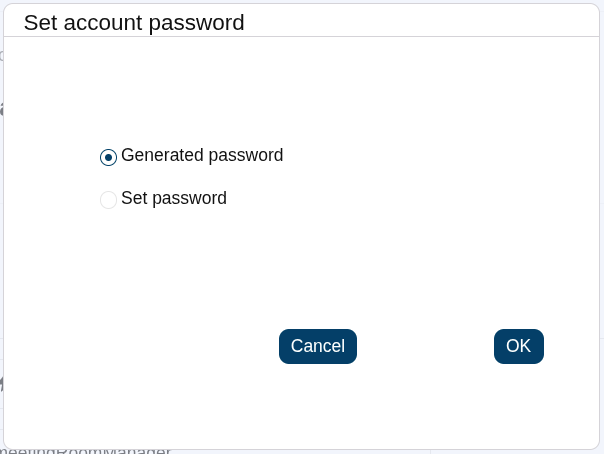
Set password |
This option depends on the credential type selected. Password:
💻 Image
SSH key:
Kubernetes key:
|
|
Show actual account properties |
Display the account attributes at the target system. To perform that action, Soffid needs to connect with the target system and get the account attributes that will be shown. |
| Expand all | Displays all the attributes of the different blocks. |
| Collapse all | Hide all attributes of the different blocks. |
| "Types of views" | Change the view type: Classic view, Modern view, Compact design. |
Roles
|
Add new |
Allows you to assign a new role to the account. Then you need to select a role from the role list. If it is necessary, the next step will be to set the scope. Then you need to check and fill in the membership properties. And finally, apply changes. |
|
Delete |
Allows you to revoke one by one or to revoke some roles at the same time. To revoke some roles at the same time, you need to select the roles, and then clicking this button. To revoke one role, you can click the role, and then Soffid will show a form with the details. Then you can click the delete button (trash icon). Soffid will ask you for confirmation to perform that action, you could confirm or cancel the operation. |
|
Import |
Allows you to upload a CSV file with the role list to assign permission. First, you need to pick up a CSV file, that CSV has to contain a specific configuration. Then you need to check the content to be loaded, it is allowed to choose if you want or not load a specific attribute. And finally, you need to select the mappings for each column of the CSV file to import the data correctly and to click the Import button. |
|
Download CSV file |
Allows you to download a CSV file with all the information about account roles. |
| View |
Allows you to add or remove columns to the table. It is also possible to change the order of the columns. |
Information systems
Description
Information systems are the systems that Soffid will protect granting and revoking roles. Each role and entry point is bound to an information system.
The information system can be created hierarchically. These information systems are managed in a tree structure.
Soffid allows you to categorize the information systems to facilitate the management, the available categories are Application, Container and Business. That categories are for information purposes only.
The permission can be granted by using workflows. You can access to Workflows page for more information.
Screen overview
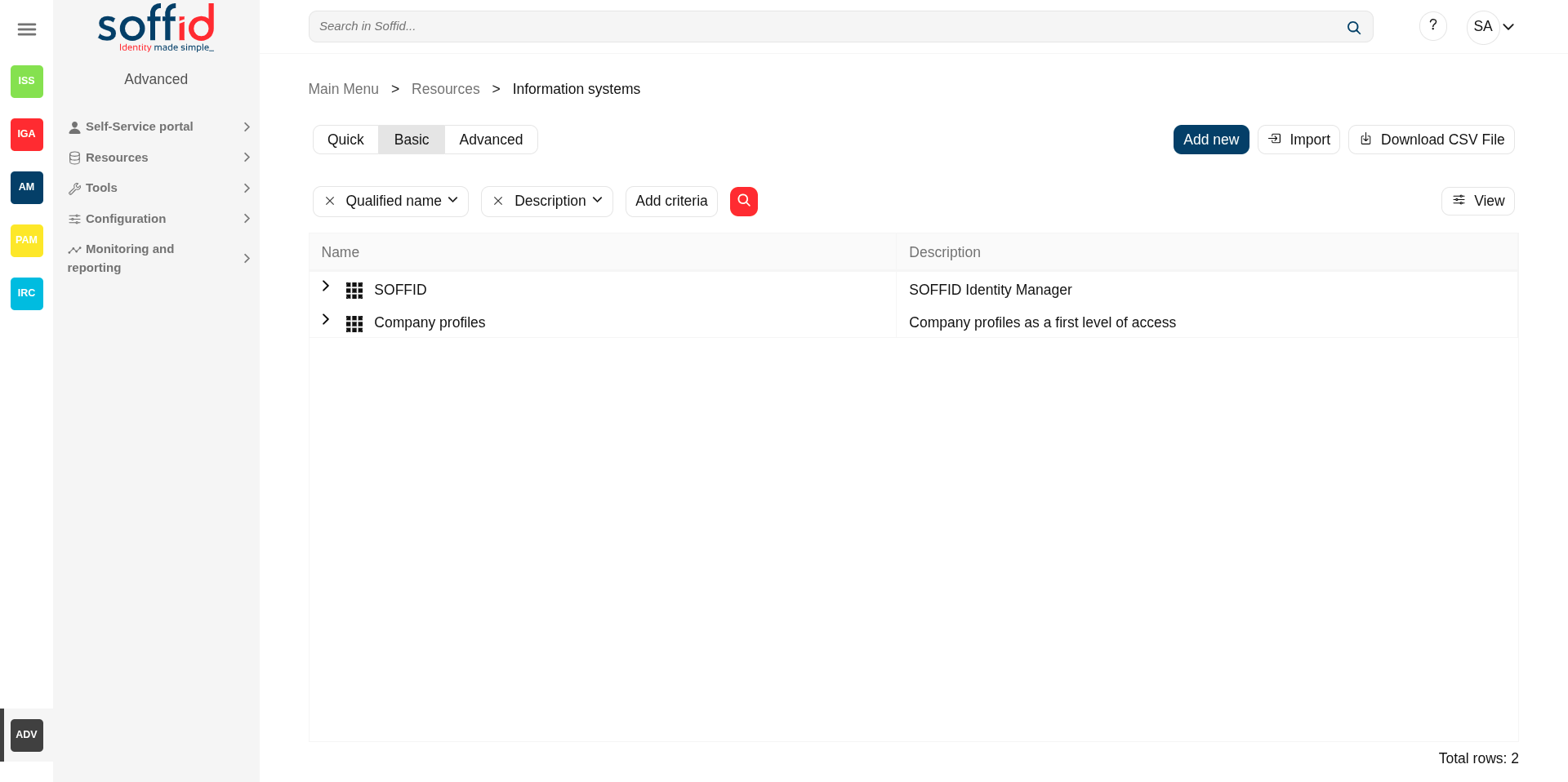
Related objects
- Users : users belong a one or more groups
- Roles : roles granted to a user
- BPM editor : roles and information system need to be BPM enabled to be menaged on worlkflows
Standard attributes
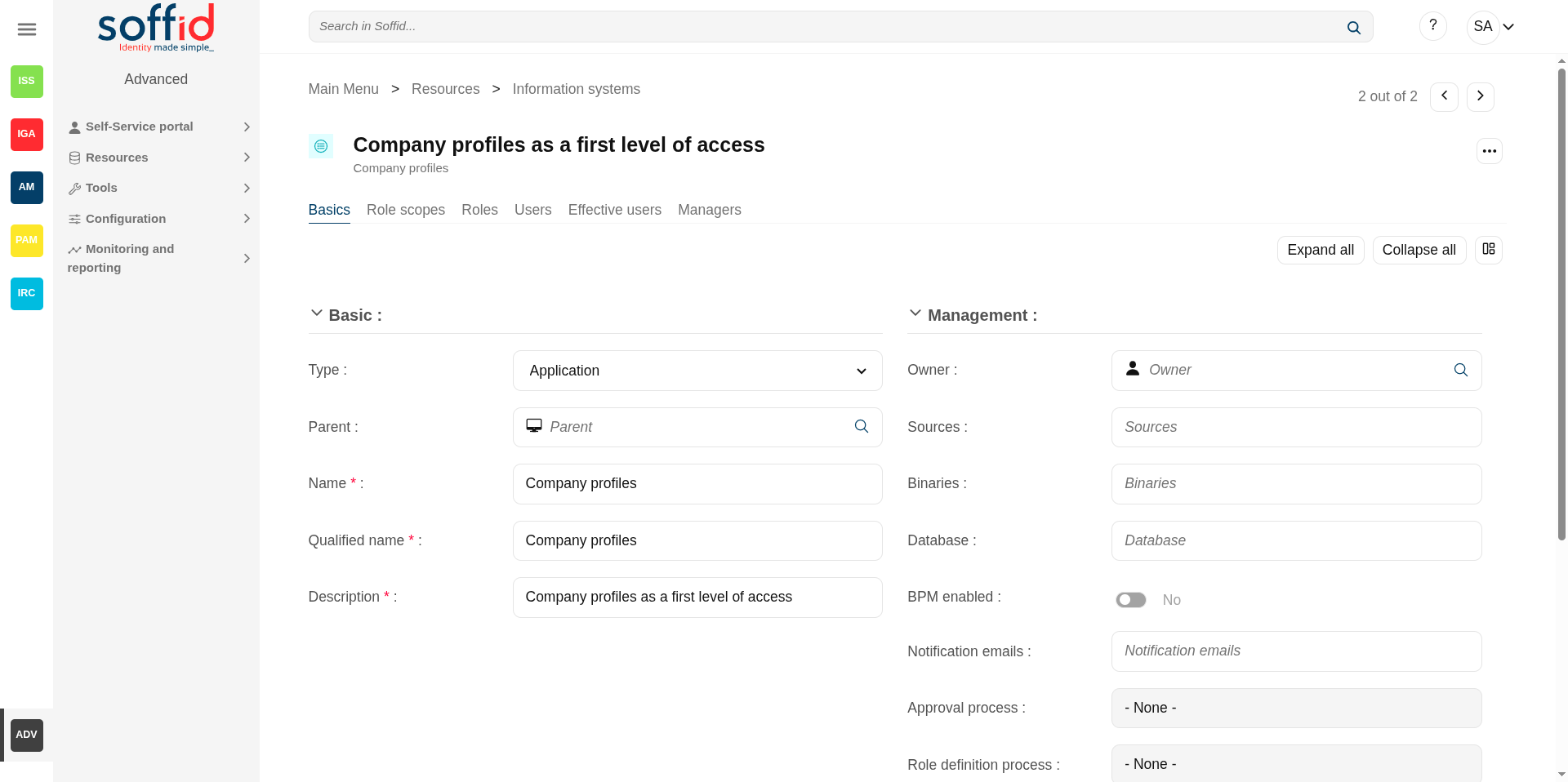
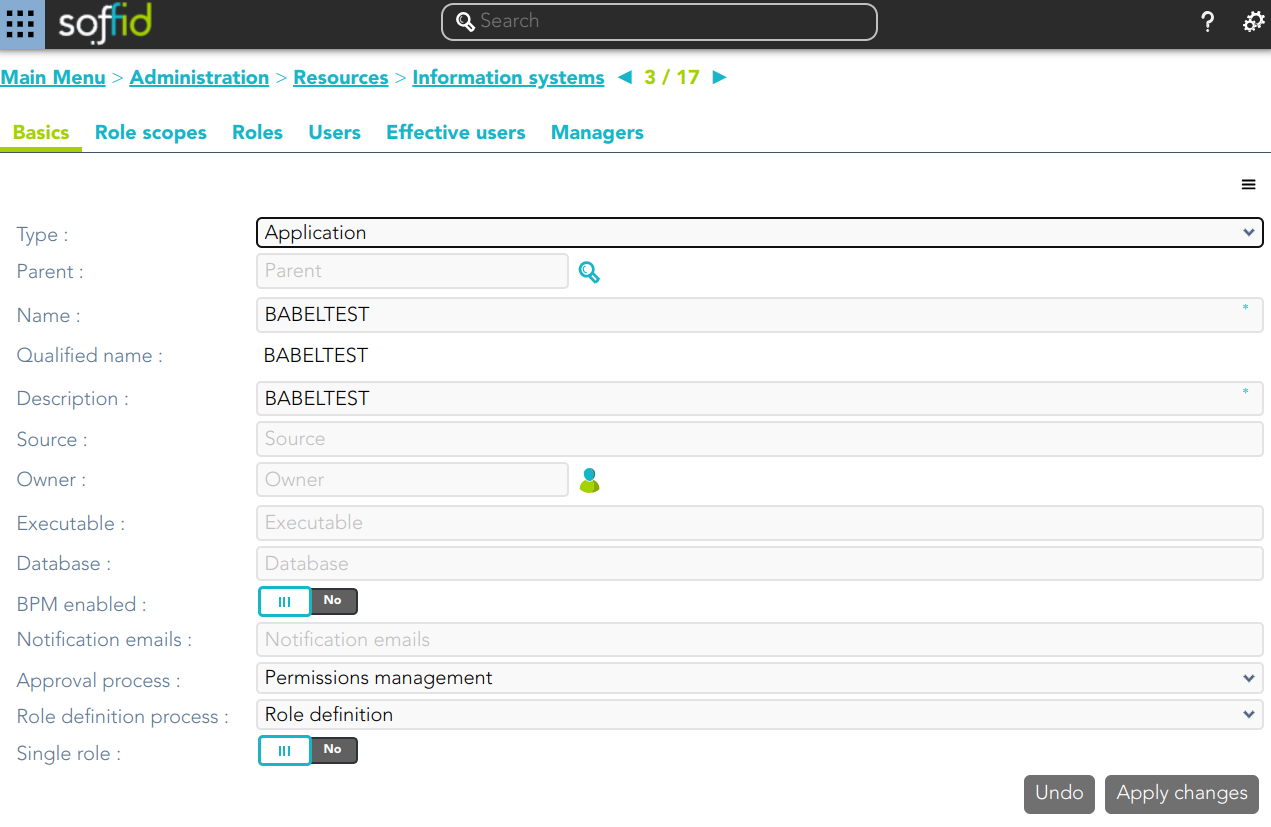
Basics
- Type: information system category.
- Parent: parent within the hierarchy.
- Name: short name to identify the information system.
- Qualified name: short name to identify the information system.
- Description: detailed description information system.
- Source: documentation.
- Owner: is the information owner, and has the capability to appoint security manager.
- Soruces: documentation.
- Binaries: documentation.
- Database: documentation.
- BPM enable: if enabled, permissions can be granted by using workflows.
- Notification emails: this list will be notified on a daily about grants and revokes performed.
- Approval process: allows you to select a Permissions management process. This process will be initiated when a role, in this information system, is assigned or revoked to a user. It is an advanced function for workflows. You can see an example of the Approval process.
- Role definition process: allows you to select a Role definition process. This process will be initiated when the definition of a role, in the information system, is updated. It is an advanced function for workflows. You can see an example of the Role definition process.
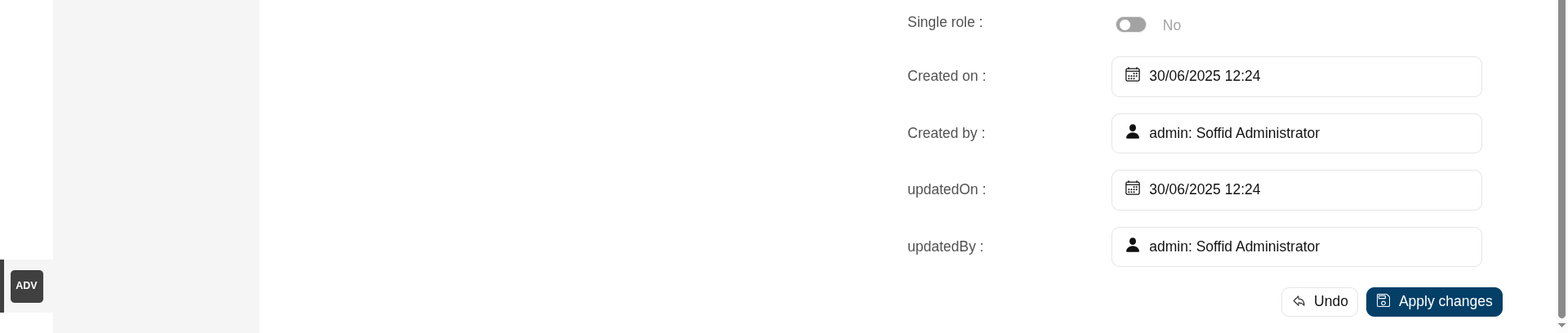
- Single role: if checked, the roles of this application are mutually exclusive: if a user has the role X and want to assign him the role Y, X will be removed to give him Y.
- Created on: creation date
- Created by: user who created the object
- Updated on: last updated date
- Updated by: last user who update the update
Image
Role scopes
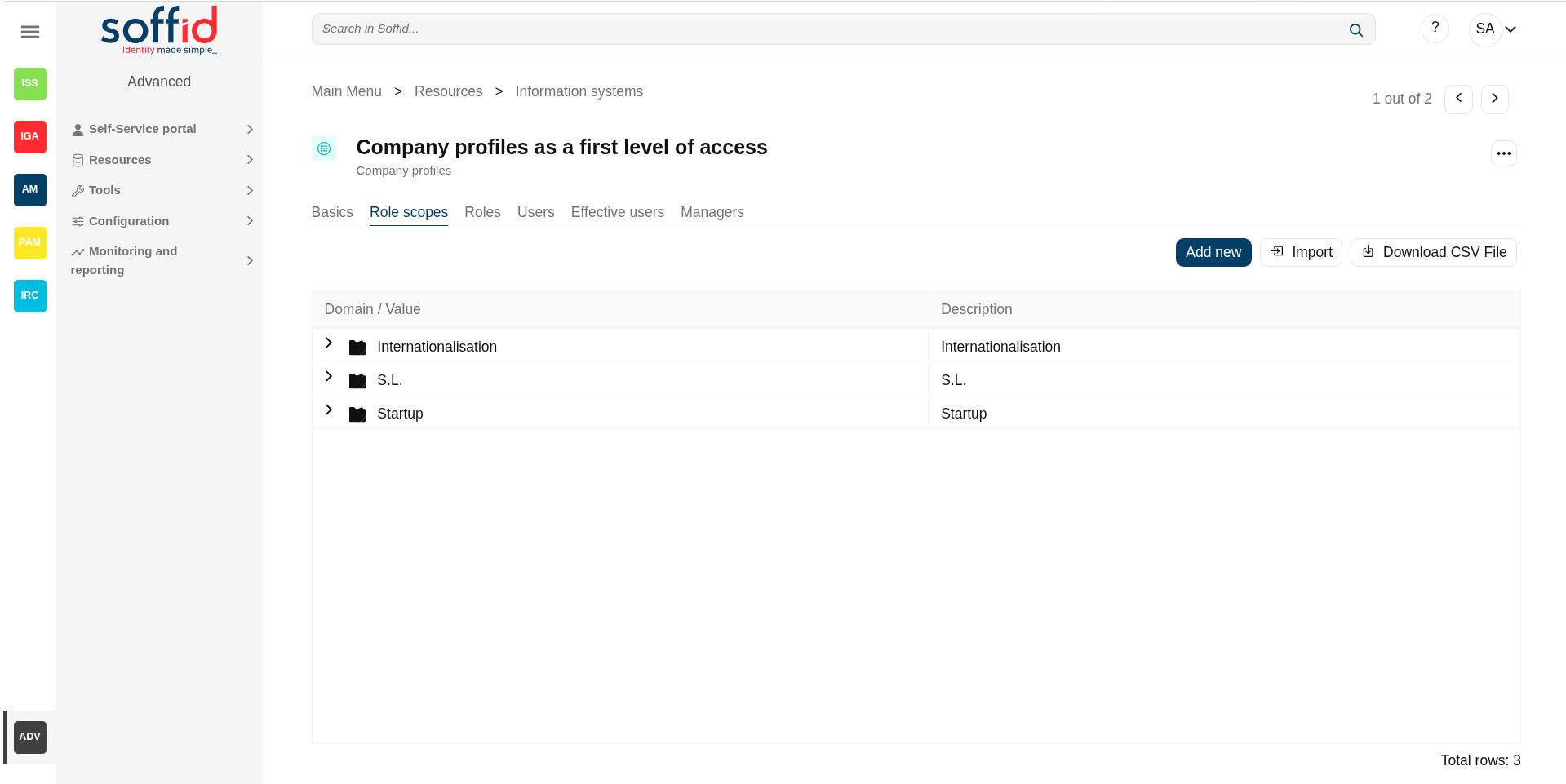
Role scope or domains are properties that can be assigned to some entitlements, limiting the scope of that entitlement. This can be used to limit, for instance, the maximum amount allowed for a money transfer, or the commercial zones to manage.
On this tab, you can add new domains, you must click the button with the add symbol and fill the information about the new domain. You can also delete a domain or update the domain information.
Other operations allowed are to download a CSV file with the domain data and toOther operations allowed are to download a CSV file with the domain data and to upload a CSV file to add new domains, or update existed domains to add new domains, or update existing domains
Attributes:
- Domain / Value: name of the domain
- Description: descripton ot the domain
💻 Image
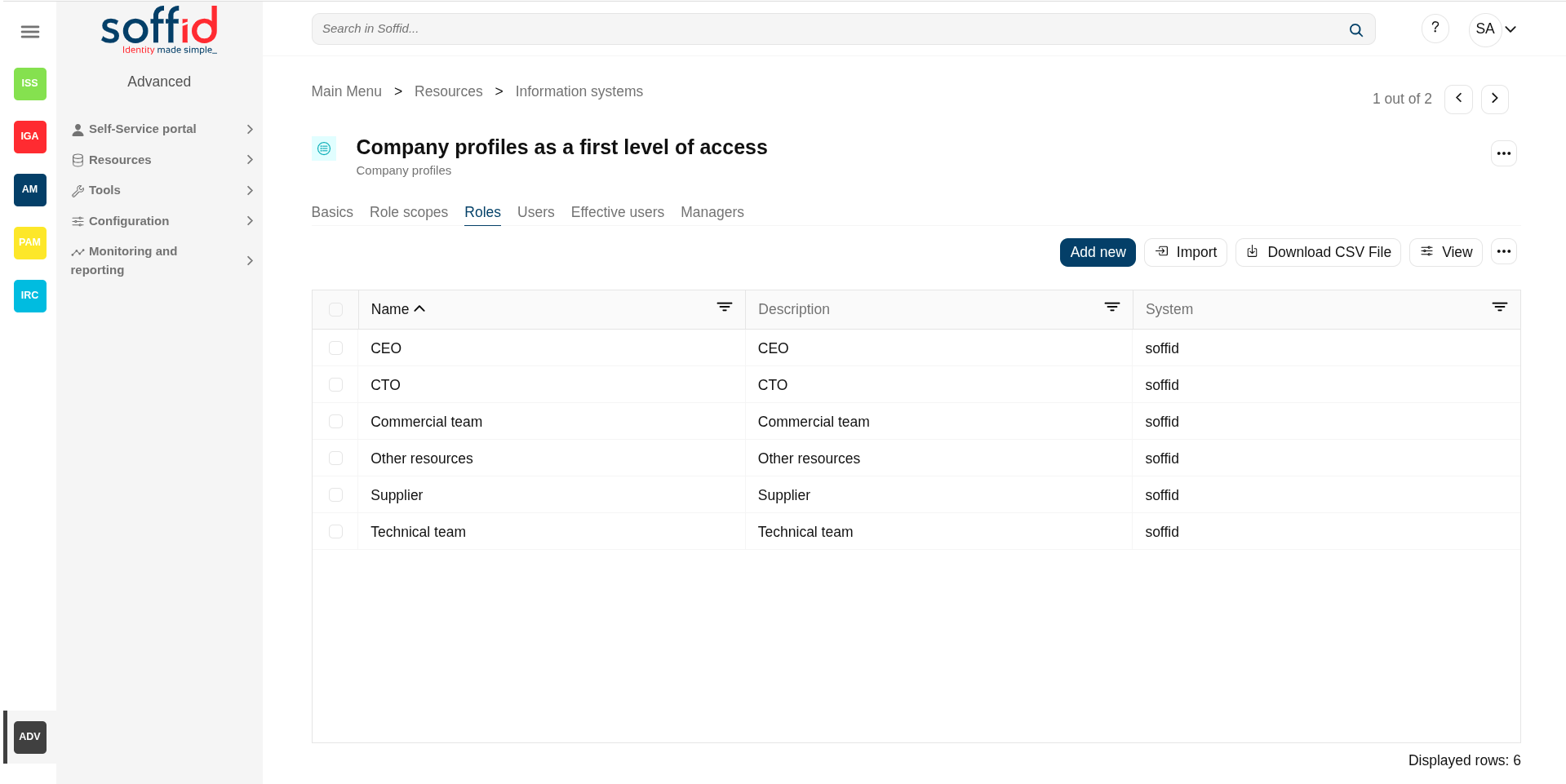
Roles
A role is a collection of permissions that determine what operations a user or a group of users can perform on that information system.
On the roles tab is allowed to create, update and delete roles. The effective privileges bound to each role are managed from each application.
To add a new role you must click the button with the "Add new" button and fill all the role data.
You can update a specific role by clicking on the right record, making and applying changes.
It is also possible to delete roles from the role details or by selecting one or more records from the list and clicking the "Delete" button.
Additionally you can download a CSV file with the roles information and you can also upload a CSV file to add new roles, or modify existing roles.
Attributes:
- Name: name used to identify the role.
- Description: detailed role description.
- System: agent of the target system owner of the role
- Category: category value of the role
- Information system: asset or application, from a functional point of view, on which the permissions are granted or revoked.
- Domain type: domian type of the role
- BPM enabled: when enabled the role can be managed on the workflows
- ExternalId: new attribute in Soffid 4 to keep a record of the unique identifier of the object in the final system (useful for synchronisation and renaming).
- Approval start: at this date, Soffid will connect to the system and will assign the role. If there is no approval start, it will be assigned at the moment.
- Approval end: at this date, Soffid will connect to the system and will revoke the role.
- Risk: risk related with SoD rules
- Created on: text
- Created by: text
- Updated on: text
- Updated by: text
💻 Image
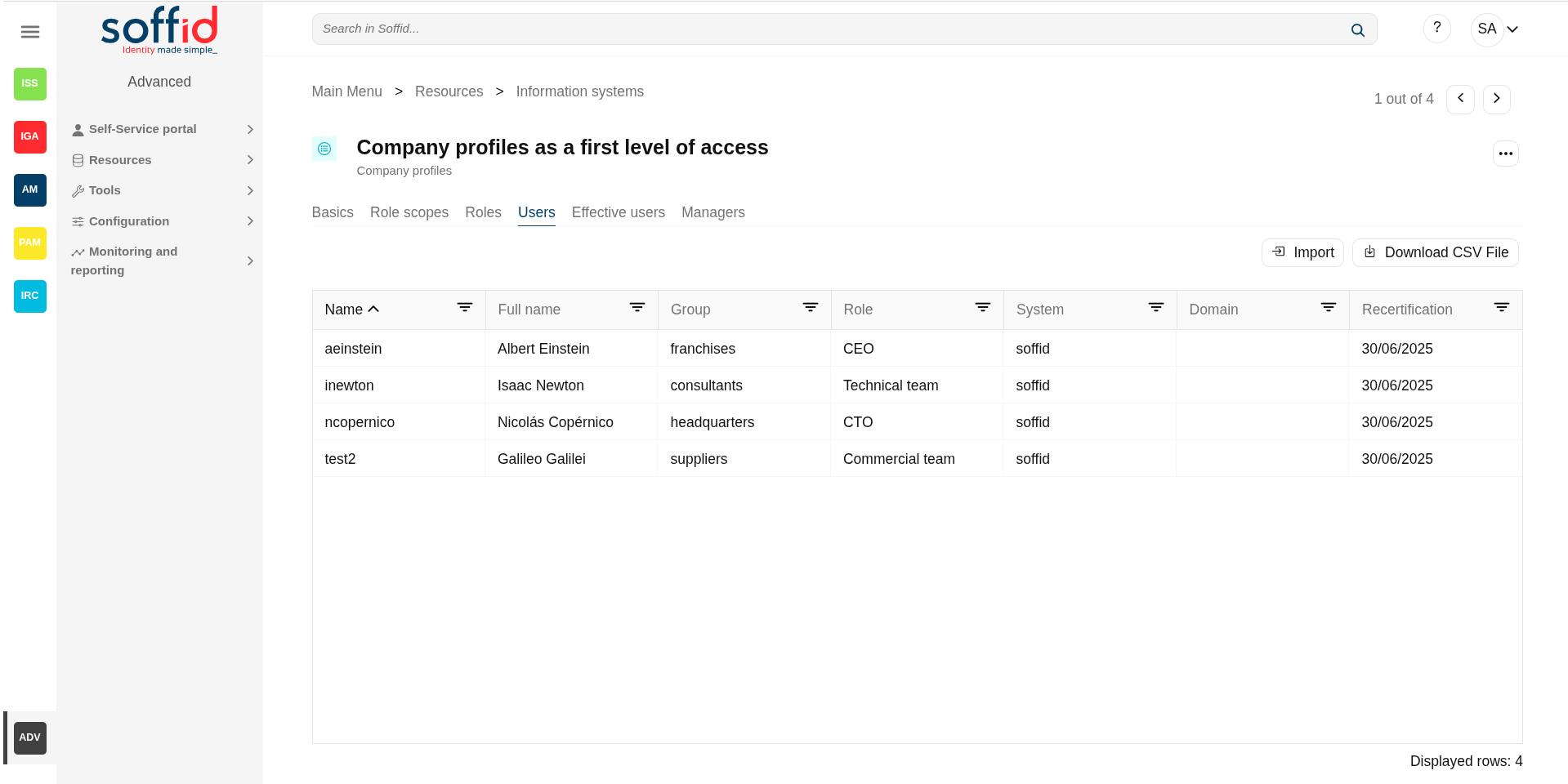
Users
On the user's tab, Soffid displays all the user with granted roles for this information system.
It is allowed to download a CSV file with all the user data.
Attributes:
- Name: name of the account where the role is granted
- Full name: full name of the user owner of the account
- Group: primary group of the user
- Role: name used to identify the role.
- System: agent of the target system owner of the role
- Domain: domian type of the role
- Recertification: date of the last recertification
💻 Image
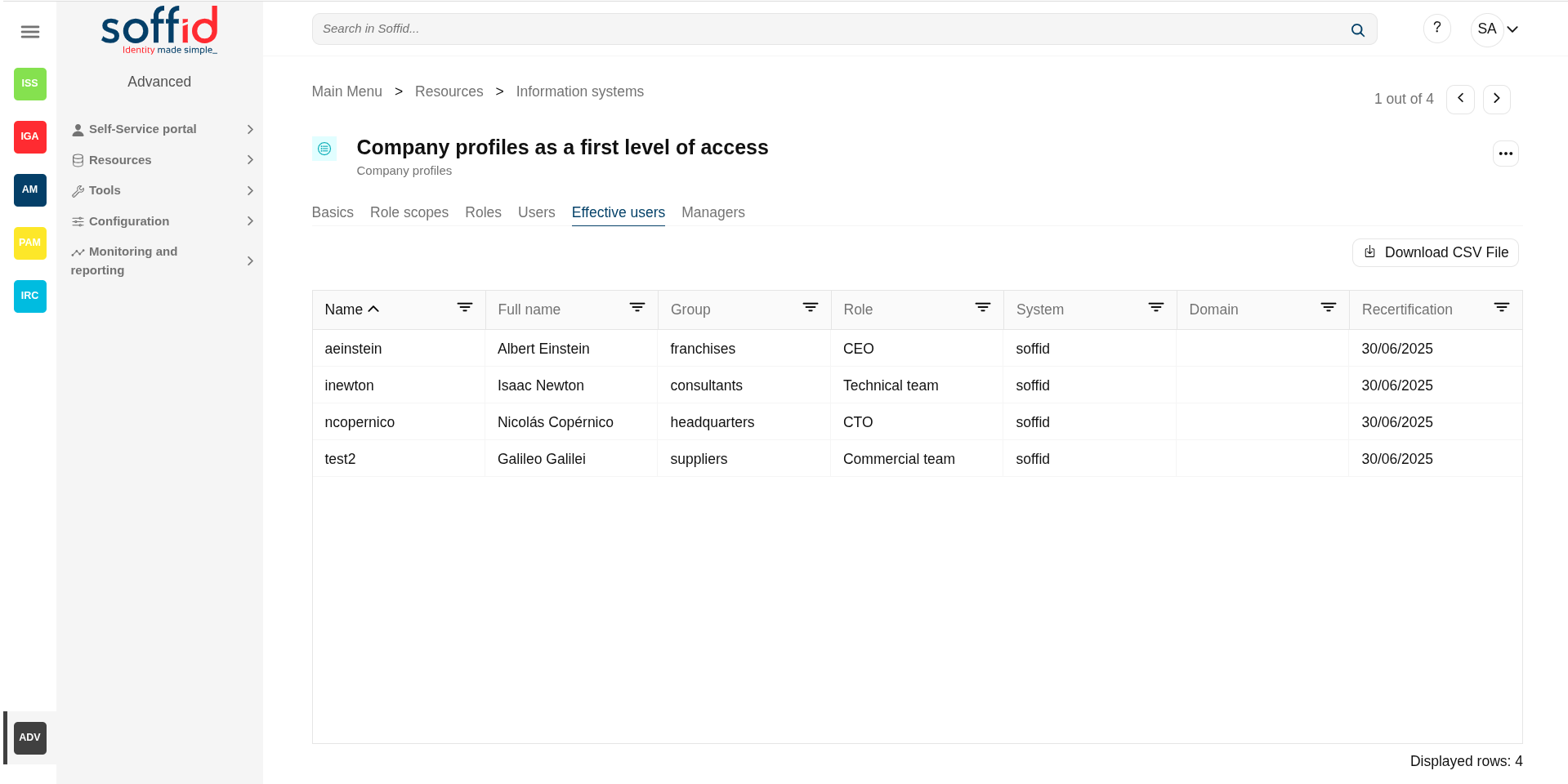
Effective users
Hierarchy of permissions assigned to or inherited from an account. If you visit the accounts page, you could see the roles on the Roles tab from a specific account.
Attributes:
- Name: name of the account where the role is granted
- Full name: full name of the user owner of the account
- Group: primary group of the user
- Role: name used to identify the role.
- System: agent of the target system owner of the role
- Domain: domian type of the role
- Recertification: date of the last recertification
💻 Image
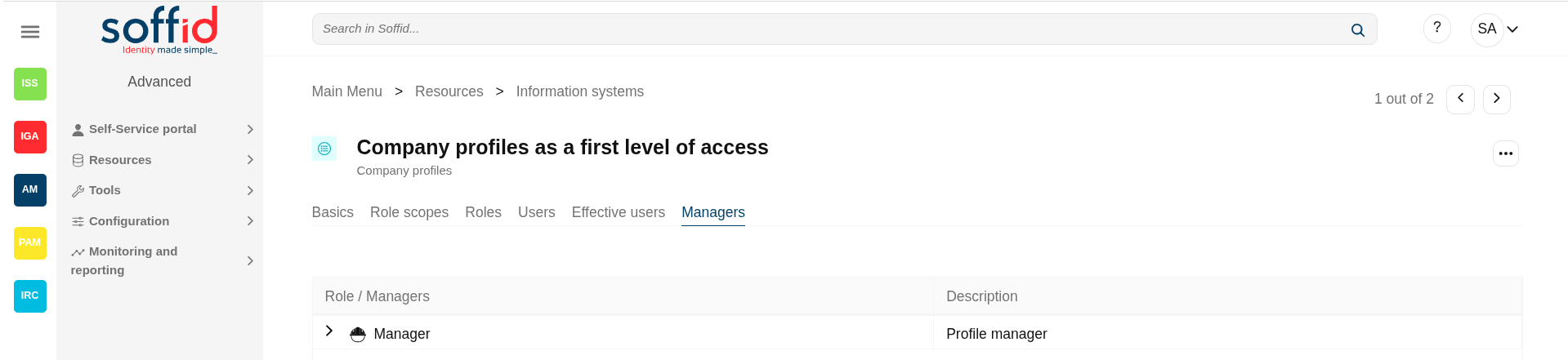
Managers
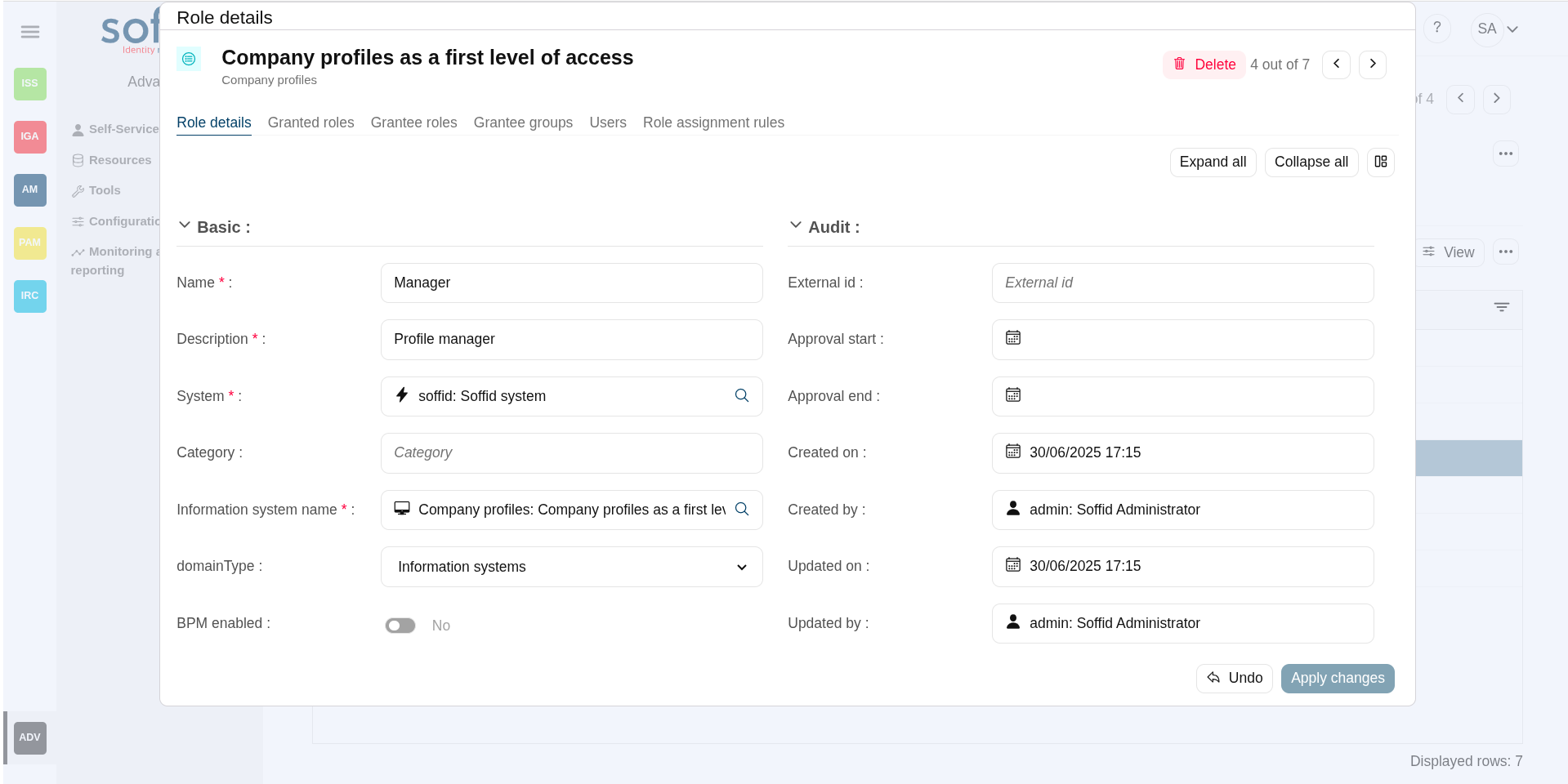
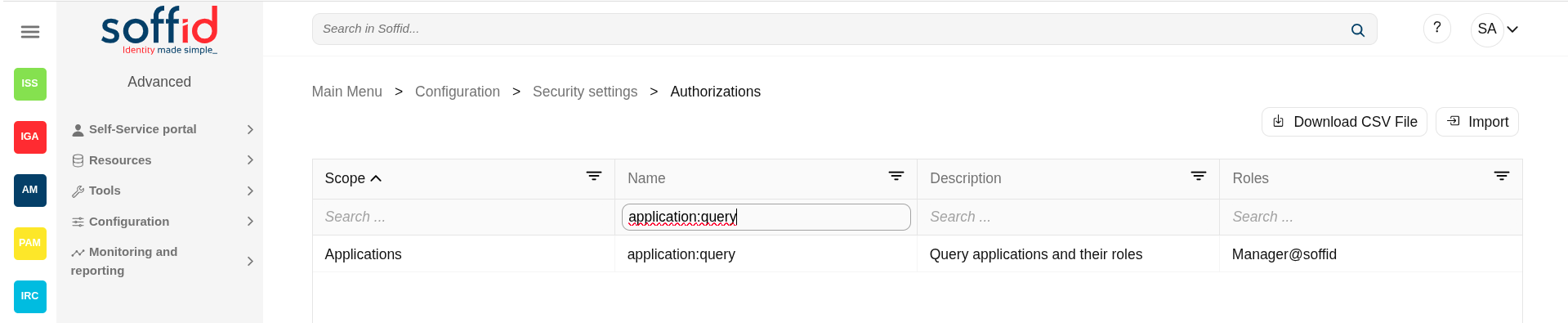
On the tab Managers, Soffid displays the Roles with Domain equals to Information System and the proper authorization.
Here you can grant the role to one or more users. You can also assign the role to users on the Roles page or on the Users page. Users who have been assigned this role will be displayed in the Managers tab.
Be in mind, to query the information about the roles and users on the managers tab, it will be mandatory to give authorization to query applications, you must add the role to the authorization (application:query).
Attributes:
- Role / Managers: name of the role / managers with the role and domain granted
- Description: description of the role / full name of the user
💻 Image
** Role
** Authorization
Actions
Information system table actions
|
"Query buttons" |
Allows to query groups through different search systems, Quick, Basic and Advanced. |
| "Table filter" | It allows you to filter a column in the table based on the results loaded in it. |
|
Add new |
Allows to create a new information system. To add a new information system it will be mandatory to fill in the required fields |
|
Import |
Allows you to upload a CSV file with the information system list to add or update information systems to Soffid. First, you need to pick up a CSV file, that CSV has to contain a specific configuration. Then you need to check the content to be loaded, it is allowed to choose if you want or not load a specific attribute. And finally, you need to select the mappings for each column of the CSV file to import the data correctly and to click the Import button. |
|
Download CSV file |
Allows to download a csv file with the basic information of all information systems. |
|
Add child information system (+) |
Allows to add a child to a specific information system. You can choose that option below the father information system. To add a child it is necessary to fill in the required fields |
Information system detail actions
|
Apply changes (disk button) |
Allows you to save the data of a new information system or to update the data of a specific information system. To save the data it will be mandatory to fill in the required fields |
|
Delete system |
Allows you to remove a specific information system. To perform that action, Soffid will ask you for confirmation, you could confirm or cancel the operation. |
| Expand all | Displays all the attributes of the different blocks. |
| Collapse all | Hide all attributes of the different blocks. |
| "Types of views" | Change the view type: Classic view, Modern view, Compact design. |
|
Undo |
Allows you to quit without applying any changes. |
|
Apply changes |
Allows you to save the data of a new information system or to update the data of a specific information system. To save the data it will be mandatory to fill in the required fields |
Role scopes actions
|
Add new |
Allows you to add a new domain to limit the scope. You can choose that option on the hamburger menu or clicking the add button (+). To add a new domain it will be mandatory to fill in the required fields |
|
Import |
Allows you to upload a CSV file with the domain list to add or update domains to Soffid. First, you need to pick up a CSV file, that CSV has to contain a specific configuration. Then you need to check the content to be loaded, it is allowed to choose if you want or not to load a specific attribute. And finally, you need to select the mappings for each column of the CSV file to import the data correctly and to click the Import button. |
|
Download CSV file |
Allows you to download a CSV file with all the information about domains. |
|
Add domain value (+) |
Allows you to add a domain value to a domain type (second node of the tree) |
Roles actions
|
Add new |
Allows you to create a new role for that information system. You can choose that option on the hamburger menu or clicking the add button (+). To add a new role it will be mandatory to fill in the required fields |
|
Delete |
Allows you to delete one by one or to delete some roles at the same time from an information system . To delete some roles at the same time, you need to select the roles, and then click the button with the subtraction symbol (-). To delete one role, you can click the users, and then Soffid will show a form with the details. Then you can click the delete button (trash icon). Soffid will ask you for confirmation to perform that action, you could confirm or cancel the operation. |
|
Import |
Allows you to upload a CSV file with the roles list to add to the information system. First, you need to pick up a CSV file, that CSV has to contain a specific configuration. Then you need to check the content to be loaded, it is allowed to choose if you want or not to load a specific attribute. And finally, you need to select the mappings for each column of the CSV file to import the data correctly and to click the Import button. |
|
Download CSV file |
Allows to download a csv file with the basic role data |
| View |
Allows you to add or remove columns to the table. It is also possible to change the order of the columns. |
| Bulk actions |
Allows massive operations to be performed on all roles selected. First of all, you must select the records that you want to update, once you have selected them, you must choose the bulk action on the "three points" icon. For more information visit the Bulk action page. |
In addition for each role you can perform the specific operations defined on the Role page
Users actions
|
Import |
Allows you to upload a CSV file with the users list to add to the roles to be granted. First, you need to pick up a CSV file, that CSV has to contain a specific configuration. Then you need to check the content to be loaded, it is allowed to choose if you want or not to load a specific attribute. And finally, you need to select the mappings for each column of the CSV file to import the data correctly and to click the Import button. |
|
Download CSV file |
Allows to download a CSV file with all the information about users. |
EffecdtUsers actions
|
Download CSV file |
Allows to download a CSV file with all the information about users. |
Example
Approval process Example
1. Assign a role a to a User: this role belong to an information system with an Approval process configured.
💻 Image
Information system definition
💻 Image
Assign a role a to an user
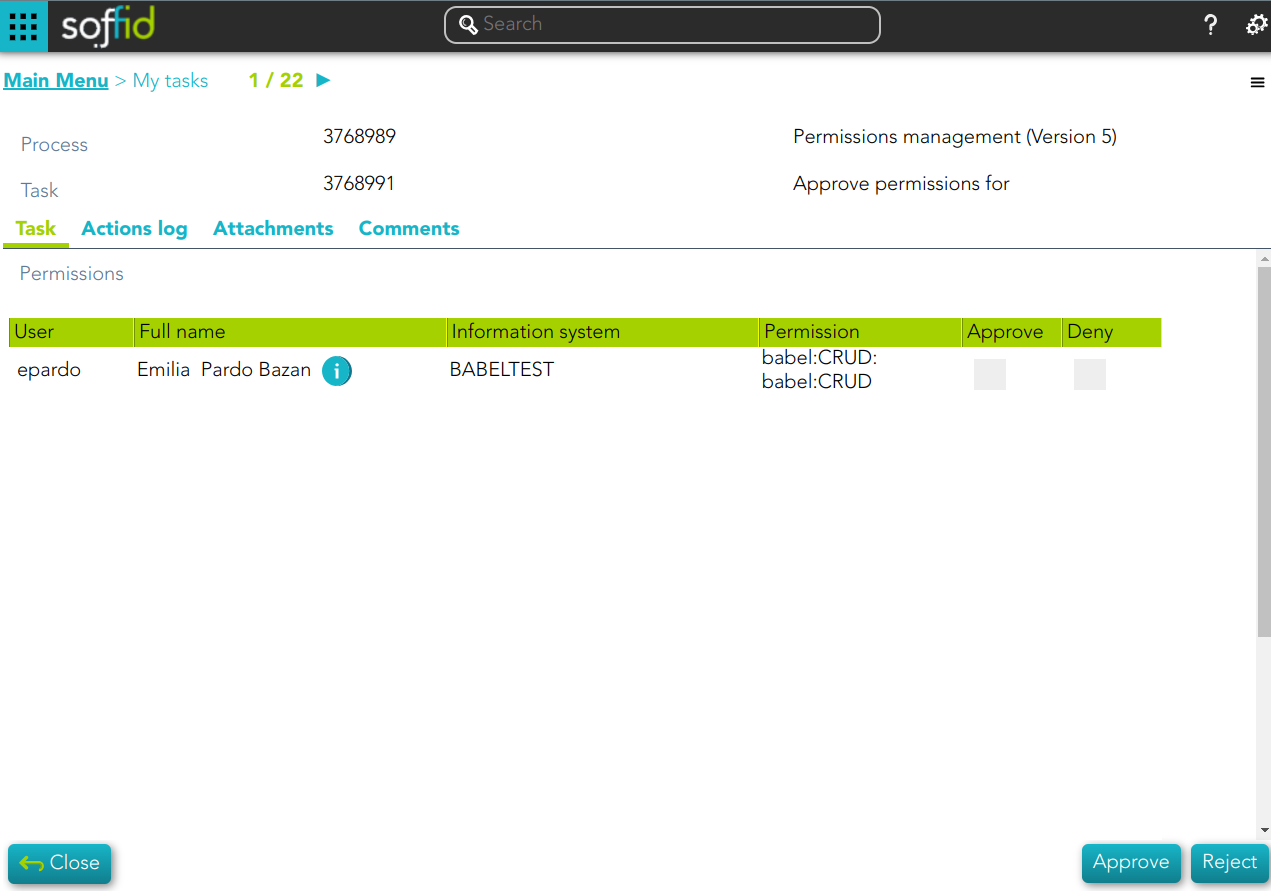
2. A task to approve o reject is created
💻 Image
Role definition process example
1. Update a role definition.This role belong to an information system with an Approval process configured.
💻 Image
Assign a role a to an user
💻 Image
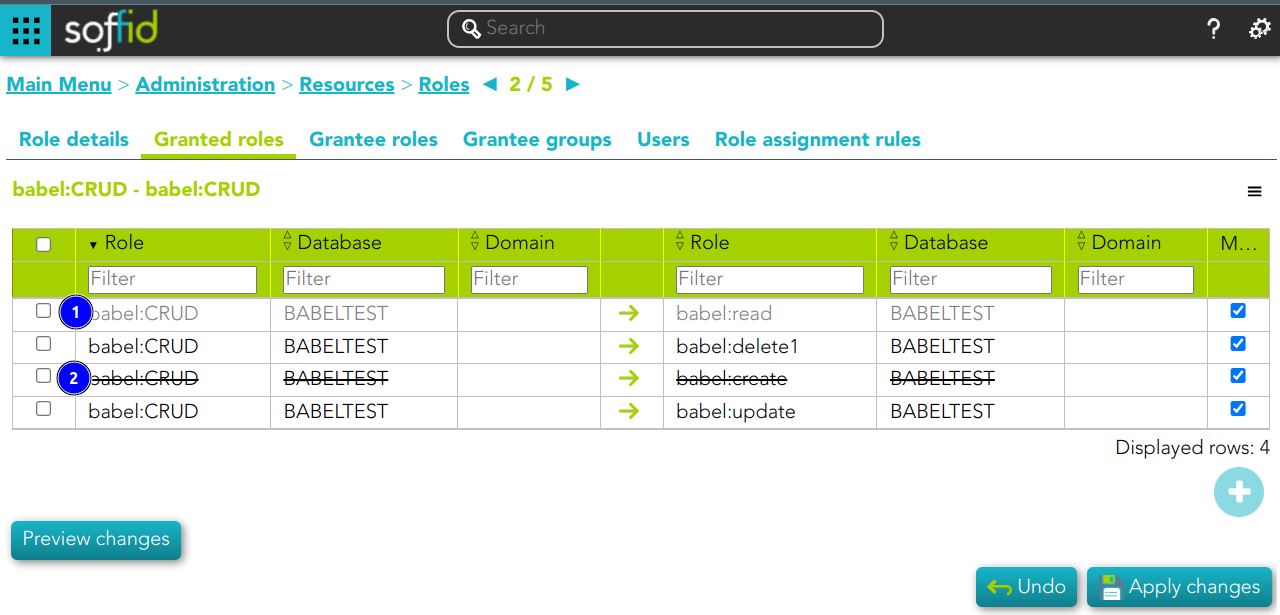
1) This assignation is pending to approve
2) This deletion is pending to approve
2. A task to approve o reject is created
Image

Roles
Description
Soffid allows you to create roles to specify permissions that can be assigned to a user, a group, or an account. These permissions determine what operations are allowed on a resource. You can use roles to delegate access to users, applications, or services. The main goal is to achieve optimal security administration.
Roles can be defined at different levels:
- Organizational permissions.
- Application permissions.
- Low-level permissions.
When needed, generic roles can be created. When such a role is granted to any user, it is converted into a specific role by specifying an organization unit, information system, or a specific value. So, for instance, a generic emergency coordinator role can be created. The master emergency coordinator will have this role granted for the whole organization, while a remote office emergency coordinator will have this role granted for his single unit.
Note that a role can belong to an information system with a defined role definition process.
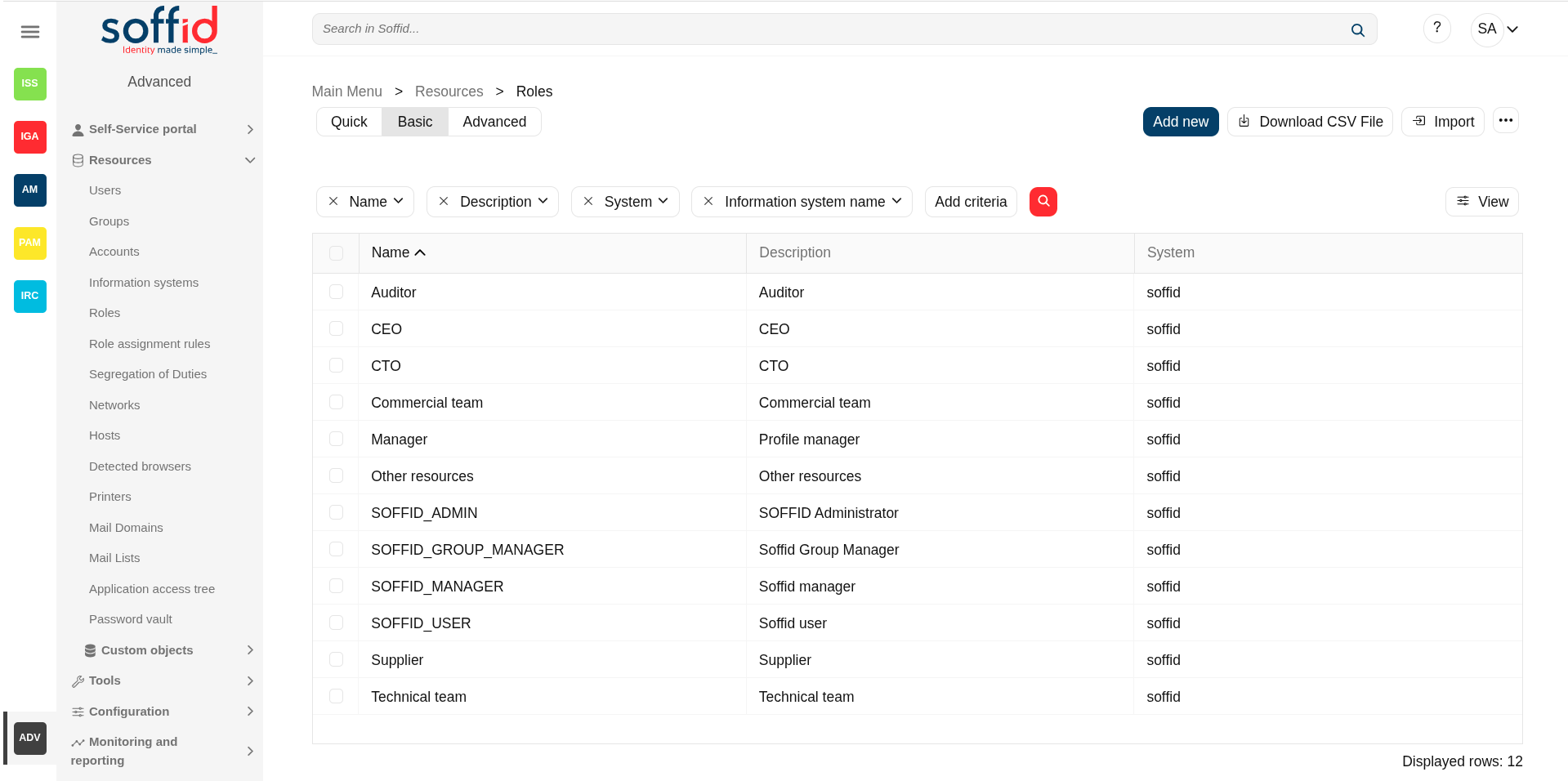
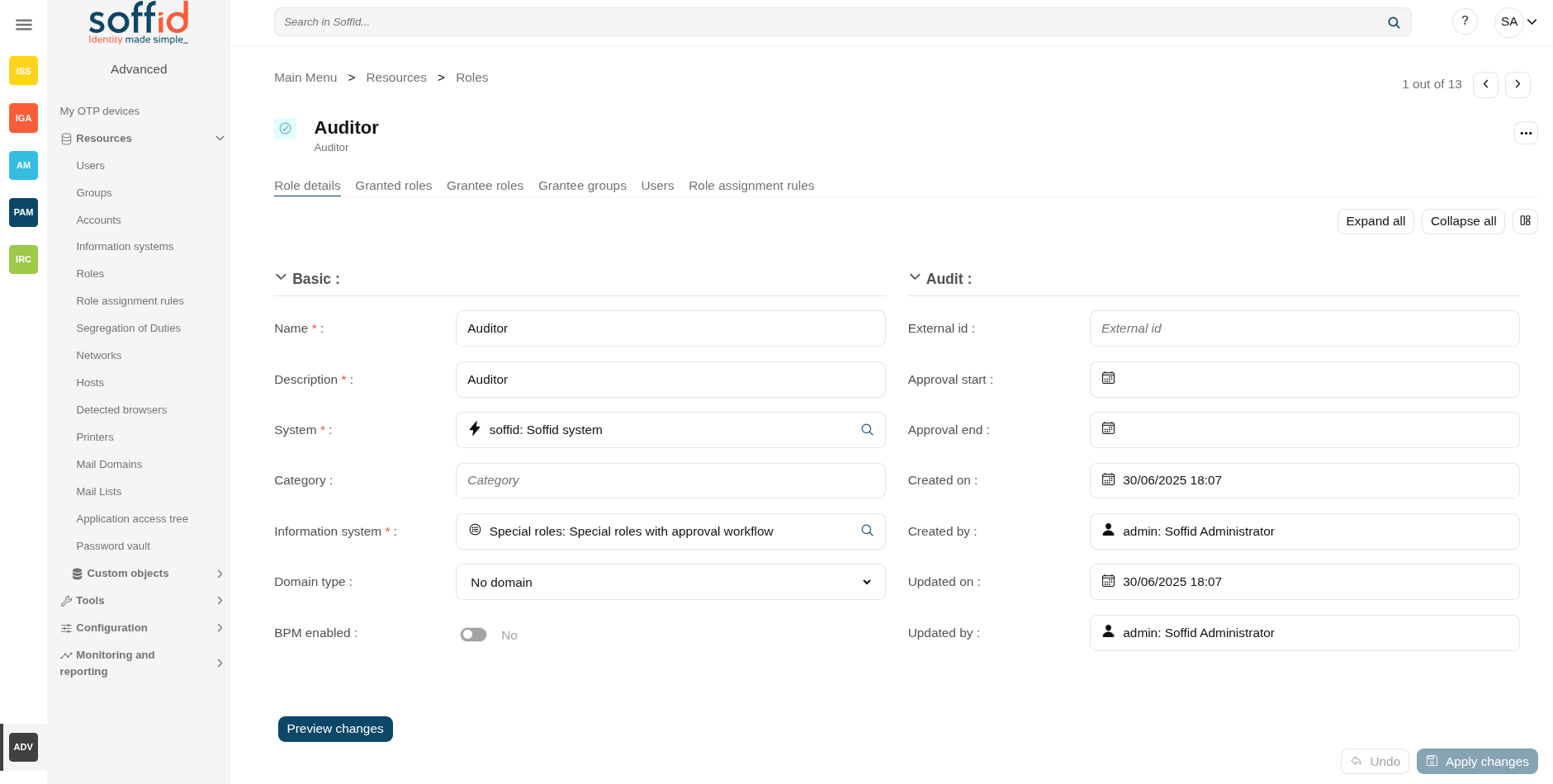
Screen overview
Related objects
- Users : owner users of the accounts
- Accounts : a role is granted to a user throght an account
- Agents : the target system owner of the role
- Roles : a role can be inherited from another role
- Groups : a role can be inherited from a group
- Role assignment rules : a role can be inherited from a rule
- Information systems : where the roles are gathered
- BPM editor : roles and information system need to be BPM enabled to be menaged on worlkflows
- Scheduled tasks : the roles can managed from the reconcile process
Standard attributes
Role detail
- Name: name used to identify the role
- Description: detailed role description.
- System: information storage system from a technical point of view (active directory, database, CSV, ...).
- Category: this attribute can be used as a label to define the type of group, its use, or any other distinction you consider useful.
- Information system: asset or application, from a functional point of view, on which the permissions are granted or revoked.
- Domain type: you can set a limitation of the role scope by selecting the domain. Initially, there are two domains defined, Groups and Information Systems. Soffid allows you to add more domains. (*1) (*2)
- BPM enabled: if you check this option (value selected is Yes) this role will be available in the Permissions management workflows.
- External id: new attribute in Soffid 4 to keep a record of the unique identifier of the object in the final system (useful for synchronisation and renaming).
- Approval start: at this date, Soffid will connect to the system and will assign the role. If there is no approval start, it will be assigned at the moment.
- Apploval end: at this date, Soffid will connect to the system and will revoke the role.
- Created: account creation date.
- Last change: last modified.
- Created by: user who created the account
- Updated by: last user who updated the account
Domain example (*1)
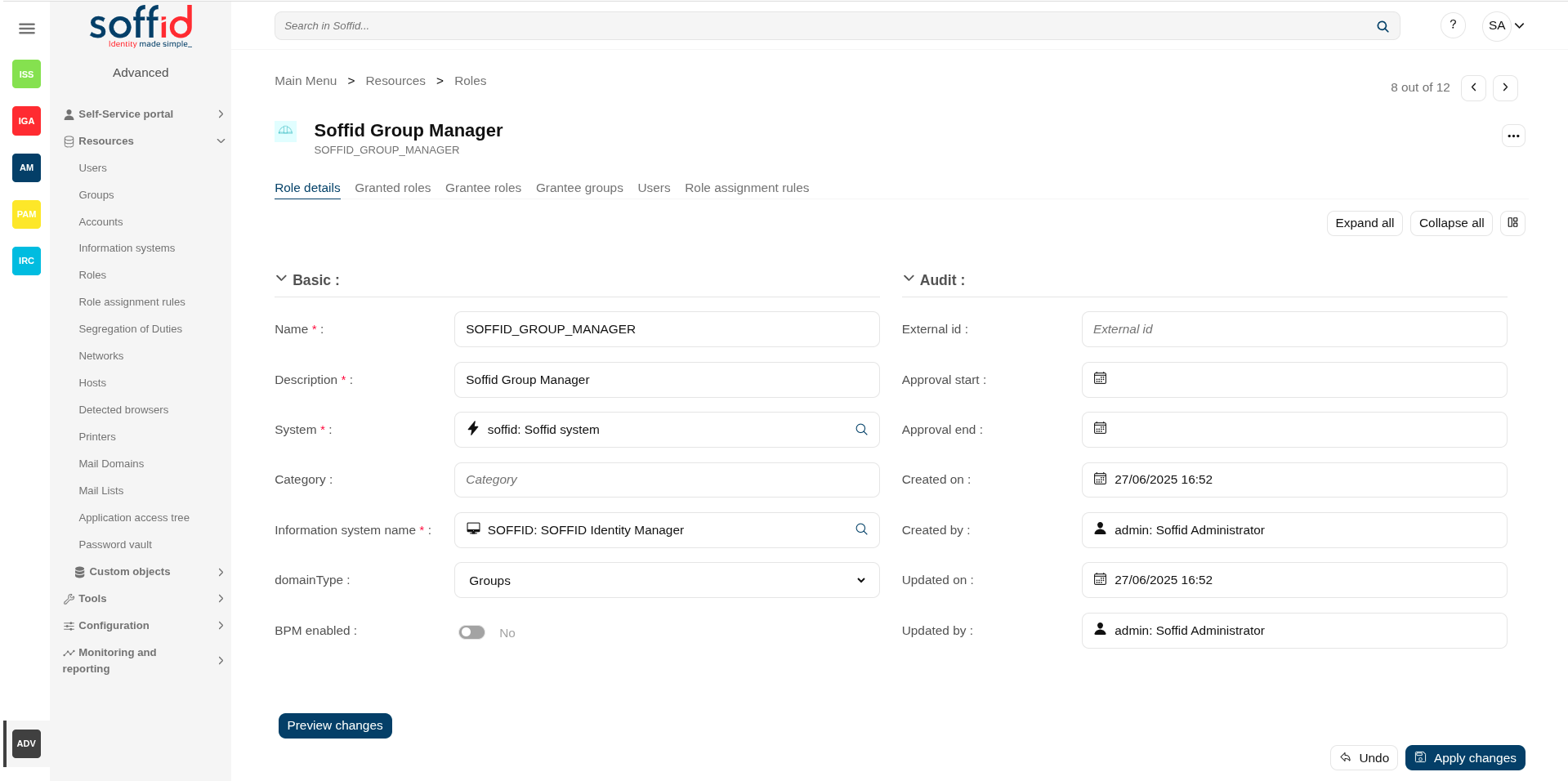
First, you can define the scope for one specific Role, for instance, you define role manager in Soffid System, with the scope Groups:
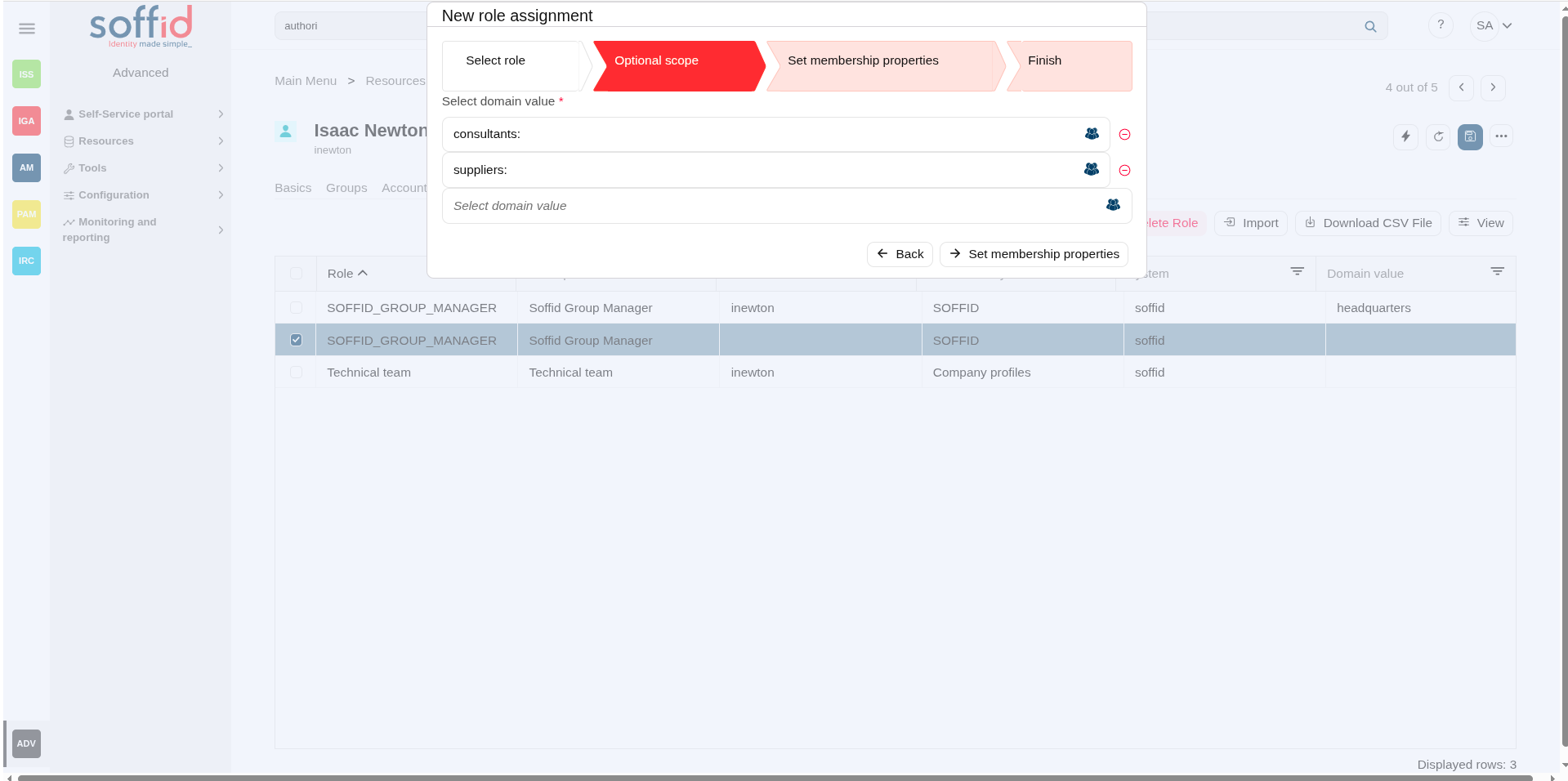
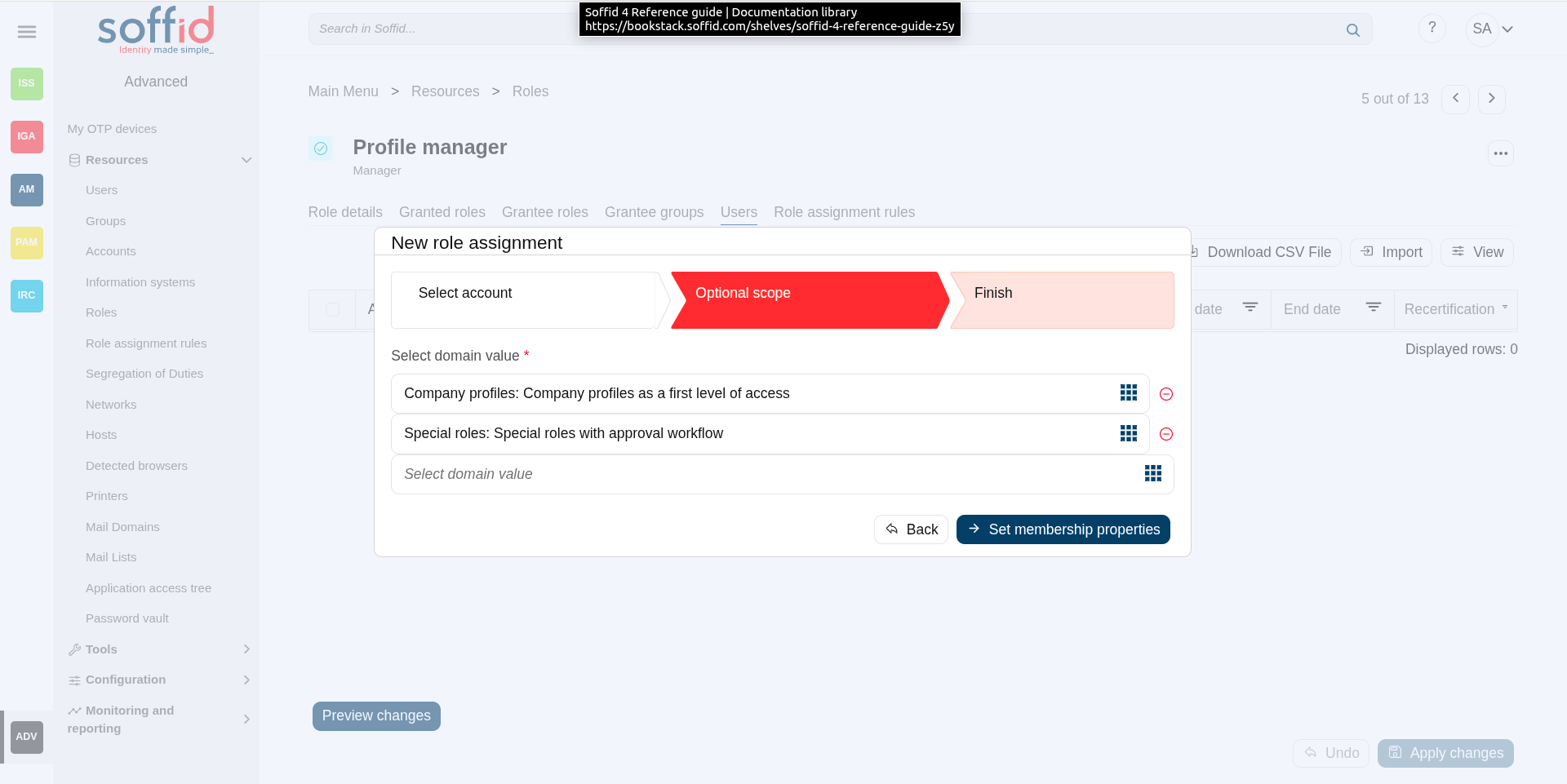
Then, you can assign this role to one or more users. To do this you must indicate the scope (can be one or more scoped):
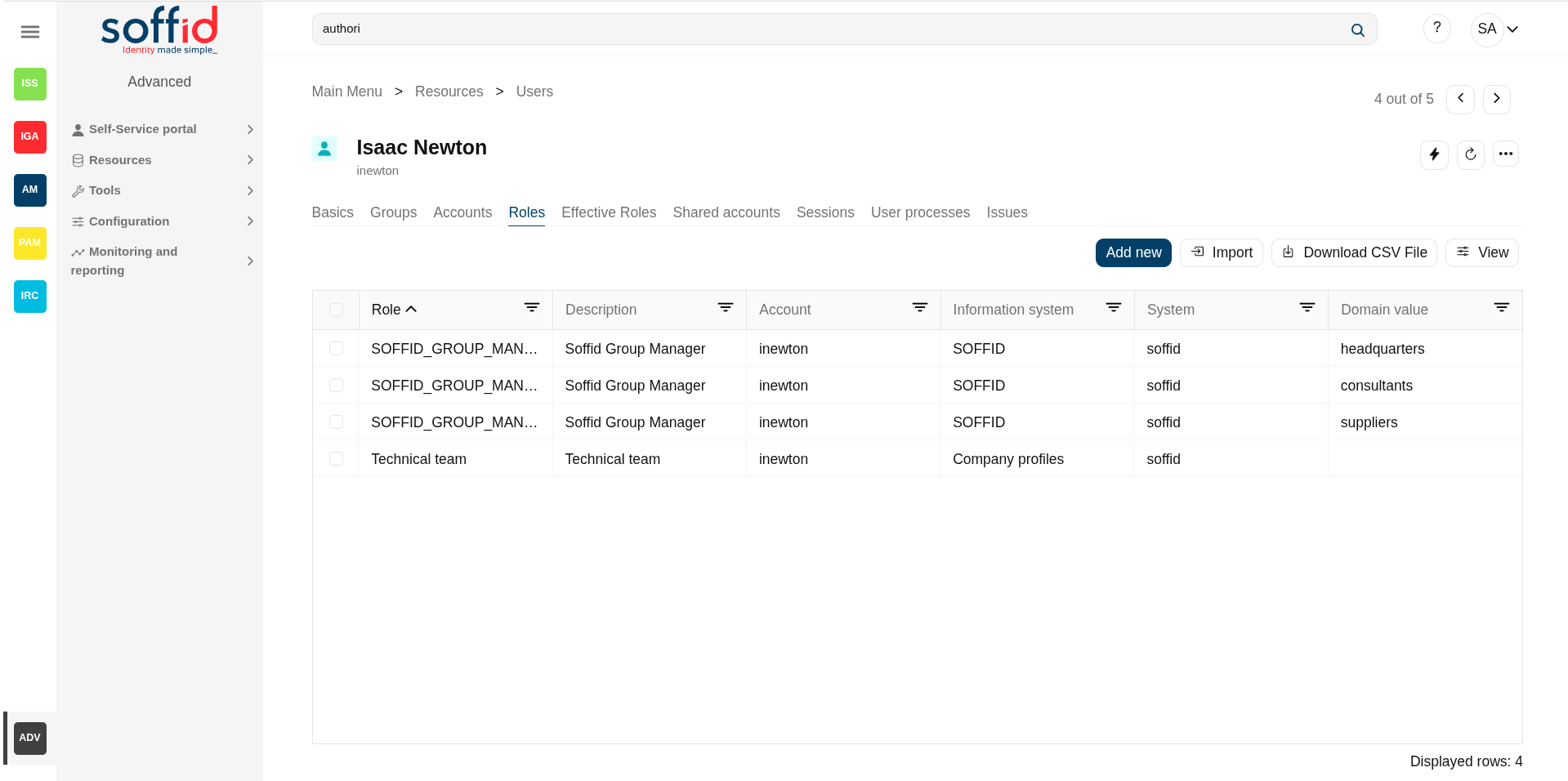
So the user will have the role in the scopes indicated:
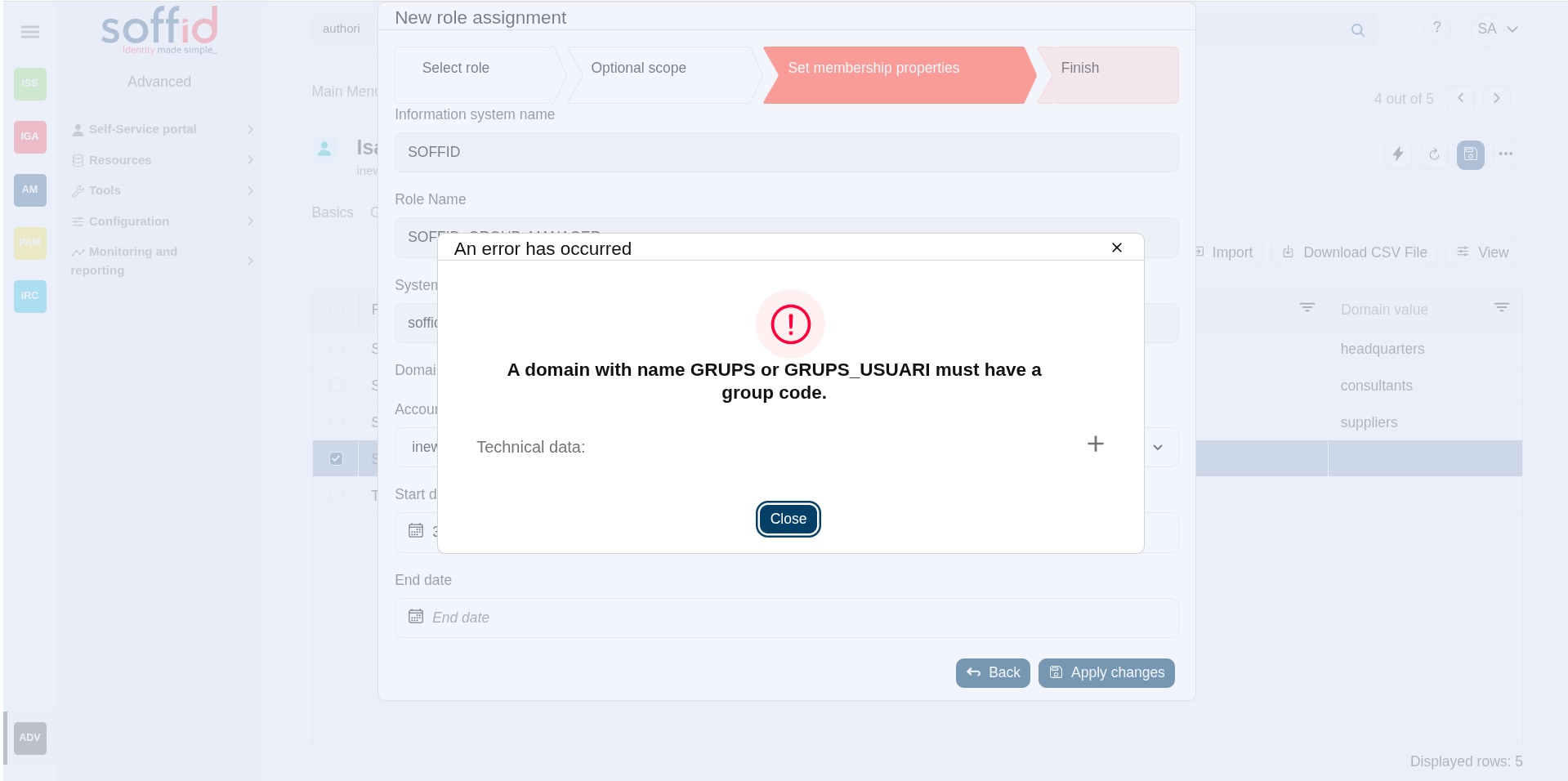
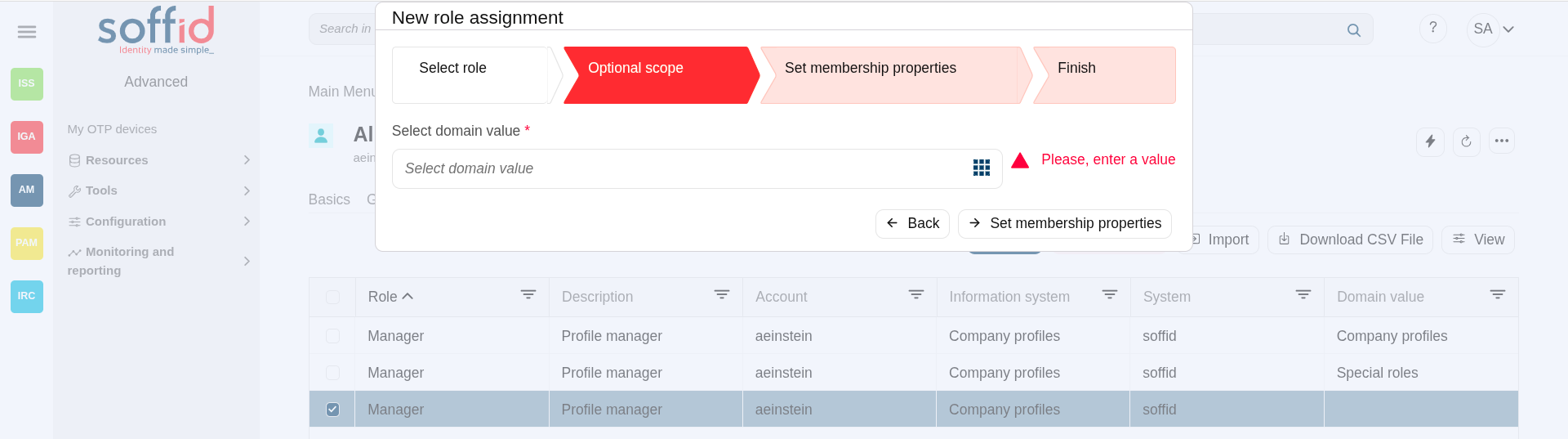
If you try to assign the role without domain, this error will be displayed:
Domain example (*2)
You can define the scope for one specific Role, for instance, you define role manager in Soffid System, with the scope Information Systems:
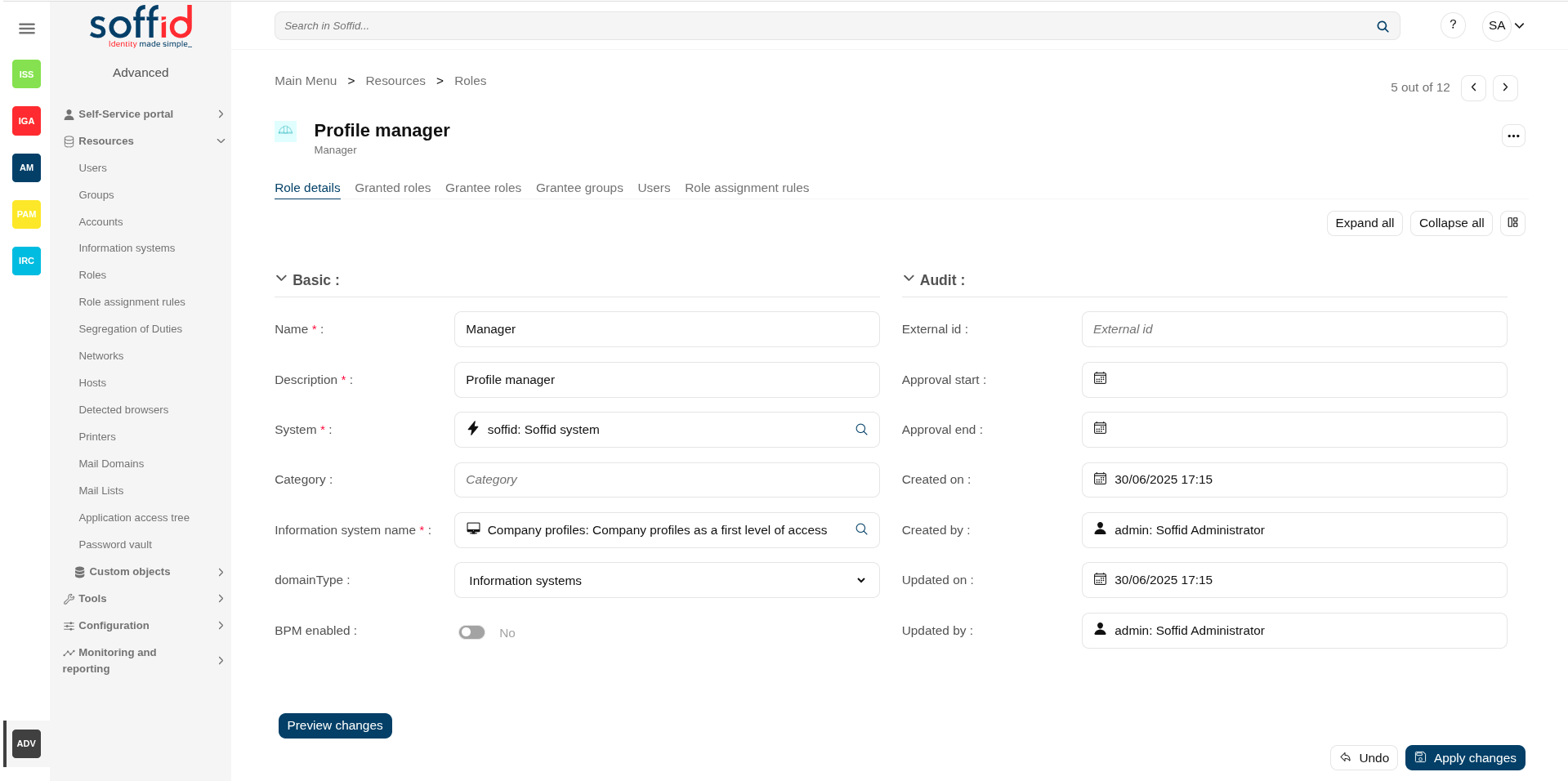
Then, you can assign this role to one or more users.
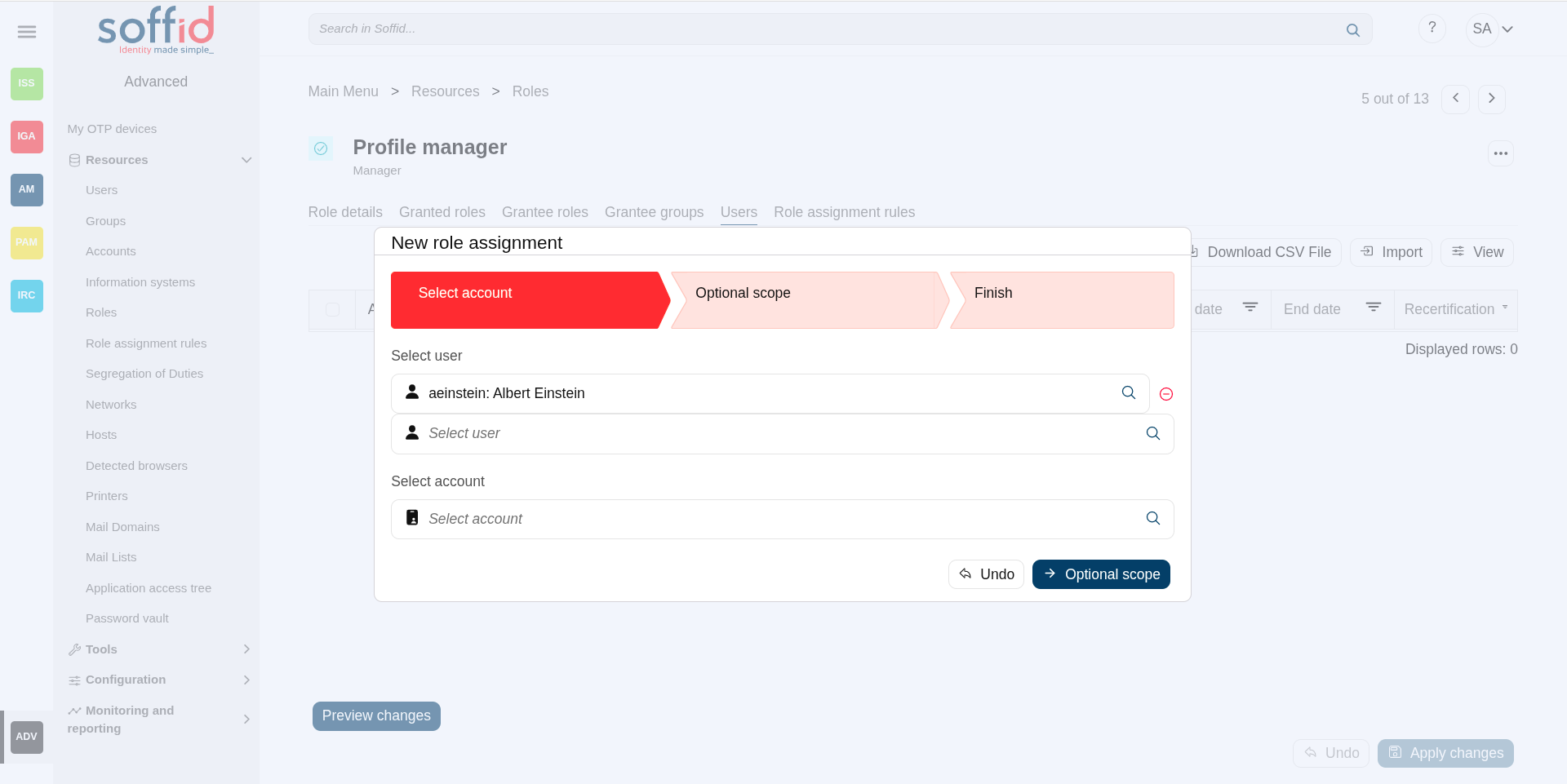
To do this you must indicate the scope (can be one or more scoped):
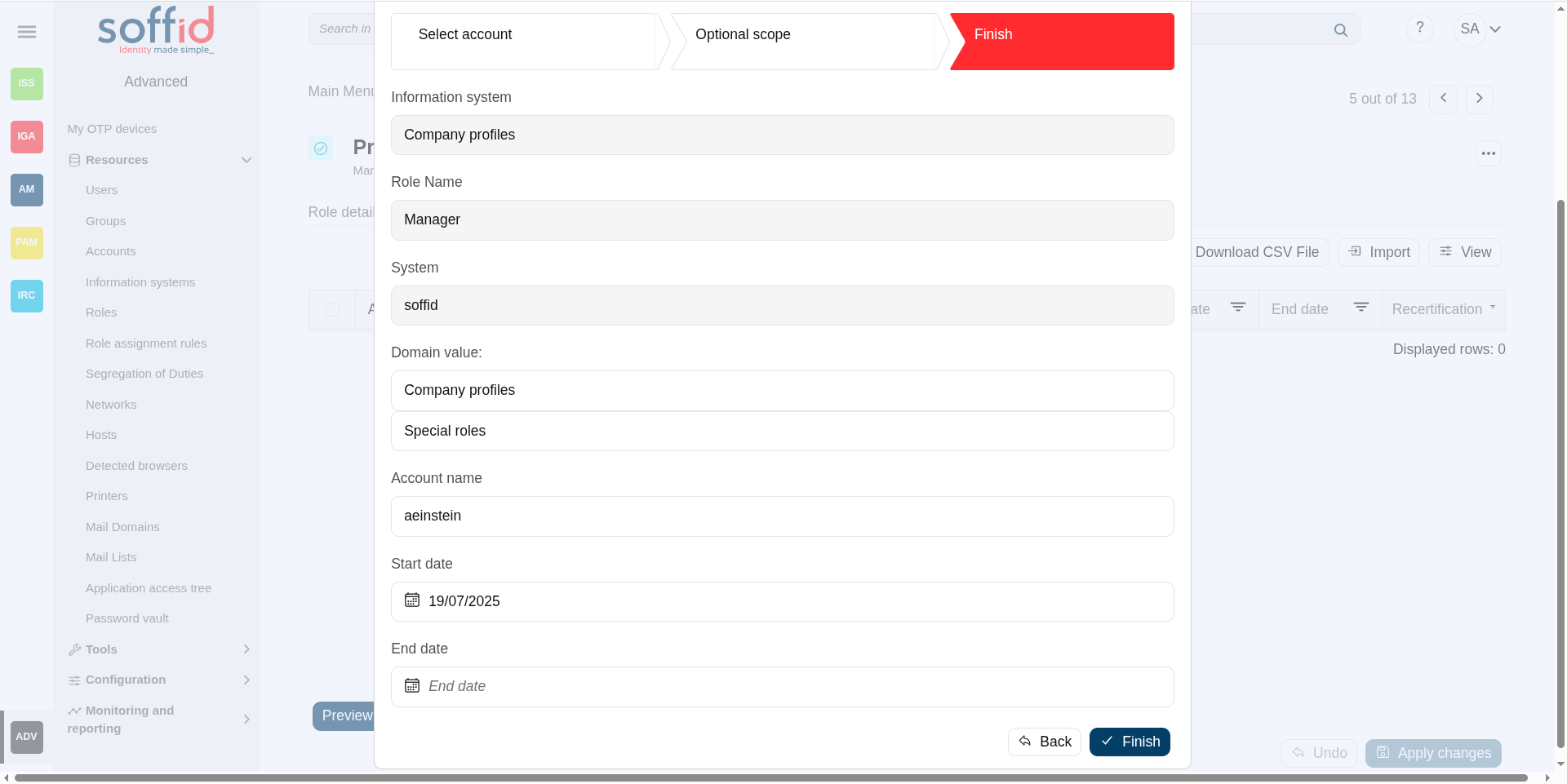
So the user will have the role in the scopes indicated:
If you try to assign the role without domain, this error will be displayed:
Granted roles
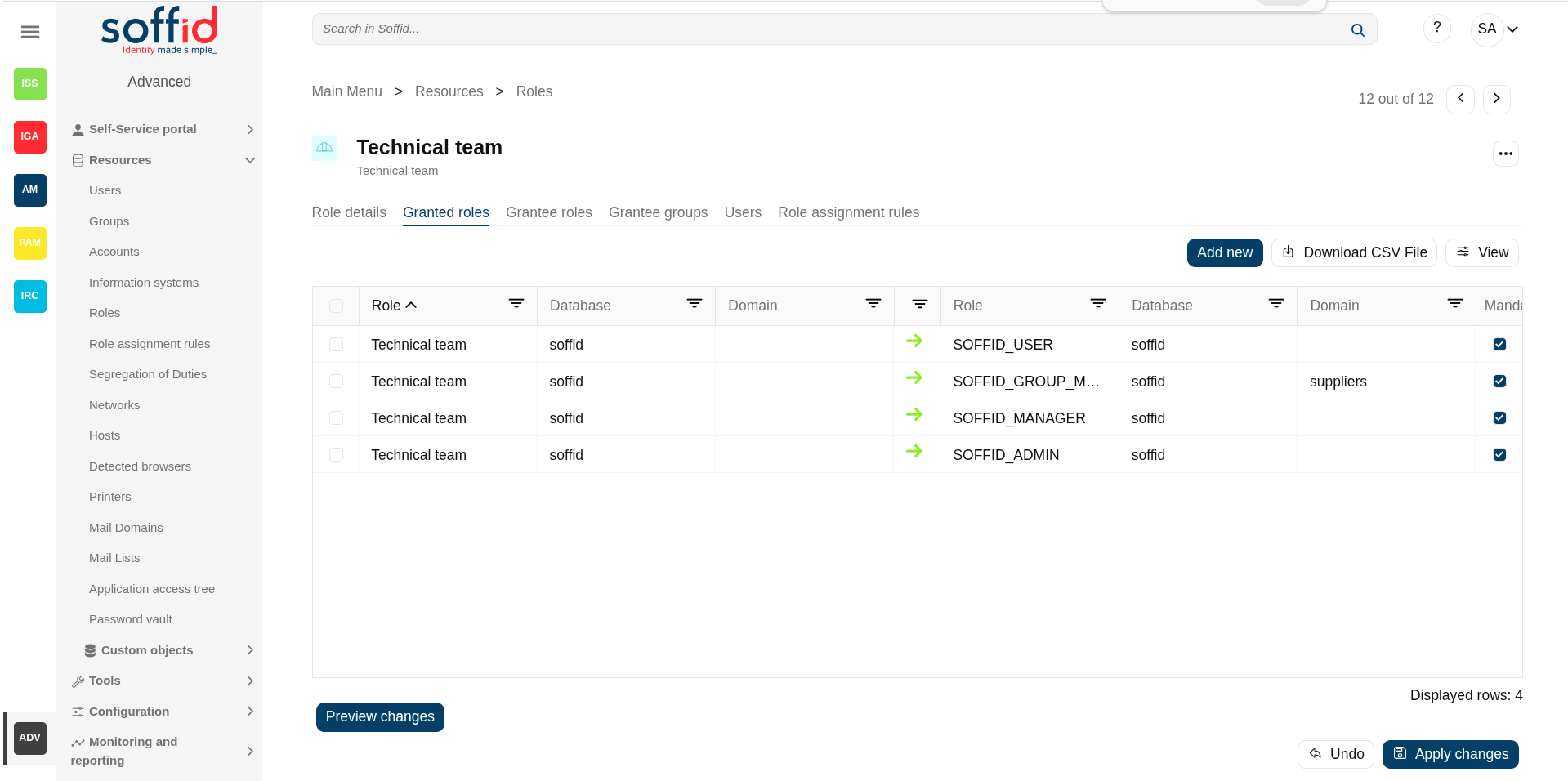
On the granted roles tab, you can assign the privileges of this role to another role in another system.
- Role: (parent) name used to identify the role.
- Database: (parent) agent of the target system owner of the role
- Domain: (parent) domian type of the role
- Role: (child) name used to identify the role.
- Database:(child) agent of the target system owner of the role
- Domain:(child) domian type of the role
- Mandatory: the roles with this flag checked will be displayed in the user's effective roles tab
Assign privileges
To assign privileges you should click the button with the "Add new" button, then select the target role, the domain values when necessary, and click the finish button. At this point the record will be added to the list.
Now you can check or uncheck the mandatory field.
- Mandatory: the roles with this flag checked will be displayed in the user's effective roles tab.
- No Mandatory: roles with this flag unchecked will be displayed in the user's roles tab and can be managed. It is not automatically assigned to users who already had the parent role.
And finally, you should click the Apply changes button to save the changes. With this operation, all the permissions of this will be assigned to the target role.
💻 Image
💻 Image
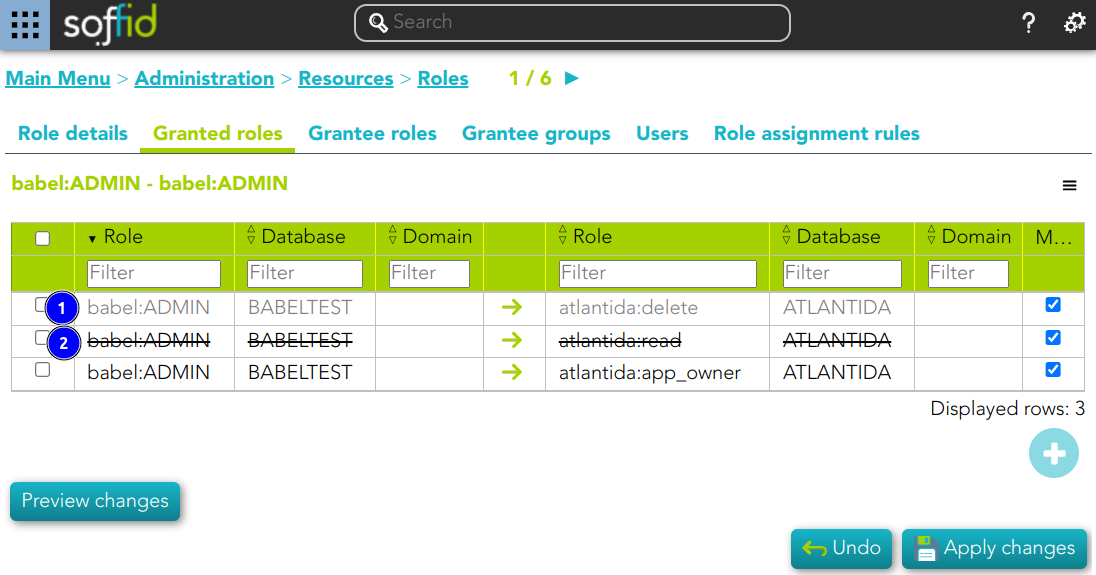
This role belong to an Information System with a defined Role definition process.
- This assignation is pending to approve
- This deletion is pending to approve
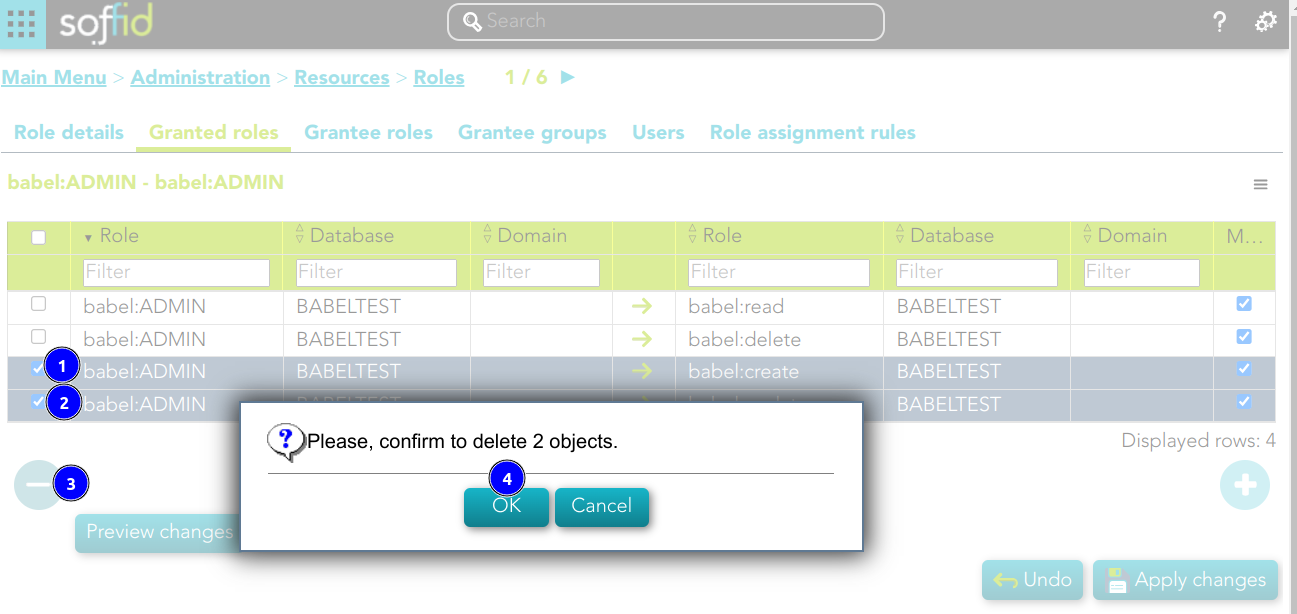
Revoke permissions
If you want to revoke permissions, you must select one or more records from the list and click the "Delete granted role" button and then click the "Apply changes" button to save the changes.
💻 Image
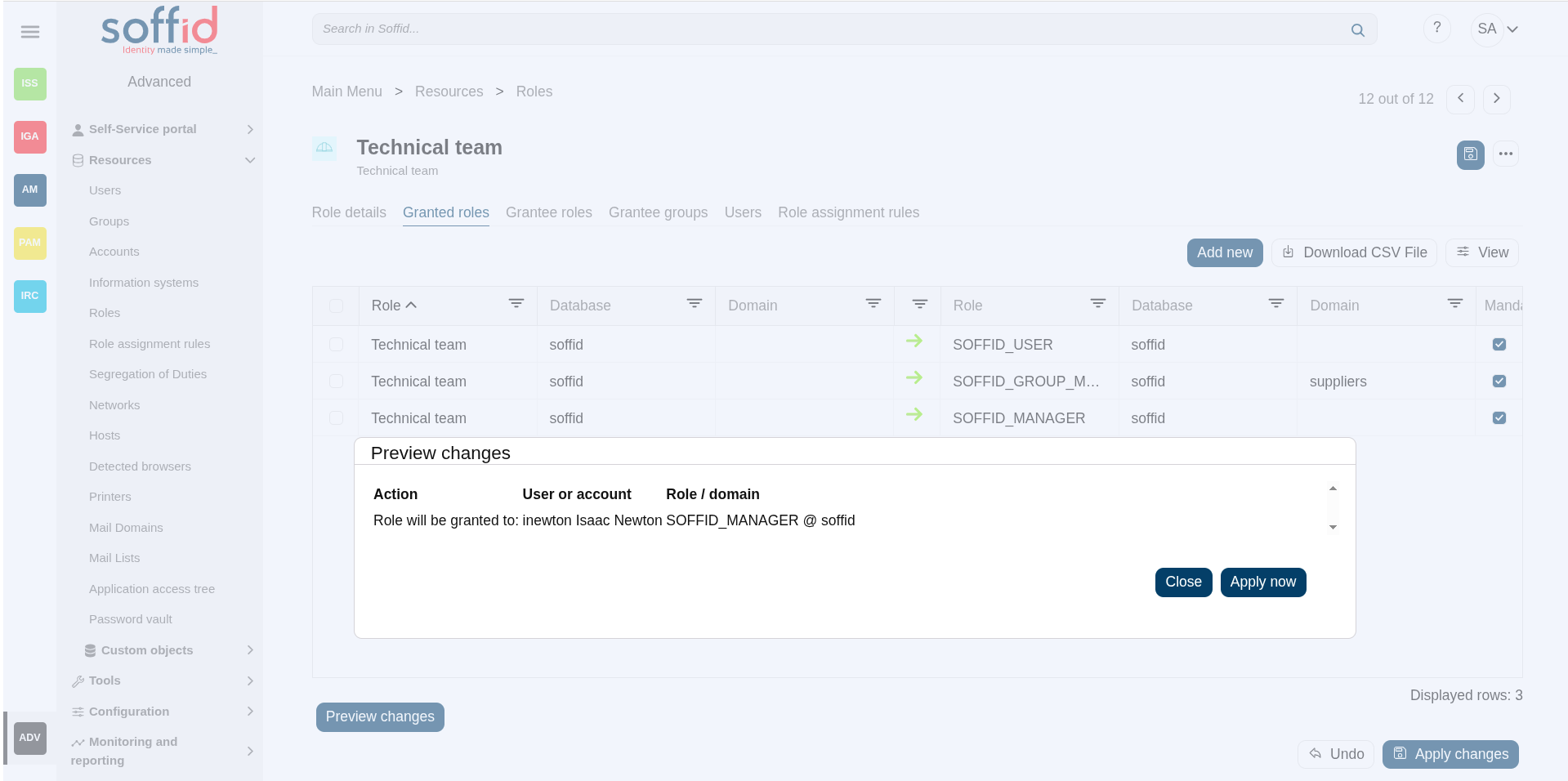
Preview changes
In addition, you can check the preview changes, it display information about the action, the user or account, and the role or domain, and you can apply them.
💻 Image
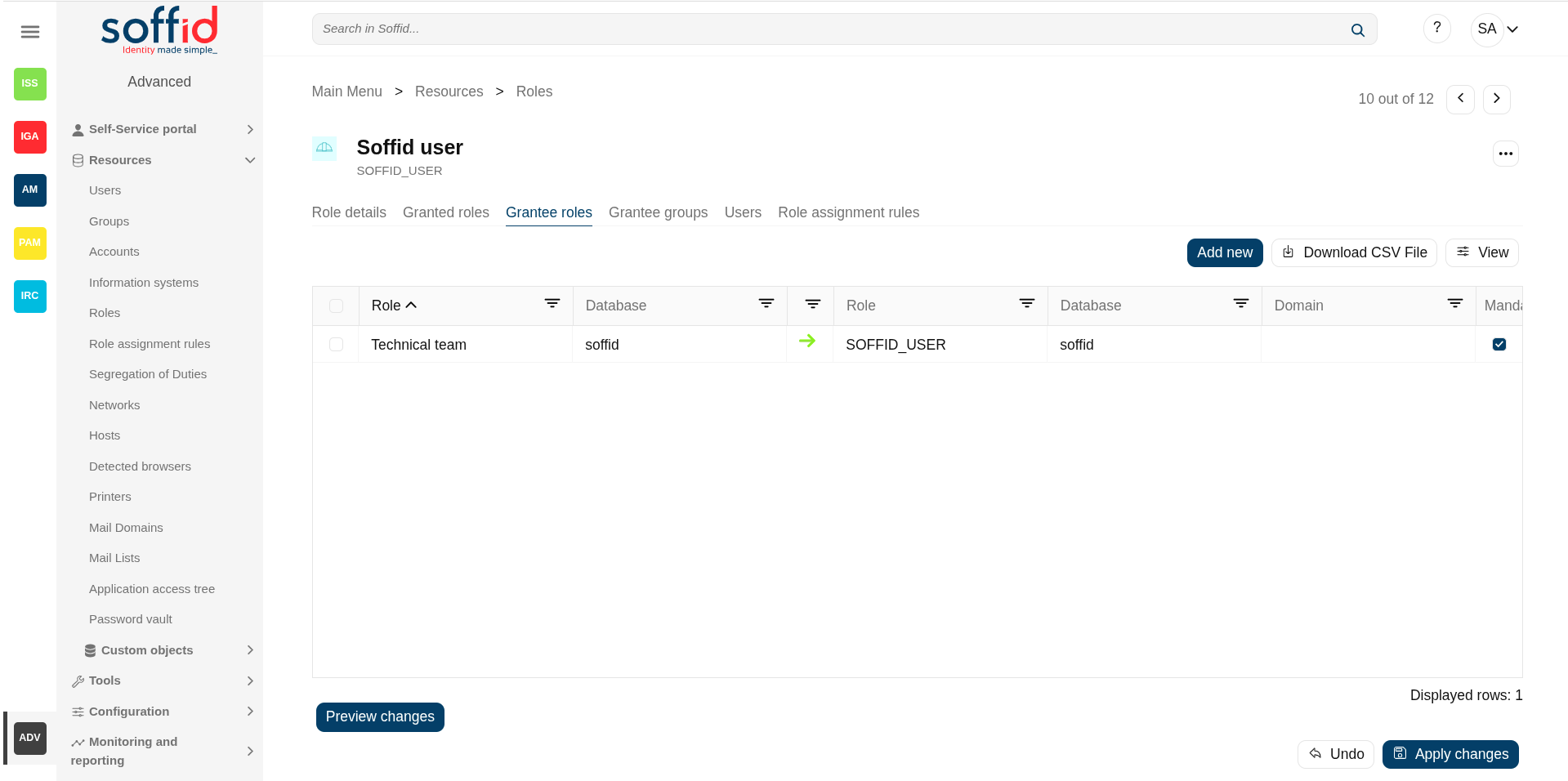
Grantee roles
On the grantee roles tab, you can assign the privileges of a role of any other system to this role.
- Role: (parent) name used to identify the role.
- Database: (parent) agent of the target system owner of the role
- Domain: (parent) domian type of the role
- Role: (child) name used to identify the role.
- Database:(child) agent of the target system owner of the role
- Domain:(child) domian type of the role
- Mandatory: the roles with this flag checked will be displayed in the user's effective roles tab
Assign privileges
To assign privileges you should click the button with the add (+) symbol, then select the source role, the domain values when necessary, and click the finish button. At this point the record will be added to the list.
Now you can check or uncheck the mandatory field.
- Mandatory: the roles with this flag checked will be displayed in the user's effective roles tab.
- No Mandatory: roles with this flag unchecked will be displayed in the user's roles tab and can be managed. It is not automatically assigned to users who already had the parent role.
And finally, you should click the Apply changes button to save the changes. With this operation, all the permissions of this will be assigned to the target role.
Image
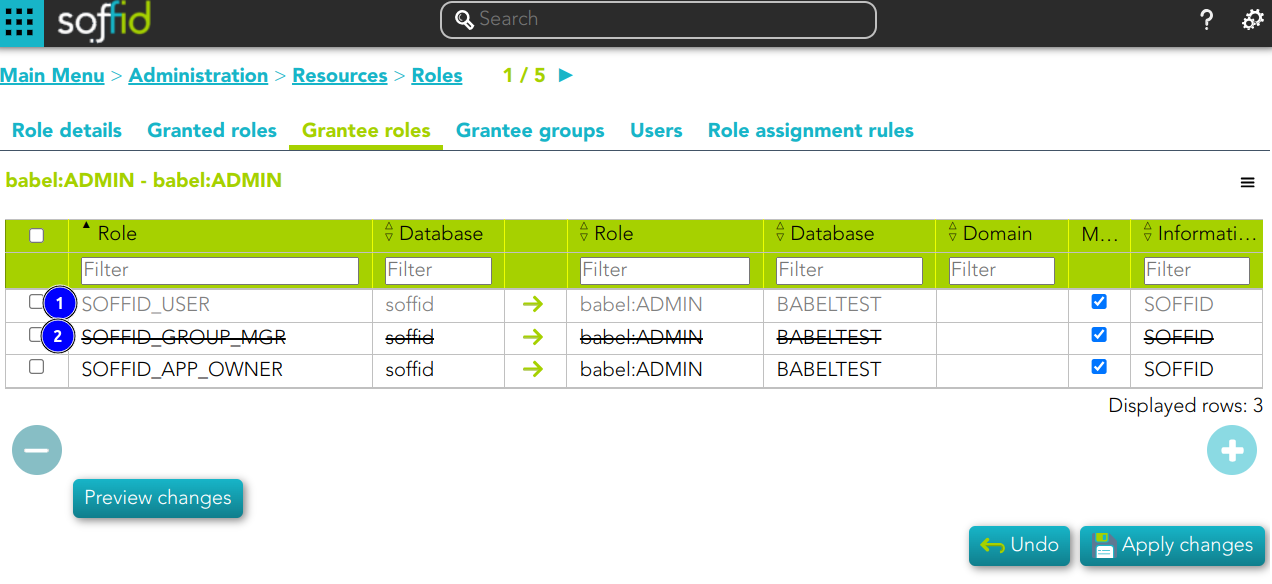
💻 Image
This role belong to an Information System with a defined Role definition process.
- This assignation is pending to approve
- This deletion is pending to approve
Revoke permissions
If you want to revoke permissions, you must select one or more records from the list and click the button with the subtraction symbol (-) click the Apply changes button to save the changes.
Preview changes
In addition, you can check the preview changes, it display information about the action, the user or account, and the role or domain, and you can apply them.
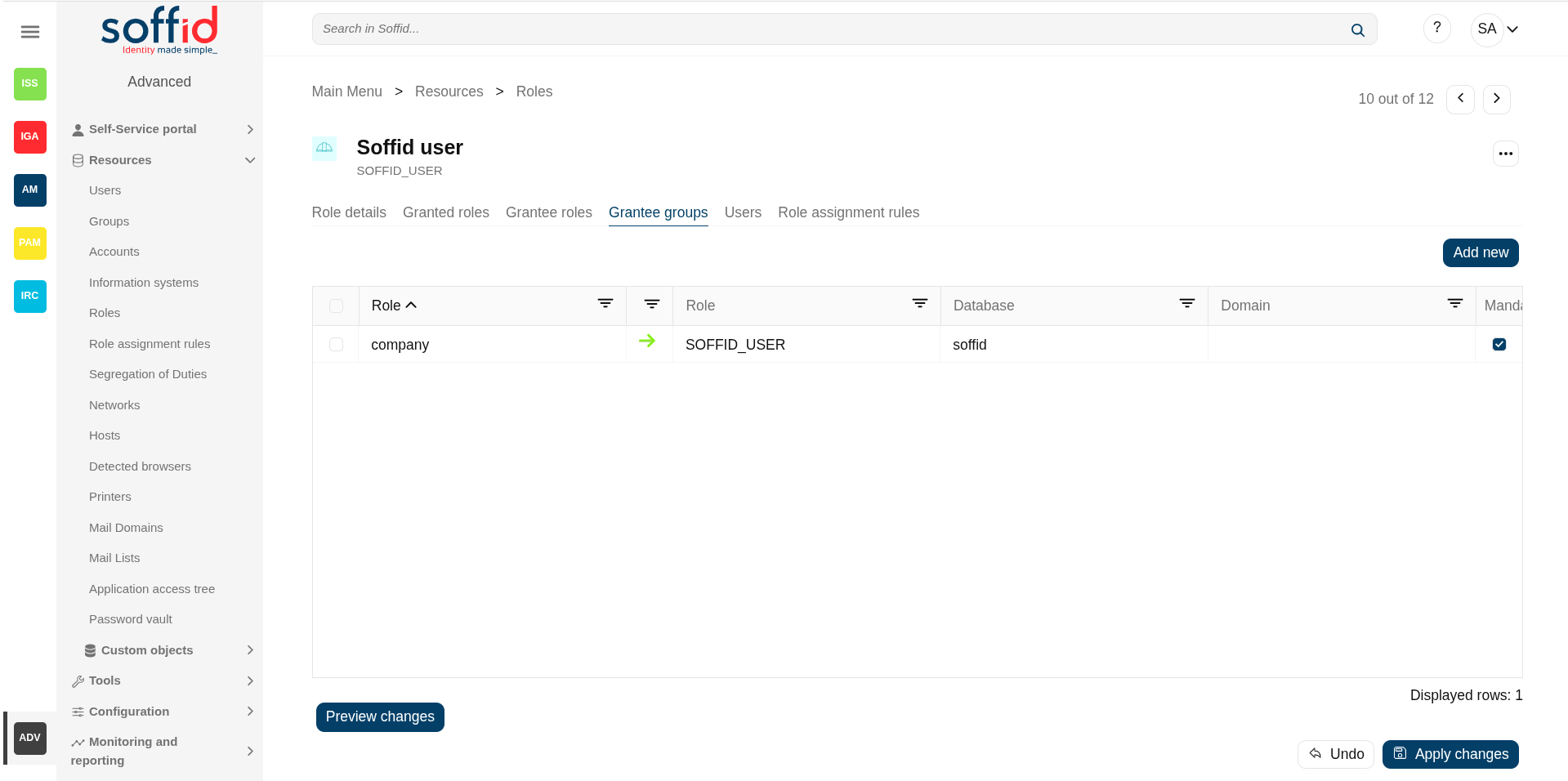
Grantee groups
On the grantee groups tab, you can assign the privileges from a specific group to this role, or revoke the privileges.
- Group: (parent) name of the group.
- Role: (child) name used to identify the role.
- Database:(child) agent of the target system owner of the role
- Domain:(child) domian type of the role
- Mandatory: the roles with this flag checked will be displayed in the user's effective roles tab
Assign privileges
To assign privileges you must click the button with the "Add new" button, then select the group, finish, and apply changes. Thus, the roles indicated, in the corresponding system, will be assigned to all users belonging to this group.
Now you can check or uncheck the mandatory field.
- Mandatory: the roles with this flag checked will be displayed in the user's effective roles tab.
- No Mandatory: roles with this flag unchecked will be displayed in the user's roles tab and can be managed. It is not automatically assigned to users who already had the parent role.
And finally, you should click the "Apply changes" button to save the changes. With this operation, all the permissions of this will be assigned to the target role.
💻 Image
Revoke permissions
If you want to revoke permissions, you must select one or more records from the list and click the "Delete granted role" button and click the "Apply changes" button to save the changes.
Preview changes
In addition, you can check the preview changes, it display information about the action, the user or account, and the role or domain, and you can apply them.
Users
On the users tab, you can assign or revoke roles. To assign a role you must click the button with the "Add new" and choose one or more users, fill the scope when it is mandatory, and set membership properties. Each role needs an account to be applied to, so, if a user has no account on a system and a role on that system is granted, a new account will be created on this system. In case a user has more than one account on a system, you should indicate which of the suitable accounts will be granted the role.
It is also possible to revoke roles to the user from the entitlement details or by selecting one or more records from the list and clicking the "Delete user" button.
The users with the role assigned by rules will be displayed with different colors. Soffid does not allow to revoke roles, on that page, that were assigned by rules.
Additionally, you can download a CSV file with the basic users data.
Attributes:
- Account: account owner of the role
- Description: description of the account (usually the user full name).
- Start date: at this date, Soffid will connect to the system and will assign the role. If there is no approval start, it will be assigned at the moment.
- End date: at this date, Soffid will connect to the system and will revoke the role.
- Domain value: domain value of the granted role
- Domain description: domain type of the granted role
- Risk: risk related with SoD rules
- Category: this attribute can be used as a label to define the type of group, its use, or any other distinction you consider useful.
- Recertification: date of the last recertification
- Holder group: holder group of the granted role
💻 Image
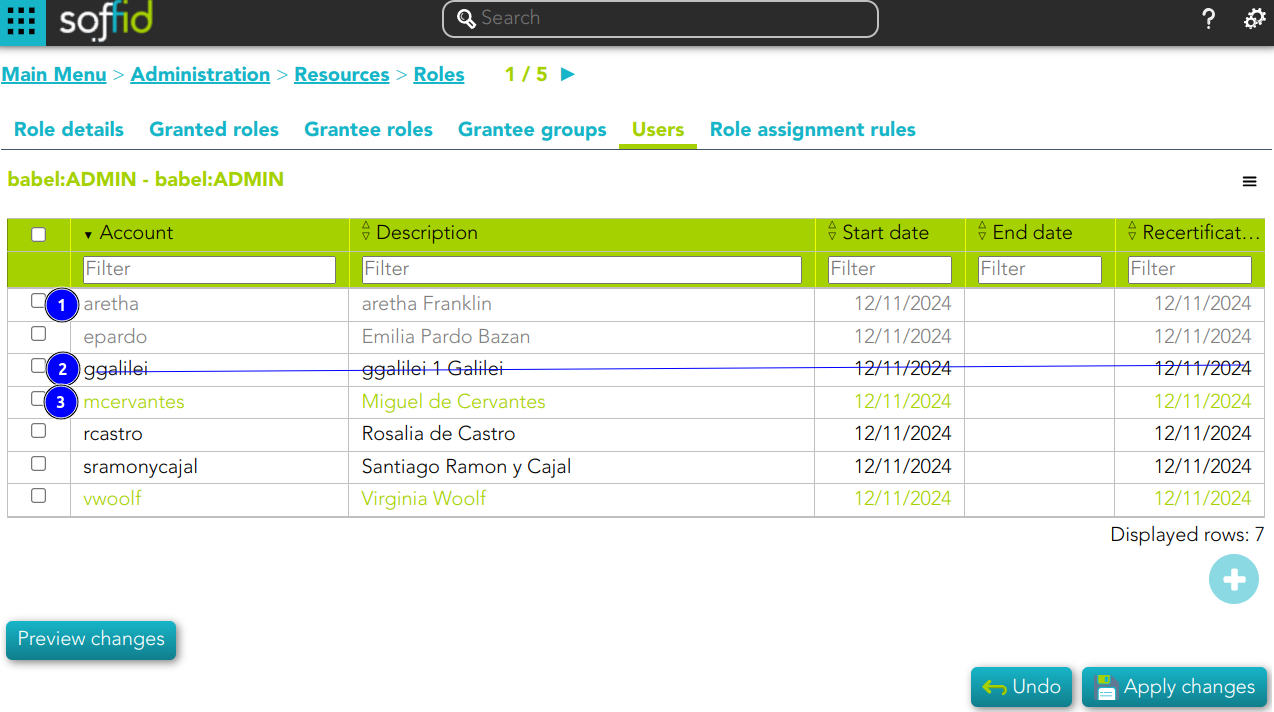
1) This assignation is pending to approve
2) This deletion is pending to approve
3) This assignation is by an assignment rule
Role assignment rules
You can consult the Role assignment rules related to this role.
- Name: name of the role assignment rule
- Description: decription of the role assignment rule
💻 Image
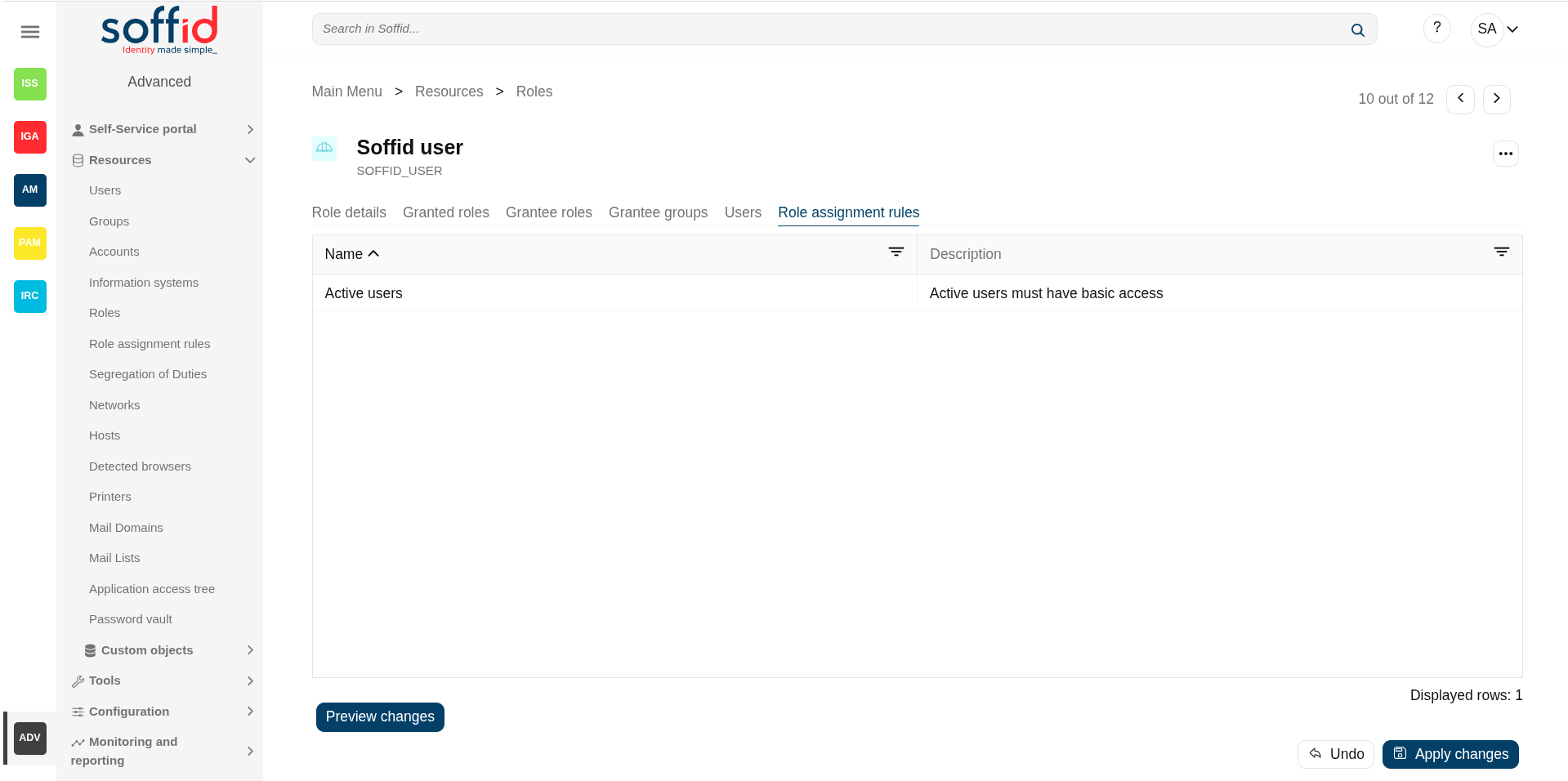
For more information, you can visit the Role assignment rules page.
Actions
Roles table
|
"Query buttons" |
Allows you to query roles through different search systems, Quick, Basic and Advanced. |
|
"Table filter" |
It allows you to filter a column in the table based on the results loaded in it. |
|
Add new |
Allows you to add a new role in the system. To add a new role it will be mandatory to fill in the required fields |
|
Delete role |
Allows you to remove one or more roles by selecting one or more records and next clicking this button. To perform that action, Soffid will ask you for confirmation, you could confirm or cancel the operation. |
|
Download CSV file |
Allows you to download a csv file with the basic roles data. |
|
Import |
Allows you to upload a CSV file with the role list to add or update roles to Soffid. First, you need to pick up a CSV file, that CSV has to contain a specific configuration. Then you need to check the content to be loaded, it is allowed to choose if you want or not to load a specific attribute. And finally, you need to select the mappings for each column of the CSV file to import the data correctly and to click the Import button. |
|
Bulk actions |
Allows massive operations to be performed on all system roles. With that operation, updates can be made to any of the role's parameters. First of all, you must select the records that you want to update, once you have selected them, you must choose the bulk action on the hamburger icon. For more information visit the Bulk action page. |
Role details
|
Apply changes (disk button) |
Allows you to apply the pending changes. |
|
Delete role |
Allows you to delete a role. You can choose that option on the hamburger icon. To perform that action, Soffid will ask you for confirmation, you could confirm or cancel the operation. |
| Expand all | Displays all the attributes of the different blocks. |
| Collapse all | Hide all attributes of the different blocks. |
| "Types of views" | Change the view type: Classic view, Modern view, Compact design. |
|
Preview changes |
Shows the pending changes on users or accounts. Soffid displays the information about the user or accounts, the action and de Role. You can choose if you want to apply the changes, or close the previer changes window. |
|
Undo |
Allows you to quit without applying any changes. |
|
Apply changes |
Allows you to apply the pending changes. |
Granted roles
|
Add new |
Allows you to add a new granted role. To add a granted role, first you need to click the "Add new" button. Second, you need to write or search for a role. Once you have selected the role, if it is necessary, the next step will be to set the scope. Then, you need to finish the process. And finally, you need to apply changes. |
|
Delete granted role |
Allows you to delete one or more granted roles. To delete you need to select the records and then click this button. To perform that action, Soffid will ask you for confirmation, you could confirm or cancel the operation. And finally, you need to apply changes. |
|
Download CSV file |
Allows you to download a CSV file with the granted roles. |
| View |
Allows you to add or remove columns to the table. It is also possible to change the order of the columns. |
|
Preview changes |
Shows the pending changes on users or accounts. Soffid displays the information about the user or accounts, the action and de Role. You can choose if you want to apply the changes, or close the previer changes window. |
|
Undo |
Allows you to quit without applying any changes. |
|
Apply changes |
Allows you to apply the pending changes. |
Grantee roles
|
Add new |
Allows you to add a new grantee role. To add a grantee role, first you need to click the "Add new" button. Second, you need to write or search for a role. Once you have selected the role, if it is necessary, the next step will be to set the source scope and the scope. Then, you need to finish the process. And finally, you need to apply changes. |
|
Delete granted role |
Allows you to delete one or more grantee roles. To delete you need to select the records and then click this button. To perform that action, Soffid will ask you for confirmation, you could confirm or cancel the operation. And finally, you need to apply changes. |
|
Download CSV file |
Allows you to download a CSV file with the grantee roles. |
| View |
Allows you to add or remove columns to the table. It is also possible to change the order of the columns. |
|
Preview changes |
Shows the pending changes on users or accounts. Soffid displays the information about the user or accounts, the action and de Role. You can choose if you want to apply the changes, or close the previer changes window. |
|
Undo |
Allows you to quit without applying any changes. |
|
Apply changes |
Allows you to apply the pending changes. |
Grantee groups
|
Add new |
Allows you to add a new grantee group. To add a grantee group, first you need to click the "Add new" button. Second, you need to write or search for a group. Once you have selected the group, if it is necessary, the next step will be to set the scope. Then, you need to finish the process. And finally, you need to apply changes. |
|
Delete grantee group |
Allows you to delete one or more grantee groups. To delete you need to select the records and then click this button. To perform that action, Soffid will ask you for confirmation, you could confirm or cancel the operation. And finally, you need to apply changes. |
|
Preview changes |
Shows the pending changes on users or accounts. Soffid displays the information about the user or accounts, the action and de Role. You can choose if you want to apply the changes, or close the previer changes window. |
|
Undo |
Allows you to quit without applying any changes. |
|
Apply changes |
Allows you to apply the pending changes. |
Users
|
Add new |
Allows you to add users or accounts to assign the role. To add users or accounts, fist of all, you need to click the "Add new" button. Second, you need to search the users and/or accounts and select the users and/or accounts you want to add. Once you have selected the users and/or accounts, if it is necessary, the next step will be to set the scope. Then you need to fill in the membership properties and finish the process. Finally, you need to apply changes. |
|
Delete user |
Allows you to delete one or more users and/or accounts, that is, Soffid will revoke the role. To delete one, you can select the record and click this button. To delete more at the same time, you need to select the records and then click this button. To perform that action, Soffid will ask you for confirmation, you could confirm or cancel the operation. And finally, you need to apply changes. |
|
Download CSV file |
Allows you to download a CSV file with all the information about users. |
|
Import |
Allows you to upload a CSV file with the user list to assign permission. First, you need to pick up a CSV file, that CSV has to contain a specific configuration. Then you need to check the content to be loaded, it is allowed to choose if you want or not load a specific attribute. And finally, you need to select the mappings for each column of the CSV file to import the data correctly and to click the Import button. |
| View |
Allows you to add or remove columns to the table. It is also possible to change the order of the columns. |
|
Preview changes |
Shows the pending changes on users or accounts. Soffid displays the information about the user or accounts, the action and de Role. You can choose if you want to apply the changes, or close the previer changes window. |
|
Undo |
Allows you to quit without applying any changes. |
|
Apply changes |
Allows you to apply the pending changes. |
Role assignment rules
Description
Soffid console provides an option that allows you to customize policies to assign or revoke roles automatically to specific users. To assign or revoke roles, the users must comply with the defined requirements.
This option allows you to Preview changes before to Apply new the changes, to verify that the actions to be performed are the correct ones.
To Apply now the role assignment rule, it is mandatory to have previously saved any changes made in the customization of the role assignment rule using the Apply changes button.
The rule evaluation is performed asynchronously.
When a user is updated, no matter from where, Soffid will launch the role assignment rules defined. If the rule is correct, the roles will be assigned; otherwise, they will be revoked.
Screen overview
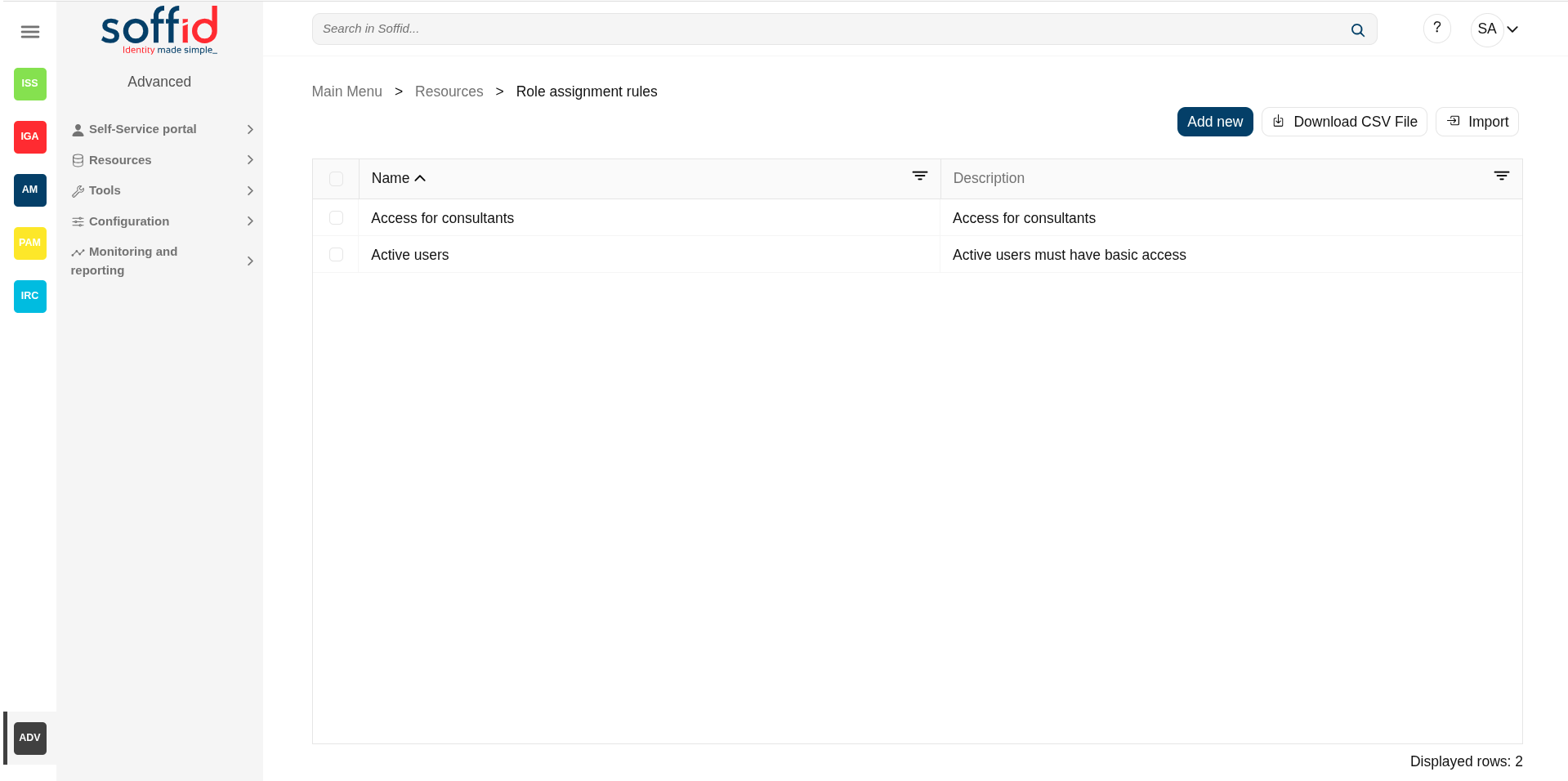
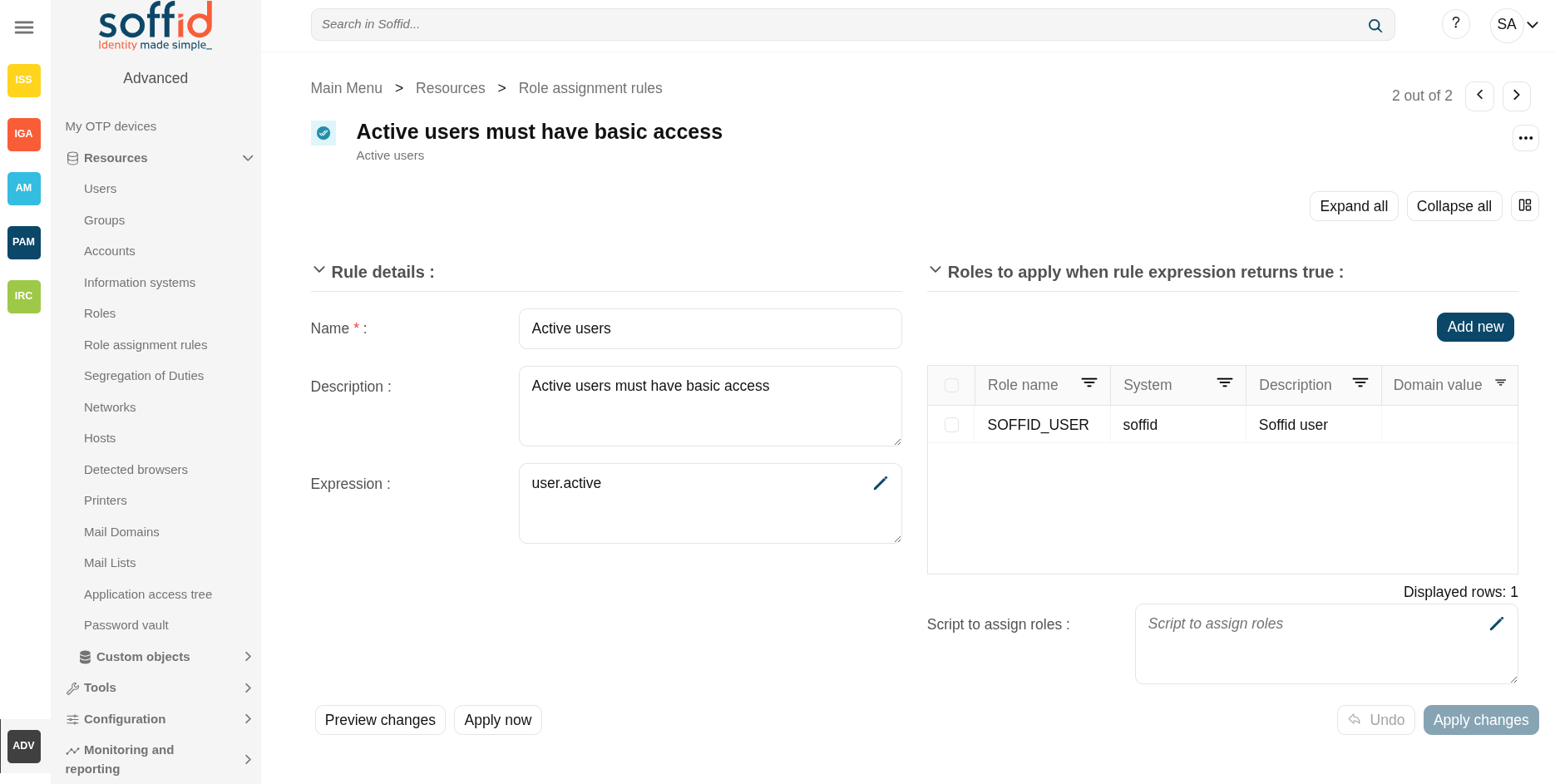
Related objects
Standard attributes
Rules table
- Name: name of the rule.
- Description: brief description of the rule.
Rule details
- Rule details
- Name: name of the rule.
- Description: brief description of the rule.
- Expression: the script of the rule. When returns true, the roles will be granted, when returns false the roles are revoked.
Image
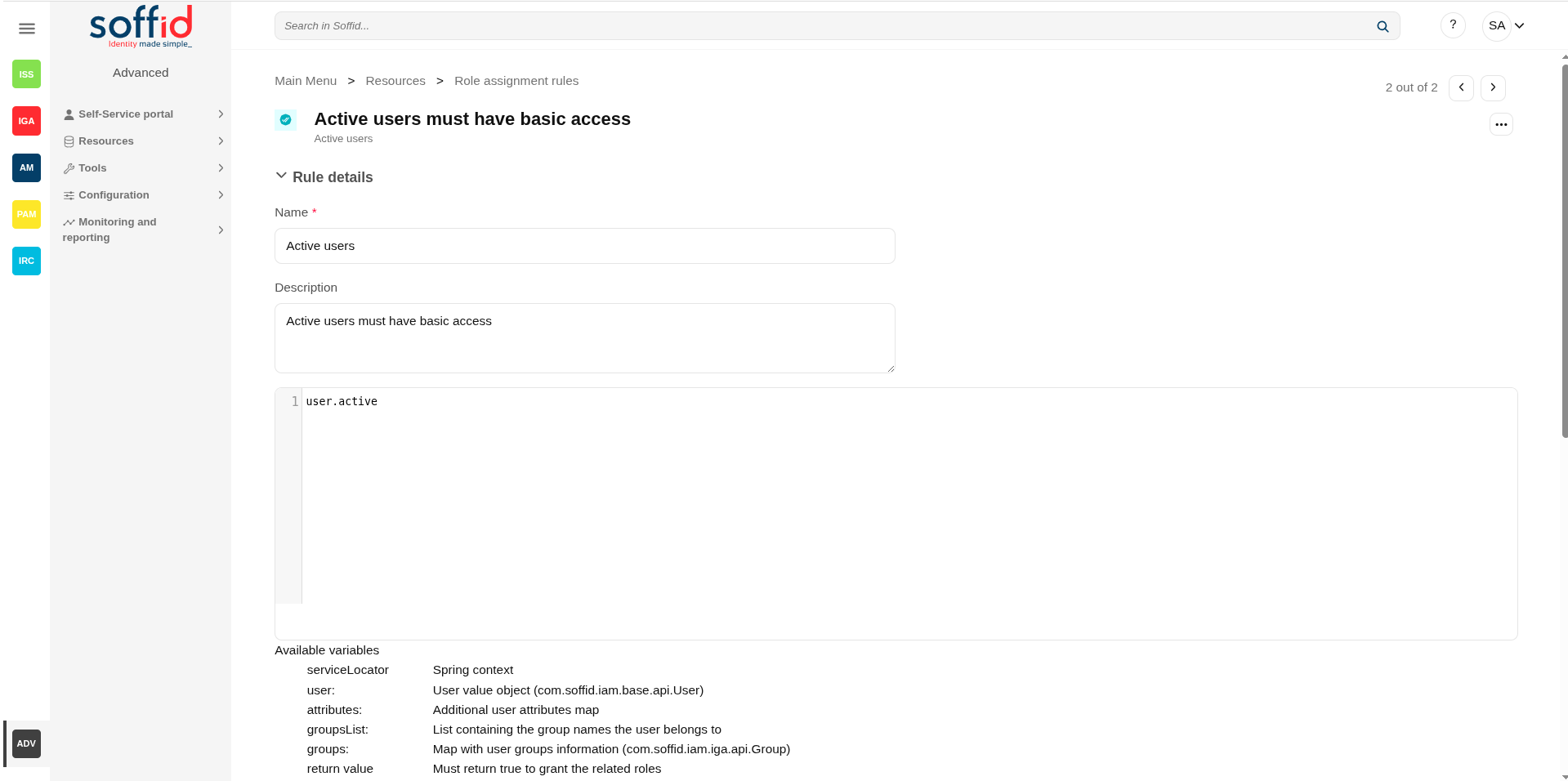
- Roles to apply when rule expression returns true
- "Roles list": roles to apply when rule expression returns true.
- Script to assign roles: allows you to customize the rules to apply roles. That roles will be added to the role list. The roles result will be a Role list, or RoleAccount list, or String list.
Image
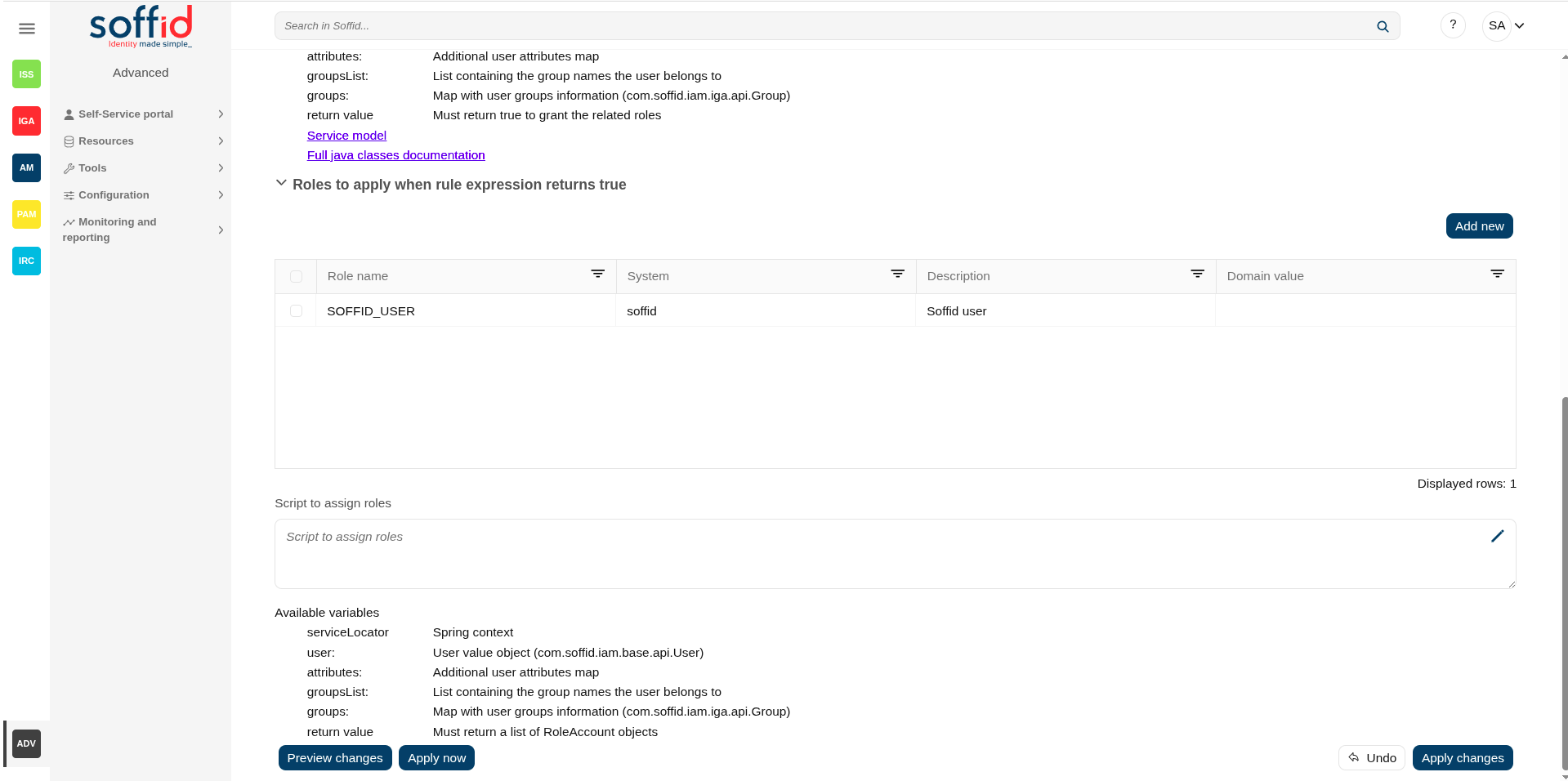
- Others
- Rule progress: displays the time remaining to finish applying the rule. Only display while the changes are being applied.
Actions
Rules table
|
Add new |
Allows you to add a new role assignment rule in the system. To add a new role assignment rule it will be mandatory to fill in the required fields. |
|
Delete rule |
Allows you to remove one or more role assignment rule by selecting one or more records and next clicking this button. To perform this action, Soffid will ask you for confirmation, you could confirm or cancel the operation. |
|
Download CSV file |
Allows you to download a CSV file with the basic information of all role assignment rule. |
Rule details
|
Apply changes |
Allows you to save the changes made on the rule specification, or to save a new rule. |
|
Delete |
Allows you to remove the role assignment rule. To perform this action, Soffid will ask you for confirmation, you could confirm or cancel the operation. |
| Expand all | Displays all the attributes of the different blocks. |
| Collapse all | Hide all attributes of the different blocks. |
| "Types of views" | Change the view type: Classic view, Modern view, Compact design. |
|
Undo |
Allows you to undo any changes made on the rule, except the roles added or deleted to the role list. |
|
Add new (roles list) |
Allows you to add a role to be applied with the rule. |
|
Delete (roles list) |
Allows you to delete a role that will no longer be managed by the rule. |
|
Preview changes |
Displays a list with the changes that would be applied with that rule definition. |
|
Apply now |
Allows you to launch the role assignment rule process. When users comply with the rule specification, their roles will be updated. |
Examples
Scripts
The roles will only be applied to active users.
return user.active;The roles will only be applied to users who are assigned to the primary group ‘Writers’.
return "Writers".equals(user.getPrimaryGroup());The roles will only apply to users who have the ‘employee’ attribute with the values 1001, 1002, or 2001.
return "1001".equals(user.attributes.get("employee")) ||
"1002".equals(user.attributes.get("employee")) ||
"2001".equals(user.attributes.get("employee"));Segregation of Duties
Description
The segregation of duties (SoD) is a fundamental element of internal controls, defined to prevent error and fraud. Segregation of duties ensure that at least two individuals are responsible for the separate parts of any task.
For each user, the roles tab displays the list of roles assigned to the user and the possible risks. If you click on a role record, Soffid will show the entitlement details including the SoD rules with the detail of the risk.
Screen overview
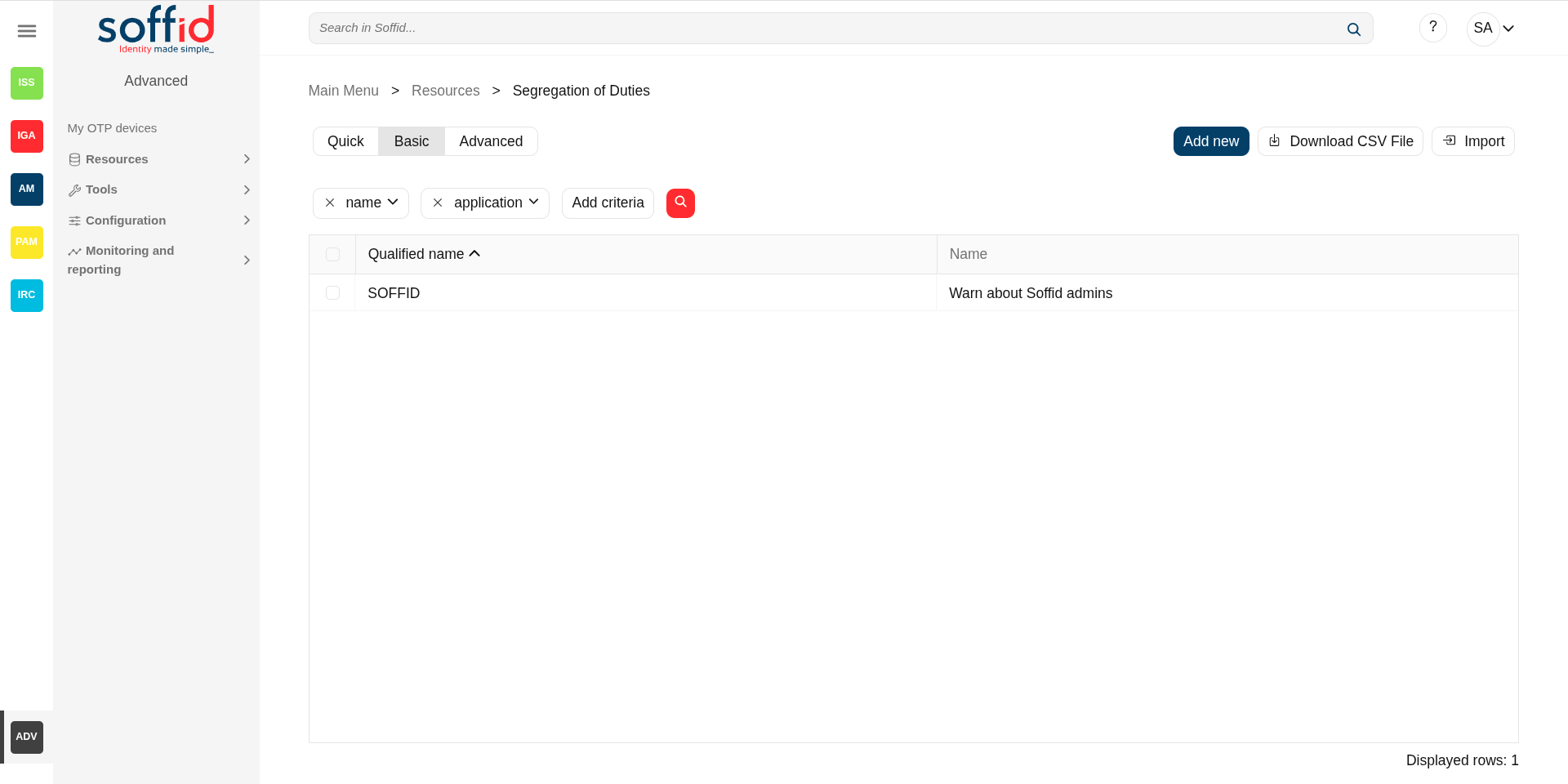
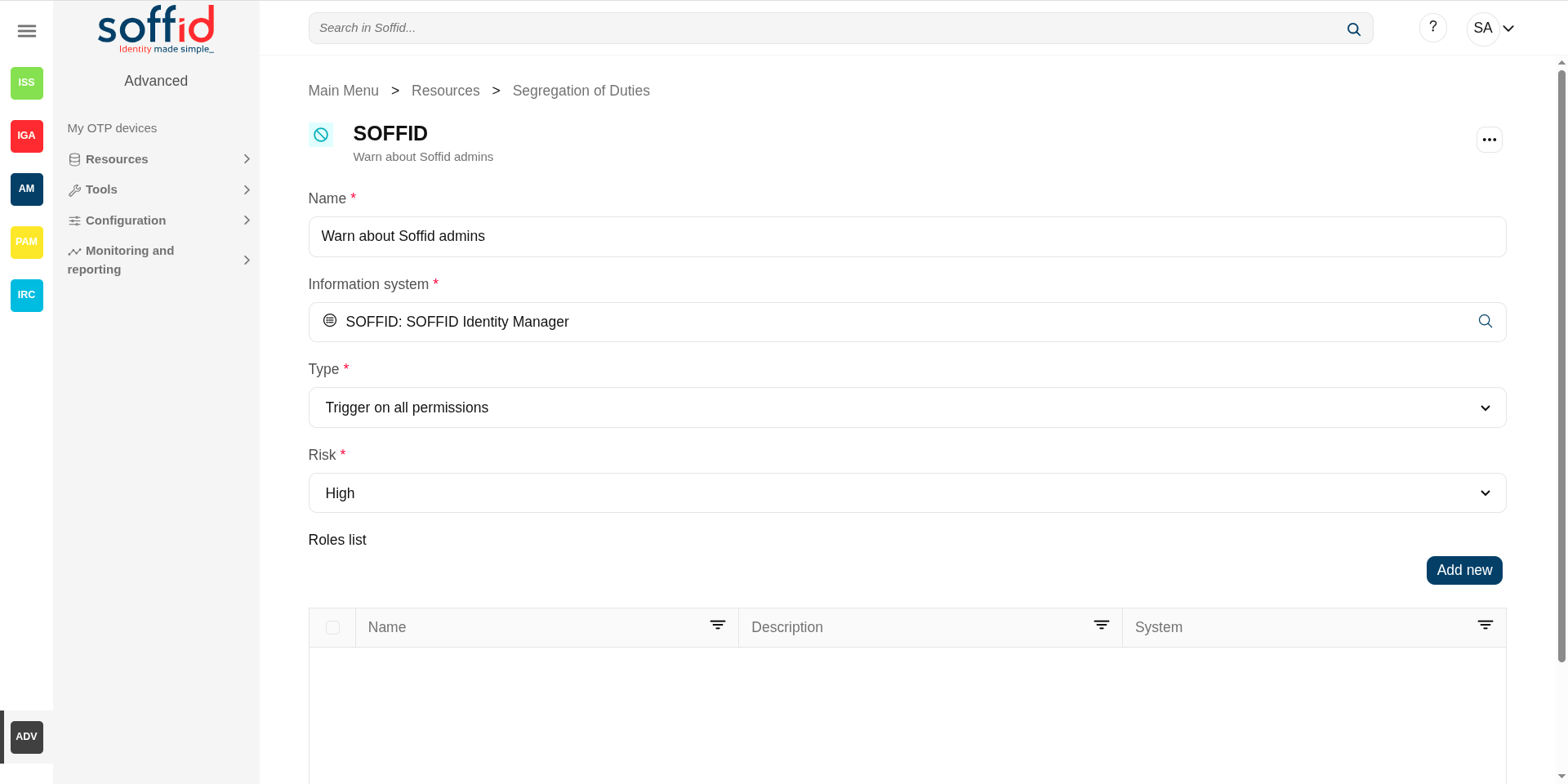
Related objects
- Information systems : information systems and roles where the SoD rule is applied
- Roles : roles granted to a user
- Users : where you can check if a granted role has a comment related to the SoD.
Standard attributes
SoD table
- Qualified name: asset or application, from a functional point of view, on which the permissions are granted or revoked.
- Name: name of the segregation of duties.
SoD detail
- Name: name of the segregation separation of duties.
- Information system: asset or application, from a functional point of view, on which the permissions are granted or revoked.
- Type: type of segregation.
- Trigger on all permissions: no user can be assigned the roles added to the role list.
- Trigger on some permissions: if you select that option, you have to fill in the number of roles that can not match. Soffid will not allow you to assign to a user more than the number indicated of the roles added to the role list.
- Query permissions matrix: Soffid displays a matrix that allows you to select the risk between pairs of roles, those roles are the roles added to the role list.
- Risk: level of risk:
- Low: allows the user to have all roles, but a small warning is displayed on the user screen when viewing the role details.
- High: allows the user to have all roles, but a big warning is displayed on the user screen when viewing the role details.
- Forbidden: it is not allowed that one user to have assigned the roles defined on the role list.
- None: there is no risk.
- Role List: list of roles to keep in mind on the segregation of duties.
- Name: name of the role
- Description: description of the role
- System: target system owner of the role
Actions
SoD table
|
"Query" |
Allows you to query Segregation of Duties through different search systems, Basic and Advanced. |
|
Add new |
Allows you to add a new segregation of duties in the system. To add a new segregation of duties it will be mandatory to fill in the required fields |
|
Delete segregation of duties |
Allows you to remove one or more segregation of duties by selecting one or more records and next clicking this button. To perform that action, Soffid will ask you for confirmation, you could confirm or cancel the operation. |
|
Download CSV file |
Allows you to download a CSV file with the basic segregation of duties data. |
|
Import |
Allows you to import a CSV file with the list of segrefation of duties to be created or updated. |
SoD detail
|
Apply changes |
Allows you to save the data of the segregation of duties. To save the data it will be mandatory to fill in the required fields |
|
Delete segregation of duties |
Allows you to delete the segregation of duties. Soffid will ask you for confirmation, you could confirm or cancel the operation. |
|
Undo |
Allows you to quit without applying any changes. |
| Add new (role list) | Allows you to add a new role to the role list. Soffid will show a form to search and select one or more roles. Finally, you need to click the apply changes button and the roles will be added to the role list. |
| Delete (role list) |
Allows you to delete one or more roles from the role list. You can select one or more roles and then click this button. The roles will be deleted from the role list without Soffid asking for confirmation. |
| Preview changes |
Allows you to quickly see which users are affected by this role segregation rule. |
Others
SoD granting a role
When a role that is included in a SoD rule is granted, it will be indicated in the SoD rules field.
Image

Networks
Description
Operators can define the subnets that compose the internal network, in order to manage the IP address space. The main goal is to manage a limited resource as the IP address is.
Soffid supports both static and dynamic IP assignments. Anyway, static IP management does not exclude the use of DHCP o BOOTP protocols in order to get them.
Screen overview
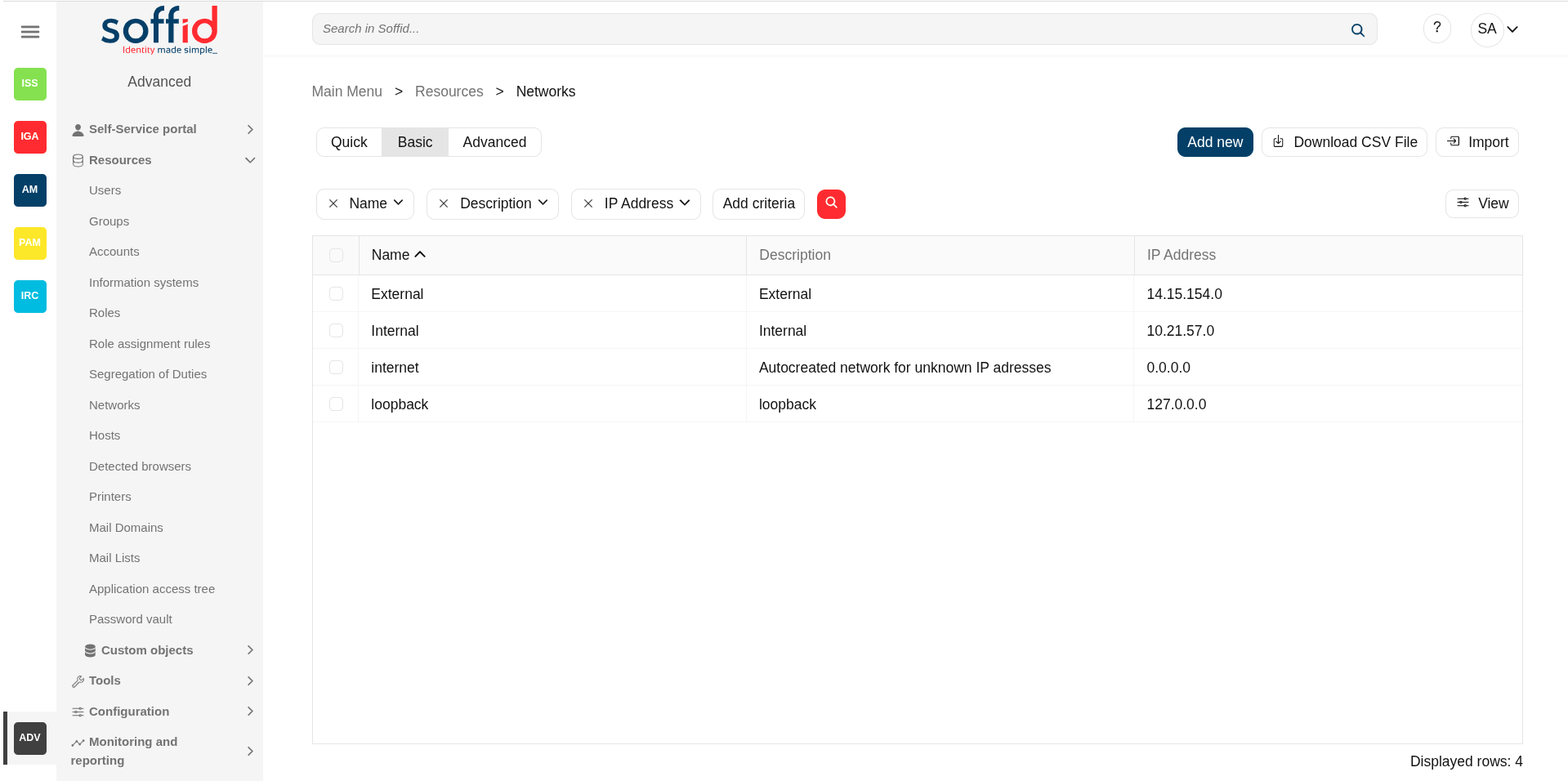
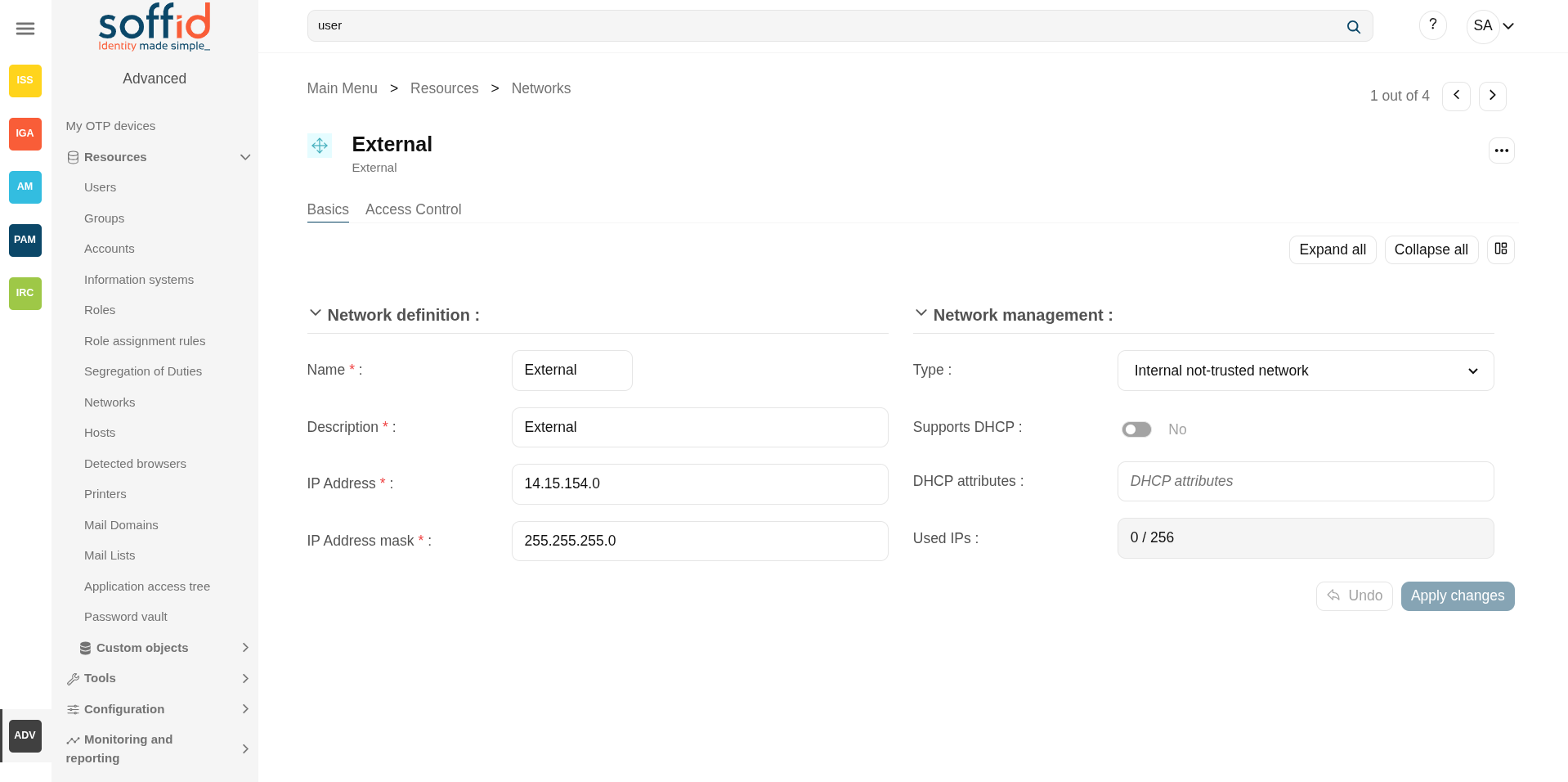
Related objects
- Hosts : host of the system each one in a network.
- Detected browsers : detected browners in a network.
- Printers : configured printers in a network.
- Soffid parameters : you can specify a parameter to be applied only in a network.
Standard attributes
Networks table
- Name: short name that identifies the network.
- Description: network description.
- IP Address: IP range of this network.
- IP Address mask: IP mask of this network.
- Internal network: activate this check box to indicate if this network is fully managed or not. What fully managed means changes in each organization. It used to mean corporate office versus branch office. It affects mainly to access the menu tree. Application entry points have different scripts or URLs for internal and external networks.
- Support DHCP: if enabled (selected value is Yes), hosts belonging to this network will be automatically registered.
- DHCP attributes: allows to enter additional parameters that the DHCP server will use to assemble DHCP response. Usually, it will have a gw=0.1.2.34 like parameter. It is only needed when a DCHP connector is configured.
Networks detail > basics tab
On the network group tab, you can view all the network attributes. It is allowed to add new networks, update or delete existing networks.
The attributes are the same than the networks table plus the next one.
- Used IPs: IP addresses used. This data is auto calculated
Image
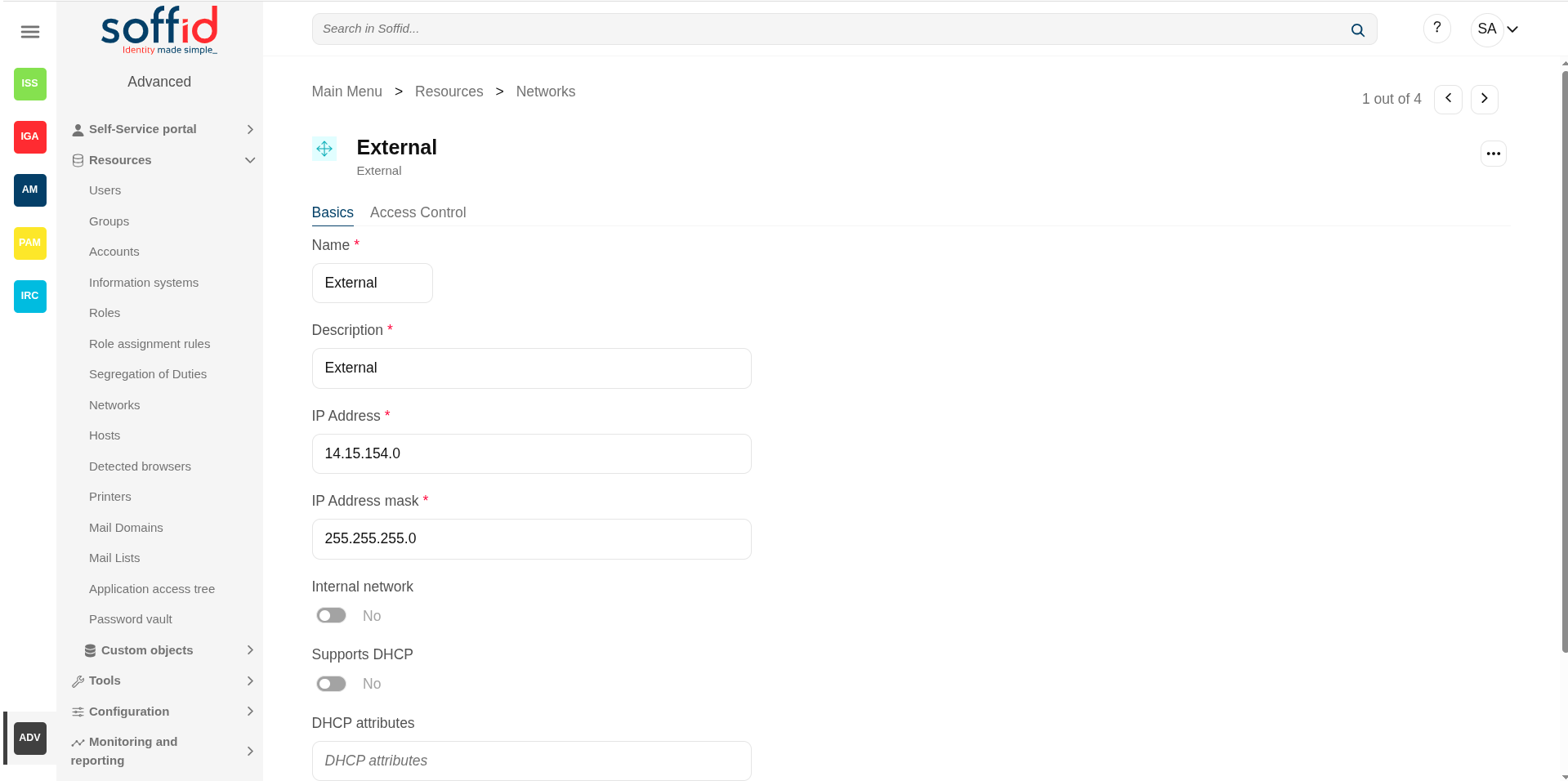
Network detail > access control tab
In order to delegate the management of IP addresses in this network range, the Access Control List allows to select which users, groups or roles will be allowed to manage it.
- Restrict ESSO login: allows to restrict the access to the workstations of this network, otherwise, any Soffid users can log in.
Each Access Control List Entry has the following attributes:
- Level: four levels are defined:
-
Without access: denies everything.
-
Query: allows to know about hosts on this network.
-
Support: allows to know about hosts on this network, and allows to manage the workstations on it. This option is fully tied to Single Sign On module.
-
Administration: allows to create, modify or remove hosts on this network.
- Login.
-
- Mask: specifies a pattern that will be check against the host name in order to apply this authorization level.
-
Identity: specifies a user, group or role name.
- Description.
To add a new access control you can click the Add new button, you have to select the grantee type (user, group or role), then you have to choose an user, group or role depending on the grantee selected, and finally set the acces level and the mask and apply the changes.
If you want to delete access controls, you must select one or more records from the list and clicking the Delete button.
Image
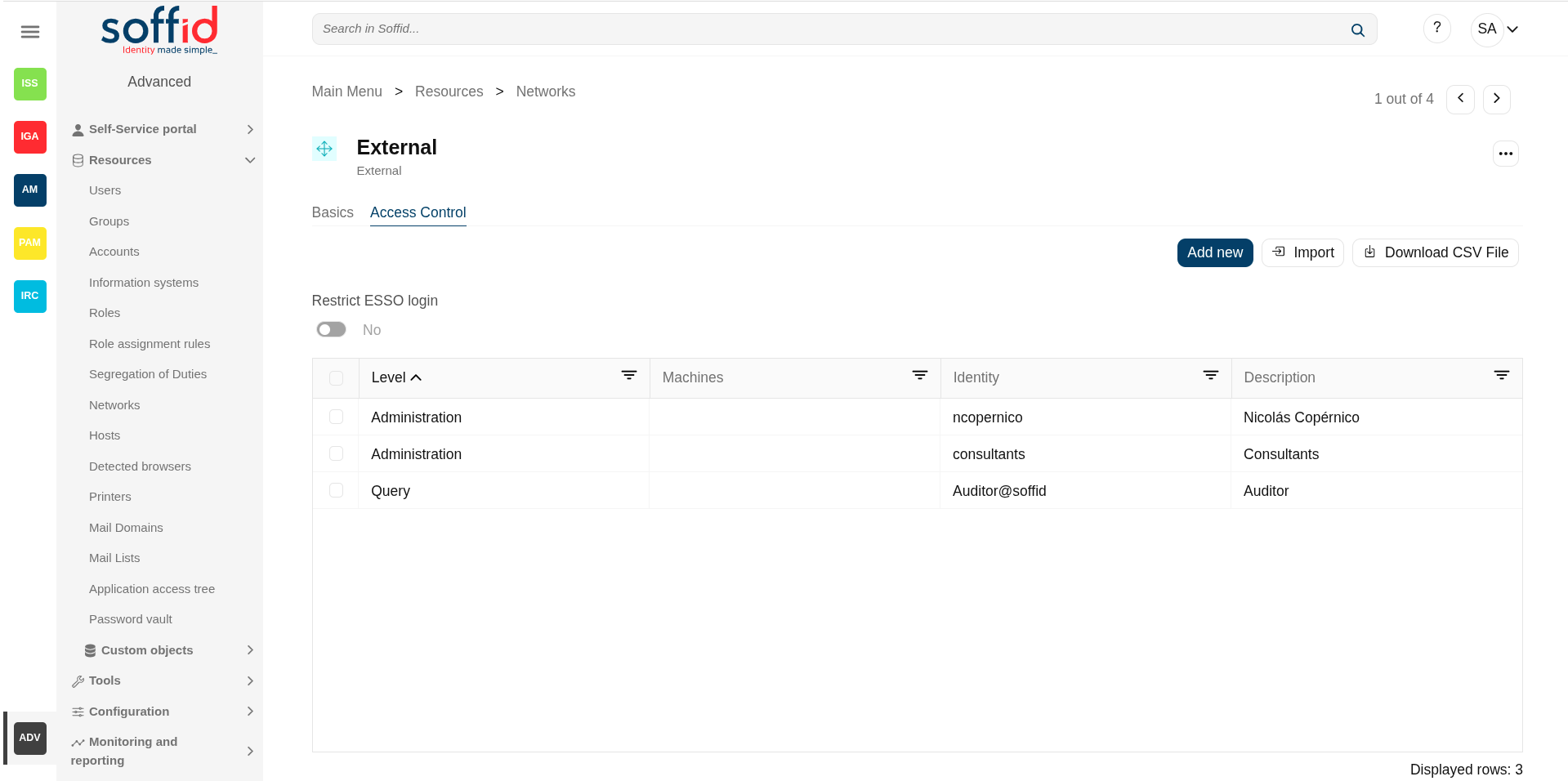
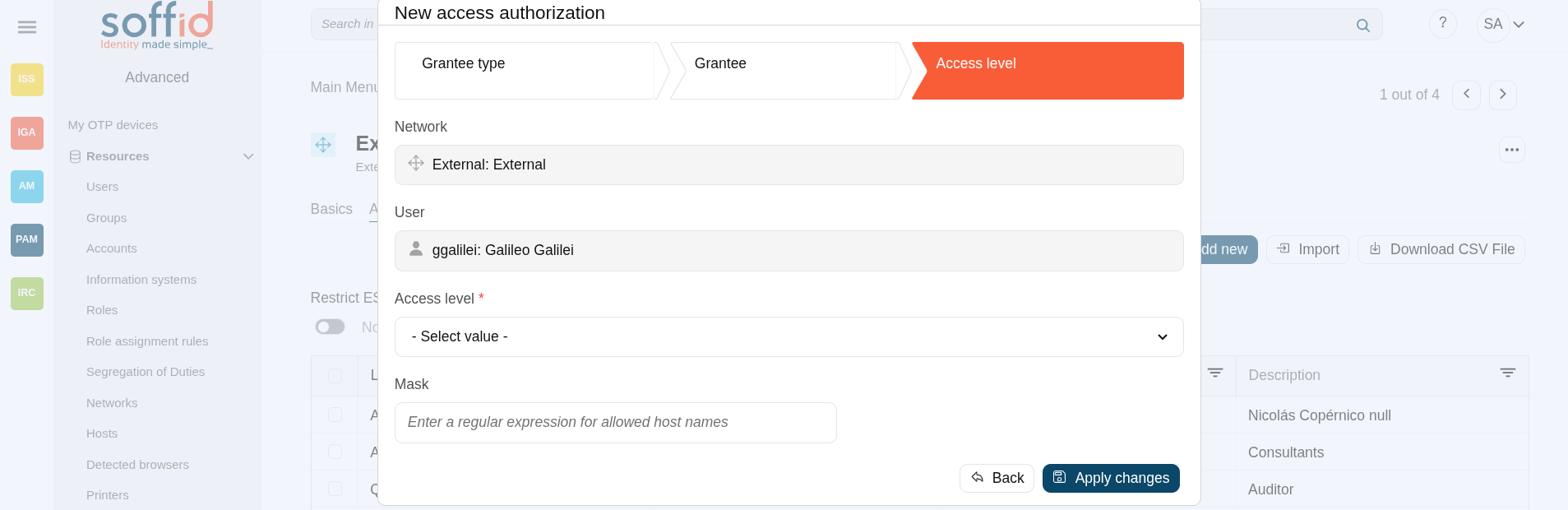
Actions
Networks table
|
"Query" |
Allows you to query networks through different search systems, Quick, Basic and Advanced. |
|
Add new |
Allows you to create a new network. To add a new network it will be mandatory to fill in the required fields |
|
Delete network |
Allows you to remove one or more networks by selecting one or more records and next clicking this button. To perform that action, Soffid will ask you for confirmation, you could confirm or cancel the operation. |
|
Download CSV file |
Allows you to download a csv file with the networks information. |
|
Import |
Allows you to upload a CSV file with the network list to add or update networks to Soffid. First, you need to pick up a CSV file, that CSV has to contain a specific configuration. Then you need to check the content to be loaded, it is allowed to choose if you want or not to load a specific attribute. And finally, you need to select the mappings for each column of the CSV file to import the data correctly and to click the Import button. |
|
View |
Allows you to show and hide columns in the table. You can also set the order in which the columns will be displayed. |
Network detail > basics tab
|
Apply changes |
Allows you to save the data of a new network or to update the data of a specific network. To save the data it will be mandatory to fill in the required fields |
|
Delete network |
Allows you to remove the network by selecting one or more records and next clicking this button. To perform that action, Soffid will ask you for confirmation, you could confirm or cancel the operation. |
|
Undo |
Allows you to quit without applying any changes. |
Network detail > access control tab
|
Apply changes |
Allows you to save the data of the network access log. To save the data it will be mandatory to fill in the required fields |
|
Add new |
Allows you to create a new access control. First, you will select the Grantee type, which could be a role, a user or a group. Second, you will select the Grantee, it will depend on the Grantee type selected. Then, you will fill in the access level. And finally you will apply changes. |
|
Delete |
Allows you to remove one or more access controls by selecting one or more records and next clicking this button. To perform that action, Soffid will ask you for confirmation, you could confirm or cancel the operation. |
|
Import |
Allows you to upload a CSV file with the access control list to add or update access controls to Soffid. First, you need to pick up a CSV file, that CSV has to contain a specific configuration. Then you need to check the content to be loaded, it is allowed to choose if you want or not to load a specific attribute. And finally, you need to select the mappings for each column of the CSV file to import the data correctly and to click the Import button. |
|
Download CSV file |
Allows you to download a csv file with the basic access controls data. |
Hosts
Description
The host screen lets the administrator manage a static IP address assigned to any host. Dynamic IP addresses are automatically managed by Soffid ESSO.
From the PAM module, when configuring the network discoverer, Soffid will register the machines found on this page. The same will happen in the SSO module when users access the system for the first time.
Screen overview
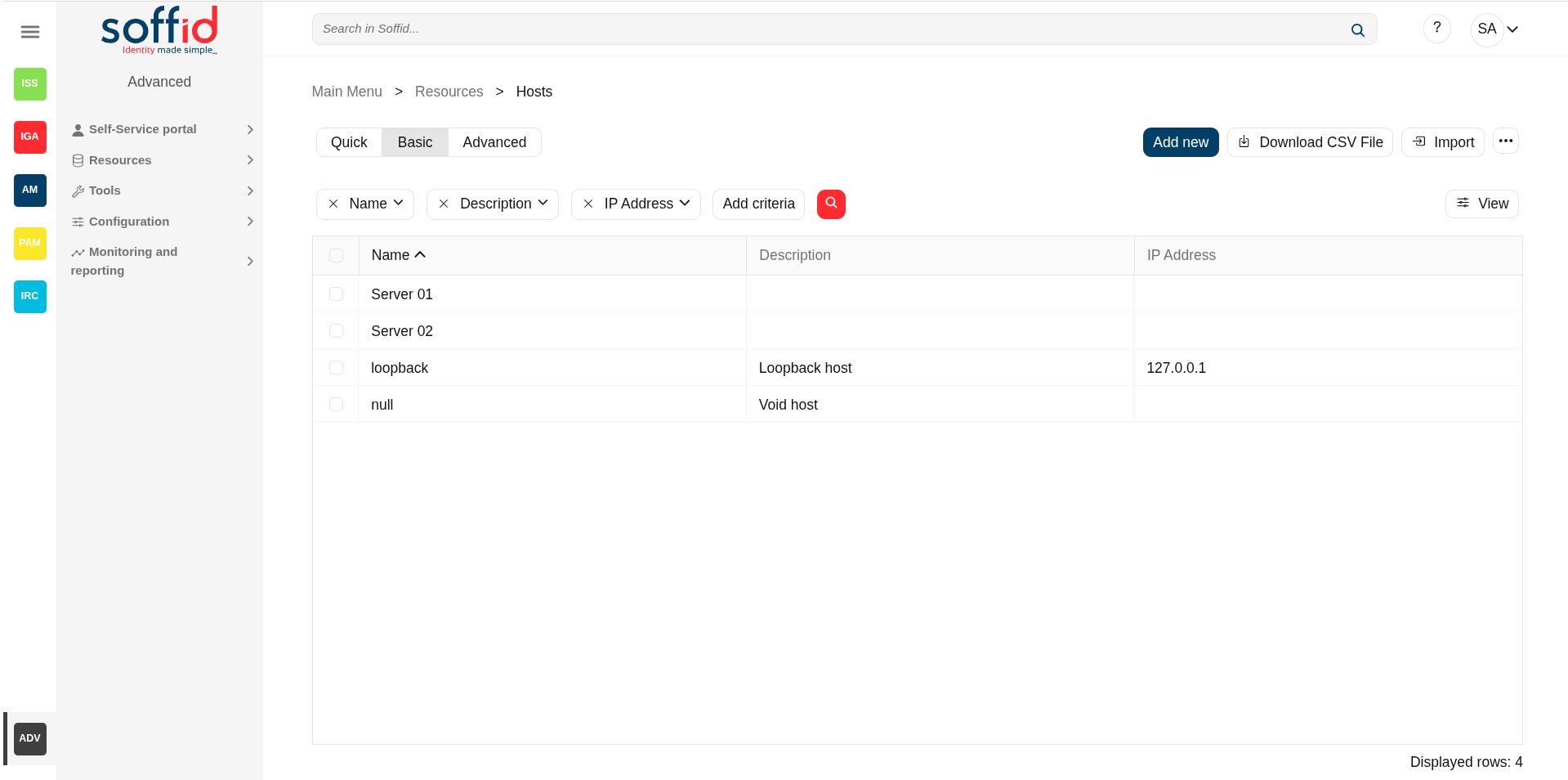
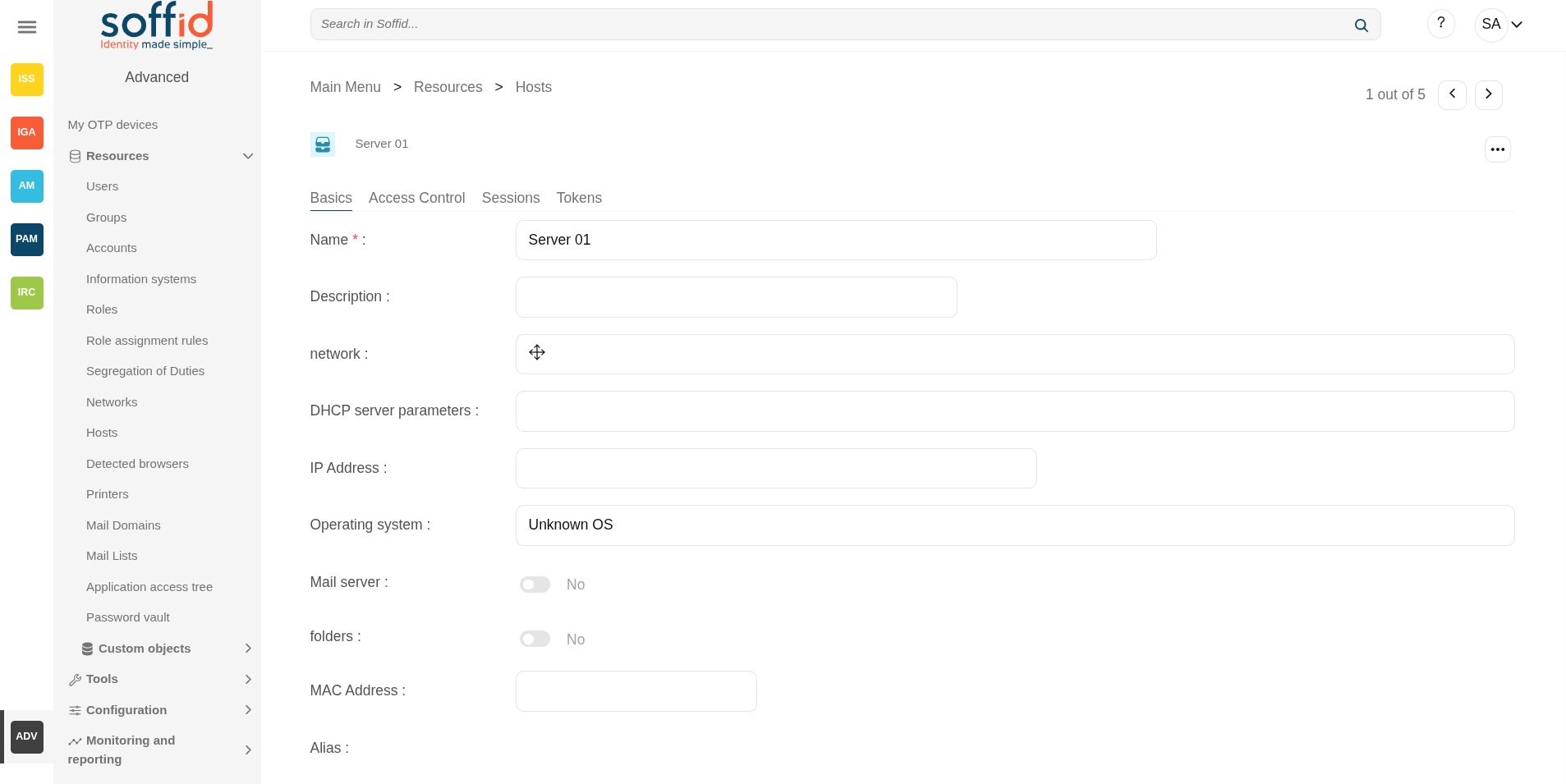
Related objects
- Hosts : host of the system each one in a network.
- Detected browsers : detected browners in a network.
- Printers : configured printers in a network.
- Soffid parameters : you can specify a parameter to be applied only in a network.
- Network discovery : to discover the máquinas and systems in the configured networks.
Standard attributes
Hosts table
- Name: host name.
- Description: location, owner and whatever other information you want.
- IP Address: host IP
- Network: to which it belongs
- DHCP server parameters: used by the DHCP agent in order to generate DHCP configuration files.
- Operating system: used by the Active Directory agent in order to know if this host must be have an Active Directory host account. Using this functionality, no operator needs to be authorized to add or remove hosts on Active Directory. Soffid will do it for them. More and more, whenever this hosts is left off its IP address, the host account will be removed from Active Directory. This behavior can, of course, be customized.
- Mail server: if enabled (selected value is Yes), the user will be able to create mailboxes in the host.
- Shared folders server: if enabled (selected value is Yes), the user will be able to create shared folders in the host.
- MAC Address: used by the DHCP agent in order to generate DHCP configuration files.
- Alias: This field is used to identify the possible IP addresses that may be associated with a single hostname. In complex and segmented environments, it is common for the same machine identifier to be used across multiple networks, whether for service replication, geographic redundancy, or the deployment of parallel test and production environments. This field enables such configurations by linking a hostname to multiple IP addresses, each corresponding to a different network where that hostname is resolvable and operational. As such, the alias acts as an abstraction mechanism that simplifies host identity management in multi-network or multi-site contexts, allowing a single logical identifier (machine name) to be present and active across several network domains, each with its respective IP addressing. The use of the alias field is particularly relevant in distributed architectures, hybrid infrastructures (on-premises and cloud), and high-availability environments, where logical name uniqueness does not imply a single physical address, but rather a flexible, context-dependent association with multiple IP representations of the same functional entity.
- Shared printer server: if enabled (selected value is Yes), the user will be able to create a printer queues in the host.
- Dynamic IP
- Serial number
- Last connection
- Created on
- Locked
- Device type
- Internet browser
- CPU type
- Created on
- Created by
- Updated on
- Updated by
Host details > basics tab
The same attributes than the hosts table.
Image
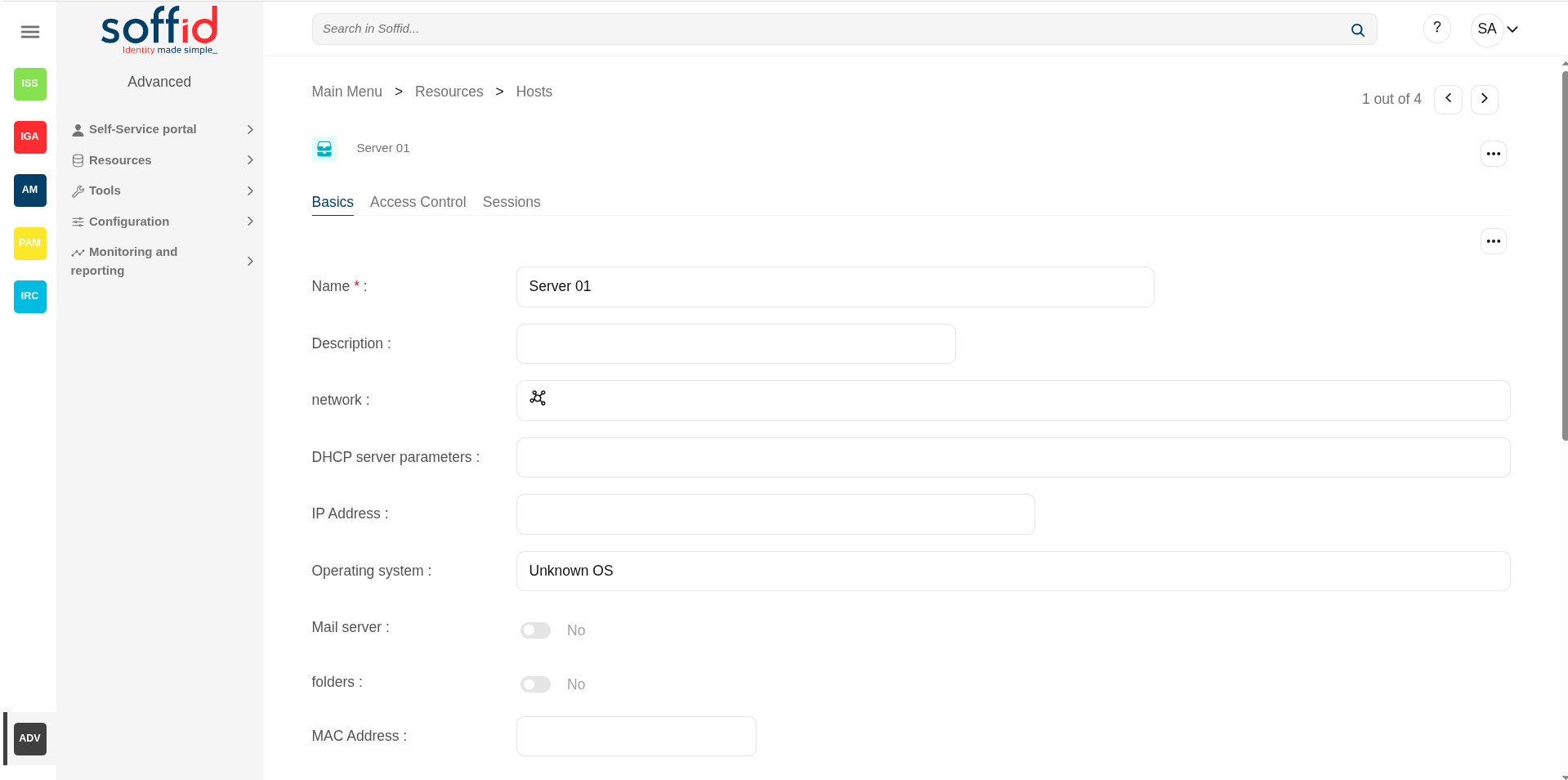
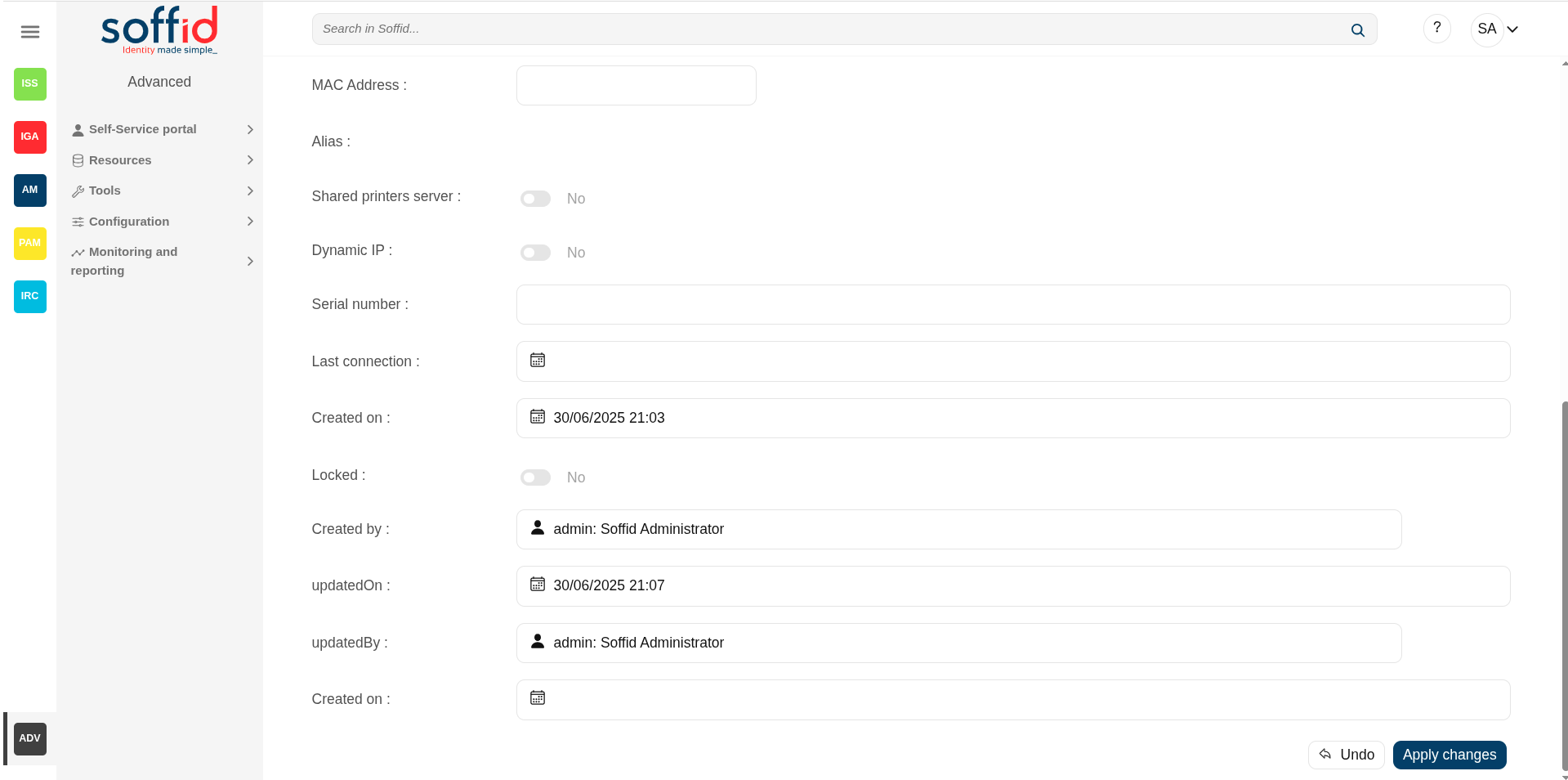
Host detail > access control
In the access control tab, you can delegate host management to certain users.
This feature requires the Soffid ESSO.
If you add a user authorization, you will allow the user to execute any task as a local administrator on this server or workstation. ESSO must be installed in the target host. To add a user authorization you can click the Add new button, then select the user and expiration date, and finally apply changes.
It is also allowed to delete one or more user authorizations, you can do it from the entitlement details or by selecting one or more records from the list and clicking the Delete button.
Additionally, you can download a CSV file with the access control data and you can also upload a CSV file to add user authorizations, and modify or delete user authorizations.
You also can view the administrator password.
Attributes:
- User : user with the access.
- Name : full name of the user.
- Request date : date of the row creation.
- Expiration date : expiration date until the user has access.
Image
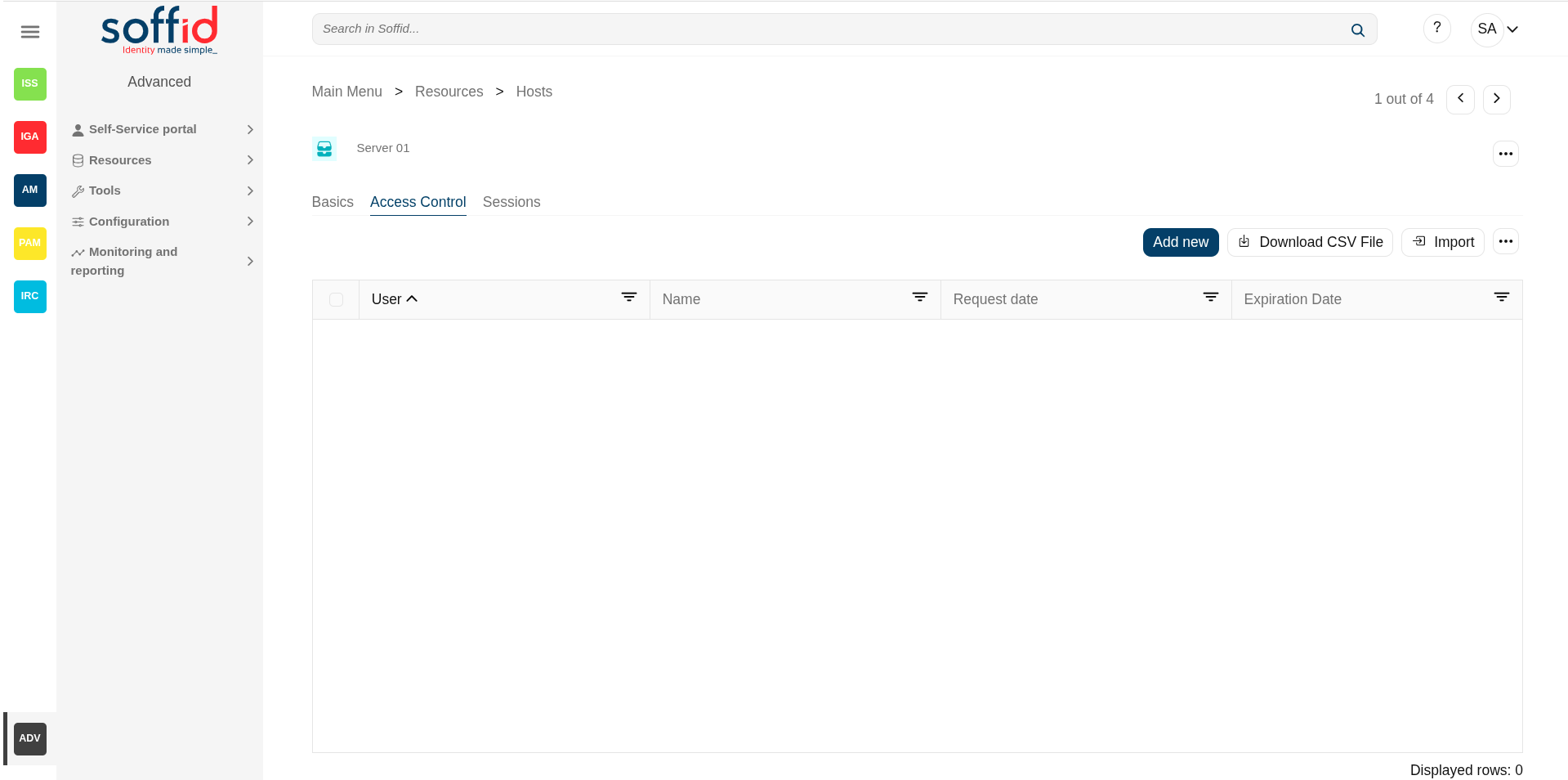
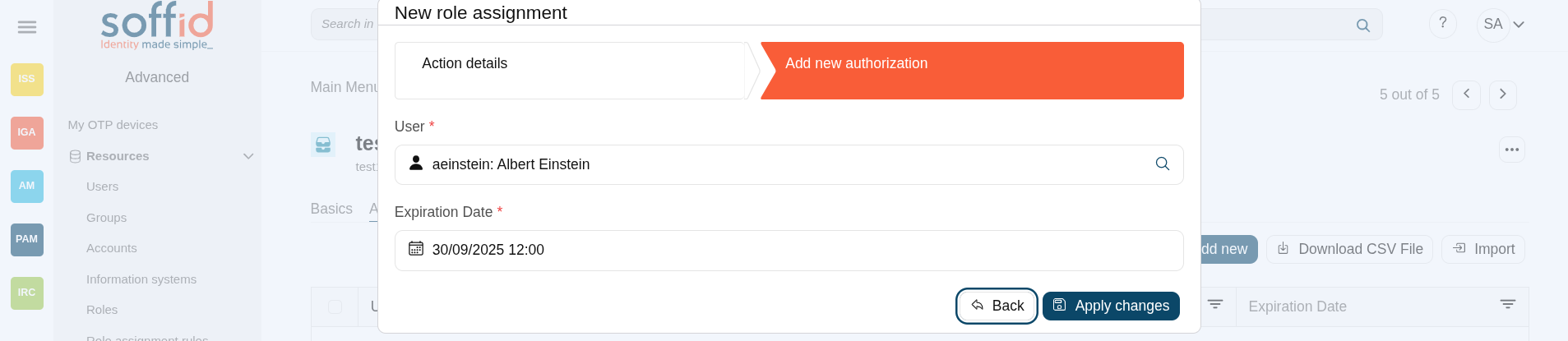
Sessions
On the sessions tab, you can view the information about the last connection of a user to this host. Shows data about the user, server, client, port used and date of connection.
You can download a CSV file with the user sessions data.
Attributes:
- User : user with the access.
- Name : full name of the user.
- Client :
- Port :
- Date : date when the session has been started..
- Type :
Image
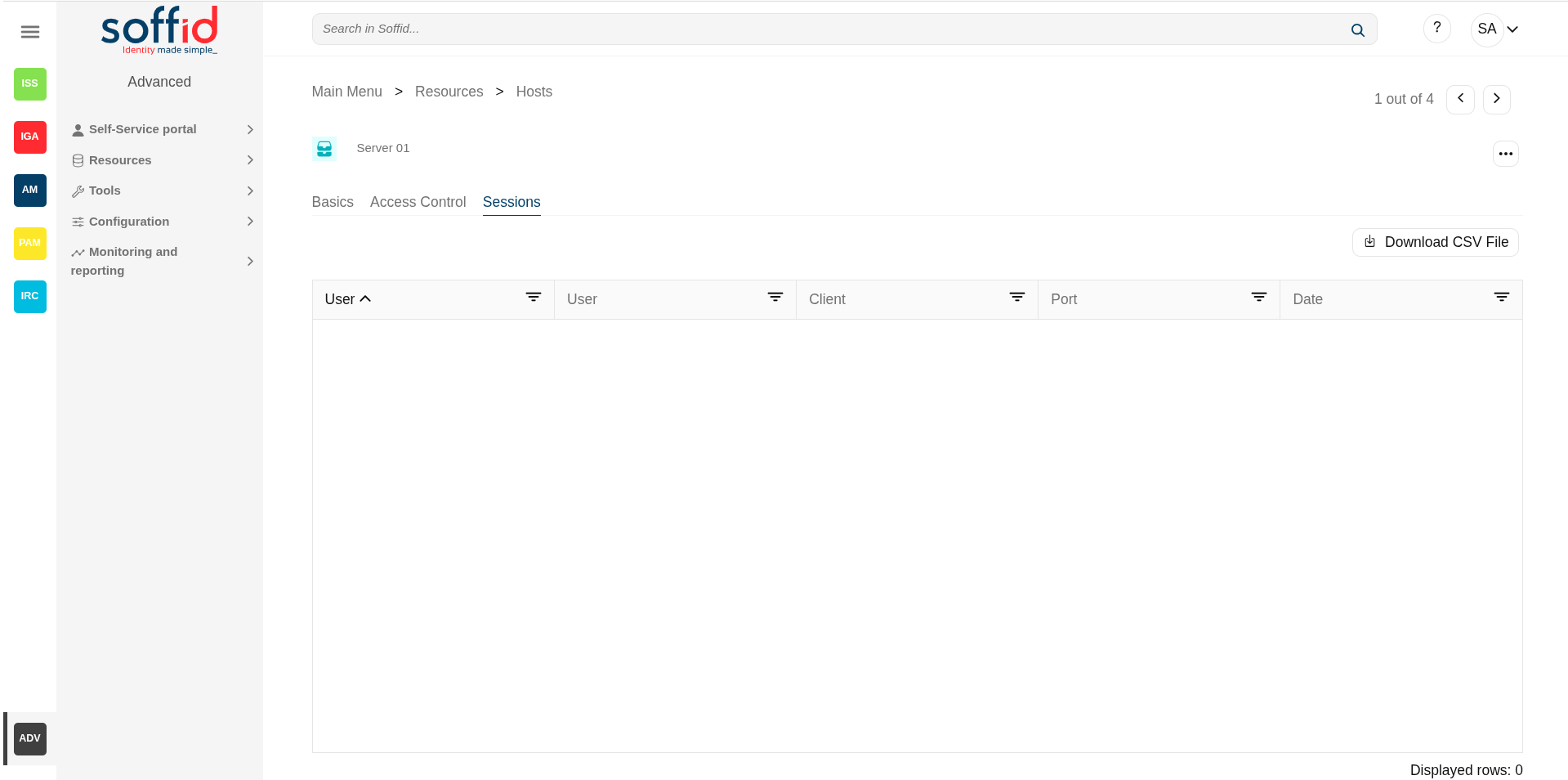
Host detail > tokens
To do.
Actions
Host table
|
"Query" |
Allows you to query host through different search systems, Quick, Basic and Advanced. |
|
Add new |
Allows you to create a new host. You can choose that option on the hamburger menu or by clicking the add button (+). To add a new host it will be mandatory to fill in the required fields |
|
Delete host |
Allows you to remove one or more hosts by selecting one or more records and next clicking this button. To perform that action, Soffid will ask you for confirmation, you could confirm or cancel the operation. |
|
Download CSV file |
Allows you to download a csv file with the hosts information. |
|
Import |
Allows you to upload a CSV file with the host list to add or update hosts to Soffid. First, you need to pick up a CSV file, that CSV has to contain a specific configuration. Then you need to check the content to be loaded, it is allowed to choose if you want or not to load a specific attribute. And finally, you need to select the mappings for each column of the CSV file to import the data correctly and click the Import button. |
|
Operating systems |
This option allows you to manage the Operating Systems. You can add new, update, or delete OS. Undo and Apply changes to confirm it. Image
|
|
View |
Allows you to show and hide columns in the table. You can also set the order in which the columns will be displayed. |
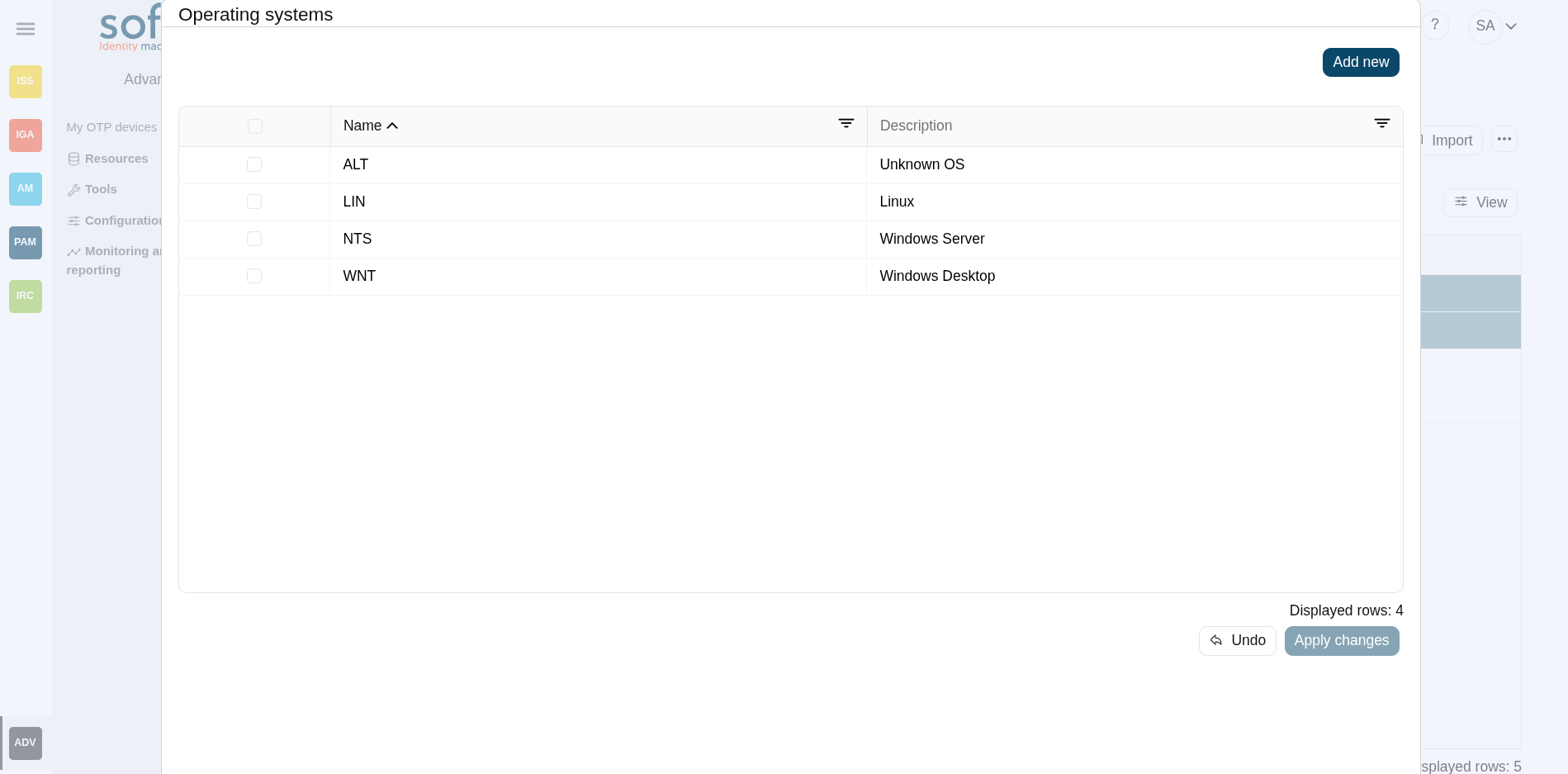
Host detail > basics tab
|
Apply changes |
Allows you to save the data of a new host or to update the data of a specific host. To save the data it will be mandatory to fill in the required fields. |
|
Delete |
Allows you to delete the host. Soffid will ask you for confirmation to perform that action, you could confirm or cancel the operation. |
|
Assign free IP Address |
Allows you to assign a free IP address. It is necessary to select the network first. |
|
View password |
Will show the administrator password if it is available. This utility is linked to the PAM module along with the password rotation functionality. |
|
Undo |
Allows you to quit without applying any changes. |
Host detail > access control tab
|
Add new |
Allows you to create a new access control. First, you will select the user and the expiration date of that authorization. Finally you need to apply changes. |
|
Delete |
Allows you to remove one or more access controls by selecting one or more records and next clicking this button. To delete one access control, you can click the access control, and then Soffid will show a form with the details. Then you can click the delete button (trash icon). To perform that action, Soffid will ask you for confirmation, you could confirm or cancel the operation. |
|
Download CSV file |
Allows you to download a csv file with the access control information |
|
Import |
Allows you to upload a CSV file with the access control list to add or update access controls to Soffid. First, you need to pick up a CSV file, that CSV has to contain a specific configuration. Then you need to check the content to be loaded, it is allowed to choose if you want or not to load a specific attribute. And finally, you need to select the mappings for each column of the CSV file to import the data correctly and to click the Import button. |
Host detail > sessions
|
Download CSV file |
Allows you to download a csv file with the sessions information |
Host detail > tokens
To do.
Detected browsers
Description
The Browsers Detected screen allows the administrator to view the browsers and versions being used by SSO users.
Screen overview
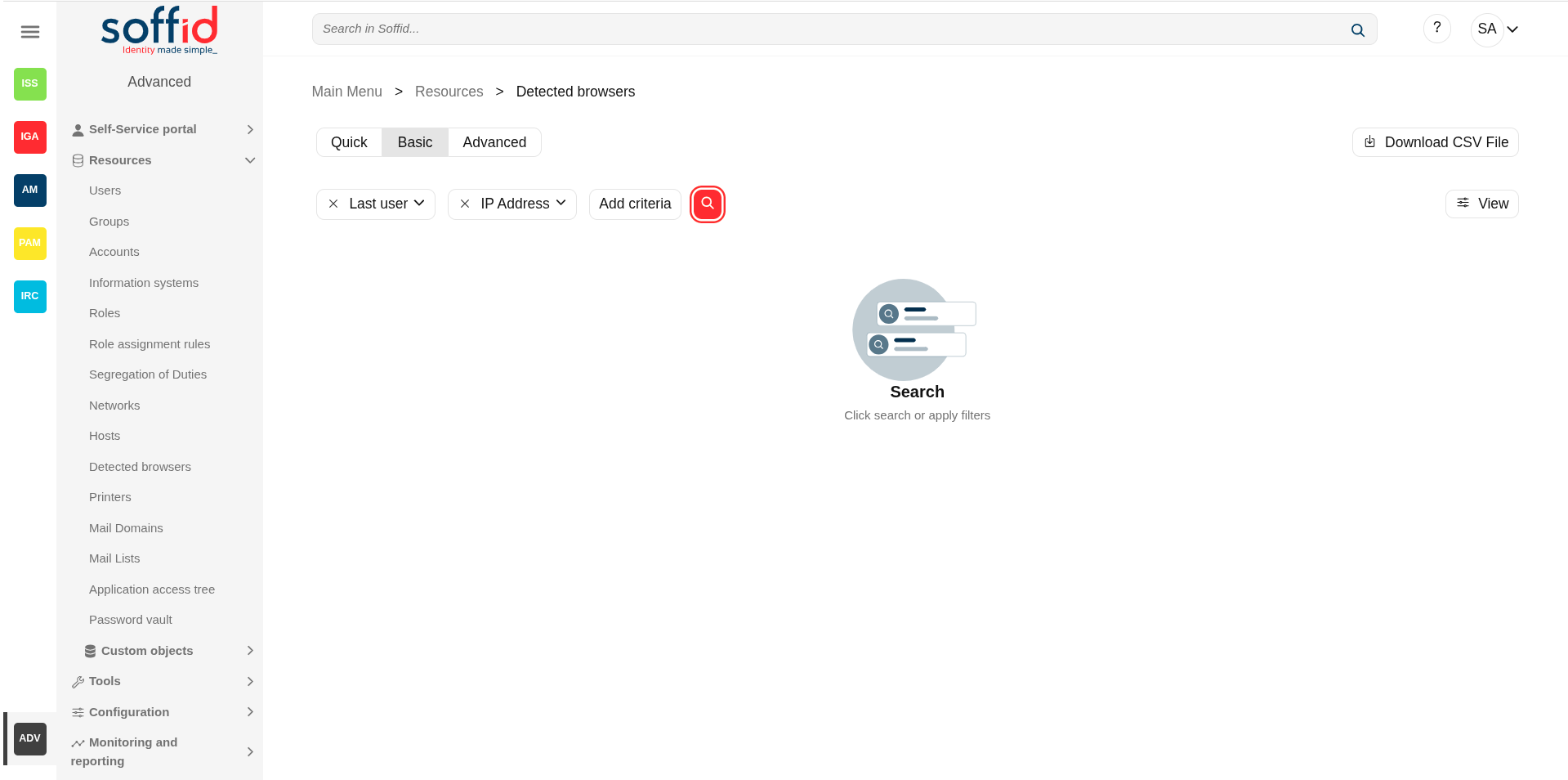
Related objects
- Hosts : host of the system each one in a network.
- Detected browsers : detected browners in a network.
- Printers : configured printers in a network.
- Soffid parameters : you can specify a parameter to be applied only in a network.
- Network discovery : to discover the máquinas and systems in the configured networks.
Standard attributes
Browsers table
- Operating system: used by the Active Directory agent in order to know if this host must be have an Active Directory host account. Using this functionality, no operator needs to be authorized to add or remove hosts on Active Directory. Soffid will do it for them. More and more, whenever this hosts is left off its IP address, the host account will be removed from Active Directory. This behavior can, of course, be customized.
- Browser name: browser name detected.
- IP Address: host IP.
- Last user: last user connected.
- Host name: host name.
- Serial number
- Device type
- CPU
- Last connection
- Locked
- Created on
- Created by
- Updated on
- Updated by
Actions
Browsers table
|
"Query" |
Allows you to query detected browsers through different search systems, Quick, Basic and Advanced. |
|
Download CSV file |
Allows you to download a csv file with the hosts information. |
|
View |
Allows you to show and hide columns in the table. You can also set the order in which the columns will be displayed. |
Printers
Description
Soffid lets administrator users manage system printers. A printer must always be attached to a host. A network attached printer is composed of a host (network print server) and a printer (printer queue).
Printers can be assigned to specific users or to user groups. The effective assignment can be done on session startup by using a Single Sign On client script. To do that, it is necessary to add a script on a Login entry point with type x-mazinger-script.
Screen overview
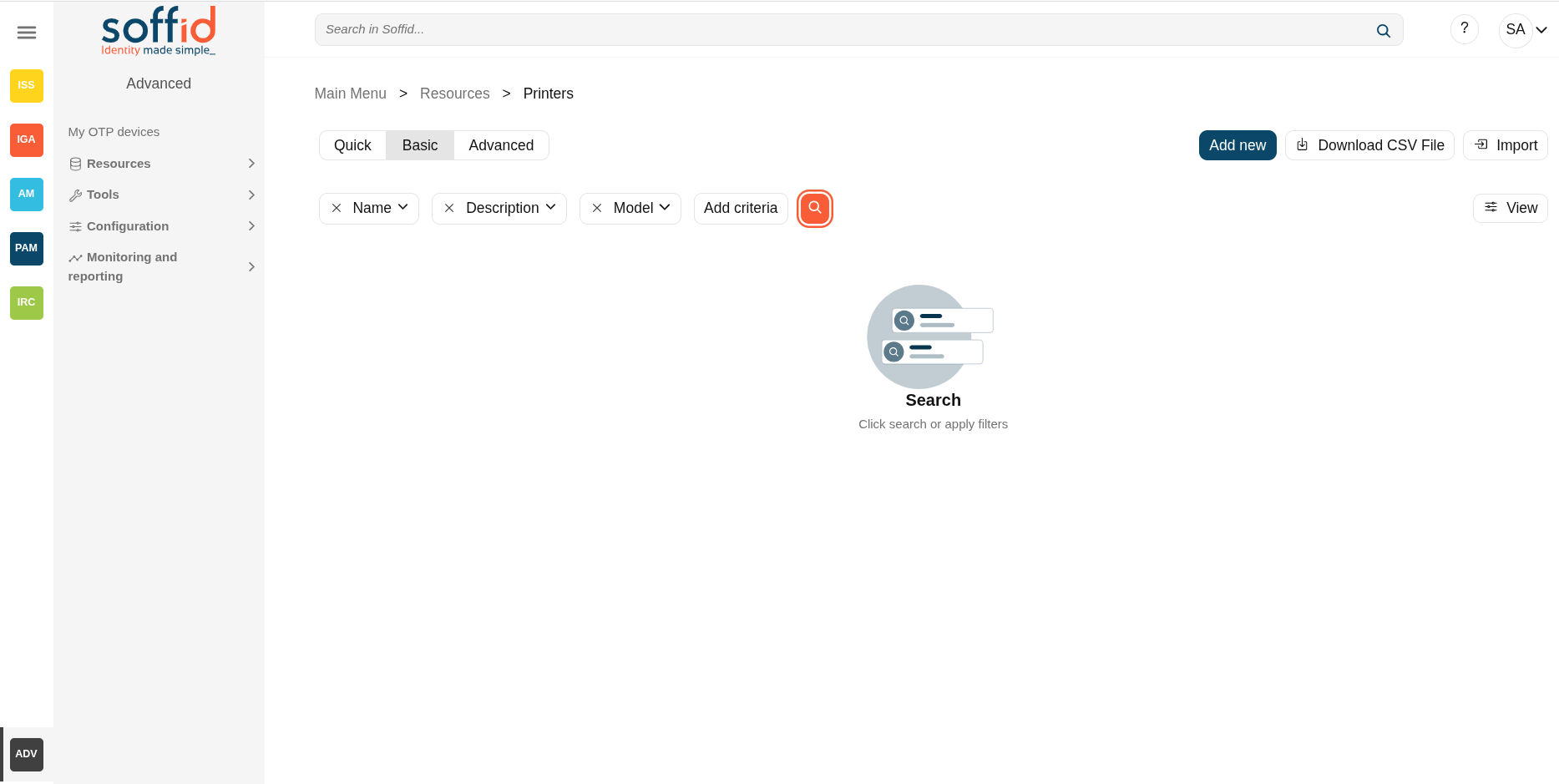
Related objects
- Hosts : host of the system the requires to have "Shared printers server"=yes.
- Detected browsers : detected browners in a network.
- Printers : configured printers in a network.
- Soffid parameters : you can specify a parameter to be applied only in a network.
- Network discovery : to discover the machines and systems in the configured networks.
Standard attributes
- Name: identifier name of the printer.
- Description: additional printer information.
- Printing server: where the printer is hosted.
- Model: printer model.
- Restricted: if checked, only users and groups of users assigned can be access to that, in another case any user could access to that printer.
- Users: assignment of printer queues to users.
- Groups: assignment of printer queues to groups
Actions
Printers table
| "Query" | Allows you to query printers through different search systems, Quick, Basic and Advanced. |
| Add new | Allows you to create a new printer. To add a new printer it will be mandatory to fill in the required fields |
| Delete printer | Allows you to remove one or more printers by selecting one or more records and next clicking this button. To perform that action, Soffid will ask you for confirmation, you could confirm or cancel the operation. |
| Download CSV file | Allows you to download a csv file with the basic information of all printers. |
| Import |
Allows you to upload a CSV file with the printer list to add or update printers to Soffid. First, you need to pick up a CSV file, that CSV has to contain a specific configuration. Then you need to check the content to be loaded, it is allowed to choose if you want or not to load a specific attribute. And finally, you need to select the mappings for each column of the CSV file to import the data correctly and to click the Import button. |
| View |
Allows you to show and hide columns in the table. You can also set the order in which the columns will be displayed. |
Printer detail
| Add new | Allows you to create a new printer. To add a new printer it will be mandatory to fill in the required fields and apply changes. |
| Delete | Allows you to remove one printer. To perform that action, Soffid will ask you for confirmation, you could confirm or cancel the operation. |
| Undo | Allows you to quit without applying any changes. |
Mail Domains
Description
The mail domains identify each single mail domain that is going to be managed and used in Soffid.
Mail domains are validated when you enter an email in the attributes of type email.
You cannot use mail domains that have not been previously registered.
If a mail domain is marked as obsolete, it won't be assigned to a user anymore.
Screen overview
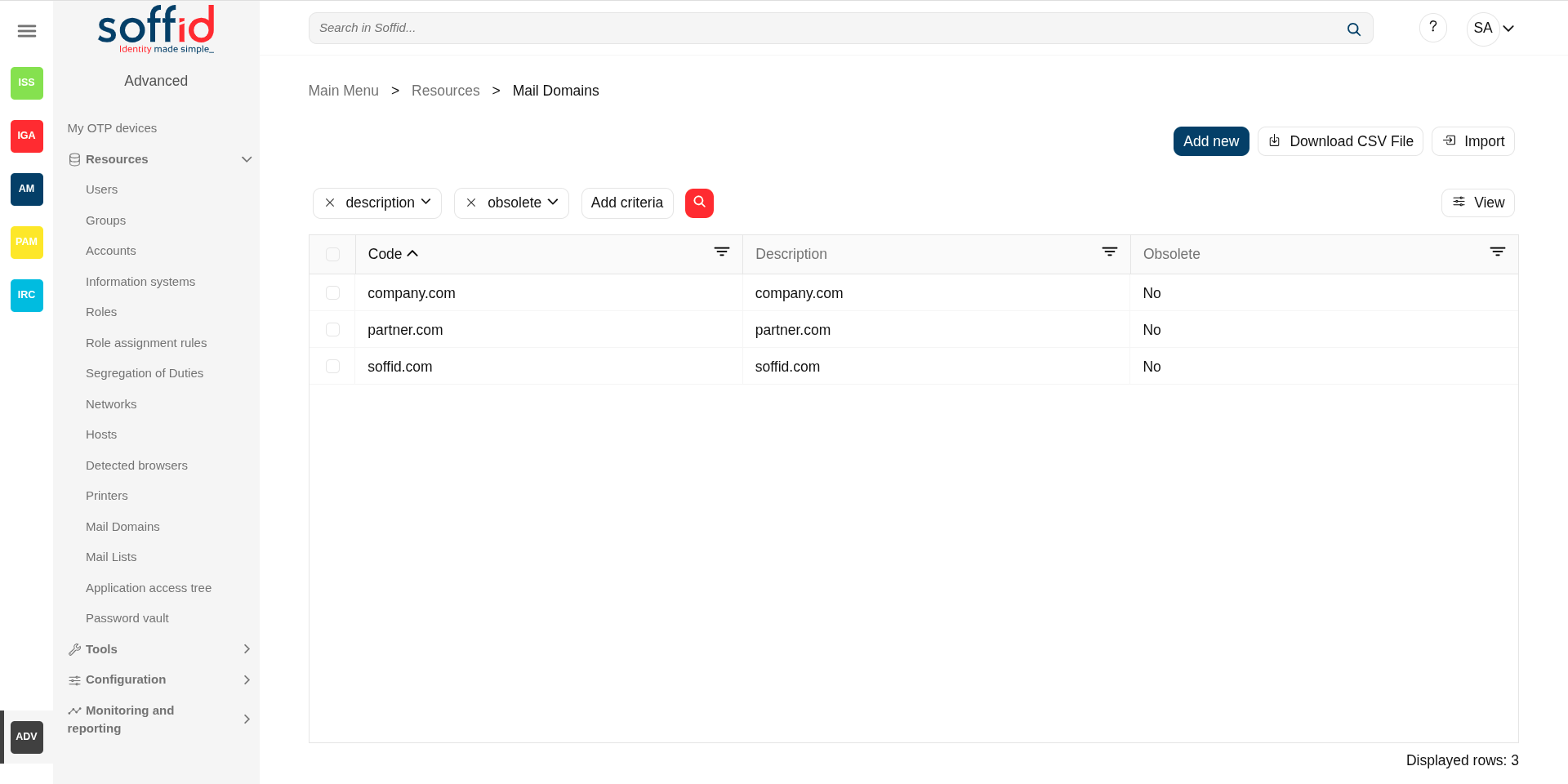
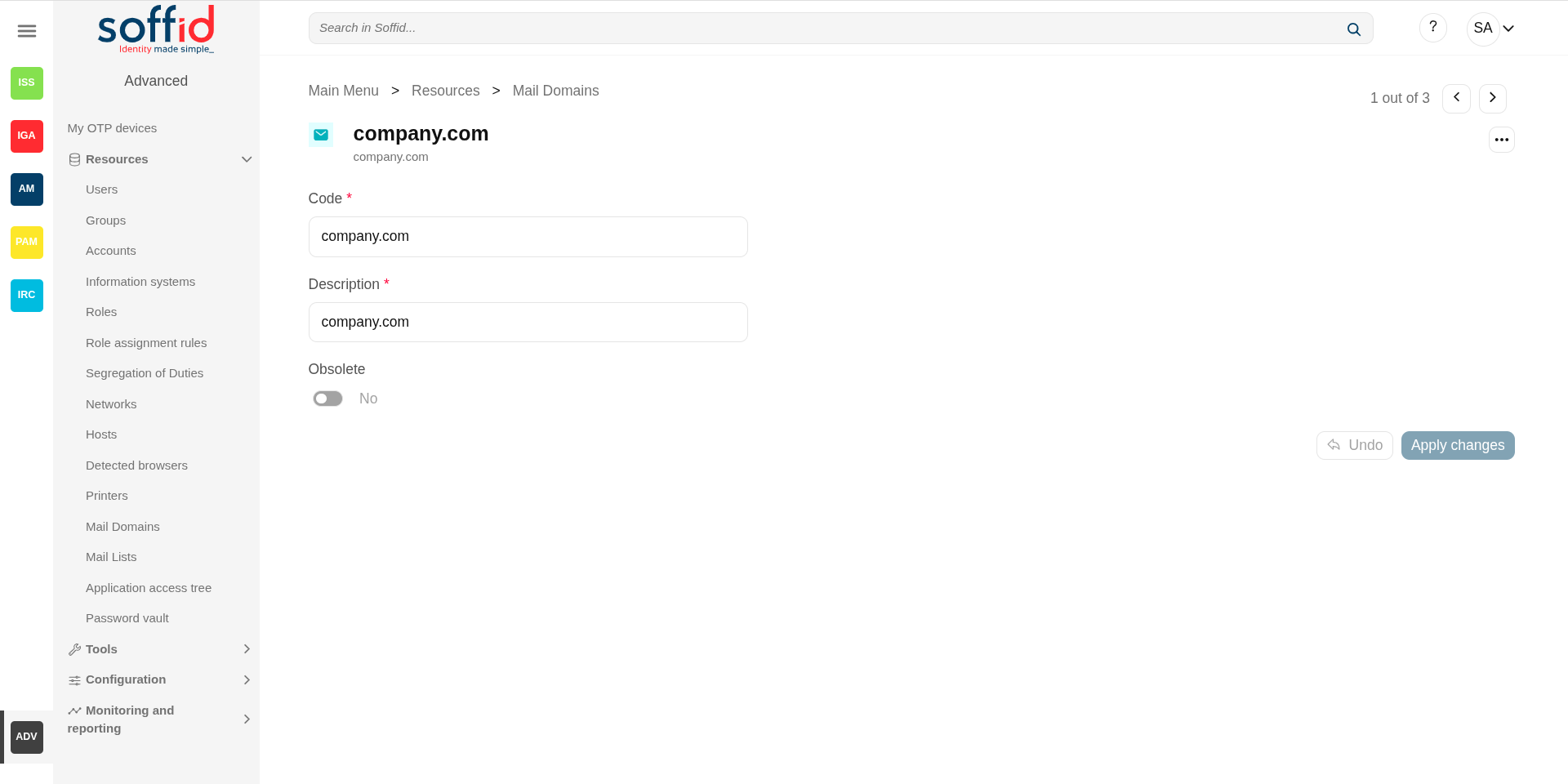
Related objects
- Users : email type attributes
- Mail lists : email type attributes
Standard attributes
- Code: domain, it will be as in email address is written.
- Description: a brief description about domain name usage.
- Obsolete: enabled to indicate that the domain will not be used and therefore should not be assigned.
Actions
Mail domains table
|
Add new |
Allows you to create a new mail domain. To add a new mail domain it will be mandatory to fill in the required fields |
|
Delete mail domain |
Allows you to remove one or more mail domains by selecting one or more records and next clicking this button. To perform that action, Soffid will ask you for confirmation, you could confirm or cancel the operation. |
|
Download CSV file |
Allows you to download a CSV file with the mail domains information. |
|
Import |
Allows you to upload a CSV file with the mail domain list to add or update mail domains to Soffid. First, you need to pick up a CSV file, that CSV has to contain a specific configuration. Then you need to check the content to be loaded, it is allowed to choose if you want or not to load a specific attribute. And finally, you need to select the mappings for each column of the CSV file to import the data correctly and to click the Import button. |
|
View |
Allows you to add or remove columns to the table. It is also possible to change the order of the columns. |
Mail domain detail
|
Delete mail domain |
Allows you to delete the mail domain. To delete a mail domain can click on the three points icon and then click the delete button (trash icon). Soffid will ask you for confirmation to perform that action, you could confirm or cancel the operation. |
|
Undo |
Allows you to undo the changes made. |
| Apply changes |
Allows you to save the data of a new mail domain or to update the data of a specific mail domain. To save the data it will be mandatory to fill in the required fields. |
Mail Lists
Description
The mail lists identify addresses that are going to be delivered to one or more users, just as distribution mail lists do.
Screen overview
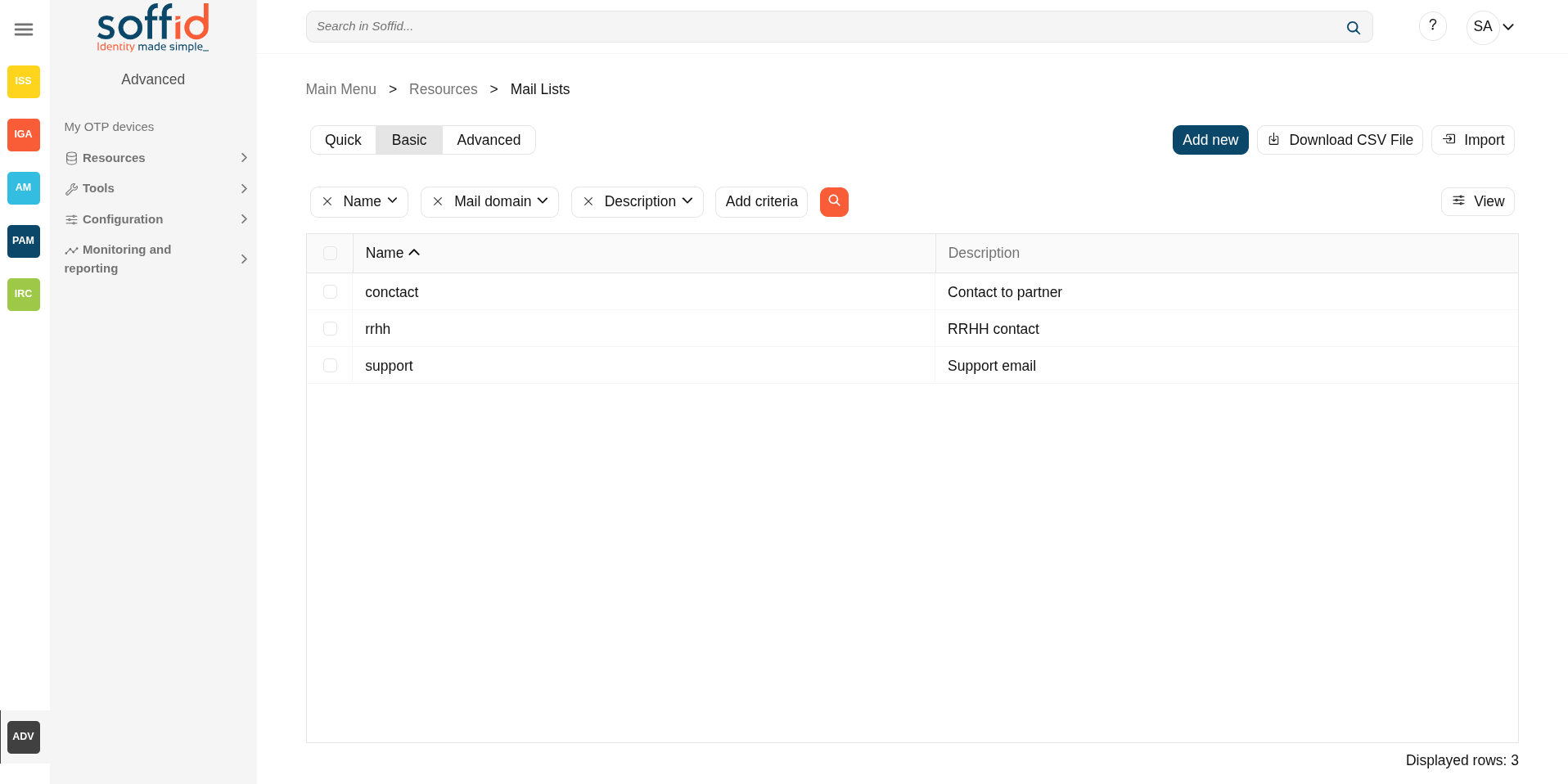
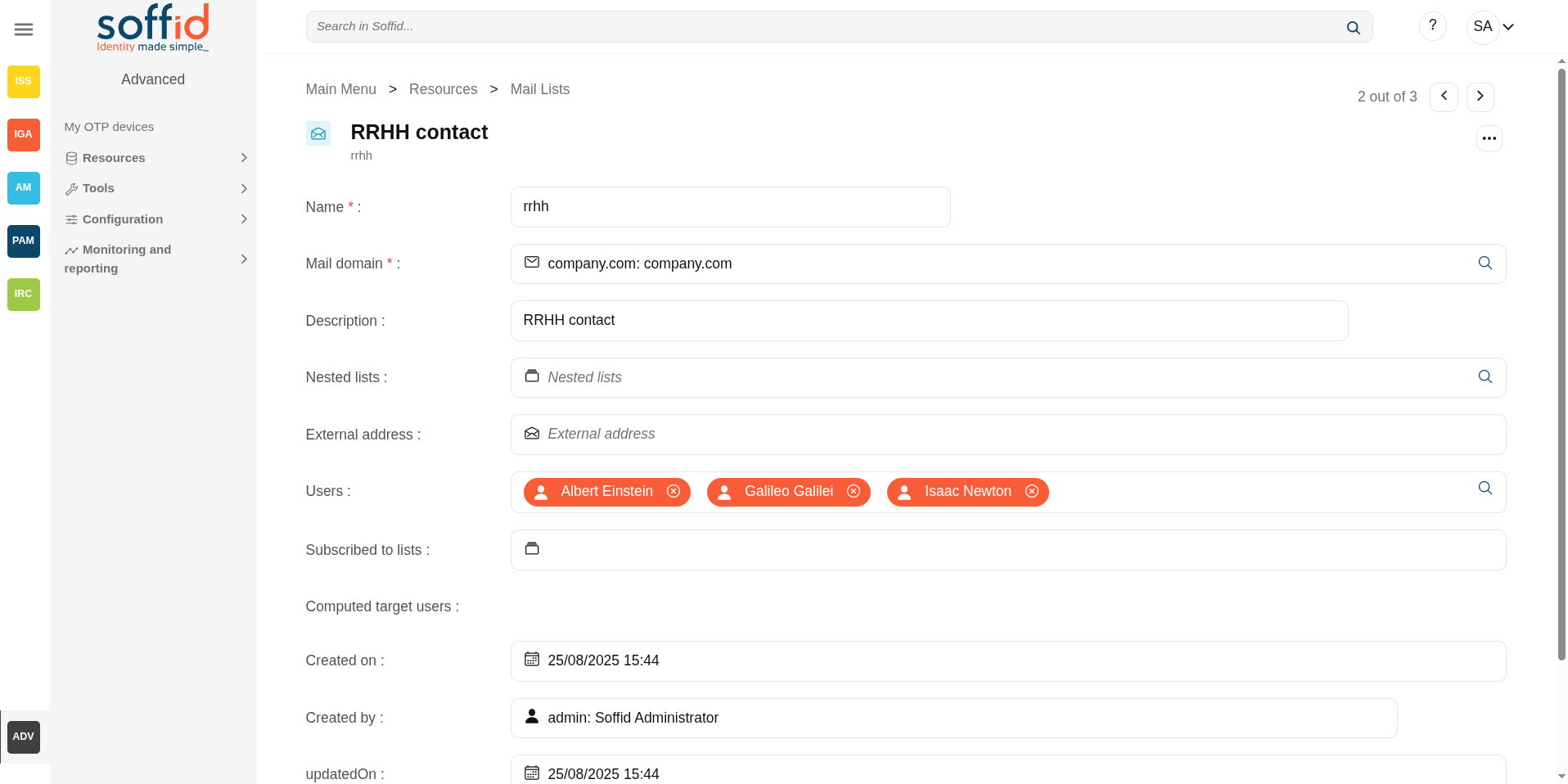
Related objects
- Mail domain : mail domain of the list
- Mail lists : nested lists
- Users : assigned users
Standard attributes
- Name: identifier name of the mail list.
- Mail domain: an existing domain in the system. It is a predictive field that facilitates the search.
- Description: a brief description of the mail list.
- Nested lists: nested mail lists.
- External address: other mail addresses not managed by Soffid that will be on the mail list.
- Roles: the users who have been assigned those roles, will be on the mail list.
- Groups: the users who belong to that groups, will be on the mail list.
- Users: users who will be on the mail list.
- Subscribed to lists: subscribed to lists.
- Computed target users: breakdown list of users that are on the mailing list.
- Created on
- Created by
- Updated on
- Updated by
Actions
Mail List query
|
"Query" |
Allows you to query mail list through different search systems, Quick, Basic and Advanced. |
|
Add new |
Allows you to create a new mail list. To add a new mail list it will be mandatory to fill in the required fields |
|
Delete mail list |
Allows you to remove one or more mail domains by selecting one or more records and next clicking the button with the subtraction symbol (-). To perform that action, Soffid will ask you for confirmation, you could confirm or cancel the operation. |
|
Download CSV file |
Allows you to download a csv file with the mail domains information. |
|
Import |
Allows you to upload a CSV file with the "mail list" list to add or update mail lists to Soffid. First, you need to pick up a CSV file, that CSV has to contain a specific configuration. Then you need to check the content to be loaded, it is allowed to choose if you want or not to load a specific attribute. And finally, you need to select the mappings for each column of the CSV file to import the data correctly and to click the Import button. |
|
View |
Allows you to add or remove columns to the table. It is also possible to change the order of the columns. |
Mail List detail
|
Apply changes |
Allows you to save the data of a new mail list or to update the data of a specific mail list. To save the data it will be mandatory to fill in the required fields. |
|
Delete mail list |
Allows you to delete the mail list. To delete a mail list can click on the three points icon and then click the delete button (trash icon). Soffid will ask you for confirmation to perform that action, you could confirm or cancel the operation. |
|
Undo |
Allows you to quit without applying any changes. |
Application access tree
Description
The entry points could be to connect to information systems defined on Soffid, or to connect to other applications. These applications can be Web applications or Native applications. Each information systems can have one or more application entry points.
The entry points are managed in a tree structure, that allows creating new menus and new application access.
Each member of the tree can be tied to a list of users, account groups, or roles. Also, you can choose if the application menu entry will be visible or not by unauthorized users.
After logging on to a managed workstation, the system will apply such restrictions and will update the Windows or Linux start menu.
Each application entry point will have different execution methods for fully managed workstations, loosely managed workstations, or external devices. Each of them can be a web browser URL or a javascript piece.
Each application entry point can have a single sign on rule. Those roles are fully explained in the ESSO reference guide. For more information, you can visit the ESSO chapter.
The defined entry points allow to final users open applications from the self service portal. For more information can visit My applications page.
Screen overview
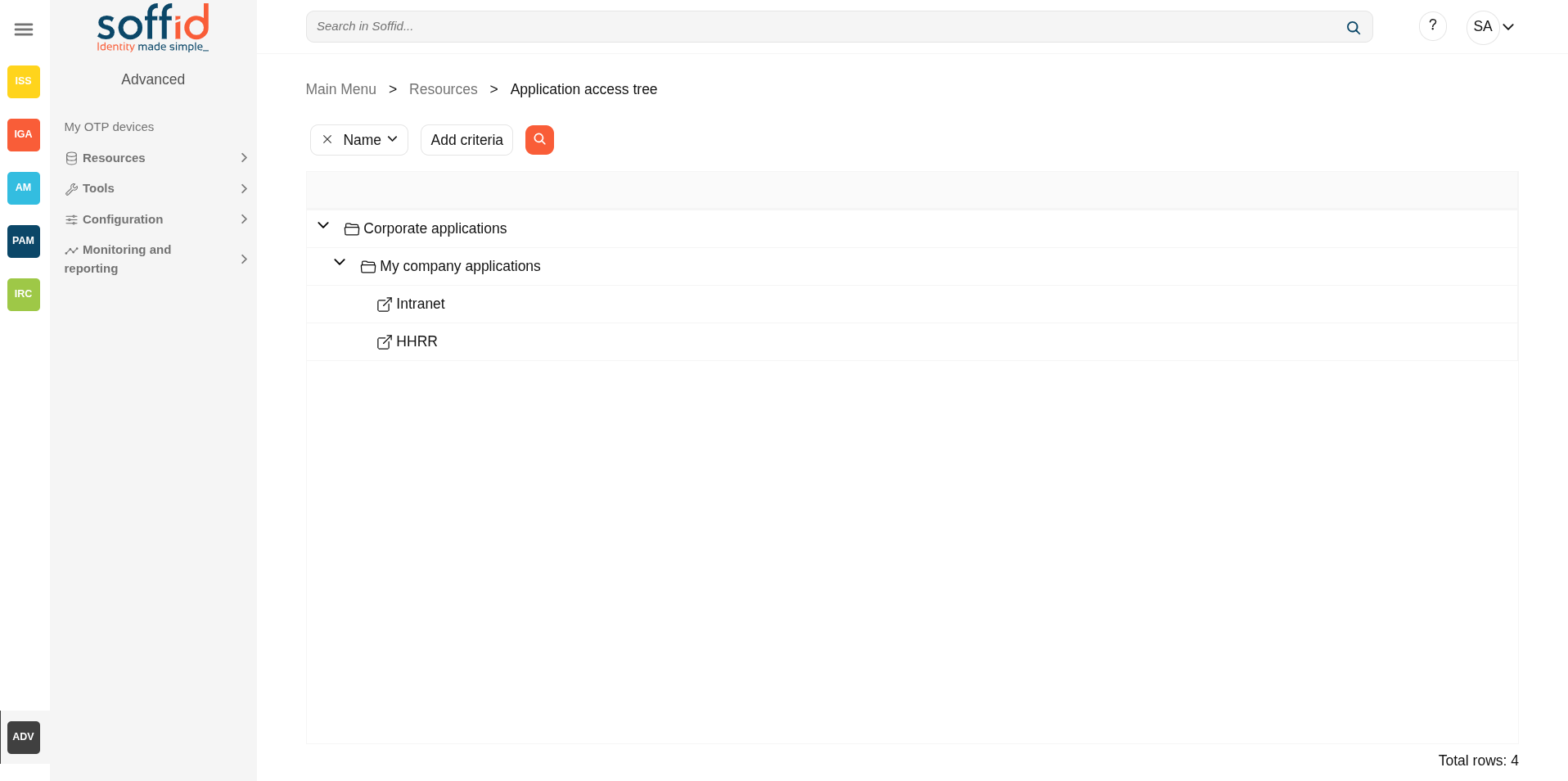
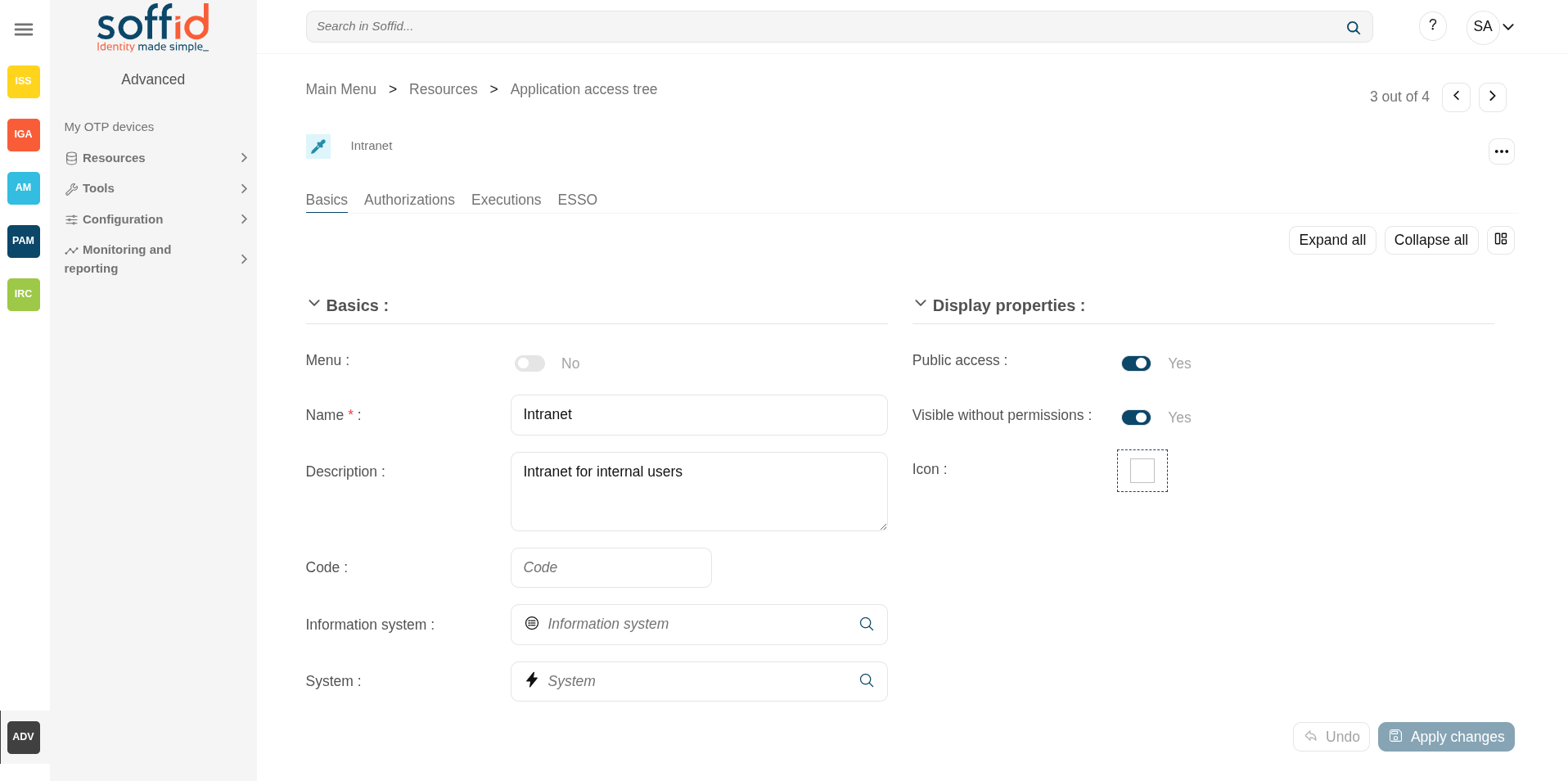
Related objects
- Information systems : information system configured
- Agents : systems configured
- Users : authorizations
- Groups : authorizations
- Roles : authorizations
- Accounts : authorizations
- My applications : where the applications are published for the end users
- Networks : executions
Standard attributes
Table
- Name of the item. It can be a folder or an application. It's a tree view.
Basics tab
Authorizations tab
Allows you to grant access permissions to users, groups, roles, or accounts.
- Manage: allows to update the entry point.
- Execute:
- When the entry point has selected the option public access to NO, only users with the assigned access level as execute could execute that entry point.
- When the entry point has selected the option public access to YES, all users can execute that entry point.
Image
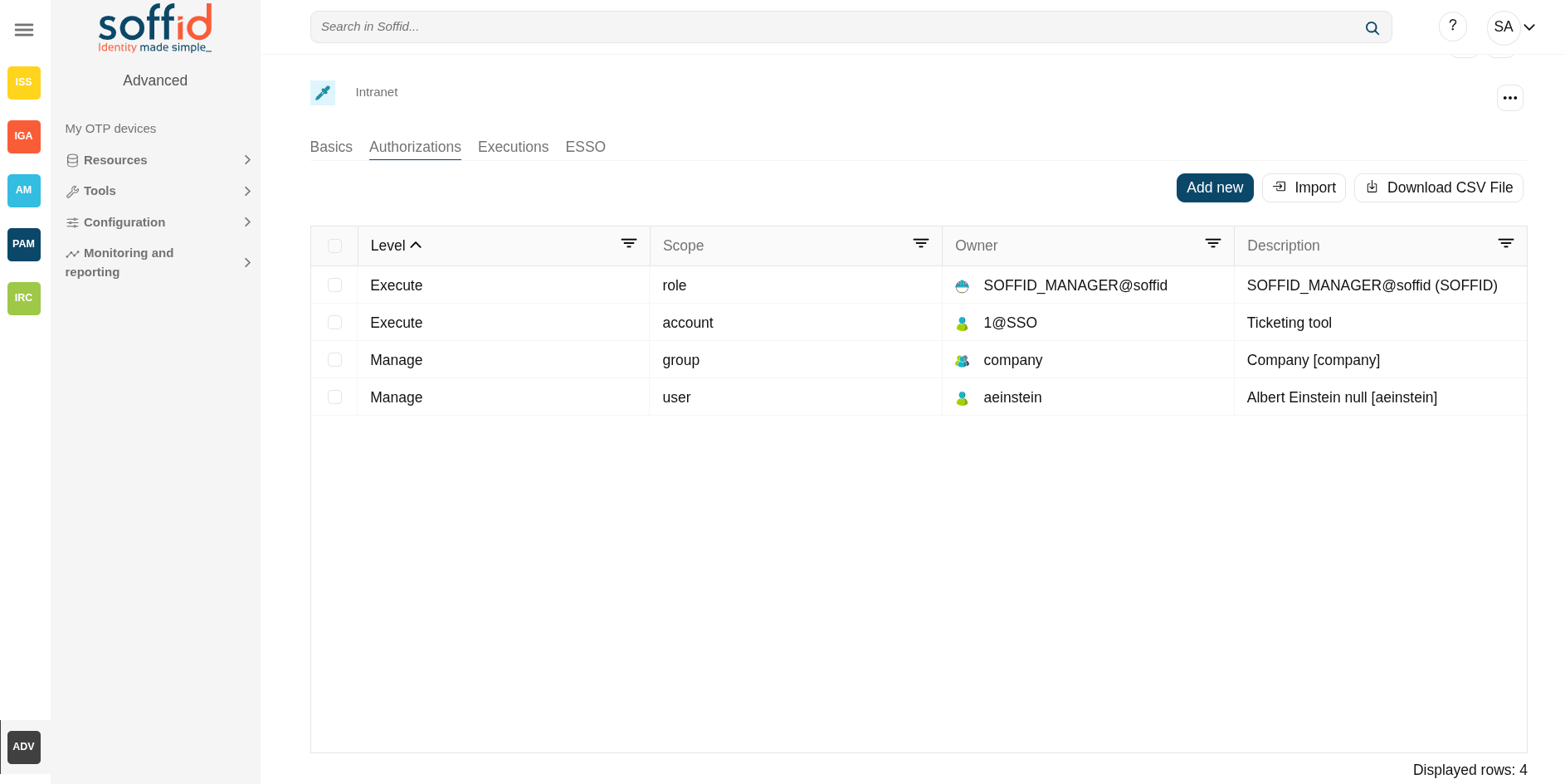
Executions tab
Allows Administrator users to configure the entry point access. It is only available to entry points with the option Menu not selected.
There are three options to configure the executions. Administrator users can configure one or more:
- Running from Intranet: if you select the Yes option, Soffid will check if the host that is trying to run this entry is located in a network flagged as internal, if so, Soffid will allow to run the entry.
- Running from Extranet: if you select the Yes option, Soffid will check if the host that is trying to run this entry is located in a network NOT flagged as internal, if so, Soffid will allow to run the entry.
- Running on the Internet: if you select the Yes option, Soffid will check if the host that is trying to run this entry is located in an unknown network, if so, Soffid will allow to run the entry.
For each execution option it is possible to configure the following parameters:
- Enabled: if the option is available to configure.
- Type: access connection type.
- Content:
- text/html: a URL to access to the application.

- x-application/x-mazinger-script: scripts that will be executed on ESSO clients

- Recorded session: configuration to use PAM service.

- Web Single Sign On: a URL to access the application with SSO.

- text/html: a URL to access to the application.
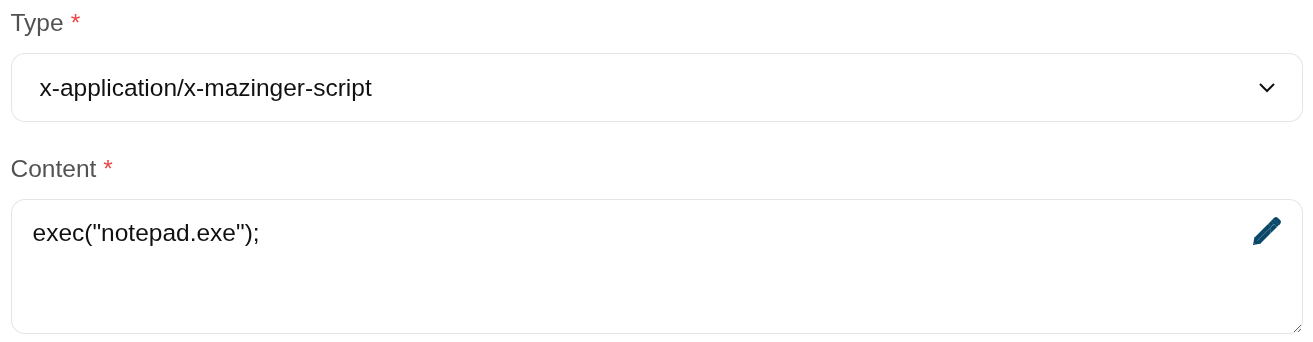
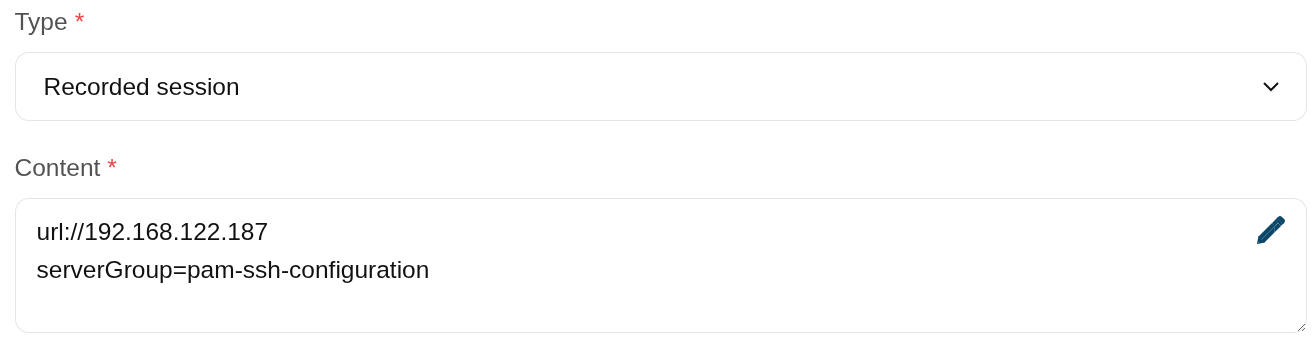
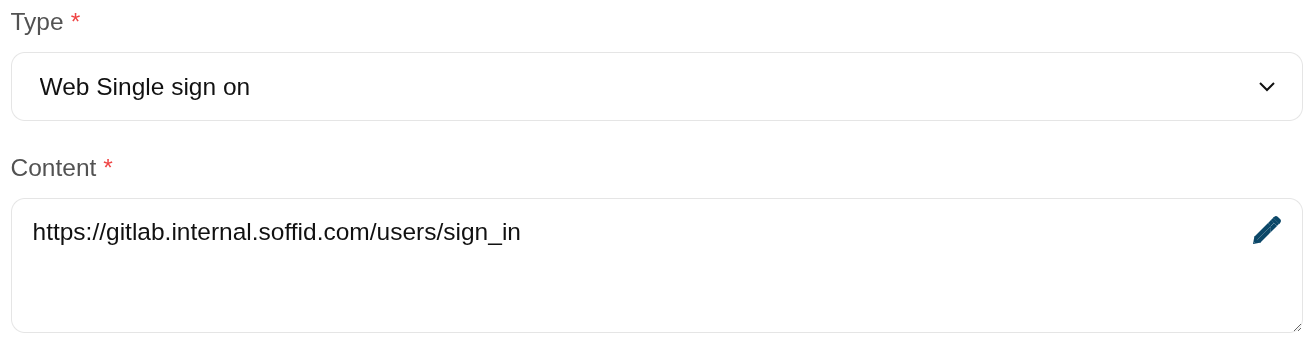
ESSO
Allows you to customize a script to define a pattern to detect when an application is used and how to inject the credentials.
For more information, you can visit the ESSO chapter.
Actions
Table
| "Query" | Allows to query the entry points through different search systems, Quick, Basic and Advanced. |
| Create new entry |
Allows you to add a new entry point. To create a new entry point you can click the Create new entry button, then Soffid will display a new window to fill in the entry point data. To add a new entry point it will be mandatory to fill in the required fields. |
Basics tab
| Apply changes | Allows you to save the data of a new entry point or to update the data of a specific entry point. To save the data it will be mandatory to fill in the required fields. |
| Delete |
Allows you to delete the entry point. To delete an entry point, you can click the hamburger icon and then click the delete button (trash icon). Soffid will ask you for confirmation to perform that action, you could confirm or cancel the operation. |
| Expand all | Displays all the attributes of the different blocks. |
| Collapse all | Hide all attributes of the different blocks. |
| "Types of views" | Change the view type: Classic view, Modern view, Compact design. |
| Undo | Allows you to quit without applying any changes made. |
Authorizations tab
| Add new |
Allows you to add a new authorization. 💻 Image
First, you will select the Grantee type, which could be a role, a user, an account, or a group. Second, you will select the Grantee, it will depend on the Grantee type selected. Then, you will fill in the access level. And finally, you will apply changes. |
| Delete |
Allows you to remove one or more authorizations by selecting one or more records and next clicking this button. To perform that action, Soffid will ask you for confirmation, you could confirm or cancel the operation. |
| Import |
Allows you to upload a CSV file with the authorization list to add or update them to Soffid. First, you need to pick up a CSV file, that CSV has to contain a specific configuration. Then you need to check the content to be loaded, it is allowed to choose if you want or not to load a specific attribute. And finally, you need to select the mappings for each column of the CSV file to import the data correctly and to click the Import button. |
| Download CSV file | Allows you to download a CSV file with the authorizations. |
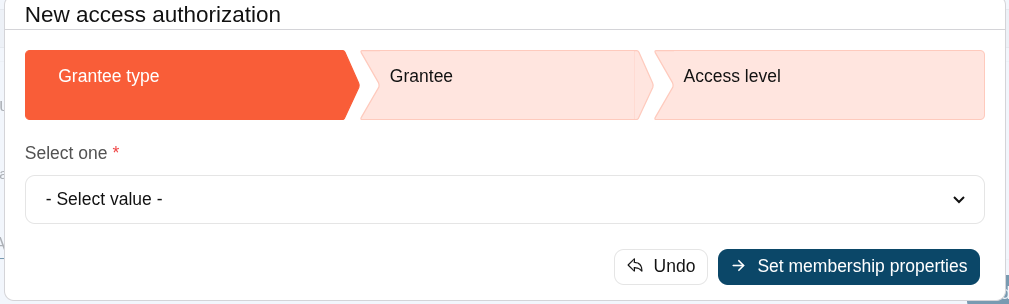
Executions tab
| Apply Changes | Allows you to save the execution configuration. |
| Test | Check if the settings for a specific type are correct. |
ESSO tab
| Validate | Allows you to validate and save the script. |
Password vault
Description
Soffid provides a protected storage, to save and manage accounts for multiple applications, that is the Password vault. Here you can save the accounts and passwords to access to critical systems and to your applications as well. Password vault allows you to handle the access control list to these accounts. Sometimes these accounts can be used by a specific user or a set of users.
The accounts are organized in folders depending on the permissión, and the criticality level, .... These accounts can be system accounts or user accounts.
The Password vault exposes a subset of accounts to some users. These accounts are available through the Self-services portal. You can visit My applications page for more information.
When a privileged account is being config, it will be able to assign a workflow or approval process to request in order to use that account. For more information visit the link How to apply policies.
Folders
In the password vault, two kinds of folders are used: personal folders and shared folders, which depend on the Owners configuration you define.
On one hand, each user has their own personal folder. Inside this folder, the user can create accounts. That account will not be shared with any other user.
On the other hand, the shared folders could be used or managed by the owner/manager/SSO users.
Accounts
Soffid allows you to create new accounts on a specific folder on the password vault page, to add a new account will be mandatory to fill in some attributes, like System, name, and login name. You can consult the existing accounts related to a folder. For each account, you can update or delete the account, view and set a password.
Also, you can create accounts on the Account page and assign the appropriate vault folder.
Soffid allows administrator users to configure a workflow to request permissions when a user try to change the password of a privileged account in the password vault. That process can be defined with the BPM Editor as an Account reservation type. For more information you can visit the BPM Editor book.
Screen overview
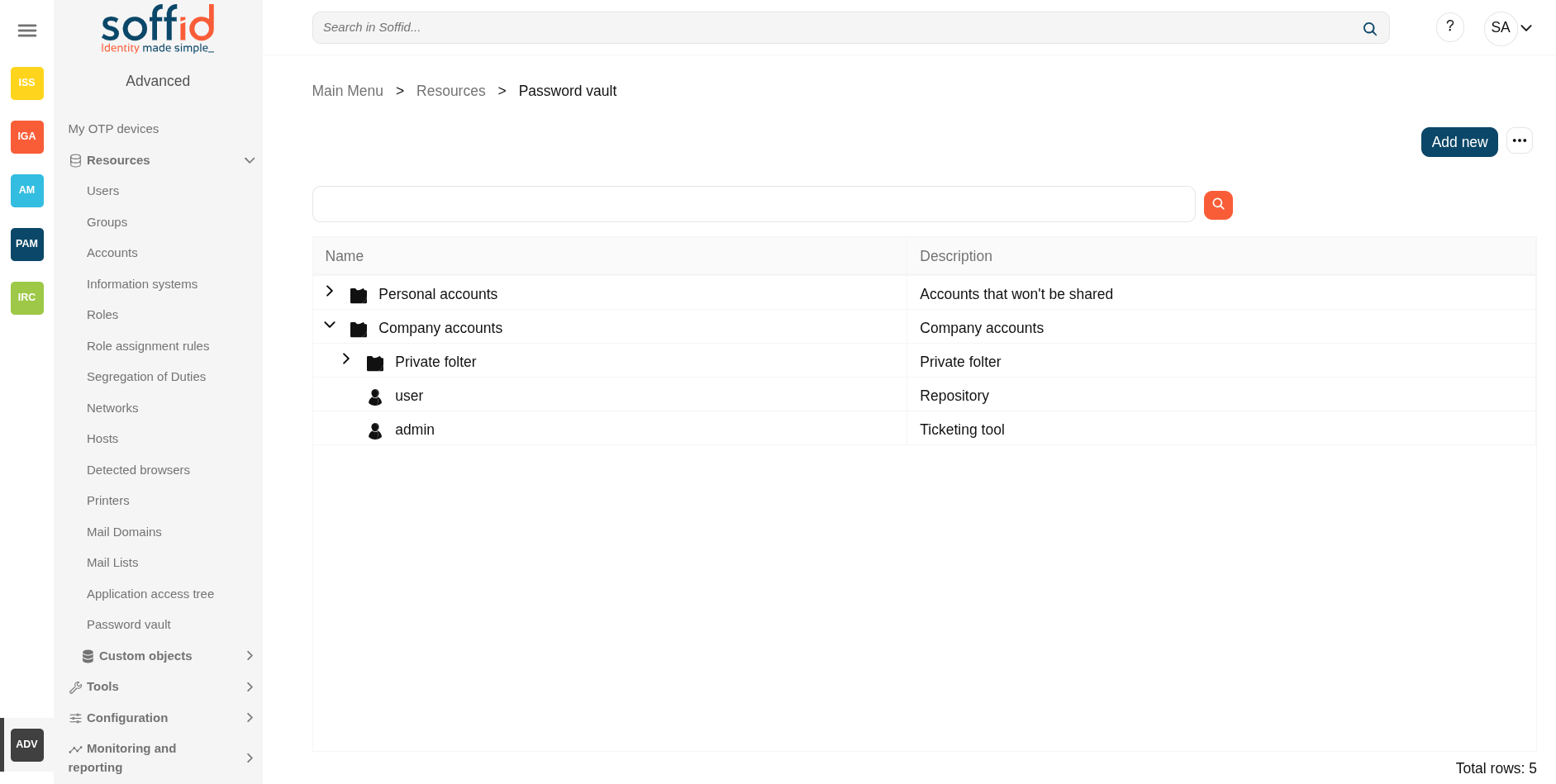
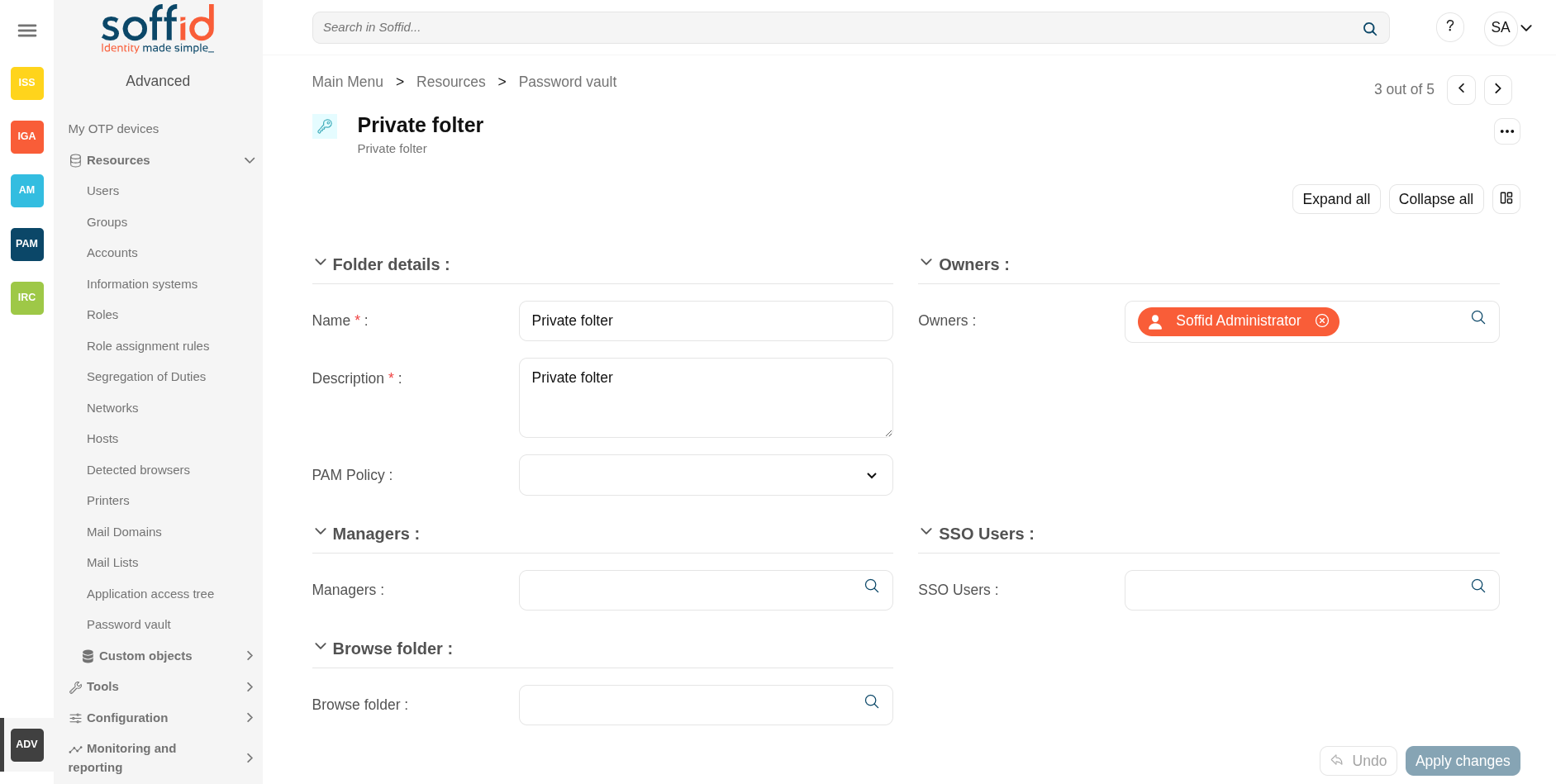
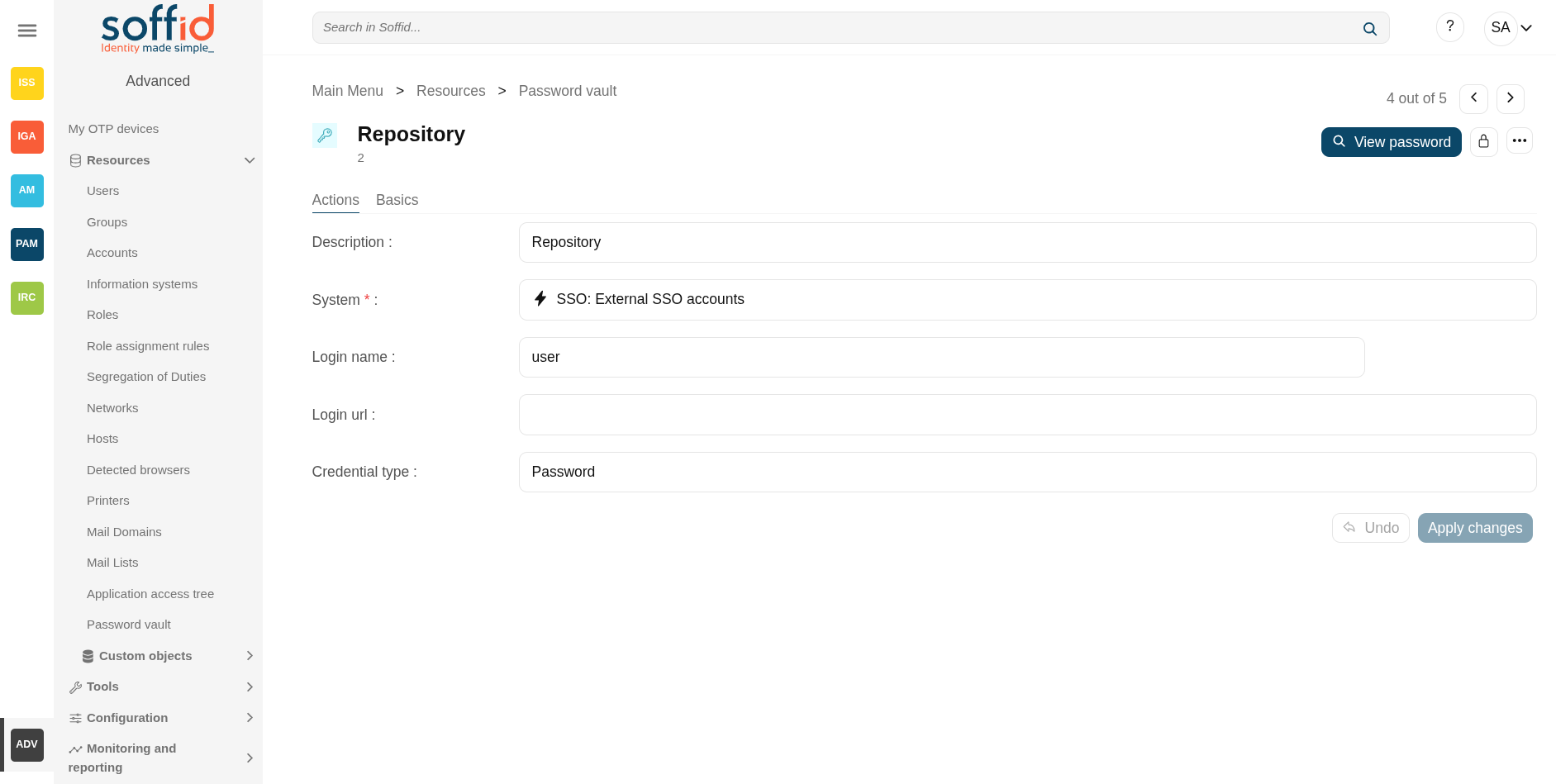
Related objects
- Users : owner users, managers or sso users of the the account
- Roles : owner users, managers or sso users of the the account
- Groups : owner users, managers or sso users of the the account
- Accounts : information related to the accounts
- Agents : the target system in which that account is used (AD, Exchange, etc).
- Password policies : password policy of the onwer user or another one selected in the other account types
- Information systems : where the roles are gathered
-
Configure PAM session servers : configured PAM servers
-
Network discovery : services discovered fot he account
Standard attributes
Folder attributes
- Name: folder name which will be displayed in My Applications.
- Description: folder description.
- PAM policy: when using PAM system, you could choose the policy that will comply with for each folder. When you define a policy for a folder, that policy will apply to all accounts hanging from this folder. For more information you can visit the Configure PAM page.
- Owners: list of users, groups or roles who will be the folder owners.
- Managers: list of users, groups or roles who can manage the folder. Those users can view the password depending on the password policy.
- SSO users: list of users, groups or roles whose can use the account of that folder.
- Browse folder: list of users, groups or roles who can browse the folder, but can not perform any action.
Accounts attributes
Actions Tab
This tab shows the read-only attributes of the user account:
- Description: a brief description.
- System: target system to which the account will be connected.
- Login name: login name to connect to the target system.
- Login URL: URL to connect.
- Credential type: password
- In use by: user name who is using that account.
Also, this tab allows you to "Launch" the connection to the target system, view the password, set the password to launch the connection, and unlock the use of that account. All those options depend on the account definition and user privileges.
Image
Basics Tab
This tab displais all the account attributes and allows you to update the account configuration.
Visit the Account page to view more information about the standard attributes of an account.
Actions
Folders query actions
|
"Query buttons" |
Allows you to query folders through, only Quick search is available. |
|
Add new |
Allows you to create a new folder. To add a new folder it will be mandatory to fill in the required fields. A folder needs to have, at less, an owner to manage it. |
|
Add vault to password manager |
This option is configured in Soffid's Password Manager. For more information, please refer to the Password Manager guide.
Once this option is selected, the browser will ask you to confirm the installation of the extension. Select Add to Chrome (or other browser). Confirm the installation with "Add extension". Remember pin the extension.
Image
|
|
Create new folder (+) |
When you hover over a folder, the (...) button will appear, showing you this option. |
|
Create new account (+) |
When you hover over a folder, the (...) button will appear, showing you this option. |
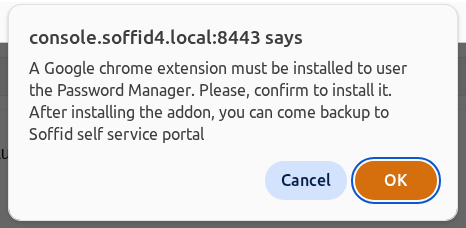
Folder actions
|
Apply changes (disk button) |
Allows you to save a new folder or update an existing folder. To save the data it will be mandatory to fill in the required fields. Be in mind that is important to indicate who are the owners of the folder. |
|
Delete |
Allows you to delete a folder if you have the right permissions. To delete a folder you can click on the hamburger icon and then click the delete button (trash icon). Soffid will ask you for confirmation to perform that action, you could confirm or cancel the operation. |
| Expand all | Displays all the attributes of the different blocks. |
| Collapse all | Hide all attributes of the different blocks. |
| "Types of views" | Change the view type: Classic view, Modern view, Compact design. |
|
Undo |
Allows you to quit without saving any change made. |
Account actions
|
View password |
It allows you to view the account password, if this feature is enabled in the password policies. |
|
Set password |
This option depends on the credential type selected. Password:
💻 Image
SSH key:
💻 Image
Kubernetes key:
💻 Image
|
|
Apply changes (disk button) |
Allows you to save a new account. To save the data it will be mandatory to fill in the required fields. Be in mind that is important to indicate who are the owners of the folder. If the account exists on the system, you can assign the vault folder to the account window. |
|
Delete |
Allows you to delete an account from a folder if you have the right permissions. To delete a host you can click on the hamburger icon and then click the delete button (trash icon). Soffid will ask you for confirmation to perform that action, you could confirm or cancel the operation. |
| Expand all | Displays all the attributes of the different blocks. |
| Collapse all | Hide all attributes of the different blocks. |
| "Types of views" | Change the view type: Classic view, Modern view, Compact design. |
|
Undo |
Allows you to quit without saving any change made. |
|
Apply changes |
Allows you to save a new account. To save the data it will be mandatory to fill in the required fields. Be in mind that is important to indicate who are the owners of the folder. If the account exists on the system, you can assign the vault folder to the account window. |
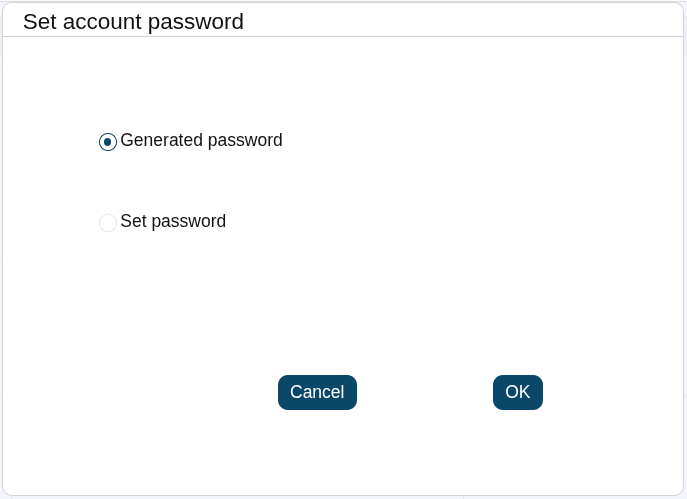

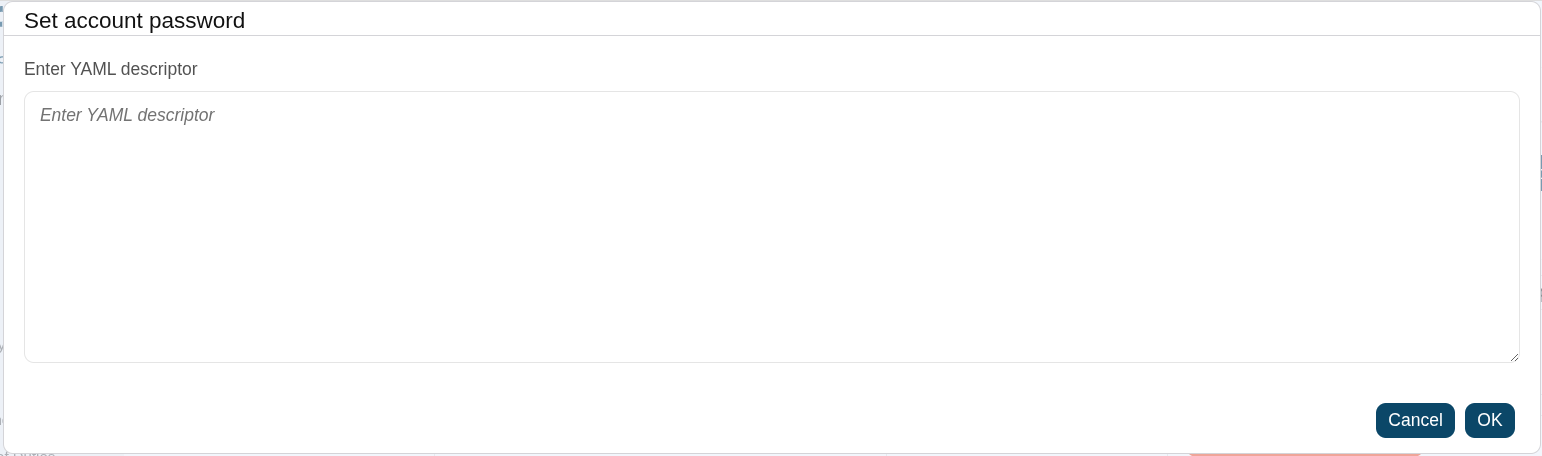
Example
How to apply policies
Soffid allows you to define policies and rules to apply to a specific folder or a set of folders. To do that is needed to install the XACML addon and configure the proper policies and rules.
Also, you can config a workflow or approval process to request in order to use accounts saved on a folder.
It is mandatory to enable the Password Vault PEP and populate the information about the XACML policy set and the version which applies.
XACML PEP config
It is mandatory to enable the Password Vault PEP and populate the information about the XACML policy set and the version which applies.
Password Vault:

XACML PEP config:

XACML Policy Management
You need to configure the access to the folder "VaultFolder", that folder can contain other folders and accounts. It will be mandatory to config the access list, who are the owners, managers, and so on. You need to know if you need to config the control access list by accounts, by folders, or both.

For instance, the policies you need to implement are the following:
1. Only users between 6:00 and 18:00 could use the accounts inside the "demoFolder".
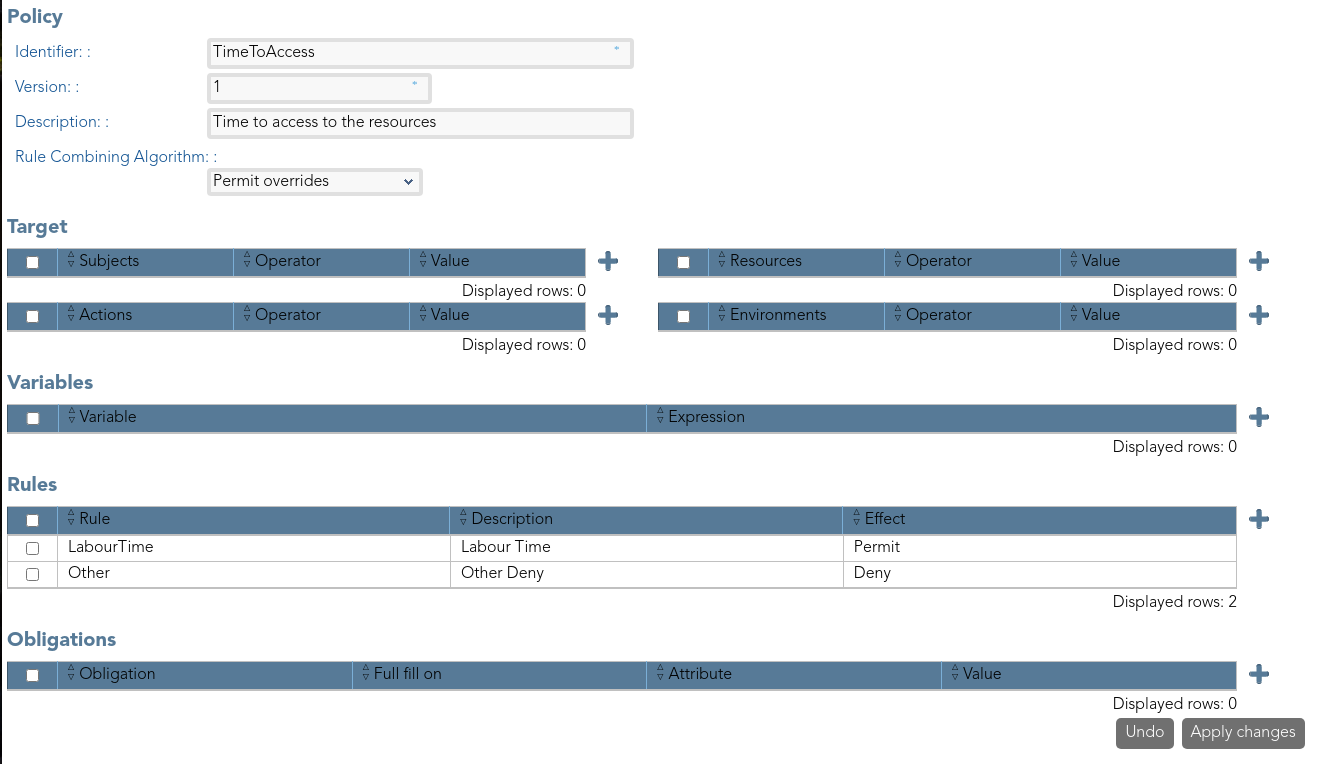
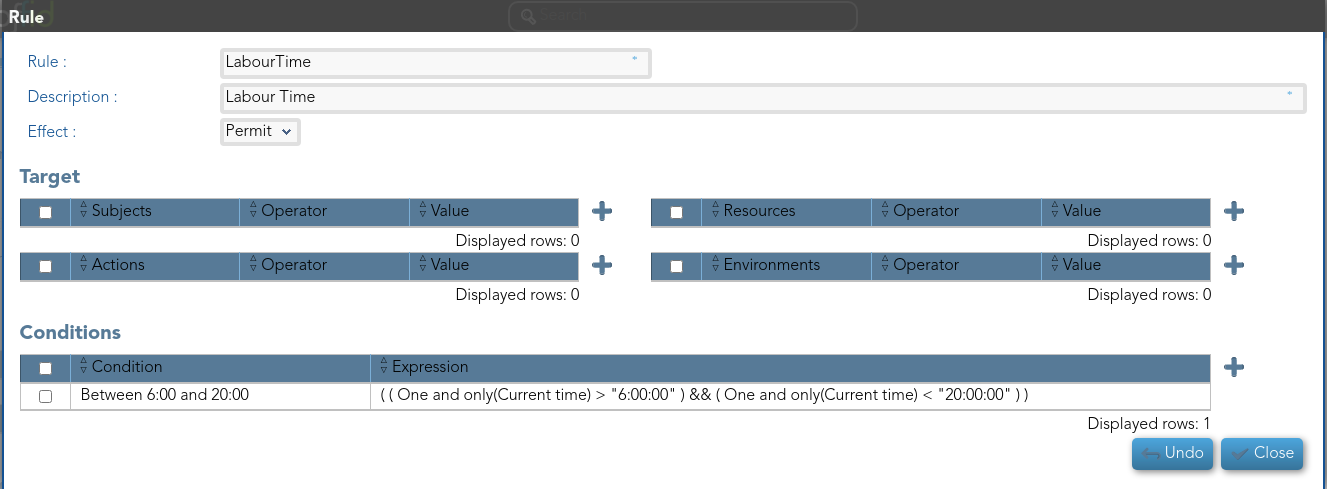
2.- User "bob" never could use the accounts of demoFolder.
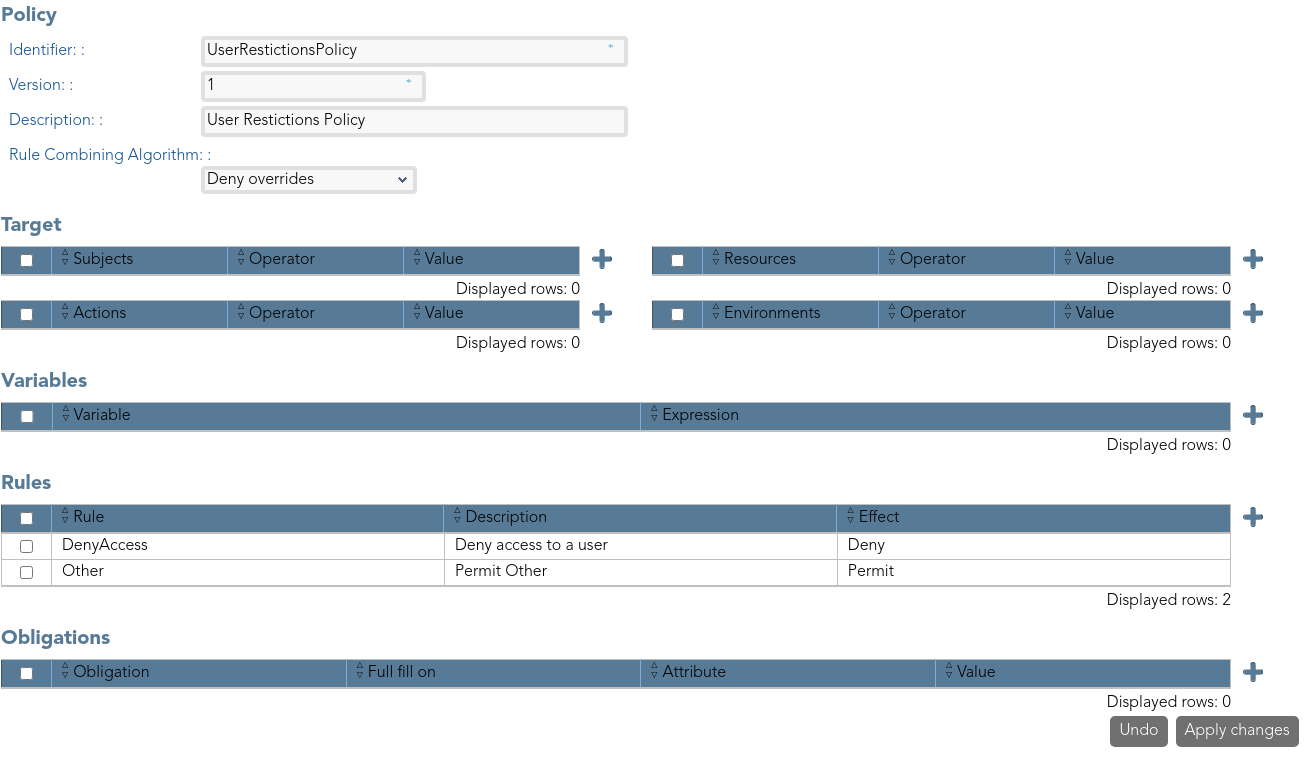
3. Users with result permits, need the authorization to use the accounts.
You need to config the workflow that will be called, to config you need to include the bpm obligation on the policy. Also, you can include a message to the user, or other obligations.
Visit the XACML Book for more information.
Visit the BPM Editor Book for more information.
Custom objects
Description
The custom objects are the objects created by the administrator to extend the Soffid underlying data model. This allows you to store additional information that is not natively supported by Soffid.
This option allows administrator users to provide objects with content.
For more information about how to create a new Custom object you can visit the Metadata page.
Screen overview
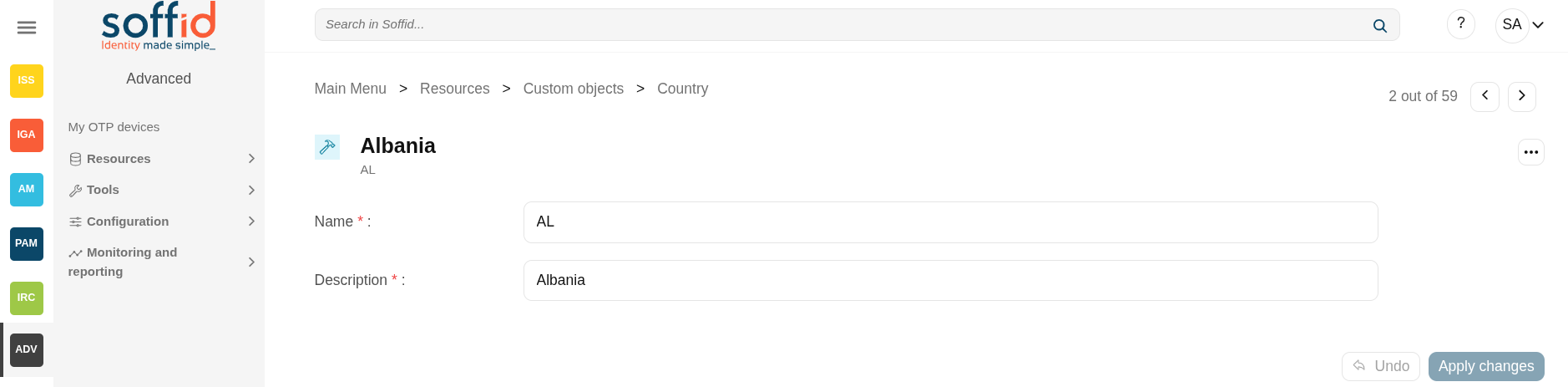
In the metadata page:
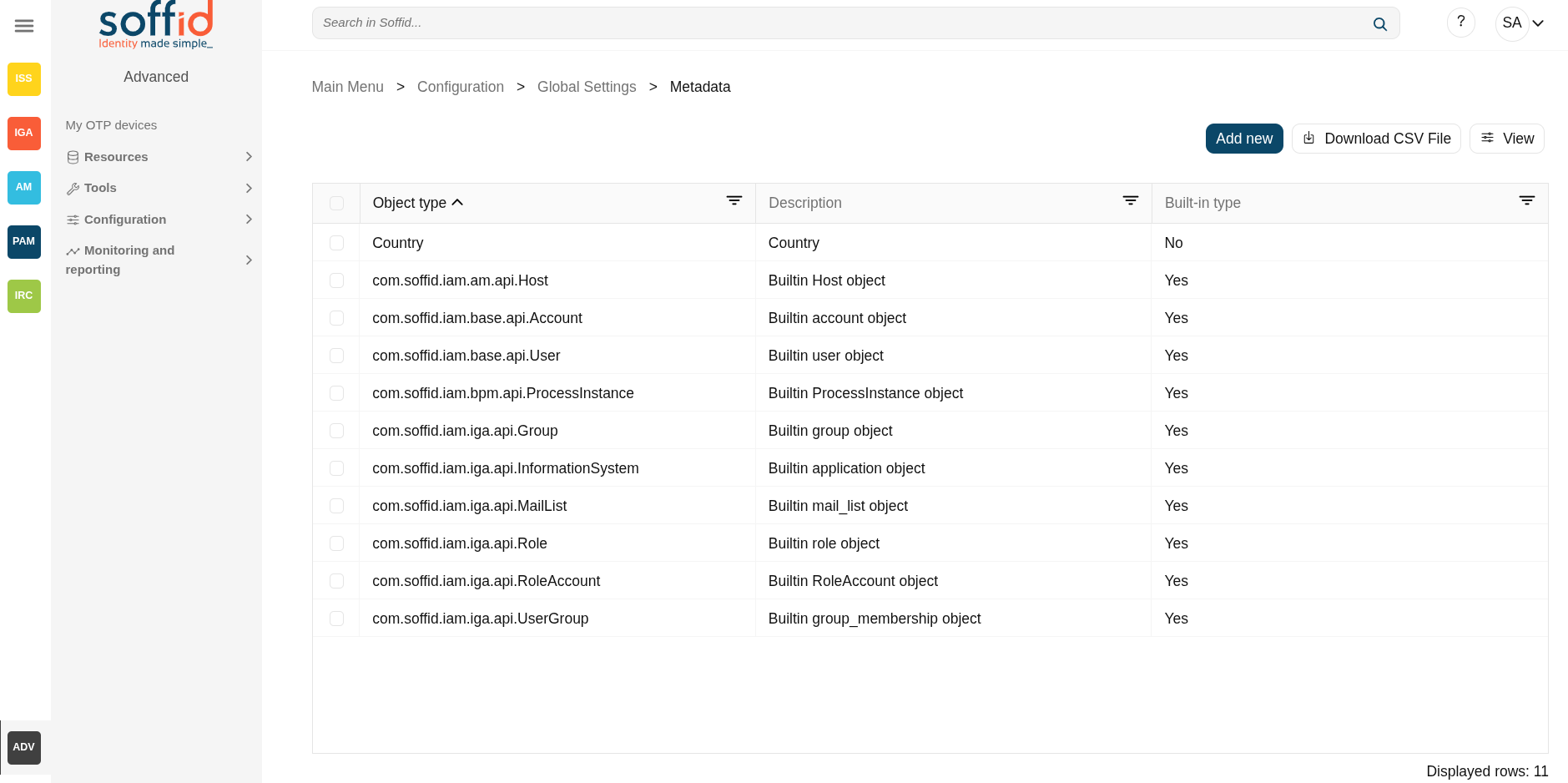
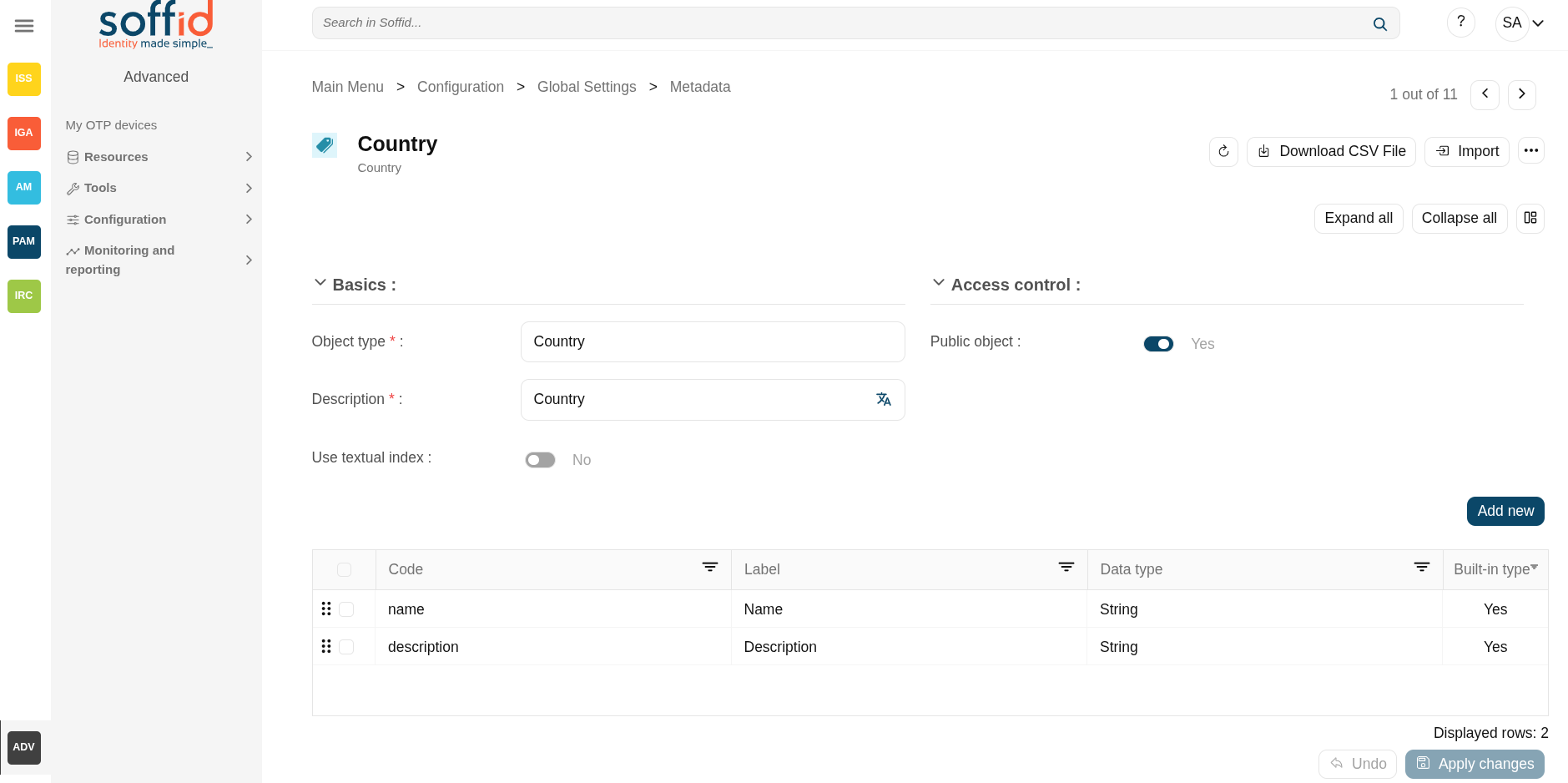
Related objects
- Metadata : where the custom object is configured
Standard attributes
Attributes by default:
- Name: identification name.
- Description: brief description.
Every single custom object could have specified attributes defined by the administrator users when they create the object type in the Metadata page.
Actions
Custom object query
|
"Query" |
Allows you to query custom object through different search systems, Quick, Basic and Advanced. |
|
Add new |
Allows you to create a new custom object. You can choose that option on the hamburger menu or clicking the add button (+). To add a new custom object it will be mandatory to fill in the required fields |
|
Delete custom object |
Allows you to remove one or more custom objects by selecting one or more records and next clicking the button with the subtraction symbol (-). To perform that action, Soffid will ask you for confirmation, you could confirm or cancel the operation. |
|
Download CSV file |
Allows you to download a csv file with the custom objects information. |
|
Import |
Allows you to upload a CSV file with the custom object list to add or update custom objects to Soffid. First, you need to pick up a CSV file, that CSV has to contain a specific configuration. Then you need to check the content to be loaded, it is allowed to choose if you want or not to load a specific attribute. And finally, you need to select the mappings for each column of the CSV file to import the data correctly and to click the Import button. |
|
View |
Allows you to add or remove columns to the table. It is also possible to change the order of the columns. |
Custom object detail
|
Apply changes |
Allows you to save the data of a new custom object or to update the data of a specific custom object. To save the data it will be mandatory to fill in the required fields |
|
Delete custom object |
Allows you to remove a custom object. You can choose that option on the trash icon. To perform that action, Soffid will ask you for confirmation, you could confirm or cancel the operation. |
|
Undo |
Allows you to undo any changes made |
Examples
How to use custom objects in the scripts
Example 1: Retrieve the list of the records of the custom object Country.
lCusObj = serviceLocator.getCustomObjectService().findCustomObjectNames("Country");Example 2: Retrieve a custom object value by name of the custom object Country.
cusObj = serviceLocator.getCustomObjectService().findCustomObjectByTypeAndName("Country","ES");Example 3: List the values of the custom object Country that the name starts with "A".
lCusObj = serviceLocator.getCustomObjectService().findCustomObjectByJsonQuery("Country", "name sw " + "\"A\"");
for (var i=0; i<lCusObj.length; i++) {
atributes = lCustomObj[i].getAttributes();
out.println("*** Custom Object - " + i + " - " + lCusObj[i].name);
}