For more information, vist [My Task](https://bookstack.soffid.com/books/soffid-4-reference-guide/page/my-tasks "My tasks") page.
### My issues My issues display all the issues that the user will be able to check, and this option allows the user to manage this issues.For more information, visit [My Issues](https://bookstack.soffid.com/books/soffid-4-reference-guide/page/my-issues "My requests") page.
### My requests My requests display all the processes or workflows that the user will be able to run. And also the included page Query request status displays all the processes that the user has initiated and allows the user to consult all the information about the workflow.For more information, vist [My Request](https://bookstack.soffid.com/books/soffid-4-reference-guide/page/my-requests "My requests") page.
### Process search That functionality allows to users search for processes initiated or requested by themselves. Here the users will be able to consult all the information related to the processes and their status and if there are any pending tasks to be completed. If there are pending tasks, the user will be able to browse the task and manage it. Administrator users will be able to consult all the information about all the processes which have been executed by any user.For more information, visit the [Process search](https://bookstack.soffid.com/books/soffid-4-reference-guide/page/process-search "Process Search") page.
### My applications My applications display all the **corporate applications** and **third-party applications** as well to which the user has permission to connect. Those applications have to be configured into Soffid Console The **password vault folder** will be displayed as well. In this folder, the users will be able to find the shared accounts on the Soffid vault folder and will be able to save their personal accounts.For more information, vist [My Applications](https://bookstack.soffid.com/books/soffid-4-reference-guide/page/my-applications "My applications") page.
### My authentication #### My OTP devices My OTP devices display all the OTP devices configured by the user and allow to the user config new ones.For more information, vist [My OTP devices](https://bookstack.soffid.com/books/soffid-4-reference-guide/page/my-authentication-my-otp-devices-addon-otp "My OTP devices") page.
#### My certificates and FIDO tokens My certificates and FIDO token display all the configured certificates and allow to the user config new ones.For more information, visit [My certificates and FIDO tokens](https://bookstack.soffid.com/books/soffid-4-reference-guide/page/my-authentication-my-certificates-and-fido-tokens-addon-federation "My certificates and FIDO tokens") page.
### My accounts My Accounts display all the personal user accounts registered into Soffid Console and with which the user will log into the target system. In this section, if a user has permissions, they can view or change their password.For more information, visit [My Accounts](https://bookstack.soffid.com/books/soffid-4-reference-guide/page/my-accounts "My accounts") page.
### Soffid chat-box (new functionality) The new Chat-box Soffid functionality is our AI and relies on Soffid's expertise to provide documentation or apply changes directly in the system, feel free to ask your questions.For more information, visit [Soffid chat-box](https://bookstack.soffid.com/books/soffid-4-reference-guide/page/soffid-chat-bot "Soffid chat-box") page.
# My tasks ## DescriptionDisplays the tasks in which the user is involved like a supervisor, manager, or person responsible for approving or rejecting those tasks.
My tasks provides information about the process, the task, the start and due date and the asigned user. By clicking a record, it will be shown de task details and to perform actions will be allowed. Manual tasks are assigned to named users, groups or roles. Whatever strategy is followed, each one of the assigned users will see the task at their tasks page. You can differentiate tasks by their highlighted style: - **Highlighted bold**: when the task is pending for the user to take ownership. - **Highlighted blue**: task close to completion date - **Highlighted red**: task after the completion date - **Normal**: started task The purpose of My tasks as a part of **Identity seft service** is to reduce the workload of IT department, as well as improve overall security of IT system. Soffid console is concerned about task delegation and workflow management. ## Screen overview [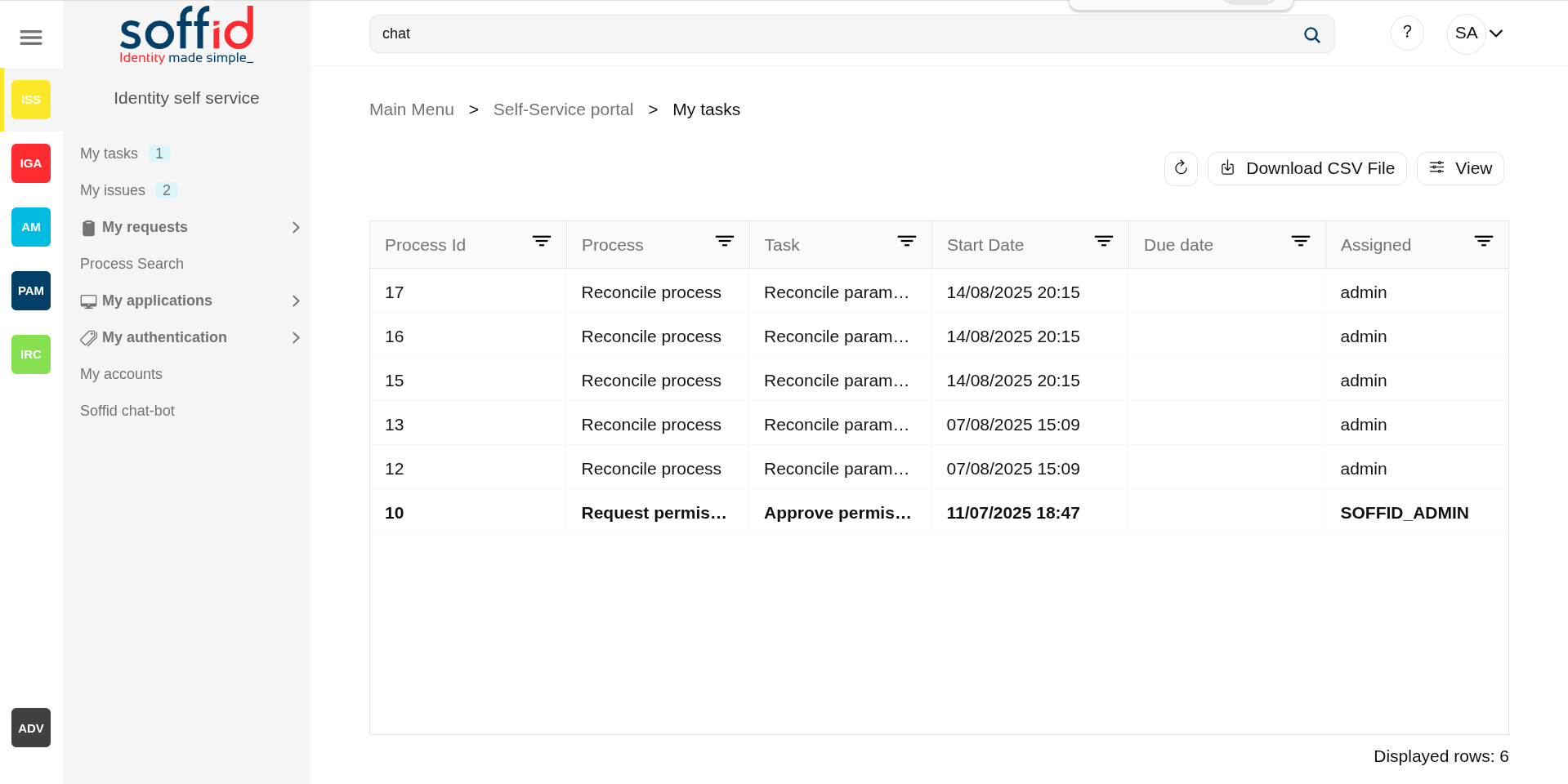](https://bookstack.soffid.com/uploads/images/gallery/2025-08/YfkDazof5r7NzItw-image.png) [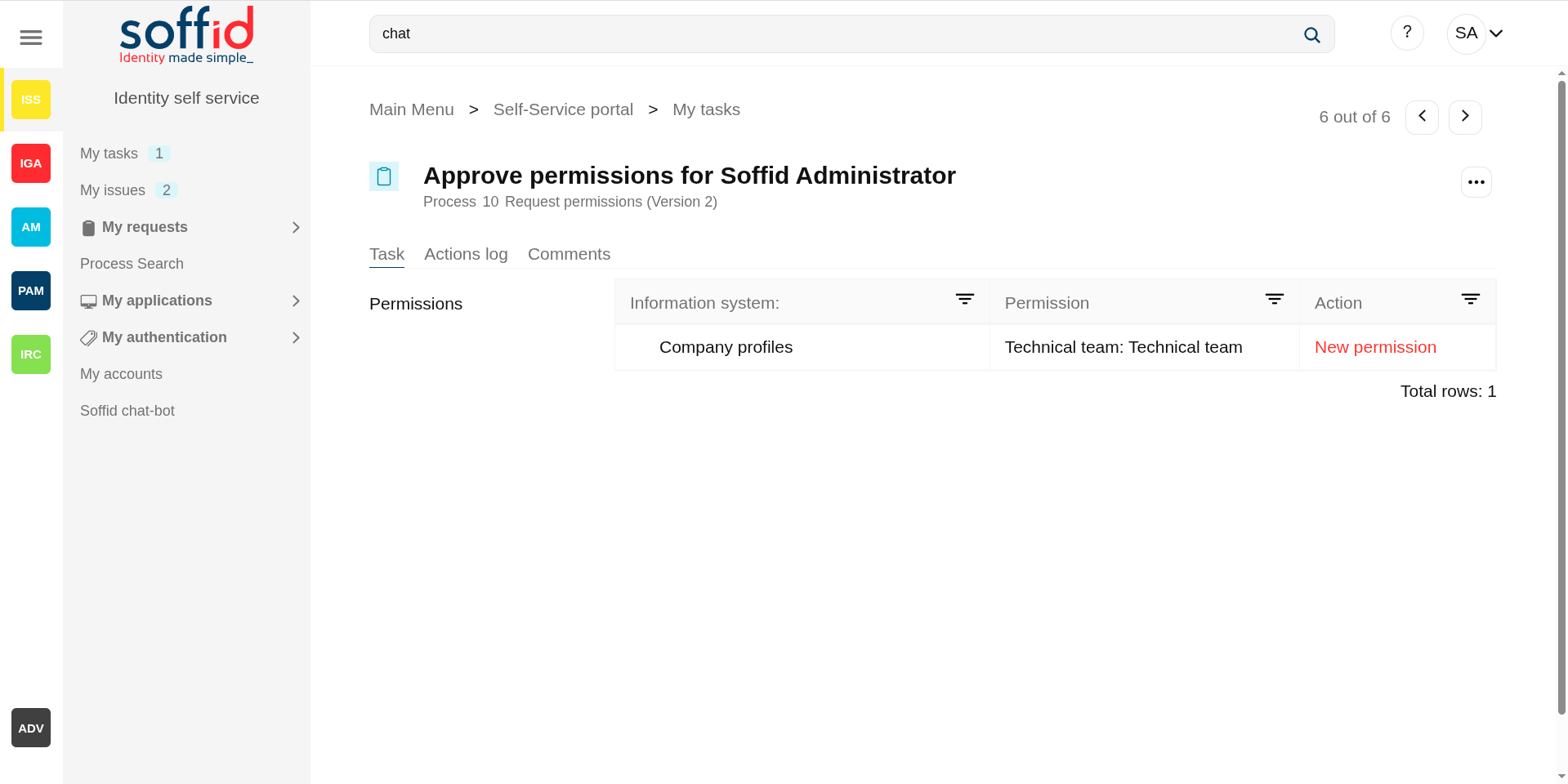](https://bookstack.soffid.com/uploads/images/gallery/2025-08/pSX5yv2EvCbYY193-image.png) ## Related objects - [Configure Workflow engine](https://bookstack.soffid.com/books/soffid-4-reference-guide/page/configure-workflow-engine) : where the workflow engine is configured. - [Business process definition](https://bookstack.soffid.com/books/soffid-4-reference-guide/page/business-process-definition) : where workflows are published. - [BPM editor](https://bookstack.soffid.com/books/soffid-4-reference-guide/page/bpm-editor-addon-bpm) : where to create or modify workflows. - [My tasks](https://bookstack.soffid.com/books/soffid-4-reference-guide/page/my-tasks) : pending workflows where the user has to perform an action in order to continue their workflow. - [My requests](https://bookstack.soffid.com/books/soffid-4-reference-guide/page/my-requests) : the workflows that the user can initiate are listed here. - [My requests > Query request status](https://bookstack.soffid.com/books/soffid-4-reference-guide/page/my-requests-query-request-status) : to search for all processes started by oneself. - [Process Search](https://bookstack.soffid.com/books/soffid-4-reference-guide/page/process-search) : to search for all processes. - [Metadata](https://bookstack.soffid.com/books/soffid-4-reference-guide/page/metadata) : to add attributes to display in the search tables. - [Scheduled jobs](https://bookstack.soffid.com/books/soffid-4-reference-guide/page/scheduled-jobs) : shows active workflows pending asynchronous tasks. ## Standard attributes ### Table - **Process id**: unique process identifier in the system that stars from zero and increases by one. - **Process**: process name (this is the name of the workflow). - **Task**: name of the task in which the process is running. - **Start date**: date and time when the process was started. - **Due date**: date and time when the process will finish. - **Assigned**: user who has been assigned the task. ### Detail Below you can see the workflow information, which has several tabs. #### Task tab Displays information about the work performed in this task. This information varies for each workflow but is almost always structured as a form.| **Refresh** | This action refresh the task table with the last current data. |
| **Download CSV file** | This action allows you to download a csv file with the list of all tasks. |
| **View** | Allows you to add or remove columns to the table. It is also possible to change the order of the columns. |
| **"Open task"** | By clicking on a record, the task detail will be shown. |
| **Close** | Allows you to closes the task window, you can add new comments and those will be saved. |
| **Take ownership** | Enables the user to self-assign the task to authorize or deny it. |
| **Schedule** | Allows you to schedule the task execution. |
| **Delegate** | Allows you to to reassign the task to another user, who will must approve or deny it. |
| **Approve** | Allows you to authorize the task. When you authorize a task all defined operations for this task will be performed. |
| **Reject** | Allows you to deny the task. When you deny a task none defined operations for this task will be performed. |
Soffid provides a complete workflow engine that allows you to incorporate business processes or define new business processes as needed. End-users with the appropriate permissions will be able to request these processes. You can visit [Self service portal examples page](https://bookstack.soffid.com/books/bpm-editor/page/self-service-portal-examples "Self service portal examples") for more information.
My request screen allows to users: - On the one hand, in the [Query request status](#bkmrk-query-request-status-0 "Query request status") screen the user can consult the processes they have executed and view the process details and status. - On the other hand, they will be able to execute the processes for which they have been assigned the proper permissions. For example "Reconcile process" or "Request permissions", see the "Screen overview".More information about process and workflows on [BPM Editor Book](https://bookstack.soffid.com/books/bpm-editor "BPM Editor")
## Screen overview [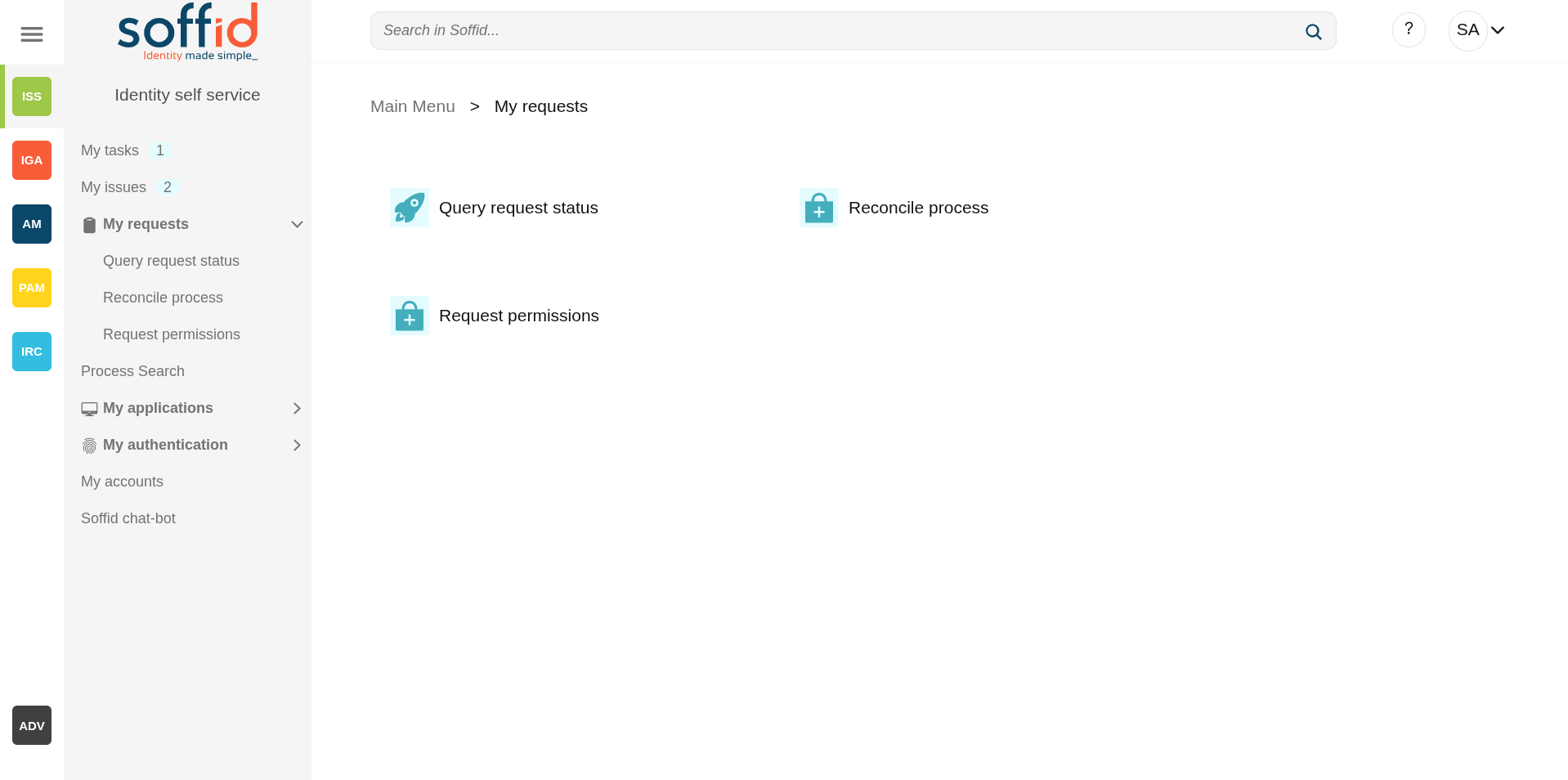](https://bookstack.soffid.com/uploads/images/gallery/2025-08/q8agVWbtFf491hQN-image.png) ## Related objects - [Configure Workflow engine](https://bookstack.soffid.com/books/soffid-4-reference-guide/page/configure-workflow-engine) : where the workflow engine is configured - [Business process definition](https://bookstack.soffid.com/books/soffid-4-reference-guide/page/business-process-definition) : where workflows are published - [BPM editor](https://bookstack.soffid.com/books/soffid-4-reference-guide/page/bpm-editor-addon-bpm) : where to create or modify workflows - [My tasks](https://bookstack.soffid.com/books/soffid-4-reference-guide/page/my-tasks) : pending workflows where the user has to perform an action in order to continue their workflow. - [My requests](https://bookstack.soffid.com/books/soffid-4-reference-guide/page/my-requests) : The workflows that the user can initiate are listed here. - [My requests > Query request status](https://bookstack.soffid.com/books/soffid-4-reference-guide/page/my-requests-query-request-status) : to search for all processes started by oneself - [Process Search](https://bookstack.soffid.com/books/soffid-4-reference-guide/page/process-search) : to search for all processes - [Metadata](https://bookstack.soffid.com/books/soffid-4-reference-guide/page/metadata) : to add attributes to display in the search tables - [Scheduled jobs](https://bookstack.soffid.com/books/soffid-4-reference-guide/page/scheduled-jobs) : shows active workflows pending asynchronous tasks # My requests > Query request status ## DescriptionDisplays a table with all the processes initiated by the end-user. The end-user can consult processes detail and perform actions depending on the user permissions. You can visit [Self service portal examples page](https://bookstack.soffid.com/books/bpm-editor/page/self-service-portal-examples "Self service portal examples") for more information.
## Screen overview [](https://bookstack.soffid.com/uploads/images/gallery/2025-08/GNhSX5heo9O6uNyW-image.png) [](https://bookstack.soffid.com/uploads/images/gallery/2025-08/oE9N6xUbWyahFnqT-image.png) ## Related objects - [Configure Workflow engine](https://bookstack.soffid.com/books/soffid-4-reference-guide/page/configure-workflow-engine) : where the workflow engine is configured - [Business process definition](https://bookstack.soffid.com/books/soffid-4-reference-guide/page/business-process-definition) : where workflows are published - [BPM editor](https://bookstack.soffid.com/books/soffid-4-reference-guide/page/bpm-editor-addon-bpm) : where to create or modify workflows - [My tasks](https://bookstack.soffid.com/books/soffid-4-reference-guide/page/my-tasks) : pending workflows where the user has to perform an action in order to continue their workflow. - [My requests](https://bookstack.soffid.com/books/soffid-4-reference-guide/page/my-requests) : The workflows that the user can initiate are listed here. - [My requests > Query request status](https://bookstack.soffid.com/books/soffid-4-reference-guide/page/my-requests-query-request-status) : to search for all processes started by oneself - [Process Search](https://bookstack.soffid.com/books/soffid-4-reference-guide/page/process-search) : to search for all processes - [Metadata](https://bookstack.soffid.com/books/soffid-4-reference-guide/page/metadata) : to add attributes to display in the search tables - [Scheduled jobs](https://bookstack.soffid.com/books/soffid-4-reference-guide/page/scheduled-jobs) : shows active workflows pending asynchronous tasks ## Standard attributes - **Identifier:** unique process identifier in the system (starts at 1 and increases). - **Description**: generic process name - **Start**: date and time the process starts - **End**: date and time the process ends. A process without end date it is a process in progress - **Current task**: displays the point in progress on the defined process diagram. Depend on the process status, you could perform some operations or others. - **Initiator**: the soffid user who started the workflow (this attribute must be added beforehand in the Metadata screen and selected in View) - **Created on** - **Created by** - **Updated on** - **Updated by** ### Actions The operations to be performed depend on the user permission and the business processes defined with the workflow engine.You can find documentation about the business processes on [BPM Editor Book.](https://bookstack.soffid.com/books/bpm-editor "BPM Editor")
#### Table| **Refresh** | Allows you to refresh the processes list with updated data. |
| **Download CSV file** | Allows you to download a CSV file with all the information from the list of processes contained in the table. |
| **View** | Allows you to add or remove columns to the table. It is also possible to change the order of the columns. |
You can find more information about the most commons process actions if you go to [Process detail actions](https://bookstack.soffid.com/books/soffid-4-reference-guide/page/process-search#bkmrk-%C2%A0-3)
# Process search ## Description A process is a series of actions, connected by transitions. An action could be either an automatic action or a manual task. A process is what we commonly refer to as a workflow in Soffid.Soffid console is concerned about task delegation and workflow management. Any user is able to create new processes or any user can be assigned as an actor for a task belonging to a process.
Process Search page allows users to search process by different criteria, to view the process details and to perform the proper actions depending on the user roles. In order to view a task, a security constraint must be accomplished. The user must have granted the observer or administrator role on the specific project version or has been assigned as a potential actor of it at some time. ## Screen overview [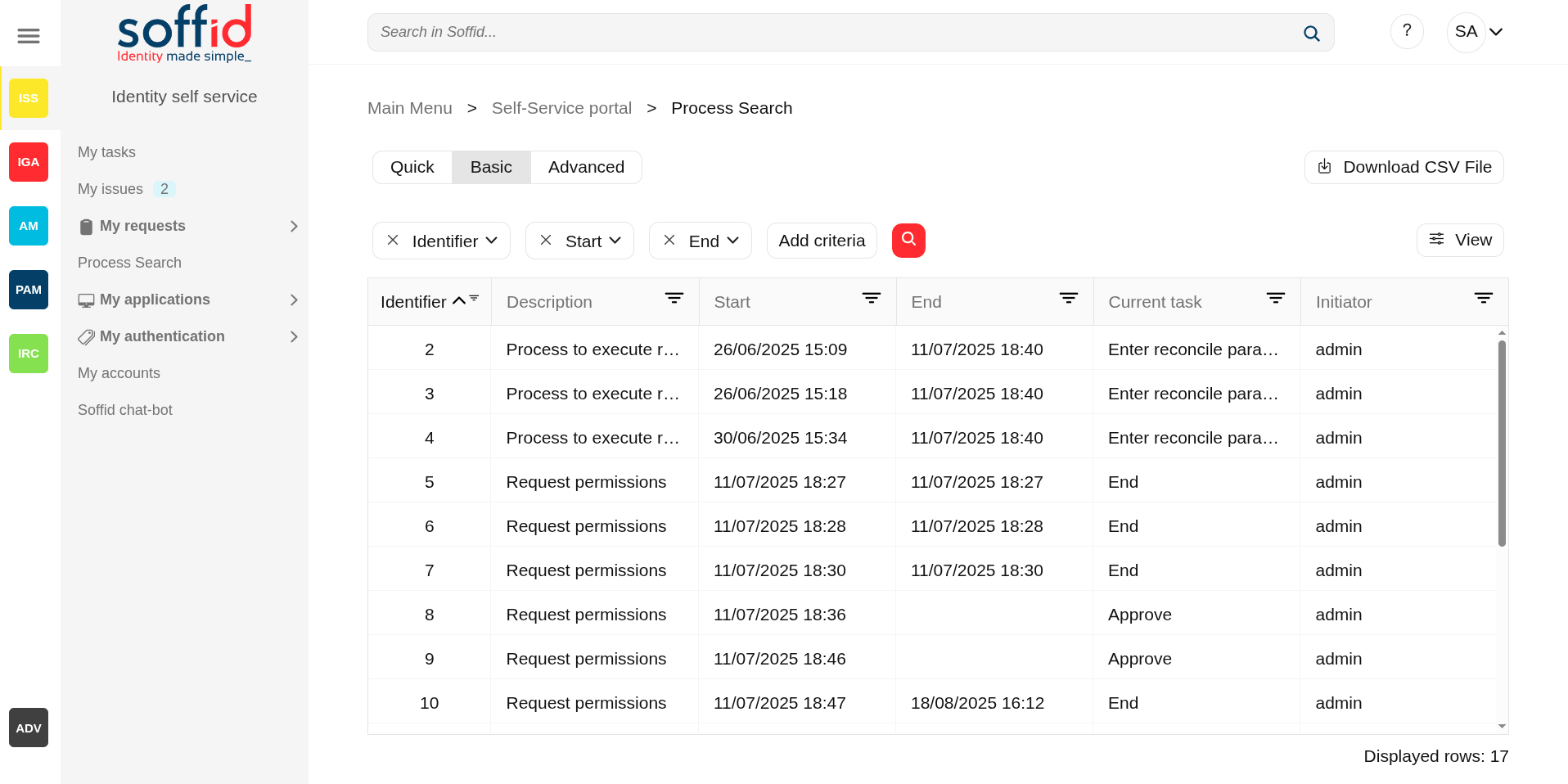](https://bookstack.soffid.com/uploads/images/gallery/2025-08/aovG5pB5xULwk1z4-image.png) [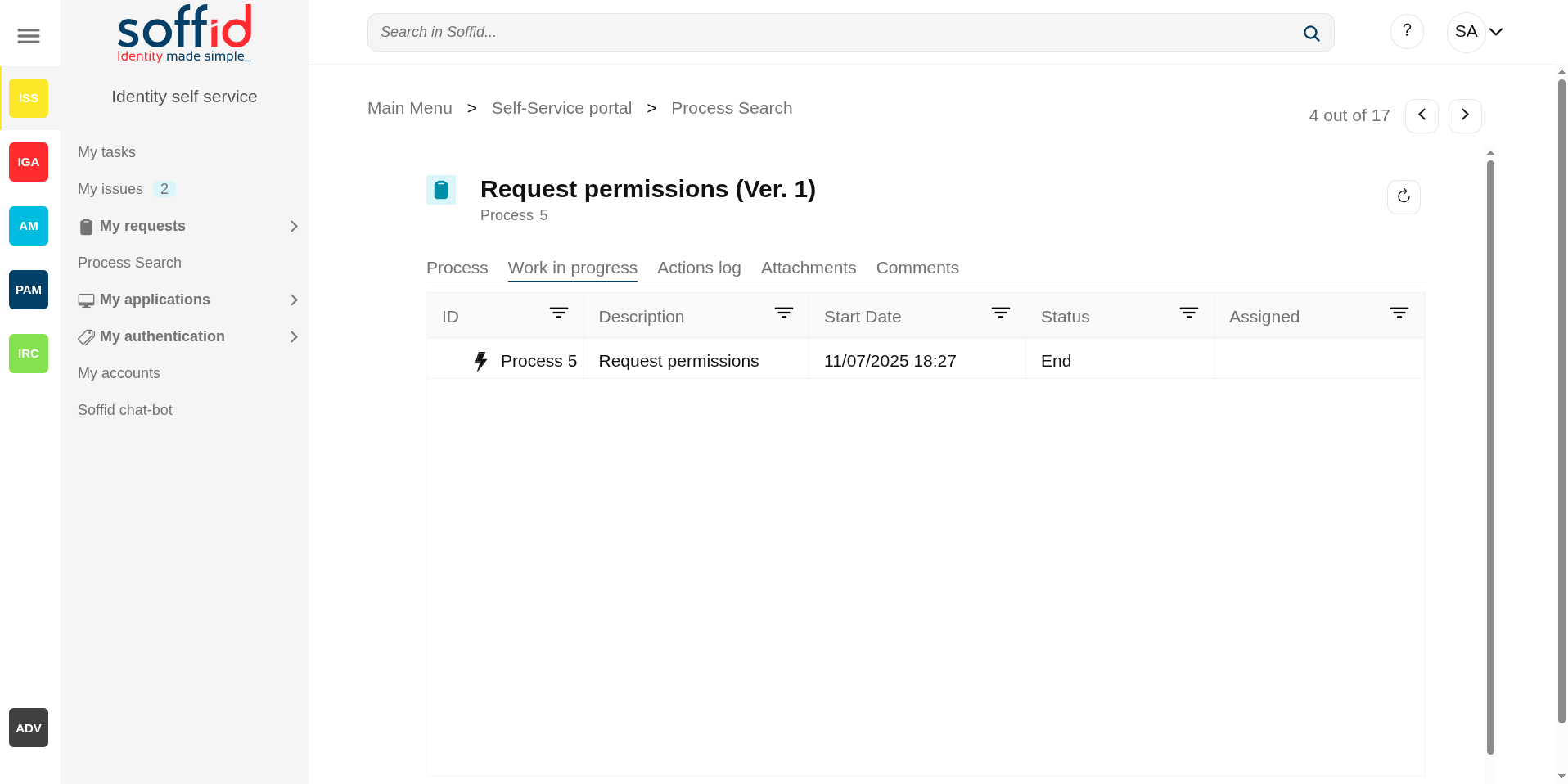](https://bookstack.soffid.com/uploads/images/gallery/2025-08/tlB03yPn8oRi3wdo-image.png) ## Related objects - [Configure Workflow engine](https://bookstack.soffid.com/books/soffid-4-reference-guide/page/configure-workflow-engine) : where the workflow engine is configured - [Business process definition](https://bookstack.soffid.com/books/soffid-4-reference-guide/page/business-process-definition) : where workflows are published - [BPM editor](https://bookstack.soffid.com/books/soffid-4-reference-guide/page/bpm-editor-addon-bpm) : where to create or modify workflows - [My tasks](https://bookstack.soffid.com/books/soffid-4-reference-guide/page/my-tasks) : pending workflows where the user has to perform an action in order to continue their workflow. - [My requests](https://bookstack.soffid.com/books/soffid-4-reference-guide/page/my-requests) : The workflows that the user can initiate are listed here. - [My requests > Query request status](https://bookstack.soffid.com/books/soffid-4-reference-guide/page/my-requests-query-request-status) : to search for all processes started by oneself - [Process Search](https://bookstack.soffid.com/books/soffid-4-reference-guide/page/process-search) : to search for all processes - [Metadata](https://bookstack.soffid.com/books/soffid-4-reference-guide/page/metadata) : to add attributes to display in the search tables - [Scheduled jobs](https://bookstack.soffid.com/books/soffid-4-reference-guide/page/scheduled-jobs) : shows active workflows pending asynchronous tasks ## Standard attributes ### Table The search and the view table can be performed by setting certain parameters, which are as follows: - **Search text**: search by a certain text, as user name or application, etc (only for Quick search).. - **Identifier**: all the processes have an assigned an identifier. - **Start**: allows you to establish a date range when the process was started. - **End** of the process. These filters will be available if you check the Include completed option. - **Current task**: task in which the workflow is being executed. - **Initiator**: user who has started the workflow. ### Process Each process has commons attributes and specific attributes depending on the business process definition.You can find documentation about the business processes on [BPM Editor Book](https://bookstack.soffid.com/books/bpm-editor "BPM Editor")
#### Commons process attributes - **Name**: shows process name and the versión of the addon you are using. - **Process**: each proces has an unique identifier #### Other process information - **Specific process attributes**: these attributes depend on the process definition. - **Work in progress**: details the specific point in which the process and associated tasks are. You can find information about the process ID, the job description for each one of them, the start date and time, and the current status. The users with the proper roles could view the task details, browse and perform actions by clicking on it. - **Actions log:** summary of all the successive phases through which the process has passed, providing information on the start date and time of the phase, the user (task manager) assigned, and the action that was done.Also when it is defined, the diagram of the workflow is diplayed. - **Attachments**: in some cases, for example in massive user upload processes using a CSV file, files are attached to the process so that it can be executed. These files can be consulted, by downloading or opening them directly, from this page. Additionally, if needed, it is possible to see the certificates used by the process owner. - **Comments**: displays the comments added by the user who initializes or performs actions on the process. ## Actions #### Table Actions to be performed on the process list:| **Search (quick, basic, advanced)** | Allows you to query the processes with the indicated parameters. |
| **Download CSV file** | Allows you to download a CSV file with the list of processes. You can open the hamburger icon and Download CSV File. |
| **View | Allows you to add or remove columns to the table. It is also possible to change the order of the columns. |
| **"Open task"** | By clicking on a record, the task detail will be shown. |
You can find documentation about the business processes on [BPM Editor Book](https://bookstack.soffid.com/books/bpm-editor "BPM Editor")
The most commons actions are below:| **Close** | Allows you to close the process detail page and return to the previous page. |
| **Reload** | Allows you to reload all process data with the updated data. |
| **Take ownership** | Allows you to take the ownership to approve o deny the process. |
| **Approve** | Allows you to approve the process and perform the actions defined for that process. |
| **Deny** | Allows you to reject the process. |
| **Edit task** | Allows you to edit a task by clicking on the record. When you click the task, you will browse to the task detail and it will be allowed to perform actions defined to users with the proper permissions. |
| **Download** | Allows you to download the available attached files. |
My application is a part of the Identity self-service that allows end-users to start **corporate applications** and **third party applications**. Also, the end-user can view and use the **shared accounts** available for the user defined on the Password vault.
### Applications That option shows to each user, all the corporate and third party applications to which the user can connect and the applications with public access. These applications have to be configured on the Application Access Tree option by an administrator user. ### Password vault My Applications option shows the **PasswordVault** folder. On the vault folder you can find two kind of folders, one a **personal folder** and other a **shared folder**. Inside the personal folder, you can create your own accounts, those accounts will not be shared with any other user. The shared folders could be used or managed by the owner/manager/SSO users. ## Screen overview [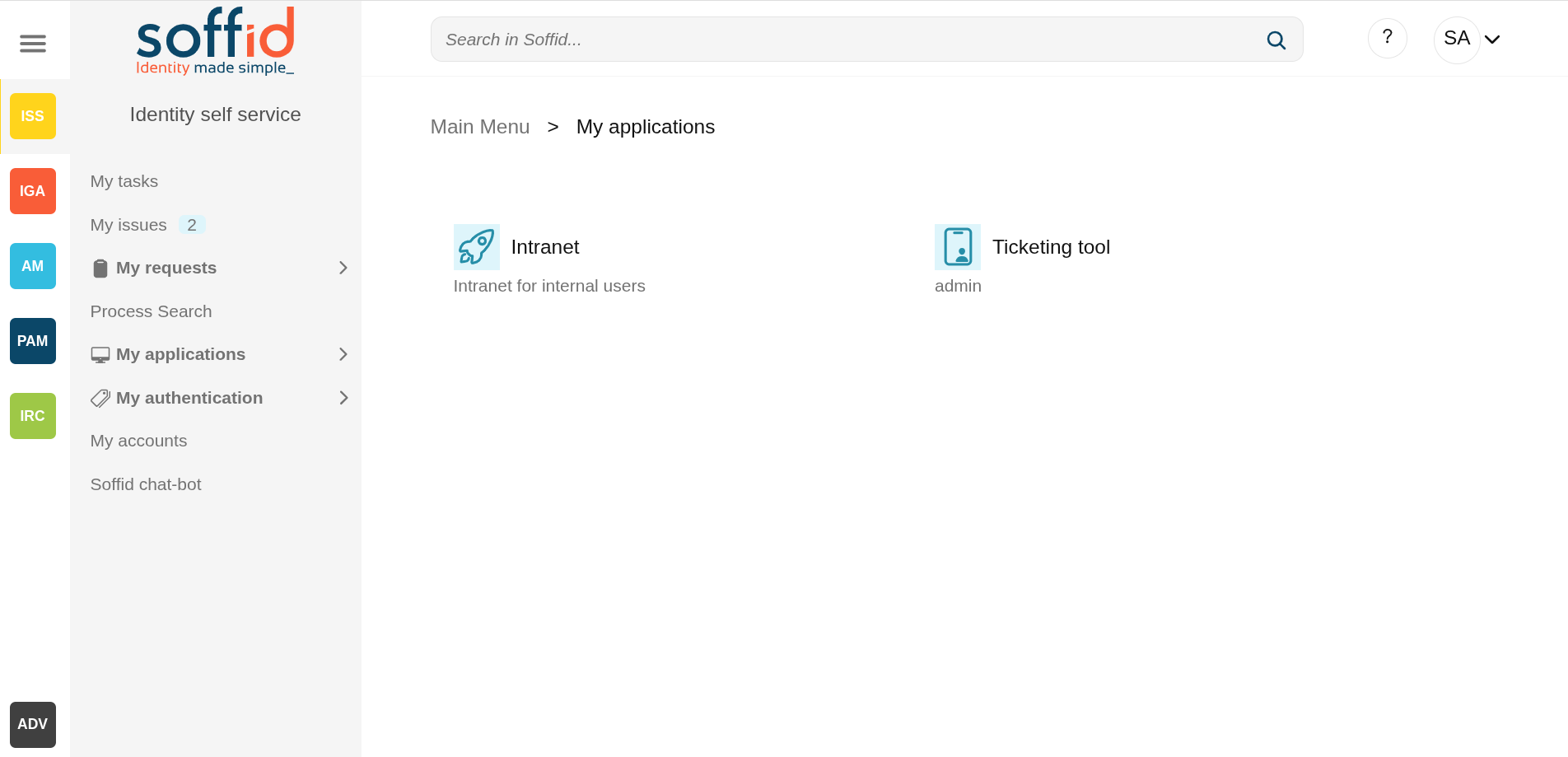](https://bookstack.soffid.com/uploads/images/gallery/2025-08/gFKrZPupwu5uxBaj-image.png) [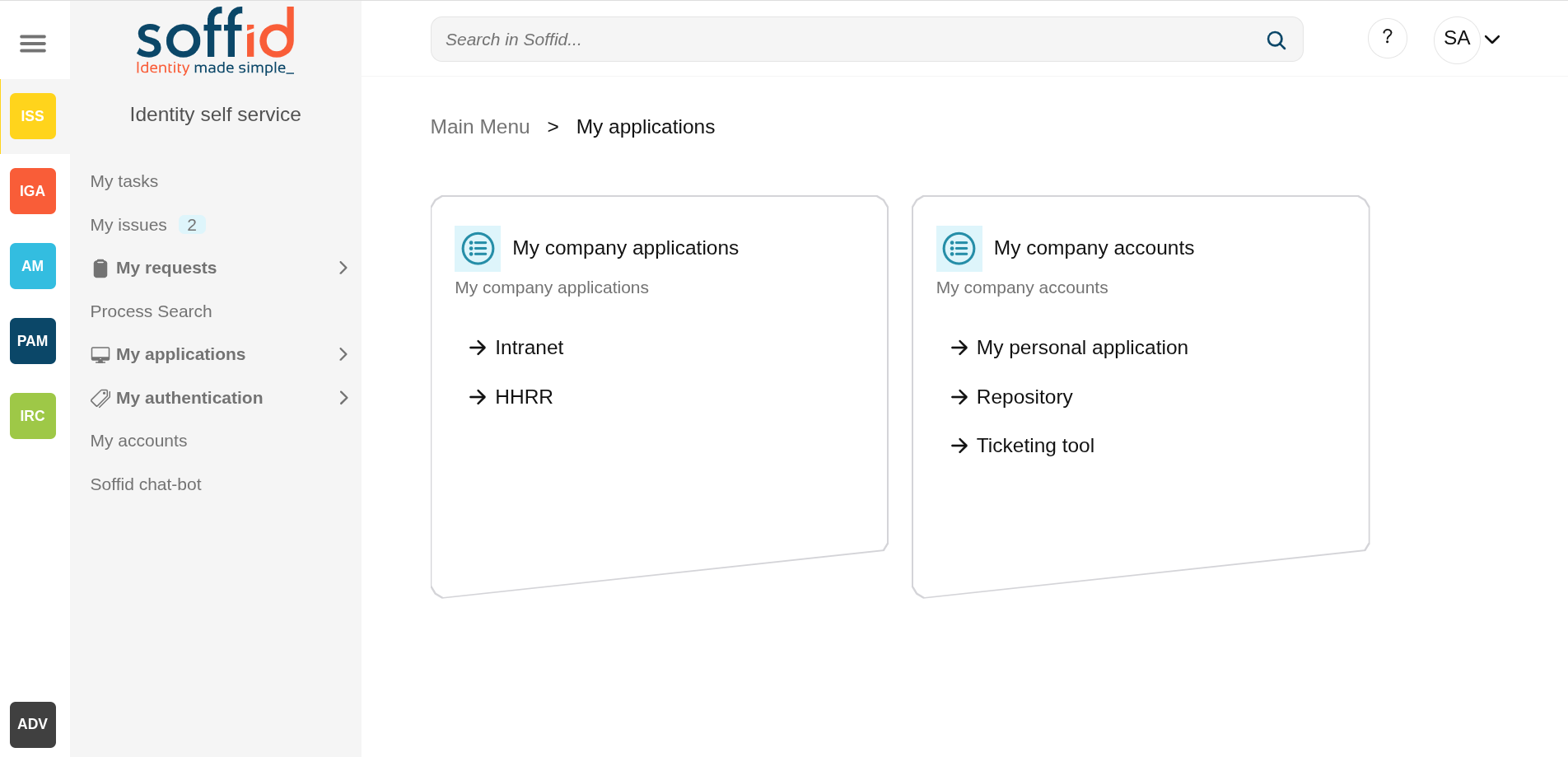](https://bookstack.soffid.com/uploads/images/gallery/2025-08/EUV98SU4QaLlF8dI-image.png) ## Related objects - [Application access tree](https://bookstack.soffid.com/books/soffid-4-reference-guide/page/application-access-tree "Application access tree"). to configure the applications - [Password vault](https://bookstack.soffid.com/books/soffid-4-reference-guide/page/password-vault "Password vault"). : to configure the shared accounts. ## Actions| **"Folder selection"** | When you select a folder, its contents will be displayed on a new page. |
| **"Application selecction"** | When you select an application, a new page will open with access to the application depending on its type. If only access is visible but it is not configured, nothing will happen. If there is a configuration but you do not have access, you will be notified on screen. |
This screen groups together the different options available to users when authenticating, especially as a second factor in an MFA login.
## Screen overview [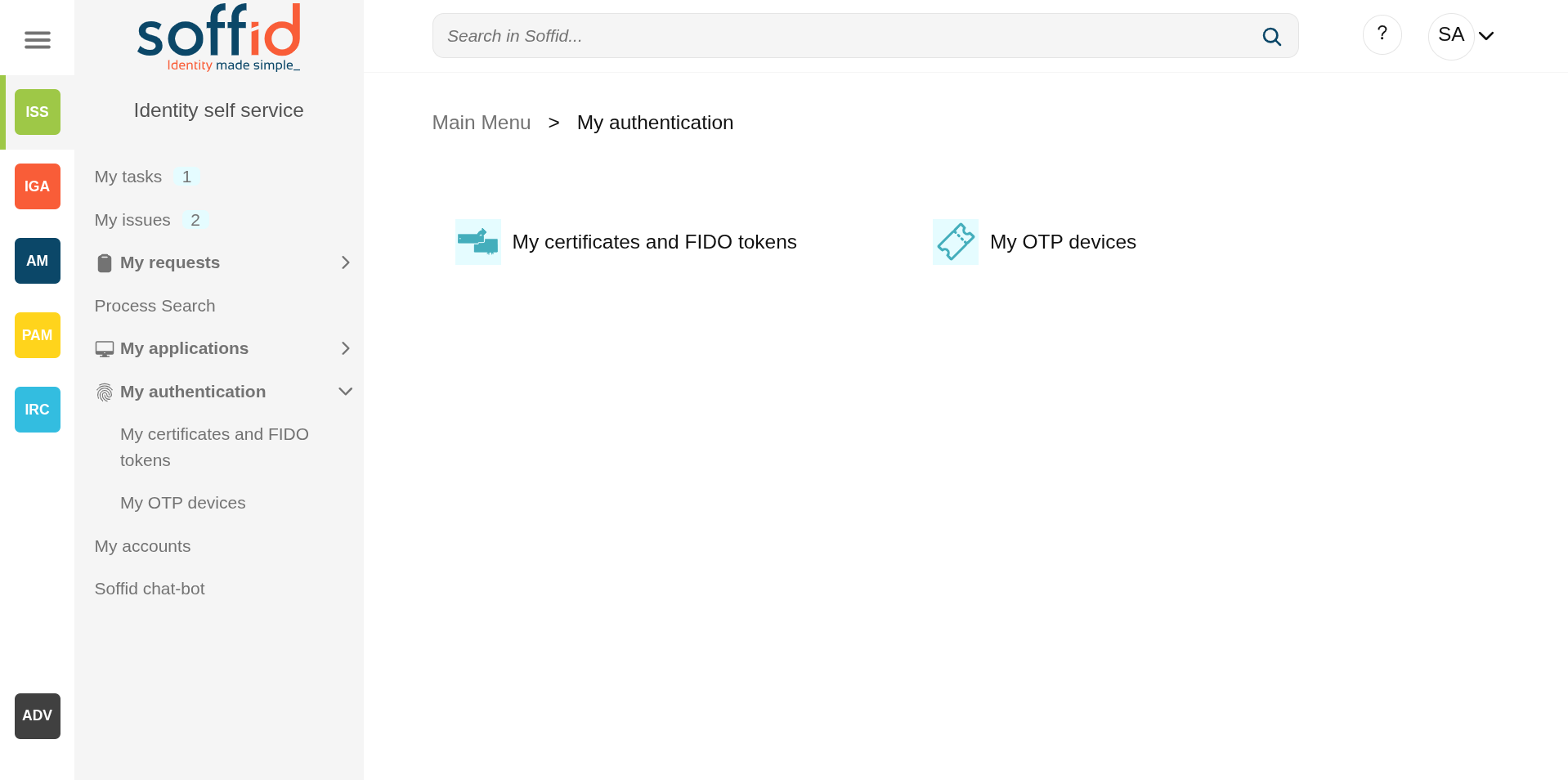](https://bookstack.soffid.com/uploads/images/gallery/2025-08/ZHjQ0oj3Yn7JKai7-image.png) ## Related objects - [My authentication > My certificates and FIDO tokens](https://bookstack.soffid.com/books/soffid-4-reference-guide/page/my-authentication-my-certificates-and-fido-tokens-addon-federation) - [My authentication > My OTP devices](https://bookstack.soffid.com/books/soffid-4-reference-guide/page/my-authentication-my-otp-devices-addon-otp) - [OTP settings](https://bookstack.soffid.com/books/soffid-4-reference-guide/page/otp-settings-addon-otp) # My authentication > My OTP devices (addon otp) ## Description My OTP devices are part of a Soffid Self-service portal that allows end-users to access their OTP devices configured. That option display to each user, all their OTP devices and also allows you to manage those and add new OTP devices.Soffid Administrator user can configure the available OTP types. For more information, you can visit [the OTP settings page](https://bookstack.soffid.com/books/soffid-4-reference-guide/page/otp-settings-addon-otp).
This option will only be available if the OTP addon is installed in the Soffid console. Visit the [Two factor authentication book](https://bookstack.soffid.com/books/two-factor-authentication-2fa-VsJ "Two factor authentication (2FA)") for more information
## Screen overview [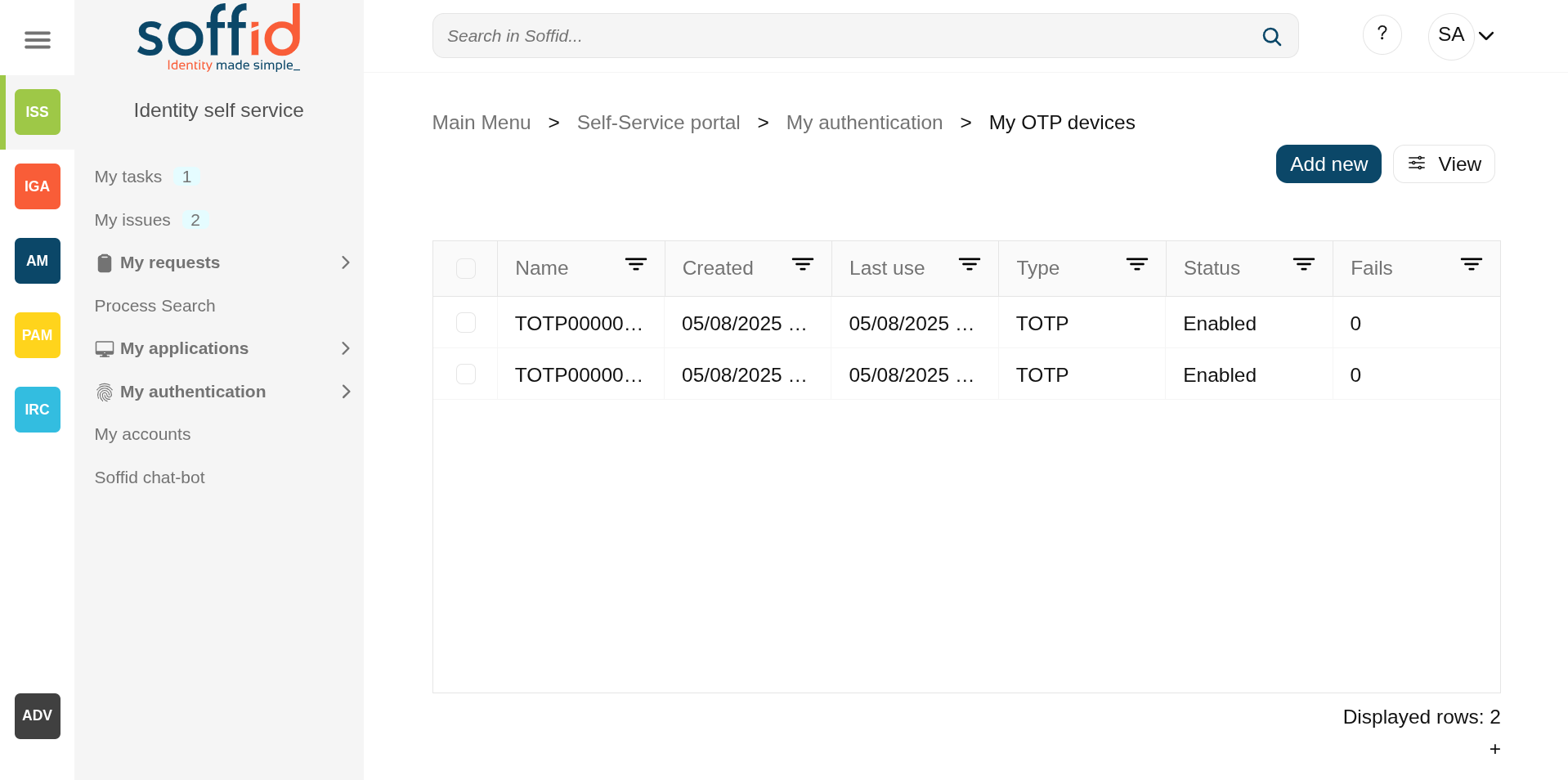](https://bookstack.soffid.com/uploads/images/gallery/2025-08/0I0CBDHVm3eYbhiR-image.png) ## Related objects - [My authentication > My certificates and FIDO tokens](https://bookstack.soffid.com/books/soffid-4-reference-guide/page/my-authentication-my-certificates-and-fido-tokens-addon-federation) - [OTP settings](https://bookstack.soffid.com/books/soffid-4-reference-guide/page/otp-settings-addon-otp) ## Standard attributes - **Name**: automatic name assigned to the OTP device - **Created**: created date and time. - **Last use**: last used date and time. - **Type**: the type of the OTP device: - TOTP (Time based HMAC Token) - HOTP (Event based HMAC Token) - EMAIL - SMS - PIN (Security PIN) - **Status**: status of the OTP device: - Created - Enabled - Locked - Disabled - **Fails**: failed attempts collected when logging in with the OTP device value - **Created by** - **Created on** - **Modified by** - **Modified on** ## Actions| **Add new** | Allows you to add a new OTP device. To add new OTP devices you need to click the "Add new" button, then Soffid will display a new wizard to config the OTP devices. First of all, you need to select the OTP device Type, once the type is selected, you need to fill in the required fields, which depend on the Type selected. If you select an Event-based or Time-based HMAC Token, you will need to scan the QR code and write the PIN. Finally, you must Apply changes.
Images[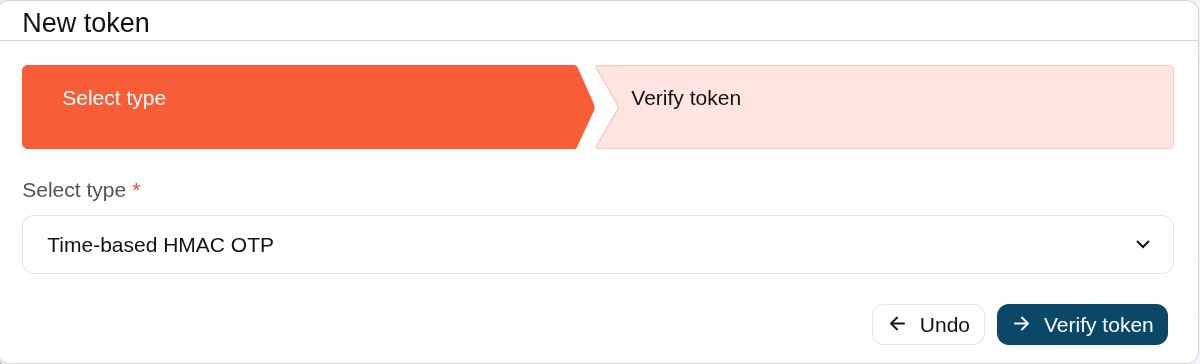](https://bookstack.soffid.com/uploads/images/gallery/2025-08/kqcIFWPw1BlTxZDB-image.png) [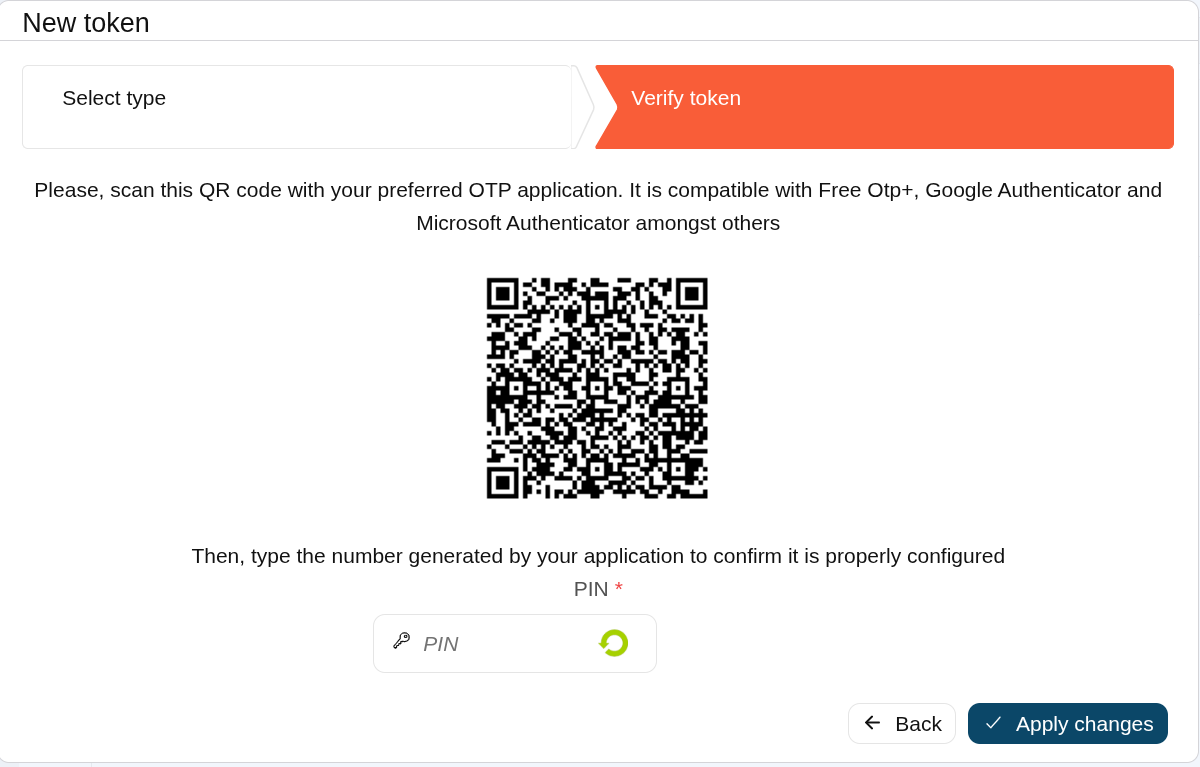](https://bookstack.soffid.com/uploads/images/gallery/2025-08/xHvayEKbLQrAqxpD-image.png) |
| **Delete OTP device** | Allows you to delete one or more OTP devices. To delete OTP devices first select the devices, then click on the Delete, then Soffid will ask you to confirm or cancel the operation. |
| **View** | Allows you to add or remove columns to the table. It is also possible to change the order of the columns. |
My certificates and FIDO tokens are part of the Identity self service that allows end-users to access their OTP devices configured.
This option shows each user all their configured OTP devices, which can be certificates, FIDO tokens, and Soffid authenticators. It also allows you to add new devices or delete existing ones. ### Certificates You can use these \*.p12 certificates to add them to your favourite browser and use them as a second factor of authentication. ### FIDO tokens If you or your organisation has FIDO devices, I can register them with Soffid and use them as a second factor of authentication. ### Soffid authenticator Soffid has made the Soffid authenticator app available on the Play Store and the App Store, which will allow you to easily and simply perform two-factor authentication from your mobile device. ## Screen overview [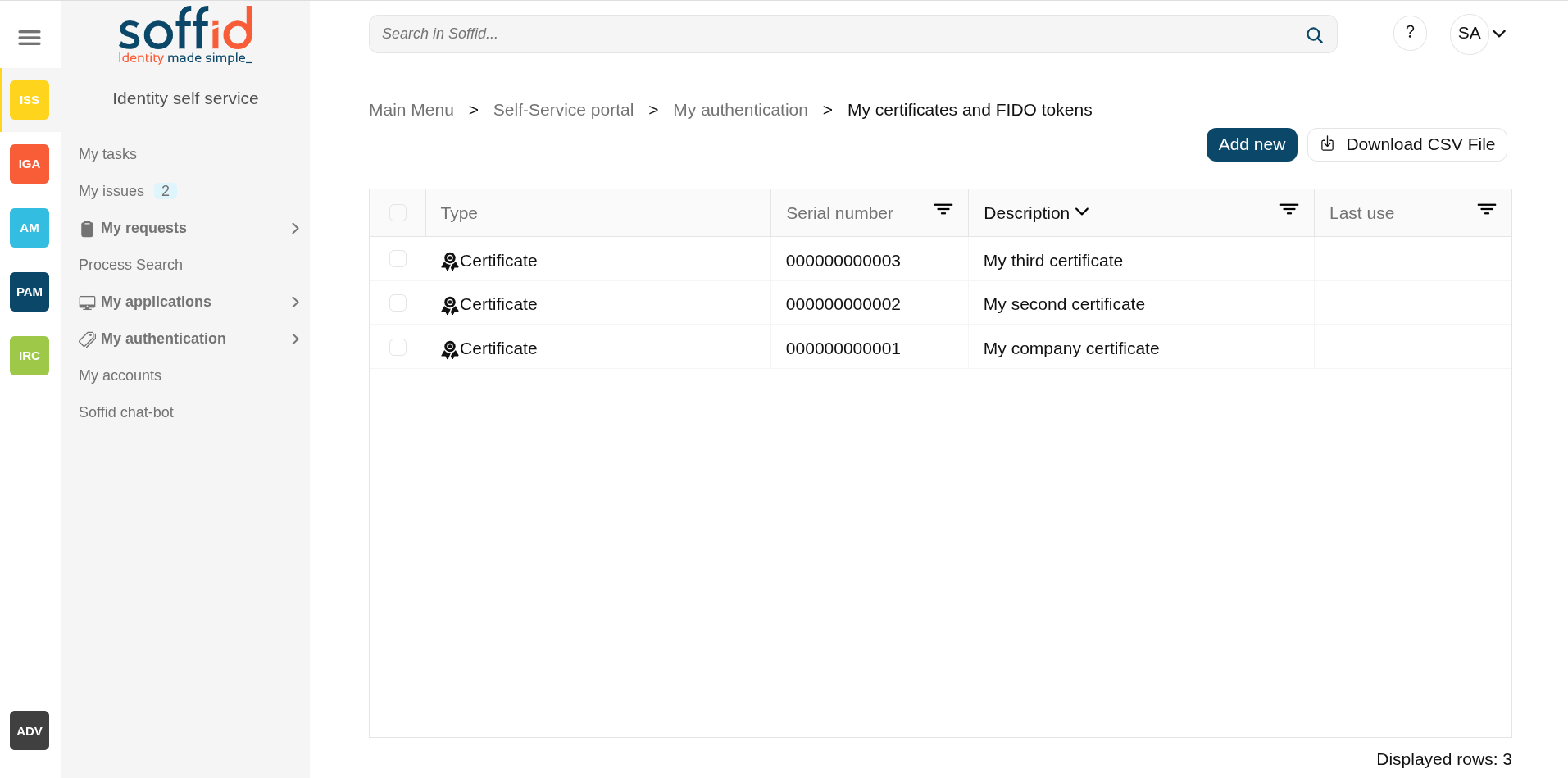](https://bookstack.soffid.com/uploads/images/gallery/2025-08/DOPsnrHvR3Lvnglr-image.png) ## Related objects - [Identity providers](https://bookstack.soffid.com/books/soffid-4-reference-guide/page/identity-providers-addon-federation "Identity providers") : to create a Soffid IDP - [Soffid authenticator](https://bookstack.soffid.com/books/soffid-authenticator-app) : more information about this option ## Standard attributes - **Type** : there are two available options: - Certificate. - FIDO token. - Soffid Authenticator. - **Serial number** : internal Soffid id - **Description** : the description of the OTP device - **Last use** : date of the last use of this OTP device ## Actions ### Table| **Add new** | Allows you to add new object: Certificate, FIDO token or Soffid authenticator. Soffid will display a new wizard to configure each type of object. First of all, you need to select the Type, once the type is selected, you need to follow the required steps which depend on the Type selected. |
| **Delete token** | Allows you to delete one or more objects. To delete them first you must select one or more objects, then click on the "Delete" button, then Soffid will ask you to confirm or cancel the operation. |
| **Download CSV file** | Allows you to download a CSV file with all the information about the objects. |
My Account is a part of the Identity self service that allows end-users to access and manage their personal accounts.
That option displays all personal accounts for each user and allows you to set and/or view the password for each account if they have been enabled by configuration.
The accounts that are displayed are those belonging to Soffid's own systems. For external systems, only accounts belonging to active systems are displayed. If an external system (agent in Soffid) is disabled, the account will not be displayed on this page.
Disabled accounts are displayed, but it is not allowed to set or view the password.
## Screen overview [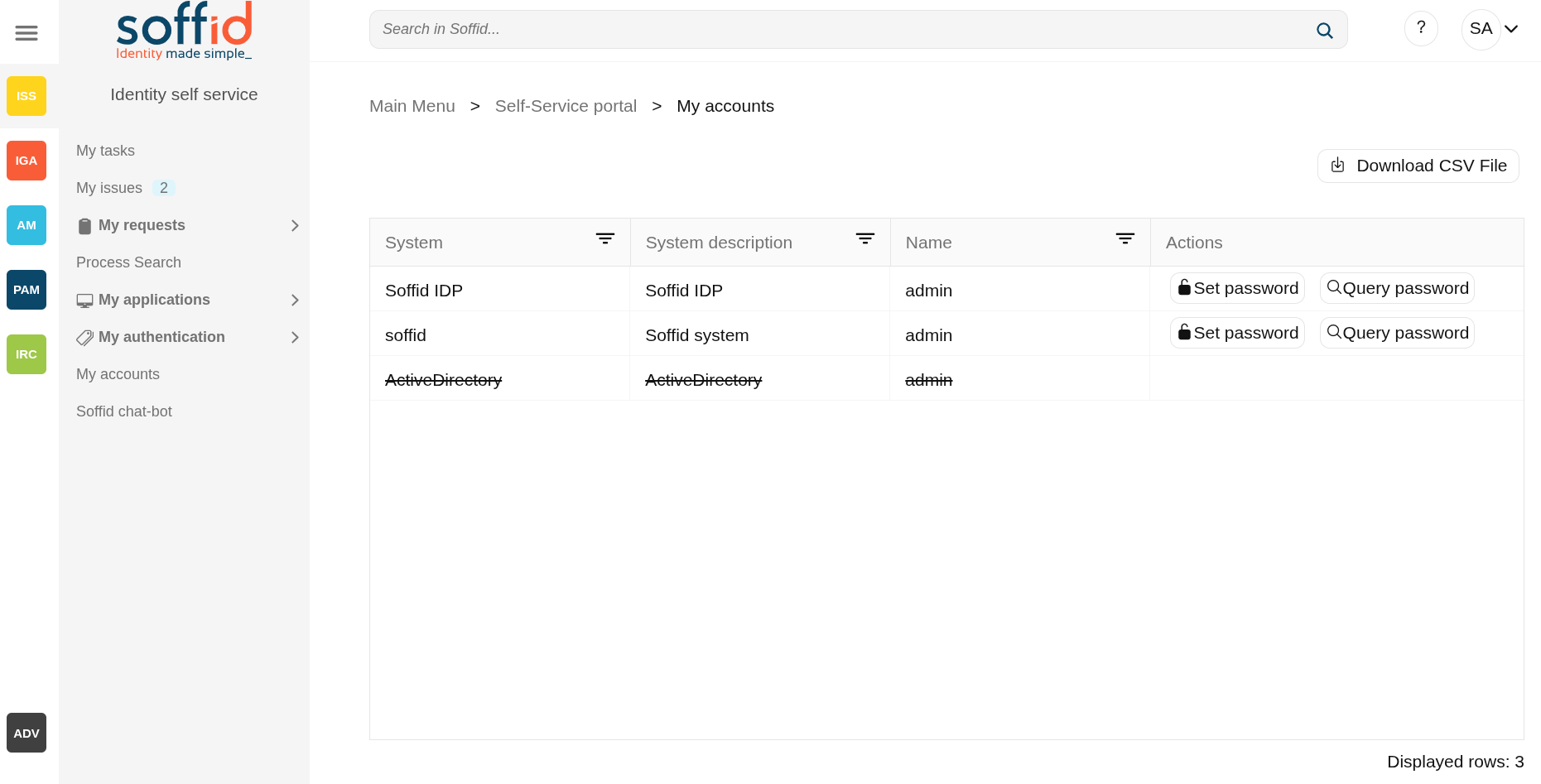](https://bookstack.soffid.com/uploads/images/gallery/2025-08/73AfhhCqUe3cXFIb-image.png) ## Related objects - [Agents](https://bookstack.soffid.com/books/soffid-4-reference-guide/page/agents "Agents") : where the target systems are configured - [Password policy](https://bookstack.soffid.com/books/soffid-4-reference-guide/page/password-policies "Password policies") : where the set password and query password are enabled by configuration, and also there are configured the password plicies when you set a new password. - [Users](https://bookstack.soffid.com/books/soffid-4-reference-guide/page/users "Users") : to view the accounts of a user - [Accounts](https://bookstack.soffid.com/books/soffid-4-reference-guide/page/accounts "Accounts") : to list the accounts of a user ## Standard attributes - **System**: target system for which this account has been created (agent in Soffid). - **System description**: a brief description of the target system. - **Name**: user account name. - **Actions**: available actions. - **Set password**: to set a new password for the target system. - **Query password**: to view the current password assigned to the target system in Soffid. ## Actions| **Download CSV file** | Allows you to download a CSV file with all the information about your accounts. |
| **Set password** | Allows you to set a new password for this account. This change will be applied to different target systems. The new password must comply with the defined password policies. |
| **Query password** | Allows you to query and copy the password and the user name. |
This new feature included in Soffid 4 allows you to interact with our AI to request information, or better yet, ask it to apply changes directly in the Console.
The power offered by this new tool is limitless. Our imagination, combined with training in Soffid's documentation and internal structure, enables us to accomplish many tasks.
This feature is not enabled by default, you must activate a token in order to use it. This feature has been reconfigured; please check out the following new feature.
[2026-07-08 New feature: geolocation service available by default](https://bookstack.soffid.com/books/soffid-4-reference-guide/page/2026-07-08-new-feature-geolocation-service-available-by-default "2026-07-08 New feature: geolocation service available by default")
## Screen overview [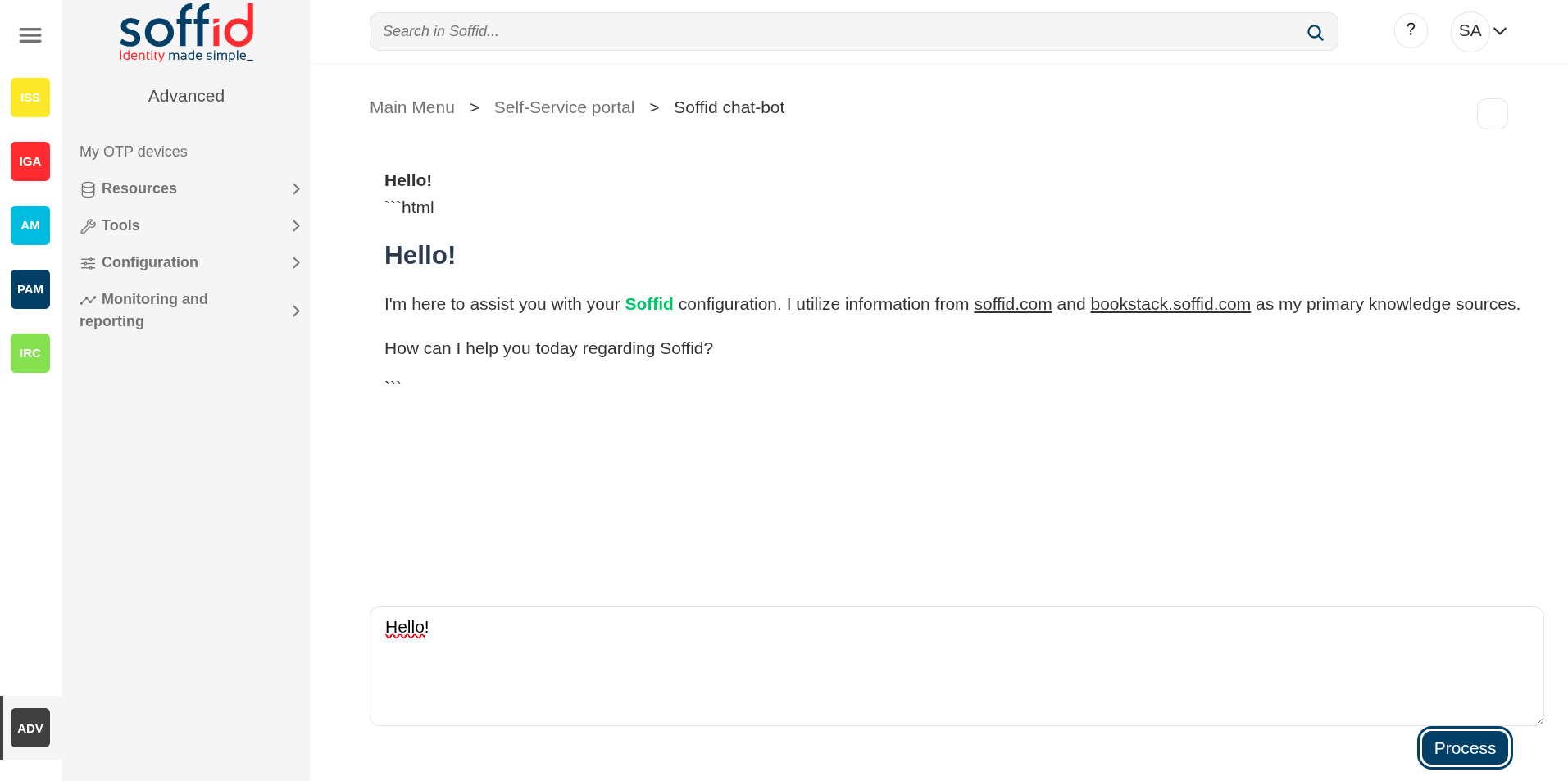](https://bookstack.soffid.com/uploads/images/gallery/2025-08/H4QOkf0gpQPjXbuu-image.png) [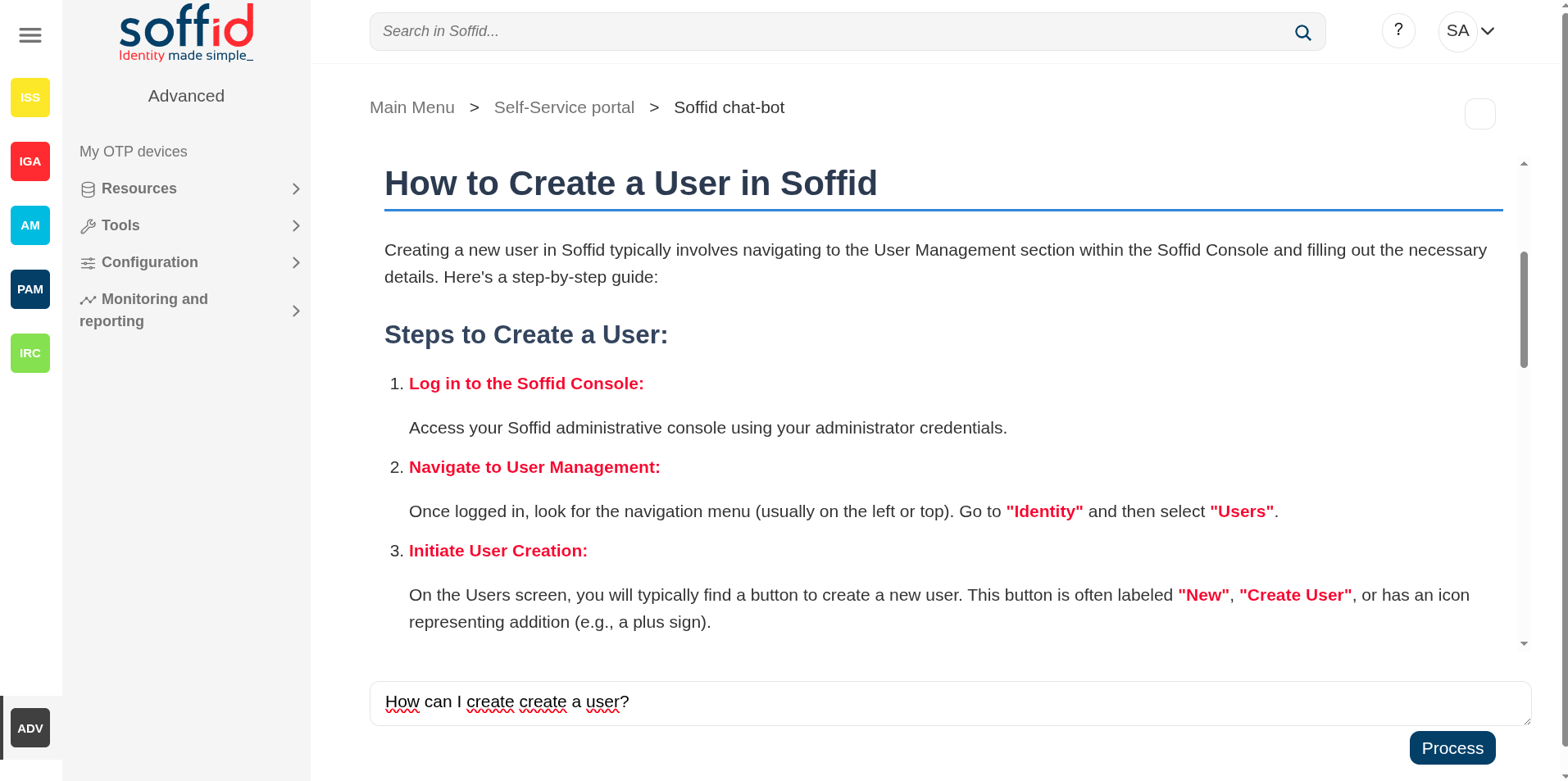](https://bookstack.soffid.com/uploads/images/gallery/2025-08/FtcBApVAHsKzv9wP-image.png) ## Related objects - [Network Intelligence](https://bookstack.soffid.com/books/soffid-4-reference-guide/page/network-intelligence "Network intelligence") : to configure the token to use this feature - [Soffid chat-bot](https://bookstack.soffid.com/books/soffid-4-reference-guide/page/soffid-chat-bot "Soffid chat-bot") : to chat with our IA - [Custom scripts](https://bookstack.soffid.com/books/soffid-4-reference-guide/page/custom-scripts-addon-admin "Custom scripts (addon admin)") : to use the IAAll pages with scripts can use the IA to help you with the scripting
## Standard attributes - **Chat box** : Type your query or request for our AI in the chat box. ## Actions| **Process** | Send the request to our AI for processing. |