# Configuration > Workflow settings
Configuration > Workflow settings
# Configure Workflow engine
## Description
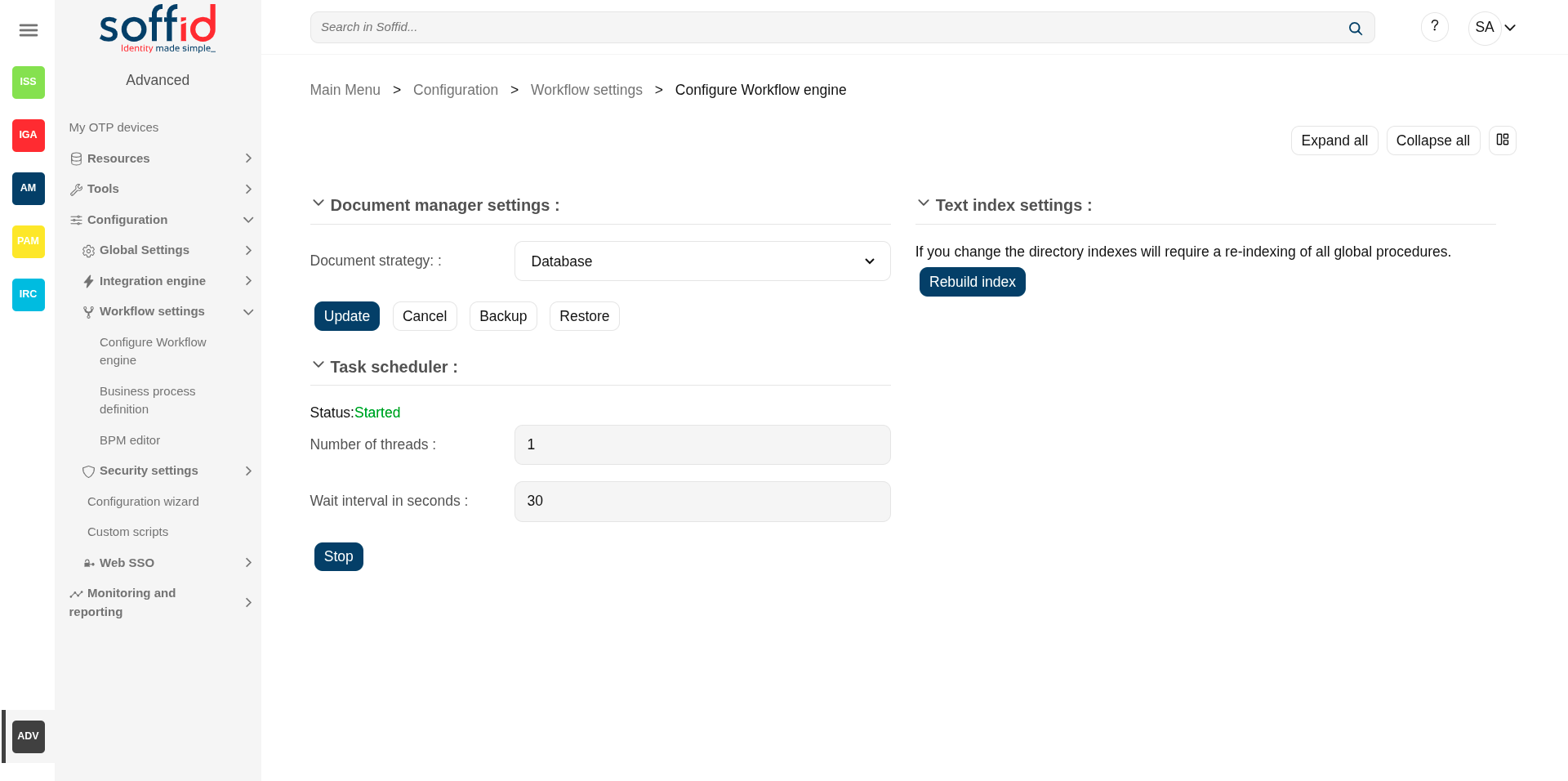
This page groups together several features related to the workflow engine.
### Document manager
Soffid can use any **document repository** to store documents generated by workflows, reporting addon, or any other addon.
The document repository can be either a local directory or a remote one accessed using FTP, SMB, HTTP protocols. Depending on the protocol selected, additional parameters may be needed.
### Text index
Soffid console maintains a **textual index** that allows searching for currently active or finished processes using full text search.
The textual index for searches can be updated from this page. The textual index is not stored in the database but filesystem. From this page, you can set the directory where this textual index will be stored.
Because it is stored in non-transactional storage, it can get occasionally corrupted. In such a case, by pressing the "Rebuild Index" button, the index will be rebuilt from scratch.
### Task scheduler
When we are working with workflows, there are parts of the process that need to be managed in the background, and this requires a process that runs regularly. This process executes logic nodes or timers configured to run at a specific time.
## Screen overview
[](https://bookstack.soffid.com/uploads/images/gallery/2025-08/EieGfmqmiHnF6PtX-image.png)
## Related objects
- [Configure Workflow engine](https://bookstack.soffid.com/books/soffid-4-reference-guide/page/configure-workflow-engine) : where the workflow engine is configured
- [Business process definition](https://bookstack.soffid.com/books/soffid-4-reference-guide/page/business-process-definition) : where workflows are published
- [BPM editor](https://bookstack.soffid.com/books/soffid-4-reference-guide/page/bpm-editor) : where to create or modify workflows
- [My tasks](https://bookstack.soffid.com/books/soffid-4-reference-guide/page/my-tasks) : pending workflows where the user has to perform an action in order to continue their workflow.
- [My requests](https://bookstack.soffid.com/books/soffid-4-reference-guide/page/my-requests) : The workflows that the user can initiate are listed here.
- [My requests > Query request status](https://bookstack.soffid.com/books/soffid-4-reference-guide/page/my-requests-query-request-status) : to search for all processes started by oneself
- [Process Search](https://bookstack.soffid.com/books/soffid-4-reference-guide/page/process-search) : to search for all processes
- [Metadata](https://bookstack.soffid.com/books/soffid-4-reference-guide/page/metadata) : to add attributes to display in the search tables
- [Scheduled jobs](https://bookstack.soffid.com/books/soffid-4-reference-guide/page/scheduled-jobs) : shows active workflows pending asynchronous tasks
## Standard attributes
- **Document strategy**: these are the possible configurations
- Database: (by default) stored in Soffid's own database
- Local:
- Temporary local file path:
- CIFS: specific implementation of SMB. Its attributes:
- Server: domain of the server
- File path: file path of the server
- Temporary local file path: folder inside the Soffid home directory
- User name: user
- Password: password
- FTP:
- Server: domain of the server
- File path: file path of the server
- Temporary local file path: folder inside the Soffid home directory
- User name: user
- Password: password
-
- HTTP:
- Server: URL of the service
- Temporary local file path: folder inside the Soffid home directory
- User name: user
- Password: password
- **Text index settings**: If you change the directory indexes will require a re-indexing of all global procedures.
- **Task scheduler**: attributes in query mode:
Status: Started / Stoped
- - Number of threads: 1 by default
- Wait interval in seconds: every few seconds the process checks whether it has any pending tasks
## Actions
#### View actions
| **Expand all** | Displays all the attributes of the different blocks. |
| **Collapse all** | Hide all attributes of the different blocks. |
| **"Types of views"** | Change the view type: Classic view, Modern view, Compact design. |
### Document manager actions
| **Update**
| Allows you to save the changes.
|
| **Cancel**
| Allows you to undo any changes made.
|
| **Backup**
| Allows you to download a zip file containing all the files.
|
| **Restore**
| Allows you to upload a zip file to restore all the files.
|
### Text index actions
| **Rebuild index** | Regenerate from scratch the text index on which workflows are searched, as well as the attributes that have this type of search configured.
Please note that depending on the volume of data on your system, this process may take quite some time.
|
### Task scheduler actions
| **Stop / Start** | Stop to shut down the service, start to restart it |
# Business process definition
## Description
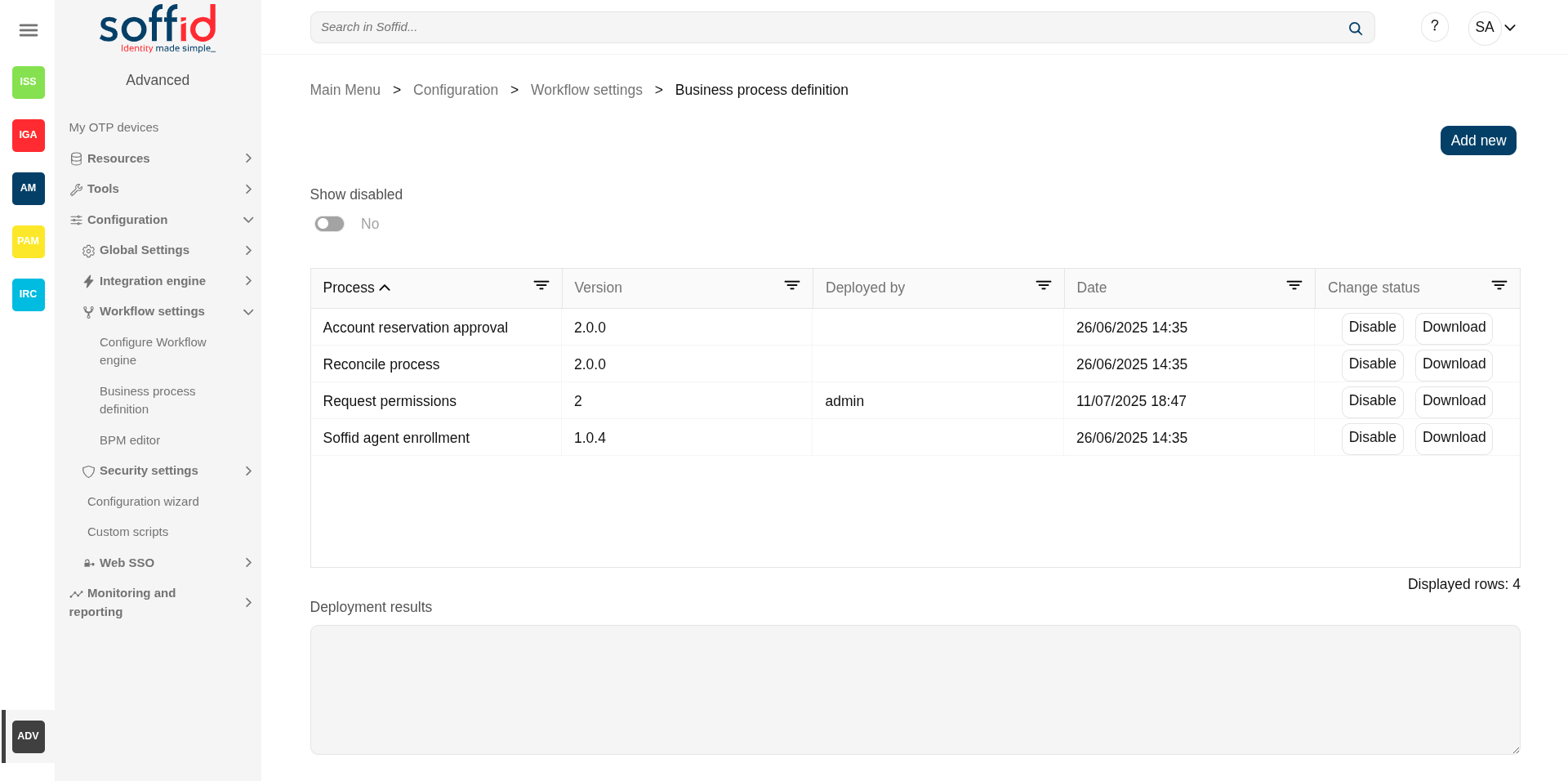
Soffid includes a **BMP (Business Process Management)** in its Smart Engine to provide useful workflows integrated with the processes and the policies of the Soffid core.
In order to add extra functionality to the console, you can upload different business processes (a.k.a. Workflows) that can be found in the Soffid download area and enable or disable existing ones. The existing process definition can be updated by uploading a new version.
If a workflow is **disabled**, processes initiated and pending can be finalized, but no longer that workflow could be started.
Please note that the workflows managed by this page will be provided by Soffid or generated from an external tool. Soffid has a **bpm add-on** that allows you to create, update, and publish these workflows directly from its **editor**.
## Screen overview
[](https://bookstack.soffid.com/uploads/images/gallery/2025-08/LVvQZkA4yex99AiS-image.png)
## Related objects
- [Configure Workflow engine](https://bookstack.soffid.com/books/soffid-4-reference-guide/page/configure-workflow-engine) : where the workflow engine is configured
- [Business process definition](https://bookstack.soffid.com/books/soffid-4-reference-guide/page/business-process-definition) : where workflows are published
- [BPM editor](https://bookstack.soffid.com/books/soffid-4-reference-guide/page/bpm-editor-addon-bpm) : where to create or modify workflows
- [My tasks](https://bookstack.soffid.com/books/soffid-4-reference-guide/page/my-tasks) : pending workflows where the user has to perform an action in order to continue their workflow.
- [My requests](https://bookstack.soffid.com/books/soffid-4-reference-guide/page/my-requests) : The workflows that the user can initiate are listed here.
- [My requests > Query request status](https://bookstack.soffid.com/books/soffid-4-reference-guide/page/my-requests-query-request-status) : to search for all processes started by oneself
- [Process Search](https://bookstack.soffid.com/books/soffid-4-reference-guide/page/process-search) : to search for all processes
- [Metadata](https://bookstack.soffid.com/books/soffid-4-reference-guide/page/metadata) : to add attributes to display in the search tables
- [Scheduled jobs](https://bookstack.soffid.com/books/soffid-4-reference-guide/page/scheduled-jobs) : shows active workflows pending asynchronous tasks
## Standard attributes
- **Process**: name of the process.
- **Version**: version of the process.
- **Deployed by**: user who performed the last workflow upload.
- **Date**: date and time of the last workflow upload.
- **Change status**: allows you to change the workflow to enable or disable according to the needs.
- **Deployment results**: displays the log information when a workflow is upload.
## Actions
| **Show disabled**
| No by default, If you select Yes, all workflows will be displayed, both enable and disable.
|
| **Add new**
| Allows you to pick a defined process and upload it for deploying it in Soffid.
Then Soffid will upload and deploy the process.
This option allows to add new workflows or update existing workflows.
You can upload a process defined with the BPM Editor and previously exported (.pardef) or a process defined by code (.par)
|
| **Enable / disable**
| Allows you to enable or disable a workflow.
When a workflows is enabled all users with proper permission could launch the process.
When a workflow is disabled no user could start a new instance of this process.
|
| **Download**
| Allows you to download the workflow.
Workflows generated with the bpm add-on must be exported from there.
|
# BPM editor (addon bpm)
## Description
BPM is a technology that allows modeling, implementing, and executing processes automatically to enhance efficiency and productivity in support of enterprise goals.
Soffid includes a BMP (Business Process Management) in its Smart Engine to provide useful workflows integrated with the processes and the policies.
The **BPM Editor Addon** allows you to create, configure and publish business processes very easily for the Soffid administrators.
The BPM Editor addon provides some templates to create new workflows, these templates depend on the process type selected when you are adding a new business process. Nowadays there are the following templates available:
- User management
- Permissions management
- Account reservation
- Permissions request
- Delegate roles
You can find additional information by visiting [Process types chapter](https://bookstack.soffid.com/books/bpm-editor/chapter/process-types "Process types").
Once a workflow is published with the proper configuration, the users with the correct permissions could start, approve or observe the workflow from the "My Request" option. You can find more información on [My Requests](https://bookstack.soffid.com/books/soffid-4-reference-guide/page/my-requests "My requests") page.
When a workflow is deleted in the BPM editor, that workflow continues to be available to be executed. If you do not want that a workflow will be executed, you must disable that process on the "Business process definition" page. If you disable a workflow, processes initiated and pending can be finalized, but no longer than workflow could be started.
A workflow could be updated with a new version. Processes started with the previous version, will be performed with the previous definition (previous version). And the processes those start with the new version will be performed with the new version.
We will use two concepts to explain the process: identity, and end-user. **Identity** will be the identity or user that will be created, updated, or deleted in Soffid Console. The **end-user** is referred to an user of Soffid that will request processes using the self-service portal.
## Screen overview
[](https://bookstack.soffid.com/uploads/images/gallery/2025-08/dr9i43MnFBSF4mq0-image.png)
[](https://bookstack.soffid.com/uploads/images/gallery/2025-08/hXJnalqTOijNu6vZ-image.png)
## Related objects
1. [Configure Workflow engine](https://bookstack.soffid.com/books/soffid-4-reference-guide/page/configure-workflow-engine) : where the workflow engine is configured
2. [Business process definition](https://bookstack.soffid.com/books/soffid-4-reference-guide/page/business-process-definition) : where workflows are published
3. [BPM editor](https://bookstack.soffid.com/books/soffid-4-reference-guide/page/bpm-editor) : where to create or modify workflows
4. [My tasks](https://bookstack.soffid.com/books/soffid-4-reference-guide/page/my-tasks) : pending workflows where the user has to perform an action in order to continue their workflow.
5. [My requests](https://bookstack.soffid.com/books/soffid-4-reference-guide/page/my-requests) : The workflows that the user can initiate are listed here.
6. [My requests > Query request status](https://bookstack.soffid.com/books/soffid-4-reference-guide/page/my-requests-query-request-status) : to search for all processes started by oneself
7. [Process Search](https://bookstack.soffid.com/books/soffid-4-reference-guide/page/process-search) : to search for all processes
8. [Metadata](https://bookstack.soffid.com/books/soffid-4-reference-guide/page/metadata) : to add attributes to display in the search tables
9. [Scheduled jobs](https://bookstack.soffid.com/books/soffid-4-reference-guide/page/scheduled-jobs) : shows active workflows pending asynchronous tasks
## Standard attributes
### Processes list
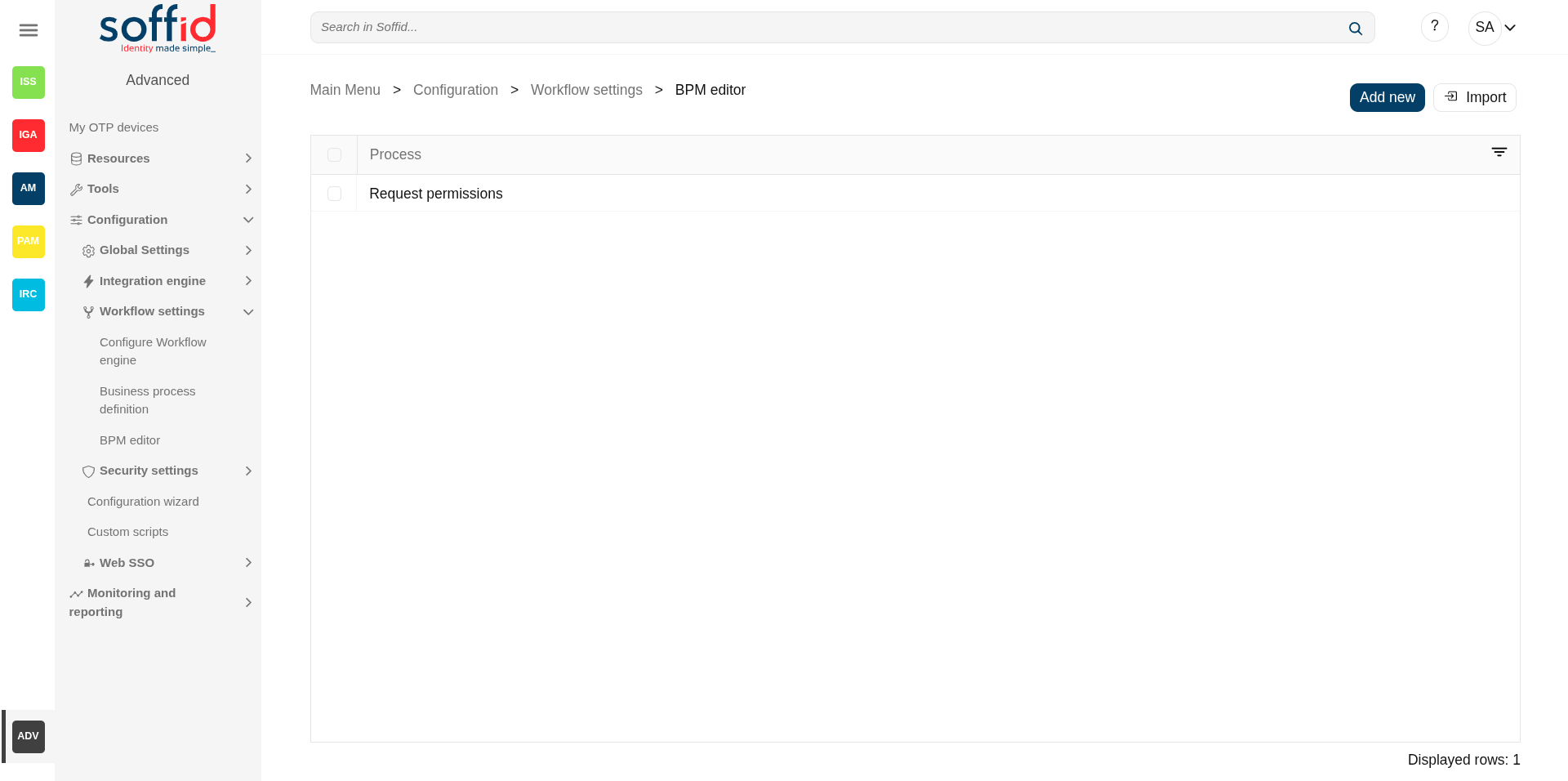
The list of the processes already created or imported.
- **Process**: identifier name of the workflow
### Summary tab
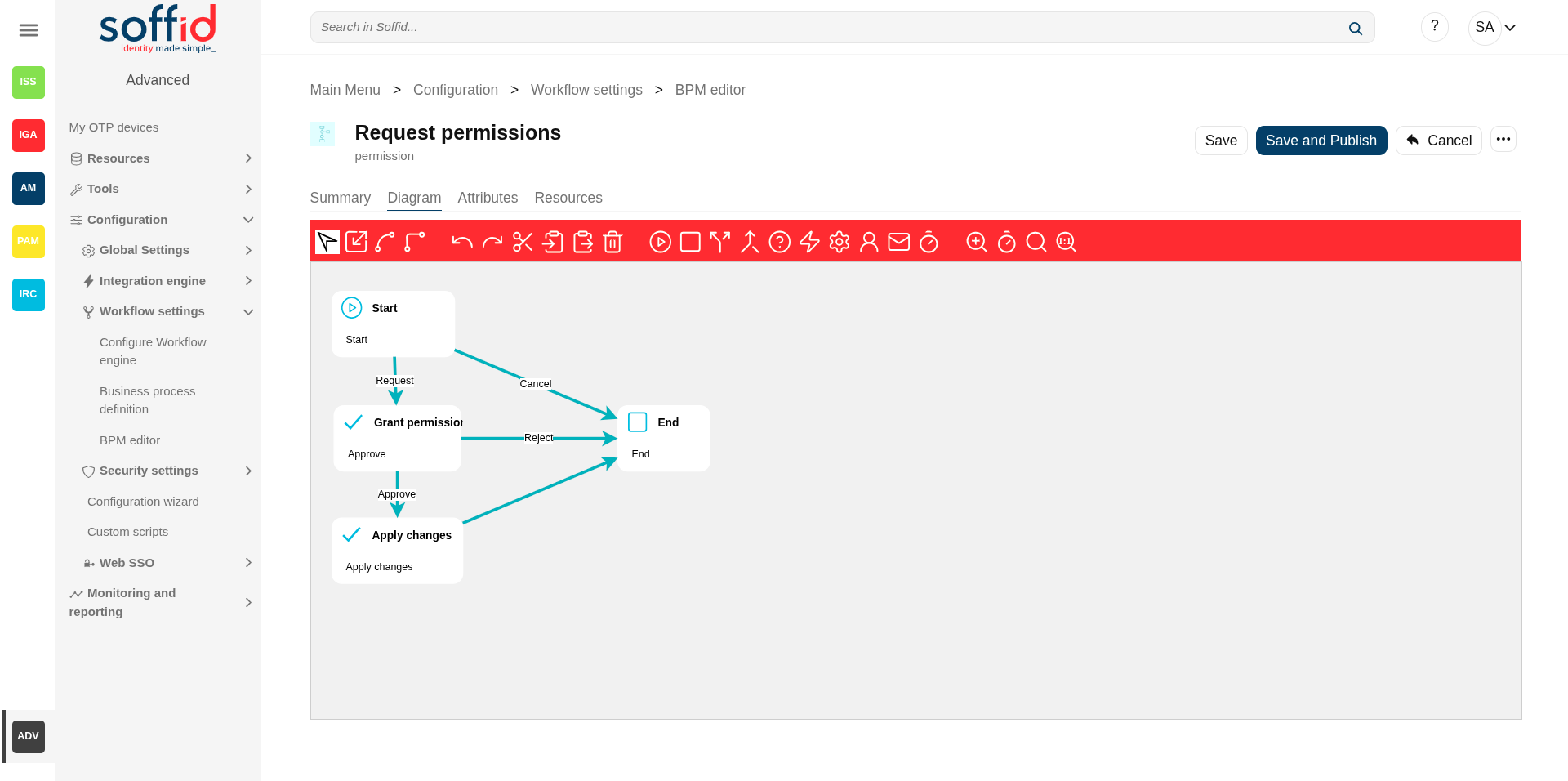
That area of the form displays the general information about the business workflow and the main operations to perform. The actions to perform are defined by flowing that link [Process editor actions](#bkmrk-new-bpm%C2%A0)
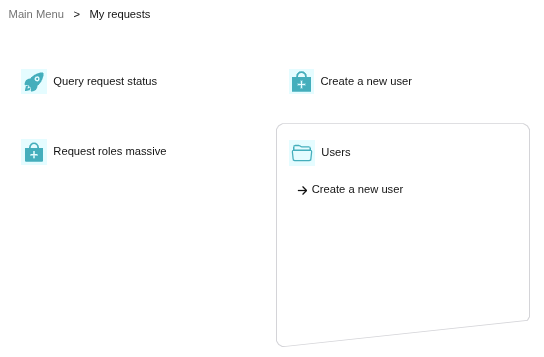
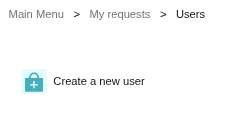
- **Process name**: identifier name of the workflow. This name will be used to label the workflow for the end-user. BPM editor allows you to manage the process into folders, you can type the folder name following by "/" .
Image
Configuration: folder/name
[](https://bookstack.soffid.com/uploads/images/gallery/2025-09/XswyMUc7cpHFZAiQ-image.png)
My request with the Users folder
[](https://bookstack.soffid.com/uploads/images/gallery/2025-09/9ExlXYNpXhU7nDwS-image.png)
Users folder with the workflow
[](https://bookstack.soffid.com/uploads/images/gallery/2025-09/8LybHuYWFW6CA832-image.png)
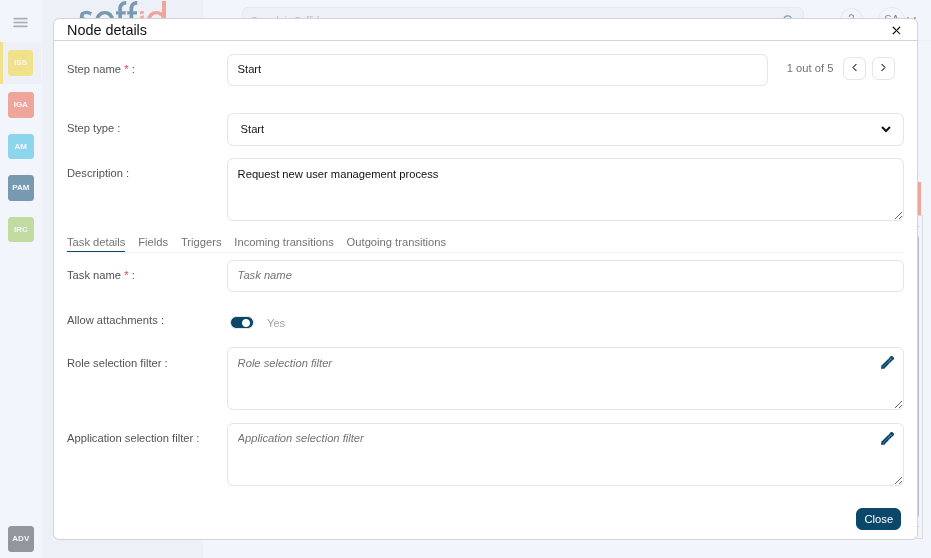
| **Start** | This step is used to define the beginning of the workflow.
💻 Image
[](https://bookstack.soffid.com/uploads/images/gallery/2025-09/LY0C5PBs7AxiReQC-image.png)
|
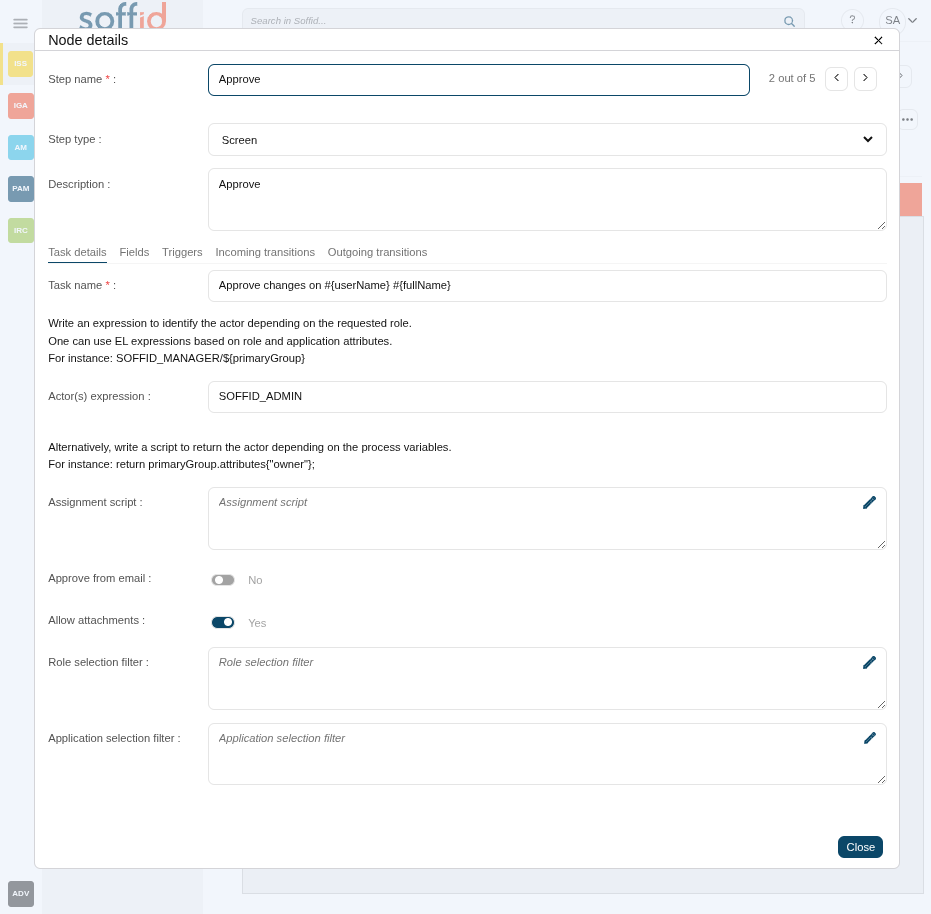
| **Screen** | This step is used to define a form that must be filled in by the end-user.
💻 Image
[](https://bookstack.soffid.com/uploads/images/gallery/2025-09/xhJKcQOPLj6ioc0y-image.png)
|
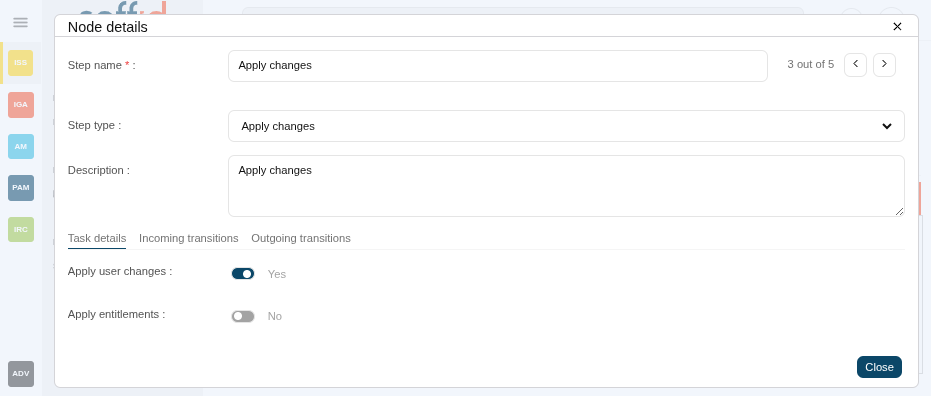
| **Apply changes** | This step is used to show the manager a form with the changes that must be approved.
💻 Image
[](https://bookstack.soffid.com/uploads/images/gallery/2025-09/KMBXYL2IB13UrSsP-image.png)
|
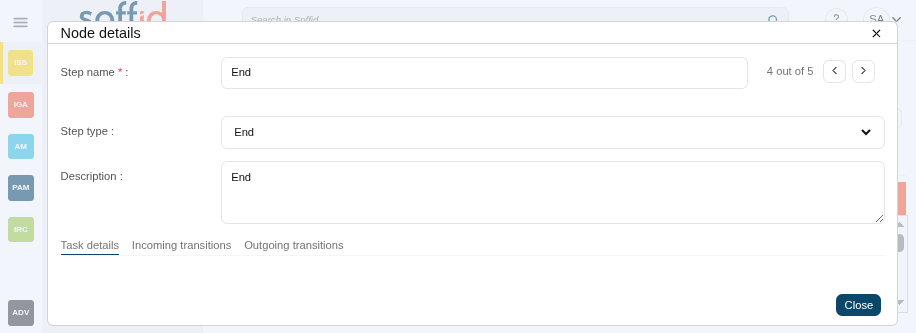
| **End** | This step is used to define the finish of the workflow.
💻 Image
[](https://bookstack.soffid.com/uploads/images/gallery/2025-09/tztt499sY0TA0xH0-image.png)
|
Other available steps to custom your business process:
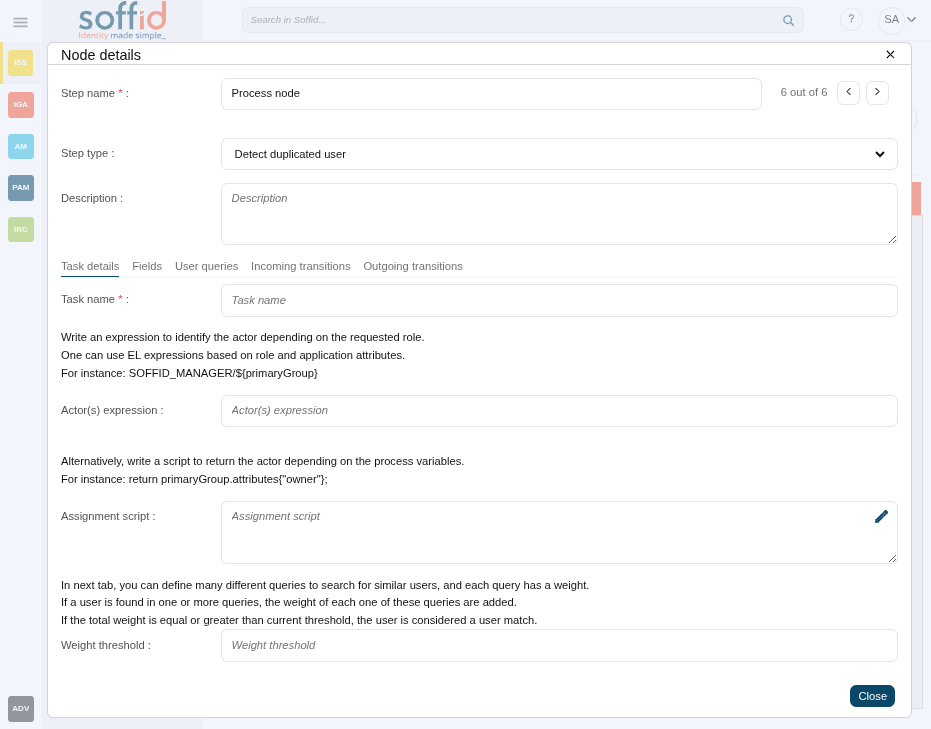
| **Detect duplicated user** | This step is used to detect duplicated users.
💻 Image
[](https://bookstack.soffid.com/uploads/images/gallery/2025-09/sORFCr9GqqWIpVgj-image.png)
|
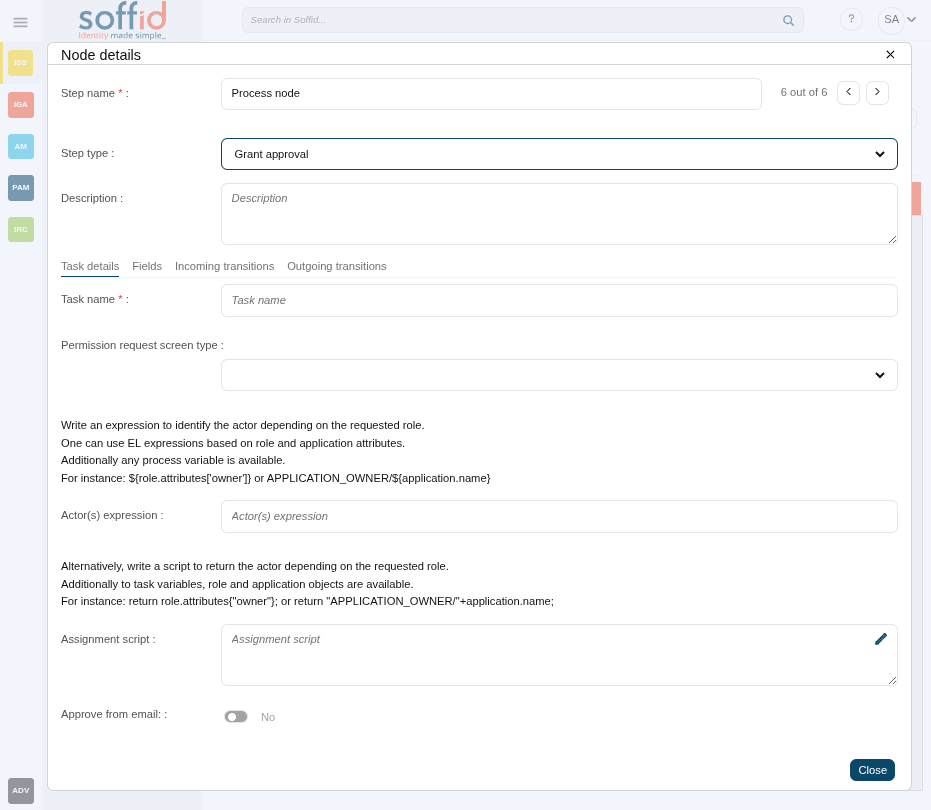
| **Grant approval** | This step is used to show the manager a form with the changes that must be approved.
💻 Image
[](https://bookstack.soffid.com/uploads/images/gallery/2025-09/GYyPvRmqAg38vbb7-image.png)
|
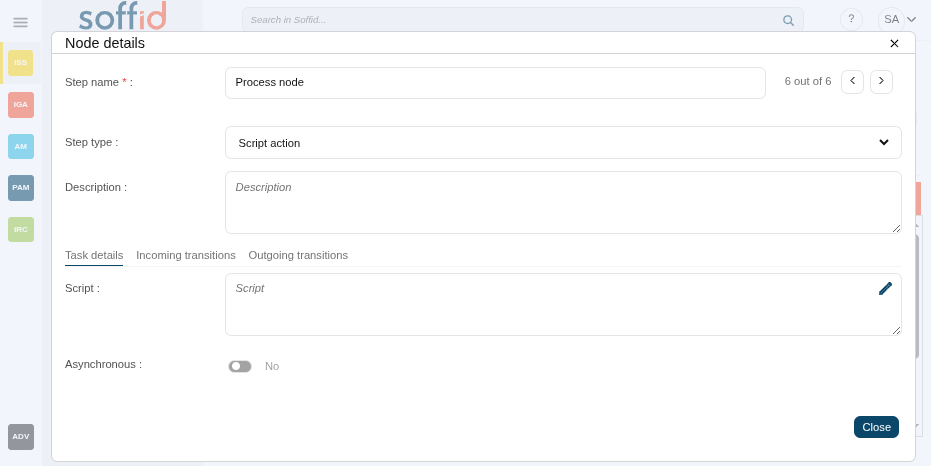
| **Script action** | This step allows you to define a script to be executed at this point. This process can be configured as asynchronous.
💻 Image
[](https://bookstack.soffid.com/uploads/images/gallery/2025-09/llFlECSJDIYJPJyu-image.png)
|
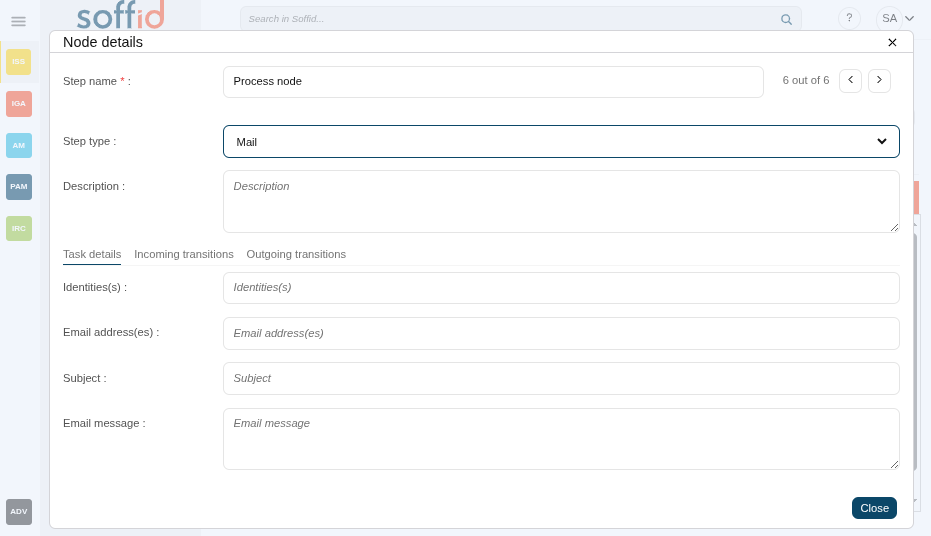
| **Mail** | This step is used to configure sending mail.
💻 Image
[](https://bookstack.soffid.com/uploads/images/gallery/2025-09/jlgKQpBAJIv2I4zN-image.png)
|
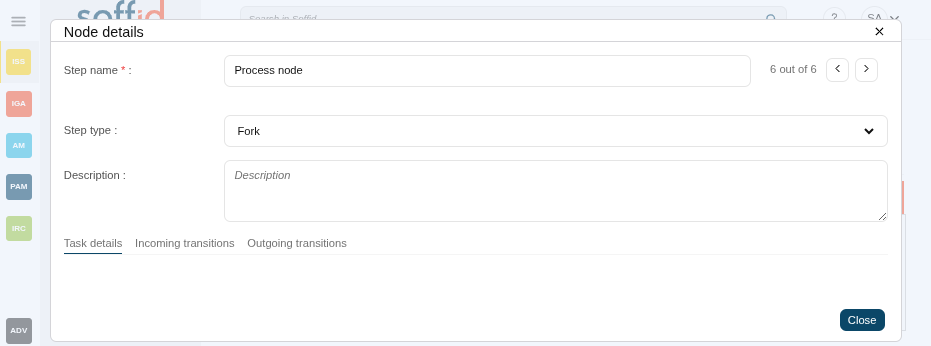
| **Fork** | The process is splited into two or more paths that are run in parallel, allowing multiple activities to run simultaneously.
💻 Image
[](https://bookstack.soffid.com/uploads/images/gallery/2025-09/aENeh58lBrdl8dEp-image.png)
|
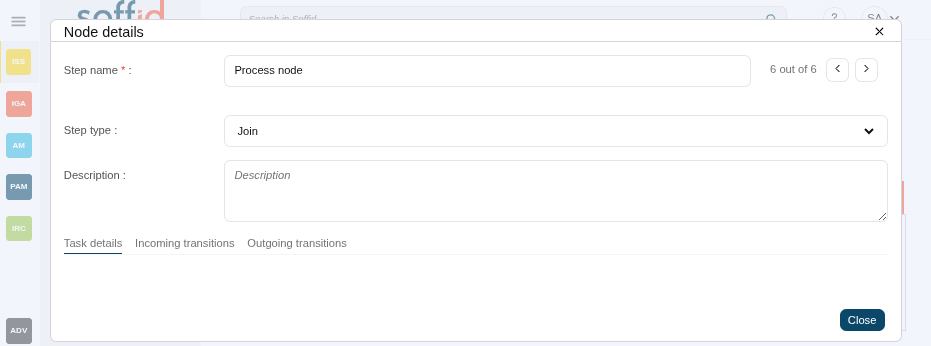
| **Join** | Two or more parallel sequence flow paths are combined into one sequence Flow path.
💻 Image
[](https://bookstack.soffid.com/uploads/images/gallery/2025-09/LrbTyagpDBGN0dQ8-image.png)
|
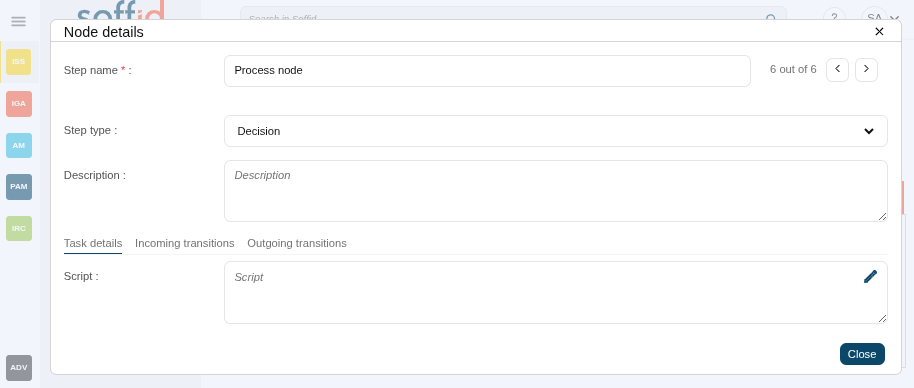
| **Decision** | This step allows you to define a script to decide which will be the next step. You must configure the next step by typing the transition name as part of the return command (e.g. return "transitionName").
💻 Image
[](https://bookstack.soffid.com/uploads/images/gallery/2025-09/21KT84gKjARmejWb-image.png)
|
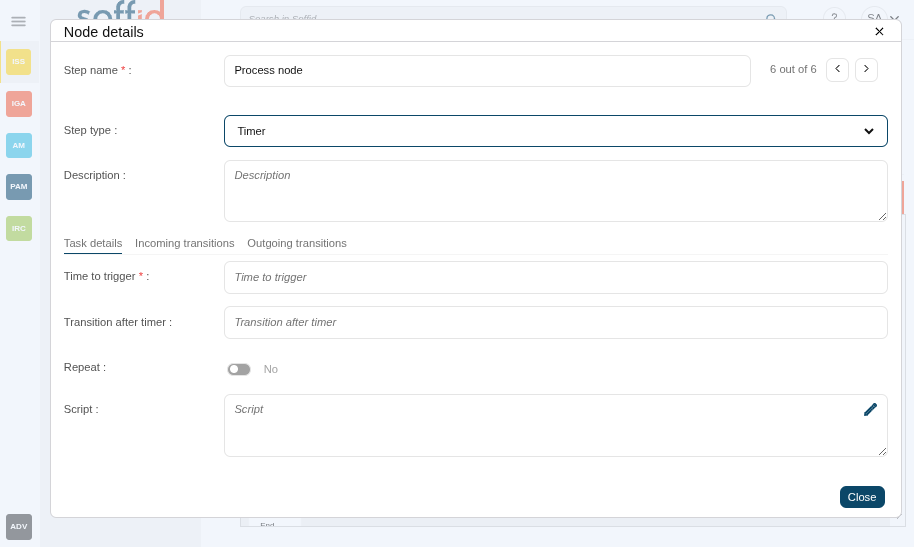
| **Timer** | This option can be an independent node or as a part of an existing node. This allows you to determine the time to run the action. For Time to trigger field, the availabe options are hours, minutes, seconds, days, or a date #{fecha}
💻 Image
[](https://bookstack.soffid.com/uploads/images/gallery/2025-09/ybEGxgre8Py2UOc0-image.png)
|
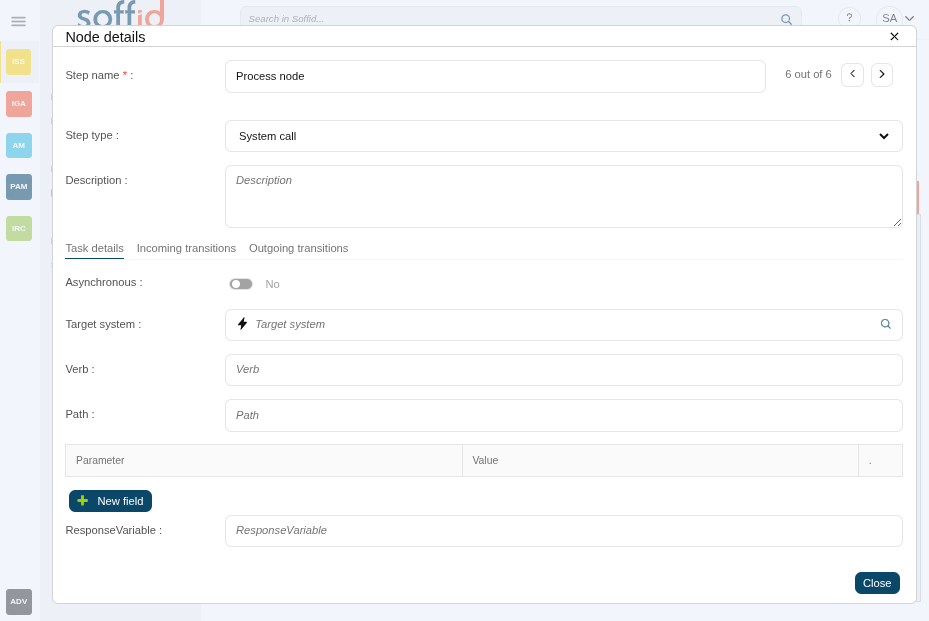
| **System call** | This step allows you to set up a call to a specific system.
You can find more information about the [Invoker for Shell connector ](https://bookstack.soffid.com/books/connectors/page/invoker-interface)and the [Invoker for Active directory](https://bookstack.soffid.com/books/connectors/page/invoker-interface-for-active-directory) connector.
💻 Image
[](https://bookstack.soffid.com/uploads/images/gallery/2025-09/5rkIalXsgTPybgjb-image.png)
|
#### Step details
All steps have some detailed data:
- **Step name**: identifier name of the step.
- **Step type**: step to be configured.
- **Description**: a brief description of the step.
#### Step tabs
All steps have some tabs for more detailed configuration, the tabs depend on the step type:
- **Task details**: tab with more custom attributes that depend on the step type
- **Fields**: objects attributes to be managed in the workflow form
- **Triggers**: scripts to be executed depending the trigger selected
- **User querys**: user querys
- **Incoming transitions**: tab to manage the incomming transitions and algo manage actions
- **Outgoing transitions**: tab to manage the outcoming transitions and algo manage actions
### Attributes tab
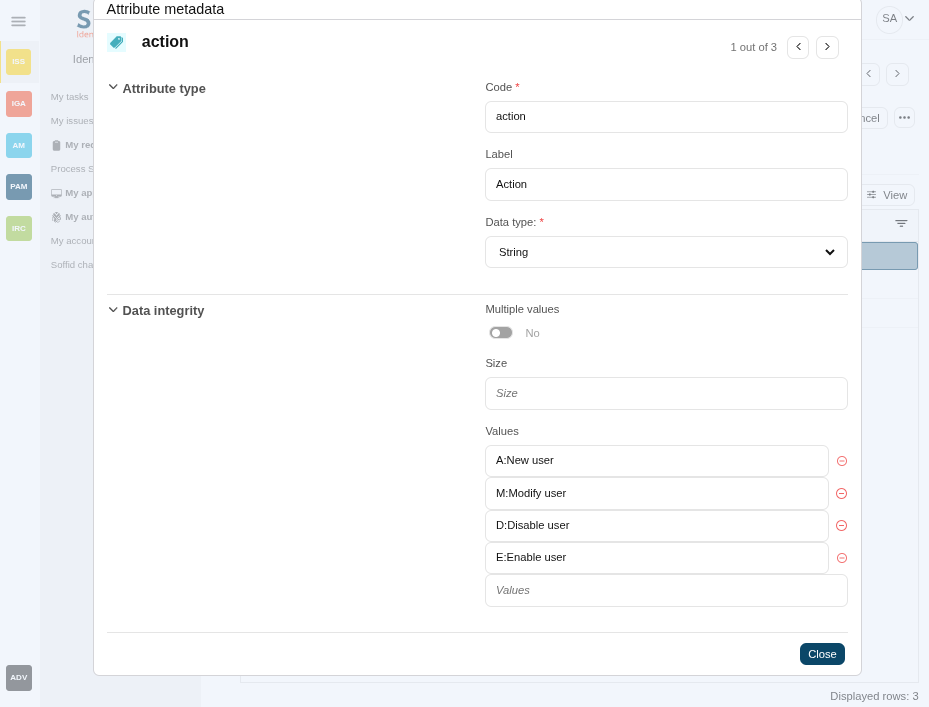
The Attributes tab is allowed for creating custom attributes to be used to configure the workflow. The defined attributes will be used in the Steps tab to be mapped with the Soffid data.
There are customized templates depending on the Process Type selected, those give you default attributes that you can customize.
- **Code**: code is used internally as an identifier by the system. Try to create a short one without spaces and with uppercase to separate words.
- **Label**: label displayed on the web page. This may be a name or a short description.
- **Data type**: data type of the value of the metadata attribute. The data type includes:
- Basic data types as String or Boolean.
- Extended data types as Photo or E-mail.
- Default Soffid objects as User or Group.
- Your own custom objects are created in Soffid.
- **Multiple values**: (Optional) If this flag is enabled, the metadata may contain more than one value.
- **Size**: (Optional) Set the maximum length of the value.
- **Values**: (Optional) Allows creating a set of values to provide to the user as a list.
💻 Image
[](https://bookstack.soffid.com/uploads/images/gallery/2025-09/lhkieuyC9hYhjyxr-image.png)
| **Add new**
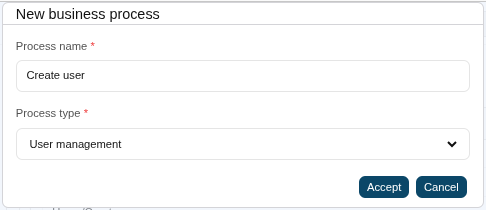
| Allows you to add a new workflow to Soffid. You need to set a name and select the process type and accept. Then Soffid opens the Process editor, which allows you to configure the process. And finally, save the process configuration, or save and publish. If you cancel that operation, Soffid will not save the process definition.
💻 Image
[](https://bookstack.soffid.com/uploads/images/gallery/2025-09/MX5vXMfMbx0Lr2hp-image.png)
|
| **Import**
| Allows you to import a workflow from a .pardef file. That functionality is very useful for next scenarios:
- To restore a workflow from a backup (a workflow previously exported).
- To deploy a workflow from one environment to another (for instance from Test to Live).
- To start a new workflow from a template.
Click the button, pick up a .pardef file, and save the process or save and publish. Soffid will ask you for confirmation, If you confirm, finally, Soffid will import the process definition. If you cancel that operation, Soffid will not upload and save the process definition.
Note that with this option you only can load workflows defined by the BPM editor.
|
| **"Edit process"**
| Allows you to edit a workflow to update it by clicking the process row. Then you can update the process definition and save, or save and publish the updates.
|
| **Delete process definition**
| Allows you to delete a workflow. Select a process row to enable the delete button. When a process is deleted, that process continues to be available to be executed. If you want that process is not available, you must disable that process on the [Business process definition](https://bookstack.soffid.com/books/soffid-4-reference-guide/page/business-process-definition "Business process definition") page.
|
#### Summary tab actions
The action that can be performed in the process are detailed below
| **Save**
| Allows you to save all changes included in the workflow. That workflow can be a new or an updated workflow.
|
| **Save and Publish**
| Allows you to save the changes performed in the workflow setup and also publish the workflow to be used in Soffid.
After this action, the last version of the workflow will be available for the end-user (with the proper permissions) in the Soffid Console and Self-service portal on the [My requests](https://bookstack.soffid.com/books/soffid-4-reference-guide/page/my-requests "My requests") page.
This latest version has been saved internally on the [Business process definition](https://bookstack.soffid.com/books/soffid-4-reference-guide/page/business-process-definition "Business process definition") screen.
|
| **Cancel**
| Allows you to quit the process editor without saving changes. Soffid will ask you for confirmation to exit without saving updates
|
| **Export process**
| Allows you to export a workflow to a **.pardef** file. You can choose that option clicking the "three points" icon. Automatically Soffid will download a .pardef file with the process definition.
|
##### Diagram tab actions
| **"Transition icons"**
| Allws you to add or update transitions.
- Select
- Pan
- Connect
- Connect
Image
[](https://bookstack.soffid.com/uploads/images/gallery/2025-09/gnZ1OJhgHbqoqoLi-image.png)
|
| **"Edit icons"**
| Allows you to delete an existing step. To delete a step you must click "trash" icon, the last of the edit icons.
- Undo
- Redo
- Cut
- Copy
- Paste
- Delete
💻 Image
[](https://bookstack.soffid.com/uploads/images/gallery/2025-09/pn46BtqVRtIVYWab-image.png)
|
| **"Step icons"**
| Allows you to add a new step to the workflow by selecting the action from the tool bar. When a new step is added, it will be mandatory to configure it.
- Start state
- End state
- Fork
- Join
- Decision
- System
- Node
- Task
- Mail
- Timer
💻 Image
[](https://bookstack.soffid.com/uploads/images/gallery/2025-09/5O575rMhsiYyzPj7-image.png)
|
| **"Size icons"**
| Allows you to change the size view of the diagram.
- Zoom out
- Zoom in
- Fit
- Actual size
Image
[](https://bookstack.soffid.com/uploads/images/gallery/2025-09/CQX0IGVtzYwdlz71-image.png)
|
##### Diagram tab > step node > fields tab actions
| **Add new**
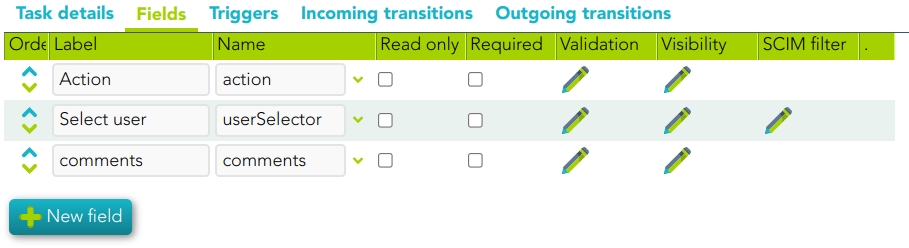
| Allows you to add a new attribute on the Attribute tab. You need to click the "New field" button and Soffid will show a new row to fill in. For each new field you may define:
- **Label**: allows you to give a name to that field. That label will be shown on the process form to final users.
- **Name**: allows you to select an identity attribute or specific attribute defined for that process. That will be the field type (e.g. selector, input field, date field...)
- **ReadOnly**: allows you to determine if this field could be updated.
- **Required**: allows to enable an attribute as a mandatory
- **Validation**: this allows you to add a custom script with validation rules.
- **Visibility**: this allows you to add a custom script to determine the visibility of that field.
- **SCIM Filter**: allows you to define a SCIM filter to get the data (e.g. userType eq "E")
💻 Image
[](https://bookstack.soffid.com/uploads/images/gallery/2024-06/image-1718003457780.png)
|
| **Delete**
| Allows you to delete a field. To delete a field you must click on the subtract icon (-) that is at the end of the same line.
|
| **Order (icon)**
| Allows you to sort the fields using drag and drop.
|
| **Validation (icon)**
| Allows you to add a new customized script with validation rules
|
| **Visibility (icon)**
| Allows you to add a new customized script to determine the visibility of that field.
|
| **SCIM query **(icon)**** | Allows you to define a SCIM filter to get the data |
##### Triggers
| **Add new**
| Allows you to add a new trigger to perform actions.
💻 Image
[](https://bookstack.soffid.com/uploads/images/gallery/2025-09/I05COuMMx39VPe8i-image.png)
|
| **Delete**
| Allows you to delete a trigger.
|
| **Action (icon)**
| Allows you to add a new customized script.
|
##### Incoming transition
| **New transition**
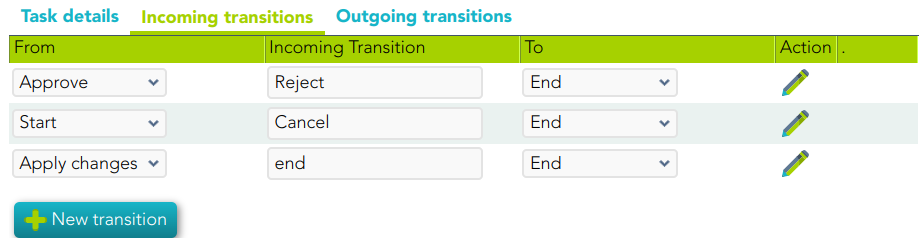
| Allows you to add a new incoming transition. You need to click the "New transitions" button, then Soffid will show a new row to fill in. For each new incoming transition you may define:
- From: this allows you to select where the workflow comes from.
- Incoming transition: brief name to identify the transition.
- To: current step.
- Action: allows creating a custom script to perform specific actions.
💻 Image
[](https://bookstack.soffid.com/uploads/images/gallery/2024-06/image-1718007544596.png)
|
| **Delete transition**
| Allows you to delete an incoming transition. To delete an incoming transition you must click on the subtract icon (-) that is at the end of the same line.
|
| **Action**
| Allows you to add a new customized script by clicking the pencil icon.
|
##### Outgoing transition
| **New transition**
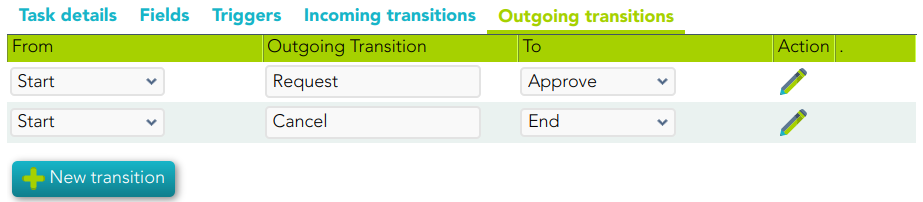
| Allows you to add a new outgoing transition.
💻 Image
[](https://bookstack.soffid.com/uploads/images/gallery/2024-06/image-1718007569420.png)
|
| **Delete transition**
| Allows you to delete an outgoing transition. To delete an outgoing transition you must click on the subtract icon (-) that is at the end of the same line.
|
| **Action**
| Allows you to add a new customized script by clicking the pencil icon.
|
##### Attributes tab actions
| **Add new** | Allows you to add a new attribute to use to configure the step. |
| **View**
| Allows you to show and hide columns in the table.
You can also set the order in which the columns will be displayed.
|
| **Delete** | Allows you to delete an attribute. To enable the delete button you must select one attribute. |
| **Add value** | Allows you to add a new value to the attribute. |
| **Delete value** | Allows you to delete a value. To delete a value you must click on the subtract icon (-) that is at the end of the same line. |
##### Resources tab actions
| **Upload resources** | Allows you to add files in a zip file as externals resources to be used in the scripts |
## Others
### Workflow to import as examples
- User management --> [User.pardef](https://bookstack.soffid.com/attachments/7)
- Permissions management --> [Permissions+request.pardef](https://bookstack.soffid.com/attachments/8)
- Account reservation --> [Account+reservation.pardef](https://bookstack.soffid.com/attachments/10)
- Permissions request
- Delegate roles