# Password recovery

# Introduction to Password recovery addon

## What is password recovery addon?

<p class="callout success">The **Password recovery** addon allows end users to recover their passwords.</p>

Soffid provides the funtionality that allows to config the password recovery depending on the bussiness needs and using different **technical solutions**. The current available options are the following:

- **Email** recovery
- **Questions and answers** recovery
- **OTP** recovery
- **SMS** recovery

In addition, you can **enable** and use this option in several Soffid components.

- In the **Console** login
- In the **Federation** add-on login
- In the **ESSO** login

Let's look at some use cases.

## Use cases

### Email recovery

When an end user wants to recover his password with the email recovery method, Soffid will send an email with a PIN code to the end user to recover his password.

The end user must enter the PIN code and, if it is right, Soffid will display a window to write and cofirm the new password.

<p class="callout warning">Please note that for this feature to work correctly, users' email addresses must be registered in Soffid.</p>

<iframe allowfullscreen="allowfullscreen" height="314" src="//www.youtube.com/embed/HUB7KAxJiTg" width="560"></iframe>

### Questions and answers recovery

When an end user wants to recover his password with the Questions and Answers recovery method, Soffid will display a window to answer the questions configured previously by the end user in the self service portal.

If the answers are rigth, Soffid will display a window to write and cofirm the new password.

<p class="callout warning">Please note that for this feature to work correctly, the administrator must configure the questions in the Console and the end user must first complete the answers in the Identity Self Service portal. Otherwise, an error will be displayed and the end user will need to contact an administrator user.</p>

<p class="callout info">For more information, this page explains [How to configure questions and answers?](https://bookstack.soffid.com/books/password-recovery/page/how-to-configure-questions "How to configure questions?").</p>

<iframe allowfullscreen="allowfullscreen" height="314" src="//www.youtube.com/embed/ocrjuRL3prc" width="560"></iframe>

### OTP recovery

When an end user wants to recover his password with the OTP recovery method, Soffid will display a window to enter the PIN code. The user will need to get the PIN code with an OTP application (Free Otp+, Google Authenticator and Microsoft Authenticator are the most used).

The end user must enter the PIN code and, if it is right, Soffid will display a window to write and cofirm the new password.

<p class="callout warning">Please note that in order to use this feature, the end user must first configure an OTP device in Soffid by registering the OTP in one of the available OTP applications. In other case, an error will be displayed and the end user will have to contact with an administrator user.</p>

<p class="callout info">For more information about the OTP method you can visit the [Two factor authentication (2FA)](https://bookstack.soffid.com/books/two-factor-authentication-2fa-VsJ) book</p>

<iframe allowfullscreen="allowfullscreen" height="314" src="//www.youtube.com/embed/BolocnOIiCA" width="560"></iframe>

### SMS recovery

When an end user wants to recover his password with the SMS recovery method, Soffid sends an SMS to the end user with a PIN code to recover his password.

The end user must to write the pin code and, if it is right, Soffid display a window to write and cofirm the new password.

<p class="callout warning">Please note that the administrator must have previously configured an SMS gateway. Soffid does not have any preconfigured SCMS services by default; the customer must configure their own service.</p>

### ESSO

Users who have the ESSO component installed on their devices will also be able to use the password recovery feature.

<p class="callout warning">Remember that in order to use this feature, the user must have ESSO installed and the administrator must have enabled this feature beforehand.</p>

<p class="callout info">For more information about the ESSO you can visit the [ESSO documentation](https://bookstack.soffid.com/books/esso "ESSO").</p>

[<iframe allowfullscreen="allowfullscreen" height="314" src="//www.youtube.com/embed/LZIutSDDmPk?rel=0" width="560"></iframe>](https://www.youtube.com/watch?v=LZIutSDDmPk)

# How to install Password recovery addon in Soffid

## Installation

### Introduction

To use an addon in Soffid, you must download and install it in the Console. There are two ways to do this.

<span style="color: #a6d100; font-weight: bold; font-size: 18px;">1. </span> The first option is to use the **Soffid 4 marketplace**. You can download and upload it directly from the [Licence and plugin](https://bookstack.soffid.com/books/soffid-4-reference-guide/page/license-and-plugin "License and plugin") page.

<span style="color: #a6d100; font-weight: bold; font-size: 18px;">2. </span>The second option is to download the file from the Soffid **download** page and then **upload** it to the Console.

### Soffid 4 marketplace

<p class="callout success">Soffid 4 allows you to install and update plugins through the new Addons marketplace feature.</p>

<p class="callout warning">To access the marketplace, you must have a valid token to use Soffid and have configured the Console via https. Please check the [License and plugin](https://bookstack.soffid.com/books/soffid-4-reference-guide/page/license-and-plugin#bkmrk-actions "License and plugin") page.</p>

<span style="color: #a6d100; font-weight: bold; font-size: 18px;">1.</span> Please **log in** to IAM Console.

<p class="callout info">You need to be an **administrator** user of the Soffid console or a user with permission to upload addons.</p>

<p class="callout info">It is recommended to upload the addons to the **master**, this is the way to maintain updated all, master and tenants if there are.</p>

<span style="color: #a6d100; font-weight: bold; font-size: 18px;">2.</span> In the Soffid console, please **go to** the [License and plugin](https://bookstack.soffid.com/books/soffid-4-reference-guide/page/license-and-plugin "License and plugin") page.

`Main Menu > <span class="link" id="bkmrk-configuration">Configuration</span> > Global Settings > License and plugin`

<span style="color: #a6d100; font-weight: bold; font-size: 18px;">3.</span> Then, click the add button "**Add new**" button, open the "Soffid Addons" secction and select the "Instlla addon" option, Soffild will upload the addon file.

<details id="bkmrk-image-2"><summary>Image</summary>

[![image.png](https://bookstack.soffid.com/uploads/images/gallery/2025-08/scaled-1680-/zT1zIAZQODssapPc-image.png)](https://bookstack.soffid.com/uploads/images/gallery/2025-08/zT1zIAZQODssapPc-image.png)

[![image.png](https://bookstack.soffid.com/uploads/images/gallery/2025-08/scaled-1680-/3uHXtG1pAm5kUzIA-image.png)](https://bookstack.soffid.com/uploads/images/gallery/2025-08/3uHXtG1pAm5kUzIA-image.png)

[![image.png](https://bookstack.soffid.com/uploads/images/gallery/2025-08/scaled-1680-/uw0ef7PG97IxCUUu-image.png)](https://bookstack.soffid.com/uploads/images/gallery/2025-08/uw0ef7PG97IxCUUu-image.png)

[![image.png](https://bookstack.soffid.com/uploads/images/gallery/2025-08/scaled-1680-/SnyiSzFTnWhDKIWL-image.png)](https://bookstack.soffid.com/uploads/images/gallery/2025-08/SnyiSzFTnWhDKIWL-image.png)

</details><span style="color: #a6d100; font-weight: bold; font-size: 18px;">4.</span> Finally, when the addon is installed, the Consola has to be **restarted**, a popup will be displayed to perform this action, you can choose to do it now or later.

<details id="bkmrk-image-3"><summary>Image</summary>

[![image.png](https://bookstack.soffid.com/uploads/images/gallery/2025-09/scaled-1680-/SrBNuFbSm6g6boI8-image.png)](https://bookstack.soffid.com/uploads/images/gallery/2025-09/SrBNuFbSm6g6boI8-image.png)

</details><span style="color: #a6d100; font-weight: bold; font-size: 18px;">5.</span> Once the Soffid console has restarted, you can **check** if the plugin was correctly uploaded on the "License and plugins" page.

`Main Menu > <span class="link" id="bkmrk-configuration-1">Configuration</span> > Global Settings > License and plugin`

<span style="color: #a6d100; font-weight: bold; font-size: 18px;">6.</span> Now, you can **configure** the addon.

### Download an upload

<span style="color: #a6d100; font-weight: bold; font-size: 18px;">1. </span>You could **download** the addon at the following link [http://www.soffid.com/download/enterprise/](http://www.soffid.com/download/enterprise/) if you have a Soffid user with authorization, or in the following [http://download.soffid.com/download/](http://download.soffid.com/download/) by registering.

The addons are in the Addon seccion.

<details id="bkmrk-image"><summary>Image</summary>

[![image.png](https://bookstack.soffid.com/uploads/images/gallery/2025-09/scaled-1680-/dUXAMGDA0M6XJe3A-image.png)](https://bookstack.soffid.com/uploads/images/gallery/2025-09/dUXAMGDA0M6XJe3A-image.png)

</details><span style="color: #a6d100; font-weight: bold; font-size: 18px;">2.</span> Once the addon is downloaded, please **log in** to IAM Console.

<p class="callout info">You need to be an **administrator** user of the Soffid console or a user with permission to upload addons.</p>

<p class="callout info">It is recommended to upload the addons to the **master**, this is the way to maintain updated all, master and tenants if there are.</p>

<span style="color: #a6d100; font-weight: bold; font-size: 18px;">3.</span> In the Soffid console, please **go to** the [License and plugin](https://bookstack.soffid.com/books/soffid-4-reference-guide/page/license-and-plugin "License and plugin") page.

Soffid 3:

`Main Menu > Administration > <span class="link" id="bkmrk-configuration-2">Configuration</span> > Global Settings > Plugins`

Soffid 4:

 `Main Menu > <span class="link" id="bkmrk-configuration-3">Configuration</span> > Global Settings > License and plugin`

<span style="color: #a6d100; font-weight: bold; font-size: 18px;">4.</span> Then, click the add button "**Upload**" and pick the file and click the "Select" button and Soffild will upload the addon file.

<details id="bkmrk-image-1"><summary>Image</summary>

[![image.png](https://bookstack.soffid.com/uploads/images/gallery/2025-12/scaled-1680-/oSwSvpyjPfmRtugF-image.png)](https://bookstack.soffid.com/uploads/images/gallery/2025-12/oSwSvpyjPfmRtugF-image.png)

[![image.png](https://bookstack.soffid.com/uploads/images/gallery/2025-12/scaled-1680-/1B3zySXyg11fM02e-image.png)](https://bookstack.soffid.com/uploads/images/gallery/2025-12/1B3zySXyg11fM02e-image.png)

</details><span style="color: #a6d100; font-weight: bold; font-size: 18px;">5.</span> Finally, when the addon is installed, the Consola has to be **restarted**, a popup will be displayed to perform this action, you can choose to do it now or later.

<details id="bkmrk-image-4"><summary>Image</summary>

[![image.png](https://bookstack.soffid.com/uploads/images/gallery/2025-09/scaled-1680-/SrBNuFbSm6g6boI8-image.png)](https://bookstack.soffid.com/uploads/images/gallery/2025-09/SrBNuFbSm6g6boI8-image.png)

</details><span style="color: #a6d100; font-weight: bold; font-size: 18px;">6.</span> Once the Soffid console has restarted, you can **check** if the plugin was correctly uploaded on the "License and plugins" page.

`Main Menu > <span class="link" id="bkmrk-configuration-4">Configuration</span> > Global Settings > License and plugin`

<span style="color: #a6d100; font-weight: bold; font-size: 18px;">7.</span> Now, you can **configure** the addon.

# Password recovery configuration page

## Description

<p class="callout success">Soffid provides you the functionality that allows to the users recover their passwords.</p>

To do this, the administrator user, or a user with the proper roles/authorizations, must first config the password recovery settings.

<p class="callout info">This setting can be used in the Console login and in the Federation login if enabled in the Identity Provider.</p>

There are several sending method configuration options, use the one that best suits your organization.

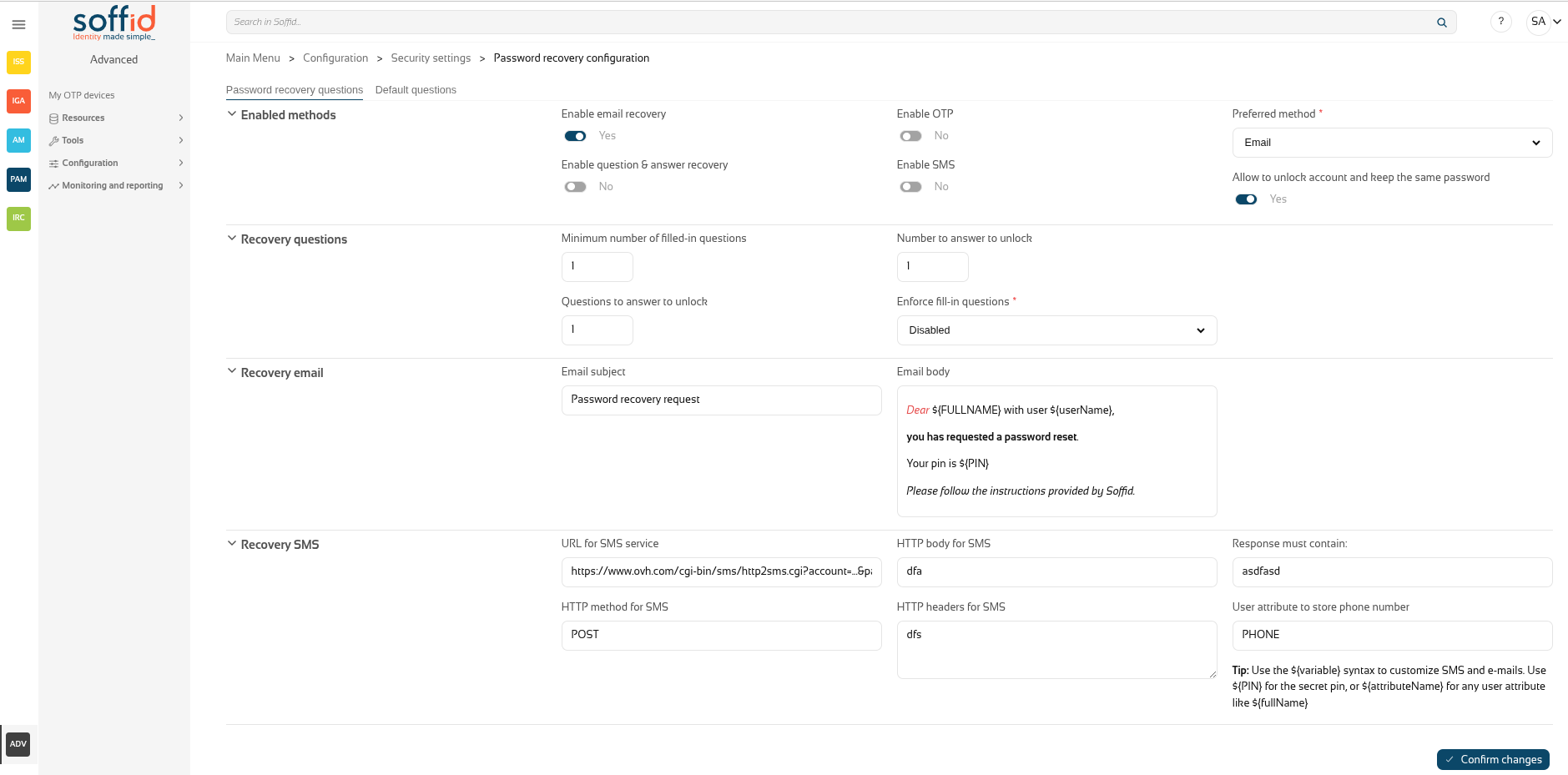
## Screen Overview

[![image.png](https://bookstack.soffid.com/uploads/images/gallery/2026-01/scaled-1680-/AolcX8wn5YLhA60W-image.png)](https://bookstack.soffid.com/uploads/images/gallery/2026-01/AolcX8wn5YLhA60W-image.png)
## Related objects

- [Soffid parameters](https://bookstack.soffid.com/books/soffid-4-reference-guide/page/soffid-parameters "Soffid parameters") : must provide a mail server to use mails
- [Identity providers](https://bookstack.soffid.com/books/soffid-4-reference-guide/page/identity-providers-addon-federation "Identity providers (addon federation)") : to enable this opcion in federation

## Standard attributes

### Password recovery questions tab  


#### Enabled methods

- **Enable email recovery**: if Yes is selected, it will allow password recovery through an e-mail sent to an authorized mailbox.
- **Enable question&amp;answer recovery**: if Yes is selected, a question and control response will be requested.
- **Enable OTP**: if Yes is selected, an OTP will be required to recover the password. That OTP depends on the OTP settings configured into the Soffid Console and the OTP devices configured for the end-user.
- **Enable SMS**: if Yes is selected, an SMS will be send to recover the password.
- **Preferred method**: in case you select two or more previous options, this drop-drown will allow you to priorize one option over the others. 
    - <span style="text-decoration: underline;">Email</span>
    - <span style="text-decoration: underline;">Questions</span>
    - <span style="text-decoration: underline;">SMS</span>
    - <span style="text-decoration: underline;">OTP</span>
- **Allow to unlock account and keep the same password**: Allows the user to unlock his account using the last stored password.

#### Recovery questions

- **Minimum number of filled-in questions**: indicates the minimum number of user questions that must be have answered in the end-user's profile to can use this recover password method.
- **Questions to answer to unlock**: indicates the number of questions that must be formulated to the end-user to reset his password.
- **Numer to answer to unlock**: indicates the number of answers that must be answered by the end-user to reset his password.
- **Enforce fill-in questions:** allow on each access Soffid to check if the questions are answered. In case the questions have not been not answered, Soffid will display a window with the questions to answer or to config to the end-user depending on that value. 
    - <span style="text-decoration: underline;">Disabled</span>: allows you to disable that functionality.
    - <span style="text-decoration: underline;">Required</span>: if this option is selected, the system will check if the user questions are answered correctly.  
        If the user have not a required number of questions defined or he have not answered all his questions, the system will show the retrieve password questions page.
    - <span style="text-decoration: underline;">Optional</span>: when this option is selected, the system will check the user questions but it will not show the retrieve password questions page if the user questions does not meet the configuration parameters.

#### Recovery email

- **Email subject**: the text of the subject sent in the email, you can use variables
- **Email body**: the text of the body sent in the email, this could be HTML stylel, you can use variables

<p class="callout info">**Tip**: Use the **${variable}** syntax to customize SMS and e-mails. Use ${PIN} for the secret pin, or ${attributeName} for any user attributes like ${fullName}.</p>

#### Recovery SMS

- **URL for SMS service**: URL for SMS service
- **HTTP method for SMS**: HTTP method for SMS, for example GET
- **HTTP body for SMS**: the text of the boy sent in the SMS, you can use variables
- **HTTP headers for SMS**: headers used in the HTTP request
- **Response must contain**: a text in the response to confirm the successful sending
- **User attribute to store phone number:** user object attribute defined on the Metadata page to save the phone number.

<p class="callout info">**Tip**: Use the **${variable}** syntax to customize SMS and e-mails. Use ${PIN} for the secret pin, or ${attributeName} for any user attributes like ${fullName}.</p>

### Default questions tab

This **Default questions** tab is where you enter the questions that the end user will have to answer in order to recover their password.

[![image.png](https://bookstack.soffid.com/uploads/images/gallery/2025-12/scaled-1680-/FnRaxZTNjRzctCH2-image.png)](https://bookstack.soffid.com/uploads/images/gallery/2025-12/FnRaxZTNjRzctCH2-image.png)
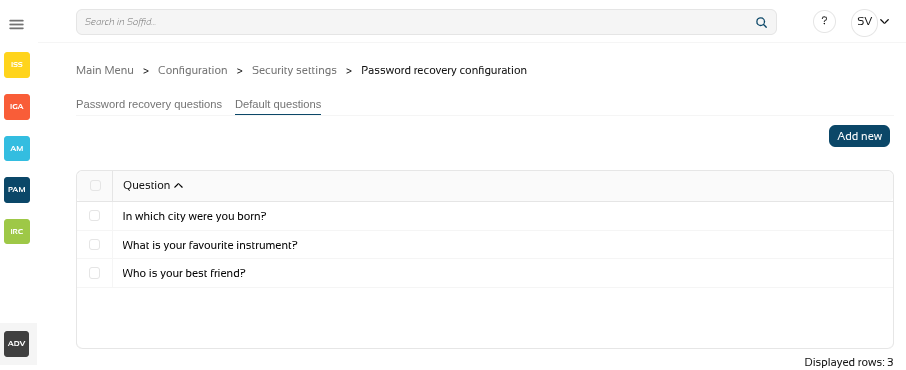
Table:

- **Question**: questions for the end user

Actions:

<table id="bkmrk-add-attribute-allows" style="width: 99.9409%;"><tbody><tr><td style="width: 16.2867%;">**Add new**

</td><td style="width: 83.6836%;">Add a new row to the table to allow the administrator to write the question.

</td></tr><tr><td style="width: 16.2867%;">**Delete**

</td><td style="width: 83.6836%;">After selecting one or more questions, the "Delete" will be displayed and you could delete the question/s.

</td></tr></tbody></table>

<p class="callout info">For more information on how to activate and configure the question and answer feature, please review the page [How to configure questions](https://bookstack.soffid.com/books/password-recovery/page/how-to-configure-questions "How to configure questions?")?</p>

## Actions

Password recovery questions tab

<table id="bkmrk-confirm-changes-allo" style="width: 99.9409%;"><tbody><tr><td style="width: 16.2867%;">**Confirm changes**

</td><td style="width: 83.6836%;">Allows you to save the data of password recovery configuration. To save the data it will be mandatory to fill in the required fields.

</td></tr></tbody></table>

Default questions tab

<table id="bkmrk-add-new-allows-you-t" style="width: 99.9409%;"><tbody><tr><td style="width: 16.2867%;">**Add new**

</td><td style="width: 83.6836%;">Allows you to add a new question to the questions list

</td></tr></tbody></table>

## Others

### Login in console

First, activate one of the available methods, in this case email.

Sedond, when you log in to the console, you will see the option ‘Recover password’.

<details id="bkmrk-image"><summary>Image</summary>

[![image.png](https://bookstack.soffid.com/uploads/images/gallery/2025-09/scaled-1680-/yhZtYRik6222yIfQ-image.png)](https://bookstack.soffid.com/uploads/images/gallery/2025-09/yhZtYRik6222yIfQ-image.png)

[![image.png](https://bookstack.soffid.com/uploads/images/gallery/2025-09/scaled-1680-/E1csD5Z3KDF8f4qx-image.png)](https://bookstack.soffid.com/uploads/images/gallery/2025-09/E1csD5Z3KDF8f4qx-image.png)

</details>### Login in federation

First, enable "Allow user to recover password" in the "Advanced authentication" section.

Second, when you log in to the federation, after entering the user, you will see the option "Forgot your password?".

<details id="bkmrk-image-%C2%A0"><summary>Image</summary>

[![image.png](https://bookstack.soffid.com/uploads/images/gallery/2025-09/scaled-1680-/J4K4Fh2PEyzYijDy-image.png)](https://bookstack.soffid.com/uploads/images/gallery/2025-09/J4K4Fh2PEyzYijDy-image.png)

[![image.png](https://bookstack.soffid.com/uploads/images/gallery/2025-09/scaled-1680-/yBmQvzpskv3L6F55-image.png)](https://bookstack.soffid.com/uploads/images/gallery/2025-09/yBmQvzpskv3L6F55-image.png)

</details>

# How to configure questions?

## Introduction

Soffid allows to the administrator user, o the user with the proper roles, to configure the default questions that will be displayed to the end users.

Those questions will be the default questions, the end users could change them and configure other questions.

To enable the question functionality, the user needs to configure some parameters.

Next, end users must fill in the answers in the Soffid console to finally revocer the password on the login page.

Let's take a closer look at these steps.

### 1. Enable the question funcionality

First, go to [Password recovery configuration](https://bookstack.soffid.com/books/password-recovery/page/password-recovery-configuration-page "Password recovery configuration") page.

Now enable this feature and select it as preferred.

[![image.png](https://bookstack.soffid.com/uploads/images/gallery/2025-12/scaled-1680-/HNdkmOq07yx5dGug-image.png)](https://bookstack.soffid.com/uploads/images/gallery/2025-12/HNdkmOq07yx5dGug-image.png)

For more informatión check the [Enable methods](https://bookstack.soffid.com/books/password-recovery/page/password-recovery-configuration-page#bkmrk-enabled-methods "Enable methods") attributes.

### 2. Configure the question engine

On the same page, configure the question and answer mechanism as required.

[![image.png](https://bookstack.soffid.com/uploads/images/gallery/2025-12/scaled-1680-/cuO63EC40ilJQgdW-image.png)](https://bookstack.soffid.com/uploads/images/gallery/2025-12/cuO63EC40ilJQgdW-image.png)

For more informatión check the [Recovery questions](https://bookstack.soffid.com/books/password-recovery/page/password-recovery-configuration-page#bkmrk-recovery-questions "Recovery questions") attributes.

### 3. Add the default questions

Now go to the [Default questions](https://bookstack.soffid.com/books/password-recovery/page/password-recovery-configuration-page#bkmrk-default-questions-ta "Default questions") tab and add the questions that the end user will have to answer.

[![image.png](https://bookstack.soffid.com/uploads/images/gallery/2025-12/scaled-1680-/oMldNU7gly84dVUv-image.png)](https://bookstack.soffid.com/uploads/images/gallery/2025-12/oMldNU7gly84dVUv-image.png)

For more informatión check the [Default questions](https://bookstack.soffid.com/books/password-recovery/page/password-recovery-configuration-page#bkmrk-default-questions-ta "Default questions") attributes.

### 4. Add the answers

End users will now have to fill in their answers.

In the Console go to the [My profile](https://bookstack.soffid.com/books/soffid-4-reference-guide/page/my-profile "My Profile") page.

You will see the "Password recovery questions" button.

[![image.png](https://bookstack.soffid.com/uploads/images/gallery/2025-12/scaled-1680-/b6Oz4xsaHEvy2v8H-image.png)](https://bookstack.soffid.com/uploads/images/gallery/2025-12/b6Oz4xsaHEvy2v8H-image.png)

Next we will have to answer at least the number of questions that has been configured.

### 5. Use password recovery

Now that we have everything configured, we may use the "Password recovery"’ option on the login page.

[![image.png](https://bookstack.soffid.com/uploads/images/gallery/2025-12/scaled-1680-/6YxYpcUbnncMmA7X-image.png)](https://bookstack.soffid.com/uploads/images/gallery/2025-12/6YxYpcUbnncMmA7X-image.png)

Introduce the end user.

[![image.png](https://bookstack.soffid.com/uploads/images/gallery/2025-12/scaled-1680-/SgiQuV9NlV7uAInJ-image.png)](https://bookstack.soffid.com/uploads/images/gallery/2025-12/SgiQuV9NlV7uAInJ-image.png)

If you get this error, it is because there are no answers.

[![image.png](https://bookstack.soffid.com/uploads/images/gallery/2025-12/scaled-1680-/ShpfndOSDNqU9iVd-image.png)](https://bookstack.soffid.com/uploads/images/gallery/2025-12/ShpfndOSDNqU9iVd-image.png)