# How to Configure Password Manager?

## Step-by-Step

<span style="color: #a6d100; font-weight: bold; font-size: 18px;">1.</span> To use the Soffid Password Manager, you have to Add your Vault to the Password Manager:

[![image-1707821252609.png](https://bookstack.soffid.com/uploads/images/gallery/2024-02/scaled-1680-/image-1707821252609.png)](https://bookstack.soffid.com/uploads/images/gallery/2024-02/image-1707821252609.png)

<span style="color: #a6d100; font-weight: bold; font-size: 18px;">2.</span> Then Soffid will ask you to confirm this action:

[![image-1707821296356.png](https://bookstack.soffid.com/uploads/images/gallery/2024-02/scaled-1680-/image-1707821296356.png)](https://bookstack.soffid.com/uploads/images/gallery/2024-02/image-1707821296356.png)

<p class="callout warning">Note, if you are using **Soffid ESSO**, the Password Manager will connect automatically</p>

<span style="color: #a6d100; font-weight: bold; font-size: 18px;">3.</span> Finally, you could start to use the **Password Manager** by looking for this icon in your navigation bar:

[![image-1707820659185.png](https://bookstack.soffid.com/uploads/images/gallery/2024-02/scaled-1680-/image-1707820659185.png)](https://bookstack.soffid.com/uploads/images/gallery/2024-02/image-1707820659185.png)

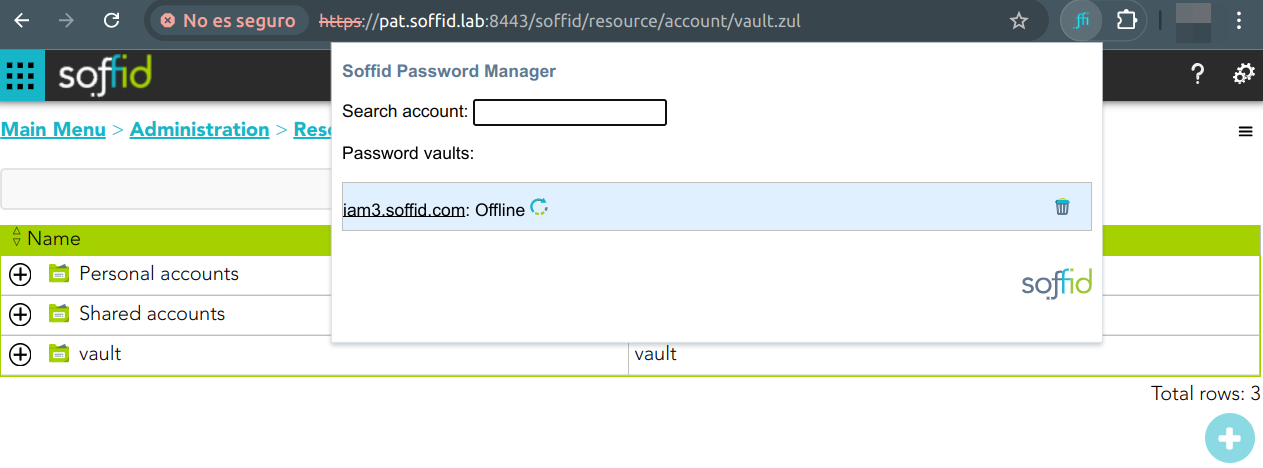
<span style="color: #a6d100; font-weight: bold; font-size: 18px;">4.</span> If you click the Password Manager icon, a new pop-up will be displayed indicating if the Password Vault is Online or Offline

[![image.png](https://bookstack.soffid.com/uploads/images/gallery/2024-11/scaled-1680-/pRk7momT4QvD5EHE-image.png)](https://bookstack.soffid.com/uploads/images/gallery/2024-11/pRk7momT4QvD5EHE-image.png)
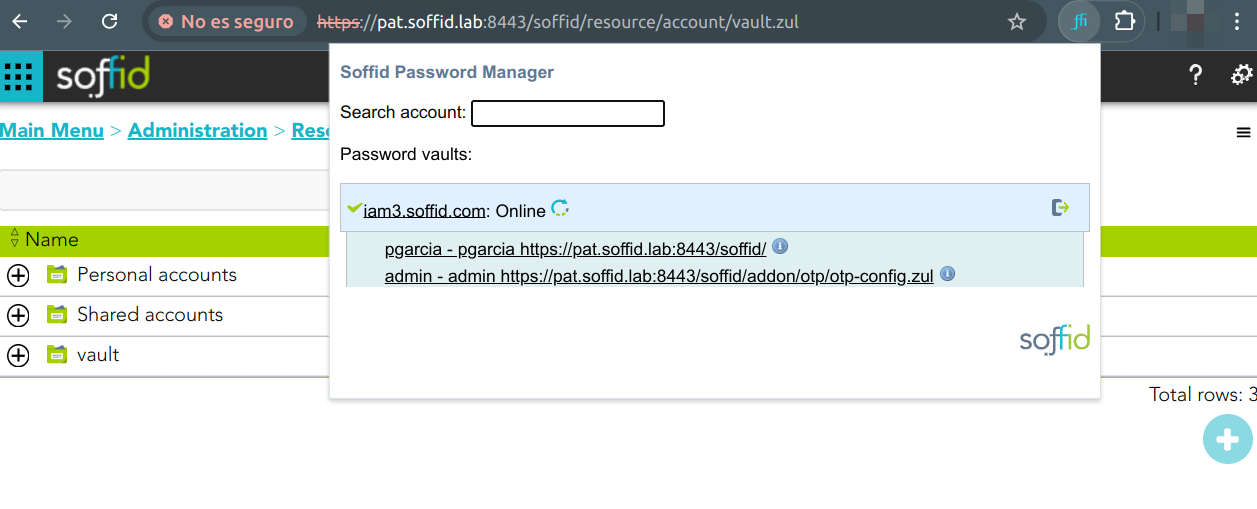
If your Password Vault is Offline, you could delete it from the Password Manager.

[![image.png](https://bookstack.soffid.com/uploads/images/gallery/2024-11/scaled-1680-/6692nbcbnv8IkgsQ-image.png)](https://bookstack.soffid.com/uploads/images/gallery/2024-11/6692nbcbnv8IkgsQ-image.png)