# Step 8.3. Assign PAM policy
### Assign PAM policy
1. To assign the PAM policy to a Password Vault folder, you must access the Password vault page in the following path:
`Main Menu > Administration > Resources > Password vault`
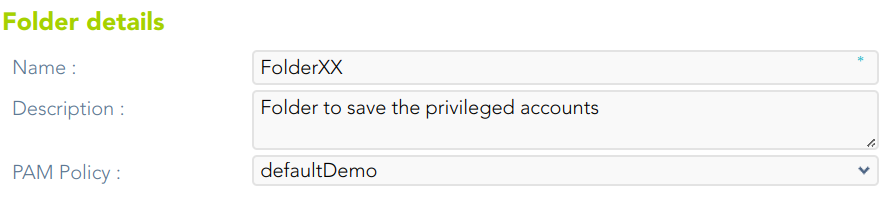
2. Then you must select the folder by clicking on the record. Soffid will display a window with the folder data.
3. You can select the password policy selecting it on the drop-down list.
4. Finally you need to click on the "Apply changes" button to save the password policy,
4.1. If you click on the "Undo" button, no updates will be saved.
## Screen overview
[](https://bookstack.soffid.com/uploads/images/gallery/2023-07/image-1688998386905.png)