# Step 7.3. Configure XACML PEP
## Step-by-step
1. To configure the XACML PEP You must access the "XACML PEP configuration" page in the following path:
`Main Menu > Administration > Configure Soffid > Security settings > XACML PEP configuration`
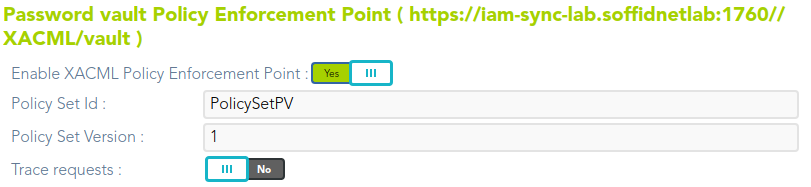
2. At the "XACML PEP configuration page you must fill in the **Password vault Policy Enforcement Point** section.
2.1. The policy must be enabled, you must select Yes on the "Enable XACML Policy Enforcement Point".
2.2. Then you must fill in the **Policy set ID** and the **Policy set version** to use.
2.3. The trace request is an optional field used to debug.
3. Once you fill in the mandatory information, you must click the "Apply" button to save the updates.
3.1. If there is any error in the data, Soffid will display a message with the error data.
For detailed information about XACML, you can visit the [XACML book](https://bookstack.soffid.com/books/xacml "XACML").
## Screen overview