# Step 5.1. Account management
The account management step shows you how to manage the accounts to change the type, how to locate the accounts on the password vault, and how to assign a password. To comply with this step the discovery process must be completed.
## Step-by-step
1. To access the accounts of a specific host or database (SQL Server or Oracle), you must click the "Accounts" button. The button is located close to the name of the host or the agent, inside the "Account repositories" of a specific host, on the network discovery tree.
- Host
[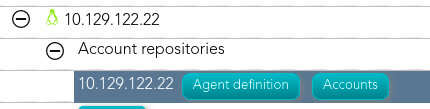](https://bookstack.soffid.com/uploads/images/gallery/2021-08/image-1629971294668.png)
[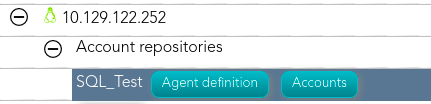](https://bookstack.soffid.com/uploads/images/gallery/2021-08/image-1629971278636.png)
2. Once you click the button, Soffid will display the accounts list which belongs to the host or agent.
3. You must click on the account record to edit the detailed account info.
4. Then, you will be able to change the account type, place the account on the password vault, and assign a password for each account, one by one.
a. [Step 5.2. Change account type](https://bookstack.soffid.com/books/pam-implementation-guide/page/step-51-change-account-type "Step 5.1. Change account type")
b. [Step 5.3. Publish on Password Vault](https://bookstack.soffid.com/books/pam-implementation-guide/page/step-52-publish-on-password-vault "Step 5.2. Publish on Password vault")
c. [Step 5.4. Assign the password](https://bookstack.soffid.com/books/pam-implementation-guide/page/step-53-assign-the-password "Step 5.3. Assign the password")
5. And finally, to save the updates you must click on the "Apply changes" button.