# Step 1. Create network
The first step of the PAM implementation will be to create the network we want to scan to discover the hosts
## Step-by-step
1. First of all, you must access the networks page, the path to access is the following:
`Main Menu > Administration > Resources > Networks`
2. Once you are located on the networks page, you must click the button with the add symbol (+) to add a new network. Then Soffid will display a new empty page to fill in the network data.
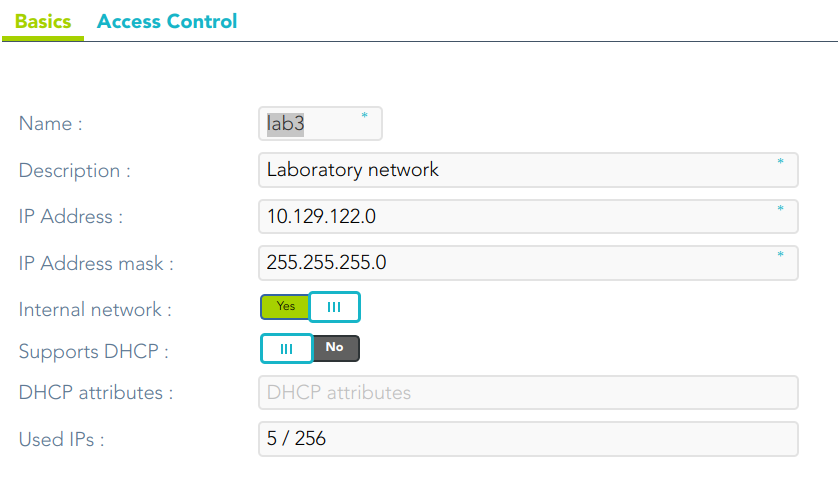
You must fill, at least the required fields (fields with an asterisk) to create a network.
- The **name** should be an identificative network name, that will be a unique network name (no spaces and no symbols).
- The **description** should be a brief description of the network.
- The **IP Address** should be the real network IP address you want to scan.
- The **IP Address mask** should specify the network's available hosts.
Other fields you could configure
- The **Internal network** allows you to indicate if this network is fully managed or not.
- The **Support DHCP** allows you to determine if the hosts that belong to this network will be automatically registered on Soffid.
- The **DHCP attributes** allow you to enter additional parameters that DHCP server will use to assemble DHCP response. Usually it will have a gw=0.1.2.34 like parameter. It is only needed when a DCHP connector is configured.
Auto calculated fields
- The **Used IPs** will be IP addresses used.
3. Once you have filled in all those fields, you must apply changes, by clicking on the "Apply changes" button to create the new network.
4. When you apply changes:
4.1. If all the required information is correct, Soffid will save the new network, close the page and show the networks list with all the networks created on the system, including the last one created.
4.2. If the information filled in is not correct, Soffid will show an alert on the fields which have errors. You must correct the mistakes and save the network data again.
## Screen overview
[](https://bookstack.soffid.com/uploads/images/gallery/2023-07/image-1688998618902.png)