# How to enable WinRM?

## Introduction

On this page we will describe the steps to follow to enable WinRM with the domain controller Group Policy for WMI monitoring.

## Step by Step

### Step 1: Create a Group Policy object

Fist of all, you need to create a Group Policy object for your domain.

<span style="color: #a6d100; font-weight: bold; font-size: 18px;">1. </span><span style="font-weight: 400;">From the start menu, open Control Panel.</span>

<span style="font-weight: 400;"><span style="color: #a6d100; font-weight: bold; font-size: 18px;">2. </span>Select **Administrative Tools**.</span>

<span style="font-weight: 400;"><span style="color: #a6d100; font-weight: bold; font-size: 18px;">3. </span>Select **Group Policy Management**.</span>

<span style="font-weight: 400;"><span style="color: #a6d100; font-weight: bold; font-size: 18px;">4. </span>From the menu tree, click **Domains &gt; \[your domain’s name\]**.</span>

<span style="font-weight: 400;"><span style="color: #a6d100; font-weight: bold; font-size: 18px;">5. </span>Right-click and select **Create a GPO in this domain, and Link it here**.</span>

<span style="font-weight: 400;"><span style="color: #a6d100; font-weight: bold; font-size: 18px;">6. </span>Input **Enable WinRM**.</span>

<span style="font-weight: 400;"><span style="color: #a6d100; font-weight: bold; font-size: 18px;">7. </span></span>Click **OK**.

### Step 2: Enable WinRM services

Secondly, it is necessary to enable WinRm services to allow remote management of the server through WinRM. You must edit the Group Policy you just created.

<span style="color: #a6d100; font-weight: bold; font-size: 18px;">1. </span><span style="font-weight: 400;">Right-click on the new **Enable WinRM Group Policy Object and select Edit**.</span>

<span style="font-weight: 400;"><span style="color: #a6d100; font-weight: bold; font-size: 18px;">2. </span>From the menu tree, click **Computer Configuration &gt; Policies &gt; Administrative Templates: Policy definitions &gt; Windows Components &gt; Windows Remote Management (WinRM) &gt; WinRM Service**.</span>

<span style="font-weight: 400;"><span style="color: #a6d100; font-weight: bold; font-size: 18px;">3. </span>Right-click on **Allow remote server management through WinRM** and click **Edit**.  
</span>

<span style="font-weight: 400;"><span style="color: #a6d100; font-weight: bold; font-size: 18px;">4. </span>Select **Enabled** to allow remote server management through WinRM.</span>

<span style="font-weight: 400;"><span style="color: #a6d100; font-weight: bold; font-size: 18px;">5. </span>Enter an asterisk (\*) into each field.</span>

<span style="font-weight: 400;"><span style="color: #a6d100; font-weight: bold; font-size: 18px;">6. </span></span>Click **OK**.

### Step 3: Enable the service that goes the policy

<span style="color: #a6d100; font-weight: bold; font-size: 18px;">1. </span><span style="font-weight: 400;">From the Group Policy Management Editor window, click **Preferences &gt; Control Panel Settings &gt; Services**.</span>

<span style="font-weight: 400;"><span style="color: #a6d100; font-weight: bold; font-size: 18px;">2. </span>Right-click on **Services** and select **New &gt; Service**.</span>

<span style="font-weight: 400;"><span style="color: #a6d100; font-weight: bold; font-size: 18px;">3. </span>Select **Automatic** as the startup.  
</span>

<span style="font-weight: 400;"><span style="color: #a6d100; font-weight: bold; font-size: 18px;">4. </span>Enter WinRM as the service name.  
</span>

<span style="font-weight: 400;"><span style="color: #a6d100; font-weight: bold; font-size: 18px;">5. </span>Select **Start service** as the service action.</span>

<span style="font-weight: 400;"><span style="color: #a6d100; font-weight: bold; font-size: 18px;">6. </span>All remaining details can stay on the defaults. Click **OK**.</span>

### Step 4: Allow for inbound remote administration 

You have to allow for inbound remote administration by updating the firewall rules


<span style="color: #a6d100; font-weight: bold; font-size: 18px;">1. </span><span style="font-weight: 400;">From the menu tree, click **Computer Configuration &gt; Policies &gt; Windows Settings &gt; Security Settings &gt; Windows Firewall with Advanced Security &gt; Windows Firewall with Advanced Security &gt; Inbound Rules**.</span>

<span style="font-weight: 400;"><span style="color: #a6d100; font-weight: bold; font-size: 18px;">2. </span>Right-click on **Inbound Rules** and click **New Rule**.</span>

<span style="font-weight: 400;"><span style="color: #a6d100; font-weight: bold; font-size: 18px;">3. </span>Select **Predefined**.  
</span>

<span style="font-weight: 400;"><span style="color: #a6d100; font-weight: bold; font-size: 18px;">4. </span>Select **Windows Remote Management** from the list of services.</span>

<span style="font-weight: 400;"><span style="color: #a6d100; font-weight: bold; font-size: 18px;">5. </span>Click **Next**.</span>

<span style="font-weight: 400;"><span style="color: #a6d100; font-weight: bold; font-size: 18px;">6. </span>Uncheck the **Public** rule. Leave the **Domain**, **Private** rule checked.</span>

<span style="font-weight: 400;"><span style="color: #a6d100; font-weight: bold; font-size: 18px;">7. </span>Click **Next**.</span>

<span style="font-weight: 400;"><span style="color: #a6d100; font-weight: bold; font-size: 18px;">8. </span>Leaving the defaults, click **Finish**.</span>

<span style="font-weight: 400;"><span style="color: #a6d100; font-weight: bold; font-size: 18px;">9. </span>Right-click on the new rule and click **Properties**.</span>

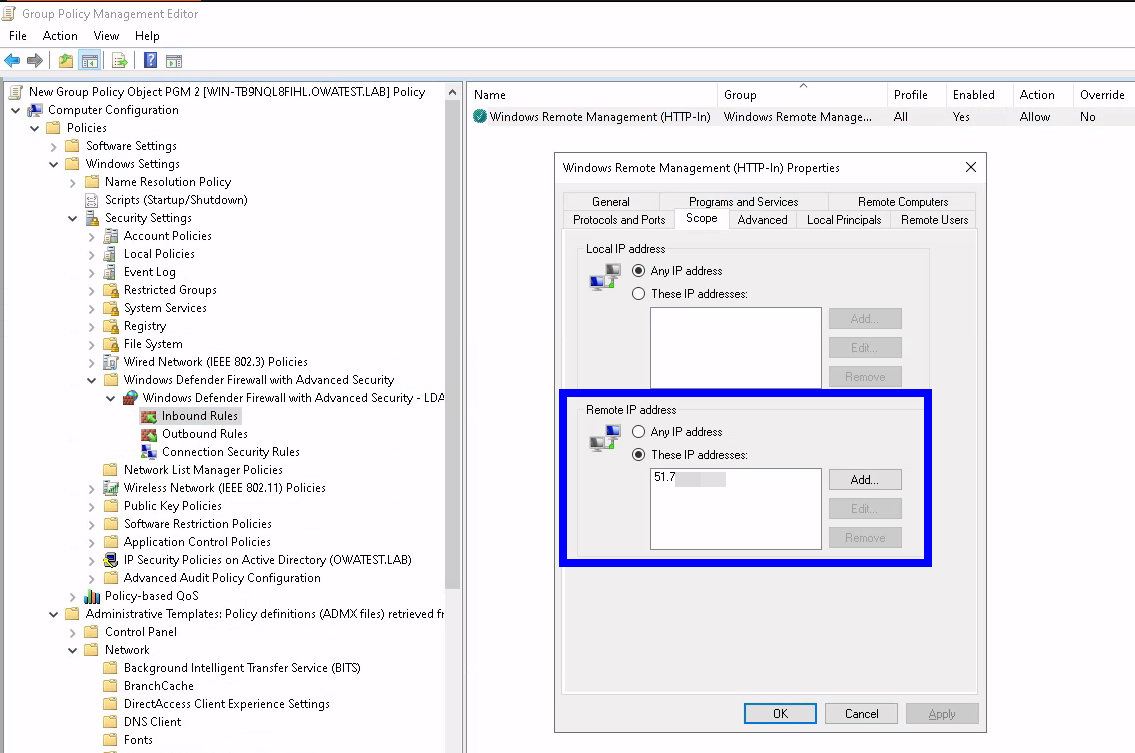
<span style="font-weight: 400;"><span style="color: #a6d100; font-weight: bold; font-size: 18px;">10. </span>Click the **Scope** tab.</span>

<span style="color: #a6d100; font-weight: bold; font-size: 18px;">11. </span><span style="font-weight: 400;">Add the remote IP address</span>

[![image-1717688997245.png](https://bookstack.soffid.com/uploads/images/gallery/2024-06/scaled-1680-/image-1717688997245.png)](https://bookstack.soffid.com/uploads/images/gallery/2024-06/image-1717688997245.png)

<span style="font-weight: 400;"><span style="color: #a6d100; font-weight: bold; font-size: 18px;">12. </span>Click **OK**.</span>

<span style="font-weight: 400;"><span style="color: #a6d100; font-weight: bold; font-size: 18px;">13. </span>From the menu tree, click **Computer Configuration &gt; Policies &gt; Windows Settings &gt; Security Settings &gt; Network List Manager Policies**.</span>

<span style="font-weight: 400;"><span style="color: #a6d100; font-weight: bold; font-size: 18px;">14. </span>Right-click **Unidentified Networks** and click **Properties**.</span>

<span style="font-weight: 400;"><span style="color: #a6d100; font-weight: bold; font-size: 18px;">15. </span>Change the location type from Not configured to **Private**.</span>

<span style="font-weight: 400;"><span style="color: #a6d100; font-weight: bold; font-size: 18px;">16. </span>Click **OK**.</span>

<span style="font-weight: 400;"><span style="color: #a6d100; font-weight: bold; font-size: 18px;">17. </span>Close the Local Group Policy Editor window.</span>

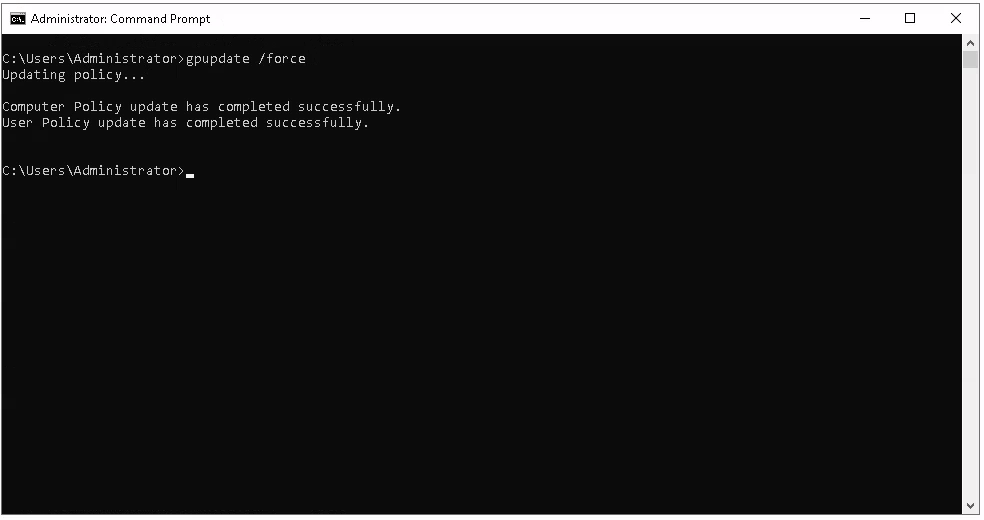
<span style="font-weight: 400;"><span style="color: #a6d100; font-weight: bold; font-size: 18px;">18. </span>Run the **gpupdate /force** command to update the policy</span>

[![image-1717689160186.png](https://bookstack.soffid.com/uploads/images/gallery/2024-06/scaled-1680-/image-1717689160186.png)](https://bookstack.soffid.com/uploads/images/gallery/2024-06/image-1717689160186.png)