# PAM Deployment

# Deployment procedure

## Introduction

PAM is the process that determines who has access to what types of information as it creates an integrated view of risk, threats, and controls.

Implementing a policy of least privilege minimizes unnecessary privilege allocation to ensure access to sensitive data is available only to those users who really need it.

Soffid provides a complete PAM solution. So, we want to describe in detail the Soffid PAM solution deployment procedure.

## Prerequisites

First of all, you should install and config the Soffid PAM solution. To do that, you need to install the Jump servers and then configure them on Soffid Console.

> A jump server, jump host or jump box is a system on a network used to access and manage devices in a separate security zone. A jump server is a hardened and monitored device that spans two dissimilar security zones and provides a controlled means of access between them. (\*)

<p class="callout info">You can follow the defined steps in the [PAM Install &amp; config book](https://bookstack.soffid.com/books/pam-install-config "PAM Install & config").</p>

## Deployment procedure

### 1. Networks

`Main Menu > Administration > Resources > Networks`

You need to add your company networks or the networks you want to manage, on Soffid Console. To do that you need to create those networks on the Networks page.

Once you have created your networks, you could continue with the next step.

<p class="callout info">You can find more information on the [Networks page](https://bookstack.soffid.com/books/soffid-3-reference-guide/page/networks "Networks").</p>

### 2. Config Network discovery

`Main Menu > Administration > Resources > Network discovery`

When you open the Network discovery page, Soffid will display all the networks create on Soffid Console.

The network discovery process can be launched for each network, to do that, you need to configure the potential administrator accounts to connect to the hosts for each network.

You can add one or more potential administrator accounts to try to connect to the network hosts. These can be new accounts or existing accounts on Soffid. Also, you can remove accounts from the accounts to probe list. If you remove an account from the list, that account will continue to exist on Soffid.

<p class="callout info">You can find more information on the [Network discovery page](https://bookstack.soffid.com/books/pam-deployment/page/network-discovery "Network discovery").</p>

Once you have configured the Network discovery parameter for a network, you could execute the process to begin to search or you could schedule the process execution.

### 3. Launch Network discovery

`Main Menu > Administration > Resources > Network discovery`

The Network discovery process is an unattended process. You could launch it, and it will be working until it will finish, even you close your Soffid session.

The Network discovery process could be a long process, depending on the network size, the number of hosts, and the firewalls as well.

<p class="callout info">You can find more information on the [Network discovery page](https://bookstack.soffid.com/books/pam-deployment/page/network-discovery "Network discovery").</p>

#### 3.1. Agent definition

When the network discovery process is launched, as the process finds hosts, it will try to connect to them using the defined credentials. When it gets to connect to the host with one credential, it will not try again with others.

If it gets to connect to the host, it will create automatically a Soffid agent with the proper attributes and connector parameters, also with the necessary account metadata.

#### 3.2. Accounts / Account protected services

Then, the reconciliation process of the created agent will be launched and it will try to recover the information about the accounts defined on the host. Also, it will try to recover the information about the account protected services.

#### 3.4. Entry points

The Network discovery process will create, in possible cases, a new entry point to the host with the basic attributes, and the proper executions to run it.

That entry point will display on the Application access tree page.

### 4. Password vault

`Main Menu > Administration > Resources > Password vault`

When the network discovery process finishes, it will be really important to determine what are the critical accounts. Those critical accounts should be located in protected storage, the Password vault.

On the password vault, you can locate the accounts, especially the critical account used to access critical systems. Password vault allows you to handle the access control list to these accounts, here you can define who are the owners, the managers, and the SSO users.

You need to configure in the right way the control access list, to allow only the proper users to change and view the passwords.

<p class="callout info">You can find more information on the[ Password vault page.](https://bookstack.soffid.com/books/pam-deployment/page/password-vault "Password vault")</p>

### 5. Authorization processes

Soffid allows you to define and add approval processes to manage the use of critical accounts, where the manager or authorized user will approve or deny using them.

To define and configure approval workflows, you can use the Soffid BPM editor

`Main Menu > Administration > Configure Soffid > Workflow settings > BPM editor`

<p class="callout info">You can visit the[ BPM Editor book](https://bookstack.soffid.com/books/bpm-editor "BPM Editor") to find more information.</p>

One you have defined the approval process, you need to establish the relationship between the workflow and the account or accounts, to do that you need to configure the XACML Policy Management and the XACML PEP configuration.

### 6. XACML 

<p class="callout info">For detailed information about XACML, you can visit the [XACML book](https://bookstack.soffid.com/books/xacml "XACML").</p>

#### 6.1. XACML Policy Management

Using XACML Soffid can be able to add more complex and restricted rules to the authorizations. Here you can define policy sets and policies to describe general access control requirements.

Also, you can define some obligations as actions that have to be returned with response XACML. Here you can indicate the use of an authorization process.

`Main Menu > Administration > Configure Soffid > Security settings > XACML Policy Management`

#### 6.2. XACML PEP configuration

You will need to enable and configure the Password vault Policy Enforcement Point (PEP). That is the way that Soffid provides to establish the relationship between the Authorization processes and the Password vault.

Be in mind, you only can configure one Password vault PEP, the policy set that you define, can contain more policy sets and policies to cover all your company needs.

`Main Menu > Administration > Configure Soffid > Security settings > XACML PEP configuration`

### 7. PAM policies and PAM rules

Using PAM all the sessions will be recorded (Screen, KeyBoard, Clipboard, and File transfers).

Soffid allows you to configure policies based on rules, so when each one of the rules is fulfilled, one or more actions will be triggered according to the configuration.

The available actions are to close the session, lock the account, open an issue on a ticketing system and notify the breaking rule. You can find more information visiting the and the.

#### 7.1. PAM rules

`Main Menu > Administration > Configure Soffid > Security settings > PAM rules`

You can define rules to detect commands executed on a server. When a user launches a command defined on a rule, Soffid will detect it.

<p class="callout info">For detailed information about PAM Rules, you can visit the [PAM Rules page.](https://bookstack.soffid.com/books/configure-pam/page/pam-rules "PAM Rules")</p>

#### 7.2. PAM policies

`Main Menu > Administration > Configure Soffid > Security settings > PAM policies`

You can define policies made up of several rules. For each rule, you could select the action to perform when Soffid detects that rule is accomplished.

On the Password Vault page, you can assign a PAM policy to each folder, depending on your needs.

<p class="callout info">For detailed information about PAM Policies, you can visit the [PAM Policies page](https://bookstack.soffid.com/books/configure-pam/page/pam-policies "PAM Policies").</p>

---

(\*) [https://en.wikipedia.org/wiki/Jump\_server](https://en.wikipedia.org/wiki/Jump_server)

# Configuration


# Network discovery

## Description

The Network discovery tool will be in charge to scan the networks to find the hosts and retrieve information about user accounts. Network discovery can detect system accounts as well.

First of all, you need to create the networks that you want to scan. Visit the [Networks page](https://bookstack.soffid.com/books/soffid-3-reference-guide/page/networks "Networks") for more information. Then, on the Network discovery page, you need to configure for each network, the accounts and passwords of potential administrators to connect to the host and retrieve the information. And finally, you need to start the process execution or you can schedule the execution of the network discovery task.

The operating system of machines can be Windows or Linux and it is not necessary to install any additional software on those machines.

<p class="callout warning">When the Network discovery process is finished, it is **recommended to launch the Reconciliation process of the agents** created by the process to detect the **Account protected services.** To know how to run the Renconciliation process you can visit [the Agents page](https://bookstack.soffid.com/books/soffid-3-reference-guide/page/agents).</p>

<p class="callout info">Once the machines and accounts, both user and system, have been discovered, the critical accounts must be located in the password vault. You can visit the [Password vault page](https://bookstack.soffid.com/books/soffid-3-reference-guide/page/password-vault "Password vault") for more information.</p>

### How Network discovery works?

The **Network Discovery** is the tool in charge to scan the network to discover the hosts of the network. For each host discovered, the **Nmap** utility gets the info about the ports and the protocols used. Also, that process gets the IP Address and the operating system. All the recover information will be saved on Soffid database. The discovery proxy server works as a proxy to connect to the target systems.

When the discovery manager discovers a host, it gets the host information and then, through discovery proxy server, it attempts to connect to the host using the accounts defined on the accounts to probe list.

- If it can not connect to the host, it will attempt with the next host discovered.
- If it gets to connect to the host, then it will create automatically a Soffid agent with the proper attributes and connector parameters, also with the necessary account metadata.

Then, the reconciliation process of the created agent, will be launched and it will try to recover the information about the accounts defined on the host. Also, it will try to recover the information about the account protected services. The recover information will be saved on Soffid database.

## Screen overview

<iframe allowfullscreen="allowfullscreen" height="314" src="https://www.youtube.com/embed/pXtYazC80Vs?rel=0" width="560"></iframe>

## Standard attributes

### Network attributes

#### Basic 

Those attributes are readOnly, you can update them on the [Networks page](https://bookstack.soffid.com/books/soffid-3-reference-guide/page/networks "Networks").

- **Name**: network name.
- **Description**: a brief description.
- **IP Address**: IP range of this network.
- **IP address mask**: IP mask of this network.
- **IP ranges to analyze**: allows you to set the range of IPs to scan

<details id="bkmrk-%F0%9F%92%BB-image"><summary>💻 Image</summary>

[![image-1705573373643.png](https://bookstack.soffid.com/uploads/images/gallery/2024-01/scaled-1680-/image-1705573373643.png)](https://bookstack.soffid.com/uploads/images/gallery/2024-01/image-1705573373643.png)

</details>#### Server

- **Server**: list of available sync servers.

#### Accounts to probe

- **Accounts to probe:** list of potential administrators accounts to connect to the hosts. You can register a new account or use an existing account. 
    - **Register new account**: you need to define the login name and the password of the new account. 
        - Login name
        - Password
        - SSH key

<details id="bkmrk-%F0%9F%92%BB-image-0"><summary>💻 Image</summary>

[![image-1717596387528.png](https://bookstack.soffid.com/uploads/images/gallery/2024-06/scaled-1680-/image-1717596387528.png)](https://bookstack.soffid.com/uploads/images/gallery/2024-06/image-1717596387528.png)

</details>- **Use an existing account**: you need to select an existing account on the system.

<details id="bkmrk-%F0%9F%92%BB-image-1"><summary>💻 Image</summary>

[![image-1717596556925.png](https://bookstack.soffid.com/uploads/images/gallery/2024-06/scaled-1680-/image-1717596556925.png)](https://bookstack.soffid.com/uploads/images/gallery/2024-06/image-1717596556925.png)

</details>When you register a new account, that will be created as an unmanaged account.

#### Schedule

- **Enabled**: if it is selected (value is Yes), a task will be created and performed on schedule defined.
- **Task description**: a brief description of the task
- **Month**: number of the month (1-12) when the task will be performed.
- **Day**: number of the day (1-31) when the task will be performed.
- **Hour**: hour (0-23) when the task will be performed.
- **Minute**: minute (0-59) when the task will be performed.
- **Day of week**: number of the day (0-7 where 0 means Sunday) of the week when the task will be performed.
- **Server**: you must select the sync server where the agent will be run.

For each value of month, day, hour, minute, or day of the week:

- \* means any month, day, hour, minute, or day of the week. e.g. \*/5 to schedule every five minutes.
- A single number specifies that unit value: 3
- Some comma separated numbers: 1,3,5,7
- A range of values: 1-5

#### Current execution

- **Start now**: this allows you to launch the task execution.

#### Last execution

- **Status**: The available status for a task is: 
    - Done (green light): task finished.
    - Pending (yellow light): the task has been started but it has not finished yet.
    - Error (red light): task could not be executed.
- **Start date**: start date and time of the last execution.
- **End date**: end date and time of the last execution.
- **Execution log**: log trace. Allows you to download the log file.

#### Previous executions

List the information about the previous executions:

- **Start date**: start date and time of the execution.
- **Status**: status of the execution.
- **Execution**: log of the execution. Allows you to download the log file.

### Machine attributes

By clicking the machine record, you can check the following information:

- **Name**
- **IP Address**
- **Description**
- **Operating system**
- **Port /Protocol List**: 
    - Port
    - Description

<details id="bkmrk-%F0%9F%92%BB-image-2"><summary>💻 Image</summary>

[![image-1705661256378.png](https://bookstack.soffid.com/uploads/images/gallery/2024-01/scaled-1680-/image-1705661256378.png)](https://bookstack.soffid.com/uploads/images/gallery/2024-01/image-1705661256378.png)

</details>#### Machine details

If you display the contents of a machine from which the information has been obtained, you could check and manage information about:

- Protected services per account
- Account repositories
- Entry points

<p class="callout warning">It may be necessary to perform the **Reconciliation process of the proper agent** in order to obtain the information from the Account protected services</p>

<details id="bkmrk-%F0%9F%92%BB-image-3"><summary>💻 Image</summary>

[![image.png](https://bookstack.soffid.com/uploads/images/gallery/2024-11/scaled-1680-/8Av8doZFXuSr6a3W-image.png)](https://bookstack.soffid.com/uploads/images/gallery/2024-11/8Av8doZFXuSr6a3W-image.png)

</details>## Actions

#### Network discovery query

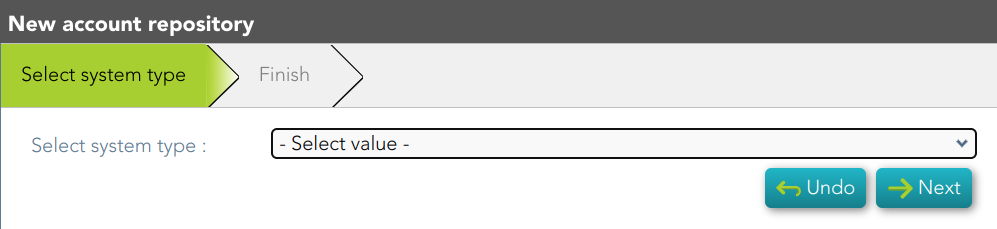
<table border="1" id="bkmrk-apply-changes-allows"><tbody><tr><td style="width: 138px;">**Add new account repository**</td><td style="width: 670px;">Allows you to create a new agent.

You must select the System type and the login name and password. When the agent is created, if the connection is successful, the reconciliation process will be executed.

<details><summary>💻 Image</summary>

[![image-1701426264500.png](https://bookstack.soffid.com/uploads/images/gallery/2023-12/scaled-1680-/image-1701426264500.png)](https://bookstack.soffid.com/uploads/images/gallery/2023-12/image-1701426264500.png)

</details></td></tr><tr><td style="width: 138px;">**Agent definition**

</td><td style="width: 670px;">Allows you to browse to the agent definition.

</td></tr><tr><td style="width: 138px;">**Accounts**

</td><td style="width: 670px;">Allows you to browse the accounts page and the accounts, which belong to this system, will be displayed

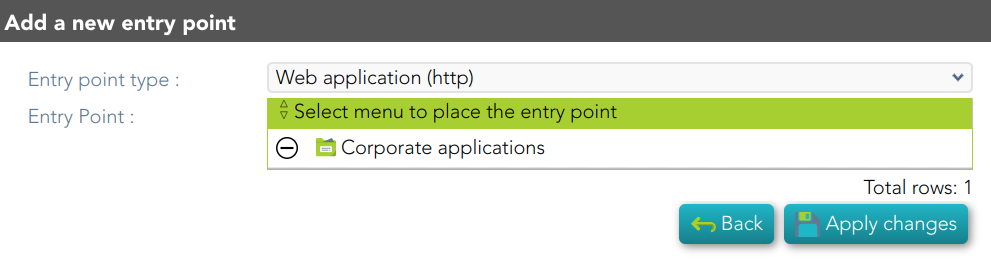
</td></tr><tr><td style="width: 138px;">**Add new entry point**

</td><td style="width: 670px;">Allows you to create a new entry point.

You must select the Entry point type and the pale to locate it. Once the entry point is created, you can connect to the target system. Bear in mind, that if you need to create an account to connect, when you set the password to this account, the system (agent) must be in No ReadOnly mode.

<details><summary>💻 Image</summary>

[![image-1701426470540.png](https://bookstack.soffid.com/uploads/images/gallery/2023-12/scaled-1680-/image-1701426470540.png)](https://bookstack.soffid.com/uploads/images/gallery/2023-12/image-1701426470540.png)

</details></td></tr><tr><td style="width: 138px;">**Entry point definition**

</td><td style="width: 670px;">Allows you to browse to the entry point definition.

</td></tr></tbody></table>

#### Network discovery detail

<table id="bkmrk-apply-changes-allows-0"><tbody><tr><td style="width: 142px;">**Apply changes**

</td><td style="width: 667px;">Allows you to save the data of network detail. To save the data it will be mandatory to fill in the required fields.

</td></tr><tr><td style="width: 142px;">**Undo**

</td><td style="width: 667px;">Allows you to undo any changes made.

</td></tr></tbody></table>

##### Accounts to probe

<table border="1" id="bkmrk-add-allows-you-to-ad"><tbody><tr><td style="width: 131.984px;">**Add**</td><td style="width: 677.016px;">Allows you to add a new administrator potential account to connect to the machines of the network. To add a new account, first of all, you need to click the add button (+) and close the accounts to probe list. Then you will need to choose if you want to add an existing account or register a new account.

save the data of a new network or update the data of a specific network. To save the data it will be mandatory to fill in the required fields

</td></tr><tr><td style="width: 131.984px;">**Delete**

</td><td style="width: 677.016px;">Allows you to delete one or more accounts of the accounts to probe. You need to select one or more records and next click the button with the subtraction symbol (-).

</td></tr></tbody></table>

#### Schedule 

<table id="bkmrk-start-now-allows-you" style="width: 813px;"><tbody><tr><td style="width: 133px;">**Start now**

</td><td style="width: 680px;">Allows you to launch the task execution.

</td></tr></tbody></table>

#### Previous execution

<table border="1" id="bkmrk-%C2%A0-%C2%A0-%C2%A0-%C2%A0-apply-change"><tbody><tr><td style="width: 126.984px;"> **Logs**

</td><td style="width: 681.016px;">Allows you to download the log files of previous executions.

</td></tr></tbody></table>

#### Machine

<table border="1" id="bkmrk-%C2%A0delete-allows-you-t"><tbody><tr><td style="width: 126.984px;"> **Delete**

</td><td style="width: 681.016px;">Allows you to delete the machine and the PAM connectors for the device. Soffid will display a message to confirm the deletion process.

</td></tr></tbody></table>

# Password vault

{{@67}}

# PAM Rules

## Definition

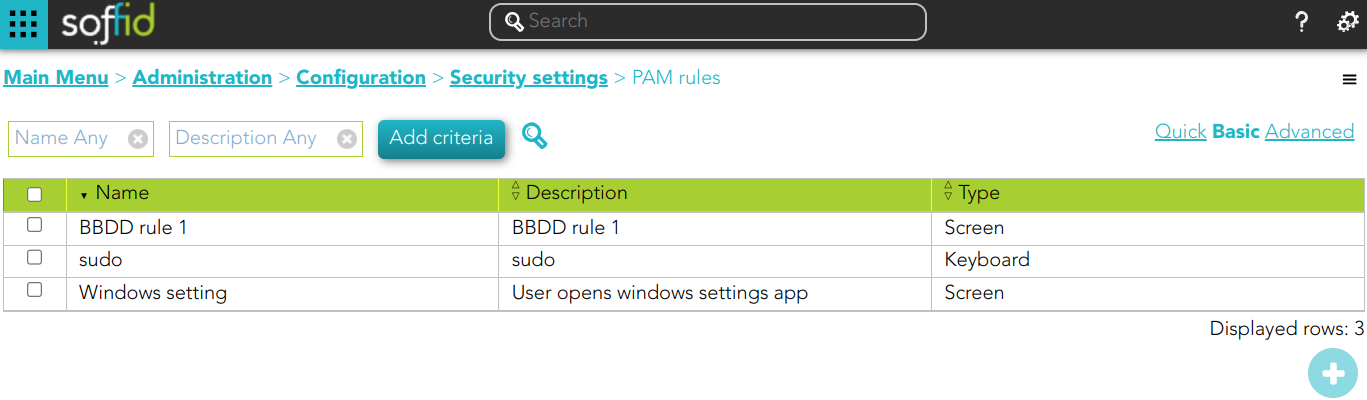
<p class="callout success">Soffid allows you to define rules to detect commands executed on a server. When a user launches a command defined on a rule, Soffid will detect it.</p>

To use those rules you need to define the PAM policies. For more information, you can visit the [PAM policies page.](https://bookstack.soffid.com/books/soffid-3-reference-guide/page/password-policies "Password policies")

## Screen overview

[![image-1696499283030.png](https://bookstack.soffid.com/uploads/images/gallery/2023-10/scaled-1680-/image-1696499283030.png)](https://bookstack.soffid.com/uploads/images/gallery/2023-10/image-1696499283030.png)
##### Keyboard example

[![image-1696499194127.png](https://bookstack.soffid.com/uploads/images/gallery/2023-10/scaled-1680-/image-1696499194127.png)](https://bookstack.soffid.com/uploads/images/gallery/2023-10/image-1696499194127.png)
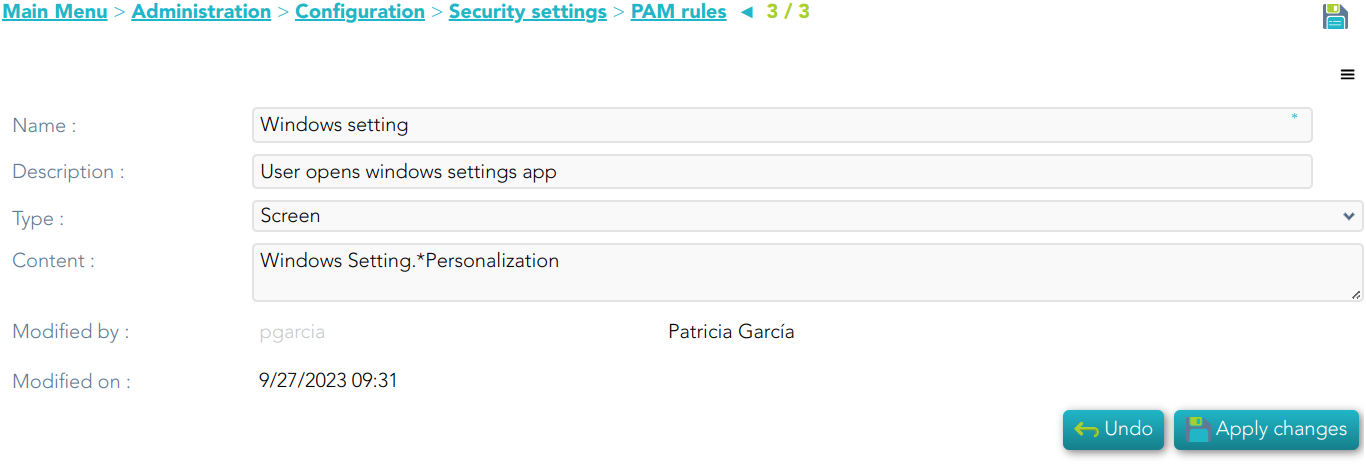
##### Screen example

[![image-1696499256255.png](https://bookstack.soffid.com/uploads/images/gallery/2023-10/scaled-1680-/image-1696499256255.png)](https://bookstack.soffid.com/uploads/images/gallery/2023-10/image-1696499256255.png)
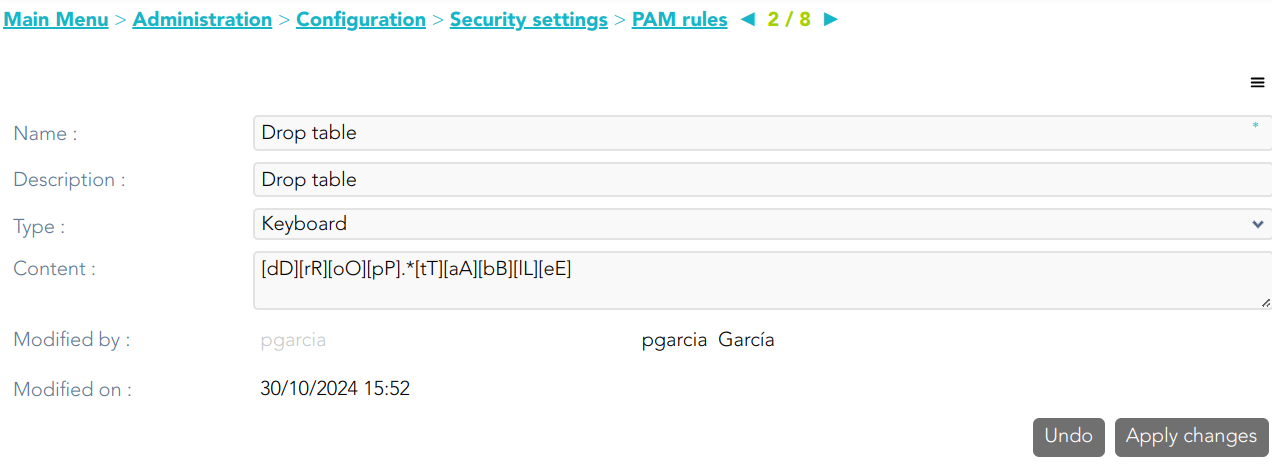
##### Keyboard example

[![image.png](https://bookstack.soffid.com/uploads/images/gallery/2024-10/scaled-1680-/2evoPby06NumLhHs-image.png)](https://bookstack.soffid.com/uploads/images/gallery/2024-10/2evoPby06NumLhHs-image.png)

## Standard attributes

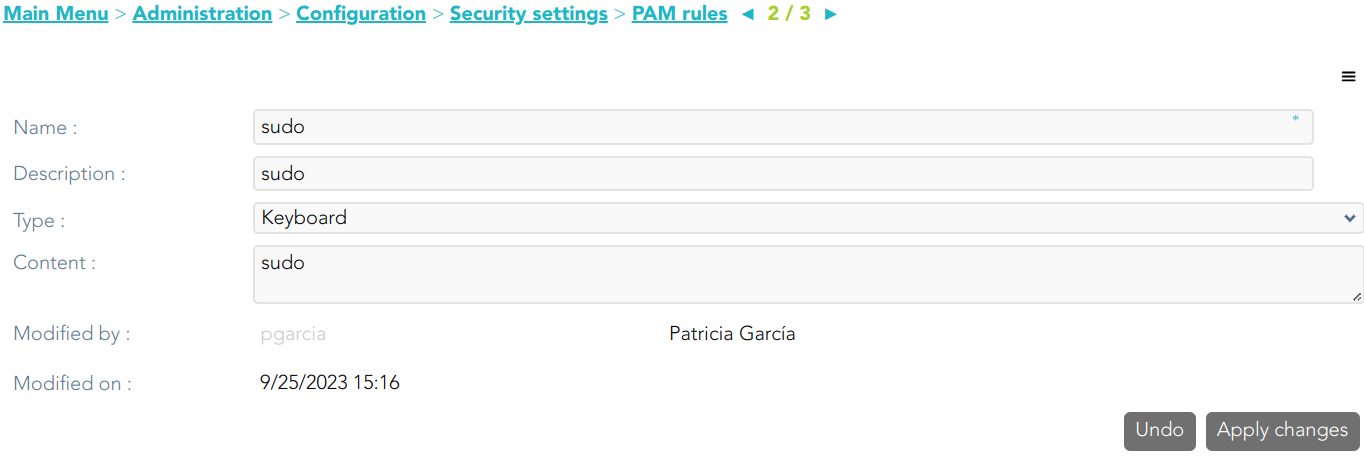
- **Name**: name to identify the rule.
- **Description**: a brief description of the rule.
- **Type**: rule type. 
    - **Keyboard**: Indicate the command typed in the terminal that you want to control.
    - **Screen**: Indicate the text displayed in the screen that you want to control.
- **Content**: the content of the rule that Soffid will detect. Be in mind, that Soffid will consider blanks, returns, and all characters you type.
- **Modified by**: user who modified that rule.
- **Modified on**: the date and time of the update.

## Actions

#### PAM rules query

<table border="1" id="bkmrk-query-allows-to-sear-0"><tbody><tr><td style="width: 195px;">**Query**

</td><td style="width: 613px;">Allows you to query PAM rules through different search systems, [Quick, Basic and Advanced](https://bookstack.soffid.com/books/soffid-3-reference-guide/page/search-types "Search Types").

</td></tr><tr><td style="width: 195px;">**Add or remove columns**

</td><td style="width: 613px;">Allows you to show and hide columns in the table.

</td></tr><tr><td style="width: 195px;">**Add new**

</td><td style="width: 613px;">Allows you to create a new PAM rule. You can choose that option on the hamburger menu or click the add button (+).

To add a new PAM rule it will be mandatory to fill in the required fields.

</td></tr><tr><td style="width: 195px;">**Delete**

</td><td style="width: 613px;">Allows you to remove one or more PAM rules by selecting one or more records and next clicking the button with the subtraction symbol (-).

To perform that action, Soffid will ask you for confirmation, you could confirm or cancel the operation.

</td></tr><tr><td style="width: 195px;">**Import**

</td><td style="width: 613px;">Allows you to upload a CSV file with the PAM rules list to add or update PAM rules to Soffid.

First, you need to pick up a CSV file, that CSV has to contain a specific configuration. Then you need to check the content to be loaded, it is allowed to choose if you want or not to load a specific attribute. And finally, you need to select the mappings for each column of the CSV file to import the data correctly and click the Import button.

</td></tr><tr><td style="width: 195px;">**Download CSV file**

</td><td style="width: 613px;">Allows you to download a CSV file with the PAM rules information.

</td></tr></tbody></table>

#### PAM rules detail

<table border="1" id="bkmrk-apply-changes-allow-" style="height: 129px;"><tbody><tr style="height: 56px;"><td style="width: 196px; height: 56px;">**Apply changes**

</td><td style="width: 613px; height: 56px;">Allows you to create a new configuration PAM rule or to update an existing one. To save the data it will be mandatory to fill in the required fields.

</td></tr><tr style="height: 38px;"><td style="width: 196px; height: 38px;">**Undo**

</td><td style="width: 613px; height: 38px;">Allows you to quit without applying any changes made.

</td></tr><tr style="height: 35px;"><td style="width: 196px; height: 35px;">**Delete**

</td><td style="width: 613px; height: 35px;">Allows you to delete a PAM rule. To perform that action, Soffid will ask you for confirmation, you could confirm or cancel the operation.

</td></tr></tbody></table>

# PAM Policies

## Definition

**Privileged Access Management** (PAM) policies are a set of guidelines and controls that dictate how privileged access is granted, managed, and audited within an organization.

Soffid allows you to define policies, those policies can be made up of several rules. For each rule, you could select the action to perform when Soffid detects that rule is accomplished.

To use those policies you need to define how policies will be used by each folder in the password vault. For more information, you can visit the [Password Vault page](https://bookstack.soffid.com/books/soffid-3-reference-guide/page/password-vault "Password vault").

## Screen overview

[![image-1722407672194.png](https://bookstack.soffid.com/uploads/images/gallery/2024-07/scaled-1680-/image-1722407672194.png)](https://bookstack.soffid.com/uploads/images/gallery/2024-07/image-1722407672194.png)

## Standard attributes

- **Name**: name to identify the policy.
- **Description**: a brief description of the policy.
- **Days to keep recordings**: number of days that recordings will be kept.
- **Priority**: allows you to set the priority between the different PAM policies configured. When there are several policies, the policy to be applied is evaluated according to priority and expression.
- **Expression**: this expression is evaluated to determine the priority of the policy to be applied. When there are several policies, the policy to be applied is evaluated according to priority and expression.
- **Temporary permissions**: these permissions will be assigned to the user's account on the target system. The permissions will be maintained for the duration of the session. Once the session is over, the permissions will be revoked. The account must be a managed account.
- **Modified by**: user who modified that rule.
- **Modified on**: the date and time of the update.

When you save the standard attributes of a PAM policy and edit the policy again, the rule list will be shown. Here you can customize the policy depending on the existing rules.

- **Rule list**: show a list of the PAM rules defined. You can check/uncheck the available options. You can choose zero, one, or several: 
    - **Close session**: when the rule is met, Soffid will close the session.
    - **Lock account**: when the rule is met, Soffid will lock the account.
    - **Open issue**: when the rule is met, Soffid will open a new issue (\*).
    - **Notify**: when the rule is met, Soffid will send a notification about the action.

<p class="callout info">(\*) You can visit the following page for more information about the issues: [https://bookstack.soffid.com/books/soffid-3-reference-guide/page/issue-policies ](https://bookstack.soffid.com/books/soffid-3-reference-guide/page/issue-policies)and [https://bookstack.soffid.com/link/1153#bkmrk-pam-violation](https://bookstack.soffid.com/link/1153#bkmrk-pam-violation)</p>

<p class="callout info">The PAM policies configuration is sent to the user-console.policies to the Store container. You can find this file at /opt/soffid/tomee/data/ips</p>

<details id="bkmrk-%F0%9F%92%BB-image"><summary>💻 Image</summary>

[![image.png](https://bookstack.soffid.com/uploads/images/gallery/2024-12/scaled-1680-/f1QHy1gL2PyzDklH-image.png)](https://bookstack.soffid.com/uploads/images/gallery/2024-12/f1QHy1gL2PyzDklH-image.png)

</details>## Actions

#### PAM rules query

<table border="1" id="bkmrk-query-allows-to-sear-0"><tbody><tr><td style="width: 192px;">**Query**

</td><td style="width: 616px;">Allows you to query PAM policies through different search systems, [Quick, Basic and Advanced](https://bookstack.soffid.com/books/soffid-3-reference-guide/page/search-types "Search Types").

</td></tr><tr><td style="width: 192px;">**Add or remove columns**

</td><td style="width: 616px;">Allows you to show and hide columns in the table.

</td></tr><tr><td style="width: 192px;">**Add new**

</td><td style="width: 616px;">Allows you to create a new PAM policy. You can choose that option on the hamburger menu or click the add button (+).

To add a new PAM policy it will be mandatory to fill in the required fields.

</td></tr><tr><td style="width: 192px;">**Delete**

</td><td style="width: 616px;">Allows you to remove one or more PAM policies by selecting one or more records and next clicking the button with the subtraction symbol (-).

To perform that action, Soffid will ask you for confirmation, you could confirm or cancel the operation.

</td></tr><tr><td style="width: 192px;">**Import**

</td><td style="width: 616px;">Allows you to upload a CSV file with the PAM policies list to add or update PAM policies to Soffid.

First, you need to pick up a CSV file, that CSV has to contain a specific configuration. Then you need to check the content to be loaded, it is allowed to choose if you want or not to load a specific attribute. Finally, you need to select the mappings for each column of the CSV file to import the data correctly and click the Import button.

</td></tr><tr><td style="width: 192px;">**Download CSV file**

</td><td style="width: 616px;">Allows you to download a CSV file with the PAM policies information.

</td></tr></tbody></table>

#### PAM rules detail

<table border="1" id="bkmrk-apply-changes-allow-"><tbody><tr><td style="width: 201px;">**Apply changes**

</td><td style="width: 608px;">Allows you to create a new configuration PAM policy or to update an existing one. To save the data it will be mandatory to fill in the required fields.

</td></tr><tr><td style="width: 201px;">**Undo**

</td><td style="width: 608px;">Allows you to quit without applying any changes made.

</td></tr><tr><td style="width: 201px;">**Delete**

</td><td style="width: 608px;">Allows you to delete a PAM policy. To perform that action, Soffid will ask you for confirmation, you could confirm or cancel the operation.

</td></tr></tbody></table>

# How to enable WinRM?

## Introduction

On this page we will describe the steps to follow to enable WinRM with the domain controller Group Policy for WMI monitoring.

## Step by Step

### Step 1: Create a Group Policy object

Fist of all, you need to create a Group Policy object for your domain.

<span style="color: #a6d100; font-weight: bold; font-size: 18px;">1. </span><span style="font-weight: 400;">From the start menu, open Control Panel.</span>

<span style="font-weight: 400;"><span style="color: #a6d100; font-weight: bold; font-size: 18px;">2. </span>Select **Administrative Tools**.</span>

<span style="font-weight: 400;"><span style="color: #a6d100; font-weight: bold; font-size: 18px;">3. </span>Select **Group Policy Management**.</span>

<span style="font-weight: 400;"><span style="color: #a6d100; font-weight: bold; font-size: 18px;">4. </span>From the menu tree, click **Domains &gt; \[your domain’s name\]**.</span>

<span style="font-weight: 400;"><span style="color: #a6d100; font-weight: bold; font-size: 18px;">5. </span>Right-click and select **Create a GPO in this domain, and Link it here**.</span>

<span style="font-weight: 400;"><span style="color: #a6d100; font-weight: bold; font-size: 18px;">6. </span>Input **Enable WinRM**.</span>

<span style="font-weight: 400;"><span style="color: #a6d100; font-weight: bold; font-size: 18px;">7. </span></span>Click **OK**.

### Step 2: Enable WinRM services

Secondly, it is necessary to enable WinRm services to allow remote management of the server through WinRM. You must edit the Group Policy you just created.

<span style="color: #a6d100; font-weight: bold; font-size: 18px;">1. </span><span style="font-weight: 400;">Right-click on the new **Enable WinRM Group Policy Object and select Edit**.</span>

<span style="font-weight: 400;"><span style="color: #a6d100; font-weight: bold; font-size: 18px;">2. </span>From the menu tree, click **Computer Configuration &gt; Policies &gt; Administrative Templates: Policy definitions &gt; Windows Components &gt; Windows Remote Management (WinRM) &gt; WinRM Service**.</span>

<span style="font-weight: 400;"><span style="color: #a6d100; font-weight: bold; font-size: 18px;">3. </span>Right-click on **Allow remote server management through WinRM** and click **Edit**.  
</span>

<span style="font-weight: 400;"><span style="color: #a6d100; font-weight: bold; font-size: 18px;">4. </span>Select **Enabled** to allow remote server management through WinRM.</span>

<span style="font-weight: 400;"><span style="color: #a6d100; font-weight: bold; font-size: 18px;">5. </span>Enter an asterisk (\*) into each field.</span>

<span style="font-weight: 400;"><span style="color: #a6d100; font-weight: bold; font-size: 18px;">6. </span></span>Click **OK**.

### Step 3: Enable the service that goes the policy

<span style="color: #a6d100; font-weight: bold; font-size: 18px;">1. </span><span style="font-weight: 400;">From the Group Policy Management Editor window, click **Preferences &gt; Control Panel Settings &gt; Services**.</span>

<span style="font-weight: 400;"><span style="color: #a6d100; font-weight: bold; font-size: 18px;">2. </span>Right-click on **Services** and select **New &gt; Service**.</span>

<span style="font-weight: 400;"><span style="color: #a6d100; font-weight: bold; font-size: 18px;">3. </span>Select **Automatic** as the startup.  
</span>

<span style="font-weight: 400;"><span style="color: #a6d100; font-weight: bold; font-size: 18px;">4. </span>Enter WinRM as the service name.  
</span>

<span style="font-weight: 400;"><span style="color: #a6d100; font-weight: bold; font-size: 18px;">5. </span>Select **Start service** as the service action.</span>

<span style="font-weight: 400;"><span style="color: #a6d100; font-weight: bold; font-size: 18px;">6. </span>All remaining details can stay on the defaults. Click **OK**.</span>

### Step 4: Allow for inbound remote administration 

You have to allow for inbound remote administration by updating the firewall rules


<span style="color: #a6d100; font-weight: bold; font-size: 18px;">1. </span><span style="font-weight: 400;">From the menu tree, click **Computer Configuration &gt; Policies &gt; Windows Settings &gt; Security Settings &gt; Windows Firewall with Advanced Security &gt; Windows Firewall with Advanced Security &gt; Inbound Rules**.</span>

<span style="font-weight: 400;"><span style="color: #a6d100; font-weight: bold; font-size: 18px;">2. </span>Right-click on **Inbound Rules** and click **New Rule**.</span>

<span style="font-weight: 400;"><span style="color: #a6d100; font-weight: bold; font-size: 18px;">3. </span>Select **Predefined**.  
</span>

<span style="font-weight: 400;"><span style="color: #a6d100; font-weight: bold; font-size: 18px;">4. </span>Select **Windows Remote Management** from the list of services.</span>

<span style="font-weight: 400;"><span style="color: #a6d100; font-weight: bold; font-size: 18px;">5. </span>Click **Next**.</span>

<span style="font-weight: 400;"><span style="color: #a6d100; font-weight: bold; font-size: 18px;">6. </span>Uncheck the **Public** rule. Leave the **Domain**, **Private** rule checked.</span>

<span style="font-weight: 400;"><span style="color: #a6d100; font-weight: bold; font-size: 18px;">7. </span>Click **Next**.</span>

<span style="font-weight: 400;"><span style="color: #a6d100; font-weight: bold; font-size: 18px;">8. </span>Leaving the defaults, click **Finish**.</span>

<span style="font-weight: 400;"><span style="color: #a6d100; font-weight: bold; font-size: 18px;">9. </span>Right-click on the new rule and click **Properties**.</span>

<span style="font-weight: 400;"><span style="color: #a6d100; font-weight: bold; font-size: 18px;">10. </span>Click the **Scope** tab.</span>

<span style="color: #a6d100; font-weight: bold; font-size: 18px;">11. </span><span style="font-weight: 400;">Add the remote IP address</span>

[![image-1717688997245.png](https://bookstack.soffid.com/uploads/images/gallery/2024-06/scaled-1680-/image-1717688997245.png)](https://bookstack.soffid.com/uploads/images/gallery/2024-06/image-1717688997245.png)

<span style="font-weight: 400;"><span style="color: #a6d100; font-weight: bold; font-size: 18px;">12. </span>Click **OK**.</span>

<span style="font-weight: 400;"><span style="color: #a6d100; font-weight: bold; font-size: 18px;">13. </span>From the menu tree, click **Computer Configuration &gt; Policies &gt; Windows Settings &gt; Security Settings &gt; Network List Manager Policies**.</span>

<span style="font-weight: 400;"><span style="color: #a6d100; font-weight: bold; font-size: 18px;">14. </span>Right-click **Unidentified Networks** and click **Properties**.</span>

<span style="font-weight: 400;"><span style="color: #a6d100; font-weight: bold; font-size: 18px;">15. </span>Change the location type from Not configured to **Private**.</span>

<span style="font-weight: 400;"><span style="color: #a6d100; font-weight: bold; font-size: 18px;">16. </span>Click **OK**.</span>

<span style="font-weight: 400;"><span style="color: #a6d100; font-weight: bold; font-size: 18px;">17. </span>Close the Local Group Policy Editor window.</span>

<span style="font-weight: 400;"><span style="color: #a6d100; font-weight: bold; font-size: 18px;">18. </span>Run the **gpupdate /force** command to update the policy</span>

[![image-1717689160186.png](https://bookstack.soffid.com/uploads/images/gallery/2024-06/scaled-1680-/image-1717689160186.png)](https://bookstack.soffid.com/uploads/images/gallery/2024-06/image-1717689160186.png)