| **Command** | **Comment** |
| sudo gedit /etc/group | Edit the file with your editor (gedit for this example) |
| docker:x:988:YOUR-USER | Add YOUR-USER at the end of the docker command without : at the end |
| logout | Log out from the ubuntu session (sometimes we have needed a restart) |
| login | Log in into the ubuntu session |
| docker ps | Confirm that you do not need to use sudo with a docker command |
At this link, you can see the most commonly used Docker Compose commands: [Docker compose commands](https://bookstack.soffid.com/books/soffid-internal-documentation/page/docker-compose-commands "Docker compose commands")
## Step 2: Install Soffid 4 #### 2.1 Test connectivity **Test** the connectivity with the Soffid 4 repository pulling an image (¡Do not use sudo with docker, it does not work!). ``` docker pull "europe-docker.pkg.dev/soffid-docker-images/private/iam-console:4.0.0" ``` [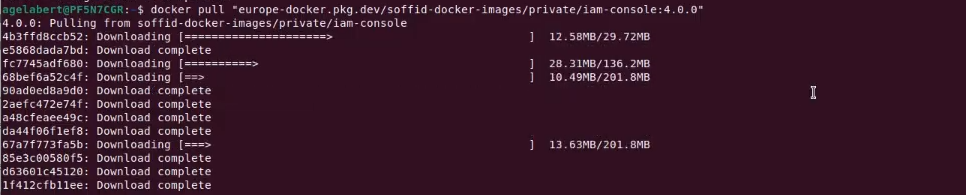](https://bookstack.soffid.com/uploads/images/gallery/2026-06/HqfdzkzHscTEUcNu-image.png) #### 2.2 Create the directory and file structure Create a the new file for the docker compose with this directory structure. ``` cd mkdir lab cd lab mkdir soffid4 cd soffid4 touch docker-compose.yaml ``` #### 2.3 Configure the docker-compose.yaml Edit the docker-compose.yaml file, you can use vim.At this link, you can see the [How to use vim](https://bookstack.soffid.com/books/utilities/page/how-to-use-vim)
``` sudo vim docker-compose.yaml ``` Use this content for the docker-compose.yaml file.Change the XXXX password and YYYY password for your values.
``` services: mariadb: image: mariadb:11.4 environment: MYSQL_ROOT_PASSWORD: XXXX MYSQL_DATABASE: soffid MYSQL_USER: soffid MYSQL_PASSWORD: YYYY healthcheck: test: "/usr/bin/mariadb --user=root --password=XXXX --execute \"SHOW DATABASES;\"" interval: 2s timeout: 20s retries: 10 command: --max_allowed_packet=128M --innodb_log_file_size=256M --character-set-server=utf8mb4 --collation-server=utf8mb4_general_ci ports: - "3306:3306" networks: - network volumes: - mariadb_data:/var/lib/mysql console: image: europe-docker.pkg.dev/soffid-docker-images/private/iam-console:4.0.58 environment: DB_URL: jdbc:mariadb://mariadb/soffid DB_USER: soffid DB_PASSWORD: YYYY JAVA_OPT: -Xmx4096m ports: - 8080:8080 - 8443:8443 networks: - network healthcheck: test: bash -c "(echo 'GET /soffid/anonymous/logo.svg HTTP/1.1' >&0; echo >&0; cat >&2;) <> /dev/tcp/localhost/8080" interval: 10s timeout: 20s retries: 10 start_period: 40s volumes: - console_trust:/opt/soffid/iam-console-4/trustedcerts - console_conf:/opt/soffid/iam-console-4/conf - console_index:/opt/soffid/iam-console-4/index depends_on: mariadb: condition: service_started syncserver: image: europe-docker.pkg.dev/soffid-docker-images/private/iam-sync:4.0.35 hostname: syncserver environment: SOFFID_PORT: 1760 SOFFID_HOSTNAME: syncserver.network SOFFID_MAIN: yes DB_URL: jdbc:mysql://mariadb/soffid DB_USER: soffid DB_PASSWORD: YYYY ports: - 1760:1760 - 1443:1443 networks: - network volumes: - sync_conf:/opt/soffid/iam-sync/conf depends_on: mariadb: condition: service_started networks: network: name: network driver: bridge volumes: mariadb_data: name: soffid4_mariadbdata console_trust: name: soffid4_console_trustedcerts console_conf: name: soffid4_console_conf console_index: name: soffid4_console_index sync_conf: name: soffid4_sync_conf ``` #### 2.4 Generate the containers Generate the containers. ``` docker compose up -d ``` #### 2.5 Access to the Console Follow these steps: - Go to **login** page: [http://localhost:8080](http://localhost:8080) - We have to **wait** until the login page will be prompted (it takes several minutes). - Accept the **Update** button. - User: **admin** / password: **changeit** (temporal for 24 hours). - Fill the **new password** and save it to use it later! You will now see this page. [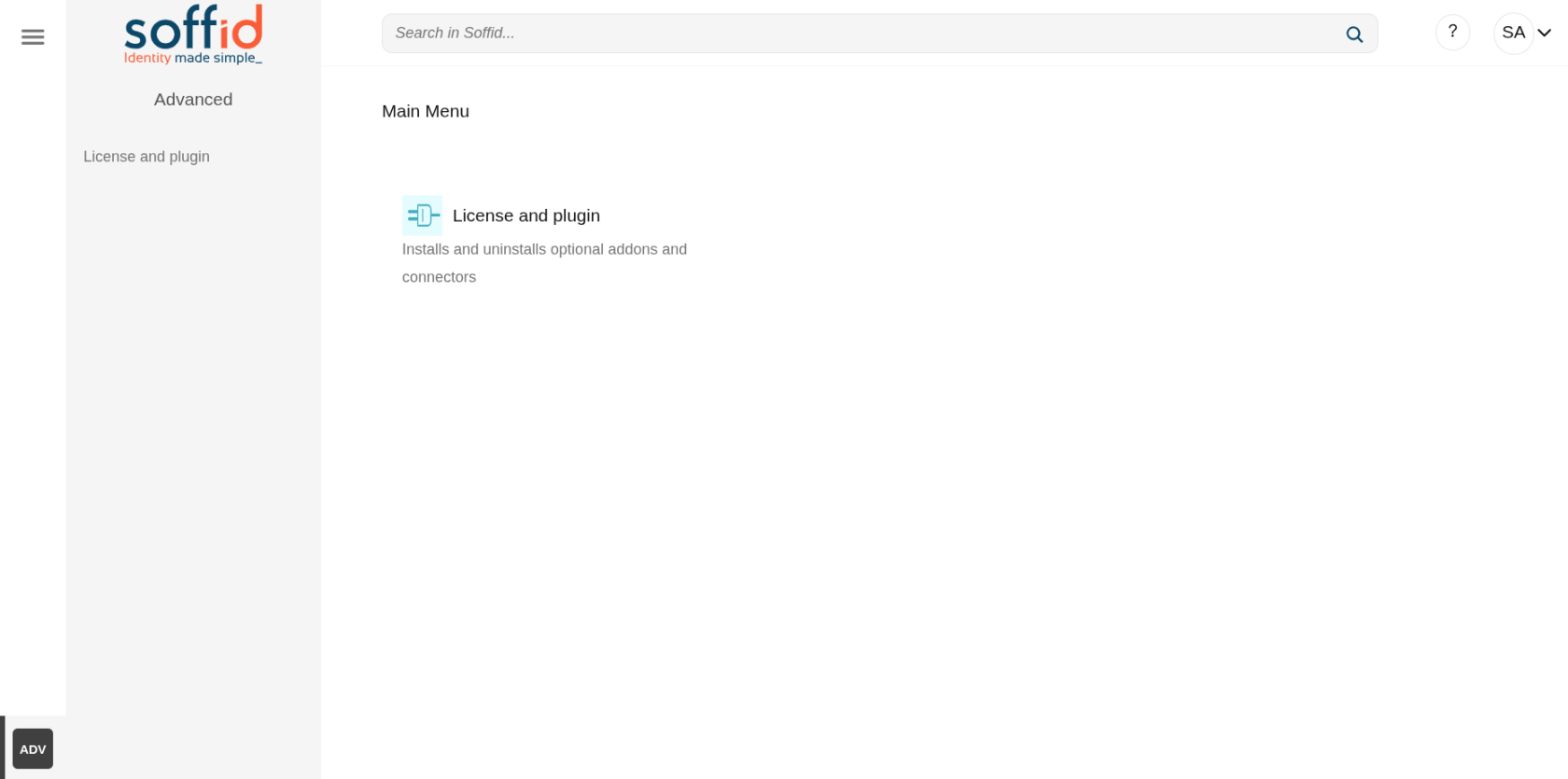](https://bookstack.soffid.com/uploads/images/gallery/2026-06/ggdbB4m7JWPgIggT-image.png) ## Step 3: Configure SSL access To correctly validate the new license, the Soffid Console must be SSL-enabled, it has to be open with the https protocol. #### 3.1 Publish the domains If you have a local environment, create new entries in: - Linux **/etc/hosts** - Windows **C:\\Windows\\System32\\drivers\\etc\\hosts** ``` # Soffid 4 local 127.0.0.1 console.soffid4.local 127.0.0.1 syncserver.soffid4.local ``` #### 3.2 Generate a self-signed certificate (pfx) Generate a self-signed certificate (pfx).Use **12345678** for all requiered passwords.
Generate a private key. ``` sudo openssl genrsa -aes256 -out console.soffid4.local.key ``` Generate a pem certificate.When you run the command, the prompt will ask for the **CN (Common Name)** attribute; use **console.soffid4.local**
``` sudo openssl req -x509 -days 1000 -new -key console.soffid4.local.key -out console.soffid4.local.pem ``` Generate a pfx (PKCS12). ``` sudo openssl pkcs12 -export -in console.soffid4.local.pem -inkey console.soffid4.local.key -name "console.soffid4.local" -out console.soffid4.local.pfx ``` #### 3.3 Generate a jks file Copy the pfx file in the console container. ``` sudo docker compose cp console.soffid4.local.pfx console:/opt/soffid/iam-console-4/trustedcerts ``` Enter the container. ``` docker compose exec -it console bash ``` Generate the jks file ``` cd /opt/soffid/iam-console-4/trustedcerts/ ```Change the password **12345678** if you have used a different one before
``` keytool -v -importkeystore \ -srckeystore /opt/soffid/iam-console-4/trustedcerts/console.soffid4.local.pfx \ -srcstoretype PKCS12 \ -destkeystore /opt/soffid/iam-console-4/trustedcerts/console.soffid4.local.jks \ -deststoretype JKS \ -destkeypass 12345678 -srcstorepass 12345678 -deststorepass 12345678 ``` Confirm that we are able to **open** the file and that the **alias** is correct. ``` keytool -v -list -keystore console.soffid4.local.jks ``` [](https://bookstack.soffid.com/uploads/images/gallery/2026-06/mN3ykqwOh8yaBYHt-image.png) #### 3.4 Configure the SSL port Configure the **server.xml** file. ``` cd /opt/soffid/iam-console-4/conf apt-get update apt-get install vim vim server.xml ``` Add this **configuration**. ```Port **8443** has already been configured in the step 2.3.
Exit the container and restart the Console. ``` exit docker compose restart console ``` #### 3.5 Access to Console with SSL Connect to the new URL: - [https://console.soffid4.local:8443](https://console.soffid4.local:8443) Confirm the SSL: browser > Not secure > Certificate details [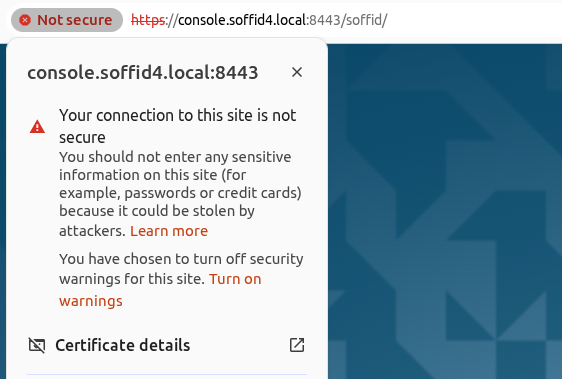](https://bookstack.soffid.com/uploads/images/gallery/2026-06/rGjTiGcLtTyIx5rq-image.png) [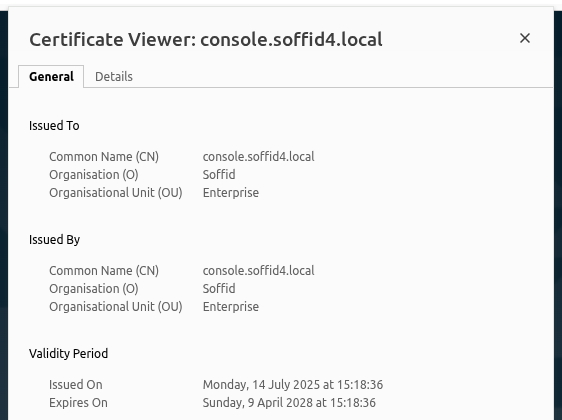](https://bookstack.soffid.com/uploads/images/gallery/2026-06/dRDM6MD3nXPy0B0n-image.png) ## Step 4: Apply the license When accessing the Soffid Console for the first time, you will need to apply a licence that the Soffid team will have created for you beforehand.For more information, check the [License and plugin](https://bookstack.soffid.com/books/soffid-4-reference-guide/page/license-and-plugin "License and plugin") page.
#### Step 4.1 Login with the Soffid account To apply the license follow these steps: - **Log** into the Soffid **Console** - Go to the "**License and plugin**" page - You will not have an active license - Click the "**License manager**" button - Log in with your **Soffid account** received from Soffid #### Step 4.2 Apply license - Select your new **license** - Accept the **conditions** - **Allow** "Access other apps and services on this device" - **Close**. Finally you will have an active license and access to all pages [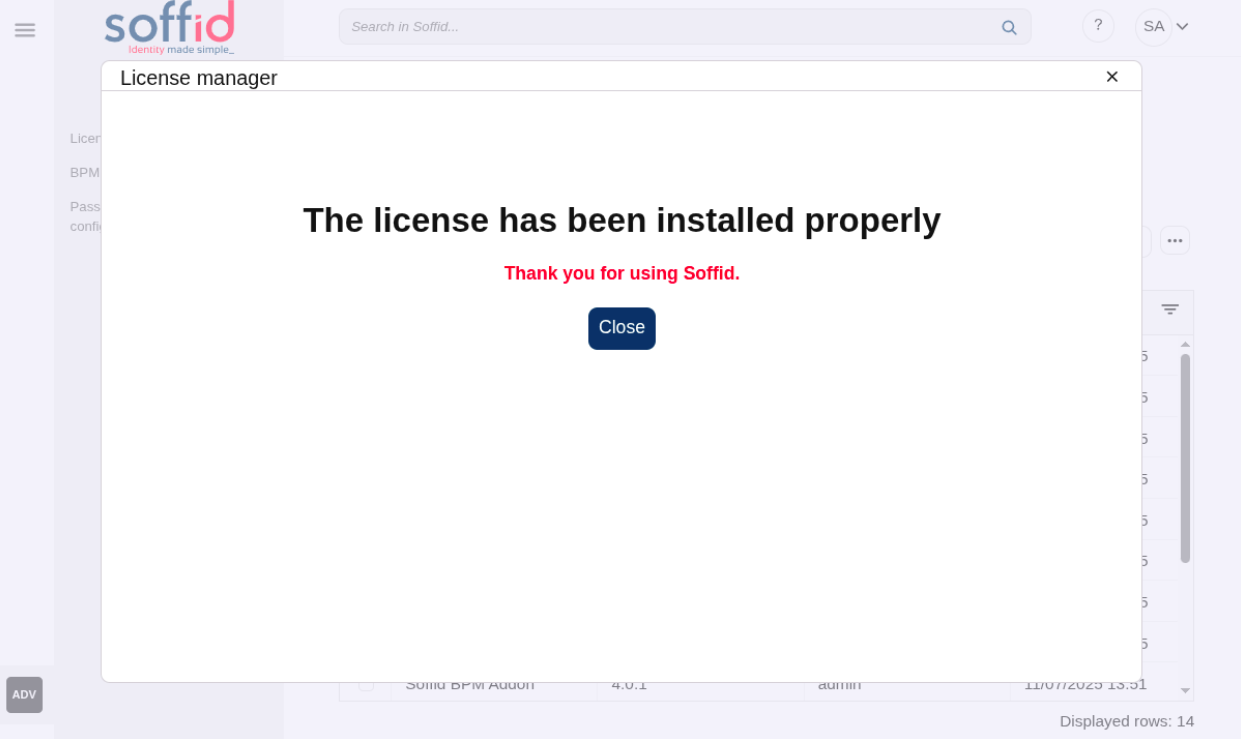](https://bookstack.soffid.com/uploads/images/gallery/2025-07/mLznAT1xnXBLkVN7-image.png) #### Step 4.3 Welcome to Soffid 4! You will now be able to access all of Soffid’s features. [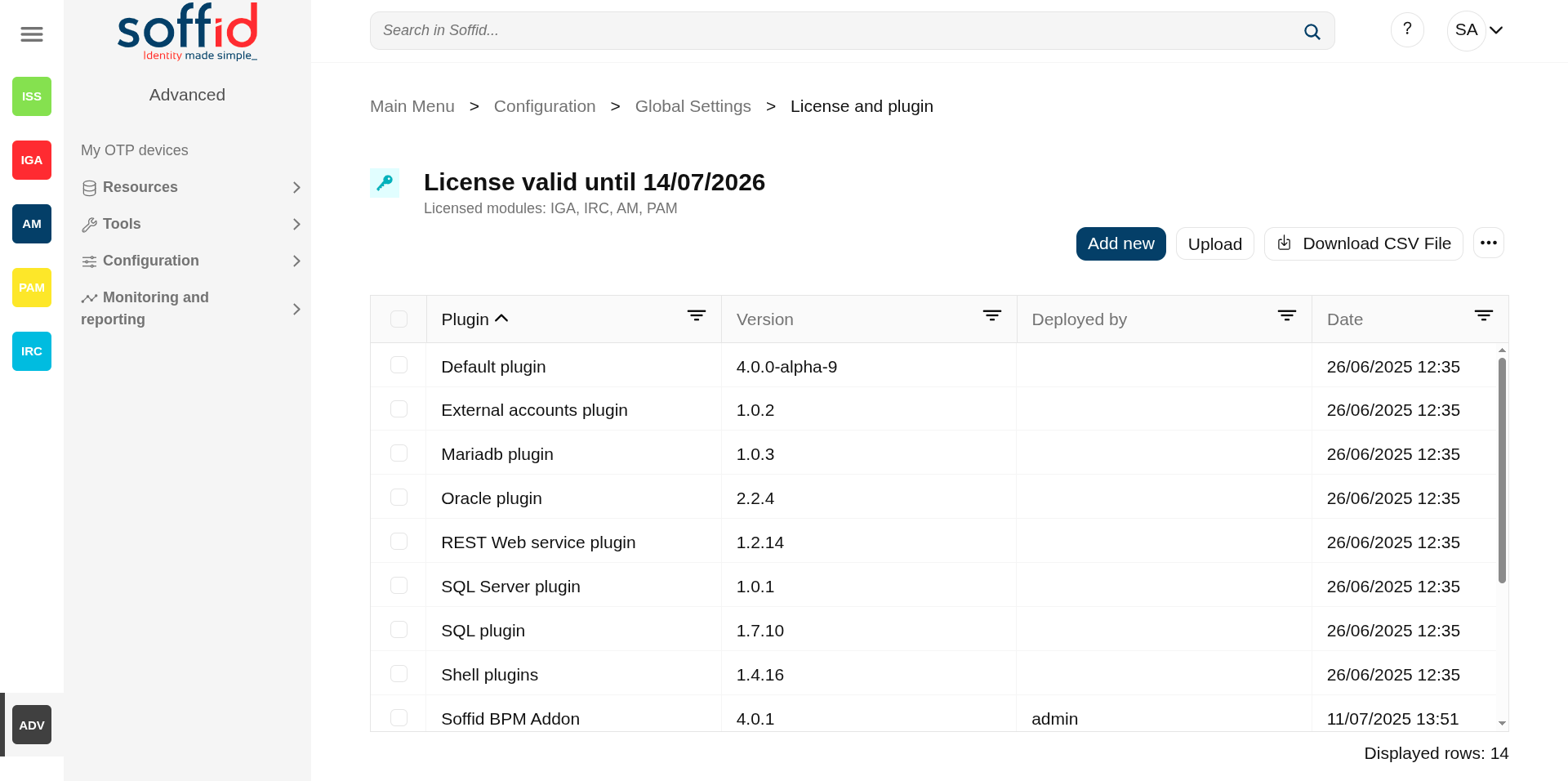](https://bookstack.soffid.com/uploads/images/gallery/2025-07/TwhcMZv48dFnJdKj-image.png) #### Step 4.4 Check the syncsever To check if the syncserver is active: - Go to the "**Sync server monitoring**" page - If the syncserver is not off, it is running [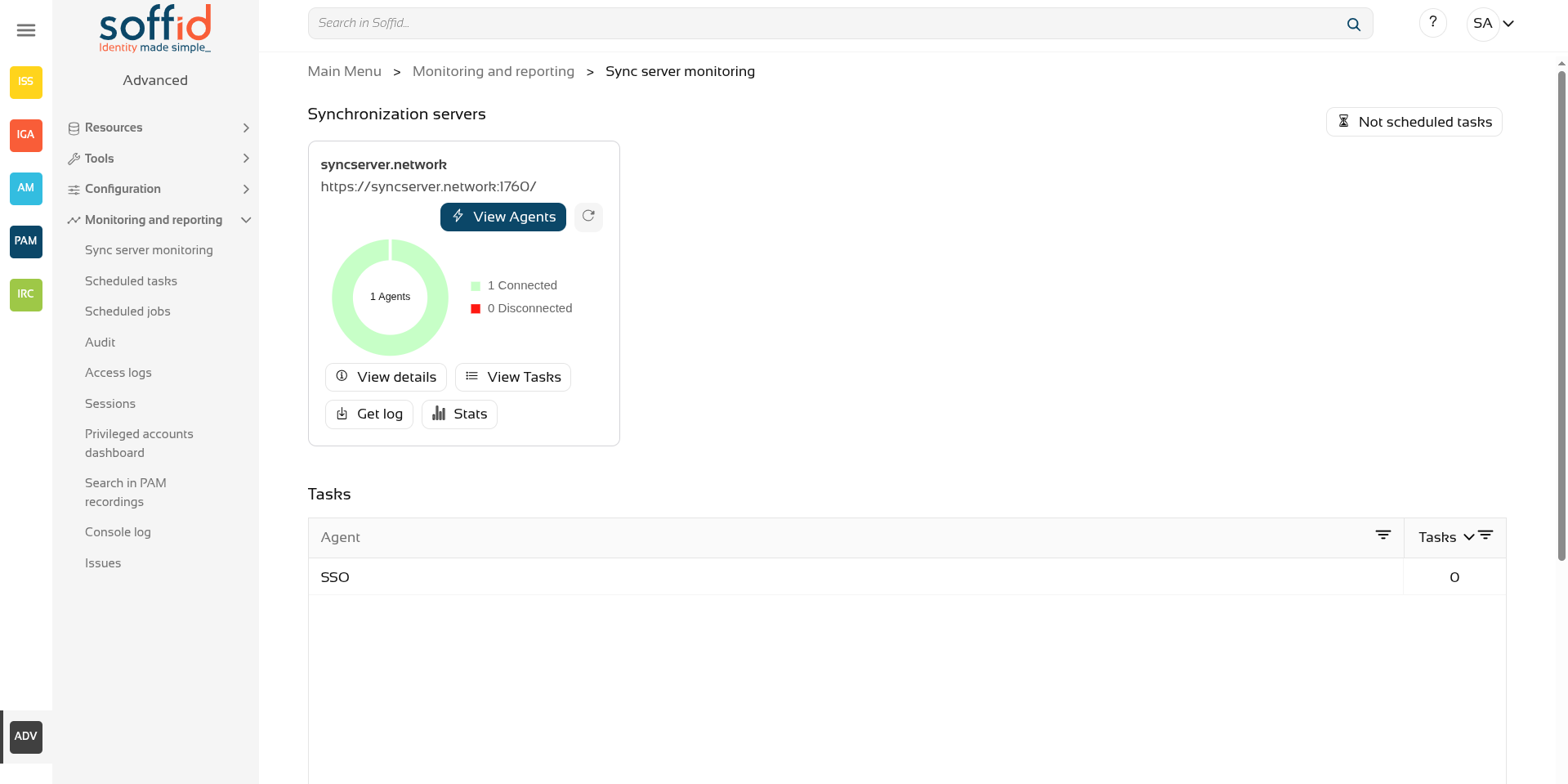](https://bookstack.soffid.com/uploads/images/gallery/2026-07/DnpHmB4QeOhpUSXa-image.png)