Soffid is compatible with **Windows** or **Linux** (Ubuntu is the most commonly used)
To succesfully install Soffid IAM, choose your installation and follow the next steps: #### Server 1. [Initialize database on your server](https://bookstack.soffid.com/books/installation/page/initialize-database-on-your-server "Initialize database on your server") 2. [Installing Soffid IAM on your own server](https://bookstack.soffid.com/books/installation/chapter/installing-soffid-on-your-server) 3. [Configure TLS for IAM Console](https://bookstack.soffid.com/books/installation/page/configure-tls-for-iam-console-8bf) #### Docker 1. [Initialize database using Docker](https://bookstack.soffid.com/books/installation/page/initialize-database-using-docker "Initialize database using Docker") 2. [Installing Soffid IAM on Docker](https://bookstack.soffid.com/books/installation/chapter/installing-soffid-using-docker) #### Docker compose 1. [Installing Soffid](https://bookstack.soffid.com/books/installation/page/installing-soffid "Installing Soffid") #### Kubernetes 1. [Initialize database on Kubernetes](https://bookstack.soffid.com/books/installation/page/initialize-database-on-kubernetes "Initialize database on Kubernetes") 2. [Installing Soffid IAM on Kubernetes](https://bookstack.soffid.com/books/installation/page/installing-iam-console-c16 "Installing IAM Console")We also recommend reading the [Soffid architecture](https://bookstack.soffid.com/books/installation/page/system-architecture "System architecture") section before proceeding with the installation.
Soffid is not currently compatible with Podman.
# System architecture ## Soffid Architecture Soffid system is composed of up to five different components: - IAM console - Sync server - Repository - PAM Jump server (optional) - LDAP Directory server (optional) - Enterprise SSO (optional) [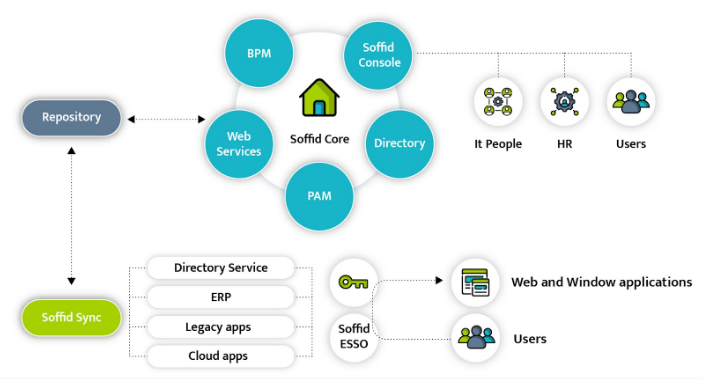](https://bookstack.soffid.com/uploads/images/gallery/2021-12/image-1640602931450.png) ### IAM Console Is the portal used by administrators to manage identity management objects and by end-users to use the self service portal. It's 100% web and can be deployed in any Windows or Linux server. Kubernetes and Docker deployments are supported as well. ### Repository Is a relational database that stores all the information about configuration, policies and identity objects, including users, accounts and permissions. Any of the following repositories are supported: - Maria DB - My SQL - Oracle - SqlServer - PostgreSQL ### Sync server Is the responsible for connecting the repository with the managed systems. The integration can be in both ways, fetching changes from managed system and pushing changes from Soffid repository. The sync server can be deployed in many different ways, allowing central, distributed and hybrid deployments, both on cloud or on premise. ### PAM Jump server Is a piece used to allow access to privileged accounts, recording the screen and every keystroke, file or clipboard transfer. ### Directory server Is a directory server based on OpenLDAP. It can only be installed on a Linux server with Docker. ## Mixed architecture In the following image you can view an example of the architecture with a mysql database managed directly from the main servers and an Active Directory and an Oracle database managed through a sync proxy installed on the same host as the managed system. [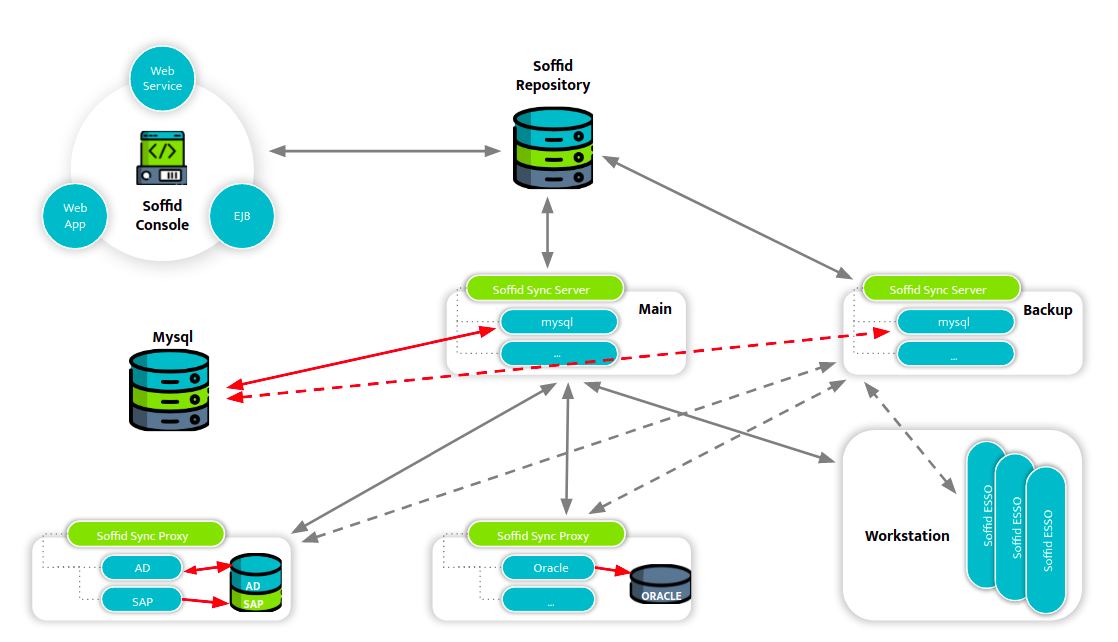](https://bookstack.soffid.com/uploads/images/gallery/2022-01/image-1641830111429.png) # Database initialization How to install and initialize database # Initialize database on your serverThe purpose of this tutorial is to show how to initialize a database required for Soffid IAM installation.
## Prerequisites First of all, you sould install a database required in the Soffid IAM installation. The supported databases are: - MySQL - MariaDB - Oracle - Microsoft SQLServer - PostgreSQL ## MySQL/MariaDB In order to configure MySQL database you need access to the database administration tool (mysql) with superuser permissions using a TCP/IP connection. If needed, please create a user for the Soffid installation. If you don't have such a user, or don't know its password, please access MySQL as root, execute the **mysql** tool and create the user with **grant command** *(where ADMIN\_USER is the user to be used during the installation process to create the soffid repository database and ADMIN\_PASSWORD is the required password).* ``` create database soffid; use soffid; grant all privileges on *.* to ADMIN_USER@localhost identified by 'ADMIN_PASSWORD' with grant option; ``` In addition, in order to be able to manage big files, like process definitions or software add-ons, we have to modify the **max\_allowed\_packet** parameter on MySQL. This parameter is commonly located on the **/etc/mysql/my.cnf** file.You can find the [default option file locations on Linux, Unix, Mac or Windows following this link](https://mariadb.com/kb/en/configuring-mariadb-with-option-files/).
`[mysqld]` `max_allowed_packet=128M` |
If the version of MariaDB is 10.1.38, or newer, the recommended value for max\_allowed\_packet is 512M
Note: in the case, we will obtain the next '*The size of BLOB/TEXT data inserted in one transaction is greater than 10% of redo log size. Increase the redo log size using innodb\_log\_file\_size*.' error when trying to upload an addon, we may update the default value of this mysql/mariadb parameter. This parameter is commonly allocated on the /etc/mysql/my.cnf file.`[mysqld]` `innodb_log_file_size=256M` |
`[mysqld]` `character-set-server = Latin1` `collation-server = Latin1_general_ci` |
`[mysqld]` `character-set-server = utf8mb4` `collation-server = utf8mb4_general_ci` `innodb_large_prefix = ``1` `innodb_file_format = Barracuda` `innodb_file_per_table = ``1` |
Following [this link](https://bookstack.soffid.com/books/installation/page/creating-a-multimaster-mariadb-replica-2b4) you will find the steps to set up a two nodes database cluster.
## Oracle A new database instance should be created. Optionally two tablespaces should be created (SOFFID\_DATA and SOFFID\_INDEX) to separate soffid tables and indexes. ```shell CREATE TABLESPACE SOFFID_DATA DATAFILE '/app/oracle/oradata/project/soffid_data.dbf' SIZE 200M EXTENT MANAGEMENT LOCAL AUTOALLOCATE ``` To create the tablespace is necessary to provide the full path name, its size and MANAGEMENT AUTOALLOCATE option. The autoallocate option is needed because the tables are not sized by database creation scripts. Also, the Oracle Listener must have a TCP/IP port accepting connections. ## Microsoft SQLServer You must enable the SQL Server Browser Service at startup and the authentication method have to be set to “SQL Server and Windows Authentication mode”. In addition, you must ensure that 'READ\_COMMITTED\_SNAPSHOT" parameter is enabled, you can do so with the following command: ```shell ALTER DATABASE [database_name] SET READ_COMMITTED_SNAPSHOT ON ``` # Initialize database using DockerThe purpose of this tutorial is to show how to initialize a database **MariaDB** required for Soffid IAM installation using Docker.
## Prerequisites 1\. Install docker ( [https://docs.docker.com/install/](https://docs.docker.com/install/) ) 2\. Create a docker network, that network allows you to connect containers to the same bridge network to communicate: ```shell sudo docker network create -d bridge NETWORKNAME ```For the correct installation of Soffid it is recommended not to use the underline character \_ in the network name.
## MySQL/MariaDB First step will be initialize MariaDB with Docker, in this case we attach the container to an exist network: ```shell sudo docker run -d --name mariadb-service --network=NETWORKNAME -e "MYSQL_ROOT_PASSWORD=ADMIN_PASSWORD" mariadb ``` Second, you can check the deployed containers: ```shell sudo docker ps ``` Then, you must connect to the created container: ```shell sudo docker exec -i -t mariadb-service /bin/bash ``` In order to configure MySQL database you need access to the database administration tool (mysql) with superuser permissions using a TCP/IP connection. If needed, please create a user for the Soffid installation. If you don't have such a user, or don't know its password, please access MySQL as root, execute the **mysql** tool and create the user with **grant command** *(where ADMIN\_USER is the user to be used during the installation process to create the soffid repository database and ADMIN\_PASSWORD is the required password).* Coonect to MySQL: ```western mysql -u root -p ``` Create database and grant permissions: ```shell create database soffid; use soffid; grant all privileges on *.* to ADMIN_USER@'%' identified by 'ADMIN_PASSWORD' with grant option; ``` In addition, in order to be able to manage big files, like process definition or software addons, we have to modify **max\_allowed\_packet** parameter on MySQL. This parameter is commonly allocated on the /etc/mysql/my.cnf file.`[mysqld]` `max_allowed_packet=128M` |
If the version of MariaDB is 10.1.38, or newer, the recommended value for max\_allowed\_packet is 512M
Note: in the case we will obtain the next '*The size of BLOB/TEXT data inserted in one transaction is greater than 10% of redo log size. Increase the redo log size using innodb\_log\_file\_size*.' error trying to upload an addon, we may update the default value of this mysql/mariadb parameter. This parameter is commonly allocated on the /etc/mysql/my.cnf file.`[mysqld]` `innodb_log_file_size=256M` |
`[mysqld]` `character-set-server = Latin1` `collation-server = Latin1_general_ci` |
`[mysqld]` `character-set-server = utf8mb4` `collation-server = utf8mb4_general_ci` `innodb_large_prefix = ``1` `innodb_file_format = Barracuda` `innodb_file_per_table = ``1` |
The purpose of this tutorial is to show how to initialize a **MariaDB** database required for Soffid IAM installation on Kubernetes.
## MySQL/MariaDB To initialize MariaDB on Kubernetes first of all you must create a Persistent Volume. Storage in the cluster will be provisioned using Storage Classes. ```YAML apiVersion: v1 kind: PersistentVolume metadata: name: local-pv spec: capacity: storage: 10Gi accessModes: - ReadWriteOnce persistentVolumeReclaimPolicy: Retain storageClassName: local-storage local: path: /home/ulocal/kubernetes-disk nodeAffinity: required: nodeSelectorTerms: - matchExpressions: - key: kubernetes.io/hostname operator: In values: - soffid1234 --- apiVersion: v1 kind: PersistentVolumeClaim metadata: name: mariadb-claim spec: storageClassName: local-storage accessModes: - ReadWriteOnce resources: requests: storage: 5Gi ```Path "/home/ulocal/kubernetes-disk" must be exists.
Then you must define the MariaDB deployment: ```YAML apiVersion: apps/v1 kind: Deployment metadata: name: mariadb labels: app: soffid instance: "Soffid" type: database spec: strategy: rollingUpdate: maxSurge: 0 maxUnavailable: 1 type: RollingUpdate replicas: 1 selector: matchLabels: app: soffid instance: "Soffid" type: database template: metadata: labels: app: soffid instance: "Soffid" type: database spec: restartPolicy: Always containers: - name: mariadb image: mariadb resources: limits: memory: 2Gi requests: memory: 400Mi args: - "--max-allowed-packet=175M" - "--innodb-log-file-size=256M" - "--character-set-server=utf8" - "--collation-server=utf8_bin" - "--net-read-timeout=3600" - "--net-write-timeout=3600" - "--innodb-buffer-pool-size=100M" ports: - containerPort: 3306 name: db-port env: - name: MYSQL_ROOT_PASSWORD valueFrom: secretKeyRef: name: mariadb key: root_password - name: MYSQL_USER valueFrom: secretKeyRef: name: mariadb key: username - name: MYSQL_PASSWORD valueFrom: secretKeyRef: name: mariadb key: password - name: MYSQL_DATABASE value: soffid volumeMounts: - name: mysql-persistent-storage mountPath: /var/lib/mysql volumes: - name: mysql-persistent-storage persistentVolumeClaim: claimName: mariadb-claim --- apiVersion: v1 kind: Service metadata: name: mariadb-service namespace: default spec: clusterIP: None ports: - name: mariadb port: 3306 protocol: TCP targetPort: 3306 selector: app: soffid instance: "Soffid" type: database type: ClusterIP ``` Finally you must create resources in a cluster: ```shell kubectl apply -f mariadb-pv-file.yaml kubectl apply -f mariadb-deployment-file.yaml ``` ### Video Tutorial #### MariaDB initialization in Kubernetes # Creating a multimaster MariaDB replica This topic will cover the process to create a two node Maria DB cluster. The cluster will be configured to allow Soffid console to use either database node, which in turn will replicate data changes to the other one.Node 1 action | Node 2 action | ||||||||
|---|---|---|---|---|---|---|---|---|---|
| **Create and setup a Maria DB in node 1.** | |||||||||
| Configure Maria DB to generate binary log files. Add the following lines to /etc/mysql/my.cnf: *server-id = **1** log-bin binlog-format=row expire\_logs\_days = 15 max\_binlog\_size = 1000M replicate-ignore-table = soffid.SC\_SEQUENCE slave-skip-errors = 1032,1053,1062* | |||||||||
| Restart MariaDB: ``` service mysql restart ``` | |||||||||
| **Create and setup a Maria DB in node 2.** | |||||||||
| Configure Maria DB to generate binary log files. Add the following lines to /etc/mysql/my.conf: *server-id = **2** log-bin binlog-format=row expire\_logs\_days = 15 max\_binlog\_size = 1000M replicate-ignore-table = soffid.SC\_SEQUENCE slave-skip-errors = 1032,1053,1062* | |||||||||
| Restart MariaDB: ``` service mysql restart ``` | |||||||||
| Dump current database contents: *mysqldump soffid -u soffid -p >soffid.data* | Load current database contents *mysql -u soffid -p < soffid.data* | ||||||||
| Create a user for node 1 to fetch data from node 2. From mysql, execute: *grant replication slave on \*.\* to [replication\_user@](mailto:replication_user@logpmgid02v.toolfactory.net)<NODE1-IP>* *set password for [replication\_user@1](mailto:replication_user@192.168.2.171)<NODE1-IP> = password('<NODE1-PASS>')* | |||||||||
| Create a user for node 2 to fetch data from node 1. From mysql, execute: *grant replication slave on \*.\* to [replication\_user@](mailto:replication_user@logpmgid02v.toolfactory.net)<NODE2-IP>* *set password for [replication\_user@1](mailto:replication_user@192.168.2.171)<NODE2-IP> = password('<NODE2-PASS>')* | |||||||||
Query current binary log position:
MariaDB \[(none)\]> *show master status;*
The result should look like this:
| |||||||||
| Start replication from node 1 to node 2. From mysql, execute the following sentence, replacing proper values: *CHANGE MASTER TO MASTER\_HOST='<NODE1-IP>', MASTER\_USER='replication\_user', MASTER\_PASSWORD='<NODE2-PASS>', MASTER\_PORT=3306, MASTER\_LOG\_FILE='<NODE1-FILE>' , /\*\* i.e. mysql-bin.000030 \*\*/ MASTER\_LOG\_POS=<NODE1-POSITION>, /\*\* i.e. 68175 \*\*/ MASTER\_CONNECT\_RETRY=10;* | |||||||||
| Verify replica is working right, by executing *SHOW SLAVE STATUS \\G* Check following lines: Slave\_IO\_Running: Yes Slave\_SQL\_Running: Yes Seconds\_Behind\_Master: 0 | |||||||||
Query current binary log position:
MariaDB \[(none)\]> *show master status;*
The result should look like this:
| |||||||||
| Now, start replication from node 2 to node 1. From mysql, execute the following sentence, replacing proper values: *CHANGE MASTER TO MASTER\_HOST='<NODE2-IP>', MASTER\_USER='replication\_user', MASTER\_PASSWORD='<NODE1-PASS>', MASTER\_PORT=3306, MASTER\_LOG\_FILE='<NODE2-FILE>', /\*\* i.e. mysql-bin.000060 \*\*/ MASTER\_LOG\_POS=<NODE2-POSITION>, /\*\* i.e. 98325 \*\*/ MASTER\_CONNECT\_RETRY=10;* | |||||||||
| Verify replica is working right, by executing *SHOW SLAVE STATUS \\G* Check following lines: Slave\_IO\_Running: Yes Slave\_SQL\_Running: Yes Seconds\_Behind\_Master: 0 | |||||||||
| Now, create and start SC\_SEQUENCE table in node 1. This sequence will generate values 1, 11, 21, 31, 41, and so on: *CREATE TABLE `SC\_SEQUENCE` (* *`SEQ\_NEXT` bigint(20) NOT NULL,* *`SEQ\_CACHE` bigint(20) NOT NULL,* *`SEQ\_INCREMENT` bigint(20) NOT NULL* *);* *INSERT INTO SC\_SEQUENCE VALUES (1, 100, 10);* | |||||||||
| Now, create and start SC\_SEQUENCE table in node 2. This sequence will generate values 2, 12, 22, 32, 42, and so on:: *CREATE TABLE `SC\_SEQUENCE` (* *`SEQ\_NEXT` bigint(20) NOT NULL,* *`SEQ\_CACHE` bigint(20) NOT NULL,* *`SEQ\_INCREMENT` bigint(20) NOT NULL* *);* *INSERT INTO SC\_SEQUENCE VALUES (2, 100, 10);* |
Node 1 | Node 2 |
|---|---|
| Install Corosync and Pacemaker. It is recommended to use **apt** or **yum** because these programs will handle dependencies for you, making the process much easier. | Install Corosync and Pacemaker. |
| Cluster nodes need a key in order to authenticate the packages sent between them by corosync. *sudo corosync-keygen* Once the key has been generated, copy it to the other nodes: *sudo scp /etc/corosync/authkey <user>@<other-cluster-node>:/home/<user>* | |
| Once the key has been copied, move the copied key from the */home/<user>* route to */etc/corosync/authkey* | |
| Now we need to tell Corosync which IP to use to communicate with other nodes in the cluster. Open */etc/corosync/corosync.conf* and edit the bindnetaddr field. Set the right IP and save the file. We need to do this in every node in the cluster, although you can use the same file if you set the right name in your hosts file. | |
| Configure Corosync with the right IP binding as done in node 1. | |
| Configure the */etc/default/corosync* file to enable Corosync changing START to yes "START=yes". Then we can start Corosync using *sudo service corosync start*. | |
| Enable Corosync and start it as in node 1. | |
| Allow the nodes a few seconds to start, then you can monitor the cluster nodes using sudo crm\_mon. The result should be similar to this: *============* *Last updated: Mon Mar 31 14:05:23 2015* *Stack: corosync* *Current DC: yourDC - partition with quorum* *Version: 1.x.x-yourversion* *2 Nodes configured, 2 expected votes* *0 Resources configured.* *============* *Online: \[ node1 node2 \]* | |
| Check the nodes with sudo crm\_mon | |
| Corosync is ready, now we will tell Pacemaker which resources we want it to handle in HA. These will be the database and a virtual IP (VIP) we will use to address the cluster. Add the VIP to the node, and then use this to create the resource: *sudo crm configure primitive FAILOVER-ADDR [ocf:heartbeat:IPaddr2](http://ocfheartbeatipaddr2/) params ip="your.virtual.IP" nic="your.network.device" op monitor interval="10s" meta is-managed="true"* You can check the result using *sudo crm status*, which should look something like: *Last updated: Wed Jan 18 10:21:12 2017 Last change: Tue Jan 17 13:08:25 2017 by hacluster via crmd on nodename* *Stack: corosync* *Current DC: nodename(version 1.1.14-70404b0) - partition with quorum* *2 nodes and 2 resources configured* *Online: \[ node1 node2 \]* *Full list of resources:* *Resource Group: my\_cluster* *FAILOVER-ADDR (ocf::heartbeat:IPaddr2): Started node2* | |
| Now we will add the database. We will use: *sudo crm configure primitive FAILOVER-MARIADB lsb::mysql op monitor interval=15s* |
The installation of Soffid 3 and Soffid 4 is the same, although the examples are in Soffid 4, you can do the same for Soffid 3.
Depending on your platform, you can download the MSI, RPM or DEB version. [](https://bookstack.soffid.com/uploads/images/gallery/2026-01/mNhMnCNu8vX38LgY-image.png) As soon as the *install-x.y.z.sh* file is in your computer, copy the file into a path of your server. ### Installing IAM Console #### Windows Open the installation file. It will create the operating system level service and will start it. After some seconds, the installation wizard will be up and running in port 8080. #### Linux We recommend to install the package like: ```shell sudo dpkg -i '/your-path/Soffid Console-Debian_Ubuntu Installer-4.0.20.deb' ``` You can ckeck the IAM Console service status: ```shell systemctl status soffid-iamconsole.service ``` #### Configuration Then, open the web browser pointing to [http://localhost:8080](http://localhost:8080) The wizard will ask for the following information: - **Host name:** enter the name that will be used by end-users to access to the console. To use the fully qualified domain name is suggested. A virtual service name can be used as well. Mind that the web server will work even when you put a wrong host names. This host name will be used in email notifications that contain a link to the console. - **User name**: Enter the name of a user with permissions to create tables and indexes in the selected database. - **Password**: Enter the database user password. - **Database type**: select the right database engine: Maria DB, MySQL, PostgreSQL, MS SQL Server or Oracle. - **Database URL**: complete the database URL. The default template use to be good enough, but you can use advanced features depending on the selected database driver: - Maria DB and MySQL: [https://mariadb.com/kb/en/about-mariadb-connector-j/](https://mariadb.com/kb/en/about-mariadb-connector-j/) - PostgreSQL: [https://jdbc.postgresql.org/documentation/80/connect.html](https://jdbc.postgresql.org/documentation/80/connect.html) - MS SqlServer: [https://docs.microsoft.com/es-es/sql/connect/jdbc/building-the-connection-url?view=sql-server-ver15](https://docs.microsoft.com/es-es/sql/connect/jdbc/building-the-connection-url?view=sql-server-ver15) - Oracle: [https://docs.oracle.com/cd/B28359\_01/java.111/b31224/urls.htm#BEIJFHHB](https://docs.oracle.com/cd/B28359_01/java.111/b31224/urls.htm#BEIJFHHB) The next step, allows you to enter the name and password for the initial Soffid user. You must enter: - **Login name**: by default it's admin, but you can use any other naming convention. To change it is good security practice. - **First name**: Your first name. - **Last name**: Your last name. - **Password**: Enter the initial password to use. Write it twice and don't forget it. ## Manual Configuration ### Configuring service startup If you are using the RPM, DEB or MSI installers, the service is automatically configured to start up with the computer. If you are using the .tar.gz file, you must enable it manually. Execute these commands as root to start Soffid IAM console service on boot: ```shell ln -fs /opt/soffid/iam-console-3/bin/catalina.sh /etc/init.d/soffid-iamconsole ln -fs /etc/init.d/soffid-iamconsole /etc/rc2.d/S98soffid-iamconsole ln -fs /etc/init.d/soffid-iamconsole /etc/rc3.d/S98soffid-iamconsole ln -fs /etc/init.d/soffid-iamconsole /etc/rc2.d/K10soffid-iamconsole ln -fs /etc/init.d/soffid-iamconsole /etc/rc3.d/K10soffid-iamconsole ``` If something is not running as expected, please check the log at: ```shell root@localhost:~# cd /opt/soffid/iam-console-4/logs root@localhost:/opt/soffid/iam-console-4/logs# less soffid.YEAR-MONTH-DAY.log ```Now you can connect IAM Console [http://localhost:8080/soffid](http://%3Cnode-ip%3E%3Cpublish-port%3E/) The first thing you must do is to configure database parameters and admin user. When the console is created, the password for user admin will be valid for 24 hours.
# Installing Sync server Guide to install Synchronization server on your own server ## Prerequisites Soffid IAM sync server requires the following requirements: - Windows or Linux (Ubuntu is the most commonly used) - Java JDK 11 for Soffid 3, Java JDK 17 for Soffid 4 - 8GB RAM - > 10GB disk space - [Soffid console installed](https://bookstack.soffid.com/books/installation/page/installing-iam-console "Installing IAM Console") ## Video tutorial ### Windows ### Linux ## Installation ### Download You can download Soffid 3 and Soffid 4 components from our website [Soffid Download Opensource](https://download.soffid.com/download/ "Soffid Download Opensource") or [Soffid Download Enterprise](https://download.soffid.com/download/enterprise/ "Soffid Download Enterprise"). Click on *Soffid Sync Server* and download the latest version for your OS. [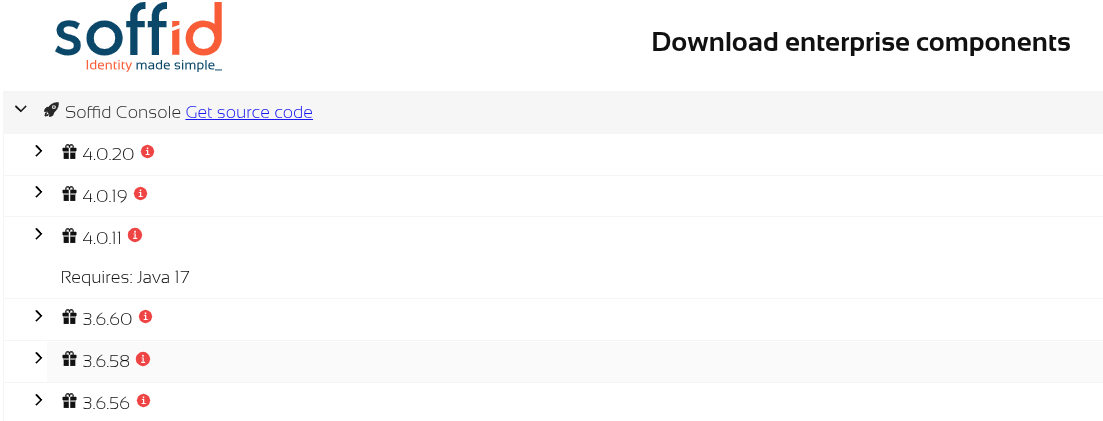](https://bookstack.soffid.com/uploads/images/gallery/2026-01/bHTXb3rvjmhle1vE-image.png) As soon as the *install-x.y.z.sh* file is in your computer, copy the file into a path of your server. ### Installing Sync Server #### Windows Open the installation file. It will install the software and will execute the installation wizard. The installation wizard will ask if it is the first sync server or not. #### Linux ``` sudo dpkg -i '/your-path/Soffid Sync Server-Debian_Ubuntu Installer-4.0.0-beta-2.deb' ``` The installation wizard will ask if it is the first sync server or not. #### Installing the first sync server ##### Automatic wizard If you answer Y to the first question, the wizard will ask for the following information: - **Database URL**: Use the same URL used to install the console. - **Database use**r: The user name to connect to the database. It was used during the console installation - **Database password**: The database user password - **Host name**: Enter the fully qualified domain name of the host. IP addresses are not accepted. - **Port to listen**: Enter a TCP port number. The sync server will receive connections from the console or other sync servers through this port. The suggested value is 1760. After checking the database status, the wizard will register the sync server and will create a new certification authority, as well as a digital certificate for the brand new sync server. ##### Manual wizard If the wizar is not launched automatically, you should launch it manually. To do that, you must follow the next steps: 1. Stop syncserver service: `systemctl stop soffid-iamsync.service` 2. Delete previous configuration: `rm /opt/soffid/iam-sync/conf/*` 3. Launch wizard: `/opt/soffid/iam-sync/bin/configure` 4. Start synserver service: `systemctl start soffid-iamsync.service` ##### The wizard will request about the database configuration: ``` ...... Is this the first sync server in the network (y/n)? y Database URL (jdbc:....): jdbc:mariadb://localhost/soffid Database user: ADMIN_USER Password: xxxxx This server host name [soffid.my.lab]: localhost Port to listen to [1760]: 1760 .... ``` #### Installing the next sync servers If you answer N to the first question, the wizard will ask for the following information: - **Cloud service**: You can install an on-premise sync server connected to a cloud instance. In this case, the communication stack works in a slightly different way. If this is the case, enter Y. If you are connecting to an on-premise Soffid deployment, enter N. - **Server URL**: Enter the URL for the first sync server. - **Tenant name**: Enter the tenant name. If the sync server is not intended to work with a single tenant, enter master. - **User name**: Enter an administrator user name. - **Password**: Enter the administrator password. - **Host name**: Enter the fully qualified domain name of the host. IP addresses are not accepted. - **Port to listen**: Enter a TCP port number. The sync server will receive connections from the console or other sync servers through this port. The suggested value is 1760. The wizard will connect to the sync server and create a sync server connection request. The administrator must open the "My tasks" page and approve the request. Once the request is approved, the wizard will finish. #### Running synchronization server in root mode Sometimes it is necessary to run the sync server in root mode to solve a problem. To do this it is necessary to edit the service, modify some data and finally restart the service. ```shell sudo systemctl edit --full soffid-iamsync ``` ```shell User=root group=root protectSystem=false ``` ```shell sudo systemctl restart soffid-iamsync ``` ## Manual Configuration ### Manual service configuration If you are using the RPM, DEB or MSI installers, the service is automatically configured to start up with the computer. If you are using the .tar.gz file, you must enable it manually. Execute these commands as root to start Soffid IAM sync server service on boot: ```shell `ln -fs /opt/soffid/iam-sync/bin/soffid-sync /etc/init.d/soffid-syncln -fs /etc/init.d/soffid-sync /etc/rc1.d/K01soffid-syncln -fs /etc/init.d/soffid-sync /etc/rc2.d/S06soffid-syncln -fs /etc/init.d/soffid-sync /etc/rc3.d/S06soffid-syncln -fs /etc/init.d/soffid-sync /etc/rc4.d/S06soffid-syncln -fs /etc/init.d/soffid-sync /etc/rc5.d/S06soffid-syncln -fs /etc/init.d/soffid-sync /etc/rc6.d/K01soffid-sync` ``` Note that if you are running Centos, Redhat7 o version higher than Ubuntu 16.04, you should enable the service in systemctl ``` sudo systemctl enable soffid-sync ``` Once you have installed and configured Soffid Sync Server as a service, you could manage it with the following operations ``` service soffid-sync status service soffid-sync restart service soffid-sync start service soffid-sync stop ``` ### First synchronisation server configuration It is not recommended to install the first sync server on the same host where the database is installed. To configure the server, please execute the following commands: On Linux: ```shell /opt/soffid/iam-sync/bin/configure -main -hostname [hostname] -port 760 -dbuser [soffid] -dbpass [pass] -dburl [jdbc:mysql://localhost:3306/soffid] ``` On Windows: ```shell %ProgramFiles%\soffid\iam-sync\bin\configure -main -hostname [hostname] -port 760 -dbuser [soffid] -dbpass [pass] -dburl [jdbc:mysql://localhost:3306/soffid] ``` User and password must be the ones created during the installation process. The hostname value must be a FQDN (fully qualified domain name), for instance, "myhost.mydomain.com" or in a test environment "syncserver.soffid.lab" Mind the configuration wizard will refuse to register the sync server if this is not really the first sync server. If you really want to register this sync server as the first one, you must open the [Synchronization servers](https://bookstack.soffid.com/books/soffid-4-reference-guide/page/synchronization-servers "Synchronization servers") page and remove any already registered sync server. [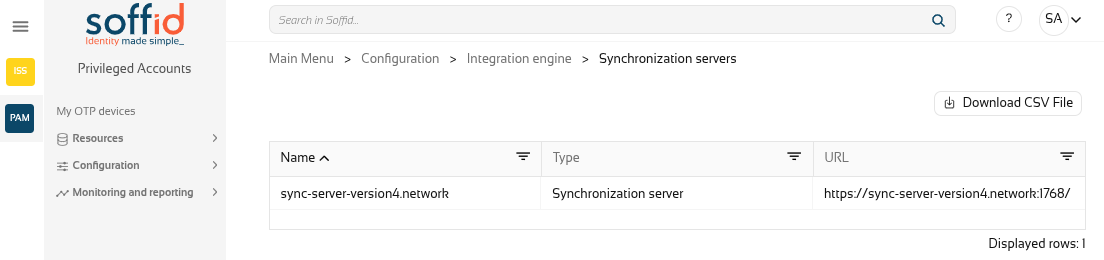](https://bookstack.soffid.com/uploads/images/gallery/2026-01/0x18JNc4F60YOQ6o-image.png) ### Next servers configuration In order to configure the next server syncservers, a two step process is required: first, a normal user installs and configure the sync server software; next, a Soffid administrator allows the sync server to join the sync servers network. To perform the next step, you do not need to enter the database credentials. Instead, the primary sync server URL and a Soffid console user name and password are required. For instance, you can execute: On Linux: ```shell `/opt/soffid/iam-sync/bin/configure -hostname [hostname] -user [user] -pass [pass] -server [https://yourserver:760] -tenant [master]` ``` On Windows: ```shell `%ProgramFiles%\soffid\iam-sync\bin\configure -hostname [hostname] -user [user] -pass [pass] -server [https://yourserver:760] -tenant [master]` ``` After executing the command, an approval task will appear in Soffid console. The administrator can take ownership of the task and approve or reject it. After approving the server creation, the server will be configured as a proxy sync server (without database access). The administrator can open the sync servers configuration page to change the sync server role at any time. ### Configure a synchronization server proxy without approval in UI If you want to bypass the appoval process, there is a configuration setting that allows it: - Open console and click on *Start →* *Soffid Configuration → Soffid Parameters*: - Click on *Add New* and, then, write the parameter **soffid.server.register**, set the value to ***direct*** and *Confirm changes*. - Execute the configuration of a synchronization server proxy as follows: On Linux: ``` /opt/soffid/iam-sync/bin/configure -hostname hostname -user usuario -pass pass -server https://Now you can connect to the IAM console [http://localhost:8080/soffid](http://%3Cnode-ip%3E%3Cpublish-port%3E/) and chek if Console and Syncserver are connected.
# Configure TLS for IAM Console ## Introduction The TLS protection of Soffid IAM Console is applied through the configuration of the Apache TomEE embedded in the installation. This solution is running under java technology therefore we need a jks file (Java Key Store) or a PKCS#12 file with the information of your certificate. Once you have the Console installed and your certificate in jks format you can follow this steps to configure it the first time or for an update. Mind that sometimes, the network encryption algorithm is named SSL, in fact, the configuration file still displays the word SSL. However, SSL protocol is now outdated, and TLSv1.2 is used instead. ## Load a PKCS#12 (.PFX) file There are many standard ways to store and transfer private keys and certificates, but the most common one is the PKCS#12 format. Its main advantage is that it contains, in a single file, both the private key and the public certificate. To transform the .PFX file to a java key store (.JKS), and can use the next command (you have to adapt it to your system):Replace <YOUR\_FILE> for your file name.
```shell keytool -v -importkeystore -srckeystoreIf we have a key and certificate (key, crt), the step to perform the conversion is:
``` openssl pkcs12 -inkey keyfile.key -in certificate.crt -out name_to_export -export keytool -v -importkeystore -srckeystore name_to_export -srcstoretype PKCS12 -destkeystore /opt/soffid/iam-console-4/conf/new_certificate_name.jks -deststoretype JKS -destkeypass password -srcstorepass password -deststorepass password ``` ## Configuration The configuration file to modify is the following one:/opt/soffid/iam-console-4/conf/server.xml
It can contain one or more connectors. Uncomment or add the following one, that enables the TLS configuration:Attribute | Comment |
|---|---|
| **port** | You can choose the standard 443 or another custom port |
| **protocols** (inside SSLHostConfig tag) **sslEnabledProtocols** (inside Connector tag) | You can configure the protocols allowed. For intance, protocols="TLSv1.3" or sslEnabledProtocols="TLSv1.3" |
| **certificateKeystoreFile** | The source by default starts from /opt/soffid/iam-console-4/ (the installation directory) |
| **certificateKeystorePassword** | The password used to encrypt the jks file |
| **certificateKeyAlias** | The alias to identify your key and certificate |
If you have some configuration error, you can search for more information in the Console log (the current day log): /opt/soffid/iam-console-4/logs/soffid-YYYY-MM-DD.log
##### Example server.xml This example only allows protocols TLSv1.3 ```XML ............| **Variable** | **Description** | **Example** |
| DB\_URL | JDBC URL | jdbc:mariadb://dbcontainer/soffid jdbc:oracle:thin:@HOST:PORT:SID jdbc:oracle:thin:@//HOST:PORT/SERVICENAME |
| DB\_USER | Database user | Soffid |
| DB\_PASSWORD | Database password | 5uper5ecret |
| JAVA\_OPT | Java virtual machine options | -Xmx4096m |
| SECURE | (optional) Enables the Java Security Manager | true |
| SOFFID\_TRUSTED\_SCRIPTS | (optional) Allows you to use insecure classes. Available since console version 3.5.6 | true false |
| HIDE\_MENU | (optional) Allows you to hide the Console menu options. Available since console version 3.5.6 | soffid.admin You can choose the proper option from the Console.yaml file. |
| AUTH\_METHODS | (optional) Allows to force the authentication mechanisms. This configuration overrides the one configured in the authentication option of the Soffid console. Available since console version 3.5.6 | Options SAML PASSWORD SAML PASSWORD |
| EXTERNAL\_URL | (optional) Allows to override host name configuration when there are two Consoles. Available since console version 3.5.9.5 | https://soffid.lab.internal.com |
| SECURE\_SCRIPT | Available since console 3.6.72 and console 4.0.56. Allows to execute scripts with trusted and custom tructed clasess | true false (by default) |
| TRUSTED\_CLASSES | Available since console 3.6.72 and console 4.0.56. Add new trusted classes (all package) separated by space | |
| SOFFID\_DISABLE\_GEOIP | Available since console version 4.0.67 This allows to disable the GeoIP service. It is useful when a Soffid instance does not have Internet access. | true false (by default) |
| **Variable** | **Description** | **Example** |
| DBPOOL\_MIN\_IDLE | The minimum number of connections should be kept in the pool at all times. | 1 or 2 |
| DBPOOL\_MAX\_IDLE | The maximum number of connections should be kept in the pool at all times. | between 10 and 15 |
| DBPOOL\_INITIAL | The connection number will be established when the connection pool is started. | 3 or 4 |
| DBPOOL\_MAX | The maximum number of active connections that can be allocated. If no value is indicated, the default value is 30. The transaction fails if the maximum connections are reached within 30 seconds and no connection is released. | 25 |
| **Volume** | **Usage** |
| /opt/soffid/iam-console-4/logs | Console log files `/opt/soffid/iam-console-4/logs` |
| /opt/soffid/iam-console-4/index | Text search engine index files. It can be erased at any time. The engine will regenerate the search engine. `/opt/soffid/iam-console-4/index/` |
| /opt/soffid/iam-console-4/conf | Configuration files, including server.xml and tomee.xml files `/opt/soffid/iam-console-4/conf` |
When the console is created, the password for the user *admin* will be *changeit* and it will be valid for 24 hours.
Now you can connect the Soffid Console [http://localhost:8080/soffid](http://localhost:8080/soffid)/The first thing you must do is to change the admin user password.
Next Step: [Installing Sync server](https://bookstack.soffid.com/books/installation/page/installing-sync-server-b3e "Installing Sync server")
# Installing Sync server Guide to install Sync server using Docker. ## Prerequisites Soffid IAM sync server requires the following requirements: - [Supported database installed](https://bookstack.soffid.com/books/installation/page/initialize-database "Initialize database") - [Soffid Console Installed](https://bookstack.soffid.com/books/installation/page/installing-iam-console-ef0 "Installing IAM Console") ## Repositories Soffid 3 uses the public Docker Hub: [https://hub.docker.com/r/soffid/iam-console/](https://hub.docker.com/r/soffid/iam-console/) Soffid 4 uses the Google Cloud Artifact Registry, contact to Soffid when you need access to it. ## Video Tutorial ### Linux ## Installation ### Install first Sync server To configure the first IAM Sync server, the following environment variables can be set for the first server:| Variable | Description | Example |
| DB\_URL | JDBC URL | jdbc:mariadb://dbcontainer/soffid |
| DB\_USER | Database user | Soffid |
| DB\_PASSWORD | Database password | 5uper5ecret |
| SOFFID\_HOSTNAME | The hostname used to access the sync server | syncserver01.soffid.com |
| SOFFID\_PORT | TCP port used for incoming connections | 760 |
| **SOFFID\_MAIN** | Set to yes for the first sync server, no for the next ones | **yes** |
| Variable | Description | Example |
| DBPOOL\_MIN\_IDLE | The minimum number of connections should be kept in the pool at all times. | 1 or 2 |
| DBPOOL\_MAX\_IDLE | The maximum number of connections should be kept in the pool at all times. | between 10 and 15 |
| DBPOOL\_INITIAL | The number of connections will be established when the connection pool is started. | 3 or 4 |
| DBPOOL\_MAX | The maximum number of active connections that can be allocated. If no value is indicated, the default value is 30. The transaction fails if the maximum connections are reached within 30 seconds and no connection is released. | 25 |
| DBPOOL\_MAX\_IDLE\_TIME | Number of seconds that a connection to a DB that is not in use is maintained. Available since Sync Server version 3.5.4.3 | 3600 |
| Variable | Description | Example |
| SOFFID\_SERVER | First sync server url | https://syncserver01.soffid.com:1760 |
| SOFFID\_USER | Soffid user to join the security domain. If you are working in a tenant, the user of the tenant. | admin |
| SOFFID\_PASS | Soffid user password. If you are working in a tenant, the user password of the tenant. | changeit |
| SOFFID\_HOSTNAME | The host name used to access to the sync server | syncserver.soffid.com |
| SOFFID\_PORT | TCP port used for incomming connections | 760 |
| SOFFID\_TENANT | Tenant name | master |
| **SOFFID\_MAIN** | Set to yes for the first sync server, no for the next ones | **no** |
| Variable | Description | Example |
| SOFFID\_SERVER | First sync server url | https://syncserver01.soffid.com:1760 |
| SOFFID\_USER | Soffid user to join the security domain | admin |
| SOFFID\_PASS | Soffid user password | changeit |
| SOFFID\_HOSTNAME | The host name used to access to the sync server | syncserver.soffid.com |
| SOFFID\_TENANT | Tenant name | master |
| **SOFFID\_MAIN** | Set to yes for the first sync server, no for the next ones | **no** |
| **SOFFID\_REMOTE** | Flag to enable cloud protocol | **yes** |
| Volume | Usage |
| /opt/soffid/iam-sync/conf | Configuration files, including private keys and certificates |
Now you can connect to the IAM console [http://localhost:8080/soffid](http://%3Cnode-ip%3E%3Cpublish-port%3E/) and chek if Console and Syncserver are connected.
# How to add a certificate to cacerts ## Step by stepThis procedure is valid for the docker environment, but it is not for Kubernetes.
How to add the Sync server certificate to the Java key store of Soffid console or Soffid PAM launcher. 1. Start by downloading the certificate from the Sync server: a. Connect to [https://<SYNC-SERVER>:1760/SAML/metadata.xml?tenant=<your-tenant>](https://iam-sync.soffidnet:1760/SAML/metadata.xml?tenant=demolab) To get the master's certificate: ``` https://iam-sync.soffidnet:1760/SAML/metadata.xml?tenant=master ``` To get a tenant's certificate: ``` https://iam-sync.soffidnet:1760/SAML/metadata.xml?tenant=demolab ``` b. Download the certificate: [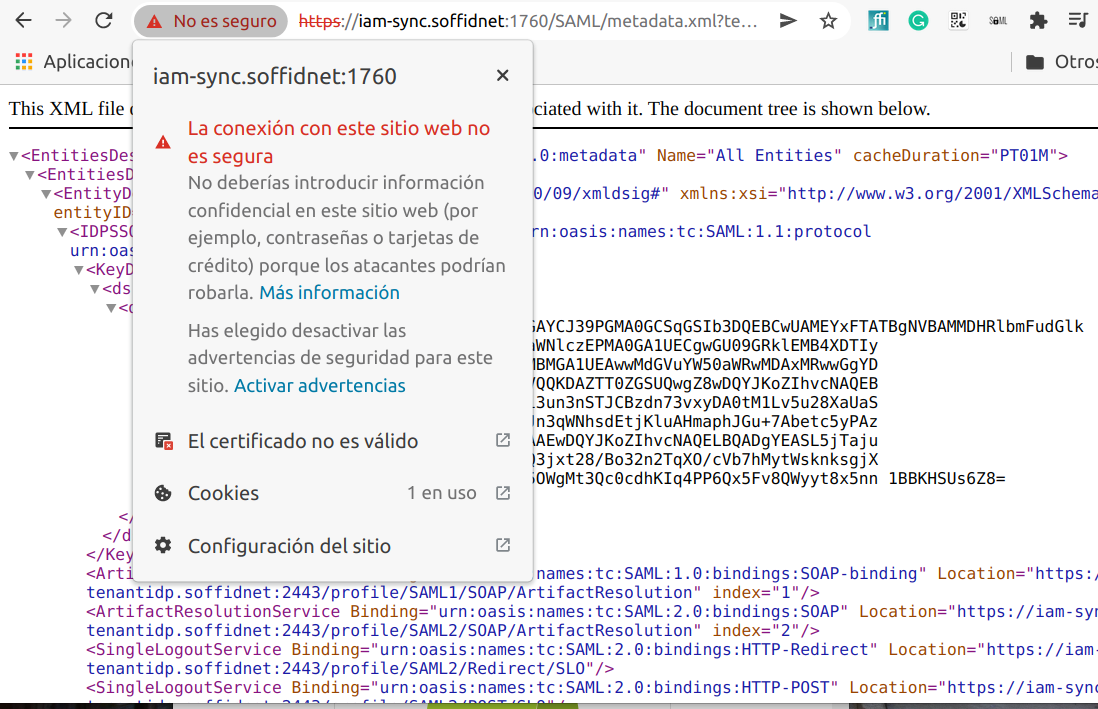](https://bookstack.soffid.com/uploads/images/gallery/2022-05/image-1652881836064.png) [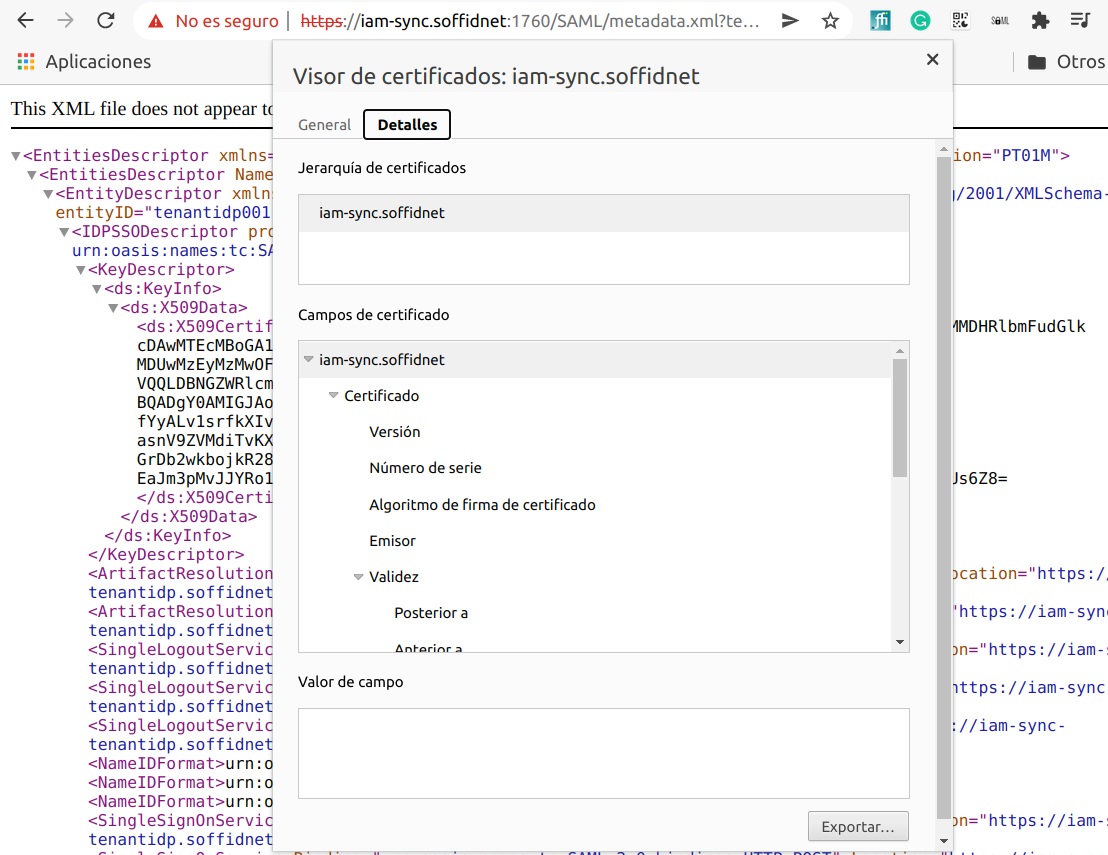](https://bookstack.soffid.com/uploads/images/gallery/2022-05/image-1652881869458.png) [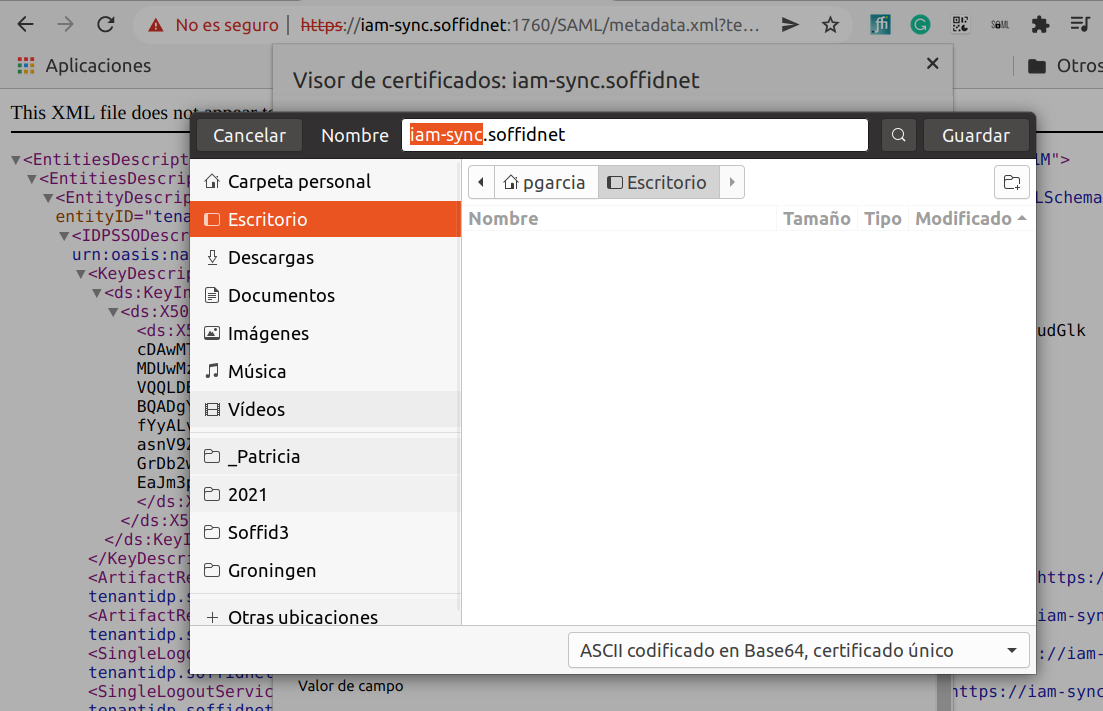](https://bookstack.soffid.com/uploads/images/gallery/2022-05/image-1652881914804.png) 2. Copy the certificate file to the container (Soffid Console or Soffid PAM Launcher): Sample how to copy the file to the tmp folder: ```shell sudo docker cp iam-sync.soffidnet iam-console:tmp ``` Sample how to copy the file to the root folder: ```shell sudo docker cp iam-sync.soffidnet iam-console:/ ``` 3. Connect to the container ```shell sudo docker exec -it iam-console /bin/bash ``` 4. Import the certiticate: ```shell keytool -import -file /tmp/iam-sync.soffidnet -cacerts ``` - password: **changeit** - Trust this certificate? \[no\]: **yes** - Certificate was added to Keystore 5. **Restart** the container --- If you want to display the current certificate: ```shell openssl s_client -connect iam-sync.soffidnet:1760 -showcert ``` # Upgrade syncserver proxy ## Step-by-step To upgrade the version of the on-premise syncserver proxy, follow these steps: 1\. Stop the syncserver container: ``` docker stop syncserver ``` 2\. Remove the container: ``` docker rm syncserver ``` 3\. Create a volume for the syncserver configuration: ``` docker volume create sync-conf ``` 4\. Create a file 'iam-sync-redeploy.sh' to hold the update script: ``` nano iam-sync-redeploy.sh ```Use your preferred text editor; `nano` is used here.
5\. Copy the following script: ``` docker run -d \ --name syncserver \ -v sync-conf:/opt/soffid/iam-sync/conf \ --restart always \ --network=host \ soffid/iam-sync:4.0.44 ```Replace '4.0.44' with the desired version.
6\. Save and exit the editor. 7\. Run the script: ``` bash iam-sync-redeploy.sh ``` You should see a response like this: [](https://bookstack.soffid.com/uploads/images/gallery/2026-09/gZk1FziQNFRVfRAN-2026-09-11-15-39.png) # Installing Soffid using Docker Compose # Installing Soffid ## Prerequisites - Docker compose - 8GB RAM - > 10GB disk space (50GB recomended) ## Installation ##### docker-compose.yaml / compose.yaml ```YAML services: mariadb: image: mariadb:11.4 environment: MYSQL_ROOT_PASSWORD: XXXX MYSQL_DATABASE: soffid MYSQL_USER: soffid MYSQL_PASSWORD: YYYY healthcheck: test: "/usr/bin/mariadb --user=root --password=XXXX --execute \"SHOW DATABASES;\"" interval: 2s timeout: 20s retries: 10 command: --max_allowed_packet=128M --innodb_log_file_size=256M --character-set-server=utf8mb4 --collation-server=utf8mb4_general_ci ports: - "3306:3306" networks: - network volumes: - mariadb_data:/var/lib/mysql console: image: europe-docker.pkg.dev/soffid-docker-images/private/iam-console:4.0.58 environment: DB_URL: jdbc:mariadb://mariadb/soffid DB_USER: soffid DB_PASSWORD: YYYY JAVA_OPT: -Xmx4096m ports: - 8080:8080 networks: - network healthcheck: test: bash -c "(echo 'GET /soffid/anonymous/logo.svg HTTP/1.1' >&0; echo >&0; cat >&2;) <> /dev/tcp/localhost/8080" interval: 10s timeout: 20s retries: 10 start_period: 40s volumes: - console_trust:/opt/soffid/iam-console-4/trustedcerts - console_conf:/opt/soffid/iam-console-4/conf - console_index:/opt/soffid/iam-console-4/index depends_on: mariadb: condition: service_started syncserver: image: europe-docker.pkg.dev/soffid-docker-images/private/iam-sync:4.0.35 hostname: syncserver environment: SOFFID_PORT: 1760 SOFFID_HOSTNAME: syncserver.network SOFFID_MAIN: yes DB_URL: jdbc:mysql://mariadb/soffid DB_USER: soffid DB_PASSWORD: YYYY networks: - network volumes: - sync_conf:/opt/soffid/iam-sync/conf depends_on: mariadb: condition: service_started networks: network: name: network driver: bridge volumes: mariadb_data: name: soffid4_mariadbdata console_trust: name: soffid4_console_trustedcerts console_conf: name: soffid4_console_conf console_index: name: soffid4_console_index sync_conf: name: soffid4_sync_conf ``` ##### Ubuntu commands Bear in mind, that the name of the YAML file must be **docker-compose.yaml** And you must execute the docker compose action inside the folder where this file is located. ```shell cd /.../.../soffid ``` Apply the YAML: ```shell docker compose up -d ``` [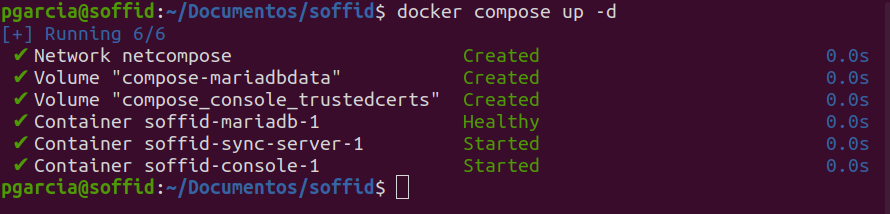](https://bookstack.soffid.com/uploads/images/gallery/2023-11/image-1699860896041.png) Check containers ```shell docker compose ps ``` View the console log ```shell docker compose logs -f console ``` View the Sync Server log ```shell docker compose logs -f sync-server ```When the console is created, the password for the user *admin* will be *changeit* and it will be valid for 24 hours.
Now you can connect to Soffid Console [http://localhost:8080/soffid](http://localhost:8080/soffid) The first thing you must do is to change the **admin** user password **changeit**.
## Upgrade You can update the version in the yaml file ```shell docker compose up -d ``` # How to make a Mariadb Backup? You can perform Mariadb backup by executing the following command: ```shell sudo docker exec -i MARIADB_CONTAINER_NAME mariadb-dump -u root -p soffid01 | gzip > /some/path/on/your/host/soffid01.dump.gz ``` This action requires the root password. You can use: - `--max-allowed-packet=512M`: sets the maximum packet size to 512MB to handle large databases. - `--skip-add-locks` and `--skip-lock-tables`: these options are used to improve performance by skipping certain locking mechanisms. ##### Example [](https://bookstack.soffid.com/uploads/images/gallery/2024-01/image-1704804469717.png) # Installing Soffid with Reverse Proxy ## Prerequisites - Docker compose - 8GB RAM - > 10GB disk space (50GB) ## Installation #### Certificates 1\. Generate an RSA private key ```shell sudo openssl genrsa -out reverse_proxy.key 2048 ``` 2\. Generate a Certificate Signing Request (CSR) ```shell sudo openssl req -new -key reverse_proxy.key -out reverse_proxy.csr ``` 3\. Generate a self-signed certificate ``` sudo openssl x509 -req -days 10000 -in reverse_proxy.csr -signkey reverse_proxy.key -out reverse_proxy.crt ``` #### .pem Generate, if it is necessary, a file .pem with the root and intermediate certificates - [client.pem](https://bookstack.soffid.com/attachments/181) #### Configure nginx: reverse\_proxy.conf ```YAML # re-route everything to console server { client_max_body_size 100M; listen 8080; server_name console; error_page 497 http://$host:80$request_uri; location /soffid { proxy_pass http://compose-console:8080/soffid; } } # Sync Server server { listen 443 ssl; server_name sync-server; error_page 497 http://$host:80$request_uri; ssl_certificate /etc/nginx/cert/reverse_proxy.crt; ssl_certificate_key /etc/nginx/cert/reverse_proxy.key; ssl_client_certificate /etc/ssl/client.pem; ssl_verify_client optional_no_ca; ssl_verify_depth 2; location / { proxy_set_header X-SSL-CERT $ssl_client_escaped_cert; proxy_set_header Host $host; proxy_pass https://sync-server.netcompose:1443/; } } ``` #### docker-compose.yaml ```YAML version: '2' services: mariadb: image: mariadb:11.1.2 environment: MYSQL_ROOT_PASSWORD: XXXX MYSQL_DATABASE: soffid01 MYSQL_USER: admin MYSQL_PASSWORD: XXXX healthcheck: test: "/usr/bin/mariadb --user=root --password=XXXX --execute \"SHOW DATABASES;\"" interval: 2s timeout: 20s retries: 10 command: --max_allowed_packet=128M networks: - network volumes: - mariadb_data:/var/lib/mysql console: image: soffid/iam-console:4.0.0-beta-8 environment: DB_URL: jdbc:mariadb://mariadb/soffid01 DB_USER: root DB_PASSWORD: XXXX networks: - network ports: - "8080" volumes: - console_trust:/opt/soffid/iam-console-4/trustedcerts depends_on: mariadb: condition: service_healthy sync-server: image: soffid/iam-sync:4.0.0-beta-2 hostname: sync-server environment: SOFFID_PORT: 1760 SOFFID_HOSTNAME: sync-server.netcompose SOFFID_MAIN: yes DB_URL: jdbc:mysql://mariadb/soffid01 DB_USER: root DB_PASSWORD: XXXX networks: - network volumes: - sync_conf:/opt/soffid/iam-sync/conf ports: - "1443" depends_on: mariadb: condition: service_healthy nginx: image: nginx:1.25.3 container_name: compose-nginx volumes: - /YOUR FOLDER/proxy-inverso/nginx/conf/reverse_proxy.conf:/etc/nginx/conf.d/default.conf - /YOUR FOLDER/proxy-inverso/nginx/cert/reverse_proxy.pem:/etc/nginx/cert/reverse_proxy.pem - /YOUR FOLDER/proxy-inverso/nginx/cert/reverse_proxy.key:/etc/nginx/cert/reverse_proxy.key - /YOUR FOLDER/proxy-inverso/nginx/cert/reverse_proxy.crt:/etc/nginx/cert/reverse_proxy.crt - /YOUR FOLDER/proxy-inverso/nginx/ssl/client.pem:/etc/ssl/client.pem ports: - 8080:8080 - 443:443 links: - console - sync-server networks: - network networks: network: name: netcompose driver: bridge volumes: mariadb_data: name: compose-mariadbdata console_trust: name: compose_console_trustedcerts sync_conf: name: compose_sync_conf ``` #### Ubuntu commands Bear in mind, that the name of the YAML file must be **docker-compose.yaml** And you must execute the docker compose action inside the folder where this file is located. ```shell cd /.../.../soffid ``` Apply the YAML: ```shell docker compose up -d ``` [](https://bookstack.soffid.com/uploads/images/gallery/2023-11/image-1699860896041.png) Check containers ```shell docker compose ps ``` View the console log ```shell docker compose logs -f console ``` View the Sync Server log ```shell docker compose logs -f sync-server ```When the console is created, the password for the user *admin* will be *changeit* and it will be **valid for 24 hours**.
Now you can connect to Soffid Console [http://localhost:8080/soffid](http://localhost:8080/soffid) The first thing you must do is to change the admin user password.
## Upgrade You can update the version in the .yaml file ```shell docker compose up -d ``` # Full installation of Soffid 3 as test environment ## Introduction This guide describes **all the steps required to install Soffid 3 as test environment**. We’re going to install it using **Docker Compose**, as it’s the simplest and quickest method for both installation and maintenance. ## Prerequisites - To have a **Linux** machine; Ubuntu 24 has been used for this tutorial. - The Linux administrator user must have **sudo privileges**. ## Step 1: Install Docker & Docker compose The first step is to install **Docker** and **Docker compose**. Docker is the platform and compose is a tool that simplifies management. #### 1.1 Install docker Install docker. ``` sudo apt-get update sudo apt-get install docker.io docker --version ``` #### 1.2 Use docker without sudo To use docker without sudo.| **Command** | **Comment** |
| sudo gedit /etc/group | Edit the file with your editor (gedit for this example) |
| docker:x:988:YOUR-USER | Add YOUR-USER at the end of the docker command without : at the end |
| logout | Log out from the ubuntu session |
| login | Log in into the ubuntu session |
| docker ps | Confirm that you do not need to use sudo with a docker command |
At this link, you can see the most commonly used Docker Compose commands: [Docker compose commands](https://bookstack.soffid.com/books/soffid-internal-documentation/page/docker-compose-commands "Docker compose commands")
#### 2.1 Test connectivity **Test** the connectivity with the Soffid 3 repository pulling an image (¡Do not use sudo with docker, it does not work!). ``` docker pull "soffid/iam-console:3.6.75" ``` [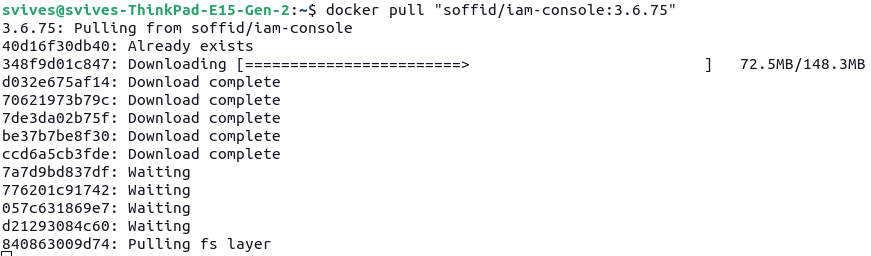](https://bookstack.soffid.com/uploads/images/gallery/2026-06/d0BqdyWFeQpuBQ6Q-image.png) #### 2.2 Create the directory and file structure Create a the new file for the docker compose with this directory structure. ``` cd mkdir lab cd lab mkdir soffid3 cd soffid3 touch docker-compose.yaml ``` #### 2.3 Configure the docker-compose.yaml Use this content for the docker-compose.yaml file.Change the XXXX password and YYYY password for your values.
``` services: mariadb: image: mariadb:11.4 environment: MYSQL_ROOT_PASSWORD: XXXX MYSQL_DATABASE: soffid MYSQL_USER: soffid MYSQL_PASSWORD: YYYY healthcheck: test: "/usr/bin/mariadb --user=root --password=XXXX --execute \"SHOW DATABASES;\"" interval: 2s timeout: 20s retries: 10 command: --max_allowed_packet=128M --innodb_log_file_size=256M --character-set-server=utf8mb4 --collation-server=utf8mb4_general_ci networks: - network volumes: - mariadb_data:/var/lib/mysql console: image: soffid/iam-console:3.6.74 environment: DB_URL: jdbc:mariadb://mariadb/soffid DB_USER: soffid DB_PASSWORD: YYYY SOFFID_TRUSTED_SCRIPTS: true networks: - network ports: - "8080:8080" volumes: - console_trust:/opt/soffid/iam-console-3/trustedcerts - console_conf:/opt/soffid/iam-console-3/conf - console_index:/opt/soffid/iam-console-3/index depends_on: mariadb: condition: service_healthy syncserver: image: soffid/iam-sync:3.6.47 hostname: syncserver environment: SOFFID_PORT: 1760 SOFFID_HOSTNAME: syncserver SOFFID_MAIN: yes DB_URL: jdbc:mysql://mariadb/soffid DB_USER: soffid DB_PASSWORD: YYYY networks: - network volumes: - sync_conf:/opt/soffid/iam-sync/conf depends_on: mariadb: condition: service_healthy networks: network: name: netcompose driver: bridge volumes: mariadb_data: name: soffid3_mariadbdata console_trust: name: soffid3_console_trustedcerts console_conf: name: soffid3_console_conf console_index: name: soffid3-console_index sync_conf: name: soffid3_sync_conf ``` #### 2.4 Generate the containers Generate the containers. ``` docker compose up -d ``` #### 2.5 Publish the domains We recommend using a local domain to access the Console, create new entries in: - Linux **/etc/hosts** - Windows **C:\\Windows\\System32\\drivers\\etc\\hosts** ``` # Soffid 3 local 127.0.0.1 console.soffid3.local 127.0.0.1 syncserver.soffid3.local ``` #### 2.6 Access to the Console Follow these steps: - Go to **login** page: [http://console.soffid3.local:8080](http://console.soffid3.local:8080 "http://console.soffid3.local:8080") - We have to **wait** until the login page will be prompted. - User: **admin** / password: **changeit** (temporal for 24 hours). - Fill the **new password** and save it to use it later! You will now see this page. [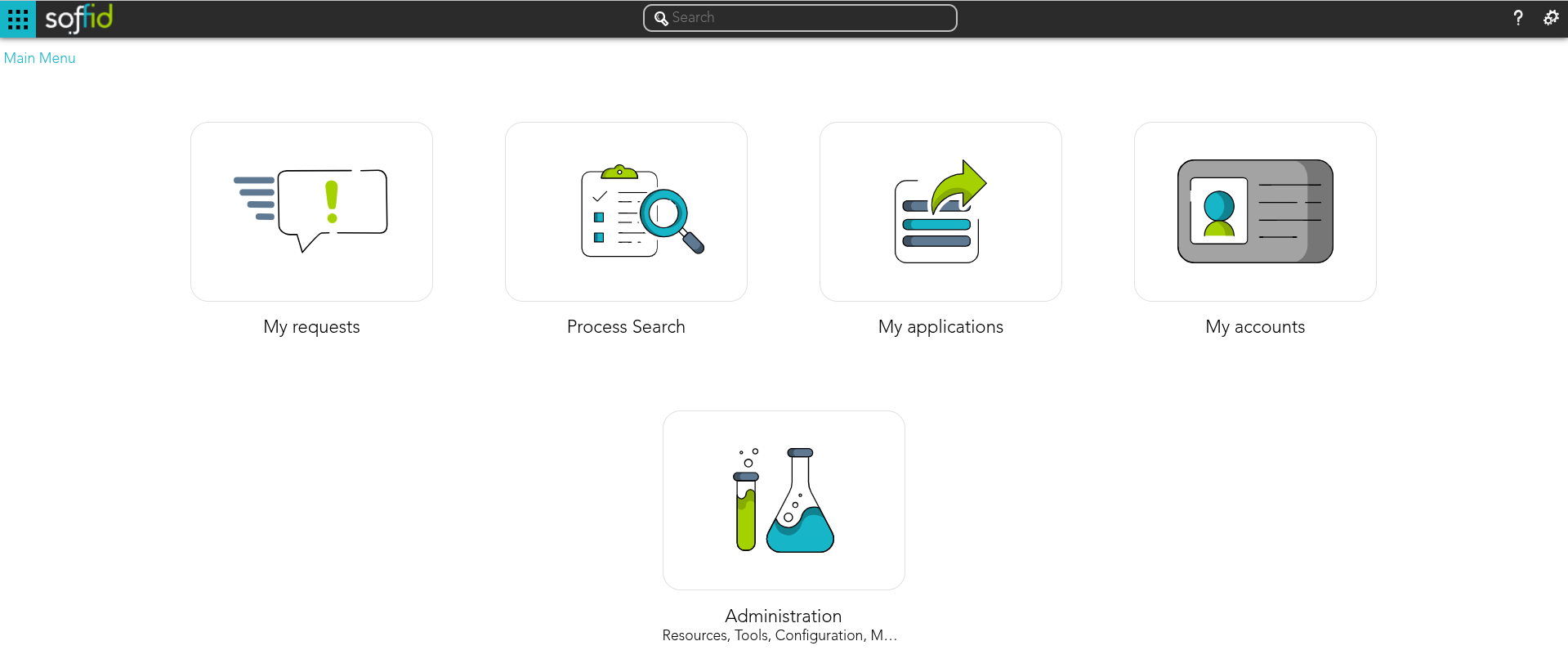](https://bookstack.soffid.com/uploads/images/gallery/2026-06/gzllZ9GI82ldJk4L-image.png) # Full installation of Soffid 4 as test environment ## Introduction This guide describes **all the steps required to install Soffid 4 as test environment**. We’re going to install it using **Docker Compose**, as it’s the simplest and quickest method for both installation and maintenance. ## Prerequisites #### User prerequisites - To have a **Linux** machine; Ubuntu 24 has been used for this tutorial. - The Linux administrator user must have **sudo privileges**. - To have a **Soffid account** for the license activation step. #### Soffid prerequisites - Your Soffid account has to had a special **role to download Soffid 4 images** from the marketplace. - Your Soffid account has to had a **Soffid 4 license** for the test environment. ## Step 1: Install Docker & Docker compose The first step is to install **Docker** and **Docker compose**. Docker is the platform and compose is a tool that simplifies management. #### 1.1 Install docker Install docker. ``` sudo apt-get update sudo apt-get install docker.io docker --version ``` #### 1.2 Use docker without sudo To use docker without sudo.| **Command** | **Comment** |
| sudo gedit /etc/group | Edit the file with your editor (gedit for this example) |
| docker:x:988:YOUR-USER | Add YOUR-USER at the end of the docker command without : at the end |
| logout | Log out from the ubuntu session (sometimes we have needed a restart) |
| login | Log in into the ubuntu session |
| docker ps | Confirm that you do not need to use sudo with a docker command |
At this link, you can see the most commonly used Docker Compose commands: [Docker compose commands](https://bookstack.soffid.com/books/soffid-internal-documentation/page/docker-compose-commands "Docker compose commands")
## Step 2: Install Soffid 4 #### 2.1 Test connectivity **Test** the connectivity with the Soffid 4 repository pulling an image (¡Do not use sudo with docker, it does not work!). ``` docker pull "europe-docker.pkg.dev/soffid-docker-images/private/iam-console:4.0.0" ``` [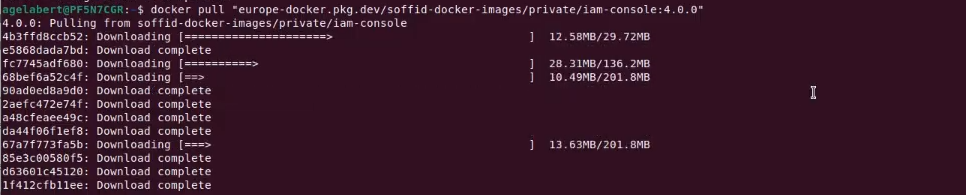](https://bookstack.soffid.com/uploads/images/gallery/2026-06/HqfdzkzHscTEUcNu-image.png) #### 2.2 Create the directory and file structure Create a the new file for the docker compose with this directory structure. ``` cd mkdir lab cd lab mkdir soffid4 cd soffid4 touch docker-compose.yaml ``` #### 2.3 Configure the docker-compose.yaml Edit the docker-compose.yaml file, you can use vim.At this link, you can see the [How to use vim](https://bookstack.soffid.com/books/utilities/page/how-to-use-vim)
``` sudo vim docker-compose.yaml ``` Use this content for the docker-compose.yaml file.Change the XXXX password and YYYY password for your values.
``` services: mariadb: image: mariadb:11.4 environment: MYSQL_ROOT_PASSWORD: XXXX MYSQL_DATABASE: soffid MYSQL_USER: soffid MYSQL_PASSWORD: YYYY healthcheck: test: "/usr/bin/mariadb --user=root --password=XXXX --execute \"SHOW DATABASES;\"" interval: 2s timeout: 20s retries: 10 command: --max_allowed_packet=128M --innodb_log_file_size=256M --character-set-server=utf8mb4 --collation-server=utf8mb4_general_ci ports: - "3306:3306" networks: - network volumes: - mariadb_data:/var/lib/mysql console: image: europe-docker.pkg.dev/soffid-docker-images/private/iam-console:4.0.58 environment: DB_URL: jdbc:mariadb://mariadb/soffid DB_USER: soffid DB_PASSWORD: YYYY JAVA_OPT: -Xmx4096m ports: - 8080:8080 - 8443:8443 networks: - network healthcheck: test: bash -c "(echo 'GET /soffid/anonymous/logo.svg HTTP/1.1' >&0; echo >&0; cat >&2;) <> /dev/tcp/localhost/8080" interval: 10s timeout: 20s retries: 10 start_period: 40s volumes: - console_trust:/opt/soffid/iam-console-4/trustedcerts - console_conf:/opt/soffid/iam-console-4/conf - console_index:/opt/soffid/iam-console-4/index depends_on: mariadb: condition: service_started syncserver: image: europe-docker.pkg.dev/soffid-docker-images/private/iam-sync:4.0.35 hostname: syncserver environment: SOFFID_PORT: 1760 SOFFID_HOSTNAME: syncserver.network SOFFID_MAIN: yes DB_URL: jdbc:mysql://mariadb/soffid DB_USER: soffid DB_PASSWORD: YYYY ports: - 1760:1760 - 1443:1443 networks: - network volumes: - sync_conf:/opt/soffid/iam-sync/conf depends_on: mariadb: condition: service_started networks: network: name: network driver: bridge volumes: mariadb_data: name: soffid4_mariadbdata console_trust: name: soffid4_console_trustedcerts console_conf: name: soffid4_console_conf console_index: name: soffid4_console_index sync_conf: name: soffid4_sync_conf ``` #### 2.4 Generate the containers Generate the containers. ``` docker compose up -d ``` #### 2.5 Access to the Console Follow these steps: - Go to **login** page: [http://localhost:8080](http://localhost:8080) - We have to **wait** until the login page will be prompted (it takes several minutes). - Accept the **Update** button. - User: **admin** / password: **changeit** (temporal for 24 hours). - Fill the **new password** and save it to use it later! You will now see this page. [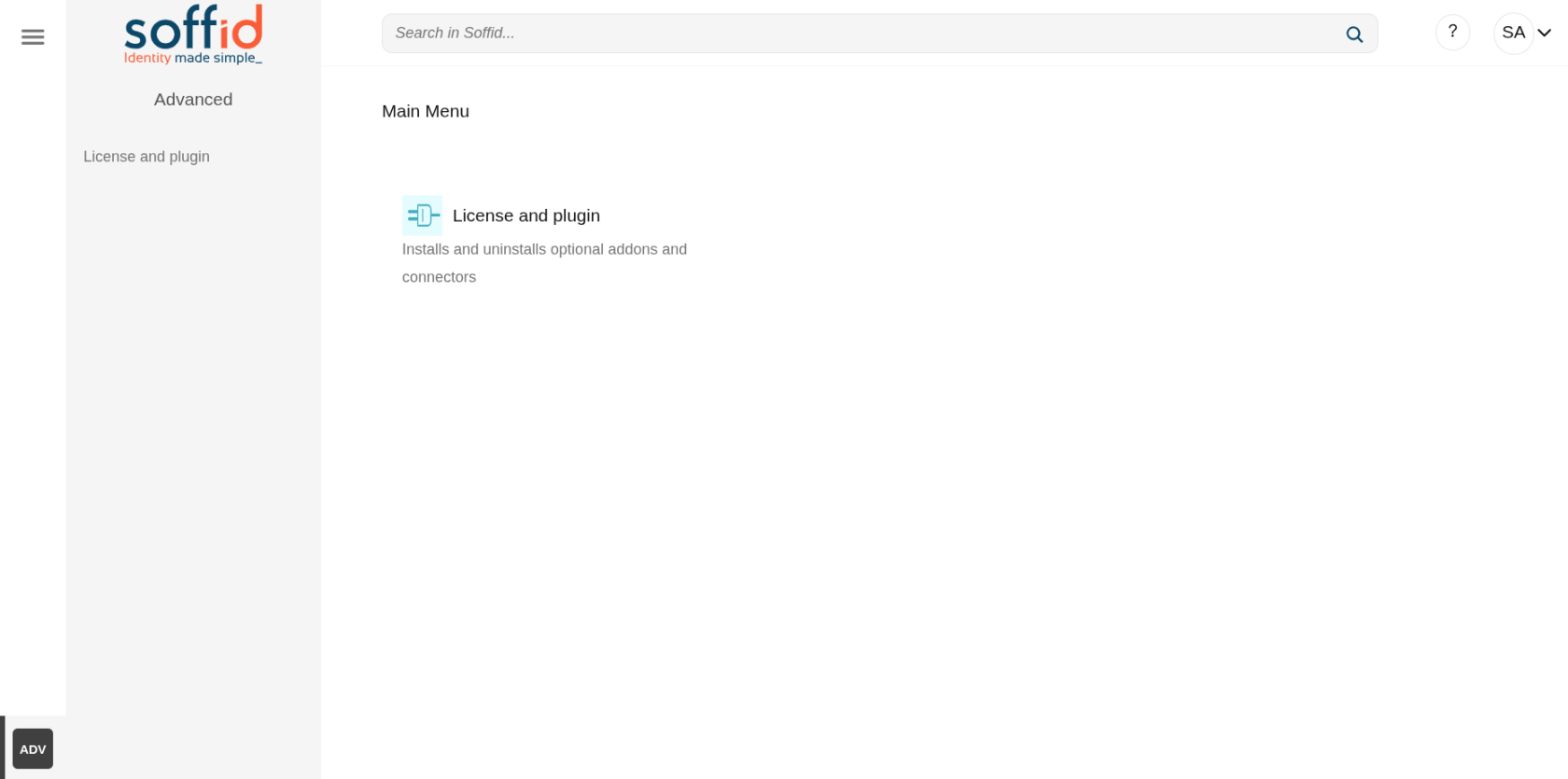](https://bookstack.soffid.com/uploads/images/gallery/2026-06/ggdbB4m7JWPgIggT-image.png) ## Step 3: Configure SSL access To correctly validate the new license, the Soffid Console must be SSL-enabled, it has to be open with the https protocol. #### 3.1 Publish the domains If you have a local environment, create new entries in: - Linux **/etc/hosts** - Windows **C:\\Windows\\System32\\drivers\\etc\\hosts** ``` # Soffid 4 local 127.0.0.1 console.soffid4.local 127.0.0.1 syncserver.soffid4.local ``` #### 3.2 Generate a self-signed certificate (pfx) Generate a self-signed certificate (pfx).Use **12345678** for all requiered passwords.
Generate a private key. ``` sudo openssl genrsa -aes256 -out console.soffid4.local.key ``` Generate a pem certificate.When you run the command, the prompt will ask for the **CN (Common Name)** attribute; use **console.soffid4.local**
``` sudo openssl req -x509 -days 1000 -new -key console.soffid4.local.key -out console.soffid4.local.pem ``` Generate a pfx (PKCS12). ``` sudo openssl pkcs12 -export -in console.soffid4.local.pem -inkey console.soffid4.local.key -name "console.soffid4.local" -out console.soffid4.local.pfx ``` #### 3.3 Generate a jks file Copy the pfx file in the console container. ``` sudo docker compose cp console.soffid4.local.pfx console:/opt/soffid/iam-console-4/trustedcerts ``` Enter the container. ``` docker compose exec -it console bash ``` Generate the jks file ``` cd /opt/soffid/iam-console-4/trustedcerts/ ```Change the password **12345678** if you have used a different one before
``` keytool -v -importkeystore \ -srckeystore /opt/soffid/iam-console-4/trustedcerts/console.soffid4.local.pfx \ -srcstoretype PKCS12 \ -destkeystore /opt/soffid/iam-console-4/trustedcerts/console.soffid4.local.jks \ -deststoretype JKS \ -destkeypass 12345678 -srcstorepass 12345678 -deststorepass 12345678 ``` Confirm that we are able to **open** the file and that the **alias** is correct. ``` keytool -v -list -keystore console.soffid4.local.jks ``` [](https://bookstack.soffid.com/uploads/images/gallery/2026-06/mN3ykqwOh8yaBYHt-image.png) #### 3.4 Configure the SSL port Configure the **server.xml** file. ``` cd /opt/soffid/iam-console-4/conf apt-get update apt-get install vim vim server.xml ``` Add this **configuration**. ```Port **8443** has already been configured in the step 2.3.
Exit the container and restart the Console. ``` exit docker compose restart console ``` #### 3.5 Access to Console with SSL Connect to the new URL: - [https://console.soffid4.local:8443](https://console.soffid4.local:8443) Confirm the SSL: browser > Not secure > Certificate details [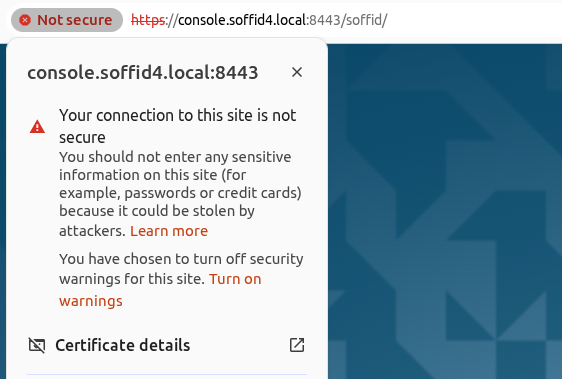](https://bookstack.soffid.com/uploads/images/gallery/2026-06/rGjTiGcLtTyIx5rq-image.png) [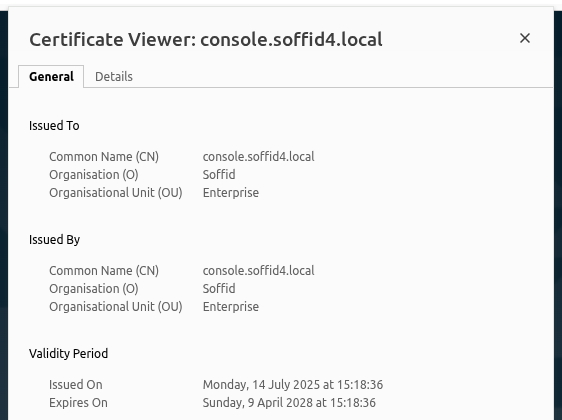](https://bookstack.soffid.com/uploads/images/gallery/2026-06/dRDM6MD3nXPy0B0n-image.png) ## Step 4: Apply the license When accessing the Soffid Console for the first time, you will need to apply a licence that the Soffid team will have created for you beforehand.For more information, check the [License and plugin](https://bookstack.soffid.com/books/soffid-4-reference-guide/page/license-and-plugin "License and plugin") page.
#### Step 4.1 Login with the Soffid account To apply the license follow these steps: - **Log** into the Soffid **Console** - Go to the "**License and plugin**" page - You will not have an active license - Click the "**License manager**" button - Log in with your **Soffid account** received from Soffid #### Step 4.2 Apply license - Select your new **license** - Accept the **conditions** - **Allow** "Access other apps and services on this device" - **Close**. Finally you will have an active license and access to all pages [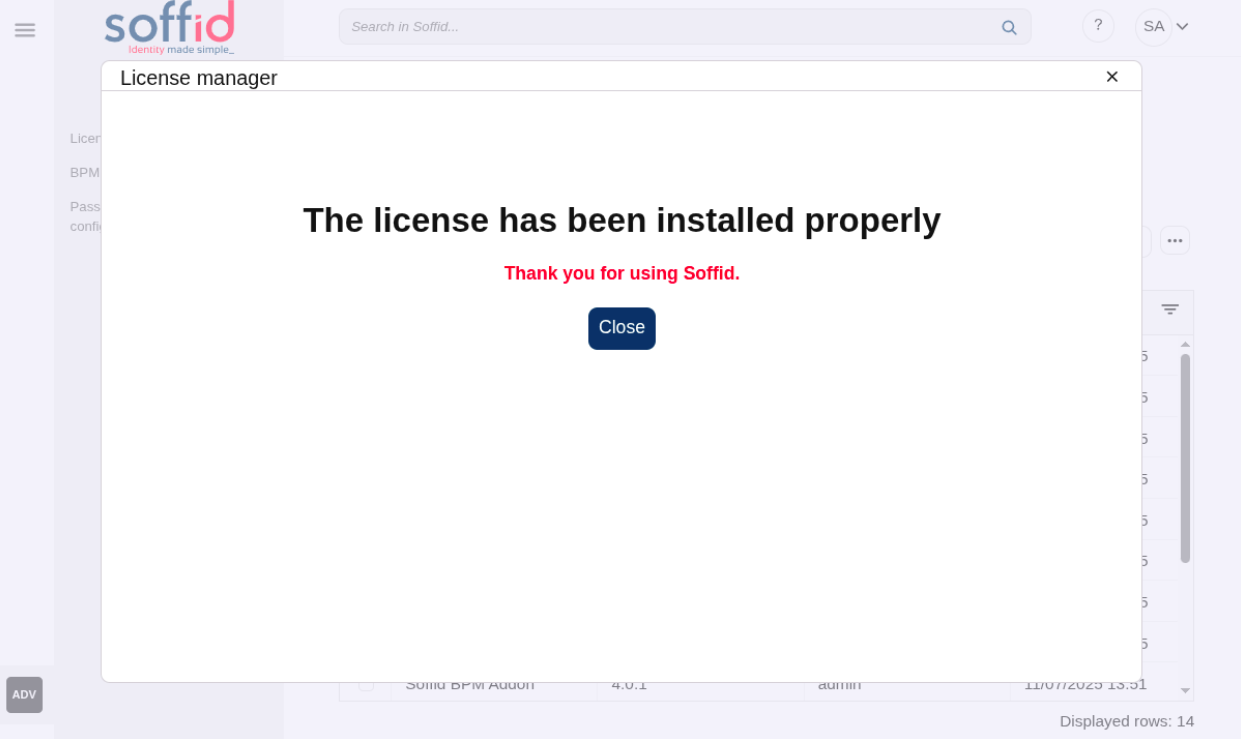](https://bookstack.soffid.com/uploads/images/gallery/2025-07/mLznAT1xnXBLkVN7-image.png) #### Step 4.3 Welcome to Soffid 4! You will now be able to access all of Soffid’s features. [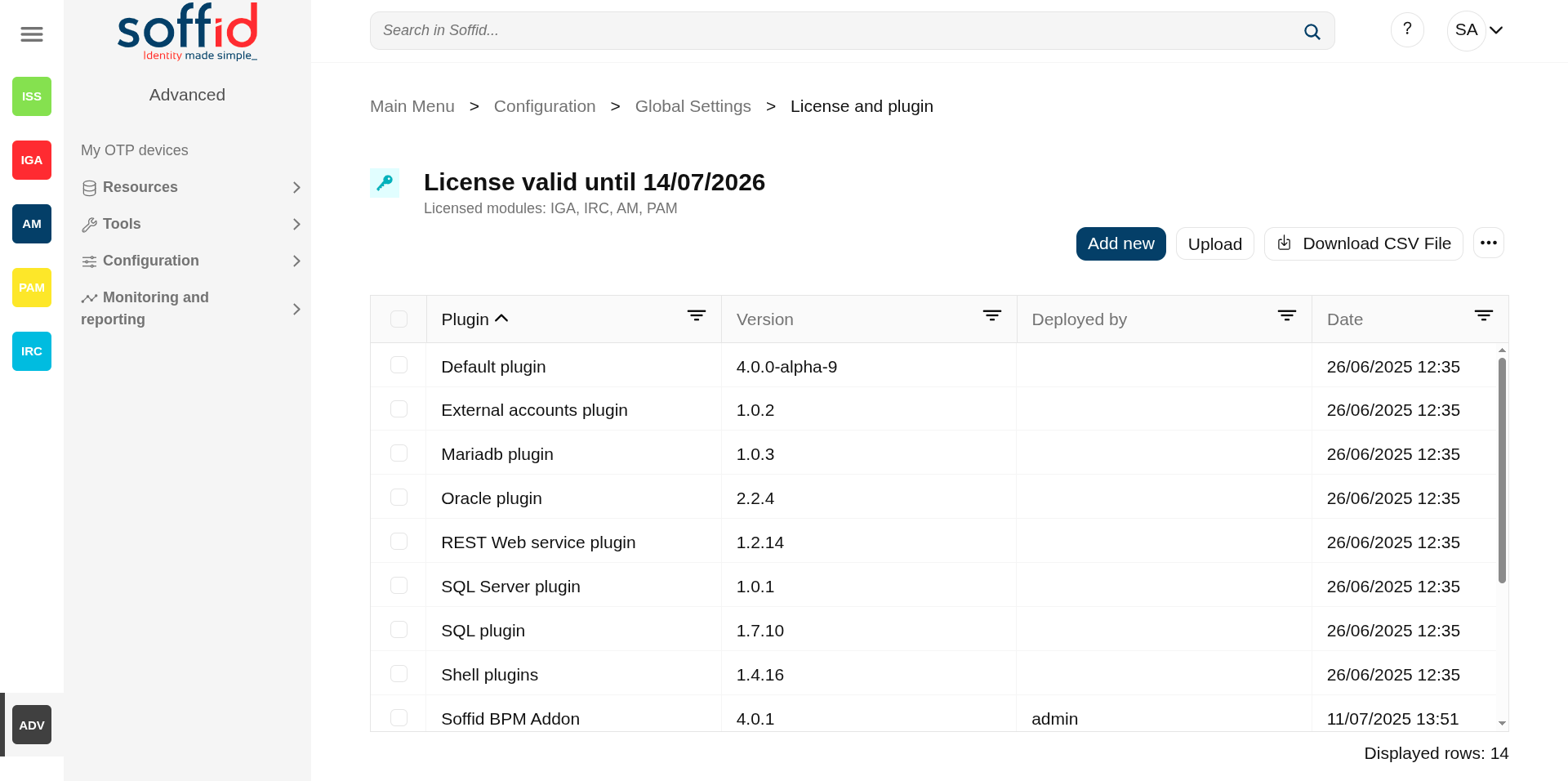](https://bookstack.soffid.com/uploads/images/gallery/2025-07/TwhcMZv48dFnJdKj-image.png) #### Step 4.4 Check the syncsever To check if the syncserver is active: - Go to the "**Sync server monitoring**" page - If the syncserver is not off, it is running [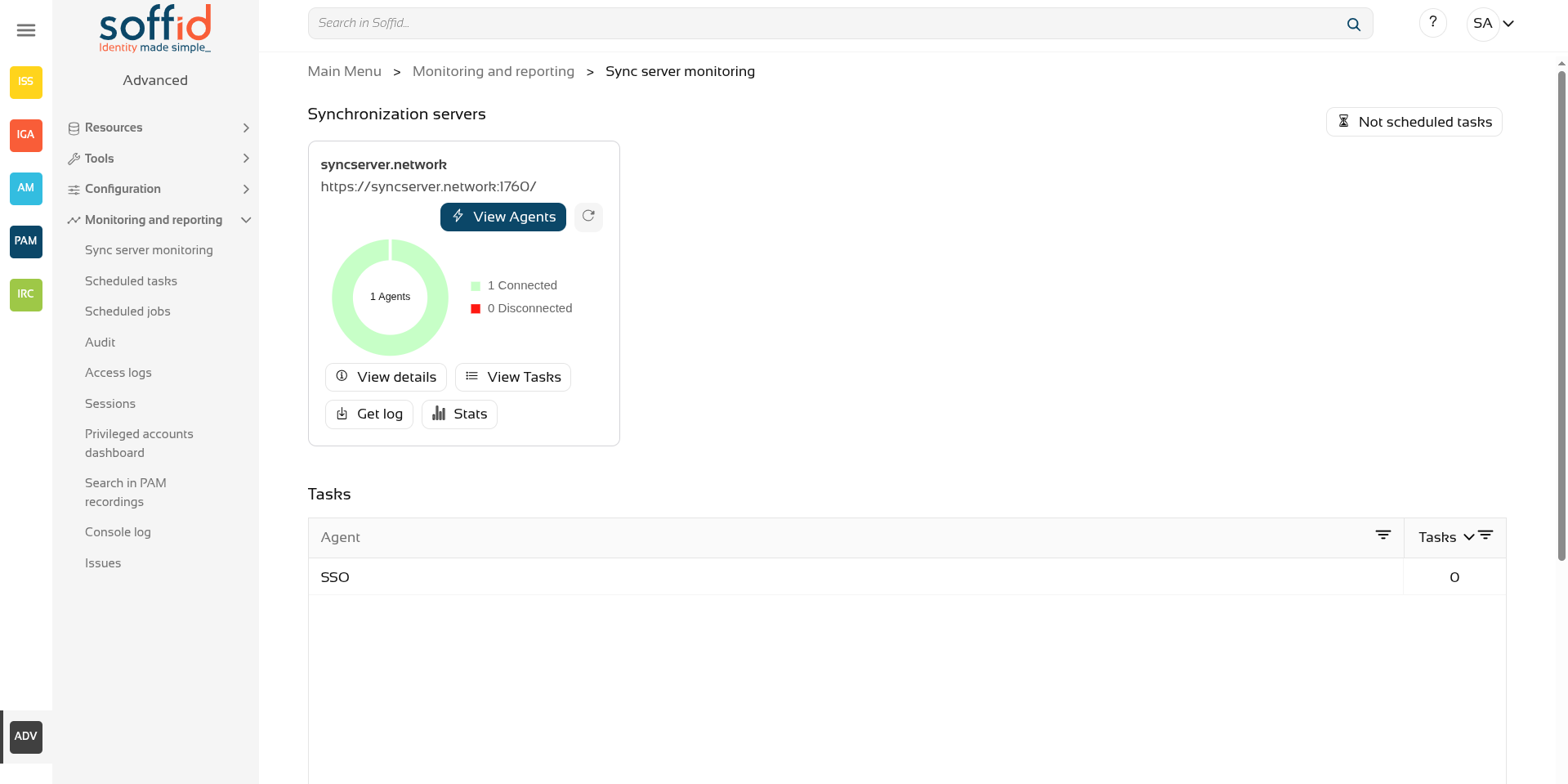](https://bookstack.soffid.com/uploads/images/gallery/2026-07/DnpHmB4QeOhpUSXa-image.png) # Installing Soffid on Kubernetes Guide to show le installation process os Soffid IAM in Kubernetes # Installing IAM Console Guide to install IAM Console on Kubernetes. ## Prerequisites - Kubernetes - 8GB RAM - > 10GB disk space - [Supported database installed](https://bookstack.soffid.com/books/installation/page/initialize-database-on-kubernetes) ## Video Tutorial ### Linux ## Installation You can use the docker image described at [Installing IAM console using Docker](https://bookstack.soffid.com/books/installation/page/installing-iam-console-ef0 "Installing IAM Console"). Here you have a sample Kubernets YAML descriptor to deploy it. Mind that any certificate present in the folder /opt/soffid/iam-console-4/trustedcerts is considered as a trusted certificate. It is important to include the root syncserver certificate or any other certificate the console must connect with. Another aspect to be aware of is the DNS resolution cache implemented by the java virtual machine. Because pods and service names often change its IP address, it suggested to disable the DNS cache adding the **-Dsun.net.inetaddr.ttl=-1** parameter. ```YAML apiVersion: v1 kind: Secret metadata: name: trusted-certs data: syncserver: MIIC+TCCAeGgAwIBAgIGAWwFI+dWMA0GCSqGSIb3DQEBCwUAMDMxDzANBgNVBAMMBlJvb3RDQTEPMA0GA1UECwwGbWFzdGVyMQ8wDQYDVQQKDAZTb2ZmaWQwHhcNMTkwNzE3MTMwMjE0WhcNMjkwNzE4MTMwMjE0WjAzMQ8wDQYDVQQDDAZSb290Q0ExDzANBgNVBAsMBm1hc3RlcjEPMA0GA1UECgwGU29mZmlkMIIBIjANBgkqhkiG9w0BAQEFAAOCAQ8AMIIBCgKCAQEArkRq5/Kq1a/WlI00xzuxj0CDaH/L3G01dN5tXEFMXnm4VgDaaQXEjxGL0HEO47flDWGvJckLxIHSgEtRaHTquLRYLfHwHw3S0CC/DqdYcMZGG7QkCHDfdGunIoRGvWOAYOaV0pSiqBsfXhqG/7R4Ux7kx7mWoRXHnTyWXZl6tlNl9k2fC47foI5uMsblB3bybNnzLw2JvdwC6I8bbzf1j38r98WevdzQMVYxn10CQjLz2ZN7irYpgHzaBPoZlwKNVBhf7Tke9TDWuGO5G2UXTpys3euyTFw82TeetNTydcVK8SpdGKMlN95Cj2pgwzzz9d+qaMbN0tJu2CuGO+TROwIDAQABoxMwETAPBgNVHRMBAf8EBTADAQH/MA0GCSqGSIb3DQEBCwUAA4IBAQApbPFO3fMlLOdvgx+O8w7JJyxOJNG+ogV7QH+ipxM6eyCWLI7euJbRSc7skR61Hw0H6Ka+ExFjHOqe0u/ysIg/ITlWTV6olaD8OpT3GKsZqhiQpBO6dKqPs8JcwMt4gBbQ7YxfYefk3OER6PUG9sk8OPMmdeF+jQu1bWijUNPB0qEPio+NWXc+SF0/Ij1DQF2sW9yDb5LvsbgrkQXewvp6eUJPpwHh+pGqNKKuHkwTCfu5cUtNBMAC6CQjjCm6CUy4BYxRcF3zfzjV2nK3zTeshF7wlK95ZMaC8IGYbYwZ86qT/x/PxX/qYOjRftSr6/Y58heYvfXLFM1pceQYVW9v star_soffid_com: MIIGcDCCBVigAwIBAgIRAOFY+IkZ+FTddCqKixlQEIMwDQYJKoZIhvcNAQELBQAwgY8xCzAJBgNVBAYTAkdCMRswGQYDVQQIExJHcmVhdGVyIE1hbmNoZXN0ZXIxEDAOBgNVBAcTB1NhbGZvcmQxGDAWBgNVBAoTD1NlY3RpZ28gTGltaXRlZDE3MDUGA1UEAxMuU2VjdGlnbyBSU0EgRG9tYWluIFZhbGlkYXRpb24gU2VjdXJlIFNlcnZlciBDQTAeFw0xOTA2MTgwMDAwMDBaFw0yMTA2MTcyMzU5NTlaMFkxITAfBgNVBAsTGERvbWFpbiBDb250cm9sIFZhbGlkYXRlZDEdMBsGA1UECxMUUG9zaXRpdmVTU0wgV2lsZGNhcmQxFTATBgNVBAMMDCouc29mZmlkLmNvbTCCASIwDQYJKoZIhvcNAQEBBQADggEPADCCAQoCggEBAKnDKURLcT1XfaMjmIU8QtxdhVe1XG1Oo4LrrEyUVBaAA/5RPcWrvkCIf2Kq6/JTBBxbwvJP1pHAninwTGLam2lNTL2jvlyYXC/oA0hqbRxDCBjkq7e7fj6R2rcFJcAx0jUiyzlfgZmP/QX+ju7KrJ33sR4DPAG47Xnz8XgWJMuXdoSvQ8NeaWNAUjK7Pt3vHB/QD40MAAisXuOq1w11R3MzEJv0nHgNPvxqGvVdHTDX5RwHoVEMEHF7lQY0Mh2oIejQgN+VPOJNJh6vd7HiVUlVLXop8qhjJQgy2DQS2VGTUBObTFTgD81UPKzZgRzlziU3RWimZMVgHjzDn9MmzkcCAwEAAaOCAvowggL2MB8GA1UdIwQYMBaAFI2MXsRUrYrhd+mb+ZsF4bgBjWHhMB0GA1UdDgQWBBTPiYczqwQVFTogNEQydqg0WGGnwzAOBgNVHQ8BAf8EBAMCBaAwDAYDVR0TAQH/BAIwADAdBgNVHSUEFjAUBggrBgEFBQcDAQYIKwYBBQUHAwIwSQYDVR0gBEIwQDA0BgsrBgEEAbIxAQICBzAlMCMGCCsGAQUFBwIBFhdodHRwczovL3NlY3RpZ28uY29tL0NQUzAIBgZngQwBAgEwgYQGCCsGAQUFBwEBBHgwdjBPBggrBgEFBQcwAoZDaHR0cDovL2NydC5zZWN0aWdvLmNvbS9TZWN0aWdvUlNBRG9tYWluVmFsaWRhdGlvblNlY3VyZVNlcnZlckNBLmNydDAjBggrBgEFBQcwAYYXaHR0cDovL29jc3Auc2VjdGlnby5jb20wIwYDVR0RBBwwGoIMKi5zb2ZmaWQuY29tggpzb2ZmaWQuY29tMIIBfgYKKwYBBAHWeQIEAgSCAW4EggFqAWgAdgC72d+8H4pxtZOUI5eqkntHOFeVCqtS6BqQlmQ2jh7RhQAAAWtpdk7pAAAEAwBHMEUCIQCyc83CoGLtckCrDEtAph3U/+XMqwkEPwqEgi9bu7xNBgIgKachYG2OED40K9pd9byRWUjy+BeV+5tVeN+I8JD48XoAdQBElGUusO7Or8RAB9io/ijA2uaCvtjLMbU/0zOWtbaBqAAAAWtpdk7+AAAEAwBGMEQCIFqjuu2Q/TTq48nkobC87nRfgE9FQmlUp4PI98U90ygJAiBoFsiy0kz2ZDNz+BeAVjqAj7UsnrNIv8vwG3V7rh6kxgB3AG9Tdqwx8DEZ2JkApFEV/3cVHBHZAsEAKQaNsgiaN9kTAAABa2l2Tv4AAAQDAEgwRgIhAMLmnVu4rduXSiaC5pfbk6uQsceV6zEx1fgNjQXNupDwAiEAtCh5VG2lC6iWy0chA/PfC5ejmlgBAmHbYLxsr9uiOWwwDQYJKoZIhvcNAQELBQADggEBABqZ8Stnzkk/abCQTMjOhNsSswSZZ74mszAGrd+emh7/VhLeJ29AaoMiCF5j0uphx/t9id5UmKbqwuapo9E1NuAVQqDOV1N0wV4Awa2nEivbDcuDCTMX6VtOK3DnCnE9yLMdD6GF9xcwzsgz5wKXu2Dxwt4vw05KIM+4Myy91sEpifa62+qdzR/Vfbv6SqeL1IzTDyHMzEtBu/4jL189VeSkTVvdKGT1g6eAMHTX562z7jJgTH23c2zolCEj9YPd+KUbt6/OO+Pljsj0MeTzO1QImj2syqCE/O4tYyHOHOdHJcrVSP951nCu0bkH6MBUhFvgk8a6rjI8tcnZCpsdcNU= --- apiVersion: apps/v1 kind: Deployment metadata: name: soffid-console labels: app: soffid type: console spec: replicas: 1 selector: matchLabels: app: soffid type: console template: metadata: labels: app: soffid type: console spec: containers: - name: soffid-console image: soffid/iam-console:4.0.0-beta-8 imagePullPolicy: Always resources: limits: memory: 4Gi requests: memory: 2Gi volumeMounts: - name: trusted-certs-volume mountPath: /opt/soffid/iam-console-4/trustedcerts ports: - containerPort: 8080 env: - name: DB_USER value: soffid - name: DB_PASSWORD value: 5uper5ecret - name: JAVA_OPT value: "-Xmx4048m -Dsun.net.inetaddr.ttl=1" - name: DB_URL value: jdbc:mariadb://mariadb-service:3306/soffid imagePullSecrets: - name: regcred volumes: - name: trusted-certs-volume secret: secretName: trusted-certs --- apiVersion: v1 kind: Service metadata: name: iam-console-service spec: selector: app: soffid type: console type: loadBalancer ports: - name: web protocol: TCP port: 8080 targetPort: 8080 ``` ##### Linux commands Apply the YAML file with the defining Kubernetes resources ```shell kubectl apply -f syncserver.yaml ``` Check deployments ```shell kubectl get deployments ``` Check pods: you can check pods and their status ```shell kubectl get pods ``` View the IAM console log ``` kubectl logsWhen the console is created, the password for the user *admin* will be *changeit* and it will be valid for 24 hours.
Now you can connect to Soffid Console [http://<Node-Ip>:<publish-port>/soffid](http://
Next Step: [Installing Sync server](https://bookstack.soffid.com/books/installation/page/installing-sync-server-8f1 "Installing Sync server")
# Installing Sync server Guide to install Sync server on Kubernetes. ## Prerequisites Soffid IAM sync server requires the following requirements: - [Supported database installed](https://bookstack.soffid.com/books/installation/page/initialize-database "Initialize database") - [Soffid Console Installed](https://bookstack.soffid.com/books/installation/page/installing-iam-console-c16 "Installing IAM Console") ## Video Tutorial ### Linux ## Installation You can use the docker image described at [Installing Sync server using Docker](https://bookstack.soffid.com/books/installation/page/installing-sync-server-b3e "Installing Sync server"). Here you have a sample Kubernets YAML descriptor to deploy it. ```YAML # Secrets to store syncserver configuration apiVersion: v1 kind: Secret metadata: name: syncserver type: Opaque data: config: c3Nva20= --- # Service account for sync server apiVersion: v1 kind: ServiceAccount metadata: name: syncserver --- # Role to access the sync server kind: ClusterRole apiVersion: rbac.authorization.k8s.io/v1 metadata: name: syncserver rules: - verbs: - get - update apiGroups: - '' resources: - deployments - pods/attach - secrets - secrets/syncserver --- kind: RoleBinding apiVersion: rbac.authorization.k8s.io/v1 metadata: name: syncserver namespace: default subjects: - kind: ServiceAccount name: syncserver roleRef: apiGroup: rbac.authorization.k8s.io kind: ClusterRole name: syncserver --- apiVersion: apps/v1 kind: Deployment metadata: name: syncserver01 labels: app: soffid type: syncserver spec: replicas: 1 selector: matchLabels: app: soffid type: syncserver template: metadata: labels: app: soffid type: syncserver spec: serviceAccountName: syncserver containers: - name: syncserver image: soffid/iam-sync:4.0.0-beta-2 ports: - containerPort: 760 name: syncserver-port readinessProbe: initialDelaySeconds: 5 failureThreshold: 1 httpGet: path: /diag scheme: HTTPS port: 760 livenessProbe: initialDelaySeconds: 5 timeoutSeconds: 3 failureThreshold: 3 httpGet: path: /diag scheme: HTTPS port: 760 env: - name: DB_USER value: soffid - name: DB_PASSWORD value: 5uper5ecret - name: SOFFID_HOSTNAME value: syncserver01.cloud.soffid.com - name: SOFFID_MAIN value: "yes" - name: KUBERNETES_CONFIGURATION_SECRET value: "syncserver" - name: DB_URL value: jdbc:mariadb://mariadb-service/soffid --- apiVersion: v1 kind: Service metadata: name: syncserver spec: externalTrafficPolicy: Local type: LoadBalancer selector: app: soffid type: syncserver ports: - name: syncserver protocol: TCP port: 760 targetPort: 760 ``` If the syncserver pod is not available in 5 seconds, probably it will restart constantly and it will not be available. To solve this, change the sample Kubernetes YAML descriptor showed above like this: ``` livenessProbe: failureThreshold: 3 httpGet: path: /diag port: 761 scheme: HTTP initialDelaySeconds: 360 periodSeconds: 10 successThreshold: 1 timeoutSeconds: 3 name: syncserver ports: - containerPort: 760 name: syncserver-port protocol: TCP readinessProbe: failureThreshold: 1 httpGet: path: /diag port: 761 scheme: HTTP initialDelaySeconds: 300 periodSeconds: 10 successThreshold: 1 timeoutSeconds: 1 ``` #### Linux commands Apply the YAML file with the defining Kubernetes resources ```shell kubectl apply -f syncserver.yaml ``` Check deployments ```shell kubectl get deployments ``` Chek pods: you can check pods and their status ```shell kubectl get pods ``` View Sync server log ```shell kubectl logsNow you can connect to the IAM console [http://<Node-Ip>:<publish-port>/soffid](http://%3Cnode-ip%3E%3Cpublish-port%3E/) and chek if Console and Syncserver are connected.
# How to copy to Kubernetes Secrets? When making any manual changes to the Sync server configuration files, it will be necessary to copy these changes to the Kubernetes secrets. **Command example**: ``` java -cp "/opt/soffid/iam-sync/bin/bootstrap.jar" com.soffid.iam.sync.bootstrap.KubernetesSaver ```Since Soffid version 3.x, the certificates are automatically updated when the certificate end date is close and no manual actions are required.
# How to copy Sync Server Kube Conf to Database table? When you install soffid Sync server in kubernetes, a properties file is generated. If this file is not saved in a permanent storage, it could be lost during the Syns Server upgrade process. Here you are the steps to copy your Kube config to a data base table 1.- ```shell unset KUBERNETES_CONFIGURATION_SECRET ``` 2.- ```shell export DB_CONFIGURATION_TABLE=syncserver ``` 3.- ```shell java -cp "/opt/soffid/iam-sync/bin/bootstrap.jar:/opt/soffid/iam-sync/lib/mariadb-java-client-1.8.0.jar:/opt/soffid/iam-sync/lib/ojdbc10-19.18.0.0.jar:/opt/soffid/iam-sync/lib/postgresql-42.2.5.jre7.jar:/opt/soffid/iam-sync/lib/sqljdbc4-3.0.jar" com.soffid.iam.sync.bootstrap.KubernetesSaver ``` # How to install Soffid using Windows native authentication in SQL Server? ## Autenticación NTLM para SQL Server ### Soffid Versions To install Soffid using Windows native authentication in SQL Server you will need an specific or higher versions of Console and Sync Server: - Console 3.6.36 or higher - Sync server 3.6.26 or higherYou can check the lastest versions in the download area: [https://download.soffid.com/download/enterprise/](https://download.soffid.com/download/enterprise/)
## Steps ### Prerequisites - Install SQL Server and create the soffid database. - Install Java JDK11. ### Install and config Soffid Console #### 1.- Install Soffid Console Open the installation file, Windows Installer Package (.msi). It will create the operating system level service and will start it. After some seconds, the installation wizard will be up and running in port 8080. If the console was installed previously, you will need to update the system.properties file. You will have to add the parameters **;integratedSecurity\\=true;trustServerCertificate\\=true****Database** | **SEQ\_NEXT** | **SEQ\_CACHE** | **SEQ\_INCREMENT** |
|---|---|---|---|
| First | 1 | 100 | +1 |
| Second | -1 | 100 | -1 |
**Database** | **SEQ\_NEXT** | **SEQ\_CACHE** | **SEQ\_INCREMENT** |
|---|---|---|---|
| First | 1 | 100 | +3 |
| Second | 2 | 100 | +3 |
| Third | 3 | 100 | +3 |
**Parameter** | **Description** |
|---|---|
| user | database owner |
| password | database owner's password (obfuscated) |
| db | database url |
| sslkey | obfuscated password used to protect the server private/public key |
| hostname | host name |
| serverlist | list of master and backup servers. |
| java\_opt | additional parameters to pass to JVM. Sample value for a high capacity server are: java\_opt=-Xmx1024M |
| broadcast\_listen | Set to true to enable the synchronization server to listen on any available IP address. By default, the server will only listen on the IP address that it's host name resolves to. |
| requestId | it will temporary contain the request number during the certificate enrollment process |
During the installation process, the **admin** user was created with the temporary password **changeit**. When you log in, you will be asked to enter your new final password.
[](https://bookstack.soffid.com/uploads/images/gallery/2025-11/bacPbC0Bqb1eN8Zg-image.png) [](https://bookstack.soffid.com/uploads/images/gallery/2025-11/ZIcpczpWMl5eGCYJ-image.png) ### Licence When you access the Console for the first time, you will only be able to see the ‘Licence and plugin’ page.If you do not see this page, log out and log back in.
[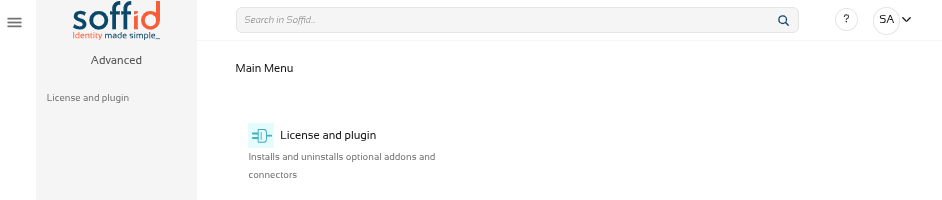](https://bookstack.soffid.com/uploads/images/gallery/2025-11/tzU02c3nobHEXR9M-image.png)To obtain a licence, please contact the Soffid sales team.
For further information, please refer to the [Licence and plugin](https://bookstack.soffid.com/books/soffid-4-reference-guide/page/license-and-plugin "License and plugin") page.
[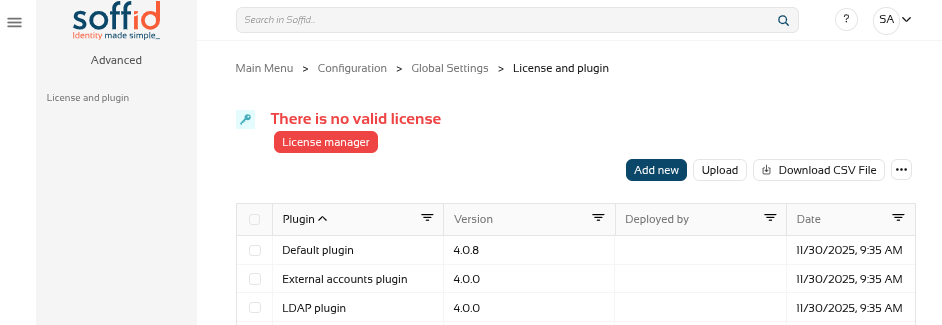](https://bookstack.soffid.com/uploads/images/gallery/2025-11/bunTXjxjBPu7Az7v-image.png) ### HTTPS In order to select and accept the licence, as well as use the marketplace to upload and update components, you must enable the Console in https.Revise la siguiente documentación: [Configure TLS for IAM Console](https://bookstack.soffid.com/books/installation/page/configure-tls-for-iam-console-153 "Configure TLS for IAM Console")
# Soffid 4 apply license ## Apply license When accessing the Soffid Console for the first time, you will need to apply a licence that the Soffid team will have created for you beforehand. This guide does not apply to SaaS licensing since the license is activated upon tenant. #### Step 1. Log in to your Console **Log in** to the Soffid **Console** with your Soffid **administrator account** ("admin" is the default user account). [](https://bookstack.soffid.com/uploads/images/gallery/2026-07/Cw71zBCWQxlyLAil-image.png) #### Step 2. Log in to Soffid online Go to the "**License and plugin**" page (the only accessible page). [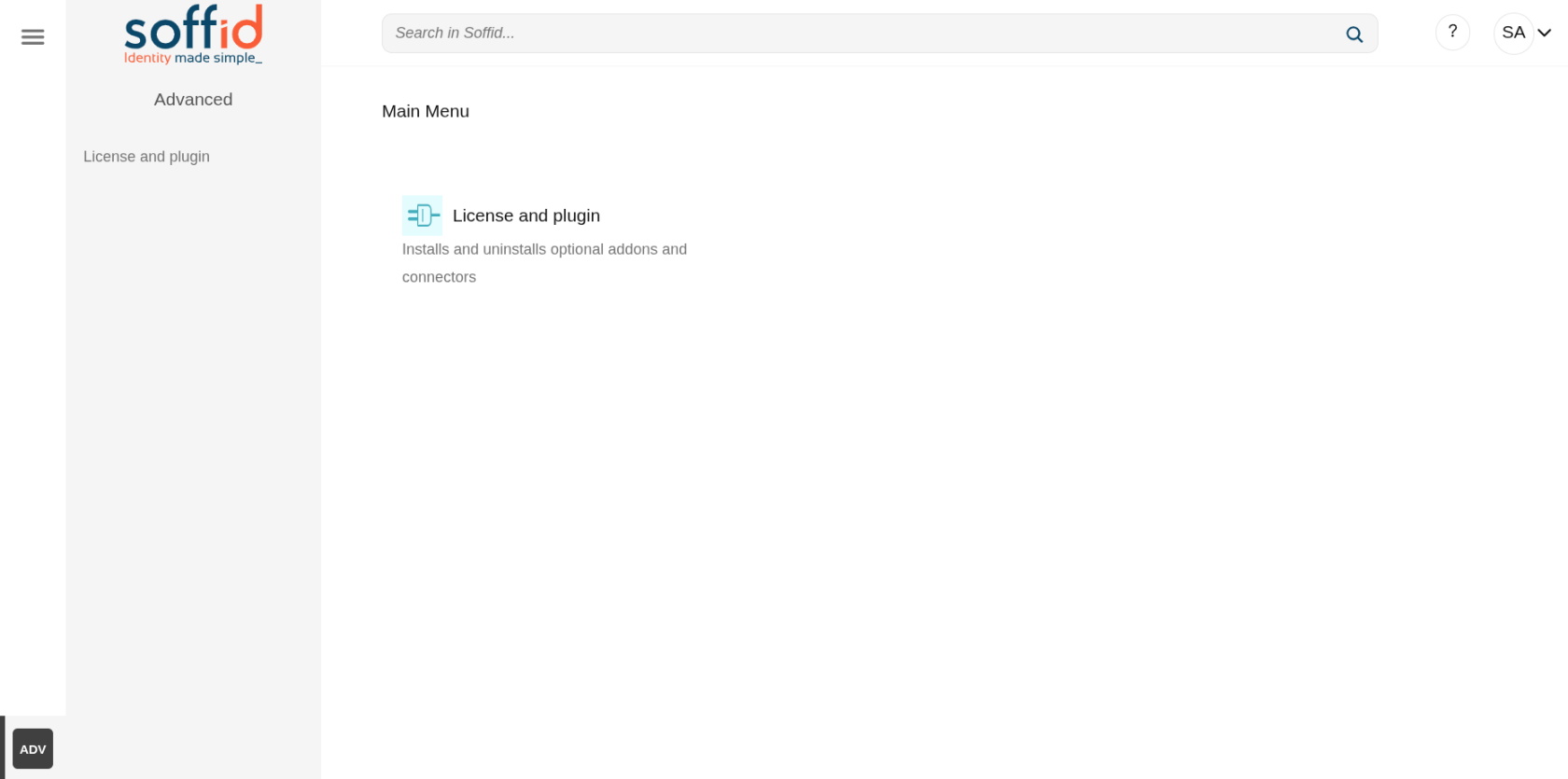](https://bookstack.soffid.com/uploads/images/gallery/2026-07/KiUUQvdMNZPC8tsO-image.png) You will not have an active license: "There is no valid license". [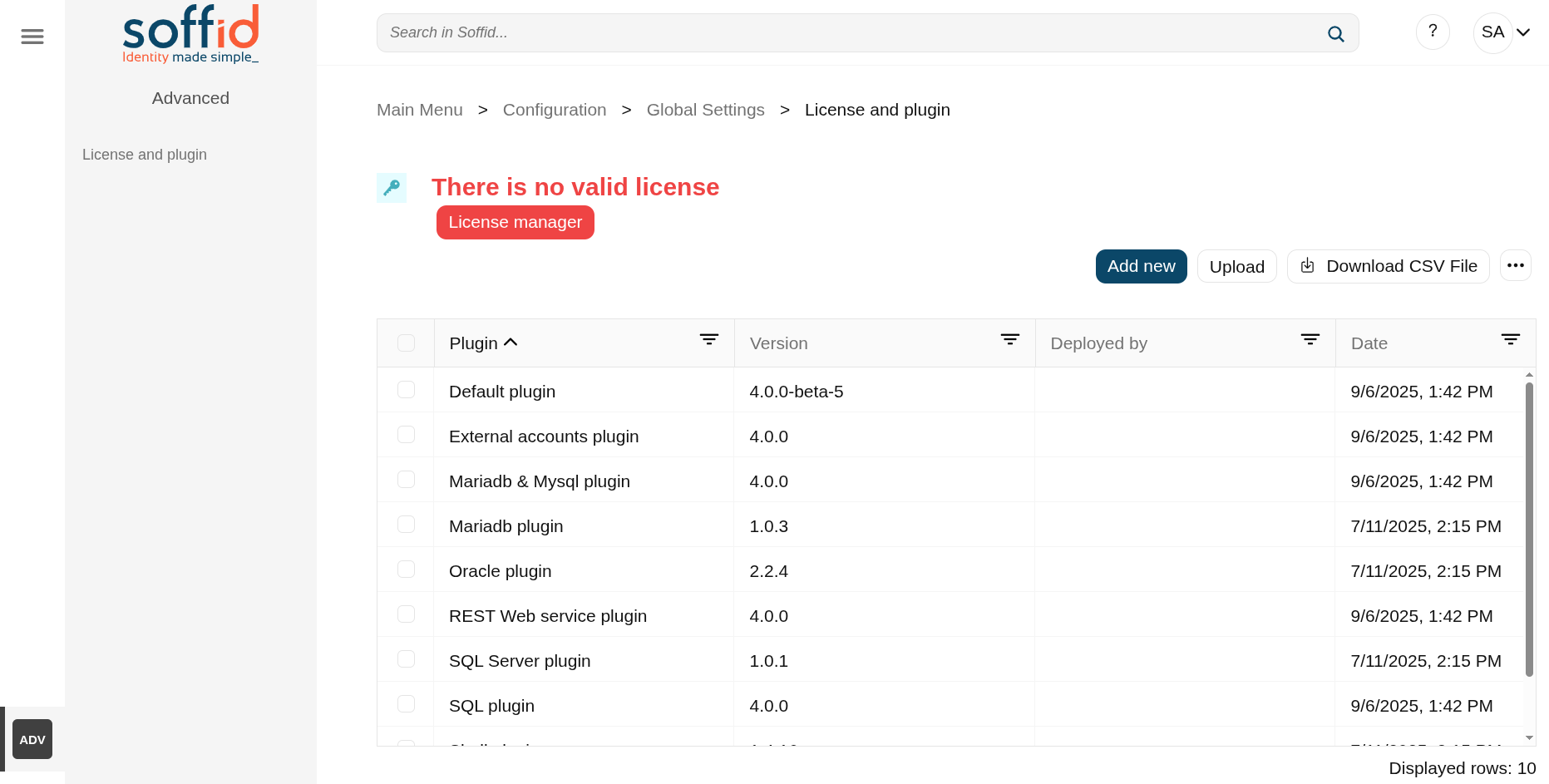](https://bookstack.soffid.com/uploads/images/gallery/2026-07/fsyiFG1OjGnVt6tW-image.png) Click on the "**License manager**" button and log in using the **Soffid account** provided by Soffid, which has the required permissions (a second factor is required). [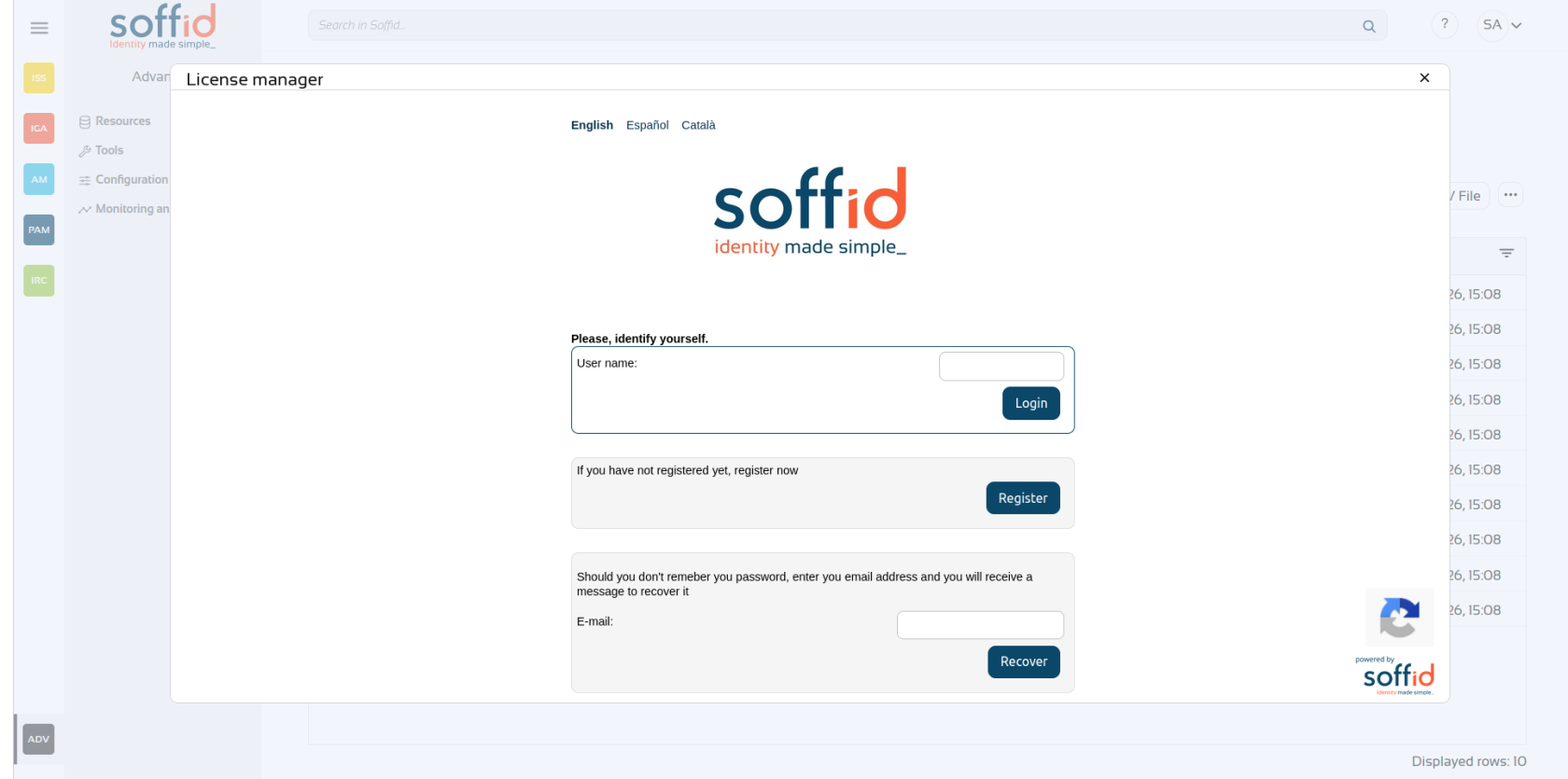](https://bookstack.soffid.com/uploads/images/gallery/2026-07/14fzRVdE9brV6KOJ-image.png) #### Step 3. Apply license Once your **pending license** is displayed, **select it**. [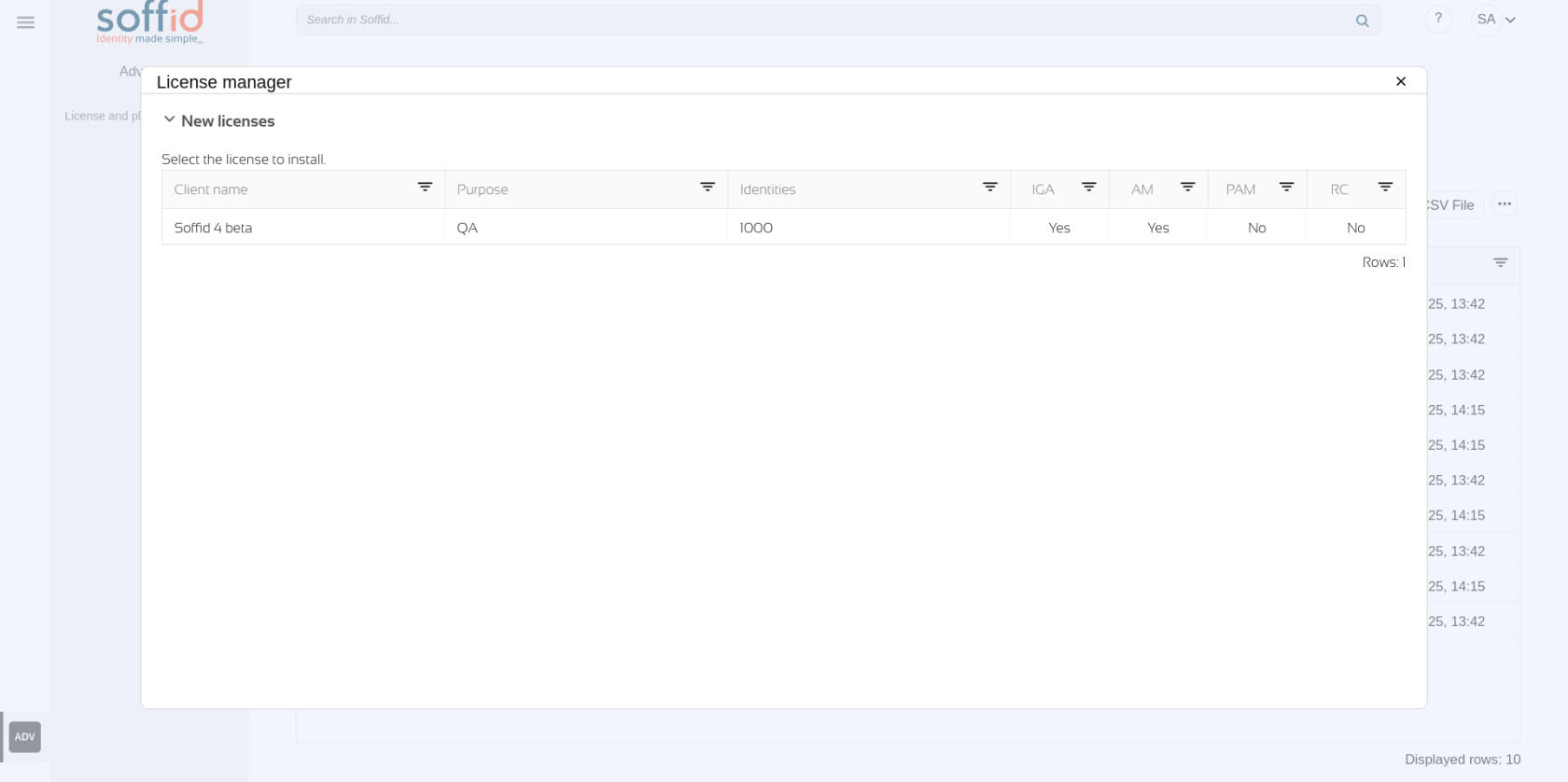](https://bookstack.soffid.com/uploads/images/gallery/2026-07/zJP9AliesMhTf2yy-image.png) Accept the **conditions.** [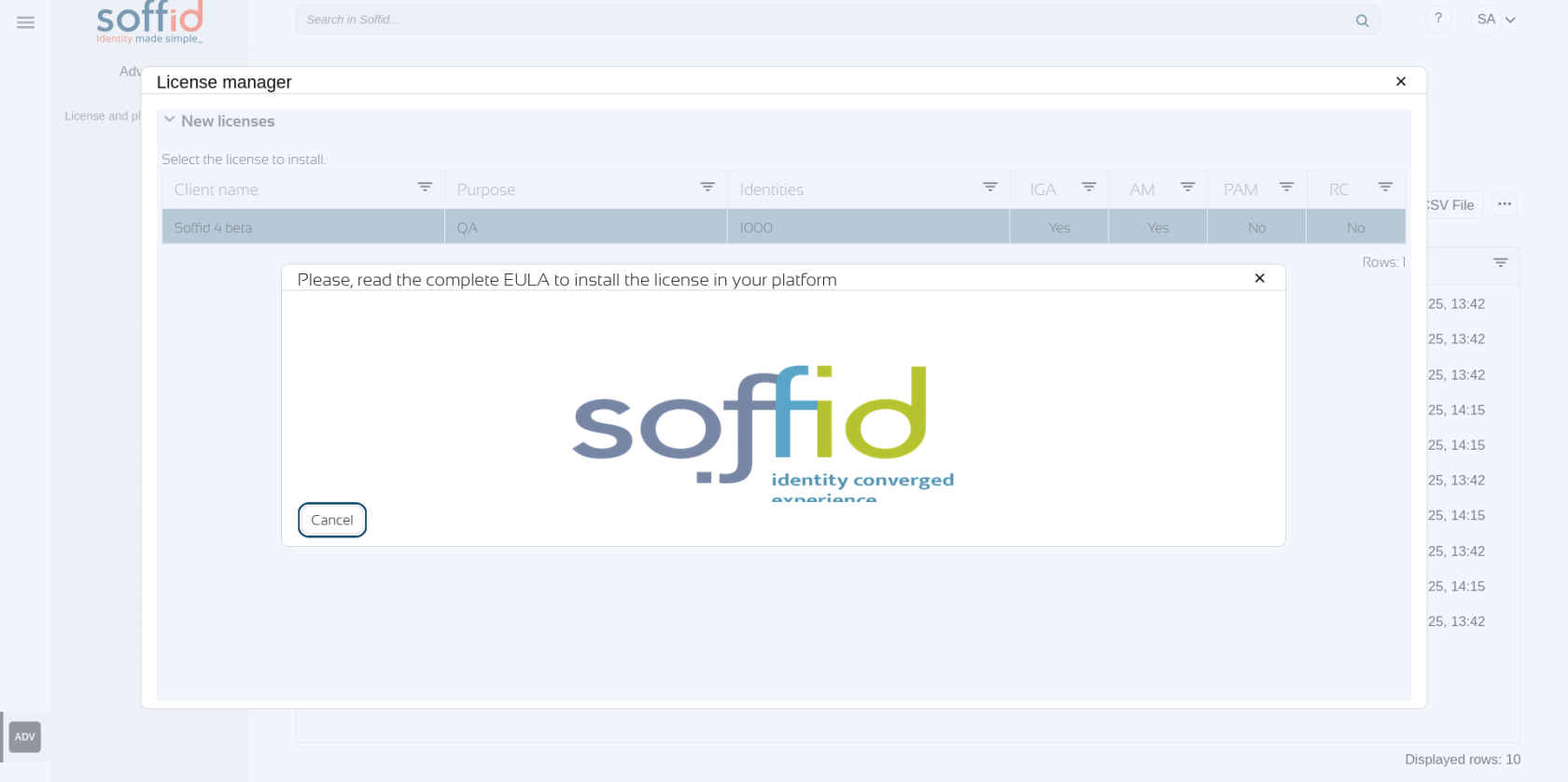](https://bookstack.soffid.com/uploads/images/gallery/2026-07/KTHx1D1FA1fcrY0w-image.png) Scroll down and click on the "**Ok**" button. [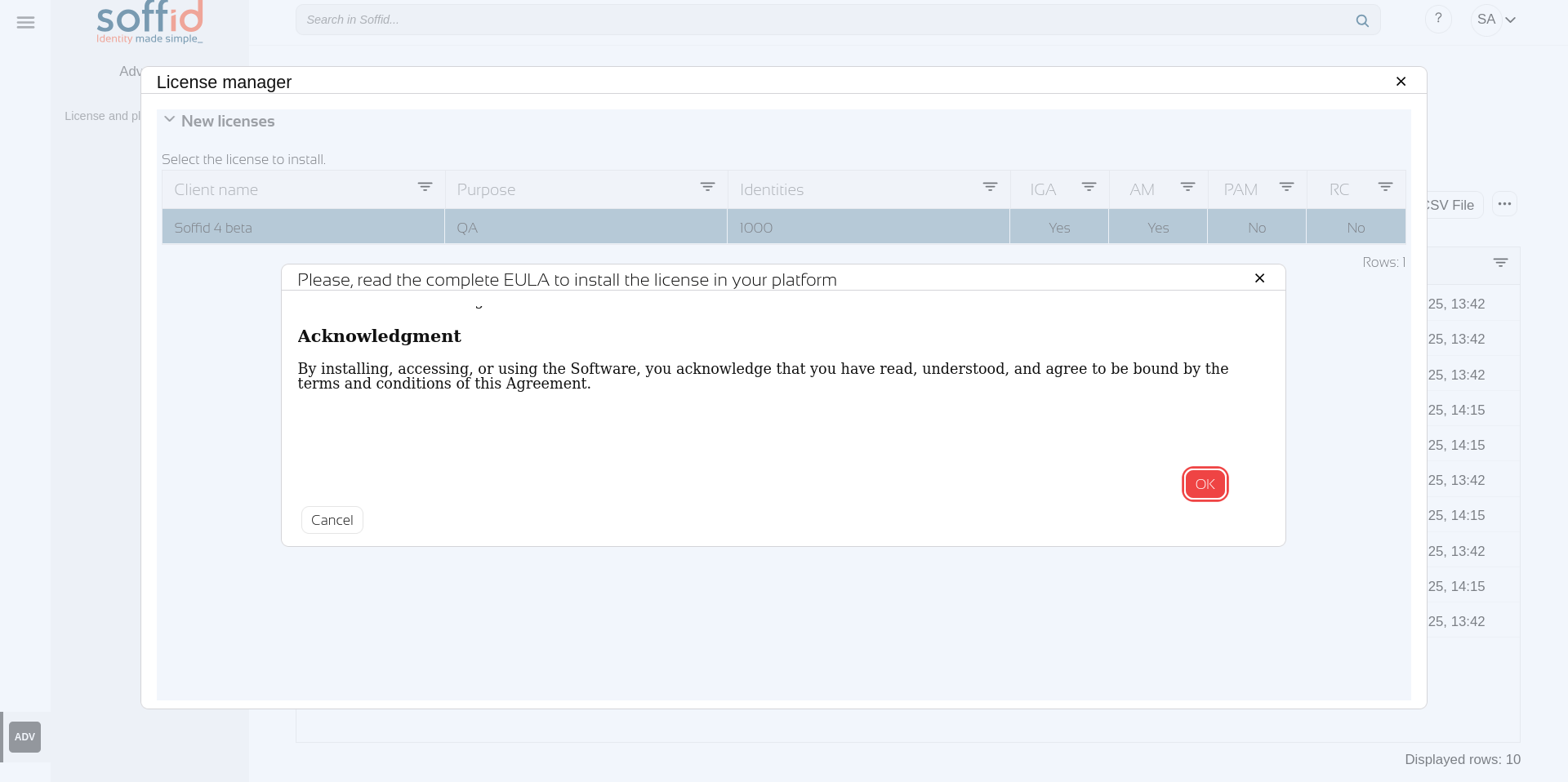](https://bookstack.soffid.com/uploads/images/gallery/2026-07/PcBUyYoPpmjaf8gC-image.png) If the "Access other apps and services on this device" popup appears, click on the "**Allow**" button. [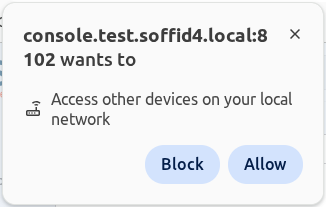](https://bookstack.soffid.com/uploads/images/gallery/2026-07/7G0YhguRJ3D9lIR7-image.png) To activate the licence permanently, click the "**Close"** button. [](https://bookstack.soffid.com/uploads/images/gallery/2025-07/mLznAT1xnXBLkVN7-image.png) #### Step 4. Welcome to Soffid 4! You will finally have an **active license** and you will now be able to access all **your Soffid’s features**. On the **left side**, you will see the **modules** you have **contracted** to; in this example, they are all shown: ISS, IGA, AM, PAM and IRC. [](https://bookstack.soffid.com/uploads/images/gallery/2025-07/TwhcMZv48dFnJdKj-image.png)