# How to deploy the identity & service provider

## Step-by-step

<span style="color: #a6d100; font-weight: bold; font-size: 18px;">1. </span>To deploy the identity provider is advisable to install a dedicated sync server. It can be configured as a proxy sync server as it does not need direct access to Soffid database. Instead, it will connect to main sync servers to get users and federation information. Also, you can deploy the identity provider in your existing sync.

<p class="callout info">To install a proxy sync server follow the instructions at the [Install sync server page](https://bookstack.soffid.com/link/28#bkmrk-install-next-sync-se). </p>

<span style="color: #a6d100; font-weight: bold; font-size: 18px;">2.</span> If the installation is in a **dedicated Sync server:**

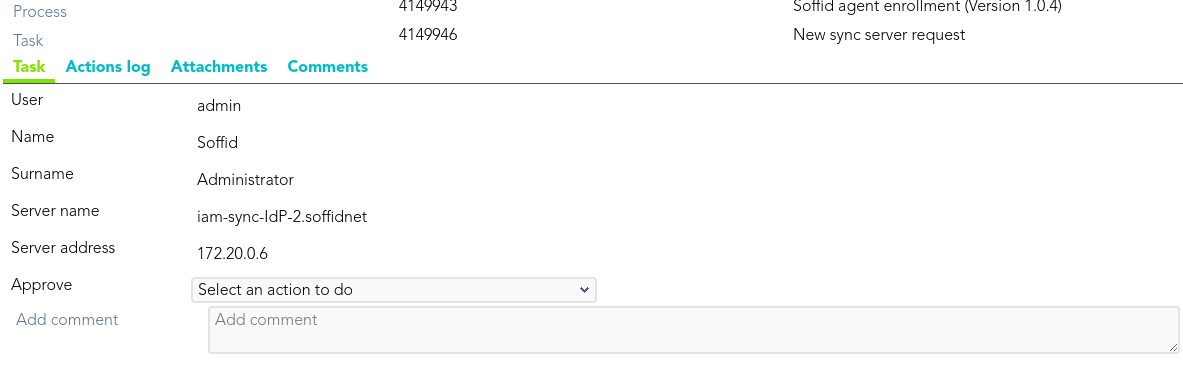
<span style="color: #a6d100; font-weight: bold; font-size: 18px;">2.1.</span> You need open the Sofid Console and approve the Task to accept the new Sync server.
![](https://bookstack.soffid.com/uploads/images/gallery/2021-11/embedded-image-8kpmkcdb.png)

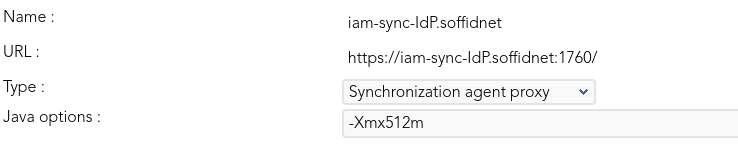
<span style="color: #a6d100; font-weight: bold; font-size: 18px;">2.1.</span> You need tune the **Sync server memory usage.**

`Main Menu > Administration > Configure Soffid > Integration engine > Synchronization servers`
![](https://bookstack.soffid.com/uploads/images/gallery/2021-11/embedded-image-gnlykqrl.png)

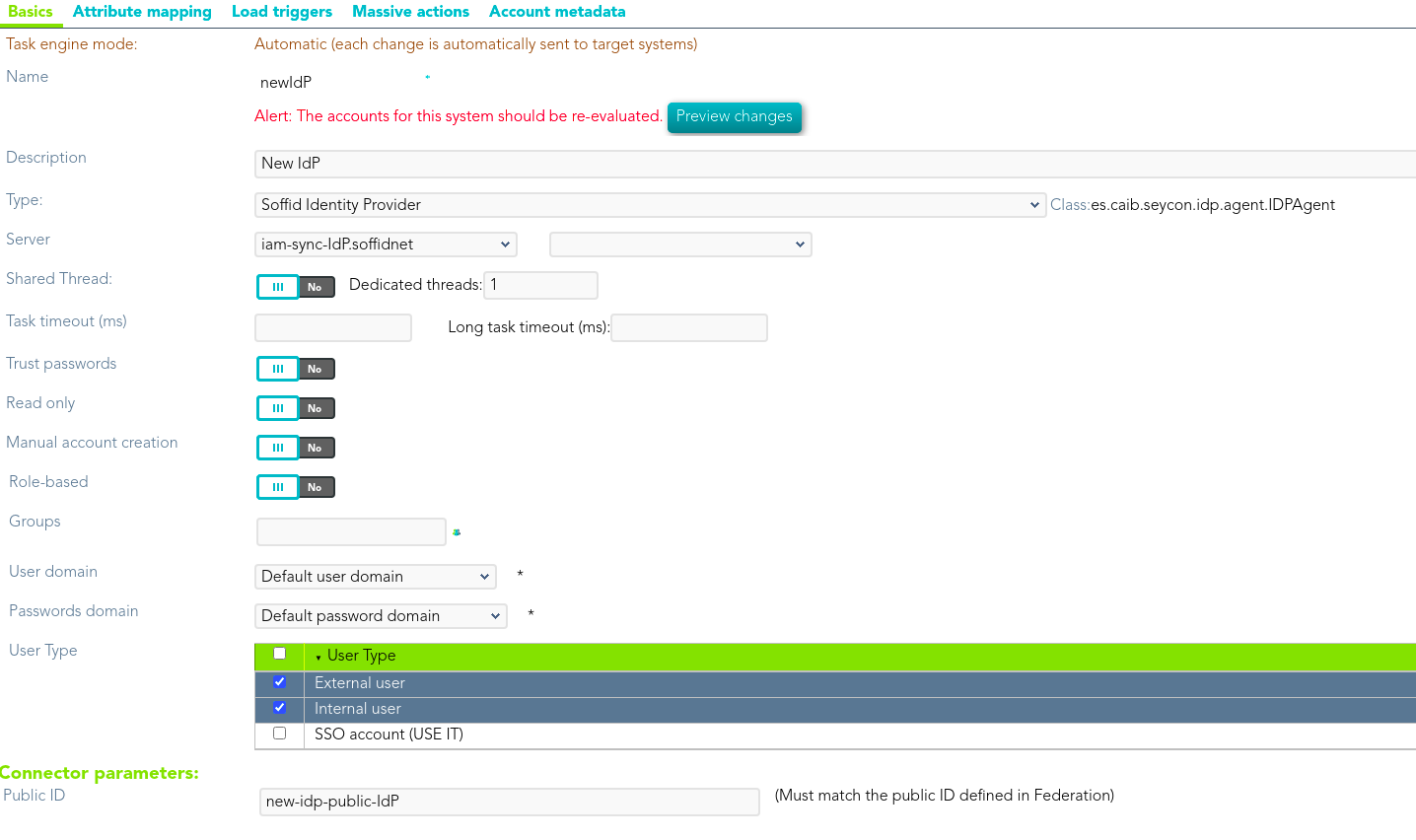
<span style="color: #a6d100; font-weight: bold; font-size: 18px;">3. </span>Once the Sync server is registered, if you want to create a **Soffid IdP** you must create a new **Identity Provider Agent**.

`<span class="link" id="bkmrk-main-menu">Main Menu</span><span id="bkmrk-%C2%A0%3E%C2%A0"> > </span><span class="link" id="bkmrk-administration">Administration</span><span id="bkmrk-%C2%A0%3E%C2%A0-0"> > </span><span class="link" id="bkmrk-configure-soffid">Configure Soffid</span><span id="bkmrk-%C2%A0%3E%C2%A0-1"> > </span><span class="link" id="bkmrk-integration-engine">Integration engine</span><span id="bkmrk-%C2%A0%3E%C2%A0-2"> > </span><span id="bkmrk-agents">Agents</span>`

- **Type**: Soffid Identity Provider.
- **Server**: select the sync server that will host the identity provider.
- **Trust password**: must be unchecked.
- **Read only**: must be unchecked.
- **Manual account creation**: usually is unchecked, but could be useful to check it during initial tests.
- **Role based**: usually is unchecked, despite it could be used to limit the users that can use it.
- **Groups**: select the groups that can use it. Leave it blank to allow any user.
- **User domain**: use default users domain. Nevertheless, depending on your needs, creating another user domain could be a good option.
- **Password domain**: use default password domain.
- **User types**: check the user types that can use the identity provider.
- **Public ID**: enter the public ID assigned in the federation management page.

Your identity provider agent should look like this one:
![](https://bookstack.soffid.com/uploads/images/gallery/2021-11/embedded-image-x71vc4gk.png)

<span style="color: #a6d100; font-weight: bold; font-size: 18px;">4. </span>Upload the **Federation addon** to the Soffid Console:

<p class="callout info">To upload the addon follow the instructions at the [How to install Federation in Soffid page](https://bookstack.soffid.com/books/federation/page/how-to-install-federation-in-soffid "How to install Federation in Soffid").</p>

<span style="color: #a6d100; font-weight: bold; font-size: 18px;">5. </span>Once you are connected to the Soffid console, you can start creating an **Entity Group**.

<span style="color: #a6d100; font-weight: bold; font-size: 18px;">5.1. </span>First of all, open the **Identity &amp; Service providers** page

`<span class="link" id="bkmrk-main-menu-0">Main Menu</span><span id="bkmrk-%C2%A0%3E%C2%A0-3"> > </span><span class="link" id="bkmrk-administration-0">Administration</span><span id="bkmrk-%C2%A0%3E%C2%A0-4"> > </span><span class="link" id="bkmrk-configure-soffid-0">Configure Soffid</span><span id="bkmrk-%C2%A0%3E%C2%A0-5"> > </span><span class="link" id="bkmrk-web-sso">Web SSO</span><span id="bkmrk-%C2%A0%3E%C2%A0-6"> > </span><span id="bkmrk-identity-%26-service-p">Identity & Service providers</span>`

<span style="color: #a6d100; font-weight: bold; font-size: 18px;">5.2. </span>Then, click the "Add group" button and Soffid will display a new window to fill in the **Entity group** attributes.

<span style="color: #a6d100; font-weight: bold; font-size: 18px;">5.3. </span>Once you fill in the fields, you need to save (disk button) or apply changes (Apply changes button) to save the data.

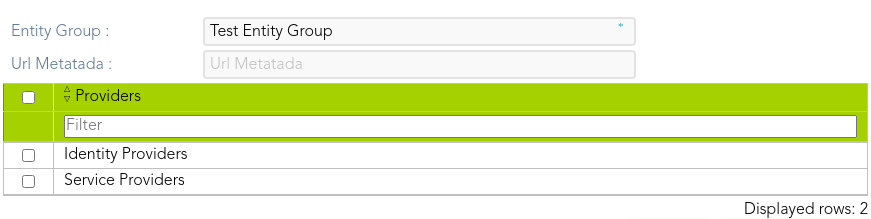
When the Entity Group is created, inside there will be two options, one to create the Identity Providers and other to create the Service Providers.
![](https://bookstack.soffid.com/uploads/images/gallery/2021-09/embedded-image-brc4ake0.png)

<span style="color: #a6d100; font-weight: bold; font-size: 18px;">5.3.1. </span>Clicking on the Identity Providers record a identity providers list will be displayed and it will be able to create new identity providers. To create a new Identity Provider continue on step 5rd.

<span style="color: #a6d100; font-weight: bold; font-size: 18px;">5.3.2. </span>Clicking on the Service Providers record a service provider list will be displayed and it will be able to create new service providers. To create a new Service Provider continue on step 6th.

<span style="color: #a6d100; font-weight: bold; font-size: 18px;">6.</span> New **Identity Provider:**

<span style="color: #a6d100; font-weight: bold; font-size: 18px;">6.1.</span> To create a new Identity Provider you can click on the "Add identity provider" button on the tree view, or click the add button (+) on the Identity Provider list. Then Soffid will display a new window.

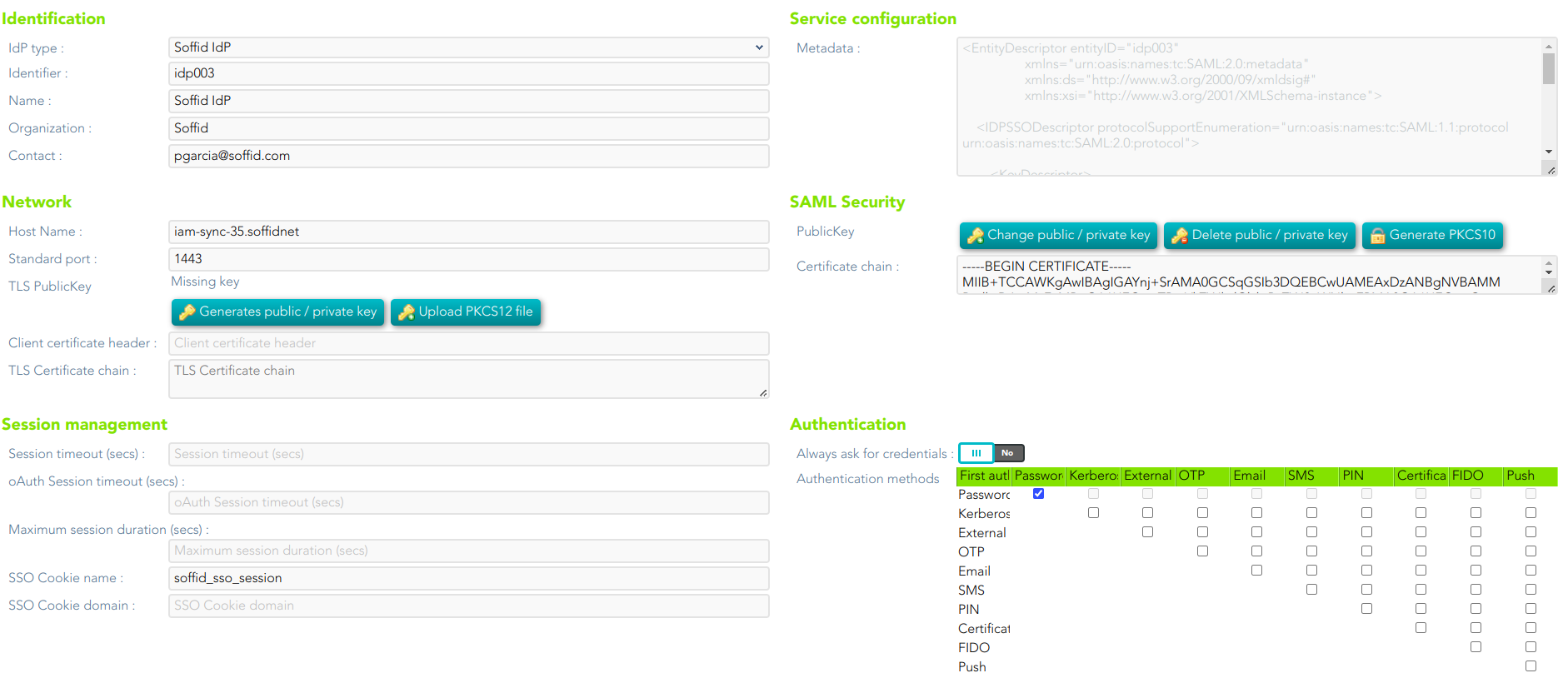
<span style="color: #a6d100; font-weight: bold; font-size: 18px;">6.2. </span>At the new window you must select the IdP type you want to create and fill in the required fields. The fields to full fill depend on the IdP type selected.

- - You can visit the [Identity Provider page ](https://bookstack.soffid.com/books/federation/page/identity-provider)for more detail.

<span style="color: #a6d100; font-weight: bold; font-size: 18px;">6.2.1. </span>When creating a Soffid identity provider, it will be mandatory to create an agent. The agent will have to be a Soffid Identity Provider agent. On the connector parameters you must define a unique *Public ID* which will be used on the Identity Provider configuration.

![](https://bookstack.soffid.com/uploads/images/gallery/2021-10/embedded-image-njprxtyw.png)

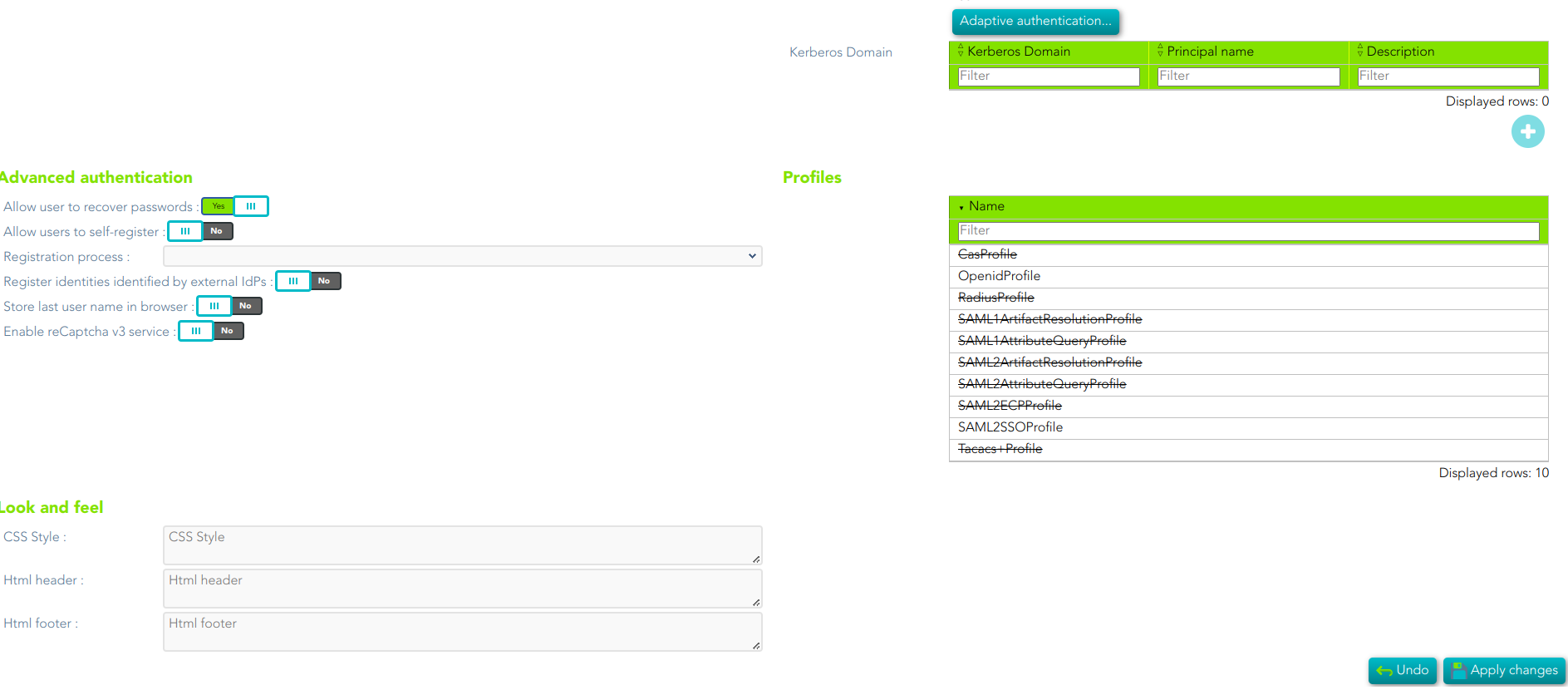
<span style="color: #a6d100; font-weight: bold; font-size: 18px;">6.3.</span> Once you fill in all the data, you need to enable the proper profiles by clicking on the profile list and configuring them.

- - You can fin more information visiting the[ Profile page](https://bookstack.soffid.com/books/federation/page/profiles "Profiles") where the available protocols are defined.

<span style="color: #a6d100; font-weight: bold; font-size: 18px;">6.4.</span> Finally, you need to save (disk button) or apply changes (Apply changes button) to save the data.

<p class="callout warning">Note that in some cases it will be necessary to **restart the synchronization server**, so Soffid will generate the additional metadata or certificate data needed.</p>

<p class="callout warning">Note that you may have to **open the standard port**.</p>

**Soffid Identity Provider Screenshot**

[![image-1691748396068.png](https://bookstack.soffid.com/uploads/images/gallery/2023-08/scaled-1680-/image-1691748396068.png)](https://bookstack.soffid.com/uploads/images/gallery/2023-08/image-1691748396068.png)
[![image-1691748424764.png](https://bookstack.soffid.com/uploads/images/gallery/2023-08/scaled-1680-/image-1691748424764.png)](https://bookstack.soffid.com/uploads/images/gallery/2023-08/image-1691748424764.png)
##### You could check your Identity Provider

```
https://<YOUR_SYNCSERVER_HOSTNAME>:1443/protected
```

For instance: https://iam-sync-idp.soffidnet:1443/protected

##### You could view your IdP metadata

```
https://<YOUR_SYNCSERVER_HOSTNAME>:1443/SAML/metadata.xml
```

For instance: https://iam-sync-idp.soffidnet:1443/SAML/metadata.xml

##### In addition, the complete metadata of soffid

```
https://<YOUR_SYNCSERVER_PRINCIPAL>:1760/SAML/metadata.xml
```

For instance: https://iam-sync.soffidnet:1760/SAML/metadata.xml

<span style="color: #a6d100; font-weight: bold; font-size: 18px;">7.</span> New **Service Provider:**

<span style="color: #a6d100; font-weight: bold; font-size: 18px;">7.1.</span> To create a new Service Provider you can click on the "Add service provider" button on the tree view, or click the add button (+) on the Service Provider list. Then Soffid will display a new window.

<span style="color: #a6d100; font-weight: bold; font-size: 18px;">7.2. </span>At the new window you must select the Service provider type you want to create and fill in the required fields. The fields to full fill depend on the IdP type.

- - You can visit the [ Service Provider page ](https://bookstack.soffid.com/books/federation/page/service-provider)for more detail.

<span style="color: #a6d100; font-weight: bold; font-size: 18px;">7.3.</span> One you fill in all the data, you need to save (disk button) or apply changes (Apply changes button) to save the data.

**SAML Service Provider Screenshot**

[![image-1652361192558.png](https://bookstack.soffid.com/uploads/images/gallery/2022-05/scaled-1680-/image-1652361192558.png)](https://bookstack.soffid.com/uploads/images/gallery/2022-05/image-1652361192558.png)

**OpenID Connect Service Provider Screenshot**

[![image-1652361115515.png](https://bookstack.soffid.com/uploads/images/gallery/2022-05/scaled-1680-/image-1652361115515.png)](https://bookstack.soffid.com/uploads/images/gallery/2022-05/image-1652361115515.png)

---

<span style="color: #a6d100; font-weight: bold; font-size: 18px;">8.</span> Enable, when it will be necessary, the External SAML identity provider. To do that you need to access to the Authentication page:

`Main Menu > Administration > Configure Soffid > Security settings > Authentication`

[![image-1643294485047.png](https://bookstack.soffid.com/uploads/images/gallery/2022-01/scaled-1680-/image-1643294485047.png)](https://bookstack.soffid.com/uploads/images/gallery/2022-01/image-1643294485047.png)

<p class="callout info">You can visit the [Authentication page](https://bookstack.soffid.com/books/soffid-3-reference-guide/page/authentication "Authentication") for more information.</p>