# ESSO Manuals

Documentation about Windows user access, Linux user access and Admin access

# Windows Administrator access

## How to access?

For domain member hosts, ESSO will remove all existing local accounts except for those with a dependand service. So, in order to access with administrator privileges, user must use a domain account with local administrator privilege, or either an authorized Soffid user.

There are three different ways to grant this kind of authorization to a user using Soffid console:

1. Grant a global authorization (host:support). In this case, user can admin any host.
2. Using a network scope authorization. This kind of authorization can be granted on network management screen. Administration authorization can be granted for any host belonging to a network or for a restricted group of them.
3. Using a host scope authorization. This kind of authorization can be granted on host management screen for specified time period.

Through a workflow request. User asks for administration approval using "Request to administer a workstation" workflow. Soffid administrator can deny or approve the request. After the specified time period, the permission will be revoked.

[![image.png](https://bookstack.soffid.com/uploads/images/gallery/2024-10/scaled-1680-/zd5ziD6Pp8HbTYvW-image.png)](https://bookstack.soffid.com/uploads/images/gallery/2024-10/zd5ziD6Pp8HbTYvW-image.png)
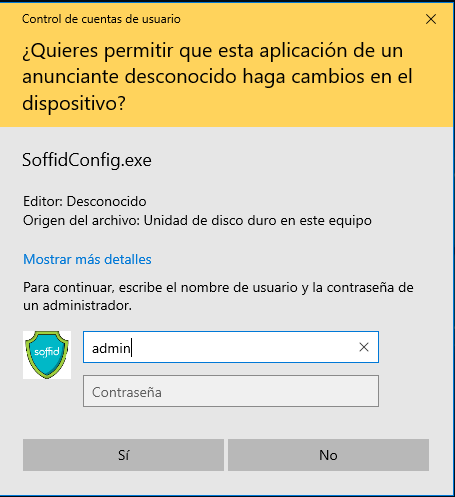
In order to acces with administrator privileges user must log on with the soffid user code. It is not possible to do it with another account. Windows user code must match with Soffid user code.

## Other operations

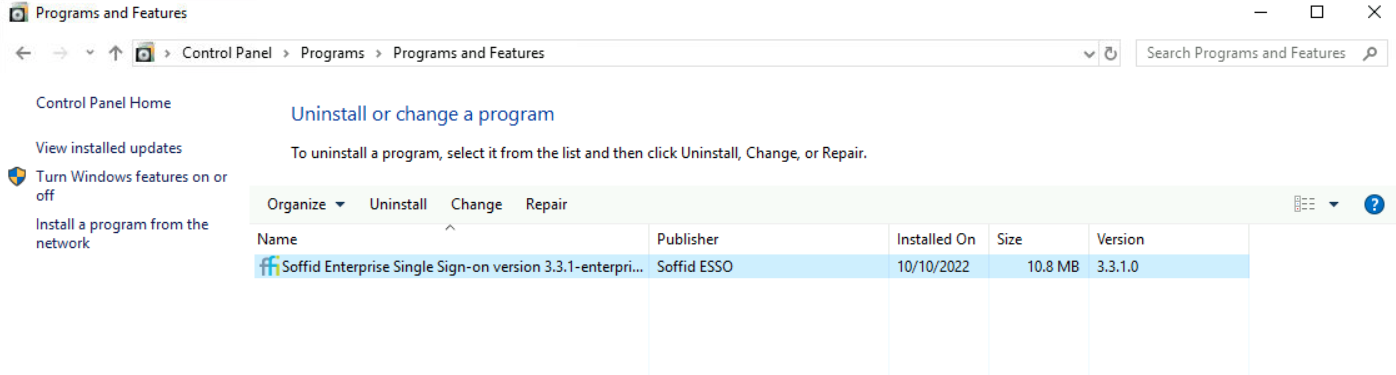
### How to know the ESSO version?

Windows Control Panel --&gt; Add/Remove programs

<details id="bkmrk-%F0%9F%92%BB-image-1"><summary>💻 Image</summary>

[![image-1665397531364.png](https://bookstack.soffid.com/uploads/images/gallery/2022-10/scaled-1680-/image-1665397531364.png)](https://bookstack.soffid.com/uploads/images/gallery/2022-10/image-1665397531364.png)

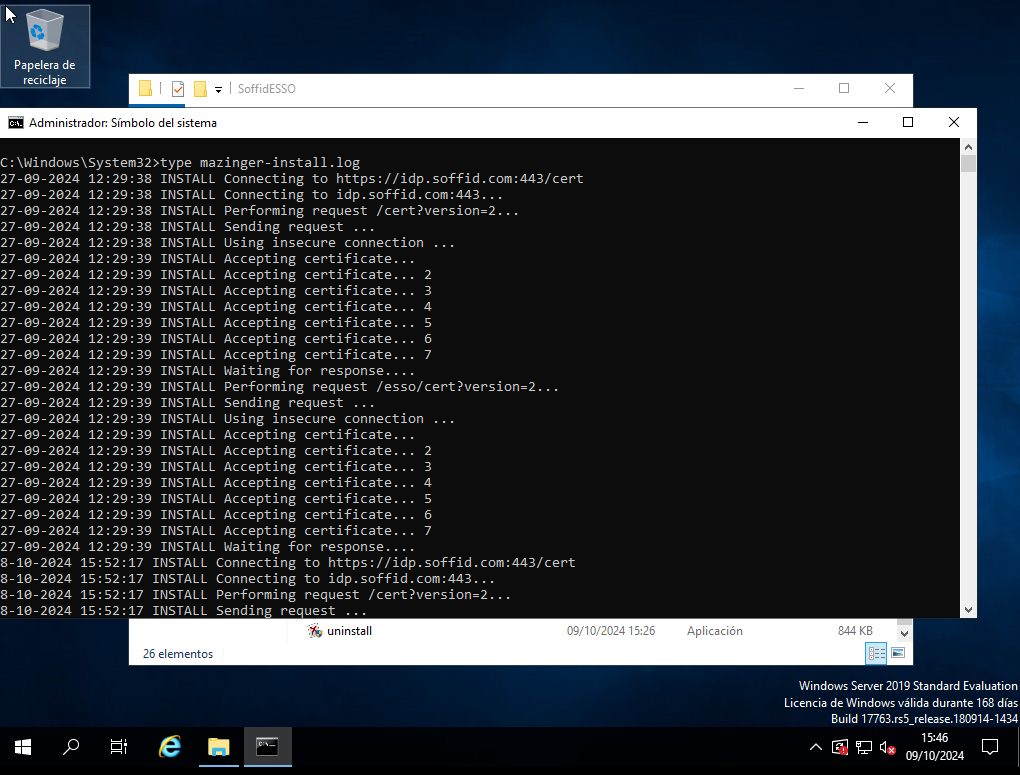
</details>### How to check the log?

```shell
C:\Windows\System32\type mazinger-install.log
```

<details id="bkmrk-%F0%9F%92%BB-image-4"><summary>💻 Image</summary>

[![image.png](https://bookstack.soffid.com/uploads/images/gallery/2024-10/scaled-1680-/TKW7p8APrL2gWJVP-image.png)](https://bookstack.soffid.com/uploads/images/gallery/2024-10/TKW7p8APrL2gWJVP-image.png)

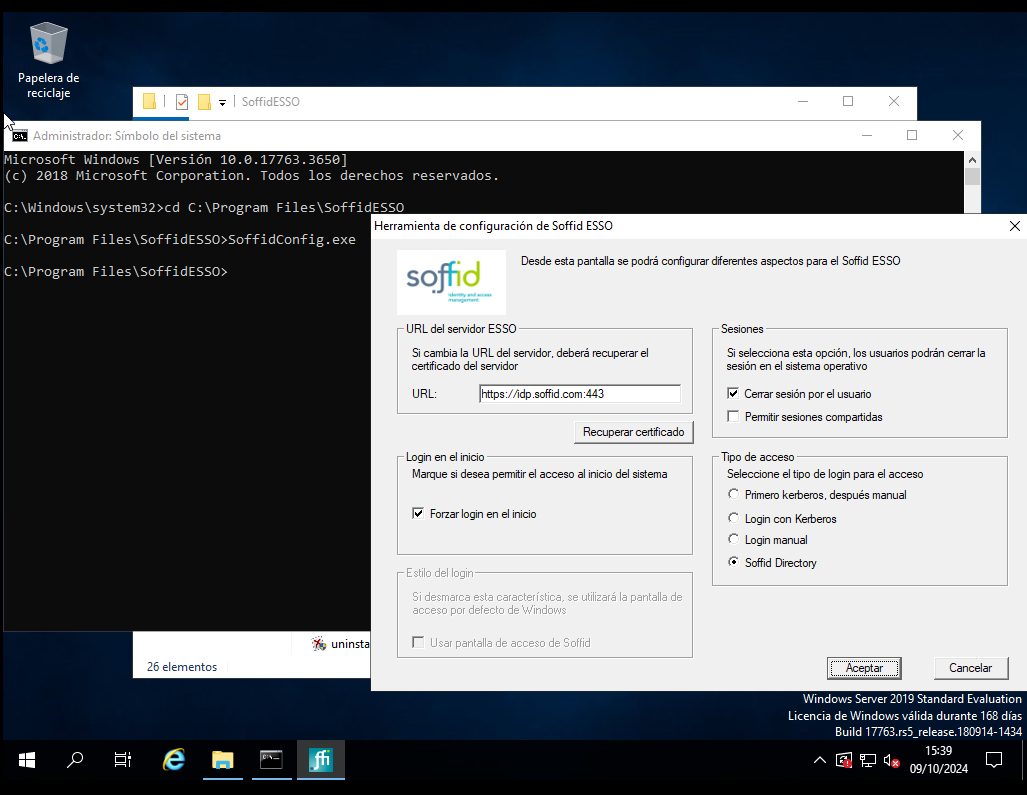
</details>### How to run the configuration?


```
C:\Program Files\SoffidESO\SoffidConfig.exe
```

<details id="bkmrk-%F0%9F%92%BB-image-2"><summary>💻 Image</summary>

[![image.png](https://bookstack.soffid.com/uploads/images/gallery/2024-10/scaled-1680-/fDP4njfpqgk2V5tz-image.png)](https://bookstack.soffid.com/uploads/images/gallery/2024-10/fDP4njfpqgk2V5tz-image.png)

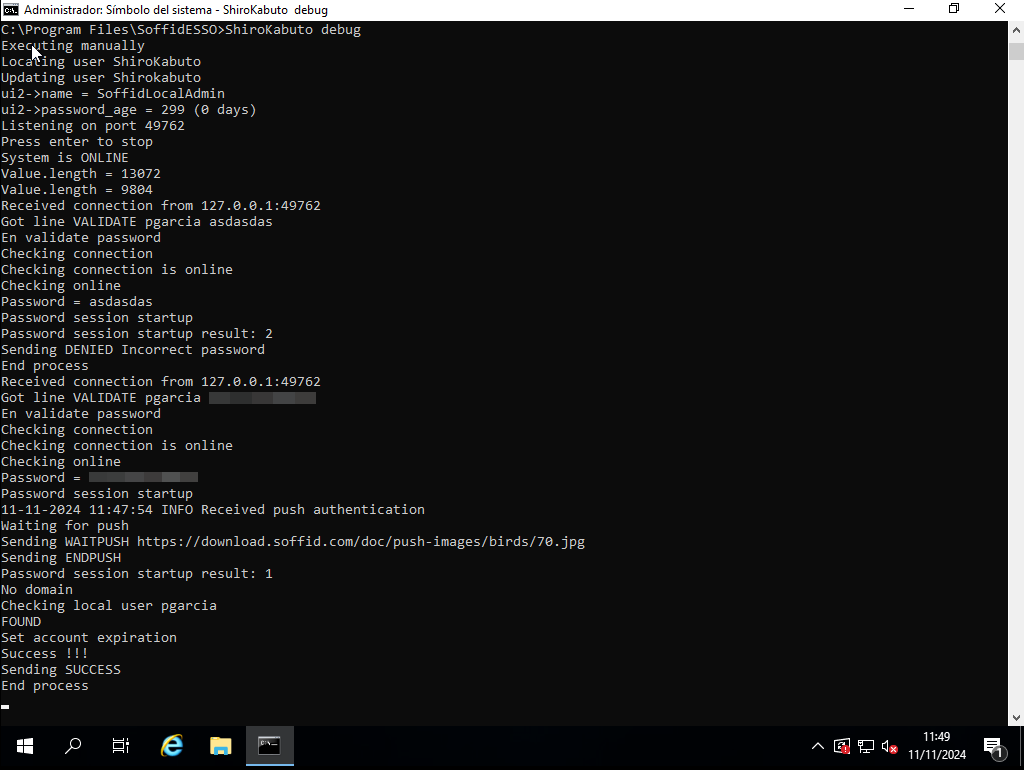
</details>### How to check the status?

```
C:\Program Files\SoffidESSO>Shirokabuto debug
```

<details id="bkmrk-%F0%9F%92%BB-image-3"><summary>💻 Image</summary>

[![image.png](https://bookstack.soffid.com/uploads/images/gallery/2024-11/scaled-1680-/NXWLBxR4V1FtwsUy-image.png)](https://bookstack.soffid.com/uploads/images/gallery/2024-11/NXWLBxR4V1FtwsUy-image.png)

</details>### How to stop and start Shirokabuto?

```
C:\Program Files\SoffidESSO>net stop Shirokabuto
```

```
C:\Program Files\SoffidESSO>net start Shirokabuto
```

# Linux Administrator access

## How to access?

For domain member hosts, ESSO will remove all existing local accounts except for those with a dependand service. So, in order to access with administrator privileges, user must use a domain account with local administrator privilege, or either an authorized Soffid user.

There are three different ways to grant this kind of authorization to a user using Soffid console:

1. Grant a global authorization (host:support). In this case, user can admin any host.
2. Using a network scope authorization. This kind of authorization can be granted on network management screen. Administration authorization can be granted for any host belonging to a network or for a restricted group of them.
3. Using a host scope authorization. This kind of authorization can be granted on host management screen for specified time period.

Through a workflow request. User asks for administration approval using "Request to administer a workstation" workflow. Soffid administrator can deny or approve the request. After the specified time period, the permission will be revoked.

In order to acces with administrator privileges user must log on with the soffid user code. It is not possible to do it with another account. Windows user code must match with Soffid user code.

## Other operations

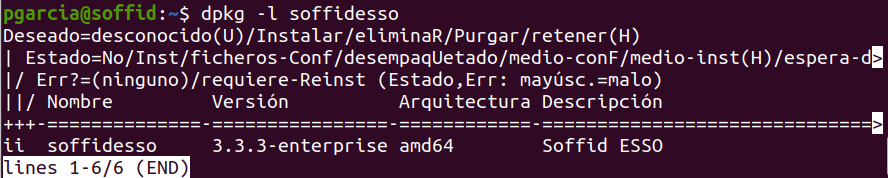
### How to know the ESSO version?

```
dpkg -l soffidesso
```

<details id="bkmrk-%F0%9F%92%BB-image-1"><summary>💻 Image</summary>

[![image-1665396904304.png](https://bookstack.soffid.com/uploads/images/gallery/2022-10/scaled-1680-/image-1665396904304.png)](https://bookstack.soffid.com/uploads/images/gallery/2022-10/image-1665396904304.png)

</details>### How to check the log?

```shell
/var/log$ sudo tail syslog
```

```
/var/log$ sudo cat syslog
```

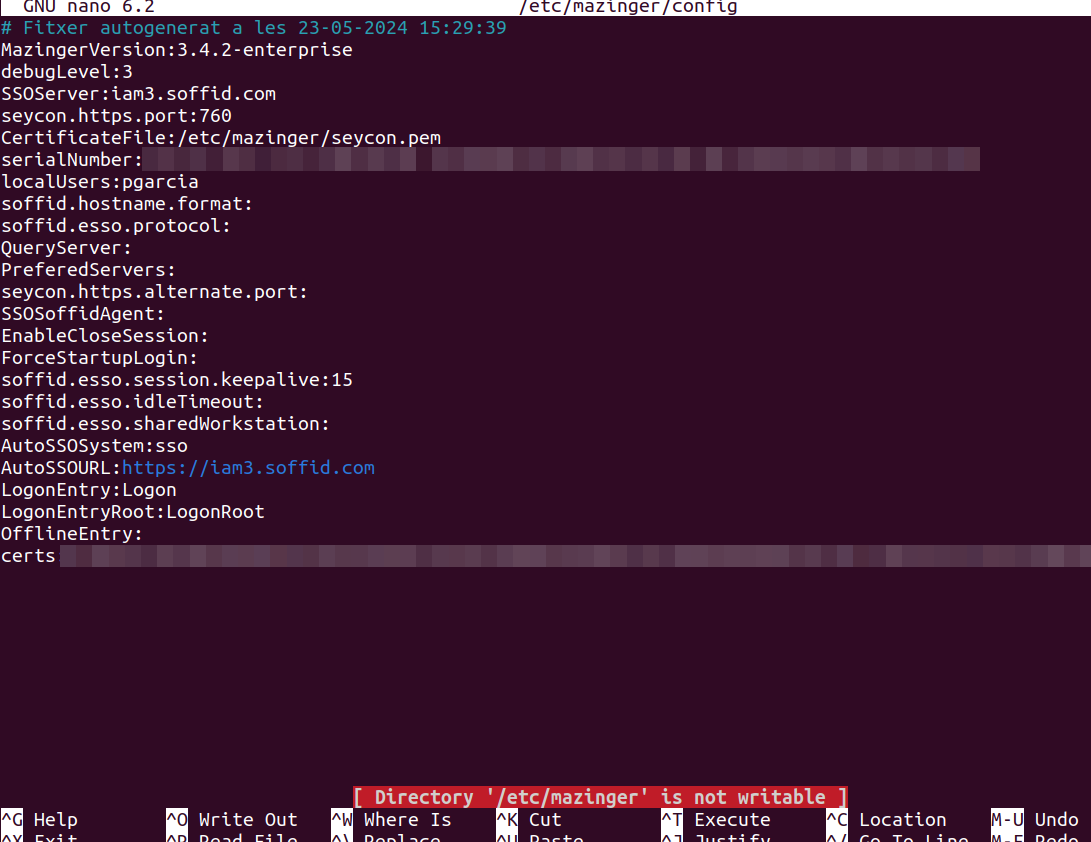
### How to change debug level?

Edit the file /etc/mazinger/config and set debugLevel to 3

```
nano /etc/mazinger/config
```

<details id="bkmrk-%F0%9F%92%BB-image"><summary>💻 Image</summary>

[![image.png](https://bookstack.soffid.com/uploads/images/gallery/2024-10/scaled-1680-/aMGl10AI9lJ7qRde-image.png)](https://bookstack.soffid.com/uploads/images/gallery/2024-10/aMGl10AI9lJ7qRde-image.png)

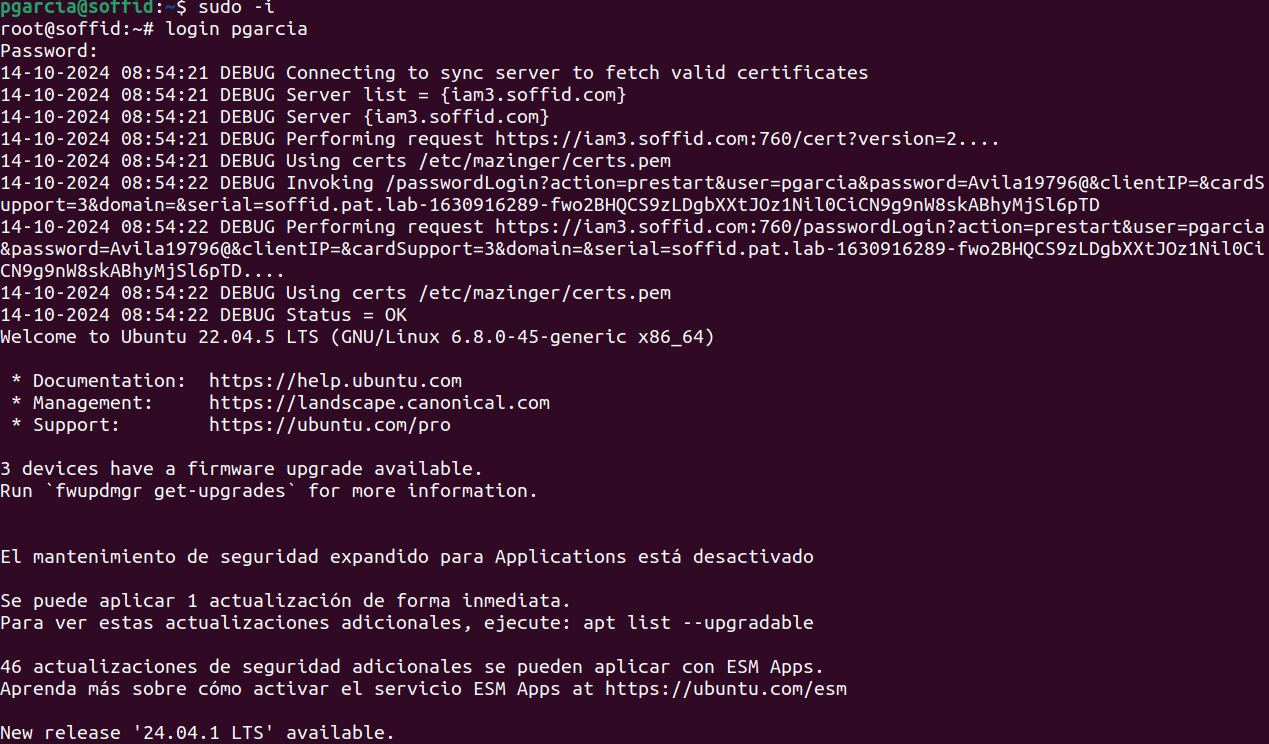
</details>### How to login using the command line?

Raise permissions to super users:

```shell
sudo -i
```

Login with your Soffid user

```shell
login userName
```

<details id="bkmrk-%F0%9F%92%BB-image-3"><summary>💻 Image</summary>

[![image.png](https://bookstack.soffid.com/uploads/images/gallery/2024-10/scaled-1680-/djdjWmR0OJicPhr6-image.png)](https://bookstack.soffid.com/uploads/images/gallery/2024-10/djdjWmR0OJicPhr6-image.png)

</details>

# Windows user access

## How to access?

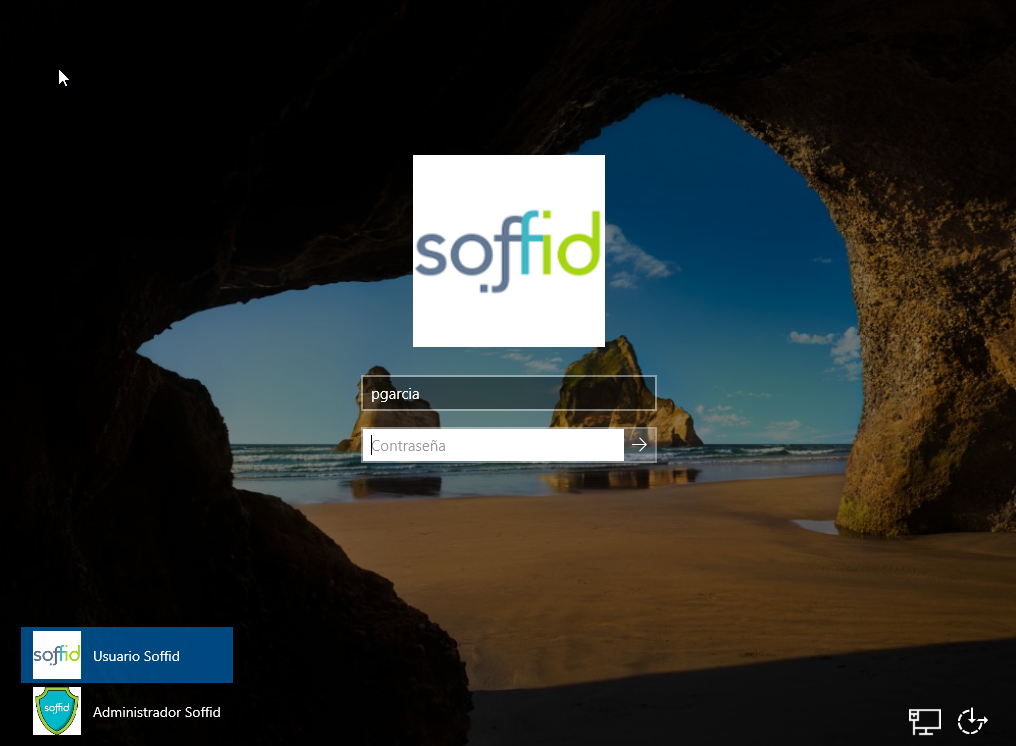
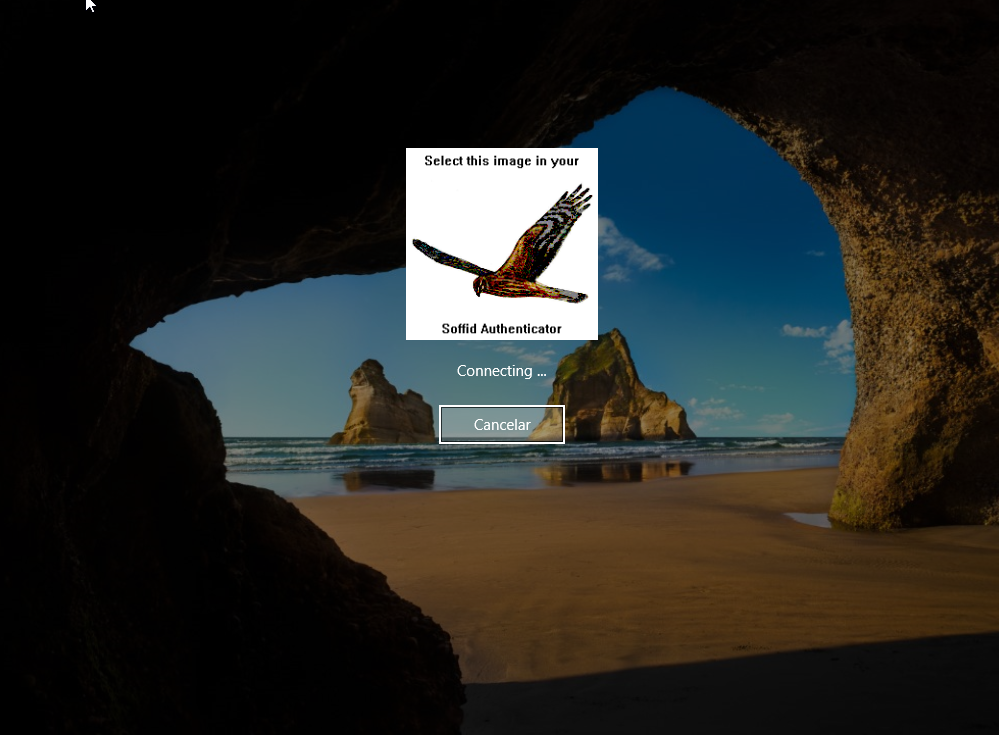
When you try to connecto to a Windows machine by using Soffid ESSO, you need to enter your user and password in the Windows login page.

If the user does not exists in this machine, depending on the attribute "Create local accounts when there is no domain account" in Soffid ESSO configuration, a local user willl be created or not.

- If the network is connected, depending on the Soffid ESSO configuration, a 2FA may be required, or you will be logged in directly.
- If the network is not connected, also, depending on the Soffid ESSO configuration, you connect to the machine. When the network is re-established, Soffid ESSO will ask for your credentials again.

<p class="callout info">For more information about how to configure Soffid ESSO you can visit [the ESSO profile page](https://bookstack.soffid.com/books/federation/page/esso).</p>

<details id="bkmrk-%F0%9F%92%BB-image-credentials-"><summary>💻 Image</summary>

##### Credentials required

[![image.png](https://bookstack.soffid.com/uploads/images/gallery/2024-09/scaled-1680-/XCefvJwmqcK4ovLq-image.png)](https://bookstack.soffid.com/uploads/images/gallery/2024-09/XCefvJwmqcK4ovLq-image.png)

##### 2FA required

[![image.png](https://bookstack.soffid.com/uploads/images/gallery/2024-09/scaled-1680-/2S2t6nRPrgbfVf55-image.png)](https://bookstack.soffid.com/uploads/images/gallery/2024-09/2S2t6nRPrgbfVf55-image.png)
#####  Soffid ESSO options

[![image.png](https://bookstack.soffid.com/uploads/images/gallery/2024-09/scaled-1680-/WNP7lSbXTiiimGXY-image.png)](https://bookstack.soffid.com/uploads/images/gallery/2024-09/WNP7lSbXTiiimGXY-image.png)
</details>## Esso Options

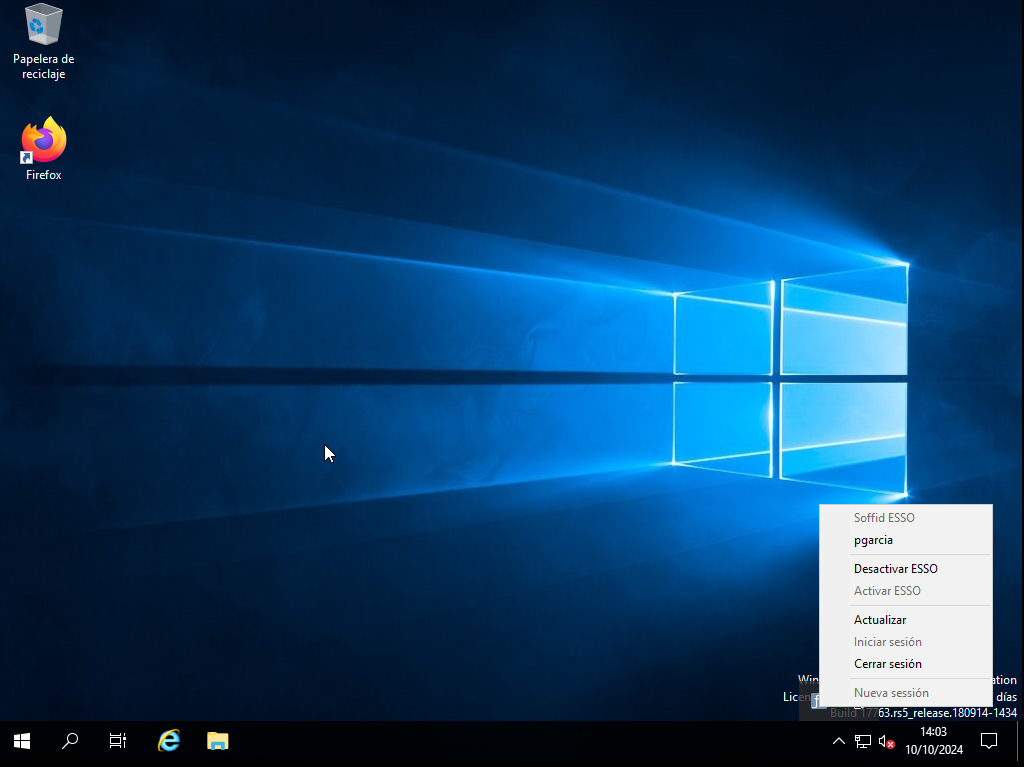
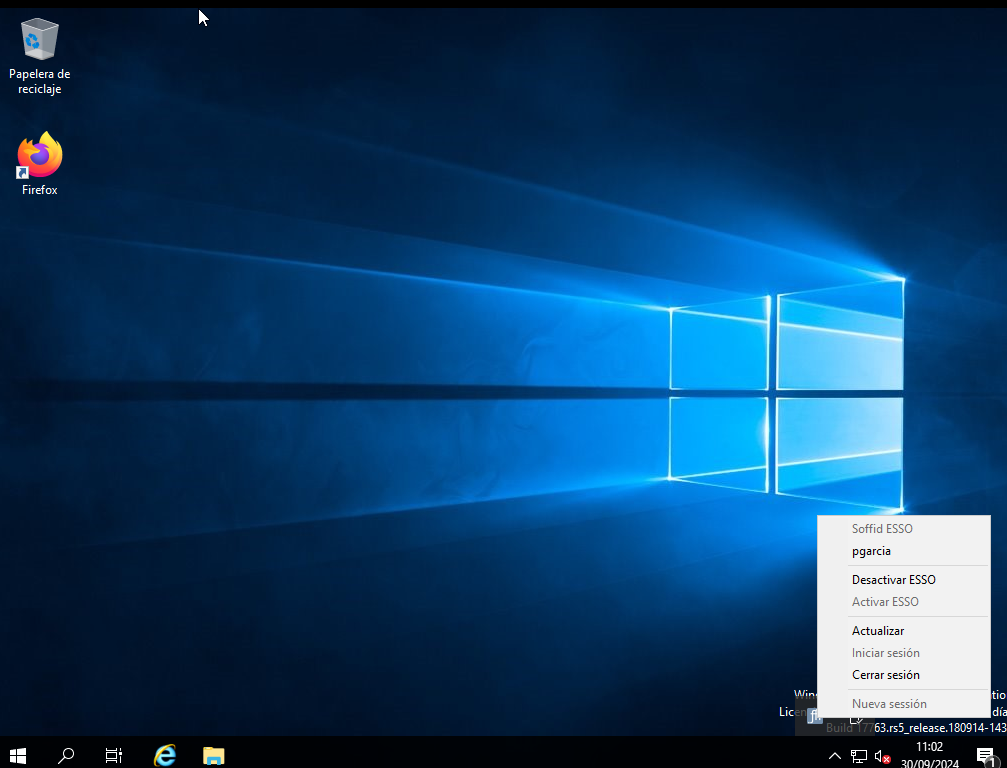
On a host with ESSO installed an icon with the Soffid Logo will appear on the Windows taskbar.

If the user clicks on the mouse's right button it will be able to do some different actions.

#### Login

<span style="font-weight: 400;"> Allows you to open an ESSO session. In order to open an ESSO session, the user must enter user code and password. In order to reopen it, the user must enter user code and password again (unless Kerberos login succeeds)</span>

#### Logout

<span style="font-weight: 400;">Allows you to close an ESSO session. On closing session, any SSO rules will be unloaded, so the user should enter the user and password on applications request.</span>

#### SSO Paused

If the user disables ESSO, user and password will be required to execute any application, but ESSO session is still open on the server.

#### SSO Enabled

In order to inject ESSO rules, Soffid ESSO must be enabled.

#### Update rules

To update ESSO rules for the user account. ESSO will contact Soffid Synchronization server in order to get the Single Sign On rules for this account. Any granted permission or rule change will be applied immediately.

<details id="bkmrk-%F0%9F%92%BB-image"><summary>💻 Image</summary>

[![image.png](https://bookstack.soffid.com/uploads/images/gallery/2024-10/scaled-1680-/PUrm8Zojw4jQAEff-image.png)](https://bookstack.soffid.com/uploads/images/gallery/2024-10/PUrm8Zojw4jQAEff-image.png)

</details>

# Linux User access

## How to access?

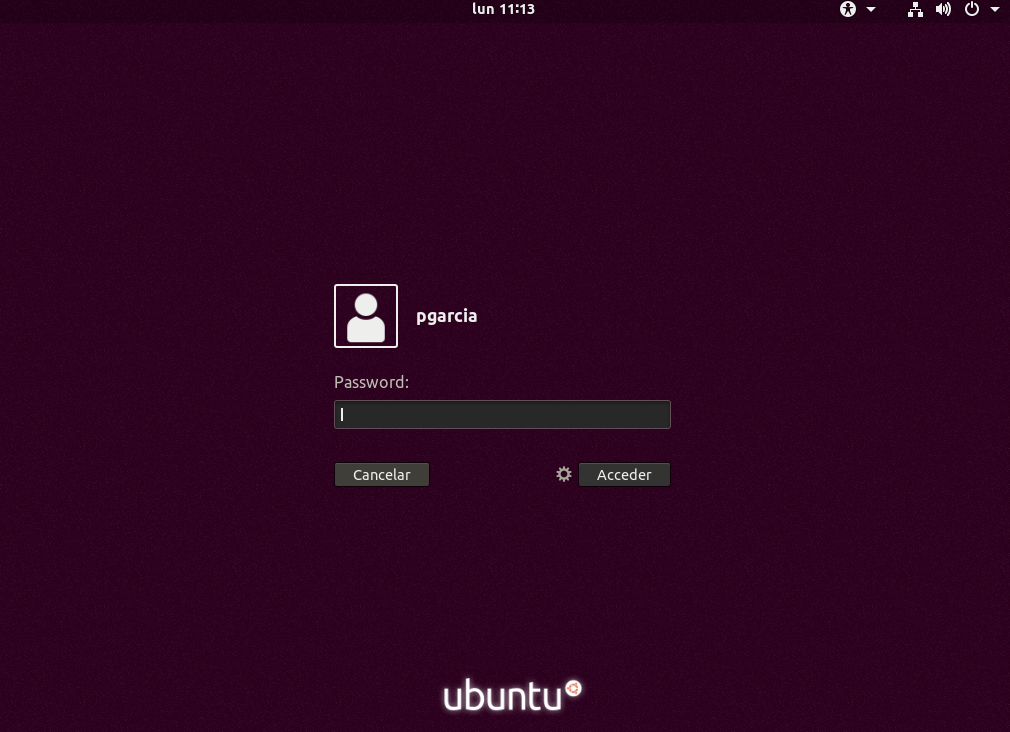
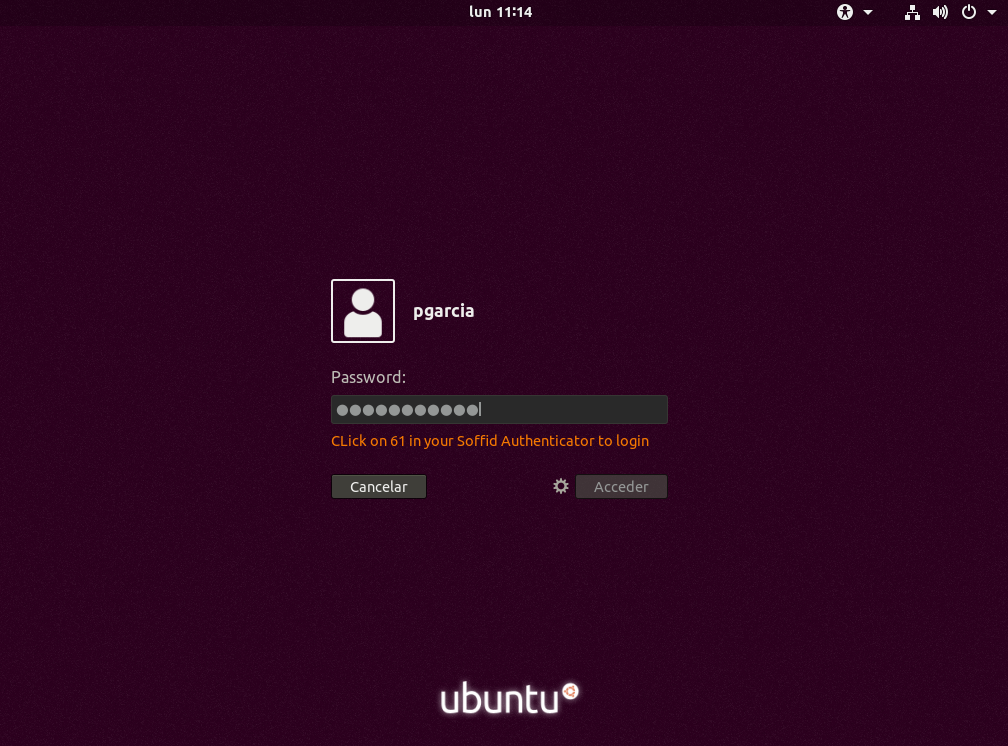
When you try to connect to a Linux machine using Soffid ESSO, you will need to enter your username and password on the Linux login page.

If the user does not exists in this machine, depending on the attribute "Create local accounts when there is no domain account" in Soffid ESSO configuration, a local user willl be created or not.

- If the network is connected, depending on the Soffid ESSO configuration, a 2FA may be required, or you will be logged in directly.
- If the network is not connected, also, depending on the Soffid ESSO configuration, you connect to the machine. When the network is re-established, Soffid ESSO will NOT ask for your credentials again in the Linux machine.

<p class="callout info">For more information about how to configure Soffid ESSO you can visit [the ESSO profile page](https://bookstack.soffid.com/books/federation/page/esso).</p>

<details id="bkmrk-%F0%9F%92%BB-image-%C2%A0"><summary>💻 Image</summary>

#####  Credentials required

[![image.png](https://bookstack.soffid.com/uploads/images/gallery/2024-09/scaled-1680-/ZJLytqxNJ2drg8DK-image.png)](https://bookstack.soffid.com/uploads/images/gallery/2024-09/ZJLytqxNJ2drg8DK-image.png)

#####  2FA required

[![image.png](https://bookstack.soffid.com/uploads/images/gallery/2024-09/scaled-1680-/GbJImQRUVqjP1rou-image.png)](https://bookstack.soffid.com/uploads/images/gallery/2024-09/GbJImQRUVqjP1rou-image.png)
##### Soffid ESSO options

[![image.png](https://bookstack.soffid.com/uploads/images/gallery/2024-09/scaled-1680-/UbZHPIshtG8yGrA4-image.png)](https://bookstack.soffid.com/uploads/images/gallery/2024-09/UbZHPIshtG8yGrA4-image.png)
</details>## Esso Options

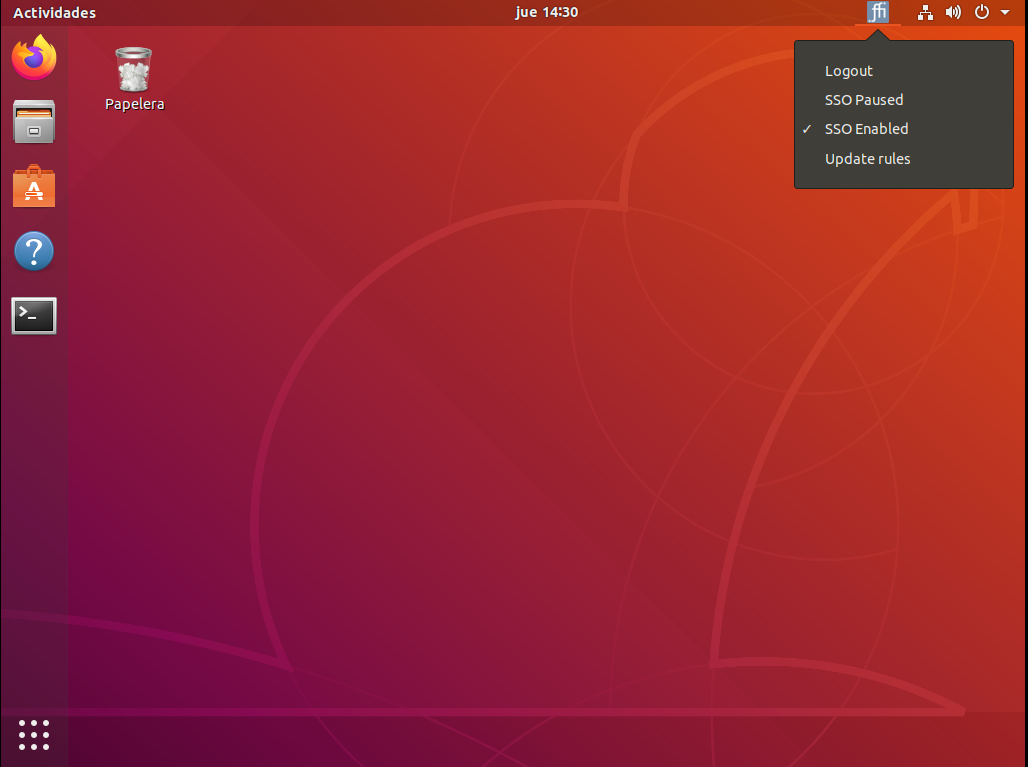
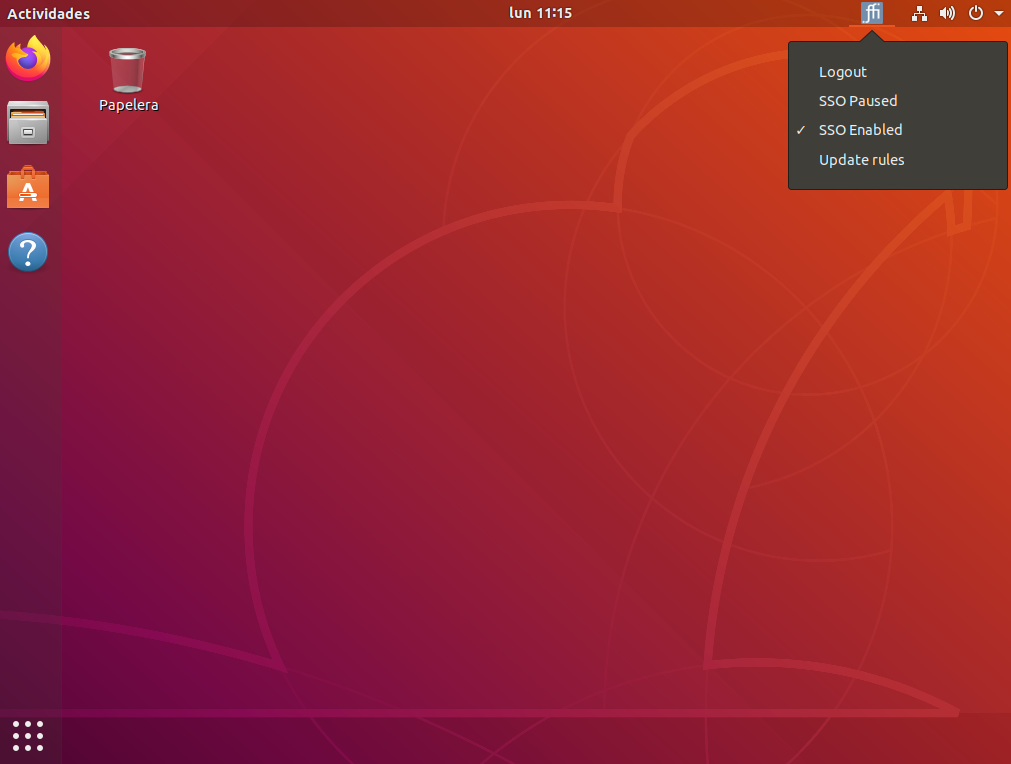
On a host with ESSO installed an icon with the Soffid Logo will appear on the Windows taskbar.

If the user clicks on the mouse's right button it will be able to do some different actions.

#### Login

<span style="font-weight: 400;"> Allows you to open an ESSO session. In order to open an ESSO session, the user must enter user code and password. In order to reopen it, the user must enter user code and password again (unless Kerberos login succeeds)</span>

#### Logout

<span style="font-weight: 400;">Allows you to close an ESSO session. On closing session, any SSO rules will be unloaded, so the user should enter the user and password on applications request.</span>

#### SSO Paused

If the user disables ESSO, user and password will be required to execute any application, but ESSO session is still open on the server.

#### SSO Enabled

In order to inject ESSO rules, Soffid ESSO must be enabled.

#### Update rules

To update ESSO rules for the user account. ESSO will contact Soffid Synchronization server in order to get the Single Sign On rules for this account. Any granted permission or rule change will be applied immediately.

<details id="bkmrk-%F0%9F%92%BB-image"><summary>💻 Image</summary>

[![image.png](https://bookstack.soffid.com/uploads/images/gallery/2024-10/scaled-1680-/fi31clB6MmyxHTsq-image.png)](https://bookstack.soffid.com/uploads/images/gallery/2024-10/fi31clB6MmyxHTsq-image.png)

</details>