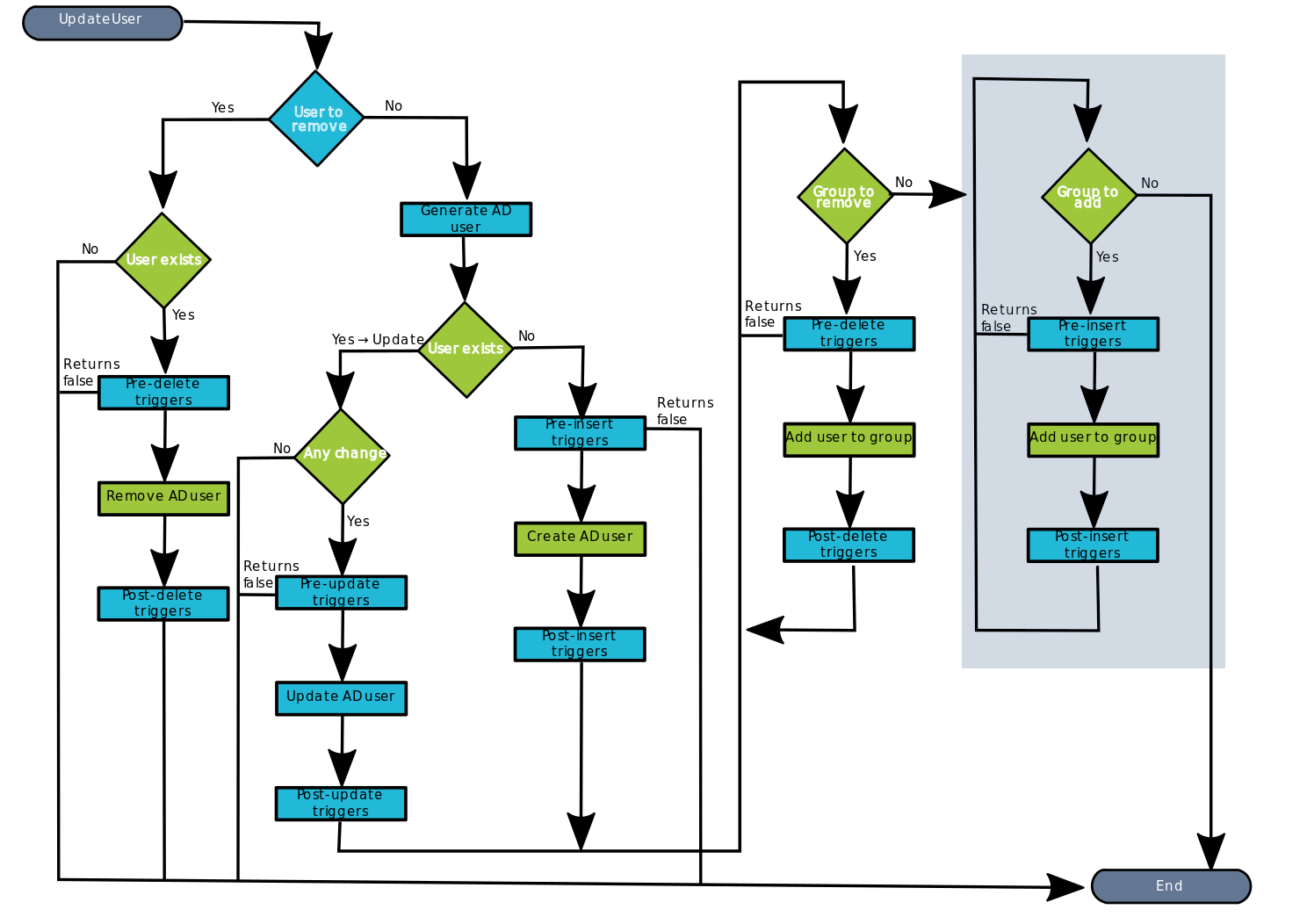
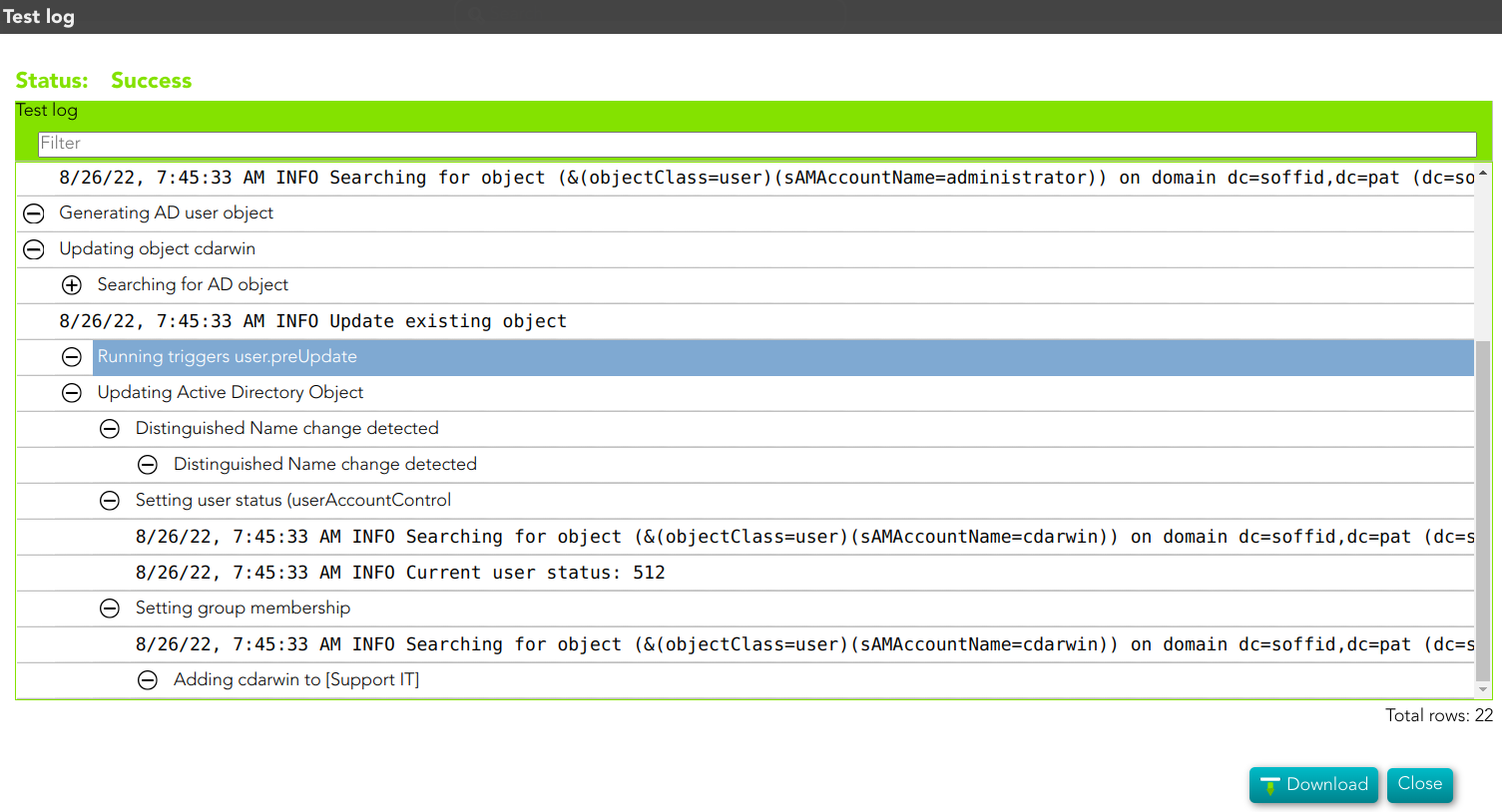
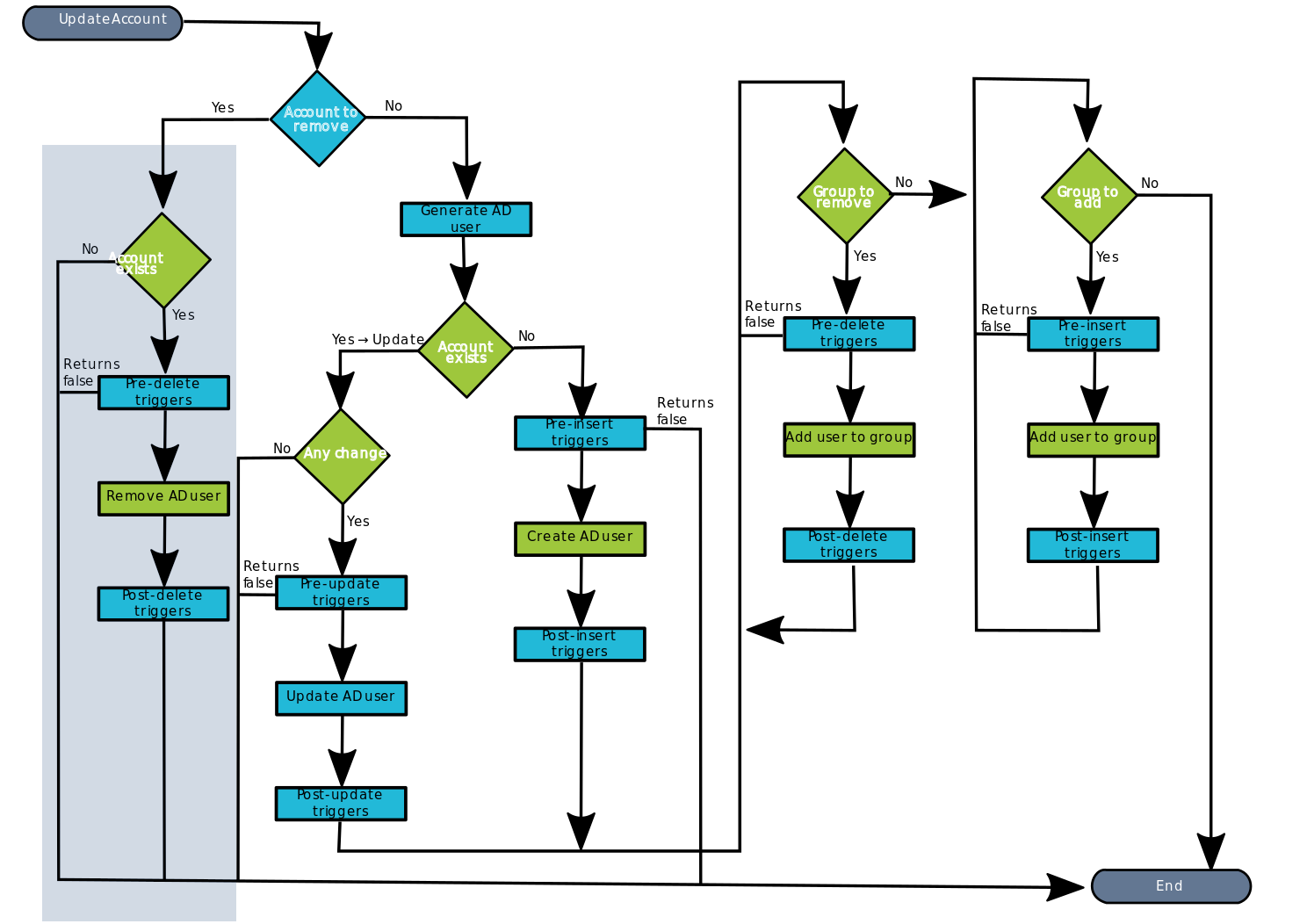
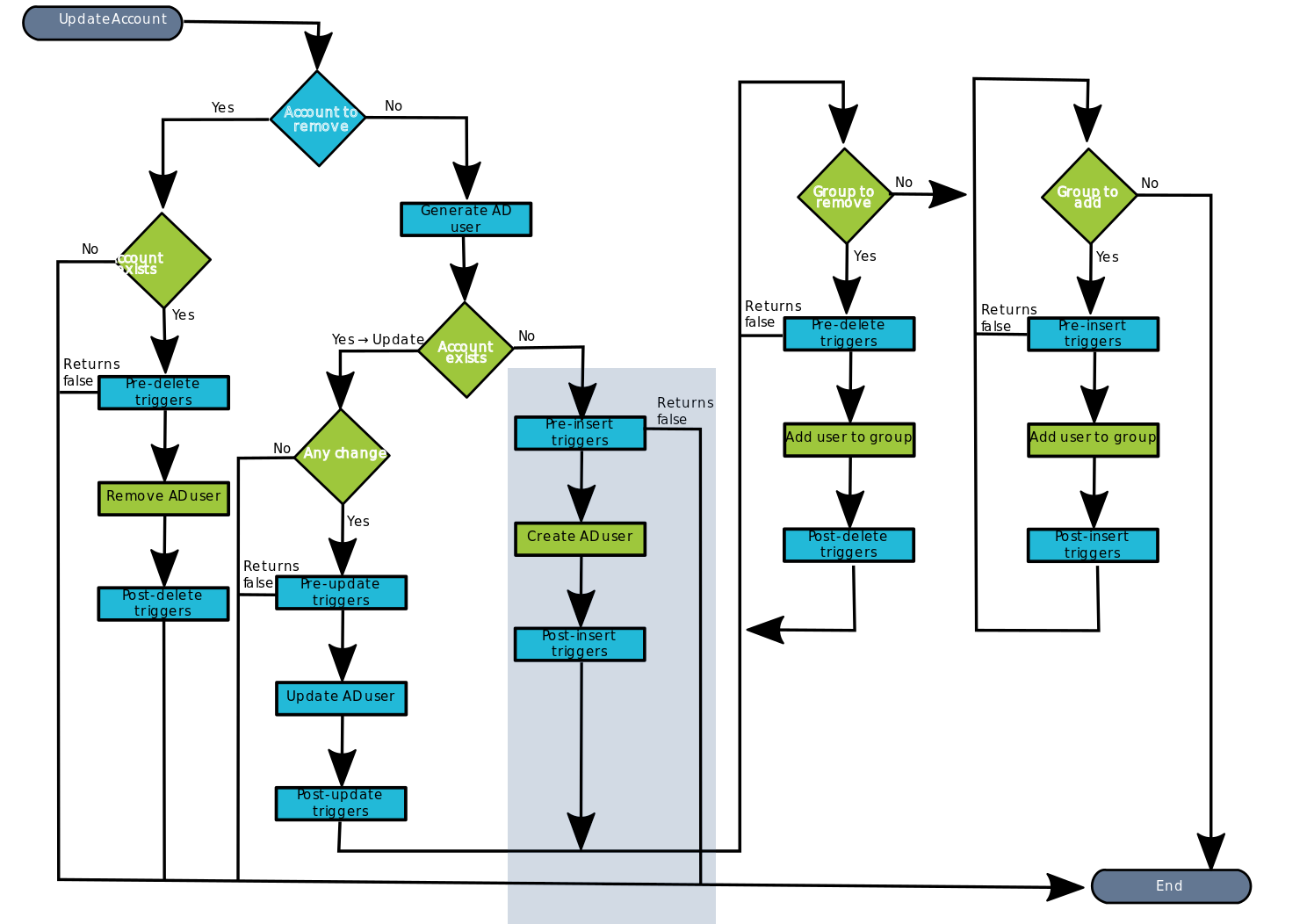
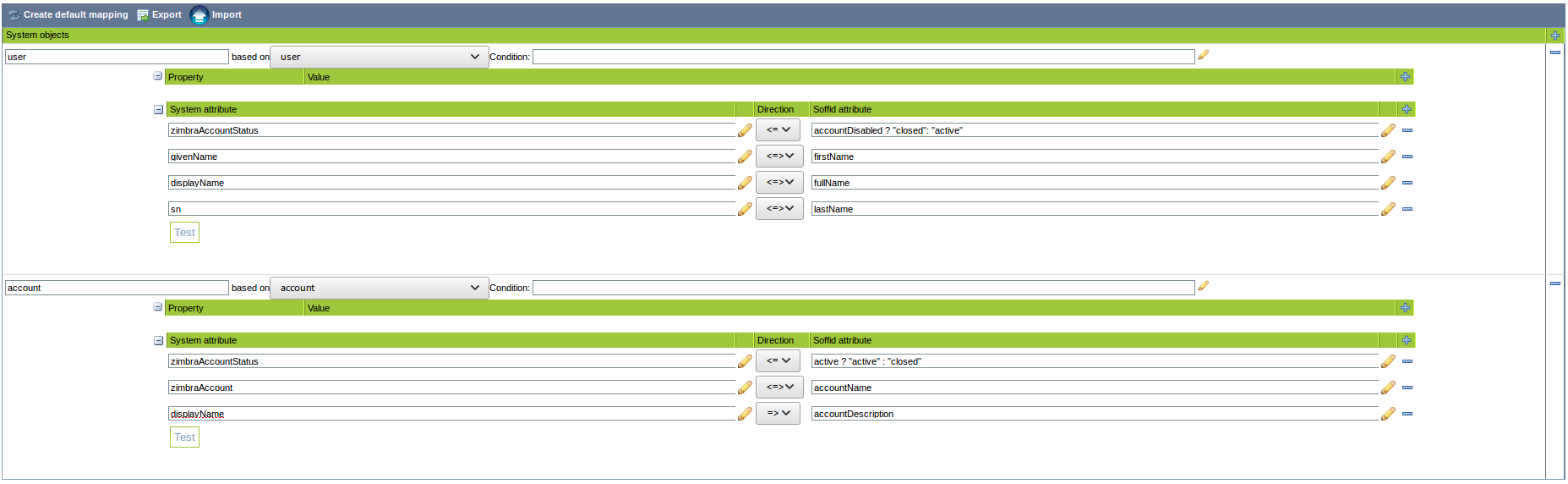
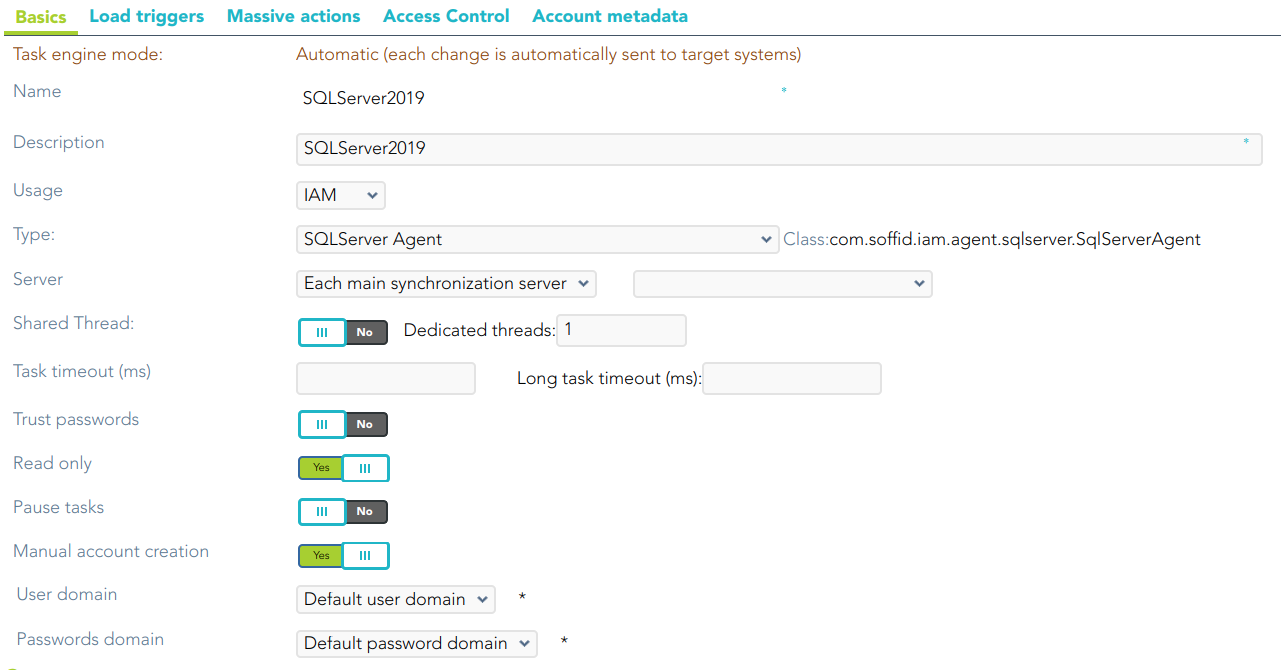
# Connectors

# ⏰ Getting started

## Introduction

<p class="callout success">Soffid provides the connectors needed to provision accounts on the most widely used systems. To set up this connection it is necessary a specific connector addon that you must install and configure in the Soffid console.</p>

First of all, yo must download the specific connector for your system, then install it in the Soffid console, and finally configure an agent in the Soffid console.

### Download

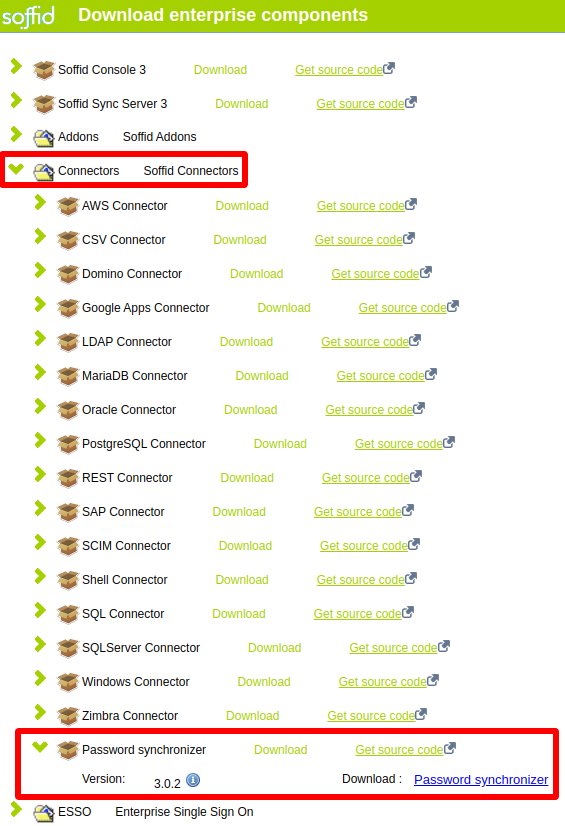
The <span style="color: #34b4c7;">**open-source connectors**</span> available for Soffid IAM can be found on the project website [http://www.soffid.com/download](http://www.soffid.com/download) in the Connectors section.

To download <span style="color: #34b4c7;">**enterprise connectors**</span> from [http://download.soffid.com/download/enterprise/](http://download.soffid.com/download/enterprise/) a Soffid user with authorization is required to access this functionality.

### Installation

<span style="color: #a6d100; font-weight: bold; font-size: 18px;">1.</span> Once the connector is downloaded, please log in to IAM Console.

<p class="callout info">You need to be an administrator user of the Soffid console or a user with permission to upload addons.</p>

<p class="callout info">It is recommended to upload the addons to the master, this is the way to maintain updated all, master and tenants if there are.</p>

<span style="color: #a6d100; font-weight: bold; font-size: 18px;">2.</span> In the Soffid console, please go to:

`Main Menu > Administration > Configure Soffid > Global Settings > Plugins`

<span style="color: #a6d100; font-weight: bold; font-size: 18px;">3.</span> Then, click the add button (+) and pick the file and Soffild will upload the addon file.

<span style="color: #a6d100; font-weight: bold; font-size: 18px;">4.</span> Finally, when the addon is installed, it will be required to restart the Soffid Sync server.

<span style="color: #a6d100; font-weight: bold; font-size: 18px;">5.</span> Once the Sync server is restarted, you could check the plugin was uploaded properly on the plugins page:

`Main Menu > Administration > Configure Soffid > Global Settings > Plugins`

<span style="color: #a6d100; font-weight: bold; font-size: 18px;">6.</span> Now, you can set up the connector.

### Configure Agent

Once the plugin has been uploaded and installed, the next step will be to set up the agent, this is the step where you establish a relation between Soffid and your managed system.

`Main Menu > Administration > Configure Soffid > Integration engine > Agents`

<p class="callout info">More information about how to configure agents can be found on the [Agents](https://bookstack.soffid.com/books/soffid-3-reference-guide/page/agents "Agents") page.</p>

### Connector List

Here you will find all the information needed about the available Soffid connectors to integrate external managed systems. If you miss something important, don't mind making suggestions using **<contact@soffid.com>**.

1. [AWS Connector](https://bookstack.soffid.com/books/soffid-3-reference-guide/page/aws-connector "AWS Connector")
2. [CSV Connector](https://bookstack.soffid.com/books/soffid-3-reference-guide/page/csv-connector "CSV Connector")
    - [Customizable CSV file (CSV Connector type)](https://bookstack.soffid.com/books/connectors/page/customizable-csv-file-csv-connector-type "Customizable CSV file (CSV Connector type)")
3. [Google Apps Connector](https://bookstack.soffid.com/books/soffid-3-reference-guide/page/google-apps-connector "Google Apps Connector")
4. [JSON REST Web Services Connector](https://bookstack.soffid.com/books/soffid-3-reference-guide/page/json-rest-web-services-connector "JSON REST Web Services Connector")
5. [LDAP Connector](https://bookstack.soffid.com/books/soffid-3-reference-guide/page/ldap-connector "LDAP Connector")
6. [Oracle Connector](https://bookstack.soffid.com/books/soffid-3-reference-guide/page/oracle-connector "Oracle Connector")
7. [Oracle EBS Connector](https://bookstack.soffid.com/books/soffid-3-reference-guide/page/oracle-ebs-connector "Oracle EBS Connector")
8. [SAP Connector](https://bookstack.soffid.com/books/soffid-3-reference-guide/page/sap-connector "SAP Connector")
9. [SCIM Connector](https://bookstack.soffid.com/books/soffid-3-reference-guide/page/scim-connector "SCIM Connector")
10. [Shell Connector](https://bookstack.soffid.com/books/soffid-3-reference-guide/page/shell-connector "Shell Connector")
    - [Invoker interface](https://bookstack.soffid.com/books/connectors/page/invoker-interface "Invoker interface")
11. [SQL Connector](https://bookstack.soffid.com/books/soffid-3-reference-guide/page/sql-connector "SQL Connector")
12. [Windows Connector](https://bookstack.soffid.com/books/soffid-3-reference-guide/page/windows-connector "Windows Connector")
    - [HOWTO SSL access to Active Directory](https://bookstack.soffid.com/books/connectors/page/invoker-interface "Invoker interface")
    - [Invoker interface for Active Directory](https://bookstack.soffid.com/books/connectors/page/invoker-interface-for-active-directory-skip-to-end-of-metadata "Invoker interface for Active Directory Skip to end of metadata")
13. [Zarafa Connector](https://bookstack.soffid.com/books/soffid-3-reference-guide/page/zarafa-connector "Zarafa Connector")
14. [SQL Server Connector](https://bookstack.soffid.com/books/connectors/page/sql-server-connector)

###   

# AWS Connector


# AWS Connector

## Introduction

### Description

AWS Connector allows to manage the [Amazon AWS IAM](https://aws.amazon.com/es/iam/) (Identity and Access Management)

### Managed Systems

This connector is specific for integration with the Amazon AWS IAM (Identity and Access Management) through the [CLI AWS IAM](https://docs.aws.amazon.com/cli/latest/reference/iam/index.html#cli-aws-iam)

<p class="callout info">For more information to check if your system may be synchronized with this connector, do not hesitate to contact us through our [Contact form](http://www.soffid.com/contactform/)</p>

### Prerequisites

It is needed a AWS IAM user with access and privileges to the required operations.

It cannot detect password changes to be propagated to other systems.

## Download and install

This addon is located in the Connectors section and its name is **AWS plugin**.

<p class="callout info">For more information about the installation process you can visit the [Addons Getting started](https://bookstack.soffid.com/books/addons-getting-started/page/getting-started "Addons installation") page.</p>

## Agent Configuration

### Basic

#### Generic parameters

After the installation of the addon, you may create and configure agent instances.

To configure this AWS connector you must select "Amazon WS" in the attribute "Type" of the generic parameters section in the agents page configuration.

<p class="callout info">For more information about how you may configure the generic parameters of the agent, see the following link: [Agents configuration](https://bookstack.soffid.com/books/soffid-3-reference-guide/page/agents "Agents")</p>

#### Custom parameters

Below there are the specific parameters for this agent implementation:

<table class="confluenceTable tablesorter tablesorter-default" id="bkmrk-parameter-descriptio" role="grid"><thead class="tableFloatingHeaderOriginal"><tr class="tablesorter-headerRow" role="row"><th aria-disabled="false" aria-label="Parameter: No sort applied, activate to apply an ascending sort" aria-sort="none" class="confluenceTh tablesorter-header sortableHeader tablesorter-headerUnSorted" data-column="0" role="columnheader" scope="col" style="width: 125px;" tabindex="0"><div>**Parameter**</div></th><th aria-disabled="false" aria-label="Description: No sort applied, activate to apply an ascending sort" aria-sort="none" class="confluenceTh tablesorter-header sortableHeader tablesorter-headerUnSorted" data-column="1" role="columnheader" scope="col" style="width: 678px;" tabindex="0"><div>**Description**</div></th></tr></thead><tbody aria-live="polite" aria-relevant="all"><tr role="row"><td class="confluenceTd" colspan="1" style="width: 125px;"><span class="etiqueta">Access Key</span></td><td class="confluenceTd" colspan="1" style="width: 678px;">Access key provided by the AWS IAM account</td></tr><tr role="row"><td class="confluenceTd" colspan="1" style="width: 125px;"><div><span class="etiqueta">Secret Key</span></div></td><td class="confluenceTd" colspan="1" style="width: 678px;"><span class="etiqueta">Secret key</span> provided by the AWS IAM account</td></tr><tr role="row"><td class="confluenceTd" colspan="1" style="width: 125px;"><span class="etiqueta">AWS Endpoint</span></td><td class="confluenceTd" colspan="1" style="width: 678px;"><span class="etiqueta">AWS endpoint</span> provided by the AWS IAM account</td></tr><tr role="row"><td class="confluenceTd" colspan="1" style="width: 125px;"><span class="etiqueta">Enable debug</span></td><td class="confluenceTd" colspan="1" style="width: 678px;">Two options: \[ Yes / No \]. When it is enabled more log traces are printed in the Synchronization Server log</td></tr></tbody></table>

### Attribute mappings

This connector could manage <span style="color: #34b4c7;">**Users**</span> and **<span style="color: #34b4c7;">Roles </span>**

#### Properties

The following properties are defined for each object type:

<div id="bkmrk-property-meaning-pre"><table class="confluenceTable tablesorter tablesorter-default" role="grid"><thead class="tableFloatingHeaderOriginal"><tr class="tablesorter-headerRow" role="row"><th aria-disabled="false" aria-label="Property: No sort applied, activate to apply an ascending sort" aria-sort="none" class="confluenceTh tablesorter-header sortableHeader tablesorter-headerUnSorted" data-column="0" role="columnheader" scope="col" style="width: 188px;" tabindex="0"><div><div>**Property**</div></div></th><th aria-disabled="false" aria-label="Meaning: No sort applied, activate to apply an ascending sort" aria-sort="none" class="confluenceTh tablesorter-header sortableHeader tablesorter-headerUnSorted" data-column="1" role="columnheader" scope="col" style="width: 608px;" tabindex="0"><div><div>**Meaning**</div></div></th></tr></thead><tbody aria-live="polite" aria-relevant="all"><tr role="row"><td class="confluenceTd" style="width: 188px;">preventDeletion (optional)</td><td class="confluenceTd" style="width: 608px;">Two options: \[ True / False \].  
If true, it will prevent the deletion of any object that is no longer needed.

</td></tr></tbody></table>

</div>#### Attributes

You can customize attribute mappings, you only need to select system objects and the Soffid objects related, manage their attributes, and make either inbound and outbound attribute mappings.

##### Users

The following attributes can be mapped on User objects

<div id="bkmrk-attribute-value-user"><table class="confluenceTable tablesorter tablesorter-default" role="grid"><thead class="tableFloatingHeaderOriginal"><tr class="tablesorter-headerRow" role="row"><th aria-disabled="false" aria-label="Attribute: No sort applied, activate to apply an ascending sort" aria-sort="none" class="confluenceTh tablesorter-header sortableHeader tablesorter-headerUnSorted" data-column="0" role="columnheader" scope="col" style="width: 137px;" tabindex="0"><div><div>**Attribute**</div></div></th><th aria-disabled="false" aria-label="Value: No sort applied, activate to apply an ascending sort" aria-sort="none" class="confluenceTh tablesorter-header sortableHeader tablesorter-headerUnSorted" data-column="1" role="columnheader" scope="col" style="width: 662px;" tabindex="0"><div><div>**Value**</div></div></th></tr></thead><tbody aria-live="polite" aria-relevant="all"><tr role="row"><td class="confluenceTd" style="width: 137px;">userName</td><td class="confluenceTd" style="width: 662px;">User name</td></tr><tr role="row"><td class="confluenceTd" colspan="1" style="width: 137px;">path</td><td class="confluenceTd" colspan="1" style="width: 662px;">User path</td></tr><tr role="row"><td class="confluenceTd" colspan="1" style="width: 137px;">arn</td><td class="confluenceTd" colspan="1" style="width: 662px;">AWS arn (read only)</td></tr><tr role="row"><td class="confluenceTd" colspan="1" style="width: 137px;">createDate</td><td class="confluenceTd" colspan="1" style="width: 662px;">Creation date (read only)</td></tr><tr role="row"><td class="confluenceTd" colspan="1" style="width: 137px;">passwordLastUsed</td><td class="confluenceTd" colspan="1" style="width: 662px;">Passsword last use (read only)</td></tr><tr role="row"><td class="confluenceTd" colspan="1" style="width: 137px;">userId</td><td class="confluenceTd" colspan="1" style="width: 662px;">Internal user id</td></tr></tbody></table>

</div>##### Groups

The following attributes can be mapped on Role (AWS Group) objects:

<div id="bkmrk-attribute-value-grou"><table class="confluenceTable tablesorter tablesorter-default" role="grid"><thead class="tableFloatingHeaderOriginal"><tr class="tablesorter-headerRow" role="row"><th aria-disabled="false" aria-label="Attribute: No sort applied, activate to apply an ascending sort" aria-sort="none" class="confluenceTh tablesorter-header sortableHeader tablesorter-headerUnSorted" data-column="0" role="columnheader" scope="col" style="width: 138px;" tabindex="0"><div><div>**Attribute**</div></div></th><th aria-disabled="false" aria-label="Value: No sort applied, activate to apply an ascending sort" aria-sort="none" class="confluenceTh tablesorter-header sortableHeader tablesorter-headerUnSorted" data-column="1" role="columnheader" scope="col" style="width: 661px;" tabindex="0"><div><div>**Value**</div></div></th></tr></thead><tbody aria-live="polite" aria-relevant="all"><tr role="row"><td class="confluenceTd" style="width: 138px;">groupName</td><td class="confluenceTd" style="width: 661px;">Group name</td></tr><tr role="row"><td class="confluenceTd" colspan="1" style="width: 138px;">path</td><td class="confluenceTd" colspan="1" style="width: 661px;">Group path</td></tr><tr role="row"><td class="confluenceTd" colspan="1" style="width: 138px;">arn</td><td class="confluenceTd" colspan="1" style="width: 661px;">AWS arn (read only)</td></tr><tr role="row"><td class="confluenceTd" colspan="1" style="width: 138px;">createDate</td><td class="confluenceTd" colspan="1" style="width: 661px;">Creation date (read only)</td></tr><tr role="row"><td class="confluenceTd" colspan="1" style="width: 138px;">groupId</td><td class="confluenceTd" colspan="1" style="width: 661px;">Internal group id</td></tr></tbody></table>

</div><p class="callout info">For more information about how you may configure attribute mapping, see the following link: [Soffid Attribute Mapping Reference](https://bookstack.soffid.com/link/72#bkmrk-soffid-attributes)</p>

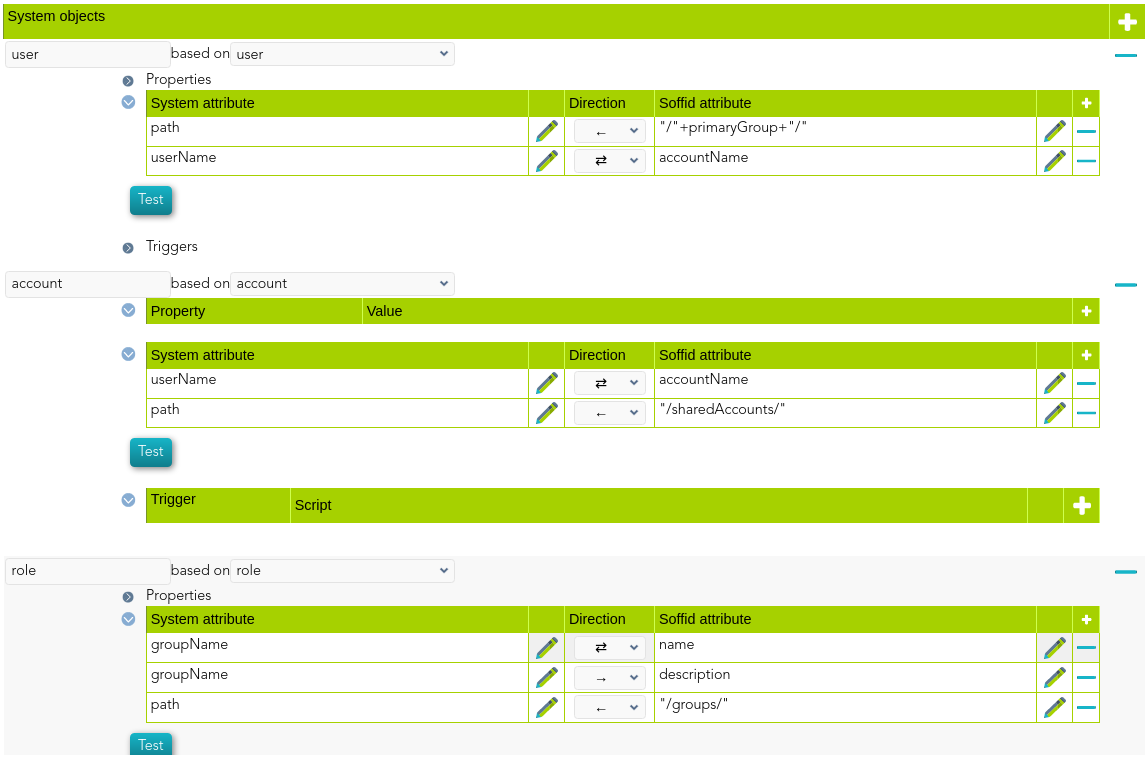
[![image-1641816933566.png](https://bookstack.soffid.com/uploads/images/gallery/2022-01/scaled-1680-/image-1641816933566.png)](https://bookstack.soffid.com/uploads/images/gallery/2022-01/image-1641816933566.png)

#### Triggers

You can define BeanShell scripts that will be triggered when data is loaded into the target system (outgoing triggers). The trigger result will be a boolean value, true to continue or false to stop.

Triggers can be used to validate or perform a specific action just before performing an operation or just after performing an operation into target objects.

<p class="callout info">To view some examples, visit the [Outgoing triggers examples page](https://bookstack.soffid.com/books/connectors/page/outgoing-triggers-examples "Outgoing triggers examples").</p>

### Load triggers

You can define BeanShell scripts that will be triggered when data is loaded into Soffid (incoming triggers). The trigger result will be a boolean value, true to continue or false to stop.

Triggers can be used to validate or perform a specific action just before performing an operation or just after performing an operation into Soffid objects.

<p class="callout info">To view some examples, visit the [Incoming triggers examples page.](https://bookstack.soffid.com/books/connectors/page/incoming-triggers-examples "Incoming triggers examples")</p>

### Account metadata

Agents allow you to create additional data, on the "Account metadata" tab, to customize the accounts created for that agent. This additional information will be loaded with the agent's information, or calculated as defined in the mappings.  
The additional data can be used in both mappings and triggers.

The attributes which you define here will be shown when you click on the proper account, on the Accounts Tabs at user page.

## Operational

### Monitoring

After the agent configuration you could check on the monitoring page if the service is running in the Synchronization Server, please go to:

- Start Menu &gt; Administration &gt; Monitoring and reporting &gt; Syscserver monitoring

### Tasks

#### Authoritative

If you are checked "Authorized identity source", an automatic task to load identities from the managed system to Soffid is available, please go to:

- Start Menu &gt; Administration &gt; Monitoring and reporting &gt; Scheduled tasks

And you will something like "Import authoritative data from &lt;AGENT\_NAME&gt;".

#### Reconcile

If you are configured the "Attribute Mapping" tab with some of our objects: "user or role", an automatic task to synchronize these objects from the managed system to Soffid is available, please go to:

- Start Menu &gt; Administration &gt; Monitoring and reporting &gt; Scheduled tasks

And you will do something like "Reconcile all accounts from &lt;AGENT\_NAME&gt;".

### Synchronization

Regarding the synchronization of the objects, there are two possible options:

- If you are checked the generic attribute "Read Only" in the "Basics" tab, only the changes in the managed systems will be updated in Soffid. We recommend these options until the global configuration of Soffid will be tested.
- If you are not checked the generic attribute "Read Only" in the "Basics" tab, all the changes in Soffid or the managed system will be updated in the other. Note that this synchronization must be configured in the "Attribute mapping" tab correctly.

<p class="callout info">For more information about how you may configure the generic parameters of the agent, see the following link: [Agents configuration](https://bookstack.soffid.com/books/soffid-3-reference-guide/page/agents "Agents")</p>

# CSV Connector


# CSV Connector

## Introduction

### Description

The CSV Connector provides a way to load authoritative data from fixed record size files.

### Managed System

This connector has been performed to charge authoritative data from files with CSV format or other format in other extension files.

<p class="callout info">For more information to check if your system may be synchronized with this connector you do not hesitate to contact us through our [Contact form](http://www.soffid.com/contactform/)</p>

### Prerequisites

The file must be placed in the same Synchronization Server host.

The file must has the correct permissions to be readed for the Synchronization Server.

## Download and Install

This addon is located in the Connectors section and its name is **Flat file plugin**.

<p class="callout info">For more information about the installation process you can visit the [Addons Getting started](https://bookstack.soffid.com/books/addons-getting-started/page/getting-started "Addons installation") page.</p>

## Agent Configuration

This connector could only be used as an identity source, no output file could be generated yet.

Usually, this connector is used the first time to charge manually the user information of the identities from the HR applications o database.

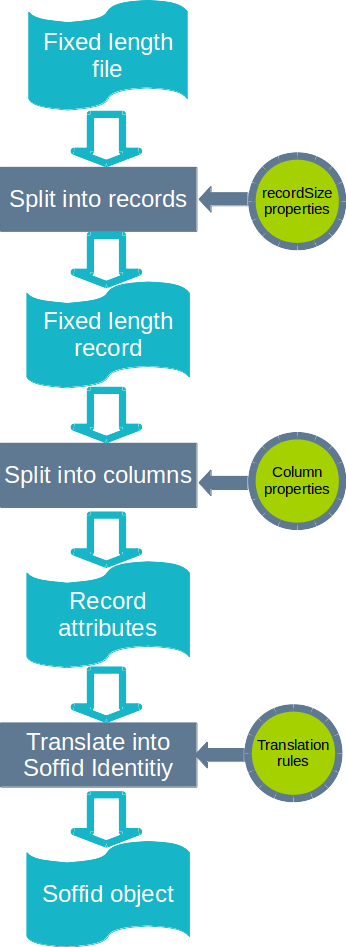
As example, this is the flow to shows how the "<u>Customizable fixed-columns file v2.0</u>" works.

[![CSV Connector.png](https://bookstack.soffid.com/uploads/images/gallery/2021-04/scaled-1680-/csv-connector.png)](https://bookstack.soffid.com/uploads/images/gallery/2021-04/csv-connector.png)

### Basic

#### Generic parameters

After the installation of the addon, you may create and configure agent instances.

This addon has 5 available types:

- Customizable fixed-columns file v2.0: it is used to charge a table where each column has a fixed number of characters.
- Customizable CSV file: it is used to charge a standard CSV file (comma-separated values), where all the columns are separated by a comma.
- CSV file test agent.
- Dummy password agent.
- Test.

To configure this CSV plugin, you could select one of the previous agent in the attribute "Type" of the generic parameters section in the agents page configuration.

<p class="callout info">For more information about how you may configure the generic parameters of the agent, see the following link: [Agents configuration](https://bookstack.soffid.com/books/soffid-3-reference-guide/page/agents "Agents")</p>

#### Custom parameters

The main parameters for this connectors are:

##### Customizable fixed-columns file v2.0

<table class="wrapped confluenceTable tablesorter tablesorter-default" id="bkmrk-parameter-descriptio" role="grid"><colgroup><col></col><col></col></colgroup><thead><tr class="tablesorter-headerRow" role="row"><th aria-disabled="false" aria-label="Parameter: No sort applied, activate to apply an ascending sort" aria-sort="none" class="confluenceTh tablesorter-header sortableHeader tablesorter-headerUnSorted" data-column="0" role="columnheader" scope="col" style="width: 145px;" tabindex="0"><div>**Parameter**</div></th><th aria-disabled="false" aria-label="Description: No sort applied, activate to apply an ascending sort" aria-sort="none" class="confluenceTh tablesorter-header sortableHeader tablesorter-headerUnSorted" data-column="1" role="columnheader" scope="col" style="width: 665px;" tabindex="0"><div>**Description**</div></th></tr></thead><tbody aria-live="polite" aria-relevant="all"><tr role="row"><td class="confluenceTd" style="width: 145px;"><span class="etiqueta">Enable debug</span></td><td class="confluenceTd" style="width: 665px;">Two options: \[ Yes / No \]. When it is enabled more log traces are printed in the Synchronization Server log</td></tr><tr role="row"><td class="confluenceTd" colspan="1" style="width: 145px;"><div><span class="etiqueta">Character set (utf-8)</span></div></td><td class="confluenceTd" colspan="1" style="width: 665px;">Charset used to load files. Despite it in uncommon, multi-byte character sets, as UTF-8, are allowed. Nevertheless, single byte character sets as ISO-8859-1 are recommended</td></tr></tbody></table>

##### Customizable CSV file

<div id="bkmrk-parameter-descriptio-0"><table class="wrapped confluenceTable tablesorter tablesorter-default" role="grid"><colgroup><col></col><col></col></colgroup><thead><tr class="tablesorter-headerRow" role="row"><th aria-disabled="false" aria-label="Parameter: No sort applied, activate to apply an ascending sort" aria-sort="none" class="confluenceTh tablesorter-header sortableHeader tablesorter-headerUnSorted" data-column="0" role="columnheader" scope="col" style="width: 148px;" tabindex="0"><div>**Parameter**</div></th><th aria-disabled="false" aria-label="Description: No sort applied, activate to apply an ascending sort" aria-sort="none" class="confluenceTh tablesorter-header sortableHeader tablesorter-headerUnSorted" data-column="1" role="columnheader" scope="col" style="width: 659px;" tabindex="0"><div>**Description**</div></th></tr></thead><tbody aria-live="polite" aria-relevant="all"><tr role="row"><td class="confluenceTd" style="width: 148px;"><span class="etiqueta">Enable debug</span></td><td class="confluenceTd" style="width: 659px;">Two options: \[ Yes / No \]. When it is enabled more log traces are printed in the Synchronization Server log</td></tr></tbody></table>

</div>##### CSV file test agent

<table class="wrapped confluenceTable tablesorter tablesorter-default" id="bkmrk-parameter-descriptio-1" role="grid"><colgroup><col></col><col></col></colgroup><thead><tr class="tablesorter-headerRow" role="row"><th aria-disabled="false" aria-label="Parameter: No sort applied, activate to apply an ascending sort" aria-sort="none" class="confluenceTh tablesorter-header sortableHeader tablesorter-headerUnSorted" data-column="0" role="columnheader" scope="col" style="width: 147px;" tabindex="0"><div>**Parameter**</div></th><th aria-disabled="false" aria-label="Description: No sort applied, activate to apply an ascending sort" aria-sort="none" class="confluenceTh tablesorter-header sortableHeader tablesorter-headerUnSorted" data-column="1" role="columnheader" scope="col" style="width: 657px;" tabindex="0"><div>**Description**</div></th></tr></thead><tbody aria-live="polite" aria-relevant="all"><tr role="row"><td class="confluenceTd" style="width: 147px;">User's file</td><td class="confluenceTd" style="width: 657px;">Directory where the CSV file is placed</td></tr></tbody></table>

##### Dummy password agent

<table class="wrapped confluenceTable tablesorter tablesorter-default" id="bkmrk-parameter-descriptio-2" role="grid"><colgroup><col></col><col></col></colgroup><thead><tr class="tablesorter-headerRow" role="row"><th aria-disabled="false" aria-label="Parameter: No sort applied, activate to apply an ascending sort" aria-sort="none" class="confluenceTh tablesorter-header sortableHeader tablesorter-headerUnSorted" data-column="0" role="columnheader" scope="col" style="width: 147px;" tabindex="0"><div>**Parameter**</div></th><th aria-disabled="false" aria-label="Description: No sort applied, activate to apply an ascending sort" aria-sort="none" class="confluenceTh tablesorter-header sortableHeader tablesorter-headerUnSorted" data-column="1" role="columnheader" scope="col" style="width: 658px;" tabindex="0"><div>**Description**</div></th></tr></thead><tbody aria-live="polite" aria-relevant="all"><tr role="row"><td class="confluenceTd" style="width: 147px;"><div><span class="etiqueta">Dummy Password</span></div></td><td class="confluenceTd" style="width: 658px;"><span class="etiqueta">Dummy Password</span></td></tr></tbody></table>

##### Test

<table class="wrapped confluenceTable tablesorter tablesorter-default" id="bkmrk-parameter-descriptio-3" role="grid"><colgroup><col></col><col></col></colgroup><thead><tr class="tablesorter-headerRow" role="row"><th aria-disabled="false" aria-label="Parameter: No sort applied, activate to apply an ascending sort" aria-sort="none" class="confluenceTh tablesorter-header sortableHeader tablesorter-headerUnSorted" data-column="0" role="columnheader" scope="col" style="width: 147px;" tabindex="0"><div>**Parameter**</div></th><th aria-disabled="false" aria-label="Description: No sort applied, activate to apply an ascending sort" aria-sort="none" class="confluenceTh tablesorter-header sortableHeader tablesorter-headerUnSorted" data-column="1" role="columnheader" scope="col" style="width: 659px;" tabindex="0"><div>**Description**</div></th></tr></thead><tbody aria-live="polite" aria-relevant="all"><tr role="row"><td class="confluenceTd" style="width: 147px;"><div><span class="etiqueta">CSV file</span></div></td><td class="confluenceTd" style="width: 659px;">Path of the CSV file</td></tr></tbody></table>

### Attribute mapping

Only the "<u>Customizable fixed-columns file v2.0</u>" and the "<u>Customizable CSV file</u>" agents have this functionality implemented.

#### Properties

##### Customizable fixed-columns file v2.0

This agent requires two properties:

<div id="bkmrk-property-description"><table class="wrapped confluenceTable tablesorter tablesorter-default" role="grid"><colgroup><col></col><col></col></colgroup><thead><tr class="tablesorter-headerRow" role="row"><th aria-disabled="false" aria-label="Property: No sort applied, activate to apply an ascending sort" aria-sort="none" class="confluenceTh tablesorter-header sortableHeader tablesorter-headerUnSorted" data-column="0" role="columnheader" scope="col" style="width: 122px;" tabindex="0"><div>**Property**</div></th><th aria-disabled="false" aria-label="Description: No sort applied, activate to apply an ascending sort" aria-sort="none" class="confluenceTh tablesorter-header sortableHeader tablesorter-headerUnSorted" data-column="1" role="columnheader" scope="col" style="width: 687px;" tabindex="0"><div>**Description**</div></th></tr></thead><tbody aria-live="polite" aria-relevant="all"><tr role="row"><td class="confluenceTd" style="width: 122px;">file</td><td class="confluenceTd" style="width: 687px;">Path where the file is placed in the directory system</td></tr><tr role="row"><td class="confluenceTd" style="width: 122px;">recordSize</td><td class="confluenceTd" style="width: 687px;"><span class="short_text" lang="en">Total number of characters of the rows.</span>

<span class="short_text" lang="en">This property must have a number value.</span>

<span class="short_text" lang="en">The file will be split into records of this size in bytes. Mind the record size must include any line terminator character as "carriage return" or "line feed".  
</span>

</td></tr></tbody></table>

</div>And after that you must specify the number of rows of every row as follow:

<div id="bkmrk-property-description-0"><table class="wrapped confluenceTable tablesorter tablesorter-default" role="grid"><colgroup><col></col><col></col></colgroup><thead><tr class="tablesorter-headerRow" role="row"><th aria-disabled="false" aria-label="Property: No sort applied, activate to apply an ascending sort" aria-sort="none" class="confluenceTh tablesorter-header sortableHeader tablesorter-headerUnSorted" data-column="0" role="columnheader" scope="col" tabindex="0"><div>**Property**</div></th><th aria-disabled="false" aria-label="Description: No sort applied, activate to apply an ascending sort" aria-sort="none" class="confluenceTh tablesorter-header sortableHeader tablesorter-headerUnSorted" data-column="1" role="columnheader" scope="col" tabindex="0"><div>**Description**</div></th></tr></thead><tbody aria-live="polite" aria-relevant="all"><tr role="row"><td class="confluenceTd">N-M</td><td class="confluenceTd">Where N is the position of the first character and M the position of the last character, both included.

Column numbers start with 1 (not 0).

And for instance, if the property is defined as "1-10" with the value "NAME", Soffid will extract characters from columns 1 to 10 (both inclusive) into a field named NAME in Soffid.

</td></tr></tbody></table>

</div>For instance for this file:

```
abernal   Antonio        Bernal         world      YES
jwayne2   John           Wayne          world      YES
```

These are its properties:

[![CSV Connector - properties.png](https://bookstack.soffid.com/uploads/images/gallery/2021-04/scaled-1680-/csv-connector-properties.png)](https://bookstack.soffid.com/uploads/images/gallery/2021-04/csv-connector-properties.png)

##### Customizable CSV file

This agent only needs the next properties:

<div id="bkmrk-property-description-1"><table class="wrapped confluenceTable tablesorter tablesorter-default" role="grid"><colgroup><col></col><col></col></colgroup><thead><tr class="tablesorter-headerRow" role="row"><th aria-disabled="false" aria-label="Property: No sort applied, activate to apply an ascending sort" aria-sort="none" class="confluenceTh tablesorter-header sortableHeader tablesorter-headerUnSorted" data-column="0" role="columnheader" scope="col" style="width: 113px;" tabindex="0"><div>**Property**</div></th><th aria-disabled="false" aria-label="Description: No sort applied, activate to apply an ascending sort" aria-sort="none" class="confluenceTh tablesorter-header sortableHeader tablesorter-headerUnSorted" data-column="1" role="columnheader" scope="col" style="width: 696px;" tabindex="0"><div>**Description**</div></th></tr></thead><tbody aria-live="polite" aria-relevant="all"><tr role="row"><td class="confluenceTd" style="width: 113px;">file

</td><td class="confluenceTd" style="width: 696px;"><u>Mandatory</u>: Path where the file is placed in the directory system

</td></tr><tr role="row"><td class="confluenceTd" colspan="1" style="width: 113px;">key

</td><td class="confluenceTd" colspan="1" style="width: 696px;"><u>Mandatory</u>: The field to be used as key

</td></tr></tbody></table>

</div>#### Attributes

##### Customizable fixed-columns file v2.0

The mapping in only available for USER object.

Now we could map the system attribute defined as property values agains Soffid attributes, for instance:

<div id="bkmrk-system-attribute-sof"><table class="wrapped confluenceTable tablesorter tablesorter-default" role="grid"><thead><tr class="tablesorter-headerRow" role="row"><th aria-disabled="false" aria-label="System attribute: No sort applied, activate to apply an ascending sort" aria-sort="none" class="confluenceTh tablesorter-header sortableHeader tablesorter-headerUnSorted" data-column="0" role="columnheader" scope="col" style="width: 154px;" tabindex="0"><div>**System attribute**</div></th><th aria-disabled="false" aria-label="Soffid attribute: No sort applied, activate to apply an ascending sort" aria-sort="none" class="confluenceTh tablesorter-header sortableHeader tablesorter-headerUnSorted" data-column="1" role="columnheader" scope="col" style="width: 664px;" tabindex="0"><div>**Soffid attribute**</div></th></tr></thead><tbody aria-live="polite" aria-relevant="all"><tr role="row"><td class="confluenceTd" style="width: 154px;">USER

</td><td class="confluenceTd" style="width: 664px;">userName

</td></tr><tr role="row"><td class="confluenceTd" colspan="1" style="width: 154px;">FIRSTNAME

</td><td class="confluenceTd" colspan="1" style="width: 664px;">firstName

</td></tr><tr role="row"><td class="confluenceTd" colspan="1" style="width: 154px;">LASTNAME

</td><td class="confluenceTd" colspan="1" style="width: 664px;">lastName

</td></tr><tr role="row"><td class="confluenceTd" colspan="1" style="width: 154px;">GROUPNAME

</td><td class="confluenceTd" colspan="1" style="width: 664px;">primaryGroup

</td></tr><tr role="row"><td class="confluenceTd" colspan="1" style="width: 154px;">ACTIVE.equals("YES")

</td><td class="confluenceTd" colspan="1" style="width: 664px;">active

</td></tr></tbody></table>

</div>For instance:

[![image-1641824416700.png](https://bookstack.soffid.com/uploads/images/gallery/2022-01/scaled-1680-/image-1641824416700.png)](https://bookstack.soffid.com/uploads/images/gallery/2022-01/image-1641824416700.png)

<p class="callout info">For more information about how you may configure attribute mapping, see the following link: [Soffid Attribute Mapping Reference](https://bookstack.soffid.com/link/72#bkmrk-soffid-attributes)</p>

##### Customizable CSV file

The mapping in only available for USER object.

The first row of the file must include the name of the attribute.

```
USER,FIRSTNAME,LASTNAME,GROUPNAME,ACTIVE
abernal,Antonio,Bernal,world,YES
jwayne2,John,Wayne, world,YES
```

Now we could map the system attribute (file) with the Soffid attributes, for instance:

<div id="bkmrk-system-attribute-sof-0"><table class="wrapped confluenceTable tablesorter tablesorter-default" role="grid"><thead><tr class="tablesorter-headerRow" role="row"><th aria-disabled="false" aria-label="System attribute: No sort applied, activate to apply an ascending sort" aria-sort="none" class="confluenceTh tablesorter-header sortableHeader tablesorter-headerUnSorted" data-column="0" role="columnheader" scope="col" style="width: 205px;" tabindex="0"><div>**System attribute**</div></th><th aria-disabled="false" aria-label="Soffid attribute: No sort applied, activate to apply an ascending sort" aria-sort="none" class="confluenceTh tablesorter-header sortableHeader tablesorter-headerUnSorted" data-column="1" role="columnheader" scope="col" style="width: 603px;" tabindex="0"><div>**Soffid attribute**</div></th></tr></thead><tbody aria-live="polite" aria-relevant="all"><tr role="row"><td class="confluenceTd" style="width: 205px;">USER

</td><td class="confluenceTd" style="width: 603px;">userName

</td></tr><tr role="row"><td class="confluenceTd" colspan="1" style="width: 205px;">FIRSTNAME

</td><td class="confluenceTd" colspan="1" style="width: 603px;">firstName

</td></tr><tr role="row"><td class="confluenceTd" colspan="1" style="width: 205px;">LASTNAME

</td><td class="confluenceTd" colspan="1" style="width: 603px;">lastName

</td></tr><tr role="row"><td class="confluenceTd" colspan="1" style="width: 205px;">GROUPNAME

</td><td class="confluenceTd" colspan="1" style="width: 603px;">primaryGroup

</td></tr><tr role="row"><td class="confluenceTd" colspan="1" style="width: 205px;">ACTIVE.equals("YES")

</td><td class="confluenceTd" colspan="1" style="width: 603px;">active

</td></tr></tbody></table>

</div>### Load Triggers

You can define BeanShell scripts that will be triggered when data is loaded into Soffid (incoming triggers). The trigger result will be a boolean value, true to continue or false to stop.

Triggers can be used to validate or perform a specific action just before performing an operation or just after performing an operation into Soffid objects.

<p class="callout info">To view some examples, visit the [Incoming triggers examples page.](https://bookstack.soffid.com/books/connectors/page/incoming-triggers-examples "Incoming triggers examples")</p>

### Account metadata

Accounts are default objects in Soffid. Agents allow you to create additional custom data, on the "Account metadata" tab, to customize the accounts created only for that agent.

The attributes which you define here, will be shown when you click on the proper account, on the Accounts Tabs at user page.

At this tab you could add or delete custom attributes. You can visit the [Metadata page](https://bookstack.soffid.com/books/soffid-3-reference-guide/page/metadata "Metadata") for more information about the standard attributes.

## Operational

### Monitoring

After the agent configuration you could check in the monitoring page if the service is running in the Synchronization Server, please go to:

- Start Menu &gt; Administration &gt; Monitoring and reporting &gt; Syscserver monitoring

### Tasks

#### Authoritative

If you are checked "Authorized identity source", an automatic task to load identities from the managed system to Soffid is available, please go to

- Start Menu &gt; Administration &gt; Monitoring and reporting &gt; Scheduled tasks

And you will something like "Import authoritative data from &lt;AGENT\_NAME&gt;".

#### Reconcile

If your are configured the "Attribute Mapping" tab with some of our objects: "user", an automatic task to synchronize these objects from the managed system to Soffid is available, please go to:

- Start Menu &gt; Administration &gt; Monitoring and reporting &gt; Scheduled tasks

And you will do something like "Reconcile all accounts from &lt;AGENT\_NAME&gt;".

### Synchronization

Regarding the synchronization of the objects, there are two possible options:

- If you are checked the generic attribute "Read Only" in the "Basics" tab, only the changes in the managed systems will be updated in Soffid. We recommend these options until the global configuration of Soffid will be tested.
- If you are not checked the generic attribute "Read Only" in the "Basics" tab, all the changes in Soffid or the managed system will be updated in the other. Note that this synchronization must be configured in the "Attribute mapping" tab correctly.

<p class="callout info">For more information about how you may configure the generic parameters of the agent, see the following link: [Agents configuration](https://bookstack.soffid.com/books/soffid-3-reference-guide/page/agents "Agents")</p>

# Customizable CSV file (CSV Connector type)

## Introduction

### Description

The CSV connector type allows users to load a collection of data stored into a plain CSV file.

In the following page, the process to complete the CSV connector setup will be explained.

To begin with, address to the quick start section.

### Quick start

The core of Customizable CSV file connector is located under the 'Attribute Mapping' tab.

There are two important sections:

#### Property

File information related configuration.

<div id="bkmrk-property-description"><table class="wrapped confluenceTable tablesorter tablesorter-default" role="grid"><colgroup><col></col><col></col></colgroup><thead><tr class="tablesorter-headerRow" role="row"><th aria-disabled="false" aria-label="Property: No sort applied, activate to apply an ascending sort" aria-sort="none" class="confluenceTh tablesorter-header sortableHeader tablesorter-headerUnSorted" data-column="0" role="columnheader" scope="col" tabindex="0"><div>Property</div></th><th aria-disabled="false" aria-label="Description: No sort applied, activate to apply an ascending sort" aria-sort="none" class="confluenceTh tablesorter-header sortableHeader tablesorter-headerUnSorted" data-column="1" role="columnheader" scope="col" tabindex="0"><div>Description</div></th></tr></thead><tbody aria-live="polite" aria-relevant="all"><tr role="row"><td class="confluenceTd">file</td><td class="confluenceTd"><u>Mandatory</u>: Path where the file is placed in the directory system</td></tr><tr role="row"><td class="confluenceTd" colspan="1">key</td><td class="confluenceTd" colspan="1"><u>Mandatory</u>: The field to be used as key </td></tr></tbody></table>

</div>####  System attribute

Mapping between CSV fields and Soffid objects.

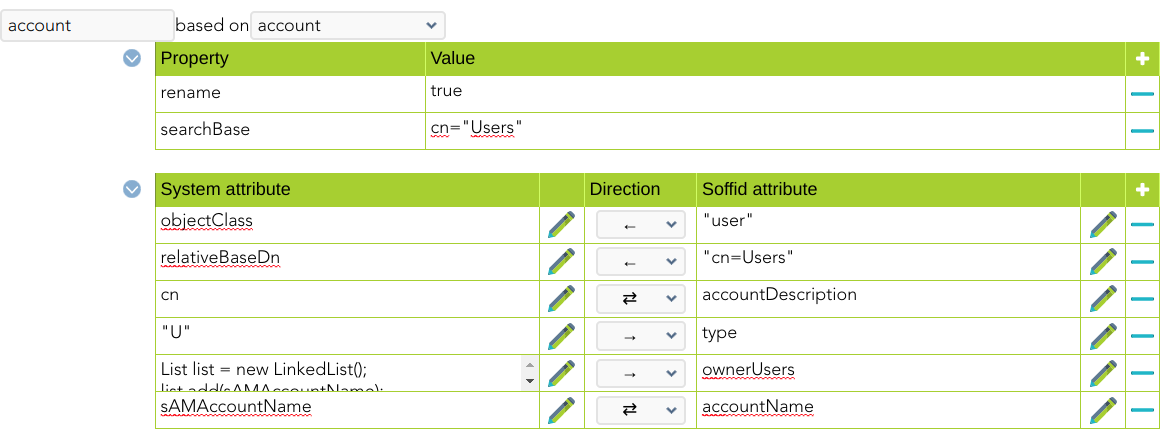
[![CSV Connector - customizable CSV file.png](https://bookstack.soffid.com/uploads/images/gallery/2021-04/scaled-1680-/csv-connector-customizable-csv-file.png)](https://bookstack.soffid.com/uploads/images/gallery/2021-04/csv-connector-customizable-csv-file.png)

Taking a look to the configuration used, we can see that:

- System objects is the entity to load (user, account, group, role).
- System attributes fields match the columns defined into the 'file.csv'.

To demonstrate Soffid flexibility in terms of agent customization, notice that:

USERNAME, NAME, LASTNAME fields, correspond to default fields from User object.

NDI is a custom field defined into the User object.

"I" is a 'char' literal that indicates the UserType.

- Soffid attributes match Soffid specification model object.

<u>Example  
</u>

<div id="bkmrk-type-file-data-%28file"><table class="wrapped confluenceTable tablesorter tablesorter-default" role="grid"><colgroup><col></col><col></col></colgroup><thead><tr class="tablesorter-headerRow" role="row"><th aria-disabled="false" aria-label="Type: No sort applied, activate to apply an ascending sort" aria-sort="none" class="confluenceTh tablesorter-header sortableHeader tablesorter-headerUnSorted" data-column="0" role="columnheader" scope="col" tabindex="0"><div>**Type**</div></th><th aria-disabled="false" aria-label="File: No sort applied, activate to apply an ascending sort" aria-sort="none" class="confluenceTh tablesorter-header sortableHeader tablesorter-headerUnSorted" data-column="1" role="columnheader" scope="col" tabindex="0"><div>**File**</div></th></tr></thead><tbody aria-live="polite" aria-relevant="all"><tr role="row"><td class="confluenceTd">data (file used in this configuration guide)</td><td class="confluenceTd">[file.csv](https://bookstack.soffid.com/attachments/5)

</td></tr><tr role="row"><td class="confluenceTd" colspan="1">attribute-mapping (file used in this configuration guide)</td><td class="confluenceTd" colspan="1">[csv-agent-config.xml](https://bookstack.soffid.com/attachments/6)

</td></tr></tbody></table>

</div>### Useful information

<table class="wrapped confluenceTable tablesorter tablesorter-default" id="bkmrk-system-objects-user-" role="grid"><colgroup><col></col></colgroup><thead><tr class="tablesorter-headerRow" role="row"><th aria-disabled="false" aria-label="System objects: No sort applied, activate to apply an ascending sort" aria-sort="none" class="confluenceTh tablesorter-header sortableHeader tablesorter-headerUnSorted" data-column="0" role="columnheader" scope="col" style="width: 200px;" tabindex="0"><div>**System objects**</div></th></tr></thead><tbody aria-live="polite" aria-relevant="all"><tr role="row"><td class="confluenceTd" colspan="1" style="width: 200px;">[User](http://www.soffid.org/doc/console/2.5.0/iam-common/apidocs/com/soffid/iam/api/User.html)</td></tr><tr role="row"><td class="confluenceTd" colspan="1" style="width: 200px;">[Account](http://www.soffid.org/doc/console/2.5.0/iam-common/apidocs/com/soffid/iam/api/Account.html)</td></tr><tr role="row"><td class="confluenceTd" style="width: 200px;">[Group](http://www.soffid.org/doc/console/2.5.0/iam-common/apidocs/com/soffid/iam/api/Group.html)</td></tr><tr role="row"><td class="confluenceTd" colspan="1" style="width: 200px;">[Role](http://www.soffid.org/doc/console/2.5.0/iam-common/apidocs/com/soffid/iam/api/Role.html)</td></tr></tbody></table>

# Google Apps Connector


# Google Apps Connector

## Introduction

### Description

Google Apps Connector allows you to manage users and groups using the Google Directory API.

### Managed System

This connector is specific for integration with the Google domain.

<p class="callout info">For more information to check if your system may be synchronized with this connector do not hesitate to contact us through our [Contact form](http://www.soffid.com/contactform/)</p>

### Prerequisites

To get a service account and a private key, please follow this link: [Creating a service account](https://developers.google.com/identity/protocols/OAuth2ServiceAccount#creatinganaccount). You must:

- Register a new project
- Enable AdminSDK API
- Register a new OAuth service account. Store the JSON generated file in a secure place.

Furthermore, you will need to follow [this guide](https://developers.google.com/identity/protocols/OAuth2ServiceAccount#delegatingauthority) to enable the recently created account to use directory API services. The scopes to grant are:

- <span class="nowrap">View and manage the provisioning of groups on your domain: <span class="u"><span class="nolink">[https://www.googleapis.com/auth/admin.directory.group](https://www.googleapis.com/auth/admin.directory.group)</span></span></span> <span class="nowrap"> </span>
- <span class="nowrap">View and manage group subscriptions on your domain: <span class="u"><span class="nolink">[https://www.googleapis.com/auth/admin.directory.group.member](https://www.googleapis.com/auth/admin.directory.group.member)</span></span></span>
- <span class="nowrap">View and manage organization units on your domain: <span class="u"><span class="nolink">[https://www.googleapis.com/auth/admin.directory.orgunit](https://www.googleapis.com/auth/admin.directory.orgunit)</span></span></span> <span class="nowrap"> </span>
- <span class="nowrap">View and manage the provisioning of users on your domain: <span class="u"><span class="nolink">[https://www.googleapis.com/auth/admin.directory.user](https://www.googleapis.com/auth/admin.directory.user)</span></span></span>

## Download and Install

This addon is located in the Connectors section and its name is **Google Apps plugin**.

<p class="callout info">For more information about the installation process you can visit the [Addons Getting started](https://bookstack.soffid.com/books/addons-getting-started/page/getting-started "Addons installation") page.</p>

## Agent Configuration

### Basic

#### Generic parameters

After the installation of the addon, you may create and configure agent instances.

To configure this Google Apps Connector you must select "GoogleApps" in the attribute "Type" of the generic parameters section in the agents page configuration.

<p class="callout info">For more information about how you may configure the generic parameters of the agent, see the following link: [Agents configuration](https://bookstack.soffid.com/books/soffid-3-reference-guide/page/agents "Agents")</p>

#### Custom parameters

Below there are the specific parameters for this agent implementation:

<table class="confluenceTable tablesorter tablesorter-default stickyTableHeaders" id="bkmrk-parameter-descriptio" role="grid"><thead class="tableFloatingHeaderOriginal"><tr class="tablesorter-headerRow" role="row"><th aria-disabled="false" aria-label="Parameter: No sort applied, activate to apply an ascending sort" aria-sort="none" class="confluenceTh tablesorter-header sortableHeader tablesorter-headerUnSorted" data-column="0" role="columnheader" scope="col" style="width: 209px;" tabindex="0"><div>**Parameter**</div></th><th aria-disabled="false" aria-label="Description: No sort applied, activate to apply an ascending sort" aria-sort="none" class="confluenceTh tablesorter-header sortableHeader tablesorter-headerUnSorted" data-column="1" role="columnheader" scope="col" style="width: 600px;" tabindex="0"><div>**Description**</div></th></tr></thead><tbody aria-live="polite" aria-relevant="all"><tr role="row"><td class="confluenceTd" colspan="1" style="width: 209px;"><span class="etiqueta">Admin user</span>

</td><td class="confluenceTd" colspan="1" style="width: 600px;">Administrator account name

</td></tr><tr role="row"><td class="confluenceTd" colspan="1" style="width: 209px;"><span class="etiqueta">Service account client email</span>

</td><td class="confluenceTd" colspan="1" style="width: 600px;">Extract it from generated json file. It is tagged as client\_email

</td></tr><tr role="row"><td class="confluenceTd" colspan="1" style="width: 209px;"><span class="etiqueta">Service account private key</span>

</td><td class="confluenceTd" colspan="1" style="width: 600px;">Extract it from generated json file. It is tagged as private\_key. As the private key is JSON encoded, mind to replace unicode escape chars by it's ASCII equivalents

</td></tr><tr role="row"><td class="confluenceTd" colspan="1" style="width: 209px;"><span class="etiqueta">Google domain</span>

</td><td class="confluenceTd" colspan="1" style="width: 600px;">Base google domain

</td></tr></tbody></table>

### Attribute mapping

This connector could manage users and groups.

#### Properties

<span style="background-color: #ffffff;">Nothing to configure.</span>

#### Attributes

##### Users

Users and shared accounts can be customized. The next attributes are required:

<div id="bkmrk-attribute-value-susp"><table class="confluenceTable tablesorter tablesorter-default stickyTableHeaders" role="grid"><thead class="tableFloatingHeaderOriginal"><tr class="tablesorter-headerRow" role="row"><th aria-disabled="false" aria-label="Attribute: No sort applied, activate to apply an ascending sort" aria-sort="none" class="confluenceTh tablesorter-header sortableHeader tablesorter-headerUnSorted" data-column="0" role="columnheader" scope="col" style="width: 150px;" tabindex="0"><div><div>**Attribute**</div></div></th><th aria-disabled="false" aria-label="Value: No sort applied, activate to apply an ascending sort" aria-sort="none" class="confluenceTh tablesorter-header sortableHeader tablesorter-headerUnSorted" data-column="1" role="columnheader" scope="col" style="width: 669px;" tabindex="0"><div><div>**Value**</div></div></th></tr></thead><tbody aria-live="polite" aria-relevant="all"><tr role="row"><td class="confluenceTd" style="width: 150px;">suspended

</td><td class="confluenceTd" style="width: 669px;">"True" if the account is disabled. "False" otherwise

</td></tr><tr role="row"><td class="confluenceTd" colspan="1" style="width: 150px;">name{"givenName"}

</td><td class="confluenceTd" colspan="1" style="width: 669px;">User given name

</td></tr><tr role="row"><td class="confluenceTd" colspan="1" style="width: 150px;">name{"familyName"}

</td><td class="confluenceTd" colspan="1" style="width: 669px;">User last name

</td></tr><tr role="row"><td class="confluenceTd" colspan="1" style="width: 150px;">name{"fullName"}

</td><td class="confluenceTd" colspan="1" style="width: 669px;">User full name

</td></tr><tr role="row"><td class="confluenceTd" colspan="1" style="width: 150px;">primaryEmail

</td><td class="confluenceTd" colspan="1" style="width: 669px;">Account name

</td></tr></tbody></table>

</div>To get an extensive list of attributes supported by Google, browse to [Google User API](https://developers.google.com/admin-sdk/directory/v1/reference/users)

Soffid groups can be mapped as OrgUnits.

<div id="bkmrk-attribute-value-name"><table class="confluenceTable tablesorter tablesorter-default stickyTableHeaders" role="grid"><thead class="tableFloatingHeaderOriginal"><tr class="tablesorter-headerRow" role="row"><th aria-disabled="false" aria-label="Attribute: No sort applied, activate to apply an ascending sort" aria-sort="none" class="confluenceTh tablesorter-header sortableHeader tablesorter-headerUnSorted" data-column="0" role="columnheader" scope="col" style="width: 117px;" tabindex="0"><div><div>**Attribute**</div></div></th><th aria-disabled="false" aria-label="Value: No sort applied, activate to apply an ascending sort" aria-sort="none" class="confluenceTh tablesorter-header sortableHeader tablesorter-headerUnSorted" data-column="1" role="columnheader" scope="col" style="width: 206px;" tabindex="0"><div><div>**Value**</div></div></th></tr></thead><tbody aria-live="polite" aria-relevant="all"><tr role="row"><td class="confluenceTd" style="width: 117px;">name

</td><td class="confluenceTd" style="width: 206px;">Org Unit Name

</td></tr></tbody></table>

</div>##### Groups

Mails alias will be automatically bound to users without any further configuration.

Roles and Mail Lists will also be created and maintained as Google Apps groups.

<p class="callout info">For more information about how you may configure attribute mapping, see the following link: [Soffid Attribute Mapping Reference](https://bookstack.soffid.com/link/72#bkmrk-soffid-attributes)</p>

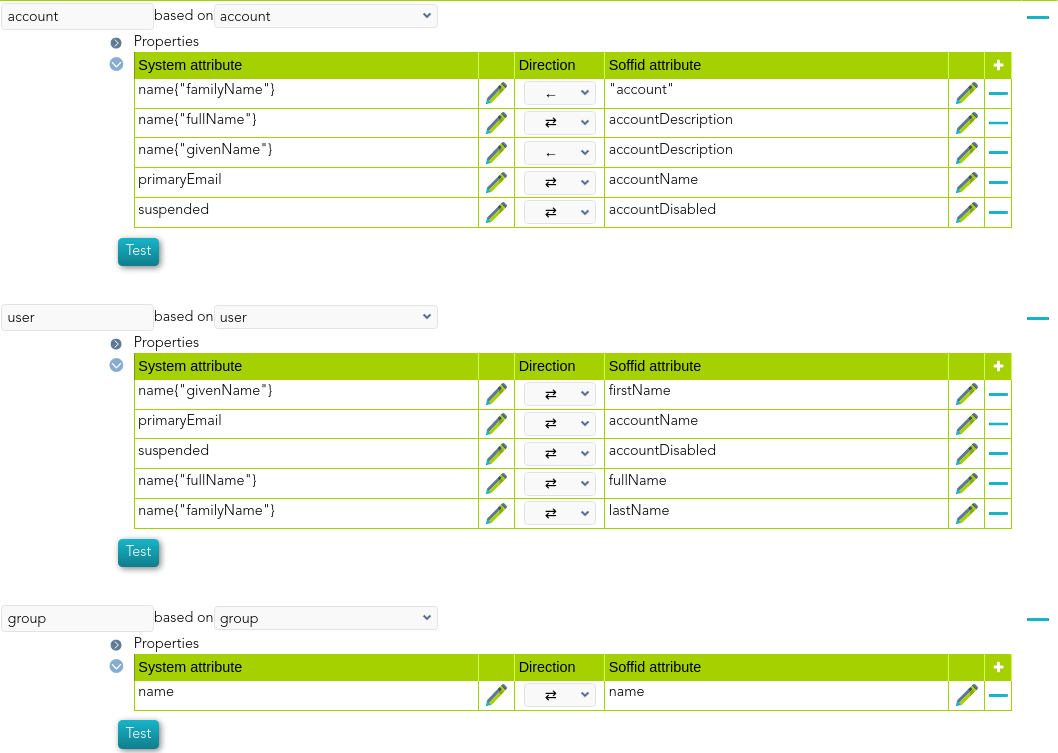
For instance:

[![image-1641828269243.png](https://bookstack.soffid.com/uploads/images/gallery/2022-01/scaled-1680-/image-1641828269243.png)](https://bookstack.soffid.com/uploads/images/gallery/2022-01/image-1641828269243.png)

#### Triggers

Nothing to configure. This option is not available to Google apps connector.

### Load Triggers

You can define BeanShell scripts that will be triggered when data is loaded into Soffid (incoming triggers). The trigger result will be a boolean value, true to continue or false to stop.

Triggers can be used to validate or perform a specific action just before performing an operation or just after performing an operation into Soffid objects.

<p class="callout info">To view some examples, visit the [Incoming triggers examples page.](https://bookstack.soffid.com/books/connectors/page/incoming-triggers-examples "Incoming triggers examples")</p>

### Account metadata

Agents allow you to create additional data, on the "Account metadata" tab, to customize the accounts created for that agent. This additional information will be loaded with the agent's information, or calculated as defined in the mappings.  
The additional data can be used in both mappings and triggers.

The attributes which you define here will be shown when you click on the proper account, on the Accounts Tabs at user page.

## Operational

### Monitoring

After the agent configuration you could check in the monitoring page if the service is running in the Synchronization Server, please go to:

- <span style="background-color: #d3efff; color: #01466c;">Start Menu &gt; Administration &gt; Monitoring and reporting &gt; Syscserver monitoring</span>

### Tasks

#### Authoritative

If you are checked "Authorized identity source", an automatic task to load identities from the managed system to Soffid is available, please go to:

- Start Menu &gt; Administration &gt; Monitoring and reporting &gt; Scheduled tasks

And you will something like "Import authoritative data from &lt;AGENT\_NAME&gt;".

#### Reconcile

If you are configured the "Attribute Mapping" tab with some of our objects: "user or group", an automatic task to synchronize these objects from the managed system to Soffid is available, please go to:

- Start Menu &gt; Administration &gt; Monitoring and reporting &gt; Scheduled tasks

And you will do something like "Reconcile all accounts from &lt;AGENT\_NAME&gt;".

### Synchronization

Regarding the synchronization of the objects, there are two possible options:

- If you are checked the generic attribute "Read Only" in the "Basics" tab, only the changes in the managed systems will be updated in Soffid. We recommend these options until the global configuration of Soffid will be tested.
- If you are not checked the generic attribute "Read Only" in the "Basics" tab, all the changes in Soffid or the managed system will be updated in the other. Note that this synchronization must be configured in the "Attribute mapping" tab correctly.

<p class="callout info">For more information about how you may configure the generic parameters of the agent, see the following link: [Agents configuration](https://bookstack.soffid.com/books/soffid-3-reference-guide/page/agents "Agents")</p>

# JSON REST Web Services Connector


# JSON REST Web Services Connector

## Introduction

### Description

This connector allows the integration with any Web Service able to consume and generate JSON documents through REST communication.

### Managed System

Every commercial product or custom web application allows REST communication with JSON documents.

There are a lot of products that use this standard, for instance:

- JIRA.
- Oracle Field Service Cloud (OFSC).
- Office 365.
- AWS.
- Google Cloud.

<p class="callout info">If your system is not in the previous list, it's possible to include it easily!   
  
For more information to check if your system may be synchronized with this connector you do not hesitate to contact us through our [Contact form](http://www.soffid.com/contactform/)</p>

### Prerequisites

It is needed a user with access and permissions to the endpoints and operations required in the scope of the integration.

Also, the documentation, specification, or tutorial of the implementation of the JSON REST Web Service is required to apply the mapping configuration.

## Download and Install

This addon is located in the Connectors section and its name is **REST (json) plugin**.

<p class="callout info">You can visit the [Addons Getting started page](https://bookstack.soffid.com/books/addons-getting-started/page/getting-started) for more information about the installation process.</p>

## Agent Configuration

### Basic

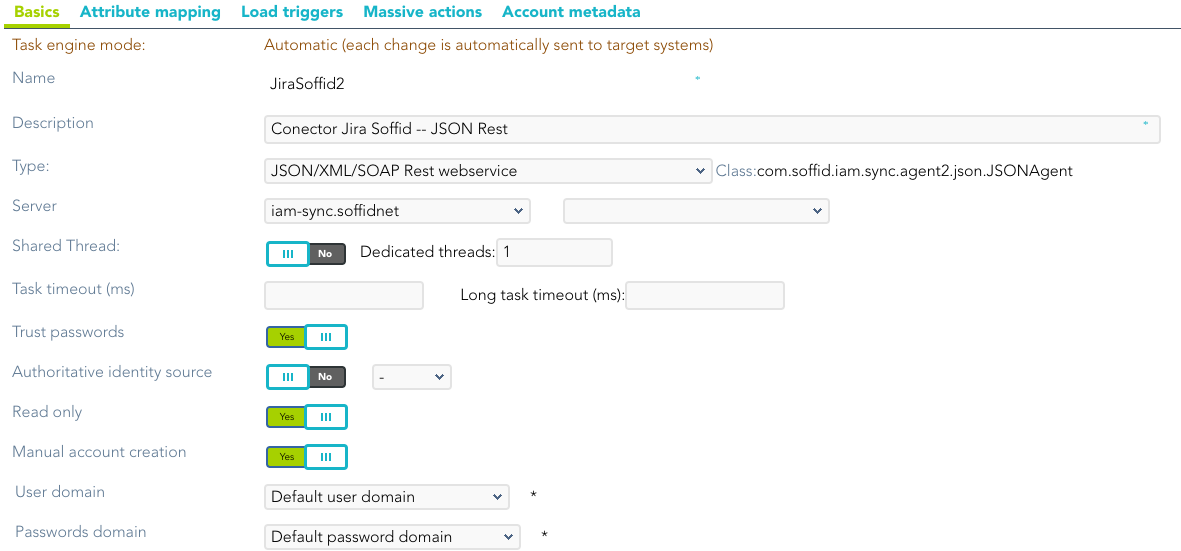
#### Generic parameters

After the installation of the addon, you may create and configure agent instances.

To configure this JSON REST Web Service Connector you must select "JSON Rest Webservice" in the attribute "Type" of the generic parameters section in the agents' page configuration.

<p class="callout info">For more information about how you may configure the generic parameters of the agent, see the following link: [Agents configuration](https://bookstack.soffid.com/books/soffid-3-reference-guide/page/agents "Agents")</p>

[![image-1658998971348.png](https://bookstack.soffid.com/uploads/images/gallery/2022-07/scaled-1680-/image-1658998971348.png)](https://bookstack.soffid.com/uploads/images/gallery/2022-07/image-1658998971348.png)

#### Custom parameters

Below there are the specific parameters for this agent implementation:

<div id="bkmrk-parameter-descriptio"><table class="confluenceTable tablesorter tablesorter-default stickyTableHeaders" role="grid" style="width: 98.0247%; height: 434.65px;"><thead class="tableFloatingHeaderOriginal"><tr class="tablesorter-headerRow" role="row" style="height: 29.8px;"><th aria-disabled="false" aria-label="Parameter: No sort applied, activate to apply an ascending sort" aria-sort="none" class="confluenceTh tablesorter-header sortableHeader tablesorter-headerUnSorted" data-column="0" role="columnheader" scope="col" style="width: 20.681%; height: 29.8px;" tabindex="0"><div>**Parameter**</div></th><th aria-disabled="false" aria-label="Description: No sort applied, activate to apply an ascending sort" aria-sort="none" class="confluenceTh tablesorter-header sortableHeader tablesorter-headerUnSorted" data-column="1" role="columnheader" scope="col" style="width: 79.319%; height: 29.8px;" tabindex="0"><div>**Description**</div></th></tr></thead><tbody aria-live="polite" aria-relevant="all"><tr role="row" style="height: 57.8px;"><td class="confluenceTd" style="width: 20.681%; height: 57.8px;"><span class="etiqueta">Server URL</span>

</td><td class="confluenceTd" style="width: 79.319%; height: 57.8px;">URL of the REST web service.

Base URL for making calls.

</td></tr><tr role="row" style="height: 183.05px;"><td class="confluenceTd" style="width: 20.681%; height: 183.05px;"><span class="etiqueta">Authentication method</span>

</td><td class="confluenceTd" style="width: 79.319%; height: 183.05px;">Available options:

- **None**: no authentication (User and Password are not used).
- **Basic**: it uses the User and Password to generate the authentication token.
- **Bearer token**: it is provided by the application to which we are trying to connect.
- **Token**: generate a token from a specific authentication URL. It is no longer used.
- **Token oAuth Client Credentials**: authenticates based on a client ID and a client secret.
- **Token oAuth Password Grant**: authenticates based on a client ID and a client secret plus a user name and a password.

*(\*) You can find more information in the [Authentication method](#bkmrk-%28%2A%29-authentication-m) section.*

</td></tr><tr role="row" style="height: 35.4px;"><td class="confluenceTd" style="width: 20.681%; height: 35.4px;"><span class="etiqueta">Enable debug</span>

</td><td class="confluenceTd" style="width: 79.319%; height: 35.4px;">Two options: "Yes", "No": it enables or not more log traces in the Synchronization Server log

</td></tr><tr style="height: 35.4px;"><td style="width: 20.681%; height: 35.4px;">Proxy host</td><td style="width: 79.319%; height: 35.4px;">Only when the proxy is needed.

</td></tr><tr style="height: 35.4px;"><td style="width: 20.681%; height: 35.4px;">Proxy port</td><td style="width: 79.319%; height: 35.4px;">Only when the proxy is needed.

</td></tr><tr style="height: 57.8px;"><td style="width: 20.681%; height: 57.8px;">XML Templates</td><td style="width: 79.319%; height: 57.8px;">Allows you to add new XML templates with SOAP requests and then configure them at attribute mappings.

</td></tr></tbody></table>

</div>---

##### Authentication *method*

**None**: no authentication is needed. There are no parameters to configure.

[![image-1658916253736.png](https://bookstack.soffid.com/uploads/images/gallery/2022-07/scaled-1680-/image-1658916253736.png)](https://bookstack.soffid.com/uploads/images/gallery/2022-07/image-1658916253736.png)

**Basic**: the username and password are sent with each request.

- **User Name**: user to authenticate.
- **Password**: the password of the user to authenticate.

[![image-1658916073500.png](https://bookstack.soffid.com/uploads/images/gallery/2022-07/scaled-1680-/image-1658916073500.png)](https://bookstack.soffid.com/uploads/images/gallery/2022-07/image-1658916073500.png)

**Bearer token**

- Bearer token: this token is provided by the application to which we are going to connect.

[![image-1658916094610.png](https://bookstack.soffid.com/uploads/images/gallery/2022-07/scaled-1680-/image-1658916094610.png)](https://bookstack.soffid.com/uploads/images/gallery/2022-07/image-1658916094610.png)

**Token**: calls the authentication URL with the POST method and with the username and password, and the response will be the token. It is no longer used.

- **User Name**: user to authenticate.
- **Password**: the password of the user to authenticate.
- **Authentication URL**: URL to retrieve the token for the server's authentication (for the "Token" method).

[![image-1658916132666.png](https://bookstack.soffid.com/uploads/images/gallery/2022-07/scaled-1680-/image-1658916132666.png)](https://bookstack.soffid.com/uploads/images/gallery/2022-07/image-1658916132666.png)

**Token oAuth Client Credentials**

- **Authentication URL**: URL to retrieve the token for the server's authentication (for the "Token" method).
- **Token attr. output**: the value is always *access\_token*.
- **Request parameters**: 
    - **Client ID**: it is like the user.
    - **Client secret**: it is the password.
    - **Scope**: it is the permissions.

[![image-1658916165066.png](https://bookstack.soffid.com/uploads/images/gallery/2022-07/scaled-1680-/image-1658916165066.png)](https://bookstack.soffid.com/uploads/images/gallery/2022-07/image-1658916165066.png)

**Token oAuth Password Grant**

- **User Name**: user to authenticate.
- **Password**: the password of the user to authenticate.
- **Authentication URL**: URL to retrieve the token for the server's authentication (for the "Token" method).
- **Token attr. output**: the value is always *access\_token*.
- **Request parameters:**
    - **Client ID**: it is like the user.
    - **Client secret**: it is the password.
    - **Scope**: it is the permissions.

[![image-1658916206788.png](https://bookstack.soffid.com/uploads/images/gallery/2022-07/scaled-1680-/image-1658916206788.png)](https://bookstack.soffid.com/uploads/images/gallery/2022-07/image-1658916206788.png)

---

### Attribute mapping

This connector can manage users, accounts, roles, groups, and grants.

<p class="callout warning">Note that any changes made to the methods will affect the properties and vice versa.</p>

#### Methods

This agent allows you to define methods to be called using the defined properties. There are some default methods, but you can customize your own methods.

Default methods:

- load
- delete
- update
- insert
- select

**For each method**, the properties to set up are as follows:

<table class="confluenceTable tablesorter tablesorter-default stickyTableHeaders" id="bkmrk-properties-descripti" role="grid" style="height: 435px;"><thead class="tableFloatingHeaderOriginal"><tr class="tablesorter-headerRow" role="row" style="height: 29px;"><th aria-disabled="false" aria-label="Family: No sort applied, activate to apply an ascending sort" aria-sort="none" class="confluenceTh tablesorter-header sortableHeader tablesorter-headerUnSorted" data-column="0" role="columnheader" scope="col" style="width: 197px; height: 29px;" tabindex="0"><div>**Properties**</div></th><th aria-disabled="false" aria-label="Description: No sort applied, activate to apply an ascending sort" aria-sort="none" class="confluenceTh tablesorter-header sortableHeader tablesorter-headerUnSorted" data-column="1" role="columnheader" scope="col" style="width: 595px; height: 29px;" tabindex="0"><div>**Description**</div></th></tr></thead><thead class="tableFloatingHeader"></thead><tbody aria-live="polite" aria-relevant="all"><tr role="row" style="height: 29px;"><td class="confluenceTd" style="width: 197px; height: 29px;">Path</td><td class="confluenceTd" style="width: 595px; height: 29px;">A valid URL to call. This path must be the continuation of the Server URL for making calls.</td></tr><tr role="row" style="height: 29px;"><td class="confluenceTd" style="width: 197px; height: 29px;">Method</td><td class="confluenceTd" style="width: 595px; height: 29px;">Available methods to call a Rest API (GET, POST, PUT, DELETE, PATCH)</td></tr><tr role="row" style="height: 29px;"><td class="confluenceTd" style="width: 197px; height: 29px;">Encoding</td><td class="confluenceTd" style="width: 595px; height: 29px;">The specific type of encoded data that will be used. There are three supported types:

- application/x-www-form-urlencoded
- application/json
- text/xml

</td></tr><tr role="row" style="height: 29px;"><td class="confluenceTd" style="width: 197px; height: 29px;">XML Template</td><td class="confluenceTd" style="width: 595px; height: 29px;">Applies only if it is *text/xml*. You need to write the name of the corresponding template defined on the XML Templates.</td></tr><tr role="row" style="height: 29px;"><td class="confluenceTd" style="width: 197px; height: 29px;">Parameters</td><td class="confluenceTd" style="width: 595px; height: 29px;">Applies with *application/x-www-form-urlencoded* and *application/json*

- You must type which attributes, defined on the System attributes, will be sent.
- If none are to be sent, you must write the hyphen character "-".
- If nothing is typed, all parameters are sent.

</td></tr><tr style="height: 29px;"><td style="width: 197px; height: 29px;">Success HTTP Codes</td><td style="width: 595px; height: 29px;">HTTP codes that should be interpreted as OK. If no code is entered, Soffid will take as valid codes the following: 200, 201, 204 and 404.

If you type the Success HTTP codes, it will be not necessary to type the Failure HTTP codes.

```JavaScript
204 201 200
```

```JavaScript
200,212
```

You can use blanks or commas to separate the codes.

</td></tr><tr style="height: 29px;"><td style="width: 197px; height: 29px;">Failure HTTP Codes</td><td style="width: 595px; height: 29px;">Soffid will take by default as failure all codes not indicated in Success HTTP Codes.

If you type the Failure HTTP codes, it will be not necessary to type the Success HTTP codes.

```JavaScript
400 403
```

```JavaScript
403,405, 400
```

You can use blanks or commas to separate the codes.

</td></tr><tr style="height: 29px;"><td style="width: 197px; height: 29px;">Results</td><td style="width: 595px; height: 29px;">Gets the object or object list from the response received. You need to indicate a JSON attribute name to check and get the data. If this element is not present, or empty, the connector will conclude the user does not exist yet. You can type simple attribute names or even complex scripts.

</td></tr><tr style="height: 29px;"><td style="width: 197px; height: 29px;">Pagination URL</td><td style="width: 595px; height: 29px;">Often, the response from the API Rest service does not contain all the data because the data is too large. In these cases, you can use the paging options to request the data in blocks.

When the response gives us the URL of the next page to fetch, you must type the tag name of this attribute.

```JavaScript
return links{"next"};
```

You have to choose one of the paging methods, using both is not compatible.

</td></tr><tr style="height: 29px;"><td style="width: 197px; height: 29px;">Pagination script</td><td style="width: 595px; height: 29px;">Often, the response from the API Rest service does not contain all the data because the data is too large. In these cases, you can use the paging options to request the data in blocks.

You can type a complex script to get the next call that has to be done. There are two available objects:

- response: JSON response as received
- request: allows you to update the attributes and return true if you want to make a new call or false in another case

```Java
o = response{"paging"};
if (o{"has_next_page"}) {
  nextPage = o{"page_number"} + 1;
  request.put("page", nextPage);
  return true;
} else { 
  return false;
}
```

You have to choose one of the paging methods, using both is not compatible.

</td></tr><tr style="height: 29px;"><td style="width: 197px; height: 29px;">Condition script</td><td style="width: 595px; height: 29px;">Return false if you want to prevent a call.</td></tr><tr style="height: 29px;"><td style="width: 197px; height: 29px;">Optional header</td><td style="width: 595px; height: 29px;"> Use this property to send HTTP header(s).  
More than one header can be sent by adding multiple properties Optional Header1.  
The value of the header is "HEADER:VALUE", for instance, "Accept:application/json".

</td></tr></tbody></table>

##### Load

<div id="bkmrk-property-description"></div>[![image-1658840538394.png](https://bookstack.soffid.com/uploads/images/gallery/2022-07/scaled-1680-/image-1658840538394.png)](https://bookstack.soffid.com/uploads/images/gallery/2022-07/image-1658840538394.png)

##### Select

[![image-1658840570200.png](https://bookstack.soffid.com/uploads/images/gallery/2022-07/scaled-1680-/image-1658840570200.png)](https://bookstack.soffid.com/uploads/images/gallery/2022-07/image-1658840570200.png)

<div id="bkmrk-property-description-0"></div>##### Insert

[![image-1658840500870.png](https://bookstack.soffid.com/uploads/images/gallery/2022-07/scaled-1680-/image-1658840500870.png)](https://bookstack.soffid.com/uploads/images/gallery/2022-07/image-1658840500870.png)

##### Update

[![image-1658840611561.png](https://bookstack.soffid.com/uploads/images/gallery/2022-07/scaled-1680-/image-1658840611561.png)](https://bookstack.soffid.com/uploads/images/gallery/2022-07/image-1658840611561.png)

<div id="bkmrk-property-description-2"></div>##### Delete

[![image-1658840656509.png](https://bookstack.soffid.com/uploads/images/gallery/2022-07/scaled-1680-/image-1658840656509.png)](https://bookstack.soffid.com/uploads/images/gallery/2022-07/image-1658840656509.png)

#### Properties

In this agent, the configuration of the properties attributes is very important due to they define the functionality of the integration:

This agent has five families of properties:

<div id="bkmrk-family-description-l"><table class="confluenceTable tablesorter tablesorter-default stickyTableHeaders" role="grid"><thead class="tableFloatingHeaderOriginal"><tr class="tablesorter-headerRow" role="row"><th aria-disabled="false" aria-label="Family: No sort applied, activate to apply an ascending sort" aria-sort="none" class="confluenceTh tablesorter-header sortableHeader tablesorter-headerUnSorted" data-column="0" role="columnheader" scope="col" style="width: 134px;" tabindex="0"><div>**Family**</div></th><th aria-disabled="false" aria-label="Description: No sort applied, activate to apply an ascending sort" aria-sort="none" class="confluenceTh tablesorter-header sortableHeader tablesorter-headerUnSorted" data-column="1" role="columnheader" scope="col" style="width: 658px;" tabindex="0"><div>**Description**</div></th></tr></thead><thead class="tableFloatingHeader"></thead><tbody aria-live="polite" aria-relevant="all"><tr role="row"><td class="confluenceTd" style="width: 134px;">Load</td><td class="confluenceTd" style="width: 658px;">Used to retrieve all the objects in the target system</td></tr><tr role="row"><td class="confluenceTd" style="width: 134px;">Select</td><td class="confluenceTd" style="width: 658px;">Used to retrieve an object in the target system</td></tr><tr role="row"><td class="confluenceTd" style="width: 134px;">Insert</td><td class="confluenceTd" style="width: 658px;">Used to create an object in the target system</td></tr><tr role="row"><td class="confluenceTd" style="width: 134px;">Update</td><td class="confluenceTd" style="width: 658px;">Used to update an object in the target system</td></tr><tr role="row"><td class="confluenceTd" style="width: 134px;">Delete</td><td class="confluenceTd" style="width: 658px;">Used to remove an object in the target system</td></tr></tbody></table>

</div>These families are involved in the following processes:

<div id="bkmrk-process-families-rec"><table class="confluenceTable tablesorter tablesorter-default stickyTableHeaders" role="grid"><thead class="tableFloatingHeaderOriginal"><tr class="tablesorter-headerRow" role="row"><th aria-disabled="false" aria-label="Process: No sort applied, activate to apply an ascending sort" aria-sort="none" class="confluenceTh tablesorter-header sortableHeader tablesorter-headerUnSorted" data-column="0" role="columnheader" scope="col" style="width: 199px;" tabindex="0"><div>**Process**</div></th><th aria-disabled="false" aria-label="Families: No sort applied, activate to apply an ascending sort" aria-sort="none" class="confluenceTh tablesorter-header sortableHeader tablesorter-headerUnSorted" data-column="1" role="columnheader" scope="col" style="width: 589px;" tabindex="0"><div>**Families**</div></th></tr></thead><tbody aria-live="polite" aria-relevant="all"><tr role="row"><td class="confluenceTd" style="width: 199px;">Reconcile automatic task</td><td class="confluenceTd" style="width: 589px;">Load + select</td></tr><tr role="row"><td class="confluenceTd" style="width: 199px;">Authoritative automatic task</td><td class="confluenceTd" style="width: 589px;">Load + select</td></tr><tr role="row"><td class="confluenceTd" style="width: 199px;">Sync new object</td><td class="confluenceTd" style="width: 589px;">Select + Insert</td></tr><tr role="row"><td class="confluenceTd" style="width: 199px;">Sync updated object</td><td class="confluenceTd" style="width: 589px;">Select + Update</td></tr><tr role="row"><td class="confluenceTd" style="width: 199px;">Sync deleted object</td><td class="confluenceTd" style="width: 589px;">Select + Delete</td></tr></tbody></table>

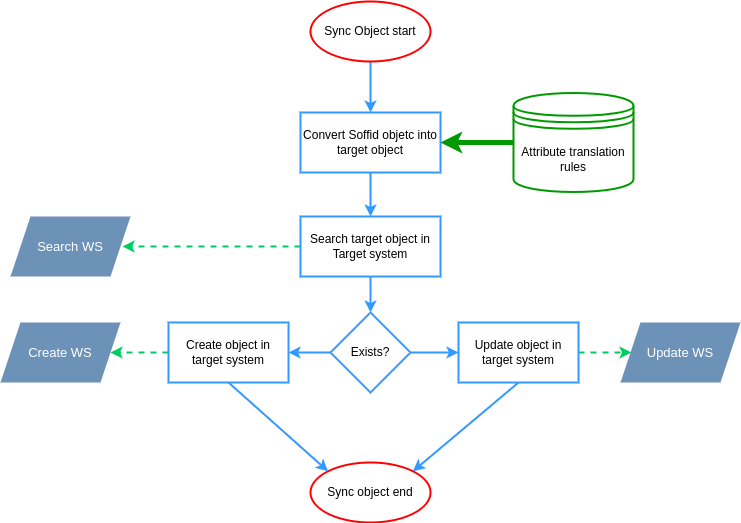
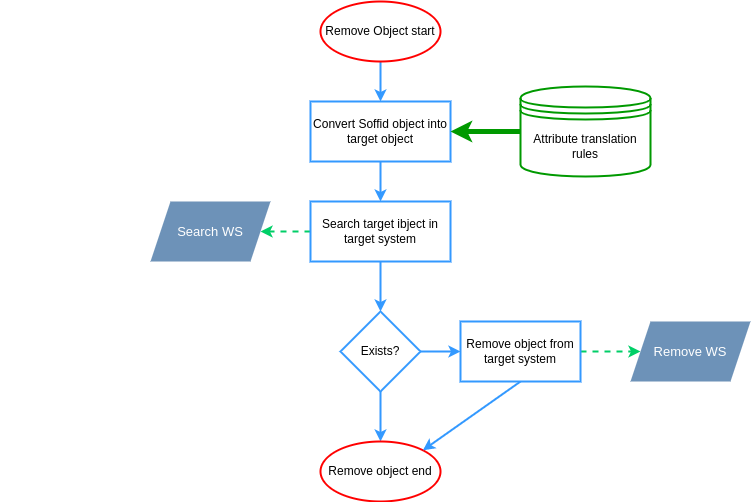
</div>These are the pictures of the mechanisms used to synchronize objects:

##### Sync object

<div drawio-diagram="1025"><img src="https://bookstack.soffid.com/uploads/images/drawio/2022-07/drawing-5-1658761528.png" alt=""/></div>

##### Remove object

<div drawio-diagram="1027"><img src="https://bookstack.soffid.com/uploads/images/drawio/2022-07/drawing-5-1658761597.png" alt=""/></div>

<div id="bkmrk-property-description-6"><div>  
</div></div><p class="callout info">You can find more information by visiting the [Properties attributes page](https://bookstack.soffid.com/books/connectors/page/json-rest-web-services-connector-properties).</p>

#### Attributes

You can customize attribute mappings, you only need to select system objects and the Soffid objects related, manage their attributes, and make either inbound and outbound attribute mappings.

You may map the attributes of the target system with the Soffid available attributes.

- For the target system attributes is required to be access to its specification.
- For the Soffid attributes, you may follow the next link.

<p class="callout info">For more information about how you may configure attribute mapping, see the following link: [Soffid Attribute Mapping Reference](https://bookstack.soffid.com/link/72#bkmrk-soffid-attributes)</p>

For instance:

As an example, below is how JSON connector will look like in order to manage JIRA accounts:

[![image-1658843268020.png](https://bookstack.soffid.com/uploads/images/gallery/2022-07/scaled-1680-/image-1658843268020.png)](https://bookstack.soffid.com/uploads/images/gallery/2022-07/image-1658843268020.png)
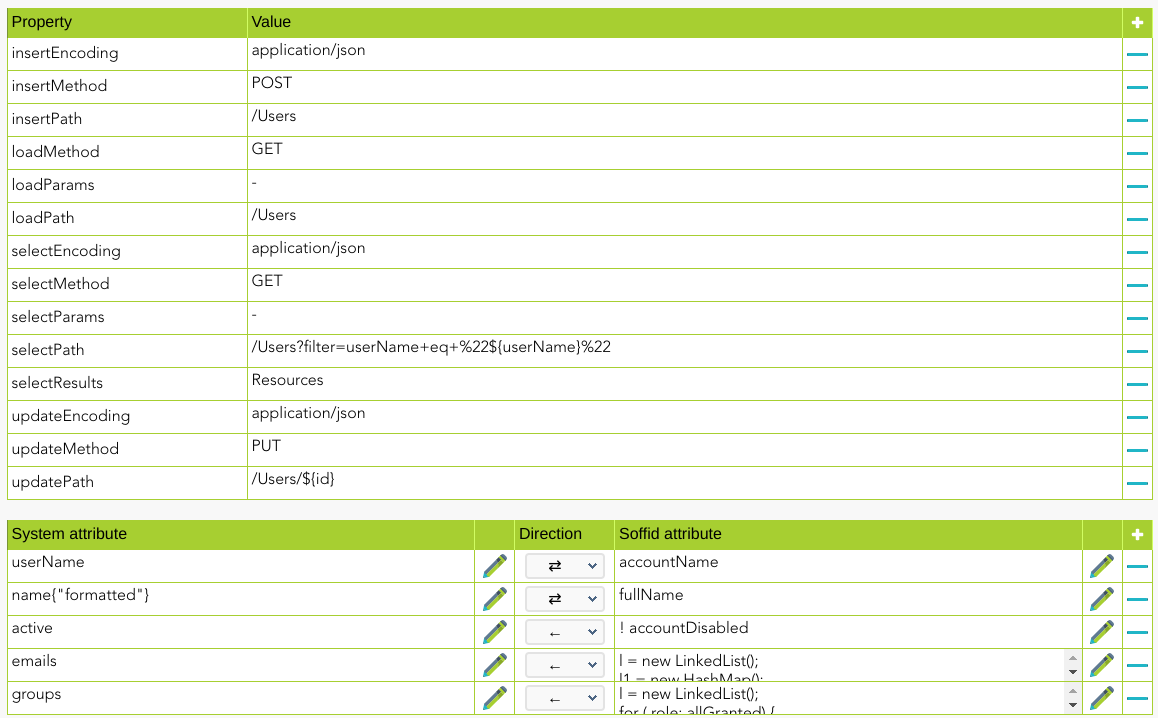
#### Triggers

You can define BeanShell scripts that will be triggered when data is loaded into the target system (outgoing triggers). The trigger result will be a boolean value, true to continue or false to stop.

Triggers can be used to validate or perform a specific action just before performing an operation or just after performing an operation on target objects.

<p class="callout info">To view some examples, visit the [Outgoing triggers examples page](https://bookstack.soffid.com/books/connectors/page/outgoing-triggers-examples "Outgoing triggers examples").</p>

# JSON REST Web Services Connector - Properties

In this agent, the configuration of the properties attributes is very important due to they define the functionality of the integration:

This agent has five families of properties:

<div id="bkmrk-family-description-l"><table class="confluenceTable tablesorter tablesorter-default stickyTableHeaders" role="grid"><thead class="tableFloatingHeaderOriginal"><tr class="tablesorter-headerRow" role="row"><th aria-disabled="false" aria-label="Family: No sort applied, activate to apply an ascending sort" aria-sort="none" class="confluenceTh tablesorter-header sortableHeader tablesorter-headerUnSorted" data-column="0" role="columnheader" scope="col" style="width: 134px;" tabindex="0"><div>**Family**</div></th><th aria-disabled="false" aria-label="Description: No sort applied, activate to apply an ascending sort" aria-sort="none" class="confluenceTh tablesorter-header sortableHeader tablesorter-headerUnSorted" data-column="1" role="columnheader" scope="col" style="width: 658px;" tabindex="0"><div>**Description**</div></th></tr></thead><thead class="tableFloatingHeader"></thead><tbody aria-live="polite" aria-relevant="all"><tr role="row"><td class="confluenceTd" style="width: 134px;">Load</td><td class="confluenceTd" style="width: 658px;">Used to retrieve all the objects in the target system</td></tr><tr role="row"><td class="confluenceTd" style="width: 134px;">Select</td><td class="confluenceTd" style="width: 658px;">Used to retrieve an object in the target system</td></tr><tr role="row"><td class="confluenceTd" style="width: 134px;">Insert</td><td class="confluenceTd" style="width: 658px;">Used to create an object in the target system</td></tr><tr role="row"><td class="confluenceTd" style="width: 134px;">Update</td><td class="confluenceTd" style="width: 658px;">Used to update an object in the target system</td></tr><tr role="row"><td class="confluenceTd" style="width: 134px;">Delete</td><td class="confluenceTd" style="width: 658px;">Used to remove an object in the target system</td></tr></tbody></table>

</div>These families are involved in the following processes:

<div id="bkmrk-process-families-rec"><table class="confluenceTable tablesorter tablesorter-default stickyTableHeaders" role="grid"><thead class="tableFloatingHeaderOriginal"><tr class="tablesorter-headerRow" role="row"><th aria-disabled="false" aria-label="Process: No sort applied, activate to apply an ascending sort" aria-sort="none" class="confluenceTh tablesorter-header sortableHeader tablesorter-headerUnSorted" data-column="0" role="columnheader" scope="col" style="width: 199px;" tabindex="0"><div>**Process**</div></th><th aria-disabled="false" aria-label="Families: No sort applied, activate to apply an ascending sort" aria-sort="none" class="confluenceTh tablesorter-header sortableHeader tablesorter-headerUnSorted" data-column="1" role="columnheader" scope="col" style="width: 589px;" tabindex="0"><div>**Families**</div></th></tr></thead><tbody aria-live="polite" aria-relevant="all"><tr role="row"><td class="confluenceTd" style="width: 199px;">Reconcile automatic task</td><td class="confluenceTd" style="width: 589px;">Load + select</td></tr><tr role="row"><td class="confluenceTd" style="width: 199px;">Authoritative automatic task</td><td class="confluenceTd" style="width: 589px;">Load + select</td></tr><tr role="row"><td class="confluenceTd" style="width: 199px;">Sync new object</td><td class="confluenceTd" style="width: 589px;">Select + Insert</td></tr><tr role="row"><td class="confluenceTd" style="width: 199px;">Sync updated object</td><td class="confluenceTd" style="width: 589px;">Select + Update</td></tr><tr role="row"><td class="confluenceTd" style="width: 199px;">Sync deleted object</td><td class="confluenceTd" style="width: 589px;">Select + Delete</td></tr></tbody></table>

</div>These are the properties attributes grouped by family:

##### Load

<div id="bkmrk-property-description-1"><table class="confluenceTable tablesorter tablesorter-default stickyTableHeaders" role="grid" style="width: 100%; height: 682.2px;"><thead class="tableFloatingHeaderOriginal"><tr class="tablesorter-headerRow" role="row" style="height: 33.4px;"><th aria-disabled="false" aria-label="Property: No sort applied, activate to apply an ascending sort" aria-sort="none" class="confluenceTh tablesorter-header sortableHeader tablesorter-headerUnSorted" data-column="0" role="columnheader" scope="col" style="width: 26.0814%; height: 33.4px;" tabindex="0">**Property**

</th><th aria-disabled="false" aria-label="Description: No sort applied, activate to apply an ascending sort" aria-sort="none" class="confluenceTh tablesorter-header sortableHeader tablesorter-headerUnSorted" data-column="1" role="columnheader" scope="col" style="width: 73.9186%; height: 33.4px;" tabindex="0">**Description**

</th></tr></thead><tbody aria-live="polite" aria-relevant="all"><tr role="row" style="height: 102.6px;"><td class="confluenceTd" style="width: 26.0814%; height: 102.6px;">**loadPath** (required)

</td><td class="confluenceTd" style="width: 73.9186%; height: 102.6px;">Denotes the path (relative to webserver root) where the WebService is located. It can contain variable names in the form of **${variableName}**. JSON connector will replace that name for the actual value. Eventually, complex expressions can be written in, but it's discouraged

</td></tr><tr role="row" style="height: 35.4px;"><td class="confluenceTd" style="width: 26.0814%; height: 35.4px;">**loadMethod** (required)

</td><td class="confluenceTd" style="width: 73.9186%; height: 35.4px;">Denotes the HTTP method to use: PUT, POST, GET and DELETE are allowed

</td></tr><tr style="height: 35.4px;"><td style="width: 26.0814%; height: 35.4px;">**loadEncoding** (required)

</td><td style="width: 73.9186%; height: 35.4px;">Type of encoded data that will be used.

</td></tr><tr role="row" style="height: 35.4px;"><td class="confluenceTd" style="width: 26.0814%; height: 35.4px;">**loadParams** (optional)

</td><td class="confluenceTd" style="width: 73.9186%; height: 35.4px;">Put the character '-' in case you would avoid its value

</td></tr><tr style="height: 35.4px;"><td style="width: 26.0814%; height: 35.4px;">**loadTemplate** (optional)

</td><td style="width: 73.9186%; height: 35.4px;">Name of the corresponding template defined on the XML Templates.

</td></tr><tr role="row" style="height: 102.6px;"><td class="confluenceTd" style="width: 26.0814%; height: 102.6px;">**loadResults** (optional)

</td><td class="confluenceTd" style="width: 73.9186%; height: 102.6px;">But highly recommended) denotes the JSON portion that contains current data for the object. If this element is not present, or empty, the connector will conclude the object does not exist yet. This property will contain a simple JSON attribute name, but complex scripts are also allowed.

</td></tr><tr style="height: 35.4px;"><td style="width: 26.0814%; height: 35.4px;">**loadSuccessCodes** (optional)

</td><td style="width: 73.9186%; height: 35.4px;">The HTTP codes to be interpreted as OK.

</td></tr><tr style="height: 35.4px;"><td style="width: 26.0814%; height: 35.4px;">**loadFailureCodes** (optional)

</td><td style="width: 73.9186%; height: 35.4px;">The HTTP codes to be interpreted as Error.

</td></tr><tr style="height: 57.8px;"><td style="width: 26.0814%; height: 57.8px;">**loadNext** (optional)

</td><td style="width: 73.9186%; height: 57.8px;">Next page to fetch. When the response gives us the URL of the next page to fetch, you must type the tag name of this attribute.

</td></tr><tr style="height: 35.4px;"><td style="width: 26.0814%; height: 35.4px;">**loadPagination** (optional)

</td><td style="width: 73.9186%; height: 35.4px;">Complex script to get the next call that has to be done.

</td></tr><tr style="height: 35.4px;"><td style="width: 26.0814%; height: 35.4px;">**loadCondition** (optional)

</td><td style="width: 73.9186%; height: 35.4px;">Script to prevent a call. To prevent the call must return false.

</td></tr><tr role="row" style="height: 102.6px;"><td class="confluenceTd" style="width: 26.0814%; height: 102.6px;">**loadHeader** (optional)

</td><td class="confluenceTd" style="width: 73.9186%; height: 102.6px;">Use this property to send HTTP header(s).  
More than one header can be sent by adding multiple properties loadHeader1, loadHeader2, and so on.  
The value of the header is "HEADER:VALUE", for example "Accept:application/json".

</td></tr></tbody></table>

</div>##### Select


<div id="bkmrk-property-description-3"><table class="confluenceTable tablesorter tablesorter-default stickyTableHeaders" role="grid" style="width: 100%;"><thead class="tableFloatingHeaderOriginal"><tr class="tablesorter-headerRow" role="row"><th aria-disabled="false" aria-label="Property: No sort applied, activate to apply an ascending sort" aria-sort="none" class="confluenceTh tablesorter-header sortableHeader tablesorter-headerUnSorted" data-column="0" role="columnheader" scope="col" style="width: 26.448%;" tabindex="0">**Property**

</th><th aria-disabled="false" aria-label="Description: No sort applied, activate to apply an ascending sort" aria-sort="none" class="confluenceTh tablesorter-header sortableHeader tablesorter-headerUnSorted" data-column="1" role="columnheader" scope="col" style="width: 73.552%;" tabindex="0">**Description**

</th></tr></thead><tbody aria-live="polite" aria-relevant="all"><tr role="row"><td class="confluenceTd" style="width: 26.448%;">**selectPath** (required)

</td><td class="confluenceTd" style="width: 73.552%;">Denotes the path (relative to webserver root) where the WebService is located. It can contain variable names in the form of **${variableName}**. JSON connector will replace that name for the actual value. Eventually, complex expressions can be written in, but it's discouraged

</td></tr><tr role="row"><td class="confluenceTd" style="width: 26.448%;">**selectMethod** (required)

</td><td class="confluenceTd" style="width: 73.552%;">Denotes the HTTP method to use: PUT, POST, GET and DELETE are allowed

</td></tr><tr role="row"><td class="confluenceTd" style="width: 26.448%;">**selectEncoding** (required)

</td><td class="confluenceTd" style="width: 73.552%;">Denotes the encoding used to send to the target webservice. **application/json** and **application/x-www-form-urlencoded** are supported. The first one is used by default to POST and PUT requests. The second one is used by default for GET and DELETE requests

</td></tr><tr><td class="confluenceTd" style="width: 26.448%; height: 35.4px;">**selectParams** (optional)

</td><td class="confluenceTd" style="width: 73.552%; height: 35.4px;">Put the character '-' in case you would avoid its value

</td></tr><tr><td style="width: 26.448%; height: 35.4px;">**selectTemplate** (optional)

</td><td style="width: 73.552%; height: 35.4px;">Name of the corresponding template defined on the XML Templates.

</td></tr><tr role="row"><td class="confluenceTd" style="width: 26.448%;">**selectResults** (optional)

</td><td class="confluenceTd" style="width: 73.552%;">Denotes the JSON portion that contains current data for the object. If this element is not present, or empty, the connector will conclude the object does not exist yet. This property will contain a simple JSON attribute name, but complex scripts are also allowed

</td></tr><tr><td style="width: 26.448%; height: 35.4px;">**selectSuccessCodes** (optional)

</td><td style="width: 73.552%; height: 35.4px;">The HTTP codes to be interpreted as OK.

</td></tr><tr><td style="width: 26.448%; height: 35.4px;">**selectFailureCodes** (optional)

</td><td style="width: 73.552%; height: 35.4px;">The HTTP codes to be interpreted as Error.

</td></tr><tr><td style="width: 26.448%; height: 57.8px;">**selectNext** (optional)

</td><td style="width: 73.552%; height: 57.8px;">Next page to fetch. When the response gives us the URL of the next page to fetch, you must type the tag name of this attribute.

</td></tr><tr><td style="width: 26.448%; height: 35.4px;">**selectPagination** (optional)

</td><td style="width: 73.552%; height: 35.4px;">Complex script to get the next call that has to be done.

</td></tr><tr><td style="width: 26.448%;">**selectCondition** (optional)

</td><td style="width: 73.552%;">Script to prevent a call. To prevent the call must return false.

</td></tr><tr role="row"><td class="confluenceTd" style="width: 26.448%;">**selectHeader** (optional)

</td><td class="confluenceTd" style="width: 73.552%;">Use this property to send HTTP header(s).  
More than one header can be sent by adding multiple properties selectHeader1, selectHeader2, and so on.  
The value of the header is "HEADER:VALUE", for instance, "Accept:application/json".

</td></tr></tbody></table>

</div>##### Insert

<div id="bkmrk-property-description-4"><table class="confluenceTable tablesorter tablesorter-default stickyTableHeaders" role="grid" style="width: 100%; height: 679.6px;"><thead class="tableFloatingHeaderOriginal"><tr class="tablesorter-headerRow" role="row" style="height: 29.8px;"><th aria-disabled="false" aria-label="Property: No sort applied, activate to apply an ascending sort" aria-sort="none" class="confluenceTh tablesorter-header sortableHeader tablesorter-headerUnSorted" data-column="0" role="columnheader" scope="col" style="width: 25.9589%; height: 29.8px;" tabindex="0"><div>**Property**</div></th><th aria-disabled="false" aria-label="Description: No sort applied, activate to apply an ascending sort" aria-sort="none" class="confluenceTh tablesorter-header sortableHeader tablesorter-headerUnSorted" data-column="1" role="columnheader" scope="col" style="width: 74.0411%; height: 29.8px;" tabindex="0"><div>**Description**</div></th></tr></thead><tbody aria-live="polite" aria-relevant="all"><tr role="row" style="height: 35.4px;"><td class="confluenceTd" style="width: 25.9589%; height: 35.4px;">**insertPath** (required)

</td><td class="confluenceTd" style="width: 74.0411%; height: 35.4px;">Denotes the path (relative to webserver root) where the webservice is located.

</td></tr><tr role="row" style="height: 35.4px;"><td class="confluenceTd" style="width: 25.9589%; height: 35.4px;">**insertMethod** (required)

</td><td class="confluenceTd" style="width: 74.0411%; height: 35.4px;">Denotes the HTTP method to use: PUT, POST, GET and DELETE are allowed

</td></tr><tr role="row" style="height: 102.6px;"><td class="confluenceTd" style="width: 25.9589%; height: 102.6px;">**insertEncoding** (required)

</td><td class="confluenceTd" style="width: 74.0411%; height: 102.6px;">Denotes the encoding used to send to the target webservice. **application/json** and **application/x-www-form-urlencoded** are supported. The first one is used by default to POST and PUT requests. The second one is used by default for GET and DELETE requests

</td></tr><tr role="row" style="height: 35.4px;"><td class="confluenceTd" style="width: 25.9589%; height: 35.4px;">**insertTemplate** (optional)

</td><td class="confluenceTd" style="width: 74.0411%; height: 35.4px;">Name of the corresponding template defined on the XML Templates.

</td></tr><tr style="height: 57.8px;"><td style="width: 25.9589%; height: 57.8px;">**insertParams** (optional)

</td><td style="width: 74.0411%; height: 57.8px;">Type in the attributes that will be sent to the rest server. If this property is not set, all attributes will be sent.

</td></tr><tr style="height: 35.4px;"><td style="width: 25.9589%; height: 35.4px;">**insertResults** (optional)

</td><td style="width: 74.0411%; height: 35.4px;">Denotes the JSON portion that contains current data for the object. If this element is not present, or empty, the connector will conclude the object does not exist yet. This property will contain a simple JSON attribute name, but complex scripts are also allowed

</td></tr><tr style="height: 57.8px;"><td style="width: 25.9589%; height: 57.8px;">**insertSuccessCodes** (optional)

</td><td style="width: 74.0411%; height: 57.8px;">The HTTP codes to be interpreted as OK.

</td></tr><tr style="height: 57.8px;"><td style="width: 25.9589%; height: 57.8px;">**insertFailureCodes** (optional)

</td><td style="width: 74.0411%; height: 57.8px;">The HTTP codes to be interpreted as Error.

</td></tr><tr style="height: 35.4px;"><td style="width: 25.9589%; height: 35.4px;">**insertCondition** (optional)

</td><td style="width: 74.0411%; height: 35.4px;">Script to prevent a call. To prevent the call must return false.

</td></tr><tr role="row" style="height: 102.6px;"><td class="confluenceTd" style="width: 25.9589%; height: 102.6px;">**insertHeader** (optional)

</td><td class="confluenceTd" style="width: 74.0411%; height: 102.6px;">Use this property to send HTTP header(s).  
More than one header can be sent by adding multiple properties insertHeader1, insertHeader2, and so on.  
The value of the header is "HEADER:VALUE", for example "Accept:application/json".

</td></tr></tbody></table>

</div>##### Update

<div id="bkmrk-property-description-5"><table class="confluenceTable tablesorter tablesorter-default stickyTableHeaders" role="grid" style="width: 100%; height: 733.8px;"><thead class="tableFloatingHeaderOriginal"><tr class="tablesorter-headerRow" role="row" style="height: 29.8px;"><th aria-disabled="false" aria-label="Property: No sort applied, activate to apply an ascending sort" aria-sort="none" class="confluenceTh tablesorter-header sortableHeader tablesorter-headerUnSorted" data-column="0" role="columnheader" scope="col" style="width: 26.4501%; height: 29.8px;" tabindex="0"><div>**Property**</div></th><th aria-disabled="false" aria-label="Description: No sort applied, activate to apply an ascending sort" aria-sort="none" class="confluenceTh tablesorter-header sortableHeader tablesorter-headerUnSorted" data-column="1" role="columnheader" scope="col" style="width: 73.5499%; height: 29.8px;" tabindex="0"><div>**Description**</div></th></tr></thead><thead class="tableFloatingHeader"></thead><tbody aria-live="polite" aria-relevant="all"><tr role="row" style="height: 35.4px;"><td class="confluenceTd" style="width: 26.4501%; height: 35.4px;">**updatePath** (required)

</td><td class="confluenceTd" style="width: 73.5499%; height: 35.4px;">Denotes the path (relative to webserver root) where the webservice is located

</td></tr><tr role="row" style="height: 57.8px;"><td class="confluenceTd" style="width: 26.4501%; height: 57.8px;">**updateMethod** (required)

</td><td class="confluenceTd" style="width: 73.5499%; height: 57.8px;">Denotes the HTTP method to use: PUT, POST, GET and DELETE are allowed

</td></tr><tr role="row" style="height: 102.6px;"><td class="confluenceTd" style="width: 26.4501%; height: 102.6px;">**updateEncoding** (required)

</td><td class="confluenceTd" style="width: 73.5499%; height: 102.6px;">Denotes the encoding used to send to the target webservice. **application/json** and **application/x-www-form-urlencoded** are supported. The first one is used by default to POST and PUT requests. The second one is used by default for GET and DELETE requests

</td></tr><tr style="height: 57.8px;"><td class="confluenceTd" style="width: 26.4501%; height: 57.8px;">**updateParams** (optional)

</td><td class="confluenceTd" style="width: 73.5499%; height: 57.8px;">Type in the attributes that will be sent to the rest server. If this property is not set, all attributes will be sent.

</td></tr><tr style="height: 80.2px;"><td style="width: 26.4501%; height: 80.2px;">**updateResults** (optional)

</td><td style="width: 73.5499%; height: 80.2px;">Denotes the JSON portion that contains current data for the object. If this element is not present, or empty, the connector will conclude the object does not exist yet. This property will contain a simple JSON attribute name, but complex scripts are also allowed

</td></tr><tr style="height: 57.8px;"><td style="width: 26.4501%; height: 57.8px;">**updateSuccessCodes** (optional)

</td><td style="width: 73.5499%; height: 57.8px;">The HTTP codes to be interpreted as OK.

</td></tr><tr role="row" style="height: 57.8px;"><td style="width: 26.4501%; height: 57.8px;">**updateFailureCodes** (optional)

</td><td style="width: 73.5499%; height: 57.8px;">The HTTP codes to be interpreted as Error.

</td></tr><tr style="height: 35.4px;"><td style="width: 26.4501%; height: 35.4px;">**updateCondition** (optional)

</td><td style="width: 73.5499%; height: 35.4px;">Script to prevent a call. To prevent the call must return false.

</td></tr><tr role="row" style="height: 102.6px;"><td class="confluenceTd" style="width: 26.4501%; height: 102.6px;">**updateHeader** (optional)

</td><td class="confluenceTd" style="width: 73.5499%; height: 102.6px;">Use this property to send HTTP header(s).  
More than one header can be sent by adding multiple properties updateHeader1, updateHeader2, and so on.  
The value of the header is "HEADER:VALUE", for example "Accept:application/json".

</td></tr></tbody></table>

</div>##### Delete

<div id="bkmrk-property-description"><div><div><table class="confluenceTable tablesorter tablesorter-default stickyTableHeaders" role="grid" style="width: 100%;"><thead class="tableFloatingHeaderOriginal"><tr class="tablesorter-headerRow" role="row"><th aria-disabled="false" aria-label="Property: No sort applied, activate to apply an ascending sort" aria-sort="none" class="confluenceTh tablesorter-header sortableHeader tablesorter-headerUnSorted" data-column="0" role="columnheader" scope="col" style="width: 25.8344%;" tabindex="0"><div>**Property**</div></th><th aria-disabled="false" aria-label="Description: No sort applied, activate to apply an ascending sort" aria-sort="none" class="confluenceTh tablesorter-header sortableHeader tablesorter-headerUnSorted" data-column="1" role="columnheader" scope="col" style="width: 74.1656%;" tabindex="0"><div>**Description**</div></th></tr></thead><tbody aria-live="polite" aria-relevant="all"><tr role="row"><td class="confluenceTd" style="width: 25.8344%;">**deletePath** (required)

</td><td class="confluenceTd" style="width: 74.1656%;">Denotes the path (relative to webserver root) where the webservice is located

</td></tr><tr role="row"><td class="confluenceTd" style="width: 25.8344%;">**deleteMethod** (required)

</td><td class="confluenceTd" style="width: 74.1656%;">Denotes the HTTP method to use: PUT, POST, GET and DELETE are allowed

</td></tr><tr role="row"><td class="confluenceTd" style="width: 25.8344%;">**deleteEncoding** (required)

</td><td class="confluenceTd" style="width: 74.1656%;">Denotes the encoding used to send to the target webservice. **application/json** and **application/x-www-form-urlencoded** are supported. The first one is used by default to POST and PUT requests. The second one is used by default for GET and DELETE requests

</td></tr><tr role="row"><td class="confluenceTd" style="width: 25.8344%;">**deleteParams** (optional)

</td><td class="confluenceTd" style="width: 74.1656%;">Type in the attributes that will be sent to the rest server. If this property is not set, all attributes will be sent.

</td></tr><tr><td style="width: 25.8344%; height: 35.4px;">**deleteResults** (optional)

</td><td style="width: 74.1656%; height: 35.4px;">Denotes the JSON portion that contains current data for the object. If this element is not present, or empty, the connector will conclude the object does not exist yet. This property will contain a simple JSON attribute name, but complex scripts are also allowed

</td></tr><tr><td style="width: 25.8344%; height: 57.8px;">**deleteSuccessCodes** (optional)

</td><td style="width: 74.1656%; height: 57.8px;">The HTTP codes to be interpreted as OK.

</td></tr><tr><td style="width: 25.8344%; height: 57.8px;">**deleteFailureCodes** (optional)

</td><td style="width: 74.1656%; height: 57.8px;">The HTTP codes to be interpreted as Error.

</td></tr><tr><td style="width: 25.8344%; height: 35.4px;">**deleteCondition** (optional)

</td><td style="width: 74.1656%; height: 35.4px;">Script to prevent a call. To prevent the call must return false.

</td></tr><tr role="row"><td class="confluenceTd" style="width: 25.8344%;">**deleteHeader** (optional)

</td><td class="confluenceTd" style="width: 74.1656%;">Use this property to send HTTP header(s).  
More than one header can be sent by adding multiple properties deleteHeader1, deleteHeader2, and so on.  
The value of the header is "HEADER:VALUE", for example "Accept:application/json".

</td></tr></tbody></table>

</div></div></div>**How to retrieve data from the response with the \*Results properties**

a) One level

```shell
If the JSON has one level you have to avoid the property
{
    "userName" : "soffid"
}
```

b) Two level

```shell
If the JSON has two levels you have to create the property *Result and put the name of the parent attribute, for example:
{
    "user" : {    
        "userName" : "soffid"
    }
}
And the property must be for example loadResults = user
```

c) More than two levels

```shell
If the JSON has more than two levels you have to create the property *Result and put the atributes in the next pattern

*Results = attribure1{"attribute2"}{"attribute3"}...

For example:
{
	"data" : {
        "user" : {    
            "userName" : {
                "string" : "soffid"
            }
        }
    }
}

And the property must be for example:

loadResults = data{"user"}{"userName"}
```


<div id="bkmrk-property-description-6"></div>

# How to configure the Office 365 agent?

## Office 365 integration

### Prerequisites

- You need to install the last version of JSON Rest Connector

### Configuration

Configure the Basic data to establish the connection

[![image-1658931279840.png](https://bookstack.soffid.com/uploads/images/gallery/2022-07/scaled-1680-/image-1658931279840.png)](https://bookstack.soffid.com/uploads/images/gallery/2022-07/image-1658931279840.png)

Then, configure the attribute mappings

[![image-1658932645128.png](https://bookstack.soffid.com/uploads/images/gallery/2022-07/scaled-1680-/image-1658932645128.png)](https://bookstack.soffid.com/uploads/images/gallery/2022-07/image-1658932645128.png)

<p class="callout info">Soffid provides you versions of the attribute mappings to import into the agent configuration:</p>

- *Basic* attribute mappings: [agent-config-Office365-Basic.xml](https://bookstack.soffid.com/attachments/52)
- Attribute mappings with *immutable ID and Azure groups*: [agent-config-Office365-MoreComplex.xml](https://bookstack.soffid.com/attachments/53)

# How to configure the Jira Atlassian agent?

## Jira integration

### Prerequisites

- You need to install the last version of JSON Rest Connector.

### Configuration

Configure the Basic data to establish the connection

[![image-1658994257906.png](https://bookstack.soffid.com/uploads/images/gallery/2022-07/scaled-1680-/image-1658994257906.png)](https://bookstack.soffid.com/uploads/images/gallery/2022-07/image-1658994257906.png)
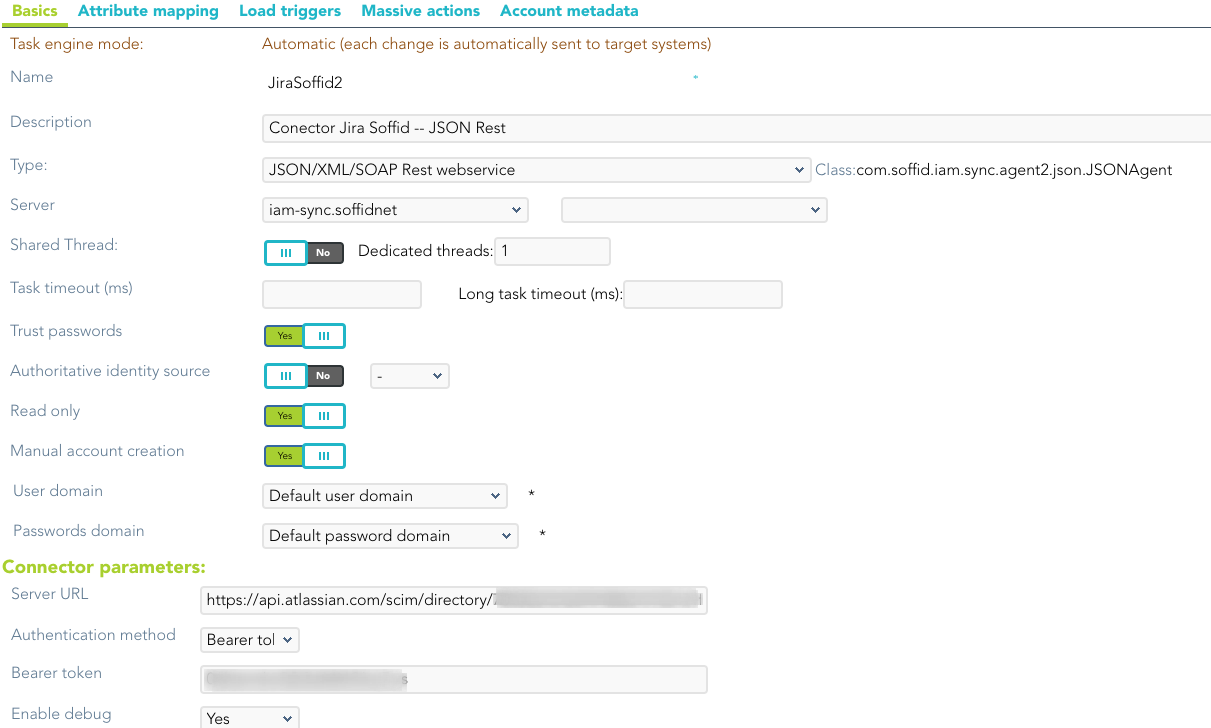
Then, configure the attribute mappings

[![image-1658994301791.png](https://bookstack.soffid.com/uploads/images/gallery/2022-07/scaled-1680-/image-1658994301791.png)](https://bookstack.soffid.com/uploads/images/gallery/2022-07/image-1658994301791.png)
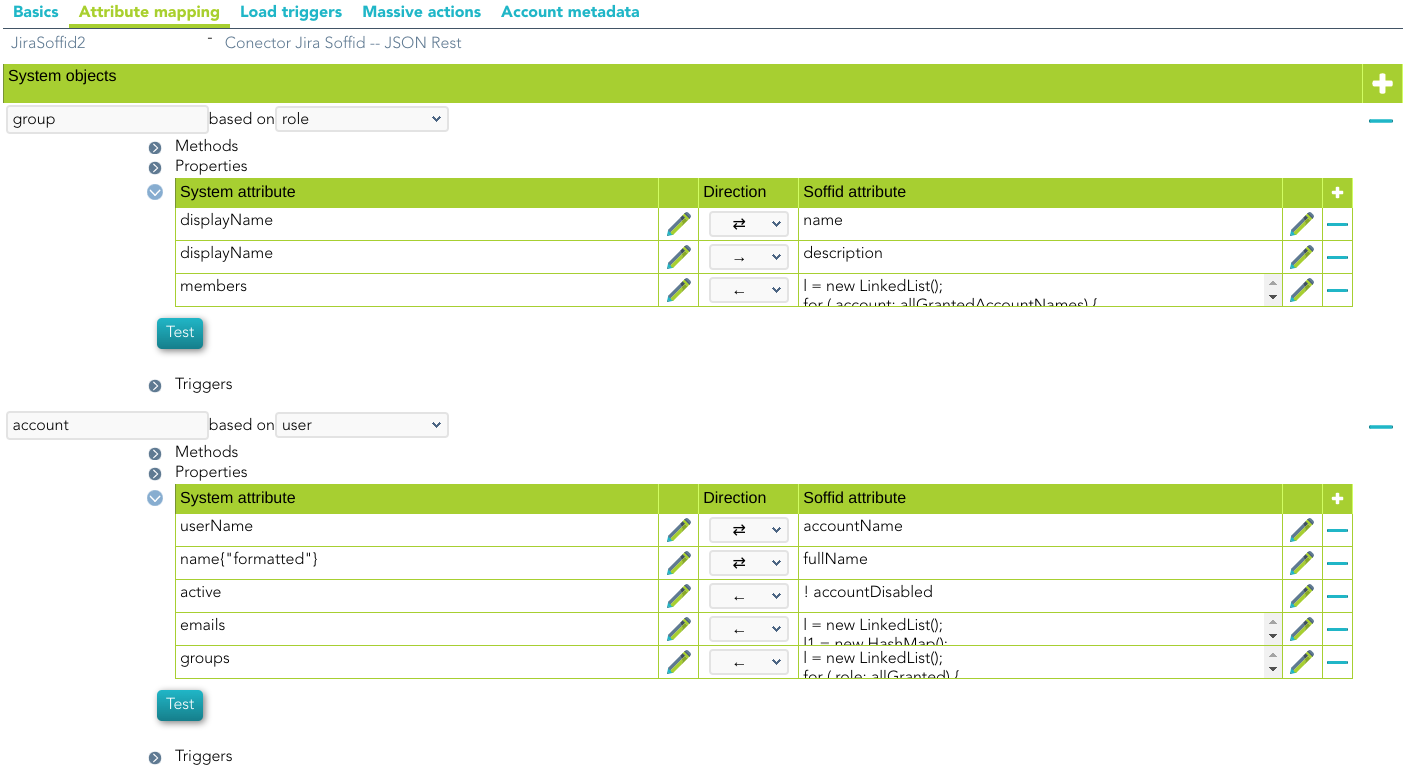
<p class="callout info">Soffid provides you an XML file with the basic attribute mappings to import into the agent configuration [JIRA Soffid agent-config.xml](https://bookstack.soffid.com/attachments/54)</p>

# LDAP Connector


# LDAP Connector

## Introduction

### Description

This connector implements the [LDAP](https://en.wikipedia.org/wiki/Lightweight_Directory_Access_Protocol) standard and it is used to connect the Sync-Server with every server that allows this communication protocol.

### Managed System

There are a lot of servers and products that use this standard, for instance, the most known systems are:

- 389 Directory Server.
- Apache Directory Server.
- OpenLDAP.
- OpenDJ.
- Active Directory.
- Oracle Directory Server.

For more information: [List of LDAP software.](https://en.wikipedia.org/wiki/List_of_LDAP_software)

<p class="callout info">If your system is not in the previous list, it's possible to include it easily!   
  
For more information to check if your system may be synchronized with this connector you do not hesitate to contact us through our [Contact form](http://www.soffid.com/contactform/)</p>

### Prerequisites

It is needed a user with full administrator access.

## Download and Install

This addon is located in the Connectors section and its name is **LDAP plugin.**

<p class="callout info">For more information about the installation process you can visit the [Addons Getting started](https://bookstack.soffid.com/books/addons-getting-started/page/getting-started "Addons installation") page.</p>

## Agent Configuration

### Basic

#### Generic parameters

After the installation of the addon, you may create and configure agent instances.

To configure this LDAP Connector you must select "LDAP-Custom (with triggers)" in the attribute "Type" of the generic parameters section in the agent's page configuration.

<p class="callout info">For more information about how you may configure the generic parameters of the agent, see the following link: [Agents configuration](https://bookstack.soffid.com/books/soffid-3-reference-guide/page/agents "Agents")</p>

[![image-1715077578477.png](https://bookstack.soffid.com/uploads/images/gallery/2024-05/scaled-1680-/image-1715077578477.png)](https://bookstack.soffid.com/uploads/images/gallery/2024-05/image-1715077578477.png)

#### Custom parameters

Below there are the specific parameters for this agent implementation:

<div id="bkmrk-parameter-descriptio"><table class="confluenceTable tablesorter tablesorter-default stickyTableHeaders" role="grid"><thead class="tableFloatingHeaderOriginal"><tr class="tablesorter-headerRow" role="row"><th aria-disabled="false" aria-label="Parameter: No sort applied, activate to apply an ascending sort" aria-sort="none" class="confluenceTh tablesorter-header sortableHeader tablesorter-headerUnSorted" data-column="0" role="columnheader" scope="col" tabindex="0">**Parameter**

</th><th aria-disabled="false" aria-label="Description: No sort applied, activate to apply an ascending sort" aria-sort="none" class="confluenceTh tablesorter-header sortableHeader tablesorter-headerUnSorted" data-column="1" role="columnheader" scope="col" tabindex="0">**Description**

</th></tr></thead><tbody aria-live="polite" aria-relevant="all"><tr role="row"><td class="confluenceTd"><span class="etiqueta">User name</span>

</td><td class="confluenceTd">User name in DN format, including base name if needed

</td></tr><tr role="row"><td class="confluenceTd">Password

</td><td class="confluenceTd">Password

</td></tr><tr role="row"><td class="confluenceTd"><span class="etiqueta">Host name</span>

</td><td class="confluenceTd">Host name of the server

</td></tr><tr><td><span class="etiqueta">Enable SSL</span>

</td><td></td></tr><tr role="row"><td class="confluenceTd"><span class="etiqueta">Base DN</span>

</td><td class="confluenceTd">LDAP Base name

</td></tr><tr role="row"><td class="confluenceTd"><span class="etiqueta" style="background-color: #ffffff;">PasswordAttribute</span>

</td><td class="confluenceTd">  
</td></tr><tr role="row"><td class="confluenceTd"><span class="etiqueta">Password hash algorithm</span>

</td><td class="confluenceTd">The algorithm is used to encrypt the password. For instance SHA-1, SHA-256, MD5, etc</td></tr><tr role="row"><td class="confluenceTd"><span class="etiqueta">Password hash prefix</span>

</td><td class="confluenceTd">  
</td></tr><tr role="row"><td class="confluenceTd"><span class="etiqueta">LDAP Query page size</span>

</td><td class="confluenceTd">  
</td></tr><tr role="row"><td class="confluenceTd"><span class="etiqueta">Enable debug</span>

</td><td class="confluenceTd">Two options: Yes, No. When it is enabled more log traces are printed in the Synchronization Server log

</td></tr></tbody></table>

</div>### Attribute mapping

This connector can manage users, accounts, roles, groups, and grants.

[![image-1715077940898.png](https://bookstack.soffid.com/uploads/images/gallery/2024-05/scaled-1680-/image-1715077940898.png)](https://bookstack.soffid.com/uploads/images/gallery/2024-05/image-1715077940898.png)

<p class="callout warning">As a limitation, it cannot detect password changes to be propagated to other systems.</p>

#### Properties

Some agents require to configure some custom attributes, you will use the properties section to do that.

<div id="bkmrk-property-value-renam"><table class="confluenceTable tablesorter tablesorter-default stickyTableHeaders" role="grid" style="width: 97.1605%;"><thead class="tableFloatingHeaderOriginal"><tr class="tablesorter-headerRow" role="row"><th aria-disabled="false" aria-label="Property: No sort applied, activate to apply an ascending sort" aria-sort="none" class="confluenceTh tablesorter-header sortableHeader tablesorter-headerUnSorted" data-column="0" role="columnheader" scope="col" style="width: 24.6716%;" tabindex="0"><div><div>**Property**</div></div></th><th aria-disabled="false" aria-label="Value: No sort applied, activate to apply an ascending sort" aria-sort="none" class="confluenceTh tablesorter-header sortableHeader tablesorter-headerUnSorted" data-column="1" role="columnheader" scope="col" style="width: 75.3284%;" tabindex="0"><div>**Value**</div></th></tr></thead><tbody aria-live="polite" aria-relevant="all"><tr role="row"><td class="confluenceTd" style="width: 24.6716%;">rename

</td><td class="confluenceTd" style="width: 75.3284%;">true

</td></tr><tr role="row"><td class="confluenceTd" style="width: 24.6716%;">key

</td><td class="confluenceTd" style="width: 75.3284%;">LDAP attribute where Soffid account name is stored. If the property is not present, object will be searched by its distinguishedName

</td></tr><tr><td style="width: 24.6716%;">modificationTimestamp

</td><td style="width: 75.3284%;">LDAP attribute

</td></tr><tr><td style="width: 24.6716%;">removeDisabledAccounts

</td><td style="width: 75.3284%;">Set to true to remove disabled accounts from LDAP server

</td></tr></tbody></table>

</div>If a key value is set, LDAP connector will search for objects based on this LDAP attribute value, rather than its DN. Thus, an index on this attributed is highly recommended.

##### Renaming

To support object renaming, Soffid needs to store the Soffid account name on a specific LDAP attribute. It's highly recommended to index such a field. To enable it, add the following properties to each object mapping. At any time, object renaming can be disabled by setting the property rename to false.

<div id="bkmrk-property-value-renam-0"><table class="confluenceTable tablesorter tablesorter-default stickyTableHeaders" role="grid" style="width: 98.642%;"><thead class="tableFloatingHeaderOriginal"><tr class="tablesorter-headerRow" role="row"><th aria-disabled="false" aria-label="Property: No sort applied, activate to apply an ascending sort" aria-sort="none" class="confluenceTh tablesorter-header sortableHeader tablesorter-headerUnSorted" data-column="0" role="columnheader" scope="col" style="width: 24.4952%;" tabindex="0"><div><div>**Property**</div></div></th><th aria-disabled="false" aria-label="Value: No sort applied, activate to apply an ascending sort" aria-sort="none" class="confluenceTh tablesorter-header sortableHeader tablesorter-headerUnSorted" data-column="1" role="columnheader" scope="col" style="width: 75.5048%;" tabindex="0"><div>**Value**</div></th></tr></thead><tbody aria-live="polite" aria-relevant="all"><tr role="row"><td class="confluenceTd" style="width: 24.4952%;">rename

</td><td class="confluenceTd" style="width: 75.5048%;">true

</td></tr></tbody></table>

</div>#### Attributes

You can customize attribute mappings, you only need to select system objects and the Soffid objects related, manage their attributes, and make either inbound or outbound attribute mappings.

Using a windows connector you can map users, groups, and role objects. Active Directory membership is automatically managed based on user and group mappings.

You can map users, groups, and role objects. User membership must be managed on the role members' attribute expression.

Any object mapping must have the following system attributes:

<div id="bkmrk-system-attribute-val"><table class="confluenceTable tablesorter tablesorter-default stickyTableHeaders" role="grid"><thead class="tableFloatingHeaderOriginal"><tr class="tablesorter-headerRow" role="row"><th aria-disabled="false" aria-label="System attribute: No sort applied, activate to apply an ascending sort" aria-sort="none" class="confluenceTh tablesorter-header sortableHeader tablesorter-headerUnSorted" data-column="0" role="columnheader" scope="col" style="width: 155px;" tabindex="0"><div><div>**System attribute**</div></div></th><th aria-disabled="false" aria-label="Value: No sort applied, activate to apply an ascending sort" aria-sort="none" class="confluenceTh tablesorter-header sortableHeader tablesorter-headerUnSorted" data-column="1" role="columnheader" scope="col" style="width: 616px;" tabindex="0"><div>**Value**</div></th></tr></thead><tbody aria-live="polite" aria-relevant="all"><tr role="row"><td class="confluenceTd" style="width: 155px;">objectClass

</td><td class="confluenceTd" style="width: 616px;">LDAP Object Class. It can evaluate to an array of objects

</td></tr><tr role="row"><td class="confluenceTd" style="width: 155px;">dn

</td><td class="confluenceTd" style="width: 616px;">Full qualified object name

</td></tr></tbody></table>

</div><p class="callout info">For more information about how you may configure attribute mapping, see the following link: [Soffid Attribute Mapping Reference](https://bookstack.soffid.com/link/72#bkmrk-soffid-attributes)</p>

For instance:

[![image-1659087931478.png](https://bookstack.soffid.com/uploads/images/gallery/2022-07/scaled-1680-/image-1659087931478.png)](https://bookstack.soffid.com/uploads/images/gallery/2022-07/image-1659087931478.png)

#### Triggers

You can define BeanShell scripts that will be triggered when data is loaded into the target system (outgoing triggers). The trigger result will be a boolean value, true to continue or false to stop.

Triggers can be used to validate or perform a specific action just before performing an operation or just after performing an operation on target objects.

<p class="callout info">To view some examples, visit the [Outgoing triggers examples page](https://bookstack.soffid.com/books/connectors/page/outgoing-triggers-examples "Outgoing triggers examples").</p>

# Oracle Connectors


# Oracle Connector

## Introduction

### Description

Oracle Connector could manage an Oracle database.

<p class="callout info">Soffid's Oracle connector supports Profiles since version 2.2.6.14</p>

### Managed System

This connector is specific for integration with an Oracle database, if you want to connect a generic SQL database, please visit the following page: [SQL Connector](https://bookstack.soffid.com/books/connectors/page/sql-connector "SQL Connector").

<p class="callout info">For more information to check if your system may be synchronized with this connector you do not hesitate to contact us through our [Contact form](http://www.soffid.com/contactform/)</p>

### Prerequisites

It is needed a user with sysdba access and permissions.

##### User management

Criteria:

- Any user or account created will be granted the CREATE SESSION privilege.
- Default tablespace for each user will be the USERS tablespace. It won't be changed for existing users.
- Soffid passwords expiration date will be managed by Soffid. So, Oracle won't be notified about when those passwords need to be expired.
- Roles and groups are automatically created when a user belonging to it is updated.

Exceptions:

- Error SQL: ….There was an error executing an SQL statement.
- Contact with the administrator of the database. It may be a problem of user authorizations, administrator password validity, availability of space in the database, or saturation of it.

## Download and Install

This addon is located in the Connectors section and its name is **Oracle Connector**.

<p class="callout info">For more information about the installation process you can visit the [Addons Getting started](https://bookstack.soffid.com/books/addons-getting-started/page/getting-started "Addons installation") page.</p>

## Agent Configuration

This connector could manage User and Role objects.

### Basic

#### Generic parameters

After the installation of the addon, you may create and configure agent instances.

To configure this Oracle Connector you must select "OracleAgent" in the attribute "Type" of the generic parameters section in the agents' page configuration.

<p class="callout info">For more information about how you may configure the generic parameters of the agent, see the following link: [Agents configuration](https://bookstack.soffid.com/books/soffid-3-reference-guide/page/agents "Agents")</p>

[![image-1704283498429.png](https://bookstack.soffid.com/uploads/images/gallery/2024-01/scaled-1680-/image-1704283498429.png)](https://bookstack.soffid.com/uploads/images/gallery/2024-01/image-1704283498429.png)

#### Custom parameters

Below there are the specific parameters for this agent implementation:

<div id="bkmrk-parameter-descriptio"><table class="relative-table wrapped confluenceTable tablesorter tablesorter-default" role="grid"><colgroup><col></col><col></col></colgroup><thead><tr class="tablesorter-headerRow" role="row"><th aria-disabled="false" aria-label="Parameter: No sort applied, activate to apply an ascending sort" aria-sort="none" class="confluenceTh tablesorter-header sortableHeader tablesorter-headerUnSorted" data-column="0" role="columnheader" scope="col" style="width: 209px;" tabindex="0">**Parameter**

</th><th aria-disabled="false" aria-label="Description: No sort applied, activate to apply an ascending sort" aria-sort="none" class="confluenceTh tablesorter-header sortableHeader tablesorter-headerUnSorted" data-column="1" role="columnheader" scope="col" style="width: 599px;" tabindex="0">**Description**

</th></tr></thead><tbody aria-live="polite" aria-relevant="all"><tr role="row"><td class="confluenceTd" style="width: 209px;"><span class="etiqueta">User  
</span>

</td><td class="confluenceTd" style="width: 599px;">Sysdba user name to authenticate

</td></tr><tr role="row"><td class="confluenceTd" style="width: 209px;"><span class="etiqueta">Oracle password</span>

</td><td class="confluenceTd" style="width: 599px;">Password of the user to authenticate

</td></tr><tr role="row"><td class="confluenceTd" style="width: 209px;"><span class="etiqueta">Connection string to database</span>

</td><td class="confluenceTd" style="width: 599px;">Database URL. Use something like [jdbc:oracle:thin:@host:port:sid](http://jdbcoraclethin@hostportsid/)

</td></tr><tr role="row"><td class="confluenceTd" style="width: 209px;"><span class="etiqueta">Password to protect roles</span>

</td><td class="confluenceTd" style="width: 599px;">Optional password to use on password protected roles

</td></tr><tr role="row"><td class="confluenceTd" style="width: 209px;">Default user profile

</td><td class="confluenceTd" style="width: 599px;">Optional profile to set limits on the database resources and the user password

</td></tr><tr role="row"><td class="confluenceTd" style="width: 209px;">Default tablespace

</td><td class="confluenceTd" style="width: 599px;">Optional tablespace for user creation

</td></tr><tr role="row"><td class="confluenceTd" style="width: 209px;"><span class="etiqueta">Temporary tablespace  
</span>

</td><td class="confluenceTd" style="width: 599px;">Optional temporary tablespace for user creation

</td></tr><tr><td style="width: 209px;"><span class="etiqueta">Enable debug</span>

</td><td style="width: 599px;">Two options: \[ Yes / No \]. When it is enabled more log traces are printed in the Synchronization Server log

</td></tr></tbody></table>

</div>[![image-1704283537855.png](https://bookstack.soffid.com/uploads/images/gallery/2024-01/scaled-1680-/image-1704283537855.png)](https://bookstack.soffid.com/uploads/images/gallery/2024-01/image-1704283537855.png)

### Load triggers

You can define JavaScript or BeanShell scripts that will be triggered when data is loaded into Soffid (incoming triggers). The trigger result will be a boolean value, true to continue or false to stop.

Triggers can be used to validate or perform a specific action just before performing an operation or just after performing an operation into Soffid objects.

<p class="callout info">To view some examples, visit the [Incoming triggers examples page.](https://bookstack.soffid.com/books/connectors/page/incoming-triggers-examples "Incoming triggers examples")</p>

### Access Control

Oracle connector can establish an access control for Oracle Users.

If the access control checkbox is enabled, only the users and applications that are listed on the access control page will be allowed to log in. So, you can restrict the IP address and application a user can connect from.

This restriction does not apply to DBA users.

[![image-1706003656568.png](https://bookstack.soffid.com/uploads/images/gallery/2024-01/scaled-1680-/image-1706003656568.png)](https://bookstack.soffid.com/uploads/images/gallery/2024-01/image-1706003656568.png)
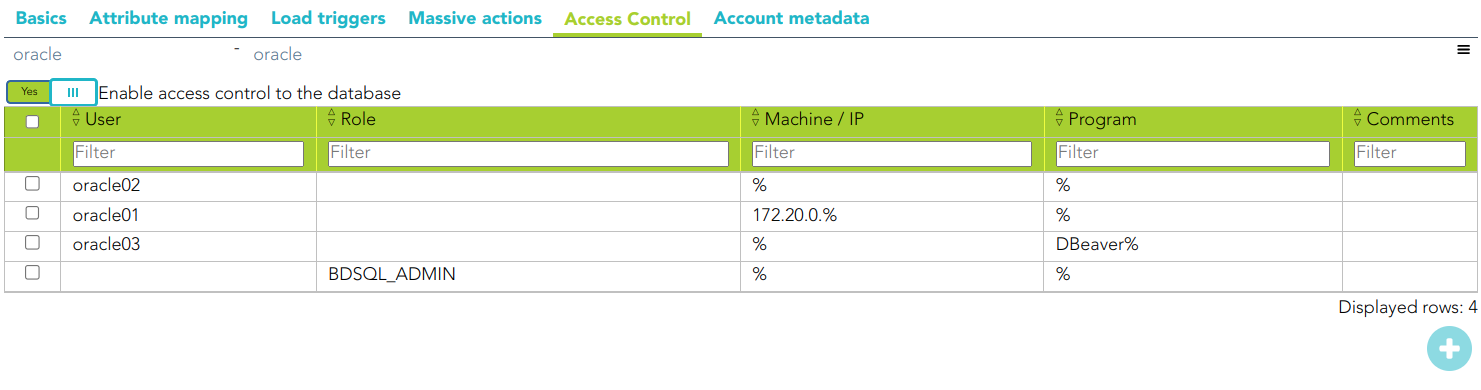
<p class="callout warning">Check that the user/account is not unmanaged.</p>

When the Enable access control to the database check box is checked, the UpdateAccessControl task will be launched. The following tables will be created on the SQL Server:

- **SC\_OR\_ACCLOG**: access log
- **SC\_OR\_CONACC**: rule access control
- **SC\_OR\_ROLE**: user roles.
- **SC\_OR\_VERSION**: connector versions.

When you try to connect to SQL Server, the logon\_audit\_trigger is launched to check if you have access or not.

You can check the Access Logs page for access controls.

### Account metadata

Agents allow you to create additional data, on the "Account metadata" tab, to customize the accounts created for that agent. This additional information will be loaded with the agent's information, or calculated as defined in the mappings.  
The additional data can be used in both mappings and triggers.

The attributes that you define here will be shown when you click on the proper account, on the Accounts Tabs at user page.

<span style="color: #222222; font-size: 2.8275em; font-weight: 400;">Operational</span>

### Monitoring

After the agent configuration you can check on the monitoring page if the service is running in the Synchronization Server, please go to:

- Start Menu &gt; Administration &gt; Monitoring and reporting &gt; Syscserver monitoring

### Tasks

#### Authoritative

If you checked "Authorized identity source", an automatic task to load identities from the managed system to Soffid is available, please go to:

- Start Menu &gt; Administration &gt; Monitoring and reporting &gt; Scheduled tasks

And you will do something like "Import authoritative data from &lt;AGENT\_NAME&gt;".

#### Reconcile

To manage an automatic task to synchronize user objects from the managed system to Soffid is available, please go to:

- Start Menu &gt; Administration &gt; Monitoring and reporting &gt; Scheduled tasks

And you will do something like "Reconcile all accounts from &lt;AGENT\_NAME&gt;".

### Synchronization

Regarding the synchronization of the objects, there are two possible options:

- If you check the generic attribute "Read Only" in the "Basics" tab, only the changes in the managed systems will be updated in Soffid. We recommend these options until the global configuration of Soffid is tested.
- If you do not check the generic attribute "Read Only" in the "Basics" tab, all the changes in Soffid or the managed system will be updated in the other. Note that this synchronization must be configured in the "Attribute mapping" tab correctly.

<p class="callout info">For more information about how you may configure the generic parameters of the agent, see the following link: [Agents configuration](https://bookstack.soffid.com/books/soffid-3-reference-guide/page/agents "Agents")</p>

# Oracle EBS Connector

## Introduction

### Description

Oracle Connector could manage an Oracle E-Business Suite.

### Managed System

<span lang="en">This connector is specific for integration with an Oracle E-Business Suite, if you want to connect a generic SQL database, please visit the following page: [SQL Connector](https://bookstack.soffid.com/books/connectors/page/sql-connector "SQL Connector").</span>

<span lang="en">For more information about the Oracle E-Business Suite, please visit the following page: [Oracle E-Business Suite](https://www.oracle.com/es/products/applications/ebusiness/overview/index.html)</span>

<p class="callout info">For more information to check if your system may be synchronized with this connector you do not hesitate to contact us through our [Contact form](http://www.soffid.com/contactform/)</p>

### Prerequisites

It is needed a user with access and permissions to the database.

## Download and Install

This addon is located in the Connectors section and its name is **Oracle EBS Connector.**

<p class="callout info">For more information about the installation process you can visit the [Addons Getting started](https://bookstack.soffid.com/books/addons-getting-started/page/getting-started "Addons installation") page.</p>

## Agent Configuration

This connector could manage only User objects.

Users created on Soffid will be created on EBS, in the same way disabled users on Soffid will be disabled on EBS.

The responsibilities that exist in EBS can be assigned to the users. They must be created like roles on Soffid System previously, with the same name that the responsibility has on EBS.

For instance: FND\_RESP | CSF | CSF\_FS\_PDA\_REP | STANDARD.

### Basic

#### Generic parameters

After the installation of the addon, you may create and configure agent instances.

To configure this Oracle EBS Connector you must select "OracleEBudsinessAgent" in the attribute "Type" of the generic parameters section in the agents' page configuration.

<p class="callout info">For more information about how you may configure the generic parameters of the agent, see the following link: [Agents configuration](https://bookstack.soffid.com/books/soffid-3-reference-guide/page/agents "Agents")</p>

#### Custom parameters

Below there are the specific parameters for this agent implementation:

<div id="bkmrk-parameter-descriptio"><table class="confluenceTable tablesorter tablesorter-default stickyTableHeaders" role="grid"><thead class="tableFloatingHeaderOriginal"><tr class="tablesorter-headerRow" role="row"><th aria-disabled="false" aria-label="Parameter: No sort applied, activate to apply an ascending sort" aria-sort="none" class="confluenceTh tablesorter-header sortableHeader tablesorter-headerUnSorted" data-column="0" role="columnheader" scope="col" style="width: 209px;" tabindex="0">**Parameter**

</th><th aria-disabled="false" aria-label="Description: No sort applied, activate to apply an ascending sort" aria-sort="none" class="confluenceTh tablesorter-header sortableHeader tablesorter-headerUnSorted" data-column="1" role="columnheader" scope="col" style="width: 594px;" tabindex="0">**Description**

</th></tr></thead><tbody aria-live="polite" aria-relevant="all"><tr role="row"><td class="confluenceTd" colspan="1" style="width: 209px;"><span class="etiqueta">User  
</span>

</td><td class="confluenceTd" colspan="1" style="width: 594px;">User name to authenticate

</td></tr><tr role="row"><td class="confluenceTd" colspan="1" style="width: 209px;"><span class="etiqueta">Oracle password</span>

</td><td class="confluenceTd" colspan="1" style="width: 594px;">Password of the user to authenticate

</td></tr><tr role="row"><td class="confluenceTd" colspan="1" style="width: 209px;"><span class="etiqueta">Connection string to database</span>

</td><td class="confluenceTd" colspan="1" style="width: 594px;">Database URL. Use something like [jdbc:oracle:thin:@host:port:sid](http://jdbcoraclethin@hostportsid/)

</td></tr></tbody></table>

</div>### Load triggers

You can define BeanShell scripts that will be triggered when data is loaded into Soffid (incoming triggers). The trigger result will be a boolean value, true to continue or false to stop.

Triggers can be used to validate or perform a specific action just before performing an operation or just after performing an operation into Soffid objects.

<p class="callout info">To view some examples, visit the [Incoming triggers examples page.](https://bookstack.soffid.com/books/connectors/page/incoming-triggers-examples "Incoming triggers examples")</p>

### Account metadata

Agents allow you to create additional data, on the "Account metadata" tab, to customize the accounts created for that agent. This additional information will be loaded with the agent's information, or calculated as defined in the mappings.  
The additional data can be used in both mappings and triggers.

The attributes which you define here will be shown when you click on the proper account, on the Accounts Tabs at user page.

<span style="color: #222222; font-size: 2.8275em; font-weight: 400;">Operational</span>

### Monitoring

After the agent configuration you could check on the monitoring page if the service is running in the Synchronization Server, please go to:

- Start Menu &gt; Administration &gt; Monitoring and reporting &gt; Syscserver monitoring

### Tasks

#### Authoritative

If you are checked "Authorized identity source", an automatic task to load identities from the managed system to Soffid is available, please go to:

- Start Menu &gt; Administration &gt; Monitoring and reporting &gt; Scheduled tasks

And you will something like "Import authoritative data from &lt;AGENT\_NAME&gt;".

#### Reconcile

To manage an automatic task to synchronize user objects from the managed system to Soffid is available, please go to:

- Start Menu &gt; Administration &gt; Monitoring and reporting &gt; Scheduled tasks

And you will do something like "Reconcile all accounts from &lt;AGENT\_NAME&gt;".

### Synchronization

Regarding the synchronization of the objects, there are two possible options:

- If you are checked the generic attribute "Read Only" in the "Basics" tab, only the changes in the managed systems will be updated in Soffid. We recommend these options until the global configuration of Soffid will be tested.
- If you are not checked the generic attribute "Read Only" in the "Basics" tab, all the changes in Soffid or the managed system will be updated in the other. Note that this synchronization must be configured in the "Attribute mapping" tab correctly.

<p class="callout info">For more information about how you may configure the generic parameters of the agent, see the following link: [Agents configuration](https://bookstack.soffid.com/books/soffid-3-reference-guide/page/agents "Agents")</p>

# SAP Connector


# SAP Connector

## Introduction

### Description

SAP Connector could manage an SAP system.

### Managed System

<span lang="en">This connector is specific for integration with a SAP system through its interface BAPIs under the RFC standard.  
</span>

<span lang="en">For more information about SAP, please visit the following page: [SAP](https://www.sap.com/spain/index.html)</span>

<p class="callout info">For more information to check if your system may be synchronized with this connector you do not hesitate to contact us through our [Contact form](http://www.soffid.com/contactform/)</p>

### Prerequisites

1. The SAP Java Connector (JCO) must be installed in the host where the syncserver is running.
2. A SAP account must be created with permission to execute user administration BAPIs using RFC. Additionally, the attached SAP Role definition [Y\_SOFFID.SAP](https://bookstack.soffid.com/attachments/2) can be used to assign permissions to SOFFID RFC user.
3. The following transport order should be applied in order to synchronize passwords: [K953376.de1](https://bookstack.soffid.com/attachments/3) [R953376.de1](https://bookstack.soffid.com/attachments/4)

## Download and Install

This addon is located in the Connectors section and its name is **SAP Connector.**

<p class="callout info">For more information about the installation process you can visit the [Addons Getting started](https://bookstack.soffid.com/books/addons-getting-started/page/getting-started "Addons installation") page.</p>

## Agent Configuration

This connector could manage User, Account and Role objects.

- All active users included in agent configuration will be added to SAP.
- All inactive users on Soffid will be deleted from SAP.
- Roles granted to a user will be added to ACTIVITY GROUPS on SAP.

### Basic

#### Generic parameters

After the installation of the addon, you may create and configure agent instances.

This addon has2 available agents:

- SAP (Complete)
- SAP (Light)

<p class="callout info">For more information about how you may configure the generic parameters of the agent, see the following link: [Agents configuration](https://bookstack.soffid.com/books/soffid-3-reference-guide/page/agents "Agents")</p>

#### Custom parameters

Below there are the specific parameters for this agent implementation:

<div id="bkmrk-parameter-descriptio"><table class="wrapped confluenceTable tablesorter tablesorter-default" role="grid" style="width: 99.9409%; height: 388px;"><thead><tr class="tablesorter-headerRow" role="row" style="height: 35.2px;"><th aria-disabled="false" aria-label="Parameter: No sort applied, activate to apply an ascending sort" aria-sort="none" class="confluenceTh tablesorter-header sortableHeader tablesorter-headerUnSorted" data-column="0" role="columnheader" scope="col" style="width: 38.9053%; height: 35.2px;" tabindex="0">**Parameter**

</th><th aria-disabled="false" aria-label="Description: No sort applied, activate to apply an ascending sort" aria-sort="none" class="confluenceTh tablesorter-header sortableHeader tablesorter-headerUnSorted" data-column="1" role="columnheader" scope="col" style="width: 80.6213%; height: 35.2px;" tabindex="0">**Description**

</th></tr></thead><tbody aria-live="polite" aria-relevant="all"><tr role="row" style="height: 35.2px;"><td class="confluenceTd" style="width: 38.9053%; height: 35.2px;"><span class="etiqueta">User Name</span>

</td><td class="confluenceTd" style="width: 80.6213%; height: 35.2px;">User name to authenticate

</td></tr><tr role="row" style="height: 35.2px;"><td class="confluenceTd" style="width: 38.9053%; height: 35.2px;"><span class="etiqueta">Password</span>

</td><td class="confluenceTd" style="width: 80.6213%; height: 35.2px;">Password of the user to authenticate

</td></tr><tr role="row" style="height: 35.2px;"><td class="confluenceTd" style="width: 38.9053%; height: 35.2px;"><span class="etiqueta">Host</span>

</td><td class="confluenceTd" style="width: 80.6213%; height: 35.2px;">Host of the instance of the SAP

</td></tr><tr><td style="width: 38.9053%;"><span class="etiqueta">System Type</span>

</td><td style="width: 80.6213%;">\- Standar SAP R/3

\- Central User Administration (CUA)

</td></tr><tr><td style="width: 38.9053%;"><span class="etiqueta">Systen Number</span>

</td><td style="width: 80.6213%;">System number of the server

</td></tr><tr><td style="width: 38.9053%;"><span class="etiqueta">Message server name</span>

</td><td style="width: 80.6213%;"></td></tr><tr><td style="width: 38.9053%;"><span class="etiqueta">Message server port</span>

</td><td style="width: 80.6213%;"></td></tr><tr><td style="width: 38.9053%;"><span class="etiqueta">Message server logon group</span>

</td><td style="width: 80.6213%;"></td></tr><tr><td style="width: 38.9053%;"><span class="etiqueta">Message server system id</span>

</td><td style="width: 80.6213%;"></td></tr><tr><td style="width: 38.9053%;"><span class="etiqueta">SAP Router string</span>

</td><td style="width: 80.6213%;"></td></tr><tr role="row" style="height: 35.2px;"><td class="confluenceTd" style="width: 38.9053%; height: 35.2px;"><span class="etiqueta">Client number </span>

</td><td class="confluenceTd" style="width: 80.6213%; height: 35.2px;">Client number of the server

</td></tr><tr role="row" style="height: 35.2px;"><td class="confluenceTd" style="width: 38.9053%; height: 35.2px;"><div><span class="etiqueta">Language</span></div></td><td class="confluenceTd" style="width: 80.6213%; height: 35.2px;">Language of the server

</td></tr><tr role="row" style="height: 48.8px;"><td class="confluenceTd" style="width: 38.9053%; height: 48.8px;"><div><div>Unlock users</div></div></td><td class="confluenceTd" style="width: 80.6213%; height: 48.8px;">Values \[ YES | NO \]. If "YES" allows to Soffid to unblock blocked users

</td></tr><tr><td style="width: 38.9053%;"><div><div>Method to set productive passwords</div></div></td><td style="width: 80.6213%;">\- Z\_SOFFID\_UPDATE\_PASSWORD

\- BAPI\_USER\_CHANGE

\- SUSR\_USER\_CHANGE\_PASSWORD\_RFC

\- Z\_SOFFID\_SET\_PWD\_CHILD\_SYSTEMS (CUA only)

</td></tr><tr role="row" style="height: 35.2px;"><td class="confluenceTd" style="width: 38.9053%; height: 35.2px;"><span class="etiqueta">Manage SAP roles</span>

</td><td class="confluenceTd" style="width: 80.6213%; height: 35.2px;">Values \[ YES | NO \]. If "YES" allows to Soffid manage Roles

</td></tr><tr role="row" style="height: 57.6px;"><td class="confluenceTd" style="width: 38.9053%; height: 57.6px;"><span class="etiqueta">SAP Payroll to get employee data</span>

</td><td class="confluenceTd" style="width: 80.6213%; height: 57.6px;"><span class="etiqueta">SAP payroll to get employee data</span>

</td></tr><tr><td style="width: 38.9053%;"><span class="etiqueta">Enable debug</span>

</td><td style="width: 80.6213%;"><span class="etiqueta">Values \[ YES | NO \].</span>

</td></tr></tbody></table>

</div>### Attribute mappings

The attribute mappings are only available for SAP (Complete) configuration.

#### Properties

Nothing to configure. There are no properties

#### Attributes

You can customize attribute mappings, you only need to select system objects and the Soffid objects related, manage their attributes, and make either inbound and outbound attribute mappings.

Using SAP connector you can map users.

<p class="callout info">For more information about how you may configure attribute mapping, see the following link: [Soffid Attribute Mapping Reference](https://bookstack.soffid.com/link/72#bkmrk-soffid-attributes)</p>

### Load triggers

You can define BeanShell scripts that will be triggered when data is loaded into Soffid (incoming triggers). The trigger result will be a boolean value, true to continue or false to stop.

Triggers can be used to validate or perform a specific action just before performing an operation or just after performing an operation into Soffid objects.

<p class="callout info">To view some examples, visit the [Incoming triggers examples page.](https://bookstack.soffid.com/books/connectors/page/incoming-triggers-examples "Incoming triggers examples")</p>

### Account metadata

Agents allow you to create additional data, on the "Account metadata" tab, to customize the accounts created for that agent. This additional information will be loaded with the agent's information, or calculated as defined in the mappings.  
The additional data can be used in both mappings and triggers.

The attributes which you define here will be shown when you click on the proper account, on the Accounts Tabs at user page.

## Operational

### Monitoring

After the agent configuration you could check in the monitoring page if the service is running in the Synchronization Server, please go to:

- Start Menu &gt; Administration &gt; Monitoring and reporting &gt; Syscserver monitoring

### Tasks

#### Authoritative

If you are checked "Authorized identity source", an automatic task to load identities from the managed system to Soffid is available, please go to:

- Start Menu &gt; Administration &gt; Monitoring and reporting &gt; Scheduled tasks

And you will something like "Import authoritative data from &lt;AGENT\_NAME&gt;".

#### Reconcile

If you are configured the "Attribute Mapping" tab with some of our objects: "user, account or role,", an automatic task to synchronize these objects from the managed system to Soffid is available, please go to:

- Start Menu &gt; Administration &gt; Monitoring and reporting &gt; Scheduled tasks

And you will do something like "Reconcile all accounts from &lt;AGENT\_NAME&gt;".

### Synchronization

Regarding the synchronization of the objects, there are two possible options:

- If you are checked the generic attribute "Read Only" in the "Basics" tab, only the changes in the managed systems will be updated in Soffid. We recommend these options until the global configuration of Soffid will be tested.
- If you are not checked the generic attribute "Read Only" in the "Basics" tab, all the changes in Soffid or the managed system will be updated in the other. Note that this synchronization must be configured in the "Attribute mapping" tab correctly.

<p class="callout info">For more information about how you may configure the generic parameters of the agent, see the following link: [Agents configuration](https://bookstack.soffid.com/books/soffid-3-reference-guide/page/agents "Agents")</p>

# SCIM Connector


# SCIM Connector

## Introduction

### Description

SCIM connector can manage every target system with a published API that allows the SCIM protocol for communication.

SCIM is basically a REST JSON web service with specific HTTP requests and responses, and also a specific JSON format for attributes and values.

<p class="callout info">For more information about SCIM protocol you could visit its home page: [SCIM protocol,](http://www.simplecloud.info/) or to visit the introduction page of our SCIM addon: [Introduction to SCIM](https://bookstack.soffid.com/books/addons/page/introduction-to-scim "Introduction to SCIM")</p>

### Managed System

The official web of SCIM shows all the possible target systems that allow SCIM protocol: [SCIM implementations](http://www.simplecloud.info/#Implementations2)

Some of the most popular implementations:

- Soffid IAM
- Active Directory SCIM Provisioning
- Oracle Identity Manager
- WSO2 Charo
- Salesforce
- Trello
- Slack

<p class="callout info">For more information to check if your system may be synchronized with this connector, you do not hesitate to contact us through our [Contact form](http://www.soffid.com/contactform/)</p>

### Prerequisites

t is needed a user with access and permissions to the endpoints and operations required in the scope of the integration.

Also, the documentation, specification or tutorial of the web service, despite SCIM defining a schema for the objects, most applications or servers use to implement extended or customized versions of it.

## Download and Install

This addon is located in the Connectors section and its name is **SICM connector.**

<p class="callout info">For more information about the installation process, you can visit the [Addons Getting started](https://bookstack.soffid.com/books/addons-getting-started/page/getting-started "Addons installation") page.</p>

## Agent Configuration

### Basic

#### Generic parameters

After the installation of the addon, you may create and configure agent instances.

To configure this SCIM Connector you must select "SCIM" in the attribute "Type" of the generic parameters section in the agents page configuration.

<p class="callout info">For more information about how you may configure the generic parameters of the agent, see the following link: [Agents configuration](https://bookstack.soffid.com/books/soffid-3-reference-guide/page/agents "Agents")</p>

#### Custom parameters

Below there are the specific parameters for this agent implementation:

<div id="bkmrk-parameter-descriptio"><table class="confluenceTable tablesorter tablesorter-default stickyTableHeaders" role="grid"><thead class="tableFloatingHeaderOriginal"><tr class="tablesorter-headerRow" role="row"><th aria-disabled="false" aria-label="Parameter: No sort applied, activate to apply an ascending sort" aria-sort="none" class="confluenceTh tablesorter-header sortableHeader tablesorter-headerUnSorted" data-column="0" role="columnheader" scope="col" tabindex="0">**Parameter**

</th><th aria-disabled="false" aria-label="Description: No sort applied, activate to apply an ascending sort" aria-sort="none" class="confluenceTh tablesorter-header sortableHeader tablesorter-headerUnSorted" data-column="1" role="columnheader" scope="col" tabindex="0">**Description**

</th></tr></thead><tbody aria-live="polite" aria-relevant="all"><tr role="row"><td class="confluenceTd"><span class="etiqueta">Server URL</span>

</td><td class="confluenceTd">URL of the SCIM web service. It is used as the basis of the URL mapped to call the operations.

</td></tr><tr role="row"><td class="confluenceTd" colspan="1"><span class="etiqueta">Authentication method</span>

</td><td class="confluenceTd" colspan="1">Options:

- "None": no authentication.
- "Basic": it uses "User name" and "Password" parameters to generate a basic authentication token to connect with the "Server URL"
- "Token": it uses a token bearer generated from a specific "Authentication URL" using "username" and "password" in a GET HTTP request. The token bearer is used in the next requests to connect with the "Server URL"
- "TokenBasic": it uses a token bearer generated from a specific "Authentication URL" using "User name" and "Password" as a basic authentication token. The token bearer is used in the next requests to connect with the "Server URL"

</td></tr><tr role="row"><td class="confluenceTd" colspan="1"><span class="etiqueta">User name</span>

</td><td class="confluenceTd" colspan="1">User to authenticate

</td></tr><tr role="row"><td class="confluenceTd" colspan="1"><span class="etiqueta">Password</span>

</td><td class="confluenceTd" colspan="1">Password of the user to authenticate

</td></tr><tr role="row"><td class="confluenceTd" colspan="1"><span class="etiqueta">Authentication URL</span>

</td><td class="confluenceTd" colspan="1">URL to retrieve the token bearer used to authenticate with the "Server URL"

</td></tr><tr role="row"><td class="confluenceTd" colspan="1"><span class="etiqueta">Enable debug</span>

</td><td class="confluenceTd" colspan="1">Two options: "Yes", "No": it enables or not more log traces in the Synchronization Server log

</td></tr></tbody></table>

</div>### Attribute mapping

This connector can manage users and groups.

#### Properties

The following properties are defined for each object type:

<div id="bkmrk-property-meaning-pat"><table class="confluenceTable tablesorter tablesorter-default stickyTableHeaders" role="grid"><thead class="tableFloatingHeaderOriginal"><tr class="tablesorter-headerRow" role="row"><th aria-disabled="false" aria-label="Property: No sort applied, activate to apply an ascending sort" aria-sort="none" class="confluenceTh tablesorter-header sortableHeader tablesorter-headerUnSorted" data-column="0" role="columnheader" scope="col" tabindex="0">**Property**

</th><th aria-disabled="false" aria-label="Meaning: No sort applied, activate to apply an ascending sort" aria-sort="none" class="confluenceTh tablesorter-header sortableHeader tablesorter-headerUnSorted" data-column="1" role="columnheader" scope="col" tabindex="0">**Meaning**

</th></tr></thead><tbody aria-live="polite" aria-relevant="all"><tr role="row"><td class="confluenceTd">path (required)

</td><td class="confluenceTd">Path relative to main service URL where this type of object is to be managed

</td></tr><tr role="row"><td class="confluenceTd" colspan="1">keyAttribute (required)

</td><td class="confluenceTd" colspan="1">The SCIM attribute is used to find objects on SCIM repository

</td></tr><tr role="row"><td class="confluenceTd" colspan="1">changeProperty (optional)

</td><td class="confluenceTd" colspan="1">For authoritative identity sources that support delta changes, this property sets the SCIM attribute used to identify the change number of any object

</td></tr><tr role="row"><td class="confluenceTd" colspan="1">preventDeletion (optional)

</td><td class="confluenceTd" colspan="1">Set to true to prevent Soffid from removing objects

</td></tr></tbody></table>

</div>#### Attributes

You may map the attributes of the target system with the Soffid available attributes.

- For the target system attributes are required to be access to its specification
- For the Soffid attributes, you may follow the next link

<p class="callout info">For more information about how you may configure attribute mapping, see the following link: [Soffid Attribute Mapping Reference](https://bookstack.soffid.com/link/72#bkmrk-soffid-attributes)</p>

<p class="callout info">If you are trying to connect to WSO2IS server, you must enable the WSO2 workaround setting, in order to bypass some WSO2 buggy implementations. You can get default mappings for WSO2IS here: [wso2is-config.xml](https://bookstack.soffid.com/attachments/1). Download it and import it into the Soffid agent attribute mappings form.</p>

For example:

[![SCIM Connector - example.png](https://bookstack.soffid.com/uploads/images/gallery/2021-04/scaled-1680-/scim-connector-example.png)](https://bookstack.soffid.com/uploads/images/gallery/2021-04/scim-connector-example.png)

#### Triggers

### Load triggers

<span style="background-color: #00ffff;"> </span>

### Account metadata

Agents allow you to create additional data, on the "Account metadata" tab, to customize the accounts created for that agent. This additional information will be loaded with the agent's information, or calculated as defined in the mappings.  
The additional data can be used in both mappings and triggers.

The attributes which you define here will be shown when you click on the proper account, on the Accounts Tabs on the users' page.

## Operational

### Monitoring

After the agent configuration you could check on the monitoring page if the service is running in the Synchronization Server, please go to:

- Start Menu &gt; Administration &gt; Monitoring and reporting &gt; Syscserver monitoring

### Tasks

#### Authoritative

If you are checked "Authorized identity source", an automatic task to load identities from the managed system to Soffid is available, please go to:

- Start Menu &gt; Administration &gt; Monitoring and reporting &gt; Scheduled tasks

And you will something like "Import authoritative data from &lt;AGENT\_NAME&gt;".

#### Reconcile

If you are configured the "Attribute Mapping" tab with some of our objects: "user, account, role, group or grant", an automatic task to synchronize these objects from the managed system to Soffid is available, please go to:

- Start Menu &gt; Administration &gt; Monitoring and reporting &gt; Scheduled tasks

And you will do something like "Reconcile all accounts from &lt;AGENT\_NAME&gt;".

### Synchronization

Regarding the synchronization of the objects, there are two possible options:

- If you are checked the generic attribute "Read Only" in the "Basics" tab, only the changes in the managed systems will be updated in Soffid. We recommend these options until the global configuration of Soffid will be tested.
- If you are not checked the generic attribute "Read Only" in the "Basics" tab, all the changes in Soffid or the managed system will be updated in the other. Note that this synchronization must be configured in the "Attribute mapping" tab correctly.

<p class="callout info">For more information about how you may configure the generic parameters of the agent, see the following link: [Agents configuration](https://bookstack.soffid.com/books/soffid-3-reference-guide/page/agents "Agents")</p>

# Shell Connector


# Shell Connector

## Introduction

### Description

Linux Connector could manage a lot of services running on Linux systems (either 32 or 64 bits).

### Managed System

<span lang="en">This connector has implemented several ways to communicate with services on Linux, below, the list of those services:</span>

- <span lang="en">Shell</span>
- <span lang="en">SSH</span>
- <span lang="en">Cisco ASA</span>
- <span lang="en">Exchange</span>
- <span lang="en">Power Shell</span>

<p class="callout info">If your system is not in the previous list, it's possible to include it easily!   
  
For more information to check if your system may be synchronized with this connector you do not hesitate to contact us through our [Contact form](http://www.soffid.com/contactform/)</p>

### Prerequisites

A Soffid Synchronization Server must be installed on the managed Linux system.

## Download and Install

This addon is located in the Connectors section and its name is **Shell Connector.**

<p class="callout info">For more information about the installation process you can visit the [Addons Getting started](https://bookstack.soffid.com/books/addons-getting-started/page/getting-started "Addons installation") page.</p>

## Agent Configuration

### Basic

#### Generic parameters

After the installation of the addon, you may create and configure agent instances.

To configure this Shell Connector you could select one agent, from the next list of available agents, in the attribute "Type" of the generic parameters section in the agents' page configuration.

- Shell Agent
- SSH Agent
- Cisco ASA Agent
- Exchange Agent
- Power Shell Agent

<p class="callout info">For more information about how you may configure the generic parameters of the agent, see the following link: [Agents configuration](https://bookstack.soffid.com/books/soffid-3-reference-guide/page/agents "Agents")</p>

#### Custom parameters

Below, there are the specific parameters for each agent implementation.

##### Shell Agent

<table class="wrapped confluenceTable tablesorter tablesorter-default" id="bkmrk-parameter-descriptio" role="grid"><thead><tr class="tablesorter-headerRow" role="row"><th aria-disabled="false" aria-label="Parameter: No sort applied, activate to apply an ascending sort" aria-sort="none" class="confluenceTh tablesorter-header sortableHeader tablesorter-headerUnSorted" data-column="0" role="columnheader" scope="col" style="width: 204px;" tabindex="0">**Parameter**

</th><th aria-disabled="false" aria-label="Description: No sort applied, activate to apply an ascending sort" aria-sort="none" class="confluenceTh tablesorter-header sortableHeader tablesorter-headerUnSorted" data-column="1" role="columnheader" scope="col" style="width: 605px;" tabindex="0">**Description**

</th></tr></thead><tbody aria-live="polite" aria-relevant="all"><tr role="row"><td class="confluenceTd" colspan="1" style="width: 204px;">Shell

</td><td class="confluenceTd" colspan="1" style="width: 605px;">Shell to assign to new users

</td></tr><tr role="row"><td class="confluenceTd" colspan="1" style="width: 204px;"><span class="etiqueta">Persistent</span>

</td><td class="confluenceTd" colspan="1" style="width: 605px;">Two options \[ Yes , No \].

</td></tr><tr role="row"><td class="confluenceTd" colspan="1" style="width: 204px;"><span class="etiqueta">Prompt</span>

</td><td class="confluenceTd" colspan="1" style="width: 605px;">  
</td></tr><tr role="row"><td class="confluenceTd" colspan="1" style="width: 204px;"><span class="etiqueta">Password hash algorithm</span>

</td><td class="confluenceTd" colspan="1" style="width: 605px;">For instance SHA1, SHA-256

</td></tr><tr role="row"><td class="confluenceTd" colspan="1" style="width: 204px;"><span class="etiqueta">Password hash prefix</span>

</td><td class="confluenceTd" colspan="1" style="width: 605px;">For instance SHA

</td></tr><tr role="row"><td class="confluenceTd" colspan="1" style="width: 204px;"><span class="etiqueta">Enable debug</span>

</td><td class="confluenceTd" colspan="1" style="width: 605px;">Two options: \[ Yes / No \]. When it is enabled more log traces are printed in the Synchronization Server log

</td></tr></tbody></table>

##### SSH Agent

<div id="bkmrk-parameter-descriptio-0"><div><table class="wrapped confluenceTable tablesorter tablesorter-default" role="grid" style="width: 100%; height: 398.556px;"><colgroup><col style="width: 20.6173%;"></col><col style="width: 79.2593%;"></col></colgroup><thead><tr class="tablesorter-headerRow" role="row" style="height: 35.2778px;"><th aria-disabled="false" aria-label="Parameter: No sort applied, activate to apply an ascending sort" aria-sort="none" class="confluenceTh tablesorter-header sortableHeader tablesorter-headerUnSorted" data-column="0" role="columnheader" scope="col" style="height: 35.2778px;" tabindex="0">**Parameter**

</th><th aria-disabled="false" aria-label="Description: No sort applied, activate to apply an ascending sort" aria-sort="none" class="confluenceTh tablesorter-header sortableHeader tablesorter-headerUnSorted" data-column="1" role="columnheader" scope="col" style="height: 35.2778px;" tabindex="0">**Description**

</th></tr></thead><tbody aria-live="polite" aria-relevant="all"><tr role="row" style="height: 35.2778px;"><td class="confluenceTd" style="height: 35.2778px;">User name

</td><td class="confluenceTd" style="height: 35.2778px;">User Linux for the SSH connection

</td></tr><tr role="row" style="height: 35.2778px;"><td class="confluenceTd" style="height: 35.2778px;">SSH Key file (optional)

</td><td class="confluenceTd" style="height: 35.2778px;">  
</td></tr><tr style="height: 35.2778px;"><td style="height: 35.2778px;">SSH Key (optional)

</td><td style="height: 35.2778px;"></td></tr><tr role="row" style="height: 35.2778px;"><td class="confluenceTd" style="height: 35.2778px;">Password

</td><td class="confluenceTd" style="height: 35.2778px;">The password of the user Linux

</td></tr><tr role="row" style="height: 36.2778px;"><td class="confluenceTd" style="height: 36.2778px;">Server

</td><td class="confluenceTd" style="height: 36.2778px;">Host or IP of the server for the SSH connection

</td></tr><tr role="row" style="height: 57.6667px;"><td class="confluenceTd" style="height: 57.6667px;">Password hash algorithm

</td><td class="confluenceTd" style="height: 57.6667px;">For instance SHA1, SHA-256

</td></tr><tr role="row" style="height: 35.2778px;"><td class="confluenceTd" style="height: 35.2778px;">Password hash prefix

</td><td class="confluenceTd" style="height: 35.2778px;">For instance SHA

</td></tr><tr role="row" style="height: 35.2778px;"><td class="confluenceTd" style="height: 35.2778px;">Charset

</td><td class="confluenceTd" style="height: 35.2778px;">For instance: UTF-8

</td></tr><tr role="row" style="height: 57.6667px;"><td class="confluenceTd" style="height: 57.6667px;">Enable debug

</td><td class="confluenceTd" style="height: 57.6667px;">Two options: \[ Yes / No \]. When it is enabled more log traces are printed in the Synchronization Server log

</td></tr></tbody></table>

</div></div>##### <span lang="en">Cisco ASA Agent</span>

<div id="bkmrk-parameter-descriptio-1"><table class="wrapped confluenceTable tablesorter tablesorter-default" role="grid"><colgroup><col></col><col></col></colgroup><thead><tr class="tablesorter-headerRow" role="row"><th aria-disabled="false" aria-label="Parameter: No sort applied, activate to apply an ascending sort" aria-sort="none" class="confluenceTh tablesorter-header sortableHeader tablesorter-headerUnSorted" data-column="0" role="columnheader" scope="col" style="width: 176px;" tabindex="0">**Parameter**

</th><th aria-disabled="false" aria-label="Description: No sort applied, activate to apply an ascending sort" aria-sort="none" class="confluenceTh tablesorter-header sortableHeader tablesorter-headerUnSorted" data-column="1" role="columnheader" scope="col" style="width: 633px;" tabindex="0">**Description**

</th></tr></thead><tbody aria-live="polite" aria-relevant="all"><tr role="row"><td class="confluenceTd" style="width: 176px;">User name

</td><td class="confluenceTd" style="width: 633px;">User Linux

</td></tr><tr role="row"><td class="confluenceTd" style="width: 176px;">Key file (optional)

</td><td class="confluenceTd" style="width: 633px;">  
</td></tr><tr role="row"><td class="confluenceTd" style="width: 176px;">Password

</td><td class="confluenceTd" style="width: 633px;">The password of the user Linux

</td></tr><tr role="row"><td class="confluenceTd" colspan="1" style="width: 176px;">Privileged password

</td><td class="confluenceTd" colspan="1" style="width: 633px;">  
</td></tr><tr role="row"><td class="confluenceTd" colspan="1" style="width: 176px;">Server

</td><td class="confluenceTd" colspan="1" style="width: 633px;">Host or IP of the server

</td></tr><tr role="row"><td class="confluenceTd" colspan="1" style="width: 176px;">Charset

</td><td class="confluenceTd" colspan="1" style="width: 633px;">For instance: UTF-8

</td></tr><tr role="row"><td class="confluenceTd" style="width: 176px;">Enable debug

</td><td class="confluenceTd" style="width: 633px;">Two options: \[ Yes / No \]. When it is enabled more log traces are printed in the Synchronization Server log

</td></tr></tbody></table>

</div>##### <span lang="en">Exchange Agent</span>

<div id="bkmrk-parameter-descriptio-2"><table class="wrapped confluenceTable tablesorter tablesorter-default" role="grid"><thead><tr class="tablesorter-headerRow" role="row"><th aria-disabled="false" aria-label="Parameter: No sort applied, activate to apply an ascending sort" aria-sort="none" class="confluenceTh tablesorter-header sortableHeader tablesorter-headerUnSorted" data-column="0" role="columnheader" scope="col" tabindex="0">**Parameter**

</th><th aria-disabled="false" aria-label="Description: No sort applied, activate to apply an ascending sort" aria-sort="none" class="confluenceTh tablesorter-header sortableHeader tablesorter-headerUnSorted" data-column="1" role="columnheader" scope="col" tabindex="0">**Description**

</th></tr></thead><tbody aria-live="polite" aria-relevant="all"><tr role="row"><td class="confluenceTd">User name

</td><td class="confluenceTd">Exchange user (with administrator permissions)

</td></tr><tr role="row"><td class="confluenceTd">Password

</td><td class="confluenceTd">The password of the exchange user

</td></tr><tr role="row"><td class="confluenceTd">Exchange server PS script (RemoteExchange.ps1 / exshell.psc1)

</td><td class="confluenceTd">For instance "E:\\Microsoft\\Exchange Server\\V15\\Bin\\exshell.psc1"

</td></tr><tr role="row"><td class="confluenceTd" colspan="1">Enable debug

</td><td class="confluenceTd" colspan="1">Two options: \[ Yes / No \]. When it is enabled more log traces are printed in the Synchronization Server log

</td></tr><tr role="row"><td class="confluenceTd" colspan="1">Exchange version

</td><td class="confluenceTd" colspan="1">Options: \[ 2007 | 2010+ \]

</td></tr></tbody></table>

</div>##### <span lang="en">Power Shell Agent</span>

<div id="bkmrk-parameter-descriptio-3"><table class="wrapped confluenceTable tablesorter tablesorter-default" role="grid"><thead><tr class="tablesorter-headerRow" role="row"><th aria-disabled="false" aria-label="Parameter: No sort applied, activate to apply an ascending sort" aria-sort="none" class="confluenceTh tablesorter-header sortableHeader tablesorter-headerUnSorted" data-column="0" role="columnheader" scope="col" style="width: 214px;" tabindex="0">**Parameter**

</th><th aria-disabled="false" aria-label="Description: No sort applied, activate to apply an ascending sort" aria-sort="none" class="confluenceTh tablesorter-header sortableHeader tablesorter-headerUnSorted" data-column="1" role="columnheader" scope="col" style="width: 595px;" tabindex="0">**Description**

</th></tr></thead><tbody aria-live="polite" aria-relevant="all"><tr role="row"><td class="confluenceTd" style="width: 214px;">Startup script

</td><td class="confluenceTd" style="width: 595px;">  
</td></tr><tr role="row"><td class="confluenceTd" style="width: 214px;">Password hash algorithm

</td><td class="confluenceTd" style="width: 595px;">For instance SHA1, SHA-256

</td></tr><tr role="row"><td class="confluenceTd" style="width: 214px;">Password hash prefix

</td><td class="confluenceTd" style="width: 595px;">For instance SHA

</td></tr><tr role="row"><td class="confluenceTd" style="width: 214px;">Enable debug

</td><td class="confluenceTd" style="width: 595px;">Two options: \[ Yes / No \]. When it is enabled more log traces are printed in the Synchronization Server log

</td></tr></tbody></table>

</div>### Attribute mapping

This connector could manage Users, Groups and Roles.

**Users**

- Any user or account will be created at /etc/passwd file.
- Home directories will be created using default Linux configuration properties.
- If stated, samba users will be mapped for each managed Linux user.
- Soffid passwords expiration date will be managed by Soffid. So, Linux won't be notified about when those passwords need to be expired.

**Groups**

- Groups will be created and removed as Linux groups.

**Roles**

- Roles bound to this system will be created as Linux groups.
- Any removed role will trigger the bound Linux group to be removed.

#### Properties

You can map user, groups and role objects. These are some of the properties to be mapped in those objects:

<div id="bkmrk-property-description"><table class="wrapped confluenceTable tablesorter tablesorter-default" role="grid"><thead><tr class="tablesorter-headerRow" role="row"><th aria-disabled="false" aria-label="Property: No sort applied, activate to apply an ascending sort" aria-sort="none" class="confluenceTh tablesorter-header sortableHeader tablesorter-headerUnSorted" data-column="0" role="columnheader" scope="col" style="width: 196px;" tabindex="0">**Property**

</th><th aria-disabled="false" aria-label="Description: No sort applied, activate to apply an ascending sort" aria-sort="none" class="confluenceTh tablesorter-header sortableHeader tablesorter-headerUnSorted" data-column="1" role="columnheader" scope="col" style="width: 609px;" tabindex="0">**Description**

</th></tr></thead><tbody aria-live="polite" aria-relevant="all"><tr role="row"><td class="confluenceTd" style="width: 196px;">check

</td><td class="confluenceTd" style="width: 609px;">fgrep $user /etc/passwd

</td></tr><tr role="row"><td class="confluenceTd" style="width: 196px;">delete

</td><td class="confluenceTd" style="width: 609px;">userdel $user

</td></tr><tr role="row"><td class="confluenceTd" style="width: 196px;">insert

</td><td class="confluenceTd" style="width: 609px;">useradd $user

</td></tr><tr role="row"><td class="confluenceTd" colspan="1" style="width: 196px;">selectAll

</td><td class="confluenceTd" colspan="1" style="width: 609px;">cat /etc/passwd

</td></tr><tr role="row"><td class="confluenceTd" colspan="1" style="width: 196px;">selectAllParse

</td><td class="confluenceTd" colspan="1" style="width: 609px;">(\[^:\]\*):\[^\\n\]\*

</td></tr><tr role="row"><td class="confluenceTd" colspan="1" style="width: 196px;">selectByAccountName

</td><td class="confluenceTd" colspan="1" style="width: 609px;">fgrep $user /etc/passwd

</td></tr><tr role="row"><td class="confluenceTd" colspan="1" style="width: 196px;">selectByAccountNameParse

</td><td class="confluenceTd" colspan="1" style="width: 609px;">(\[^:\]\*):\[^\\n\]\*

</td></tr><tr role="row"><td class="confluenceTd" colspan="1" style="width: 196px;">update

</td><td class="confluenceTd" colspan="1" style="width: 609px;">usermod $user

</td></tr><tr role="row"><td class="confluenceTd" colspan="1" style="width: 196px;">updatePassword

</td><td class="confluenceTd" colspan="1" style="width: 609px;">-

</td></tr><tr role="row"><td class="confluenceTd" colspan="1" style="width: 196px;">validatePassword

</td><td class="confluenceTd" colspan="1" style="width: 609px;">-

</td></tr></tbody></table>

</div>For the "Cisco ASA Agent" has these attributes:

<div id="bkmrk-property-description-0"><table class="wrapped confluenceTable tablesorter tablesorter-default" role="grid"><colgroup><col></col><col></col></colgroup><thead><tr class="tablesorter-headerRow" role="row" style="height: 29px;"><th aria-disabled="false" aria-label="Property: No sort applied, activate to apply an ascending sort" aria-sort="none" class="confluenceTh tablesorter-header sortableHeader tablesorter-headerUnSorted" data-column="0" role="columnheader" scope="col" style="width: 230px; height: 29px;" tabindex="0">**Property**

</th><th aria-disabled="false" aria-label="Description: No sort applied, activate to apply an ascending sort" aria-sort="none" class="confluenceTh tablesorter-header sortableHeader tablesorter-headerUnSorted" data-column="1" role="columnheader" scope="col" style="width: 577px; height: 29px;" tabindex="0">**Description**

</th></tr></thead><tbody aria-live="polite" aria-relevant="all"><tr role="row" style="height: 29px;"><td class="confluenceTd" style="width: 230px; height: 29px;">check

</td><td class="confluenceTd" style="width: 577px; height: 29px;">show run user $user

</td></tr><tr role="row" style="height: 29px;"><td class="confluenceTd" style="width: 230px; height: 29px;">checkAttributes

</td><td class="confluenceTd" style="width: 577px; height: 29px;">user level

</td></tr><tr role="row" style="height: 29px;"><td class="confluenceTd" style="width: 230px; height: 29px;">checkParse

</td><td class="confluenceTd" style="width: 577px; height: 29px;">username (\[^ \]+) password.\*privilege (\\d+)\\r\\n

</td></tr><tr role="row" style="height: 29px;"><td class="confluenceTd" style="width: 230px; height: 29px;">delete

</td><td class="confluenceTd" style="width: 577px; height: 29px;">no username $user

</td></tr><tr role="row" style="height: 29px;"><td class="confluenceTd" style="width: 230px; height: 29px;">insert

</td><td class="confluenceTd" style="width: 577px; height: 29px;">username $user password $password encrypted privilege $level

</td></tr><tr role="row" style="height: 29px;"><td class="confluenceTd" style="width: 230px; height: 29px;">selectAll

</td><td class="confluenceTd" style="width: 577px; height: 29px;">show run user

</td></tr><tr role="row" style="height: 29px;"><td class="confluenceTd" style="width: 230px; height: 29px;">selectAllAttributes

</td><td class="confluenceTd" style="width: 577px; height: 29px;">user level

</td></tr><tr role="row" style="height: 29px;"><td class="confluenceTd" style="width: 230px; height: 29px;">selectAllParse

</td><td class="confluenceTd" style="width: 577px; height: 29px;">username (\[^ \]+) password.\*privilege (\\d+)\\r\\n

</td></tr><tr role="row" style="height: 29px;"><td class="confluenceTd" style="width: 230px; height: 29px;">selectByAccountName

</td><td class="confluenceTd" style="width: 577px; height: 29px;">show run user

</td></tr><tr role="row" style="height: 29px;"><td class="confluenceTd" style="width: 230px; height: 29px;">selectByAccountNameParse

</td><td class="confluenceTd" style="width: 577px; height: 29px;">username (\[^ \]+) password.\*privilege (\\d+)\\r\\n

</td></tr><tr role="row" style="height: 29px;"><td class="confluenceTd" style="width: 230px; height: 29px;">selectByAccountNamelAttributes

</td><td class="confluenceTd" style="width: 577px; height: 29px;">user level

</td></tr><tr role="row" style="height: 29px;"><td class="confluenceTd" colspan="1" style="width: 230px; height: 29px;">update

</td><td class="confluenceTd" colspan="1" style="width: 577px; height: 29px;">username $user password $password encrypted privilege $level

</td></tr><tr role="row" style="height: 29px;"><td class="confluenceTd" colspan="1" style="width: 230px; height: 29px;">updatePassword

</td><td class="confluenceTd" colspan="1" style="width: 577px; height: 29px;">username $user password $password encrypted privilege $level

</td></tr></tbody></table>

</div>The "Exchange Agent" has these attributes:

<div id="bkmrk-property-description-1"><table class="wrapped confluenceTable tablesorter tablesorter-default" role="grid"><colgroup><col></col><col></col></colgroup><thead><tr class="tablesorter-headerRow" role="row" style="height: 29px;"><th aria-disabled="false" aria-label="Property: No sort applied, activate to apply an ascending sort" aria-sort="none" class="confluenceTh tablesorter-header sortableHeader tablesorter-headerUnSorted" data-column="0" role="columnheader" scope="col" style="height: 29px; width: 161px;" tabindex="0">**Property**

</th><th aria-disabled="false" aria-label="Description: No sort applied, activate to apply an ascending sort" aria-sort="none" class="confluenceTh tablesorter-header sortableHeader tablesorter-headerUnSorted" data-column="1" role="columnheader" scope="col" style="height: 29px; width: 648px;" tabindex="0">**Description**

</th></tr></thead><tbody aria-live="polite" aria-relevant="all"><tr role="row" style="height: 29px;"><td class="confluenceTd" style="height: 29px; width: 161px;">check

</td><td class="confluenceTd" style="height: 29px; width: 648px;">fgrep $user /etc/passwd

</td></tr><tr role="row" style="height: 29px;"><td class="confluenceTd" style="height: 29px; width: 161px;">delete

</td><td class="confluenceTd" style="height: 29px; width: 648px;">userdel $user

</td></tr><tr role="row" style="height: 45px;"><td class="confluenceTd" style="height: 45px; width: 161px;">insert

</td><td class="confluenceTd" style="height: 45px; width: 648px;">New-Mailbox -UserPrincipalName "${UserPrincipalName}" -Name "Shell plugin" -Alias "${Alias}" -Room

</td></tr><tr role="row" style="height: 29px;"><td class="confluenceTd" colspan="1" style="height: 29px; width: 161px;">selectAll

</td><td class="confluenceTd" colspan="1" style="height: 29px; width: 648px;">Get-Mailbox

</td></tr><tr role="row" style="height: 29px;"><td class="confluenceTd" colspan="1" style="height: 29px; width: 161px;">selectByAccountName

</td><td class="confluenceTd" colspan="1" style="height: 29px; width: 648px;">Get-Mailbox "Shell plugin"

</td></tr><tr role="row" style="height: 29px;"><td class="confluenceTd" colspan="1" style="height: 29px; width: 161px;">update

</td><td class="confluenceTd" colspan="1" style="height: 29px; width: 648px;">usermod $user

</td></tr><tr role="row" style="height: 29px;"><td class="confluenceTd" colspan="1" style="height: 29px; width: 161px;">updatePassword

</td><td class="confluenceTd" colspan="1" style="height: 29px; width: 648px;">-

</td></tr><tr role="row" style="height: 29px;"><td class="confluenceTd" colspan="1" style="height: 29px; width: 161px;">validatePassword

</td><td class="confluenceTd" colspan="1" style="height: 29px; width: 648px;">-

</td></tr></tbody></table>

</div>#### Attributes

You can customize attribute mappings, you only need to select system objects and the Soffid objects related, manage their attributes, and make either inbound and outbound attribute mappings.

You can map user, groups and role objects. These are some of the attributes to be mapped in those objects:

<div id="bkmrk-system-attribute-des"><table class="wrapped confluenceTable tablesorter tablesorter-default" role="grid"><thead><tr class="tablesorter-headerRow" role="row"><th aria-disabled="false" aria-label="System attribute: No sort applied, activate to apply an ascending sort" aria-sort="none" class="confluenceTh tablesorter-header sortableHeader tablesorter-headerUnSorted" data-column="0" role="columnheader" scope="col" style="width: 219px;" tabindex="0">**System attribute**

</th><th aria-disabled="false" aria-label="Description: No sort applied, activate to apply an ascending sort" aria-sort="none" class="confluenceTh tablesorter-header sortableHeader tablesorter-headerUnSorted" data-column="1" role="columnheader" scope="col" style="width: 577px;" tabindex="0">**Description**

</th></tr></thead><tbody aria-live="polite" aria-relevant="all"><tr role="row"><td class="confluenceTd" style="width: 219px;">user

</td><td class="confluenceTd" style="width: 577px;">accountName

</td></tr><tr role="row"><td class="confluenceTd" colspan="1" style="width: 219px;">this{"1"}

</td><td class="confluenceTd" colspan="1" style="width: 577px;">accountName

</td></tr></tbody></table>

</div>The "Cisco ASA Agent" has these attributes:

<div id="bkmrk-system-attribute-des-0"><table class="wrapped confluenceTable tablesorter tablesorter-default" role="grid"><thead><tr class="tablesorter-headerRow" role="row"><th aria-disabled="false" aria-label="System attribute: No sort applied, activate to apply an ascending sort" aria-sort="none" class="confluenceTh tablesorter-header sortableHeader tablesorter-headerUnSorted" data-column="0" role="columnheader" scope="col" style="width: 224px;" tabindex="0">**System attribute**

</th><th aria-disabled="false" aria-label="Description: No sort applied, activate to apply an ascending sort" aria-sort="none" class="confluenceTh tablesorter-header sortableHeader tablesorter-headerUnSorted" data-column="1" role="columnheader" scope="col" style="width: 574px;" tabindex="0">**Description**

</th></tr></thead><tbody aria-live="polite" aria-relevant="all"><tr role="row"><td class="confluenceTd" style="width: 224px;">level

</td><td class="confluenceTd" style="width: 574px;">attributes{"level"}

</td></tr><tr role="row"><td class="confluenceTd" style="width: 224px;">user

</td><td class="confluenceTd" style="width: 574px;">accountName

</td></tr><tr role="row"><td class="confluenceTd" style="width: 224px;">password

</td><td class="confluenceTd" style="width: 574px;">password

</td></tr></tbody></table>

</div><p class="callout info">For more information about how you may configure attribute mapping, see the following link: [Soffid Attribute Mapping Reference](https://bookstack.soffid.com/link/72#bkmrk-soffid-attributes)</p>

For instance:

[![Shell Connector - example.png](https://bookstack.soffid.com/uploads/images/gallery/2021-04/scaled-1680-/shell-connector-example.png)](https://bookstack.soffid.com/uploads/images/gallery/2021-04/shell-connector-example.png)

#### Triggers

You can define BeanShell scripts that will be triggered when data is loaded into the target system (outgoing triggers). The trigger result will be a boolean value, true to continue or false to stop.

Triggers can be used to validate or perform a specific action just before performing an operation or just after performing an operation on target objects.

"Cisco ASA Agent" has not implemented this feature.

<p class="callout info">To view some examples, visit the [Outgoing triggers examples page](https://bookstack.soffid.com/books/connectors/page/outgoing-triggers-examples "Outgoing triggers examples").</p>

### Load triggers

You can define BeanShell scripts that will be triggered when data is loaded into Soffid (incoming triggers). The trigger result will be a boolean value, true to continue or false to stop.

Triggers can be used to validate or perform a specific action just before performing an operation or just after performing an operation into Soffid objects.

<p class="callout info">To view some examples, visit the [Incoming triggers examples page.](https://bookstack.soffid.com/books/connectors/page/incoming-triggers-examples "Incoming triggers examples")</p>

### Account metadata

Agents allow you to create additional data, on the "Account metadata" tab, to customize the accounts created for that agent. This additional information will be loaded with the agent's information, or calculated as defined in the mappings.  
The additional data can be used in both mappings and triggers.

The attributes which you define here will be shown when you click on the proper account, on the Accounts Tabs at user page.

## Operational

### Monitoring

After the agent configuration you could check in the monitoring page if the service is running in the Synchronization Server, please go to:

- Start Menu &gt; Administration &gt; Monitoring and reporting &gt; Syscserver monitoring

### Tasks

#### Authoritative

If you are checked "Authorized identity source", an automatic task to load identities from the managed system to Soffid is available, please go to:

- Start Menu &gt; Administration &gt; Monitoring and reporting &gt; Scheduled tasks

And you will something like "Import authoritative data from &lt;AGENT\_NAME&gt;".

#### Reconcile

If you are configured the "Attribute Mapping" tab with some of our objects: "user, account, role, group or grant", an automatic task to synchronize these objects from the managed system to Soffid is available, please go to:

- Start Menu &gt; Administration &gt; Monitoring and reporting &gt; Scheduled tasks

And you will do something like "Reconcile all accounts from &lt;AGENT\_NAME&gt;".

### Synchronization

Regarding the synchronization of the objects, there are two possible options:

- If you are checked the generic attribute "Read Only" in the "Basics" tab, only the changes in the managed systems will be updated in Soffid. We recommend these options until the global configuration of Soffid will be tested.
- If you are not checked the generic attribute "Read Only" in the "Basics" tab, all the changes in Soffid or the managed system will be updated in the other. Note that this synchronization must be configured in the "Attribute mapping" tab correctly.

<p class="callout info">For more information about how you may configure the generic parameters of the agent, see the following link: [Agents configuration](https://bookstack.soffid.com/books/soffid-3-reference-guide/page/agents "Agents")</p>

# Invoker interface

Any agent, trigger or mapping can use the invoker method for the ActiveDirectory agent. The invoker method is available in the dispatcherService class as well as the in the serverService.

The invoker method is not specific of the Shell agent. Many other connectors support this method. The expected arguments are:

- Action
- Object name
- Parameters

Here you have an example of a post-update trigger to create the home server for a user:

```Java
map = new HashMap();
map.put("user", source{"accountName"});
// Create folder
dispatcherService.invoke("invoke", "mkdir /home/${user}", map);
dispatcherService.invoke("invoke", "mkdir /home/${user}/Desktop", map);
```

There is a chance to execute operation across agents. For instance, if the system has an ActiveDirectory agent and an Exchange agent, here is a post-insert trigger to place in the post-insert trigger of the ActiveDirectory agent to execute a command in the Exchange one.

```Java
map = new HashMap();
map.put("user", source{"accountName"});
// Create folder
serverService.invoke("Exchange", "invoke", "EnableMailbox ${user}", map);
```

The list of allowed commands are:

<div id="bkmrk-command-object-name-"><table class="confluenceTable tablesorter tablesorter-default" role="grid"><colgroup><col></col><col></col><col></col><col></col></colgroup><thead><tr class="tablesorter-headerRow" role="row"><th aria-disabled="false" aria-label="Command: No sort applied, activate to apply an ascending sort" aria-sort="none" class="confluenceTh tablesorter-header sortableHeader tablesorter-headerUnSorted" data-column="0" role="columnheader" scope="col" style="width: 97px;" tabindex="0">**Command**

</th><th aria-disabled="false" aria-label="Object name: No sort applied, activate to apply an ascending sort" aria-sort="none" class="confluenceTh tablesorter-header sortableHeader tablesorter-headerUnSorted" data-column="1" role="columnheader" scope="col" style="width: 171px;" tabindex="0">**Object name**

</th><th aria-disabled="false" aria-label="Parameters: No sort applied, activate to apply an ascending sort" aria-sort="none" class="confluenceTh tablesorter-header sortableHeader tablesorter-headerUnSorted" data-column="2" role="columnheader" scope="col" style="width: 183px;" tabindex="0">**Parameters**

</th><th aria-disabled="false" aria-label="Comments: No sort applied, activate to apply an ascending sort" aria-sort="none" class="confluenceTh tablesorter-header sortableHeader tablesorter-headerUnSorted" colspan="1" data-column="3" role="columnheader" scope="col" style="width: 361px;" tabindex="0">**Comments**

</th></tr></thead><tbody aria-live="polite" aria-relevant="all"><tr role="row"><td class="confluenceTd" style="width: 97px;">invoke

</td><td class="confluenceTd" style="width: 171px;">Sentence to execute

</td><td class="confluenceTd" style="width: 183px;">Sentence parameters

</td><td class="confluenceTd" colspan="1" style="width: 361px;">Executes the command and return the results

</td></tr></tbody></table>

</div>

# SQL Connector


# SQL Connector

## Introduction

### Description

The SQL connector allows an easy way to configure and manage relational databases.

### Managed System

There are a lot of relational databases, currently, these are the supported databases.

- MySQL
- MariaDB
- PostgreSQL
- Oracle
- Informix
- IBM DB2/400
- Sybase
- ODBC

For more information: [List of relational databases](https://en.wikipedia.org/wiki/List_of_relational_database_management_systems)

<p class="callout info">If your system is not in the previous list, it's possible to include it easily!   
  
For more information to check if your system may be synchronized with this connector you do not hesitate to contact us through our [Contact form](http://www.soffid.com/contactform/)</p>

### Prerequisites

It is needed a user with access and permissions to the schemes and tables required in the scope of the integration.

To configure DB2/400 or Sybase it is mandatory to install the drivers in the lib directory of the Sync Server.

The Java-ODBC bridge is deprecated in Java, and the support will be removed shortly.

## Download and Install

The SQL is part of the default connectors, you do not need to install it, but you can upgrade it from the download management section.

<p class="callout info">You can visit the [Connector Getting started page](https://bookstack.soffid.com/books/connectors/page/getting-started) for more information about the installation process.</p>

## Agent Configuration

### Basic

#### Generic parameters

After the installation of the addon, you may create and configure agent instances.

To configure this SQL connector you must select "Customizable SQL agent" in the attribute "Type" of the generic parameters section in the agent's page configuration.

<p class="callout info">For more information about how you may configure the generic parameters of the agent, see the following link: [Agents configuration](https://bookstack.soffid.com/books/soffid-3-reference-guide/page/agents "Agents")</p>

[![image-1658999019877.png](https://bookstack.soffid.com/uploads/images/gallery/2022-07/scaled-1680-/image-1658999019877.png)](https://bookstack.soffid.com/uploads/images/gallery/2022-07/image-1658999019877.png)

#### Custom parameters

Below there are the specific parameters for this agent implementation:

<div id="bkmrk-parameter-descriptio"><table class="confluenceTable tablesorter tablesorter-default stickyTableHeaders" role="grid" style="width: 100%; height: 489.4px;"><thead class="tableFloatingHeaderOriginal"><tr class="tablesorter-headerRow" role="row" style="height: 35.4px;"><th aria-disabled="false" aria-label="Parameter: No sort applied, activate to apply an ascending sort" aria-sort="none" class="confluenceTh tablesorter-header sortableHeader tablesorter-headerUnSorted" data-column="0" role="columnheader" scope="col" style="width: 22.5926%; height: 35.4px;" tabindex="0">**Parameter**

</th><th aria-disabled="false" aria-label="Description: No sort applied, activate to apply an ascending sort" aria-sort="none" class="confluenceTh tablesorter-header sortableHeader tablesorter-headerUnSorted" data-column="1" role="columnheader" scope="col" style="width: 77.284%; height: 35.4px;" tabindex="0">**Description**

</th></tr></thead><tbody aria-live="polite" aria-relevant="all"><tr role="row" style="height: 35.4px;"><td class="confluenceTd" style="width: 22.5926%; height: 35.4px;">User name

</td><td class="confluenceTd" style="width: 77.284%; height: 35.4px;">Database user name to authenticate

</td></tr><tr role="row" style="height: 35.4px;"><td class="confluenceTd" style="width: 22.5926%; height: 35.4px;">Password

</td><td class="confluenceTd" style="width: 77.284%; height: 35.4px;">The password of the database user

</td></tr><tr role="row" style="height: 80.2px;"><td class="confluenceTd" style="width: 22.5926%; height: 80.2px;">Driver

</td><td class="confluenceTd" style="width: 77.284%; height: 80.2px;">Identifies the driver of the relational database to use.

Currently, these are the supported databases: MySQL (&amp; MariaDB), PostgreSQL, Oracle, MS SQL Server, Informix, DB2/400, DB2 Universal, Sybase, ODBC

</td></tr><tr role="row" style="height: 80.2px;"><td class="confluenceTd" style="width: 22.5926%; height: 80.2px;">DB URL

</td><td class="confluenceTd" style="width: 77.284%; height: 80.2px;">URL that identifies the connection properties. Please refer to the specific database vendor documentation to build this URL.

```
jdbc:mariadb://<HOST>/<DATA_BASE>
```

```
jdbc:mysql://<HOST>/<DATA_BASE>
```

```
jdbc:postgresql://<HOST>/<DATA_BASE>
```

```
jdbc:oracle:<drivertype>:@<database>
```

```
jdbc:sqlserver://<HOST>;databaseName=<DATA_BASE>
```

 *(\*) More documentation about the DB URL*

</td></tr><tr style="height: 57.8px;"><td style="width: 22.5926%; height: 57.8px;"><span class="etiqueta">SQL Sentence to execute at startup</span>

</td><td style="width: 77.284%; height: 57.8px;">Each time the connection to the agent is established, this SQL statement will be executed.

</td></tr><tr role="row" style="height: 35.4px;"><td class="confluenceTd" style="width: 22.5926%; height: 35.4px;"><span class="etiqueta">Password hash algorithm</span>

</td><td class="confluenceTd" style="width: 77.284%; height: 35.4px;">The algorithm is used to encrypt the password. For instance SHA1, SHA256, MD5, etc

</td></tr><tr role="row" style="height: 36.4px;"><td class="confluenceTd" style="width: 22.5926%; height: 36.4px;"><span class="etiqueta" style="background-color: #ffffff;">Password hash prefix</span>

</td><td class="confluenceTd" style="width: 77.284%; height: 36.4px;">Prefix to add it to the password.

```
{SHA1}BzE/DjIPIsv6Nc/CIFCOs/9FfH4=
```

```
{SHA256}AIEM+LlNb8ucXeSE077EGHYgs+KHblmquQ2FL+Dxj7Y=
```

</td></tr><tr role="row" style="height: 35.4px;"><td class="confluenceTd" style="width: 22.5926%; height: 35.4px;"><span class="etiqueta">Enable debug</span>

</td><td class="confluenceTd" style="width: 77.284%; height: 35.4px;">Two options: **Yes**, and **No**.

It enables or not more log traces in the Synchronization Server log

</td></tr><tr style="height: 57.8px;"><td style="width: 22.5926%; height: 57.8px;"><span class="etiqueta">Synchronization method</span>

</td><td style="width: 77.284%; height: 57.8px;">- **Full synchronization**: persists the changes made in Soffid, regardless of the possible changes made in the final system.
- **Incremental synchronization**: this type of synchronization is used to avoid losing changes that have been made to the target system. First, Soffid's changes will be propagated to the target system, and then the changes on the target system will be made in the Soffid system. If the changes are in the same attribute, the Soffid value is the one that will persist.

*(\*\*)*

</td></tr></tbody></table>

</div>[![image-1658999086220.png](https://bookstack.soffid.com/uploads/images/gallery/2022-07/scaled-1680-/image-1658999086220.png)](https://bookstack.soffid.com/uploads/images/gallery/2022-07/image-1658999086220.png)

### Attribute mapping

This connector can manage users, accounts, roles, groups, and grants.

#### Properties

Some agents require to configure some custom attributes, you will use the properties section to do that.

Any SQL sentence gets its parameters in three step process:

1. The synchronization engine creates the Soffid object.
2. The Soffid object is translated into a managed system object, using the attribute translation rules.
3. Soffid parser looks for any identifier preceded by a colon (:) symbol. For any symbol found, the symbol is replaced by a parameter whose value is the managed system attribute with the replaced identifier.

Once the SQL sentence has been executed, in the case of SELECT clauses, the column names are used to generate a virtual managed system object. The last step is to apply the attribute translation to generate the Soffid object to be populated.

These are the properties required to map every object of the mapping:

<div id="bkmrk-property-value-selec"><table class="confluenceTable tablesorter tablesorter-default stickyTableHeaders" role="grid" style="width: 100%;"><thead class="tableFloatingHeaderOriginal"><tr class="tablesorter-headerRow" role="row"><th aria-disabled="false" aria-label="Property: No sort applied, activate to apply an ascending sort" aria-sort="none" class="confluenceTh tablesorter-header sortableHeader tablesorter-headerUnSorted" data-column="0" role="columnheader" scope="col" style="width: 18.6693%;" tabindex="0">**Property**

</th><th aria-disabled="false" aria-label="Value: No sort applied, activate to apply an ascending sort" aria-sort="none" class="confluenceTh tablesorter-header sortableHeader tablesorter-headerUnSorted" data-column="1" role="columnheader" scope="col" style="width: 81.3307%;" tabindex="0">**Value**

</th></tr></thead><tbody aria-live="polite" aria-relevant="all"><tr role="row"><td class="confluenceTd" style="width: 18.6693%;">selectAll

</td><td class="confluenceTd" style="width: 81.3307%;">SQL sentence that needs to be executed to retrieve all the objects that currently exist on the database.

- Applies to authoritative identity sources.
- On non-authoritative identity sources, only the columns needed to calculate the **name** soffid attribute are needed.

<span style="color: #000000;">You can use this property with the following objects: **user**, **account**, **role**, and **authoritative change**.</span>

```SQL
SELECT * FROM USERS
```

```SQL
SELECT * FROM ROLES
```

</td></tr><tr role="row"><td class="confluenceTd" style="width: 18.6693%;">check

</td><td class="confluenceTd" style="width: 81.3307%;">SQL sentence that will return when a single object already exists on the database.

You can use this property with **all the Soffid objects**.

```SQL
SELECT ID FROM USERS WHERE USER=:USER
```

```SQL
SELECT ID FROM ROLES WHERE ROLE=:ROLE
```

</td></tr><tr role="row"><td class="confluenceTd" style="width: 18.6693%;">insert

</td><td class="confluenceTd" style="width: 81.3307%;">SQL sentence to create a new object.

You can use this property with **all the Soffid objects**.

```SQL
INSERT INTO USERS VALUES (:USER, :FIRST_NAME, :LAST_NAME, :MAIL, :GROUP)
```

```SQL
INSERT INTO USER_ROLES (USETNAME, ROLNAME) VALUES (:USERNAME, :ROLNAME)
```

</td></tr><tr role="row"><td class="confluenceTd" style="width: 18.6693%;">update

</td><td class="confluenceTd" style="width: 81.3307%;">SQL sentence to update an existing object.

You can use this property with **all the Soffid objects**.

```SQL
UPDATE USERS SET FIRST_NAME=:FIRST_NAME, LAST_NAME=:LAST_NAME, MAIL=:MAIL, GROUP=:GROUP WHERE ID=:ID
```

```SQL
UPDATE ROLES SET DESCRIPTION=:DESCRIPTION WHERE ROLE=:ROLE
```

</td></tr><tr role="row"><td class="confluenceTd" style="width: 18.6693%;">delete

</td><td class="confluenceTd" style="width: 81.3307%;">SQL sentence to remove (or disable) an existing object.

You can use this property with **all the Soffid objects**.

```SQL
DELETE FROM USERS WHERE ID=:ID
```

```SQL
DELETE FROM USER_ROLES WHERE ID=:ID
```

</td></tr><tr role="row"><td class="confluenceTd" style="width: 18.6693%;">selectByAccount

</td><td class="confluenceTd" style="width: 81.3307%;">SQL sentence to retrieve all the role grants made to an account (for single account information).

You can use this property with the following objects: **grant.**

```SQL
SELECT * FROM USER_ROLES WHERE USERNAME=:USER
```

</td></tr><tr role="row"><td class="confluenceTd" style="width: 18.6693%;">selectByName

</td><td class="confluenceTd" style="width: 81.3307%;">SQL sentence to fetch role information based on its name (for single role information).

You can use this property with the following objects: **role.**

```SQL
SELECT * FROM ROLES WHERE ROLE=:ROLE
```

</td></tr><tr><td style="width: 18.6693%;">updatePassword

</td><td style="width: 81.3307%;">SQL sentence to update the user password.

You can use this property with the following objects: **user** and **account.**

```SQL
UPDATE USERS SET PASS=:PASS WHERE USER=:USER
```

</td></tr><tr><td style="width: 18.6693%;">validatePassword

</td><td style="width: 81.3307%;">SQL sentence to check the user password.

You can use this property with the following objects: **user** and **account.**

```shell
SELET 1 FROM USERS WHERE PASS=:PASS AND USER=:USER
```

</td></tr></tbody></table>

</div>#### Attributes

You can customize attribute mappings, you only need to select system objects and the Soffid objects related, manage their attributes, and make either inbound or outbound attribute mappings.

You may map the attributes of the target system with the Soffid available attributes.

- For the target system attributes are required to be accessible to its specification
- For the Soffid attributes, you may follow the next link

<p class="callout info">For more information about how you may configure attribute mapping, see the following link: [Soffid Attribute Mapping Reference](https://bookstack.soffid.com/link/72#bkmrk-soffid-attributes)</p>

Example for roles:

[![image-1659003794802.png](https://bookstack.soffid.com/uploads/images/gallery/2022-07/scaled-1680-/image-1659003794802.png)](https://bookstack.soffid.com/uploads/images/gallery/2022-07/image-1659003794802.png)

Example for accounts:

[![image-1659003867652.png](https://bookstack.soffid.com/uploads/images/gallery/2022-07/scaled-1680-/image-1659003867652.png)](https://bookstack.soffid.com/uploads/images/gallery/2022-07/image-1659003867652.png)
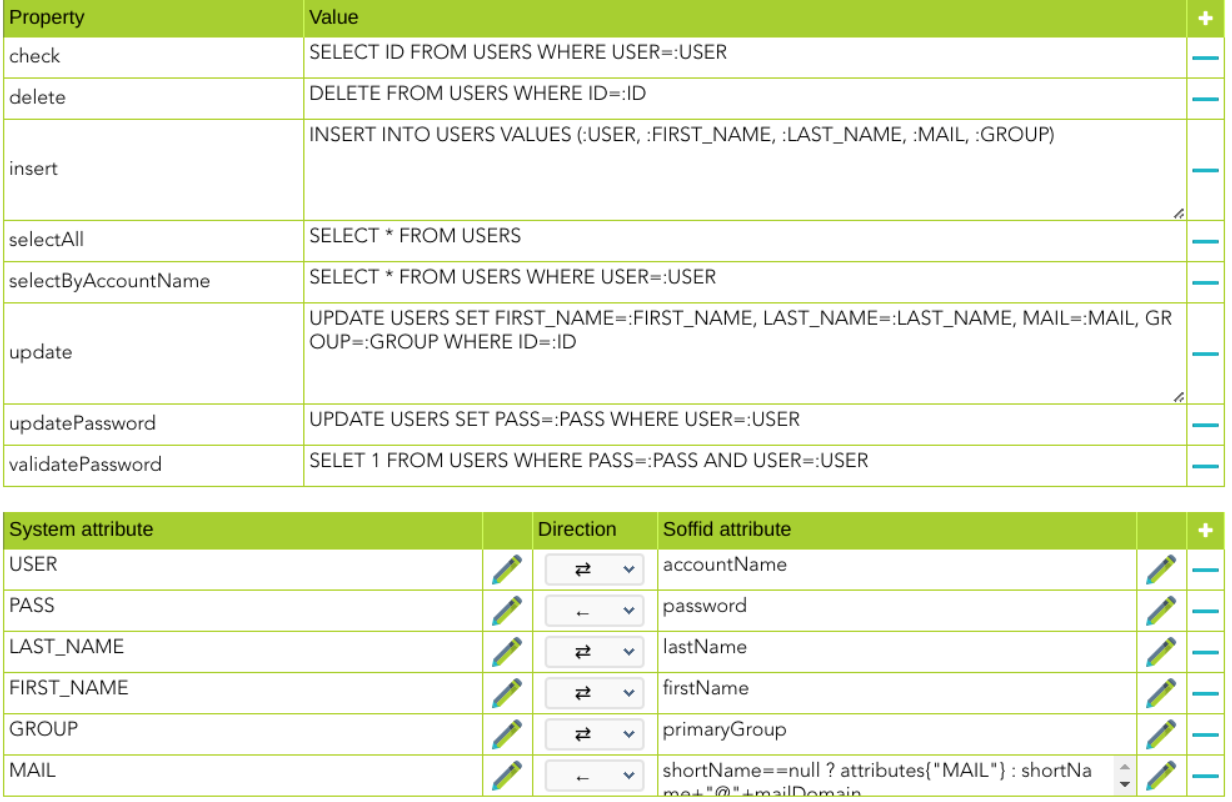
#### Triggers

You can define BeanShell scripts that will be triggered when data is loaded into the target system (outgoing triggers). The trigger result will be a boolean value, true to continue or false to stop.

Triggers can be used to validate or perform a specific action just before performing an operation or just after performing an operation on target objects.

<p class="callout info">To view some examples, visit the [Outgoing triggers examples page](https://bookstack.soffid.com/books/connectors/page/outgoing-triggers-examples "Outgoing triggers examples").</p>

### Integration flows

#### Update User

<p class="callout info">Visit the [Integration flows Update user page](https://bookstack.soffid.com/books/connectors/page/integration-flows-update-user) for more information</p>

#### Update Account

<p class="callout info">Visit the [Integration flows Update account page](https://bookstack.soffid.com/books/connectors/page/integration-flows-update-account-XIv) for more information</p>

---

*(\*)*

[*https://mariadb.com/kb/en/about-mariadb-connector-j/*](https://mariadb.com/kb/en/about-mariadb-connector-j/)

[*https://docs.microsoft.com/es-es/sql/connect/jdbc/building-the-connection-url?view=sql-server-ver16*](https://docs.microsoft.com/es-es/sql/connect/jdbc/building-the-connection-url?view=sql-server-ver16)

---

*(\*\*) Soffid provides two synchronization types:*

- *Full synchronization*
- *Incremental synchronization*

*The first type, the **full synchronization** method, persists the changes made in Soffid, regardless of the possible changes made in the target system.*

*For the second type, the **incremental synchronization** method, Soffid has developed a synchronization system, using custom internal attributes, to check what changes have been made to the different attributes of an object. Thus, it tries to avoid losing the changes that have been made in the target system. First, Soffid's changes will be propagated to the target system, and then the changes on the target system will be made in the Soffid system. If the changes are in the same attribute, the Soffid value is the one that will persist.*

# SQL Integration flows - Update user

## Update user

### Introduction

Soffid provides a workflow to create, modify, and delete a user in the final system. One can see the steps of the process in the following diagram.

This process only applies to account type single users.

### Diagram

[![image-1659448091093.png](https://bookstack.soffid.com/uploads/images/gallery/2022-08/scaled-1680-/image-1659448091093.png)](https://bookstack.soffid.com/uploads/images/gallery/2022-08/image-1659448091093.png)
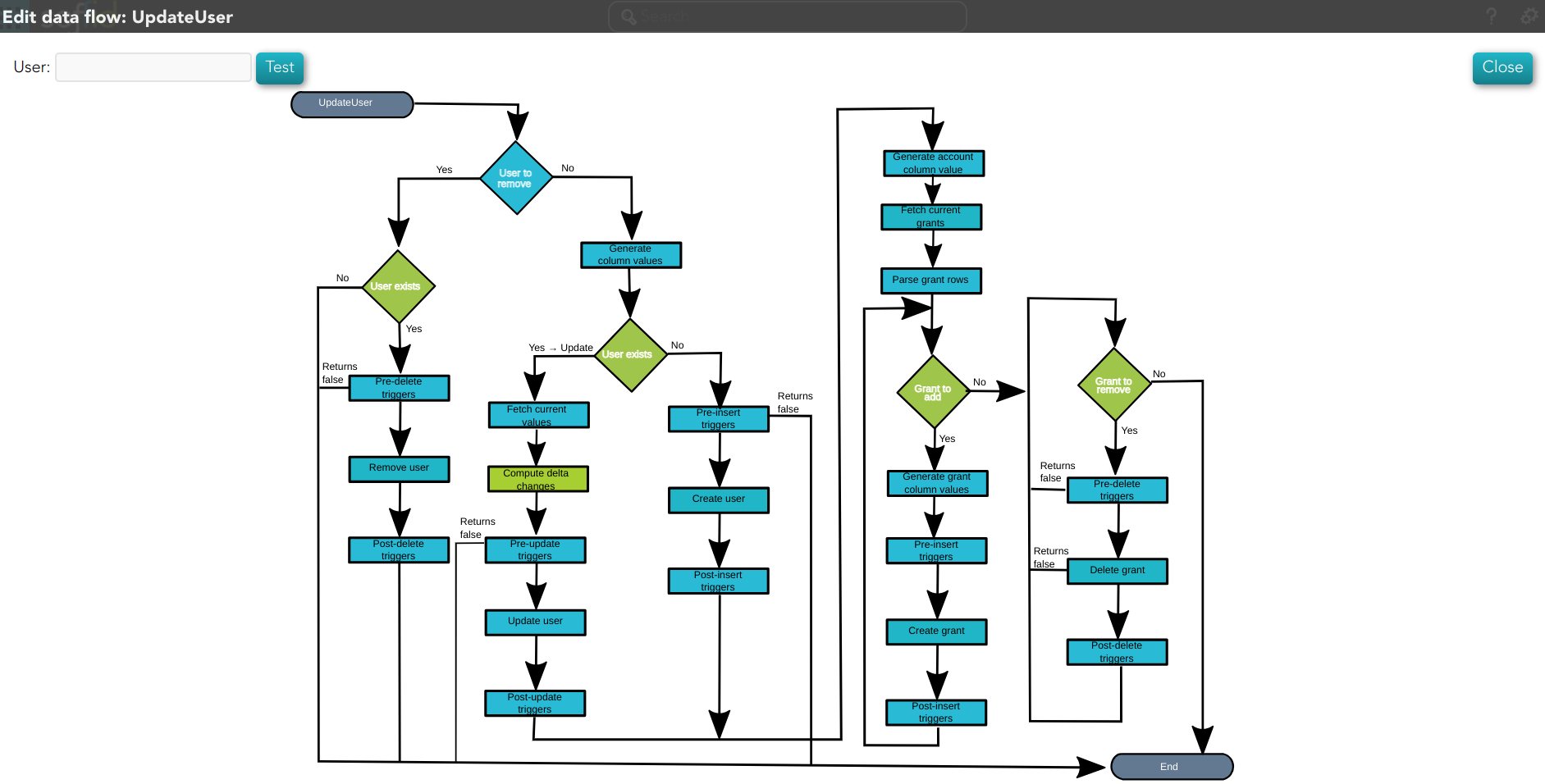
### Step by Step

In this document, we will explain the process that Soffid performs to modify a user for the SQL connector.

#### 1. Initial step

First of all, Soffid checks if the user exists in Soffid and then checks the operation to perform, update or delete.

**1.1.** If the **user does not exist in Soffid**, then Soffid asks to delete the user in the target System.

<details id="bkmrk-%E2%9D%93-warning-message"><summary>❓ Warning message</summary>

![image-1659534714096.png](https://bookstack.soffid.com/uploads/images/gallery/2022-08/scaled-1680-/image-1659534714096.png)</details>**1.1.1. Yes**: If the answer is Yes, the process follows through the Yes branch,[ \[3. Delete branch\]](https://bookstack.soffid.com/books/connectors/page/ad-integration-flows-update-user#bkmrk-4.-delete-branch).

**1.1.2. No**: If the answer is Yes, the process finishes [\[10. End\]](https://bookstack.soffid.com/books/connectors/page/ad-integration-flows-update-user#bkmrk-x.-end).

<div class="pointer-container" id="bkmrk-%C2%A0"><div class="pointer anim is-page-editable"><svg class="svg-icon" data-icon="link" role="presentation" viewbox="0 0 24 24" xmlns="http://www.w3.org/2000/svg"></svg><div class="input-group inline block"> <button class="button outline icon" data-clipboard-target="#pointer-url" title="Copy Link" type="button"><svg class="svg-icon" data-icon="copy" role="presentation" viewbox="0 0 24 24" xmlns="http://www.w3.org/2000/svg"></svg></button></div><svg class="svg-icon" data-icon="edit" role="presentation" viewbox="0 0 24 24" xmlns="http://www.w3.org/2000/svg"></svg></div></div>**1.2.** If the **user exists in Soffid**, the process continues through \[[2. User to remove?\]](https://bookstack.soffid.com/books/connectors/page/ad-integration-flows-update-user#bkmrk-2.-user-to-remove). to check if the

#### 2. User to remove?

<details id="bkmrk-by-clicking-on-the-u"><summary>📌 By clicking on the User to remove? step,...</summary>

You can configure all the properties related to the user object for this step. [![image-1660224430017.png](https://bookstack.soffid.com/uploads/images/gallery/2022-08/scaled-1680-/image-1660224430017.png)](https://bookstack.soffid.com/uploads/images/gallery/2022-08/image-1660224430017.png)

</details>**2.1.** If the user is **marked for Deletion**, Soffid will ask for user consent to continue with the process or to cancel it. If the answer is Yes, the process follows through the Yes branch, <span style="background-color: #c2e0f4;">[\[3. Delete branch\]](#bkmrk-4.-delete-branch)</span>.

<details id="bkmrk-%E2%9D%93-warning-message-0"><summary>❓ Warning message</summary>

![image-1659534714096.png](https://bookstack.soffid.com/uploads/images/gallery/2022-08/scaled-1680-/image-1659534714096.png)</details>**2.2.** If the user is **marked for Update**, it continues with the flow following through the No branch, <span style="background-color: #c2e0f4;">[\[4. Insert or Update branch\]](#bkmrk-user-to-remove)</span>.

#### 3. Delete branch

<details id="bkmrk-diagram-0"><summary>📊 Diagram</summary>

![image-1660653153427.png](https://bookstack.soffid.com/uploads/images/gallery/2022-08/scaled-1680-/image-1660653153427.png)</details>**3.1.** When the operation to perform is to delete a user, first of all, Soffid has to check if the user exists in the target system. To do this, Soffid executes the **property check** of the User object. This property executes the SQL command to check if the user exists or not.

<details id="bkmrk-by-clicking-on-the-u-0"><summary>📌 By clicking on the User exists? step,...</summary>

You can configure all the properties related to the user object for this step.

[![image-1660294676813.png](https://bookstack.soffid.com/uploads/images/gallery/2022-08/scaled-1680-/image-1660294676813.png)](https://bookstack.soffid.com/uploads/images/gallery/2022-08/image-1660294676813.png)

</details>**3.1.1.** If the **user does not exist**, there are no actions to perform in the target system, so the process finishes <span style="background-color: #c2e0f4;">[\[10. End\]](#bkmrk-x.-end)</span>.

**3.1.2.** If the **user exists**, the flow continues executing the **pre-delete triggers** if there is anyone configured. More than one script can be configured. These scripts are executed just before the main action, user delete, and the result (true or false) determines if the main action will be performed or not.

**3.1.2.1. False**: if the result is false for one or more of these triggers, the process finishes <span style="background-color: #c2e0f4;">[\[10. End\]](#bkmrk-x.-end)</span>.

**3.1.2.2.True**: if the result is true for all of these triggers, Soffid continues to the next step.

<details id="bkmrk-by-clicking-on-pre-d"><summary>📌 By clicking on the Pre-delete triggers step,...</summary>

You can configure all the pre-delete triggers related to the user object for this step.

[![image-1660295438225.png](https://bookstack.soffid.com/uploads/images/gallery/2022-08/scaled-1680-/image-1660295438225.png)](https://bookstack.soffid.com/uploads/images/gallery/2022-08/image-1660295438225.png)
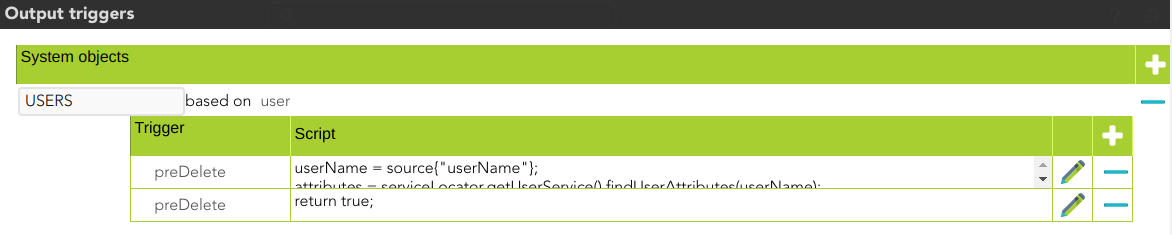
</details>**3.1.3.** Soffid **removes the user**. To do that, Soffid executes the **property delete** of the User object.

<details id="bkmrk-by-clicking-on-the-r"><summary>📌 By clicking on the Remove user step,...</summary>

You can configure the properties related to the user object for this step.

[![image-1660297226512.png](https://bookstack.soffid.com/uploads/images/gallery/2022-08/scaled-1680-/image-1660297226512.png)](https://bookstack.soffid.com/uploads/images/gallery/2022-08/image-1660297226512.png)

</details>**3.1.3.**  Then Soffid executes the **post-delete triggers** if any. These triggers can be used to perform a specific action just after performing the remove user operation on the target object.

<details id="bkmrk--0"><summary>📌 By clicking on the Post-delete triggers step,...</summary>

You can configure the post-delete triggers related to the user object for this step.

![image-1660228753412.png](https://bookstack.soffid.com/uploads/images/gallery/2022-08/scaled-1680-/image-1660228753412.png)

</details>**3.1.3.** Then the process finishes <span style="background-color: #c2e0f4;">[\[10. End\]](#bkmrk-x.-end)</span>.

#### 4. Insert or Update branch

**4.1.** When the operation to perform is to update a user, first of all, Soffid **generates the columns values**. That is, Soffid calculates the values of the columns from the original values of Soffid.

<details id="bkmrk-by-clicking-on-the-g"><summary>📌 By clicking on the generate column values step,...</summary>

You can configure the attributes related to the user object for this step.
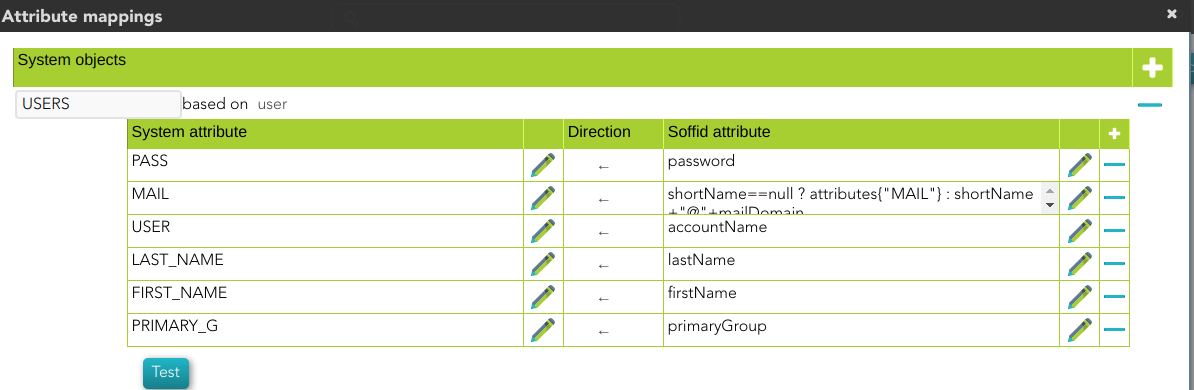
![image-1660287889319.png](https://bookstack.soffid.com/uploads/images/gallery/2022-08/scaled-1680-/image-1660287889319.png)

</details>**4.2.**Then Soffid asks if the **user exists** in the target system to decide the action to execute, this action can be an update or an insert. Soffid executes the **property check** of the User object.

**4.2.1.** If the **user does not exist** in the target system, the process continues through <span style="background-color: #c2e0f4;">[\[5. Insert user branch\]](#bkmrk-5.-insert-user-branc)</span>.

**4.2.2.** If the **user exists** in the target system, the process continues through **<span style="background-color: #c2e0f4;">[\[](#bkmrk-6.-update-user%C2%A0branc)</span>**<span style="background-color: #c2e0f4;">[6. Update user branch\]](#bkmrk-6.-update-user%C2%A0branc)</span>.


<details id="bkmrk-by-clicking-on-the-u-1"><summary>📌 By clicking on the User exists? step,...</summary>

You can configure the properties related to the user object for this step.

![image-1660287995689.png](https://bookstack.soffid.com/uploads/images/gallery/2022-08/scaled-1680-/image-1660287995689.png)

</details>#### 5. Insert user branch

<details id="bkmrk-diagram-1"><summary>📊 Diagram</summary>

![image-1660653294372.png](https://bookstack.soffid.com/uploads/images/gallery/2022-08/scaled-1680-/image-1660653294372.png)</details>**5.1.** Soffid executes the **pre-insert triggers** if there is anyone configured. More than one script can be configured. These scripts are executed just before the main action, user create, and the result (true or false) determines if the main action will be performed or not.

**5.1.1. False**: if the response is false for one or more of these triggers, the process finishes [<span style="background-color: #c2e0f4;">\[10. End\]</span>](#bkmrk-x.-end) and the user is not created.

**5.1.2. True**: if the response is true for all of these triggers, Soffid continues to the next step.

**5.2.** Soffid **creates the** **user.** To do that, Soffid executes the **property insert** of the<span style="color: #e03e2d;"> </span>User<span style="color: #e03e2d;"> </span>object.

<details id="bkmrk-%F0%9F%93%8C-by-clicking-on-the"><summary>📌 By clicking on the Create user step,...</summary>

You can configure the properties related to the user object for this step.

![image-1660290443410.png](https://bookstack.soffid.com/uploads/images/gallery/2022-08/scaled-1680-/image-1660290443410.png)

</details>**5.3.** Then Soffid executes **post-insert triggers** if any. These triggers can be used to perform a specific action just after performing the create user operation on the target object.

<details id="bkmrk-%F0%9F%93%8C-by-clicking-on-the-0"><summary>📌 By clicking on the Post-insert triggers step,...</summary>

You can configure the Post-insert triggers related to the user object for this step.

[![image-1660290613568.png](https://bookstack.soffid.com/uploads/images/gallery/2022-08/scaled-1680-/image-1660290613568.png)](https://bookstack.soffid.com/uploads/images/gallery/2022-08/image-1660290613568.png)

</details>**5.4.** Then the process continues through [<span style="background-color: #c2e0f4;">\[7. Grants\]</span>](#bkmrk-5.-xxxx).

#### 6. Update user branch

<details id="bkmrk-diagram-2"><summary>📊 Diagram</summary>

![image-1660653234222.png](https://bookstack.soffid.com/uploads/images/gallery/2022-08/scaled-1680-/image-1660653234222.png)</details>**6.1.** Soffid **fetches the current values** of the user. Soffid executes the **property selectByAccountName** of the **User** object.

<span style="background-color: #eccafa;">&amp;&amp;TODO&amp;&amp; IMAGEN</span>

**6.2.** Then **compute delta changes**, if the property Synchronization method selected is Full Synchronization, then Soffid has to keep the columns values of the last update. If there was any change in the target system:

- There is no conflict, then Soffid only updates the values of the attributes that have changed in Soffid.
- There is conflict, Soffid values prevail over the target system values, so, Soffid updates all the attributes that have changed in Soffid.

<span style="background-color: #eccafa;">&amp;&amp;TODO&amp;&amp; IMAGEN</span>

**6.3.** And finally execute the **pre-update triggers** if there is anyone configured. More than one script can be configured. These scripts are executed just before the main action, user update, and the result (true or false) determines if the main action will be performed or not.

**6.3.1. False**: if the response is false for one or more of these triggers, the process finishes <span style="background-color: #c2e0f4;">[\[10. End\]](#bkmrk-x.-end)</span> and the user is not updated

**6.3.2. True**: if the response is true for all of these triggers, Soffid continues to the next step.

<details id="bkmrk-%F0%9F%93%8C-by-clicking-on-the-1"><summary>📌 By clicking on the Pre-update triggers step,...</summary>

You can configure the Pre-update triggers related to the user object for this step.

[![image-1660305125794.png](https://bookstack.soffid.com/uploads/images/gallery/2022-08/scaled-1680-/image-1660305125794.png)](https://bookstack.soffid.com/uploads/images/gallery/2022-08/image-1660305125794.png)

</details>**6.4.** Soffid **updates the user.** To do that, Soffid executes the **property update** of the **or Use**r object.

<details id="bkmrk-%F0%9F%93%8C-by-clicking-on-the-2"><summary>📌 By clicking on the update user step,...</summary>

 You can configure the properties related to the user object for this step.

[![image-1660305271649.png](https://bookstack.soffid.com/uploads/images/gallery/2022-08/scaled-1680-/image-1660305271649.png)](https://bookstack.soffid.com/uploads/images/gallery/2022-08/image-1660305271649.png)

</details>**6.5.** Then Soffid executes the **post-update triggers** if any. These triggers can be used to perform a specific action just after performing the update user operation on the target object.

<details id="bkmrk-%F0%9F%93%8C-by-clicking-on-the-3"><summary>📌 By clicking on the Post-update triggers step,...</summary>

You can configure the Post-update triggers related to the user object for this step.

[![image-1660305556302.png](https://bookstack.soffid.com/uploads/images/gallery/2022-08/scaled-1680-/image-1660305556302.png)](https://bookstack.soffid.com/uploads/images/gallery/2022-08/image-1660305556302.png)
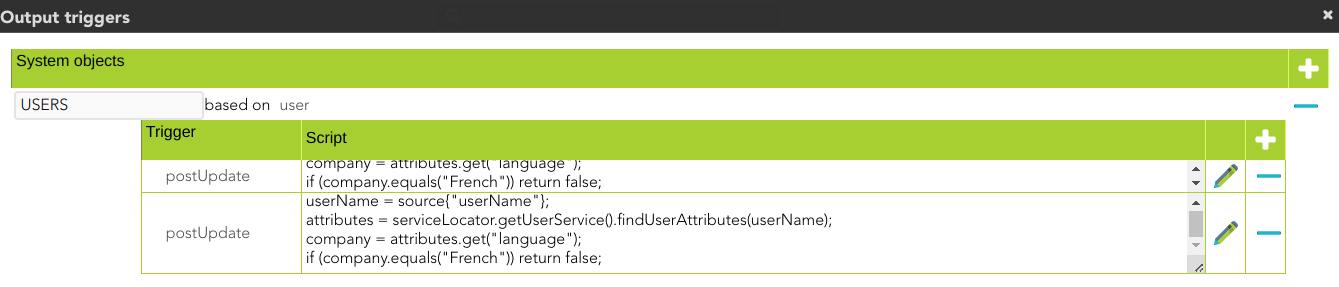
</details>**6.6.** Then the process continues through [<span style="background-color: #c2e0f4;">\[7. Grants\]</span>](#bkmrk-5.-xxxx).

#### 7. Grants

At this point, soffid runs the actions relative to the grants

**7.1.** Once the process arrives at this step, Soffid **generates account column values**. That is, Soffid creates a dummy object with only the account name, this object will be used later.

<details id="bkmrk-%F0%9F%93%8C-by-clicking-on-the-4"><summary>📌 By clicking on the generates account columns values step,...</summary>

You can configure the attribute mappings related to the grant object for this step.

[![image-1660297529635.png](https://bookstack.soffid.com/uploads/images/gallery/2022-08/scaled-1680-/image-1660297529635.png)](https://bookstack.soffid.com/uploads/images/gallery/2022-08/image-1660297529635.png)
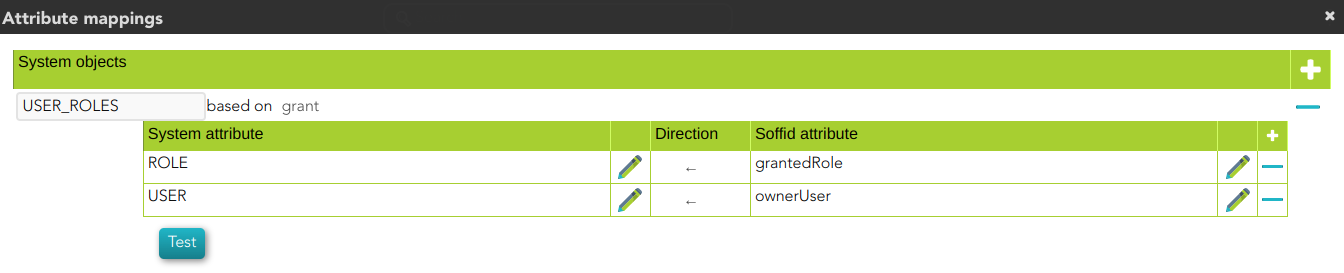
</details>**7.2.** Then, Soffid **fetches the current grants** for the user. Soffid executes the **property selectByAccount** of the grant<span style="color: #e03e2d;"> </span>object with the values of the previous step

<details id="bkmrk-%F0%9F%93%8C-by-clicking-on-the-5"><summary>📌 By clicking on the fetch current grants step,...</summary>

 You can configure the properties related to the grant object for this step.

[![image-1660298601931.png](https://bookstack.soffid.com/uploads/images/gallery/2022-08/scaled-1680-/image-1660298601931.png)](https://bookstack.soffid.com/uploads/images/gallery/2022-08/image-1660298601931.png)

</details>**7.3.** Finally, Soffid **parses grant rows,** that is Soffid makes the mappings defined

<details id="bkmrk-%F0%9F%93%8C-by-clicking-on-the-6"><summary>📌 By clicking on the parse grant rows step,...</summary>

 You can configure the attribute mappings related to the grant object for this step.

[![image-1660298660328.png](https://bookstack.soffid.com/uploads/images/gallery/2022-08/scaled-1680-/image-1660298660328.png)](https://bookstack.soffid.com/uploads/images/gallery/2022-08/image-1660298660328.png)

</details>**7.3.** Then the process continues through <span style="background-color: #c2e0f4;">[\[8. Grant to add\]](#bkmrk-6.%C2%A0grant-to-add)</span>.

#### 8**.** Grant to add

This is a loop while there are grants to add. This grants list comes from the previous step <span style="background-color: #c2e0f4;">[\[7. Grants\]](#bkmrk-5.-xxxx)</span>.

<details id="bkmrk-diagram-3"><summary>📊 Diagram</summary>

![image-1660657837165.png](https://bookstack.soffid.com/uploads/images/gallery/2022-08/scaled-1680-/image-1660657837165.png)</details>**8.1.** If there are **No** grants to add, the process goes to <span style="background-color: #c2e0f4;">[\[9. Grant to Remove\]](#bkmrk-9.-grant-to-remove)</span>.

**8.2. Yes,** there are grants to add:

**8.2.1.** Soffid **generates grant column values** and Soffid checks if the grant exists in the target system, Soffid executes the **property check** of the grant object.

<details id="bkmrk-%F0%9F%93%8C-by-clicking-on-the-7"><summary>📌 By clicking on the generate grant column values step,...</summary>

 You can configure the attribute mappings related to the grant object for this step.

[![image-1660306333224.png](https://bookstack.soffid.com/uploads/images/gallery/2022-08/scaled-1680-/image-1660306333224.png)](https://bookstack.soffid.com/uploads/images/gallery/2022-08/image-1660306333224.png)

</details>**8.2.2.** Soffid executes the **pre-insert triggers** if there is anyone configured. More than one script can be configured. These scripts are executed just before the main action, a grant create, and the result (true or false) determines if the main action will be performed or not.

**8.2.2.1. False**: if the response is false for one or more of these triggers, the process goes to [<span style="background-color: #c2e0f4;">\[8. Grant to add\]</span>](#bkmrk-6.%C2%A0grant-to-add) and the grant is not created.

**8.2.2.2. True**: if the response is true for all of these triggers, Soffid continues to the next step.

<details id="bkmrk-%F0%9F%93%8C-by-clicking-on-the-8"><summary>📌 By clicking on the Pre-insert triggers step,...</summary>

 You can configure the Pre-insert triggers related to the grant object for this step.

[![image-1660651106043.png](https://bookstack.soffid.com/uploads/images/gallery/2022-08/scaled-1680-/image-1660651106043.png)](https://bookstack.soffid.com/uploads/images/gallery/2022-08/image-1660651106043.png)

</details>**8.2.3.** If the result of the triggers is true, then Soffid **creates the grant.** To do that, Soffid executes the **property insert** of the grant<span style="color: #e03e2d;"> </span>object.

<details id="bkmrk-%F0%9F%93%8C-by-clicking-on-the-9"><summary>📌 By clicking on the create grant step,...</summary>

 You can configure the properties related to the grant object for this step.

[![image-1660306637374.png](https://bookstack.soffid.com/uploads/images/gallery/2022-08/scaled-1680-/image-1660306637374.png)](https://bookstack.soffid.com/uploads/images/gallery/2022-08/image-1660306637374.png)

</details>**8.2.4.** Then Soffid executes the **post-insert triggers** if any. These triggers can be used to perform a specific action just after performing the create grant operation on the target object.

<details id="bkmrk-%F0%9F%93%8C-by-clicking-on-the-10"><summary>📌 By clicking on the Post-insert triggers column values step,...</summary>

 You can configure the Post-Update related to the grant object for this step.

[![image-1660651171773.png](https://bookstack.soffid.com/uploads/images/gallery/2022-08/scaled-1680-/image-1660651171773.png)](https://bookstack.soffid.com/uploads/images/gallery/2022-08/image-1660651171773.png)

</details>**8.2.5.** Then the process continues through  [<span style="background-color: #c2e0f4;">\[8. Grant to add\]</span>](#bkmrk-6.%C2%A0grant-to-add).

#### 9. Grant to remove

<details id="bkmrk-diagram-4"><summary>📊 Diagram</summary>

![image-1660657874513.png](https://bookstack.soffid.com/uploads/images/gallery/2022-08/scaled-1680-/image-1660657874513.png)</details>This is a loop while there are grants to remove. This grants list comes from the previous step \[7. Grants\].

**9.1 No**: If there are No grants to add, the process goes to <span style="background-color: #c2e0f4;">[\[10. End\]](#bkmrk-x.-end)</span>.

**9.2. Yes,**  there are grants to remove:


**9.2.1.** Soffid executes the **pre-delete triggers** if there is anyone configured. More than one script can be configured. These scripts are executed just before the main action, a grant delete, and the result (true or false) determines if the main action will be performed or not.

**9.2.1.1. False**: if the response is false for one or more of these triggers, the process finishes <span style="background-color: #c2e0f4;">[\[10. End\]](#bkmrk-x.-end)</span> and the grant is not deleted.

**9.2.1.2. True**: if the response is true for all of these triggers, Soffid continues to the next step.

<details id="bkmrk-%F0%9F%93%8C-by-clicking-on-the-11"><summary>📌 By clicking on the pre-delete trigger step,...</summary>

 You can configure the Pre-delete triggers related to the grant object for this step.

[![image-1660651495130.png](https://bookstack.soffid.com/uploads/images/gallery/2022-08/scaled-1680-/image-1660651495130.png)](https://bookstack.soffid.com/uploads/images/gallery/2022-08/image-1660651495130.png)

</details>**9.2.2. If the result of the triggers is true, then Soffid **deletes the grant.** To do that, Soffid executes the **property delete** of the grant<span style="color: #e03e2d;"> </span>object. This operation can return a true or false result.

**9.2.2.1. False:** the delete action could not be performed and the process check for another grant <span style="background-color: #c2e0f4;">[\[9. Grant to remove\]](#bkmrk-9.-grant-to-remove)</span>.

**9.2.2.2. True:** the delete action could be performed properly. Soffid continues to the next step.

<details id="bkmrk-%F0%9F%93%8C-by-clicking-on-the-12"><summary>📌 By clicking on the delete grant step,...</summary>

 You can configure the properties related to the grant object for this step.

[![image-1660651418301.png](https://bookstack.soffid.com/uploads/images/gallery/2022-08/scaled-1680-/image-1660651418301.png)](https://bookstack.soffid.com/uploads/images/gallery/2022-08/image-1660651418301.png)

</details>**9.2.3.** Then Soffid executes the **post-delete triggers** if any. These triggers can be used to perform a specific action just after performing the delete grant operation on the target object.

<details id="bkmrk-%F0%9F%93%8C-by-clicking-on-the-13"><summary>📌 By clicking on the post-delete trigger step,...</summary>

 You can configure the Post-delete triggers related to the grant object for this step.

[![image-1660661955749.png](https://bookstack.soffid.com/uploads/images/gallery/2022-08/scaled-1680-/image-1660661955749.png)](https://bookstack.soffid.com/uploads/images/gallery/2022-08/image-1660661955749.png)

</details>**9.2.4.** Then the process continues through <span style="background-color: #c2e0f4;">[\[9. Grant to remove\]](#bkmrk--10)</span>.

#### 10. End

The process finishes and the log is displayed, and you can download it by clicking the *Download* button.

<details id="bkmrk-%F0%9F%93%91-log-detail"><summary>📑 Log detail</summary>

![image-1660662018857.png](https://bookstack.soffid.com/uploads/images/gallery/2022-08/scaled-1680-/image-1660662018857.png)</details>

# SQL Integration flows - Update account

## &amp;&amp;TODO&amp;&amp;

## Update user

### Introduction

Soffid provides a workflow to create, modify, and/or delete a user in the final system. One can see the steps of the process in the following diagram.

This process only applies to account type single users.

### Diagram

&amp;&amp;TODO&amp;&amp;

### Step by Step

In this document, we will explain the process that Soffid performs to modify a user for the SQL connector.

#### 1. Initial step

First of all, Soffid checks if the user exists in Soffid and then checks the operation to perform, update or delete.

**1.1.** If the **user does not exist in Soffid**, then Soffid asks to delete the user in the target System.

<details id="bkmrk-%E2%9D%93-warning-message"><summary>❓ Warning message</summary>

![image-1659534714096.png](https://bookstack.soffid.com/uploads/images/gallery/2022-08/scaled-1680-/image-1659534714096.png)</details>**1.1.1. Yes**: If the answer is Yes, the process follows through the Yes branch,[ \[3. Delete branch\]](https://bookstack.soffid.com/books/connectors/page/ad-integration-flows-update-user#bkmrk-4.-delete-branch).

**1.1.2. No**: If the answer is Yes, the process finishes [\[10. End\]](https://bookstack.soffid.com/books/connectors/page/ad-integration-flows-update-user#bkmrk-x.-end).

<div class="pointer-container" id="bkmrk-%C2%A0"><div class="pointer anim is-page-editable"><svg class="svg-icon" data-icon="link" role="presentation" viewbox="0 0 24 24" xmlns="http://www.w3.org/2000/svg"></svg><div class="input-group inline block"> <button class="button outline icon" data-clipboard-target="#pointer-url" title="Copy Link" type="button"><svg class="svg-icon" data-icon="copy" role="presentation" viewbox="0 0 24 24" xmlns="http://www.w3.org/2000/svg"></svg></button></div><svg class="svg-icon" data-icon="edit" role="presentation" viewbox="0 0 24 24" xmlns="http://www.w3.org/2000/svg"></svg></div></div>**1.2.** If the **user exists in Soffid**, the process continues through \[[2. User to remove?\]](https://bookstack.soffid.com/books/connectors/page/ad-integration-flows-update-user#bkmrk-2.-user-to-remove). to check if the

#### 2. User to remove?

<details id="bkmrk-by-clicking-on-the-u"><summary>📌 By clicking on the User to remove? step,...</summary>

You can configure all the properties related to the user object for this step. [![image-1660224430017.png](https://bookstack.soffid.com/uploads/images/gallery/2022-08/scaled-1680-/image-1660224430017.png)](https://bookstack.soffid.com/uploads/images/gallery/2022-08/image-1660224430017.png)

</details>**2.1.** If the user is **marked for Deletion**, Soffid will ask for user consent to continue with the process or to cancel it. If the answer is Yes, the process follows through the Yes branch, <span style="background-color: #c2e0f4;">[\[3. Delete branch\]](#bkmrk-4.-delete-branch)</span>.

<details id="bkmrk-%E2%9D%93-warning-message-0"><summary>❓ Warning message</summary>

![image-1659534714096.png](https://bookstack.soffid.com/uploads/images/gallery/2022-08/scaled-1680-/image-1659534714096.png)</details>**2.2.** If the user is **marked for Update**, it continues with the flow following through the No branch, <span style="background-color: #c2e0f4;">[\[4. Insert or Update branch\]](#bkmrk-user-to-remove)</span>.

#### 3. Delete branch

<details id="bkmrk-diagram-0"><summary>📊 Diagram</summary>

![image-1660653153427.png](https://bookstack.soffid.com/uploads/images/gallery/2022-08/scaled-1680-/image-1660653153427.png)</details>**3.1.** When the operation to perform is to delete a user, first of all, Soffid has to check if the user exists in the target system. To do this, Soffid executes the **property check** of the User object. This property executes the SQL command to check if the user exists or not.

<details id="bkmrk-by-clicking-on-the-u-0"><summary>📌 By clicking on the User exists? step,...</summary>

You can configure all the properties related to the user object for this step.

[![image-1660294676813.png](https://bookstack.soffid.com/uploads/images/gallery/2022-08/scaled-1680-/image-1660294676813.png)](https://bookstack.soffid.com/uploads/images/gallery/2022-08/image-1660294676813.png)

</details>**3.1.1.** If the **user does not exist**, there are no actions to perform in the target system, so the process finishes <span style="background-color: #c2e0f4;">[\[10. End\]](#bkmrk-x.-end)</span>.

**3.1.2.** If the **user exists**, the flow continues executing the **pre-delete triggers** if there is anyone configured. More than one script can be configured. These scripts are executed just before the main action, user delete, and the result (true or false) determines if the main action will be performed or not.

**3.1.2.1. False**: if the result is false for one or more of these triggers, the process finishes <span style="background-color: #c2e0f4;">[\[10. End\]](#bkmrk-x.-end)</span>.

**3.1.2.2.True**: if the result is true for all of these triggers, Soffid continues to the next step.

<details id="bkmrk-by-clicking-on-pre-d"><summary>📌 By clicking on the Pre-delete triggers step,...</summary>

You can configure all the pre-delete triggers related to the user object for this step.

[![image-1660295438225.png](https://bookstack.soffid.com/uploads/images/gallery/2022-08/scaled-1680-/image-1660295438225.png)](https://bookstack.soffid.com/uploads/images/gallery/2022-08/image-1660295438225.png)

</details>**3.1.3.** Soffid **removes the user**. To do that, Soffid executes the **property delete** of the User object.

<details id="bkmrk-by-clicking-on-the-r"><summary>📌 By clicking on the Remove user step,...</summary>

You can configure the properties related to the user object for this step.

[![image-1660297226512.png](https://bookstack.soffid.com/uploads/images/gallery/2022-08/scaled-1680-/image-1660297226512.png)](https://bookstack.soffid.com/uploads/images/gallery/2022-08/image-1660297226512.png)

</details>**3.1.3.**  Then Soffid executes the **post-delete triggers** if any. These triggers can be used to perform a specific action just after performing the remove user operation on the target object.

<details id="bkmrk--0"><summary>📌 By clicking on the Post-delete triggers step,...</summary>

You can configure the post-delete triggers related to the user object for this step.

![image-1660228753412.png](https://bookstack.soffid.com/uploads/images/gallery/2022-08/scaled-1680-/image-1660228753412.png)

</details>**3.1.3.** Then the process finishes <span style="background-color: #c2e0f4;">[\[10. End\]](#bkmrk-x.-end)</span>.

#### 4. Insert or Update branch

**4.1.** When the operation to perform is to update a user, first of all, Soffid **generates the columns values**. That is, Soffid calculates the values of the columns from the original values of Soffid.

<details id="bkmrk-by-clicking-on-the-g"><summary>📌 By clicking on the generate column values step,...</summary>

You can configure the attributes related to the user object for this step.

![image-1660287889319.png](https://bookstack.soffid.com/uploads/images/gallery/2022-08/scaled-1680-/image-1660287889319.png)

</details>**4.2.**Then Soffid asks if the **user exists** in the target system to decide the action to execute, this action can be an update or an insert. Soffid executes the **property check** of the User object.

**4.2.1.** If the **user does not exist** in the target system, the process continues through <span style="background-color: #c2e0f4;">[\[5. Insert user branch\]](#bkmrk-5.-insert-user-branc)</span>.

**4.2.2.** If the **user exists** in the target system, the process continues through **<span style="background-color: #c2e0f4;">[\[](#bkmrk-6.-update-user%C2%A0branc)</span>**<span style="background-color: #c2e0f4;">[6. Update user branch\]](#bkmrk-6.-update-user%C2%A0branc)</span>.


<details id="bkmrk-by-clicking-on-the-u-1"><summary>📌 By clicking on the User exists? step,...</summary>

You can configure the properties related to the user object for this step.

![image-1660287995689.png](https://bookstack.soffid.com/uploads/images/gallery/2022-08/scaled-1680-/image-1660287995689.png)

</details>#### 5. Insert user branch

<details id="bkmrk-diagram-1"><summary>📊 Diagram</summary>

![image-1660653294372.png](https://bookstack.soffid.com/uploads/images/gallery/2022-08/scaled-1680-/image-1660653294372.png)</details>**5.1.** Soffid executes the **pre-insert triggers** if there is anyone configured. More than one script can be configured. These scripts are executed just before the main action, user create, and the result (true or false) determines if the main action will be performed or not.

**5.1.1. False**: if the response is false for one or more of these triggers, the process finishes [<span style="background-color: #c2e0f4;">\[10. End\]</span>](#bkmrk-x.-end) and the user is not created.

**5.1.2. True**: if the response is true for all of these triggers, Soffid continues to the next step.

**5.2.** Soffid **creates the** **user.** To do that, Soffid executes the **property insert** of the<span style="color: #e03e2d;"> </span>User<span style="color: #e03e2d;"> </span>object.

<details id="bkmrk-%F0%9F%93%8C-by-clicking-on-the"><summary>📌 By clicking on the Create user step,...</summary>

You can configure the properties related to the user object for this step.

![image-1660290443410.png](https://bookstack.soffid.com/uploads/images/gallery/2022-08/scaled-1680-/image-1660290443410.png)

</details>**5.3.** Then Soffid executes **post-insert triggers** if any. These triggers can be used to perform a specific action just after performing the create user operation on the target object.

<details id="bkmrk-%F0%9F%93%8C-by-clicking-on-the-0"><summary>📌 By clicking on the Post-insert triggers step,...</summary>

You can configure the Post-insert triggers related to the user object for this step.

[![image-1660290613568.png](https://bookstack.soffid.com/uploads/images/gallery/2022-08/scaled-1680-/image-1660290613568.png)](https://bookstack.soffid.com/uploads/images/gallery/2022-08/image-1660290613568.png)

</details>**5.4.** Then the process continues through [<span style="background-color: #c2e0f4;">\[7. Grants\]</span>](#bkmrk-5.-xxxx).

#### 6. Update user branch

<details id="bkmrk-diagram-2"><summary>📊 Diagram</summary>

![image-1660653234222.png](https://bookstack.soffid.com/uploads/images/gallery/2022-08/scaled-1680-/image-1660653234222.png)</details>**6.1.** Soffid **fetches the current values** of the user. Soffid executes the **property selectByAccountName** of the **User** object.

<span style="background-color: #eccafa;">&amp;&amp;TODO&amp;&amp; IMAGEN</span>

**6.2.** Then **compute delta changes**, if the property Synchronization method selected is Full Synchronization, then Soffid has to keep the columns values of the last update. If there was any change in the target system:

- There is no conflict, then Soffid only updates the values of the attributes that have changed in Soffid.
- There is conflict, Soffid values prevail over the target system values, so, Soffid updates all the attributes that have changed in Soffid.

<span style="background-color: #eccafa;">&amp;&amp;TODO&amp;&amp; IMAGEN</span>

**6.3.** And finally execute the **pre-update triggers** if there is anyone configured. More than one script can be configured. These scripts are executed just before the main action, user update, and the result (true or false) determines if the main action will be performed or not.

**6.3.1. False**: if the response is false for one or more of these triggers, the process finishes <span style="background-color: #c2e0f4;">[\[10. End\]](#bkmrk-x.-end)</span> and the user is not updated

**6.3.2. True**: if the response is true for all of these triggers, Soffid continues to the next step.

<details id="bkmrk-%F0%9F%93%8C-by-clicking-on-the-1"><summary>📌 By clicking on the Pre-update triggers step,...</summary>

You can configure the Pre-update triggers related to the user object for this step.

[![image-1660305125794.png](https://bookstack.soffid.com/uploads/images/gallery/2022-08/scaled-1680-/image-1660305125794.png)](https://bookstack.soffid.com/uploads/images/gallery/2022-08/image-1660305125794.png)

</details>**6.4.** Soffid **updates the user.** To do that, Soffid executes the **property update** of the **or Use**r object.

<details id="bkmrk-%F0%9F%93%8C-by-clicking-on-the-2"><summary>📌 By clicking on the update user step,...</summary>

 You can configure the properties related to the user object for this step.

[![image-1660305271649.png](https://bookstack.soffid.com/uploads/images/gallery/2022-08/scaled-1680-/image-1660305271649.png)](https://bookstack.soffid.com/uploads/images/gallery/2022-08/image-1660305271649.png)

</details>**6.5.** Then Soffid executes the **post-update triggers** if any. These triggers can be used to perform a specific action just after performing the update user operation on the target object.

<details id="bkmrk-%F0%9F%93%8C-by-clicking-on-the-3"><summary>📌 By clicking on the Post-update triggers step,...</summary>

You can configure the Post-update triggers related to the user object for this step.

[![image-1660305556302.png](https://bookstack.soffid.com/uploads/images/gallery/2022-08/scaled-1680-/image-1660305556302.png)](https://bookstack.soffid.com/uploads/images/gallery/2022-08/image-1660305556302.png)

</details>**6.6.** Then the process continues through [<span style="background-color: #c2e0f4;">\[7. Grants\]</span>](#bkmrk-5.-xxxx).

#### 7. Grants

At this point, soffid runs the actions relative to the grants

**7.1.** Once the process arrives at this step, Soffid **generates account column values**. That is, Soffid creates a dummy object with only the account name, this object will be used later.

<details id="bkmrk-%F0%9F%93%8C-by-clicking-on-the-4"><summary>📌 By clicking on the generates account columns values step,...</summary>

You can configure the attribute mappings related to the grant object for this step.

[![image-1660297529635.png](https://bookstack.soffid.com/uploads/images/gallery/2022-08/scaled-1680-/image-1660297529635.png)](https://bookstack.soffid.com/uploads/images/gallery/2022-08/image-1660297529635.png)

</details>**7.2.** Then, Soffid **fetches the current grants** for the user. Soffid executes the **property selectByAccount** of the grant<span style="color: #e03e2d;"> </span>object with the values of the previous step

<details id="bkmrk-%F0%9F%93%8C-by-clicking-on-the-5"><summary>📌 By clicking on the fetch current grants step,...</summary>

 You can configure the properties related to the grant object for this step.

[![image-1660298601931.png](https://bookstack.soffid.com/uploads/images/gallery/2022-08/scaled-1680-/image-1660298601931.png)](https://bookstack.soffid.com/uploads/images/gallery/2022-08/image-1660298601931.png)

</details>**7.3.** Finally, Soffid **parses grant rows,** that is Soffid makes the mappings defined

<details id="bkmrk-%F0%9F%93%8C-by-clicking-on-the-6"><summary>📌 By clicking on the parse grant rows step,...</summary>

 You can configure the attribute mappings related to the grant object for this step.

[![image-1660298660328.png](https://bookstack.soffid.com/uploads/images/gallery/2022-08/scaled-1680-/image-1660298660328.png)](https://bookstack.soffid.com/uploads/images/gallery/2022-08/image-1660298660328.png)

</details>**7.3.** Then the process continues through <span style="background-color: #c2e0f4;">[\[8. Grant to add\]](#bkmrk-6.%C2%A0grant-to-add)</span>.

#### 8**.** Grant to add

This is a loop while there are grants to add. This grants list comes from the previous step <span style="background-color: #c2e0f4;">[\[7. Grants\]](#bkmrk-5.-xxxx)</span>.

<details id="bkmrk-diagram-3"><summary>📊 Diagram</summary>

![image-1660657837165.png](https://bookstack.soffid.com/uploads/images/gallery/2022-08/scaled-1680-/image-1660657837165.png)</details>**8.1.** If there are **No** grants to add, the process goes to <span style="background-color: #c2e0f4;">[\[9. Grant to Remove\]](#bkmrk-9.-grant-to-remove)</span>.

**8.2. Yes,** there are grants to add:

**8.2.1.** Soffid **generates grant column values** and Soffid checks if the grant exists in the target system, Soffid executes the **property check** of the grant object.

<details id="bkmrk-%F0%9F%93%8C-by-clicking-on-the-7"><summary>📌 By clicking on the generate grant column values step,...</summary>

 You can configure the attribute mappings related to the grant object for this step.

[![image-1660306333224.png](https://bookstack.soffid.com/uploads/images/gallery/2022-08/scaled-1680-/image-1660306333224.png)](https://bookstack.soffid.com/uploads/images/gallery/2022-08/image-1660306333224.png)

</details>**8.2.2.** Soffid executes the **pre-insert triggers** if there is anyone configured. More than one script can be configured. These scripts are executed just before the main action, a grant create, and the result (true or false) determines if the main action will be performed or not.

**8.2.2.1. False**: if the response is false for one or more of these triggers, the process goes to [<span style="background-color: #c2e0f4;">\[8. Grant to add\]</span>](#bkmrk-6.%C2%A0grant-to-add) and the grant is not created.

**8.2.2.2. True**: if the response is true for all of these triggers, Soffid continues to the next step.

<details id="bkmrk-%F0%9F%93%8C-by-clicking-on-the-8"><summary>📌 By clicking on the Pre-insert triggers step,...</summary>

 You can configure the Pre-insert triggers related to the grant object for this step.

[![image-1660651106043.png](https://bookstack.soffid.com/uploads/images/gallery/2022-08/scaled-1680-/image-1660651106043.png)](https://bookstack.soffid.com/uploads/images/gallery/2022-08/image-1660651106043.png)

</details>**8.2.3.** If the result of the triggers is true, then Soffid **creates the grant.** To do that, Soffid executes the **property insert** of the grant<span style="color: #e03e2d;"> </span>object.

<details id="bkmrk-%F0%9F%93%8C-by-clicking-on-the-9"><summary>📌 By clicking on the create grant step,...</summary>

 You can configure the properties related to the grant object for this step.

[![image-1660306637374.png](https://bookstack.soffid.com/uploads/images/gallery/2022-08/scaled-1680-/image-1660306637374.png)](https://bookstack.soffid.com/uploads/images/gallery/2022-08/image-1660306637374.png)

</details>**8.2.4.** Then Soffid executes the **post-insert triggers** if any. These triggers can be used to perform a specific action just after performing the create grant operation on the target object.

<details id="bkmrk-%F0%9F%93%8C-by-clicking-on-the-10"><summary>📌 By clicking on the Post-insert triggers column values step,...</summary>

 You can configure the Post-Update related to the grant object for this step.

[![image-1660651171773.png](https://bookstack.soffid.com/uploads/images/gallery/2022-08/scaled-1680-/image-1660651171773.png)](https://bookstack.soffid.com/uploads/images/gallery/2022-08/image-1660651171773.png)

</details>**8.2.5.** Then the process continues through  [<span style="background-color: #c2e0f4;">\[8. Grant to add\]</span>](#bkmrk-6.%C2%A0grant-to-add).

#### 9. Grant to remove

<details id="bkmrk-diagram-4"><summary>📊 Diagram</summary>

![image-1660657874513.png](https://bookstack.soffid.com/uploads/images/gallery/2022-08/scaled-1680-/image-1660657874513.png)</details>This is a loop while there are grants to remove. This grants list comes from the previous step \[7. Grants\].

**9.1 No**: If there are No grants to add, the process goes to <span style="background-color: #c2e0f4;">[\[10. End\]](#bkmrk-x.-end)</span>.

**9.2. Yes,**  there are grants to remove:


**9.2.1.** Soffid executes the **pre-delete triggers** if there is anyone configured. More than one script can be configured. These scripts are executed just before the main action, a grant delete, and the result (true or false) determines if the main action will be performed or not.

**9.2.1.1. False**: if the response is false for one or more of these triggers, the process finishes <span style="background-color: #c2e0f4;">[\[10. End\]](#bkmrk-x.-end)</span> and the grant is not deleted.

**9.2.1.2. True**: if the response is true for all of these triggers, Soffid continues to the next step.

<details id="bkmrk-%F0%9F%93%8C-by-clicking-on-the-11"><summary>📌 By clicking on the pre-delete trigger step,...</summary>

 You can configure the Pre-delete triggers related to the grant object for this step.

[![image-1660651495130.png](https://bookstack.soffid.com/uploads/images/gallery/2022-08/scaled-1680-/image-1660651495130.png)](https://bookstack.soffid.com/uploads/images/gallery/2022-08/image-1660651495130.png)

</details>**9.2.2. If the result of the triggers is true, then Soffid **deletes the grant.** To do that, Soffid executes the **property delete** of the grant<span style="color: #e03e2d;"> </span>object. This operation can return a true or false result.

**9.2.2.1. False:** the delete action could not be performed and the process check for another grant <span style="background-color: #c2e0f4;">[\[9. Grant to remove\]](#bkmrk-9.-grant-to-remove)</span>.

**9.2.2.2. True:** the delete action could be performed properly. Soffid continues to the next step.

<details id="bkmrk-%F0%9F%93%8C-by-clicking-on-the-12"><summary>📌 By clicking on the delete grant step,...</summary>

 You can configure the properties related to the grant object for this step.

[![image-1660651418301.png](https://bookstack.soffid.com/uploads/images/gallery/2022-08/scaled-1680-/image-1660651418301.png)](https://bookstack.soffid.com/uploads/images/gallery/2022-08/image-1660651418301.png)

</details>**9.2.3.** Then Soffid executes the **post-delete triggers** if any. These triggers can be used to perform a specific action just after performing the delete grant operation on the target object.

<details id="bkmrk-%F0%9F%93%8C-by-clicking-on-the-13"><summary>📌 By clicking on the post-delete trigger step,...</summary>

 You can configure the Post-delete triggers related to the grant object for this step.

[![image-1660661955749.png](https://bookstack.soffid.com/uploads/images/gallery/2022-08/scaled-1680-/image-1660661955749.png)](https://bookstack.soffid.com/uploads/images/gallery/2022-08/image-1660661955749.png)

</details>**9.2.4.** Then the process continues through <span style="background-color: #c2e0f4;">[\[9. Grant to remove\]](#bkmrk--10)</span>.

#### 10. End

The process finishes and the log is displayed, and you can download it by clicking the *Download* button.

<details id="bkmrk-%F0%9F%93%91-log-detail"><summary>📑 Log detail</summary>

![image-1660662018857.png](https://bookstack.soffid.com/uploads/images/gallery/2022-08/scaled-1680-/image-1660662018857.png)</details>

# Windows Connector


# Windows Connector

## Introduction

### Description

This connector implements the LDAPS protocol and it is used to connect the Sync-Server with every server that allows this communication protocol.

### Managed System

This connector has been performed to connect to the Active Directory system, it's a fork of our LDAP Connector with custom features.

<p class="callout info">For more information to check if your system may be synchronized with this connector you do not hesitate to contact us through our [Contact form](http://www.soffid.com/contactform/)</p>

### Prerequisites

To enable LDAPS in your Active Directory, please read the following guide: [SSL access to Active Directory](https://bookstack.soffid.com/books/connectors/page/howto-ssl-access-to-active-directory "HOWTO SSL access to Active Directory").

It is needed an Active Directory user with full administrator access.

## Download and Install

This addon is located in the Connectors section and its name is **Windows (including Active Directory)**.

<p class="callout info">For more information about the installation process you can visit the [Addons Getting started](https://bookstack.soffid.com/books/addons-getting-started/page/getting-started "Addons installation") page.</p>

## Agent Configuration

### Basic

#### Generic parameters

After the installation of the addon, you may create and configure agent instances.

This addon has 5 available agents:

- Active Directory
- Active Directory Only Passwords
- Simple Windows Agent

<p class="callout info">For more information about how you may configure the generic parameters of the agent, see the following link: [Agents configuration](https://bookstack.soffid.com/books/soffid-3-reference-guide/page/agents "Agents")</p>

#### Custom parameters

Below there are the specific parameters for this agent implementation, "Active Directory"

- Host name of the domain controller.
- Active Directory distingished name in X500 format. e.g.: dc=soffid,dc=local
- Administrator principal name in X500 format, relative to A.D name. e.g.: cn=Administrator,cn=Users
- Administrator password

<div id="bkmrk-parameter-descriptio"><table class="wrapped confluenceTable tablesorter tablesorter-default" role="grid"><colgroup><col></col><col></col></colgroup><thead><tr class="tablesorter-headerRow" role="row"><th aria-disabled="false" aria-label="Parameter: No sort applied, activate to apply an ascending sort" aria-sort="none" class="confluenceTh tablesorter-header sortableHeader tablesorter-headerUnSorted" data-column="0" role="columnheader" scope="col" style="width: 260.994px;" tabindex="0">**Parameter**

</th><th aria-disabled="false" aria-label="Description: No sort applied, activate to apply an ascending sort" aria-sort="none" class="confluenceTh tablesorter-header sortableHeader tablesorter-headerUnSorted" data-column="1" role="columnheader" scope="col" style="width: 545.994px;" tabindex="0">**Description**

</th></tr></thead><tbody aria-live="polite" aria-relevant="all"><tr role="row"><td class="confluenceTd" style="width: 260.994px;"><span class="etiqueta">Hostname</span>

</td><td class="confluenceTd" style="width: 545.994px;">Host name of the server

</td></tr><tr role="row"><td class="confluenceTd" style="width: 260.994px;"><span class="etiqueta">LDAP base DN</span>

</td><td class="confluenceTd" style="width: 545.994px;">LDAP Base name

</td></tr><tr role="row"><td class="confluenceTd" style="width: 260.994px;"><span class="etiqueta">Principal name</span>

</td><td class="confluenceTd" style="width: 545.994px;">User name in DN format, including base name if needed

</td></tr><tr role="row"><td class="confluenceTd" style="width: 260.994px;">Password

</td><td class="confluenceTd" style="width: 545.994px;">Password for the user to connect.

</td></tr><tr role="row"><td class="confluenceTd" style="width: 260.994px;"><span class="etiqueta">Enable debug</span>

</td><td class="confluenceTd" style="width: 545.994px;">Two options: \[ Yes / No \].

When it is enabled more log traces are printed in the Synchronization Server log

</td></tr><tr role="row"><td class="confluenceTd" style="width: 260.994px;"><span class="etiqueta">Accepted certificates</span>

</td><td class="confluenceTd" style="width: 545.994px;">Two options: \[ Only trusted certificates / Any (insecure) \]

</td></tr><tr role="row"><td class="confluenceTd" style="width: 260.994px;"><span class="etiqueta">Follow referrals</span>

</td><td class="confluenceTd" style="width: 545.994px;">Two options: \[ Don't / Yes \]

If you select the Yes option, Soffid could follow the references to other systems if Soffid has the proper permissions.

</td></tr><tr role="row"><td class="confluenceTd" style="width: 260.994px;"><span class="etiqueta">Manage child domains</span>

</td><td class="confluenceTd" style="width: 545.994px;">Two options: \[ No / Yes \]

If you select the Yes option, Soffid will manage the domain referrals.

</td></tr><tr role="row"><td class="confluenceTd" style="width: 260.994px;"><span class="etiqueta">Create OUs when needed</span>

</td><td class="confluenceTd" style="width: 545.994px;">Two options: \[ No / Yes \]

If you select the Yes option and the OUs do not exist, these OUs will be created in the Active Directory.

</td></tr><tr><td style="width: 260.994px;"><span class="etiqueta">Real time load last login attribute</span>

</td><td style="width: 545.994px;">Two options: \[ No / Yes \]

</td></tr><tr><td style="width: 260.994px;"><span class="etiqueta">Real time load identity changes</span>

</td><td style="width: 545.994px;">Two options: \[ No / Yes \]

You can check this option to synchronize the identities when Soffid is the authoritative data source.

You must enable periodic synchronization.

</td></tr></tbody></table>

</div>### Attribute mapping

Active Directory connector could manage Users and Groups by using LDAPS protocol.

#### Properties

Some agents require to configure some custom attributes, you will use the properties section to do that.

To enable it, add the following properties to each object mapping:

<div id="bkmrk-property-description"><div><table class="wrapped confluenceTable tablesorter tablesorter-default" role="grid" style="width: 100%; height: 312.4px;"><colgroup><col style="width: 21.358%;"></col><col style="width: 78.5185%;"></col></colgroup><thead><tr class="tablesorter-headerRow" role="row" style="height: 35.4px;"><th aria-disabled="false" aria-label="Property: No sort applied, activate to apply an ascending sort" aria-sort="none" class="confluenceTh tablesorter-header sortableHeader tablesorter-headerUnSorted" data-column="0" role="columnheader" scope="col" style="width: 173px; height: 35.4px;" tabindex="0">**Property**

</th><th aria-disabled="false" aria-label="Description: No sort applied, activate to apply an ascending sort" aria-sort="none" class="confluenceTh tablesorter-header sortableHeader tablesorter-headerUnSorted" data-column="1" role="columnheader" scope="col" style="width: 636px; height: 35.4px;" tabindex="0">**Description**

</th></tr></thead><tbody aria-live="polite" aria-relevant="all"><tr role="row" style="height: 102.6px;"><td class="confluenceTd" style="width: 173px; height: 102.6px;">rename

</td><td class="confluenceTd" style="width: 636px; height: 102.6px;">AD agent will always map account and group names to the SAMAccount attribute. BaseDN and cn can be calculated based on user attributes. AD agent is able to move and rename AD objects. If you don't desire users or groups to be renamed or moved, an object property named "**rename**" with the value "**false**" can be added to some object mappings.

</td></tr><tr role="row" style="height: 58.8px;"><td class="confluenceTd" style="width: 173px; height: 58.8px;">searchBase

</td><td class="confluenceTd" style="width: 636px; height: 58.8px;">You can configure it if you want the reconciliation process to search accounts on a directory subtree other than AD root, put a searchBase property with the relative tree to look for.

</td></tr><tr role="row" style="height: 57.8px;"><td class="confluenceTd" colspan="1" style="width: 173px; height: 57.8px;">key

</td><td class="confluenceTd" colspan="1" style="width: 636px; height: 57.8px;">The AD attribute works as the primary key. Usually, it's the sAMAccountName and can be omitted.

</td></tr><tr role="row" style="height: 57.8px;"><td class="confluenceTd" colspan="1" style="width: 173px; height: 57.8px;">createDisabledAccounts

</td><td class="confluenceTd" colspan="1" style="width: 636px; height: 57.8px;">Set to true if you want the connector to create disabled accounts in the active directory. By default, disabled accounts are not created until enabled.

</td></tr></tbody></table>

</div></div>For instance:

[![image-1654785307110.png](https://bookstack.soffid.com/uploads/images/gallery/2022-06/scaled-1680-/image-1654785307110.png)](https://bookstack.soffid.com/uploads/images/gallery/2022-06/image-1654785307110.png)

#### Attributes

You can customize attribute mappings, you only need to select system objects and the Soffid objects related, manage their attributes, and make either inbound or outbound attribute mappings.

Using a windows connector you can map users, groups, and role objects. Active Directory membership is automatically managed based on user and group mappings.

Any object mapping must have the following system attributes:

<div id="bkmrk-system-attribute-des"><table class="wrapped confluenceTable tablesorter tablesorter-default" role="grid"><thead><tr class="tablesorter-headerRow" role="row"><th aria-disabled="false" aria-label="System attribute: No sort applied, activate to apply an ascending sort" aria-sort="none" class="confluenceTh tablesorter-header sortableHeader tablesorter-headerUnSorted" data-column="0" role="columnheader" scope="col" style="width: 152px;" tabindex="0">**System attribute**

</th><th aria-disabled="false" aria-label="Description: No sort applied, activate to apply an ascending sort" aria-sort="none" class="confluenceTh tablesorter-header sortableHeader tablesorter-headerUnSorted" data-column="1" role="columnheader" scope="col" style="width: 657px;" tabindex="0">**Description**

</th></tr></thead><tbody aria-live="polite" aria-relevant="all"><tr role="row"><td class="confluenceTd" style="width: 152px;">objectClass

</td><td class="confluenceTd" style="width: 657px;">Active Directory object class. The following values mostly used "user", "group" or "organizationalUnit"

</td></tr><tr role="row"><td class="confluenceTd" colspan="1" style="width: 152px;">baseDn

</td><td class="confluenceTd" colspan="1" style="width: 657px;">Active Directory container where user or group should be created. Its value should be absolute, containing Active Directory DC parts

</td></tr><tr role="row"><td class="confluenceTd" colspan="1" style="width: 152px;">relativeBaseDn

</td><td class="confluenceTd" colspan="1" style="width: 657px;">Active Directory container where user or group should be created. Its value should be relative to Active Directory DC parts.

</td></tr><tr role="row"><td class="confluenceTd" colspan="1" style="width: 152px;">cn

</td><td class="confluenceTd" colspan="1" style="width: 657px;">Object name

</td></tr></tbody></table>

</div>There is a bunch of AD special attributes that need some special treatment:

<div id="bkmrk-system-attribute-des-0"><table class="wrapped confluenceTable tablesorter tablesorter-default" role="grid" style="width: 100%;"><colgroup><col style="width: 21.5016%;"></col><col style="width: 78.4737%;"></col></colgroup><thead><tr class="tablesorter-headerRow" role="row"><th aria-disabled="false" aria-label="System attribute: No sort applied, activate to apply an ascending sort" aria-sort="none" class="confluenceTh tablesorter-header sortableHeader tablesorter-headerUnSorted" data-column="0" role="columnheader" scope="col" style="width: 155px;" tabindex="0">**System attribute**

</th><th aria-disabled="false" aria-label="Description: No sort applied, activate to apply an ascending sort" aria-sort="none" class="confluenceTh tablesorter-header sortableHeader tablesorter-headerUnSorted" data-column="1" role="columnheader" scope="col" style="width: 654px;" tabindex="0">**Description**

</th></tr></thead><tbody aria-live="polite" aria-relevant="all"><tr role="row"><td class="confluenceTd" style="width: 155px;">sAMAccontName

</td><td class="confluenceTd" style="width: 654px;">Is automatically mapped. It is internally mapped to role name or account name, without further customization

</td></tr><tr role="row"><td class="confluenceTd" style="width: 155px;">accountExpires

</td><td class="confluenceTd" style="width: 654px;">Sets the last date (in nanoseconds since 1600) in which the account will be valid. A common mapping expression is:

```Java
if ( attributes {"expirationDate"} == null)
   return 9223372036854775807L;
else
   return attributes{"expirationDate"}.getTime() * 10000L + 116445528000000000L;
```

</td></tr><tr role="row"><td class="confluenceTd" style="width: 155px;">samAccountType

</td><td class="confluenceTd" style="width: 654px;">Can be used to identify distribution lists. A value of 268435457 or 268435456 means the AD group is a distribution list group rather than a security group.

</td></tr><tr role="row"><td class="confluenceTd" style="width: 155px;">lastLogon

</td><td class="confluenceTd" style="width: 654px;">The attribute can be used to get the last time an account was used. Soffid attribute is named **lastLogin** and the right mapping could be the following one. Mind when you make a reference to lastLogon attribute, every domain controller is queried about this attribute, as its value is not replicated across AD controllers:

```Java
if ( lastLogon == null || lastLogon == void) return null;
Long v = Long.decode(lastLogon);
v = v / 10000000L;
v-=11644473600L;
return new Date(v*1000);
=>
lastLogin
```

</td></tr><tr><td style="width: 155px;">userCannotChangePassword

</td><td style="width: 654px;">true/false

This is a virtual attribute that can be used to indicate if a user can or cannot change the password. You can't assign this permission by directly modifying the UserAccountControl attribute.

</td></tr></tbody></table>

</div><div data-hasbody="true" data-macro-name="info" id="bkmrk--0"><div>  
</div></div><p class="callout info">For more information about how you may configure attribute mapping, see the following link: [Soffid Attribute Mapping Reference](https://bookstack.soffid.com/link/72#bkmrk-soffid-attributes)</p>

For instance:

[![image-1654785419948.png](https://bookstack.soffid.com/uploads/images/gallery/2022-06/scaled-1680-/image-1654785419948.png)](https://bookstack.soffid.com/uploads/images/gallery/2022-06/image-1654785419948.png)

[![image-1654785472665.png](https://bookstack.soffid.com/uploads/images/gallery/2022-06/scaled-1680-/image-1654785472665.png)](https://bookstack.soffid.com/uploads/images/gallery/2022-06/image-1654785472665.png)
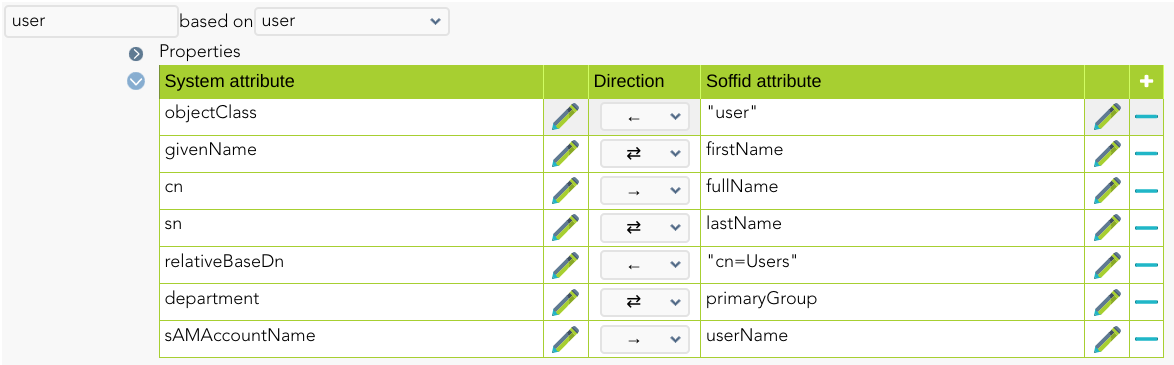
#### Triggers

You can define BeanShell scripts that will be triggered when data is loaded into the target system (outgoing triggers). The trigger result will be a boolean value, true to continue or false to stop.

Triggers can be used to validate or perform a specific action just before performing an operation or just after performing an operation on target objects.

<p class="callout info">To view some examples, visit the [Outgoing triggers examples page](https://bookstack.soffid.com/books/connectors/page/outgoing-triggers-examples "Outgoing triggers examples").</p>

## Avoid incremental load authoritative

The Customizable Active Directory connector has an incremental load authoritative process.

When this process is executed, it requests the changes to Active Directory after the **uSNChanged**.

The value of this field is saved in Soffid in the parameter **soffid.sync.authoritative.change.<span style="color: #ff6600;">NAME\_OF\_THE\_AGENT</span>**

<p class="callout info">If you want to launch a complete load authoritative process, remove this parameter first. At the end of the process, the parameter will be generated automatically.</p>

For more information, go to the [Soffid Parameters page](https://bookstack.soffid.com/books/soffid-3-reference-guide/page/soffid-parameters "Soffid parameters").

## Password Rotation

When you are configuring password rotation using Windows Connector, it could be necessary to make some changes in the local computar policies.

The Local Computer Policies on the target Windows server mentioned below:

- **User Account Control: Admin Approval Mode for Built-in Administrator Account**
- **User Account Control: Run All Administrator in Admin Approval Mode**

Need to be disabled for PAM application to connect target server and reset password of privilege accounts. If the Policies are originally in ‘Enabled’ mode, then after disabling them a system restart may required for the Policies to get applied on target servers properly.

To check the User Access Policies on servers, follow below mentioned path:  
Open group policy editor **Run &gt; gpedit.msc &gt; Local Computer Policy &gt; Windows Settings &gt; Security Settings &gt; Local Policies &gt; Security Options &gt; select policy ‘User Account Control: Run all administrators in Admin Approval Mode’ and ‘User Account Control: Run All Administrator in Admin Approval Mode’ and select Disabled and apply &gt; OK**.

# HOWTO SSL access to Active Directory

Table of Contents

- [Introduction](#bkmrk-introduction).
- [Installing the Certificate Services](#bkmrk-installing-the-certi).
- [Configuring Automatic Certificate Request for Domain Controllers.](#bkmrk-configuring-automati)
- [Check for Issued Certificate](#bkmrk-check-for-issued-cer).
- [Import certificate](#bkmrk-import-certificate).

## Introduction

This howto will show you how to install the Certificate Services in Windows Acive Directory Servers.

Before beginning, make sure the Internet Information Server (IIS) is installed in your server.

## Installing the Certificate Services

1\. Click Start, select Control Panel and click Add or Remove Programs.

[![WIN Connector - Installing 1.png](https://bookstack.soffid.com/uploads/images/gallery/2021-04/scaled-1680-/win-connector-installing-1.png)](https://bookstack.soffid.com/uploads/images/gallery/2021-04/win-connector-installing-1.png)
2\. In the Add or Remove Programs window, click Add/Remove Windows Components, check the Certificate Services and click Next.

[![WIN Connector - Installing 2.png](https://bookstack.soffid.com/uploads/images/gallery/2021-04/scaled-1680-/win-connector-installing-2.png)](https://bookstack.soffid.com/uploads/images/gallery/2021-04/win-connector-installing-2.png)
3\. Click Next in the CA Type page.

[![WIN Connector - Installing 3.png](https://bookstack.soffid.com/uploads/images/gallery/2021-04/scaled-1680-/win-connector-installing-3.png)](https://bookstack.soffid.com/uploads/images/gallery/2021-04/win-connector-installing-3.png)
4\. Fill up the Common name for this CA and click Next.

[![WIN Connector - Installing 4.png](https://bookstack.soffid.com/uploads/images/gallery/2021-04/scaled-1680-/win-connector-installing-4.png)](https://bookstack.soffid.com/uploads/images/gallery/2021-04/win-connector-installing-4.png)
5\. Click Next in the Certificate Database Settings page.

[![WIN Connector - Installing 5.png](https://bookstack.soffid.com/uploads/images/gallery/2021-04/scaled-1680-/win-connector-installing-5.png)](https://bookstack.soffid.com/uploads/images/gallery/2021-04/win-connector-installing-5.png)
6\. The Certificate Services will now be installed.

[![WIN Connector - Installing 6.png](https://bookstack.soffid.com/uploads/images/gallery/2021-04/scaled-1680-/win-connector-installing-6.png)](https://bookstack.soffid.com/uploads/images/gallery/2021-04/win-connector-installing-6.png)
7\. Click Finish and restart your server.

[![WIN Connector - Installing 7.png](https://bookstack.soffid.com/uploads/images/gallery/2021-04/scaled-1680-/win-connector-installing-7.png)](https://bookstack.soffid.com/uploads/images/gallery/2021-04/win-connector-installing-7.png)
## Configuring Automatic Certificate Request for Domain Controllers

1\. Click Start, select Administrative Tools and click Domain Controller Security Policy.

[![WIN Connector - Configuring 1.png](https://bookstack.soffid.com/uploads/images/gallery/2021-04/scaled-1680-/win-connector-configuring-1.png)](https://bookstack.soffid.com/uploads/images/gallery/2021-04/win-connector-configuring-1.png)
2\. In the Default Domain Controller Security Settings window, click the Public Key Policies folder.

[![WIN Connector - Configuring 2.png](https://bookstack.soffid.com/uploads/images/gallery/2021-04/scaled-1680-/win-connector-configuring-2.png)](https://bookstack.soffid.com/uploads/images/gallery/2021-04/win-connector-configuring-2.png)
3\. Right click Automatic Certificate Request Settings, select New and click Automatic Certificate Request.

[![WIN Connector - Configuring 3.png](https://bookstack.soffid.com/uploads/images/gallery/2021-04/scaled-1680-/win-connector-configuring-3.png)](https://bookstack.soffid.com/uploads/images/gallery/2021-04/win-connector-configuring-3.png)
4\. Click Next in the Automatic Certificate Request Setup Wizard

[![WIN Connector - Configuring 4.png](https://bookstack.soffid.com/uploads/images/gallery/2021-04/scaled-1680-/win-connector-configuring-4.png)](https://bookstack.soffid.com/uploads/images/gallery/2021-04/win-connector-configuring-4.png)
5\. Select Domain Controller in the Certificate Template page and click Next

[![WIN Connector - Configuring 5.png](https://bookstack.soffid.com/uploads/images/gallery/2021-04/scaled-1680-/win-connector-configuring-5.png)](https://bookstack.soffid.com/uploads/images/gallery/2021-04/win-connector-configuring-5.png)
6\. Click Finish and reboot your server.

[![WIN Connector - Configuring 6.png](https://bookstack.soffid.com/uploads/images/gallery/2021-04/scaled-1680-/win-connector-configuring-6.png)](https://bookstack.soffid.com/uploads/images/gallery/2021-04/win-connector-configuring-6.png)
## Check for Issued Certificate

1\. Click Start, select Administrative Tools and click Certification Authority. This will launch the Certification Authority application.

[![WIN Connector - Check 1.png](https://bookstack.soffid.com/uploads/images/gallery/2021-04/scaled-1680-/win-connector-check-1.png)](https://bookstack.soffid.com/uploads/images/gallery/2021-04/win-connector-check-1.png)
2\. In Certification Authority, click the + sign and check the Issued Certificates folder if your server has been issued a certificate.

[![WIN Connector - Check 2.png](https://bookstack.soffid.com/uploads/images/gallery/2021-04/scaled-1680-/win-connector-check-2.png)](https://bookstack.soffid.com/uploads/images/gallery/2021-04/win-connector-check-2.png)
## Import certificate

1\. Select the certificate and open it. Select the "Certification Path" tab and select the root certificate.

[![WIN Connector - Import 1.png](https://bookstack.soffid.com/uploads/images/gallery/2021-04/scaled-1680-/win-connector-import-1.png)](https://bookstack.soffid.com/uploads/images/gallery/2021-04/win-connector-import-1.png)
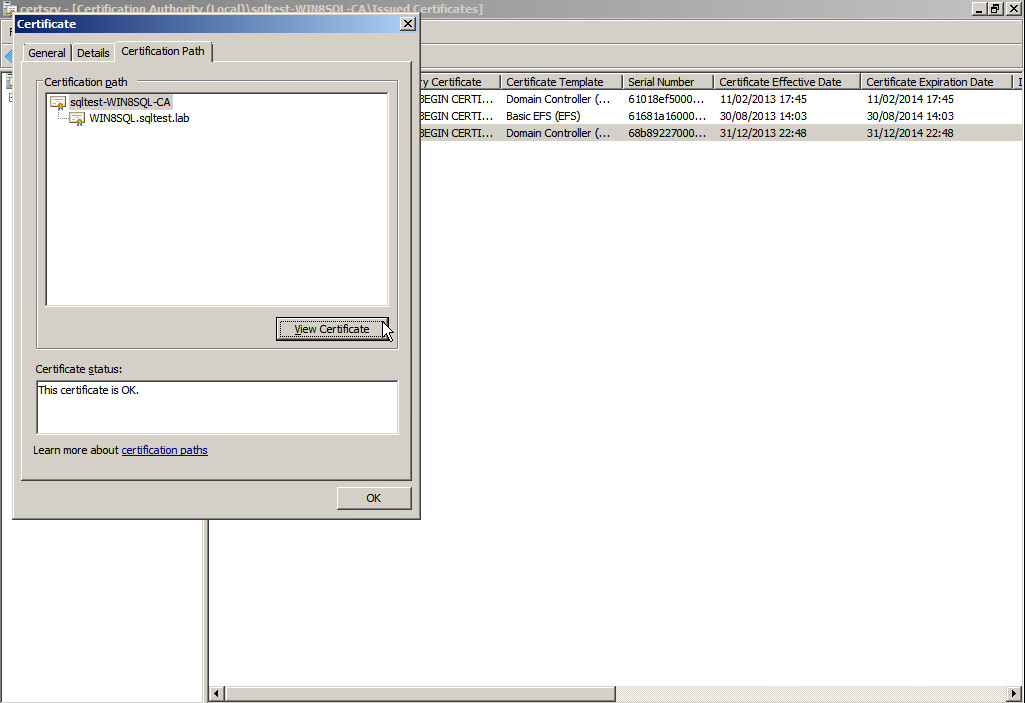
2\. Click on "View Certificate" button and navigate to "Details" tab.

[![WIN Connector - Import 2.png](https://bookstack.soffid.com/uploads/images/gallery/2021-04/scaled-1680-/win-connector-import-2.png)](https://bookstack.soffid.com/uploads/images/gallery/2021-04/win-connector-import-2.png)
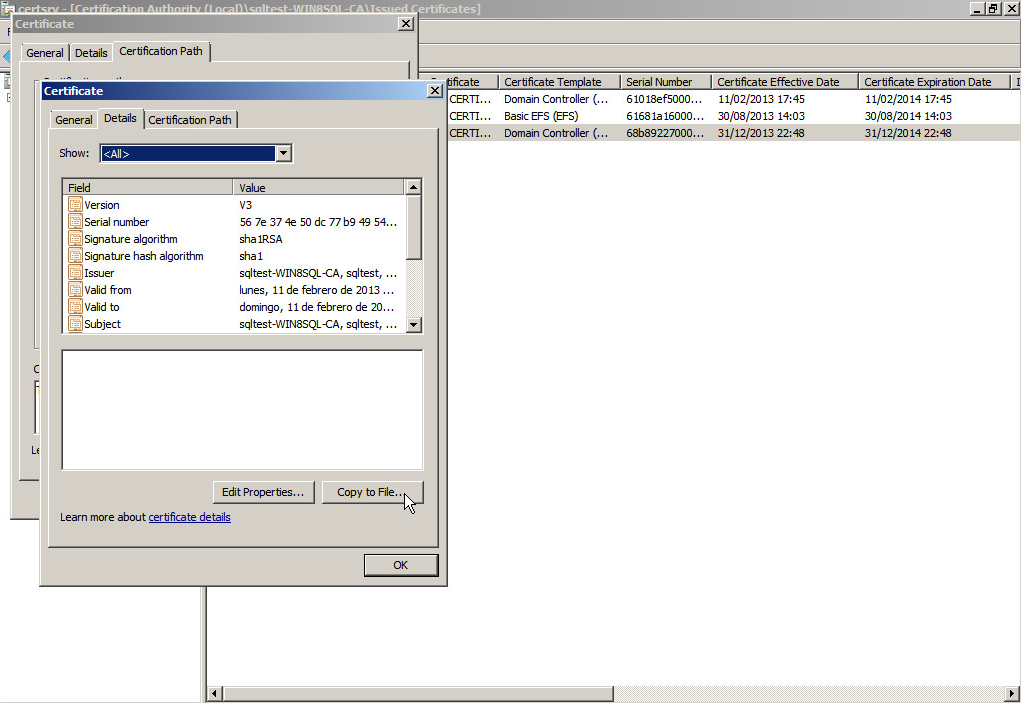
3\. Click on "Copy to File..." button and follow the export steps to obtain the certificate.

[![WIN Connector - Import 3.png](https://bookstack.soffid.com/uploads/images/gallery/2021-04/scaled-1680-/win-connector-import-3.png)](https://bookstack.soffid.com/uploads/images/gallery/2021-04/win-connector-import-3.png)
4\. Open cmd and go to the soffid-iam-sync instalation directory and execute:

```shell
jre\bin\keytool -import -file “file” -keystore conf\cacerts -alias AD_CERT
```

Afterwards, the console will ask you for a password. Type the default password: changeit and press enter.

# Invoker interface for Active Directory

Any agent, trigger or mapping can use the invoker method for the ActiveDirectory agent. The invoker method is available in the dispatcherService class.

The invoker method is not specific of the Active Directory agent. Many other connectors support this method. The expected arguments are:

- Action
- Object name
- Parameters

Here you have an example of a post-update trigger to create the home server for a user:

```Java
map = new HashMap();
String server = "//"+source{"homeServer"}+"/"+source{"accountName"};
// Create folder
f = dispatcherService.invoke("smb:mkdir", server, map);
   
// Add administrator ACL
map.put("user", "soffid_admin");
map.put("permission", "GENERIC_ALL");
map.put("flags", "CONTAINER_INHERIT_ACE OBJECT_INHERIT_ACE");
f = dispatcherService.invoke("smb:addacl", path, map);
 
// Add user ACL
map.put("user", source{"accountName"});
f = dispatcherService.invoke("smb:addacl", path, map);
// Change folder ownership using a domain admin account
map.put("_auth_user", "user1");
map.put("_auth_domain", "domain1");
map.put("_auth_password", "SuperSecret");
f = dispatcherService.invoke("smb:setOwner", path, map);
```

The example above uses the smb:mkdir action to create the folder, the smb:addacl to add a new access control list entry. Other commands allow the query and modification of Active Directory objects like users and groups.

The list of allowed commands are:

<table class="confluenceTable tablesorter tablesorter-default" id="bkmrk-command-object-name-" role="grid"><colgroup><col></col><col></col><col></col><col></col></colgroup><thead><tr class="tablesorter-headerRow" role="row" style="height: 35px;"><th aria-disabled="false" aria-label="Command: No sort applied, activate to apply an ascending sort" aria-sort="none" class="confluenceTh tablesorter-header sortableHeader tablesorter-headerUnSorted" data-column="0" role="columnheader" scope="col" style="width: 113px; height: 35px;" tabindex="0">**Command**

</th><th aria-disabled="false" aria-label="Object name: No sort applied, activate to apply an ascending sort" aria-sort="none" class="confluenceTh tablesorter-header sortableHeader tablesorter-headerUnSorted" data-column="1" role="columnheader" scope="col" style="width: 161px; height: 35px;" tabindex="0">**Object name**

</th><th aria-disabled="false" aria-label="Parameters: No sort applied, activate to apply an ascending sort" aria-sort="none" class="confluenceTh tablesorter-header sortableHeader tablesorter-headerUnSorted" data-column="2" role="columnheader" scope="col" style="width: 176px; height: 35px;" tabindex="0">**Parameters**

</th><th aria-disabled="false" aria-label="Comments: No sort applied, activate to apply an ascending sort" aria-sort="none" class="confluenceTh tablesorter-header sortableHeader tablesorter-headerUnSorted" colspan="1" data-column="3" role="columnheader" scope="col" style="width: 359px; height: 35px;" tabindex="0">**Comments**

</th></tr></thead><tbody aria-live="polite" aria-relevant="all"><tr role="row" style="height: 57px;"><td class="confluenceTd" style="width: 113px; height: 57px;">insert

</td><td class="confluenceTd" style="width: 161px; height: 57px;">Object distinguished name

</td><td class="confluenceTd" style="width: 176px; height: 57px;">Object attributes

</td><td class="confluenceTd" colspan="1" style="width: 359px; height: 57px;">Creates a new active directory object

</td></tr><tr role="row" style="height: 57px;"><td class="confluenceTd" colspan="1" style="width: 113px; height: 57px;">update

</td><td class="confluenceTd" colspan="1" style="width: 161px; height: 57px;">Object distinguished name

</td><td class="confluenceTd" colspan="1" style="width: 176px; height: 57px;">Object attributes

</td><td class="confluenceTd" colspan="1" style="width: 359px; height: 57px;">Modifies an existing active directory object. Only the attributes present in the map will be updated

</td></tr><tr role="row" style="height: 57px;"><td class="confluenceTd" colspan="1" style="width: 113px; height: 57px;">delete

</td><td class="confluenceTd" colspan="1" style="width: 161px; height: 57px;">Object distinguished name

</td><td class="confluenceTd" colspan="1" style="width: 176px; height: 57px;">-

</td><td class="confluenceTd" colspan="1" style="width: 359px; height: 57px;">Removes an existing active directory object.

</td></tr><tr role="row" style="height: 123px;"><td class="confluenceTd" colspan="1" style="width: 113px; height: 123px;">select

</td><td class="confluenceTd" colspan="1" style="width: 161px; height: 123px;">Base distinguished name

</td><td class="confluenceTd" colspan="1" style="width: 176px; height: 123px;">Object criteria attribute

</td><td class="confluenceTd" colspan="1" style="width: 359px; height: 123px;">Search for any object with the values specified in the parameters map, starting in the specified base DN.

The return value is a list of maps. Each element in the list is an Active Directory object

</td></tr><tr role="row" style="height: 101px;"><td class="confluenceTd" colspan="1" style="width: 113px; height: 101px;">get

</td><td class="confluenceTd" colspan="1" style="width: 161px; height: 101px;">Object distinguished name

</td><td class="confluenceTd" colspan="1" style="width: 176px; height: 101px;">-

</td><td class="confluenceTd" colspan="1" style="width: 359px; height: 101px;">Returns the object with the specified object DN.

The return value is a list containing one or no maps. The map, if exists, contain the object attributes

</td></tr><tr role="row" style="height: 211px;"><td class="confluenceTd" colspan="1" style="width: 113px; height: 211px;">smb:mkdir

</td><td class="confluenceTd" colspan="1" style="width: 161px; height: 211px;">Shared file

</td><td class="confluenceTd" colspan="1" style="width: 176px; height: 211px;">Optionally:

- \_auth\_user
- \_auth\_password
- \_auth\_domain

</td><td class="confluenceTd" colspan="1" style="width: 359px; height: 211px;">Creates the shared folder.

The shared folder name should follow the syntax //server/sharedFolder/Path or \\\\server\\\\sharedFolder\\Path

It is recommended to use the first syntax because the second one requires the script to escape any backslash character, leading to a harder to read script

</td></tr><tr role="row" style="height: 79px;"><td class="confluenceTd" colspan="1" style="width: 113px; height: 79px;">smb:exist

</td><td class="confluenceTd" colspan="1" style="width: 161px; height: 79px;">Shared file

</td><td class="confluenceTd" colspan="1" style="width: 176px; height: 79px;">Optionally:

- \_auth\_user
- \_auth\_password
- \_auth\_domain

</td><td class="confluenceTd" colspan="1" style="width: 359px; height: 79px;">Returns a list with a single map. The map has the attribute exist with a boolean value indicating whether the file exists or not

</td></tr><tr role="row" style="height: 35px;"><td class="confluenceTd" colspan="1" style="width: 113px; height: 35px;">smb:rmdir

</td><td class="confluenceTd" colspan="1" style="width: 161px; height: 35px;">Shared file

</td><td class="confluenceTd" colspan="1" style="width: 176px; height: 35px;">Optionally:

- \_auth\_user
- \_auth\_password
- \_auth\_domain

</td><td class="confluenceTd" colspan="1" style="width: 359px; height: 35px;">Removes the full directory and any file or directory within

</td></tr><tr role="row" style="height: 57px;"><td class="confluenceTd" colspan="1" style="width: 113px; height: 57px;">smb:rm

</td><td class="confluenceTd" colspan="1" style="width: 161px; height: 57px;">Shared file

</td><td class="confluenceTd" colspan="1" style="width: 176px; height: 57px;">Optionally:

- \_auth\_user
- \_auth\_password
- \_auth\_domain

</td><td class="confluenceTd" colspan="1" style="width: 359px; height: 57px;">Removes the file or directory. The command will fail if the directory is not empty.

</td></tr><tr role="row"><td class="confluenceTd" colspan="1" style="width: 113px;">smb:getacl

</td><td class="confluenceTd" colspan="1" style="width: 161px;">Shared file

</td><td class="confluenceTd" colspan="1" style="width: 176px;">Optionally:

- \_auth\_user
- \_auth\_password
- \_auth\_domain

</td><td class="confluenceTd" colspan="1" style="width: 359px;">Returns a list of maps representing each access control list entry for that file or folder. Each map has three values:

- user: The user or group name. When the user or group is unknown, the user or group SID is used.
- permission: A text string with the permissions granted with that ACE. The string contains one or more of these values concatenated:
    
    
    - FILE\_READ\_DATA
    - FILE\_WRITE\_DATA
    - FILE\_APPEND\_DATA
    - FILE\_EXECUTE
    - FILE\_LIST\_DIRECTORY
    - FILE\_ADD\_FILE
    - FILE\_ADD\_SUBDIRECTORY
    - FILE\_TRAVERSE
    - FILE\_DELETE\_CHILD
    - FILE\_READ\_ATTRIBUTES
    - FILE\_WRITE\_ATTRIBUTES
    - FILE\_READ\_EA
    - FILE\_WRITE\_EA
    - DELETE
    - READ\_CONTROL
    - WRITE\_DAC
    - WRITE\_OWNER
    - SYNCHRONIZE
    - ACCESS\_SYSTEM\_SECURITY
    - MAXIMUM\_ALLOWED
    - GENERIC\_ALL
    - GENERIC\_EXECUTE
    - GENERIC\_WRITE
    - GENERIC\_READ
- flags: A text string with the inheritance flags for that ACE. The string contains one or more of these values concatenated:
    
    
    - CONTAINER\_INHERIT\_ACE
    - FAILED\_ACCESS\_ACE\_FLAG
    - INHERIT\_ONLY\_ACE
    - INHERITED\_ACE
    - NO\_PROPAGATE\_INHERIT\_ACE
    - OBJECT\_INHERIT\_ACE
    - SUCCESSFUL\_ACCESS\_ACE\_FLAG

</td></tr><tr role="row" style="height: 146px;"><td class="confluenceTd" colspan="1" style="width: 113px; height: 146px;">smb:addacl

</td><td class="confluenceTd" colspan="1" style="width: 161px; height: 146px;">Shared file

</td><td class="confluenceTd" colspan="1" style="width: 176px; height: 146px;">Map with these three values:

- user
- permission
- flags

And optionally, these ones:

- \_auth\_user
- \_auth\_password
- \_auth\_domain

</td><td class="confluenceTd" colspan="1" style="width: 359px; height: 146px;">Adds an access control list with the specified permission and flags

</td></tr><tr role="row" style="height: 123px;"><td class="confluenceTd" colspan="1" style="width: 113px; height: 123px;">smb:removeacl

</td><td class="confluenceTd" colspan="1" style="width: 161px; height: 123px;">Shared file

</td><td class="confluenceTd" colspan="1" style="width: 176px; height: 123px;">Map with these three values:

- user
- permission
- flags

And optionally, these ones:

- \_auth\_user
- \_auth\_password
- \_auth\_domain

</td><td class="confluenceTd" colspan="1" style="width: 359px; height: 123px;">Remove the access control list entry that matches the map. If the permission or flag is missing, the connector will remove any access control list entry for the specified user

</td></tr><tr role="row" style="height: 101px;"><td class="confluenceTd" colspan="1" style="width: 113px; height: 101px;">smb:setowner

</td><td class="confluenceTd" colspan="1" style="width: 161px; height: 101px;">Shared file

</td><td class="confluenceTd" colspan="1" style="width: 176px; height: 101px;">Map with the value:

- user

And optionally, these ones:

- \_auth\_user
- \_auth\_password
- \_auth\_domain

</td><td class="confluenceTd" colspan="1" style="width: 359px; height: 101px;">Sets the directory owner to the one specified in the map

</td></tr></tbody></table>

By default, actions are performed by the account used to configure the AD connector, but sometimes, another account must be used, mainly when dealing with NAS servers. In order to user custom credentials SMB commands accept three special parameters: \_auth\_user, \_auth\_password and \_auth\_domain. If this parameters are null, the agent user and password is used.

# Active Directory back channel configuration

## Introduction

**Active Directory Back Channe**l refers to a mechanism that allows Soffid to synchronize user information with an external Active Directory (AD) server in real-time or near real-time (Password synchronizer). This synchronization ensures that both Soffid and AD maintain consistent and up-to-date data.

### How it works?

The Password Synchronizer installs a service. This service is responsible for buffering passwords when they cannot be sent because the Sync Server is not available.

If the Sync Server is not available, the passwords are stored in an encrypted local file. When connectivity to the Sync Server is restored, the passwords are sent.

1\. The AD sends the password to Soffid to verify that it complies with Soffid policy.  
2\. If it complies, the password is updated in the AD.  
3\. The password is sent to Soffid and the PropagatePassword task is created.  
4\. If the AD agent confirms that the new password has been saved, Soffid synchronizes it with the other systems.

## How to install Active Directory back channel?

### Download

In order to configure the Active Directory back-channel, you must use the eris command line tool. To do this, please, download the Password Synchronizer from our [download portal](https://download.soffid.com/download/enterprise/):

<details id="bkmrk-%F0%9F%92%BB-image"><summary>💻 Image</summary>

[![image.png](https://bookstack.soffid.com/uploads/images/gallery/2024-09/scaled-1680-/1yGT7TjizrUrCvmT-image.png)](https://bookstack.soffid.com/uploads/images/gallery/2024-09/1yGT7TjizrUrCvmT-image.png)

</details>### Installation

First of all, you must install the Windows package "**Password synchronizer-3.0.x.msi**"

Once installed Password Synchronizer on your system, please change to eris or eris64 directory (\\ProgramFiles\\Soffid\\eris64) and execute:

```
eris-ad-service install
```

### Configuration

Finally, you must configute the Password Synchronizer executing the following command:

```shell
eris-ad-service CONFIGURE url-syncserver agent-name
```

- **url-syncserver** is the master sync server url (http://master.dom.dom:port)
- **agent-name** is the agent code name configured on Soffid console.

*To see more information when configuring use | more.*

##### Example

```
eris-ad-service CONFIGURE https://sync-server.netcompose:1760/ "AD soffid.pat" | more
```

<details id="bkmrk-%F0%9F%92%BB-image-1"><summary>💻 Image</summary>

[![image.png](https://bookstack.soffid.com/uploads/images/gallery/2024-09/scaled-1680-/aclMeSvWytJZzE76-image.png)](https://bookstack.soffid.com/uploads/images/gallery/2024-09/aclMeSvWytJZzE76-image.png)

</details><span style="color: rgb(224, 62, 45);">**Mind that, completed this step, the domain controller must be restarted to end the configuration properly.**</span>

### Configuration test

In order to test configuration, you must use the eris command line tool.

```bash
eris-ad-service TEST user pass
```

Where user and pass can be **dummy**. If you use a real one it will be propagated to the system.

*To see more information during test use | more.*

##### Example

```
eris-ad-service TEST aretha password | more
```

<details id="bkmrk-%F0%9F%92%BB-image-%C2%A0generated-t"><summary>💻 Image</summary>

[![image.png](https://bookstack.soffid.com/uploads/images/gallery/2024-09/scaled-1680-/gJVyMEX84ypmdODw-image.png)](https://bookstack.soffid.com/uploads/images/gallery/2024-09/gJVyMEX84ypmdODw-image.png)

 Generated Task in the AD agent

[![image.png](https://bookstack.soffid.com/uploads/images/gallery/2024-09/scaled-1680-/6sSpHMs3QIR6QySu-image.png)](https://bookstack.soffid.com/uploads/images/gallery/2024-09/6sSpHMs3QIR6QySu-image.png)
</details>

# AD Integration flows - Update user

## Update

### Introduction

Soffid provides a workflow to modify and/or delete a user in the final system. In it, we can see each of the steps of which this process is composed.

### Diagram

[![image-1661426896997.png](https://bookstack.soffid.com/uploads/images/gallery/2022-08/scaled-1680-/image-1661426896997.png)](https://bookstack.soffid.com/uploads/images/gallery/2022-08/image-1661426896997.png)


### Step by Step

In this document, we will explain the process that Soffid performs to modify a user for the AD connector.

#### 1. Initial step

First of all, Soffid checks if the user exists in Soffid and then checks the operation to perform, update or delete.

**1.1.** If the **user does not exist in Soffid**, then Soffid asks to delete the user in the target System.

<details id="bkmrk-%E2%9D%93-warning-message"><summary>❓ Warning message</summary>

![image-1659534714096.png](https://bookstack.soffid.com/uploads/images/gallery/2022-08/scaled-1680-/image-1659534714096.png)</details>**1.1.1. Yes**: If the answer is Yes, the process follows through the Yes branch,[ \[3. Delete branch\]](#bkmrk-4.-delete-branch).

**1.1.2. No**: If the answer is Yes, the process finishes <span style="background-color: #c2e0f4;">[\[10. End\]](#bkmrk-x.-end)</span>.

**1.2.** If the **user exists in Soffid**, the process continues through <span style="background-color: #c2e0f4;">\[[2. User to remove?\]](#bkmrk-2.-user-to-remove)</span>. to check if the

#### 2. User to remove?

<details id="bkmrk-%F0%9F%93%8C-by-clicking-on-the"><summary>📌 By clicking on the User to remove? step,...</summary>

 You can configure all the properties related to the user object for this step

[![image-1661421084985.png](https://bookstack.soffid.com/uploads/images/gallery/2022-08/scaled-1680-/image-1661421084985.png)](https://bookstack.soffid.com/uploads/images/gallery/2022-08/image-1661421084985.png)

</details>**2.1.** If the user is **marked for Deletion**, Soffid will ask for user consent to continue with the process or to cancel it. If the answer is Yes, the process follows through the Yes branch, <span style="background-color: #c2e0f4;">[\[3. Delete branch\]](#bkmrk-4.-delete-branch)</span>.

<details id="bkmrk-%E2%9D%93-warning-message-0"><summary>❓ Warning message</summary>

![image-1659534714096.png](https://bookstack.soffid.com/uploads/images/gallery/2022-08/scaled-1680-/image-1659534714096.png)</details>**2.2.** If the user is **marked for Update**, it continues with the flow following through the No branch, <span style="background-color: #c2e0f4;">[\[4. Insert or Update branch\]](#bkmrk--1)</span>.

#### 3. Delete branch

<details id="bkmrk-%F0%9F%93%8A-diagram-%26%26todo%26%26-%C2%A0"><summary>📊 Diagram</summary>

[![image-1661440073073.png](https://bookstack.soffid.com/uploads/images/gallery/2022-08/scaled-1680-/image-1661440073073.png)](https://bookstack.soffid.com/uploads/images/gallery/2022-08/image-1661440073073.png)

</details>**3.1.** When the operation to perform is to delete a user, first of all, Soffid has to check if the user exists in the target system.

**3.1.1.** If the **user does not exist**, there are no actions to perform in the target system, so the process finishes <span style="background-color: #c2e0f4;">[\[10. End\]](#bkmrk-x.-end)</span>.

**3.1.2.** If the **user exists**, the flow continues executing the **pre-delete triggers** if there is anyone configured. More than one script can be configured. These scripts are executed just before the main action, user delete, and the result (true or false) determines if the main action will be performed or not.

**3.1.2.1. False**: if the result is false for one or more of these triggers, the process finishes <span style="background-color: #c2e0f4;">[\[10. End\]](#bkmrk-x.-end)</span>.

**3.1.2.2.True**: if the result is true for all of these triggers, Soffid continues to the next step.

<details id="bkmrk-%F0%9F%93%8C-by-clicking-on-the-1"><summary>📌 By clicking on the Pre-delete triggers step,...</summary>

You can configure all the pre-delete triggers related to the user object for this step.

[![image-1661427702845.png](https://bookstack.soffid.com/uploads/images/gallery/2022-08/scaled-1680-/image-1661427702845.png)](https://bookstack.soffid.com/uploads/images/gallery/2022-08/image-1661427702845.png)
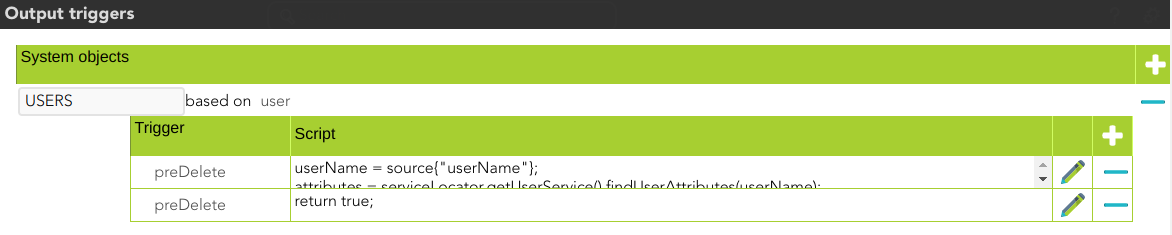
</details>**3.1.3.** Soffid **removes the AD user** in the Active directory.

**3.1.3.**  Then Soffid executes the **post-delete triggers** if any. These triggers can be used to perform a specific action just after performing the remove user operation on the target object.

<details id="bkmrk-%F0%9F%93%8C-by-clicking-on-the-3"><summary>📌 By clicking on the Post-delete triggers step,...</summary>

You can configure the post-delete triggers related to the user object for this step.

[![image-1661427821300.png](https://bookstack.soffid.com/uploads/images/gallery/2022-08/scaled-1680-/image-1661427821300.png)](https://bookstack.soffid.com/uploads/images/gallery/2022-08/image-1661427821300.png)
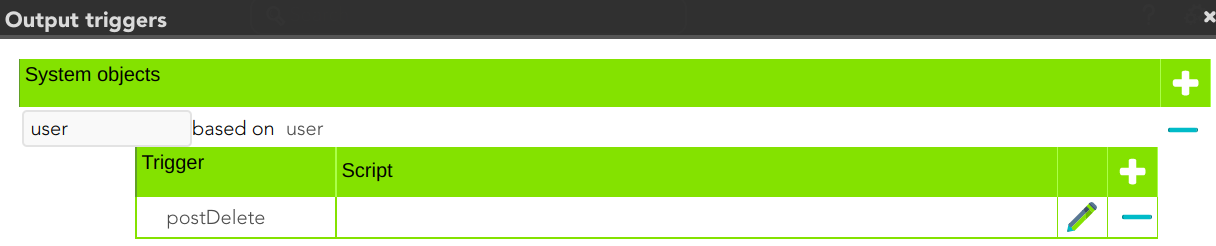
</details>**3.1.3.** Then the process finishes <span style="background-color: #c2e0f4;">[\[10. End\]](#bkmrk-x.-end)</span>.

#### 4. Insert or Update branch


**4.1.** When the operation to perform is to update a user, first of all, Soffid **generates the AD user**. That is, Soffid calculates the values of the AD user object from the original values of Soffid.

<details id="bkmrk-by-clicking-on-the-g"><summary>📌 By clicking on the generate AD user step,...</summary>

You can configure the attributes related to the user object for this step.

[![image-1661430867005.png](https://bookstack.soffid.com/uploads/images/gallery/2022-08/scaled-1680-/image-1661430867005.png)](https://bookstack.soffid.com/uploads/images/gallery/2022-08/image-1661430867005.png)
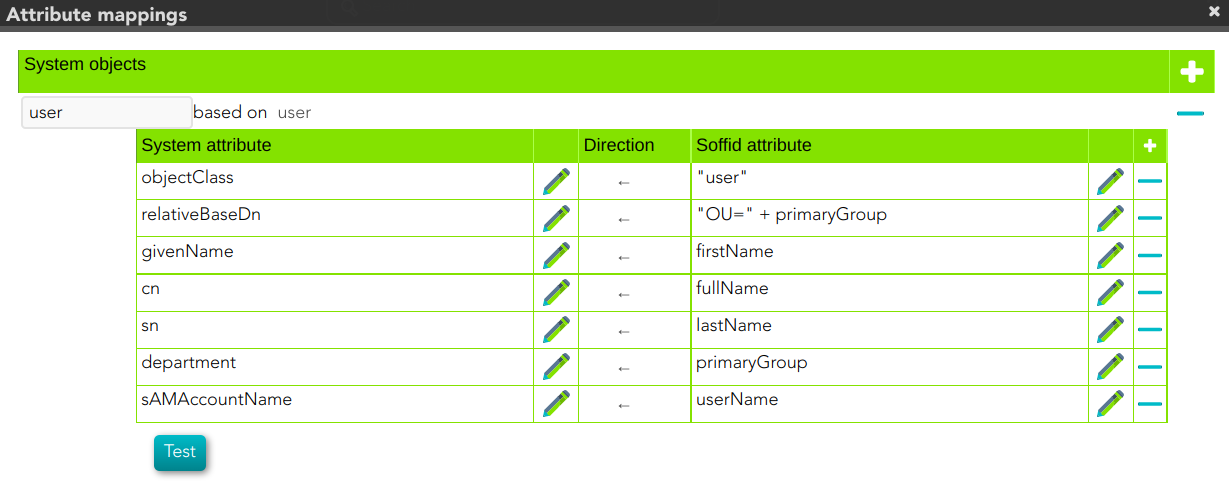
</details>**4.2.**Then Soffid asks if the **user exists** in the target system to decide the action to execute, this action can be an update or an insert.

**4.2.1.** If the **user does not exist** in the target system, the process continues through <span style="background-color: #c2e0f4;">[\[5. Insert user branch\]](#bkmrk-5.-insert-user-branc)</span>.

**4.2.2.** If the **user exists** in the target system, the process continues through [<span style="background-color: #c2e0f4;">\[</span>](#bkmrk-6.-update-user%C2%A0branc)[<span style="background-color: #c2e0f4;">6. Update user branch\]</span>](#bkmrk-6.-update-user%C2%A0branc).


#### 5. Insert user branch

<details id="bkmrk-diagram-1"><summary>📊 Diagram</summary>

[![image-1661440189859.png](https://bookstack.soffid.com/uploads/images/gallery/2022-08/scaled-1680-/image-1661440189859.png)](https://bookstack.soffid.com/uploads/images/gallery/2022-08/image-1661440189859.png)

</details>**5.1.** Soffid executes the **pre-insert triggers** if there is anyone configured. More than one script can be configured. These scripts are executed just before the main action, user creates, and the result (true or false) determines if the main action will be performed or not.

**5.1.1. False**: if the response is false for one or more of these triggers, the process finishes [<span style="background-color: #c2e0f4;">\[10. End\]</span>](#bkmrk-x.-end) and the user is not created in the target system.

**5.1.2. True**: if the response is true for all of these triggers, Soffid continues to the next step.

**5.2.** Soffid **creates AD** **user** in the Active directory

**5.3.** Then Soffid executes **post-insert triggers** if any. These triggers can be used to perform a specific action just after performing the create user operation on the target object.

<details id="bkmrk-%F0%9F%93%8C-by-clicking-on-the-5"><summary>📌 By clicking on the Post-insert triggers step,...</summary>

You can configure the Post-insert triggers related to the user object for this step.

[![image-1660290613568.png](https://bookstack.soffid.com/uploads/images/gallery/2022-08/scaled-1680-/image-1660290613568.png)](https://bookstack.soffid.com/uploads/images/gallery/2022-08/image-1660290613568.png)

</details>**5.4.** Then the process continues through [<span style="background-color: #c2e0f4;">\[7. Groups\]</span>](#bkmrk-5.-xxxx).

#### 6. Update user branch

<details id="bkmrk-diagram-2"><summary>📊 Diagram</summary>

[![image-1661440155417.png](https://bookstack.soffid.com/uploads/images/gallery/2022-08/scaled-1680-/image-1661440155417.png)](https://bookstack.soffid.com/uploads/images/gallery/2022-08/image-1661440155417.png)

 </details>**6.1.** Soffid checks if there are **any change** between the generated object and the values of the object in the target system.

**6.1.1. False**: if there are no changes, the process finishes [<span style="background-color: #c2e0f4;">\[10. End\]</span>](#bkmrk-x.-end)**.**

**6.1.2. True**: if there are changes to update, Soffid continues to the next step.

**6.2.** Soffid executes the **pre-update triggers** if there is anyone configured. More than one script can be configured. These scripts are executed just before the main action, user update, and the result (true or false) determines if the main action will be performed or not.

**6.2.1. False**: if the response is false for one or more of these triggers, the process finishes <span style="background-color: #c2e0f4;">[\[10. End\]](#bkmrk-x.-end)</span> and the user is not updated in the target system

**6.2.2. True**: if the response is true for all of these triggers, Soffid continues to the next step.

<details id="bkmrk-%F0%9F%93%8C-by-clicking-on-the-6"><summary>📌 By clicking on the Pre-update triggers step,...</summary>

You can configure the Pre-update triggers related to the user object for this step.

[![image-1660305125794.png](https://bookstack.soffid.com/uploads/images/gallery/2022-08/scaled-1680-/image-1660305125794.png)](https://bookstack.soffid.com/uploads/images/gallery/2022-08/image-1660305125794.png)

</details>**6.3.** Soffid **updates the AD user** in the Active directory

<details id="bkmrk-%F0%9F%93%8C-by-clicking-on-the-7"><summary>📌 By clicking on the update user step,...</summary>

 You can configure the properties related to the user object for this step.

[![image-1661431455021.png](https://bookstack.soffid.com/uploads/images/gallery/2022-08/scaled-1680-/image-1661431455021.png)](https://bookstack.soffid.com/uploads/images/gallery/2022-08/image-1661431455021.png)

</details>**6.4.** Then Soffid executes the **post-update triggers** if any. These triggers can be used to perform a specific action just after performing the update user operation on the target object.

<details id="bkmrk-%F0%9F%93%8C-by-clicking-on-the-8"><summary>📌 By clicking on the Post-update triggers step,...</summary>

You can configure the Post-update triggers related to the user object for this step.

[![image-1661500966301.png](https://bookstack.soffid.com/uploads/images/gallery/2022-08/scaled-1680-/image-1661500966301.png)](https://bookstack.soffid.com/uploads/images/gallery/2022-08/image-1661500966301.png)

</details>**6.6.** Then the process continues through [<span style="background-color: #c2e0f4;">\[7. Grants\]</span>](#bkmrk-5.-xxxx).

#### 7. Grants

At this point, Soffid runs the actions relative to the grants. The operations can be to add the user to one or more groups or to remove the user from existing groups.

#### 8**.** Group to remove

This is a loop while there are groups to remove.

<details id="bkmrk-diagram-3"><summary>📊 Diagram</summary>

[![image-1661440287892.png](https://bookstack.soffid.com/uploads/images/gallery/2022-08/scaled-1680-/image-1661440287892.png)](https://bookstack.soffid.com/uploads/images/gallery/2022-08/image-1661440287892.png)

 </details>**8.1.** If there are **No** groups to remove, the process goes to [<span style="background-color: #c2e0f4;">\[9. Group to add\]</span>](#bkmrk-9.-grant-to-remove).

**8.2. Yes,** there are groups to remove:

**8.2.1.** Soffid executes the **pre-delete triggers** if there is anyone configured. More than one script can be configured. These scripts are executed just before the main action, a **Remove user to group**, and the result (true or false) determines if the main action will be performed or not.

**8.2.1.1. False**: if the response is false for one or more of these triggers, the process goes to [<span style="background-color: #c2e0f4;">\[8. Group to remove\]</span>](#bkmrk-6.%C2%A0grant-to-add) and the grant is not created.

**8.2.1.2. True**: if the response is true for all of these triggers, Soffid continues to the next step.

<details id="bkmrk-%F0%9F%93%8C-by-clicking-on-the-13"><summary>📌 By clicking on the Pre-delete triggers step,...</summary>

 You can configure the Pre-delete triggers related to the grant object for this step.

[![image-1661497389637.png](https://bookstack.soffid.com/uploads/images/gallery/2022-08/scaled-1680-/image-1661497389637.png)](https://bookstack.soffid.com/uploads/images/gallery/2022-08/image-1661497389637.png)

</details>**8.2.3.** If the result of the triggers is true, then Soffid **adds the user to a group.**

**8.2.4.** Then Soffid executes the **post-insert triggers** if any. These triggers can be used to perform a specific action just after performing the create grant operation on the target object.

<details id="bkmrk-%F0%9F%93%8C-by-clicking-on-the-15"><summary>📌 By clicking on the Post-delete triggers column values step,...</summary>

 You can configure the Post-Update related to the grant object for this step.

[![image-1661497647604.png](https://bookstack.soffid.com/uploads/images/gallery/2022-08/scaled-1680-/image-1661497647604.png)](https://bookstack.soffid.com/uploads/images/gallery/2022-08/image-1661497647604.png)

</details>**8.2.5.** Then the process continues through  [<span style="background-color: #c2e0f4;">\[8. Grant to add\]</span>](#bkmrk-6.%C2%A0grant-to-add).

#### 9. Group to add

<details id="bkmrk-diagram-4"><summary>📊 Diagram</summary>

[![image-1661440333930.png](https://bookstack.soffid.com/uploads/images/gallery/2022-08/scaled-1680-/image-1661440333930.png)](https://bookstack.soffid.com/uploads/images/gallery/2022-08/image-1661440333930.png)

</details>This is a loop while there are grants to remove. This grants list comes from the previous step \[7. Grants\].

**9.1 No**: If there are No grants to add, the process goes to <span style="background-color: #c2e0f4;">[\[10. End\]](#bkmrk-x.-end)</span>.

**9.2. Yes,**  there are grants to remove:


**9.2.1.** Soffid executes the **pre-insert triggers** if there is anyone configured. More than one script can be configured. These scripts are executed just before the main action, **Add user to group**, and the result (true or false) determines if the main action will be performed or not.

**9.2.1.1. False**: if the response is false for one or more of these triggers, the process finishes <span style="background-color: #c2e0f4;">[\[10. End\]](#bkmrk-x.-end)</span> and the grant is not deleted.

**9.2.1.2. True**: if the response is true for all of these triggers, Soffid continues to the next step.

<details id="bkmrk-%F0%9F%93%8C-by-clicking-on-the-16"><summary>📌 By clicking on the pre-delete trigger step,...</summary>

 You can configure the Pre-delete triggers related to the grant object for this step.

[![image-1660651495130.png](https://bookstack.soffid.com/uploads/images/gallery/2022-08/scaled-1680-/image-1660651495130.png)](https://bookstack.soffid.com/uploads/images/gallery/2022-08/image-1660651495130.png)

</details>**9.2.2. If the result of the triggers is true, then Soffid **adds the user to the group.** This operation can return a true or false result.

**9.2.2.1. False:** the add action could not be performed and the process check for another grant [<span style="background-color: #c2e0f4;">\[9. Group to add\]</span>](#bkmrk-9.-grant-to-remove).

**9.2.2.2. True:** the add action could be performed properly. Soffid continues to the next step.

**9.2.3.** Then Soffid executes the **post-insert triggers** if any. These triggers can be used to perform a specific action just after performing the add grant operation on the target object.

<details id="bkmrk-%F0%9F%93%8C-by-clicking-on-the-18"><summary>📌 By clicking on the post-insert trigger step,...</summary>

 You can configure the Post-insert triggers related to the grant object for this step.

[![image-1660661955749.png](https://bookstack.soffid.com/uploads/images/gallery/2022-08/scaled-1680-/image-1660661955749.png)](https://bookstack.soffid.com/uploads/images/gallery/2022-08/image-1660661955749.png)

</details>**9.2.4.** Then the process continues through [<span style="background-color: #c2e0f4;">\[9. Group to add\]</span>](#bkmrk-9.-grant-to-remove).

#### 10. End

The process finishes and the log is displayed, and you can download it by clicking the *Download* button.

<details id="bkmrk-%F0%9F%93%91-log-detail"><summary>📑 Log detail</summary>

[![image-1661500002798.png](https://bookstack.soffid.com/uploads/images/gallery/2022-08/scaled-1680-/image-1661500002798.png)](https://bookstack.soffid.com/uploads/images/gallery/2022-08/image-1661500002798.png)

</details>

# AD Integration flows - Update account

## Update

### Introduction

Soffid provides a workflow to modify and/or delete an account in the final system. In it, we can see each of the steps of which this process is composed.

### Diagram

[![image-1661502094418.png](https://bookstack.soffid.com/uploads/images/gallery/2022-08/scaled-1680-/image-1661502094418.png)](https://bookstack.soffid.com/uploads/images/gallery/2022-08/image-1661502094418.png)


### Step by Step

In this document, we will explain the process that Soffid performs to modify an account for the AD connector.

#### 1. Initial step

First of all, Soffid checks if the account exists in Soffid and then checks the operation to perform, update or delete.

**1.1.** If the **user does not exist in Soffid**, then Soffid asks to delete the user in the target System.

<details id="bkmrk-%E2%9D%93-warning-message"><summary>❓ Warning message</summary>

![image-1659534714096.png](https://bookstack.soffid.com/uploads/images/gallery/2022-08/scaled-1680-/image-1659534714096.png)</details>**1.1.1. Yes**: If the answer is Yes, the process follows through the Yes branch,[ \[3. Delete branch\]](https://bookstack.soffid.com/books/connectors/page/ad-integration-flows-update-user#bkmrk-4.-delete-branch).

**1.1.2. No**: If the answer is Yes, the process finishes [\[10. End\]](https://bookstack.soffid.com/books/connectors/page/ad-integration-flows-update-user#bkmrk-x.-end).

<div class="pointer-container" id="bkmrk-%C2%A0"><div class="pointer anim is-page-editable"><svg class="svg-icon" data-icon="link" role="presentation" viewbox="0 0 24 24" xmlns="http://www.w3.org/2000/svg"></svg><div class="input-group inline block"> <button class="button outline icon" data-clipboard-target="#pointer-url" title="Copy Link" type="button"><svg class="svg-icon" data-icon="copy" role="presentation" viewbox="0 0 24 24" xmlns="http://www.w3.org/2000/svg"></svg></button></div><svg class="svg-icon" data-icon="edit" role="presentation" viewbox="0 0 24 24" xmlns="http://www.w3.org/2000/svg"></svg></div></div>**1.2.** If the **user exists in Soffid**, the process continues through \[[2. User to remove?\]](https://bookstack.soffid.com/books/connectors/page/ad-integration-flows-update-user#bkmrk-2.-user-to-remove). to check if the

#### 2. Account to remove?

<details id="bkmrk-%F0%9F%93%8C-by-clicking-on-the"><summary>📌 By clicking on the Account to remove? step,...</summary>

 You can configure all the properties related to the account object for this step

[![image-1661507222061.png](https://bookstack.soffid.com/uploads/images/gallery/2022-08/scaled-1680-/image-1661507222061.png)](https://bookstack.soffid.com/uploads/images/gallery/2022-08/image-1661507222061.png)

</details>**2.1.** If the account is **marked for Deletion**, Soffid will ask for user consent to continue with the process or to cancel it. If the answer is Yes, the process follows through the Yes branch, <span style="background-color: #c2e0f4;">[\[3. Delete branch\]](#bkmrk-4.-delete-branch)</span>.

<details id="bkmrk-%E2%9D%93-warning-message-0"><summary>❓ Warning message</summary>

![image-1659534714096.png](https://bookstack.soffid.com/uploads/images/gallery/2022-08/scaled-1680-/image-1659534714096.png)</details>**2.2.** If the account is **marked for Update**, it continues with the flow following through the No branch, <span style="background-color: #c2e0f4;">[\[4. Insert or Update branch\]](#bkmrk--3)</span>.

#### 3. Delete branch

<details id="bkmrk-%F0%9F%93%8A-diagram-%26%26todo%26%26-%C2%A0"><summary>📊 Diagram</summary>

[![image-1661508089980.png](https://bookstack.soffid.com/uploads/images/gallery/2022-08/scaled-1680-/image-1661508089980.png)](https://bookstack.soffid.com/uploads/images/gallery/2022-08/image-1661508089980.png)

</details>**3.1.** When the operation to perform is to delete an account, first of all, Soffid has to check if the account exists in the target system.

**3.1.1.** If the **account does not exist**, there are no actions to perform in the target system, so the process finishes <span style="background-color: #c2e0f4;">[\[10. End\]](#bkmrk-x.-end)</span>.

**3.1.2.** If the **account exists**, the flow continues executing the **pre-delete triggers** if there is anyone configured. More than one script can be configured. These scripts are executed just before the main action, account delete, and the result (true or false) determines if the main action will be performed or not.

**3.1.2.1. False**: if the result is false for one or more of these triggers, the process finishes <span style="background-color: #c2e0f4;">[\[10. End\]](#bkmrk-x.-end)</span>.

**3.1.2.2.True**: if the result is true for all of these triggers, Soffid continues to the next step.

<details id="bkmrk-%F0%9F%93%8C-by-clicking-on-the-1"><summary>📌 By clicking on the Pre-delete triggers step,...</summary>

You can configure all the pre-delete triggers related to the user object for this step.

[![image-1661427702845.png](https://bookstack.soffid.com/uploads/images/gallery/2022-08/scaled-1680-/image-1661427702845.png)](https://bookstack.soffid.com/uploads/images/gallery/2022-08/image-1661427702845.png)

</details>**3.1.3.** Soffid **removes the AD user** in the Active directory.

**3.1.3.**  Then Soffid executes the **post-delete triggers** if any. These triggers can be used to perform a specific action just after performing the remove user operation on the target object.

<details id="bkmrk-%F0%9F%93%8C-by-clicking-on-the-3"><summary>📌 By clicking on the Post-delete triggers step,...</summary>

You can configure the post-delete triggers related to the user object for this step.

[![image-1661427821300.png](https://bookstack.soffid.com/uploads/images/gallery/2022-08/scaled-1680-/image-1661427821300.png)](https://bookstack.soffid.com/uploads/images/gallery/2022-08/image-1661427821300.png)

</details>**3.1.3.** Then the process finishes <span style="background-color: #c2e0f4;">[\[10. End\]](#bkmrk-x.-end)</span>.

#### 4. Insert or Update branch


**4.1.** When the operation to perform is to update a user, first of all, Soffid **generates the AD user**. That is, Soffid calculates the values of the AD user object from the original values of Soffid.

<details id="bkmrk-by-clicking-on-the-g"><summary>📌 By clicking on the generate AD user step,...</summary>

You can configure the attributes related to the user object for this step.

[![image-1661430867005.png](https://bookstack.soffid.com/uploads/images/gallery/2022-08/scaled-1680-/image-1661430867005.png)](https://bookstack.soffid.com/uploads/images/gallery/2022-08/image-1661430867005.png)

</details>**4.2.**Then Soffid asks if the **user exists** in the target system to decide the action to execute, this action can be an update or an insert.

**4.2.1.** If the **user does not exist** in the target system, the process continues through <span style="background-color: #c2e0f4;">[\[5. Insert user branch\]](#bkmrk-5.-insert-user-branc)</span>.

**4.2.2.** If the **user exists** in the target system, the process continues through [<span style="background-color: #c2e0f4;">\[</span>](#bkmrk-6.-update-user%C2%A0branc)[<span style="background-color: #c2e0f4;">6. Update user branch\]</span>](#bkmrk-6.-update-user%C2%A0branc).


#### 5. Insert user branch

<details id="bkmrk-diagram-1"><summary>📊 Diagram</summary>

[![image-1661508113071.png](https://bookstack.soffid.com/uploads/images/gallery/2022-08/scaled-1680-/image-1661508113071.png)](https://bookstack.soffid.com/uploads/images/gallery/2022-08/image-1661508113071.png)

</details>**5.1.** Soffid executes the **pre-insert triggers** if there is anyone configured. More than one script can be configured. These scripts are executed just before the main action, user creates, and the result (true or false) determines if the main action will be performed or not.

**5.1.1. False**: if the response is false for one or more of these triggers, the process finishes [<span style="background-color: #c2e0f4;">\[10. End\]</span>](#bkmrk-x.-end) and the user is not created in the target system.

**5.1.2. True**: if the response is true for all of these triggers, Soffid continues to the next step.

**5.2.** Soffid **creates AD** **user** in the Active directory

**5.3.** Then Soffid executes **post-insert triggers** if any. These triggers can be used to perform a specific action just after performing the create user operation on the target object.

<details id="bkmrk-%F0%9F%93%8C-by-clicking-on-the-5"><summary>📌 By clicking on the Post-insert triggers step,...</summary>

You can configure the Post-insert triggers related to the user object for this step.

[![image-1660290613568.png](https://bookstack.soffid.com/uploads/images/gallery/2022-08/scaled-1680-/image-1660290613568.png)](https://bookstack.soffid.com/uploads/images/gallery/2022-08/image-1660290613568.png)

</details>**5.4.** Then the process continues through [<span style="background-color: #c2e0f4;">\[7. Groups\]</span>](#bkmrk-5.-xxxx).

#### 6. Update user branch

<details id="bkmrk-diagram-2"><summary>📊 Diagram</summary>

[![image-1661508149332.png](https://bookstack.soffid.com/uploads/images/gallery/2022-08/scaled-1680-/image-1661508149332.png)](https://bookstack.soffid.com/uploads/images/gallery/2022-08/image-1661508149332.png)

 </details>**6.1.** Soffid checks if there are **any change** between the generated object and the values of the object in the target system.

**6.1.1. False**: if there are no changes, the process finishes [<span style="background-color: #c2e0f4;">\[10. End\]</span>](#bkmrk-x.-end)**.**

**6.1.2. True**: if there are changes to update, Soffid continues to the next step.

**6.2.** Soffid executes the **pre-update triggers** if there is anyone configured. More than one script can be configured. These scripts are executed just before the main action, user update, and the result (true or false) determines if the main action will be performed or not.

**6.2.1. False**: if the response is false for one or more of these triggers, the process finishes <span style="background-color: #c2e0f4;">[\[10. End\]](#bkmrk-x.-end)</span> and the user is not updated in the target system

**6.2.2. True**: if the response is true for all of these triggers, Soffid continues to the next step.

<details id="bkmrk-%F0%9F%93%8C-by-clicking-on-the-6"><summary>📌 By clicking on the Pre-update triggers step,...</summary>

You can configure the Pre-update triggers related to the user object for this step.

[![image-1660305125794.png](https://bookstack.soffid.com/uploads/images/gallery/2022-08/scaled-1680-/image-1660305125794.png)](https://bookstack.soffid.com/uploads/images/gallery/2022-08/image-1660305125794.png)

</details>**6.3.** Soffid **updates the AD user** in the Active directory

<details id="bkmrk-%F0%9F%93%8C-by-clicking-on-the-7"><summary>📌 By clicking on the update user step,...</summary>

 You can configure the properties related to the user object for this step.

[![image-1661431455021.png](https://bookstack.soffid.com/uploads/images/gallery/2022-08/scaled-1680-/image-1661431455021.png)](https://bookstack.soffid.com/uploads/images/gallery/2022-08/image-1661431455021.png)

</details>**6.4.** Then Soffid executes the **post-update triggers** if any. These triggers can be used to perform a specific action just after performing the update user operation on the target object.

<details id="bkmrk-%F0%9F%93%8C-by-clicking-on-the-8"><summary>📌 By clicking on the Post-update triggers step,...</summary>

You can configure the Post-update triggers related to the user object for this step.

[![image-1661500966301.png](https://bookstack.soffid.com/uploads/images/gallery/2022-08/scaled-1680-/image-1661500966301.png)](https://bookstack.soffid.com/uploads/images/gallery/2022-08/image-1661500966301.png)

</details>**6.6.** Then the process continues through [<span style="background-color: #c2e0f4;">\[7. Grants\]</span>](#bkmrk-5.-xxxx).

#### 7. Grants

At this point, Soffid runs the actions relative to the grants. The operations can be to add the user to one or more groups or to remove the user from existing groups.

#### 8**.** Group to remove

This is a loop while there are groups to remove.

<details id="bkmrk-diagram-3"><summary>📊 Diagram</summary>

[![image-1661508169038.png](https://bookstack.soffid.com/uploads/images/gallery/2022-08/scaled-1680-/image-1661508169038.png)](https://bookstack.soffid.com/uploads/images/gallery/2022-08/image-1661508169038.png)

</details>**8.1.** If there are **No** groups to remove, the process goes to [<span style="background-color: #c2e0f4;">\[9. Group to add\]</span>](#bkmrk-9.-grant-to-remove).

**8.2. Yes,** there are groups to remove:

**8.2.1.** Soffid executes the **pre-delete triggers** if there is anyone configured. More than one script can be configured. These scripts are executed just before the main action, a **Remove user to group**, and the result (true or false) determines if the main action will be performed or not.

**8.2.1.1. False**: if the response is false for one or more of these triggers, the process goes to [<span style="background-color: #c2e0f4;">\[8. Group to remove\]</span>](#bkmrk-6.%C2%A0grant-to-add) and the grant is not created.

**8.2.1.2. True**: if the response is true for all of these triggers, Soffid continues to the next step.

<details id="bkmrk-%F0%9F%93%8C-by-clicking-on-the-13"><summary>📌 By clicking on the Pre-delete triggers step,...</summary>

 You can configure the Pre-delete triggers related to the grant object for this step.

[![image-1661497389637.png](https://bookstack.soffid.com/uploads/images/gallery/2022-08/scaled-1680-/image-1661497389637.png)](https://bookstack.soffid.com/uploads/images/gallery/2022-08/image-1661497389637.png)

</details>**8.2.3.** If the result of the triggers is true, then Soffid **adds the user to a group.**

**8.2.4.** Then Soffid executes the **post-insert triggers** if any. These triggers can be used to perform a specific action just after performing the create grant operation on the target object.

<details id="bkmrk-%F0%9F%93%8C-by-clicking-on-the-15"><summary>📌 By clicking on the Post-delete triggers column values step,...</summary>

 You can configure the Post-Update related to the grant object for this step.

[![image-1661497647604.png](https://bookstack.soffid.com/uploads/images/gallery/2022-08/scaled-1680-/image-1661497647604.png)](https://bookstack.soffid.com/uploads/images/gallery/2022-08/image-1661497647604.png)

</details>**8.2.5.** Then the process continues through  [<span style="background-color: #c2e0f4;">\[8. Grant to add\]</span>](#bkmrk-6.%C2%A0grant-to-add).

#### 9. Group to add

<details id="bkmrk-diagram-4"><summary>📊 Diagram</summary>

[![image-1661508179273.png](https://bookstack.soffid.com/uploads/images/gallery/2022-08/scaled-1680-/image-1661508179273.png)](https://bookstack.soffid.com/uploads/images/gallery/2022-08/image-1661508179273.png)

</details>This is a loop while there are grants to remove. This grants list comes from the previous step \[7. Grants\].

**9.1 No**: If there are No grants to add, the process goes to <span style="background-color: #c2e0f4;">[\[10. End\]](#bkmrk-x.-end)</span>.

**9.2. Yes,**  there are grants to remove:


**9.2.1.** Soffid executes the **pre-insert triggers** if there is anyone configured. More than one script can be configured. These scripts are executed just before the main action, **Add user to group**, and the result (true or false) determines if the main action will be performed or not.

**9.2.1.1. False**: if the response is false for one or more of these triggers, the process finishes <span style="background-color: #c2e0f4;">[\[10. End\]](#bkmrk-x.-end)</span> and the grant is not deleted.

**9.2.1.2. True**: if the response is true for all of these triggers, Soffid continues to the next step.

<details id="bkmrk-%F0%9F%93%8C-by-clicking-on-the-16"><summary>📌 By clicking on the pre-delete trigger step,...</summary>

 You can configure the Pre-delete triggers related to the grant object for this step.

[![image-1660651495130.png](https://bookstack.soffid.com/uploads/images/gallery/2022-08/scaled-1680-/image-1660651495130.png)](https://bookstack.soffid.com/uploads/images/gallery/2022-08/image-1660651495130.png)

</details>**9.2.2. If the result of the triggers is true, then Soffid **adds the user to the group.** This operation can return a true or false result.

**9.2.2.1. False:** the add action could not be performed and the process check for another grant [<span style="background-color: #c2e0f4;">\[9. Group to add\]</span>](#bkmrk-9.-grant-to-remove).

**9.2.2.2. True:** the add action could be performed properly. Soffid continues to the next step.

**9.2.3.** Then Soffid executes the **post-insert triggers** if any. These triggers can be used to perform a specific action just after performing the add grant operation on the target object.

<details id="bkmrk-%F0%9F%93%8C-by-clicking-on-the-18"><summary>📌 By clicking on the post-insert trigger step,...</summary>

 You can configure the Post-insert triggers related to the grant object for this step.

[![image-1660661955749.png](https://bookstack.soffid.com/uploads/images/gallery/2022-08/scaled-1680-/image-1660661955749.png)](https://bookstack.soffid.com/uploads/images/gallery/2022-08/image-1660661955749.png)

</details>**9.2.4.** Then the process continues through [<span style="background-color: #c2e0f4;">\[9. Group to add\]</span>](#bkmrk-9.-grant-to-remove).

#### 10. End

The process finishes and the log is displayed, and you can download it by clicking the *Download* button.

<details id="bkmrk-%F0%9F%93%91-log-detail"><summary>📑 Log detail</summary>

[![image-1661508404245.png](https://bookstack.soffid.com/uploads/images/gallery/2022-08/scaled-1680-/image-1661508404245.png)](https://bookstack.soffid.com/uploads/images/gallery/2022-08/image-1661508404245.png)

</details>

# Reconcile Error - Error fetching services

## Error

### Description

Error fetching services

### Log

```
*************
**  ERROR **
*************
es.caib.seycon.ng.exception.InternalErrorException: Error fetching services
java.net.UnknownHostException: WIN-4M3U4HEGO85.soffid.pat
	
at java.base/java.net.InetAddress$CachedAddresses.get(InetAddress.java:797)	
at org.apache.http.impl.conn.SystemDefaultDnsResolver.resolve(SystemDefaultDnsResolver.java:45)	
at org.apache.http.impl.nio.conn.PoolingNHttpClientConnectionManager$InternalAddressResolver.resolveRemoteAddress(PoolingNHttpClientConnectionManager.java:664)	
at org.apache.http.impl.nio.conn.PoolingNHttpClientConnectionManager$InternalAddressResolver.resolveRemoteAddress(PoolingNHttpClientConnectionManager.java:635)	
at org.apache.http.nio.pool.AbstractNIOConnPool.processPendingRequest(AbstractNIOConnPool.java:472)	
at org.apache.http.nio.pool.AbstractNIOConnPool.lease(AbstractNIOConnPool.java:280)	
at org.apache.http.impl.nio.conn.PoolingNHttpClientConnectionManager.requestConnection(PoolingNHttpClientConnectionManager.java:295)	
at org.apache.http.impl.nio.client.AbstractClientExchangeHandler.requestConnection(AbstractClientExchangeHandler.java:377)	
at org.apache.http.impl.nio.client.DefaultClientExchangeHandlerImpl.start(DefaultClientExchangeHandlerImpl.java:129)	
at org.apache.http.impl.nio.client.InternalHttpAsyncClient.execute(InternalHttpAsyncClient.java:141)	
at org.apache.cxf.transport.http.asyncclient.AsyncHTTPConduit$AsyncWrappedOutputStream.connect(AsyncHTTPConduit.java:599)	
at org.apache.cxf.transport.http.asyncclient.AsyncHTTPConduit$AsyncWrappedOutputStream.setupWrappedStream(AsyncHTTPConduit.java:442)	
at io.cloudsoft.winrm4j.client.encryption.AsyncHttpEncryptionAwareConduit$AsyncWrappedEncryptionAwareOutputStream.setupWrappedStream(AsyncHttpEncryptionAwareConduit.java:148)	
at org.apache.cxf.transport.http.HTTPConduit$WrappedOutputStream.handleHeadersTrustCaching(HTTPConduit.java:1361)	
at org.apache.cxf.transport.http.asyncclient.AsyncHTTPConduit$AsyncWrappedOutputStream.close(AsyncHTTPConduit.java:426)	
at io.cloudsoft.winrm4j.client.encryption.SignAndEncryptOutInterceptor$EncryptAndSignOutputStream.processAndShip(SignAndEncryptOutInterceptor.java:148)	
at io.cloudsoft.winrm4j.client.encryption.SignAndEncryptOutInterceptor$EncryptAndSignOutputStream.close(SignAndEncryptOutInterceptor.java:84)	
at org.apache.cxf.transport.AbstractConduit.close(AbstractConduit.java:56)	
at org.apache.cxf.transport.http.HTTPConduit.close(HTTPConduit.java:689)	
at org.apache.cxf.interceptor.MessageSenderInterceptor$MessageSenderEndingInterceptor.handleMessage(MessageSenderInterceptor.java:63)	
at org.apache.cxf.phase.PhaseInterceptorChain.doIntercept(PhaseInterceptorChain.java:308)	
at org.apache.cxf.endpoint.ClientImpl.doInvoke(ClientImpl.java:530)	
at org.apache.cxf.endpoint.ClientImpl.invoke(ClientImpl.java:441)	
at org.apache.cxf.endpoint.ClientImpl.invoke(ClientImpl.java:356)	
at org.apache.cxf.endpoint.ClientImpl.invoke(ClientImpl.java:314)	
at org.apache.cxf.frontend.ClientProxy.invokeSync(ClientProxy.java:96)	
at org.apache.cxf.jaxws.JaxWsClientProxy.invoke(JaxWsClientProxy.java:140)	... 22 more

Throws exception javax.xml.ws.WebServiceException: Could not send Message.
	
at org.apache.cxf.jaxws.JaxWsClientProxy.mapException(JaxWsClientProxy.java:183)	
at org.apache.cxf.jaxws.JaxWsClientProxy.invoke(JaxWsClientProxy.java:145)	
at com.sun.proxy.$Proxy487.create(Unknown Source)	
at io.cloudsoft.winrm4j.client.RetryingProxyHandler.invokeWithRetry(RetryingProxyHandler.java:44)	... 17 more

Throws exception java.lang.RuntimeException: failed task "create" after 2 attempt(s)
	
at io.cloudsoft.winrm4j.client.RetryingProxyHandler.invokeWithRetry(RetryingProxyHandler.java:79)	
at io.cloudsoft.winrm4j.client.RetryingProxyHandler.invoke(RetryingProxyHandler.java:31)	
at com.sun.proxy.$Proxy488.create(Unknown Source)	
at io.cloudsoft.winrm4j.client.WinRmClient.createShell(WinRmClient.java:542)	
at io.cloudsoft.winrm4j.winrm.WinRmTool.executeCommand(WinRmTool.java:395)	
at io.cloudsoft.winrm4j.winrm.WinRmTool.executePs(WinRmTool.java:424)	
at com.soffid.iam.pwsh.Session.testConnection(Session.java:131)	
at com.soffid.iam.pwsh.Session.<init>(Session.java:61)	
at com.soffid.iam.sync.nas.NASManager.getPowerShellServices(NASManager.java:1147)	
at com.soffid.iam.sync.nas.NASManager.getHostServices(NASManager.java:1094)	
at com.soffid.iam.sync.agent2.CustomizableActiveDirectoryAgent_v2.getHostServices(CustomizableActiveDirectoryAgent_v2.java:34)	
at com.soffid.iam.sync.engine.ReconcileEngine2.getServicesList(ReconcileEngine2.java:175)	
at com.soffid.iam.sync.engine.ReconcileEngine.loadServices(ReconcileEngine.java:1394)	
at com.soffid.iam.sync.engine.ReconcileEngine.reconcile(ReconcileEngine.java:143)	
at com.soffid.iam.sync.engine.DispatcherHandlerImpl.doReconcile(DispatcherHandlerImpl.java:2983)	
at com.soffid.iam.sync.engine.cron.ReconcileAgentTask.run(ReconcileAgentTask.java:39)	
at com.soffid.iam.sync.engine.cron.TaskScheduler$ScheduledTaskRunnable$1.run(TaskScheduler.java:132)
Throws exception Error fetching services
	
at com.soffid.iam.sync.nas.NASManager.getHostServices(NASManager.java:1106)	
at com.soffid.iam.sync.agent2.CustomizableActiveDirectoryAgent_v2.getHostServices(CustomizableActiveDirectoryAgent_v2.java:34)	
at com.soffid.iam.sync.engine.ReconcileEngine2.getServicesList(ReconcileEngine2.java:175)	
at com.soffid.iam.sync.engine.ReconcileEngine.loadServices(ReconcileEngine.java:1394)	
at com.soffid.iam.sync.engine.ReconcileEngine.reconcile(ReconcileEngine.java:143)	
at com.soffid.iam.sync.engine.DispatcherHandlerImpl.doReconcile(DispatcherHandlerImpl.java:2983)	
at com.soffid.iam.sync.engine.cron.ReconcileAgentTask.run(ReconcileAgentTask.java:39)	
at com.soffid.iam.sync.engine.cron.TaskScheduler$ScheduledTaskRunnable$1.run(TaskScheduler.java:132)
```

## How to solve it?

Add the unknown host WIN-4M3U4HEGO85.soffid.pat to the /etc/hosts file

# Zarafa Connector


# Zarafa Connector

## Introduction

### Description

Zarafa Connector could manage a Zarafa mail server.

### Managed System

<span lang="en">This connector is specific for integration with a Zarafa mail server.</span>

<span lang="en">For more information about the Zarafa, please visit the following page: [Zarafa](https://www.zarafa.com/)</span>

<p class="callout info">For more information to check if your system may be synchronized with this connector you do not hesitate to contact us through our [Contact form](http://www.soffid.com/contactform/)</p>

### Prerequisites

A Soffid Synchronization Server must be installed on the Zarafa server.

## Download and Install

This addon is located in the Connectors section and its name is **Zarafa Connector**.

<p class="callout info">For more information about the installation process you can visit the [Addons Getting started](https://bookstack.soffid.com/books/addons-getting-started/page/getting-started "Addons installation") page.</p>

## Agent Configuration

### Basic

#### Generic parameters

After the installation of the addon, you may create and configure agent instances.

To configure this Zarafa Connector you could select "Zimbra Agent" or the "Customizable Zimbra Agent" in the attribute "Type" of the generic parameters section in the agent's page configuration.

The difference between both agents is that "Customizable Zimbra Agent" allows "Attribute mapping" and includes "Account metadata".

<p class="callout info">For more information about how you may configure the generic parameters of the agent, see the following link: [Agents configuration](https://bookstack.soffid.com/books/soffid-3-reference-guide/page/agents "Agents")</p>

#### Custom parameters

Below there are the specific parameters for this agent implementation:

<div id="bkmrk-parameter-descriptio"><table class="confluenceTable tablesorter tablesorter-default stickyTableHeaders" role="grid"><thead class="tableFloatingHeaderOriginal"><tr class="tablesorter-headerRow" role="row"><th aria-disabled="false" aria-label="Parameter: No sort applied, activate to apply an ascending sort" aria-sort="none" class="confluenceTh tablesorter-header sortableHeader tablesorter-headerUnSorted" data-column="0" role="columnheader" scope="col" tabindex="0">**Parameter**

</th><th aria-disabled="false" aria-label="Description: No sort applied, activate to apply an ascending sort" aria-sort="none" class="confluenceTh tablesorter-header sortableHeader tablesorter-headerUnSorted" data-column="1" role="columnheader" scope="col" tabindex="0">**Description**

</th></tr></thead><tbody aria-live="polite" aria-relevant="all"><tr role="row"><td class="confluenceTd" colspan="1"><span class="etiqueta">Zimbra admin tool (zmprov)</span>

</td><td class="confluenceTd" colspan="1">Zarafa command line tool (this uses to be zarafa-admin)

</td></tr><tr role="row"><td class="confluenceTd" colspan="1"><span class="etiqueta">Zimbra mailbox tool (zmmailxbox)</span>

</td><td class="confluenceTd" colspan="1">Existing role in Soffid to be mapped with the Zarafa administrator role. Every user who has this role granted will be created in Zarafa with the administrator flag on

</td></tr><tr role="row"><td class="confluenceTd" colspan="1"><span class="etiqueta">Create alias profile</span>

</td><td class="confluenceTd" colspan="1">Values \[ true , false \].

</td></tr><tr role="row"><td class="confluenceTd" colspan="1"><span class="etiqueta">Fullname expression</span> (*only for Zimbra Agent*)

</td><td class="confluenceTd" colspan="1">  
</td></tr><tr role="row"><td class="confluenceTd" colspan="1"><span class="etiqueta">Delete accounts (*only for Customizable Zimbra Agent*)</span>

</td><td class="confluenceTd" colspan="1">Values \[ true , false \]. If "true" it allows deleting account in Zarafa when the account is deleted in Soffid.

</td></tr></tbody></table>

</div>### Attribute mapping

This connector could manage Users, Groups, and Roles.

**Users**

- Every task is done using zarafa-admin tool. So its behavior depends on Zarafa server availability.
- Zarafa needs every user to have an email address. If a user has no email or short name, their name will be used as mail address.
- Soffid passwords' expiration date will be managed by Soffid. So, Linux won't be notified about when those passwords need to be expired.

**Groups**

- Groups will be created and removed as Zarafa groups.
- Currently, the group hierarchy is not registered in Zarafa.

**Roles**

- Roles bound to this system will be created as Zarafa groups.
- Any removed role will trigger the bound Zarafa group to be removed.

The "Attribute Mapping" tab is only accessible for the "Customizable Zimbra Agent".

#### Properties

No properties are defined for this agent.

#### Attributes

You can map users, groups, and role objects. These are some of the attributes to be mapped in those objects:

<div id="bkmrk-system-attribute-des"><table class="confluenceTable tablesorter tablesorter-default stickyTableHeaders" role="grid"><thead class="tableFloatingHeaderOriginal"><tr class="tablesorter-headerRow" role="row"><th aria-disabled="false" aria-label="System attribute: No sort applied, activate to apply an ascending sort" aria-sort="none" class="confluenceTh tablesorter-header sortableHeader tablesorter-headerUnSorted" data-column="0" role="columnheader" scope="col" style="width: 237px;" tabindex="0">**System attribute**

</th><th aria-disabled="false" aria-label="Description: No sort applied, activate to apply an ascending sort" aria-sort="none" class="confluenceTh tablesorter-header sortableHeader tablesorter-headerUnSorted" data-column="1" role="columnheader" scope="col" style="width: 585px;" tabindex="0">**Description**

</th></tr></thead><tbody aria-live="polite" aria-relevant="all"><tr role="row"><td class="confluenceTd" style="width: 237px;">zimbraAccountStatus

</td><td class="confluenceTd" style="width: 585px;">accountDisabled ? "closed": "active"

</td></tr><tr role="row"><td class="confluenceTd" colspan="1" style="width: 237px;">givenName

</td><td class="confluenceTd" colspan="1" style="width: 585px;">firstName

</td></tr><tr role="row"><td class="confluenceTd" colspan="1" style="width: 237px;">displayName

</td><td class="confluenceTd" colspan="1" style="width: 585px;">fullName

</td></tr><tr role="row"><td class="confluenceTd" colspan="1" style="width: 237px;">sn

</td><td class="confluenceTd" colspan="1" style="width: 585px;">lastName

</td></tr><tr role="row"><td class="confluenceTd" colspan="1" style="width: 237px;">zimbraAccount

</td><td class="confluenceTd" colspan="1" style="width: 585px;">accountName

</td></tr></tbody></table>

</div><p class="callout info">For more information about how you may configure attribute mapping, see the following link: [Soffid Attribute Mapping Reference](https://bookstack.soffid.com/link/72#bkmrk-soffid-attributes)</p>

For instance:

[![Zafara Connector - example.png](https://bookstack.soffid.com/uploads/images/gallery/2021-04/scaled-1680-/zafara-connector-example.png)](https://bookstack.soffid.com/uploads/images/gallery/2021-04/zafara-connector-example.png)

#### Triggers

### Load triggers

### Account metadata

Accounts are default objects in Soffid. Agents allow you to create additional custom data, on the "Account metadata" tab, to customize the accounts created only for that agent.

The attributes which you define here will be shown when you click on the proper account, on the Accounts Tabs on the users' page.

At this tab, you could add or delete custom attributes. You can visit the [Metadata page](https://bookstack.soffid.com/books/soffid-3-reference-guide/page/metadata "Metadata") for more information about the standard attributes.

## Operational

### Monitoring

After the agent configuration you could check on the monitoring page if the service is running in the Synchronization Server, please go to:

- Start Menu &gt; Administration &gt; Monitoring and reporting &gt; Syscserver monitoring

### Tasks

#### Authoritative

If you are checked "Authorized identity source", an automatic task to load identities from the managed system to Soffid is available, please go to:

- Start Menu &gt; Administration &gt; Monitoring and reporting &gt; Scheduled tasks

And you will something like "Import authoritative data from &lt;AGENT\_NAME&gt;".

#### Reconcile

If you are configured the "Attribute Mapping" tab with some of our objects: "user, account, role, group or grant", an automatic task to synchronize these objects from the managed system to Soffid is available, please go to:

- Start Menu &gt; Administration &gt; Monitoring and reporting &gt; Scheduled tasks

And you will do something like "Reconcile all accounts from &lt;AGENT\_NAME&gt;".

### Synchronization

Regarding the synchronization of the objects, there are two possible options:

- If you are checked the generic attribute "Read Only" in the "Basics" tab, only the changes in the managed systems will be updated in Soffid. We recommend these options until the global configuration of Soffid will be tested.
- If you are not checked the generic attribute "Read Only" in the "Basics" tab, all the changes in Soffid or the managed system will be updated in the other. Note that this synchronization must be configured in the "Attribute mapping" tab correctly.

<p class="callout info">For more information about how you may configure the generic parameters of the agent, see the following link: [Agents configuration](https://bookstack.soffid.com/books/soffid-3-reference-guide/page/agents "Agents")</p>

# SQL Server


# SQL Server Connector

## Introduction

### Description

The SQL Server connector allows an easy way to configure and manage Microsoft SQL Server relational databases.

### Managed System

This connector is specific for integration with the Microsoft SQL Server.

<div class="pointer-container" id="bkmrk-%C2%A0"><div class="pointer anim is-page-editable"><svg class="svg-icon" data-icon="link" role="presentation" viewbox="0 0 24 24" xmlns="http://www.w3.org/2000/svg"></svg><div class="input-group inline block"> <button class="button outline icon" data-clipboard-target="#pointer-url" title="Copy Link" type="button"><svg class="svg-icon" data-icon="copy" role="presentation" viewbox="0 0 24 24" xmlns="http://www.w3.org/2000/svg"></svg></button></div><svg class="svg-icon" data-icon="edit" role="presentation" viewbox="0 0 24 24" xmlns="http://www.w3.org/2000/svg"></svg></div></div><p class="callout info">For more information to check if your system may be synchronized with this connector, do not hesitate to contact us through our [Contact form](http://www.soffid.com/contactform/)</p>

We can also manage more relational databases, for more information you can check the [List of relational databases](https://en.wikipedia.org/wiki/List_of_relational_database_management_systems).

### Prerequisites

It is needed a user with access and permissions to the schemes and tables required in the scope of the integration.

## Download and Install

This addon is located in the Connectors section and its name is **SQLServer**.

<div class="pointer-container" id="bkmrk-%C2%A0-0"><div class="pointer anim is-page-editable"><svg class="svg-icon" data-icon="link" role="presentation" viewbox="0 0 24 24" xmlns="http://www.w3.org/2000/svg"></svg><div class="input-group inline block"> <button class="button outline icon" data-clipboard-target="#pointer-url" title="Copy Link" type="button"><svg class="svg-icon" data-icon="copy" role="presentation" viewbox="0 0 24 24" xmlns="http://www.w3.org/2000/svg"></svg></button></div><svg class="svg-icon" data-icon="edit" role="presentation" viewbox="0 0 24 24" xmlns="http://www.w3.org/2000/svg"></svg></div></div><p class="callout info">For more information about the installation process, you can visit the [Addons Getting started](https://bookstack.soffid.com/books/addons-getting-started/page/getting-started "Addons installation") page.</p>

## Agent Configuration

This connector could manage User and Role objects.

### Basic

#### Generic parameters

After the installation of the addon, you may create and configure agent instances.

To configure this SQL Server connector you must select "SQLServer agent" in the attribute "Type" of the generic parameters section in the agent's page configuration.

<p class="callout info">For more information about how you may configure the generic parameters of the agent, see the following link: [Agents configuration](https://bookstack.soffid.com/books/soffid-3-reference-guide/page/agents "Agents")</p>

[![image-1704443217219.png](https://bookstack.soffid.com/uploads/images/gallery/2024-01/scaled-1680-/image-1704443217219.png)](https://bookstack.soffid.com/uploads/images/gallery/2024-01/image-1704443217219.png)

#### Custom parameters

Below there are the specific parameters for this agent implementation:

<div id="bkmrk-parameter-descriptio"><table class="confluenceTable tablesorter tablesorter-default stickyTableHeaders" role="grid" style="width: 100%; height: 489.4px;"><thead class="tableFloatingHeaderOriginal"><tr class="tablesorter-headerRow" role="row" style="height: 35.4px;"><th aria-disabled="false" aria-label="Parameter: No sort applied, activate to apply an ascending sort" aria-sort="none" class="confluenceTh tablesorter-header sortableHeader tablesorter-headerUnSorted" data-column="0" role="columnheader" scope="col" style="width: 22.5926%; height: 35.4px;" tabindex="0">**Parameter**

</th><th aria-disabled="false" aria-label="Description: No sort applied, activate to apply an ascending sort" aria-sort="none" class="confluenceTh tablesorter-header sortableHeader tablesorter-headerUnSorted" data-column="1" role="columnheader" scope="col" style="width: 77.284%; height: 35.4px;" tabindex="0">**Description**

</th></tr></thead><tbody aria-live="polite" aria-relevant="all"><tr role="row" style="height: 35.4px;"><td class="confluenceTd" style="width: 22.5926%; height: 35.4px;">User

</td><td class="confluenceTd" style="width: 77.284%; height: 35.4px;">Database user name to authenticate

</td></tr><tr role="row" style="height: 35.4px;"><td class="confluenceTd" style="width: 22.5926%; height: 35.4px;">Password

</td><td class="confluenceTd" style="width: 77.284%; height: 35.4px;">The password of the database user

</td></tr><tr role="row" style="height: 80.2px;"><td class="confluenceTd" style="width: 22.5926%; height: 80.2px;">Connection string to database

</td><td class="confluenceTd" style="width: 77.284%; height: 80.2px;">URL that identifies the connection properties. Please refer to the specific database vendor documentation to build this URL.

```
jdbc:sqlserver://<HOST>;databaseName=<DATA_BASE>
```

</td></tr><tr role="row" style="height: 36.4px;"><td class="confluenceTd" style="width: 22.5926%; height: 36.4px;">Create agents for each database

</td><td class="confluenceTd" style="width: 77.284%; height: 36.4px;">Select the Yes value if you want to create an agent for each database found by the Reconcile process.</td></tr><tr role="row" style="height: 35.4px;"><td class="confluenceTd" style="width: 22.5926%; height: 35.4px;">Enable debug</td><td class="confluenceTd" style="width: 77.284%; height: 35.4px;">Two options: **Yes**, and **No**.

It enables or not more log traces in the Synchronization Server log

</td></tr></tbody></table>

</div>[![image-1704443534381.png](https://bookstack.soffid.com/uploads/images/gallery/2024-01/scaled-1680-/image-1704443534381.png)](https://bookstack.soffid.com/uploads/images/gallery/2024-01/image-1704443534381.png)

### Load triggers

You can define JavaScript or BeanShell scripts that will be triggered when data is loaded into Soffid (incoming triggers). The trigger result will be a boolean value, true to continue or false to stop.

Triggers can be used to validate or perform a specific action just before performing an operation or just after performing an operation into Soffid objects.

<p class="callout info">To view some examples, visit the [Incoming triggers examples page.](https://bookstack.soffid.com/books/connectors/page/incoming-triggers-examples "Incoming triggers examples")</p>

### Access Control

SQL Server connector can establish an access control for SQL Server Users.

If the access control checkbox is enabled, only the users and applications that are listed on the access control page will be allowed to log in. So, you can restrict the IP address, the user roles, and the applications a user can connect from.

This restriction does not apply to DBA users.

[![image-1706004218812.png](https://bookstack.soffid.com/uploads/images/gallery/2024-01/scaled-1680-/image-1706004218812.png)](https://bookstack.soffid.com/uploads/images/gallery/2024-01/image-1706004218812.png)
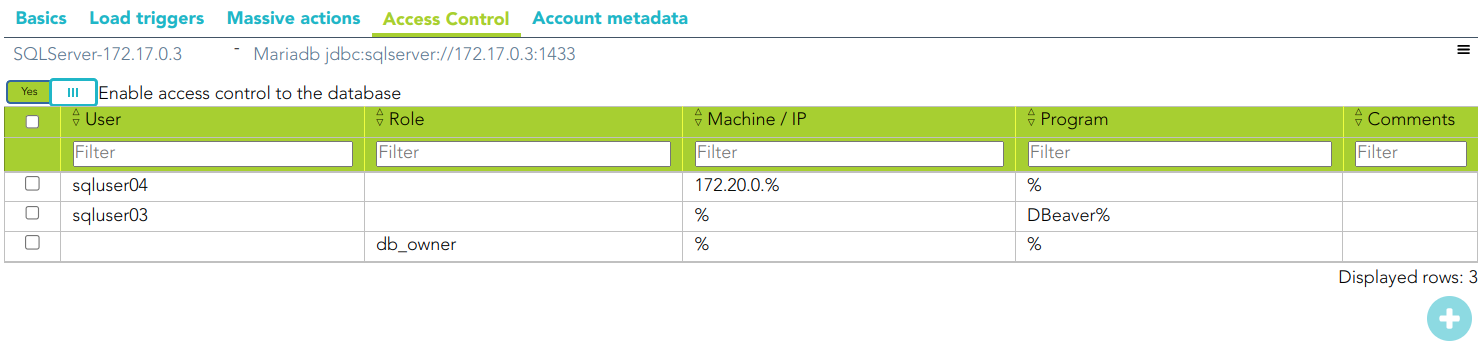
<p class="callout warning">Check that the user/account is not unmanaged.</p>

When the Enable access control to the database check box is checked, the UpdateAccessControl task will be launched. The following tables will be created on the SQL Server:

- **SC\_OR\_ACCLOG**: access log
- **SC\_OR\_CONACC**: rule access control
- **SC\_OR\_ROLE**: user roles.
- **SC\_OR\_VERSION**: connector versions.

When you try to connect to SQL Server, the logon\_audit\_trigger is launched to check if you have access or not.

You can check the Access Logs page for access controls.

### Account metadata

Agents allow you to create additional data, on the "Account metadata" tab, to customize the accounts created for that agent. This additional information will be loaded with the agent's information, or calculated as defined in the mappings.  
The additional data can be used in both mappings and triggers.

The attributes that you define here will be shown when you click on the proper account, on the Accounts Tabs on the user page.

Operational

### Monitoring

After the agent configuration you can check on the monitoring page if the service is running in the Synchronization Server, please go to:

- Start Menu &gt; Administration &gt; Monitoring and reporting &gt; Syscserver monitoring

### Tasks

#### Authoritative

If you checked "Authorized identity source", an automatic task to load identities from the managed system to Soffid is available, please go to:

- Start Menu &gt; Administration &gt; Monitoring and reporting &gt; Scheduled tasks

And you will do something like "Import authoritative data from &lt;AGENT\_NAME&gt;".

#### Reconcile

To manage an automatic task to synchronize user objects from the managed system to Soffid is available, please go to:

- Start Menu &gt; Administration &gt; Monitoring and reporting &gt; Scheduled tasks

And you will do something like "Reconcile all accounts from &lt;AGENT\_NAME&gt;".

### Synchronization

Regarding the synchronization of the objects, there are two possible options:

- If you check the generic attribute "Read Only" in the "Basics" tab, only the changes in the managed systems will be updated in Soffid. We recommend these options until the global configuration of Soffid is tested.
- If you do not check the generic attribute "Read Only" in the "Basics" tab, all the changes in Soffid or the managed system will be updated in the other. Note that this synchronization must be configured in the "Attribute mapping" tab correctly.

<p class="callout info">For more information about how you may configure the generic parameters of the agent, see the following link: [Agents configuration](https://bookstack.soffid.com/books/soffid-3-reference-guide/page/agents "Agents")</p>

<div class="pointer-container" id="bkmrk-%C2%A0-2"><div class="pointer anim is-page-editable"><svg class="svg-icon" data-icon="link" role="presentation" viewbox="0 0 24 24" xmlns="http://www.w3.org/2000/svg"></svg><div class="input-group inline block"> <button class="button outline icon" data-clipboard-target="#pointer-url" title="Copy Link" type="button"><svg class="svg-icon" data-icon="copy" role="presentation" viewbox="0 0 24 24" xmlns="http://www.w3.org/2000/svg"></svg></button></div><svg class="svg-icon" data-icon="edit" role="presentation" viewbox="0 0 24 24" xmlns="http://www.w3.org/2000/svg"></svg></div></div>

# Connectors Examples


# Attribute mappings examples

## Attributes

When you are configuring an agent, depending on the connector type, it will be able to define some attributes. The attributes depend on the object that you are configuring, and the objects depend on the connector type.

#### Get the value of an attribute (a user attribute in that case)

```
sAMAccountName <= userName
sAMAccountName => userName
sAMAccountName <=> userName
```

#### Get the value of a custom attribute

```
company <= attributes{"company"}
company => attributes{"company"}
company <=> attributes{"company"}
```

#### Get the value of an account metadata attribute

```
office <= accountAttributes{"office"}
office => accountAttributes{"office"}
office <=> accountAttributes{"office"}
```

#### Define a constant on the target system

```
nameConst <= "valueConst"
```

#### Assign the result of a script to the soffid attribute

```
return <SCRIPT> => attribute
```

<p class="callout info">Be in mind, it is allowed to use bean Shell expression only in the source when the mapping is one-way.</p>

#### Assign the result of a script to the target attribute

```
attribute <= return <SCRIPT>
```

<p class="callout info">Be in mind, it is allowed to use bean Shell expression only in the source when the mapping is one-way.</p>

#### Be in mind

<p class="callout warning">If the attribute name in the final system is hyphenated, you have to use this expression: **THIS{"ATTRIBUTENAME"}**, for example THIS{"my-name"}</p>

# Outgoing triggers examples

## Attribute mapping triggers

When you are configuring an agent and defining the attribute mappings of connectors, depending on the connector type, it will be able to define BeanShell scripts that will be triggered when data is loaded into the target system, **outgoing triggers**.

Triggers can be used to validate or perform a specific action just before performing an operation or just after performing an operation into target objects.

The trigger result will be a boolean value, true to continue or false to stop.

### Use case examples

#### Example 1

Update or insert a user only when the user is internal (PreInsert User or PreUpdate User)

```Java
name = source{"userName"};
user = serviceLocator.getUserService().findUserByUserName(name);
if (user != null) {
  if (user.userType.equals("I")) {
      return true;
  }
}
return false;
```

#### Example 2

Update or insert a user only when the company is Soffid. Be in mind that company attribute is a custom attribute.

```Java
name = source{"userName"};
company = source{"attributes"}{"company"};
user = serviceLocator.getUserService().findUserByUserName(name);

if (user != null) {
  if (company != null && company.toUpperCase().equals("SOFFID")) {
  	return true; 
  }
}

return false;
```

#### Example 3

Recover a response and process it.

```Java
if (response != null) {
  for (o : response.getObjects()) {
  	if (o != null && o{"result"} != null) {
	  //TO-DO     
    }
  }
}
return true;
```

#### Example 4

Send a HTML mail with the response info.

```Java
.....
to = newObject{"identity"};
subject = "LinOTP QR";
body = o{"result"};
serviceLocator.getMailService().sendHtmlMailToActors(new String[] {to}, subject, body);
.......
```

#### Example 5

Update a user with the response info

```Java
.......
body = o{"result"};
ac = newObject{"user"};
data = new com.soffid.iam.api.UserData();
data.setAccountName(ac);
data.setSystemName("LinOTP");
data.setAttribute("token");
data.setBlobDataValue(body.getBytes());
serviceLocator.getAccountService().updateAccountAttribute(data);
......
```

#### Example 6

Call an API and process the response.

```Java
.......
userN = accontList.get(0).name;
result = dispatcherService.invoke(
	"GET",
  	"https://" + DOMINIO + "crmRestApi/resources/....?onlyData=true&q=Username=" + userN,
  	null);
if (result != null && !result.isEmpty()) {
  //TO-DO
} 
.......
```

#### Example 7

Pre Update: assign a value to an attribute depending on the value of a group attribute. The user can belong to many groups.

```Java
userName = source{"userName"};
attributes = serviceLocator.getUserService().findUserAttributes(userName);
dateChange = attributes.get("dateChange");

if (dateChange == null || dateChange == void ) {
	return true;
}

userGroupList = serviceLocator.getGroupService().findUsersGroupByUserName(userName);
contFalse = 0;
contNull  = 0;
isFound = false;
for (ug : userGroupList) {
  group = serviceLocator.getGroupService().findGroupByGroupName(ug.group);
  att = group.attributes.get("indicator");
  if (att != void) {
     if (att == null) contNull++;
     else if (att.equals("0")) contFalse++;
     else if (att.equals("1")) {
       isFound  = true; 
       break;
     } 
  }  
}

if (isFound) {
  newObject{"id-indicator"} = "1";
} else {
  if (contFalse > 0) {
    newObject{"id-indicator"} = "0"; 
  } else if (contNull > 0) {
    newObject{"id-indicator"} =  null;
  } 
} 
    
return true;
```

# Incoming triggers examples

## Load triggers

When you are configuring an agent, depending on the connector type, it will be able to define BeanShell scripts that will be triggered when data is loaded into Soffid, **incoming triggers**.

Triggers can be used to validate or perform a specific action just before performing an operation or just after performing an operation into Soffid objects.

The trigger result will be a boolean value, true to continue or false to stop.

### Use case examples

#### Example 1

A user can have more than one account on a target system. We want to reconcile only those accounts which have the same name on Soffid and on target system.

```Java
name = newObject{"accountName"};
uaList = serviceLocator.getAccountService().findUsersAccounts(name,"agentName");

for(userAccount: uaList) {
  if (userAccount.name.equals(name)) {
    return true;
  } else  {
    return false;
  }
}

return false;
```

#### Example 2

Update only users who belong to Soffid company.

```Java
name = newObject{"accountName"};
user = serviceLocator.getUserService().findUserByUserName(name);

if (user != null) {
  attributes = serviceLocator.getUserService().findUserAttributes(name);
  company = attributes.get("company");
  if (company != null && company.equals("Soffid")) {
  	return true;
}
return false;
  
```

#### Example 3

Discard to create some accounts (PreInsert account).

```Java
log.info("************** Pre Insert Account");
cuentas = new java.util.HashMap();
cuentas.put("admin",null);
account = newObject{"accountName"};

if (cuentas.containsKey(account)) {
  log.info("TRIGGER ACCOUNT PREINSERT - Discarded to create the account " + account);
  return false;
}

log.info("TRIGGER ACCOUNT PREINSERT - Correct account " + account);
return true;
```

#### Example 4

If does not exist a mail domain, it wil be created.

```Java
mailDomain = newObject{"mailDomain"};
if (mailDomain != void && mailDomain != null) {
  existMD = serviceLocator.getMailListsService().findMailDomainByName(mailDomain);
  if (existMD == null) {
    newMailDomain = new com.soffid.iam.api.MailDomain();
    newMailDomain.setName(mailDomain);
    newMailDomain.setDescription(mailDomain);
    serviceLocator.getMailListsService().create(newMailDomain);
  }
}
return true;
```

#### Example 5

Avoid deleting users (PreDelete user).

```Java
return false;
```

#### Example 6

If throw the exception, the return will be is false. True in other cases.

```Java
if (....) 
  throw new Exception("Exception message....");
return true;
```

#### Example 7

The new group on the target system will have the same id that the old group.

```Java
newObject{"idGroup"} = oldObject{"idGroup"};
.....

```

#### Example 8

Get the attribute company option 1:

```Java
company = source{"attributes"}{"company"};
```

Get the attribute company option 2

```Java
userName = source{"userName"};
attributes = serviceLocator.getUserService().findUserAttributes(userName);
company = attributes.get("company");
```

#### Example 9

Update the company attribute:

```shell
userName = newObject{"userName"};
// Check if the user exists 
user = serviceLocator.getUserService().findUserByUserName(userName);
if (user == null) {
	return false;
} 
log.info("***************** USER Object: " + user);

attributes = serviceLocator.getUserService().findUserAttributes(userName);
if (attributes == null) {
	attributes = new HashMap();
} 

attributes.put("company", "<COMPANY_NAME>");
serviceLocator.getUserService().updateUserAttributes(userName, attributes);

return true;
```

#### Example 10

Check user type

```shell
userName = newObject{"userName"};
user = serviceLocator.getUserService().findUserByUserName(userName);

if (user.userType.equals("I")){
  .....
  //TODO
} else {
    .....
  //TODO
}
return true;
```

# Triggers: Script Tips

## Triggers: Script Tips

Here we will show you some tips about how to use scripts.

<p class="callout info">For more information you can visit the [official documentation of Soffid](http://www.soffid.org/doc/console/latest/uml/index.html)</p>

#### Write into a sync-server log

```Java
System.out.println("what you want......");
```

#### Recover data from a Soffid object when synchronizing

<p class="callout warning">***\* source** only can be used in outgoing triggers. That object will be Soffid format.*</p>

<p class="callout warning">***\* newObject** and **oldObject** can be used in outgoing and incoming triggers. Those objects will be target system format in outgoing triggers and will be Soffid format in incoming triggers.*</p>

##### Recover data from Soffid object to synchronize

Recover user name

```Java
name = source{"userName"};
```

##### Recover a custom attribute

Recover company (company could be a user custom attribute defined on metadata page)

```Java
comp = source{"attributes"}{"company"};
```

##### Recover the attribute value that will be sent

```Java
no = newObject{"userName"};
gn = newObject{"givenName"};
....

```

##### Recover the attribute value from the select

That info comes from the target system. In a synchronization process, the first thing that Soffid does, is to query if the account exists on the target system.

```Java
no = oldObject{"userName"};
gn = oldObject{"givenName"};
....
```

#### Use existing services

```
serviceLocator.getUserService().....
serviceLocator.getAccountService().....
serviceLocator.......

```

#### Create a new Soffid object

```Java
mailDomain = new com.soffid.iam.api.MailDomain();
newUser = new com.soffid.iam.api.User();
newRol = new com.soffid.iam.api.Role();
............

```

#### Loop an object list

```Java
for(role : roleList){
  //TO-DO
  out.print(" Role: " + role.roleName + "\n");
}
```

#### Recover response

```Java
if (response!=null) {
  for (o : response.getObjects()) {
    if (o!=null && o{"result"}!=null) {
      //TO-DO
    }
  }
}
```

#### Send a text email 

```Java
serviceLocator.getMailService().sendTextMail("mail@soffid.com", "Subject", "Mail message");
```

#### Send a HTML mail 

```Java
serviceLocator.getMailService().sendHtmlMailToActors(<to>, <subject>, <html-body>);
```