For more information to check if your system may be synchronized with this connector, do not hesitate to contact us through our [Contact form](http://www.soffid.com/contactform/)
We can also manage more relational databases, for more information you can check the [List of relational databases](https://en.wikipedia.org/wiki/List_of_relational_database_management_systems). ### Prerequisites It is needed a user with access and permissions to the schemes and tables required in the scope of the integration. ## Download and Install This addon is located in the Connectors section and its name is **SQLServer**.For more information about the installation process, you can visit the [Addons Getting started](https://bookstack.soffid.com/books/addons-getting-started/page/getting-started "Addons installation") page.
## Agent Configuration This connector could manage User and Role objects. ### Basic #### Generic parameters After the installation of the addon, you may create and configure agent instances. To configure this SQL Server connector you must select "SQLServer agent" in the attribute "Type" of the generic parameters section in the agent's page configuration.For more information about how you may configure the generic parameters of the agent, see the following link: [Agents configuration](https://bookstack.soffid.com/books/soffid-3-reference-guide/page/agents "Agents")
[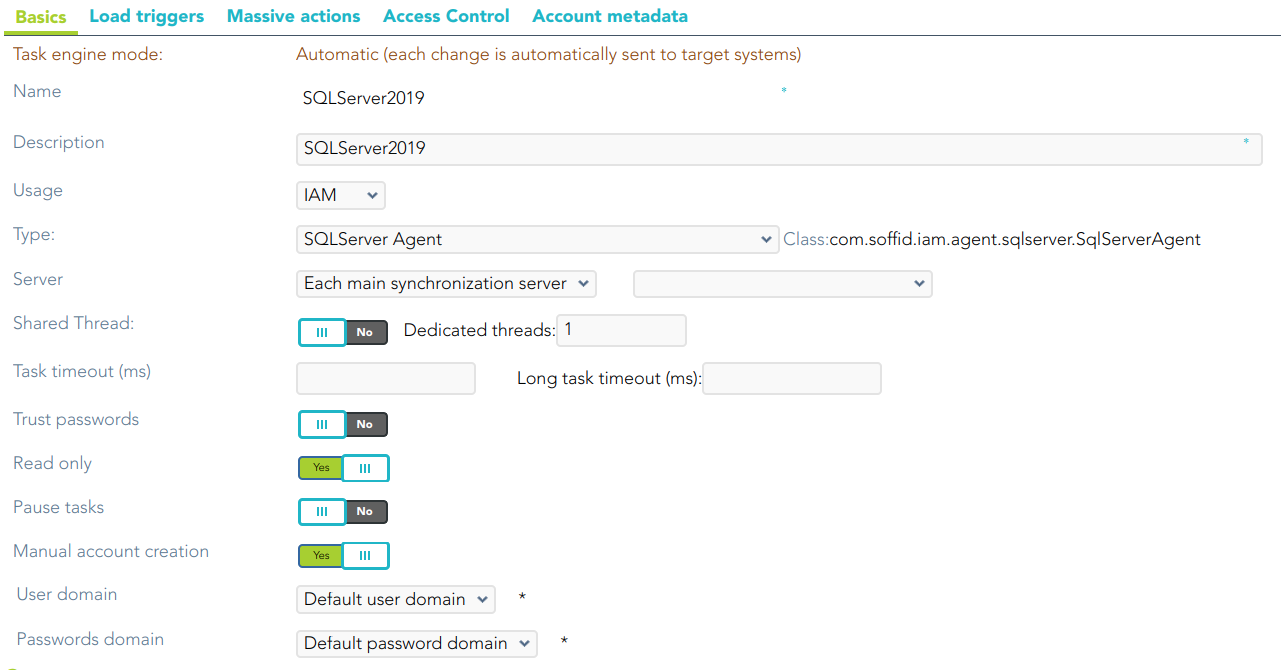](https://bookstack.soffid.com/uploads/images/gallery/2024-01/image-1704443217219.png) #### Custom parameters Below there are the specific parameters for this agent implementation:| **Parameter** | **Description** |
|---|---|
| User | Database user name to authenticate |
| Password | The password of the database user |
| Connection string to database | URL that identifies the connection properties. Please refer to the specific database vendor documentation to build this URL.
```
jdbc:sqlserver:// |
| Create agents for each database | Select the Yes value if you want to create an agent for each database found by the Reconcile process. |
| Enable debug | Two options: **Yes**, and **No**. It enables or not more log traces in the Synchronization Server log |
To view some examples, visit the [Incoming triggers examples page.](https://bookstack.soffid.com/books/connectors/page/incoming-triggers-examples "Incoming triggers examples")
### Access Control SQL Server connector can establish an access control for SQL Server Users. If the access control checkbox is enabled, only the users and applications that are listed on the access control page will be allowed to log in. So, you can restrict the IP address, the user roles, and the applications a user can connect from. This restriction does not apply to DBA users. [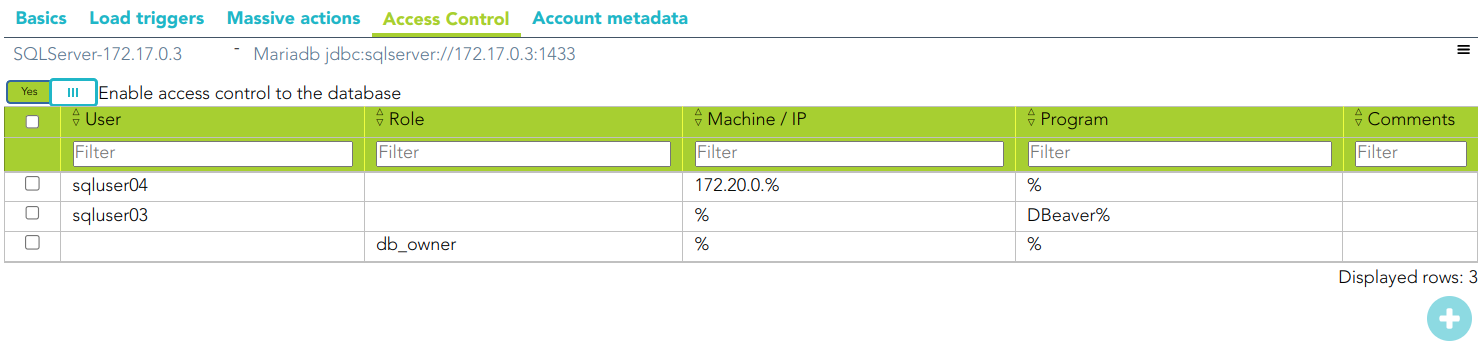](https://bookstack.soffid.com/uploads/images/gallery/2024-01/image-1706004218812.png)Check that the user/account is not unmanaged.
When the Enable access control to the database check box is checked, the UpdateAccessControl task will be launched. The following tables will be created on the SQL Server: - **SC\_OR\_ACCLOG**: access log - **SC\_OR\_CONACC**: rule access control - **SC\_OR\_ROLE**: user roles. - **SC\_OR\_VERSION**: connector versions. When you try to connect to SQL Server, the logon\_audit\_trigger is launched to check if you have access or not. You can check the Access Logs page for access controls. ### Account metadata Agents allow you to create additional data, on the "Account metadata" tab, to customize the accounts created for that agent. This additional information will be loaded with the agent's information, or calculated as defined in the mappings. The additional data can be used in both mappings and triggers. The attributes that you define here will be shown when you click on the proper account, on the Accounts Tabs on the user page. Operational ### Monitoring After the agent configuration you can check on the monitoring page if the service is running in the Synchronization Server, please go to: - Start Menu > Administration > Monitoring and reporting > Syscserver monitoring ### Tasks #### Authoritative If you checked "Authorized identity source", an automatic task to load identities from the managed system to Soffid is available, please go to: - Start Menu > Administration > Monitoring and reporting > Scheduled tasks And you will do something like "Import authoritative data from <AGENT\_NAME>". #### Reconcile To manage an automatic task to synchronize user objects from the managed system to Soffid is available, please go to: - Start Menu > Administration > Monitoring and reporting > Scheduled tasks And you will do something like "Reconcile all accounts from <AGENT\_NAME>". ### Synchronization Regarding the synchronization of the objects, there are two possible options: - If you check the generic attribute "Read Only" in the "Basics" tab, only the changes in the managed systems will be updated in Soffid. We recommend these options until the global configuration of Soffid is tested. - If you do not check the generic attribute "Read Only" in the "Basics" tab, all the changes in Soffid or the managed system will be updated in the other. Note that this synchronization must be configured in the "Attribute mapping" tab correctly.For more information about how you may configure the generic parameters of the agent, see the following link: [Agents configuration](https://bookstack.soffid.com/books/soffid-3-reference-guide/page/agents "Agents")