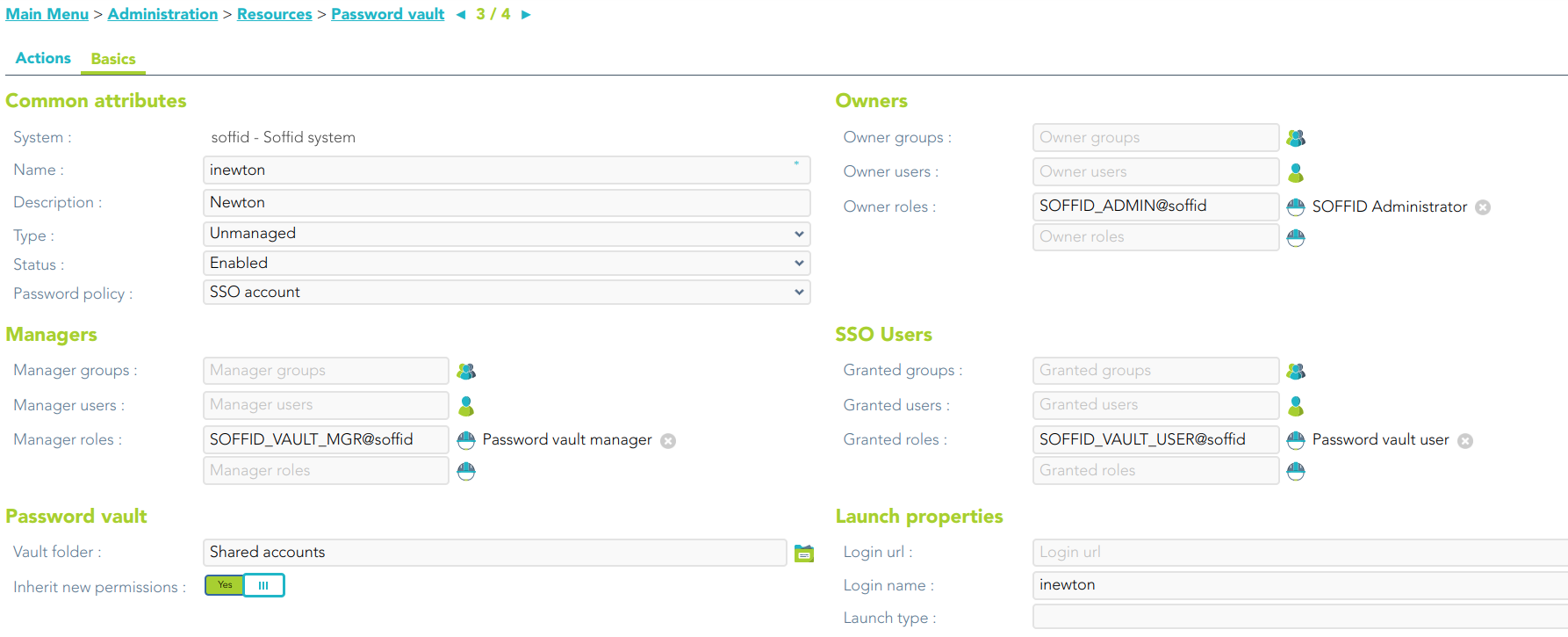
# Publish accounts in the password vault

## Description

This wizard allows you to publish some accounts in the password vault in order to save and manage these accounts and their password.

<p class="callout info">For more information, you can visit [the Password vault page](https://bookstack.soffid.com/books/soffid-3-reference-guide/page/password-vault).</p>

## Step-by-step

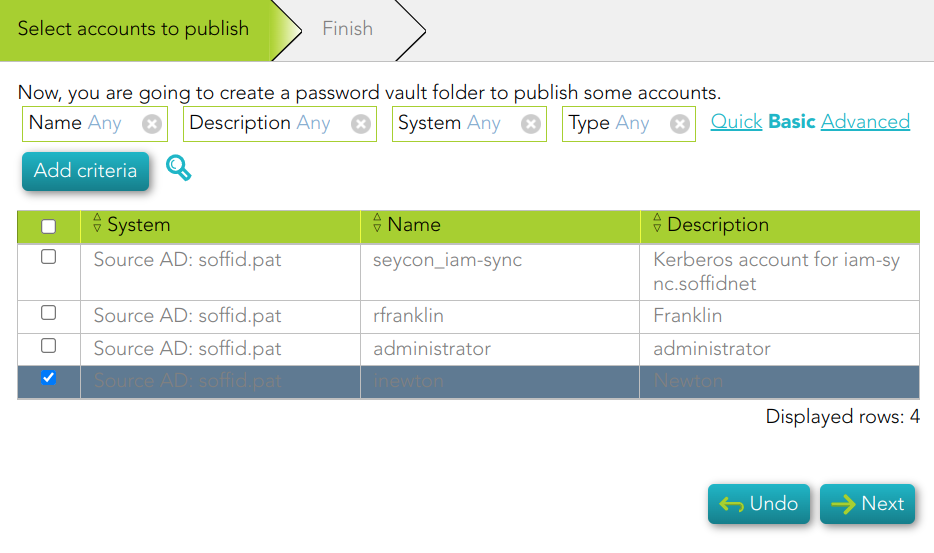
<span style="color: #a6d100; font-weight: bold; font-size: 18px;">1. </span>Once you select the *Public accounts in the password vault* option, Soffid will display the following wizard

<span style="color: #a6d100; font-weight: bold; font-size: 18px;">2. </span>You must select the accounts you want to publish and click the Next button.

[![image-1677665161084.png](https://bookstack.soffid.com/uploads/images/gallery/2023-03/scaled-1680-/image-1677665161084.png)](https://bookstack.soffid.com/uploads/images/gallery/2023-03/image-1677665161084.png)
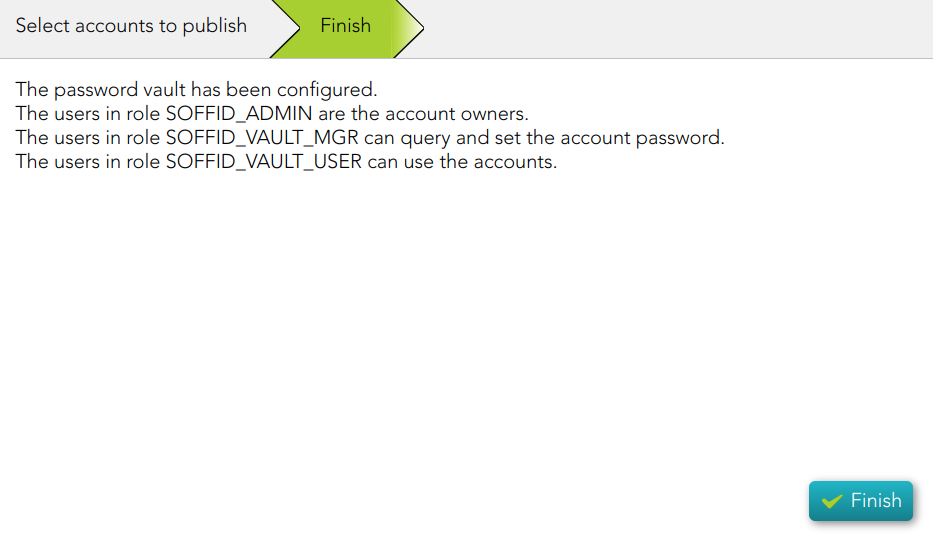
<span style="color: #a6d100; font-weight: bold; font-size: 18px;">3. </span>Then, Soffid will configure the password vault.

[![image-1677665252320.png](https://bookstack.soffid.com/uploads/images/gallery/2023-03/scaled-1680-/image-1677665252320.png)](https://bookstack.soffid.com/uploads/images/gallery/2023-03/image-1677665252320.png)
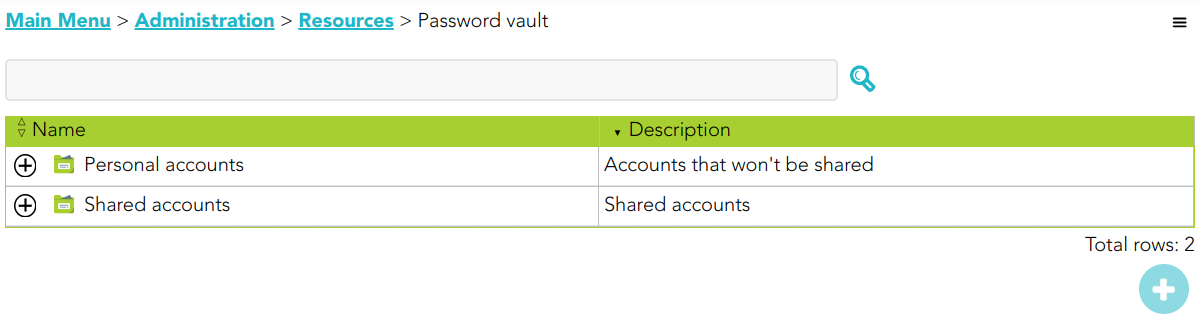
<span style="color: #a6d100; font-weight: bold; font-size: 18px;">4. </span>When you click the Finish button, Soffid will browse to the Password vault page. On this page, you could check and update the permissions.

[![image-1677665399042.png](https://bookstack.soffid.com/uploads/images/gallery/2023-03/scaled-1680-/image-1677665399042.png)](https://bookstack.soffid.com/uploads/images/gallery/2023-03/image-1677665399042.png)
[![image-1677665440094.png](https://bookstack.soffid.com/uploads/images/gallery/2023-03/scaled-1680-/image-1677665440094.png)](https://bookstack.soffid.com/uploads/images/gallery/2023-03/image-1677665440094.png)