# Create MFA policies

## Description

This wizard allows you to configure the access control rules for Soffid Console. By default, an OTP will be required to access to the Password vault or application menu.

You can check the configuration in the following menu option: `<span class="link" id="bkmrk-main-menu">Main Menu</span><span id="bkmrk-%C2%A0%3E%C2%A0"> > </span><span class="link" id="bkmrk-administration">Administration</span><span id="bkmrk-%C2%A0%3E%C2%A0-0"> > </span><span class="link" id="bkmrk-configuration">Configuration</span><span id="bkmrk-%C2%A0%3E%C2%A0-1"> > </span><span class="link" id="bkmrk-security-settings">Security settings</span><span id="bkmrk-%C2%A0%3E%C2%A0-2"> > </span>Authentication`

<span id="bkmrk--2"></span>

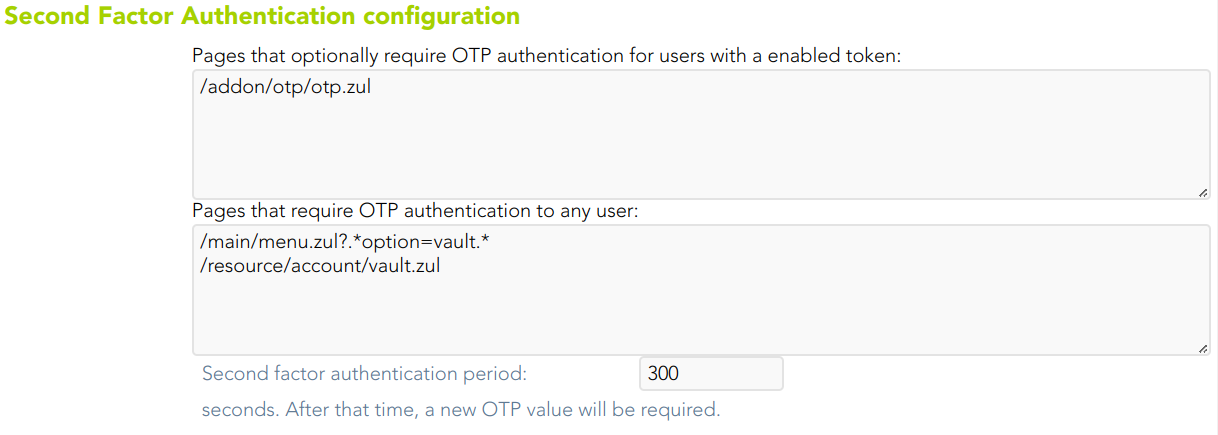
<p class="callout info">For more information, you can visit [the Two-factor authentication (2FA) book](https://bookstack.soffid.com/books/two-factor-authentication-2fa-VsJ) and the [Second Factor Authentication configuration](https://bookstack.soffid.com/link/164#bkmrk-second-factor-authen)</p>

## Step-by-step

<span style="color: #a6d100; font-weight: bold; font-size: 18px;">1. </span>Once you select the *Create monitoring and reporting policies* option, Soffid will launch the following wizard

[![image-1677142847903.png](https://bookstack.soffid.com/uploads/images/gallery/2023-02/scaled-1680-/image-1677142847903.png)](https://bookstack.soffid.com/uploads/images/gallery/2023-02/image-1677142847903.png)
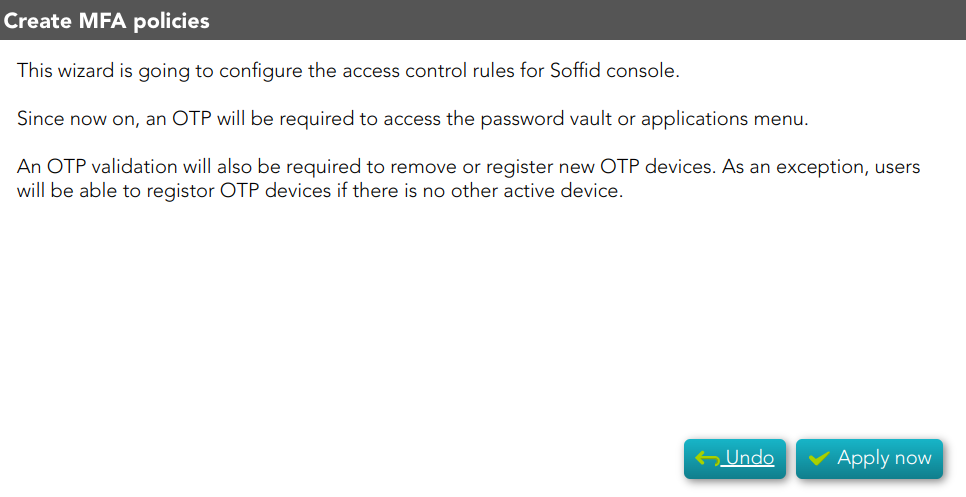
<span style="color: #a6d100; font-weight: bold; font-size: 18px;">2. </span>If you click the Apply now button, Soffid will browse to the Authentication page, allowing you to configure the Second Factor Authentication.

[![image-1677146097093.png](https://bookstack.soffid.com/uploads/images/gallery/2023-02/scaled-1680-/image-1677146097093.png)](https://bookstack.soffid.com/uploads/images/gallery/2023-02/image-1677146097093.png)
<span style="color: #a6d100; font-weight: bold; font-size: 18px;">3. </span>To confirm the changes, you must click the Confirm changes button.