# IRC

Identity Risk & Compliance

# Create SoD matrix

## Description

The segregation of duties (SoD) is a fundamental element of internal controls, defined to prevent error and fraud. Segregation of duties ensures that at least two individuals are responsible for the separate parts of any task.

<p class="callout info">You can find additional information by visiting **[the Segregation of Duties page](https://bookstack.soffid.com/books/soffid-3-reference-guide/page/segregation-of-duties-sod)**.</p>

## Step-by-step

<span style="color: #a6d100; font-weight: bold; font-size: 18px;">1. </span>First, you must select the Create SoD matrix and click the OK button.

[![image-1676992791359.png](https://bookstack.soffid.com/uploads/images/gallery/2023-02/scaled-1680-/image-1676992791359.png)](https://bookstack.soffid.com/uploads/images/gallery/2023-02/image-1676992791359.png)
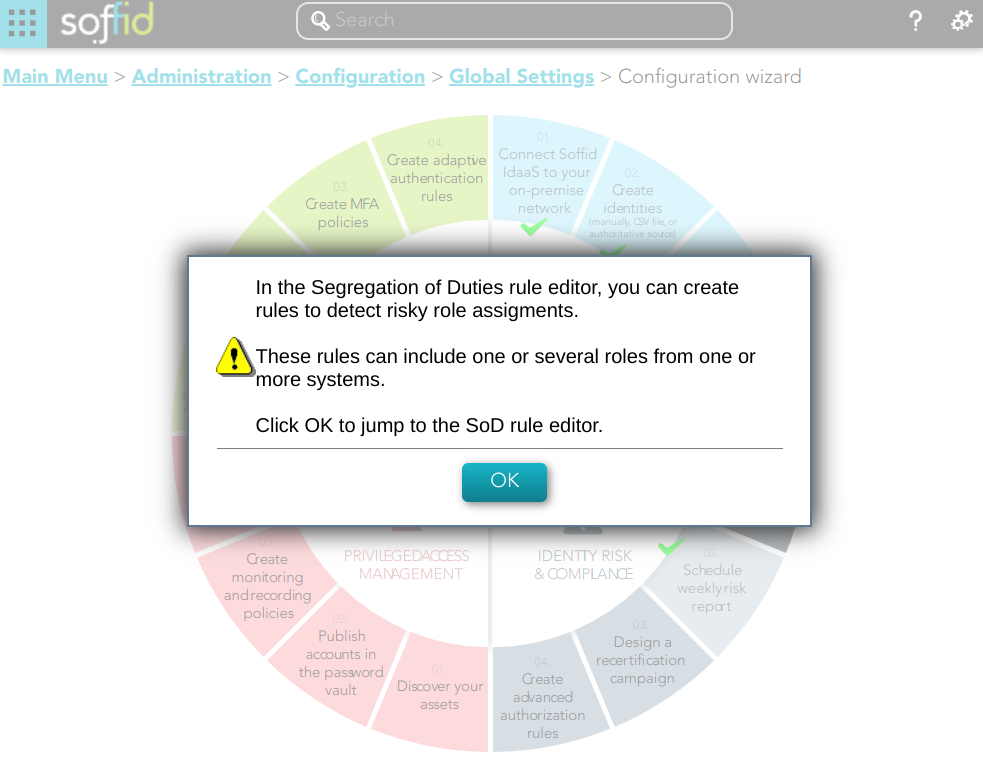
<span style="color: #a6d100; font-weight: bold; font-size: 18px;">2. </span>Once you click the OK button, Soffid will browse to the Segregation of Duties page in order to add a new SoD

[![image-1677072359690.png](https://bookstack.soffid.com/uploads/images/gallery/2023-02/scaled-1680-/image-1677072359690.png)](https://bookstack.soffid.com/uploads/images/gallery/2023-02/image-1677072359690.png)
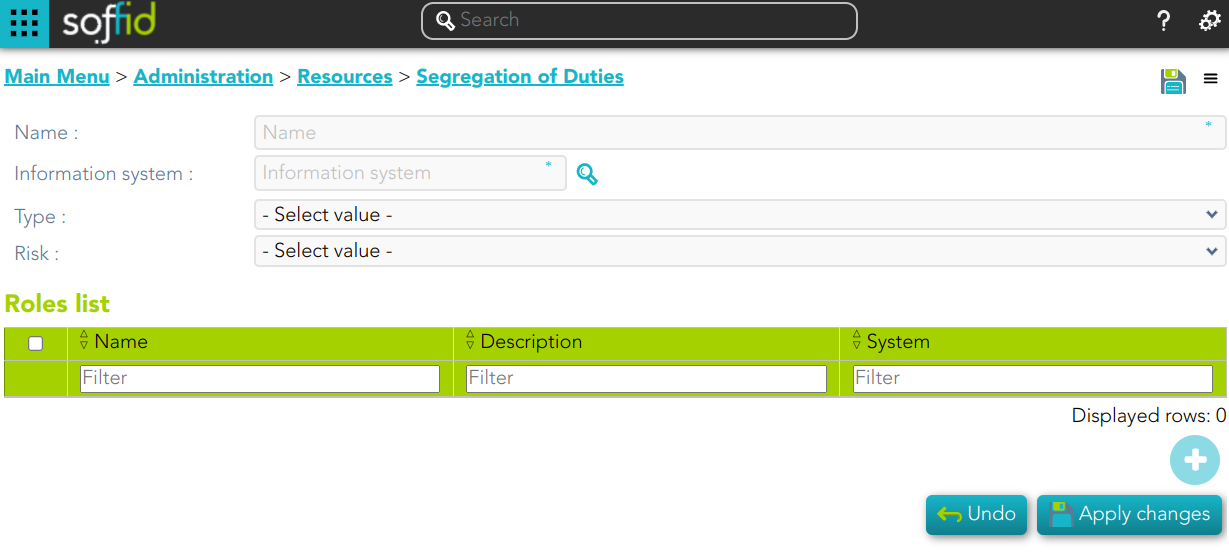
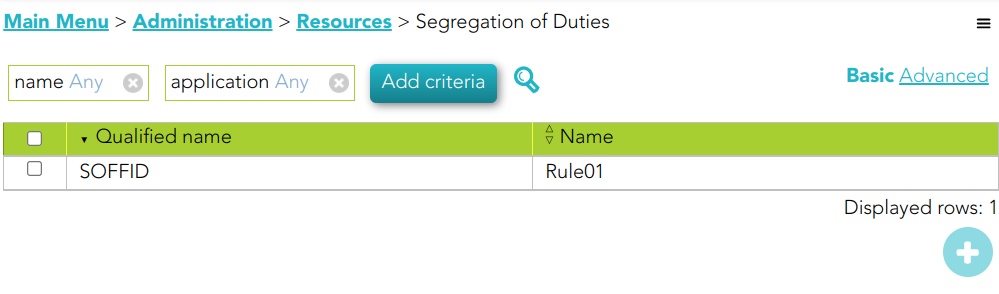
<span style="color: #a6d100; font-weight: bold; font-size: 18px;">3. </span>Finally you must save or Apply changes to save the SoD.

[![image-1677499985787.png](https://bookstack.soffid.com/uploads/images/gallery/2023-02/scaled-1680-/image-1677499985787.png)](https://bookstack.soffid.com/uploads/images/gallery/2023-02/image-1677499985787.png)
## Standard attributes<svg class="svg-icon" data-icon="link" role="presentation" viewbox="0 0 24 24" xmlns="http://www.w3.org/2000/svg"></svg>

- **Name**: name of the segregation separation of duties
- **Information System**: asset or application, from a functional point of view, on which the permissions are granted or revoked.
- **Type**: type of segregation 
    - **Trigger on all permissions**: no user can be assigned the roles added to the role list.
    - **Trigger on some permissions**: if you select that option, you have to fill in the number of roles that can not match. Soffid will not allow you to assign to a user more than the number indicated of the roles added to the role list.
    - **Query permissions matrix**: Soffid displays a matrix that allows you to select the risk between pairs of roles, those roles are the roles added to the role list.
- **Risk**: level of risk: 
    - **Low**.
    - **High**.
    - **Forbidden**: it is not allowed that one user to have assigned the roles defined on the role list.
    - **None**: there is no risk.
- **Role List**: list of roles to keep in mind on the segregation of duties.

# Schedule weekly risk report

## Description

The wizard allows you to schedule a new Weekly risk report. It is a document that provides an overview of the potential risks. The information in this document is related to the rules defined in the SoD.

<p class="callout info">For more information, you can visit [the Scheduled reports page](https://bookstack.soffid.com/books/reporting/page/scheduled-reports).</p>

## Step-by-step

<span style="color: #a6d100; font-weight: bold; font-size: 18px;">1. </span>First, you must select the Schedule weekly risk report and click the OK button.

[![image-1676993208396.png](https://bookstack.soffid.com/uploads/images/gallery/2023-02/scaled-1680-/image-1676993208396.png)](https://bookstack.soffid.com/uploads/images/gallery/2023-02/image-1676993208396.png)
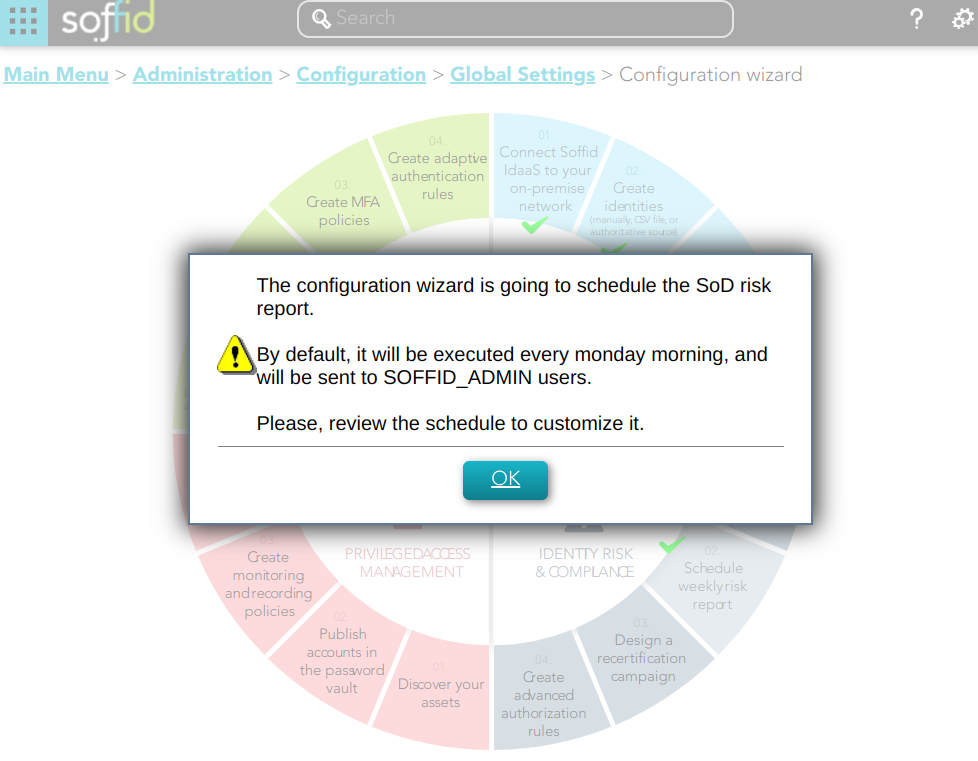
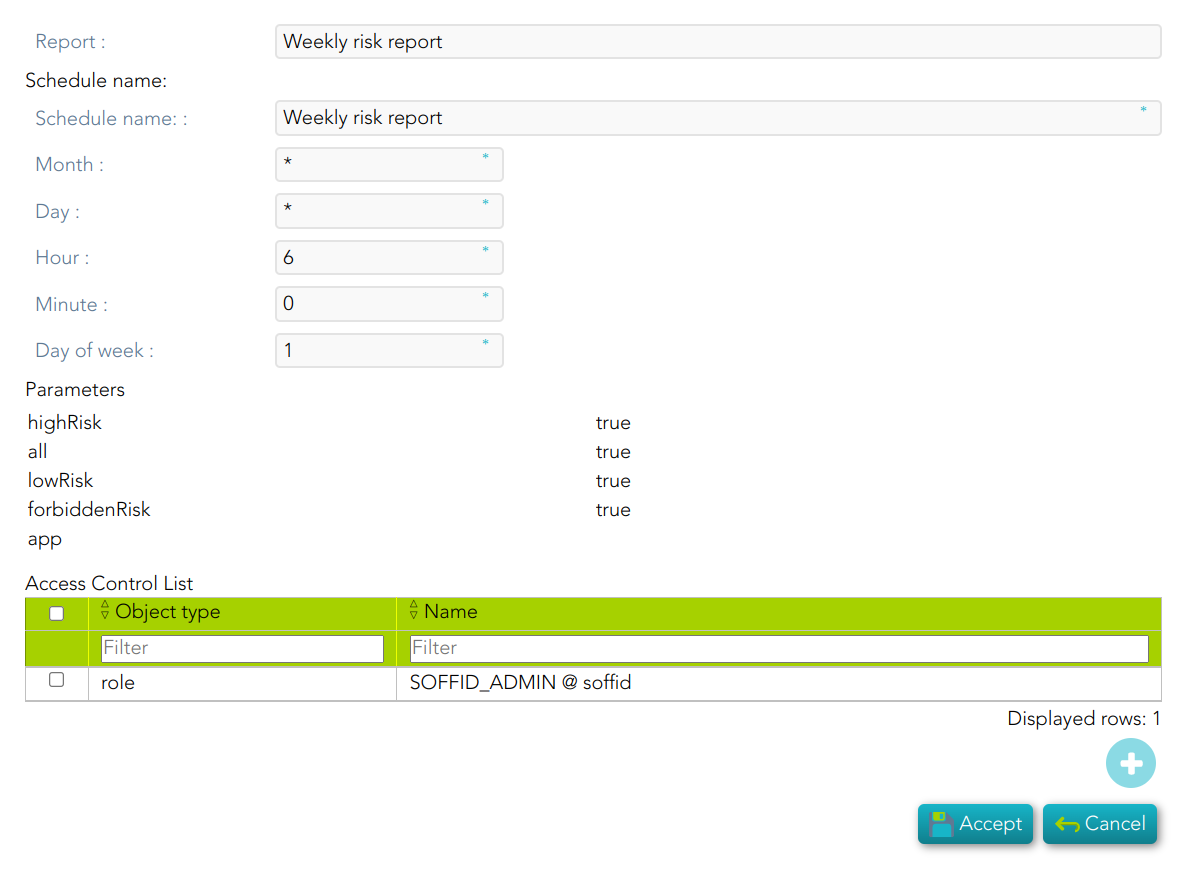
<span style="color: #a6d100; font-weight: bold; font-size: 18px;">2. </span>Then, Soffid will browse to the configure report page and allows you to configure the Weekly risk report.

[![image-1676994262683.png](https://bookstack.soffid.com/uploads/images/gallery/2023-02/scaled-1680-/image-1676994262683.png)](https://bookstack.soffid.com/uploads/images/gallery/2023-02/image-1676994262683.png)
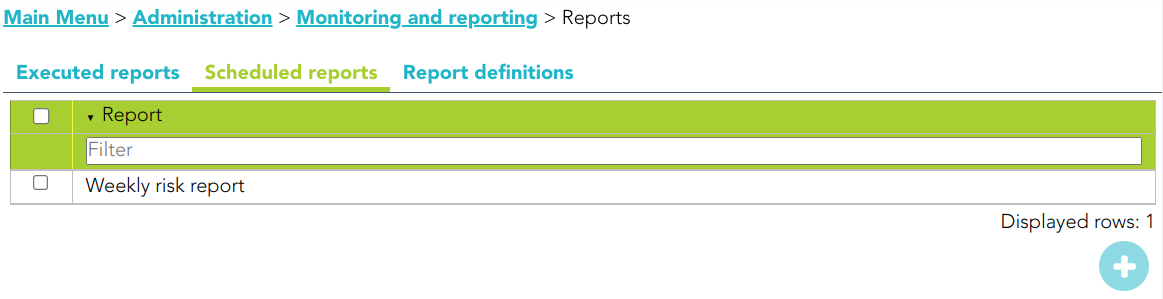
<span style="color: #a6d100; font-weight: bold; font-size: 18px;">3. </span>Finally you must accept the changes, and the report will be displayed on the Scheduled reports page

[![image-1677500269887.png](https://bookstack.soffid.com/uploads/images/gallery/2023-02/scaled-1680-/image-1677500269887.png)](https://bookstack.soffid.com/uploads/images/gallery/2023-02/image-1677500269887.png)
## Standard attributes

- **Report**: name of the report.
- **Schedule name**: identified name.
- **Month**: number of the month (1-12) when the task will be performed.
- **Day**: number of the day (1-31) when the task will be performed.
- **Hour**: hour (0-23) when the task will be performed.
- **Minute**: minute (0-59) when the task will be performed.
- **Day of week**: number of the day (0-7 where 0 means Sunday) of the week when the task will be performed.
- **Access Control List**: to prevent unauthorized usage. Will be granted to users, groups or roles.

For each value of month, day, hour, minute, or day of the week:

<div class="pointer-container" id="bkmrk-%C2%A0-1"><div class="pointer anim is-page-editable"><svg class="svg-icon" data-icon="link" role="presentation" viewbox="0 0 24 24" xmlns="http://www.w3.org/2000/svg"></svg><div class="input-group inline block"> <button class="button outline icon" data-clipboard-target="#pointer-url" title="Copy Link" type="button"><svg class="svg-icon" data-icon="copy" role="presentation" viewbox="0 0 24 24" xmlns="http://www.w3.org/2000/svg"></svg></button></div><svg class="svg-icon" data-icon="edit" role="presentation" viewbox="0 0 24 24" xmlns="http://www.w3.org/2000/svg"></svg></div></div>- \* means any month, day, hour, minute, or day of the week. e.g. \*/5 to schedule every five minutes.
- A single number specifies that unit value: 3
- Some comma separated numbers: 1,3,5,7
- A range of values: 1-5

# Design a recertification campaign

## Description

The wizard allows you to create a new recertification campaign. To be able to do this, Soffid has created two recertification policies, *All permissions* and *Critical permissions*.

<p class="callout info">For more information, you can visit **[the Recertification book](https://bookstack.soffid.com/books/recertification)**.</p>

<div class="pointer-container" id="bkmrk-%C2%A0-0"><div class="pointer anim is-page-editable"><svg class="svg-icon" data-icon="link" role="presentation" viewbox="0 0 24 24" xmlns="http://www.w3.org/2000/svg"></svg><div class="input-group inline block"> <button class="button outline icon" data-clipboard-target="#pointer-url" title="Copy Link" type="button"><svg class="svg-icon" data-icon="copy" role="presentation" viewbox="0 0 24 24" xmlns="http://www.w3.org/2000/svg"></svg></button></div><svg class="svg-icon" data-icon="edit" role="presentation" viewbox="0 0 24 24" xmlns="http://www.w3.org/2000/svg"></svg></div></div>## Step-by-step

<span style="color: #a6d100; font-weight: bold; font-size: 18px;">1. </span>First, you must select the Design a recertification campaign and click the OK button.

[![image-1676994032726.png](https://bookstack.soffid.com/uploads/images/gallery/2023-02/scaled-1680-/image-1676994032726.png)](https://bookstack.soffid.com/uploads/images/gallery/2023-02/image-1676994032726.png)

<span style="color: #a6d100; font-weight: bold; font-size: 18px;">2. </span>Then Soffid will browse the New recertification campaign

[![image-1677073016957.png](https://bookstack.soffid.com/uploads/images/gallery/2023-02/scaled-1680-/image-1677073016957.png)](https://bookstack.soffid.com/uploads/images/gallery/2023-02/image-1677073016957.png)

<span style="color: #a6d100; font-weight: bold; font-size: 18px;">3. </span>In this step you must write a campaign name and select a template.

<span style="color: #a6d100; font-weight: bold; font-size: 18px;">3.1. </span>Complete access review

<span style="color: #a6d100; font-weight: bold; font-size: 18px;">3.1.1. </span>Write a name, select the Complete access review, and click the Next button

[![image-1677501842688.png](https://bookstack.soffid.com/uploads/images/gallery/2023-02/scaled-1680-/image-1677501842688.png)](https://bookstack.soffid.com/uploads/images/gallery/2023-02/image-1677501842688.png)

<span style="color: #a6d100; font-weight: bold; font-size: 18px;">3.1.2. </span>Select the group or groups to apply the campaign and click the Next button

[![image-1677502241149.png](https://bookstack.soffid.com/uploads/images/gallery/2023-02/scaled-1680-/image-1677502241149.png)](https://bookstack.soffid.com/uploads/images/gallery/2023-02/image-1677502241149.png)

<span style="color: #a6d100; font-weight: bold; font-size: 18px;">3.1.3. </span>Select the Information systems to apply the campaign and click the Finish button

[![image-1677502349343.png](https://bookstack.soffid.com/uploads/images/gallery/2023-02/scaled-1680-/image-1677502349343.png)](https://bookstack.soffid.com/uploads/images/gallery/2023-02/image-1677502349343.png)

## Standard attributes

- **Name**: name to identify the campaign.
- **Template**: select the policy that will be applied. That has to be defined previously on the [Recertification policies page](https://bookstack.soffid.com/books/recertification/page/recertification-policies "Recertification policies").
- **Groups**: list of user groups where the campaign will be applied. You can choose one or more.
- **Information Systems**: list of information systems where the campaign will be applied. You can choose one or more.

# Create advanced authorization rules

## Description

This wizard allows you to browse the XACML Policy Management page to create new policies to add more complex and restricted rules to the authorizations.

<p class="callout info">For more information, you can visit [the XACML page](https://bookstack.soffid.com/books/xacml).</p>

<div class="pointer-container" id="bkmrk-%C2%A0-0"><div class="pointer anim is-page-editable"><svg class="svg-icon" data-icon="link" role="presentation" viewbox="0 0 24 24" xmlns="http://www.w3.org/2000/svg"></svg><div class="input-group inline block"> <button class="button outline icon" data-clipboard-target="#pointer-url" title="Copy Link" type="button"><svg class="svg-icon" data-icon="copy" role="presentation" viewbox="0 0 24 24" xmlns="http://www.w3.org/2000/svg"></svg></button></div><svg class="svg-icon" data-icon="edit" role="presentation" viewbox="0 0 24 24" xmlns="http://www.w3.org/2000/svg"></svg></div></div>## Screen overview

[![image-1676994068147.png](https://bookstack.soffid.com/uploads/images/gallery/2023-02/scaled-1680-/image-1676994068147.png)](https://bookstack.soffid.com/uploads/images/gallery/2023-02/image-1676994068147.png)

## Screen overview

<iframe allowfullscreen="allowfullscreen" height="314" src="https://www.youtube.com/embed/C3LMc4rrEQI?ref=0" width="560"></iframe>

## Related objects

- [Policy set](https://bookstack.soffid.com/books/xacml/page/policy-set "Policy set")
- [Policy](https://bookstack.soffid.com/books/xacml/page/policy "Policy")
- [Policy set reference](https://bookstack.soffid.com/books/xacml/page/policy-set-reference "Policy set reference")
- [Policy reference](https://bookstack.soffid.com/books/xacml/page/policy-reference "Policy reference")