# Step 2.- How to configure Break glass?

## Configuration

Once you have installed the Break glass addon and Break glass tool, you must configure this tool

### Steps

#### Break-glass recovery configuration

<span style="color: #a6d100; font-weight: bold; font-size: 18px;">1.</span> First of all, you need to configure the Break glass recovery. To do this, you need to browse to Break-glass recovery configuration menu option:

`Main Menu > Administration > Configuration > Security settings > Break-glass recovery configuration`

<span style="color: #a6d100; font-weight: bold; font-size: 18px;">2.</span> Then, you need to configure the Authorized users and Authorized application:

[![image-1721891221010.png](https://bookstack.soffid.com/uploads/images/gallery/2024-07/scaled-1680-/image-1721891221010.png)](https://bookstack.soffid.com/uploads/images/gallery/2024-07/image-1721891221010.png)

<p class="callout info">Bear in mind to generate and copy your token because you will need it to configure the Break glass tool</p>

<span style="color: #a6d100; font-weight: bold; font-size: 18px;">3.</span> Click the Apply changes button to save your data.

<p class="callout info">For more information about this screen, you can visit [the Break-glass recovery configuration page](https://bookstack.soffid.com/books/soffid-3-reference-guide/page/break-glass-recovery-configuration).</p>

####   


#### Break-glass recovery tool

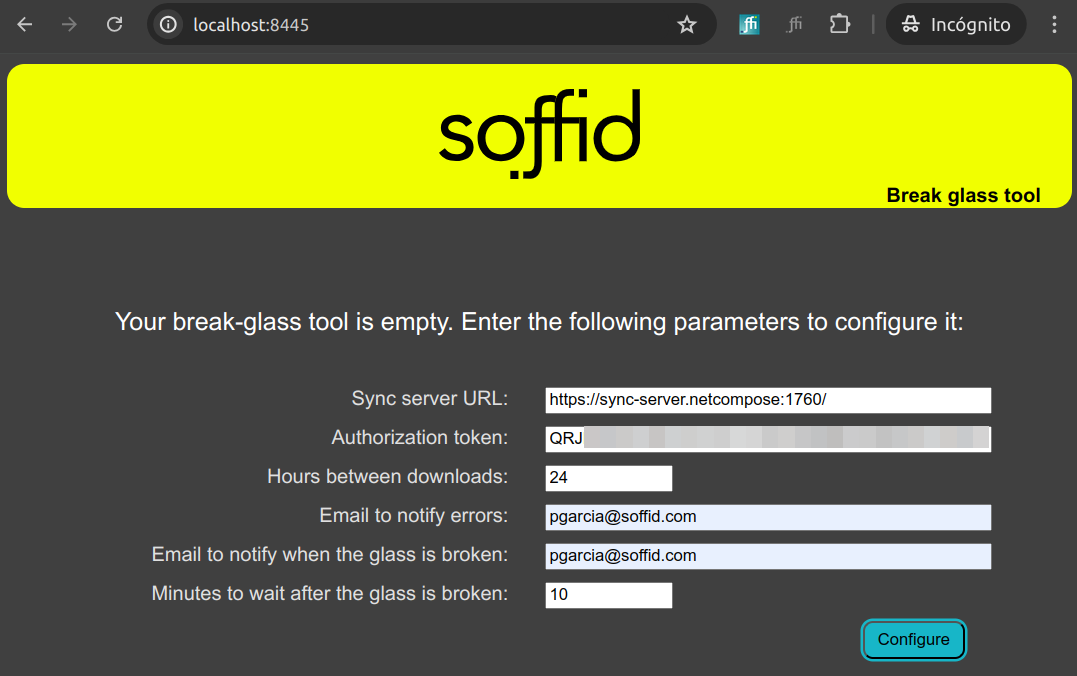
<span style="color: #a6d100; font-weight: bold; font-size: 18px;">4.</span> Once you have configured your Break-glass recovery configuration, you need to browse to [http://localhost:8445/](http://localhost:8445/)

[![image-1721890913307.png](https://bookstack.soffid.com/uploads/images/gallery/2024-07/scaled-1680-/image-1721890913307.png)](https://bookstack.soffid.com/uploads/images/gallery/2024-07/image-1721890913307.png)
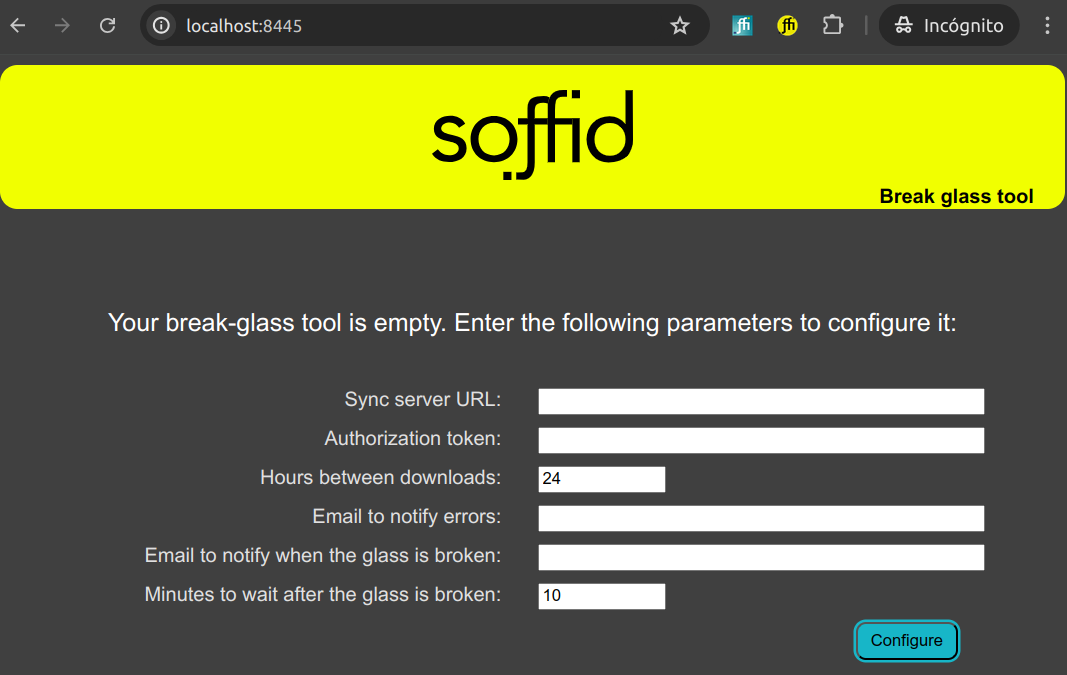
<span style="color: #a6d100; font-weight: bold; font-size: 18px;">5.</span> Here you need to configure your Break glass tool with the proper data.

<p class="callout info">Please note that here you need your token, previously copied.</p>

Here is an example:

[![image-1721891277858.png](https://bookstack.soffid.com/uploads/images/gallery/2024-07/scaled-1680-/image-1721891277858.png)](https://bookstack.soffid.com/uploads/images/gallery/2024-07/image-1721891277858.png)

<span style="color: #a6d100; font-weight: bold; font-size: 18px;">6.</span> Click the configure button

<span style="color: #a6d100; font-weight: bold; font-size: 18px;">6.1.</span> If the data are saved properly this message is displayed:

[![image-1722237271110.png](https://bookstack.soffid.com/uploads/images/gallery/2024-07/scaled-1680-/image-1722237271110.png)](https://bookstack.soffid.com/uploads/images/gallery/2024-07/image-1722237271110.png)
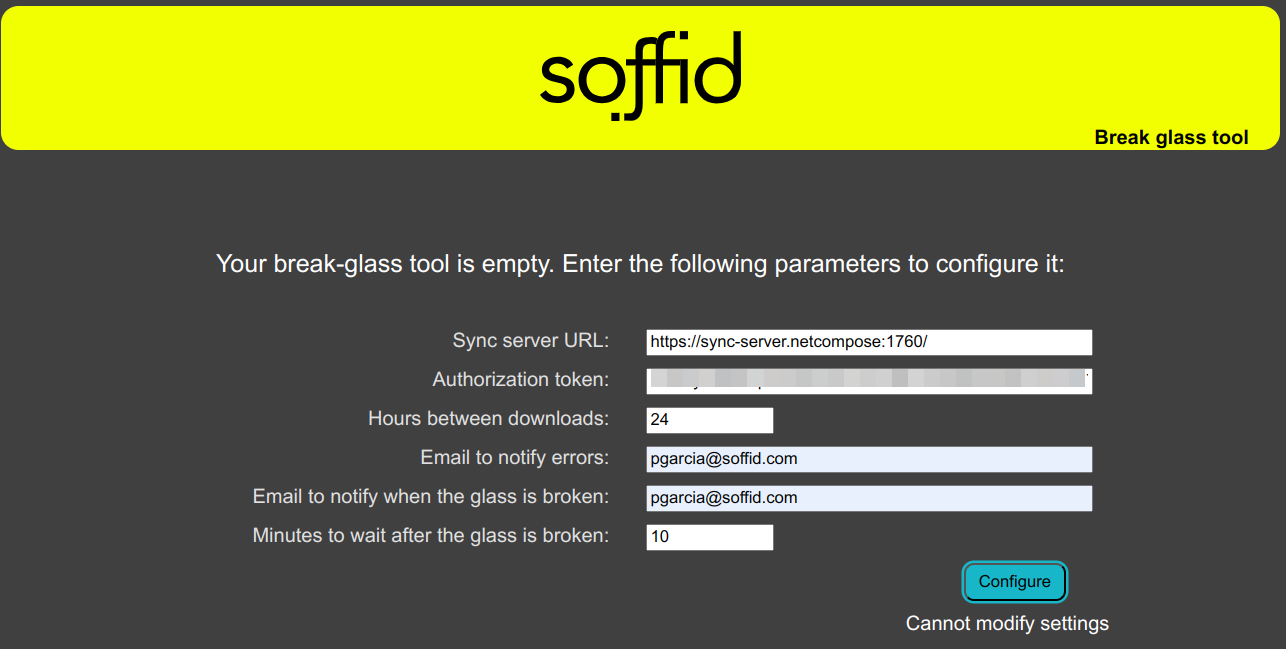
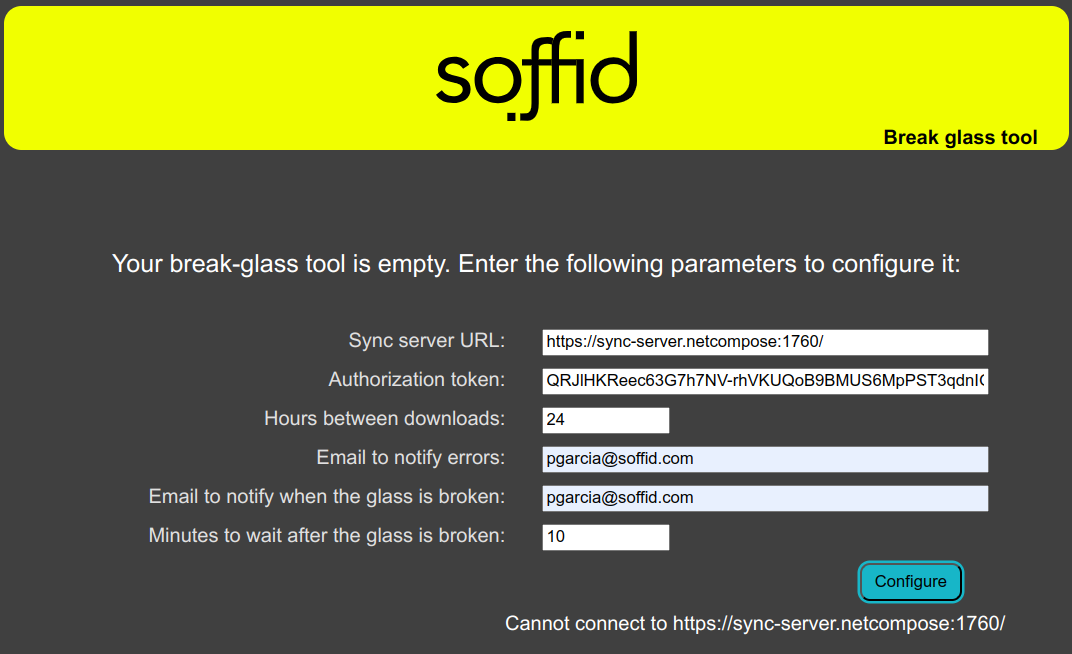
<span style="color: #a6d100; font-weight: bold; font-size: 18px;">6.2</span> If the tool can not connect to your Sync Server a message like this will be displayed:

This can be because:

- You need to apply changes at the Break-glass recovery configuration.
- The Authorized application is not enable.
- The token is incorrect.
- The Sync server is down.

[![image-1721891355473.png](https://bookstack.soffid.com/uploads/images/gallery/2024-07/scaled-1680-/image-1721891355473.png)](https://bookstack.soffid.com/uploads/images/gallery/2024-07/image-1721891355473.png)
Now the Soffid Breack glass is configured