# Step 1.- How to install Soffid Break glass?
# Step 1.1.- How to install Soffid Break glass add-on?
## Installation
### Download
Please download the Soffid Break glass add-on.
You could download it at the following link [http://www.soffid.com/download/enterprise/](http://www.soffid.com/download/enterprise/) if you have a Soffid user with authorization, or in the following [http://download.soffid.com/download/](http://download.soffid.com/download/) by registering.
### Upload
1. Once the Break glass add-on is downloaded, please log in to IAM Console.
You need to be an administrator user of the Soffid console or a user with permission to upload addons.
It is recommended to upload the addons to the master, this is the way to maintain updated all, master and tenants if there are.
2. In the Soffid console, please go to:
`Main Menu > Administration > Configure Soffid > Global Settings > Plugins`
3. Then, click the add button (+) and pick the file and Soffild will upload the addon file.
4. Finally, when the addon is installed, it will be required to **restart the Soffid Console and the Sync server**.
5. Once the Soffid console is restarted, you could check the plugin was uploaded properly on the plugins page:
`Main Menu > Administration > Configure Soffid > Global Settings > Plugins`
6. Now, you can set up the Break glass.
# Step 1.2.- How to install Soffid Break glass tool?
## Intallation
### Execute the Store YAML
```YAML
version: '2'
services:
breakglass:
image: eu.gcr.io/soffid-cloud/breakglass:1.0.3
environment:
JAVA_KEYSTORE: /opt/soffid/tomee/certificados/breakglass.jks
KEYSTORE_PASS:
mail_from: pat.lab@sysadm.soffid.com
mail_host:
mail_password:
mail_port: 465
mail_transport_protocol: smtps
mail_user: pat
mail_auth: true
ports:
- "8445:8080"
networks:
- network
volumes:
- breakglass-certificados:/opt/soffid/tomee/certificados
- breakglass-data:/opt/soffid/tomee/breakglass
networks:
network:
name: netcompose
driver: bridge
volumes:
breakglass-certificados:
name: breakglass-certificados-laboratorio
breakglass-data:
name: breakglass-data-laboratorio
```
##### Ubuntu commands
1. Bear in mind, that the name of the YAML file must be **docker-compose.yaml** And you must execute the docker compose action inside the folder where this file is located.
```
cd /.../.../soffid
```
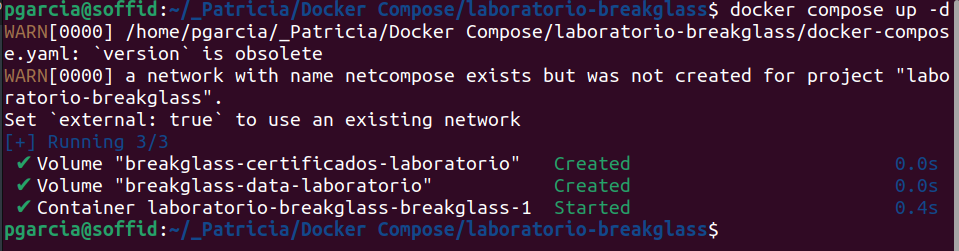
2. Apply the YAML:
```shell
sudo docker compose up -d
```
[](https://bookstack.soffid.com/uploads/images/gallery/2024-07/image-1721888468090.png)
3. Check containers
```shell
sudo docker compose ps
```
4. View the breakglass log
```shell
sudo docker compose logs -f
```
## Upgrade
You can update the version in the yaml file and execute the command:
```shell
sudo docker compose up -d
```