# BPM editor
# What is BPM?
## What is BPM?
**Business Process Management** is a discipline for executing of management methodology to improve an organization’s business processes. That uses a combination of modeling, automation, execution, control, measurement and optimization of business activity flows, spanning systems, employees, customers and partners to achieve the enterprise goals.
Gartner defines business process management as: "the discipline of managing processes (rather than tasks) as the means for improving business performance outcomes and operational agility. Processes span organizational boundaries, linking together people, information flows, systems, and other assets to create and deliver value to customers and constituents".
The main steps in BPM are:
- Analyze
- Re-design and model
- Implement
- Monitor
- Manage
- Automate
Some of the benefits of using BPM include:
- Improved efficiency.
- Increases productivity.
- Reduces costs.
- Facilitates regulatory compliance.
## Why BPM?
The main goal of using Business Process Management or BPM is to improve your organization's business processes. By using these workflows you will be able to save time, not only for system administrators but also for managers and coordinators.
System administrators will be able to spend less time on user and access management. Managers and coordinators because will be able to approve and deny requests using the self-service portal or from email, depending on the workflow configuration.
## Methodology steps
1. First of all, you need to identify your business needs.
2. Second, you need to analyze the business needs and select those that can be automated by any authorization mechanism.
3. Then you need to design the workflow using the Soffid BPM editor. Soffid provides you different types of processes with their own characteristics, also a lot of steps to define the flow of your process
4. Then you need to design the workflow using the Soffid BPM editor. Soffid provides you different types of processes with their own features, and also provides you different steps to define and customize the flow of your processes.
5. Finally, the workflows can be executed, automatically or by the Soffid users, with the proper permissions.
You will be able to monitor all the status process and perform some operations depending on your assigned permissions.
# Introduction to BPM addon
## Introduction
The **BPM addon** allows Soffid administrators to generate and maintain their own workflows directly from the Soffid Console itself.
## What is a workflow?
Soffid has implemented a BPM engine that allows Soffid to manage **workflows**.
Workflows can facilitate, streamline, control, and audit multiple business processes.
There are many **examples** of possible workflows.
- User registration from HR
- Allow users to update certain data
- Request privileged accounts
- Request roles for oneself
- Allow managers to request a large number of permissions
- Confirm that a manual process is executed and attach evidence
- Request company resources
- Perform scheduled user logouts
Many Soffid screens are involved in the BPM module. We list the most important ones below.
- [BPM editor](https://bookstack.soffid.com/books/soffid-4-reference-guide/page/bpm-editor) : where to create or modify workflows
- [Business process definition](https://bookstack.soffid.com/books/soffid-4-reference-guide/page/business-process-definition) : where workflows are published
- [Configure Workflow engine](https://bookstack.soffid.com/books/soffid-4-reference-guide/page/configure-workflow-engine) : where the workflow engine is configured
- [My tasks](https://bookstack.soffid.com/books/soffid-4-reference-guide/page/my-tasks) : pending workflows where the user has to perform an action in order to continue their workflow.
- [My requests](https://bookstack.soffid.com/books/soffid-4-reference-guide/page/my-requests) : The workflows that the user can initiate are listed here.
- [My requests > Query request status](https://bookstack.soffid.com/books/soffid-4-reference-guide/page/my-requests-query-request-status) : to search for all processes started by oneself
- [Process Search](https://bookstack.soffid.com/books/soffid-4-reference-guide/page/process-search) : to search for all processes
- [Metadata](https://bookstack.soffid.com/books/soffid-4-reference-guide/page/metadata) : to add attributes to display in the search tables
- [Scheduled jobs](https://bookstack.soffid.com/books/soffid-4-reference-guide/page/scheduled-jobs) : shows active workflows pending asynchronous tasks
# How to install the BPM Editor addon in Soffid
## Installation
### Introduction
To use an addon in Soffid, you must download and install it in the Console. There are two ways to do this.
1. The first option is to use the **Soffid 4 marketplace**. You can download and upload it directly from the [Licence and plugin](https://bookstack.soffid.com/books/soffid-4-reference-guide/page/license-and-plugin "License and plugin") page.
2. The second option is to download the file from the Soffid **download** page and then **upload** it to the Console.
### Soffid 4 marketplace
Soffid 4 allows you to install and update plugins through the new Addons marketplace feature.
To access the marketplace, you must have a valid token to use Soffid and have configured the Console via https. Please check the [License and plugin](https://bookstack.soffid.com/books/soffid-4-reference-guide/page/license-and-plugin#bkmrk-actions "License and plugin") page.
1. Please **log in** to IAM Console.
You need to be an **administrator** user of the Soffid console or a user with permission to upload addons.
It is recommended to upload the addons to the **master**, this is the way to maintain updated all, master and tenants if there are.
2. In the Soffid console, please **go to** the [License and plugin](https://bookstack.soffid.com/books/soffid-4-reference-guide/page/license-and-plugin "License and plugin") page.
`Main Menu > Configuration > Global Settings > License and plugin`
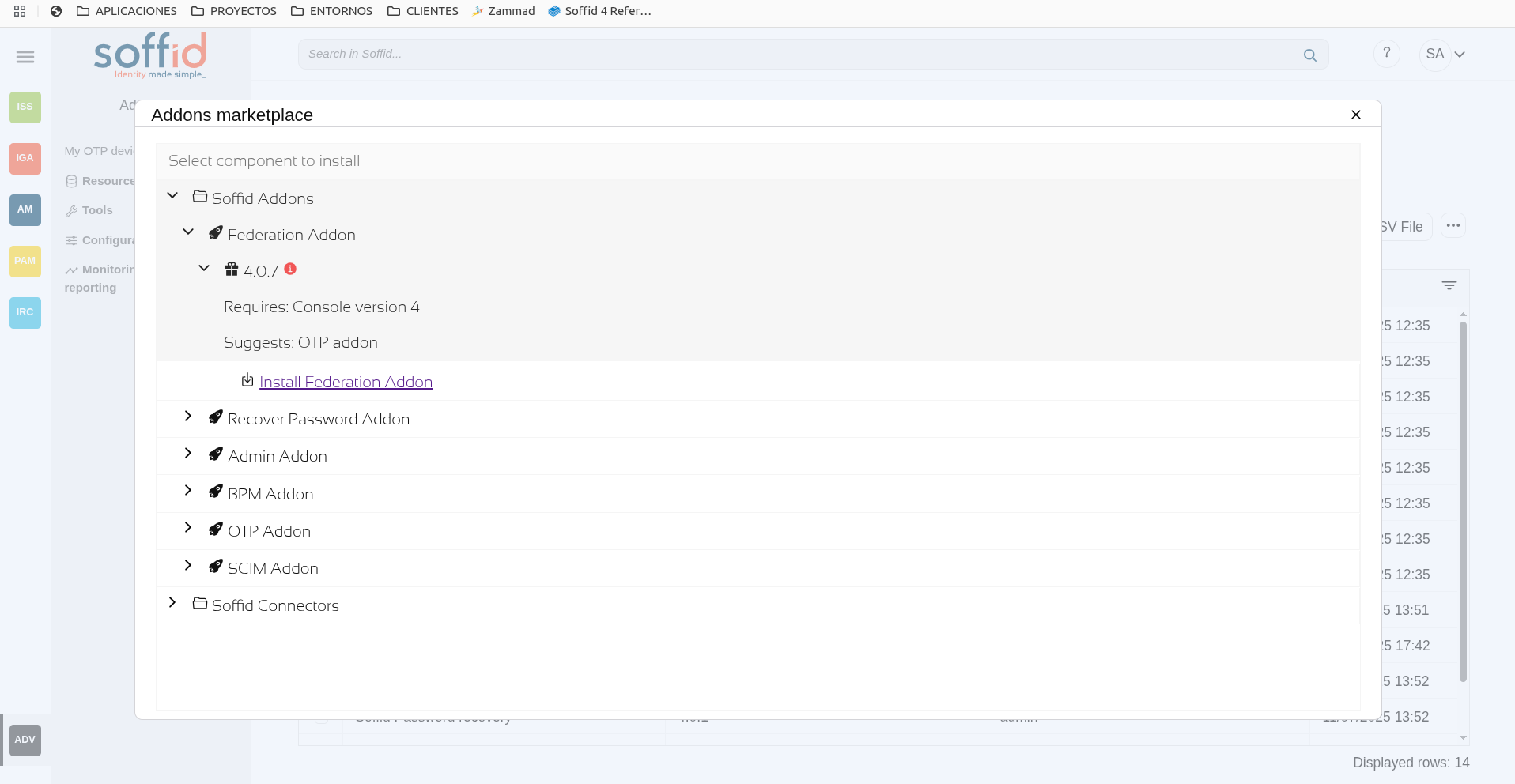
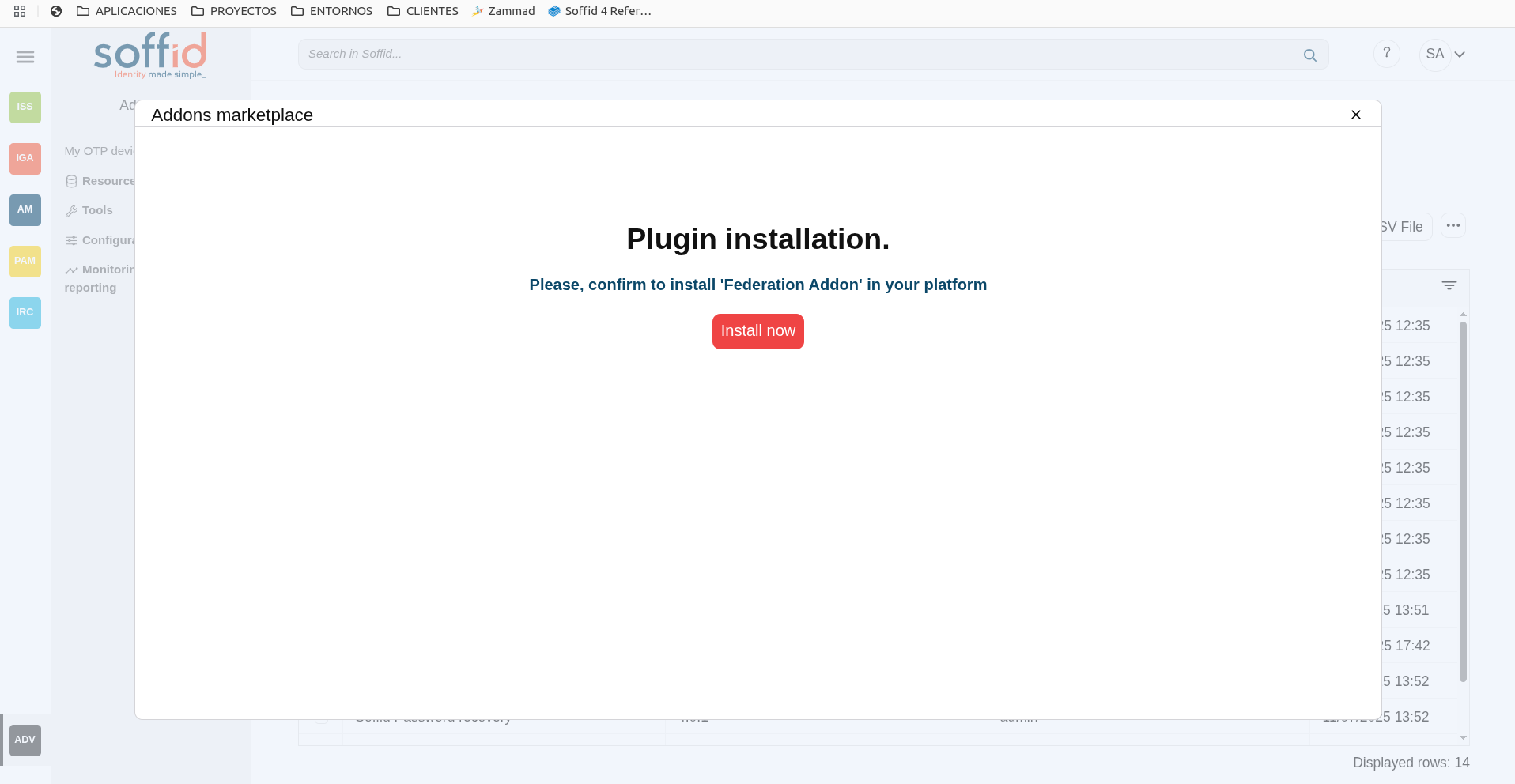
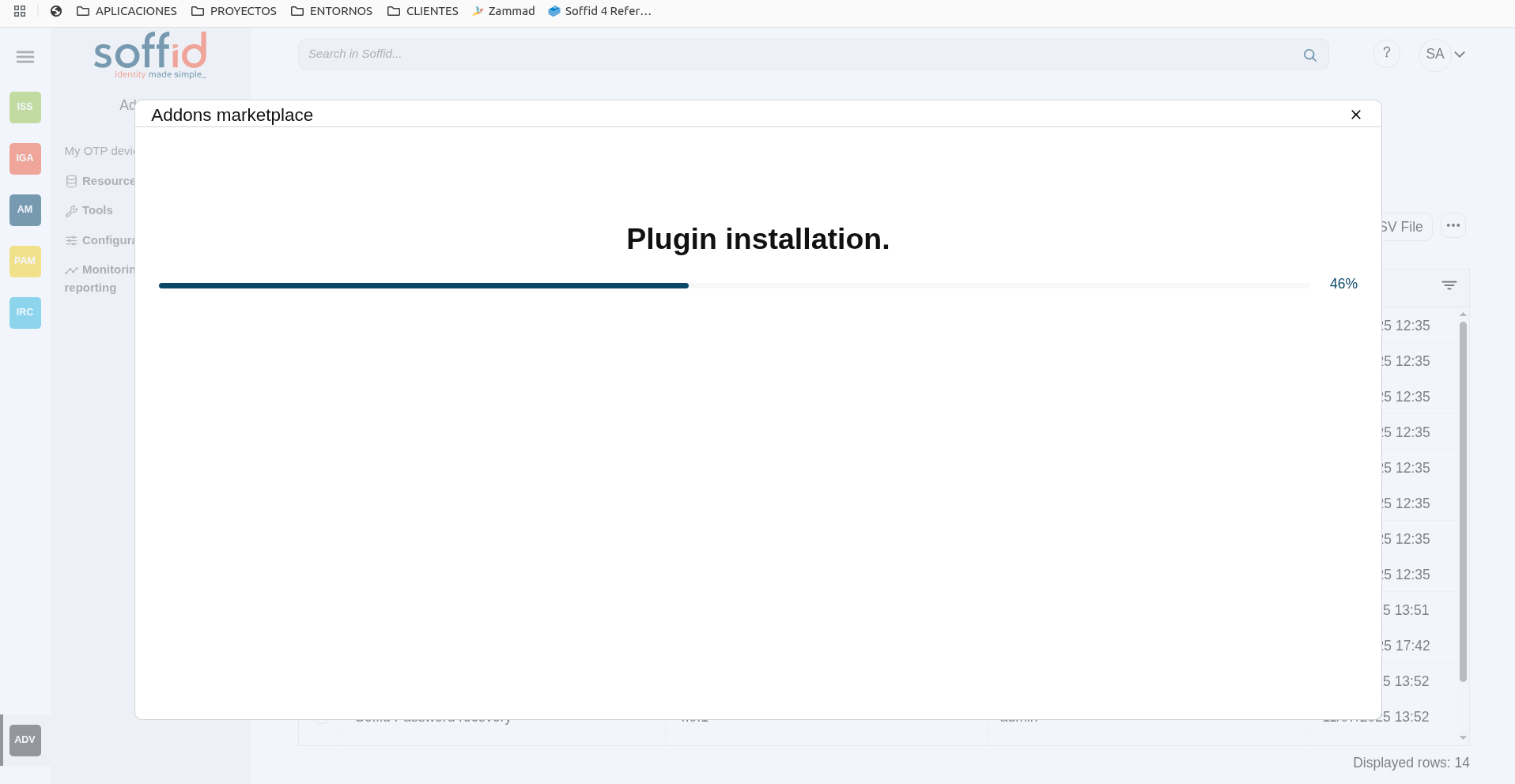
3. Then, click the add button "**Add new**" button, open the "Soffid Addons" secction and select the "Instlla addon" option, Soffild will upload the addon file.
Image
[](https://bookstack.soffid.com/uploads/images/gallery/2025-08/zT1zIAZQODssapPc-image.png)
[](https://bookstack.soffid.com/uploads/images/gallery/2025-08/3uHXtG1pAm5kUzIA-image.png)
[](https://bookstack.soffid.com/uploads/images/gallery/2025-08/uw0ef7PG97IxCUUu-image.png)
[](https://bookstack.soffid.com/uploads/images/gallery/2025-08/SnyiSzFTnWhDKIWL-image.png)
4. Finally, when the addon is installed, the Consola has to be **restarted**, a popup will be displayed to perform this action, you can choose to do it now or later.
Image
[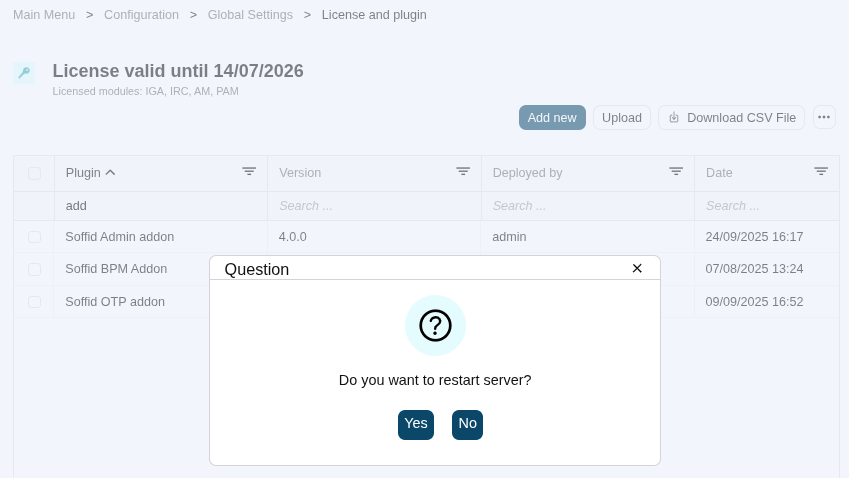](https://bookstack.soffid.com/uploads/images/gallery/2025-09/SrBNuFbSm6g6boI8-image.png)
5. Once the Soffid console has restarted, you can **check** if the plugin was correctly uploaded on the "License and plugins" page.
`Main Menu > Configuration > Global Settings > License and plugin`
6. Now, you can **configure** the addon.
### Download an upload
1. You could **download** the addon at the following link [http://www.soffid.com/download/enterprise/](http://www.soffid.com/download/enterprise/) if you have a Soffid user with authorization, or in the following [http://download.soffid.com/download/](http://download.soffid.com/download/) by registering.
The addons are in the Addon seccion.
Image
[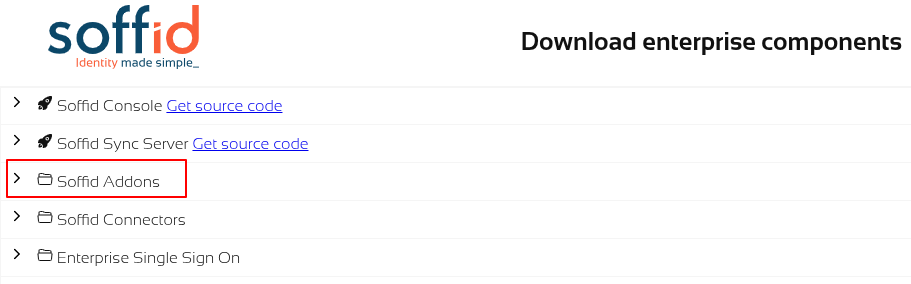](https://bookstack.soffid.com/uploads/images/gallery/2025-09/dUXAMGDA0M6XJe3A-image.png)
2. Once the addon is downloaded, please **log in** to IAM Console.
You need to be an **administrator** user of the Soffid console or a user with permission to upload addons.
It is recommended to upload the addons to the **master**, this is the way to maintain updated all, master and tenants if there are.
3. In the Soffid console, please **go to** the [License and plugin](https://bookstack.soffid.com/books/soffid-4-reference-guide/page/license-and-plugin "License and plugin") page.
Soffid 3:
`Main Menu > Administration > Configuration > Global Settings > Plugins`
Soffid 4:
`Main Menu > Configuration > Global Settings > License and plugin`
4. Then, click the add button "**Upload**" and pick the file and click the "Select" button and Soffild will upload the addon file.
Image
[](https://bookstack.soffid.com/uploads/images/gallery/2025-12/oSwSvpyjPfmRtugF-image.png)
[](https://bookstack.soffid.com/uploads/images/gallery/2025-12/1B3zySXyg11fM02e-image.png)
5. Finally, when the addon is installed, the Consola has to be **restarted**, a popup will be displayed to perform this action, you can choose to do it now or later.
Image
[](https://bookstack.soffid.com/uploads/images/gallery/2025-09/SrBNuFbSm6g6boI8-image.png)
6. Once the Soffid console has restarted, you can **check** if the plugin was correctly uploaded on the "License and plugins" page.
`Main Menu > Configuration > Global Settings > License and plugin`
7. Now, you can **configure** the addon.
# Soffid BPM pages
Soffid BPM pages
# BPM editor page
{{@1501}}
# Business process definition page
{{@1500}}
# Configure Workflow engine
{{@1499}}
# Process types
Templates definition of process types
# User management
## Description
The **User Management Process** type is used to define business processes to create and update identities and their attributes.
You can use the default template included on Soffid BPM Editor and customize it with your business needs. Also, you can import a .pardef file with the process definition.
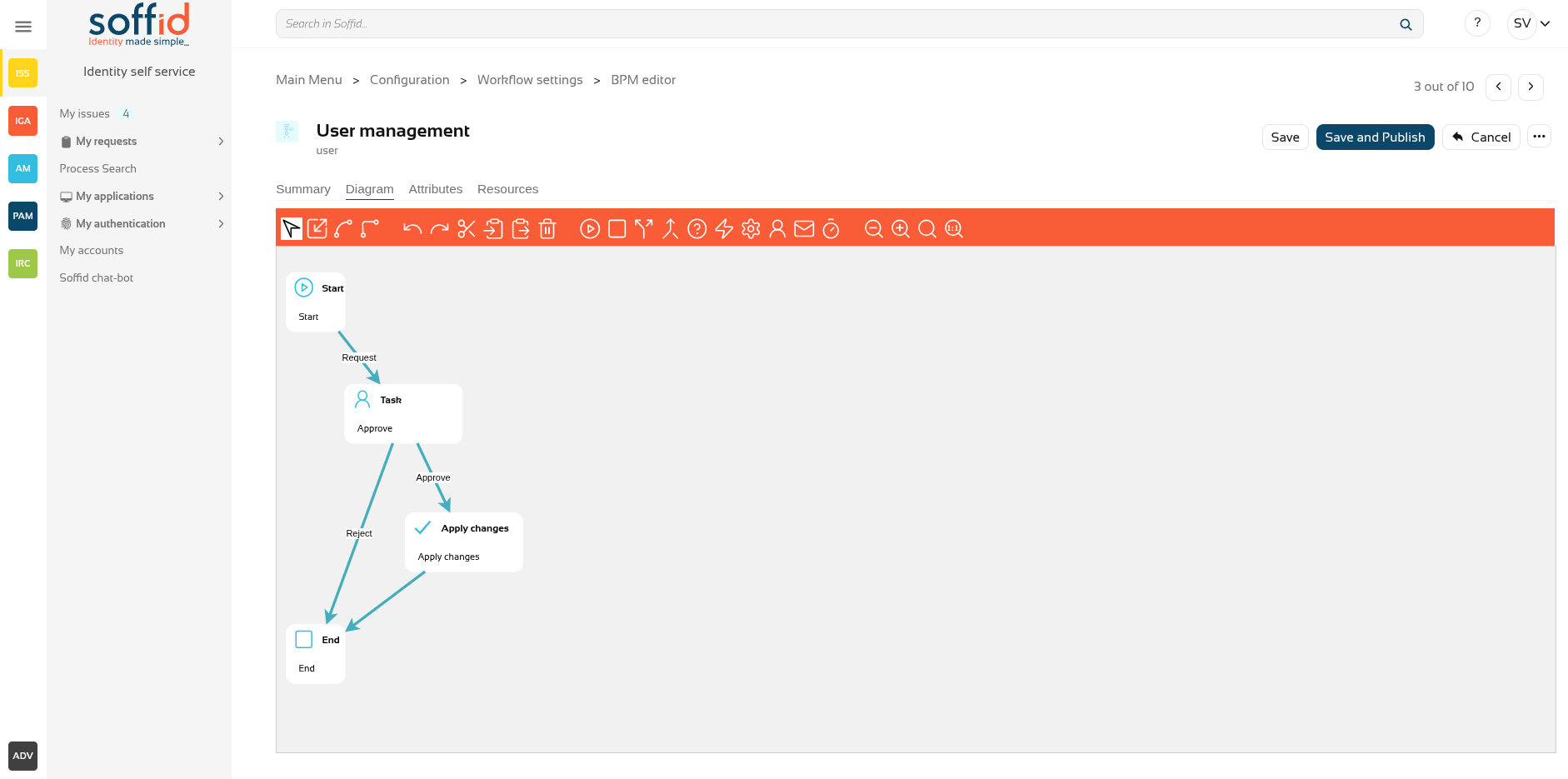
That process is defined by default with 4 steps, but you can add new, delete and update steps to customize your business process.
- Start
- Screen
- Apply changes
- End
We will use two concepts to explain that process, identity, and end-user. **Identity** will be the identity or user that will be created, updated, or deleted in Soffid Console. The **end-user** will be the Soffid user who requests processes using the self-service portal.
[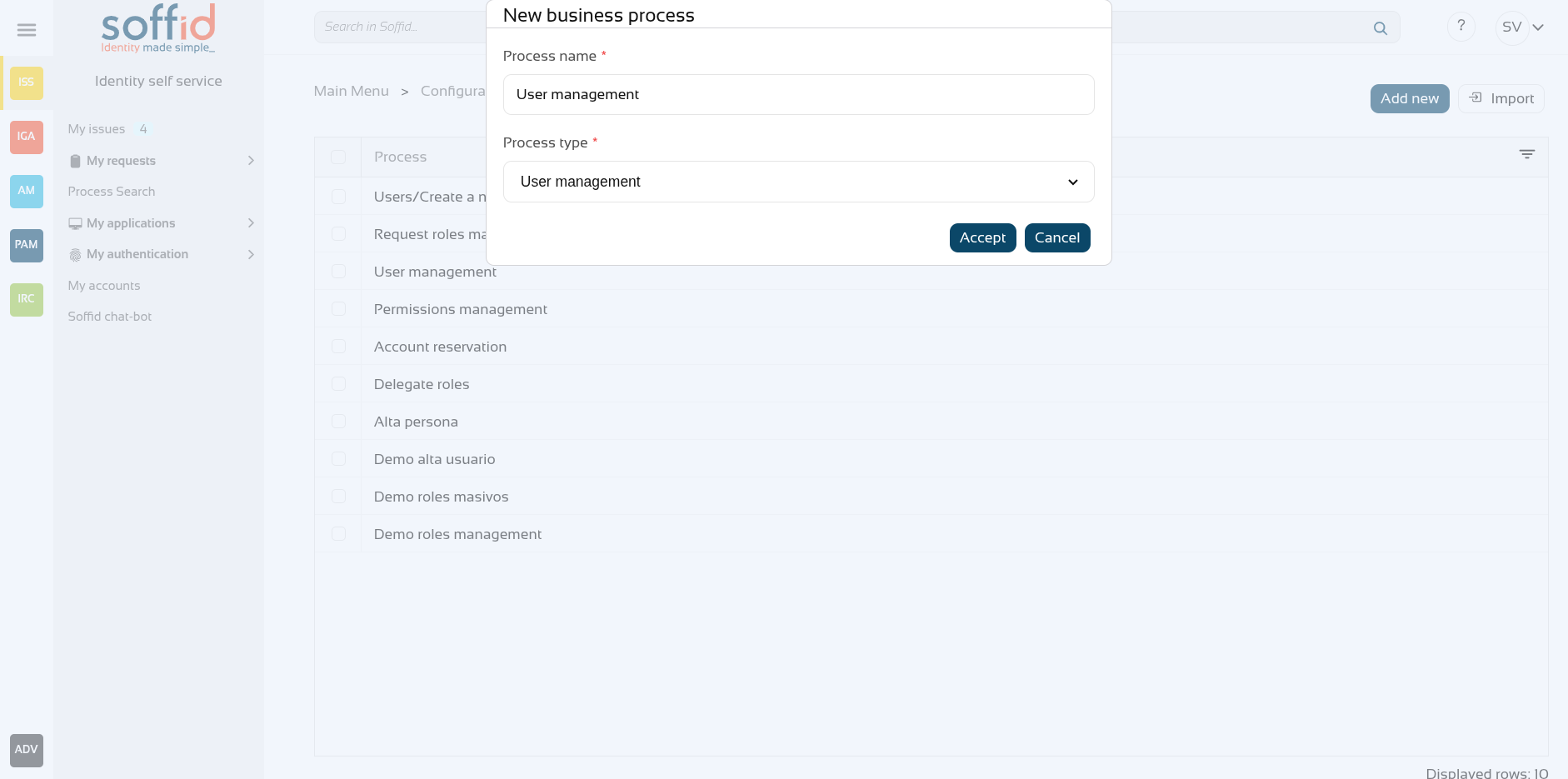](https://bookstack.soffid.com/uploads/images/gallery/2025-12/Xt8KKmzB9NGc5aeN-image.png)
## Process editor
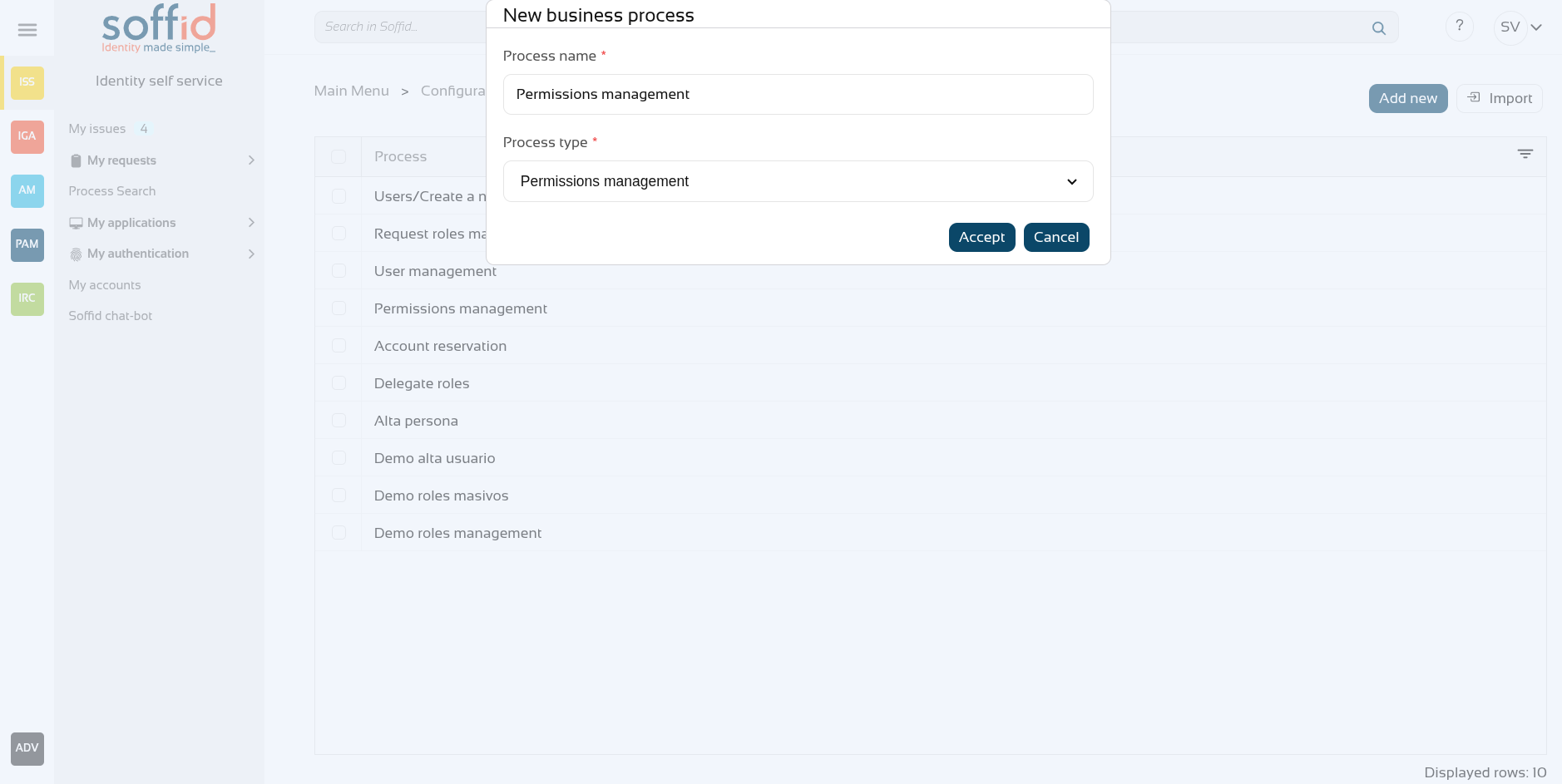
- **Process name**: identifier name of the workflow. This name will be used to label the workflow for the end-user.
- **Process type**: to use this BPM editor you need to select **User management.**
- **Description**: a brief description of the workflow. When an end-user starts a workflow, this text will be displayed in the Actions log tab.
- **Initiators**: here you could configure the roles or the identities that could start a new workflow from the Console and Selfservice. E.g. "admin" identity, "SOFFID\_ADMIN" role, both separated by comma ',' as "admin, SOFFID\_ADMIN" or if you want to publish the workflow to everyone, you can use the text "tothom" or the character '\*'. The users who are initiators will be able to see and start this process from their identiry self service portal.
- **Managers**: here you could configure the roles or the identities that could perform tasks in the workflow as approve permissions or cancel the workflow.
- **Observers**: here you could configure the roles or the identities that could open the workflows in read-only mode.
[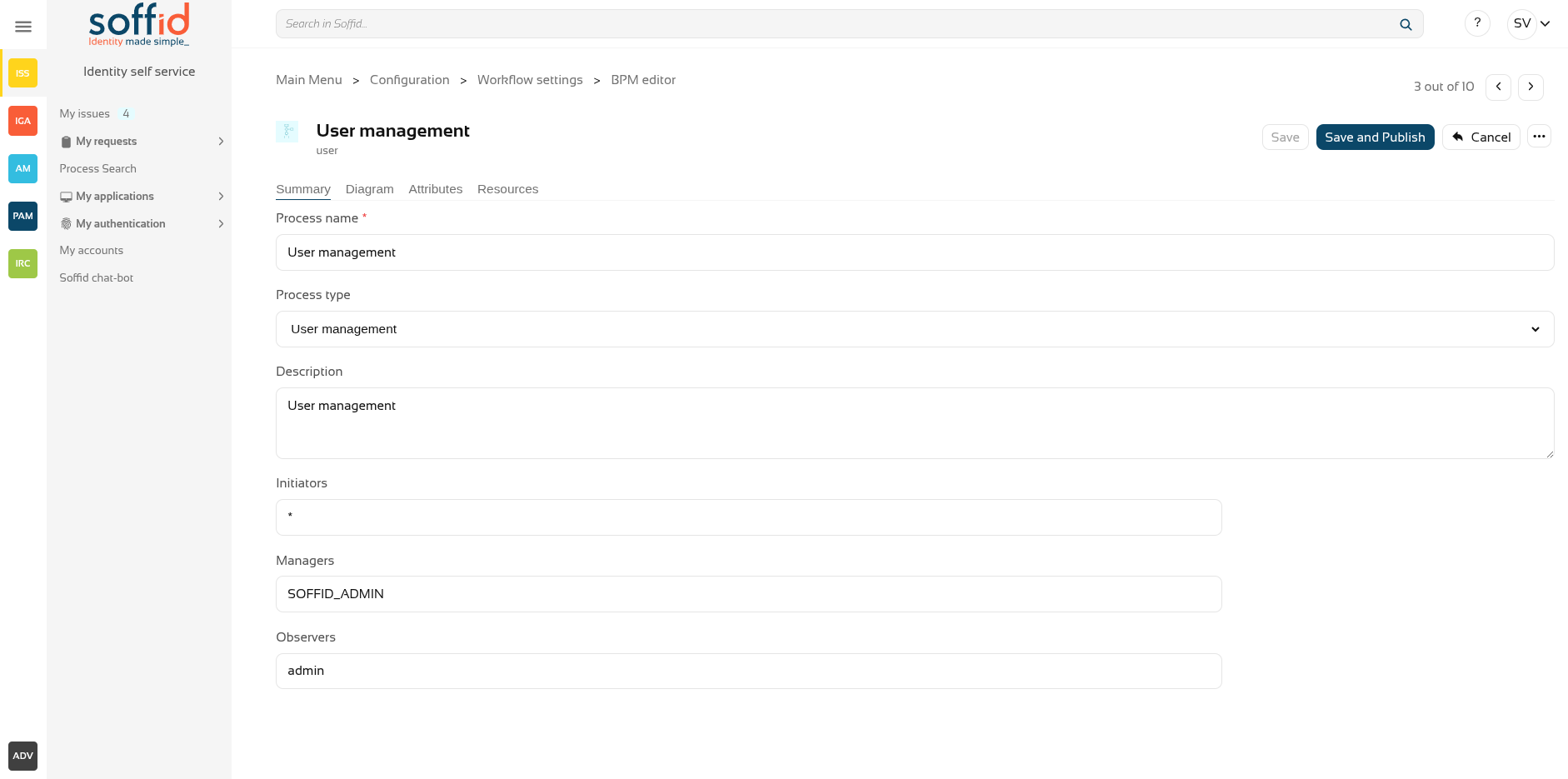](https://bookstack.soffid.com/uploads/images/gallery/2025-12/YQRcL8mCZtpJiSTC-image.png)
## Process steps
To view the detail of each available step, you can visit the [User management steps chapter](https://bookstack.soffid.com/books/bpm-editor/chapter/user-management-steps "User management steps").
[](https://bookstack.soffid.com/uploads/images/gallery/2025-12/J46AZ9FLXoOSZ4f9-image.png)
## Attributes
You could add new custom attributes in the Attributes tab. The defined attributes will be used in the Steps tab to be mapped with the Soffid data.
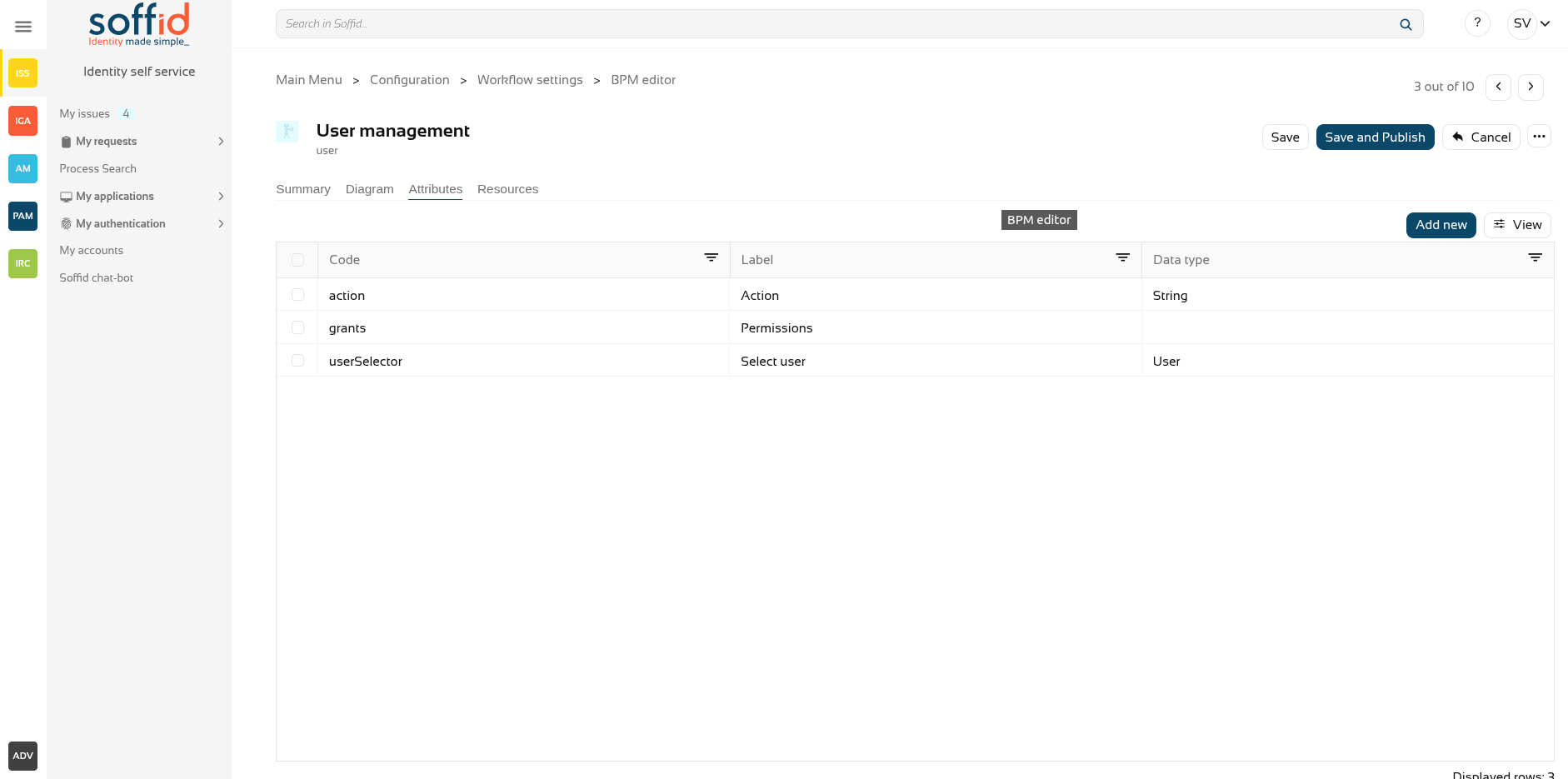
There are customized templates depending on the Process Type selected, for the User management type there are three attributes defined:
- **action**: by default, there are 4 operations defined, but you can customize these options, adding, removing and updating these:
- Add user: this allows you to add a new identity to the systems.
- Enable user: this allows you to enable an identity that is disabled.
- Modify user: this allows you to modify the attributes for an existing identity.
- Disable user: this allows you to disable an identity that is enabled.
- **grants**: allows you to select an information system and assign or revoke permissions.
- **userSelector**: allows you to select an existing identity. That component will be available when the action selected will be "Enable user", "Modify user" or "Disable user", in other cases, that component will not be displayed. That component allows to end-user to search identities by writing in an input field o searching with the searching view.
You can customize attributes to adapt the workflow to your business process. You can add new attributes, and update or delete the default attributes. For each new attribute, you need to indicate, at least, the code, the label, and the data type.
[](https://bookstack.soffid.com/uploads/images/gallery/2025-12/crmuCmAIog7OtbTk-image.png)
## Resources
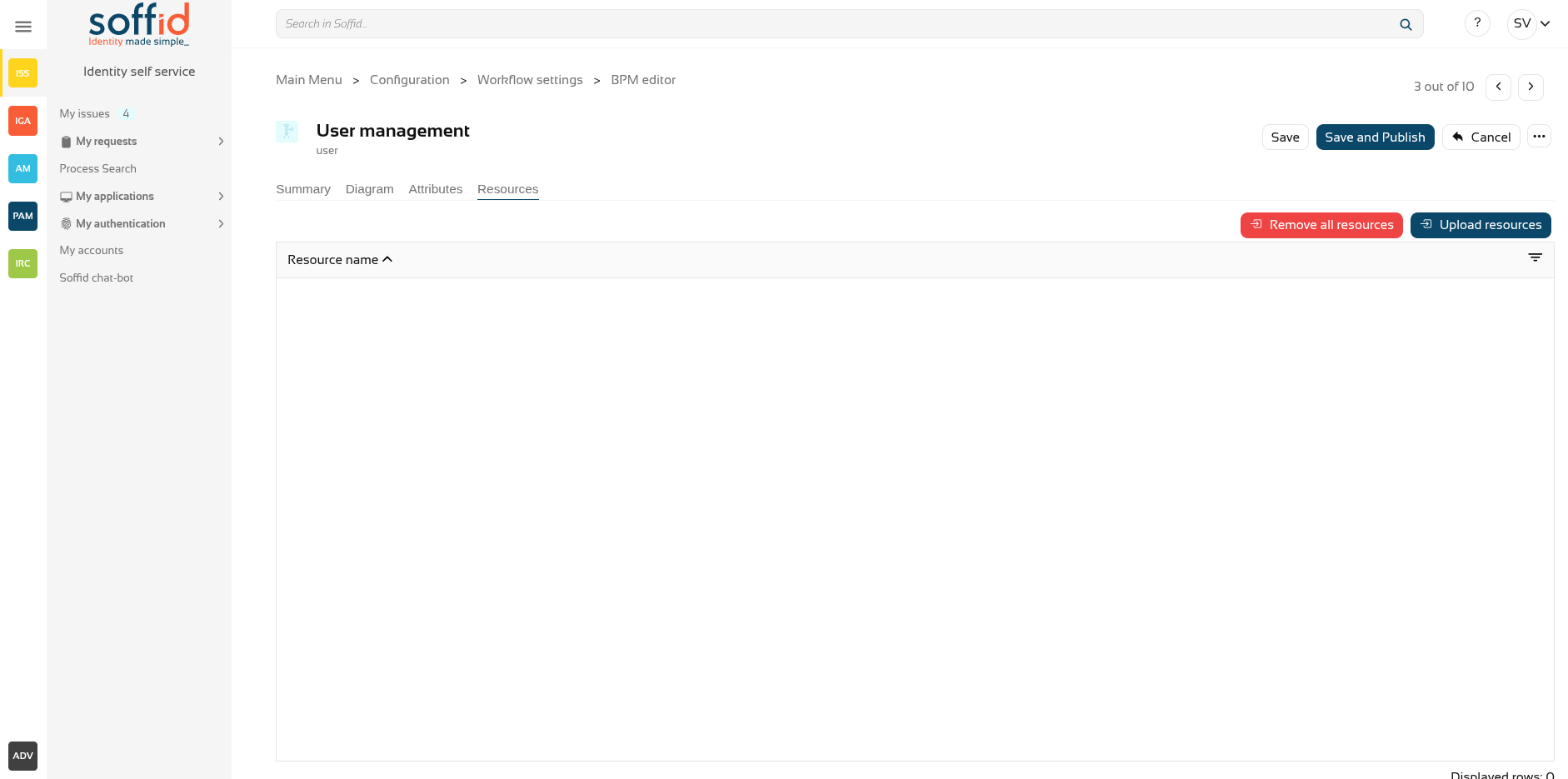
If your workflow requires the use of extra libraries with their own classes and methods, you can upload a jar file so that Soffid can load it and it can be used from the scripts.
[](https://bookstack.soffid.com/uploads/images/gallery/2025-12/NAMXh1tlXBL2Uwn7-image.png)
## Actions
#### Process actions
**Save**
Allows you to save all changes included in the workflow. That workflow can be a new or an updated workflow.
**Save and Publish**
Allows you to save the changes performed in the workflow setup and also publish the workflow to be used in Soffid. After this action, the last version of the workflow will be available for the end-user (with the proper permissions) in the Soffid Console and Self-service portal.
**Cancel**
Allows you to quit the process editor without saving changes. Soffid will ask you for confirmation to exit without saving updates
**Export process**
Allows you to export this workflow to a file in .partdef format. This file can be useful as a backup or for migration to another environment.
#### Attribute actions
**Add new**
Allows you to add a new attribute. When you click the button "Add new" Soffid will show the fields to fill in for the new attribute. It is mandatory to fill in the code and data type to save the process.
The attribute updates will save when you click the button "Save" or "Save and Publish". If you cancel, the updates will not save.
**Delete**
Allows you to delete a defined attribute. First select one or more attributes and the click the "Delete" button. The attribute updates will save when you click the button "Save" or "Save and Publish". If you cancel, the updates will not save.
# Permissions management
## Description
The **Permissions Management Process** type is used to define processes used to grant or remove permissions to an identity.
You can use the default template **Permissions management** included on Soffid BPM Editor and customize it with your business needs. Also, you can import a .pardef file with the process definition.
That process is defined by default with 4 steps, but you can add new, delete and update steps to customize your business process.
- Start
- Grant approval
- Apply changes
- End
We will use two concepts to explain that process, identity, and end-user. **Identity** will be the identity or user that will be created, updated, or deleted in Soffid Console. The **end-user** will be the Soffid user who requests processes using the self-service portal.
[](https://bookstack.soffid.com/uploads/images/gallery/2025-12/CeLLzF4jbw6h7v9L-image.png)
## Process editor
- **Process name**: identifier name of the workflow. This name will be used to label the workflow for the end-user.
- **Process type**: to use this BPM editor you need to select **Use management.**
- **Description**: a brief description of the workflow. When an end-user starts a workflow, this text will be displayed in the Actions log tab.
- **Initiators**: here you could configure the roles or the identities that could start a new workflow from the Console and Selfservice. E.g. "admin" identity, "SOFFID\_ADMIN" role, both separated by comma ',' as "admin, SOFFID\_ADMIN" or if you want to publish the workflow to everyone, you can use the text "tothom" or the character '\*'. The users who are initiators will be able to request that process from their self-service portal.
- **Managers**: here you could configure the roles or the identities that could perform tasks in the workflow as approve permissions or cancel the workflow.
- **Observers**: here you could configure the roles or the identities that could open the workflows in read-only mode.
[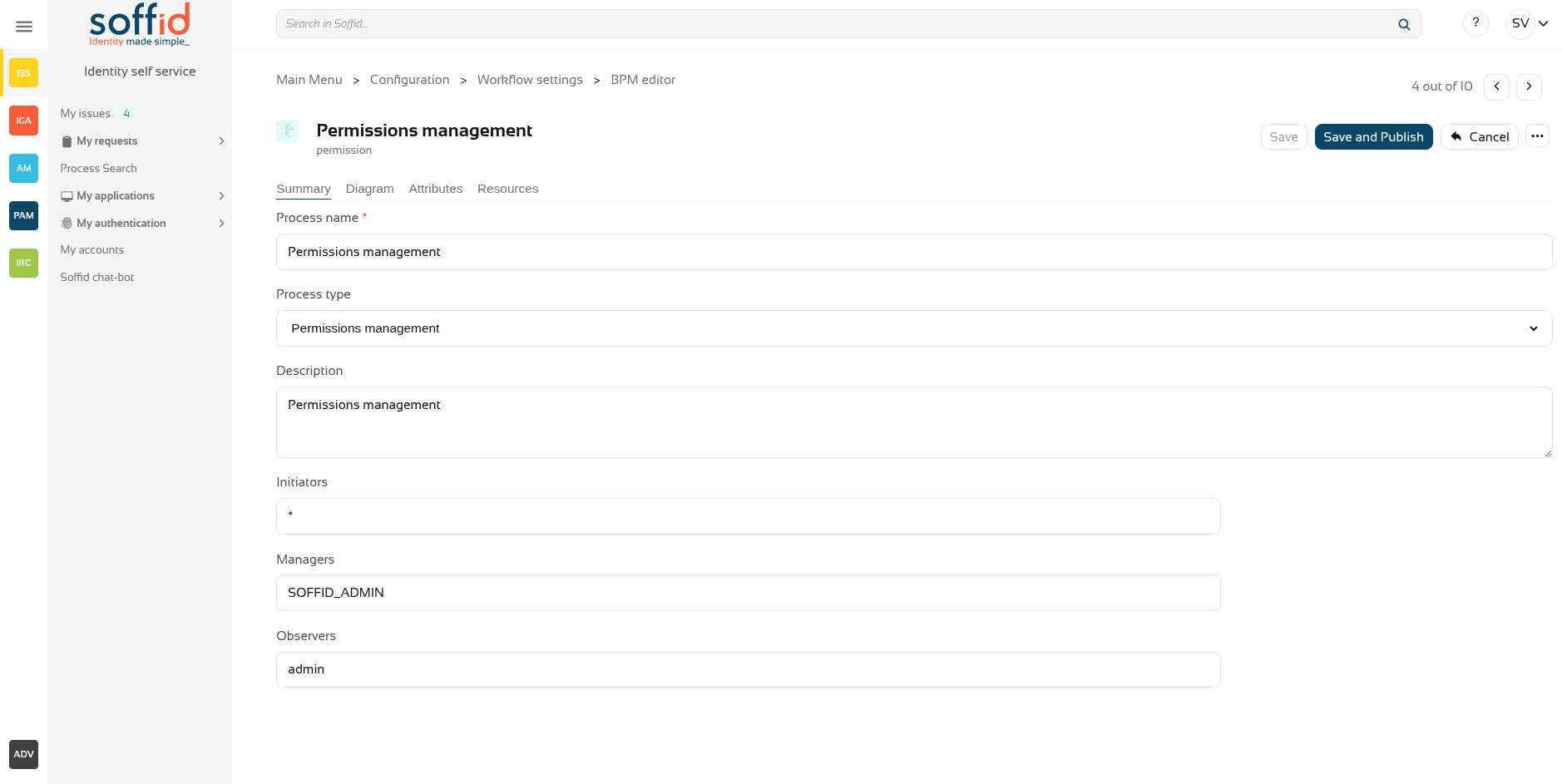](https://bookstack.soffid.com/uploads/images/gallery/2025-12/X1sqLG2aGoyJxAdw-image.png)
## Process steps
To view the detail of each available step, you can visit the [Permissions management steps chapter.](https://bookstack.soffid.com/books/bpm-editor/chapter/permissions-management-steps "Process management steps")
[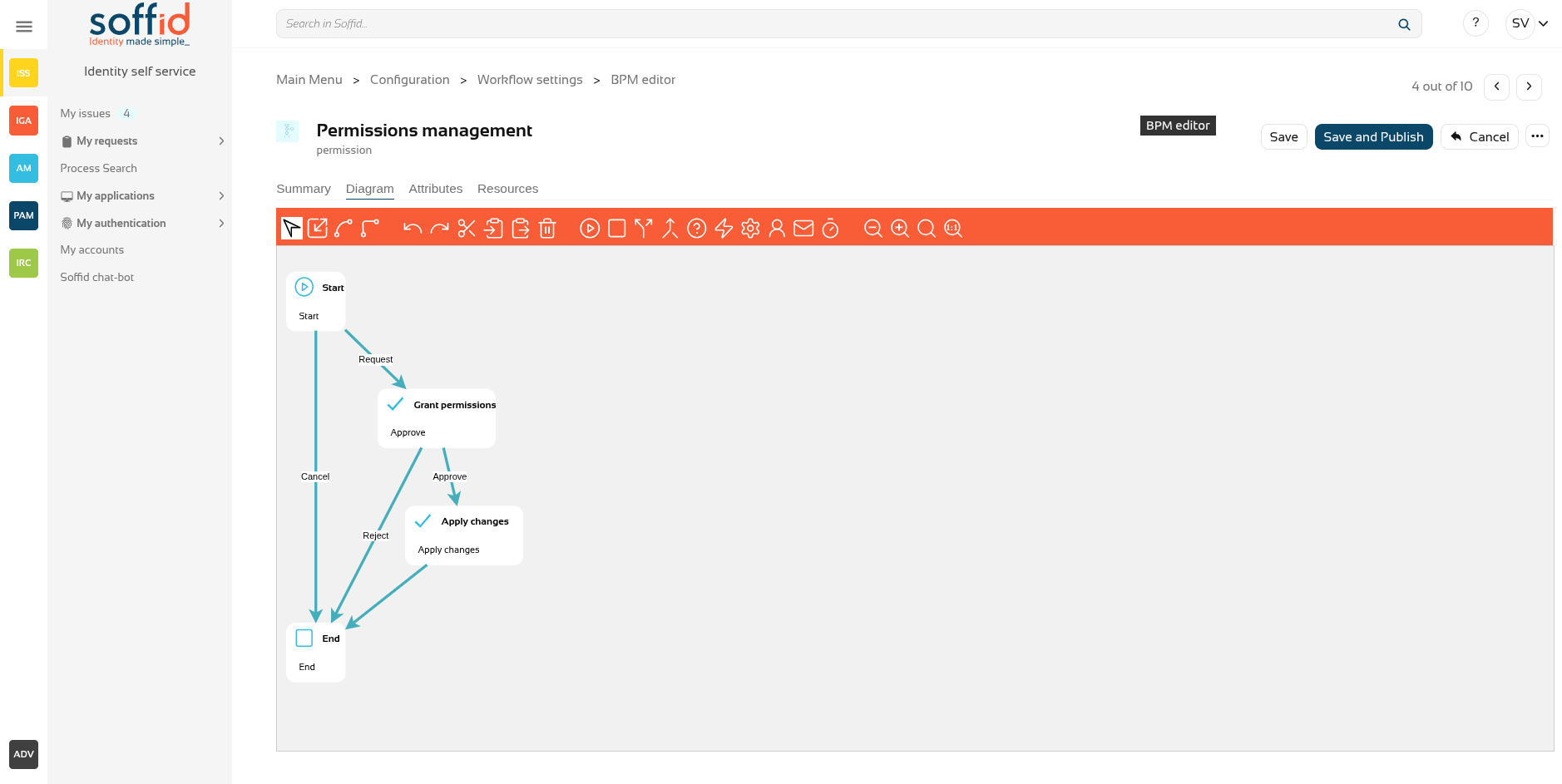](https://bookstack.soffid.com/uploads/images/gallery/2025-12/M2C50gu8idBV7Ejr-image.png)
## Process steps > Start > views
This process allows for two different types of views. You can configure the one that best suits your workflow in the Start node, in the ‘Permission request screen type’ attribute.
[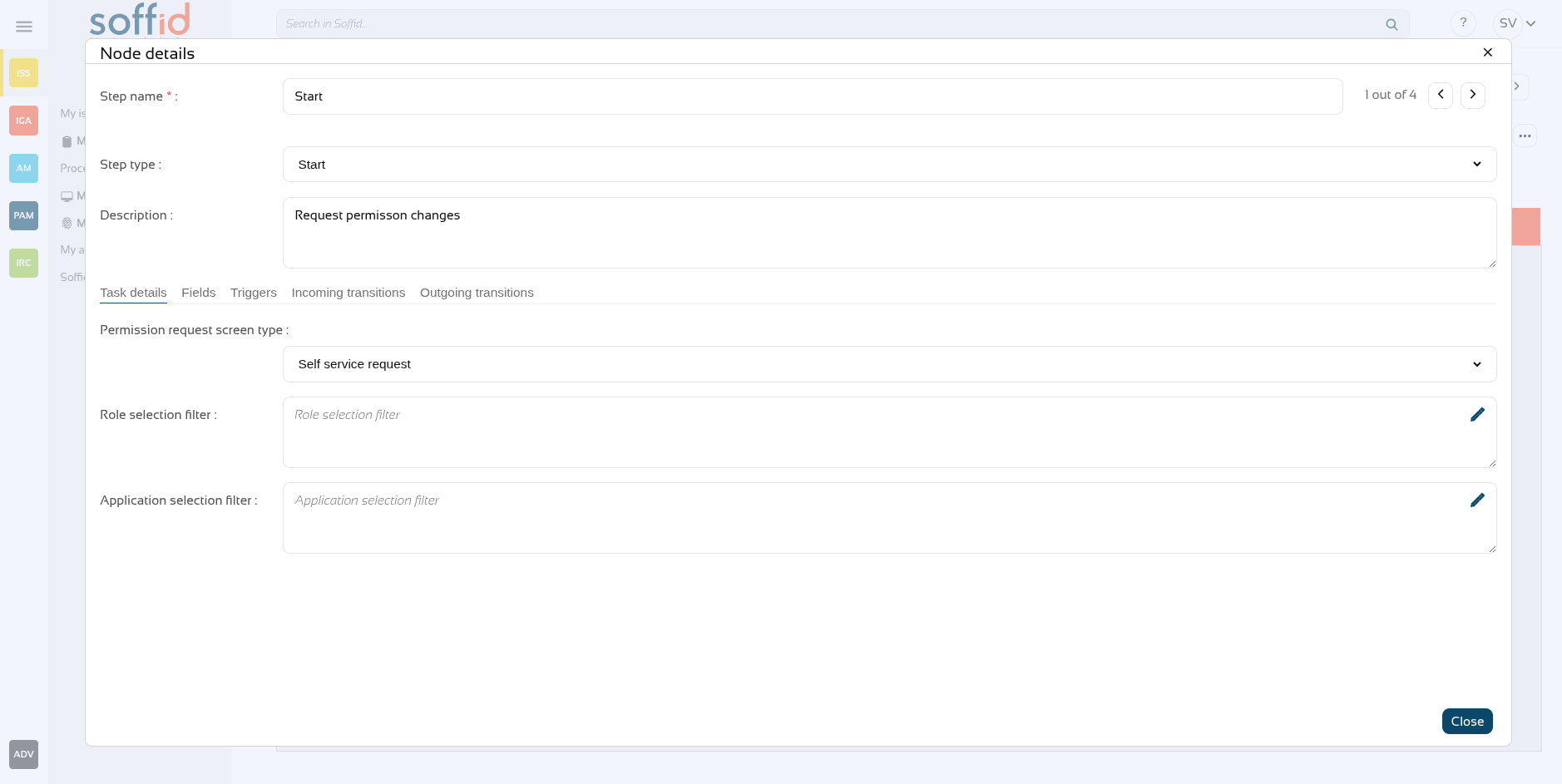](https://bookstack.soffid.com/uploads/images/gallery/2025-12/mtTxSchGXMVmvWxo-image.png)
The "**Self-service request**" option allows you to easily select a large number of roles as if you were filling a shopping basket. This view can be more useful when registering a user or changing their profile.
[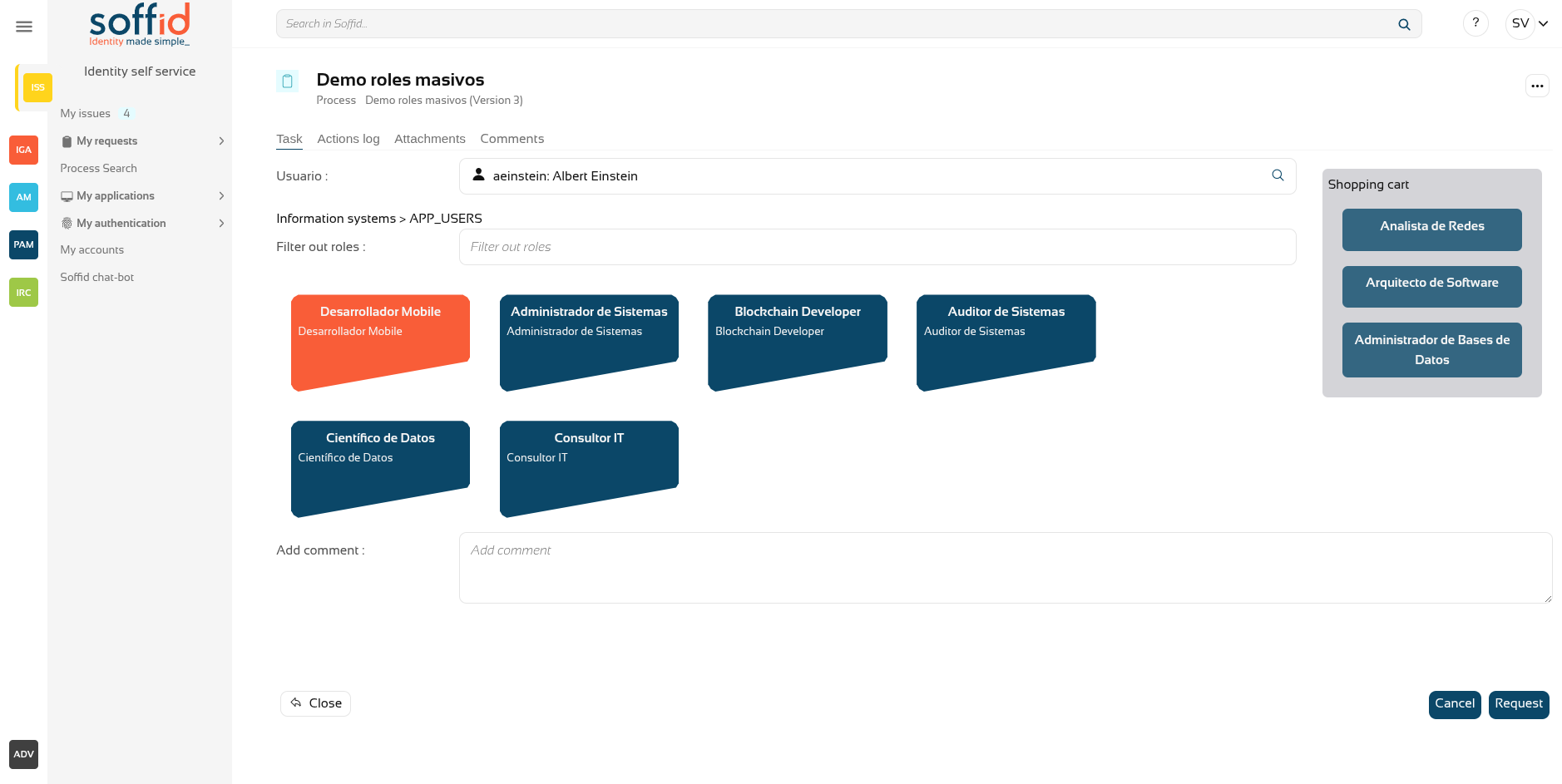](https://bookstack.soffid.com/uploads/images/gallery/2025-12/4N3P7d1GNTSQrlmS-image.png)
The "**List of permissions**" option shows you a user's roles and allows you to revoke them one by one, or add new roles one by one. This view may be more useful for maintaining users who only require minor changes.
[](https://bookstack.soffid.com/uploads/images/gallery/2025-12/5qMH3wFL0hgsgTvV-image.png)
## Attributes
You could add new custom attributes in the Attributes tab. The defined attributes will be used in the Steps tab to be mapped with the Soffid data.
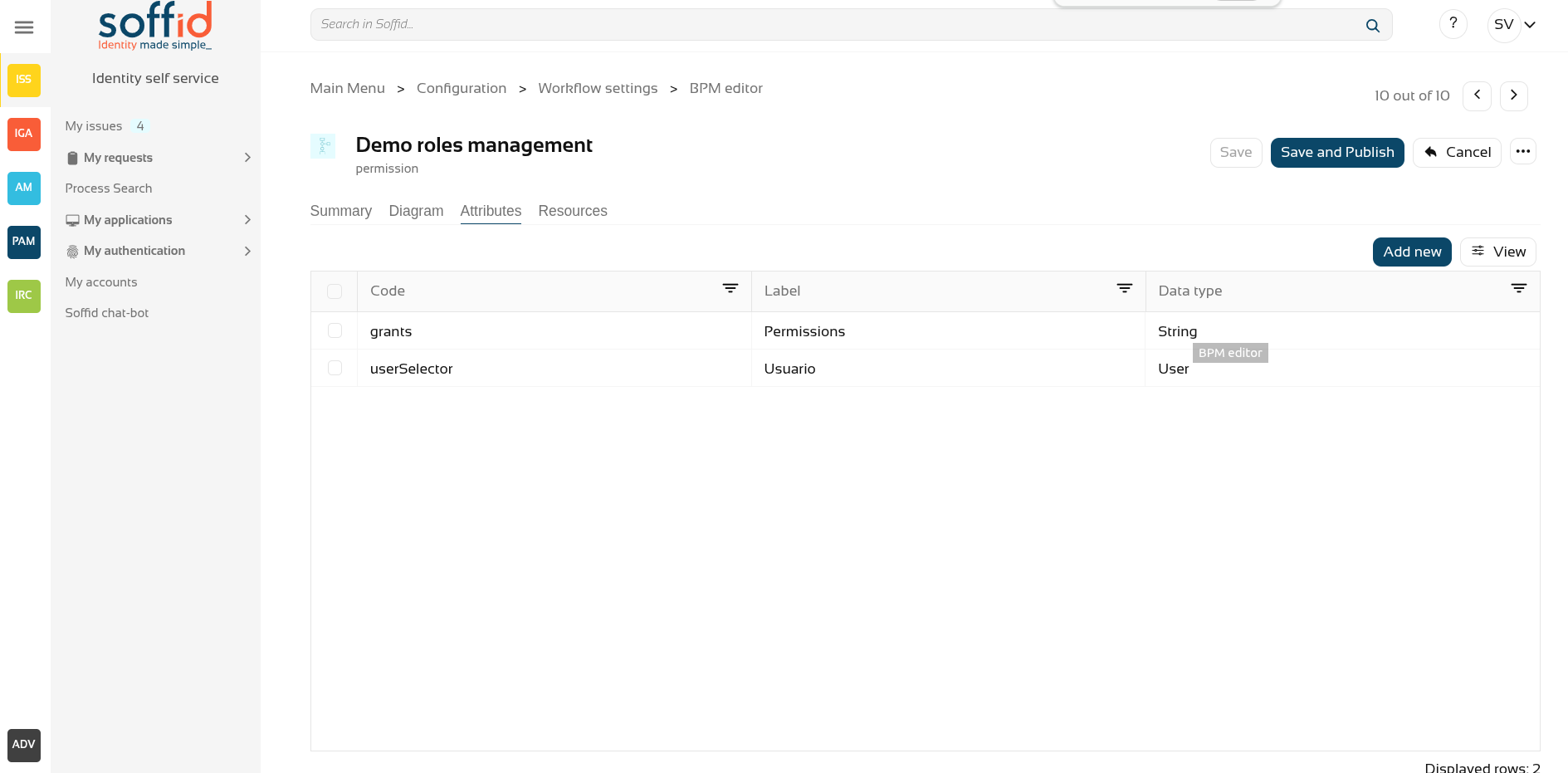
There are customized templates depending on the Process Type selected, for the Process management type there is one attribute defined:
- **grants**: allows you to select an information system and assign or revoke permissions.
You can customize attributes to adapt the workflow to your business process. You can add new attributes, and update or delete the default attributes. For each new attribute, you need to indicate, at least, the code, the label, and the data type.
The default template selects the user themselves. If you want to be able to select other users, you must add the userSelector attribute and then add it in Start > Fields.
[](https://bookstack.soffid.com/uploads/images/gallery/2025-12/OHtf4UtVJRq9fBJs-image.png)
## Resources
If your workflow requires the use of extra libraries with their own classes and methods, you can upload a jar file so that Soffid can load it and it can be used from the scripts.
[](https://bookstack.soffid.com/uploads/images/gallery/2025-12/NAMXh1tlXBL2Uwn7-image.png)
## Actions
#### Process actions
**Save**
Allows you to save all changes included in the workflow. That workflow can be a new or an updated workflow.
**Save and Publish**
Allows you to save the changes performed in the workflow setup and also publish the workflow to be used in Soffid. After this action, the last version of the workflow will be available for the end-user (with the proper permissions) in the Soffid Console and Self-service portal.
**Cancel**
Allows you to quit the process editor without saving changes. Soffid will ask you for confirmation to exit without saving updates
**Export process**
Allows you to export this workflow to a file in .partdef format. This file can be useful as a backup or for migration to another environment.
#### Attribute actions
**Add attribute**
Allows you to add a new attribute. When you click the button "Add attribute" Soffid will show the fields to fill in for the new attribute. It is mandatory to fill in the code to save the process.
The attribute updates will save when you click the button "Save" or "Save and Publish". If you cancel, the updates will not save.
**Delete attribute**
Allows you to delete a defined attribute. To delete an attribute you need to click the button with the subtraction symbol (-) located next to the label field. The attribute updates will save when you click the button "Save" or "Save and Publish". If you cancel, the updates will not save.
# Account reservation
## Description
The **Account Reservation Process** type is used to configure the use of privileges accounts. That type of process will be launched when the end-users want to connect to a system using a privileged account through the password vault.
Soffid allows you to configure XACML policies management, here you will be able to configure when the account reservation workflows should be launched.
For more information about XACML you can visit the [XACML Book](https://bookstack.soffid.com/books/xacml "XACML").
You can use the default template included on Soffid BPM Editor and customize it with your business needs. Also, you can import a .pardef file with the process definition.
That process is defined by default with 4 steps, but you can add new, delete and update steps to customize your business process.
- Start
- Screen
- Apply changes
- End
We will use two concepts to explain that process, identity, and end-user. Identity will be the identity or user that will be created, updated, or deleted in Soffid Console. The end-user will be the Soffid user who requests processes using the self-service portal.
## Process editor
- **Process name**: identifier name of the workflow. This name will be used to label the workflow for the end-user.
- **Process type**: to use this BPM editor you need to select **Account reservation.**
- **Description**: a brief description of the workflow. When an end-user starts a workflow, this text will be displayed in the Actions log tab.
- **Initiators**: here you could configure the roles or the identities that could start a new workflow from the Console. E.g. "admin" identity, "SOFFID\_ADMIN" role, both separated by comma ',' as "admin, SOFFID\_ADMIN" or if you want to publish the workflow to everyone, you can use the text "tothom" or the character '\*'. The users who are initiators will be able to request that process from their self-service portal.
- **Managers**: here you could configure the roles or the identities that could perform tasks in the workflow as approve permissions or cancel the workflow.
- **Observers**: here you could configure the roles or the identities that could open the workflows in read-only mode.
## Process steps
To view the detail of each available step, you can visit the [Account reservation steps chapter.](https://bookstack.soffid.com/books/bpm-editor/chapter/account-reservation-steps "Account reservation steps")
## Attributes
You could add new custom attributes in the Attributes tab. The defined attributes will be used in the Steps tab to be mapped with the Soffid data.
There are customized templates depending on the Process Type selected, for the Process management type there are one attribute defined:
- **account**: user account name.
- **systemName**: target system to which the account will be connected.
- **loginName**: login name to connect to the target system.
- **server**:
- **owners**: users authorized to use this account.
- **until**: date until the users are authorized to use the account,
You can customize attributes to adapt the workflow to your business process.
## Actions
#### Process actions
**Save**
Allows you to save all changes included in the workflow. That workflow can be a new or an updated workflow.
**Save and Publish**
Allows you to save the changes performed in the workflow setup and also publish the workflow to be used in Soffid. After this action, the last version of the workflow will be available for the end-user (with the proper permissions) in the Soffid Console and Self-service portal.
**Cancel**
Allows you to quit the process editor without saving changes. Soffid will ask you for confirmation to exit without saving updates
#### Attribute actions
**Add attribute**
Allows you to add a new attribute. When you click the button "Add attribute" Soffid will show the fields to fill in for the new attribute. It is mandatory to fill in the code to save the process.
The attribute updates will save when you click the button "Save" or "Save and Publish". If you cancel, the updates will not save.
**Delete attribute**
Allows you to delete a defined attribute. To delete an attribute you need to click the button with the subtraction symbol (-) located next to the label field. The attribute updates will save when you click the button "Save" or "Save and Publish". If you cancel, the updates will not save.
**Add value**
Allows you to add a new value to the attribute. To add a new value you need to click the button with the add symbol (+) located at the end of the "Values" label.
The values updates will save when you click the button "Save" or "Save and Publish". If you cancel, the updates will not save.
**Delete value**
Allows you to delete a value to the attribute. To delete an attribute you need to click the subtraction symbol (-) located close to the value you want to delete.
The values updates will save when you click the button "Save" or "Save and Publish". If you cancel, the updates will not save.
# Permission request
## Description
The **Permission Request Process** type is used to define business processes to request permissions.
That process is defined by default with 4 steps, but you can add new, delete and update steps to customize your business process.
- Start
- Approve
- Apply changes
- End
You could add new steps, delete steps, and custom steps to define your process workflow.
We will use two concepts to explain that process, identity, and end-user. **Identity** will be the identity or user that will be created, updated, or deleted in Soffid Console. The **end-user** will be the Soffid user who requests processes using the self-service portal.
## Process editor
- **Process name**: identifier name of the workflow. This name will be used to label the workflow for the end-user.
- **Process type**: to use this BPM editor you need to select **Use management.**
- **Description**: a brief description of the workflow. When an end-user starts a workflow, this text will be displayed in the Actions log tab.
- **Initiators**: here you could configure the roles or the identities that could start a new workflow from the Console and Selfservice. E.g. "admin" identity, "SOFFID\_ADMIN" role, both separated by comma ',' as "admin, SOFFID\_ADMIN" or if you want to publish the workflow to everyone, you can use the text "tothom" or the character '\*'. The users who are initiators will be able to request that process from their self-service portal.
- **Managers**: here you could configure the roles or the identities that could perform tasks in the workflow as approve permissions or cancel the workflow.
- **Observers**: here you could configure the roles or the identities that could open the workflows in read-only mode.
## Process steps
To view the detail of each available step, you can visit the [Permissions request steps chapter](https://bookstack.soffid.com/books/bpm-editor/chapter/permissons-request-steps "User management steps").
## Attributes
There are no attributes
## Actions
#### Process actions
**Save**
Allows you to save all changes included in the workflow. That workflow can be a new or an updated workflow.
**Save and Publish**
Allows you to save the changes performed in the workflow setup and also publish the workflow to be used in Soffid. After this action, the last version of the workflow will be available for the end-user (with the proper permissions) in the Soffid Console and Self-service portal.
**Cancel**
Allows you to quit the process editor without saving changes. Soffid will ask you for confirmation to exit without saving updates
#### Attribute actions
**Add attribute**
Allows you to add a new attribute. When you click the button "Add attribute" Soffid will show the fields to fill in for the new attribute. It is mandatory to fill in the code to save the process.
The attribute updates will save when you click the button "Save" or "Save and Publish". If you cancel, the updates will not save.
**Delete attribute**
Allows you to delete a defined attribute. To delete an attribute you need to click the button with the subtraction symbol (-) located next to the label field. The attribute updates will save when you click the button "Save" or "Save and Publish". If you cancel, the updates will not save.
**Add value**
Allows you to add a new value to the attribute. To add a new value you need to click the button with the add symbol (+) located at the end of the "Values" label.
The values updates will save when you click the button "Save" or "Save and Publish". If you cancel, the updates will not save.
**Delete value**
Allows you to delete a value to the attribute. To delete an attribute you need to click the subtraction symbol (-) located close to the value you want to delete.
The values updates will save when you click the button "Save" or "Save and Publish". If you cancel, the updates will not save.
# Delegation Roles
## Description
The **Delegation Roles Process** type is used to allow the users to delegate temporary their own permissions.
That process is defined by default with 3 steps, but you can add new, delete and update steps to customize your business process.
- Start
- Apply changes
- End
You could add new steps, delete steps, and custom steps to define your process workflow.
We will use two concepts to explain that process, identity, and end-user. **Identity** will be the identity or user that will be created, updated, or deleted in Soffid Console. The **end-user** will be the Soffid user who requests processes using the self-service portal.
## Process editor
- **Process name**: identifier name of the workflow. This name will be used to label the workflow for the end-user.
- **Process type**: to use this BPM editor you need to select **Use management.**
- **Description**: a brief description of the workflow. When an end-user starts a workflow, this text will be displayed in the Actions log tab.
- **Initiators**: here you could configure the roles or the identities that could start a new workflow from the Console and Selfservice. E.g. "admin" identity, "SOFFID\_ADMIN" role, both separated by comma ',' as "admin, SOFFID\_ADMIN" or if you want to publish the workflow to everyone, you can use the text "tothom" or the character '\*'. The users who are initiators will be able to request that process from their self-service portal.
- **Managers**: here you could configure the roles or the identities that could perform tasks in the workflow as approve permissions or cancel the workflow.
- **Observers**: here you could configure the roles or the identities that could open the workflows in read-only mode.
## Process steps
To view the detail of each available step, you can visit the [Delegation roles steps chapter](https://bookstack.soffid.com/books/bpm-editor/chapter/delegation-roles-steps).
## Attributes
You could add new custom attributes in the Attributes tab. The defined attributes will be used in the Steps tab to be mapped with the Soffid data.
There are customized templates depending on the Process Type selected, for the Process management type there is one attribute defined:
- **grants**: allows you to select an information system and assign or revoke permissions.
- **userSelector**: allows you to select an existing identity. That component will be available when the action selected will be "Enable user", "Modify user" or "Disable user", in other cases, that component will not be displayed. That component allows to end-user to search identities by writing in an input field o searching with the searching view.
You can customize attributes to adapt the workflow to your business process.
## Actions
#### Process actions
**Save**
Allows you to save all changes included in the workflow. That workflow can be a new or an updated workflow.
**Save and Publish**
Allows you to save the changes performed in the workflow setup and also publish the workflow to be used in Soffid. After this action, the last version of the workflow will be available for the end-user (with the proper permissions) in the Soffid Console and Self-service portal.
**Cancel**
Allows you to quit the process editor without saving changes. Soffid will ask you for confirmation to exit without saving updates
#### Attribute actions
**Add attribute**
Allows you to add a new attribute. When you click the button "Add attribute" Soffid will show the fields to fill in for the new attribute. It is mandatory to fill in the code to save the process.
The attribute updates will save when you click the button "Save" or "Save and Publish". If you cancel, the updates will not save.
**Delete attribute**
Allows you to delete a defined attribute. To delete an attribute you need to click the button with the subtraction symbol (-) located next to the label field. The attribute updates will save when you click the button "Save" or "Save and Publish". If you cancel, the updates will not save.
**Add value**
Allows you to add a new value to the attribute. To add a new value you need to click the button with the add symbol (+) located at the end of the "Values" label.
The values updates will save when you click the button "Save" or "Save and Publish". If you cancel, the updates will not save.
**Delete value**
Allows you to delete a value to the attribute. To delete an attribute you need to click the subtraction symbol (-) located close to the value you want to delete.
The values updates will save when you click the button "Save" or "Save and Publish". If you cancel, the updates will not save.
# User management steps
Define the user management steps
# Start
## Definition
That is the first step of the workflow. At that step, you could define the fields you want to show when the end users will go to make a request.
## Steps Tabs
### Task details
This process type does not have task details for the start step.
### Fields
In this tab, you could choose what fields the process form will show to the end users. You can choose these fields from all identity attributes, and from the attributes defined for the workflow on the Attributes Tab.
By default, all the identity attributes will be shown, and an additional field called **Action**. You can choose the fields you want to show when the end-users, add new fields, and delete the fields that do not need to generate a task. Also, you can sort the fields, you only need to drag and drop on the Order column.
The Action field is a droplist that will allow end-users to select one of the different options to perform. The available actions, defined by default on the Attributes tab:
- **Add user**: action uses to generate a task to create a new identity.
- **Enable user**: action uses to create a task to enable an identity who is disabled.
- **Modify user**: action uses to create a task to modify identity attributes.
- **Disable user**: action uses to create a task to disable identity.
To enable, modify or disable an identity, you need to add a field with the name **userSelector**, defined on the Attributes tab. That field will be available, to end-users, to select an existing identity when selecting one of that options. When you select an identity, Soffid will show all the attributes defined on the form to the end user.
For each field, you may indicate if it is a readOnly field, and you may add a Validation script and Visibility script. The validation script allows you to define rules, the field has to comply with these rules. The visibility script allows you to define the rules to show or hide a field.
##### Validation examples
```Java
if (value == null || value.equals(""))
throw new Exception("The userName is mandatory");
else
return true;
```
It is also allowed in the following manner:
```Java
if (value == null || value.equals(""))
return ("The userName is mandatory");
else
return true;
```
Validate that a certain field is not repeated:
```Java
userList = serviceLocator.getUserService().findUserByJsonQuery("attributes.field_XX eq \"" + value +"\"");
if (!userList.isEmpty() {
return "the field field_XX is associated to another user";
}
return true;
```
##### Visibility example
```Java
user = serviceLocator.getUserService().getCurrentUser();
if ("admin".equals(user.userName))
return false;
```
##### SCIM filter example
```shell
userType eq "E"
```
### Triggers
On the trigger tab, you could define different triggers using custom scripts. Those triggers will be launched with the events you will define.
- **onLoad**: you can use that trigger to perform some actions before the execution of the step.
- **on PrepareTransition**: you can use that trigger to perform some actions after the execution of the step and before starting a transition to another step.
- **onChange**: you can use that trigger to perform some actions when the value of the attribute is changed. You could choose the field from a list.
##### Example
1\. Calculate the email when firstName or lastName changes and depending on the userType:
```Java
firstName = (inputFields.get("firstName")!=null) ? inputFields.get("firstName").value : null;
lastName = (inputFields.get("lastName")!=null) ? inputFields.get("lastName").value : null;
userType = (inputFields.get("userType")!=null) ? inputFields.get("userType").value : null;
if (firstName!=null && !firstName.trim().isEmpty() &&
lastName!=null && !lastName.trim().isEmpty() &&
userType!=null && !userType.trim().isEmpty()) {
emailAddress = firstName + "." + lastName;
if ("E".equals(userType)) {
emailAddress = emailAddress + ".ext@soffid.com";
} else {
emailAddress = emailAddress + "@soffid.com";
}
inputFields.get("emailAddress").value = emailAddress;
}
```
You can find more information about [StandardUserWindow.java](https://github.com/SoffidIAM/addon-bpm/blob/master/bpm-web-common/src/main/java/com/soffid/iam/addons/bpm/ui/StandardUserWindow.java) on Github.
2\. Load the user data into the form.
```Java
user = serviceLocator.getUserService().getCurrentUser();
task.getVariables().put("action", "M");
task.getVariables().put("userSelector", user.userName);
workflowWindow.fetchUserAttributes()
```
### Incoming transitions
This process type does not have task details for the start step.
### Outgoing transitions
The Outcoming transition tab displays the next steps where the flow can go from the current step. When you create a process from a template or from scratch default outcoming transitions are defined. It is allowed to customize the default setup, add new transitions, or delete transitions.
- **From**: current step.
- **Incoming transition**: name of the transition.
- **To**: the next step, where the flow goes.
- **Action**: allows creating a custom script to perform specific actions.
When you create an outcoming transition, Soffid creates the proper incoming transition.
##### Example
Check if there are any similar identities:
```Java
firstName = executionContext.getVariable("firstName");
birthDate = executionContext.getVariable("birthDate");
df = new java.text.SimpleDateFormat("yyyy-MM-dd");
query = "firstName co \""+firstName+"\" and attributes.birthDate sw \""+df.format(birthDate)+"\"";
users = serviceLocator.getUserService().findUserByJsonQuery(query);
if ( !users.isEmpty()) {
throw new es.caib.bpm.toolkit.exception.UserWorkflowException("Your identity is probably registered. Please, contact your system administrator");
}
```
# Screen
## Description
This step is used to define the custom form that will be used by the users who have to approve or to reject the generated task. To configure that step will be necessary to determine the fields that will be show to the users, and the actions that these users could perform.
## Steps Tabs
### Task details
In this tab you could configure next parameters:
- **Task name**: identified name for the task that will be created when the workflow is requested.
- **Actor(s) expression**: allows you to write an expression to identify the actor depending on the requested role. One can use EL expressions (\*) based on role and application attributes. For instance: SOFFID\_MANAGER/${primaryGroup}
- **Assignment script**: alternatively, allows you to write a Beanshell script to return the actor depending on the process variables. For instance: return primaryGroup.attributes{"owner"};
- **Approve from email**: checked it to allow you to send a mail for approval of the task.
### Fields
In this tab, you could choose what fields the process form will show to the end users. You can choose these fields from all identity attributes, and from the attributes defined for the workflow on the Attributes Tab. By default, all the identity attributes will be shown. You can choose the fields you want to show, add new fields, and delete the fields that do not need to generate a task. Also, you can sort the fields, you only need to drag and drop on the Order column.
For each field, you may indicate if it is a readOnly field, and you may add a Validation script and Visibility script. The validation script allows you to define rules, the field has to comply with these rules. The visibility script allows you to define the rules to show or hide a field.
##### Example
```Java
if (value == null || value.equals(""))
return ("The NIF is mandatory");
else
return true;
```
### Trigger
On the trigger tab, you could define different triggers using custom scripts. Those triggers will be launched with the events you will define.
- **onLoad**: you can use that trigger to perform some actions before the execution of the step.
- **on PrepareTransition**: you can use that trigger to perform some actions after the execution of the step and before starting a transition to another step.
- **onChange**: you can use that trigger to perform some actions when the value of the attribute is changed. You could choose the field from a list.
##### Example
1\. How to set a value depending on a variable (onLoad).
```Java
userType = task.getVariables().get("userType");
if ("I".equals(userType)) {
task.getVariables().put("country", "ES");
}
```
2\. Validate a field value (onChange)
```Java
firstName = (inputFields.get("firstName")!=null) ? inputFields.get("firstName").value : null;
lastName = (inputFields.get("lastName")!=null) ? inputFields.get("lastName").value : null;
country = (inputFields.get("country")!=null) ? inputFields.get("country").value : null;
if (firstName!=null && !firstName.trim().isEmpty() &&
lastName!=null && !lastName.trim().isEmpty() &&
country!=null && !country.trim().isEmpty()) {
emailAddress = firstName + "." + lastName;
if ("ES".equals(country)) {
emailAddress = emailAddress + ".@soffid.es";
} else {
emailAddress = emailAddress + "@soffid.com";
}
inputFields.get("emailAddress").value = emailAddress;
}
```
### Incoming transitions
The Incoming transitions tab displays the previous steps where the flow comes from. When you create a process from a template or from scratch default incoming transitions are defined. It is allowed to customize the default setup, add new transitions, or delete transitions.
- **From**: the previous step, where the flow comes. Allows you to select where the workflow comes from.
- **Incoming transition**: brief name to identify the transition. That is the name of the action the form will show to the final user.
- **To**: current step.
- **Action**: allows creating a custom script to perform specific actions.
When you create an incoming transition, Soffid creates the proper outcoming transition.
##### Example
The incoming script action is the same outgoing script action of the previous step.
```Java
selector = executionContext.getVariable("userSelector");
user = serviceLocator.getUserService().findUserByUserName(selector);
executionContext.setVariable("testName", user.firstName);
executionContext.setVariable("testOperation", "CHECK");
```
### Outgoing transitions
The Outcoming transition tab displays the next steps where the flow can go from the current step. When you create a process from a template or from scratch default outcoming transitions are defined. It is allowed to customize the default setup, add new transitions, or delete transitions.
- **From**: current step.
- **Incoming transition**: name of the transition.
- **To**: the next step, where the flow goes.
- **Action**: allows creating a custom script to perform specific actions.
When you create an outcoming transition, Soffid creates the proper incoming transition.
##### Example
Update custom attributes defined on metadata
```Java
userName = executionContext.getVariable("userName");
attributes = serviceLocator.getUserService().findUserAttributes(userName);
newAttributes = new HashMap();
newAttributes.put("country", "FR");
language = attributes.get("language");
if (language == null) {
language = new LinkedList();
}
language.add("Spanish");
language.add("German");
newAttributes.put ("language", language);
serviceLocator.getUserService().updateUserAttributes(userName, newAttributes);
```
---
[*\* https://es.wikipedia.org/wiki/Expression\_Language*](https://es.wikipedia.org/wiki/Expression_Language)
# Detect duplicated user
## Definition
That step is used to define the proper rules to determine the potential conflicts between the identity for who is the request, and the Soffid existing identities. Whit that definition, Soffid will find the potential conflicts, and the end-user could select the best option to solve those (merge or create a new one).
## Steps Tabs
### Tasks details
- **Task name**: identified name for the task that will be created. For instance: Check duplicates for #{firstName} #{lastName}
- **Actor(s) expression**: write an expression to identify the actor depending on the requested role. One can use EL expressions based on role and application attributes. For instance: SOFFID\_MANAGER/${primaryGroup}
- **Assignment script**: alternatively, write a Beanshell script to return the actor depending on the process variables. For instance: return primaryGroup.attributes{"owner"};
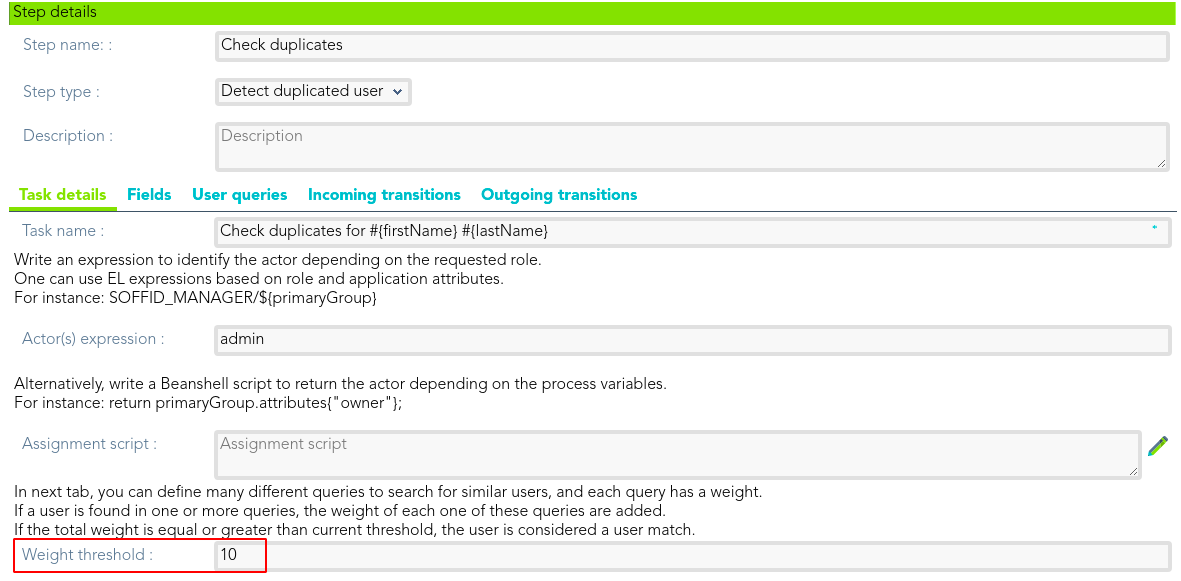
- **Weight threshold**: in the tab "User queries", you can define many different queries to search for similar users, and each query has a weight. If a user is found in one or more queries, the weight of each one of these queries are added. If the total weight is equal to or greater than the current threshold, the user is considered a user match.
### Fields
In this tab, you could choose what fields the process form will show to the end users. You can choose these fields from all identity attributes, and from the attributes defined for the workflow on the Attributes Tab. By default, all the identity attributes will be shown. You can choose the fields you want to show, add new fields, and delete the fields that do not need to generate a task. Also, you can sort the fields, you only need to drag and drop on the Order column.
For each field, you may indicate if it is a readOnly field, and you may add a Validation script and Visibility script. The validation script allows you to define rules, the field has to comply with these rules. The visibility script allows you to define the rules to show or hide a field.
### User queries
This tab is only available when one of the below Step types is **Detect duplicated user**.
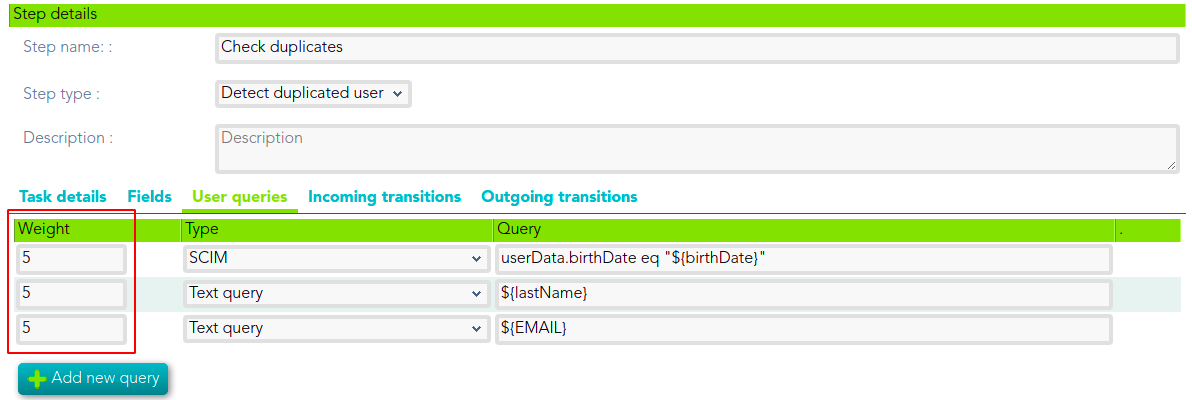
User queries allow you to customize a SCIM or Text query to detect duplicated users. You may define a weight for each query. If a user is found in one or more queries, the weight of each one of these queries are added. If the total weight is equal to or greater than the current weight threshold (defined on the Task details tab), the user is considered a user match.
##### Examples
Text Query
```
${lastName}
```
SCIM Query
```
attributes.birthDate eq "${birthDate}"
```
Define the weight threshold on the Task detail tab
[](https://bookstack.soffid.com/uploads/images/gallery/2021-06/image-1622707864803.png)
Define the weight for each query on the User query tab: A user is considered duplicated when at least two queries are true.
[](https://bookstack.soffid.com/uploads/images/gallery/2021-06/image-1622707825784.png)
### Incoming transitions
The Incoming transitions tab displays the previous steps where the flow comes from. When you create a process from a template or from scratch default incoming transitions are defined. It is allowed to customize the default setup, add new transitions, or delete transitions.
- **From**: the previous step, where the flow comes. Allows you to select where the workflow comes from.
- **Incoming transition**: brief name to identify the transition. That is the name of the action the form will show to the final user.
- **To**: current step.
- **Action**: allows creating a custom script to perform specific actions.
When you create an incoming transition, Soffid creates the proper outcoming transition.
##### Example
The incoming script action is the same outgoing script action of the previous step.
```Java
selector = executionContext.getVariable("userSelector");
user = serviceLocator.getUserService().findUserByUserName(selector);
executionContext.setVariable("testName", user.firstName);
executionContext.setVariable("testOperation", "CHECK");
```
### Outgoing transitions
The Outcoming transition tab displays the next steps where the flow can go from the current step. When you create a process from a template or from scratch default outcoming transitions are defined. It is allowed to customize the default setup, add new transitions, or delete transitions.
- **From**: current step.
- **Incoming transition**: name of the transition.
- **To**: the next step, where the flow goes.
- **Action**: allows creating a custom script to perform specific actions.
When you create an outcoming transition, Soffid creates the proper incoming transition.
##### Example
Add comments to the task:
```Java
executionContext.getToken().addComment("Automatic comments.......");
```
# Apply changes
## Definition
This step is used to apply the identity changes to the Soffid repository.
## Steps Tabs
### Task details
- **Apply users changes**: check it (select the Yes option) to make changes to users on the Soffid repository.
- **Apply entitlements**: check it (select the Yes option) to make changes to permissions on the Soffid repository.
Incoming transitions
The Incoming transitions tab displays the previous steps where the flow comes from. When you create a process from a template or from scratch default incoming transitions are defined. It is allowed to customize the default setup, add new transitions, or delete transitions.
- **From**: the previous step, where the flow comes. Allows you to select where the workflow comes from.
- **Incoming transition**: brief name to identify the transition. That is the name of the action the form will show to the final user.
- **To**: current step.
- **Action**: allows creating a custom script to perform specific actions.
When you create an incoming transition, Soffid creates the proper outcoming transition.
##### Example
```Java
requester = executionContext.getVariable("requester");
userR = serviceLocator.getUserService().findUserByUserName(requester);
if (userR.primaryGroup.equals("admingroup")) {
//TO-DO
} else {
//TO-DO
}
```
### Outgoing transitions
The Outcoming transition tab displays the next steps where the flow can go from the current step. When you create a process from a template or from scratch default outcoming transitions are defined. It is allowed to customize the default setup, add new transitions, or delete transitions.
- **From**: current step.
- **Incoming transition**: name of the transition.
- **To**: the next step, where the flow goes.
- **Action**: allows creating a custom script to perform specific actions.
When you create an outcoming transition, Soffid creates the proper incoming transition.
##### Example
```Java
userName = executionContext.getVariable("userName");
user = serviceLocator.getUserService().findUserByUserName(userName);
country = user.getAttributes().get("country");
groups = serviceLocator.getGroupService().findUsersGroupByUserName(userName);
if (country.equals("ES")) {
//TO-DO
}
```
# Custom
## Definition
This step is used to define a custom script that will be executed
## Steps Tabs
### Task details
All the process types have the same Task details for the Custom step:
- **Script**: allows you to define a Script this step allows you to add a script to be executed.
##### Example
```Java
comments = executionContext.getToken().getComments();
selector = executionContext.getVariable("userSelector");
if (selector == null || selector.equals("")) {
return ("The userName is mandatory");
}
user = serviceLocator.getUserService().findUserByUserName(selector);
if (user != null) {
subject = "Soffid - Notification";
message = "Automated mail sent ..............";
if (comments != null && !comments.isEmpty()) {
for (comment : comments) {
message += comment.message;
}
}
serviceLocator.getUserService().sendHtmlMailToActors(new String[]{user.userName}, subject, message);
}
```
### Incoming transitions
The Incoming transitions tab displays the previous steps where the flow comes from. When you create a process from a template or from scratch default incoming transitions are defined. It is allowed to customize the default setup, add new transitions, or delete transitions.
- **From**: the previous step, where the flow comes. Allows you to select where the workflow comes from.
- **Incoming transition**: brief name to identify the transition. That is the name of the action the form will show to the final user.
- **To**: current step.
- **Action**: allows creating a custom script to perform specific actions.
When you create an incoming transition, Soffid creates the proper outcoming transition.
##### Example
Scroll through the list of roles and the list of grant hierarchies to execute some actions.
```Java
userName = executionContext.getVariable("userName");
roleList = serviceLocator.getApplicationService().findRolesByUserName(userName);
for (role:roleList) {
//TO-DO
}
user = serviceLocator.getUserService().findUserByUserName(userName);
roleGrantList = serviceLocator.getApplicationService().findRoleGrantHierarchyByUser(user.id);
for (roleGrant:roleGrantList) {
//TO-DO
}
```
### Outgoing transitions
The Outcoming transition tab displays the next steps where the flow can go from the current step. When you create a process from a template or from scratch default outcoming transitions are defined. It is allowed to customize the default setup, add new transitions, or delete transitions.
- **From**: current step.
- **Incoming transition**: name of the transition.
- **To**: the next step, where the flow goes.
- **Action**: allows creating a custom script to perform specific actions.
When you create an outcoming transition, Soffid creates the proper incoming transition.
##### Example
Delete additional attribute
```Java
userName = executionContext.getVariable("userName");
attribute = serviceLocator.getUserService().findDataByUserAndCode(userName, "country");
if (attribute != null) {
serviceLocator.getAdditionalDataService().delete(attribute);
}
```
# Mail
## Definition
This step allows you to configure the necessary parameters to send an email when the flow reaches this point. That mail will be an informative mail, and the receptor could not perform any action from the mail.
To send mail, you will need to configure mail server parameters. You can visit the [Soffid parameters page](https://bookstack.soffid.com/books/soffid-3-reference-guide/page/soffid-parameters "Soffid parameters") for more information.
## Steps Tabs
### Task details
When you select the Mail Step type, you could configure the mail information to send and the recipients of that information. To send a mail from Soffid Console is needed to have a mail server configuration.
- **Identities(s):** User, group, role, or email which is the recipient.
- **Email address(es):** Set one or more valid email addresses.
- **Subject:** Subject of the mail.
- **Email message:** Message of the mail.
### Incoming transitionsThe Incoming transitions tab displays the previous steps where the flow comes from. When you create a process from a template or from scratch default incoming transitions are defined. It is allowed to customize the default setup, add new transitions, or delete transitions.
- **From**: the previous step, where the flow comes. Allows you to select where the workflow comes from.
- **Incoming transition**: brief name to identify the transition. That is the name of the action the form will show to the final user.
- **To**: current step.
- **Action**: allows creating a custom script to perform specific actions.
When you create an incoming transition, Soffid creates the proper outcoming transition.
##### Example
Get the selected user, first name, and operation from the previous step:
```Java
selector = executionContext.getVariable("userSelector");
user = serviceLocator.getUserService().findUserByUserName(selector);
executionContext.setVariable("testName", user.firstName);
executionContext.setVariable("testOperation", "CHECK");
```
### Outgoing transitions
The Outcoming transition tab displays the next steps where the flow can go from the current step. When you create a process from a template or from scratch default outcoming transitions are defined. It is allowed to customize the default setup, add new transitions, or delete transitions.
- **From**: current step.
- **Incoming transition**: name of the transition.
- **To**: the next step, where the flow goes.
- **Action**: allows creating a custom script to perform specific actions.
When you create an outcoming transition, Soffid creates the proper incoming transition.
##### Example
Get the account list associated with a user to perform some actions:
```Java
userName = executionContext.getVariable("userName");
accountList = serviceLocator.getAccountService().findAccountByJsonQuery("name eq \"" + userName + "\" AND (type eq \"P\" or type eq \"S\" or type eq \"I\")");
for (account:accountList) {
//TO-DO
}
```
---
[*\* https://es.wikipedia.org/wiki/Expression\_Language*](https://es.wikipedia.org/wiki/Expression_Language)
# Fork
## Definition
This step is used to divide the workflow into two or more paths that will run in parallel, allowing multiple activities to run simultaneously.
/====> path 1 =====\\
Fork ==== ==> Join
\\====> path 2 =====/
## Steps Tabs
### Task details
This process type does not have task details for the fork step.
### Incoming transitions
The Incoming transitions tab displays the previous steps where the flow comes from. When you create a process from a template or from scratch default incoming transitions are defined. It is allowed to customize the default setup, add new transitions, or delete transitions.
- **From**: the previous step, where the flow comes. Allows you to select where the workflow comes from.
- **Incoming transition**: brief name to identify the transition. That is the name of the action the form will show to the final user.
- **To**: current step.
- **Action**: allows creating a custom script to perform specific actions.
When you create an incoming transition, Soffid creates the proper outcoming transition.
##### Example
Update custom attributes defined on metadata
```Java
userName = executionContext.getVariable("userName");
attributes = serviceLocator.getUserService().findUserAttributes(userName);
newAttributes = new HashMap();
newAttributes.put("country", "FR");
language = attributes.get("language");
if (language == null) {
language = new LinkedList();
}
language.add("Spanish");
language.add("German");
newAttributes.put ("language", language);
serviceLocator.getUserService().updateUserAttributes(userName, newAttributes);
```
### Outgoing transitions
The Outcoming transition tab displays the next steps where the flow can go from the current step. When you create a process from a template or from scratch default outcoming transitions are defined. It is allowed to customize the default setup, add new transitions, or delete transitions.
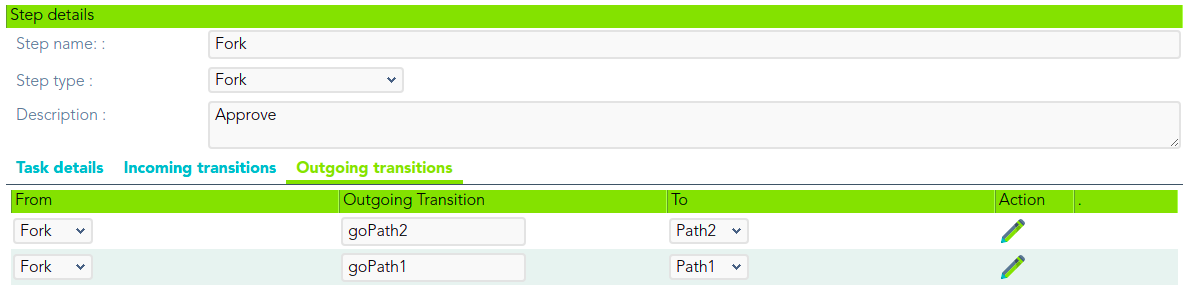
- **From**: current step.
- **Outgoing transition**: name of the transition. It is a required field, you must comply it to the workflow run properly.
- **To**: the next step, where the flow goes.
- **Action**: allows creating a custom script to perform specific actions.
When you create an outcoming transition, Soffid creates the proper incoming transition.
##### Example
Scroll through the list of roles and the list of grant hierarchies to execute some actions.
```Java
userName = executionContext.getVariable("userName");
roleList = serviceLocator.getApplicationService().findRolesByUserName(userName);
for (role:roleList) {
//TO-DO
}
user = serviceLocator.getUserService().findUserByUserName(userName);
roleGrantList = serviceLocator.getApplicationService().findRoleGrantHierarchyByUser(user.id);
for (roleGrant:roleGrantList) {
//TO-DO
}
```
# Join
## Definition
This step is used to combine two or more parallel paths into one path.
## Steps Tabs
### Task details
This process type does not have task details for the fork step.
### Incoming transitions
The Incoming transitions tab displays the previous steps where the flow comes from. When you create a process from a template or from scratch default incoming transitions are defined. It is allowed to customize the default setup, add new transitions, or delete transitions.
To join some paths will be mandatory to add the incoming transitions from those forks.
- **From**: the previous step, where the flow comes. Allows you to select where the workflow comes from.
- **Incoming transition**: brief name to identify the transition. That is the name of the action the form will show to the final user.
- **To**: current step.
- **Action**: allows creating a custom script to perform specific actions.
When you create an incoming transition, Soffid creates the proper outcoming transition.
[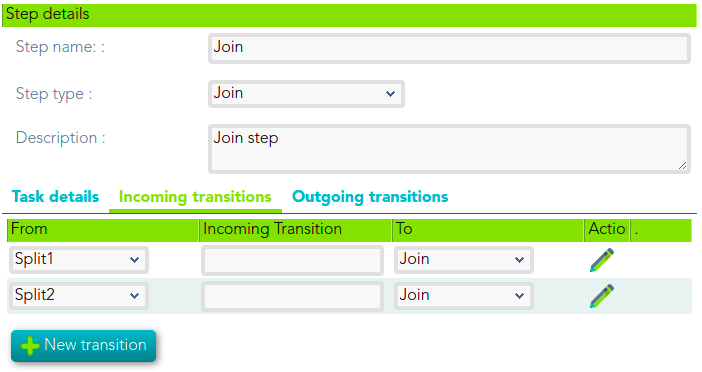](https://bookstack.soffid.com/uploads/images/gallery/2021-06/image-1623748784180.png)
##### Example
Delete additional attribute:
```Java
userName = executionContext.getVariable("userName");
attribute = serviceLocator.getUserService().findDataByUserAndCode(userName, "country");
if (attribute != null) {
serviceLocator.getAdditionalDataService().delete(attribute);
}
```
### Outgoing transitions
The Outcoming transition tab displays the next steps where the flow can go from the current step. When you create a process from a template or from scratch default outcoming transitions are defined. It is allowed to customize the default setup, add new transitions, or delete transitions.
- **From**: current step.
- **Incoming transition**: name of the transition.
- **To**: the next step, where the flow goes.
- **Action**: allows creating a custom script to perform specific actions.
When you create an outcoming transition, Soffid creates the proper incoming transition.
##### Example
Scroll through the list of roles to execute some actions.
```Java
userName = executionContext.getVariable("userName");
roleList = serviceLocator.getApplicationService().findRolesByUserName(userName);
for (role:roleList) {
//TO-DO
}
```
# End
## Description
The end step finalizes the process. It is the last step of the workflow.
## Steps Tabs
### Task details
This process type does not have task details for the start step.
### Incoming transitions
The Incoming transitions tab displays the previous steps where the flow comes from. When you create a process from a template or from scratch default incoming transitions are defined. It is allowed to customize the default setup, add new transitions, or delete transitions.
- **From**: the previous step, where the flow comes. Allows you to select where the workflow comes from.
- **Incoming transition**: brief name to identify the transition. That is the name of the action the form will show to the final user.
- **To**: current step.
- **Action**: allows creating a custom script to perform specific actions.
When you create an incoming transition, Soffid creates the proper outcoming transition.
##### Example
If the user country is Spain, it will perform an action for each role.
```Java
userName = executionContext.getVariable("userName");
user = serviceLocator.getUserService().findUserByUserName(userName);
country = user.getAttributes().get("country");
if (country != null && country.equals("ES")) {
roleList = serviceLocator.getApplicationService().findRolesByUserName(userName);
for (role : roleList) {
//TO-DO
}
```
### Outgoing transitions
This step does not have outgoing transitions. It is the last step of the workflow.
# Permissions management steps
Define the Process management steps
# Start
## Definition
That is the first step of the workflow. At that step, you could define the fields you want to show when the end users will go to make a request.
## Steps Tabs
### Task details
In this tab you could configure next parameters:
- **Task name**: identified name for the task that will be created when the workflow is requested.
- **Permission request screen type**: this allows you to select how the permissions will be displayed on the screen. There are two available options:
- **List of permissions**: this option needs to configure a user selector on the fields tab. When end-users request a process, first of all, they will select the user and the permissions, and then the permissions, the list of available permissions depends on the selected user.
- **Self service request**: if you select the self-service request, it will not be mandatory to configure the user selector on the fields tab. That option can be configured to request permission for your own user, or to third users configuring the user selector. When end-users request a process, the available permissions will be displayed to select from the information system for the roles defined. When you select one or more roles, those will be added to the shopping cart to make the request.
- **Role selection filter**: this allows you to define a Script that returns the available roles to select. At the script window, you could find information about the available context variables.
- **Application selection filter**: this allows you to define a Script that returns the available applications to select. At the script window, you could find information about the available context variables.
### Fields
In this tab, you could choose what fields the process form will show to the end users. You can choose these fields from all identity attributes, and from the attributes defined for the workflow on the Attributes Tab.
By default, only the Permissions field will be shown. That field is defined on the attributes tab. You can choose the fields you want to show when the end-users, add new fields, and delete the fields that do not need to generate a task. Also, you can sort the fields, you only need to drag and drop on the Order column.
For each field, you may indicate if it is a readOnly field, and you may add a Validation script and Visibility script. The validation script allows you to define rules, the field has to comply with these rules. The visibility script allows you to define the rules to show or hide a field.
##### Validation examples
```Java
if (value == null || value.equals(""))
throw new Exception("The userName is mandatory");
else
return true;
```
It is also allowed in the following manner:
```Java
if (value == null || value.equals(""))
return ("The userName is mandatory");
else
return true;
```
Validate that a certain field is not repeated:
```Java
userList = serviceLocator.getUserService().findUserByJsonQuery("attributes.field_XX eq \"" + value +"\"");
if (!userList.isEmpty() {
return "the field field_XX is associated to another user";
}
return true;
```
##### Visibility example
```Java
user = serviceLocator.getUserService().getCurrentUser();
if ("admin".equals(user.userName))
return false;
```
### Triggers
On the trigger tab, you could define different triggers using custom scripts. Those triggers will be launched with the events you will define.
- **onLoad**: you can use that trigger to perform some actions before the execution of the step.
- **on PrepareTransition**: you can use that trigger to perform some actions after the execution of the step and before starting a transition to another step.
- **onChange**: you can use that trigger to perform some actions when the value of the attribute is changed. You could choose the field from a list.
##### Example
1\. Calculate the email when firstName or lastName changes and depending on the userType:
```Java
firstName = (inputFields.get("firstName")!=null) ? inputFields.get("firstName").value : null;
lastName = (inputFields.get("lastName")!=null) ? inputFields.get("lastName").value : null;
userType = (inputFields.get("userType")!=null) ? inputFields.get("userType").value : null;
if (firstName!=null && !firstName.trim().isEmpty() &&
lastName!=null && !lastName.trim().isEmpty() &&
userType!=null && !userType.trim().isEmpty()) {
emailAddress = firstName + "." + lastName;
if ("E".equals(userType)) {
emailAddress = emailAddress + ".ext@soffid.com";
} else {
emailAddress = emailAddress + "@soffid.com";
}
inputFields.get("emailAddress").value = emailAddress;
}
```
You can find more information about [StandardUserWindow.java](https://github.com/SoffidIAM/addon-bpm/blob/master/bpm-web-common/src/main/java/com/soffid/iam/addons/bpm/ui/StandardUserWindow.java) on Github.
2\. Load the user data into the form.
```Java
user = serviceLocator.getUserService().getCurrentUser();
task.getVariables().put("action", "M");
task.getVariables().put("userSelector", user.userName);
workflowWindow.fetchUserAttributes()
```
### Incoming transitions
This process type does not have task details for the start step.
### Outgoing transitions
The Outcoming transition tab displays the next steps where the flow can go from the current step. When you create a process from a template or from scratch default outcoming transitions are defined. It is allowed to customize the default setup, add new transitions, or delete transitions.
- **From**: current step.
- **Incoming transition**: name of the transition.
- **To**: the next step, where the flow goes.
- **Action**: allows creating a custom script to perform specific actions.
When you create an outcoming transition, Soffid creates the proper incoming transition.
##### Example
Validation of mandatory fields:
```Java
a = executionContext.getVariable("firstName");
if (a==null || "".equals(a.trim()))
throw new Exception("First name is mandatory");
a = executionContext.getVariable("lastName");
if (a==null || "".equals(a.trim()))
throw new Exception("Last name is mandatory");
a = executionContext.getVariable("primaryGroup");
if (a==null || "".equals(a.trim()))
throw new Exception("Primery group is mandatory");
return true;
```
To request the process is only allowed for Internal users:
```Java
userSelector = executionContext.getVariable("userSelector");
user = serviceLocator.getUserService().findUserByUserName(userSelector);
if (user.userType.equals("I") || user.userType.equals("S")) {
throw new Exception ("To request the process is only allowed for Internal users");
}
```
# Grant approval
## Description
This step is used to define the custom form that will be used by the users who have to approve or reject the generated task. To configure that step will be necessary to determine the fields that will be shown to the users, and the actions that these users could perform.
## Steps Tabs
### Task details
- **Task name**: identified name for the task that will be created.
- **Permission request screen type**: allows selecting the type of screen for permission request.
- List of permissions
- **Display approval pending**: that is the default option. When you select that option, all the approval pending will be shown to the end user.
- Display all
- Display approved
- Display denied
- **Actor(s) expression**: write an expression to identify the actor depending on the requested role. One can use EL expressions based on role and application attributes. For instance: SOFFID\_MANAGER/${primaryGroup}
- **Assignment script**: alternatively, write a Beanshell script to return the actor depending on the process variables. For instance: return primaryGroup.attributes{"owner"};
- **Approve from email**: checked it to allow you to send a mail to approve or deny the task. If you check that option (selected value Yes), you need to fill in the transitions to approve and deny the task, those have to match with the outgoing transitions defined for those step.
- Approval transition: has to match with an outgoing transition.
- Denial transition: has to match with an outgoing transition.
To send mail, you will need to configure mail server parameters. You can visit the [Soffid parameters page](https://bookstack.soffid.com/books/soffid-3-reference-guide/page/soffid-parameters "Soffid parameters") for more information.
[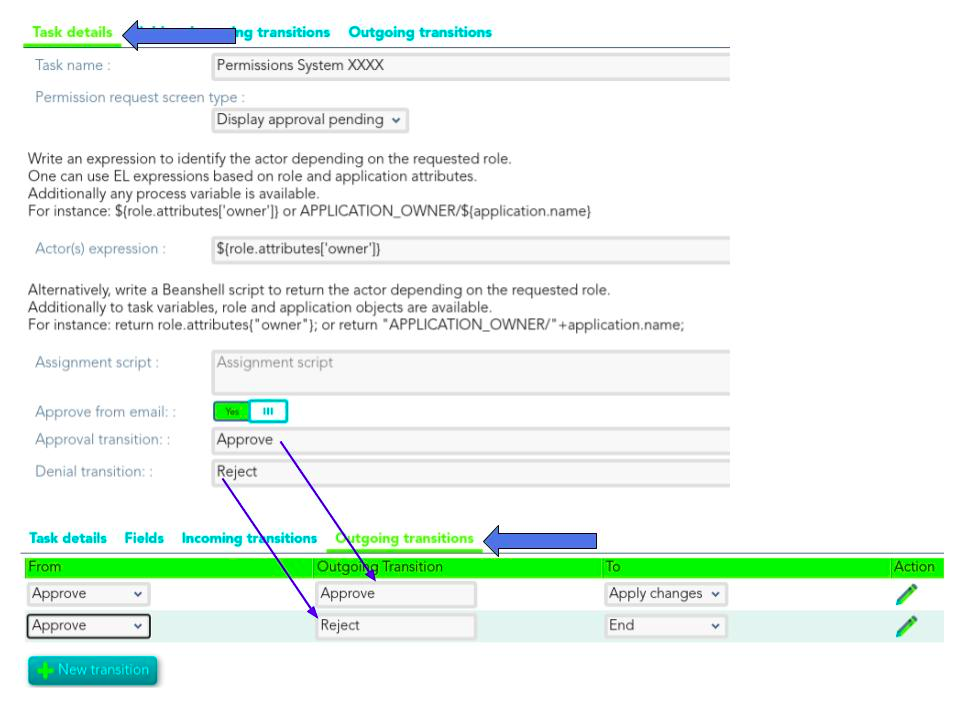](https://bookstack.soffid.com/uploads/images/gallery/2021-06/image-1624346845355.png)
##### Example Assignment script
If a user belongs to the primary group "World", the manager of that group will be responsible to approve or deny the request. If the primary group is another, the persona who will be responsible to approve or deny will be the manager of the parent group of that group. If there is not primary group, the request will be sent to the admin user.
```Java
primaryGroup = executionContext.getVariable("primaryGroup");
if (primaryGroup != null && !primaryGroup.equals("")) {
if (primaryGroup.equals("world")) {
manager = serviceLocator.getGroupService().findGroupByGroupName(primaryGroup).getAttributes().get("manager");
return manager;
} else {
group = serviceLocator.getGroupService().findGroupByGroupName(primaryGroup);
if ( group.parentGroup != null && !group.parentGroup.equals("")) {
manager = serviceLocator.getGroupService().findGroupByGroupName(group.parentGroup).getAttributes().get("manager");
return manager;
}
}
} else {
return "admin";
}
```
### Fields
In this tab, you could choose what fields the process form will show to the end users. You can choose these fields from all identity attributes, and from the attributes defined for the workflow on the Attributes Tab. By default, all the identity attributes will be shown. You can choose the fields you want to show, add new fields, and delete the fields that do not need to generate a task. Also, you can sort the fields, you only need to drag and drop on the Order column.
For each field, you may indicate if it is a readOnly field, and you may add a Validation script and Visibility script. The validation script allows you to define rules, the field has to comply with these rules. The visibility script allows you to define the rules to show or hide a field.
##### Example
```Java
if (value == null || value.equals(""))
return ("The user is mandatory");
else
return true;
```
### Incoming transitions
The Incoming transitions tab displays the previous steps where the flow comes from. When you create a process from a template or from scratch default incoming transitions are defined. It is allowed to customize the default setup, add new transitions, or delete transitions.
- **From**: the previous step, where the flow comes. Allows you to select where the workflow comes from.
- **Incoming transition**: brief name to identify the transition. That is the name of the action the form will show to the final user.
- **To**: current step.
- **Action**: allows creating a custom script to perform specific actions.
When you create an incoming transition, Soffid creates the proper outcoming transition.
##### Example
Validation of mandatory fields:
```Java
a = executionContext.getVariable("firstName");
if (a==null || "".equals(a.trim()))
throw new Exception("First name is mandatory");
a = executionContext.getVariable("lastName");
if (a==null || "".equals(a.trim()))
throw new Exception("Last name is mandatory");
a = executionContext.getVariable("primaryGroup");
if (a==null || "".equals(a.trim()))
throw new Exception("Primery group is mandatory");
return true;
```
To request the process is only allowed for Internal users:
```Java
userSelector = executionContext.getVariable("userSelector");
user = serviceLocator.getUserService().findUserByUserName(userSelector);
if (user.userType.equals("I") || user.userType.equals("S")) {
throw new Exception ("To request the process is only allowed for Internal users");
}
```
### Outgoing transitions
The Outcoming transition tab displays the next steps where the flow can go from the current step. When you create a process from a template or from scratch default outcoming transitions are defined. It is allowed to customize the default setup, add new transitions, or delete transitions.
- **From**: current step.
- **Incoming transition**: name of the transition.
- **To**: the next step, where the flow goes.
- **Action**: allows creating a custom script to perform specific actions.
When you create an outcoming transition, Soffid creates the proper incoming transition.
##### Example
To scroll through the list of values to perform some operations.
```Java
grants = executionContext.getVariable("grants");
for (roleRequestInfo:grants) {
// TO-DO
}
```
# Apply changes
## Definition
This step is used to apply the identity changes to the Soffid repository.
## Steps Tabs
### Task details
- **Apply users changes**: check it (select the Yes option) to make changes to users on the Soffid repository.
- **Apply entitlements**: check it (select the Yes option) to make changes to permissions on the Soffid repository.
Incoming transitions
The Incoming transitions tab displays the previous steps where the flow comes from. When you create a process from a template or from scratch default incoming transitions are defined. It is allowed to customize the default setup, add new transitions, or delete transitions.
- **From**: the previous step, where the flow comes. Allows you to select where the workflow comes from.
- **Incoming transition**: brief name to identify the transition. That is the name of the action the form will show to the final user.
- **To**: current step.
- **Action**: allows creating a custom script to perform specific actions.
When you create an incoming transition, Soffid creates the proper outcoming transition.
##### Example
Scroll through the list of values to perform some operations.
```Java
grants = executionContext.getVariable("grants");
for (roleRequestInfo:grants) {
// TO-DO
}
```
### Outgoing transitions
The Outcoming transition tab displays the next steps where the flow can go from the current step. When you create a process from a template or from scratch default outcoming transitions are defined. It is allowed to customize the default setup, add new transitions, or delete transitions.
- **From**: current step.
- **Incoming transition**: name of the transition.
- **To**: the next step, where the flow goes.
- **Action**: allows creating a custom script to perform specific actions.
When you create an outcoming transition, Soffid creates the proper incoming transition.
##### Example
If the user's country is Spain, it will delete all the groups to which the user belongs:
```Java
userName = executionContext.getVariable("userName");
user = serviceLocator.getUserService().findUserByUserName(userName);
country = user.getAttributes().get("country");
groups = serviceLocator.getGroupService().findUsersGroupByUserName(userName);
if (country.equals("ES")) {
for (groupUser: groups) {
serviceLocator.getGroupService().removeGroupFormUser(userName, groupUser.group);
}
}
```
# Script action
## Definition
This step is used to define a custom script that will be executed
## Steps Tabs
### Task details
All the process types have the same Task details for the Custom step:
- **Script**: allows you to define a Script this step allows you to add a script to be executed.
##### Example
```Java
comments = executionContext.getToken().getComments();
selector = executionContext.getVariable("userSelector");
if (selector == null || selector.equals("")) {
return ("The userName is mandatory");
}
user = serviceLocator.getUserService().findUserByUserName(selector);
if (user != null) {
subject = "Soffid - Notification";
message = "Automated mail sent ..............";
if (comments != null && !comments.isEmpty()) {
for (comment : comments) {
message += comment.message;
}
}
serviceLocator.getUserService().sendHtmlMailToActors(new String[]{user.userName}, subject, message);
}
```
### Incoming transitions
The Incoming transitions tab displays the previous steps where the flow comes from. When you create a process from a template or from scratch default incoming transitions are defined. It is allowed to customize the default setup, add new transitions, or delete transitions.
- **From**: the previous step, where the flow comes. Allows you to select where the workflow comes from.
- **Incoming transition**: brief name to identify the transition. That is the name of the action the form will show to the final user.
- **To**: current step.
- **Action**: allows creating a custom script to perform specific actions.
When you create an incoming transition, Soffid creates the proper outcoming transition.
##### Example
Scroll through the list of roles and the list of grant hierarchies to execute some actions.
```Java
userName = executionContext.getVariable("userName");
roleList = serviceLocator.getApplicationService().findRolesByUserName(userName);
for (role:roleList) {
//TO-DO
}
user = serviceLocator.getUserService().findUserByUserName(userName);
roleGrantList = serviceLocator.getApplicationService().findRoleGrantHierarchyByUser(user.id);
for (roleGrant:roleGrantList) {
//TO-DO
}
```
### Outgoing transitions
The Outcoming transition tab displays the next steps where the flow can go from the current step. When you create a process from a template or from scratch default outcoming transitions are defined. It is allowed to customize the default setup, add new transitions, or delete transitions.
- **From**: current step.
- **Incoming transition**: name of the transition.
- **To**: the next step, where the flow goes.
- **Action**: allows creating a custom script to perform specific actions.
When you create an outcoming transition, Soffid creates the proper incoming transition.
##### Example
Delete additional attribute
```
userName = executionContext.getVariable("userName");
attribute = serviceLocator.getUserService().findDataByUserAndCode(userName, "country");
if (attribute != null) {
serviceLocator.getAdditionalDataService().delete(attribute);
}
```
# Mail
## DefinitionThis step allows you to configure the necessary parameters to send an email when the flow reaches this point. That mail will be an informative mail, and the receptor could not perform any action from the mail.To send mail, you will need to configure mail server parameters. You can visit the [Soffid parameters page](https://bookstack.soffid.com/books/soffid-3-reference-guide/page/soffid-parameters "Soffid parameters") for more information.
## Steps Tabs
### Task details
When you select the Mail Step type, you could configure the mail information to send and the recipients of that information.
- **Identities(s):** User, group, role, or email which is the recipient.
- **Email address(es):** Set one or more valid email addresses.
- **Subject:** Subject of the mail.
- **Email message:** Message of the mail.
### Incoming transitionsThe Incoming transitions tab displays the previous steps where the flow comes from. When you create a process from a template or from scratch default incoming transitions are defined. It is allowed to customize the default setup, add new transitions, or delete transitions.
- **From**: the previous step, where the flow comes. Allows you to select where the workflow comes from.
- **Incoming transition**: brief name to identify the transition. That is the name of the action the form will show to the final user.
- **To**: current step.
- **Action**: allows creating a custom script to perform specific actions.
When you create an incoming transition, Soffid creates the proper outcoming transition.
##### Example
Get the selected user, first name, and operation from the previous step:
```Java
selector = executionContext.getVariable("userSelector");
user = serviceLocator.getUserService().findUserByUserName(selector);
executionContext.setVariable("testName", user.firstName);
executionContext.setVariable("testOperation", "CHECK");
```
### Outgoing transitions
The Outcoming transition tab displays the next steps where the flow can go from the current step. When you create a process from a template or from scratch default outcoming transitions are defined. It is allowed to customize the default setup, add new transitions, or delete transitions.
- **From**: current step.
- **Incoming transition**: name of the transition.
- **To**: the next step, where the flow goes.
- **Action**: allows creating a custom script to perform specific actions.
When you create an outcoming transition, Soffid creates the proper incoming transition.
##### Example
Get the account list associated with a user to perform some actions:
```Java
userName = executionContext.getVariable("userName");
accountList = serviceLocator.getAccountService().findAccountByJsonQuery("name eq \"" + userName + "\" AND (type eq \"P\" or type eq \"S\" or type eq \"I\")");
for (account:accountList) {
//TO-DO
}
```
---
[*\* https://es.wikipedia.org/wiki/Expression\_Language*](https://es.wikipedia.org/wiki/Expression_Language)
# Fork
## Definition
This step is used to divide the workflow into two or more paths that will run in parallel, allowing multiple activities to run simultaneously.
/====> path 1 =====\\
Fork ==== ==> Join
\\====> path 2 =====/
## Steps Tabs
### Task details
This process type does not have task details for the fork step.
### Incoming transitions
The Incoming transitions tab displays the previous steps where the flow comes from. When you create a process from a template or from scratch default incoming transitions are defined. It is allowed to customize the default setup, add new transitions, or delete transitions.
- **From**: the previous step, where the flow comes. Allows you to select where the workflow comes from.
- **Incoming transition**: brief name to identify the transition. That is the name of the action the form will show to the final user.
- **To**: current step.
- **Action**: allows creating a custom script to perform specific actions.
When you create an incoming transition, Soffid creates the proper outcoming transition.
##### Example
To scroll through the list of values to perform some operations.
```Java
userName = executionContext.getVariable("userName");
requester = executionContext.getVariable("requester");
requesterName = executionContext.getVariable("requesterName");
grants = executionContext.getVariable("grants");
for (roleRequestInfo:grants) {
// TO-DO
}
```
### Outgoing transitions
The Outcoming transition tab displays the next steps where the flow can go from the current step. When you create a process from a template or from scratch default outcoming transitions are defined. It is allowed to customize the default setup, add new transitions, or delete transitions.
- **From**: current step.
- **Outgoing transition**: name of the transition. It is a required field, you must comply it to the workflow run properly.
- **To**: the next step, where the flow goes.
- **Action**: allows creating a custom script to perform specific actions.
When you create an outcoming transition, Soffid creates the proper incoming transition.

##### Example
Scroll through the list of roles and the list of grant hierarchies to execute some actions.
```Java
userName = executionContext.getVariable("userName");
roleList = serviceLocator.getApplicationService().findRolesByUserName(userName);
for (role:roleList) {
//TO-DO
}
user = serviceLocator.getUserService().findUserByUserName(userName);
roleGrantList = serviceLocator.getApplicationService().findRoleGrantHierarchyByUser(user.id);
for (roleGrant:roleGrantList) {
//TO-DO
}
```
# Join
## Definition
This step is used to combine two or more parallel paths into one path.
## Steps Tabs
### Task details
This process type does not have task details for the fork step.
### Incoming transitions
The Incoming transitions tab displays the previous steps where the flow comes from. When you create a process from a template or from scratch default incoming transitions are defined. It is allowed to customize the default setup, add new transitions, or delete transitions.
To join some paths will be mandatory to add the incoming transitions from those forks.
- **From**: the previous step, where the flow comes. Allows you to select where the workflow comes from.
- **Incoming transition**: brief name to identify the transition. That is the name of the action the form will show to the final user.
- **To**: current step.
- **Action**: allows creating a custom script to perform specific actions.
When you create an incoming transition, Soffid creates the proper outcoming transition.
[](https://bookstack.soffid.com/uploads/images/gallery/2021-06/image-1623748784180.png)
##### Example
Delete additional attribute
```Java
userName = executionContext.getVariable("userName");
attribute = serviceLocator.getUserService().findDataByUserAndCode(userName, "country");
if (attribute != null) {
serviceLocator.getAdditionalDataService().delete(attribute);
}
```
### Outgoing transitions
The Outcoming transition tab displays the next steps where the flow can go from the current step. When you create a process from a template or from scratch default outcoming transitions are defined. It is allowed to customize the default setup, add new transitions, or delete transitions.
- **From**: current step.
- **Incoming transition**: name of the transition.
- **To**: the next step, where the flow goes.
- **Action**: allows creating a custom script to perform specific actions.
When you create an outcoming transition, Soffid creates the proper incoming transition.
##### Example
Scroll through the list of roles to execute some actions.
```Java
userName = executionContext.getVariable("userName");
roleList = serviceLocator.getApplicationService().findRolesByUserName(userName);
for (role:roleList) {
//TO-DO
}
```
# End
## Description
The end step finalizes the process. It is the last step of the workflow.
## Steps Tabs
### Task details
This process type does not have task details for the start step.
### Incoming transitions
The Incoming transitions tab displays the previous steps where the flow comes from. When you create a process from a template or from scratch default incoming transitions are defined. It is allowed to customize the default setup, add new transitions, or delete transitions.
- **From**: the previous step, where the flow comes. Allows you to select where the workflow comes from.
- **Incoming transition**: brief name to identify the transition. That is the name of the action the form will show to the final user.
- **To**: current step.
- **Action**: allows creating a custom script to perform specific actions.
When you create an incoming transition, Soffid creates the proper outcoming transition.
##### Example
To scroll through the list of values to perform some operations.
```Java
userName = executionContext.getVariable("userName");
requester = executionContext.getVariable("requester");
requesterName = executionContext.getVariable("requesterName");
grants = executionContext.getVariable("grants");
for (roleRequestInfo:grants) {
// TO-DO
}
```
##### Example
If the user's country is Spain, it will delete all the groups to which the user belongs:
```Java
userName = executionContext.getVariable("userName");
user = serviceLocator.getUserService().findUserByUserName(userName);
country = user.getAttributes().get("country");
groups = serviceLocator.getGroupService().findUsersGroupByUserName(userName);
if (country.equals("ES")) {
for (groupUser: groups) {
serviceLocator.getGroupService().removeGroupFormUser(userName, groupUser.group);
}
}
```
### Outgoing transitions
This step does not have outgoing transitions. It is the last step of the workflow.
# Account reservation steps
Define the account reservation steps
# Start
## Definition
That is the first step of the workflow. At that step, you could define the fields you want to show when the end users. In that case, the request will be launched automatically when the end users request to use a privileged account to connect to a protected resource.
Administrator users can define on XACML Policy Management page the rules to request the use of some privileged accounts.
## Steps Tabs
### Task details
This process type does not have task details for the start step.
### Fields
In this tab, you could choose what fields the process form will show to the end users. You can choose these fields from all identity attributes, and from the attributes defined for the workflow on the Attributes Tab.
By default, only the fields defined on the attributes tab will be shown. You can choose the fields you want to show when the end-users, add new fields, and delete the fields that do not need to generate a task. Also, you can sort the fields, you only need to drag and drop on the Order column.
For each field, you may indicate if it is a readOnly field, and you may add a Validation script and Visibility script. The validation script allows you to define rules, the field has to comply with these rules. The visibility script allows you to define the rules to show or hide a field.
##### Validation examples
```Java
if (value == null || value.equals(""))
throw new Exception("The userName is mandatory");
else
return true;
```
It is also allowed in the following manner:
```Java
if (value == null || value.equals(""))
return ("The userName is mandatory");
else
return true;
```
Validate that a certain field is not repeated:
```Java
userList = serviceLocator.getUserService().findUserByJsonQuery("attributes.field_XX eq \"" + value +"\"");
if (!userList.isEmpty() {
return "the field field_XX is associated to another user";
}
return true;
```
##### Visibility example
```Java
user = serviceLocator.getUserService().getCurrentUser();
if ("admin".equals(user.userName))
return false;
```
### Triggers
On the trigger tab, you could define different triggers using custom scripts. Those triggers will be launched with the events you will define.
- **onLoad**: you can use that trigger to perform some actions before the execution of the step.
- **on PrepareTransition**: you can use that trigger to perform some actions after the execution of the step and before starting a transition to another step.
- **onChange**: you can use that trigger to perform some actions when the value of the attribute is changed. You could choose the field from a list.
##### Example
```Java
account = (inputFields.get("account")!=null) ? inputFields.get("account").value : null;
systemName = (inputFields.get("systemName")!=null) ? inputFields.get("systemName").value : null;
...........
```
### Incoming transitions
This process type does not have task details for the start step.
### Outgoing transitions
The Outcoming transition tab displays the next steps where the flow can go from the current step. When you create a process from a template or from scratch default outcoming transitions are defined. It is allowed to customize the default setup, add new transitions, or delete transitions.
- **From**: current step.
- **Incoming transition**: name of the transition.
- **To**: the next step, where the flow goes.
- **Action**: allows creating a custom script to perform specific actions.
When you create an outcoming transition, Soffid creates the proper incoming transition.
##### Example
```Java
accounts = serviceLocator.getAccountService().findAccountByJsonQuery("name eq \"" + executionContext.getVariable("account") + "\"");
if (!accounts.isEmpty() {
for (account:accounts) {
owners = serviceLocator.getAccountService().getAccountUsers(account);
// TO-DO
}
}
```
# Screen
## Description
This step is used to define the custom form that will be used by the users who have to approve or to reject the generated task. To configure that step will be necessary to determine the fields that will be show to the users, and the actions that these users could perform.
## Steps Tabs
### Task details
In this tab you could configure next parameters:
- **Task name**: identified name for the task that will be created when the workflow is requested.
- **Actor(s) expression**: allows you to write an expression to identify the actor depending on the requested role. One can use EL expressions (\*) based on role and application attributes. For instance: ${owners}
- **Assignment script**: alternatively, allows you to write a Beanshell script to return the actor depending on the process variables. For instance: return primaryGroup.attributes{"owner"};
- **Approve from email**: checked it to allow you to send a mail for approval the task.
### Fields
In this tab, you could choose what fields the process form will show to the end users. You can choose these fields from all identity attributes, and from the attributes defined for the workflow on the Attributes Tab. By default, all the identity attributes will be shown. You can choose the fields you want to show, add new fields, and delete the fields that do not need to generate a task. Also, you can sort the fields, you only need to drag and drop on the Order column.
For each field, you may indicate if it is a readOnly field, and you may add a Validation script and Visibility script. The validation script allows you to define rules, the field has to comply with these rules. The visibility script allows you to define the rules to show or hide a field.
##### Example
```Java
if (value == null || value.equals(""))
return ("The NIF is mandatory");
else
return true;
```
### Trigger
On the trigger tab, you could define different triggers using custom scripts. Those triggers will be launched with the events you will define.
- **onLoad**: you can use that trigger to perform some actions before the execution of the step.
- **on PrepareTransition**: you can use that trigger to perform some actions after the execution of the step and before starting a transition to another step.
- **onChange**: you can use that trigger to perform some actions when the value of the attribute is changed. You could choose the field from a list.
##### Example
```Java
requester = task.getVariables().get("requester");
systemName= task.getVariables().get("systemName");
.......
```
### Incoming transitions
The Incoming transitions tab displays the previous steps where the flow comes from. When you create a process from a template or from scratch default incoming transitions are defined. It is allowed to customize the default setup, add new transitions, or delete transitions.
- **From**: the previous step, where the flow comes. Allows you to select where the workflow comes from.
- **Incoming transition**: brief name to identify the transition. That is the name of the action the form will show to the final user.
- **To**: current step.
- **Action**: allows creating a custom script to perform specific actions.
When you create an incoming transition, Soffid creates the proper outcoming transition.
##### Example
Get the owners of an account and do something with each one.
```Java
accounts = serviceLocator.getAccountService().findAccountByJsonQuery("name eq \"" + executionContext.getVariable("account") + "\"");
if (!accounts.isEmpty() {
for (account:accounts) {
owners = serviceLocator.getAccountService().getAccountUsers(account);
// TO-DO
}
}
```
### Outgoing transitions
The Outcoming transition tab displays the next steps where the flow can go from the current step. When you create a process from a template or from scratch default outcoming transitions are defined. It is allowed to customize the default setup, add new transitions, or delete transitions.
- **From**: current step.
- **Incoming transition**: name of the transition.
- **To**: the next step, where the flow goes.
- **Action**: allows creating a custom script to perform specific actions.
When you create an outcoming transition, Soffid creates the proper incoming transition.
##### Example
Get the mail of the requester and send a notification.
```Java
requester = executionContext.getVariable("requester");
user = serviceLocator.getUserService().findUserByUserName(requester);
serviceLocator.getMailService().sendTextMail(
user.emailAddress,
"Resquest Rejected",
"XXXXXXXXXXXXX");
```
---
[*\* https://es.wikipedia.org/wiki/Expression\_Language*](https://es.wikipedia.org/wiki/Expression_Language)
# Apply changes
## DefinitionThis step is used to assign permission to a user to access the protected resource.
## Steps Tabs
### Task details
- **Grant account access**: check it (option selected Yes ) if you want to give grant account access to the protected resource.
Incoming transitions
The Incoming transitions tab displays the previous steps where the flow comes from. When you create a process from a template or from scratch default incoming transitions are defined. It is allowed to customize the default setup, add new transitions, or delete transitions.
- **From**: the previous step, where the flow comes. Allows you to select where the workflow comes from.
- **Incoming transition**: brief name to identify the transition. That is the name of the action the form will show to the final user.
- **To**: current step.
- **Action**: allows creating a custom script to perform specific actions.
When you create an incoming transition, Soffid creates the proper outcoming transition.
##### Example
Get the mail of the requester and send a notification.
```Java
requester = executionContext.getVariable("requester");
user = serviceLocator.getUserService().findUserByUserName(requester);
serviceLocator.getMailService().sendTextMail(
user.emailAddress,
"Resquest Rejected",
"XXXXXXXXXXXXX");
```
### Outgoing transitions
The Outcoming transition tab displays the next steps where the flow can go from the current step. When you create a process from a template or from scratch default outcoming transitions are defined. It is allowed to customize the default setup, add new transitions, or delete transitions.
- **From**: current step.
- **Incoming transition**: name of the transition.
- **To**: the next step, where the flow goes.
- **Action**: allows creating a custom script to perform specific actions.
When you create an outcoming transition, Soffid creates the proper incoming transition.
##### Example
```Java
requester = executionContext.getVariable("requester");
user = serviceLocator.getUserService().findUserByUserName(requester);
.....
```
# End
## Description
The end step finalizes the process. It is the last step of the workflow.
## Steps Tabs
### Task details
This process type does not have task details for the start step.
### Incoming transitions
The Incoming transitions tab displays the previous steps where the flow comes from. When you create a process from a template or from scratch default incoming transitions are defined. It is allowed to customize the default setup, add new transitions, or delete transitions.
- **From**: the previous step, where the flow comes. Allows you to select where the workflow comes from.
- **Incoming transition**: brief name to identify the transition. That is the name of the action the form will show to the final user.
- **To**: current step.
- **Action**: allows creating a custom script to perform specific actions.
When you create an incoming transition, Soffid creates the proper outcoming transition.
##### Example
Get the mail of the requester and send a notification.
```Java
requester = executionContext.getVariable("requester");
user = serviceLocator.getUserService().findUserByUserName(requester);
serviceLocator.getMailService().sendTextMail(
user.emailAddress,
"Resquest Rejected",
"XXXXXXXXXXXXX");
```
### Outgoing transitions
This step does not have outgoing transitions, it is because is the last step of the workflow.
# Permissons request steps
Define the Permissons request steps
# Start
## Definition
That is the first step of the workflow. At that step, you could define the fields you want to show when the end users. In that case, the request will be launched automatically when the end users request to use a privileged account to connect to a protected resource.
Administrator users can define on XACML Policy Management page the rules to request the use of some privileged accounts.
## Steps Tabs
### Task details
This process type does not have task details for the start step.
### Fields
In this tab, you could choose what fields the process form will show to the end users. You can choose these fields from all identity attributes, and from the attributes defined for the workflow on the Attributes Tab.
By default, only the fields defined on the attributes tab will be shown. You can choose the fields you want to show when the end-users, add new fields, and delete the fields that do not need to generate a task. Also, you can sort the fields, you only need to drag and drop on the Order column.
For each field, you may indicate if it is a readOnly field, and you may add a Validation script and Visibility script. The validation script allows you to define rules, the field has to comply with these rules. The visibility script allows you to define the rules to show or hide a field.
##### Validation examples
```Java
if (value == null || value.equals(""))
throw new Exception("The userName is mandatory");
else
return true;
```
It is also allowed in the following manner:
```Java
if (value == null || value.equals(""))
return ("The userName is mandatory");
else
return true;
```
Validate that a certain field is not repeated:
```Java
userList = serviceLocator.getUserService().findUserByJsonQuery("attributes.field_XX eq \"" + value +"\"");
if (!userList.isEmpty() {
return "the field field_XX is associated to another user";
}
return true;
```
##### Visibility example
```Java
user = serviceLocator.getUserService().getCurrentUser();
if ("admin".equals(user.userName))
return false;
```
### Triggers
On the trigger tab, you could define different triggers using custom scripts. Those triggers will be launched with the events you will define.
- **onLoad**: you can use that trigger to perform some actions before the execution of the step.
- **on PrepareTransition**: you can use that trigger to perform some actions after the execution of the step and before starting a transition to another step.
- **onChange**: you can use that trigger to perform some actions when the value of the attribute is changed. You could choose the field from a list.
##### Example
```Java
account = (inputFields.get("account")!=null) ? inputFields.get("account").value : null;
systemName = (inputFields.get("systemName")!=null) ? inputFields.get("systemName").value : null;
...........
```
### Incoming transitions
This process type does not have task details for the start step.
### Outgoing transitions
The Outcoming transition tab displays the next steps where the flow can go from the current step. When you create a process from a template or from scratch default outcoming transitions are defined. It is allowed to customize the default setup, add new transitions, or delete transitions.
- **From**: current step.
- **Incoming transition**: name of the transition.
- **To**: the next step, where the flow goes.
- **Action**: allows creating a custom script to perform specific actions.
When you create an outcoming transition, Soffid creates the proper incoming transition.
##### Example
```Java
accounts = serviceLocator.getAccountService().findAccountByJsonQuery("name eq \"" + executionContext.getVariable("account") + "\"");
if (!accounts.isEmpty() {
for (account:accounts) {
owners = serviceLocator.getAccountService().getAccountUsers(account);
// TO-DO
}
}
```
# Grant approval
## Description
This step is used to define the custom form that will be used by the users who have to approve or reject the generated task. To configure that step will be necessary to determine the fields that will be shown to the users, and the actions that these users could perform.
## Steps Tabs
### Task details
- **Task name**: identified name for the task that will be created.
- **Permission request screen type**: allows selecting the type of screen for permission request.
- List of permissions
- **Display approval pending**: that is the default option. When you select that option, all the approval pending will be shown to the end user.
- Display all
- Display approved
- Display denied
- **Actor(s) expression**: write an expression to identify the actor depending on the requested role. One can use EL expressions based on role and application attributes. For instance: SOFFID\_MANAGER/${primaryGroup}
- **Assignment script**: alternatively, write a Beanshell script to return the actor depending on the process variables. For instance: return primaryGroup.attributes{"owner"};
- **Approve from email**: checked it to allow you to send a mail to approve or deny the task. If you check that option (selected value Yes), you need to fill in the transitions to approve and deny the task, those have to match with the outgoing transitions defined for those step.
- Approval transition: has to match with an outgoing transition.
- Denial transition: has to match with an outgoing transition.
To send mail, you will need to configure mail server parameters. You can visit the [Soffid parameters page](https://bookstack.soffid.com/books/soffid-3-reference-guide/page/soffid-parameters "Soffid parameters") for more information.
[](https://bookstack.soffid.com/uploads/images/gallery/2021-06/image-1624346845355.png)
##### Example Assignment script
If a user belongs to the primary group "World", the manager of that group will be responsible to approve or deny the request. If the primary group is another, the persona who will be responsible to approve or deny will be the manager of the parent group of that group. If there is not primary group, the request will be sent to the admin user.
```Java
primaryGroup = executionContext.getVariable("primaryGroup");
if (primaryGroup != null && !primaryGroup.equals("")) {
if (primaryGroup.equals("world")) {
manager = serviceLocator.getGroupService().findGroupByGroupName(primaryGroup).getAttributes().get("manager");
return manager;
} else {
group = serviceLocator.getGroupService().findGroupByGroupName(primaryGroup);
if ( group.parentGroup != null && !group.parentGroup.equals("")) {
manager = serviceLocator.getGroupService().findGroupByGroupName(group.parentGroup).getAttributes().get("manager");
return manager;
}
}
} else {
return "admin";
}
```
### Fields
In this tab, you could choose what fields the process form will show to the end users. You can choose these fields from all identity attributes, and from the attributes defined for the workflow on the Attributes Tab. By default, all the identity attributes will be shown. You can choose the fields you want to show, add new fields, and delete the fields that do not need to generate a task. Also, you can sort the fields, you only need to drag and drop on the Order column.
For each field, you may indicate if it is a readOnly field, and you may add Validation script and Visibility script. The validation script allows you to define rules, the field has to comply with these rules. The visibility script allows you to define the rules to show or hide a field.
##### Example
```Java
if (value == null || value.equals(""))
return ("The user is mandatory");
else
return true;
```
### Incoming transitions
The Incoming transitions tab displays the previous steps where the flow comes from. When you create a process from a template or from scratch default incoming transitions are defined. It is allowed to customize the default setup, add new transitions, or delete transitions.
- **From**: the previous step, where the flow comes. Allows you to select where the workflow comes from.
- **Incoming transition**: brief name to identify the transition. That is the name of the action the form will show to the final user.
- **To**: current step.
- **Action**: allows creating a custom script to perform specific actions.
When you create an incoming transition, Soffid creates the proper outcoming transition.
##### Example
Validation of mandatory fields:
```Java
a = executionContext.getVariable("firstName");
if (a==null || "".equals(a.trim()))
throw new Exception("First name is mandatory");
a = executionContext.getVariable("lastName");
if (a==null || "".equals(a.trim()))
throw new Exception("Last name is mandatory");
a = executionContext.getVariable("primaryGroup");
if (a==null || "".equals(a.trim()))
throw new Exception("Primery group is mandatory");
return true;
```
To request the process is only allowed for Internal users:
```Java
userSelector = executionContext.getVariable("userSelector");
user = serviceLocator.getUserService().findUserByUserName(userSelector);
if (user.userType.equals("I") || user.userType.equals("S")) {
throw new Exception ("To request the process is only allowed for Internal users");
}
```
### Outgoing transitions
The Outcoming transition tab displays the next steps where the flow can go from the current step. When you create a process from a template or from scratch default outcoming transitions are defined. It is allowed to customize the default setup, add new transitions, or delete transitions.
- **From**: current step.
- **Incoming transition**: name of the transition.
- **To**: the next step, where the flow goes.
- **Action**: allows creating a custom script to perform specific actions.
When you create an outcoming transition, Soffid creates the proper incoming transition.
##### Example
Scroll through the list of values to perform some operations.
```Java
grants = executionContext.getVariable("grants");
for (roleRequestInfo:grants) {
// TO-DO
}
```
# Apply changes
## DefinitionThis step is used to assign permission to a user to access to the protected resource.
## Steps Tabs
### Task details
- **Grant account access**: check it (option selected Yes ) if you want to give grant account access to the protected resource.
Incoming transitions
The Incoming transitions tab displays the previous steps where the flow comes from. When you create a process from a template or from scratch default incoming transitions are defined. It is allowed to customize the default setup, add new transitions, or delete transitions.
- **From**: the previous step, where the flow comes. Allows you to select where the workflow comes from.
- **Incoming transition**: brief name to identify the transition. That is the name of the action the form will show to the final user.
- **To**: current step.
- **Action**: allows creating a custom script to perform specific actions.
When you create an incoming transition, Soffid creates the proper outcoming transition.
##### Example
Get the mail of the requester and send a notification.
```Java
requester = executionContext.getVariable("requester");
user = serviceLocator.getUserService().findUserByUserName(requester);
serviceLocator.getMailService().sendTextMail(
user.emailAddress,
"Resquest Rejected",
"XXXXXXXXXXXXX");
```
### Outgoing transitions
The Outcoming transition tab displays the next steps where the flow can go from the current step. When you create a process from a template or from scratch default outcoming transitions are defined. It is allowed to customize the default setup, add new transitions, or delete transitions.
- **From**: current step.
- **Incoming transition**: name of the transition.
- **To**: the next step, where the flow goes.
- **Action**: allows creating a custom script to perform specific actions.
When you create an outcoming transition, Soffid creates the proper incoming transition.
##### Example
```Java
requester = executionContext.getVariable("requester");
user = serviceLocator.getUserService().findUserByUserName(requester);
.....
```
# End
## Description
The end step finalizes the process. It is the last step of the workflow.
## Steps Tabs
### Task details
This process type does not have task details for the start step.
### Incoming transitions
The Incoming transitions tab displays the previous steps where the flow comes from. When you create a process from a template or from scratch default incoming transitions are defined. It is allowed to customize the default setup, add new transitions, or delete transitions.
- **From**: the previous step, where the flow comes. Allows you to select where the workflow comes from.
- **Incoming transition**: brief name to identify the transition. That is the name of the action the form will show to the final user.
- **To**: current step.
- **Action**: allows creating a custom script to perform specific actions.
When you create an incoming transition, Soffid creates the proper outcoming transition.
##### Example
Get the mail of the requester and send a notification.
```Java
requester = executionContext.getVariable("requester");
user = serviceLocator.getUserService().findUserByUserName(requester);
serviceLocator.getMailService().sendTextMail(
user.emailAddress,
"Resquest Rejected",
"XXXXXXXXXXXXX");
```
### Outgoing transitions
This step does not have outgoing transitions. It is the last step of the workflow.
# Delegation roles steps
Define the Delegation roles steps
# Start
## Definition
That is the first step of the workflow. At that step, you could define the fields you want to show when the end users. In that case, the request will be launched automatically when the end users request to use a privileged account to connect to a protected resource.
Administrator users can define on XACML Policy Management page the rules to request the use of some privileged accounts.
## Steps Tabs
### Task details
This process type does not have task details for the start step.
### Fields
In this tab, you could choose what fields the process form will show to the end users. You can choose these fields from all identity attributes, and from the attributes defined for the workflow on the Attributes Tab.
By default, only the Grant field defined on the attributes tab will be shown. You can choose the fields you want to show when the end-users, add new fields, and delete the fields that do not need to generate a task. Also, you can sort the fields, you only need to drag and drop on the Order column.
For each field, you may indicate if it is a readOnly field, and you may add a Validation script and Visibility script. The validation script allows you to define rules, the field has to comply with these rules. The visibility script allows you to define the rules to show or hide a field.
##### Validation examples
```Java
if (value == null || value.equals(""))
throw new Exception("The userName is mandatory");
else
return true;
```
It is also allowed in the following manner:
```Java
if (value == null || value.equals(""))
return ("The userName is mandatory");
else
return true;
```
Validate that a certain field is not repeated:
```Java
userList = serviceLocator.getUserService().findUserByJsonQuery("attributes.field_XX eq \"" + value +"\"");
if (!userList.isEmpty() {
return "the field field_XX is associated to another user";
}
return true;
```
##### Visibility example
Triggers
On the trigger tab, you could define different triggers using custom scripts. Those triggers will be launched with the events you will define.
- **onLoad**: you can use that trigger to perform some actions before the execution of the step.
- **on PrepareTransition**: you can use that trigger to perform some actions after the execution of the step and before starting a transition to another step.
- **onChange**: you can use that trigger to perform some actions when the value of the attribute is changed. You could choose the field from a list.
##### Example
```Java
account = (inputFields.get("account")!=null) ? inputFields.get("account").value : null;
systemName = (inputFields.get("systemName")!=null) ? inputFields.get("systemName").value : null;
...........
```
### Incoming transitions
This process type does not have task details for the start step.
### Outgoing transitions
The Outcoming transition tab displays the next steps where the flow can go from the current step. When you create a process from a template or from scratch default outcoming transitions are defined. It is allowed to customize the default setup, add new transitions, or delete transitions.
- **From**: current step.
- **Incoming transition**: name of the transition.
- **To**: the next step, where the flow goes.
- **Action**: allows creating a custom script to perform specific actions.
When you create an outcoming transition, Soffid creates the proper incoming transition.
##### Example
```Java
accounts = serviceLocator.getAccountService().findAccountByJsonQuery("name eq \"" + executionContext.getVariable("account") + "\"");
if (!accounts.isEmpty() {
for (account:accounts) {
owners = serviceLocator.getAccountService().getAccountUsers(account);
// TO-DO
}
}
```
# Apply changes
## DefinitionThis step is used to assign permission to a user to access the protected resource.
## Steps Tabs
### Task details
- **Apply entitlements**: check it (select the Yes option) to make changes to permissions on the Soffid repository
Incoming transitions
The Incoming transitions tab displays the previous steps where the flow comes from. When you create a process from a template or from scratch default incoming transitions are defined. It is allowed to customize the default setup, add new transitions, or delete transitions.
- **From**: the previous step, where the flow comes. Allows you to select where the workflow comes from.
- **Incoming transition**: brief name to identify the transition. That is the name of the action the form will show to the final user.
- **To**: current step.
- **Action**: allows creating a custom script to perform specific actions.
When you create an incoming transition, Soffid creates the proper outcoming transition.
##### Example
Get the mail of the requester and send a notification.
```Java
requester = executionContext.getVariable("requester");
user = serviceLocator.getUserService().findUserByUserName(requester);
serviceLocator.getMailService().sendTextMail(
user.emailAddress,
"Resquest Rejected",
"XXXXXXXXXXXXX");
```
### Outgoing transitions
The Outcoming transition tab displays the next steps where the flow can go from the current step. When you create a process from a template or from scratch default outcoming transitions are defined. It is allowed to customize the default setup, add new transitions, or delete transitions.
- **From**: current step.
- **Incoming transition**: name of the transition.
- **To**: the next step, where the flow goes.
- **Action**: allows creating a custom script to perform specific actions.
When you create an outcoming transition, Soffid creates the proper incoming transition.
##### Example
```Java
requester = executionContext.getVariable("requester");
user = serviceLocator.getUserService().findUserByUserName(requester);
.....
```
# End
## Description
The end step finalizes the process. It is the last step of the workflow.
## Steps Tabs
### Task details
This process type does not have task details for the start step.
### Incoming transitions
The Incoming transitions tab displays the previous steps where the flow comes from. When you create a process from a template or from scratch default incoming transitions are defined. It is allowed to customize the default setup, add new transitions, or delete transitions.
- **From**: the previous step, where the flow comes. Allows you to select where the workflow comes from.
- **Incoming transition**: brief name to identify the transition. That is the name of the action the form will show to the final user.
- **To**: current step.
- **Action**: allows creating a custom script to perform specific actions.
When you create an incoming transition, Soffid creates the proper outcoming transition.
##### Example
Get the mail of the requester and send a notification.
```Java
requester = executionContext.getVariable("requester");
user = serviceLocator.getUserService().findUserByUserName(requester);
serviceLocator.getMailService().sendTextMail(
user.emailAddress,
"Resquest Rejected",
"XXXXXXXXXXXXX");
```
### Outgoing transitions
This step does not have outgoing transitions. It is the last step of the workflow.
# Examples
Self service portal examples
# Self service portal examples
## Introduction
Here we will try to explain some user cases about different types of process to know how that processes work. That processes will be a basic user cases, but you will be able to define process as much complex as your business needs.
For more information about the process definition you can visit the[ BPM Editor chapter](https://bookstack.soffid.com/books/bpm-editor/page/bpm-editor "BPM Editor").
The users configured like initiators in a User management process or in a Permission management process will be able to launch those processes. Those operations will be able to be performed from My Requests option.
### User management
#### Update my data
##### Example
Process used to request to update my user data.
#### User request
Process uses to request to add, delete, modify or disable any user. That kind of process will be able to launch for users with the proper permissions that will be expecified on the process definition.
##### Example
Request to update the primary group of a user, and the admin user rejects that request.
##### Example
Request to update the primary group of a user, and the admin user approves that request.
##### Example
Request to create a new user. That workflow uses the Detect duplicated user funtionality.
### Process management
#### Permission request
##### Example
Request to assign permissions to a user.
##### Example
Users in charge of assigning or denying permissions, could do that from the mail if Soffid is configured in that way. Users will receive an email similar to the following one:
[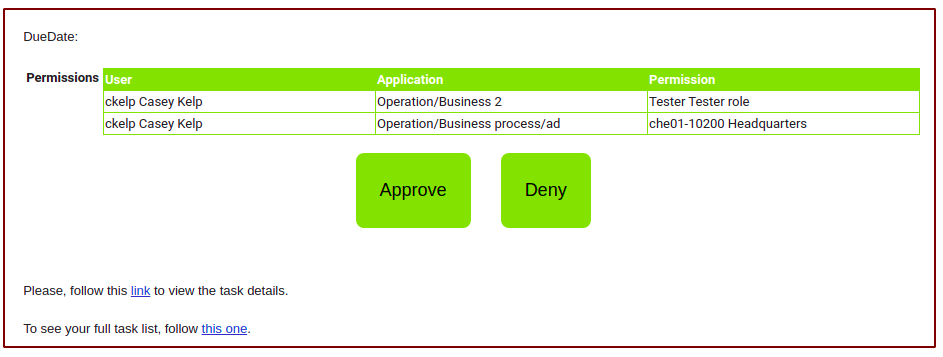](https://bookstack.soffid.com/uploads/images/gallery/2021-06/image-1624959311914.png)
[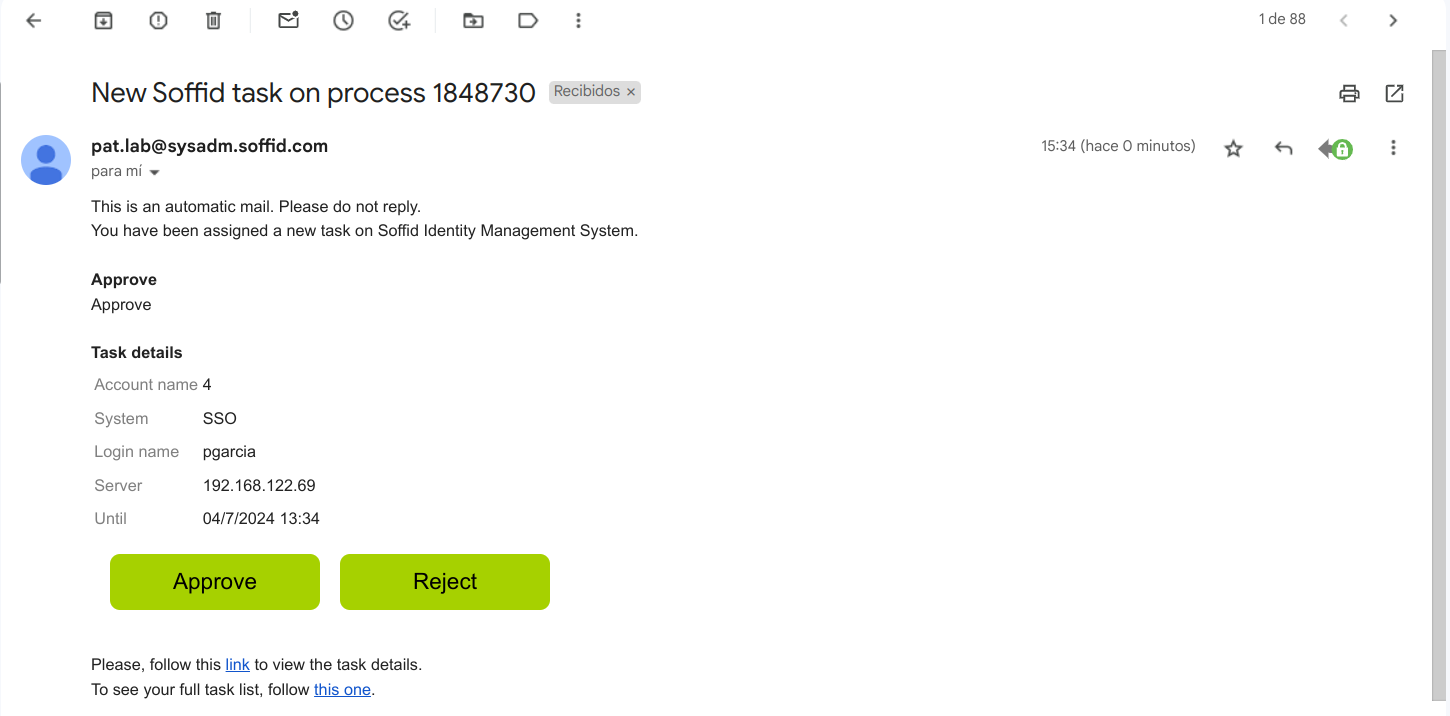](https://bookstack.soffid.com/uploads/images/gallery/2024-07/image-1720013708415.png)
# Sample Scripts BPM
## Start Step
#### Validations
```JavaScript
a = executionContext.getVariable("firstName");
if (a==null || "".equals(a.trim()))
throw new Exception("First name is mandatory");
a = executionContext.getVariable("lastName");
if (a==null || "".equals(a.trim()))
throw new Exception("Last name is mandatory");
..................
a = executionContext.getVariable("userName");
lu = serviceLocator.getUserService().findUserByJsonQuery("userName eq \""+a+"\" ");
if (!lu.isEmpty())
throw new Exception("The user name is in use, please choose another one");
e = executionContext.getVariable("emailAddress");
lu = serviceLocator.getUserService().findUserByJsonQuery("emailAddress eq \""+e+"\" ");
if (!lu.isEmpty())
throw new Exception("The email is in use, please choose another one");
.................
return true;
```
#### Trigger onChange
Calculate the email when firstName or lastName changes and depending on the userType:
```JavaScript
firstName = (inputFields.get("firstName")!=null) ? inputFields.get("firstName").value : null;
lastName = (inputFields.get("lastName")!=null) ? inputFields.get("lastName").value : null;
userType = (inputFields.get("userType")!=null) ? inputFields.get("userType").value : null;
if (firstName!=null && !firstName.trim().isEmpty() &&
lastName!=null && !lastName.trim().isEmpty() &&
userType!=null && !userType.trim().isEmpty()) {
emailAddress = firstName + "." + lastName;
if ("E".equals(userType)) {
emailAddress = emailAddress + ".ext@soffid.com";
} else {
emailAddress = emailAddress + "@soffid.com";
}
inputFields.get("emailAddress").value = emailAddress;
}
```
Calculate the user name depending on the first and last name
```JavaScript
firstName = (inputFields.get("firstName")!=null) ? inputFields.get("firstName").value : null;
lastName = (inputFields.get("lastName")!=null) ? inputFields.get("lastName").value : null;
middleName = (inputFields.get("middleName")!=null) ? inputFields.get("middleName").value : null;
userType = (inputFields.get("userType")!=null) ? inputFields.get("userType").value : null;
primaryGroup = (inputFields.get("primaryGroup")!=null) ? inputFields.get("primaryGroup").value : null;
if (firstName!=null && !firstName.trim().isEmpty() &&
lastName!=null && !lastName.trim().isEmpty()) {
// Erase blanck spaces
while (firstName.contains(" "))
firstName = firstName.replace(" "," ");
fn = firstName.trim().split(" ")[0];
fn = fn.substring(0,1).toUpperCase() + fn.substring(1).toLowerCase();
// Erase blanck spaces
while (lastName.contains(" "))
lastName = lastName.replace(" "," ");
lna = lastName.trim().split(" ");
ln = "";
for (w : lna) {
ln = ln + w.substring(0,1).toUpperCase() + w.substring(1).toLowerCase();
}
un = fn+"."+ln;
// Check, if user exist we will add the first letter of the second name
u = serviceLocator.getUserService().findUserByUserName(un);
if (u!=null && middleName!=null && !middleName.trim().isEmpty()) {
un = un+middleName.substring(0,1).toUpperCase();
}
// Max length 20 characters
if (un.length()>20)
un = un.substring(0,20);
inputFields.get("userName").value = un;
}
```
#### Outgoing transitions
Set values to variables that will be available in the next step.
```JavaScript
un = executionContext.getVariable("userName");
executionContext.setVariable("userSelector",un);
executionContext.setVariable("action","M");
```
## Approve
#### Outgoing transitions
Remove a previous roles
```JavaScript
un = executionContext.getVariable("userName");
t = executionContext.getVariable("title");
lra = serviceLocator.getApplicationService().findUserRolesByUserName(un);
for (ra : lra) {
if (ra.roleName.equals(t)) {
serviceLocator.getApplicationService().delete(ra);
break;
}
}
```
Save new role
```JavaScript
p = executionContext.getVariable("newTitle");
if (p==null || "".equals(p.trim()))
throw new Exception("El nuevo puesto de trabajo es obligatorio");
executionContext.setVariable("title", p)
```
## End Step
#### Incoming transition
Add a role to the user in case the role exists and it is the same that the user title.
```JavaScript
SYS = "soffid";
un = executionContext.getVariable("userName");
if (un==null)
return true;
t = executionContext.getVariable("title");
if (t==null)
return true;
q = "name eq \""+t+"\" and system eq \""+SYS+"\"";
lr = serviceLocator.getApplicationService().findRoleByJsonQuery(q);
if (lr==null || lr.isEmpty())
return true;
r = lr.get(0);
app = r.informationSystemName;
ra = new com.soffid.iam.api.RoleAccount();
ra.setRoleName(t);
ra.setSystem(SYS);
ra.setInformationSystemName(app);
ra.setUserCode(un);
ra.setDomainValue(new com.soffid.iam.api.DomainValue());
serviceLocator.getApplicationService().create(ra);
return true;
```