# Permissions management steps
Define the Process management steps
# Start
## Definition
That is the first step of the workflow. At that step, you could define the fields you want to show when the end users will go to make a request.
## Steps Tabs
### Task details
In this tab you could configure next parameters:
- **Task name**: identified name for the task that will be created when the workflow is requested.
- **Permission request screen type**: this allows you to select how the permissions will be displayed on the screen. There are two available options:
- **List of permissions**: this option needs to configure a user selector on the fields tab. When end-users request a process, first of all, they will select the user and the permissions, and then the permissions, the list of available permissions depends on the selected user.
- **Self service request**: if you select the self-service request, it will not be mandatory to configure the user selector on the fields tab. That option can be configured to request permission for your own user, or to third users configuring the user selector. When end-users request a process, the available permissions will be displayed to select from the information system for the roles defined. When you select one or more roles, those will be added to the shopping cart to make the request.
- **Role selection filter**: this allows you to define a Script that returns the available roles to select. At the script window, you could find information about the available context variables.
- **Application selection filter**: this allows you to define a Script that returns the available applications to select. At the script window, you could find information about the available context variables.
### Fields
In this tab, you could choose what fields the process form will show to the end users. You can choose these fields from all identity attributes, and from the attributes defined for the workflow on the Attributes Tab.
By default, only the Permissions field will be shown. That field is defined on the attributes tab. You can choose the fields you want to show when the end-users, add new fields, and delete the fields that do not need to generate a task. Also, you can sort the fields, you only need to drag and drop on the Order column.
For each field, you may indicate if it is a readOnly field, and you may add a Validation script and Visibility script. The validation script allows you to define rules, the field has to comply with these rules. The visibility script allows you to define the rules to show or hide a field.
##### Validation examples
```Java
if (value == null || value.equals(""))
throw new Exception("The userName is mandatory");
else
return true;
```
It is also allowed in the following manner:
```Java
if (value == null || value.equals(""))
return ("The userName is mandatory");
else
return true;
```
Validate that a certain field is not repeated:
```Java
userList = serviceLocator.getUserService().findUserByJsonQuery("attributes.field_XX eq \"" + value +"\"");
if (!userList.isEmpty() {
return "the field field_XX is associated to another user";
}
return true;
```
##### Visibility example
```Java
user = serviceLocator.getUserService().getCurrentUser();
if ("admin".equals(user.userName))
return false;
```
### Triggers
On the trigger tab, you could define different triggers using custom scripts. Those triggers will be launched with the events you will define.
- **onLoad**: you can use that trigger to perform some actions before the execution of the step.
- **on PrepareTransition**: you can use that trigger to perform some actions after the execution of the step and before starting a transition to another step.
- **onChange**: you can use that trigger to perform some actions when the value of the attribute is changed. You could choose the field from a list.
##### Example
1\. Calculate the email when firstName or lastName changes and depending on the userType:
```Java
firstName = (inputFields.get("firstName")!=null) ? inputFields.get("firstName").value : null;
lastName = (inputFields.get("lastName")!=null) ? inputFields.get("lastName").value : null;
userType = (inputFields.get("userType")!=null) ? inputFields.get("userType").value : null;
if (firstName!=null && !firstName.trim().isEmpty() &&
lastName!=null && !lastName.trim().isEmpty() &&
userType!=null && !userType.trim().isEmpty()) {
emailAddress = firstName + "." + lastName;
if ("E".equals(userType)) {
emailAddress = emailAddress + ".ext@soffid.com";
} else {
emailAddress = emailAddress + "@soffid.com";
}
inputFields.get("emailAddress").value = emailAddress;
}
```
You can find more information about [StandardUserWindow.java](https://github.com/SoffidIAM/addon-bpm/blob/master/bpm-web-common/src/main/java/com/soffid/iam/addons/bpm/ui/StandardUserWindow.java) on Github.
2\. Load the user data into the form.
```Java
user = serviceLocator.getUserService().getCurrentUser();
task.getVariables().put("action", "M");
task.getVariables().put("userSelector", user.userName);
workflowWindow.fetchUserAttributes()
```
### Incoming transitions
This process type does not have task details for the start step.
### Outgoing transitions
The Outcoming transition tab displays the next steps where the flow can go from the current step. When you create a process from a template or from scratch default outcoming transitions are defined. It is allowed to customize the default setup, add new transitions, or delete transitions.
- **From**: current step.
- **Incoming transition**: name of the transition.
- **To**: the next step, where the flow goes.
- **Action**: allows creating a custom script to perform specific actions.
When you create an outcoming transition, Soffid creates the proper incoming transition.
##### Example
Validation of mandatory fields:
```Java
a = executionContext.getVariable("firstName");
if (a==null || "".equals(a.trim()))
throw new Exception("First name is mandatory");
a = executionContext.getVariable("lastName");
if (a==null || "".equals(a.trim()))
throw new Exception("Last name is mandatory");
a = executionContext.getVariable("primaryGroup");
if (a==null || "".equals(a.trim()))
throw new Exception("Primery group is mandatory");
return true;
```
To request the process is only allowed for Internal users:
```Java
userSelector = executionContext.getVariable("userSelector");
user = serviceLocator.getUserService().findUserByUserName(userSelector);
if (user.userType.equals("I") || user.userType.equals("S")) {
throw new Exception ("To request the process is only allowed for Internal users");
}
```
# Grant approval
## Description
This step is used to define the custom form that will be used by the users who have to approve or reject the generated task. To configure that step will be necessary to determine the fields that will be shown to the users, and the actions that these users could perform.
## Steps Tabs
### Task details
- **Task name**: identified name for the task that will be created.
- **Permission request screen type**: allows selecting the type of screen for permission request.
- List of permissions
- **Display approval pending**: that is the default option. When you select that option, all the approval pending will be shown to the end user.
- Display all
- Display approved
- Display denied
- **Actor(s) expression**: write an expression to identify the actor depending on the requested role. One can use EL expressions based on role and application attributes. For instance: SOFFID\_MANAGER/${primaryGroup}
- **Assignment script**: alternatively, write a Beanshell script to return the actor depending on the process variables. For instance: return primaryGroup.attributes{"owner"};
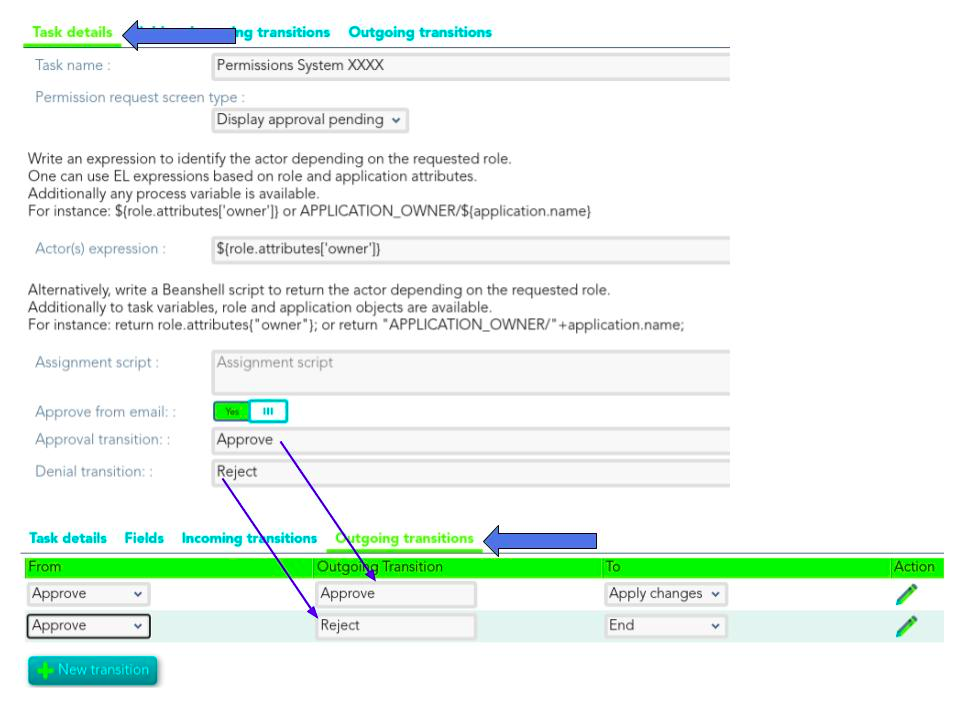
- **Approve from email**: checked it to allow you to send a mail to approve or deny the task. If you check that option (selected value Yes), you need to fill in the transitions to approve and deny the task, those have to match with the outgoing transitions defined for those step.
- Approval transition: has to match with an outgoing transition.
- Denial transition: has to match with an outgoing transition.
To send mail, you will need to configure mail server parameters. You can visit the [Soffid parameters page](https://bookstack.soffid.com/books/soffid-3-reference-guide/page/soffid-parameters "Soffid parameters") for more information.
[](https://bookstack.soffid.com/uploads/images/gallery/2021-06/image-1624346845355.png)
##### Example Assignment script
If a user belongs to the primary group "World", the manager of that group will be responsible to approve or deny the request. If the primary group is another, the persona who will be responsible to approve or deny will be the manager of the parent group of that group. If there is not primary group, the request will be sent to the admin user.
```Java
primaryGroup = executionContext.getVariable("primaryGroup");
if (primaryGroup != null && !primaryGroup.equals("")) {
if (primaryGroup.equals("world")) {
manager = serviceLocator.getGroupService().findGroupByGroupName(primaryGroup).getAttributes().get("manager");
return manager;
} else {
group = serviceLocator.getGroupService().findGroupByGroupName(primaryGroup);
if ( group.parentGroup != null && !group.parentGroup.equals("")) {
manager = serviceLocator.getGroupService().findGroupByGroupName(group.parentGroup).getAttributes().get("manager");
return manager;
}
}
} else {
return "admin";
}
```
### Fields
In this tab, you could choose what fields the process form will show to the end users. You can choose these fields from all identity attributes, and from the attributes defined for the workflow on the Attributes Tab. By default, all the identity attributes will be shown. You can choose the fields you want to show, add new fields, and delete the fields that do not need to generate a task. Also, you can sort the fields, you only need to drag and drop on the Order column.
For each field, you may indicate if it is a readOnly field, and you may add a Validation script and Visibility script. The validation script allows you to define rules, the field has to comply with these rules. The visibility script allows you to define the rules to show or hide a field.
##### Example
```Java
if (value == null || value.equals(""))
return ("The user is mandatory");
else
return true;
```
### Incoming transitions
The Incoming transitions tab displays the previous steps where the flow comes from. When you create a process from a template or from scratch default incoming transitions are defined. It is allowed to customize the default setup, add new transitions, or delete transitions.
- **From**: the previous step, where the flow comes. Allows you to select where the workflow comes from.
- **Incoming transition**: brief name to identify the transition. That is the name of the action the form will show to the final user.
- **To**: current step.
- **Action**: allows creating a custom script to perform specific actions.
When you create an incoming transition, Soffid creates the proper outcoming transition.
##### Example
Validation of mandatory fields:
```Java
a = executionContext.getVariable("firstName");
if (a==null || "".equals(a.trim()))
throw new Exception("First name is mandatory");
a = executionContext.getVariable("lastName");
if (a==null || "".equals(a.trim()))
throw new Exception("Last name is mandatory");
a = executionContext.getVariable("primaryGroup");
if (a==null || "".equals(a.trim()))
throw new Exception("Primery group is mandatory");
return true;
```
To request the process is only allowed for Internal users:
```Java
userSelector = executionContext.getVariable("userSelector");
user = serviceLocator.getUserService().findUserByUserName(userSelector);
if (user.userType.equals("I") || user.userType.equals("S")) {
throw new Exception ("To request the process is only allowed for Internal users");
}
```
### Outgoing transitions
The Outcoming transition tab displays the next steps where the flow can go from the current step. When you create a process from a template or from scratch default outcoming transitions are defined. It is allowed to customize the default setup, add new transitions, or delete transitions.
- **From**: current step.
- **Incoming transition**: name of the transition.
- **To**: the next step, where the flow goes.
- **Action**: allows creating a custom script to perform specific actions.
When you create an outcoming transition, Soffid creates the proper incoming transition.
##### Example
To scroll through the list of values to perform some operations.
```Java
grants = executionContext.getVariable("grants");
for (roleRequestInfo:grants) {
// TO-DO
}
```
# Apply changes
## Definition
This step is used to apply the identity changes to the Soffid repository.
## Steps Tabs
### Task details
- **Apply users changes**: check it (select the Yes option) to make changes to users on the Soffid repository.
- **Apply entitlements**: check it (select the Yes option) to make changes to permissions on the Soffid repository.
Incoming transitions
The Incoming transitions tab displays the previous steps where the flow comes from. When you create a process from a template or from scratch default incoming transitions are defined. It is allowed to customize the default setup, add new transitions, or delete transitions.
- **From**: the previous step, where the flow comes. Allows you to select where the workflow comes from.
- **Incoming transition**: brief name to identify the transition. That is the name of the action the form will show to the final user.
- **To**: current step.
- **Action**: allows creating a custom script to perform specific actions.
When you create an incoming transition, Soffid creates the proper outcoming transition.
##### Example
Scroll through the list of values to perform some operations.
```Java
grants = executionContext.getVariable("grants");
for (roleRequestInfo:grants) {
// TO-DO
}
```
### Outgoing transitions
The Outcoming transition tab displays the next steps where the flow can go from the current step. When you create a process from a template or from scratch default outcoming transitions are defined. It is allowed to customize the default setup, add new transitions, or delete transitions.
- **From**: current step.
- **Incoming transition**: name of the transition.
- **To**: the next step, where the flow goes.
- **Action**: allows creating a custom script to perform specific actions.
When you create an outcoming transition, Soffid creates the proper incoming transition.
##### Example
If the user's country is Spain, it will delete all the groups to which the user belongs:
```Java
userName = executionContext.getVariable("userName");
user = serviceLocator.getUserService().findUserByUserName(userName);
country = user.getAttributes().get("country");
groups = serviceLocator.getGroupService().findUsersGroupByUserName(userName);
if (country.equals("ES")) {
for (groupUser: groups) {
serviceLocator.getGroupService().removeGroupFormUser(userName, groupUser.group);
}
}
```
# Script action
## Definition
This step is used to define a custom script that will be executed
## Steps Tabs
### Task details
All the process types have the same Task details for the Custom step:
- **Script**: allows you to define a Script this step allows you to add a script to be executed.
##### Example
```Java
comments = executionContext.getToken().getComments();
selector = executionContext.getVariable("userSelector");
if (selector == null || selector.equals("")) {
return ("The userName is mandatory");
}
user = serviceLocator.getUserService().findUserByUserName(selector);
if (user != null) {
subject = "Soffid - Notification";
message = "Automated mail sent ..............";
if (comments != null && !comments.isEmpty()) {
for (comment : comments) {
message += comment.message;
}
}
serviceLocator.getUserService().sendHtmlMailToActors(new String[]{user.userName}, subject, message);
}
```
### Incoming transitions
The Incoming transitions tab displays the previous steps where the flow comes from. When you create a process from a template or from scratch default incoming transitions are defined. It is allowed to customize the default setup, add new transitions, or delete transitions.
- **From**: the previous step, where the flow comes. Allows you to select where the workflow comes from.
- **Incoming transition**: brief name to identify the transition. That is the name of the action the form will show to the final user.
- **To**: current step.
- **Action**: allows creating a custom script to perform specific actions.
When you create an incoming transition, Soffid creates the proper outcoming transition.
##### Example
Scroll through the list of roles and the list of grant hierarchies to execute some actions.
```Java
userName = executionContext.getVariable("userName");
roleList = serviceLocator.getApplicationService().findRolesByUserName(userName);
for (role:roleList) {
//TO-DO
}
user = serviceLocator.getUserService().findUserByUserName(userName);
roleGrantList = serviceLocator.getApplicationService().findRoleGrantHierarchyByUser(user.id);
for (roleGrant:roleGrantList) {
//TO-DO
}
```
### Outgoing transitions
The Outcoming transition tab displays the next steps where the flow can go from the current step. When you create a process from a template or from scratch default outcoming transitions are defined. It is allowed to customize the default setup, add new transitions, or delete transitions.
- **From**: current step.
- **Incoming transition**: name of the transition.
- **To**: the next step, where the flow goes.
- **Action**: allows creating a custom script to perform specific actions.
When you create an outcoming transition, Soffid creates the proper incoming transition.
##### Example
Delete additional attribute
```
userName = executionContext.getVariable("userName");
attribute = serviceLocator.getUserService().findDataByUserAndCode(userName, "country");
if (attribute != null) {
serviceLocator.getAdditionalDataService().delete(attribute);
}
```
# Mail
## DefinitionThis step allows you to configure the necessary parameters to send an email when the flow reaches this point. That mail will be an informative mail, and the receptor could not perform any action from the mail.To send mail, you will need to configure mail server parameters. You can visit the [Soffid parameters page](https://bookstack.soffid.com/books/soffid-3-reference-guide/page/soffid-parameters "Soffid parameters") for more information.
## Steps Tabs
### Task details
When you select the Mail Step type, you could configure the mail information to send and the recipients of that information.
- **Identities(s):** User, group, role, or email which is the recipient.
- **Email address(es):** Set one or more valid email addresses.
- **Subject:** Subject of the mail.
- **Email message:** Message of the mail.
### Incoming transitionsThe Incoming transitions tab displays the previous steps where the flow comes from. When you create a process from a template or from scratch default incoming transitions are defined. It is allowed to customize the default setup, add new transitions, or delete transitions.
- **From**: the previous step, where the flow comes. Allows you to select where the workflow comes from.
- **Incoming transition**: brief name to identify the transition. That is the name of the action the form will show to the final user.
- **To**: current step.
- **Action**: allows creating a custom script to perform specific actions.
When you create an incoming transition, Soffid creates the proper outcoming transition.
##### Example
Get the selected user, first name, and operation from the previous step:
```Java
selector = executionContext.getVariable("userSelector");
user = serviceLocator.getUserService().findUserByUserName(selector);
executionContext.setVariable("testName", user.firstName);
executionContext.setVariable("testOperation", "CHECK");
```
### Outgoing transitions
The Outcoming transition tab displays the next steps where the flow can go from the current step. When you create a process from a template or from scratch default outcoming transitions are defined. It is allowed to customize the default setup, add new transitions, or delete transitions.
- **From**: current step.
- **Incoming transition**: name of the transition.
- **To**: the next step, where the flow goes.
- **Action**: allows creating a custom script to perform specific actions.
When you create an outcoming transition, Soffid creates the proper incoming transition.
##### Example
Get the account list associated with a user to perform some actions:
```Java
userName = executionContext.getVariable("userName");
accountList = serviceLocator.getAccountService().findAccountByJsonQuery("name eq \"" + userName + "\" AND (type eq \"P\" or type eq \"S\" or type eq \"I\")");
for (account:accountList) {
//TO-DO
}
```
---
[*\* https://es.wikipedia.org/wiki/Expression\_Language*](https://es.wikipedia.org/wiki/Expression_Language)
# Fork
## Definition
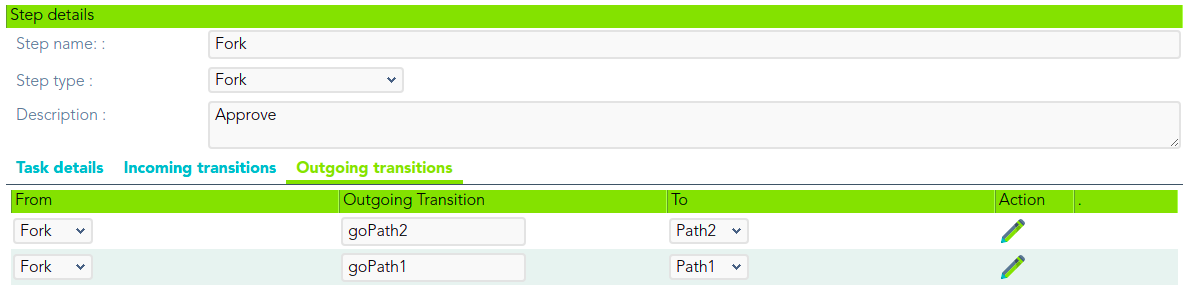
This step is used to divide the workflow into two or more paths that will run in parallel, allowing multiple activities to run simultaneously.
/====> path 1 =====\\
Fork ==== ==> Join
\\====> path 2 =====/
## Steps Tabs
### Task details
This process type does not have task details for the fork step.
### Incoming transitions
The Incoming transitions tab displays the previous steps where the flow comes from. When you create a process from a template or from scratch default incoming transitions are defined. It is allowed to customize the default setup, add new transitions, or delete transitions.
- **From**: the previous step, where the flow comes. Allows you to select where the workflow comes from.
- **Incoming transition**: brief name to identify the transition. That is the name of the action the form will show to the final user.
- **To**: current step.
- **Action**: allows creating a custom script to perform specific actions.
When you create an incoming transition, Soffid creates the proper outcoming transition.
##### Example
To scroll through the list of values to perform some operations.
```Java
userName = executionContext.getVariable("userName");
requester = executionContext.getVariable("requester");
requesterName = executionContext.getVariable("requesterName");
grants = executionContext.getVariable("grants");
for (roleRequestInfo:grants) {
// TO-DO
}
```
### Outgoing transitions
The Outcoming transition tab displays the next steps where the flow can go from the current step. When you create a process from a template or from scratch default outcoming transitions are defined. It is allowed to customize the default setup, add new transitions, or delete transitions.
- **From**: current step.
- **Outgoing transition**: name of the transition. It is a required field, you must comply it to the workflow run properly.
- **To**: the next step, where the flow goes.
- **Action**: allows creating a custom script to perform specific actions.
When you create an outcoming transition, Soffid creates the proper incoming transition.
##### Example
Scroll through the list of roles and the list of grant hierarchies to execute some actions.
```Java
userName = executionContext.getVariable("userName");
roleList = serviceLocator.getApplicationService().findRolesByUserName(userName);
for (role:roleList) {
//TO-DO
}
user = serviceLocator.getUserService().findUserByUserName(userName);
roleGrantList = serviceLocator.getApplicationService().findRoleGrantHierarchyByUser(user.id);
for (roleGrant:roleGrantList) {
//TO-DO
}
```
# Join
## Definition
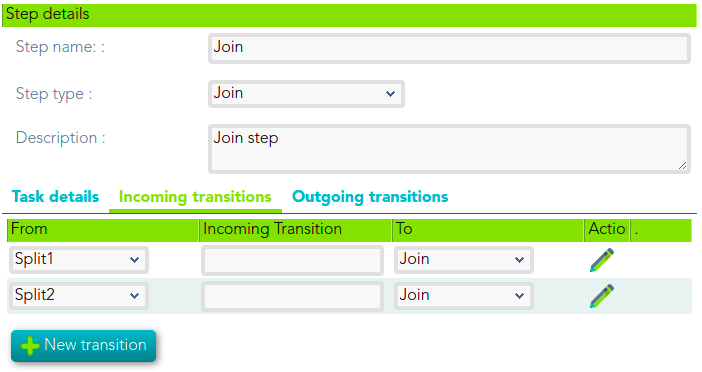
This step is used to combine two or more parallel paths into one path.
## Steps Tabs
### Task details
This process type does not have task details for the fork step.
### Incoming transitions
The Incoming transitions tab displays the previous steps where the flow comes from. When you create a process from a template or from scratch default incoming transitions are defined. It is allowed to customize the default setup, add new transitions, or delete transitions.
To join some paths will be mandatory to add the incoming transitions from those forks.
- **From**: the previous step, where the flow comes. Allows you to select where the workflow comes from.
- **Incoming transition**: brief name to identify the transition. That is the name of the action the form will show to the final user.
- **To**: current step.
- **Action**: allows creating a custom script to perform specific actions.
When you create an incoming transition, Soffid creates the proper outcoming transition.
[](https://bookstack.soffid.com/uploads/images/gallery/2021-06/image-1623748784180.png)
##### Example
Delete additional attribute
```Java
userName = executionContext.getVariable("userName");
attribute = serviceLocator.getUserService().findDataByUserAndCode(userName, "country");
if (attribute != null) {
serviceLocator.getAdditionalDataService().delete(attribute);
}
```
### Outgoing transitions
The Outcoming transition tab displays the next steps where the flow can go from the current step. When you create a process from a template or from scratch default outcoming transitions are defined. It is allowed to customize the default setup, add new transitions, or delete transitions.
- **From**: current step.
- **Incoming transition**: name of the transition.
- **To**: the next step, where the flow goes.
- **Action**: allows creating a custom script to perform specific actions.
When you create an outcoming transition, Soffid creates the proper incoming transition.
##### Example
Scroll through the list of roles to execute some actions.
```Java
userName = executionContext.getVariable("userName");
roleList = serviceLocator.getApplicationService().findRolesByUserName(userName);
for (role:roleList) {
//TO-DO
}
```
# End
## Description
The end step finalizes the process. It is the last step of the workflow.
## Steps Tabs
### Task details
This process type does not have task details for the start step.
### Incoming transitions
The Incoming transitions tab displays the previous steps where the flow comes from. When you create a process from a template or from scratch default incoming transitions are defined. It is allowed to customize the default setup, add new transitions, or delete transitions.
- **From**: the previous step, where the flow comes. Allows you to select where the workflow comes from.
- **Incoming transition**: brief name to identify the transition. That is the name of the action the form will show to the final user.
- **To**: current step.
- **Action**: allows creating a custom script to perform specific actions.
When you create an incoming transition, Soffid creates the proper outcoming transition.
##### Example
To scroll through the list of values to perform some operations.
```Java
userName = executionContext.getVariable("userName");
requester = executionContext.getVariable("requester");
requesterName = executionContext.getVariable("requesterName");
grants = executionContext.getVariable("grants");
for (roleRequestInfo:grants) {
// TO-DO
}
```
##### Example
If the user's country is Spain, it will delete all the groups to which the user belongs:
```Java
userName = executionContext.getVariable("userName");
user = serviceLocator.getUserService().findUserByUserName(userName);
country = user.getAttributes().get("country");
groups = serviceLocator.getGroupService().findUsersGroupByUserName(userName);
if (country.equals("ES")) {
for (groupUser: groups) {
serviceLocator.getGroupService().removeGroupFormUser(userName, groupUser.group);
}
}
```
### Outgoing transitions
This step does not have outgoing transitions. It is the last step of the workflow.