Backup
Configure & restore
- Introduction to Backup addon
- How to install the Backup addon in Soffid
- User backup configure & restore page
Introduction to Backup addon
Introduction
The backup addon allows you to enable the history of changes made by users and some objects related to them.
What is the backup addon?
Soffid allows you to save snapshots for each user to keep track of changes as they occur.
On the user page, you can view these snapshots and also view the history of other items:
- The groups you have belonged to,
- The accounts you have linked,
- The roles you have been assigned,
- And the mail lists you have belonged to.
For further information, please consult the Users page.
On the User backup configure & restore page you can perform botch actions.
- To configure the backup, you could manage the frequency and number of user snapshots.
- To restore user data for a specific date, you only need to select the proper record and click the restore button.
For further information, please consult the User backup configure & restore page.
How to install the Backup addon in Soffid
Installation
Introduction
To use an addon in Soffid, you must download and install it in the Console. There are two ways to do this.
1. The first option is to use the Soffid 4 marketplace. You can download and upload it directly from the Licence and plugin page.
2. The second option is to download the file from the Soffid download page and then upload it to the Console.
Soffid 4 marketplace
Soffid 4 allows you to install and update plugins through the new Addons marketplace feature.
To access the marketplace, you must have a valid token to use Soffid and have configured the Console via https. Please check the License and plugin page.
1. Please log in to IAM Console.
You need to be an administrator user of the Soffid console or a user with permission to upload addons.
It is recommended to upload the addons to the master, this is the way to maintain updated all, master and tenants if there are.
2. In the Soffid console, please go to the License and plugin page.
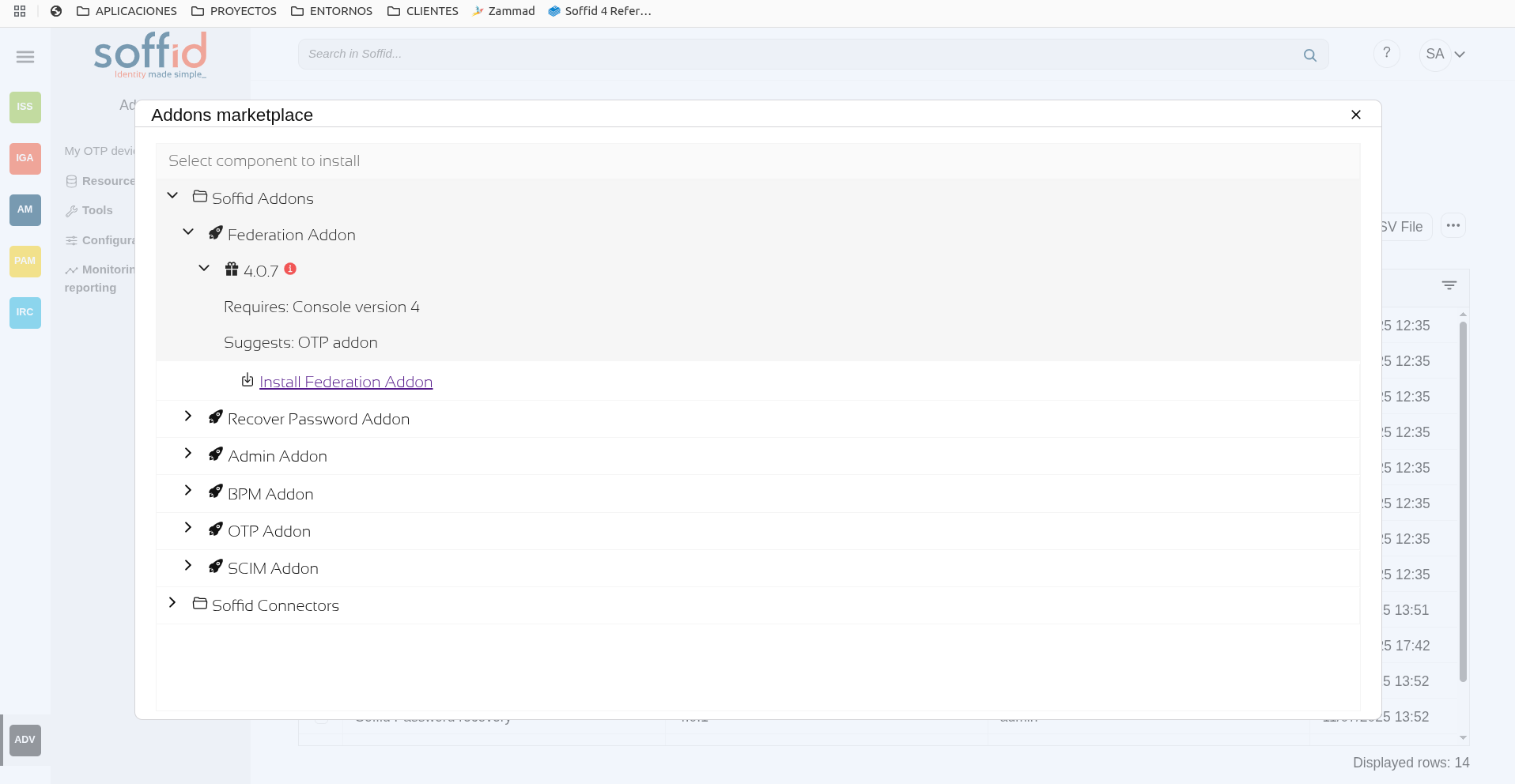
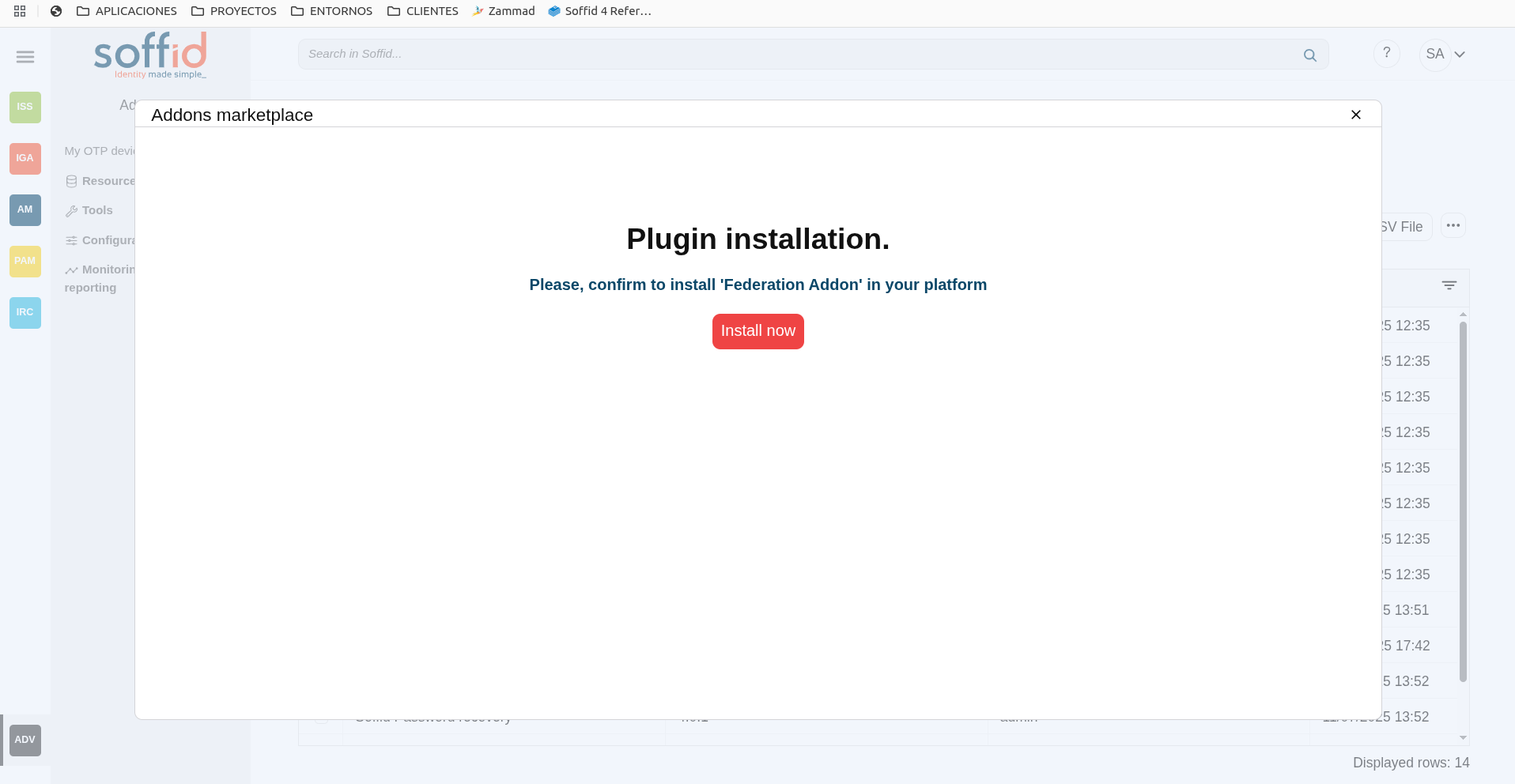
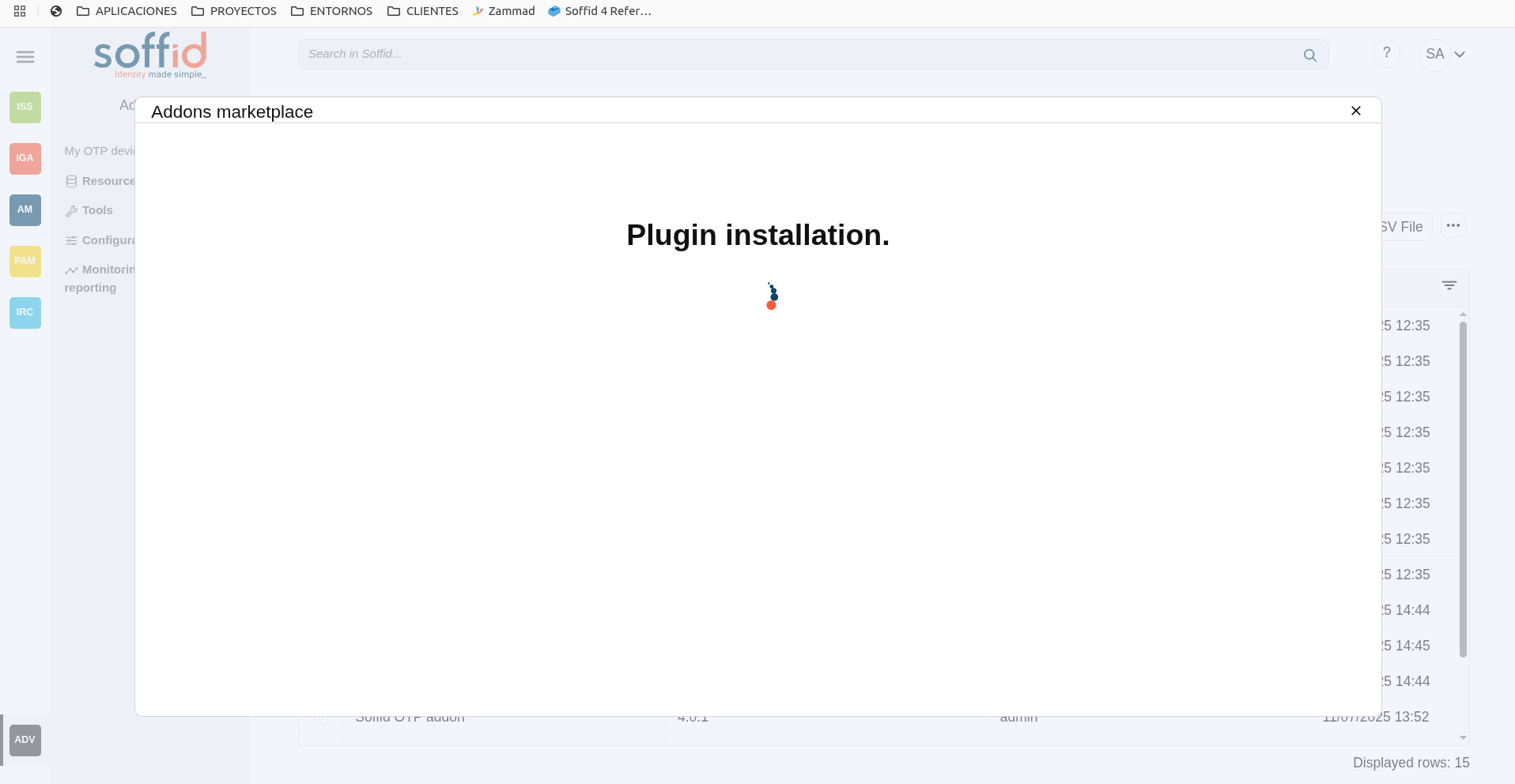
3. Then, click the add button "Add new" button, open the "Soffid Addons" secction and select the "Instlla addon" option, Soffild will upload the addon file.
Image
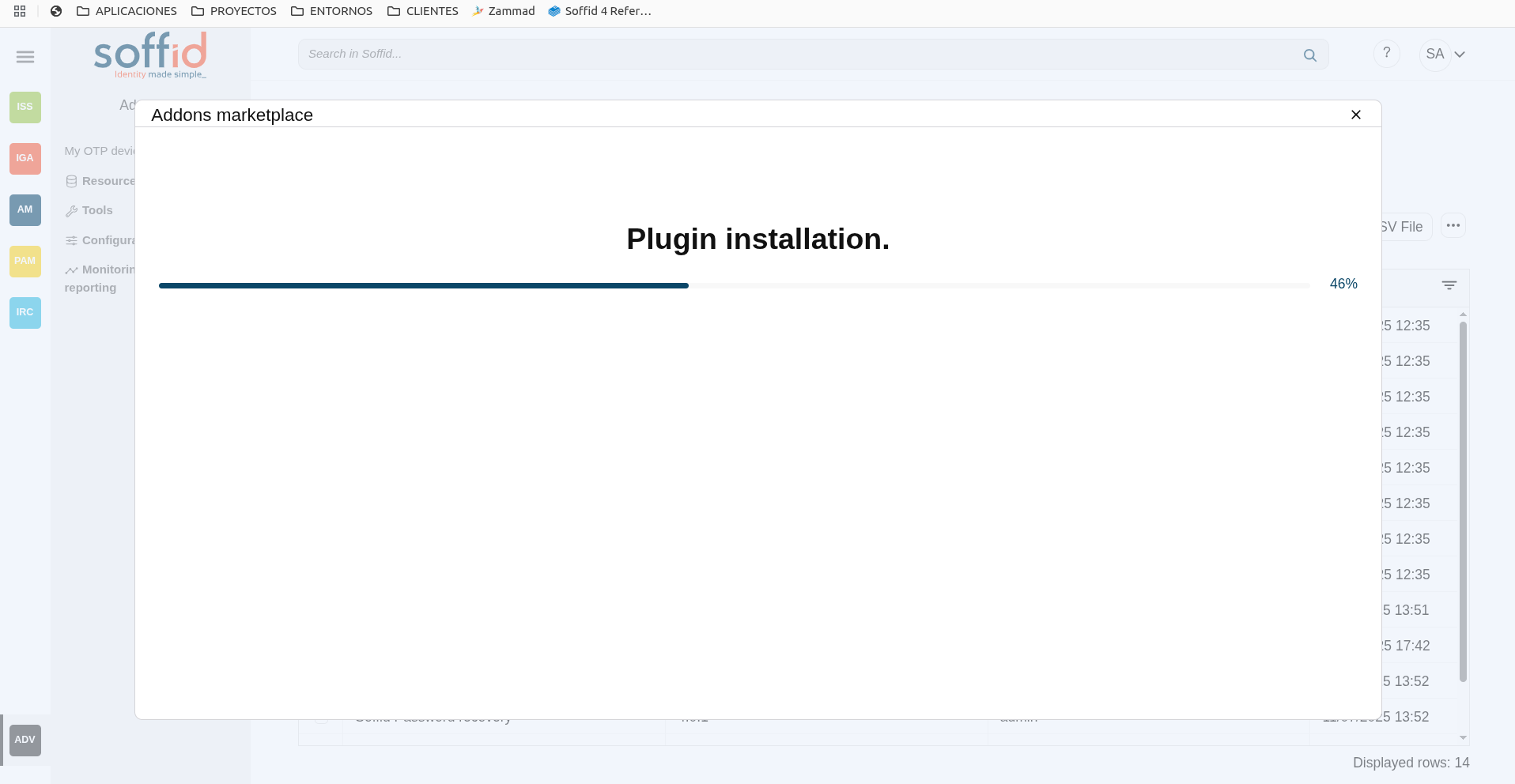
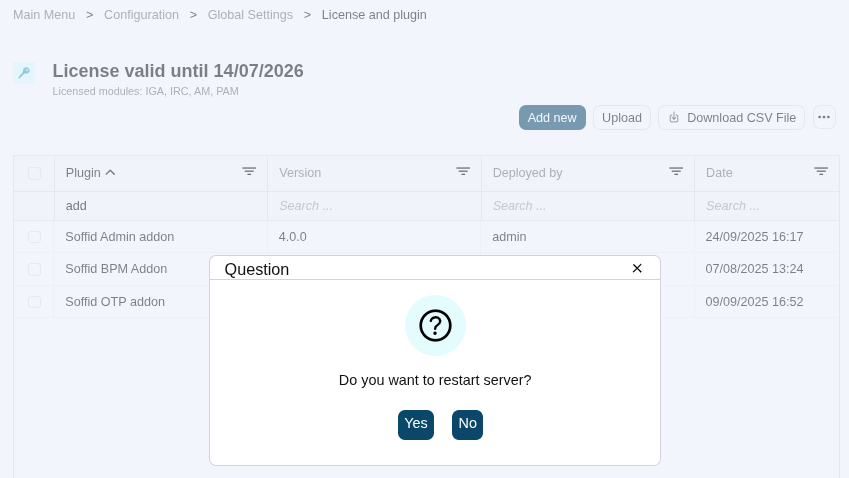
4. Finally, when the addon is installed, the Consola has to be restarted, a popup will be displayed to perform this action, you can choose to do it now or later.
Image
5. Once the Soffid console has restarted, you can check if the plugin was correctly uploaded on the "License and plugins" page.
6. Now, you can configure the addon.
Download an upload
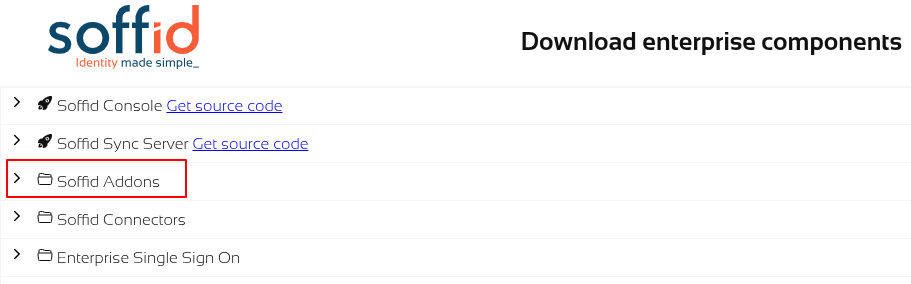
1. You could download the addon at the following link http://www.soffid.com/download/enterprise/ if you have a Soffid user with authorization, or in the following http://download.soffid.com/download/ by registering.
The addons are in the Addon seccion.
Image
2. Once the addon is downloaded, please log in to IAM Console.
You need to be an administrator user of the Soffid console or a user with permission to upload addons.
It is recommended to upload the addons to the master, this is the way to maintain updated all, master and tenants if there are.
3. In the Soffid console, please go to the License and plugin page.
Soffid 3:
Soffid 4:
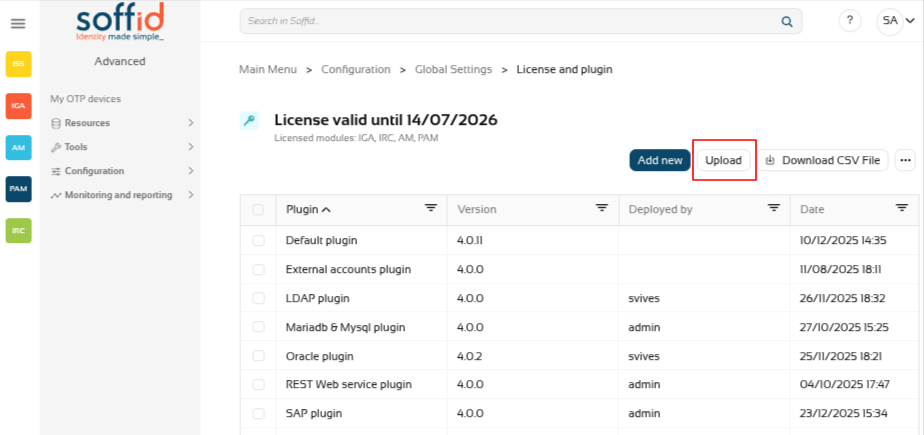
4. Then, click the add button "Upload" and pick the file and click the "Select" button and Soffild will upload the addon file.
Image
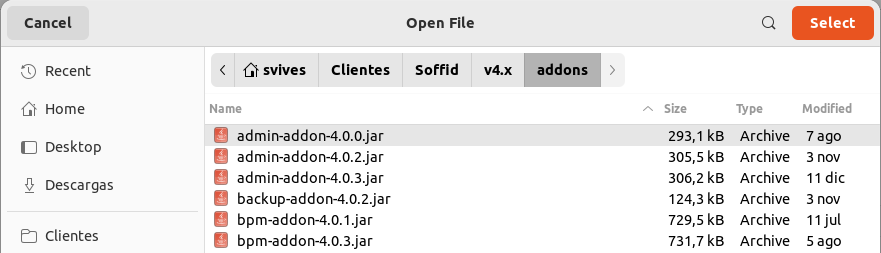
5. Finally, when the addon is installed, the Consola has to be restarted, a popup will be displayed to perform this action, you can choose to do it now or later.
Image
6. Once the Soffid console has restarted, you can check if the plugin was correctly uploaded on the "License and plugins" page.
7. Now, you can configure the addon.
User backup configure & restore page
Description
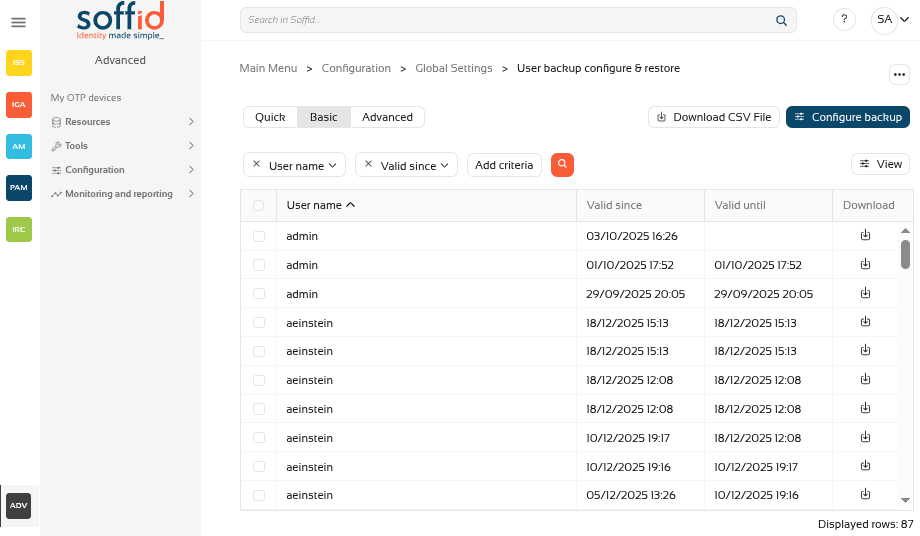
On the User backup configure & restore page, you could search, check and restore the user's snapshots.
Also on this screen, you can also configure the frequency and number of backups to be performed.
Screen overview
Related objects
- Users: new Backups tab in the Users page, user object has backups
- Groups: user assignments to groups have backup
- Accounts: user's accounts have backup
- Roles: user's roles (grants) have backup
- Mail lists: user's mail lists have backup
Standard attributes
- User Name: userName of a user
- Valid since: date and time when this backup started
- Valid until: if it is not the last backup, date and time when this backup finished
- Download: XML file with the user snapshot info.
Actions
Table actions
|
Query |
Allows you to query users through different search systems, Basic and Advanced. |
|
Restore |
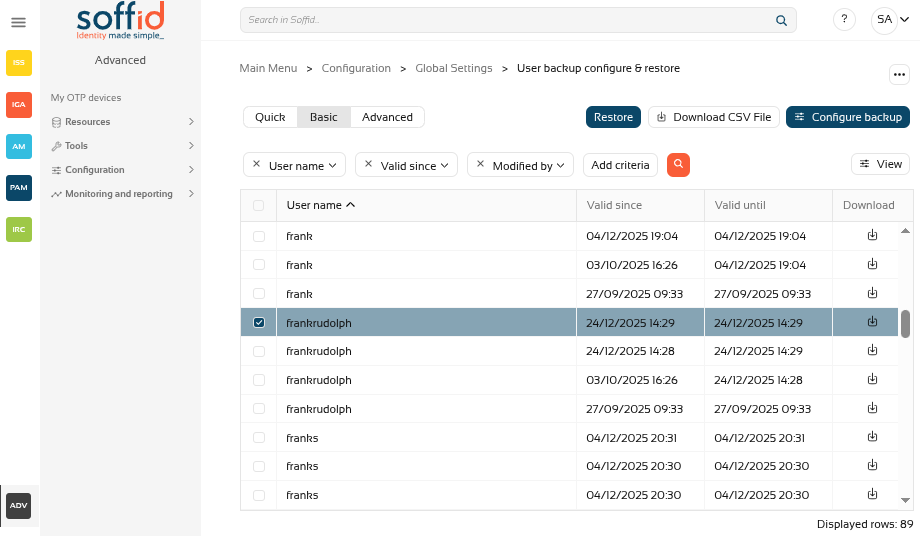
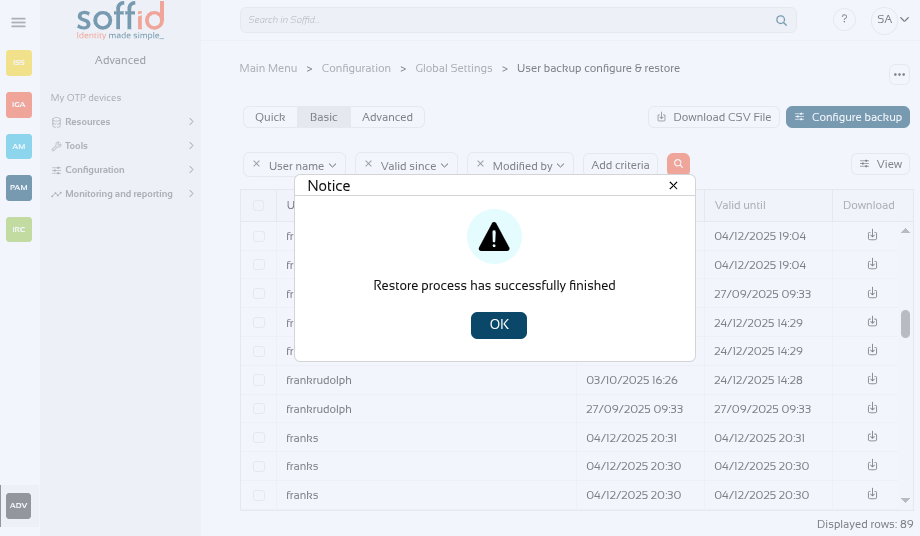
Allows you to restore one or more user's snapshots. First of all, you need select one or more snapshots. Second, you need to click the "Restore" button. Then Soffid will run the restore process.
Image
|
|
Download CSV File |
Allows you to download a CSV file with the basic information of all backups, with the same columns as displayed in the table. |
|
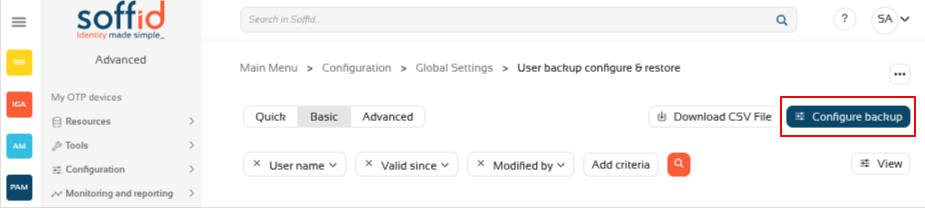
Configure backup |
Allows you to configure the backup parameters. |
| View |
Allows you to show and hide columns in the table. You can also set the order in which the columns will be displayed. |
|
Download |
Allows you to download an XML file with the user. You only need to click on the download icon of one of the records and save the file on your computer. |
Configure backup button
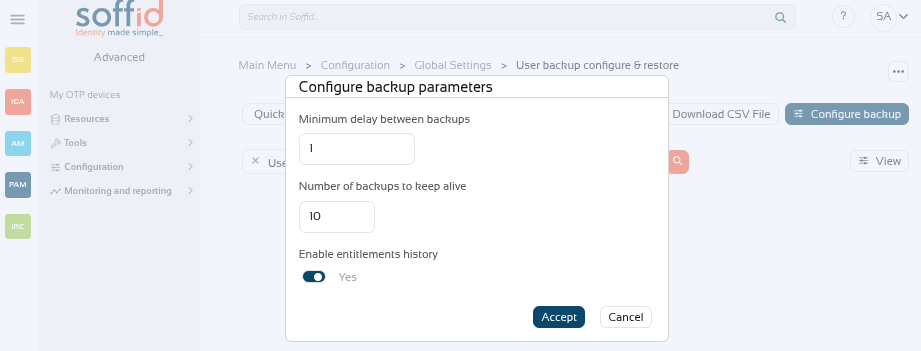
With the "Configure backup" button, you can configure the frequency and number of backups. These are the available parameters:
- Minimum delay between backups: if the value is 1, when a backup is created, the system will not create a new backup until 1 day later, even if there has been more than one change during that period.
-
Number of backups to keep alive: if the value is 10, when 10 backups are reached, the oldest backup will be deleted when the next one is created.
-
Enable entitlements history: enable the history of roles assigned to users.
Image
Others
Backup tab on user's page
On the users screen, when you select a user, this addon enables the Backups tab.
Image

This tab displays the user's backups.
Image
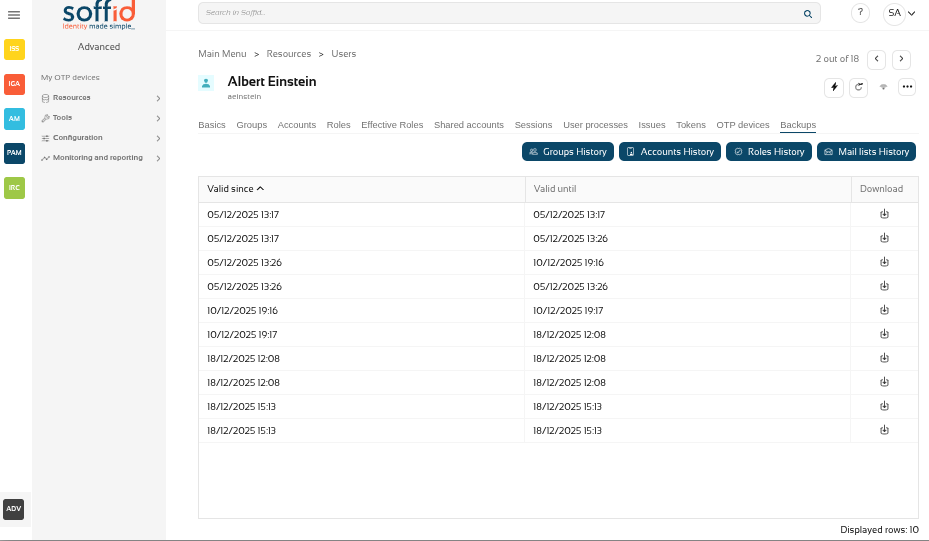
There are also several buttons with the rest of the items that can have backup.
Image

These are the buttons:
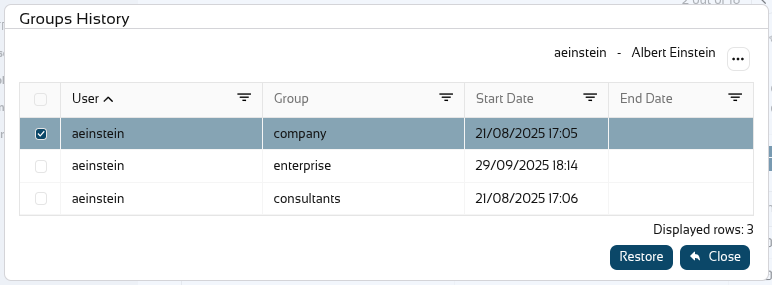
- Groups History: user assignments to groups have backup
- Accounts History: user's accounts have backup
- Roles History: user's roles (grants) have backup
- Mail lists History: user's mail lists have backup
Image
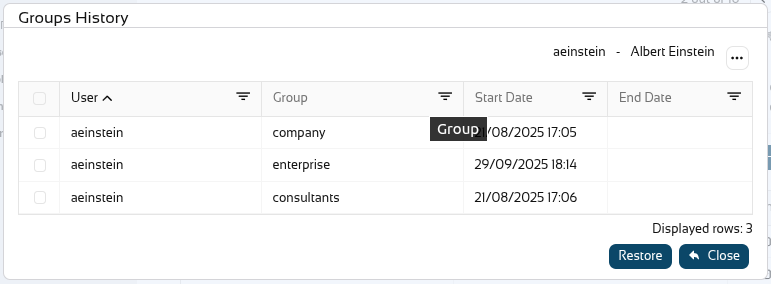
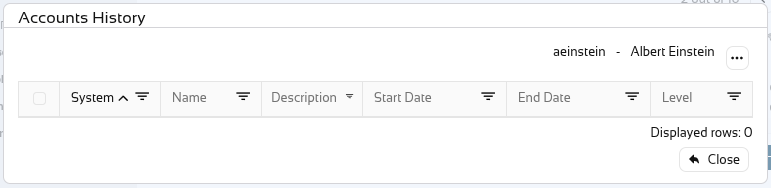
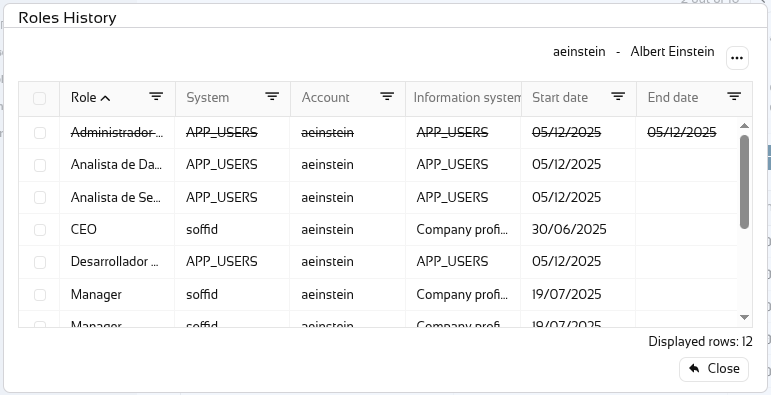
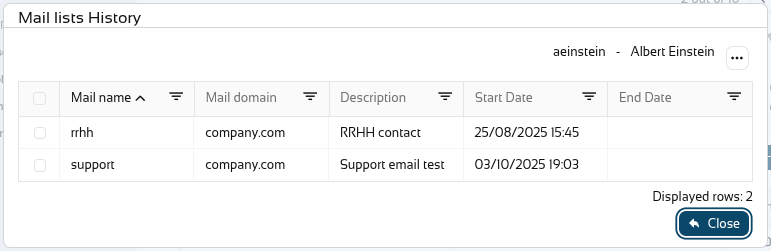
In any of the four options, when selecting an old record, the ‘Restore’ button will appear and this object can be restored to the user.
Image